Modelos e extensões contábeis para Banana Contabilidade
Customizable Accounting Solution
Banana Accounting Plus is highly customizable professional accounting software that can be adapted to your organization, country and specific accounting needs.
Start from a ready-to-use template and customize the chart of accounts, reports, VAT settings, currencies and other elements to create the accounting solution that works best for you.
Customize your accounting
Banana Accounting gives you the flexibility to organize your accounting according to your own requirements.
- Create a chart of accounts with your preferred numbering and structure
- Choose your language, currency and local settings
- Define account groups, Cost Centers and Segments
- Add custom columns to accounts and transactions
- Define VAT or sales tax codes that automatically calculate VAT amounts
- Customize your Balance Sheet and Income Statement
- Manage multiple currencies and exchange rates
- Create your own extensions for printing, importing or exporting data with specific criteria
Start from a template and make it yours
The easiest way to create your customized accounting solution is to start from an existing template that is close to your needs and adapt it.
Once your accounting file is configured, you can save it and reuse it as the basis for other accounting files.
Although not recommended, you can also create a new accounting file from scratch and Creating a new template.
It is also possible to create an instance file in the XBRL format that is specific to a country.
Need help? We are here to help
Our accounting team has a broad international experience and is available to help you create the best solution for you.
- We have customers in more the 120 countries.
- We work in different languages.
- We have experience with many accounting and fiscal systems.
Adapt your accounting to different countries
Banana Accounting is designed to work with different languages, currencies and accounting systems. You can adapt the chart of accounts, VAT or sales tax settings and financial reports according to local requirements.
This flexibility makes Banana Accounting particularly useful for organizations working internationally or managing accounting in different countries.
Extend Banana Accounting with Extensions
Banana Extensions allow you to add specific functions and automate tasks according to your needs.
Extensions can be used to:
- Create customized accounting and financial reports
- Prepare reports according to specific tax or regulatory requirements
- Import data from banks or other systems
- Export accounting data in specific formats
- Check accounting data according to specific rules
- Create calculations, charts and other customized outputs
Build the solution that works for you
From a simple customized chart of accounts to advanced reporting, data import and automation, Banana Accounting can grow and adapt to your requirements.
You can start with a standard template and progressively customize your accounting as your needs evolve.
Start for free
Download Banana Accounting and start immediately with the Free plan. No personal information is required, and even your email address is optional.
Create your accounting file, explore the customization options and upgrade to a paid plan whenever you need additional features.
Case guide
Banana Accounting is a versatile accounting software. It can be used for different purposes.
When accounting is mandated by law
Business
- Required to do double entry accounting
Double entry accounting, with/without VAT or with/without multicurrency- Small companies (10 or more employees).
- Micro companies (1-9 employees).
- Companies or other organization with no employees.
Financial and Holding companies, Foundations, Asset management, Trusts.
- Required to report Revenue and Expenses.
- Small companies with revenue less then a specified amount
- Self employed individuals.
- VAT reporting
Certified public accountants (CPA)
Do accounting for other companies.
CPA doing accounting for small businesses usually prefer to use Double entry accounting.
Not for profit organizations
- Small non profit organization.
Income and expense accounting or double entry accounting. - Entities with institutional and commercial activities.
Double entry accounting. - International NGO
Double entry accounting with multi-currency.
Public sectors
- Small public entities.
Double entry accounting
Private and family accounting
- Private and Family accounting.
Income and Expense accounting. - Private and Family accounting with international investments.
Double entry accounting.
Auxiliary/ internal accounting
Not the main accounting
- Cash and liquidity management.
Income and Expense accounting.- Simple cash manager.
- Liquidity manager.
Companies that have a person that keep track of cash and banks.
- Project and Department accounting.
Income and Expense accounting.- Internal projects within larger organizations.
- Distributed accounting solutions
Keep local accounting, integrated in the ERP system. - Construction accounting.
Double entry or Income and Expense accounting.- Owners that build a property and keep track of the investment and progress.
- Contractors or architects that have responsibility of the construction’s project.
- Property management accounting.
Income and Expense accounting or Income and Expenses accounting.- Owner that mange a rented property.
- Condominiums.
- Professionals that manage properties for others.
Education
Banana Accounting is used as a tool to learn and exercise Double Entry Accounting.
- Basic accounting in low grade school.
- Introduction to accounting.
Show how the accounting works, with possibility. - Accounting training.
Students enter transactions (exercises on double entry accounting). - Accounting for a virtual company..
Budgeting and financial planning
Use the financial planning functionalities of Banana Accounting.
- Budgeting.
- Financial plan for a startup.
- Retirement planning.
Utilities products
Assets management
- Companies
Books catalog and loan management
- Small libraries
- Companies / legal practice
- Private
Address book
- Simple address management
- Google contacts editor
- Special adess management (Elenco patrizi)
Time sheet
- Employees for time tracking
- Companies for their employees
Future: project managment
Create a new template file
The first step is to create a new accounting file (File new) by choosing the more suitable type and language.
- It is suitable to start by choosing a predefined template that looks like the one you desire. You can then change everything you want.
- In the following examples we assume you use the double entry accounting system for a company.
- Once you have created a file you save it by giving it a name. This file can be used for your accounting or serve as a template for other companies.
Accounting in a language not available
You can create an accounting file that is in the desired language, even if your the software is not available in the local language.
- Create a new template, using a template in another language that is similar to you needs.
- Translate the accounting plan
Translate adapt the Description in the accounting plan as needed. - Translate the column headers.
- Menu Data -> Column settings.
- For each column change the header.
Create an accounting file with different settings
If the template setting are not suitable for you:
- Tools -> Convert to new file command, you will create a copy of the file
- Choose the file type
- Set the language, decimals rounding that is more suitable.
The Accounting properties
You insert the name of the company, the opening and closing date of the accounting year.
You can chose the accounting currency. If a currency is not on the list type the new currency code.
The accounting plan
Your country will probably have its own accounting numbering and grouping.
You will have to write or copy and paste the data in the Accounts table.
- Sections will define the main separations in the accounting.
- Balance sheet
- Income Statements
- Cost Centers
- Segments
- Account (Account number)
Is where you put the account number. - Group is where you insert the group number.
- Gr is where you insert the Group code where this Account or group should be totalized.
When creating a new accounting structure keep in mind:
- Add the accounts you will need. Don’t create a huge accounting plan in case you do not really need it.
Users can always add new accounts. - Keep the grouping simple, so that you have the groping required for your country.
The grouping usually also conforms to the country specific requirements. - For tax purposes you will probably need also a different grouping scheme that is different from the normal one that you use for Balance sheet or Income presentation:
- Use the column Gr1, Gr2, to assign to each account a different grouping scheme.
You will use then use the external report or create a BananaApps that will use the number to group different accounts together. - If you have a strict accounting numbering scheme, you can also create BananaApps that groups account based on specific number.
- Use the column Gr1, Gr2, to assign to each account a different grouping scheme.
- In case you need specific report for other need consider creating a BananaApps or an Excel sheet that takes the data from the accounting file.
Cost centers and segments
Consider using Cost Centers and Segments for more detailed reporting. If you do not have this specific need, you can add later.
In Banana you can define up to
- 3 types of cost centers, with an unlimited number of cost centers for each type.
- 10 levels of segments, with an unlimited number of segments for each type.
You can use the cost centers and segments while booking.
You specify the transaction code for the transaction. Cost centers are very flexible, and they are usually used for:
- Project income and expenses management
- Taking note of special transactions
- Have a parallel accounting scheme (for example large international NGO)
With the debit and credit account they have their internal accounting.
With the cost centers they have the transactions recorded by the donors accounting scheme. At any time they have reports for internal use or to presents to the donors.
You specify the segment in the transaction when you enter the account. You can have a segment that is different for account debit and credit. Consider using for managing:
- Branches, Organisations, Departments
- Different types of businesses
Vat Code
In the Accounts table you can setup all the VAT or sales tax percentage you will need. Basically there are two types of VAT Codes:
- VAT Due.
- VAT recoverable.
You can setup codes for all the percentages and purposes you will need.
Your country will have a specific reporting. With BananaApps you can create a printout that is a facsimile of the state form, with the amounts already grouped and summed as needed.
Use the column Gr1 or Gr2 to enter the number of the Tax form, were the VAT Code should be grouped. If a VAT code needs to be grouped in more than one place, separate the form number with a semicolon “;”.
The advantage of using Vat Code is that you can configure the accounting so that only useing the appropiate VAT code it is possible to extract the data necessary for the VAT reporting. You can have just one account where all the vat plus or minus is recorded. The accounting plan remain very simple and can focus on the company's need.
There are other approaches. For example in Germany the Datev accounting plan use the accounts as a base for the VAT reporting. For each specific VAT cases there must be a corresponding account. . The disadvantage of this approach is that there are accounts with special meaning (for example automatic accounts) with predefined VAT percentage and rules that are not visible for the users. This kind of accounting are more difficult to use unless you know exactly the purpose. With the VAT code the VAT complexity is resolved in the VAT table.
You will therefore have a choice to create an accounting plan, that is based on the need of a company and use the VAT code functionality for reporting, or mantain each VAT transaction separated for each case and have many VAT Accounts in the accounting plan.
Exchange rate table
If you have chosen the multi-currency option in the Exchange rate table you will setup the currency you will use.
Once you have declared a currency you can use it for an account.
Composition Balance sheet and Income statements
You can create predefined printouts of Balance Sheets and Income statements by creating a new composition.
It could be interesting to create predefined composition for:
- End of year report
- Trial balance
- Actual vs. Budget
- Columns with amount by Quarter
- Columns with amount by Segments
Create template documentation for the banana web site
Each template provided by Banana.ch has a page description under www.banana.ch/apps.
Required field
Title
Should be composed of the accounting type and the purpose of the template.
It is the text that will be displayed on google (think of Search Engine Optimisation).
- "Double entry accounting for small company in Switzerland, with VAT".
- "Double entry accounting for small company, with VAT and multi currency".
- "Double entry accounting for an international NGO".
File Url
The full url of the file.
- "https://github.com/BananaAccounting/Switzerland/raw/master/templates/english/double_entry_accounting/en_de_sme_company.ac2"
Short Description
It is displayed on the index, together with the Title.
A text that specify the purpose of the template. Be as expressive as possible.
Description
The Description is used to describe the template, show how to use it. The text should be also prepared for beeing indexed by the search engine.
It should contain reference to the possible user and other information that help make a good rank on google or bing (SEO).
- The first 2 lines of the text.
Are the one displayed in the google search. So they should summarize the use of the template well. - Following text .
Can be long as necessary with:- Use cases.
- Table description
- Content description
- Images
- Testimonials
- Reference to other documentation (Tax documents, business web site, ...)
Other field
- Language
The language of the page. - ac2 file type
Select the file type - ac2 category
Select the category.- Education means for educational purpose.
- ac2 country
Select the country.- If the country is not on the list select Other.
- If the template is for general use, not related to one country, select Universal.
- ac2 language
Select the language of the template.- If the language is not on the list select Other.
- ac2 publisher
Select the publisher. Banana.ch or other.
Setup the Accounts table
In the following we will explain what need to be considered when creating a new accounting tabble for a specific country.
- Creating the account structure and grouping specific country.
- Creating the country specific reports or export files, using the functionalities offered by the Banana API .
Documentation
- Accounts table documentation including table accounts columns.
Examples files
- The examples files are available on github/General/CaseStudies.
- File "scalar_income.ac2" is used in the following as an example of scalar accounting plan.
Using an existing accounting system
Usually countries have accounting system that include:
- Accounts numbering
- Accounts description
- Accounts grouping and totalisation
The country or sector specific accounting system is usually focused on helping prepare the Balance Sheet and Income & Exanses report.
Based on this accounting system it is also necessary to generate report that summirize the accounts for specific tax purposes, in case that the tax autorities require a report that is different from the Balance structure.
Accounts table
In Banana accounts and grouping are specified in the accounts table.
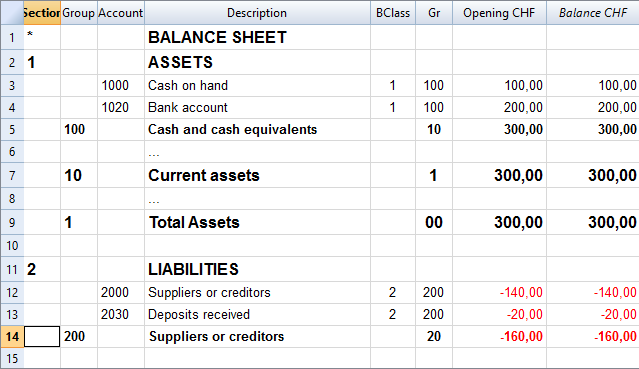
Banana allow to adapt to different county or sector specific requirement, but at the first moment the Banana grouping system look confusing, for the fact that there are different columns that contains similar information.
Accounts, groups and sections
There are three different type of line in the account table.
- Account.
Lines that have an account number in the column account.
Accounts can be normal account, cost center or segmente - Group
Lines that have a group number in the column group. - Section
Line the have a section number in the column section.
A line in the account table can is either an Account, Group or Section. It cannot be both, so if there are on the same line an account, group or section there is an error.
In the above example there are lines for Section, group and accounts.
Here is the meaning
- Accounts.
Are used for recording transactions. - Group
Are used to create sums. - Sections
Are used to separate different part of the report.
Summing and creating totals
In Banana you can create sum by using the combination of:
- Groups columns.
You enter the group number and the line become a group. - Gr
I where you enter the group on where this line should be totalized.
Accounts and Groups can have a Gr.
In the example above.
- The accounts 1000 and 1020 is totilized on the group 100.
- The group 100 is totilized on the group 10.
- The group 10 is totilized on the group 1
- The group 1 is totlized on the group 00.
By creating the group line and specifingin in the Gr whe the each line is grouped you create a wole totalisation.
Total debit = Total credit
Computer represent debit amount in positive and credit amounts in negative therefore we should totalize all accounts and groups in a final group that, if the accounting is correct, should have the amount to zero.
At the end of the grouping we will have a group named "Difference should be zero (null)" that in the above accountng example has the number 00.
Basically in the double entry accountiong system the totalisations is done in this way.
- Group Income and expenses (example group E7)
Is the sum of all Revenue and Costs accounts.
The Profit or Loss of the year that is further totalized in the Equity as the current year result. - Group Assets (example group 2)
Include all Assets accounts
Asset are totalized on the group Difference should zero. - Liabilities and Equity (example group 2).
Is the sum of all the Liabilities and Equity accouns, plus the Profit and loss of the current year from the total group of income and expenses.
Liabilities and Equity on the group Difference should zero. - Difference should be = 0 (example group 00)
Is the end sum of all accounts and the Balance should be null if the accounting is correnct.
The BClass column
In Banana each column has a (Banana class number) that indicate if the account belong to:
- 1 Total Assets
- 2 Total Liabilities
- 3 Total Expenses
- 4 Total Revenue
- 5 Total off balance sheet: Assets
- 6 Total off balance sheet: Liabilities
- 7 Total class 7
- 8 Total class 8
- 9 Total class 9
The BClass is somewhat a redundant information, but unfortunalty is also necessary in order to let Banana if the accounting is correct.
The BClass is also some time confusing for the fact that the country specific accounting system have normally class number that are not the same as the BClass in banana.
The Section column
Is also sometime redundant information, but unfortunatly is necessary in order to have the possibility to customize Balance sheet and other repors.
Grouping for the Balance
- Assets
You need to create a Total Assets group and intermediary groups (like fixed assets) so that up grouping the accounts specific to the Assets. - Liabilities (Third party capital and Equity)
Has subgroups for- Third party capital (Liabilities in anglo saxan terminology)
- Equity
Grouping for Income statemant
It groups all the accounts belonging to the Income statement. At the end there should be a group "Loss (+) por Profit (-).
There are two fundamentally different system to present the Income statement. One that sum separately the Revenue and the Costs and another one (scalar system) where the the Profit and Loss is calculated by starting from the revenues and obtainings intermediary results.
Revenue and Cost separated
There are two groups that are summed in the Loss and Profit
- Total Revenue
- Total Income
Scalar system
- (E1) Gross operating
Sum of all accounts for Revenue and Productions cost - (E2) Gross operating result after deducting personnel expenses
Sum of Gross operating group (E1) and the accounts Personel costs. - (E3) Operating result before depreciation and value adjustments, financial results and taxes (EBITDA)
Sum of E2 and the operating cost - (E4) Operating result before financial results and taxes (EBIT)
Sum of E3 and the depreciation - (E5) Operating result before taxes (EBT)
Sum of E4 and Financial costs - (E6) Profit or loss before taxes
Sum of E6 and extraordinary costs - (E7) Annual profit or loss
Sum of E6 and the tax - In this form it is necessary to create intermediary groups for.
Create a tutorial file with examples
When you create a new template file for beginners it is also suitable to create a tutorial file with example of opening balances, accounting and budget transactions.
The examples will depend on the specific purpose of the template, but it may be helpful to follow a similar approach and give an overview of the most used Transactions and Budget cases.
Opening Balances
Fill the column opening balances with amounts for the Assets, Liabilities and Equity.
Use simple rounded amounts.
Examples Of Accounting Transactions
Give examples of different Transactions type, without repeating too much the same case.
When it make sense, use the following sequence:
- Simple Transactions (direct Debit and Credit):
- Revenue Income going to the bank or the Cash.
- Equity capital going to the Bank.
- Loan going to the Bank.
- Expense payed with the Cash or Bank.
- Purchase of Material payed with Bank.
- Transfer from Bank to Cash.
- Transfer from Cash To Bank.
- Partial Repayment of a Loan.
- Transactions with multiple accounts:
- Bank income split on multiple Sales or Service account.
- Bank payment with multiple Costs.
- Transactions with VAT (When applicable):
- Sales.
- Purchase.
- Customers
- Issue of an invoice.
- Receive payment of an open invoice.
- Issue of Credit note.
- Suppliers
- Bill received.
- Bill payment.
- Receive a Credit note.
- End of year Transactions
- Depreciation of Material.
- Interest income.
- Interest on Loan.
- Active accruals.
- Passive accruals.
- Cost Centers
- Segments
Budget Transactions
- Not recurring revenues and expenses (no repetition code)
- Income as Equity advance.
- One time Sale.
- One time expense.
- One time payment with Bank with multiple costs.
- Buying of Assets (Material).
- Monthly recurring revenues and expenses (Repetition M)
The most part of Income and Expenses are made on a monthly base.- Revenues from sales
- All other Expenses.
- Quarter recurring revenues and expenses (Repetition 3M)
- Interest income.
- Interest on Loan.
- Semester recurring revenues and expenses (Repetition 6M)
- End of Year (Repetition Y)
- Depreciation.
- Loan repayment.
- Eventually an example of a Loan payment split on Interest and Repayment.
Setup the VAT table for a specific country
Use more languages
Banana Accounting software lets you setup the accounting file to use different languages.
- Create the accounting file with a main language.
- Add another language by adding the columns for the description in the other language.
You can add as many languages you need. - Customize the printout.
Program language
Every user can select and change the program language any time. Changing the program language will have no effect on the accounting data and accounting setup.
Adding columns for a different language
You can use the command Add column to create a supplementary column for the description in second language, in the table accounting, VAT table or Transaction's table. Use the language name (for example German, Chinese, etc.) as column name.
In the supplementary columns you will enter the description in the language.
You can add a new View for each language (German, Chinese, etc). You can customize the view to see only the description in one language or in more language at the same time.
People wiil be able to work on their language. .
Enhanced Balance sheet with in different languages
In the Enhanced Balance sheet you can choose witch column to use as description.
Under Columns select Add and choose the column you want to show.
You can create a Customization to save the setting for the printout. This way you can create printout for each language.
BananaApps
With BananaApps you can program a report to adapt to your necessity.
Local Extensions
Extensions for Accounting and VAT reporting
Following we list some developments, for the complete list goto to the Banana Apps search page.
- Austria
- China
- Template for SME companies
- China Small companies Balance Sheet and Profit and Loss reports
- Germany
- VAT Summary Reporting with XML file for uploading on the Elster portal.
- Italy
- Accounting plan and reporting for Non profit organisations
Accounting plan and reports required by the regional and national authorities.
Project developed together with the Centro Servizi Volontariato, Padova - VAT Italia
- Quarterly VAT reporting in XML format for upload.
- XML file with customers and suppliers invoice datafor uploading on the Autority web site.
- Accounting plan and reporting for Non profit organisations
- Netherland
- Audit file (accounting data is exported in XML as required by the NL tax autoryties)
- Switzerland - Ticino
- Curatele Accounting plan and required report
Project Istituti Sociali Città di Lugano - Patriziati
Project based on specificaction of the Sezioni Enti Locali Cantone Ticino.
- Curatele Accounting plan and required report
File Templates
See the Templates section.
Multi-Site Accounting
Distributed companies and organisations have operations in different places.
- In the same country.
- In different countries.
They need to setup an accounting organisation that allows to have:
- An acounting control for each entity (country or project)
- Have a consolidated accounting.
Data from the different accounting files need to be grouped together.
Multi-Site accounting
The Banana Accounting software is used by thousands of organisations and projects as a distributed accounting system.
Banana.ch has been a world pioneer in using blockchain technology, which faciltates the creation of a distributed accounting system.
Examples are:
- Entities that keep track of accounting transactions in different places and integrate the data in one central accounting.
- Projects accounting, with specific and detailed reporting, not available on the central system.
- A Non-profit organization that has projects worldwide, lets each project keep their accounting, and the data are integrated in the central accounting system (See Helvetas - Blockchain decentralized accounting).
- A large public organization that uses SAP, lets some organizations keep their accounting with Banana. (See Example of Kanton Basel City - German).
- Companies with different branches, that operate in different countries, with different currencies and accounting setup.
When multi-site, distributed accounting makes sense
Organizations tend to centralize their accounting system, so that all data reside in one system only.
Cloud computing makes it easier for organizations to share a centralized system. But distributed accounting still is the best choice:
- Connections are slow or costly.
- Using the central system is difficult:
- Require specifically trained personal
- Have high license costs.
- It is not flexible.
- Have a different workflow.
- Local accountings have specific needs, and customizing the central system would be too difficult and costly:
- different accounting plans and requirements
- different legal requirements
- different currencies.
- Accounting documents are kept at the branch level.
- Branches need a lot of flexibility but at the same time you do want to limit data access.
- The different branches have few interactions.
- There is no need to have all the detail-information in a central system.
In these cases it makes sense to have people in the branches use Banana Accounting.
Setting up the distributed accounting system
Organizations that use a distributed accounting system will then need to integrate the data in a central system, in order to have financial statements that include all branches and projects.
The data integration process must consider:
- With what frequency the data need to be integrated (monthly, quarterly, yearly, ...).
- The detail-transactions that need to be integrated in the central system.
- Whether only summary data are being integrated in the main system.
- How the data will be made available to the center.
Integrating all transactions into the central system
The requirements for working this way are:
- The distributed accounting and the central accounting use the same account numbers, same currency.
- In this case the integration process is done by importing the transactions from the branch into the central system.
- In Banana you have a central accounting system and use the import function.
- The distributed accounting and the central accounting have different account numbers or currencies
- The transactions must be converted to a format that is suitable for importing.
You can create a BananaApps that exports the data from the Banana Accounting file into the requested format's data. - Currency conversion.
You need to define at what rate the amounts from one currency are converted to the other currency. - If you use Banana for the central and distributed accounting see
- Import transactions
- Import file (this function also allows to convert account numbers).
- The transactions must be converted to a format that is suitable for importing.
Integrating only the summary data into the central system
This approach facilitates the integration process and is particularly adequate when:
- The central accounting system differs from the local one.
- Local accountings use different settings (currency, accounting plan), making the integration complex.
- There is no need to have detailed transactional information in the central system.
Detailed information can easily be accessed with the Banana accounting file. - There are large quantities of data and integrating it makes managing the central system more complex and costly.
Therefore, in the central system only the summary data are integrated:
- The period of the data that should be integrated (monthly, quarter, year) are defined
- Defined is whether the integration is done at the accounting level or at the group level (see below).
- Each branch accounting prints a summary of transactions (see BananaApps Trial Balance with blockchain) that includes:
- accounts or group number
- total debit and credit for the period.
- these amounts are registered unto the central accounting:
- Manually (directly from the report)
- With the import function. In this case the data should be exported from Banana Accounting.
Using blockchain lock function
If you use a distributed accounting system, it is important that, once you have integrated the data into the central system, the local data are not changed. In case the local data have been changed you will have difficulty in reconciling the different systems. The situation will get complicated if you have many accounting files.
The branch cannot be prevented to modify the file, for the fact that they have the file on their local system.
The only way to make sure that the data have not been changed, is to use a blockchain security mechanism embedded in Banana and named Lock transaction:
Each branch, at the end of each period, is required to:
- Check that the progressive lock of the previous period is the same as the one that has been printed.
- Lock the accounting for the period.
- Print the lock report, sign it and send it to the headquarters, together with the accounting file.
Once the accounting has been locked, the branch, should:
- Continue to work on the same file.
- Do not unlock or change the locked transactions.
The headquarter should:
- Keep note of the progrLock and number when they integrate the data.
- Keep a copy of the file that has been integrated previously.
The best is to put in a directory with the date or have a date in the file name. - When they receive the file, check that the lockProgressive of the last period is the same.
- If is not the same require the branch to fix the problem.
- do not proceed with the data integration.
- Use the BananaApps Compare two files to see the differences.
- In this case, it will be worth it to return the previous file, so that they can start from this and add the new transactions.
- If it is the same
- Proceed with the integration.
- Keep note of the last LockProgr and LockNumber.
- If is not the same require the branch to fix the problem.
Structuring the accounting plan to facilitate the data integration
Keep the same account numbers
If you need to use in the branch the same accounts number that you use in the central system, the best way is to use the same accounts number in the branch accounting file.
Using different account numbers
This is necessary in case local accounting should use a different accounting plan (local rules) or a more detailed accounting.
There are different options:
Add a column to the accounting plan for the central accounting number, so that each account will also have a corresponding central account number:
- The account column will use a local account number.
- In the columns Central account you enter for each account the number of the account used in the central system.
- Different accounts can have the same central account number.
Use a grouping schema where the groups in the accounting table corresponds to the account number of the central accounting (see Helvetas example)
- Each group in the accounting plan will correspond to an account number in the central accounting.
- In the accounts table you will have the groups totals corresponding to the accounts in the central accounting.
- You will end up having a lot of groups.
- This approach is useful if the local accounting needs to create many local accounts. For examples many bank accounts.
Multiple levels
If your organization is complex it may make sense to have different level of integration (see Helvetas example) with different approaches:
- Each country integrates the data of the local projects, by importing all transactions in one file.
- The summary data of each country is then integrated in the central accounting system.
Cash Manager
If the local project only has one account to manage, it make sense to set up a Cash Manager
- Create a Cash Manager file in which the branch keeps track of it's expenses.
- Use the import Cash Manager function to integrate the data in the main Banana Accounting file.
Modelos e extensões contábeis | Universal
Além das opções específicas para cada país, o Banana Contabilidade também oferece modelos universais que podem ser facilmente adaptados ao seu país e às suas necessidades. Eles usam nomes descritivos para as contas em vez de códigos numéricos, tornando a contabilidade mais simples e fácil de entender.
Aqui está um exemplo de plano de contas para um arquivo de contabilidade de receitas e despesas:

Escolha o modelo que melhor atende às suas necessidades no menu suspenso à esquerda ou diretamente no Banana Contabilidade (Arquivo > Novo).
Universal resources for Companies
Banana Accounting Plus is a professional accounting software that is easy to use and available at a highly competitive price. It is ideal for small businesses and freelancers.
Choose from ready-to-use Universal templates that can be easily adapted to your country, business and specific accounting needs.
Accounting applications
Banana Accounting includes several accounting applications in one software: Cash Manager, Income & Expense Accounting, Double-entry Accounting and Multi-currency Accounting, with or without VAT management.
Ready-to-use templates are available for each accounting application, and can be be easily adapted to any country or business activity.
Create invoices easily
Every business has different invoicing needs. Banana Accounting therefore offers different ways to create and manage invoices:
- Create invoices directly from your accounting file
- Create estimates and invoices separately from accounting
Manage clients and suppliers
With ready-to-use templates that include client and supplier registers, you can easily keep track of invoices, payments and collections.
Simply enter the client or supplier account in your transactions to obtain a complete history for each contact. You can also add client and supplier management to an existing accounting file.
Import transactions and automate your accounting
Banana Accounting Plus is available in two subscription plans and lets you quickly import electronic statements from your bank, credit card or PayPal account.
The Advanced plan is particularly useful if you manage accounting regularly or have many transactions. Its automation tools can significantly reduce manual work:
- Rules for automatically completing imported transactions
Automatically complete recurring transactions to save time and reduce errors.
Video: ▶ Automatically import and complete transactions
- Filter and Sort features in the Transactions table
Quickly find, check and edit existing accounting data.
Productivity applications for your business
In addition to accounting, Banana Accounting Plus includes useful applications for businesses and freelancers:
- Estimates and Invoices – create and manage invoices independently from your accounting file
- Timesheet management
- Inventory and warehouse management
- Fixed Assets Register
See all Productivity applications
Start for free
Download Banana Accounting and start immediately with the Free plan. No personal information is required, and even your email address is optional.
You can try all features, including those of the Advanced plan, with up to 70 transactions and no time limit. You can switch to a paid plan at any time while keeping all your accounting data.
Set up your accounting in minutes
Starting from a template is quick and easy. In just a few minutes, your accounting file can be ready to use.
Our short step-by-step videos can help you get started:
- Video: ▶ How to set up your accounting in 3 steps (0'54'')
See all Banana Accounting videos
Upgrade from an older version
Already using an older version of Banana Accounting? Upgrade to Banana Accounting Plus and get one month free. Your existing accounting data remains compatible, making the transition quick and easy.
“I have been using Banana for my study for 7 years. The program is really great, it can do a lot and the price/quality ratio is more than satisfactory. Even if you have questions, the support is always very good.” – Judith Klee
Universal Accounting Templates No VAT
The universal templates for Banana Accounting are ready-to-use files that can be easily adapted to any country, your business and your specific accounting requirements.
Here are the universal templates currently available without VAT management:
You might also be interested in
商店会计
Neste artigo
商店会计
商店会计
使用现金账簿方法来完美管理商店或店铺的通用会计模板。
Abrir na Banana WebApp
Abra a Banana Accounting Plus no seu navegador sem qualquer instalação. Personalize o modelo, introduza as transacções e guarde o ficheiro no seu computador.
Open template in WebAppTemplate preview
XX店铺
本位币: USD
现金日记账
| 总组 | 账号 | 摘要 | 总和 |
|---|---|---|---|
| 现金 | 现金 | ||
| 总组 | 科目 | 摘要 | 总和 |
|---|---|---|---|
| 经营业绩 | |||
| 收入 | |||
| 销售收入 | 销售收入 | 4 | |
| 从银行账户提款 | 从银行账户提款 | 4 | |
| 服务收入 | 服务收入 | 4 | |
| 其他收入 | 其他收入 | 4 | |
| 4 | 总收入 | 00 | |
| 费用 | |||
| 转账到银行账户 | 转账到银行账户 | 3 | |
| 购买邮票 | 购买邮票 | 3 | |
| 邮政费用 | 信件和包裹 | 3 | |
| 快递费 | 邮递物品 | 3 | |
| 办公用品 | 文具,电器,清洁 | 3 | |
| 租金及水电费 | 租金,电费,水费 | 3 | |
| 电话费 | 电话和传真费 | 3 | |
| 房屋保养 | 房屋保养 | 3 | |
| 橱窗装饰 | 橱窗装饰 | 3 | |
| 宣传费 | 宣传,传单 | 3 | |
| 中介费 | 中介费 | 3 | |
| 支付货款 | 支付货款 | 3 | |
| 薪资及个人贷款 | 薪资及个人贷款 | 3 | |
| 其他许可证费用 | 其他许可证费用 | 3 | |
| 3 | 总费用 | 00 | |
| 00 | 业绩 | ||
| 成本和利润中心 | |||
| 部门 | |||
| .店铺及人事管理 | 店铺及人事管理 | T1 | |
| .货物管理 | 货物管理 | T1 | |
| .投资 | 投资 | T1 | |
| T1 | 总部门 | ||
Simple Accounting for a Shop | Universal
Neste artigo
Simple Accounting for a Shop | Universal
Simple Accounting for a Shop | Universal
General template perfect to manage the accounting of a shop or a store, with the simple accounting method. This is a universal template, easily adaptable in any country.
Abrir na Banana WebApp
Abra a Banana Accounting Plus no seu navegador sem qualquer instalação. Personalize o modelo, introduza as transacções e guarde o ficheiro no seu computador.
Open template in WebApp Open tutorial in WebAppTemplate preview
Shop XX
| Group | Account | Description | Sum In |
|---|---|---|---|
| Cash | Cash | ||
| Group | Category | Description | Sum In |
|---|---|---|---|
| OPERATING RESULT | |||
| INCOME | |||
| Sales | Sales | Total Income | |
| Withdrawal | Withdrawal from current account | Total Income | |
| Services | Services | Total Income | |
| Other | Other | Total Income | |
| Total Income | TOTAL INCOME | Result | |
| EXPENSES | |||
| Good Purchase | Payments for goods | Total Expenses | |
| Transfers to post | Tranfers to post office account | Total Expenses | |
| Salaries | Salaries and personal loans | Total Expenses | |
| Stamps | Purchase stamps | Total Expenses | |
| Mailing supplies | Mailing supplies | Total Expenses | |
| Stationery | Stationery, appliances | Total Expenses | |
| Publicity | Publicity, flyers | Total Expenses | |
| Window dressing | Window dressing | Total Expenses | |
| Cleaning | Cleaning | Total Expenses | |
| Rent | Rent | Total Expenses | |
| Energy | Electricity, water, gas | Total Expenses | |
| Telephone | Telephone and fax | Total Expenses | |
| Internet | Internet | Total Expenses | |
| Real estate | Real estate upkeep | Total Expenses | |
| Agency fees | Agency fees | Total Expenses | |
| Taxes | Taxes | Total Expenses | |
| Insurance | Insurance | Total Expenses | |
| Total Expenses | TOTAL EXPENSES | Result | |
| Result | RESULT | ||
| COST AND PROFIT CENTERS | |||
| DIVISION | |||
| .S | Shop and personnel management | T1 | |
| .G | Goods management | T1 | |
| .I | Investments | T1 | |
| T1 | TOTAL DIVISION | ||
Income & Expense Accounting for Property Management
Neste artigo
Income & Expense Accounting for Property Management
Income & Expense Accounting for Property Management
Ideal template to manage the accounting of a property or an apartment (real estate), simply entering the income and the expenses. The list of tenants are managed with a cost center.
Abrir na Banana WebApp
Abra a Banana Accounting Plus no seu navegador sem qualquer instalação. Personalize o modelo, introduza as transacções e guarde o ficheiro no seu computador.
Open template in WebApp Open tutorial in WebAppTemplate preview
Property XXX
Accounting 2022
| Group | Account | Description | Sum In |
|---|---|---|---|
| ESTATE | |||
| Assets | |||
| Cash | Cash | Assets | |
| Post | Post office current account | Assets | |
| Bank | Bank | Assets | |
| Rents receivable | Rents receivable | Assets | |
| Machinery | Machinery and applicances | Assets | |
| Office forniture | Office furniture | Assets | |
| Computer | Computer | Assets | |
| Software | Software | Assets | |
| Building | Building | Assets | |
| Land | Land | Assets | |
| Assets | Total Assets | Net Estate | |
| Liabilities | |||
| Suppliers | Suppliers | Liabilities | |
| Mortgage | Mortgage | Liabilities | |
| Deposit from tenants | Deposit from tenants | Liabilities | |
| Liabilities | Total Liabilities | Net Estate | |
| Net Estate | NET ESTATE | ||
| Group | Category | Description | Sum In |
|---|---|---|---|
| OPERATING RESULT | |||
| Income | |||
| Rental income | Rental income | Income | |
| Other rental | Other rental related income | Income | |
| Other income | Other income | Income | |
| Income | Total Income | Result | |
| Expenses | |||
| Advertising | Advertising for tenants | Expenses | |
| Property agent fees | Property agent fees/commission | Expenses | |
| Legal expenses | Legal expenses | Expenses | |
| Insurance | Insurance | Expenses | |
| Land taxes | Land taxes | Expenses | |
| Licence and permits | License and permits | Expenses | |
| Depreciation | Depreciation | Expenses | |
| Repairs | Repairs and maintenance | Expenses | |
| Electricity | Electricity expenses | Expenses | |
| Water | Water charges | Expenses | |
| Heating | Heating expenses | Expenses | |
| Cleaning | Cleaning | Expenses | |
| Gardening/Lawn mowing | Gardening/Lawn mowing | Expenses | |
| Pest control | Pest control | Expenses | |
| Stationery, telephone and postage | Stationery, telephone and postage | Expenses | |
| Materials | Materials | Expenses | |
| Interest on mortgage | Interest on mortgage | Expenses | |
| Miscellaneous expenses | Miscellaneous expenses | Expenses | |
| Expenses | Total Expenses | Result | |
| Result | TOTAL OPERATING RESULT | ||
| Profit and Cost centers | |||
| Tentants | |||
| ;T01 | Tenant 1 | T | |
| ;T02 | Tenant 2 | T | |
| ;T03 | Tenant 3 | T | |
| ;T04 | Tenant 4 | T | |
| T | Total tenants |
Income & Expense Accounting for a Corporation
Neste artigo
Income & Expense Accounting for a Corporation
Income & Expense Accounting for a Corporation
Start easily and FOR FREE the income/expense accounting of your Corporation and get immediately the Income Statement and the Balance Sheet. The income and expense system is also ideal for those with limited accounting knowledge. This ready-to-use generic template can be adapted according to your needs, to also manage the accounting of your company, sole proprietorship, partnership or small or medium business. Banana Accounting Plus is a professional software that is very intuitive and fast to use because it's similar to Excel. If you make mistakes you can always correct until everything is perfect.
Abrir na Banana WebApp
Abra a Banana Accounting Plus no seu navegador sem qualquer instalação. Personalize o modelo, introduza as transacções e guarde o ficheiro no seu computador.
Open template in WebApp Open tutorial in WebAppTemplate preview
Company XX
| Group | Account | Description | Sum In |
|---|---|---|---|
| BALANCE SHEET | |||
| ASSETS | |||
| Bank Accounts | |||
| Business checking | Business checking account | Bank | |
| Business savings | Business savings account | Bank | |
| Payroll checking | Payroll checking | Bank | |
| Cash | Petty Cash - Out of Pocket expenses | Bank | |
| Barter | Barter checking | Bank | |
| Bank | Total Bank Accounts | Assets | |
| Accounts receivable | |||
| Customers | Accounts receivable (Customers' register) | Receivable | |
| Receivable | Total Accounts Receivable | Assets | |
| Current Assets | |||
| Inventory | Inventory | C-Assets | |
| Undeposited Funds | Undeposited Funds | C-Assets | |
| C-Assets | Total Current Assets | Assets | |
| Fixed Assets | |||
| Equipment | Equipment | Fixed | |
| Furniture | Furniture and Fixtures | Fixed | |
| Vehicles | Vehicles | Fixed | |
| Acc-Depreciation | Accumulated Depreciation | Fixed | |
| Fixed | Total Fixed Assets | Assets | |
| Other Assets | |||
| Start up | Start up costs (accountants use) | Other | |
| Acc-Amortization | Accumulated Amortization | Other | |
| Notes Receivable 1 | Notes Receivable 1 (officer, owner, related party) | Other | |
| Notes Receivable 2 | Notes Receivable 2 | Other | |
| Other | Total Other Assets | Assets | |
| Assets | TOTAL ASSETS | Net | |
| LIABILITIES | |||
| Accounts payable | |||
| Suppliers | Suppliers' register | Payable | |
| Payable | Total Accounts Payable | Liabilities | |
| Credit Cards used to purchase | |||
| American | American Express - Credit card loan | Cards | |
| Visa | Visa - Credit card loan | Cards | |
| Cards | Total Credit Cards | Liabilities | |
| Current Liabilities | |||
| Accrued | Accrued Expenses | C-Liabilities | |
| Payroll tax payable | Payroll Tax Payable | C-Liabilities | |
| Sales tax payable | Sales Tax Payable | C-Liabilities | |
| Deposits | Deposits from Customers | C-Liabilities | |
| Portion long term | Current portion of long term liabilities | C-Liabilities | |
| C-Liabilities | Total Current Liabilities | Liabilities | |
| Long Term Liabilities | |||
| Loan | Bank loan | Long term | |
| Notes payable 1 | Notes payable1 | Long term | |
| Notes payable 2 | Notes payable2 | Long term | |
| Long term | Total Long Term Liabilities | Liabilities | |
| Liabilities | TOTAL LIABILITIES | Net | |
| EQUITY | |||
| Capital | Capital stock / Capital partner | Equity | |
| Additional capital | Additional Capital Contributed / Additional Paid in Capital | Equity | |
| Retained earnings | Retained earnings | Equity | |
| Opening equity | Opening balance equity | Equity | |
| Shareholder 1 | Distributions shareholder 1 / Dividends / Draws | Equity | |
| Brought forward | Profit or Loss brought forward | Equity | |
| Equity | TOTAL EQUITY | Net | |
| Net | NET ASSETS | ||
| CUSTOMERS REGISTER | |||
| Cus-Redford | Redford Inc | TOTC | |
| Cus-Smith | John Smith | TOTC | |
| Cus-Black | Simon Black | TOTC | |
| TOTC | Total Customers | Customers | |
| SUPPLIERS REGISTER | |||
| Sup-Johnson | Johnson Inc | TOTS | |
| Sup-Marble | Marble Inc | TOTS | |
| Sup-Taylor | Mary Taylor | TOTS | |
| TOTS | Total Suppliers | Suppliers | |
| Group | Category | Description | Sum In |
|---|---|---|---|
| PROFIT/LOSS STATEMENT | |||
| INCOME | |||
| Services | Income from services | Income | |
| Products sold | Income from parts / products sold | Income | |
| Sales write offs | Sales write offs | Income | |
| Income | TOTAL INCOME | Gross Profit | |
| COST OF GOODS SOLD | |||
| Materials | Materials, Direct product/service costs | Cost Goods | |
| Labor | Labor costs | Cost Goods | |
| Outside services | Outside services / Subcontractors | Cost Goods | |
| Supplies | Supplies costs | Cost Goods | |
| Small tools | Small tools | Cost Goods | |
| Cost Goods | TOTAL COST OF GOODS SOLD | Gross Profit | |
| Gross Profit | GROSS PROFIT | Ordinary | |
| EXPENSES | |||
| Advertising | Advertising, promotion, marketing costs | Expenses | |
| Automobile | Automobile expenses | Expenses | |
| Bank charges | Bank service charges | Expenses | |
| Cleaning | Cleaning | Expenses | |
| Contributions | Contributions | Expenses | |
| Depreciation | Depreciation expense | Expenses | |
| Discounts | Discounts taken | Expenses | |
| Subscriptions | Dues and subscriptions | Expenses | |
| Insurance | Auto Insurance, Life, Medical | Expenses | |
| Interest expense | Interest expense | Expenses | |
| Licenses | Business licenses and permits | Expenses | |
| Maintenance | Maintenance and repairs | Expenses | |
| Meals | Meals and entertainment | Expenses | |
| Merchant fees | Merchant credit card fees | Expenses | |
| Office | Office expenses (computer, postage, delivery, supplies) | Expenses | |
| Payroll taxes | Payroll taxes | Expenses | |
| Professional fees | Professional fees | Expenses | |
| Rent | Rental Payments | Expenses | |
| Salaries | Salaries | Expenses | |
| Telephone | Telephone, Fax | Expenses | |
| Travel | Travel | Expenses | |
| Utilities | Utilities | Expenses | |
| Expenses | TOTAL EXPENSES | Ordinary | |
| Ordinary | NET ORDINARY INCOME | Result | |
| OTHER INCOME | |||
| Interest income | Interest income | O-Income | |
| O-Income | TOTAL OTHER INCOME | Result | |
| OTHER EXPENSE | |||
| Ask accountant | Ask accountant | O-Expense | |
| O-Expense | TOTAL OTHER EXPENSE | Result | |
| Result | NET INCOME ( Profit(-) Loss(+) ) | ||
| COST CENTERS | |||
| Products | |||
| .Product A | Product A | Products | |
| .Product B | Product B | Products | |
| .Product C | Product C | Products | |
| Products | Total Products | ||
| Projects | |||
| ;Project A | Project A | Projects | |
| ;Project B | Project B | Projects | |
| Projects | Total Projects | ||
| SEGMENTS | |||
| Branches | |||
| :BA | Branch A | Branches | |
| :BB | Branch B | Branches | |
| Branches | Total Branches | ||
Comptabilité pour sociétés anonymes
Neste artigo
Comptabilité pour sociétés anonymes
Comptabilité pour sociétés anonymes
Modèle idéal pour la gestion de la comptabilité des sociétés anonymes. Le plan comptable est structuré selon le schéma PME et présente les registres clients/fournisseurs. Il y a des comptes en devises étrangères et des centres de coûts.
Abrir na Banana WebApp
Abra a Banana Accounting Plus no seu navegador sem qualquer instalação. Personalize o modelo, introduza as transacções e guarde o ficheiro no seu computador.
Open template in WebAppTemplate preview
DeviseBase: EUR
Comptabilité en partie double avec multidevise
| Groupe | Compte | Libellé | Devise | Add. dans |
|---|---|---|---|---|
| BILAN | ||||
| ACTIFS | ||||
| 1000 | Caisse | EUR | 100 | |
| 1020 | Banque | EUR | 100 | |
| 1024 | Banque CHF | CHF | 100 | |
| 1025 | Banque USD | USD | 100 | |
| 100 | Liquidités | 10 | ||
| 1060 | Titres | EUR | 106 | |
| 106 | Avoirs à court terme cotés en bourse | 10 | ||
| 1090 | Compte d'attente en monnaie | EUR | 109 | |
| 1091 | Compte d'attente salaires | EUR | 109 | |
| 1099 | Compte de passage pour éclaircissements | EUR | 109 | |
| 109 | Comptes de transit et d’attente | 10 | ||
| 1100 | Créances provenant de livraisons et de prestations (Débiteurs) | EUR | 110 | |
| 1109 | Ducroire | EUR | 110 | |
| 100A | Clients | 110 | ||
| 110 | Créances résultant de livraisons et prestations | 10 | ||
| 1140 | Avances et prêts | EUR | 114 | |
| 1176 | Impôt anticipé | EUR | 114 | |
| 1180 | Créances envers les assurances sociales et institutions de prévoyance | EUR | 114 | |
| 1188 | Impôt à la source | EUR | 114 | |
| 1190 | Autres créances à court terme | EUR | 114 | |
| 1191 | Cautionnements en espèces | EUR | 114 | |
| 114 | Autres créances à court terme | 10 | ||
| 1200 | Marchandises commerciales | EUR | 120 | |
| 1210 | Matières premières | EUR | 120 | |
| 1220 | Matières auxiliaires | EUR | 120 | |
| 1230 | Matières consommables | EUR | 120 | |
| 1260 | Stocks de produits finis | EUR | 120 | |
| 1270 | Stocks de produits pas finis | EUR | 120 | |
| 1280 | Travaux en cours | EUR | 120 | |
| 120 | Stocks et prestations non facturées | 10 | ||
| 1300 | Charges payées d‘avance | EUR | 130 | |
| 1301 | Produits à recevoir | EUR | 130 | |
| 130 | Compte de régularisation de l’actif | 10 | ||
| 10 | Actifs circulants | 1 | ||
| 1400 | Titres à long terme | EUR | 140 | |
| 1440 | Prêts | EUR | 140 | |
| 1441 | Hypothèques | EUR | 140 | |
| 1460 | Prêts à actionnaire | EUR | 140 | |
| 140 | Immobilisations financières | 14 | ||
| 1480 | Participations | EUR | 148 | |
| 148 | Participations | 14 | ||
| 1500 | Machines et appareils | EUR | 150 | |
| 1510 | Mobilier et installations | EUR | 150 | |
| 1520 | Machines de bureau, informatique, systèmes de communication | EUR | 150 | |
| 1530 | Véhicules | EUR | 150 | |
| 1540 | Outillages et appareils | EUR | 150 | |
| 150 | Immobilisations corporelles meubles | 14 | ||
| 1600 | Immeubles d’exploitation | EUR | 160 | |
| 160 | Immobilisations corporelles immeubles | 14 | ||
| 1700 | Brevets, know-how, licences, droits, développement | EUR | 170 | |
| 1710 | Marques commerciales | EUR | 170 | |
| 1712 | Modèles | EUR | 170 | |
| 1770 | Goodwill | EUR | 170 | |
| 170 | Immobilisations incorporelles | 14 | ||
| 1850 | Capital actions, capital social, droits de participations ou capital de fondation non versés | EUR | 180 | |
| 180 | Capital non versé : capital social, capital de fondation | 14 | ||
| 14 | Actifs immobilisés | 1 | ||
| 1 | Total actifs | 00 | ||
| PASSIFS | ||||
| 2000 | Dettes résultant d’achats et de prestation de services (créanciers) | EUR | 200 | |
| 2030 | Acomptes de clients | EUR | 200 | |
| 200A | Créanciers | 200 | ||
| 200 | Dettes à court terme résultant d’achats et de prestations de services | 20 | ||
| 2100 | Dettes bancaires | EUR | 210 | |
| 2120 | Engagements de financement par leasing | EUR | 210 | |
| 2140 | Autres dettes à court terme rémunérées | EUR | 210 | |
| 210 | Dettes à court terme rémunérés | 20 | ||
| 2200 | TVA due | EUR | 220 | |
| 2201 | Décompte TVA | EUR | 220 | |
| 2206 | Impôt anticipé dû | EUR | 220 | |
| 2208 | Impôts directs | EUR | 220 | |
| 2210 | Autres dettes à court terme | EUR | 220 | |
| 2260 | Dettes envers actionnaire | EUR | 220 | |
| 2261 | Dividendes | EUR | 220 | |
| 2270 | Assurances sociales et institutions de prévoyance | EUR | 220 | |
| 2279 | Impôt à la source | EUR | 220 | |
| 220 | Autres dettes à court terme | 20 | ||
| 2300 | Charges à payer | EUR | 230 | |
| 2301 | Produits encaissés d’avance | EUR | 230 | |
| 2330 | Provisions à court terme | EUR | 230 | |
| 230 | Passifs de régularisation et provisions à court terme | 20 | ||
| 20 | Dettes à court terme | 2A | ||
| 2400 | Dettes bancaires | EUR | 240 | |
| 2420 | Engagements de financement par leasing | EUR | 240 | |
| 2430 | Emprunts obligataires | EUR | 240 | |
| 2450 | Emprunts | EUR | 240 | |
| 2451 | Hypothèques | EUR | 240 | |
| 240 | Dettes à long terme rémunérées | 24 | ||
| 2500 | Autres dettes à long terme | EUR | 250 | |
| 250 | Autres dettes à long terme | 24 | ||
| 2600 | Provisions | EUR | 260 | |
| 260 | Provisions à long termes et provisions légales | 24 | ||
| 24 | Dettes à long terme | 2A | ||
| 2A | Fonds étrangers | 2 | ||
| 2800 | Capital-actions, capital social, capital de fondation | EUR | 280 | |
| 280 | Capital social ou capital de fondation | 28 | ||
| 2900 | Réserves légales issues du capital | EUR | 290 | |
| 2940 | Réserves d‘évaluation | EUR | 290 | |
| 290 | Réserves légales issues du capital | 28 | ||
| 2950 | Réserves légales issues du bénéfice | EUR | 295 | |
| 295 | Réserves légales issues du bénéfice | 28 | ||
| 2960 | Réserves libres | EUR | 296 | |
| 296 | Réserves libres | 28 | ||
| 2970 | Bénéfice / perte reporté | EUR | 297 | |
| 29A | Bénéfice / perte de l’exercice | 297 | ||
| 297 | Bénéfice / perte du bilan | 28 | ||
| 2980 | Propres actions, parts sociales, droits de participations (poste négatif) | EUR | 298 | |
| 298 | Propres actions, parts sociales, droits de participations (poste négatif) | 28 | ||
| 28 | Fonds propres | 2 | ||
| 2 | Total passifs | 00 | ||
| COMPTE DE PERTES ET PROFITS | ||||
| 3000 | Ventes de produits fabriqués | EUR | 30 | |
| 3200 | Ventes de marchandises | EUR | 30 | |
| 3400 | Ventes de prestations | EUR | 30 | |
| 3600 | Autres ventes et prestations de services | EUR | 30 | |
| 3700 | Prestations propres | EUR | 30 | |
| 3710 | Consommations propres | EUR | 30 | |
| 3800 | Déductions sur ventes | EUR | 30 | |
| 3805 | Pertes sur clients, variation du ducroire | EUR | 30 | |
| 30 | Chiffre d'affaires net résultant des ventes et prestations de services | 3 | ||
| 3900 | Variation des stocks de produits semi-finis | EUR | 39 | |
| 3901 | Variation des stocks de produits finis | EUR | 39 | |
| 3940 | Variation de la valeur des prestations non facturées | EUR | 39 | |
| 39 | Variation des travaux en cours et des prestations non facturées | 3 | ||
| 3 | Produit net des ventes et des prestations de service | E1 | ||
| 4000 | Charges de matériel de l'atelier | EUR | 4 | |
| 4200 | Achats de marchandises destinées à la revente | EUR | 4 | |
| 4400 | Prestations / travaux de tiers | EUR | 4 | |
| 4500 | Charges d'énergie pour l'exploitation | EUR | 4 | |
| 4900 | Déductions sur les charges | EUR | 4 | |
| 4 | Charges de matériel, de marchandises et de prestations de tiers | E1 | ||
| E1 | Résultat brut d'exploitation | E2 | ||
| 5000 | Salaires | EUR | 5 | |
| 5700 | AVS, AI, APG, assurance-chômage | EUR | 5 | |
| 5710 | Caisse de compensation familiale | EUR | 5 | |
| 5720 | Prévoyance professionnelle | EUR | 5 | |
| 5730 | Assurance-accidents | EUR | 5 | |
| 5740 | Assurance pour indemnités maladie | EUR | 5 | |
| 5790 | Impôts à la source | EUR | 5 | |
| 5800 | Autres charges du personnel | EUR | 5 | |
| 5810 | Formation | EUR | 5 | |
| 5820 | Frais de voyage | EUR | 5 | |
| 5830 | Indemnités forfaitaires | EUR | 5 | |
| 5900 | Charges de personnel temporaire | EUR | 5 | |
| 5 | Charges de personnel | E2 | ||
| E2 | Résultat brut d'exploitation après charges de personnel | E3 | ||
| 6000 | Charges de locaux | EUR | 60 | |
| 6040 | Nettoyage locaux | EUR | 60 | |
| 60 | Charges de locaux | 6 | ||
| 6100 | Entretien, réparations et remplacement des inst. servant à l'exploitation | EUR | 61 | |
| 6105 | Leasing immobilisations corporelles meubles | EUR | 61 | |
| 61 | Entretien, réparations et remplacement des inst. servant à l'exploitation | 6 | ||
| 6200 | Réparations | EUR | 62 | |
| 6210 | Carburant | EUR | 62 | |
| 6220 | Assurances voitures | EUR | 62 | |
| 6260 | Leasing et location de véhicules | EUR | 62 | |
| 6270 | Charges de véhicules comme prélèvements à titre privé | EUR | 62 | |
| 6282 | Charges de transport | EUR | 62 | |
| 62 | Charges de véhicules et de transport | 6 | ||
| 6300 | Assurances-choses, droits, taxes, autorisations | EUR | 63 | |
| 63 | Assurances-choses | 6 | ||
| 6402 | Électricité | EUR | 64 | |
| 6410 | Chauffage | EUR | 64 | |
| 6430 | Eau | EUR | 64 | |
| 6460 | Évacuation des déchets | EUR | 64 | |
| 64 | Charges d'énergie et évacuation des déchets | 6 | ||
| 6500 | Matériel de bureau | EUR | 65 | |
| 6503 | Littérature technique, journaux, revues | EUR | 65 | |
| 6510 | Téléphone, Internet | EUR | 65 | |
| 6511 | Services d'hosting | EUR | 65 | |
| 6513 | Frais postaux | EUR | 65 | |
| 6570 | Charges et leasing d'informatique | EUR | 65 | |
| 6580 | Licences, updates | EUR | 65 | |
| 6583 | Consommables | EUR | 65 | |
| 65 | Charges d'administration et d'informatique | 6 | ||
| 6600 | Publicité | EUR | 66 | |
| 6642 | Cadeaux à la clientèle | EUR | 66 | |
| 66 | Publicité | 6 | ||
| 6700 | Autres charges d'exploitation | EUR | 67 | |
| 67 | Autres charges d'exploitation | 6 | ||
| 6 | Charges divers d'exploitation | E3 | ||
| E3 | Résultat d'exploitation avant intérêts, impôts et amortissements (EBITDA) | E4 | ||
| 6800 | Amortissement et ajustement de valeur des postes sur les actifs immobilisés | EUR | 68 | |
| 68 | Amortissement et ajustement de valeur des immobilitations | E4 | ||
| E4 | Résultat d'exploitation avant intérêts, impôts (EBIT) | E5 | ||
| 6900 | Charges pour intérêts bancaires | EUR | 69 | |
| 6940 | Frais bancaires | EUR | 69 | |
| 6949 | Perte de change | EUR | 69 | |
| 6950 | Intérêts actifs bancaires | EUR | 69 | |
| 6999 | Bénéfice de change | EUR | 69 | |
| 69 | Charges et produits financiers | E5 | ||
| E5 | Résultat d'exploitation avant impôts (EBT) | E6 | ||
| 7000 | Produits accessoires | EUR | 7 | |
| 7010 | Charges accessoires | EUR | 7 | |
| 7500 | Produits des immeubles d'exploitation | EUR | 7 | |
| 7510 | Charges des immeubles d'exploitation | EUR | 7 | |
| 7 | Résultat des activités annexes d'exploitation | E6 | ||
| 8000 | Charges hors exploitation | EUR | 8 | |
| 8100 | Produits hors exploitation | EUR | 8 | |
| 8500 | Charges extraordinaires, exceptionnelles ou hors période | EUR | 8 | |
| 8510 | Produits extraordinaires, exceptionnels ou hors période | EUR | 8 | |
| 8 | Résultats extraordinaires et hors exploitation | E6 | ||
| E6 | Résultat de l'exercice avant impôts | E7 | ||
| 8900 | Impôts directs | EUR | 89 | |
| 89 | Impôts directs | E7 | ||
| E7 | Résultat de l'exercice | 29A | ||
| 00 | Différence doit être = 0 (cellule vide) | |||
| Clients et Fournisseurs | ||||
| Clients | ||||
| 110001 | Société 1 | EUR | CLI | |
| 110002 | Société 2 | EUR | CLI | |
| 110003 | Société 3 | EUR | CLI | |
| CLI | Total client | 100A | ||
| Créanciers | ||||
| 200001 | Société 1 | EUR | CRE | |
| 200002 | Société 2 | EUR | CRE | |
| 200003 | Société 3 | EUR | CRE | |
| CRE | Total Créanciers | 200A | ||
| CENTRES DE COÛT | ||||
| .EMB | Emballages A | EUR | ST | |
| .MPR | Matières premières A | EUR | ST | |
| .MAU | Matières auxiliaires A | EUR | ST | |
| ST | Total Stock | |||
| ,ENT1 | Entretien1 | EUR | ENT | |
| ,ENT2 | Entretien 2 | EUR | ENT | |
| ,ENT3 | Entretien 3 | EUR | ENT | |
| ENT | Total frais d'entretien | |||
| ;PB1 | Publicité type 1 | EUR | PU | |
| ;PB2 | Publicité type 2 | EUR | PU | |
| PU | Totale charges de publicité |
| Dev.Référence | Devise | Libellé |
|---|---|---|
| EUR | CHF | Euro |
| EUR | USD | US Dollar |
Comptabilité pour sociétés de personnes morales avec les registres clients/fournisseurs
Neste artigo
Comptabilité pour sociétés de personnes morales avec les registres clients/fournisseurs
Comptabilité pour sociétés de personnes morales avec les registres clients/fournisseurs
Modèle idéal pour la gestion de la comptabilité de personnes morales. Le plan comptable est structuré conformément au régime des PME. Il y a des centres de coûts et la gestion des clients et fournisseurs.
Abrir na Banana WebApp
Abra a Banana Accounting Plus no seu navegador sem qualquer instalação. Personalize o modelo, introduza as transacções e guarde o ficheiro no seu computador.
Open template in WebAppTemplate documentation
Modèle idéal pour la gestion de la comptabilité de personnes morales. Le plan comptable est structuré conformément au régime des PME. Il y a des centres de coûts et la gestion des clients et fournisseurs.
Template preview
DeviseBase: EUR
Comptabilité en partie double
| Groupe | Compte | Libellé | Add. dans |
|---|---|---|---|
| BILAN | |||
| ACTIFS | |||
| 1000 | Caisse | 100 | |
| 1020 | Banque | 100 | |
| 100 | Liquidités | 10 | |
| 1060 | Titres | 106 | |
| 106 | Avoirs à court terme cotés en bourse | 10 | |
| 1090 | Compte d'attente en monnaie | 109 | |
| 1091 | Compte d'attente salaires | 109 | |
| 1099 | Compte de passage pour éclaircissements | 109 | |
| 109 | Comptes de transit et d’attente | 10 | |
| 1100 | Créances provenant de livraisons et de prestations (Débiteurs) | 110 | |
| 1109 | Ducroire | 110 | |
| 100A | Clients | 110 | |
| 110 | Créances résultant de livraisons et prestations | 10 | |
| 1140 | Avances et prêts | 114 | |
| 1176 | Impôt anticipé | 114 | |
| 1180 | Créances envers les assurances sociales et institutions de prévoyance | 114 | |
| 1188 | Impôt à la source | 114 | |
| 1190 | Autres créances à court terme | 114 | |
| 1191 | Cautionnements en espèces | 114 | |
| 114 | Autres créances à court terme | 10 | |
| 1200 | Marchandises commerciales | 120 | |
| 1210 | Matières premières | 120 | |
| 1220 | Matières auxiliaires | 120 | |
| 1230 | Matières consommables | 120 | |
| 1260 | Stocks de produits finis | 120 | |
| 1270 | Stocks de produits pas finis | 120 | |
| 1280 | Travaux en cours | 120 | |
| 120 | Stocks et prestations non facturées | 10 | |
| 1300 | Charges payées d‘avance | 130 | |
| 1301 | Produits à recevoir | 130 | |
| 130 | Compte de régularisation de l’actif | 10 | |
| 10 | Actifs circulants | 1 | |
| 1400 | Titres à long terme | 140 | |
| 1440 | Prêts | 140 | |
| 1460 | Prêts à actionnaire | 140 | |
| 140 | Immobilisations financières | 14 | |
| 1480 | Participations | 148 | |
| 148 | Participations | 14 | |
| 1500 | Machines et appareils | 150 | |
| 1510 | Mobilier et installations | 150 | |
| 1520 | Machines de bureau, informatique, systèmes de communication | 150 | |
| 1530 | Véhicules | 150 | |
| 1540 | Outillages et appareils | 150 | |
| 150 | Immobilisations corporelles meubles | 14 | |
| 1600 | Immeubles d’exploitation | 160 | |
| 160 | Immobilisations corporelles immeubles | 14 | |
| 1700 | Brevets, know-how, licences, droits, développement | 170 | |
| 1710 | Marques commerciales | 170 | |
| 1712 | Modèles | 170 | |
| 1770 | Goodwill | 170 | |
| 170 | Immobilisations incorporelles | 14 | |
| 1850 | Capital actions, capital social, droits de participations ou capital de fondation non versés | 180 | |
| 180 | Capital non versé : capital social, capital de fondation | 14 | |
| 14 | Actifs immobilisés | 1 | |
| 1 | Total actifs | 00 | |
| PASSIFS | |||
| 2000 | Dettes résultant d’achats et de prestation de services (créanciers) | 200 | |
| 2030 | Acomptes de clients | 200 | |
| 200A | Créanciers | 200 | |
| 200 | Dettes à court terme résultant d’achats et de prestations de services | 20 | |
| 2100 | Dettes bancaires | 210 | |
| 2120 | Engagements de financement par leasing | 210 | |
| 2140 | Autres dettes à court terme rémunérées | 210 | |
| 210 | Dettes à court terme rémunérés | 20 | |
| 2200 | TVA due | 220 | |
| 2201 | Décompte TVA | 220 | |
| 2206 | Impôt anticipé dû | 220 | |
| 2208 | Impôts directs | 220 | |
| 2210 | Autres dettes à court terme | 220 | |
| 2260 | Dettes envers actionnaire | 220 | |
| 2261 | Dividendes | 220 | |
| 2270 | Assurances sociales et institutions de prévoyance | 220 | |
| 2279 | Impôt à la source | 220 | |
| 220 | Autres dettes à court terme | 20 | |
| 2300 | Charges à payer | 230 | |
| 2301 | Produits encaissés d’avance | 230 | |
| 2330 | Provisions à court terme | 230 | |
| 230 | Passifs de régularisation et provisions à court terme | 20 | |
| 20 | Dettes à court terme | 2A | |
| 2400 | Dettes bancaires | 240 | |
| 2420 | Engagements de financement par leasing | 240 | |
| 2430 | Emprunts obligataires | 240 | |
| 2450 | Emprunts | 240 | |
| 2451 | Hypothèques | 240 | |
| 240 | Dettes à long terme rémunérées | 24 | |
| 2500 | Autres dettes à long terme | 250 | |
| 250 | Autres dettes à long terme | 24 | |
| 2600 | Provisions | 260 | |
| 260 | Provisions à long termes et provisions légales | 24 | |
| 24 | Dettes à long terme | 2A | |
| 2A | Fonds étrangers | 2 | |
| 2800 | Capital-actions, capital social, capital de fondation | 280 | |
| 280 | Capital social ou capital de fondation | 28 | |
| 2900 | Réserves légales issues du capital | 290 | |
| 2940 | Réserves d‘évaluation | 290 | |
| 290 | Réserves légales issues du capital | 28 | |
| 2950 | Réserves légales issues du bénéfice | 295 | |
| 295 | Réserves légales issues du bénéfice | 28 | |
| 2960 | Réserves libres | 296 | |
| 296 | Réserves libres | 28 | |
| 2970 | Bénéfice / perte reporté | 297 | |
| 29A | Bénéfice / perte de l’exercice | 297 | |
| 297 | Bénéfice / perte du bilan | 28 | |
| 2980 | Propres actions, parts sociales, droits de participations (poste négatif) | 298 | |
| 298 | Propres actions, parts sociales, droits de participations (poste négatif) | 28 | |
| 28 | Fonds propres | 2 | |
| 2 | Total passifs | 00 | |
| COMPTE DE RÉSULTAT | |||
| 3000 | Ventes de produits fabriqués | 30 | |
| 3200 | Ventes de marchandises | 30 | |
| 3400 | Ventes de prestations | 30 | |
| 3600 | Autres ventes et prestations de services | 30 | |
| 3710 | Consommations propres | 30 | |
| 3800 | Déductions sur ventes | 30 | |
| 3805 | Pertes sur clients, variation du ducroire | 30 | |
| 30 | Chiffre d'affaires net résultant des ventes et prestations de services | 3 | |
| 3900 | Variation des stocks de produits semi-finis | 39 | |
| 3901 | Variation des stocks de produits finis | 39 | |
| 3940 | Variation de la valeur des prestations non facturées | 39 | |
| 39 | Variation des travaux en cours et des prestations non facturées | 3 | |
| 3 | Produit net des ventes et des prestations de service | E1 | |
| 4000 | Charges de matériel de l'atelier | 4 | |
| 4200 | Achats de marchandises destinées à la revente | 4 | |
| 4400 | Prestations / travaux de tiers | 4 | |
| 4500 | Charges d'énergie pour l'exploitation | 4 | |
| 4900 | Déductions sur les charges | 4 | |
| 4 | Charges de matériel, de marchandises et de prestations de tiers | E1 | |
| E1 | Résultat brut d'exploitation | E2 | |
| 5000 | Salaires | 5 | |
| 5700 | AVS, AI, APG, assurance-chômage | 5 | |
| 5710 | Caisse de compensation familiale | 5 | |
| 5720 | Prévoyance professionnelle | 5 | |
| 5730 | Assurance-accidents | 5 | |
| 5740 | Assurance pour indemnités maladie | 5 | |
| 5790 | Impôts à la source | 5 | |
| 5800 | Autres charges du personnel | 5 | |
| 5810 | Formation | 5 | |
| 5820 | Frais de voyage | 5 | |
| 5830 | Indemnités forfaitaires | 5 | |
| 5900 | Charges de personnel temporaire | 5 | |
| 5 | Charges de personnel | E2 | |
| E2 | Résultat brut d'exploitation après charges de personnel | E3 | |
| 6000 | Charges de locaux | 60 | |
| 6040 | Nettoyage locaux | 60 | |
| 60 | Charges de locaux | 6 | |
| 6100 | Entretien, réparations et remplacement des inst. servant à l'exploitation | 61 | |
| 6105 | Leasing immobilisations corporelles meubles | 61 | |
| 61 | Entretien, réparations et remplacement des inst. servant à l'exploitation | 6 | |
| 6200 | Réparations | 62 | |
| 6210 | Carburant | 62 | |
| 6220 | Assurances voitures | 62 | |
| 6260 | Leasing et location de véhicules | 62 | |
| 6270 | Charges de véhicules comme prélèvements à titre privé | 62 | |
| 6282 | Charges de transport | 62 | |
| 62 | Charges de véhicules et de transport | 6 | |
| 6300 | Assurances-choses, droits, taxes, autorisations | 63 | |
| 63 | Assurances-choses | 6 | |
| 6402 | Électricité | 64 | |
| 6410 | Chauffage | 64 | |
| 6430 | Eau | 64 | |
| 6460 | Évacuation des déchets | 64 | |
| 64 | Charges d'énergie et évacuation des déchets | 6 | |
| 6500 | Matériel de bureau | 65 | |
| 6503 | Littérature technique, journaux, revues | 65 | |
| 6510 | Téléphone, Internet | 65 | |
| 6511 | Services d'hosting | 65 | |
| 6513 | Frais postaux | 65 | |
| 6570 | Charges et leasing d'informatique | 65 | |
| 6580 | Licences, updates | 65 | |
| 6583 | Consommables | 65 | |
| 65 | Charges d'administration et d'informatique | 6 | |
| 6600 | Publicité | 66 | |
| 6642 | Cadeaux à la clientèle | 66 | |
| 66 | Publicité | 6 | |
| 6700 | Autres charges d'exploitation | 67 | |
| 67 | Autres charges d'exploitation | 6 | |
| 6 | Charges divers d'exploitation | E3 | |
| E3 | Résultat d'exploitation avant intérêts, impôts et amortissements (EBITDA) | E4 | |
| 6800 | Amortissement et ajustement de valeur des postes sur les actifs immobilisés | 68 | |
| 68 | Amortissement et ajustement de valeur des immobilitations | E4 | |
| E4 | Résultat d'exploitation avant intérêts, impôts (EBIT) | E5 | |
| 6900 | Charges pour intérêts bancaires | 69 | |
| 6940 | Frais bancaires | 69 | |
| 6950 | Produits financiers | 69 | |
| 69 | Charges et produits financiers | E5 | |
| E5 | Résultat d'exploitation avant impôts (EBT) | E6 | |
| 7000 | Produits accessoires | 7 | |
| 7010 | Charges accessoires | 7 | |
| 7500 | Produits des immeubles d'exploitation | 7 | |
| 7510 | Charges des immeubles d'exploitation | 7 | |
| 7 | Résultat des activités annexes d'exploitation | E6 | |
| 8000 | Charges hors exploitation | 8 | |
| 8100 | Produits hors exploitation | 8 | |
| 8500 | Charges extraordinaires, exceptionnelles ou hors période | 8 | |
| 8510 | Produits extraordinaires, exceptionnels ou hors période | 8 | |
| 8 | Résultats extraordinaires et hors exploitation | E6 | |
| E6 | Résultat de l'exercice avant impôts | E7 | |
| 8900 | Impôts directs | 89 | |
| 89 | Impôts directs | E7 | |
| E7 | Résultat de l'exercice | 29A | |
| 00 | Différence doit être = 0 (cellule vide) | ||
| Clients et Fournisseurs | |||
| Clients | |||
| 110001 | Société 1 | CLI | |
| 110002 | Société 2 | CLI | |
| 110003 | Société 3 | CLI | |
| CLI | Total client | 100A | |
| Créanciers | |||
| 200001 | Société 1 | CRE | |
| 200002 | Société 2 | CRE | |
| 200003 | Société 3 | CRE | |
| CRE | Total Créanciers | 200A | |
| CENTRES DE COÛT | |||
| .EMB | Emballages A | ST | |
| .MPR | Matières premières A | ST | |
| .MAU | Matières auxiliaires A | ST | |
| ST | Total Stock | ||
| ,ENT1 | Entretien1 | ENT | |
| ,ENT2 | Entretien 2 | ENT | |
| ,ENT3 | Entretien 3 | ENT | |
| ENT | Total frais d'entretien | ||
| ;PB1 | Publicité type 1 | PU | |
| ;PB2 | Publicité type 2 | PU | |
| PU | Totale charges de publicité | ||
公司会计 (含中英文报表)
Neste artigo
公司会计 (含中英文报表)
公司会计 (含中英文报表)
专业的复式记账会计模板,中文做账,一键点击即可生成英文,中文及中英文对照的财务报表。
Abrir na Banana WebApp
Abra a Banana Accounting Plus no seu navegador sem qualquer instalação. Personalize o modelo, introduza as transacções e guarde o ficheiro no seu computador.
Open template in WebAppComptabilité pour Entreprises Individuelles
Neste artigo
Comptabilité pour Entreprises Individuelles
Comptabilité pour Entreprises Individuelles
Pour gérer les comptes d'une petite entreprise individuelle. Le plan comptable est structuré avec des groupes et sousgroupes et centres de coût.
Abrir na Banana WebApp
Abra a Banana Accounting Plus no seu navegador sem qualquer instalação. Personalize o modelo, introduza as transacções e guarde o ficheiro no seu computador.
Open template in WebAppTemplate documentation
Pour gérer les comptes d'une petite entreprise individuelle. Le plan comptable est structuré avec des groupes et sousgroupes et centres de coût.
Template preview
DeviseBase: EUR
Comptabilité en partie double
| Groupe | Compte | Libellé | Add. dans |
|---|---|---|---|
| BILAN | |||
| ACTIFS | |||
| 1000 | Caisse | 100 | |
| 1020 | Banque | 100 | |
| 100 | Liquidités | 10 | |
| 1060 | Titres | 106 | |
| 106 | Avoirs à court terme cotés en bourse | 10 | |
| 1090 | Compte d'attente en monnaie | 109 | |
| 1091 | Compte d'attente salaires | 109 | |
| 1099 | Compte de passage pour éclaircissements | 109 | |
| 109 | Comptes de transit et d’attente | 10 | |
| 1100 | Créances provenant de livraisons et de prestations (Débiteurs) | 110 | |
| 1109 | Ducroire | 110 | |
| 110 | Créances résultant de livraisons et prestations | 10 | |
| 1140 | Avances et prêts | 114 | |
| 1176 | Impôt anticipé | 114 | |
| 1180 | Créances envers les assurances sociales et institutions de prévoyance | 114 | |
| 1188 | Impôt à la source | 114 | |
| 1190 | Autres créances à court terme | 114 | |
| 1191 | Cautionnements en espèces | 114 | |
| 114 | Autres créances à court terme | 10 | |
| 1200 | Marchandises commerciales | 120 | |
| 1210 | Matières premières | 120 | |
| 1220 | Matières auxiliaires | 120 | |
| 1230 | Matières consommables | 120 | |
| 1250 | Marchandises en consignation | 120 | |
| 1260 | Stocks de produits finis | 120 | |
| 1270 | Stocks de produits pas finis | 120 | |
| 1280 | Travaux en cours | 120 | |
| 120 | Stocks et prestations non facturées | 10 | |
| 1300 | Charges payées d‘avance | 130 | |
| 1301 | Produits à recevoir | 130 | |
| 130 | Compte de régularisation de l’actif | 10 | |
| 10 | Actifs circulants | 1 | |
| 1400 | Titres à long terme | 140 | |
| 1440 | Prêts | 140 | |
| 140 | Immobilisations financières | 14 | |
| 1480 | Participations | 148 | |
| 148 | Participations | 14 | |
| 1500 | Machines et appareils | 150 | |
| 1510 | Mobilier et installations | 150 | |
| 1520 | Machines de bureau, informatique, systèmes de communication | 150 | |
| 1530 | Véhicules | 150 | |
| 1540 | Outillages et appareils | 150 | |
| 150 | Immobilisations corporelles meubles | 14 | |
| 1600 | Immeubles d’exploitation | 160 | |
| 160 | Immobilisations corporelles immeubles | 14 | |
| 14 | Actifs immobilisés | 1 | |
| 1 | Total actifs | 00 | |
| PASSIFS | |||
| 2000 | Dettes résultant d’achats et de prestation de services (créanciers) | 200 | |
| 2030 | Acomptes de clients | 200 | |
| 200 | Dettes à court terme résultant d’achats et de prestations de services | 20 | |
| 2100 | Dettes bancaires | 210 | |
| 2120 | Engagements de financement par leasing | 210 | |
| 2140 | Autres dettes à court terme rémunérées | 210 | |
| 210 | Dettes à court terme rémunérés | 20 | |
| 2206 | Impôt anticipé dû | 220 | |
| 2208 | Impôts directs | 220 | |
| 2210 | Autres dettes à court terme | 220 | |
| 2270 | Assurances sociales et institutions de prévoyance | 220 | |
| 2279 | Impôt à la source | 220 | |
| 220 | Autres dettes à court terme | 20 | |
| 2300 | Charges à payer | 230 | |
| 2301 | Produits encaissés d’avance | 230 | |
| 2330 | Provisions à court terme | 230 | |
| 230 | Passifs de régularisation et provisions à court terme | 20 | |
| 20 | Dettes à court terme | 2A | |
| 2400 | Dettes bancaires | 240 | |
| 2420 | Engagements de financement par leasing | 240 | |
| 2430 | Emprunts obligataires | 240 | |
| 2450 | Emprunts | 240 | |
| 2451 | Hypothèques | 240 | |
| 240 | Dettes à long terme rémunérées | 24 | |
| 2500 | Autres dettes à long terme | 250 | |
| 250 | Autres dettes à long terme | 24 | |
| 2600 | Provisions | 260 | |
| 260 | Provisions à long termes et provisions légales | 24 | |
| 24 | Dettes à long terme | 2A | |
| 2A | Fonds étrangers | 2 | |
| 2800 | Capital propre en début d’exercice | 28 | |
| 2820 | Apports de capital / prélèvements sur capital | 28 | |
| 2850 | Compte privé | 28 | |
| 297 | Bénéfice de l'exercice / Perte de l'exercice | 28 | |
| 28 | Fonds propres | 2 | |
| 2 | Total passifs | 00 | |
| COMPTE DE RÉSULTAT | |||
| 3000 | Ventes de produits fabriqués | 30 | |
| 3200 | Ventes de marchandises | 30 | |
| 3400 | Ventes de prestations | 30 | |
| 3600 | Autres ventes et prestations de services | 30 | |
| 3700 | Prestations propres | 30 | |
| 3710 | Consommations propres | 30 | |
| 3800 | Déductions sur ventes | 30 | |
| 3805 | Pertes sur clients, variation du ducroire | 30 | |
| 30 | Chiffre d'affaires net résultant des ventes et prestations de services | 3 | |
| 3900 | Variation des stocks de produits semi-finis | 39 | |
| 3901 | Variation des stocks de produits finis | 39 | |
| 3940 | Variation de la valeur des prestations non facturées | 39 | |
| 39 | Variation des travaux en cours et des prestations non facturées | 3 | |
| 3 | Produit net des ventes et des prestations de service | E1 | |
| 4000 | Charges de matériel de l'atelier | 4 | |
| 4200 | Achats de marchandises destinées à la revente | 4 | |
| 4400 | Prestations / travaux de tiers | 4 | |
| 4500 | Charges d'énergie pour l'exploitation | 4 | |
| 4900 | Déductions sur les charges | 4 | |
| 4 | Charges de matériel, de marchandises et de prestations de tiers | E1 | |
| E1 | Résultat brut d'exploitation | E2 | |
| 5000 | Salaires | 5 | |
| 5700 | AVS, AI, APG, assurance-chômage | 5 | |
| 5710 | Caisse de compensation familiale | 5 | |
| 5720 | Prévoyance professionnelle | 5 | |
| 5730 | Assurance-accidents | 5 | |
| 5740 | Assurance pour indemnités maladie | 5 | |
| 5790 | Impôts à la source | 5 | |
| 5800 | Autres charges du personnel | 5 | |
| 5810 | Formation | 5 | |
| 5820 | Frais de voyage | 5 | |
| 5830 | Indemnités forfaitaires | 5 | |
| 5900 | Charges de personnel temporaire | 5 | |
| 5 | Charges de personnel | E2 | |
| E2 | Résultat brut d'exploitation après charges de personnel | E3 | |
| 6000 | Charges de locaux | 60 | |
| 6040 | Nettoyage locaux | 60 | |
| 60 | Charges de locaux | 6 | |
| 6100 | Entretien, réparations et remplacement des inst. servant à l'exploitation | 61 | |
| 6105 | Leasing immobilisations corporelles meubles | 61 | |
| 61 | Entretien, réparations et remplacement des inst. servant à l'exploitation | 6 | |
| 6200 | Réparations | 62 | |
| 6210 | Carburant | 62 | |
| 6220 | Assurances voitures | 62 | |
| 6260 | Leasing et location de véhicules | 62 | |
| 6270 | Charges de véhicules comme prélèvements à titre privé | 62 | |
| 6282 | Charges de transport | 62 | |
| 62 | Charges de véhicules et de transport | 6 | |
| 6300 | Assurances-choses, droits, taxes, autorisations | 63 | |
| 63 | Assurances-choses | 6 | |
| 6402 | Électricité | 64 | |
| 6410 | Chauffage | 64 | |
| 6430 | Eau | 64 | |
| 6460 | Évacuation des déchets | 64 | |
| 64 | Charges d'énergie et évacuation des déchets | 6 | |
| 6500 | Matériel de bureau | 65 | |
| 6510 | Téléphone, Internet | 65 | |
| 6511 | Services d'hosting | 65 | |
| 6513 | Frais postaux | 65 | |
| 6570 | Charges et leasing d'informatique | 65 | |
| 6580 | Licences, updates | 65 | |
| 6583 | Consommables | 65 | |
| 65 | Charges d'administration et d'informatique | 6 | |
| 6600 | Publicité | 66 | |
| 6642 | Cadeaux à la clientèle | 66 | |
| 66 | Publicité | 6 | |
| 6700 | Autres charges d'exploitation | 67 | |
| 67 | Autres charges d'exploitation | 6 | |
| 6 | Charges divers d'exploitation | E3 | |
| E3 | Résultat d'exploitation avant intérêts, impôts et amortissements (EBITDA) | E4 | |
| 6800 | Amortissement et ajustement de valeur des postes sur les actifs immobilisés | 68 | |
| 68 | Amortissement et ajustement de valeur des immobilitations | E4 | |
| E4 | Résultat d'exploitation avant intérêts, impôts (EBIT) | E5 | |
| 6900 | Charges pour intérêts bancaires | 69 | |
| 6940 | Frais bancaires | 69 | |
| 6950 | Produits financiers | 69 | |
| 69 | Charges et produits financiers | E5 | |
| E5 | Résultat d'exploitation avant impôts (EBT) | E6 | |
| 7000 | Produits accessoires | 7 | |
| 7010 | Charges accessoires | 7 | |
| 7500 | Produits des immeubles d'exploitation | 7 | |
| 7510 | Charges des immeubles d'exploitation | 7 | |
| 7 | Résultat des activités annexes d'exploitation | E6 | |
| 8000 | Charges hors exploitation | 8 | |
| 8100 | Produits hors exploitation | 8 | |
| 8500 | Charges extraordinaires, exceptionnelles ou hors période | 8 | |
| 8510 | Produits extraordinaires, exceptionnels ou hors période | 8 | |
| 8 | Résultats extraordinaires et hors exploitation | E6 | |
| E6 | Résultat de l'exercice avant impôts | E7 | |
| 8900 | Impôts directs | 89 | |
| 89 | Impôts directs | E7 | |
| E7 | Résultat de l'exercice | 297 | |
| 00 | Différence doit être = 0 (cellule vide) | ||
| CENTRES DE COÛT | |||
| .EMB | Emballages A | ST | |
| .MPR | Matières premières A | ST | |
| .MAU | Matières auxiliaires A | ST | |
| ST | Total Stock | ||
| ,ENT1 | Entretien1 | ENT | |
| ,ENT2 | Entretien 2 | ENT | |
| ,ENT3 | Entretien 3 | ENT | |
| ENT | Total frais d'entretien | ||
| ;PB1 | Publicité type 1 | PU | |
| ;PB2 | Publicité type 2 | PU | |
| PU | Totale charges de publicité | ||
Double-Entry Accounting for a Corporation
Neste artigo
Double-Entry Accounting for a Corporation
Double-Entry Accounting for a Corporation
Start easily and FOR FREE the double-entry accounting of your Corporation and get immediately the Income Statement and the Balance Sheet. This ready-to-use generic template can be adapted according to your needs, to also manage the accounting of your company, sole proprietorship, partnership or small or medium business. Banana Accounting Plus is a professional software that is very intuitive and fast to use because it's similar to Excel. If you make mistakes you can always correct until everything is perfect.
Abrir na Banana WebApp
Abra a Banana Accounting Plus no seu navegador sem qualquer instalação. Personalize o modelo, introduza as transacções e guarde o ficheiro no seu computador.
Open template in WebApp Open tutorial in WebAppTemplate preview
Company XX
| Group | Account | Description | Sum In |
|---|---|---|---|
| BALANCE SHEET | |||
| ASSETS | |||
| Bank Accounts | |||
| Business checking | Business checking account | Bank | |
| Business savings | Business savings account | Bank | |
| Payroll checking | Payroll checking | Bank | |
| Cash | Petty Cash - Out of Pocket expenses | Bank | |
| Barter | Barter checking | Bank | |
| Bank | Total Bank Accounts | Assets | |
| Accounts receivable | |||
| Customers | Accounts receivable (Customers' register) | Receivable | |
| Receivable | Total Accounts Receivable | Assets | |
| Current Assets | |||
| Inventory | Inventory | C-Assets | |
| Undeposited Funds | Undeposited Funds | C-Assets | |
| C-Assets | Total Current Assets | Assets | |
| Fixed Assets | |||
| Equipment | Equipment | Fixed | |
| Furniture | Furniture and Fixtures | Fixed | |
| Vehicles | Vehicles | Fixed | |
| Acc-Depreciation | Accumulated Depreciation | Fixed | |
| Fixed | Total Fixed Assets | Assets | |
| Other Assets | |||
| Start up | Start up costs (accountants use) | Other | |
| Acc-Amortization | Accumulated Amortization | Other | |
| Notes Receivable 1 | Notes Receivable 1 (officer, owner, related party) | Other | |
| Notes Receivable 2 | Notes Receivable 2 | Other | |
| Other | Total Other Assets | Assets | |
| Assets | TOTAL ASSETS | 00 | |
| LIABILITIES | |||
| Accounts payable | |||
| Suppliers | Suppliers' register | Payable | |
| Payable | Total Accounts Payable | Liabilities | |
| Credit Cards used to purchase | |||
| American | American Express - Credit card loan | Cards | |
| Visa | Visa - Credit card loan | Cards | |
| Cards | Total Credit Cards | Liabilities | |
| Current Liabilities | |||
| Accrued | Accrued Expenses | C-Liabilities | |
| Payroll tax payable | Payroll Tax Payable | C-Liabilities | |
| Sales tax payable | Sales Tax Payable | C-Liabilities | |
| Deposits | Deposits from Customers | C-Liabilities | |
| Portion long term | Current portion of long term liabilities | C-Liabilities | |
| C-Liabilities | Total Current Liabilities | Liabilities | |
| Long Term Liabilities | |||
| Loan | Bank loan | Long term | |
| Notes payable 1 | Notes payable1 | Long term | |
| Notes payable 2 | Notes payable2 | Long term | |
| Long term | Total Long Term Liabilities | Liabilities | |
| Liabilities | TOTAL LIABILITIES | 00 | |
| EQUITY | |||
| Capital | Capital stock / Capital partner | Equity | |
| Additional capital | Additional Capital Contributed / Additional Paid in Capital | Equity | |
| Retained earnings | Retained earnings | Equity | |
| Opening equity | Opening balance equity | Equity | |
| Shareholder 1 | Distributions shareholder 1 / Dividends / Draws | Equity | |
| Brought forward | Profit or Loss brought forward | Equity | |
| Profit or Loss | Profit or Loss of the current year | Equity | |
| Equity | TOTAL EQUITY | 00 | |
| PROFIT/LOSS STATEMENT | |||
| INCOME | |||
| Services | Income from services | Income | |
| Products sold | Income from parts / products sold | Income | |
| Sales write offs | Sales write offs | Income | |
| Income | TOTAL INCOME | Gross Profit | |
| COST OF GOODS SOLD | |||
| Materials | Materials, Direct product/service costs | Cost Goods | |
| Labor | Labor costs | Cost Goods | |
| Outside services | Outside services / Subcontractors | Cost Goods | |
| Supplies | Supplies costs | Cost Goods | |
| Small tools | Small tools | Cost Goods | |
| Cost Goods | TOTAL COST OF GOODS SOLD | Gross Profit | |
| Gross Profit | GROSS PROFIT | Ordinary | |
| EXPENSES | |||
| Advertising | Advertising, promotion, marketing costs | Expenses | |
| Automobile | Automobile expenses | Expenses | |
| Bank charges | Bank service charges | Expenses | |
| Cleaning | Cleaning | Expenses | |
| Contributions | Contributions | Expenses | |
| Depreciation | Depreciation expense | Expenses | |
| Discounts | Discounts taken | Expenses | |
| Subscriptions | Dues and subscriptions | Expenses | |
| Insurance | Auto Insurance, Life, Medical | Expenses | |
| Interest expense | Interest expense | Expenses | |
| Licenses | Business licenses and permits | Expenses | |
| Maintenance | Maintenance and repairs | Expenses | |
| Meals | Meals and entertainment | Expenses | |
| Merchant fees | Merchant credit card fees | Expenses | |
| Office | Office expenses (computer, postage, delivery, supplies) | Expenses | |
| Payroll taxes | Payroll taxes | Expenses | |
| Professional fees | Professional fees | Expenses | |
| Rent | Rental Payments | Expenses | |
| Salaries | Salaries | Expenses | |
| Telephone | Telephone, Fax | Expenses | |
| Travel | Travel | Expenses | |
| Utilities | Utilities | Expenses | |
| Expenses | TOTAL EXPENSES | Ordinary | |
| Ordinary | NET ORDINARY INCOME | Result | |
| OTHER INCOME | |||
| Interest income | Interest income | O-Income | |
| O-Income | TOTAL OTHER INCOME | Result | |
| OTHER EXPENSE | |||
| Ask accountant | Ask accountant | O-Expense | |
| O-Expense | TOTAL OTHER EXPENSE | Result | |
| Result | NET INCOME ( Profit(-) Loss(+) ) | Profit or Loss | |
| 00 | Difference should be = 0 (blank cell) | ||
| CUSTOMERS/SUPPLIERS REGISTER | |||
| Customers | |||
| Cus-Redford | Redford Inc | TOTC | |
| Cus-Smith | John Smith | TOTC | |
| Cus-Black | Simon Black | TOTC | |
| TOTC | Total Customers | Customers | |
| Suppliers | |||
| Sup-Johnson | Johnson Inc | TOTS | |
| Sup-Marble | Marble | TOTS | |
| Sup-Taylor | Mary Taylor | TOTS | |
| TOTS | Total Suppliers | Suppliers | |
| COST CENTERS | |||
| Products | |||
| .Product A | Product A | Products | |
| .Product B | Product B | Products | |
| .Product C | Product C | Products | |
| Products | Total Products | ||
| Projects | |||
| ;Project A | Project A | Projects | |
| ;Project B | Project B | Projects | |
| Projects | Total Projects | ||
| SEGMENTS | |||
| Branches | |||
| :BA | Branch A | Branches | |
| :BB | Branch B | Branches | |
| Branches | Total Branches | ||
Yacht, Boats, Cruises Income & Expense Accounting Log Book with Budget and Cash Plan
Neste artigo
Yacht, Boats, Cruises Income & Expense Accounting Log Book with Budget and Cash Plan
Yacht, Boats, Cruises Income & Expense Accounting Log Book with Budget and Cash Plan
Easily start log your boat's income and expenses and know right away how much your boat costs and how much you spent on fuel, maintenance, food and all other categories. Link transactions with a digital receipt and get rid of paper. Prepare the budget and you also have cash forecast and comparisons. Easily present accurate reports to the shipowner.
Abrir na Banana WebApp
Abra a Banana Accounting Plus no seu navegador sem qualquer instalação. Personalize o modelo, introduza as transacções e guarde o ficheiro no seu computador.
Open template in WebAppTemplate documentation
Track yacht or sailboat expenses and revenues. No need of accounting experience.
Easy to use Accounting software for Yacht. Predefined account file with chart of account, with comprehensive list of expenses (Engine, Crew, Administrative, Guests) and Revenues, that can be easily adapted for your specific needs.
This accounting template provides.
- Predefined account chart with Expenses (Engine, Crew, Administrative, Guests) and Revenues that can be easily adapted for your specific needs.
- Cost and revenues subdivision also by cruise.
Template preview
Best Yacht
| Group | Account | Description | Sum In |
|---|---|---|---|
| ESTATE | |||
| ASSETS | |||
| Cash | Cash | 10 | |
| Credit Card | Credit Card | 10 | |
| Bank | Bank | 10 | |
| Money Transit | Money Transit | 10 | |
| 10 | Total liquid assets | 1 | |
| Shipowner | Shipowner: Benefits & Sponsorship | 11 | |
| 11 | Total other assets | 1 | |
| Machine Assets | Machine Room Assets | 12 | |
| Hull Assets | Hull Assets | 12 | |
| Deck Assets | Deck Assets | 12 | |
| Below Assets | Below Deck Assets | 12 | |
| Sail Assets | Rigging & Sail Assets | 12 | |
| 12 | Totale Hull and Restructuring | 1 | |
| 1 | TOTALE ASSETS | 0 | |
| LIABILITIES | |||
| Suppliers | Suppliers | 2 | |
| Bank Loan | Bank Loan | 2 | |
| Partner Financier | Partner Financier | 2 | |
| 2 | TOTAL LIABILITIES | 0 | |
| 0 | NET ESTATE | ||
| Group | Category | Description | Sum In |
|---|---|---|---|
| OPERATING RESULT | |||
| INCOME | |||
| Shipowner Charter | Shipowner Charter | 4 | |
| Third parties Carter | Third parties Carter | 4 | |
| Shipowner Cash | Shipowner Cash | 4 | |
| Guests Cash | Guests Cash | 4 | |
| Extraordinary Income | Extraordinary Income | 4 | |
| 4 | TOTAL INCOME | 00 | |
| EXPENSES | |||
| Crew Wages | Crew Wages | 30 | |
| Crew Insurances | Crew Insurances | 30 | |
| Crew Transports | Crew Transports | 30 | |
| Crew Food | Crew Food | 30 | |
| 30 | Total crew costs | 3 | |
| Hull Improvements | Hull Improvements | 31 | |
| Engine Improvements | Engine Improvements | 31 | |
| Electrical Improvements | Electrical Improvements | 31 | |
| Internal Improvements | Internal Improvements | 31 | |
| Sail Improvements | Sail and Rigging Improvements | 31 | |
| 31 | Total improvement costs | 3 | |
| Hull Maintenance | Hull Maintenance | 32 | |
| Engine Maintenance | Engine Maintenance | 32 | |
| Electrical Maintenance | Electrical Maintenance | 32 | |
| Miscellaneous Maintenance | Miscellaneous Maintenance | 32 | |
| Tender Maintenance | Tender Maintenance | 32 | |
| 32 | Total maintenance costs | 3 | |
| Corporate | Corporate | 33 | |
| Insurance | Yacht Insurance | 33 | |
| Office | Office Material | 33 | |
| Pharmacy | Pharmacy / Hygiene | 33 | |
| Communication | Communication / Wireless | 33 | |
| Bank Charges | Bank Charges | 33 | |
| 33 | Total administrative costs | 3 | |
| Fuel | Fuel | 34 | |
| Moorings | Moorings | 34 | |
| Food Guests | Guests and General Food | 34 | |
| Food Shipowner | Shipowner Good | 34 | |
| Wine | Wine | 34 | |
| Laundry | Laundry | 34 | |
| Guests transport | Guests Transport | 34 | |
| Various | Various | 34 | |
| 34 | Total operating/charter costs | 3 | |
| 3 | TOTAL EXPENSES | 00 | |
| 00 | RESULT | ||
| Profit and Cost centers | |||
| Cruises | |||
| .Cruise1 | Cruise 1 | C | |
| .Cruise2 | Cruise 2 | C | |
| .Cruise3 | Cruise 3 | C | |
| C | Total cruise |
Buchhaltung mit Budget für ein Restaurant | Beschreibende Konten
Neste artigo
Buchhaltung mit Budget für ein Restaurant | Beschreibende Konten
Buchhaltung mit Budget für ein Restaurant | Beschreibende Konten
Mit dieser Vorlage erfassen Sie ganz einfach Ihre Einnahmen und Ausgaben – ideal für Gastronomiebetriebe jeder Art. Ob Restaurant, Café, Pizzeria oder Take-Away: Sie behalten jederzeit den Überblick über Ihre Finanzen, ohne sich mit komplexen Buchhaltungsstrukturen auseinandersetzen zu müssen. Einfach, klar und effizient – damit Sie mehr Zeit fürs Kerngeschäft haben.
Abrir na Banana WebApp
Abra a Banana Accounting Plus no seu navegador sem qualquer instalação. Personalize o modelo, introduza as transacções e guarde o ficheiro no seu computador.
Open template in WebApp Open tutorial in WebAppTemplate documentation
Budget für ein Restaurant erstellen
In jedem Betrieb ist es entscheidend, im Laufe des Jahres fundierte Entscheidungen über die wirtschaftliche und finanzielle Lage treffen zu können – idealerweise mit der Möglichkeit, frühzeitig einzugreifen, bevor es zu spät ist. Aus diesem Grund bietet Banana Buchhaltung in seinen Vorlagen die Funktion "Budget", mit der Sie ganz einfach den Finanzplan für Ihr Restaurant erstellen können.
Wir begleiten Sie Schritt für Schritt bei der Budgetplanung. Folgen Sie einfach den nachstehenden Anleitungen – es ist schnell und unkompliziert, sodass Sie sich direkt wieder auf Ihr Geschäft und Ihre Gäste konzentrieren können!
1. Einnahmen eingeben
Beginnen Sie mit der Erfassung der fixen Einnahmen. Als Orientierung können die Einnahmen des Vorjahres dienen.
In der Regel setzen sich die Einnahmen aus folgenden Bereichen zusammen:
- Lebensmittelverkäufen
- Getränkeverkäufen
Gerade bei Restaurants empfiehlt es sich, die Umsätze für Speisen und Getränke monatsweise zu planen, da diese je nach Feiertagen und Jahreszeit stark schwanken können. Selbstverständlich können Sie die Verkaufspositionen individuell anpassen – z.B. durch eine weitere Untergliederung nach Art der Speisen oder Getränke.
Darüber hinaus gibt es möglicherweise Einnahmen, die nicht direkt aus dem Tagesgeschäft Ihres Betriebs stammen, zum Beispiel:
- Mieteinnahmen aus Immobilien
- Zinserträge von Bank- oder Postkonten
Eine Anleitung zur technischen Eingabe der Budgetdaten im Banana-Programm finden Sie auf unserer Webseite unter Tabelle Budget.

2. Fixe und variable Ausgaben eingeben
Listen Sie alle Ausgaben auf, die im Laufe des Jahres zu erwarten sind. Auch hier können Ihnen die Werte des Vorjahres als Orientierung dienen. Überlegen Sie dabei, ob sich Änderungen abzeichnen, und passen Sie die Beträge entsprechend an.
Zu den wichtigsten Ausgabeposten zählen:
- Waren- und Rohstoffeinkauf (z.B. Lebensmittel und Getränke)
- Löhne und Gehälter
- Ausrüstung und Ausstattung
- Sozialversicherungsbeiträge
- Versicherungen (z.B. für Personal, Maschinen, Sachwerte)
- Miete, Hypotheken, Zinsen
- Steuern und Abgaben
- Energie- und Betriebskosten (Strom, Wasser, Gas)
- Telefon- und Internetkosten
- Reinigungsdienste
- Werbung und Marketing
Gerade bei Lebensmitteln und Getränken ist es sinnvoll, die Ausgaben monatsweise zu planen, da sich die Kosten je nach Saison oder Feiertagen deutlich verändern können.

3. Einnahmen und Ausgaben vergleichen
Nachdem Sie alle geplanten Einnahmen und Ausgaben aufgelistet haben, sollten Sie diese miteinander vergleichen, um zu erkennen, ob Sie Ihr angestrebtes Gewinnziel realistisch erreichen können.
Für diesen Vergleich benötigen Sie einen Budgetbericht. Wenn Sie eine Vorlage von Banana Buchhaltung verwenden, wählen Sie im Menü Berichte > Formatierte Bilanz nach Gruppen den gewünschten Budgetbericht aus – in der Regel ist der Jahresbudget-Bericht hier besonders hilfreich.
Beim Prüfen des Budgets sehen Sie, wie hoch Ihre Liquidität, Ihre Verbindlichkeiten und Ihr Gesamtvermögen auf Basis der eingeplanten Einnahmen und Ausgaben ausfallen werden.
Mit diesem Gesamtüberblick können Sie besser einschätzen, ob bestimmte Posten über- oder unterschätzt wurden.
Sollte sich eine Verlustsituation abzeichnen, empfiehlt es sich, frühzeitig mögliche Sparpotenziale zu prüfen: Überarbeiten Sie Ihre geplanten Ausgaben und passen Sie die Beträge entsprechend an, um Ihre finanziellen Ziele abzusichern.

4. Überprüfung mit der Bilanz zum Jahresende
Am Ende des Jahres, wenn alle Buchungen erfasst sind, können Sie einen Bericht erstellen, der die Endbestände aller Konten anzeigt und diese mit den budgetierten Werten vergleicht. So prüfen Sie zuverlässig, ob Ihre zu Jahresbeginn erstellte Planung realistisch war – und ob Sie den angestrebten Gewinn tatsächlich erreicht haben.
Für den Vergleich der geplanten Werte mit den tatsächlichen Endsalden wählen Sie im Menü Berichte > Formatierte Bilanz nach Gruppen den Befehl Jährlicher Ausdruck mit Budgetvergleich.
Bei grösseren Abweichungen können Sie analysieren, bei welchen Einnahmen oder Ausgaben Ihre ursprünglichen Schätzungen ungenau waren – und die entsprechenden Beträge im Budget für das neue Jahr gezielt anpassen.

Template preview
Restaurant
Buchhaltung 2022
| Gruppe | Konto | Beschreibung | Summ. in |
|---|---|---|---|
| BESTAND | |||
| Aktiven | |||
| Kasse | Kasse | Total Aktiven | |
| Bankkonto | Bankkonto | Total Aktiven | |
| Post | Postscheckkonto | Total Aktiven | |
| Transferkonto | Transferkonto | Total Aktiven | |
| Kunden | Kundenkonto | Total Aktiven | |
| Mobiliar | Mobiliar und Einrichtungen | Total Aktiven | |
| Küchenausstattung | Küchenausstattung | Total Aktiven | |
| Lagerverwaltung | Lagerverwaltung | Total Aktiven | |
| Total Aktiven | Total Aktiven | TOTAL BESTAND | |
| Passiven | |||
| Kredit | Kredit | Total Passiven | |
| Lieferanten | Lieferantenkonto | Total Passiven | |
| Total Passiven | Total Passiven | TOTAL BESTAND | |
| TOTAL BESTAND | TOTAL BESTAND | ||
| Gruppe | Kategorie | Beschreibung | Summ. in |
|---|---|---|---|
| BETRIEBSERGEBNIS | |||
| EINNAHMEN | |||
| Verkäufe | Verkauf von Lebensmitteln und Getränken | Total Einnahmen | |
| Handelswarenerlöse | Handelswarenerlöse | Total Einnahmen | |
| Zinserträge | Zinserträge | Total Einnahmen | |
| Total Einnahmen | Total Einnahmen | TOTAL Betriebsergebnis | |
| AUSGABEN | |||
| Einkauf von Lebensmitteln und Getränken | Einkauf von Lebensmitteln und Getränken | Total eingekaufter Produkte | |
| Einkauf von Waren | Einkauf von Waren | Total eingekaufter Produkte | |
| Total eingekaufter Produkte | Total eingekaufter Produkte | Total variable Kosten | |
| Personalkosten | Personalkosten | Totalkosten Gehälter | |
| Steuern und Sozialleistungen | Steuern und Sozialleistungen | Totalkosten Gehälter | |
| Personalversicherung | Personalversicherung | Totalkosten Gehälter | |
| Totalkosten Gehälter | Totalkosten Gehälter | Total variable Kosten | |
| Total variable Kosten | Total variable Kosten | Total Ausgaben | |
| Reinigung | Reinigung | Total direkte Betriebskosten | |
| Handys | Handys | Total direkte Betriebskosten | |
| Kreditkarte | Kreditkartengebühren | Total direkte Betriebskosten | |
| Total direkte Betriebskosten | Total direkte Betriebskosten | Total Ausgaben | |
| Verkäufe und Marketing | Verkäufe und Marketing | Total Betriebskosten | |
| Rabatte und Coupons | Rabatte und Coupons | Total Betriebskosten | |
| Elektrizität | Elektrizität | Total Betriebskosten | |
| Wasser | Wasser | Total Betriebskosten | |
| Erdgas | Erdgas | Total Betriebskosten | |
| Holz | Holz | Total Betriebskosten | |
| Reparaturen | Reparaturen und Unterhalt | Total Betriebskosten | |
| Total Betriebskosten | Total Betriebskosten | Total Ausgaben | |
| Mietzins und Nebenkosten | Mietzins und Nebenkosten | Total Immobilienkosten | |
| Immobilien | Immobilien-Grundsteuer | Total Immobilienkosten | |
| Unterhalt Immobilien | Unterhalt Immobilien | Total Immobilienkosten | |
| Gebäudeversicherung | Gebäudeversicherung | Total Immobilienkosten | |
| Total Immobilienkosten | Total Immobilienkosten | Total Ausgaben | |
| Passive Rückversicherung | Passive Rückversicherung (Haftpflichtversicherung) | Total fixe Kosten | |
| Arbeitsunfallversicherung | Arbeitsunfallversicherung für Arbeitnehmer | Total fixe Kosten | |
| Telefon und Internet | Telefon und Internet | Total fixe Kosten | |
| TV | Kabel-/Satelliten-TV | Total fixe Kosten | |
| Bewilligungen | Bewilligungen | Total fixe Kosten | |
| Fehlmenge | Fehlmenge | Total fixe Kosten | |
| Servicearbeiten | Servicearbeiten | Total fixe Kosten | |
| Schädlingsbekämpfung | Schädlingsbekämpfung | Total fixe Kosten | |
| Müllabfuhr | Müllabfuhr | Total fixe Kosten | |
| Gesundheitsdienst | Gesundheitsdienst | Total fixe Kosten | |
| Büromaterial | Büromaterial | Total fixe Kosten | |
| Bankspesen | Bankspesen | Total fixe Kosten | |
| Administrative Kosten | Administrative Kosten | Total fixe Kosten | |
| Steuern | Steuern | Total fixe Kosten | |
| Gesundheitsministerium | Gesundheitsministerium (Beratung) | Total fixe Kosten | |
| Sonstige Kosten | Sonstige Kosten | Total fixe Kosten | |
| Total fixe Kosten | Total fixe Kosten | Total Ausgaben | |
| Total Ausgaben | Total Ausgaben | TOTAL Betriebsergebnis | |
| TOTAL Betriebsergebnis | TOTAL Betriebsergebnis | ||
| KOSTENSTELLEN | |||
| .Lebensmittel | Lebensmittel | Total Lebensmittel und Getränke | |
| .Getränke | Getränke | Total Lebensmittel und Getränke | |
| Total Lebensmittel und Getränke | Total Lebensmittel und Getränke |
Double-Entry Accounting for a Corporation with foreign currencies
Neste artigo
Double-Entry Accounting for a Corporation with foreign currencies
Double-Entry Accounting for a Corporation with foreign currencies
Start easily and FOR FREE the double-entry accounting with foreign currencies of your Corporation and get immediately the Income Statement and the Balance Sheet. This ready-to-use generic template can be adapted according to your needs, to also manage the accounting of your company, sole proprietorship, partnership or small or medium business. Banana Accounting Plus is a professional software that is very intuitive and fast to use because it's similar to Excel. If you make mistakes you can always correct until everything is perfect.
Abrir na Banana WebApp
Abra a Banana Accounting Plus no seu navegador sem qualquer instalação. Personalize o modelo, introduza as transacções e guarde o ficheiro no seu computador.
Open template in WebApp Open tutorial in WebAppTemplate preview
Company XX
Basic Currency: USD
Double-entry with foreign currencies
| Group | Account | Description | Currency | Sum In |
|---|---|---|---|---|
| BALANCE SHEET | ||||
| ASSETS | ||||
| Bank Accounts | ||||
| Business checking USD | Business checking account Dollars (USD) | USD | Bank | |
| Business checking EUR | Business checking account Euro (EUR) | EUR | Bank | |
| Business checking GBP | Business checking account Pounds (GBP) | GBP | Bank | |
| Business savings | Business savings account | USD | Bank | |
| Payroll checking | Payroll checking | USD | Bank | |
| Cash | Petty Cash - Out of Pocket expenses | USD | Bank | |
| Barter | Barter checking | USD | Bank | |
| Bank | Total Bank Accounts | Assets | ||
| Accounts receivable | ||||
| Customers | Accounts receivable (Customers' register) | Receivable | ||
| Receivable | Total Accounts Receivable | Assets | ||
| Current Assets | ||||
| Inventory | Inventory | USD | C-Assets | |
| Undeposited Funds | Undeposited Funds | USD | C-Assets | |
| C-Assets | Total Current Assets | Assets | ||
| Fixed Assets | ||||
| Equipment | Equipment | USD | Fixed | |
| Furniture | Furniture and Fixtures | USD | Fixed | |
| Vehicles | Vehicles | USD | Fixed | |
| Acc-Depreciation | Accumulated Depreciation | USD | Fixed | |
| Fixed | Total Fixed Assets | Assets | ||
| Other Assets | ||||
| Start up | Start up costs (accountants use) | USD | Other | |
| Acc-Amortization | Accumulated Amortization | USD | Other | |
| Notes Receivable 1 | Notes Receivable 1 (officer, owner, related party) | USD | Other | |
| Notes Receivable 2 | Notes Receivable 2 | USD | Other | |
| Other | Total Other Assets | Assets | ||
| Assets | TOTAL ASSETS | 00 | ||
| LIABILITIES | ||||
| Accounts payable | ||||
| Suppliers | Suppliers' register | Payable | ||
| Payable | Total Accounts Payable | Liabilities | ||
| Credit Cards used to purchase | ||||
| American | American Express - Credit card loan | USD | Cards | |
| Visa | Visa - Credit card loan | USD | Cards | |
| Cards | Total Credit Cards | Liabilities | ||
| Current Liabilities | ||||
| Accrued | Accrued Expenses | USD | C-Liabilities | |
| Payroll tax payable | Payroll Tax Payable | USD | C-Liabilities | |
| Sales tax payable | Sales Tax Payable | USD | C-Liabilities | |
| Deposits | Deposits from Customers | USD | C-Liabilities | |
| Portion long term | Current portion of long term liabilities | USD | C-Liabilities | |
| C-Liabilities | Total Current Liabilities | Liabilities | ||
| Long Term Liabilities | ||||
| Loan | Bank loan | USD | Long term | |
| Notes payable 1 | Notes payable1 | USD | Long term | |
| Notes payable 2 | Notes payable2 | USD | Long term | |
| Long term | Total Long Term Liabilities | Liabilities | ||
| Liabilities | TOTAL LIABILITIES | 00 | ||
| EQUITY | ||||
| Capital | Capital stock / Capital partner | USD | Equity | |
| Additional capital | Additional Capital Contributed / Additional Paid in Capital | USD | Equity | |
| Retained earnings | Retained earnings | USD | Equity | |
| Opening equity | Opening balance equity | USD | Equity | |
| Shareholder 1 | Distributions shareholder 1 / Dividends / Draws | USD | Equity | |
| Brought forward | Profit or Loss brought forward | USD | Equity | |
| Profit or Loss | Profit or Loss of the current year | USD | Equity | |
| Equity | TOTAL EQUITY | 00 | ||
| PROFIT/LOSS STATEMENT | ||||
| INCOME | ||||
| Services | Income from services | USD | Income | |
| Products sold | Income from parts / products sold | USD | Income | |
| Sales write offs | Sales write offs | USD | Income | |
| Income | TOTAL INCOME | Gross Profit | ||
| COST OF GOODS SOLD | ||||
| Materials | Materials, Direct product/service costs | USD | Cost Goods | |
| Labor | Labor costs | USD | Cost Goods | |
| Outside services | Outside services / Subcontractors | USD | Cost Goods | |
| Supplies | Supplies costs | USD | Cost Goods | |
| Small tools | Small tools | USD | Cost Goods | |
| Cost Goods | TOTAL COST OF GOODS SOLD | Gross Profit | ||
| Gross Profit | GROSS PROFIT | Ordinary | ||
| EXPENSES | ||||
| Advertising | Advertising, promotion, marketing costs | USD | Expenses | |
| Automobile | Automobile expenses | USD | Expenses | |
| Bank charges | Bank service charges | USD | Expenses | |
| Cleaning | Cleaning | USD | Expenses | |
| Contributions | Contributions | USD | Expenses | |
| Depreciation | Depreciation expense | USD | Expenses | |
| Discounts | Discounts taken | USD | Expenses | |
| Subscriptions | Dues and subscriptions | USD | Expenses | |
| Insurance | Auto Insurance, Life, Medical | USD | Expenses | |
| Interest expense | Interest expense | USD | Expenses | |
| Licenses | Business licenses and permits | USD | Expenses | |
| Maintenance | Maintenance and repairs | USD | Expenses | |
| Meals | Meals and entertainment | USD | Expenses | |
| Merchant fees | Merchant credit card fees | USD | Expenses | |
| Office | Office expenses (computer, postage, delivery, supplies) | USD | Expenses | |
| Payroll taxes | Payroll taxes | USD | Expenses | |
| Professional fees | Professional fees | USD | Expenses | |
| Rent | Rental Payments | USD | Expenses | |
| Salaries | Salaries | USD | Expenses | |
| Telephone | Telephone, Fax | USD | Expenses | |
| Travel | Travel | USD | Expenses | |
| Utilities | Utilities | USD | Expenses | |
| Expenses | TOTAL EXPENSES | Ordinary | ||
| Ordinary | NET ORDINARY INCOME | Result | ||
| OTHER INCOME | ||||
| Interest income | Interest income | USD | O-Income | |
| Profit exchange | Profit on Foreign Exchange | USD | O-Income | |
| O-Income | TOTAL OTHER INCOME | Result | ||
| OTHER EXPENSE | ||||
| Ask accountant | Ask accountant | USD | O-Expense | |
| Loss exchange | Loss on Foreign Exchange | USD | O-Expense | |
| O-Expense | TOTAL OTHER EXPENSE | Result | ||
| Result | NET INCOME ( Profit(-) Loss(+) ) | Profit or Loss | ||
| 00 | Difference should be = 0 (blank cell) | |||
| CUSTOMERS/SUPPLIERS REGISTER | ||||
| Customers | ||||
| Cus-Redford | Redford Inc | USD | TOTC | |
| Cus-Smith | John Smith | USD | TOTC | |
| Cus-Black | Simon Black | GBP | TOTC | |
| TOTC | Total Customers | Customers | ||
| Suppliers | ||||
| Sup-Johnson | Johnson Inc | EUR | TOTS | |
| Sup-Marble | Marble Inc | USD | TOTS | |
| Sup-Taylor | Mary Taylor | USD | TOTS | |
| TOTS | Total Suppliers | Suppliers | ||
| COST CENTERS | ||||
| Products | ||||
| .Product A | Product A | USD | Products | |
| .Product B | Product B | USD | Products | |
| .Product C | Product C | USD | Products | |
| Products | Total Products | |||
| Projects | ||||
| ;Project A | Project A | USD | Projects | |
| ;Project B | Project B | USD | Projects | |
| Projects | Total Projects | |||
| SEGMENTS | ||||
| Branches | ||||
| :BA | Branch A | USD | Branches | |
| :BB | Branch B | USD | Branches | |
| Branches | Total Branches | |||
| Ref.Currency | Currency | Text |
|---|---|---|
| USD | EUR | Euro |
| USD | GBP | Pound Sterling |
PayPal Templates | Double-entry
Neste artigo
PayPal Templates | Double-entry
PayPal Templates | Double-entry
Double-entry template files predefined for importing PayPal transactions.
Abrir na Banana WebApp
Abra a Banana Accounting Plus no seu navegador sem qualquer instalação. Personalize o modelo, introduza as transacções e guarde o ficheiro no seu computador.
Open template in WebApp Open tutorial in WebAppTemplate documentation
PayPal import transaction
Banana has an import filter that allows you to directly import the PayPal transactions data in your accounting file.
The attached files are predefined with the accounts so that you can start immediately using it.
There are two template example files you can download and open in Banana:
Files suitable for
These template files are especially suitable in case you have only one PayPal preferred currency.
The imported transactions will automatically be imported to the currency account, so that you can separately see all transactions.
If in PayPal you keep balances in different currencies, it will be more suitable to use a PayPal accounting in Multicurrency.
Even if you use another accounting software, you will find that is very efficient to keep a separate accounting in Banana and keep your PayPal accounting in it. Instead of recording all transactions in your accounting solution, you can keep a separated accounting in Banana and once a month or when needed, only record the summary movement for the period in your accounting solution .
Further adapting the file
The file can easily be adapted to suit your needs.
Adding new accounts and new currencies
-
In the Accounts table, add new accounts for other currencies or for different Income or Expense types.
Changing to another Basic currency
This file can easily be converted into one with another Basic currency.
- Change the Basic currency in the File properties.
Add VAT/Sales Tax, change language or convert into another type
Use Convert to new file to add more options or change the accounting file settings.
Template preview
Company XX
Accounting 2016
Basic Currency: EUR
Double-entry
| Group | Account | Description | Sum In | Gr1 |
|---|---|---|---|---|
| BALANCE SHEET | ||||
| ASSETS | ||||
| 1000 | Paypal Account EUR | 1 | ||
| 1001 | Paypal Account USD | 1 | ||
| 1002 | Paypal Account CHF | 1 | ||
| 1003 | Paypal Account GBP | 1 | ||
| 1004 | Paypal Account YPY | 1 | ||
| 1005 | Paypal Account CAD | 1 | ||
| 1006 | Paypal Account ... | 1 | ||
| 1500 | Bank Account (internal transfer) | 1 | ||
| 1 | TOTAL ASSETS | 00 | 1 | |
| LIABILITIES | ||||
| 2300 | Profit or loss brought forward | 2 | ||
| 230 | Profit or loss of the current year | 2 | 1 | |
| 2 | TOTAL LIABILITIES | 00 | 1 | |
| 1 | ||||
| PROFIT/LOSS STATEMENT | ||||
| EXPENSES | ||||
| 3000 | Paypal Out | 3 | ||
| 3001 | Paypal Fee | 3 | ||
| 3002 | Other ... | 3 | ||
| 3100 | Exchange rate loss | 3 | ||
| 3 | TOTAL EXPENSES | 02 | 1 | |
| REVENUE | ||||
| 4000 | Paypal In | 4 | ||
| 4100 | Exchange rate profit | 4 | ||
| 4 | TOTAL REVENUE | 02 | 1 | |
| 02 | Profit(-) Loss(+) from Profit & Loss Statement | 230 | 1 | |
| 00 | Difference should be = 0 (blank cell) | |||
| COST AND PROFIT CENTERS | ||||
| Division | ||||
| .D1 | Division 1 | CD | ||
| .D2 | Division 2 | CD | ||
| .D3 | Division 3 | CD | ||
| CD | Total Division | 1 | ||
| Projects | ||||
| ,P1 | Project 1 | CP | ||
| ,P2 | Project 2 | CP | ||
| ,P3 | Project 4 | CP | ||
| CP | Total Division car expenses |
Contabilità Ristorante (Multi-Moneta)
Neste artigo
Contabilità Ristorante (Multi-Moneta)
Contabilità Ristorante (Multi-Moneta)
Modello ideale per gestire la contabilità di un ristorante, un bar, una pizzeria o un take-away, anche con conti in moneta estera.
Abrir na Banana WebApp
Abra a Banana Accounting Plus no seu navegador sem qualquer instalação. Personalize o modelo, introduza as transacções e guarde o ficheiro no seu computador.
Open template in WebApp Open tutorial in WebAppTemplate documentation
Come fare il preventivo per un ristorante
Segui passo per passo la nostra guida alla pagina Come fare il preventivo per un ristorante che ti insegna come creare e gestire un budget familiare.
Template preview
Ristorante
Contabilità 2022
Divisa Base: EUR
Contabilità in partita doppia multi-moneta
| Gruppo | Conto | Descrizione | Moneta | Somma in | Gr1 |
|---|---|---|---|---|---|
| BILANCIO | |||||
| Attivi | |||||
| Cassa | Cassa | EUR | A | ||
| Banca Euro | Conto corrente bancario Euro | EUR | A | ||
| Banca Dollari | Conto corrente bancario Dollari | USD | A | ||
| Trasferimenti interni | Trasferimenti interni | EUR | A | ||
| Clienti | Conto clienti | EUR | A | ||
| Immobili | Immobili | EUR | A | ||
| Attrezzatura cucina | Attrezzature cucina | EUR | A | ||
| Magazzino | Magazzino | EUR | A | ||
| A | Totale Attivi | 00 | 1 | ||
| Passivi | |||||
| Prestiti | Prestito | EUR | P | ||
| Fornitori | Fornitori | EUR | P | ||
| Capitale | Capitale proprio | EUR | P | ||
| Utile Perdita riportati | Utile / Perdita riportato/a | EUR | P | ||
| UP | Utile / Perdita dell'anno | EUR | P | 1 | |
| P | Totale Passivi | 00 | |||
| CONTO ECONOMICO | |||||
| Ricavi | |||||
| Vendite | Ricavi da vendite | EUR | R | ||
| Ricavi merce | Ricavi da vendita di merce | EUR | R | ||
| Ricavi interessi | Ricavi da interessi | EUR | R | ||
| R | Totale Ricavi | 0 | |||
| Costi | |||||
| Acquisti cibo | Spese per cibo e bevande | EUR | CM | ||
| Acquisti merce | Acquisti Merce | EUR | CM | ||
| CM | Totale costo della merce acquistata | Variabili | |||
| Salari | Spese personale | EUR | CP | ||
| Tasse e prestazioni | Tasse e prestazioni | EUR | CP | ||
| Assicurazione personale | Assicurazione personale | EUR | CP | ||
| CP | Totale Costi Stipendi | Variabili | |||
| Variabili | Totale Costi Variabili | Costi | |||
| Pulizia | Pulizia | EUR | COD | ||
| Cellulari | Cellulari | EUR | COD | ||
| Tasse carte di credito | Tasse carte di credito | EUR | COD | ||
| COD | Totale Costi Operativi Diretti | Costi | |||
| Pubblicità | Vendite e marketing | EUR | CO | ||
| Sconti | Sconti | EUR | CO | ||
| Acqua e elettricità | Acqua e elettricità | EUR | CO | ||
| Gas naturale | Gas naturale | EUR | CO | ||
| Legna | Legna | EUR | CO | ||
| Manutenzione | Riparazione e manutenzione | EUR | CO | ||
| CO | Totale Costi Operativi | Costi | |||
| Affitto | Affitto | EUR | COC | ||
| Tasse immobile | Tasse immobile | EUR | COC | ||
| Manutenzione immobile | Manutenzione immobile | EUR | COC | ||
| Assicurazione immobile | Assicurazione immobile | EUR | COC | ||
| COC | Totale Costi Occupazione | EUR | Costi | ||
| Assicurazione passiva | Assicurazione passiva | EUR | CF | ||
| Indennizzo lavoratori | Indennizzo lavoratori | EUR | CF | ||
| Telefono e Internet | Telefono e Internet | EUR | CF | ||
| TV | TV satellitare | EUR | CF | ||
| Licenze e permessi | Licenze e permessi | EUR | CF | ||
| Ammanco | Ammanco | EUR | CF | ||
| IT | Servizio IT | EUR | CF | ||
| Tasse avviso | Tasse avviso | EUR | CF | ||
| Disinfestazione | Disinfestazione | EUR | CF | ||
| Servizio rifiuti | Servizio rifiuti | EUR | CF | ||
| Servizio sanitario | Servizio sanitario | EUR | CF | ||
| Materiale ufficio | Materiale ufficio | EUR | CF | ||
| Tasse bancarie | Tasse bancarie | EUR | CF | ||
| Tasse amministrative | Tasse amministrative | EUR | CF | ||
| Tasse legali | Tasse legali | EUR | CF | ||
| Dipartimento Sanità | Cosultazione Dipartimento Sanità | EUR | CF | ||
| Diversi | Costi diversi | EUR | CF | ||
| Perdite cambio | Perdite sul cambio | EUR | CF | ||
| Utili cambio | Utili sul cambio | EUR | CF | ||
| CF | Totale Costi Fissi | Costi | |||
| Costi | Totale Costi | 0 | |||
| 0 | Utile (-) Perdita (+) da Conto Economico | UP | |||
| 00 | Differenza deve essere zero | ||||
| CENTRI DI COSTO | |||||
| .Cibo | Cibo | EUR | CB | ||
| .Bevande | Bevande | EUR | CB | ||
| CB | Totale Cibo e Bevande | ||||
| Moneta Rif. | Moneta | Testo |
|---|---|---|
| EUR | USD | Dollari USA |
| EUR | CHF | Franchi svizzeri |
PayPal Templates | Multi-currency accounting
Neste artigo
PayPal Templates | Multi-currency accounting
PayPal Templates | Multi-currency accounting
Multi-currency accounting files predefined for importing PayPal transactions.
Abrir na Banana WebApp
Abra a Banana Accounting Plus no seu navegador sem qualquer instalação. Personalize o modelo, introduza as transacções e guarde o ficheiro no seu computador.
Open template in WebAppTemplate documentation
PayPal import transactions
Banana has an import filter that allows you to directly import the PayPal transaction data into your accounting files.
The attached files are predefined with the accounts so that you can immediately start using it.
There are two template example files that you can download and open in Banana:
- Multi currency accounting with EUR as a Basic Currency
- Multi currency accounting with USD as a Basic Currency
Files suitable for
These example files are especially suitable in case you have PayPal transactions in different currencies and especially if you have set up your PayPal account to use and keep different currencies (see also PayPal template for Double-entry accounting) .
The imported transactions will automatically be imported to the currency account, so that you can see all transactions separately and have a balance in the currency.
Even if you use another accounting software, you will find that is very efficient to keep a separate accounting in Banana and keep your PayPal accounting in it. Instead of recording all transctions in your accounting solution, you can keep a separated accounting in Banana and once a month or when needed, only record the summary movement for the period in your accounting solution .
Further adapting the file
The file can easily be adapted to suit your needs.
Adding new accounts and new currencies
-
In the Accounts table, add new accounts for other currencies or for different Income or Expense types.
-
Add new currencies in the Exchange rates Table
Changing to another basic currency
This file can easily be converted into one with another Basic Currency
- Change the Basic currency in the Accounting properties.
- Adapt the Exchange Rates table with the appropriate currencies and exchange rates.
- In the Accounts table, change the currency for the accounts that need to be in Basic currency.
Add VAT/Sales Tax, change language or convert into another type
Use the Convert to new file command to add more options or change the accounting file settings.
Template preview
Company XX
Accounting 2022
Basic Currency: EUR
Double-entry
| Group | Account | Description | Sum In | Gr1 |
|---|---|---|---|---|
| BALANCE SHEET | ||||
| ASSETS | ||||
| Paypal EUR | Paypal Account EUR | Total Assets | ||
| Paypal USD | Paypal Account USD | Total Assets | ||
| Paypal CHF | Paypal Account CHF | Total Assets | ||
| Paypal GBP | Paypal Account GBP | Total Assets | ||
| Paypal YEN | Paypal Account YEN | Total Assets | ||
| Paypal CAD | Paypal Account CAD | Total Assets | ||
| Paypal Account | Paypal Account ... | Total Assets | ||
| Bank Account | Bank Account (internal transfer) | Total Assets | ||
| Total Assets | TOTAL ASSETS | 00 | 1 | |
| LIABILITIES | ||||
| Profit or loss brought forward | Profit or loss brought forward | Total Liabilities | ||
| 230 | Profit or loss of the current year | Total Liabilities | 1 | |
| Total Liabilities | TOTAL LIABILITIES | 00 | 1 | |
| 1 | ||||
| PROFIT/LOSS STATEMENT | ||||
| EXPENSES | ||||
| Paypal Out | Paypal Out | Total Expenses | ||
| Paypal Fee | Paypal Fee | Total Expenses | ||
| Other | Other | Total Expenses | ||
| Exchange rate loss | Exchange rate loss | Total Expenses | ||
| Total Expenses | TOTAL EXPENSES | Profit(-) Loss(+) from Profit & Loss Statement | 1 | |
| REVENUE | ||||
| Paypal In | Paypal In | Total Revenue | ||
| Exchange rate profit | Exchange rate profit | Total Revenue | ||
| Total Revenue | TOTAL REVENUE | Profit(-) Loss(+) from Profit & Loss Statement | 1 | |
| Profit(-) Loss(+) from Profit & Loss Statement | Profit(-) Loss(+) from Profit & Loss Statement | 230 | 1 | |
| 00 | Difference should be = 0 (blank cell) | |||
| COST AND PROFIT CENTERS | ||||
| Division | ||||
| .D1 | Division 1 | CD | ||
| .D2 | Division 2 | CD | ||
| .D3 | Division 3 | CD | ||
| CD | Total Division | 1 | ||
| Projects | ||||
| ,P1 | Project 1 | CP | ||
| ,P2 | Project 2 | CP | ||
| ,P3 | Project 4 | CP | ||
| CP | Total Division car expenses |
Universal Accounting Templates with VAT
The universal templates for Banana Accounting are ready-to-use files that can be easily adapted to any country, your business and your specific accounting requirements.
Here are the universal templates currently available that include VAT management:
In universal templates with VAT management, the VAT codes included in the VAT table are sample codes. You can edit and customize them to match the VAT codes used in your country.
You might also be interested in
- Templates in English for Switzerland with VAT
- Templates in English for Canada with GST/HST Tax
- Templates in English for the United States with VAT/Sales Tax
商店会计
Neste artigo
商店会计
商店会计
使用现金账簿记账方法来完美管理商店或店铺的通用会计模板,并包括增值税管理。
Abrir na Banana WebApp
Abra a Banana Accounting Plus no seu navegador sem qualquer instalação. Personalize o modelo, introduza as transacções e guarde o ficheiro no seu computador.
Open template in WebApp Open tutorial in WebAppTemplate preview
XX商店
本位币: USD
现金日记账含增值税
| 总组 | 账号 | 摘要 | 总和 |
|---|---|---|---|
| 现金 | 现金 | ||
| 总组 | 科目 | 摘要 | 总和 |
|---|---|---|---|
| 经营业绩 | |||
| 收入 | |||
| 销售收入 | 销售收入 | 收入 | |
| 从往来账户提款 | 从往来账户提款 | 收入 | |
| 服务收入 | 服务收入 | 收入 | |
| 其他收入 | 其他收入 | 收入 | |
| 收入 | 总收入 | 业绩 | |
| 费用 | |||
| 转账到邮政储蓄账户 | 转账到邮政储蓄账户 | 费用 | |
| 购买邮票 | 购买邮票 | 费用 | |
| 信件和包裹 | 信件和包裹 | 费用 | |
| 邮递物品 | 邮递物品 | 费用 | |
| 文具,电器,清洁 | 文具,电器,清洁 | 费用 | |
| 租金,电费,水费 | 租金,电费,水费 | 费用 | |
| 电话和传真费 | 电话和传真费 | 费用 | |
| 房地产维护 | 房地产维护 | 费用 | |
| 橱窗装饰 | 橱窗装饰 | 费用 | |
| 宣传,传单 | 宣传,传单 | 费用 | |
| 中介费 | 中介费 | 费用 | |
| 货款 | 货款 | 费用 | |
| 薪资及个人贷款 | 薪资及个人贷款 | 费用 | |
| 其他许可证费用 | 其他许可证费用 | 费用 | |
| 自动核算增值税 | 自动核算增值税 | 费用 | |
| 应交增值税 | 应交增值税 | 费用 | |
| 费用 | 总费用 | 业绩 | |
| 业绩 | 总业绩 | ||
| 成本和利润中心 | |||
| .人事管理 | 店铺及人事管理 | 部门 | |
| .货物管理 | 货物管理 | 部门 | |
| .投资管理 | 投资管理 | 部门 | |
| 部门 | 总部门 | ||
| 增值税码 | 摘要 | %税率 |
|---|---|---|
| 应交增值税 | ||
| S0 | 免征增值税销售 | |
| SE | 国外销售免税 | |
| S10 | 销售 10% | 10.00 |
| SD10 | 销售折扣 10% | 10.00 |
| 应交增值税 | ||
| 增值税进项税 | ||
| 购买商品和服务 | ||
| P10 | 购买商品和服务 10% | 10.00 |
| PD10 | 购买商品和服务折扣 10% | 10.00 |
| P5 | 购买商品和服务折扣 5% | 5.00 |
| PD5 | 商品和服务折扣 5% | 5.00 |
| 营运和投资成本 | ||
| I10 | 投资和营运成本 10% | 10.00 |
| ID10 | 投资和营运成本折扣 10% | 10.00 |
| I5 | 投资和营运成本 5% | 5.00 |
| ID5 | 投资和营运成本折扣 5% | 5.00 |
| 增值税进项税 | ||
| 总计 | ||
Comptabilité multidevise pour PME
Neste artigo
Comptabilité multidevise pour PME
Comptabilité multidevise pour PME
Modèle idéal pour la gestion de la comptabilité des sociétés anonymes. Le plan comptable est structuré selon le schéma PME et présente les registres clients/fournisseurs. Il y a des comptes en devises étrangères et des centres de coûts.
Abrir na Banana WebApp
Abra a Banana Accounting Plus no seu navegador sem qualquer instalação. Personalize o modelo, introduza as transacções e guarde o ficheiro no seu computador.
Open template in WebAppTemplate documentation
Modèle idéal pour la gestion de la comptabilité des sociétés anonymes. Le plan comptable est structuré selon le schéma PME et présente les registres clients/fournisseurs. Il y a des comptes en devises étrangères et des centres de coûts.
Template preview
DeviseBase: EUR
Comptabilité en partie double avec multidevise et TVA
| Groupe | Compte | Libellé | Devise | Add. dans |
|---|---|---|---|---|
| BILAN | ||||
| ACTIFS | ||||
| 1000 | Caisse | EUR | 100 | |
| 1020 | Banque | EUR | 100 | |
| 1024 | Banque CHF | CHF | 100 | |
| 1025 | Banque USD | USD | 100 | |
| 100 | Liquidités | 10 | ||
| 1060 | Titres | EUR | 106 | |
| 106 | Avoirs à court terme cotés en bourse | 10 | ||
| 1090 | Compte d'attente en monnaie | EUR | 109 | |
| 1091 | Compte d'attente salaires | EUR | 109 | |
| 1099 | Compte de passage pour éclaircissements | EUR | 109 | |
| 109 | Comptes de transit et d’attente | 10 | ||
| 1100 | Créances provenant de livraisons et de prestations (Débiteurs) | EUR | 110 | |
| 1109 | Ducroire | EUR | 110 | |
| 100A | Clients | 110 | ||
| 110 | Créances résultant de livraisons et prestations | 10 | ||
| 1140 | Avances et prêts | EUR | 114 | |
| 1176 | Impôt anticipé | EUR | 114 | |
| 1180 | Créances envers les assurances sociales et institutions de prévoyance | EUR | 114 | |
| 1188 | Impôt à la source | EUR | 114 | |
| 1190 | Autres créances à court terme | EUR | 114 | |
| 1191 | Cautionnements en espèces | EUR | 114 | |
| 114 | Autres créances à court terme | 10 | ||
| 1200 | Marchandises commerciales | EUR | 120 | |
| 1210 | Matières premières | EUR | 120 | |
| 1220 | Matières auxiliaires | EUR | 120 | |
| 1230 | Matières consommables | EUR | 120 | |
| 1260 | Stocks de produits finis | EUR | 120 | |
| 1270 | Stocks de produits pas finis | EUR | 120 | |
| 1280 | Travaux en cours | EUR | 120 | |
| 120 | Stocks et prestations non facturées | 10 | ||
| 1300 | Charges payées d‘avance | EUR | 130 | |
| 1301 | Produits à recevoir | EUR | 130 | |
| 130 | Compte de régularisation de l’actif | 10 | ||
| 10 | Actifs circulants | 1 | ||
| 1400 | Titres à long terme | EUR | 140 | |
| 1440 | Prêts | EUR | 140 | |
| 1441 | Hypothèques | EUR | 140 | |
| 1460 | Prêt à actionnaire | EUR | 140 | |
| 140 | Immobilisations financières | 14 | ||
| 1480 | Participations | EUR | 148 | |
| 148 | Participations | 14 | ||
| 1500 | Machines et appareils | EUR | 150 | |
| 1510 | Mobilier et installations | EUR | 150 | |
| 1520 | Machines de bureau, informatique, systèmes de communication | EUR | 150 | |
| 1530 | Véhicules | EUR | 150 | |
| 1540 | Outillages et appareils | EUR | 150 | |
| 150 | Immobilisations corporelles meubles | 14 | ||
| 1600 | Immeubles d’exploitation | EUR | 160 | |
| 160 | Immobilisations corporelles immeubles | 14 | ||
| 1700 | Brevets, know-how, licences, droits, développement | EUR | 170 | |
| 1710 | Marques commerciales | EUR | 170 | |
| 1712 | Modèles | EUR | 170 | |
| 1770 | Goodwill | EUR | 170 | |
| 170 | Immobilisations incorporelles | 14 | ||
| 1850 | Capital actions, capital social, droits de participations ou capital de fondation non versés | EUR | 180 | |
| 180 | Capital non versé : capital social, capital de fondation | 14 | ||
| 14 | Actifs immobilisés | 1 | ||
| 1 | Total actifs | 00 | ||
| PASSIFS | ||||
| 2000 | Dettes résultant d’achats et de prestation de services (créanciers) | EUR | 200 | |
| 2030 | Acomptes de clients | EUR | 200 | |
| 200A | Créanciers | 200 | ||
| 200 | Dettes à court terme résultant d’achats et de prestations de services | 20 | ||
| 2100 | Dettes bancaires | EUR | 210 | |
| 2120 | Engagements de financement par leasing | EUR | 210 | |
| 2140 | Autres dettes à court terme rémunérées | EUR | 210 | |
| 210 | Dettes à court terme rémunérés | 20 | ||
| 2200 | TVA due | EUR | 220 | |
| 2201 | Décompte TVA | EUR | 220 | |
| 2206 | Impôt anticipé dû | EUR | 220 | |
| 2208 | Impôts directs | EUR | 220 | |
| 2210 | Autres dettes à court terme | EUR | 220 | |
| 2260 | Dettes envers actionnaire | EUR | 220 | |
| 2261 | Dividendes | EUR | 220 | |
| 2270 | Assurances sociales et institutions de prévoyance | EUR | 220 | |
| 2279 | Impôt à la source | EUR | 220 | |
| 220 | Autres dettes à court terme | 20 | ||
| 2300 | Charges à payer | EUR | 230 | |
| 2301 | Produits encaissés d’avance | EUR | 230 | |
| 2330 | Provisions à court terme | EUR | 230 | |
| 230 | Passifs de régularisation et provisions à court terme | 20 | ||
| 20 | Dettes à court terme | 2A | ||
| 2400 | Dettes bancaires | EUR | 240 | |
| 2420 | Engagements de financement par leasing | EUR | 240 | |
| 2430 | Emprunts obligataires | EUR | 240 | |
| 2450 | Emprunts | EUR | 240 | |
| 2451 | Hypothèques | EUR | 240 | |
| 240 | Dettes à long terme rémunérées | 24 | ||
| 2500 | Autres dettes à long terme | EUR | 250 | |
| 250 | Autres dettes à long terme | 24 | ||
| 2600 | Provisions | EUR | 260 | |
| 260 | Provisions à long termes et provisions légales | 24 | ||
| 24 | Dettes à long terme | 2A | ||
| 2A | Fonds étrangers | 2 | ||
| 2800 | Capital-actions, capital social, capital de fondation | EUR | 280 | |
| 280 | Capital social ou capital de fondation | 28 | ||
| 2900 | Réserves légales issues du capital | EUR | 290 | |
| 2940 | Réserves d‘évaluation | EUR | 290 | |
| 290 | Réserves légales issues du capital | 28 | ||
| 2950 | Réserves légales issues du bénéfice | EUR | 295 | |
| 295 | Réserves légales issues du bénéfice | 28 | ||
| 2960 | Réserves libres | EUR | 296 | |
| 296 | Réserves libres | 28 | ||
| 2970 | Bénéfice / perte reporté | EUR | 297 | |
| 29A | Bénéfice / perte de l’exercice | 297 | ||
| 297 | Bénéfice / perte du bilan | 28 | ||
| 2980 | Propres actions, parts sociales, droits de participations (poste négatif) | EUR | 298 | |
| 298 | Propres actions, parts sociales, droits de participations (poste négatif) | 28 | ||
| 28 | Fonds propres | 2 | ||
| 2 | Total passifs | 00 | ||
| COMPTE DE PERTES ET PROFITS | ||||
| 3000 | Ventes de produits fabriqués | EUR | 30 | |
| 3200 | Ventes de marchandises | EUR | 30 | |
| 3400 | Ventes de prestations | EUR | 30 | |
| 3600 | Autres ventes et prestations de services | EUR | 30 | |
| 3700 | Prestations propres | EUR | 30 | |
| 3710 | Consommations propres | EUR | 30 | |
| 3800 | Déductions sur ventes | EUR | 30 | |
| 3805 | Pertes sur clients, variation du ducroire | EUR | 30 | |
| 3809 | TVA taux de la dette fiscale nette | EUR | 30 | |
| 30 | Chiffre d'affaires net résultant des ventes et prestations de services | 3 | ||
| 3900 | Variation des stocks de produits semi-finis | EUR | 39 | |
| 3901 | Variation des stocks de produits finis | EUR | 39 | |
| 3940 | Variation de la valeur des prestations non facturées | EUR | 39 | |
| 39 | Variation des travaux en cours et des prestations non facturées | 3 | ||
| 3 | Produit net des ventes et des prestations de service | E1 | ||
| 4000 | Charges de matériel de l'atelier | EUR | 4 | |
| 4200 | Achats de marchandises destinées à la revente | EUR | 4 | |
| 4400 | Prestations / travaux de tiers | EUR | 4 | |
| 4500 | Charges d'énergie pour l'exploitation | EUR | 4 | |
| 4900 | Déductions sur les charges | EUR | 4 | |
| 4 | Charges de matériel, de marchandises et de prestations de tiers | E1 | ||
| E1 | Résultat brut d'exploitation | E2 | ||
| 5000 | Salaires | EUR | 5 | |
| 5700 | AVS, AI, APG, assurance-chômage | EUR | 5 | |
| 5710 | Caisse de compensation familiale | EUR | 5 | |
| 5720 | Prévoyance professionnelle | EUR | 5 | |
| 5730 | Assurance-accidents | EUR | 5 | |
| 5740 | Assurance pour indemnités maladie | EUR | 5 | |
| 5790 | Impôts à la source | EUR | 5 | |
| 5800 | Autres charges du personnel | EUR | 5 | |
| 5810 | Formation | EUR | 5 | |
| 5820 | Frais de voyage | EUR | 5 | |
| 5830 | Indemnités forfaitaires | EUR | 5 | |
| 5900 | Charges de personnel temporaire | EUR | 5 | |
| 5 | Charges de personnel | E2 | ||
| E2 | Résultat brut d'exploitation après charges de personnel | E3 | ||
| 6000 | Charges de locaux | EUR | 60 | |
| 6040 | Nettoyage locaux | EUR | 60 | |
| 60 | Charges de locaux | 6 | ||
| 6100 | Entretien, réparations et remplacement des inst. servant à l'exploitation | EUR | 61 | |
| 6105 | Leasing immobilisations corporelles meubles | EUR | 61 | |
| 61 | Entretien, réparations et remplacement des inst. servant à l'exploitation | 6 | ||
| 6200 | Réparations | EUR | 62 | |
| 6210 | Carburant | EUR | 62 | |
| 6220 | Assurances voitures | EUR | 62 | |
| 6260 | Leasing et location de véhicules | EUR | 62 | |
| 6270 | Charges de véhicules comme prélèvements à titre privé | EUR | 62 | |
| 6282 | Charges de transport | EUR | 62 | |
| 62 | Charges de véhicules et de transport | 6 | ||
| 6300 | Assurances-choses, droits, taxes, autorisations | EUR | 63 | |
| 63 | Assurances-choses | 6 | ||
| 6402 | Électricité | EUR | 64 | |
| 6410 | Chauffage | EUR | 64 | |
| 6430 | Eau | EUR | 64 | |
| 6460 | Évacuation des déchets | EUR | 64 | |
| 64 | Charges d'énergie et évacuation des déchets | 6 | ||
| 6500 | Matériel de bureau | EUR | 65 | |
| 6503 | Littérature technique, journaux, revues | EUR | 65 | |
| 6510 | Téléphone, Internet | EUR | 65 | |
| 6511 | Services d'hosting | EUR | 65 | |
| 6513 | Frais postaux | EUR | 65 | |
| 6570 | Charges et leasing d'informatique | EUR | 65 | |
| 6580 | Licences, updates | EUR | 65 | |
| 6583 | Consommables | EUR | 65 | |
| 65 | Charges d'administration et d'informatique | 6 | ||
| 6600 | Publicité | EUR | 66 | |
| 6642 | Cadeaux à la clientèle | EUR | 66 | |
| 66 | Publicité | 6 | ||
| 6700 | Autres charges d'exploitation | EUR | 67 | |
| 67 | Autres charges d'exploitation | 6 | ||
| 6 | Charges divers d'exploitation | E3 | ||
| E3 | Résultat d'exploitation avant intérêts, impôts et amortissements (EBITDA) | E4 | ||
| 6800 | Amortissement et ajustement de valeur des postes sur les actifs immobilisés | EUR | 68 | |
| 68 | Amortissement et ajustement de valeur des immobilitations | E4 | ||
| E4 | Résultat d'exploitation avant intérêts, impôts (EBIT) | E5 | ||
| 6900 | Charges pour intérêts bancaires | EUR | 69 | |
| 6940 | Frais bancaires | EUR | 69 | |
| 6949 | Perte de change | EUR | 69 | |
| 6950 | Intérêts actifs bancaires | EUR | 69 | |
| 6999 | Bénéfice de change | EUR | 69 | |
| 69 | Charges et produits financiers | E5 | ||
| E5 | Résultat d'exploitation avant impôts (EBT) | E6 | ||
| 7000 | Produits accessoires | EUR | 7 | |
| 7010 | Charges accessoires | EUR | 7 | |
| 7500 | Produits des immeubles d'exploitation | EUR | 7 | |
| 7510 | Charges des immeubles d'exploitation | EUR | 7 | |
| 7 | Résultat des activités annexes d'exploitation | E6 | ||
| 8000 | Charges hors exploitation | EUR | 8 | |
| 8100 | Produits hors exploitation | EUR | 8 | |
| 8500 | Charges extraordinaires, exceptionnelles ou hors période | EUR | 8 | |
| 8510 | Produits extraordinaires, exceptionnels ou hors période | EUR | 8 | |
| 8 | Résultats extraordinaires et hors exploitation | E6 | ||
| E6 | Résultat de l'exercice avant impôts | E7 | ||
| 8900 | Impôts directs | EUR | 89 | |
| 89 | Impôts directs | E7 | ||
| E7 | Résultat de l'exercice | 29A | ||
| 00 | Différence doit être = 0 (cellule vide) | |||
| Clients et Fournisseurs | ||||
| Clients | ||||
| 110001 | Société 1 | EUR | CLI | |
| 110002 | Société 2 | EUR | CLI | |
| 110003 | Société 3 | EUR | CLI | |
| CLI | Total client | 100A | ||
| Créanciers | ||||
| 200001 | Société 1 | EUR | CRE | |
| 200002 | Société 2 | EUR | CRE | |
| 200003 | Société 3 | EUR | CRE | |
| CRE | Total Créanciers | 200A | ||
| CENTRES DE COÛT | ||||
| .EMB | Emballages A | EUR | ST | |
| .MPR | Matières premières A | EUR | ST | |
| .MAU | Matières auxiliaires A | EUR | ST | |
| ST | Total Stock | |||
| ,ENT1 | Entretien1 | EUR | ENT | |
| ,ENT2 | Entretien 2 | EUR | ENT | |
| ,ENT3 | Entretien 3 | EUR | ENT | |
| ENT | Total frais d'entretien | |||
| ;PB1 | Publicité type 1 | EUR | PU | |
| ;PB2 | Publicité type 2 | EUR | PU | |
| PU | Totale charges de publicité | |||
| Cod. TVA | Libellé | %TVA |
|---|---|---|
| Dernière mise à jour: 26.11.2019 | ||
| Ventes | ||
| V0 | Ventes sans TVA | |
| VE | Ventes à l'étranger | |
| V20 | Ventes au 20.00% | 20.00 |
| V10 | Ventes au 10.00% | 10.00 |
| V5 | Ventes au 5.00% | 5.00 |
| V2 | Ventes au 2.00% | 2.00 |
| TOTAL TVA DUE | ||
| Achats | ||
| A20 | Achats au 20.00% | 20.00 |
| A10 | Achats au 10.00% | 10.00 |
| A5 | Achats au 5.00% | 5.00 |
| A2 | Achats au 2.00% | 2.00 |
| TOTAL TVA DEDUCTIBLE | ||
| TOTAL | ||
| Dev.Référence | Devise | Libellé |
|---|---|---|
| EUR | CHF | CHF |
| EUR | USD | US Dollar |
Comptabilité pour sociétés de personnes morales avec les registres clients/fournisseurs
Neste artigo
Comptabilité pour sociétés de personnes morales avec les registres clients/fournisseurs
Comptabilité pour sociétés de personnes morales avec les registres clients/fournisseurs
Modèle idéal pour la gestion de la comptabilité des sociétés de personnes morales. Le plan comptable est structuré avec des groupes et sousgroupes. Il y a des des centres de coûts pour avoir des détails.
Abrir na Banana WebApp
Abra a Banana Accounting Plus no seu navegador sem qualquer instalação. Personalize o modelo, introduza as transacções e guarde o ficheiro no seu computador.
Open template in WebAppTemplate documentation
Modèle idéal pour la gestion de la comptabilité des sociétés anonymes. Le plan comptable est structuré conformément au régime des PME. Il y a des centres de coûts.
Template preview
DeviseBase: EUR
Comptabilité en partie double avec TVA
| Groupe | Compte | Libellé | Add. dans |
|---|---|---|---|
| BILAN | |||
| ACTIFS | |||
| 1000 | Caisse | 100 | |
| 1020 | Banque | 100 | |
| 100 | Liquidités | 10 | |
| 1060 | Titres | 106 | |
| 106 | Avoirs à court terme cotés en bourse | 10 | |
| 1090 | Compte d'attente en monnaie | 109 | |
| 1091 | Compte d'attente salaires | 109 | |
| 1099 | Compte de passage pour éclaircissements | 109 | |
| 109 | Comptes de transit et d’attente | 10 | |
| 1100 | Créances provenant de livraisons et de prestations (Débiteurs) | 110 | |
| 1109 | Ducroire | 110 | |
| 100A | Clients | 110 | |
| 110 | Créances résultant de livraisons et prestations | 10 | |
| 1140 | Avances et prêts | 114 | |
| 1176 | Impôt anticipé | 114 | |
| 1180 | Créances envers les assurances sociales et institutions de prévoyance | 114 | |
| 1188 | Impôt à la source | 114 | |
| 1190 | Autres créances à court terme | 114 | |
| 1191 | Cautionnements en espèces | 114 | |
| 114 | Autres créances à court terme | 10 | |
| 1200 | Marchandises commerciales | 120 | |
| 1210 | Matières premières | 120 | |
| 1220 | Matières auxiliaires | 120 | |
| 1230 | Matières consommables | 120 | |
| 1260 | Stocks de produits finis | 120 | |
| 1270 | Stocks de produits pas finis | 120 | |
| 1280 | Travaux en cours | 120 | |
| 120 | Stocks et prestations non facturées | 10 | |
| 1300 | Charges payées d‘avance | 130 | |
| 1301 | Produits à recevoir | 130 | |
| 130 | Compte de régularisation de l’actif | 10 | |
| 10 | Actifs circulants | 1 | |
| 1400 | Titres à long terme | 140 | |
| 1440 | Prêts | 140 | |
| 1460 | Prêts à actionnaire | 140 | |
| 140 | Immobilisations financières | 14 | |
| 1480 | Participations | 148 | |
| 148 | Participations | 14 | |
| 1500 | Machines et appareils | 150 | |
| 1510 | Mobilier et installations | 150 | |
| 1520 | Machines de bureau, informatique, systèmes de communication | 150 | |
| 1530 | Véhicules | 150 | |
| 1540 | Outillages et appareils | 150 | |
| 150 | Immobilisations corporelles meubles | 14 | |
| 1600 | Immeubles d’exploitation | 160 | |
| 160 | Immobilisations corporelles immeubles | 14 | |
| 1700 | Brevets, know-how, licences, droits, développement | 170 | |
| 1710 | Marques commerciales | 170 | |
| 1712 | Modèles | 170 | |
| 1770 | Goodwill | 170 | |
| 170 | Immobilisations incorporelles | 14 | |
| 1850 | Capital actions, capital social, droits de participations ou capital de fondation non versés | 180 | |
| 180 | Capital non versé : capital social, capital de fondation | 14 | |
| 14 | Actifs immobilisés | 1 | |
| 1 | Total actifs | 00 | |
| PASSIFS | |||
| 2000 | Dettes résultant d’achats et de prestation de services (créanciers) | 200 | |
| 2030 | Acomptes de clients | 200 | |
| 200A | Créanciers | 200 | |
| 200 | Dettes à court terme résultant d’achats et de prestations de services | 20 | |
| 2100 | Dettes bancaires | 210 | |
| 2120 | Engagements de financement par leasing | 210 | |
| 2140 | Autres dettes à court terme rémunérées | 210 | |
| 210 | Dettes à court terme rémunérés | 20 | |
| 2200 | TVA due | 220 | |
| 2201 | Décompte TVA | 220 | |
| 2206 | Impôt anticipé dû | 220 | |
| 2208 | Impôts directs | 220 | |
| 2210 | Autres dettes à court terme | 220 | |
| 2260 | Dettes envers actionnaire | 220 | |
| 2261 | Dividendes | 220 | |
| 2270 | Assurances sociales et institutions de prévoyance | 220 | |
| 2279 | Impôt à la source | 220 | |
| 220 | Autres dettes à court terme | 20 | |
| 2300 | Charges à payer | 230 | |
| 2301 | Produits encaissés d’avance | 230 | |
| 2330 | Provisions à court terme | 230 | |
| 230 | Passifs de régularisation et provisions à court terme | 20 | |
| 20 | Dettes à court terme | 2A | |
| 2400 | Dettes bancaires | 240 | |
| 2420 | Engagements de financement par leasing | 240 | |
| 2430 | Emprunts obligataires | 240 | |
| 2450 | Emprunts | 240 | |
| 2451 | Hypothèques | 240 | |
| 240 | Dettes à long terme rémunérées | 24 | |
| 2500 | Autres dettes à long terme | 250 | |
| 250 | Autres dettes à long terme | 24 | |
| 2600 | Provisions | 260 | |
| 260 | Provisions à long termes et provisions légales | 24 | |
| 24 | Dettes à long terme | 2A | |
| 2A | Fonds étrangers | 2 | |
| 2800 | Capital-actions, capital social, capital de fondation | 280 | |
| 280 | Capital social ou capital de fondation | 28 | |
| 2900 | Réserves légales issues du capital | 290 | |
| 2940 | Réserves d‘évaluation | 290 | |
| 290 | Réserves légales issues du capital | 28 | |
| 2950 | Réserves légales issues du bénéfice | 295 | |
| 295 | Réserves légales issues du bénéfice | 28 | |
| 2960 | Réserves libres | 296 | |
| 296 | Réserves libres | 28 | |
| 2970 | Bénéfice / perte reporté | 297 | |
| 29A | Bénéfice / perte de l’exercice | 297 | |
| 297 | Bénéfice / perte du bilan | 28 | |
| 2980 | Propres actions, parts sociales, droits de participations (poste négatif) | 298 | |
| 298 | Propres actions, parts sociales, droits de participations (poste négatif) | 28 | |
| 28 | Fonds propres | 2 | |
| 2 | Total passifs | 00 | |
| COMPTE DE RÉSULTAT | |||
| 3000 | Ventes de produits fabriqués | 30 | |
| 3200 | Ventes de marchandises | 30 | |
| 3400 | Ventes de prestations | 30 | |
| 3600 | Autres ventes et prestations de services | 30 | |
| 3710 | Consommations propres | 30 | |
| 3800 | Déductions sur ventes | 30 | |
| 3805 | Pertes sur clients, variation du ducroire | 30 | |
| 30 | Chiffre d'affaires net résultant des ventes et prestations de services | 3 | |
| 3900 | Variation des stocks de produits semi-finis | 39 | |
| 3901 | Variation des stocks de produits finis | 39 | |
| 3940 | Variation de la valeur des prestations non facturées | 39 | |
| 39 | Variation des travaux en cours et des prestations non facturées | 3 | |
| 3 | Produit net des ventes et des prestations de service | E1 | |
| 4000 | Charges de matériel de l'atelier | 4 | |
| 4200 | Achats de marchandises destinées à la revente | 4 | |
| 4400 | Prestations / travaux de tiers | 4 | |
| 4500 | Charges d'énergie pour l'exploitation | 4 | |
| 4900 | Déductions sur les charges | 4 | |
| 4 | Charges de matériel, de marchandises et de prestations de tiers | E1 | |
| E1 | Résultat brut d'exploitation | E2 | |
| 5000 | Salaires | 5 | |
| 5700 | AVS, AI, APG, assurance-chômage | 5 | |
| 5710 | Caisse de compensation familiale | 5 | |
| 5720 | Prévoyance professionnelle | 5 | |
| 5730 | Assurance-accidents | 5 | |
| 5740 | Assurance pour indemnités maladie | 5 | |
| 5790 | Impôts à la source | 5 | |
| 5800 | Autres charges du personnel | 5 | |
| 5810 | Formation | 5 | |
| 5820 | Frais de voyage | 5 | |
| 5830 | Indemnités forfaitaires | 5 | |
| 5900 | Charges de personnel temporaire | 5 | |
| 5 | Charges de personnel | E2 | |
| E2 | Résultat brut d'exploitation après charges de personnel | E3 | |
| 6000 | Charges de locaux | 60 | |
| 6040 | Nettoyage locaux | 60 | |
| 60 | Charges de locaux | 6 | |
| 6100 | Entretien, réparations et remplacement des inst. servant à l'exploitation | 61 | |
| 6105 | Leasing immobilisations corporelles meubles | 61 | |
| 61 | Entretien, réparations et remplacement des inst. servant à l'exploitation | 6 | |
| 6200 | Réparations | 62 | |
| 6210 | Carburant | 62 | |
| 6220 | Assurances voitures | 62 | |
| 6260 | Leasing et location de véhicules | 62 | |
| 6270 | Charges de véhicules comme prélèvements à titre privé | 62 | |
| 6282 | Charges de transport | 62 | |
| 62 | Charges de véhicules et de transport | 6 | |
| 6300 | Assurances-choses, droits, taxes, autorisations | 63 | |
| 63 | Assurances-choses | 6 | |
| 6402 | Électricité | 64 | |
| 6410 | Chauffage | 64 | |
| 6430 | Eau | 64 | |
| 6460 | Évacuation des déchets | 64 | |
| 64 | Charges d'énergie et évacuation des déchets | 6 | |
| 6500 | Matériel de bureau | 65 | |
| 6503 | Littérature technique, journaux, revues | 65 | |
| 6510 | Téléphone, Internet | 65 | |
| 6511 | Services d'hosting | 65 | |
| 6513 | Frais postaux | 65 | |
| 6570 | Charges et leasing d'informatique | 65 | |
| 6580 | Licences, updates | 65 | |
| 6583 | Consommables | 65 | |
| 65 | Charges d'administration et d'informatique | 6 | |
| 6600 | Publicité | 66 | |
| 6642 | Cadeaux à la clientèle | 66 | |
| 66 | Publicité | 6 | |
| 6700 | Autres charges d'exploitation | 67 | |
| 67 | Autres charges d'exploitation | 6 | |
| 6 | Charges divers d'exploitation | E3 | |
| E3 | Résultat d'exploitation avant intérêts, impôts et amortissements (EBITDA) | E4 | |
| 6800 | Amortissement et ajustement de valeur des postes sur les actifs immobilisés | 68 | |
| 68 | Amortissement et ajustement de valeur des immobilitations | E4 | |
| E4 | Résultat d'exploitation avant intérêts, impôts (EBIT) | E5 | |
| 6900 | Charges pour intérêts bancaires | 69 | |
| 6940 | Frais bancaires | 69 | |
| 6950 | Produits financiers | 69 | |
| 69 | Charges et produits financiers | E5 | |
| E5 | Résultat d'exploitation avant impôts (EBT) | E6 | |
| 7000 | Produits accessoires | 7 | |
| 7010 | Charges accessoires | 7 | |
| 7500 | Produits des immeubles d'exploitation | 7 | |
| 7510 | Charges des immeubles d'exploitation | 7 | |
| 7 | Résultat des activités annexes d'exploitation | E6 | |
| 8000 | Charges hors exploitation | 8 | |
| 8100 | Produits hors exploitation | 8 | |
| 8500 | Charges extraordinaires, exceptionnelles ou hors période | 8 | |
| 8510 | Produits extraordinaires, exceptionnels ou hors période | 8 | |
| 8 | Résultats extraordinaires et hors exploitation | E6 | |
| E6 | Résultat de l'exercice avant impôts | E7 | |
| 8900 | Impôts directs | 89 | |
| 89 | Impôts directs | E7 | |
| E7 | Résultat de l'exercice | 29A | |
| 00 | Différence doit être = 0 (cellule vide) | ||
| Clients et Fournisseurs | |||
| Clients | |||
| 110001 | Société 1 | CLI | |
| 110002 | Société 2 | CLI | |
| 110003 | Société 3 | CLI | |
| CLI | Total client | 100A | |
| Créanciers | |||
| 200001 | Société 1 | CRE | |
| 200002 | Société 2 | CRE | |
| 200003 | Société 3 | CRE | |
| CRE | Total Créanciers | 200A | |
| CENTRES DE COÛT | |||
| .EMB | Emballages A | ST | |
| .MPR | Matières premières A | ST | |
| .MAU | Matières auxiliaires A | ST | |
| ST | Total Stock | ||
| ,ENT1 | Entretien1 | ENT | |
| ,ENT2 | Entretien 2 | ENT | |
| ,ENT3 | Entretien 3 | ENT | |
| ENT | Total frais d'entretien | ||
| ;PB1 | Publicité type 1 | PU | |
| ;PB2 | Publicité type 2 | PU | |
| PU | Totale charges de publicité | ||
| Cod. TVA | Libellé | %TVA |
|---|---|---|
| Dernière mise à jour: 26.11.2019 | ||
| Ventes | ||
| V0 | Ventes sans TVA | |
| VE | Ventes à l'étranger | |
| V20 | Ventes au 20.00% | 20.00 |
| V10 | Ventes au 10.00% | 10.00 |
| V5 | Ventes au 5.00% | 5.00 |
| V2 | Ventes au 2.00% | 2.00 |
| TOTAL TVA DUE | ||
| Achats | ||
| A20 | Achats au 20.00% | 20.00 |
| A10 | Achats au 10.00% | 10.00 |
| A5 | Achats au 5.00% | 5.00 |
| A2 | Achats au 2.00% | 2.00 |
| TOTAL TVA DEDUCTIBLE | ||
| TOTAL | ||
Comptabilité pour Entreprise jusqu'à 500'000 CHF chiffre d'affaires
Neste artigo
Comptabilité pour Entreprise jusqu'à 500'000 CHF chiffre d'affaires
Comptabilité pour Entreprise jusqu'à 500'000 CHF chiffre d'affaires
Plan comptable structuré pour gérer une entreprise dont le chiffre d'affaires annuel n'excède pas 500'000 CHF. Avec TVA et des centres de coûts.
Abrir na Banana WebApp
Abra a Banana Accounting Plus no seu navegador sem qualquer instalação. Personalize o modelo, introduza as transacções e guarde o ficheiro no seu computador.
Open template in WebAppTemplate documentation
Plan comptable structuré pour gérer une entreprise dont le chiffre d'affaires annuel n'excède pas 500'000 CHF. Avec TVA et des centres de coûts.
Template preview
Etude Professionnelle XX
Comptabilité 2020
DeviseBase: EUR
Comptabilité en partie double avec TVA
| Groupe | Compte | Libellé | Add. dans | Gr1 |
|---|---|---|---|---|
| BILAN | ||||
| ACTIFS | ||||
| 1000 | Caisse | 10 | ||
| 1010 | Compte courant postal | 10 | ||
| 1020 | Compte courant bancaire CHF | 10 | ||
| 1090 | Compte d'attente en monnaie | 10 | ||
| 1091 | Compte d'attente salaires | 10 | ||
| 1099 | Compte de passage pour éclaircissements | 10 | ||
| 1100 | Créances envers des tiers | 10 | ||
| 1176 | Impôt anticipé à récupérer | 10 | ||
| 1191 | Cautionnements en espèces | 10 | ||
| 1300 | Charges constatées d'avance | 10 | ||
| 10 | Actifs circulants | 1 | 1 | |
| 1500 | Machines et appareils | 14 | ||
| 1510 | Mobilier d'exploitation | 14 | ||
| 1512 | Installations de magazin | 14 | ||
| 1520 | Machines de bureau | 14 | ||
| 1521 | Infrastructures informatiques | 14 | ||
| 1526 | Logiciels | 14 | ||
| 1530 | Automobiles | 14 | ||
| 14 | Actifs immobilisés | 1 | 1 | |
| 1 | TOTAL ACTIFS | 00 | 1 | |
| PASSIFS | ||||
| 2000 | Dettes résultant d'achats de matières et de marchandises | 20 | ||
| 2100 | Dettes bancaires à court terme | 20 | ||
| 2200 | TVA due | 20 | ||
| 2201 | Décompte TVA | 20 | ||
| 2300 | Charges à payer | 20 | ||
| 20 | Dettes à court terme | 2 | 1 | |
| 2400 | Dettes bancaires | 24 | ||
| 2500 | Autres dettes à long terme | 24 | ||
| 2600 | Provisions | 24 | ||
| 24 | Dettes à long terme | 2 | ||
| 2800 | Capital propre / Capital social | 28 | ||
| 2870 | Compte privé | 28 | ||
| 2970 | Bénéfice reporté / Perte reportée | 28 | ||
| 297 | Bénéfice de l'exercice / Perte de l'exercice | 28 | 1 | |
| 28 | Capitaux propres | 2 | 1 | |
| 2 | TOTAL PASSIFS | 00 | 1 | |
| COMPTE DE RESULTAT | ||||
| PRODUITS | ||||
| 3000 | Ventes de marchandises | 3 | ||
| 3400 | Encaissement honoraires | 3 | ||
| 3490 | Escomptes | 3 | ||
| 3600 | Autres produits | 3 | ||
| 3710 | Consommations propres | 3 | ||
| 3809 | TVA taux de la dette fiscale nette | 3 | ||
| 3 | TOTAL PRODUITS | 02 | 1 | |
| CHARGES | ||||
| 4000 | Achats | 4 | ||
| 4 | Total Achats | 4-6 | ||
| 5600 | Salaires pour l'administration | 5 | ||
| 5700 | AVS, AI, APG, assurance-chômage | 5 | ||
| 5710 | Caisse de compensation familiale | 5 | ||
| 5720 | Prévoyance professionnelle | 5 | ||
| 5730 | Assurance-accidents | 5 | ||
| 5740 | Assurance pour indemnités maladie | 5 | ||
| 5790 | Impôts à la source | 5 | ||
| 5820 | Frais de voyages | 5 | ||
| 5830 | Indemnités forfaitaires pour les cadres | 5 | ||
| 5880 | Autres frais du personnel | 5 | ||
| 5900 | Employés temporaires | 5 | ||
| 5 | Charges de personnel | 4-6 | 1 | |
| 6000 | Loyer | 6 | ||
| 6030 | Charges accessoires | 6 | ||
| 6100 | Entretien, réparations et remplacement des inst. servant à l'exploitation | 6 | ||
| 6200 | Réparation, service et nettoyage | 6 | ||
| 6210 | Carburants | 6 | ||
| 6220 | Assurances | 6 | ||
| 6282 | Frais de transport | 6 | ||
| 6300 | Assurances-choses, droits, taxes, autorisations | 6 | ||
| 6400 | Charges d'énergie et évacuation des déchets | 6 | ||
| 6500 | Matériel de bureau | 6 | ||
| 6503 | Littérature technique, journaux, revues | 6 | ||
| 6510 | Téléphone | 6 | ||
| 6511 | Services d'hosting | 6 | ||
| 6513 | Frais de port | 6 | ||
| 6520 | Contributions | 6 | ||
| 6521 | Dons et cadeaux | 6 | ||
| 6530 | Honoraires pour fiduciaire | 6 | ||
| 6574 | Investissements de faible montant | 6 | ||
| 6583 | Consommables | 6 | ||
| 6600 | Publicité | 6 | ||
| 6641 | Services aux clinets | 6 | ||
| 6642 | Cadeaux ä la clientèle | 6 | ||
| 6800 | Amortissement et ajustement de valeur des postes sur les actifs immobilisés | 6 | ||
| 6900 | Charges financières | 6 | ||
| 6950 | Produits financiers | 6 | ||
| 8900 | Impôts | 6 | ||
| 6 | Total autre charges de l'exercice | 4-6 | 1 | |
| 4-6 | TOTAL CHARGES | 02 | ||
| 02 | Bénéfice (-) / Perte (+) Compte de résultat | 297 | 1 | |
| 00 | Différence doit être = 0 (cellule vide) | |||
| CENTRES DE COÛT | ||||
| ,ENT1 | Entretien1 | ENT | ||
| ,ENT2 | Entretien 2 | ENT | ||
| ,ENT3 | Entretien 3 | ENT | ||
| ENT | Total frais d'entretien | |||
| ;PB1 | Publicité type 1 | PU | ||
| ;PB2 | Publicité type 2 | PU | ||
| PU | Totale charges de publicité |
| Cod. TVA | Libellé | %TVA |
|---|---|---|
| Dernière mise à jour: 26.11.2019 | ||
| Ventes | ||
| V0 | Ventes sans TVA | |
| VE | Ventes à l'étranger | |
| V20 | Ventes au 20.00% | 20.00 |
| V10 | Ventes au 10.00% | 10.00 |
| V5 | Ventes au 5.00% | 5.00 |
| V2 | Ventes au 2.00% | 2.00 |
| TOTAL TVA DUE | ||
| Achats | ||
| A20 | Achats au 20.00% | 20.00 |
| A10 | Achats au 10.00% | 10.00 |
| A5 | Achats au 5.00% | 5.00 |
| A2 | Achats au 2.00% | 2.00 |
| TOTAL TVA DEDUCTIBLE | ||
| TOTAL | ||
Comptabilité pour Entreprises individuelles
Neste artigo
Comptabilité pour Entreprises individuelles
Comptabilité pour Entreprises individuelles
Pour gérer les comptes d'une petite entreprise individuelle avec TVA et centres de coût.
Abrir na Banana WebApp
Abra a Banana Accounting Plus no seu navegador sem qualquer instalação. Personalize o modelo, introduza as transacções e guarde o ficheiro no seu computador.
Open template in WebAppTemplate documentation
Pour gérer les comptes d'une petite entreprise individuelle avec TVA et centres de coût.
Template preview
DeviseBase: EUR
Comptabilité en partie double avec TVA
| Groupe | Compte | Libellé | Add. dans |
|---|---|---|---|
| BILAN | |||
| ACTIFS | |||
| 1000 | Caisse | 100 | |
| 1020 | Banque | 100 | |
| 100 | Liquidités | 10 | |
| 1060 | Titres | 106 | |
| 106 | Avoirs à court terme cotés en bourse | 10 | |
| 1090 | Compte d'attente en monnaie | 109 | |
| 1091 | Compte d'attente salaires | 109 | |
| 1099 | Compte de passage pour éclaircissements | 109 | |
| 109 | Comptes de transit et d’attente | 10 | |
| 1100 | Créances provenant de livraisons et de prestations (Débiteurs) | 110 | |
| 1109 | Ducroire | 110 | |
| 110 | Créances résultant de livraisons et prestations | 10 | |
| 1140 | Avances et prêts | 114 | |
| 1176 | Impôt anticipé | 114 | |
| 1180 | Créances envers les assurances sociales et institutions de prévoyance | 114 | |
| 1188 | Impôt à la source | 114 | |
| 1190 | Autres créances à court terme | 114 | |
| 1191 | Cautionnements en espèces | 114 | |
| 114 | Autres créances à court terme | 10 | |
| 1200 | Marchandises commerciales | 120 | |
| 1210 | Matières premières | 120 | |
| 1220 | Matières auxiliaires | 120 | |
| 1230 | Matières consommables | 120 | |
| 1250 | Marchandises en consignation | 120 | |
| 1260 | Stocks de produits finis | 120 | |
| 1270 | Stocks de produits pas finis | 120 | |
| 1280 | Travaux en cours | 120 | |
| 120 | Stocks et prestations non facturées | 10 | |
| 1300 | Charges payées d‘avance | 130 | |
| 1301 | Produits à recevoir | 130 | |
| 130 | Compte de régularisation de l’actif | 10 | |
| 10 | Actifs circulants | 1 | |
| 1400 | Titres à long terme | 140 | |
| 1440 | Prêts | 140 | |
| 140 | Immobilisations financières | 14 | |
| 1480 | Participations | 148 | |
| 148 | Participations | 14 | |
| 1500 | Machines et appareils | 150 | |
| 1510 | Mobilier et installations | 150 | |
| 1520 | Machines de bureau, informatique, systèmes de communication | 150 | |
| 1530 | Véhicules | 150 | |
| 1540 | Outillages et appareils | 150 | |
| 150 | Immobilisations corporelles meubles | 14 | |
| 1600 | Immeubles d’exploitation | 160 | |
| 160 | Immobilisations corporelles immeubles | 14 | |
| 14 | Actifs immobilisés | 1 | |
| 1 | Total actifs | 00 | |
| PASSIFS | |||
| 2000 | Dettes résultant d’achats et de prestation de services (créanciers) | 200 | |
| 2030 | Acomptes de clients | 200 | |
| 200 | Dettes à court terme résultant d’achats et de prestations de services | 20 | |
| 2100 | Dettes bancaires | 210 | |
| 2120 | Engagements de financement par leasing | 210 | |
| 2140 | Autres dettes à court terme rémunérées | 210 | |
| 210 | Dettes à court terme rémunérés | 20 | |
| 2200 | TVA due | 220 | |
| 2201 | Décompte TVA | 220 | |
| 2206 | Impôt anticipé dû | 220 | |
| 2208 | Impôts directs | 220 | |
| 2210 | Autres dettes à court terme | 220 | |
| 2270 | Assurances sociales et institutions de prévoyance | 220 | |
| 2279 | Impôt à la source | 220 | |
| 220 | Autres dettes à court terme | 20 | |
| 2300 | Charges à payer | 230 | |
| 2301 | Produits encaissés d’avance | 230 | |
| 2330 | Provisions à court terme | 230 | |
| 230 | Passifs de régularisation et provisions à court terme | 20 | |
| 20 | Dettes à court terme | 2A | |
| 2400 | Dettes bancaires | 240 | |
| 2420 | Engagements de financement par leasing | 240 | |
| 2430 | Emprunts obligataires | 240 | |
| 2450 | Emprunts | 240 | |
| 2451 | Hypothèques | 240 | |
| 240 | Dettes à long terme rémunérées | 24 | |
| 2500 | Autres dettes à long terme | 250 | |
| 250 | Autres dettes à long terme | 24 | |
| 2600 | Provisions | 260 | |
| 260 | Provisions à long termes et provisions légales | 24 | |
| 24 | Dettes à long terme | 2A | |
| 2A | Fonds étrangers | 2 | |
| 2800 | Capital propre en début d’exercice | 28 | |
| 2820 | Apports de capital / prélèvements sur capital | 28 | |
| 2850 | Compte privé | 28 | |
| 297 | Bénéfice de l'exercice / Perte de l'exercice | 28 | |
| 28 | Fonds propres | 2 | |
| 2 | Total passifs | 00 | |
| COMPTE DE RÉSULTAT | |||
| 3000 | Ventes de produits fabriqués | 30 | |
| 3200 | Ventes de marchandises | 30 | |
| 3400 | Ventes de prestations | 30 | |
| 3600 | Autres ventes et prestations de services | 30 | |
| 3710 | Consommations propres | 30 | |
| 3800 | Déductions sur ventes | 30 | |
| 3805 | Pertes sur clients, variation du ducroire | 30 | |
| 3809 | TVA taux de la dette fiscale nette | 30 | |
| 30 | Chiffre d'affaires net résultant des ventes et prestations de services | 3 | |
| 3900 | Variation des stocks de produits semi-finis | 39 | |
| 3901 | Variation des stocks de produits finis | 39 | |
| 3940 | Variation de la valeur des prestations non facturées | 39 | |
| 39 | Variation des travaux en cours et des prestations non facturées | 3 | |
| 3 | Produit net des ventes et des prestations de service | E1 | |
| 4000 | Charges de matériel de l'atelier | 4 | |
| 4200 | Achats de marchandises destinées à la revente | 4 | |
| 4400 | Prestations / travaux de tiers | 4 | |
| 4500 | Charges d'énergie pour l'exploitation | 4 | |
| 4900 | Déductions sur les charges | 4 | |
| 4 | Charges de matériel, de marchandises et de prestations de tiers | E1 | |
| E1 | Résultat brut d'exploitation | E2 | |
| 5000 | Salaires | 5 | |
| 5700 | AVS, AI, APG, assurance-chômage | 5 | |
| 5710 | Caisse de compensation familiale | 5 | |
| 5720 | Prévoyance professionnelle | 5 | |
| 5730 | Assurance-accidents | 5 | |
| 5740 | Assurance pour indemnités maladie | 5 | |
| 5790 | Impôts à la source | 5 | |
| 5800 | Autres charges du personnel | 5 | |
| 5810 | Formation | 5 | |
| 5820 | Frais de voyage | 5 | |
| 5830 | Indemnités forfaitaires | 5 | |
| 5900 | Charges de personnel temporaire | 5 | |
| 5 | Charges de personnel | E2 | |
| E2 | Résultat brut d'exploitation après charges de personnel | E3 | |
| 6000 | Charges de locaux | 60 | |
| 6040 | Nettoyage locaux | 60 | |
| 60 | Charges de locaux | 6 | |
| 6100 | Entretien, réparations et remplacement des inst. servant à l'exploitation | 61 | |
| 6105 | Leasing immobilisations corporelles meubles | 61 | |
| 61 | Entretien, réparations et remplacement des inst. servant à l'exploitation | 6 | |
| 6200 | Réparations | 62 | |
| 6210 | Carburant | 62 | |
| 6220 | Assurances voitures | 62 | |
| 6260 | Leasing et location de véhicules | 62 | |
| 6270 | Charges de véhicules comme prélèvements à titre privé | 62 | |
| 6282 | Charges de transport | 62 | |
| 62 | Charges de véhicules et de transport | 6 | |
| 6300 | Assurances-choses, droits, taxes, autorisations | 63 | |
| 63 | Assurances-choses | 6 | |
| 6402 | Électricité | 64 | |
| 6410 | Chauffage | 64 | |
| 6430 | Eau | 64 | |
| 6460 | Évacuation des déchets | 64 | |
| 64 | Charges d'énergie et évacuation des déchets | 6 | |
| 6500 | Matériel de bureau | 65 | |
| 6503 | Littérature technique, journaux, revues | 65 | |
| 6510 | Téléphone, Internet | 65 | |
| 6511 | Services d'hosting | 65 | |
| 6513 | Frais postaux | 65 | |
| 6570 | Charges et leasing d'informatique | 65 | |
| 6580 | Licences, updates | 65 | |
| 6583 | Consommables | 65 | |
| 65 | Charges d'administration et d'informatique | 6 | |
| 6600 | Publicité | 66 | |
| 6642 | Cadeaux à la clientèle | 66 | |
| 66 | Publicité | 6 | |
| 6700 | Autres charges d'exploitation | 67 | |
| 67 | Autres charges d'exploitation | 6 | |
| 6 | Charges divers d'exploitation | E3 | |
| E3 | Résultat d'exploitation avant intérêts, impôts et amortissements (EBITDA) | E4 | |
| 6800 | Amortissement et ajustement de valeur des postes sur les actifs immobilisés | 68 | |
| 68 | Amortissement et ajustement de valeur des immobilitations | E4 | |
| E4 | Résultat d'exploitation avant intérêts, impôts (EBIT) | E5 | |
| 6900 | Charges pour intérêts bancaires | 69 | |
| 6940 | Frais bancaires | 69 | |
| 6950 | Produits financiers | 69 | |
| 69 | Charges et produits financiers | E5 | |
| E5 | Résultat d'exploitation avant impôts (EBT) | E6 | |
| 7000 | Produits accessoires | 7 | |
| 7010 | Charges accessoires | 7 | |
| 7500 | Produits des immeubles d'exploitation | 7 | |
| 7510 | Charges des immeubles d'exploitation | 7 | |
| 7 | Résultat des activités annexes d'exploitation | E6 | |
| 8000 | Charges hors exploitation | 8 | |
| 8100 | Produits hors exploitation | 8 | |
| 8500 | Charges extraordinaires, exceptionnelles ou hors période | 8 | |
| 8510 | Produits extraordinaires, exceptionnels ou hors période | 8 | |
| 8 | Résultats extraordinaires et hors exploitation | E6 | |
| E6 | Résultat de l'exercice avant impôts | E7 | |
| 8900 | Impôts directs | 89 | |
| 89 | Impôts directs | E7 | |
| E7 | Résultat de l'exercice | 297 | |
| 00 | Différence doit être = 0 (cellule vide) | ||
| CENTRES DE COÛT | |||
| .EMB | Emballages A | ST | |
| .MPR | Matières premières A | ST | |
| .MAU | Matières auxiliaires A | ST | |
| ST | Total Stock | ||
| ,ENT1 | Entretien1 | ENT | |
| ,ENT2 | Entretien 2 | ENT | |
| ,ENT3 | Entretien 3 | ENT | |
| ENT | Total frais d'entretien | ||
| ;PB1 | Publicité type 1 | PU | |
| ;PB2 | Publicité type 2 | PU | |
| PU | Totale charges de publicité |
| Cod. TVA | Libellé | %TVA |
|---|---|---|
| Dernière mise à jour: 26.11.2019 | ||
| Ventes | ||
| V0 | Ventes sans TVA | |
| VE | Ventes à l'étranger | |
| V20 | Ventes au 20.00% | 20.00 |
| V10 | Ventes au 10.00% | 10.00 |
| V5 | Ventes au 5.00% | 5.00 |
| V2 | Ventes au 2.00% | 2.00 |
| TOTAL TVA DUE | ||
| Achats | ||
| A20 | Achats au 20.00% | 20.00 |
| A10 | Achats au 10.00% | 10.00 |
| A5 | Achats au 5.00% | 5.00 |
| A2 | Achats au 2.00% | 2.00 |
| TOTAL TVA DEDUCTIBLE | ||
| TOTAL | ||
Double-Entry Accounting for a Corporation with VAT/Sales tax
Neste artigo
Double-Entry Accounting for a Corporation with VAT/Sales tax
Double-Entry Accounting for a Corporation with VAT/Sales tax
Start easily and FOR FREE the double-entry accounting, with VAT management, of your Corporation and get immediately the Income Statement and the Balance Sheet. This ready-to-use generic template can be adapted according to your needs, to also manage the accounting of your company, sole proprietorship, partnership or small or medium business. Banana Accounting Plus is a professional software that is very intuitive and fast to use because it's similar to Excel. If you make mistakes you can always correct until everything is perfect.
Abrir na Banana WebApp
Abra a Banana Accounting Plus no seu navegador sem qualquer instalação. Personalize o modelo, introduza as transacções e guarde o ficheiro no seu computador.
Open template in WebApp Open tutorial in WebAppTemplate preview
Company XX
| Group | Account | Description | Sum In |
|---|---|---|---|
| BALANCE SHEET | |||
| ASSETS | |||
| Bank Accounts | |||
| Business checking | Business checking account | Bank | |
| Business savings | Business savings account | Bank | |
| Payroll checking | Payroll checking | Bank | |
| Cash | Petty Cash - Out of Pocket expenses | Bank | |
| Barter | Barter checking | Bank | |
| Bank | Total Bank Accounts | Assets | |
| Accounts receivable | |||
| Customers | Accounts receivable (Customers' register) | Receivable | |
| Receivable | Total Accounts Receivable | Assets | |
| Current Assets | |||
| Inventory | Inventory | C-Assets | |
| Undeposited Funds | Undeposited Funds | C-Assets | |
| C-Assets | Total Current Assets | Assets | |
| Fixed Assets | |||
| Equipment | Equipment | Fixed | |
| Furniture | Furniture and Fixtures | Fixed | |
| Vehicles | Vehicles | Fixed | |
| Acc-Depreciation | Accumulated Depreciation | Fixed | |
| Fixed | Total Fixed Assets | Assets | |
| Other Assets | |||
| Start up | Start up costs (accountants use) | Other | |
| Acc-Amortization | Accumulated Amortization | Other | |
| Notes Receivable 1 | Notes Receivable 1 (officer, owner, related party) | Other | |
| Notes Receivable 2 | Notes Receivable 2 | Other | |
| Other | Total Other Assets | Assets | |
| Assets | TOTAL ASSETS | 00 | |
| LIABILITIES | |||
| Accounts payable | |||
| Suppliers | Suppliers' register | Payable | |
| Payable | Total Accounts Payable | Liabilities | |
| Credit Cards used to purchase | |||
| American | American Express - Credit card loan | Cards | |
| Visa | Visa - Credit card loan | Cards | |
| Cards | Total Credit Cards | Liabilities | |
| Current Liabilities | |||
| Accrued | Accrued Expenses | C-Liabilities | |
| Payroll tax payable | Payroll Tax Payable | C-Liabilities | |
| Sales tax payable | Sales Tax Payable | C-Liabilities | |
| Deposits | Deposits from Customers | C-Liabilities | |
| Portion long term | Current portion of long term liabilities | C-Liabilities | |
| VAT due | VAT due | C-Liabilities | |
| VAT | Automatically calculated VAT | C-Liabilities | |
| C-Liabilities | Total Current Liabilities | Liabilities | |
| Long Term Liabilities | |||
| Loan | Bank loan | Long term | |
| Notes payable 1 | Notes payable1 | Long term | |
| Notes payable 2 | Notes payable2 | Long term | |
| Long term | Total Long Term Liabilities | Liabilities | |
| Liabilities | TOTAL LIABILITIES | 00 | |
| EQUITY | |||
| Capital | Capital stock / Capital partner | Equity | |
| Additional capital | Additional Capital Contributed / Additional Paid in Capital | Equity | |
| Retained earnings | Retained earnings | Equity | |
| Opening equity | Opening balance equity | Equity | |
| Shareholder 1 | Distributions shareholder 1 / Dividends / Draws | Equity | |
| Brought forward | Profit or Loss brought forward | Equity | |
| Profit or Loss | Profit or Loss of the current year | Equity | |
| Equity | TOTAL EQUITY | 00 | |
| PROFIT/LOSS STATEMENT | |||
| INCOME | |||
| Services | Income from services | Income | |
| Products sold | Income from parts / products sold | Income | |
| Sales write offs | Sales write offs | Income | |
| Income | TOTAL INCOME | Gross Profit | |
| COST OF GOODS SOLD | |||
| Materials | Materials, Direct product/service costs | Cost Goods | |
| Labor | Labor costs | Cost Goods | |
| Outside services | Outside services / Subcontractors | Cost Goods | |
| Supplies | Supplies costs | Cost Goods | |
| Small tools | Small tools | Cost Goods | |
| Cost Goods | TOTAL COST OF GOODS SOLD | Gross Profit | |
| Gross Profit | GROSS PROFIT | Ordinary | |
| EXPENSES | |||
| Advertising | Advertising, promotion, marketing costs | Expenses | |
| Automobile | Automobile expenses | Expenses | |
| Bank charges | Bank service charges | Expenses | |
| Cleaning | Cleaning | Expenses | |
| Contributions | Contributions | Expenses | |
| Depreciation | Depreciation expense | Expenses | |
| Discounts | Discounts taken | Expenses | |
| Subscriptions | Dues and subscriptions | Expenses | |
| Insurance | Auto Insurance, Life, Medical | Expenses | |
| Interest expense | Interest expense | Expenses | |
| Licenses | Business licenses and permits | Expenses | |
| Maintenance | Maintenance and repairs | Expenses | |
| Meals | Meals and entertainment | Expenses | |
| Merchant fees | Merchant credit card fees | Expenses | |
| Office | Office expenses (computer, postage, delivery, supplies) | Expenses | |
| Payroll taxes | Payroll taxes | Expenses | |
| Professional fees | Professional fees | Expenses | |
| Rent | Rental Payments | Expenses | |
| Salaries | Salaries | Expenses | |
| Telephone | Telephone, Fax | Expenses | |
| Travel | Travel | Expenses | |
| Utilities | Utilities | Expenses | |
| Expenses | TOTAL EXPENSES | Ordinary | |
| Ordinary | NET ORDINARY INCOME | Result | |
| OTHER INCOME | |||
| Interest income | Interest income | O-Income | |
| O-Income | TOTAL OTHER INCOME | Result | |
| OTHER EXPENSE | |||
| Ask accountant | Ask accountant | O-Expense | |
| O-Expense | TOTAL OTHER EXPENSE | Result | |
| Result | NET INCOME ( Profit(-) Loss(+) ) | Profit or Loss | |
| 00 | Difference should be = 0 (blank cell) | ||
| CUSTOMERS/SUPPLIERS REGISTER | |||
| Customers | |||
| Cus-Redford | Redford Inc | TOTC | |
| Cus-Smith | John Smith | TOTC | |
| Cus-Black | Simon Black | TOTC | |
| TOTC | Total Customers | Customers | |
| Suppliers | |||
| Sup-Johnson | Johnson Inc | TOTS | |
| Sup-Marble | Marble Inc | TOTS | |
| Sup-Taylor | Mary Taylor | TOTS | |
| TOTS | Total Suppliers | Suppliers | |
| COST CENTERS | |||
| Products | |||
| .Product A | Product A | Products | |
| .Product B | Product B | Products | |
| .Product C | Product C | Products | |
| Products | Total Products | ||
| Projects | |||
| ;Project A | Project A | Projects | |
| ;Project B | Project B | Projects | |
| Projects | Total Projects | ||
| SEGMENTS | |||
| Branches | |||
| :BA | Branch A | Branches | |
| :BB | Branch B | Branches | |
| Branches | Total Branches | ||
| VAT Code | Description | %VAT |
|---|---|---|
| VAT due | ||
| S0 | VAT exempt sales | |
| SE | Foreign sales exempt | |
| S5 | Sales at 5% | 5.00 |
| S10 | Sales at 10% | 10.00 |
| SD5 | Discount on sales at 5% | 5.00 |
| SD10 | Discount on sales at 10% | 10.00 |
| Recoverable VAT | ||
| P5 | Purchase goods at 5% | 5.00 |
| P10 | Purchase goods at 10% | 10.00 |
| PD5 | Discount on purchases at 5% | 5.00 |
| PD10 | Discount on purchases at 10% | 10.00 |
| I5 | Purchases for investment or use 5% | 5.00 |
| I10 | Purchases for investment or use 10% | 10.00 |
| ID5 | Discount on purchases for investment or use 5% | 5.00 |
| ID10 | Discount on purchases for investment or use 10% | 10.00 |
| TOTAL |
Libro de caja para un Comercio con IVA (con transacciones)
Neste artigo
Libro de caja para un Comercio con IVA (con transacciones)
Libro de caja para un Comercio con IVA (con transacciones)
Plantilla general perfecta para gestionar el libro de caja de un comercio o tienda. Incluye la gestión del IVA.
Abrir na Banana WebApp
Abra a Banana Accounting Plus no seu navegador sem qualquer instalação. Personalize o modelo, introduza as transacções e guarde o ficheiro no seu computador.
Open tutorial in WebAppTemplate preview
Comercio XX
Moneda base: EUR
Cash Manager con IVA
| Grupo | Cuenta | Descripción | Sumar en |
|---|---|---|---|
| 1000 | Efectivo | ||
| Grupo | Categoría | Descripción | Sumar en |
|---|---|---|---|
| 000 | Saldo inicial | 01 | |
| 01 | SALDO INICIAL | 00 | |
| INGRESO | |||
| 100 | Recibos para el producto "A" | 10 | |
| 101 | Recibos para el producto "B" | 10 | |
| 102 | Recibos para el producto "C" | 10 | |
| 10 | Total de ventas | 1 | |
| 110 | Retirada de la cuenta corriente | 11 | |
| 111 | Servicios | 11 | |
| 112 | Otros | 11 | |
| 11 | Otros ingresos | 1 | |
| 1 | INGRESO TOTAL | 00 | |
| GASTOS | |||
| 200 | Pago en cheques postales | 2 | |
| 210 | Compra de sellos | 2 | |
| 211 | Cartas postales y paquetes | 2 | |
| 212 | Suministros de correo | 2 | |
| 213 | Objetos de escritorio, aparatos, limpieza | 2 | |
| 114 | Alquiler, electricidad, agua | 2 | |
| 215 | Teléfono y fax | 2 | |
| 220 | Conservación de la propiedad inmobiliaria | 2 | |
| 221 | Escaparatismo | 2 | |
| 222 | Publicidad, folletos | 2 | |
| 223 | Cuotas de agencia | 2 | |
| 230 | Pago de bienes | 2 | |
| 240 | Sueldos y préstamos particulares | 2 | |
| 241 | Cuotas y otros permisos | 2 | |
| 250 | IVA (pagado y recibido) | 2 | |
| 2 | GASTOS TOTALES | 00 | |
| 00 | SALDO DE CAJA | ||
| DIVISIÓN EN LOS CENTROS DE COSTOS Y BENEFICIOS | |||
| .T | Dirección personal y de tienda | T1 | |
| .B | Administración de bienes | T1 | |
| .I | Inversiones | T1 | |
| T1 | DIVISIÓN TOTAL | ||
| Cód.IVA | Descripción | % IVA |
|---|---|---|
| Cuotas de IVA | ||
| V0 | Exento de ventas | |
| VE | Exento de ventas exteriores | |
| V10 | Ventas al 10% | 10.00 |
| VD10 | Descuento del 10% en ventas | 10.00 |
| IVA perceptible | ||
| Bienes de compra y servicios | ||
| C10 | Bienes de compra y servicios al 10% | 10.00 |
| CD10 | Descuento en bienes de compra + servicios 10% | 10.00 |
| C5 | Bienes de compra y servicios al 5% | 5.00 |
| CD5 | Descuento en bienes y servicios 5% | 5.00 |
| Gastos de mantenimiento e inversión | ||
| I10 | Gastos de mantenimiento e inversión al 10% | 10.00 |
| ID10 | Descuento en gastos de mantenimiento e inversión 10% | 10.00 |
| I5 | Gastos de mantenimiento e inversión al 5% | 5.00 |
| ID5 | Descuento en gastos de mantenimiento e inversión 5% | 5.00 |
Double-Entry Accounting for a Corporation with foreign currencies and VAT/Sales tax
Neste artigo
Double-Entry Accounting for a Corporation with foreign currencies and VAT/Sales tax
Double-Entry Accounting for a Corporation with foreign currencies and VAT/Sales tax
Start easily and FOR FREE the double-entry accounting, with foreign currencies and VAT management, of your Corporation and get immediately the Income Statement and the Balance Sheet. This ready-to-use generic template can be adapted according to your needs, to also manage the accounting of your company, sole proprietorship, partnership or small or medium business. Banana Accounting Plus is a professional software that is very intuitive and fast to use because it's similar to Excel. If you make mistakes you can always correct until everything is perfect.
Abrir na Banana WebApp
Abra a Banana Accounting Plus no seu navegador sem qualquer instalação. Personalize o modelo, introduza as transacções e guarde o ficheiro no seu computador.
Open template in WebApp Open tutorial in WebAppTemplate preview
Company XX
Basic Currency: USD
Double-entry with foreign currencies and VAT/Sales tax
| Group | Account | Description | Currency | Sum In |
|---|---|---|---|---|
| BALANCE SHEET | ||||
| ASSETS | ||||
| Bank Accounts | ||||
| Business checking USD | Business checking account Dollars (USD) | USD | Bank | |
| Business checking EUR | Business checking account Euro (EUR) | EUR | Bank | |
| Business checking GBP | Business checking account Pounds (GBP) | GBP | Bank | |
| Business savings | Business savings account | USD | Bank | |
| Payroll checking | Payroll checking | USD | Bank | |
| Cash | Petty Cash - Out of Pocket expenses | USD | Bank | |
| Barter | Barter checking | USD | Bank | |
| Bank | Total Bank Accounts | Assets | ||
| Accounts receivable | ||||
| Customers | Accounts receivable (Customers' register) | Receivable | ||
| Receivable | Total Accounts Receivable | Assets | ||
| Current Assets | ||||
| Inventory | Inventory | USD | C-Assets | |
| Undeposited Funds | Undeposited Funds | USD | C-Assets | |
| C-Assets | Total Current Assets | Assets | ||
| Fixed Assets | ||||
| Equipment | Equipment | USD | Fixed | |
| Furniture | Furniture and Fixtures | USD | Fixed | |
| Vehicles | Vehicles | USD | Fixed | |
| Acc-Depreciation | Accumulated Depreciation | USD | Fixed | |
| Fixed | Total Fixed Assets | Assets | ||
| Other Assets | ||||
| Start up | Start up costs (accountants use) | USD | Other | |
| Acc-Amortization | Accumulated Amortization | USD | Other | |
| Notes Receivable 1 | Notes Receivable 1 (officer, owner, related party) | USD | Other | |
| Notes Receivable 2 | Notes Receivable 2 | USD | Other | |
| Other | Total Other Assets | Assets | ||
| Assets | TOTAL ASSETS | 00 | ||
| LIABILITIES | ||||
| Accounts payable | ||||
| Suppliers | Suppliers' register | Payable | ||
| Payable | Total Accounts Payable | Liabilities | ||
| Credit Cards used to purchase | ||||
| American | American Express - Credit card loan | USD | Cards | |
| Visa | Visa - Credit card loan | USD | Cards | |
| Cards | Total Credit Cards | Liabilities | ||
| Current Liabilities | ||||
| Accrued | Accrued Expenses | USD | C-Liabilities | |
| Payroll tax payable | Payroll Tax Payable | USD | C-Liabilities | |
| Sales tax payable | Sales Tax Payable | USD | C-Liabilities | |
| Deposits | Deposits from Customers | USD | C-Liabilities | |
| Portion long term | Current portion of long term liabilities | USD | C-Liabilities | |
| VAT due | VAT due | USD | C-Liabilities | |
| VAT | Automatically calculated VAT | USD | C-Liabilities | |
| C-Liabilities | Total Current Liabilities | Liabilities | ||
| Long Term Liabilities | ||||
| Loan | Bank loan | USD | Long term | |
| Notes payable 1 | Notes payable1 | USD | Long term | |
| Notes payable 2 | Notes payable2 | USD | Long term | |
| Long term | Total Long Term Liabilities | Liabilities | ||
| Liabilities | TOTAL LIABILITIES | 00 | ||
| EQUITY | ||||
| Capital | Capital stock / Capital partner | USD | Equity | |
| Additional capital | Additional Capital Contributed / Additional Paid in Capital | USD | Equity | |
| Retained earnings | Retained earnings | USD | Equity | |
| Opening equity | Opening balance equity | USD | Equity | |
| Shareholder 1 | Distributions shareholder 1 / Dividends / Draws | USD | Equity | |
| Brought forward | Profit or Loss brought forward | USD | Equity | |
| Profit or Loss | Profit or Loss of the current year | USD | Equity | |
| Equity | TOTAL EQUITY | 00 | ||
| PROFIT/LOSS STATEMENT | ||||
| INCOME | ||||
| Services | Income from services | USD | Income | |
| Products sold | Income from parts / products sold | USD | Income | |
| Sales write offs | Sales write offs | USD | Income | |
| Income | TOTAL INCOME | Gross Profit | ||
| COST OF GOODS SOLD | ||||
| Materials | Materials, Direct product/service costs | USD | Cost Goods | |
| Labor | Labor costs | USD | Cost Goods | |
| Outside services | Outside services / Subcontractors | USD | Cost Goods | |
| Supplies | Supplies costs | USD | Cost Goods | |
| Small tools | Small tools | USD | Cost Goods | |
| Cost Goods | TOTAL COST OF GOODS SOLD | Gross Profit | ||
| Gross Profit | GROSS PROFIT | Ordinary | ||
| EXPENSES | ||||
| Advertising | Advertising, promotion, marketing costs | USD | Expenses | |
| Automobile | Automobile expenses | USD | Expenses | |
| Bank charges | Bank service charges | USD | Expenses | |
| Cleaning | Cleaning | USD | Expenses | |
| Contributions | Contributions | USD | Expenses | |
| Depreciation | Depreciation expense | USD | Expenses | |
| Discounts | Discounts taken | USD | Expenses | |
| Subscriptions | Dues and subscriptions | USD | Expenses | |
| Insurance | Auto Insurance, Life, Medical | USD | Expenses | |
| Interest expense | Interest expense | USD | Expenses | |
| Licenses | Business licenses and permits | USD | Expenses | |
| Maintenance | Maintenance and repairs | USD | Expenses | |
| Meals | Meals and entertainment | USD | Expenses | |
| Merchant fees | Merchant credit card fees | USD | Expenses | |
| Office | Office expenses (computer, postage, delivery, supplies) | USD | Expenses | |
| Payroll taxes | Payroll taxes | USD | Expenses | |
| Professional fees | Professional fees | USD | Expenses | |
| Rent | Rental Payments | USD | Expenses | |
| Salaries | Salaries | USD | Expenses | |
| Telephone | Telephone, Fax | USD | Expenses | |
| Travel | Travel | USD | Expenses | |
| Utilities | Utilities | USD | Expenses | |
| Expenses | TOTAL EXPENSES | Ordinary | ||
| Ordinary | NET ORDINARY INCOME | Result | ||
| OTHER INCOME | ||||
| Interest income | Interest income | USD | O-Income | |
| Profit exchange | Profit on Foreign Exchange | USD | O-Income | |
| O-Income | TOTAL OTHER INCOME | Result | ||
| OTHER EXPENSE | ||||
| Ask accountant | Ask accountant | USD | O-Expense | |
| Loss exchange | Loss on Foreign Exchange | USD | O-Expense | |
| O-Expense | TOTAL OTHER EXPENSE | Result | ||
| Result | NET INCOME ( Profit(-) Loss(+) ) | Profit or Loss | ||
| 00 | Difference should be = 0 (blank cell) | |||
| CUSTOMERS/SUPPLIERS REGISTER | ||||
| Customers | ||||
| Cus-Redford | Redford Inc | USD | TOTC | |
| Cus-Smith | John Smith | USD | TOTC | |
| Cus-Black | Simon Black | GBP | TOTC | |
| TOTC | Total Customers | Customers | ||
| Suppliers | ||||
| Sup-Johnson | Johnson Inc | EUR | TOTS | |
| Sup-Marble | Marble Inc | USD | TOTS | |
| Sup-Taylor | Mary Taylor | USD | TOTS | |
| TOTS | Total Suppliers | Suppliers | ||
| COST CENTERS | ||||
| Products | ||||
| .Product A | Product A | USD | Products | |
| .Product B | Product B | USD | Products | |
| .Product C | Product C | USD | Products | |
| Products | Total Products | |||
| Projects | ||||
| ;Project A | Project A | USD | Projects | |
| ;Project B | Project B | USD | Projects | |
| Projects | Total Projects | |||
| SEGMENTS | ||||
| Branches | ||||
| :BA | Branch A | USD | Branches | |
| :BB | Branch B | USD | Branches | |
| Branches | Total Branches | |||
| VAT Code | Description | %VAT |
|---|---|---|
| VAT due | ||
| S0 | VAT exempt sales | |
| SE | Foreign sales exempt | |
| S5 | Sales at 5% | 5.00 |
| S10 | Sales at 10% | 10.00 |
| SD5 | Discount on sales at 5% | 5.00 |
| SD10 | Discount on sales at 10% | 10.00 |
| Recoverable VAT | ||
| P5 | Purchase goods at 5% | 5.00 |
| P10 | Purchase goods at 10% | 10.00 |
| PD5 | Discount on purchases at 5% | 5.00 |
| PD10 | Discount on purchases at 10% | 10.00 |
| I5 | Purchases for investment or use 5% | 5.00 |
| I10 | Purchases for investment or use 10% | 10.00 |
| ID5 | Discount on purchases for investment or use 5% | 5.00 |
| ID10 | Discount on purchases for investment or use 10% | 10.00 |
| TOTAL |
| Ref.Currency | Currency | Text |
|---|---|---|
| USD | EUR | Euro |
| USD | GBP | Pound Sterling |
公司 (含中英文报表)
Neste artigo
公司 (含中英文报表)
公司 (含中英文报表)
中小型企业进行会计管理的通用模板,多语言,多币种,自动核算当地增值税,中文做账自动生英文财务报表。
Abrir na Banana WebApp
Abra a Banana Accounting Plus no seu navegador sem qualquer instalação. Personalize o modelo, introduza as transacções e guarde o ficheiro no seu computador.
Open template in WebApp Open tutorial in WebAppTemplate documentation
使用Banana财务会计软件,做专业的复式记账会计,一键生成资产负债表,损益表。多语言多汇率,使用中文做账一键点击生成外文报表。
创建您的文件
- 从该模板开始,创建一个新文件(模板编号+10680),使用在文中所解释的任何一种方式。
- 文件菜单→文件和账户属性命令,设置公司名称,会计期间及本位币。
- 文件菜单→另存为命令保存文件。以公司名称和年份作为文件名很有用。
例如“公司-2020.ac2”
文件和账户属性
- 账套
此标签可以编辑账套的信息,账套名称,开账日期和结账日期,以及记账本位币。 - 选项
此标签可以激活会计发生业务所需的功能。 - 地址
此标签中可以填入该会计账套的公司或个人信息,这些信息会做为本公司信息显示在给客户开具的发票中。 - 外汇
此标签中选择汇兑损益的会计科目代码。 - 增值税
此标签中选择应交增值税的会计科目代码。 - 其它
此标签中选择做账的语言和出报表的语言。 - 密码
此标签中设置账套密码。 - 文字
此标签中可以输入额外的信息,比如会计的名字。
编辑账户表
账户表格内显示有资产负债表及损益表的账户。
- 资产负债表显示所有资产账户的余额,即资产和负债。资产与负债之间的差额决定了个人资本。
- 损益表显示所有收入和费用的账户,它们的差额决定会计年度的损益状况。
所有的账户都可以根据您的需求进行客制化的编辑。例如,可以更改账号或摘要,可以在期初列内输入初始的余额,可以添加账户并且删除那些不需要的账户。
创建您的预算
在预算表格内,您可以输入指定年份的预估收入和费用。
- 列出每月费用和收入
例如,在办公室的租金中输入日期,重复,摘要,费用,借方账户,贷方账户和金额。
也可以会月收入执行相同的操作,并输入预估的收入。
输入会计发生业务
在会计发生业务表格中,输入实际的会计发生业务。
- 日期
- 摘要
- 借方账户
输入相对应的账户科目 - 贷方账户
输入相对应的账户科目 - 金额
对所有的会计发生业务执行同样的操作。
导入银行对账单
为了加快这些操作的进程,您可以导入银行对账单的数据并将其链接到数字收据。可以使用报表菜单→导入到账套命令。
报告和预算的比较
在输入会计发生业务后,程序将自动更新账户余额,您可以立即将其与预算余额进行比较。可随时查看并比较过去,现在和未来的会计数据。
Template preview
XX公司
本位币: USD
复式记账含外汇及增值税
| 总组 | 账号 | 摘要 | 货币 | 总和 | 所属组1 |
|---|---|---|---|---|---|
| BALANCE SHEET | |||||
| ASSETS | |||||
| 1000 | Cash | USD | 100 | ||
| 1010 | Post office current account | USD | 100 | ||
| 1020 | Bank 1 | USD | 100 | ||
| 1025 | Bank EUR | EUR | 100 | ||
| 1026 | Bank CNY | CNY | 100 | ||
| 100 | Current Assets | 1 | |||
| 1100 | Clients | USD | 1 | ||
| 110 | Total Clients | 1 | 1 | ||
| 1150 | Prepaid taxes | USD | 1 | ||
| 1200 | Inventory | USD | 1 | ||
| 1300 | Transitory assets | USD | 1 | ||
| 1310 | Machinery and applicances | USD | 1 | ||
| 1320 | Office furniture | USD | 1 | ||
| 1330 | Computer | USD | 1 | ||
| 1340 | Software | USD | 1 | ||
| 1350 | Car | USD | 1 | ||
| 1360 | Real Estate | USD | 1 | ||
| 1 | TOTAL ASSETS | 00 | 1 | ||
| LIABILITIES | |||||
| 2000 | Suppliers | USD | 2 | ||
| 200 | Total Suppliers | 2 | 1 | ||
| 2070 | Automatic VAT | USD | 2 | ||
| 2080 | VAT Revenue Authority | USD | 2 | ||
| 2100 | Bank loan c/c | USD | 2 | ||
| 2110 | Transitory liabilities | USD | 2 | ||
| 2120 | Start-up capital | USD | 2 | ||
| 2130 | Private account | USD | 2 | ||
| 2200 | Reserves | USD | 2 | ||
| 2300 | Profit or loss brought forward | USD | 2 | ||
| 230 | Profit or loss of the current year | 2 | 1 | ||
| 2 | TOTAL LIABILITIES | 00 | 1 | ||
| 1 | |||||
| PROFIT & LOSS STATEMENT | |||||
| REVENUE | |||||
| 4000 | Income from services | USD | 4 | ||
| 4100 | Income from sales | USD | 4 | ||
| 4200 | Other income | USD | 4 | ||
| 4600 | Exchange rate differences | USD | 4 | ||
| 4 | TOTAL REVENUE | 02 | |||
| EXPENSES | |||||
| 3000 | Purchase goods for resale | USD | 3 | ||
| 3100 | Salaries | USD | 3 | ||
| 3110 | Social contributions | USD | 3 | ||
| 3120 | Pension fund | USD | 3 | ||
| 3130 | Accident insurance | USD | 3 | ||
| 3140 | Health insurance | USD | 3 | ||
| 3200 | Rent | USD | 3 | ||
| 3210 | Upkeep machinery and appliances | USD | 3 | ||
| 3220 | Car expenses | USD | 3 | ||
| 3230 | Other insurances | USD | 3 | ||
| 3240 | Fees | USD | 3 | ||
| 3250 | Electricity | USD | 3 | ||
| 3260 | Office supplies | USD | 3 | ||
| 3270 | Telephone, Fax | USD | 3 | ||
| 3280 | Mailing fees | USD | 3 | ||
| 3290 | Publicity | USD | 3 | ||
| 3300 | Interest on bank loan | USD | 3 | ||
| 3310 | Bank and current account fees | USD | 3 | ||
| 3320 | Ammortize machinery and appliances | USD | 3 | ||
| 3330 | Ammortize real estate | USD | 3 | ||
| 3340 | Taxes | USD | 3 | ||
| 3 | TOTAL EXPENSES | 02 | 1 | ||
| 02 | Profit(-) Loss(+) from Profit & Loss Statement | 230 | 1 | ||
| 00 | Difference should be = 0 (blank cell) | ||||
| CLIENTS/SUPPLIERS REGISTER | |||||
| Clients | |||||
| 110001 | Company 1 | USD | 110A | ||
| 110002 | Company 2 | USD | 110A | ||
| 111003 | Company 3 | USD | 110A | ||
| 110A | Total Clients | 110 | 1 | ||
| Suppliers | |||||
| 20001 | Company 1 | EUR | 200A | ||
| 20002 | Company 2 | USD | 200A | ||
| 20003 | Company 3 | USD | 200A | ||
| 200A | Total Suppliers | 200 | 1 | ||
| COST AND PROFIT CENTERS | |||||
| Division car expenses | |||||
| .PET | Petrol | USD | CE | ||
| .INS | Insurance, other fees | USD | CE | ||
| .REP | Repairs | USD | CE | ||
| CE | Total Division car expenses | 1 | |||
| 增值税码 | 摘要 | %税率 |
|---|---|---|
| 说明 | ||
| 1 = 销项税 | ||
| 2 = 进项税 | ||
| 版本 : 2020/4/1 | ||
| 应交增值税 | ||
| S0 | 免征增值税销售 | |
| SE | 国外销售免税 | |
| S5 | 销售 5% | 5.00 |
| S10 | 销售 10% | 10.00 |
| SD5 | 销售折扣 5% | 5.00 |
| SD10 | 销售折扣 10% | 10.00 |
| 应退增值税 | ||
| P5 | 购买货物 5% | 5.00 |
| P10 | 购买货物 10% | 10.00 |
| PD5 | 购买折扣 5% | 5.00 |
| PD10 | 购买折扣 10% | 10.00 |
| I5 | 为投资或使用购买的物品 5% | 5.00 |
| I10 | 为投资或使用购买的物品 10% | 10.00 |
| ID5 | 用于投资或使用的购货折扣 5% | 5.00 |
| ID10 | 用于投资或使用的购货折扣 10% | 10.00 |
| 总计 | ||
| 基准货币 | 货币 | 文字 |
|---|---|---|
| USD | EUR | 欧元 |
| USD | CHF | 瑞士法郎 |
| USD | CNY | 人民币 |
外贸公司 (含中英文报表)
Neste artigo
外贸公司 (含中英文报表)
外贸公司 (含中英文报表)
专业的复式记账会计模板,包含外汇及增值税。中文做账,一键点击即可生成英文,中文及中英文对照的财务报表。
Abrir na Banana WebApp
Abra a Banana Accounting Plus no seu navegador sem qualquer instalação. Personalize o modelo, introduza as transacções e guarde o ficheiro no seu computador.
Open template in WebAppIFRS for SMEs – International accounting for SMEs
The IFRS for SMEs Accounting Standard is an international financial reporting standard developed by the International Accounting Standards Board (IASB) specifically for companies without public accountability.
It is based on full IFRS Accounting Standards but simplifies many recognition, measurement and disclosure requirements, making it more suitable for small and medium-sized entities.
In this section, you can learn about the structure and principles of IFRS for SMEs and find practical templates for preparing and reclassifying financial statements with Banana Accounting and Excel.
Key Features of IFRS for SMEs
- Easy to understand thank to the fact that accounts number follow the presentation.
- Groups numbering have the same sequence of the account numbers.
- Complete but not complex. It covers all the necessities SME, but don't have the complexity typical of accounting charts for large companies.
- Balance sheet and Income and Expenses.
- IFRS (International Financial Reporting Standard) SME compliant.
The Accounting chart structure and presentation is conform to the rule of the International Financial Reporting Standard for SME. - Easily adaptable.
- Fully tested.
This chart of account has been developed by the largest accounting association in Switzerland especially for SME. It has demonstrated to be easy to use and give all important results to companies owners and managers.
Global accounting templates for SME
The global accounting chart is the base for building the Banana Global accounting templates for Small and Medium Enterprise.
- Double entry accounting.
- Multi-currency accounting.
- The templates are available in many languages.
- It can be easily translated if necessary.
- There is a template with many languages together. So you can have the financial statements in different languages.
Suitable for many countries
Use it in case your country authorities do not mandate a specific accounting chart. Many countries require accounting reporting to be conform to the IFRS rules, but they do not mandate a specific accounting plan or numbering.
A company that desire to keep their accounting in a modern way can adopt this accounting chart and adapt to their own needs.
More information
- Introduction IFRS for SMEs
- Structure of IFRS for SMEs
- Reclassification IFRS with Banana
- Excel file structure
- Free Excel template for the IFRS-SMEs
Balance Sheet - Statement of Financial Position
In SME the cash position is very important, so the presentation start with the account 1000 for Cash.
The group 100 is for Cash and cash equivalents and 10 for Current assets.
- 1. Assets
- 10. Current assets
- 100. Cash and cash equivalents
- 106. Short-term Assets listed in Stock Exchange
- 109. Transfer accounts
- 110. Accounts receivable
- 114. Other short-term receivables
- 120. Inventories
- 130. Prepaid Expenses
- 14. Fixed Assets
- 140. Financial assets
- 148. Investments
- 150 . Tangible assets
- 160. Tangible fixed asset management
- 170. Intangible fixed assets
- 180. Capital or non-paid Foundation capital
- 10. Current assets
- 2. Liabilities and Equities
- 20. Short-term third party capital
- 200. Suppliers or creditors
- 210. Short-term onorous debts
- 220. Other short-term debts
- 230. Accruals and deferred income
- 24. Long-term third party capital
- 240. Long-term onorous debts
- 250. Other long-term debts
- 260. Provisions and similar statutory posts
- 28. Equity
- 280. Capital or capital of the foundation
- 290. Legal reserves
- 295. Legal reserve from profit
- 296. Optional reserves from profit
- 297. Profit / Loss from Balance Sheet
- 298. Treasury stock, shares, rights of investment (negative)
- 20. Short-term third party capital
Statement of Comprehensive Income
The Income and Expense account start with 3000 for revenues and 3 for the Revenue Groups.
The structure is sufficient detailed to satisfy the need of a statement presentation. Depending on the situation other accounts and groups can be added, to provide a better look of the situation.
- 3. Revenues from supplies and services
- 30. Net revenues from supplies and services
- 39. Change in inventories and Non-invoiced services
- 4. Costs for material, goods, services and energy
- E1. Gross operating result after deducting costs for materials and goods
- 5. Personnel expenses
- E2. Gross operating result after deducting personnel expenses
- 6. Other operating expenses, depreciation, value adjustments and financial results
- 60. Rental
- 61. Maintenance, repairs and replacement of tangible assets
- 62. Vehicle and transportation expenses
- 63. Insurance for damage of items
- 64. Energy and disposal costs
- 65. Administrative and IT costs
- 66. Advertising
- 67. Various costs for the financial year
- 6. Other operating expenses, depreciation, value adjustments and financial results
- E3. Operating result before depreciation and value adjustments, financial results and taxes (EBITDA)
- 68.Depreciation and value adjustments of fixed assets
- E4. Operating result before financial results and taxes (EBIT)
- 69. Financial costs and revenue
- E5. Operating result before taxes (EBT)
- 7. Non-operating items
- 8. Results of extraneous, extraordinary or unique character, or for other accounting periods
- E6. Profit or loss before taxes
- 89. Direct taxes
- E7. Annual profit or loss
Full accounting Chart
| Section | Group | Account | Description |
| * | BALANCE SHEET | ||
| 1 | ASSETS | ||
| 1000 | Cash on hand | ||
| 1020 | Bank account | ||
| 100 | Cash and cash equivalents | ||
| 1060 | Bonds and stocks | ||
| 106 | Short-term Assets listed in Stock Exchange | ||
| 1090 | Internal transfers | ||
| 1091 | Transfer account for salaries | ||
| 1099 | Amounts to be clarified | ||
| 109 | Transfer accounts | ||
| 1100 | Due from Clients or Debtors | ||
| 1109 | Provision for Doubtful Debts | ||
| 110 | Accounts receivable | ||
| 1140 | Advances and loans | ||
| 1176 | Withholding tax | ||
| 1180 | Receivables from social insurances and social security institutions | ||
| 1188 | Source tax | ||
| 1190 | Various short-term receivables | ||
| 1199 | Securities | ||
| 114 | Other short-term receivables | ||
| 1200 | Goods for resale | ||
| 1210 | Raw materials | ||
| 1220 | Auxiliary material | ||
| 1230 | Consumables | ||
| 1260 | Finished products | ||
| 1270 | In-process products | ||
| 1280 | Non-invoiced services | ||
| 120 | Inventories | ||
| 1300 | Prepaid expenses | ||
| 1301 | Accrued income | ||
| 130 | Prepaid Expenses | ||
| 10 | Current assets | ||
| 1400 | Bonds and stocks | ||
| 1440 | Loans | ||
| 1460 | Loan to share-holder | ||
| 140 | Financial assets | ||
| 1480 | Investments | ||
| 148 | Investments | ||
| 1500 | Machinery | ||
| 1510 | Office furniture and equipment | ||
| 1520 | Office machinery, information and communication technology | ||
| 1530 | Motor vehicles | ||
| 1540 | Tools and equipment | ||
| 150 | Tangible assets | ||
| 1600 | Commercial buildings | ||
| 160 | Tangible fixed asset management | ||
| 1700 | Patents, know-how, licences, rights and development | ||
| 1710 | Brands | ||
| 1712 | Models | ||
| 1770 | Goodwill | ||
| 170 | Intangible fixed assets | ||
| 1850 | Share capital, rights not paid or non-paid Foundation capital | ||
| 180 | Capital or non-paid Foundation capital | ||
| 14 | Fixed Assets | ||
| 1 | Total Assets | ||
| 2 | LIABILITIES | ||
| 2000 | Suppliers or creditors | ||
| 2030 | Deposits received | ||
| 200 | Suppliers or creditors | ||
| 2100 | Due to banks short/term | ||
| 2120 | Financial leasing commitments | ||
| 2140 | Other onerous debts | ||
| 210 | Short-term onorous debts | ||
| 2206 | Withholding tax | ||
| 2208 | Direct taxes | ||
| 2210 | Other short-term debts | ||
| 2260 | Due to share-holders | ||
| 2261 | Dividends | ||
| 2270 | Social insurances and social security institutions | ||
| 2279 | Source tax | ||
| 220 | Other short-term debts | ||
| 2300 | Accrued expenses | ||
| 2301 | Next year's revenues collected | ||
| 2330 | Short-term provisions | ||
| 230 | Accruals and deferred income | ||
| 20 | Short-term third party capital | ||
| 2400 | Due to banks | ||
| 2420 | Financial leasing commitments | ||
| 2430 | Debenture loans | ||
| 2450 | Loans | ||
| 2451 | Mortgage | ||
| 240 | Long-term onorous debts | ||
| 2500 | Other long-term debts (non-onorous) | ||
| 250 | Other long-term debts | ||
| 2600 | Provisions | ||
| 260 | Provisions and similar statutory posts | ||
| 24 | Long-term third party capital | ||
| 2A | Third party capital | ||
| 2800 | Share capital, rights, foundation capital | ||
| 280 | Capital or capital of the foundation | ||
| 2900 | Legal reserves | ||
| 2940 | Revaluation reserves | ||
| 290 | Legal reserves | ||
| 2950 | Legal reserve from profit | ||
| 295 | Legal reserve from profit | ||
| 2960 | Optional reserves from profit | ||
| 296 | Optional reserves from profit | ||
| 2970 | Profit / Loss carried forward | ||
| 29A | Profit / Loss for the year | ||
| 297 | Profit / Loss from Balance Sheet | ||
| 2980 | Treasury stock, shares, rights of investment (negative) | ||
| 298 | Treasury stock, shares, rights of investment (negative) | ||
| 28 | Equity | ||
| 2 | Total liabilities | ||
| * | PROFIT & LOSS STATEMENT | ||
| 4 | |||
| 3000 | Earnings from own products | ||
| 3200 | Earnings from resale | ||
| 3400 | Earnings from services rendered | ||
| 3600 | Other revenues and services | ||
| 3710 | Own consumption | ||
| 3800 | Decrease in revenues | ||
| 3805 | Losses on accounts receivable, credit variation | ||
| 30 | Net revenues from supplies and services | ||
| 3900 | Change in inventories of in-process products | ||
| 3901 | Change in inventories of finished products | ||
| 3940 | Non-invoiced services variations | ||
| 39 | Change in inventories and Non-invoiced services | ||
| 3 | Revenues from supplies and services | ||
| 4000 | Raw materials | ||
| 4200 | Expenses for goods for resale | ||
| 4400 | Third party expenses | ||
| 4500 | Energy consumption for production | ||
| 4900 | Reduction of costs | ||
| 4 | Costs for material, goods, services and energy | ||
| E1 | Gross operating result after deducting costs for materials and goods | ||
| 5000 | Salaries | ||
| 5700 | Contribution to old age insurance and unemployment | ||
| 5710 | Family equalization fund | ||
| 5720 | Contribution to pension funds | ||
| 5730 | Contribution to accident insurance | ||
| 5740 | Contribution to voluntary daily benefits insurance | ||
| 5790 | Source tax | ||
| 5800 | Other personnel expenses | ||
| 5810 | Training of personnel | ||
| 5820 | Travel and entertainment expenses effective | ||
| 5830 | Travel and entertainment expense allowance | ||
| 5900 | Temporary staff | ||
| 5 | Personnel expenses | ||
| E2 | Gross operating result after deducting personnel expenses | ||
| 6000 | Rental | ||
| 6040 | Cleaning of facilities | ||
| 60 | Rental | ||
| 6100 | Maintenance, repairs and replacement of tangible assets | ||
| 6105 | Leasing costs tangible assets | ||
| 61 | Maintenance, repairs and replacement of tangible assets | ||
| 6200 | Repairs | ||
| 6210 | Fuel | ||
| 6220 | Car insurance | ||
| 6260 | Car leasing and rental | ||
| 6270 | Car costs - private part | ||
| 6282 | Transportation expenses | ||
| 62 | Vehicle and transportation expenses | ||
| 6300 | Insurance for damage of items | ||
| 63 | Insurance for damage of items | ||
| 6402 | Electricity | ||
| 6410 | Heating expenses | ||
| 6430 | Water | ||
| 6460 | Garbage | ||
| 64 | Energy and disposal costs | ||
| 6500 | Office supplies | ||
| 6503 | Technical magazines, newspapers, periodicals | ||
| 6510 | Telephone / internet | ||
| 6511 | Hosting at third-party | ||
| 6513 | Postal charges | ||
| 6570 | IT charges including leasing | ||
| 6580 | Licenses and updates | ||
| 6583 | Consumables | ||
| 65 | Administrative and IT costs | ||
| 6600 | Advertising | ||
| 6642 | Gifts to customers | ||
| 66 | Advertising | ||
| 6700 | Various costs for the financial year | ||
| 67 | Various costs for the financial year | ||
| 6 | Other operating expenses, depreciation, value adjustments and financial results | ||
| E3 | Operating result before depreciation and value adjustments, financial results and taxes (EBITDA) | ||
| 6800 | Depreciation and value adjustments of fixed assets | ||
| 68 | Depreciation and value adjustments of fixed assets | ||
| E4 | Operating result before financial results and taxes (EBIT) | ||
| 6900 | Costs for bank interest | ||
| 6940 | Bank costs | ||
| 6950 | Financial revenue | ||
| 69 | Financial costs and revenue | ||
| E5 | Operating result before taxes (EBT) | ||
| 7000 | Non-operating revenue | ||
| 7010 | Non-operating costs | ||
| 7500 | Corporate real estate revenues | ||
| 7510 | Corporate real estate costs | ||
| 7 | Non-operating items | ||
| 8000 | Extraneous costs | ||
| 8100 | Extraneous revenue | ||
| 8500 | Extraordinary, unique costs or costs relating to other accounting periods | ||
| 8510 | Extraordinary, unique revenue or revenue relating to other accounting periods | ||
| 8 | Results of extraneous, extraordinary or unique character, or for other accounting periods | ||
| E6 | Profit or loss before taxes | ||
| 8900 | Direct taxes | ||
| 89 | Direct taxes | ||
| E7 | Annual profit or loss |
Definition and principles of IFRS for SMEs
The IFRS for SMEs Accounting Standard is an international financial reporting standard developed by the International Accounting Standards Board (IASB) for entities without public accountability.
It provides a simplified framework based on full IFRS Accounting Standards, designed to make financial statements transparent, reliable and comparable while reducing the reporting complexity for small and medium-sized entities.
IFRS Purposes
The main purpose is to create a common accounting framework for most companies operating within the European Community, offering the advantage of greater simplicity and transparency in relation to the balance sheets and financial information.
The objectives are characterized in various aspects as follows:
Transparency:
to provide stakeholders with clear and detailed information on the company's financial status and performance.
Reliability:
to create financial reports that correspond to the business reality and are trustworthy.
Uniformity:
to report financial information that is comparable on a global scale.
Relevance:
to ensure that important information is provided to potential investors and other stakeholders.
Fundamental Principles of IFRS for SMEs
The characteristics of IFRS standards are based on principles as explained below:
Full Disclosure
All relevant information must be fully disclosed.
Substance over Form Principle
Transactions must be accounted for and presented based on their economic substance and reality, not just their legal form.
Principle of Prudence
Uncertainties and risks must be duly considered.
Fair Value Measurement
Numerous balance sheet items must be measured at their fair value, rather than at their historical cost.
Qualitative characteristics of financial information
Understandability
The presentation of financial statement information should be understandable in terms of the company’s commercial and economic activities. This principle does not allow for the omission of important information as it would become difficult to understand for some users.
Comparability
Information about an entity is useful if it can be compared with similar information from other entities. This characteristic allows stakeholders to identify and understand similarities and differences in business accounting realities.
Verifiability
Verifiability helps ensure a faithful representation of the company’s accounting and financial information. Quantified accounting information does not necessarily have to be an exact estimate to be verifiable.
Timeliness
Timeliness means having information available in time to make decisions. In this sense, the older the information, the less useful it is. There are exceptions, it is emphasized that for some information it can also be less timely since there is an evaluation over a longer period of time to study and identify trends.
References:
Structure of IFRS for SMEs Financial Statements
According to Section 3.17 of the IFRS for SMEs Accounting Standard, a complete set of financial statements includes:
- a Statement of Financial Position;
- a Statement of Comprehensive Income, or an Income Statement and a separate Statement of Comprehensive Income;
- a Statement of Changes in Equity;
- a Statement of Cash Flows;
- Notes to the Financial Statements.
References
Statement of Financial Position
The Statement of Financial Position presents an entity’s assets, liabilities and equity at the reporting date.
Assets and liabilities are generally classified as current or non-current. An asset is normally classified as current when it is expected to be realised, sold or consumed during the normal operating cycle, is held for trading, or is expected to be realised within twelve months after the reporting date.
A liability is normally classified as current when it is expected to be settled during the normal operating cycle, is held for trading, or is due to be settled within twelve months after the reporting date.
When a presentation based on liquidity provides more reliable and relevant information, assets and liabilities may instead be presented in order of liquidity.
Income statement
The income statement is the representation of the profit and loss account and is classified according to the by nature of expense method.
The classification by nature is one of the options available from the IFRS for SMEs, and since it is the simplest and most flexible for different business realities, it was decided to implement this approach.
The concept is that costs are aggregated according to their nature, such as depreciation, purchases of materials, transportation costs, etc.
There is also the classification by cost destination, where costs are distinguished between cost of goods sold and other costs, which provides more meaningful information but requires a considerable degree of discretion on the part of the financial statement preparer.
Statement of changes in equity
The statement of changes in the equity of a company between two financial years reflects the variations in the net equity due to the increase or decrease of its net assets for the period or the wealth generated, based on the specific valuation criteria implemented and indicated in the financial statements.
Statement of Cash Flows
The IFRS for SMEs stipulates that entities must categorize their transactions into three distinct activities:
- Operating
- Investing
- Financing.
It further permits entities to present their operating cash flows using either the direct or indirect method. Ultimately, the framework’s goal is to furnish decision-useful information to users, aiding them in making informed economic choices.
Notes
The notes to the financial statements represent a fundamental part of financial reporting under IFRS for SMEs. They provide additional and detailed information that integrates and explains the data presented in the main financial statements.
Furthermore, they play a crucial role in ensuring the transparency and completeness of financial reporting, allowing users of the financial statements to fully understand the company's financial position, performance, and cash flows.
In conclusion, the notes to the financial statements are therefore an essential tool for improving the transparency and comparability of financial reporting at an international level.
Reclassification IFRS with Banana
Neste artigo
Reclassification IFRS with Banana
Reclassification IFRS with Banana
Abrir na Banana WebApp
Abra a Banana Accounting Plus no seu navegador sem qualquer instalação. Personalize o modelo, introduza as transacções e guarde o ficheiro no seu computador.
Open template in WebAppTemplate documentation
Introduction
On this page, there is a brief explanation of the templates created with the Banana accounting software and how to use them to print the income statement and balance sheet report according to IFRS standards for SMEs.
At the bottom of the page are links to download the templates.
Template IFRS SME
The template file is set up with the IFRS SME chart of accounts in which the Statement of financial position, Income statement and Statement of changes in equity are present.
This file refers to the document "Reclassification IFRS SME" to print the report according to the IFRS SME setting, with the use of the financial statements embellished by groups.
For more information on financial statement enhanced balance sheet with groups:
- Video of how-to do enhanced balance sheet with groups.
- Documentation about enhanced balance sheet with groups.
- Documentation about reclassification of financial statement and Income statement.
Reclassification IFRS SME
The document contains the basic settings to print the page layout (document title, company master data), amounts, totals, subtotals of the Statement of Financial Position and Income Statement accounts.
The accounts will be printed even if the amount is zero. If you want to change the setting of this printout or the style you can do so within this file.
Report creation with Statement of financial position and Income statement
To create a report with the Statement of Financial Position and Income Statement documents, follow the next steps:
- Open the template file and record all case-specific accounting transactions.
- Click on Reports -> Enhaced balance sheet with groups
- Enter the important data relating to the reference company (e.g. document name, company master data) in the Page-Header and Footer section.
- You can make other settings by reading the details on Banana's site on the enhanced balance sheet.
- Click OK.
At the end of the process a new file will be opened with the Statement of Financial Position and Income Statement inside.
Download IFRS SME per Banana
We make the models available without any liability, as stipulated in our Terms and Conditions of Use.
Excel file structure
This page explains the structure and logic of the IFRS for SMEs Excel template and how to use its different worksheets.
The examples and figures are provided for illustrative purposes only. The amounts shown do not represent actual financial data.
Reference documentation
For the creation of the accounting structure within the Excel file, the indications of the documentation related to the IFRS standards for SMEs were followed.
Specifically, the documentation is:
- Accounting principles, notes and other: "Exposure Draft IFRS for SMEs Accounting Standard" of September 2022".
- The presentation of the accounts and the explanatory notes: "IFRS Taxonomy Illustrated IFRS Accounting Taxonomy 2023".
Description structure file
The Excel template is divided into ten main parts:
- General information
- Financial Statement
- Income Statement
- Financial Statement detailed
- Income Statement detailed
- Statement of changes in equity
- Cash flow indirect
- Notes of financial statements
- Notes of income statement
- Notes of cash flow statement.
In order to have a complete set of IFRS financial statements for SMEs, it is necessary to complete the sheets on General information, Financial statement and Notes of financial statements, Income statement and Notes of income statement, Statement of changes in equity and Cash flow indirect and Notes of cash flow statement.
The Financial Statement detailed and Income Statement detailed sheets, are an alternative to the compilation procedure specified above, as they integrate the entire aspect of the Financial Statement and Income Statement, with all accounts detailed by the notes, having a direct view of the composition and structure of an account with the notes.
Organization of the file
File content
The file contains seven fields:
- Main field.
- Main account.
- Sub-category of the main account.
- Code.
- Formula.
- Note.
- Account amount.
In the main field, you specify the name of the main account, the document reference and generic company information.
The main account is the name of the main account.
The sub-category of the main account can only be displayed if the Statement Financial detailed and Statement Income detailed sheet is used. It is an account taken from the notes and serves to detail the structure of an account, as required in the IFRS notes for SME.
The code is used for Banana's accounting model and serves to identify the account.
The formula is applied for account totals and subtotals.
The note is account-specific and is entered for some accounts as per the IFRS documentation for EMS.
The account amount is a number to two decimal places without currency indication.
Some fields are not editable as they are an essential part of the file structure. The only part to be changed are the amounts to be entered for the various accounts and the descriptions in the note sheet.
The legend below summarises what the fields correspond to and which are and are not editable.
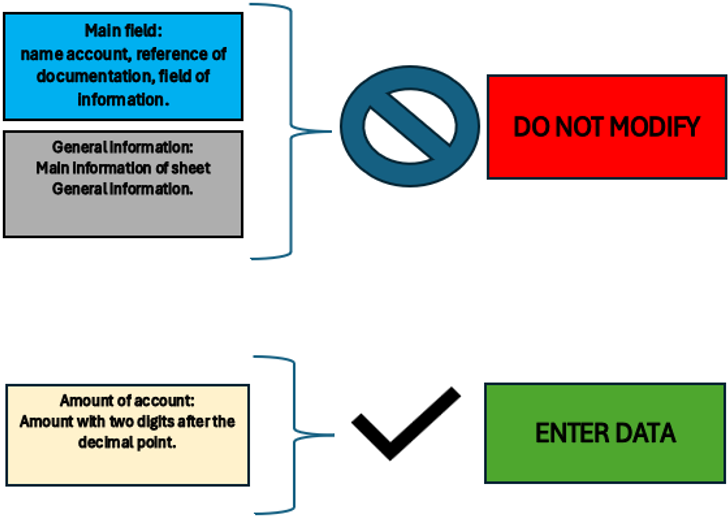
Figure of Excel in the sheet Legend
In the General information sheet, the essential information required by IFRS for SME is entered.
The essential information is useful to understand the biographical data of the company, the relevant accounting period, the currency used, the main activities and the content of this file, which is the complete structure of the financial statement.
Certain information such as company name, company name, domicile and accounting period is reported on all sheets specifically for the Identifying information of company.
General information
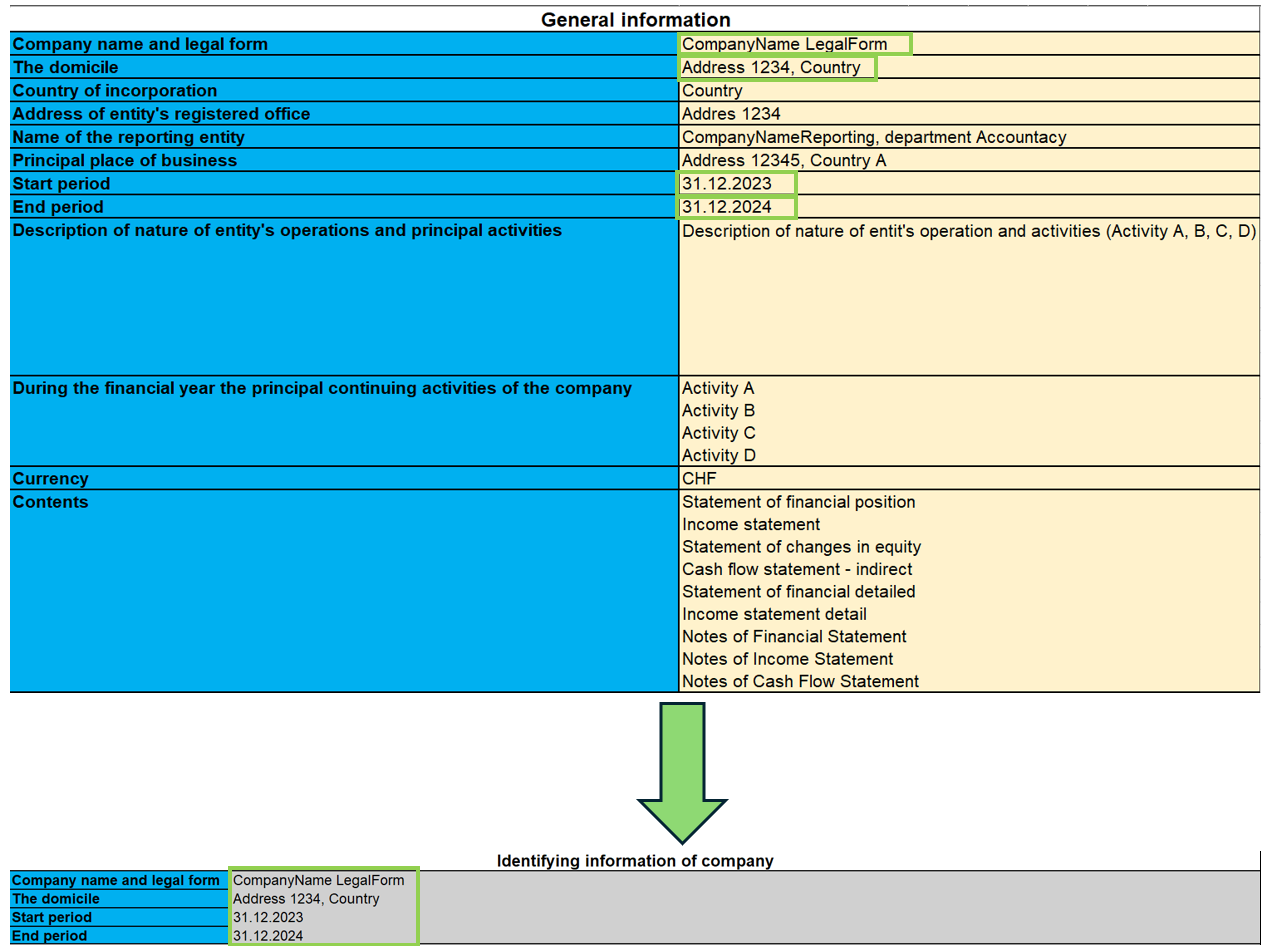
As shown in the image, the information entered on this sheet is carried over to all sheets, so that the company can be identified on each IFRS document, such as: the full name of the company, the address and registered office, and the beginning and end accounting year to be taken into account for accounting purposes.
Statement of financial position
The Statement of Financial Position presents the entity's assets, liabilities and equity for the current and comparative reporting periods.
In this part you are required to enter the budget amounts in the specific accounts. Totals and subtotals are calculated automatically by the formulas.
It should also be noted that for some accounts it is mandatory to complete the Notes. This is done by entering the amounts and other descriptive notes in the ‘Notes of Finacial Statement’ sheet.
If an account has notes, its amount for the last year refers to the corresponding cell of the account total put in the notes, so it is necessary to fill in the amounts in the notes first.
For the notes, there is also the possibility of consulting the documentation indicated in the ‘Reference documentation’ field, specifying the page and section where the information on the notes can be found.
Finally, there is a final check part to see if the total assets and liabilities are equal.
Modalities of use
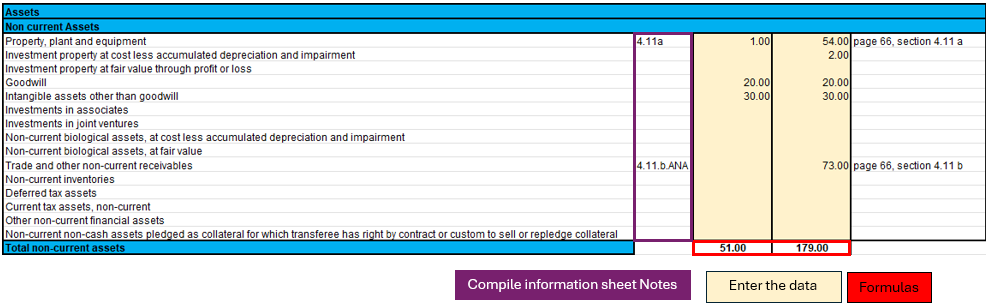
In the picture shown, a part of the Statement of Financial Position is selected as an illustrative example to guide the user. There are three highlighted parts in the image:
- Notes.
- The formulas.
- The data to be filled in.
Each part has its own specific function and in some cases the data are directly linked to each other.
Specifically, if an account has notes, it means that in the ending balance (31.12.xx) there will be the total of the amount calculated in the ‘Notes of financial statement’ sheet. This implies that in order to change that amount, one must fill in the account data on the "Notes of financial statement" sheet.
In this sheet one must therefore:
- Verify that the account is not linked to notes and enter the amount in the account.
- If there are notes, then only the ‘Notes of financial statement’ part of the sheet must be filled in.
The formulas integrated in this sheet will make the totals and subtotals of the accounts in the Statement of financial position.
Income Statement
The income statement is presented according to the classification ‘by nature of expense’.
This classification is an aggregation of costs according to their nature (e.g. depreciation, purchase of materials, transport costs, salaries, advertising costs, etc.) and are not allocated according to their purpose within the company.
The implementation of this classification was decided upon because it is simple and widely applicable for SMEs. The other classification was according to costs by function, where a distinction was made between costs of sales versus other costs (e.g. distribution costs or administrative costs) and this representation requires a considerable degree of discretion on the part of the end user.
As previously done for the Financial Statement, there are the amounts to be entered while the totals are already calculated by means of the formulas applied in the sheets.
In addition, a further breakdown has been made for EBIT (earnings before interest and tax) and EBT (earnings before interest).
Modalities of use
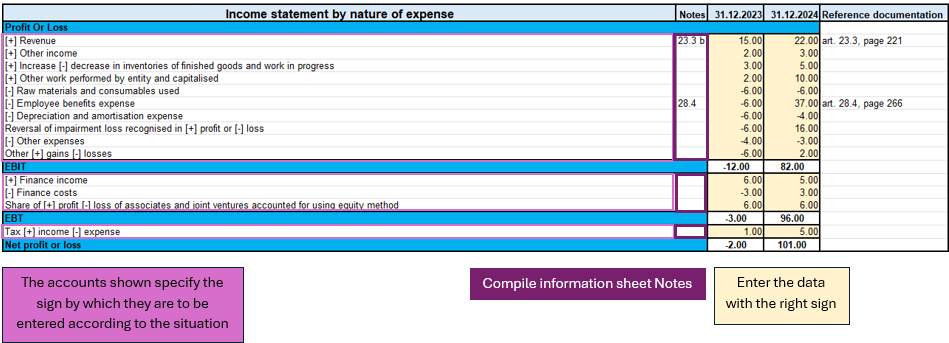
This figure highlights the important parts of the income statement.
Looking at the accounts, there are indications of the signs (+/-) to be used in the various circumstances, which implies that for accounts that have both positive and negative signs, there is an assessment of the positive or negative impact of that amount on the result of the income statement.
As previously seen in the ‘Statement of financial position’, there are also notes to be entered in the relevant sheet ‘Notes of income statement’ in order to be able to correctly define the amount, as the latter depends on the total in the notes.
In summary, what you need to do on this sheet are the following steps:
- Evaluate the circumstances of the account with both positive and negative sign and understand whether you are in a situation where it has a positive or negative impact on the result.
- Verify that the account is not linked to notes and enter the corresponding amount with the correct sign.
- If the account is correspondent with the notes, then only the ‘Notes of income statement’ sheet must be completed.
Statement Financial detailed
This document differs from the Statement of financial position in that there is more detail on the accounts. The official presentation of the accounts can be found in the ‘Statement of financial position’ sheet in terms of how the accounts are summarised; in this sheet, however, we have more detail, with the aim of avoiding filling in the notes directly in the specific sheet. The use of this sheet excludes the use of the ‘Statement of financial position’ sheet because they refer to the same notes.
The main difference is that not only the main accounts required as a presentation by IFRS for EMS are shown, but they are detailed in sub-categories of accounts that are the same as those found in the notes, so that using this document one can avoid filling in the notes, using only the sub-categories of accounts, except in some cases where the account requires descriptive textual type details, without using calculation formulas or amounts. For this reason, not all parts of notes are integrated, as some accounts require a textual type description.
To distinguish the main accounts from the sub-categories of accounts, the main categories are coloured dark, while the light categories are the accounts related to the notes.
If there are no subcategories of accounts (coloured light), then it is sufficient to go to the specific Notes of Statement or financial position sheet.
Modalities of use
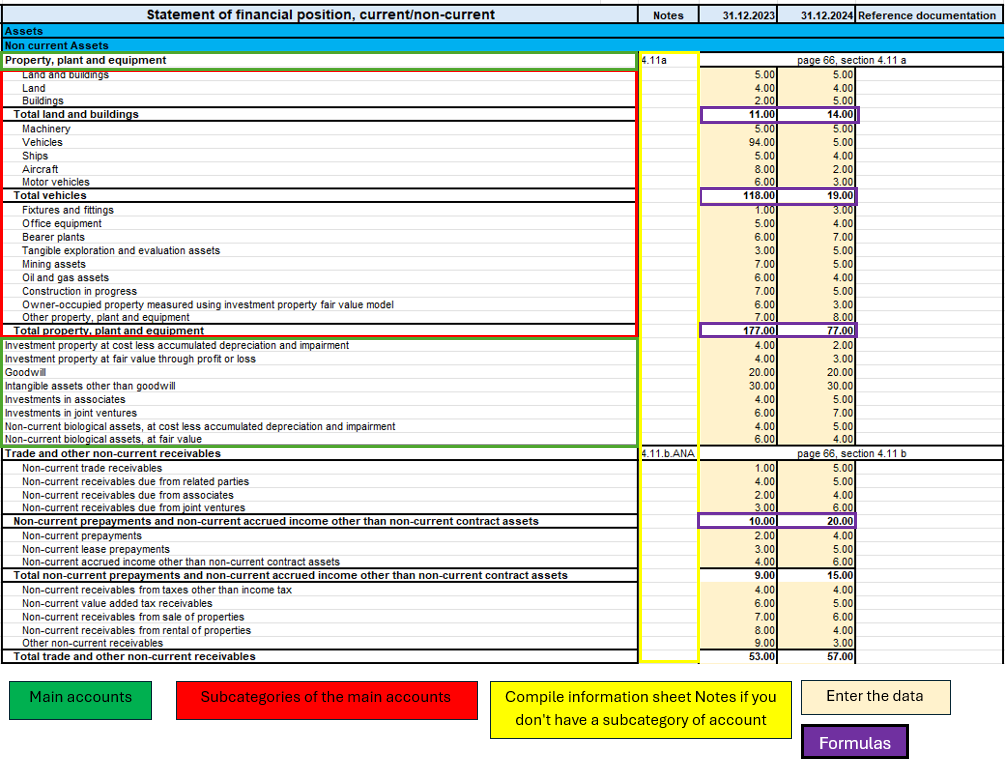
In this image, you can see four essential parts of the document:
- Main accounts.
- Subcategories of the main accounts.
- Notes.
- The amounts to be entered.
- The formulas.
This part, there is more detail only if an account has notes, otherwise it is the same as the Statement of Financial Position. What requires attention is the verification of an account if it is an account with notes and has no sub-categories of accounts, if you find yourself in this situation then it means that the account requires an additional textual description to define some peculiarities in the ‘Notes of financial statement’ sheet.
On the other hand, for accounts that have notes but also account sub-categories, only the amounts of the sub-categories of the specific account need to be filled in. In this way, having filled in all the amounts of the sub-categories of the account, the formulas applied to the sub-categories will calculate the subtotals and the total of the main account.
So to summarise, the procedure for filling in this sheet is:
- I enter the amounts in the main accounts if there are no notes to refer to.
- If the main account has notes, I check that it has sub-accounts, if it does not, then I go to the ‘Notes of financial statement’ sheet and fill in the text description.
- If, on the other hand, the main account has notes and has the subcategories of accounts, then I only fill in the amounts of the subcategories.
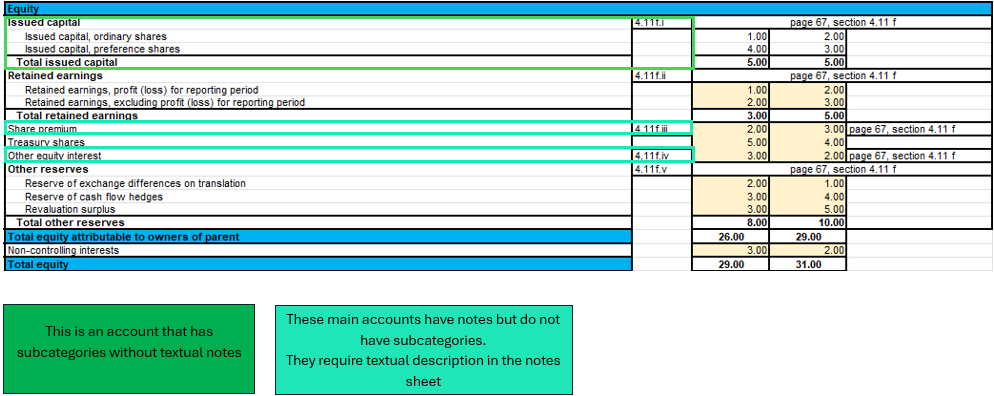
In this example image in the Equity part, a case is illustrated where an account has notes but no account subcategories, which requires a textual description in the ‘Notes of financial statement’ sheet, and a normal case where there are notes with account subcategories.
Income statement detailed
Income statement detail is based on the same logic as the Statement of financial detailed, with the aim of providing a single document for its function, detailed by the accounts of the notes, without having to fill in the Notes of income statement.
There are the main accounts and when there are notes, they are detailed by the sub-categories of accounts that are part of them.
Modalities of use
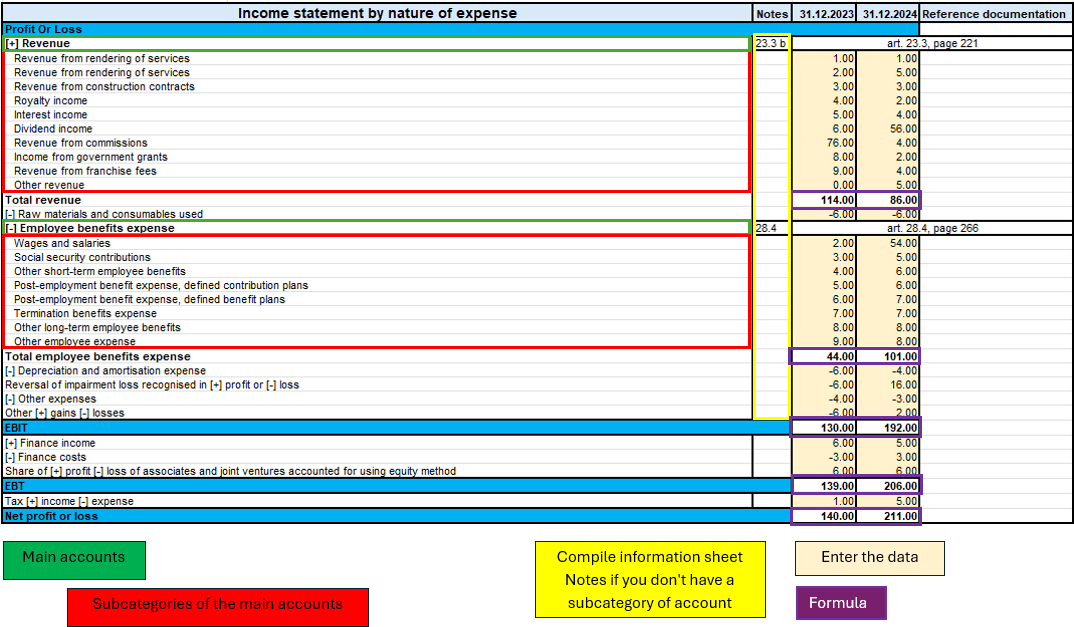
As illustrated in the figure above, there are four equal parts to the ‘Statement of financial detailed’ sheet with the same logic.
The only difference is that there are no descriptive notes, so all accounts with notes are already with their sub-categories without requiring additional compilation on the ‘Notes of income statement’ sheet.
Therefore, to summarise, it is essential to follow these steps:
- Enter the amounts of the main accounts if they have no notes.
- If the main account has notes, enter the amounts only in the subcategories of the account.
The Statement of Changes in Equity
The Statement of Changes in Equity reflects changes in equity.
This part provides insight and transparency into decisions and their effect on the value of equity. It is also a useful tool for investors and other stakeholders to understand how the company has generated and utilised equity capital.
Modalities of use
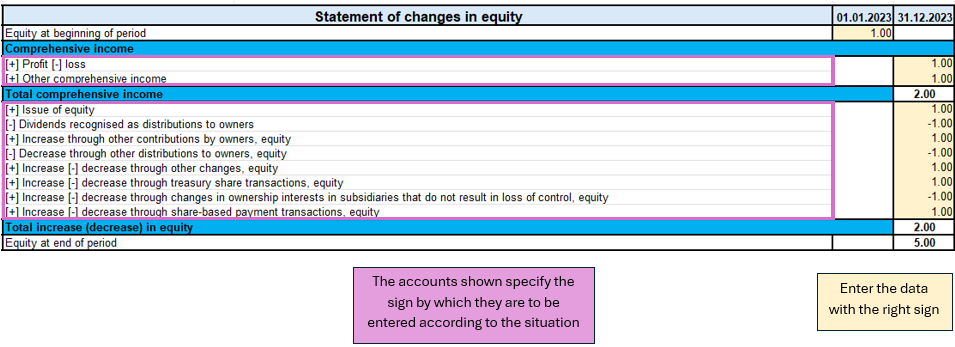
In the sheet ‘Statement of changes equity’ as shown in the image, there is one part to pay attention to.
The first is the evaluation of the change in the account item, whether it increases or decreases, and then according to the sign (+/-) the amount must be written with the correct sign.
Unlike other documents, this one does not require notes.
So the process of completing the document is:
- Evaluate the account change and follow the indications on the sheet on the sign to be taken in the various circumstances (increase or decrease in the account).
- Enter the amount with the correct sign.
Cash flow indirect
The Indirect Cash Flow Statement is divided into four main sections:
1. Cash flow from operating activities
2. Cash flow from investing activities
3. Cash flow from financing activities
4. Net cash flow.
The document is independent of the other sheets, so you have to do your own calculations to deduct the various amounts to be included in the cash flow items.
The accounts are taken from the IFRS for SME taxonomy, first there are the profit or loss adjustments and then the operating activities are calculated.
Investing activities are characterised by the purchase or sale of fixed assets such as equipment, real estate, joint venture participations and others.
Cash flows from financing activities are related to the company's sources of financing, such as leasing, share issues, debt repayments or financing income. There is also the payment of dividends to shareholders.
In the last part of cash flow there are some clarifications to be made. The net change in cash is assessed in two steps, the first is calculated before the effect of the exchange rate change and the second after this change. In addition, as a form of control, the change in liquidity is also calculated, showing the changes in the period of activity, by calculating the difference between the initial and final liquidity balance.
Modalities of use
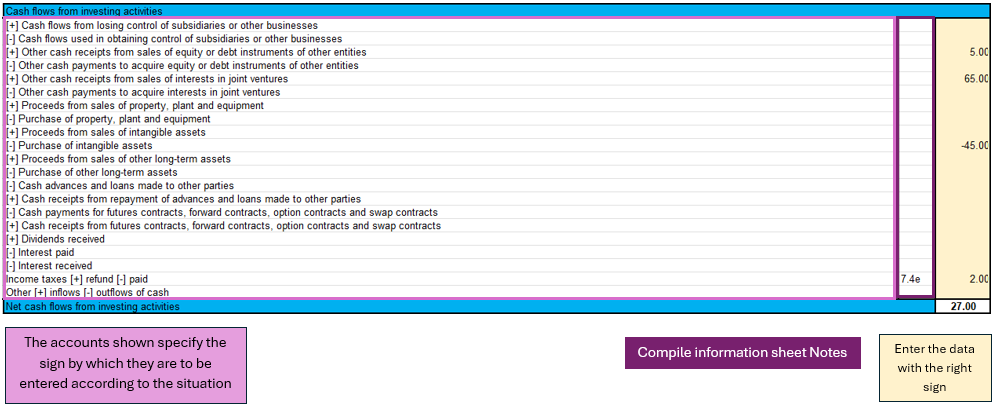
As shown in the figure of the cash flow for investing activities, three main components can be identified:
- The main accounts show the sign depending on the situation.
- For some accounts, the notes of cash flow statement are required.
- Entering the amounts requires attention with respect to the sign.
In the cash flow statement, reasoning on the implications of the balance sheet and profit and loss accounts is required in order to conclude which amount to enter in the specific item of the cash flow statement, so the conclusion depending on which cash flow statement has been analysed, could be an increase or decrease of an asset, a payment for property purchase, payment of dividends to shareholders,...
There is no sheet for this purpose, the user must reason with the amounts available, entered in the balance sheet and profit and loss account, and come to his own conclusions.
Next, having an amount, one must distinguish the situation as indicated in the sheet, in order to enter the amount with the correct sign.
Finally, in the event that it is required, fill in the notes of cash flow statement with the specific amounts in the case.
Notes
The notes are divided by the three IFRS documents:
- Notes to the Financial Statement.
- Notes of the Income Statement.
- Notes to the Cash Flow Statement.
As mentioned in the introductory section, the notes serve to supplement the information taken from the financial documents.
The note sheet contains four essential parts: the note code, reference account, amount and notes (text).
The note code is the reference for each part of the documents that serves to understand in which account the notes are to be completed.
The account represents the account taken from the document (Financial Statement, Income Statement, Cash Flow) to be detailed in the notes.
The amount is singular for the detailed account and is not always required because in some cases only a textual description is needed.
Notes as text are necessary if there are cases where only a description or more detailed customisation is required to explain an account.
Modalities of use
Case for the Financial Statement
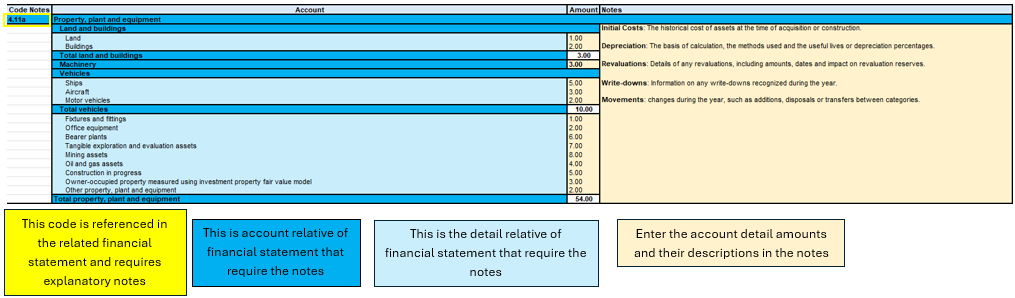
Figure of Excel in the sheet Notes of financial statement
In this image, four main components can be seen, the account reference code, the account, the detail grouping the sub-categories of accounts, the amounts to be entered with any textual notes.
The starting point for completing this sheet is then the financial statement, where we list which accounts need more detail, and then move on to complete the information in the notes sheet.
The data entry part concerns the amount of the detail account and any descriptive text.
The account totals and subtotals are calculated from the formulas, the account total is shown on the main sheet of the financial statement, so it is essential that if an account needs notes, it is only on the notes sheet.
Case for the Income Statement
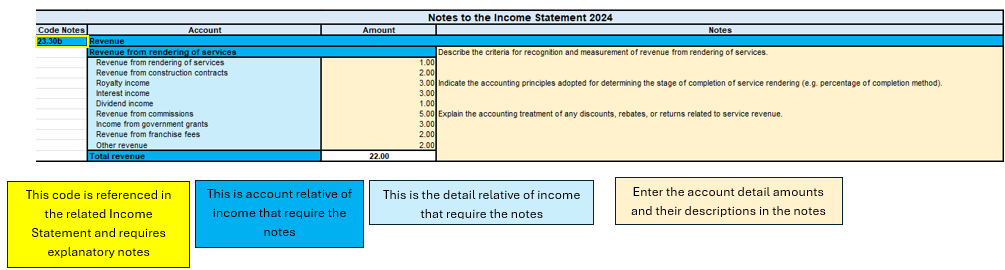
Figure of Excel in the sheet Notes of income statement
As seen above, the structure does not change for the Income statement notes. The main parts are always the same, as also for the cash flow notes.
To summarise therefore in this process one must:
- Depending on which sheet you are compiling, you must check that the analysed account of the financial statement, income statement or cash flow note is there.
- All the necessary data and information must be filled in.
- If there is a sub-account in the notes that is not needed or not used, you can simply leave it blank or enter a zero amount.
Objectives of the file
The process of creating the IFRS structure for SMEs took the official documentation and reconstructed a structure in the Excel template, with the aim of allowing the user to follow the IFRS reporting logic by entering the main information in the parts of the file.
The basic characteristics of such a file is the completeness of the document by having all the main parts required for IFRS, the usefulness of preferring the most widely used models that are more suitable for several companies, and excluding other more specialised models only in certain contexts.
The template provides a structured financial overview and helps users organize financial information according to the reporting logic of IFRS for SMEs.
In addition, the aim of IFRS for SMEs is to improve the comparability of financial data between different companies, to facilitate the analysis and interpretation of financial results by stakeholders outside the company, and to promote the adoption of IFRS for SMEs by providing a practical and accessible tool.
Free Excel template for the IFRS-SMEs
We make the model available without liability as per our Terms and Conditions of Use.
Cash Flow Statements and Financial Ratios [BETA]
Neste artigo
Cash Flow Statements and Financial Ratios [BETA]
Cash Flow Statements and Financial Ratios [BETA]
Advanced financial reporting and charts for your double entry accounting, inclusive of Cash Flow Statement, standard financial ratios, Dupont analysis and Altman index. Compare historical data over more years and forecast data with current year.
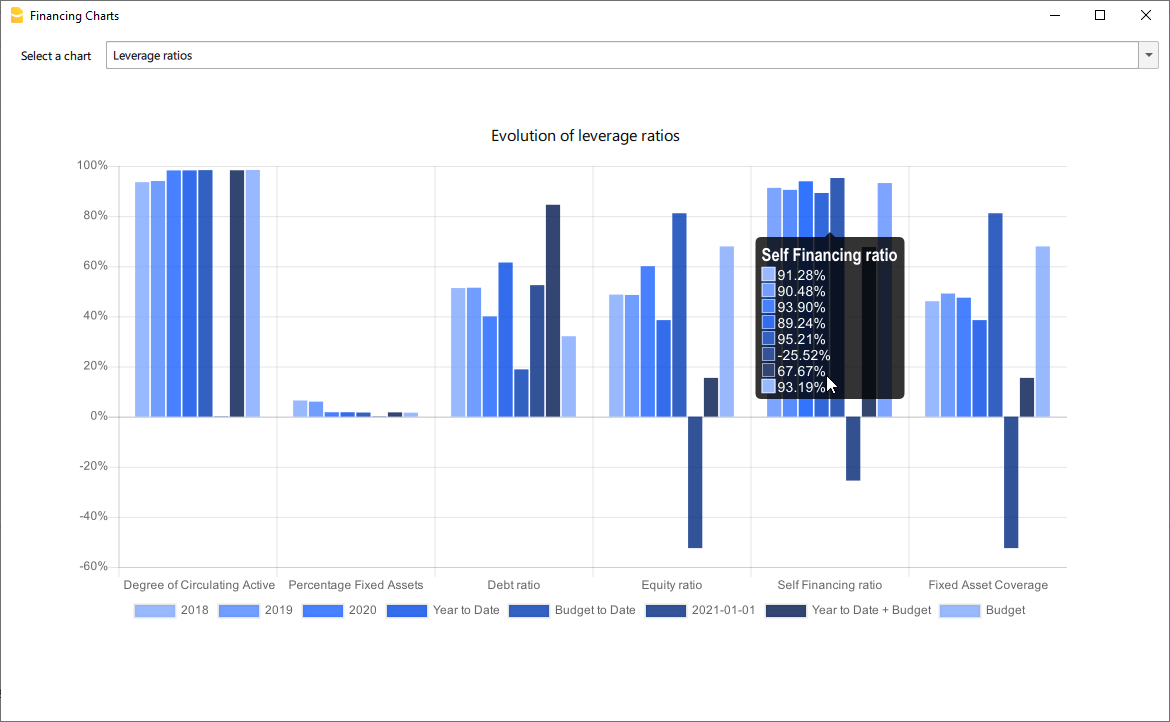
Easily add advanced financial reporting and charts to your existing double entry accounting. It works with any accounting plan, the first time you enter your groups/accounts in the settings dialog, and then all calculations and reporting will be done automatically. This extension is available in Banana Accounting Plus only with the Advanced plan. Update now!
How to start
First time setup:
- Open Banana Accounting Plus
- Open your existing Banana double entry accounting file.
- Go to the Extensions menu → Manage Extensions... command and install the Cash Flow Statements and financial Ratios extension.
- Map you accounting plan.
- Extensions menu → Cash Flow and Financial Ratio → Settings.
- Under Grouping enter the groups you have in your accounting plan in the predefined groups.
The extension uses a standard, simplified Balance and Profit and loss structure, that allows to automatically calculate the Financial Ratios. - Click OK to verify your data.
Check the Ignore warnings/errors if you want to save the data and complete the grouping later.
- Add information to some special transactions (dividends, change in reserve, disinvestment, investments) they can be identified for the Cash Flow Statements.
Run the reports (at any time).
- Open your Banana double entry accounting file.
- Menu Extensions → Cash Flow and Financial Ratio
- Financial Charts
- Financial Reports
Available reports and charts
- Reclassification and checks
- Reclassified balance sheet
- Reclassified Profit and Loss Statement
- Control sums
- Cashflow Statement
- Cash Flow statement based on the indirect method.
- Cash Flow ratios.
- Financial ratios and analysis
- Liquidity ratios:
- Financing ratios
- Profitability ratios
- Efficiency ratios
- Dupont Analysis
- Altman index
- Charts
- Evolution of ratios over time
- Evolution of the Reclassified balance sheet
- Evolution of the elements of the Reclassified Profit and Loss Statement.
Prerequisites
In order to be able to use this extension you have to:
- Use Banana Accounting Plus with the Advanced plan. We recommend using the Dev-Channel, some features or functionality present in the insider version may not yet be accessible in the regular version of Banana.
- Open a Double-entry accounting file.
It is important that the various accounting years files included in the analysis have the chart of accounts set up in the same way, at least as far as references to groups are concerned.
For example, if I want to analyze the accounting years: 2018, 2019, 2020, and I set up group 100 in the Liquidity grouping. I need to make sure that for all three years the group is the same.
Try the extension now
You have the opportunity to use a test accounting file with some random entries to get an idea of the extension's functionality. The file already includes the extension, so you don't even have to download it
You can test it by editing the transactions, the chart of accounts or the various settings in the dialog.
The accounting file does not exceed 70 transactions, so you can also try it out with the free or professional version and upgrade to the Advanced plan later.
Introduction
What is exactly the financial statement analysis?
Financial statement analysis is an accounting tool that provides an assessment of a company's economic, financial and asset condition. It is based on the financial statements and reports the data. It contains the profits and losses of a company and therefore serves to derive the general performance of the company.
Why is this activity very important for your SME ?
Until recently there were few SMEs that often used a financial statement analysis as larger companies could use it.
Today, times have changed. Reading the numbers well can make a difference within the strategy and management of an enterprise. Understanding which products it is worth investing in and which jobs can be neglected determines the difference between the growth or decline of a company.
This activity can be a source of interest for various subjects, external or internal to the company. Entities or external individuals can analyse their solvency profile (current or potential lenders), capacity to provide an adequate return on capital (for those who want to buy shares for example) or even just obtain information on the company's situation with respect to competition in the sector.
Through the comparative balance sheet analysis of the various elements available, it is possible to arrive at the following formulation of a "judgement" on the health of the company in all its dimensions:
- Economic
- Asset
- Financial
How it works
The financial statement analysis is based on two fundamental documents for a company:
- The Balance sheet
- The Profit and loss statement
In order to perform a correct analysis, it is always necessary to start from the reclassification of the accounts, which includes 3 phases in particular.
- Group the account items into groups
- Order such groups
- Bringing out intermediate results
The reclassification allows for a slightly cleaner first view of the company's situation and is already useful information can be obtained from it.
Analysis by Indexes
Once the intermediate results have been obtained, it is possible to proceed with the calculation of the indices useful for the analysis. The financial statements analysis by means of indexes is a very powerful tool that allows you to use indicators capable of providing a very concise assessment of one's own situation.
How should the data be interpreted?
Better results in terms of interpretation and evaluation are therefore achieved by analysing a series of balance sheets and studying the trend over time of the significant balance sheet ratios, so as to understand in which management is moving the company (dynamic financial statements analysis).
How do I evaluate them?
- Temporal evolution
- Comparison with average values of the sector
- Comparison with "normal" values i.e. with the benchmark
- Comparison with objectives
Response to results
This is the last activity of the analysis cycle, where the "relay" passes into the hands of those who deal with the Management of the Company, with data that speak clearly, the Manager will have to plan how to proceed using the right Project Management techniques.
The report contain errors?
If you notice incorrect data within the report or find that for some reason the calculated amounts do not match, please follow the steps below:
- Check that the data in your accounts are correct.
- Check that you have set up the groups correctly in the settings dialog.
If the errors persist, contact us via our feedback form and send us an example accounting file (*.ac2), even with little data, but allowing us to reproduce the possible problem and correct it.
Multi-language
The extension is available in the following languages:
- English
- Italian
- French (translation currently not complete)
- German (translation currently not complete)
And will adapt according to the language in which the application is set up. For all other languages, the standard version in English will be displayed.
Save your analysis
You can save the report in the following formats:
- Html
- Excel
- Latex
Settings Dialog
Dialog is accesible:
- By going to the Extensions menu→Cash Flow Statements and financial Ratios →Financial Reports.
- By going to the Extensions menu→Cash Flow Statements and financial Ratios →Settings.
Set up the groups
The first and most important step is to enter the groups or accounts number you are using in your account table.
Once you enter the groups the report and calculations are all done automatically, except for some specific transactions for the Cash Flow Statement.
- Groups must be entered manually
- Groups must be separated by a semi-colon ';'
- Both groups and accounts can be entered
- It is important to make sure that you include elements that exist in your chart of accounts, if are entered groups or accounts that do not exist in your chart of accounts, a message will be displayed on the row of the grouping concerned, returning those elements for which a match was not found in the chart of accounts. Once corrected, you only need to run the dialogue again and the message will disappear.
- By default, the groups within the dialogue refer to the Swiss SME chart of accounts, and it is possible to return to the base scenario by clicking the Restore Defaults button. Beware, however, that in this way the customisations made will be lost, and will be replaced with the default values.
.png?raw=true)
All the necessary elements must be inserted within the different groupings defined in the dialogue (Liquidity, Fixed Asset,Owned base capital,...).
Assets
They show the total employment of a company, so the investments to which the company has allocated
the means found in carrying out its activity.
- Liquidity: Must include groups or accounts that define liquidity in the company, such as cash or bank
- Credits: Must include groups or accounts within which are recorded all the operations
concerning money due to buyers who didn’t paid yet for their purchases - Stocks: Must include groups or accounts with all goods for resale in the ordinary course of business.
- Fixed assets: Must include groups or accounts containing fixed assets elements, as:
- Buildings
- Computer equipment
- Computer software
- Furniture and fixtures
- Intangible assets
- Land
- Leasehold improvements
- Machinery
- Vehicles
Liabilities and Equity
Shows where company's resources come from. In general, the funds at the company's disposal are
classified in a way to distinguish between own funds (which flow into equity) and those from third parties.
- Short-term debt capital: Must include groups or accounts representing the company commitments that must be fulfilled, without any particular cancellation, in the current year.
- Long term debt capital: Must include groups or accounts containing that kind of capital that the company can have at its disposal for several years, on a fixed basis, and that can usually only be withdrawn within a set time limit.
- Own Base capital: Must include groups or accounts those group referring to the company's own capital.
- Reserves and Profits: Must include groups or accounts within which are recorded the amounts to be paid to reserves or designated as profits.
Revenues
Indicates what is produced by the company during a financial year. Whether it is an increase in the value of products or semi-finished products in the course of production or services in progress, revenue from the sale of products or services or the increase in the value of fixed assets thanks to own resources, all these heterogeneous factors add up.
- Sales turnover: Must include groups or accounts within which is recorded what is produced by the company during a financial year. Whether it is an increase in the value of products or semi-finished products in the course of production or services in progress.
Costs
- Costs of Merchandise and services: Must include those groups or accounts in which all costs relating to goods and services consumed during the annual financial year are recorded.
- Personnel Costs: Must include all those accounts referring to a cost due to personnel, such as:
- Salaries
- Social charges
- Severance Pay
- Pension and similar treatment
- Other costs
- Different Costs: Must include all other groups or accounts relating to costs during the operating period.
- Interests: Must include groups or accounts containing the costs of financing sources, such as bank interest payable or interest on loans.
- Depreciation and Adjustments: Must include groups or accounts where are registered possible revaluations and write-downs of equity investments, as well as of financial fixed assets and securities included in current assets that are not equity investments.
- Final Result: The group containing the difference between the costs and the revenues at the end of the year.
Average Number of employees
This information is useful for calculating efficiency ratios, enter the average number of employees in the company and find out information such as the average company revenue per employee.
Printing Preferences
To make the Analysis as close as possible to your needs you can set some preferences, and choose about the details of printing and analysis
.png?raw=true)
Printing Details
- Page header: Include the header in the report, the header is composed with the information retrieved from the properties of the file.
- Logo: Choose whether to include your company logo in the report. for information on how to set up a logo visit this Logo set up page.
- Background color of headers: Choose the colors for the table headings
- Text color of headers: Choose the color for the texts in the table headings
- Report Without colors: Check the box for no colours in the report.
Analysis Details
- Number of previous years: Set the number of previous accounts (years) to be included in the analysis, which will be added to the current year and the Budget (if present and included).If you don't know how to set the previous year to a file, go to “File→File and Accounting Properties→Options Tab.
- Number of decimals: Choose how many numbers after the decimal point you want for the digits in the report, if you don't want to have decimals you only need to insert a zero 0.
- Include Budget: If you are using the Budget table for your financial planning, you have the possibility to include it in the analysis.
- Include Budget to date column: Include the columns showing the values of the budget up to that day, compare the values with those of the year-to-date.
- Include Current year projection column: You can include the projection for the current year. The programme uses the values in the budget table to return what could be the values at the end of the year.
- Current Date: Insert the current date. If no date is entered, the date of the day is taken automatically
- Include DuPont Analysis: Choose whether to include the Dupont Analysis
- Include Control Sums: Choose whether to include the table with the control sums, useful to inform in case of errors on the totals (assets/liabilities, operating result).
- Show the formulas column: Choose whether to show the column with the calculation formulas.
- Show the acronym column: Decide whether or not to show the acronym column, which is useful for identifying the elements used for formulas.
The columns of acronyms and formulas are complementary, that's beacuse the acronym column is useful to uderstand how the formulas are composed. if you dont need these columns, just uncheck the checkbox.
Set the benchmarks
Benchmarking is a method of assessing an organisation's competences based on comparison with the "best
in class", whatever sector it belongs to. So the Benchmark is a key performance indicator on the basis of
which a company assesses its performance with regarding to products, services and business processes.
You can customise these values depending on your company:
- Sector
- Size
- Targets
These values are only representative, which means that the figures you enter are not used in the analysis but are shown as they are. In the report, they are displayed in the Benchmark column, in the indexes tables, so that you can quickly assess the situation.
.png?raw=true)
It's also possible to call the dialog from the opened report and change the parameters. The values of the
analysis will be updated automatically.
Cash Flow Statement
Cash Flow is an analytical tool that helps to visualise the positive and negative changes in liquidity as a result of management, with reference to a given period of time: it is in fact the reconstruction of monetary flows, then the difference between all the monetary income and expenditure of a company.
Cash Flow analysis is not subject to accounting rules and many investors use the data to assess the strength of the company.
Essentially, if the Cash Flow is positive, it shows the financial availability for the company within the reporting period, whereas if the cash flow is negative, it means that more resources have been absorbed than have been received.
Special Cash Flow transactions
The first step to obtain the Cash flow Statement i its to setup the account groups in the settings dialog, Most value needed for preparing the Cash Flow Statement can be calculated based on the changes of the standard account classification. Identifying Disinvestments, Revaluations, transactions and other specific movements effecting the cash flow, would require a restructuring of the account plan. We have therefore opted to identify these values, by adding a special code to the description of a transaction.
It is important that these transactions are made using the recommended account type or group, because the program searches for cashflow amounts in certain groups, so if an entry is made using another account type, there could be an error as the amount may not be found.
If we talk about entering a fixed asset account, the account must belong to one of the groups entered in the fixed assets section of the dialogue. For example, if I disinvest by selling a vehicle and I use the standard chart of accounts for SMEs, I can use the account Vehicles '1530', which is part of the group 150, which in the dialogue is entered under the section 'Tangible Assets' in the fixed assets.
- Disinvestments (#disinvest)
- A disinvestment simply represents the sale of a fixed asset such as a vehicle or machinery. When recording a disinvestment.
- Debit Column: Insert the account where you will collect the money from the sale, such as the post or the bank.
- Credit Column: Insert a fixed asset account that relates to the item sold.
- Knowing the amount of disinvestments, the program is able to calculate in detail the real amount of investments that have been made during the year. For an SME, the number of disinvestments during the accounting period usually remains quite small, whereas investment activities are much more frequent operations, which is why it is very important to find the real amount net of all other movements.
- A disinvestment simply represents the sale of a fixed asset such as a vehicle or machinery. When recording a disinvestment.
- Revaluations of fixed assets (#revaluations)
- Revaluation of a fixed asset is the accounting process of increasing the carrying value of a company's fixed asset or group of fixed assets to account for any major changes in their fair market value.
- Debit Column: Enter the account of the fixed asset item you are revaluing to increase its value.
- Credit Colum: Enter an income account, if you don't have a particular one you can enter it as extraordinary income.
- Revaluation of a fixed asset is the accounting process of increasing the carrying value of a company's fixed asset or group of fixed assets to account for any major changes in their fair market value.
- Devaluations of fixed assets (#devaluations)
- It works in the same way as a revaluation, but instead of increasing the value of the fixed asset it decreases it, which means that the accounting entry is also reversed, i.e. the income becomes a cost.
- Debit Column: Enter a cost account, if you don't have a particular one you can enter it as extraordinary cost.
- Credit Colum: Enter the account of the fixed asset item you are revaluing to increase its value.
- It works in the same way as a revaluation, but instead of increasing the value of the fixed asset it decreases it, which means that the accounting entry is also reversed, i.e. the income becomes a cost.
- Dividends (#dividends)
- Dividends are fees paid to shareholders and usually depend on the profit made. The payment of a dividend must be recorded in a specific liability account, and should appear under short-term liabilities.
- Debit Column: Enter the reported balance sheet Profit / Loss carried forward account.
- Credit Colum: Enter the specific account for dividends.
- Dividends are fees paid to shareholders and usually depend on the profit made. The payment of a dividend must be recorded in a specific liability account, and should appear under short-term liabilities.
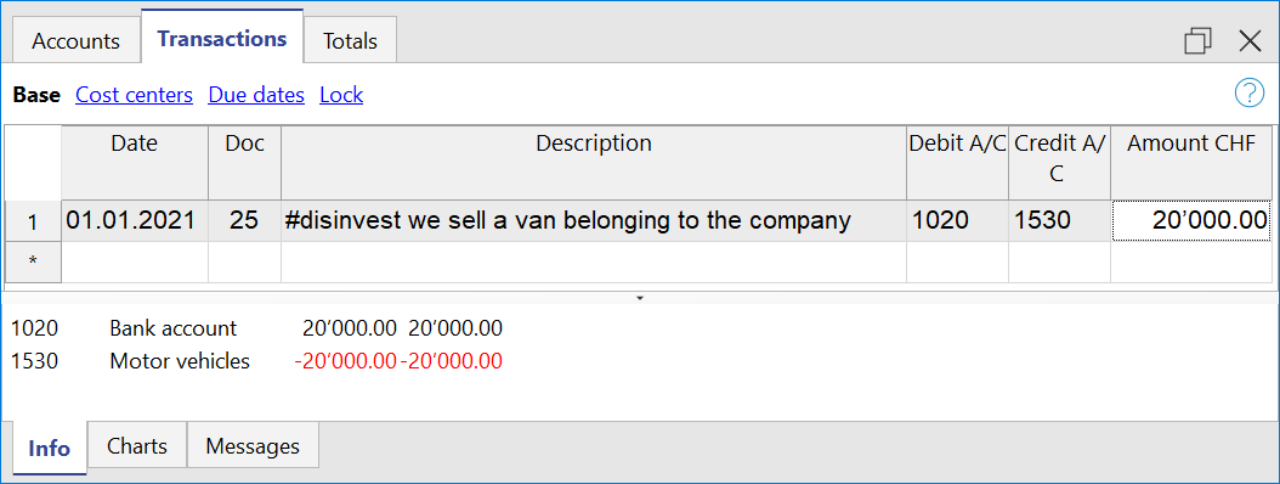
Cashflow Statement
Cash flow is divided into three main components:
- Operating cash flow which originates from the core business operations of a company.
- Cash flow for the company, which is the cash flow available to all investors in the company.
- Cash flow available to shareholders, which only considers the cash flows that are due to the shareholders, resulting from the net of all payments made and received, including from debt holders.
Adding up all the totals you find the amount that corresponds to the change in liquidity for the period, which in turn when added to the value of the liquidity at the opening of the period should give you the current liquidity balance.
If the results do not match, an error message is displayed.
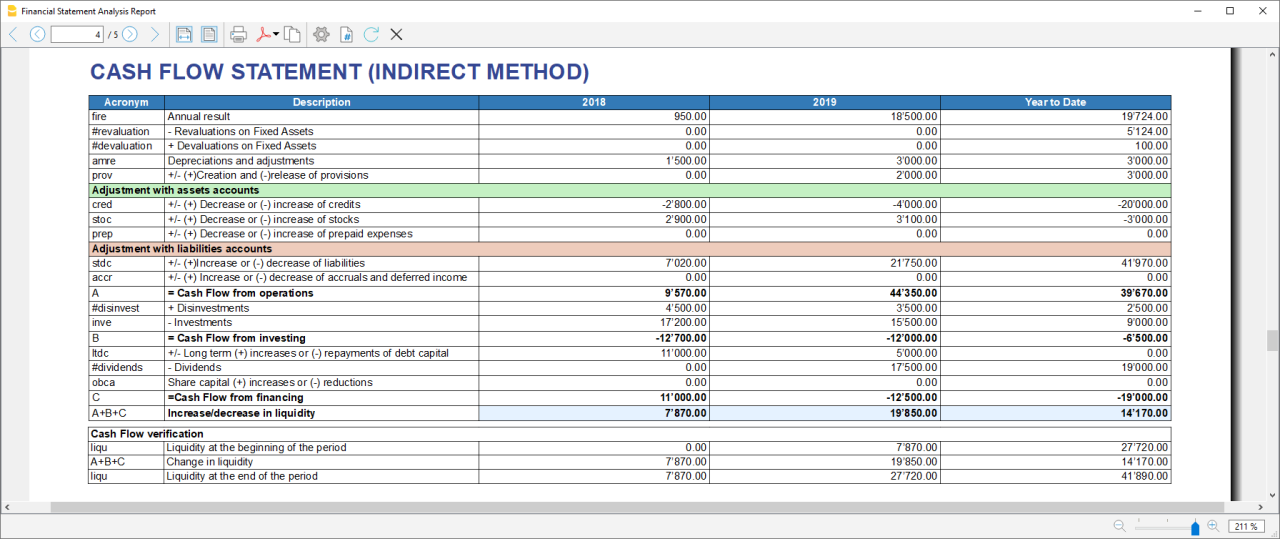
Acronym column
In the acronym column of the cashflow, the reference to the account taken into account in the calculation is entered, or in the case of special entries, the prefix of the entry, so that it is easy to see which item of the balance sheet or income statement a certain movement relates to.
Cash Flow verification
This table shows any differences between the change in cash flow calculated in the cashflow and the actual cash flow in the accounts, which in an optimal situation should match. If there is a difference in one of the years of analysis the amount in question is printed in red on a line below.
Usually, when an error occurs, the first thing to do is to check whether the amounts in the balance sheet and profit and loss statement are correct or whether there are differences between the assets and liabilities, for checking them, control sums are very useful because they immediately show whether there is a difference.
if you realise there is some error but you dont know exactly where, you can check the amounts by comparing the ones in the report with those in the chart of accounts.
The differences are generally due to an error when entering groups in the settings dialog, which can occur in two ways:
- One or more groups were not included
- One or more groups were entered under the wrong heading
In case the balance and profit and loss amounts are correct but the cashflow displays an error, is probably due to the fact that a group has been inserted in the wrong place.
Retained Earnings Statement
This table shows the movements made with the annual profit achieved. Starting from the reported annual profit it adds the profit for the period and adjusts the value by taking into account the payment of dividends and the creation or dissolution of reserves. The last two rows show the total undistributed profit, and the undistributed profit realised in the current year.

This information is somewhat supportive of Cash Flow but since earnings management does not directly affect cash, it is presented in a separate statement.
Record Transactions
It is useful to first record the transfer of the profit for the year from the profit and loss account to the profit shown in the balance sheet as shown in the example image.
In order to record the payment/discharge of reserves and the payment of dividends, it is sufficient to use the specific account of one of the above items and to decrease or increase the profit account shown in the balance sheet. The remaining amount (not allocated to reserves or dividends) then increases the retained earnings.

Cash Flow Ratios
In addition to the ratios already present, those ratios are added just below the Cashflow table and in the Charts
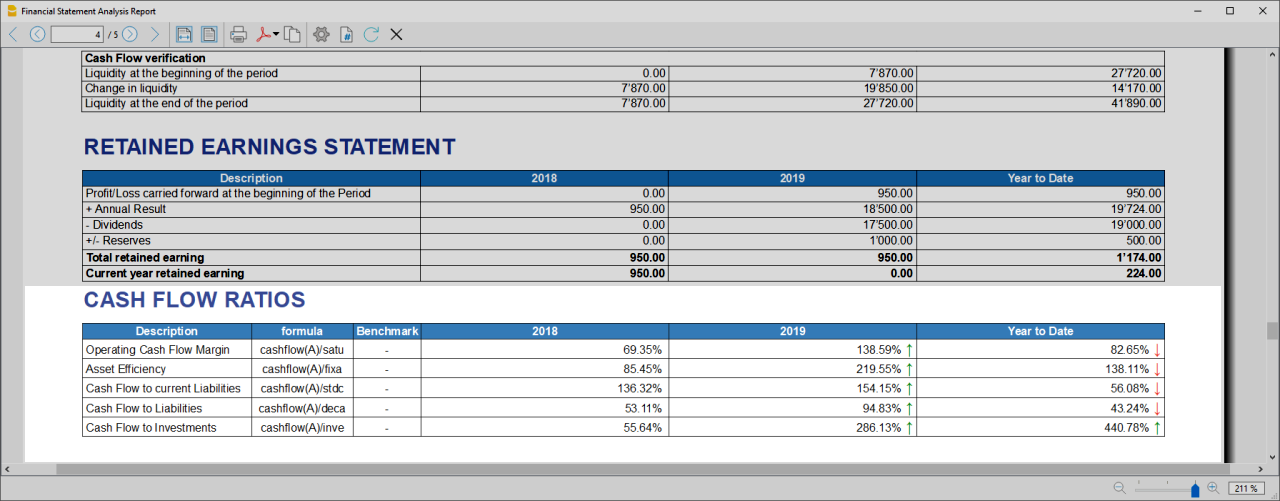
- Cashflow margin: Measures the amount of revenue a firm can convert into operating cash flow. When a firm is thriving, operating cash flow should grow alongside revenue. While profit margins measure a firm's pricing power; a declining cash flow margin also measures the health of customer and supplier relationships.
- Asset Efficiency Ratio: This is a basic ratio to show you how well the company uses its assets to generate cash flow. It’s best used to view the historical trend as well as to compare with competitors.
- Cashflow to current Liabilties: This ratio gives you an idea about the company’s debt management practices.It’s also a better indicator of the company’s ability to pay current liabilities than the current ratio or quick ratio
- Cashflow to Liabilities: Measures the amount of operating cash flow a firm generates on each dollar of total liabilities. Businesses that can't produce operating cash flow to pay off all their liabilities cannot continue to operate indefinitely, making this ratio an important indicator of liquidity as well as solvency
- Cashflow to Investments: Measures the amount a company outlays for capital assets for each dollar of cash dollar it generates from those investments.
Why Is Cash Flow Analysis Important?
Performing cash flow calculations in combination with constant monitoring of the company's cash flows is the winning formula for effective treasury management, and is useful for making the best use of available cash.
Thanks to the ability to generate cash flow and the financial solvency of the company, you gain confidence from banks and suppliers, as it symbolises a certain control over your business: the calculation of cash flow is in fact a way to detect the actual availability of the company, giving the possibility to face unexpected events or to plan consistently the future of projects.
For more information on Cashflow Analysis, please refer to the following page.
Balance Sheet and Profit and Loss Reclassification
Generate the Report by going to the Extensions menu→Cash Flow Statements and financial Ratios →Financial Reports.
The Report contains all the analysis data processed by the extension:
- Reclassified balance sheet
- Reclassified Profit and Loss Statement
- Control Sums table
Reclassified Balance Sheet
The reclassification of accounts allows for the display of a series of values, results and intermediate margins that contain more information than the traditional structure.
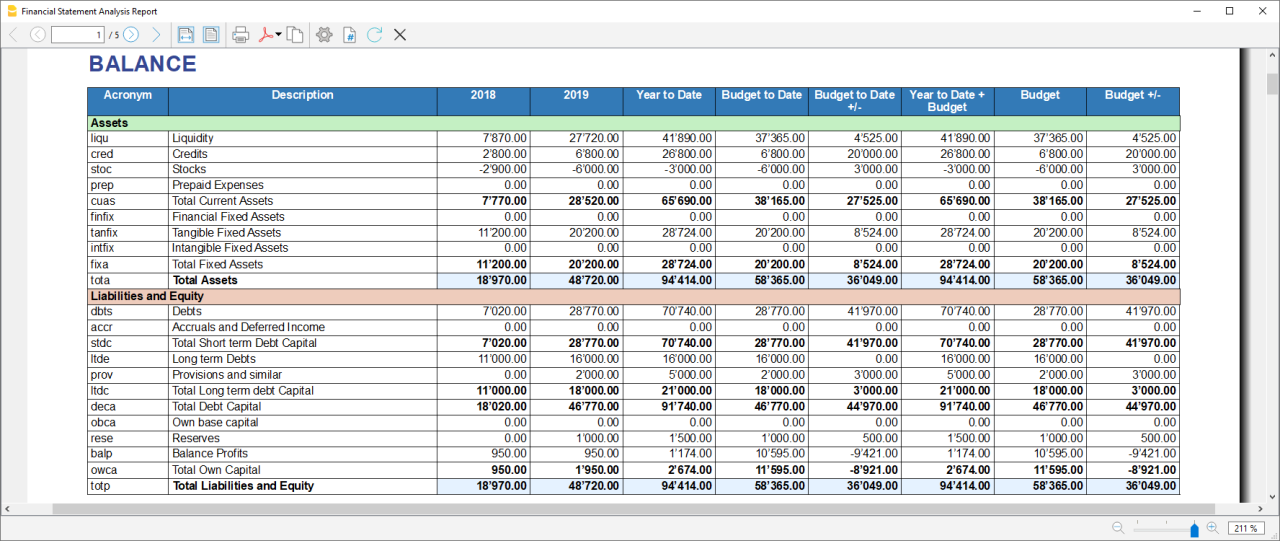
- Current Assets: All the assets of a company that are expected to be sold or used as a result of standard business operations over the next year.
- Fixed Assets: Items, such as property or equipment, a company plans to use over the long-term to help generate income.
- Total Assets: The sum of current assets and fixed assets.
- Debt Capital: Is the capital that a business raises by taking out a loan. It is a loan made to a company, typically as growth capital, and is normally repaid at some future date.
- Own Capital: It is the capital owned by the company.
- Total Liabilites and equity: The sum of Debt Capital and Own Capital.
Reclassified Profit and Loss Statement
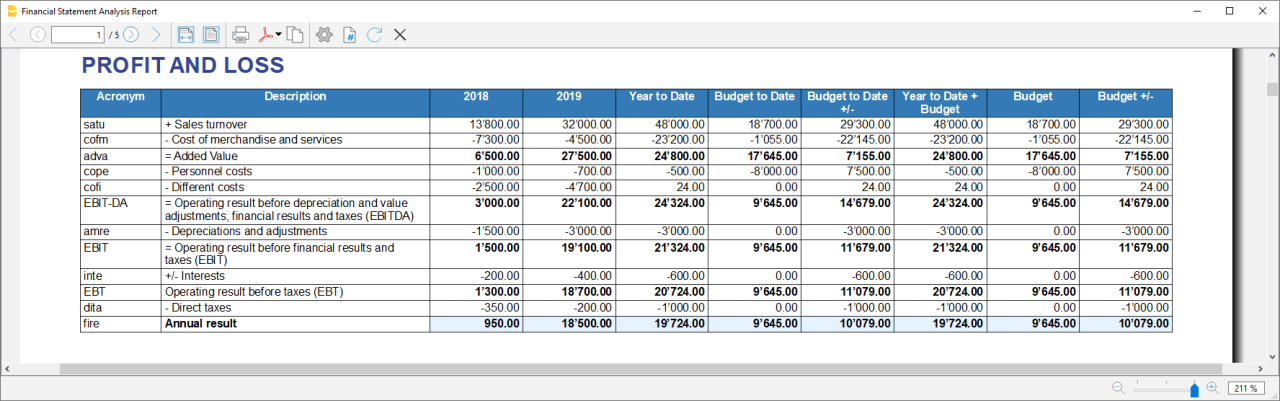
- Added value: The difference between operating costs and operating revenues incurred for resources outside the company, expresses the company's ability to create wealth and then remunerate the various production factors and stakeholders.
- MOL /EBITDA: "Earning Before Interests, Taxes, Depreciation and amortization" is obtained by subtracting from production revenues the costs of production (including internal costs such as personnel costs), without considering provisions and depreciation. As it does not contain economic items without monetary movement, its value assumes very important information for financial investors.
- EBIT :"Earning Before interests and Taxes", helps to understand whether the company is also able to cover the financial charges arising from its financial commitments.
Control Sums
Resumes the totals of the reclassified accounts (Assets, Liabilities and Equity , Annual Result). Checks that the sums calculated in the analysis match the totals in the accounting sheets and that Assets and Labilities and equity match.
- Accounting Total column: Represents the actual total in the accounts.
- Calculated Total column: Represents the total calculated by the program based on the groups entered.
- Difference column: Represents the difference found between the total in the accounts and the calculated total for each year. The value equal to 0, otherwise will be displayed an error message, which means that there may have been an error in entering the accounts/groups .In this case it is useful to check in the dialogue that you have entered the groups correctly.
Financial Ratios
Generate the Report by going to the Extensions menu→Cash Flow Statements and financial Ratios →Financial Reports.
The balance sheet ratios are formulas calculated on financial, economic and asset values. These ratios are derived from the income statement and balance sheet data. Balance sheet indices are important analysis tools that provide essential indications for the entrepreneur's activity.
It is widely used by all professionals who are interested in assessing the soundness of a company for their work.
In fact, banks use the balance sheet indexes to evaluate company loan applications.
the indexes are divided into four main types
- Liquidity ratios:
- Financing ratios
- Profitability ratios
- Efficiency ratios
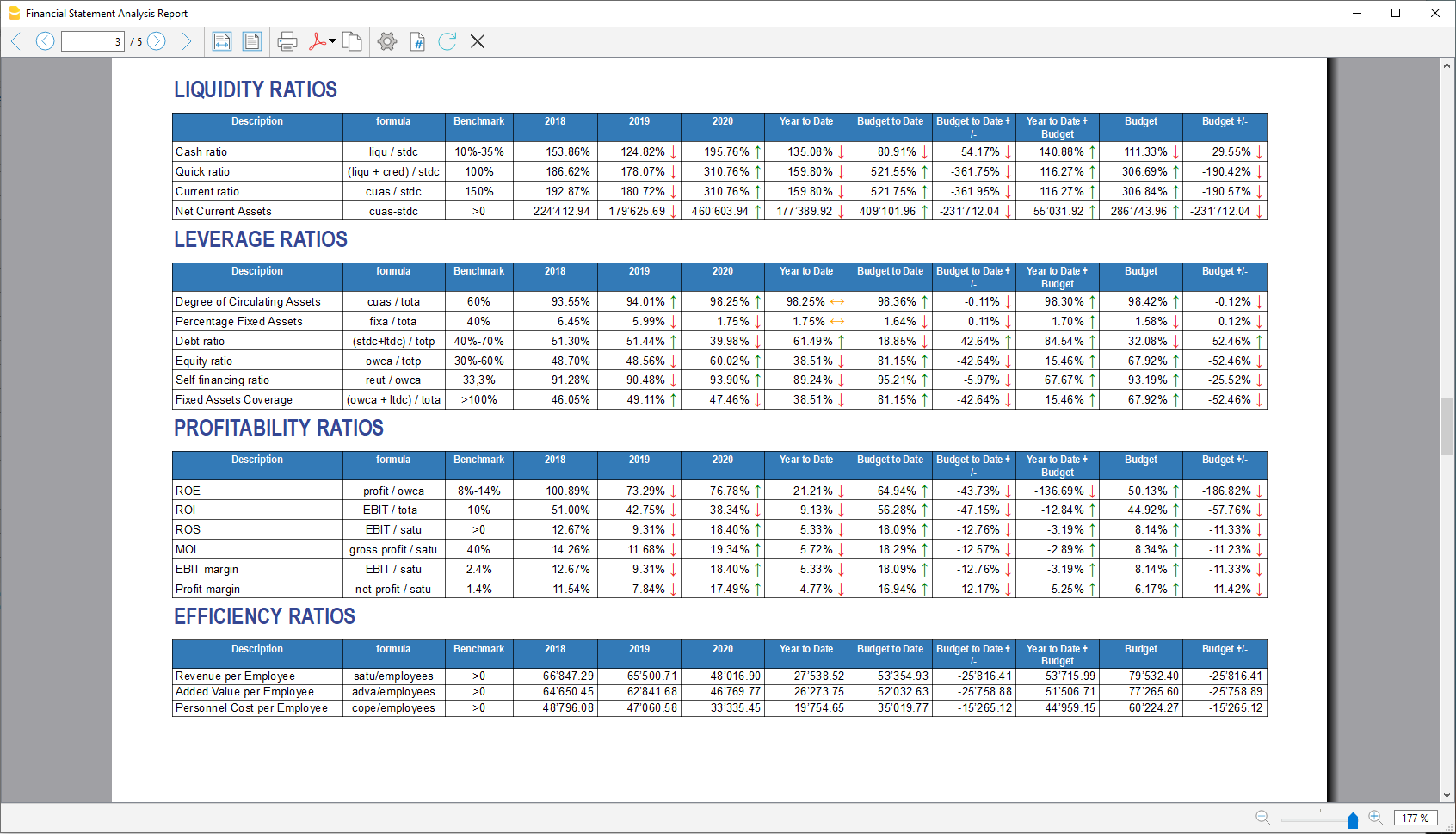
Liquidity ratios
An important class of financial metrics used to determine a debtor's ability to pay off current debt obligations without raising external capital. Liquidity ratios measure a company's ability to pay debt obligations and its margin of safety through the calculation of metrics.
- Cash ratio: Indicates the extent to which the company is able to repay its debts at the end of the term.
- Quick ratio: Indicates the extent to which the company is able to pay its debts when due.
- Current ratio: Indicates the extent to which the company is able to pay its short-term debts without touching fixed assets.
- Net Current Asset: Indicates the part of the current assets free of short-term commitments, which can therefore be used in the activity.
Financing ratios
They look at how much capital comes in the form of debt (loans) or assesses the ability of a company to meet its financial obligations.
- Degree of Circulating Assets: It allows us to understand whether there is a balance within the company's assets, a judgement can only be made if we have the average data for the same line of business.
- Percentage Fixed Assets: It is complementary to the previous one.
- Debt ratio: Indicates the extent to which the company has had to resort to external financing, the judgement depends very much on the branch of activity.
- Equity ratio: Is complementary to the previous one, equity ratio has the advantage of being less expensive.
- Self-Financing ratio: Indicates the extent to which the company has been able to accumulate undistributed profits.
- Fixed Asset coverage: The fixed assets must absolutely be financed from equity or possibly from long term capital, otherwise major repayment problems could occur.
Profitability ratios
Are useful to assess a business's ability to generate earnings relative to its revenue, operating costs, balance sheet assets, or shareholders' equity over time, using data from a specific point in time.
- Return on equity (ROE): By comparing the percentage obtained with the rates commonly applied for other investments, it is possible to understand whether the equity invested by the company gives a sufficient return or not.
- Return on investment (ROI): Identifies the return on invested capital. Basically it serves to understand how much the invested capital returns in terms of income.
- Gross Operating Margin (MOL) :Is a value that measures the profitability of a company. In other words, it measures the ability to make profit margins: Indicates the company's return on sales made.
- EBIT margin: Is the ratio of EBIT to turnover of a company. This ratio provides information on its profitability and helps to compare different companies and sectors.
- Profit margin: It represents what percentage of sales has turned into profits.
Efficiency ratios
Express the degree of efficiency of the company's factors of production, those chosen by us give us an indication of the relationship between the number of employees and the various margins of the profit and loss account. Efficiency indicators are related to profitability indicators, as higher productivity generates an improvement in profitability indicators.
- Revenue per Employee: An increase indicates greater efficiency of the company and a lowering of the break even point. Its increase is certainly an indicator of the good health of the company itself.
- Added Value per Employee: Gives evidence of efficiency in terms of cost reduction (e.g. economies of scale). If the revenue per capita index remains stable and the value added per capita index increases, this is evidence of cost efficiency.
- Personnel Cost per Employee: Highlights the trend in average personnel costs.
Within the tables and also visible the calculation formula of each index.
Dupont Analysis and Altman index Z-Score
Dupont Analysis
The Dupont model is a technique that can be used to analyse the profitability of a company using
traditional performance management tools. To enable this, the model integrates the elements of the Profit
and Loss Account and Balance Sheet.
Altman index Z-Score
The Z-Score is an index of the discriminating analysis used to determine the probability of bankruptcy of a
company within 2 years using statistical techniques.
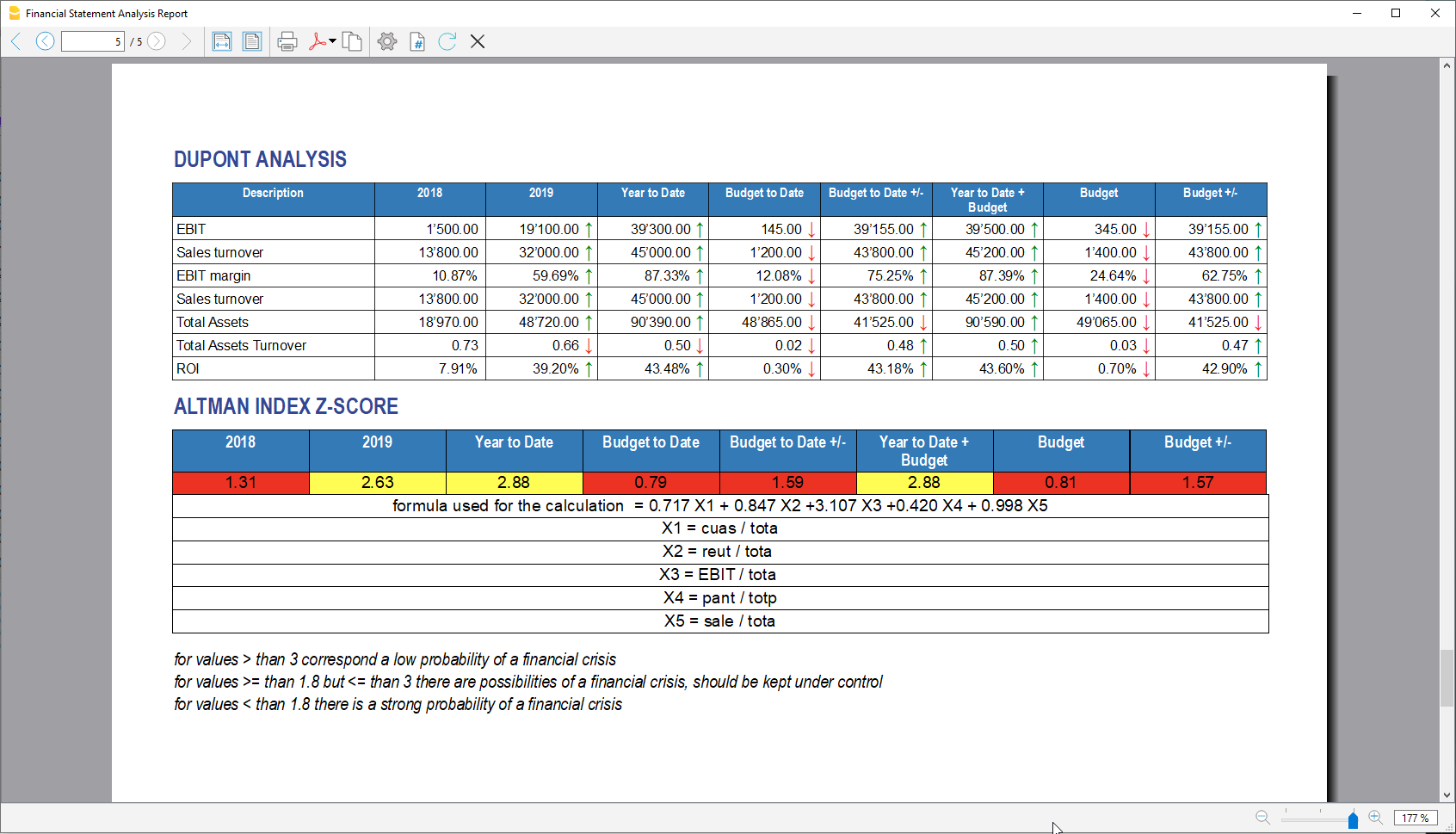
Financial Charts
It’s possible to access to the charts by going to the Extensions menu→Cash Flow Statements and financial Ratios →Financial Charts.
Charts allow you to read the same information as you can find in the report but in a clearer and more
intuitive way. Once the dialogue is open, you can move between the various elements thanks to a drop-down menu.
Ratios charts
- Financing ratios evolution
- Liquidity ratios evolution
- Profitability ratios evolution
- Efficiency ratios evolution
- Cashflow ratios evolution
These charts represent the evolution of the indexes over time. For each type of index there is a bar chart,
within which there is a section that represents the evolution over time of each index for each year included
in the analysis.
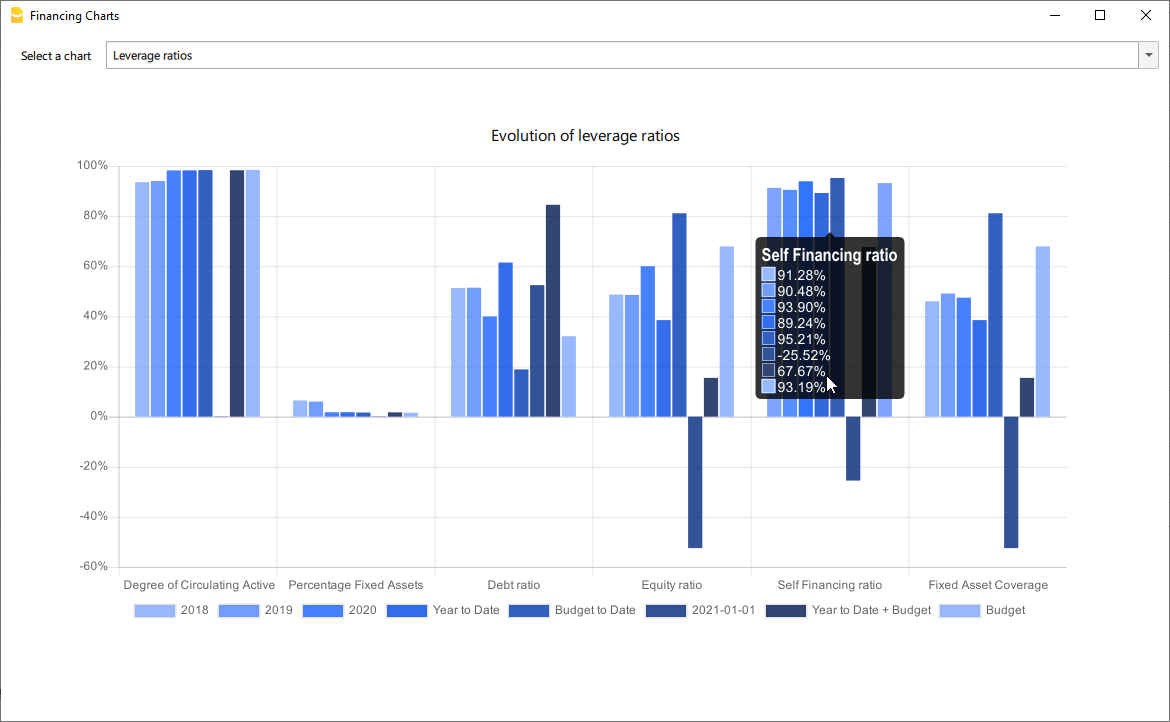
Reclassified Elements charts
- Reclassified asset variation
- Reclassified liabilities and equity variation
These charts show the time evolution of the reclassified assets, and reclassified liabilities, using stacked
chart. It is possible to see how and in what quantity the groups make up the total of assets and liabilities (in
percentage %)
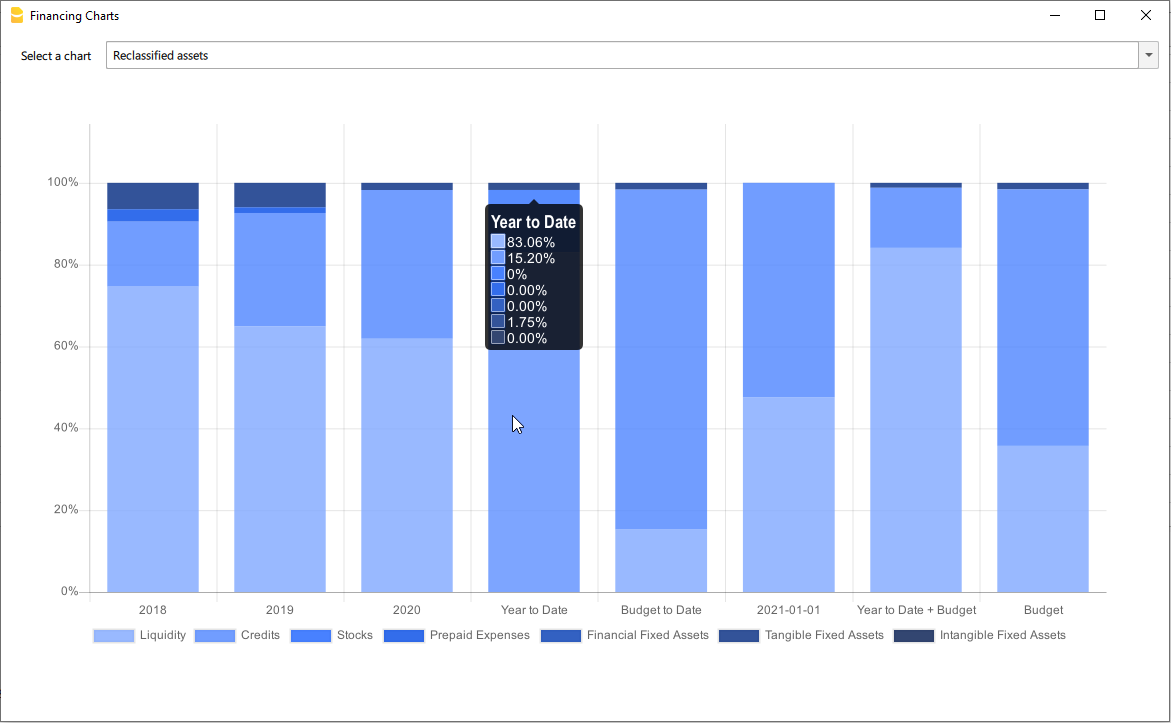
Reclassified profit and loss variation
Shows by using histogram the value of the intermediate totals (EBIT,EBIT-DA,..) of the reclassified profit and loss account ,and their evolution over the time.
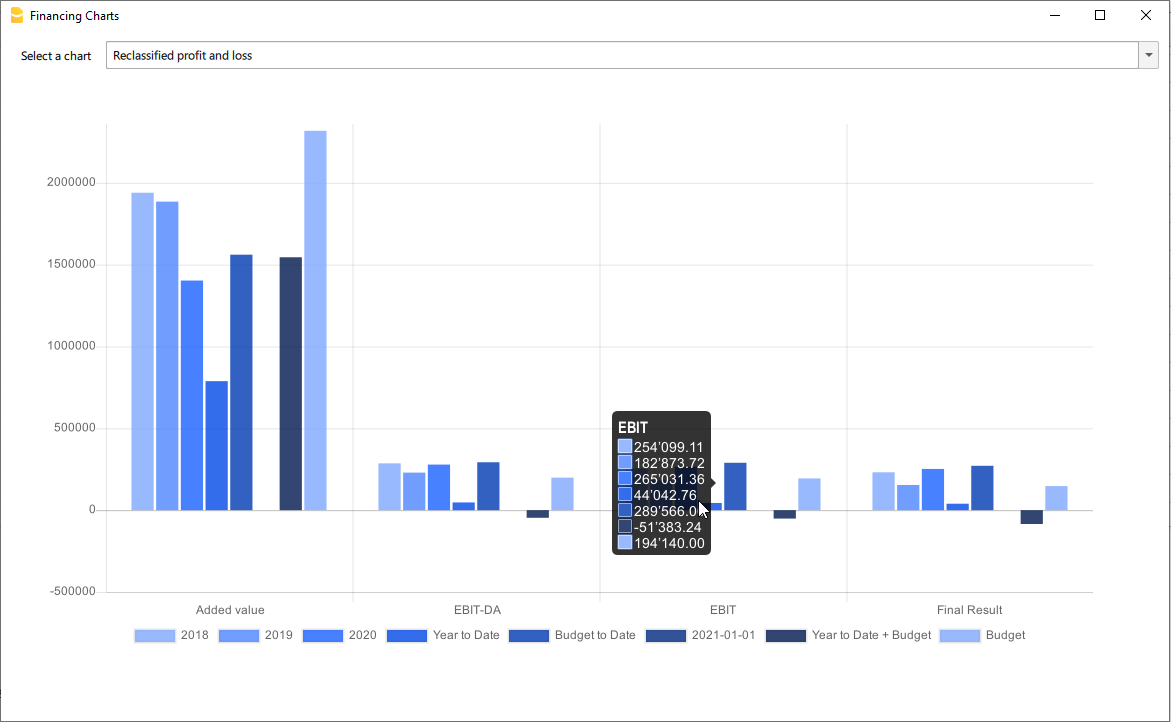
Airbnb, Booking.com, Vrbo and similiar hosting platform templates
Those who have an Airbnb rental business and are looking for a simple and efficient way to manage their finances will find the ideal solution in Banana Accounting Plus templates for several reasons.
With the templates, you can manage and track all expenses and income for all the rooms, apartments or houses you rent without any limits.
Moreover, you can manage the budget for your business in a flexible and personalized way. Whether you have multiple rooms, apartments or houses, you can keep track of specific income and expenses either collectively or divided for each individual rental unit. Additionally, you can set the budget according to irregular or regular deadlines such as monthly, quarterly, semi-annually or annually. This way, you can adapt the budget to your financial and business planning needs.
Through the budget feature in the templates, you can also make financial forecasts for your short-term rental business. You can gain a clear and detailed overview of your future income and plan ahead for all your activities.
Inventory management is another useful and powerful functionality offered by Banana Accounting Plus. You can keep track of all the items relevant to your business, categorizing them by room, apartment or rented house. This way, you will always be aware of what you own and easily manage the purchase or replacement of any necessary assets. With Banana Accounting Plus, you can create all the accounting files you need without limitations.
Regarding the management of income from hosting platforms such as Airbnb, Booking.com, Vrbo and others, the templates provide you with the option to record both the actual income deposited into your bank account and all other rental-related income, especially the commissions paid to the platforms. This information is crucial for tax purposes as it allows you to comply with the rules of the country where you operate your business.
For those who have an Airbnb business and are looking for a simple and efficient way to manage their finances, Banana Accounting Plus templates provide the ideal solution for other several reasons too.
Available templates
There are two templates available for short-term rental hosts on Airbnb, Booking.com, Vrbo or similar platforms.
The completely free template is suitable for those without accounting knowledge who want to manage the finances of their business. The second template is designed for those with double-entry accounting knowledge and who manage a business using multiple assets and possibly different currencies:
- Free template based on Banana Accounting Plus Cash Manager.
- Double-entry and multi-currency template.
All the functionalities and features described in the free template are also included in the double-entry multi-currency template.
In each template, you can easily view some sample accounting entries.
Manage Airbnb reservations
With Banana Accounting Plus templates, you have complete control over your reservations even before they are paid. This allows you to keep track of all bookings in your file, ensuring you are always up to date on availability and key dates. You can input reservations into the system and monitor them, making planning and management of your rental properties easier.
In addition to managing reservations, the templates also allow you to record payment receipts and income. This is particularly useful for monitoring and ensuring compliance with maximum nights allowed regulations in your country. You will have an accurate record of guest stays and corresponding income, providing clear and transparent documentation for regulatory compliance purposes.
Manage Airbnb Experiences
Banana Accounting Plus templates also enables you to manage and track Airbnb experience reservations. If you offer unique experiences such as sailing trips, mountain bike tours, tastings or others, you can record these specific bookings and efficiently monitor them. You will have a comprehensive overview of your Airbnb experience activities, including booking details and corresponding income.
With Banana Accounting Plus templates you simplify the financial management of your Airbnb rental business. You can take advantage of all the features offered and gain a clear and organized view of your finances.
Manage Airbnb business budget and financial forecasts
The Budget table in all Banana Accounting Plus files provides a comprehensive tool for creating your business budget and forecasting future financials.
This feature, always accessible through the Tools > Add/Remove functionalities menu, allows you to generate cash flow statements, liquidity plans and investment plans.
For more advanced needs, you can create budgets using formulas and automatic calculations. Additionally, you can obtain monthly, quarterly and annual financial forecasts as well as projections for multiple years.
Explore the full documentation on budget management and financial forecasting with Banana Accounting Plus.
Manage inventory along with their corresponding receipts
On all files, Banana Accounting Plus allows the display of the Link column in the Transactions table, enabling you to attach supporting documents to each accounting entry.
If needed, there are other predefined columns that you can easily show in your accounting file.
Additionally, with Banana, you can add your custom columns, additional tables, and link them to existing ones. Refer to the documentation on enabling the display of predefined columns and adding columns and new tables to your file.
The ability to add new tables and create custom columns also allows you to integrate the inventory of items in the rooms and apartments you rent into your file and attach relevant documentation, which can be useful, for example, for warranty or insurance purposes.
If you prefer you can create a dedicated new file to create and manage the inventory of your rooms and rented apartments. With all Banana Accounting Plus subscription plans, there are no limits on the number of files you can create and manage.
Handle the accounting recording of the fees you pay to platforms
Using a spreadsheet like Excel or Google Sheets doesn't always allow for proper management of income received from platforms such as Airbnb, Booking.com, Vrbo or similar ones. Often, the income received in your bank account does not include the commissions you need to pay to the platforms.
These platforms deduct the commissions before making payments, but there are countries where you are required to declare the gross income for tax purposes, including the deducted commissions.
With Banana Accounting Plus you can record the gross income you receive, ensuring that everything is accurately accounted for and that your bank balance always matches the actual balance in your account.
Check the example entries in the provided templates pages to see how this accounting record is done.
Free Airbnb template for income and expenses management: ideal also for Booking.com and Vrbo
Neste artigo
Free Airbnb template for income and expenses management: ideal also for Booking.com and Vrbo
Free Airbnb template for income and expenses management: ideal also for Booking.com and Vrbo
Take a look at the template for managing income and expenses for hosts on Airbnb, Booking.com, Vrbo or similar hosting platform on Banana Accounting Plus Web. Click on the Open in browser button below, then click on Start Banana Accounting Web and wait for the template to load to get an immediate idea of how it works.
Abrir na Banana WebApp
Abra a Banana Accounting Plus no seu navegador sem qualquer instalação. Personalize o modelo, introduza as transacções e guarde o ficheiro no seu computador.
Open template in WebApp Open tutorial in WebAppTemplate documentation
Manage your accommodation on Airbnb, Booking.com, Vrbo or the platforms you use with this free template and keep track of your finances easily and efficiently.
The Banana Accounting Plus template is superior to an Excel spreadsheet or a Google Sheet but avoids potential errors and time loss due to formula management. This way, you have a completely free accounting management template specifically designed for hosts.
With Banana Accounting Plus, unlike Excel or Google spreadsheets, there are no limits on the number of rooms, apartments or houses you can manage, and it allows you to easily track income and expenses for each individual rental property and your entire short-term rental business.

With this template, you can record and monitor all your income and expenses quickly and easily, providing you with a clear and detailed snapshot of your finances and how to optimize expenses. The accounting management template on Banana Accounting Plus offers a simple and effective way to organize and analyze all the financial data that is important for hosts.
Here are some of the key features and benefits of the free accounting management template:
- Easy to use: the template is designed to be intuitive and user-friendly, even for those who are not accounting experts. No technical skills or in-depth knowledge of Excel spreadsheets are required to use it. Banana Accounting also has extensive online documentation in multiple languages readily available.
- Startup budget: create, manage and update the budget of your startup to generate detailed and useful reports and forecasts for the success of the business.
- Income tracking: record all income generated from bookings, including payments from platforms, booking fees and reimbursement of cleaning expenses for rooms, apartments or houses, with all the necessary tracking details.
- Expense management: keep track of all expenses associated with your properties, such as utilities, cleaning, maintenance and supplies. Choose the level of detail you prefer for each expense associated with your rental properties. Add, edit, group and customize expenses you want to monitor without limitations.
- Track rental property information: easily track guest names, rented room, apartment or house, check-in and check-out dates, total nights stayed, number of guests per booking, the source of guests' bookings and payment dates from platforms.
- Automatic calculations: the template performs calculations automatically for you, without the potential errors of Excel or Google Sheet formulas, providing a clear overview of your cash flow, profits and expenses for your entire business or for a single room, apartment or house you manage.
- Detailed reports: generate comprehensive and professional financial reports, including profit and expense statements, balance sheets and more. These reports will help you make informed decisions and have detailed control over your finances.
- Manage hosting platform Experiences: easily and quickly manage the Experiences you offer on Airbnb, Vrbo or other similar platform.
- Customizable: the template can be easily customized to fit your specific needs. You can add custom categories, modify, group and personalize all the details you want to monitor according to your preferences.
- Privacy: it's important to note that the data entered into Banana Accounting is not used for commercial purposes. Your information remains confidential, offline and is not repurposed in any way.
This free template for income and expense accounting management for hosts managing their short-term rental properties simplifies the management of your finances, saves you valuable time, and provides you with a clear and comprehensive overview of your income and expenses professionally.
Banana Accounting is a highly versatile and customizable accounting software that can be used for broader accounting purposes beyond managing hosts on Airbnb, Booking.com, Vrbo and other hosting platforms.
Totally free
This template is based on the Cash Manager feature of Banana Accounting Plus, which can be used for free and without limitations with the free subscription plan.
Create and save the file
You can open and save your new file to start either through Banana Accounting Plus Web or by downloading and installing the software on your computer:
- Download and install Banana Accounting Plus.
- Click on File > New.
- Select Cash Manager.
- Search for the Category Business.
- Select the template "Income and expenses management template for Airbnb or similar platforms".
- Click on Create.
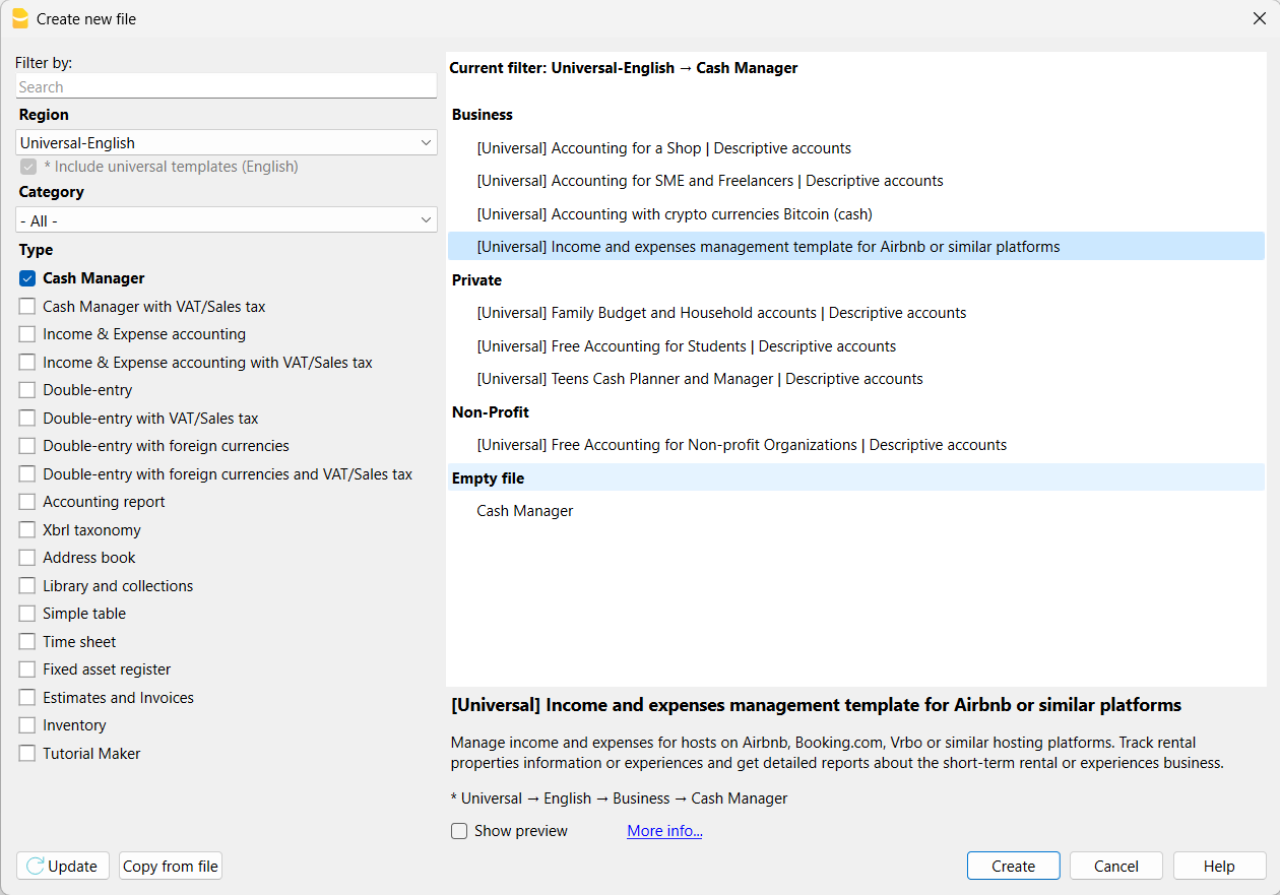
If you click on the text "More info...", you will be directed to this specific documentation page for the template. On this page, you can always find the tutorial file including sample records.
Using the command File > File Properties, set your references, the accounting period with opening, closing dates and the base currency. In the Address section, fill in the fields for the entity managing the rental properties. If necessary, change the base currency of the accounting file in the Accounting section.
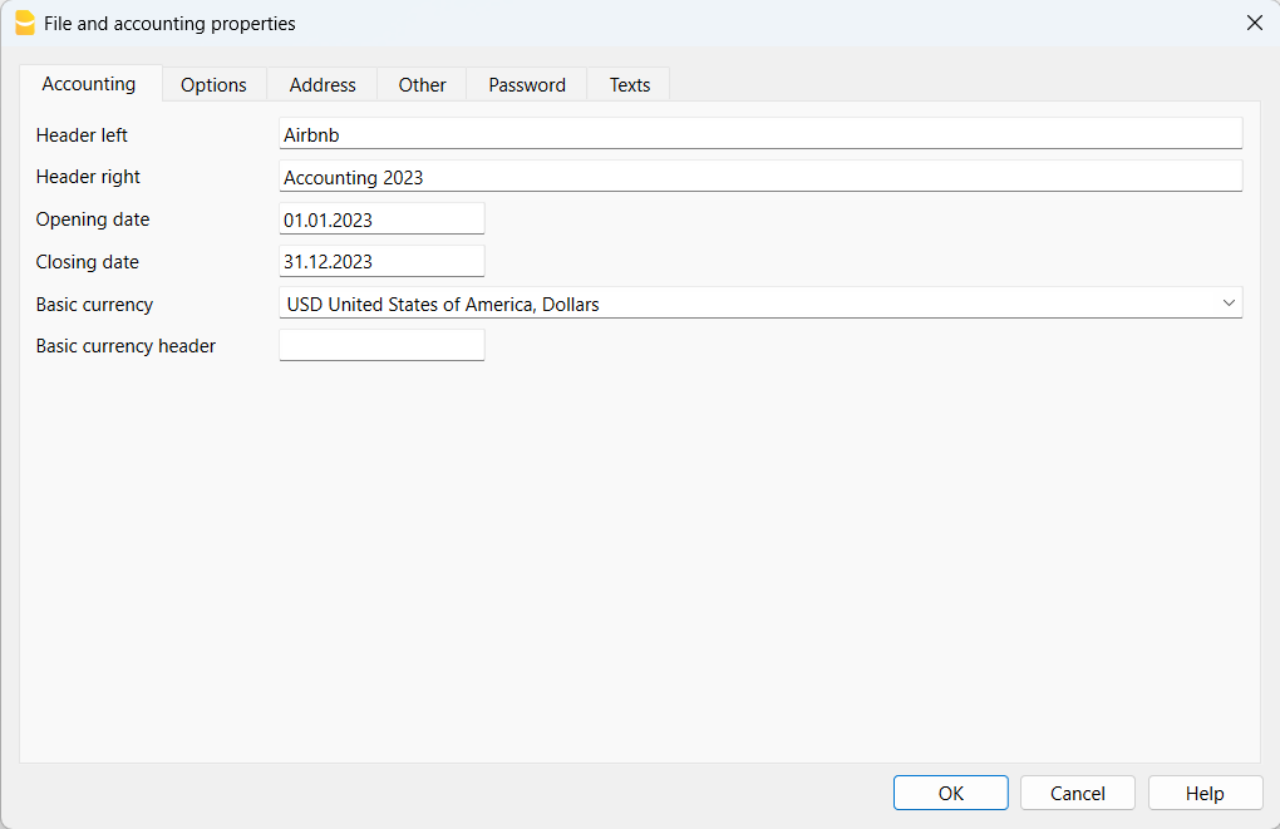
With the command File > Save As, save the file. It is useful to include the name of your business and the year in the file name. For example, "BusinessName-2023.ac2".
Also, refer to the article on organizing accounting files locally, on a network, and in the cloud.
Banana Accounting Plus Web Access
When you have downloaded and saved your new accounting file to open and use it from the web, you can bookmark the following link to access Banana Accounting Plus Web. However, it is recommended to download and install Banana Accounting Plus on the computers where it is needed, because Banana Accounting Plus Web does not yet have all the features available.
Create the budget
With Banana Accounting Plus, you can easily create a startup budget for your new short-term rental business on Airbnb, Booking.com, Vrbo and other platforms, and forecast all the costs you'll need to deal with. Consult all the relevant documentation on how to create a budget with Banana Accounting for detailed information.
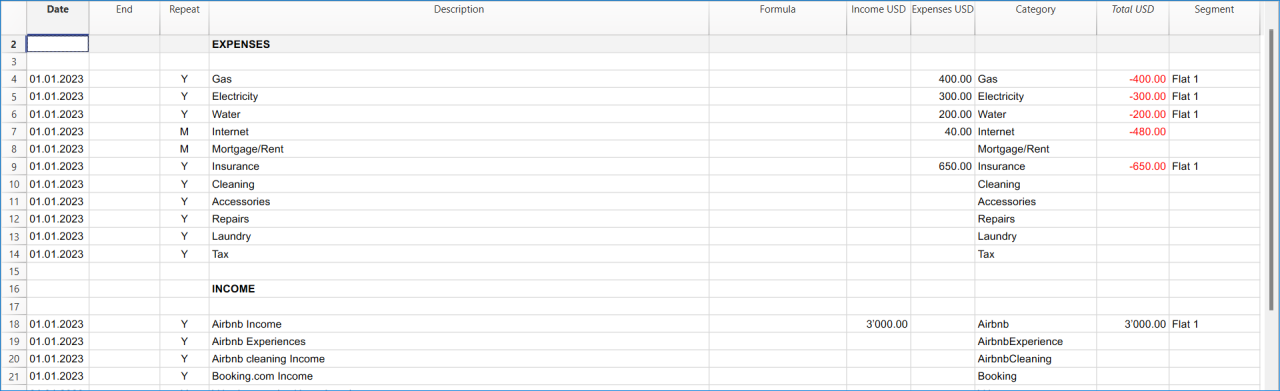
Customize and categorize expenses
If you prefer, you can group similar costs into categories and maintain the detail for each type of expense:
- Properties costs: mortgage payments, repairs and insurance coverage.
- Initial setup expenses: spending on furniture and household utensils.
- Bills: electricity, gas and water expenses.
- Supplies: expenses for items like linens, toiletries and cleaning products.
- Business expenses: costs related to accounting, software and taxes.
- Other costs: payments for cleaners, laundry services and ads.
See how you can easily create accounts groups.
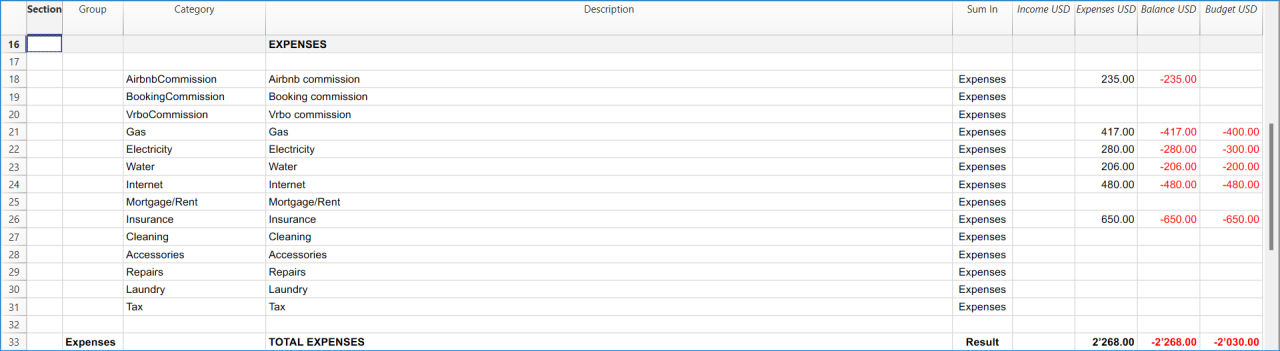
Recording transactions
In the Transactions table, record all transactions in chronological order, including debtor payments and invoice payments, as well as other types of transactions. The recordings can always be sorted and viewed instantly. You can highlight rows, correct any mistakes and copy and paste previously entered transactions.
To expedite data entry, we suggest using the various features of Banana:
- The auto-completion data entry feature automatically retrieves previously entered data.
- The recurring transactions feature (in the Actions menu) allows you to store frequently recurring transactions in a dedicated table.
- You can import data from bank statements, automatically capturing all bank transactions.
- You can link each recording to its corresponding digital document, and with a simple click, you can view the document. Refer to accounting files and digital documents for better document organization.
- Use the sort recordings command to arrange rows in chronological order.
- Use the print/preview command to print or export the journal in PDF format.
Bank transactions import
You can import bank statements, eliminating the need for manual entry.
Additionally, with the Advanced plan, it also allows for easy management of rules to automate accounting according to your specified criteria. This significantly reduces the effort required for accounting management, resulting in unmatched time savings.
Print financial statements or accounting reports
To view and print the financial statements at any time, click on the Report menu > Enhanced financial statements with groups. You can customize them or have an accounting report for a specific period.
Obtain detailed and customizable reports on all expenses and revenues of your business with Airbnb. You can compare them with the budget to always keep track of the performance of your startup.
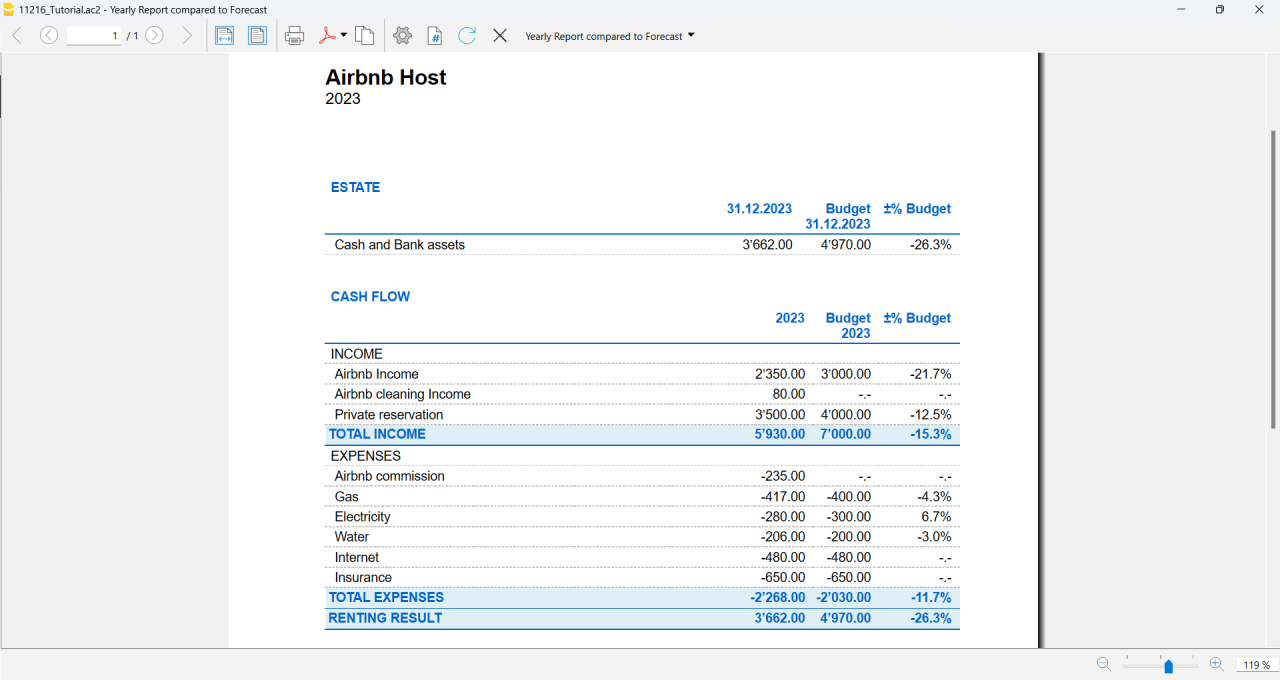
If you manage multiple rooms, apartments or rental properties, you can keep track of expenses and revenues allocated to each individual property you rent. You can also create room-specific budgets and compare the results with the actual expenses and earnings whenever you want.
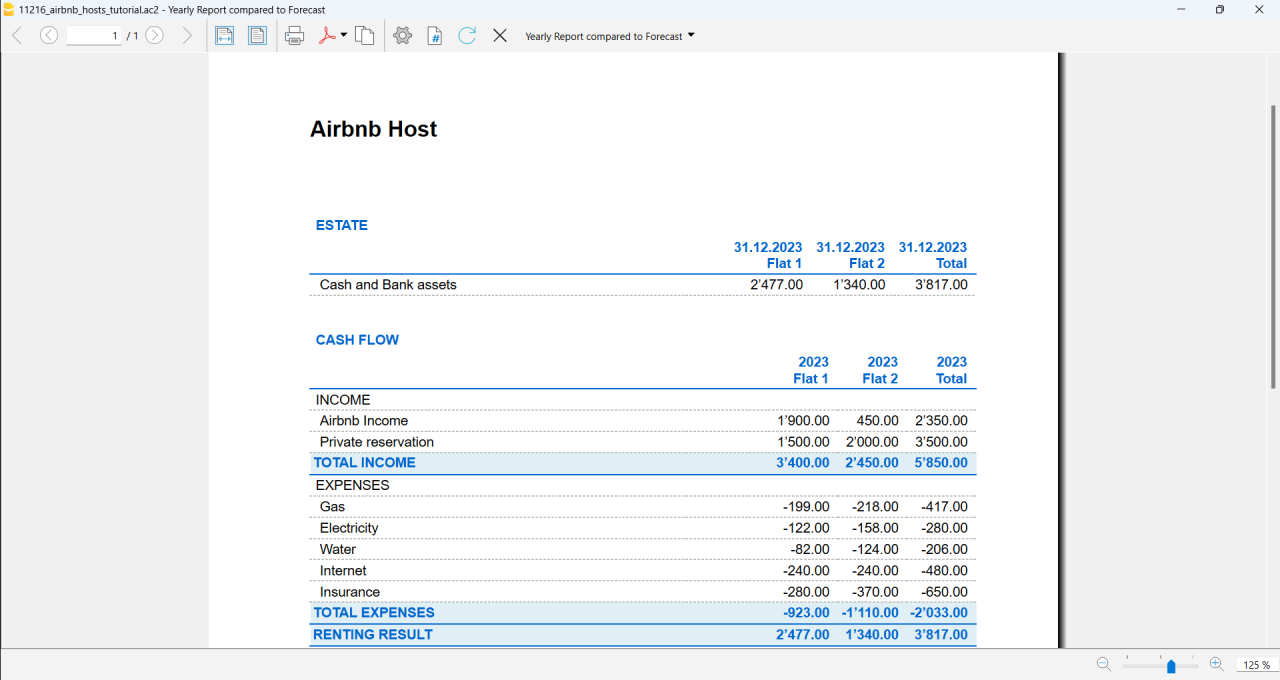
Advanced management
If you want, you can manage your Airbnb business in an advanced and optimized way through the rental management view called Manage Rentals. This allows you to keep track of all the necessary information about the reservations you receive. For those who offer Airbnb Experiences, there is the experiences management view, called Manage Experiences, available to track guest bookings related to experiences.
Navigate between the various available views to keep all the relevant data under control.
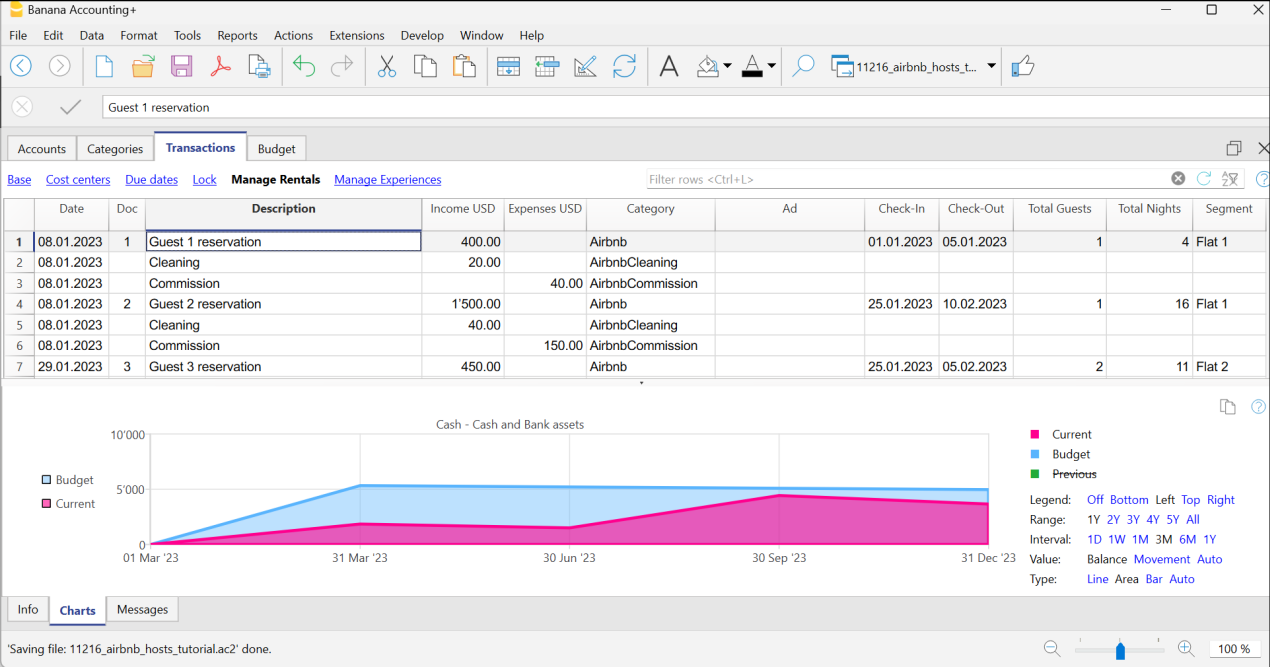
Questions or specific requests
Do you have any questions or specific requests regarding this template for Airbnb hosts or other short-term rental platforms? Please e-mail us.
Sample records for managing income and expenses for Airbnb hosts or other hosting platforms
Here are the sample accounting records for this template.
Recording an Airbnb or other platform revenue transaction
Record revenue from online platforms such as Airbnb, where you receive booking fees, with the preferred breakdown of the collected amounts and platform commissions. If you want, keep track of the ad from which the guest made the reservation, the check-in and check-out dates, the number of guests for the booking, the booked nights, the room or flat rented and the date of payment from the online platform.
To print the receipt to be given to the guest upon arrival, enter the receipt number in the Doc column and use the designated printer extension. You can also attach the receipt to the corresponding revenue record using the Link column.

Recording an expense for your short-term rental business
Record the expenses you incur for your Airbnb business by indicating the date of the expense, a description of the purchase, the amount incurred, the expense category, and the room or flat associated with your monetary outflow. You can always attach your receipts using the Link column.

Airbnb template for multi-currency accounting management
Neste artigo
Airbnb template for multi-currency accounting management
Airbnb template for multi-currency accounting management
Manage your business on Airbnb or other similar platform with this double-entry accounting template featuring multi-currency management. You'll find all the features of the free template, plus the ability to manage multiple assets.
Abrir na Banana WebApp
Abra a Banana Accounting Plus no seu navegador sem qualquer instalação. Personalize o modelo, introduza as transacções e guarde o ficheiro no seu computador.
Open template in WebApp Open tutorial in WebAppTemplate documentation
This template is useful for comprehensive and efficient accounting management for Airbnb hosts who need a system that supports double-entry bookkeeping and handles multiple currencies. Banana Accounting Plus provides a wide range of features to track the income and expenses of your short-term rental business.
Banana Accounting Plus is an advanced accounting software that is superior to Excel, yet it is simpler and more cutting-edge, catering to the common needs of Airbnb hosts. The accounting template has been specifically designed to offer a comprehensive and customizable solution for the financial management of your Airbnb properties. It allows you to track expenses, record income, monitor cash flow and much more.
The key features of this accounting template for Airbnb include:
- Asset Management: this template encompasses all the features of the free template for Airbnb, Booking.com, Vrbo and similar hosting platforms and provides an advanced solution for those with greater needs. It allows you to manage unlimited assets compared to the free template.
- Double-Entry Bookkeeping: the template adheres to the fundamental accounting principle of double-entry bookkeeping, ensuring the accuracy and correctness of your financial records.
- Multi-Currency Management: if you manage Airbnb properties using different currencies, Banana Accounting enables you to record and track income and expenses in different currencies, simplifying international financial management.
- Advanced Reporting: the software offers the ability to generate detailed reports on your finances, including profit and loss statements, account statements, balance sheets and detailed budgets. These reports provide you with a comprehensive overview of the performance of your Airbnb properties.
- User-Friendly: the software is designed to be user-friendly, even for those new to double-entry bookkeeping or without extensive accounting experience. The accounting template is intuitive, and the extensive available online documentation guides you step-by-step in managing your finances.
Banana Accounting Plus is intuitive, easy to use and simplifies your accounting management for Airbnb.
Example of a multi-currency income transaction for hosts
Here's how to use the multi-currency feature of Banana Accounting Plus:
- Set the desired currency exchange rate through the Exchange Rates table.
- Perform the accounting entry by entering date, description, bank of the currency received, income account, amount in the currency received and specify the currency received. Banana Accounting Plus will automatically calculate the amount in the main currency used for managing your Airbnb accounting.

Image of the Exchange Rates table

Image of the Transactions table where to record the income received from Airbnb or similar platform.
Accounting templates with crypto currencies
Accounting with crypto currencies Bitcoin (cash)
Neste artigo
Accounting with crypto currencies Bitcoin (cash)
Accounting with crypto currencies Bitcoin (cash)
Abrir na Banana WebApp
Abra a Banana Accounting Plus no seu navegador sem qualquer instalação. Personalize o modelo, introduza as transacções e guarde o ficheiro no seu computador.
Open template in WebAppTemplate preview
Shop XX
Basic Currency: BTC
Cash Manager
| Group | Account | Description | Sum In |
|---|---|---|---|
| Cash | Cash | ||
| Group | Category | Description | Sum In |
|---|---|---|---|
| OPERATING RESULT | |||
| INCOME | |||
| Sales | Sales | Total Income | |
| Withdrawal from CA | Withdrawal from current account | Total Income | |
| Services | Services | Total Income | |
| Other | Other | Total Income | |
| Total Income | TOTAL INCOME | Result | |
| EXPENSES | |||
| Tranfers to Post Account | Tranfers to post office account | Total Expenses | |
| Stamps | Purchase stamps | Total Expenses | |
| Mail Letters | Mail letters and packages | Total Expenses | |
| Mailing Supplies | Mailing supplies | Total Expenses | |
| Stationery & Appliances | Stationery, appliances | Total Expenses | |
| Cleaning | Cleaning | Total Expenses | |
| Rent | Rent | Total Expenses | |
| Energy | Electricity, water | Total Expenses | |
| Telephone and Fax | Telephone and fax | Total Expenses | |
| Real estate upkeep | Real estate upkeep | Total Expenses | |
| Window Dressing | Window dressing | Total Expenses | |
| Publicity | Publicity, flyers | Total Expenses | |
| Agency Fees | Agency fees | Total Expenses | |
| Payment for Goods | Payment for goods | Total Expenses | |
| Salaries and Personal Loans | Salaries and personal loans | Total Expenses | |
| Fees and other Permits | Fees and other permits | Total Expenses | |
| Total Expenses | TOTAL EXPENSES | Result | |
| Result | RESULT | ||
| COST AND PROFIT CENTERS | |||
| DIVISION | |||
| .S | Shop and personnel management | T1 | |
| .G | Goods management | T1 | |
| .I | Investments | T1 | |
| T1 | TOTAL DIVISION | ||
Income & Expense Accounting with crypto currencies Bitcoin
Neste artigo
Income & Expense Accounting with crypto currencies Bitcoin
Income & Expense Accounting with crypto currencies Bitcoin
Abrir na Banana WebApp
Abra a Banana Accounting Plus no seu navegador sem qualquer instalação. Personalize o modelo, introduza as transacções e guarde o ficheiro no seu computador.
Open template in WebAppTemplate preview
Company XXX
Basic Currency: BTC
Income & Expense accounting
| Group | Account | Description | Sum In |
|---|---|---|---|
| ESTATE | |||
| Cash | Cash | Total | |
| Post | Post office current account | Total | |
| Bank 1 | Bank 1 | Total | |
| Clients | Clients | Total | |
| Prepaid Taxes | Prepaid taxes | Total | |
| Inventory | Inventory | Total | |
| Transitory Assets | Transitory assets | Total | |
| Machinery | Machinery and appliances | Total | |
| Office Furniture | Office furniture | Total | |
| Computer | Computer | Total | |
| Software | Software | Total | |
| Car | Car | Total | |
| Real Estate | Real Estate | Total | |
| Suppliers | Suppliers | Total | |
| Bank loan c/c | Bank loan c/c | Total | |
| Total | TOTAL |
| Group | Category | Description | Sum In |
|---|---|---|---|
| OPERATING RESULT | |||
| INCOME | |||
| Income from Services | Income from services | Total Income | |
| Income from Sales | Income from sales | Total Income | |
| Other Income | Other income | Total Income | |
| Total Income | TOTAL INCOME | Result | |
| EXPENSES | |||
| Purchase Goods | Purchase goods for resale | Total Expenses | |
| Salaries | Salaries | Total Expenses | |
| Social Contributions | Social contributions | Total Expenses | |
| Pension Fund | Pension fund | Total Expenses | |
| Accident Insurance | Accident insurance | Total Expenses | |
| Health Insurance | Health insurance | Total Expenses | |
| Rent | Rent | Total Expenses | |
| Machinery and Appliances | Upkeep machinery and appliances | Total Expenses | |
| Car Expenses | Car expenses | Total Expenses | |
| Other Insurances | Other insurances | Total Expenses | |
| Fees | Fees | Total Expenses | |
| Electricity | Electricity | Total Expenses | |
| Office Supplies | Office supplies | Total Expenses | |
| Telephone, Fax | Telephone, Fax | Total Expenses | |
| Mailing Fees | Mailing fees | Total Expenses | |
| Publicity | Publicity | Total Expenses | |
| Interest on Bank Loan | Interest on bank loan | Total Expenses | |
| Bank and CC Fees | Bank and current account fees | Total Expenses | |
| Depreciation Machinery | Depreciation machinery and appliances | Total Expenses | |
| Depreciation real estate | Ammortize real estate | Total Expenses | |
| Taxes | Taxes | Total Expenses | |
| Total Expenses | TOTAL EXPENSES | Result | |
| Result | RESULT | ||
| COST AND PROFIT CENTERS | |||
| DIVISION CAR EXPENSES | |||
| ;7000 | Petrol | C1 | |
| ;7001 | Insurance, other fees | C1 | |
| ;7002 | Repairs | C1 | |
| C1 | TOTAL DIVISION CAR EXPENSES | ||
Double-Entry Accounting with crypto currencies Bitcoin
Neste artigo
Double-Entry Accounting with crypto currencies Bitcoin
Double-Entry Accounting with crypto currencies Bitcoin
Abrir na Banana WebApp
Abra a Banana Accounting Plus no seu navegador sem qualquer instalação. Personalize o modelo, introduza as transacções e guarde o ficheiro no seu computador.
Open template in WebAppTemplate preview
Company XX
Basic Currency: BTC
Double-entry
| Group | Account | Description | Sum In | Gr1 |
|---|---|---|---|---|
| BALANCE SHEET | ||||
| ASSETS | ||||
| Cash | Cash | Total Assets | ||
| Post | Post office current account | Total Assets | ||
| Bank 1 | Bank 1 | Total Assets | ||
| Clients | Clients | Total Assets | ||
| Total Clients | Total Clients | Total Assets | 1 | |
| Prepaid Taxes | Prepaid taxes | Total Assets | ||
| Inventory | Inventory | Total Assets | ||
| Transitory Assets | Transitory assets | Total Assets | ||
| Machinery & Appliances | Machinery and appliances | Total Assets | ||
| Office Forniture | Office furniture | Total Assets | ||
| Computer | Computer | Total Assets | ||
| Software | Software | Total Assets | ||
| Car | Car | Total Assets | ||
| Real Estate | Real Estate | Total Assets | ||
| Total Assets | TOTAL ASSETS | 00 | 1 | |
| LIABILITIES | ||||
| Suppliers | Suppliers | Total Liabilities | ||
| Total Suppliers | Total Suppliers | Total Liabilities | 1 | |
| Bank Loan c/c | Bank loan c/c | Total Liabilities | ||
| Transitory Liabilities | Transitory liabilities | Total Liabilities | ||
| Start-up Capital | Start-up capital | Total Liabilities | ||
| Private Account | Private account | Total Liabilities | ||
| Reserves | Reserves | Total Liabilities | ||
| Profit or Loss forward | Profit or loss brought forward | Total Liabilities | ||
| Profit or loss of the current year | Profit or loss of the current year | Total Liabilities | 1 | |
| Total Liabilities | TOTAL LIABILITIES | 00 | 1 | |
| 1 | ||||
| PROFIT & LOSS STATEMENT | ||||
| REVENUE | ||||
| Income from Services | Income from services | Total Revenue | ||
| Income from Sales | Income from sales | Total Revenue | ||
| Other Income | Other income | Total Revenue | ||
| Total Revenue | TOTAL REVENUE | 02 | ||
| EXPENSES | ||||
| Purchase Goods | Purchase goods for resale | Total Expenses | ||
| Salaries | Salaries | Total Expenses | ||
| Social Contributions | Social contributions | Total Expenses | ||
| Pension Fund | Pension fund | Total Expenses | ||
| Accident Insurance | Accident insurance | Total Expenses | ||
| Health Insurance | Health insurance | Total Expenses | ||
| Rent | Rent | Total Expenses | ||
| Upkeep Machinery | Upkeep machinery and appliances | Total Expenses | ||
| Car Expenses | Car expenses | Total Expenses | ||
| Other Insurances | Other insurances | Total Expenses | ||
| Fees | Fees | Total Expenses | ||
| Electricity | Electricity | Total Expenses | ||
| Office Supplies | Office supplies | Total Expenses | ||
| Telephone, Fax | Telephone, Fax | Total Expenses | ||
| Mailing Fees | Mailing fees | Total Expenses | ||
| Publicity | Publicity | Total Expenses | ||
| Interest on Bank Loan | Interest on bank loan | Total Expenses | ||
| Bank and CC Fees | Bank and current account fees | Total Expenses | ||
| Depreciation Machinery | Depreciation machinery and appliances | Total Expenses | ||
| Depreciation Real Estate | Depreciation real estate | Total Expenses | ||
| Taxes | Taxes | Total Expenses | ||
| Total Expenses | TOTAL EXPENSES | 02 | 1 | |
| 02 | Profit(-) Loss(+) from Profit & Loss Statement | Profit or loss of the current year | 1 | |
| 00 | Difference should be = 0 (blank cell) | |||
| CLIENTS/SUPPLIERS REGISTER | ||||
| Clients | ||||
| CL.001 | Company 1 | 10A | ||
| CL.002 | Company 2 | 10A | ||
| CL.003 | Company 3 | 10A | ||
| 10A | Total Clients | Total Clients | 1 | |
| Suppliers | ||||
| SU.001 | Company 1 | 20A | ||
| SU.002 | Company 2 | 20A | ||
| SU.003 | Company 3 | 20A | ||
| 20A | Total Suppliers | Total Suppliers | 1 | |
| COST AND PROFIT CENTERS | ||||
| Division car expenses | ||||
| .PET | Petrol | CE | ||
| .INS | Insurance, other fees | CE | ||
| .REP | Repairs | CE | ||
| CE | Total Division car expenses | 1 | ||
Double-Entry Accounting for digital currencies Bitcoin and Ethereum (Base Currency ETH)
Neste artigo
Double-Entry Accounting for digital currencies Bitcoin and Ethereum (Base Currency ETH)
Double-Entry Accounting for digital currencies Bitcoin and Ethereum (Base Currency ETH)
Template for professional multi currency accounting software for digital currencies with up to 19 digit. Easily mix Bitcoin, Ethereum or any other digital or traditional currency.
Abrir na Banana WebApp
Abra a Banana Accounting Plus no seu navegador sem qualquer instalação. Personalize o modelo, introduza as transacções e guarde o ficheiro no seu computador.
Open template in WebAppTemplate preview
Company XX
Basic Currency: BTC
Double-entry with foreign currencies
| Group | Account | Description | Currency | Sum In | Gr1 |
|---|---|---|---|---|---|
| BALANCE SHEET | |||||
| ASSETS | |||||
| Cash | Cash | USD | Total Assets | ||
| Bank CHF | Bank CHF | CHF | Total Assets | ||
| Bank USD | Bank USD | USD | Total Assets | ||
| Bank EUR | Bank EUR | EUR | Total Assets | ||
| Bitcoins | Bitcoins | BTC | Total Assets | ||
| Ethereum | Ethereum | ETH | Total Assets | ||
| Clients | Clients | USD | Total Assets | ||
| Total Clients | Total Clients | Total Assets | 1 | ||
| Prepaid taxes | Prepaid taxes | USD | Total Assets | ||
| Inventory | Inventory | USD | Total Assets | ||
| Transitory assets | Transitory assets | USD | Total Assets | ||
| Machinery | Machinery and applicances | USD | Total Assets | ||
| Office furniture | Office furniture | USD | Total Assets | ||
| Computer | Computer | USD | Total Assets | ||
| Software | Software | USD | Total Assets | ||
| Car | Car | USD | Total Assets | ||
| Real Estate | Real Estate | USD | Total Assets | ||
| Total Assets | TOTAL ASSETS | 00 | 1 | ||
| LIABILITIES | |||||
| Suppliers | Suppliers | USD | Total Liabilities | ||
| Total Suppliers | Total Suppliers | Total Liabilities | 1 | ||
| Bank loan c/c | Bank loan c/c | USD | Total Liabilities | ||
| Transitory liabilities | Transitory liabilities | USD | Total Liabilities | ||
| Start-up capital | Start-up capital | USD | Total Liabilities | ||
| Private account | Private account | USD | Total Liabilities | ||
| Reserves | Reserves | USD | Total Liabilities | ||
| Profit or loss forward | Profit or loss brought forward | USD | Total Liabilities | ||
| Profit or loss of the current year | Profit or loss of the current year | Total Liabilities | 1 | ||
| Total Liabilities | TOTAL LIABILITIES | 00 | 1 | ||
| 1 | |||||
| PROFIT/LOSS STATEMENT | |||||
| REVENUE | |||||
| Income from services | Income from services | USD | Total Revenue | ||
| Income from sales | Income from sales | USD | Total Revenue | ||
| Other income | Other income | USD | Total Revenue | ||
| Exchange rate profit | Exchange rate profit | USD | Total Revenue | ||
| Exchange rate differences | Exchange rate differences | USD | Total Revenue | ||
| Total Revenue | TOTAL REVENUE | 02 | |||
| EXPENSES | |||||
| Purchase Goods | Purchase goods for resale | USD | Total Expenses | ||
| Salaries | Salaries | USD | Total Expenses | ||
| Social contributions | Social contributions | USD | Total Expenses | ||
| Pension fund | Pension fund | USD | Total Expenses | ||
| Accident insurance | Accident insurance | USD | Total Expenses | ||
| Health insurance | Health insurance | USD | Total Expenses | ||
| Rent | Rent | USD | Total Expenses | ||
| Upkeep machinery and appliances | Upkeep machinery and appliances | USD | Total Expenses | ||
| Car expenses | Car expenses | USD | Total Expenses | ||
| Other insurances | Other insurances | USD | Total Expenses | ||
| Fees | Fees | USD | Total Expenses | ||
| Electricity | Electricity | USD | Total Expenses | ||
| Office supplies | Office supplies | USD | Total Expenses | ||
| Telephone, Fax | Telephone, Fax | USD | Total Expenses | ||
| Mailing fees | Mailing fees | USD | Total Expenses | ||
| Publicity | Publicity | USD | Total Expenses | ||
| Interest on bank loan | Interest on bank loan | USD | Total Expenses | ||
| Bank and current account fees | Bank and current account fees | USD | Total Expenses | ||
| Depreciation machinery | Depreciation machinery and appliances | USD | Total Expenses | ||
| Depreciation real estate | Depreciation real estate | USD | Total Expenses | ||
| Taxes | Taxes | USD | Total Expenses | ||
| Exchange rate loss | Exchange rate loss | USD | Total Expenses | ||
| Total Expenses | TOTAL EXPENSES | 02 | 1 | ||
| 02 | Profit(-) Loss(+) from Profit & Loss Statement | Profit or loss of the current year | 1 | ||
| 00 | Difference should be = 0 (blank cell) | ||||
| CLIENTS/SUPPLIERS REGISTER | |||||
| Clients | |||||
| CL.001 | Company 1 | USD | 10A | ||
| CL.002 | Company 2 | USD | 10A | ||
| CL.003 | Company 3 | USD | 10A | ||
| 10A | Total Clients | Total Clients | 1 | ||
| Suppliers | |||||
| SU.001 | Company 1 | EUR | 20A | ||
| SU.002 | Company 2 | USD | 20A | ||
| SU.003 | Company 3 | USD | 20A | ||
| 20A | Total Suppliers | Total Suppliers | 1 | ||
| COST AND PROFIT CENTERS | |||||
| DIVISION CAR EXPENSES | |||||
| .PET | Petrol | USD | C1 | ||
| .INS | Insurance, other fees | USD | C1 | ||
| .REP | Repairs | USD | C1 | ||
| C1 | TOTAL DIVISION CAR EXPENSES | 1 | |||
| Ref.Currency | Currency | Text |
|---|---|---|
| BTC | EUR | Euro |
| BTC | CHF | Swiss Francs |
| BTC | USD | US Dollar |
| BTC | ETH | Ether |
Double-Entry Accounting for digital currencies Bitcoin and Ethereum (Base currency USD)
Neste artigo
Double-Entry Accounting for digital currencies Bitcoin and Ethereum (Base currency USD)
Double-Entry Accounting for digital currencies Bitcoin and Ethereum (Base currency USD)
Template for professional multi currency accounting software for digital currencies with up to 19 digit. Easily mix Bitcoin, Ethereum or any other digital or traditional currency.
Abrir na Banana WebApp
Abra a Banana Accounting Plus no seu navegador sem qualquer instalação. Personalize o modelo, introduza as transacções e guarde o ficheiro no seu computador.
Open template in WebAppTemplate preview
Company XX
Basic Currency: USD
Double-entry with foreign currencies
| Group | Account | Description | Currency | Sum In | Gr1 |
|---|---|---|---|---|---|
| BALANCE SHEET | |||||
| ASSETS | |||||
| Cash | Cash | USD | Total Assets | ||
| Post | Post office current account | USD | Total Assets | ||
| Bank USD | Bank USD | USD | Total Assets | ||
| Bank EUR | Bank EUR | EUR | Total Assets | ||
| Bitcoins | Bitcoins | BTC | Total Assets | ||
| Ethereum | Ethereum | ETH | Total Assets | ||
| Clients | Clients | USD | Total Assets | ||
| Total Clients | Total Clients | Total Assets | 1 | ||
| Prepaid taxes | Prepaid taxes | USD | Total Assets | ||
| Inventory | Inventory | USD | Total Assets | ||
| Transitory assets | Transitory assets | USD | Total Assets | ||
| Machinery | Machinery and applicances | USD | Total Assets | ||
| Office furniture | Office furniture | USD | Total Assets | ||
| Computer | Computer | USD | Total Assets | ||
| Software | Software | USD | Total Assets | ||
| Car | Car | USD | Total Assets | ||
| Real Estate | Real Estate | USD | Total Assets | ||
| Total Assets | TOTAL ASSETS | 00 | 1 | ||
| LIABILITIES | |||||
| Suppliers | Suppliers | USD | Total Liabilities | ||
| Total Suppliers | Total Suppliers | Total Liabilities | 1 | ||
| Bank loan c/c | Bank loan c/c | USD | Total Liabilities | ||
| Transitory liabilities | Transitory liabilities | USD | Total Liabilities | ||
| Start-up capital | Start-up capital | USD | Total Liabilities | ||
| Private account | Private account | USD | Total Liabilities | ||
| Reserves | Reserves | USD | Total Liabilities | ||
| Profit or loss forward | Profit or loss brought forward | USD | Total Liabilities | ||
| Profit or loss of the current year | Profit or loss of the current year | Total Liabilities | 1 | ||
| Total Liabilities | TOTAL LIABILITIES | 00 | 1 | ||
| 1 | |||||
| PROFIT/LOSS STATEMENT | |||||
| REVENUE | |||||
| Income from services | Income from services | USD | Total Revenue | ||
| Income from sales | Income from sales | USD | Total Revenue | ||
| Other income | Other income | USD | Total Revenue | ||
| Exchange rate profit | Exchange rate profit | USD | Total Revenue | ||
| Exchange rate differences | Exchange rate differences | USD | Total Revenue | ||
| Total Revenue | TOTAL REVENUE | 02 | |||
| EXPENSES | |||||
| Puchase goods | Purchase goods for resale | USD | Total Expenses | ||
| Salaries | Salaries | USD | Total Expenses | ||
| Social contributions | Social contributions | USD | Total Expenses | ||
| Pension fund | Pension fund | USD | Total Expenses | ||
| Accident insurance | Accident insurance | USD | Total Expenses | ||
| Health insurance | Health insurance | USD | Total Expenses | ||
| Rent | Rent | USD | Total Expenses | ||
| Upkeep machinery and appliances | Upkeep machinery and appliances | USD | Total Expenses | ||
| Car expenses | Car expenses | USD | Total Expenses | ||
| Other insurances | Other insurances | USD | Total Expenses | ||
| Fees | Fees | USD | Total Expenses | ||
| Electricity | Electricity | USD | Total Expenses | ||
| Office supplies | Office supplies | USD | Total Expenses | ||
| Telephone, Fax | Telephone, Fax | USD | Total Expenses | ||
| Mailing fees | Mailing fees | USD | Total Expenses | ||
| Publicity | Publicity | USD | Total Expenses | ||
| Interest on bank loan | Interest on bank loan | USD | Total Expenses | ||
| Bank and current account fees | Bank and current account fees | USD | Total Expenses | ||
| Depreciation machinery | Depreciation machinery and appliances | USD | Total Expenses | ||
| Depreciation real estate | Depreciation real estate | USD | Total Expenses | ||
| Taxes | Taxes | USD | Total Expenses | ||
| Exchange rate loss | Exchange rate loss | USD | Total Expenses | ||
| Total Expenses | TOTAL EXPENSES | 02 | 1 | ||
| 02 | Profit(-) Loss(+) from Profit & Loss Statement | Profit or loss of the current year | 1 | ||
| 00 | Difference should be = 0 (blank cell) | ||||
| CLIENTS/SUPPLIERS REGISTER | |||||
| Clients | |||||
| CL.001 | Company 1 | USD | 10A | ||
| CL.002 | Company 2 | USD | 10A | ||
| CL.003 | Company 3 | USD | 10A | ||
| 10A | Total Clients | Total Clients | 1 | ||
| Suppliers | |||||
| SU.001 | Company 1 | EUR | 20A | ||
| SU.002 | Company 2 | USD | 20A | ||
| SU.003 | Company 3 | USD | 20A | ||
| 20A | Total Suppliers | Total Suppliers | 1 | ||
| COST AND PROFIT CENTERS | |||||
| DIVISION CAR EXPENSES | |||||
| .PET | Petrol | USD | C1 | ||
| .INS | Insurance, other fees | USD | C1 | ||
| .REP | Repairs | USD | C1 | ||
| C1 | TOTAL DIVISION CAR EXPENSES | 1 | |||
| Ref.Currency | Currency | Text |
|---|---|---|
| USD | EUR | Euro |
| USD | CHF | Swiss Francs |
| USD | BTC | Bitcoin |
| USD | ETH | Ether |
Essential Expense Manager PDF report with embedded receipts
Neste artigo
Essential Expense Manager PDF report with embedded receipts
Essential Expense Manager PDF report with embedded receipts
Easily enter and categorize you expenses and create a PDF report with embedded receipts. A simple and effective solution for all expenses reporting needs for SME and non-profit. It's totally free for up 70 expense entries for reporting.
Abrir na Banana WebApp
Abra a Banana Accounting Plus no seu navegador sem qualquer instalação. Personalize o modelo, introduza as transacções e guarde o ficheiro no seu computador.
Open template in WebApp Open tutorial in WebAppTemplate documentation
Improving how employee expenses are managed is crucial for all businesses.
Whether employees are traveling for work or working from home, keeping track of their expenses and making sure they get reimbursed correctly has become a complex task.
Banana Accounting expense manager functionality to create a PDF dossier is essential and cost-effective for the majority of small and medium-sized businesses. It helps track expenses, improves transparency and makes it smoother for employees to interact with the company's accounting department.
All in one PDF report with embedded receipts
Banana Accounting create a PDF report with embedded receipts. The PDF file includes everything is necessary for reporting, approval and reimbursement.
- The list of expenses with all information necessary and the link to receipt.
- The report of the categorized expenses, for accounting purposes.
- The scanned receipt's files.
PDF file can embed other files. If you don't know just open this example PDF file and click on the link (look the link icons on the left in the image below), so that the receipt document will directly open (some browser don't show the files, better use Adobe Acrobat Reader that is free to use).
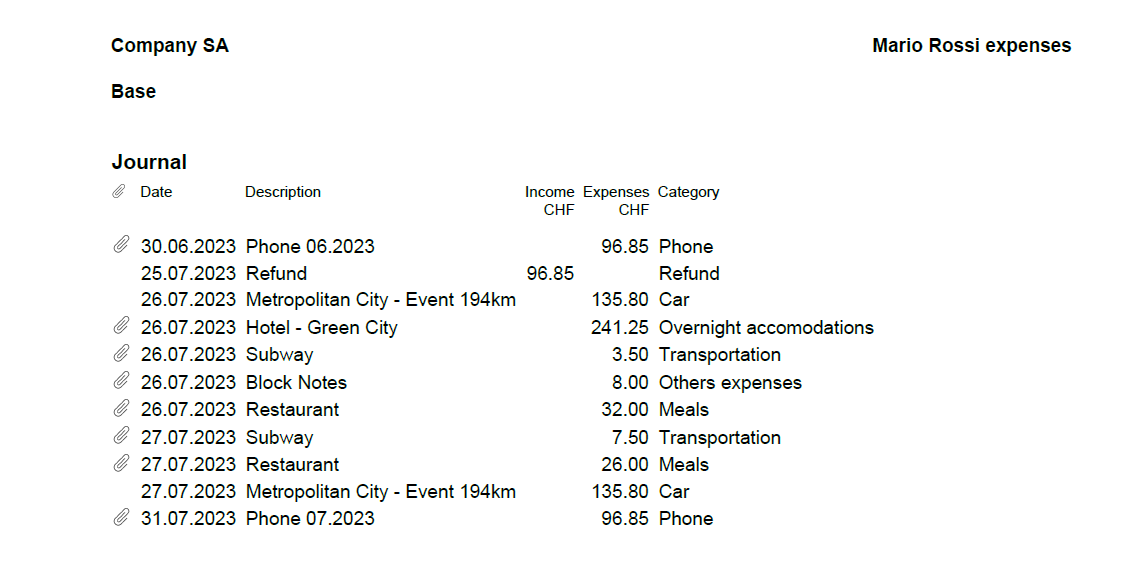
Totally free for up to 70 expense entries
The Banana Accounting template is designed to benefit companies of all sizes. The expense manager template is a software entirely free for up to 70 expense entries, making it a very accessible solution.
How to start
Using this Banana Accounting functionality allows you to obtain your PDF dossier with expenses categorized and embedded in a simple and immediate way:
- Install Banana Accounting
- Open the template file and save to a directory, where you also scan your documents.
- Scan your receipts or invoices (Banana Accounting does not perform the scanning).
- Enter the incurred expenses in the Transaction table and add a Link to the scanned receipt file.
- With File menu > Create Pdf Dossier create the PDF report (check the Include attachments).
- Transmit the file for reimbursement.
Now you'll be ready to send your PDF dossier by email to the accounting department, for approval and reimbursement.
This workflow is essential and cost-effective for the majority of small and medium-sized businesses.
Add the payment methods used by employees
If you wish, you can manage the payment methods used for expenses through the CC3 column.
To enable it, double-click on the column headers in the Transactions table. In the window that opens, on the left, enable the display of the Cc3 column and confirm with the Ok button.
Manage the different payment methods from the Categories table by adding the accounting accounts with a semicolon in front. You can add as many payment methods as you prefer.
Add the quantity columns to manage travel kilometers
To manage travel expenses based on the distance traveled, it could be useful to enable the display of columns related to quantities.
To enable them, double-click on the column headers in the Transactions table. In the window that opens, on the left, enable the display of the columns Quantity, ReferenceUnit, UnitPrice, and confirm with the Ok button.
Remember to enter Unit Price in the Transactions table with a negative sign.
Additional features of the Essential Expense Manager
Easy Expense Logging: the core of this tool is a user-friendly interface. Employees can quickly record their expenses by entering the date, category, amount and payment method. This reduces mistakes and ensures accurate data entry.
Digital Receipts: instead of using paper receipts, the software lets employees attach digital copies of receipts. This prevents losing receipts and keeps expense records secure.
Detailed PDF Reports: the software is great at creating comprehensive expense reports. These reports include all embedded receipts in a single PDF file, which can be easily shared with accountants through email. The reports break down expenses, categories and receipts, promoting transparency.
Customizable Categories: the software lets administrators customize expense categories to fit the company's needs. This ensures that expenses are organized in a way that matches the company's reporting and analysis requirements.
Easy Access: the expense manager can be shared through email, which is helpful for remote employees or those who often travel for work.
Data Privacy: it's important to note that the data entered into Banana Accounting is not used for commercial purposes. Your information remains confidential, offline and is not repurposed in any way.
WooCommerce Products Export-Import [BETA]
Neste artigo
WooCommerce Products Export-Import [BETA]
WooCommerce Products Export-Import [BETA]
This extension allows you to create your own inventory based upon the products listed in WooCommerce. You may update your inventory in Banana Accounting by aligning it with the details of products already listed on WooCommerce and export your inventory product data in a format already set up to import into WooCommerce to start selling online.
WooCommerce extension description
This extension for importing and exporting products sold on WooCommerce online shop simplifies and optimizes the integration between your online store and Banana Accounting software.
The extension either allows the export of products already listed in your inventory from Banana Accounting to your WooCommerce online store, or may become an intuitive and efficient solution to easily allow you to import products directly from your online store into Banana Accounting.
Banana Accounting is superior to Excel, allowing you to swiftly edit product details at any time and it guarantees that the information remains aligned to your online store on WooCommerce.
The Banana Accounting extension offers you the opportunity to export product data already present in your Banana Accounting inventory in a format already prepared for import into WooCommerce. This streamlines the input and/or management of products in your online store, enabling you to maintain coherence and consistency between the two platforms and to begin selling online more seamlessly.
As it is crucial to manage product information accurately and effortlessly in your online store and inventory, this extension allows you to do so in a simple and secure manner. With the export file obtained from the WooCommerce platform, you can easily create your inventory in Banana Accounting or update existing products directly in Banana Accounting to align them with those present on your online store.
Both functions eliminate the need for lengthy and complex manual procedures and reduce the risk of transcription errors, ensuring data accuracy and efficiency.
This solution is suitable for those who want to manage the inventory in a simple way, exporting or importing to WooCommerce whenever they desire. It is not suitable for those looking for a cloud solution that automatically synchronizes warehouse management with WooCommerce.
Banana Accounting key features
Easy: the Banana Accounting software is easy to use and every file can be shared through email, which is helpful for a easy support too.
Privacy: it's important to note that the data entered into Banana Accounting is not used for commercial purposes. Your information remains confidential, offline and is not repurposed in any way.
Beta version
This extension is published in BETA version. We recommend creating a backup copy of the inventory file. Having regular file backups is always useful in any context. This WooCommerce extension require a subscription to Banana Accounting Plus Advanced version.
Primary Key Used
The Id column from Banana's Items table will be exported and used as the primary key for import and it must contain the product's SKU reference of WooCommerce online shop.
Those who already have a warehouse in Banana Accounting can replace the codes in the Id column using the Rename function from Banana's Data menu. This function will automatically replace the Id value even in the Transactions table.
Create/Update products from WooCommerce
The Create/Update products from WooCommerce function will create the products exported from WooCommerce (CSV file format) in the Items table of the inventory in Banana Accounting if they do not exist. If products with the same Id value already exist, it will update the values in the Description, Quantity begin and Unit Price columns in the Items table with the information present in the exported file from WooCommerce.
Export products for WooCommerce
The Export products for WooCommerce function will export data from the Id, Description, Quantity balance and Unit Price columns in the Items table into a CSV file format, ready to be imported into WooCommerce.
Universal resources for Associations and NGOs
Banana Accounting Plus is a professional accounting software designed to make accounting simple, fast and reliable. It is an ideal solution for small non-profit organizations, associations and organizations managing projects locally or abroad.
Start from a ready-to-use template, adapt it to your organization and immediately keep your accounts under control.
Accounting applications for non-profit organizations
Banana Accounting offers different accounting applications depending on the needs and size of your organization: Cash Manager, Income & Expense Accounting, Double-entry Accounting and Multi-currency Accounting. Whether you simply need to track income and expenses or manage professional double-entry accounts and projects in different currencies, you can choose the solution that best suits your organization.
Ready-to-use templates for non-profit organizations
Start from one of our ready-to-use templates and customize the accounts, categories and reports according to your organization and country.
Simple and flexible accounting
Banana Accounting combines professional accounting with an intuitive spreadsheet-like interface. You work in tables, making it easy to enter, check and modify your accounting data.
- Enter and edit transactions quickly
- Copy and paste data as you would in a spreadsheet
- Automatically check transactions for errors and differences
- Customize the chart of accounts to suit your organization
- View updated balances and reports at any time
Professional accounting reports
Your accounting data is automatically organized into professional reports that can be viewed, printed and customized in just a few clicks:
- Trial Balance
- Balance Sheet
- Income Statement
- Account Cards
Manage projects, events and members
Banana Accounting offers useful tools specifically suited to associations and non-profit organizations. With Cost and Profit Centers, you can keep the accounting of individual projects and events separate while managing everything in the same accounting file.
Manage international projects and multiple currencies
Banana Accounting is used in more than 180 countries and is particularly useful for non-profit organizations operating internationally.
You can create accounting files in different languages, work with multiple currencies and adapt your chart of accounts and reports to local requirements.
Easy sharing and auditing
When your accounts need to be reviewed, simply share your Banana Accounting file and supporting documents with your auditor or accountant.
They can open the file with the Free plan, review transactions and attached documents, and export data or reports to Excel when needed.
Work offline and keep control of your data
Banana Accounting is not cloud-based, so you can work even when an internet connection is unavailable. This is especially useful for organizations working in remote locations or managing projects in the field.
Your accounting is saved as a file, and you decide where to store your data: on your computer, on your network or using your preferred cloud storage solution.
Start for free
Download Banana Accounting and start immediately with the Free plan. No personal information is required, and even your email address is optional.
Create your accounting file, customize your chart of accounts and enter up to 70 transactions. When you are ready, you can switch to a paid plan while keeping all your existing data.
Used by non-profit organizations worldwide
Banana Accounting is used by thousands of associations and non-profit organizations around the world, including international NGOs managing projects directly in the field.
Choose the right plan
Start with the Free plan and upgrade whenever you need additional features. Your accounting files remain fully compatible, so you can continue working without starting over.
Noprofit Universal Templates
INPAS Standard Templates
[This page is currently being updated]
INPAS key accounting documents
This page introduces Banana Accounting+ and Excel templates designed to support financial reporting under the International Non-Profit Accounting Standard (INPAS). The templates help prepare the required financial statements, but full compliance also depends on applying all relevant accounting and disclosure requirements.
The NPO is responsible for ensuring that its financial reports comply with all applicable INPAS requirements. Using the template alone does not guarantee compliance.
Statement of Financial Position
The balance sheet is an essential document that provides a detailed view of your organization's financial health, clearly showing assets, liabilities and net worth. Because of the flexibility of the INPAS standard, you can present the financial statements either vertically or horizontally, tailoring them to the specific needs of your nonprofit.
This document can be generated easily using Banana Accounting+ template.
Statement of Income and Expenses
This document shows your organization's income and expenses during a period. Proper management of the income statement is crucial to demonstrate how resources were used to achieve missionary goals.
This document can be generated easily using Banana Accounting+ template.
Statement of Changes in Net Assets
This document is critical to understanding the changes that have occurred in net assets during the fiscal year. The INPAS standard provides a sequence of elements that transparently reflects the changes, making clear the impact of financial activities on the organization's assets.
Statement of Cash Flows
The cash flow statement, which shows cash flows, is essential for monitoring your organization's liquidity and ability to fund its activities. With our INPAS template, you can present this information in a clear and accessible way, improving transparency to donors and board members.
Explanatory notes
Explanatory notes are a mandatory part of INPAS financial statements. They include the basis of preparation, material accounting policies, information about individual funds and their movements, relevant grants and donations, delivery obligations where applicable, and other disclosures required by INPAS.
The notes must also include relevant comparative information for the previous reporting period.
Comparative information and Narrative reporting
INPAS requires comparative financial information for the previous reporting period.
Full INPAS compliance also requires a narrative report describing the NPO's mission, activities, performance and principal risks. The narrative report can be prepared separately, for example in Word, but must be included as part of the NPO's general purpose financial report to declare full INPAS compliance.
During the first two years following transition to INPAS, an NPO may declare compliance with the financial statement requirements only, subject to the transitional provisions.
References
- International Financial Reporting For Non Profit Organisations: https://www.inprf.org
INPAS reporting with segments and cost and profit centres
For a non-profit organisation (NPO), recording a payment is only the beginning. It also needs to know which fund the money belongs to, which project it supports and, when relevant, who provided it. Banana Accounting+ lets you add these details to the same transaction without creating a separate set of ordinary accounts for every fund, project or donor.
This helps an NPO organise the information needed for INPAS fund accounting, the analysis of expenses and fundraising cost disclosures. The software helps collect and analyse information; it does not, by itself, certify an INPAS-compliant financial report.
Segments: a financial view of each fund
Segments divide ordinary accounting transactions into separate reporting dimensions. In the INPAS templates, first-level segments such as ":Fund A", ":Fund B" and ":Fund C" identify funds. They are defined in the Accounts table and are added after an ordinary account code in the Transactions table.
Unlike cost centres, segments can be used to analyse the whole accounting structure: assets (what the NPO owns), liabilities (what it owes), income and expenses. When transactions and opening balances have been attributed consistently, Banana can produce accounting reports and balance sheets subdivided by segment. This is particularly useful for identifying resources and obligations belonging to individual funds.
Where can a segment be entered in double-entry accounting?
A segment may be assigned to the Debit account, the Credit account, or both:
Credit only:
Debit: "Bank"
Credit: "Grants restricted Project 1:Fund A".
The grant income is assigned to Fund A, but the bank asset is not.
Debit only:
Debit: "Bank:Fund A"
Credit: "Grants restricted Project 1".
The bank asset is assigned to Fund A, but the grant income is not.
Both sides:
Debit: "Bank:Fund A"
Credit: "Grants restricted Project 1:Fund A".
Both the asset and the income are assigned to Fund A.
This is generally the more useful approach when a complete financial report by fund is needed.
Important: if the same segment is entered on both sides, its individual segment card can show a zero balance because debit and credit offset one another. This does not mean the fund has no money or no income. Use the report subdivided by segment to examine assets, liabilities, income and expenses separately. A segment used on only one side gives a partial view, not a complete fund balance sheet.
Segments in Income & Expense accounting
In the Transactions table, the segment can be appended to either of these columns:
Account only:
- Account: "Bank:Fund A"
- Category: "Grants restricted Project 1".
This attributes the bank movement to Fund A.
Category only:
- Account: "Bank"
- Category: "Grants restricted Project 1:Fund A".
This attributes the grant income to Fund A. It is the approach used for ordinary income and expense examples in the INPAS Income & Expense template.
If the segment is added to both Account and Category, the movement can appear twice in the segment card. For this reason, the segment-card total must not be mistaken for the fund balance. In more complex accrual adjustments, the NPO must check the individual account/category positions and reconcile the fund separately. In an Income & Expense transaction, Category can also contain a balance-sheet account, for example when recording a grant advance as a liability.
Cost and profit centres: detailed analysis of projects, activities and donors
Cost and profit centres are independent analytical classifications. Banana has three independent columns, CC1, CC2 and CC3, each of which can contain any number of centres:
- CC1: codes defined with a leading dot, such as ".Campaign 1".
- CC2: codes defined with a leading comma, such as ",Project 1".
- CC3: codes defined with a leading semicolon, such as ";Benjamin Foster".
In the Transactions table, enter the code without its leading dot, comma or semicolon. The INPAS templates use CC2 for projects and CC3 for donors. CC1 remains available for another analytical purpose, such as an event or campaign.
Using positive and negative entries
A centre can receive a positive (debit) or negative (credit) movement independently of the ordinary accounts:
- Enter "Project 1" in CC2 to add the transaction amount to that centre.
- Enter "-Project 1" in CC2 to subtract the amount from that centre.
For example, if you decide that a project centre should show income minus expenses:
- A grant of EUR 1,000: CC2: "Project 1" adds EUR 1,000.
- A project expense of EUR 300: "CC2: -Project 1" subtracts EUR 300.
The analytical centre then shows EUR 700.
You can use the opposite convention if you want to monitor net costs instead. The sign is not automatically determined by whether the ordinary transaction is income or an expense. Apply a consistent convention. In Income & Expense accounting, an optional setting can make cost-centre signs follow categories; enable it only when that matches the intended analysis. A donor centre can similarly record receipts and, with the opposite sign, refunds or corrections.
A cost/profit-centre card is not a complete balance sheet or an automatically generated statutory Income Statement. It shows the movements you assigned to that centre. If you use it exclusively for income and expenses with consistent signs, it gives a useful project-level income-and-expense analysis. If you also assign advances or balance-sheet transfers, the total will not represent the project's operating surplus.
Supporting INPAS expense and fundraising disclosures
Ordinary expense accounts support the required analysis in the Statement of Income and Expenses, while cost/profit centres give an additional operational breakdown. For example, a centre for a fundraising campaign can collect the costs associated with that activity, and a project centre can collect the project's income and expenses. INPAS requires an appropriate expense analysis in the Income Statement; an internal cost-centre card does not replace it.
Under INPAS, fundraising costs may need to be reported by donation and grant fundraising, commercial/trading activities and investment management, including relevant direct, shared and support costs. Banana's accounts and analytical centres help identify the underlying entries, but allocation methods and the required gross disclosures must still be prepared and documented.
One transaction, three dimensions of information
Suppose Benjamin Foster donates EUR 1,000 for Project 1 within restricted Fund A. In a single double-entry transaction you can record:
- Debit account: Bank:Fund A
- Credit account: Grants restricted Project 1:Fund A
- Amount: 1000.00
- CC2 (project): Project 1
- CC3 (donor): Benjamin Foster
- CC1 (optional campaign): an appropriate campaign code, if configured
One transaction updates the ordinary accounts, identifies the fund, links the receipt to the project and associates it with the donor. These dimensions are independent: a project can use more than one fund, and a fund can finance more than one project. The NPO can add detail without multiplying its ordinary ledger accounts.
How to view the results
- Cost/profit-centre card: from Reports > Account/Category cards, select Cost centres to view the movements and analytical balance of a centre. The grouped totals are also visible in the appropriate Accounts or Categories section.
- Segment card: open the segment's account card to inspect the entries carrying that segment. Remember that its net movement may be zero or may include duplicated amounts, depending on how the transaction was classified.
- Report by segment: use Reports > Accounting Report or Enhanced Balance Sheet by Groups, then activate Subdivision by Segment. This is the appropriate way to examine the related assets, liabilities, income and expenses separately.
What Banana helps achieve under INPAS
Using these functions, an NPO can maintain detailed fund and project records, analyse the costs of activities, identify donors and prepare supporting information for the required fund disclosures. Fund-level opening and closing balances, transfers, results and the applicable explanatory notes must still be reconciled. INPAS also requires comparative information, prescribed financial statements and other disclosures; no segment or cost centre automatically produces full INPAS compliance.
Managing restricted funds and grant advances with Banana Accounting
A restricted fund contains resources that must be used for a specified purpose under the relevant INPAS criteria. A fund is not necessarily a separate bank account, and it is not the same thing as a project or a donor. With Banana Accounting+, you can use segments to identify funds, cost centres to monitor projects and donor centres to track individual contributors, all within the same accounting entries.
This guide uses illustrative examples from the INPAS Banana templates. The amounts are in EUR, and opening balances are assumed to be zero.
First, distinguish a restriction from a delivery obligation
Two donations may both be earmarked for a purpose, but they do not necessarily have the same accounting treatment:
- Restricted donation without a delivery obligation: a donor gives money for a particular purpose, without imposing a qualifying delivery obligation. When the NPO controls the money or has a right to receive it, the donation is generally recognised as income, attributed to the appropriate restricted fund.
- Grant with a delivery obligation: a funding agreement requires the NPO to complete an identifiable, enforceable activity or deliverable. If the money is received before that obligation is fulfilled, the amount is initially recorded as a liability, not grant income. Revenue is recognised when, or as, the obligation is fulfilled.
A restriction on how money may be spent does not automatically create a delivery obligation. The terms of the agreement must be assessed before choosing the entry.
Receive a restricted donation of EUR 1,000 (Fund A)
Benjamin Foster gives EUR 1,000 for Project 1. There is a restriction on the use of the money but no delivery obligation.
Double-entry accounting
- Date: 2024-01-15
- Description: Fund A restricted donation without delivery obligations
- Debit account: Bank:Fund A
- Credit account: Grants restricted Project 1:Fund A
- Amount: 1000.00
- CC2: Project 1
- CC3: Benjamin Foster
Income & Expense accounting
- Date: 2024-01-15
- Description: Fund A restricted donation without delivery obligations
- Income: 1000.00
- Expenses: leave empty
- Account: Bank
- Category: Grants restricted Project 1:Fund A
- CC2: Project 1
- CC3: Benjamin Foster
Result: EUR 1,000 is received in the bank and recognised as income attributable to Fund A.
Pay EUR 300 for Project 1 (Fund A)
The NPO pays for materials or services used by Project 1.
Double-entry accounting
- Date: 2024-01-22
- Description: Fund A project expense paid by bank
- Debit account: Expenses Project 1:Fund A
- Credit account: Bank:Fund A
- Amount: 300.00
- CC2: -Project 1
- CC3: leave empty
Income & Expense accounting
- Date: 2024-01-22
- Description: Fund A project expense paid by bank
- Income: leave empty
- Expenses: 300.00
- Account: Bank
- Category: Expenses Project 1:Fund A
- CC2: -Project 1
- CC3: leave empty
Result: Fund A has EUR 1,000 of recognised income and EUR 300 of expenses, giving an EUR 700 surplus for these activities. The positive/negative CC2 signs in these examples are chosen so that the Project 1 analytical centre also shows EUR 700. Other sign conventions are possible if applied consistently.
If an existing sample file still uses CC2: Project 1 on this expense, change it to CC2: -Project 1 to obtain the analytical result illustrated here.
Receive an advance of EUR 800 with a delivery obligation (Fund B)
Olivia Reynolds provides EUR 800 in advance under an agreement requiring the NPO to carry out specified, enforceable training activities. None of the activities has yet been completed.
Double-entry accounting
- Date: 2024-02-05
- Description: Fund B advance subject to enforceable delivery obligation
- Debit account: Bank:Fund B
- Credit account: Grant oblig. liability:Fund B
- Amount: 800.00
- CC2: leave empty, if CC2 is used to calculate project income minus expenses
- CC3: Olivia Reynolds (optional, to track funding received)
Income & Expense accounting
- Date: 2024-02-05
- Description: Fund B advance subject to enforceable delivery obligation
- Income: 800.00
- Expenses: leave empty
- Account: Bank
- Category: Grant oblig. liability:Fund B
- CC2: leave empty, if CC2 is used for the project's operating result
- CC3: Olivia Reynolds (optional)
In the Income & Expense model, Grant oblig. liability is a balance-sheet account defined in the Accounts table, even though it is entered in the Category column of this particular transaction. The Income column describes a cash inflow; it does not make the EUR 800 a revenue item in the Income Statement.
Result: bank assets increase by EUR 800, and a liability of EUR 800 is recognised. The advance does not increase the fund's net assets or the NPO's reported income at this stage. An individual donor centre may still show the cash received, which is different from recognised income.
Recognise EUR 400 after fulfilling part of Fund B's obligation
Suppose the agreement allows the NPO to recognise half the grant after completing half of the required activities. The recognition must follow the agreed and supportable measure of progress.
Double-entry accounting
- Date: 2024-03-15
- Description: Fund B grant revenue - delivery obligation partly fulfilled
- Debit account: Grant oblig. liability:Fund B
- Credit account: Grants restricted Project 2:Fund B
- Amount: 400.00
- CC2: Project 2 (if income is recorded as positive in the project analysis)
- CC3: leave empty
Income & Expense accounting
This is a non-cash accrual adjustment, not a new bank receipt. The liability must be reduced and grant revenue recognised using the relevant balance-sheet account and income category. This can require an adjustment involving Grant oblig. liability and Grants restricted Project 2, with fund-specific attribution and subsequent reconciliation. Test the entry and the related segment report in a copy of the Income & Expense file: attributing the same segment to both sides can duplicate the amount in the segment card. Do not book another EUR 400 receipt into Bank.
Result: Fund B has EUR 400 of recognised grant income and EUR 400 of grant liability still outstanding, assuming no further transactions. No cash has moved when the liability is released.
How to interpret the example totals
Before Example 4, the combined results of Examples 1-3 are:
- Bank: EUR 1,500 (EUR 1,000 received - EUR 300 paid + EUR 800 received).
- Outstanding delivery obligation liability: EUR 800.
- Recognised income: EUR 1,000.
- Expenses: EUR 300.
- Total net assets generated by these entries: EUR 700, attributable to Fund A.
After Example 4, the bank is still EUR 1,500. The liability falls to EUR 400, and recognised income increases by EUR 400. Subject to the agreement and other adjustments, the net assets arising from these transactions are EUR 700 for Fund A plus EUR 400 for Fund B.
Fund transfers, opening balances and reporting
- No fictitious bank payments: moving an amount from unrestricted to restricted net assets is not automatically a movement of cash. Do not record a bank payment just to create a fund balance.
- Transfers must be permitted: INPAS allows transfers between funds only where legally permitted. Describe and reconcile them in the fund movement disclosures.
- General Fund: all NPOs have a general fund. A dedicated :GEN segment is optional as a Banana setup choice, provided unassigned movements can still be identified and reconciled correctly.
- Opening balances: opening balances assigned to individual segments may require dedicated segment opening entries or the appropriate carry-forward procedure in Banana.
- Fund reconciliation: for each relevant fund, explain its purpose and reconcile the opening balance, recognised income, expenses, other changes, permitted transfers and closing balance. Do not treat a segment card's total as the net assets of that fund.
INPAS reporting reminder
Fund accounting is covered by INPAS, while revenue from grants and donations with or without delivery obligations is covered by INPAS. Banana provides detailed ledger and reporting tools to prepare this information, but the NPO remains responsible for assessing its grant agreements, allocating transactions correctly, preparing the required statements and completing the explanatory notes.
International Non-Profit Accounting Guidance - INPAS Standard Template
Neste artigo
International Non-Profit Accounting Guidance - INPAS Standard Template
International Non-Profit Accounting Guidance - INPAS Standard Template
The INPAS International standard template for associations provides a comprehensive framework for organizing financial transactions and reporting for associations adhering to international standards.
Abrir na Banana WebApp
Abra a Banana Accounting Plus no seu navegador sem qualquer instalação. Personalize o modelo, introduza as transacções e guarde o ficheiro no seu computador.
Open template in WebAppTemplate documentation
[This page is currently being updated]
The INPAS International template for associations provides a comprehensive framework for organizing financial transactions and reporting for associations adhering to international standards.
This chart of accounts template is designed to streamline accounting processes, ensure consistency in financial reporting and facilitate compliance with regulatory requirements. With a user-friendly format and customizable accounts name, associations can efficiently track income, expenses, assets and liabilities, enabling clear and transparent financial management. Whether managing donations, membership dues or program expenditures, this template offers flexibility and adaptability to suit the unique needs of diverse associations while promoting transparency and accountability in financial operations.
The NPO is responsible for ensuring that its financial reports comply with all applicable INPAS requirements. Using the template alone does not guarantee compliance.
Banana Accounting+ provides the accounting information needed to prepare the Statement of Financial Position and the Statement of Income and Expenses.
The Excel template supports the preparation of the remaining financial statements and explanatory notes. The narrative report can be prepared separately, for example in Word, but must be included as part of the NPO's general purpose financial report to declare full INPAS compliance.
Create your file
- Create a new file, starting from this template (Template ID +11255), using one of the methods explained.
- With the command File → File properties, set the period, the association name and the basic currency.
- With the command File → Save as, save the file. Enter the association name and year in the file name.
For example "no-profit-2024.ac2".
See also Organize accounting files locally, online or in the cloud
Customize the Accounts table
Once you have entered the transactions, you can check the Accounts table. You will have an overview of your assets, liabilities, income and expenses, which allows you to keep your balance under control.
Customize the Accounts table to suit your needs: you can add, delete and edit accounts, groups or descriptions.
Enter Opening Balances
In the Opening column enter the opening balances of the Accounts. Negative asset account amounts are entered with a minus sign in front.
Enter the balances of the previous year
INPAS requires comparative financial information for the previous reporting period.
To enter the previous year's balances in Banana Accounting+, go to the Previous view and enter the amounts in the Previous Year column. Ensure that comparative information is also included in the other required financial statements and related notes.
Enter the Transactions
Register the accounting transactions in the journal. Enter the date, the document number and the description. Enter the destination account into the Debit account column, and the account of origin in the Credit account. Then add the amount.
You can modify the journal at any time.
Manage funds, grants and donations, project and operating expenses
Under INPAS, the NPO must identify its funds and classify them as restricted or unrestricted. Each fund may relate to a specific project or another purpose.
Income, expenses, non-financial assets, non-current liabilities and assets or liabilities relating to delivery obligations must be tracked by fund. Other current assets and liabilities must also be tracked where available without undue cost or effort.

Manage grants and donations in the Income Statement.
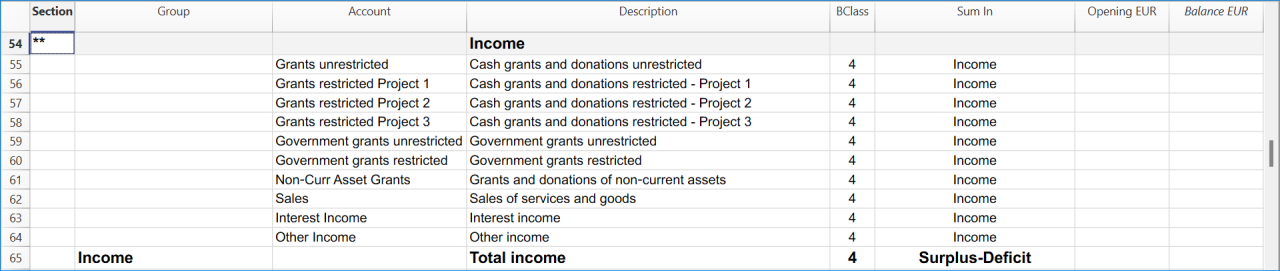
Manage projects expenses and operating expenses in the Income Statement.

Recording transactions by fund
Under INPAS, the organisation must identify and track its funds. In this Banana Accounting+ template, funds are defined as segments (:Fund A, :Fund B, :Fund C), projects are tracked through cost centres CC2, and donors through cost centres CC3.
In the Transactions table, add the fund segment after the account code. In the CC2 and CC3 columns, enter the cost centre name without its leading punctuation.
Receiving a restricted donation without delivery obligations
A donor contributes EUR 1'000 to Fund A for Project 1. The donation has a restriction on its use but no enforceable delivery obligation. It is therefore recognised as revenue when received:
- Date: 2024-01-15
- Description: Fund A restricted donation without delivery obligations
- Debit account: Bank:Fund A
- Credit account: Grants restricted Project 1:Fund A
- Amount: 1000.00
- CC2: Project 1
- CC3: Benjamin Foster
Paying expenses for Fund A
The organisation pays EUR 300 for costs incurred in Project 1:
- Date: 2024-01-22
- Description: Fund A project expense paid by bank
- Debit account: Expenses Project 1:Fund A
- Credit account: Bank: Fund A
- Amount: 300.00
- CC2: -Project 1
The income of EUR 1,000 and the expense of EUR 300 result in a surplus of EUR 700 attributable to Fund A.
Receiving a grant with delivery obligations
The organisation receives EUR 800 in advance for Fund B. The grant agreement contains clearly defined, enforceable and measurable delivery obligations that have not yet been fulfilled:
- Date: 2024-02-05
- Description: Fund B advance subject to enforceable delivery obligation
- Debit account: Bank:Fund B
- Credit account: Grant oblig. liability:Fund B
- Amount: 800.00
- CC2: Project 2
- CC3: Olivia Reynolds
The amount is initially recognised as a liability, not revenue. Revenue is recognised when or as the relevant delivery obligations are fulfilled.
Checking and reporting fund balances
Use the accounting reports subdivided by segment to analyse transactions attributed to each fund. The balance displayed on an individual segment account card is not necessarily the fund's net asset balance: when the same segment appears on both sides of a transaction, its movements can offset each other.
The restricted fund balances in the Statement of Financial Position must be reconciled with opening balances, income, expenses, other changes and permitted transfers. Additional fund information must be disclosed in the notes to the financial statements, as required by INPAS.
A restriction on the use of a donation does not automatically create a liability.
Get the Statement of Financial Position and the Income Statement
At any time of the year you can create your Balance sheet, which is a financial report of your assets, liabilities and equity and the Profit and Loss statement, which includes income and expenses. You will achieve optimal reports because you can always modify the data until they are perfect. You have the possibility to print out your statements or save them in PDF format.
Complete the documentation using the Excel Template
After preparing the Statement of Financial Position and the Statement of Income and Expenses in Banana Accounting+, use the Excel template to complete the additional financial statements and explanatory notes.
The NPO must ensure that all applicable INPAS requirements are met before declaring compliance with the Standard.
Income & Expenses: INPAS Standard Template
Neste artigo
Income & Expenses: INPAS Standard Template
Income & Expenses: INPAS Standard Template
The INPAS International standard Income & Expenses template for associations provides a comprehensive framework for organizing financial transactions and reporting for associations adhering to international standards.
Abrir na Banana WebApp
Abra a Banana Accounting Plus no seu navegador sem qualquer instalação. Personalize o modelo, introduza as transacções e guarde o ficheiro no seu computador.
Open template in WebAppTemplate documentation
[This page is currently being updated]
The NPO is responsible for ensuring that its financial reports comply with all applicable INPAS requirements. Using the template alone does not guarantee compliance.
INPAS requires accrual-based financial reporting. When using an Income & Expenses accounting template, the NPO must ensure that all relevant assets, liabilities, receivables, payables, accrued income and expenses are correctly recognised and reported in accordance with INPAS.
Recording transactions by fund
In this template, funds are identified using segments (:Fund A, :Fund B, :Fund C). Projects are tracked using cost centres CC2 and donors using cost centres CC3.
For the following examples, add the fund segment only after the code entered in the Category column. Do not also add it after the Account code, as this can result in duplicated amounts on the segment account card.
Receiving a restricted donation without delivery obligations
The organisation receives EUR 1'000 for Fund A and Project 1, with no enforceable delivery obligation:
- Date: 2024-01-15
- Description: Fund A restricted donation without delivery obligations
- Income: 1000.00
- Expenses: leave empty
- Account: Bank
- Category: Grants restricted Project 1:Fund A
- CC2: Project 1
- CC3: Benjamin Foster
Paying expenses for Fund A
The organisation pays EUR 300 for costs incurred in Project 1:
- Date: 2024-01-22
- Description: Fund A project expense paid by bank
- Income: leave empty
- Expenses: 300.00
- Account: Bank
- Category: Expenses Project 1:Fund A
- CC2: -Project 1
- CC3: leave empty
The resulting surplus attributed to Fund A is EUR 700.
Receiving a grant with delivery obligations
The organisation receives EUR 800 in advance for Fund B, before fulfilling the enforceable delivery obligations specified in the grant agreement:
- Date: 2024-02-05
- Description: Fund B advance subject to enforceable delivery obligation
- Income: 800.00
- Expenses: leave empty
- Account: Bank
- Category: Grant oblig. liability:Fund B
- CC2: Project 2
- CC3: Olivia Reynolds
In this example, the Category column refers to a liability account in the Accounts table rather than an income category. The amount is not yet recognised as grant revenue.
Checking fund movements and net assets
Use reports subdivided by segment to analyse income, expenses and relevant assets or liabilities attributed to each fund.
The amount shown on a segment card is not automatically the fund's net asset balance. In the example above, Fund B shows a negative segment balance of EUR 800.00 because the advance is recorded as a liability. This does not represent a deficit in the fund's net assets. The organisation must reconcile the opening and closing balances of each fund using the required accounting information.
Do not record an additional payment from the bank to a restricted-fund account merely to allocate the donation to that fund. This would incorrectly reduce the bank balance without an actual payment.
This template must also be used consistently with accrual-based financial reporting. Additional year-end adjustments and reconciliations may be necessary to prepare financial statements in accordance with INPAS.
Free INPAS Excel Template
Neste artigo
Free INPAS Excel Template
Free INPAS Excel Template
The INPAS Excel Template provides nonprofit associations with a complete set of accounting documents aligned with the upcoming INPAS (International Non-Profit Accounting Standard). It includes a chart of accounts and ready-to-use financial statements: Balance Sheet, Statement of Income and Expenses, Statement of Changes in Net Assets, Statement of Cash Flows and Explanatory Notes, all designed to enhance transparency and consistency in financial reporting. The template can be used alongside Banana Accounting+ to easily generate compliant reports. It is based on current INPAS drafts and will be updated after the final release in 2025.
Cash Manager Accounting for Non-profit Organizations
Neste artigo
Cash Manager Accounting for Non-profit Organizations
Cash Manager Accounting for Non-profit Organizations
Start FOR FREE the accounting of your association and get immediately the income statement and the balance sheet. This easy and ready-to-use template is ideal for people who have limited accounting knowledge, because you can insert transactions by simply indicating the income/expenses on the account.
Abrir na Banana WebApp
Abra a Banana Accounting Plus no seu navegador sem qualquer instalação. Personalize o modelo, introduza as transacções e guarde o ficheiro no seu computador.
Open template in WebApp Open tutorial in WebAppTemplate documentation
This template has only one Cash account and descriptive income & expense categories, that facilitate data entry. Get the Income Statement and Balance Sheet quickly, manage members and projects.
For more information on solutions for associations go to the Accounting for non-profit organizations page.
Create your File
- Create a new file, starting from this template (Template ID +10936), using one of the methods explained.
- With the command File → File properties, set the period, the company name and the basic currency.
- With the command File → Save as, save the file. Enter the company name and year in the file name.
For example "association-2022.ac2".
See also Organize accounting files locally, online or in the cloud
Enter the Transactions
Register the liquidity transactions in the journal. Enter the date, the document number, the description, the category and the amount.
You can modify the journal at any time.
Click here to learn more about transactions.

Check and customize the Categories table
Once you have entered the transactions, you can check the Categories table. You will have an overview of your income and expenses, which allows you to keep your balance under control.

Get the Profit and Loss Statement
At any time of the year you can create your profit and loss statement, which includes income and expenses. You can also compare your current situation with the budget to understand if and where you are spending excessive amounts of money.

Template preview
Association XX
| Group | Account | Description | Sum In |
|---|---|---|---|
| Cash | Cash | ||
| Group | Category | Description | Sum In |
|---|---|---|---|
| PROFIT/LOSS STATEMENT | |||
| INCOME | |||
| Donations | Donations | 4 | |
| Membership | Membership payments | 4 | |
| Sales | Various Sales | 4 | |
| Other Income | Other income | 4 | |
| 4 | TOTAL INCOME | 00 | |
| EXPENSES | |||
| Office Supplies | Office supplies, printing material, photocopies | 3 | |
| Postal Fees | Postal fees | 3 | |
| Rent | Rent | 3 | |
| Electricity | Elecricity | 3 | |
| Water | Water | 3 | |
| Teleohone and Fax | Telephone and fax | 3 | |
| Internet | Internet | 3 | |
| Publicity | Publicity, flyers, printing | 3 | |
| Cleaning | Cleaning | 3 | |
| Maintenance and repairs | Maintenance and repairs | 3 | |
| Goods and materials | Goods and materials | 3 | |
| Salaries | Personnel expenses | 3 | |
| Social Insurance expenses | Social Insurance expenses | 3 | |
| Vehicle and transport | Vehicle and transport costs | 3 | |
| Refund Volunteers | Refund to volunteers | 3 | |
| Fees and Permits | Fees and other permits | 3 | |
| Unexpected expenses | Unexpected expenses | 3 | |
| Unregistered expenses | Small unregistered expenses | 3 | |
| Other expenses | Other expenses | 3 | |
| 3 | TOTAL EXPENSES | 00 | |
| 00 | RESULT | ||
| COST CENTERS | |||
| Projects | |||
| .PA | Project A | TP | |
| .PB | Project B | TP | |
| .PC | Project C | TP | |
| TP | Total projects | ||
| Members | |||
| ;MA | Montgomery Alexander | TM | |
| ;WB | Weelt Bob | TM | |
| ;JB | Johnson Bill | TM | |
| ;SA | Smith Ada | TM | |
| TM | Total members | ||
Income & Expenses Accounting for Non-profit Organizations
Neste artigo
Income & Expenses Accounting for Non-profit Organizations
Income & Expenses Accounting for Non-profit Organizations
Start FOR FREE the accounting of your association and get immediately the income statement and the balance sheet. This easy and ready-to-use template is ideal for people who have limited accounting knowledge, because you can insert transactions by simply indicating the income/expenses on the account. Your data remains private on your PC and you don't have to make any registration.
Abrir na Banana WebApp
Abra a Banana Accounting Plus no seu navegador sem qualquer instalação. Personalize o modelo, introduza as transacções e guarde o ficheiro no seu computador.
Open template in WebApp Open tutorial in WebAppTemplate documentation
This template presents a synthetic chart of accounts with descriptive accounts that facilitate data entry. Get the Income Statement and Balance Sheet quickly, manage members and projects.
For more information on solutions for associations go to the Accounting for non-profit organizations page.
Create your File
- Create a new file, starting from this template (Template ID +10623), using one of the methods explained.
- With the command File → File properties, set the period, the company name and the basic currency.
- With the command File → Save as, save the file. Enter the company name and year in the file name.
For example "association-2022.ac2".
See also Organize accounting files locally, online or in the cloud
Enter the Transactions
Register the liquidity transactions in the journal. Enter the date, the document number, the description, the account and the amount.
You can modify the journal at any time.
Click here to learn more about transactions.

Check and customize Accounts and Categories
Once you have entered the transactions, you can check the Accounts table and the Categories table. You will have an overview of your assets, liabilities, income and expenses, which allows you to keep your balance under control.

Get the the Profit and Loss Statement and the Balance Sheet
At any time of the year you can create your profit and loss statement, which includes income and expenses. You can also compare your current situation with the budget to understand if and where you are spending excessive amounts of money.
Template preview
Association XX
| Group | Account | Description | Sum In |
|---|---|---|---|
| BALANCE SHEET | |||
| Assets | |||
| Cash | Cash | Assets | |
| Bank | Bank Current Account | Assets | |
| Post | Post Current Account | Assets | |
| Office Forniture | Office Forniture | Assets | |
| Computer and Software | Computer and Software | Assets | |
| Car | Car | Assets | |
| Assets | Total Assets | Net Assets | |
| Liabilities | |||
| Visa | Credit card loan | Total Liabilities | |
| Loan | Bank loan | Total Liabilities | |
| Total Liabilities | Total Liabilities | Net Assets | |
| Net Assets | Net Assets | ||
| COST CENTERS | |||
| Projects | |||
| .PA | Project A | TP | |
| .PB | Project B | TP | |
| .PC | Project C | TP | |
| TP | Total projects | ||
| Members | |||
| ;MA | Montgomery Alexander | TM | |
| ;WB | Weelt Bob | TM | |
| ;JB | Johnson Bill | TM | |
| ;SA | Smith Ada | TM | |
| TM | Total members | ||
| Group | Category | Description | Sum In |
|---|---|---|---|
| PROFIT/LOSS STATEMENT | |||
| INCOME | |||
| Donations | Donations | 4 | |
| Membership | Membership payments | 4 | |
| Sales | Various Sales | 4 | |
| Other Income | Other income | 4 | |
| 4 | TOTAL INCOME | 00 | |
| EXPENSES | |||
| Office Supplies | Office supplies, printing material, photocopies | 3 | |
| Postal Fees | Postal fees | 3 | |
| Rent | Rent | 3 | |
| Electricity | Elecricity | 3 | |
| Water | Water | 3 | |
| Teleohone and Fax | Telephone and fax | 3 | |
| Internet | Internet | 3 | |
| Publicity | Publicity, flyers, printing | 3 | |
| Cleaning | Cleaning | 3 | |
| Maintenance and repairs | Maintenance and repairs | 3 | |
| Goods and materials | Goods and materials | 3 | |
| Salaries | Personnel expenses | 3 | |
| Social Insurance expenses | Social Insurance expenses | 3 | |
| Vehicle and transport | Vehicle and transport costs | 3 | |
| Refund Volunteers | Refund to volunteers | 3 | |
| Fees and Permits | Fees and other permits | 3 | |
| Unexpected expenses | Unexpected expenses | 3 | |
| Unregistered expenses | Small unregistered expenses | 3 | |
| Other expenses | Other expenses | 3 | |
| 3 | TOTAL EXPENSES | 00 | |
| 00 | RESULT | ||
Double-Entry Accounting for Nonprofit Organizations
Neste artigo
Double-Entry Accounting for Nonprofit Organizations
Double-Entry Accounting for Nonprofit Organizations
Start FOR FREE the accounting of your association and get immediately the income statement and the balance sheet. This easy and ready-to-use template is ideal for people who have to do double-entry accounting and need a professional and fast solution. Your data remains private on your PC and you don't need to register.
Abrir na Banana WebApp
Abra a Banana Accounting Plus no seu navegador sem qualquer instalação. Personalize o modelo, introduza as transacções e guarde o ficheiro no seu computador.
Open template in WebApp Open tutorial in WebAppTemplate documentation
This template presents a synthetic chart of accounts with descriptive accounts that facilitate data entry. Get the Income Statement and Balance Sheet quickly, manage members and projects.
For more information on solutions for associations go to the Accounting for non-profit organizations page.
Create your file
- Create a new file, starting from this template (Template ID +10619), using one of the methods explained.
- With the command File → File properties, set the period, the company name and the basic currency.
- With the command File → Save as, save the file. Enter the company name and year in the file name.
For example "association-2022.ac2".
See also Organize accounting files locally, online or in the cloud
Enter the Transactions
Register the accounting transactions in the journal. Enter the date, the document number and the description. Enter the destination account into the Debit account column, and the account of origin in the Credit account. Then add the amount.
You can modify the journal at any time.

Check and customize the Accounts table
Once you have entered the transactions, you can check the Accounts table. You will have an overview of your assets, liabilities, income and expenses, which allows you to keep your balance under control.
Customize the Accounts table to suit your needs: you can add, delete and edit accounts, groups or descriptions.

Enter Opening Balances
In the Opening column enter the opening balances of the Accounts. Negative asset account amounts are entered with a minus sign in front.
Enter the balances of the previous year
If you are creating a new accounting and you want the amounts of the previous year to appear in the statements to be printed, you must insert the values in the appropriate column. Go to the Previous view and in the Previous Year column enter the values.
Get the Profit and Loss Statement and the Balance Sheet
At any time of the year you can create your Balance sheet, which is a financial report of your assets, liabilities and equity and the Profit and Loss statement, which includes income and expenses. You will achieve optimal reports because you can always modify the data until they are perfect. You have the possibility to print out your statements or save them in PDF format.


Template preview
Association XX
| Group | Account | Description | Sum In |
|---|---|---|---|
| BALANCE SHEET | |||
| Assets | |||
| Cash | Cash | Assets | |
| Bank | Bank Current Account | Assets | |
| Post | Post Current Account | Assets | |
| Office Forniture | Office Forniture | Assets | |
| Computer and Software | Computer and Software | Assets | |
| Car | Car | Assets | |
| Assets | Total Assets | 00 | |
| Liabilities | |||
| Suppliers | Suppliers | Total Liabilities | |
| Visa | Credit card loan | Total Liabilities | |
| Loan | Bank loan | Total Liabilities | |
| Start-up Capital | Start-up Capital | Total Liabilities | |
| Brought forward profit or loss | Brought forward profit or loss | Total Liabilities | |
| Profit or loss of the current year | Profit or loss of the current year | Total Liabilities | |
| Total Liabilities | Total Liabilities | 00 | |
| PROFIT/LOSS STATEMENT | |||
| INCOME | |||
| Donations | Donations | 4 | |
| Membership | Membership payments | 4 | |
| Sales | Various Sales | 4 | |
| Other Income | Other income | 4 | |
| 4 | TOTAL INCOME | Result | |
| EXPENSES | |||
| Office Supplies | Office supplies, printing material, photocopies | 3 | |
| Postal Fees | Postal fees | 3 | |
| Rent | Rent | 3 | |
| Electricity | Elecricity | 3 | |
| Water | Water | 3 | |
| Teleohone and Fax | Telephone and fax | 3 | |
| Internet | Internet | 3 | |
| Publicity | Publicity, flyers, printing | 3 | |
| Cleaning | Cleaning | 3 | |
| Maintenance and repairs | Maintenance and repairs | 3 | |
| Goods and materials | Goods and materials | 3 | |
| Salaries | Personnel expenses | 3 | |
| Social Insurance expenses | Social Insurance expenses | 3 | |
| Vehicle and transport | Vehicle and transport costs | 3 | |
| Refund Volunteers | Refund to volunteers | 3 | |
| Fees and Permits | Fees and other permits | 3 | |
| Unexpected expenses | Unexpected expenses | 3 | |
| Unregistered expenses | Small unregistered expenses | 3 | |
| Other expenses | Other expenses | 3 | |
| 3 | TOTAL EXPENSES | Result | |
| Result | RESULT | Profit or loss of the current year | |
| 00 | Difference should be = 0 (blank cell) | ||
| COST CENTERS | |||
| Members | |||
| ;MA | Montgomery Alexander | TM | |
| ;WB | Weelt Bob | TM | |
| ;JB | Johnson Bill | TM | |
| ;SA | Smith Ada | TM | |
| TM | Total members | ||
| SEGMENTS | |||
| Projects | |||
| :Project A | Project A | TP | |
| :Project B | Project B | TP | |
| :Project C | Project C | TP | |
| TP | Total projects |
Multi-Currency Accounting for Nonprofit Organizations
Neste artigo
Multi-Currency Accounting for Nonprofit Organizations
Multi-Currency Accounting for Nonprofit Organizations
Start FOR FREE the accounting of your association and immediately get the income statement and the balance sheet. This easy and ready-to-use template is ideal for people who have to manage accounts in multiple currencies for business relationships with foreign countries or international projects. Your data remains private on your PC and you don't need to register.
Abrir na Banana WebApp
Abra a Banana Accounting Plus no seu navegador sem qualquer instalação. Personalize o modelo, introduza as transacções e guarde o ficheiro no seu computador.
Open template in WebApp Open tutorial in WebAppTemplate documentation
This template presents a brief chart of accounts with descriptive accounts that facilitate data entry. Get the Income Statement and Balance Sheet quickly, manage members and projects.
For more information on solutions for associations go to the Accounting for non-profit organizations page.
Create your file
- Create a new file, starting from this template (Template ID +10621), using one of the methods explained.
- With the command File → File properties, set the period, the company name and the basic currency.
- With the command File → Save as, save the file. Enter the company name and year in the file name.
For example "association-2022.ac2".
See also Organize accounting files locally, online or in the cloud
Enter the Transactions
Register the liquidity transactions in the journal. Enter the date, the document number and the description. Enter the destination account into the Debit Account column, and the account of origin in the Credit Account column. Then add the amount and specify the currency.
You can modify the journal at any time.
Click here to learn more about transactions.

Check and customize the Accounts table
Once you have entered the transactions, you can check the Accounts table. You will have an overview of your assets, liabilities, income and expenses, which allows you to keep your balance under control.

Get the Profit and Loss Statement and the Balance Sheet
At any time of the year you can create your balance sheet, which is a financial report of your assets, liabilities and equity and the profit and loss statement, which includes income and expenses. You can also compare your current situation with the budget to understand if and where you are spending excessive amounts of money.


Template preview
Association XX
Basic Currency: EUR
Double-entry with foreign currencies
| Group | Account | Description | Currency | Sum In |
|---|---|---|---|---|
| BALANCE SHEET | ||||
| Assets | ||||
| Cash | Cash | EUR | Assets | |
| Bank EUR | Bank Current Account EUR | EUR | Assets | |
| Bank USD | Bank Current Account USD | USD | Assets | |
| Bank GBP | Bank Current Account GBP | GBP | Assets | |
| Post | Post Current Account | EUR | Assets | |
| Office Forniture | Office Forniture | EUR | Assets | |
| Computer and Software | Computer and Software | EUR | Assets | |
| Car | Car | EUR | Assets | |
| Assets | Total Assets | 00 | ||
| Liabilities | ||||
| Suppliers | Suppliers | EUR | Total Liabilities | |
| Visa | Credit card loan | EUR | Total Liabilities | |
| Loan | Bank loan | EUR | Total Liabilities | |
| Start-up Capital | Start-up Capital | EUR | Total Liabilities | |
| Brought forward profit or loss | Brought forward profit or loss | EUR | Total Liabilities | |
| Profit or loss of the current year | Profit or loss of the current year | Total Liabilities | ||
| Total Liabilities | Total Liabilities | 00 | ||
| PROFIT/LOSS STATEMENT | ||||
| INCOME | ||||
| Donations | Donations | EUR | 4 | |
| Membership | Membership payments | EUR | 4 | |
| Sales | Various Sales | EUR | 4 | |
| Other Income | Other income | EUR | 4 | |
| Exchange rate profit | Exchange rate profit | EUR | 4 | |
| 4 | TOTAL INCOME | Result | ||
| EXPENSES | ||||
| Office Supplies | Office supplies, printing material, photocopies | EUR | 3 | |
| Postal Fees | Postal fees | EUR | 3 | |
| Rent | Rent | EUR | 3 | |
| Electricity | Elecricity | EUR | 3 | |
| Water | Water | EUR | 3 | |
| Teleohone and Fax | Telephone and fax | EUR | 3 | |
| Internet | Internet | EUR | 3 | |
| Publicity | Publicity, flyers, printing | EUR | 3 | |
| Cleaning | Cleaning | EUR | 3 | |
| Maintenance and repairs | Maintenance and repairs | EUR | 3 | |
| Goods and materials | Goods and materials | EUR | 3 | |
| Salaries | Personnel expenses | EUR | 3 | |
| Social Insurance expenses | Social Insurance expenses | EUR | 3 | |
| Vehicle and transport | Vehicle and transport costs | EUR | 3 | |
| Refund Volunteers | Refund to volunteers | EUR | 3 | |
| Fees and Permits | Fees and other permits | EUR | 3 | |
| Unexpected expenses | Unexpected expenses | EUR | 3 | |
| Unregistered expenses | Small unregistered expenses | EUR | 3 | |
| Other expenses | Other expenses | EUR | 3 | |
| Exchange rate loss | Exchange rate loss | EUR | 3 | |
| 3 | TOTAL EXPENSES | Result | ||
| Result | RESULT | Profit or loss of the current year | ||
| 00 | Difference should be = 0 (blank cell) | |||
| COST CENTERS | ||||
| Members | ||||
| ;MA | Montgomery Alexander | EUR | TM | |
| ;WB | Weelt Bob | EUR | TM | |
| ;JB | Johnson Bill | EUR | TM | |
| ;RJ | Ross Jeremy | EUR | TM | |
| TM | Total members | |||
| SEGMENTS | ||||
| Projects | ||||
| :Project A | Project A | EUR | TP | |
| :Project B | Project B | EUR | TP | |
| :Project C | Project C | EUR | TP | |
| TP | Total projects |
| Ref.Currency | Currency | Text |
|---|---|---|
| EUR | USD | Dollar |
| EUR | GBP | Pound Sterling |
非营利组织
Neste artigo
非营利组织
非营利组织
使用这个简单的模板,以清晰透明的方式开启您的非营利组织或协会的会计管理,适用于任何使用现金账簿方法的人。
Abrir na Banana WebApp
Abra a Banana Accounting Plus no seu navegador sem qualquer instalação. Personalize o modelo, introduza as transacções e guarde o ficheiro no seu computador.
Open template in WebAppTemplate preview
XX协会
本位币: USD
现金日记账
| 总组 | 账号 | 摘要 | 总和 |
|---|---|---|---|
| 现金 | 现金 | ||
| 总组 | 科目 | 摘要 | 总和 |
|---|---|---|---|
| 经营业绩 | |||
| 收入 | |||
| 多种销售收入 | 多种销售收入 | 4 | |
| 会员的付款收入 | 会员的付款收入 | 4 | |
| 捐款 | 捐款 | 4 | |
| 其它收入 | 其它收入 | 4 | |
| 4 | 总收入 | 00 | |
| 费用 | |||
| 项目 A 的费用 | 项目 A 的费用 | 3 | |
| 项目 B 的费用 | 项目 B 的费用 | 3 | |
| 项目 C 的费用 | 项目 C 的费用 | 3 | |
| 文具,电器,清洁费等 | 文具,电器,清洁费等 | 3 | |
| 邮费 | 邮费 | 3 | |
| 租金,水电费 | 租金,水电费 | 3 | |
| 电话和传真 | 电话和传真 | 3 | |
| 宣传,传单,印刷费 | 宣传,传单,印刷费 | 3 | |
| 退换给志愿者的费用 | 退换给志愿者的费用 | 3 | |
| 费用及其它许可证 | 费用及其它许可证 | 3 | |
| 意外开支 | 意外开支 | 3 | |
| 未注册的小额费用 | 未注册的小额费用 | 3 | |
| 其它费用 | 其它费用 | 3 | |
| 3 | 总费用 | 00 | |
| 00 | 结果 | ||
| 成本和利润中心部门 | |||
| 会员列表 | |||
| ;李萌 | 李萌 | TM | |
| ;王博 | 王博 | TM | |
| ;张明 | 张明 | TM | |
| ;陈丽 | 陈丽 | TM | |
| ;王静 | 王静 | TM | |
| TM | 全部会员 | ||
非营利组织会计
Neste artigo
非营利组织会计
非营利组织会计
使用这个简单的模板,以清晰透明的方式开启您的非营利组织或协会的会计管理,适用于任何使用收益及费用核算方法的人。
Abrir na Banana WebApp
Abra a Banana Accounting Plus no seu navegador sem qualquer instalação. Personalize o modelo, introduza as transacções e guarde o ficheiro no seu computador.
Open template in WebAppTemplate preview
协会 XX
本位币: USD
收益 & 费用核算
| 总组 | 账号 | 摘要 | 总和 |
|---|---|---|---|
| 资产 | |||
| 1000 | 现金 | 1 | |
| 1010 | 当前邮政储蓄账号 | 1 | |
| 1020 | 当前银行账号 | 1 | |
| 1100 | 客户 | 1 | |
| 1150 | 预付税款 | 1 | |
| 1300 | 暂时性资产 | 1 | |
| 1400 | 办公家具 | 1 | |
| 1500 | 硬件/软件 | 1 | |
| 2000 | 供应商 | 1 | |
| 2050 | 增值税 (根据增值税报告) | 1 | |
| 2060 | 税务局 | 1 | |
| 2100 | 银行贷款 | 1 | |
| 2400 | 长期银行贷款 | 1 | |
| 2700 | 暂时性债务 | 1 | |
| 1 | 总计 | ||
| 成本及利润中心 | |||
| 会员列表 | |||
| ;LM | 李萌 | TM | |
| ;WB | 王博 | TM | |
| ;ZM | 张明 | TM | |
| ;CL | 陈丽 | TM | |
| ;WJ | 王静 | TM | |
| TM | 全部会员 |
| 总组 | 科目 | 摘要 | 总和 |
|---|---|---|---|
| 经营结果 | |||
| 收入 | |||
| 4200 | 多种销售 | 4 | |
| 4400 | 会员费 | 4 | |
| 4500 | 捐款 | 4 | |
| 4 | 总收入 | 00 | |
| 费用 | |||
| 3000 | 项目 A 的费用 | 3 | |
| 3001 | 项目 B 的费用 | 3 | |
| 3002 | 项目 C 的费用 | 3 | |
| 3005 | 购买商品进行转售 | 3 | |
| 3010 | 房租,水电费 | 3 | |
| 3020 | 税 | 3 | |
| 3050 | 保险 | 3 | |
| 3070 | 费用 | 3 | |
| 3080 | 清洁 | 3 | |
| 3090 | 办公用品 | 3 | |
| 3100 | 电话 | 3 | |
| 3110 | 邮费 | 3 | |
| 3130 | 印刷和宣传 | 3 | |
| 3140 | 银行负利率 | 3 | |
| 3150 | 银行和当前账户费用 | 3 | |
| 3160 | 家具摊销费用 | 3 | |
| 3170 | 其它费用 | 3 | |
| 3 | 总费用 | 00 | |
| 00 | 结果 | ||
Religious Entities Universal Templates
Banana Accounting offers a few universal templates available for free for the Religious organizations accounting are the following:
Income & Expense Accounting for a Religious Organization
Neste artigo
Income & Expense Accounting for a Religious Organization
Income & Expense Accounting for a Religious Organization
Ideal template to manage the accounting of a church or a religious organization, simply entering the income and the expenses. The list of donors and fundraising events are managed with a cost center.
Abrir na Banana WebApp
Abra a Banana Accounting Plus no seu navegador sem qualquer instalação. Personalize o modelo, introduza as transacções e guarde o ficheiro no seu computador.
Open template in WebApp Open tutorial in WebAppTemplate preview
New Life church
Accounting 2022
| Group | Account | Description | Sum In | Gr1 |
|---|---|---|---|---|
| BALANCE SHEET | ||||
| ASSETS | ||||
| Cash | Cash on hand | Total Assets | ||
| Post | Post office current account | Total Assets | ||
| Paypal Account | Paypal Account | Total Assets | ||
| Prepaid Visa Card | Prepaid Visa Card | Total Assets | ||
| Bank | Bank account | Total Assets | ||
| Transitory assets | Transitory assets | Total Assets | ||
| Advanced payments | Various advanced payments | Total Assets | ||
| Deposit rent building | Deposit for rent of building | Total Assets | ||
| Deposit rent offices | Deposit for rent of offices | Total Assets | ||
| Internal transfers | Internal transfers | Total Assets | ||
| Amounts to be clarified | Amounts to be clarified | Total Assets | ||
| Forniture | Furniture, installations, equipment, vehicles | Total Assets | ||
| Computer and software | Computer and Software | Total Assets | ||
| Total Assets | TOTAL ASSETS | Net Estate | 1 | |
| LIABILITIES | ||||
| Suppliers or creditors | Suppliers or Creditors | Total Liabilities | ||
| Due to employees | Due to employees and social security institutions | Total Liabilities | ||
| Transitory liabilities | Transitory liabilities | Total Liabilities | ||
| Total Liabilities | TOTAL LIABILITIES | Net Estate | 1 | |
| Net Estate | NET ESTATE | |||
| SPRING FESTIVAL | ||||
| .PUB | Publicity | SE | ||
| .GUE | Guest speakers | SE | ||
| .MME | Music and Media | SE | ||
| .LEG | Legal Expenses (Permits, etc) | SE | ||
| .REN | Rent Facilities | SE | ||
| .FVA | Food and Various | SE | ||
| SE | Total Spring Festival Expenses | S | ||
| .TIC | Sales of Tickets | ST | ||
| .DSF | Donations Spring Festival | ST | ||
| ST | Total Spring Festival Income | S | ||
| S | Total Spring Festival | |||
| DONORS | ||||
| ;511 | Donor 511 | D | ||
| ;522 | Donor 522 | D | ||
| ;533 | Donor 533 | D | ||
| etc. | ||||
| D | Total Donors | |||
| Group | Category | Description | Sum In | Gr1 |
|---|---|---|---|---|
| REVENUE | Total revenue | |||
| Income from offerings | Income from offerings | Total revenue | ||
| Income from Christmas market | Income from Christmas market for missions work | Total revenue | ||
| Income from books and cd's | Income from books and cd's | Total revenue | ||
| Income from various activities | Income from various activities | Total revenue | ||
| Bank Interests | Bank Interests | Total revenue | ||
| Extraordinary income/expenses | Extraordinary income/expenses | Total revenue | ||
| Total revenue | TOTAL REVENUE | Result | 1 | |
| EXPENSES | ||||
| Personnel Charges | ||||
| Salaries | Salaries | Personnel Charges | ||
| Social security charges | Social security charges | Personnel Charges | ||
| Retirement fund | Retirement fund | Personnel Charges | ||
| Insurances | Insurances | Personnel Charges | ||
| Various costs for personnel | Various costs for personnel | Personnel Charges | ||
| Personnel Charges | Total Personnel Charges | Total Expenses | ||
| General/operational Expenses | ||||
| Rent | Rent for building and offices | General/operational Expenses | ||
| Utilities | Utilities | General/operational Expenses | ||
| Music and media | Expenses for music & media department | General/operational Expenses | ||
| Car and fuel | Car expenses & fuel | General/operational Expenses | ||
| Insurance expenses | Insurance expenses | General/operational Expenses | ||
| Office- and computer supplies | Office- and computer supplies | General/operational Expenses | ||
| Postage and telephone | Postage and telephone | General/operational Expenses | ||
| Offerings to third parties | Offerings and Donations to third parties | General/operational Expenses | ||
| Accountant's charge | Accountant's charge | General/operational Expenses | ||
| Web hosting | Web hosting and software licenses | General/operational Expenses | ||
| Publicity | Publicity | General/operational Expenses | ||
| Representation expenses | Representation expenses | General/operational Expenses | ||
| Room and board guests | Room and board for guests | General/operational Expenses | ||
| Expenses activities | Expenses for various activities | General/operational Expenses | ||
| Material pastoral counseling | Material for pastoral counseling | General/operational Expenses | ||
| Children's- and Youth ministry | Children's- and Youth ministry | General/operational Expenses | ||
| Books and CD's | Books and CD's | General/operational Expenses | ||
| Various expenses and presents | Various expenses and presents | General/operational Expenses | ||
| General/operational Expenses | Total General/operational Expenses | Total Expenses | ||
| Financial Expenses | ||||
| Financial costs | Financial costs | Financial Expenses | ||
| Depreciation | Depreciation Furniture, installations, equipment, vehicles | Financial Expenses | ||
| Depreciation computer | Depreciation Computer and Software | Financial Expenses | ||
| Income Tax | Income Tax | Financial Expenses | ||
| Financial Expenses | Total Financial Expenses | Total Expenses | ||
| Total Expenses | TOTAL EXPENSES | Result | 1 | |
| Result | OPERATING RESULT | |||
Kirchgemeinde | Einnahmen-Ausgaben-Rechnung
Neste artigo
Kirchgemeinde | Einnahmen-Ausgaben-Rechnung
Kirchgemeinde | Einnahmen-Ausgaben-Rechnung
Dieses Modell mit HRM2-Kontenplan basiert auf der Einnahmen-Ausgaben-Rechnung und stellt die gängigen Konten für die Verwaltung der Finanzen einer Kirchgemeinde/Pfarrei (Einnahmen und Ausgaben) bereit. Es ermöglicht die Erstellung einer Erfolgsrechnung und enthält Kostenstellen, mit denen sich die Ausgaben der Kirchgemeinde/Pfarrei und des Oratoriums getrennt ausweisen lassen.
Abrir na Banana WebApp
Abra a Banana Accounting Plus no seu navegador sem qualquer instalação. Personalize o modelo, introduza as transacções e guarde o ficheiro no seu computador.
Open template in WebAppTemplate documentation
Diese Vorlage enthält einen HRM2-Kontenplan mit den typischen Konten und Kategorien für die Buchhaltung einer Kirchgemeinde. Einnahmen und Ausgaben lassen sich einfach erfassen – auch ohne Kenntnisse der doppelten Buchhaltung oder der Unterscheidung zwischen Soll und Haben.
In der Tabelle Konten sind die Bilanzkonten aufgeführt, während die Tabelle Kategorien der Erfassung von Einnahmen und Ausgaben dient.
Die Einnahmen und Ausgaben sind in mehrere Untergruppen gegliedert. Zudem stehen in der Tabelle Kategorien zwei Arten von Kostenstellen zur Verfügung, mit denen sich die Kosten der Kirchgemeinde und des Oratoriums getrennt verwalten lassen.
Konten und Kategorien können individuell angepasst und auf die spezifischen Bedürfnisse Ihrer Buchhaltung zugeschnitten werden.
Für erweiterte Anforderungen empfehlen wir die Vorlage Doppelte Buchhaltung für Kirchgemeinde.
Weitere Details finden Sie in unserer Dokumentation, insbesondere zu folgenden Themen:
Template preview
HRM2-Kontenplan Kirchgemeinde
Basiswährung: CHF
Einnahmen-Ausgaben-Rechnung
| Gruppe | Konto | Beschreibung | Summ. in |
|---|---|---|---|
| BESTAND | |||
| 1000 | Kasse | 1 | |
| 1001 | Postkonto | 1 | |
| 1002.00 | Bankkonto X | 1 | |
| 1050 | Forderungen aus Lieferungen & Leistungen Dritter | 1 | |
| 1051 | Übrige Forderungen | 1 | |
| 1100 | Pfarrkirche | 1 | |
| 1105 | Oratorium | 1 | |
| 1130 | Installationen | 1 | |
| 1135 | Fahrzeuge | 1 | |
| 1140 | Mobiliar | 1 | |
| 1145 | Einrichtungen | 1 | |
| 1150 | Orgel und andere Musikinstrumente | 1 | |
| 2000 | Laufende Verbindlichkeiten aus Lieferungen und Leistungen Dritter | 1 | |
| 2010 | Sonstige Gläubiger | 1 | |
| 2020 | Passive Rechnungsabgrenzung | 1 | |
| 2030 | Rückstellungen für unfertige Leistungen | 1 | |
| 2100 | Eigenkapital | 1 | |
| 2110 | Reservefonds | 1 | |
| 2120 | Sonstige Fonds | 1 | |
| 1 | Total Bestand | ||
| Gruppe | Kategorie | Beschreibung | Summ. in |
|---|---|---|---|
| BETRIEBSERGEBNIS | |||
| Personalkosten | |||
| 3000 | Entlohnung Pfarrer | 30 | |
| 3005 | Hilfspersonal | 30 | |
| 3010 | Sakristan und Hauswart | 30 | |
| 3015 | Reinigungspersonal | 30 | |
| 3020 | Organisten | 30 | |
| 3025 | Katechisten | 30 | |
| 3030 | Verwaltungspersonal | 30 | |
| 3035 | Hausdienst Pfarrer | 30 | |
| 3040 | Sozialversicherungsbeiträge | 30 | |
| 3045 | Sonstige Sozialversicherungsabgaben | 30 | |
| 3058 | Beiträge, Spenden | 30 | |
| 30 | Total Personalkosten | 3 | |
| Liturgie- und Katechesekosten | |||
| 3065 | Sonntagsbroschüren | 31 | |
| 3075 | Lichter und Kerzen | 31 | |
| 3080 | Sonstige Ausgaben für Liturgie | 31 | |
| 3085 | Material-, Ausbildungs- und Gesangsbücher | 31 | |
| 3090 | Katechese | 31 | |
| 3095 | Pfarramtliche Dienste | 31 | |
| 31 | Total Liturgie- und Katechesekosten | 3 | |
| Betriebs- und Verwaltungskosten | |||
| 3210 | Reinigungsarbeiten | 33 | |
| 3215 | Miete | 33 | |
| 3220 | Wartung, Reparaturen, etc. | 33 | |
| 3225 | Versicherungen | 33 | |
| 3230 | Elektrizität, Wasser, Kehrichtabfuhr | 33 | |
| 3235 | Heizöl | 33 | |
| 3240 | Gebäudesteuern | 33 | |
| 3245 | Sonstige Gebäudekosten | 33 | |
| 3300 | Drucksachen, (amtliche) Publikationen, Inserate | 33 | |
| 3305 | Porti (Briefsendungen) | 33 | |
| 3310 | Telefon/Internet | 33 | |
| 3320 | Fotokopierer | 33 | |
| 3325 | Dienstleistungen Dritter | 33 | |
| 3330 | Büromaterial | 33 | |
| 3335 | Juristische Kosten | 33 | |
| 3340 | Sonstige Verwaltungskosten | 33 | |
| 33 | Total Betriebs- und Verwaltungskosten | 3 | |
| Veranstaltungskosten | |||
| 3400 | Kosten für musikalische Veranstaltungskosten | 34 | |
| 3405 | Ausflüge und Reisekosten | 34 | |
| 3410 | Kosten für Lebensmittel, Zutaten + Verbrauchsmat. | 34 | |
| 3415 | Kosten für Reinigungsmittel | 34 | |
| 3420 | Kosten für verschiedene Materialien | 34 | |
| 3425 | Wartungskosten | 34 | |
| 3430 | Lieferwagenkosten | 34 | |
| 34 | Total Veranstaltungskosten | 3 | |
| Rückstellungen | |||
| 3700 | Rückstellungen für Rücklagen | 37 | |
| 3705 | Sonstige Rückstellungen | 37 | |
| 37 | Total Rückstellungen | 3 | |
| Beiträge | |||
| 3800 | Beiträge an Vereine, Organisationen | 38 | |
| 3802 | Beiträge an Jugendarbeit, Vereine und Gruppen | 38 | |
| 3805 | Beiträge an soziale Institutionen | 38 | |
| 3808 | Sonstige Beiträge | 38 | |
| 3809 | Steuern | 38 | |
| 38 | Total Beiträge | 3 | |
| 3 | Total Ausgaben | 00 | |
| Einnahmen | |||
| Einnahmen aus Spenden und Beiträgen | |||
| 4000 | Beiträge von Gemeinden und Gemeindezweckverbänden | 41 | |
| 4004 | Beiträge, Spenden | 41 | |
| 4008 | Beiträge von Kantonen | 41 | |
| 4102 | Beiträge von Privaten | 41 | |
| 4105 | Spenden für erbrachte Dienstleistungen | 41 | |
| 4107 | Beiträge für Sonderarbeiten | 41 | |
| 4119 | Kollekten | 41 | |
| 41 | Total Einnahmen aus Spenden und Beiträgen | 4 | |
| Liegenschaftsertrag | |||
| 4500 | Vermietung von Wohnungen | 45 | |
| 4501 | Vermietung von Parkplätzen | 45 | |
| 4502 | Vermietung von Räumlichkeiten | 45 | |
| 4503 | Vermietung Hauswartswohnung | 45 | |
| 45 | Total Liegenschaftsertrag | 4 | |
| Einnahmen aus Veranstaltungen | |||
| 4610 | Mittagessen | 46 | |
| 4615 | Sonstige Einnahmen | 46 | |
| 46 | Total Einnahmen aus Veranstaltungen | 4 | |
| Finanzertrag | |||
| 4700 | Zinsertrag | 47 | |
| 47 | Total Finanzertrag | 4 | |
| AUSSERORDENTLICHER AUFWAND UND ERTRAG | |||
| Ausserordentlicher Aufwand | |||
| 4800 | Restaurationen | 480 | |
| 4805 | Besondere Eingriffe auf Gebäuden | 480 | |
| 4809 | Eingriffe auf Grundstücken | 480 | |
| 480 | Total ausserordentlicher Aufwand | 48 | |
| Ausserordentlicher Ertrag | |||
| 4810 | Subventionen an Pfarrkirche | 481 | |
| 4830 | Sonstige ausserordentliche Erträge | 481 | |
| 4840 | Auflösung von Rückstellungen | 481 | |
| 481 | Total ausserordentlicher Ertrag | 48 | |
| 48 | Total ausserordentlicher Aufwand und Ertrag | 4 | |
| 4 | Total Einnahmen | 00 | |
| 00 | BETRIEBSERGEBNIS | ||
| KOSTENSTELLEN | |||
| Kosten Kirchengemeinde | |||
| .ELK | Elektrizität | TK | |
| .GAS | Erdgas | TK | |
| .ABG | Abgaben und Gebühren | TK | |
| .VWK | Verwaltungskosten | TK | |
| .UNT | Unterhalt | TK | |
| .REL | Reinigung Lokalitäten | TK | |
| .AL | Übrige Kosten | TK | |
| TK | Total Kirchengemeinde | ||
| Kosten Oratorium | |||
| ,ELK | Elektrizität | TO | |
| ,GAS | Erdgas | TO | |
| ,STA | Steuern und Abgaben | TO | |
| ,VWK | Verwaltungskosten | TO | |
| ,UNT | Unterhalt | TO | |
| ,REL | Reinigung Lokalitäten | TO | |
| ,AL | Übrige Kosten | TO | |
| TO | Total Oratoriumskosten | ||
Double-Entry Accounting for a Religious Organization
Neste artigo
Double-Entry Accounting for a Religious Organization
Double-Entry Accounting for a Religious Organization
Ideal template to manage the double-entry accounting of a church or a religious organization. The list of donors and fundraising events are managed with a cost center.
Abrir na Banana WebApp
Abra a Banana Accounting Plus no seu navegador sem qualquer instalação. Personalize o modelo, introduza as transacções e guarde o ficheiro no seu computador.
Open template in WebApp Open tutorial in WebAppTemplate preview
New Life church
Accounting 2022
| Group | Account | Description | Sum In | Gr1 |
|---|---|---|---|---|
| BALANCE SHEET | ||||
| ASSETS | ||||
| Cash | Cash on hand | Total Assets | ||
| Post | Post office current account | Total Assets | ||
| Paypal Account | Paypal Account | Total Assets | ||
| Prepaid Visa Card | Prepaid Visa Card | Total Assets | ||
| Bank | Bank account | Total Assets | ||
| Transitory assets | Transitory assets | Total Assets | ||
| Advanced payments | Various advanced payments | Total Assets | ||
| Deposit rent building | Deposit for Rent of Building | Total Assets | ||
| Deposit rent offices | Deposit for Rent of Offices | Total Assets | ||
| Internal transfers | Internal transfers | Total Assets | ||
| Amounts to be clarified | Amounts to be clarified | Total Assets | ||
| Forniture | Furniture, Installations, Equipment, Vehicles | Total Assets | ||
| Computer and software | Computer and Software | Total Assets | ||
| Total Assets | TOTAL ASSETS | 00 | 1 | |
| LIABILITIES | ||||
| Suppliers or Creditor | Suppliers or Creditors | Total Liabilities | ||
| Due to employees and social security institutions | Due to employees and social security institutions | Total Liabilities | ||
| Transitory liabilities | Transitory liabilities | Total Liabilities | ||
| Equity or share capital | Equity or share capital | Total Liabilities | ||
| Profit (Loss) carried forward | Profit (Loss) carried forward | Total Liabilities | ||
| Profit/Loss for the period | Profit/Loss for the period | Total Liabilities | 1 | |
| Total Liabilities | TOTAL LIABILITIES | 00 | 1 | |
| PROFIT & LOSS STATEMENT | ||||
| REVENUE | ||||
| Income from offerings | Income from offerings | Total Revenue | ||
| Income from Christmas market | Income from Christmas market for missions work | Total Revenue | ||
| Income from books and cd's | Income from books and cd's | Total Revenue | ||
| Income from various activities | Income from various activities | Total Revenue | ||
| Bank Interests | Bank Interests | Total Revenue | ||
| Extraordinary income/expenses | Extraordinary income/expenses | Total Revenue | ||
| Total Revenue | TOTAL REVENUE | 02 | 1 | |
| EXPENSES | ||||
| Personnel Charges | ||||
| Salaries | Salaries | Total Personnel Charges | ||
| Social security charges | Social security charges | Total Personnel Charges | ||
| Retirement fund | Retirement fund | Total Personnel Charges | ||
| Insurances | Insurances | Total Personnel Charges | ||
| Various costs for personnel | Various costs for personnel | Total Personnel Charges | ||
| Total Personnel Charges | Total Personnel Charges | Total Expenses | ||
| General/operational Expenses | ||||
| Rent | Rent for building and offices | General/operational Expenses | ||
| Utilities | Utilities | General/operational Expenses | ||
| Music and media | Expenses for music & media department | General/operational Expenses | ||
| Car and fuel | Car expenses & fuel | General/operational Expenses | ||
| Insurance expenses | Insurances | General/operational Expenses | ||
| Office- and computer supplies | Office- and computer supplies | General/operational Expenses | ||
| Postage and telephone | Postage and telephone | General/operational Expenses | ||
| Offerings to third parties | Offerings and Donations to third parties | General/operational Expenses | ||
| Accountant's charge | Accountant's charge | General/operational Expenses | ||
| Web hosting | Web hosting and software licenses | General/operational Expenses | ||
| Publicity | Publicity | General/operational Expenses | ||
| Representation expenses | Representation expenses | General/operational Expenses | ||
| Room and board guests | Room and board for guests | General/operational Expenses | ||
| Expenses activities | Expenses for various activities | General/operational Expenses | ||
| Material pastoral counseling | Material for pastoral counseling | General/operational Expenses | ||
| Children's- and Youth ministry | Children's- and Youth ministry | General/operational Expenses | ||
| Books and CD's | Books and CD's | General/operational Expenses | ||
| Various expenses and presents | Various expenses and presents | General/operational Expenses | ||
| General/operational Expenses | General/operational Expenses | Total Expenses | ||
| Total Financial Expenses | ||||
| Financial costs | Financial costs | Total Financial Expenses | ||
| Depreciation | Depreciation Furniture, Installations, Equipment, Vehicles | Total Financial Expenses | ||
| Depreciation computer | Depreciation Computer and Software | Total Financial Expenses | ||
| Income Tax | Income Tax | Total Financial Expenses | ||
| Total Financial Expenses | Total Financial Expenses | Total Expenses | ||
| Total Expenses | TOTAL EXPENSES | 02 | 1 | |
| 02 | Profit/Loss for Profit & Loss Statement | Profit/Loss for the period | 1 | |
| 00 | Difference should be = 0 (blank cell) | |||
| SPRING FESTIVAL | ||||
| .PUB | Publicity | SE | ||
| .GUE | Guest speakers | SE | ||
| .MME | Music and Media | SE | ||
| .LEG | Legal Expenses (Permits, etc) | SE | ||
| .REN | Rent Facilities | SE | ||
| .FVA | Food and Various | SE | ||
| SE | Total Spring Festival Expenses | S | ||
| .TIC | Sales of Tickets | ST | ||
| .DSF | Donations Spring Festival | ST | ||
| ST | Total Spring Festival Income | S | ||
| S | Total Spring Festival | |||
| DONORS | ||||
| ;511 | Donor 511 | D | ||
| ;522 | Donor 522 | D | ||
| ;533 | Donor 533 | D | ||
| etc. | ||||
| D | Total Donors |
Multi-Currency Accounting for a Religious Organization
Neste artigo
Multi-Currency Accounting for a Religious Organization
Multi-Currency Accounting for a Religious Organization
Ideal template to manage the accounting of a church or a religious organization, even with foreign currency accounts. The list of donors and fundraising events are managed with a cost center.
Abrir na Banana WebApp
Abra a Banana Accounting Plus no seu navegador sem qualquer instalação. Personalize o modelo, introduza as transacções e guarde o ficheiro no seu computador.
Open template in WebApp Open tutorial in WebAppTemplate preview
New Life church
Accounting 2022
Basic Currency: USD
Double-entry with foreign currencies
| Group | Account | Description | Currency | Sum In | Gr1 |
|---|---|---|---|---|---|
| BALANCE SHEET | |||||
| ASSETS | |||||
| Cash USD | Cash on hand USD | USD | Total Assets | ||
| Cash EUR | Cash on hand EUR | EUR | Total Assets | ||
| Post USD | Post office current account USD | USD | Total Assets | ||
| Paypal Account | Paypal Account | USD | Total Assets | ||
| Prepaid Visa Card | Prepaid Visa Card | USD | Total Assets | ||
| Bank USD | Bank account USD | USD | Total Assets | ||
| Transitory assets | Transitory assets | USD | Total Assets | ||
| Advanced payments | Various advanced payments | USD | Total Assets | ||
| Deposit for Rent of Building | Deposit for Rent of Building | USD | Total Assets | ||
| Deposit for Rent of Offices | Deposit for Rent of Offices | USD | Total Assets | ||
| Internal transfers | Internal transfers | USD | Total Assets | ||
| Amounts to be clarified | Amounts to be clarified | USD | Total Assets | ||
| Furniture, Installations, Equipment, Vehicles | Furniture, Installations, Equipment, Vehicles | USD | Total Assets | ||
| Computer and Software | Computer and Software | USD | Total Assets | ||
| Total Assets | TOTAL ASSETS | 00 | 1 | ||
| LIABILITIES | |||||
| Suppliers or Creditor | Suppliers or Creditors | USD | Total Liabilities | ||
| Due to employees and social security institutions | Due to employees and social security institutions | USD | Total Liabilities | ||
| Transitory liabilities | Transitory liabilities | USD | Total Liabilities | ||
| Equity or share capital | Equity or share capital | USD | Total Liabilities | ||
| Profit (Loss) carried forward | Profit (Loss) carried forward | USD | Total Liabilities | ||
| Profit/Loss for the period | Profit/Loss for the period | Total Liabilities | 1 | ||
| Total Liabilities | TOTAL LIABILITIES | 00 | 1 | ||
| PROFIT & LOSS STATEMENT | |||||
| REVENUE | |||||
| Income from offerings | Income from offerings | USD | Total Revenue | ||
| Income from Christmas market | Income from Christmas market for missions work | USD | Total Revenue | ||
| Income from books and cd's | Income from books and cd's | USD | Total Revenue | ||
| Income from various activities | Income from various activities | USD | Total Revenue | ||
| Bank Interests | Bank Interests | USD | Total Revenue | ||
| Exchange rate gain/loss | Exchange rate gain/loss | USD | Total Revenue | ||
| Extraordinary income/expenses | Extraordinary income/expenses | USD | Total Revenue | ||
| Total Revenue | TOTAL REVENUE | 02 | 1 | ||
| EXPENSES | Total Expenses | ||||
| Personnel Charges | |||||
| Salaries | Salaries | USD | Total Personnel Charges | ||
| Social security charges | Social security charges | USD | Total Personnel Charges | ||
| Retirement fund | Retirement fund | USD | Total Personnel Charges | ||
| Insurances | Insurances | USD | Total Personnel Charges | ||
| Various costs for personnel | Various costs for personnel | USD | Total Personnel Charges | ||
| Total Personnel Charges | Total Personnel Charges | Total Expenses | |||
| General/operational Expenses | |||||
| Rent | Rent for building and offices | USD | General/operational Expenses | ||
| Utilities | Utilities | USD | General/operational Expenses | ||
| Music and media | Expenses for music & media department | USD | General/operational Expenses | ||
| Car and fuel | Car expenses & fuel | USD | General/operational Expenses | ||
| Insurance expenses | Insurances | USD | General/operational Expenses | ||
| Office- and computer supplies | Office- and computer supplies | USD | General/operational Expenses | ||
| Postage and telephone | Postage and telephone | USD | General/operational Expenses | ||
| Offerings to third parties | Offerings and Donations to third parties | USD | General/operational Expenses | ||
| Accountant's charge | Accountant's charge | USD | General/operational Expenses | ||
| Web hosting | Web hosting and software licenses | USD | General/operational Expenses | ||
| Publicity | Publicity | USD | General/operational Expenses | ||
| Representation expenses | Representation expenses | USD | General/operational Expenses | ||
| Room and board guests | Room and board for guests | USD | General/operational Expenses | ||
| Expenses activities | Expenses for various activities | USD | General/operational Expenses | ||
| Material pastoral counseling | Material for pastoral counseling | USD | General/operational Expenses | ||
| Children's- and Youth ministry | Children's- and Youth ministry | USD | General/operational Expenses | ||
| Books and CD's | Books and CD's | USD | General/operational Expenses | ||
| Various expenses and presents | Various expenses and presents | USD | General/operational Expenses | ||
| General/operational Expenses | General/operational Expenses | Total Expenses | |||
| Total Financial Expenses | |||||
| Financial costs | Financial costs | USD | Total Financial Expenses | ||
| Depreciation | Depreciation Furniture, Installations, Equipment, Vehicles | USD | Total Financial Expenses | ||
| Depreciation computer | Depreciation Computer and Software | USD | Total Financial Expenses | ||
| Income Tax | Income Tax | USD | Total Financial Expenses | ||
| Total Financial Expenses | Total Financial Expenses | Total Expenses | |||
| Total Expenses | TOTAL EXPENSES | 02 | 1 | ||
| 02 | Profit/Loss for Profit & Loss Statement | Profit/Loss for the period | 1 | ||
| 00 | Difference should be = 0 (blank cell) | ||||
| SPRING FESTIVAL | |||||
| .PUB | Publicity | USD | SE | ||
| .GUE | Guest speakers | USD | SE | ||
| .MME | Music and Media | USD | SE | ||
| .LEG | Legal Expenses (Permits, etc) | USD | SE | ||
| .REN | Rent Facilities | USD | SE | ||
| .FVA | Food and Various | USD | SE | ||
| SE | Total Spring Festival Expenses | S | |||
| .TIC | Sales of Tickets | USD | ST | ||
| .DSF | Donations Spring Festival | USD | ST | ||
| ST | Total Spring Festival Income | S | |||
| S | Total Spring Festival | ||||
| DONORS | |||||
| ;511 | Donor 511 | USD | D | ||
| ;522 | Donor 522 | USD | D | ||
| ;533 | Donor 533 | USD | D | ||
| etc. | |||||
| D | Total Donors | ||||
| Ref.Currency | Currency | Text |
|---|---|---|
| USD | EUR | Euro |
非营利协会或组织会计
Neste artigo
非营利协会或组织会计
非营利协会或组织会计
使用这个简单的模板,以清晰透明的方式开启您的非营利组织或协会的会计管理,适用于任何使用复式记账方法的人。
Abrir na Banana WebApp
Abra a Banana Accounting Plus no seu navegador sem qualquer instalação. Personalize o modelo, introduza as transacções e guarde o ficheiro no seu computador.
Open template in WebAppTemplate preview
协会 XX
本位币: USD
复式记账
| 总组 | 账号 | 摘要 | 总和 | 所属组1 |
|---|---|---|---|---|
| 资产负债表 | ||||
| 资产 | ||||
| 1000 | 现金 | 1 | ||
| 1010 | 当前邮政储蓄账号 | 1 | ||
| 1020 | 当前银行账号 | 1 | ||
| 1100 | 客户 | 1 | ||
| 1150 | 预付税款 | 1 | ||
| 1300 | 暂时性资产 | 1 | ||
| 1400 | 办公家具 | 1 | ||
| 1500 | 硬件/软件 | 1 | ||
| 1 | 总资产 | 00 | 1 | |
| 负债及所有者权益 | ||||
| 2000 | 供应商 | 2 | ||
| 2100 | 银行贷款 | 2 | ||
| 2400 | 长期银行贷款 | 2 | ||
| 2700 | 短期负债 | 2 | ||
| 2800 | 启动资金 | 2 | ||
| 2900 | 结转余额 | 2 | ||
| 299 | 本年度的利润或亏损 | 2 | 1 | |
| 2 | 负债及所有者权益总计 | 00 | 1 | |
| 损益表 | ||||
| 收入 | ||||
| 4200 | 多种销售收入 | 4 | ||
| 4400 | 会员费 | 4 | ||
| 4500 | 捐款 | 4 | ||
| 4 | 总收入 | 02 | ||
| 费用 | ||||
| 3000 | 项目 A 的费用 | 3 | ||
| 3001 | 项目 B 的费用 | 3 | ||
| 3002 | 项目 C 的费用 | 3 | ||
| 3005 | 购买商品进行转售 | 3 | ||
| 3010 | 租金,水电费 | 3 | ||
| 3020 | 税 | 3 | ||
| 3050 | 保险 | 3 | ||
| 3070 | 费用 | 3 | ||
| 3080 | 清洁费 | 3 | ||
| 3090 | 办公用品 | 3 | ||
| 3100 | 电话 | 3 | ||
| 3110 | 邮费 | 3 | ||
| 3130 | 印刷和宣传 | 3 | ||
| 3140 | 银行负利率 | 3 | ||
| 3150 | 银行和当前账户费用 | 3 | ||
| 3160 | 家具摊销费用 | 3 | ||
| 3170 | 其它费用 | 3 | ||
| 3 | 总费用 | 02 | 1 | |
| 02 | 损益表中的利润( - )损失(+) | 299 | 1 | |
| 00 | 差额应当 = 0(空白单元格) | |||
| 成本和利润中心 | ||||
| 会员列表 | ||||
| ;LM | 李萌 | TM | 1 | |
| ;WB | 王博 | TM | ||
| ;ZM | 张明 | TM | ||
| ;CL | 陈丽 | TM | ||
| ;WJ | 王静 | TM | ||
| TM | 全部会员 |
Donation statement for Associations (Banana+)
Neste artigo
Donation statement for Associations (Banana+)
Donation statement for Associations (Banana+)
A donation statement certifies a voluntary donation to an association. Usually associations print out donation statements for their members and volunteers, as these are often tax deductible.
The extension presented below allows you to create a donation statement for donors registered in Banana Accounting (Accounts table) or in the Estimates and Invoices application (Contacts table).
If members/donors are defined within an accounting file, they must be set up as cost centres using CC3. However, when using the Estimates and Invoices extension, members or donors may remain unchanged in their current configuration.
Prerequisites
To use this extension you must:
- Download and install Banana Accounting+ (version 10.1.7 or later).
- Have the Professional plan or the Advanced plan of Banana Accounting Plus.
Beta Version
The extension is currently released as a beta version. This means that some details may change without notice.
Installing and using the extension
- Install Banana Accounting+.
- Install the extension Donation statement for Associations (Banana Plus). Visit the Manage Extensions documentation.
- Once installed, the extension will be visible in the Extensions menu where it can be executed.
Create a donation statement
- Enter the Association data in the Address tab of the accounting file or the Estimates and Invoices application.
- From the Extensions menu select the Donation statement for Associations (Banana Plus) extension.
- Enter the period in the dialogue box.
- Complete the fields in the Settings dialogue and click OK.
Settings dialogue
Run the extension from the Extensions menu > Donation statement for Associations (Banana Plus).
After selecting the period, the extension Settings dialogue will open. From here you can define the information required to create the print-out of the donation statement.
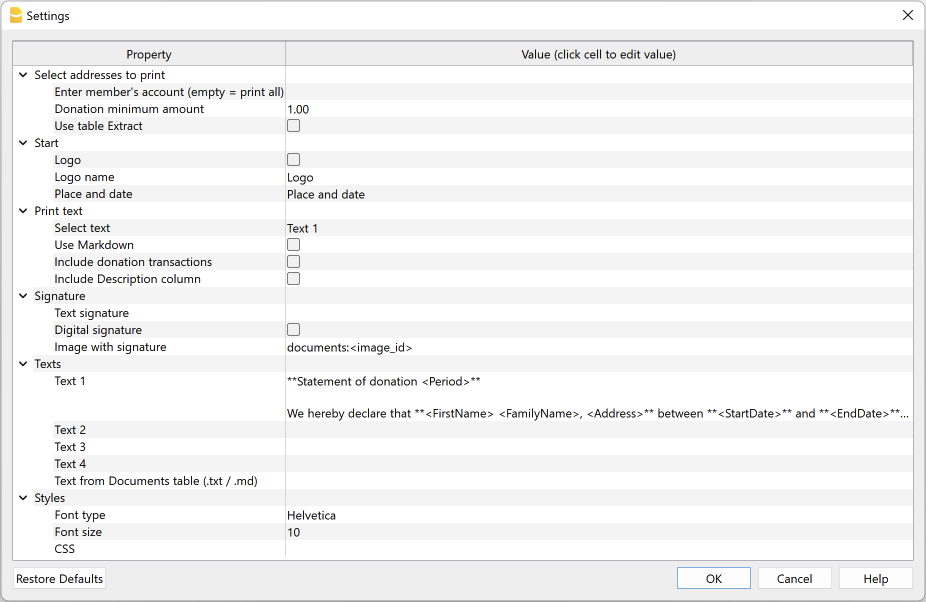
For data entry, click in the cell in the Value column.
The settings are divided into the following groups:
- Select addresses to print
- Define the member accounts for which the donation statement is to be created.
- Start
- Define logo for header, location and date.
- Print text
- Define which text to use and decide whether to include donation records.
- Signature
- Define text and image for signature.
- Texts
- Define up to four different texts or take a text from the Documents table.
- Styles
- Define font type and size for the letter texts.
The entered data are used to generate the report, which you can then save and print.
Select addresses to print
Here you can decide for which members, defined with CC3 cost centres, to create the donation statement.
- Enter member's account (empty = print all)
- Enter a single account (e.g. "10001").
- Enter several accounts divided by a "," (e.g. "10001,10002,10005").
- If you do not enter anything, statements will be printed for all registered members.
- Donation minimum amount
- Accounts with a balance below the indicated amount are not included. The default value is '1.00' (e.g. accounts with zero balance are excluded).
- Enter '0.00' to include accounts with zero balance.
- Use Extract table
- Use the extracted accounts in the Extract table.
- You must first use the command from the Data menu > Extract and sort rows to extract the rows with the accounts you want to use.
Header
Here you define the logo for the header, location and date.
- Logo
- Include a logo in the header. The logo is defined via the command in File → Logo setup.
- Logo name
- Enter the name of the logo to be used.
- Place and Date
- Enter the location and date of issue of the statement.
Print text
Here you can decide which text to use from the ones you have entered and whether to also include donation records.
- Select text
- Select the text you wish to use from the list.
- See below for inserting text.
- Use Markdown
- The selected text is interpreted as Markdown text (requires the Advanced plan of Banana Accounting Plus).
- Include donations transactions
- By checking the box you can include a summary table with details of donations taken from the Transactions table.
- Include Description column
- If you have previously activated the option 'Include donation transactions', it will then be possible, by checking this option, to also include the column with the description of the transaction in the statement.
Signature
Here you define the text and image for the signature of the donation statement.
- Text signature
- Enter the first and last name of the person issuing the statement.
- Digital signature
- Use an image as a signature.
- Image with signature
- Enter the image to be used. You have two ways to do this:
- documents:<nome_id>: to use an image saved in the Documents table, where <name_id> represents the name entered in the ID column of the table (e.g. "documents:signature").
- file:document/<immagine>: to use an image saved externally to Banana, but in the same folder as the .ac2 file. Also indicate the extension of the .png or .jpg image (e.g. "file:document/signature.png").
- Enter the image to be used. You have two ways to do this:
Texts
Here you define the texts of the donation statement. You can enter up to four different texts or take a text from the Documents table.
- Text 1, Text 2, Text 3, Text 4
- Enter the text you wish to display in the printout. The text can also be on several rows.
- Texts can be of text type and Markdown type.
- You can enter up to four different texts, and then choose which one to use..
- The field Text 1 contains the default text. It is possible to change it.
- Text from Documents table (.txt / .md)
- You can use the texts entered in the Documents table.
- Enter the document Id (e.g. 'Letter.txt', 'Letter', 'Letter.md', etc.).
- Texts can be of text type and Markdown type.
- For Markdown-type texts, the Id in the Documents table must end with ".md" and the full name, including the final ".md" (e.g. "Letter.md"), must be entered here.
Styles
Here you define the font type and size for the letter texts.
- Font Type:
- Define the font type.
- The default font is 'Helvetica'.
- Font size:
- Define the font size.
- The default font size is '10'.
- CSS
- Optional.
- You can change the appearance of the print (text formatting, address positioning, etc.) by entering CSS code to customise the style. (requires the Advanced plan of Banana Accounting Plus).
Predefined CSS
/* Donation Statement (Banana+) predefined CSS */

@page {
   margin-top: 0.0cm;
   margin-bottom: 0.0cm;
   margin-left: 0.0cm;
   margin-right: 0.0cm;
}

body {
   font-family: $font_family;
   font-size: $font_size;
}

.bold {
   font-weight: bold;
}

.right {
   text-align: right;
}

.center {
   text-align: center;
}

.header_address_row_1 {
   font-family: $font_family;
   font-size: $font_size_header;
}

.header_address_row_2_to_5 {
   font-family: $font_family;
   font-size: $font_size;
}

.header_text {
  margin-top: 1.2cm;
  margin-left: 1.2cm;
  margin-right: 1.2cm;
  text-align: right;
  position: absolute;
}

.logo {
  margin-top: 1.2cm;
  margin-left: 1.34cm;
  margin-right: 1.2cm;
  position: absolute;
}

.address {
  top: 4.5cm;
  left: 12.3cm;
  width: 7.5cm;
  position: absolute;
}

.date {
   margin-top: 4.6cm;
   margin-left: 1.5cm;
   position: absolute;
}

.text {
   margin-top: 8.5cm;
   margin-left: 1.5cm;
   margin-right: 1.0cm;
}

.transactions_details {
   margin-top: 0.5cm;
   margin-left: 1.65cm;
}

.transactions_rows {
   border-bottom:thin solid black;
}

.transactions_total {
   font-weight: bold;
   border-top:thin solid black;
   border-bottom:thin solid black;
}

.signature {
   margin-top: 1.5cm;
   margin-left: 12.3cm;
}

.image-signature {
   height: 15mm;
   margin-left: 12.3cm;
}
Extract table (Extract rows command)
The Extract and Sort rows feature can be used to select member accounts for which to create the statement. This is useful when, for example, you only want to print the donation statement for certain members, without having to enter the list of accounts directly into the extension settings.
For example, by allocating members into several groups (Accounts table), the command from the Data menu > Extract and sort rows can then be used to extract the rows of members belonging only to certain groups (in the example, members belonging to groups S1 and S3).
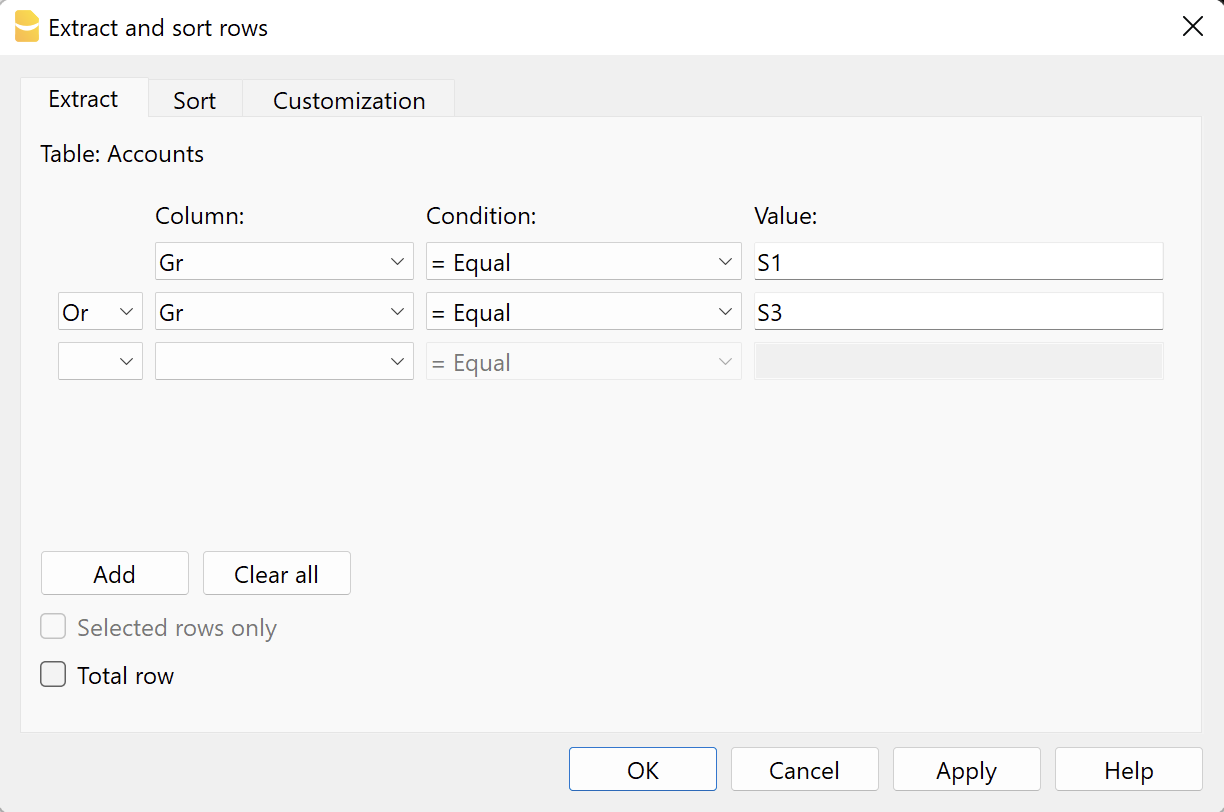
To use the extracted rows:
- Extract rows with the command from the Data menu > Extract and sort rows.
- Run the extension and in the settings dialogue, section Select addresses to print, check the box Use Extract table.
- If the rows were not extracted before printing was started, a warning message will be displayed and all registered member accounts will be used.
Donation statement text (plain text)
There are two possibilities for entering and using a plain text:
- Enter the text in the settings dialogue.
- Enter text in the fields Text 1, Text 2, Text 3 or Text 4.
Up to four texts can be added. - Under Print Text > Select Text, select the text to be used.
- Under Print Text, do NOT select the option Use Markdown.
- Enter text in the fields Text 1, Text 2, Text 3 or Text 4.
- Enter text in the Documents table.
- Add a document by selecting the type Plain text (text/plain).
There is no limit, you can add as much text as you want.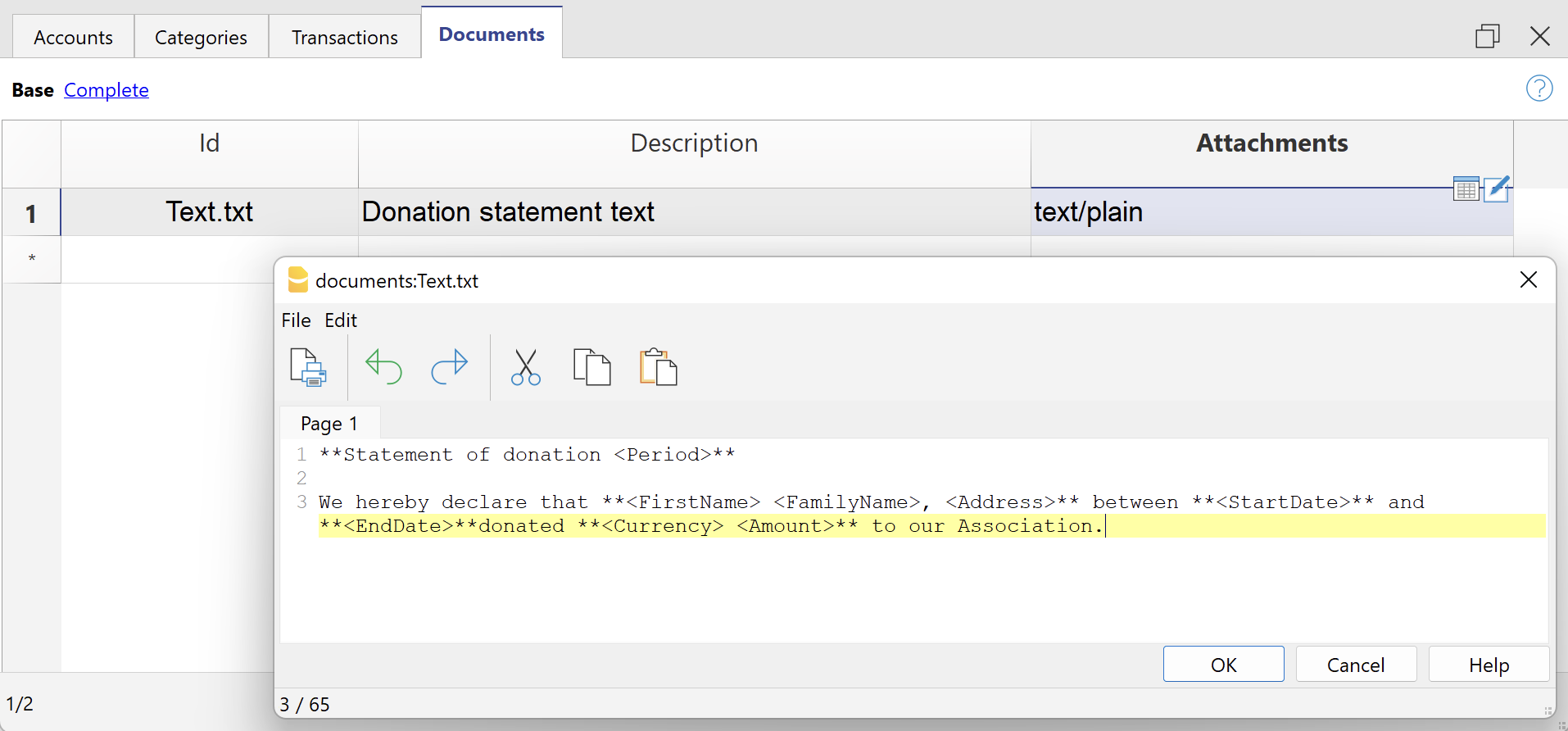
- In the Settings dialogue:
- Under Print Text > Select Text, select the option Text from Documents table (.txt / .md).
- Under Texts > Text from Documents table (.txt / .md), enter the Id of the text entered in the Documents table (e.g. 'text.txt').
- Add a document by selecting the type Plain text (text/plain).
For all texts:
- With a specific annotation you can apply the bold style to texts. To do so, include the desired texts between double asterisks ** .
Examples:- **text** = text
- **textA textB** textC = textA textB textC
- If the following values are entered in the text rows, they will be replaced by the corresponding values:
- <Period> : selected period
- <Account> : member account
- <NamePrefix> : member prefix
- <FirstName> : member's first name
- <FamilyName> : member's last name
- <OrganisationName> : member's organisation
- <Address> : member's address
- <AddressExtra> : extra address
- <Region> : region/state or province
- <Country> : country
- <StartDate> : start date of the selected period
- <EndDate> : end date of the selected period
- <Currency> : currency
- <Amount> : total amount of donations
Donation statement text (Markdown text)
Markdown is a language that allows formatted text to be created using a standard text editor and a syntax that is easy to write and read.
To use Markdown, the Banana Accounting Plus Advanced plan is required.
There are two ways to enter and use Markdown text:
- Enter the text in the Settings dialogue.
- Enter the text in fields Text 1, Text 2, Text 3 or Text 4.
Up to four texts can be added. - Under Print Text > Select Text, select the text to be used.
- Under Print Text, view the option Use Markdown.
- Enter the text in fields Text 1, Text 2, Text 3 or Text 4.
- Enter text in the Documents table.
- Use the Markdown Editor to add a document, selecting the type Markdown-formatted text (text/markdown).
There are no limits, you can add as much text as you want. - The file name in the Id column must end with '.md' (e.g. 'text.md').
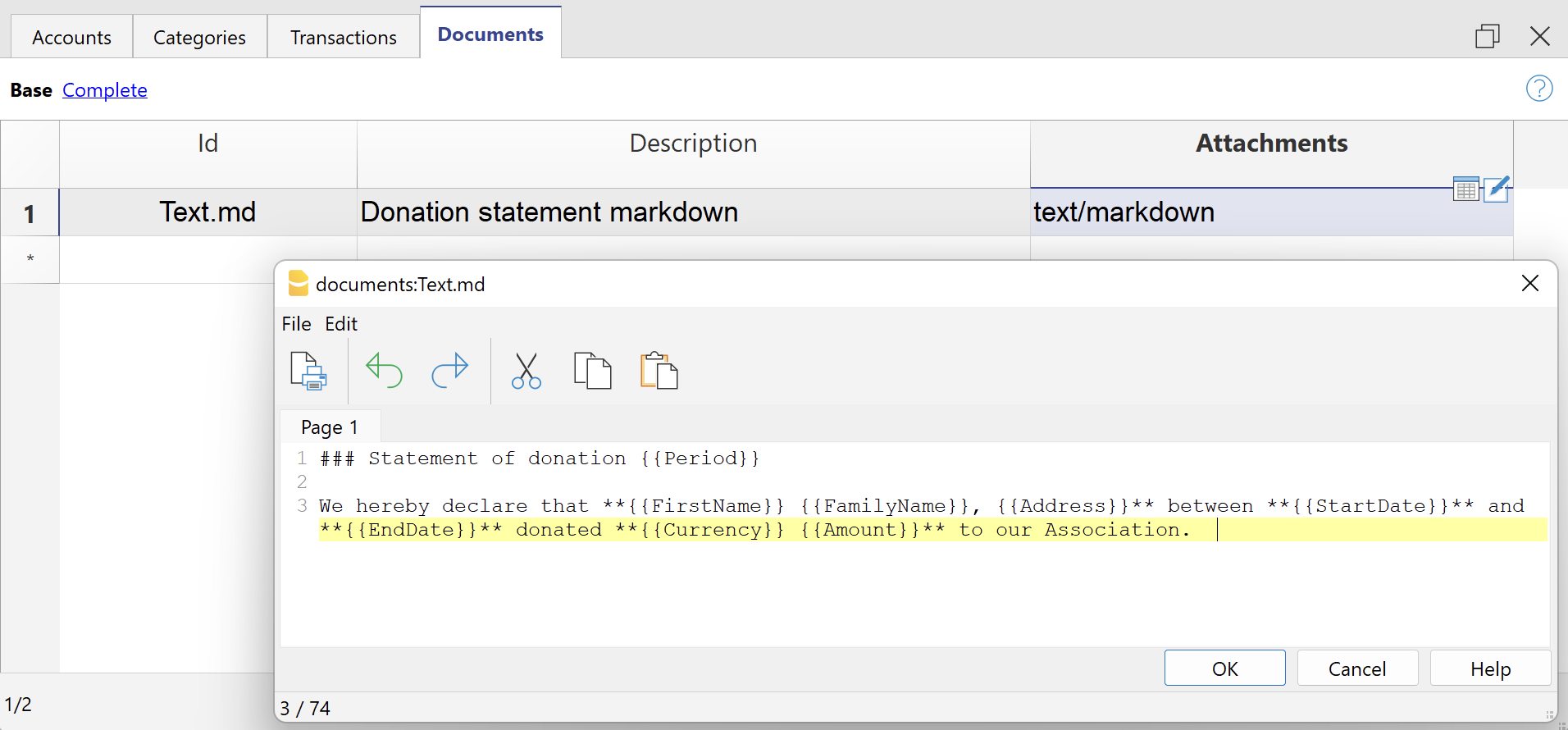
- In the Settings dialogue:
- Under Print Text > Select Text, select the option Text from Documents table (.txt / .md).
- Under Texts > Text from Documents table (.txt / .md), enter the Id of the text entered in the Documents table (e.g. 'text.txt').
- Use the Markdown Editor to add a document, selecting the type Markdown-formatted text (text/markdown).
For all texts:
- If the following values are entered in the text lines, they will be replaced by the corresponding values:
- {{Period}} : selected period
- {{Account}} : member's account
- {{NamePrefix}} : member's prefix
- {{FirstName}} : member's name
- {{FamilyName}} : member's surname
- {{OrganisationName}} : member's organisation
- {{Address}} : member's address
- {{AddressExtra}} : extra address
- {{Region}} : region/state/province
- {{Country}} : country
- {{StartDate}} : start date of the selected period
- {{EndDate}} : end date of the selected period
- {{Currency}} : currency
- {{Amount}} :total amount of donations
Print example
Donation statement with registration details
Certificado de doação para Associações (Banana 9)
Neste artigo
Certificado de doação para Associações (Banana 9)
Certificado de doação para Associações (Banana 9)
Banana Contabilità permette di creare attestati di donazioni in formato lettera per le Associazioni in modo molto semplice, veloce e senza la necessità di strumenti esterni come Word.
Un attestato di donazione è la prova di una donazione che viene volontariamente donata ad un'associazione. Questa associazione deve rilasciare un attestato che certifica la ricevuta della donazione.
Con questa BananaApp è possibile creare un attestato di donazione per i donatori registrati in Banana Contabilità (utilizzando il centro di costo CC3).
Questa BananaApp funziona attualmente solo con la versione di Banana Experimental.
Sono disponibili i seguenti file di esempio da cui partire:
Installazione e utilizzo dell'App
- Installare la versione di Banana Experimental 9.
- Installare la BananaApp Attestato di donazione per Associazioni (visitare la documentazione Gestione Apps).
- Una volta installata, l'App sarà visibile nel menu Apps dove potrà essere eseguita.
Creare un attestato di donazione
- Inserire i dati dell'Associazione nella scheda indirizzo del file contabile.
- Dal Menu Apps selezionare l'App Attestato di donazione per Associazioni.
- Inserire il periodo nella finestra di dialogo
- Completare i campi del dialogo impostazioni e cliccare su Ok
Dialogo impostazioni
Per l'inserimento dei dati fare doppio clicc nel campo della colonna 'Valore'.
- Indicare il conto del membro (vuoto = stampa tutti)
- Inserire un conto singolo (ad es. "10001").
- Inserire più conti suddivisi da una "," (ad es. "10001,10002,10005").
- Se non viene inserito nulla verranno stampati gli attestati per tutti i membri registrati.
- Importo minimo della donazione: i conti con saldo inferiore all'importo indicato non sono inclusi. Il valore predefinito è "1.00" (es. i conti con saldo zero sono esclusi). Inserire "0.00" per includere anche i conti con saldo zero.
- Testi
- Usa testi standard: vistare la casella per utilizzare i testi predefiniti (eventuali testi personali verranno sovrascritti).
- Titolo (opzionale): inserire l'oggetto della lettera.
- Testo 1 (opzionale): inserire il testo del primo paragrafo.
- Testo 2 (opzionale): inserire il testo del secondo paragrafo.
- Testo 3 (opzionale): inserire il testo del terzo paragrafo.
- Testo 4 (opzionale): inserire il testo del quarto paragrafo.
- Includi dettagli donazioni: vistare la casella per includere una tabella riassuntiva delle donazioni.
Per tutti i testi:È possibile contrassegnare una o più parole o anche il testo completo in grassetto.
Per ottenere la parola desiderata in grassetto, inserirla tra doppi asterischi (es. **parola**).
Per ottenere il testo completo in grassetto, inserire due asterischi all'inizio del testo (es. **testo...).Se nelle righe di testo vengono inseriti i seguenti valori (in inglese), essi saranno sostituiti dai valori corrispondenti (es. <Account> viene sostituito con 10001):
<Period>: periodo selezionato
<Account>: conto del socio
<FirstName>: nome del socio
<FamilyName>: cognome del socio
<Address>: indirizzo del socio
<StartDate>: data iniziale del periodo selezionato
<EndDate>: data finale del periodo selezionato
<Currency>: moneta
<Amount>: importo totale delle donazioni.
- Firma: inserire nome e cognome di chi rilascia l'attestato.
- Località e data: inserire la località e la data di rilascio dell'attestato.
- Firma con immagine: vistare la casella per utilizzare un'immagine come firma.
- Immagine: inserire l'immagine da utilizzare.
- documents:<nome_id>: per utilizzare un'immagine salvata nella Tabella documenti, dove <nome_id> rappresenta il nome inserito nella colonna ID della tabella (es. "documents:firma").
- file:document/<immagine>: per utilizzare un'immagine salvata esternamente a Banana, ma nella stessa cartella del file .ac2. Indicare anche l'estensione dell'immagine .png oppure .jpg (es. "file:document/firma.png").
- Altezza immagine (mm): cambiare l'altezza dell'immagine per ridimensionare la sua grandezza. L'altezza è in millimetri.
- Stili
- Tipo di carattere: definisce il tipo di carattere. Il tipo predefinito è "Helvetica".
- Dimensione carattere: definisce la dimensione del carattere. La dimensione predefinita è "10".
I dati inseriti vengono utilizzati per generare il report, che sarà poi possibile salvare e stampare.
Esempio di dialogo:

Esempio di attestato:

Esempio di attestato con dettagli:

非营利协会或组织会计
Neste artigo
非营利协会或组织会计
非营利协会或组织会计
使用这个简单的模板,以清晰透明的方式开启您的非营利组织或协会的会计管理,适用于任何使用复式记账方法并有外币的人。
Abrir na Banana WebApp
Abra a Banana Accounting Plus no seu navegador sem qualquer instalação. Personalize o modelo, introduza as transacções e guarde o ficheiro no seu computador.
Open template in WebAppTemplate preview
XXX协会
本位币: USD
复式记账含外汇
| 总组 | 账号 | 摘要 | 货币 | 总和 |
|---|---|---|---|---|
| 资产负债表 | ||||
| 资产 | ||||
| 1000 | 现金 | USD | 1 | |
| 1010 | 当前邮政储蓄账号 | USD | 1 | |
| 1020 | 当前银行账号 | USD | 1 | |
| 1025 | 瑞银 | CHF | 1 | |
| 1100 | 客户 | USD | 1 | |
| 1150 | 预付税款 | USD | 1 | |
| 1300 | 暂时性资产 | USD | 1 | |
| 1400 | 办公家具 | USD | 1 | |
| 1500 | 硬件/软件 | USD | 1 | |
| 1 | 总资产 | 00 | ||
| 负债及所有者权益 | ||||
| 2000 | 供应商 | USD | 2 | |
| 2100 | 银行贷款 | USD | 2 | |
| 2400 | 长期银行贷款 | USD | 2 | |
| 2700 | 短期负债 | USD | 2 | |
| 2800 | 启动资金 | USD | 2 | |
| 2900 | 结转余额 | USD | 2 | |
| 290 | 本年度的利润或亏损 | 2 | ||
| 2 | 负债及所有者权益总计 | 00 | ||
| 损益表 | ||||
| 收入 | ||||
| 4200 | 多种销售收入 | USD | 4 | |
| 4400 | 会员费 | USD | 4 | |
| 4500 | 捐款 | USD | 4 | |
| 4600 | 汇率差 | USD | 4 | |
| 4 | 总收入 | 02 | ||
| 费用 | ||||
| 3000 | 项目 A 的费用 | USD | 3 | |
| 3001 | 项目 B 的费用 | USD | 3 | |
| 3002 | 项目 C 的费用 | USD | 3 | |
| 3005 | 购买商品进行转售 | USD | 3 | |
| 3010 | 租金,水电费 | USD | 3 | |
| 3020 | 税 | USD | 3 | |
| 3050 | 保险 | USD | 3 | |
| 3070 | 费用 | USD | 3 | |
| 3080 | 清洁费 | USD | 3 | |
| 3090 | 办公用品 | USD | 3 | |
| 3100 | 电话 | USD | 3 | |
| 3110 | 邮费 | USD | 3 | |
| 3130 | 印刷和宣传 | USD | 3 | |
| 3140 | 银行负利率 | USD | 3 | |
| 3150 | 银行和当前账户费用 | USD | 3 | |
| 3160 | 家具摊销费用 | USD | 3 | |
| 3170 | 其它费用 | USD | 3 | |
| 3 | 总费用 | 02 | ||
| 02 | 损益表中的利润( - )损失(+) | 290 | ||
| 00 | 差额应当 = 0(空白单元格) | |||
| 成本和利润中心 | ||||
| 会员列表 | ||||
| ;LM | 李萌 | USD | TM | |
| ;WB | 王博 | USD | TM | |
| ;ZM | 张明 | USD | TM | |
| ;CL | 陈丽 | USD | TM | |
| ;WJ | 王静 | USD | TM | |
| TM | 全部会员 |
| 基准货币 | 货币 | 文字 |
|---|---|---|
| USD | EUR | 欧元 |
| USD | CHF | 瑞士法郎 |
How the Agile method can help NGO projects
Learn what Agile methodology is and how it can lead to effective and dynamic implementation of projects related to NGOs and international cooperation.
Nowadays, inside an NGO it is common to see project management that follows very defined and rigid models. But what are the effects of the Agile applied in the cooperation field? Banana Accounting offers a complete example on how Agile, slowly integrated in a non-profit project, can simplify its management. As a result, you can also obtain more flexibility, adaptability, and efficiency.
Discover the numerous advantages of Agile integration with us. Our experience with the goal to offer accounting training to all the young students in Congo, shows how Agile can be effective also for NGO projects.
Introduction
Most certainly, you already heard about the Agile methodology, often opposed to rigid project management models. In particular, companies mainly focused on making profits prefer to apply this model. But mostly, start-ups and software development companies cannot renounce to Agile for its numerous advantages.
And what do non-governmental organizations think about an agile project management? Unfortunately, at the moment they seem to lack trust on this innovative method. In addition, the institutions that financially support the projects keep adopting the traditional methodology. As a result, it becomes difficult to obtain some money that is used, as it happens in start-ups, to experiment with method procedures from small to large scale.
Yet Agile methodology could be a solution to simplify international cooperation projects, which usually have complicated management. In fact, they often operate in very difficult contexts, with precarious logistical situations, limited financial resources and in very different cultures and environments. The lack of predictability is similar to the one found in dynamic and innovative fields, such as software development and start-ups. But Agile could be integrated with current NGOs models to lead to a smooth management and greater flexibility.
Agile methodology has been applied since the 1990s, however different non-profits are reticent or not very familiar with this option that could be combined with traditional models without disrupting the current management system, thus leading to a better projects achievements.
With this Agile dossier, we would like to present you a project in which Banana.ch plays a relevant role. Being a company that develops software, we always apply the Agile method in our projects. Thanks to it, we have achieved continuous success. But at one point we asked ourselves:
"What if we apply the same model, little by little, in an industry where rigid models are the norm?".
In 2017, we began a collaboration as technology partners with the Ministry of Education of the Democratic Republic of Congo, with the goal to better the teaching of accounting. This aim was clearly quite different from the ones we usually set. But, even in this case, we decided to use the Agile methodology, with the approval of the client who, although unfamiliar, was open to the possibility for a dynamic management. With the Agile methodology we made progress, overcame several difficulties and obtained important results, despite the difficulties in terms of logistics and available resources. In general, we achieved several goals on the accountants training project, managed by the Ministry of Primary, Secondary and Professional Education of Congo.
The method proved to be very suitable for this cooperation project, which operates in complex situations that require great flexibility and adaptability. The educational project was not stopped by cultural differences, the distance between the various stakeholders, very limited resources, unforeseen events and scarce funding. And that's due, in large part, to the adoption of a methodology that is not very known in the non-profit field. Agile was not imposed and the application was gradual so the commissioner could get familiar without getting wary of this alternative management model. After overcoming the initial wariness, thanks in part to the enthusiasm of the Ministry of Education, we were working with management almost based on Agile.
Our journey into Agile methodology for NGOs and non-profits will start by explaining the principles and history. Then we will move on to the accounting education project in Congo. You will discover together with us how Agile can be the solution for an efficient, flexible and optimal management for projects in the nonprofit sector, this to the benefit of all stakeholders involved, but most importantly to all people who will see an improvement in their lives.
It is good to underline that Agile does not have to be broadly applied to the NGO sector. It can be used to manage certain projects, or alongside traditional models and it certainly doesn't have to disrupt the current cooperation frameworks. However, by using the Agile method here and there, you will slowly discover the advantages and features also for the non-profit sector.
As you will see from our example, gradually opening up to new management possibilities can help you achieve certain goals without huge changes.
We will start our journey into Agile methodology for NGOs and non-profits by explaining the principles and history. Then, we will move on to the accounting education project in Congo. You will discover with us how Agile can be the solution for an efficient, flexible and optimal project management in the non-profit sector, to the benefit of all involved stakeholders, and most importantly for people who will benefit from it.
The agile methodology: birth and characteristics
You can manage projects inside profit and non-profit oriented companies by following different methodologies.
The model we're going to explore in depth originates from the software development industry. The Agile methodology has been developed since the 90s thanks to the Agile movement initiated by a group of computer scientists.
The Agile method contrasts with the Waterfall method, one of the classic project management models. Let’s take a look at a real example of Waterfall: a house construction. As the first step, the architect prepares the detailed drawings. Next, the enterprise will get a quote, plan all work phases and deliver the house, as designed. The planning follows a series of clear steps: it will start with the preparation of the site, continue with the excavation and the creation of the basement and the roof. The interiors will be built and the technical systems, fixtures and fittings will be installed in a well-defined sequence and with a progress status that is predicted with precision. This model, however, has great limits, for example a major change in progress is problematic and leads to a high increase in costs. Moreover, the house will stay the same for years.
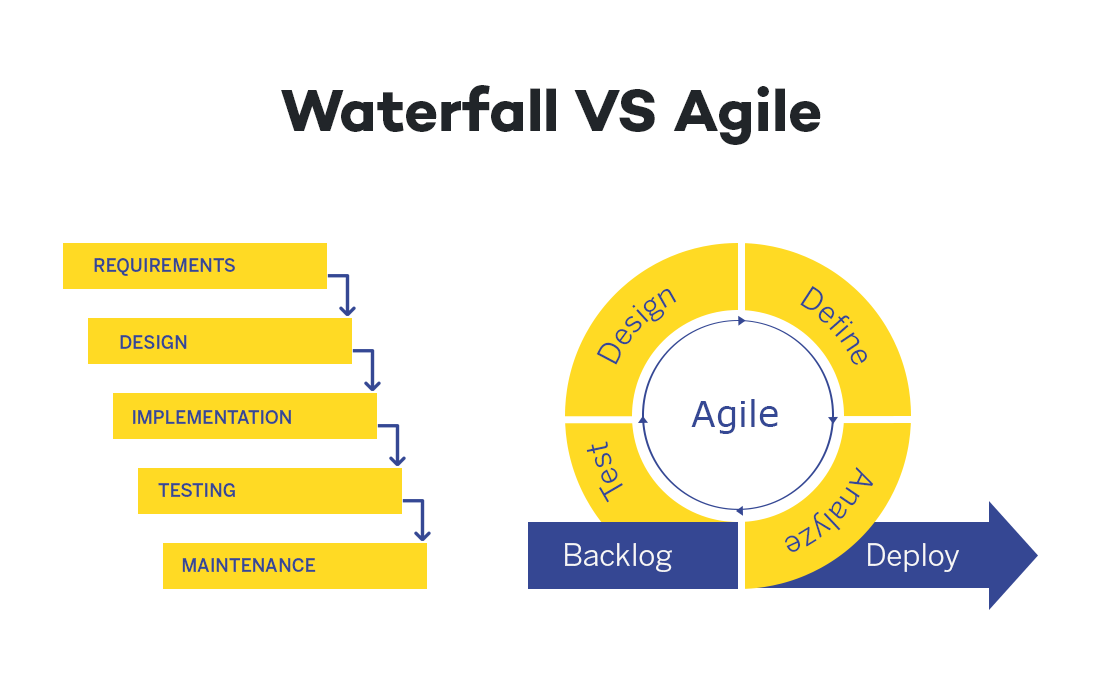
This waterfall model was the standard in the field of software development. Until, in 2001, some "anarchist" developers decided to make a big change in the software industry by publishing the Agile Manifesto. Their purpose is to create organizational models "based on people, collaboration, and building communities in which we would like to work."
The foundations of Agile
Currently, the four principles of the Agile methodology are being applied outside of the world of IT. Let's take a look at these values:
- Individuals and interactions over processes and tools
The Agile method encourages direct communication between people, so as to reduce possible misunderstandings. There must be a reduction of steps and obstacles between the different members working on the project. - A satisfactory product over detailed documentation
The main indicator of project success is when the product meets the needs of the client. Documentation of the procedure and steps is relevant, but the product is more important. - Collaboration with clients over contract negotiation
Customers usually know their needs better than the software developer or any other product. Therefore, collaboration is essential to determine the next steps in product development. This point is central to the Agile methodology. - Responding to change over following a plan
Updates and changes are inevitable and encouraged. With each round of feedback, the product will be more responsive to customer needs. You need to be flexible and responsive first, the plan is secondary.
In the Agile method you define a goal, but requirements are stated and implemented step by step. Development occurs in several cycles called "sprints", in which product changes happen quickly. This is obviously in contrast with a project that shows the full solution right away.
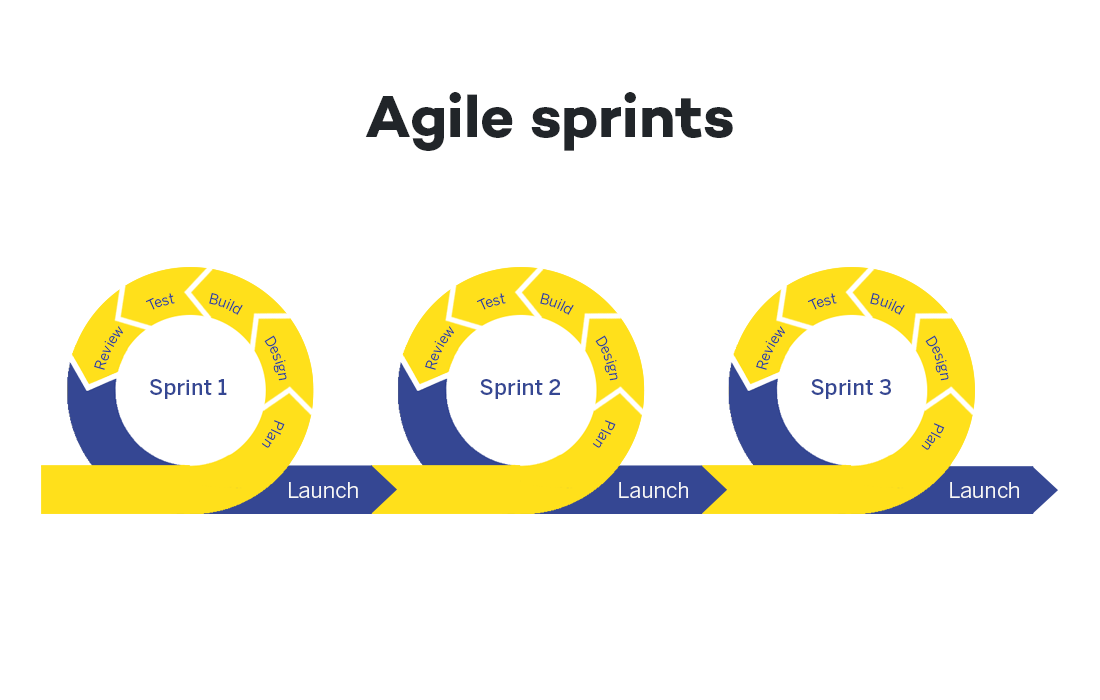
Usually projects related to the digital world do not have a predefined sequence and the product is often not physical, so Agile is an ideal method. Initially what matters is a Minimum viable product, which is a first version of the product with minimum requirements. The client then interacts with the developers, provides feedback, reports problems and prioritizes. The final result comes from all the interactions and changes that occur in the different cycles.
A concrete example: website design
Obviously, Agile requires a careful organization of the project. You have to divide it in different phases and find a logical order to implement them. In that way, you can go from the minimum working product to the final product.
To better understand how the methodology works, let's take as an example a company that wants its own website.
- To create an online presence, the firm decides not to ask the website design company to deliver the final product. Instead, following the Agile model, the firm will start by defining its key needs and resources. The choice will probably fall on creating company presentation pages with minimal content.
- In a very short time, the company will have a functional product (i.e. website) and will start collecting data on users.
- These statistics will then be used to determine, in close cooperation with the client, the further development. By assessing the needs, capabilities and resources, it will be possible to define what to achieve in the next "sprint". For example, priority is given to the creation of technical content, or the video presentation, or a online shop or integration with the management system.
- The result may look completely different from what you initially imagined, and the website next improvements will then continue by using Agile.
A methodology that helps all start-ups
The Agile methodology is also very suitable for tackling complex problems, where there isn’t yet a clear final solution. After being applied in the software industry, Agile has become the preferred project management method for start-ups and has also been adopted by large companies to manage projects in very innovative areas.
Start-ups need to be very flexible, so they usually never implement their projects by rigidly fix everything from the beginning. In fact, these young companies proceed step by step, setting up a product prototype to see if the technology works. Then they move on making the MVP to understand if it can meet customer needs. Later, the start-up will improve the product, at some point bring it to market, and so on.
Typically, start-ups work with little resources, so you are constantly checking if you are following the right path and investing in the right places. Thanks to the Agile method, if you don't achieve the expected results or face unexpected problems, it will be quite easy to adapt to a different approach. Experience and results from different project cycles will help set new goals, plan next steps, and decide what investments to make.
Progressive financing
Among its many advantages, Agile uses funding in a way that well adapts to the start-up world, often faced with great variability and unpredictability, always keeping risks to a minimum. An innovative company like a start-up does not receive funding to run the project in one go, but in a series of rounds.
- It starts by funding a prototype. If the prototype meets expectations, then an MVP (Minimum Viable Product) is financed. The solution can now be on the market and the start-up verifies the interest and response of the first customers.
- You move on to the next round, where you improve the product and, through a marketing strategy, expand the customers’ number. The initial amounts are limited and are generally available without special procedures. The idea, its potential and the capabilities of the start-up team are now evaluated. It often happens that the start-up decides to explore products or markets different from the ones initially imagined.
- In the following rounds there is an increase of funding, but only if the previous rounds were successful. If the start-up fails to realize the prototype or the product finds little customer interests, the investments are suspended.
Use of Agile methodology in non-profit organizations
We saw that Agile methodology is effective not only for software development companies, but also for the start-up world and in large companies as well. Two decades after the publication of the Agile Manifesto, this model has led to the success of many companies and has been widely used by all kinds of profit-oriented organizations.
Unfortunately, at the moment Agile is not well known among non-profit organizations. In this context the Agile methodology and also other methodologies that use similar concepts such as Design Thinking can be easily adopted and bring important benefits.
In the context of international cooperation the issue is more complicated, because there are public actors, laws, references and others that are difficult to adapt. There is a strong static nature and in addition, unlike the business environment, communication between the different levels: NGOs, funders, local partners and project beneficiaries, is much more complicated and cannot be easily simplified and sped up. However, there are also attempts to introduce new methodologies in this area, one of which is Adapting Development. Normally, established working standards such as Logical Framework Methodology and Theory of Change are used in the context of cooperation. In order to ensure a successful outcome, it is important to define the phases in as much detail as possible and to set up monitoring and control systems in advance. However, this leads to projects becoming more complex, expensive and less able to adapt to actual circumstances,
In the field of international cooperation, it is unlikely that Agile can supplant existing methods. However, Agile methodology can certainly be very useful as a complement, to manage certain phases of projects. The Agile method could help to:
- Move forward in a progressive way
- Collect feedback constantly
- Plan objectives and approaches in a more informed way
- Cope with problems and unexpected events in a fast and flexible way.
Introducing more dynamism at certain stages of projects would also help improve transparency, communication and trust between the different parties involved.
We now want to present you a well-detailed case of a Banana project created and implemented in collaboration with an NGO.
From "profit projects" to NGOs: the Banana case
Fortunately, over the last few years, the drive to manage "agile" projects has also arisen within some non-profit organizations. They take the experiences of companies that use the Agile methodology as an example, and they noticed that small changes can bring benefits. Even a partial application of the Agile model gives the ability to effectively react to the uncertainty of emergency situations.
Agile methodology could bring numerous benefits to NGOs and more generally, it makes high operational flexibility possible.
- You obtain important feedback on every cycle to adjust the program integrity
- Identify new operating ways that meet humanitarian goals better
- Understand what could be the future developments and respond quickly
- Ability to make mistakes without regret, and learn from them to improve strategy
- Administration and accounting that quickly adapts to change
- Nurture trust among the various stakeholders involved in the project through increased transparency and communication
Among the many Banana.ch projects, we also have a strong example on how the Agile model applies almost perfectly to a project related to non-profit organizations.
In 2017, Banana.ch took part to a project as a technology partner in the Democratic Republic of Congo.
Before explaining the details and developments, we'll start by giving you a context in which Banana.ch had to fit it.
Congo and the education of students in the digital world
The Democratic Republic of Congo (DRC) is a nation with a vast territory located in the center of Africa and it has over 100 million inhabitants. Like other countries in sub-Saharan Africa, the DRC is faced with a large number of difficulties, including logistical, financial and health problems. The population is very young and one of the main challenges is strengthening the educational system and adapt it to digital transformation, so as to reduce the existing technological gap.
In Congo, schools are managed and funded by the counties. On the other hand, the Ministry of Primary, Secondary and Professional Education (MEPST), based in the capital Kinshasa, is responsible for the education coordination in the whole country and is in charge of defining the curricula and teaching materials.
After joining the Organization for the Harmonization of African Business Law (OHADA) in 2012, the RDC adopted the common accounting rules and the Ministry of Education modified the training programs in accordance with the new modalities. Taking into account that most Congolese firms keep or will keep their accounts digitally, the MEPST decided to review the accounting training in professional schools. For this reason, they introduced the use of computers, productivity software (spreadsheets such as Excel, word processors) and accounting programs.
Unfortunately, with the current system it is not possible to solve the digital divide. Currently, students only learn theoretical concepts. This means that once they start working, they have to be trained to use computers and software. Instead, students should receive comprehensive training on some IT tools. This would not only facilitate the access in the working life, but the students themselves could become the promoters of digital modernization in the Congo companies and public agencies.
The Cellules's plan facing a major limitation
In order to solve the digital divide, the Ministry of Education entrusted in 2015 the Cellules des Branches Commerciales of the Direction des Programmes Scolaires et Matériel didactique (also called Cellules) to implement a plan to improve digital skills in more than 4 thousand schools. This project is part of the Ministry's broader strategy to promote digitalization, which also involves the primary, secondary and professional sectors.
Unfortunately, there was one major limitation: a large number of the schools did not have computer classrooms. In addition, the Government of DRC, as well as its provinces, has limited financial resources, and free education for pupils is already a great challenge. However, it remains essential that schools are equipped with computers, especially if students want to get familiar with certain software.
Accounting in Congo: the OHADA system
Among the various steps of the educational project, the Cellules had to select an accounting software, which complies with OHADA regulations and is also suitable for teaching. Thus, in 2017 they contacted our company Banana Accounting.
Our software caught their attention since it is suitable for small businesses, it is used in several countries and has obtained very important references in the field of accounting. Besides that, Banana software is also available in French, the official language of Congo, and offers a free license for educational purposes. The Cellules realized that Banana Accounting software was well suited for teaching in Congolese schools.
Another essential aspect in the selection was the compatibility with the accounting system, therefore the program must be aligned with chart of accounts and the reporting used by OHADA. This system is used by large companies, has a specific numbering and also includes fixed schemes for the balance sheet presentation, the profit and loss account and the capital flow account. During the preliminary stages, the Cellules requested the collaboration of the Conseil Permanent de Comptabilité au Congo (CPCC). From then on, the Banana's project to train students on our accounting software has begun.
The begin of the project and the first difficulties faced with Agile
In normal situations, we organize meetings between the different stakeholders and the developers. In that way, we can clearly define the project functionalities
But the project with the Cell did not start in a smooth way. Domenico Zucchetti, CEO and founder of Banana.ch traveled to Nairobi (Kenya) for a brief training session, but later on, it was no longer possible to meet in person. Other means of communication were very limited, so it was not easy to efficiently collaborate and carry out the project. Therefore, we proposed the integration of an alternative solution.
Within Banana.ch we have always applied the Agile methodology for any project, it is normal for us to follow a progressive, tackling one problem at a time. We are aware that going step by step, with close interaction between stakeholders is essential to work remotely and with very different cultural and operational contexts. That is why we decided to suggest a new method for the project in Congo, and we convinced the Cellules to apply Agile.
Thanks to the Agile modeling, Banana.ch and the Cellules of the Minister of Education have been able to face the hard project path. Slowly, this methodology was applied to each phase of the project.
Regarding the first phase, that is developing a software that meets OHADA's accounting rules, we solved the various snags thanks to Agile.
- COMMUNICATION
As the main contact, Zucchetti turned to Didier Kinano, the Cellules Director. Directives were typically reported via email and phone calls. In turn, the Banana Accounting CEO explained the Banana functionalities to achieve certain results and then he gave directions to his software development team. - THE FIRST CRITICAL STEPS
Even though there was a good collaboration, the division of tasks was too complex and the communication possibilities were not fully exploited. In addition, we had to face limited work progressions. After numerous iterations, the chart of accounts was finally completed with the corresponding balance sheet printouts and income statement. - THE COMPLEX PHASE
Banana.ch then tackled the most complex part, that is the creation of the capital flow account, with the related revision of the chart of accounts. Mr. Kinano gave instructions and then checked the results’ correctness. - A FLEXIBLE VERIFICATION SYSTEM
Having reliable test is an important element of the Agile methodology. In the case of the project with the Cellules, our developers had difficulties because they were not familiar with the OHADA system and did not know how to test the functionalities. Hence, Kinano had to prepare accounts that were used as tests. This facilitated rapid progression because the developers could avoid regressions, without being in contact all the time. - A NEW DEVELOPER
Banana.ch was also able to make progress at the level of capital flow reporting. Later, we started a collaboration with a developer based in Kinshasa, who received instructions directly from Kinano and turned to Banana.ch for the programming part. - THE LAST STEPS
Finally, Banana.ch was able to realize other reports and to implement the management and printing part of the VAT statement according to the templates required by the local tax authorities.
Agile: winning collaboration for the accounting project in Congo
Using the Agile method to implement the accounting project in Congo turned out to be a winning choice.
Our role was limited to technical assistance for the installation and use of Banana Accounting, as well as the adaptation to the OHADA System. Moreover, not being on site, we had a very limited view of what was going on and we were not particularly familiar with the educational system of Congo. Although we did not have a clear management view (the Ministry was in charge), the Agile method allowed us to achieve goals.
Didier Kinano had become our reference person. The talks were focused on technical aspects, but sometimes we discussed the project in a broader way. Little by little, Domenico Zucchetti got a better view of the various stakeholders, the context in which they operated and their available resources. At one point we could start with the implementation of the new digital accounting system in Congo.
The implementation of the digital accounting system in Congo
As a first step, the Ministry's plan was to provide schools with computers, then install the software and train teachers and students. However, most of the schools did not have computer rooms, and some did not even have electricity!
The available resources were very limited and it was not possible to ask more from the Congo Government, since it was already busy ensuring the free basic education. Support from third parties was also unlikely, so the prospect to have more computers appeared remote. There was a lot of concern on the project realization. But with Zucchetti's suggestion, something began to change:
"The situation didn't seem that bad to me. In fact, the Ministry was in the same situation as many start-ups, where you find very ambitious and transformative ideas, united by great motivation and capacity, but with many obstacles and very limited financial resources. I told that it would probably be very beneficial if the Ministry adopted start-up-like operation modes, that aims to make the most of existing resources."
Unexpectedly, this remark aroused a lot of interest, which is quite uncommon in government departments that have operating modes very different from the start-ups ones. Instead, in the following meetings, the Ministry became open to approach problems in a different way.
One reason for this acceptance of the Agile may lie in the different level of predictability between Europe and Africa. In Europe, the degree of unpredictability is very low and, especially, there is little flexibility in public administration. On the contrary, in Africa, the population and public officials are faced with great unpredictability. Unforeseen difficulties force them to come up with new solutions. In essence, Banana.ch saw that in Congo people are more willing to adopt and use the Agile methodology.
Exploiting available resources for great results
The next step in the project included defining the path implementation through existing resources.
The Democratic Republic of Congo has a large territory, even though most schools did not have appropriate infrastructure, a few of them had computer classrooms. As we could expect, there weren’t the next generation of computers, but they were perfectly suited to install and use Banana Accounting.
We then provided the software in some schools in the capital Kinshasa. The accounting teachers showed great interest and requested training in order to familiarize with Banana Accounting. The Cellules prepared the informative material, being very competent in its role. Thus, in a short time, they set up a 13-day training course, both for the software and for the OHADA system. The teachers who attended the course were very satisfied, so, the Ministry set a plan to train more teachers with the existing resources.
Thanks to the gradual change in methodology towards Agile, the project progressed without major hiccups. We didn’t have to wait for all schools to be equipped with computers. With time, Banana Accounting was installed in several computers and the number of trained teachers was raising too. We then moved on to the phase of teaching to students, with considerable success. Installation and software training expanded to other provinces, always with great interest.
New issues arose regularly, but by applying the Agile methodology, the Ministry was able to solve them shortly. We developed small-scale solutions, making adjustments quickly and then implementing them in other schools. For example, Congo's program involved using handwriting for exams. The Ministry then introduced the option to have exams with computer to schools with suitable classrooms. This experience then served as a basis for solving new or similar problems, improving the system and then introducing it to other schools. The strategy was constantly improved sprint after sprint, reducing unforeseen problems and making the best use of available resources.
From small goals towards a long-term vision
Usually Agile helps achieving short-term results, but it is also extremely effective for a long-term vision.
Keeping in mind that technological development rapidly evolves, we are aware that some solutions can become obsolete in no time. Therefore, it is very important to update the long-term project vision and check whether we are going in the right direction.
In large-scale projects such as the accounting in Congo, one of the most important tasks of the technological partner (Banana.ch) is to find lasting solutions to integrate new technologies. In this case, as seen above, the main problem was the difficulty to equip all Congolese schools with computer classrooms.
How to solve the IT classrooms’ problem
Banana.ch has been providing its software to Swiss schools for many years. However, in Switzerland a shortage of computer rooms is not a problem at all; moreover, all the students of professional schools already have a laptop. So, in Switzerland, schools are adopting the Bring Your Own Device (BYOD) model and are no longer investing in IT classrooms. On the other hand, in Congo the situation is different because the buying power is lower and teachers and students cannot afford a laptop.

Working closely with ministry officials, we came up with an alternative scenario. In the DRC, all teachers and students from professional schools have a cell phone. Thanks to technological advances, we predicted that students will soon have smartphones as well. So, we adapted to their current situation and we have focused on:
- Improvements of Banana Accounting on the mobile operating systems (Android and iOS) until it is almost in line with the desktop version.
- Possibility, also on mobile, to keep the accounting without connecting to the Internet, since in Congo the connections are not always fast and have significant costs.
Keeping accounts on a cell phone is certainly not the ideal solution. But knowing that learners will have a smartphone, we are sure they will keep accounts by using ERP functions (enterprise resource planning software), even without connecting to the Internet. As a result, by the time students find a job, they will already be ready to use accounting software.
We have noticed an increase in the use of the mobile version of Banana.ch in Congo, a sign that the strategy is working.
Adaptation to new technologies: the BYOD model in Congolese schools
At the moment, we see a convergence between the use of mobile and desktop software. The Ministry of Education in Congo presented a new technology available, for now, on high-end smartphones. Teachers can activate the Android Desktop Mode by connecting a monitor and keyboard to the latest generation smartphone. The small device is thus transformed into a real computer.
In the years to come, thanks to technological progress, this feature will certainly be available also for less expensive smartphones. Even Congolese students will have the chance to use a phone that becomes a computer. In that way the BYOD model can be adopted, and we will eliminate the problem of computer classrooms.
This scenario seems more and more realistic, and the Ministry is looking for a new plan to train teachers with the new modalities. In the future, when desktop mode will be possible on smartphones, Ministry officials should be ready to deliver a training that fits this new technology.
The MEPSP has already set up a plan for training several people in the different provinces, who in turn will train teachers on the OHADA accounting system and on the use of Banana Accounting.
With time, the Agile methodology has become integral in the collaboration with the various stakeholders, but we also used it to experiment with new technologies and new interesting solutions. You don’t need to change the current NGO project management system to see results with Agile, but in our case a wide application made the achievement of many objectives a lot easier.
Financing the project in Congo
In the case of the educational project in Congo financing, the Ministry had not a lot of money source. Then there was the COVID pandemic in 2020, which brought the finances of many states, including the DRC, to their knees. We had to find other ways, so we decided to present the project to possible financing entities. Following the Agile method, we develop a documentation and fundraising structure starting with very limited funding, necessary to offer the training and to find new solutions. Then, in later stages, these solutions can eventually be applied on a larger scale. We divided the project for extending the training in new provinces into blocks, making the figures affordable for many foundations and organizations.
| Indicative budget for seminary in the provinces |
| Activities | Cost |
|---|---|
| Accommodation for 2 educators (13 nights) | $ 800 |
| Catering for 2 educators | $ 400 |
| Lunch break for 52 participants (12 days) | $ 6.000 |
| Remuneration 2 educators (14 days) | $ 4.000 |
| Round trip 2 educators | $ 1.500 |
| Total investment for 1 seminary | $ 12.700 |
| Total investment for the 37 provinces | $ 427.000 |
| Fundraising (50% of costs) * | $ 223.500 |
However, we encountered a major limitation: the Agile methodology is not well known in the international cooperation sector, and funding is usually granted for complete projects, with rather complex and bureaucratic decision-making processes.
In our case, all the stakeholders could see that the project managed with Agile was valid and suitable. In fact, the different phases made possible the consolidation of the existing school system. The positive impact of the project is evident because the beneficiaries, or the new generations of students, will be better prepared for their job and will have a greater chance of finding employment.
Despite the results, at the moment we have not yet found support from foreign funding. The amounts required are small, but unfortunately in the cooperation world it is still complicated and expensive to develop funding strategies, since planning is only done with the waterfall method. Contrary to the world of start-ups, there is not yet a predisposition on granting support in a progressive manner, open to the development of new solutions.
A perspective towards widespread use of agile in NGOs
The successful project management of digital accounting in Congo is just one of the examples that show the effectiveness and suitability of Agile in the non-profit area. We are not there yet, but so far we have considerably progressed in a difficult context. This model made possible to make the most from available resources, skills and organizations that are already well structured and widely present in the area.
Agile applied to NGOs opens perspectives that were unthinkable a few years ago. Surely, the integration of this method will be very useful to international cooperation projects, all characterized, more or less, by a high degree of difficulty, variability and unpredictability. Agile can become a project management option, without affecting the currently-used non-profit methodologies.
We hope that this project in which we are involved demonstrated you the high potential of the Agile methodology. NGOs could consider to apply it to improve the effectiveness of interventions and to facilitate the granting of small amounts for humanitarian projects.
With the hope that Agile will be integrated in many non-profit projects, we invite you to reach us if you have any questions on the educational accounting project in Congo or about the use of Agile in the cooperation sector.
References
Helms, B. (2019, 10 settembre). Can the Development Community Adopt Agile?. DAI. https://dai-global-developments.com/articles/can-the-development-community-adopt-agile.
Manifesto for Agile Software Development. (2001). Agile Manifesto. https://agilemanifesto.org/
Modernisation de la formation en comptabilité au Congo RDC. (2020, gennaio). Banana.ch. https://www.banana.ch/fr/formation/comptabilite-rdc.
Terbeche, M., Carrier, M. (2019, 26 marzo). An “Agile Manifesto” for humanitarian and development projects. Groupe URD. https://www.urd.org/en/review-hem/an-agile-manifesto-for-humanitarian-and-development-projects/.
(2018, 2-4 ottobre). Humanitarian Aid on the Move No. 20. [Relazione a convegno]. Groupe URD. Autumn School on Humanitarian Aid. https://www.urd.org/en/review-hem/humanitarian-aid-on-the-move-n20/.
Shafiq, M., & Soratana, K. (2019). Lean and Agile paradigms in humanitarian organizations' logistics and supply chain management. LogForum, 15 (1).
Trish. ( n.d.). Agile for Nonprofits: A Project Management Method. Springly. https://www.springly.org/en-us/blog/agile-method-project-management-method-nonprofit/.
Accounting software for Accountants, Fiduciaries and Auditors
Banana Accounting is a complete and professional accounting software that complements the solution you already use, while providing a more structured accounting alternative to Excel for special cases. It gives you the flexibility to handle specific needs and offer services that go beyond traditional bookkeeping.
It also includes advanced and specialised features that many other programs do not offer, helping you turn your accounting expertise into new opportunities for your practice.
What can you do with Banana Accounting?
- Manage specialised accounting - From everyday simple bookkeeping to investment accounting, trusts, financial forecasting and special assignments.
- Work across jurisdictions - Multilingual, multi-currency and shadow accounting.
- Handle year-end closing - Trial balances, closing adjustments and financial statement reclassification.

The modern accountant: creating value beyond accounting
The role of the accountant has evolved. Accounting and tax compliance remain essential, but digitalisation, cloud solutions and AI are making many operational tasks faster and increasingly accessible to clients themselves.
As clients take care of more of their day-to-day bookkeeping, the accountant's expertise becomes valuable in new ways: reviewing their work, interpreting financial data, anticipating problems and helping them make better decisions.
By spending less time on repetitive tasks, accountants can manage more clients while focusing their expertise on higher-value advisory and specialised services, from financial analysis and planning to more sophisticated assignments for businesses and private clients with complex needs.
Today's accountant is becoming an increasingly versatile professional: what we call the "poliedrico" accountant. The Italian word poliedrico literally means “having many faces” and, figuratively, describes someone with multiple abilities, skills and talents.
The timeless value of versatility
The idea has deep roots in the history of accounting. During the Renaissance, Luca Pacioli, often regarded as the father of modern accounting, was a mathematician and teacher with a deep understanding of commerce. In 1494 he published the Summa de Arithmetica, which included the first printed description of the double-entry bookkeeping system used by Venetian merchants. His work helped spread accounting knowledge that was fundamental to merchants and the development of business.
Another remarkable example of Renaissance versatility was Leonardo da Vinci, who combined art, science, engineering and invention. Pacioli and Leonardo were friends and collaborators, reflecting a culture in which different disciplines and skills were closely interconnected.
We see a parallel with the profession today. Accounting is not simply about recording transactions: it provides the information needed to understand economic activity, make decisions and support businesses. The modern "poliedrico" accountant builds on this foundation, combining accounting expertise, technology, analysis, business understanding and advisory skills to create value for clients with very different needs.
Banana Accounting is designed to support this versatile approach to accounting, giving professionals the flexibility to adapt to different clients.
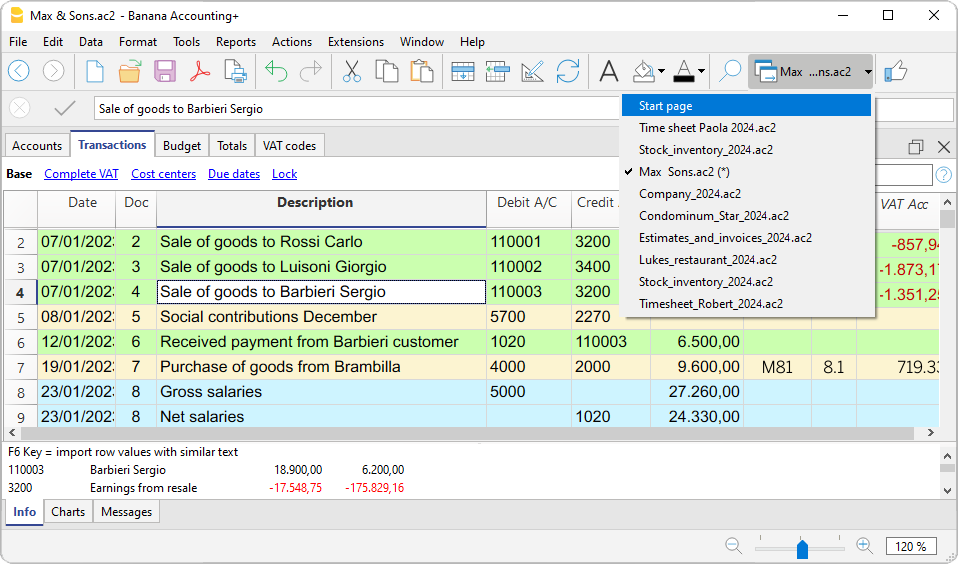
Add flexibility to the software you already use
You don't need to replace your existing accounting or management system. Banana Accounting works alongside it whenever you need more flexibility, customisation or specialised functionality.
Its table-based approach combines the freedom of a spreadsheet with the controls and logic of professional accounting software. You can adapt the chart of accounts, settings and structure to each assignment, start from ready-to-use templates and customise them to the specific needs of each client.
With a single Banana Accounting subscription, you can also create and manage an unlimited number of accounting files, with no additional cost for each new client, company or assignment.
This gives you the freedom to take on very different types of work and develop specialised services that strengthen your expertise and your relationship with your clients.
Manage accounting for clients and specialised assignments
With Banana Accounting you can manage complete accounts for clients, organisations and specialised assignments. Its flexible and customisable structure makes it suitable for both simple accounting needs and more advanced or specialised accounting work.
Ready-to-use templates provide a starting point and can be customised to each client's requirements with relatively little effort.
Cash Manager and simple accounting
Manage cash books (Cash Manager) and simple accounts for individuals, self-employed professionals, and other clients with straightforward accounting needs. Banana Accounting provides an easy and structured way to record income and expenses (Income & Expenses accounting), in order to have the cash situation under control, keep balances up to date, and generate clear, up-to-date accounting reports.
For these simpler accounts, you can also let your clients handle their day-to-day bookkeeping while you provide professional oversight, review their accounts, and step in whenever your expertise is needed.
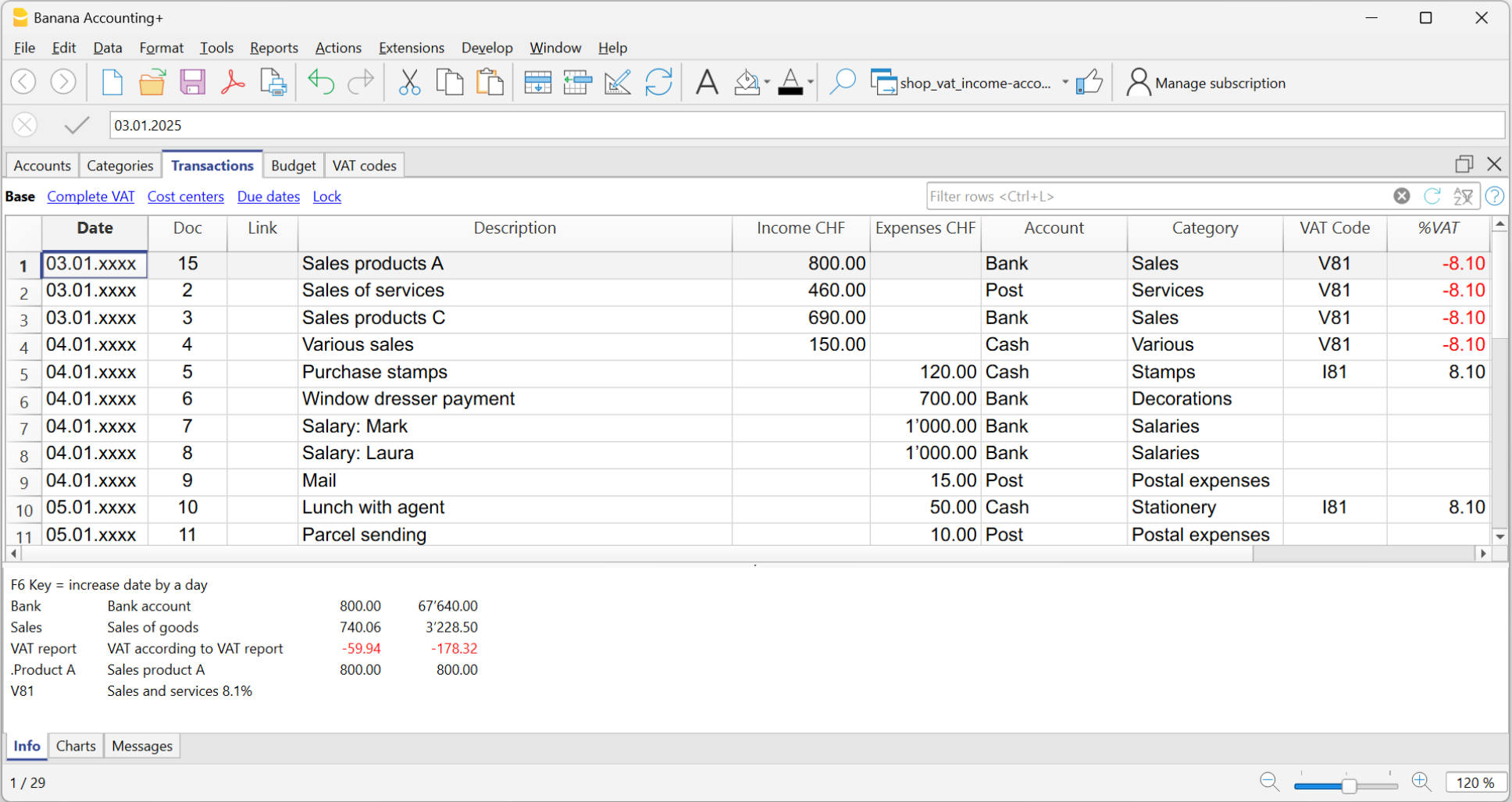
Accounting for associations and foundations
Manage associations, foundations, and other non-profit organisations whose specific needs do not always fit accounting software designed primarily for businesses. Banana's flexible approach makes it easy to customise the chart of accounts, manage different activities and funds, and keep income and expenses under control.
You can also recommend Banana Accounting to associations who prefer to manage their day-to-day accounting themselves, while you remain their professional advisor and provide oversight when needed. Thanks to its simplicity and flexible structure, associations can work independently while still benefiting from your expertise.
Investment accounting
The number of companies and individuals with increasingly large and complex investment portfolios is growing, creating a greater need for tools that enable investments to be managed professionally and efficiently.
Help private clients, foundations and organisations gain a clear overview of their financial investments. With Banana Investment Accounting, you can manage shares, bonds, funds, and other financial instruments in multiple currencies, as a full accounting solution or as a sub-ledger of an existing accounting solution.
- You always know the quantity and book value of your investments.
- The program automatically calculates gains and losses on sales transactions.
"I oversee several foundations and had to manage investment portfolios with Excel. Every update required time, manual checks, and continuous verification. With Banana Accounting I integrated investment portfolio management and now work faster, with a clear overview of investments." - anonymous user

Trust accounting
Banana Accounting allows you to manage all key aspects of a trust's accounting in one place: assets and investments, income and expenses, capital and reserves, beneficiary accounts and distributions, while keeping income and capital transactions clearly separated.
You always have an up-to-date balance sheet and income statement, and can customize the chart of accounts to reflect the specific structure and requirements of each trust.
Dynamic financial forecasting
Banana's financial forecasting is based on double-entry accounting logic. Create detailed forecasts for liquidity, balance sheet and profit and loss, develop different scenarios and continuously compare forecasts with actual figures. Give entrepreneurs and organisations a clearer basis for decisions about investments, financing and future cash requirements.
Liquidity management and cash flow analysis
Give your clients an up-to-date view of their liquidity and cash flows, helping them understand where their money comes from, where it goes and how their financial position is evolving.

With Banana's Rules for the automatic completion of imported transactions, you can quickly update the accounts with the latest bank transactions and provide cash flow analysis based on data that is current up to the previous day, turning liquidity monitoring into a valuable ongoing advisory service.
Forensic accounting and accounting reconstruction
One-time accounting work and special situations require the freedom to work directly with the data and adapt the accounting structure to the specific case.
Banana's transparent table-based approach makes it particularly suitable for reconstructing incomplete accounts, analysing transactions, identifying inconsistencies and cleaning up accounting data. It provides accountants and auditors with a professional alternative to complex Excel spreadsheets for unusual or investigative cases.
Other professional uses
Banana Accounting can also be used for other accounting activities and specialised needs, including:
- Management accounting and Shadow accounting
- Real estate accounting
- Business Unit Accounting
- Federated accounting
- Accounting training in companies
- Consolidation of independent accounts
- Verification, Auditing, and Accounting controls
Accounting across multiple jurisdictions
International customers often operate across countries and need their accounting to meet different requirements. Banana Accounting provides a flexible solution for managing accounting across multiple jurisdictions, thanks to its international capabilities:
- Multilingual software and accounting:
you can use the software in different languages (English, Italian, German, French, Spanish, Portuguese, Chinese, Dutch), work with charts of accounts and reports in different languages. - Multi-currency accounting:
manage transactions and accounts in multiple currencies within the same accounting file, with exchange rates and currency differences handled directly in the accounting system.
For example, a U.S. company operating near the Mexican border may keep its primary accounting in the United States while also needing accounting information for its activities in Mexico. In this situation, Banana can be used for shadow accounting (parallel accounting), providing a separate accounting view adapted to specific Mexican requirements without changing the main accounting system.
Trial balance and year-end closing
Use Banana Accounting as a flexible software for trial balance and year-end closing, even when the client's day-to-day accounting is managed in another system or ERP.
For example, you can import accounting data from SAP or another ERP into Banana and perform adjustments and closing entries, as well as reclassify accounts and prepare financial statements in the required presentation format, in a more flexible and efficient environment.
With the Trial Balance extension of Banana Accounting, you can clearly separate the effect of closing transactions from the original accounting data. For each account, the report shows the unadjusted balance, adjustments, and adjusted balance side by side, making it easier to review the closing process and understand how each adjustment affects the final accounts.
Why Banana instead of Excel?
When traditional accounting software cannot handle a particular case, Excel is often the natural fallback. It offers flexibility, but formulas must be created and maintained, accounting consistency is not guaranteed and errors can be difficult to detect.
Banana retains the freedom of working in tables while adding accounting intelligence:
- automatic accounting controls
- reliable calculations without complex formulas
- transparent and traceable data
- easy filtering, copying and editing
- professional reports
- files that can be understood and worked on by others
You remain free to work with the data without giving up the safeguards of professional accounting software.

Powerful automation, under your control
With the Rules for the automatic completion of imported transactions, you define exactly how transactions should be completed and recorded. Rules can combine multiple conditions and transaction details.
Unlike AI-based systems, which make probabilistic suggestions, Banana's rules are deterministic: when the conditions you define are met, the software applies exactly the accounting treatment you have specified.
You get a high level of automation while remaining fully in control. You decide what should be automated, under which conditions, and exactly how each transaction should be recorded. Before applying the rules, Banana shows you a preview of the results for your review and approval. Nothing is applied until you confirm.
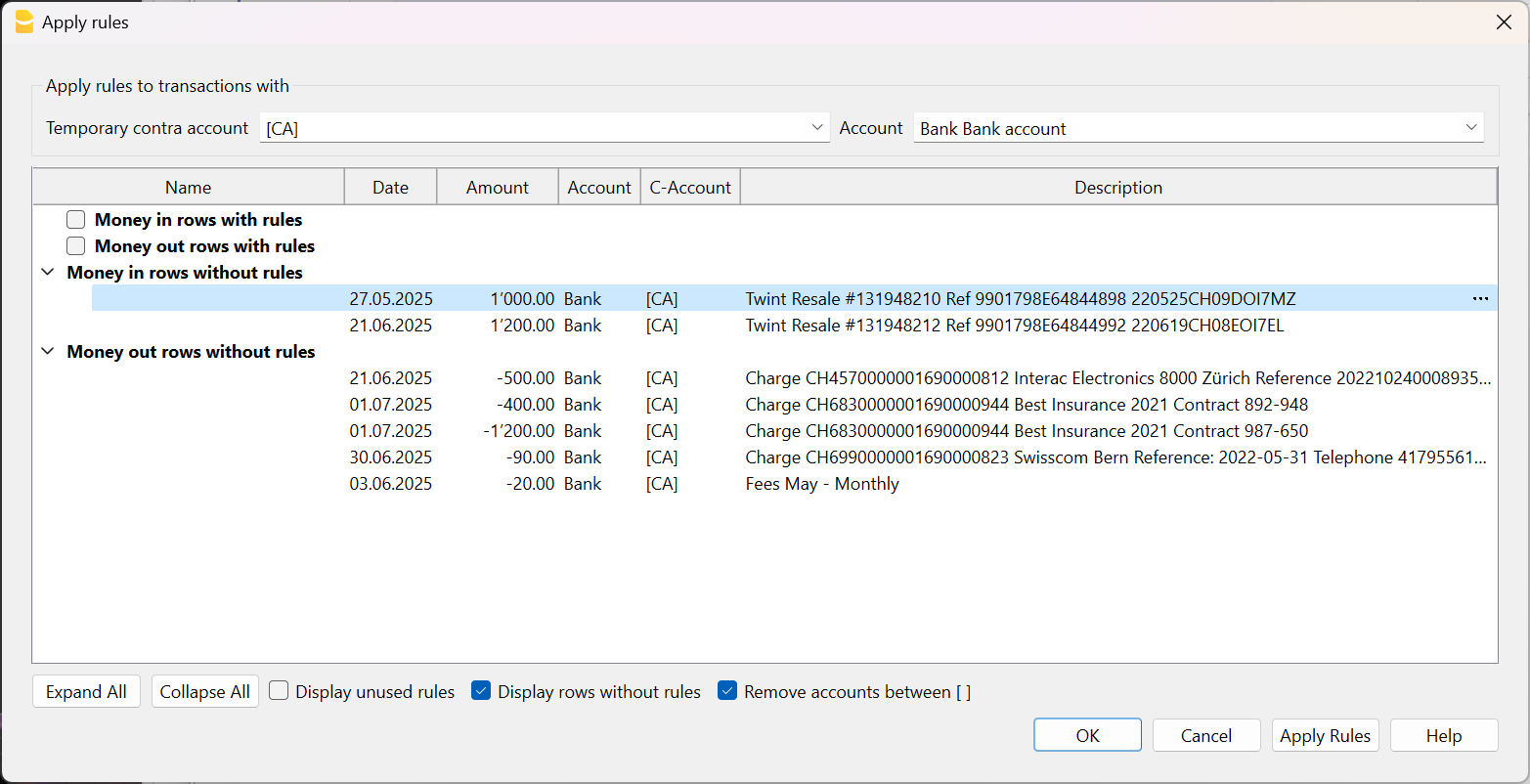
Your clients' data remains under your control
For a professional firm, client data confidentiality is essential. With Banana Accounting, your data remains under your control:
- The software runs locally: you do not need to upload your clients' data to external servers in order to work.
- You decide where files are stored: on your computer, on your firm's server, or in a storage location of your choice.
This allows you to maintain full control over sensitive information and protect your clients' privacy, in accordance with your firm's security policies.
Ready for Artificial Intelligence
Banana Accounting is ready for a future in which Artificial Intelligence will play an increasingly important role in accountants' work. Our approach is to combine AI with Banana's accounting engine and flexible extension system, opening up new possibilities for automation and customisation:
- AI agents working with Banana:
AI agents will be able to interact with Banana to transform data that you import, automate workflows, and extract information for further analysis. Banana can process the accounting data locally, reducing the need to send sensitive data to external AI models, with benefits for privacy, efficiency, and processing costs. - AI-generated extensions:
AI will make it easier to create extensions that automate specific tasks and generate customised reports. Extensions can also adapt Banana to specific industries, workflows, and country requirements.
This is also part of what makes Banana a truly international accounting solution: the core software can be used worldwide, while extensions and AI provide the flexibility to adapt it to local and specialised requirements.
Try Banana Accounting
Discover how Banana Accounting can work alongside the tools you already use and help you expand the services you offer your clients.
The advanced features designed for accounting professionals are included in the Banana Accounting Advanced plan.
Would you like to see how they could fit into your practice? We’ll be happy to provide you, upon request, with a free trial period of the advanced features, so you can explore them with your own accounting needs and workflows.
Useful links
Auditing companies using Banana Accounting
Auditing companies that use Banana Accounting take usually less time then when using other accounting software.
- The auditor can install the Banana Accounting software on his computer.
It is free, as with the Free Version that you download and install, you can open any accounting file and you can navigate through the accounting data. - With the full version, you can save changes (colored rows, added cost centers, selections to copy data in Excel).
- Ask your client to give you their accounting file.
You can copy it on your computer and you have access to all accounting data.
If possible, you might even ask for the files of the previous years, so you can have access to historic data. - If your client uses digital documents, ask them also for these data, so you don't need them to bring you all the paper folders.
When you are on a specific transaction or in the account card, a simple click lets you open the document relative to the transaction. - Use the command "Check accounting" and the software will inform you if there are any imbalances or differences.
- You can check if the digital seal of the blockchain is the same same as the one archived.
If it is, you can be sure that the content of file has not been altered. - In the Accounts table, you see all accounts and you drill down and see all transactions.
- You can extract the transactions for a specified period of your choice.
- You can color transactions that need further inquiry.
- You can add other information (columns auditors note) or Cost centers for reconciliation.
- You can select and extract data.
Banana Accounting will do the sums for you, without worries about possible errors. You do not have to do reconciliations with Excel. - You can copy the data from Banana and paste in Excel.
- When you select an account or a group, you can see the chart with the evolution of the balance at the bottom of the window.
You immediately can have an overview of the evolution. If the Cash account gets negative, you will notice immediately.
Using Banana Accounting for auditing purposes
Using Banana for auditing companies that use other accounting software
When you are auditing companies that use other software, you usually do not have full access to the accounting data on their computers. The auditors usually receive pdf files and in some cases a limited access to the accounting solution.
Excel is a very important tool for auditors. They use it to do reconciliations and create specific reports.
This requires a lot of attention from the auditors. Errors in formulas can be difficult to discover.
Where there is quite a lot of data to reconcile, auditors can create a new accounting file in Banana and import the data from the original accounting file.
With Excel you can read CSV files, adjust and copy and paste into Banana Accounting.
You will immediately know if there are any imbalances and you can have access to all account cards and print the Profit & Loss statement and Balance sheet. You have full access to the data and in most cases, you don't need to setup reconciliations in Excel.
Importing data in Banana Accounting
See the documentation available:
Universal resources for Families and Individuals
Banana Accounting Plus is an easy and affordable solution for managing personal and household finances. Keep track of income and expenses, plan your family budget and get a clear overview of your financial situation.
Choose from ready-to-use templates for families, students and individuals, and adapt them easily to your needs and country.
Manage your personal and household finances
Banana Accounting helps you keep your finances organized in one place. Depending on how much detail you need, you can choose between Cash Manager, Income & Expense Accounting, Double-entry Accounting and Multi-currency Accounting.
From simply tracking everyday expenses to managing bank accounts, property, loans or different currencies, you can choose the solution that best suits your needs.
Ready-to-use templates for families and individuals
Start from one of our Universal templates and customize the categories and accounts according to your personal needs. Universal templates can be easily adapted to any country.
Keep everyday expenses under control
If you simply want to keep track of money coming in and going out, Cash Manager is an easy way to start. No accounting knowledge is required.
- Record income and expenses quickly
- Manage cash, bank accounts and cards
- Organize expenses into categories
- View automatic summaries and charts
Discover Cash Manager for personal finances
Plan and monitor your family budget
Income & Expense Accounting gives you a more complete view of your household finances while remaining simple to use.
Track categories such as housing, food, transport and leisure, review your spending over time and use the information to plan your family budget.
Get a complete overview of your finances
For more detailed financial management, Double-entry Accounting lets you keep track not only of income and expenses, but also of assets, debts and receivables.
It is particularly useful if you manage property, loans, investments or other personal financial activities and want a complete and customizable overview.
Manage accounts in different currencies
If you have bank accounts, expenses or assets in different currencies, Multi-currency Accounting lets you manage them together in the same accounting file.
- Manage currencies such as CHF, EUR and USD
- Convert amounts into your base currency
- Keep track of foreign accounts and expenses
Multi-currency Accounting for families
Simple and flexible
Banana Accounting uses an intuitive spreadsheet-like interface, making it easy to enter, organize and update your financial data.
Each template can be customized to your needs, helping you better understand where your money goes and giving you greater control over your personal finances.
Start for free
Download Banana Accounting and start immediately with the Free plan. No personal information is required, and even your email address is optional.
You can try all features, including those of the Advanced plan, with up to 70 transactions and no time limit. You can switch to a paid plan at any time while keeping all your existing data.
Set up your accounting in minutes
Starting from a template is quick and easy. In just a few minutes, you can begin recording your income and expenses.
Our short step-by-step videos can help you get started:
- Video: ▶ How to set up your accounting in 3 steps (0'54'')
See all Banana Accounting videos
Upgrade from an older version
Already using an older version of Banana Accounting? Upgrade to Banana Accounting Plus and get one month free. Your existing data remains compatible, making the transition quick and easy.
Choose the right plan
Start with the Free plan and upgrade whenever you need additional features. Your files remain fully compatible, so you can continue working without starting over.
Free Accounting for Kids - Achieve your Goals and Learn how to Manage your Money
Neste artigo
Free Accounting for Kids - Achieve your Goals and Learn how to Manage your Money
Free Accounting for Kids - Achieve your Goals and Learn how to Manage your Money
FREE application for kids, useful to learn how to manage your first savings, plan your future expenses and have a forecast of your balance.
Abrir na Banana WebApp
Abra a Banana Accounting Plus no seu navegador sem qualquer instalação. Personalize o modelo, introduza as transacções e guarde o ficheiro no seu computador.
Open template in WebApp Open tutorial in WebAppTemplate documentation
Good money management is the starting point for a lasting investment for your financial well-being. That is why it is important to acquire this skill at a young age. In order to save money and have more resources in the future, you will learn to plan how you will spend your money, trying to correct the wrong habits and avoiding unnecessary expenses.
Banana will guide you in this new learning through simple steps.
The addressees of this model and its benefits
- Parents and teachers: Money management is a skill that is often not taught at school but can be very useful in children's lives. Banana becomes an excellent tool for parents and teachers who want to guide the new generations in managing their pocket money or their first earnings. The aim is to raise young people's awareness of money and make them conscious and responsible for their expenses. In this way, young people will be able to self-discipline and become independent in managing small income, money received as a gift or the salaries of the first summer jobs.
- Kids are the main recipients of this model. They can easily keep track of their income and expenses without having to constantly ask their parents for more money. Learning the art of saving has never been so easy with Banana Accounting: thanks to the Budget function you can plan your expenses, such as a holiday with friends, and make sure in advance that your savings are enough to achieve your goals.
Increase your digital skills
Digital skills help to master new technologies in a conscious way.
Besides learning the basics of accounting and thus managing one's money, Banana Accounting will enable you to increase your digital skills. You will learn how to use a new software, to work with documents and digital links, saving paper and time. You will be able to transfer these skills into various areas of your life, for example work and private life.
How to use Banana Accounting
- Open the template with Banana Accounting's WebApp
- Using the File > File properties command, set the period, family name, and base currency (you can budget and do accounting in any desired currency).
- Using the File > Save As command, save the file. It's helpful to indicate the family name and the year in the file name. For example, "Giuseppe-Rossi-20xx.ac2".
ATTENTION: If you close the browser without saving, you will lose your file. Always save the file to your computer.
To reopen the saved file, click on File > Open.
Basic functions: How to use Banana Accounting in a few simple steps
Cash
The cash register shows your current balance, which indicates how much money you have at the moment. This will allow you to check your financial availability at any time.
To start managing your money, the first thing to do is to open your Cash Account. Then click on the Accounts table and the "Cash" item will appear. In the Description column you can add your personal notes. Then click on Opening and enter your balance.

Categories
To the right of the table Accounts you will find the Categories Table. In this section there are both income and expenses, i.e. the money you receive or earn and the money you spend. Categories are included for both income and expenses and are useful to immediately recognize the nature of your movements. On the template that you can download on this page by clicking on download template, we have inserted some entries that will guide you. For example, in the income we have: Pocket Money, Family/Gifts and the income from the summer job, while for the expenses some examples are: Food, Clothing, Going Out, etc. ...
You can also change the categories and their descriptions as you like or add others simply by inserting some lines.

Transactions
The transactions are simply registrations of your earnings and outgoings. To make the transactions, click on the Transactions table. Now enter the date, description, e.g. "Pizza with friends", and enter how much money you spent in the Expenses column. Do the same with the income but put the amount in the Income column. Then enter the category and, typing only the first few letters, the program will display a list of suggestions (autocompletion) with the words you had previously entered.

At this point the program will do everything for you. You can go back to the Accounts table to check your updated balance, or go to the Categories table and check your income and outgoings in the various categories.

Final Check
If you want to be sure you haven't made any mistakes, Banana Accounting helps you with a very useful check function. It reports errors and shows you the lines where exactly they are located (for example if you forgot to record a category or an amount).
To check your accounting, go to the menu Actions > Check accounting.
In a nutshell: Why Banana?
- Free downloadable without installation
- Quick and easy
- Planning to set goals
- Learn the art of saving and become an entrepreneur
References
Peachery, Kevin. How much pocket money should we give our kids? (bbcnews.com, 2019)
Raisiningchildren. Pocket money. (Raisingchildren.net.au, 2018)
Ubs. Why pocket money is important for your child. (ubs.com)
Template preview
Piero Rossi
Accounting 2022
| Group | Account | Description | Sum In |
|---|---|---|---|
| Cash | Cash | ||
| Group | Category | Description | Sum In |
|---|---|---|---|
| TEENS BUDGET | |||
| REVENUE | |||
| Pocket Money | Pocket money | 3 | |
| Gifts/family | Gifts/family | 3 | |
| Other revenues | Other revenues | 3 | |
| 3 | TOTAL REVENUES | 00 | |
| EXPENSES | |||
| Food | Cafeteria, snacks, drinks, takeaways | 4 | |
| Phone | Phone subscription | 4 | |
| Subscriptions | Netflix, Spotify | 4 | |
| Clothing and shopping | Clothes, shoes, etc. | 4 | |
| Going out | Bars, restaurants, cinema, night club | 4 | |
| Travel | Bus, tram, petrol | 4 | |
| Other | Other | 4 | |
| 4 | TOTAL EXPENSES | 00 | |
| 00 | Result | ||
Free Student Accounting - Manage your Money and Achieve your Goals
Neste artigo
Free Student Accounting - Manage your Money and Achieve your Goals
Free Student Accounting - Manage your Money and Achieve your Goals
Free application for students and trainees who want to manage their money independently and learn how to plan future expenses.
Abrir na Banana WebApp
Abra a Banana Accounting Plus no seu navegador sem qualquer instalação. Personalize o modelo, introduza as transacções e guarde o ficheiro no seu computador.
Open template in WebApp Open tutorial in WebAppTemplate documentation
Life as a student isn't always all peaches and cream. After secondary school you find yourself in a new life full of responsibility. Among them is the money management. For students away from home or those who have to pay for their studies by working, it can be challenging to keep up with bills, rent, tuition, etc.
Banana Accounting is an easy and intuitive program that will guide you through this difficult task and help you to realize your future projects.
Why you should download Banana Accounting
- Constant control of your balance: one of the main features of Banana Accounting is that you can keep track of your income and expenses over time. This will allow you not to overspend and avoid reaching the end of the month without money. For a student is very important to understand how they are spending their money, especially when they have to pay for a study loan or have to pay for their studies with limited money available.
- Planning and saving: thanks to the Budget function you can finally plan your study expenses, the purchase of a car or the repayment of a loan. In fact, this function will let you know how much money you will have in a certain period.
- Quick and easy: If you want to start your accounting, just download the template on this page, which contains all the items for your student needs. Just add the amounts and the program will do the rest.
Increase your digital skills: Digital skills help to master new technologies in a conscious way. Besides learning the basics of accounting and thus managing one's money, Banana Accounting will enable you to increase your digital skills. You will learn how to use a new software, to work with documents and digital links, saving paper and time. You will be able to transfer these skills into various areas of your life, for example work and private life.
Banana Accounting in comparison with other programs
Compared to accounting recorded in Excel or other programs, Banana allows you to process your budget in simple steps. In addition, you can obtain the liquidity plan, a tool that will keep track of the liquidity trend over time and will be able to report when there will be a shortage or lack of money.
How to use Banana Accounting
- Open the template with Banana Accounting's WebApp
- Using the File → File properties command, set the period, family name, and base currency (you can budget and do accounting in any desired currency).
- Using the File → Save As command, save the file. It's helpful to indicate the family name and the year in the file name. For example, "Giuseppe-Rossi-20xx.ac2".
ATTENTION: If you close the browser without saving, you will lose your file. Always save the file to your computer.
To reopen the saved file, click on File > Open.
Actual revenues and expenses records
We now go straight to the transactions. You will need to enter the date, the description, the amount and the category. To simplify the entry of the category, the program will suggest you the list of categories simply by entering the initial of the word.
Be careful to enter the amounts in the correct column: if it is money you receive, write the amount under "Income", and if it is money you spend, under "Expenses".

Loans and scholarships
If you have loans or scholarships, you will need to register them separately in order to distinguish between your income money and money that is not yours. If it is a student loan, you can also record the repayment, and keep track of how much money you still have to pay back.

Attach invoices, receipts, pay checks...
In the Transactions table, Banana Accounting allows you to attach PDF files of receipts, bills, invoices, pay checks, etc.. Simply move under the DocLink column and choose the file you want. This way you will also have proof of your expenses and income details.
To enter the DocLink column, move to the Data Menu → columns setup → activate DocLink.

Final Check
If you want to be sure you haven't made any mistakes, Banana Accounting helps you with a very useful check function. It reports errors and shows you the lines where exactly they are located (for example if you forgot to record a category or an amount).
To do the check, go to the menu Actions→ Check accounting.
Let's get a better understanding of Accounting: What is Accounting and what is it for?
The word "accounting" can give us the idea of being a complex and obscure concept. It's actually less complicated than we think. In simple terms it is the recording and control of our money or that of someone else or a company. By "transactions" or "registrations" we mean the income and outgoings, i.e. the money that comes in and the money that is spent.
The control of income and expenses is fundamental in the management of a company, which aims to maximize revenues while reducing costs. Through accounting you have immediate information about the economic trend, which allows you to make timely strategies to correct or improve the management of the company with a view to future achievements.
Accounting also makes it easier to fill out the tax return because you have an immediate view of your income and expenses, where your income comes from, how you spent the money and the status of your balance.
In addition to large companies and small businesses, accounting also helps individuals in their everyday life, for example to keep track of family expenses or for small or important plans, such as buying a house.
Accounting will enable each of us to become a real entrepreneur.
The basic concepts of Accounting
Budget
The Budget is a forecast of your income and expenses with the indication of the category. The Budget will allow you to check that your outgoings do not exceed your income and, where necessary, avoid expenses.
In order to make a proper budget you will have to write down type of income you think you will have and all fixed and extra expenses at the beginning of every year. By predicting your expenses and income you will have a very clear vision from the beginning and a greater control over your money that will allow you to plan and optimize your savings in order not to spend more than you have. With the budget you will be able to compare your forecasts with the real evolution of your money in order to correct your expenses in case you spend your money improperly.
Cash plan
The cash plan is the real evolution of income and expenditure over time. Through the categories, Banana allows you to control where your money comes from (e.g. from your part-time job), the type of expenses you make (party night with friends) and when these movements take place.
Cash Flow Forecasting
Through the budget you can see the future balance (expected evolution of the liquidity balance). In fact, Banana will also allow you to enter the date of your registrations, which will allow you not only to plan and optimize your expenses, but above all to know in advance a possible lack of money and avoid unnecessary expenses. In view of a more substantial expense, such as a new phone, you will be able to predict when and how much money you will need to have to afford this expense.
In conclusion, the cash plan and the budget are two complementary tools extremely useful to learn how to manage your money, optimize your expenses or move in time to change them in order to achieve a certain goal. This will allow you to make your spending consciously and avoid running out of money.
In a nutshell: Why Banana?
- Free downloadable application on your mobile phone or computer
- Quick and easy
- Planning to set goals
- Learn the art of saving and become an entrepreneur
References
Burek, Owen. How to Budget at University. Save The Student (2019).
Segal, Troy. Money Management for College Students. Investopedia (2020).
Template preview
Sarah Winston
Basic Currency: EUR
Cash Manager
| Group | Account | Description | Sum In |
|---|---|---|---|
| Cash | Financial availability | ||
| Group | Category | Description | Sum In |
|---|---|---|---|
| Students Budget | |||
| REVENUE | |||
| Job | Monthly salary | 4 | |
| Family/ gifts | Family/ gifts | 4 | |
| Other revenue | Other revenue | 4 | |
| 4 | TOTAL REVENUES | 4-3 | |
| EXPENSES | |||
| Costs | |||
| Rent | Rent or Mortgage | 30 | |
| Household bills | Light, gas, water | 30 | |
| Food | Groceries, cafeteria, takeaways | 30 | |
| Television | Television, monthly fee | 30 | |
| Health insurance | Health insurance | 30 | |
| Taxes | Taxes | 30 | |
| Transport | Train, bus, taxi | 30 | |
| University tuition fees | University fees | 30 | |
| Course materials | Books, copies | 30 | |
| Internet and phone | Telephone and internet subscription | 30 | |
| Subscriptions | Netflix, Spotify | 30 | |
| Going out | Bars, Night Clubs, restaurants, cinema | 30 | |
| Clothing and shopping | Clothing and shopping | 30 | |
| Holidays and events | Holidays and events | 30 | |
| Other | Other | 30 | |
| 30 | Total Costs | 3 | |
| 3 | TOTAL EXPENSES | 4-3 | |
| 4-3 | RESULT | 00 | |
| Loans and Scholarships | |||
| Student Loan | Loans injections | 1-2 | |
| Loan reimbursements | Loan reimbursements | 1-2 | |
| Scholarship | Scholarship | 1-2 | |
| 1-2 | TOTAL LOANS AND SCHOLARSHIPS | 00 | |
| 00 | CHANGE IN CASH | ||
How to make a Family budget and manage the Household accounts | Cash Manager (Free)
Neste artigo
How to make a Family budget and manage the Household accounts | Cash Manager (Free)
How to make a Family budget and manage the Household accounts | Cash Manager (Free)
Free Accounting Software to create your family or personal budget, manage your Household accounts and save money. This Cash Manager template is simple and suitable for anyone who wants to start learning accounting.
Abrir na Banana WebApp
Abra a Banana Accounting Plus no seu navegador sem qualquer instalação. Personalize o modelo, introduza as transacções e guarde o ficheiro no seu computador.
Open template in WebApp Open tutorial in WebAppTemplate documentation
Creating a family budget with Banana Accounting is like creating it with Excel, but faster, more secure, and completely free. Thanks to the ready-to-use template with tailor-made accounts, you start right away, you just enter the data.
Quickly create forecasts and see where you can save money and what payments you can postpone. Quickly record your income and expenses and know if you're on a budget and if you can pay your bills at the end of the month. You can edit and correct data at any time, so it's easy to update your forecasts and get the most out of your money and save as much as possible.
Don't worry, you don't need accounting knowledge to start managing your accounts with Banana, and once you have control over your finances, you will think about the end of the month with more serenity and less stress.
This is how in a few steps you will be able to improve your financial situation:

Only by following all three steps will you learn how to manage your finances in the best possible way and achieve maximum success. It will take a little effort at first, but once you understand the mechanism, you'll be able to go on with it!
Are you ready? Start from here!
Create your file
How to use Banana Accounting
- Open the template with Banana Accounting's WebApp
- Using the File > File properties command, set the period, family name, and base currency (you can budget and do accounting in any desired currency).
- Using the File > Save As command, save the file. It's helpful to indicate the family name and the year in the file name. For example, "Family-Smith-20xx.ac2".
ATTENTION: If you close the browser without saving, you will lose your file. Always save the file to your computer.
To reopen the saved file, click on File > Open.
Adapt accounts and categories tables
Before creating your own budget, you need to quickly adapt your account and categories to your specific needs.
Accounts table
The Accounts table only shows the Liquidity account, or rather, the liquidity in your possession. You can customize it by changing the account number, description and opening balance.

Categories table
This table contains the income and expense categories, of which you can see the updated balances at any time. There are also the Cost centers, which are used to know in detail the amount of expenses and income for each member of the family.
The categories are divided according to the same structure explained in detail in the Planning paragraph:
- Revenue
- Fixed expenses
- Variable expenses
You can also edit categories and cost centers by adding new items, changing the category number, changing the order and deleting lines that you don't need.

Create your budget
Insert your expected income and expenses
Now it's time for the planning phase, you have to insert the expected expenses and revenues: go to the Budget table. The creation of the budget is really easy, you just have to enter the amounts of income and expenditure that you expect to have during the year, giving it a category of expenditure.
- In the template you already find lines for the various expenses, which you complete with your amount
- Enter the repetitive operations only once, indicating the code Repeat
If you make mistakes you can always correct, so you're sure you can make your own perfect forecast!
To create the budget correctly, follow three simple steps:
- Insert your income
- Insert fixed expenses
- Insert variable or extra expenses
For more technical information, please consult the documentation page of the Budget table.
Insert income
Start by thinking about all the fixed income you have and the amount of it. Salary is the main income, but there may also be others depending on your work and your assets.
Revenue may include:
- Salary
- Real estate rents
- Maintenance cheques
- Bank and postal interests
Tip: Only rely on assured income.

Insert fixed expenses
Now it’s time to think about all the fixed costs. This type of expenses includes both annual and monthly expenses and you can estimate them based on those of the previous year. For expenses that vary slightly from period to period you can make an average estimate, rounding up the amount to be more cautious. It’s better to make an inaccurate forecast at the beginning of the year, and then adjust it, than to have surprises of higher expenses.
For example, to insert the monthly rent expense you must enter the start date (usually the beginning of the year), the repetition (how often this expense is repeated), the description, the amount in the expense column and the expense category.
In the template you can already find examples of fixed expenses that you can easily modify and eliminate, according to your needs. You can still insert new items.
Fixed costs may include:
- Rent or mortgage for the house
- Taxes and duties
- Insurance
- Medical expenses (health insurance)
- Television fee
- Electricity, water and gas
- Foodstuffs
- Transport (fuel, season ticket for public transport)
- Personal care costs (personal hygiene, household hygiene)
- Education costs (university fees, school books, newspaper subscription)

Insert variable or extra expenses
Now do the same thing, but thinking about all those expenses not of basic necessity (we can call them extra expenses), which are usually variable during the year.
Variable expenses may include:
- Holidays
- Meals and drinks in restaurants and bars
- Cinema, theatre and shows
- Shopping
- Various gifts
- House breakdowns
- Car repairs
- Hobbies
- Cigarettes
Also in this case you have to make a presumed estimate of all the extra expenses, thinking about how many times you incur each single expense and of course its amount.
Tips:
- For each extra expense, set a monthly ceiling, which is a maximum amount that you should not exceed monthly. Respecting it will allow you to keep your spending under control.
- Unforeseen expenses, such as car repairs and house breakdowns, estimate them annually, divide them by 12 and report this figure monthly.

View the monthly forecast
An action that is often underestimated is the control of budgeted expenses and income, to determine from the beginning how you are managing your money.
To do this visualization is very easy: just go to Report > Enhanced statement with groups, and from the list that appears choose the Monthly Forecast report (is the most important report to consult in this situation). Press OK to view the report. The program shows you for all months and for the year:
- Liquidity status
- Total income and expeses
- The surplus or deficit of the month
In addition to the monthly forecast, you can freely view annual, quarterly and 4-year reports in Report > Enhanced statement with groups, or create your own customized report.
Improve your financial situation
Surely the goal you want to achieve is to save as much as possible. Check the Change in cash item (highlighted in red in the image above) and make sure you have a positive value, especially at the end of the year. In this case it means that you are generating savings, and that's good!
On the other hand, if your expenses are greater than your income, it means that you're mismanaging your money or you've made a mistake in your budget. Check if you have overestimated some expenses and change it correctly or choose one or more extra expenses that you will commit to reduce during the year.
- See if you have months with a deficit
- Check to see if there are any months in which your liquidity goes into negative (means you have a problem)
- Check which expenses affect this deficit
- You can make improvements:
- By eliminating expenses that are not essential
- By reducing expenses
- Moving expenses later in time
- Checking if you have a chance to increase revenue

It's time to actually keep your accounts!
With the budget under control, including the "savings goal", you can start register the various real transactions of money and compare them from time to time with the expected values.
Daily transactions must be inserted in the Transactions table. To make a registration you must enter the date, the description, the amount in or out and the respective category, just like you did for the forecast a while ago. Easy, isn't it?
For each expense you can also enter the code of the cost center (family member) in the column CC1, so you can update the amount of expense for each member of the family.

View the transactions with account cards
When you register your transactions, you may want to check how a particular expense category or cash account has evolved over time. To do this, you can check the respective Account Card.
For example, by selecting the Liquidity account card you will have a summary of all its movements. By also clicking on the chart option below, you have an even more immediate view of the account's performance.
Tip: Check your Liquidity account at least once a month to see instantly how it is performing and compare it with the months that are passing.

Check the difference between balance and budget
For more control over your performance, you can go to the Categories table and look at the Diff. Budget column, which shows you, for each category, the difference between the real balances and the values you had budgeted. In this way you have an additional indicator to understand if you are following the budget well and to make better decisions.

Compare the forecast with the report
During the year you can compare at any time your current situation with the budget, to understand if and where you are spending more, in order to adapt your buying habits and save more! At the end of the year you can make the final comparison between the actual report and the budget to see if you have achieved the desired savings.
Create the control report from the menu Report > Enhanced statement with groups > Yearly report compared to Budget.

Also in this case, if you want to have a more precise and targeted view, you can create reports with the monthly subdivision, which also include the difference between the balance and budget of each month. This gives you an overview of the months in which you had the most financial difficulties and those in which you saved the most.
When you get to the end of the year, you will have to re-plan the next one by creating a new forecast, using exactly the same procedure as before. A new savings goal awaits you!
Try the income/expense method
You're getting on well with the Cash Book system, but do you need to manage more accounts like the bank or postal account? You can then switch to the Income/Expense accounting: it is more complete and works in the same way as the Cash Book!
Page Family budget and Household account (Income & Expense)
For the Income/Expense accounting you will have a limit of 70 transactions and 20 lines for the budget, but if you want to exceed this limit and use Banana Accounting without limits, you can buy a license key and explore all types of accounting.
Template preview
Smith family
Basic Currency: EUR
Cash Manager
| Group | Account | Description | Sum In |
|---|---|---|---|
| Liquidity | Financial availability | ||
| Group | Category | Description | Sum In |
|---|---|---|---|
| Family Budget | |||
| REVENUE | |||
| Salary Anna | Monthly salary Anna | 4 | |
| Salary John | Monthly salary John | 4 | |
| Other revenue | Other revenue | 4 | |
| 4 | TOTAL REVENUES | 4-3 | |
| EXPENSES | |||
| Fixed Costs | |||
| Rent | Rent or interest on mortgage | 30 | |
| Energy | Light, gas, water | 30 | |
| Television | Television, monthly fee | 30 | |
| Car insurance | Car insurance and stamp duty | 30 | |
| Health insurance | Health insurance | 30 | |
| Internet and phone | Telephone and internet subscription | 30 | |
| Household insurance | Household insurance | 30 | |
| Newspaper | Daily newspaper subscription | 30 | |
| 30 | Total Fixed Costs | 3 | |
| Vital costs | |||
| Food | Food purchase | 32 | |
| Hygiene | Personal hygiene products | 32 | |
| Home products | Home hygiene products | 32 | |
| Clothing | Clothing, shoes, etc. | 32 | |
| Medical | Medical expenses | 32 | |
| Pharmacy | Pharmacy | 32 | |
| Taxes | Taxes | 32 | |
| Travel | Petrol, motorway tolls, train, bus | 32 | |
| Hairdresser | Hairdresser | 32 | |
| Animals | Domestic animals | 32 | |
| School | Schooling fees | 32 | |
| 32 | Total Vital Costs | 3 | |
| Optional Costs | |||
| Restaurant | Café, restaurant, take away | 34 | |
| Dancing | Dancing, night club | 34 | |
| Cigarettes | Cigarettes | 34 | |
| Beautician | Beautician | 34 | |
| Gym | Gym | 34 | |
| Shopping | Shopping | 34 | |
| Cosmetics | Cosmetics | 34 | |
| 34 | Total Optional Costs | 3 | |
| Culture Costs | |||
| Cinema | Cinema | 36 | |
| Music | Music | 36 | |
| Theatre | Theatre | 36 | |
| Shows | Shows | 36 | |
| Books | Books, newspapers and magazines | 36 | |
| 36 | Total Cultural Costs | 3 | |
| Extra Costs | |||
| Holidays | Holidays | 38 | |
| Gifts | Gifts | 38 | |
| Home repairs | Home repairs | 38 | |
| Car repairs | Car repairs | 38 | |
| Household objects | Household objects (furniture, utensils, linen ...) | 38 | |
| Babysitter | Babysitters and occasional domestic workers | 38 | |
| 38 | Total Extra Costs | 3 | |
| 3 | TOTAL EXPENSES | 4-3 | |
| 4-3 | RESULT | 00 | |
| Investments and loans | |||
| Loan injections | Loans injections | 1-2 | |
| Loan reimbursements | Loan reimbursements | 1-2 | |
| Sales fixed assets | Sales of fixed assets | 1-2 | |
| Purchase fixed assets | Purchases of fixed assets | 1-2 | |
| 1-2 | TOTAL INVESTMENTS AND LOANS | 00 | |
| 00 | CHANGE IN CASH | ||
| Cost Centres | |||
| .AN | Expenses Anna | ||
| .JO | Expenses John | ||
| .SA | Expenses Sarah | ||
Income & Expense Accounting for a Family Budget and Household accounts
Neste artigo
Income & Expense Accounting for a Family Budget and Household accounts
Income & Expense Accounting for a Family Budget and Household accounts
Create your family or personal budget to manage your Household accounts and save money, using this simple template suitable for anyone with Income & Expense accounting.
Abrir na Banana WebApp
Abra a Banana Accounting Plus no seu navegador sem qualquer instalação. Personalize o modelo, introduza as transacções e guarde o ficheiro no seu computador.
Open template in WebApp Open tutorial in WebAppTemplate documentation
This template is based on the management of Household accounts. In the Budget table you will be able to enter all the fixed and variable revenues and costs that you forecast to arise during the year. Reports can be generated automatically, at any time and will allow you to have an immediate overview of the accounts in their current and forecasted status.
Create your file
- Open the template with Banana Accounting's WebApp
- Using the File → File properties command, set the period, family name, and base currency (you can budget and do accounting in any desired currency).
- Using the File → Save As command, save the file. It's helpful to indicate the family name and the year in the file name. For example, "Family-Smith-20xx.ac2".
Adapt accounts and categories tables
Before creating your own budget, you need to quickly adapt your account and categories to your specific needs.
Accounts table
The Accounts table only shows the Liquidity account, or rather, the liquidity in your possession. You can customize it by changing the account number, description and opening balance.

Categories table
This table contains the income and expense categories, of which you can see the updated balances at any time. There are also the Cost centers, which are used to know in detail the amount of expenses and income for each member of the family.
The categories are divided according to the same structure explained in detail in the Planning paragraph:
- Revenue
- Fixed expenses
- Variable expenses
You can also edit categories and cost centers by adding new items, changing the category number, changing the order and deleting lines that you don't need.
Create your budget
Insert your expected income and expenses
Now it's time for the planning phase, you have to insert the expected expenses and revenues: go to the Budget table. The creation of the budget is really easy, you just have to enter the amounts of income and expenditure that you expect to have during the year, giving it a category of expenditure.
- In the template you already find lines for the various expenses, which you complete with your amount
- Enter the repetitive operations only once, indicating the code Repeat
If you make mistakes you can always correct, so you're sure you can make your own perfect forecast!
To create the budget correctly, follow three simple steps:
- Insert your income
- Insert fixed expenses
- Insert variable or extra expenses
For more technical information, please consult the documentation page of the Budget table.
Insert income
Start by thinking about all the fixed income you have and the amount of it. Salary is the main income, but there may also be others depending on your work and your assets.
Revenue may include:
- Salary
- Real estate rents
- Maintenance cheques
- Bank and postal interests
Tip: Only rely on assured income.

Insert fixed expenses
Now it’s time to think about all the fixed costs. This type of expenses includes both annual and monthly expenses and you can estimate them based on those of the previous year. For expenses that vary slightly from period to period you can make an average estimate, rounding up the amount to be more cautious. It’s better to make an inaccurate forecast at the beginning of the year, and then adjust it, than to have surprises of higher expenses.
For example, to insert the monthly rent expense you must enter the start date (usually the beginning of the year), the repetition (how often this expense is repeated), the description, the amount in the expense column and the expense category.
In the template you can already find examples of fixed expenses that you can easily modify and eliminate, according to your needs. You can still insert new items.
Fixed costs may include:
- Rent or mortgage for the house
- Taxes and duties
- Insurance
- Medical expenses (health insurance)
- Television fee
- Electricity, water and gas
- Foodstuffs
- Transport (fuel, season ticket for public transport)
- Personal care costs (personal hygiene, household hygiene)
- Education costs (university fees, school books, newspaper subscription)

Insert variable or extra expenses
Now do the same thing, but thinking about all those expenses not of basic necessity (we can call them extra expenses), which are usually variable during the year.
Variable expenses may include:
- Holidays
- Meals and drinks in restaurants and bars
- Cinema, theatre and shows
- Shopping
- Various gifts
- House breakdowns
- Car repairs
- Hobbies
- Cigarettes
Also in this case you have to make a presumed estimate of all the extra expenses, thinking about how many times you incur each single expense and of course its amount.
Tips:
- For each extra expense, set a monthly ceiling, which is a maximum amount that you should not exceed monthly. Respecting it will allow you to keep your spending under control.
- Unforeseen expenses, such as car repairs and house breakdowns, estimate them annually, divide them by 12 and report this figure monthly.

Check the budgeted expenses and revenues
To complete your budget, there is only one last step left to take, which is very important to start taking into account real expenses and revenues: you have to compare the budgeted income and expenses.
This is very easy to do: just go to Report → Enhanced Statement with groups, and from the list that appears choose the report you want (usually the most useful in this case is the Annual Budget). Press OK to view the report.
Surely, the goal you want to achieve is to save as much as possible. So check the Profit and Loss Statement and make sure your income is higher than your expenses, in this case it means you are saving money, and that's good!
By contrast, if the expenditure is greater than the income, it means that you are mismanaging your money or you have made a mistake in the budget. Check to see if you have overestimated some expenses and change them correctly or choose one or more extra expenses that you will strive to reduce during the year.

Insert your transactions
With the budget under control, including the "savings goal", you can start register the various real transactions of money and compare them from time to time with the expected values.
Daily transactions must be inserted in the Transactions table. To make a registration you must enter the date, the description, the amount in or out and the respective category, just like you did for the forecast a while ago. Easy, isn't it?
For each expense you can also enter the code of the cost center (family member) in the column CC1, so you can update the amount of expense for each member of the family.

Compare the forecast with the report
During the year you can compare at any time your current situation with the budget, to understand if and where you are spending more, in order to adapt your buying habits and save more! At the end of the year you can make the final comparison between the actual report and the budget to see if you have achieved the desired savings.
Create the control report from the menu Report → Enhanced statement with groups → Yearly report compared to Budget.

When you get to the end of the year, you will have to re-plan the next one by creating a new forecast, using exactly the same procedure as before. A new savings goal awaits you!
Template preview
Smith family
Basic Currency:
Income & Expense accounting
| Group | Account | Description | Sum In |
|---|---|---|---|
| ESTATE | |||
| ASSETS | |||
| Liquidity | |||
| Cash Mary | Cash Mary | Liquidity | |
| Cash George | Cash George | Liquidity | |
| Bank | Current Account Bank | Liquidity | |
| Post | Current Account Post | Liquidity | |
| Liquidity | Total Liquidity | Assets | |
| Other Assets | |||
| Flat | Flat | Other Assets | |
| Furniture | Furniture | Other Assets | |
| Other Assets | Total Other Assets | Assets | |
| Assets | TOTAL ASSETS | Net Worth | |
| LIABILTIES | |||
| Card Mary | Credit Card Mary | Liabilities | |
| Card George | Credit Card George | Liabilities | |
| Debts | Other short term debts | Liabilities | |
| Mortgage | Mortgage | Liabilities | |
| Liabilities | TOTAL LIABILITIES | Net Worth | |
| Net Worth | ESTATE NET WORTH |
| Group | Category | Description | Sum In |
|---|---|---|---|
| PROFIT & LOSS STATEMENT | |||
| REVENUE | |||
| Salary Mary | Salary Mary | Revenue | |
| Salary George | Salary George | Revenue | |
| Other revenues | Other revenues | Revenue | |
| Revenue | TOTAL REVENUE | Result | |
| EXPENSES | |||
| Fixed Costs | |||
| Rent | Rent or Interest on Mortgage | Fixed costs | |
| Energy | Light, Gas, Water | Fixed costs | |
| Television | Television, monthly fee | Fixed costs | |
| Car insurance | Car insurance and stamp duty | Fixed costs | |
| Health insurance | Health Insurance | Fixed costs | |
| Telephone | Telephone and Internet subscription | Fixed costs | |
| Household insurance | Household Insurance | Fixed costs | |
| Gym | Gym subscription | Fixed costs | |
| Newspaper | Daily Newspaper subscription | Fixed costs | |
| University | University Fees | Fixed costs | |
| Fixed costs | Total Fixed Costs | Expenses | |
| Vital Costs | |||
| Food | Food Purchase | Vital costs | |
| Hygiene | Personal hygiene products | Vital costs | |
| Home products | Home hygiene products | Vital costs | |
| Clothing | Clothing, shoes, etc. | Vital costs | |
| Medical | Medical expenses | Vital costs | |
| Pharmacy | Pharmacy | Vital costs | |
| Taxes | Taxes | Vital costs | |
| Travel | Petrol, Motorway tolls, Train, Bus | Vital costs | |
| Hairdresser | Hairdresser | Vital costs | |
| Animals | Domestic Animals | Vital costs | |
| School | Schooling fees | Vital costs | |
| Vital costs | Total Vital Costs | Expenses | |
| Optional Costs | |||
| Restaurant | Café, Restaurant, Take away | Optional costs | |
| Dancing | Dancing, Night Club | Optional costs | |
| Cigarettes | Cigarettes | Optional costs | |
| Beautician | Beautician | Optional costs | |
| Shopping | Shopping | Optional costs | |
| Cosmetics | Cosmetics | Optional costs | |
| Optional costs | Total Optional Costs | Expenses | |
| Culture Costs | |||
| Cinema | Cinema | Cultural costs | |
| Music | Music | Cultural costs | |
| Theatre | Theatre | Cultural costs | |
| Shows | Shows | Cultural costs | |
| Books | Books, newspapers and magazines | Cultural costs | |
| Cultural costs | Total Cultural Costs | Expenses | |
| Extra Costs | |||
| Holidays | Travels, Holidays | Extra costs | |
| Gifts | Gifts | Extra costs | |
| Home repairs | Home repairs | Extra costs | |
| Car repairs | Car repairs | Extra costs | |
| Household objects | Household objects (furniture, utensils, linen ...) | Extra costs | |
| Babysitter | Babysitters and occasional domestic workers | Extra costs | |
| Extra costs | Total Extra Costs | Expenses | |
| Other Activity | |||
| Other costs | Costs Other activities | Other costs | |
| Other costs | Total Costs Other activities | Expenses | |
| Expenses | TOTAL EXPENSES | Result | |
| Result | RESULT | ||
| Cost Centers by family member | |||
| .MA | Expenses Mary | ||
| .GEO | Expenses George | ||
| .SA | Expenses Sarah |
Double-Entry Accounting for a Family Budget and Household accounts
Neste artigo
Double-Entry Accounting for a Family Budget and Household accounts
Double-Entry Accounting for a Family Budget and Household accounts
Create your family or personal budget to manage your Household accounts and save money, using this simple template suitable for anyone with Double-entry accounting.
Abrir na Banana WebApp
Abra a Banana Accounting Plus no seu navegador sem qualquer instalação. Personalize o modelo, introduza as transacções e guarde o ficheiro no seu computador.
Open template in WebApp Open tutorial in WebAppTemplate preview
Smith family
Basic Currency:
Double-entry
| Group | Account | Description | Sum In |
|---|---|---|---|
| BALANCE SHEET | |||
| ASSETS | |||
| Liquidity | |||
| Cash Mary | Cash Mary | Liquidity | |
| Cash George | Cash George | Liquidity | |
| Bank | Current Account Bank | Liquidity | |
| Post | Current Account Post | Liquidity | |
| Liquidity | Total Liquidity | Assets | |
| Other Assets | |||
| Flat | Flat | Other Assets | |
| Furniture | Furniture | Other Assets | |
| Other Assets | Total Other Assets | Assets | |
| Assets | TOTAL ASSETS | Difference | |
| LIABILTIES | |||
| Card Mary | Credit Card Mary | Liabilities | |
| Card George | Credit Card George | Liabilities | |
| Other debts | Other short term debts | Liabilities | |
| Mortgage | Mortgage | Liabilities | |
| Carried forward | Profit or Loss carried forward | Liabilities | |
| Debts | Profit or Loss for the period | Liabilities | |
| Own capital | Own Capital | Liabilities | |
| Liabilities | TOTAL LIABILITIES | Difference | |
| PROFIT & LOSS STATEMENT | |||
| REVENUE | |||
| Salary Mary | Salary Mary | Revenue | |
| Salary George | Salary George | Revenue | |
| Other revenues | Other revenues | Revenue | |
| Accessory revenues | Accessory activity | Revenue | |
| Revenue | TOTAL REVENUE | Result | |
| EXPENSES | |||
| Fixed Costs | |||
| Rent | Rent or Interest on Mortgage | Fixed costs | |
| Energy | Light, Gas, Water | Fixed costs | |
| Television | Television, monthly fee | Fixed costs | |
| Car insurance | Car insurance and stamp duty | Fixed costs | |
| Health insurance | Health Insurance | Fixed costs | |
| Telephone | Telephone and Internet subscription | Fixed costs | |
| Household insurance | Household Insurance | Fixed costs | |
| Gym | Gym subscription | Fixed costs | |
| Newspaper | Daily Newspaper subscription | Fixed costs | |
| University | University fees Sarah | Fixed costs | |
| Fixed costs | Total Fixed Costs | Expenses | |
| Vital Costs | |||
| Food | Food Purchase | Vital costs | |
| Hygiene | Personal hygiene products | Vital costs | |
| Home products | Home hygiene products | Vital costs | |
| Clothing | Clothing, shoes, etc. | Vital costs | |
| Medical | Medical expenses | Vital costs | |
| Pharmacy | Pharmacy | Vital costs | |
| Taxes | Taxes | Vital costs | |
| Travel | Petrol, Motorway tolls, Train, Bus | Vital costs | |
| Hairdresser | Hairdresser | Vital costs | |
| Animals | Domestic Animals | Vital costs | |
| School | Schooling Fees | Vital costs | |
| Vital costs | Total Vital Costs | Expenses | |
| Optional Costs | |||
| Restaurant | Café, Restaurant, Take away | Optional costs | |
| Dancing | Dancing, Night Club | Optional costs | |
| Cigarettes | Cigarettes | Optional costs | |
| Beautician | Beautician | Optional costs | |
| Shopping | Shopping | Optional costs | |
| Cosmetics | Cosmetics | Optional costs | |
| Optional costs | Total Optional Costs | Expenses | |
| Culture Costs | |||
| Cinema | Cinema | Cultural costs | |
| Music | Music | Cultural costs | |
| Theatre | Theatre | Cultural costs | |
| Shows | Shows | Cultural costs | |
| Books | Books, newspapers and magazines | Cultural costs | |
| Cultural costs | Total Cultural Costs | Expenses | |
| Extra Costs | |||
| Holidays | Travels, Holidays | Extra costs | |
| Gifts | Gifts | Extra costs | |
| Home repairs | Various Home repairs | Extra costs | |
| Car repairs | Car repairs | Extra costs | |
| Household objects | Household objects (furniture, utensils, linen ...) | Extra costs | |
| Babysitter | Babysitters and occasional domestic workers | Extra costs | |
| Extra costs | Total Extra Costs | Expenses | |
| Other Activity | |||
| Accessory cost | Cost Accessory Activity | Accessory | |
| Accessory | Total Costs Accessory Activity | Expenses | |
| Expenses | TOTAL EXPENSES | Result | |
| Result | RESULT FOR ACCOUNTING PERIOD | Debts | |
| Difference | Difference should be = 0 (blank cell) | ||
| SEGMENTS | |||
| : | Segments by family member | ||
| :MA | Mary | Members | |
| :GEO | George | Members | |
| :SA | Sarah | Members | |
| Members | Total family members |
Individual with ancillary activity
Neste artigo
Individual with ancillary activity
Individual with ancillary activity
Ideal for those who want to manage family accounting with foreign currency, along with an ancillary activity.
Abrir na Banana WebApp
Abra a Banana Accounting Plus no seu navegador sem qualquer instalação. Personalize o modelo, introduza as transacções e guarde o ficheiro no seu computador.
Open template in WebAppTemplate preview
Private/Home Business
Accounting 2024
Basic Currency: CHF
Double-entry with foreign currencies
| Group | Account | Description | Currency | Sum In | Gr1 |
|---|---|---|---|---|---|
| BALANCE SHEET | |||||
| ASSETS | |||||
| 100 | Cash-Husband | CHF | 10 | ||
| 100.1 | Cash-Wife | CHF | 10 | ||
| 101 | Bank of America personal account | CHF | 10 | ||
| 102 | Bank of America joint account | CHF | 10 | ||
| 102.1 | Bank...Euro | EUR | 10 | ||
| 102.2 | Bank...USD | USD | 10 | ||
| 103 | Scrip Dividend | CHF | 10 | ||
| 105 | Health Savings Account (USA) | CHF | 10 | ||
| 106 | CMA cash account (USA) | CHF | 10 | ||
| 107 | Prepaid Insurance | CHF | 10 | ||
| 10 | Total Current Assets | 1 | |||
| Balance Current Assets | |||||
| 110 | Bank of America business account | CHF | 11 | ||
| 111 | Computer & Software | CHF | 11 | ||
| 112 | Accounts receivable | CHF | 11 | ||
| 11 | Total Home Business Assets | 1 | |||
| 150 | Bank of America second residence account | CHF | 15 | ||
| 15 | Total Current Assets 2nd Residence | 1 | |||
| 180 | Private residence | CHF | 18 | ||
| 182 | Second residence property for renters | CHF | 18 | ||
| 184 | Brokerage account | CHF | 18 | ||
| 185 | Individual Retirement Account (USA) | CHF | 18 | ||
| 18 | Total Term Assets | 1 | |||
| 1 | TOTAL ASSETS | 00 | 1 | ||
| LIABILITIES | |||||
| 200 | Credit Card 1 | CHF | 20 | ||
| 201 | Credit Card 2 | CHF | 20 | ||
| 202 | Accounts payable | CHF | 20 | ||
| 20 | Total Current Liabilities | 2 | |||
| 210 | Credit Card HB | CHF | 21 | ||
| 211 | Accounts payable | CHF | 21 | ||
| 21 | Total Home Business Liabilities | 2 | |||
| 25 | Accounts payable second residence | CHF | 25 | ||
| 25 | Total Current Liabilities 2nd Residence | 2 | |||
| 220 | Mortgage payable on private residence | CHF | 28 | ||
| 221 | Mortgage payable on second residence | CHF | 28 | ||
| 222 | Student loan | CHF | 28 | ||
| 28 | Total Term Liabilities | 2 | |||
| 290 | Start up capital | CHF | 29 | ||
| 295 | Profit or loss brought forward | CHF | 29 | ||
| 299 | Profit or loss of the current year | 29 | 1 | ||
| 29 | Total equity | 2 | |||
| 2 | TOTAL LIABILITIES | 00 | 1 | ||
| PROFIT/LOSS STATEMENT | |||||
| EXPENSES | |||||
| 300 | Accrued mortgage interest expense | CHF | 30 | ||
| 301 | Office supplies | CHF | 30 | ||
| 302 | Utilities:Electricity, gas, water, heating oil | CHF | 30 | ||
| 303 | Upkeep | CHF | 30 | ||
| 303.1 | Maintenance | CHF | 30 | ||
| 303.2 | Repair | CHF | 30 | ||
| 303.3 | Capital improvement | CHF | 30 | ||
| 304 | Home insurance | CHF | 30 | ||
| 30 | Total expenses Home | 3 | |||
| 310 | Health related expenses | CHF | 31 | ||
| 310.1 | Health insurance premiums | CHF | 31 | ||
| 311 | Personal hygiene | CHF | 31 | ||
| 311.1 | Haircut | CHF | 31 | ||
| 312 | Identity protection/credit score (USA) | CHF | 31 | ||
| 313 | Books | CHF | 31 | ||
| 314 | Dining out | CHF | 31 | ||
| 315 | Groceries | CHF | 31 | ||
| 316 | Clothes, games, personal belongings | CHF | 31 | ||
| 317 | Software | CHF | 31 | ||
| 318 | Transport (car, bicycle,gas, repair, maintenance etc.) | CHF | 31 | ||
| 319 | Bank and current account fees | CHF | 31 | ||
| 320 | Insurances | CHF | 31 | ||
| 321 | Taxes, fees | CHF | 31 | ||
| 322 | Tips paid | CHF | 31 | ||
| 324 | Travel, holidays | CHF | 31 | ||
| 325 | Cell Phone | CHF | 31 | ||
| 326 | Entertainment | CHF | 31 | ||
| 327 | Interest expense | CHF | 31 | ||
| 328 | Tuition | CHF | 31 | ||
| 329 | Other Education expenses | CHF | 31 | ||
| 330 | Donations/Charity | CHF | 31 | ||
| 331 | Credit card fees | CHF | 31 | ||
| 332 | Craft supplies | CHF | 31 | ||
| 333 | Other expenses | CHF | 31 | ||
| 334 | IRA RMD tax paid (USA) | CHF | 31 | ||
| 31 | Total expenses Personal | 3 | |||
| 340 | Accrued mortgage interest expense | CHF | 34 | ||
| 341 | Utilities:Electricity, gas, water, heating oil | CHF | 34 | ||
| 342 | Upkeep | CHF | 34 | ||
| 343 | Maintenance | CHF | 34 | ||
| 343.1 | Repair | CHF | 34 | ||
| 343.2 | Capital improvement | CHF | 34 | ||
| 343.3 | Home insurance | CHF | 34 | ||
| 344 | Legal Fees | CHF | 34 | ||
| 345 | Taxes on Revenue from second residence | CHF | 34 | ||
| 34 | Total expenses Second Residence | 3 | |||
| 350 | Advertizing & Website | CHF | 35 | ||
| 351 | Office Supplies | CHF | 35 | ||
| 352 | Telephone Expenses | CHF | 35 | ||
| 353 | Bank & Credit Card Fees Business Account | CHF | 35 | ||
| 355 | Exchange rate differences | CHF | 35 | ||
| 35 | Total expenses Home Business | 3 | |||
| 3 | TOTAL EXPENSES | 02 | 1 | ||
| REVENUE | |||||
| 400 | Salary, other income | CHF | 40 | ||
| 401 | Interest from bank/post accounts | CHF | 40 | ||
| 402 | Investment interest income (Bonds) | CHF | 40 | ||
| 403 | Investment dividend income (Equities) | CHF | 40 | ||
| 404 | IRA Distributions (USA) | CHF | 40 | ||
| 405 | Unemployment compensation | CHF | 40 | ||
| 406 | Other income | CHF | 40 | ||
| 40 | Total revenue Home | 4 | |||
| 440 | Income from monthly rent | CHF | 44 | ||
| 441 | Other income | CHF | 44 | ||
| 44 | Total revenue Second Residence | 4 | |||
| 450 | Income from services (creating websites) | CHF | 45 | ||
| 451 | Other income | CHF | 45 | ||
| 45 | Total revenue Home Business | 4 | |||
| 4 | TOTAL REVENUE | 02 | 1 | ||
| 02 | Profit(-) Loss(+) from Profit & Loss Statement | 299 | 1 | ||
| 00 | Difference should be = 0 (blank cell) | ||||
| Cost and Profit Centers | |||||
| COST CENTERS | |||||
| .C | Expenses: Husband | CHF | P | ||
| .J | Expenses: Wife | CHF | P | ||
| .S | Expenses: Son | CHF | P | ||
| .A | Expenses: Daughter | CHF | P | ||
| P | Total cost personal | ||||
| ,E | Electricity | CHF | T | ||
| ,H | Heating | CHF | T | ||
| ,W | Water | CHF | T | ||
| T | Total utilities | ||||
| PROFIT CENTERS | |||||
| ;RE1 | Apartment 1 | CHF | R | ||
| ;RE2 | Apartment 2 | CHF | R | ||
| R | Total rent | ||||
| SEGMENTS | |||||
| Properties | |||||
| :R1 | Private Residence | CHF | |||
| :R2 | Second Residence | CHF | |||
| Projects | |||||
| ::P1 | Project 1 | CHF | |||
| ::P2 | Project 2 | CHF |
| Ref.Currency | Currency | Text |
|---|---|---|
| CHF | EUR | Euro |
| CHF | USD | US Dollar |
Double-Entry Accounting for a Family Budget and Household accounts (foreign currencies)
Neste artigo
Double-Entry Accounting for a Family Budget and Household accounts (foreign currencies)
Double-Entry Accounting for a Family Budget and Household accounts (foreign currencies)
Create your family or personal budget to manage your Household accounts and save money, using this simple template suitable for anyone with Multi-currency accounting.
Abrir na Banana WebApp
Abra a Banana Accounting Plus no seu navegador sem qualquer instalação. Personalize o modelo, introduza as transacções e guarde o ficheiro no seu computador.
Open template in WebApp Open tutorial in WebAppTemplate preview
Smith family
Basic Currency: EUR
Double-entry with foreign currencies
| Group | Account | Description | Currency | Sum In |
|---|---|---|---|---|
| BALANCE SHEET | ||||
| ASSETS | ||||
| Liquidity | ||||
| Cash Mary | Cash Mary | EUR | Liquidity | |
| Cash George | Cash George | EUR | Liquidity | |
| Bank EUR | Current Account Bank EUR | EUR | Liquidity | |
| Bank USD | Current Account Bank USD | USD | Liquidity | |
| Post | Current Account Post | EUR | Liquidity | |
| Liquidity | Total Liquidity | Assets | ||
| Other Assets | ||||
| Flat | Flat | EUR | Other Assets | |
| Furniture | Furniture | EUR | Other Assets | |
| Other Assets | Total Other Assets | Assets | ||
| Assets | TOTAL ASSETS | Difference | ||
| LIABILTIES | ||||
| Card Mary | Credit Card Mary | EUR | Liabilities | |
| Card George | Credit Card George | EUR | Liabilities | |
| Other debts | Other short term debts | EUR | Liabilities | |
| Mortgage | Mortgage | EUR | Liabilities | |
| Carried forward | Profit or Loss carried forward | EUR | Liabilities | |
| Debts | Profit or Loss for the period | EUR | Liabilities | |
| Own capital | Own Capital | EUR | Liabilities | |
| Liabilities | TOTAL LIABILITIES | Difference | ||
| PROFIT & LOSS STATEMENT | ||||
| REVENUE | ||||
| Salary Mary | Salary Mary | EUR | Revenue | |
| Salary George | Salary George | EUR | Revenue | |
| Other revenues | Other revenues | EUR | Revenue | |
| Accessory revenues | Accessory activity | EUR | Revenue | |
| Revenue | TOTAL REVENUE | Result | ||
| EXPENSES | ||||
| Fixed Costs | ||||
| Rent | Rent or Interest on Mortgage | EUR | Fixed costs | |
| Energy | Light, Gas, Water | EUR | Fixed costs | |
| Television | Television, monthly fee | EUR | Fixed costs | |
| Car insurance | Car insurance and stamp duty | EUR | Fixed costs | |
| Health insurance | Health Insurance | EUR | Fixed costs | |
| Telephone | Telephone and Internet subscription | EUR | Fixed costs | |
| Household insurance | Household Insurance | EUR | Fixed costs | |
| Gym | Gym subscription | EUR | Fixed costs | |
| Newspaper | Daily Newspaper subscription | EUR | Fixed costs | |
| University | University fees Sarah | EUR | Fixed costs | |
| Fixed costs | Total Fixed Costs | Expenses | ||
| Vital Costs | ||||
| Food | Food Purchase | EUR | Vital costs | |
| Hygiene | Personal hygiene products | EUR | Vital costs | |
| Home products | Home hygiene products | EUR | Vital costs | |
| Clothing | Clothing, shoes, etc. | EUR | Vital costs | |
| Medical | Medical expenses | EUR | Vital costs | |
| Pharmacy | Pharmacy | EUR | Vital costs | |
| Taxes | Taxes | EUR | Vital costs | |
| Travel | Petrol, Motorway tolls, Train, Bus | EUR | Vital costs | |
| Hairdresser | Hairdresser | EUR | Vital costs | |
| Animals | Domestic Animals | EUR | Vital costs | |
| School | Schooling Fees | EUR | Vital costs | |
| Vital costs | Total Vital Costs | Expenses | ||
| Optional Costs | ||||
| Restaurant | Café, Restaurant, Take away | EUR | Optional costs | |
| Dancing | Dancing, Night Club | EUR | Optional costs | |
| Cigarettes | Cigarettes | EUR | Optional costs | |
| Beautician | Beautician | EUR | Optional costs | |
| Shopping | Shopping | EUR | Optional costs | |
| Cosmetics | Cosmetics | EUR | Optional costs | |
| Optional costs | Total Optional Costs | Expenses | ||
| Culture Costs | ||||
| Cinema | Cinema | EUR | Cultural costs | |
| Music | Music | EUR | Cultural costs | |
| Theatre | Theatre | EUR | Cultural costs | |
| Shows | Shows | EUR | Cultural costs | |
| Books | Books, newspapers and magazines | EUR | Cultural costs | |
| Cultural costs | Total Cultural Costs | Expenses | ||
| Extra Costs | ||||
| Holidays | Travels, Holidays | EUR | Extra costs | |
| Gifts | Gifts | EUR | Extra costs | |
| Home repairs | Various Home repairs | EUR | Extra costs | |
| Car repairs | Car repairs | EUR | Extra costs | |
| Household objects | Household objects (furniture, utensils, linen ...) | EUR | Extra costs | |
| Babysitter | Babysitters and occasional domestic workers | EUR | Extra costs | |
| Extra costs | Total Extra Costs | Expenses | ||
| Other Activity | ||||
| Accessory cost | Cost Accessory Activity | EUR | Accessory | |
| Exchange | Exchange rate differences | EUR | Accessory | |
| Accessory | Total Costs Other activities | Expenses | ||
| Expenses | TOTAL EXPENSES | Result | ||
| Result | RESULT FOR ACCOUNTING PERIOD | Debts | ||
| Difference | Difference should be = 0 (blank cell) | |||
| SEGMENTS | ||||
| : | Segments by family member | |||
| :MA | Mary | EUR | Members | |
| :GEO | George | EUR | Members | |
| :SA | Sarah | EUR | Members | |
| Members | Total family members |
| Ref.Currency | Currency | Text |
|---|---|---|
| EUR | USD | Exchange Rate Euro/Usd |
Die Organisation persönlicher Finanzen
Banana hat ein Haushaltsbuch entwickelt, das das Verwalten der Konten zu Hause erleichtert. In Kürze:
- Sofortiger und vollständiger Überblick über die finanzielle Situation
- Detailansicht der zukünftigen Entwicklung der Finanzen
Im Gegensatz zu anderer Buchhaltungssoftware ermöglicht Ihnen unsere Methode, in die Vergangenheit, die Gegenwart und die Zukunft zu blicken.
Vorteile unserer Vorlagen für die Verwaltung der Finanzen zu Hause
In Banana Buchhaltung wird die Kakebo-Methode mit einer eigenen Technologie kombiniert, damit Sie auch die Finanzen im Haushalt besser verwalten können.
Die Methode Banana hat folgende Vorteile:
- Ordnungsgemässe und genaue Klassifizierung der Ausgaben je nach Bedürfnis
- Prognose der Ausgaben und Einnahmen
- Täglicher Überblick über die Ausgaben für ein besseres Konsumverhalten
- Hilft sparen zu lernen
- Fördert die Selbstdisziplin
- Sie sind entspannt, weil Sie nie mehr ausgeben, als zur Verfügung steht.
Klassifizierung der Einnahmen und Ausgaben
Banana übernimmt von der Kakebo-Methode die Struktur der Kategorien (Ausgaben), mit Hinzufügen einer Business-Kategorie, um die mit einer Nebentätigkeit verbundenen Kosten unter Kontrolle zu halten.
Die Struktur der Ausgabeposten ist nur ein Ausgangspunkt; sie kann zu Beginn oder während des Jahres angepasst werden, um besser auf Ihre Bedürfnisse und deren Entwicklung einzugehen (wenn Sie z.B. Immobilien besitzen und diese vermieten, ist es sinnvoll, eine Gruppe zu bilden, in der alle Einnahmen und Ausgaben im Zusammenhang mit der Immobilie zusammengefasst sind).
- Einnahmen
Alle Einnahmen jeglicher Art - Ausgaben
Die Ausgaben werden so klassifiziert:- Fixe Ausgaben
Sind die Ausgaben, die regelmässig anfallen und die nicht umgangen werden können (wie Miete, Hypothek, Versicherung, Telefonabonnements, öffentliche Verkehrsmittel, Fitnessstudio, Sozialversicherungsbeiträge) - Veränderliche Ausgaben
Ausgaben, die mehr oder weniger nötig sind, wobei die Möglichkeit besteht, selber Produkte aufgrund des Preises auszuwählen- Alltag
Die üblichen, unvermeidbaren Ausgaben für Lebensmittel, Gesundheit, Verkehr oder andere Zwecke - Fakultativ
Ausgaben für Freizeit und Vergnügen - Kultur
Ausgaben, die Geist und Körper bereichern - Extra
Alle Ausgaben, die nicht in andere Kategorien fallen oder die langzeitig sind.
Bei der Einnahmen/Ausgaben-Rechnung sowie der doppelten Buchführung werden langzeitige Ausgaben wie Investitionen behandelt und als Aktiva gebucht - Business.
Ausgaben im Zusammenhang mit Nebentätigkeiten
- Alltag
- Fixe Ausgaben
Effektive Ausgaben und Einnahmen buchen
In der Tabelle Buchungen werden alle Ausgaben angegeben. Neben Datum, Beschreibung und Betrag definiert man die Kategorie einer Ausgabe
- Bewegungen können aus dem Kontoauszug der Bank importiert werden.
- Belege erhalten eine fortlaufende Nummer in der Spalte Beleg
So ist es einfach, Dokumente wieder zu finden - Buchung können an ein digitales Dokument gebunden sein, das gescannt und auf Ihrem Computer gespeichert ist
In der Tabelle Kategorien haben Sie einen sofortigen Überblick über Ihre finanzielle Situation.
Finanzplanung
In der Tabelle Budget können Sie Bewegungen eingeben, die Sie voraussehen.
Die Daten werden zu Beginn des Jahres eingegeben, aufgrund von dem, was Sie erwarten zu verdienen und auszugeben; periodisch können Sie alle Ausgaben und Einnahmen überprüfen und mit dem Budget vergleichen. So können Sie eine detaillierte Finanzplanung erstellen und wissen, wie sich Ihre Finanzen im laufenden und in den folgenden Jahren entwickeln werden.
- Sich wiederholende Bewegungen, geben Sie sie nur einmal ein
- Alle festen Ein- und Ausgaben, die sich nie ändern
- Sie müssen die variablen festen Ausgänge schätzen.
- Die anderen Ausgaben können Sie auch schätzen und als wiederkehrende Ausgaben eingeben
- Wichtige Ausgaben, wie z.B. der Kauf eines Autos, müssen Sie vorhersagen und auch das voraussichtliche Datum angeben
Sie werden augenblicklich wissen, wie sich Ihre Finanzen entwickeln werden
- Sie sehen sofort, ob Sie genug Geld für Ihre Ausgaben haben
- Sie sind in der Lage, Liquiditätskrisen frühzeitig zu erkennen
- Bei grösseren Ausgaben können Sie simulieren, wie sie sich auf Ihre Finanzen auswirken würden
Die Art der Buchhaltung, die Ihren Bedürfnissen am besten entspricht
Sie können die Art der Buchhaltung wählen, die Ihren Bedürfnissen am besten entspricht. Es stehen gebrauchsfertige Vorlagen mit Konten und Kategorien zur Verfügung:
- Kassenbuch
Für eine einfache und effiziente Kontrolle der Ausgaben und der Finanzplanung
Alle Einnahmen und Ausgaben werden so betrachtet, als ob sie von einem einzigen Konto stammen - Einnahmen-und Ausgabenrechnung
Neben dem Ausgabeposten wird auch das Herkunfts- oder Bestimmungskonto angegeben. Ausserdem haben Sie einen klaren Überblick über Ihr Vermögen, Ihre Bankkonten und Kreditkarten. Sie können auch andere Aktiva wie Investitionen, Autos, Möbel, Wohnungen und sogar kurz- oder langfristige Darlehen im Auge behalten. - Doppelte Buchführung
Das ist die professionelle Art und beruht auf internationalen Standards. Buchungen werden eingegeben, indem man das Konto Soll und Haben angibt. - Doppelte Buchführung mit Fremdwährungen.
Wird verwendet, wenn Sie Konten und Ausgaben in verschiedenen Währungen verwalten möchten.
Wenn sich Ihre Bedürfnisse ändern, können Sie Ihre Buchhaltung auch während des Jahres in eine andere umwandeln. (Z.B. von der Einnahmen-Ausgabenrechnung auf die Doppelte Buchhaltung übergehen).
Geschichte und Struktur unserer Methode für Hauskonten
Die Banana Methode für Haushaltskonten basiert auf der Kakebo-Methode, einem innovativen japanischen System, das Anfang des 19. Jahrhunderts entwickelt worden ist. Die Kakebo-Methode kombiniert die Planung von Ausgaben für den Haushalt mit dem Erfassen von Ausgaben. Zu Beginn des Monats werden Einnahmen, fixe Ausgaben, die variablen Ausgaben und Sparziele definiert. Während des Monats werden die tatsächlichen Ausgaben erfasst, so dass am Ende des Monats Ihre finanzielle Situation und erreichten Ziele leicht zu erkennen sind. Diese ständige Arbeit von Voraussehen und Kontrolle ermöglicht es Ihnen, eine ganze Reihe von Wissen zu erwerben, das es Ihnen ermöglicht, Ihre finanzielle Situation besser zu managen.
Die Methode Banana verfolgt das gleiche Konzept, indem sie die Planung mit der tatsächlichen Datenerfassung kombiniert, aber im Gegensatz zur Kakebo-Methode bietet sie neben dm Anzeigen der monatlichen festen Einnahmen und Ausgaben auch eine vollständige Planung mit allen Einnahmen und Ausgaben für das nächste Jahr oder die nächsten Jahre. Diese Zukunftsvision ermöglicht es Ihnen, Ihre Ressourcen besser zu kontrollieren und wichtige Entscheidungen mit grösserer Sicherheit zu treffen. Während Sie Ihre tatsächlichen Ausgaben buchen, sind Sie immer auf dem neuesten Stand Ihrer finanziellen Situation und können sehen, wie weit Sie gekommen sind.
Die Finanzplanung von Banana basiert auf der Buchführung. Prognosen werden mit den gleichen Ausgabepositionen und durch Erfassen von Budgetbuchungen erstellt. Es besteht eine totale Symbiose zwischen Prognose- und effektiven Daten, die eine effiziente Kontrolle der Ausgaben und eine Verbesserung der Prognosen ermöglicht.
Offensichtlich ist die Methode Banana optimiert, um die Konten mit dem Computer zu verwalten. Alle Rechnungen und Projektionen werden von der Software Banana Buchhaltung durchgeführt. Das ist einfacher und Sie verfügen immer über aktuelle Informationen. Die für Banana typischen Funktionen erleichtern die Buchführung und erlauben, einfach und schnell machen.
Accounting Education
Banana Accounting Plus is an ideal tool for teaching and learning accounting. It has been used for many years in Swiss business schools and by teachers and students around the world.
It combines traditional double-entry accounting principles with a modern digital interface, making accounting mechanisms clear and easy to understand. Students learn how accounting really works and can then easily transfer their knowledge to other accounting software.
Banana Accounting for Education
Discover resources for teachers and students, practical accounting exercises and solutions designed specifically for accounting education.
Free subscription for schools
Schools that teach accounting can request a free Banana Accounting subscription for teachers and students.
Start for free
Download Banana Accounting and start practicing immediately with the Free plan.
Accounting software exercises
Students are directed towards the use of the accounting software and adopt it to perform practical accounting exercises. Teachers have the ability to easily share accounting exercises and correct them automatically in an effortless manner.
Introduction to the use of the software
Banana Accounting Tables are similar to Excel and is generally easy to understand. Students can be easily referred to the use of the software simply by using it during the lesson or completing the accounting exercises assigned to them.
For instance, the teacher may presents the Chart of Accounts by explaining its set up. The same applies to the insertion of transactions.
Students are given the opportunity to use the program and perform the exercises assigned by the teacher, either on their own or in a group. This phase is preceded by a presentation on the use of the program.
Prepare the lesson and the accounting templates
The teacher prepares accounting files that are to be used either to explain the theoretical questions or to allow students to follow the lesson and practice. The duration of this phase will depend on the length of the study program.
The teacher:
- Prepares the accounting files for each learning phase.
- Provides the theoretical explanations and shows how they translate into practice simultaneously.
- Prepares exercises for students to do independently or in groups.
Install the program on the student's computer
The teacher provides indications on how each student can install the program on their computer.
- It is best to provide this information in advance, so that each student has time to install the program independently.
Having all students install the program at the same time while teaching is always problematic because connections will be slowed down. - Installation information must be provided for the different operating systems:
- Banana Accounting Plus can be installed on Windows, Mac, and Linux computers. It is useful to note the Download page and the System Requirements page.
- The installation is completely automatic, but students must be made aware, that for the installation of the software, they must operate in computer administrator mode.
- If students have slow connections, the school can download the installation files to its school network.
In this case, care should be taken to update the files so that students always install the latest version. - Urge students to start the program so that they verify that the installation has been successful.
- Banana Accounting also has a version for Android available in the Play Store. Search for Banana Accounting Mobile and install the app.
- Finally, there is also an iOS version available in the App Store. Search for Banana Accounting Mobile and install the app.
- Banana Accounting Plus can be installed on Windows, Mac, and Linux computers. It is useful to note the Download page and the System Requirements page.
- In the following lesson, the teacher verifies that all students have installed the program.
Provide accounting exercise files to students
As a rule, for each exercise, the teacher provides the accounting file that students download to their computer. At this stage, students need an internet connection.
- How students get exercise files depends on the school's IT structure.
- It is helpful to allocate time and the necessary connections for students to download these files.
- Thanks to the new Banana Accounting Plus Community, schools and teachers can upload their chart of accounts templates directly within the Banana Accounting Plus program. This way, every student has access to the files necessary for carrying out accounting lessons or exercises.
Workflow for exercises performed by students
From the moment the students have installed Banana Accounting and uploaded the exercise files provided by the teacher, an Internet connection is no longer necessary.
Several possibilities are available to make students work on the exercises:
- Do the exercises on their own computer while the teacher explains.
- Perform the exercises in the classroom, in the time assigned by the teacher.
- Do the exercises outside school hours.
Here is the student's working mode and the subsequent correction of accounting exercises by the teacher.
Work method of the student:
Each student works on his own accounting file and performs the tasks assigned to him by the teacher.
After the exercise, each student sends the file to the teacher per e-mail. The methods of transmission depend on the school's management infrastructure.
Generally, the files are uploaded to the e-learning platform or to the school network system or to the designated cloud (Google Drive, Dropbox, I-cloud, One drive).
Correction of accounting exercises:
The teacher opens the student's file and checks if the exercise has been completed correctly. To facilitate this work, it is also possible to use the automatic extension for exercise correction.
During the correction, the teacher can highlight lines using colors and add notes and comments to indicate any errors.
Subsequently, the student can download the corrected file from the teacher to their own computer and view the result obtained and the corrections made by the teacher.
Basic Education Templates
Basic Double-entry accounting for Accounting Teaching
Neste artigo
Basic Double-entry accounting for Accounting Teaching
Basic Double-entry accounting for Accounting Teaching
The perfect template for teaching double-entry accounting to students. The Banana Accounting Plus software has a table-based interface, similar to Excel, which keeps the heart of accounting visible: the journal with the Debit and Credit columns.
Abrir na Banana WebApp
Abra a Banana Accounting Plus no seu navegador sem qualquer instalação. Personalize o modelo, introduza as transacções e guarde o ficheiro no seu computador.
Open template in WebAppTemplate documentation
This template presents a very simple chart of accounts, ideal for teaching the basics of double-entry accounting, with Assets, Liabilities, Costs and Revenues, without subgroups.
For more information on Education:
- Accounting Education page
- Free subscription of Banana Plus for schools
- Teacher Tools: extension for Accounting exercises preparation and correction
To learn how to use Banana Accounting:
Chart of Accounts
The Chart of Accounts, with Balance Sheet and Income Statement at a glance, is visible in the Accounts table.
It can be adapted by modifying, adding, and deleting accounts, according to the needs. More details on how to set up the chart of accounts are available in the online lesson Chart of Accounts.
An important aspect is that from an IT perspective, accounting software generally relies on the equation "Debits = Credits", which is rewritten as "Debits - Credits = 0". The developers have chosen to maintain this format, so debit amounts are associated by the system with the plus sign "+," while credit amounts are associated with the minus sign "-".

Opening Balances
In the Opening column, you enter the opening balances of Assets and Liabilities. Liabilities balances are entered with a minus sign in front.
Journal and Transactions
The Transactions table is the core of Banana Accounting and is used to enter double-entry accounting transactions. Students perform all operations here: they practice entering data, check it, and can correct any mistakes at any time.
To enter transactions in the journal, you need to complete the following columns:
- Date, eventual document number
- Description
- Debit Account
- Credit Account
- Amount
Individual transactions can take the form of a single row or be composed of multiple rows (if more than two accounts are involved). This is exactly the same as in the traditional paper form, but quicker thanks to the use of the computer.
After each transaction, the balances of the accounts (in the Accounts table) are automatically updated. This way, students can immediately see the impact of each operation, and the accounting is always in order.

Balance Column
Thanks to the Balance Column, students can instantly see if there are any accounting errors or anomalies and correct the data entered immediately.

Account cards
The Account Cards correspond to the ledgers and therefore show the movements of each individual account. They report the initial balance, the variations due to the entries made in the journal, and the resulting final balance.
Balance Sheet and Profit & Loss Statement
Once the accounting transactions have been entered, you can obtain the Balance Sheet and Profit & Loss Statement. The Chart of Accounts, which has already been automatically and instantly completed with the final balances, already shows the final Balance Sheet and Profit & Loss Statement.
Thanks to the Report > Enhanced Balance Sheet with Groups command, you can obtain an orderly and well-crafted presentation of the Balance Sheet and Profit & Loss Statement to be saved in PDF or printed out. They are "enhanced" and reproduced in a traditional style for presentation purposes.
The statements can be customised by choosing the sections to be printed, the period, the subdivision of the period and more.

Balance Sheet Analysis
By means of a special extension, from the menu Extensions > Cash Flow Statements and Financial Ratios, you can automatically obtain a report in PDF format containing:
- Liquidity ratios (Cash ratio, Quick ratio, Current ratio)
- Profitability ratios (ROE, ROI, ROS, ... )
- Efficiency ratios
- Cash Flow
- DuPont Analysis and Altman Index Z-Score
Student File for the automatic correction of accounting exercises and exams
Neste artigo
Student File for the automatic correction of accounting exercises and exams
Student File for the automatic correction of accounting exercises and exams
Abrir na Banana WebApp
Abra a Banana Accounting Plus no seu navegador sem qualquer instalação. Personalize o modelo, introduza as transacções e guarde o ficheiro no seu computador.
Open template in WebApp Open tutorial in WebAppTeacher File for the automatic correction of accounting exercises and exams
Neste artigo
Teacher File for the automatic correction of accounting exercises and exams
Teacher File for the automatic correction of accounting exercises and exams
Abrir na Banana WebApp
Abra a Banana Accounting Plus no seu navegador sem qualquer instalação. Personalize o modelo, introduza as transacções e guarde o ficheiro no seu computador.
Open template in WebApp Open tutorial in WebAppInsegnare Contabilità
Libro “Funzionamento e logiche dei programmi di contabilità”
Scopri il libro che svela le logiche alla base dei software di contabilità, pensato per chiunque voglia comprendere a fondo il funzionamento dei programmi contabili. Questo testo offre una guida completa e accessibile, partendo dalla storia della contabilità fino alle tecnologie digitali più recenti, per mostrare come i software moderni automatizzano operazioni complesse di bilancio, calcolo e reporting.
A chi è indirizzato?
Il libro è rivolto a una vasta gamma di lettori: professionisti, sviluppatori di software, docenti, studenti e chiunque si avvicini alla contabilità per la prima volta. È ideale per chi utilizza software di contabilità senza una formazione specifica, fornendo una comprensione più profonda delle logiche e dei meccanismi che facilitano la gestione contabile e permettono di sfruttare al meglio questi strumenti.
Perché leggere questo libro?
L'automazione dei software contabili ha semplificato notevolmente il lavoro di contabilità, ma spesso ha anche nascosto i meccanismi fondamentali della contabilità a partita doppia. Questo libro è stato scritto per colmare questa lacuna, offrendo una guida chiara che permette ai lettori di comprendere come i software gestiscono automaticamente diverse operazioni contabili. La comprensione delle logiche di base dietro questi strumenti consente di usare i software in modo più consapevole e di sfruttarne al massimo il potenziale.

Domenico Zucchetti, contabile, giurista e programmatore, è un pioniere nello sviluppo di soluzioni per la contabilità digitale. Con oltre 40 anni di esperienza nel settore, ha fondato Banana.ch SA e creato Banana Contabilità, uno dei software più accessibili per la gestione contabile. Zucchetti ha dedicato la sua carriera a rendere la contabilità intuitiva e automatizzata, focalizzandosi sulle esigenze delle piccole imprese e sull’efficacia didattica dei suoi strumenti. La sua profonda conoscenza dei principi contabili e delle tecnologie emergenti lo rende una figura di riferimento per chiunque voglia migliorare la gestione finanziaria aziendale.
Condividi la tua opinione
Siamo sempre interessati a conoscere le opinioni dei nostri lettori. Dopo aver letto “Funzionamento e logiche dei programmi di contabilità” ti invitiamo a condividere i tuoi feedback e suggerimenti. Facci anche sapere se dovessi trovare che alcuni argomenti vadano spiegati in maniera più semplicistica. Le tua opinione è preziosa e ci aiuta a migliorare continuamente la qualità del nostro lavoro.
Puoi inviare il tuo feedback tramite questo modulo. Grazie per il tuo contributo!
Automatic Corrections for Accounting Exams: extension for exercises preparation and correction [BETA]
Neste artigo
Automatic Corrections for Accounting Exams: extension for exercises preparation and correction [BETA]
Automatic Corrections for Accounting Exams: extension for exercises preparation and correction [BETA]
[This extension and this documentation is in development and is not in its final form]
How it works
- Students complete the double entry accounting exercises using Banana Accounting.
- Automatic Corrections for Accounting Exams compares the student file with the solution file, highlights errors, shows the correct solution and calculates the score.
This process largely automates the correction work, allowing teachers to focus more on providing personalized feedback to their students.
Prerequisites
The extension requires the Advanced subscription plan of Banana Accounting Plus.
A Free subscription is available for schools.
The workflow for using the extension
The extension assumes that the teacher gives the student an exercise composed of different assignments on how to record transactions with double-entry accounting:
- The teacher prepares:
- The exercise-assignment-file, usually a Word or PDF document, which in some cases may also include documents such as invoices or receipts.
- The exercise, which consists of multiple assignments or documents.
- Each assignment or document should have a unique number or identifier (numeric, alphabetic, or similar).
- Instructions on how students should record accounting entries when they span multiple lines.
- The student-file-empty, a ready-to-use Banana Accounting template that already contains an accounting plan. If necessary, the teacher can import a different plan into the file.
- The teacher-file-solution, which contains the correct transactions in the Transactions table:
- Each transaction must include the exercise number or identifier in the Doc column.
- If the transaction spans multiple lines, the number must be repeated.
- Each transaction must include the exercise number or identifier in the Doc column.
- The exercise-assignment-file, usually a Word or PDF document, which in some cases may also include documents such as invoices or receipts.
- The student will then:
- Receive the student-file-empty.
- Create their own student-file-result by renaming the file with their name.
- Enter the required transactions in the file.
- Return the file to the teacher via e-mail or by saving it to a cloud platform such as Moodle, Google Classroom, or similar.
- Teacher correction process:
- All student-result-files received are saved in a directory named student-original.
- These files are also copied into another directory named student-corrections.
- The sequence of exercises in either the student’s file or the teacher’s file is not important. The extension associates the exercise numbers or identifiers with the corresponding solutions.
- For each student’s file in the student-corrections folder, the teacher will:
- Open the file in Banana Accounting Plus.
- Execute the command Extensions > Automatic Corrections for Accounting Exams > Correct the exercises.
- Select the teacher-file-solution when prompted.
- Let the extension update the student file with corrections, automated score calculations, and other information.
- Save the corrected file.
- Return the file to the student.
Preparing the accounting exercise
As usual, the teacher prepares the double-entry accounting exercise using a word processor.
- Transaction number: each exercise is assigned a unique number.
- Transaction description: each exercise begins with a description of a financial transaction that has occurred within a business. This could involve activities such as purchasing goods, selling services, paying expenses, receiving payments, or acquiring loans.
The teacher also prepares a Banana Accounting template with the accounting plan, but without any transactions entered.
Students use Banana Accounting to enter the transactions in order to solve the exercise. They then submit the completed file to the teacher.
Below is an example of an accounting exercise prepared by the teacher.
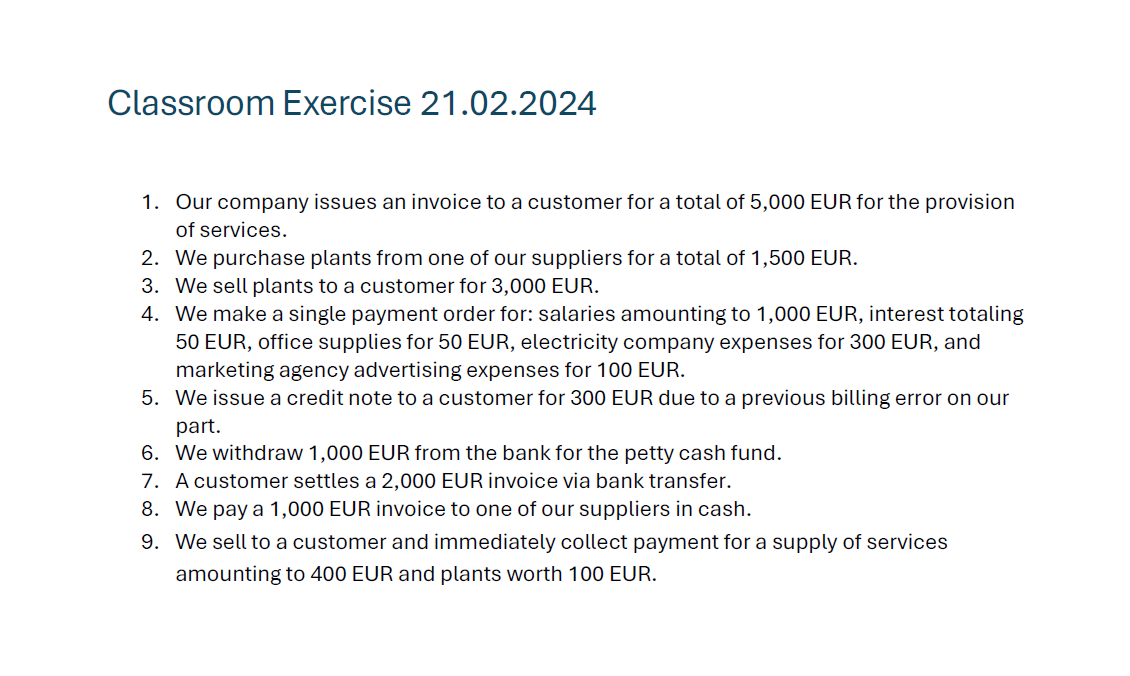
Teacher Solution File
The teacher creates a Banana Accounting file containing the double-entry records for each exercise.
- In the Transaction Table the teacher enters the transactions corresponding to each exercise.
- The solution has multiple lines.
- Each transaction must include the exercise number in the Doc column which can be numeric or alphanumeric.
- The number should match the one in the assignment file or in the related document (such as an invoice, receipt, or other supporting document).
- If a transaction requires multiple lines, the same exercise number must be repeated on each line.
- The order of exercises in either the student’s file or the teacher’s file is not important.
- The sequence of accounting transactions across multiple lines does not affect the functioning of the correction or the calculation of scores.
Below is an image showing an example of the teacher’s solution file.
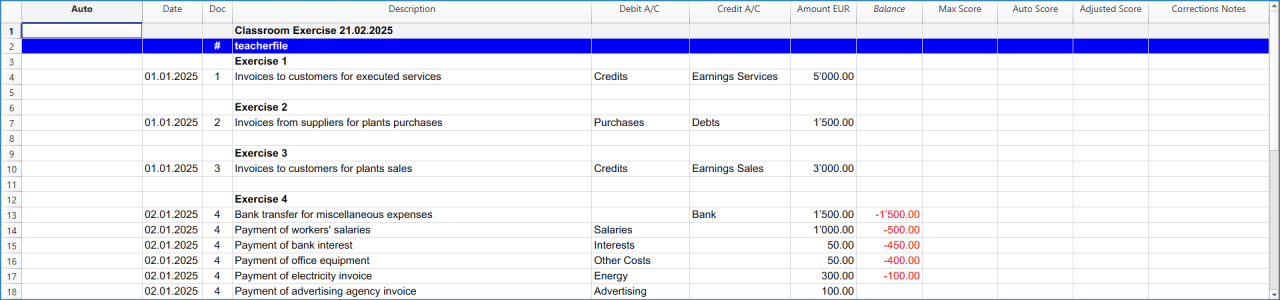
Auto Score Calculation
In collaboration with accounting teachers we are experimenting with automating the process of score calculation.
- Each row in the exercise is evaluated separately.
- If an exercise has multiple rows, each row receives its own score.
The settings in the teacher’s file are configured to assign partial points for each element of the accounting transaction, even when the transaction spans multiple lines. Specifically, points are awarded for each of the following correct entries:
- debit account
- credit account
- amount
- date
- VAT code
- currency amount
- currency
- exchange rate
Scores can be reduced down to zero if all columns are incorrect. Teachers can also customize the scoring system by adjusting the settings.
At the bottom of the student-result-file, the total score obtained by the student is displayed, along with the maximum possible score.
Correction of the Student's Files
We assume that:
- Each student has completed the exercise using Banana Accounting.
- Each student has created a file and submitted it to the teacher.
The correction process will add information directly to the student’s file. To preserve the original work, it is recommended to first make a copy of the file.
When the teacher runs the Correct command, the extension automatically adds the following information to the student’s file:
- Max Score: the maximum possible score that can be achieved.
- Auto Score (Calculated): the score automatically calculated by the extension.
- Adjusted Score (Teacher adjusted score): the score after the teacher’s review or manual adjustment.
- Corrections Notes: feedback showing which values were incorrect.
Correcting a Single Student File
- Open the student's accounting file.
- Click on the Extensions menu in Banana Accounting Plus.
- Click on Automatic Corrections for Accounting Exams and then, on the right, click on Correct the exercises.
- A window will appear asking you to select the Banana Accounting Plus file containing the exercise solutions. Once the solution file is selected, click Open.
- A preview window, similar to the one shown below, will open with the information that will be automatically added to the file. Click Ok button to confirm and view the results in the Transactions table.
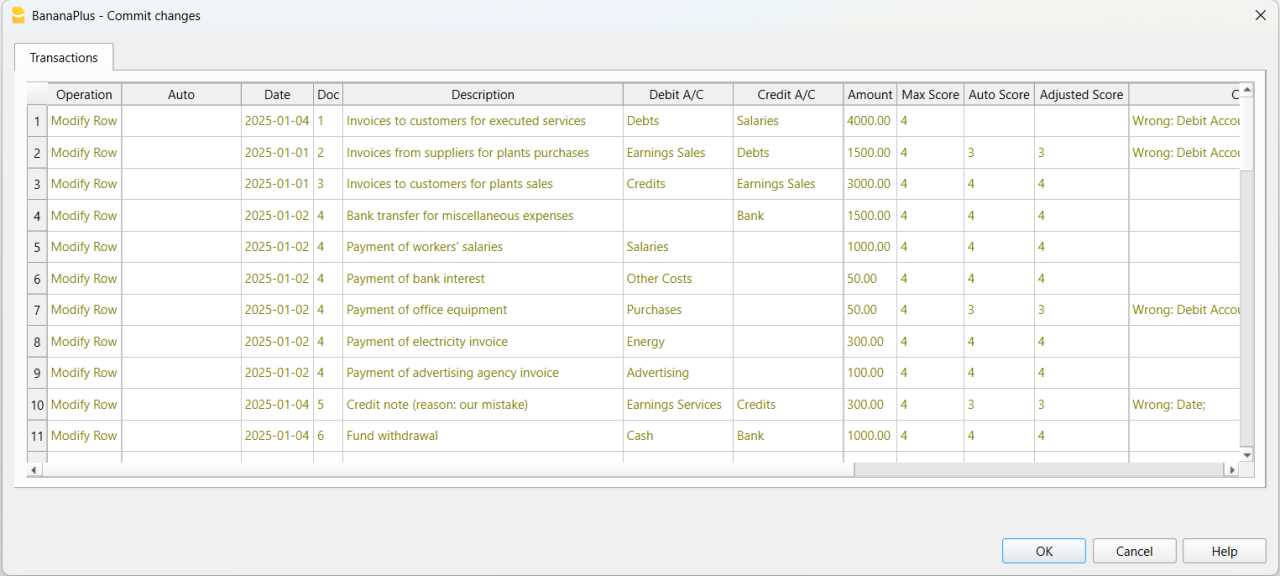
How to read the result
In the image below, the student’s accounting transactions are displayed alongside the teacher’s solutions for easier comparison:
- Teacher’s solutions – shown in bold, so teachers can quickly identify errors.
- Square brackets – placed before and after accounts from the teacher’s solution file, indicating transactions that do not affect the balance sheet or income statement in the Accounts table.
- Highlighted rows – red rows mark errors, while green rows indicate correct entries.
- Max Score column – shows the maximum possible points for each exercise, based on the teacher’s settings (e.g., Date, Debit Account, Credit Account, Amount, etc.).
- Auto Score column – displays the automatically calculated score. Each incorrect entry (such as a wrong debit account, credit account, amount, or date) deducts points from the Max Score.
- Adjusted Score column – initially copied from the Auto Score, but can be modified by the teacher if adjustments are needed.
- Corrections Notes column – provides details about which values were incorrect.
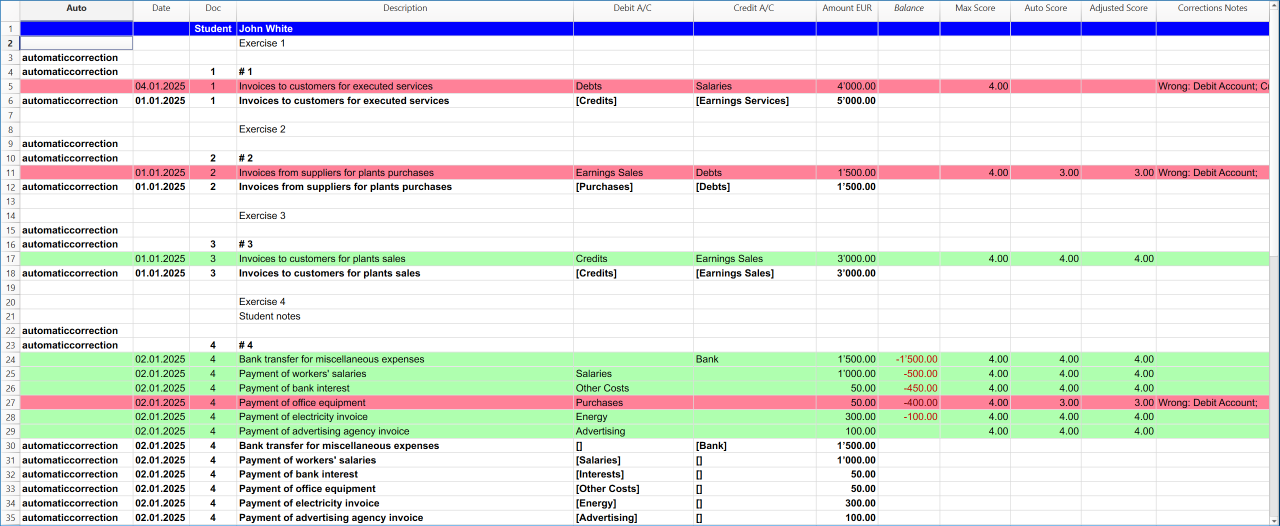
Resources for testing the extension
To try out the student accounting exercise correction extension, you can download the following pre-prepared templates:
- Exercise assignment file.
- Sample template for the student's exercise.
- Sample template for the teacher's solutions.
Resources to start using the extension
To begin using the Automatic Corrections for Accounting Exams extension, download these pre-prepared templates:
How to install the extension
Installing the extension is quick and will help you save time when correcting students’ exercises. Follow these steps:
- Click on the Extensions menu in Banana Accounting Plus.
- Click on Manage Extensions...
- In the window that opens, search by typing the term "automatic corrections" in the empty text field at the top left of the window.
- Click on Automatic Corrections for Accounting Exams in the middle of the window.
- In the right column of the window, click the Install button.
Easily Share Educational Content with Students
Schools and teachers can now share accounting materials created in Banana directly within the Banana Accounting Plus software.
This makes it simple and fast to adopt Banana files for use in both classroom teaching and individual learning in business accounting.
For more information and resources, visit the Banana Accounting Plus Community pages.
Adapt an existing template for automatic exercise corrections
[This extension and this documentation is in development and is not in its final form]
The Automatic Corrections for Accounting Exams extension can adapt existing files or use the chart of accounts templates available directly in Banana Accounting+. This makes them suitable for training purposes as well as for exercises and exams in double-entry accounting.
- Create or open a double-entry accounting file.
- From the Banana menu, click on Extensions.
- Click on Automatic Corrections for Accounting Exams.
- Click on File Preparation.
- The extension asks you to prepare either a teacher file or a student file.
- Choose the file type you want to prepare and click the Ok button.

- Click the OK button in the window that appears. The modifications shown in the image below will then be applied to the file.
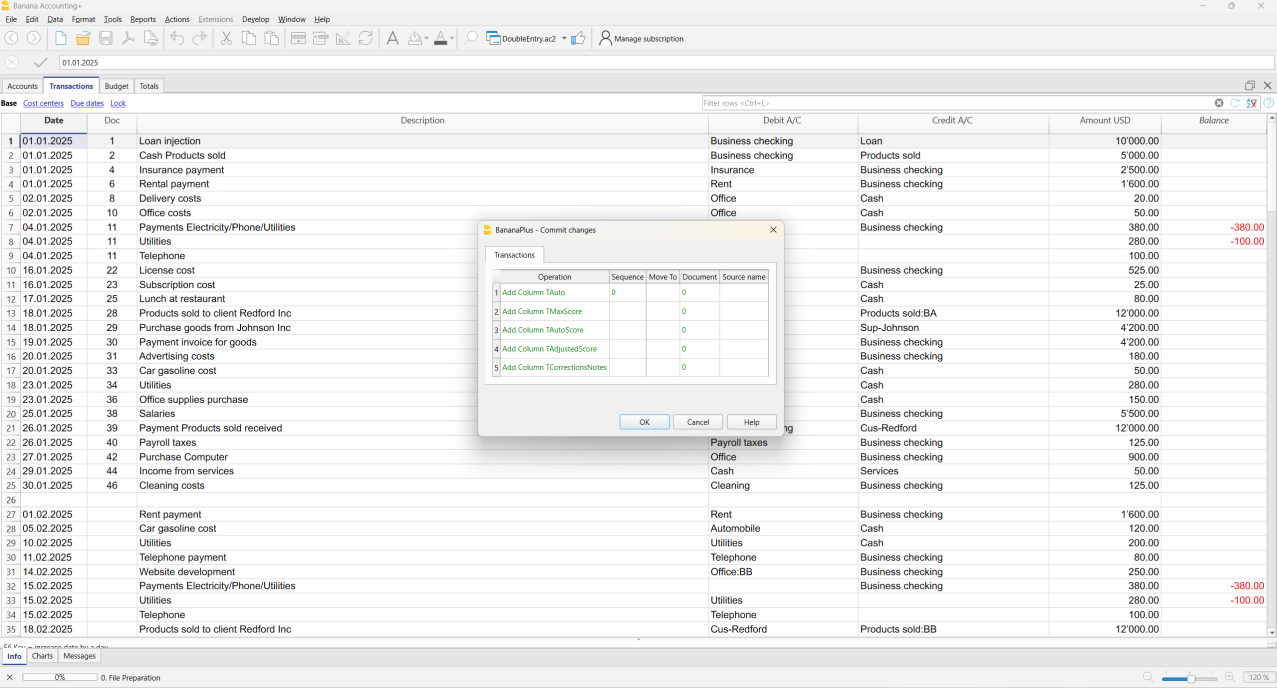
The extension will automatically add the necessary columns to the file, while preserving your existing transactions.
If the required columns are already present, they will not be added again. If the file is already prepared, this function will make no changes.
If your file is already ready to be used this function will not make any modifications.
The following columns are added:
- Auto (the first column on the left).
- Max Score.
- Auto Score.
- Adjusted Score.
- Corrections Notes.
This feature is available only for double-entry accounting templates.
Instructions Added for the Teacher’s File
- A hash symbol (#) is inserted in the Doc column of the Transactions Table.
- The key teacherfile is added in the Description column (without quotation marks and written entirely in lowercase).
Instructions Added for the Student’s File
- The word Student is added in the Doc column (without quotation marks and with the first letter capitalized).
Correct the exercises
[This extension and this documentation is in development and is not in its final form]
The automatic correction can be executed only on the student’s file:
- It is not available when run on the teacher’s file.
- It can only be performed if no previous automatic corrections have been applied to the student’s file.
- If a second correction is needed, the existing automatic corrections must first be removed using the Delete the corrections function.
Check the solution
This is the workflow for running an automatic correction with the extension:
- From the menu, select Actions > Recalculate Accounting. The program will notify you if there are issues within the file.
- Run the command Extensions > Automatic Corrections for Accounting Exams > Correct the Exercises.
- This command performs specific checks, such as verifying that account numbers and other data are correct.
- If a transaction contains an error, a message will appear in the Corrections Notes column.
- The Auto Score column will be updated with the calculated score.
- This command performs specific checks, such as verifying that account numbers and other data are correct.
Recalculate the total
[This extension and this documentation is in development and is not in its final form]
This functionality works only if automatic corrections have already been executed using Correct the exercises.
The Adjusted Score column allows the teacher to manually change the automatically calculated score whenever necessary. After making adjustments, the teacher can recalculate the total score for the entire exercise through the extension menu.
The last row, which displays the total score, will then be updated with the final adjusted score set by the teacher.
Delete the corrections
[This extension and this documentation is in development and is not in its final form]
This function removes the rows that were automatically added by the extension during the correction process.
The student’s original rows remain in the file, but any color highlighting, scores or error messages are removed.
In this way, the student’s file is restored to its original state.
The function can only be executed if an automatic correction has already been performed, and it applies exclusively to the student’s file.
Settings
[This extension and this documentation is in development and is not in its final form]
The settings allow you to decide whether to assign an automatic score and to define the points for each condition being verified.
All settings must be configured in the teacher’s file, and they will be applied automatically when grading the students’ files.
Available Settings in the teacher's file
The currently available settings and their descriptions are as follows:
- Point-based assessment: enables or disables the automatic scoring of student records.
- Points for correct date: awards points if the student’s date matches the teacher’s date.
- Set to zero if you do not want to grade this field.
- Points for correct debit account: assigns a score if the entered debit account is correct.
- Set to zero if you do not want to grade this field.
- Points for correct credit account: assigns a score if the entered credit account is correct.
- Set to zero if you do not want to grade this field.
- Separate debit and credit accounts : allows for separate scoring if the debit account and credit account are correct.
- If the checkbox is checked the score is assigned separately even if one of the debit or credit accounts is incorrect.
- If the checkbox is not selected, the score is zero when both the debit and credit accounts are incorrect, or when either one is incorrect.
- If the checkbox is not selected, points are awarded only when both the debit and credit accounts are correct.
- In this case the debit account score and credit account score are added together as the final score assigned to the student.
- Points for correct amount: assigns a score if the entered amount is correct.
- Set to zero if you do not want to grade this field.
- Points for VAT code: assigns a score if the entered VAT code is correct.
- Set to zero if you do not want to grade this field.
- The VAT code points are only considered for templates with VAT functionalities enabled.
- Points for currency amount: assigns a score if the entered currency amount is correct.
- Set to zero if you do not want to grade this field.
- The currency amount points are only considered for multi-currency templates.
- Points for currency: assigns a score if the entered currency is correct.
- Set to zero if you do not want to grade this field.
- The currency points are only considered for multi-currency templates.
- Points for exchange rate: assigns a score if the entered exchange rate is correct.
- Set to zero if you do not want to grade this field.
- The exchange rate points are only considered for multi-currency templates.
- Penalize the amount only if Debit and Credit are correct: assigns a score to the amount if the entered Debit and Credit Accounts are correct.
At the bottom, an image of the settings window in the teacher’s file illustrates how these options are configured.
Banana Investment Accounting Templates and Extensions
Banana Investment Accounting allows you to manage shares, bonds, funds, and other investments in multiple currencies directly within your accounting file. It combines double-entry Financial Accounting with the detailed tracking of individual investments, including quantities, prices, book values, and market values.
Investment transactions update both the accounting records and the related investment data, providing an integrated view of your investments and their impact on the Balance Sheet and Income Statement.
The Investment Accounting Extension adds specialized commands and reports for tasks such as calculating realized gains or losses, creating valuation adjustments, checking balances, and preparing investment reports.
Templates
Banana Accounting provides ready-to-use templates for managing securities and financial investments using double-entry accounting.
You can manage investments within your general accounting file or in a separate investment accounting file, depending on your needs.
Choose the approach that best suits your accounting structure:
Integrated Investment Accounting Templates
Manage your general accounting and investment portfolio in the same Banana Accounting file. This approach is suitable for businesses and individuals who want to maintain financial statements and detailed investment records together.
Separate Investment Accounting Templates
Manage securities and financial investments in a dedicated accounting file that operates independently of your general accounting.
This approach is particularly useful if you already use another accounting system or want to replace separate investment tracking spreadsheets.
Accounting Base Currency
All four templates use CHF (Swiss francs) as the default accounting base currency. You can change the base currency under File > File and accounting properties... in Banana Accounting, preferably before entering transactions.
For more information about the available accounting features, see the Investment Accounting documentation.
Integrated Investment Accounting
These templates allow you to manage securities and other investments directly within your financial accounting. Investment transactions, balances, income, and gains or losses are recorded in the same Banana Accounting file as your other financial activities.
Choose the template according to the currencies used for your investments:
- Double-Entry Accounting with Integrated Investment Accounting – Manage investments in the accounting base currency, with investment transactions recorded directly in double-entry accounting.
- Double-Entry Multi-Currency Accounting with Integrated Investment Accounting – Manage investments denominated in different currencies, including exchange rate differences, within the same multi-currency accounting file.
Both templates use CHF as the default accounting base currency.
Documentation
For more information about managing investments within your general accounting file, see the Investment Accounting documentation.
For instructions on setting up investment accounting and recording transactions, see How to Start.
Double-Entry Accounting with Integrated Investment Accounting
Neste artigo
Double-Entry Accounting with Integrated Investment Accounting
Double-Entry Accounting with Integrated Investment Accounting
This predefined template provides a ready-to-use example of double-entry accounting with integrated Investment Accounting for high-net-worth individuals (HNWIs). All investments are managed in the accounting base currency, together with the main components of personal wealth, including cash and bank accounts, real estate, other personal assets, liabilities, income, and costs. Individual investments, such as shares, bonds, and funds, are managed through the Items table and the corresponding Investment Balance Sheet Accounts, providing a complete view of the individual's investments, financial position, and results.
Abrir na Banana WebApp
Abra a Banana Accounting Plus no seu navegador sem qualquer instalação. Personalize o modelo, introduza as transacções e guarde o ficheiro no seu computador.
Open template in WebAppTemplate documentation
The tutorial file provides a ready-to-use example of integrated Investment Accounting, where the company's financial accounting and the detailed management of investments are maintained in the same Banana Accounting file.
All investments are managed in the accounting base currency, making this template suitable for learning and applying the basic principles of Investment Accounting without the additional complexity of foreign currencies.
The file includes a complete accounting structure for recording both the company's general business activities and its investment transactions. Investment-specific information, such as quantities, prices, Book Values, and Market Values, is managed alongside the corresponding accounting entries.
The template uses CHF (Swiss francs) as its default accounting base currency and is suitable for portfolios managed in a single currency. You can change the base currency to suit your needs, preferably before entering transactions. For instructions, see Change the Base Currency.
For more information about managing investments in Banana Accounting, see the Investment Accounting documentation. For setup instructions, see How to Start.
Chart of Accounts
The chart of accounts provides a complete double-entry accounting structure for high-net-worth individuals (HNWIs), integrating Investment Accounting with the management of real estate properties, other personal assets, liabilities, income, and costs.
Balance Sheet Accounts
The Balance Sheet Accounts are organized into the following main categories:
- Cash and Equivalents, including cash, bank accounts, and withholding tax receivables
- Investments, with dedicated Investment Balance Sheet Accounts for securities and other financial investments
- Other Assets, including cars, pension assets, furniture and art, and receivables
- Real Estate Assets, with separate accounts for each owned property
- Debts, including other debts, loans, and mortgages
- Equity, including equity and the current year profit or loss.
This structure makes it possible to manage securities, real estate properties, and other personal assets and liabilities within the same accounting file.
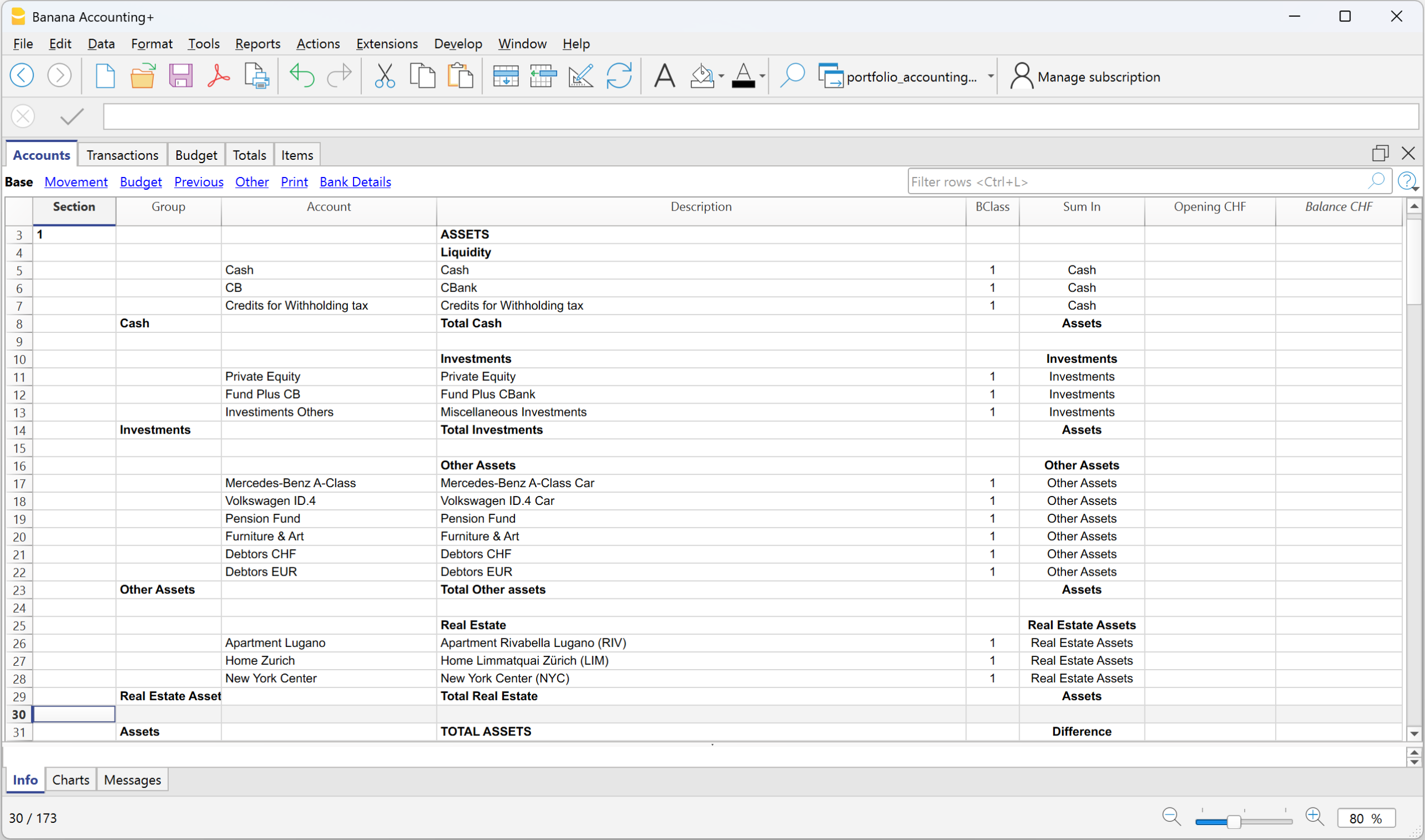
Profit & Loss Accounts
The Profit & Loss statement is structured to record both investment results and the other income and costs related to the individual's assets and personal finances.
Investment income and results include accounts for realized gains and losses on securities, foreign exchange results, unrealized investment and exchange rate adjustments, interest, dividends, and investment-related expenses.
The Profit & Loss statement also includes:
- Employment income, such as salary and bonuses;
- Depreciation, including depreciation of cars and furniture;
- Personal and asset-related costs, including cars, insurance, administration, legal fees, interest, taxes, health, and family costs;
- Real Estate Revenue and Costs, organized separately for each property, allowing rental and other income to be compared with utilities, insurance, maintenance, condominium fees, and other property-specific costs.
The structure therefore makes it possible to determine the overall financial result while also keeping investment results and the results of individual real estate properties clearly identifiable.
Because Investment Accounting is integrated into the financial accounting, purchases, sales, investment income and costs, realized gains and losses, and valuation adjustments are recorded directly in the same accounting file and are reflected in the corresponding Balance Sheet and Profit & Loss accounts.
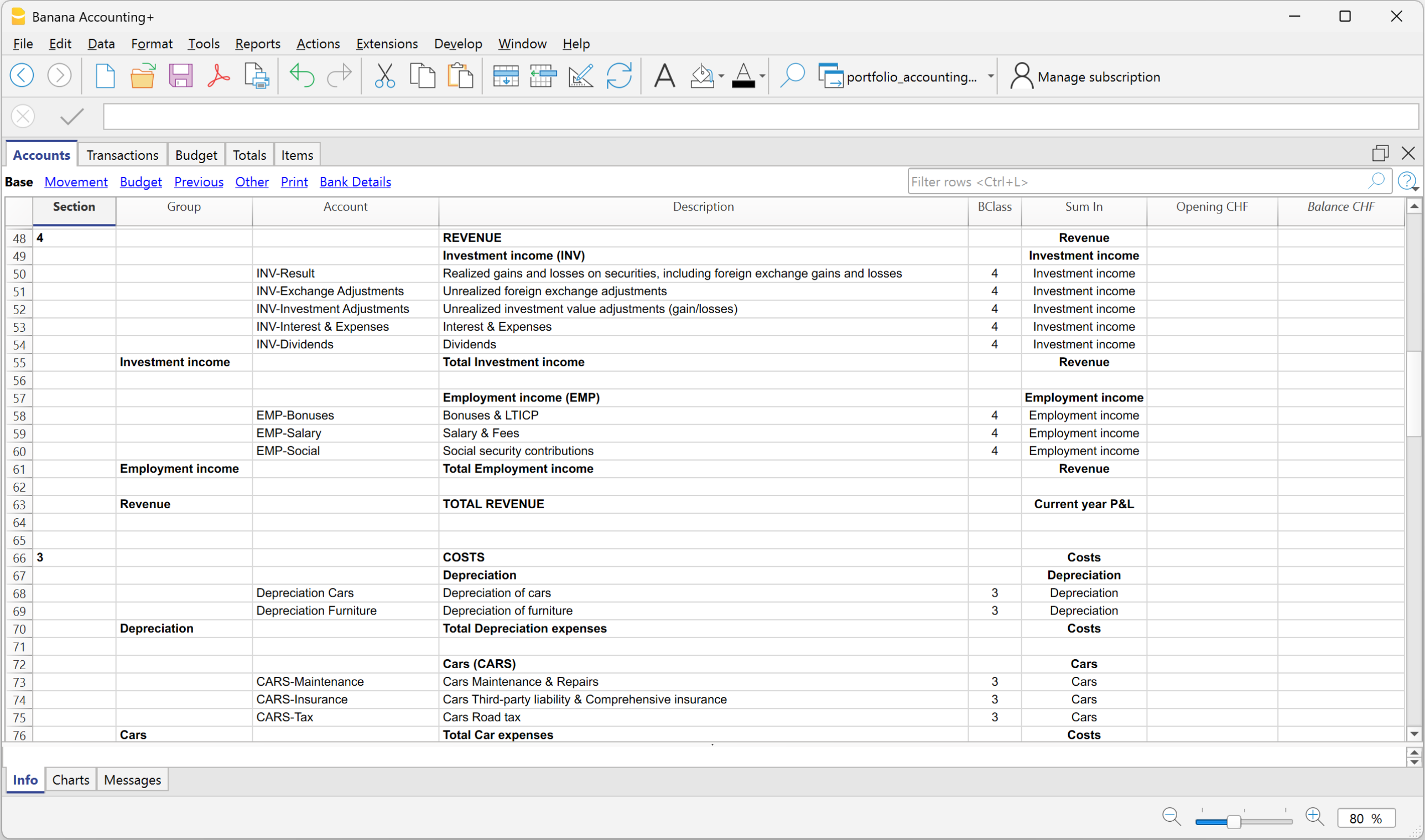
Managing Quantities, Prices, and Values
The details of individual investments are managed in the Items table. The tutorial file includes sample shares and bonds and shows how investment-specific information can be maintained alongside the financial accounting.
For each investment, the Items table contains information such as the Item identifier, description, Asset Account, Quantity, Unit Price, Book Value, Market Price, and Market Value.
For more information, see the Items page.
Transactions
Investment transactions are recorded directly in the same Transactions table used for the company's general accounting.
The tutorial file contains example transactions covering the main investment operations, such as purchases, sales, income, costs, realized gains and losses, and valuation adjustments.
Because the investment transactions are part of the double-entry accounting, their accounting effects are immediately reflected in the corresponding accounts and in the company's Balance Sheet and Profit & Loss statement.
For more information, see Investment Accounting Transactions.
Other Resources
Other Banana Accounting templates are available depending on how you want to manage your investments:
- Double-Entry Multi-Currency Accounting with Integrated Investment Accounting – for managing investments denominated in foreign currencies directly within multi-currency double-entry accounting.
- Multi-Currency Investment Accounting in a Separate File – for keeping detailed Investment Accounting multicurrency in a separate Banana Accounting file that can be used as an investment subledger for your general accounting.
Multi-Currency Double-Entry Personal Wealth Accounting for HNWIs
Neste artigo
Multi-Currency Double-Entry Personal Wealth Accounting for HNWIs
Multi-Currency Double-Entry Personal Wealth Accounting for HNWIs
This ready-to-use template combines multi-currency double-entry accounting with integrated Investment Accounting to provide a comprehensive view of personal and family wealth. It covers financial investments, bank accounts, real estate, other personal assets, liabilities, income and expenses. Applying the same structured accounting principles used by businesses, it enables High-Net-Worth Individuals (HNWIs) and their advisors to monitor their financial position, track income and expenses, and understand how net worth evolves over time.
Abrir na Banana WebApp
Abra a Banana Accounting Plus no seu navegador sem qualquer instalação. Personalize o modelo, introduza as transacções e guarde o ficheiro no seu computador.
Open template in WebApp Open tutorial in WebAppTemplate documentation
This ready-to-use template provides a comprehensive double-entry accounting framework for managing the personal wealth of High-Net-Worth Individuals (HNWIs), combining multi-currency accounting with integrated Investment Accounting.
The accounting structure covers the individual's entire wealth, including cash and bank accounts in multiple currencies, financial investments, real estate, vehicles, pension assets, furniture, art collections, receivables, loans, mortgages, and other liabilities.
The Profit & Loss accounts complement the balance sheet by tracking investment income and gains or losses, employment and other income, depreciation, taxes, personal and family expenses, as well as income and expenses related to individual real estate properties.
Just as businesses rely on financial statements to understand their financial position and performance, this template brings the same structured accounting approach to personal wealth management. It provides a comprehensive view of assets, liabilities, income and expenses, helping individuals and their advisors understand how net worth evolves over time.
The template uses CHF (Swiss francs) as its default accounting base currency and supports investments and transactions in other currencies, such as EUR and USD. You can change the base currency to suit your needs, preferably before entering transactions. For instructions, see Change the Base Currency.
For more information about managing securities and financial investments within the same accounting file, see the Investment Accounting documentation.
Chart of Accounts Structure and Customization
The Chart of Accounts uses a hierarchical grouping structure to organize accounts and automatically present subtotals and results at different levels of detail. This makes it easy to obtain both an overall financial overview and detailed information on specific assets, investments, and individual properties.
The Chart of Accounts is designed to be fully customizable. Additional accounts and groups can be created to reflect individual needs and the complexity of the wealth being managed.
For Family Offices managing multiple clients, the accounting structure can be tailored to each individual or family, ensuring that financial reporting reflects their specific assets, activities, and reporting requirements.
Balance Sheet Accounts
The Balance Sheet Accounts provide the accounting structure for managing the individual's assets, liabilities, and equity.
They are organized into the following main categories:
- Cash and Equivalents, including cash, bank accounts in different currencies, derivative positions, and withholding tax receivables;
- Investments, with dedicated Investment Balance Sheet Accounts for securities and other financial investments in different currencies;
- Other Assets, including cars, pension assets, furniture and art, and receivables;
- Real Estate Assets, with separate accounts for each owned property;
- Debts, including other debts, loans, and mortgages;
- Equity, including equity and the current year profit or loss.
For Investment Accounting, each security maintained in the Items table is linked through its Asset Account to the corresponding Investment Balance Sheet Account. This makes it possible to maintain detailed information for individual securities while keeping their accounting values fully integrated into the Balance Sheet.
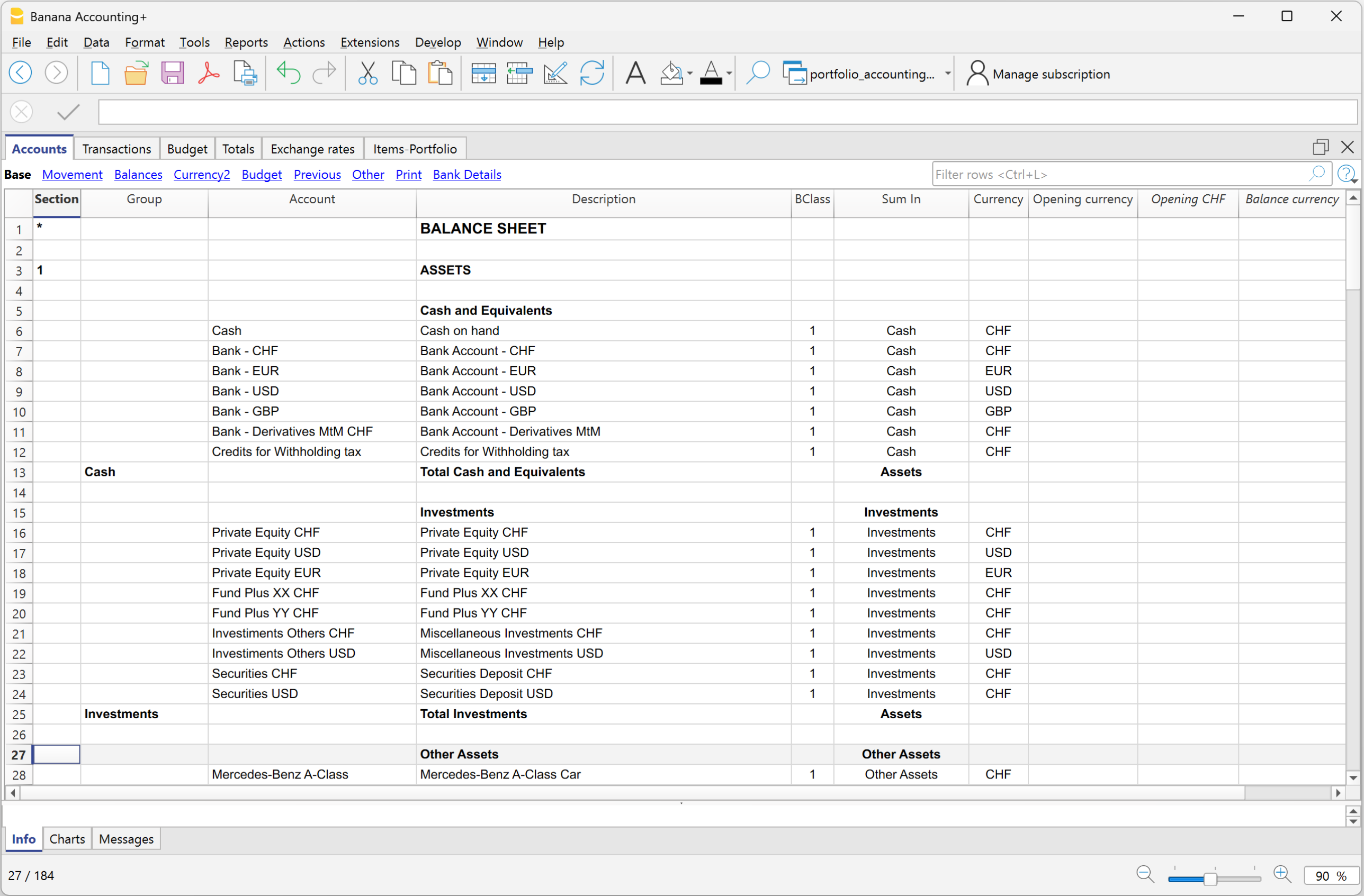
Profit & Loss Accounts
The Profit & Loss accounts are structured to record income, expenses, and financial results related to the individual's personal wealth, investments, and activities.
They include:
- Investment Income and Results.
Realized gains and losses on securities, foreign exchange gains and losses, unrealized investment and exchange rate adjustments, interest, dividends, and investment-related expenses. - Employment Income.
Salaries, fees, bonuses, and related social security contributions. - Depreciation.
Depreciation of vehicles, furniture, and other depreciable assets. - Personal and Asset-Related Expenses.
Vehicle expenses, insurance, administrative and legal fees, loan interest, taxes, healthcare, family expenses, and other personal costs. - Real Estate Income and Expenses.
Dedicated income and expense accounts are organized and grouped by individual property, covering rental income, other revenue, utilities, insurance, maintenance, condominium fees, and other property-related expenses. This structure makes it easy to monitor the income, expenses, and net result of each property.
This account structure provides a comprehensive overview of the individual's financial results while allowing investment performance and the profitability of individual real estate properties to be analyzed separately.
Account Naming Conventions
In this template, income and expense accounts related to specific investments are prefixed with a short code identifying the corresponding investment. For example, the prefix RIV identifies income and expenses associated with the Apartment Rivabella real estate investment.
This naming convention makes it easy to immediately identify which investment each account relates to, improving clarity and organization.
It is particularly useful when managing multiple investments, as it simplifies the tracking of income and expenses and the analysis of each investment's profitability.

Cost Centers and Segments
The template includes predefined Cost Centers (CC1, CC2, and CC3) and Segments, providing additional flexibility for tracking expenses and analyzing financial information.
Cost Centers are used to track income and expenses related to specific activities, such as trips, vehicles, or personal projects, independently of the main Chart of Accounts. They make it easy to monitor the total costs of each activity, even when expenses are recorded under different accounts.
Segments provide a more structured way to divide accounting information into separate reporting units. They can be used to generate Balance Sheets and Profit & Loss Statements by segment, making it possible to analyze the financial position and results of different activities or components of personal wealth.
Both Cost Centers and Segments can be customized and expanded to meet individual needs, allowing HNWIs, accountants, and Family Offices to adapt the accounting structure to their specific reporting requirements.
Items Table – Investment Portfolio
The Items table contains the list of securities and other financial investments, such as stocks, bonds, ETFs, and investment funds.
Each investment is identified by a unique code (such as an ISIN) and linked to its corresponding Balance Sheet account. The table tracks quantities, currencies, opening values, and current market prices, automatically calculating current quantities and market values.
Investments can be organized into customizable groups, making it easy to view subtotals by asset category.
Together with the Chart of Accounts and the Transactions table, the Items table provides an integrated view of the investment portfolio, combining detailed securities information with double-entry accounting and portfolio valuation.
Exchange Rates Table
The Exchange Rates table contains the currencies used in the accounting system and their exchange rates relative to the base currency.
It allows transactions, account balances, and investments denominated in different currencies to be managed and converted into the base currency.
Exchange rates can be updated to reflect current market values, enabling the calculation of exchange rate differences and the preparation of consolidated financial statements in the base currency.
The table supports both standard currency codes (such as CHF, EUR, and USD) and custom codes, including those used for cryptocurrencies and other digital assets.
Currencies, codes, and exchange rates can be freely customized, providing the flexibility to adapt the accounting system to different countries, currencies, and individual requirements.
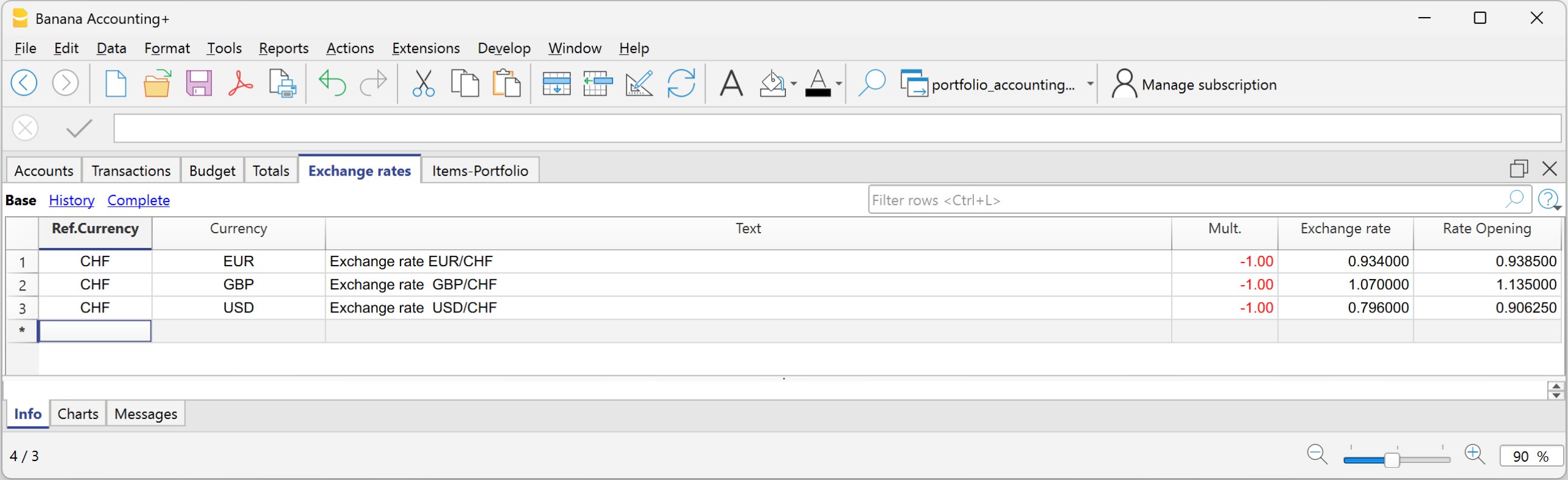
Other Resources
Other Banana Accounting templates are available depending on how you want to manage your personal accounting and investments:
- Double-Entry Accounting with Integrated Investment Accounting – for managing personal wealth and investments directly within double-entry accounting when securities are managed in the accounting base currency.
- Multi-Currency Investment Accounting in a Separate File – for keeping detailed multi-currency Investment Accounting in a separate Banana Accounting file that can be used as an investment subledger for your general accounting.
Separate Investment Accounting Templates (Subledger)
These templates allow you to manage securities and other financial investments in a separate Banana Accounting file, independently of your general accounting.
The separate file acts as an Investment subledger, maintaining detailed information about individual investments, transactions, quantities, prices, Book Values, and Market Values. The corresponding accounting balances and financial results can be recorded in your general accounting, even when it is maintained using other software.
Choose the template according to the currencies used for your investments:
- Double-Entry Investment Accounting in a Separate File – Manage investments in the accounting base currency using a separate double-entry accounting file. (Template coming soon.)
- Multi-Currency Investment Accounting in a Separate File – Manage investments denominated in different currencies, including exchange rate differences, in a separate accounting file.
Both templates use CHF as the default accounting base currency.
For more information about how separate investment accounting works, including investment transactions and reconciliation with your general accounting, see the Separate Investment Accounting (Subledger) documentation.
Double-Entry Accounting with Separate Investment Accounting
Neste artigo
Double-Entry Accounting with Separate Investment Accounting
Double-Entry Accounting with Separate Investment Accounting
Manage securities and financial investments in a separate Banana Accounting file using double-entry accounting. Track shares, bonds, funds, purchases, sales, dividends, interest, and investment gains and losses, independently of your general accounting.
Abrir na Banana WebApp
Abra a Banana Accounting Plus no seu navegador sem qualquer instalação. Personalize o modelo, introduza as transacções e guarde o ficheiro no seu computador.
Open template in WebApp Open tutorial in WebAppTemplate documentation
This ready-to-use template provides a comprehensive double-entry accounting framework for managing the personal wealth of High-Net-Worth Individuals (HNWIs), combining multi-currency accounting with integrated Investment Accounting.
The accounting structure covers the individual's entire wealth, including cash and bank accounts in multiple currencies, financial investments, real estate, vehicles, pension assets, furniture, art collections, receivables, loans, mortgages, and other liabilities.
The Profit & Loss accounts complement the balance sheet by tracking investment income and gains or losses, employment and other income, depreciation, taxes, personal and family expenses, as well as income and expenses related to individual real estate properties.
Just as businesses rely on financial statements to understand their financial position and performance, this template brings the same structured accounting approach to personal wealth management. It provides a comprehensive view of assets, liabilities, income, and expenses, helping individuals and their advisors monitor how net worth evolves over time.
The template uses CHF (Swiss francs) as its default accounting base currency and is suitable for portfolios managed in a single currency. You can change the base currency to suit your needs, preferably before entering transactions. For instructions, see Change the Base Currency.
For details on managing securities and financial investments within the same accounting file, see the:
Balance Sheet Accounts
The Balance Sheet Accounts are organized into the following main categories:
- Cash and Equivalents, including cash, bank accounts, and withholding tax receivables
- Investments, with dedicated Investment Balance Sheet Accounts for securities and other financial investments
- Equity, including equity and the current year profit or loss.
Profit & Loss Accounts
The Profit & Loss statement is structured to record both investment results and the other income and costs related to the individual's assets and personal finances.
Investment income and results include accounts for realized gains and losses on securities, foreign exchange results, unrealized investment and exchange rate adjustments, interest, dividends, and investment-related expenses.
The Profit & Loss statement also includes:
- Income and Costs, Investment-related costs and revenues
- Finaly Resultat, Investment profit or loss.
The structure therefore makes it possible to determine the overall financial result while also keeping investment results and the results of individual real estate properties clearly identifiable.
Because Investment Accounting is integrated into the financial accounting, purchases, sales, investment income and costs, realized gains and losses, and valuation adjustments are recorded directly in the same accounting file and are reflected in the corresponding Balance Sheet and Profit & Loss accounts.
Managing Quantities, Prices, and Values
The details of individual investments are managed in the Items table. The tutorial file includes sample shares and bonds and shows how investment-specific information can be maintained alongside the financial accounting.
For each investment, the Items table contains information such as the Item identifier, description, Asset Account, Quantity, Unit Price, Book Value, Market Price, and Market Value.
For more information, see the Items page.
Transactions
Investment transactions are recorded directly in the same Transactions table used for the company's general accounting.
The tutorial file contains example transactions covering the main investment operations, such as purchases, sales, income, costs, realized gains and losses, and valuation adjustments.
Because the investment transactions are part of the double-entry accounting, their accounting effects are immediately reflected in the corresponding accounts and in the company's Balance Sheet and Profit & Loss statement.
For more information, see Investment Accounting Transactions.
Other Resources
Other Banana Accounting templates are available depending on how you want to manage your investments:
- Double-Entry Multi-Currency Accounting with Integrated Investment Accounting – for managing investments denominated in foreign currencies directly within multi-currency double-entry accounting.
- Multi-Currency Investment Accounting in a Separate File – for keeping detailed Investment Accounting in a separate Banana Accounting file that can be used as an investment subledger for your general accounting.
- Double-Entry Accounting with Integrated Investment Accounting – Manage investments in the accounting base currency, with investment transactions recorded directly in double-entry accounting.
Multi-Currency Investment Accounting in a Separate File
Neste artigo
Multi-Currency Investment Accounting in a Separate File
Multi-Currency Investment Accounting in a Separate File
This predefined template provides a ready-to-use example for managing detailed Investment Accounting in a separate Banana Accounting file, which can be used as an investment subledger for your general accounting. It allows you to manage shares, bonds, and other investments in multiple currencies, keeping track of quantities, prices, Book Values, Market Values, realized and unrealized gains and losses, interest, dividends, and exchange rate differences. The template includes a predefined chart of accounts, an Items table, example transactions for the main investment operations, and an Exchange Rates table for managing investments in foreign currencies.
Abrir na Banana WebApp
Abra a Banana Accounting Plus no seu navegador sem qualquer instalação. Personalize o modelo, introduza as transacções e guarde o ficheiro no seu computador.
Open template in WebApp Open tutorial in WebAppTemplate documentation
With Banana Accounting, you can manage securities and financial investments in a separate accounting file, independently of your general accounting software.
This solution is particularly useful if you already use another accounting system or manage your investment portfolio with Excel spreadsheets. The separate file acts as an investment subledger, combining double-entry accounting with detailed portfolio management.
The Investment Accounting extension helps automate several operations, including calculating realized gains and losses on sales, creating adjustments for unrealized gains and losses, updating Market Prices, and calculating exchange rate differences for investments in foreign currencies.
The template uses CHF (Swiss francs) as its default accounting base currency and is suitable for portfolios managed in a single currency. You can change the base currency to suit your needs, preferably before entering transactions. For instructions, see Change the Base Currency.
For more information about how this solution works, see:
The Main Accounting File
In the general accounting file, you record all general accounting transactions, including the accounting values related to investments that are required for preparing the financial statements.
The Banana file can be used as an investment subledger: it maintains the details of individual investments and their related transactions, while in the general accounting you can record the required accounting values, including aggregated amounts by account or investment category.
Banana Investment Accounting File
In the Banana Investment Accounting file, you maintain all the details of individual investments, including quantities, prices, Book Values, Market Values, realized and unrealized gains and losses, as well as the related accounting transactions.
The file would replace the Excel files that you usually use to keep track of investments.
The following sections explain how the example file works and how to integrate the resulting accounting data into the general accounting.
Chart of Accounts
The chart of accounts in the example file is intentionally concise and has been created specifically for Investment Accounting and for using the functions provided by the Investment Accounting extension.
The Accounts table contains only the accounts required to record Investment Accounting transactions and obtain the related Balance Sheet and Profit & Loss statement values.
Balance Sheet
Asset Accounts
The Balance Sheet mainly includes bank accounts, investment accounts, and the withholding tax receivable account required for managing investments.
The example file includes separate accounts by currency to properly manage investments and their related multi-currency transactions.
The bank accounts in the Banana Investment Accounting file are technical accounts used as counterpart accounts for recording cash flows related to investments. Their balances do not necessarily correspond to the balances of the bank accounts in the general accounting, where the cash flows of the entire business are recorded.
Liability and Equity Accounts
These include Equity and the Current Year Profit or Loss required to complete the accounting structure of the file.
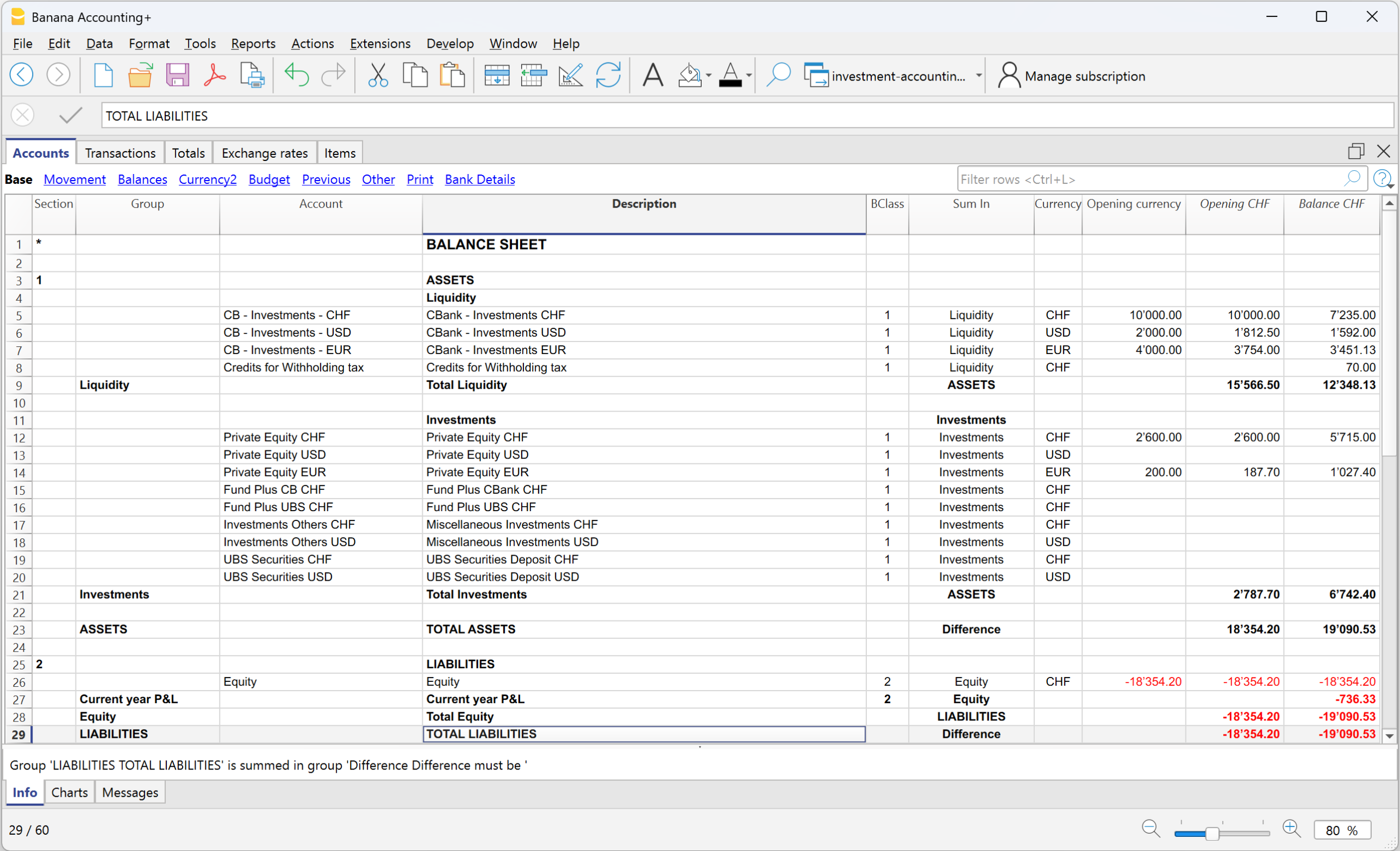
Profit & Loss Accounts
The Profit & Loss statement contains only the accounts required to record the income and expenses arising from investment transactions, such as interest, dividends, commissions and fees, realized gains and losses, unrealized value adjustments, and exchange rate differences.
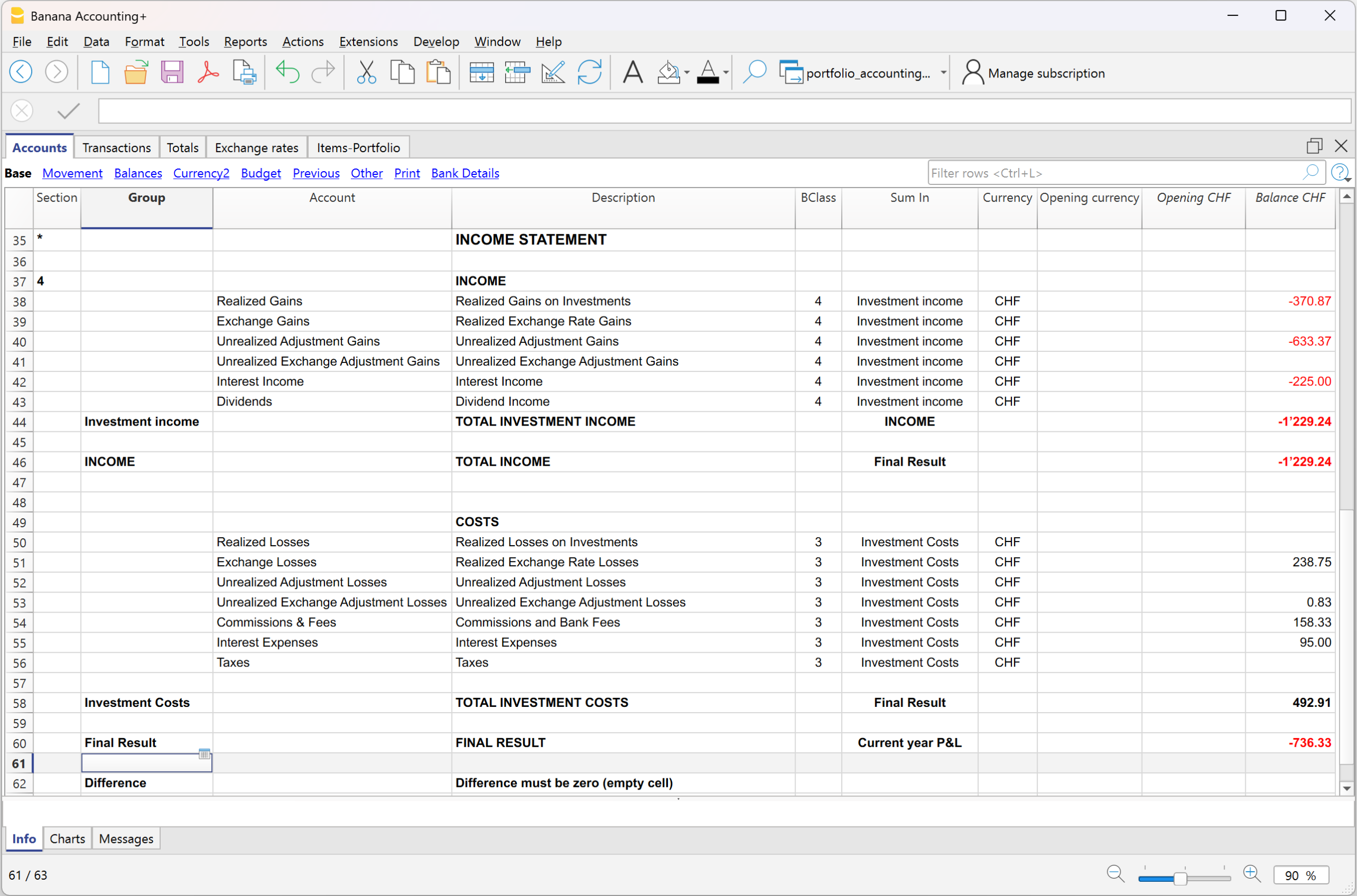
Opening Balances
The opening balances of the Investment Balance Sheet Accounts are entered in the Accounts table. For each Investment Balance Sheet Account, the opening balance in the Banana file must correspond to the sum of the opening values of the Items linked to the same Asset Account.
Opening balance of the Investment Balance Sheet Account in the Banana file = Sum of the opening values of the linked Items
When the corresponding Investment Balance Sheet Account is also present in the general accounting, the opening balance from the Banana file must be consistent with the opening balance of the corresponding account in the general accounting:
Opening balance of the Investment Balance Sheet Account in the Banana file = Opening balance of the corresponding Investment Balance Sheet Account in the general accounting
Items Table - Portfolio
The details of individual investments are managed in the Items table. For each investment, the table contains information such as the Item identifier, description, Asset Account, Quantity, Unit Price, Book Value, Market Price, and Market Value.
For more information, see the Table Items page.

Transactions
The example file contains transactions covering the main investment operations, including purchases, sales, dividends, interest, commissions and fees, realized gains and losses, value adjustments, and exchange rate differences.
The transactions contain both the standard double-entry accounting information and investment-specific information, such as Item, Quantity, and Unit Price.
For more information, see the Transactions page.
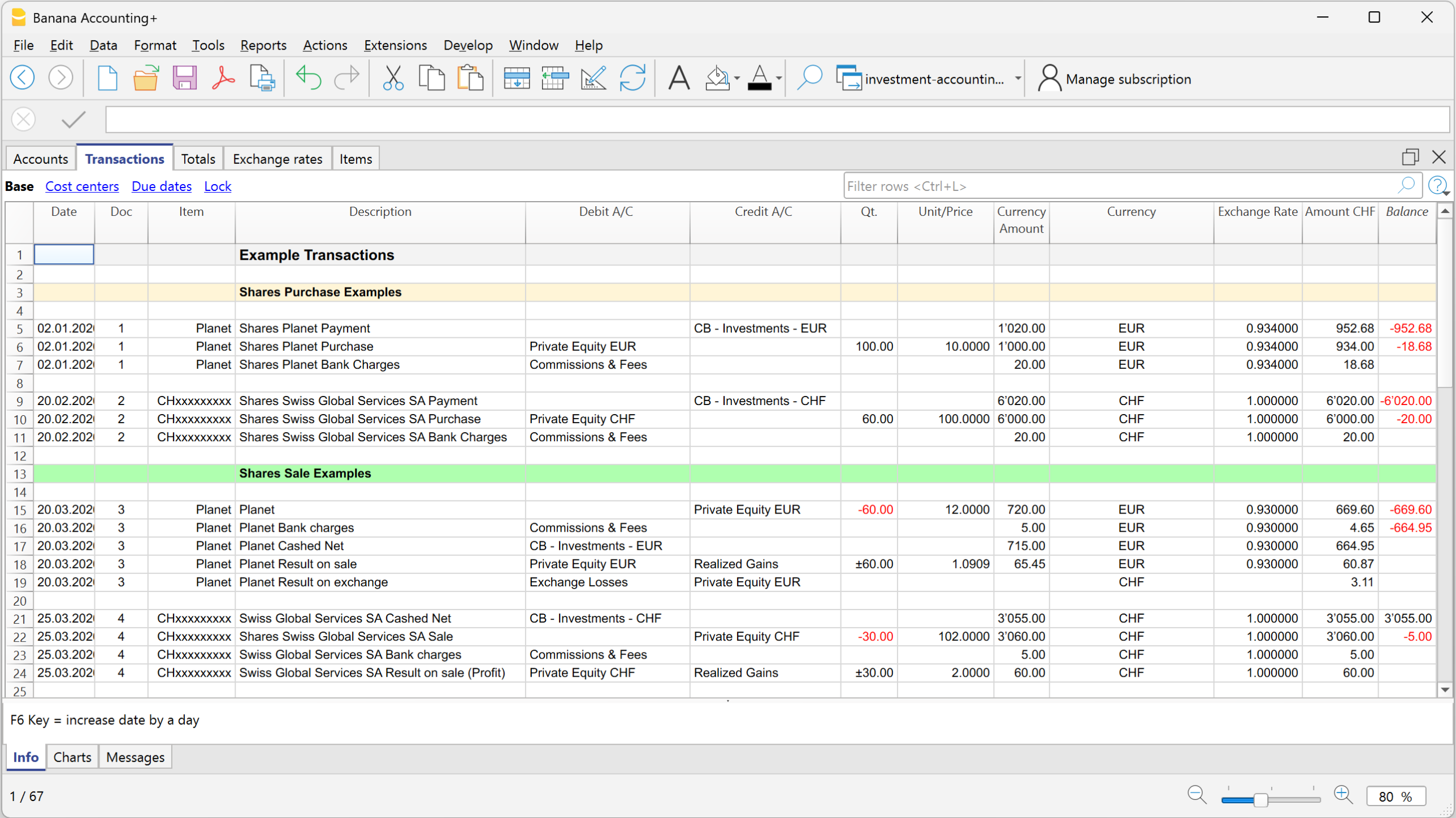
Updating and Reconciling the General Accounting
The Banana Investment Accounting file can be used as an investment subledger for your general accounting. It maintains the details of individual investments and their related transactions, while the required accounting values are recorded in the general accounting.
The transfer of these values is not automatic. You can update the general accounting in two main ways:
- Periodically, by keeping the detailed investment transactions in the Banana Investment Accounting file and transferring the required accounting values to the general accounting at regular intervals or when financial statements need to be prepared. This can be done, for example, at the end of a month, quarter, half-year, or year.
Important: When using periodic updates, it is not sufficient simply to record the difference between the opening and closing balance of an investment account. Purchases, sales, realized gains and losses, income, costs, and any applicable value or exchange rate adjustments must be transferred to the general accounting according to their accounting nature.
The values transferred to the general accounting can be recorded in aggregated form by investment account or category, provided that the required accounting information is maintained and the corresponding balances can be reconciled with the Banana Investment Accounting file.
- Transaction by transaction, by recording the corresponding accounting effects in the general accounting as the investment transactions are recorded in the Banana file.
After the required accounting values have been recorded in the general accounting, the Book Values resulting from the Banana file can be used to verify the corresponding investment account balances:
Book Value from the Banana file = Balance of the corresponding investment account in the general accounting
In this way, the Banana file maintains the detailed information for individual investments and their related transactions, while the general accounting contains the accounting values required for financial reporting.
Integrated Investment Accounting Templates
Other Resources
If you prefer to manage investments directly within your financial accounting instead of using a separate Investment Accounting file, you can use one of the following Banana Accounting templates with integrated Investment Accounting:
Investment Accounting Extension [BETA]
Neste artigo
Investment Accounting Extension [BETA]
Investment Accounting Extension [BETA]
The Investment Accounting Extension provides a wide range of commands and reports for investment accounting in Banana Accounting. It is designed to work seamlessly with files configured for investment accounting.

The extension enhances the core accounting functionality of Banana Accounting by adding specialized tools for Investment Accounting. It provides commands and reports for updating market prices, calculating realized gains and losses on sales, creating valuation adjustment transactions, checking balances, reconciling investment values with the corresponding Investment Balance Sheet Accounts, and preparing detailed investment reports.
For an introduction to the accounting concepts used in Banana Investment Accounting, see the Theoretical Introduction.
- Accounts settings
- Update market prices
- Calculate sales data
- Create adjustment transactions
- Check balances report
- Reconciliation report
- Security card report
- Evaluation of investments report
Requirements
- This extension requires the Advanced plan of Banana Accounting Plus.
- Record investment transactions in chronological order in the Transactions table. This is essential for extensions that calculate or use the book value, because the book value is updated progressively after each transaction in date order.
How to start
- Open Banana Accounting Plus
- Open an existing Investment Accounting file or create a new one using one of the available Investment Accounting templates.
- Choose Extensions > Manage Extensions and install the Investment Accounting extension.
Accounts settings
The Accounts Settings dialog allows you to specify the accounts used for different investment transactions, such as sales, valuation adjustments, and other investment-related entries.
These accounts are used by the Investment Accounting extension when it automatically calculates or creates accounting transactions, ensuring that the appropriate accounts are used for each type of operation.
You do not need to specify every account, only those required for your accounting setup. The accounts entered in the dialog must exist in the Accounts table. If an account does not exist, the program displays an error message when you try to confirm the settings.
Sections in the Dialog and Account Usage

The dialog is divided into three main sections.
Balance Accounts
This section contains the Balance Sheet accounts associated with investments and other investment-related balances.
- Assets
Contains the accounts used to record investment assets.
The first time you open the dialog, the program automatically fills this field with the Investment Balance Sheet Accounts specified in the Asset Account column of the Items table. - Liabilities
Contains the accounts used for investment-related liabilities, such as margin loans or other financial obligations.
Value Changing Accounts
This section contains the accounts used to record realized and unrealized gains and losses, exchange rate differences, and other adjustments affecting the value of investments.
- Realized Gain: Account for recording realized gains from investment sales.
- Realized Loss: Account for recording realized losses from investment sales.
- Unrealized Gain: Account for recording unrealized gains due to an increase in the market value of investments.
Used by the Create adjustment transactions command. - Unrealized Loss: Account for recording unrealized losses due to a decrease in the market value of investments.
Used by the Create adjustment transactions command. - Realized Exchange Rate Gain: Account for recording realized exchange rate gains arising from the sale of investments denominated in a foreign currency.
- Realized Exchange Rate Loss: Account for recording realized exchange rate losses arising from the sale of investments denominated in a foreign currency.
- Unrealized Exchange Rate Gain: Account for recording unrealized currency gains due to favorable exchange rate movements.
- Unrealized Exchange Rate Loss: Account for recording unrealized currency losses due to unfavorable exchange rate movements.
- Depreciations: Account for recording investment depreciation adjustments, if applicable.
- Other Value Changing Costs: Account for miscellaneous expenses affecting the value of investments.
- Other Value Changing Income: Account for miscellaneous income affecting the value of investments.
- Rounding Differences: Account for small discrepancies due to rounding or decimal precision differences.
Profit and Loss Accounts
This section contains the accounts used to record income and expenses related to investment activities.
- Charges: Account for general investment-related charges and fees.
- Commissions: Account for broker or bank commissions on investment transactions.
- Interest Earned: Account for interest income from bonds or other financial instruments.
- Interest Paid: Account for interest expenses related to investment loans or margin trading.
- Dividends Income: Account for dividend income received from investments.
- Other Income: Account for any additional investment-related income not classified elsewhere.
- Other Costs: Account for any additional investment-related costs not classified elsewhere.
Error Messages
- Account XXX not found in the Accounts table: The account entered does not exist in the Accounts table.
- Add the account to your Accounts table.
- Select the “Ignore warnings/errors” checkbox at the bottom of the dialog to ignore the error.
Update market prices
This command updates the current market prices of investments in the Items table. Market price data can be imported from a CSV file or from the clipboard.
Before applying the changes, Banana Accounting displays a preview in the Commit changes dialog. Once the changes are confirmed, the imported prices are entered in the Price Current column of the Items table.
Price Current Column
The Price Current column in the Items table contains the current market price used to calculate the current value of the investment.
You can update Price Current manually, by copying and pasting values into the Items table, or by using the Update market prices command to import prices for multiple investments.
When market prices are imported and the changes are confirmed, the command updates the Price Current column of the corresponding Items.
Prepare Current Market Price Data
Current market prices can be obtained from financial information providers and prepared in an Excel or CSV file for import.
For each investment, provide:
- the ISIN or other identifier used to identify the investment
- the corresponding current market price.
Make sure that the identifier used in the import data corresponds exactly to the identifier entered for the investment in the Items table.
File Format
The extension expects the data to be in the following two-column format, with ISIN and current market price separated by a semicolon (;):
US123456789;11.04873
IT000792468;10.98732
...
- First column: The ISIN or other investment identifier.
- Second column: The current market price, without thousands separators and using a period (".") as the decimal separator.
Import Procedure
You can import the data in two different ways.
Import *.csv File
- Choose Extensions > Investment accounting > Update market prices.
- Select the *.csv file.
- Review the changes in the Commit changes dialog and confirm them.
Import from Clipboard
- Choose Actions > Import to accounting and select the Import File option.
- Select the extension to be used, in this case 2. Update market prices.
- Open the Excel file, select the data, and copy it to the clipboard.
- In the import dialog, select Import data from clipboard.
- Click OK.
- Review the changes in the Commit changes dialog and confirm them.

Error Messages
- Unrecognised *.csv file format: The format of the *.csv file you are trying to import does not match the required format.
- Make sure that you selected the correct file.
- Check that the data follows the format described in the File Format section above.
- Items table not found: The Items table is not present in the accounting file.
- Add the Items table to the accounting file.
- Asset: XXX not found in the Items table: The identifier contained in the imported data does not correspond to an investment in the Items table.
- Check that the identifier is correct and corresponds to the one entered in the Items table.
- If the investment has not yet been defined, add it to the Items table before importing its market price.
Calculate sales data
The Calculate sales data dialog allows you to calculate the realized gain or loss resulting from the sale of an investment and, when required, create the related accounting transactions.
The dialog provides two main functions:
- Calculate the Sale Result – Click Calculate profit or loss to preview the realized gain or loss based on the data entered in the dialog or automatically retrieved from the accounting file. No accounting transactions are created. This function can also be used without starting from the sale transaction row in the Transactions table.
- Create the Sales Record – Click Create sales record to create the accounting transactions required to complete the sale recording. To use this function, start from the sale transaction row in the Transactions table that records the net proceeds from the investment sale.
Start from the Sale Transaction Row
When creating the sales record, the program needs to identify the transaction to be completed with the additional entries required to record the sale, such as charges, realized gains or losses, and exchange rate differences. Therefore, you must start from the transaction row that records the net proceeds from the investment sale.
If this row already includes:
- Item (security ID)
- Quantity
- Unit Price (Market Price)
- Exchange Rate (for multi-currency accounting)

The dialog retrieves this information automatically. Otherwise, you need to enter the missing information in the dialog.
The sale transaction row is the only row that must be entered manually. Once this row is available, the program can automatically create the additional entries required to complete the sale recording.
How to use the dialog
When you execute this command, a dialog titled Calculate book profit/loss on sale opens.

Enter or review the information required for the sale:
- Security Data:
- Id (ISIN): Select the security from the dropdown.
- Type: Displays whether the security is a Stock or a Bond.
- Quantity/Nominal Value: Enter the quantity or nominal value of the investment being sold.
- Current Price: Enter the price per unit at which the investment is being sold.
- Current Exchange Rate: For investments denominated in a foreign currency, enter the exchange rate applicable to the transaction.
- Bank Charges: Enter any bank charges related to the sale. If no amount is entered, the corresponding transaction is not created.
- Other Charges: Enter any additional costs related to the sale. If no amount is entered, the corresponding transaction is not created.
- Accrued Interests: For bonds, enter any accrued interest related to the sale. This field is enabled only for bonds.
- Results Preview: Once the required data is entered, click Calculate profit or loss to generate a preview showing:
- Actual Quantity: The quantity held before the sale.
- Book Value per Unit: The current book value per unit of the investment.
- Total Book Value: The book value of the investment quantity being sold.
- Total at Current Price: The value of the investment quantity being sold at the entered Current Price.
- Book Profit/Loss: The difference between the book value and the sale value.
- Exchange Rate Profit/Loss: For investments denominated in a foreign currency, the gain or loss resulting from exchange rate differences.
Amounts are displayed using the number of decimal places defined for the corresponding columns in the Transactions table.
When you enter an amount in the dialog, make sure to use the local number format (for example, “1'234.56” in Switzerland), as this is the format expected by the program.
Recording the Sale
Once you are satisfied with the preview, click Create sales record to create the accounting entries required to complete the sale recording. The program displays a confirmation dialog showing the entries to be added or modified, allowing you to review them before applying the changes.

- Upon confirmation, the program updates the accounting records with the new or modified entries.
- If the quantity is zero or the calculated profit/loss is zero, no transaction is created.
- The program adds a transaction identifier to the ExternalReference column of both the original sale row and any newly created rows. This prevents duplicate entries if the command is run multiple times on the same sale row.
- If the program detects an existing record for this sale, it will ask whether you want to overwrite it.
This procedure helps ensure that investment sales are correctly recorded while allowing you to review the accounting entries before they are applied.

In the example shown in the image, placeholder accounts are used. These are used when the corresponding accounts have not been defined in the Accounts Settings dialog.
The extension uses a neutral number (±123.00) in the Quantity column when recording the realized gain or loss. A neutral quantity does not change the quantity held but allows the amount of the realized gain or loss to be associated with the investment and its corresponding unit value to be shown in the Unit Price column. This is especially useful for investment funds and ETFs.
Error Messages
- Items table not found: The Items table is not present in the accounting file.
- Add the Items table to your file.
- Asset: XXX not foun: The selected Asset does not exist in the Items table.
- Asset: XXX without assigned Asset Account: No Asset Account has been assigned to this Asset in the Items table.
- Define an account in the Asset Account column for the Asset in the Items table.
- Asset: XXX without assigned type: No Asset Type has been defined for this Asset.
- The selected row does not contain the Asset ID: The selected row does not contain a valid Asset ID. To create the sales record, the selected row must contain the ID of an Asset defined in the Items table.
- The selected row does not contain a valid sale Quantity: The selected row does not contain a valid quantity for an investment sale. The sale quantity must be negative. Check that the quantity is preceded by a minus sign (-) and that you have selected a sale row rather than a purchase row.
- The selected row in the Transactions table is not correct: The selected row does not correspond to the investment sale row required to create the sales record.
- The selected row in the Transactions table is not valid: The selected row in the Transactions table is not a valid transaction row.
Create adjustment transactions
This command automatically creates adjustment transactions to align the book value of investments with their current market value and, for investments denominated in foreign currencies, with current exchange rates.
Specifically, it:
- Updates investment book values to reflect current market prices and exchange rates.
- Records unrealized gains and losses in the corresponding Profit & Loss accounts.
- Generates the necessary double-entry transactions to adjust investment values.
Once the generated transactions are recorded, the Balance Sheet and Profit & Loss statement reflect the updated investment values and the corresponding unrealized gains and losses.
Adjustment transactions can be created at any time during the year to obtain an up-to-date Balance Sheet and Profit & Loss statement.
The command must be executed no later than the end of the accounting year, before preparing the year-end financial statements and opening the new accounting year. For more information see also Investment Accounting Opening and Closing the Year.
Update Market Prices and Exchange Rates
Update Investment Prices
In the Items table, enter the current market price for each investment in the Price Current column.
You can:
- Enter the current prices manually, including only for the investments for which you want to create adjustment transactions.
- Use the Update Market Prices command to import and update current prices for multiple investments.
Set Current Exchange Rates
For investments denominated in a foreign currency, the current value in base currency is automatically calculated using the current exchange rate defined for the corresponding currency in the Exchange rates table.
The current exchange rate is the exchange rate entered without a specific date. For more information, see Items Table with Investments List.
Command: Create adjustment transactions
Adjustment Transactions Dialog
When you run the Create adjustment transactions command, a dialog asks you to enter the date to be used for the adjustment transactions. By default, the current date is suggested.
All adjustment transactions created by the command are recorded with the specified date.

Commit Changes Dialog
Before the adjustment transactions are recorded, the Commit changes dialog displays a preview of all the transactions that will be created, allowing you to review them before confirming the changes.

Adjustment Transactions
Adjustment transactions are generated and grouped by investment. If both a market price adjustment and an exchange rate adjustment are required for the same investment, the corresponding transactions are kept together.
Adjustment transactions are recorded using the Asset Account defined for the investment in the Items table, increasing or decreasing its book value. The offsetting entry is recorded in the corresponding gain or loss account.
If the following accounts are defined in the Accounts Settings dialog, the program uses them to record the adjustments:
- Unrealized Gain / Unrealized Loss for market price adjustments.
- Unrealized Exchange Rate Gain / Unrealized Exchange Rate Loss for exchange rate adjustments.
If the required accounts are not defined in the Accounts Settings dialog, the program inserts descriptive placeholder accounts in the generated transactions.

Once the adjustment transactions have been recorded, verify that the balances of the Asset Accounts match the current values of the corresponding investments in the Items table. For more information, see Create Adjustment Transactions.
In the following cases, no adjustment transactions are created:
- The book value already corresponds to the current market value and, for investments denominated in a foreign currency, the book exchange rate corresponds to the current exchange rate.
- The investment has a current quantity of zero.
- No current market price is defined for the investment.
Error Messages
- Items table not found: The Items table is not present in the accounting file.
- Add the Items table to your file.
- No Asset found in the Items table: The Items table does not contain any valid Assets.
- Add Assets to the Items table.
- A valid Asset must have an ID and an Asset Account.
- No Asset with current price found in the Items table: No Asset with a valid current price was found in the Items table.
- The carrying amounts are already aligned with the current market prices. No unrealized gains or losses have been generated: The book values of the investments are already aligned with their current market values and, where applicable, current exchange rates. No adjustment transactions are required.
Check balances report
The Check Balances report verifies that the values of individual investments are consistent with the balances of the Asset Accounts to which they are assigned.

This check is particularly useful at the beginning of a new accounting year to verify that:
- Opening and closing balances have been recorded correctly.
- The values of individual investments are consistent with the balances of their corresponding Asset Accounts.
Currently, the check is performed only for the current accounting year.
Why Use This Report?
The report helps you:
- Identify discrepancies between investment values and the balances of the corresponding Asset Accounts.
- Verify that investments and their assigned Asset Accounts remain consistent.
- Check the consistency of balances after year-end closing.
The report can be exported and saved at any time. For more information, see Printouts/preview.
Error Messages
- Items table not found: The Items table is not present in the accounting file.
- Add the Items table to your file.
- No Asset found in the Items table: The Items table does not contain any Asset.
- Add Assets to the Items table.
- A valid Asset must have an ID and an Asset Account.
- No Asset accounts found in the Items table: No Asset Accounts have been assigned to the Assets in the Items table.
- Define an Asset Account for each Asset using the Asset Account column. in the Items table.
Reconciliation report
The Reconciliation Report provides a detailed overview of the transactions recorded for investments and verifies that the balance of each Asset Account in the accounting records is consistent with the balance calculated from the transactions of the investments assigned to that account.
At the end of the report, a reconciliation summary shows the opening balance, the net change during the period, and the closing balance, allowing you to verify that the Asset Account balance matches the balance calculated from the corresponding investment transactions. Any differences are shown in the Differences fields, with the corresponding amounts highlighted in red.
Selection Dialog
Select the Asset Account(s) for which you want to generate the reconciliation report.

Report Structure
The structure of this report is similar to the Security Card report, as it lists the transactions for each investment assigned to the selected Asset Account.
For each selected Asset Account, a separate table is generated on a new page of the report.

Saving and Exporting the Report
The report can be exported and saved at any time. For more information, see Printouts/preview.
Error Messages
- Items table not found: The Items table is not present in the accounting file.
- Add the Items table to your file.
- No Asset found in the Items table: The Items table does not contain any Asset.
- Add Assets to the Items table.
- A valid Asset must have an ID and an Asset Account.
- No Asset accounts found in the Items table: No Asset Accounts have been assigned to the Assets in the Items table.
- Define an Asset account for each Asset in the Items table using the Asset Account column.
Security card report
The Security Card report provides a detailed overview of all transactions recorded for a specific investment. Its structure is similar to the Account Card, but the report is filtered by investment and also shows how the quantity held and the book value change after each transaction.
Selection Dialog
Select the investment for which you want to generate the Security Card report. By default, the dialog displays the list of investments defined in the Items table.
If the selected investment is not found in the Items table, an error message is displayed. Make sure that the investment is correctly defined in the table.

When you reopen the dialog, the investment selected the last time is displayed again.
Report structure
- Date: Transaction date.
- Doc: Transaction number.
- Description: Transaction description.
- Debit (item Currency): Debit amount in the item currency.
- Credit (item Currency): Credit amount in the item currency.
- Quantity:
- Purchased: No sign.
- Sold: With minus '-' sign.
- Neutral: With neutral number symbol: '±'.
- Unit Price (item Currency): purchase or sale (unit) price of the investment.
- Balance (item Currency): Balance amount in the item currency.
- Quantity Balance: Current quantity of securities.
- Book value per unit (item Currency): Current book value per unit of the investment.
- Debit (Base Currency): Debit amount in base currency.
- Credit (Base Currency): Credit amount in base currency.
- Balance (Base Currency): Balance amount in base currency.

Saving and Exporting the Report
The report can be exported and saved at any time. For more information, see Printouts/preview.
Error Messages
- Items table not found: The Items table is not present in the accounting file.
- Add the Items table to your file.
- Asset: XXX not found: The selected Asset has not been found in the Items table.
- No Asset found in the Items table: The Items table does not contain any Asset.
- Add Assets to the Items table.
- A valid Asset must have an ID and an Asset Account.
Evaluation of investments report
The report provides a comprehensive overview of your current investments. It is divided into two main sections:
- Appraisal Report: Offers a snapshot of your investments, comparing the book value of each investment with its current market value.
- Investment Accounting Transactions: Displays a detailed list of all transactions carried out for each investment.
Appraisal Report
The Appraisal Report helps you quickly assess the situation of your investments. It displays key information such as book value, current market value, and any unrealized gains or losses for each investment.
To obtain an up-to-date appraisal, enter the current market price for each investment in the Price Current column of the Items table.
- Type/Security: Name of the group or investment.
- ISIN: ISIN or other identification number of the investment.
- Currency: Currency in which the investment is denominated.
- Current quantity: Current quantity of the investment held.
- Book value per unit: Current book value per unit of the investment.
- Book value: Total book value of the investment.
- Market value per unit: Current market price per unit of the investment, as defined in the Price Current column of the Items table.
- Market value: Current market value of the investment.
- % of Port: Percentage of the total portfolio represented by the investment.
- Un.Gain or Loss: Unrealized gain or loss on the investment.
- % G/L: Ratio of the unrealized gain or loss to the market value.
Investment Accounting Transactions Report
The report summarises the accounting transactions recorded for each investment.

Saving and Exporting the Report
The report can be exported and saved at any time. For more information, see Printouts/preview.
Error Messages
- Items table not found: The Items table is not present in the accounting file.
- Add the Items table to your file.
- No Asset found in the Items table: The Items table does not contain any Asset.
- Add Assets to the Items table.
- A valid Asset must have an ID and an Asset Account.
Wertschriftengeschäfte buchen
Informationen zum Buchen von Wertschriftengeschäften finden Sie hier:
- Wertschriftenbuchungen (auf Englisch).
Manage your Trust Accounting with Banana
Banana Accounting allows you to manage all key aspects of a trust's accounting in one place: assets and investments, income and expenses, capital and reserves, beneficiary accounts and distributions, while keeping income and capital transactions clearly separated.
You always have an up-to-date balance sheet and income statement, and can customize the chart of accounts to reflect the specific structure and requirements of each trust.
Trust accounting records how a trustee manages money, investments and other assets held for the benefit of beneficiaries. Unlike ordinary business accounting, it requires a structure that distinguishes capital (principal) from income and clearly tracks distributions to beneficiaries. For example, a property held in a trust forms part of its capital, while the rent it generates is income; different beneficiaries may have different rights to each.
With Banana Accounting Plus, you can start from a dedicated template, customise the chart of accounts to suit the trust’s needs, and generate a balance sheet and income statement while keeping income and capital transactions clearly separated.
- Double-Entry Accounting for Trust
For managing a trust in a single currency, with a predefined chart of accounts covering assets, investments, income and expenses, capital and reserves, beneficiary accounts and distributions. - Multi-Currency Accounting for Trust
For trusts with bank accounts, investments or transactions in different currencies, combining the dedicated trust accounting structure with foreign-currency management.
Double-Entry Accounting for Trust
Neste artigo
Double-Entry Accounting for Trust
Double-Entry Accounting for Trust
Start easily and for free with a ready-to-use double-entry accounting template designed specifically for trust accounting. Manage the trust's assets and investments, income and expenses, capital and reserves, beneficiary accounts and distributions, while keeping income and capital transactions clearly separated. Get an up-to-date Balance Sheet and Income Statement and adapt the chart of accounts to the specific needs of your trust. Banana Accounting Plus works like Excel, but with built-in accounting intelligence that helps you work more efficiently and avoid accounting errors.
Abrir na Banana WebApp
Abra a Banana Accounting Plus no seu navegador sem qualquer instalação. Personalize o modelo, introduza as transacções e guarde o ficheiro no seu computador.
Open template in WebAppMulti-Currency Accounting for Trust
Neste artigo
Multi-Currency Accounting for Trust
Multi-Currency Accounting for Trust
Start easily and for free with a ready-to-use multi-currency double-entry accounting template designed specifically for trust accounting. Manage the trust's assets and investments, income and expenses, capital and reserves, beneficiary accounts and distributions in multiple currencies, while keeping income and capital transactions clearly separated. Manage bank accounts, investments and transactions in different currencies. Get an up-to-date Balance Sheet and Income Statement and adapt the chart of accounts to the specific needs of your trust. Banana Accounting Plus works like Excel, but with built-in accounting intelligence that helps you work more efficiently and avoid accounting errors.
Abrir na Banana WebApp
Abra a Banana Accounting Plus no seu navegador sem qualquer instalação. Personalize o modelo, introduza as transacções e guarde o ficheiro no seu computador.
Open template in WebAppManagement accounting and Cash Management
Banana Accounting Plus helps you monitor cash, understand your results and plan ahead, not just prepare for tax deadlines. Use it for your bookkeeping or alongside an existing accounting system to bring a practical management perspective to your finances.
Keep cash under control and plan ahead
Can you cover next month’s payments? Can you afford new equipment? Keep track of available funds and use the Budget table to plan expected receipts and payments. Explore different scenarios, such as a new investment or a quieter sales period, to see how they would affect your cash position and anticipate potential shortages.
Understand what drives your results
Which projects are profitable? Where are you spending more than expected? Analyze costs and revenues by project or cost center, compare actual figures with your budget and generate management reports for the period you need. Identify which activities contribute most to your results and where adjustments are needed.
For accounting professionals: offer more than compliance
Expand your service offering beyond audit and tax compliance with ongoing management accounting support. Use Banana to prepare cash-flow forecasts, review budgets and provide management reports tailored to each client. Help business owners understand their numbers, evaluate investments and address financial challenges, turning accounting data into practical advice and opportunities for regular client consultations.
Start with any Banana accounting template
All Banana accounting templates can be used for management accounting. Choose a ready-to-use template for your business, organization or personal finances, and adapt it to your needs. The templates provide a starting point: tailor the accounts and reports to the information that matters to you.
Explore the Banana templates and start for free.
Trial balance & Year end closings
Use Banana Accounting as a flexible software for trial balance and year-end closing, even when the client's day-to-day accounting is managed in another system or ERP.
For example, you can import accounting data from SAP or another ERP into Banana and perform adjustments and closing entries, as well as reclassify accounts and prepare financial statements in the required presentation format, in a more flexible and efficient environment.
With the Trial Balance extension of Banana Accounting, you can clearly separate the effect of closing transactions from the original accounting data. For each account, the report shows the unadjusted balance, adjustments, and adjusted balance side by side, making it easier to review the closing process and understand how each adjustment affects the final accounts.
Trial Balance for Year-End / Period-End Closing [BETA]
Neste artigo
Trial Balance for Year-End / Period-End Closing [BETA]
Trial Balance for Year-End / Period-End Closing [BETA]
The extension prints a trial balance that separates the effect of closing transactions from the rest of the accounting. For each account it shows the unadjusted balance, the adjustments and the adjusted balance side by side on the same row.
Prerequisites
To use this extension you must:
- download and install Banana Accounting Plus.
- use a double-entry accounting file.
Beta version
The extension is currently released as a beta version. This means that some details may change without prior notice.
Install the extension
To install the extension:
- Open Banana Accounting Plus.
- Menu Extensions > Manage Extensions
- Select Universal as country.
- Select Online > Productivity.
- From the extensions list select Trial balance with closing transactions analysis.
- Click Install to install the extension.
- Click Close to close the window.
Create the report
To creare the report:
- Open an accounting file.
- From the Extensions menu select Trial balance with closing transactions analysis.
- In Settings dialogue complete the options then click OK to create the report.
The texts of the settings dialog and column headers in the printout are fixed and are in the same language as the Banana file (defined from the menu File > File and accounting properties > Other > Current language). The languages that can be used are Italian, French, German and English.
The report always covers the whole accounting period of the file, from the opening date to the closing date set in the file properties.
On first use, the Doc codes field is empty: the codes must be entered because they depend on each accounting's conventions. If the report is run without them, a warning appears and the adjustment columns stay at zero.
Settings dialogue
Run the extension from the menu Extensions > Trial balance with closing transactions analysis.
The extension Settings dialogue will open. From here you can choose some parameters to print the report.
Transactions filter:
- Closing transactions indentification method
Choose one of the following methods to filter the closing transactions:- Codes in the Doc column
If closing transactions are identified by specific codes in the Doc column of the Transactions table, enter the code or multiple codes separated by ; (e.g. "CHIU" or "CHIU;ABC;XXX"). The Doc value must exactly match one of the specified codes (case-sensitive). - Text in the Description column
If closing transactions are identified by specific text in the Description column of the Transactions table, enter that text. - Custom JavaScript function
If you want to use a different method to identify closing transactions, you can use a custom JavaScript function. For example, the following function identifies closing transactions by searching for the text "Closing transaction" in the Notes column:
function(row) { var d = row.value("Notes"); return d ? d.indexOf("Closing transaction") >= 0 : false; }
- Codes in the Doc column
Report:
- Show closing transactions details
Adds at the end, for each account with closing transactions, the list of the individual transactions. - Split by BClass
Groups the accounts into Assets, Liabilities, Revenues and Expenses, with a header and a total for each section. - Show zero amounts (0.00)
When off, zero amounts are left empty (except in the grand total). - Show negative amounts in red
Shows negative amounts in red, as in Banana's tables. - Print cost centers and segments
Adds the cost center and segment sections, if the chart of accounts contains them. - Show columns
Select the columns to display in the report.- Account
The account number. - Description
The description of the account. - Opening
The opening balance of the account. - Unadjusted – Debit / Credit
The movements of the year without the closing transactions of the account. - Unadjusted – Balance
The balance before the closing transactions, opening included, of the account. - Adjustments – Debit / Credit
The movements of the closing transactions only of the account. - Adjustments – Movement
The total amount of the account's closing transactions (Debit − Credit). - Adjusted – Debit / Credit
The account's total movements for the year. - Adjusted – Balance
The account's final balance, after all transactions. - Var. % balance
The account's percentage change of the balance caused by the closing transactions. - Last posting date
The date of the last transaction on the account
- Account
Layout:
- Print in landscape orientation
Print the report in landscape orientation.
The report
The report starts with the title, the company header (defined in the file properties) and the accounting period. Then follow the main table, the optional cost center and segment sections and, if requested, the closing transactions details.
Main table
The table lists all accounts with a BClass, in the order Assets, Liabilities, Revenues and Expenses, and ends with the Grand total. The amounts are grouped into three blocks:
- Unadjusted
Movements and balance before closing transactions. - Adjustments
Movements of the closing transactions. - Adjusted
Total movements and final balance after the closing transactions.
For every account the following always holds:
Unadjusted balance + Adjustmenst movement = Adjusted balance
In a balanced accounting, the balances in the grand total are 0.00.
Percentage change
The Var. % balance column shows how much the closing transactions moved the balance, relative to the unadjusted balance in absolute value:
Var. % = (Adjusted balance - Unadjusted balance) / |Unadjusted balance| * 100
A positive value means a shift towards Debit, a negative one towards Credit, for any account type. n.m. (not meaningful) is shown instead of the number when the unadjusted balance is below 1.00 in absolute value or when the change exceeds ±1,000 %. If the account has no closing transactions, the cell stays empty.
Closing transactions details
With the option on, the end of the report contains a table for each account affected by closing transactions, with Date, Doc, Description, Contra account, Debit and Credit of each transaction and the total. It shows which transactions produced the movement reported in the main table.
Custom JavaScript function
The custom function lets you define rules that Doc codes or Description text cannot cover, for example by combining several columns. Banana calls it for each journal row of the account: if it returns true the row is a closing entry, otherwise it is not.
Writing rules:
- write the function on a single line and without a name after function;
- it receives row, the journal row, as argument; values are read with row.value("ColumnName");
- use the internal column names (XML names), not the visible headers;
- it must explicitly return true or false;
Example 1 - text in the Notes. Treats as closing transactions the rows whose Notes column contains YE:
function(row) { var n = row.value("Notes"); return n ? n.indexOf("YE") >= 0 : false; }
Example 2 – several conditions. Treats as closing transactions only the rows with Doc CHIU and Closing in the description:
function(row) { var d = row.value("Description"); return row.value("Doc") === "CHIU" && d ? d.indexOf("Closing") >= 0 : false; }
Warning messages
Warnings appear in Banana and the report is still generated, but without closing transactions.
- "Codes in the Doc column" method selected, but no code was entered. No entry was considered a closing entry.
- The codes field is empty or contains only ; and spaces.
- "Text in the Description column" method selected, but no text was entered. No entry was considered a closing entry.
- The text field is empty or contains only spaces.
- The custom function to identify closing entries is empty or invalid. No entry was considered a closing entry.
- The field is empty, contains a syntax error or does not define a function.
Forensic Accounting, Reconstruction, Auditing and Cleanup of Financial Records
Banana Accounting Software helps accounting professionals quickly rebuild, verify, reconcile, and reorganize financial records in a clear, reliable, and professionally structured environment. It combines the flexibility of a spreadsheet with the control of double-entry accounting, making complex cleanup, reconstruction, and audit work faster and more effective.
With its table-based structure, Banana Accounting greatly reduces the time needed to rebuild accounting records and makes it much easier to view the data. The powerful filtering tools let you quickly find information and categorize movements. It generates professional financial reports, including balance sheets, income statements, account cards, and detailed transaction listings. It also includes advanced features such as investment accounting, which are not available in standard ERP systems.
Use in Investigative Units
Banana Accounting is used with satisfaction by several Swiss investigative units for accounting reconstruction in the context of financial investigations.
A Precious Tool for Accounting Professionals
For many accounting professionals, Banana Accounting has become a very valuable tool that complements accounting systems and Excel. It allows them to take on complex and interesting assignments and make them economically worthwhile while ensuring full client satisfaction. The professionalism and efficiency demonstrated often become the starting point for consulting activities and other value added services that are highly appreciated and well paid.
This documentation introduces the principles of forensic accounting and the cleanup and reconstruction of financial records, and explains how Banana Accounting can be used to support these activities effectively.
Accounting Cleanup
Accounting cleanup refers to the systematic correction and reorganization of financial records that have become inaccurate, inconsistent, or incomplete during normal business operations. It is commonly required when a CPA takes over a new client, prepares year-end financial statements, or discovers discrepancies during routine review work.
Typical cleanup tasks include reconciling bank and credit card accounts, resolving unexplained balances, correcting misclassified transactions, rebuilding opening balances, clearing suspense or temporary accounts, and ensuring that receivables, payables, and tax liabilities are properly stated. In some cases, it may also involve partially reconstructing prior periods to restore continuity and accuracy.
The objective of accounting cleanup is to re-establish a coherent and internally consistent accounting structure that produces reliable financial statements. Unlike daily bookkeeping, cleanup work focuses on identifying accumulated errors and restoring confidence in the underlying data before further reporting, advisory, or tax activities can proceed.
Auditing of Accounting
The auditing process often requires checking the accounting data managed with the company’s accounting software. In many cases, the accounting software does not provide the tools needed for this work. As a result, auditors often export the data and rebuild the accounting situation in Excel.
A useful alternative is to import the chart of accounts and the transactions into Banana Accounting. The program is based on double entry accounting logic and rebuilds the accounting situation from the start. This makes it possible to verify that the results match correctly.
Once the data is in Banana Accounting, it becomes easier to perform additional checks, filter the information, and export the data to other formats.
Accounting Reconstruction
Accounting Reconstruction is the rapid and systematic restoration and analysis of financial information in cases of fraud, legal disputes, insolvency, data loss, or abrupt management changes, when reliable accounting records are missing, incomplete, or inconsistent. It may also be necessary to obtain more detailed information when the current system does not allow it, for example during an M&A due diligence process.
The primary objective is to swiftly rebuild a structured and verifiable accounting system from available source documents, including bank statements, invoices, contracts, and tax filings. By organizing transactions through the double-entry bookkeeping method, Backlog Accounting Reconstruction ensures internal data consistency, highlights discrepancies, and restores full operational control over financial records.
The final output is a clear, accurate, and legally defensible representation of the organization’s financial position—including the Balance Sheet, Income Statement, and detailed transaction ledgers—enabling informed decision-making in legal, financial, or operational contexts.
Emergency accounting is the rapid reconstruction and analysis of financial information in crisis situations, such as fraud, disputes, insolvency, data loss, or sudden management changes, when reliable accounting records are missing, incomplete, or inconsistent.
Forensic accounting
Forensic Accounting is the application of accounting and auditing techniques to legal, judicial, and investigative matters. The goal is to reconstruct the financial truth when data is missing, incomplete, manipulated, or suspicious. Financial investigations often analyze existing accounting records and require a solid understanding of accounting practices. They are usually conducted by experienced accountants, often with specific training.
The popularity of crime investigation series like CSI has led to associating the term "forensic" mainly with crimes such as fraud or money laundering. In reality, it also includes the collection of evidence and investigations in civil matters, such as shareholder or inheritance disputes, or in tax cases like overdue taxes.
Forensic accounting includes all investigative activities related to reconstructing financial situations, such as:
- Legal audits, assessments, financial consulting, damage quantification, and analysis.
- Bankruptcies, company liquidations, and financial restructurings.
- Disputes between partners, inheritance transfers, or checks during due diligence.
- M&A due diligence.
- Legal and tax compliance failures.
- Fraud, bankruptcy, or money laundering.
- Monitoring the use of funds, illegal expenses, and corruption.
- Lack of access to or problems with the original IT system.
Shortcomings of Pre-Existing Tools
Professional accountants and CPAs already rely on established tools such as ERP systems, accounting platforms, and spreadsheets. These solutions are highly effective for routine bookkeeping, compliance, payroll processing, and periodic reporting.
However, situations involving reconstruction, cleanup, data verification, due diligence, or other non-recurring operations present different requirements. These tasks are exploratory, corrective, and often temporary in nature. They require flexibility, transparency, and the ability to reorganize data without disrupting operational systems.
In these contexts, traditional tools may reveal structural limitations.
Shortcomings of ERP and Standard Accounting Systems
Enterprise accounting software and ERP systems are designed primarily for structured, ongoing operations. They are optimized for efficiency, internal control, and compliance within a stable workflow.
In reconstruction or cleanup scenarios, these characteristics can become constraints:
- Rigid process flows and approval structures.
- Complexity caused by the need to cover all requirements.
- Multiple integrated modules that do not communicate well with each other.
- Reduced transparency and control due to increased automation.
- Standardized charts of accounts and predefined reporting formats.
- Emphasis on periodic tax and regulatory reporting.
- Many constrains importing and reorganizing raw transactional data.
- Risk associated with modifying historical records in live systems.
- Difficulty testing alternative classifications or adjustments without affecting official books.
- Vendor lock-in, with the need to move to a more expensive version to access certain features.
Such systems are excellent for daily operations but are not specifically designed for investigative, corrective, or one-time analytical work.
Shortcomings of Excel
When faced with reconstruction or cleanup tasks, many professionals turn to Excel because it allows rapid data collection, filtering, and analysis. Spreadsheets are flexible and familiar, and they support quick experimentation.
However, Excel lacks the structural safeguards of accounting software:
- It requires careful management of formulas and links.
- It does not enforce double-entry accounting logic.
- It does not automatically ensure that debits and credits balance.
- Categorization is manual and not inherently based on accounting rules.
- Standard financial statements must be built manually.
- Errors can remain undetected in complex models.
Excel is a powerful analytical tool, but it was not designed to function as a controlled accounting system.
Banana Accounting for Reconstruction and Cleanup
Reconstruction, cleanup, and other non-recurring accounting tasks require a working environment that combines flexibility with accounting control. Banana Accounting provides a structured and independent space where financial data can be reorganized, verified, and recalculated without affecting the operational system.
Unlike ERP systems, it is not constrained by rigid workflows. Unlike spreadsheets, it enforces double-entry consistency automatically.
Banana Accounting allows professionals to:
- Work in a separate accounting file without modifying the client’s live system.
- Import and reorganize raw transactional data quickly.
- Use a fully customizable chart of accounts.
- Automatically ensure debit/credit balance and internal consistency.
- Detect discrepancies through built-in double-entry controls.
- Test reclassifications and adjustments safely.
- Instantly generate balance sheets, income statements, and detailed account cards.
- Present results in a clear and professionally recognized accounting format.
By combining spreadsheet flexibility with accounting discipline, Banana Accounting bridges the gap between rigid ERP systems and unstructured Excel files, making it particularly suited for reconstruction and cleanup work.
Similar to Excel
Banana Accounting is similar to Excel, does not require specific training, and offers great flexibility. It is therefore a very useful tool for reconstructing financial situations and managing accounting for forensic analysis.
- The accounting is a file that contains multiple tables.
- The tables are similar to Excel sheets: you can move freely, insert and select cells, copy and paste.
- You can create as many files as you want, each with its own settings.
- The file can be saved and moved wherever you want.
Local data management
Unlike other accounting software that operates only in the cloud, Banana Accounting allows you to choose where to save and store your accounting file. This way, you can keep your data locally without uploading it to cloud systems, avoiding the need for specific authorizations. Accounting records can be easily linked to digital supporting documents stored on your computer, allowing you to quickly and thoroughly check the reason for specific expenses during data analysis.
This feature can be especially useful in the preliminary analysis phase, not only for privacy reasons but also because it makes it easier to share information and reuse data in later stages.
Importing data
Banana Accounting is based on tables, so it is quite easy to import existing data, whether it concerns the chart of accounts, customers or suppliers, product or investment lists, VAT codes, or other information. For more information, please refer to the page:
- Importing data from other programs.
- Once you have imported the data you can complete it and modify.
- You can filter, select multiple cells, copy and paste, search and replace, and fix multiple rows almost instantly.
- You can undo and redo operations.
Ideal for various fields
Banana Accounting is not a specialized forensic analysis software, but it can be extremely helpful for professionals such as:
- Accountants and auditors.
- Family offices.
- Fiduciary, financial, and real estate management firms.
- Lawyers and law firms.
- Restructuring specialists.
- Court-appointed or party-appointed technical consultants.
- Inspectors or experts working within legal teams.
- Departments of large organizations.
Try Banana Accounting with the WebApp
If you want to see how easy it is to collect and categorize accounting data:
- See how to get started with double-entry accounting, including a short explanatory video.
- Try the Banana Accounting WebApp, which runs directly in your browser (no registration required):
it’s the fastest way to test, set up an accounting file, and start entering data.
These links launch the WebApp and open one of the universal templates, not tied to any specific country:
To manage accounting regularly and completely, we recommend using the desktop version of Banana Accounting (to download and install on your computer). The Free plan of Banana Accounting lets you create accounting files and use most features, with a saving limit of 70 transactions. It's the ideal way to get started and see if the tool fits your needs.
Our customer service is available for more information. Our specialists can also advise you on how to proceed with data recovery or other specific needs.
Use Banana Accounting for Reconstructing the Financial Situation
Below you’ll find an explanation of how to use Banana Accounting to reconstruct accounting records for forensic accounting activities.
Keep in mind that reconstruction can be done in two phases:
- Preliminary data collection and analysis to assess the situation.
- Data collection and analysis with more specific goals.
The financial reconstruction, whether preliminary or final, is generally structured as follows:
- Defining the objectives of the investigation.
- Collecting documents, bank statements, and other financial information.
- Re-entering transactions into an accounting system, completing and categorizing them.
- Verifying, evaluating, and analyzing the data.
- Presenting the financial information.
- Economic and legal evaluations, with preparation of reports.
Create accounting starting from a template
What makes Banana Accounting particularly suitable for forensic accounting is that it is a professional international accounting tool, not designed solely for corporate accounting. It is modular, so you can have double-entry accounting setups for foundations, associations, individuals, in different currencies and languages. For simpler situations, you can also use the income & expense method, which can still manage the balance sheet.
To start a new accounting file, use a predefined template for a specific purpose:
- Menu File > New.
A dialog will appear where you can choose a template by region and type of accounting. - Templates for specific regions.
These are set up according to national accounting standards.
The chart of accounts usually has numerical account IDs. - Universal templates.
These are for more general use. The account IDs are usually descriptive text.
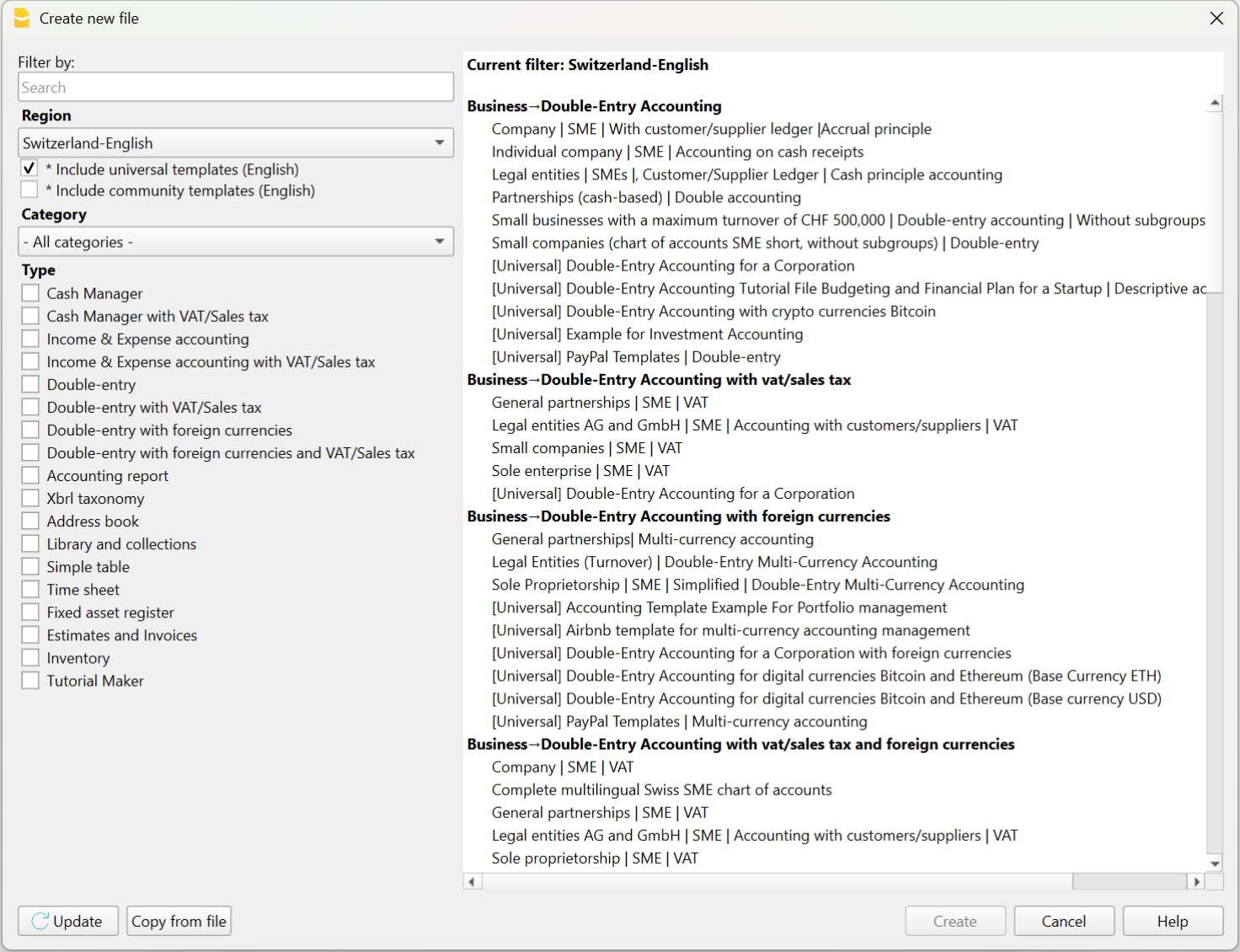
Chart of accounts and opening balances
After choosing the template that best suits your needs, you will need to customize the Accounts table by modifying, adding, or removing accounts. You can adjust the chart of accounts and grouping structure at any time.
You can create account plans with grouping structures that reflect those used in existing accounting systems managed with other software.
If you're reconstructing an accounting file, you will likely need to enter opening balances using the “Opening” column in the Accounts table.
Note that in Banana Accounting’s double-entry system, amounts are displayed according to the logic of accounting programs, so Debit amounts are positive and Credit amounts are negative. Opening balances in Credit must therefore be entered as negative values.
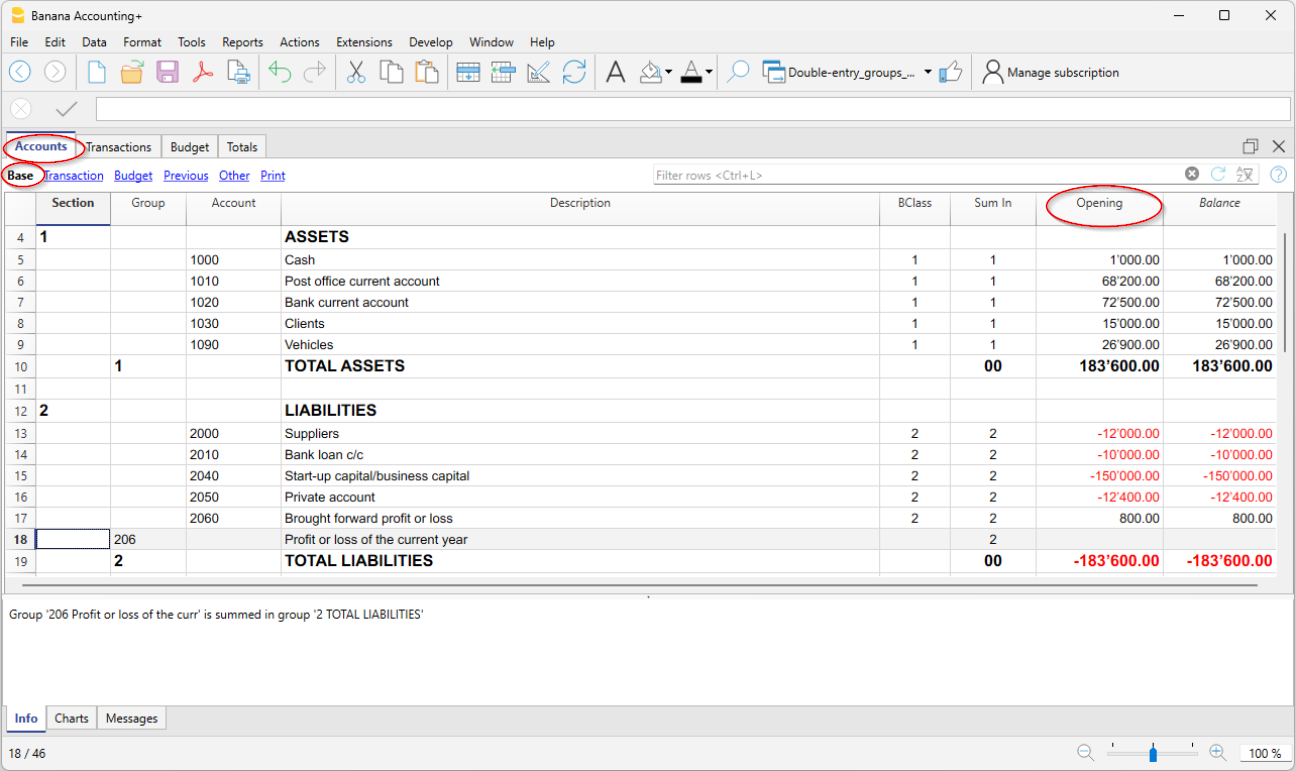
Entering and importing transactions
In the Transactions table you enter accounting transactions:
- You can enter and edit them manually.
- Entering and modifying data within the tables is very easy.
- You can copy and paste from Excel or other programs.
- In the Recurring Transactions table you can set up repeating entries.
- You can import data:
- You can import from CSV or other file formats.
- You can import digital bank statements.
- Several import extensions are available.
- You can create Import Rules that automatically complete the offset account and other elements.
- Modify and complete the transactions:
- When you enter or import transactions, the software will alert you to any errors or differences.
- You can apply rules for automatic completion.
- You can modify the transactions.
Banana Accounting was designed for small businesses, but in theory, there are no limits to the number of transactions or accounts you can manage. The software keeps all data in memory, so performance depends on your computer’s RAM and processor. Some clients successfully manage very large accounting files, with tens of thousands of accounts and hundreds of thousands of entries.
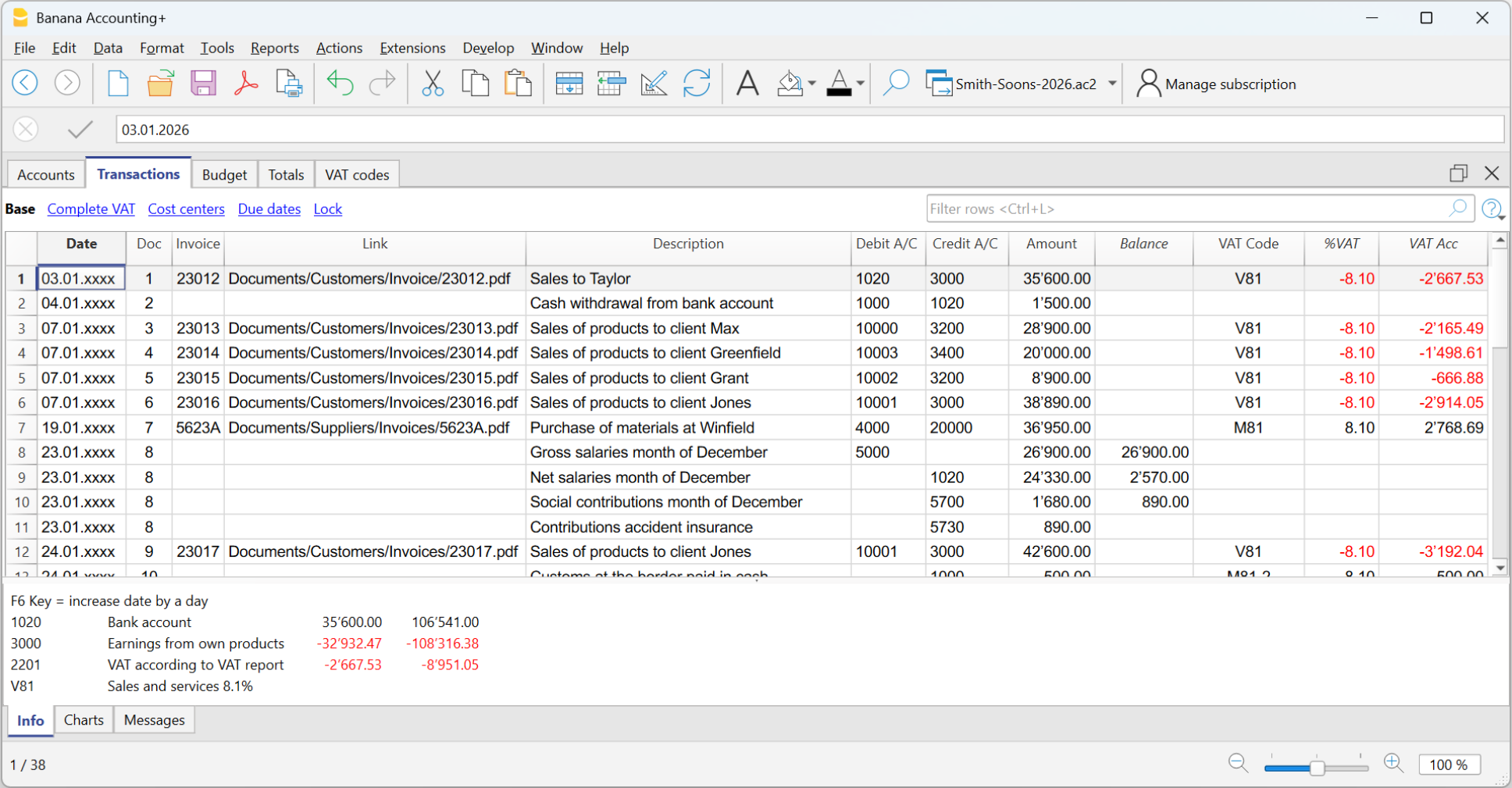
Automatic transaction categorization
Banana Accounting provides a deterministic rule system, configured by the accountant, to automatically categorize and complete transactions imported from bank statements. Thanks to these rules, you can quickly process large volumes of data. The applied rules are always visible in the Recurring Transactions table, where they can be printed and reviewed by auditors. Still, it is good practice to always check individual account statements.
There are many tools that digitize paper documents and, through artificial intelligence, extract information, analyze, and categorize content based on probabilistic logic. These tools can be very helpful and save time. However, it's important to note that categorization based on probabilistic logic is not a reliable source and always requires thorough verification.
AI-based tools often allow data export in CSV or Excel format, so you can easily import the data into Banana Accounting for manual review, corrections, and completion.

Review and add additional information
Once transactions are imported, you can review, edit, and complete them manually with the information you need:
- You can highlight and color rows, bold them, or change font size.
- Using the Data > Arrange Columns menu:
- You can show pre-configured columns (e.g. Notes, Links),
- You can add new types of columns.
- You can add links to supporting digital documents.
- You can use:
- Cost and profit centers – to categorize transactions in different ways.
- Segments – to divide activity by areas, branches, or other categories.

Error detection, reconciliation, and closing procedures
Banana Accounting provides built-in tools for identifying errors, performing reconciliations, and preparing adjusting entries and period-end closings. Thanks to the double-entry structure, inconsistencies are immediately visible, and the accounting check function systematically verifies the chart of accounts and all recorded transactions.
Bank and account reconciliations are simplified through clear account cards, transaction filtering, balance controls, and automatic calculation of differences. This makes it easier to detect missing entries, duplicated postings, or incorrect classifications.
The structured framework also supports the preparation of accruals, deferrals, provisions, and other adjusting entries required for accurate financial reporting. As a result, period-end closings can be completed efficiently and with a high level of reliability, even in complex reconstruction or investigative contexts.
Filtering and other useful features
There are many useful features that allow you to analyze and complete data quickly, including:
- The Balance column in the Transactions table indicates if there is an imbalance between Debit and Credit, due to account coding errors or unbalanced multi-account entries.
- The Temporary row filter function shows only the rows containing a specific text. There is also advanced syntax available for more powerful searches.
When the filter is active, you can edit transaction content, select, copy, and paste cells just like in Excel. - With Temporary row sorting, you can view rows in ascending or descending order based on a column. You can remove the temporary sort to return to the original order.
- Find and replace.
- The Copy rows command copies the selection with column headers. When you paste into Excel, the headers are already included so you can easily apply filters or create pivot tables.
- The Check accounting tool rechecks the chart of accounts and all entries and alerts you if there are errors or discrepancies.

Balance sheet and Account cards
The main advantage of Banana Accounting compared to Excel is that, once transactions are entered, you automatically get the Balance Sheet, the Income Statement, and the account cards for each account.
In the Accounts table, you have an immediate view of all accounts and groups, with updated movements and balances. This way you instantly see the current situation of your Balance Sheet and Income Statement. Of course, it’s essential to verify that bank balances match those in your accounting.

Additional accounting features
At any time, you can adapt your accounting setup and add or remove features. See:
Extensions
Banana Accounting, like Excel, provides a programming language that allows you to perform all kinds of processing.
It is commonly used to create custom reports, but it can also be used, for example, to create import extensions or modify existing data:
- Create extensions for Banana Accounting
- Information on importing data into Banana Accounting
- Information on exporting data from Banana Accounting
We have also created ChatGPT assistants to help you create extensions for generating reports. The extensions run locally in Banana, so you don’t need to send your data to the cloud AI assistant.
Analisi e revisione dei dati contabili
Banana Contabilità permette di analizzare e revisionare facilmente i dati contabili. L’impostazione a tabelle, simile a Excel, consente di visualizzare e ricercare con immediatezza tutte le informazioni. Inoltre, i dati sono strutturati secondo le regole della contabilità in partita doppia, quindi il programma esegue automaticamente una serie di controlli, segnala eventuali errori e mette a disposizione tutti gli strumenti e i report necessari per l’analisi contabile.
Comando Controlla contabilità
Quando si ricostruisce una contabilità capita spesso che non tutte le operazioni possano essere completate, vengano lasciate in sospeso e che magari si cambi anche in modo importante la struttura del piano dei conti.
Banana Contabilità mette però a disposizione il comando che permette di lavorare con la massima libertà e tranquillitaà.
Che azzera tutti i valori e ricalcola e ricontrolla il piano dei conti e tutte le operazioni come se si stessero inserendo manualmente. Se ci sono operazioni in sospeso, errori o differenze queste vengono nuovamente segnalate.
Filtra righe
È certamente una delle funzioni più utili nella ricostruzione contabile, poiché consente di ricercare e modificare rapidamente le operazioni di interesse.
Offre inoltre comandi di filtro avanzati, per esempio per visualizzare solo le righe colorate o le celle che contengono un testo specifico.
Un aspetto molto importante è che, anche quando si applica un filtro o un ordinamento temporaneo, è possibile continuare a utilizzare le funzioni di selezione e copia-incolla. Si possono, per esempio, cercare tutte le righe che contengono un determinato nome e sostituire il conto di tutte le righe in un’unica operazione.
Scheda conto
Il vantaggio principale di Banana Contabilità rispetto a Excel è che, una volta inserite le registrazioni, ottieni in automatico il Bilancio, il Conto Economico, le schede con i movimenti di ogni conto, principale o centro di costo o profitto.
L'estratto conto è ovviamente uno strumento insostituibile in contabilità, perché puoi vedere l'elenco di movimenti specifici che sono stati categorizzati in un preciso conto e quindi avere tutti i dettagli.
Bilanci e Conto economico
Nella tabella Conti hai una visione immediata di tutti i conti e i gruppi, con i movimenti e i saldi aggiornati. Così vedi a colpo d'occhio la situazione aggiornata del Bilancio e del Conto economico. Rimane naturalmente fondamentale verificare che i saldi bancari corrispondano a quelli registrati in contabilità.
Estensioni
Banana Contabilità, come Excel, mette a disposizione un linguaggio di programmazione che consente di effettuare elaborazioni di ogni genere.
Viene generalmente usato per creare dei report personalizzati, ma può anche essere usato ad esempio per creare estensioni di importazione o che modificano i dati esistenti:
- Creare estensioni per Banana Contabilità (in inglese)
- Informazioni per importare dati in Banana Contabilità (in inglese)
- Informazioni per esportare dati da Banana Cobtabilità (in inglese)
Abbiamo anche creato degli assistenti in ChatGPT che ti permettono di creare delle estensioni per generare report. Le estensioni vengono poi eseguite localmente da Banana, pertanto non si devono inviare i dati all’Assistente AI cloud.
Ricostruzione della situazione contabile e finanziaria
Questa pagina introduce alle particolarità dell'attività di ricostruzione contabile finanziaria, dette anche di Forensic Accounting, che pur avendo molte similirità con la tenuta contabile abituale, presenta molte diversità,.
Spiega i come usare al meglio Banana Contabilità in questo ambito e ottere velocemente i risultati desiderati.
Particolarità della ricostruzione contabile
L'attività di ricostruzione contabile è un progetto a se stante, che, da un punto di vista operativo, si differenzia dalla normale tenuta contabile:
- Ha degli obiettivi più specifici (non necessariamente strumento di controllo di gestione).
- Il lavoro viene svolto da un numero limitato di specialisti che ha generalmente accesso illimitato ai dati (situazione diversa rispetto a un ERP).
- Gli specialisti possono non avere o avere poche conoscenze circa l'attività da investigare.
- L'attività viene svolta in un periodo di tempo definito e non ha carattere ricorrente.
- Si ha la possibilità e necessità di elaborare tutti i dati in blocco.
- I dati da trattare non sono stati necessariamente predisposti per servire allo scopo e devono quindi essere rielaborati.
Queste particolarità aiutano a comprendere perché non tutti i software di contabilità, e in particolare gli ERP, siano adatti.
Banana Contabilità, invece, grazie alla sua flessibilità e modularità, è un software ideale per le ricostruzioni contabili e finanziarie di qualsiasi genere.
Fasi per la ricostruzione della situazione finanziaria
La ricostruzione finanziari e generalmente strutturata in più fasi:
- Definizione degli obiettivi dell’indagine.
- Raccolta documenti, estratti conti bancari e altre informazioni finanziarie.
- Ripresa dei movimenti in un sistema contabile, completamento e categorizzazione.
- Verifica, valutazione e analisi dei dati.
- Presentazione delle informazioni economico finanziarie.
- Valutazioni economico e legali, con preparazione dei rapporti.
Durante la fase di verifica e valutazione dei dati, può rilevarsi un'insufficienza di elementi e la necessità di raccogliere ulteriori dati e informazioni.
Organizzare i dati del progetto
La ricostruzione contabile consiste principalmente nel categorizzare i movimenti finanziari relativi a una determinata attività, con l’obiettivo di accertare la provenienza dei fondi o il modo in cui sono stati utilizzati. Si tratta quindi di esaminare documenti che testimoniano i movimenti finanziari, individuare gli elementi più rilevanti e inserirli in un sistema contabile, affinché possano essere classificati ed elaborati per ottenere le analisi e i report necessari.
La ricostruzione contabile parte dunque da un insieme di informazioni digitali o cartacee, che potranno eventualmente essere digitalizzate. Nel corso di un’indagine ci si troverà a gestire una quantità significativa di informazioni digitali, e quindi di file. Idealmente, è opportuno creare una cartella di progetto nel proprio sistema informatico, all’interno della quale salvare tutti i documenti, organizzandoli in sotto-cartelle. Si presume che la gestione degli accessi avvenga tramite le funzioni del sistema operativo, e che gli utenti con accesso ai file siano anche autorizzati a prenderne visione. Se così non fosse, sarà necessario creare cartelle separate, in modo da suddividere i dati e regolare l’accesso in base alle autorizzazioni.
Banana Contabilità è un software che lavora localmente e presuppone che i file contabili su cui opera siano accessibili localmente, direttamente o tramite collegamenti di rete o sistemi di sincronizzazione:
Ovviamente la situazione di un’indagine è generalmente diversa, ma è utile tenerne conto per comprendere la logica di funzionamento del programma e il collegamento con i giustificativi.
Raccolta e digitalizzazione dei documenti
Ogni contabilità si basa su dei giustificativi contabili e quindi il primo passo per avviare un'indagine finanziaria è quello di raccogliere tutti i dati necessari, come
- Giustificativi contabili, come ricevute, fatture, note spese e tutte le informazioni che certificano un cambiamento nella situazione finanziaria.
- Estratti conto bancari, dei clienti o dei fornitori.
- Contratti di diverso genere.
È inutile evidenziare che i risultati di un indagine dipendono in larga misura dalla possibilità di avere informazioni il più possibile precise e dettagliate. Queste devono poi essere valutate e categorizzate, generalmente facendo uso di software atti alla ricostruzione contabile.
Se le informazioni non sono disponibili in formato digitale, sarà necessario riprenderli, tramite degli scanner e software in grado di trasformare delle immagini in dati che possono essere più facilmente trattati. Se il volume di dati è limitato, come può essere il caso di una situazione di un'anziano, i datti possono anche essere ripresi manualmente. Se invece si l'indagine richiede di valutare una grande quantità di informazioni ecco che saranno indispensabili degli strumenti che possano ridurre i tempi e contenere i costi.
Ci sono molti software che si concentrano sulla digitalizzazione e l'estrazione di dati da documenti esistenti, per poi mettere a disposizioni le informazioni in un formato leggibile da Excel, programmi di analisi o software di contabilità.
Creazione del file di contabilità
Il primo passo consiste nel creare un file di contabilità che conterrà il piano dei conti e nel quale saranno registrati e categorizzati i movimenti finanziari. Ciò che rende Banana Contabilità particolarmente adatto all’ambito del forensic accounting è il fatto di essere uno strumento contabile professionale di livello internazionale, modulare e altamente flessibile, che consente di creare contabilità perfettamente adattate alle esigenze specifiche delle indagini, rendendo il lavoro più semplice, rapido e accurato.
È possibile creare un numero illimitato di contabilità, ognuna in lingue e valute diverse, utilizzando sia il metodo delle Entrate e Uscite sia quello della Partita Doppia. Si tratta di una soluzione molto efficace, poiché permette di utilizzare lo stesso strumento per ricostruire qualsiasi tipo di situazione finanziaria: di imprese, fondazioni, associazioni o privati, oppure per analizzare in modo mirato attività specifiche, come la gestione dei fondi di un singolo progetto.
Banana Contabilità è stato concepito per contabilità di piccole imprese, ma teoricamente non esistono limiti al numero di registrazioni o conti che si possono gestire. Il programma tiene tutti i dati in memoria, quindi le prestazioni sono dipendenti dalla quantitià di memoria (RAM) del computer e dalla potenza del processore. Alcuni nostri clienti gestiscono con successo contabilità molto estese, con anche decine di migliaia di conti e centinaia di migliaia di movimenti.
Creare una contabilità partendo da un modello
Il modo più veloce per creare una contabilità è quello di scegliere un fra i tanti modelli disponibili nel Template store:
- Menu File > Nuovo.
Ti appare un dialogo dove scegliere il modello in base alla regione e tipo di contabilità. - Modelli per specifiche Regioni.
- Sono impostati secondo degli schemi contabili nazionali.
- Il piano dei conti ha l’identificativo dei conti generalmente numerico, usato nella nazione.
- Modelli Universali.
- Sono per un uso più generale.
- L’identificativo dei conti è generalmente testuale (conti descrittivi).
Il periodo contabile e numero di file
Generalmente con Banana Contabilità si crea un file di contabilità per ogni anno contabile, pertanto nei dati base della contabilità, la data inizio e fine corrisponderà all'anno civile o fiscale.
Per una ricostruzione contabile che riguarda più anni, può comunque risultare più facile tenere un file unico con tutte le registrazioni. In questo modo si potranno vedere e modificare direttamente tutte i movimenti. Ai fini della reportistica si sceglierà poi il periodo di reporting.
Tenere dei file separati per più anni può risultare utile, specialmente se vi è una gran mole di dati. Con più file separati più persone possono dividersi il lavoro e ciascuno può lavorare così indipendentmente dagli altri. In questi casi è comunque utile tenere un piano dei conti che è identico, così che si può anche creare un file riassuntivo nel quale sono integrati tutti gli anni contabili.
Impostazione del Piano dei conti
Dopo aver scelto il modello più adatto alle tue esigenze, dovrai personalizzare la tabella Conti, modificando, aggiungendo o rimuovendo conti. L’adattamento del piano dei conti e la modifica dei raggruppamenti possono essere eseguiti in qualsiasi momento.
Puoi creare dei piani dei conti con strutture di raggruppamento che riprendono quella di una contabilità esistente gestita con altri programmi.
Inserimento dei saldi d'apertura
Se stai ricostruendo una contabilità dovrai probabilmente inserire i saldi iniziali utilizzando la colonna “Apertura” nella tabella Conti.
Considera che Banana Contabilità, nella contabilità in partita doppia, visualizza gli importi esattamente seguendo la logica interna dei programmi di contabilità, quindi gli importi in Dare sono in positivo e gli importi in Avere sono in negativo. I saldi di apertura in Avere devono quindi essere inseriti in negativo.
Multi-moneta, Criptocurrency, Gestione titoli e altro
Come accennato in precedenza, Banana Contabilità è uno strumento estremamente modulare. Si possono creare contabilità molto semplici, con solo gli elementi essenziali, ma, quando necessario, è possibile aggiungere un’ampia gamma di funzionalità aggiuntive, tra cui la gestione:
- Gestione Clienti e fornitori.
- Gestione IVA.
- Gestione quantitativi e magazzino integrata in contabilità.
- Contabilità Titoli.
Questa funzionalità è generalmente disponibili sono il software contabili specializzati e con costi molto alti. - Tabelle note.
Puoi integrare direttamente in contabilità informazioni che hai raccolto.
Inserire e importare registrazioni
Una volta impostato il file di contabilità, ti rimane la parte principale del lavoro di ricostruzione finanziaria, ovvero importare o inserire nella tabella Registrazioni i movimenti contabili, competandoli e categorizzandoli:
- Puoi inserirli e modificarli manualmente.
- Nella tabella Registrazioni ricorrenti puoi impostare movimenti che si ripetono.
- Puoi copiare e incollare da Excel o altri programmi.
Vedi Riprendere dati da altri programmi. - Puoi importarli da file CSV o di altro genere.
- Puoi importarli da estratti bancari digitali.
- Ci sono diverse estensioni di importazioni.
- Puoi creare delle Regole di importazione che completano in automatico la contropartita e altri elementi.
In poco tempo la contabilità è fatta! Quando inserisci o importi i movimenti, il programma ti segnala eventuali errori o differenze.
Categorizzazione dei movimenti
Elemento centrale di un'indagine forense è la categorizzazione dei movimenti. Se si sospetta una frode i movimenti leciti verranno registrati sui conti considerati leciti, mentre quelli sospetti su altri conti specifici. Se invece se dovrà ricostruire la contabilità per delle indagini tributarie, si dovrà categorizzare i movimenti in base alle specifiche necessità di rendicontazione.
Il primo livello di categorizzazione offerto da Banana Contabilità è quello relativo ai conti impostati nel piano dei conti. I movimenti bancari verranno quindi registrati sul conto apposito e poi si sceglierà il conto di contropartita. Se un'importo deve essere assegnato a più conti di spesa o entrata, la registrazione dovrà usare più righe, ciascuno con il proprio conto e importo.
Con questa categorizzazione tipica di tutti software contabili si avranno già importanti informazioni relativamente alla situazione patrimoniale (Bilancio) e all'evoluzione finanziaria (Conto Perdite e Profitti). Ovviamente si avrà poi l'estratto conto che mostra tutti i movimenti del conto. Se si necessitano di categorizzare con un maggiore livello di dettaglio si possono creare più conti, per esempio, creare un conto "Benzina", in aggiunto a quello "Spese auto" e modificare le registrazioni di conseguenza.
Banana Contabilità consente però anche di categorizzare contemporaneamente gli importi anche usando altre logiche. Ci sono diversi possibilità.
- Puoi evidenziare e colorare le righe, oppure metterle in grassetto o cambiare la dimensione del carattere.
- Centri di costo e profitto,
Permettono di categorizzare i movimenti logiche diverse da quelle contabili.
Sono certamente quelli più adatti per una ricostruzione contabile, perché sono facilmente utilizzabili e danno una visione immediata di certe situazioni. - Segmenti
Permettono di suddividere l’attività per ambiti, succursali o altro. - Colonne Note e altre predefinite.
Con il comando Menu Dati > Disponi colonne puoi rendere visibili diverse colonne predisposte per inserire altre informazioni, come la data valuta, note, ecc. - Sempre con Menu Dati > Disponi colonne puoi aggiungere nuovi tipi di colonne.
Collegamento ai documenti digitali
Ogni riga di qualsiasi tabella ha una colonna già predisposta dove inserire il collegamento a un documento digitale.
- Collegamenti ai documenti (giustificativi) digitali.
- Con un semplice click puoi visualizzare la fatura o la ricevuta collegata a un movimento.
Se vuoi collegare più documenti, puoi aggiungere altre colonne per collegamenti.
Completamento e categorizzazione automatica
Banana Contabilità mette a disposizione un sistema di regole deterministiche, impostate dal contabile, per categorizzare e completare in automatico i movimenti importati dagli estratti conto bancari. Grazie a queste regole, è possibile processare velocemente un grande volume di operazioni. Le Regole applicate sono sempre visibili nella tabella Registrazioni ricorrenti, dove possono essere stampate e verificate da periti. Rimane comunque una buona prassi controllare sempre le singole schede.
Esistono numerosi programmi che digitalizzano documenti cartacei e che, grazie all’uso dell’intelligenza artificiale, estraggono informazioni, analizzano e categorizzano i contenuti basandosi su logiche probabilistiche. Questi strumenti possono essere molto utili e permettere un notevole risparmio di tempo. Bisogna però considerare che la categorizzazione fondata su logiche probabilistiche non rappresenta una fonte sicura e richiede sempre una verifica puntuale.
Gli strumenti basati sull’AI danno la possibilità di esportare i dati in formato CSV o Excel, così da poterli facilmente importare in Banana Contabilità per poi essere controllati, modificati e completati manualmente.
Verifica e modifiche a mano
Gli strumenti di automazione sono molto utili, ma non possono di certo sostituire il controllo e la verifica dei dati da parte dello specialista. Il fatto di essere simile a Excel, di potere vedere tutti i conti, i movimenti e gli estratti conti e molti report disposti in tabella rende le verifiche molto più facile.
Si possono infatti scorrere i dati Banana Contabilità, selezionare celle e completare o apportare modifiche molto velocemente, grazie anche a delle funzionalità che pochi software di contabilità hanno:
- La funzione Filtro righe temporaneo ti mostra solo le righe che contengono un determinato testo. C’è però anche una sintassi avanzata, che permette ricerche molto più potenti.
Quando il Filtro è attivo, puoi modificare il contenuto dei movimenti, selezionando e copiando e incollando celle esattamente come fai con Excel. - Con l'Ordine temporaneo delle righe
Visualizzi le righe nell’ordine ascendente o discendente di una colonna. Diversamente da Excel, dove il sort è definitivo, con Banana Contabilità puoi togliere l'ordine temporaneo per ritornare alla sequenza originale delle righe. - Cerca e sostituisci.
- Il comando Copia e Incolla.
- Il comando Copia righe che è un anche un copia incolla potenziato, in quanto include anche le intestazioni colonne. Così quando incolli i dati in Excel, hai già le intestazioni per applicare facilmente filtri o creare tabelle pivot.
- La colonna Saldo nella tabella Registrazioni indica se vi è uno sbilancio fra Dare e Avere, dovuto ad errori nella codifica dei conti oppure a registrazioni su più conti che non si compensano.
- I grafici nella finestrra Info che mostrano l'evoluzione di un conto o gruppi nel tempo.
Filtra righe
È certamente una delle funzioni più utili nella ricostruzione contabile, poiché consente di ricercare e modificare rapidamente le operazioni di interesse.
Offre inoltre comandi di filtro avanzati, per esempio per visualizzare solo le righe colorate o le celle che contengono un testo specifico.
Un aspetto molto importante è che, anche quando si applica un filtro o un ordinamento temporaneo, è possibile continuare a utilizzare le funzioni di selezione e copia-incolla. Si possono, per esempio, cercare tutte le righe che contengono un determinato nome e sostituire il conto di tutte le righe in un’unica operazione.
Comando Controlla contabilità
Quando si ricostruisce una contabilità capita spesso che non tutte le operazioni possano essere completate, vengano lasciate in sospeso e che magari si cambi anche in modo importante la struttura del piano dei conti.
Banana Contabilità mette però a disposizione il comando che permette di lavorare con la massima libertà e tranquillitaà.
Che azzera tutti i valori e ricalcola e ricontrolla il piano dei conti e tutte le operazioni come se si stessero inserendo manualmente. Se ci sono operazioni in sospeso, errori o differenze queste vengono nuovamente segnalate.
Revisione e analisi dati
Banana Contabilità permette di analizzare e revisionare facilmente i dati contabili grazie all’impostazione a tabelle, simile a Excel, che consente di visualizzare con immediatezza tutte le informazioni. Inoltre, i dati sono strutturati secondo le regole della contabilità in partita doppia, quindi il programma esegue automaticamente una serie di controlli, segnala eventuali errori e mette a disposizione tutti gli strumenti e i report necessari per l’analisi contabile.
Crea una contabilità con i dati di una contabilità preesistente
Banana Contabilità è un software molto flessibile e modulare, che consente di creare facilmente una nuova contabilità partendo dai dati di una contabilità esistente gestita con un altro programma. Avere tutti i dati della contabilità disponibili in Banana Contabilità può essere molto utile in divesti ambiti e specialmente per indagini nell'ambito del forensic accounting.
Di seguito viene illustrata la tematica e come procedere in modo efficace, fornendo anche rimandi alle informazioni utili per ogni fase.
Perché riprendere i dati in Banana Contabilità
Banana Contabilità visualizza tutti i dati contabili in forma tabellare, permettendo di scorrerli, ricercarli rapidamente e ottenere immediatamente i report contabili. Consente inoltre di modificarli, aggiungendo informazioni o categorizzando i movimenti secondo criteri personalizzati. In molti casi riprendere una contabilità esistente in Banana Contabilità può essere molto utile:
- Si dispongono dei dati contabili, ma il software originale con cui era stata tenuta la contabilità non è più disponibile, oppure riattivarlo risulterebbe troppo complesso o costoso.
- La ricostruzione contabile ha uno scopo limitato e non giustifica la riattivazione dell’intera applicazione.
- Le persone che svolgono l’indagine non possono accedere all’applicativo contabile oppure dispongono di un accesso molto limitato, che restringe le possibilità di analisi.
- L’accesso ai dati contabili in modo strutturato facilita attività di controllo, audit, analisi e permette di estrarre nuovamente informazioni o stampare rendiconti.
- Il software originario è ancora operativo, ma non offre sufficiente flessibilità nelle indagini, né consente di aggiungere facilmente nuove informazioni o riclassificare i dati.
- L’impresa desidera un metodo più flessibile per accedere ai propri dati contabili.
- È necessario conformarsi a un obbligo legale che prevede la disponibilità continua dei dati contabili.
- Si vuole abbandonare l’altro software e utilizzare Banana Contabilità, proseguendo il lavoro già iniziato.
La ripresa dei dati contabili risulta utile anche per indagini finanziarie di forensic accounting, per attività ispettive o di revisione dei conti, oltre che per facilitare analisi e ricerche.
I dati preesistenti
Gli elementi principali di una contabilità sono:
- Informazioni circa la società, periodo contabile e altro.
- Il piano dei conti, con la relativa classificazione.
- I movimenti contabili.
- I giustificativi contabili.
In Banana Contabilità ci si limita a mettere un link che collega la registrazione al documento. - Informazioni supplementari circa gestione IVA, clienti e fornitori, fatture.
Queste informazioni possono essere già disponibili in un formato che può essere trasformato o importato in Banana Contabilità. Se non è il caso si dovrà procedere alla trasfromazione.
Probabimlente non si andrà a riprendere tutti i dati, ma solo quelli che sono necessari per lo scopo che ci si prefissa.
I passi per creare una contabilità e riprendere i dati
Per potere arrivare ad trasferire tutti i dati in Banana Contabilità ci sono dei passi da seguire:
- Creare un nuovo file di contabilità.
Generalmente è utile partire da un modello esistente, configurato in modo simile a quello che sono le proprie necessità. - Impostare i dati base.
Nome della ditta, moneta base, periodo contabile e altro necessario. - Impostare o importare il piano dei conti sulla base di quello esistente.
Si stratta di riprendere nella Tabella Conti il piano dei conti. - Impostare altre informazioni, come per esempio la tabella dei codici IVA.
- Importare i movimenti contabili nella Tabella Registrazioni.
È utile ovviamente automatizzare il più possibile questa operazione.
I dati importati potranno comunque anche essere aggiustati manualmente. - Controllo e verifica.
Si deve controllare che i saldi della contabilità corrispondano a quella originale.
Creazione contabilità e ripresa dati in un passo unico
Se i dati della contabilità sono disponibili in un formato che contiene tutte le informazioni necessarie è possibile creare un'estensione che crea, in base alla struttura dati esistenti, la nuova contabilità e vi traferisce tutti i dati in modo automatico.
Il presupposto è che l'applicativo originale salvi o esporti i dati in un file unico e che vi sia un'estensione di Banana Contabilità predisposto per questo scopo, tipo:
- Audit file for Taxation
- È un formato file XML concepito appositamente per archiviare i dati di una contabilità in modo standard, così che possano essere resi facilmente accessibili alle autorità tributarie, per dei controlli e verifiche
- In certe nazioni, è pure obbligatorio salvare i dati in questo formato per scopi di archiviazione.
- Banana Contabilità ha delle estensioni in grado di leggere in automatico taluni di questi file e ricreare in automatico la contabilità.
- Formati file proprietari
- Ci sono applicativi contabili in grado di salvare tutti i dati della contabilità in un formato proprietario.
Per creare un nuovo file si usa:
- Comando: Menu Strumenti > Crea File da dati esterni
- La programmazione dell'estensione avviene tramite le funzionalità File Creator Extensions.
Ripresa dati in blocco
Il processo di ripresa dei dati viene fatto in due tempi:
- Creazione e impostazione del file di contabilità in modo manuale.
- Importazione dei dati in blocco usando il comando
- Menu Azioni > Importa in Contabilità > Importa file
Questo approccio viene usato per esempio per:
- Italia: Estensione importazione delle fatture scaricate dal cassetto fiscale dell'Agenzia delle entrate.
L'estensione in automatico crea i conti dei clienti e dei fornitori e aggiunge i movimenti contabili.
Le estensioni che usano questo approccio usano la Document Change API di Banana Contabilità che permette di apportare modifiche a più tabelle.
Ripresa dati in più fasi
Il processo di ripresa dei dati viene fatto in diversi tempi:
- Creazione e impostazione del file di contabilità in modo manuale.
- Importazione o impostazione del piano dei conti.
- Importazione o ripressa dei dei movimenti.
L'automazione del processo si concentra sull'importazione die movimenti.
Questo approccio è quello più comunemente usato, anche perché
- Vi sono diverse estensioni già predisposte per l'importazione dei movimenti.
- L'importazione dei dati può essere fatta in modo semi automatico trasferendo prima i dati in Excel e poi copiandoli in Banana Contabilità.
Vedi: Riprendere dati da altri programmi.
The Standard Audit File for Taxation (SAF-T)
The Standard Audit File - for Taxation (SAF-T) is a file format that specify how to package all the most important accounting data in a standard format. The SAF-T is a recommendation of the OECD’s Committee on Fiscal Affairs (CFA). The file format makes it easier for taxpayers to provide their electronic records to tax auditors in support of their tax return and for auditors to review accounting records.
Import SAF-T Files
Banana Accounting allows you to export and import accounting data in various national SAF-T formats. See:
Main SAF-T Uses
There are different uses for the SAF-T files:
- Auditing purpose.
Every Auditor or VAT inspector has the discretion to demand the file at the occasion of an audit. Accounting software should be able to generate the SAF-T file when auditors require it.SAF-T allows auditors ready-access to data to perform compliance and substantive testing. - Archival purpose.
The SAF-T format is used to store the accounting data for archival purpose. Accounting data is therefore available over the times in a standard format. This use case is especially important for cloud service solution, that makes the data available only until they pay the subscription.
Using the SAF-T file for archival purpose is a very intelligent way to have always access to the accounting data.
SAF-T is the standard archival format in Norwegian for companies with a minimun revenues. - Analytics purpose.
You can use the accounting data for analytics and reporting that your current accounting solutions does not offer. - Moving data to other solutions.
The SAF-T file allows companies that switch solution to more easily move their accounting data to other solutions.
The structure of the SAF-T
The SAF-T file is an XML file that has been conceived to structure all the accounting data in a standard format. The SAF-T format has been conceived in a way that allows countries to create localized version that best support the local
The forma include the most important accounting data:
- Header information.
Company information - Master Files
- General ledger Accounts (GeneralLedgerAccounts)
All the accounts used within the accounting solutions, with- AccountId and Description
- Account grouping, account type and account standard id for country specific categorisation.
- Opening and closing balance.
- Accounting Taxonomy (Taxonomies)
Information for grouping the accounts for reporting. - Customers (Customers)
List of all the customers:- Address and company information.
- AccountId and grouping.
- Opening and closing balance.
- Suppliers (Suppliers)
List of all the suppliers:- Address and company information’s.
- AccountId and grouping.
- Opening and closing balance.
- TAX table (TaxTable)
Information regarding the VAT or Sales Tax.- Tax Code
- Percentages and applicability date.
- Inventory (PhysicalStock)
- Products list
- Quantities, opening and closing values.
- Fixed Assets
- Id and descriptions
- Acquisition information
- Valuation
- General ledger Accounts (GeneralLedgerAccounts)
- General Ledger Entries
Journal Entries- Transactions date, type
- Source documents
- Account id, customer or supplier info
- Debit and credit amount
- Tax information
- Analysis (Cost, projects, amounts)
- Source Documents (SourceDocuments)
- Sales Invoice
- Purchase invoice
- Payments
- Movements of goods
- Assets transactions
Currently Products, Source documents and other data is not imported.
Standard Audit File for Payroll (SAF-P)
The SAF-P (AuditFilePayroll) is aimed at saving data relative the payroll. The SAF-P is structured in this way.
- Header
With company information. - MasterFiles
With data for Employees, Branches. - TransactionsFiles.
For more information see the OECD Guidance document for SAF-P version 1.0 (2010).
Banana Accounting currently does not provide a reader for SAF-P files.
References
- SAF-T Wikipedia page
- OECD (FTA - Forum on Tax Administration)
- Guidance for accounting software developers concerning auditing requirements.
- FTA Guidance Notes on E-Auditing Standards
- SAF-T Version 2.0 (2010)
- SAF-T Version 1.0 (2005)
- SAF-T and SAF-P overview and governing bodies.
- TJC Group - SAF -T
- Czechia: VAT Control Statement
Standard Audit File Reader
How to view the content of a SAF-T file
Follows this simple steps.
- First use
- Install and run the Banana Accounting Insider Preview.
- Menu->Extensions->Manage Extensions install the Import extension for your audit file.
See the list of country specific import extensions.
- View the audit file
- Menu->Tools->Create file from external data.
- Select the audit file you want to import.
- You should have an audit file created with a country specific accounting software.
- Select the correct extension (*.xml or *.*) to show the file on disk.
Banana will create a in memory new accounting file and import all the data. Depending on the size of the audit file, after some time, you will see all the data in the Transactions and Accounting table.
Once the data is converted you can save the file and access the data later at any time without the need to convert.
In order to import all the data you need the Advanced Plan. With the free plan or professional plan only 70 transactions will be imported.
See how the SAF-T Reader work
If you don't have any audit file and you want to see how the SAF-T Reader work, we make available some test file you can experiment with.
- Download a test file
- Install the audit file country specific import extension.
- Proceed as explained above.
Country specific SAF-T file
Each country has their own specification that is usually a derivation of the OECD SAF-T 2.0 standard.
Currently Banana Accounting has import extensions for this SAF-T format:
Other file import
There are also extensions that import data from other country specific file types.
- German DATEV
- Import accounts
- Import transactions
- Electronic invoices Italy
It allows to import customer's invoice from a XML files (Cassetto fiscale).
In order to import the content of this kind of file you should proceed as explained before under import in existing files.
Structure of the accounting data in Banana
In Banana is a flexible accounting software based on the double entry accounting method. The SAF-T reader recreate a complete accounting file. In Banana Accounting the data is contained in tables that are like Excel sheets.
- Accounts table.
It contains the account plan, including:- The general ledger accounts
- The customers and suppliers accounts with address.
- The groups and grouping structure that form the Balance sheet and Profit & Loss statements.
- The opening balance and current balance calculated based on the transactions.
- Transactions table
It contains all the journal movements including the VAT information.
View and analyze the accounting data
Once the SAF-T data is loaded in Banana, you can view the content and use the accounting specific commands. Here are some suggestion on the use the converted accounting data. Kindly let us know if you have any feedback or suggestion on getting the max out of your accounting data.
View the content
- Scroll the Transactions and Accounts tables.
- The Data->Find command let you search for any text.
- The Data->Extract command to filter and sort content.
See graphic trend
- Select the Charts window.
- Select the account or group you are interested in seeing the graphical performance of.

Copy and paste to Excel
- Select the cell of the table you want to copy and paste in Excel.
- Select the rows and use the command Edit->Copy rows and when pasting in Excel you will also have the column header, for simple filtering.
Print or export
- Preview and print the content of the table or any reports.
- Export to pdf, html or any other format.
Accounting reports
The conversion process recreates a complete accounting file. So, you can use all the double entry reporting functionalities, like:
- The Actions->Account card give you the reconstructed card with all the transactions of any account or group.
- Within the Accounts table you have the recalculate balance of each accounts and groups that form the Balance Sheet, Profit & Loss Statement.
- With Reports->Advanced Balance Sheet with groups, you can print and customize the balance sheet and profit and loss statement. You can also have reporting by periods.
- With Reports->Accounting report you get the data in table format, for period or other parameters.
Adding comments or other information
Once you have the SAF-T data in the accounting file you can add other information.
- Make the column Notes visible.
- Use Cost centers columns to group transactions.
- Add any other column you need.
- Add a linked table for further categorisation.
- Mark the lines with colors to quickly retrieve some transactions.
Javascript extraction and reporting
The integrated Javascript interpreter let you create script:
- Select and extract data.
- Use the Banana Accounting API for
- Create any type of reports.
Organizing files of more years
If you have to do analysis on more than one account years it make sense to save the data in the Banana Accounting and connect the file of the previous year. Later you quickly open the files and create reports with data of multiple years.
- Convert the SAF-T to Banana Accounting and save the file.
- Set the file of the previous year.
File->File Properties->Options.
Importing SAF-T In an Existing Banana Accounting File
You can also import the SAF-T in an existing accounting file.
- Open your accounting file.
- Menu->Action->Import
- Import file
- Install and select the import extension for the specific country.
Feedback and contacts
The SAF-T Reader is a new product. We welcome any feedback on how to improve it or to provide extensions that could make auditing and analytics more easy.
Kindly contact our costumer service specifying "audit file" and the country extension you are using. Also briefly indicate your question or suggestion.
Universal Business plan templates
Banana Accounting Plus lets you create business plans, budgets and financial forecasts using the same accounting logic as your actual bookkeeping. You can forecast costs, revenues and liquidity, and easily assess the financial sustainability of your business or a new project.
Start from one of our ready-to-use universal templates, customize it to your needs, and build your business plan in a simple, structured and professional way:
Learn more about Budget and Financial Forecasts in Banana Accounting and discover how to plan costs, revenues and future liquidity directly within your accounting file.
You might also be interested in:
Free Cash Flow Planning, Budgeting And Management For Freelance And Small Companies
Neste artigo
Free Cash Flow Planning, Budgeting And Management For Freelance And Small Companies
Free Cash Flow Planning, Budgeting And Management For Freelance And Small Companies
Control future changes in your company's liquidity, reduce costs and optimize sales with the cash flow template. At a glance you have a realistic view, monthly or annual, to understand future sales volumes and whether the capital will be sufficient to cope with financial uncertainties.
Abrir na Banana WebApp
Abra a Banana Accounting Plus no seu navegador sem qualquer instalação. Personalize o modelo, introduza as transacções e guarde o ficheiro no seu computador.
Open template in WebApp Open tutorial in WebAppTemplate documentation
Creating a cash flow forecast with Banana Accounting is like creating it with Excel, but faster, more secure and completely free. Thanks to the ready-to-use template, you start right away, just enter the data.
You know in advance how much liquidity you have and how long it will last, when and what expenses you will face and what income you can count on. You can simulate the reduction of expenses and see what effect it has on your liquidity and profitability, understand future sales volumes and whether your capital will be enough.
We have prepared this guide to help you make your cash flow forecast and solve your financial problems. If you follow it in detail you will succeed, because you can always modify and correct it, so it's easy to update your forecasts.
Create your file
- Create a new file, starting from this template (Template ID +11044), using one of the methods explained.
- With the command File → File properties sets the period, the company name and the basic currency.
- With the command File → Save as save the file. It is useful to enter the company name and year in the file name.
For example "company-2020.ac2".
See also Organize accounting files locally, online or in the cloud
Adapt accounts and categories tables
Before creating your own cash flow, you need to quickly adapt your account and categories to your specific needs.
Accounts table
The Accounts table only shows the Cash account, or rather, the liquidity in your possession. You can customize it by changing the account name, description and opening balance.

Categories table
This table contains the income and expense categories and the change in capital. You can edit these categories by adding new items, changing the category name, changing the order and deleting categories that you don’t need. At any time, you can see the updated balances of each category.

With the useful Capital In & Capital Out sections you can register:
- Loan injections and reimbursements
- Owners injections and disbursements
- Sales and purchases of fixed assets
To know at any time how much the current cash flow will be (when you will start to entering daily transactions), you only have to look at the value in the row "Net Cash Change". In this way you will know at a glance if you are having an Inflow or an Outflow and the exact amount.

Create your cash flow forecast
The interesting innovation of Banana Accounting is the possibility to create cash flow forecasts to control liquidity and make timely decisions for your business.
For this reason, we now recommend that you create your own cash flow forecast. Go to the Budget table: this table contains all the cash inflows and outflows that you will have during the year.
To create the forecast correctly, follow these simple steps:
- Insert operating income
- Insert operating expenses
- Insert capital in
- Insert capital out
Insert operating income
Start by listing all the operating income you have and the amount of it. Cash sales is the main income, but there are others depending on your activity.
Operating Income may include:
- Cash sales
- Miscellaneous cash receipts
- Collections from customer credit accounts
- Interests
To insert a transaction in the budget you must enter the date (when you expect to have that income), the end date (if needed), the repetition (how often this income is repeated, if weekly, monthly or annual), the description, the amount in the income column and the income category.
In the template you will already find typical ready transactions where you can quickly enter only the amounts. You can still insert new transactions, edit and delete them.
To be as precise as possible with the estimate, look at last year’s values, rounding down the amount when you want to be more cautious.
Tips:
- Only rely on assured income
- Group the income according to their repetition (weekly, monthly, annual, …)

Insert operating expenses
Now it’s time to list all the operating costs. As you did for the income, here you have to estimate expenses by looking at last year’s values, but rounding up the amounts when you want to be more cautious. It’s always better to make an inaccurate forecast at the beginning of the year, than to have surprises of higher expenses.
Operating costs may include:
- Salaries
- Payroll
- Rent
- Insurances
- Advertising and promotion
- Utilities
- Travels
- Telephone
- Bank charges
- Interests
- …
Tip:
- Group the expenses according to their repetition (weekly, monthly, annual, …)

Insert capital in & out
This section is very useful to have a net cash flow forecast and not just an operational one. You must then enter the expected capital in and out transactions, the investments and disinvestments in fixed assets.
Capital In may include:
- Loan injections
- Cash injections by owners
- Sales of fixed assets
Capital Out may include:
- Loan reimbursements
- Cash disbursements to owners
- Purchases of fixed assets

Control your cash flow forecast
It’s important to know right away whether your business, thanks to your estimates, generates a positive cash flow or not. Are you curious, aren’t you? The generation of the forecast report will give you the answer!
To do this check is very easy: just go to Reports → Enhanced statement with groups, and from the list that appears choose the Yearly forecast report. Press OK to view the forecast report.
A goal of any activity is certainly to have a positive cash flow, because only this allows it to survive, or rather to pay suppliers, reimburse debts, ... Check the Net cash change item (at the bottom of the report) and make sure that you have a positive result (Inflow). If so, you can be happy, because you are managing your business well!
On the other hand, if you have a negative net cash flow (Outflow), it means that unfortunately your business has difficulties to manage liquidity. What you need to do in this case is first of all to recheck well both your estimated income and expenses, if there are any adjustments to be made or errors to be corrected, that improve the cash flow. If you still have a negative cash flow, you need to think about actions to be taken to improve liquidity management from next year or when the forecast period starts. Most likely you will have to try to reduce your operating expenses.

In addition to the annual forecast, always in Reports → Enhanced statement with groups, to have even more detailed control over the liquidity trend (for example how it behaves during the year), you can choose monthly, quarterly and 4-years reports, or create your own report.


Enter the transactions
With the cash flow forecast under control, you can start register the various real liquidity transactions and compare them from time to time with the expected values.
Insert the liquidity transactions
Daily transactions must be inserted in the Transactions table. Making a registration is the same process as you did for the forecast in the budget table (the only difference is you don’t have the repeat column). There are also some examples in the table that you can delete and edit.

Check the movements with account cards
When you gradually enter your transactions, could be useful to check how the cash account or a particular expense category has evolved over time. To do this you can view the respective Account/Category Card.
For example, by selecting the Cash account card you will have a summary of all its movements. By also clicking on the chart option at the bottom, you have an even more immediate view of the account's performance.
Tip: Check your Cash account at least once a month to see immediately how it is progressing and compare it with past months.

Check the difference between balance and budget
For more control over your performance, you can go to the Account or Categories table, selecting the Budget view and look at the Diff.Budget column, which shows you the difference between the real balances and the values you had budgeted. In this way you have an additional indicator to understand if you are following the budget well and to take better decisions.

Compare the forecast with the report
During the year you can compare at any time your current situation with the forecast, to understand if and where you are spending more, in order to take decisions in advance. At the end of the year you can make the final comparison between the actual report and the forecast to see if you have achieved the expected net cash flow.
Create the control report from the menu Reports → Enhanced statement with groups → Yearly report compared to forecast.

If you want to have a more precise and targeted view, you can create reports with monthly subdivision, which also include the difference between the balance and budget value of each month. This gives you an overview of the months in which you had the most liquidity difficulties and those in which you earned the most.

You are arrived at the end of the year, so you will now have to re-plan the next one creating a new cash flow forecast, exactly as you have done up to now. Don't stop, only in this way will you see your cash flow improve more and more!
Template preview
Cash Flow company
| Group | Account | Description | Sum In |
|---|---|---|---|
| Cash | Cash and Bank assets | ||
| Group | Category | Description | Sum In |
|---|---|---|---|
| CASH FLOW | |||
| INCOME | |||
| Sales | Cash sales | Income | |
| Miscellaneous income | Miscellaneous cash receipts | Income | |
| Interest income | Interest income | Income | |
| Tax refund | Income tax refund | Income | |
| Income | TOTAL INCOME | Result | |
| EXPENSES | |||
| Product costs | Direct product/service costs | Expenses | |
| Salaries | Salaries direct | Expenses | |
| Payroll taxes | Payroll taxes and benefits direct | Expenses | |
| Supplies | Supplies | Expenses | |
| Advertising | Advertising and promotion | Expenses | |
| Automobile | Automobile/Transportation | Expenses | |
| Bank charges | Bank service charges | Expenses | |
| Licenses | Business licenses and permits | Expenses | |
| Charity | Charitable contributions | Expenses | |
| Computer | Computer and internet | Expenses | |
| Education | Continuing education | Expenses | |
| Subscriptions | Dues and subscriptions | Expenses | |
| Insurance | Insurance | Expenses | |
| Meals | Meals and entertainment | Expenses | |
| Merchant fees | Merchant account fees | Expenses | |
| Office supplies | Office supplies | Expenses | |
| Postage | Postage and delivery | Expenses | |
| Printing | Printing and reproduction | Expenses | |
| Legal services | Professional and Legal services | Expenses | |
| Rent | Rental payments | Expenses | |
| Subcontractor | Subcontractor | Expenses | |
| Telephone | Telephone | Expenses | |
| Travel | Travel | Expenses | |
| Utilities | Utilities | Expenses | |
| Website | Website development | Expenses | |
| Other costs | Other costs | Expenses | |
| Interest expense | Interest expense | Expenses | |
| Tax expense | Income tax expense | Expenses | |
| Expenses | TOTAL EXPENSES | Result | |
| Result | OPERATING RESULT | Net Cash | |
| CAPITAL IN | |||
| Loan injections | Loan injections | Capital In | |
| Owners injections | Cash injections by owners | Capital In | |
| Sales fixed assets | Sales of fixed assets | Capital In | |
| Capital In | TOTAL CAPITAL IN | Capital | |
| CAPITAL OUT | |||
| Loan reimbursements | Loan reimbursements | Capital Out | |
| Owners disbursements | Cash disbursements to owners | Capital Out | |
| Purchases fixed assets | Purchases of fixed assets | Capital Out | |
| Capital Out | TOTAL CAPITAL OUT | Capital | |
| Capital | CHANGE IN CAPITAL | Net Cash | |
| Net Cash | NET CASH CHANGE - Inflow(+) Outflow(-) | ||
Financial Planning for a Startup | Income and Expense accounting
Neste artigo
Financial Planning for a Startup | Income and Expense accounting
Financial Planning for a Startup | Income and Expense accounting
Learn how to create the financial plan for a startup business plan. Enter your investments, expenses and revenue forecasts and see the evolution of sales, earnings and liquidity. No special accounting knowledge is required, because it uses income and expense accounting.
Abrir na Banana WebApp
Abra a Banana Accounting Plus no seu navegador sem qualquer instalação. Personalize o modelo, introduza as transacções e guarde o ficheiro no seu computador.
Open template in WebApp Open tutorial in WebAppTemplate documentation
Note: For this business plan template, the management of a bar or restaurant has been taken as an example, since it is an activity that all people are familiar with and is therefore ideal to understand the functioning of Banana Accounting. Obviously, the template can also be used for other types of activities (Startups) for which you want to do financial and liquidity planning.
Financial and liquidity planning for Luke's Coffeehouse
This section will explain how to set up a financial plan for a new entrepreneurial activity, according to the income and expense accounting model.
Consult the Benefits and Features of Financial Planning section for further information.
Luke plans to open a Coffeehouse in 2022 and is preparing a Financial Plan, including all the necessary details.
- The financing of his project includes his proper means and a loan from a third person.
- In January 2022 he rents the premises, redecorates and furnishes them and starts his commercial activity.
- The Financial Planning is established for the period running from January 2022 through to December 2025.
By entering the detail of the various expenses and income, Luke will be able to generate and print financial statements (cash and other) showing his expenses and revenues, as well as the financial performance for the year, by quarter or any other subdivision of period of his choosing.
The evolution of his bank account balance, in particular, will allow him to track wether the available liquidity will be sufficient for his activity.

Example File
Download the template file and open it with Banana Accounting Plus Software (for further information consult the following template link).
Enter your expected Income and Expense estimates into the Budget table and the financial plan and liquidity projections will immediately be available.
File properties
In the File and accounting properties menu, enter your general data.
Opening date is 1st of January 2022 and closing date December 31st 2022.
This is also the period of calculation that will be used for the Total in your Budget column.

The Chart of Accounts
The following example will explain the functioning of the Budget table.
- The Chart of Accounts is is simplified to it's essence.
- Comprehensive name for accounts are used to illustrate the use of Banana Accounting Plus.
- Opening. The activity starts from scratch, so there are no opening balances.
- Budget. This is the overall budget at the end of the accounting period.
As you see, this represents the balance sheet and income statement at the end of the budgeting period.
If your activity is less complex, you may alter your Chart of Accounts accordingly.
If you require a more structured Chart of Accounts, it is recommended to set off with one of Banana Accounting Plus's Chart of Accounts templates and then add the Budget table.
The Accounts table
Enter your Balance Sheet data (Assets and Liabilities) here.
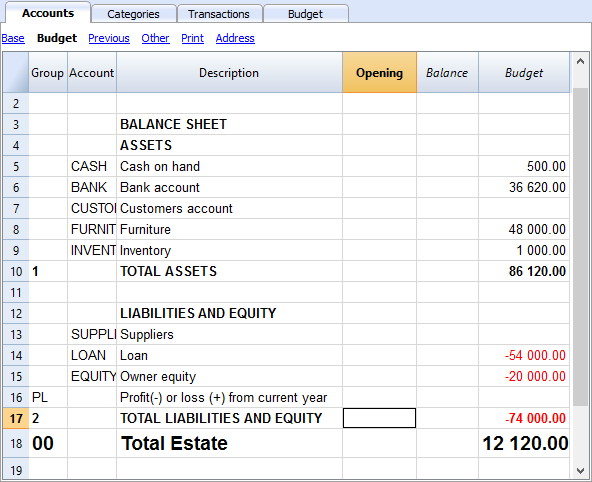
The Categories table
Enter your Operating data (Expenses and Income) here.
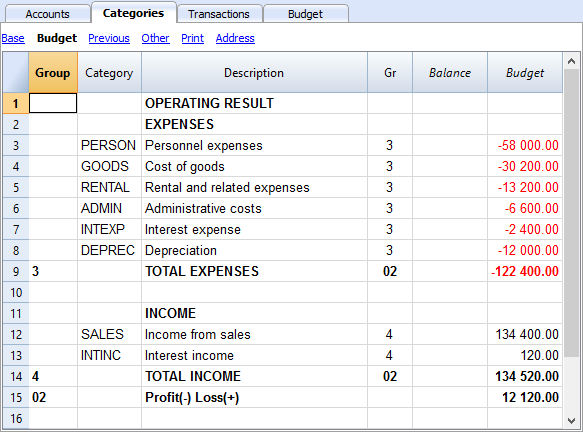
The Budget table
The Budget table (check explanations about the use of columns), is where data relative to your Financial Planning are entered.
Financial Planning is set up by entering forecasts such as income and expenses in the Budget table. The budget table offers some additional columns that make Financial Planning easier, such as:
- Repeat.
Entering “M” = Monthly will return your operation for each following month.
If left blank, the operation will only take place once. - End (Data).
Used in conjunction with Repeat, this will determine the last date when the operation will be repeated. - Total.
The total amount recorded in the current year.
Transactions for January
Those are identical to entering in the transactions table, because there is no Repeat yet.
This is the first month of running the Coffeehouse and there are the registration of the owner's equity, the payment of the furniture and the accession to a loan.
The entering in the below screenshot, such as first month's rent, were included as non-repetitive recordings, to illustrate some simple recordings that contain no Repeat.
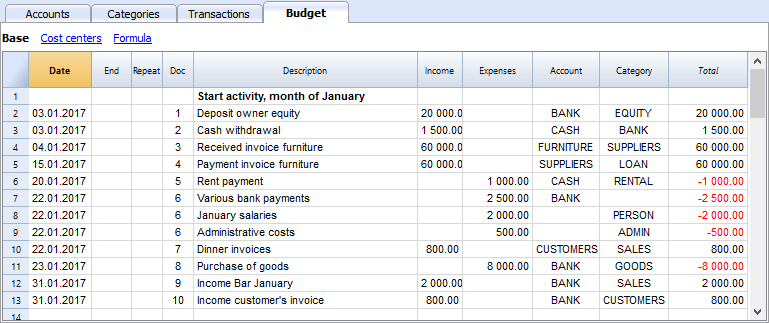
Repetitive transactions for February
Operations that are occurring on a monthly basis are entered in February.
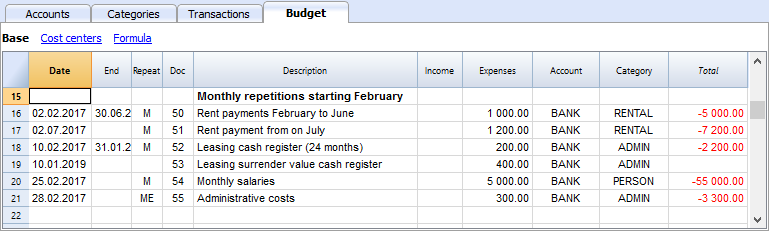
- The rent from January to June is of 1'000 per month and increases to 1'200 as per July.
- Doc 5:
The first rent was paid cash. There will probably also be the downpayment of a guarantee. - Doc. 50:
The rent of 1'000 is budgeted from February to June.- On February 2 the rent is paid from the BANK account.
In the following months the payment of the rent will figure on to 2nd day of each month. - The End date is the 30th of June.
The last rent of 1'000 will be on the 2nd of June. - Repeat. M = monthly.
- Total 5,000 (5 x 1'000), automatically calculated, is the total amount for the transaction during this period.
- On February 2 the rent is paid from the BANK account.
- Doc 51:
Rent is budgeted from July onwards.- Date 2nd of July.
In the following months the payment of the rent of 1'200 will figure on to 2nd day of each month. - End
As no date is indicated, this expense will be repeated for all the following months and years. - Repeat. M = monthly.
- Total 7'200 (6 x 1'200) is automatically calculated.
Represents six months' rent from July to December.
- Date 2nd of July.
- Doc 5:
- Doc. 52.
The leasing of the Cash Register.- Date is 10th of February.
- End (of lease) January 31st 2019. When the last installment on the lease is due.
- Repeat. M = monthly.
The operation will be repeated each month, the last time in January 2019. - Account the BANK.
- Category Administrative expenses.
- Amount 200.00 monthly lease rate.
- Total 2'200 (200 x 11 months).
- Doc. 53.
Payment towards the lease redemption.
This operation only takes place in 2019, but is included here, because it is linked to the monthly lease.- Date is 10th February 2019.
- Account the BANK.
- Category Administrative expenses.
- Amount 400.00 the release amount.
- Total empty because there is no expenditure in the current year.
- Doc. 54:
Monthly salaries.
- Date: 25th of February.
- Repeat. M = monthly.
The operation will be repeated on the 25th of each month to come. - Total 55'000 (5 x 11 months).
- Doc. 55.
Administrative expenses (this is an approximation: for a correct budgeting, entering for each separate expense will be necessary).- Date 28th of February.
- Repeat is ME = Month End.
The operation will be repeated every month on the last day of the month.
In March it will be on 31st, April 30nd and so on. - Amount 300.00
- Total 3'300 (300 x 11 months)
Budgeting for income and purchase of goods
Income and goods purchases are itemized below as monthly amounts, taking into account that there might be important monthly fluctuations.
It might prove more appropriate to use separate turnover figures for drinks or/and food.
February's Repeat column is empty, as we expect a higher figure for he next year and this will be added at a later stage.
From March onwards, the turnover is considered to be representative for the years to come.
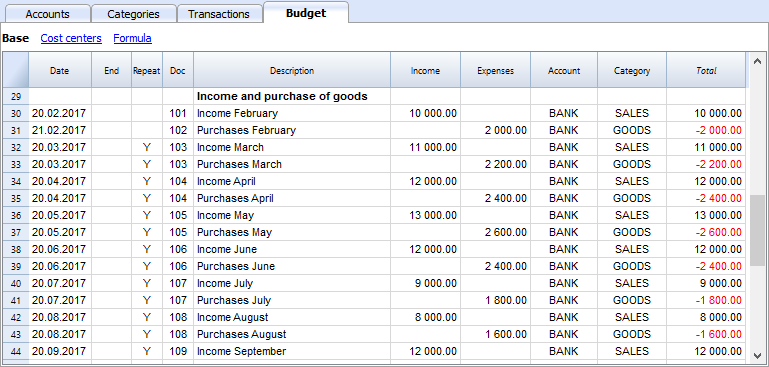
Calculations for Income and Expense will be calculated on a monthly basis by Banana 8 Accounting Software.
- Doc 101
Income indications for February
- Date 20th of February.
Income occurs on every day of a month. We choose a date towards mid-month as an approximated level of liquidity. - Repeat no repetition.
A higher figure is expected next year and will be recorded in the successive year. - Account Cash register receipts that are deposited in BANK.
- Category Provenance of SALES deposited.
- Amount 10'000.00.
- Total The next operation falls within next year, hence, the total represents one single amount.
- Date 20th of February.
- Doc 102
Indication of forecasted costs for goods, on a pro rata 20% monthly basis.
- Date 21st of February . The day after entering the sales transactions.
- Repeat no repetition.
The operation will be repeated on the 21st of each following month.
Therefore, cost of goods will be calculated each month as a percentage of purchases of sales account transactions. - Account Payments are settled via BANK.
- Category Purchase of GOODS.
- Doc 103
Two lines, which are similar to Doc 101 and 102, but for March.- Repeat Y= yearly. Turnover and costs for the month of March for subsequent years.
- Doc 104 through to Doc 112
Each 20th of the month projected sales for the different months of the year are indicated.
Following Years' Proceeds
Transactions can also be indicated for the following years.
These data will be used to establish budgets for the years to come.
The Total column will remain empty, as these values are out of scope and only refer to the current accounting period.
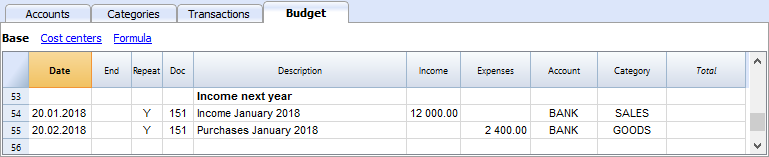
- Doc 151
Transaction entering similar to the previous year
- Date 20th of January
- Repeat Y = yearly
This will be repeated in the subsequent years. - Total empty (calculated automatically).
- The Total column remains empty, as these values are out of scope for current accounting period, and will not be indicated in the Total column which refers to the current period.
End of quarter
Indications of some typical entries that are repeated at the end of quarter.
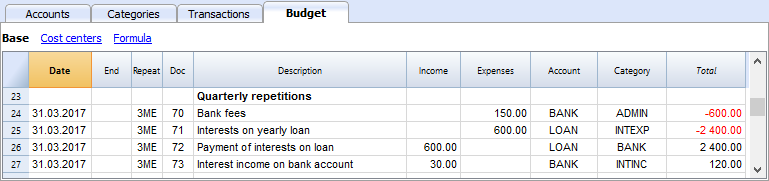
- Doc 70
Indications of some typical entries that are repeated at the end of quarter.- Dat 31st of March.
- Repeat 3ME 3 Months End.
- Category ADMIN. Administrative costs, this would normally be financial bank charges.
- Amount 150 (Automatically calculated) by multiplying the quantity by the unit price.
- Total 600 (Automatically calculated) 150 quarterly until the end of the year.
- Doc 71
Interest on the loan that must be paid quarterly.- Date 31st of March
- Repeat 3ME 3 Months End.
- Account LOAN interest is added to the loan.
- Category INTEXP interest on loan.
- Amount interest for current quarter.
- Total interest for the current year.
- Doc 72
Interest accrued on the LOAN is payed from the Bank count.- Date 31st of March.
- Repeat 3ME 3 Months End.
- Account LOAN interest owned on liabilities.
- Category BANK account used for payment.
- Formula "interest“ content of variable interest (value saved in the operation Doc 71).
- Amount the result of the formula, i.e. the interest for this quarter.
- Total interest for the current year,
.
- Doc 73
Interest earned on current account with the Bank.- Date 31st of March.
- Repeat 3ME 3 Months End.
- Account BANK where interest is received.
- Category INTINC interest income.
- Amount is interest income for this quarter.
- Total interest for the current year,
Year End
Some typical operations might take place at year end. Here, we use Repeat "Y" in order for them to be carried out for subsequent years.
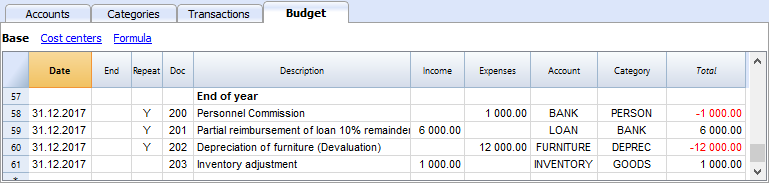
- Doc 200
Attribution to staff of a 1% commission on annual sales at the end of the year.- Date 31st of december.
- Repeat Y= calculation is repeated each year.
- Account BANK
- Category PERSON Personnel expenses.
- Amount is the commission payed to the sales staff.
- Total identical to Amount.
- Doc 201
Reimbursement of 10% of the outstanding loan.- Date 31st of december.
- Repeat Y= calculation is repeated each year.
- Account LOAN account (reimbursement of your loan).
- Category BANK Bank account used for reimbursement.
- Amount 6'000 is the equivalent of 10% of your total Loan.
- Total identical to Amount.
- Doc 202
Used for depreciation for your furniture.
- Doc 203
Assessment of your Inventory value.
This is non-repetitive because the assessment will be based on asset values of your inventory at each year end.
Compositions
Use the create new compositions command to generate new compositions for the printout including print parameters already preset in Budget and enhanced for groups.
You can preset the prints configuration according to your requirements.
If you understand how compositions functions, you will be able use it with other commands and create prints or other adapted to your own purpose.
Reports in the Accounts table
In the Accounts tab, view Budget to access the updated budget amounts.
Financial and liquidity planning for the first year
Use Command
- Reports -> Quarterly forecast 1. evolution during the first year can be seen.
The composition that has been set up can be visualized as
- Breakdown by Period -> Quarter
These two prints will allow you to apprehend:
- The economic forecast (expenses and income) and budgeting of the current financial year.
- The detailed evolution of liquidity in your bank's current account.
Modifying or Creating a new composition will give you a breakdown by month.
As per month

Financial and liquidity planning for a four year period
Use Command
- Reports -> Forecast 4 years
This will display the predefined composition for:
- Period from 01/01/2017 to 31/12/2020
In this report, you can specify a period that differs from the accounting period.
The program will then project the data for the specified period. - Subdivision per year.

Account Card
After opening the Budget table, click on the BANK cell and all budgeted transactions contained in the account card will be displayed.
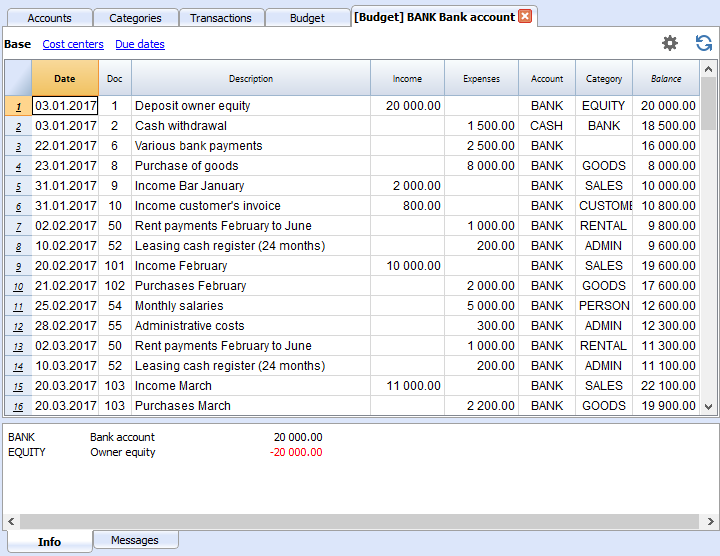
Template preview
Luke's coffeehouse
| Group | Account | Description | Sum In | Gr1 |
|---|---|---|---|---|
| ESTATE | ||||
| Cash | Cash on hand | Estate | ||
| Bank | Bank account | Estate | ||
| Customers | Customers account | Estate | ||
| Furniture | Office furniture and equipment | Estate | ||
| Inventory | Inventory | Estate | ||
| Appliances | Machinery and appliances | Estate | ||
| Computer | Computer & Software | Estate | ||
| Suppliers | Suppliers | Estate | ||
| Loan | Loan | Estate | ||
| Equity | Owner equity | Estate | ||
| Estate | Net Estate | |||
| Group | Category | Description | Sum In | Gr1 |
|---|---|---|---|---|
| OPERATING RESULT | ||||
| Income | ||||
| Sales | Income from sales | Income | ||
| Interest income | Interest income | Income | ||
| Income | Total Income | Result | ||
| EXPENSES | ||||
| Goods | Cost of goods | Expenses | ||
| Materials | Raw materials | Expenses | ||
| Salary | Personnel expenses | Expenses | ||
| Social contributions | Social contributions | Expenses | ||
| Insurance | Health insurance | Expenses | ||
| Rent | Rental and related expenses | Expenses | ||
| Admin | Administrative costs | Expenses | ||
| Interest expense | Interest expense | Expenses | ||
| Depreciation | Depreciation | Expenses | ||
| Taxes | Direct taxes | Expenses | ||
| Expenses | TOTAL EXPENSES | Result | 1 | |
| Result | TOTAL OPERATING RESULT | 1 | ||
Double-Entry Accounting Tutorial File Budgeting and Financial Plan for a Startup
Neste artigo
Double-Entry Accounting Tutorial File Budgeting and Financial Plan for a Startup
Double-Entry Accounting Tutorial File Budgeting and Financial Plan for a Startup
Learn how to create a professional financial plan for a Startup with a double entry accounting method. Quickly get detailed cash, balance sheet and profit and loss forecasts for the days, months and years to come. Modify the plan at any time and instantly see the updated forecasts.
Abrir na Banana WebApp
Abra a Banana Accounting Plus no seu navegador sem qualquer instalação. Personalize o modelo, introduza as transacções e guarde o ficheiro no seu computador.
Open template in WebApp Open tutorial in WebAppTemplate documentation
Whether you're planning to start a new business, or setting up a business plan, it is of the utmost importance to manage your liquidity projections. Especially at the beginning of a new activity, this could easily happen to land yourself in financial difficulties.
Banana Accounting software offers you the possibility to set up your financial planning and liquidity projections, allowing monitoring on a daily basis, with a high degree of accuracy. It allows you to project your accounting into the future and manage the years ahead of you in your ledger.
Note: For this business plan template, the management of a bar or restaurant has been taken as an example, since it is an activity that all people are familiar with and is therefore ideal to understand the functioning of Banana Accounting. Obviously, the template can also be used for other types of activities (Startups) for which you want to do financial and liquidity planning.
Financial planning and liquidity management of Luke's Restaurant
This section will explain how to set up a financial plan for a new entrepreneurial activity, according to the double-entry accounting model.
Consult the Benefits and Features of Financial Planning section for further information.
Luke plans to open a restaurant in 2022 and is preparing a financial plan, including all the necessary details.
- The financing of his project includes his proper means and a loan from a third person.
- In January 2022, he rents the premises, redecorates and furnishes them and starts his commercial activity.
- The Financial Planning is established for the period from January 2022 to December 2025.
Below you have an example of a monthly planning that Banana Accounting can make easy for you:
Economical forecasting and liquidity management
This model will help you to learn about the different features of Financial planning in Banana Accounting software. Some features, such as formulas, will be used in more advanced cases. The possibility to enter formulas is available in Banana Accounting Plus only with the Advanced plan. Update now!
- Use of budgeted transactions
- Repetitive transactions
- Using Quantities and Price
- Using Formulas
- Using Variables
- Calculation of interest on Asset and Liability Accounts
- Carrying forward of account balances
- Carrying forward of transactions recording
- Budgeting for one financial year divided by quarter, including results and liquidity projection
- Budgeting for several financial years, including results and liquidity projection
The File Properties
Opening date is 1st of January 2022 and closing date December 31st 2022.
This is also the period of calculation that will be used for the Total column in your Budget.
The Chart of Accounts
This example is intended to explain the functioning of your Budget table of forecasts.
- The Chart of Accounts, reduced to it's essence.
- Comprehensive name for accounts are used to illustrate the use of Banana Accounting software.
- Opening Basic Currency. The activity starts from scratch, so there are no opening balances.
- Budget Basic Currency. It's the overall budget at the end of the accounting period. Notice that this represents the balance sheet and income statement at the end of the budgeting period.


Create your own Chart of Accounts
The Chart of Accounts defines the elements of Expenses, Income and Investments. In case you want to subdivide the expenses more in detail, you need to add other accounts.
Rather than starting with a very simple Chart of Accounts and add on accounts and groups, it is recommended to start with a more structured Chart of Accounts. Banana Accounting software offers different Charts of Accounts templates, and it is recommended to choose and adapt the one closest to your needs and then add the Budget tab .
The Budget table
The budget table (see also explanation on columns) is where you insert recordings relative to the planning.
The financial plan is inserted via normal entering in double-entry bookkeeping in the Budget table. The budget table provides additional columns that greatly facilitate the preparation of the financial plan.
- Repeat
If you specify "M" = Monthly, for example, this will generate monthly registration for all subsequent months.
If the cell is left empty, the operation will be performed only once. - End (Date)
Used in combination with Repeat, setting the last date when the operation will occur. - Total
The total amount recorded in the current year. - Quantity, Price
Allows for indication of the combination of values on the basis of which the amount will be calculated. - Formula
Allows you to specify a formula for calculating the amount.
The formula has priority for the calculation of the amount.
Transactions for January
Those are identical to entering in the transactions table, because there is no Repeat yet.
This is the first month of the Coffeehouse's exploitation and these are the registrations of the owner's equity, payment of the furniture and the accession to a loan.
The entering shown in the below screenshot, such as first month's rent, were included as not repetitive recordings, to illustrate some simple recordings that contain no Repeat.

Repetitive transactions for February
In February, enter the transactions that will occur on a monthly basis

- The rent from January to June is of 1'000 per month and increases to 1'200 as per July.
- Doc 5:
The first rent was paid cash. There will probably also be the payment of a guarantee. - Doc. 50:
The rent of 1'000 is budgeted rom February to June.- On 2nd Februar the rent is paid from the bank account.
In the following months the payment of the rent will figure on to 2nd of each month. - End Date is 30th June.
The last rent of 1'000 will be on 2nd June. - Repeat. M = monthly.
- Total 5'000 (5 x 1'000, automatically calculated) is the total amount for the transactions during this period.
- On 2nd Februar the rent is paid from the bank account.
- Doc 51:
Rent Budgeted from July onward.- Date 2nd July.
In the following months the payment of the rent of 1'200 will figure on to 2nd of each month. - End
As no date is indicated, this expense will be repeated for all the following months and years. - Repeat. M = monthly.
- Total 7'200 (5 x 1,200), automatically calculated.
Represents six months' rent from July to December.
- Date 2nd July.
- Doc 5:
- Doc. 52.
The leasing for the cash register.- Date is 10th of February.
- End (of lease) January 31st 2024. When the last installment on the lease is due.
- Repeat M = monthly.
The operation will be repeated each month, the last time in January 2024. - Debit A/C Administrative fees.
- Credit A/C BANK (used for payment).
- Amount 200.00 monthly lease rate.
- Total 2,200 (200 x 11 months).
- Doc. 53.
Payment towards the lease redemption.
This operation only takes place in 2024, but is included here, because it is linked to the monthly lease.- Date is 10th February 2024.
- Debit A/C Administrative fees.
- Credit A/C BANK (used for payment).
- Amount 400.00 the release amount.
- Total empty because there is no expenditure in the current year.
- Doc. 54:
Monthly salaries.- Date: 25th February.
- Repeat. M = monthly.
The operation will be repeated on the 25th of each month to come.. - Total 55,000 (5'000 x 11 months).
- Doc. 55.
Administrative expenses (this is an approximation: for a correct budgeting entering for each separate expense will be necessary).- Date is 28th February.
- Repeat is ME = Month End.
The operation will be repeated every month on the last day of the month.
In March it will be on 31st, in April 30th and so on. - Amount 300.00.
- Total 3,300 (300 x 11 months).
Budgeting for income and purchase of goods
Depending on the type of business activity, the most appropriate way to specify the revenues must be chosen.
Income and goods purchases are itemized below as monthly amounts, taking into account that there might be important monthly fluctuations.
It might prove more appropriate to use separate turnover figures for drinks or/and food.
February's Repeat column is empty, as we expect a higher figure for he next year and this will be added at a later stage.
From March onward the turnover is considered to be representative for the years to come.

Indications of forecast income and merchandise costs, calculated on a monthly basis.
- Doc 101
Income indications for February- Date: 20th February.
Income occurs on every day of a month. We choose a date towards mid-month as an approximated level for liquidity. - Repeat Empty (no repetition).
A higher figure is expected next year and will be recorded in the successive year.. - Debit A/C Cash register receipts that are deposited in BANK.
- Credit A/C Provenance of receipts in SALES account.
- Amount 10'000.00.
- Total 10'000.00 The next operation falls within next year, hence the total represents one single amount.
- Date: 20th February.
- Doc 102
Indications of forecast costs for goods, on 20%a pro rata monthly basis.- Date 21st February. The day after the entering of the sales transaction.
- Repeat no repetition.
The operation will be repeated on the 21st of each following month. Therefore, each month cost for goods will be calculated as a percentage of purchases of sales account transactions. - Debit A/C GOODS costs to be recorded in goods Account.
- Credit A/C BANK payment of goods costs through the bank.
- Doc 103
Two lines, which are similar to Doc 101 and 102, but for March.- Repeat Y=Yearly. Turnover and costs for the month of March for subsequent years.
- Doc 104 through to Doc 112: Each 20th of the month projected sales for the different months of the year are indicated.
Following Years' Proceeds
Transactions can also be indicated for the following years..
These data will be used to establish budgets for the years to come.
The Total column will remain empty, as these values are out of scope and only refer to the current accounting period.

- Doc 151
Transaction entering similar to the previous year- Date 20th January.
- Repeat Y = Yearly.
This will be repeated in the subsequent years. - Total empty (calculated automatically). The Total column will remain empty, as these values are out of scope and only refer to the current accounting period.
End of quarter
Indications of some typical entries that are repeated at the end of a quarter.

- Doc 70
Here's an example for the use of the quantity and price column.
Known bank charges are 50 per month and we indicate the amount for a 3 months period.- Date 31st March.
- Repeat 3ME=3 Months End.
- Debit A/C ADMIN. Administrative costs, this would normally be financial bank charges.
- Credit A/C BANK. Administrative costs.
- Amount 150 (Automatically calculated) by multiplying the quantity by the unit price.
- Total 600 (Automatically calculated) 150 quarterly until the end of the year.
- Doc 71
Interest on the loan that must be paid quarterly.- Date 31st March.
- Repeat 3ME=3 Months End.
- Debit A/C INTEXP interest expense on liabilities.
- Credit A/C LOAN interests are added to the loan.
- Amount interest for current quarter.
- Total interest for the current year.
- Doc 72
Interest accrued on the LOAN are payed from the Bank count.- Date 31st March 31.
- Repeat 3ME=3 Months End.
- Debit A/C LOAN interest expense account.
- Credit A/C BANK the account used to pay interest.
- Amount the result of the formula, i.e the interest for this quarter.
- Total total interests for the current year.
- Doc 73
Interest earned on current account with the Bank.- Date 31st March 31.
- Repeat 3ME=3 Months End.
- Debit AC BANK Bank account.
- Credit A/C INTINC interest income.
- Amount interest income for this quarter.
- Total total interest for the current year.
Year End
These are some year-end operations. Here we use Repeat "Y" in order for them to be carried out for subsequent years.

- Doc 200
Attribution to staff of a 1% commission on annual sales at the end of the year.- Date 31st December.
- Repeat Y= calculation is repeated each year.
- Debit A/C PERSON Personnel expenses.
- Credit A/C BANK Bank account.
- Amount is the commission payed to the sales staff.
- Total identical to Amount.
- Doc 201
Reimbursement of 10% of he outstanding loan- Date 31st December.
- Repeat Y calculation will be repeated each year.
- Debit A/C LOAN Loan account (your liability).
- Credit A/C BANK Bank account used for reimbursement.
- Amount 6'000 is the equivalent of 10% of your total Loan.
- Total identical to Amount.
- Doc 202
Use for the amortization of your furniture. - Doc 203
Use for adjustment of your inventory.
This is non-repetitive, because the assessment should be based on the asset values of your inventory.
Customization
Use the create new customization command to generate new customization for the printout including print parameters already preset in Budget and enhanced for groups.
You can preset the prints configuration according to your requirements.
If you understand how customization works, you will be able to use it with other commands and create prints or other adapted to your own purpose.
Reports in the Accounts table
In the Accounts tab, view Budget to access the updated budget amounts.
Financial and liquidity planning for the first year
With Command
- Reports → Enhanced balance sheet with groups → Quarterly forecast 1st year, the evolution during the first year can be seen.
The customization that has been set up can be visualized
- Breakdown by Period → Quarter
These two prints will allow you to apprehend:
-
The economic forecast (expenses and income) and budgeting of current financial year..
- The detailed evolution of liquidity in your bank's current account.
Modifying or Creating a new customization will give you a breakdown by month.
By month
Financial and liquidity planning for a four year period
With Command
- Reports →Enhanced balance sheet with groups → Budget 4 years
This will display the predefined customization for:
- Period from 01/01/2022 to 31/12/2025
In this report, you can specify a period that differs from the accounting period. The program will then project the data for the specified period. - Subdivision per year.
Account card
After opening the Budget table, click on the BANK cell and all budgeted transactions contained in the account card will be displayed.

Template preview
Luke's Restaurant
| Group | Account | Description | Sum In | Gr1 |
|---|---|---|---|---|
| BALANCE SHEET | ||||
| Assets | ||||
| Cash | Cash on hand | Assets | ||
| Bank | Bank account | Assets | ||
| Customers | Customers account | Assets | ||
| Furniture | Office furniture and equipment | Assets | ||
| Inventory | Inventory | Assets | ||
| Appliances | Machinery and appliances | Assets | ||
| Computer | Computer & Software | Assets | ||
| Assets | Total Assets | 00 | 1 | |
| Liabilities and Equity | ||||
| Suppliers | Suppliers | Liabilities | ||
| Loan | Loan | Liabilities | ||
| Equity | Owner equity | Liabilities | ||
| Profit Loss | Profit(-) or loss (+) from current year | Liabilities | 1 | |
| Liabilities | Total Liabilities and Equity | 00 | 1 | |
| PROFIT AND LOSS STATEMENT | ||||
| Income | ||||
| Sales | Income from sales | Income | ||
| Interest Income | Interest income | Income | ||
| Income | Total Income | Result | ||
| Expenses | ||||
| Goods | Cost of goods | Expenses | ||
| Materials | Raw materials | Expenses | ||
| Salary | Personnel expenses | Expenses | ||
| Social contributions | Social contributions | Expenses | ||
| Insurance | Health insurance | Expenses | ||
| Rent | Rental and related expenses | Expenses | ||
| Admin | Administrative costs | Expenses | ||
| Interest expenses | Interest expense | Expenses | ||
| Depreciation | Depreciation | Expenses | ||
| Taxes | Direct taxes | Expenses | ||
| Expenses | Total Expenses | Result | 1 | |
| Result | Profit(-) Loss(+) from Profit and Loss Statement | Profit Loss | 1 | |
| 00 | Difference should be zero (void) | |||
Tutorial file for amortisation and interest calculation with budget's formulas
Neste artigo
Tutorial file for amortisation and interest calculation with budget's formulas
Tutorial file for amortisation and interest calculation with budget's formulas
It shows how to use formula to calculate interest and amortization schedule. The possibility to enter formulas is available in Banana Accounting Plus only with the Advanced plan.
Abrir na Banana WebApp
Abra a Banana Accounting Plus no seu navegador sem qualquer instalação. Personalize o modelo, introduza as transacções e guarde o ficheiro no seu computador.
Open template in WebAppTemplate documentation
The possibility to enter formulas is available in Banana Accounting Plus only with the Advanced plan. Update now!
Template preview
Non Profit Organization XX
Accounting 2022
Basic Currency: CHF
Double-entry
| Group | Account | Description | Sum In |
|---|---|---|---|
| Cash | Cash on hand | ||
| Loan | Bank loan | ||
| Interests | Interest expenses |
Tutorial file for using Formulas for Budgeting and Financial Planning
Neste artigo
Tutorial file for using Formulas for Budgeting and Financial Planning
Tutorial file for using Formulas for Budgeting and Financial Planning
See examples and play with Javascript formulas and quantities for of interest calculation, revenue projections, depreciation and more. The possibility to enter formulas is available in Banana Accounting Plus only with the Advanced plan.
Abrir na Banana WebApp
Abra a Banana Accounting Plus no seu navegador sem qualquer instalação. Personalize o modelo, introduza as transacções e guarde o ficheiro no seu computador.
Open template in WebAppTemplate documentation
The possibility to enter formulas is available in Banana Accounting Plus only with the Advanced plan. Update now!
This file contains examples of how to use the Formula tab in the Budget table, as well as the Quantity and Unit price columns.
For explanations about the use of the Budget table and columns consult Budget table page.
Keep in mind that calculations are made in chronological order and not according to the sequence in which your budget registrations were entered.
Use of Quantity and Unit price columns
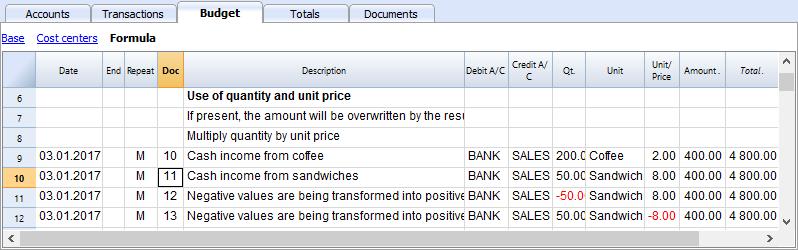
In the Formula view you will see the Qt. (quantity) and Unit/Price columns.
- Doc 10. The Qt column. The number (Unit column) of coffees sold in one month at the price of (Unit/price column) and total income from coffee sales (Amount column).
- Values in the Qt and Unit/Price columns can also be entered as a negative number, but the amount will be shown as a positive value.
Formula in JavaScript language
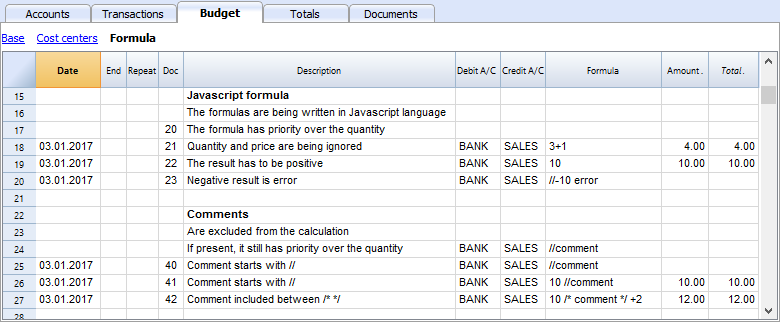
The Formula column allows you to enter calculations expressed in JavaScript language.
- If the result of the formula is a number it will be shown as Amount in the respective column.
- Doc. 21+22. You may specify numbers or mathematical expressions.
- Doc 40 e 41. "//" indicates that a comment is entered.
- Doc 42. Text entered between /* e */ are treated as comment and not part of the formula.
Formula errors
In case of errors, when you enter data:
- The row containing the error is highlighted in red.
- An error text is shown in the “message” window.
In order to avoid constant acoustic signals and popping up of error message windows, the errors have been treated as a comment in the example file (they start with "//").
Semicolon separator ";"
JavaScript uses ";" to terminate each line of command. You may concatenate mathematical expressions into one line. The return value will be the result of the last expression.
Comma separator ","
In JavaScript, comma is used as a separator between the different expressions in a function. The result value will be the result of the last expression.
Do not use the comma as a decimal separator, because in the formula it will be considered as an expression separator, and therefore numeric values will be truncated.
Full stop separator for decimals "."
JavaScript uses full stop "." as a separator for decimals. Regardless of the settings for decimals in your operating system preferences, full stop will always be used.
Calculations with simple numbers
You can compound mathematical calculations with simple numbers in the Formula column.
Texts and variables
- Text is contained between quotation marks, as quotes.
- Variables are the elements that mention the values that have been assigned.
- The name of the variable must start with a letter or an underscore.
- First of all, variables must be defined via a “variablename = 100” assigned punctuation.
Examples:
- Doc 70.
"Banana" between quotation marks is a text - Doc 101.
A value of 100 is assigned to the variable. - Doc 102.
The content of the Amount variable will be used. - Doc 103.
The content of the Amount variable will be used, with an increment of 10. - Doc 104.
The content of the Amount variable is assigned to the Amount variable with an increment of 10. The Amount variable will be equal to 110. - Doc 105.
The Formula will be applied on a monthly basis “Repeat=M”- For the first time 110+10 = 120
- For second time 120 + 10 = 130, and so on.
- Doc 106.
If no comment is entered, an error message will signal that Amount1 has not been defined. - Doc 110.
The name “Banana” is assigned to the text Variable.
Controls for if .. then .. else flows
You can use all the conditional expressions of JavaScript. The subject is broad and we suggest you to refer to the documentation on the JavaScript language.
In this regard we only want to point out that in JavaScript:
- The equal sign "=" is used to assign a value to a variable "a = 10"
- On the contrary, for comparison, two successive equal signs are used "==". If (10 == 10) {1};
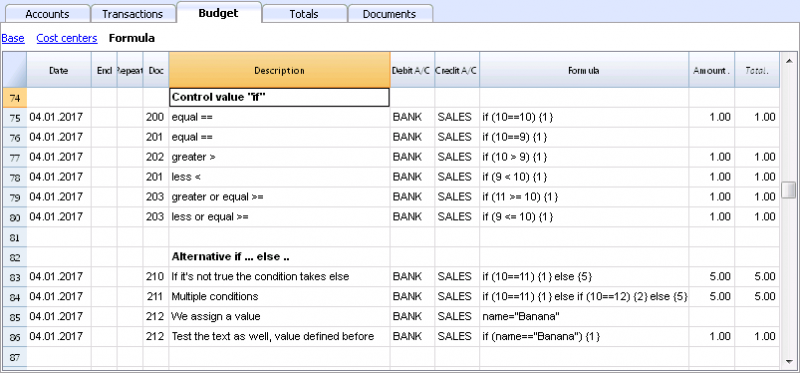
- Doc 200-203
If the criteria given in round brackets after the word "if" is true "(10 == 10)", then the Amount column the result of the next expression contained in curly brackets "{1}" will be shown.
If it is not true "(10 == 9)" the amount will be zero.
Properties and Functions
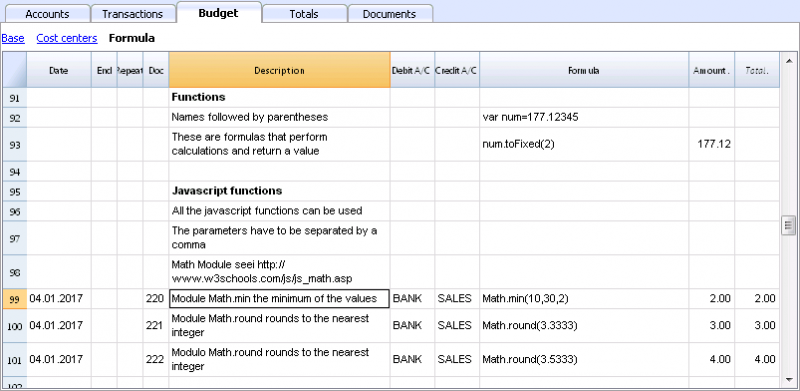
Predefined JavaScript functions, such as Module Math.library, can be used (see examples Doc 220-222).
To call up a function, indicate it's name followed by the parameters of the function, indicated between brackets.
- Doc 220.
Math.min(10, 30, 2) will return the minimum value of the values specified between commas.
“Row object” for current row
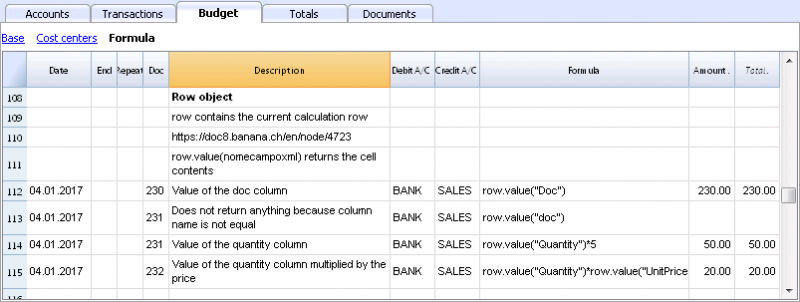
Row object is of the Banana.Document.Row type an refers to the current row.
Specifying the name of a column via the Value function, will return the content of that specific column.
Predefined Debit and Credit functions
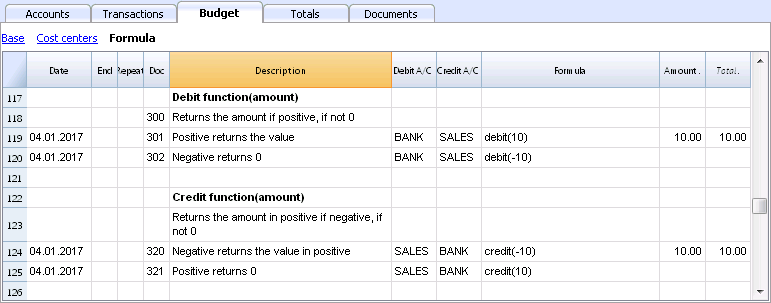
Formula only allows for positive values.
- The debit function returns the value entered as a parameter if it is positive.
- The credit function returns the value with as inverted, if the entered value is negative.
Accounting functions for the entire period
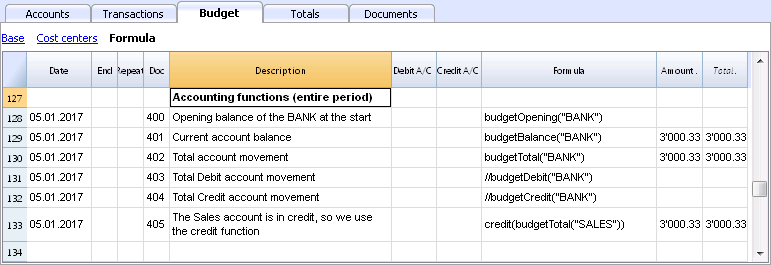
Without indication of a defined period, the use of specific Budget functions will return the values relative to the present situation.
Please note and remember, that data in rows is processed sequentially, so there will be no subsequent values to the line being processed.
Use of accounting functions for a defined period
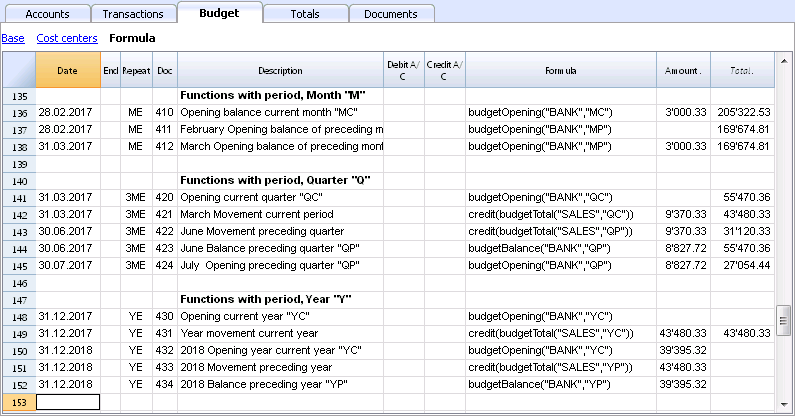
Use of accounting functions for a defined period.
The budgetBalance function for the current period will always be the same as the function for the entire period, as the budgetBalance function returns the balance at the end of the period and the last row processed is also the last of the current period.
he budgetOpening and budgetTotal functions, on the contrary, take the initial date into account so it's indication is necessary.
Interest calculation function
The budgetInterest function calculates interest at entering date, on the indicated account on an actual days count basis (365/365.
When calculating interest for the current month, you must indicate month end as the date.
- Doc 500.
The second parameter represents the interest rate, 5 meaning 5%. If debit interest is due, calculation will be effectuated for the corresponding days. - Doc 520.
If credit interest is due, calculation will be effectuated for the corresponding days. This will show as a negative towards the BANK account.
Functions for calculating tax on profit

- Doc 600.
The tax on profit is calculated on the movement in the "budgetTotal" period of the final group of the Profit & Loss statement (in this case the 02).
credit (budgetTotal ("Gr = 02", "YC")) * 0.10- You obtain the group movement in the current year
budgetTotal ("Gr = 02", "YC") - The credit () function returns the value only if it is negative and converts it to positive.
credit (budgetTotal ("Gr = 02", "YC")) - The result is multiplied by 0.10 (percentage 10%)
- In the Debit account, the Tax account of the Profit & Loss statement must be indicated.
- In the Credit account, you must indicate the Bank account or the Treasury credit account.
- You obtain the group movement in the current year
User-defined Functions
In the Documents table, a "_budget.js" file is added where you can define functions in Javascript that can be called in the formula column.
Calculating tax on profit with progressive rate
- Doc 610
The profit is first calculated and assigned to the variable - Doc 611
The profit is passed on to the calcTaxes() function that applies the tax percentage based on the amount and returns the tax amount to be paid.
Other user-defined functions
- Doc 620
The test () function is called, which is also defined in the budget_js document, which simply returns a value.
Use of Variables for next calculations
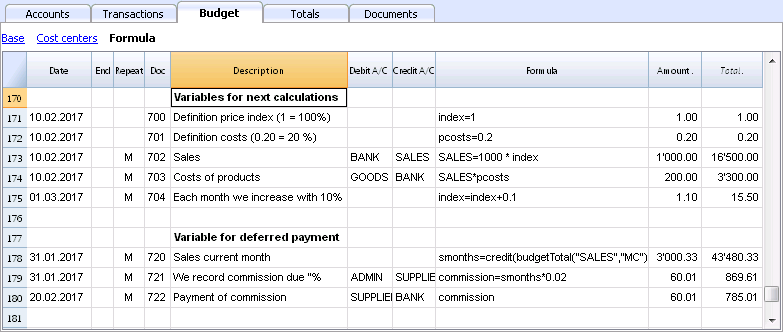
Variables are very useful for storing values for next calculations.
- Doc 700-704.
Indexation of sales.- Doc 700.
Fixation of the index at 1 (100%).
Debit A/C and Credit A/C are not used here, as this row is only used for Definition of the Price index. - Doc 701.
pscosts variable is used for calculation of acquisition cost (0.2=20%) - Doc 702.
Sales are a 1000 multiple of the price index value. - Doc 704.
As per 1st of March the index will be increased by 0.1 (=10%).
As per this date, value of sales will increase in a monthly progression.
- Doc 700.
- Doc 720-722
Monthly sales figures are assigned to months function. Sales commissions are then calculated
JrepeatNumber Column
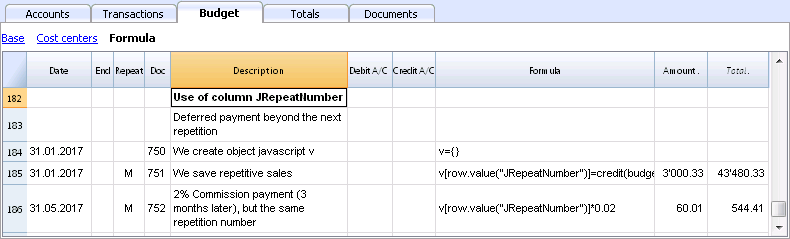
When Rows contain a Repeat, insert the Repeat number in the Formula cell as JrepeatNumber.
- First repeat value is 0.
- Second repeat value is 1, and so on.
Use JRepeatNumber when Repeat doesn't allow you to overwrite predefined Variables.
By using JrepeatNumber as a parameter for your object, sequences are registered and can be called at a later stage,
Template preview
Luke's coffeehouse
Basic Currency: EUR
Double-entry
| Group | Account | Description | Sum In | Gr1 |
|---|---|---|---|---|
| BALANCE SHEET | ||||
| ASSETS | ||||
| Cash | Cash on hand | 1 | ||
| Bank | Bank account | 1 | ||
| Customers | Customers account | 1 | ||
| Furniture | Furniture | 1 | ||
| Inventory | Inventory | 1 | ||
| 1 | TOTAL ASSETS | 00 | 1 | |
| LIABILITIES AND EQUITY | ||||
| Suppliers | Suppliers | 2 | ||
| Loan | Loan | 2 | ||
| Equity | Owner equity | 2 | ||
| PL | Profit(-) or loss (+) from current year | 2 | 1 | |
| 2 | TOTAL LIABILITIES AND EQUITY | 00 | 1 | |
| PROFIT AND LOSS STATEMENT | ||||
| INCOME | ||||
| Sales | Income from sales | 4 | ||
| Interest income | Interest income | 4 | ||
| 4 | TOTAL INCOME | 02 | ||
| EXPENSES | ||||
| Personnel | Personnel expenses | 3 | ||
| Goods | Cost of goods | 3 | ||
| Rent | Rental and related expenses | 3 | ||
| Administration | Administrative costs | 3 | ||
| Interest expense | Interest expense | 3 | ||
| Depreciation | Depreciation | 3 | ||
| 3 | TOTAL EXPENSES | 02 | 1 | |
| 02 | Profit(-) Loss(+) from Profit and Loss Statement | PL | ||
| 00 | Difference should be zero (void) | |||
Tutorial File Budget Formulas For Multi-Currency Financial Planning
Neste artigo
Tutorial File Budget Formulas For Multi-Currency Financial Planning
Tutorial File Budget Formulas For Multi-Currency Financial Planning
The possibility to enter formulas is available in Banana Accounting Plus only with the Advanced plan.
Abrir na Banana WebApp
Abra a Banana Accounting Plus no seu navegador sem qualquer instalação. Personalize o modelo, introduza as transacções e guarde o ficheiro no seu computador.
Open template in WebAppTemplate documentation
The possibility to enter formulas is available in Banana Accounting Plus only with the Advanced plan. Update now!
This example will explain how to use formulas specific to double-entry bookkeeping with multi-currency functionalities.
Documentation on use of formula in the Budget table.
Amount calculation in base currency
The formula will calculate the value in the account's currency first and then the relative value in the base currency.
Exchange rates and historical rates
- Doc 10 and 12.
If an exchange rate is indicated in the exchange rate column, the program will calculate the amount in the base currency (EUR in this case) using the exchange rate indicated in this row. - Doc 11 and 13.
If there is no exchange rate indicated, the program will apply the exchange rate in the Exchange rates table for this calculation as well as for the successive operation in the case a Repeat function is applied.
-
If historical exchange rates are defined in the Exchange rates table, via adding a date, the program will apply the exchange relative to the date or the previous, most recent one.
Use of formulas in the base currency
All formulas available in the Budget table can be used in the Formula column.
The following examples show the value in the base currency (EUR) calculated according to a Formula.
- Doc 21.
The sales value is multiplied according to the Formula EUR value. The exchange rate in the corresponding column will be ignored. - Doc 22.
As in the previous example, but for the value of "AmountCurrency" which is the result of the formula. - Doc 23.
In the “budget.js” document we have defined an exchange rate function calculating the value on the basis of the contents in the row.
With these functions it is possible to create exchange rate simulations.
Example for Exchange rate function
The USD exchange rate is established on a monthly basis.
A constant exchange rate is used for GBP instead.
The function will result as the amount of AmountCurrency multiplied by the exchange rate.
  function cambio() {
    var importo = row.value("AmountCurrency");
    var cambio = 1;
    var moneta = row.value("ExchangeCurrency");
    var data = Banana.Converter.toDate(row.value("JDate"));
    var mese = data.getMonth() + 1;
    if (moneta == "USD") {
      cambio = 0.95;
      if (mese == 1)
      cambio = 0.96;
    else if (mese == 2)
      cambio = 0.97;
    }
    if (moneta == "GBP") {
    cambio = 1.30;
    }
    return importo * cambio;
  }
Formulas for calculation of exchange rate differences
For further information on calculation of exchange rate differences please refer to information about transactions in multi currency and to the Create exchange rate differences command.
- The currency is always the base currency.
- Amounts must not be entered in the account's currency.
- Exchange rate is left blank and will be ignored, even if a value is entered.
- The budgetExchangeDifference function calculates the exchange rate difference for an account. This value represents the non realized exchange rate profit or loss.
.- The function will return a positive value if it is an exchange rate loss and a negative (credit) in case of exchange rate profit.
Exchange rate profit and exchange rate loss need to be entered in two different rows.
-
The resulting amount represents the revaluation necessary in the base currency to ensure that the account balance in the base currency matches the balance of the account in the currency converted at the exchange rate used for the calculation of exchange rate differences.
- The function will return a positive value if it is an exchange rate loss and a negative (credit) in case of exchange rate profit.
- The first parameter "CUSD" of the budgetExchangeDifferences function is the account in foreign currency for which the exchange rate difference will be calculated.
- The second parameter is the exchange rate to be applied.
- If no exchange rate is indicated, the historical exchange rate relative to the date of the entered transaction is applied.
- When "current" is used, the exchange in the Exchange rate tables with no date will be used.
- An exchange my also be indicated. A point "." must be used as a decimal separator.
  credit(budgetExchangeDifference("CUSD"))
  credit(budgetExchangeDifference("CUSD", "current"))
  credit(budgetExchangeDifference("CUSD", "0.95"))
Template preview
Luke's coffeehouse
| Group | Account | Description | Currency | Sum In | Gr1 |
|---|---|---|---|---|---|
| BALANCE SHEET | |||||
| ASSETS | |||||
| Cash | Cash on hand | EUR | 1 | ||
| Bank | Bank account | EUR | 1 | ||
| BankUSD | USD Bank account | USD | 1 | ||
| BankGBP | GBP Bank account | GBP | 1 | ||
| Customers | Customers account | EUR | 1 | ||
| Furniture | Furniture | EUR | 1 | ||
| Inventory | Inventory | EUR | 1 | ||
| 1 | TOTAL ASSETS | 00 | 1 | ||
| LIABILITIES AND EQUITY | |||||
| Suppliers | Suppliers | EUR | 2 | ||
| Loan | Loan | EUR | 2 | ||
| Equity | Owner equity | EUR | 2 | ||
| PL | Profit(-) or loss (+) from current year | 2 | 1 | ||
| 2 | TOTAL LIABILITIES AND EQUITY | 00 | 1 | ||
| PROFIT AND LOSS STATEMENT | |||||
| INCOME | |||||
| Sales | Income from sales | EUR | 4 | ||
| Exchange Rate Profit | Exchange rate profit | EUR | 4 | ||
| Interest income | Interest income | EUR | 4 | ||
| 4 | TOTAL INCOME | 02 | |||
| EXPENSES | |||||
| Personnel | Personnel expenses | EUR | 3 | ||
| Goods | Cost of goods | EUR | 3 | ||
| Rent | Rental and related expenses | EUR | 3 | ||
| Administration | Administrative costs | EUR | 3 | ||
| Interest expense | Interest expense | EUR | 3 | ||
| Exchange rate loss | Exchange rate loss | EUR | 3 | ||
| Depreciation | Depreciation | EUR | 3 | ||
| 3 | TOTAL EXPENSES | 02 | 1 | ||
| 1 | |||||
| 02 | Profit(-) Loss(+) from Profit and Loss Statement | PL | 1 | ||
| 00 | Difference should be zero (void) | ||||
| Ref.Currency | Currency | Text |
|---|---|---|
| USD | US Dollars | |
| GBP | British Pounds | |
| USD | US Dollars | |
| USD | US Dollars | |
| USD | US Dollars | |
| USD | US Dollars | |
| USD | US Dollars | |
| USD | US Dollars | |
| USD | US Dollars | |
| USD | US Dollars | |
| GBP | British Pounds | |
| GBP | British Pounds | |
| GBP | British Pounds | |
| GBP | British Pounds | |
| GBP | British Pounds | |
| GBP | British Pounds | |
| GBP | British Pounds | |
| GBP | British Pounds |
Integrated financial planning for accounting firms
Neste artigo
Integrated financial planning for accounting firms
Integrated financial planning for accounting firms
Template designed to create a financial plan for an accounting, fiduciary or tax advisory firm.
Abrir na Banana WebApp
Abra a Banana Accounting Plus no seu navegador sem qualquer instalação. Personalize o modelo, introduza as transacções e guarde o ficheiro no seu computador.
Open template in WebApp Open tutorial in WebAppTemplate documentation
The Detailed Budget allows you to plan the future activities of an accounting firm by entering individual budget transactions in the Budget table.
In this tutorial, you will learn how to plan client revenues, collections and the firm's costs, and how to analyze their impact on the Income statement, Balance Sheet and liquidity.
You will also learn how to compare budget data with actual data to identify variances from what was planned.
Introductory video
To see the system in action, watch our video:
Who this tutorial is for
This tutorial is designed for the financial planning and accounting of:
- accounting firms;
- fiduciaries;
- consultants and accountants.
You can use this method both to plan your firm's activities and to prepare financial plans for your clients, integrating financial advisory services with accounting management.
Planning structure
The financial planning of the accounting firm uses the same chart of accounts as the accounting.
Budget transactions are entered in the Budget table and automatically generate the budget values for the accounts and the related reports.
In particular, the model includes planning for:
- expected revenues from individual clients;
- expected collections;
- the firm's costs;
- the related impact on the Income statement, Balance Sheet and liquidity.
In the Accounts table, the Budget column allows you to directly view the values resulting from the financial plan.
Expenses and Revenue – Proft and loss statement
In the Expenses and Revenue section, the Budget column shows the expected expenses and revenues and the financial result generated by the planned transactions.
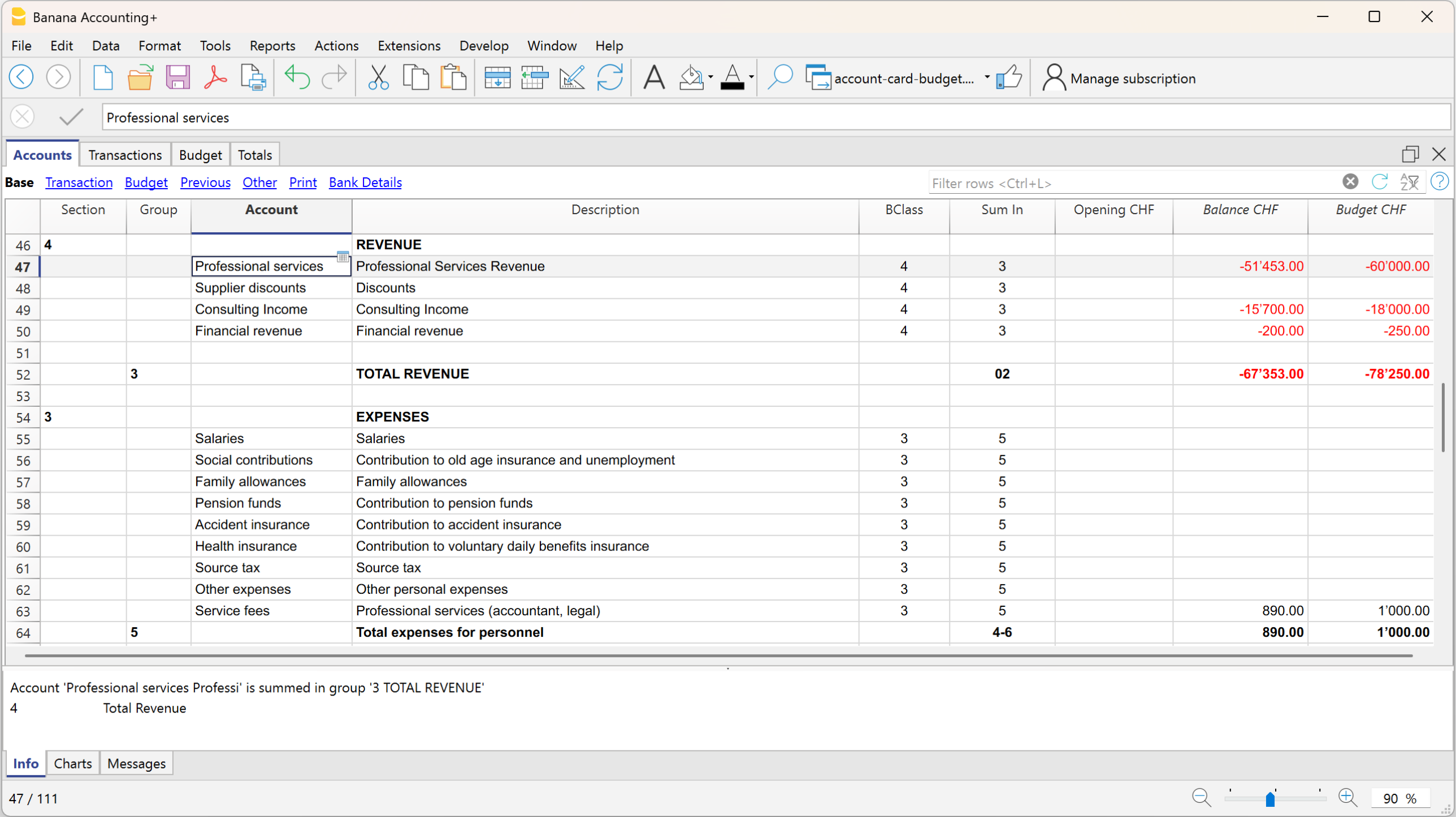
Assets and Liabilities – Balance Sheet
In the Balance Sheet section, the Budget column shows the budget balances of the accounts, including those relating to liquidity and accounts receivable.
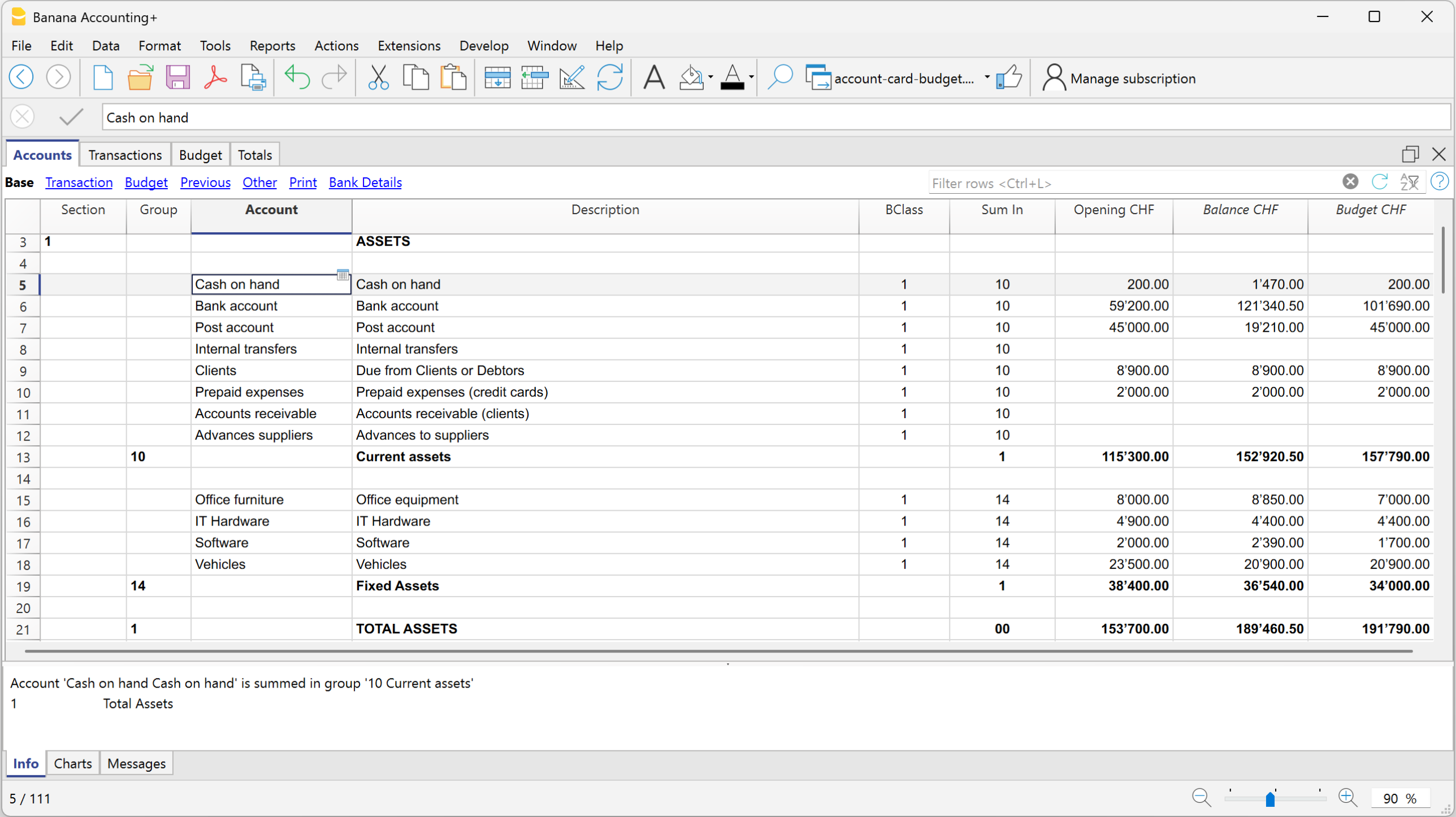
Budget table
The Budget table contains the transactions used to build the firm's financial plan.
In this example, the firm's revenues are planned according to the clients and the expected invoicing frequency.
For a financial plan divided according to additional criteria, the tutorial also uses:
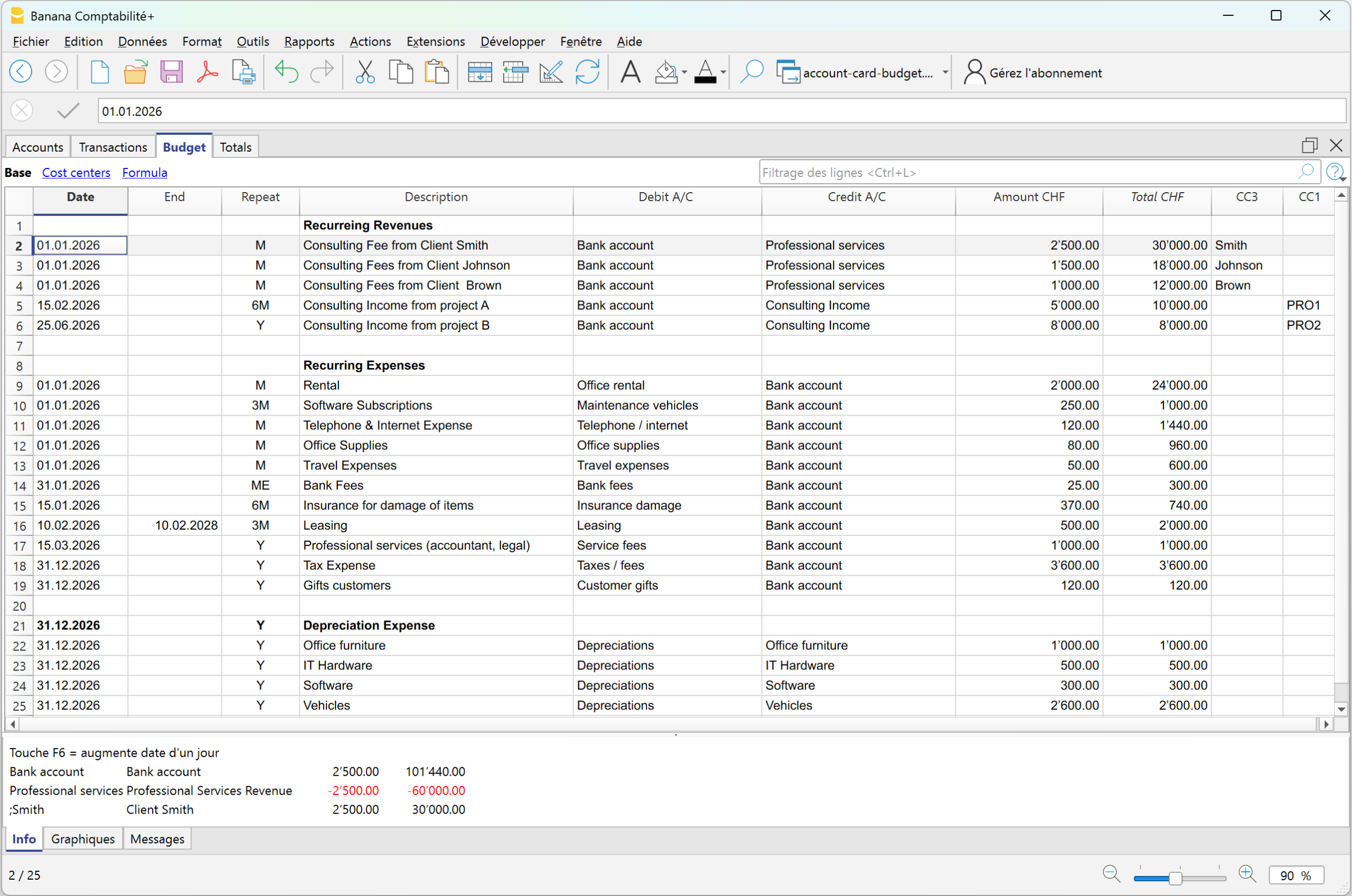
For example, the plan includes:
- monthly revenues from clients such as Smith, Johnson and Brown;
- quarterly revenues from other clients such as Wilson, Carter and Thompson;
- an annual accounting service of CHF 6'800;
- occasional revenues of CHF 5'000 every six months;
- annual interest income of CHF 250.
The Repeat column allows you to define the expected frequency. A single transaction can therefore generate the total annual amount. For example, the monthly fee of CHF 2'500 for client Smith generates expected annual revenues of CHF 30'000.
Cost and profit centers have also been included in the plan to distinguish individual clients and group revenues according to their type, such as monthly, quarterly, annual or occasional revenues.
If necessary, you can also use the VAT Code in budget transactions to forecast the VAT payable to the tax authorities and the liquidity required for the related payment.
For more information about entering transactions, repetitions and other functions, see the Budget table page.
Once the budget transactions have been entered, Banana Accounting automatically performs all calculations: it determines the account balances and the impact on the Income statement, Balance Sheet and liquidity. There is therefore no need to perform calculations or manually transfer values to the reports.
Forecast reports and comparison with actual data
The transactions planned in the Budget table are automatically included in the reports.
By displaying Actual, Budget and Difference in the same report, you can check not only the expected result, but also how the actual business activity is developing compared with the financial plan.
Balance Sheet
The report allows you to compare the actual financial position with the budget and view the related differences.
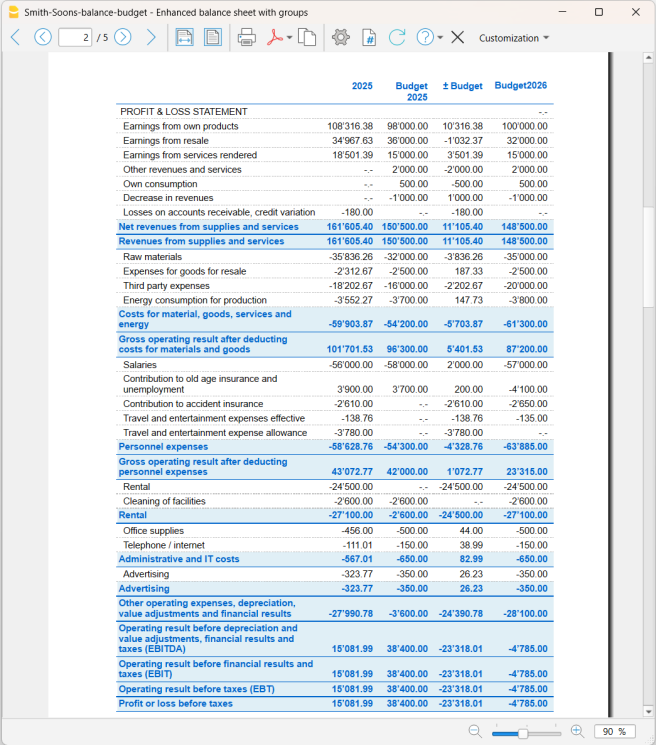
In this example, total budgeted assets are CHF 196'590, while the actual amount is CHF 189'460.50, resulting in an overall difference of CHF -7'129.50.
The difference is also visible in the individual accounts. For example, the bank account has an actual balance of CHF 121'340.50 compared with the budgeted CHF 106'490, while the postal account has CHF 19'210 compared with the planned CHF 45'000.
The report therefore makes it possible to understand not only whether the overall financial position is in line with the Budget, but also which accounts have contributed to the variances.
The actual profit shown in the Balance Sheet is CHF 34'760.50, compared with a budgeted profit of CHF 42'890, resulting in a variance of CHF -8'129.50.
Profit and loss statement
The Profit and loss statement allows you to identify the source of the variance in the result.
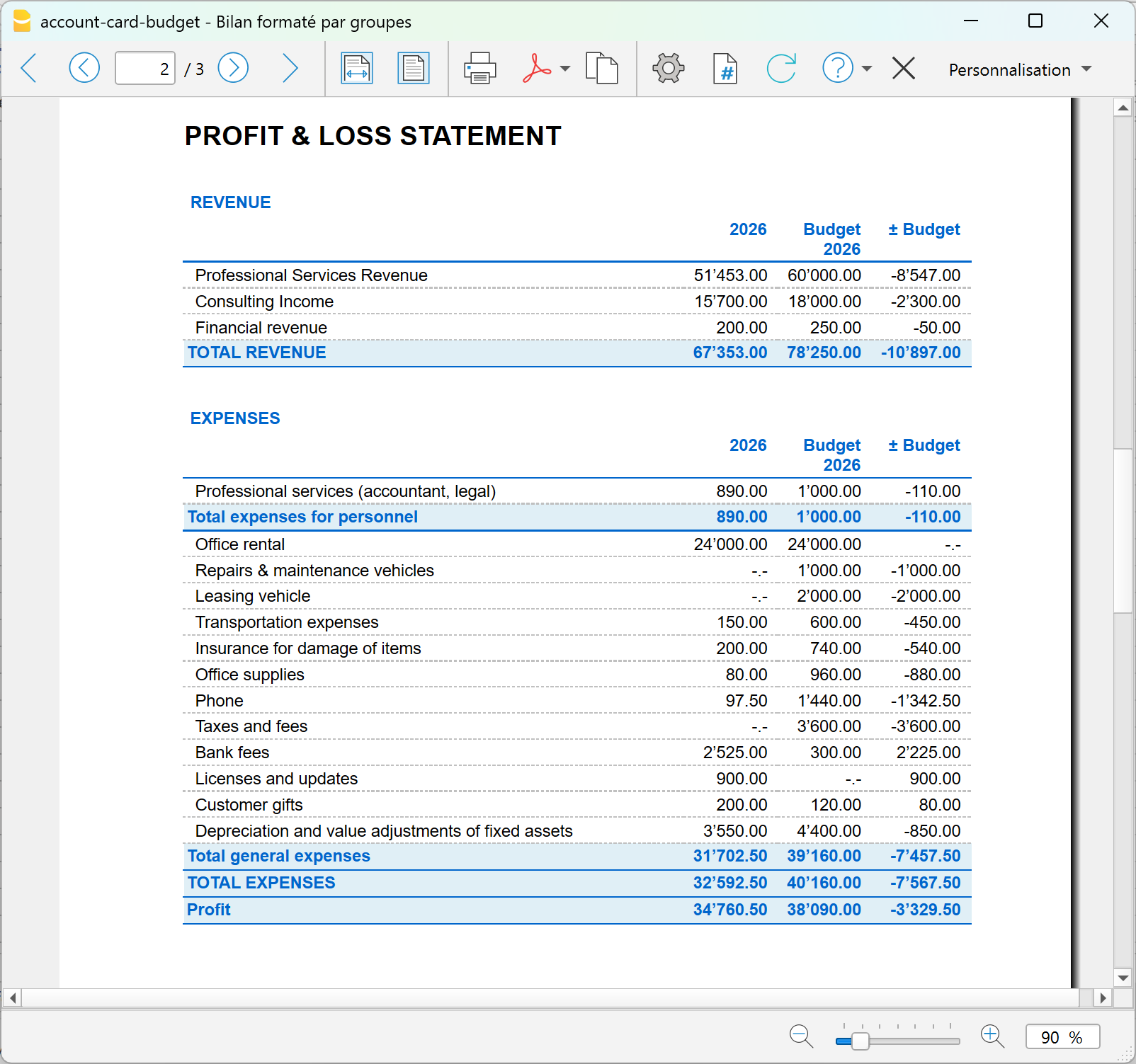
In this example, total revenues of CHF 83'050 were budgeted, while the actual amount is CHF 67'353, resulting in a variance of CHF -15'697.
The difference is almost entirely due to revenues from professional services: CHF 82'000 was budgeted, while CHF 67'153 was actually recorded.
Costs also show differences compared with the plan. General costs amount to CHF 31'702.50, compared with the budgeted CHF 39'160. Costs are therefore CHF 7'457.50 below budget, partially offsetting the lower revenues.
The final result is a profit of CHF 34'760.50, which is CHF 8'129.50 lower than the budgeted CHF 42'890.
Account card: comparison between actual and budget
When a difference appears in a report, you can analyze it down to the individual transactions using the account card.
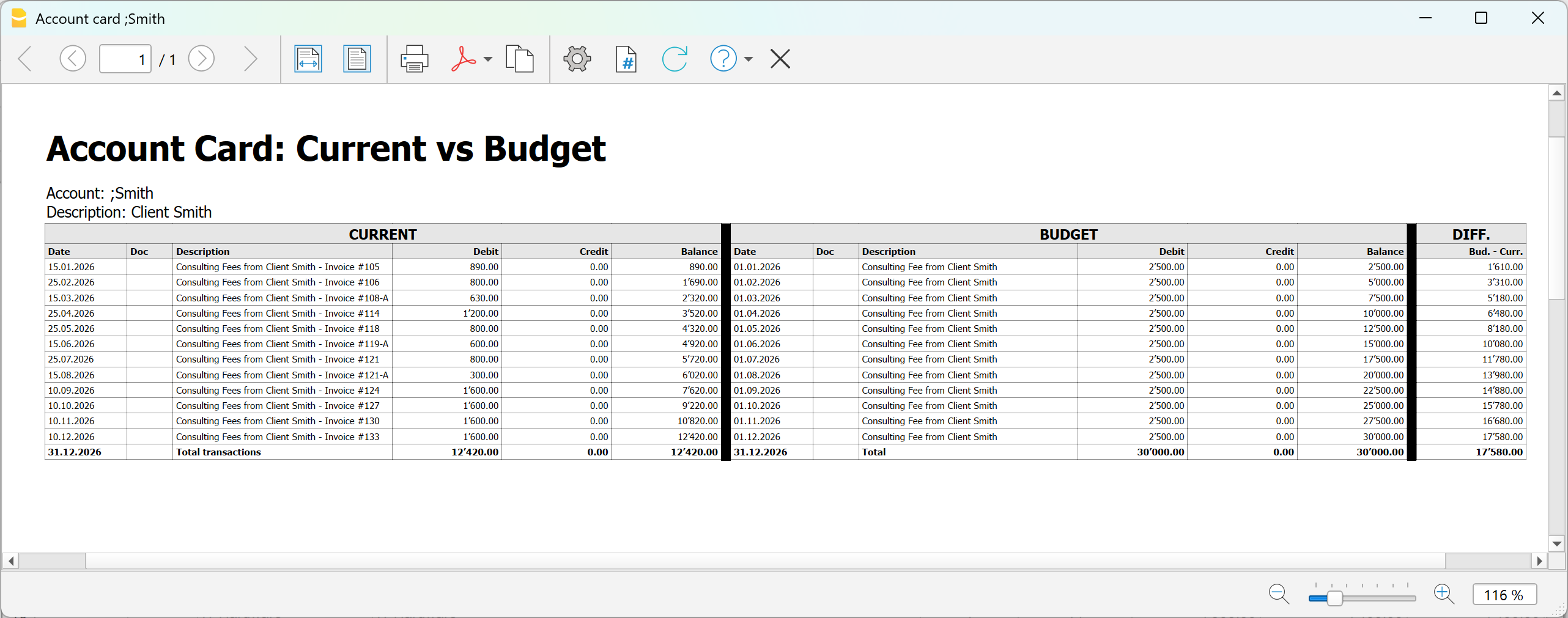
In the example relating to a client, you can directly compare:
- the transactions actually recorded;
- the budget transactions;
- the related differences.
This allows you to check whether the invoices or collections planned for the client actually occurred and identify the transactions that caused the variance.
The same type of analysis can be carried out for accounts, projects, Cost and profit centers and Segments.
For information about installing and using the extension, see Account card: Current vs Budget.
In summary
The Detailed Budget allows you to start from the individual revenues and costs planned for the firm, automatically obtain the expected financial and economic position, and progressively compare it with actual data.
This allows you to identify variances in the reports and, when necessary, analyze them down to the individual transactions.
Pianificazione finanziaria separata dalla contabilità
Neste artigo
Pianificazione finanziaria separata dalla contabilità
Pianificazione finanziaria separata dalla contabilità
La pianificazione finanziaria separata dalla contabilità permette di creare previsioni economiche, finanziarie e patrimoniali in modo indipendente dalla contabilità generale. Consente di simulare ricavi, costi, investimenti e finanziamenti, valutarne gli effetti sulla liquidità e sull'utile e confrontare scenari alternativi. La pianificazione può essere annuale o pluriennale e offre una visione dell'evoluzione futura dell'impresa a supporto delle decisioni aziendali. Si rivolge a medio e grandi imprese e a figure specializzate che devono preparare delle pianificazioni molto dettagliate e avanzate.
Abrir na Banana WebApp
Abra a Banana Accounting Plus no seu navegador sem qualquer instalação. Personalize o modelo, introduza as transacções e guarde o ficheiro no seu computador.
Open template in WebApp Open tutorial in WebAppTemplate documentation
Questo tutorial mostra, con un esempio pratico, come creare e gestire una pianificazione economica, finanziaria e patrimoniale in un file separato dalla contabilità, inserendo nella tabella Preventivo i movimenti previsionali e analizzandone i risultati.
Maggiori info alla pagina della nostra Documentazione: Pianificazione separata dalla contabilità.
Come impostare il file della pianificazione
Per creare il file di pianificazione puoi:
- partire da uno dei modelli predefiniti di contabilità in partita doppia di Banana Contabilità, anche con IVA o multimoneta
- utilizzare come base il piano contabile della tua attività, se disponi già di una struttura contabile
- impostare il periodo di pianificazione, la moneta base e le altre proprietà necessarie.
Nel nostro esempio viene preparata la pianificazione finanziaria di uno studio fiduciario già avviato.
Partendo dalla situazione esistente e formulando ipotesi sull'evoluzione dei clienti e delle consulenze, sugli investimenti e sull'eventuale assunzione di un nuovo collaboratore, viene elaborata una previsione per valutare l'evoluzione futura della liquidità, del risultato d'esercizio e della situazione patrimoniale.
Per creare il file:
- Dal menu File > Nuovo, seleziona la tipologia di contabilità e il modello più adatto alle tue esigenze.
- Dal menu File > Proprietà file > Dati base, inserisci i dati della pianificazione, come nome dell'azienda, periodo e moneta base.
- Se utilizzi una contabilità multimoneta o con IVA, verifica le relative impostazioni. Nei modelli predefiniti i conti necessari, come quelli per le differenze di cambio e l'IVA, sono già predisposti.
Se nel file della contabilità la tabella Preventivo non è visibile, puoi aggiungerla dal menu Strumenti > Aggiungi Tabella Preventivo.
La tabella Registrazioni rimane comunque disponibile. Se non viene utilizzata, puoi nasconderla dal menu Dati > Disponi tabelle, impostando la tabella Registrazioni come non visibile.
Le registrazioni inserite nella tabella Preventivo vengono utilizzate per calcolare automaticamente i valori previsionali dei conti e ottenere report economici, finanziari e patrimoniali.
Struttura della pianificazione
La pianificazione viene gestita in un unico file dedicato e si basa sulla logica della partita doppia, consentendo di simulare contabilmente l'evoluzione futura dell'impresa.
Il file utilizza principalmente due tabelle:
- la tabella Conti, che definisce la struttura contabile e mostra i valori risultanti dalla pianificazione;
- la tabella Preventivo, nella quale vengono inserite le registrazioni previsionali e le ipotesi su cui si basa la pianificazione.
Come creare una pianificazione
Per creare la pianificazione, imposta nella tabella Conti la situazione patrimoniale iniziale e inserisci nella tabella Preventivo le operazioni future previste. Banana calcola automaticamente gli effetti delle registrazioni sulla situazione economica, finanziaria e patrimoniale.
Tabella Conti
Se hai scelto uno dei modelli predefiniti, la tabella Conti contiene già i conti necessari per iniziare la pianificazione.
Puoi personalizzare il piano contabile aggiungendo o eliminando conti e gruppi di totalizzazione in funzione delle tue esigenze. Per maggiori informazioni consulta la pagina Tabella Conti.
I saldi effettivi alla data di inizio della pianificazione possono essere riportati nella colonna Apertura e utilizzati come situazione patrimoniale iniziale da cui sviluppare le previsioni.
Per i conti dello Stato patrimoniale, i valori del Preventivo partono quindi dai saldi iniziali di apertura.
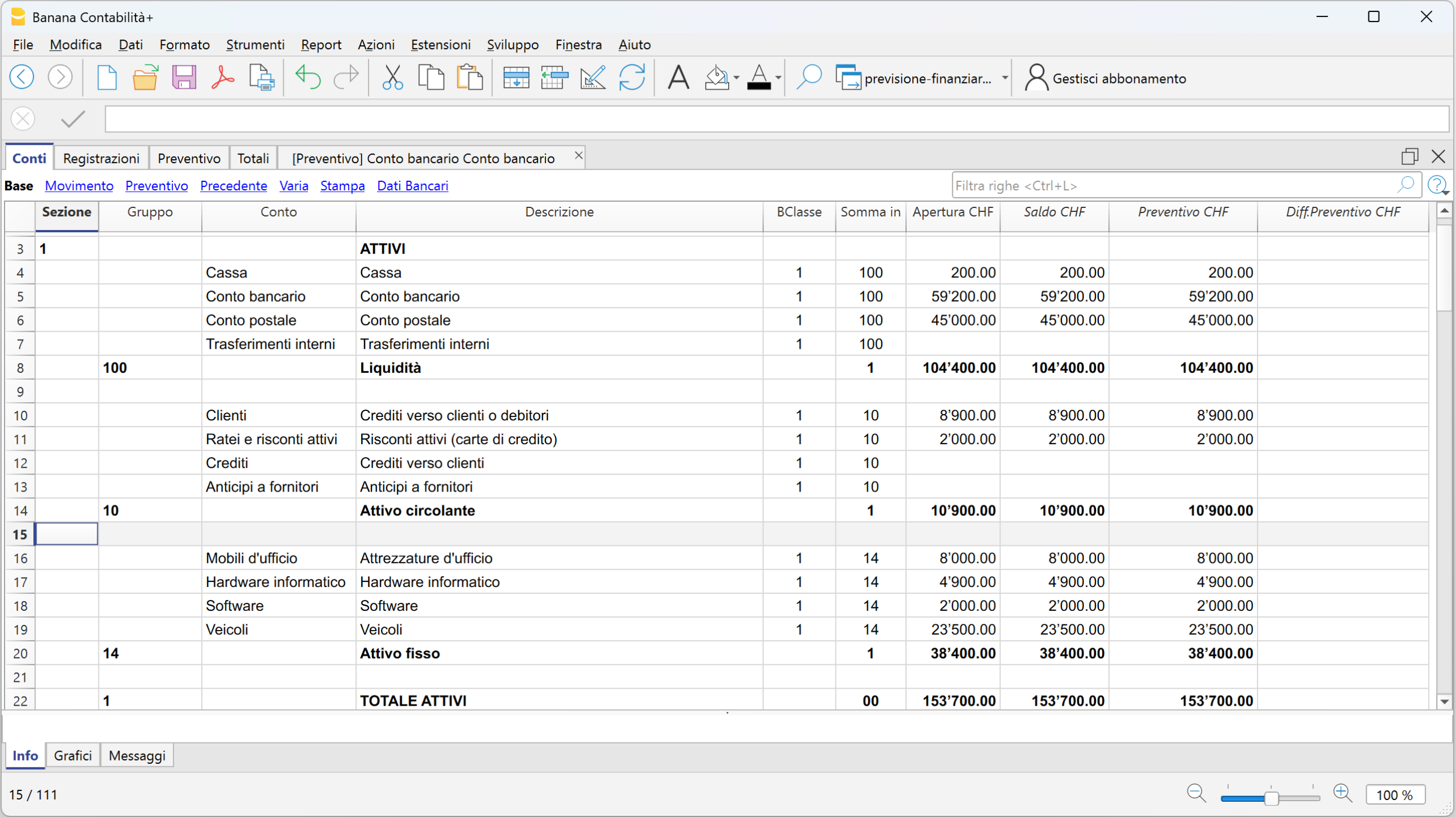
Per i conti del Conto economico, invece, prima dell'inserimento delle registrazioni previsionali i valori del Preventivo sono a zero.
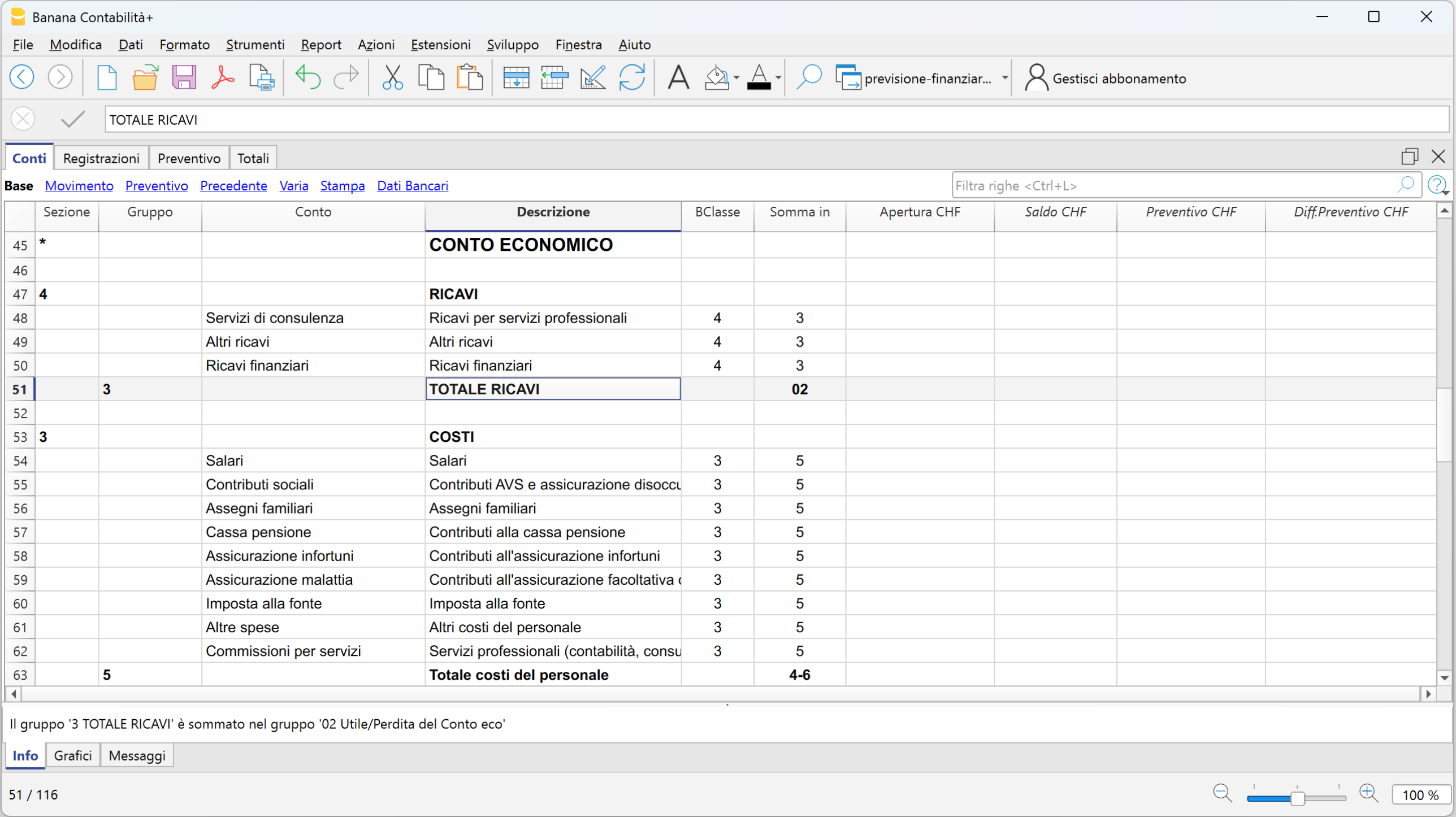
Tabella Preventivo
La tabella Preventivo è il cuore della pianificazione. Qui vengono registrate le operazioni previsionali utilizzando la logica della partita doppia.
Puoi pianificare, ad esempio:
- ricavi e relativi incassi
- acquisti e pagamenti
- salari e altri costi d'esercizio
- investimenti e ammortamenti
- nuovi finanziamenti
- rimborsi di finanziamenti e relativi interessi
- altre operazioni previste.
La tabella permette inoltre di gestire facilmente le operazioni ricorrenti. Non è necessario inserire manualmente una registrazione per ogni ricorrenza: attraverso le colonne Data inizio, Data fine e Ripeti puoi definire la periodicità dell'operazione, ad esempio giornaliera, mensile, trimestrale, semestrale o annuale.
Banana calcola automaticamente le ricorrenze e i relativi valori complessivi. In questo modo la pianificazione diventa dinamica e i report previsionali tengono conto automaticamente della periodicità delle operazioni.
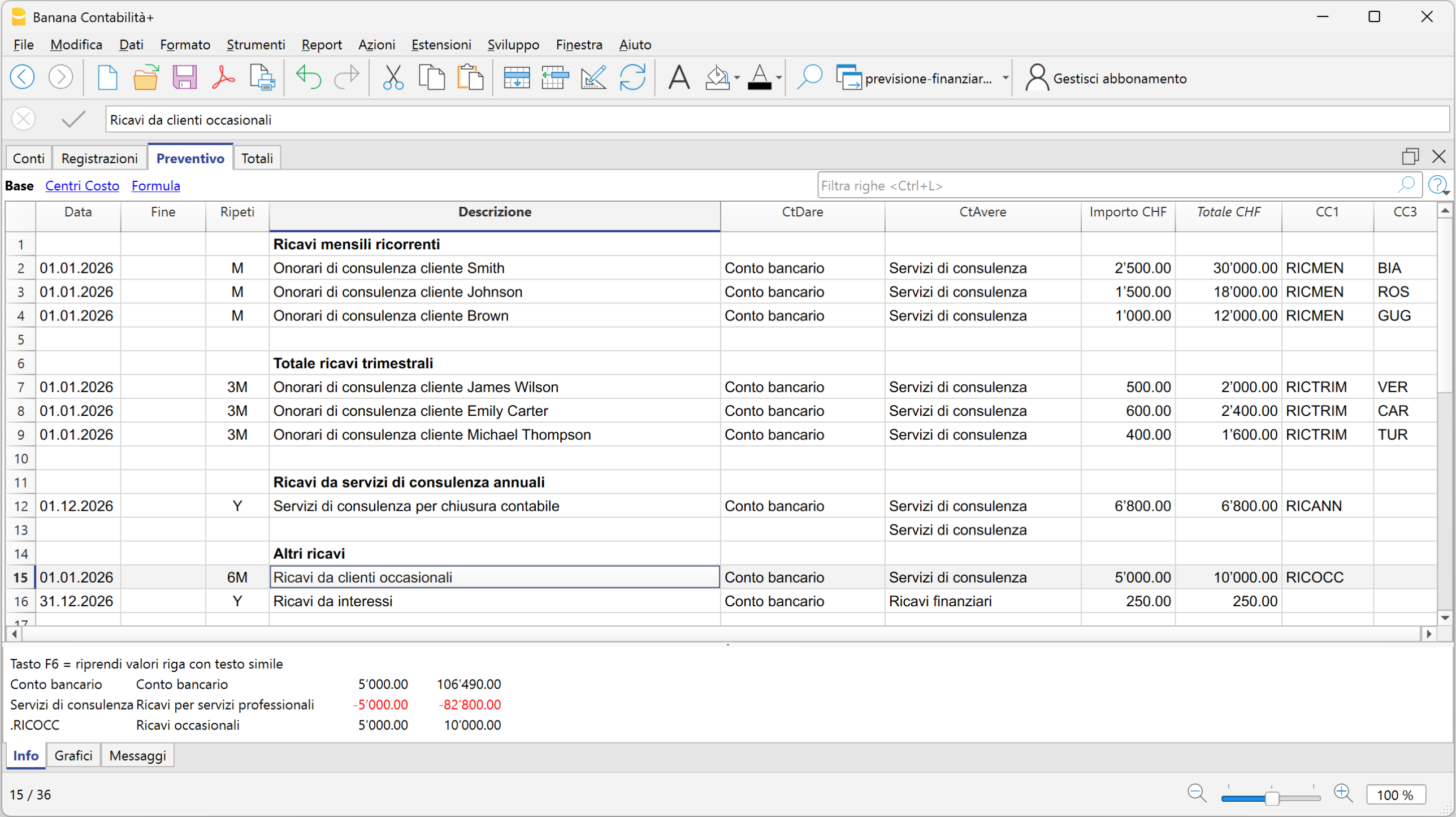
Effetti della pianificazione
Ogni registrazione inserita nella tabella Preventivo produce automaticamente i relativi effetti economici, finanziari e patrimoniali.
Una registrazione previsionale può quindi incidere contemporaneamente sulla liquidità, sui conti dello Stato patrimoniale, sui ricavi e sui costi del Conto economico e, di conseguenza, sull'utile o sulla perdita prevista.
Non è necessario predisporre formule separate per collegare questi elementi: gli effetti derivano automaticamente dalle registrazioni in partita doppia.
Nell'esempio puoi osservare come cambiano gli importi nelle colonne Preventivo e Differenza preventivo dopo l'inserimento delle operazioni previsionali.
Impatto sullo Stato patrimoniale e sulla liquidità
Dopo l'inserimento delle prime registrazioni previsionali, la liquidità prevista passa dal valore iniziale di CHF 104'400.00 a CHF 197'890.00.
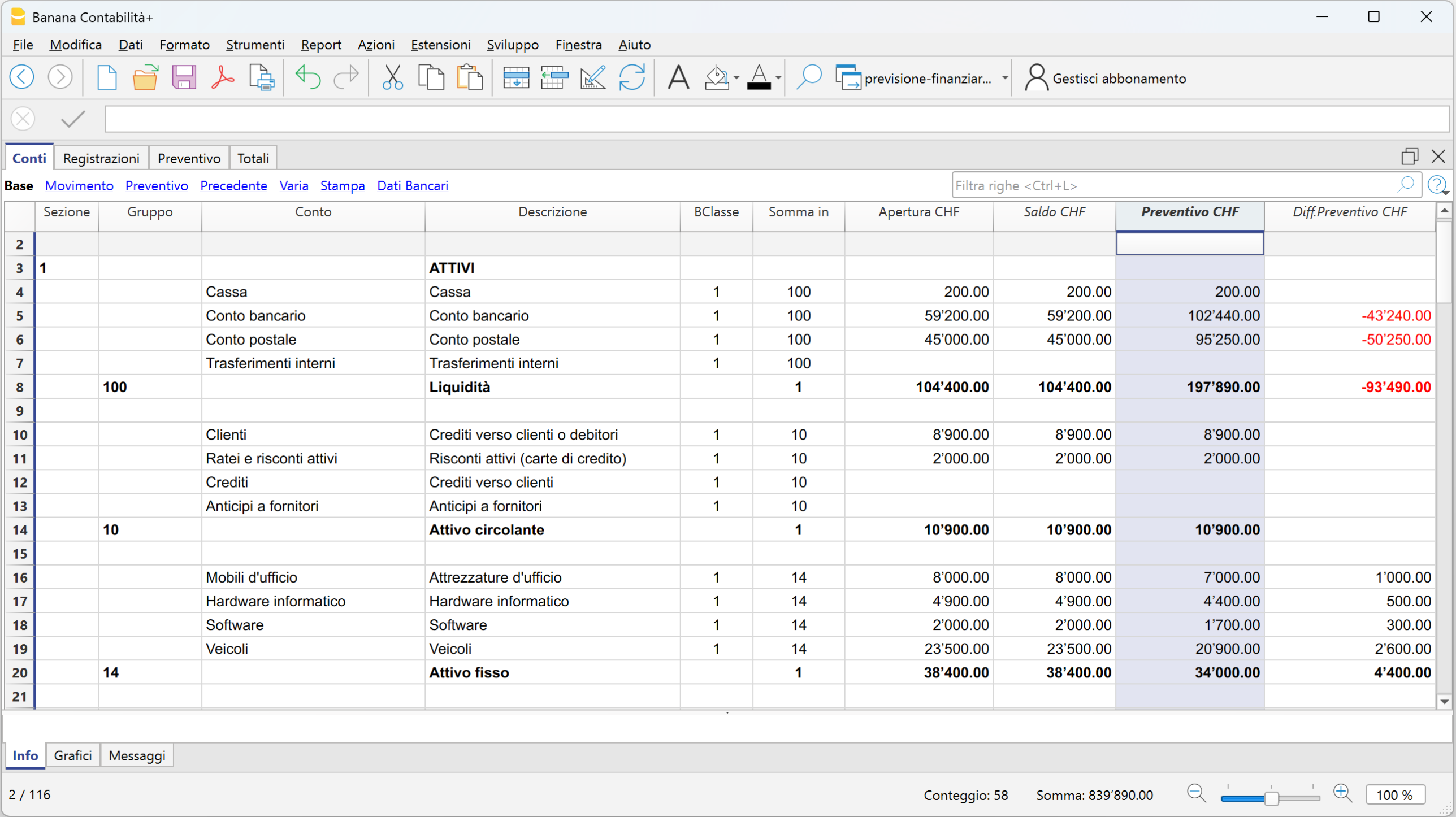
Impatto sul Conto economico
Il Conto economico viene aggiornato automaticamente sulla base delle registrazioni previsionali e determina l'utile o la perdita prevista.
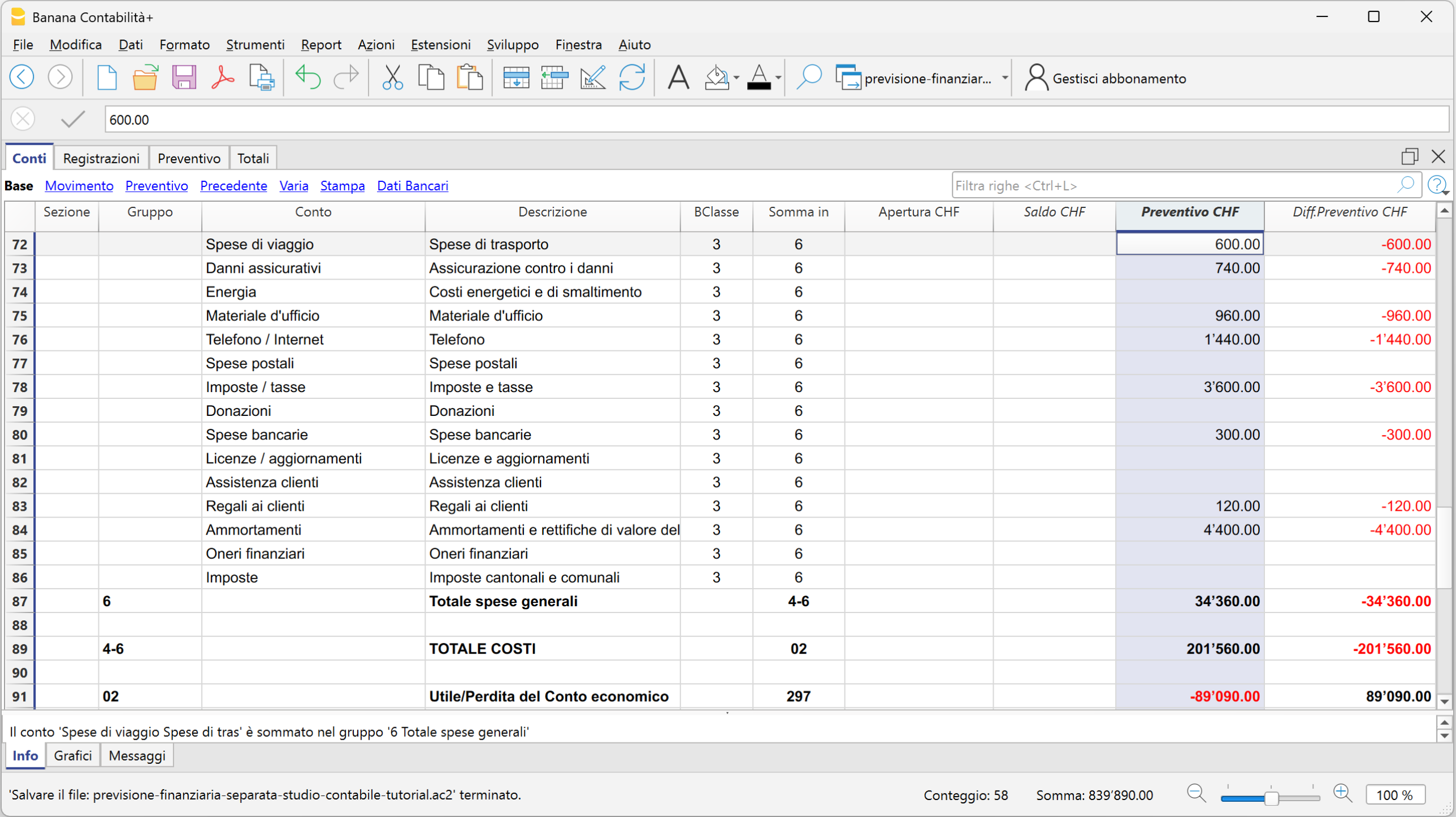
Modificare ipotesi e simulare scenari
Una volta creata la pianificazione di base, puoi modificare le ipotesi e simulare scenari alternativi per confrontarne i risultati con quelli della pianificazione iniziale.
Puoi aggiungere nuove registrazioni previsionali, modificare quelle esistenti oppure utilizzare quantità, prezzi, variabili e formule per verificare come il cambiamento di determinate ipotesi influisce sui risultati complessivi.
Quando un dato viene modificato, Banana ricalcola automaticamente gli effetti collegati, permettendo di verificare immediatamente l'impatto sulla liquidità, sul risultato d'esercizio e sulla situazione patrimoniale.
Ipotesi: aumento delle consulenze del 10%
Supponiamo di voler valutare gli effetti di un aumento del 10% delle consulenze.
Nella tabella Preventivo puoi utilizzare quantità, prezzi unitari, variabili e formule:
- visualizza le colonne Quantità, Prezzo unitario e Formula
- inserisci i valori nelle colonne Quantità e Prezzo unitario
- definisci una variabile per lo scenario di base, ad esempio a = 1
- modifica la variabile per simulare un aumento del 10%, ad esempio a = 1.1
- nella colonna Formula inserisci la formula che utilizza la variabile.
Modificando la variabile, Banana ricalcola automaticamente le registrazioni previsionali interessate e i relativi risultati.
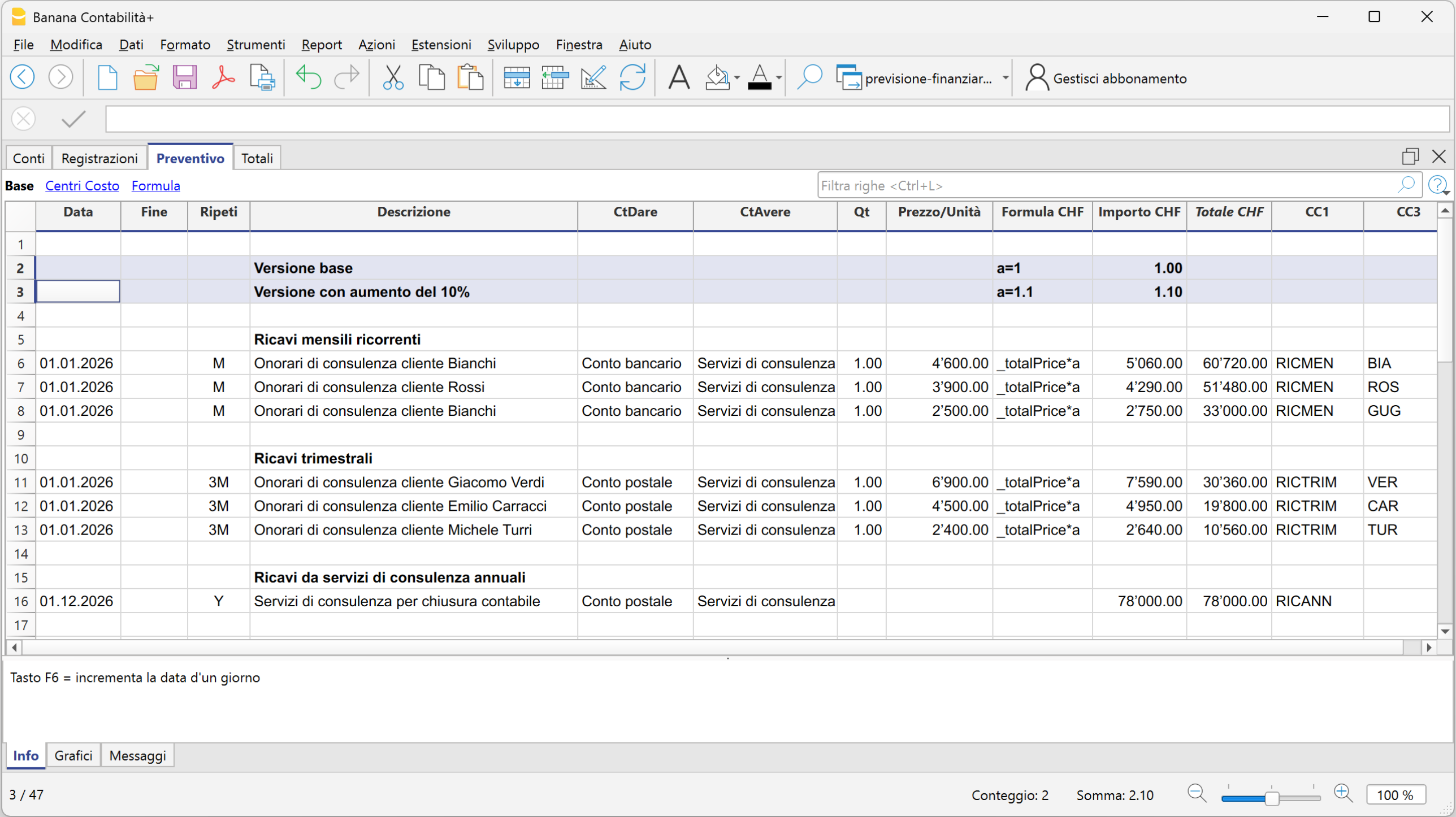
Ipotesi: assunzione di un nuovo collaboratore dal 01.07.2026
Per valutare l'impatto dell'assunzione di un nuovo collaboratore, nella tabella Preventivo vengono aggiunte le registrazioni previsionali necessarie con data di inizio 01.07.2026.
Oltre al salario devono essere considerate anche le relative componenti, come i contributi e gli altri costi del personale previsti.
Banana permette così di verificare l'impatto della nuova assunzione sui costi del personale, sul risultato d'esercizio e sulla liquidità.
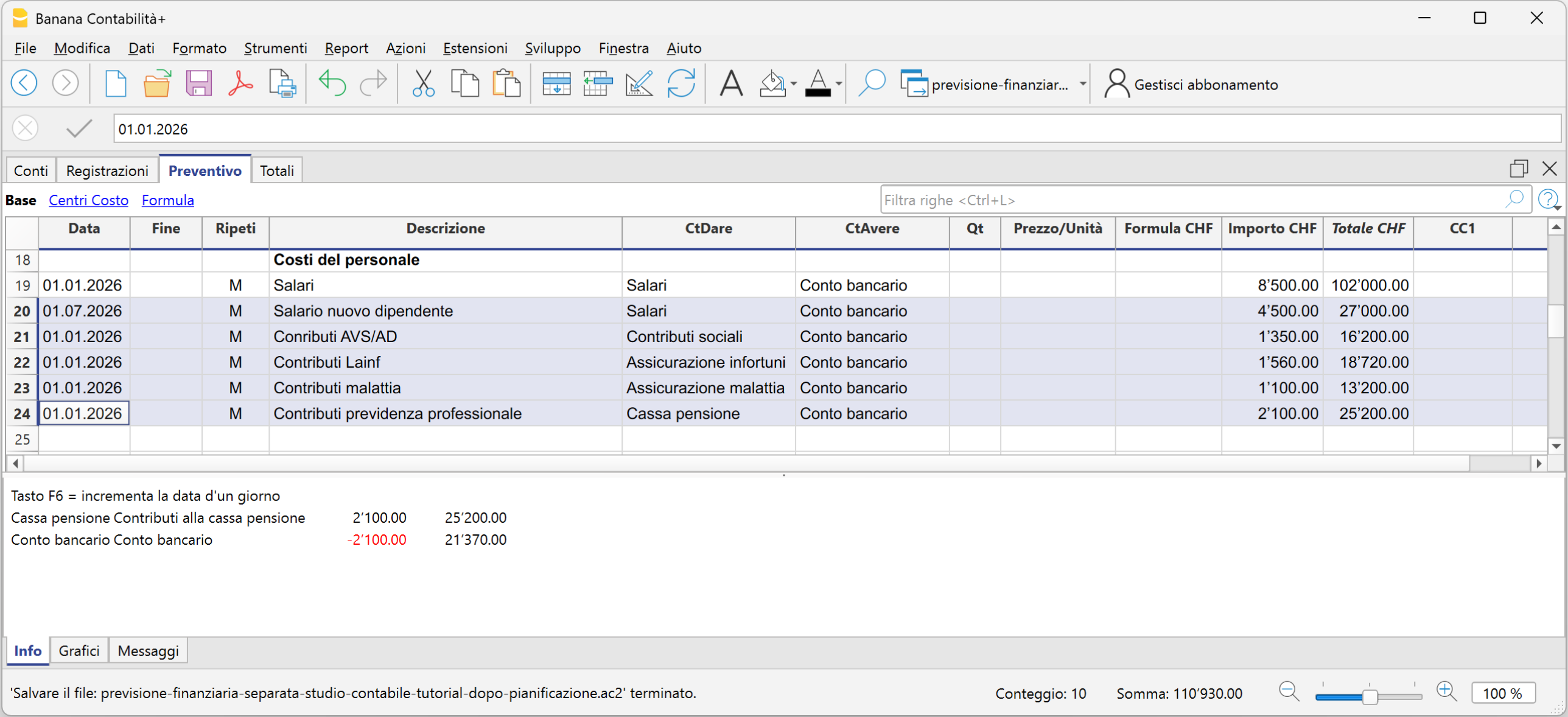
Ipotesi: investimento in nuovo hardware finanziato con un prestito bancario
Supponiamo di pianificare l'acquisto di nuovo hardware per CHF 10'000, finanziato tramite un prestito bancario con un tasso d'interesse del 2.10%.
Nella tabella Preventivo vengono inserite le registrazioni previsionali relative all'investimento e al finanziamento, indicando la data prevista dell'operazione, nell'esempio 01.08.2026.
Per completare la previsione vengono inoltre considerati gli interessi sul finanziamento. Al 31.12 è possibile utilizzare una formula o una variabile per calcolare gli interessi relativi ai cinque mesi da agosto a dicembre e registrare il relativo costo previsto.
In questo modo è possibile valutare contemporaneamente l'impatto dell'operazione sugli investimenti, sull'indebitamento, sugli interessi, sulla liquidità e sul risultato d'esercizio.

Effetti delle ipotesi nei report previsionali
I dati inseriti nella tabella Preventivo possono essere utilizzati per ottenere i principali report economici, finanziari e patrimoniali previsionali.
Dal menu Report > Bilancio abbellito con gruppi, nella sezione relativa ai conti puoi attivare Bilancio e Conto economico e, nella sezione Colonne, selezionare i dati del Preventivo.
Puoi così ottenere lo Stato patrimoniale previsionale e il Conto economico previsionale e verificare gli effetti delle ipotesi inserite nella pianificazione.
Nell'esempio, tutte le variazioni previsionali ipotizzate, aumento del 10% delle vendite, assunzione di un nuovo dipendente e investimento finanziato con un prestito bancario, modificano i risultati della pianificazione rispetto a quelli previsti inizialmente. I relativi effetti si riflettono sullo Stato patrimoniale e sul Conto economico, determinando nuovi valori previsti per la liquidità e l'utile d'esercizio.
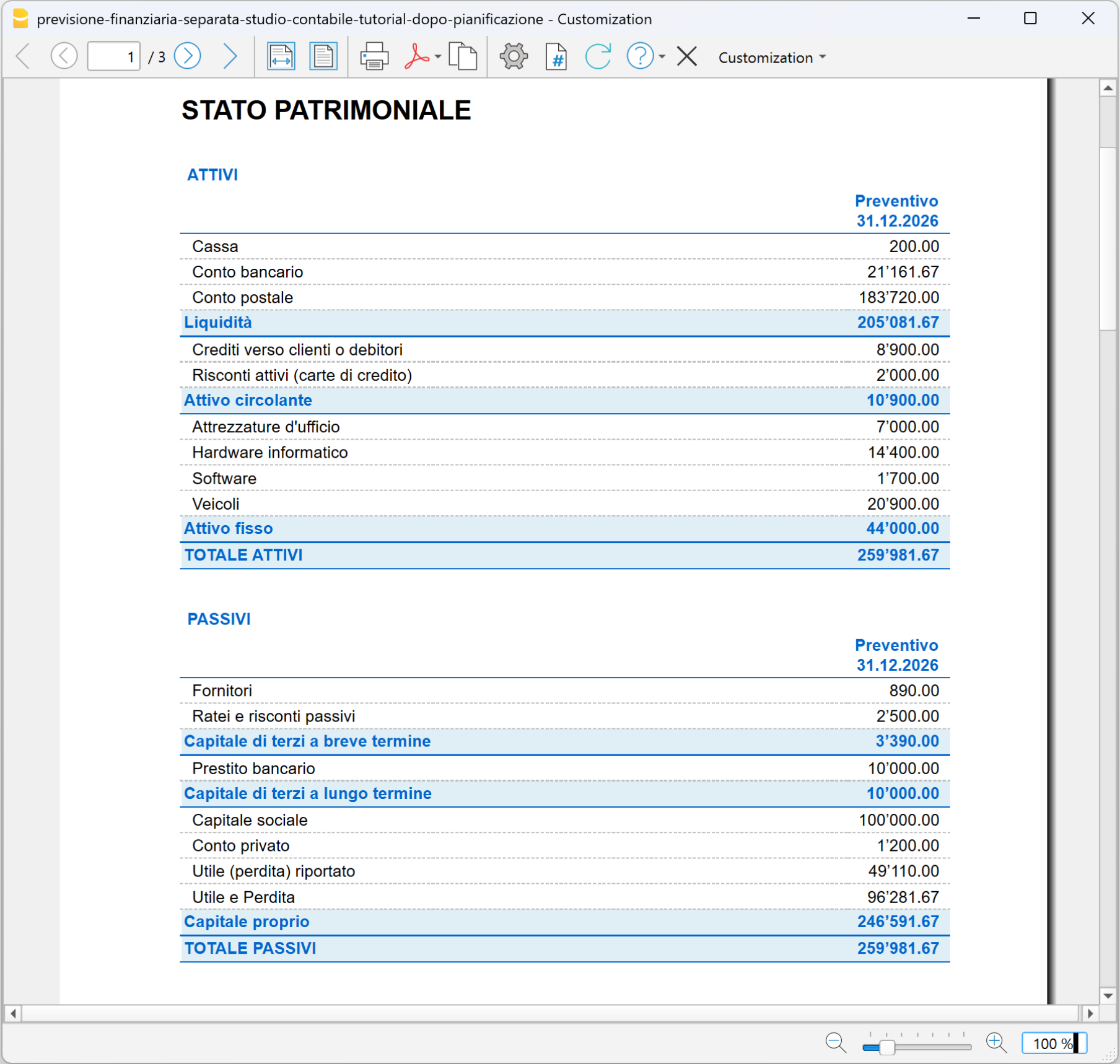
Nello stesso scenario, il Conto economico previsionale permette di confrontare i ricavi e l'utile previsto con quelli della pianificazione di base.
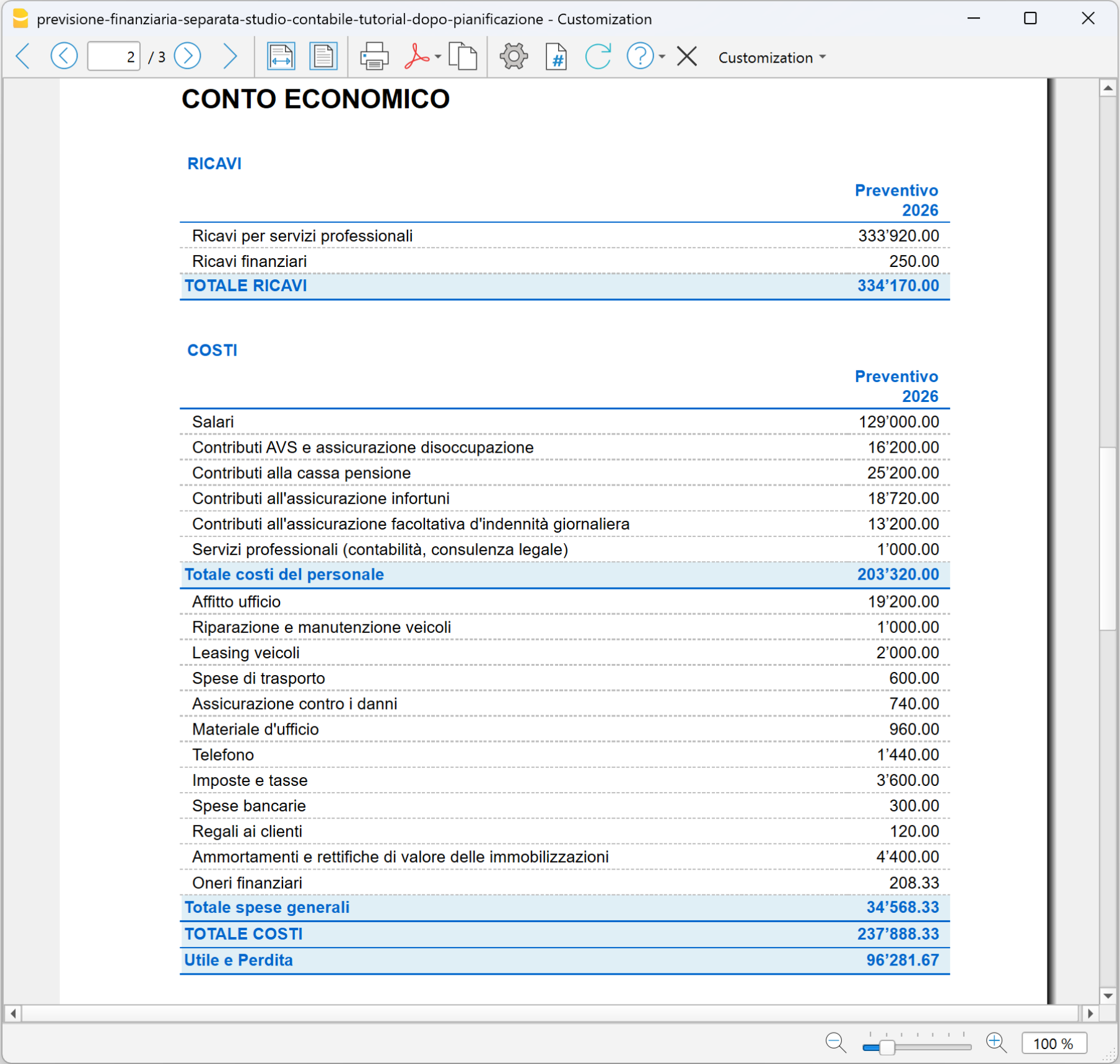
Proiezioni pluriennali
Con Banana Contabilità puoi estendere la pianificazione su più esercizi e creare proiezioni pluriennali.
Per impostare una pianificazione pluriennale, nella tabella Preventivo occorre inserire il movimento previsionale per ciascun anno della pianificazione. Per ogni movimento vengono indicate la relativa data di inizio e di fine periodo, fino a raggiungere la data finale prevista dalla pianificazione.
Gli importi possono essere modificati di anno in anno per tenere conto delle variazioni previste. Ad esempio, puoi prevedere un aumento dei ricavi, una variazione dei costi, nuovi investimenti o una diversa evoluzione dei finanziamenti.
Una volta inserite le previsioni per i diversi esercizi, puoi ottenere report pluriennali e analizzare, anno per anno, l'evoluzione prevista del Conto economico, dello Stato patrimoniale, della liquidità, degli investimenti, dei finanziamenti e dell'indebitamento.
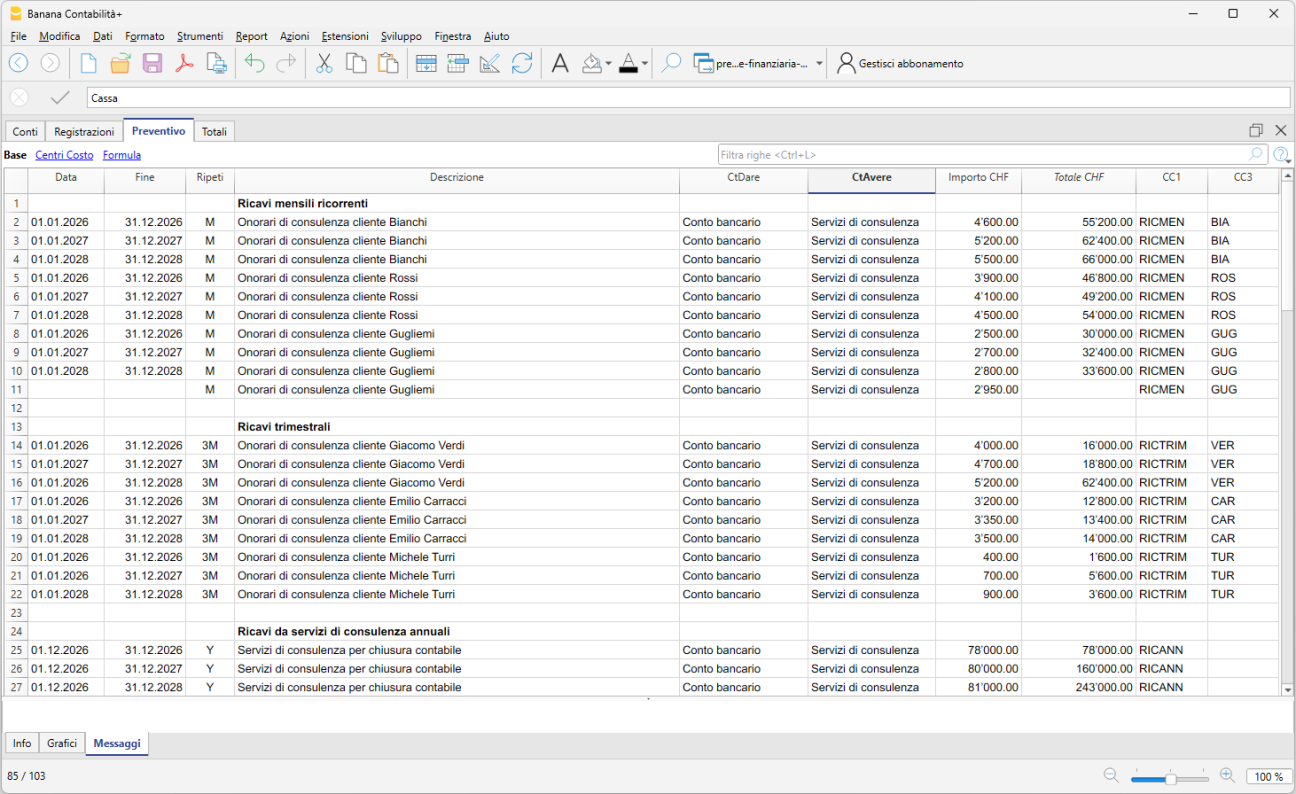
Analizzare i risultati della pianificazione
Una volta completata la pianificazione, puoi analizzare i risultati per l'intero periodo oppure suddividerli per anno. Questo permette di confrontare l'evoluzione prevista della situazione patrimoniale e del Conto economico nel corso di più esercizi.
Per visualizzare e stampare i report:
- dal menu Report > Bilancio abbellito con gruppi
- nella sezione Intestazione e piè di pagina, inserisci l'intestazione della pianificazione
- nella sezione Colonne, attiva la voce Preventivo, sia per il Bilancio sia per il Conto economico
- nella sezione Periodo, seleziona Tutto il periodo
- nella sezione Suddivisione, seleziona Anno
- fai clic su OK.
Esempio di pianificazione pluriennale per lo Stato patrimoniale
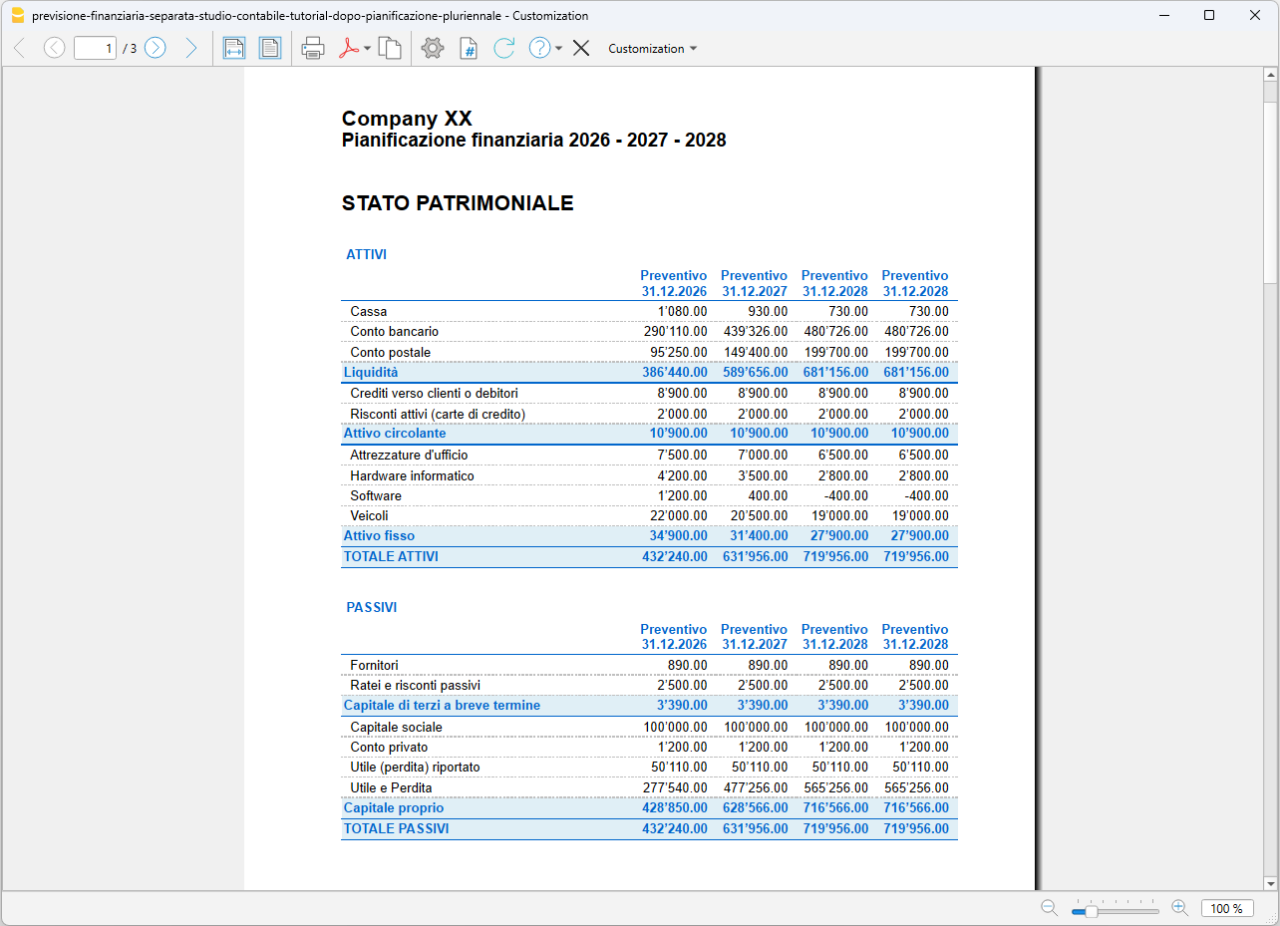
Esempio di pianificazione pluriennale per il Conto economico
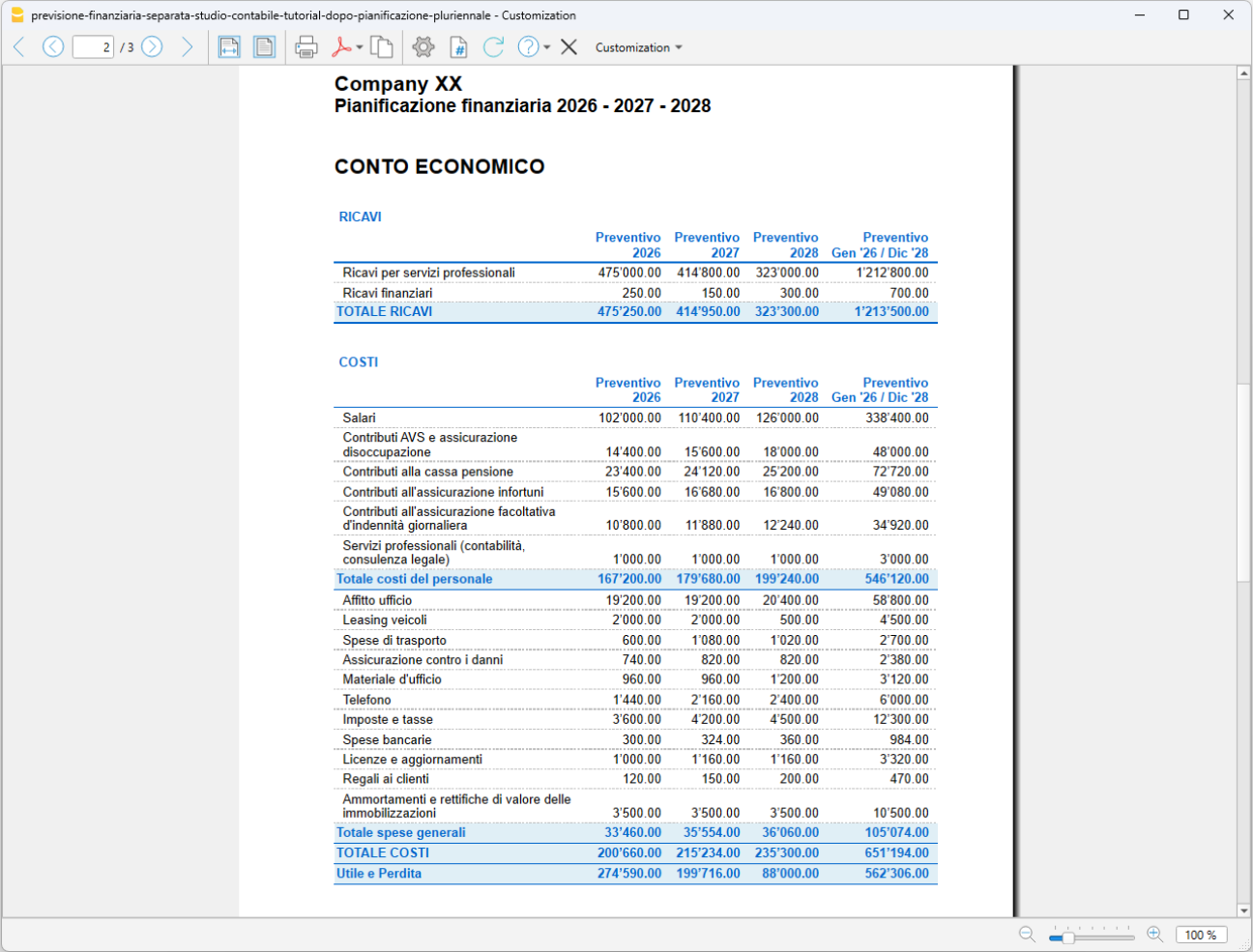
In particolare, puoi verificare:
- se la liquidità prevista è sufficiente durante il periodo di pianificazione
- come evolvono ricavi, costi e risultato d'esercizio
- l'impatto degli investimenti sulla liquidità e sulla situazione patrimoniale
- l'evoluzione dei finanziamenti e dell'indebitamento
- come cambia il patrimonio netto
- se le ipotesi formulate risultano economicamente e finanziariamente sostenibili.
Modificando le ipotesi e le registrazioni nella tabella Preventivo, Banana ricalcola automaticamente i risultati della pianificazione. Puoi così confrontare scenari alternativi e valutarne gli effetti sulla liquidità, sul risultato d'esercizio e sulla situazione patrimoniale, utilizzando i risultati previsionali come supporto alle decisioni aziendali.
Account Card: Current vs Budget (BETA)
Neste artigo
Account Card: Current vs Budget (BETA)
Account Card: Current vs Budget (BETA)
The Account Card: Current vs Budget extension allows you to display and compare, for a selected account, both current account card transactions and budget account card transactions side by side in a single report.
The report provides:
- detailed transaction data
- progressive balances
- differences between actual and planned values
Prerequisites
To use this extension you must download and install Banana Accounting Plus.
Create the report
Run the extension from the menu Extensions > Account Card: Current vs Budget.
The extension Settings dialogue will open. From here you can choose some options to create the report.
- Account
Select the account to analyze (populated automatically from the Accounts table). - Subdivision by period
Select the period subdivision (none, by month, by quarter).- None: shows all transactions in chronological order.
- By month: groups transactions by month; each month is visually separated.
- By Quarter: groups transactions by quarter (Q1, Q2, Q3, Q4); each quarter is visually separated.
- Print in landscape
Prints the report in landscape orientation.
The report will be generated and shown in preview.
Report content
The report is structured into three main sections:
- Current account card
Displays current account card transactions with the columns Date, Document, Description, Debit, Credit, Balance. - Budget account card
Displays budget account card transactions with the columns Date, Document, Description, Debit, Credit, Balance. - Difference (between budget balances and current balances).
For each row, the difference is calculated as: Budget balance – Current balance.
This column highlights deviations between planned and actual values.
Each row or the report includes:
- current transaction (if available)
- budget transaction (if available)
- updated balance
- difference between balances
When one side has no data, the last available balance is carried forward. This ensures continuous and consistent comparison.
Report example:
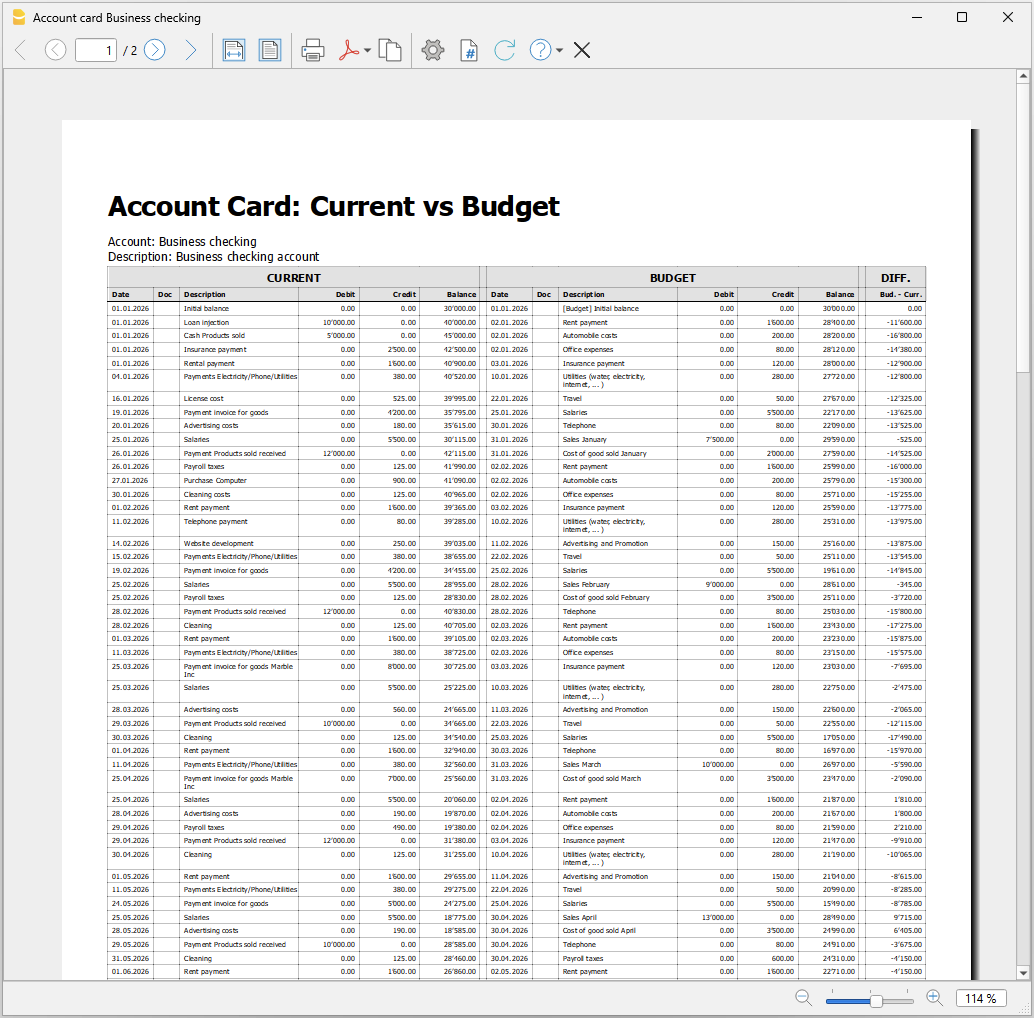
Immobilienbuchhaltung mit Banana Buchhaltung+
Banana Buchhaltung Plus macht die Immobilienbuchhaltung einfach, schnell und professionell – auch wenn Sie keine Buchhaltungserfahrung haben, sei es für eine Stockwerkeigentümergemeinschaft (StWE) oder eine Mietliegenschaft.
Vorlagen für die Immobilienbuchhaltung
Wählen Sie das für Ihre Liegenschaft und Ihre Buchhaltungsbedürfnisse am besten geeignete Modell von Banana Buchhaltung Plus.
Jedes Modell ist sofort einsatzbereit und darauf ausgelegt, die Immobilienverwaltung schnell, genau und transparent zu gestalten.
- Vorlagen für die Buchhaltung von Mietliegenschaften
- Vorlagen für die Buchhaltung von Stockwerkeigentum (StWE)
Immobilienbuchhaltung
Der Ausgangspunkt ist einfach: Jede Wohnung, jedes Geschäft oder Büro (Immobilieneinheit) hat einen Preis für die Nutzung und Kosten für den Betrieb.
Banana Buchhaltung Plus hilft Ihnen, alles klar im Griff zu behalten.
Um die Immobilienbuchhaltung zu verstehen, genügt es zu denken, dass jemand eine Immobilie – Wohnung, Geschäft oder Büro – nutzt, als wäre er immer der Eigentümer.
Daraus ergibt sich eine grundlegende Unterscheidung:
- der Preis des Hauses
- die Betriebskosten des Hauses
Diese Unterscheidung gilt in jeder Situation.
Mietliegenschaft
Wenn Sie eine Mietliegenschaft besitzen, sind Sie Eigentümer der Immobilie und führen eine vollständige Buchhaltung über Einnahmen und Ausgaben.
Die Miete, die Sie erhalten, ist der Preis, den der Mieter für die Nutzung der Immobilie bezahlt – als wäre sie seine eigene.
Dieser Betrag:
- ist ein Einnahmenposten für den Eigentümer
- stellt den Wert der Nutzung der Immobilie dar
Die Ausgaben betreffen alles, was für den ordnungsgemässen Betrieb der Liegenschaft erforderlich ist, zum Beispiel:
- Heizung
- gemeinsames Wasser und Strom
- Unterhalt
- Dienstleistungen und Lieferanten
Diese Ausgaben sind kein Gewinn, sondern reale Kosten, die jemand tragen muss.
In der Praxis übernimmt oder bevorschusst der Eigentümer die Betriebskosten, und der Mieter erstattet ihm den auf ihn entfallenden Anteil.
Das bedeutet, dass die Spesenrückerstattung kein echter Ertrag ist, sondern lediglich bereits entstandene Kosten deckt.
Anders gesagt: Die Miete ist der Preis des Hauses, die Spesen sind die Betriebskosten.
Diese Spesen dienen zur Deckung der Betriebskosten und gelten nicht als endgültige Ausgaben, solange die tatsächlichen Kosten nicht bekannt sind. Am Ende des Zeitraums kann man vergleichen:
- wie viel einbezahlt wurde
- wie viel tatsächlich ausgegeben wurde
und erhält so eine klare Übersicht für jeden Mieter.
Stockwerkeigentum
Auch im Stockwerkeigentum ändert sich das Prinzip nicht. Ein Stockwerkeigentum ist ein Gebäude mit mehreren Eigentümern, die einen Preis für ihre Wohnungen bezahlt haben und gemeinsame Teile und Kosten teilen.
Jeder Eigentümer nutzt das Gebäude anteilsmässig so, als wäre er Eigentümer des gesamten Gebäudes.
Die gemeinschaftlichen Ausgaben betreffen den Betrieb der gemeinsamen Teile, wie zum Beispiel:
- Treppenhaus und gemeinsam genutzte Räume
- Dach, Fassade und Anlagen
- Garten und Aussenbereiche
Diese Ausgaben sind die Betriebskosten des Gebäudes und werden von den Eigentümern gemäss ihren Anteilen getragen.
Im Stockwerkeigentum leisten die Eigentümer periodische Beiträge.
Diese Beiträge dienen der Deckung der Betriebskosten und gelten nicht als endgültige Ausgaben, solange die tatsächlichen Kosten nicht bekannt sind. Am Ende des Zeitraums kann man vergleichen:
- wie viel einbezahlt wurde
- wie viel tatsächlich ausgegeben wurde
und erhält so eine klare Übersicht für jeden Eigentümer.
Nachdem Sie die Art der Immobilienverwaltung definiert haben, können Sie das passende Buchhaltungsmodell auswählen.
Was Sie mit Banana Buchhaltung Plus tun können
Mit Banana Buchhaltung Plus können Sie:
- den Preis des Hauses und die Betriebskosten separat erfassen
- Mieten, Rückerstattungen und Ausgaben nachverfolgen
- sofort sehen, was eingenommen und was ausgegeben wurde
- einen klaren und verständlichen Jahresabschluss erhalten
Alles mit einer Logik, die auf Personen ausgerichtet ist, die ihre Immobilie selbst verwalten.
Eine klare Buchhaltung macht alles einfacher, wenn Sie trennen zwischen:
- dem, was Preis ist
- dem, was Kosten sind
und es wird sofort einfacher:
- die Rentabilität der Immobilie zu verstehen
- Verwirrung zu vermeiden
- bewusste Entscheidungen zu treffen
Gestione proprietà in affitto
Banana Contabilità propone due modelli utili per tenere una contabilità immobiliare professionale per gli affitti:
- Modello per la contabilità affitti Entrate/Uscite: la versione semplice, ideale se non sei uno specialista e non conosci la contabilità in partita doppia.
- Modello per la contabilità affitti in partita doppia: la versione avanzata, ideale se conosci la contabilità classica in partita doppia.
Entrambi includono già il piano dei conti tipico della gestione immobiliare.
Piano dei conti per Affitti
La contabilità di una proprietà in affitto può essere vista come una normale contabilità, con una distinzione fondamentale:
- l’affitto rappresenta il prezzo della casa per l'inquilino
- le spese rappresentano il costo del funzionamento della casa
L’inquilino paga entrambi, ma con significati completamente diversi.
Banana Contabilità ti aiuta a tenerli sempre separati e sotto controllo.
Quando gestisci una proprietà in affitto:
- tu sei il proprietario dell’immobile
- tutte le entrate e le spese fanno capo a te
- una parte dei costi di funzionamento viene rimborsata dagli inquilini
La contabilità serve a distinguere chiaramente:
- ciò che è prezzo (affitto)
- ciò che è rimborso dei costi di funzionamento (acconto)
Il piano dei conti per gli affitti è organizzato per rispondere alla domanda su quanto si incassa come prezzo della casa e quanto si incassa solo per coprire i costi di funzionamento dell'edificio.
Per farlo la contabilità è suddivisa in alcune aree principali.
Conti degli inquilini
Per ogni inquilino viene creato un conto contabile personale che serve a registrare:
- l’affitto richiesto e quello versato
- gli anticipi per le spese richiesti e quelli versati
- eventuali differenze da regolare a fine anno
Questi conti funzionano come conti clienti, mostrano sempre quanto è stato richiesto e quanto è stato pagato.
Conti per gli incassi degli affitti
I conti dei ricavi per affitti raccolgono esclusivamente il prezzo della casa, cioè:
- affitti di appartamenti
- affitti di uffici o spazi commerciali
- affitti di posteggi
Questi conti:
- contengono solo l’affitto
- non includono mai le spese incassate
In questo modo il reddito dell’immobile è sempre chiaro.
Conti per il costo di funzionamento della casa
Per gestire correttamente le spese vengono utilizzati conti separati che servono a:
- registrare le spese effettivamente sostenute rimborsabili dagli inquilini
- raccogliere gli anticipi richiesti agli inquilini
- confrontare quanto incassato con quanto speso e rimborsabile
L’obiettivo è che i soldi incassati per le spese devono corrispondere esattamente ai costi rimborsabili reali sostenuti.
Conti per i costi del proprietario
Per gestire correttamente le spese vengono utilizzati anche conti dei costi separati che servono a:
- registrare le spese effettivamente sostenute che non sono rimborsabili dagli inquilini
- confrontare quanto incassato come prezzo della casa dagli inquilini con quanto speso che non è rimborsabile dagli inquilini
L’obiettivo è calcolare esattamente quanto sta rendendo essere proprietari dell'immobile.
Registrazione delle richieste mensili
Per semplicità immagina che l’affitto viene richiesto ogni mese.
All’inizio del mese:
- viene registrato l’affitto richiesto all’inquilino
- viene registrato l’anticipo richiesto per le spese di funzionamento
Queste registrazioni avvengono anche se l’inquilino non ha ancora pagato.
Registrazione degli incassi
Quando l’inquilino paga:
- l’importo versato viene registrato nel suo conto
- la contropartita è il conto bancario o la cassa con cui è stato versato
In questo modo è sempre chiaro:
- cosa è stato richiesto
- cosa è stato effettivamente incassato
Conteggio di fine anno delle spese
Durante l’anno:
- gli inquilini versano anticipi per le spese di funzionamento
- il proprietario sostiene i costi di funzionamento
A fine anno si confrontano:
- gli anticipi richiesti
- le spese di funzionamento effettivamente sostenute
Per pareggiare i conti:
- a chi è stato richiesto meno paga la differenza
- a chi è stato richiesto di più riceve un rimborso
Questo conteggio serve esclusivamente a far coincidere incassi e costi reali e effettivi.
Controllo dei pagamenti degli inquilini
Il conto di ogni inquilino mostra sempre la sua situazione:
- saldo in Dare
significa che non ha ancora pagato tutto ciò che gli è stato richiesto - saldo in Avere
significa che ha versato più del necessario
Questo controllo è immediato e non richiede ulteriori calcoli esterni.
Perché questo modello è efficace
Questo piano dei conti ti permette di:
- distinguere chiaramente il reddito dell’immobile dai rimborsi delle spese
- capire subito la redditività reale
- gestire le spese in modo trasparente
- evitare confusione tra affitto e spese
- dimostrare agli inquilini le spese effettivamente sostenute che sono tenuti a rimborsare
In questo modo la contabilità riflette la realtà, ossia che l’affitto è il prezzo della casa, le spese sono il costo del suo funzionamento.
La registrazione dell'affitto e dell'anticipo periodico richiesto può essere automatizzato grazie alle registrazioni ricorrenti automatiche.
Esiste inoltre un'estensione apposita per il controllo periodico del pagamento degli affitti.
Spese rimborsabili dagli inquilini
Nella gestione di una proprietà in affitto, una parte dei costi di funzionamento della casa può essere rimborsata dagli inquilini.
Questo significa che:
- il proprietario sostiene e anticipa questi costi
- gli inquilini rimborsano la quota che compete loro
Le spese rimborsabili devono essere registrate in modo ordinato, documentate e suddivise correttamente tra gli inquilini.
In questo modo gli inquilini possono, se necessario, verificare:
- quali costi sono stati sostenuti
- come sono stati ripartiti
La possibilità di farsi rimborsare alcune spese dipende dalle normative applicabili e dagli accordi presi con gli inquilini.
In alcuni casi si concorda un importo fisso senza calcolo delle differenze, oppure l’affitto include anche tutte le spese, e in altri casi gli inquilini versano un anticipo fisso e a fine anno si confrontano anticipi e spese reali calcolando eventuali differenze. Banana Contabilità è pensato per supportare tutte le situazioni.
Nel modello più frequente:
- l’inquilino versa regolarmente un anticipo
- il proprietario registra i costi reali
- a fine anno si calcola la differenza
Se gli anticipi sono:
- inferiori ai costi l’inquilino versa il saldo
- superiori ai costi l’inquilino riceve un rimborso
Questo importo di differenza viene definito come conteggio o conguaglio.
Questo meccanismo serve a far coincidere quanto è stato incassato per le spese con quanto è stato realmente speso.
Per gestire correttamente le spese rimborsabili è importante organizzarle in modo logico. Ad esempio, tutte le spese legate al riscaldamento possono essere raccolte in un unico gruppo, come:
- manutenzione della caldaia
- spazzacamino
- gas o gasolio
- elettricità utilizzata per il funzionamento della caldaia
Questo permette di calcolare il rimborso in modo coerente.
Se vuoi maggiore precisione, puoi creare conti separati per tipi specifici di costo e indicare chiaramente a cosa servono.
Ad esempio una parte dell’elettricità delle scale può essere attribuita al funzionamento della caldaia. Creando un conto dedicato, questa quota verrà suddivisa insieme ai costi di riscaldamento. In questo modo la suddivisione segue il criterio corretto.
Una buona pratica fondamentale è distinguere sempre le spese rimborsabili da quelle non rimborsabili.
Questo ti permette di:
- sapere subito cosa può essere fatto pagare agli inquilini
- evitare errori nei conteggi
- mantenere una contabilità chiara e trasparente
Gestire le spese rimborsabili significa, in pratica tenere sotto controllo il costo di funzionamento della casa, suddividerlo in modo equo, rimborsare o richiedere solo ciò che è effettivamente dovuto. Con Banana Contabilità questo processo rimane sempre chiaro, anche quando la gestione diventa più articolata.
Questi rimborsi non rappresentano mai un guadagno, ma servono solo a coprire spese reali.
Nel diagramma che segue puoi vedere la maggior parte delle spese immobiliari con un esempio di suddivisione tra quelle rimborsabili (a destra) e quelle non rimborsabili (a sinistra).

Conti contabili per spese rimborsabili
Le spese rimborsabili degli inquilini nei modelli sono posti nella parte attiva del bilancio (conti dal 1100) o nella tabella Conti per la contabilità Entrate-Uscite, proprio perché per il proprietario non sono vere e proprie spese.
Ecco le spese rimborsabili dagli inquilini in una contabilità in partita doppia:

Le spese in generale possono essere diverse in base all’immobile che si gestisce.
Puoi facilmente spostare, eliminare, inserire dei conti, cambiarne la descrizione.
Registrazioni delle spese rimborsabili dagli inquilini
- Per ogni spesa rimborsabile dagli inquilini:
- Si registra il corretto conto contabile delle spese (esempio conto 1100 in Dare).
- La contropartita è il conto bancario o la cassa se il pagamento è avvenuto a contanti.
Calcolo e suddivisione delle spese rimborsabili
Guarda la pagina dedicata al modello Excel per la suddivisione delle spese.
Spese non rimborsabili dagli inquilini
Come per la contabilità di una qualsiasi azienda, le spese che non possono essere rimborsate dagli inquilini sono elencate nel Conto economico o nella tabella Categoria come Costi.
Nel modello sono indicati nella parte Costi le spese non rimborsabili (per esempio conti 6100 e seguenti). Anche qui puoi facilmente eliminare, inserire dei conti, cambiarne la descrizione.

Calcolo e suddivisione delle spese rimborsabili dagli inquilini
Il calcolo e la suddivisione delle spese rimborsabili dagli inquilini tiene conto di:
- Il conto del Conteggio annuale che serve per registrare i conteggi calcolati per gli Inquilini.
- Si registra ogni singola spesa che deve essere rimborsata dall'inquilino (esempio conto 1100 in Avere).
- La contropartita è il conto di Conteggio annuale (conto Dare).
- L'importo delle spese è quello riferito a tutto il periodo di spese da suddividere.
- Gli anticipi sulle spese pagati dagli inquilini durante l'anno devono essere considerati nel calcolo del conteggio.
- Si registra in un unica registrazione il totale degli anticipi richiesti durante il periodo nel conto degli Anticipi dagli inquilini (conto Dare).
- La contropartita è il conto del Conteggio annuale (conto Avere).
- L'importo da girare è il totale degli anticipi richiesti a tutti gli inquilini durante il periodo.
- Differenze nel conto del Conteggio annuale.
- Dopo le due operazioni precedenti l'importo restante del conto Conteggio annuale è uguale al totale dei conteggi da suddividere agli inquilini.
- Questo importo deve essere suddiviso per ogni inquilino tramite un calcolo che fa uso di chiavi o coefficienti di suddivisione.
- Quando si registrano i conteggi calcolati per ogni singolo inquilino nel conto del Conteggio annuale questo conto dovrebbe azzerarsi o dovrebbero restare pochi centesimi non più suddivisibili a tutti gli inquilini.
Suddivisione delle spese per ogni appartamento
La suddivisione delle spese è riferita a ogni singolo appartamento e eventualmente anche al periodo di tempo in cui un inquilino è stato effettivamente inquilino.
Banana Contabilità Plus permette di tenere nota delle spese rimborsabili, ma non si occupa della suddivisione, perché il tema della suddivisione è diverso per ogni immobile e a volte può avere anche delle suddivisioni molto complesse.
Per la suddivisione si consiglia quindi di creare una tabella Excel per ogni immobile e per ogni anno (o periodo di suddivisione) dove sono riportati i totali di ogni singola spesa e poi gli importi sono calcolati e suddivisi tramite delle chiavi o coefficienti di suddivisione (m2, consumo, ecc).
Vedi l'esempio di seguito e scarica il modello Excel.
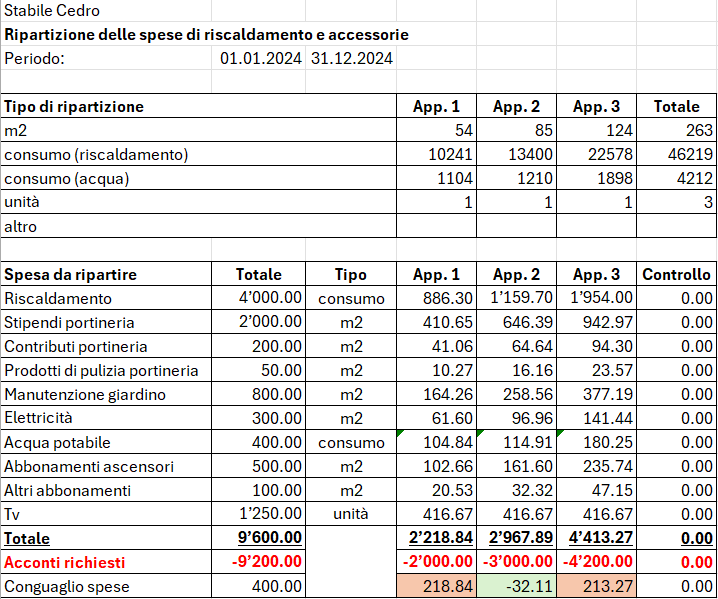
Conteggio agli inquilini
Il conteggio calcolato deve essere registrato in contabilità:
- Se l'inquilino ha versato meno rispetto alle spese a lui assegnate si chiede la differenza e si registra nel conto dell'inquilino in Dare.
La contropartita è il conto per il Conteggio annuale. - Se l'inquilino ha versato di più rispetto alle spese a lui assegnate si rimborsa la differenza e si registra nel conto dell'inquilino in Avere.
La contropartita è il conto per il Conteggio annuale. - Dopo avere registrato i conteggi ai rispettivi inquilini il conto Conteggio annuale dovrebbe azzerarsi o dovrebbe restare un importo di pochi centesimi che non può essere ulteriormente suddiviso su tutti gli inquilini.
- Se il conto Conteggio annuale si azzera o restano solo pochi centesimi la suddivisione delle spese è avvenuta correttamente.
- Se il conto Conteggio annuale non si azzera o restano importi superiori a pochi centesimi la suddivisione non è avvenuta correttamente. È quindi necessario ricontrollare i calcoli fatti per suddividere le spese agli inquilini.
Spese calcolate nel periodo successivo
- Le spese che non rientrano nel periodo di conteggio corrente, non vengono spostate nel conto per il Conteggio annuale. Queste spese verranno spostate e calcolate solo nel periodo o anno successivo.
- Con i conti delle spese rimborsabili dagli inquilini negli Attivi di una contabilità in partita doppia queste spese verranno riportate automaticamente nell'anno contabile successivo.
- Con i conti delle spese rimborsabili dagli inquilini nei Costi queste spese, a fine anno, devono essere spostate tra gli importi sospesi del Bilancio per riportarle nell'anno successivo.
Spese rimborsabili dagli inquilini pro-rata
Quando due inquilini si sono alternati come inquilini dell'appartamento durante l'anno, potrebbe essere necessario suddividere le spese pro-rata:
- Potrebbero esistere tuttavia anche altri metodi di suddivisione come quello per mesi o per periodo caldo e freddo dell'anno e così via.
- I metodi per la suddivisione delle spese pro-rata variano secondo le normative locali vigenti o secondo i contratti di affitto dell'appartamento.

Flusso di lavoro per la gestione degli affitti
Con Banana Contabilità puoi gestire una contabilità di una proprietà in affitto con il flusso di lavoro descritto in questa pagina e che comprende:
- la importazione degli estratti conto elettronici bancari.
- la registrazione automatica degli estratti attraverso la gestione delle regole di completamento delle registrazioni.
- la registrazione automatica dei salari versati al custode senza riscrivere o ricopiare le registrazioni più volte.
- l'addebito automatico degli affitti in contabilità alle scadenze prestabilite dai contratti.
- il facile controllo degli incassi e dei mancati pagamenti da parte degli inquilini.
- il salvataggio e l'invio della contabilità comprensiva dei giustificativi in un unico file PDF.
Guarda nel dettaglio ognuna di queste possibilità che hai a disposizione su Banana Contabilità.
Importa gli estratti conto elettronici in contabilità
Puoi richiedere alla tua banca di fornirti l'estratto conto elettronico in formato XML (tipo di estratto Camt.053). Se necessario chiedi anche alla tua banca di continuare a ricevere l'estratto conto in formato PDF.
L'estratto conto elettronico in formato XML ti permette di ottenere la contabilità sempre aggiornata e di emettere richiami di pagamento in qualsiasi momento.
Quando il file XML è disponibile scaricalo dall'e-banking e salvalo sul computer. Potresti riceverlo giornalmente, settimanalmente o mensilmente in base a come lo hai richiesto.
Usa l’estensione Importazione estratto bancario SEPA/ISO 20022 per importare il file appena scaricato.
Quando importi un estratto conto elettronico puoi registrare automaticamente sia gli incassi ricevuti che i pagamenti effettuati grazie all'uso delle regole di completamento delle registrazioni contabili. A ogni importazione puoi creare tutte le regole necessarie. Con il tempo ti basterà importare gli estratti conto per registrare automaticamente tutta la contabilità.
Crea regole per la contabilizzazione automatica
Banana Contabilità, con l'abbonamento al piano Advanced, permette di registrare automaticamente la contabilità secondo i criteri che desideri.
Per esempio puoi registrare tutte le fatture pagate a Azienda SA in un conto contabile specifico tramite il nome dell'azienda a cui paghi.
Quando nell'estratto conto elettronico appare quel nome di azienda e corrisponde a un'uscita, Banana Contabilità lo registra nel conto contabile da te impostato.
Se paghi una fattura per un contratto stipulato con Azienda SA (per esempio per un'assicurazione, una fornitura di energia, ecc.) puoi aggiungere il segno + e il numero di contratto, come per esempio +Azienda SA 101.200.14, dove 101.200.14 è il numero di contratto stipulato.
Il segno + indica che è necessario trovare tutte le informazioni, in qualsiasi ordine, all'interno dell'estratto conto elettronico. In questo modo puoi registrare in maniera distinta più contratti diversi stipulati con la stessa azienda.
Allo stesso modo puoi registrare automaticamente gli incassi usando i nomi delle persone dalle quali incassi.
Con le regole registri automaticamente tutte le entrate e le uscite da tutti i proprietari in maniera molto precisa.
Se desideri puoi anche indicare uno specifico importo alla regola. In questo modo distingui sempre di più le registrazioni, sia in entrata che in uscita.
Per usare le regole è necessario inserire nella colonna Doc della tabella Registrazioni ricorrenti il codice !Rule come negli esempi di regole seguenti.

In questa tabella è anche possibile usare il codice !RuleSplit per inserire regole che registrano automaticamente con registrazioni composte da più righe.
In questo modo riduci notevolmente il tempo di registrazione contabile e ottieni la contabilità sempre aggiornata.

Registra automaticamente i salari del custode
Dalla tabella Registrazioni ricorrenti registra i salari del custode su più righe inserendo per esempio nella colonna Doc il codice univoco salari su ogni riga.
Inserisci la descrizione di ogni riga inclusa nella registrazione, inserisci i rispettivi conti Dare e Avere e gli importi che si ripetono in modo ricorrente.

Quando imposti una registrazione ricorrente usala nella tabella Registrazioni:
- Compila la colonna Data inserendo la data.
- Inizia a scrivere nella colonna Doc la parola salari.
- Seleziona la registrazione ricorrente trovata da Banana Contabilità.
La registrazione del salario composta da più righe apparirà già completata nella tabella Registrazioni in contabilità.
Se preferisci puoi automatizzare ulteriormente la registrazione composta da più righe con l'uso delle regole per usarle quando importi l'estratto conto elettronico:
- Nella colonna Doc inserisci i codici !Rule e !RuleSplit al posto del nome salari riportato nell'esempio precedente.
- Inserisci il nome del custode a cui versi il salario nella colonna Descrizione della riga dove inserisci il codice !Rule.
- Questo nome verrà cercato nell'estratto conto elettronico durante l'importazione.
- Inserisci una parentesi quadrata aperta e una chiusa [] nel conto di contropartita della regola dove inserisci il codice !Rule. Queste parentesi indicano che si tratta di una regola per una registrazione con più righe.
Guarda l'esempio nella immagine seguente.

Addebita automaticamente gli affitti
Un’altra automazione che puoi aggiungere alla tua contabilità avviene con l’uso delle registrazioni automatiche per l'addebito periodico degli affitti:
- Crea una registrazione contabile come se stessi addebitando a un inquilino un affitto mensile e aggiungi nella colonna Doc la codifica !Auto.
- Completa la colonna Data con la data in cui iniziare ad addebitare.
- Completa la colonna Data Finale con la data quando l'inquilino termina il contratto di affitto.
- Completa la colonna Ripeti con il periodo di ripetizione della registrazione (per esempio M per mensile).

Banana Contabilità registra automaticamente le registrazioni impostate a ogni inizio di periodo. Se vuoi puoi decidere se essere avvisato prima di registrare automaticamente.
È possibile addebitare automaticamente l'affitto su più righe di registrazioni per ogni inquilino, per esempio suddividendo l'affitto dall'anticipo delle spese rimborsabili dall'inquilino.
Questa funzionalità è attualmente presente solo nella versione Banana Contabilità Dev-Channel.
Controlla l'incasso degli affitti
Grazie all'estensione per il controllo degli affitti puoi tenere traccia e avere sempre disponibile un report con la panoramica su chi ha pagato regolarmente l'affitto, chi l'ha pagato solo parzialmente e chi non l'ha ancora pagato.
Puoi verificare facilmente anche se hai addebitato l'affitto correttamente a ogni inquilino e a ogni scadenza. Puoi anche ottenere una previsione di incasso per tutto l'anno corrente.
Crea report personalizzati in Excel
Con Banana Contabilità è possibile collegare Microsoft Excel tramite l'Add-in di Banana Contabilità per creare report completamente personalizzati.
Con l'Add-in puoi calcolare i conteggi di suddivisione delle spese tra gli inquilini.
Trovi l'Add-in da installare all'interno di Excel, cerca nei componenti aggiuntivi, installalo e inizia subito a generare i tuoi report personalizzati.
Per maggiori informazioni guarda anche le pagine di documentazione relative all'Add-in Excel di Banana Contabilità.
Salva e invia la contabilità con i giustificativi in unico file PDF
Nella tabella Registrazioni è possibile abilitare e visualizzare la colonna Link. Usa questa colonna per allegare a ogni registrazione contabile il relativo giustificativo, come per esempio una fattura ricevuta o una fattura emessa.
Abilita la colonna Link in questo modo:
- Fai doppio clic sulla intestazione delle colonne nella tabella Registrazioni (per esempio sulla colonna Descrizione).
- Vista la casella DocLink nella colonna a sinistra della finestra che si apre, come da immagine seguente.
- Clicca sul bottone Ok in basso a destra nella finestra per confermare.
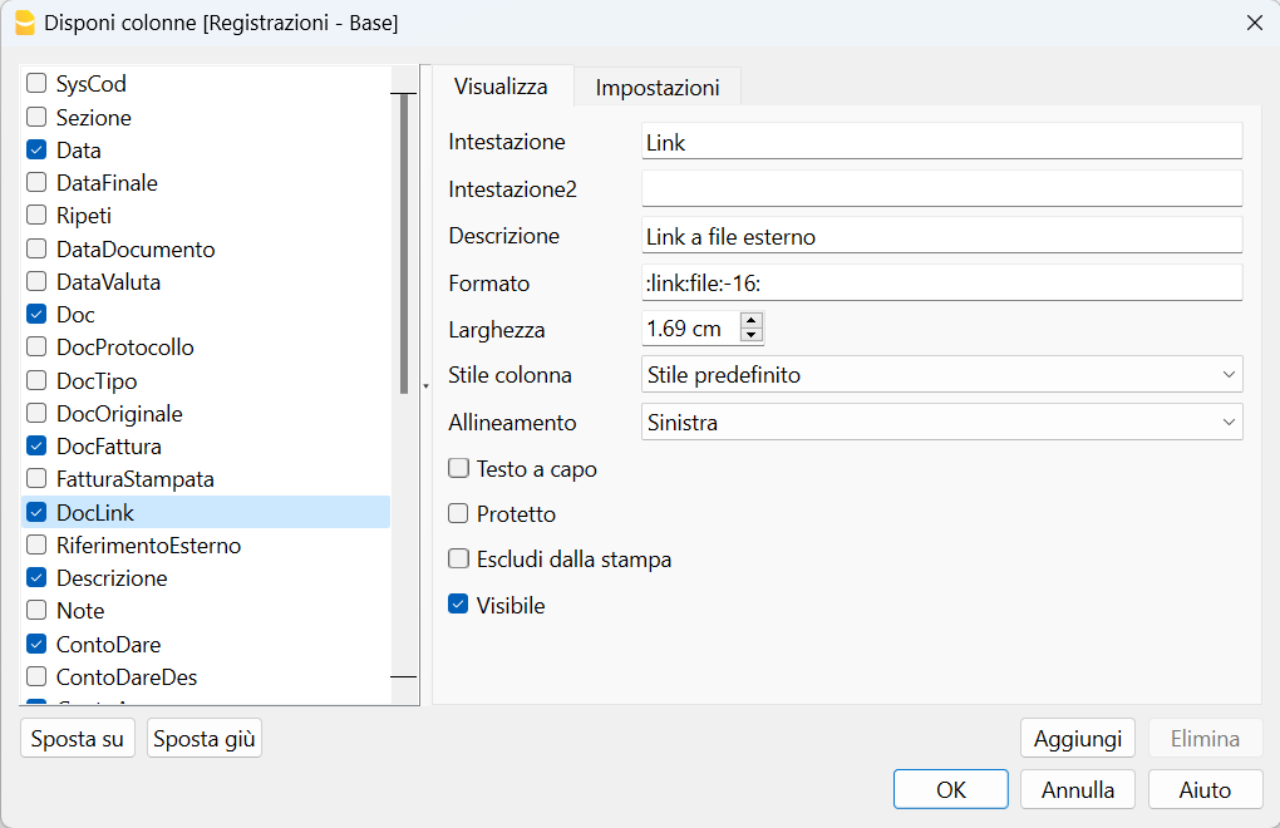
Ora allega i giustificativi dalla tabella Registrazioni. Fai doppio clic sulla cella della colonna Link e cerca e scegli il file da allegare che hai salvato sul tuo computer.
Quando desideri crea il dossier PDF in questo modo:
- Clicca dal menu File la voce Crea dossier PDF.
- Vista in basso a sinistra nella finestra che si apre la casella "Includi allegati", come da immagine seguente.
- Clicca il bottone Ok in basso a destra per confermare e salva il file PDF in una posizione del computer dove preferisci.
Il PDF salvato è un file con il bilancio, il conto economico, le schede conto e tutti i giustificativi allegati in unico file PDF.
Scarica e guarda un esempio di dossier PDF (alcuni browser non permettono la visualizzazione degli allegati, ti consigliamo di salvarlo e aprirlo con il programma Adobe Acrobat Reader che è gratuito).
Clicca sulle icone a forma di graffetta a sinistra delle registrazioni per aprire gli allegati, come nell'esempio seguente.
Con questa funzionalità puoi inviare il file PDF con la contabilità completa anche per e-mail o decidere di conservarlo secondo le norme vigenti.
Estensione per il controllo degli incassi degli affitti [BETA]
Neste artigo
Estensione per il controllo degli incassi degli affitti [BETA]
Estensione per il controllo degli incassi degli affitti [BETA]
L'estensione per il controllo degli incassi degli affitti è una soluzione ideale per i proprietari che desiderano mantenere un controllo accurato delle proprie entrate da affitti, agevolare e velocizzare il lavoro contabile.
La gestione accurata degli incassi provenienti dai propri inquilini è fondamentale per garantire la redditività di un immobile.
Con l'obiettivo di agevolare questa necessità l'estensione per il controllo degli incassi degli affitti si rivela utile per i proprietari di immobili. Consente di tenere sempre sotto controllo l'incasso degli affitti, identificare i pagamenti mancanti o parziali e fornire una panoramica completa sul corretto addebito degli affitti in contabilità.
L'estensione offre sia un report semplice che uno dettagliato. Questi report consentono una visione immediata degli affitti ricevuti e delle somme mancanti.
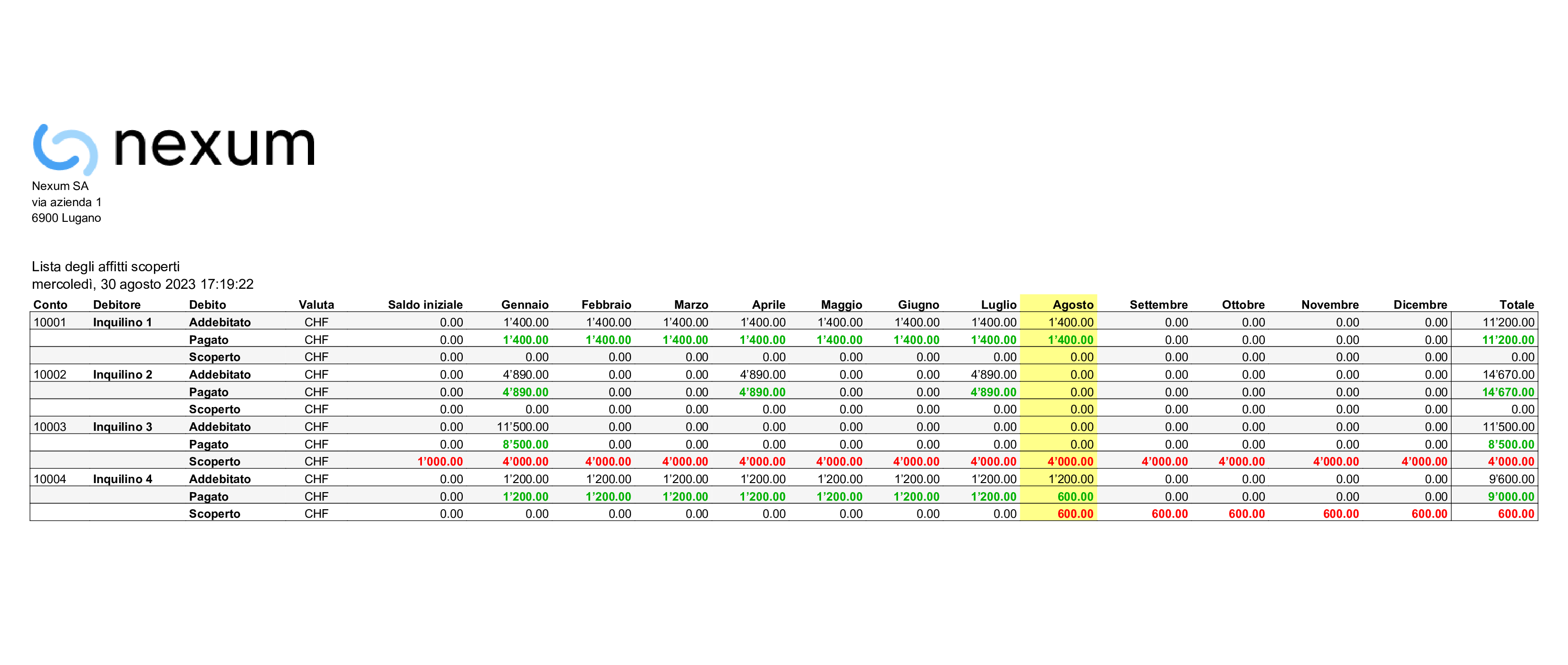
Il report dettagliato fornisce ulteriori informazioni sulle previsioni di incasso dell'anno corrente, suddiviso mensilmente e aggregato per l'intero anno. Questo report consente ai proprietari di pianificare meglio le proprie finanze e prendere decisioni informate.
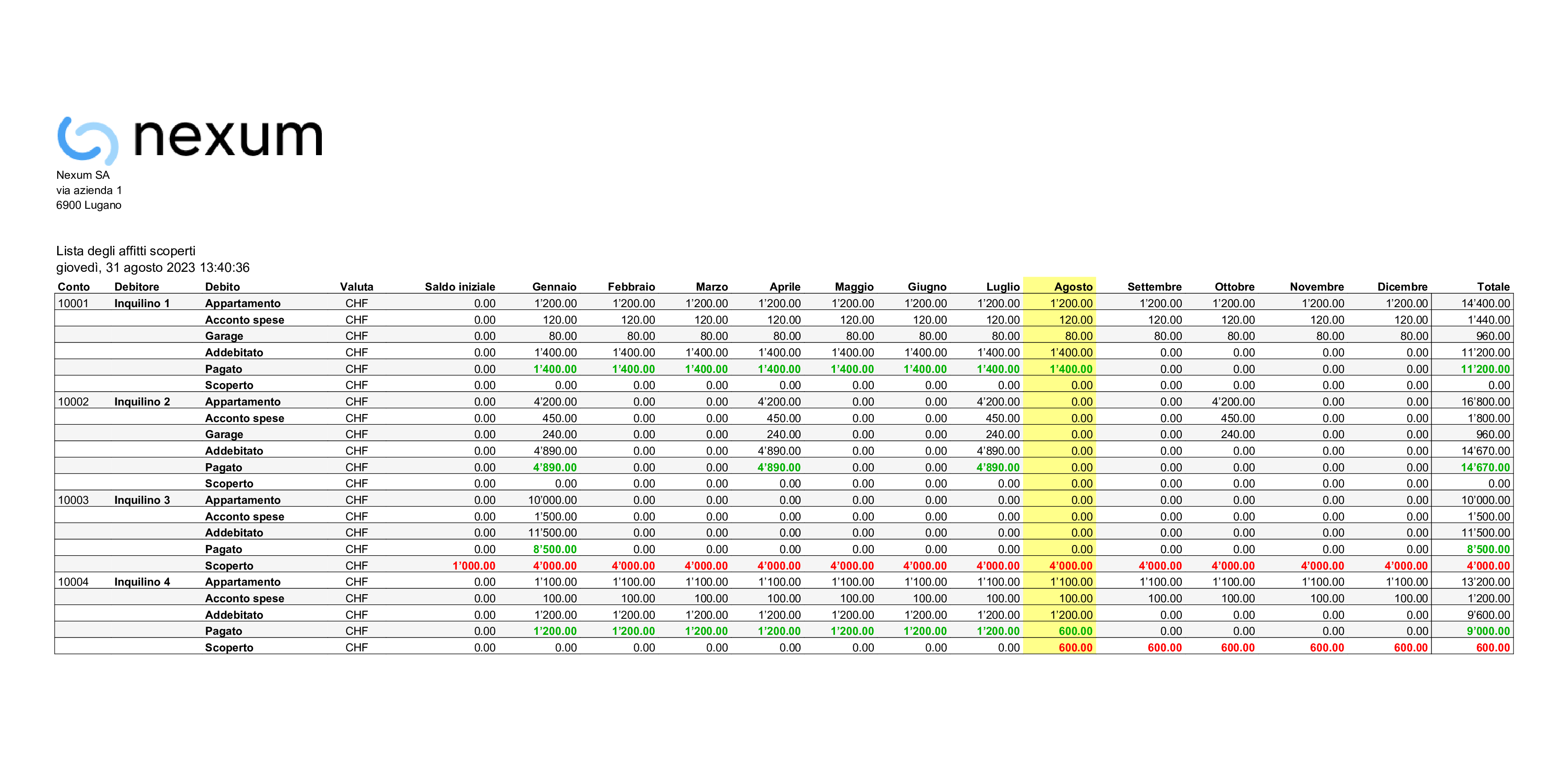
Con entrambe i report per il controllo degli incassi degli affitti l'estensione identifica chiaramente gli inquilini che non hanno effettuato il pagamento dell'affitto o che lo hanno pagato solo parzialmente. Questa funzionalità è utile per prendere azioni immediate e recuperare gli importi scoperti.
Evidenziano inoltre se l'affitto è stato già addebitato correttamente nella contabilità. Questo garantisce l'allineamento tra le entrate registrate e la situazione finanziaria reale.
L'estensione è flessibile e adatta a diversi modi di operare sulla contabilità. Infatti funziona sia con i modelli Entrate/Uscite per non specialisti della contabilità e sia con modelli per la contabilità in Partita doppia. Gli inquilini possono infine essere inseriti sia come conti contabili che come centri di costo (CC1, CC2 o CC3) adattandosi alle preferenze individuali sulla gestione contabile.
Prerequisiti
Per utilizzare questa estensione è necessario:
- Avere il piano Advanced di Banana Contabilità Plus.
- Attualmente questa estensione funziona solo con la versione Banana+ Dev Channel.
Come iniziare
Per iniziare a usarla è sufficiente configurare l'estensione per il controllo degli incassi degli affitti:
- Clicca Estensioni dal menu di Banana.
- Clicca Gestisci estensioni...
- Nella finestra che si apre seleziona la voce Online > Produttività presente nella colonna sinistra.
- Cerca nella colonna centrale della finestra l'estensione chiamata Estensione per il controllo degli incassi degli affitti [BETA].
- Nella colonna destra della finestra clicca sul bottone Installa.
- Una volta installata, per funzionare è necessario impostare il Gruppo o conto dei clienti dal menu Report > Clienti > Impostazioni.
Imposta le registrazioni ricorrenti
Per utilizzare l'estensione tieni traccia degli affitti, degli anticipi per le spese e delle cadenze temporali degli affitti richiesti a ciascun inquilino nella tabella Registrazioni ricorrenti.
- Usa la colonna Data per indicare in che data iniziare ad addebitare automaticamente
- Usa la colonna Data Finale solo per indicare in che data l'inquilino terminerà il contratto di affitto dopo avere dato disdetta dal contratto
- Usa la colonna Ripeti per indicare la cadenza temporale di richiesta dell'affitto (Y anno, 6M semestrale, 4M quadrimestrale, 3M trimestrale, 2M bimestrale e M mensile).

Inserisci nella colonna Descrizione la descrizione per l'affitto e quella per l'anticipo sulle spese, come ad esempio "appartamento", "acconto spese", "garage".
Inserisci i conti contabili della registrazione degli addebiti come ad esempio il conto contabile dell'Inquilino 1 nella colonna Dare e il conto Ricavo da affitti nella colonna Avere.
Inserisci quindi l'importo corrispondente alla descrizione da addebitare.
Scopri il flusso di lavoro per la gestione degli affitti
Banana Contabilità Plus con il piano di abbonamento Advanced permette di facilitare e velocizzare molto la gestione di appartamenti in affitto attraverso un flusso di lavoro che sfrutta diverse funzionalità incluse nel programma.
Scopri il flusso di lavoro per la gestione degli affitti su Banana Contabilità+.
Centri di costo per inquilini
Per contabilità con un numero limitato di inquilini che si conoscono e pagano con regolarità potrebbe risultare troppo impegnativo addebitare mensilmente gli affitti da pagare.
È comunque sempre utile avere un controllo di quello che hanno pagato i singoli inquilini, per cui, invece di creare dei conti inquilini negli Attivi si possono creare dei conti inquilini come centri di costo CC3, preceduti dal punto e virgola ";".
Questa soluzione risulta utile nel caso che si vogliono registrare gli affitti secondo il metodo di cassa, per cui vengono considerati i ricavi solo al momento dell'incasso.
Questa soluzione è più semplice, ma permette comunque di avere un certo controllo e viene spiegata qui di seguito.
Conti inquilini come centri di costo
- Crea gli inquilini come centro di costo.
- Nella colonna Conto della Tabella Conti inserisci il numero dell'inquilino preceduto da un punto e virgola ";".
- Somma ogni inquilino (colonna Somma in "INQ") in un Gruppo "INQ" per ottenere il totale di tutti gli inquilini.
- Abilita la Vista Indirizzi per inserire i dati anagrafici di ogni inquilino.

Registrazione degli affitti sui centri di costo
- Nella Tabella Registrazioni.
- Guarda la Vista Centri di costo o abilita la colonna CC3 (Centro di Costo 3) nella Vista Base.
- Registra l'incasso dell'affitto come nell'immagine seguente, inserisci:
- l'incasso (conto della banca o cassa se l'affitto è stato pagato in contanti in Dare).
- la contropartita (conto Ricavi affitti in Avere).
- l'importo pagato dall'inquilino.
- nella colonna CC3 seleziona il nome dell'inquilino che ha pagato.

Registrazione del dovuto
Se si vuole tenere conto del dovuto sarebbe meglio registrare avendo dei conti di bilancio per ogni singolo inquilino.
Questa norma è consigliata soprattutto se si registra con il metodo sul fatturato.
Tuttavia puoi registrare anche con i centri di costo secondo il metodo di cassa:
- Tieni traccia del dovuto di un inquilino usando i centri di costo.
- Registra l'addebito usando i centri di costo, inserisci:
- la data.
- la descrizione.
- l'importo.
- il centro di costo dell'inquilino.
- Registra l'addebito usando i centri di costo, inserisci:
Non inserire il conto Dare e il conto Avere come nell'immagine seguente.
- Registra quindi il versamento dell'inquilino in contabilità, inserisci:
- l'incasso (conto della banca o cassa se l'affitto è stato pagato in contanti in Dare).
- la contropartita (conto Ricavi affitti in Avere).
- l'importo pagato dall'inquilino.
- il centro di costo scrivendo un segno meno davanti "-Inquilino 1".

Scheda conto inquilino
In ogni momento puoi visualizzare la scheda conto del centro di costo dell'inquilino desiderato.
Apri la scheda conto con un clic sul simbolo che esce nell'angolo in alto a sinistra quando passi il mouse sul centro di costo dell'inquilino, oppure usa il menu Report > Schede conto.
Se hai registrato anche l'addebito mensile dell'affitto la situazione dopo l'incasso è rappresentata nella immagine seguente.
La scheda conto permette di avere traccia del dettaglio degli affitti pagati per ogni singolo inquilino.

Modelli Universali Gestione Affitti
Contabilità Entrate/Uscite per Gestione immobiliare appartamento o immobile in affitto (Universale)
Neste artigo
Contabilità Entrate/Uscite per Gestione immobiliare appartamento o immobile in affitto (Universale)
Contabilità Entrate/Uscite per Gestione immobiliare appartamento o immobile in affitto (Universale)
Gestisci velocemente i conti di un appartamento o immobile in affitto con questo modello su misura di Banana Contabilità Plus. Ottieni in automatico bilancio e conto economico. Gestisci gli inquilini attraverso il partitario. I conti sono già impostati, ma puoi sempre personalizzarli secondo le tue necessità.
Abrir na Banana WebApp
Abra a Banana Accounting Plus no seu navegador sem qualquer instalação. Personalize o modelo, introduza as transacções e guarde o ficheiro no seu computador.
Open template in WebAppTemplate preview
Divisa Base: EUR
Contabilità entrate / uscite
| Gruppo | Conto | Descrizione | Somma in |
|---|---|---|---|
| PATRIMONIO | |||
| Cassa | Cassa | Patrimonio | |
| Posta | Conto corrente postale | Patrimonio | |
| Banca | Conto corrente bancario | Patrimonio | |
| Partitario | Totale debitori da partitario | Patrimonio | |
| Mobilio e attrezzature | Mobili e attrezzature | Patrimonio | |
| Debiti a breve termine | Debiti a breve termine | Patrimonio | |
| Debiti a lungo termine | Debiti a medio e lungo termine | Patrimonio | |
| Accantonamenti | Accantonamenti per riparazioni e manutenzioni | Patrimonio | |
| Patrimonio | TOTALE PATRIMONIO | ||
| PARTITARIO DEBITORI | |||
| PARTITARIO DEBITORI | |||
| Debitore 1 | Inquilino 1 | Inquilini | |
| Debitore 2 | Inquilino 2 | Inquilini | |
| Debitore 3 | Inquilino 3 | Inquilini | |
| Debitore 4 | Inquilino 4 | Inquilini | |
| Inquilini | TOTALE DEBITORI | Partitario |
| Gruppo | Categoria | Descrizione | Somma in |
|---|---|---|---|
| RISULTATO | |||
| ENTRATE | |||
| Incassi affitti | Incassi affitti | Entrate | |
| Altre entrate | Altre entrate | Entrate | |
| Ricavi finanziari | Ricavi finanziari | Entrate | |
| Entrate | TOTALE ENTRATE | Risultato | |
| USCITE | |||
| Portineria | Portineria | Uscite | |
| Contributi portineria | Contributi portineria | Uscite | |
| Cassa pensione | Cassa pensione | Uscite | |
| Assicurazioni custode | Assicurazioni custode | Uscite | |
| Riscaldamento | Riscaldamento | Uscite | |
| Elettricità | Elettricità | Uscite | |
| Manutenzioni ordinarie | Manutenzioni ordinarie | Uscite | |
| Manutenzioni straordinarie | Manutenzioni straordinarie | Uscite | |
| Altri costi | Altri costi dell'immobile | Uscite | |
| Pubblicità | Spese per pubblicità | Uscite | |
| Ammortamenti | Ammortamenti e rettifiche di valore dell'attivo fisso | Uscite | |
| Costi finanziari | Costi finanziari | Uscite | |
| Imposte | Imposte e tasse | Uscite | |
| Uscite | TOTALE USCITE | Risultato | |
| Risultato | RISULTATO D'ESERCIZIO |
Contabilità in partita doppia per Gestione immobiliare appartamento o immobile in affitto (Universale)
Neste artigo
Contabilità in partita doppia per Gestione immobiliare appartamento o immobile in affitto (Universale)
Contabilità in partita doppia per Gestione immobiliare appartamento o immobile in affitto (Universale)
Gestisci velocemente i conti di un appartamento o immobile in affitto con questo modello su misura di Banana Contabilità. Ottieni in automatico bilancio e conto economico. Gestisci gli inquilini attraverso il partitario. I conti sono già impostati a tal fine e se ritieni opportuno puoi sempre personalizzarli secondo le tue necessità.
Abrir na Banana WebApp
Abra a Banana Accounting Plus no seu navegador sem qualquer instalação. Personalize o modelo, introduza as transacções e guarde o ficheiro no seu computador.
Open template in WebAppTemplate preview
Divisa Base: EUR
Contabilità in partita doppia
| Gruppo | Conto | Descrizione | Somma in |
|---|---|---|---|
| BILANCIO | |||
| ATTIVI | |||
| Cassa | Cassa | Liquidità | |
| Banca | Banca | Liquidità | |
| Liquidità | Liquidità | Attivo Circolante | |
| Partitario | Totale inquilini partitario | Crediti Totali | |
| Anticipo Spese spese rimborsate dagli inquilini | |||
| Riscaldamento | Riscaldamento | Anticipo Spese | |
| Stipendi portineria | Stipendi portineria | Anticipo Spese | |
| Contributi portineria | Contributi portineria | Anticipo Spese | |
| Prodotti di pulizia portineria | Prodotti di pulizia portineria | Anticipo Spese | |
| Manutenzione giardino | Manutenzione giardino | Anticipo Spese | |
| Elettricità | Elettricità | Anticipo Spese | |
| Acqua potabile | Acqua potabile | Anticipo Spese | |
| Abbonamenti ascensori | Abbonamenti ascensori | Anticipo Spese | |
| Altri abbonamenti | Altri abbonamenti di servizio | Anticipo Spese | |
| Tv | TV | Anticipo Spese | |
| Conteggio annuale | Conteggio annuale | Anticipo Spese | |
| Anticipo Spese | Anticipo Spese spese rimborsate dagli inquilini | Crediti Totali | |
| Crediti Totali | Crediti da forniture e prestazioni | Attivo Circolante | |
| Anticipi e prestiti | Anticipi e prestiti | Altri Crediti | |
| Crediti da assicurazioni | Crediti da assicurazioni sociali e istituti di previdenza | Altri Crediti | |
| Crediti diversi | Crediti diversi a breve termine | Altri Crediti | |
| Cauzioni | Cauzioni | Altri Crediti | |
| Altri Crediti | Altri crediti a breve termine | Attivo Circolante | |
| Costi anticipati | Costi anticipati | Ratei Attivi | |
| Ricavi da incassare | Ricavi da incassare | Ratei Attivi | |
| Ratei Attivi | Ratei e risconti attivi | Attivo Circolante | |
| Attivo Circolante | Attivo circolante | Attivi | |
| Prestiti | Prestiti | Prestiti | |
| Prestiti | Immobilizzazioni finanziarie | Attivo Fisso | |
| Scorte di combustibile | Scorte di combustibile | Sostanza mobiliare | |
| Mobilio e installazioni | Mobilio e installazioni | Sostanza mobiliare | |
| Utensili e apparecchiature | Utensili e apparecchiature | Sostanza mobiliare | |
| Sostanza mobiliare | Immobilizzazioni mobiliari | Attivo Fisso | |
| Immobili | Immobili | Sostanza immobiliare | |
| Sostanza immobiliare | Immobilizzazioni immobiliari | Attivo Fisso | |
| Attivo Fisso | Attivo fisso | Attivi | |
| Attivi | Totale attivi | Totale | |
| PASSIVI | |||
| Debiti per forniture e prestazioni | Debiti per forniture e prestazioni (creditori) | Debiti | |
| Acconti degli inquilini | Acconti degli inquilini per spese anticipate | Debiti | |
| Debiti | Debiti per forniture e prestazioni | Capitale terzi b-termine | |
| Banca passiva a breve termine | Banca passiva | Debiti breve termine | |
| Impegni leasing finanziari a breve termine | Impegni leasing finanziari | Debiti breve termine | |
| Altri debiti onerosi a breve termine | Altri debiti onerosi | Debiti breve termine | |
| Debiti breve termine | Debiti onerosi a breve termine | Capitale terzi b-termine | |
| Imposte dirette | Imposte dirette | Altri Debiti breve termine | |
| Altri debiti a breve termine | Altri debiti a breve termine | Altri Debiti breve termine | |
| Assicurazioni sociali | Assicurazioni sociali e istituti di previdenza | Altri Debiti breve termine | |
| Altri Debiti breve termine | Altri debiti a breve termine | Capitale terzi b-termine | |
| Costi da pagare | Costi da pagare | Ratei Passivi | |
| Ricavi anticipati | Ricavi incassati dell'anno seguente | Ratei Passivi | |
| Accantonamenti a breve termine | Accantonamenti a breve termine | Ratei Passivi | |
| Ratei Passivi | Ratei e risconti passivi | Capitale terzi b-termine | |
| Capitale terzi b-termine | Capitale di terzi a breve termine | Passivi | |
| Debiti bancari | Debiti bancari | Debiti lungo termine | |
| Impegni leasing finanziari a lungo termine | Impegni leasing finanziari | Debiti lungo termine | |
| Prestiti a lungo termine | Prestiti | Debiti lungo termine | |
| Mutui ipotecari | Mutui ipotecari | Debiti lungo termine | |
| Debiti lungo termine | Debiti onerosi a lungo termine | Capitale terzi l-termine | |
| Altri debiti a lungo termine | Altri debiti a lungo termine (non onerosi) | Altri Debiti lungo termine | |
| Altri Debiti lungo termine | Altri debiti a lungo termine | Capitale terzi l-termine | |
| Accantonamenti | Accantonamenti | Accantonamenti | |
| Accantonamenti | Accantonamenti e poste analoghe previste dalla legge | Capitale terzi l-termine | |
| Capitale terzi l-termine | Capitale di terzi a lungo termine | Totale debiti | |
| Totale debiti | Capitale dei terzi | Passivi | |
| Proprietario | Proprietario | Proprietario | |
| Proprietario | Proprietario | Capitale proprio | |
| Utile/Perdita riportata | Utile/perdita riportata | Risultato | |
| Utile perdita annuale | Utile/perdita annuale | Risultato | |
| Risultato | Utile/perdita da bilancio | Capitale proprio | |
| Capitale proprio | Capitale proprio | Passivi | |
| Passivi | Totale passivi | Totale | |
| CONTO ECONOMICO | |||
| RICAVI | |||
| Incassi affitti | Incassi affitti | Ricavi | |
| Altri ricavi | Altri ricavi e prestazioni di servizi | Ricavi | |
| Diminuzione di ricavi | Diminuzione di ricavi | Ricavi | |
| Perdite su debitori | Perdite su debitori | Ricavi | |
| Ricavi | Totale ricavi d'esercizio | Risultato conto economico | |
| COSTI | |||
| Manutenzioni ordinarie | Manutenzioni ordinarie | Spese | |
| Manutenzioni straordinarie | Manutenzioni straordinarie | Spese | |
| Manutenzioni lift | Manutenzioni lift | Spese | |
| Assicurazioni | Assicurazioni | Spese | |
| Onorari | Onorario legali e specialisti | Spese | |
| Altre spese amministrative | Altre spese amministrative | Spese | |
| Inserzioni e pubblicità | Inserzioni e costi pubblicitari | Spese | |
| Altri costi | Altri costi d'esercizio | Spese | |
| Interessi e ammortamenti ipoteca | Interessi e ammortamenti ipoteca | Spese | |
| Spese | Spese di manutenzione e altre spese | Risultato conto economico | |
| Costi per interessi | Costi per interessi bancari | Costi finanziari | |
| Spese banca | Spese banca | Costi finanziari | |
| Ricavi finanziari | Ricavi finanziari | Costi finanziari | |
| Costi finanziari | Costi e ricavi finanziari | Risultato conto economico | |
| Imposte | Imposte | Imposte | |
| Imposte | Imposte | Risultato conto economico | |
| Risultato conto economico | Totale Costi | Risultato annuale | |
| Risultato annuale | Utile (-) / perdita (+) da conto economico | Utile perdita annuale | |
| Totale | Differenza deve essere zero (cella vuota) | ||
| Partitario inquilini | |||
| Inquilino 1 | Inquilino 1 | Inquilini | |
| Inquilino 2 | Inquilino 2 | Inquilini | |
| Inquilino 3 | Inquilino 3 | Inquilini | |
| Inquilino 4 | Inquilino 4 | Inquilini | |
| Inquilino 5 | Inquilino 5 | Inquilini | |
| Inquilino 6 | Inquilino 6 | Inquilini | |
| Inquilino 7 | Inquilino 7 | Inquilini | |
| Inquilino 8 | Inquilino 8 | Inquilini | |
| Inquilino 9 | Inquilino 9 | Inquilini | |
| Inquilino 10 | Inquilino 10 | Inquilini | |
| Inquilini | Totale inquilini partitario | Partitario |
Verwaltung von Stockwerkeigentum
Verwaltung von Stockwerkeigentum
Eine Stockwerkeigentümergemeinschaft ist ein Gebäude mit mehreren Eigentümern, die sich die Ausgaben und die Gemeinschaftsbereiche teilen. Banana Buchhaltung Plus bietet eine hilfreiche Vorlage für eine professionelle Verwaltung, die bereits einen für die Immobilienverwaltung typischen Kontenplan enthält.
- Vorlage für Stockwerkeigentum | Doppelte Buchhaltung: fortgeschrittene Methode, wenn Sie mit der klassischen Buchhaltung vertraut sind.
Kontenplan für Stockwerkeigentum
Die Buchhaltung eines Stockwerkeigentums kann wie eine normale Buchhaltung betrachtet werden, mit einem wichtigen Unterschied: Die Ausgaben des Gebäudes werden von den Eigentümern vorausbezahlt und müssen genau den tatsächlichen Betriebskosten entsprechen.
Anders gesagt: Das Stockwerkeigentum soll weder Gewinn noch Verlust machen, und die Eigentümer zahlen nur das, was notwendig ist, um den Betrieb des Gebäudes sicherzustellen.
Diese Buchhaltungsvorlagen für Stockwerkeigentum dienen genau dazu:
- die tatsächlichen Kosten im Blick zu behalten
- zu überprüfen, ob jeder Eigentümer seinen korrekten Anteil bezahlt hat
Im Stockwerkeigentum stellen die Ausgaben die Betriebskosten des Gebäudes dar. Die Eigentümer leisten dafür Vorauszahlungen.
Am Jahresende müssen die einbezahlten Beträge den getätigten Ausgaben entsprechen. Die Buchhaltung hilft dabei, diesen Vergleich klar und nachvollziehbar zu machen.
Der Kontenplan des Stockwerkeigentums ist so aufgebaut, dass er die Frage beantwortet, ob die Eigentümer genau den Betrag eingezahlt haben, der für den Betrieb des Gebäudes ausgegeben wurde.
Dazu ist die Buchhaltung in mehrere Hauptbereiche unterteilt.
Konten der Eigentümer
Für jeden Eigentümer wird ein persönliches Konto erstellt, um folgendes zu erfassen:
- wie viel ihm als Vorauszahlung in Rechnung gestellt wurde
- wie viel er tatsächlich einbezahlt hat
- ob er noch bezahlen muss oder zu viel bezahlt hat
Diese Konten ermöglichen es, jederzeit die Situation jedes Eigentümers zu sehen.
Konto Einnahmen für Betriebskosten
Das Konto Einnahmen für Betriebskosten stellt die Gesamtheit der Beträge dar, die den Eigentümern zur Deckung der Betriebskosten des Gebäudes in Rechnung gestellt wurden.
Auf dieses Konto fliessen:
- die von den Eigentümern verlangten Akontozahlungen
- allfällige weitere Einnahmen im Zusammenhang mit dem Betrieb des Gebäudes
Der Gesamtsaldo dieses Kontos muss den getätigten Ausgaben entsprechen.
Weitere Einnahmen des Stockwerkeigentums
Das Stockwerkeigentum kann auch andere Einnahmen haben, zum Beispiel:
- Nutzung der gemeinschaftlichen Waschküche
- Vermietung von Parkplätzen oder Räumen an Dritte
Auch diese Einnahmen tragen zur Deckung der Betriebskosten des Gebäudes bei.
Die Summe der Einnahmen für Betriebskosten und der weiteren Einnahmen muss der Summe der im Jahr angefallenen Immobilienkosten entsprechen.
Konten der Immobilienkosten
Die Kostenkonten erfassen alle Ausgaben, die für den Betrieb des Gebäudes notwendig sind, wie zum Beispiel:
- Unterhalt
- Reinigung
- Energie
- Eingriffe an den Anlagen
- andere gemeinsame Kosten
Die Gesamtausgaben stellen die tatsächlichen Betriebskosten des Gebäudes dar.
Wie die Akontozahlungen der Eigentümer verbucht werden
Wenn einem Eigentümer eine Akontozahlung in Rechnung gestellt wird:
- wird der Betrag auf dem Konto des Eigentümers erfasst
- die Gegenbuchung erfolgt im Konto Einnahmen für Betriebskosten
Diese Buchung wird auch dann vorgenommen, wenn der Eigentümer noch nicht bezahlt hat.
Wenn der Eigentümer die Akontozahlung leistet:
- wird der Betrag als Zahlung auf dem Konto des Eigentümers verbucht
- die Gegenbuchung erfolgt im Bank- oder Kassenkonto
Auf diese Weise ist jederzeit klar ersichtlich:
- wie viel verlangt wurde
- wie viel tatsächlich bezahlt wurde
Kontrolle der geleisteten Akontozahlungen
Das Konto des Eigentümers zeigt jederzeit seine Situation:
- Sollsaldo
bedeutet, dass der Eigentümer noch nicht alle geforderten Akontozahlungen geleistet hat - Habensaldo
bedeutet, dass der Eigentümer mehr als nötig einbezahlt hat
Diese Kontrolle ist sofort verfügbar und erfordert keine externen Berechnungen.
Jahresabrechnung
Am Jahresende werden folgende Punkte verglichen:
- die insgesamt verlangten Beträge
- die tatsächlich angefallenen Ausgaben
Um die verlangten Akontozahlungen mit den Ausgaben auszugleichen:
- wird jenen, denen zu wenig verlangt wurde, der fehlende Betrag nachbelastet
- wird jenen, denen zu viel verlangt wurde, die Differenz zurückerstattet
In beiden Fällen erfolgt die Gegenbuchung im Konto Einnahmen für Betriebskosten.
Dieser Kontenplan ermöglicht es:
- sofort die Betriebskosten des Gebäudes zu verstehen
- die Richtigkeit der einbezahlten Beträge zu überprüfen
- eine transparente und verständliche Verwaltung zu gewährleisten
So widerspiegelt die Buchhaltung des Stockwerkeigentums genau die Realität – die Eigentümer tragen die Kosten des Gebäudes, nicht mehr und nicht weniger.
Banana Buchhaltung Plus verteilt die Ausgaben nicht automatisch auf die einzelnen Eigentümer, da jede Liegenschaft eine eigene, teils komplexe Aufteilung haben kann. Sie können jedoch die in Banana erfassten Daten exportieren und gezielt in Excel weiterverarbeiten. Sehen Sie sich dazu die Seite über die Excel-Vorlagen zur Aufteilung der Betriebskosten im Stockwerkeigentum an, um die Abrechnung an die Eigentümer zu erstellen oder die Spesen für eine eventuelle Steuererklärung aufzuteilen.
Verteilung und Abrechnung der Nebenkosten zulasten der Miteigentümer
Die Berechnung und Aufteilung der Immobilienkosten für die Eigentümer einer Stockwerkeigentümergemeinschaft berücksichtigt:
- Die Summe der angefallenen Kosten.
- Die Summe aller Einnahmen (Akontozahlungen der Eigentümer, Einnahmen aus der Waschküche und allfällige weitere Einnahmen), die einen Teil der Immobilienkosten decken.
- Die Differenz zwischen der Summe der Kosten und der Summe der Einnahmen ist der Saldo, also der Betrag, der am Jahresende von den Eigentümern eingefordert wird:
- Diese Differenz wird als Abrechnung oder Ausgleich bezeichnet.
- Wenn die Einnahmen höher sind als die Kosten, ergibt sich ein Überschuss, der den Eigentümern zurückerstattet wird.
- Wenn die Einnahmen geringer sind als die Kosten, ergibt sich ein Differenzbetrag, der von den Eigentümern eingefordert wird.
- Die Abrechnung ist individuell für jeden Eigentümer: Es ist daher möglich, dass ein Eigentümer Anspruch auf eine Rückerstattung hat, während ein anderer eine Nachzahlung leisten muss.
- Nach der Erfassung der Abrechnungen aller Eigentümer entspricht die Summe aller Kosten genau der Summe aller Einnahmen (kein Gewinn und kein Verlust).
Individuelle Aufteilung der Immobilienkosten
Die individuelle Aufteilung der Immobilienkosten bezieht sich auf jede einzelne Wohnung und auf den Zeitraum, in dem eine Person (natürliche oder juristische) effektiv Eigentümer war (bei Käufen und Verkäufen während des Jahres müssen Pro-rata-Abrechnungen erstellt werden).
Banana Buchhaltung Plus ermöglicht es, die Kosten zu erfassen, übernimmt jedoch nicht die Aufteilung, da diese für jede Liegenschaft unterschiedlich ist und teilweise sehr komplex sein kann.
Für die Aufteilung wird daher empfohlen, für jede Liegenschaft und für jedes Jahr (oder jeden Abrechnungszeitraum) eine Excel-Tabelle zu erstellen, in der die Totale jeder einzelnen Kostenart aufgeführt sind und die Beträge anschliessend mittels Verteilerschlüssel oder Koeffizienten (m2, Verbrauch, Wertquoten usw.) berechnet und aufgeteilt werden.
Siehe Beispiel unten sowie die beigelegte Excel-Vorlage.
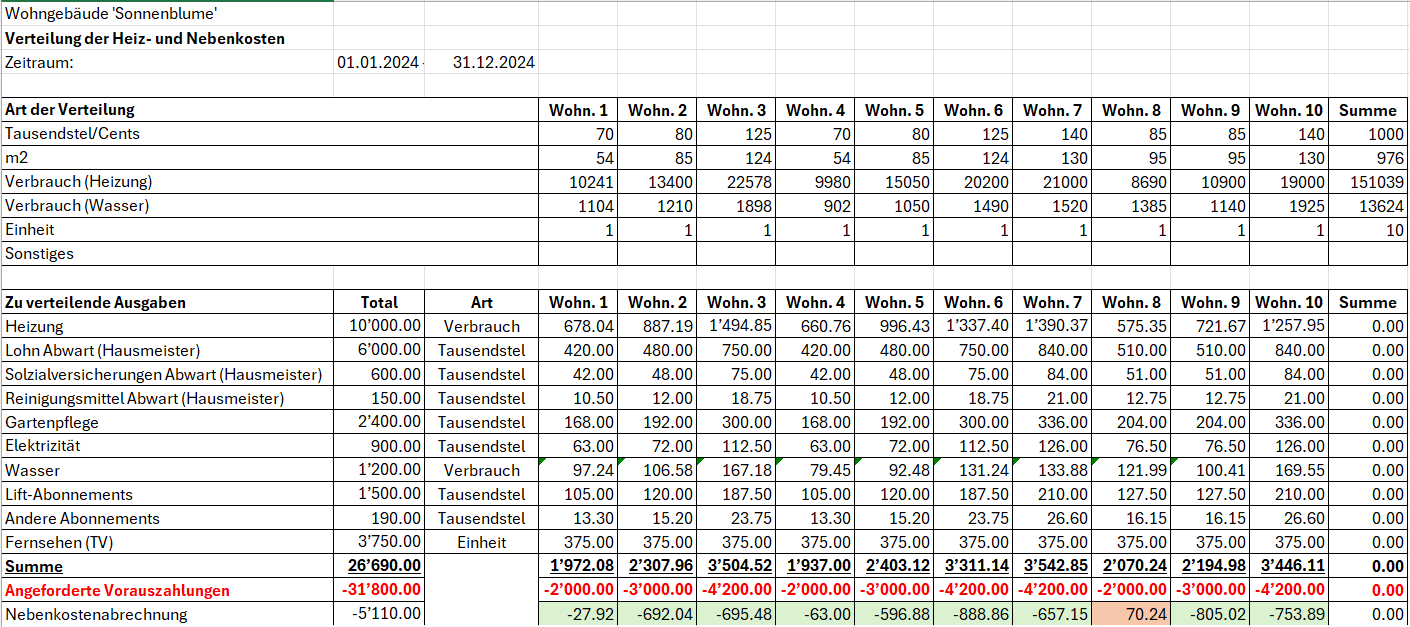
Abrechnung an die Eigentümer
Die berechnete Abrechnung muss in der Buchhaltung erfasst werden:
- Wenn der Eigentümer weniger bezahlt hat als die ihm zugewiesenen Kosten, wird die Differenz eingefordert und im Eigentümerkonto im Soll verbucht.
- Das Gegenkonto ist das Konto für Einnahmen aus Nebenkosten.
- Wenn der Eigentümer mehr bezahlt hat als die ihm zugewiesenen Kosten, wird die Differenz zurückerstattet und im Eigentümerkonto im Haben verbucht.
- Das Gegenkonto ist das Konto für Einnahmen aus Nebenkosten.
- Nachdem alle Abrechnungen den jeweiligen Eigentümern erfasst wurden, muss sich der Gewinn oder Verlust ausgleichen oder es darf ein Betrag von wenigen Rappen verbleiben, der nicht weiter auf alle Eigentümer aufgeteilt werden kann.
- Wenn sich Gewinn oder Verlust ausgleichen oder nur wenige Rappen verbleiben, ist die Aufteilung der Kosten korrekt erfolgt.
- Wenn sich Gewinn oder Verlust nicht ausgleichen oder Beträge von mehr als wenigen Rappen verbleiben, ist die Aufteilung nicht korrekt erfolgt. In diesem Fall müssen die Berechnungen zur Aufteilung der Kosten auf die Eigentümer überprüft werden.
Aufteilung der angefallenen Kosten für den Steuerabzug
Für einen allfälligen Steuerabzug der von jedem Eigentümer getragenen Kosten wird empfohlen, für jede Liegenschaft und für jedes Jahr (oder jeden Abrechnungszeitraum) eine spezifische Excel-Tabelle zu erstellen, in der die Totale der abzugsfähigen Kosten und die entsprechenden Beträge aufgeführt sind. Diese Beträge werden anschliessend für jede einzelne Wohnung mittels Berechnung und Verwendung von Verteilerschlüsseln oder Koeffizienten aufgeteilt.
Siehe das folgende Beispiel und laden Sie die Excel-Vorlage herunter.
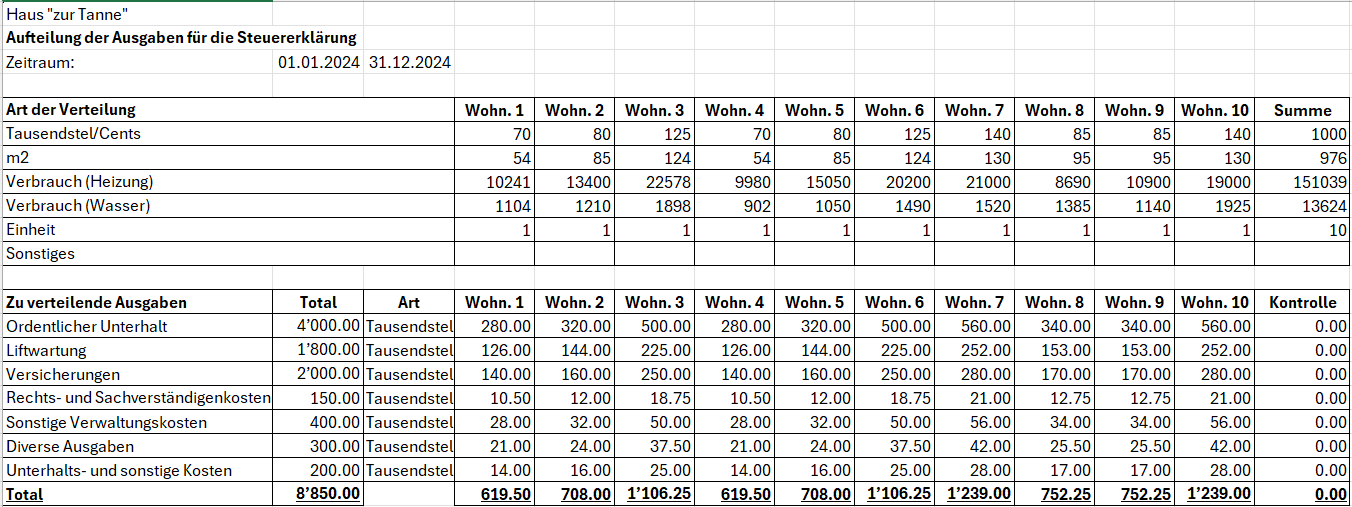
Kostenverteilung auf Miteigentümer nach dem Pro-rata-Prinzip
Wenn während des Jahres ein Verkauf einer Wohnung stattfindet, kann es notwendig sein, die Kosten pro-rata zwischen dem bisherigen und dem neuen Eigentümer aufzuteilen:
- Es können jedoch auch andere Aufteilungsmethoden bestehen, wie beispielsweise nach Monaten oder nach warmer und kalter Jahresperiode usw.
- Die Methoden zur Aufteilung der pro-rata Kosten variieren je nach geltenden lokalen Vorschriften oder gemäss den Kaufverträgen der Wohnung.

Flusso di lavoro per la gestione dei condomini
Con Banana Contabilità puoi gestire una contabilità di condominio con il flusso di lavoro descritto in questa pagina e che comprende:
- l'importazione degli estratti conto elettronici bancari
- la registrazione automatica degli estratti attraverso delle regole di completamento delle registrazioni
- la registrazione automatica dei salari versati al custode senza riscrivere o copiare le registrazioni più volte
- la creazione di report completamente personalizzati in Excel
- il salvataggio e l'invio della contabilità completa dei giustificativi in un unico file PDF.
Importa gli estratti conto elettronici della banca
Puoi richiedere alla tua banca di fornirti l'estratto conto elettronico in formato XML (tipo di estratto Camt.053). Se necessario chiedi anche alla tua banca di continuare a ricevere l'estratto conto in formato PDF.
L'estratto conto elettronico in formato XML ti permette di ottenere la contabilità sempre aggiornata e di emettere richiami di pagamento in qualsiasi momento.
Quando il file XML è disponibile scaricalo dall'e-banking e salvalo sul computer. Potresti riceverlo giornalmente, settimanalmente o mensilmente in base a come lo hai richiesto.
Usa l’estensione Importazione estratto bancario SEPA/ISO 20022 per importare il file appena scaricato.
Quando importi un estratto conto elettronico puoi registrare automaticamente sia gli incassi ricevuti che i pagamenti effettuati grazie all'uso delle regole di completamento delle registrazioni contabili. A ogni importazione puoi creare tutte le regole necessarie. Con il tempo ti basterà importare gli estratti conto per registrare automaticamente tutta la contabilità.
Crea le regole per automatizzare la contabilità
Banana Contabilità, con l'abbonamento al piano Advanced, permette di registrare automaticamente la contabilità secondo i criteri che desideri.
Per esempio puoi registrare tutte le fatture pagate a Azienda SA in un conto contabile specifico tramite il nome dell'azienda a cui paghi.
Quando nell'estratto conto elettronico appare quel nome di azienda e corrisponde a un'uscita, Banana Contabilità lo registra nel conto contabile da te impostato.
Se paghi una fattura per un contratto stipulato con Azienda SA (per esempio per un'assicurazione, una fornitura di energia, ecc.) puoi aggiungere il segno + e il numero di contratto, come per esempio +Azienda SA 101.200.14, dove 101.200.14 è il numero di contratto stipulato.
Il segno + indica che è necessario trovare tutte le informazioni, in qualsiasi ordine, all'interno dell'estratto conto elettronico. In questo modo puoi registrare in maniera distinta più contratti diversi stipulati con la stessa azienda.
Allo stesso modo puoi registrare automaticamente gli incassi usando i nomi delle persone dalle quali incassi.
Con le regole registri automaticamente tutte le entrate e le uscite da tutti i proprietari in maniera molto precisa.
Se desideri puoi anche indicare uno specifico importo alla regola. In questo modo distingui sempre di più le registrazioni, sia in entrata che in uscita.
Per usare le regole è necessario inserire nella colonna Doc della tabella Registrazioni ricorrenti il codice !Rule come negli esempi di regole seguenti.

In questa tabella è anche possibile usare il codice !RuleSplit per inserire regole che registrano automaticamente con registrazioni composte da più righe.
In questo modo riduci notevolmente il tempo di registrazione contabile e ottieni la contabilità sempre aggiornata.
Registra automaticamente i salari del custode
Dalla tabella Registrazioni ricorrenti registra i salari del custode su più righe inserendo per esempio nella colonna Doc il codice univoco salari su ogni riga.
Inserisci la descrizione di ogni riga inclusa nella registrazione, inserisci i rispettivi conti Dare e Avere e gli importi che si ripetono in modo ricorrente.
Quando imposti una registrazione ricorrente usala nella tabella Registrazioni:
- Compila la colonna Data inserendo la data.
- Inizia a scrivere nella colonna Doc la parola salari.
- Seleziona la registrazione ricorrente trovata da Banana Contabilità Plus.
La registrazione del salario composta da più righe apparirà già completata nella tabella Registrazioni in contabilità.
Se preferisci puoi automatizzare ulteriormente la registrazione composta da più righe con l'uso delle regole per usarle quando importi l'estratto conto elettronico:
- Nella colonna Doc inserisci i codici !Rule e !RuleSplit al posto del nome salari riportato nell'esempio precedente.
- Inserisci il nome del custode a cui versi il salario nella colonna Descrizione della riga dove inserisci il codice !Rule.
- Questo nome verrà cercato nell'estratto conto elettronico durante l'importazione.
- Inserisci una parentesi quadrata aperta e una chiusa [] nel conto di contropartita della regola dove inserisci il codice !Rule. Queste parentesi indicano che si tratta di una regola per una registrazione con più righe.
Guarda l'esempio nella immagine seguente.
Crea report personalizzati in Excel
Con Banana Contabilità è possibile collegare Microsoft Excel tramite l'Add-in di Banana Contabilità per creare report completamente personalizzati.
Con l'Add-in puoi suddividere il budget o calcolare i conteggi di suddivisione delle spese tra i proprietari.
Trovi l'Add-in da installare all'interno di Excel, cerca nei componenti aggiuntivi, installalo e inizia subito a generare i tuoi report personalizzati.
Per maggiori informazioni guarda anche le pagine di documentazione relative all'Add-in Excel di Banana Contabilità.
Salva e invia la contabilità per e-mail con i giustificativi in un unco file PDF
Nella tabella Registrazioni è possibile abilitare e visualizzare la colonna Link. Usa questa colonna per allegare a ogni registrazione contabile il relativo giustificativo, come per esempio una fattura ricevuta o una fattura emessa.
Abilita la colonna Link in questo modo:
- Fai doppio clic sull'intestazione delle colonne nella tabella Registrazioni (per esempio sulla colonna Descrizione).
- Vista la casella DocLink nella colonna a sinistra della finestra che si apre, come da immagine seguente.
- Clicca sul bottone Ok in basso a destra nella finestra per confermare.
Ora allega i giustificativi dalla tabella Registrazioni. Fai doppio clic sulla cella della colonna Link e cerca e scegli il file da allegare che hai salvato sul tuo computer.
Quando desideri crea il dossier PDF in questo modo:
- Clicca dal menu File la voce Crea dossier PDF.
- Vista in basso a sinistra nella finestra che si apre la casella "Includi allegati", come da immagine seguente.
- Clicca il bottone Ok in basso a destra per confermare e salva il file PDF in una posizione del computer dove preferisci.
Il PDF salvato è un file con il bilancio, il conto economico, le schede conto e tutti i giustificativi allegati in unico file PDF.
Scarica e guarda un esempio di dossier PDF (alcuni browser non permettono la visualizzazione degli allegati, ti consigliamo di salvarlo e aprirlo con il programma Adobe Acrobat Reader che è gratuito).
Clicca sulle icone a forma di graffetta a sinistra delle registrazioni per aprire gli allegati, come nell'esempio seguente.
Con questa funzionalità puoi inviare il file PDF con la contabilità completa anche per e-mail o decidere di conservarlo secondo le norme vigenti.
Modelli Universali Gestione Condomini
Contabilità Entrate/Uscite per Gestione immobiliare condominio (Universale)
Neste artigo
Contabilità Entrate/Uscite per Gestione immobiliare condominio (Universale)
Contabilità Entrate/Uscite per Gestione immobiliare condominio (Universale)
Gestisci velocemente i conti di un condominio con questo modello su misura di Banana Contabilità Plus. Ottieni in automatico bilancio e conto economico. Gestisci i comproprietari attraverso il partitario. I conti sono già impostati a tal fine e se ritieni opportuno puoi sempre personalizzarli secondo le tue necessità.
Abrir na Banana WebApp
Abra a Banana Accounting Plus no seu navegador sem qualquer instalação. Personalize o modelo, introduza as transacções e guarde o ficheiro no seu computador.
Open template in WebAppTemplate preview
Divisa Base: EUR
Contabilità entrate / uscite
| Gruppo | Conto | Descrizione | Somma in |
|---|---|---|---|
| PATRIMONIO | |||
| Cassa | Cassa | Patrimonio | |
| Posta | Conto corrente postale | Patrimonio | |
| Banca | Conto corrente bancario | Patrimonio | |
| Partitario | Totale debitori da partitario | Patrimonio | |
| Mobilio e attrezzature | Mobili e attrezzature | Patrimonio | |
| Debiti a breve termine | Debiti a breve termine | Patrimonio | |
| Debiti a lungo termine | Debiti a medio e lungo termine | Patrimonio | |
| Accantonamenti | Accantonamenti per riparazioni e manutenzioni | Patrimonio | |
| Patrimonio | TOTALE PATRIMONIO | ||
| PARTITARIO DEBITORI | |||
| PARTITARIO DEBITORI | |||
| Debitore 1 | Proprietario 1 | Proprietari | |
| Debitore 2 | Proprietario 2 | Proprietari | |
| Debitore 3 | Proprietario 3 | Proprietari | |
| Proprietari | TOTALE DEBITORI | Partitario |
| Gruppo | Categoria | Descrizione | Somma in |
|---|---|---|---|
| RISULTATO | |||
| ENTRATE | |||
| Incassi spese condominiali | Incassi spese condominiali | Entrate | |
| Altre entrate | Altre entrate | Entrate | |
| Ricavi finanziari | Ricavi finanziari | Entrate | |
| Entrate | TOTALE ENTRATE | Risultato | |
| USCITE | |||
| Portineria | Portineria | Uscite | |
| Contributi portineria | Contributi portineria | Uscite | |
| Cassa pensione | Cassa pensione | Uscite | |
| Assicurazioni custode | Assicurazioni custode | Uscite | |
| Riscaldamento | Riscaldamento | Uscite | |
| Elettricità | Elettricità | Uscite | |
| Manutenzioni ordinarie | Manutenzioni ordinarie | Uscite | |
| Manutenzioni straordinarie | Manutenzioni straordinarie | Uscite | |
| Altri costi | Altri costi dell'immobile | Uscite | |
| Pubblicità | Spese per pubblicità | Uscite | |
| Costi finanziari | Costi finanziari | Uscite | |
| Imposte | Imposte e tasse | Uscite | |
| Uscite | TOTALE USCITE | Risultato | |
| Risultato | RISULTATO D'ESERCIZIO |
Contabilità in partita doppia per Gestione immobiliare condominio (Universale)
Neste artigo
Contabilità in partita doppia per Gestione immobiliare condominio (Universale)
Contabilità in partita doppia per Gestione immobiliare condominio (Universale)
Gestisci velocemente i conti di un condominio con questo modello su misura di Banana Contabilità Plus. Ottieni in automatico bilancio e conto economico. Gestisci i comproprietari attraverso il partitario. I conti sono già impostati, ma puoi sempre personalizzarli secondo le tue necessità.
Abrir na Banana WebApp
Abra a Banana Accounting Plus no seu navegador sem qualquer instalação. Personalize o modelo, introduza as transacções e guarde o ficheiro no seu computador.
Open template in WebAppTemplate preview
Divisa Base: EUR
Contabilità in partita doppia
| Gruppo | Conto | Descrizione | Somma in |
|---|---|---|---|
| BILANCIO | |||
| ATTIVI | |||
| Cassa | Cassa | Liquidità | |
| Banca ordinaria | Banca - gestione ordinaria | Liquidità | |
| Banca fondo di riserva | Banca - fondo di riserva | Liquidità | |
| Liquidità | Liquidità | Attivo circolante | |
| Partitario | Proprietari | Attivo circolante | |
| Costi anticipati | Costi anticipati | Ratei attivi | |
| Ricavi da incassare | Ricavi da incassare | Ratei attivi | |
| Ratei attivi | Ratei e risconti attivi | Attivo circolante | |
| Attivo circolante | Attivo circolante | Attivo | |
| Mobilio e installazioni | Mobilio e installazioni | Attivo fisso | |
| Utensili e apparecchiature | Utensili e apparecchiature | Attivo fisso | |
| Attivo fisso | Attivo fisso | Attivo | |
| Attivo | Totale attivi | Totale | |
| PASSIVI | |||
| Debiti per forniture e prestazioni | Debiti per forniture e prestazioni (creditori) | Debiti | |
| Debiti | Debiti per forniture e prestazioni | Passivi | |
| Costi da pagare | Costi da pagare | Ratei passivi | |
| Ricavi anticipati | Ricavi incassati dell'anno seguente | Ratei passivi | |
| Ratei passivi | Ratei e risconti passivi | Passivi | |
| Accantonamento | Accantonamento | Accantonamenti | |
| Accantonamenti | Accantonamenti | Passivi | |
| Ripartizione annuale | Ripartizione utile/perdita annuale | Passivi | |
| Risultato | Utile o perdita da bilancio | Passivi | |
| Passivi | TOTALE PASSIVI | Totale | |
| CONTO ECONOMICO | |||
| RICAVI | |||
| Incassi spese condominiali | Incassi da spese condominiali | Ricavi | |
| Altri ricavi | Altri ricavi e prestazioni di servizi | Ricavi | |
| Diminuzione di ricavi | Diminuzione di ricavi | Ricavi | |
| Perdite su comproprietari | Perdite su comproprietari | Ricavi | |
| Ricavi | TOTALE RICAVI D'ESERCIZIO | Risultato annuale | |
| COSTI | |||
| Riscaldamento | Riscaldamento | Spese | |
| Stipendi portineria | Stipendi portineria | Spese | |
| Contributi portineria | Contributi portineria | Spese | |
| Prodotti di pulizia portineria | Prodotti di pulizia portineria | Spese | |
| Manutenzione giardino | Manutenzione giardino | Spese | |
| Elettricità | Elettricità | Spese | |
| Acqua potabile | Acqua potabile | Spese | |
| Tassa canalizzazione | Tassa canalizzazione | Spese | |
| Abbonamenti ascensori | Abbonamenti ascensori | Spese | |
| Altri abbonamenti | Altri abbonamenti di servizio | Spese | |
| Tv | TV | Spese | |
| Manutenzioni ordinarie | Manutenzioni ordinarie | Spese | |
| Manutenzioni straordinarie | Manutenzioni straordinarie | Spese | |
| Manutenzioni lift | Manutenzioni lift | Spese | |
| Assicurazioni | Assicurazioni | Spese | |
| Onorari | Onorario legali e specialisti | Spese | |
| Altre spese amministrative | Altre spese amministrative | Spese | |
| Altri costi | Altri costi d'esercizio | Spese | |
| Spese | Spese dell'immobile | Risultato conto economico | |
| Costi per interessi | Costi per interessi bancari | Costi finanziari | |
| Spese banca | Spese banca | Costi finanziari | |
| Ricavi finanziari | Ricavi finanziari | Costi finanziari | |
| Costi finanziari | Costi e ricavi finanziari | Risultato conto economico | |
| Risultato conto economico | TOTALE COSTI | Risultato annuale | |
| Risultato annuale | Utile (-) / perdita (+) da conto economico | Risultato | |
| Totale | Differenza deve essere zero (cella vuota) | ||
| Partitario proprietari | |||
| Proprietario 1 | Proprietario 1 | Proprietari | |
| Proprietario 2 | Proprietario 2 | Proprietari | |
| Proprietario 3 | Proprietario 3 | Proprietari | |
| Proprietari | Totale proprietari | Partitario | |
Financial management statements for construction projects extension [BETA]
Neste artigo
Financial management statements for construction projects extension [BETA]
Financial management statements for construction projects extension [BETA]
Easily keep the costs of your project under control, from the estimate phase, assignments and payments. See if the costs are in line with the estimates and avoid overruns and surprises. Classification of data by cost category and by companies. It is used like Excel, making it ideal for architects, engineers, surveyors and contractors. Complete with key financial statements offering very sophisticated project management programs.
Start by downloading the Financial management for construction projects template, build your accounting and use the extension to control and compare the costs of your project. Generate the report by choosing in the dialog the columns to show, in this way you will have only the data that really interest you.
▶ Video: Construction projects management.
How it works
Easily manage all financial aspects of a construction project. Everything is already set up, you can easily adapt it to the individual project and enter the data.
- For each construction project you shall create an accounting file.
- Start with the preset template in the software, with accounts and categories already set up.
- You can also open the tutorial template, with examples.
-
You can manage as many projects as you like.
- Estimate Budget.
The development phase of the project where it is important to have an overall view of the costs.- In the Categories table enter the Estimate Budget. You can edit, add expense items and also groupings.
-
You have an overview of the overall costs of the project.
- If you want you can add more columns to manage more variants.
- Assingments.
You have chosen the project and now it's time to start with the request for offers and assignments to companies.- In the Accounts table, enter a row with the relative cost center for each company.
- In the Budget table enter the approved amounts, indicating the category of expenditure and the company.
- You have the report with the total of the budgeted values, the approved values and the deviations from the budget. You know in advance if you will be able to avoid overruns on the budget.
- Actual expenses.
Companies send requests of advance payment and invoices.-
In the Transactions table, enter the amounts have been paid.
- You have the report with the total amount paid by category and by company. See the deviations from the approved and budgeted amounts. You immediately notice if there are overruns, for a type of work or company.
-
The main advantages
- It is used like Excel.
- Easy to use, it is based on income and expense accounting, which everyone knows.
- Financial situation of the construction project always up-to-date.
- Covers all phases of the project, from budgeting to assignments and payments.
- It manages both the expenses and the income (inputs of own funds, contributions, and other).
- You notice immediately, at each stage, if there are any overruns.
- Complete reports.
-
By expense/income category
- By company
- Estimate budget.
- Assignments Amounts
- Amounts actually paid (advance payments and invoices).
- Deviation, indicating in color whether there are increases or savings.
-
- Collect documents.
When you enter an assignment or a payment you can also link the transactions to the digital document. Easy to make verifications because you can open attachments with a simple click. -
Bank account movements. Payment account statement.
- Data reuse for further reporting.
Requirements for using the extension
To use it, it is necessary to download and install Banana Accounting Plus with the Advanced plan.
File setup of project accounting
Create new file
To create a new File, go to the File menu and click the New command.
This command opens the window for creating a new file. From this window you can search for the template you are interested in, in this case choose the Construction Project Accounting template.
Basic properties
The main parameters of the accounting file are defined in the file and accounting properties, such as the header, the opening and closing date of the project. You can change the properties from the File menu → File and accounting properties.
This data is included in the report and can be printed.
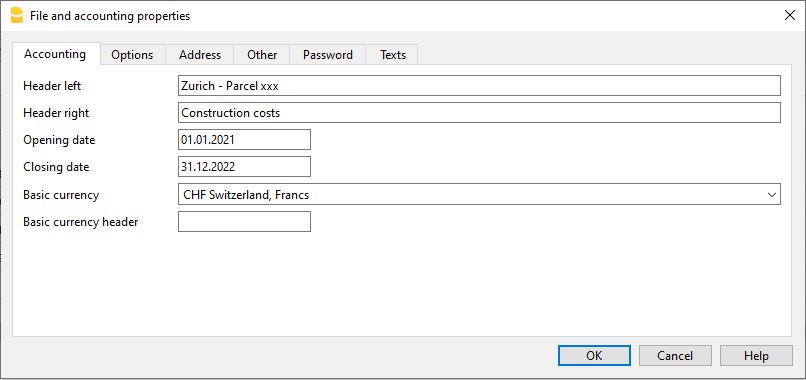
Create a project folder
You can manage your documents and receipts in digital format by linking them to transactions so you have everything well organized and can view them with one click.
It is therefore useful that you create a folder to save the accounting file you have created.
Then create subfolders for documents of deliberations, receipts, and others. See how to organize digital documents.
Categories and Estimate Budget
Categories Table
The Categories table is where you set the elements of the work to be performed. Cost categories can be changed or personalized in any moment, if you have particular requirements you can decide to change the structure of grouping of the elements, or use the one proposed by the template.
Estimate Budget Column
In this column you define the amount of the estimate for each Cost category. You can change the amount whenever you want.
Variants of Budget
You can add additional columns to enter the amounts relating to any variants of the estimate. Use the Data menu → Columns setup command, and add a column of Amount type to make sure that the values are totalized.
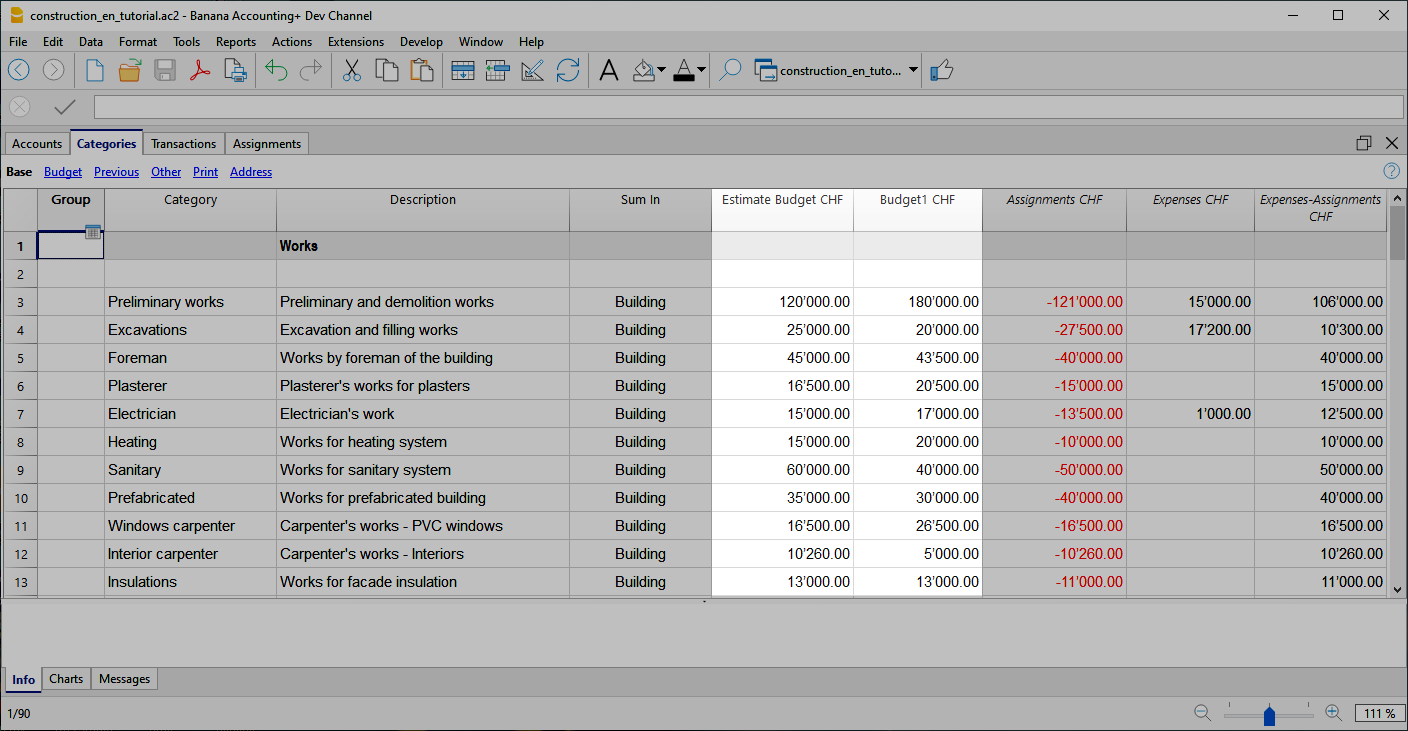
Additional columns
In Banana Accounting terminology, the Budget column is the one that contains the values calculated on the basis of the movements contained in the Budget table.
In project management, the Budget table has been renamed to "Assignments " and is used to insert assignments . This can create a moment of confusion.
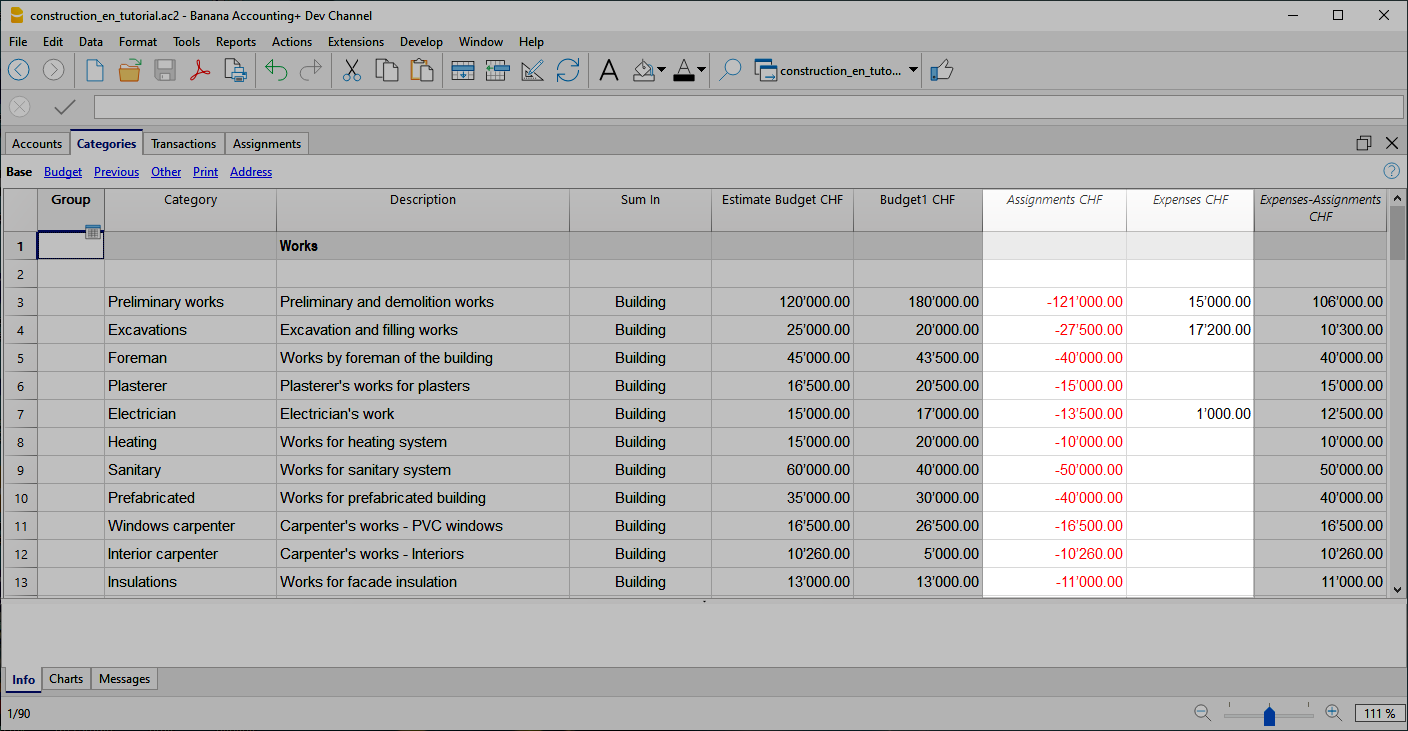
Assignments column
Contains the values shown in the Assignments table.
Expenses column
It contains the values calculated on the basis of the movements in the Transactions table.
Expenses-Assignments column
Calculates the difference between the values obtained with the movements in the Transactions table and the amounts in the Assignments .
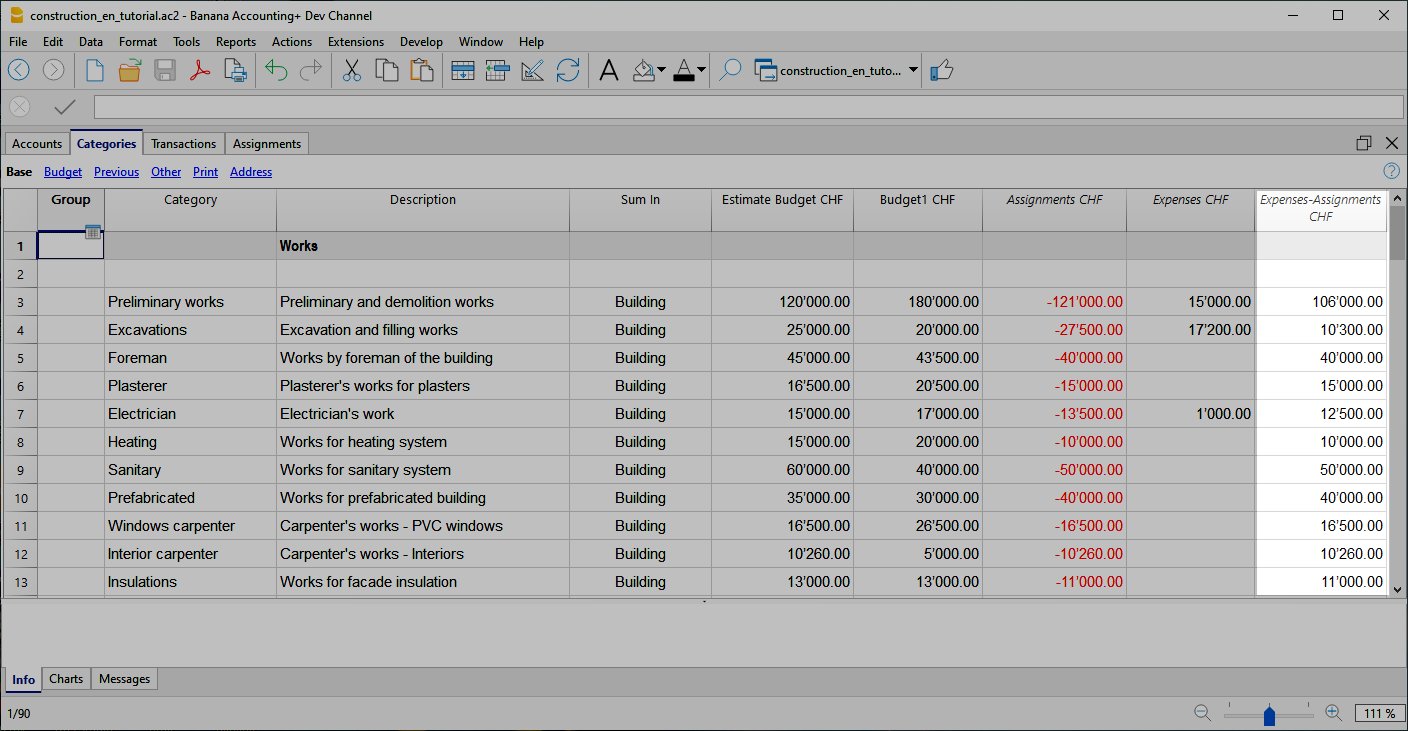
Use your own structure
You can freely create a structure of Categories as you wish, also taking up standard structures.
- Create categories.
You can use numbers or descriptors. - Create the groupings.
You can use as many levels as you like.
Additional groupings
For tax authorities or other needs you may find it useful to group the Categories entries by other criteria. You can use the Gr1 column for this purpose or add additional columns as needed.
Assignments
Movements relating to the assignment of work are entered in the Assignments table.
When entering a assignment, the Company account and the category to which it refers must also be entered.
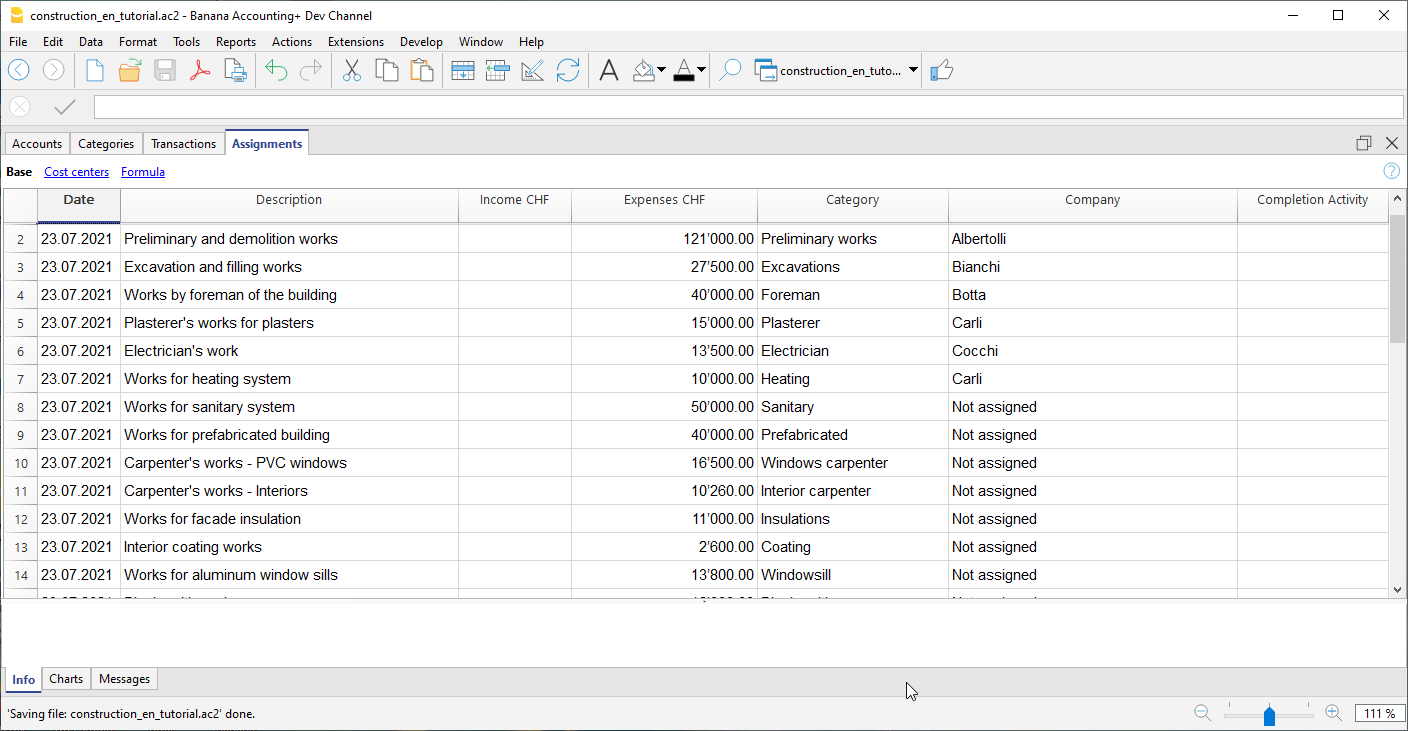
Once you have entered the data, you can use the report to see the overall situation and deviations from the estimate budget. You can also see the assignment amounts in the Categories table, they are listed in the 'Assignments ' column so that you can have a quick comparison with the other values.
Create assignments movements
You can create Assignments transactions in an easy and fast way. From the Extensions menu choose Construction Project Statement→Create transactions for assignments . The extension takes the data from the Categories table and for each cost category you have defined creates a transaction with the following fields:
- Date: Current Date.
- Description: Description present in the column of the same name in the Categories table.
- Expenses: Amount of the estimate budget. At the time you define the exact amount of the assignment, you can change the amount.
- Category: Name of the category.
- Company: Initially, each assignment is assigned a default "Unassigned" company, as soon as the assignment is assigned to a company, enter the correct name, referring to the companies you have defined in your chart of accounts.
When you start the extension, a dialog is shown with a summary of the changes that will be made, by pressing OK, the changes will be confirmed and executed. On the contrary, if you press Cancel the operation will be cancelled. You can execute this command every time when you add new categories to which you assign an estimate budget, starting the extension again will create the movements of the assignment only for the new elements.
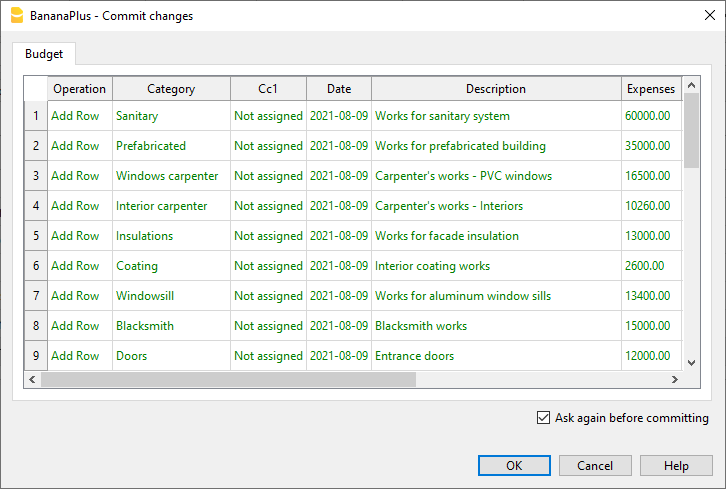
Alternatively, you can always choose to record the assignment manually.
Companies and Accounts
Accounts Table
The program allows you to manage the origin of the funds that are used to make payments. It indicates the accounts with which you are going to pay the artisans and other accounts of origin of the funds (own contributions).
Typically in a construction project there will be the construction bank account.
There are also preset accounts for:
- Disputed Invoices.
- Record the part of the invoice amount, which is not considered due.
- Invoices awaiting payment. Invoices received that have not yet been paid.
- Work in Progress. To record work that has been done, but for which you have not yet received the invoice.
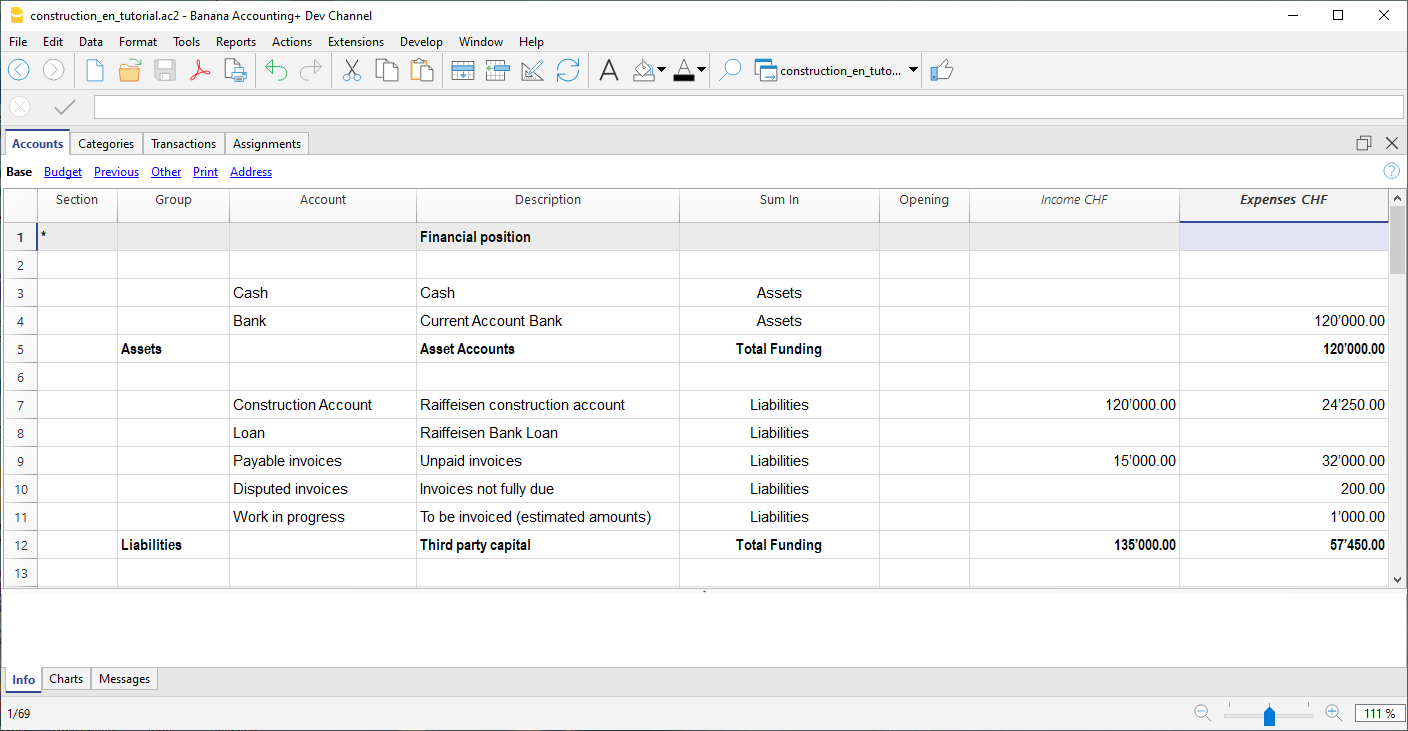
However, you can also create other accounts used to make payments or those of mortgages, used for the consolidation of the project.
Company accounts
For each company to which a job is assigned, you must first create an account of type cost center 1 (preceded by ".").
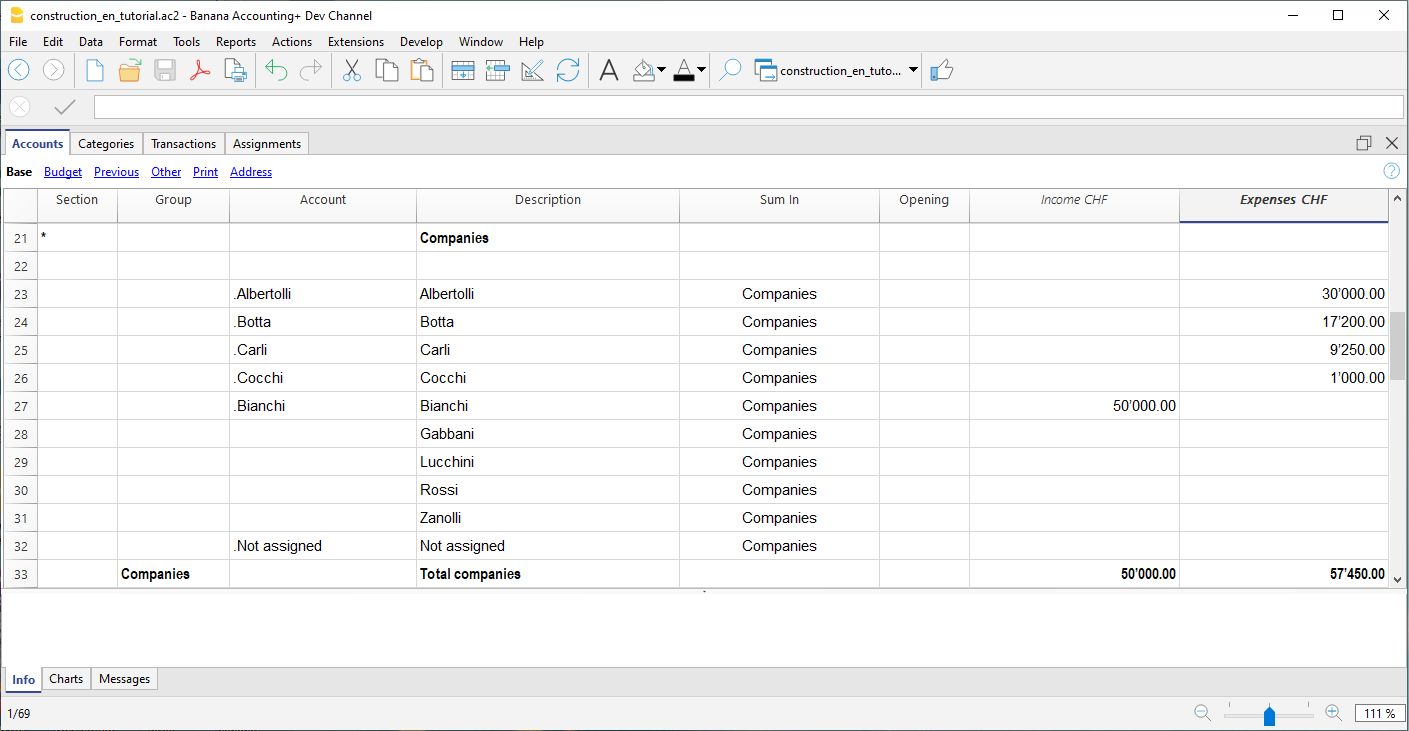
With the address view you can also enter the personal data, contacts and other information relating to the company.
Segments
Payments and Transactions table
Transactions table
In the transactions table, record the payments that are made for the project. For each transaction, in addition to the account, it also indicates the company and the category to which it refers. In the Expenses column indicates the amount of the payment, this value is also included in the Categories table.
Advance payment and invoices
The advance payment or invoice payment is recorded, indicating the date, the amount, the account used for the payment, expense category and the company's account.
You can also link the transaction row to the digital slip, so that you can view it with one click.
Receipt of invoice
The accounting management is carried out on the amounts actually been paid. To have an updated situation, it is possible to insert also the receipt of the invoice. In the account column you will have to insert the invoice account to be paid.
When you subsequently make the payment, the invoice receipt transaction must be overwritten with the payment information. If the payment is partial, you will need to create another transaction and split the amounts manually.
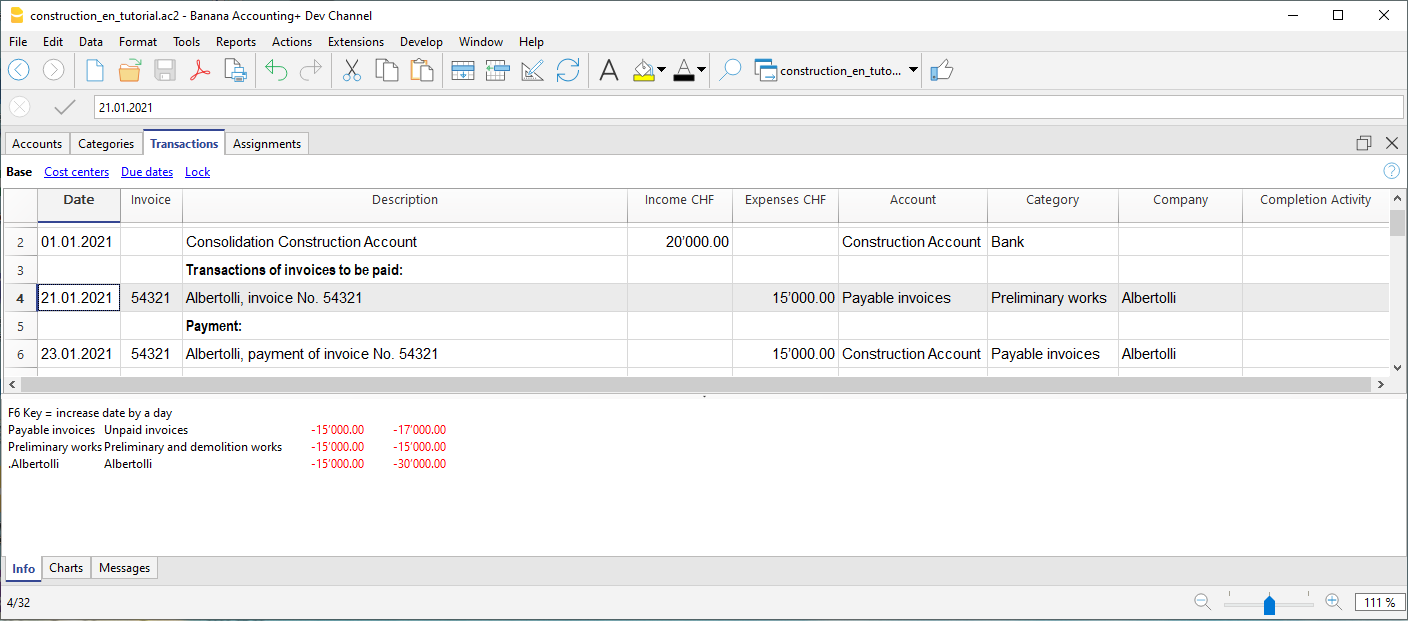
Disputed works
Records as if it were a payment, but using the account, disputed invoices.
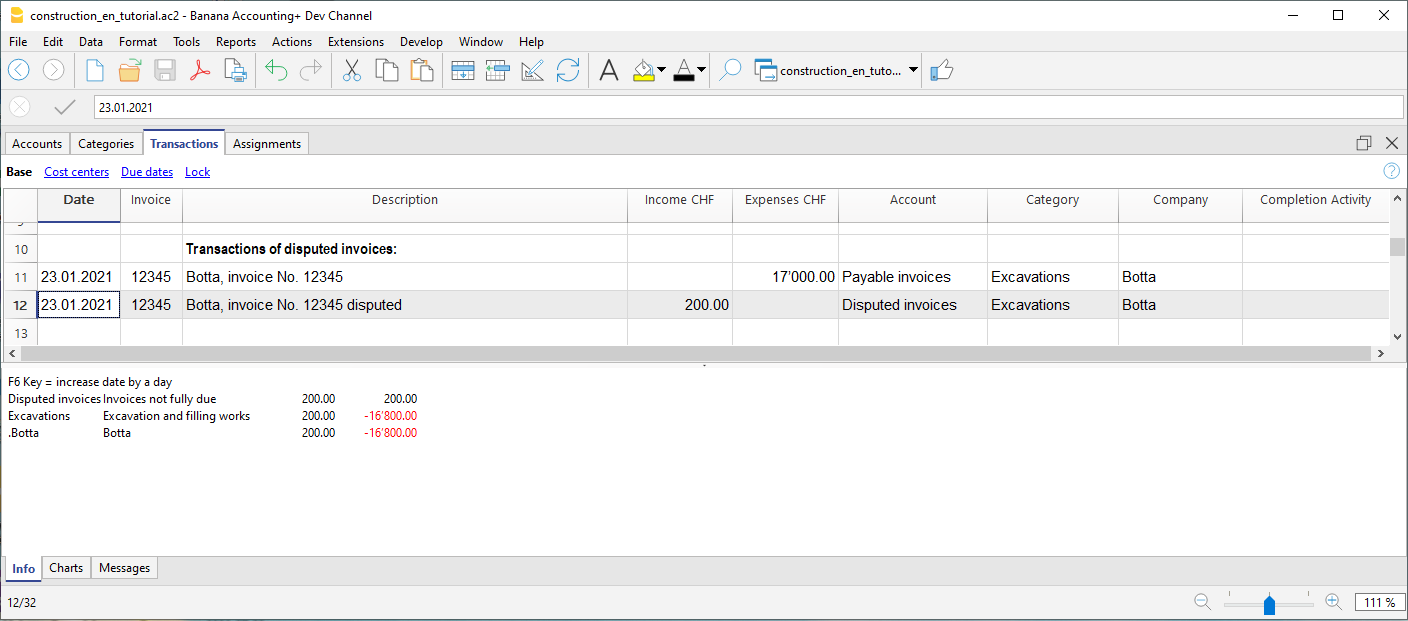
Work in progress
You can enter registrations, similar to payments, but indicating the work in progress account. The amount will be estimated by the construction management. In this way, you can have a progression of the works. You can also color these rows with a particular color, so that you can easily distinguish them from the others.
When the invoices arrive, you will need to replace the invoice.
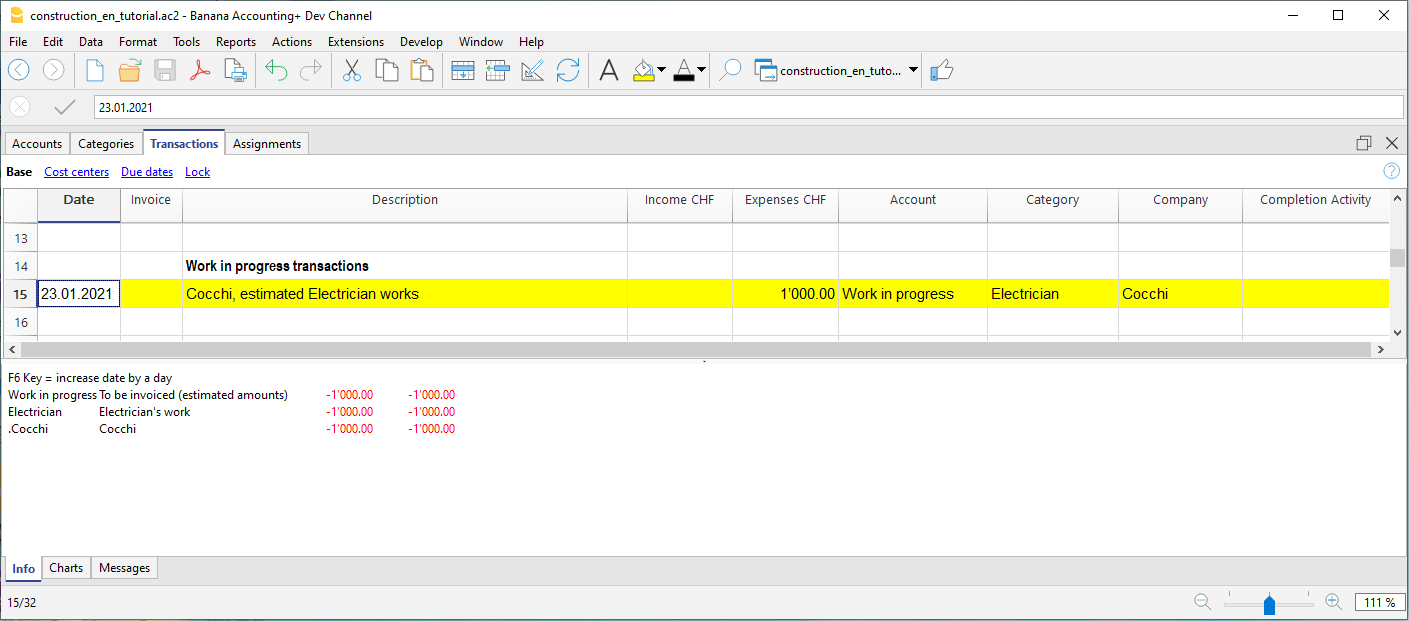
Income and financial transactions
In the transactions table you can also enter income such as subsidies or other financial transactions, capital payment or construction account consolidation.
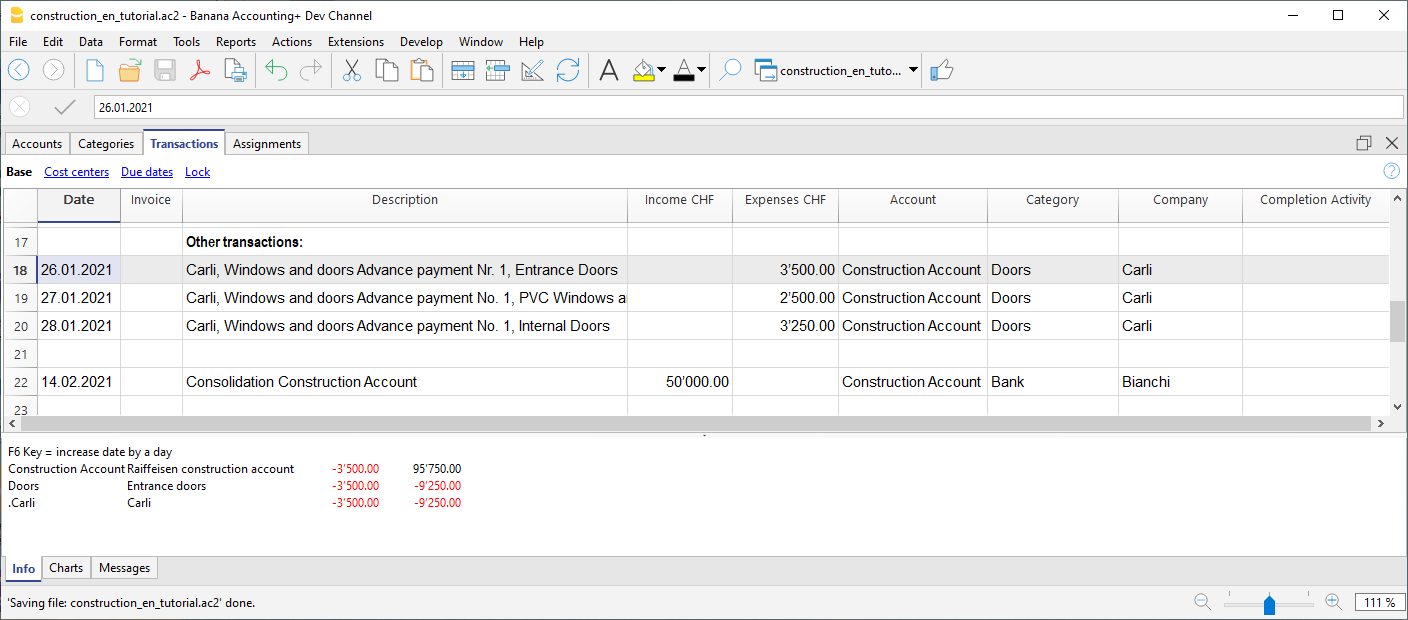
Percentage of work progress
Use the transactions table also to record manually the percentage of work progress. Define if the transaction is related to a company or a category, and the percentage. In the report you can evaluate the progress with the costs incurred.
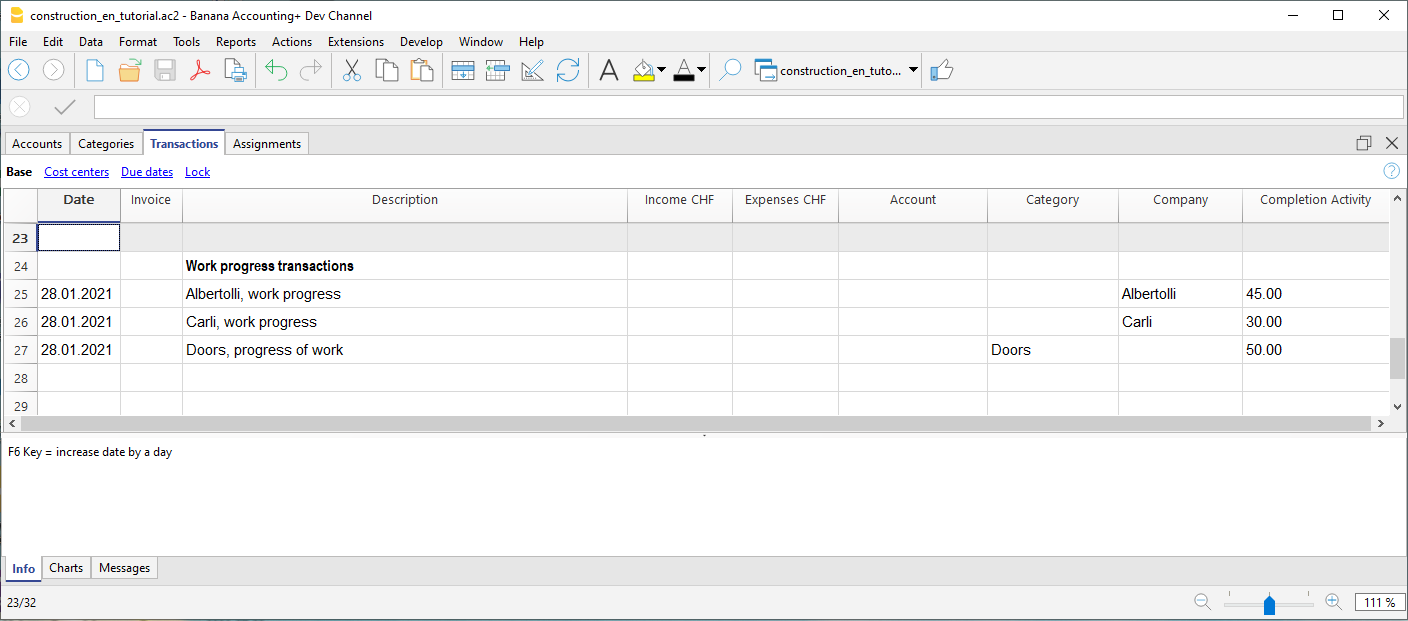
Reports by Categories and Companies
Heading
The extension takes the following information that you have defined in the file properties:
- Header left: Indicates for example the area, or the city with the mapping where the work will be performed.
- Header right: Indicates the project title.
- Opening/Closing Date: Indicates when the project started or when it will be concluded.
Dialog
When the extension is launched, a dialog window appears in which you can define the columns you want to display. For example, you can initially decide to show in the report only the columns of the estimate budget and the assignments , and then add the columns of the expenses later.
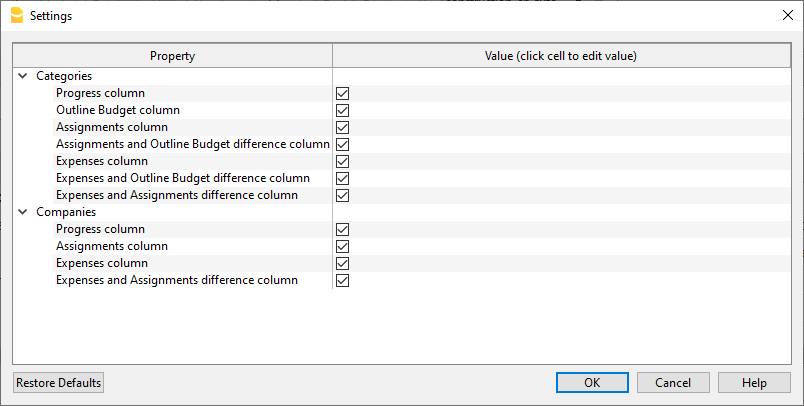
Report by Category
Inside the first table, the report shows the expenses divided by cost category, all the categories you have defined in the Categories table are included.
The columns you can view are as follows:
- Category: Name of the category, taken directly from the Categories table.
- Progress %: Resumes the last recorded work completion percentage, attributed to a specific category.
- Estimate Budget: This is the amount defined in the Estimate Budget column in the categories table.
- Assignments : Assignments are defined in the "Budget" table.
- Diff. Assign./Budg.: It is the difference between the assigned amounts and the budget, if the assigned amounts are less than the budget, it means that the costs will be lower than initially estimated budget, in this case a green icon is shown, if the assign is greater than the budget instead, then the icon appears red, if the amount is equal it remains yellow.
- Expenses: They are the actual expenses recorded in the transactions table.
- Diff. Exp./Budg.: This is the difference between the actual expenses and the estimate budget; if the estimate budget is greater than the expenses, then a green icon is shown because the actual expenses were less than the budgeted amount for that work. If the amounts are equal, then the icon remains yellow.
- Diff. Exp./Assign.: This is the difference between the actual expenses and the assigned amounts, if the assignments are greater than the expenses, then a green icon is shown as the actual expenses were less than the assigned amount for that work. If the amounts are equal, then the icon remains yellow.
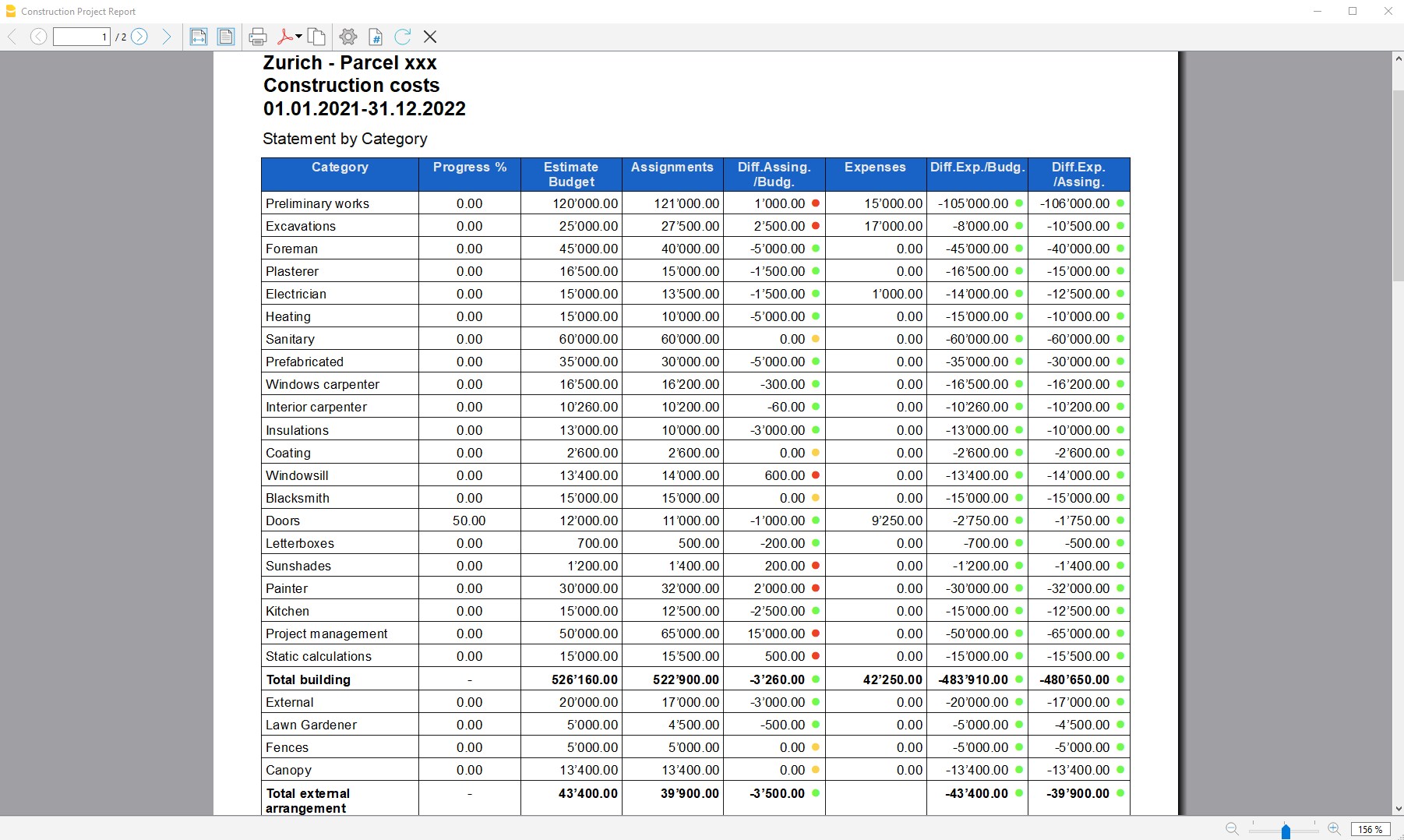
Report by Company
The second table shows the expenses divided by company, the companies are defined in the Accounts table.
The columns you can view are as follows:
- Company: Company name, taken from the account table.
- Progress %: Resumes the last recorded work completion percentage, attributed to a specific company.
- Assignments : The assignments are defined in the "Budget" table, make sure you have assigned a company to the assignments , otherwise no amount will be displayed (see template).
- Expenses: These are the actual expenses recorded in the transactions table.
- Diff. Exp./Del.: This is the difference between the actual expenses and the assigned amounts for each company, if the assignments are greater than the expenses, then a green icon is shown as the actual expenses were less than the assigned amount for that work. If the amounts are equal, then the icon remains yellow.
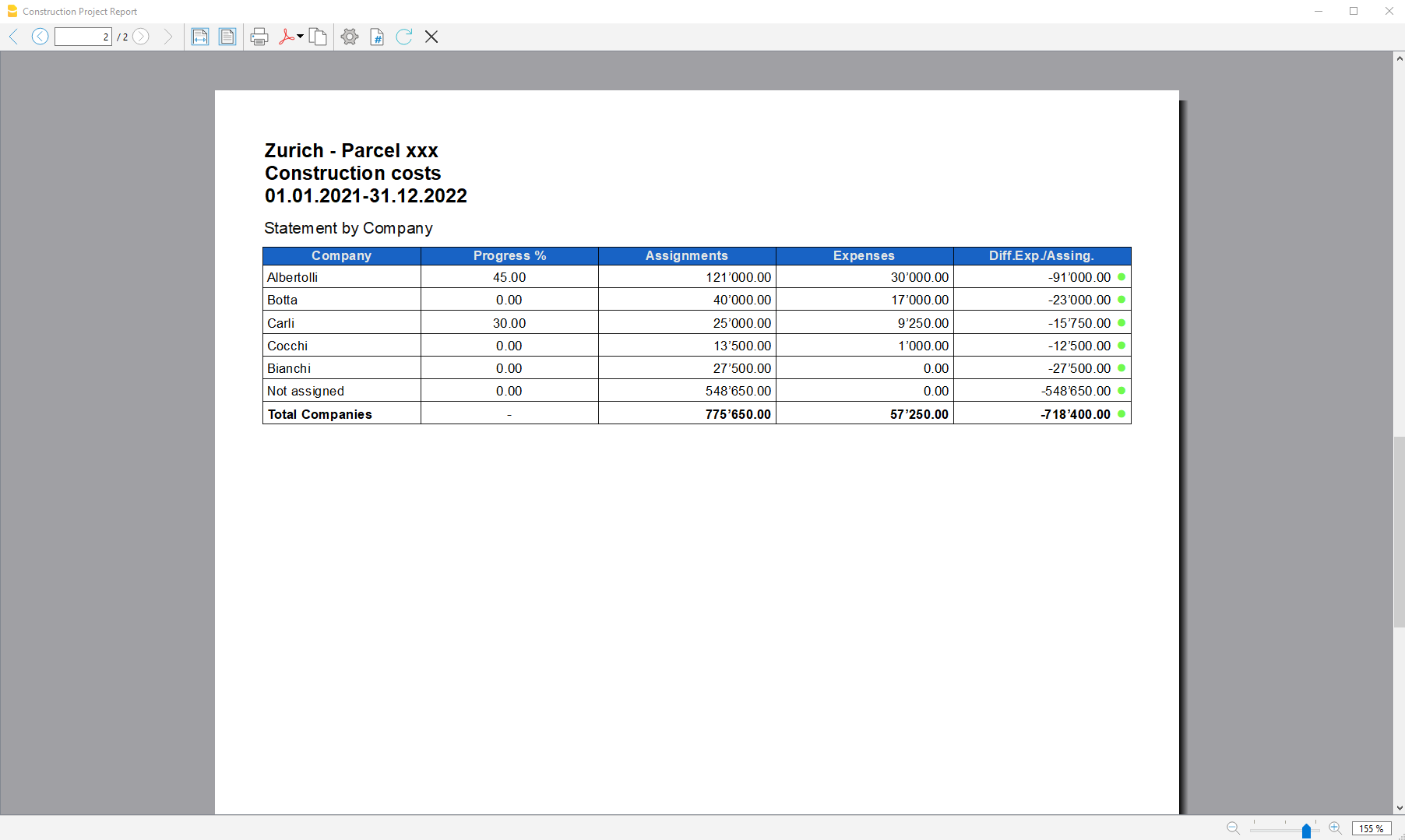
Accounting Extensions
Accounting Import Extensions (Universal)
With Banana Accounting Plus you can import data from different formats.
SEPA/ISO 20022 Bank Statement
The Camt/ISO 20022 is the bank statement format made available by most banks.
See:
Importing from PayPal
This extension allows you to import PayPal transactions into Banana Accounting Plus:
Importing SEPA/ISO Bank Statement 20022
Neste artigo
Importing SEPA/ISO Bank Statement 20022
Importing SEPA/ISO Bank Statement 20022
Imports and converts statement movements into accounting movements. Supports files in ISO/SEPA 20022 format and camt052, camt053, camt054.
Importing data into existing accounts
This is a functionality included in the programme. Proceed as indicated in the Import into accounting command.
With this function it is also possible to open a compressed file. The programme in this case will ask you to choose the file from which to import the data into the compressed file.
Viewing the content
If you wish to view the contents before importing the file, use the function View ISO20022 file.
The ISO 20022 standard for account statements
With SEPA (Single Euro Payment Area), the ISO 20022 standard becomes mandatory in Europe as of 1.1.2014, and replaces the Swift MT940 format.
Banana Accounting supports the ISO 20022 formats camt.052, camt.053 (including version 4 and 8) and camt.054 .
Technical notes on ISO 20022 conversion
The ISO 20022 standard encodes the accounting data of the account statement in a very precise manner. However, it also leaves a certain amount of freedom to insert additional account and movement information.
When reading the file Banana tries to adapt to the way the ISO 20022 file was prepared.
- Reads as beginning balance similar encodings
- Reads as ending balance the similar encodings
- All the movements contained are read and transformed into movements
- Transaction date (Date)
- Currency date
- Movement amount (positive or negative)
- Description (Banana for the moment assembles the various descriptions into a single text)
In the future, it is planned to extract this information more specifically and indicate other columns where it should be allocated.
SumUp - Import movements .csv (Banana+ Advanced)
Neste artigo
SumUp - Import movements .csv (Banana+ Advanced)
SumUp - Import movements .csv (Banana+ Advanced)
This extension allows to import transactions from the SumUp platform into Banana Accounting.
You can install the extension from the menu Extensions → Manage Extensions.
Requirements for Use
- Banana Accounting Plus with the Advanced Plan.
Export Procedure
Export your transactions from the SumUp platform in CSV format.
- Login on your SumUp profile.
- Click on Home
- Click on Download Center
- Go to the Accounting section
- Download Transactions and select the CSV (current format) option.
The Transaction report lists all your transactions, including card payments, cash payments, and refunds.
Import Procedure
- Via the Actions → Import to accounting → select Import transactions box.
- Choose the extension to be used, in this case 'SumUp - Import movements .csv (Banana+ Advanced)'.
- With the Browse button, choose the file from which to import the transactions.
- Press OK Button.
In the settings dialog you must enter the date format and the accounts to be used to record SumUp movements in the accounts:
- Bank account: Account where the amount is credited.
- SumUp income account: Revenue account, this account records the gross amount paid by the customer
- Cash account: Account to book the amounts paid by cash.
- SumUp fee account: Cost account to record transaction-related expenses retained by SumUp.

The accounts inserted must exists in your chart of accounts, if you do not yet have any suitable accounts, you can create new ones in your chart of accounts.
For more details see import transactions page.
Imported data
The program imports the following entries in the Transactions table:
- Sales with a successful bank payout
Typically related to products/services paid by the customer via card. These transactions are recorded in accounting with three entries:- Recognition of the sales revenue in the account defined as "SumUp income account" (gross amount).
- Recognition of the actual amount received, net of SumUp fees, in the "Bank account".
- Recognition of the fees retained by SumUp in the "SumUp fee account".
- Cash sales
These transactions are recorded with a single entry:- "Cash account" as the receiving account
- "SumUp income account" as the counter-account
- Refunds (when recorded as a bank payout)
Refunds are recorded like standard payouts (see point 1), with an additional reversal entry:- Decrease of the "Bank account"
- Decrease of the "SumUp income account"
Enable the ExternalReference (External Reference) and the Notes columns to see the id that SumUp has assigned to the transaction, this way you have a reference to the original transaction id generated in SumUp .
Error Messages
If the import fails, an error message will be displayed. The most common errors are:
- Unrecognised *.csv file format: The format of the *.csv file you are trying to import does not match any of the formats associated with this filter:
- Check that you have chosen the correct file.
- If the file you have chosen is correct, it may be that our filter requires updating. - This extension requires Banana Accounting+ Advanced: You are trying to use the extension with a licence other than the one requested, please upgrade to the Advanced Plan to be able to use the functionality of this filter.
Send us a feedback
This extension is currently in beta, and we welcome suggestions for improvement.
SumUp provides multiple types of reports, which can also be generated in different languages. Make sure to select the correct report, as described in the export procedure above on this page. If SumUp updates its export process and the instructions provided here are no longer valid, please let us know.
If the Transaction Report is generated in a language that is not yet supported by the program, resulting in an unrecognized format, please send us the file so we can update and improve the extension.
It may happen that the format of the csv file is updated and as a result the filter no longer functions correctly. Send us feedback and attach an example file (.csv) with the new format and we will proceed to update the filter.
Useful Links
Chase - Import movements .csv (Banana+ Advanced)
Neste artigo
Chase - Import movements .csv (Banana+ Advanced)
Chase - Import movements .csv (Banana+ Advanced)
This import extension allows you to import the transactions from Chase bank into Banana.
You can install the extension from the menu Extensions → Manage Extensions.
Requirements for use
- Banana accounting Plus with the Advanced Plan.
Export procedure
Export your banking transactions in *.csv format by accessing your Chase bank account.
- Find your movements.
- Export your account movements by choosing the *.csv format.
- Save the file on your computer.
- We recommend saving the file in a place where you can easily find it later and not opening it before importing it.
Import procedure
- Via the Actions → Import to accounting → select Import transactions box
- Choose the extension to be used, in this case 'Chase - Import movements csv (Banana+ Advanced)'.
- With the Browse button, choose the file from which to import the transactions.
- Press OK Button.
For more details see import transactions page.
Error Messages
- Unrecognised *.csv file format: The format of the *.csv file you are trying to import does not match any of the formats associated with this filter:
- Check that you have chosen the correct file.
- If the file you have chosen is correct, it may be that our filter requires updating.
- This extension requires Banana Accounting+ Advanced: You are trying to use the extension with a licence other than the one requested, please upgrade to the Advanced Plan. to be able to use the functionality of this filter.
Send feedback
It may happen that the format of the csv file is updated and as a result the filter no longer functions correctly. Send us feedback and attach an example file (.csv) with the new format and we will proceed to update the filter.
PayPal Import *.csv (Banana+) [BETA]
Neste artigo
PayPal Import *.csv (Banana+) [BETA]
PayPal Import *.csv (Banana+) [BETA]
This extension lets you import in Banana Accounting your PayPal transactions. Only for Banana+ version.
Separate accounting for PayPal transactions
PayPal transactions are usually composed of small amounts and have many particularities (refund, fees, etc.).
It can be expensive and time consuming to handle all this work within the main company accounting.
We have prepared different template that you can immediately use:
In many cases, it is more appropriate to manage the PayPal transactions within a separated accounting file and once a month integrate the summary data (movements for the month) into the main accounting.
This solution also allows a third person to take responsibility for the PayPal accounting.
If you use Banana for a PayPal Accounting solution, you can:
- Create an accounting file for a specific PayPal account
- Have a Chart of accounts with
- A different account for each currency used
- Different accounts for Income and Expenses
- Import the PayPal transactions and have all accounts, expenses, income and PayPal fees automatically allocated, and currency converted into basic currency.
- Record the transactions on the appropriate accounts for
- Bank transfers
- Revenue with different Sale tax codes
- Different expense types
- Refunds and charge backs
- Adding other information for special reporting (Cost Centers, Segments, Customers, etc.)
- Regularly (week, month, quarter) integrate the data into the main accounting, either by
- Printing a summary and recording manually
- Or exporting the data for the period and import them into the main system
- At any time, print the journal and necessary reports for auditing or control.
- Eventually, in case you have a lot of transactions, you can customize the import filter (Javascript) so that certain transactions are registered onto specific accounts numbers.
Within the Banana PayPal accounting you can easily keep the whole history, have instant access to all the data necessary to give a good customer service.
Activate the import PayPal transaction
First you need to update the import filters in Banana Accounting. See also Manage extensions.
- Start Banana Accounting Plus
- Open your accounting file
- Menu Actions > Import to accounting
- Select Import Transactions
- Button Manage extensions
- Button Update extensions
- Check the PayPal Import *.csv (Banana+) [BETA] and deselect the other filters you do not need
- Close the dialog
Download PayPal transactions
PayPal customize fields to download
Be careful that the PayPal standard download file does not contain all the fields necessary for the import into Banana.
You need to change the settings in PayPal so that you can have a correct download
Business Account
- Login into PayPal
- Go to Activity.
- Click All Reports
- Click Activity download under Reports.
- Select the transaction type, date range, and choose the CSV file format.
- Click Customize report fields and make sure that all field are checked or check all fields available.
- Click Create Report.
- When the report is ready, click Download.
Personal Account
- Login into PayPal
- Go to Activity.
- Click the download button icon.
- Click on Custom.
- Click Activity download under Reports.
- Select the transaction type, date range, and choose the CSV file format.
- Click Customize report fields and make sure that all field are checked or check all fields available.
- Click Create Report.
- When the report is ready, click Download.
PayPal language encoding setting (only for Business Account)
If you use a local encoding, make sure that the encoding reflects your local computer encoding.
Banana import works better if you set your file encoding in UTF-8.
To change your language encoding settings in PayPal:
- Login into PayPal
- My Account → Account Settings → Website payments
- PayPal button Language encoding (click on Update)
- Eventually More Options is where you can set the UTF-8 in the list box
This setting can resolve the error: 'Impossible to translate file header: Convert paypal file to code page Latin1 or use new version of Banana Accounting'
Import PayPal transactions
See also import transactions
- Open your accounting file
- Menu "Actions→ Import to accounting"
- Select "Import transactions"
- Select "PayPal"
- In File Name, enter the path and file name of the PayPal download (or Browse)
- Click OK.
- In the settings dialog enter:
- Choose the date format for the PayPal date format.
If you get the error "Date Format not valid" open the file you have downloaded from PayPal with notepad and check how the dates are written and then choose the appropriate format. - Enter the Account number for the PayPal Account (PayPal Account)
- Enter the Account number where Income should be registered (PayPal In)
- Enter the Account number where Expenses should be registered (PayPal Out)
- Enter the Account number where PayPal Fees should be registered (PayPal Fee)
- If it is multi-currency accounting also sets the exchange rates
- Choose the date format for the PayPal date format.

Once you have imported the transactions, you can undo the operation or change the imported data.
This will be the case if you want some income or some expenses to be registered on a different account..
Adapt your accounting file for import
Instead of specifying the PayPal account when the script starts, you can indicate in the Chart of accounts of Banana which accounts it should use. This method is also necessary if you want to have different accounts for each currency.
- The Basic currency in File properties should be set to a valid currency.
- Prior to import, the program will look for and use accounts with the following description:
- "PayPal Account": the account for PayPal
- "PayPal In": the account for income
- "PayPal Out": the account for expenses
- "PayPal Fee": the account for the PayPal fees.
- Set the opening balance of the PayPal accounts.
For each currency, you can specify an account. All transactions for this currency will be recorded on the specified account. You also will have the currency conversion transactions between the various currencies.
- For an accounting file NOT in multi/foreign currency, insert the currency code into the account description:
- PayPal Account EUR
- PayPal Account USD
- PayPal Account CHF
- PayPal Account GBP
- For an accounting file with multi/foreign currency, the program will look for the account where the description begins with "PayPal Account" and will then use the currency symbol of the Currency column.
If no account has been specified for the currency, the amount will go to the basic currency account.
PayPal currency settings and accounting settings
It is suitable that your PayPal currency settings (My Account → Profile → My Money→ PayPal Balance → Currencies) are the same as the ones of the accounting file:
- PayPal "Primary currency" is the same as your Basic Currency.
- If you have set up PayPal to use more currencies (Add Currency) you should use the Double-entry accounting with Multi-currency.
You will be able to keep a separate account for each currency in the original value.
You can convert an existing accounting file into a multi-currency file with the Convert to new file command. - For multi-currency accounting, the accounts "PayPal In", "PayPal Out", "PayPal Fee" should preferably be in basic currency.
Transaction split and selection
Each PayPal transaction includes the Gross amount, the Fee amount and the Net amount. If the Net is different from the Gross, the program will generate 3 lines:
- Line with the Gross amount registered on the PayPal Account
- Line with the Net amount registered on the Income or Expense account
- Line with the Fee amount registered on the Fee account.
Transactions already imported
The columns "ExternalReference" of the Transactions table will be filled with the unique PayPal transactionsID.
The next time you import, transactions with the same ID will be excluded from the import. The information from the older transactions will be used for currency conversion and grouping.
Last balance
The import will also add a line with information regarding the last PayPal Balance for each currency used. If you do not want this information, delete the imported lines.
Modifying the imported transactions
Once the transactions are imported, you will be able to change the transactions, as you like.
- Record the transfers to and from the bank account on a "Internal transfers account (Giro bank account)".
Do the same when you import your Bank account transactions.
The balance of the "Internal transfers account (Giro bank account)" should compensate and go to zero. - Income from sales can be registered on specific accounts based on the sales tax applied or based on the type of sales.
You must adapt your accounting plan accordingly. - You can add segments or cost centers.
Adapt the View of the Transaction table so that you have all columns visible and in the best sequence for modifying the data.
Exchange rate profit and loss
The balances of the PayPal accounts in currency will match the balance of the PayPal account.
The balances in basic currency may be different due to:
- The exchange rates for the transactions vary over the time.
- PayPal has different exchange rates for selling or buying a specific currency.
You should from time to time adjust the basic currency with the command Recording exchange rate differences.
Multi currency conversion
If there are different transactions in different currencies in the file, the amounts will be converted into basic currency following this rule and order:
- Basic currency
- PayPal currency conversion
Transactions that belong to the same block will use the same conversion, so that the amount in basic currency for the same amount and transaction will always be the same. - Exchange rate from currency conversion of the same date
- Exchange rates taken from the Accounting file (Exchange rates table)
- Exchange rate collected from the PayPal currency conversion.
The conversion will give an indication when it could not find a valid exchange rate for a currency and ask for a currency exchange rate.
Import other PayPal fields
You can import other information, included in the PayPal file, into Banana Accounting.
- Add a new column to the Transactions table with the name "PayPal" + the column name of the PayPal file.
For example "PayPalTimeZone", "PayPalSalesTax", "PayPalTip".- Specify the column type (Text, Number, Amount, Date, Time).
- For Amount and Number also indicate the decimal place.
- In the Account Card, the columns of the Amount type will also have an end total.
- In the PayPal download history with "Customize Download Fields", you can specify the column to download.
- The available columns (names in English, without space and in CamelCase) are:
Time, TimeZone, Type, Name, Status, Subject, Currency, Gross, Fee, Net, Note, FromEmailAddress, ToEmailAddress, TransactionId, PaymentType, CounterpartyStatus, ShippingAddress, AddressStatus. ItemTitle, ItemId, ShippingAndHandlingAmount, InsuranceAmount, SalesTax, Tip, Discount, SellerId, Option1Name, Option1Value, Option2Name, Option2Value, AuctionSite, BuyerId, ItemUrl, ClosingDate, ReferenceTxnId, InvoiceNumber,SubscriptionNumber, CustomNumber, ReceiptId, Balance, ContactPhoneNumber, BalanceImpact, AddressLine1, AddressLine2, State, Town, Zip, Country.
When you import the transactions, the PayPal* column cells will be filled with the contents of the PayPal file.
Banana PayPal import extension
The conversion from the PayPal format to the accounting format is a Javascript program.
The program is "open source software" and can be modified to suit the user's needs at best.
To modify the extension, first change the following values so that it does not conflict with the Banana PayPal filter:
- Use a different file name
- Use a different @id
- Use a different description.
License terms
The PayPal documentation does not cover all possible transactions. The import script has been developed based on use cases, and it is possible that not all possibilities have been covered and that the script need improvements.
PayPal may also change the data format and the script results may not be the same.
Take care using the import and always check that the Account Balance corresponds to the PayPal balance.
The use of the import script is governed by the Apache 2.0 license, the file can be freely modified.
By using the script you accept the license and the disclaimer terms.
Troubleshooting
If you experience any problem first update the import filter to the latest version in Manage extensions.
- Rounding problem.
It can happen that the PayPal file use a decimal format that is different from the one of your computer. Amount are therefore truncated (12.34 become 12 or it become 1234).
PayPal assign you a specific format for the language encoding based on you country (see PayPal language encoding explanations).- Make sure that the PayPal download are the same as your computer settings
- Or login in you PayPal account and change the PayPal language encode setting (https://www.paypal.com/cgi-bin/customerprofileweb?cmd=_profile-language-encoding).
With the button More Option you can eventually select the UTF-8 that is the best suited to exchange data.
- The error message "Impossible to translate file header: .."
- Try using the Banana Accounting Plus version.
- Change your download settings as specified above in the "PayPal language encoding setting"
- Assure you are using the original CSV file downloaded from PayPal and not one opened and saved with Excel.
- The error message "Currency non converted" indicates that there has been no available exchange rate for the conversion.
- It is possible you have not set up your basic currency
- You have set up the PayPal to keep more than one currency. The PayPal file does not convert currency and you should therefore use a multi-currency accounting.
- If the last balance is different from the account
- Check whether you have a correct opening amount (the balance prior to the first imported transaction)
- Your account is not in the same currency.
If your PayPal account is set up to use different currencies or in a currency different from basic currency, it would be suitable to use a multi currency account.
- If you get a message field "BalanceImpact not found in headers" or the same message with another field name, is due to the fact that the PayPal History file does not contains a field that is needed for import.
- Login in PayPal and go to download history
- Before downloading the PayPal history file click on "Customize My History Download"
- You will see a list of available field and check the one that is missing
The "Balance Impact" is near the end of the list.
PayPal will save the setting. Next time you download again the field will be included. - Download again the history file.
- If you have an error message "AccountDebit" and "AccountCredit" not found, you have a file with old columns name.
use the command Tools->Create New File to create a copy of the file with the correct columns.
Reference
PayPal Documentation
Changes
- 2021-03-24 New version for Banana+
- Complete history
Feedback
Let us know what you think of the import script or how we could eventually improve the script.
Revolut - Import movements .csv (Banana+ Advanced)
Neste artigo
Revolut - Import movements .csv (Banana+ Advanced)
Revolut - Import movements .csv (Banana+ Advanced)
This import extension allows you to import the transactions from Revolut platform (Private & Business) into Banana.
You can install the extension from the menu Extensions → Manage Extensions.
Requirements for use
- Banana accounting Plus with the Advanced Plan.
Export procedure
Export your banking transactions in *.csv format by accessing your Revolut account.
- Find your movements.
- Export your account movements by choosing the *.csv format.
- Save the file on your computer.
- We recommend saving the file in a place where you can easily find it later and not opening it before importing it.
Import procedure
- Via the Actions → Import to accounting → select Import transactions box
- Choose the extension to be used, in this case 'Revolut - Import movements csv (Banana+ Advanced)'.
- With the Browse button, choose the file from which to import the transactions.
- Press OK Button.
If you are importing transactions from the Business platform, enable in Banana the ExternalReference column, shows the transaction id assigned by Revolut.
For more details see import transactions page.
Error Messages
- Unrecognised *.csv file format: The format of the *.csv file you are trying to import does not match any of the formats associated with this filter:
- Check that you have chosen the correct file.
- If the file you have chosen is correct, it may be that our filter requires updating.
- This extension requires Banana Accounting+ Advanced: You are trying to use the extension with a licence other than the one requested, please upgrade to the Advanced Plan. to be able to use the functionality of this filter.
Send feedback
It may happen that the format of the csv file is updated and as a result the filter no longer functions correctly. Send us feedback and attach an example file (.csv) with the new format and we will proceed to update the filter.
Stripe - Import movements .csv (Banana+ Advanced) [BETA]
Neste artigo
Stripe - Import movements .csv (Banana+ Advanced) [BETA]
Stripe - Import movements .csv (Banana+ Advanced) [BETA]
This import extension allows you to import the transactions from Stripe platform into Banana. Stripe allows multiple export options, you can use two different export types to import data into Banana:
You can install the extension from the menu Extensions → Manage Extensions.
Requirements for use
- Banana accounting Plus with the Advanced Plan.
- Use a double entry or income and expenses accounting
Export the transactions report
It allows you to obtain all customer payments, including fees and collected transfers, and their corresponding status. To obtain this report you need to:
- Log in to your Stripe account on the browser
- In the main dashboard, select Transactions.
- Click All activity.
- Click Export.
In the export dialog select:
- Columns: All columns.
- Then click on Export.
We recommend saving the file in a place where you can easily find it later and not opening it before importing it.
Export of the balance summary report
This report is similar to a bank statement, helping you to reconcile your Stripe balance at the end of the month.
It provides an itemized CSV export of your complete transaction history and any custom metadata associated
with those transactions. All transactions are shown in your settlement currency (after any foreign currency conversion).
To obtain this report you need to:
- Log in to your Stripe account on the browser
- In the main dashboard, select Reports.
- Click Summary balance.
- Choose Balance change from activity.
- Click Download.
In the export dialog select:
- Report format: Itemized.
- Columns: All columns.
- Then click on Download.
We recommend saving the file in a place where you can easily find it later and not opening it before importing it.
Import procedure
The import procedure works the same for both reports:
- Via the Actions → Import to accounting → select Import transactions box
- Choose the extension to be used, in this case 'Stripe- Import movements .csv (Banana+ Advanced) [BETA]'.
- With the Browse button, choose the file from which to import the transactions.
- Press OK Button.
In the settings dialogue you must enter the date format and the accounts to be used to record stripe movements in the accounts:
- Stripe Account: Account where the amount is credited.
- Stripe In: Revenue account, this account records the gross amount paid by the customer
- *Stripe Reserved Funds: Cost account, used to record the amount reserved by stripe and then returned.
- *Stripe Fee: Cost account to record transaction-related expenses retained by stripe.

*These elements are only to be entered if you import the data using the "All transactions" method, if you import the balance change from activity you can leave them empty.
The accounts inserted must exists in your chart of accounts, if you do not yet have any suitable accounts, you can create new ones in your chart of accounts.
Currently only data in Stripe's Standard columns are imported, data in columns added by other platforms you are connected to are not imported.
For more details see import transactions page.
Visualize the imported data
In the Transactions table:
- Enable the ExternalReference (External Reference) and the Notes columns to see the id that Stripe has assigned to the transaction, this way you have a reference to the original transaction id generated in Stripe.
- When imported, transactions are sorted by date, it is possible that transactions belonging to the same operation are split by date and therefore do not occur in succession. We recommended to keep the .csv file as a reference as movements are exported grouped by operation, for control activities you can trace back the original movements using the external reference and notes columns.
Error Messages
- Unrecognised *.csv file format: The format of the *.csv file you are trying to import does not match any of the formats associated with this filter:
- Check that you have chosen the correct file.
- If the file you have chosen is correct, it may be that our filter requires updating.
- This extension requires Banana Accounting+ Advanced: You are trying to use the extension with a licence other than the one requested, please upgrade to the Advanced Plan. to be able to use the functionality of this filter.
Send us a feedback
This extension is a BETA version, we welcome suggestions for improvement.
It may happen that the format of the csv file is updated and as a result the filter no longer functions correctly. Send us feedback and attach an example file (.csv) with the new format and we will proceed to update the filter.
Wise - Import movements .csv (Banana+ Advanced)
Neste artigo
Wise - Import movements .csv (Banana+ Advanced)
Wise - Import movements .csv (Banana+ Advanced)
This import extension allows you to import the transactions from Wise platform (Personal & Business) into Banana.
You can install the extension from the menu Extensions → Manage Extensions.
Requirements for use
- Banana accounting Plus with the Advanced Plan.
- Wise also provides files with standard format ISO20022, which you can import with the Professional plan. To import files in this format you need to install the relevant import extension: Importing SEPA/ISO Bank Statement 20022 . Using SEPA/ISO20022 format is preferred over .csv when you have transactions in multiple currencies.
Export procedure
Export your banking transactions in *.csv format by accessing your Wise account.
- Find your movements.
- Export your account movements by choosing the *.csv format.
- Save the file on your computer.
- We recommend saving the file in a place where you can easily find it later and not opening it before importing it.
Import procedure
- Via the Actions → Import to accounting → select Import transactions box
- Choose the extension to be used, in this case 'Wise - Import movements .csv (Banana+ Advanced)'.
- With the Browse button, choose the file from which to import the transactions.
- Press OK Button.
For more details see import transactions page.
Error Messages
- Unrecognised *.csv file format: The format of the *.csv file you are trying to import does not match any of the formats associated with this filter:
- Check that you have chosen the correct file.
- If the file you have chosen is correct, it may be that our filter requires updating.
- This extension requires Banana Accounting+ Advanced: You are trying to use the extension with a licence other than the one requested, please upgrade to the Advanced Plan. to be able to use the functionality of this filter.
Send us a feedback
It may happen that the format of the csv file is updated and as a result the filter no longer functions correctly. Send us feedback and attach an example file (.csv) with the new format and we will proceed to update the filter.
Yokoy - Import movements .csv (Banana+ Advanced) [BETA]
Neste artigo
Yokoy - Import movements .csv (Banana+ Advanced) [BETA]
Yokoy - Import movements .csv (Banana+ Advanced) [BETA]
This import extension allows you to import the transactions from Yokoy platform into Banana.
You can install the extension from the menu Extensions → Manage Extensions.
Requirements for use
- Banana accounting Plus with the Advanced Plan.
Export procedure
Export your banking transactions in *.csv format by accessing your Yokoy account.
- Find your movements.
- Export your account movements by choosing the *.csv format.
- Save the file on your computer.
- We recommend saving the file in a place where you can easily find it later and not opening it before importing it.
Accounting file Setup
Before importing the data into Banana make sure you follow the steps described below to correctly set up the accounting file (*.ac2) and prepare it for the correct import of transactions:
- In the transactions table make visible the ExternalReference column. The unique registration number created by revolut is entered here. This value can be used to avoid importing the same registration twice.
- Check that the accounts you refer to in the entries you import exist in the Accounts table. If an account is not found, an error will be displayed, in which case simply add the account in question to the Accounts table. Do the same thing with the VAT codes in the VAT Table
Import procedure
- Via the Actions → Import to accounting → select Import transactions box
- Choose the extension to be used, in this case 'Yokoy- import transactions (*.csv)'.
- With the Browse button, choose the file from which to import the transactions.
- Press OK Button.
If you are importing transactions from the Business platform, enable in Banana the ExternalReference column, shows the transaction id assigned by Revolut.
For more details see import transactions page.
Error Messages
- Unrecognised *.csv file format: The format of the *.csv file you are trying to import does not match any of the formats associated with this filter:
- Check that you have chosen the correct file.
- If the file you have chosen is correct, it may be that our filter requires updating.
- This extension requires Banana Accounting+ Advanced: You are trying to use the extension with a licence other than the one requested, please upgrade to the Advanced Plan. to be able to use the functionality of this filter.
Send us a feedback
It may happen that the format of the csv file is updated and as a result the filter no longer functions correctly. Send us feedback and attach an example file (.csv) with the new format and we will proceed to update the filter.
CiviCRM Contributions - Import movements .csv (Banana+ Advanced) [BETA]
Neste artigo
CiviCRM Contributions - Import movements .csv (Banana+ Advanced) [BETA]
CiviCRM Contributions - Import movements .csv (Banana+ Advanced) [BETA]
This extension allows to import transactions from the CiviCRM Contributions csv file into Banana Accounting.
You can install the extension from the menu Extensions > Manage Extensions.
Requirements for Use
Banana Accounting Plus with the Advanced Plan.
Send us a feedback
This extension is a BETA version, we welcome suggestions for improvement.
It may happen that the format of the csv file is updated and as a result the filter no longer functions correctly. Send us feedback and attach an example file (.csv) with the new format and we will proceed to update the filter.
OFX - Open financial exchange transactions import filter (*.ofx *.ofc *.xml)
Neste artigo
OFX - Open financial exchange transactions import filter (*.ofx *.ofc *.xml)
OFX - Open financial exchange transactions import filter (*.ofx *.ofc *.xml)
Import extension (*.ofx *.ofc *.xml). Install this filter via the menu command Extensions → Manage Extensions.
The file is an import extension for Banana Accounting 8 and following.
It allows the software to:
Read OFX (Open Financial Exchange) files
Extract financial transactions
Convert them into Banana’s Transactions table
What Is OFX?
OFX (Open Financial Exchange) is a structured financial data format used by banks and software such as:
Quicken
Microsoft Money
It is more reliable than QIF because it includes:
Unique transaction IDs (FITID)
Structured account information
Statement balances
Currency data
What the Script Does
The OFX import extension:
Parses the OFX file structure
Extracts transaction blocks (<STMTTRN>)
Reads key fields:
Date (<DTPOSTED>)
Amount (<TRNAMT>)
Description (<NAME>)
Memo (<MEMO>)
Transaction ID (<FITID>)
Converts them into Banana transaction rows
Prevents duplicate imports using FITID
Typical OFX Transaction Structure
<STMTTRN>
  <TRNTYPE>DEBIT
  <DTPOSTED>20260301
  <TRNAMT>-125.50
  <FITID>20260301001
  <NAME>Vendor Payment
  <MEMO>Invoice 4587
</STMTTRN>
Export from Online Banking (Recommended)
Many banks in USA allow transaction export.
Steps:
Log into your online banking portal
Go to transaction history
Select Download / Export
Choose format:
OFX
or QFX
Select date range
Download the file
Export from Financial Software
Software like Quicken allows exporting to OFX:
Open your account
Choose Export transactions
Select OFX format
Save the file
Quicken Interchange Format import filter (*.qif)
Neste artigo
Quicken Interchange Format import filter (*.qif)
Quicken Interchange Format import filter (*.qif)
Import filter (*.qif)
It allows Banana Accounting to read and convert data from QIF (Quicken Interchange Format) files into Banana’s internal accounting structure (Transactions table, Accounts, Categories).
The script:
- Parses QIF records (such as date, amount, payee, memo, category)
- Transforms them into Banana-compatible transaction rows
- Handles different QIF types (Bank, Cash, Credit Card, etc.)
- Ensures correct formatting for dates and amounts
In short, it enables importing bank or financial transaction data exported in QIF format into Banana Accounting.
How to Export Data in QIF Format
QIF is an older financial exchange format originally used by Quicken.
Exporting from Financial Software
If your software supports QIF export:
Open your accounting or banking software
Go to Export or Data Export
Select:
Format: QIF (Quicken Interchange Format)
Account type: Bank / Cash / Credit Card
Choose date range
Save the
.qiffile
Exporting from Online Banking
Some banks still allow QIF export:
Log in to your online banking portal
Open the transaction history
Choose Download / Export
Select format:
QIF (if available)
Otherwise: CSV (you would need conversion)
Many banks today provide CSV or OFX instead of QIF.
Basic QIF Structure Example
A QIF file looks like this:
!Type:Bank
D03/01/2026
T-125.50
PPayment to Vendor
MInvoice 4587
LExpenses:Office
^
Export Extensions
Export Address data in the VCard format
Neste artigo
Export Address data in the VCard format
Export Address data in the VCard format
This extension exports the address data from the Contacts table in a vCard (.vcf file) that can the be imported in Microsoft Outlook, Mac OS Contacts, Mozilla Thunderbird.
Using the extension to export vCards
This extension is compatible only with the following file types:
- Address book
- Library and collections
- Estimates and Invoices
To generate and export vCards, the extension uses data from the Contacts table in the file. Specifically, it reads the following columns:
- First Name
- Family Name
- Street
- Zip
- Locality
- Country Code
- Country
- Mobile Phone
- Home Phone
- Email Home
Ensure that your file is of a supported type and that the required columns are filled in correctly to guarantee a successful export.
Install the extension
To install the extension:
- Open Banana Accounting Plus.
- Menu Extensions > Manage Extensions.
- In the search field enter Export Address data in the VCard format.
- From the extensions list select Export Address data in the VCard format.
- Select the extension and click Install.
- Click Close to close the window.
Export address data in vCard format
To export the vCard with the addresses data:
- Open the Banana file.
- From the Extensions menu select Export Address data in the VCard format.
- Enter the contact ID. You can export a vCard containing all contacts or just specific ones.
- Save the vCard.
The generated .vcf file contains a structure like the following one:
BEGIN:VCARD
VERSION:3.0
N:Pallino;Pinco
FN:Pinco Pallino
TEL;type=CELL:1234567890
TEL;type=HOME:1234567890
ADR;TYPE=HOME:;;Via Trevano 7a;Lugano;;6900;
LABEL;TYPE=HOME:Via Trevano 7a Lugano,6900
REV:2017-02-07T14:07:54.694Z
END:VCARD
Export vCard for unsupported file types
If you're using a file type that is not supported by this extension (e.g., a double-entry accounting file, an income/expense accounting file, etc.), you can still export the data for members, customers and suppliers by following these steps:
- Copy the contact information from your current accounting file.
- Create a new file of type Address book and paste the copied data into the appropriate columns.
- Run the extension to export the vCards in the new file.
Journal Export (Banana 9)
Neste artigo
Journal Export (Banana 9)
Journal Export (Banana 9)
Export the Journal table of Banana and use it in Excel with the Pivot Tables to build your own reports.
How to use it
In order to use this app you have to:
- Install the app
- Menu Apps → Manage Apps...
- Select Universal as country.
- Select english as language.
- Select Online → Productivity.
- From the apps list select Journal Export.
- Click Install to install the app.
- Click Close to close the window.
- Run the app
- Menu Apps → Journal Export.
- Export the content
- From the top bar select Copy to Clipboard.
- Copy into Excel
- Open Excel and paste the copied content.
Journal Export (Banana+)
Neste artigo
Journal Export (Banana+)
Journal Export (Banana+)
The extensions creates a report with the Banana Accounting Journal table of current and budget transactions. Data of the journal can be copied and used in Excel with the Pivot Tables to build your own reports.
Prerequisites
To use this extension you must download and install Banana Accounting Plus.
Install the extension
To install the extension:
- Open Banana Accounting Plus.
- Menu Extensions > Manage Extensions
- Select Universal as country.
- Select english as language.
- Select Online > Productivity.
- From the extensions list select Journal Export (Banana+).
- Click Install to install the extension.
- Click Close to close the window.
Create the journal report
To creare and export the journal:
- Open an accounting file.
- From the Extensions menu select the Journal Export (Banana+).
- In Settings dialogue choose the journal columns you want to display, then click OK.
- From the Print Preview of the report select the Copy to Clipboard command in the top bar.
- Open Excel and paste the copied content. Columns headers and data will be copied in Excel. From there you can use it to create your own reports.
Settings dialogue
Run the extension from the menu Extensions > Journal Export (Banana+).
The extension Settings dialogue will open. From here you can choose the journal columns you want to include in the report.
You can find more information about the journal columns in the Journal’s API documentation.
Print example
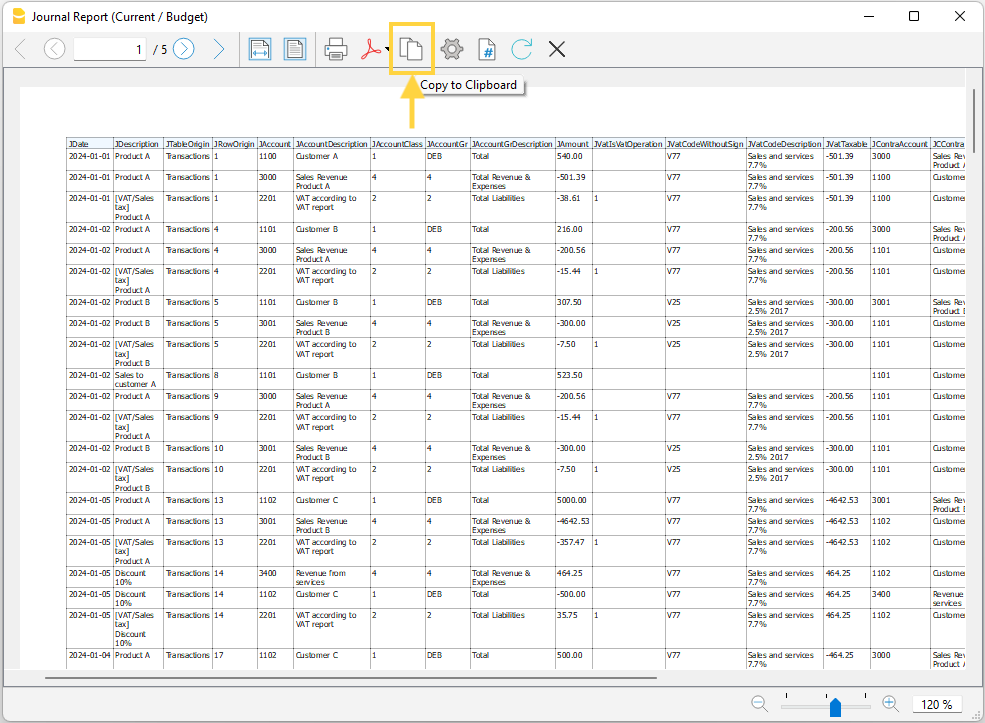
Time Sheet Export
Neste artigo
Time Sheet Export
Time Sheet Export
This extension exports the Time Sheet table of Banana. Exported data can be used in Excel with the Pivot Tables to build your own reports.
Prerequisites
- Download and install Banana Accounting Plus (or Banana Accounting 9, version 9.0.5).
Install the extension
To install the extension:
- Open Banana Accounting Plus.
- MenuExtensions > Manage Extensions.
- Select Universal as country.
- Select english as language.
- Select Online > Productivity.
- From the extensions list select Time Sheet Export.
- Click Install.
- Click Close to close the window.
Export the time sheet columns
To export the columns of the time sheet table:
- Open a time sheet file type.
- From the Extensions menu select the Time Sheet Export.
- In Settings dialogue choose the time sheet columns you want to export, then click OK.
- From the Print Preview of the generated report select the Copy to Clipboard command in the top bar.
- Open Excel and paste the copied content. Columns headers and data will be copied in Excel. From there you can use it to create your own reports.
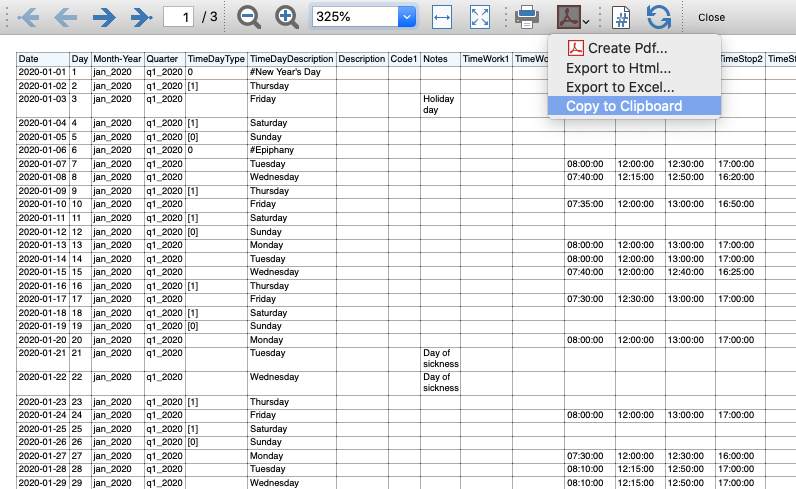
Report Extensions
Account Statement Letter
Neste artigo
Account Statement Letter
Account Statement Letter
This extension creates an account statement with a receipt for the selected account number.
Install the extension
To install the extension:
- Open Banana Accounting Plus.
- Menu Extensions > Manage Extensions.
- In the search field enter Account Statement Letter.
- From the extensions list select Account Statement Letter.
- Select the extension and click Install.
- Click Close to close the window.
Create the report
To creare the report:
- Open an accounting file.
- From the menu File > File and accounting properties > Address, enter the sender address.
- In the Accounts table (Address view) enter the receiver address for the account.
- From the Extensions menu select the Account Statement Letter.
- Enter the account number.
Example of account statement report:
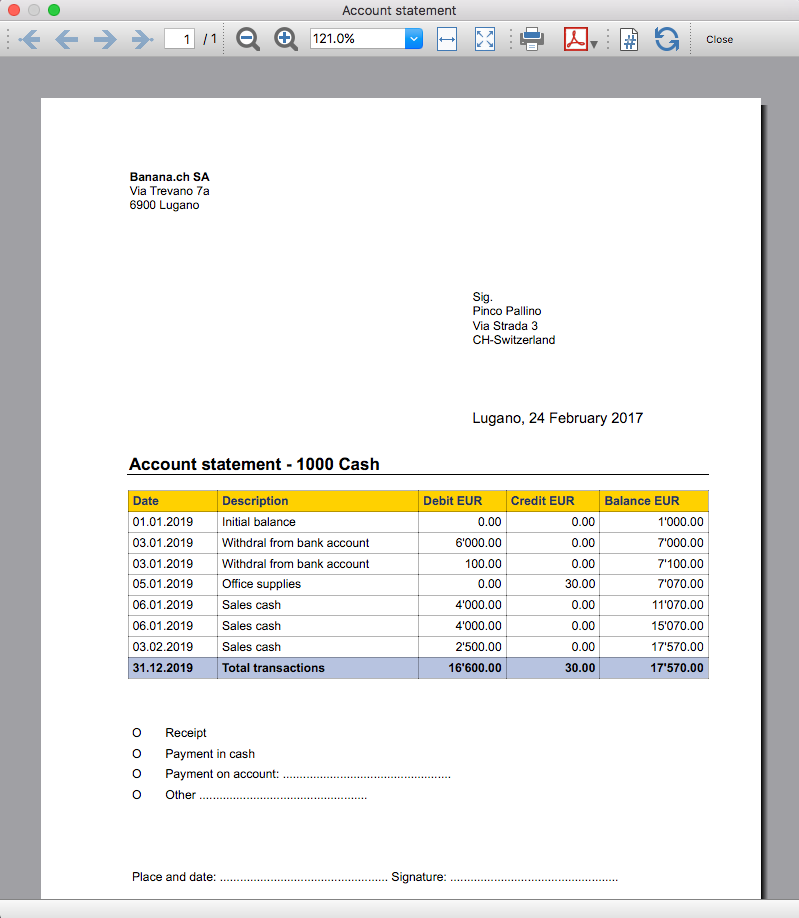
Account balance by day within a period
Neste artigo
Account balance by day within a period
Account balance by day within a period
This extension displays the daily balance for a specified account and period.
Install the extension
To install the extension:
- Open Banana Accounting Plus.
- Menu Extensions > Manage Extensions.
- In the search field enter Account balance by day within a period.
- From the extensions list select Account balance by day within a period.
- Select the extension and click Install.
- Click Close to close the window.
Create the report
To creare the report:
- Open an accounting file.
- From the Extensions menu select the Account balance by day within a period.
- Enter the account number.
- Select the period.
A window with results is displayed. You can copy, save and print the results.
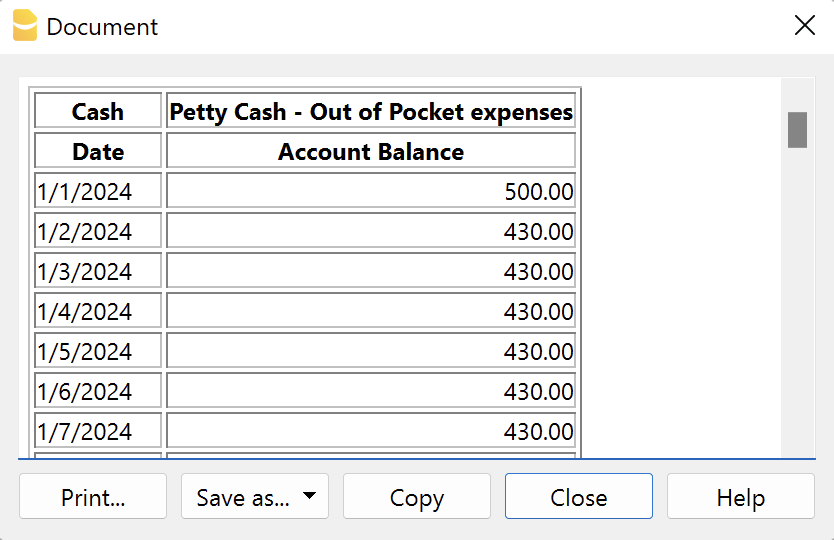
Account balance for all days in a month
Neste artigo
Account balance for all days in a month
Account balance for all days in a month
This extension displays the daily balance for a specified account and month.
Install the extension
To install the extension:
- Open Banana Accounting Plus.
- Menu Extensions > Manage Extensions.
- In the search field enter Account balance for all days in a month.
- From the extensions list select Account balance for all days in a month.
- Select the extension and click Install.
- Click Close to close the window.
Create the report
To creare the report:
- Open an accounting file.
- From the Extensions menu select Account balance for all days in a month.
- Enter the month number.
- Enter the account number.
A window with results is displayed. You can copy, save and print the results.
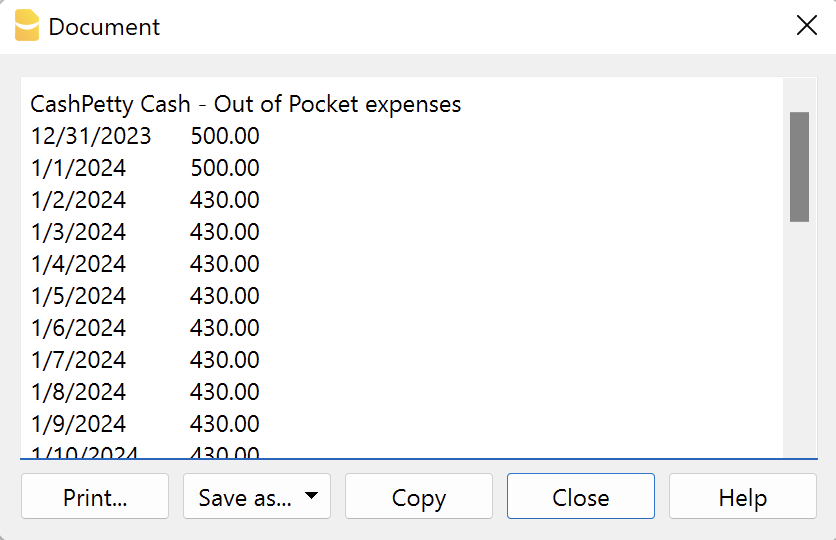
Audit Reports [BETA]
Neste artigo
Audit Reports [BETA]
Audit Reports [BETA]
This extension allows you to generate useful accounting reports for auditors and easily copy them into Excel. You can choose the period for which data should be taken and add additional columns to the reports.
The main purpose of this extension is to provide reports that can be easily copied into excel, summarising and showing the main accounting data that are normally taken as a basis by auditors when preparing their analysis.
Useful reports for Banana users who need to send their auditor accounting data, but also for auditors who use Banana themselves, as these reports are based on the functionalities already offered by Banana and therefore facilitate and speed up the collection of accounting data.
Reports
The following reports can be generated:
- General Ledger: Shows the transactions for each account, like in the account card.
- Journal: Shows the details of each transaction.
- VAT Journal: Shows the details of each VAT transaction.
- Trial Balance: Shows the balance of all accounting items in two columns (debit and credit).
- Customers And Suppliers: Shows list of customers and suppliers and information about them.
Through a dialogue it is possible to decide the time of year to be taken into account in the reports.
Adding extra columns
Through the command "Columns Settings" additional columns can be inserted in each report, except for the trial balance, which remains as it is. To add a column to the report, simply enter its xml name in the dialogue. To add several columns, separate them with a semicolon ";" as shown in the example.

The columns you can add are the same present in the Transactions table, except for the Customers and Suppliers report, for which you find the data in the Accounts table.
If you accidentally add a column that is not contained in the tables mentioned, no error is currently raised, the column will be added but no value will be present.
Copy to Excel
Reports are easily copied to Excel, when the report preview is generated, just click on the "copy" icon and paste the copied table into an Excel sheet.

Once the whole table has been copied, you can arrange the file as you want and customise your report with Excel tools.

Messages
- Total debit and total credit are different: The total Debit and total Credit do not match, check if the same error is present in your Accounting file, if it is only present in the report send us a feedback
Free text letter (Banana+) [BETA]
Neste artigo
Free text letter (Banana+) [BETA]
Free text letter (Banana+) [BETA]
The extension presented below allows you to create a free text letter for the members registered in Banana Accounting Plus (Accounts table).
It is essential to have the members set up with cost centres, using cost centre CC3.
Prerequisites
To use this extension you must:
- Download and install Banana Accounting+ (version 10.1.7 or later).
- Have the Banana Accounting Plus Advanced plan.
Beta version
The extension is currently released as a beta version. This means that some details may change without notice.
Installing and using the extension
- Install Banana Accounting Plus Dev-Channel
- Install the Letter extension (Banana+). Visit the Manage extensions documentation.
- Once installed, the extension will be visible in the Extensions menu where it can be executed.
Create a letter
- Enter the Association data in the Address tab of the accounting file.
- From the Extensions menu select the extension Letter (Banana+) .
- Complete the fields in the Settings dialogue and click OK.
Settings dialogue
Run the extension from the Extensions menu > Letter (Banana Plus).
The extension Settings dialogue will open, where you can define the information required to create the letter printout.
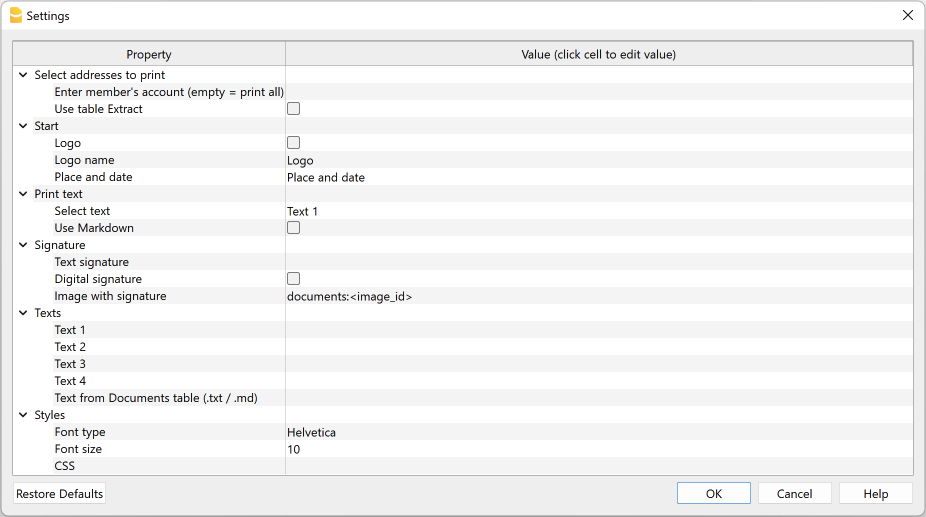
For data entry, click in the field of the Value column.
The settings are divided into the following groups:
- Select addresses to print
- Define the member accounts for which the donation statement is to be created.
- Start
- Define logo for header, location and date.
- Print text
- Define which text to use and decide whether to include donation records.
- Signature
- Define text and image for signature.
- Texts
- Define up to four different texts or take a text from the Documents table.
- Styles
- Define font type and size for the letter texts.
The entered data are used to generate the report, which you can then save and print.
Select addresses to print
Here you can decide for which members, defined with CC3 cost centres, to create the letter.
- Enter member's account (empty = print all)
- Enter a single account (e.g. "10001").
- Enter several accounts divided by a "," (e.g. "10001,10002,10005").
- If you do not enter anything, statements will be printed for all registered members.
- Use Extract table
- Use the extracted accounts in the Extract table.
- You must first use the command from the Data menu > Extract and sort rows to extract the rows with the accounts you want to use.
Start
Here you define the logo for the header, place and date.
- Logo
- Include a logo in the header. The logo is defined via the command in File → Logo setup.
- Logo name
- Enter the name of the logo to be used.
- Place and Date
- Enter the location and date of issue of the statement.
Print text
Here you can decide which text to use from the ones you have entered.
- Select text
- Select the text you wish to use from the list.
- See below for inserting text.
- Use Markdown
- The selected text is interpreted as Markdown text (requires the Advanced plan of Banana Accounting Plus).
Signature
Here you define the text and image for the signature of the letter.
- Text signature
- Enter the first and last name of the person issuing the statement.
- Digital signature
- Use an image as signature.
- Image with signature
- Enter the image to be used. You have two ways to do this:
- documents:<nome_id>: to use an image saved in the Documents table, where <name_id> represents the name entered in the ID column of the table (e.g. "documents:signature").
- file:document/<immagine>: to use an image saved externally to Banana, but in the same folder as the .ac2 file. Also indicate the extension of the .png or .jpg image (e.g. "file:document/signature.png").
- Enter the image to be used. You have two ways to do this:
Texts
Here you define the texts of the letter. You can enter up to four different texts or take a text from the Documents table.
- Text 1, Text 2, Text 3, Text 4
- Enter the text you wish to display in the printout. The text can also be on several rows.
- Texts can be of text type and Markdown type.
- You can enter up to four different texts, and then choose which one to use.
- Text from Documents table (.txt / .md)
- You can use the texts entered in the Documents table.
- Enter the document Id (e.g. 'Letter.txt', 'Letter', 'Letter.md', etc.).
- Texts can be of text type and Markdown type.
- For Markdown-type texts, the Id in the Documents table must end with ".md" and the full name, including the final ".md" (e.g. "Letter.md"), must be entered here.
Styles
Here you define the font type and size for the letter texts.
- Font Type:
- Define the font type.
- The default font is 'Helvetica'.
- Font size:
- Define the font size.
-
The default font size is '10'.
- CSS
- Optional.
- You can change the appearance of the print (text formatting, address positioning, etc.) by entering CSS code to customise the style.
- See the documentation for creating CSS styles. (requires the Advanced plan of Banana Accounting Plus).
Extract table (Extract rows command)
The Extract and Sort rows feature can be used to select member accounts for which to create the letter. This is useful when, for example, you only want to print the letter for certain members, without having to enter the list of accounts directly into the extension settings.
For example, by allocating members into several groups (Accounts table), the command from the Data menu > Extract and sort rows can then be used to extract the rows of members belonging only to certain groups (in the example, members belonging to groups S1 and S3).
To use the extracted rows:
- Extract rows with the command from the Data menu > Extract and sort rows.
- Run the extension and in the Settings dialogue, section Select addresses to print, check the box Use Extract table.
- If the rows were not extracted before printing was started, a warning message will be displayed and all registered member accounts will be used.
Letter text (plain text)
There are two possibilities for entering and using a plain text:
- Enter the text in the Settings dialogue.
- Enter text in the fields Text 1, Text 2, Text 3 or Text 4.
Up to four texts can be added. - Under Print Text > Select Text, select the text to be used.
- Under Print Text, do NOT select the option Use Markdown.
- Enter text in the fields Text 1, Text 2, Text 3 or Text 4.
- Enter text in the Documents table.
- Add a document by selecting the type Plain text (text/plain).
There is no limit, you can add as much text as you want.
- Add a document by selecting the type Plain text (text/plain).
-
- In the Settings dialogue:
- Under Print Text > Select Text, select the option Text from Documents table (.txt / .md).
- Under Texts >Text from Documents table (.txt / .md), enter the Id of the text entered in the Documents table (e.g. 'text.txt').
- In the Settings dialogue:
For all texts:
- With a specific annotation you can apply the bold style to texts. To do so, include the desired texts between double asterisks ** .
Examples:- **text** = text
- **textA textB** textC = textA textB textC
- If the following values are entered in the text rows, they will be replaced by the corresponding values:
-
- <Account> : member account
- <NamePrefix> : member prefix
- <FirstName> : member's first name
- <FamilyName> : member's last name
- <OrganisationName> : member's organisation
- <Address> : member's address
- <AddressExtra> : extra address
- <Region> : region/state or province
- <Country> : country
- <Currency> : currency
- <Amount> : total amount of donations
Letter text (Markdown text)
Markdown is a language that allows formatted text to be created using a standard text editor and a syntax that is easy to write and read.
To use Markdown, the Banana Accounting Plus Advanced plan is required.
There are two ways to enter and use a Markdown text:
- Enter the text in the Settings dialogue.
- Enter the text in fields Text 1, Text 2, Text 3 or Text 4.
Up to four texts can be added. - Under Print Text > Select Text, select the text to be used.
- Under Print Text, check the option Use Markdown.
- Enter the text in fields Text 1, Text 2, Text 3 or Text 4.
- Enter text in the Documents table.
- Use the Markdown Editor to add a document, selecting the type Markdown-formatted text (text/markdown).
There are no limits, you can add as much text as you want. - The file name in the Id column must end with '.md' (e.g. 'text.md').
- Use the Markdown Editor to add a document, selecting the type Markdown-formatted text (text/markdown).
-
- In the Settings dialogue:
- Under Print Text > Select Text, select the option Text from Documents table (.txt / .md).
- Under Texts > Text from Documents table (.txt / .md), enter the Id of the text entered in the Documents table (e.g. 'text.txt').
- In the Settings dialogue:
For all texts:
- If the following values are entered in the text lines, they will be replaced by the corresponding values:
- {{Account}} : member's account
- {{NamePrefix}} : member's prefix
- {{FirstName}} : member's name
- {{FamilyName}} : member's surname
- {{OrganisationName}} : member's organisation
- {{Address}} : member's address
- {{AddressExtra}} : extra address
- {{Region}} : region/state/province
- {{Country}} : country
- {{Currency}} : currency
- {{Amount}} :total amount of donations
Print example
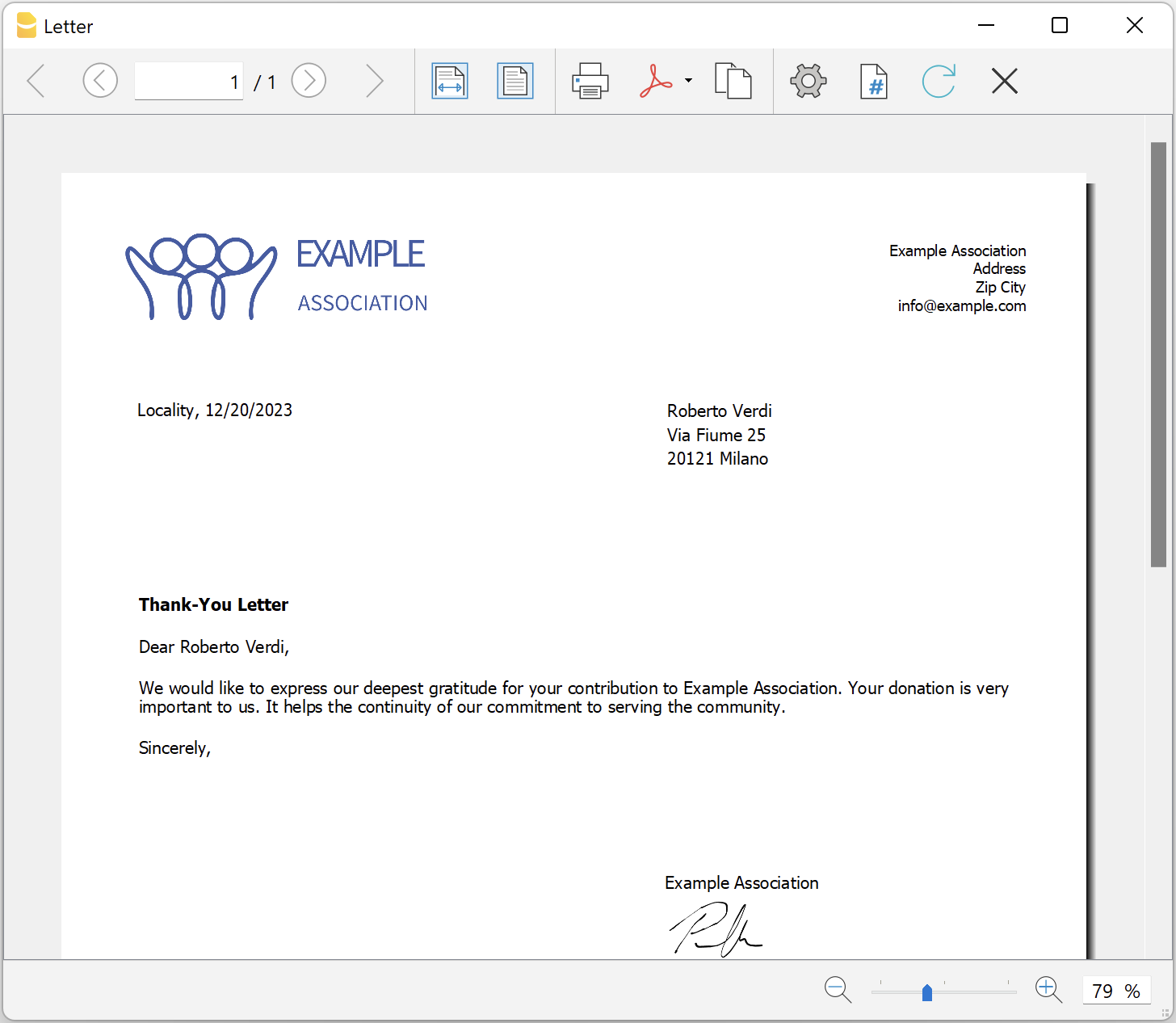
Printing receipts from cash book transactions
Neste artigo
Printing receipts from cash book transactions
Printing receipts from cash book transactions
Free cash receipt template
This extension prints payment receipts based on transactions from cash book accounting file.
Example of a payment receipt:
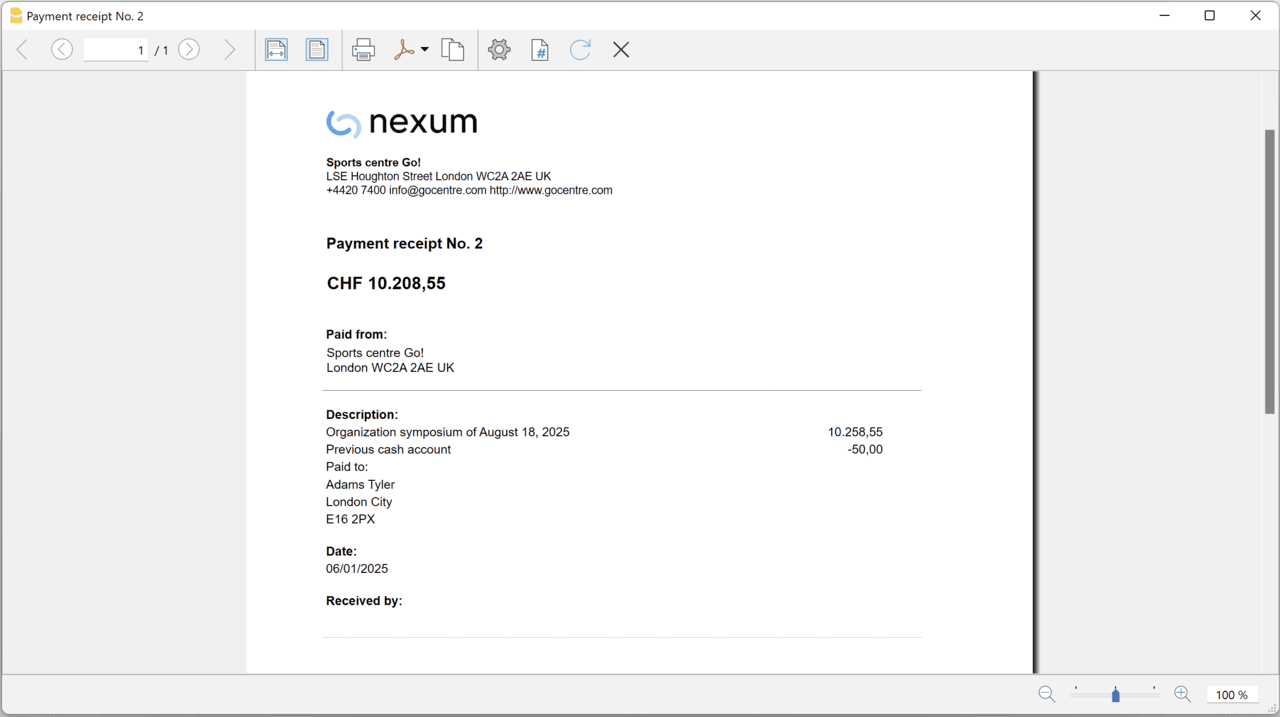
The program prints the receipt using the following logic:
- It takes all the lines with the same Doc Number, of the lines where the cursor is positioned.
- It prints the document number in the "Payment receipt No: "
- It prints the amount by summing all the amounts.
- It prints the Descriptions in different lines.
with the text of the Description column of all the transactions that have the same doc number.
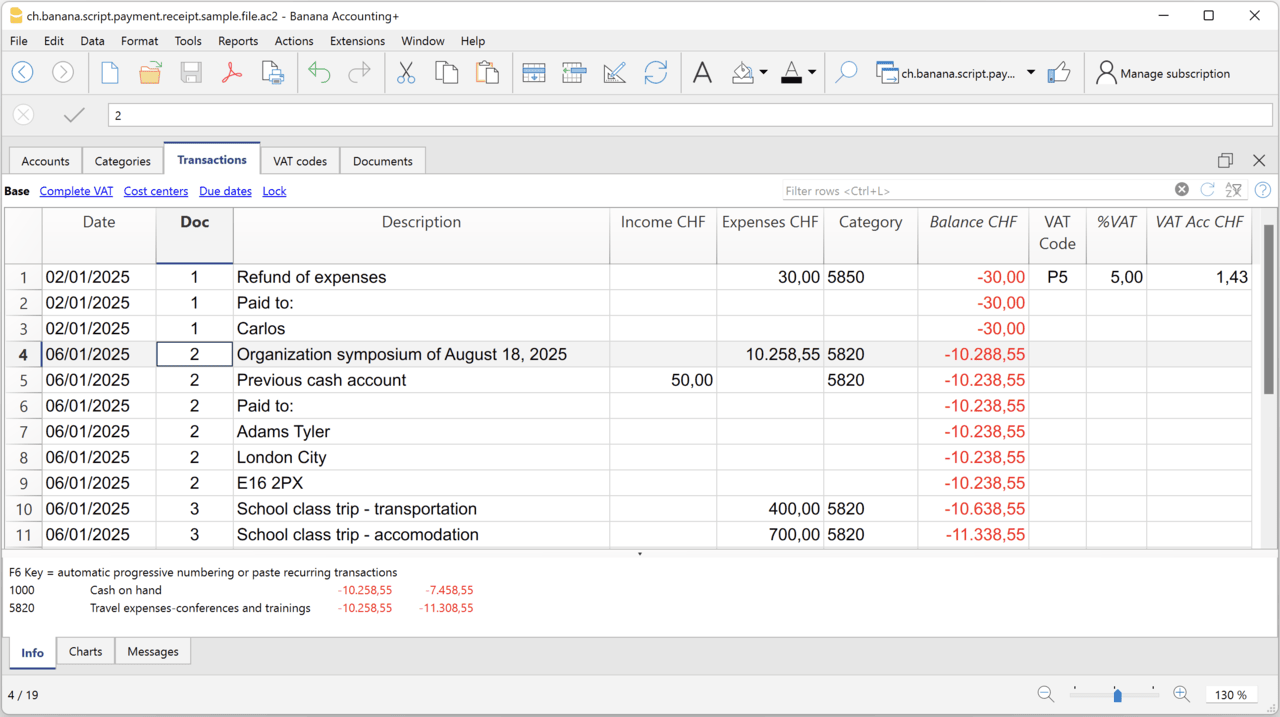
Example file
To created the receipts:
- Open a Cash Book file:
- Or download the example ch.banana.script.payment.receipt.sample.file.ac2 and open it.
- Positions on the line of the transaction group you wish to print.
- From the Extensions menu select the Printing receipts from cash book transactions.
Settings and properties
Prior to printing the receipt you can set the
Extension properties
You can set the following parameters from the menu Extensions > Manage Extensions, select the Printing receipts from cash book transactions extension and click on Settings.
- Include page header (1=yes, 0=no)
The logo and the address information can be included as header of the page. - Automatic date (1=yes, 0=no)
The date of the transaction is used. - Font type
The font type of the texts (Arial, Helvetica, Times New Roman, ...)
Address
Set your address from the menu File > File and accounting properties > Address.
Header logo
A logo for the header can be added as attachment in the Documents table.
- Add the Documents table to the Banana Accounting file.
If it is not already present you need to add the Documents table in the Banana document with the menu command Tools > Add new features > Add document table. - Add a row in the Documents table.
- In the ID column, enter "logo".
- In the Attachments column, double click on the cell and select Image, then choose the logo image you want to use.
Entering transactions
Cash book transactions are entered as usual in the Transactions table.
- Transactions are considered to belong to the same group when they have the same doc number.
- Paid to
- You can enter the text you want to display on the printout (e.g. "Paid to:").
- You can also enter text in bold by enclosing it in double asterisks ** (e.g. **Paid to:**)
- You can enter the text "#paidto" (without quotes) to let the program insert a blank line followed by the text in bold and in the language of the accounting file (it, fr, de, en, nl).
Report Balance and Profit & Loss with transactions details
Neste artigo
Report Balance and Profit & Loss with transactions details
Report Balance and Profit & Loss with transactions details
Balance Sheet and Profit & Loss report with details for each account. This report provide both the overview and the detailed of the financial situation.
This extension creates a Balance Sheet and Profit & Loss report with transactions details for each account.
Install the extension
To install the extension:
- Open Banana Accounting Plus.
- Menu Extensions > Manage Extensions.
- In the search field enter Report Balance and Profit & Loss with transactions details.
- From the extensions list select Report Balance and Profit & Loss with transactions details.
- Select the extension and click Install.
- Click Close to close the window.
Create the report
To creare the report:
- Open an accounting file.
- From the Extensions menu select the Report Balance and Profit & Loss with transactions details.
- Select the financial report you want to print:
- Assets / Liabilities
- Income / Expenses
- All
Example of assets details: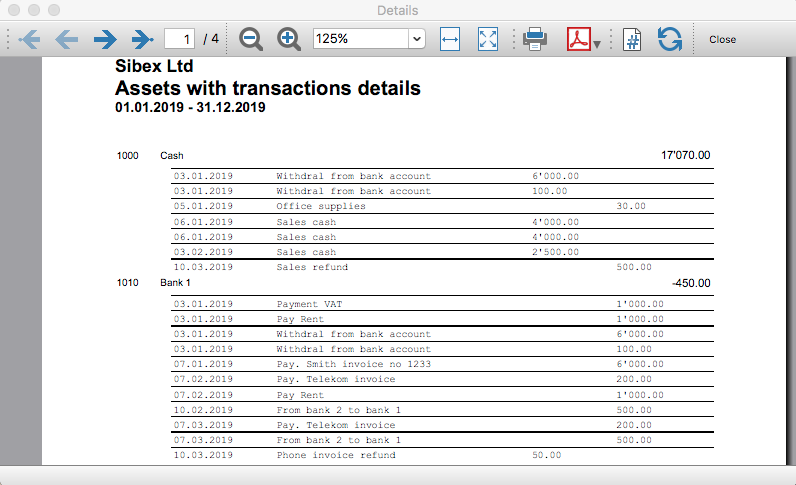
Example of liabilities details: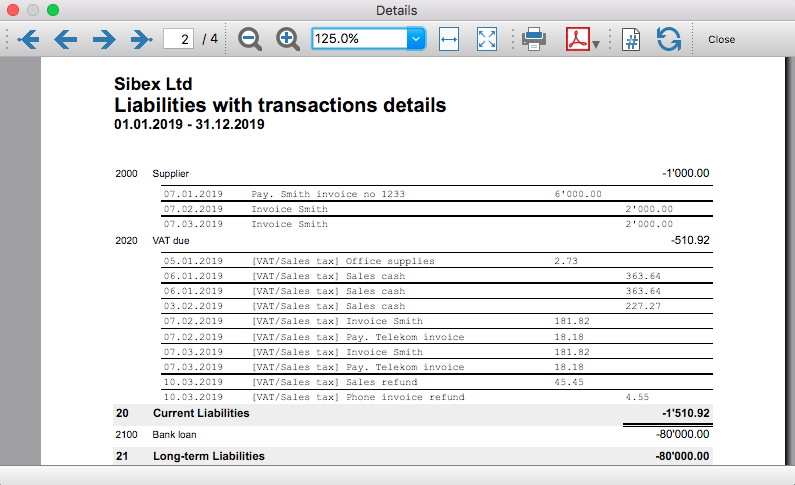
Example of income details: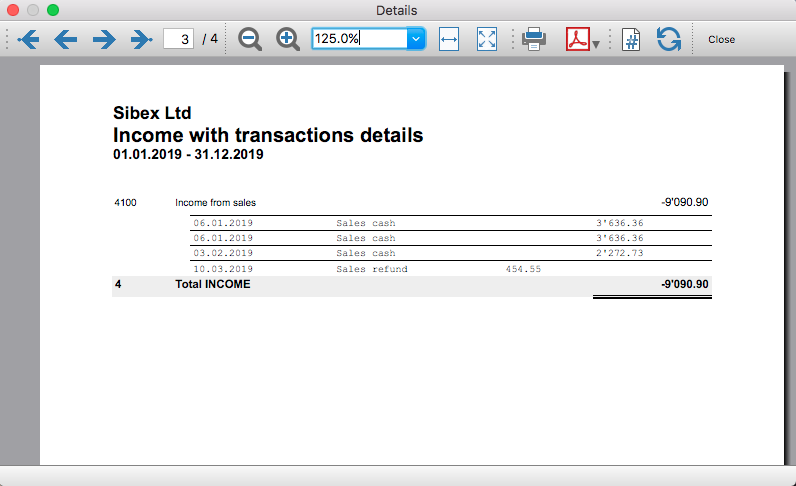
Example of expenses details: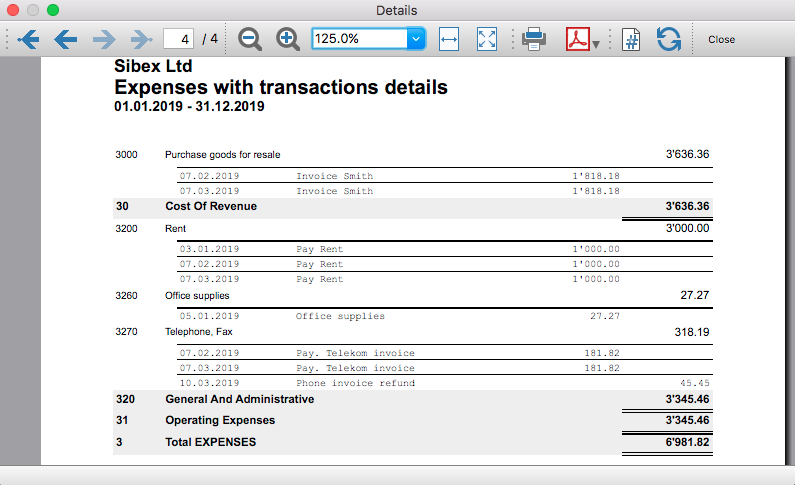
Transaction Voucher (Banana+)
Neste artigo
Transaction Voucher (Banana+)
Transaction Voucher (Banana+)
This Banana Plus extension creates a report with details of the transaction for the selected voucher number.
Accounting settings
From menu File > File and accounting properties > Accounting Tab, enter the project number/name in the Header Left field.
How it works
- For each transaction of the Transactions table enter the voucher number in the Doc column.
- From the Transactions table of the accounting file select a row with the desired voucher number you want to create the report.
The voucher number is taken from the selected row where the cursor is positioned, but you can also change it manually into settings dialog. - Launch the extension from the menu Extensions > Transaction Voucher (Banana+).
- In the settings dialog window enter the required information.
- Logo
Check to include the logo in the header.
The logo is defined with the command File > Logo setup where you can also set the size, choose how to align it (left, centre, right). - Logo-Name
Enter the name of the logo customisation defined in the menu File > Logo setup, respecting upper and lower case. - Title
- Voucher number
- Paid to
- Paid in
- Cheque No.
- Payment Received by
- Paid by
- Prepared by
- Verified by
- Recommended by
- Approved by
- Logo
- All the values entered are saved and proposed the next time.
- The extension will print the information entered in the dialog plus the data of the transaction with the specified Voucher / Doc number.
Transaction Voucher (Helvetas model)
Neste artigo
Transaction Voucher (Helvetas model)
Transaction Voucher (Helvetas model)
This extension, developed following the specifications provided by the Helvetas Swiss Intercooperation, creates a transaction voucher report for the given doc number, with details of the selected transaction and other information.
How it works
- From the Transactions table of the accounting file select a row with the desired Doc number.
- Launch the extension from the menu Extensions > Transaction Voucher (Helvetas model).
- A dialog window requesting some information will appear.
The voucher number is taken from the row selected where the cursor is positioned, but you can change it manually.
Complete all the remaining fields by entering your data and click Ok.
The values entered are saved and proposed the next time. - The extension will print the information entered in the dialog plus the data of the transactions with the specified Voucher / Doc number.
Example of Voucher report:
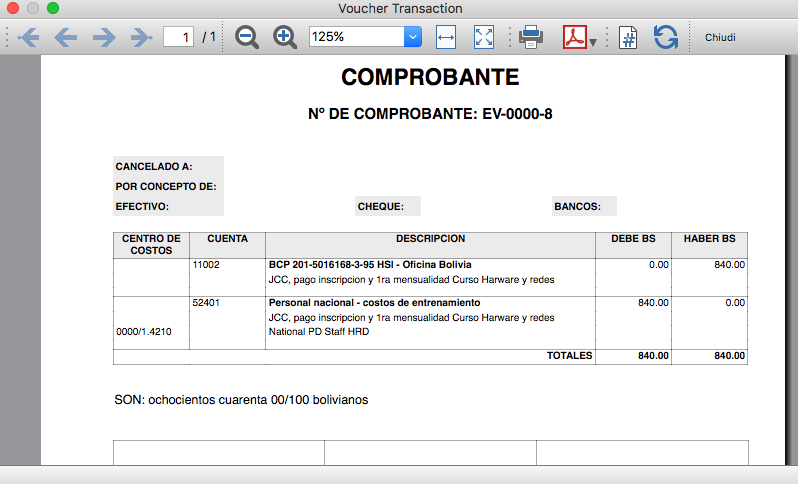
Transaction Voucher (Swiss Red Cross model)
Neste artigo
Transaction Voucher (Swiss Red Cross model)
Transaction Voucher (Swiss Red Cross model)
This extension, developed following the specifications provided by the Swiss Red Cross association, creates a transaction voucher report for the given doc number, with details of the selected transaction and other information.
Accounting settings
Two settings are required:
- the Header Left
- click menu File > File and accounting properties > Header Left.
The Header Left field must contain the project number and the project name divided by the "-" character (example: "1234 - Abc")
- click menu File > File and accounting properties > Header Left.
- add a small image/logo
- Add the Documents table to the Banana Accounting file.
If it is not already present you need to add the Documents table in the Banana document with the menu command Tools > Add new features > Add document table. - In the Id column, of the documents table insert transaction_voucher_image.
- In the Attachments column, double click on the cell, select Image and add the desired image.
- Add the Documents table to the Banana Accounting file.
How it works
- From the Transactions table of the accounting file select a row with the desired Doc number.
For example: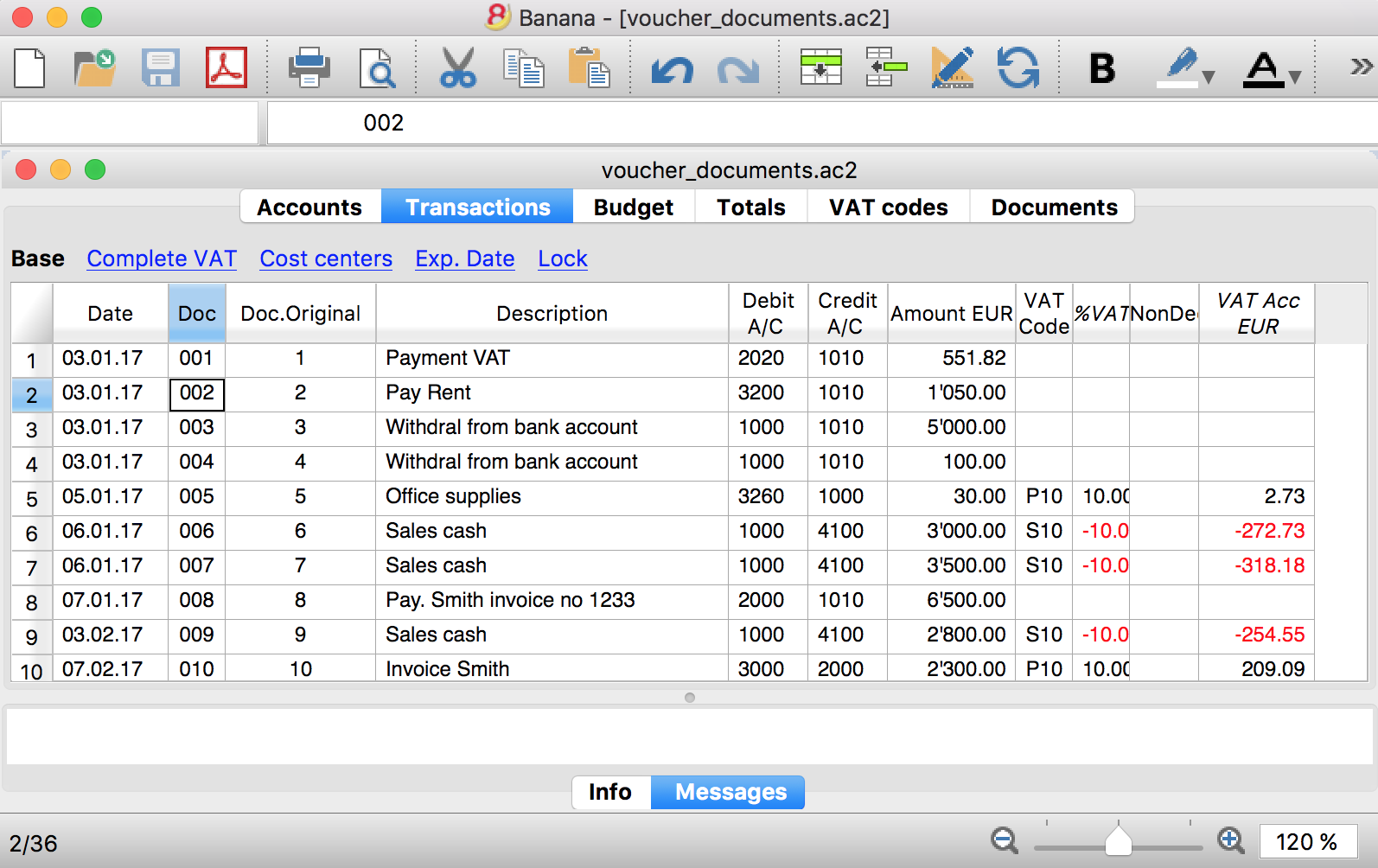
- Launch the extensions from the menu Extension > Transaction Voucher. A dialog window requesting some information will appear.
- The voucher number is taken from the row selected where the cursor is positioned, but you can change it manually.
- Complete all the remaining fields by entering your data and click Ok.
The values entered are proposed the next time.
Dialog example:
- The extension will print the information enterd in the dialog plus the data of the transactions with the specified Voucher / Doc number.
For example: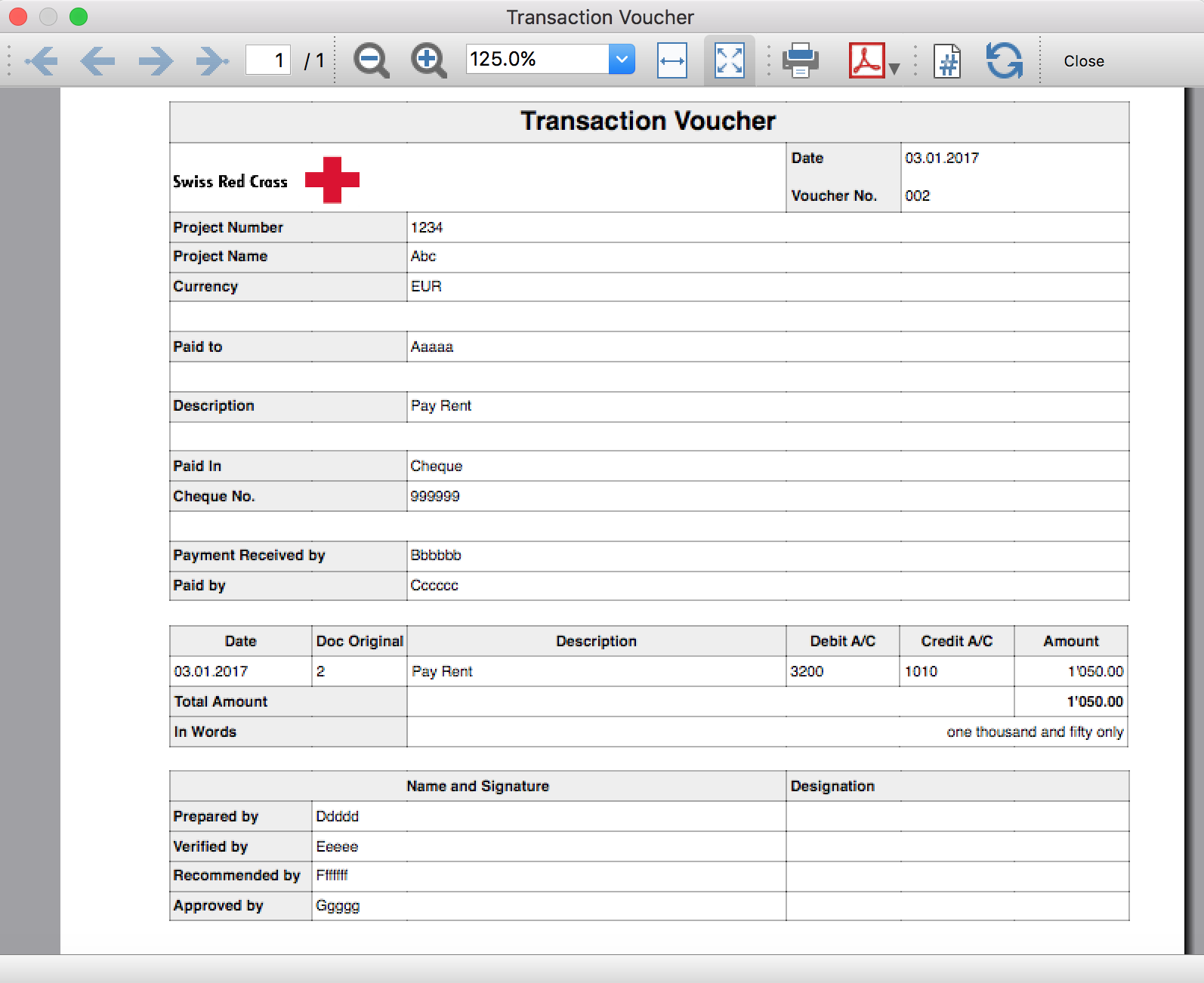
Trial Balance
Neste artigo
Trial Balance
Trial Balance
This Extension create a Trial a Balance sheet and Profit & Loss Statement.
Install the extension
To install the extension:
- Open Banana Accounting Plus.
- Menu Extensions > Manage Extensions.
- In the search field enter Trial Balance.
- From the extensions list select Trial Balance.
- Select the extension and click Install.
- Click Close to close the window.
Create the report
To creare the report:
- Open an accounting file.
- From the Extensions menu select the Trial Balance.
- Select the period.
For the given period, display a Trial Balance report containing:
- Balance sheet
- Profit & Loss
The details displayed are the following:
- Account
- Account description
- Debit amounts
- Credit amounts
Example of Trial Balance report: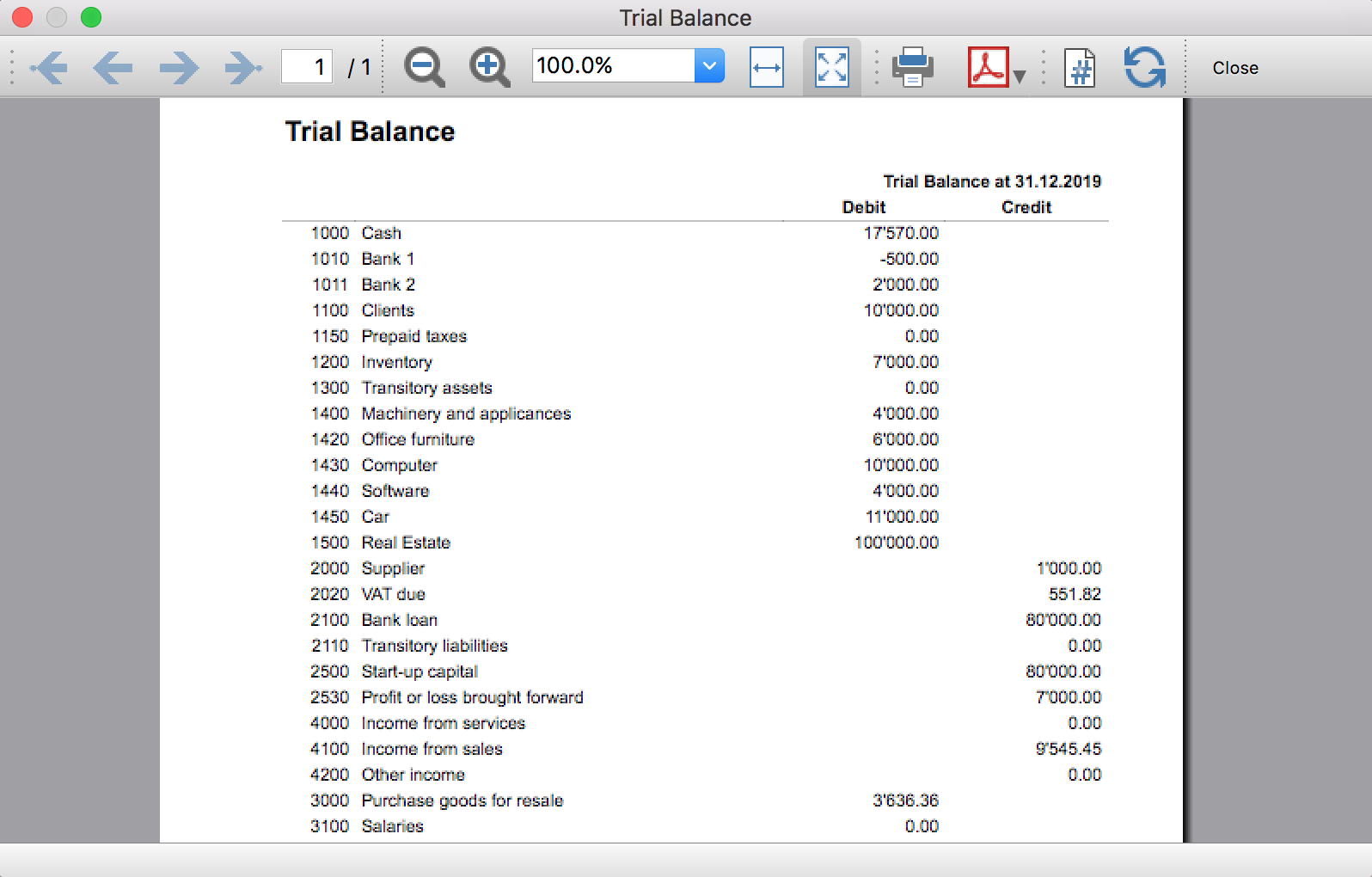
Trial Balance and Blockchain (Quarter periods)
Neste artigo
Trial Balance and Blockchain (Quarter periods)
Trial Balance and Blockchain (Quarter periods)
This extension creates a report containing the table Accounts and at the end the blockchain for the selected quarter period.
Prerequisites
To use this extension you must download and install Banana Accounting Plus.
Install the extension
To install the extension:
- Open Banana Accounting Plus.
- Menu Extensions > Manage Extensions
- Select Universal as country.
- Select Online > Productivity.
- From the extensions list select Trial Balance and Blockchain (Quarter periods).
- Click Install to install the extension.
- Click Close to close the window.
Create the report
To creare the report:
- Open an accounting file.
- From the menu File > File and accounting properties, in the Header left and Header right fields enter the texts to be printed on the left and right in the page header.
- From the Extensions menu select Trial Balance and Blockchain (Quarter periods).
- In Settings dialogue select the period, set the header texts, the title and font, then click OK to create the report.
The texts of the settings dialog and column headers in the printout are fixed and are in the same language as the Banana file (defined from the menu File > File and accounting properties > Other > Current language). The languages that can be used are Italian, French, German and English.
Settings dialogue
Run the extension from the menu Extensions > Trial Balance and Blockchain (Quarter periods).
The extension Settings dialogue will open. From here you can choose some parameters to print the report.
- Period.
Select a period from the list. The periods are divided into three quarters. - Header left text.
Insert another text to be printed on the left side of the page header. - Header right text.
Insert another text to be printed on the right side of the page header. - Title.
Insert text to be printed as title of the page. - Font family.
Insert the font type. - Font size.
Insert the font size for all the page texts. - Title font size.
Insert the font size for the title.
Print example
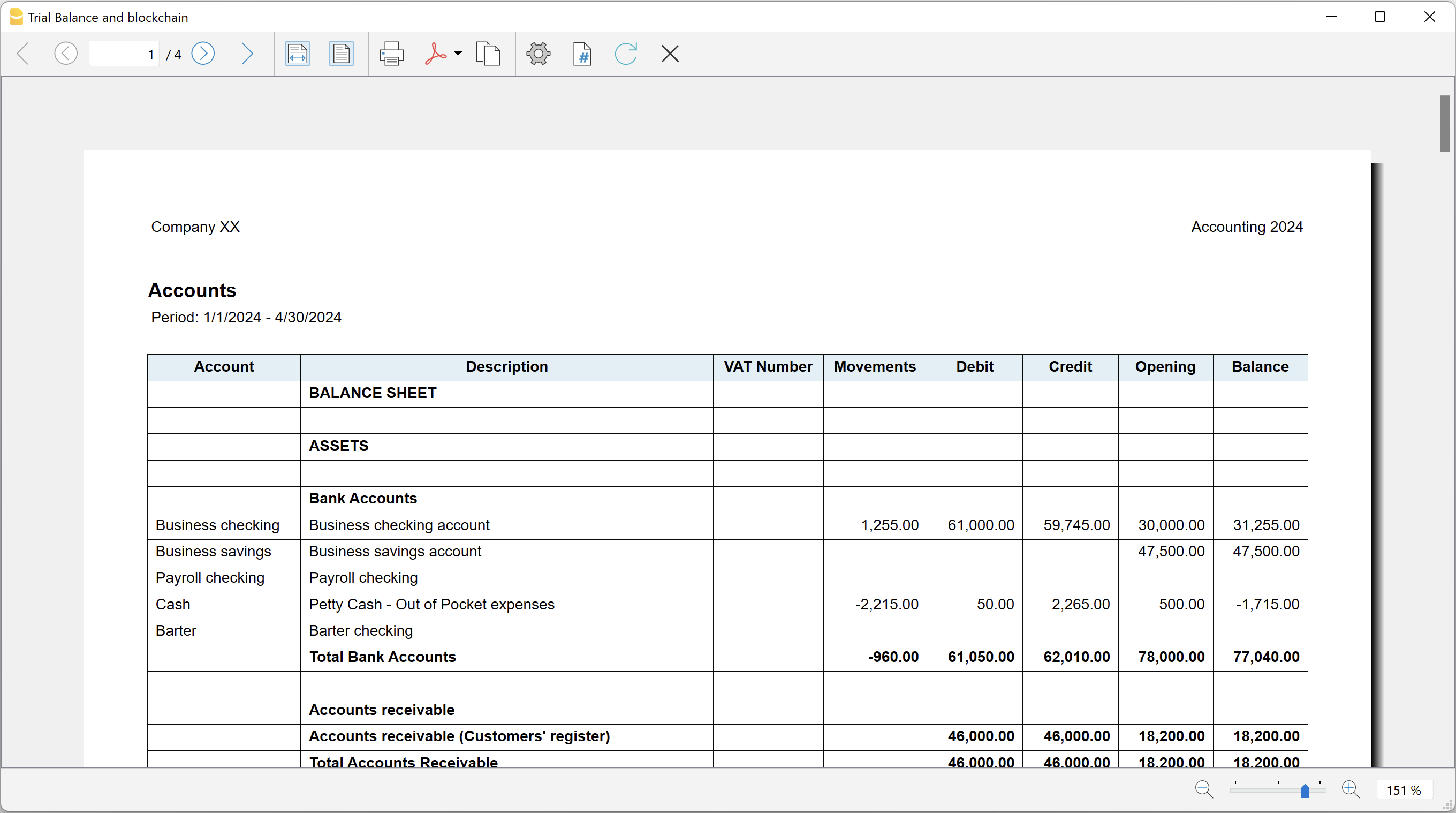
Trial Balance with transaction's lock blockchain information
Neste artigo
Trial Balance with transaction's lock blockchain information
Trial Balance with transaction's lock blockchain information
This extension creates a report containing the table Accounts and at the end the blockchain info regarding the last transaction locked.
The extension creates a report containing the table Accounts and the blockchain information regarding the transaction lock of the previous period and of the current period.
This printout has been conceived for a customer that has central SAP accounting and use Banana Accounting locally, to keep accounting for at more than 40 schools. Each school keep their own accounting and every 4 months the data is integrated in the main accounting system.
In order to assure that the information is perfectly synchronized:
- The school lock the transactions so that each movement is marked with a blockchain.
- The school print the report using this extension, with the data and the blockchain info of the current and last period.
- Prior to entering the data in the main system, the responsable verify that the blockchain of the last period already entered is the same as the one printed on the current report.
Personal at the schools can easily manage their finance locally and have more details and better control over the spending. Data is only entered in the main system periodically. The organisation have a better accounting system and save a lot of money in training and SAP licenses.
Install the extension
To install the extension:
- Open Banana Accounting Plus.
- Menu Extensions > Manage Extensions
- Select Universal as country.
- Select Online > Productivity.
- From the extensions list select Trial Balance with transaction's lock blockchain information.
- Click Install to install the extension.
- Click Close to close the window.
Create the report
To creare the report:
- Open an accounting file.
- From the menu File > File and accounting properties, in the Header left and Header right fields enter the texts to be printed on the left and right in the page header.
- From the Extensions menu select Trial Balance with transaction's lock blockchain information.
- In Settings dialogue set header texts, title and font as you want, then click OK.
- In Period dialogue select a period and confirm with OK to create the report.
The texts of the settings dialog and column headers in the printout are fixed and are in the same language as the Banana file (defined from the menu File > File and accounting properties > Other > Current language). The languages that can be used are Italian, French, German and English.
Settings dialogue
Run the extension from the menu Extensions > Trial Balance with transaction's lock blockchain information.
The extension Settings dialogue will open. From here you can choose some parameters to print the report.
- Header left text.
Insert another text to be printed on the left side of the page header. - Header right text.
Insert another text to be printed on the right side of the page header. - Title.
Insert text to be printed as title of the page. - Font family.
Insert the font type. - Font size.
Insert the font size for all the page texts. - Title font size.
Insert the font size for the title.
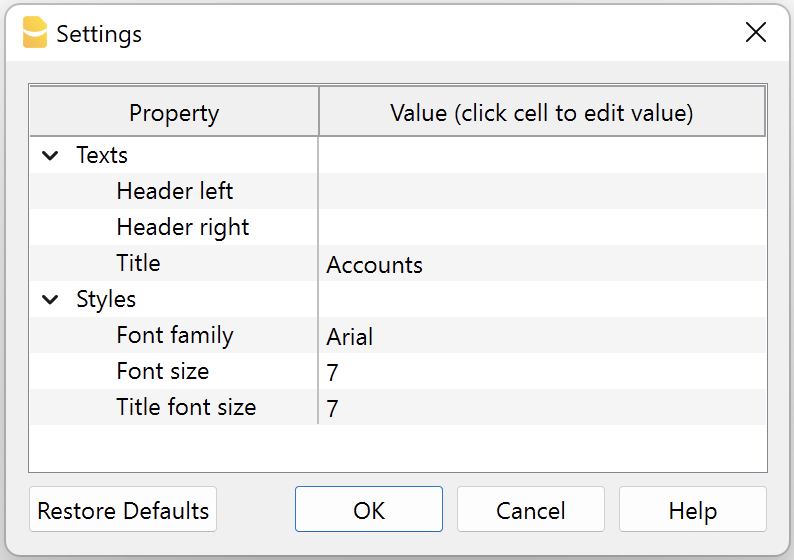
Print example
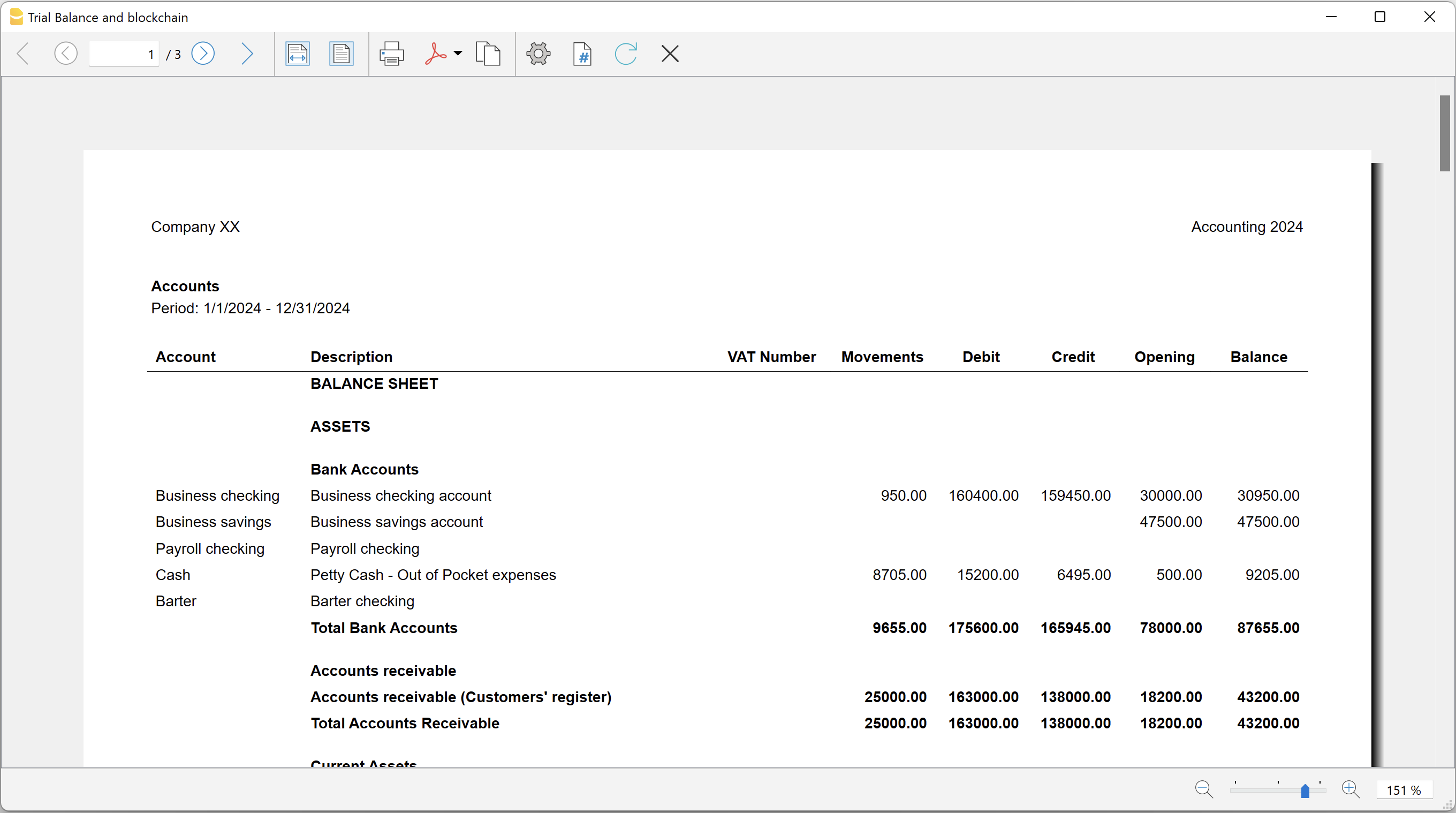
Blockchain row explanation:
- Date until which transactions are locked.
- Date of the last transaction.
- Number of locked transactions.
- Progressive hash of last locked transaction.
Utilities Extensions for accounting
This section covers general utility extensions for accounting.
Table of contents
- Compare current with other accounting file
- Calculate interest on account (exact days 365/365)
- Update Dates in the accounting file
- Invoice from member fee (Banana 9)
- Invoice from member fee (Banana+)
- Printing receipts from cash book transactions
- Reconcile account with mt940/ISO20022 file
- Duplicate transaction checking
Calculate interest on account (exact days 365/365)
Neste artigo
Calculate interest on account (exact days 365/365)
Calculate interest on account (exact days 365/365)
Compute the interest debit and credit for the account and rate you specify, based on the exact days. Suitable to calculate interest pro rata.
Install the extension
To install the extension:
- Open Banana Accounting Plus.
- Menu Extensions > Manage Extensions.
- In the search field enter Calculate interest on account (exact days 365/365).
- From the extensions list select Calculate interest on account (exact days 365/365).
- Select the extension and click Install.
- Click Close to close the window.
Create the report
To creare the report:
- Open an accounting file.
- From the Extensions menu select Calculate interest on account (exact days 365/365).
- Enter the account number.
- Select the period.
- Enter the interest rate on debit balance.
- Enter the interest rate on credit balance.
A window with results is displayed. You can copy, save and print the results. The transactions list can be paste into the table Transactions.
Compare current with other accounting file
Neste artigo
Compare current with other accounting file
Compare current with other accounting file
It compares the current open accounting file with an other one and reports differences between the two files.
Install the extension
To install the extension:
- Open Banana Accounting Plus.
- Menu Extensions > Manage Extensions.
- In the search field enter Compare current with other accounting file.
- From the extensions list select Compare current with other accounting file.
- Select the extension and click Install.
- Click Close to close the window.
Compare two accounting files
To compare two accounting files:
- Open an accounting file.
- From the Extensions menu select Compare current with other accounting file.
- Select a second accounting file to compare.
The differences are reported as messages, when you click on it you go to the row.
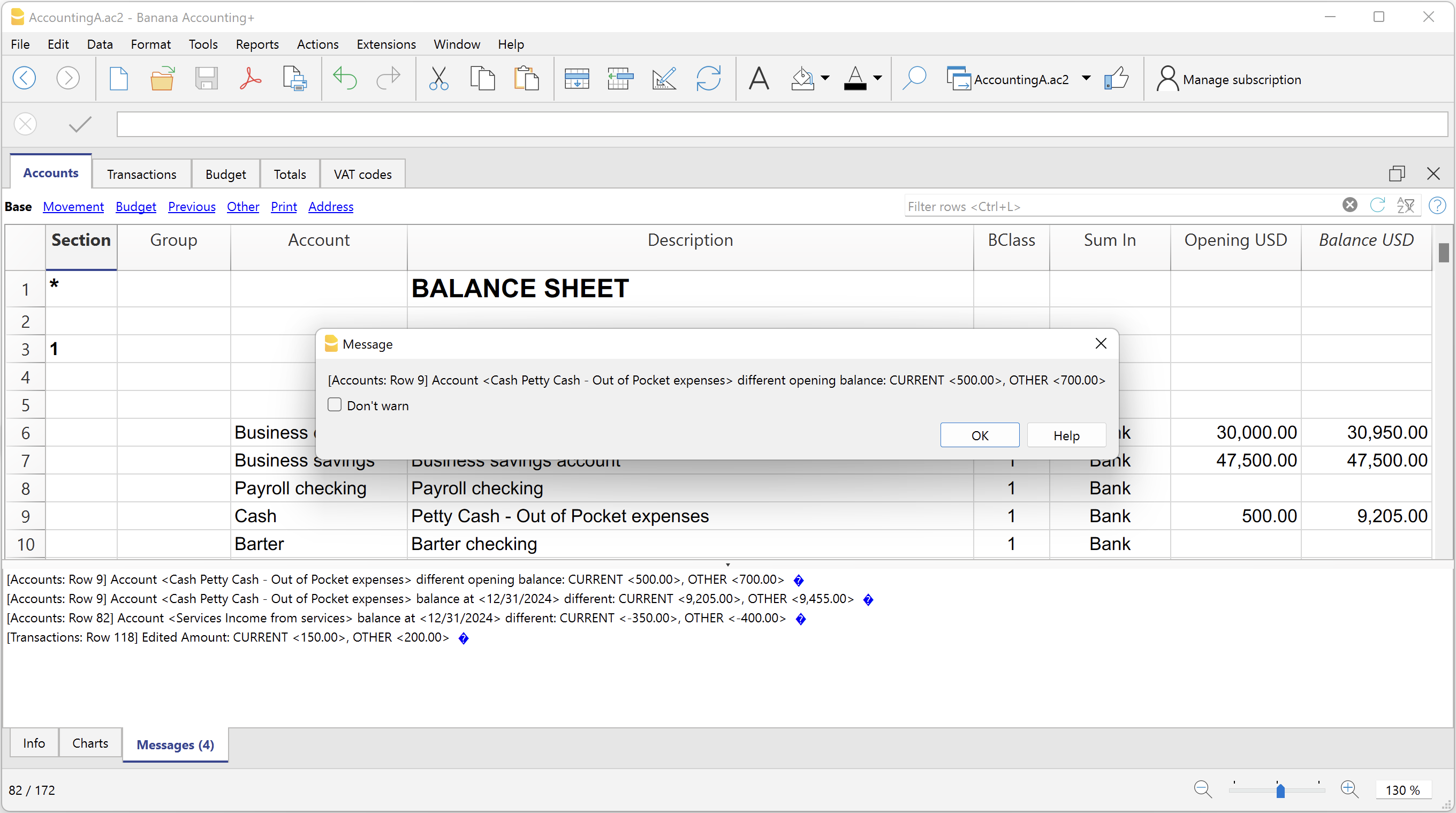
Create invoice transactions from member fee (Banana 9)
Neste artigo
Create invoice transactions from member fee (Banana 9)
Create invoice transactions from member fee (Banana 9)
This extension creates invoice transactions, taking all accounts in the accounting table that have a value in the column MemberFee.
Prerequisites
- Double-entry accounting file with normal accounts for members/customers is required.
Install the extension
To install the extension:
- Open Banana Accounting.
- Menu Extensions > Manage Extensions.
- In the search field enter Create invoice transactions from member fee (Banana 9).
- From the extensions list select Create invoice transactions from member fee (Banana 9).
- Select the extension and click Install.
- Click Close to close the window.
Add the MemberFee column
- Open the Accounts table (Address view).
- Activate the MemberFee column (the column already exists, it just needs to be activated).
- For each member/customer use the MemberFee column to enter the invoice amount.
Create invoice transactions
To creare the invoice transactions:
- Open an accounting file.
- From the menu Account1 select Import to accounting.
- As import option select Transactions.
- From the list select the Create invoice transactions from member fee extension.
- In the File name field, click Browse and select the current open accounting file.
- Click OK.
- Enter the invoice start number.
- Enter the revenue account.
- Enter the transaction description.
- The Import transactions opens, confirm with OK.
The program creates the invoice transactions for all the member/customer that has an amount in the MemberFee column of the table Accounts.
Create invoice transactions from member fee (Banana+)
Neste artigo
Create invoice transactions from member fee (Banana+)
Create invoice transactions from member fee (Banana+)
This extension creates invoice transactions, taking all cost centers in the accounting table that have a value in the column MemberFee.
Prerequisites
- Banana Accounting Plus.
- Double entry accounting file with Cost Centers accounts (Cc1, Cc2, Cc3) for members/customers is required.
Install the extension
To install the extension:
- Open Banana Accounting Plus.
- Menu Extensions > Manage Extensions.
- In the search field enter Create invoice transactions from member fee (Banana+).
- From the extensions list select Create invoice transactions from member fee (Banana+).
- Select the extension and click Install.
- Click Close to close the window.
Add the MemberFee column
- Open the Accounts table (Address view).
- Activate the MemberFee column (the column already exists, it just needs to be activated).
- For each member/customer use the MemberFee column to enter the invoice amount.
Create invoice transactions
To creare the invoice transactions:
- Open the accounting file.
- From the menu Extensions select Create invoice transactions from member fee (Banana+).
- In the Settings dialogue:
- Set the invoice description.
The text that is displayed on the invoice. This text is automatically followed by first and last name or company name. - Set the starting invoice number.
The first invoice starts whit this number, while all others invoices use progressive numbers.
- Set the invoice description.
- The program shows a dialog with all the invoice transactions that will be added.
- Confirm with OK.
The program creates the invoice transactions for all the members/customers that have an amount in the MemberFee column of the table Accounts.
- Date: the date of the current day.
- Description: text entered in the settings followed by first and last name or company name.
- Amount: the amount defined in the MemberFee column of the Accounts table.
- Cc1 / Cc2 / Cc3: the Cost Center account of the member/customer:
- Cc1 when using cost centers that starts with "."
- Cc2 when using cost centers that starts with ","
- Cc3 when using cost centers that starts with ";"
Duplicate transaction checking
Neste artigo
Duplicate transaction checking
Duplicate transaction checking
This app checks for duplicate transactions.
Install the extension
To install the extension:
- Open Banana Accounting Plus.
- Menu Extensions > Manage Extensions.
- In the search field enter Duplicate transaction checking.
- From the extensions list select Duplicate transaction checking.
- Select the extension and click Install.
- Click Close to close the window.
Check for duplicate transactions
To check for duplicate transactions:
- Open an accounting file.
- From the Extensions menu select Duplicate transaction checking.
A transaction is duplicate if another transaction exists with the same amount, the same credit account and the same debit account in a time laps of 3 days.
If a duplicate transaction is found, a message is displayed to the user.
It is possible to skip the check for a transaction: just add a column with the name 'SkipDuplicateCheck' and insert any value (ie.: 'x') to the transaction to skip.
Reconcile account with mt940/ISO20022 file
Neste artigo
Reconcile account with mt940/ISO20022 file
Reconcile account with mt940/ISO20022 file
This extension takes as input an electronic bank statemant (MT940 or ISO20022) and compare day by day with the account statements and shows differences.
It is very usefull for finding transactions not recordered or incorrectly recorded.
Install the extension
To install the extension:
- Open Banana Accounting Plus.
- Menu Extensions > Manage Extensions.
- In the search field enter Reconcile account with mt940/ISO20022 file.
- From the extensions list select Reconcile account with mt940/ISO20022 file.
- Select the extension and click Install.
- Click Close to close the window.
Create the report
To creare the report:
- Open the accounting file.
- From the Extensions menu select the Reconcile account with mt940/ISO20022 file.
- Select the electronic bank statement (MT940 or ISO20022).
- Enter the account number.
A window with results is displayed. You can copy, save and print the results.
Update Dates in the accounting file
Neste artigo
Update Dates in the accounting file
Update Dates in the accounting file
This extension updates the opening and closure accounting dates of the open document with the current year, and also updates the rows dates of the Transaction and the Budget tables.
In order to change the accounting data, the extension uses the Document Change API. For more information visit How-to update Accounting Dates using Document Change.
Install the extension
To install the extension:
- Open Banana Accounting Plus.
- Menu Extensions > Manage Extensions.
- In the search field enter Update Dates in the accounting file.
- From the extensions list select Update Dates in the accounting file.
- Select the extension and click Install.
- Click Close to close the window.
Change accounting dates
To change accounting dates using the extension:
- Open an accounting file.
- From the Extensions menu select the Update Dates in the accounting file.
- A confirmation window dialogue shows all the sections and tables of the accounting where dates will be changed.
- Confirm with OK to apply the changes to the accounting file.
[UNI11] Layout 11 Programmable Invoice (Banana+)
Neste artigo
[UNI11] Layout 11 Programmable Invoice (Banana+)
[UNI11] Layout 11 Programmable Invoice (Banana+)
Highly customizable and programmable invoice layout to create custom prints.
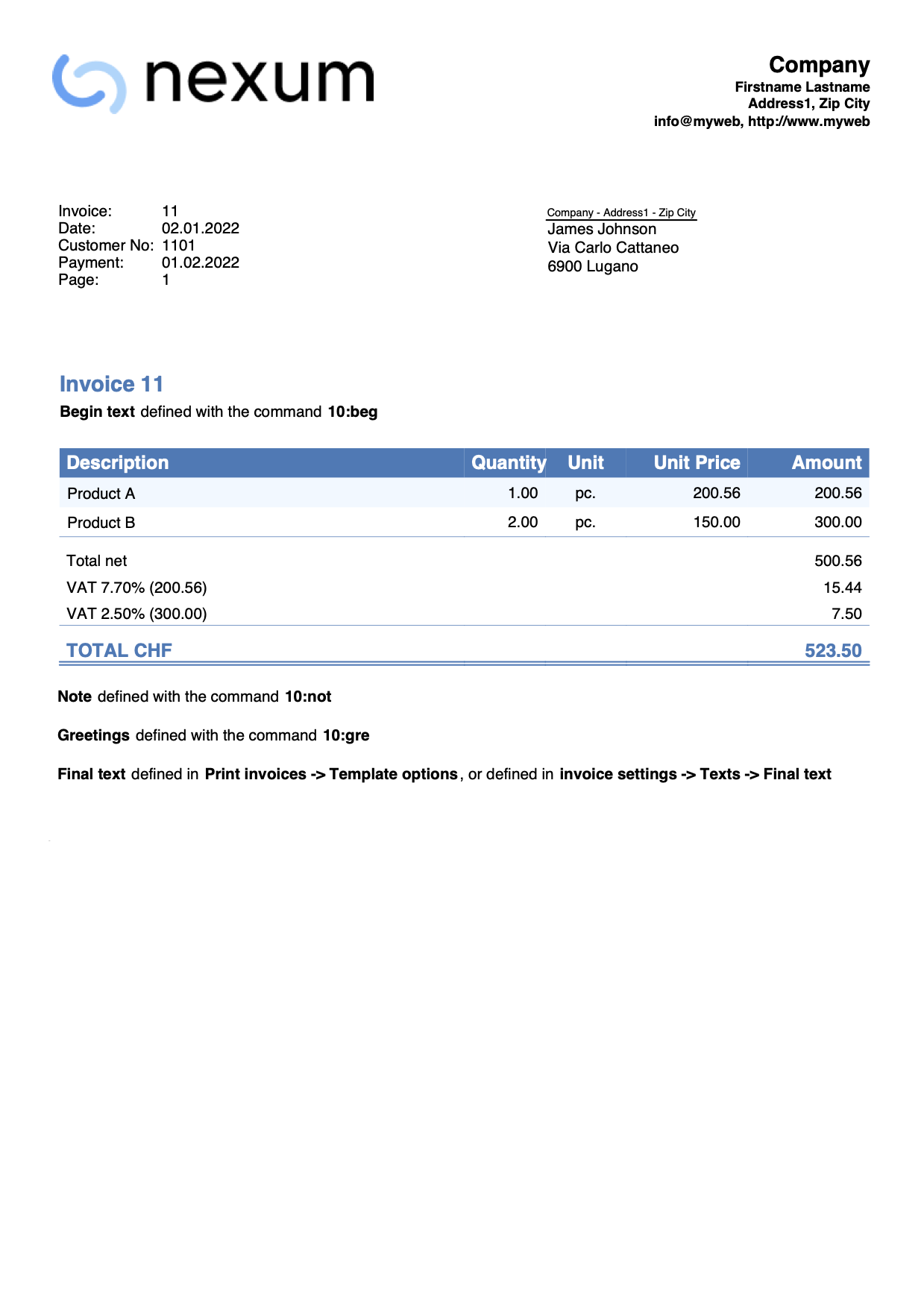
Layout to print the invoice of Banana Accounting highly customizable and also programmable.
You can easily adapt the invoice to your desires, decide which elements to print and change texts.
Watch the video tutorial: Invoice customization (Layout UNI11).
Prerequisites
To use this extension you need to download and install Banana Accounting Plus.
Customization printing invoices
The invoice print layout is already set and ready to use. If you wish, however, you can customize. You can easily adapt the printing of the invoice to your requirements.
Layout UNI11 has the same functionality as layout CH10 except for printing the Swiss QR-Code.
See the documentation CH10 layout.
Bank details for payment are to be entered as a final text. See how to enter a final text.
- Customization via the settings dialog
- Choose the elements of the invoice you want to include in the printout.
- Print the address on the right or left.
- Indicate which detail columns to include and define the sequence. You can have an invoice with quantities and prices, or only total amounts or even with columns that you have added in the transactions table.
- Change the default texts for use in printing.
- Add translations into other languages.
- Change the font and print character.
- Choose the color combination you want.
Customisation by programming
- Customization using Javascript programming.
- Create print functions that replace the default ones, for printing the header, addresses, details, final texts and footers.
- Customization using CSS.
- You can adapt the printing by creating custom styles so that you can change the appearance of the invoice (text formatting, positioning of elements, etc.).

记账凭证 (中文-柬埔寨文)
Productivity Templates and Extensions | Universal
Banana Accounting Plus provides additional tools for more complete and efficient business management. The productivity applications allow automation of key processes such as invoicing, inventory management, and control of business assets.
Example: Estimates and Invoices
The extension allows you to create quotes, estimates, invoices, and credit notes easily and professionally, either starting from accounting data or customising them manually.
- Quick generation of invoices and quotes in PDF format
- Graphic customisation (logo, layout, languages)
Key Management
A useful tool to record and track keys and access (physical or digital) granted to employees, collaborators, or third parties.
- Centralized access control
- Reduced risk of loss or misuse
- Updated reports for audits or internal management
Inventory
A module designed for managing inventory and stock movements.
- Recording of goods received and issued
- Automatic calculation of stock levels and inventory value
- Support for item codes, categories, and valuation methods (FIFO, LIFO)
Fixed Assets Register
A useful extension for tracking company fixed assets and calculating annual depreciation according to tax or custom criteria.
- Full tracking of purchases, devaluations, disposals
- Automatic calculation of depreciation amounts
These tools make Banana Accounting Plus a more powerful and versatile solution, ideal for small businesses, freelancers, and associations seeking efficiency and integration without complexity.
Banana Library
Neste artigo
Banana Library
Banana Library
Template file in .ac2 format for a library management, with automatic loading of books data from the Internet with the ISBN code.
Abrir na Banana WebApp
Abra a Banana Accounting Plus no seu navegador sem qualquer instalação. Personalize o modelo, introduza as transacções e guarde o ficheiro no seu computador.
Open template in WebAppTemplate documentation
How to use the template for libraries
- download the Banana Accounting 9 software
- Download the above template "Library_en.ac2"
- Follow the step by step explanations from the Libraries and collections page
Library Books Report
Neste artigo
Library Books Report
Library Books Report
This extension creates a list of all the books contained in the file. For a clearer view the list is split and sorted by genre of books.
Install the extension
To install the extension:
- Open Banana Accounting Plus.
- Menu Extensions > Manage Extensions.
- In the search field enter Library Books Report.
- From the extensions list select Library Books Report.
- Select the extension and click Install.
- Click Close to close the window.
Create the report
To creare the report:
- Open an accounting file.
- From the Extensions menu select Library Books Report and then one of the following:
- Library Books Report.
- Library Contacts Report.
- Create vCard from address.
Library Books Report
This extension creates a list of all the books that are in the Banana Library file. For a clearer view the list is split and sorted by genre of books.
You can export the catalog in pdf format to easily publish it on your web site.
Example of books report:
Library Contacts Report
Report Expired Outstanding books for each person.
This report creates a page card for each contact, with all information, including the outstanding books.
You can print:
- All contacts
- Selected contacts
- Conacts with outstanding books

Create vCard from address
This extension extract the addresses data in the vCard format.
For more information visit Export Address data in the VCard format.
Time Sheet Extensions
The Timesheet is a free and unlimited application because it is included in the Banana Accounting Plus Free Plan. It works like Excel but is optimized for calculation of hours. It is therefore much more reliable and you can easily manage all kind of working hours. You have a comprehensive view of the hours and can always correct.
Timesheet - Report with project and resource data [BETA]
Neste artigo
Timesheet - Report with project and resource data [BETA]
Timesheet - Report with project and resource data [BETA]
Timesheet Extension that allows you to filter projects and resources and print out the data
The following features provide tools to export and analyze timesheet data, helping you review recorded hours and gain insights by project and resource.
Time Sheet Export
The Time Sheet Export feature allows you to export recorded time data for further analysis, reporting, or integration with other systems.
It provides a structured way to extract time entries, making it easier to share data, create custom reports, or use the information in external accounting, payroll, or project management tools.
This function helps ensure consistency and accuracy when working with time-tracking data outside the application.
Timesheet – Report with Project and Resource Data [BETA]
The Timesheet – Report with Project and Resource Data [BETA] provides a detailed overview of recorded time, organized by projects and resources.
This report is designed to help users analyze how time is allocated across different activities and team members, offering better visibility into project progress and resource utilization.
As a Beta feature, it is intended for testing and feedback, and may be further refined based on user experience.
This extension works with a timesheet file and provide a report for the selected project and detail of the resource. You can install the extension from the menu Extensions->Manage Extensions.
This extension requires the Advanced plan of Banana Accounting Plus.
For more information see the documentation pages for tracking projects times.
You can install the Extension.
Setup timesheet file
Prior to use the extension you need to setup the timesheet file.
- Create a new Timesheet file or use an existing one.
- Add the Projects table:
- Tools → Add/Remove functionalities → Add Table Project.
- Add the projects codes.
- Add the Resources table
- Go to the Journal Table
- Tools → Add/Remove functionalities → Add simple table
- Enter the name "Resources" (Name XML must be "Resources")
- Go to the Journal Table
- Tools → Add/Remove functionalities → Add columns to join table
- Choose Resources
- Dialog "Insert column after" choose Description.
- Go to Resources table and enter the resource id and description (people name).
Enter Project data
In the Journal, when you enter the daily worked time, you can now specify the Project and Resource.
Print the report
You can print a report for a single project at a time.
Time sheet - systematic 2027
Neste artigo
Time sheet - systematic 2027
Time sheet - systematic 2027
Work hours are recorded with start and end times; notes can be written down, reimbursements made, days of illness or additional work can be recorded. The program calculates the totals and any differences with the due hours.
Abrir na Banana WebApp
Abra a Banana Accounting Plus no seu navegador sem qualquer instalação. Personalize o modelo, introduza as transacções e guarde o ficheiro no seu computador.
Open template in WebAppTemplate documentation
Work hours are recorded with start and end times; notes can be written down, reimbursements made, days of illness or additional work can be recorded. The program calculates the totals and any differences with the due hours.
Important: The festive days contained in the model are to be updated manually according to your country/region.
To use the Time Sheet application, download the available file and follow the instructions on our page How to start a Time Sheet.
Example Estimates and Invoices
Neste artigo
Example Estimates and Invoices
Example Estimates and Invoices
Abrir na Banana WebApp
Abra a Banana Accounting Plus no seu navegador sem qualquer instalação. Personalize o modelo, introduza as transacções e guarde o ficheiro no seu computador.
Open template in WebAppManagement and inventory of door and building keys
Neste artigo
Management and inventory of door and building keys
Management and inventory of door and building keys
Easily start managing keys for any building and always know where they are and who they are assigned to. Complete inventory with tracking of key assignment and return. Easy-to-use software. Excel-like interface. You can administer keys for an unlimited number of buildings, properties, industrial and sports facilities.
Abrir na Banana WebApp
Abra a Banana Accounting Plus no seu navegador sem qualquer instalação. Personalize o modelo, introduza as transacções e guarde o ficheiro no seu computador.
Open template in WebAppTemplate documentation
Simple and effective key management software for doors, palaces, offices and buildings of any kind
- Accurate list of all keys, with quantity and serial numbers and any other information you want to add.
- List of people/places where keys are located.
- Register delivery and return of keys.
- Insert links to document files and digital receipts, for paperless management.
- Manage an unlimited number of buildings.
Key management is based on the inventory application and you have many possibilities. Let us know through the feedback documentation below if you need customizations that can make management even easier and faster.
Estoque
Neste artigo
Estoque
Estoque
Com Banana Comptabilidade Plus você pode gerenciar seu estoque de forma rápida e profissional. Você trabalha em tabelas como o Excel, mas já está tudo configurado. Todos os cálculos são automatizados e garantem resultados imediatos que fornecem informações precisas sobre as quantidades e valores das mercadorias. Você tem controle total sobre as mercadorias que entram e saem do estoque; se tiver mais de um depósito, pode rastrear os movimentos de todos eles em um único arquivo. A pesquisa de artigos é fácil e imediata. A reposição de itens é automatizada.
Abrir na Banana WebApp
Abra a Banana Accounting Plus no seu navegador sem qualquer instalação. Personalize o modelo, introduza as transacções e guarde o ficheiro no seu computador.
Open template in WebAppTemplate documentation
Para maiores informações sobre gerenciamento de estoque com Banana Comptabilidade Plus, consulte as seguintes páginas
(estas páginas pelo momento estão disponíveis em inglês):
Fixed assets register template
Neste artigo
Fixed assets register template
Fixed assets register template
The fixed assets register is an application included in Banana Accounting Plus, but it is separate from the accounting file. It allows for easy management of your fixed assets and quickly obtains all the values you need, as well as the automatic posting of depreciation at the end of the year.
Abrir na Banana WebApp
Abra a Banana Accounting Plus no seu navegador sem qualquer instalação. Personalize o modelo, introduza as transacções e guarde o ficheiro no seu computador.
Open template in WebAppTemplate documentation
Capitolati, Offerte Strutturate
Con Banana Contabilità Plus puoi creare e stampare un capitolato d’offerta in modo semplice e strutturato, organizzando lavori, materiali, quantità e prezzi.
La tabella QuickSum permette di inserire le diverse voci del capitolato e di calcolare automaticamente subtotali e totali. Puoi partire da un modello già predisposto e adattarlo alle esigenze del tuo progetto.
Per ottenere il documento finale è disponibile anche un’estensione per la stampa del capitolato d’offerta, che utilizza i dati della tabella QuickSum per generare un report ordinato e professionale.
Scopri le risorse disponibili per iniziare:
- Modello per capitolato d’offerta con tabella QuickSum
- Estensione QuickSum Stampa Capitolato d’offerta
QuickSum Stampa Capitolato d'offerta [BETA]
Neste artigo
QuickSum Stampa Capitolato d'offerta [BETA]
QuickSum Stampa Capitolato d'offerta [BETA]
L'estensione presentata qui di seguito permette di creare una stampa del capitolato di offerta fatto con la tabella QuickSum.
Prerequisiti
Per utilizzare questa estensione:
- Scaricare e installare Banana Contabilità+ Dev Channel (versione 10.2.3 o successive).
Versione Beta
La tabella QuickSum è uno strumento ancora in fase di sviluppo e che viene messo a disposizione a un limitato numero di utenti.
Ci sono diverse funzionalità che sono per il momento provvisorie e che subiranno cambiamenti con il tempo.
L'estensione al momento è rilasciata in versione beta. Ciò significa che alcuni dettagli potrebbero cambiare senza preavviso.
Installazione e utilizzo dell'estensione
- Installa l'estensione QuickSum Capitolato d’offerta.
Visita la documentazione Gestione Estensioni per vedere come installare l'estensione. - Una volta installata, l'estensione sarà visibile nel menu Estensioni dove potrà essere eseguita.
Crea la stampa del capitolato d'offerta
- Dal menu Estensioni seleziona l'estensione QuickSum Capitolato d’offerta.
- Completa i campi del dialogo Impostazioni e clicca su OK.
- Viene automaticamente creato il report con la stampa del capitolato.
I testi delle impostazioni dell’estensione e i testi fissi sulla stampa, come le intestazioni delle colonne, il riporto e il titolo della pagina di riepilogo, vengono visualizzati nella lingua del file.
Da File > Proprietà file (Dati base) > sezione Varia > Lingua corrente è possibile cambiare la lingua del file.
Le lingue supportate sono italiano, francese, tedesco e inglese.
Dialogo Impostazioni
Esegui l'estensione dal menu QuickSum Capitolato d’offerta.
Si aprirà il dialogo delle Impostazioni dell'estensione, dove puoi definire alcune informazioni per creare la stampa del capitolato d'offerta.
Per l'inserimento dei dati fai un clic nel campo della colonna Valore.
Report
Impostazioni base del report.
- Nome report
- Opzionale.
- Serve per definire il nome del report, utilizzato nella visualizzazione dell'anteprima di stampa e per il nome del salvataggio del file.
- Moneta
- Indica la valuta del capitolato d’offerta (ad es. CHF, EUR).
- Mostra logo intestazione
- Opzionale.
- Serve per includere un logo nell'intestazione. Il logo è definito tramite il comando dal menu File > Imposta logo.
- Nome personalizzazione logo
- Opzionale.
- Serve per inserire il nome della personalizzazione logo da utilizzare.
- Mostra indirizzo intestazione
- Opzionale.
- Serve per includere l'indirizzo della ditta nell'intestazione.
L'indirizzo della ditta si deve prima definire nella scheda Indirizzo del file.
Possono essere utilizzate le seguenti informazioni dell'indirizzo: Società, Nome, Cognome, Indirizzo 1, Indirizzo 2, CAP, Località, Telefono, Email, Web.
Stampa capitolato d'offerta
Serve per includere il capitolato d'offerta nella stampa.
- Escludi ItemId (regex)
- Opzionale.
- Serve per definire una regola (regex) per non stampare alcuni valori nella colonna ItemId.
Ad esempio, per evitare la stampa, nella colonna ItemId, degli ItemId che terminano con una lettera, è possibile inserire l’espressione: /[a-zA-Z]$/
- Lunghezza massima descrizione per riga
- Consigliato 58 caratteri.
- Serve per indicare il numero massimo di caratteri per ogni riga di descrizione.
- Quando il testo della descrizione supera il numero indicato, il programma tronca il testo e lo suddivide su più righe. La suddivisione su più righe è necessaria per calcolare correttamente la posizione dei totali riporto a fine e inizio pagina.
- Decimali colonna Quantità
- Serve per definire il numero di decimali da visualizzare nella colonna Quantità.
- L'impostazione predefinita è 2.
- Mostra totale cumulativo sulle pagine
- Serve per includere il totale complessivo (colonna Cumulated) come riporto a fine pagina e inizio della successiva.
- Il riporto è sempre il totale complessivo cumulato indicato nella tabella.
- Utilizza gli stili delle righe
- Serve per applicare gli stili alle righe (grassetto, italico, colore testo, colore sfondo) così come sono nella tabella QuickSum.
Stampa riepilogo
Serve per includere alla fine della stampa del capitolato un foglio di riepilogo con tutti i totali.
- Altre posizioni da stampare
- Opzionale.
- Serve per indicare altre posizioni da includere nella stampa del riepilogo.
È utile, ad esempio, per stampare la riga dell’IVA. - Inserire l’ItemId (ad es. 9.1.2).
- È possibile inserire più ItemId, separati da un punto e virgola ; (ad es. 9.1.2;9.1.3).
- Le posizioni vengono stampate nell’ordine in cui sono inserite nella tabella QuickSum.
Stampa righe di verifica hash
Serve per aggiungere, al termine della stampa del capitolato, le righe contenenti i codici hash di verifica.
Confrontando gli hash stampati con quelli presenti nella tabella QuickSum, è possibile verificare che il documento non sia stato modificato.
Le righe di verifica vengono stampate solo se nella tabella QuickSum sono presenti i codici hash.
- #hash-base
Hash calcolato solo sugli elementi non modificabili del documento. Le modifiche ai campi modificabili in modalità blocco non cambiano l'hash. - #hash-all
Hash calcolato su tutto il documento. Qualsiasi modifica comporta il ricalcolo dell'hash.
Stampa capitolato
La stampa del capitolato riprende tutte le righe presenti nella tabella QuickSum, nello stesso ordine in cui compaiono, e consente di generare un’offerta completa che include tutti gli articoli (colonna Item) con le relative righe di dettaglio e di prezzo.
Nel report vengono stampate le colonne Articolo, Descrizione, Quantità, Unità, Prezzo unità e Importo totale.
Facoltativamente, alla fine di ogni pagina può essere incluso il riporto del totale complessivo calcolato fino a quel momento; lo stesso totale viene riportato anche all’inizio di ogni nuova pagina.
Il report termina con la stampa del subtotale, dell’IVA calcolata sul subtotale e del totale complessivo dell’offerta.
Esempio stampa capitolato:
Impostazioni della tabella QuickSum che influenzano la stampa
Alcune impostazioni e valori presenti nella tabella QuickSum modificano il comportamento e il contenuto della stampa del capitolato.
In particolare:
- ItemId
- Quando un articolo è commentato (ItemId inserito tra parentesi quadre), l’intera riga non viene stampata nel report.
- Stile
- #pagebreak
È possibile forzare un cambio pagina nel report inserendo il comando #pagebreak.
Inserire una riga vuota nella tabella immediatamente prima del punto in cui si desidera il cambio pagina e, nella colonna Style, inserire #pagebreak.
Se il comando viene inserito più volte in righe consecutive, il cambio pagina viene applicato una sola volta.
- #pagebreak
- Codice Modifica
- Utilizzare questa colonna per indicare quali valori devono essere completati dall’utente.
- In base alle informazioni inserite, vengono applicati eventuali tratteggi sotto i valori delle colonne Quantità e Prezzo unità.
- Se almeno uno di questi due valori risulta tratteggiato, anche il valore nella colonna Totale viene sottolineato con il tratteggio.
- Per maggiori informazioni sui codici da inserire e il loro funzionamento, consultare la documentazione della tabella QuickSum.
Stampa riepilogo
La stampa del riepilogo riprende tutte le righe di totale presenti nella tabella QuickSum, nello stesso ordine in cui compaiono.
Le righe di totale sono identificate da un valore nella colonna ItemId che inizia con "T:".
Lo scopo del report è fornire un riepilogo dei totali dei diversi articoli presenti nella tabella, con i relativi importi.
Nel report vengono stampate le colonne Articolo, Descrizione e Importo.
Esempio stampa riepilogo:
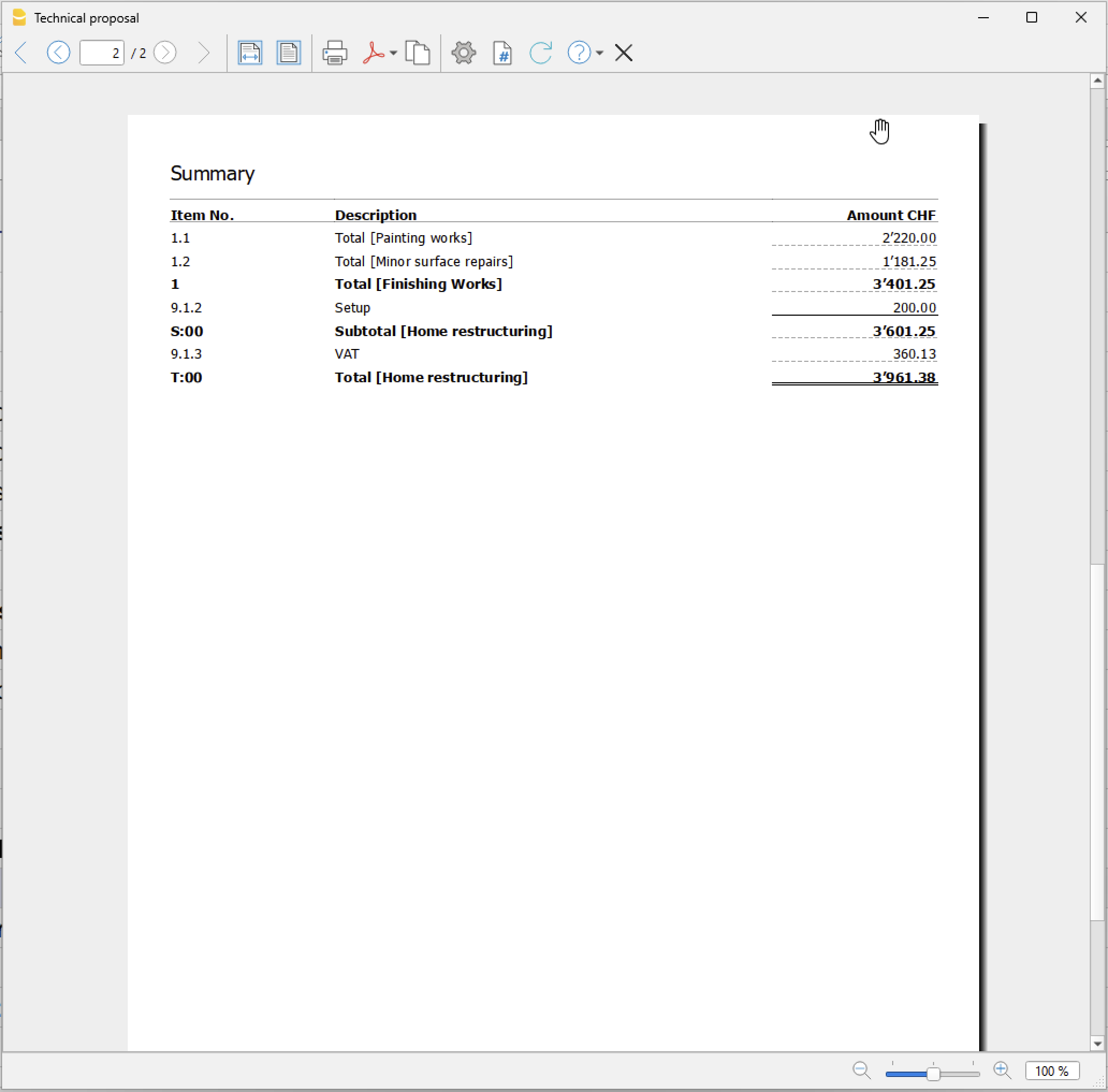
Capitolato d'offerta (tutorial)
Neste artigo
Capitolato d'offerta (tutorial)
Capitolato d'offerta (tutorial)
Modello QuickSum per creare preventivi e calcoli strutturati relativi a lavori di ristrutturazione. Permette di inserire quantità, unità di misura e prezzi unitari, organizzando le lavorazioni in sezioni e sottosezioni con calcolo automatico di subtotali, percentuali, IVA e totale finale. È adatto ad artigiani, imprese e professionisti che devono preparare stime dettagliate dei costi.
Abrir na Banana WebApp
Abra a Banana Accounting Plus no seu navegador sem qualquer instalação. Personalize o modelo, introduza as transacções e guarde o ficheiro no seu computador.
Open template in WebApp Open tutorial in WebAppTemplate documentation
Questo modello utilizza la tabella QuickSum per preparare preventivi e calcoli dettagliati dei costi, con un esempio dedicato a lavori di ristrutturazione di un'abitazione.
Le diverse lavorazioni possono essere organizzate in modo gerarchico, suddividendole in sezioni e sottosezioni. Per ogni voce è possibile indicare una descrizione, la quantità, l'unità di misura e il prezzo unitario; il programma calcola quindi automaticamente l'importo corrispondente e i totali progressivi.
Il modello mostra anche come gestire costi calcolati in percentuale rispetto ad altre voci o gruppi di voci. Nell'esempio, oltre ai lavori di tinteggiatura e alle piccole riparazioni delle superfici, viene calcolato automaticamente un costo percentuale per la protezione del cantiere.
Subtotali e totali permettono di ottenere una lettura chiara dei costi per ogni gruppo di lavori. È inoltre previsto il calcolo dell'IVA sul subtotale e del totale complessivo del preventivo.
Il modello è particolarmente indicato per artigiani, imprese di costruzione e ristrutturazione e professionisti che desiderano predisporre preventivi, offerte o stime dei costi con calcoli automatici, mantenendo una struttura ordinata e facilmente consultabile.
Technical Preview
La tabella QuickSum è uno strumento ancora in fase di sviluppo e che viene messo a disposizione a un limitato numero di utenti.
Ci sono diverse funzionalità che sono per il momento provvisorie e che subiranno cambiamenti con il tempo.
Prerequisiti
Per utilizzare questo modello:
- Scaricare e installare Banana Contabilità+ Dev Channel (versione 10.2.3 o successive).
Risorse utili