会计职能
客户和供应商
客户子菜单
客户登记以及检查未支付的发票
在会计文件中,您可以直接:
其它可供使用的功能有:
设置及使用客户和发票功能
附注信息
- 多币种账户:报告基于客户账户的币种余额; 可能的汇率差异将不予考虑。
在已开具发票表中,还列出了汇率差异的记录,而在其他打印中,仅使用了客户的货币金额。 - 摘要列将为每个发票复制记录的第一行。
- 对于基于收到现金的会计文件,您可以在成本中心设置客户登记。
示例文件
地址簿 | 客户/供应商登记 | 合作伙伴
在账户表的地址视图中,有一些列用于管理客户、供应商或会员的地址。
为了管理账单、提醒和控制收付,地址数据是必不可少的:

在账户表中,该命令将添加:
- 地址视图,显示用于输入地址数据的列。
要改变列的显示或排列,请使用列设置命令。
地址视图的列
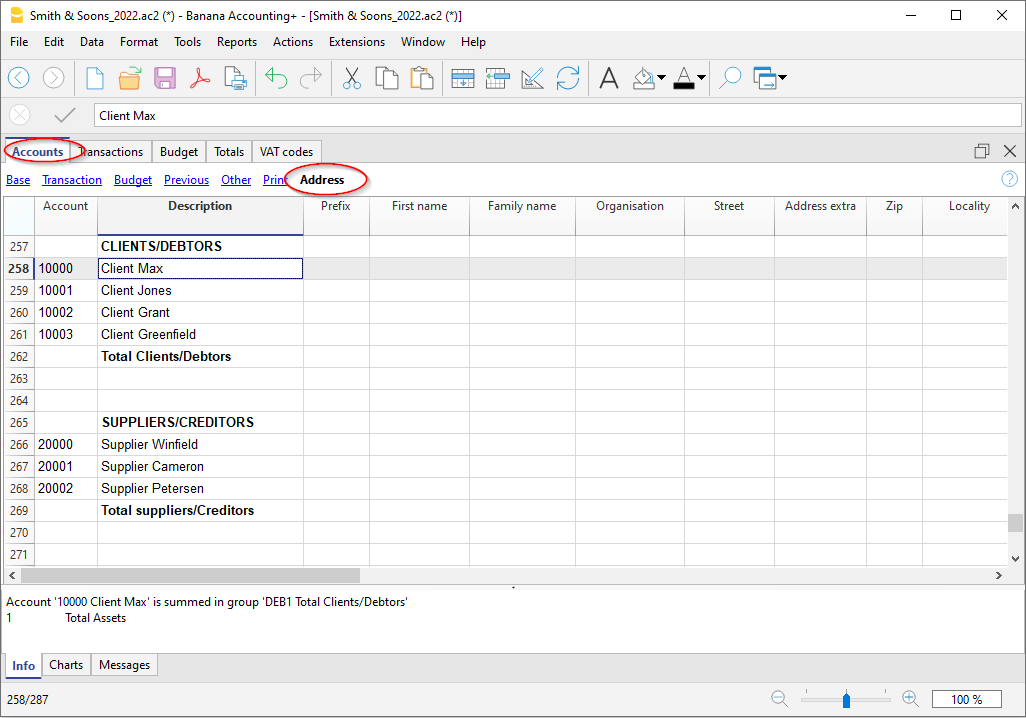
名字称谓
插入礼貌用语 (先生、太太、医生或其他) 。
名
客户、供应商或合作伙伴的名字。
姓
客户、供应商或合作伙伴的姓氏。
组织名称
输入公司、协会的名称。
街道
客户、供应商或合作伙伴所在的街道。
地址的额外信息
输入其它地址数据的列,如邮政信箱,或输入一个很长的地址。
邮政编码
邮政/ZIP编码。
所在地
客户、供应商或合作伙伴所在的城市。
国家
城市所在的国家。
国家代码
国家编码。
语言
您可以为每个客户、供应商或合作伙伴账户定义语言。这使您可以用他们的语言查看和打印文件 (例如,发票) 。
说明:
- de - 德语
- fr - 法语
- it - 意大利语
- en - 英语
- es - 西班牙语
- nl - 荷兰语
- zh - 中文
- pt - 葡萄牙语
- ru - 俄语
主要电话
固定电话号码。
手机
手机电话号码。
传真
传真号码。
工作电子邮件
电子邮件地址。
网站
客户、供应商、协会的网站地址。
出生日期
客户、供应商、协会的出生日期。
几日后的付款期限
输入的天数,在此天数内必须进行收款、付款。
信贷限额
如果是贷方,则注明贷方限额,如果是供应商,则注明借方限额。
银行名称
客户、供应商或合作伙伴的银行名称。
国际银行账户号码
客户、供应商或合作伙伴银行的IBAN号码。
银行清算
客户银行、供应商或股东的识别代码。
营业额管理 (权责发生制)
介绍
Banana财务会计软件允许您以权责发生制(Accrual Basis) 或收付现实制(Cash Basis)两种方式管理账户以及客户和供应商发票。
以下介绍如何为每位单独的客户和一组客户设置独立的账户,以便用户可以为每位客户提供单独的发票清单。
如果用户只有几张发票,并且不想保留客户的详细信息,则可以使用一个账户来记录所有客户的发票。发票清单将适用于所有客户,而不是针对于独立的客户。
设置客户登记
账户和/或客户组可以直接设置为账户表中资产部分的常规账户。
也可以为客户账户创建一个单独的部分。这样,只有客户组的总数会显示在资产中,而所有的客户账户都会出现在客户登记中。
为了在一个单独的部分创建客户登记,需要在会计科目表的末尾添加以下内容:
- 一个 * 号 (标题) (查看类);
- 在客户的类一列中输入 01 (查看类);
- 客户的账户 (查看添加一个新的账户)。每个客户将在会计科目表中分配一行和一个他/她的单一账号。您可以自由选择账号 (查看账户),但建议仅使用数字,尤其是在管理付款时。
- 汇总所有客户账户的组。
- 反过来,该组被汇总到资产中的一个组中。

- 总客户将被归在号码为110A的总组中;
注意:如果預付款項將由客戶記錄並顯示在發票上,則類型列中的單元格必須保持為空。 - 在总组中所使用的相同的号码或代号(110A),也必须使用在资产总组的列中,在与总客户相对应的行中
- 您可以自由的选择组的号码 (查看总组)。

记录已开具的发票
通过在相应的列中输入以下数据来登记已发出的发票:
- 发票的日期和任何文件编号。
- 发票号码 - 在发票一列中输入发票号码是非常重要的,因为它被用来自动处理各种客户报告,并在记录付款时自动关闭客户的未结发票。
- 客户借方账户和收入贷方账户。
- 与销售对应的增值税代码。

记录付款情况
通过在相应的列中输入以下数据来记录客户发票的收取情况:
- 在日期一列中,输入收取发票的日期。
- 在类型一列中输入11 (客户付款)。
- 在发票一列中,输入已付发票的编号。
- 通过双击单元格,程序会显示未结清发票的列表。
或者,点击F2键。如果F2键不起作用,通过进入客户名单的组别,点击报表菜单 → 客户 → 设置,激活客户设置。 - 选择收到的发票编号。程序自动输入:
- 在摘要列中,是对付款的描述。
- 在贷方列中,是客户的账户。
- 在金额列中,是发票的金额。
- 通过双击单元格,程序会显示未结清发票的列表。
- 在借方列中,手动输入对应方 (收取金额的银行账户)。

记录借方票据
为了从最初的发票中扣除该金额,必须使用相同的发票号码。
- 如果调整文件 (例如借方单据) 有不同的编号,您仍然需要保留这个编号,请将这个编号写在另一列,例如原始文件。
- 增值税代码前面必须有负号"-",这样增值税操作才会反过来,或者对借方票据使用特定的增值税代码 (在增值税代码表中设置)。
请注意:要打印寄给客户的借据,必须在文件类型: 12列中注明,请参阅输入信用票据的页面信息。
现金会计 (收付实现制)
即使在使用现金法时,也可以像成本和利润中心那样管理客户/供应商登记。
- 要设置客户和供应商分类账,我们建议使用CC3成本中心 (账户前面有分号 ";") 。
- 从菜单报表 → 客户 → 设置中设置客户组。
对于所有管理现金收入增值税的瑞士用户来说,这种设置是管理增值税的最佳方式。
使用此设置,成本中心的余额将不会出现在资产负债表中,但您仍然可以获得所有的数据和报表供内部使用。

记录发票的开具情况
在开具发票时,请按以下方式记录:
- 在日期列中,输入发票的日期。
- 在文件列中,如果有的话,输入文件编号。
- 在发票列中,输入发票号码。
- 在摘要列中,输入描述。
- 在借方、贷方和增值税代码列中,不要输入任何数据。
- 在金额列中,输入总金额,不含任何增值税代码。
在现金管理的情况下,增值税代码在收取发票时被记录。 - 在CC3 (成本中心3) 的列中,输入客户的CC3 (成本中心3) 账户,不要使用 ";" (例如10004)。
记录发票的支付情况
当您收取发票时,请按如下方式记录:
- 在日期列中,输入收取发票的日期。
- 在文件列中,如果有的话,输入文件编号。
- 在发票列中,输入收取的发票号码。
- 在摘要列中,输入描述。
- 在借方列中,输入银行账户 (或其它现金账户)。
- 在贷方列中,输入与发票对应的收入账户。
- 在金额列中,输入总金额。
- 在增值税代码列中,输入开具发票的销售或服务的增值税代码。
- 在CC3 (成本中心3) 的列中,输入客户的CC3 (成本中心3) 账户,不要使用 ";",并在账户前面加上负号"-"(例如:-10004)。

可以在使用现金方法的客户和供应商页面上找到更多信息。
客户设置
为了激活客户菜单中的选项,您需要通过报表菜单→客户→设置的命令来设置客户组。
如果在客户菜单的设置中没有该组的指示,所有的功能都被禁用。
接下来的页面内容对客户和供应商的功能都是相同的。
下面解释与客户有关的功能,但也适用于供应商的功能。

总的
组或账户
选择包含客户或供应商列表的通用组或账户。该组或账户需要已经存在于账户表中。
有关客户或供应商设置的进一步详情,请参见:
发票到期 (天数)
程序使用以下优先级顺序来计算发票到期天数:
- 到期日(如果您现在输入到发生业务中)
如果同一发票号码有多个日期,则以最近的日期为准。 - 如果在账户表的付款期限列中指定了天数,则交易日期将增加设置的天数。
- 交易日期按照对话框中设置的天数递增。
包含往年的发生业务
- 如果为0,则程序将不显示上一年的发票,而仅显示客户账户的期初余额。
- 如果为1,则程序还将在客户卡中包含上一年的发票。
- 如果大于等于2,则程序还将在客户卡中包含前几年的发票。
高级

链接至发票文件
您可以在链接至发票区域插入一个链接到发票的文件(pdf,doc或其他)。如果在发生业务表中插入了链接,并且在发票列输入了发票编号,则程序将打开该文档,使您可以访问其中包含的所有数据。
链接可以包含:
- <DocInvoice> XML名称或者是包含在<>之间的另一列的名称;
如果您使用 "<DocInvoice>.pdf" 的命令,您所处行的发票号为100,程序会尝试打开 "100.pdf" 的文件。您也可以在文件名前加上一个目录的名字; -
您可以使用任何文件扩展名。但是这个扩展名必须包含在“安全的文件扩展名”列表中 (您需要点击工具栏菜单中的基本设置命令, 然后在跳出的软件系统选项窗口中选择高级标签,在文件扩展名一项中添加安全的扩展名);
- 也可以在该字段名称之前指示一个路径,其包含要被打开的文档的名称;
- 通过链接 "c:\temp\<DocInvoice>.pdf",以及发票号码100,程序会打开文件 “c:\temp\100.pdf”。
-
目录的名称与该文件所在的目录是相对的。
自动完成付款的替代文本 (支付%1)。
输入发票的付款可以通过自动完成付款来促进,可以通过发生业务表中发票字段的F2键来激活。
自动完成输入的列,如发票号码、摘要、金额、账户。在摘要列中,可以编辑 "付款 "的文字,后面是发票第一行的摘要 (%1),指示所需的文字。
发票的四舍五入 (基准货币)
指明发票总额四舍五入的最低金额。 例如: 0.01 将发票总额四舍五入为美分,0.10 舍入为 10 美分。
如果该字段为空,则以 CHF 为单位的发票总额四舍五入到 5 美分。对于其他货币,四舍五入到最接近的百分之一。
禁用自动填写发票数据的功能
当账目中有很多发生业务时,这个选项通常会被停用,而且数据输入会因为在发生业务表的发票字段中显示未结清的发票清单而变慢。
打开发票文件
- 将自己定位在与您要打开的发票相关的交易行的发票列中。
- 用鼠标右键打开上下文菜单。
- 选择打开发票链接的命令。
杂项功能操作
下面我们将解释一些非常重要的功能和设置,以最好地管理您的客户,加快工作速度并正确获取报告。
在发生业务表中显示发票列
如果发票列没有显示在发生业务表中,可以通过数据菜单 → 列设置 → 发票文件列来激活它。
输入发票号码是非常重要的,它关系到各种报告的处理和发票收回时客户明细中金额的结算。

通过单击发票列中的单元格访问以 pdf 格式保存的发票。

自动填写发票数据
当记录付款或更正已发出的发票时,程序会提供建议以自动完成业务。进行如下操作:
- 创建一个新的业务行并添加日期和最终的文件编号。
- 在发票列中按下F2键 。
- 将出现仍未结清的发票列表。如果您输入一个发票号码或客户号码,列表将根据输入的文字进行过滤。
- 从列表中选择所需的发票,然后按回车键。程序会自动完成摘要、借记或贷记账户和金额的登记。当然,这些数据也可以手动更改。
- 除了日期之外,还可以在按F2键显示未结清发票清单之前指出客户账户,在这种情况下,清单将以发生业务行中存在的客户账户进行过滤。
备注
发票列中显示的列表包括客户和供应商的发票。一个供应商的发票可能与另一个供应商的发票有相同的号码,因为显示的标准除了供应商的帐号外,还考虑了发票号码。
提取发票行及打开发票链接的命令

提取发票行命令显示所选发票的发生业务。
点击单元格右上角的蓝色小图标或用鼠标右键,就可以使用该命令。
打开发票链接的命令提供在客户设置 (报表菜单 → 客户 → 设置 → 高级 → 连接至发票文件) 中定义的文本。
在命令行上,您还可以使用 XML 名称指示表中的其它列。
如果出现了 "文件的扩展名被认为不安全 "的信息,请使用工具栏菜单 → 基本设置 → 文件处理 → 安全的文件扩展名选项来添加扩展名 (例如.doc)。
激活地址列 (可选项)
可以在会计科目表中增加一些特定的列,用来输入地址和其它客户的数据:
- 点击工具栏菜单 → 添加/删除功能的命令
- 选择在账户表中添加地址列的命令
(如果您在列表中没有看到这个选项,这意味着此功能已被激活)。
在账户表中,程序会添加:
- 一个地址的视图,在这里,所添加的列是可见的。
- 允许输入地址数据和其它信息的列。
- 要显示这些列中的一个或多个,请使用数据菜单中列设置的命令。
- 要创建只有选定列的其它视图,请使用表格设置的命令 (数据菜单)。
选择账户表内的地址视图,为客户的账户添加所需信息。

设置发票的到期日
要设置/修改发票过期日期,您可以在三个层面上采取行动,其中第一个层面的优先级更高。过期数据将显示在付款计划中,并打印在发票文件上。
级别 1- 在个别发票上设置到期日
在发生业务表中输入发票的那一行,当使用到期日视图时,您会发现一个日期到期列。如果设置了一个日期,它将优先于在第二或第三层设置的日期。
级别 2 - 在单个客户/供应商账户上设置到期日
为了在客户层面上设置有效期,例如发票开具后+20天,在账户表中选择账户,使用地址视图,到天数列 (PaymentTermInDays) 设置要使用的天数。
级别 3 - 一般设置
适用于所有客户/供应商的到期日可以通过报表菜单 → 客户 → 设置的命令来设置。
设置客户的参数
- 选择报表 → 客户 → 设置的命令
- 请在 "组或账户 "中指出不同客户的账户在会计科目表的哪一组。
- 关于不同选项的解释,请访问客户和供应商设置的页面。
客户发票清单
查看客户已开具发票
点击报表菜单 → 客户 → 已开具的发票...命令

此对话框对客户菜单和供应商菜单都是相同的。
下面我们解释与客户有关的功能,也适用于供应商。
所有客户
显示属于客户/供应商设置中定义的组的所有客户的报表。
仅选定的客户
显示属于客户/供应商设置中定义的组的所选客户的账户报表。
查看未结账的发票
命令:报表 → 客户 → 按客户开发票。
此表显示有未结余额的发票。
对于多币种会计,如果某个客户存在未记录的汇率差异,将显示“调整汇率差”行,以平衡未结发票清单中的余额与账户明细上的余额。

查看过期的发票
命令:报表 → 客户 → 按支付日期开发票。
此表显示有未结余额的发票,按到期日分组。

打印报表
本页面已过期。请查阅英文页面。
打印报表可以从菜单报表 → 客户 → 打印报表进入。
必须安装客户账户报表版式以打印报表。有两种方法:
- 从扩展程序 → 管理扩展程序 → 选择客户账户报表版式。
- 从报表菜单 → 客户 → 打印报表 → 更多样式 → 选择客户账户报表版式。

报表日期
打印在报表上的日期, 不能设置比最后一笔业务日期更早的日期。
版式
允许安装账户报表的版式。
打印付款提示
您可以从报表菜单 → 客户 → 打印提示访问付款提示的打印输出。

程序会自动从逾期发票中创建付款提示。
- 除了创建打印输出外,程序还直接在发生业务表中创建业务,用于重新创建已发出的历史提示记录。
- 这些发生业务会显示文件的日期和文件类型 (例如,16-1 第一次提醒,16-2 第二次提醒以及 16-3 第三次提醒) 。
使用最后的付款提示
如果在发生业务表内带有指定日期的提示业务,则建议打印这些提示。
创建新的付款提示
对于所有到期的发票,在发生业务表中,将自动创建付款提示业务 ,从而可以打印提示。

付款提示
程序将显示过期的发票,如果您不希望发送提醒,可以将其停用。

模板
有两种付款提示模板,一种带有商标,一种没有商标 (详见Logo (商标)设置的页面)。不可能包括付款单、输入注释和自由文本。
扩展程序
要更新最新的模板或添加自定义模板,请到扩展程序菜单。
允许您设置所选样式的参数。
显示到期日期
客户和供应商管理
为了管理开具的发票和收到的发票,我们建议您使用客户菜单和供应商菜单。
把到期日关联至会计业务
作为客户和供应商管理的替代品,或者为了更简单的检查目的,您也可以在业务行中输入付款日期。
这是一个简化的操作检查模式。
到期日和支付日的列需要通过点击数据菜单 → 列设置的选项来添加。
然后您需要在到期日的列中输入发票到期的日期,以及在支付日的列中输入发票支付的日期。
发票的到期日可以用不同的方式设置。更多信息请查阅到期日期和付款条款的页面。
显示过期日期
通过操作菜单中的显示到期日期的命令,程序在到期日表格中显示有到期日但没有付款日期的记录行。

要获得自动过期时间表 (客户和供应商未结发票),请参见客户发票清单的页面。
供应商子菜单
供应商的分类账和控制未结清发票
直接在会计文件中可以:
设置和使用供应商功能
- 设置营业额会计账户 (权责发生制) 。
- 设置现金会计账户 (现金原则) 。
- 配置供应商的设置 (与客户的解释相同) 。
- 设置发生业务表并登记供应商的发票。
- 已开,过期或已收的供应商发票报告。
注释
- 在多币种账户中,报告是基于供应商的货币账户余额,因此不考虑任何汇率差额。
在收到的发票表中,也列出了汇率差额发生业务,而在其它打印输出中,只使用供应商货币的金额。 - 报告的摘要列显示每张发票的第一行发生业务。
- 对于应收账款会计,可以设置一个带有成本中心的供应商分类账。
示例文件
营业额管理 (权责发生制原则)
简介
在Banana财务会计中,可以对供应商的营业额和收款情况进行管理。详细的解释可在收入会计或现金会计页面找到。
这里我们将解释如何设置供应商的组和账户,以便可以为每个供应商建立一个单独的发票清单。
如果您的发票不多,而且不想按供应商保留详细信息,也可以使用一个账户来记录所有供应商的发票。在这种情况下,发票清单将按所有供应商分组,而不是按单个供应商分组。
设置供应商组和账户
供应商账户和 / 或组可以作为正常账户直接输入账户表中的负债部分。
也可以用供应商分类账创建一个单独的部分。这样,只有供应商组的总额会出现在负债中,而所有的供应商账户都会出现在分类账中。
要在一个单独的部分创建分类账,您必须在账户表的最后添加:
- 类 * (标题) (参见类)
- 类 02 为供应商 (参见类)
- 您需要的供应商账户 (参见添加一个新账户) 。 每个供应商在账户表中都是一行,并有自己的账号。账户的编号是自由的 (参见账户) ,然而我们建议只使用数字,特别是用于支付管理。
- 在一个组中,所有的供应商账户都被汇总。
- 该组又在负债中存在的一组中被合计。

- 供应商总数被添加到总组列的汇总组200A中。
- 必须在负债组列中设置用于总组 (200A) 的相同编号或代码,以便在资产负债表中报告供应商总数。
- 总组编号是自由的 (参见总组) 。

登记收到的发票

登记付款
- 输入登记日期。
- 转到发票字段,按F2 键或双击单元格。
将出现未结清发票的清单。 - 选择已付款的供应商发票并按回车键。
程序将完成摘要,应付账款和金额字段的输入。如果没有输入对应的账户,程序就会报告发生业务中的差异。

输入信用证
为了从最初的发票中扣除金额,您必须使用相同的发票编号。如果调整文件 (例如,信用证) 有一个不同的编号,则必须保留这个编号,把这个编号写在另一列,例如,原始文件。

收款管理 (现金原则)
在成本中心设置供应商登记
对于发票上带有增值税的瑞士用户,此设置可以让您以最佳方式管理增值税。
它可以管理客户和供应商登记为成本中心 (也请参见成本和利润中心页面) 。详细的解释在收入会计或现金会计页面。
- 建议使用成本中心3 (账户前有分号 ";") 。
- 因此,成本中心的余额将不会出现在资产负债表中。

发生业务
这些信息可以在带有增值税的客户和供应商,采用现金原则页面中找到。

各种供应商发生业务
所列的各种功能与供应商的功能有相同的模式。因此,请参阅相关的客户页面以了解更多细节。
查看发生业务表中的发票列
查看客户-显示发票列。
自动完成
查看客户-自动完成。
命令提取发票行并打开发票链接
查看客户-命令提取发票行。
输入地址 (可选)
查看客户-启用地址列。

配置供应商设置
- 选择命令报表 → 供应商 → 设置。
- 重要的是要在 "组或账户" 中指出供应商不同账户所在的账户表组。
- 关于不同选项的解释,请参见客户/供应商设置。
供应商发票清单
查看已收到的发票
命令: 报表 → 供应商 → 已收到的发票。
此表显示属于供应商分类账或单个供应商的所有发票。

显示未结发票
命令: 报表 → 供应商 → 按供应商开发票。
此表只显示有未结余额的发票。
对于多币种会计,如果某个供应商存在未记录的汇率差,将显示 "调整汇率差 "一行,使未结清发票列表中的余额与账户明细中的余额相平衡。

查看按支付日期开发票
命令: 报表 → 供应商 → 按支付日期开发票。
此表只显示有未结余额的发票,按到期日分组。

Payment files for invoices from suppliers
The new Payments function allows you to create payment orders (pain.001) either from a list of transactions or by scanning the QR codes on received invoices.
The pain.001 files are XML messages that contains details of the payments to be made and that can be uploaded to the portal of the major financial institutions. Banana currently supports the Swiss payment standards (SPS).
More info Payment orders PAIN.001.
Migration to structured addresses
Prerequisites and important notes
Currently the payment functionality
- Is available in the Dev-Channel version, so please install the latest version of Banana Accounting+ Dev Channel.
- This extension works only with the Advanced Plan, you can request a 1 month promo code from our support service.
- The extension is currently in Beta Test, please check everything and report any problem.
How to create the payment file (pain.001)
- Open your accounting file (double entry accounting or income-expense accounting ) or download our example file Payments_2024_en.ac2
- In the Accounts table, verify the presence of the Address view.
You can add it using the menu command Tools > Add/Remove functionalities... > Add Address columns in Accounts table.
If your Address columns are different (e.g. missing IBAN, see the documentation Address view.
- The first time, install the Payment functionalities with the command Tools > Add/Remove functionalities... > Add payment functionalities
- Set up the debit bank account, which will be used when creating the payment order. In the Accounts table, select the debit account and complete the following data (Address view):
- Name, surname or company name (bank account holder)
- IBAN (IBAN account of the bank or postal account to be debited)
- Bank clearing (BIC code of the financial institution to be debited)
- Check and update the address and payment information of your suppliers in the Accounts table (Address view).
If you don't have a list of suppliers, please define it according to our explanation in the Suppliers section.
If you make payments by scanning QR-Codes you don't need to setup the addresses because all information for the payment is included in the QR-Code
- In the Transactions table enter the invoices of your suppliers or scan your QR-Codes

- Enter and complete the payment details by clicking directly on the Payment Data column. Ensure that all transactions to be paid are completed with the payment information.
If the supplier list (Account ID) is empty, it is necessary to configure the Payments extension by setting up the Suppliers group.
See the Payment orders extension (Payment Data dialog) for guidance.
- Select the command Reports > Suppliers > Create payment file

- Please fill in with the name of the account holder to be debited, their corresponding IBAN, and BIC code. If you have previously entered this information in the Accounts table, it will be automatically suggested.
If you want to display each payment separately on the bank statement, you must enable the "Individual booking" option when creating the payment order; otherwise, only the total amount will be shown on the bank statement.
Press the "Next" button.
- A summary of the payment file is displayed and you can specify where to save it. Click on Finish, you will be asked to save the payment file, which you can upload to your bank. Note: In Banana it's not possible to connect to your bank and transmit the file, you need to upload the file from your computer into the bank app or website.

- After saving the payment file, a row containing the payment/file object will be inserted into the Transactions table.
You can view the content of the XML file again by double-clicking on the Payment Data cell or by clicking on the edit icon located at the top right of the cell.
This is a receipt, and it is no longer possible to modify the payment file or send it again.
Warning! The payment/file objects are used to determine whether a payment has been transmitted to the bank.
Therefore, it is recommended not to delete the rows containing these objects; otherwise, payments that have already been transmitted will continue to appear among the pending ones.

- When creating a payment order in Banana, the related payment entries are not generated immediately, as the file must first be transmitted to the bank and the payment is only executed after bank confirmation.
Once the payments have been made, it is recommended to import into Banana the ISO 20022 file provided by the bank, which contains the details of the completed payments.
After importing the invoice payments, you can complete them by pressing F2 in the Invoice column, so that they are marked as paid in the Supplier Invoices table (menu Reports > Suppliers).
Opening a new year
The payment file (XML file) can only be created in the accounting file that contains the necessary payment data for its generation. When opening the new year, only customer and supplier invoices are carried forward, without their related payment data; therefore, it is not possible to create a payment file for invoices recorded in the accounting file of the previous year.
However, through the menu Report > Suppliers > List of payment files, you can also view the payment files from previous years, based on the Suppliers settings, by enabling the Include transactions from previous years option in the Report > Suppliers > Settings command.
Create payment file
The command Reports > Suppliers > Create payment file creates an XML message collecting information from payment data objects.
See How to create the payment file (pain.001)
Scanning QR-Codes
The Reports→ Suppliers→ Scan QR-code command displays the Scan code dialog,which allows you to enter one or more QR codes and create the accounting entries and related payment files from these data.
We tested the functionality with the Datalogic QuickScan reader (more on scanner configuration).
It is also possible to scan the QR-Codes with a mobile app, copy the data to the clipboard and paste them into the Banana Scan code dialog. You can search for an app that scans QR codes and saves them to the clipboard in the Apple or Android store. Our company does not provide or publish any software of this type.
If you have multiple QR codes to scan, use the Next Scan button after each scan.
If you are picking up a list of QR codes from the clipboard, they must be separated by semicolons, without adding spaces or line breaks (...EDP;SPC...).
To automatically retrieve the supplier's account number, you must correctly specify the supplier's name in the Organization column of the Accounts table, Address view. The text in the Organization column must exactly match the name indicated in the QR code.

Configure and Use QR Code Scanner
- Configure and connect the scanner.
- In Banana, select the command Reports > Suppliers > Scan QRCode (Ctrl+8) and place the cursor in the input field.
- Press the button on the scanner.
- The scan dialog will be automatically filled in.
- Complete the process.
Configure and Use Mobile App
- Install the mobile app, scan QR codes with the app, and save the data to the clipboard.
- Transfer the saved text to your computer with Banana (e.g., via email or AirDrop).
- In Banana, select the command Reports > Suppliers > Scan QRCode (Ctrl+8) and place the cursor in the input field.
- Paste the copied text into the scan dialog.
- Complete the process.
List of payments
The command Reports > Suppliers > List of payment files display all payments included in payment files present in the Transaction table (Payment file).

Payment List

Invoicing with Banana Accounting
In Banana Accounting Plus, you can create your invoices directly within the accounting file or manage them completely separately using the Estimates and Invoices application.
- Integrated invoicing in accounting
Additional functionality included in all accounting applications (double-entry, income/expense, multi-currency, cash manager). - Estimates and Invoices application
A separate application from all other accounting applications, used only to create offers and invoices without any connection to the accounting file. There is no link to the accounting file.
Below is a summary table for the two methods, detailing what they allow you to do and the customisations available.
Legend: ✅ with Professional or Advanced plan, 🔒 only with Advanced plan, ❌ not available
Features | Integrated Invoicing | Offers and Invoices Application |
| Common Features | ||
| Invoice Creation | ✅Yes, directly in the Transactions table. | ✅Yes, in the dedicated dialog. |
| Proforma Invoice Creation | 🔒 Yes, create the invoice in the Transactions table and print it as a Proforma Invoice (Advanced plan only). | 🔒 Yes, create the invoice in the dialog and print it as a Proforma Invoice (Advanced plan only). |
| Estimates Management | 🔒 No, but an invoice can be created with the "Estimate" label and print it as Estimate (Advanced plan only). | ✅Yes, in the dedicated dialog. |
| Payment Reminders Management | ✅Yes, automated management with the Print Reminders command. | 🔒 No, create the invoice with the "Reminder" label. and print it as a Reminder. (Advanced plan only). |
| Delivery Notes Creation | 🔒 No, only invoice with "Delivery Note" label. From the Invoice Printing dialog > Print as > Delivery Note. (Advanced plan only). | 🔒 No, only invoice with "Delivery Note" label. From the Invoice Printing dialog > Print as > Delivery Note. (Advanced plan only). |
| Order Confirmation Creation | 🔒 No, only invoice with "Order Confirmation" label. From the Invoice Printing dialog > Print as > Order Confirmation. (Advanced plan only). | 🔒 No, only invoice with "Order Confirmation" label and print as Order Confirmation. (Advanced plan only). |
| Header Logo | ✅Yes, with the Logo setup command | ✅Yes, with the Logo setup command |
| Sender Address in Header | ✅Yes, with File and Accounting Properties command. | ✅Yes, with File and Accounting Properties command. |
| Invoice Information | ✅Data of the invoice (invoice number and date, customer number, due date, etc.). | ✅Data of the invoice (invoice number and date, customer number, due date, etc.). Customizable with additional fields. |
| Invoice Address (Customer) | ✅Customer ledger management in the Accounts table, Address view. | ✅Customer address management in the Contacts table. |
| Title / Subject | ✅Yes, customizable via the DocType column in the Transactions table, or in Invoice Settings. | ✅Yes, customizable in the Dialog, or in Invoice Settings. |
| Free Initial Text | ✅Yes, through the DocType column in the Transactions table, or in Invoice Settings. | ✅Yes, in the Dialog, or in Invoice Settings. |
| Default Columns and Column Layout | ✅Columns in the Transactions table and Items ( Items, Description, Quantity, Unit, Unit Price, Amount, VAT Code). Display columns in the printout from Invoice Settings. | ✅Columns in the Dialog (Date, Item, Description, Quantity, Unit, Unit Price, Discount, Amount, VAT Code). Display columns in the printout from Invoice Settings. |
| Custom Columns (Transactions / Items Table) | 🔒 Uses custom columns in the Transactions and Items tables (Advanced plan only). | 🔒 Uses custom columns in the Items table (Advanced plan only). |
| Discounts and Reductions | ✅Yes, add a line to the invoice via accounting transaction | ✅Yes, item discount column and overall discount via Invoice Dialog. |
| Advance Payments | ✅Yes, add a line to the invoice via accounting transaction. | ✅Yes, via Dialog. |
| Notes and Final Text | ✅Yes, from the Dialog Options or Invoice Settings or DocType column | ✅Yes, via Invoice Dialog > Final Text or from Dialog options or from Invoice Settings |
| QR Bill with IBAN Account | ✅Yes, invoices with Swiss QR bill with IBAN account. | ✅Yes, invoices with Swiss QR bill with IBAN account. |
| QR Bill with Special QR-IBAN Account | ✅Yes, invoices with Swiss QR bill with special QR-IBAN account. | ✅Yes, invoices with Swiss QR bill with special QR-IBAN account. |
| Style and Color Customization | ✅Yes, from dialog Invoice Settings > Font type and Colors. | ✅Yes, from dialog Invoice Settings > Font and Colors. |
| CSS Customization | 🔒 Yes, customize invoice styles and appearance via CSS customization (Advanced plan only). | 🔒 Yes, customize invoice styles and appearance via CSS customization (Advanced plan only). |
| JavaScript Customization | 🔒 Yes, set invoice printing via JavaScript customization (Advanced plan only). | 🔒 Yes, set invoice printing via JavaScript customization (Advanced plan only). |
| Product Images | 🔒 Yes, add product or service images to invoices. See Invoice with Product Images (Advanced plan only) | 🔒 Yes, add product or service images to both offers and invoices See Invoice with Product Images. (Advanced plan only). |
| VAT management | ✅ Yes, print invoices with VAT and manage in accounting. ⚠️ Limitation: Net VAT management | ✅ Yes, only print invoices with VAT |
| Multi currency invoices | ✅ Yes | ✅ Yes |
| Exclusive Features of Integrated Invoicing | ||
| Integrated Data in the Accounting File | ✅Yes, in the Transactions table. | ❌No |
| Revenue Management | ✅Yes, create invoices on revenue with customer subledger in the Balance sheet. | ❌No |
| Cash Basis Accounting Management | ✅Yes, create invoices upon cash method with Customer subledger via profit centers (CC3). | ❌No |
| Reporting | ✅Yes, account card per customer, history, and open invoice reports per customer and due date. | ❌No |
| Payment Reminders Management | ✅Yes, overdue invoice management and reminder printing with the Print Reminders command. | 🔒No, manual management of overdue invoices and reminder printing. (Advanced plan only). |
| Invoice Payment Management | ✅Yes, registration of invoice collection. | ✅No, it is possible to manually track paid invoices using the Payment column in the Invoices table. |
| Exclusive Features of the Estimates and Invoices Application | ||
| Offers Management | 🔒No, create the invoice with the label "Estimate" and print it as an Estimate (Advanced plan only) | ✅Yes, manage Estimates separately from invoices. |
| Offer Conversion | 🔒No, create the invoice with the label "Estimate" and print it as an Estimate (Advanced plan only). | ✅Yes, convert estimates into invoices with a simple command. |
在您的会计文件中生成发票
使用Banana财务会计软件的开发票功能,由于预设了一系列可以根据每个国家/地区定制的发票风格,因此您可以非常轻松地创建和打印发票。
要创建发票,您需要创建一个会计文件。如果您已经有一个了,则可以选择:
- 在您现有的会计文件中创建发票。
- 仅为发票管理创建单独的文件。
或者,您也可以使用预估和发票的功能,无需在会计文件中创建发票。
观看视频:如何生成形式发票。了解如何创建和打印自定义发票。
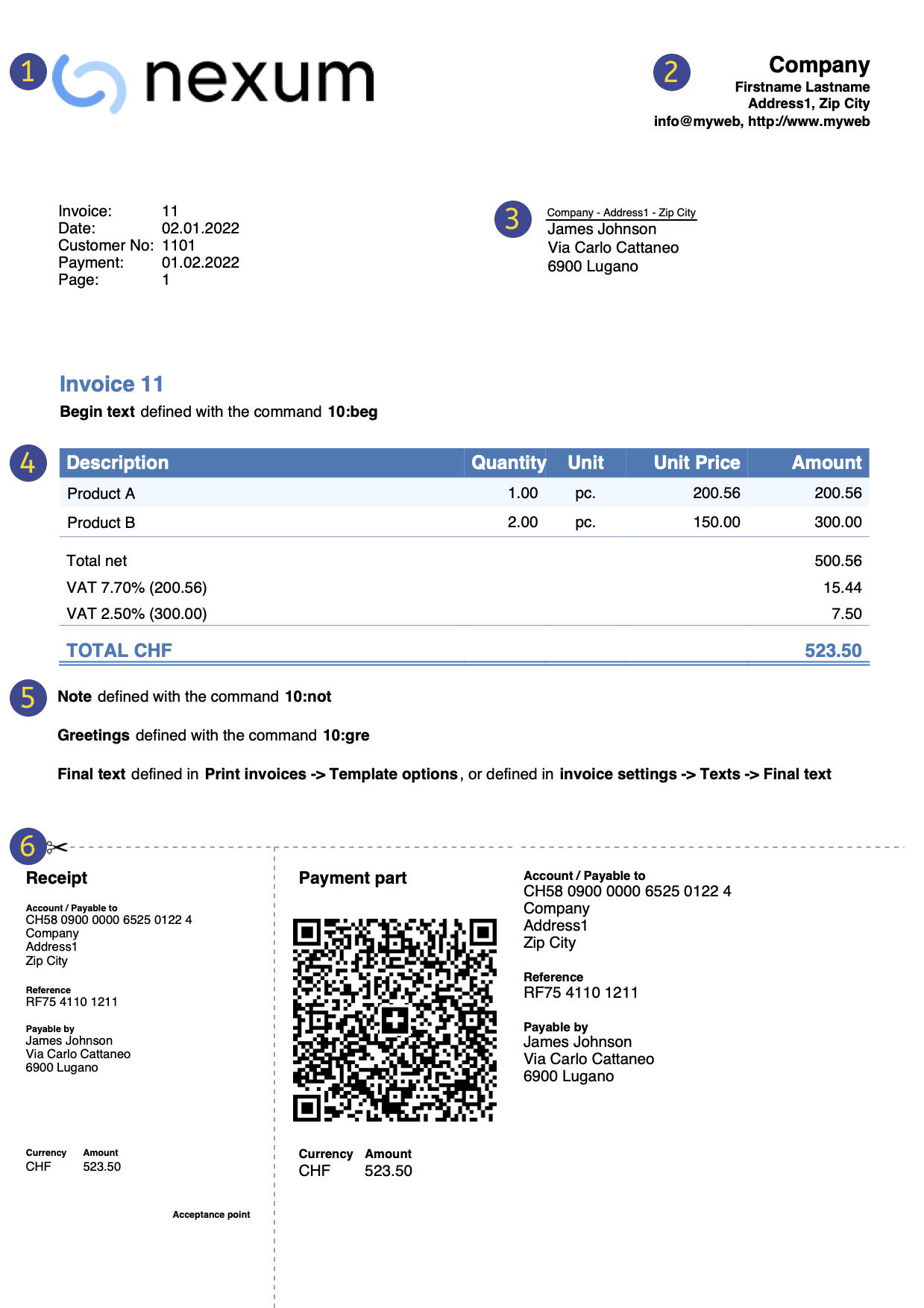 |
|
Logo(商标)可以插入客制化的logo/商标。 |
||
|
|
标题发票的标题将与输入的标题相同。 |
|||
|
|
客户地址客户的地址将从账户表中获取,在设置客户账户中了解更多信息。 |
|||
|
|
发票数据发票内容必须在发生业务表中输入,了解如何输入发票数据。 |
|||
|
|
自定义文字使用类型列输入文字开头、注释和问候语。使用报表 → 客户 → 打印发票 → 选项标签。 |
|||
|
|
设置瑞士二维码只能为瑞士和[CH10]开头的瑞士二维码式样做定义的设置。 |


请按照以下步骤创建发票:
欲了解更多信息,请访问如何打印发票的页面。
其它功能:
- 打印发票和增值税管理 (收取和开具发票)。
- 打印不同货币的发票。
- 以客户的语言打印发票。
- 设置发票到期日。
- 带有瑞士二维码和参考编号的发票。
- 带有瑞士二维码的发票,金额和地址为空白。
- 从银行报表中导入数据以更新发票收据。
相关话题:
- 收益&费用会计中的发票文件示例。
- 复式记账中的发票文件示例。
- 使用成本中心的发票文件示例。
对于已收取增值税的发票 (使用成本中心3设置的客户和供应商) 的情况很有用。
设置发票文件
有两种方式可以为开发票设置会计文件
- 使用现有模板创建新的会计文件。
- 调整您现有的会计文件。
新建会计文件
有几个模板可用,其中包含预设的客户分类帐。可以使用以下会计类型创建发票:
- 复式记账会计
- 多币种会计
- 收益&费用会计
列出的会计类型可能包含或不包含增值税选项。
新的会计文件创建方式如下:
- 文件菜单 → 新建命令。
- 选择地区和语言。
- 在按字段过滤器中输入发票。
- 在右侧部分选择模板。
- 命名文件并保存。
请按照开发票文档中的说明进行操作。
调整您现有的会计文件
如果您希望调整现有的会计文件以创建发票,则必须添加某些功能和设置才能打印它们:
为您的公司插入发票数据
- 在文件菜单 → 文件和账户属性命令 → 地址中,您可以设置公司地址和发票数据,将其用作发票标题。
- 如果想要使用个性化logo/商标,请查看设置Logo/商标的页面。
在账户表中设置客户列表
- 在账户表中, 您可以设置您的客户登记。
- 添加并显示客户地址列。
- 在账户表中,您可以选择地址视图并输入客户的数据。
- 如果地址视图不可见,您可以使用工具栏菜单 → 增添新功能... → 在账户表中添加地址列的命令增加。
- 通过报表菜单 → 客户 → 设置功能,管理您的客户设置。
在发生业务表中添加您要使用的列
- 在发生业务表中显示要开发票的列:
- 数据菜单 → 在列设置并选中文件类型和发票文件列
- 添加数量和单价列 (可选)
工具栏菜单 → 增添新功能 → 在发生业务表格中添加项目列 - 添加项目表格(可选)
这将有助于跟踪商品并精细管理库存。
工具栏菜单 → 增添新功能 → 添加项目表格
发票在单独的文件中管理,仅适用于发票
如果您希望与主会计分开管理发票,则必须创建一个新文件。您将在账户设计中仅插入发票所需的账户信息,通过发生业务表输入发票。
这种方法适用于:
- 收付实现制:在会计文件中仅输入已付金额。
- 希望将发票管理与您的主要会计分类账完全分开,例如对于需要向其会员发送会费的协会。
如何为发票创建单独的会计文件:
- 下载模板, 将其打开并根据需要进行调整。
或者,您可以从任何模板开始,并按照前面的说明对其进行调整以供开发票使用。 - 确保所有的设置和列都存在,如上所述。
在发生业务行中输入发票数据
在发生业务表中输入发票数据。对于每个新发票,输入一个新的发生业务行。
- 输入发生业务的日期
- 发票号码
- 在摘要列输入的文字 (商品,服务,咨询……) 将显示在您客户的发票上
- 在借方列中插入客户编号
- 在贷方列插入对应的事务 (销售账户,咨询费等)
- 输入金额
- 如果您要缴纳增值税,请输入相应的适用增值税税率的增值税代码。
多行发票
如果发票中有多个元素 (不同的项目或服务,或两者都有),则必须在单独的行中输入它们 (每行一个元素):
- 使用新行输入您希望在打印发票时显示的每个项目。
- 每行使用相等的日期和发票编号。

发生业务表中发票的基本列
日期
发票数据会在此列中报告。与文档相关的所有行必须报告同一日期。
发票
为了管理发票,必须在发票列中输入发票号码。在借方列中注明属于明细账的客户账户(如果是按收款金额管理客户,则为成本中心3的列)。
额外的列
类型
在类型列中,您可以定义详细的行,例如总计行或发票的特定付款条件。此列在默认情况下不可见,需要通过数据菜单 → 列设置命令并勾选文件类型列来显示。
数量
在此列中输入提供的商品和服务的数量。添加数量列需要使用工具栏菜单 → 增添新功能→ 在发生业务表中增添项目列命令
单位
输入统一类型(例如 ”一个“,”小时“,”米“,”千克“等)。
价格/单位
输入商品或服务的单价,程序将根据您在数量列的输入自动计算金额结果。
How to define Customer Number and Invoice Number
This page explains how to correctly define the length and format of the Customer number and the Invoice number when invoicing with Banana Accounting Plus.
Important: Correctly setting the Customer number and the Invoice number is essential, especially if you issue Swiss QR invoices and want to automatically record payments. Both numbers are included in the reference number on the QR slip and are used to automatically link imported payments to the related invoices.
This setting applies to:
- Invoicing integrated in the accounting file (with or without Swiss QR)
- Invoicing with the Estimates and Invoices application (with or without Swiss QR).
Customer number
The Customer number is the identifier of the customer in accounting (subaccount or cost center). In QR invoices, it is also used to automatically record payments of the invoices.
Customer number format for QR invoices
In QR invoices, the customer number is included in the reference number. For this reason, it must follow specific rules, which vary depending on the type of account used (IBAN or QR-IBAN) and the type of reference number chosen.
- QR Invoice with IBAN account:
- Only numbers or letters are allowed (A‑Z, 0‑9).
- Spaces, separators, or other characters (-, /, #, etc.) are not allowed.
If you insert separators or other characters, they will be removed from the invoice printout and may cause problems in automatically recording payments. - Customer number + Invoice number ≤ 19 characters.
The two numbers together must not exceed 19 characters. It is recommended to keep the Customer number to a maximum of 7 characters.
- QR Invoice with QR-IBAN:
- Only digits (0–9) are allowed.
- No spaces, letters, separators or other characters (-, /, #, etc.). If you insert separators or other characters, they will be removed from the invoice printout and may cause problems in automatically recording payments.
- Maximum length 7 digits.
- Customer number + Invoice number: together must not exceed 14 digits.
Customer number format for invoices without QR
For invoices without QR, there are no constraints regarding the format of the customer number. Best practices apply.
Best practices for customer numbers
- Uniqueness: each customer must have a unique number.
- Consistency: use a fixed scheme (e.g. 1000001, 1000002, etc.).
- Compatibility: if you plan to issue QR invoices with both standard IBAN accounts and special QR-IBAN accounts, or switch from IBAN to QR-IBAN, use only numbers.
Invoice number
The Invoice number uniquely identifies the invoice (mandatory). In QR invoices, it is also used to automatically record payments.
Invoice number format for QR invoices
In QR invoices, the invoice number is included in the reference number. For this reason, it must follow specific rules, which vary depending on the type of account used (IBAN or QR-IBAN) and the type of reference number chosen.
- QR Invoice with IBAN account:
- Only numbers or letters are allowed (A‑Z, 0‑9).
- Spaces, separators, or other characters (-, /, #, etc.) are not allowed. If you insert separators or other characters, they will be removed from the invoice printout and may cause problems in automatically recording payments.
- Customer number + Invoice number: ≤ 19 characters.
The two numbers together must not exceed 19 characters. It is recommended to keep the Customer number to a maximum of 7 characters.
- QR Invoice with QR-IBAN:
- Only digits (0–9) are allowed.
- No spaces, letters, separators, or other characters (-, /, #, etc.). If you insert separators or other characters, they will be removed from the invoice printout and may cause problems in automatically recording payments.
- Maximum length 7 digits.
- Customer number + Invoice number: together must not exceed 14 digits.
Invoice number format for invoices without QR
For invoices without QR, there are no constraints regarding the invoice number. Best practices apply.
Best practices for invoice numbers
- Uniqueness: each invoice must have a unique number.
- Consistency: use a fixed scheme (e.g. year+progressive: 2500001, 2500002, etc.).
- Compatibility: if you plan to issue QR invoices with both standard IBAN accounts and special QR-IBAN accounts, or switch from IBAN to QR-IBAN, use only numbers.
使用现金方法发行增值税票据
Banana财务会计程序总是要在收入入账的那一行输入增值税代码。收款时需要缴纳增值税,收入账户也会被相应地记录。客户管理是通过成本中心3的利润中心来完成的。
在这种情况下,为了登记客户并开具发票,就必须:
- 在会计科目表中设置利润中心成本中心3的客户分类账。
- 在客户菜单设置中,选择成本中心3利润中心组。
- 当开具发票记录时:
- 发票。
- 在成本中心3列中输入成本中心3的利润百分比 (无借记或贷记账户) 。
- 在同一行中,在方括号 [V81] 之间输入销售税代码。
插入方括号内的增值税代码允许您查看发票中的增值税金额,而不需要在记录发票时进行会计处理。

Invoicing on turnover
In integrated invoicing, invoices are created and recorded in the same file. Regarding accrual-based accounting, invoices must be recorded at the time of issuance.
In accrual-based invoicing management, it is necessary to set up the customer subaccount in the Accounts table as shown in the balance sheet.
- All customer accounts must have complete data (first name, last name or company name, address), because when creating the invoice, the program uses this data for the invoice header.
It is possible to create and record invoices with or without VAT.
Accrual-based Invoice
In the accrual-based system, the invoice is created to be sent to the customer, and it is recorded at the same time.
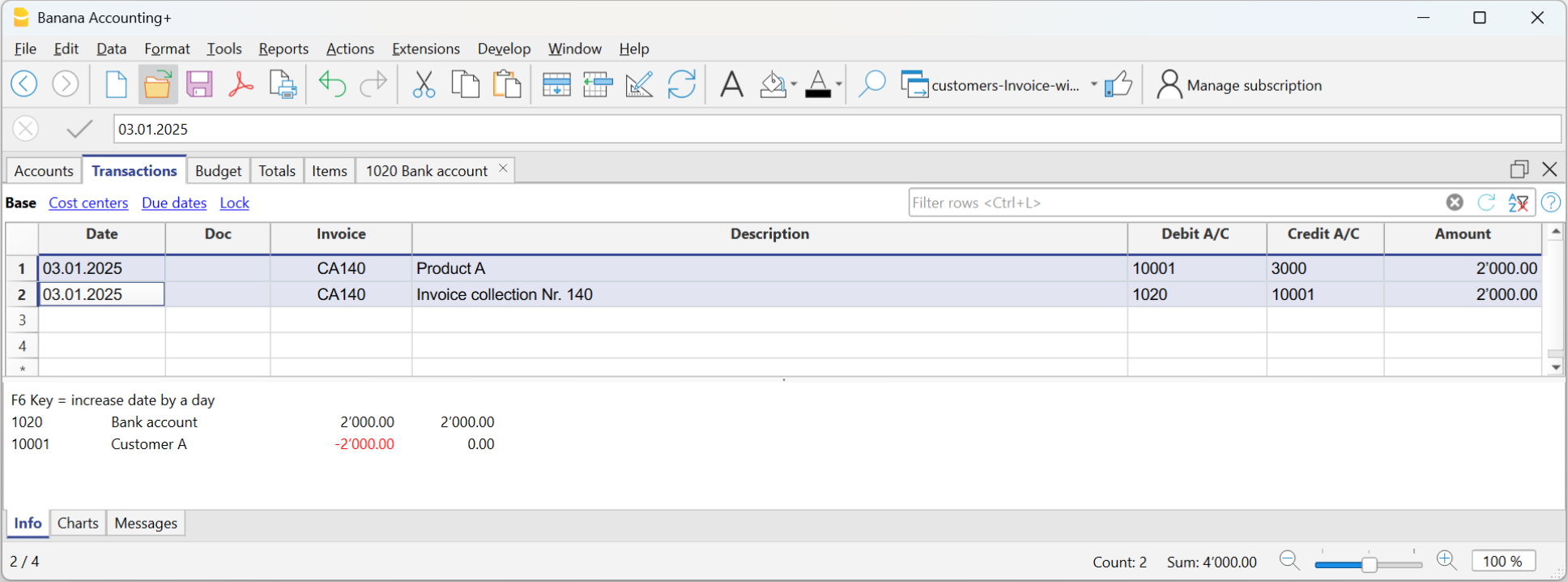
Therefore, with a single transaction, both the invoice is created and recorded:
- In the Date and Doc. column, enter the date and any document number.
- In the Invoice column, enter the invoice number.
It is important that the invoice number complies with certain requirements: see how to correctly create the invoice number. - In the Description column, enter the items to be invoiced that should appear on the invoice.
- In the Debit column, enter the customer's account from the subaccount.
It is important that the customer number complies with certain requirements: see how to correctly create the customer number. - In the Credit column, enter the revenue account.
- In the Amount column, enter the gross amount.
Accrual-based Invoice and VAT – Effective Method
The standard procedure in Banana Accounting for VAT management requires entering the VAT code on the same row where the income is recorded.
Issued invoices are immediately recorded and posted. Income is recognized at the time the invoice is issued.
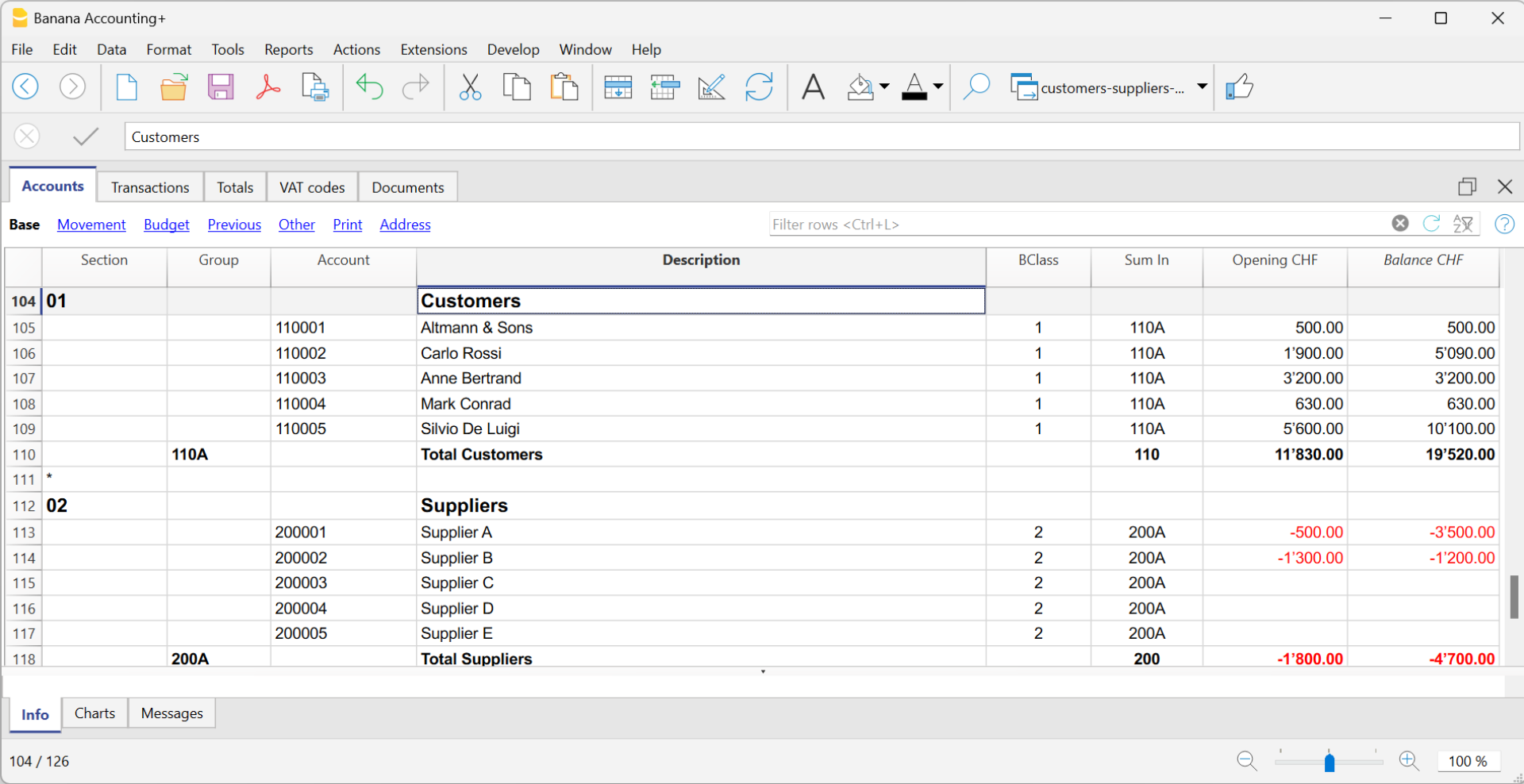
Therefore, in accrual-based VAT management, the VAT code is added when the invoice is created.
The invoice data is entered in the Transactions table. For each new invoice, enter a new transaction row.
- Enter the date of the transaction
- The invoice number
It is important that the invoice number complies with certain requirements: see how to correctly create the invoice number. - The description text (products, services, consulting...) that will appear on the customer invoice
- In the Debit account, enter the customer account number
It is important that the customer number complies with certain requirements: see how to correctly create the customer number. - In the Credit account, enter the counterpart (Sales account, Consulting or other)
- Enter the amount
- In cases subject to VAT, enter the VAT Code with the applicable VAT rate. See Print invoices and VAT management.
Invoicing and VAT net tax rate method
If you are subject to VAT under the balance rate or flat-rate regime with the cash-based system, you must record the invoice issuance to the customer and its accounting registration separately, for the following reasons:
- Invoice to be sent to the customer:
It must show a normal commercial VAT rate (e.g., 8.1%), as required by tax regulations. - Accounting of the invoice:
It must instead be recorded in accounting with the effective balance rate (e.g., 6.2%), using the corresponding VAT code (e.g., F1).
This approach is essential to ensure that the VAT paid corresponds to the applicable reduced regime, while still maintaining a formally correct invoice for the customer.
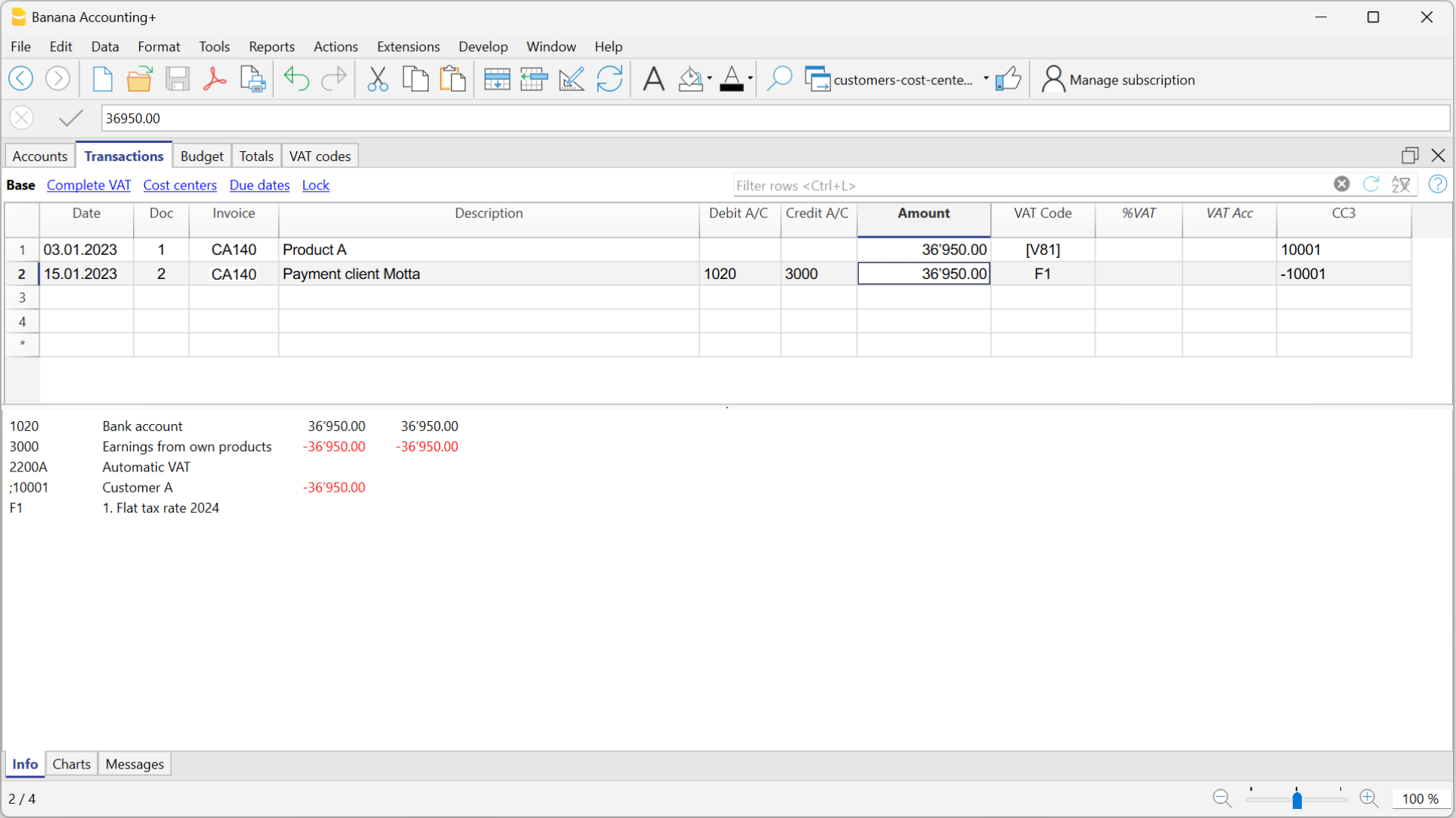
Issuing the invoice to the customer
To issue the invoice to the customer, proceed as follows:
In the Accounts Table:
- Create a customer sub-account with the profit center CC3 (example: ;10001 for customer XX)
- In the Address view, enter all customer data.
In the Transactions table:
- In the Date column, enter the invoice issue date.
- In the Invoice column, enter the invoice number.
It is important that the invoice number complies with certain requirements: see how to correctly create the invoice number. - In the Description column, enter the description that should appear in the invoice details.
- In the Amount column, enter the amount
- The Debit and Credit columns must remain empty.
- In the VAT Code column, type the code V81 in square brackets [V81].
VAT codes in square brackets do not generate any VAT entry. - In the CC3 column, indicate the profit center number without semicolon (e.g., 10001).
It is important that the customer number complies with certain requirements: see how to correctly create the customer number.
Since there are no accounts in the Debit and Credit columns, the invoice creation entry will not be recorded in accounting.
Recording the invoice with VAT balance rate
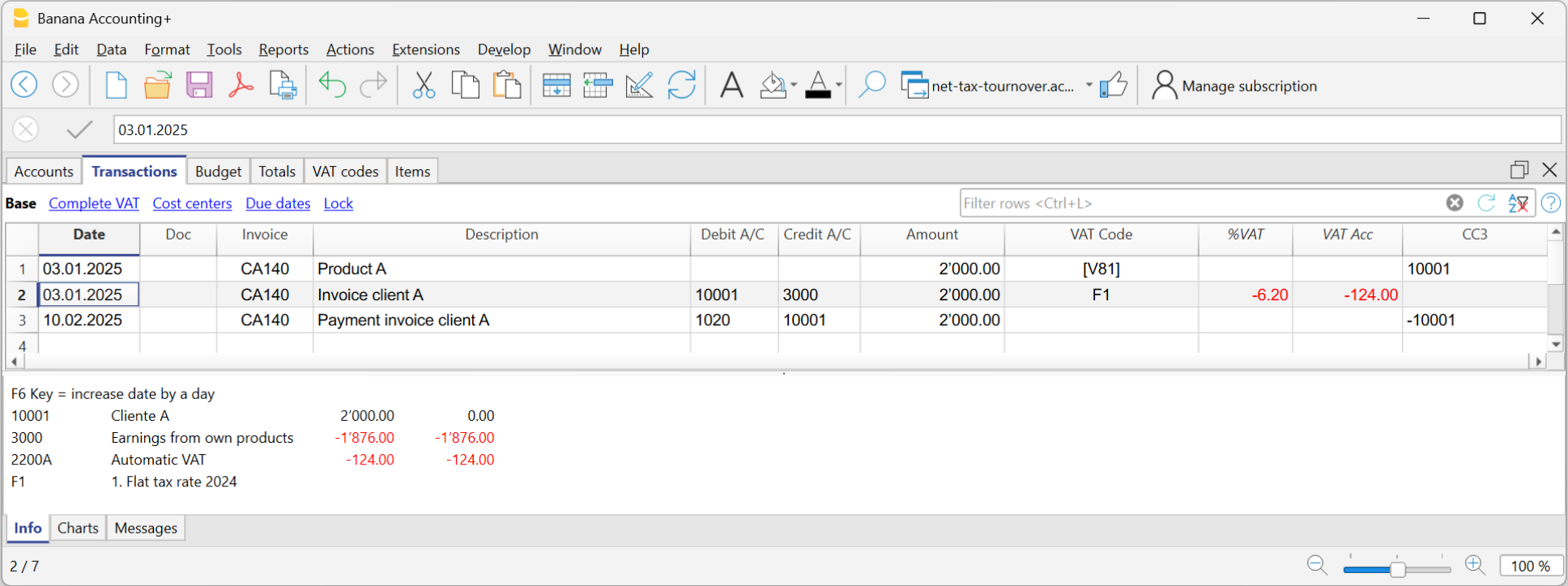
When recording an invoice subject to VAT with a balance rate in accounting, it is sufficient to proceed as with a normal entry, indicating the accounts in the Debit and Credit columns and entering the VAT code corresponding to the balance rate (e.g., F1).
Two recording systems can be used to register the invoice with the balance rate:
- Recording with split
In the VAT codes table, VAT percentages have been assigned to balance rate VAT codes. In the transactions table, by entering the balance rate VAT code (e.g., F1), the program automatically enters the corresponding VAT percentage (e.g., 6.2) and the VAT amount. - Recording without split, by entering the balance rate VAT code (e.g., F1), percentage and amount are not entered. At the end of the period, the specific extension for calculating balance VAT is used.
Based on the rate defined in the extension dialog, the program:- Identifies all entries with balance rate VAT code.
- Automatically calculates the VAT due for the reporting period.
- Totals the amounts on a periodic basis (e.g., monthly, quarterly, yearly).
Invoicing and VAT with balance rate using the invoicing method
The Banana Accounting procedure for VAT management requires entering the VAT code always on the line where the income is recorded. When accounting is managed based on turnover, the income is recorded when the invoice is issued.
When subject to VAT using the balance rates or flat-rate method, customer invoices must be issued using the normal rates (e.g., 8.1%). However, the accounting of invoices under the balance rates or flat-rate method involves reduced rates (e.g., 6.2%).
- If the amounts are gross, you can record them based on turnover or on cash received, by entering the VAT code in square brackets.
- If the amounts are net, it is not possible to create and post the invoices at the same time. In this case, it is necessary to manage:
- The creation of invoices in an accounting file, using the integrated invoicing or with the Offers and Invoices Application
- The posting of invoices in the accounting file.
In this case, the creation of the invoices must be handled in an accounting file or with the Offers and Invoices Application, and the posting in a separate accounting file.
Issuing an invoice with balance tax rate and gross amounts
To issue an invoice to customers with the standard VAT rate (e.g. 8.1%), you need to create a customer subaccount with profit centers CC3 (example: ;10001), completing all customer information in the columns of the Address view.
In the Transactions table:
- In the Date column, enter the invoice issue date.
- In the Invoice column, enter the invoice number:
It is important that the invoice number follows certain rules: see how to correctly create the invoice number. - In the Description column, enter the invoice details.
- The Debit and Credit columns must remain empty.
Since there are no accounts in the Debit and Credit columns, the invoice creation entry will not be recorded. - In the Amount column, enter the amount.
- In the VAT Code column, type the V81 code in square brackets [V81].
VAT codes in square brackets do not trigger VAT accounting. - In the CC3 column, enter the customer account, without semicolon (e.g. 10001).
It is important that the customer number follows certain rules: see how to correctly create the customer number.
Posting an Invoice with Balance Rate and Gross Amounts
When recording the invoice in the accounting, to post it using the VAT balance rate, you must enter the transaction as usual, also entering the accounts in the Debit and Credit columns and the VAT code of the balance rate:
- If the VAT breakdown method is used, enter the VAT code for the balance rate (e.g., F1). In this case, the VAT Codes table includes the VAT rates for the balance. In example F1 corresponds to 6.2%.
- If the non-VAT breakdown method is used, enter the VAT code without rate (e.g., F1). In the VAT code table, the balance rate codes do not have rates.
To post the invoice using the balance rate, it is necessary to create in the Accounts table:
- A customer sub-account using balance sheet accounts.
- Enter the date and description in the corresponding columns.
- In the Debit column, enter the customer account (e.g., 10001).
- In the Credit column, enter the income account.
- In the Amount column, enter the amount.
- In the VAT Code column, type the VAT code for the balance rate (e.g., F1)
折扣和返利
要在发票中输入折扣或返利,请添加新行并输入:
- 发票日期。
- 发票编号。
- 折扣或返利的摘要。
- 借方和贷方列中的账户。与销售业务相比,倒转账户很重要。
当客户/供应商明细账设置了成本中心,并且有折扣和返利的发生业务时,为了使金额反转,必须将成本中心的符号也反转。 - 如果有增值税,请在增值税代码中加上负号,以便扣除增值税,或者如果使用当前增值税代码进行折扣和返利,则应扣除增值税。

Rounding in invoice printout
In the printout of invoices integrated in accounting, the total VAT amount corresponds to the sum of the individual VAT transactions that make up the invoice. Since the individual VAT transactions are rounded to the nearest cent, there may be a difference compared to the VAT calculated on the total invoice amount.
To better understand, let's consider the following example:
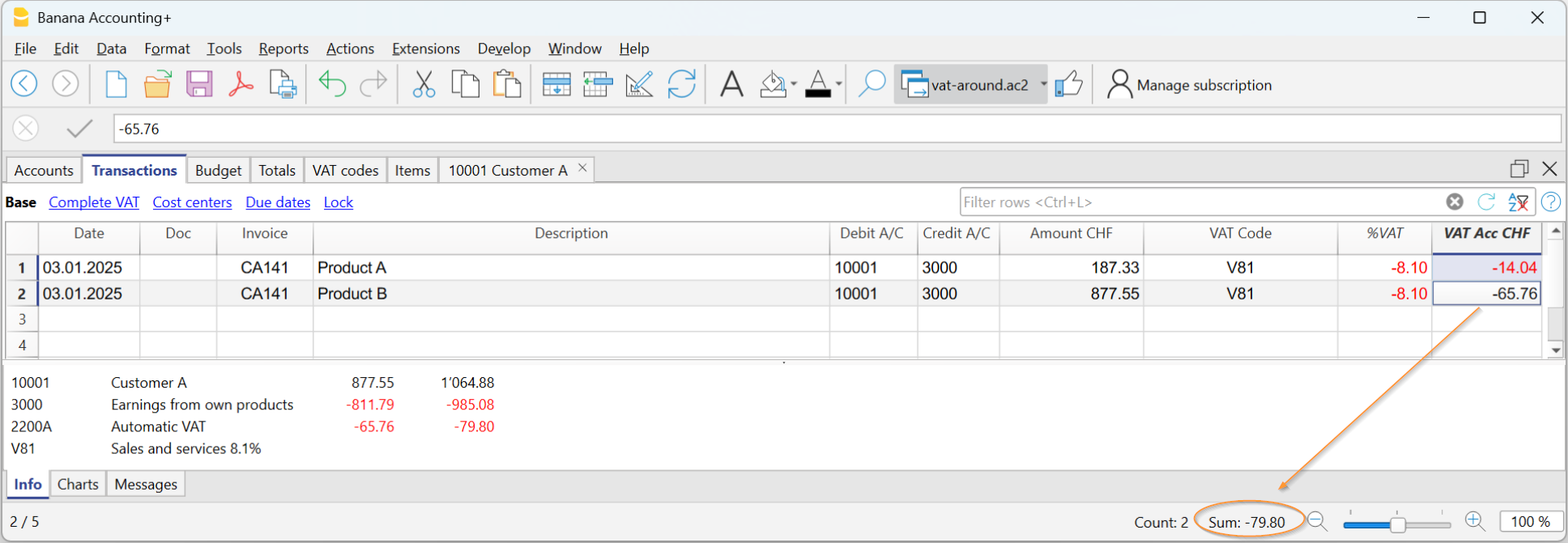
- Row 1: 8.1% of CHF 187.33 = Rounded: CHF 14.04
- Row 2: 8.1% of CHF 875.00 = Rounded: CHF 65.76
- Total: 8.1% of CHF 1064.88 = Rounded: CHF 79.80
The invoice shows a VAT amount of CHF 79.80 instead of CHF 79.79 (amount calculated directly on the total of 1064.88). In fact, the amount of CHF 79.80 corresponds to the sum of VAT individually calculated for each item (CHF 14.04 + CHF 65.76).
This logic is adopted to avoid discrepancies between the VAT amounts recorded in accounting and those shown on the invoice. In this way, the total VAT in accounting matches the one printed on the invoice.
设置客户语言
默认布局包括以下语言:意大利语,德语,英语,法语,荷兰语。
发票文本以客户的语言打印,但前提是在语言列 (账户表,地址视图) 中进行了设置。
语言是通常由2个小写字母组成的ISO代码 (it=意大利语, de=德语, en=英语, fr=法语, nl=荷兰语).
如果没有为客户账户指定语言,则使用文件 → 文件和账户属性 (基础数据) → 其它菜单中定义的会计语言。

到期日期和付款条款
发票的到期日可以用不同的方式设置:
- 广义到期日 - 所有发票的到期日相同
选择报表菜单 → 客户 → 设置 → 总的 → 发票到期的选项,定义发票应该到期的期限 (按天)。例如,如果文档的日期为5月10日,而您输入的值为10天,那么发票到期日期将为月20日。 - 每个客户的截止日期 - 针对每个客户定义
在账户表中, 可以使用到期日列 (如果未显示,通过数据 → 列设置 ...进行设置)。可以在此列设置发票应该到期的期限 (按天)。 - 每张发票的特定日期
在发生业务表中,到期日期选项可以让您显示到期日列。 -
到期日期的替代文本
可以将您选择的文本定义为每个发票的付款条件,这将替换到期日期的文本。请返回高级输入-类型列获取详细信息。
打印其它币种的发票
您也可以用不同的货币来打印发票:
- 您必须使用多币种会计文件。
- 发票以客户账户的币种打印。
如果要将不同币种的发票发送给同一客户,则必须为同一客户创建不同币种的账户。
高级输入文件类型列
发生业务表中的类型列可用于定义和显示打印发票特定数据有关的命令。
通过数据菜单 → 列设置的命令来查看并显示文件类型列。
输入数据
一旦显示出了该列,您就可以输入数据了。您将需要:
- 在发票日期之后添加一个空行。
- 在日期列中输入发票的日期。
- 在文件类型列中输入所需的参数 (请参阅下表)。
- 在发票列中输入发票编号。
- 在摘要列中输入要显示在发票上的相关数据。
给客户开具发票
输入10:文件类型列将列出可用于自定义发票数据的所有可能选项。
| 发票数据 | 文件类型列 | 摘要列 |
|---|---|---|
|
客户地址 如果需要一个与账户表 (地址视图) 中定义的地址不同的地址,则可以使用适当的选项指定该地址。 在每一行中指明地址的元素 (名称,姓氏,地址...)。 |
10:adr:fna |
输入名 |
|
问候 在发票详细信息之后,您可以在最后的问候语中添加一行文字 (另请参见示例发票的页面)。 |
10:gre | 输入您的问候语 |
|
备注 可以在发票明细之后,问候语之前插入一行或几行备注 (也可参见发票示例的页面)。 |
10:not | 输入备注信息 |
|
参数 (高级) 当想要在发票上打印个性化数据时,可以使用相应的命令。 这个选项是针对具有JavaScript编程知识的用户,允许您改变发票的式样,从而通过这个命令来使用指定的参数。 欲了解更多的信息请查看自定义数据打印的页面 (内容为英文的)。 |
10:par | 输入您的自定义参数 |
|
付款条件 如果您想指定一个替代文本作为付款期限,请输入所需的文本。其将显示在发票上。 |
10:ter | 输入付款期限的替代文本 |
|
标题 如果您不想使用默认的发票标题,可以选择不同的标题。 |
10:tit | 输入您的文字作为发票标题显示 |
|
项目小计 |
10:tot |
输入0级小计 |
|
标题行的文字 在发票明细表中,您可以将标题添加到组的项目中 (另请参见示例发票的页面)。 |
10:hdr | 输入您要添加到发票详细信息的文本。 留空用来添加空行。 |
中间总计
为了插入中间总计,您将需要在发生业务表中添加其它行:
- 在文件类型列中输入 10:从下拉菜单中选择 :tot,会显示 10:tot。选择并输入 :1
- 在摘要列中输入相对应的描述 (例如,总商品)
- 输入发票编号 (如果没有编号,则不会打印总计)。

含中间总计的发票示例。

付款条件的备选文字
可以将您自己的描述定义为每张发票的付款期限,这将替换现有文本作为到期日期。
- 在发生业务表中输入相同发票号的附加行。
- 您需要输入 10: 在文件类型列中并从下拉菜单中选择 :ter,选择 10:ter。
- 在摘要列中输入您的文字 (如30天净值,60天等)。
在打印发票时,将显示作为付款期限的指定值。
额外的自定义功能
在打印发票对话框中还提供了其它自定义的选项,例如定义银行详情或最后的问候语。
如何打印发票
可以轻松地自定义和调整发票的打印,以满足您的需求。
设置您的公司地址 (发件人)
点击文件菜单 → 文件和账户属性 → 地址,设置您公司的地址。
在账户表中设置客户列表
- 在账户表中,设置客户分类账。
- 显示地址视图中的地址列,并输入客户地址。
如果地址视图不可见,可通过工具栏菜单 → 添加/删除功能 → 在账户表中添加地址列的选项来进行添加。 - 在报表菜单 → 客户 → 设置中进行客户的设定。
设置客户语言
可以用您客户的语言来打印发票。要做到这一点,您必须首先设定客户的语言。
设置商标位置和发件人地址
要设置商标,您需要:
- 在文件菜单 → Logo(商标)设置中上传商标的图片。
- 要在发票上使用商标,在发票设置中,您必须激活商标的选项,并在商标名称栏中输入您所使用的定制名称,请注意大写和小写。
例如,您可以把商标放在左边,把地址放在右边,并改变商标的大小。
如果您不改变默认的设置,发件人的地址就会在右边输入,而不考虑商标的存在。
如果您想在左边设置没有任何商标的发件人地址,请查看以下页面:
自定义发票抬头中的地址
发票抬头中发件人地址的样式 (颜色、大小、字体......) 是由程序默认设置的。
Banana财务会计+ 的高级计划允许您自定义地址的风格。更多信息请参见实例页面 (英文)。
设置发票信息
发票信息是关于日期、客户编号、到期日等信息,通常位于页眉下方和客户地址旁边。
CH10和UNI11发票式样允许您定义哪些发票信息要包括在内,哪些要排除在打印之外。可以在发票设置页面找到相关说明。
对于其它打印式样 (CH01-CH09 / UNI01-UNI08),则不能修改这些信息。
设置发票到期日
程序中的默认到期日为开具发票后的30天。
如果您想要改变到期日,请按以下步骤操作:
- 在发生业务表中为发票添加一行。
- 在日期一列中,输入发票的日期。
- 在文件类型列中,输入10:ter (:ter付款期限)。
- 在发票一列中,输入发票号码。
- 在摘要列中,输入所需的到期日期 (如 "10天")。
输入的文字将出现在发票信息中。
设置客户地址的位置
CH10和UNI11的发票式样允许您定义客户地址的位置和地址元素的顺序。在发票设置页面您可以找到更详细的信息。
对于其它打印式样 (CH01-CH09 / UNI01-UNI08),不能改变客户地址的位置和组成。
设置发货地址
要在客户的地址之外再输入一个送货地址,步骤如下:
- 使用发生业务表的类型列,命令 10:sadr。
- 在发生业务表中的发票中添加一行。
- 在日期列中,输入发票日期。
- 在类型一列中,输入:
- 10:sadr:fna 为名字。
- 10:sadr:lna 为姓。
- 10:sadr:str1 为地址 (街道和号码)。
- 10:sadr:cod 为邮政编码。
- 10:sadr:cit 为位置。
- 在发票一列,输入发票号码。
- 在摘要列,输入要显示的文字。
- 在CH10和UNI11的发票式样,点击发票设置 → 客户地址部分,勾选送货地址的选项。
通过发生业务表类型列输入的数据会被提取并插入到发票打印中。
设定标题/对象
要输入发票的标题/对象,您有两个选择:
- 使用发生业务表中的文件类型列,命令10:tit。
- 对于每张发票,可以定义一个标题
- 适用于任何式样的打印。
- 如果使用文件类型列,它总是优先于任何式样的设置(见下一点)。
- 通过CH10和UNI11的发票式样,您可以在发票设置 → 文字部分 → 发票标题中输入文字。
- 该标题适用于所有使用该式样打印的发票。
- 只有在没有按照第一点定义标题的情况下,才适用该标题。
如果您不输入任何文字,程序会使用默认的文字。
设置初始文字
要输入发票的初始文字,您有两个选择:
- 使用发生业务表中的文件类型列,命令10:beg。
- 为每张发票定义一个初始文字。
- 这适用于任何式样的打印。
- 如果使用文件类型列,它总是优先于任何式样的设置(见下一点)。
- 通过CH10和UNI11的发票式样,您可以在发票设置 → 文字部分 → 发票标题中输入文字。
- 该标题适用于所有使用该式样打印的发票。
- 只有在没有按照第一点定义标题的情况下,才适用该标题。
设置发票细节
使用发生业务表来输入发票数据。
另见折扣和返利的页面。
通过CH10和UNI11的发票式样,您可以决定在打印中显示哪些列。请查看如何在发票设置 → 发票细节的页面中进行操作。
对于其它打印式样 (CH01-CH09 / UNI01-UNI08),这些列是不可编辑的。
设置最终文本
要输入发票的最终文本:
- 通过打印发票的窗口。
- 选择选项。
- 选择要打印发票的语言。
- 在最终文本字段中输入文字。
- 您输入的文字会被应用到您所使用的任何一个打印版面中。
通过CH10和UNI11的发票式样,允许您可以在发票设置中来定义最终文本。
- 在发票设置 → 文本部分 → 最终文本中输入文字。
- 这适用于与式样设计一起创建的同一.ac2文件中的每张发票。
- 它取代了在发票打印对话框 → 选项 → 最终文本中设置的任何文本。
为了给每张发票设置不同的最终文本,必须使用发生业务表中的文件类型列:
- 在文件类型列中,输入10:not (注释)。
- 在摘要列中,输入所需的最终文本。您所输入的文本将出现在单行上。
要添加额外的注释行,您必须在多行上重复文件类型和摘要列的条目。
设置银行账户号码
如果您不使用二维码,您必须在最后的文本中输入银行账号,作为支付发票的参考。
请参阅设置最终注释的部分来输入银行账户号码。
为瑞士二维码打印设置IBAN
如果您想用IBAN账户创建含二维码的发票,您需要:
- 在Banana财务会计+ 中使用发票式样 CH10。
- 设置IBAN账户。
- 设置打印瑞士二维码。
在带有IBAN账户的二维码发票页面,您会发现更多关于设置带有IBAN账户的二维码发票的信息。
设置QR-IBAN,用于打印瑞士的二维码
如果您想用二维码-IBAN账户创建二维码发票,您必须:
- 在Banana财务会计+ 中使用发票式样 CH10。
- 设立二维码-IBAN账户。
- 设置瑞士二维码打印。
在带有二维码-IBAN的二维码发票页面,您可以找到更多关于带有二维码-IBAN账户的二维码发票的设置信息。
打印没有金额和地址的二维码表
如果您想只打印没有金额和客户地址的二维码账单,必须这样做:
另请参见如何打印没有金额的发票。
设置风格和颜色
在发票风格打印页面,您可以找到详细的信息:
- 字体的类型。
- 输入字体的名称 (如Arial、Helvetica等)。
- 颜色。
- 可以使用英文名称 (black, yellow, white, blue, red, 等等)。
- 或十六进制值 (HEX) 前面有#号 (例如:#000000, #009FE3, #FF00EA)。
颜色代码在互联网上很容易找到。例如,您可以参考:https://www.w3schools.com/cssref/css_colors.asp
CH10和UNI11的发票式样也有一个发票设置来定义字体大小。
设置粗体字的文字
在CH10和UNI11的发票式样,可以在发票文字中使用粗体字。
在发票中添加图片
在Banana财务会计+ 的高级计划中,您可以将图像添加到要发送给客户的发票上。
这一功能使发票更容易定制,收到发票的客户会对项目的发票有一个更完整和直接的看法。
我们有几个关于在发票中输入图片的信息页面。我们建议您着看这些页面以更好的了解软件内的相关功能。
参考页面如下:
关闭已收到的发票
有两种方法可以关闭未结发票:
其它资料
打印发票
点击报表菜单 → 客户 → 打印发票,就会跳出打印发票对话框。
选择打印选项,按确定按钮可以预览发票。

打印标签
发票号码
您可以打印单张或多张发票:
- 单次打印时,请输入发票号码。
- 多个打印之间以逗号分隔的发票号码 (例如 1,3,6)。
- 对于按顺序打印的 (从...到...),请输入用连字符分隔的数字 (如1-3)。
如果发票号码已经包含连字符 (如2016-1),则必须用大括号{}括起来,以区别于文件范围的编号,{2016-1}-{2016-3}。
发票来自
此选项允许您打印所选期间中包含的所有发票。 您需要输入初始日期和最终日期。
未打印的发票
打印发生业务表格内的已打印发票列为空的发票。所有未被打印的发票也因此被打印。
样式
版式可以更改发票的样式。可以使用模板含有Logo/商标,数量列或附带付款单的发票样式。
更多样式
此按钮可以进入管理扩展程序的对话框,将模板更新为最新的模板或添加自定义的模板。
设置
允许您设置所选样式的参数。欲了解更多信息,请参见模板和设置的页面。
在打印后更新已打印发票列
您可以通过点击数据菜单→列设置命令,激活已打印发票列,来使该列出现在发生业务表格中。
该程序将在打印预览后更新此列的内容,添加文本 1。这将允许在选择未打印的发票命令后仅打印此列中没有内容的发票。
式样选项
在此标签中,可以为每种语言添加特定文本,例如问候语或您的银行详细信息,以方便付款。
根据客户的语言,程序会在发票结尾以指定语言显示保存的文本。
选择报表菜单 → 客户 → 打印发票 → 选项,输入所需的文本,点击确定按钮。您将看到打印预览。

将发票另存为 PDF
发票也可以保存为 PDF 格式,以便可以方便地通过电子邮件发送。
从预览视图 (报表菜单 → 客户 → 打印发票 → 确定),从顶部菜单中选择创建 PDF。有关更多的信息,请参阅打印/预览的页面。
Print Delivery notes | Integrated Invoicing
With Integrated invoicing, when you create an invoice, it is automatically recorded in the accounting system and the customer's account. It is possible to print an invoice with the wording "Delivery Note" containing the same invoice data, using layouts CH10 and UNI11.
However, it is not possible to create a standalone record for the delivery note without any accounting impact, one that doesn't debit the customer's account or credit other accounts.
Mandatory requirements to use the layout preferences:
- Banana Accounting Plus (Release 10.1.7 or later).
- The Advanced plan
How to print a delivery note
In the Transactions table select the row where the delivery note to be printed is located and proceed as follows:
- Menu Report > Customers > Print invoices
- Select Layout CH10 or UNI11
- Under Print as, select:
- Delivery note with amounts
In this case, amounts in details and total amount are included in the delivery note. - Delivery note without amounts
Only the details of the dispatched goods are displayed in the delivery note, without any amounts.
- Delivery note with amounts
- Conferm with OK.
Delivery address
When printing the delivery note with an address other than the billing address, the delivery address must be entered in the Transactions table, using the Type column.
In this case, the delivery note will print the address entered in the Transactions table and not that of the respective customer, which is instead found in the Accounts table, Address view.
Printing customization
All settings that characterise Layout CH10 and UNI11 are also retained when printing the delivery note.
To change the settings, go to Print Layout Settings.
Under Texts > Delivery Note you can define the initial and final texts in the delivery note.
Print example:
Print Estimates | Integrated Invoicing
With Integrated invoicing, when you create an invoice, it is automatically recorded in the accounting system and the customer's account. It is possible to print an invoice with the wording "Estimate" containing the same invoice data, using layouts CH10 and UNI11.
However, it is not possible to create a standalone transaction for the Estimate without any accounting impact, one that doesn't debit the customer's account or credit other accounts.
Requirements in order to use layout preferences to select the label "Estimate" are
- Banana Accounting+ (version 10.1.7 or later).
- Advanced plan
How to print an estimate
In theTransactions table, select the row that corresponds to the estimate and proceed as follows:
- Menu Reports > Customers > Print invoices
- Select Layout CH10 or UNI11
- Select the option Print as, and choose Estimate
- Confirm with OK.
The offer is always printed without the Swiss QR bulletin.
Printing customization
All the settings that characterize the CH10 and UNI11 Layout are also retained in the printing of the estimate.
To modify the settings, go to the Print Layout Settings.
In the Texts > Estimate section, you can define the initial and final texts of the quote.
Print Reminders | Integrated Invoicing
In Banana Accounting Plus you can print reminders in two different ways:
Print Reminders from the Print Invoice dialogue | Integrated Invoicing
Banana Accounting Plus, with the CH10 and UNI11 layouts, also allows you to print reminders.
Requirements for using layout preferences:
On the basis of the invoice data entered in the Transactions table, reminders can be printed.
How to print a reminder
In the Transactions table select the row where the invoice for which you need to print the reminder is located and proceed as follows:
- From the Menu Reports > Customers > Print Invoices
- Select Layout CH10 or UNI11
- Under Print as, select one of the following options:
- 1. reminder
- 2. reminder
- 3. reminder
- Confirm with OK
Print customization
All settings that characterise the CH10 and UNI11 layouts are also retained in the reminder printout.
To change the settings, go to Print Layout Settings.
Under Texts → Reminder you can define the start and end texts in the reminder.
Print example: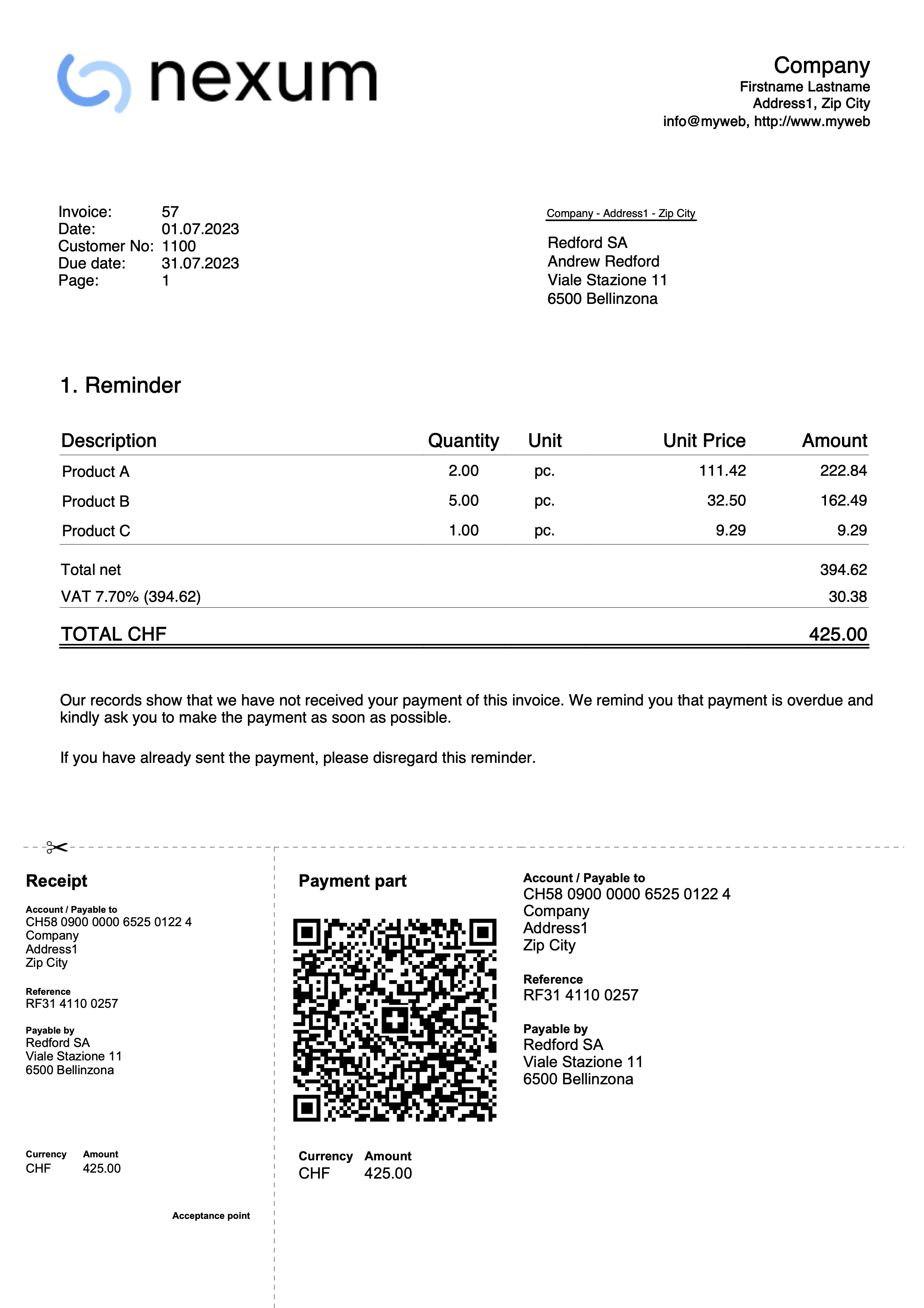
Export invoices in PDF
This dialog window appears from the print preview when you need to export invoices and customer statements to PDF.
To export invoices to PDF:
- From the menu Reports > Customers > Print invoices
- Specify the invoices to print (e.g. 1-10)
- Confirm with OK.
- From the print preview, click the PDF icon.
Export single invoices or customer statements to PDF
This function allows you to export an invoice or a customer statement into a PDF file.
The option is visible when only one invoice or one customer statement has been selected for PDF export.
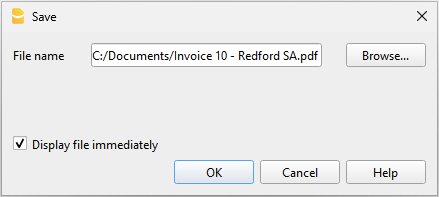
To export a single invoice or customer statement to PDF, you must:
- From the print preview, click Export > Create PDF.
- Click Browse and select or create the folder where to save the file.
- Enter the PDF file name. The name is automatically filled in the File name field.
- Enable the Open file immediately option to view the created PDF.
- Confirm with OK.
Export multiple invoices or customer statements into a single PDF
This function allows you to export several invoices or customer statements into one single PDF.
The option is only visible when multiple invoices or customer statements have been selected for PDF export.
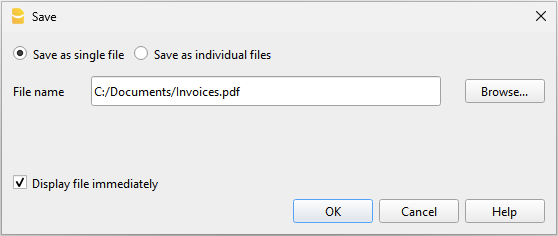
To export invoices or customer statements into a single PDF, you must:
- From the print preview, click Export > Create PDF.
- Enable the Save as single file option.
- Click Browse and select or create the folder where to save the file.
- Enter the PDF file name. The name is automatically filled in the File name field.
- Enable the Open file immediately option to view the created PDF.
- Confirm with OK.
Export multiple invoices or customer statements as separate PDFs
This function allows you to export several invoices or customer statements in a single operation, generating separate PDF files.
This option is only available:
- With the Advanced plan of Banana Accounting Plus.
- When multiple invoices or customer statements have been selected for PDF export.
To export invoices or customer statements as separate PDFs, you must:
- From the print preview, click Export > Create PDF.
- Enable the Save as individual files option.
- Click Browse and select or create the folder where to save the files.
- In the File names field, you can customize the file name using variables available in the dialog window.
- Click Variables to view the full list of variables.
- Double-click the variables you want to use and compose the file name. While composing, the resulting file name preview is updated automatically.
Example: <doc_date> for the document date, <customer_name> for the customer name, and <doc_number> for the document number.
- Enable the Open file immediately option to view the created PDF.
- Confirm with OK.
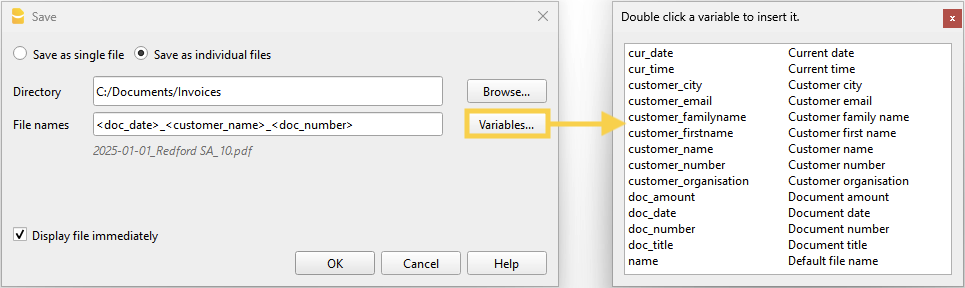
If a file with the same name already exists in the selected folder, the program will ask for confirmation during saving.
List of available variables
To customize the file names, use the following variables:
- cur_date: the current date when the PDF documents are created.
- cur_time: the current time when the PDF documents are created.
- customer_city: the customer's city.
- customer_email: the customer's email address.
- customer_familyname: the customer's last name.
- customer_firstname: the customer's first name.
- customer_name: the full name of the customer or the company name.
- customer_number: the customer number.
- customer_organisation: the company name.
- doc_amount: the amount of the document.
- doc_date: the date of the document.
- doc_number: the document number.
- doc_title: the invoice title with number, customer name or company name.
- name: the default file name (invoice title with number, customer name or company name).
Export other types of documents
From the print preview, you can export any document to PDF using the Create PDF command.
For more information, visit:
发票结算
有两种方法可以关闭未结清的发票:
- 用手工记录关闭。
- 通过导入ISO 20022格式的报表数据进行关闭。
用手动记录关闭
要手动记录发票收款情况,请看营业额或收款情况的页面。
以ISO 20022数据导入进行结算 (适用于瑞士)
要通过导入报表数据自动关闭未结清发票,您必须:
- 直接从银行网站下载并保存ISO 20022格式的数据到您的电脑上。
- ISO 20022格式的文件camt052、camt053和camt054支持瑞士规格。
- 安装ISO 20022 Camt银行报表 (瑞士) 扩展程序。
- 设置该扩展程序的一些参数。
- 通过选择Camt银行报表ISO 20022 (瑞士) 扩展程序导入发生业务。
通过导入功能,程序自动在发生业务表中创建发生业务,并在相应的列中输入数据:
- 在日期列中,是收取发票的日期。
- 在发票列中,从二维码参考号码中提取的发票号码 (见参数)。
- 在摘要列中,是二维码参考号码。
- 在贷方列中,从二维码参考号中提取的客户账户 (见参数)。
- 提取的客户账户将根据参数被保存为账户/科目或成本中心。
- 在金额列中,是发票金额。
- 在借方列中,如果在导入过程中启用了对应的账户 (收取金额的银行账户)。
欲了解更多信息,请参阅 Camt ISO 20022 (瑞士) 银行报表的页面。
二维码参考资料
以下几页解释了二维码参考的代码:
- 对于IBAN账户,使用结构化债权人参考(SCOR)类型。
- 对于QR-IBAN账户,使用QRR参考类型。
更改客户账户和发票号码
当改变分类账或成本/利润中心的客户编号或发票编号时,必须非常小心,以确保没有前几年的未结发票。
编辑客户账户,无需开立余额
客户账户可以用重命名命令来进行重新命名。
如果已经有旧账户的发生业务,这些业务将被自动更新为新的客户账户。
建议在年初和没有未结发票的情况下,对客户账户进行重新命名。
修改有期初余额的客户账户
当重新命名有期初余额 (未结发票) 的客户账户时,不可能简单地重新命名该账户,而是必须用新的编号创建一个额外的账户。期初余额将通过一个会计分录从旧账户转移到新账户。
- 在账户表中,添加新的账户,并使用新的编号。

- 在发生业务表中,创建一个发生业务,将期初余额从旧账户转到新账户。
- 如果在新的一年里有提到旧账户的发票,可以通过改变每个使用该账户的个别业务的账户号码,将它们分配到新的账户。如果发票已经发送给客户或已经支付,或文件编号包括客户编号,则要非常小心。

- 点击报表菜单 → 客户 → 按客户开发票的命令,显示的是关闭旧账户和将余额转入新账户的报告。
- 旧编号的账户,其余额为零,可以在下一年注销,此时初始余额为零。

更改已登记/签发的发票号码
如果您想改变一张未付发票的号码,有两种可能:
- 直接替换原始发票发生业务中的发票号码。
如果带有旧号码的发票在前一年的档案中登记,则不建议使用这一程序。
- 冲销发票过账。
- 在发票一列,输入发票号码。
- 在类型列中,输入15 (关闭客户文件)。
- 在借方一列,输入一个转账账户。
- 在账户一列,输入客户的账户。
- 在金额一列,输入金额。
如果带有旧号码的发票是在上一年的会计中登记的,建议采用此程序。

信用票据
信用票据有自己的文件类型,与发票不同。
- 像输入发票一样输入发生业务。
- 在 "发票 "栏中,您必须注明贷记通知所涉及的发票号码。
账户将遵循记录信用票据的逻辑,因此,该文件金额将为负数。 - 在文件类型列输入 12 。
- 在摘要列中输入信用票据措辞而不是发票。
在某些打印页面中,发票字样将始终被打印,为了更改:- 输入新的一行,发票号码和文件类型 12:tit 相同。
- 在摘要列中输入信用票据。
打印信用票据
与打印发票的命令一样:报表 → 客户 → 打印发票。

发票中的四舍五入
打印瑞士法郎的发票时,如有必要,总额将四舍五入到最接近的5分。如果打印出的发票总金额与发生业务金额不一致,用户会看到差额。
如果不想将总金额四舍五入,请使用报表 → 客户 → 设置 → 高级命令将发票四舍五入设置为所需的分值,例如设置为 0.01,则发票总金额与发生业务金额一致。
创建将包含在发票打印输出中的四舍五入发生业务。参见示例:

Item management integrated into accounting
In the accounting file, a table can be added to manage items and link them to individual transactions via the Item Id (item identifier) that is entered in the Item column.

This feature is very powerful and useful because it allows the following automations:
- To integrate a list of products or an inventory with descriptions, quantities, prices and groupings into the accounting.
- In the Transations table, by entering invoices and simply indicating the Item Id (Item identifier) in the Item column, the description, price and account are taken over.
- In the transaction row, by entering the quantity (positive or negative), the programme automatically updates the existing quantity balance. It thus functions as a small warehouse.
Some extensions, such as those for securities management, make use of this functionality, to manage the list of securities, have an inventory and calculate the accounting profit or loss at the time of sale.
Activate the functionality
The functionality is enabled from the menu Tools menu > Add/remove functionalites.
The options are as follows:
- Add Items table
Adds the Items table in the accounting file. - Add Items table and Items Columns in the Transactions table.
Adds the Items table and Items columns to the Transactions table at the same time.
项目表格
要加快创建发票的速度,可以使用项目表格的功能,您可以插入定期的产品或服务。
在创建发票内容的时候,只需按项目列中的 F2 键,然后从列表中选择产品;将使用项目表格中的数据完成发生业务。
要使用项目表格,您需要 :
- 添加项目表格。
- 在发生业务表中添加项目表格。
- 通过数据菜单 → 列设置的命令使项目列出现在发生业务的表格中。
项目列的内容是由项目表格中定义的。
添加项目表格
点击工具栏菜单 → 添加新功能 → 添加项目表格的命令来添加项目表。
在项目表格中,您可以输入项目,产品和其它内容。在某种程度上,它也可以用作库存控制。
默认的列如下:
- 总组: 生成总计行。
- 物品标识: 物品代码。
- 摘要: 项目描述。
- 所属组: 用于合计一组项目的组。
- 账号: 在分录表中使用的账户。
- Asset账户:这是资产负债表中记录该项目的账户。
它用于将复式记账与项目库存会计相连接。
如果指定了Asset账户:- Asset账户的货币必须与该项目的货币相同。
- Asset账户的期初余额应等于所有具有相同Asset账户的项目初始价值之和。
- Asset账户的余额应等于所有具有相同Asset账户的项目账面价值之和。
- Asset类型: 定义 Asset 的类型。这是程序内部的一种分类,由 投资会计扩展 用于计算数值;它不是标准分类,也不用于报表目的。目前支持的取值为:
- 1:股票、ETF、基金,...
按数量计量的投资。 - 2:债券、债务证券,...
按名义价值计量的投资。
- 1:股票、ETF、基金,...
- 货币: 需使用的币种(仅适用于多币种会计)。
- 增值税代码: 需使用的增值税代码(仅适用于增值税会计)。
- 单位: 用于定义数量类型的缩写。
- 销售: 单位销售价格。当在分录表中输入物品标识时,会被自动提取。
- 成本: 单位成本价格。仅供参考,程序不会使用此值。
- 初始数量: 项目的初始数量。
- 初始单价: 项目的初始单价。在多币种会计中,以项目的货币表示。
- 期初币种值: 在多币种会计中,以项目货币表示的初始数量乘以初始单价。
- 初始价值: 以基本货币表示。
在多币种会计中,表示按汇率表中指定的期初汇率转换的初始币种值。 - 当前数量: 当前数量,由程序计算,考虑初始数量和分录表中的项目记录。使用分录表中的数量列。
- 移动数量: 数量变动的总和。此值由程序根据分录表中数量列的记录自动计算。
- 当前价格: 物品的当前价格。
- 在多币种会计中,以项目货币表示。
- 必须由用户手动输入或从其他程序导入。
- 此值也用于会计的期末价值,在证券会计中,用于计算与账面价值相比的未实现盈亏。
- 币种值: 由程序计算。当前数量乘以项目币种中的当前价格。
- 当前价值: 按汇率表中指定的当前汇率计算的当前价值。
发生业务表中的物品标识列
分录表的项目列用于输入数量和单价。
- 可以通过菜单 工具 → 添加/删除功能 → 添加项目列 将其添加到 分录表 中。
- 分录金额根据数量列和单价列中的数值自动计算。
- 如果存在项目表,数量的变动将像库存管理一样,增加或减少当前数量。
更多信息请参阅:
在分录表中添加的列
- 项目编号 (IdItem)
- 即项目表中的项目。
- 默认情况下,在分录表中项目编号列不可见。
使用命令 数据 → 调整列 可使列可见以便使用。 - 如果不存在项目表,则该列仅作参考。
- 数量
- 正值 (+) 会增加项目的数量。
- 负值 (–) 会减少项目的数量。
- 中性值 (±) 将被用于计算分录金额,但不会影响项目表中的数量。
- 与单价一起用于计算分录金额。
- 如果存在项目编号,数量的正值将增加,负值将减少项目表中的数量。
- 中性值 (±123) 用于计算分录金额,但不会更改项目表中的数量。
- 单位
用于指示数量所属类型的缩写(例如 件、米、小时)。 - 单价
可以是正值、负值或中性值。

增值税管理
Banana财务会计软件的增值税管理功能完整且灵活,允许您管理所有遇到的增值税个案。
- 增值税代码表
在此表格定义计算增值税的税率和其它参数。
每个国家的文件都有根据报告需要而设置的增值税代码。 - 在文件和账户属性中的增值税设置
允许您定义记录增值税的默认账户以及用于记录成本和利润中心的金额。 - 在账户表中的增值税列
一个增值税代码可以与一个特定的账户相关联,这样当该账户在发生业务表中被使用时,软件会自动建议默认的增值税代码。 - 发生业务表中的增值税列
在登记的时候,需要注明增值税代码,程序会计算出增值税并记录在相应的账户上。 - 增值税报告
其指的是定义期间所有增值税交易的报告。您可以根据自己的要求对其进行自定义。 - 瑞士国家增值税报告的扩展程序。
它们是每个国家/地区不同的附加报告,以税务机关要求的格式打印或导出增值税数据。请参阅瑞士国家增值税的文档。
您也可以参阅:
- 瑞士国家增值税的文档
链接到瑞士、意大利和其它国家的特定增值税文件。
德语的文件,法语的文件,意大利语的文件。 - 更新增值税代码
当法规和费率有变化时。 - 转换为新账套
从没有增值税的会计转为有增值税的会计,反之亦然。
VAT documentation specific to Switzerland, Italy and other countries.
In the section of each country you will find the most specific documentation on VAT.
English not being an official language, you will be redirected to the relevant pages in official languages for Switzerland.
- VAT management for Swizerland
Information pages specific to Switzerland:- Swiss VAT codes table.
- How to register VAT.
- Prepare the VAT return.
- Use the Swiss VAT Extension.
- VAT management for Italy
- Information pages specific to Italy:
- Italian VAT codes table.
- How to register VAT.
- Prepare the VAT return.
- Use the Italian VAT Extension.
Extensions for national VAT reports
For some countries there are Extensions that can be easily installed and allow you to print or export the VAT report in the format required by the authorities.
Each country's VAT extensions work in conjunction with the country's VAT Codes table.
理论
增值税(Value Added Tax,VAT)是以商品(含应税劳务)在流转过程中产生的增值额作为计税依据而征收的一种流转税,从计税原理上说,增值税是对商品生产、流通、劳务服务中多个环节的新增价值或商品的附加值征收的一种流转税。实行价外税,也就是由消费者负担,有增值才征税,没增值不征税。每种增值税必须计算及定期的把税款存储至税收权利机构。
每个国家根据商品及服务的类型,都有其自己的,所建立的不同百分比的增值税税率。某些商品和服务被免除或排除。
百分比会根据国家财政的需要而有所不同; 因此,根据年份的变化会有所不同。
在实际当中,商品新增价值或附加值在生产和流通过程中是很难准确计算的。因此,中国也采用国际上的普遍采用的税款抵扣的办法。即根据销售商品或劳务的销售 额,按规定的税率计算出销售税额,然后扣除取得该商品或劳务时所支付的增值税款,也就是进项税额,其差额就是增值部分应交的税额,这种计算方法体现了按增 值因素计税的原则。在澳大利亚、加拿大、新西兰、新加坡称为商品及服务税(Goods and Services Tax, GST)。
在中国,小规模纳税人适用征收率,征收率为3%。一般纳税人适用的税率有:17%、13%、11%、6%、0%等。
- 适用17%税率: 销售货物或者提供加工、修理修配劳务以及进口货物。提供有形动产租赁服务。
- 适用13%税率: 根据 《中华人民共和国增值税暂行条例》 包括粮食、食用植物油;自来水、暖气、冷气、热水、煤气、石油液化气、天然气、沼气、居民用煤炭制品;图书、报纸、杂志;饲料、化肥、农药、农机、农膜。根据 《财政部 国家税务总局关于部分货物适用增值税低税率和简易办法征收增值税政策的通知》 包括:农产品;音像制品;电子出版物;二甲醚。
- 适用11%税率:提供交通运输业服务。
- 适用6%税率:提供现代服务业服务(有形动产租赁服务除外)。
- 适用0%税率:出口货物等特殊业务。
增值税税率
在这份文件中,为了使计算更简单,我们将使用以下税率:
- 10 % 正常税率
- 5% 削减的税率
- 0% 被排除的操作或免税业务
增值税的计算
净价 x 增值税百分比 / 100 = 增值税金额
示例:
净价 300
税率 10%
增值税金额 = 300 x 10 / 100 = 30
总价格计算
净价 + 增值税金额 = 总价格
示例:
300 + 30 = 330
有时候总价是已知的,有必要找出净价和增值税的价格。
净价计算
总价 / (100 + 增值税率) x 100 = 净价
示例:
330 / (100 + 10) x 100 = 300
净价格代表公司的成本 (购买) 或收入 (销售)。
增值税金额计算
总价 - 净价 = 增值税金额
示例:
330 - 300 = 30
或者
330 - [330 / (100 + 10) x 100] = 30
增值税金额朝向收入管理局,代表借方 (销售) 或贷方 (购买)。
增值税税率计算
增值税金额 / 净金额 x 100 = 增值税税率
示例:
30 / 300 x 100 = 10%
或者
[330 - 330 / (100 + 10) x 100]/100 = 10%
另外的例子:
20 / 400 x 100 = 5%
在税率未知的情况下,使用此种方法来进行计算。
文件和账户属性(增值税标签)
只有选择含增值税的会计模板时,才会出现下列含增值税标签的窗口。
设置增值税账户的增值税部分可以通过文件菜单 → 文件和账户属性命令 → 增值税标签进入。
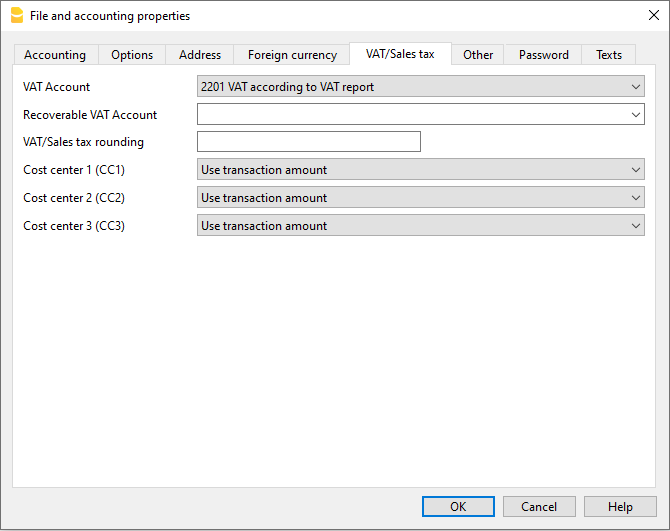
增值税账户
自动分类的增值税账户,存在于会计科目表中,是默认设置的。对于瑞士用户来说,它与增值税报告中的增值税相对应。在这种情况下,没有必要在增值税代码表中输入增值税账户。
如果只设置了自动分类的增值税账户,所有的增值税金额,包括销售和采购,都分别流入该账户的贷方和借方,不需要设置可收回的增值税账户。在季度末,自动分类增值税账户的余额被转入增值税应付款账户 (或税务局增值税账户)。
可退增值税账户
如果自动分类的增值税账户没有被设置为唯一的增值税账户,则会设置可退的增值税帐户。 在这种情况下,无需在增值税代码表中输入账户。
增值税进位
在这个标签下,用户可以自行设置增值税/营业税的小数点舍入规则;例如,用户输入0.05,则表示增值税/营业税的数额将舍入到0.05的倍数。
成本中心1 (CC1), 成本中心2 (CC2), 成本中心3 (CC3)
每种类型的成本中心,都可以由用户自主选择何种数额被用于记录业务往来的成本中心。
- 使用业务发生额
- 使用包含增值税/营业税的数额
(当成本中心被用于客户/供应商账户时) - 使用不包含增值税/营业税的数额
(当成本中心被用于利润和费用账户时)
备注
当其中任何一个参数被修改时,会计核算数额一定会被再次计算。
相关文档:
增值税代码表
增值税代码表设置允许定义管理增值税发生业务所需的所有参数。设置指的是:
- 增值税销项税或进项税
- 发生金额按不含增值税额,含增值税额或发生额为增值税额100% (海关增值税)
- 可自由定义适用的增值税税率
- 账户表中必须定义增值税账户
- 每个代码采取四舍五入
- 可定义所属组合总计的方法
增值税代码表有一个基本视图和一个完整视图。两者之间的区别在于,完整视图显示了几个在基本视图中不可用的列。
计算方法
VAT代码表中显示的参数被用于计算单个增值税的交易。VAT代码中建立的参数不能在交易中被更改。 这种模式保证增值税的计算是正确和一致的。
请注意: 如果修改已经在发生业务中使用过的增值税代码,则这些更改不会立即生效;在这种情况下,需要激活检查账务命令 (操作菜单 → 检查账务)。当增值税代码表被修改时,程序会通过信息窗口中的消息,邀请用户执行完整的重新计算用来作为预防措施。
下表提到了根据瑞士法规使用的代码:
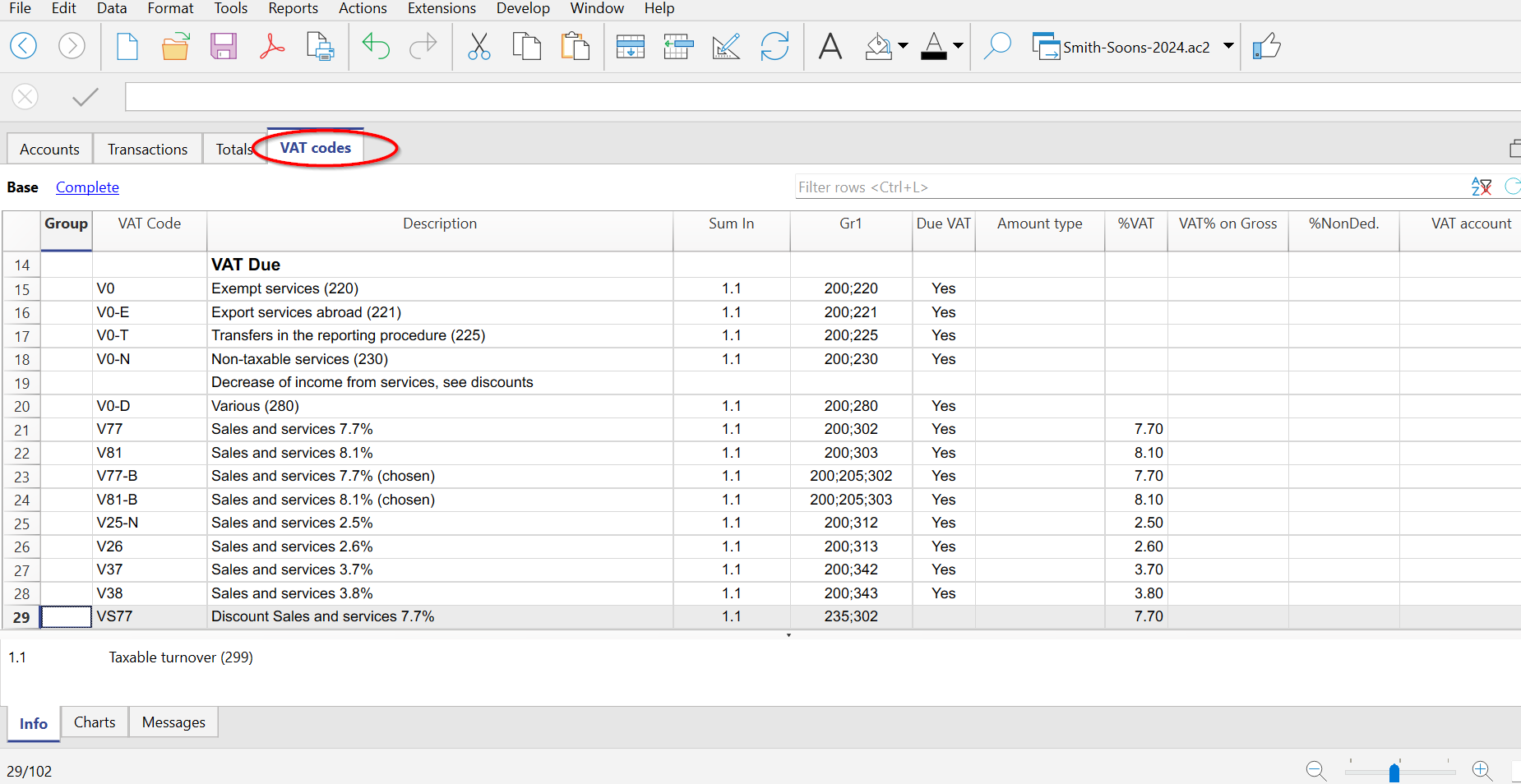
列的详细说明
在下列各列中,插入以下数据:
- 总组:代码所属组的代码或编号。
增值税代码:- 正常的增值税代码。
在发生业务中识别和记录增值税代码的首字母缩写。 - 编码前有冒号 " : "。
它们不是增值税代码,但可以在发生业务表内的 "增值税附加信息 "列中使用。
它们的作用是更详细地说明增值税案例。
- 正常的增值税代码。
- 摘要: 描述增值税代码或总组的文字。
- 禁用:
允许您停用不使用的代码。便于在发生业务表中输入数据。- 1, 增值税的代码不显示在自动完成列表中 (发生业务表), 但仍然可以使用;
- 2, 增值税代码被禁用,无法使用。
- 所属组: 必须添加该行"总组" 的代码。
- 所属组1: 在上表的图片中,显示了中国增值税纳税申报表中的代码
- 所属组2: 用于附加分组的代码。
- 应付增值税额:
如果插入确定, 则表示增值税在借方 (增值税销项税)
如果单元格为空,则表示增值税为贷方(增值税进项税) - 金额类型:
显示软件如何考虑业务发生的金额:- 0 (或空格) 该记录的金额是包括增值税。
- 1 = 不含增值税,登记的金额不含增值税。
- 2 = 增值税金额,注册金额为100%的增值税金额。
金额类型2特别用于核算货运代理发票上支付或借记的海关增值税。有关发生业务的更多详细信息,请参见以下页面:进口关税增值税 (英文)。
- 税率: 增值税占发生额比例
- 免税率: 对于增值税代码,不可能扣除全部100%, 请在此输入不可扣除的百分比 (例如100%)
- 增值税占发生额比例: 通常的空的。只有在特殊情况下,当增值税的百分比必须适用于总额 (含增值税) 而不是应税销售额时,才能插入“确定”字样。
- 增值税账户: 自动计算增值税的账户。
在文件和账户属性(文件菜单), 可以被定义用做增值税账户的一般账户。
也可以为每个独立的增值税代码建立一个特定的账户。 - 进位: 舍入的最小值,仅在特定情况下使用。优先使用会计基础数据中所示的四舍五入(例如,最小的舍入值是0.05) 。
- 取消警告: 软件提示为错误的特定事物,实际上是正确的。为了避免软件发出单方的错误提示,请在相关的代码中插入“确定”。
检查账务
当在检查账务时,如果发生业务没有被锁定,程序将重新加载分配给每个代码增值税参数。如果增值税代码设置已更改,将在相应发生业务列的账户表中更改 (用户不能编辑).
因此,在编辑增值税表时,程序建议进行完整的账户检查。
添加一个新的百分比
当添加一个新的百分比时,必须添加新的一行,在新的行中,插入新百分比的增值税代码数据,同时注意插入正确的分组。不要更改已经在发生业务中使用过的代码。
国外提供的服务的增值税代码
在增值税代码表中,您可以单独设置在国外提供服务的增值税代码,这些服务的增值税也要按照您所在国家的具体税率向外国缴纳。
对于每个国家,都设置了相应的增值税代码,可以在其自身的组别中进行汇总,也可以在指向外国支付的增值税的汇总组中进行汇总。
要查看要支付的金额,进入报表菜单 → 增值税报表,选择具体的国家代码或要支付给外国的增值税的合计组。
应付给外国的增值税不能以电子方式传输
自己的分组
通过创建自己的具有多个总计级别的组,可以获取增值税申报所需的总计。
当增值税报告中使用个人分组计划的选项被激活时,程序将按照增值税代码表中指示的顺序精确计算总计。
分组是用来按记录组获得总数,例如,所有出口、进口的总数。
相关的文件:
- 导入增值税代码表。
-
国家增值税文件 (意大利语和德语页面)。
链接到瑞士、意大利和其它国家的具体增值税文件。
将增值税代码与账户建立连接
在有增值税 (VAT) 的会计文件中,在账户表格中,增值税代码可以被添加到收益/费用核算账户中,因此,当销售和采购活动被记录时,程序会自动插入增值税代码并完成包含增值税数据列的计算,并将结果输入账户中。
为了能够连接增值税代码:
- 点击账户表内的其它视图,在此视图中,在默认情况下便可视增值税码列。
如果您想在账户表的基本视图表格中呈现增值税码列,那么您需要点击数据菜单 → 列设置命令。 - 在增值税码列中为收益/费用核算输入增值税码。

相关文档:列设置
增值税进位
瑞士的增值税计算系统规定计算到分,不进行四舍五入。
对于那些需要将增值税金额四舍五入到分的人来说,需要遵循以下程序:
- 在发生业务表中,通过应用适当的增值税代码正常记录。
- 在下一行中,将前一行中使用的费用或收入账户以借方和贷方形式入账。
- 在金额列中,输入要四舍五入的分值。
- 在增值税代码列中,输入金额类型为2 (100%增值税金额) 的增值税代码,例如M81-2
- 当分值要减少时,在"-M81-2 "前面输入带负号的代码。

设置增值税账户
什么是增值税账户?
增值税账户是自动记录增值税金额的会计记录,基于增值税代码表中的增值税代码设置。
当使用增值税代码时,程序会根据发生业务的价值自动计算出以下数据:
- 应纳税额和增值税额。
- 借方账户上的应纳税额。
- 借方账户的应税收入金额。
- 要记录在增值税账户上的增值税金额。
在信息窗口的底部,通过将鼠标置于发生业务上,您可以看到哪些金额被记录在不同的账户上。
一般的增值税账户 (自动)
如果增值税账户在文件菜单→文件和账户属性命令→增值税中被设置为默认,那么只要有增值税代码的录入,就会使用这个账户。在这种情况下,各种增值税代码的增值税账户不得在增值税代码表中进行设置。
可退的和到期的增值税账户
在增值税代码表中的增值税账户一列,根据增值税代码,可以显示可退的增值税账户或应收的增值税账户。在这种情况下,如果在增值税代码表中设置了这些特定账户,就不能在文件属性,增值税部分设置默认的增值税账户 (一般增值税账户 - 自动)。
使用一个增值税账户还是多个增值税账户?
在账户中,资产和负债必须分开。如果可退的增值税与应缴的增值税相抵,则只有实际应缴的增值税金额应出现在资产负债表中。
从会计的角度来看,这在大多数情况下并不重要,最好是只有一个增值税账户。
然而,为了报告的目的,将不同类型的增值税交易分开是有用的。在不使用增值税代码的程序中,有必要将每项业务分成独立的账户。在Banana财务会计软件中,由于增值税代码和增值税的摘要,即使只使用一个增值税账户,也可以获得更有意义的细节:
- 按单个增值税代码的移动和总数 (应税增值税、增值税金额、计税增值税)。
- 按增值税百分比计算的变动和总额。
- 按增值税账户的变动和总额。
- 按应收和可退金额的变动和总数。
为了控制增值税交易,没有必要使用几个独立的增值税账户。
Banana财务会计软件可以选择使用在文件和账户属性中设置的一般账户,或在增值税代码表中设置的不同增值税的账户。
使用单一增值税账户的优势
经过几年的时间,我们看到使用单一的增值税账户更加直观,因此,对于瑞士账户计划,我们选择使用单一的增值税账户 (2201,增值税报表),由每个人自己来改变设置。
- 资产负债表和利润表更容易阅读 (没有很多增值税账户)。
- 有可能设立账户 (例如收入账户) 来登记不同增值税率的业务。
- 您可以立即知道应付的增值税,而不必把几个账户加在一起。
- 即时显示所有的增值税业务。
在增值税账户明细中,所有的增值税业务在借方和贷方都有显示。

使用多个增值税账户的优势
如果使用了增值税代码,那么在具体的增值税账户上的记录就是重复了已经有的增值税代码,及其详细摘要的信息。
在像德国这样的国家,习惯于为每一类业务开立不同的增值税账户,这样就可以用各个增值税账户明细的余额进行增值税申报。
在这些情况下,为了与本系统兼容,为每个增值税代码设置不同的增值税账户是很有用的。
期末关闭增值税账户
在增值税计算期结束时,关闭增值税借方和贷方账户并将余额转移到一个账户是很有用的。这样可以:
- 在账目中确定应支付或退回的确切金额是多少。
- 在每个新的时期,账户 "2201,增值税报表 "又从零开始,这样更容易检查出差额和错误。
关于 "2201,增值税报表 "账户的定期关闭,请参见期末结算和增值税付款的页面。
含增值税的发生业务
在Banana财务会计软件内的会计科目表模板中已经包含了增值税的账户,此增值税根据增值税报表的账户 (自动), 存在于会计科目表以及文件和账户属性的 (点击文件菜单) → 增值税标签中。在这种情况下,您不需要在增值税代码表中输入任何增值税账户。
如果您没有使用已存在于软件中的会计科目表,那么请您确保在您自己的会计科目表内包含所有必要的增值税账户。我们的建议是使用2201 "根据增值税报告的增值税 "账户 (自动分割的增值税账户),并且将其输入在文件和账户属性的 (点击文件菜单) → 增值税标签中。
在增值税代码表中有销售和采购的代码。在输入发生业务的时候,请使用适当的增值税代码。
软件会自动分配增值税金额,并将其记录在“增值税根据增值税报告”账户或用户在文件和账户属性中指明的增值税账户中。
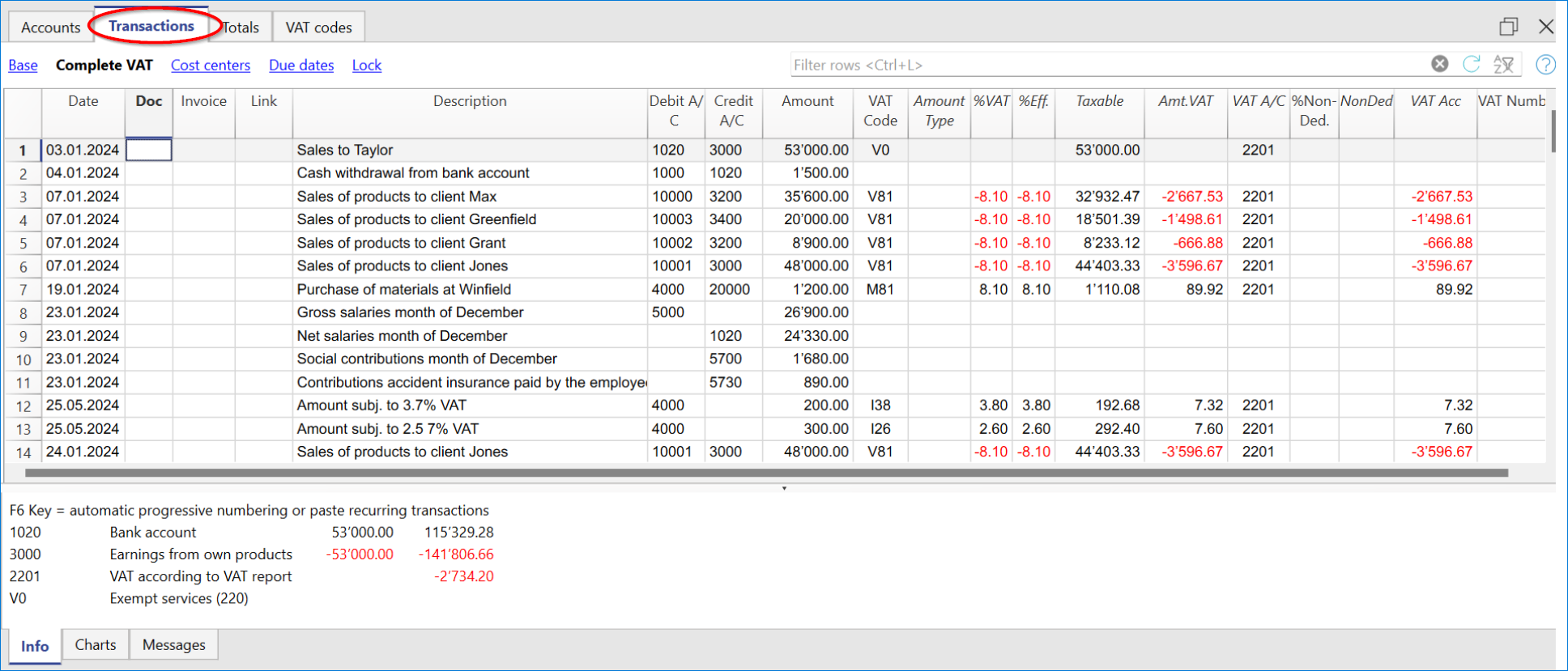
在发生业务表格内的增值税列 (全部增值税的视图)
您可以在发生业务页面找到发生业务表格内主要列的完整解释。
在含有增值税的复式记账会计文件中,或含有增值税的收益&费用核算中,您可以找到下面的增值税列:
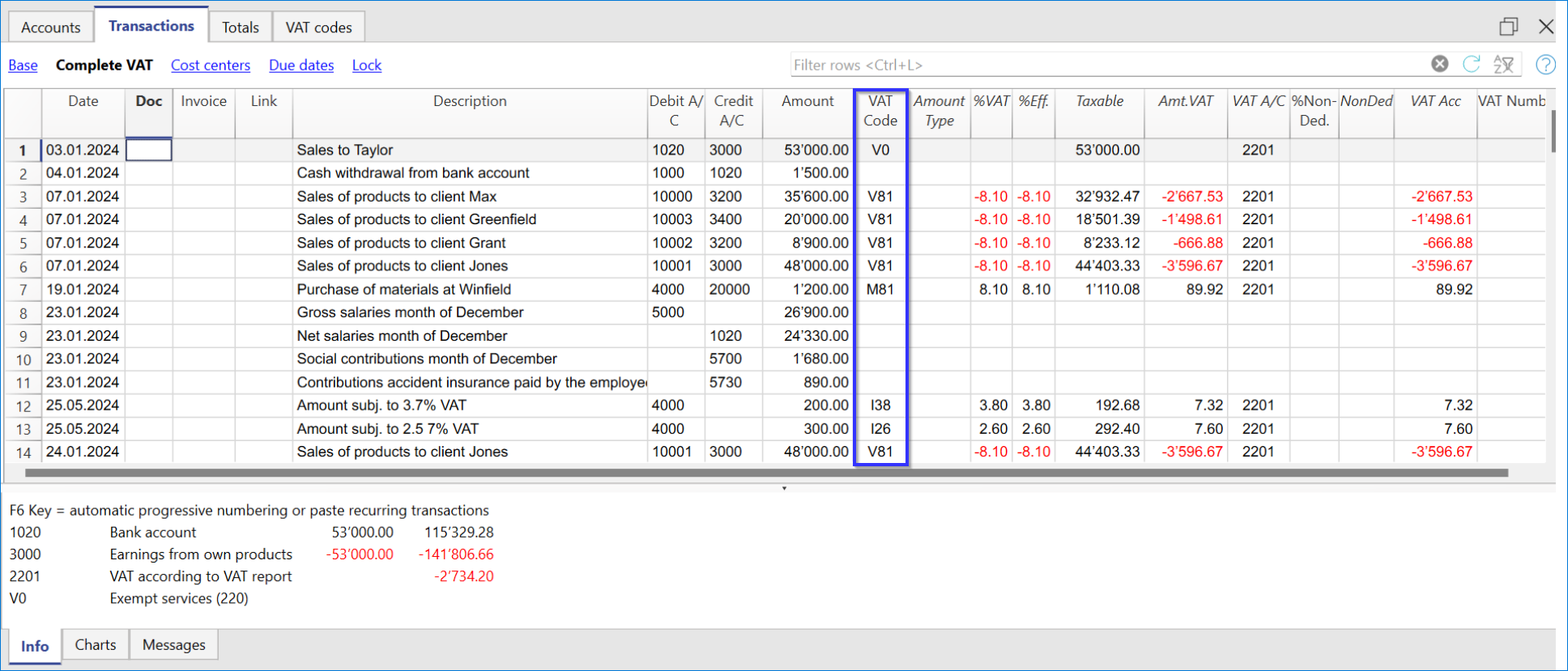
- 税码: 对于每笔拥有增值税的业务,您需要从增值税代码表中输入一个增值税代码。在增值税的反向征收中,可以使用两个增值税代码,用符号": "隔开。
- 增值税%: 程序会自动输入与您输入的增值税代码相关联的增值税百分比。如果金额前面有一个 "+/-"符号,则是增值税的反向征收操作。
- 增值税附加信息: 与增值税额外信息有关的代码仅供在非常特殊的情况下使用。
可以输入一个符号来识别具体的增值税案例。软件程序建议的选项对应于以冒号“:”开头的增值税代码。 - %有效税率: 程序自动输入净额 (应纳税额) 的百分比。它与后者在计算总金额 (余额率) 时适用的百分比不同。
- 应征税: 一旦您输入增值税代码,软件会自动显示应征税的金额(不含增值税)。
- 增值税金额: 程序自动显示增值税的金额。
- 增值税账户: 自动注明增值税登记的账户(例如对于瑞士来说,通常为2201增值税报告账户); 此帐户之前已输入在“文件和账户属性(文件菜单)”的增值税标签中。
- 金额类型: 此代码指示出该软件是如何考虑业务金额的:
- 0(或空单元格)含增值税,业务金额包含增值税;
- 1 = 无增值税, 业务金额不含增值税;
- 2 = 增值税金额, 业务金额被视为100%的增值税金额;
- 金额类型不可编辑:默认模式。
- 列被保护
- 该程序使用增值税代码表的相关值
- 当您辑增值税代码表中的值,并重新计算会计文件的时候,程序将使用与此增值税代码相关联的新值。
- 金额类型可编辑:此选项可以通过添加新功能的命令激活。在激活该选项后命令无法撤消。
- 当编辑增值税代码的时候,程序将使用与此代码相关联的金额类型。
- 该值可以手动编辑。
- 当会计文件被重新计算的时候, 在发生业务表内指示的值也会被重新检查。
- 免税率%: 其指示的是不可扣除的%
- 当您输入或更改增值税代码的时候,程序将使用在增值税代码表中与此增值税相关联的免税率%。
- 您可以手动编辑该值。
- 已交增值税: 这是登记在增值税帐户中的增值税金额。
其由程序根据发生业务的金额来计算,金额类型和不可扣除百分比。 - 增值税编号: 这是您的客户/供应商的代码或增值税号。
当您输入含增值税的业务时,也可以输入交易对手的增值税号。在账户表格中,在您的客户/供应商登记中,您也输入了他们的增值税号码,这些将自动加载到发生业务表格内的增值税编号列中。
包含增值税的发生业务
在输入包含增值税的发生业务之前,我们建议您访问发生业务的页面。
输入含增值税的发生业务是很简单的:
- 在相应的列中输入日期、记账凭证号和发票编号
- 输入摘要、借方账户和贷方账户
- 输入总金额 (含增值税)
- 在增值税代码表中输入为发生业务类型 (购买、销售、投资等) 提供的增值税代码。
如何纠正增值税业务
如果您在当下发现了错误,那么您可以通过编辑行的方式来纠正错误; 但这仅在增值税报表未发送以及没有对发生业务加锁的的情况下可使用。
如果您已经对会计文件上锁或您已经发送了增值税报表,那么您将无法单纯的删除出现错误的发生业务,您需要取消出现错误的业务,并重新输入正确的。
为了能够执行纠正增值税的操作,您需要:
- 通过交换在错误发生业务中的借方和贷方来制造一个新的发生业务
- 输入相同的金额
- 输入相同的增值税代码,但前面加上减号(例如:-V81)
-
根据错误的内容和程度,您应该考虑通知当地的增值税办事处; 通常他们会要求您下载特定的表格来纠正上期增值税的错误。
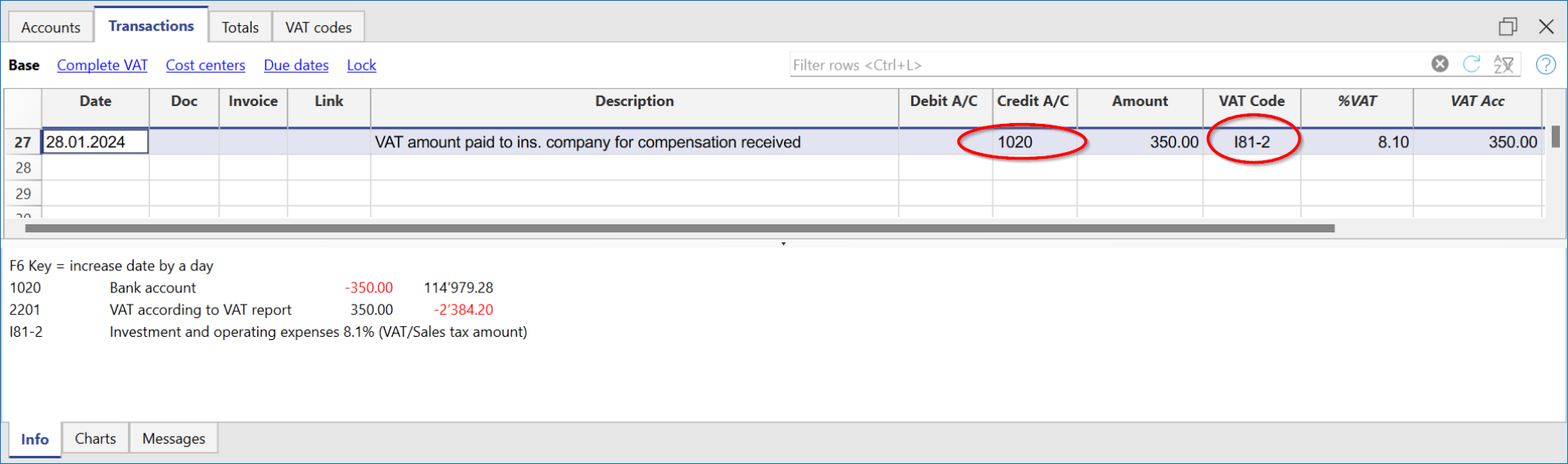
如何输入增值税的金额
在某些情况下,仅需要记录增值税金额,例如您从汽车保险获得补偿的时候。
您可以执行以下操作:
- 在相应的栏中输入日期,文件编号和摘要。
- 在贷方科目列中,输入用于支付增值税金额的账户 (借方科目列为空)。
- 在金额列中,输入要支付的增值税金额。
- 在增值税代码列中,输入增值税代码I77-2 (该代码指的是100%的增值税)。
含不同增值税代码的发生业务
可能存在总金额由多个不同增值税税率的应税金额组成的情况。 在这种情况下,它们被记录在几行上。
您需要如下列步骤进行操作:
- 将总金额分成不同的金额,每个金额都适用特定的增值税税率。
- 在每一行上,输入金额 (含增值税的金额) 并输入具有特定税率的增值税代码。
- 输入完成后,请检查个人总金额和增值税金额的总和是否与发票总额相符。
示例如下图:

增值税豁免
当发票中的增值税总金额由应税部分和增值税免税部分组成时,需要像前一种情况一样在多行中记录,应使用增值税代码表中的增值税免税代码。
冲销/信用票据
当对贷方或借方票据进行冲销操作,或者只是为了纠正以前记录的金额需要缴纳增值税的业务时,也必须在冲销业务中冲销增值税。
对于发生业务:
- 在借方和贷方列中冲销在先前业务中使用的科目,贷方票据所指的科目。
要冲销增值税,有两种可能性:
- 在增值税代码前面加上负号 (例如 -V81)。
- 使用已在增值税代码表中设置的折扣代码之一。
通过这些程序,增值税金额将得到调整。
销售信用票据的例子
当客户发现所售产品存在缺陷时,通常会以他的名义签发信用票据。贷方票据导致收入减少,从而导致增值税回收。
例如,我们输入12'000的销售金额,包括7.7%的增值税。然后,我们以客户的名义为一个产品缺陷开出一张200瑞士法郎的信用票据。
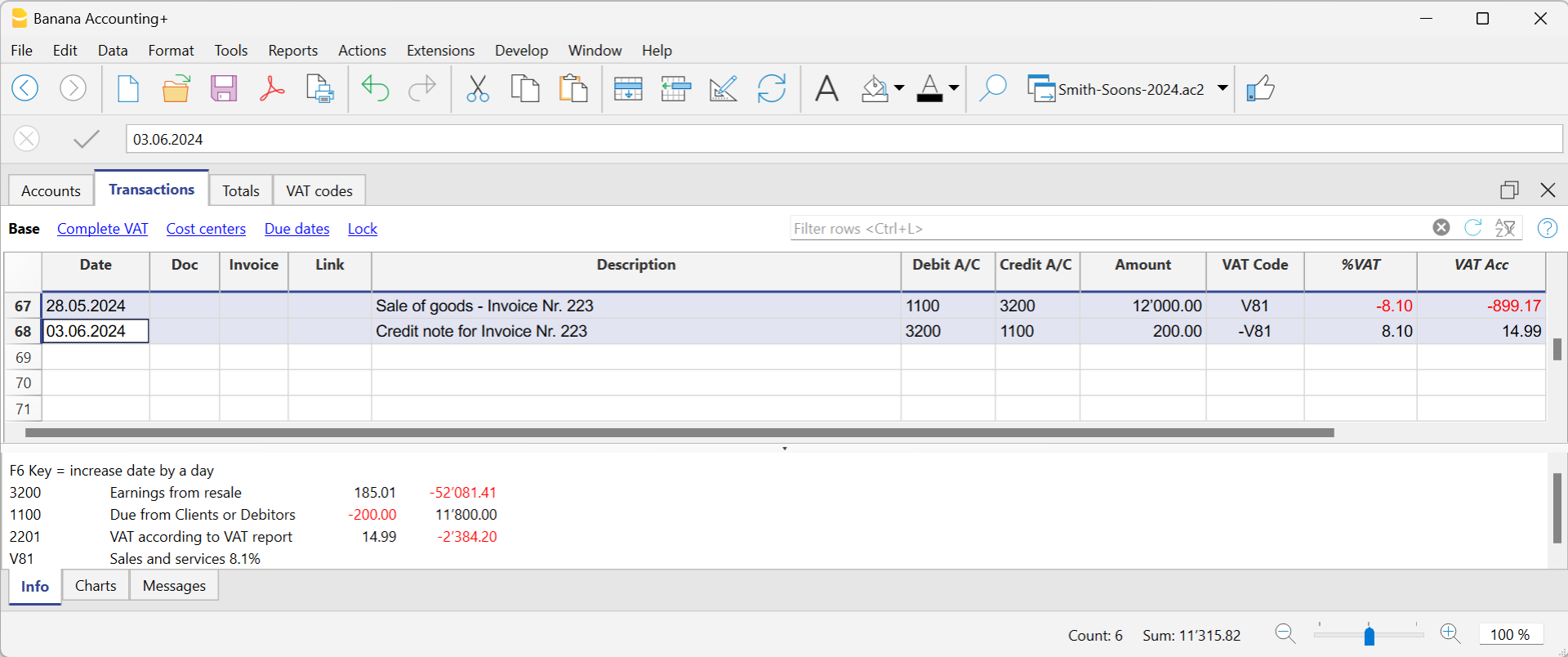
在发给客户信用票据的业务中:
- 贷方票据所指的销售账目已被冲销。
- 为了在贷方票据上收回增值税,记录销售的增值税代码,前面带有负号。
购买信用票据的示例
当我们收到供应商信用票据的时候,交易的程序是类似的:
- 购买时使用的账户被冲销。
- 输入购买时使用的相同的增值税代码,前面是负号。
例如,我们记录了一张3,000瑞士法郎的购买货物的发票,包括7.7%的增值税。然后,我们从供应商那里收到了一张300.00瑞士法郎的信用票据,原因是产品有缺陷。
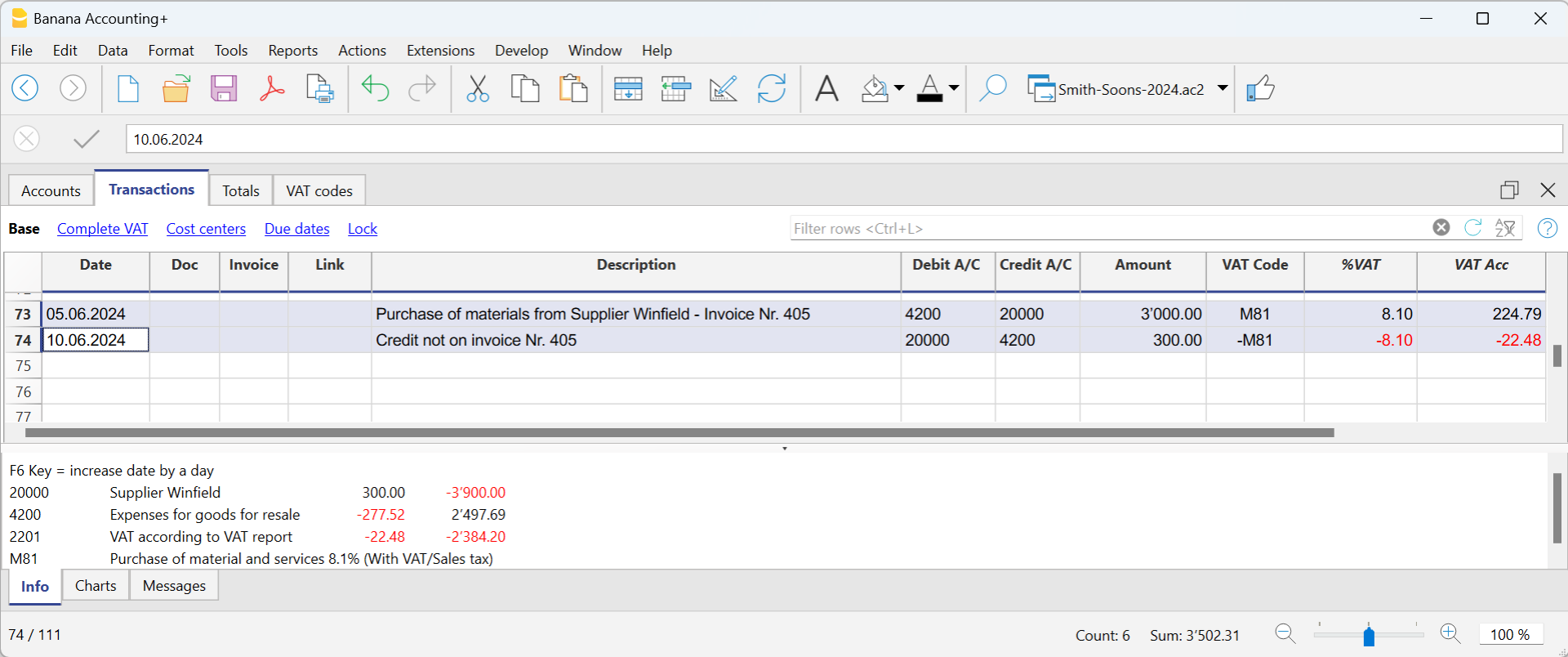
在从供应商处收到的信用票据的业务中:
- 贷方票据所涉及的采购账目已被冲销。
- 为了在贷方票据上收回增值税,记录采购的增值税代码,前面加负号。
Reverse charge: cos’è e quando si applica
Normalmente l’IVA è a carico del venditore, che la addebita in fattura e la versa all’autorità fiscale.
Con il reverse charge (o inversione contabile), questo meccanismo viene invertito: l’IVA è posta a carico dell’acquirente.
Il reverse charge non modifica l’importo dell’operazione, ma cambia il modo in cui l’IVA viene dichiarata e registrata.
Si tratta di una gestione particolare dell’IVA che richiede attenzione sia dal punto di vista fiscale sia nella registrazione contabile.
Nel reverse charge:
- il fornitore emette una fattura senza IVA
- il cliente calcola e dichiara l’IVA
- l’IVA risulta, nella maggior parte dei casi, sia a debito sia a credito
Dal punto di vista fiscale, l’IVA risulta quindi:
- dovuta
- e, se previsto dalla normativa, recuperabile
Nella maggior parte dei casi, l’effetto finale sull’IVA è neutro, ma l’operazione deve essere comunque registrata correttamente.
Quando si applica
Il reverse charge si applica principalmente quando:
- si acquistano beni o servizi all’estero
- l’operazione non è stata assoggettata all’IVA in dogana
- il fornitore è esonerato dall’applicazione dell’IVA
Oltre agli acquisti all’estero, ogni Paese prevede altri casi specifici di applicazione del reverse charge, definiti dalla propria legislazione fiscale.
Non tutte le fatture senza IVA rientrano nel reverse charge. È quindi necessario verificare, caso per caso, se l’operazione è soggetta a inversione contabile.
Logica generale di registrazione dell’IVA
Quando un’operazione è soggetta a reverse charge:
- l’IVA deve risultare come IVA dovuta
- se deducibile, deve risultare anche come IVA recuperabile
Questa logica è comune a tutti i tipi di contabilità, ma le modalità di registrazione cambiano a seconda del sistema contabile utilizzato.
Reverse charge in Banana Contabilità
In Banana, la gestione del reverse charge è facilitata dall’uso dei codici IVA già impostati nella tabella Codice IVA, che permettono di calcolare correttamente l’IVA dovuta e l’IVA recuperabile.
Nel caso in cui l'IVA può essere recuperata, nella registrazione Banana Contabilità permette di inserire un doppio codice che va a contabilizzare sia l'IVA dovuta sia l'IVA recuperabile.
Questa modalità semplifica la registrazione e riduce il rischio di errori, mantenendo al tempo stesso la correttezza fiscale.
La possibilità di registrare l'operazione soggetta al Reverse Charge, assoggettamento e recupero IVA, su di un'unica riga, è disponibile nella versione Banana Contabilità Plus.
A seconda del caso, l’operazione può essere registrata:
- con un solo codice IVA, quando l’IVA è solo dovuta
- oppure con due codici IVA, quando l’IVA è sia dovuta sia recuperabile
I dettagli operativi dipendono dal tipo di contabilità utilizzato e sono spiegati nelle sezioni dedicate.
In Banana, il reverse charge utilizza la stessa logica IVA sia nella contabilità in partita doppia sia nella contabilità Entrate/Uscite.
La differenza riguarda la rappresentazione contabile: nella partita doppia i movimenti sono registrati su conti in dare e avere, mentre nella contabilità Entrate/Uscite gli importi sono registrati nelle colonne Entrata e Uscita.
In entrambi i casi, l’effetto IVA è determinato dai codici IVA utilizzati.
Applicazione del reverse charge per nazione
L’applicazione del reverse charge dipende dalla normativa fiscale nazionale. Le regole descritte in questa pagina illustrano il principio generale; i casi concreti variano in base al Paese.
增值税的反向征收
增值税的反向征收
通常增值税适用于货物的卖方。反向征收是用来表示增值税税款适用于买方的术语。
反向征收主要用于在国外购买货物或服务,且未在海关征税的情况。在这种情况下,出口卖方免征增值税,而进口买方则按当地税率征税,并有可能予以扣除。此外,还有其它的情况,从国外购买的商品需要方向征收,每个国家在其税法中都规定了不同的情况。在进行反向征收的增值税注册时:
- 必须包括发生业务,这样才会产生应交增值税。
- 如果增值税也可以抵扣,那么增值税的可抵扣部分也必须入账。
软件的先决条件
在Banana财务会计软件+ 的开发频道中,可以将反向征收、税负和应退增值税的发生业务记录在同一行。
目前,该功能还处于开发和测试阶段。因此,请您继续关注,如有问题,请及时向我们汇报。 在我们对其进行微调后,也会将其提供在用户版本中。
仅包含反向征收
如果您必须包括购买的货物或服务,但却没有扣除增值税的可能性:
- 在发生业务中注明相应情况下应缴纳的增值税代码。
不扣减的反向征收负债通常用于从定额计划中受益的情况,或当该类型的费用被认为不可扣减时。
反向征收,可抵扣税款和增值税额
如果应缴增值税金额等于可抵扣增值税金额,则可以通过同时输入应付增值税代码和可收回增值税代码来在单行上记录反向费用。
- 采用预设的增值税代码,无需更改增值税表。
- 在有增值税反向征收的分录行中,在增值税代码列中输入两个预定义的增值税代码,用冒号 ":” 隔开。
- 两个增值税代码必须互补,才能使结果相互抵消。
- 两个代码中必须有一个设置为应交增值税,另一个设置为应退增值税。
- 增值税率和所有其它的计算参数也必须相同。
- 如果增值税代码的参数不一致,将显示一条错误信息。
- 代码的顺序没有关系,可以先放一个,也可以先放另一个。
- 在进行反向操作时,第一个增值税代码前必须有负号"-"。
反向用于取消一个错误发布的发生业务。在这种情况下,保留相同的要素,但原业务会被撤销:- 应交增值税代码记为应退。
- 应退增值税代码记为应交税费。
- 在增值税的列中,金额前面带有符号“ +/-”,表示出于增值税目的,金额相互抵消。
- 在记账明细和增值税汇总表中,分别有借方和贷方的分录。
反向征收的发生业务实例
以下是一些反向征收业务的例子,包括应交和应退的增值税:
- 含增值税和不含增值税的操作。
- 取消操作,增值税代码前加"-"号。
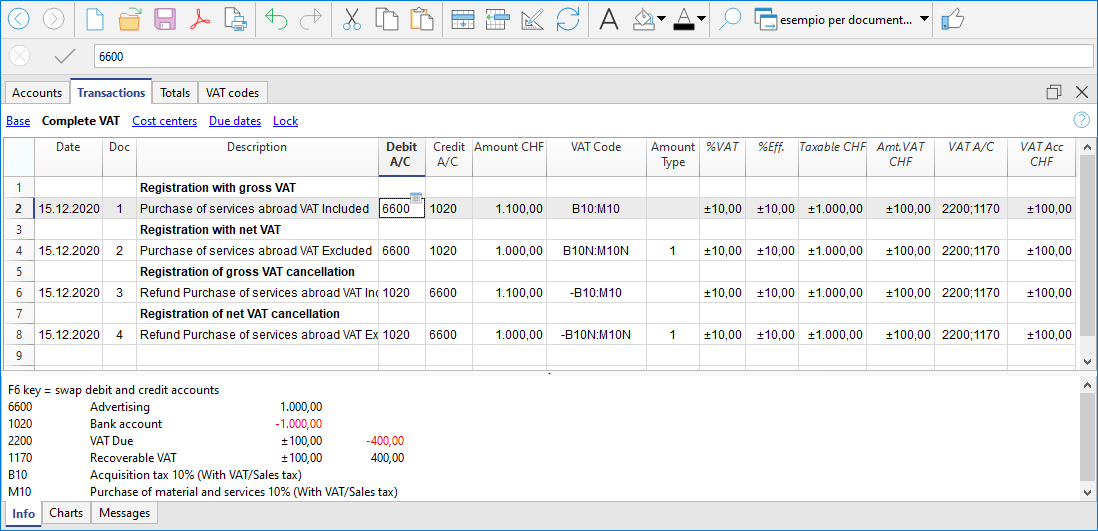
用外币账户进行反向征收
当发票以会计货币以外的货币显示时,必须在两行上进行过账:
- 在第一行输入外币的发票
- 第二行记录税收和增值税的扣除,占用以会计货币计算的金额。
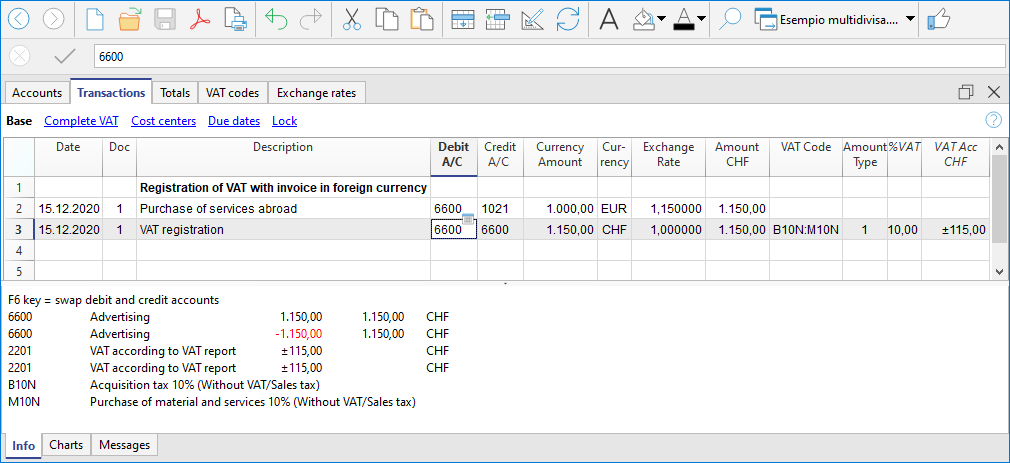
不同税率的反向征收
当应交增值税和应退增值税考虑不同的税率,或者增值税可以部分抵扣时,发生业务必须分几行来进行:
- 在一行中,输入应交增值税代码 (税负)。
- 在另一行中,输入应退增值税的代码。
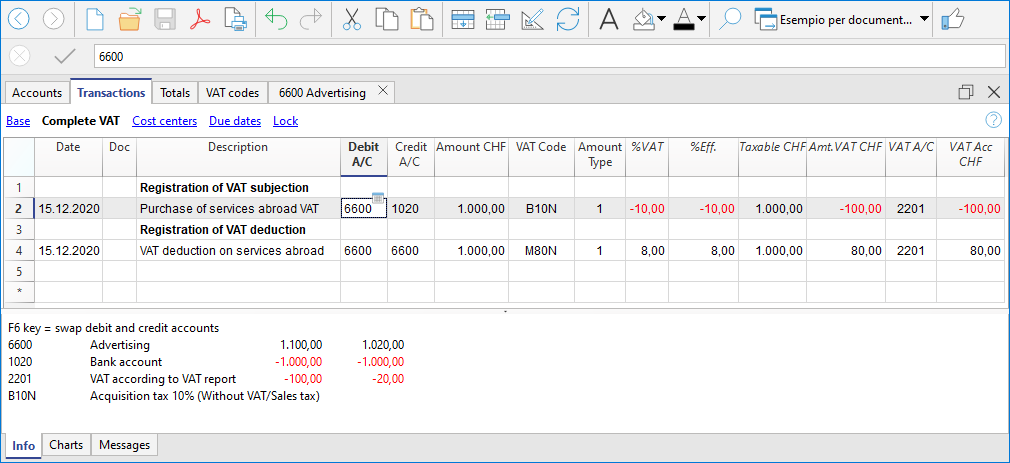
用净额/统一费率法反向收费 (瑞士)
在这种情况下,不可能将增值税扣除额入账,因为不可能收回购买的增值税。在任何情况下,都必须登记纳税义务。
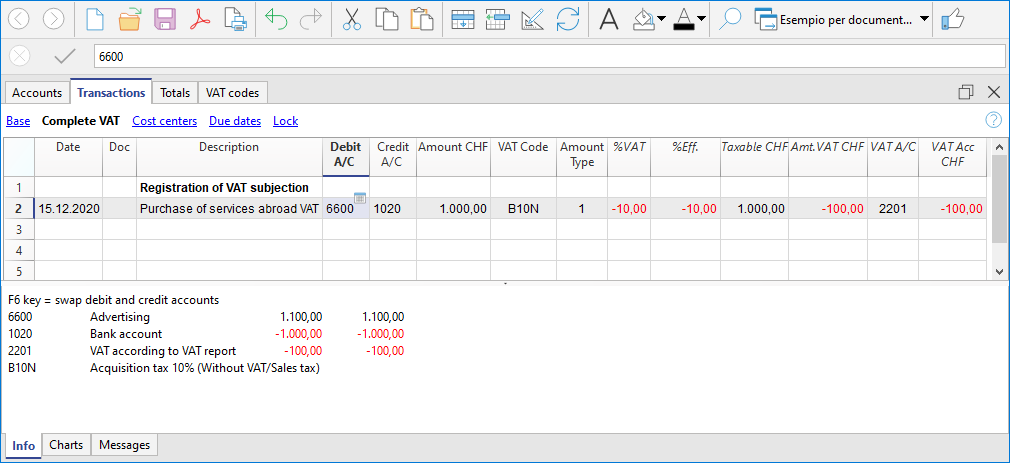
更多信息
Registrazioni Reverse charge nella contabilità Entrate/Uscite
Nella contabilità Entrate/Uscite, il reverse charge viene gestito registrando correttamente l’IVA dovuta e, se prevista, l’IVA recuperabile, in modo che l’imposta risulti conforme alla normativa fiscale e correttamente esposta nei report IVA.
Anche nella contabilità Entrate/Uscite, Banana facilita la gestione del reverse charge tramite l’uso del doppio codice IVA nella stessa registrazione.
Principio contabile
Con il reverse charge:
- il fornitore non addebita l’IVA in fattura
- l’acquirente deve assoggettare l’operazione all’IVA
- se ne ha diritto, può dedurre la stessa IVA
Dal punto di vista fiscale, l’IVA deve quindi risultare:
- come IVA dovuta
- e, se deducibile, come IVA recuperabile
Quando l’IVA dovuta e l’IVA recuperabile hanno lo stesso importo, l’effetto finale sull’IVA è neutro, anche nella contabilità Entrate/Uscite.
Modalità di registrazione
Le modalità di registrazione del reverse charge dipendono dal diritto alla deduzione dell’IVA:
- reverse charge con solo assoggettamento IVA
- reverse charge con assoggettamento e deduzione IVA
Reverse charge con solo assoggettamento IVA
Se l’IVA è dovuta ma non deducibile:
- si utilizza un solo codice IVA, impostato come IVA dovuta
- l’IVA risulta come IVA da versare
- non viene registrata alcuna IVA recuperabile
Questo caso si presenta, ad esempio, quando:
- si applica un regime forfettario
- il tipo di spesa non consente la deduzione dell’IVA
Reverse charge con assoggettamento e deduzione IVA
Se l’IVA dovuta è interamente deducibile, il reverse charge può essere registrato su un’unica riga, anche nella contabilità Entrate/Uscite.
In questo caso:
- nella colonna Codice IVA si inseriscono due codici IVA
- i codici sono separati dal segno ":" (due punti)
- un codice è impostato come IVA dovuta
- l’altro come IVA recuperabile.
I due codici IVA devono essere:
- complementari
- con stessa aliquota
- con stessi parametri di calcolo
Se i parametri non coincidono, Banana visualizza un messaggio di errore.
La sequenza dei codici non è rilevante.
Effetti sulla contabilità e sui report IVA
Con questa modalità di registrazione:
- l’IVA dovuta e l’IVA recuperabile si compensano
- l’operazione risulta neutra ai fini IVA
- nei report IVA Banana evidenzia correttamente:
- l’IVA dovuta
- l’IVA recuperabile.
Questo garantisce:
- correttezza fiscale
- trasparenza nei controlli
- tracciabilità delle operazioni.
Operazioni di storno
Per annullare una registrazione di reverse charge effettuata in modo non corretto:
- si utilizza lo storno
- il primo codice IVA viene preceduto dal segno “-”
- i ruoli dei codici IVA vengono invertiti:
- l’IVA dovuta diventa recuperabile
- l’IVA recuperabile diventa dovuta
Lo storno mantiene gli stessi elementi della registrazione originale, ma ne annulla gli effetti.
Esempi e casi particolari con reverse charge
Gli esempi che seguono illustrano alcuni casi tipici di reverse charge nella contabilità Entrate/Uscite:
- operazioni con assoggettamento e deduzione IVA inclusa
- operazioni con assoggettamento e deduzione IVA esclusa
- operazioni di storno.
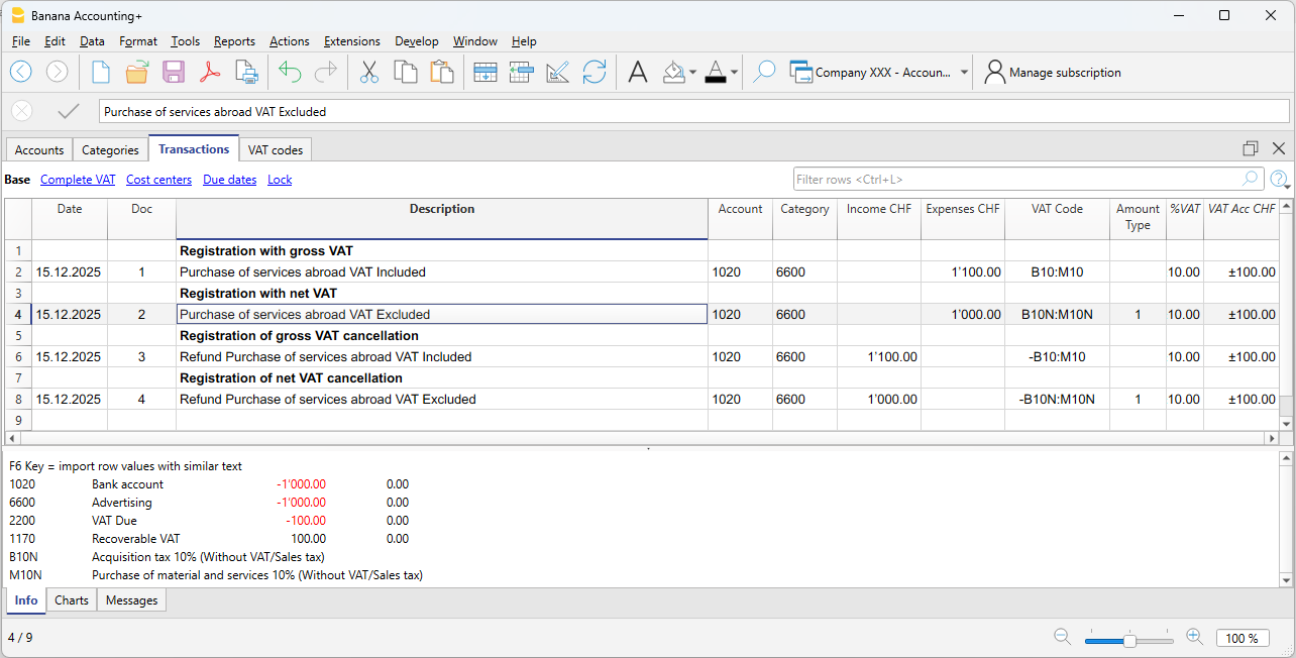
Nota
Gli esempi sono indicativi e devono essere adattati alle aliquote e alle disposizioni fiscali del proprio Paese.
In sintesi
Nella contabilità Entrate/Uscite di Banana, il reverse charge:
- non è un automatismo
- si basa sull’uso corretto dei codici IVA
- utilizza il doppio codice IVA quando l’IVA è dovuta e recuperabile
- riflette fedelmente la logica fiscale dell’operazione.
Le modalità operative sono pensate per garantire precisione contabile e chiarezza nei controlli IVA.
增值税报告
增值税汇总表根据在增值税表中设置的时期和参数以及选择的选项来处理和显示增值税报表。
通过点击报表菜单 > 增值税报表的命令可以获得增值税的报表。

含业务发生额
含按账户汇总
含按编码汇总
含按百分比汇总
含没有使用的代码
使用个人分组计划
发生业务排序按照
通过激活该功能,发生业务可以按照之前预设的选项来进行分类(如日期,文件,摘要等……)。
部分报表
- 仅指定码(从列表中选择该选项)
- 仅指定组(从列表中选择该选项)
其它类
关于其它类的信息可以在以下网页中查询:
增值税报表 / 所有的发生业务都包含代码

在同一期间,增值税报表最后一行的总数必须与系统自动生成的增值税账户余额列的期末金额相对应。
增值税报表的数据也可以转移到其他程序(例如,Excel, XSLT),并制作成类似于税务部门要求的格式。
对于瑞士,可以自动获得一个类似于增值税办公室要求的表格。此表格显示每个号码输入的金额。请参阅(德语,法语或意大利语)瑞士增值税报表。
期末结算和增值税付款
在季度末自动重设 "根据增值税报告的增值税 "账户
在期末,"根据增值税报告的增值税 "账户的余额需要归为零,该金额将被记入增值税应收款账户 (或国库增值税账户)。
此操作涉及:
- 重置 "根据增值税报告的增值税 "账户的余额。
- 将增值税余额转入增值税到期账户 (或国库增值税账户)。
- 如果此结果在增值税的借方,那么增值税的余额将被记入应缴增值税账户的贷方;在 "根据增值税报告的增值税 "账户的借方,余额被设置为零。
- 如果如果此结果在增值税的贷方,则增值税余额被记入应缴增值税账户的借方;在 "根据增值税报告的增值税 "账户的贷方,余额被设置为零。
根据增值税报告的增值税 "账户余额转移后的账户明细
在增值税应收款账户的余额转移交易后,"根据增值税报告的增值税 "账户的余额被重置为零。

增值税余额支付
当增值税金额支付给FTA (联邦税务局) 后,增值税应付款账户中的余额将重置为零。
对于发生业务:
- 在相应的列中输入日期、记账凭证号和摘要。
- 在借方列中,输入增值税应付科目。
- 在贷方列中,输入流动性账户。
- 在金额列中,输入已支付的增值税到期金额。

使用该系统可以检查每个季度的余额,如果出现错误,可以确定余额不再对应的时期。
在一季度缴纳增值税后的应付增值税账户明细
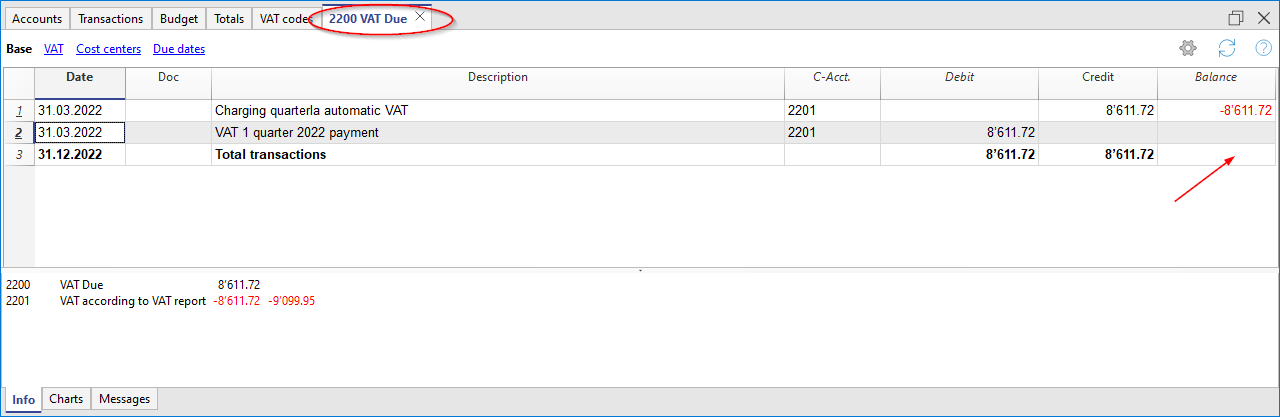
请注意:
我们刚才解释的增值税支付流程指的是瑞士有效的增值税支付方式和瑞士增值税分离的统一税率支付方式。
如果您使用瑞士统一费率的支付方式,而不进行增值税分离,您可以在增值税支付和会计评估页面找到具体信息。
Reconciliation of turnover with VAT returns
导入与自动化
导入到账套
支持导入的格式
使用Banana财务会计软件,可以从任何格式导入 (请参阅目前支持的格式列表)。如果需要导入的文件格式不在列表里,则可以开发特定的Banana财务软件导入应用程序。
导入会计的命令
点击操作菜单 → 导入到账套的命令,可以导入下列数据:
- 发生业务 - 从另一个Banana财务会计文件或银行对账单中传输发生业务。
- 账户 - 从另一个Banana财务会计文件或文本文件中传输账户。
- 增值税代码 - 从另一个Banana财务会计文件或文本文件中传输增值税代码。
- 文件 - 传输一个完整的文件, 以转换会计科目表。
为了能够一次传输数据, 请参阅:
- 从其它会计软件传输数据的页面。

导入的操作流程
- 选择数据的目标表格。
- 选择要从中导入的文件类型。
- 指示出文件名称。
- 选择要被导入的业务。
目标表格
对于每种数据类型,都有其特定的页面:
导入格式
根据目标表格的类型,有不同的导入格式可供选择。
- 从其它的Banana会计文件导入。
准备转换文件中的数据。 - 带标题的文本文件 (CSV/TXT)。
对于创建的文件,以Banana财务会计软件要求的格式导出数据。
关于如何准备这些文件的技术说明是英文的。 - 默认文件。
- 通过导入的扩展程序来进行导入。
导入的扩展程序是Banana财务会计软件的一个附加程序,它可以将数据从一个格式中转换出来。
用户必须安装相应的扩展程序。
特定的导入过滤器。
文件名
- 需要被导入数据的文件名称要被指示出来。
从剪贴板导入数据
激活这个选项后,数据不是从文件中读取,而是从剪贴板中读取。
它用于从Banana财务会计软件不能直接读取的文件中导入数据,例如Excel格式的银行报表。
- 用Excel打开带有数据的文件。
- 选择要导入的数据,包括任何标题行。
- 使用复制命令。
这个选项只显示于某些类型的导入。
UTF-8
选择要导入的数据是否为utf-8格式。
这个选项只显示于某些导入类型。
管理扩展程序...
此命令会将您带到管理扩展程序的对话框。
使用它作为:
- 搜索、添加或删除一个导入的扩展程序。
- 改变扩展程序的参数。
也可以使用该命令来改变扩展程序的设置。
确定键
- 开始导入
错误信息
如果在导入操作中出现了错误信息,首先要更新,然后导入扩展程序。
从Excel文件中导入
可以用微软的 Excel 或其它电子表格程序来准备要导入的数据。
- 在Excel中创建一个表格,其中各列都有一个英文标题,关于这部分,在面向开发人员的导入页面上 (英文) 有详细的解释。
有两种格式:- 一个用于导入与发生业务表格完全相同的数据。
- 一个用于导入报表。
- 选择要导入的数据,包括标题行,并发出复制命令。
- 选择收入/支出类型或带标题的列。
- 勾选“从粘贴板导入数据”的选项。
Import transactions from ebanking
This page deals with the importing of transactions from bank statements, the most widely used and most useful feature, which allows you to automate the entry of transactions in the Transactions table.
Bank statement files are defined as those containing incoming and outgoing amounts on a single account. The import dialogue requires the entry of the account and the counterpart, and allows the use of the Auto-completion Rules.
On the other hand, in order to import from files that have other types of movements, e.g. from double-entry bookkeeping, please refer to the page Import Transactions (Generic). For these types of files, there is no possibility of applying the auto-completion rules.
Import procedure
- From Actions in the menu > Import into accounts > in the Import box select Transactions.
- Choose the file type to be imported.
See explanations below. - With the Browse button, choose the file from which you wish to import the transactions.
- Set the parameters as required.
See also: Import into accounting.
Next Steps
Once OK is confirmed, the data is read and the following dialogues are displayed:
- Import transactions dialog
Where instructions for completing the imported rows are to be given. - Apply rules (Advanced plan only)
When importing, records can be stored so that the programme will automatically complete the transactions in all subsequent imports.
Bank Statement Import Formats
In the dialogue for importing transactions you can choose between different file types:
- Import extensions for bank statements (the majority only with the Advanced plan)
These are additional programs that must be installed by the user and that convert the data to be imported in the formats foreseen by Banana Accounting Plus.
By using the Manage Extensions button you can install the extensions programmed for importing bank statements of different banks, credit cards and other formats.
Once the extension is installed it appears in the Extensions menu ready for import.- Bank statement Camt ISO 20022 Switzerland (Professional plan)
Reads the standard format made available by Swiss banks.
This extension also decodes the payment reference number, generated by the Invoice Layout CH10, and inserts the invoice or customer number. - Updated list of Banana Extensions for import.
- Bank statement Camt ISO 20022 Switzerland (Professional plan)
- Standard formats included in Banana Accounting Plus (Professional plan)
These are standard formats that banks make available and are included in Banana Accounting Plus:- MT 940 account statement
- Generic ISO 20022 Account Statement
Several banks in Europe make the account statement available in the standard ISO 20022 format.
- Generic format with Incoming and Outgoing Transactions TXT (Professional plan)
This is a text file of the CSV type, which uses the tabulator as a separator and presents the incoming and outgoing amounts of an account as columns.
File name
You indicate a file or even multiple files separated by a semicolon ";". You can also indicate a ZIP that contains multiple import files.
Import multiple files at the same time:
- If your bank provides daily camt053, you can select all the files for the month and import them in one step.
- If your bank provides a zip file, you can choose the file that contains all the statements.
The import files must, of course, be of the same type. You cannot import different formats together.
Import File Structure
The import file contains the typical movements of a bank statement:
- Date
- [transaction number] optional
- Description
- Incoming or outgoing amount.
When importing, the user indicates to which account the transactions are to be recorded, so that the Debit or Credit account is already created.
Import extensions can be created for any bank statement.
See Technical instructions for importing an Income and Expenses file.
Frequently asked questions:
I cannot see the format of my bank statement. What should I do?
Click onto Extensions menu > Manage Extensions... then on the Update Extensions button and enable the filter for the desired format.
I cannot see the format of the Postfinance xml statement (.tgz file). How can I import my movements?
This format is no longer supported. Please contact Postfinance and ask to receive your statement in ISO 20022 format.
I get the message "This ISO 20022 file does not contain a bank statement (camt.052/053/054)". How should I proceed?
This error message is displayed if the ISO 20022 file does not contain a bank statement. The ISO 20022 format is a generic format that can contain different types of information, such as bank statements and execution confirmations. In Banana Accounting Plus, it is only possible to import bank statements (camt.052/053/054).
My bank is not in the list of supported formats. Can it be added?
It is possible to create new extensions for formats that have not yet been implemented. Support for implementing custom formats is also available for a fee.
In eBanking (e.g. Raiffeisen Bank), when entering payments, you must choose the option 'individual order' instead of 'collective order'. Only in this way are payments imported as individual orders.
Download bank transactions
To keep the company's accounting up to date, it is essential to regularly import bank transactions. These transactions allow the automation of the accounting process, avoiding the manual entry of individual transactions and potential errors.
Where to download the transactions
The documents containing the bank transactions, regardless of how they are obtained, should always be saved in the same folder. This folder can be located inside the main accounting folder or in an external one. For better organization, it is recommended to structure your folders by creating a general folder and more specific subfolders: this reduces the risk of errors, especially if you decide to import the transactions manually.
By keeping the data always in the same location, import issues are avoided and there is no need to update the default import path each time. Additionally, it is not recommended to open or modify these files before importing, as this can cause errors in recognizing the transactions.
Different file formats for bank transactions
Our software offers numerous extensions that allow you to import accounting data in different formats. Among the most common formats are CAMT, CSV and XLSX.
The CAMT format (Cash Management), defined by the ISO 20022 standard, is used by banks to provide electronic account statements in a structured way. The files contain detailed information such as the date, amount, description, and references for each transaction. There are several types of CAMT files:
- camt.052: intraday statement (transactions during the day)
- camt.053: end-of-day statement
- camt.054: notification of debits and credits with details of individual transactions
The CSV format (Comma-Separated Values) is a text file that uses commas to separate the data contained within individual cells of a table. This format is compatible with most software applications. The CSV format varies from one bank to another and is updated regularly.
The XLSX format is a Microsoft Excel file used to store spreadsheets. The XLSX file can contain data, formulas, formatting, charts, and multiple worksheets within the same document.
Methods for downloading transactions
The main methods for obtaining these data are:
- Online banking
- Multibanking
- Software by Mammut Soft Computing AG
Depending on the chosen method, more or less attention should be paid to where the files are saved. Manual download from the bank portal requires extra attention.
Online banking
The manual method, traditional and most common, involves direct access to your bank’s online banking portal. Once logged in, you can navigate to the section dedicated to account transactions and download the files in one of the standard formats compatible with accounting software.
Although simple, this process requires manual interaction: the user must log in to the banking platform, select the account, download and save the files on their computer, and then import them into the accounting software.
Multibanking
Multibanking is an evolution of traditional manual methods, designed for businesses or professionals managing multiple current accounts across different banks. Thanks to this functionality, you can access a single e-banking platform or interface that aggregates multiple accounts, even from different institutions, simplifying interactions with each bank. Most multibanking solutions are based on the international EBICS standard (Electronic Banking Internet Communication Standard), which ensures secure exchange of information and payment orders between companies and banks.
The main steps for implementing multibanking are:
- Update the contract with the main bank
The first step is to contact your main bank to request activation of the multibanking service. You will need to sign an addition to the existing contract that authorizes the bank to act as the manager of multiple bank accounts. - Sign mandates with the linked banks
For each third-party bank you want to connect, you need to sign an authorization allowing the main bank to access the corresponding account information. - Technical activation and credential provisioning
Once the contractual steps are completed, you will need to follow technical instructions to enable access via API or third-party tools. This may include providing credentials or activating specific authentication methods.
Once all banking relationships are connected, it becomes possible to centrally download bank transactions and data, and process payment operations from a single tool. Although still partly a manual process, multibanking helps optimize time and resources by reducing the number of logins and simplifying overall management.
Software by Mammut Soft Computing AG
A more modern and fully automated solution is offered by the software developed by Mammut Soft Computing AG. Once implemented, this system allows you to completely skip the manual step of downloading bank files, as they are automatically saved in a folder defined during setup.
The software focuses on data exchange interfaces between banks and companies, offering connections to multiple banks worldwide and securely and automatically retrieving bank data in the required formats. These data are then automatically synchronized with the accounting software, making user intervention unnecessary.
The steps to start using the Mammut Soft Computing AG software are as follows:
- Choosing the solution
Based on your needs, you can choose a cloud solution or an on-premise installation, the latter being a physical installation on the user's devices. - Configuring bank connections
To configure and activate the bank connections, it is necessary to sign the corresponding bank agreements. These connections with banks (EBICS, SWIFT, API) allow downloading account statements and sending payments. Mammut provides support for activation with the banks. - Authorization for account access
The client, for whom the accounting is managed, grants the accountant access to their data so that all necessary information is available. - Integration with accounting/management software
The software is connected to the internal accounting or management system for automatic import and export of bank data.
The true added value of the software is the constant update of the accounting: automated downloads from all banks and direct synchronization with the accounting system ensure that the data is always up to date and ready to use.
Automated import and accounting
Once transactions are available, you can take advantage of the various features offered by Banana. Regardless of the method chosen to download the bank data, the “Import bank transactions in ISO 20022 format (advanced) [BETA]” function allows you to automate the update of the accounting in double-entry or income/expense mode using CAMT files (052/053/054). The program reads the XML files from a designated folder, saves them to a local database, identifies new transactions not yet recorded, and suggests them for import, avoiding duplicates.
Once imported, bank transactions are automatically transformed into complete accounting entries thanks to our auto-completion rules (Advanced plan), saving time and avoiding input errors. This makes accounting faster, more efficient, and more accurate.
导入发生业务的对话框
从往来账户或信用卡导入发生业务的步骤如下:
- 点击操作菜单 → 导入到账套的命令,在导入框中选择发生业务。
- 选择发生业务的格式 (ISO 20022, csv)。
- 点击浏览按钮,选择要导入的发生业务文件。
下面是对话窗,方便您更好地将数据集成到会计中。

目的账户
当从银行或邮政对账单或文本格式的账户进出记录中导入数据时,会出现这个选项。
输入与导入的对账单相关的会计科目表的银行账号。
选择发生业务
起始日期,结束日期
输入与恢复记录相关的期间的开始和结束日期。 可以使用日期下方的相应框自动选择期间。
如果存在相同的外部参考、日期、金额,则不导入
如果激活,该功能允许已经记录的动向不被导入,以避免重复记录。这个选项只有在 "外部参考文献 "一栏存在于要导入的动向 (文件) 中时才能激活,否则它将被禁用。
按日期排序
该选项默认处于激活状态,并允许按日期顺序导入发生业务。
完成业务
自动完成录入数值
该选项涉及增值税和多币种会计。如果激活,它允许您自动补全导入数据中缺少的值 (例如汇率表中的汇率)。
应用规则 (只适用于高级计划)
该选项仅适用于Banana财务会计+ 的高级计划和开发版本,激活了在导入时应用自动化规则的可能性。欲了解更多信息,请访问自动化规则的页面。
初始账户编码
当从银行或邮政对账单或文本格式的账户导入记录中导入数据时,会出现这个选项。
这是分配给导入的第一条记录的文件号。
按发票号码对发生业务进行分组
如果导入文件包含发票文件列的值,在对话框中也将包含以下选项:

- 按发票号码的组业务
在这种情况下,同一张发票的行数被分组,以便同一账户和同一增值税代码只有一个发生业务 (详见导入发票数据的英文页面信息)。 - 目的账户余额差
在使用增值税代码时,有可能存在几百分之一四舍五入的差额。
在这种情况下,Banana财务会计软件会为每张发票创建一个额外的发生业务,用来记录差额。
显然,必须注意为导入提供的数据在借方和贷方之间的余额。否则,发生业务行会包含借方和贷方之间的差额。
编辑导入的发生业务
软件会创建发生业务并将其添加到发生业务表的末尾。
可以编辑或删除发生业务。
在复式记账中,在应付账款和应收账款列中,以及在收益&费用记账中,在账户和科目列中,软件会输入符号。
符号必须被替换成适当的账户或科目。
- [A]
如果对话框中没有指出任何账户,则显示此符号。
必须输入银行账户中的账户,而不是符号[A]。 - [CA]
这个符号表示必须在单元格中指明对应的账户,以便借方动向与贷方动向相抵消。
对于只有一个对应方的行,在同一行上同时存在交易对手的账户或代码 [A] 和代码 [CA]。
对于有一个以上对应方的行,每一行都会有账户或对应方符号[CA]。如果不标明符号[CA],就不可能分辨出该动向是借方还是贷方。
Import file ISO20022
Banana Accounting Plus allows the import of bank transactions in various formats.
The ISO 20022 format is an international standard that should now be provided by all European banks. This format may also be called ISO xml, xml, camt.053, camt.054 or other names. Importing bank transactions in ISO 20022 format is possible in two ways:
Generic manual ISO20022 import
Manual import of transactions one file at a time - available with the Professional plan.
- The user downloads the ISO 20022 file from their bank and saves it in a folder on their computer.
- Then, from Banana, they manually import this file.
This import is made possible by the extension Bank Statement Camt ISO 20022 Switzerland (Banana+) for Switzerland and a generic filter distributed with the application for other countries.
The import must be repeated manually each time.
Advanced ISO20022 import [Beta]
Advanced import of transactions from multiple files simultaneously - available with the Advanced plan.
It significantly speeds up the workflow because the user no longer needs to check for which periods transactions need to be imported.
- The user defines a folder containing ISO 20022 files from different bank accounts.
- In Banana, with a command, the program notifies if there are new transactions to be imported.
This new advanced import function is made possible by the extension Swiss Camt ISO20022 Reader.
Requirements
- Use of Banana Accounting Dev-Channel with the Advanced plan.
- Use of a Double-entry accounting or Income & Expenses system.
导入ISO 20022文件
ISO 20022是传输财务数据的国际标准。
CAMT类别重新组合账户报表使用的格式,报告账户业务和账户余额确认:
- camt052: 账户报告
- camt053 (包括第4版本): 账户报表
- camt054: 信/贷通知
预览ISO-20022文件
Banana 财务会计软件为用户提供了预览Camt文件内容的可能性。
数据导入当前会计文件
按照操作菜单 → 导入到账套的命令继续。
压缩文件也可以使用此功能打开。在这种情况下,程序将提示用户要选择从中导入压缩文件数据的文件。
关于转换ISO 20022的技术说明
- 读取初期余额相似的编码
- 读取期末余额相似的编码
-
所有的内容都被读取并且在移动中被处理
- 发生业务日期 (日期)
- 货币日期
- 发生业务金额 (正或负)
- 摘要 (目前Banana会计软件把各种摘要整合成一个单一文本) 将来更具体的提取该信息,并且指示出需要被输入的列是可能的。
- 区分单一行和详细行之间的业务。
对于需要详细说明的业务,将会有一行为总额,以及将用于汇总的单独若干行。
各个国家的特异性
每个国家和/或银行都有可能根据自己的需要在ISO 20022文件中插入额外的信息。Banana财务会计软件提供了一个通用的过滤器和多个国家和/或银行特定的过滤器,以Banana扩展程序的形式发行。如果要将这些附加信息导入到您的会计中,您必须安装和使用最适合您国家和/或银行的扩展程序。
Import bank transactions in the ISO20022 format (advanced) [BETA]
This new feature allows you to update your accounting by automatically importing bank transactions from Camt files (052, 053, 054). Thanks to this innovation, you can:
- Accelerate the entire transaction recording process.
- Reduce the risk of manual errors.
- Avoid duplicates, since only transactions not yet present in your accounting are imported.
The program reads the Camt files from a selected folder, saves their content in a local database, and detects any new transactions not yet recorded. These are then proposed for import into your accounting, greatly simplifying financial management. Once imported, you can leverage auto-completion rules to further streamline your work.
This feature is currently in BETA version, available for experimental use with Banana Accounting Plus (Advanced plan) in double-entry or income & expense accounting. We welcome any suggestions and feedback to improve it.
Prerequisites
- Use Banana accounting Dev-Channel with the Advanced plan.
- Use a Double-Entry or Income & Expense accounting file.
Data Preparation
Before starting the import, make sure you meet the following requirements:
- Organizing Camt Files:
Create a dedicated folder containing all the Camt (*.xml) files you want to import into your accounting.
You can organize the files within the folder as you prefer, for example, by accounting year or by financial institution. - Access Permissions:
Ensure that the selected folder is both readable and writable by the program. This guarantees the proper saving of data and import information. - Setting IBANs:
For each account in the accounting file, make sure you have entered the IBAN in the 'BankIban' column of the 'Accounts' table.- If the column is not present, add it through the menu: Tools → Add/Remove functionality → Add address columns to the Accounts table.
- Write the IBAN in uppercase, without spaces or special characters.
- Swiss Camt ISO20022 Reader Extension:
Install the Swiss Camt ISO20022 Reader extension. This is required for the program to correctly interpret Camt files and start the import process.
First Use
The first time you use the "Import bank transactions (Camt ISO20022)" command, available under the Actions menu, the program will ask you to select the folder containing the Camt files. This choice will be saved, so that for subsequent imports the program will automatically use the same folder without asking for the path again.
Note that the first execution may take longer. The program must read, process, and save all the files in the folder, and it analyzes the content of each file. During this phase, a progress bar will display the current status of the operation, indicating both the percentage of completion and the number of files processed out of the total. The same progress indicator is shown both during the reading of the files from the folder and during the opening and reading of their contents.
On subsequent imports, the process will be much faster since the program will read and import only the content of new files, already knowing which data has been previously saved in the database. This way, future operations require significantly less time and ensure a smoother, more efficient workflow.
File Processing

The processing of Camt files occurs in two distinct phases:
- Reading Files in the Folder:
In the first phase, the program analyzes the selected folder and identifies all the files present, adding them to the internal database. During this process, a progress bar is displayed, indicating how much of the file reading has been completed compared to the total number of files. - Reading the Content of the Files:
Once file reading is completed, the program moves on to the second phase, in which it opens the files saved in the database, reads their content, and processes the data. In this phase, a dedicated progress bar is also shown, clearly displaying the percentage of completion and the number of files processed.
If, for any reason, one of these processes is interrupted, the program retains the data already saved. On the next import execution, it will automatically resume from where it left off, without having to start over. This ensures an efficient workflow and avoids repeating already completed processing steps.
Bank Transactions Import Dialog
The import dialog provides an overview of the processed files, the parameters used, and the transactions to be imported. You can modify the parameters in the dialog at any time, and the data will be recalculated immediately.
Folder Tab

The “Folder” tab provides a general overview of the import, showing the currently selected folder, the files to be processed, and some options to filter the content.
- Select Folder:
Here you can view and modify the working folder path. The program constantly checks the validity of the selected path and, if the folder does not exist or is not accessible, it displays an error. - Renaming or Moving the Folder:
If you change the folder’s name or location, remember to update the path in this dialog. The program stores the last used path and, if it cannot find it, will show a warning. - Renaming Files in the Folder:
You can freely rename the files in the folder; the program does not rely on the file name but on its content. Even if two files have different names but identical content, the program considers them duplicates and will only import one of them. - Ignore Subfolders:
By default, this option is enabled, allowing you to exclude the files located in subfolders. This is useful if, for example, you only want to import files relevant to the current accounting period, avoiding older or irrelevant data. If you disable this option, all Camt files in subdirectories will be included in the database, regardless of date or file organization. - Ignore Files Older Than...:
If you set a date in this field, the program will not read the content of files older than that date. By default, files older than the accounting opening date are saved in the database but not analyzed. Adjusting this date allows you to further refine the time filter. If you enter an invalid date, the program automatically replaces it with the current date. - Read All Files:
Clicking this button forces the immediate re-reading of all files in the folder instead of waiting for the normal daily check. This function is especially useful when you add new files and want to import them right away, without waiting for the next automatic update.
Bank Accounts Tab

The “Bank Accounts” tab provides a detailed overview of all the bank accounts present in your accounting. For each account, the program shows both static information (such as the current balance in your accounting) and dynamic data, updated based on the latest imports.
Information Displayed for Each Account
- Accounting Balance:
Shows the current amount recorded in the accounting for that account. - Last Bank Balance:
Displays the most recent bank balance detected directly from the Camt files. This lets you instantly compare the figure in your accounting with the actual bank amount. - New Transactions:
Indicates how many new movements, not yet recorded in accounting, have been detected in the Camt files. - Total New Transactions:
Shows the total monetary value of the new transactions to be imported for that account, helping you quickly assess the volume of pending operations. - Last Import:
Indicates the date when the folder was last fully read, providing a useful time reference for when the last update occurred. - Status:
- Updated: There are no new movements to import for this account.
- New transactions: Unrecorded movements have been found, ready to be imported into the accounting.
Transaction Details Tab

In the “Transaction Details” tab, you will find all the banking operations identified in the Camt files that are not yet imported into the accounting, organized by account. This view allows you to quickly analyze pending movements, verify their relevance, and select which ones to import.
- Selecting Transactions to Import:
You can temporarily exclude specific transactions or, if you prefer, all those related to a particular account using the provided checkboxes. Excluded transactions are not permanently removed; they will be proposed again the next time you open the dialog, allowing you to reassess their import at any time. Currently, it’s not possible to permanently exclude a transaction. - Consider Only Transactions Starting from a Specific Date:
To reduce the number of displayed movements, you can set a date from which to consider new transactions for import. By default, the program uses the accounting start date. By setting a different date, it will only display operations occurring after that day, ignoring previous ones. This function is particularly useful if, in the past, transactions were imported without a unique ID (ExternalReference column), typically when importing from CSV files. In these cases, simply set a date after the last recorded transaction to avoid re-proposing older movements. If you enter an invalid date, the program automatically replaces it with the current date. - Unique Identification of Transactions:
Transactions from Camt files (052, 053, 054) should always include a unique ID as required by the ISO20022 standard. This identifier enables the program to accurately detect which movements have already been imported and which are new, reducing the risk of duplicates or errors.
Settings Tab

Settings Tab
In the “Settings” tab, you can manage some advanced aspects of the import process, including the possibility to restore the initial data state and define how to recognize already processed files.
- Delete Saved Data:
This function allows you to delete all data related to previous imports stored in the internal database. Once deletion is confirmed, you will be automatically redirected to the “Folder” tab, where the default values will be restored.- New Import: If you want to perform a new import after deleting the data, simply click on the “Read all files” button.
- Limited Impact on Import Data: Deleting data from the internal database does not affect any information already present in the accounting.
- Complete Database Removal: The command here only clears the database tables. If you want to completely remove the database, you must manually delete the “*.db” file in the selected folder.
- Always Verify the Existence of Files Using Hashing:
This option allows you to choose how the program identifies already processed files:- Hashing (slower): If you select this option, the program will compute a unique hash for each file, ensuring accurate duplicate detection even if names or paths change. However, this method can slow down file reading.
- Check Name, Date, and Size (default): If the checkbox is not selected, the program simply compares the file name (including path), creation date, and file size to determine uniqueness. This approach is faster but may not be as robust in scenarios where files are renamed while retaining the same content.
Changing the accounting account assigned to an IBAN
It is possible to change the accounting account associated with an IBAN directly in the Accounts table.
However, if bank transactions for the same bank account have already been imported in the past using a different accounting account, it is necessary to delete the data stored in the database.
This operation can be performed from the Settings tab of the import dialog, using the Delete saved data button.
Afterwards, the data must be reloaded from the folder using the Read all files button, available in the Folder tab.
This procedure allows the program to recreate the correct associations between the IBAN and the accounting account according to the new settings.
Deleting the data from the database does not affect in any way the accounting data already recorded.
Database File
The program uses an SQLite database to store import-related data. The first time you activate this function, if the selected folder is valid, a database file (*.db) will be created in it.
It is important not to move or delete this file, as the program uses it as a reference for all subsequent operations. In case of loss or deletion, the program will generate a new .db file, forcing you to re-read and re-process all the files in the folder.
What is Saved in the Database?
- File List:
All the files detected in the folder are saved. If you have chosen to ignore subfolders in the settings, the files they contain will not be saved. This option is enabled by default. - Bank Accounts and Related Data:
The database stores information about the bank accounts present in the accounting. If these data are modified in the accounting file, the database updates them accordingly. - Imported Transactions:
Transactions found in the opened and read files are saved in the database, allowing you to reprocess or view them later without having to re-read the files. - Import History:
The program records who performed the import operations, when they were executed, and with which software version, providing a detailed historical trace of activities.
Log File
During the import process, the program generates a log file to help identify and diagnose potential issues. In case of anomalies or unexpected behavior, the log file provides detailed information about the operations performed, aiding developers in understanding the source of the error.
If you need assistance locating or interpreting the log file, contact our support team: they will guide you step-by-step to find the file within your active directory.
Features currently not available
These features, requested by users, are currently not available:
- Extraction of the customer invoice number and customer account from the QR reference number
For this functionality, it is recommended to use the dedicated extension: Bank Statement Camt ISO 20022 Switzerland (Banana+) .
Troubleshooting
If no transactions are displayed for import despite having selected the correct folder, check the following:
- Bank Accounts: Make sure that the data related to bank accounts (including IBANs) in the “Accounts” table is complete and correct.
- Accounting Period: Check that the currently set accounting period includes the dates of the transactions you want to import. If the transactions fall outside the defined period, the program will not propose them for import.
If the problem persists after these checks, contact our technical support for further assistance.
导入发生业务
导入的过程
- 点击操作菜单 → 导入到账套的命令 → 从下拉菜单中,选择导入发生业务。
- 选择要从中导入的文件类型 (现金日记账业务,复式记账账套的发生业务)。
- 使用浏览键, 选择要导入发生业务的文件。
要导入的文件类型
该程序提供各种数据转换器,可读取文件格式并将其转换为会计业务:
- 从其它的Banana会计文件导入数据。
- 从以Banana财务会计软件提供的导入格式导出的程序中导入CSV, TXT文件。
- 从预定义的银行报表中导入。
- 导入的扩展程序:
- 从银行报表来看。
- 来自其它文件类型。
关于所有类型的导入过滤器的信息都可以在Banana扩展程序的页面找到。
从其它的Banana财务会计文件中导入
在要导入的文件类型中,程序提供了一系列用于从其它的Banana财务会计文件导入数据的设置:
- 从收益&费用核算中导入发生业务的动向。
为了能够将发生业务从收益&费用会计文件导入复式会计文件中,收益&费用会计的账户和科目必须与复式会计的账户相对应。 - 从现金账簿中导入变动。
除了导入发生业务外,还允许按季度或月份进行汇总导入。
请参阅从现金日记账文件中导入数据的页面。 - 从复式会计中导入发生业务。
- 为了将发生业务从一个复式会计文件导入另一个复式会计文件,账户必须匹配。
- 导入折旧资产登记。
从折旧资产登记的.ac2文件中导入发生业务。
导入Txt/CSV文件
这个格式必须用于从另一个提供与Banana财务会计所要求的导出格式兼容的软件导出数据。请参见:
- 创建文件以导入 Banana 会计的技术指示 (英文)。
这种类型的文件用于从其它程序导入数据,例如:
- 从工资程序中导入每月记录。
- 导入使用发票程序开具的发票。
- 导入使用计费程序过账的付款。
- 导入在线商店记录的销售额。
- 从另一个会计程序导入数据。
- 从现金管理程序 (例如餐厅或酒店) 导入数据。
从预定义格式的报表中导入
Banana财务会计软件为用户提供银行对账单的标准格式:
- MT 940 账户报表。
- 通用的 ISO 20022 账户报表。
一些银行会提供ISO 20022格式的账户报表。- 然而,对于瑞士来说,最好是使用扩展程序。
银行报表Camt ISO 20022 (瑞士)。
- 然而,对于瑞士来说,最好是使用扩展程序。
用导入的扩展程序来导入账户报表
导入的扩展程序是必须由用户安装的额外程序,它可以转换数据并将其导入 Banana财务会计软件中。
通过一些扩展程序可以从不同的银行、信用卡和其它格式导入银行报表。
要搜索和安装一个扩展程序:
- 点击扩展程序菜单中管理扩展程序的命令。
- 选择导入。
- 将鼠标放在所需的扩展程序上,并点击安装。
一旦该扩展程序被安装,它就会出现在对话框中。
选择要被导入的行
在选择了被导入的行之后,程序将出现一个窗口,在那里用户们也可以选择使用其它的功能。
目的账户
当被导入的银行账户(或者邮政)对账单,或者一个账户的收益&费用发生业务是文本格式的时候,此选项将出现。
插入与被导入报表相关的账户表的银行账户号码。
选择发生业务
起始日期,结束日期
输入与发生业务转换相关的起始日期和结束日期。在日期区域下方的框中也可以自动选择期间。
不要导入如果存在相同的外部参考,日期,金额
一旦被激活,此功能允许用户不导入已输入的发生业务,以避免业务被记录两次。此选项仅在要被导入业务的"外部参考"列出现的时候才能被激活。否则此选项将被关闭。
按日期对发生业务进行排序
该选项在默认情况下是激活的状态,并允许您按日期对导入的发生业务进行排序。
使用以下方式来完成业务
自动完成录入数值
此选项只有在包含增值/营业税和多种货币的会计账户内是必要的,一旦被激活,其将允许在被导入数据中缺失的自动完成录入数值 (例如, 在汇率表格中的汇率)。
初始账户编号
当被导入的银行账户(或者邮政)对账单,或者一个账户的收益&费用发生业务是文本格式的时候,此选项将出现。
这是分配给第一个导入业务的文档编号。
按发票号码来组业务
如果导入文件中包含发票文件列的数值,以下选项也会出现在对话中:
- 按发票号码来组业务
在这种情况下,相同发票的行会被组在一起,这样一来,对于相同的账户和相同的增值税码来说就只有一个发生业务 (请查看导入发票日期的解释)。 - 目的账户余额差
当增值税码被应用的时候,可能存在几美分四舍五入的差异。
在这种情况下,Banana会计软件会为每一个发票创建一个额外的发生业务,差异会被记录下来。
当然,有必要注意被导入的数据要在借贷之间保持平衡。如若不然的话,发生业务行将在借贷之间包含差额。
编辑被导入的发生业务
程序会创建一些发生业务并把它们添加到发生业务表格内。
发生业务可以被编辑或删除。
在复式记账的会计文件中,程序会在借方列和贷方列添加一些符号;在收益&费用核算文件中,程序会将符号添加在账户列和科目列中。
符号应替换为合适的账户或科目。
- [A]
当对话框中没有指示任何帐户的时候,会显示该符号。 - [CA]
当此符号出现的时候,您需要将其替换为适当的抵销账户,以便平衡借方业务和贷方业务。
在只有一个抵销账户的行中,您可以在同一行中同时找到 [A] 和 [CA] 的符号。
在具有多个抵销账户的行中,每行都将有其自己的 [CA] 符号。在没有符号-[CA] 的情况下,将无法了解其是借方业务还是贷方业务。
常见问题与解答
我看不到我银行对账单的格式
点击"管理过滤器...",再点击 "更新过滤器",并启用所需格式的过滤器。
我看不到邮政储蓄Xml账户对账单的格式(文件 .tgz)
不再支持此格式。请您联系邮政储蓄,并要求获得 ISO 20022 格式的对账单。
出现了下面的信息 '这个 ISO 20022 文件不包含银行对账单 (camt.052/053/054)'
当 ISO 20022 文件不包含银行对账单的情况下会出现这个错误信息的提示。ISO 20022格式是一种通用的格式,其可包含不同类型的信息,例如在Banana会计文件中的银行对账单和支付确认,只有银行对账单 可以被导入 (camt.052/053/054)。
我的银行不在所支持格式的列表中
为尚未生效的格式创建过滤器是可能的。我们也支持客制化格式的执行。
我只能导入集体订单,却无法看到细节 (个人订单)
当在电子银行执行付款操作的时候 (例如在 Raiffeisen 银行), 您需要选择 '个人订单' 的选项,而不是 '集体订单',通过此项操作您就可以导入个人订单的付款。
从现金日记账中导入数据
现金动向可以通过现金日记账与主会计文件分开管理。定期将现金流动情况导入主会计文件,并根据选定的时期进行分组。
在这种情况下,会有两个单独的文件:
- 一个包含一般会计文件数据的文件 (包括现金账户)
- 以及另一个只包含现金日记账管理数据的文件。
为了将现金数据整合到主会计文件中,必须在主会计文件和现金日记账之间建立一个链接。
可以通过以下两种方式进行 :
- 在现金日记账文件中,赋予科目账户与主会计文件账户相同的数字 (复式记账或收益&费用核算)。
-
在科目2的列 (科目表) 中输入在主会计文件中对应的科目。
如果科目2的列栏尚不存在,必须通过数据菜单 → 列设置的命令来显示。
设立内部转账账户
在将现金数据导入会计文件的时候,需要进行一定的设置,以保证主会计的现金账户与从现金日记账文件中导入的业务之间不存在支付业务的会计分录重合。
在主会计账套中:
- 在账户表格中,输入内部转账账户。
在现金日记账的文件中:
- 在科目表格中,科目列在收入的组中,输入内部转账账户 (与主会计中设置的数字相同) 作为从银行或邮政往来账户付款的科目。
- 另外,在科目表格中,科目2列在收入的组中,输入内部转账账户。
在这种情况下,在科目列中设置了一个科目来确定银行的付款。位于科目2列中的内部转账账户,在将业务导入主分类账时建立链接。
从银行账户到现金账户的付款
每当从银行账户向收银台付款时,该动向都记录在主会计文件和收银机文件中。为了避免从收银台导入数据时会计条目重叠,需使用内部转账账户。
- 如果已在科目2的列中设置了转账账户,则使用转账账户作为科目或从银行账户进行支付的科目,将资金的收款记录在现金登记文件中。
- 资金流出记录在主会计文件中,银行账户记入贷方,内部转账账户记入借方。
将现金登记数据导入主会计文件时,将重置转账账户。
导入现金登记数据
- 打开主要的会计文件
- 点击操作菜单 → 导入账套的命令
- 在出现的对话框中,点击导入 → 选择发生业务选项 → 选择现金日记账分录 (*.ac2)
- 然后使用浏览键来选择现金日记账文件。

您可以在导入到账套页面上找到关于下列窗口的更多信息。

在会计账套中
目的账户
您必须选择现金的账户号,其存在于复式记账或收益&费用核算中,其中的变动要被导入。
初始账户编码
可以输入一个初始单据号,该单据号将归属于第一笔输入的发生业务。在随后的记录中,程序会自动分配一个递进编号,从输入的初始编号开始。
如果您不希望自动分配累进编号,请将该框留空。
选择动向
开始日期/结束日期 (包含在内)
输入导入的发生业务所涉期间的开始和结束日期。
组的动向
通过激活其中一个选项,可以选择如何对该时期的动向进行分组。
- 没有期间分组所有行及其列内容均被导入。现金登记文件相应列中存在的记账凭证号也会被导入。
- 如果要在会计中使用其它编号并同时保留文件的原始文档,请在现金日记账中将文档插入到议定书文件的列中。
- 月度 - 发生业务按月进行分组。
- 季度 - 发生业务按季度进行分组。
- 半年 - 发生业务按半年进行分组。
- 每年 - 发生业务按年分组。
一项业务一个账户
如果一个以上的科目被分组在单一账户内,但是用户需要为每个科目分离业务,那么此单元格必须被激活; 然后程序会为每个科目创建发生业务。当增值税码被使用的时候,发生业务不仅会被科目所创建,也会为在同一科目中的每个不同的增值税码所创建。
请注意
当用户在使用含增值税的会计文件时,增值税的计算可能会略有不同。如果发生业务金额作为净金额被插入,现金账户的余额也可能会因为四舍五入而不同。
会计文件随零用现金的数据更新。

从Paypal中导入发生业务
在PayPal的业务发生过滤器网页,可以看到关于介绍新功能的信息,该新功能可以将所有的PayPal发生业务直接导入到 Banana财务会计软件中,并对如何操作做了说明 (如下)。
我们已经为复式记和多币种记账准备了特定的预定义模板,用户可以将其作为示例查看,或将其作为仅由PayPal发生的会计业务而使用的独立会计文件。
更多的关于导入过滤器所有类型的信息,请参阅导入过滤器页面。
了解更多
导入账户
该命令从复式记账文件或收益&费用核算文件 (*.ac2) 或文本 (*.txt) 中导入账户,自动将其整合到当前的会计科目表中。
要从另一个文件导入账户,请按以下步骤进行。
- 通过操作菜单 → 导入到账套 → 在导入一栏中选择账户。
- 选择* .ac2或文本文件类型来导入账户。
- 通过浏览键,选择要导入账户的文件。

通过激活以下选项,可将账户或科目纳入当前账户:

选项
含成本中心
当有成本中心时,这些成本中心也将被结转。
添加新账户
当此选项被激活后,所有新的账户将被加到会计计划中。
替换文字摘要
如果已经存在的账户被导入,但是拥有不同的摘要,当此选项被激活之后,被导入的摘要会取代已存在的摘要。
替换初期余额
如果已存在的账户被导入不同的初期余额,那么当此选项被激活之后,被导入的初期余额会取代已存在的初期余额。
导入增值税码
此功能仅在含有增值税管理的会计文件中可用,并且允许其用户从以下方式中导入增值税码:
- 其它的会计文件 (*.ac2)
- 带有列标题的文本文件(文本文件 *.txt)
为了导入增值税码,请按照以下步骤操作:
- 点击操作菜单 → 导入到账套的命令。
- 在导入一栏中的下拉菜单中,选择增值税码。
- 选择瑞士:2018年新增值税 - 在下面部分,包含2018年新增值税码的文件将会自动显示。如果是其它国家的增值税代码,您必须选择包含您所在国家当前增值税代码的文件。
- 点击确定。

- 您会看到如下图所示的对话框。

添加新码和新组
如果选中此选项,新码和新的增值税组会被添加,且无需删除已存在增值税码表格内的那些代码。
替换所有行
如果选中此选项,现有的增值税代码表将被包含在指定原文件中的那个所取代。
请注意:
如果在导入后,收到了未找到增值税账户的错误信息,则必须在文件菜单 → 文件和账户属性 → 增值税标签中自动输入增值税的账户。
更新瑞士的增值税码
增值税管理
更多信息请参见增值税管理的页面。
导入文件
要从 Banana财务会计文件中导入数据,步骤如下:
- 点击操作菜单 → 导入到账套的命令 → 在导入一栏的下拉菜单中选择文件。
- 选择* .ac2文件类型来导入数据。
- 通过浏览按钮,选择要导入数据的文件。

下面的对话框将显示几个选项,允许您决定从文件中导入哪些数据。

源文件
这是数据来源的文件。
目标文件
接收数据的文件。
选项
导入业务
出现在源文件中的发生业务表格中的所有行,都将被导入。
导入经常性业务
出现在源文件中的经常性业务表格中的所有行,都将被导入。
导入预算业务
出现在源文件中的预算表格中的所有行,都将被导入。
在账户表格中替换金额
初期的金额,预算的金额以及之前在目标文件中的账户表格内的列都会被删除,并且它们都会被在源文件中出现的金额所替代。
由于是同一个账号,账户需要相互对应。或者当有替代品出现的时候,转换账号的选项应该被使用。
替换账户属性 (基本数据)
目标文件的文件和账户属性会被源文件的文件和账户属性所取代。
转换账号
通过使用此功能,被导入的账户号将被在另一个可供选择的列中的账户号所取代。
如果您使用了此功能,那么您还必须指示出在导入时被使用的包含有账号的列,而不是现有的。
在账号列的旁边,应该有一列,该列会指出在导入时会被使用的替代号。如果没有指定另一个号码,那么源文件中的原始账号将被使用。
- 账户匹配在源文件中
此功能被使用的情况是: 例如当您把一个会计文件放在了一个国家里,其拥有一个特定的数字系统,然后您需要使用拥有不用数字系统的账户科目,定期的把您的发生业务表格导入到一个不同的会计文件中。- 您需要把一个新的文本列添加到会计计划中 (列设置命令)。
- 对于每一个账户,指示出在表格中的目标账号。
- 账户匹配在目标文件中
比如在您想用一个新的编号和分组来切换到一个账户科目的时候,此功能会被使用。- 您创建一个含有新的账户科目的新的账户文件。
- 在账户科目中,您创建一个新的列,在那里您指示出账户匹配 (列设置命令)。
- 在此列中,指示出源文件的账号。
使用分号来分隔账户 "1000;1001" 指示出几个账户需要被分组到此账户中。
- 列包含账户匹配 (账户表)
指示出被用户添加的账户科目的列,以及包含账户匹配。
此选项用于从一个会计科目表切换到另一个会计科目表,以及需要将账目从一种编号转换到另一种编号的时候。
有关转换会计科目表更多的信息,请参见将数据转换至最新会计账套的页面。
结果和可能的错误
该程序会从以前的会计中获取所有的数据,并转换账号。
在程序指示出错误的情况下 (缺失账户或其它), 取消导入操作的可能是必要的, 完成账户匹配,以及重复导入操作。
该程序,查找不同的账户科目,不能自动执行扩展检查以确保所有导入的数据已被正确的分组。
因此如果出现了请手动检查结果的建议,请核实资产负债表和损益表的总数是否是正确的。
高级导入选项
对于不同的和更复杂的,以及自动化的转换需求,我们建议使用脚本,因为其可以实现转换和导入的完全客制化。
导入汇率
此选项仅在含汇率的复式记账中出现。其允许用户从另一个文件中导入汇率。
操作步骤如下:
- 点击操作菜单 > 导入到账套的命令 > 在导入一栏的下拉菜单中选择汇率。
- 选择文件类型*.ac2的历史汇率或文本文件。
- 通过浏览按钮,选择要导入数据的文件。
请留意: 汇率历史文件仅会显示外汇表格以及记录过去的汇率。

会显示一个带有以下选项的对话框:

选择日期
窗口会列出最近使用过的更改了的日期。如果您选择了一个日期,程序将恢复在该特定日期上进行的更改。
备用汇率
在激活此选项后,汇率表中的所有汇率行都会被替换为导入的汇率行。
添加行
如果激活此选项,在汇率表中只有不同值的汇率行才会更新。
Advanced Bank Transaction Import (Beta version)
The new feature allows you to update your accounting by automatically importing bank transactions from Camt files (052, 053, and 054). The program reads the files stored in a dedicated folder, identifies new transactions, and suggests importing only those transactions that have not yet been recorded.
- The feature is available in the Dev Channel, Beta version.
- You need to install the Swiss Camt ISO20022 Reader extension and correctly associate IBANs with the accounting accounts.
How it works
- Download the Camt file from your bank.
- Open the folder containing the Camt files and select it.
- The program reads and processes the files, storing the information in a local database.
- It automatically identifies new transactions thanks to the unique identifiers defined by the ISO 20022 standard.
Only transactions that have not yet been recorded are suggested for import. - After the import, you can automatically complete the transactions using Banana Accounting Rules.
More information is available on the Advanced ISO20022 Import page.
Main advantages
The feature provides advanced import options and, thanks to much more detailed settings, bank transactions are read and imported immediately, ready to be posted, including with the use of Rules.
You will benefit from:
- Time savings: your accounting will always be up to date in the shortest possible time.
- Fewer manual errors: all transactions are imported exactly as they appear on your bank statement, reducing the risk of errors.
- No duplicates: only transactions that are not already present in your accounting are imported.
- Faster imports over time: after the initial processing, the program analyzes only newly added files.
- Greater control: before importing, you can review, filter, and select the transactions to be recorded.
- Instant bank reconciliation overview: for each account, the accounting balance, bank balance, and the number and value of new transactions are displayed.
- Integration with completion Rules: after the import, you can apply Banana Accounting's automatic Rules to complete transactions quickly.
- Transaction traceability: the local database keeps a history of imports, and the program generates log files that are useful for audits and support.
导入
自动完成导入发生业务的规则
该功能可以大幅减少输入发生业务的时间和错误。会改变您做账的方式,因为一旦设置了规则,它就是完成导入发生业务的程序,包含所有必要的信息 (对应方、增值税代码、成本中心等)。
优点
- 可以在几秒钟内完成业务的录入,没有错误和疏漏。
- 通过应用规则对话框的预览,一切尽在您的控制之中。
- 规则使您更容易将任务委托给其他人。
使用自动完成规则的要求:
学习功能
使用该功能的客户很热情,他们向我们证明,在需要了解工作原理的规则,以及如何最好地使用它们的初始阶段之后,很大幅度的减少了他们的会计工作。
我们很乐意提供以下文档,可以通过实例进行练习:
规则 = 知识库
我们从客户那里观察到,这些规则除了方便操作外,还会成为一个知识库,将不同业务必须记录在账户中的逻辑组合在一起。 除了快速安全地完成会计业务外,它们还可以:
- 轻松检查某些交易的记录方式。不再需要滚动浏览以前的操作来记住它们是如何完成的。
- 向必须进行记账的人解释如何记录各种交易。
- 为审计师定义如何记录某些交易。

自动结转到新一年的规定
当创建一个新的年份时,经常性业务表的内容会延续到新的年份文件中,因此知识库保持不变。因此,对于那些每年重复出现一次或仅有几次,但需要特别注意的操作,也值得使用这些规则。
How the rules for completing imported transactions work in 3 steps
The following explains the procedure for how Rules work and how they are applied.
The process can be summarized in three steps:
- Import bank transactions into the Transactions table.
- Create the rules.
- Apply the rules for the automatic completion of transactions.
1. Import bank transactions
When bank transactions are imported, the program inserts a temporary counteraccount [CA]. Typically, the completion of contra accounts must be done manually for each entry.

In the example figure, in the Transactions table, it can be seen that:
- (1) - The cells have the same temporary contra account, related to sales via Twint.
- (2) - The cell has a temporary contra account related to monthly expenses for May.
- (3) - The cell has a temporary contra account related to Swisscom telephone expenses.
- (4) - The cell has a temporary contra account related to insurance costs, policy number 892-948.
- (5) - The cell has a temporary contra account related to insurance costs, policy number 987-650.
2. Creating the Rules
The Rules are used to automatically complete all temporary contra accounts of imported transactions, adding VAT codes, cost centers, links, and more.
The rules are template transactions that are already complete, found in the Recurring transactions table, where:
- The Description column contains the text (one or more keywords) that the imported transaction must include.
- The Debit Account and Credit Account columns contain the Contra account that will replace the temporary one.
We have created a system that provides different methods for creating the Rules:
- Rules from the Apply Rules dialog
- Rules from the Transactions table
- Rules from the Recurring transactions table
Regardless of the method used, the created Rules are saved in the Recurring Transactions table.

In the example, in the Recurring Transactions table, a Rule has been created for the following transactions:
- (1) - For the "Twint" transactions, the rule replaces the temporary contra account with the "Sales" account. The VAT code has also been added.
- (2) - For the "Interac Electronics" transaction, the rule replaces the temporary contra account with the "Goods" account. The VAT code has also been added.
- (3) - For the "Swisscom" transaction, the rule replaces the temporary contra account with the "Admin" account.
- (4) - For the "Best insurance" transaction with policy number "892-948", the rule replaces the temporary contra account with the "Insurance Health" account.
- (5) - For the "Best insurance" transaction with policy number "987-650", the rule replaces the temporary contra account with the "Insurance Car" account.
Important: where there is a contract number, a policy number, a customer number, etc., it is recommended to add a "+" in front of the rule. The + allows the rule to search for individual words (or sequences of numbers) regardless of their position within the description of the imported transaction.
3. Applying the Rules for Automatic Completion (Result)
In the Transactions table, the program completes the imported transactions by adding the contra account, VAT code, etc., regardless of the method used for creating the Rules.

In the example, in the Transactions table, the imported transactions have been automatically completed:
- (1) - For the "Twint" transactions, the temporary contra account has been replaced with the "Sales" account and completed with the VAT code.
- (2) - For the "Interac Electronics" transaction, the temporary contra account has been replaced with the "Goods" account and completed with the VAT code.
- (3) - For the "Swisscom" transaction, the temporary contra account has been replaced with the "Admin" account.
- (4) - For the "Best insurance" transaction with policy number "892-948", the temporary contra account has been replaced with the "Insurance Health" account.
- (5) - For the "Best insurance" transaction with policy number "987-650", the temporary contra account has been replaced with the "Insurance Car" account.
Additionally, the program recognizes the transactions with the VAT code and completes all the columns related to VAT (VAT account and amounts).
Create Rules from the Apply Rules Dialog
One of the methods for creating Rules is from the Apply Rules dialog. The main advantages are as follows:
- You can see all imported transactions.
- The imported transactions are divided into incoming and outgoing transactions, with Rules and without Rules.
- For each group of identical transactions, the Rule being applied is shown in bold.
- Rules that are duplicated or in conflict are highlighted.
- You can add new rules and modify or delete existing ones.
- By changing the conditions of a Rule (description, amount, account), you can immediately see the list of transactions that comply with it.
- You can decide which rules to activate and which to deactivate.
Below is the complete procedure for creating Rules from the Apply Rules dialog.
1. Give the command Import into accounting
Before accessing the Apply Rules dialog, you must first import bank, postal, or other transactions as follows:
- Use the command from the Actions menu > Import into accounting > Transactions
- Select the appropriate format and indicate the path where the file with your bank statement data is located
- In the dialog that opens:
- Enter the account related to the statement from which you are importing the transactions (bank, postal service, etc.).
- Specify the start and end dates for the period of the transactions to import.
- Indicate the temporary contra account if you want it to be different from the default "[CA]".
You can use any account, and if you write it in square brackets, it will not be accounted for. - Activate the Apply Rules option (available only with the Advanced plan of Banana Accounting Plus).
- Confirm with OK.

2. Dialogue Apply Rules
The program opens the Apply Rules dialog.
In this dialog, you will find:
- The temporary contra account you entered previously or the default one "[CA]".
- The bank account entered, where all transactions imported from your bank or postal account are recorded.
- The imported transactions from the bank account, divided into:
- Incoming transactions without rules (Money In without rules).
- Outgoing transactions without rules (Money Out without rules).
- Incoming transactions with rules (Money In with rules).
- Outgoing transactions with rules (Money Out with rules).

3. Create new rules
To create new Rules:
- Position yourself on one of the transactions for which you want to create a rule.
- Go to the right-hand side until you see "...".
- Click on Add New Rule.

The Add Rule - Edit Rule dialogue appears.
In this dialog, you need to enter:
- In the Description, the text (keyword) that the program uses to find the matching Rule in the imported transactions.
Example:- Best Insurance Contract 892-948
applies to lines that contain exactly the specified text. - +Best Insurance Contract 892-948
applies to lines that contain the words "Best Insurance" and "892-948" in any position.
- Best Insurance Contract 892-948
- The contra account, used to replace the temporary contra account.
- Any other information (Cost centers, VAT codes, etc.).
Important: where there is a contract number, a policy number, a customer number, etc., it is recommended to add a "+" in front of the rule. The + allows the rule to search for individual words (or sequences of numbers) regardless of their position within the description of the imported transaction.
The program shows the transactions found based on the entered conditions to which the new rule will be applied. In the example, we have a single transaction.
- Confirm with OK.

4. Confirm Apply Rules
In the Apply Rules dialog, you will see:
- The row of the created Rule ("NEW") where the data of the temporary counteraccount [CA] and the other information entered in the rule are indicated.
- Below are the lines of the transactions to which the rule has been applied.
You can decide when to execute the Apply Rules command:
- You can apply the rules selectively and continue working on the others.
- You can exit the dialog and return later.
- You can cancel the operation of applying the rules and repeat it later.
- The Apply Rules command also saves any changes you made to the rules.
By clicking on the buttons:
- Apply Rules:
- The program adds the new Rules to the Recurring transactions table.
- The program completes the transactions in the Transactions table.
- The dialog remains open so you can add the rules to the other transactions.
- OK
- Confirms the applied rules and closes the dialog.
- Confirms the applied rules and closes the dialog.

Undo changes made
Once the dialogue is closed, you will see the completed transactions in the Transactions table.
If you wish, you can undo the changes you have made:
- Menu Edit > Undo edit
- With the Cancel button (green arrow).
To also cancel the import of the data, you need to repeat the Cancel command a second time.
Complete other transactions with Temporary contra account
After importing bank transactions, the aim is to complete all transactions so that there are no more transactions with Temporary contra accounts [CA].
You can manually complete the remaining transactions. This is useful for special cases that do not tend to repeat.
You can create new rules by chosing one of the following methods:
Adding information to completed transactions with rules
It is possible to add supplementary information to the Rules through the Recurring Transactions table.
Auto-completion rules from the Apply Rules dialogue
The Apply Rules window offers an excellent level of control over changes to accounting transactions because it shows a preview of existing rules, with an indication of which transactions match each one and which transactions do not yet match any rules. You then have the option of creating new rules, modifying or deleting existing ones.
▶ Video: Rules for completing imported transactions (Apply Rules dialogue)
The dialogue may be displayed:
- From the Import Transactions dialogue, when the Apply Rules option is checked
Rules are only applied to imported rows
- From the Actions menu > Recurring transactions > Apply rules...
Rules are applied to the entire contents of the Transactions table
The Apply Rules dialogue, coupled with the import of banking data, becomes a crucial tool for setting up all repetitive records. In this dialogue window, when faced with multiple repetitive transactions of the same type, it suffices to set the rule for just one of the transactions, and the rules are automatically applied to all other transactions in the dialogue, eliminating the need to set the rule again.
Once the rules are confirmed, all transactions are listed in the Transactions table, ensuring consistency and accuracy in records of the same type, and speed in accounting for all transactions.

This dialogue box is divided into three sections:
Apply rules to transactions with...
- Temporary contra account:
This field is mandatory.
It filters all imported transactions that contain that specific contra account, e.g. [CA], which was indicated in the Import transactions dialogue. - Account:
Filters all imported transactions that contain a specific account, usually a bank account or [A], which has been indicated in the Import Transactions Dialogue.
The rule-based auto-completion system assumes that once the transactions have been completed, there is no longer any transaction containing the temporary contra account.
Imported data corresponding to rules or not
The window shows all transactions that have temporary contra accounts indicated above (e.g. [CA]). These are grouped in four main sections:
- Incoming transactions with rules
Transactions with positive change of account (credit) and with indication of the rule to which they correspond - Outgoing transactions with rules
Transactions with negative account variation (debit) and with indication of the rule to which they correspond - Incoming transactions without rules
Transactions with positive change of account (credit) and not belonging to any rule - Outgoing transactions without rules
Transactions with negative account variation (debit) and not belonging to any rule
Contextual commands
From the row of a transaction without a rule, a simple click or the three dots (...) to the right, or a right click anywhere on the row, opens a menu allowing you to:
- Add/Edit Rule
- Cancel an existing rule
- Change an overlapping rule

The commands at the bottom of the dialogue
- Expand All/Collapse All: displays or hides the elements of the Transactions.
- Display unused rules: checking this option displays all rules defined in the Recurring transactions table; if the option is not checked, the programme only displays rules that have matches.
- Display rows without rules: if this option is checked, all imported transactions are displayed; if the option is not checked, the programme only shows transactions that match a rule.
- Remove accounts between [ ]: in multi-row transactions, the import account is placed in square brackets [ ] in the detail rows. If this option is activated, the programme removes the import account from the detail rows.
Rules with transactions on multiple rows can only be defined in the Recurring transactions table. - OK: this button applies the active rules and closes the window.
- The temporary contra account is replaced in all transactions that have a match with a rule.
- New or changed rules are also saved in the Recurring Transactions table.
- Cancel: this button closes the window without applying the rules.
- If there have been changes to one or more rules, you will be asked for confirmation before closing the window.
- With this button you cannot undo the Apply Rules command; to do so, you must close this window and use the Undo command from the Edit menu.
- Apply Rules: this button applies the rules without closing the window.
- The temporary contra account is replaced in all transactions that have a match with a rule.
- Rules that are added or changed are saved in the Recurring transactions table.
- If you wish to undo changes, you must close the window and use the Undo command from the Edit menu.
Tips on how to use the Apply Rules window
The most effective way to work with the Apply Rules window is as follows:
- Check that the transactions matching rules are correct.
- Use the Apply Rules button to update the Transactions table with the selected rules.
- Add new rules for the remaining transactions and check that they are applied correctly.
- Use the Apply Rules button again.
- Repeat steps 3 and 4 until all recurring transactions are associated with rules.
Recurring transactions table
Rules are saved and may be edited in the Recurring transactions table.
You can complete or add rules also with transactions on multiple rows in the Recurring transactions table.
As time goes by, you will see that more and more imported transactions will have matches with rules; the more rules you add, the more your accounting work will be reduced.
Apply Rules dialog – Add Rule
From the Apply rules dialogue you may access the Add/Edit rule section as follows:
- By right-clicking on one of the transactions or rules:
- For transactions that already have a rule, you can choose Edit Rule or Delete Rule.
- For transactions that do not have a rule, you can choose Add New Rule.
Add New Rule example
The following example in the dialogue below is an outgoing transaction of the payment of a health insurance.
To add a new rule:
- Right-click on the movement row and choose Add New Rule.
- The dialogue Add rule appears.
- Fill in the fields available.
- Confirm with OK.

Add New Rule dialogue
The Add New Rule dialogue shows the data of the selected transaction from which you are creating the rule.
- Complete the rule with the matching parameters (conditions) and the rule completion parameters.
- All rules are saved in the Recurring Transactions table (rules for completion), where you can also:
- Edit, add and delete rules.
- Add any other column for completion, which is not available in this dialogue (e.g. Notes or DocLink columns).
- Colour the row if you want to highlight the imported transaction.
- Add transactions on multiple rows (SplitRule).

The Rule
- Rule type.
The programme, depending on the type of transaction, if in credit or debit on the bank account, sets the rule as Money in or Money out transaction. - Rule title.
It is optional, it is displayed in the Apply Rule dialogue.
Conditions
These are the elements that are used to check whether there is a match for each individual transaction.
- A match is given if all conditions are found.
- If a match is given, the entry is listed among the transactions with rule.
The description
In the description, enter the text to be searched in the text of the imported transaction. If the text is found the transaction will be considered suitable for applying the rule, if the other conditions are then met.
- Exact word or phrase
- If you write only Best Insurance 982-948 as a condition of the rule, only transactions containing those words in that exact order will be considered matches.
- If you write only Insurance, as a condition of the rule, all entries containing this exact word will be considered matches.
- All words (starting with the "+ "sign)
- If you write +Best Insurance 982-948 as a condition of the rule, all records containing these exact words, in any position, will be considered matches.
All words must be present in the description of the transaction.
The position of the words in the sentence is not relevant.
The "+" sign is not considered in the search.
- If you write +Best Insurance 982-948 as a condition of the rule, all records containing these exact words, in any position, will be considered matches.
- List of words (using |)
- If you enter "coffee|restaurant", the program searches for imported transactions that contain the word "coffee" or "restaurant".
- This mode is useful for identifying multiple categories without having to create separate searches.
- Upper and lower case
When searching for input text, no case difference is made.
The text you enter is applied to both upper and lower case text.
Amount
If you indicate an amount in the rule, only transactions with the same amount, as well as a match in the Description, will be considered as matches.
If you do not indicate any amount, any transaction of any amount that meets all other criteria will be treated as a match.
Account
In this field you will already find by default the account from which you imported the transactions. If you leave the account field empty, all transactions, imported from any account, that meet all other criteria will be considered as matches.
Actions
These are the elements used to complete the transaction row if a match is given.
If the contra account or other items to be completed are not present, you can abort the Apply rules command, add the missing account, and call up the Actions > Recurring transactions > Apply rules... command.
Contra account
Enter the account in your chart of accounts that is to be matched in the rule. In this example, the correct contra account is the Health Insurance account.
VAT
You can already enter in the rule the VAT code that the programme must add to each movement considered as a match.
CC1, CC2, CC3
You can already enter in the rule the Cost Centres that the programme must add to each movement considered as a match.
By confirming with the OK button, the new rule is saved. You will return to the previous window where the imported movements with and without rules are displayed again.
Matching Transactions
This table shows all imported transactions selected in the Apply Rules dialogue, which fall under this rule.
Buttons
- The Delete button, cancels the rule.
- The OK button, saves the rule data.
Be aware though that, until you do not give the command Apply Rules, the new rules won't be saved in the Recurring transactions table.
Rules from Transactions table
One of the methods provided for creating Rules is from the Transactions table. The main advantages are as follows:
- You work directly in the Transactions table that you already use regularly. You are already familiar with the table.
- You see all the columns.
- You create Rules simply by completing the imported transactions.
You complete the transactions manually only the first time when creating the Rules. For subsequent imports, the program applies the already created Rules to the new imported transactions. - Speed in creating Rules.
Select the rows with completed transactions and, with a single click, create all the rules in the Recurring Transactions table. You only need to modify the description of each rule to ensure a precise match for future transactions. - You do not need to insert Rules through additional dialogs.
- You do not need to manually enter all the Rule data in the Recurring Transactions table.
Below is the complete procedure for creating Rules from the Transactions table.
Import transactions
In the Transactions table, import transactions from bank, postal, or credit card statements.
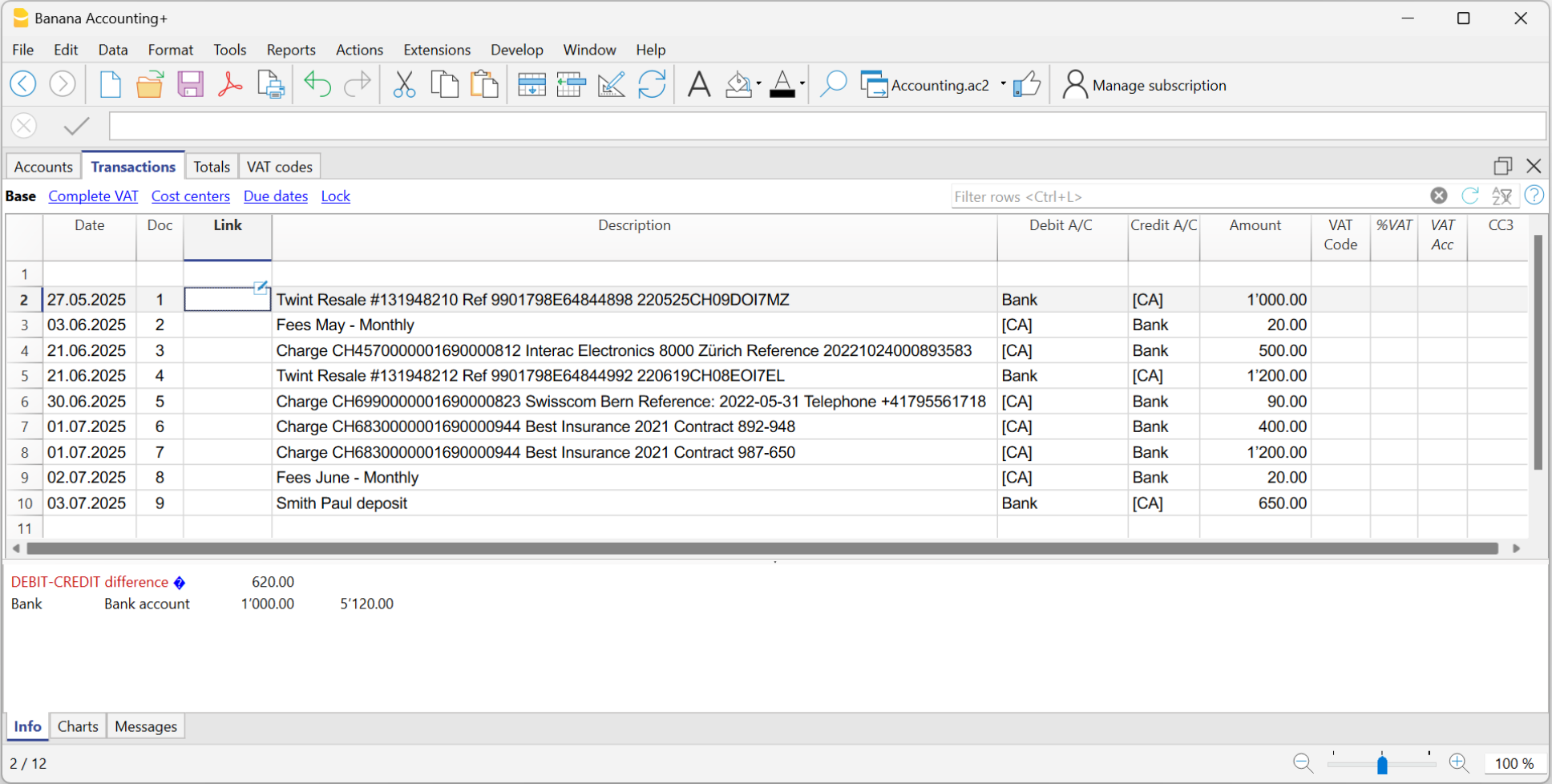
Complete the imported transactions
For each imported transaction, enter the counterpart, VAT code, cost center, or other information.
When you import a transaction that needs to be recorded on multiple lines, the program inserts a single entry with the total amount and a temporary counterpart [CA].
Proceed as follows:
- Remove the temporary counterpart account [CA] from the transaction.
- Insert new rows following the transaction. For each row, enter the complete transaction with description, counterpart, amount, any VAT code, and cost center.
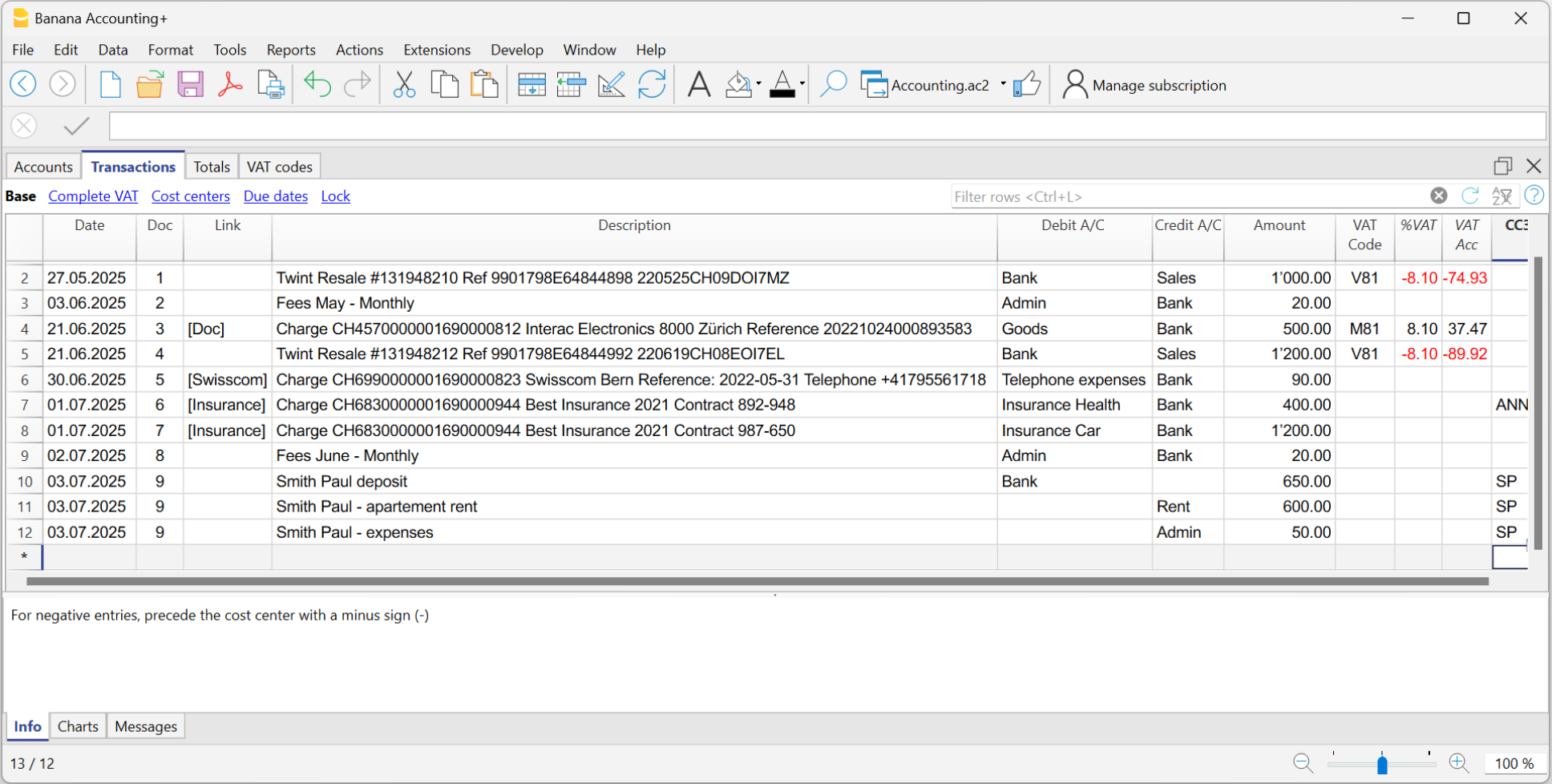
Create Rules
Starting from the completed transactions, you can create Rules:
- Select from the Transactions table the entries to which you want to apply Rules.
- Right-click on a transaction without rules > Create rules from selection.
Alternatively, go to the Actions menu > Recurring Transactions > Create rules from selection.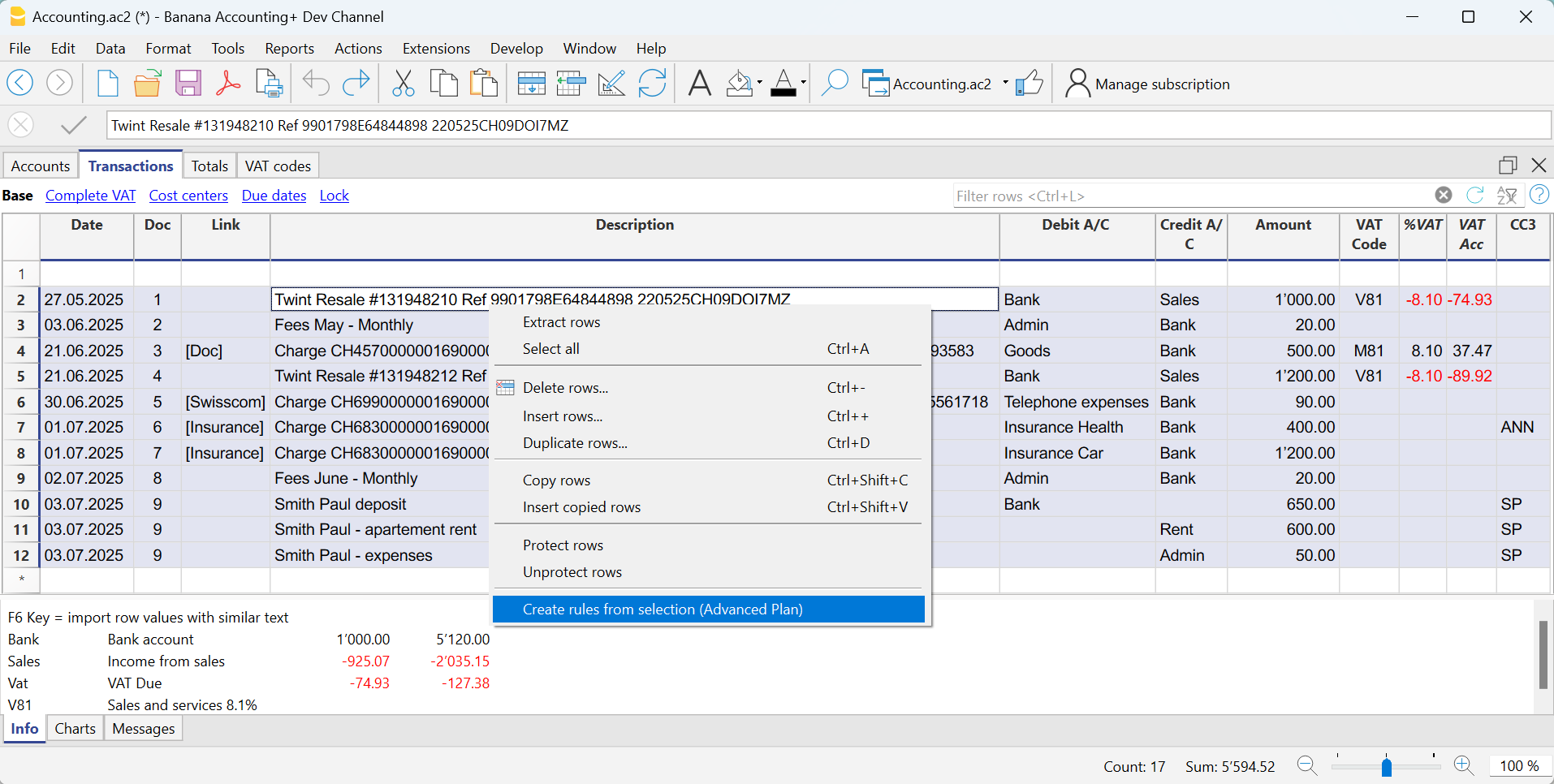
All selected transactions are transferred to the Recurring Transactions table, exactly as they were completed in the Transactions table.
How to complete the Rules
In the Recurring Transactions table, you need to complete the Rules:
- Edit the Description column.
Modify the text of the description to search for in the transactions from the imported bank statement. Initially, the program automatically uses the description found in the imported transaction.
Replace this text with one or more keywords so that the program can find matches in the description of the imported transaction (e.g., +Best Insurance).
See also Condition on Description - Debit and Credit Account Columns
The Debit and Credit columns show the counterpart and the imported bank account.- First, check whether the indicated counterpart is already the desired one; if not, update it accordingly.
- The main import account, used to identify matching transactions, must not be marked as a commented account (account enclosed in square brackets).
If the account matches the bank's main account from which the transactions are imported and is marked as a commented account, the brackets must be removed, otherwise the rule will not be applied correctly.
This may happen with detailed transactions imported from the statement for which no specific rules exist yet. - Alternatively, you can remove the main import account and leave only the counterpart. In this case, the rule will be applied based on the Description column (match with the transaction description) and will be valid for all imported bank accounts.
- For multi-line transactions, edit the Doc column.
In the first row of the transaction, enter empty square brackets [] in the counterpart column.
In subsequent rows, enter !RuleSplit in the Doc column (see rows 7,8,9 in the image below).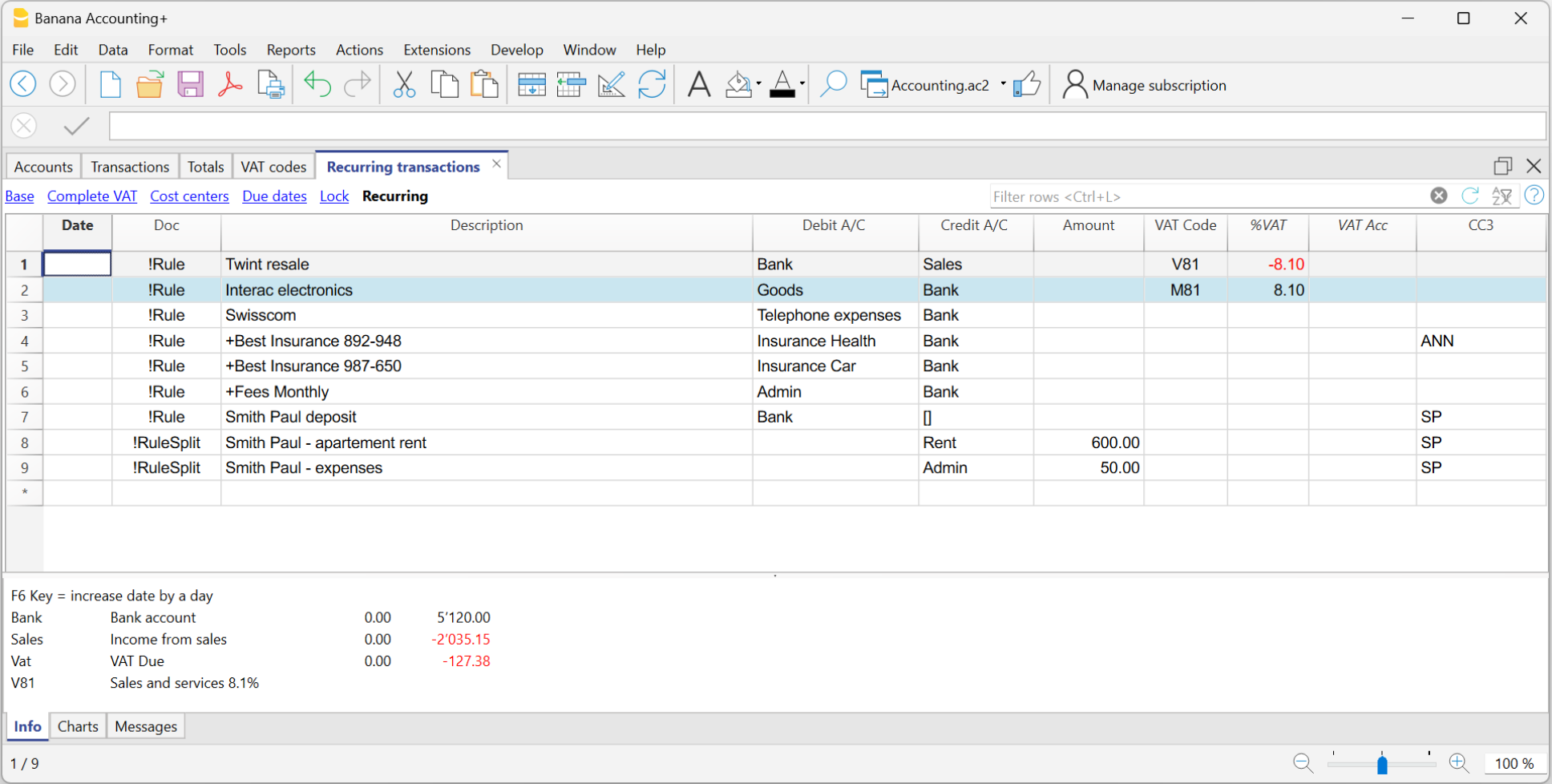
The explained procedure only needs to be performed the first time to set up the Rules. For future imports, the Rules found are applied automatically. You only need to complete the new imported transactions without a rule using the same procedure.
To find all imported transactions in the Transactions table that do not have a rule, you can use the Row filter function, entering the text "[CA]".
Recurring Transactions table Rules
The rules can be accessed via the command Actions > Recurring Transactions > Transactions table.
- Rule rows are those that contain !Rule or !RuleSplit in the Doc column.
- In rule rows, the columns have a different meaning:
- Condition Columns
Contain the values to be compared to determine whether the rule should be applied.
The condition columns are: Doc, Date, Description, Account Debit/Credit, Amount. - Action / Substitution Columns
Contain the values that will be applied and complete the imported transactions.
All columns that are not used as condition columns are considered substitution columns.
- Condition Columns

Condition columns
Condition columns (or search columns) contain the data used to search for matches in the imported transactions.
- Doc column (required)
- Must contain !Rule or !RuleSplit
- !Rule indicates it is a rule.
- !RuleSplit indicates that the rule above must also create split transactions.
- Must contain !Rule or !RuleSplit
- Description column (required)
- The Description column must contain the text to be searched in the description of imported transactions.
- When a description begins with text in square brackets, it is used as the rule name. The rule name is optional and can be used to better identify rules.
- Account column (recommended)
- In double-entry accounting: use the Debit column (to filter incoming transactions) or the Credit column (to filter outgoing transactions).
- In income and expense accounting: use the Account column.
- This is usually the bank account from which the transactions are imported.
- Date column (optional)
- Limits the application of the rule to a specific period of the transactions.
- Amount column (optional)
- Limits the application of the rule to a specific amount or range of amounts.
- In income and expense accounting: use the Income (incoming transactions) or Expense (outgoing transactions) column.
Substitution Columns
Substitution columns must be filled in with additional information.
- DocLink column
- Contra Account column
Enter the contra account that replaces the temporary contra account [CA] or the temporary contra selected in the Apply Rules dialog.- In double-entry accounting: use the Credit column (for incoming transactions) or the Debit column (for outgoing transactions).
- In income and expense accounting: use the Category column.
- VAT Code column
Enter the VAT code to be applied to the imported transaction.
The program automatically completes all VAT-related columns. - Cost Centers (CC1, CC2, CC3) columns
Specify the cost center to assign to the imported transaction. - Notes column
Enter any additional information to be included in the imported transaction. - Other columns
All columns that are not condition columns, except ExternalReference, are considered substitution columns.
ExternalReference is a reserved column used by the bank import to identify each transaction and prevent duplicates.
The DocLink column
In this column, it is not possible to insert a specific link to a document because each transaction will have its own document. However, you can add an annotation in square brackets (e.g., "[Doc]") to distinguish the rows that need to be associated with a digital document.
Once the transactions are imported, it may be necessary to link them to accounting documents. To speed up this process, it is recommended to proceed as follows:
- In the DocLink column of the Recurring Transactions table, use text enclosed in square brackets [ ].
- Within the square brackets, enter the text that should be searched for in the name of the supporting document file.

- In the Transactions table, the transactions are imported with the text in square brackets in the Link column.

- In the Transactions table, use the Row Filter function and enter the text "!link![ ]". This will display all the rows in the Link column that contain square brackets where a link to the supporting document needs to be added.
- When editing the Link column in the Transactions table, the program will show, in the auto-completion, the files of supporting documents that have not yet been linked to a transaction and contain the text entered between the square brackets.
For example, if you enter "[invoice]," the program will display all the unlinked files containing the text "invoice" in the cell.
It is possible that after importing transactions with the Rules, some transactions may need to be manually completed with additional information.
To quickly find the transactions that need to be completed, you can use one of the following methods:
- Using the Notes Column
To quickly locate the transactions that need to be completed, we recommend adding temporary search texts that can be used to filter the transactions. For example:- In the Notes column of the Recurring Transactions table, or in any other column of the Rule row (except for those predefined for the Rule), enter a hashtag, such as #city.
- In the Row Filter function of the Transactions table, enter the same hashtag. This will display the rows that you need to complete.
- Coloring Rule Rows
You can color the Rule rows in the Recurring Transactions table. The row color will be transferred to the Transactions table and used to highlight the transactions to which the rule is applied.
To identify only the colored rows, you can use the Row Filter function by entering the text "!_co!"

Split row transactions
Normally, when you import transactions from a bank statement with the Rule, a single counterpart account is recorded. If the total amount of the counterpart needs to be split across multiple counterpart accounts, you can create a multi-row Rule.
For example:
- You regularly receive a payment of 550 that must be recorded on three different accounts and therefore on three rows:
- (550) rent collection (no contra-account, as this involves recording the global amount split over three rows)
- (500) flat rent (contra account rent)
- (50) extra expenses (contra-account for extra expenses) .
To create a multi-row Rule:
- The first row corresponds to the total amount collected.
- In the Doc column, enter the text !Rule.
- In the Description column, enter the text to search for in the imported transactions.
- In the counterpart column, enter square brackets [].
In the following rows: - In the Doc column, enter the text !RuleSplit.
- In the Description column, enter the text to search for in the imported transactions.
- In the counterpart column, enter the counterpart accounts.
- In all other columns, input the values that should be included in the additional rows. In this example, we have added the tenant’s Cost Center.
In the following example, you can see the tenant’s Cost Center.
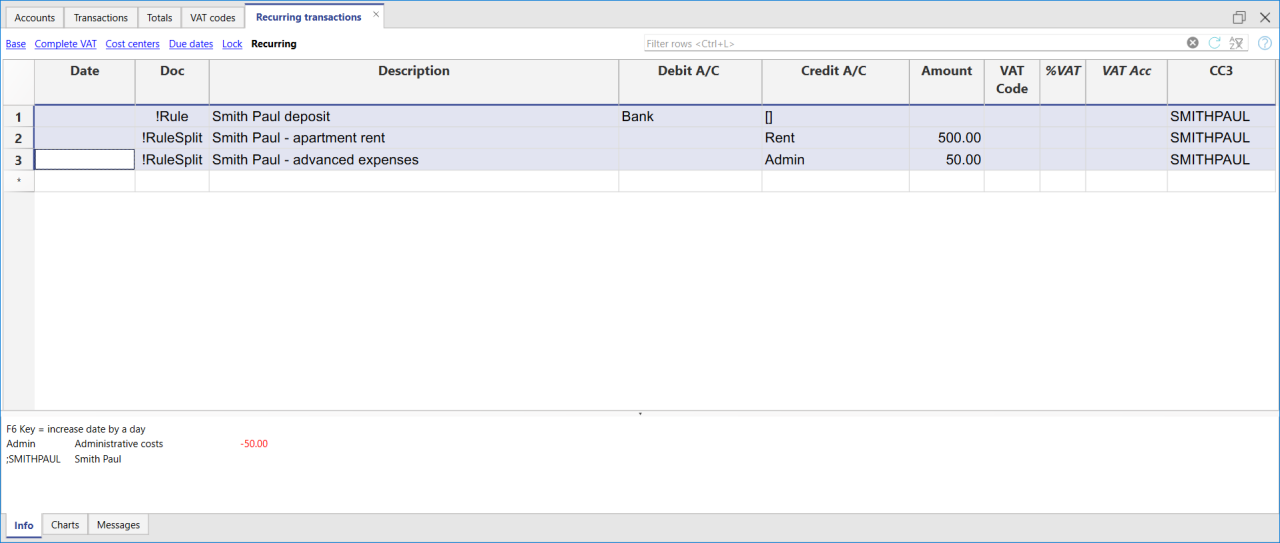
In the example of a multi-row rent transaction, it is assumed that the collected amount is always 550. If the collected amount is different from 550, the transaction will need to be completed manually.
Modifying rules in the Recurring Transactions Table
All completion Rules saved in the Recurring Transactions table, even if they were created from the Apply Rules dialog, can be modified, deleted, or new ones can be created in anticipation of a future import without a Rule.
Set a different description from the imported one
All imported transactions display the description from the bank statement in the Description column of the Transactions table. Typically, these descriptions are very detailed.
It is not possible to automatically change this description at the time of import.
If you wish to change the imported description, you can use the Notes column in the Recurring Transactions table.
Note: if the Notes column is already used for your own annotations, it cannot be used to modify the description.
If the Notes column is not being used, proceed as follows:
- Display the Recurring Transactions table.
- Make the Notes column visible by going to the menu Data > Columns set up > check the Notes column.
- In the Notes column, enter the description text that you want to appear in the Transactions table (Description column).
Repeat this step for each desired transaction.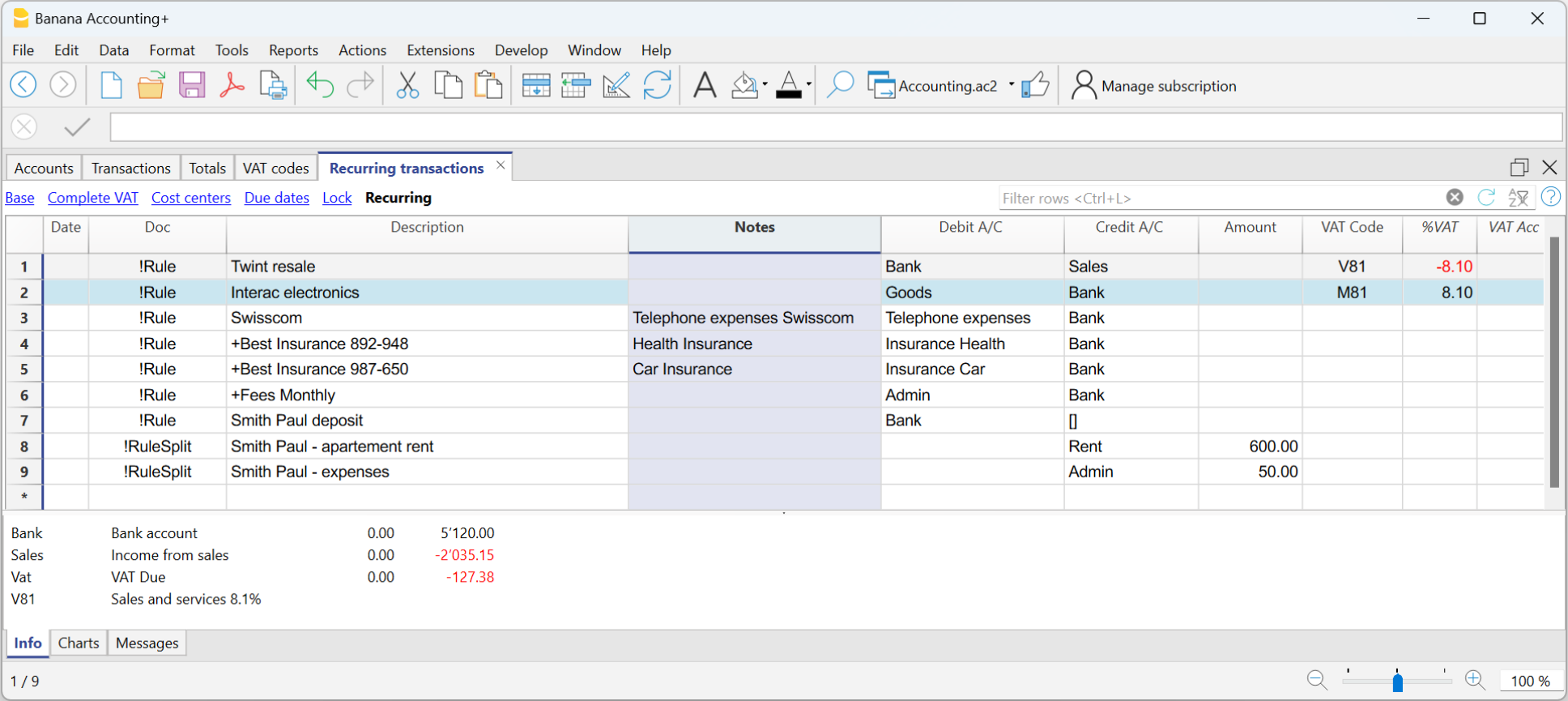
Import the transactions - After importing into the Transactions table, make the Notes column visible (menu Data > Columns setup > check the Notes column)
The Notes column will display the notes defined in the Recurring Transactions table.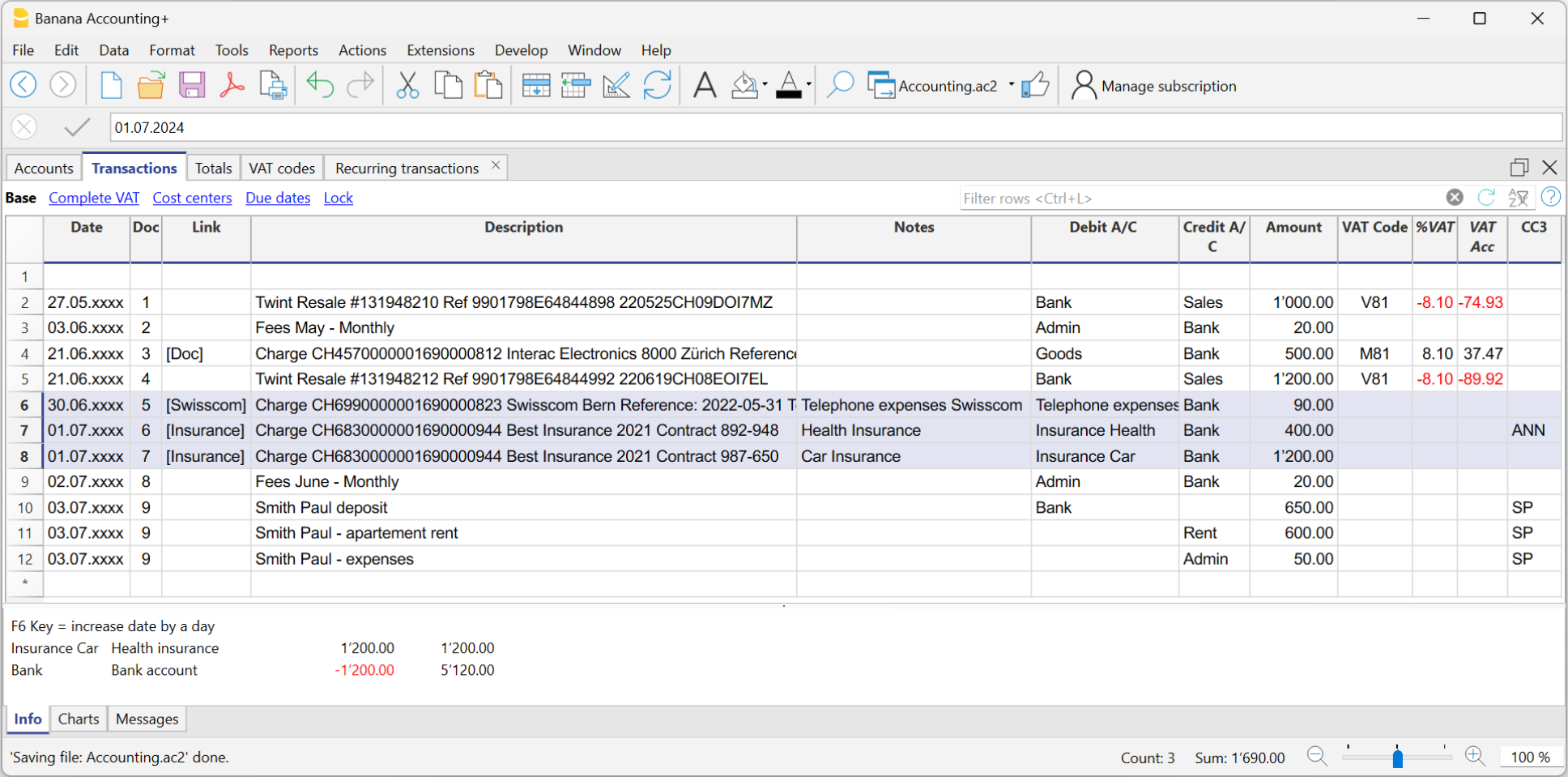
- For each transaction, copy the content from the Notes column and paste it into the Description column.
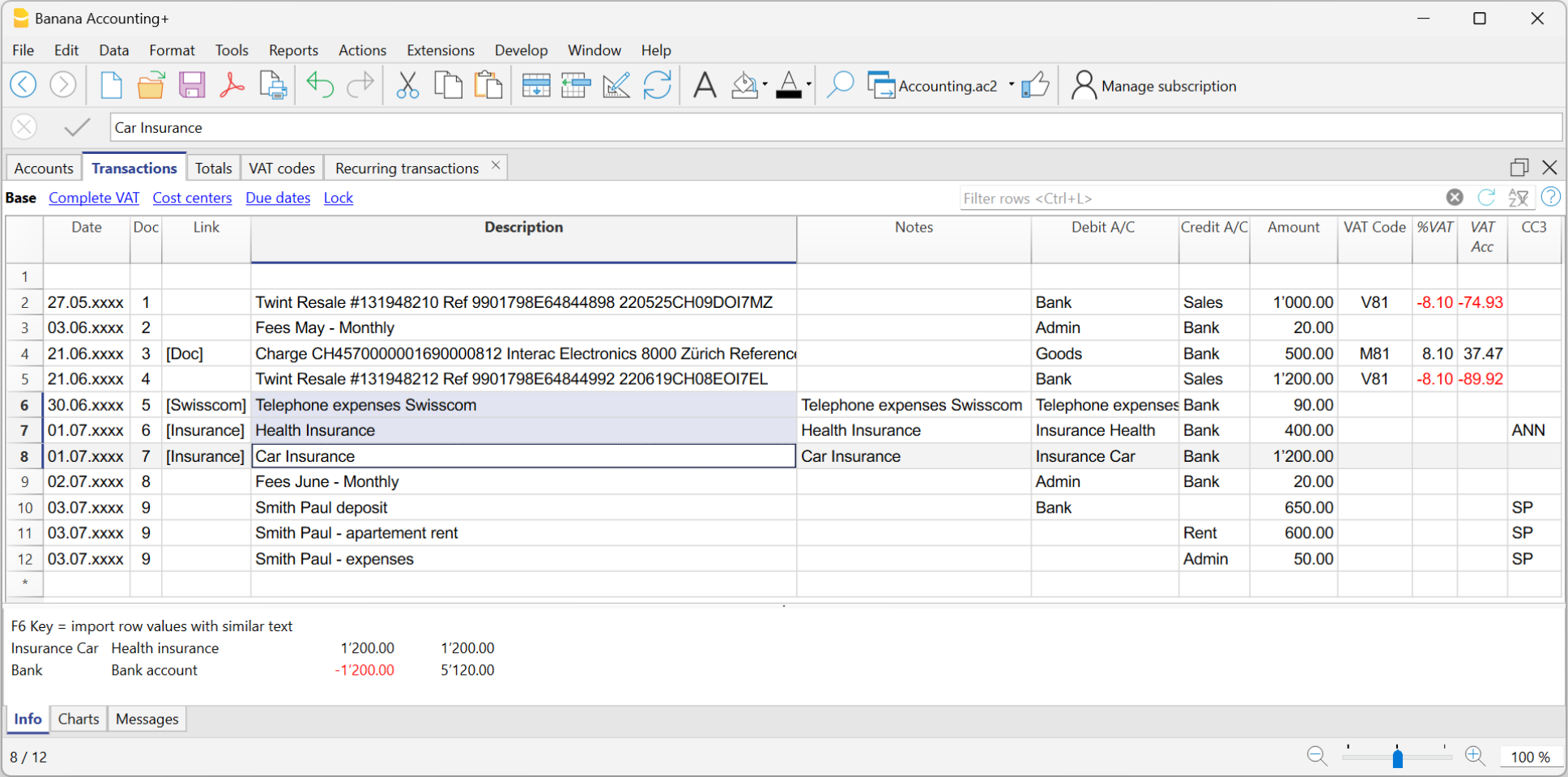
- For each transaction, copy the content from the Notes column and paste it into the Description column.
In the Recurring Transactions table, it is not possible to directly add custom columns.
To use a custom column in the Recurring Transactions table, you need to add the custom column to the Transactions table.
Once the column is added to the Transactions table, it will also be visible in the Recurring Transactions table and can be used to set a different description from the imported one.
Therefore, the insertion procedure is the same as described in the section Set a Different Description from the Imported One - Notes Column.
Create a new year with rules
When you create a new year using the command Actions > Create New Year, the existing Rules in the Recurring Transactions table are automatically carried over to the new year's file.
Accounting with the same rules
If you manage several similar accounting files (for example for clients with similar characteristics), it can be useful to reuse rules that have already been created, avoiding rewriting them every time.
When the accounting files have the same chart of accounts, or at least a compatible structure, you can copy the Recurring transactions from one file to another.
How to copy the rules
- Open the source file (the one that contains the rules to be reused).
- Display the Recurring transactions table using the command
Actions > Recurring transactions > Recurring transactions table. - Select the rows you want to copy.
- Use the Copy rows command, Edit > Copy rows.
- Open the destination file and display the Recurring transactions table.
- Paste the rules using the command Edit > Insert copied rows in the Recurring transactions table.
You can also create a dedicated accounting file, used as a rule library.
In this way, when you create a new accounting file, you can easily copy the necessary set of rules and paste it into the destination file.
Rule conditions
The rule conditions are criteria that define when a completion rule should be automatically applied to a transaction.
They are set during the creation or editing of a rule in the Apply Rules dialog, or directly in the Recurring Transactions table.
The conditions may refer to the Description, Account, Amount, and Date.
A rule is applied only if all the set conditions are met. If even a single condition is not fulfilled, the rule will not be executed. Empty conditions are ignored.
Condition on Description
Enter a word or short phrase as a keyword to identify transactions to be automated, based on the text shown in the Description column of the bank statement.
Banana Accounting automatically compares the description text of each transaction with the one specified in the rule and, if it finds a match, applies the associated rule.
To achieve more effective results, it is advisable to use only a few representative keywords (for example, the supplier or service name), so that the rule matches multiple similar transactions.
The search texts can be entered in several ways:
- Exact word or phrase
- For example, if you enter "Best Insurance 982-948", the program searches imported transactions that contain exactly "Best Insurance 982-948".
- If you only enter "Insurance", the program searches imported transactions that contain the word "Insurance".
- All words in any order (+ at the beginning)
- If you enter "+Best Insurance 892-948", the program searches imported transactions that contain the words "Best", "Insurance", and the number "892-948" in any order.
- All words must be present in the transaction description, but the order is not relevant.
- The "+" symbol is not considered in the search.
Important: where there is a contract number, a policy number, a customer number, etc., it is recommended to add a "+" in front of the rule. The + allows the rule to search for individual words (or sequences of numbers) regardless of their position within the description of the imported transaction.
- List of words (using |)
- If you enter "coffee|restaurant", the program searches imported transactions that contain the word "coffee" or "restaurant".
This method is useful to identify multiple categories without creating separate searches.
- If you enter "coffee|restaurant", the program searches imported transactions that contain the word "coffee" or "restaurant".
- Uppercase and lowercase
- The search does not distinguish between uppercase and lowercase letters. The entered text will be applied regardless of case.
All text entered in the Description is displayed in the Description column of the Recurring Transactions table.
- The search does not distinguish between uppercase and lowercase letters. The entered text will be applied regardless of case.
Warning: Do NOT use the entire text from the bank statement as the description, because it is unique for that transaction.
Condition on Account
- Enter the account from which the transactions are imported (bank, post, etc.).
- The program records in Debit or Credit depending on the imported transaction.
- The program automatically posts to Debit or Credit based on the transaction type.
- If the Account field is left empty, the rule applies to all accounts that meet the description condition.
Condition on Amount (or Currency Amount)
- Allows applying a rule only when the transaction has a specific amount.
- Alternatively, if the exact amount is not known, you can define a range of amounts by specifying a minimum, maximum, or a specific interval in which to apply the rule.
- Available from version 10.2.3 of Banana Accounting Plus (Dev Channel)
- The condition must:
- start with the symbol !
- be enclosed in square brackets [ ]
- use the unformatted amount, that is, without thousand separators and with a period as decimal separator
(other formats are not recognized) - The operators that can be used are greater >, less <, greater or equal >=, less or equal <=, not equal <>
- Example: to select transactions with amount greater or equal to CHF 1'000.00:
[!>=1000.00]

The image shows the Apply Rules dialog where you can select the Amount field and define a number range (in this example, account 1510 Furniture and Fixtures is applied to transactions with the description equal to 'Office supply purchase' and amount greater or equal to CHF 1'000).
Using this filter is useful when assigning different counterpart accounts based on the transaction amount.
Examples of conditions applicable to the Amount column
| Syntax | Meaning |
| [!=1000.00] | transactions with the exact amount of CHF 1'000.00 |
| [!>1000.00] | transactions with amount greater than CHF 1'000.00 |
| [!>=1000.00] | transactions with amount greater or equal to CHF 1'000.00 |
| [!<1000.00] | transactions with amount less than CHF 1'000.00 |
| [!<=1000.00] | transactions with amount less or equal to CHF 1'000.00 |
| [!>=1000.00 !<=2000.00] | transactions with amounts between CHF 1'000 and CHF 2'000 |
| [! |!100.00 |!<150.00] | transactions with amount exactly CHF 100.00 or CHF 150.00 |
Condition on Date
Starting from version 10.2.3 of Banana Accounting Plus (Dev Channel) you can apply a rule to transactions that fall within a specific period (for example, only transactions from January).
How to proceed:
- Add a new rule as explained on the page Apply Rules Dialog - Add Rule
- Select the Date field
- Enter the filter condition in the Comment field.
The condition must:- start with the symbol !
- be enclosed in square brackets [ ]
- use the date in ISO format YYYY-MM-DD
(other formats are not recognized)
- Example: to select transactions with dates equal or before April 1st, 2025:
[!<2025-04-01]

The image shows the Apply Rules dialog where you can select the Date field and define a date range (in this example, it is applied to transactions before April 1st, 2025).
Using this filter is helpful when differentiating processes by month, quarter or year — for example, if a specific VAT code applies until a certain date and a different one after that, such as when switching to a new VAT method.
Examples of conditions applicable to the Date column
| Syntax | Meaning |
| [!=2025-03-31] | transactions with date 31.03.2025 |
| [!>2025-03-31] | transactions with date after 31.03.2025 |
| [!>=2025-03-31] | transactions with date on or after 31.03.2025 |
| [!<2025-03-31] | transactions with date before 31.03.2025 |
| [!<=2025-03-31] | transactions with date on or before 31.03.2025 |
| [!>=2025-03-31 !<=2025-06-30] | transactions in the range from 31.03.2025 to 30.06.2025 |
| [! |!2025-03-15 |!<2025-03-18] | transactions with date 15.03.2025 or 18.03.2025 |
How to define conditions in the Recurring Transactions table
Conditions can be entered directly in the Recurring Transactions table using the same syntax explained in the previous sections.

Rule weight and conflict resolution
The weight of an autocomplete rule is determined by the number of conditions defined in the rule itself. The greater the number of specified conditions, the greater the weight assigned to the rule.
When multiple rules apply to the same transaction, Banana Accounting selects the rule with the highest weight, considering it more specific. This makes it possible to define generic rules and more detailed rules; in the event of a conflict, the more specific rule is always applied.
For example, the Recurring transactions table may contain the following rules:
| Date | Doc | Description | DebitAcc | CreditAcc |
| !Rule | Credit | 1100 Debtors | ||
| !Rule | Credit Fratelli Bernasconi | 1030 | 1150 Customer Bernasconi |
If a transaction with the description "Credit Fratelli Bernasconi" is imported into account 1030, both rules apply. However, the second rule has a higher weight because it contains an additional condition on the DebitAcc field. Since it is more specific, it is applied with priority over the first rule.
经常性业务
经常性业务表
在经常性业务表中,您可以输入每月重复的所有业务。为了避免总是重复书写相同的文本,可以把发生业务组存储在经常性业务表 (操作菜单) 。这些组用代码标识,只要输入相应的代码就可以检索并输入到发生业务表中。
当定位在发生业务表的记账凭证号列时,程序会提出按代码分组的经常性业务列表。如果选择了其中的一个代码:
- 程序输入具有相同代码的重复行。
- 程序使用日期和之前输入的其它值来完成输入的行。
- 程序在记账凭证号列输入渐进数字 (基于之前输入的值) 。
输入经常性业务
对于重复性的操作,可以创建因果代码来自动恢复数据。
- 您需要把应定期检索的业务行输入到经常性业务表中 (或从发生业务表中复制) 。
- 每个经常性业务都会分配一个代码。
- 在记账凭证号列中输入与经常性业务组相关的代码。
具有相同组代码的行将被一起检索 (多行发生业务) 。

渐进的文件编号 “记账凭证号”
如果在检索经常性业务时,您希望有一个与自动检索不同的记账凭证号,则需要在记账凭证号列中创建一个含有“记账凭证号”代码的行, 并在摘要列中创建您所需的文本。对于以下行,将使用摘要列中指定的文本。
- "0" 当不需要自动编号时。
- "1" 渐进编号。
- "现金-1" 渐进编号的前缀 "现金 -" (现金 - 2,现金 - 3) 。
该程序将文本末尾所示的数字替换为下一渐进数字。 - 如果您希望程序建议只有一行一代码,摘要前必须加上:
- 一个 "*"号:显示只有此行,不显示其它相同代码的行。
- 一个 "**" 号显示只有此行,但是不要检索此行 (仅标题行) 。
- 一个 "\*" 允许用户以星号开始摘要,而不被解释为一个命令。
经常性业务表不允许保存自己的视图设置,但可以接收发生业务表中各列的视图和设置。
把经常性业务检索到发生业务表中
- 输入日期和其它应保持不变的列。
- 在记账凭证号列中,选择经常性业务表中定义的代码之一,然后按确定键:
- 程序用相同的代码输入所有的业务,重复数据列和其它已经输入的值。
- 在记账凭证号列,将插入一个渐进的数字或记账凭证号列中指定的数字。
- 或者在记账凭证号列指明代码,按 F6 键。
复制发生业务行至经常性业务表
为了把发生业务表内的行复制到经常性业务表中:
- 在发生业务表中,选定需要被复制的行。
- 编辑菜单 -> 复制行。
- 进入到经常性业务表。
- 编辑菜单 -> 插入已复制的行。
格式化列和视图
经常性业务表使用与发生业务表相同的格式和视图。
对于经常性业务表,不可能使有单独的格式。
但是,可以在发生业务表中添加一个新视图,设置一个新的列格式,并在经常性业务表中使用相同的视图。
Automatic transactions with recurring deadlines
Automatic transactions are useful for facilitating the recording of repetitive entries, such as subscriptions, insurances or taxes. By using automatic transactions, you only have to enter the entry of interest once, set a few parameters such as the start date, the frequency and the end date and then Banana Accounting Plus will inform you when an automatic transaction is ready to be created and will create it for you.
In Banana Accounting Plus, there are two ways to create automatic transactions:
- From the Recurring Transactions table
- From the Manage Automatic Transactions dialogue.
Requirements
- This feature is available in the latest release of Banana Accounting+ Dev Channel.
- It requires the Advanced plan. If you do not have this plan, you can request a promotional code valid for 1 month via the contact form.
- You need to add the End Date and Repeat columns to your accounting file.
- This feature is in Beta Test; we kindly ask you to test it and report any problem.
Adding the End Date and Repeat columns to your accounting file
To be able to activate the commands for automatic transactions, the End Date and Repeat columns must be added; without these columns the commands will not be displayed.
- Open your accounting file or create a new accounting from the File menu > New command.
- Select the command from the Tools menu > Add/Remove Functionalities...
- The Add/Remove Functionality dialogue will appear with the list of available functionalities.
- Select the option Add End Date and Repeat columns in Transactions table.
If this option is not available, check the Banana version and the plan you are using, as described in the Requirements section. - Click on the OK button.

Creating an automatic transaction from the Recurring Transactions table
- Select the command from the Actions menu > Recurring transactions > Create automatic transaction.
- The Recurring transactions table will appear with a new row, showing the date of the day in the Date column and the text !Auto in the Doc column, which serves to identify the automatic transaction.
- Update the Date column with the date of the first occurrence you wish to schedule.
- Display the End Date and Repeat columns with the command from the Data menu > Columns setup...
Make sure to check the Visible box for both the End Date and Repeat columns.
If these columns are missing, you can add them as described in the Adding the End Date and Repeat columns paragraph.
Note: The new columns are added to the Transactions table, but are only used in the Recurring Transactions table, visible in the Recurring view. - Add the desired repetition to the Repeat column. For example, if you want a quarterly repetition, enter the text 3MS in the Repeat column.
- If the automatic transaction has an expiry date, set it in the End Date column.
- Complete the Description, Debit Account, Credit Account and Amount columns.
- Select the command from the Actions menu > Recurring transactions > Manage automatic transactions to display the scheduled transactions.
Note: If you use the command from the Actions menu > Recurring transactions > Create automatic transaction from an existing transactions in the Transactions table, the Description, Amount and Accounts columns will show the text of the original transaction.
The Create automatic transaction command is also available in the context menu of the Transactions table (right-click on a transaction, and choose the Create automatic transaction command).
Creating an automatic transaction from the Manage automatic transactions dialogue
- Select the command from the Actions menu > Recurring transactions > Manage automatic transactions.
- The Manage automatic transactions dialogue will appear.
- Click on New automatic transaction button at the bottom of the dialogue.
- Complete the necessary fields:
- Start date
Date from which the first automatic transaction will start. When the transactions are generated, this date will be updated with the date of the last automatic transaction created. - End Date
- Repeat
- Description
- Account
- Contra-account
- Amount
- CC1, CC2, CC3
- Name or description (optional)
- Start date
- Click on the OK button.
Auto-completion rules for income and expenses accounting
In Income and Expenses Accounting and the Cash manager, the functionality for Completing Imported transactions works in the same way as for Completing transactions in Double-entry Accounting.
The main difference is as follows:
- In the Income / Expenses accounting, the columns Account and Category are used.
- The Account column refers to the bank account.
- The Category column is where the category is specified. It represents the counterpart account entered automatically.
- The Income and Expense columns are where the amount for the transaction is indicated.
- In double-entry accounting, the Debit Account and Credit Account columns, along with the Amount column, are used.
Therefore, even with income and expense accounting, it is possible to create rules using one of the following methods:
- Rules from the Apply Rules dialog.
- Rules from the Transactions table.
- Rules from the Recurring Transactions table.
The Recurring transactions table in Income / Expenses accounting
In the Recurring Transactions table, all imported transactions to which Rules have been applied are saved:
- The columns associated with the amount are the Income and Expenses columns.
- If no amount is specified, the rule will be applied to both outgoing and incoming transactions.

转账账户
转账账户是一个后备账户,用于记录临时的业务。其具体用于以下情况:
- 记录自我评估的业务和购买税的回收 (海外服务的增值税)。
- 将现金日记账和信用卡的数据导入主账户。
- 记录银行收取的薪金净额,直到完整记录薪金总额以及各种月度扣除额。
从现金日记账或信用卡导入数据时使用转账账户
当现金或信用卡的动向与主账户分档保存时,为避免在导入记录中产生重叠,将把对应账户视为转账账户。
- 资金的收款记录在现金日记账或信用卡文件中 (现金日记账或信用卡账户正在增加)。
- 在主会计文件中,记录了银行或邮政往来账户的流出量以及现金或信用卡的增加额。
在这两个文件中,都必须将转账账户用作对应的账户,既记录银行提款 (主会计),又在现金日记账或信用卡上付款 (单独文件)。
当您导入现金或信用卡数据时,在主会计文件中,将重置转账账户:
- 从现金或信用卡档案导入的数据位于转账账户的贷方。
- 与已经在银行或邮局账户上借记的付款有关的动向将记入转账账户的借方。
有关从转账账户进行导入的更多详细信息,请参见从现金日记账文件中导入数据的页面。
从其它会计软件传输数据
用Excel进行一次性数据导入
如果您开始使用 Banana财务会计软件记账,并需要从其它会计软件中检索数据,那么依靠 Excel 复制和粘贴数据可能会更快。
- 使用旧的会计软件,把数据导出成可以被Excel读取的格式 (CSV, txt, ...)
- 使用Excel打开被导出的文件
- 在Excel中, 把数据(列)组织成与在Banana表格中所出现的一样的顺序(账户, 发生业务)
- 在Banana会计软件中打开您新的会计文件
- 在账户或发生业务表格中,添加空行的行数应该与从Excel中被传输的行数一致
- 在Excel中, 选择要被复制的数据,并且使用复制命令
- 进入Banana会计软件中,并且执行粘贴命令。
此方式在从MS-Money, Intuit Quicken 和 Quickbooks中, 以及其它绝大多数的会计程序中传输数据的情况下是很有用的。

导入银行的动向
在这种情况下,可以已经可用的导入功能之一:
- 请查看:导入发生业务
从其它程序定期导入数据
请参阅:导入到账套
可能还有必要定期导入数据:
- 从您的工资软件中导入每月的发生业务。
- 导入使用开票软件而开具的发票。
- 导入使用您的开票软件制作的付款。
- 从您的在线商店中导入您的销售业务。
- 从另外的会计软件中导入数据。
- 从另外的现金管理软件中导入数据 (例如一间饭店或一间酒店)。
在这些情况下,您可以采取两种不同的方式:
- 让您的应用程序以txt (TSV) 文件格式导出数据,这是为导入Banana会计软件而特别准备的。
请参见创建文件导入Banana会计软件的页面 (英文)。 - 使用导入的扩展程序,将程序导出的数据转换为Banana会计软件所接受的格式。
- 检查是否已经设置了扩展程序。
请参阅:导入的扩展程序。 - 创建导入的扩展程序。
请参阅:开发导入的扩展程序 (英文)。
- 检查是否已经设置了扩展程序。
管理会计
Banana 会计 Plus 提供多种功能,用于分析成本、收入和经营结果。以下页面将介绍每种解决方案的特点以及适用场景。
成本和利润中心
Banana 会计 Plus 的成本和利润中心功能,可将成本和收入分配到特定的业务活动、部门、项目或其他分析单位,即使这些单位彼此独立也可以进行管理。这样可以分别监控各单位的成本、收入和经营结果,而无需更改会计科目表的结构。更多信息请参阅 成本和利润中心。
部门
Banana 会计 Plus 的部门功能,可按照组织单位、分支机构、业务领域或其他业务维度,对会计数据进行系统划分。对于每个部门,都可以生成独立的损益表及其他报表,而无需为每个单位创建专门的会计科目。更多信息请参阅 部门。
项目、分支机构和业务领域
为了管理项目、分支机构、业务领域或其他独立业务活动,Banana 会计 Plus 可以使用成本中心和部门功能。根据分析需求,可以监控单项业务活动的成本和收入,也可以为组织中的不同单位生成独立报表。更多信息请参阅 项目、业务领域和分支机构。
```
成本和利润中心
成本和利润中心允许您根据与普通账户不同的标准对发生业务进行分类。
成本中心通常用于将费用归入特定的活动,这些活动之间可能有也可能没有关联性。
- 项目,活动,建筑工地。
- 客户和供应商、合作伙伴、商家。
- 某些费用的额外细节 (如辅助费用)。
成本中心被分配到发生业务行,可以同时用于部门。
成本中心的特征
- 成本和利润中心 (成本中心) 是前面有 “.” 和 “,” 以及 “;” 标识的账户。
- 这里有三级成本中心:
- 成本中心1前面是一个句点 “.”
- 成本中心2前面是一个逗号 “,”
- 成本中心3前面是一个分号 “;”
- 每一级都是彼此独立的。
- 每一个级别中,都可以有无限数量的成本中心。
- 高级别的成本中心可以在不使用低级别的成本中心时使用。
- 成本中心的代码可以是字母或数字。
- 与普通账户不同的是,成本中心可以有它们自己的组。同一级别下的成本中心可以创建子组。注意不要将不同级别的成本中心组混淆,也不要与普通账户或部门混淆。
- 每个成本和利润中心都有属于自己的账户明细,用于完成业务往来和余额记录。
- 根据成本中心记录的账户与根据借方和贷方记录的账户是独立的。人们也可以记录一个没有任何借方和贷方列账户的成本中心。
在账户表格中设置成本中心
成本中心账户是在账户表中设置的,但是在现金日记账中则只是使用科目表中的设置。
对于设置:
- 创建成本中心特定的类。
这种设置对于成本中心在增强的资产负债表组中的展示是必要的。- 需要更改类的时候,输入一个带有*的类
- 在下一行中,输入03,或者04来表示利润中心以及相关的摘要。
- 添加一些空的行用于成本中心
- 在组列中,输入成本中心账户所属的组。
- 在账户列中,在那些需要被记录在成本中心1列(发生业务表)的内容前输入前面带有句号“.”的成本中心账户,在需要被记录在成本中心2列的内容前输入前面带有逗号“,”的成本中心2账户;类似的,在需要记录在成本中心3的内容前输入前面带有分号“;”标识的成本中心3账户。
- 在所属组列,请明确需要累计数额的组。
- 在多种货币会计中,请明确账户使用的货币。
- 增加成本中心组
- 在一个或相同的组中,只计算特定级别的总数。
- 在普通账户中,可以创建不同级别的成本中心组。

文件和账户属性 (增值税金额)
在文件和账户属性命令的增值税标签下,您可以使用以下选项来设置成本中心的数额:
- 使用业务发生额 - 成本中心的金额根据注册金额来记录
- 使用不含增值税的金额 - 成本中心记录不含增值税的金额
- 使用含增值税的金额 - 成本中心记录包含增值税的金额
发生业务
为了在成本中心中记录,假定成本中心账户已经被输入到表账户中。
您需要在发生业务表下的成本中心视图中处理这些记录;在成本中心1,成本中心2,成本中心3列中,您需要输入前面不包括标点符号的成本中心账户。
- 为了在成本中心的贷方账户进行记录,您需要在成本中心前输入负号 (-)。
- 对于收益&费用核算,在文件和账户属性中,您可以为成本中心定义所遵循的科目的符号。
- 为了在同一级别内的多个成本中心记录全球金额,您需要创建不同的行来记录不同的成本中心。

如果您想在发生业务表中显示成本中心的摘要,必须从数据菜单 → 列设置中激活相应的列 (成本中心1摘要, 成本中心2摘要或成本中心3摘要)。
成本中心账户明细
成本中心被视为与任何其它账户一样,因此每个成本中心都有自己的账户明细,其中包含相关的分类账条目和余额。
与所有其它的科目不同,成本中心账户没有对应的账户。如果您想查看对应的数据,我们建议使用部门。
为了检视所有的成本中心账户明细,请点击报表菜单 → 账户明细 → 成本中心 (在过滤选项中)。
相关文档:
部门
部门是用来按单位、部门或分支机构系统地划分成本和收入的。通过使用分部,可以将损益账户按单位、部门或分支机构进行细分,而不需要为每个单位创建特定的账户。
例如,一个博物馆可以用分部的方式来了解每个单项展览设置的收入、人员成本、展览设置。
在发生业务中,分部会跟随账户,与成本中心不同,成本中心是为每项记录指定的,用于结构化程度较低的分类 (例如,某项活动的所有支出或特定用途的采购)。
您可以同时使用成本中心和分部。
部门的特征
- 部门是前面有冒号的账户 ":"。
- 部门代码可以由数字或字母组成。
- 可能有多达10级的部门。
- 部门前面符号冒号的数量指示了级别的数量。
- : 1级10部门
- :: 2级10部门
- ::: 3级10部门
- 不同级别的部门是相互独立的。
- 部门没有基本类或货币符号。
- 部门的计算是由本位币来完成的。
- 在发生业务中,部门跟随着借方和贷方账户。
在没有账户的情况下无法记录部门。 - 可以获得单个部门业务的账户明细。
部门的配置
这些部门必须在账户表中配置,在账户列,会计科目表的最后。
- 在类的列中输入一个星号,以便定义与部门相关的部分
- 在摘要列输入部门的标题
- 输入第一级别部门的摘要,并在账号列输入":"
- 列出第一级别的部门, 在账户列为每一个输入一个识别码, 并在前面输入":"
- 一级分部,为每个分部输入一个识别代码,前面加:(冒号)。
- 输入第二级别的部门 (以及,再输入第三级别的,如果有需要的话), 同输入第一级别的步骤一样,唯一不同的是在部门的代码前要输入"::" 或 ":::", 具体情况要根据不同的级别而定。

未分配的部门
如果在发生业务中输入了借方账户或贷方账户,而不指定部门,则在 "空 "或未分配部门输入值。
在账户表中,您可以给未分配的部门输入文字":{}"作为账户的描述。
部门余额
部门是指在账户上输入的细分。因此部门的金额总是与账户相关联的,为了得到部门的总计,您需要点击报表菜单 → 会计报表或按组生成资产负债表 → 细分,然后激活按分部细分的选项。
在会计科目表中,只有在只使用借方或贷方科目列输入发生业务的情况下,才会出现该部门的余额。如果该部门被插入到部门列或同时用于借方和贷方账户,则余额将为零 (空)。在这种情况下,借方和贷方的金额将相等,将相互抵消。
发生业务
在发生业务表内输入的部门,遵循主账户,从账户部门而来。
当一个部门属于多级别的时候,您必须从第一级部门的主账户开始,然后再继续第二级的部门。

部门列
此列允许您与账户分开输入部门。
- 在默认的设置下,部门列是隐藏的,如果您想使用它,需要点击数据菜单 → 列设置的命令使其可见。
- 在部门列中输入的部门被应用于发生业务中使用的账户,在借方、贷方、增值税账户列中,没有指定部门。
- 您可以使用部门列,也可以在借方和贷方列中插入部门。
- 当使用部门列时,金额被记录在部门的借方和贷方,这就是为什么部门在账户表中的余额将为零。

各部门之间的动向
一般来说,成本的明细账都是针对每一个单独的会计科目进行的。但是,在有些情况下,最好在一个账户中记录费用,然后在年底才将费用分成若干部分。例如行政费用就是如此,公司不同领域的行政费用按一定比例划分。
就是这样做的:
- 在这一年中,业务的记录方法是在借方和贷方列中标明账户,但将该部分留空,或者将全部金额分配给一个部分。
例如,所有的文具费用都将不分部门记录。 - 在年终时,分录将每个部门的份额分配到具体的成本或收入账户:
- 在发生业务中,在借方和贷方列中始终输入同一个账户。
- 标出了原始部门 (也可能不存在) 和目标部门。
- 例如,将文具成本分配给各个部门。
- 有多少发生业务就有多少部门。
- 对于每一行,账户都没有部门。
- 借方帐户具有与该部门相关的细分。
- 该数额相当于具体部门应承担的文具费用份额。
- 这些发生业务是为了将尚未分配的成本份额分配给每个部门。

部门的期初余额
部门的期初余额最好应作为发生业务输入,因为只有这样才能将它们链接到账户。 如果您在期初列 (账户表) 中输入了部门的期初余额,则这些归于“ {}未分配”部门。
要将期初余额分配给各个细分市场和相对应的账户,必须输入期初业务 (发生业务表)。
- 文件类型列中的值必须为01。
- 该日期必须与会计开始日期相同。
使用部门的期初业务,金额从空的分部中删除,分配到具体的部门。
如果分部的余额是负数 (借方),那么没有部门的账户必须出现在贷方一列中,而有部门的账户必须出现在借方一列中。
部门发生业务余额的实例:
假设账户1000的期初余额为100.00 (无分部,因此金额归因于空的分部),并且必须归因于两个细分:
- 部门01为80.00
- 部门02为20.00
- 期初交易有会计的起始日期,在文件类型列中的值为01。
- 该部门的第一个期初发生业务在借方列中为1000: EVENTS,在借方列中为1000,金额为80.00。
- 第一个期初发生业务在贷方列中为1000: COURSES,在贷方列中为1000,金额为20.00。

创建新年的命令
创建新年或恢复期初余额命令会自动为各部门创建期初的发生业务。
如果您不想报告一个部门级别的余额,您必须删除程序自动创建的相应的期初业务。
使用“-”符号作为分隔符
在发生业务中,您可以使用“-”号作为分隔符,而不是“:”号。
在文件和账户属性 (选项) 中,激活使用负号(-)作为部门分隔符的选项。
在发生业务中使用负号作为分隔符。
如果使用“-”符号作为部门分隔符,则不能使用包含破折号的账户。
报告
部门的报告可以通过以下方式获得:
- 按组生成资产负债表/损益表
- 会计报表
- 账户明细
- 多级报告
为了获得结合账户和部门的报告(例如,卢加诺 LU 分支 P1 项目的所有费用),需要使用 Banana 扩展程序的功能。
按级别细分报告
在按组生成资产负债表/损益表中,细分的标签指示出所需使用的部门级别。

报告汇总
这是会计计划部分中设置的部门汇总,可以按期间或部门进行细分。

未指定部门
“空”的部门收集了所有已经被记录,但不含指定部门的金额,可以在账户表中为这个部门设置标题。也可以在细分部分中选择部门的摘要选项。
相关的文档:管理不同的项目
Differenze tra Centri di Costo e Segmenti
I Segmenti e i Centri di costo/profitto permettono di classificare e analizzare i dati contabili secondo criteri aggiuntivi, senza dover creare conti specifici per ogni attività.
I Segmenti sono indicati soprattutto quando si desidera ottenere una suddivisione sistematica del Bilancio e del Conto economico, per esempio per succursale, dipartimento o unità.
I Centri di costo/profitto sono invece indicati per attribuire costi e ricavi a specifiche attività o finalità, per esempio progetti, manifestazioni o eventi.
Segmenti e Centri di costo/profitto possono essere utilizzati contemporaneamente.
La seguente tabella riassume le principali differenze.
Funzionalità | Segmenti | Centri di costo/profitto |
|---|---|---|
| Impostazione | ||
| Numero di livelli | Fino a 10 livelli | Fino a 3 livelli: CC1, CC2 e CC3 |
| Numero di elementi | Numero illimitato di segmenti per ogni livello | Numero illimitato di centri per ogni livello |
| Impostazione nella tabella Conti | Nella colonna Conto, facendo precedere l'identificativo da :, ::, ::: ecc., in base al livello | Nella colonna Conto, utilizzando la punteggiatura prevista per CC1 (.), CC2 (,) e CC3 (;) |
| Indipendenza dei livelli | ✅ Sì, i diversi livelli sono indipendenti tra loro | ✅ Sì, i diversi livelli sono indipendenti tra loro |
| Registrazioni | ||
| Registrazione | Il segmento segue il conto Dare o Avere, per esempio 4000:P1 | Il centro di costo/profitto viene indicato nelle colonne CC1, CC2 o CC3 |
| Colonna specifica | ✅ Sì, consigliato inserire nelle colonne Dare e Avere o colonne Conto e Categorie (Entrate / Uscite) | ✅ Sì, colonne CC1, CC2 e CC3 |
| Associazione al conto | ✅ Sì, il segmento segue il conto | ❌ No, inserito nelle colonne specifiche |
| Utilizzo contemporaneo | ✅ Può essere utilizzato insieme ai Centri di costo/profitto | ✅ Può essere utilizzato insieme ai Segmenti |
| Analisi e report | ||
| Scheda conto | ✅ Sì, per ogni segmento | ✅ Sì, per ogni centro di costo/profitto |
| Totalizzazione nella tabella Conti | ✅ Sì, per i diversi gruppi di segmenti | ✅ Sì, per i diversi gruppi di centri di costo/profitto |
| Bilancio e Conto economico | ✅ Sì, con suddivisione per livello di segmento | ✅ Sì, ma senza suddivisione (solo elenco centri di costo e profitto) |
| Report contabile | ✅ Sì | ❌ No |
Principali differenze
La differenza principale riguarda il modo in cui i valori vengono attribuiti e successivamente analizzati.
Segmenti
I Segmenti seguono il conto utilizzato nella registrazione. Per esempio, indicando 4000:P1, l'importo viene attribuito al conto 4000 e al segmento P1.
Questa struttura permette di suddividere sistematicamente i valori del Bilancio e del Conto economico per livello di segmento e di ottenere:
- Stato patrimoniale e Conto economico con suddivisione per livello, con l'utile o la perdita per segmento
- Le Schede conto dei singoli segmenti
- I Report contabili con suddivisione per segmento
report multilivello che combinano conti e segmenti, tramite estensioni specifiche.
Centri di costo/profitto
I Centri di costo/profitto vengono indicati separatamente nelle colonne CC1, CC2 e CC3 della registrazione.
Permettono di:
- Attribuire costi e ricavi a specifiche attività o finalità;
- Ottenere la scheda conto di ogni centro di costo o di profitto;
- Visualizzare nella tabella Conti la totalizzazione dei diversi gruppi di centri di costo e di profitto.
Con i Centri di costo/profitto non è possibile ottenere la suddivisione del Bilancio e del Conto economico o il Report contabile come con i Segmenti.
Approfondimenti
如何用部门来管理公司的分部
使用部门功能,可以管理公司的不同部门或协会的不同项目,并获得每个资产负债表和完整的损益表,其中包含收入、成本和损益的细分。
部门细分是在会计科目表中设置的。当一个发生业务被输入时,也会显示该部门。部门也可用于管理分支机构、分部或活动区域。博物馆可以使用它们来获得不同展览的报告,运输机构可以使用它们来获得每辆车的报告。
在会计科目表中设置部门
一家拥有多个分支机构的公司组织活动和课程,并希望为每个活动领域和分支机构设立独立账户。
第一级活动领域,账户前有一个冒号 " : "
- 课程
- 活动
二级分支,账户前有一个双冒号 " :: "
- 罗马
- 米兰
- 其它
一般来说,使用缩写通常比使用长的全名更方便。
按部门输入发生业务
将部门输入在发生业务表内紧跟在账号之后的借方和贷方列中。
- 在账号,以及冒号(:)或负号(-)后添加部门。
- 如果您想在部门前输入负号,您必须在文件菜单 → 文件和账户属性命令 → 选项标签下激活使用负号(-)作为部门分割符的选项。
按部门划分的损益表
可从菜单中获得部门的报告:
- 报表菜单 → 按组生成资产负债表。
然后在会计科目表下的类中选择损益表。

- 点击细分,激活按分部细分的选项
- 选择应获得资产负债表的部门 (按项目或按分支机构)。

按类别划分的报告
在此报告中出现有不同的部门。带*的那一列是没有分配给任何部门的值。

按分支划分的报告
该报表显示了各个分支机构的收入、成本和利润。
数据控制与安全
The temporary Filter rows feature
With the Temporary Row Filter of Banana Accounting Plus, you can display only the rows that match a keyword (or other search criteria), quickly finding the desired transactions.
The big advantage is the direct editing of data and significant time saving , without altering the permanent order of the table. Once the Filter is removed, the rows return to their original order.
The Temporary Row Filter function is only available in the Advanced plan of Banana Accounting Plus. It’s also possible to test it with the Free or Professional plans, up to 70 transaction rows.
The most common uses of the Temporary Row Filter are the following:
Note: the Temporary Row Filter is different from the Sort Rows command (from the Data menu), which permanently changes the order of the rows.
Find rows with a keyword
Enter any text (or amount). The Temporary Row Filter immediately displays all rows that contain it.

The text highlighted in green is for explanatory purposes only; it does not appear in the software.
After making the necessary checks and edits, you can simply remove the Filter (delete the text or click the X icon next to the Filter field) and the transactions return to their previous order.
The editable account card
One of the most common uses of the Filter in Banana Accounting Plus is the ability to obtain an editable account (or category) card. In practice, you can view transactions related to a specific account and make the necessary changes directly.
How to obtain an editable account card
In the Temporary Filter field, enter the following combination:
!=account code
For example, if you enter !=1020 you will obtain an editable account card for account 1020. The != sequence tells the Filter to display all rows where a cell contains the code 1020.

How to obtain a modifiable account card when the account is descriptive and made up of two or more words
In the Temporary Filter field, enter the following combination:
!="account text"
For example, if you enter !="Bank XX", you will get a modifiable account card for the account Bank XX.
The sequence != tells the filter to display all rows where a cell contains exactly that value.
When the text you are searching for consists of two or more words separated by spaces, you must place the text in quotation marks.
Edit and return to full view
Within the editable account card you can perform checks and correct the transactions.
Once the verifications are complete, you can remove the Filter:
- by deleting the entered text, or
- by clicking the X icon next to the Filter field.
This way, all transactions will be shown again in their original order.
Highlight colored rows
Rows are often colored when you want to return to them later, for double-checking, for review by someone else, or because they are transactions to be completed. The ability to highlight them all at once avoids scrolling through the Transactions table and gives a clear overview. The time savings and work convenience are evident.
How to highlight colored rows
In the Temporary Filter field, enter the following combination:
!_co! or !_color!
The program displays all colored rows.

It is also possible to display only rows of a certain color. The program assigns each color a style number (from number 2 onward) based on when the color was first applied. You can therefore use, for example:
- !_co!2 to see rows with style color 2 (in the example, light blue)
- !_co!2|3 to see rows with style color 2 and 3 (in the example, light blue and green rows).
After making the necessary checks and edits, you can simply remove the Filter (delete the text or click the X icon next to the Filter field) and the transactions return to their previous order.
Simple Filters
The Filter allows you to find rows simply by entering a text as a search criterion. When you enter the text to search, the program filters all rows that contain the specified text, separated by spaces.
Here are some examples of Filters:
- invoice mario
Shows rows that contain the words "mario" and "invoice" in any position. - mar inv
Depending on the number of rows, the same result can be achieved by entering abbreviated text. - "invoice mario"
Search for text including spaces: if the text is enclosed in quotes, the program considers it as a single word. - "!~Mario"
Normally, the search is case-insensitive.
You can make the search case-sensitive by inserting a special character.
Spaces are always considered as an AND command separator.
- A space means the conditions are additive.
- Never include spaces in the search unless they are within quotes, for example: "invoice mario".
- Examples:
- invoice mario
The program includes rows that contain both "mario" and "invoice".- "invoice mario"
The program considers the quoted text as a single word, including the space. Therefore, it searches all rows that contain exactly "invoice mario" (in that order).
Special characters
You can use almost any character in the search.
Only the exclamation mark "!" and the vertical bar "|" at the beginning of a text sequence have special meaning.
- " " space is considered as command separator and means AND.
- "|" means OR
- At least one of the elements preceded by "|" must be present in the row.
- Example:
- |mario |invoice |fee
the search will display rows that include "mario" OR "invoice" OR "fee". - mario |invoice |fee
the search will display rows that include "mario" AND "invoice" OR "fee". - If you can't find the vertical bar "|" on your keyboard
- On Windows is the Alt-124 character.
- For other OS search on Google
"Windows/mac keyboard layout Italy/Switzerland/US" and look in the image section.
- Command specifier "!".
Any text preceded by the exclamation mark is considered a command and has a specific meaning.
For example, to exclude a text, use the command sequence "!-".
mario !-invoice
Filter Expressions
The Filter Expressions are experimental and may be subject to changes and improvements.
Create powerful filtering conditions using expressions.
The character "!" at the beginning of a text indicates a special search command.
- !
When placed before or after a space, it starts a command sequence. - !!
Is treated as a simple "!" and not as a command sequence. - !-
The minus sign "-" is used to exclude content and can be combined with any other operator.
!-mario !-1000 !-=1000 !-^payment !-~10 - !~
The tilde "~" must be placed immediately after "!" or "!-".
With "~", the search becomes case-sensitive.
!~mario
!-~mario
Command characters
These are the characters that immediately follow the start of the command "!", "!-", "!~", or "!-~".
They can also be used with "-" to exclude and "~" to make the search case-sensitive.
- !=
Finds exactly the specified text in the cell.
!=1000
Can be used with multiple values separated by the "|" character.
!=1000|2000|30000
Empty cell.
Starting from version 10.1.16 selects cells with empty values.
!= - !+
Contains the specified text. Equivalent to a normal search but allows combinations with other characters.
!-+mario excludes rows that contain "mario".
!~+mario excludes rows with "mario" respecting case sensitivity. - !<>
Different from the provided text.
!<>1000 - !.
Wildcard characters (*, ?) for search with special characters.
!.100*
!.100*|2?0* - !^
Starts with the specified text.
^mar
^mar|hom - !$
Ends with the specified text.
!$rio - !_
Search by whole word.
!_100
!_100|200 - !:
Regular expression.
!:\bmario\b
Greater than, Less than, and Ranges
Characters used to compare numeric values or dates.
- Date format: yyyy-mm-dd
2024-12-31 - Amount with "." as decimal separator and no thousands separator.
1999.99
Comparison commands:
- !> Greater than.
!>100 - !>= Greater than or equal.
!>=100 - !< Less than.
!<100 - !<= Less than or equal.
!<=100 - !<> Not equal to.
- !>< Exclusive range.
!><99.99|200 - !>=< Inclusive range.
!>=<100|199.99
Column specification
Allows you to specify the column in which to perform the search.
- !description!
Search in the "description" column.
!description!mario
!description!=
!des*!mario
!des*;doc!mario
!description:xml!mario
!debit*!=1000
Show rows with formatting
With these expressions, the Filter displays the rows that have a formatting bold or italic.
- !_format! or the short form !_fo!
- After the command
- b for bold
- i for italic
Examples of using filter text
- !_fo!
Show rows with specific formatting. - !_fo!b
Show rows in bold. - !_fo!i
Show rows in italic.
Show rows with errors or warnings
The Filter displays the rows that the program has marked as errors (red)or warning (yellows).
- !_error! or the short form !_er!
- After the command
- e for errors
- w for warnings
This command will help you get the lines marked as errors (red) or warning (yellow).
- !_er!
Show rows with errors or warnings. - !_er!e
Show rows with errors. - !_er!w
Show rows with warnings.
Filter Commands Combinations
You can combine multiple commands by separating them with a space.
- Commands separated by the space are considered AND expressions.
- The use of the vertical bar "|" preceding the command is considered an OR expression.

The text highlighted in green is for explanatory purposes only; it does not appear in the software.
Other examples of filter combinations:
- invoice mario fee
Search for "Invoice" AND "Mario" AND "fee" - invoice |mario |fee
Search for "Invoice" AND "Mario" OR "fee" - |invoice |mario |fee
Search for "Invoice" OR "Mario" OR "fee" - 2022 !des*!mario !debit*!=1000
Shows rows with "2022", "mario" in columns "des" and exact "1000" in the "debit" columns. - |!PeriodTotal_?_C:xml!<> |!PeriodEnd_?_C:xml!<>
Shows rows with an amount in columns whose XML name starts with PeriodTotal_ and ends with _C
or whose XML name starts with PeriodEnd_ and ends with _C
Reasoning Behind the Filter Expressions
The Filter Expressions filter may seem unusual, but the goal is to have a syntax that:
Does not interfere with natural searching, allowing users to search intuitively by combining words as they normally do in smartphone apps.
Is not tied to a specific language and uses only symbols.
Supports all possible searches, so it can be used to express user filters similar to those in Excel.
Leaves room to include specific Banana commands, such as color, errors, and others.
We evaluated several other search syntax types, but most of them use common characters such as the minus sign “-”, the plus sign “+”, or others like “\”, “(”, “*”, “?”, which are frequently used in accounting.
For this reason, we decided to create a special syntax where the exclamation mark “!” is used as a command indicator.
Since “!” is normally used at the end of a sentence, it is unlikely to interfere with search terms.
All feedback and suggestions are welcome!
Cursor position
When using the filter, the cursor remains on the cell where it was before the filter was applied, even if that cell is not currently visible.
- To move around the table, you need to click on a cell.
- Once the filter is removed, the cursor does not necessarily return to the original cell.
- To return to the cells you were on before applying the filter, you can use the navigation buttons “<” and “>” located in the toolbar.
Banana Accounting Plus GPT for using the Filter
This Banana Accounting GPT Assistant was created using ChatGPT and is designed to generate advanced search syntax for filtering rows in the Transactions table.
The GPT command generator for advanced search syntax (Filter) is experimental and may be subject to changes and improvements.
Requirements
To use this GPT, you need:
- Download and install the latest version of Banana Accounting Plus
- Have a ChatGPT account.
- To use this GPT, you need a ChatGPT Plus subscription. Without it, you can try the service for free for up to ten requests. After that, you must upgrade to ChatGPT Plus or wait a few hours before making more requests.
How it works
- Open the Banana Accounting Plus GPT from this link:
- In the Message field below, enter a sentence that describes what you want to search for within the Transactions table using the Filter. In general, the more specific your request, the better the results.
- The GPT will process your request and return the corresponding result.
Based on the input given to the GPT, a text string will be generated containing the necessary command to filter the rows in the Transactions table. - Copy the generated text string.
- Paste the copied string into the Filter of the Transactions table in Banana Accounting Plus.

Examples of messages to enter in the GPT
Below are examples of messages to enter in the GPT chat, along with the corresponding generated results:
- "Find all transactions from the third quarter of 2024"
- Result: "!date:xml!>=2024-07-01 !date:xml!<=2024-09-30"
- "Search for rows with an amount of 450.00"
- Result: "!amount:xml!=450.00"
- "Search for rows with an amount greater than 200"
- Result: "!amount:xml!>200"
- "Search for rows with the value 3001 in the Credit Account column"
- Result: "!accountcredit:xml!=3001"
- "Give me the rows with value 1020 in the Credit Account column and an amount between 1500 and 4000"
- Result: "!accountcredit:xml!=1020 !amount:xml!>=<1500|4000"
The temporary Sort rows function
The temporary Sort Rows function in Banana Accounting Plus allows you to temporarily sort the rows of a table without permanently changing their arrangement. It’s a very useful feature for quickly finding data, whether text or amounts.
Once the function is removed, the table rows return to their original order.
To permanently change the order of rows in a table, use the Data > Sort Rows menu.
The temporary Sort Rows feature is one of the new functions available only in the Advanced plan of Banana Accounting Plus. It can also be tested with the Free or Professional plans, up to 70 transaction rows.
This tool allows you to quickly sort the content based on the column from which the Sort function is applied:
- Right-click on the column header where you want to apply the sorting.
- Hover over the small arrow and select ascending or descending sort.
Advantages
- You can sort the displayed rows in ascending or descending order based on the desired column.
- when you remove the sort view, the rows return to their original order without needing to use the Undo command.


An arrow will appear in the header of the column selected for sorting.
Important Note
The Temporary Sort Rows function is different from the Sort Rows command (from the Data menu):
- Temporary Sort Rows is a temporary on-screen sort, designed to speed up the review and editing of previously entered data. It is easy to remove sorting criteria and return to the original row order. This feature is only available with the Advanced plan.
- The Sort Rows command (from the Data menu) permanently changes the order of rows in the table and can only be undone with the Undo command. This command is available in all plans.
检查账务以及重新计算
您可以使用不同的方法重新核算账套以及检查您的会计文件:
- 使用 Shift + F9 键 (Windows 和 Mac) 或者使用 Cmd + 9 (Mac)
初级会计复核 - 点击操作菜单 → 检查账务的命令
该解决方案包括几个广泛的控制选项-大量的会计复核。 - 通过数据菜单 → 列设置的命令来显示余额列。
如果存在错误信息提示或者差额,您需要纠正它们。
会计的重新计算和控制 (初级)
检查账务命令主要是检查正在使用中的软件版本,如果有更新的版本,程序会提示您可以更新到最新的版本。我们强烈建议更新,因为在新版本中许多功能得到了改进,各种问题也得到了解决。
此命令将执行以下操作:
- 其将会重新设置账户余额,以及成本中心和分部的余额
- 其会验证及报告是否在各个表格中存在错误 (账户,发生业务,增值税代码以及汇率表)
- 其将重新输入所有的操作,就好像它们是第一次被输入的一样
- 对于多货币会计核算,其将使用最新的汇率来重新核算基础货币的初期余额
- 如果发生业务行没有被加锁,那么其将重新核算所有的发生业务行:
- 增值税的百分比取自增值税码表,并且增值税额会被重新核算
- 其将更新账户余额,以及成本中心和分部的余额
- 在现金账簿中发生业务表内的渐进账户余额会被重新核算
- 其将重新核算账户表和科目表的合计 (收益和费用核算)
- 其将更新预算差额以及前一年的列
- 在多种货币核算中,其将使用最新的汇率和汇率差来更新已核算的余额列
检查账务的窗口 (扩展控制)
除了主要的重新计算和会计检查外,还进行了额外的检查。

刷新账套加额外检查
这是最有用的功能之一:整个会计文件都会被重新检查,所有的余额都会被重新计算,如果错误用户也会被通知。如果账户摘要和科目列 (发生业务表) 中的文字被改变,该命令也会更新这些文字。
账户属性
此选项处于被默认激活的状态。程序会验证输入文件和账户属性的数据是否与实际的会计文件相符 (例如: 开账日期和结账日期,增值税账户,汇率差额账户,等等)。
发生业务
交易中的差额
在此选项被激活后,程序就会验证收益 & 费用核算记账中的借与贷之间,或账户和科目之间是否有差额。
- 在软件程序最下面的信息窗口中会指示出有差额的行。
- 余额列显示借方和贷方交易的差额。如果出现错误,余额不会归零。
- 底部的信息窗口显示总差额的金额 (仅当您在发生业务表中的时候)。
包括中间的差额
如果该选项被激活,在多个分录中,程序会检查借方和贷方分录之间是否存在差额。
很多时候,差额是由于条目不完整或金额不正确造成的 (如下图的例子)。
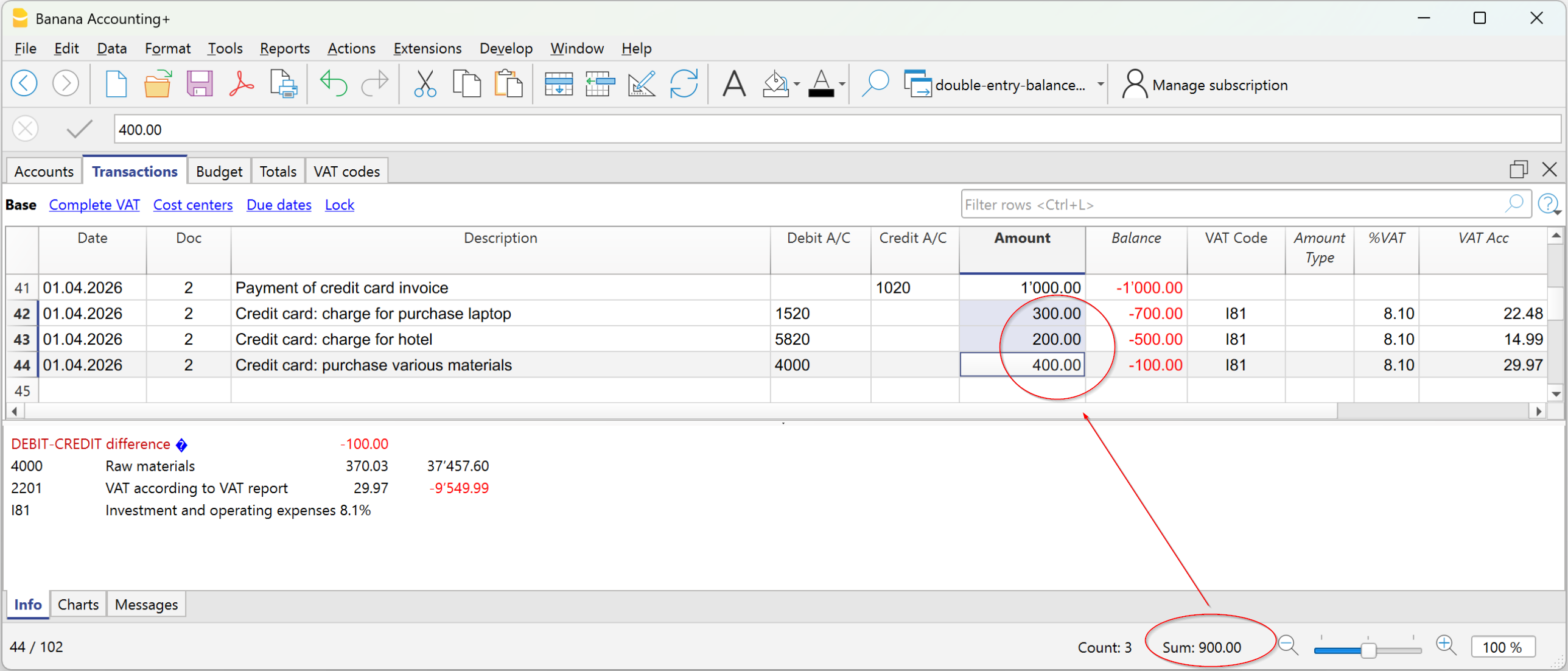
检查余额 (#CheckBalance)
通过激活这个检查,程序会显示出摘要中显示的余额是否与指定日期的账户余额不同。
#CheckBalance 的发生业务用于表明某日的账户余额是正确的。
在月末、季末或年末,为现金和银行账户创建#CheckBalance 的发生业务是很有用的。#CheckBalance 的发生业务也可与发生业务加锁的命令一起使用。
通过使用#CheckBalance发生业务,您会注意到在结账后,是否做了不正确的分录。
#CheckBalance 发生业务的特点:
- 日期。这必须是与余额有关的日期。
- 摘要必须包含:
- #CheckBalance 后面是账户的余额,包括小数。
#CheckBalance -1200.00
#CheckBalance 0.00 - 对于多币种账户来说,#CheckBalance的字样后面是货币代码和账户余额,包括小数。
#CheckBalance CHF -1200.00
#CheckBalance EUR 0.00
#CheckBalance -1200.00 没有首字母的货币,则根据基础货币的余额进行核对。
- #CheckBalance 后面是账户的余额,包括小数。
- 借方账户表示进行验证的帐户。
- 金额必须留空。
该程序检测到核查余额与文件中账户余额之间存在差额。

相同的文件不同的日期
在此项功能被激活后,程序会检查拥有同样文件编号的发生业务是否拥有同样的日期。在多行的发生业务中,文件编号和日期没有相对应的关系,程序不能正确的确定对方的关系。
账户
账户表结构
在此项功能被激活后,程序会检查账户表的结构是否正确。
汇率差额的存在
在此项功能被激活后,程序会检查是否有没有记录的汇率差存在。
初期余额和往年余额不同
如果这个选项被激活,程序会检查新年度的期初余额是否与上一年度的期末余额一致。如果上一年的期末余额和新一年的期末余额之间存在差额,这些差额将在信息窗口中作为总额报告。
个性化检查 (扩展程序)
在此项功能被激活后,程序会运行检查被用户附加上的其它功能,为自定义做验证。
项目
Asset账户的期初余额
启用此选项后,程序会检查项目表格表中列出的项目的期初金额是否与相应Asset账户的期初余额一致。此检查仅对已分配Asset账户的项目执行。
包括额外的检查和快捷方式 Shift + F9
在此项功能被激活后,通过按下 Shift+F9 键,程序将在对话框窗口中启动所有被激活的检查。否则只会做会计的重新核算 (Mac 版本: 大写键 + Cmd + 9)。
使用区块链技术对发生业务加锁
用区块链进行数据认证
针对会计数据,Banana 财务会计软件使用非常安全可靠的区块链加密系统。 发生业务可以被锁定并用数字代码标记,即使在多年之后,也可以保证会计数据是可靠的。区块链加密技术还可使用户确保受保护的会计数据未被修改。
Banana.ch是世界上第一家在会计中使用区块链技术的公司。在2002年开发并取得专利权 (美国专利号7020640)。该方法保证了最高级别之一的数据完整性,并且符合国际法的规定。
欲了解更多信息,请参见区块链的页面。
发生业务加锁的命令
通过对发生业务加锁命令的使用,可以通过控制代码对会计业务进行封锁及标记,通过验证,多年来,没有被修改的业务。
- 正在验证一个可能存在的锁的有效性。
- 在锁定日期之前的业务正在逐渐编号并被锁定。对于每笔业务,正在计算该行的数字代码和渐进的数字代码。
数字代码的计算是根据列的顺序进行的。 - 在会计中指示出,与锁定日期相等或更早日期的业务将不再被接受。

新锁日期 (包括)
指定日期,直到会计业务将被锁定。
密码 (可选)
可以输入最终用来解锁或进行新锁的密码。
如果程序在会计业务,包括加锁日期中没有找到任何错误的话,其将对会计业务进行加锁,计算以及将单个数据和代码分配给每一行的会计业务,如下图所示,这些可以在发生业务表格中的加锁表中被查看。
最近加锁
以下区域的数据是由程序根据最后执行的锁自动填写的。
加锁生效
如上图所示,如果加锁已生效,那么在此信息栏中会出现 “确定” 二字。
加锁日期
会显示上一次被执行的加锁日期。
加锁号码
此数字是根据在锁号列的最后一行中所显示的号码而自动输入的。
当加锁被重复,如果最后一行的锁数值不变,则意味着该锁是有效的,且该数据未被更改;然而,在值被改变的情况下,系统会显示以下代码:
- (-1) 如果该锁从第一行起无效;
- (-2) 如果存在拥有相同锁号的行。
累进散列
这是最后一笔业务中的控制代码。
发生业务:加锁视图
所有的数字控制码与该程序用于创建数字签名的所有信息一起显示。

- 锁号: 标识不同行的渐进数字。
- 加锁金额: 按照一些国家法规,累计交易总量类似于页末的总计。
- 加锁行:(隐藏列) 根据行的数值计算的数字标记。
- 累计锁: 整体数字标记。
数字密码加锁
这是认证的主要因素,使用的是区块链的方法。
数字代码根据以下值计算:
- 当前条目的内容,包括金额、摘要和锁定时刻的账户摘要
- 渐进号码 (锁号)
- 累计余额 (加锁金额)
- 前一个条目的渐进代码 (渐进代码)
如果对会计数据进行了修改,即使是最轻微的,也会造成控制号码的不同 (日期和金额进行了更改)。
如果控制号码维持不变,那么这意味着数据是原始的,没有改变。
检查锁
使用操作菜单 → 锁定发生业务 → 检查锁的命令,程序检查该区块是否有效,并显示该区块的数据。
- 该程序重新计算数字标记,并检查重新计算的数字标记是否等于与记录匹配的数字标记。
- 如果它们相等,该区块被认为是有效的,因此数据是原始的。
- 如果标记不相等,就意味着数据被修改了,而不是在该区块时计算的原始数据。

发生业务解锁
使用操作菜单 → 发生业务解锁的命令可以移除锁和取消控制的代码。如果您在加锁的时候输入了密码,那么在解锁前,在相应的信息栏输入密码是必要的步骤。
如果之后您想要再次对业务进行加锁,如果它们没有被更改,那么加锁的散列数将是相同的; 相反,如果一些数据被进行了更改,那么散列数也将是不同的。
部分解锁
如果会计业务被加了锁,从一个指定的日期进行部分解锁是可能的。如果您在加锁的时候输入了密码,那么在解锁前,在相应的信息栏输入密码是必要的步骤。

为什么要为会计核算加锁?
原则上来说,被加锁的会计业务不应该再被解锁。但是也有可能发生在加锁之后,您在会计核算中发现了错误,需要纠正的情况。
用户需要在加锁之前保留该文件的副本,以便在有需要的时候进行更改。在发现错误之后,可以恢复之前的情况。与此同时,可能已经发生了其它的业务,因此通常会发生在恢复了以前会计核算的版本后被证明是错误的情况。因此,为了避免这种不必要的,浪费时间的情况,我们才决定添加了发生业务解锁的功能。
认证不得与数据安全相混淆。数据认证是一种确保会计数据是原始数据的方法。为了防止数据被修改,该方法是与数据安全性相关的方法。但是,数据安全程序只能在限制数据访问的环境中实现。
如果文件完全可供用户使用,例如在台式电脑上,用户可以完全控制数据。用户可以轻松地替换文件。通过认证,无法防止数据被更改,但是它将允许用户知道数据是否为原始数据。
组织认证和数据验证
一旦您锁定了一定期间的发生业务,您需要:
- 打印加锁信息或打印具有特定认证编号的最后一行认证的业务 (LockProgr)。
- 将此信息与会计凭证一起签署并存放在安全的地方。
为了检查会计数据是否为原始会计数据,您需要按照以下步骤进行:
- 打开加锁信息的表格。
- 返回显示数字控制编号的文档。
- 检查使用加锁号码识别的行是否仍然具有相同的数字控制编号
- 如果数字匹配,会计数据与认证数据相同。
- 如果号码不匹配,则表示会计数据已被修改。
Banana软件公司正在开发应用程序,可以比较两个文件并获取有关已更改数据的指示。
数据安全
会计人员有责任确保数据不被修改。每个行政部门必须根据其规模和需要进行组织。
如果想确保数据未被未经授权人员更改,必须采用其它的方法和工具,例如:
- 将数据保存到安全系统(受保护的网络驱动器),并设置密码保护。
- 保留数据副本。
- 加密档案。
长期存档
记帐文件包含输入的数据。 为了打开文件并获取报告或账户明细,您需要掌管您的程序。
Banana财务会计软件提供将所有会计数据及其打印输出导出到Pdf,Html和Xml的可能性。
已生成的文件可以被保存在CD上,即使在很多年后,即便是不使用Banana财务会计软件的人也可以通过任何电脑读取CD上的信息。
可检测会计差额的新余额列
余额列出现在会计分录表格中,适用于复式记账、多币种、收支会计和现金管理的账套。这一列非常有用,因为它可以检测到会计分录表中的差异。
仅当存在会计差异时,余额列才会显示数值。
如果分录正确且余额为零,该单元格将保持空白,余额列不会显示任何异常。
因此,余额列中出现金额表示该笔分录不完整或存在需要检查和更正的错误。
如何显示余额列
默认情况下,余额列不显示。您可以通过菜单显示该列:
- 数据 > 设置列 > 余额列
在“设置列”对话框中,可以使用上移(将列向左移动)和下移(将列向右移动)按钮将余额列移动到所需位置。
余额列中出现差异的原因
出现会计差异时,必须找出原因并进行更正。
差异可能主要由以下原因造成:
- 借方账户、贷方账户或类别单元格为空或包含错误的值
- 在涉及多个账户或类别的分录中,金额总和不一致
- 带有增值税代码的分录中,增值税分解或增值税账户设置不正确。
注意:在复合分录中,程序在分录未完成前可能会临时显示借贷不平衡的差异。
复式记账中的余额列
在复式记账中,余额列显示借方和贷方列之间的差异。
当账目正确时,余额列应为空(单元格无内容):
- 当借方与贷方金额总和相等时,余额为零;
- 在涉及多个账户或类别的分录中,在所有相关分录完成之前可能会显示余额。最后一笔分录后,余额应为零。

图中所示的示例涉及一笔用于支付多张发票的会计分录。各个账户及其相应金额分别录入在多行中:
- 在第一行的贷方列中,记录银行账户 1020,支付总金额为 1'000。
- 在后续各行的借方列中,记录以下账户:
- 账户 1520 – 投资,金额为 300
- 账户 5820 – 旅行,金额为 200
- 账户 4000 – 材料采购,金额为 400。
因此,借方记录的金额合计为 900,而贷方记录的金额为 1'000。
因此,该会计分录存在 100 的差额。该差额会显示在分录最后一行的余额列中,从而可以立即发现该分录未达到借贷平衡。
收支会计中的余额列
在收支会计和现金管理中,余额列用于显示账户列与类别列之间的差异。
当账目正确时,余额列应为空(单元格无内容):
- 如果账户列与类别列中的金额总和相等(无差异),则余额为零。
- 对于涉及多个账户的分录,在所有相关账户和类别分录完成前,会显示一个余额。完成最后一行分录后,余额应归零。
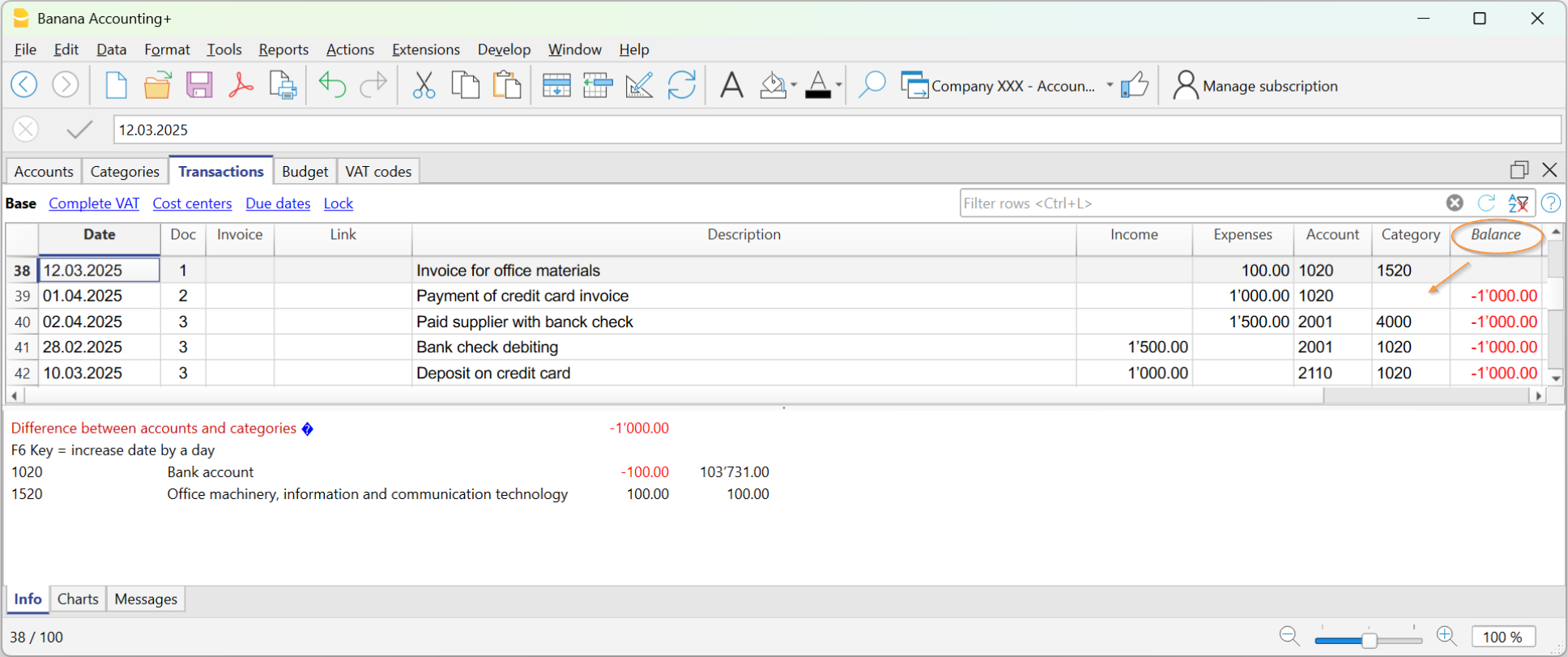
在示例图像中,产生了1000 的差异:
- 在Doc 2行的分录中,类别列未填写。因此,该金额只记录在账户上,导致1000 的差异。
检查账目
检查账目命令也包含对余额列的检查。
如果余额列不为零,则表示存在错误。要找到引起差异的第一行:
- 浏览余额列,查找差异开始的第一行。
- 使用重新检查账目命令,该命令会指出差异开始的行。
导出
通过 Banana财务会计软件,可以从单个表格或多个表格 (文件) 中以各种格式导出数据。
导出行
点击数据菜单 → 导出行命令,以导出单个表格的内容。
如果您在执行此命令前选择了一些行,那么导出选定区的选项将被激活。
导出文件
为了能够导出多于一个表格,请点击文件菜单 → 导出文件的命令。
在导出文件的对话框中,您将看到以下的标签:
导出的打印预览
在打印预览工具一栏中:
- 点击 Adobe PDF 按钮旁边的箭头。
- 选择适合自己的选项:
- 创建PDF。
- 导出到Html。
- 导出到Excel。
- 复制到剪贴板。
导出格式
要设置特定的导出,每种格式都有一个或多个带有选项的部分。
您可以在不同的格式之间进行选择:
导出到 Excel
要导出到Excel,请点击文件菜单 → 导出文件 → 导出到Excel的命令。

文件名
在此区域输入系统将创建导出数据的新文件的名称是必要的,不然的话,一个已存在的文件将通过使用浏览键而被选择,系统将使用新数据覆盖它。
立即显示
一旦MS Excel文件被创建,软件会启动查看该文件。这样一来,导出的结果将立马被显示。
选项
设立单元格名称
当文件被导出之后,此选项将自动的给每个单元格一个名称。例如,包含余额的账户1000的单元格Excel中的名称将为"账户_1000_余额"。这意味着用户可以独立地识别每个单元格与其在表格中的位置,因此即使会计计划被改变也无需更改创建的Excel报告。用户因此不必手动把会计数据存储到Excel当中。然而,输入单元格的名称会使打开Excel文件的速度变慢。
设立表格名称
使用此功能,当文件被导出的时候,系统会自动为属于表格的整个单元格区域给出一个名称。例如,属于账户表的单元格区域的名称将被识别为 DB_Accounts。当创建Excel文件,数据库功能被使用的时候此功能是必须的。
使用Xml格式名 (英文)
单元格名称可以被定义为它们原始的账户语言,或者被定义为英文名称。在原始的语言中,该名称将被使用该种语言的用户所理解,但是其英语名称将不会被普遍理解。通过选择此项功能,用户将获得,例如 "Accounts_1000_Balance(英文)" 来取代 "Conti_1000_Saldo(意大利文)"。
保护表格
当选择这个选项的时候这个单元格的内容都会被锁住,所以只能编辑格式。这可以防止由于任何意外更改而影响导出数据的可能性。通过使用Excel中适当的命令,用户可以随时取消这个保护功能。
其它标签
关于其它标签的解释,请您访问以下的页面:
导出结果
每个会计表格都会在Excel文件中以不同的表格展现出来。
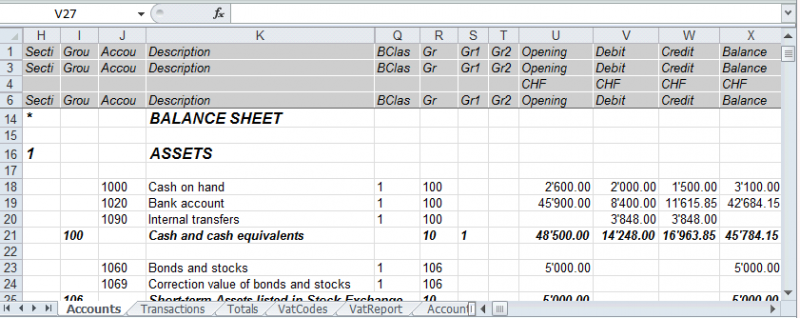
使用单元格名称代替行/列的参数。
- 即使输入新的行或列,名称也会返回所需的值。
- 名称易于使用和理解。
"Accounts_1000_Balance" 指的是账户1000的余额
"Accounts_1000_Description" 返回包含账户1000摘要的单元格的值。 - 名称可以在公式中使用
"=Accounts_1000_Balance" 返回包含账户1000余额的单元格的值。
"=Accounts_1000_Balance/1000" 将账户1000的余额除以1000。 - 通过使用名称,可以创建指向各种文件的链接。
连接到单元格的链接由以下元素所组成:
- 文件名称
- 表格名称
- 单元格名称
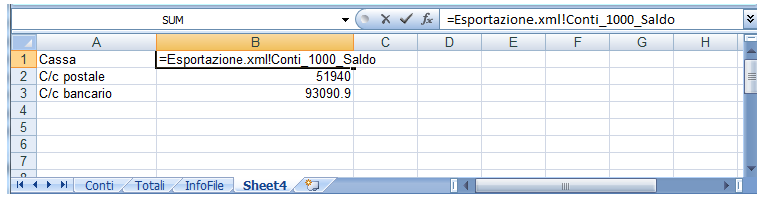
从Banana财务会计软件复制/粘贴数据到Excel
使用Banana财务会计软件,除了导出之外,还可以随时将Banana财务会计软件的数据复制/粘贴到Excel中:只复制一些单元格、列或整个表格。
一些用户向我们报告说,在极少数情况下,而且只在Mac电脑上,当把数据从Banana财务会计软件导出到Excel时,金额的格式并不理想。
然而,这种情况很容易解决,只需在Excel中选择有金额的列,并将单元格格式改为 "数字 "类型即可。
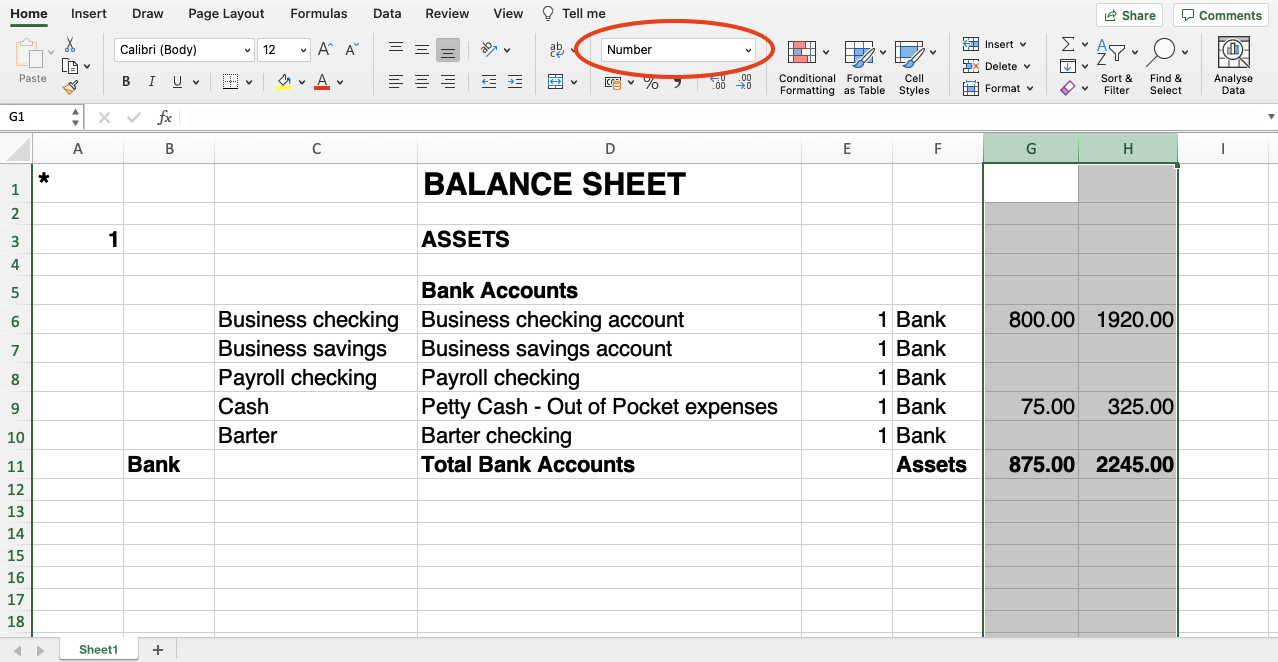
包括标签
点击请点击文件菜单 → 导出文件 → 包括标签来打开对话框,允许您选择要包含的表格和报告。

重新检查账务
在此框中打钩之后, 在导出之前账务将被重新检查。
包括
通过在不同的框中打钩, 用户可以把文件导出至 MS Excel Xml 多种表格和/或所有的账户明细以及增值税报告。
视图
选择数据被导入的视图是可能的。此选项可提供把文件导入到 PDF, Html 和 Xml 的格式中。
期间
该组允许您指定导出带周期的表格的选项。
按期间划分的账户/科目
指的是会计期间的选择,并指出每个期间需要的重复次数。
增值税报表
此功能允许根据所选期间导出增值税报表。
为整年创建期间
通过选择此功能,全年的部分余额将被导出,不仅仅是选定账户的期间或是选定导出的期间。
最大时期数
期间最大的可能数字。
导出到Html
要将文件导出为 Html,请点击文件菜单 → 导出文件 → 导出到 Html 的命令。

文件名
在此区域输入系统将创建导出数据的新Html文件的名称是必要的,不然的话,一个已存在的文件将通过使用浏览键而被选择,系统将使用新数据覆盖它。
立即显示
一旦Html文件被创建,软件会启动查看该文件。这样一来,导出的结果将立马被显示。最好记住使用像 Mozilla 和 MS Explorer 这样的浏览器来为文件使用缓存机制。当第二次时候导出后,在浏览器重新加载按键被使用之前用户看到先前的版本是可能的。
表格创建选项
标题1, 2, 3
这些是表格的标题。
其它标签
关于其它标签的解释,请您访问以下的页面:
Html 格式选项
点击文件菜单 → 导出文件 → 导出到 Html → Html 格式选项打开对话框,其允许您在导出Html格式的文件时激活选项。

使用样式表CSS格式
选择此单元格将允许用户连接样式表至导出的文件。通过默认的设定,系统会自动使用它自己的样式表并且合并到文件中。
使用预定义的样式表
系统默认的样式表将被使用。
停用该单元格将自动激活外部样式表选项。然后用户则可选择其个人的样式表。
系统外样式表
文件名称
在一个系统外的样式表被使用的情况下,请使用浏览键来选择样式表的名称。
在Html文件内包含样式表
当数据已被发送至 Html 格式,样式表文件必须也已被发送。为了避免发送两种分开的文件,用户可以通过激活此单元格,把样式表合并到 Html 会计文件中。
选择单元格将允许该程序将数据文件拥有各种图形选项:
- 导出仅可见列
- 带有边框的表格
- 标题列
- 保存表格内的分页符
- 输出为数据 - 不带任何格式化的数据将被输出
导出文件到Xml
要将文件导出为 Xml ,请点击文件菜单 → 导出文件 → 导出到 Xml 的命令。

文件名
输入要创建的新文件的名称,或使用浏览按钮选择现有文件。
立即显示
查看新创建Xml档案的程序已启动。这样您就可以立即看到导出的结果。请记住,Mozilla和MS-Explorer等浏览器使用文档缓存机制。当第二次导出时,如果您不点击浏览器上的更新按钮,您可能仍然会看到以前的版本。
样式表 XSLT 格式
在这个区域,您可以设置样式表 (外部Xml文件),在此基础上,程序必须以图形化的方式安排会计数据。Banana财务会计不提供Xslt文件。
选项
在下列选项中选择是可能的:
- 导出仅可见列
- 含视图名单
- 输出为数据
其它标签
关于其它标签的解释,请您访问以下的页面:
导出行到txt
为了导出行 ,请点击文件菜单 → 导出文件 → 导出行到txt的命令。

文件名
输入文件名或者点击浏览键来选择一个已经存在的文件。
格式
选择您需要的格式。
立即显示文件
一旦文件被创建,软件会启动查看该文件。这样一来,导出的结果将立马被显示。最好记住使用像 Mozilla 和 MS Explorer 这样的浏览器来为文件使用缓存机制。当第二次时候导出后,在没有使用浏览器的刷新键之前用户看到先前的版本是可能的。
选项
如果被激活,不同的可导出的选项为:
- 仅选定行
- 仅可视列
- 列标题
- 统一码 (Utf-8)
预算及财务预测
预测功能,包括对成本、收入和流动资金的财务预测,在所有会计应用程序中都可以使用。
有两种操作模式:
- 完成预算表格中的财务预测
预算表格被添加到会计文件中,其允许您输入预测变动,然后用于生成完整的财务预测。
账户表格的预算列由程序根据在预算表中输入的发生业务自动更新。 - 账户表格中的年度预算
一种非常简单和传统的方法,即在账户或科目表的预算列中输入年度预算值。
然后根据最后的余额,程序会在账户表或科目表的预算差额列中显示出差异。
具体请查看:简单的年度预算。
列内的年度预算 (账户表和科目表格)
如果您想快速设置年度预算额,而没有该期间的详细信息,您可以在账户和/或科目表的预算列中输入预测金额。

年度预算列
在账户表和/或科目表中,只有在未激活预算表的情况下才能更改预算列。如果估算表已存在,则可以按以下方式将其删除:
在删除预算表后,在账户表和/或科目表的预算视图中,预算列处于活动状态,您可以输入年度预算金额。
通常,仅显示成本和收入 (复式记账) 以及收入和支出 (收益&费用核算) 的预算。
预算值必须输入到每个账户表和/或科目表中。该程序会自动计算总计,并从中得出损益。
- 账户表:
- 收入 (贷方) 以负数的形式输入。
- 成本 (借方) 为正数。
- 科目表:
- 收入必须显示为正数
- 支出必须以负数显示。
预算差额列
在预算差额列中,程序将计算余额与预算一列中所示值之间的差额。每当账户和/或科目表中的记录有变动时,此列就会自动更新。
期间打印
按月或季度打印时,程序会将预算列中指示的值分为月度配额。
细分程序如下进行:
- 月度数基于会计属性中指示的开始日期和结束日期 (点击文件菜单 → 文件和账户属性命令 → 套账标签) 。
- 预算金额除以计算的月数。
- 任何舍入差异都将添加到上个月。
例如,如果您指示出的金额为10'000,则将分为11个月的工资为833.33和一个月的工资为833.37。
如果选择了季度预览,该值将是该季度的值,而不是年度值除以季度。
如果您希望按月或季度进行其它的财务计划,则应将该计划与预算表一起使用。
添加预算列
通过数据菜单 → 列设置的命令 → 添加,您可以添加更多的列来表示预算值。
- 将数据类型设置为金额。
这样,程序就会计算出各组的和。
您可以为以下内容添加预算列:
- 有多个预算值 (不同的情况)。
- 保存一份用预算表创建的初始预算:
- 在预算表中准备预算。
- 在账户表中,转到第一行,然后选择整个列 (通过单击列标题)。
- 点击编辑菜单 → 复制的命令。
- 将您自己放在要复制数据的预算列的第一行。
- 点击编辑菜单 → 粘贴的命令。
预算及财务预测
Banana财务会计软件中的所有会计应用程序都包括基于复式记账法的,创新强大的财务预测工具。可以轻松地显示资产负债表、损益预测表、财务、流动资金,以及投资计划。
对未来的展望
在使用复式记账法时,财务预测可以让您对公司的未来有一个全面的设想。如果在事情发生之前,您可以想象到情况会是怎样,那么就有机会及时采取行动。如果您注意到成本会过高,将可以研究降低成本的措施。如果您意识到流动资金短缺,将有时间采取措施来避免。
通过使用财务预测的功能,将为您的管理增加宝贵的价值。
每个人都可以获得财务预测
软件内的财务预测系统建立在复式记账的基础上,因此功能极其强大,并适用于每个人。
- 财务预测计划全面纳入会计核算。
- 使用的是与您在会计账套中相同的会计科目表。
不需要建立一个新的文件,只需要添加预算变动。 - 预测与预算业务的录入一起进行。
采用行之有效的复式记账法。可以对成本和收入进行详细的说明。 - 损益表和资产负债表的预测是可用的。
您可以看到销售、成本、利润、流动性和资本的演变情况。 - 您可以查看所有单个预算变动的账户或组的演变。
- 该程序按月,季度或年份来对预测进行划分。
- 可以使用数量和计算公式设置预测。
更改预测 (例如增加投资) 时,将自动重新计算年末折旧。 - 一年的财务计划也可以演变成多年的财务预测计划。
- 所有的会计报告都包含有过去,现在和将来的数值。
实时显示预算值

预算表格
在预算表中输入发生业务来准备财务预测的计划。就相当于保留了您的账户记录,但它们是关于未来的。
通过设置重复选项和可能结束的时期,像租赁这样的重复操作仅需进行一次。
年度总和显示在总金额列中。
您可以根据需要添加任意数量的行,对于当前或以后的年份,可以随时进行更改或修改。

对您的企业未来有一个清晰而全面的愿景
Banana财务会计软件为您提供了所有必要的报表,让您对未来的财务状况有一个全面的了解,和您的会计工作一样,所有的报表都是综合平衡的,没有差异,就像会计核算工作一样。一切都是自动的,您无需浪费时间在Excel中设置表格,插入和检查公式,设置行和列。
- 流动资金计划。
您可以看到所选择的预测期内流动资金的变化情况,提前知道自己是否有能力应对不同的情况,并选择是否需要合成、按组或详细信息查看,每个项目都会列出。 - 损益表预测。
您可以看到收入和成本以及预期的结果,可以选择每组总额的汇总视图,甚至可以选择单个元素的详细值。收益表的布局可以根据需要自由设置和更改。程序将自动进行总计,而无需您输入公式。 - 预测预算。
对于每个账户以及资产和负债的组,您将看到随着时间的推移而产生的变化。 - 投资计划。
对于每个账户或资产组,您可以看到随着时间的推移而变化的细节。 - 详细的账户明细。
您可以详细分析每个项目,得益于账户明细,检查银行账户或流动性的演变是如何发展的。 - 随时间演变的图表。
您可以立即看到每个项目的未来演变。您可以一目了然地查看销售情况的变化,或者了解是否会出现流动性危机。 - 成本和利润中心及部门。
您还可以在预测时使用成本中心、利润中心和分部。
您可以获得单个项目、客户或地理区域的详细预测。 - 几年内的预测。
您可以获得一年、两年、五年甚至十年的资产负债表和利润表。
程序会自动推算出当年的数据,供以后各期使用。 - 按月、季度、一年或多年查看数据。
您可以拥有一个月、一个季度、一个学期、一年或多年的资产负债表和利润表。
因此,您可以对所感兴趣的时期进行详细的分析。 - 将预算与实际数字进行比较。
使用相同的会计科目表,对预测和实际发生的数额之间进行实时对比。您可以很容易地识别出实际与预估额之间的偏差。 - 保存报告的设置 (自定义)。
创建报表并保存自定义,以便在您愿意时调用。
对于每份报表,您可以选择所感兴趣的式样。程序会自动打印,而无需您另外设置行、列和公式。您可以从不同的角度分析数据,从一种可视化类型转向另一种。
- 查看一个具体的期间。
该程序为您提供全年的报告,但您也可以要求只提供一个季度的预测。您可以很容易地在一年度和多年计划之间进行切换。 - 随着时间的推移而演变。
该程序能够按时期显示所有的报告。因此,您可以看到流动资金、资产负债表、销售、成本和运营结果随时间的变化的过程及结果。您可以轻松地在视图之间切换,而无需重新设置公式或表格。 - 完全客制化的报表。
您可以根据自己的需要选择和改变视图。您可以很专业地展示您的预测计划,给支持您的人留下一个好印象。 - 保存报告的设置。
您可以创建和保存打印设置,并在需要时使用。
操作简单
一切都已经设置好了,您只需输入简单的发生业务来完成预测的变动。这种方法特别适合会计人员,他们能够立即准备精确,完整的预测。得益于收益&费用核算的记账法,即使没有特殊会计技能的人也能做到。
- 与输入会计发生业务的操作一样。
对于每个未来的财务预测,可输入带有日期,摘要和相关账户的发生业务。
它是按项目和时期进行金额合计的程序,如同在会计核算中的操作一样。 - 详细说明收入和支出情况。
可以详细说明不同的支出项目,并说明其发生的确切时间。就人事费用而言,可标明个别雇员的薪金。 - 更容易更改和更新。
调整、增加或删除收入或支出很简单,因为您只需改变具体的细节。如果在下一年,租金增加了,只需改变这个项目。如果有新的支出,就增加一个新的项目。程序会自动更新预算。
高速源于重复功能
重复的操作只需输入一次。预测动向表示操作重复的频率,程序将其考虑到未来。
在一个预测计划中,有许多重复的操作。综合预测计划可以在短时间内建立起来。当您需要调整预算的时候,重复功能特别有效,每当改变一个金额,所有相关联表格里的数据都会得到实时的更新。
自动计算
程序自动进行简单或复杂的计算。
- 根据数量和价格进行计算。
可以记忆销售数量,对预算有更具体的认识。程序会自动计算出移动的金额,并更新账目。 - 计算公式 (Javascript)。
Banana财务会计软件提供了一个非常强大的公式系统,专门为财务预测计划而设计。您可以访问预算数据,可以创建根据以前事件的动向。也可以根据所做投资的价值计算折旧,或者根据实际使用情况计算贷款利息。每次修改后的程序都会重新计算出准确的数值。
公式是Javascript语言的表达方式,可以创建简单或复杂的时间表,都是完全自动化的。- 您可以为变量赋值,并在后续行中使用它们。
- 通过Javascript可以访问Banana API。
- 您还可以编写自己的Javascript,并对其进行使用。
几年内自动预测
您可以设置一年的预算,并让程序创建以后几年的预测。
所有的报告,如流动资金计划,损益表和预测资产负债表也可在以后的年份中使用。
这样一来,就可以对财务预测的状况有一个中长期的看法。对以后几年的预测也可以完全控制。操作逻辑很简单,对于连续几年都会重复的当年业务,可以输入一个年度的重复代码。如此,程序就能预测出相关时期的预测数据。可以很容易地做出两年、五年甚至更多年份的财务预测计划表。
客户组合分析与供应商控制
在输入预测变动的时候,可以注明客户代码。通过这种方式,您可以从您的客户组合开始建立现实的计划,并了解成本是否会被覆盖,以及哪些客户会更有利可图,从而给予更多关注。
显然,对供应商也可以进行同样的分析。
项目或部门规划
您还可以按项目、活动或业务部门创建带有报告的财务预测计划。只需在变动中指出与项目或部门相关的支出或收入,该程序就能自动编制特定的报告。
轻松适应
您可以调整账目表的结构,调整资产负债表和损益表的布局;添加项目和组,报表自动变化,无需添加公式计算行或列的总数。
预估与实际数据之间的比较
会计和预算使用相同的计算和报告编制引擎。在发生业务表中输入过去的数值,在预算表格中输入未来的数值。会计科目表和余额的安排总是相同的,并且会自动显示与预算相比所出现的任何变化的对比情况。
自动将数据传输到新的一年
用Banana财务会计软件设置的预算很容易更新和修改。只要改变相对的变动,程序就会自动重新计算公式,更新预算。
当您创建一个新的年度时,程序会报告预算数据,并改变日期。然后修改自上一年以来发生变化的要素。这些都可以为下一年提供详细而完善的计划。
公司财务模拟
会计中的综合计划是非常强大的,开启了商业规划的新时代,因为其提供了非常精确和详细地模拟一系列未来事件的可能性。预测可以用会计分析的相同工具进行详细分析;检查什么是盈亏平衡点,分析客户或项目的情况。
学习包含财务预测的会计核算
通过编制与会计发生业务类似的预算,可以练习和学习会计技术。会计培训课程可以变得更加有趣和有效,因为学生可以提供创建自己的公司的任务,并确保使其成为坚实和盈利的公司。学生不仅要练习输入发生业务,而且还要关注一系列的动向,并习惯于阅读资产负债表和利润表。
基于复式记账法的财务预测
Banana财务会计软件的财务预测系统采用的是与会计核算相同的复式记账法。
在进行财务预测的时候,您需要标明来源账户 (贷方) 和目的地账户 (借方)。这样就可以准确地了解资本流动的情况,并有可能获得全面的了解,包括:
- 预算预测与财务状况、流动资金、资产、第三方和自有资金有关。
- 损益表预测:收入,成本和经营成果。
计划-执行-控制
Banana财务会计软件的财务预测部分是计划 - 执行 - 控制的组成部分。
其提供了对财务状况和演变的持续,动态控制。

财务预测和会计核算存在于同一个文件中
在同一个文件中同时包含有会计核算和财务预测的数据。您可以先从准备好的文件中保存会计核算的数据,然后再添加财务预测,也可以从文件中先保存财务预测的数据,然后再管理会计核算的数据。
共同的要素
- 基本的会计数据
标题,货币,会计期间,地址,其它参数。 - 账户和科目表
在哪里设置包含账户和总组的会计科目表。- 期初余额 - 期初列
它们被插入到会计科目表中,并作为会计核算 (当前的值) 和预测的初始情况。 - 年预算 - 预算列
- 与预算表一起
会计科目表中的预算一栏将受到保护,程序显示了根据预算表的内容计算出的预算金额,参照会计期间。 - 如果没有预算表
您可以手动输入预算数据。
在做财务预测的时候,程序会生成每月的值,其是由年值除以会计期间的数月而得来的。
- 与预算表一起
- 期初余额 - 期初列
- 其它表格
- 增值税代码表
- 汇率表
会计数据 (过去和现在)
- 发生业务表
过去(历史)变动的地方。
发生业务表始终存在于会计文件中。如果您不用它,也可以将其隐藏。 - 当前的值 (会计核算,过去和现在)
这是一个账户或组的期间余额或变动情况。
在报告中,您可以显示当前值的列。
这些值是根据会计数据计算出来的,计算时考虑到了会计数据的变化。- 期初余额 (账户表)。
- 发生业务表内的动向。
- 账户明细 (历史)
这些是根据初始余额加上发生业务的账户或组的变动情况。
预算的数据
这些是用来做预测、预算和计划的。
在程序中,我们总是使用术语预测来表示未来的数据。
- 预算表
在此处输入未来的预算业务。
其操作的方法和发生业务表格是一样的,它们拥有同样的列,以及预测的其它规格。
列入预算表的,与未来有关的变动情况:- 静态值 (如同发生业务表格内的一样)。
- 软件会自动使用计算公式,自动计算预测的数据。
- 通过输入重复代码,程序会自动计算重复性的业务来生成预测数据。
- 预算值 (未来)
预测值。在报告中,您可以显示预算值列,该值考虑到:- 期初余额 (账户表)。
- 在预算表中的发生业务 (如果有的话)。
- 如果预算表不存在,请使用账户表或科目表预算列中包含的值。
- 预算账户明细 (未来)
这些是根据期初余额和预算发生业务编制的一个账户或组的业务。
预算值的差额
预算值与当前值 (实际值、最终值) 之间的差额。
在报告中,有一列用于对其进行比较,显示差额。
混合预测值(从某特定的一日期开始计算)
在未来某一日期的价值计算如下:
- 根据目前的价值,在指定的开始日期之前。
- 从预算值上注明的日期开始。
混合预测值只能通过脚本和网络服务器获得。
会计核算的类型
会计核算所选择的会计方法是用来输入预算业务或动向的。
- 收入和费用 (现金日记账,收益&费用核算)。
- 复式记账 (复式记账,复式记账含外汇)。
对于预算计算,该方案内部始终使用基于复式记账的输入。因此,得到的结果和报告非常相似。
会计核算,财务计划以及预测的期间
会计或预测都与一个特定的时期有关。以下是有相关的时期:
- 会计的期间
在文件和账户属性中定义此期间,填写会计账套的起始日期和结束日期。 - 预算的期间
指的是输入预算数据的时期。 - 预测的期间
它是程序用来计算预测的时期。当要求打印的时候,就会显示出来。
欲了解更多的信息,请参见预测时期的页面。
按时期划分
采用复式记账法,每项业务在财务预测中都有属于自己的日期。当需要打印的时候,用户可以选择是按月、季度、每半年还是每年来进行预测,程序将自动计算一切的数据。与电子表格不同的是,不需要在一开始就决定是按月、季度还是按年来进行预测,也不需要在列中手动划分金额。
自动预测
由于可以指出某些业务在未来可以重复进行,该程序包含有所有必要的元素来自动准备未来几年的预测。这样,您就可以知道未来几周、几月、几个季度和几年的收入、成本、流动性和其它资产和负债的变化情况。
所有操作的细节
使用复式记账法,通过输入业务来做财务预测。该程序能够在账户明细上显示每个账户的详细变动情况。这种视图对调查要素非常有用,代表了以流动性为导向的财务预测的另一个优势,这是用电子表格编制的财务预算所难以实现的。
计算日记账
所有会计和预算处理的基础是对日记账的计算。为了编制财务报表、损益表、会计明细、增值税报告,该程序创建了一个内部数据结构,该结构被称为计算日记账。通过API会计与日记账功能可以访问相关的动向。
创建计算日记账的逻辑如下:
- 它是根据用户输入的数据开始创建的。
- 对于每项财务变动,包括期初余额,都有一行,主要内容如下:
- 原始
指示出业务是否与会计核算 (当前) 或与财务预测 (预算) 有关。 - 操作类型
期初余额,动向,结转,发票赔偿。 - 日期 (相关的日期)。
- 摘要
- 账户
- 账户类型
指示其是普通账户还是成本或利润中心。 - 金额 (记账本位币)。
- 正值表示增加 (借方),负值表示减少 (贷方)。
- 账户金额
- 其它列
- 在发生业务表里所呈现的。
- 其它几个用于计算的。
- 原始
每次重新计算时,计算日志都会被清空,然后添加以下的内容:
- 当前发生业务的行 (与实际会计核算相关)。
- 预算动向的行。
当前值的行数 (实际值)
当前值的行被添加到临时的日记账中,从下列内容开始:
- 账户表中的初始余额。
对于每个有余额的账户,都会创建一行。- 日期是指会计核算的开始日期。
- 账户就是账户。
- 金额是期初余额。
- 发生业务表中的会计动向。
如果动向有多个账户,借方账户、贷方账户、增值税账户、成本中心,则为每个账户生成一行,相对金额为正或负。
预算值的行
预算值的行被添加到临时日记账中,从下列内容开始:
- 账户表中的初始余额
与会计核算的值一样,为每个有余额的账户建立一个预算行。
- 财务预测的动向 (含预算表格)
针对于会计核算,对于账户中的每个变动,将根据预算表来创建行。- 静态值,所有值均已设置。
- 重复性的动向
- 对于所定义的整个预测周期,该程序将基于重复代码来创建预算项目的重复项并设置日期。
- 该程序会根据开始日期,结束日期和重复列的内容来生成重复行。
- 如果预测期为正常的日历年份,并且在1月对每月重复的租金登记进行了设置,则该程序将在接下来的11个月为此租金自动创建重复项。
- 如果登记的时间是1月31日,对于没有31天的月份,则该日期为该月的最后一天。
- 如果首次登记在3月28日进行,并且重复代码指示的是月末,则在接下来的几个月中,该日期将成为该月的最后一天。
- 对于会计分录,如果预算行上有多个账户,则为每个帐户生成一行。
- 从年度预算开始的变动 (如果没有预算表)。
如果没有预算表格,则根据账户表和科目表的预算列的内容来创建预算行:- 根据处于会计期间的月份进行计算。
- 每个月都会创建一行。
- 预算列中的金额除以月数。
- 如果存在四舍五入的差额,则可以为最后一个月创建额外的一行。
在创建后,将按升序对行进行排序。
金额列计算
一旦创建了对日记账的计算日,所有包含公式,数量或单价的预算行的金额列内容将被重新计算。
Javascript中公式的解析:
- 创建Javascript解释器
每次创建计算日记账的时候,也会创建一个Javascript的解释器实例,专门用于解决预算公式。 - Javascript解释器初始化
Javascript解释器是通过运行脚本来初始化的。- 默认的Banana会计脚本。
- 可能存在于文件表格中的_budget.js文件的内容。
这样,用户可以初始化变量或创建自己的计算函数。
- 公式的解析
- 临时日记帐行中包含的公式按日期的渐进顺序一个接一个地求解。
- Javascript 解释器的状态在每次操作后都会保留,因此该公式可以引用在具有前一日期的行中定义的变量。
- 重复行中包含的公式也按日期顺序执行,因此结果根据执行时间而有所不同。
计算顺序如下
- 预算行按日期顺序进行处理(如果它们按输入顺序具有相同的日期)。
- 使用以下优先级计算发生业务的金额:
- 如果有解决方案。
- 如果存在数量和价格,则将它们相乘。
- 否则,保留金额列中包含的值。
- 对于多货币会计,首先执行货币金额公式,然后执行基本货币金额公式。
如果没有基础货币金额的公式,程序将恢复为历史汇率并计算基础货币的等值。 - 对于增值税的核算,要根据发生业务的金额重新计算增值税。
- 之前处理过的行将用于以下行的计算:
- 截止至预测行的日期,账户余额只包括以前处理的金额。
- 如果您在2月份的发生业务中使用了计算全年余额的公式,那么您只有到2月份才会有余额。
预算表格内的总金额列
总金额一列是自动计算的,包含在文件和账户属性中指定的会计期间的预算总额 (会计核算的起止日期)。
- 如果是单笔的发生业务,总仅额等于金额。
- 如果是经常性的业务,合计金额是会计期间内所有重复业务的金额之和。
- 如果日期在会计期间之前或超过会计期间,总金额列则为空。
计算当前的值和预算值,将二者进行比较
生成计算日记账后,将用于计算资产负债表以及所有其它必要的会计操作。
对于报告中定义的时期,程序计算:
- 当前的数值 (基于发生业务)。
- 预算值。
以下数值是根据当前数据和预算数据计算出来的:
- 期初余额
- 借方动向
- 贷方动向
- 动向 (总计)
- 期末余额 (期初+变动)
还可以计算当前数额与预算数额之间的比较:
- 绝对差 (预算-当前)。
- 百分比变化
自动和手动重新计算
在下面的情况下,预算值会自动重新计算:
- 预算表中是否有更改。
- 如果会计开始或结束日期已更改。
- 如果账户表已被修改。
- 当请求报告而发生业务表已被更改的时候。
每次重新计算后,程序会自动更新:
- 在账户和科目表格内的预算列。
- 在预算表格内的总金额列。
如果您修改了增值税表或_budget.js文件或其它用于计算公式的Javascript文件,您必须手动执行重新计算 (点击检查账务的命令)。
计算速度取决于:
- 在账户表和科目表中账户和组的数量。
- 在预算表格内输入的行数。
- 具有重复业务的行数。
- 存在的公式。
- 计划时间段设置。 周期越长,重复行数越多。
人工重新核算总额
如果计算时间很长,可能很难在预算表格中输入数据。您可以通过文件菜单 → 文件和账户属性 → 选项标签中的人工重新核算总额选项来切换到手动重新计算。
要获得更新的数值,您需要使用检查账务的命令。
Berechnungslogik des Budgets
Banana Buchhaltung verwendet die Buchhaltungs- und Planungsdaten, um Salden, Budgetwerte, Berichte sowie Vergleiche zwischen Budget- und Buchhaltungswerten automatisch zu erstellen.
Auf dieser Seite wird erläutert, wie das Programm diese Daten verarbeitet und die Planwerte berechnet.
Berechnungsjournal
Die Grundlage für die Verarbeitung der Buchhaltungs- und Planungsdaten bildet das Berechnungsjournal.
Dabei handelt es sich um eine interne Datenstruktur, die Banana Buchhaltung automatisch erstellt, um die in der Datei enthaltenen Informationen zu verarbeiten. Das Berechnungsjournal dient unter anderem zur Berechnung folgender Elemente:
- Bilanz
- Erfolgsrechnung
- Kontoauszüge
- MWST/USt-Abrechnungen
- Budgetwerte
- Vergleiche zwischen Budget- und Buchhaltungswerten
Das Berechnungsjournal enthält alle für die Berechnungen erforderlichen Bewegungen, darunter die Eröffnungssalden, die tatsächlichen Buchungen und die Planbuchungen.
Der Ablauf lässt sich vereinfacht wie folgt darstellen:
Buchhaltungs- und Budgetdaten → Berechnungsjournal → Berechnete Werte → Berichte und Vergleiche
Entwickler können über die Buchhaltungs-API mit der Funktion Journal (nur auf Englisch) auch auf die Bewegungen des Berechnungsjournals zugreifen.
Erstellung des Berechnungsjournals
Zur Verarbeitung der Buchhaltungs- und Planungsdaten erstellt Banana Buchhaltung anhand der vom Benutzer erfassten Angaben automatisch ein internes Berechnungsjournal.
Darin werden alle Zeilen erzeugt, die erforderlich sind, um die buchhalterischen Auswirkungen der einzelnen Bewegungen einschliesslich der Eröffnungssalden abzubilden.
Jede Zeile enthält die für die Verarbeitung erforderlichen Angaben, darunter:
- Herkunft der Bewegung, um Buchhaltungs- und Budgetdaten zu unterscheiden
- Art des Vorgangs, z.B. Eröffnungssaldo, Buchung, Übertrag oder Ausgleich
- Bezugsdatum
- Beschreibung
- Konto
- Kontoart, z.B. normales Konto, Kostenstelle oder Profitstelle
- Betrag in Basiswährung
- Betrag in der Kontowährung
- allfällige zusätzliche Angaben aus der Buchung
Im Berechnungsjournal stehen positive Beträge für Sollbewegungen und negative Beträge für Habenbewegungen.
Bei jeder Neuberechnung wird das Berechnungsjournal automatisch neu erstellt. Das Programm:
- erzeugt die Zeilen der tatsächlichen Buchungen
- erzeugt die Zeilen der Planbuchungen
- führt die erforderlichen Berechnungen durch
- verwendet die Ergebnisse zur Aktualisierung der Werte, Berichte und Ausdrucke
Für die Verarbeitung der Planungsdaten verwendet Banana Buchhaltung eine auf der doppelten Buchhaltung basierende Berechnungslogik. Dadurch können die Daten auch bei unterschiedlichen Buchhaltungsarten nach einheitlichen Grundsätzen verarbeitet werden.
Berechnung der tatsächlichen Werte
Zur Berechnung der tatsächlichen Werte fügt Banana Buchhaltung dem Berechnungsjournal automatisch die Zeilen der Buchhaltung hinzu.
Die aktuellen Werte werden anhand folgender Daten berechnet:
- Eröffnungssalden in der Tabelle Konten
- Buchungen in der Tabelle Buchungen
Eröffnungssalden
Für jedes Konto mit einem Eröffnungssaldo erstellt das Programm im Berechnungsjournal automatisch eine Zeile mit folgenden Angaben:
- Anfangsdatum der Buchhaltung
- Konto
- Betrag des Eröffnungssaldos
Diese Zeilen bilden die Ausgangssituation der Buchhaltung und die Grundlage für die weiteren Berechnungen.
Buchungen
Anschliessend fügt das Programm die aus den tatsächlichen Buchungen erzeugten Zeilen hinzu.
Eine Buchung kann im Berechnungsjournal mehrere Zeilen erzeugen, beispielsweise für:
- Sollkonto
- Habenkonto
- MWST/USt-Konto
- Kostenstellen
- Profitstellen
- Segmente
Für jedes betroffene Konto wird eine Zeile mit dem entsprechenden Betrag erzeugt:
- positiv für Sollbewegungen
- negativ für Habenbewegungen
Mit dieser Methode kann das Programm Salden, Bewegungen, Bilanzen, Berichte und Vergleiche mit den Budgetwerten einheitlich verarbeiten.
Berechnung der Budgetwerte
Zur Berechnung der Budgetwerte erstellt Banana Buchhaltung automatisch die entsprechenden Zeilen im Berechnungsjournal.
Diese Zeilen werden anhand folgender Daten erzeugt:
- der Eröffnungssalden in der Tabelle Konten
- der Planbuchungen in der Tabelle Budget
- der Werte in der Spalte Budget der Tabellen Konten und Kategorien, sofern keine Tabelle Budget vorhanden ist.
Eröffnungssalden
Wie bei den tatsächlichen Buchhaltungswerten verwendet das Programm auch für die Budgetwerte die Eröffnungssalden aus der Tabelle Konten.
Für jedes Konto mit einem Eröffnungssaldo wird automatisch eine Budgetzeile erzeugt, welche die Ausgangssituation der Finanzplanung darstellt.
Planbuchungen
Wenn die Tabelle Budget verwendet wird, erzeugt das Programm anhand der darin erfassten Planbuchungen automatisch die entsprechenden Zeilen im Berechnungsjournal.
Die Logik entspricht derjenigen der tatsächlichen Buchungen: Für jede Planbuchung werden die erforderlichen Zeilen erzeugt, um ihre Auswirkungen auf die betroffenen Konten abzubilden.
Folgende Planbuchungen können verarbeitet werden:
- Buchungen mit manuell erfassten Beträgen
- Buchungen mit Berechnungsformeln
- Buchungen mit Mengen und Preisen
- wiederkehrende/wiederholende Buchungen
Wie bei den Buchungen wird auch bei Planbuchungen, die mehrere Konten umfassen, für jedes betroffene Konto automatisch eine eigene Budget-Journalzeile erzeugt.
Wiederkehrende/wiederholende Planbuchungen
Für wiederkehrende Geschäftsvorgänge können Sie in der Tabelle Budget Wiederholungen festlegen.
Anhand des Wiederholungscodes erzeugt das Programm automatisch die zukünftigen Buchungen für den erforderlichen Auswertungszeitraum.
Die Wiederholungen werden anhand folgender Angaben berechnet:
- Anfangsdatum
- Enddatum
- Wiederholungscode
Wenn Sie beispielsweise im Januar eine Miete mit monatlicher Wiederholung erfassen, erzeugt das Programm automatisch die entsprechenden Buchungen für die folgenden Monate.
Wird eine Buchung auf den 31. eines Monats festgelegt, verwendet das Programm in Monaten mit weniger als 31 Tagen automatisch den letzten verfügbaren Tag.
Ebenso werden bei einer Buchung, die als Monatsendbuchung festgelegt ist, die folgenden Daten automatisch an den letzten Tag des jeweiligen Monats angepasst.
Wiederkehrende Buchungen können ausserdem folgende Angaben enthalten:
- Berechnungsformeln
- Mengen
- Stückpreise
- Kostenstellen
- Segmente
- MWST/USt-Codes
Mit diesem Verfahren können Planwerte auch für längere Zeiträume berechnet werden, ohne dass jede zukünftige Buchung einzeln erfasst werden muss.
Jahresbudget ohne Tabelle Budget
Wenn keine Tabelle Budget verwendet wird, erzeugt Banana Buchhaltung die Budgetzeilen automatisch anhand der Werte in der Spalte Budget der Tabellen Konten und Kategorien.
Dabei führt das Programm folgende Schritte aus:
- Es ermittelt die Anzahl der Monate des Buchhaltungszeitraums.
- Es berechnet die Budgetwerte für jeden Monat.
- Es verteilt den Jahresbetrag auf die einzelnen Perioden.
Allfällige Rundungsdifferenzen werden in der letzten Periode automatisch ausgeglichen.
Dadurch kann auch das direkt in den Konten oder Kategorien erfasste Jahresbudget in Berichten verwendet werden. Eine detaillierte Aufschlüsselung nach einzelnen Planbuchungen ist dabei jedoch nicht verfügbar.
Nach ihrer Erzeugung werden alle Budgetzeilen nach Datum aufsteigend sortiert, damit die Berechnungen korrekt durchgeführt werden können.
Berechnung der Spalte Betrag
Für jede Planbuchung in der Tabelle Budget ermittelt Banana Buchhaltung den Betrag, der für die Berechnung der Planwerte verwendet wird.
Der Betrag wird nach folgender Priorität bestimmt:
- Formeln
- Mengen × Stückpreis
- Manuell erfasster Betrag
Ist eine Formel vorhanden, verwendet das Programm das Ergebnis der Formel.
Ist keine Formel vorhanden, sind jedoch eine Menge und ein Stückpreis angegeben, wird der Betrag durch Multiplikation dieser beiden Werte berechnet.
In allen anderen Fällen verwendet das Programm den in der Spalte Betrag erfassten Wert.
Dank dieser Prioritätsreihenfolge können Sie in derselben Tabelle Buchungen mit festen Beträgen, anhand von Mengen und Preisen berechneten Beträgen oder durch Formeln dynamisch ermittelten Werten verwenden.
Auswertung der JavaScript-Formeln
Die Formeln in der Tabelle Budget werden von einem in Banana Buchhaltung integrierten JavaScript-Interpreter verarbeitet.
Beim Erstellen des Berechnungsjournals initialisiert das Programm die für die Ausführung der Budgetformeln erforderliche Umgebung.
Initialisierung des Interpreters
Vor der Ausführung der Formeln wird der JavaScript-Interpreter initialisiert. Dabei werden folgende Inhalte geladen:
- die vordefinierten Skripte von Banana Buchhaltung
- der Inhalt der Datei
_budget.js, sofern diese in der Tabelle Dokumente vorhanden ist
Die Datei _budget.js kann für folgende Zwecke verwendet werden:
- benutzerdefinierte Variablen initialisieren
- spezifische Berechnungsfunktionen definieren
- benutzerdefinierte Automatisierungen für die Finanzplanung festlegen.
Reihenfolge der Formelberechnung
Die Formeln werden fortlaufend in der zeitlichen Reihenfolge der Buchungen verarbeitet.
Haben mehrere Planbuchungen dasselbe Datum, wird ihre jeweilige Verarbeitungsreihenfolge beibehalten.
Der Status des JavaScript-Interpreters bleibt während der Berechnung erhalten. Dadurch können nachfolgende Formeln Werte oder Variablen verwenden, die bei vorherigen Berechnungen ermittelt wurden.
Auch die Formeln in wiederkehrenden Buchungen werden entsprechend der zeitlichen Reihenfolge der erzeugten Buchungen verarbeitet.
Die Reihenfolge der Buchungen kann daher das Ergebnis von Formeln beeinflussen, die von zuvor berechneten Werten abhängen.
Fremdwährungen und MWST/USt
Bei Buchhaltungen mit Fremdwährungen:
- wird zunächst der Betrag in der Kontowährung berechnet
- anschliessend wird der Gegenwert in der Basiswährung berechnet
Das bedeutet, dass das Ergebnis einer Berechnungsformel davon abhängen kann, zu welchem Zeitpunkt sie innerhalb der zeitlichen Abfolge der Finanzplanung ausgeführt wird.
Ist keine besondere Formel für die Basiswährung vorhanden, verwendet Banana Buchhaltung den vom System vorgesehenen Wechselkurs zur Berechnung des Gegenwerts.
Bei Buchungen mit MWST/USt berechnet das Programm die Steuer automatisch anhand des endgültigen Buchungsbetrags neu.
Fortlaufende Berechnungen im Zeitverlauf
Die Berechnungsformeln werden fortlaufend entsprechend der zeitlichen Reihenfolge der Planbuchungen verarbeitet.
Das bedeutet, dass jede Buchung die bis zu diesem Zeitpunkt berechneten Salden, Werte und Ergebnisse verwenden kann.
Enthält beispielsweise eine Buchung im Februar eine Formel, die den Saldo eines Kontos abruft, berücksichtigt das Programm die bis zu diesem Zeitpunkt verarbeiteten Buchungen, jedoch nicht diejenigen der nachfolgenden Monate.
Dieses Vorgehen ermöglicht Finanzsimulationen, die den zeitlichen Verlauf der Finanzplanung korrekt berücksichtigen.
Berechnung der Spalte Total in der Tabelle Budget
Die Spalte Total der Tabelle Budget wird automatisch berechnet. Sie zeigt den Gesamtbetrag der Planbuchung für den in den Dateieigenschaften festgelegten Buchhaltungszeitraum an.
- Bei einer einmaligen Buchung entspricht der Wert in der Spalte Total dem Buchungsbetrag.
- Bei einer wiederkehrenden Buchung entspricht der Wert in der Spalte Total der Summe aller Wiederholungen innerhalb des Buchhaltungszeitraums.
- Die Spalte Total bleibt leer, wenn die Planbuchung ausserhalb des in der Datei festgelegten Buchhaltungszeitraums liegt.
Berechnung der Werte nach Perioden
Nach der Erstellung des Berechnungsjournals verwendet Banana Buchhaltung dessen Daten zur Berechnung der Bilanz, der Erfolgsrechnung, der Kontoauszüge und weiterer Auswertungen.
Für jede ausgewählte Periode werden sowohl die Buchhaltungswerte als auch die Budgetwerte berechnet.
Für jedes Konto können folgende Werte berechnet werden:
- Anfangssaldo der Periode
- Sollbewegungen
- Habenbewegungen
- Gesamtbewegung der Periode
- Endsaldo
Der Endsaldo ergibt sich aus dem Anfangssaldo und den innerhalb der Periode erfolgten Bewegungen.
Da jede Bewegung im Berechnungsjournal einem Datum zugeordnet ist, können dieselben Daten für unterschiedliche Perioden ausgewertet werden, beispielsweise nach Monaten, Quartalen, Halbjahren oder Jahren.
Vergleich zwischen Budget- und Buchhaltungswerten
Da die Buchhaltungs- und Budgetdaten nach derselben Struktur verarbeitet werden, kann Banana Buchhaltung sie direkt miteinander vergleichen.
In den Berichten können folgende Werte angezeigt werden:
- Buchhaltungswert beziehungsweise tatsächlicher Wert
- Budgetwert
- absolute Abweichung
- prozentuale Abweichung
Die Abweichungen zeigen den Unterschied zwischen den geplanten und den tatsächlich erfassten Werten. Dadurch können Sie überprüfen, inwieweit die tatsächliche Entwicklung mit der Finanzplanung übereinstimmt.
Der Vergleich ermöglicht Ihnen:
- das Erreichen der festgelegten Ziele zu überprüfen
- Unterschiede zwischen den Budget- und Buchhaltungswerten festzustellen
- Abweichungen bei Aufwänden und Erträgen zu analysieren
- die geplante mit der tatsächlichen Liquidität zu vergleichen
- die wirtschaftliche und finanzielle Entwicklung zu überwachen
Weitere Informationen zur Anzeige und Analyse dieser Werte finden Sie auf der Seite Ausdrucke und Berichte zur Finanzplanung.
Kombinierte Auswertungen
Mit Banana Buchhaltung können Sie auch Auswertungen erstellen, die Buchhaltungs- und Budgetwerte miteinander kombinieren.
Bei einer kombinierten Auswertung:
- werden bis zu einem bestimmten Datum die tatsächlichen Buchhaltungswerte verwendet
- werden ab dem darauffolgenden Datum die Budgetwerte verwendet
So erhalten Sie eine aktualisierte Finanzplanung, die bereits erfasste Ergebnisse mit den Planwerten für den zukünftigen Zeitraum verbindet.
Während des Jahres können Sie beispielsweise für die bereits vergangenen Monate die tatsächlichen Buchhaltungswerte verwenden und das restliche Jahr mit den Budgetwerten der kommenden Monate ergänzen.
Kombinierte Auswertungen gehören zu den erweiterten Funktionen und können über folgende Möglichkeiten erstellt werden:
- Skripte
- Webserver
- API von Banana Buchhaltung
Kombinierte Finanzplanung
Banana Buchhaltung ermöglicht auch die Kombination von:
- effektiven Buchhaltungsdaten
- Budgetdaten
Bei dieser Art der Berechnung:
- werden bis zu einem bestimmten Datum die effektiven Buchhaltungswerte verwendet
- ab dem festgelegten Datum die Budgetwerte
Dadurch lassen sich aktuelle Finanzsimulationen erstellen, die Folgendes miteinander verbinden:
- bereits erfasste Ergebnisse
- zukünftige Budgetwerte
- die erwartete Entwicklung der Liquidität und der Vermögenslage
Diese Funktion steht zur Verfügung über:
- Skripte
- den Web Server
- die API von Banana Buchhaltung
Neuberechnung der Planungsdaten
Die Planwerte hängen von den in der Datei enthaltenen Daten ab. Wenn sich diese Daten ändern, führt Banana Buchhaltung die erforderlichen Berechnungen erneut durch und aktualisiert die Ergebnisse.
Automatische Neuberechnung
Die Neuberechnung erfolgt normalerweise automatisch, wenn Daten geändert werden, die sich auf die Finanzplanung auswirken, oder wenn eine Auswertung angefordert wird.
Eine Neuberechnung erfolgt beispielsweise, wenn:
- Planbuchungen in der Tabelle Budget geändert werden
- der Buchhaltungszeitraum geändert wird
- die Tabelle Konten geändert wird
- die Buchungen aktualisiert werden
- ein Bericht oder Ausdruck erstellt wird
Nach der Neuberechnung werden alle von der Finanzplanung abhängigen Werte aktualisiert, darunter:
- die Budgetwerte (Spalte Budget) in den Tabellen Konten und Kategorien
- die Spalte Total der Tabelle Budget
- die Berichte zur Finanzplanung
- die Vergleiche zwischen Budget- und Buchhaltungswerten
Dies kann beispielsweise der Fall sein, wenn folgende Elemente geändert werden:
- die Tabelle MWST/USt-Codes
- die Datei _budget.js
- andere JavaScript-Dateien, die in den Budgetformeln verwendet werden
In diesen Fällen müssen Sie den Befehl Buchhaltung nachkontrollieren und nachrechnen im Menü Aktionen ausführen.
Leistung bei komplexen Finanzplanungen
Die für die Neuberechnung benötigte Zeit hängt von der Menge und Komplexität der zu verarbeitenden Daten ab, insbesondere von:
- der Anzahl der Konten und Gruppen
- der Anzahl der Planbuchungen
- der Anzahl der erzeugten wiederkehrenden Buchungen
- dem Vorhandensein und der Komplexität der Formeln
- der Dauer des Planungszeitraums
Je länger der Planungszeitraum ist, desto mehr Buchungen muss Banana Buchhaltung möglicherweise erzeugen und verarbeiten.
Bei besonders umfangreichen oder komplexen Finanzplanungen kann die fortlaufende automatische Neuberechnung die Dateneingabe in der Tabelle Budget verlangsamen. In diesem Fall können Sie über das Menü Datei > Eigenschaften (Stammdaten) > Registerkarte 'Optionen' > Option 'Totalsummen manuell nachrechnen (F9))' aktivieren.
Wenn diese Option aktiviert ist, aktualisieren Sie die Werte mit dem Menübefehl Aktionen > Buchhaltung nachkontrollieren.
开始建立一个新的财务预测计划
您可以轻松地准备财务预测,包括流动性计划,资产负债表和损益表。
操作步骤与创建会计账套的步骤相同。
1. 创建会计核算/预测文件
使用文件菜单→新建的命令,选择最适合您需求的会计记账类型和会计模板来创建财务预测的文件。
您也可以使用包含预算业务的模板,其有助于有效的会计学习。
- 家庭财务预算 (使用现金日记账)
计划家庭收入及支出。 - 开设餐厅的财务计划 (收益&费用核算)
该模板使用的账号是按字母顺序排列的,用户可以对其有更直观的理解。
使用收益&费用的做账方法:即使没有任何的会计知识,您也可以创建专业的会计账套,包括流动性计划,资产预测,成本和收入。 - 开设餐厅的财务计划 (复式记账)
要获得完整的财务预测,请使用复式记账法,该系统适用于熟悉复式记账方法的用户。
该模板使用的账号是按字母顺序排列的,用户可以对其有更直观的理解。
还有一些使用更高级功能的示例文件:
- 复式记账, 使用数量列和公式列
列出了可使用公式列的不同可能性。带有示例和解释。 - 含公式,含预算发生业务的多币种会计示例
使用特定于多种货币的公式。 - 含有关更复杂主题的业务示例。
在创建后,您可以保存文件并为其命名,文件名最好由公司名称和年份所组成,例如:“XX公司-2020.ac2”。
2. 客制化会计文件
在创建文件后,请根据您的特定需求进行调整:
- 设置文件和账户属性。
- 公司名称
- 会计账套的时期
通常其对应的是当下的日历年份。 但是,您也可以根据需要指定其它的年份。查看几年的预测页面。
- 客制化会计科目表。
您可以更改描述,添加或删除账户或组。
如有有必要,您可以随时修改会计科目表的内容。 - 如果这项活动已经在进行中,请输入初期余额。
3. 输入财务预算活动
在预算表格中,您可以输入财务预算的活动。
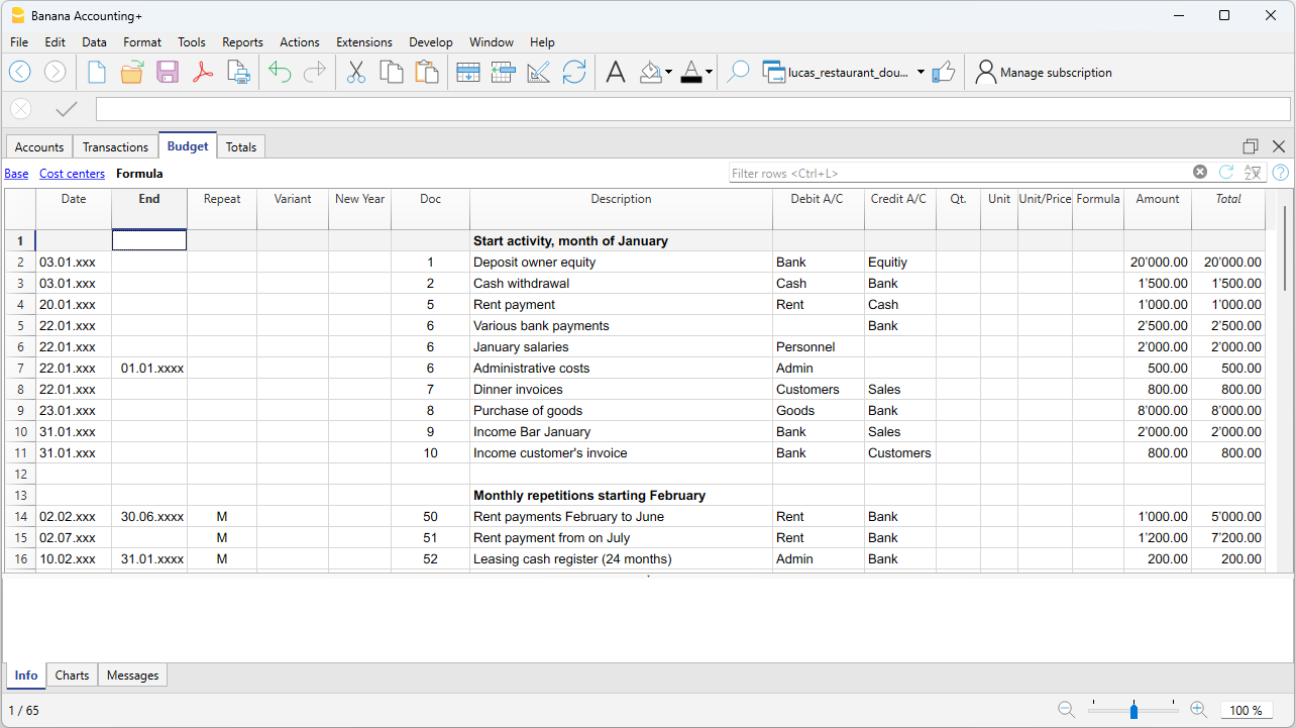
4. 查看预测
可在下列地方看见预测的数据:
- 在图表窗口中。
- 在账户表的预算列内。
- 在报告的预算列内。
- 在账户明细内的预算数值。
调整预测
您可以随时更改,添加或删除发生业务,在进行相关的操作后,预测会立即重新计算,实时更新数据。
预算表
在预算表中,您可以输入财务预测计划的动向。它类似于您所使用的会计核算内的发生业务表,但其内有专门帮助预算的列,可加快预算数据的输入。
您还可以根据自己的意愿修改数据,以获得可靠的,和实时更新的预测数据。
简单而完整的预测
- 您可以详细地输入所有的操作。
- 基于复式记账法,因此您可以拥有完整的预测:
- 根据输入的动向,程序会进行计算并显示预测。
- 指明某项操作将在何时进行,是否会重复进行,直到何时为止:
- 指明原始和目标账户。
- 指明预期金额:
- 您可以通过以下方式完成录入:
- 客户账户。
- 供应商账户。
- 增值税代码。
- 成本/利润中心。
- 部门。
- 增加更多的列,以获取更多信息。
- 可以按照您想要的顺序输入动向,这样您就可以对它们进行分组。
- 您可以输入其它信息,以便于将数据转入新的一年。
预算表格的列
预算表的列和发生业务表的列非常相似。为了便于理解,在下面的示例中使用单词来作为账户的科目。当然,如果您从事的是与财务相关的工作或需要专业的会计账套,您可以随时使用账号来做账。

预算表的各列说明如下:
- 日期
未来的日期,当您希望进行操作时:
如果您无法获得确切日期(例如每月销售预算),请输入月末日期。 - 重复
输入重复代码。有关其使用的更多信息,请参阅日期和重复的页面:
在计算预测时,程序内部会根据指示的重复代码,连续创建设定日期的行的副本。- 空 :没有重复发生
初始行保留日期列中显示的日期。 - 复制行的日期是根据重复代码递增的。
- 在所创建的行中,是按月或者按年重复:
- 一般采用与日期列相同的日期。
- 如果日期大于一个月中的天数,则放置到该月的最后一天。
- 如果在月末显示为“ ME”或“ YE”,则将其放在该月的最后一天。
- 重复的基本代码:
- “ D ” 代表每日重复 (日)。
- “ W ” 代表每周重复 (周)。
- “ M ” 代表每月重复 (月)。
- “ Y ” 代表每年重复 (年)。
- 多倍数重复:
如果您在代码前加上数字,重复发生的频率就会被乘以倍数:- "2M" 代表的是每两个月。
- "3M" 代表的是每三个月。
- "6M" 代表的是每六个月。
- 在周期结束后重复一个日期。
如果在 "M" 和 “Y" 代码的后面加了 "E" , 代表的是将重复的日期移至了月末或年末。- “ ME ”代表的是每月末重复,但在月末有一个日期。
如果您输入的日期是2022年1月1日,那么下一个日期将是2022年2月28日,之后的日期是2022年3月31日。 - "3ME" 代表的是每三个月末 (每季度末)。
如果您输入的日期是从2022年6月30日开始,下一个日期将是2022年9月30日。 - "6ME" 代表的是每6个月末。
- "“ YE ”每年,但在月底有一个日期。
如果在2022年2月28日开始,下一个日期将是2023年2月28日。 - "5YE"每5年,但在月末。
如果日期是2022年2月28日,那么下一个日期就是2027年2月28日。
- “ ME ”代表的是每月末重复,但在月末有一个日期。
- 空 :没有重复发生
- 结束 (结束日期)
- 一般要留空。
- 输入日期,之后不得重复。
对于租赁,租赁结束的日期将作为最终日期。
- 变体
结合扩展程序,指明与预算有关的可能变体。 - 转换到新年
您可以在此处指明创建新年时如何进行转移- 没有价值:日期增加了一年
- “1”日期保持不变
- “2”该行动未转入新年
- 摘要
在账户明细中出现的操作的描述性文字。
您可以通过在${}之间输入数值来使用计算公式。(详见 Javascript 模板文字)。当账户明细准备好后,公式被解析,结果被替换。
例如文本 "金额${10+20}年 "将变成 "金额30年"。
您可以使用所有的公式,但为了避免混淆,建议避免在 摘要列中输入值分配。 - 借方账户和信用账户,CC1,CC2,CC3
就像在发生业务表中的一样,您可以使用这些列来定义应该在哪些账户中注册操作。
您还可以使用细分和成本中心,按细分或成本中心获取预算。 - 数量
数量乘以单价,返回总金额 (见数量和价格列)。 - 价格/单位
单位价格乘以数量应作为总金额。- 在收入和支出会计文件中,您应该以负数(带减号)输入价格单位,因此将在“费用”列中输入金额
- 公式 (基本货币)
此列为用户提供了使用javascript语言输入计算公式的可能性,以及Banana Apps的编程功能。
如果存在公式 (或任何文字),则根据公式的结果设置金额列的值。
请参阅下文如何使用它:- 在复式记账文件中,公式结果必须始终为正数
- 在收益&费用核算中,如果结果为正,则视为收入,如果为负,则视为成本。
- 公式开始(FormulaBegin)
你在这一列中插入的文本被插入到公式中使用的文本之前,然后用于计算。
FormulaBegin的主要用途是插入像 "A="这样的变量设置,在公式中你只需插入该值,这样就更容易修改。 - 金额 (基本货币)
用于预测的金额。
如果该行有重复,则仅在第一个事务中指示该金额; 账户明细中显示以下交易金额。
在以下情况下,程序将自动计算金额:- 如果数量或价格/单位列中有值,则会根据这两列的内容自动计算金额。
- 在复式记账中,将结果转化为正值。
- 在收益&费用核算中,如果结果为正,则视为收入,如果为负,则视为成本。
- 如果输入公式,则金额将是公式的结果。
公式优先于数量和价格/单位。
- 如果数量或价格/单位列中有值,则会根据这两列的内容自动计算金额。
- 总计
这是属于文件属性中设置的核算期和预测期的重复行金额的总和。
如果没有日期,或者如果开始或结束日期在会计期间之外,这一列将保持为空。
在收益&费用核算中的列
对于现金日记账和收益&费用核算,其金额在收入和支出列中显示。
- 收入,支出
在收入和支出列中输入预算金额。 - 数量,单价,公式
当程序根据数量、价格或公式列自动计算金额时,如果结果为正数,则在收入列内输入,如果结果为负数,则在支出列内输入。
在数量和价格列中,您可以指定一个正值或负值。
在多币种会计核算中的列
- 账户货币金额
其是发生业务账户的货币金额 (请参见多币种的发生业务页面)。
该金额用于按指定汇率计算基本货币价值。
如果有公式,该值是公式计算的结果。
如果该行包括重复,则显示第一笔发生业务的金额。 - 账户货币金额公式
可以输入计算公式。
如果该行包括重复,则显示第一次发生业务的金额。随后重复的金额在账户明细中可见。 - 汇率
其指的是将账户货币转换成基础货币的汇率。 - 账户货币总额
这里所指的是以账户货币为单位的重复行数的总金额,其日期属于文件属性中定义的会计期间。
如果没有日期,或者如果开始或结束日期在会计期间之外,这一列将保持为空。
您还可以查看:多币种财务预测计划的教程文件预算公式。
财务预测的时期
基于复式记账的财务预测系统,是使您可以指示何时进行操作的财务预测。
与Excel不同,在Excel中,您需要设置一个包含预测期列的工作表 (月,季度或年),而使用Banana财务会计软件,您只需指出业务活动的预期日期。程序在处理数据时会自动生成针对期间的分配。您可以决定按天,周,月,2个月,季度,学期,年度,2年,5或10年来显示预测。
- 可以做一年或一年以上的预测。
- 根据输入的数据,程序将计算该期间的流动性资金,资产负债表和损益表预测。
- 可以获得每日的预测,这对流动性资金来说特别有用,甚至可以按月或按年来做预测。
查看打印及财务预测报告。
会计,计划和预测期
会计或预测始终与期间相关。要区分以下时期:
- 会计期间
这是在文件属性中定义的开始日期和结束日期。
通常,它与日历年相同,但是也可以有任何的开始日期和结束日期。 - 计划时期
输入计划数据的期间。- 该时间表不需要设置计划时期。
- 通常假定它与会计期间相同。
- 计划期间可能与会计期间不同。在“预算”表中,插入行,该行在会计期间之后生效。
- 含日期的发生业务超出会计期间。
- 没有结束日期或结束日期超出会计期间的重复业务。
- 预测的时期
程序用于计算预测的时间段。- 在请求打印时被指示。
- 使用默认的会计期间。
- 可自由设置,这样就可以得到几年甚至几十年的预测。
- 会计期间被用作预测期间,以计算预算表中总计列以及账户和科目表中预算列的内容。
- 因此,这些值指的是在文件和账户属性中定义的会计期间。
- 如果您更改了会计账套的开始日期和结束日期,预测将被重新计算。
- 在请求打印时被指示。
按月的预测逻辑
在预算表中输入预测活动,以指示出预计要发生的日期。出于流动性预测的目的,重要的是要尽可能准确地指示收入和成本的日期。
对于在一个月的某一天或在开始或结束时发生的所有其它收入和支出,例如租金,工资,银行手续费和其它支出或收入,重要的是要选择接近实际情况的日期来表示付款日。
对于其它收入和支出,将进行估算。例如-除特殊情况外-对于每天产生的餐厅收入,不足以进行日常预测。在这种情况下,只需指出预期在当月发生的整体销售额即可。我们建议指出的是第15天,即月中。
对本年度的预测
在预算表中输入重复性和不重复的业务活动。
通常会考虑文件属性中定义的当前会计期间内的变动,来生成预测的计算。
- 预算表的总计列中显示了当前期间的总计。
- 当前期间的估计余额显示在账户和科目表的预算列中。
- 在各种打印输出中,如果将其表示为全部期间,则有当前期间的预测。
如果该文件还用于会计账套的保留,则会计期间显然必须指的是会计账套的期间。即使该文件仅用于预测,也最好将会计期间设置为仅参考一年。实际上,如果在基础数据中输入了两年的期限,则在总计和账户列中的预测值将是两年。 这可能导致值的混淆。

对未来几年的预测
如果您输入带有重复代码的预测活动,程序则可以准备超出定义时间段的预测。
为了获得几年的预测,需要在预算表中输入变动情况。
- 期初余额
- 这些被输入到账户表中。
- 预测会计期间之前的变动。
- 对于特殊情况,还可以输入在会计账套内所设定的日期之前的业务。
- 必须引起注意的是,因为这些操作会在开始时改变余额。
- 对于这些发生业务,总计列将为空,因为它在会计期间之外。
- 预测会计期间的变动。
- 指示变动的日期在会计期间内。
- 如果某些操作在接下来的几年中也会重复,则必须将年度重复代码设置为“ Y”。
- 如果操作重复发生在未来几年内,请指明 Y 之前的年数,即每2年为“ 2Y”,5年为“ 5Y”,10年为“ 10Y”。
- 如果重复未超过设定的日期 (例如,支付租赁费用),则必须指明结束日期。
- 预测接下来几年的变动。
- 显示了被预测业务的未来日期。
- 可以指示重复代码和结束日期。
- 对于这些发生业务,总计列将保持为空,因为它们在会计期间之外。
对公式的使用
通过这些公式,您可以自动进行摊销和利息计算。当投资增加时,损益表也会立即更新。在进行多年预测时,公式特别有用。
您可以使用公式自动调整重复行中的金额。
- 折旧的计算可以基于固定资产账户的余额。
- 利息可以直接根据银行账户的变动来计算。
- 您可以设定销售进度。
- 购买可以被定义为百分比。
按预测期打印
由于在预算表中插入了带有重复代码,或下一年日期的变动,因此程序能够计算对未来年份的预测。
在打印报告后,在期间部分中指示出开始和结束日期。
例如,开始日期是2022年1月1日:
- 如果您希望进行2年的预测,请将结束日期指定为2024年12月31日。
- 如果您希望进行5年的预测,则将结束日期指定为2027年12月31日。
- 如果您想要做20年的预测,请将结束日期指定为2042年12月31日。
可从以下打印输出可以获取预测:
所有会计报告都可以包含会计值,预测值或同时包含两者。可用参数与会计报告和预测相同。
由于有了这些报告,您可以得到:
以及更多的,未来一段时间的利息。
按时期划分列
在细分部分中,您可以使用该程序为期间创建列。
因此,您可以按月,季度或年份显示演变。
通过合成,您可以设置打印格式,稍后再调用它们。 如果您运行了几年的预测,则有必要对每年,5年的总体进行预先设定,或者将最终余额与估算值进行比较 (可立即调出)。
预算 - 四年的预测

损益表 - 四年的预测

预算的发生业务
在准备财务预测时,基于复式记账法,在预算表中输入发生业务。指出每个账户的来源和目的地账户。该程序具有准备资产负债表和损益表所必需的信息,但是这些信息与未来有关,与过去无关。
当使用Excel进行计划时,将首先设置收入报表,然后列出收入和成本。通常,流动性和投资计划仅在以后,并在单独的表格中准备。
使用复式记账法进行预测时,我们将继续进行以未来的情况进行会计核算。将列出所有预期发生的发生业务。然后,程序将自动为指定的期间准备资产负债表和损益表。
预算业务的结构
为了准备财务计划,我们通常按以下顺序列出不同的要素:
- 注资。
- 第三方注资。
- 设置费用。
- 投资。
在家具,设备中。 - 经常性固定成本。
租金,员工,社会保障费,能源,订阅费。 - 经常性收入。
- 可变收入。
营业额通常是季节性的。 -
佣金,所售商品的成本及其它,与预期的收入量有关。可变成本。
- 年终交易。
折旧,税金,贷款利息,股息。
当您输入销售和可变成本的时候,您将已经具有成本和资本的结构。可以立即知道预期的营业额是否会使公司产生足够的利润和流动性,以保证其长期的可持续性。
金额和公式列
通常,要准备预算,只需使用金额列。
对于更详尽的预测,可以指示数量,单价或公式。 程序将自动计算金额列中的值。
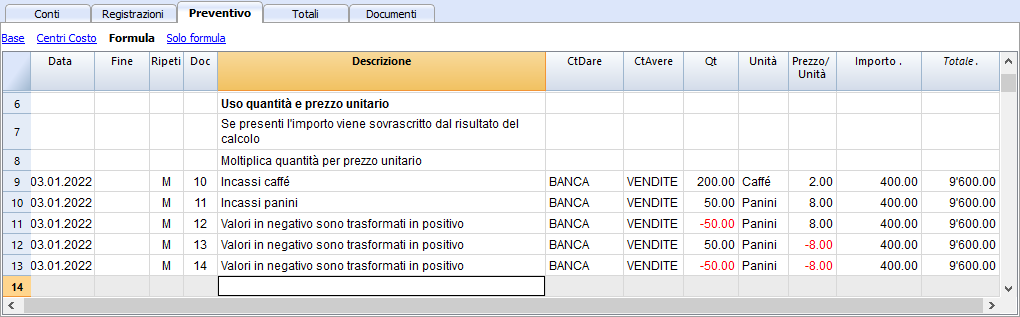
更新预测
使用复式记账法,由于可以详细指示每个操作,因此更新和改进预测会变得更加容易。 最初,将输入对不同成本或投资的预测数据。随着您接近操作阶段,并且将获得更精确的数据,只需替换现有数据即可。即使商业活动已经开始并且确切的要素,也可以轻松更新预测。因此可以获得关于盈利能力和流动性的准确和可靠的预测数据。
财务预测发生业务中的日期和重复
日期列
日期列中包含的值将用于验证预测。
- 如果没有日期,则需要在财务计划开始的时候将考虑发生业务。
如果您需要预测指示出一个期间,则在该期间开始的时候需将金额考虑进入余额的价值。
由于它不在期间内,因此总计列中将不会显示任何金额。 - 文件属性设置中的会计期间内的日期。
这些是常用的。考虑到重复的动向,在会计期间内,总计将显示在总计列中。 - 该期间之前的日期。
您可以输入预测期之前的动向。但是,您必须小心不要与账户表中输入的期初余额冲突。
由于不在期限内,因此总计列中不会显示任何金额。 - 时间段之后的日期。
如果您对未来几年进行预测,则可以使用它们来指示未来几年的业务。
由于不在期限内,因此总计列中不会显示任何金额。
结束日期
与重复一起使用,以指示没有重复的最后日期。
- 通常必须将其留空。
如果输入不必要的日期 (例如会计期末),则随后几年的预测将不包括此操作。 - 用于租赁业务。
指示最后一笔付款的付款日期为结束日期。 - 用于偿还贷款。
指示最后的预期付款日期。 - 在规定的期限内更改金额。
在这种情况下,例如,定期交易的金额会在某些截止日期进行调整 (加薪)。- 根据增加前的最后一次付款,创建一个重复“ M”和结束日期的发生业务行。
当增加开始时,使用日期创建发生业务行。 - 如果增加遵循精确且有规律的自动化操作,则也可以使用公式进行编程。
- 根据增加前的最后一次付款,创建一个重复“ M”和结束日期的发生业务行。
重复
对于经常性支出或收入,建议使用重复代码 (请参阅列的文档)。
- 在计算预测时,程序会考虑到指示的频率,创建操作的副本并逐渐增加日期。
- 如果没有结束日期,则程序将在计算预测时在报告时指出的整个预测期间内生成记录的内部副本。
-
如果开始日期为一月,则频率为每月
- 如果预测期为年份,它将生成从2月开始的行,1个原始行和11个自动行,总共12行。
- 如果预测期为10年,它将生成从2月开始的行,1条原始行和119条自动行 (一年11条+接下来的12 * 9),总共120行。
-
- 如果您希望程序自动计算随后几年的预测。
- 对于重复操作,请指示相对重复代码。
- 对于每年仅发生一次的业务 (例如,年末的折旧),请指定重复代码“ Y”,以便在以后的几年中也计算折旧。
- 仅在第二年不进行此操作时才使用重复。
预算表的总计列
总计列是自动计算的,代表当前行的金额和该会计期间内重复金额的总和。 如果业务日期更早或超出会计期间,则总计列为空。
安排准确的日期和每月的逻辑
在预算表中输入预测的动向,以指示所有预测业务发生的日期。
但是,并非总是可以每天精确地预测所有收入和支出。 因此,在进行预测时,在某些情况下使用近似值 (通常以月为单位) 很有用。 无论如何,始终遵循特定的逻辑是有用的,这样在短期内也可以获得可靠的流动性预测:
- 标出了准时操作 (资本支付,投资) 以及预计发生的日期。
如果没有确切的日期,则在预期它们发生的月份的第15天指出它们是有用的。 - 具有确切付款日期的经常性费用应设置为预期的付款日期和相对的重复代码:
- 银行费用,利息,摊销应在将发生的月,季度或年末指示。
- 在预期付款日的租金。
- 薪金和社会保障费
-
用于支付工资当天的计算和每月付款。
-
十三分之一,奖金或目前支付的奖金。
-
在预期付款日期支付预付款和社会保障费的调整。
-
- 通常在到期日的付款和增值税调整。
- 收入预测。
预测的准备取决于活动的类型。
如果您不知道确切的日期,但是您会知道它将在某个月份发生,建议您指定该月的15号。- 准时收入。
应在预计发生的日期或月中旬中注明。 - 经常性收入。
在输入日期或月中注明。
- 在许多情况下,每月的预测是最适合的选择。收入可以在当月15日显示。
- 如果收入是经常性的,则可以每月重复输入收入。使用公式可以预测增长。
- 如果存在季节性差异,则每个月都有一个销售预测行是很有帮助的。
-
项目或主要工程的预测。如果存在带有收据的日历,则将为每个预期的条目指示一个业务行。可以通过指示该月的15号来进行操作。
- 为客户预测。
对于同时处理预算和项目的顾问或商业顾问而言,为每个客户设置详细的收入预测以及预期的付款日期可能会非常有用。该预测对于检查客户是否实际付款也是非常有用的。
- 准时收入。
- 可变成本。
- 与营业额相关的固定费用 (例如,餐馆) 与营业额的日期相同。 使用公式,您还可以计算营业额的百分比值。
- 成本也可以与其它要素相关联,例如雇员人数,房屋租赁或其他。
用现金原理进行预测
规划小型企业和现金活动 (例如商店,饭店) 时,遵循现金原则,然后在收款日期和收款成本上标明收入是很有用的。
对于重要的操作,例如购买机器,其付款会随着时间的推移而推迟,但是,插入带有精确细节的预测动向是很有用的:
- 购买机械 (购买时向供应商进行资产注册)。
- 机械的付款,以及预计付款的日期。
用权责发生法进行预测
在这种情况下,将在付款时考虑插入操作。
- 现金交易。
其显然已正常注册。 - 预计业务将在不久的将来解决。
为简单起见,属于预测月份或紧随其后的月份的操作可能会有用现金原理。 - 延期付款。
如果无法精确知道日期,则可以使用该月的15号。-
具有精确付款条件的业务。
- 一个动向指示购买日期,其中对应方出现在供应商账户中。
- 其它之一的动向表明在预定日期付款。
-
- 递延的收藏。
- 使用精确的付款条件 (例如项目):
- 动向将指示开票日期和与对方的客户账户。
- 其它的动向之一表明在预定日期付款。
- 逾期付款。
在短期内收集一部分收入,然后在以后收集一定百分比的情况下就是这种情况。 可以这样完成:- 输入收入作为现金收款。
- 在同一日期创建一个动向,该动向将集合的一部分移动到客户账户。
- 在以后的日期,现金收款将显示为对方的客户账户。
- 使用精确的付款条件 (例如项目):
- 使用变量进行递延收款和付款 (请参阅变量使用示例)
如果必须在付款时重新使用相同的值,则证明使用公式列和变量是非常有用的。- 在开票交易中,金额被分配给变量。
- 在付款过程中,将插入变量,以便自动接收金额。
- 例如,变量也可以用于定义将要递延的金额的百分比。
财务预测动向的实例
财务预测内发生业务的输入与正常的发生业务一样,都包含有日期,摘要,金额,借方和贷方的账户。
另外,通过使用重复列,允许您在一行上插入重复的操作。
下面列举了几个例子,这些例子取自下面的模型,我们会参照这个模型做进一步的解释。
最初的发生业务预测
这些都是您所预测的将要发生的业务,被记录在发生业务表中。
这里所举的例子与企业年初最早的业务有关,其所涉及的是不重复的发生业务。

每月重复的业务
下面我们以每月重复的业务为例,代码为 "M (指的是每月重复)"。合计列表示当年的总金额。
前两行指的是租金,从2月到6月是每月1000元,而从7月开始是每月1200元。
此外,还显示了租赁赎回金额到期的2024年这一日期。在这一行的总计列中没有金额,因为该变动不属于在文件和账户属性中所定义的会计期间。
对于银行计算的管理费用,使用的重复码是 "ME (月末) "。您需要填写该月的最后一天,例如3月31日,4月30日。在下表的示例中填写的是2月28日,是因为当年的2月只有28天。

季度末
在下面的示例中,我们为您展示的是一些典型的业务录入,这些业务会在本季度末重复进行。我们在此处输入的是重复代码为3ME,其所指的是每3个月重复一次,并以该月的结束日期为准。

年末
在年底也会有相关的业务。 在这里,我们使用的重复代码为“ Y(每年重复)”,以便在接下来的几年中也会执行这些操作。

收入和商品采购预测
收入预测是针对每个业务而言的。在这种情况下,按月显示收入和购买量的预测,并带有特定的金额。
如下图所示,从3月开始,使用的是每年的重复代码"Y",以便在随后的几年中重复这些操作。

明年的购买和销售情况
第一年的1月和2月,在以后的年份里被认为的意义不大,所以没有重复。
第二年的前两个月,我们需要设定销售额。我们还会输入每年的重复代码"Y" ,这样就可以在下一年重复收入。

包含数量和价格的预测
报价表的数量,单位和单价列使您可以更快地准备预测。
程序通过将数量乘以单价 (在公式列为空的条件下) 来计算金额列的值。
数量列,单价列在预算表格的公式视图中被设置为可见。
使用数量和价格列的优势
数量和价格列在基于数量进行预测方面是非常有用的。例如,拿一家餐厅来举例:
- 在单位列中,您可以指示出价格指的是什么。
- 数量列指的是每天提供的座位数。
- 价格列指的是每个座位的预估收入。
- 金额列的金额将根据所指示出的的数值自动计算。
使用此方法具有以下优点:
- 在预算中可精确且详细地说明在计划内的所有要素。
- 我们记得用于估算的数量和价格。
- 更改进程变的非常简单,只需更改您所需的元素。
- 可以通过出售数量或价格的变化来看出利润是如何变化的。
盈亏平衡分析。
预算表中的Javascript公式
插入公式的可能性只有在Banana财务会计+ 的高级计划中才有。现在就升级至最新版本!
公式列允许您输入计算公式。因此,可以基于相同预算的其它值来计算预估的金额 (请参见公式示例)。
- 指示出商品成本占销售额的百分比。
- 根据增长百分比增加销售预算。
- 到年底,根据所投资的价值计算折旧。
- 每季度根据实际使用情况 (天/ 365) 计算银行账户的利息。
- 每月,根据实际利润计算利润的税金。
正如表格Budget的文档中所解释的,你也可以使用Javascript公式。
- 在公式开始列中
- 在描述栏中,对于重复的行。
如果在公式列中输入了数值,那么金额列是由程序根据该公式计算的。
示例文件
有关公式的示例,请参考以下的说明:
Javascript中的计算公式
- 该公式必须使用Javascript语言表示 (不要与Java语言混淆)。
- 如果有公式 (或任何文本),则根据公式结果设置金额列中的值。
- 您可以使用Javascript语言的所有功能,以及Banana软件提供的API功能。
小数点分隔符
作为小数点分隔符,JavaScript仅使用该点"."。
如果使用其他分隔符(用于本地格式数字的分隔符),则该数字可能会被截断。
金额 = 最后一条指令的结果
在Javascript中,分号";" 用于分隔表达式。
如果Javascript公式包含多个用分号 ";"分隔的表达式,则金额列的值将是最后执行的表达式的结果。
- 10*3 //则30 将返回。
- 如果有一系列由分号";"分隔的操作序列,则最后一次操作将继续。
10*3;7; //则7 将返回。 - 如果有返回值,则该值将在返回后继续。
返回 10; // 则10 将返回。
变量
Javascript变量是编程中最强大的元素,因为它们允许您使用名称访问计算机的内存,保存并访问这些数值。
变量在Excel公式中不存在,但是类似于单元格的名称,不同之处在于可以自由分配名称。

通过指出名称,并用等号 (=) 指示来创建变量。
您可以直接在行内定义和使用变量。通过在公式中输入变量的名称,保存的数值将被接管。
在此创建价格变量,并分配值 10。
var price = 10;
或简单地
price = 10;
如下所示,我们创建一个总变量,将价格乘以5归因于该变量。
total = price * 5;
可以重新分配变量的值。
price = 20;
对象
Javascipt 对象是允许您保存多个值的变量,每个值都有一个属性指示。
价格对象如下列所示,以大括号显示。要访问和保存值,请使用方括号或在对象名称后的属性名称中进行指示。
prices = {}
prices['car'] = 10;
prices.car = 10;
prices['computer'] = 20;
prices.computer = 20;
数组
Javascript 数组是使用方括号创建的,也可以访问它们。
数组的第一个元素的索引为0。
costs = [1,2,3];
costs[0]=3;
result = prices['car'] - costs[0];
重复和变数
有关计算顺序的更多信息,参见财务计划。
- 所有的行(包括为重复创建的行)都按日期排序。如果有相同日期的行,其顺序是它们在表中插入的顺序。
- 排序后,行(包括公式)被重新计算。
- 因此,在公式中,你只能获得到该日期为止的预算数据。
- 变量必须定义在使用该变量的行前有日期的行中。
- 如果预算条目有重复,变量将在每次都被重新分配。
sum=10。 - 如果你想计算总计,而不是计算总计。
- 在最初的一行中,创建一个数值为0的变量。
sum = 0。 - 在重复的那一行中,总和也包括前一个值。
sum = sum + 10;
或使用 "+="。
sum += 10
- 在最初的一行中,创建一个数值为0的变量。
自动变量
- budgetCurrent
该表包含重复创建后的预算行。
这些用于与JRepeatNumber一起记录值。 - DEBUG 可以是为 "true" 或 “false”的变量。
如果为"true",则在消息中显示所有公式的结果。 - row
是引用当前行的javascript对象。- 可以使用值函数 ("columnNameXml").row.value("date") 返回到发生业务日期来检索单元格的值。
- row.value ("JRepeatNumber")返回重复的进度。
第一次重复是0。
- _totalPrice
这是数量列的值乘以单价。
它相当于公式 "row.value('数量')*row.value('单价')"。
预算功能
除了会计类API中定义的预算API外,还有一些特定功能。
BudgetGetPeriod(tDate, period)
此功能与重复使用功能结合使用。
当定义重复时,建议参考计算期间而不是精确的日期。
- 日期参数
计算期间的日期,通常是记录行的日期。 - 期间参数
缩写- 当前的时期:
- "MC" 代表当前月
- "QC" 代表当前季度
- "YC" 代表当前年
- 对于上一时期:
- "MP" 代表上一时期的月份
- "QP" 代表上一时期的季度
- "YP" 代表上一时期的年份
- 当前的时期:
- 从9.1版本开始,您也可以使用:
- "DC "当天
- "DP "前一天
- "WC "本周
- "WP "前一周
- "BC "当前2个月
- "BP "前两个月
- "SC "当前六个月
- "SP "前六个月
- 返回值
由两个日期组成的对象- 开始日期
- 结束日期
// 示例
t = BudgetGetPeriod ('2015-01-01', 'MP') returns
t.startDate // 2014-12-01
t.endDate // 2014-12-31
特定预算功能
以下内容与Banana.document可用的内容相似,但可以在不指定Banana.document对象的情况下使用。
要考虑在内:
- 您可以使用budgetGetPeriod中解释的缩写形式"MC", "QC", "YC", "MP", "QP", "YP"代替开始日期的参数
- 如果将期间指定为日期,则使用当前录入的日期。
- 只有在结束日期早于行日期时使用结束日期才有意义。
如果它等于或更高,则没有效果,因为它们尚未被处理,所以当前行之后的值尚不可用。 - 如果发生业务行的日期是4月15日:
- budgetBalance("1000","MP") 返回3月底1000账户的余额。
- budgetBalance("1000","MC") 返回当前时间的余额,它与 budgetBalance("1000")相同。
- budgetTotal("1000","QP") 返回上一季度的总变动。
- budgetTotal("1000","QC") 返回上一季度截至当前日期的变动总额。
budgetBalance(account, startDate, endDate, extraParam)
余额到当前行。
budgetBalance('1000', 'MP'); //returns the balance of 1000 at the end of the previous monthbudgetOpening(account, startDate, endDate, extraParam)
期初余额。
budgetTotal(account, startDate, endDate, extraParam)
该期间的借方和贷方变动之间的差异。
budgetTotal('1000', 'MC'); //returns the total movement of the 1000 account for the current monthbudgetInterest( account, interest, startDate, endDate, extraParam)
在指定期间内(最大当前日期)计算账户的利息
如果您使用它来计算期末账户的利息,则显示公式的行应始终是该日期的最后一行。
- 账户参数
这将是计算其变动利息的账户号码 - 利息参数
以百分比表示利率- 正数 (2.5, 4, 10) 计算账户借方变动的利息。
- 负数 (-2.5, -4, -10) 计算账户贷方变动的利息。
贷方(金额)
- 如果金额参数为负,则返回正数。
贷方(-100) // 返回 100 - 如果金额参数为正,则返回0。
贷方(100) // 返回 0
此功能与其他budgetBalance功能结合使用,仅在您需要的余额上可用。
如果要计算销售百分比,则使用此功能会更容易。
credit(budgetTotal('1000')) // 仅当它为负时才输入值
借方(金额)
- 如果金额参数为正,则返回金额
debit(100) //返回 100 - 则返回0
debit(-100) //返回 0
如果您只需要使用借方金额进行计算而避免使用贷方金额,则很有用。
包含 (Include)
包含并执行一个 javascript文件,并可能创建自己的函数和变量,这些函数和变量可以在脚本中调用。
- include "file:test.js"
执行了指定文件的内容,该名称是指正在使用的文件。 - include "documents:test.js"
执行了文件中包含的文本文件的内容。
这必须是"text/javascript" 类型的文件。
多币种会计功能
它们也可以不用于多币种会计,在这种情况下,账户始终使用基本货币。
budgetBalanceCurrency(account, startDate, endDate, extraParam)
当前行账户货币余额。
budgetExchangeDifference (account, [date, exchangeRate])
budgetOpeningCurrency(account, startDate, endDate, extraParam)
期初账户的货币余额。
budgetTotalCurrency(account, startDate, endDate, extraParam)
从9.01版本开始,还包括以下功能:budgetCreditCurrency, budgetDebitCurrency.
用户定义的功能
用户可以使用JavaScript语言定义个人功能,然后再公式中调用它们。
可以定义以下功能:
- 直接在公式中
- 在JavaScript编码的附件中;此附件必须具有"_budget.js"名称作为行id
- 在文档表的文本中,需要包含在Include命令中
function Taxcalculation(profit)
{
   var percentage = 10;
   if (profit > 50000)
      percentage = 10;
   else if (profit > 100000)
      percentage =20;
   return profit * percentage / 100;
}
在财务预测中使用公式的示例
在下面,您将找到一些有关如何使用公式自动执行财务预测的示例。
请参考特定的文档:
参数
在做财务计划时,定义稍后可以使用的变量将是很有用的。
创建一个发布日期为1月1日,或与预算第一天相对应日期的参数部分是非常有用的。然后将在以下行中使用参数变量。
// 30%
costOfGoodsSold = 0.3
// 5%
interestRateDebit = 0.05
// 2%
interestRateCredit = 0.02
// 10 %
latePaymentPercentage = 0.1
这样,所有可以设置的参数都会立即被显示。更改参数后,将重新计算预测。
每月的重复或数值
通过使用重复列,您可以在一个业务行中计划全年的数值。
但是,如果业务活动具有季节性变化,建议按月使用财务预测。对于每个月,将创建一个行,其中包含该月的销售额。
如果您希望自动进行几年内的预测,则需在该行中输入重复的代码“ Y”,如此一来,本年度的行也将用于下一年。
价格和销售数量
制定销售计划时,使用数量和价格列输入值会更容易。例如,一家餐馆可以输入每天,每周或每月提供座位的数量,程序会自动计算总数值。通过更改座位的数量或价格,可以立即显示对流动性资金和年度结果的影响。
使用带有变量的公式进行增长
使用以Java语言为基础的公式:
- 必须在使用前定义该变量,因此定义该变量的行必须是使用该变量的行之前的日期。
- 不能使用成千上万的分隔符。
- 小数点分隔符始终为“.” (点) 。
- 如果您使用阿拉伯字母书写,大写/小写的名称不同。
您可以为变量分配一个值 (可以自由选择此名称),并在以下各行中输入变量名称以恢复该数值。
通过更改分配给变量的数值,软件将自动修改使用该变量的所有行。
例如,您可以通过使用公式增加销售额来设置预期的销售额,然后在接下来的几个月中进行设置。
- 通过在公式列中输入以下文本,创建一个“ S”(销售)变量。
Sales=1000
数值1000.00将被输入在金额中 - 在以下各行中,只需在公式中插入变量名称即可使用变量:
Sales
数值1000.00将被输入在金额中 - 您可以将金额加10%(乘以1.1)
Sales*1.1
数值1100.00将被输入在金额中 - 您可以增加S的数值
Sales=Sales+200
数值1200.00将被输入在金额中 - 如果在以下行中使用了该变量,则将进行新的计算
Sales
数值1200.00将被输入在金额中
您还可以通过定义变量来定义所增长的百分比。
- Percentage=1.1
- Amount=200
- 在公式中,可以使用变量名称来代替数字
- Sales*Percentage
- Sales=Sales+Amount
变量和重复
假设您希望营业额每月增加5%。
- 输入两行,在其中将值分配给变量,而不用任何账户作为年份的开始日期。
Sales=1000
Increment=5 - 然后创建一个重复行,在其中输入账户和公式
Sales=Sales*(1+Increment/100)
每次重复该行,变量S的值都会增加5%,因此发生业务的数值也会增加。只需更改增长率,就会重新计算财务预测值。
在一行中,您还可以插入多个Javascript指令,方法是使用分号“;”将它们分开。
Sales=1000; P=5
预算公式的使用
有一些功能可让您访问账户的余额和变动,以计划要计算的行。您可以输入一个公式,通过 budgetTotal 函数可恢复上个月销售帐户“ SALES”的价值 。
credit( budgetTotal("SALES", "MP") )
budgetTotal函数将账号和期间作为参数。可以使用缩写代替期间。
- MP代表上个月。
- QP代表上一季度。
收入显示在贷方中,因此该函数返回的值将为负,并且不会在复式记账会计中作为金额被接受。
因此,请使用 credit () 函数,该函数使用负值并将其变为正值。
月销售额的变量
每个月的销售额可能会有所不同。在这种情况下,每个月使用变量名称,单独录入业务是很有用的。
sales_01 = 1000
cost_01 = sales_01 * costOfGoodsSold
sales_01 = 1100
延期付款
如果您想要一个非常精确的流动性计划,将立即付款和递延的销售分开是很有用的。
一种方法可能是记录所有销售,就好像它们是用现金支付一样,将每月变量的值分配给该金额。
sales_01 = 1000
然后输入业务,冲销递延的销售,并使用公式计算金额。
sales_01 * latePaymentPercentage
然后在下个月输入具有相同公式的付款业务。
销售成本
存在与销售 (商品成本) 或其它成本 (与工资相关的社会性费用) 相关的成本。
变量成本计算
如果用变量定义销售,也可以将销售成本表示为销售百分比。
- 您可以为销售定义变量S,为成本百分比定义变量C。
Sales=1000
Cost=60 - 计算公式为:
Sales*Cost/100
您也可以使用相同的方法来计算社会保障费用。可以在重复行中输入此公式。
具有预算功能的销售成本计算
当成本与销售有关时,也可以使用预算公式。
credit( budgetTotal("SALES", "MC") )*60/100
当成本与销售相关时,“ MC”代表当月。
此公式将返回当月的销售额,将其变为正数,然后乘以60,再除以100。
显然,该日期必须超过销售业务录入的日期。
可以在重复行中使用它,并插入月份结束日期。 因此,将根据与业务一起输入的销售自动计算销售成本。
该公式可以与变量组合使用。
- 在年初确定成本的百分比。
Cost=60 - 公式C被使用。
credit( budgetTotal("SALES", "MC") )*Cost/100
当您更改贡献百分比或任何销售的时候,日程表将自动更新。
年底的销售佣金计算
在年底,您可以使用以下公式计算出总销售净额5%的佣金:
credit( budgetTotal("SALES", "YC") )*5/100
bugetTotal函数返回当年“ YC”期间销售账户的活动。使用credit()函数,将金额转换为正值,然后乘以5再除以100。
如果您对未来几年的时间进行预测,请记住在行中插入每年重复的代码“ Y”,如此一来,其也将为上一年提供相同的计算公式。如上所述,您可以为其分配一个变量,而不是直接在公式中输入5。
- Commission=5
- credit( budgetTotal("SALES", "YC") )*Commission/100
如果百分比从一年更改为下一年,输入下一年日期的发生业务即可重置佣金变量。
通货膨胀
如果您要预测未来几年的财务走向,还可以考虑通货膨胀的因素。
- 在计划开始时,为价格和通货膨胀分配一个基本变量(2%)。
Base=1;Inflation=2 - 在使用Sales变量时,将其乘以通货膨胀率。
Sales=Sales*Base - 在次年的年初,随着年度重复,您提高基础价格
Base=Base+Base*Inflation/100
折旧计算
借助这些公式,可以自动计算折旧。
如果您更改计划投资的价值,则会自动重新计算折旧。请确保折旧计算行的日期早于投资日期。日期通常是12月31日。
账面价值的折旧计算
要计算设备账户的折旧,请在年末使用以下公式插入一行,并适当设置借项和贷方账户用来登记折旧。
budgetBalance("EQUIPMENT")*20/100
budgetBalance函数将余额返回到该日期。 然后,以此计算摊销20%。
如果您认为资产账户可以贷记,请使用借记功能。
debit(budgetBalance("EQUIPMENT"))*20/100
计算初始值的折旧
要计算投资的初始价值,有必要使用变量来记住初始投资的价值。
Equipment=10000
如果折旧摊分了5年,则公式将插入到年终折旧行中。
Equipment=10000/5
年度重复代码“ Y”和结束日期 (与上次摊销的日期相对应) 将插入行中,以防止无限期地进行摊销。
对于每笔投资,您都必须创建一个变量和特定的折旧行。 也可以在变量名中输入数字。
Equipment1=10000
Equipment2=5000
利息计算
budgetInterest( account, interest, startDate, endDate) 函数可让您根据账户的实际使用情况自动计算利息。
参数为:
- 账户
如果是银行账户或贷款,则使用其动向来计算利息。 - 利益
利率百分比。
如果该值为正,说明已经计算了借方余额的利息。
如果该值为负,说明已经计算了贷方余额的利息。 - 初始日期,也可以是首字母缩写。
- 结束日期,也可以是缩写。
- 返回的值是为365/365天计算的利息。
银行账户利息支出
要计算5%的利息费用,请插入带有季度结束日期和重复“ 3ME”的行,其中包含公式.
budgetInterest( "Bank", -5, "QC")
利率为负,因为“ QC”表示的是当前季度。借方和贷方账户必须是记录利息费用的常用帐户。 如果利息减少,银行账户余额也将用于注册。 但是,如果使用另一个账户付款,则可以使用其它账户。
重要的是要使用“ 3ME”的重复代码,以确保使用的日期始终是该季度的最后一天。
要计算当月的利息,请使用缩写代码“ MC”
budgetInterest( "Bank", -5, "MC")
银行账户利息
对于2%的利息收入,请改用正的利息。
budgetInterest( "Bank", 2, "QC")
定期贷款账户的利息
对于定期贷款,将在指定日期计算并记录利息。
- 为每笔贷款创建一个单独的账户。
使用budgetInterest函数准确指示开始日期和结束日期。如果日期以文本的形式表示,则应使用“ 年-月-日”的形式,例如,“ 2022-12-31” - 使用变量。
如折旧所示,可以将贷款金额分配给变量。利息的将使用Javascript的公式进行计算,- 定义贷款变量
贷款=1000 - 计算5%的利息,为期120天。
贷款* 5/100 * 120/365。
- 定义贷款变量
利得税计算
利润是指定时期内该组的利润总额。
要计算10%的利得税,请使用以下公式。
credit(budgetTotal("Gr=Result","MC"))*10/100
- 在"Gr = Result"组中使用budgetTotal的函数参数,其指示出必须计算该组的变动而不是账户。
- MC,当月,被指示为期间。
- 如果有亏损,budgetTotal函数将返回正值;如果有利润,budgetTotal函数将返回负值(贷方)。
- 信用函数仅考虑负值,因此,如果出现亏损,税金将为零。
延迟或不同期限的付款
对于延迟付款或不同的截止日期,您可以通过两种方式进行:
- 使用要将付款金额分配到的变量。
记录付款时使用有问题的变量。 - 为不同的信用期限创建客户或供应商账户。
其它情况
请告诉我们您的其它要求,以便我们添加更多示例。
财务计划的设置
添加一个预算表格
如果在会计文件中尚未包含预算表,则需添加一个预算表格。
针对财务计划
会计账套和财务计划同时存在于同一个会计文件中。 但是,如果不在发生业务表中输入业务行,便可实现仅管理预算。
- 对于初创公司
- 为尚未开始做财务计划的新公司准备财务计划。
- 在最初阶段,我们建议您选择一个含少量账户,不包含增值税的模板。
- 如果您希望一次到位,对所做的会计账套进行保存,那么我们建议您在账户表内使用真实公司的会计科目表。
- 对于现有公司
- 使用其它软件管理会计账套。
- 会计科目表将以会计记账为目的而编制。
- 与实际会计数据相比:
- 您可以导出预算数据并将其导入会计程序。
- 您可以导出会计数据并将其导入预算文件。
- 您可以创建Excel电子表格并报告财务计划和会计数据。
设置财务计划
无论您独立管理一个会计账套,仅管理一个预算还是同时管理两套会计,此过程都是相同的:
- 创建一个会计文件
- 设置文件与账户属性
- 设置会计科目表
- 输入初期余额 (如果有的话)
- 在预算表格内输入预测的数值
但发生业务表是软件已经预设好的,如果您不想显示它,请使用数据菜单 → 表格设置的命令,然后将发生业务表设置为不可见。
财务计划的周期
无需定义财务计划的周期。 即使您仅设置了一年的财务计划周期,也可以获取接下来几年的预测。
年计划
通常,财务计划是为在文件和账户属性中定义的会计期间而准备的,该会计期间通常与日历年相同。
- 期初的期初余额输入在账户表的期初列中。
- 本年度的预算数据输入在发生业务表中。
在生成报告的时候,如果未指定特定的期间,软件会使用会计账套的期间。
当您要计划下一年时,可以为新的一年创建一个文件。该程序将显示预算过账,然后可以对其进行修改 (请参阅操作菜单中的建立新账的命令)。
多年的财务计划
使用Banana财务会计软件,您可以计划数年的财务预算。财务计划报告和预测的时长周期是完全自由的,不受限制。
要制定几年的计划,首先要先制定第一年的计划,然后再将其扩展到接下来的几年。
从技术上来讲,就像在制定年度计划一样,将其扩展到以下年份:
- 在文件和账户属性中,第一年的日期 (通常是日历年) 被指示为开账日期和结账日期。
- 期初余额被输入到会计科目表中。
- 财务计划的变动被输入在预算表中。
- 在不重复的情况下,操作仅针对第一年的财务计划。
- 指出所有其它操作的重复代码,假定在以后的几年中也会重复。
- 每年仅发生一次的操作由年度“ Y”重复代码表示。 例如,折旧的计算是在年底进行的。
- 后续年份的特定操作会标明其发生的日期。
- 对于限于一年或特定时期的重复性操作 (定期租赁业务),将显示结束日期。在该日期之后,将不再重复。
- 可以使用公式,使行中重复的金额自动发生。
- 折旧的计算可以基于固定资产账户的余额。
- 利息可以直接根据银行账户中的变动来计算。
- 可以指定销售进度。
- 购买可以定义为成本的百分比。
- 要获得财务计划 (按组生成的资产负债表,会计报告),请指明所需预算的开始日期和结束日期。
转换到新的一年
用于创建新年的Banana财务会计软件功能,还将自动结转的预算记录。
- 在每一行的级别上,您都可以指示是否应继续执行该操作,以及应该保留原始数据还是用新一年的数据来替代。
- 因此,为新的一年制定预算非常简单,因为这只是预期会改变的收入,以及改变支出项目的问题。
财务预测打印件和报告
有几种获得财务预测数据的方法。您可以通过点击以下链接获得所有您需要的信息:
预算表格 - 预算列
总计列包含文件和会计属性 (会计开始和结束日期) 中指示的会计期间的预算总额。这样可以立即显示当年的一定费用。

信息窗口中的演化图 - 图表窗口
在您所在的任何表格中,您都会在图形窗口中看到光标所在的账户或组的演变。

账户表和科目表中的预算列
账户和科目表显示文件和会计属性 (会计开始和结束日期) 中所指示的会计期间内已更新的预算值。
- 预算列
指示出该会计期间的账户总预算。
所显示的值包括该期间的初始余额和预算变动。 - 预算差额列
指示出预算和余额列之间的差额。

含预算数据的账户明细
通过账户明细的命令,或在预算表中,您可以通过单击账户旁边的按钮来获得所有预测动向的明细。
- 在账户明细的对话框中
-
您可以选择要查看其动向的科目,成本中心,组或细分。
-
您可以选择查看当前数据或预算数据。
-
在会计期间中,您可以指示出要计算的期间。如果您自己选择了一个结束日期,而不是会计本身的日期,则程序将自动创建所指示数据的预测。
-
- 通过从预算表中打开账户明细,将显示出预算变动的明细。

按组生成的资产负债表
所有可用于会计的打印都可以包括财务预测。

会计中可用的所有自定义项也适用于财务预测:
- 选择所需的分组级别。
与账户详细信息一起显示或仅与组一起显示。 - 选择要包括的部分。
仅包括资产负债表,可打印损益表和成本中心。 - 选择会计期间。
如果您选择了会计日期以外的会计期间,则程序会自动创建到指定日期的预测。 - 按时段细分 (每月,每季度,每半年,每年)。
通过组合计算周期和频率,可以创建临时报告。- 通过指示不细分的1年期限,可以得出该年度的预测。
- 通过指示每个季度细分的1年期限,可以在每个季度之前打印出带有列的内容。
- 通过指示一个6个月的周期 (按月细分),可以看到逐月演变的详细信息。
- 通过指示每年细分的5年期限,可以查看5年演变的列。
- 当前值与预算值之间的比较。
- 其它列的增加。
- 更改打印样式。
- 保存打印设置。
打印设置可以另存为合成,以后可以调出。
您可以根据需要创建任意数量的合成。
临时损益表账户
损益表预测显示未来期间的利润,成本和结果。其是追踪公司管理状况的重要工具,可使您了解财务状况的演变。
使用Banana财务会计软件,由于采用了复式记账法进行预测,因此具有完整的预测预算,并且可以不同的方式进行安排。该程序还可以计算未来几年的预测。
您可以对经济状况的演变有非常精确的了解。
损益表的结构与会计文件中使用的结构相同。在打印时,您可以指示出要显示的值,最终余额的值,或预算余额或两者一起。
计算预测值时要考虑到预算表中指示的期初余额和预测变动。更改预算条目时,预测会立即更新。您可以进行模拟和测试,重新分配付款,添加投资,修改销售,并查看随着时间的推移,预算是如何变化的。
损益表的值可以通过几种方式来显示。
数量和公式的使用
通过使用预算表格的数量和价格列,您可以使用与电子表格相同的方法来编制更现实的预测。这样可以加快预测的效率。更改价格并自动访问损益表以及资产负债表和流动性的新预测是足够的。
这些公式使您可以自动执行成本计算,因此,例如,当您更改销售量时,购买成本将按百分比变化。 这样,您可以使用精确的损益表预测,该预测会自动更新。在进行多年预测时,公式是特别有用的。
详细的预测
基于复式记账法的损益表预测,使您可以使用与会计文件相同的账户和组来获取成本和收入的预测。构成损益表项目的相同结构也被用于预测。数值和报告会自动详细的显示,流动性如何日趋发展,客户的状况。
可客制化的会计科目表结构,预测也可基于该结构。可以通过简单地使用主要组和其中的科目来完成此操作,或者以更复杂的方式进行操作,也可以通过插入子组来获得更详细的视图。
损益表的结构逐步被调整,使您可以查看在纳税后的年度中期结果和最终结果。
损益表
- 收入。
- 货物成本。
营业总收入 (收入和费用总计)。
- 人事费用。
- 一般费用。
运营结果 (总运营结果,人员成本和一般成本的总和)。
- 财务费用。
税前和折旧前的经营成果 (经营成果和财务费用之和)。
- 折旧。
税前营业结果 (普通结果和折旧之和)。
- 税收。
除税前损益 (税前结果总计,税金和关税)。
账户/科目表
在账户表的预算列中,对于复式记账会计,在收入和支出的科目表中,显示损益表中所有账户和组的预测值。 所有的数据一览无余,您可以立即查看含预测值的损益表。这些值指的是会计期间,并且可将差额与当前余额进行比较。
如果您需要更多详细信息,则可以添加账户或组。

按组生成的资产负债表
通过按组生成资产负债表的命令,您可以查看临时资产负债表,选择所需的演示方式。
- 在列的部分中指示出预算的值。
您可以显示当前的 (会计) 数值,估计值或两者一起。 - 设定时期。
如果显示的期间超过会计期间,那么程序将自动切换到几年的预算。 - 指示出所需的时间段细分。
- 在行的部分,您可以排除账户,从而仅查看组。
- 如果您认为会再次使用此打印设置,请创建一个合成。
使用不同的选项,您可以自定义打印。 以下是一些示例。
年度损益表预测
此打印设置的只有当年的预算值。
您也可以用金额和百分比来显示变化。

预测损益表和本年的比较
将最终 (当前) 数据与估计数据进行比较。

季度预测损益表
在细分部分内设置为季度,程序显示各个季度的预测损益表。
现在将显示年度预算预测的变化。

当前季度与预算的损益表比较
该打印输出被设置为可同时打印出预估值和最终余额。 因此,我们在每个季度末都有预期和当前的情况。

损益表账户三年预测
如果您插入带有重复代码的预测活动,则程序可以准备超出定义时间段的预测。为了获得几年的预测,将这些发生业务以年度重复的代码 (Y)的形式输入到预算表中。
设置打印输出以获取三年内损益表的预测。

损益表的会计预算报告
通过会计报表的命令,您可以得到以列为单位的损益表的打印输出,其数值与账户表中的数值相同。
这些选项与按组生成的资产负债表相似所解释的相似。

流动资金计划
现金是王道是我们的座右铭,其充分表明了流动资金的重要性。它是开展业务活动,履行承诺和产生利润的主要引擎。为了安全地进行投资,必须以合理的方式评估产生流动性资金的能力及其随时间的演变。
Banana财务会计软件的财务预测功能是一种重要的业务管理工具,它使您能够了解是否有足够的财务手段来履行承诺并将债务风险降至最低。
流动性预测是根据预算表中所包括的初始余额和预测来计算的。当预算发生变动时,预测会立即更新。您可以运行模拟,分配付款,添加投资,修改销售并查看流动性资金是如何演变的。
流动性数值可以几种方式显示。
账户表
在账户表中设置账户和流动性组。在预算列中,您还将看到该会计期间更新的预测余额。 您一眼就能知道年底的流动性状况。
演化图表
当您打开图表窗口的时候,将鼠标放在一个账户或一个组上,您将看到流动性演变的图表。
单击当前,预算,上期的选项,可以隐藏图形。
带有预算数据的账户明细
使用账户明细的命令,您可以每天详细查看流动性的演变情况。还可以看到影响流动性的所有变动。

使用账户明细的命令,您可以指定是要查看当前的活动还是预算的活动。
- 选择预算变动。
- 设置时期
如果您指定的期间超过会计期间,则程序将自动生成几年的预测。 - 如果您指定一个组,则将看到属于该组的所有账户的活动情况。
- 当您在预算表中时,可以通过单击账户旁边的图标来访问该账户明细。
按组生成资产负债表中的流动资金
通过按组生成资产负债表的命令,您可以选择使用按每个期间的列细分的值。通过这种方式,您可以按日,周,月,季度,学期,年等查看流动性的演变。
- 在列的部分,指示出您希望查看的预算值。
- 在类的部分,您可以选择要包括在打印输出中的账户或组。
您可以选择仅显示资产和折旧帐户。 - 设置时期。
如果显示的期间超过会计期间,那么程序将自动切换到几年的预算。 - 指示出按所需的时间段细分。
- 如果您认为会再次使用此打印设置,请设置自定义。

流动资金预算的会计报告
会计报表与按组生成的资产负债表相似,不同之处在于数据的显示是在账户表的列中进行的。
因此,您可以使用它来即时查看流动性账户的演变。

销售预测
公司的销售是收入和流动性的主要来源。与更加容易做计划的成本相比,在销售这方面更难做预算。根据经验,您可以根据上一年同期的销售额来作为基准,也可以根据可能发生的,可能导致销售额增加或者收购新客户的重大事件为基础。
基于此概念,在Banana财务会计软件中基于复式记账的财务预测可以使您随着时间的推移模拟和预测不同的方案。只需更改销售预算,程序就会自动更新预测并显示当年或未来年份的详细报告。
销售预测是根据预算表中包含的预测计算得出的,并且可以不同的方式显示。
账户表
在账户表中设置账户和销售组。在预算列中,您还将拥有该会计期间实时更新的预测余额。您可以一目了然地查看一年中的销售变化。

销售演变图
当您打开图表窗口的时候,将鼠标放在一个账户或一个组上,您将看到流动性演变的图表。
单击当前,预算,上期的选项,可以隐藏图形。
含预算数据的销售账户明细
使用账户明细的命令,您可以每天详细查看流动性的演变情况。还可以看到影响流动性的所有变动。

使用账户明细的命令,您可以指定是要查看当前的活动还是预算的活动。
- 选择预算活动。
- 设置期间。
如果显示的期间超过会计期间,那么程序将自动切换到几年的预算。 - 如果您指定一个组,将看到属于该组的所有账户活动。
- 当您在预算表中时,可以通过单击账户旁边的图标来访问该账户的明细。
季度销售预算的损益表
通过按组生成资产负债表的命令,您可以选择使用按每个期间的列细分的值。通过这种方式,您可以按日,周,月,季度,学期,年等查看流动性的演变。
- 在列的部分,指示出您希望查看的预算值。
- 在类的部分,您可以选择要包括在打印输出中的账户或组。
您可以选择仅显示资产和折旧帐户。 - 设定时期。
如果显示的期间超过会计期间,那么程序将自动切换到几年的预算。 - 指示出所需的时间段细分。
- 如果您认为会再次使用此打印设置,请设置自定义。

含销售预测的会计报表
会计报表类似于按组生成的资产负债表/负债表,不同的是,数据是以列的形式显示的,就像在账户表中的一样。
您可以使用会计报表来即时查看销售账户的变化。

客户财务预测
客户预测可以使用客户数据完成财务计划。例如,公司可以通过最重要客户的账户来预测销售额。
使用复式记账法进行预测,您可指示出单个客户的账户。根据要求,可以使用资产负债表的账户,损益表账户或成本和利润中心来进行客户管理。
当更改预算活动时,每个客户的预测也会分别被更新。
账户表
在账户表中为客户设置账户。在预算列中,您还将看到该会计期间更新的预测余额。 您一眼就能了解单个客户的预测情况。

演化图表
当您打开图表窗口的时候,将鼠标放在一个账户或一个组上,您将看到可以了解客户发展的图表。
单击当前,预算,上期的选项,可以隐藏图形。
带有客户预算数据的账户明细
使用账户明细的命令,您可以详细查看每个客户的所有动向。

- 选择预算变动。
- 指示出客户的账户。
- 设置时期。
如果您指定的期间超过会计期间,则程序将自动生成几年的预测。 - 如果您指定一个组,则将看到属于该组的所有账户的活动情况。
- 当您在预算表中时,可以通过单击账户旁边的图标来访问该账户明细。
按组生成资产负债表中的客户
通过按组生成资产负债表的命令,您可以选择使用按每个期间的列细分的值。通过这种方式,您可以按日,周,月,季度,学期,年等查看流动性的演变。
- 在列的部分,指示出您希望查看的预算值。
- 在类的部分,您可以选择要包括在打印输出中的账户或组。
您可以选择仅显示资产和折旧帐户。 - 设置时期。
如果显示的期间超过会计期间,那么程序将自动切换到几年的预算。 - 指示出按所需的时间段细分。
- 如果您认为会再次使用此打印设置,请设置自定义。

含客户预算的会计报告
会计报表与按组生成的资产负债表相似,不同之处在于数据的显示是在账户表的列中进行的。
因此,您可以用它来即时了解客户账户的演变情况。

临时的资产负债表
资产负债表预测显示未来期间的资产负债表。它是跟踪公司管理层的重要工具,可让您验证公司的资本结构,资产状态,负债状况和权益状况。
使用Banana财务会计软件,由于采用了复式记账法进行预测,因此具有完整的预测预算,并且可以不同的方式进行安排。该程序还可以计算未来几年的预测。
您可以非常精确地了解未来的资产负债表。
预算的结构与会计文件中使用的结构相同。在打印时,您可以指示出要显示的值,最终余额的值,估计值或两者一起。
计算预测值时要考虑到预算表中指示的期初余额和预测变动。更改预算条目时,预测会立即更新。您可以进行模拟和测试,重新分配付款,添加投资,修改销售,并查看随着时间的推移,预算是如何变化的。
预算预测值可以通过几种方式来显示。
详细的预测
基于复式记账法的财务预测允许使用与会计文件相同的科目和组来获得资产负债表数值的预测。构成财务报表项目的相同结构也被用于预测。数值和报告自动详细的显示,流动性如何日趋发展,客户的状况。
Banana财务会计软件预测提供用于评估财务,股权和经济状况的数值。该结构是可自定义的,可以通过简单的方式,包括主要的组和作为其一部分的账户来进行显示,或者通过插入子组以更复杂的方式进行显示,以获得更详细的视图。
| 资产 | 负债 |
|
流动资产
固定资产
|
第三方资本
股权
|
账户表
在账户表的预算列中,您可以访问所有可用的账户和余额组的预测值。所有的数据 一目了然,您可以快速了解预算的状况。这些值是指在会计期间,会自动针对当前余额计算的差额。
如果您需要更多详细信息,可以添加账户或组。

按组生成的资产负债表
通过按组生成资产负债表的命令,您可以查看临时资产负债表,选择所需的演示方式。
- 在列的部分中指示出预算的值。
您可以显示当前的 (会计) 数值,估计值或两者一起。 - 设定时期。
如果显示的期间超过会计期间,那么程序将自动切换到几年的预算。 - 指示出按所需的时间段细分。
- 在行的部分,您可以排除账户,从而仅查看组。
- 如果您认为会再次使用此打印设置,请创建一个合成。
使用不同的选项,您可以自定义打印。 以下是一些示例。
本年度末的预测资产负债表
此打印被设置为仅使用当年的数据。
预算预测并与当年进行比较
将最终 (当前) 数据与估计数据进行比较。
您还可以查看变化的数量和百分比。

季度预算
如果要建立一个带有季度明细的年度资产负债表,必须在细分 → 细分时期的部分输入季度。该程序显示一年的资产负债表,分为四个季度。
季度预算和当期预算
本打印件的设置,既有预算,又有年度决算,还有季度明细。 因此,我们在每个季度末都有预期和当前的情况。

三年的预算
该打印输出被设置为打印三年的预算预测。
在时期的部分中,将参考期设置为三年,在细分 → 细分时期的部分中,将参考期设置为一年。 在文件和账户属性(文件菜单)中,开始和结束时间必须为3年 (例如,2022年1月1日开始,2024年12月31日结束)。
预测的报告
从报表菜单 → 会计报表的命令中,您可以得到与账户表中一样显示的资产负债表的打印输出,但要有所需的列值。
这些选项与按组生成的资产负债表所解释的相似。

供应商财务预测
供应商预测可以使用供应商数据完成财务计划。例如,公司可以通过最重要供应商的账户来预测销售额。因此,可以通过请求延期付款来分析和优化与各供应商的关系。
使用复式记账法进行预测,您可指示出单个供应商的账户。根据要求,可以使用资产负债表的账户,损益表账户或成本和利润中心来进行供应商管理。
当更改预算活动时,每个供应商的预测也会分别被更新。
账户表
在账户表中为供应商设置账户。在预算列中,您还将看到该会计期间更新的预测余额。 您一眼就能了解单个供应商的预测情况。

演化图表
当您打开图表窗口的时候,将鼠标放在一个账户或一个组上,您将看到可以了解供应商发展的图表。
单击当前,预算,上期的选项,可以隐藏图形。
带有预算数据的供应商账户明细
使用账户明细的命令,您可以详细查看每个供应商的所有动向。

- 选择预算变动。
- 指示出供应商的账户。
- 设置时期。
如果您指定的期间超过会计期间,则程序将自动生成几年的预测。 - 如果您指定一个组,则将看到属于该组的所有账户的活动情况。
- 当您在预算表中时,可以通过单击账户旁边的图标来访问该账户明细。
按组生成资产负债表中的供应商
通过按组生成资产负债表的命令,您可以选择使用按每个期间的列细分的值。通过这种方式,您可以按日,周,月,季度,学期,年等查看流动性的演变。
- 在列的部分,指示出您希望查看的预算值。
您可以显示当前 (会计) 值,预估值或两者一起。 - 在类的部分,您可以选择要包括在打印输出中的账户或组。
您可以选择仅显示资产和折旧帐户。 - 设置时期。
如果显示的期间超过会计期间,那么程序将自动切换到几年的预算。 - 指示出按所需的时间段细分。
- 如果您认为会再次使用此打印设置,请设置自定义。

含供应商预算的会计报告
会计报表与按组生成的资产负债表相似,不同之处在于数据的显示是在账户表的列中进行的。
因此,您可以用它来即时了解供应商账户的演变情况。

投资计划
投资计划显示的是公司所需的设备,存货,可动或不动产的预期发展情况。
使用Banana财务会计软件,由于采用了复式记账法进行预测,可根据时间的变化跟踪资产的演变,生成全面的预测,并且可用不同的方式组织。该程序还可以计算未来几年的预测。
账户的结构与会计账套中使用的结构相同。在打印时,您可以指示出要显示的值,最终余额的值,估计值或两者一起。您还可以获得损益表的预测,可显示摊销和利息的演变。更改预算变动时,将立即更新预测。 您可以运行模拟,分配付款,添加投资,更改销售并查看资产账户的发展方式。
使用公式
这些公式使您可以自动计算折旧和利息。当您增加投资时,损益表也会立即更新。在进行多年预测时,公式尤其重要。
会计科目表
在会计科目表的预算列中,将显示所有账户和余额组的预测值,因此会显示与投资同等的所有预测值。您一眼就能及时了解涉及会计期间的值。

如果您需要更多投资详细信息,则可以添加账户或组。
演化图表
当您打开图表窗口的时候,将鼠标放在一个账户或一个组上,您将看到投资发展的图表。
单击当前,预算,上期的选项,可以隐藏图形。
含预算数据的投资账户明细
使用账户明细的命令,可以每天详细查看每种资产的发展情况以及折旧账户。您可以检查所有对投资有影响的变动。

- 选择预算变动。
- 设置时期。
如果您指定的期间超过会计期间,则程序将自动生成几年的预测。 - 如果您指定一个组,则将看到属于该组的所有账户的活动情况。
- 当您在预算表中时,可以通过单击账户旁边的图标来访问该账户明细。
按组生成投资资产负债表
通过按组生成资产负债表的命令,您可以选择使用按每个期间的列细分的值。通过这种方式,您可以按日,周,月,季度,学期,年等查看流动性的演变。
- 在列的部分,指示出您希望查看的预算值。
- 在类的部分,您可以选择要包括在打印输出中的账户或组。
您可以选择仅显示资产和折旧帐户。 - 设置时期。
如果显示的期间超过会计期间,那么程序将自动切换到几年的预算。 - 指示出按所需的时间段细分。
- 如果您认为会再次使用此打印设置,请设置自定义。

投资预测的会计报告
会计报表与按组生成的资产负债表相似,不同之处在于数据的显示是在账户表的列中进行的。
因此,您可以用它来即时了解投资账户的演变情况。

企业融资计划
公司融资计划显示的是账户相对于第三方和自有资金来源的预期演变。
使用Banana财务会计软件,由于采用了复式记账法进行预测,可根据时间的变化跟踪资产的演变,生成全面的预测,并且可用不同的方式组织。该程序还可以计算未来几年的预测。
账户的结构与会计账套中使用的结构相同。在打印时,您可以指示出要显示的值,最终余额的值,估计值或两者一起。
您还可以获得损益表的预测,可显示摊销和利息的演变。更改预算变动时,将立即更新预测。 您可以运行模拟,分配付款,添加投资,更改销售并查看资产账户的发展方式。
对于投资计划,您拥有与流动资金计划和临时损益表账户相同的选项。
使用公式
这些公式使您可以自动计算折旧和利息。当您增加投资时,损益表也会立即更新。在进行多年预测时,公式尤其重要。
会计科目表
在会计科目表的预算列中,将显示所有账户和余额组的预测值,因此会显示与投资同等的所有预测值。您一眼就能及时了解涉及会计期间的值。

如果您需要更多投资详细信息,则可以添加账户或组。
演化图表
当您打开图表窗口的时候,将鼠标放在一个账户或一个组上,您将看到企业融资演化的图表。
单击当前,预算,上期的选项,可以隐藏图形。
带有第三方资本数据的账户明细
使用账户明细的命令,您可以逐日看到每笔应付账款的演变情况、债务摊销、利息支出,并了解它们对融资的影响。

- 选择预算变动。
- 设置时期。
如果您指定的期间超过会计期间,则程序将自动生成几年的预测。 - 如果您指定一个组,则将看到属于该组的所有账户的活动情况。
- 当您在预算表中时,可以通过单击账户旁边的图标来访问该账户明细。
按组生成资产负债表
通过按组生成资产负债表的命令,您可以选择使用按每个期间的列细分的值。通过这种方式,您可以按日,周,月,季度,学期,年等查看流动性的演变。
- 在列的部分,指示出您希望查看的预算值。
- 在类的部分,您可以选择要包括在打印输出中的账户或组。
您可以选择仅显示资产和折旧帐户。 - 设置时期。
如果显示的期间超过会计期间,那么程序将自动切换到几年的预算。 - 指示出按所需的时间段细分。
- 如果您认为会再次使用此打印设置,请设置自定义。

融资估算会计报告
会计报表与按组生成的资产负债表相似,不同之处在于数据的显示是在账户表的列中进行的。
因此,您可以用它来即时了解第三方账户的演变情况。

含利润和成本中心的项目计划
项目的财务计划使您可以控制项目的收入和支出。其用于评估项目的投资和回报,并跟踪其实施。
使用复式记账法做预算可以包含利润和成本中心。您只需要为不同项目设置成本中心,并且与余额和损益表预测并行,即可获得每个项目的预测。
这些预测是根据初始余额和在预算表中输入的预测进行计算的。更改预算时,预测会立即得到更新。 您可以进行模拟,重新分配付款,添加投资,修改销售并确定预算的变化。
流动性资金的值可以几种不同的方式显示。
会计科目表
在会计科目表中设置了利润和成本中心。 在预算列中,您还将拥有该会计期间更新的预测余额。您一眼就能了解年底的流动性资金状况。

演化图表
当您打开图表窗口的时候,将鼠标放在一个账户或一个组上,您将看到项目演化的图表。
单击当前,预算,上期的选项,可以隐藏图形。
带有预算数据的账户明细
使用账户明细的命令,可以详细显示单个项目的所有动向。

- 选择预算变动。
- 指示出利润和成本中心。
- 设置时期。
如果您指定的期间超过会计期间,则程序将自动生成几年的预测。 - 如果您指定一个组,则将看到属于该组的所有账户的活动情况。
- 当您在预算表中时,可以通过单击账户旁边的图标来访问该账户明细。
按组生成资产负债表
通过按组生成资产负债表的命令,您可以选择使用按每个期间的列细分的值。通过这种方式,您可以按日,周,月,季度,学期,年等查看流动性的演变。
- 在列的部分,指示出您希望查看的预算值。
- 在类的部分,您可以选择只查看利润和成本中心。
- 设置时期。
如果显示的期间超过会计期间,那么程序将自动切换到几年的预算。 - 指示出按所需的时间段细分。
- 如果您认为会再次使用此打印设置,请设置自定义。

项目预算会计报告
会计报表与按组生成的资产负债表相似,不同之处在于数据的显示是在列中进行的。
因此,您可以使用它来即时查看部门的演变。

按部门和分支进行规划的财务计划
按部门做的财务计划使您可以为公司的每个部门或分支机构运行预算和损益表预测。 您可以评估公司的各个部门,并了解每个部门对整体经营活动所做的贡献。
使用复式记账法进行预算也可以指定细分。当您为不同部门设置细分时,请在输入预算变动时使用它们,可用预算和损益表预测,以不同的部门划分。
这些预测是根据初始余额和在预算表中输入的预测进行计算的。更改预算时,预测会立即得到更新。 您可以进行模拟,重新分配付款,添加投资,修改销售并确定预算的变化。
流动性资金的值可以几种不同的方式显示。
会计科目表
在会计科目表中设置部门。当指示资产负债表和损益表账户部门的时候,该部门的余额在账户中将始终为零。

带有预算数据的部门账户明细
使用账户明细的命令,可以详细显示单个部门的所有动向。
- 选择预算变动。
- 指示出所需的部门。
- 设置时期
如果您指定的期间超过会计期间,则程序将自动生成几年的预测。 - 如果您指定一个组,则将看到属于该组的所有部门的活动情况。
- 当您在预算表中时,可以通过单击账户旁边的图标来访问成本中心的标签。

按组生成资产负债表
通过按组生成资产负债表的命令,您可以选择将每个部门的值分到不同的列。因此,您可为每个部门处理资产负债表和损益表。
- 在列的部分,指示出您希望查看的预算值。
- 在类的部分,您可以选择只查看资产负债表或损益表。
- 设置时期。
如果显示的期间超过会计期间,那么程序将自动切换到几年的预算。 - 指示出所需的按部门细分。
- 如果您认为会再次使用此打印设置,请设置自定义。

部门预算的会计报告
会计报表与按组生成的资产负债表相似,不同之处在于数据的显示是在列中进行的。
因此,您可以使用它来即时查看部门的演变。

新一年的财务预测
Next year’s budget in the current accounting
In Banana Accounting, in addition to the Budget column (used to enter the current year's budget), you can add a custom column to manually enter the budget for the following year. This allows you to plan the future budget without changing the current year's one.
This feature is particularly useful, for example, for associations, where at year-end members are asked to approve both the final accounts and the budget for the following year.
How to add the Next Year Budget column
You need to add the Next Year Budget column in the Accounts / Categories table.
- Go to the Accounts table of your accounting file.
- From the Data menu > Columns setup > Add.
- Enter the title: Next Year Budget (e.g. Budget year xxxx).
- Set Data type = Amount, so Banana automatically calculates the group totals.
- Confirm with OK.
The new column for the next year's budget will be visible in the Accounts table.
Entering the values
In the column you added, enter the estimated amount for the next year for each cost and income account.
- Income (Credit column) → negative amounts.
- Costs (Debit column) → positive amounts.
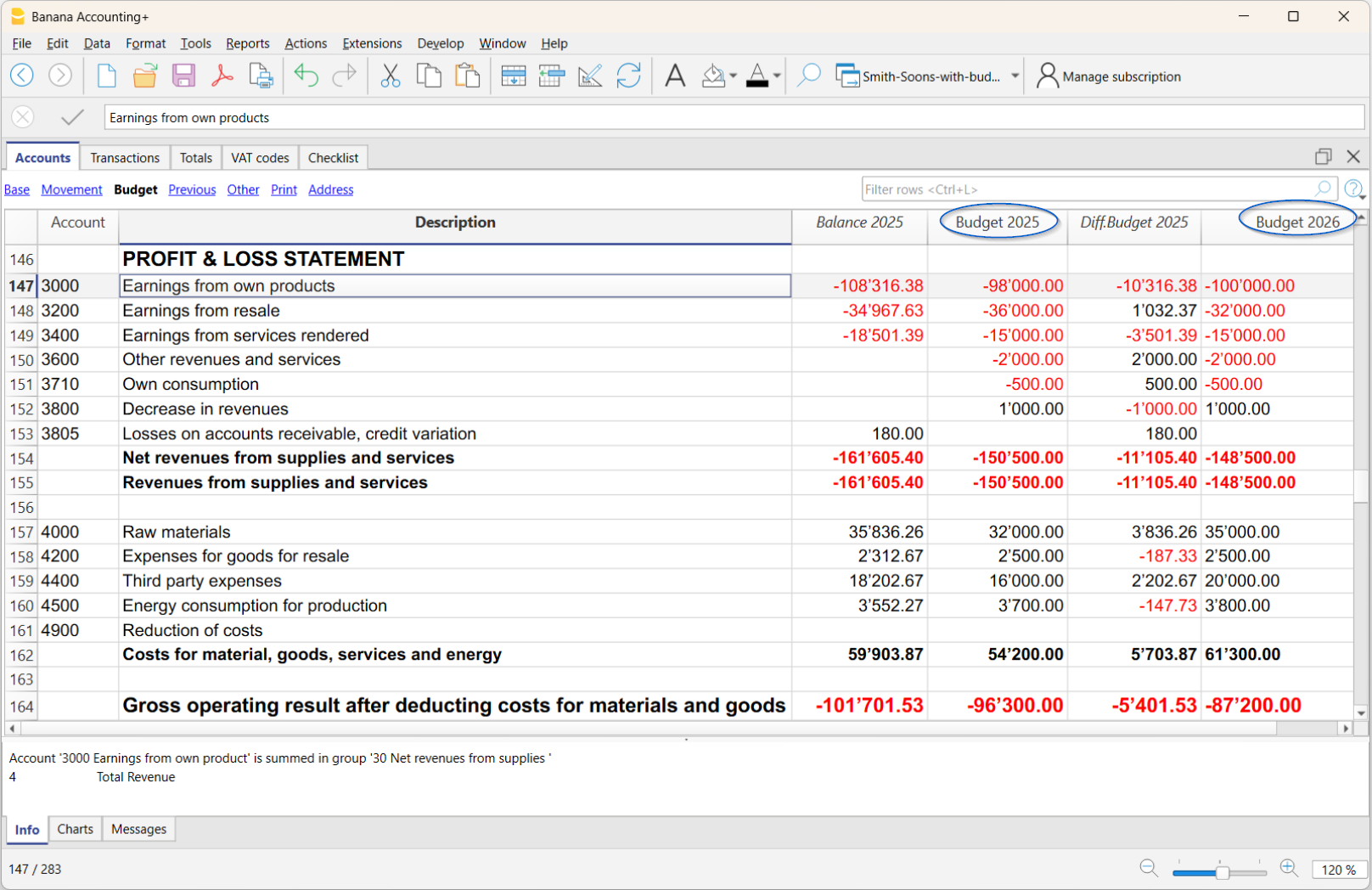
Print the Balance Sheet with the integrated Next Year Budget
Once all the budget values have been entered in the Next Year Budget column, you can print a balance sheet, integrating the new column in addition to the current year's budget column.
To print, go to:
- Reports > Enhanced Balance Sheet with groups menu
- In the Profit and Loss Account Columns section, activate:
- Current (if you want to display the actual column)
- Budget, Difference (if you want to display the variance column between Budget and Actual of the current year)
- Click on the Advanced button and then on Add:
A dialog opens listing all columns from the Accounts table that you can include in the report- Activate the added column for the Next year’s budget
- Confirm with OK.
- In the Profit and Loss Account Columns section, activate:
The balance sheet will then show, in addition to the current data, also the budget for the next year.
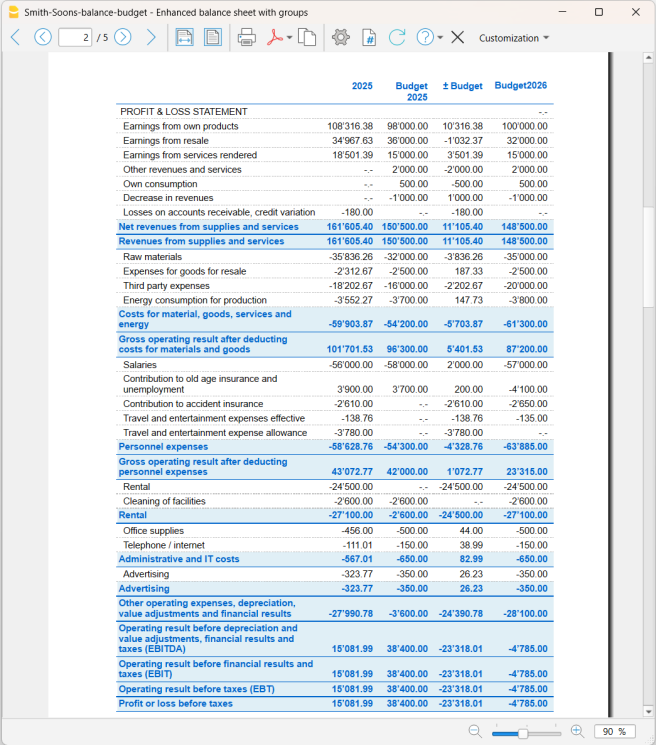
Preparing the Liquidity Plan
The liquidity plan is very important not only for startups, which need to assess possible investments based on available financial resources, but also for established companies to maintain balance over time.
A careful analysis of cash flows allows you to monitor that there are always sufficient funds available to meet financial obligations, such as salary payments, suppliers, taxes, and other operating expenses. Preparing a liquidity plan is essential for several reasons:
- Strategic planning: provides crucial information for strategic planning and decision-making, allowing the company to seize investment and growth opportunities promptly.
- Operational sustainability: ensures that the company always has sufficient funds to operate without interruptions, maintaining operational continuity.
- Prevention of liquidity crises: avoids emergency situations where the company cannot meet its financial obligations, preventing potential insolvency or bankruptcy.
- Optimization of financial costs: allows for efficient planning of financial resources, reducing financing costs and improving the return on available resources.
- Improvement of relationships with third parties: effective liquidity management strengthens the trust of investors, suppliers, employees, and other stakeholders in the company.
How to prepare the liquidity plan
To draft a liquidity plan, it is necessary to analyze a series of historical data and documents.
Data collection
Start by gathering a series of useful documents for the planning process:
- Bank Statements: to check recent transactions and balances from bank, postal, and credit card statements.
- Debtors and Creditors Accounts: to examine the receivables the company needs to collect and the payables it needs to settle.
- Current Balance Sheet: to draft a current balance sheet for an overview of all accounts.
- Balance Sheets of previous years and periods: to assess, based on historical data, especially revenue trends.
Banana Accounting Plus offers innovative features to create a liquidity plan, using the same chart of accounts as the accounting system and integrating it into the same accounting file without the need for separate spreadsheets.
To create the liquidity plan, forecasts are entered into the Budget table as regular entries, using the Debit, Credit, Amount columns, VAT codes if any, cost centers, and segments.
Estimating Inflows and Outflows
When forecasting costs and revenues, it is better to be cautious. Therefore, it is recommended to not underestimate costs and not overestimate revenues, while also considering unforeseen events to avoid liquidity shortages. It is also advisable to develop a strategy to identify which costs can be reduced because they are not strictly necessary and which revenues can be optimized.
Future Outflows
Enter forecasts for future costs based on historical data and potential extraordinary expenses:
- Operating Costs: forecast operating expenses such as salaries, rent, utilities, and production costs.
- Debts and Payments: plan payments to suppliers and loan repayments.
- Other Outflows: consider other expenses like taxes, extraordinary maintenance, or investments.
Future Inflows
Enter forecasts for future revenues:
- Revenue: based on sales from the previous year for the same period, market trends, and marketing strategies, prepare estimates for sales or services. If reliable data is not available, rely on historical data from previous years.
- Other Inflows: include other possible sources of income, such as interest from investments or potential loans.
Below is an image of the table. For an explanation of the columns, refer to the page Budget Table Columns.
Liquidity Plan from the Balance Sheet
Use the command Enhanced Balance Sheet with Groups to access the forecast balance sheet report.
- In the Sections options, enable the display of the Budget for the Balance Sheet (Assets and Liabilities).
You can view current (accounting) values, budgeted values together or separately. - Set the Period.
If you specify a period beyond the accounting period, the program automatically generates multi-year forecasts. - Specify the Period Breakdown you want.
- In the Rows options, you can exclude accounts and view only the groups.
- If the setup will be used in the future, it is advisable to create a Customization.
Liquidity Plan Report from the Accounts Table
The Accounting Report is similar to the Enhanced Balance Sheet with Groups, with the difference that data is displayed in columns, like in the Accounts table.
You can use the Accounting Report to get an immediate view of the liquidity accounts' evolution.
规划与分析
Liquidity management with the Cash Flow report
Starting from Banana+ Dev Channel 10.1.25, a new command Report > Cash Flow Report has been introduced, offering a detailed analysis of liquidity changes recorded in accounting.
This tool allows you to monitor receipts and payments, including future ones, providing valuable insights into your company's financial strength and operational efficiency.
- The logic behind this function is based on comparing the balances of liquidity accounts and the movements of counterpart accounts, which usually represent revenues or expenses.
- By understanding how the movements in liquidity accounts correspond to net cash flows for each period, you can gain an accurate view of your financial situation at any time. This comparison provides valuable information for effective financial planning and informed decision-making, helping you maintain balanced cash flow and achieve your financial goals.
- Thanks to the forecast functionality, you can analyze the evolution of liquidity over the year, using data from existing entries and budget items.
Prerequisites
Currently the Cash Flow report functionality
- Is available in the Dev-Channel version, so please install the latest version of Banana Accounting+ Dev Channel.
- This extension works only with the Advanced Plan, you can request a 1 month promo code from our support service.
- The extension is currently in Beta Test, please check everything and report any problem.
The Cash Flow Table
To view the Cash Flow table:
- select the command from the menu Report > Cash Flow Report
(if the command is not visible, check the prerequisites) - set the parameters in the Cash Flow Report dialog and confirm with OK

Rows
Vertical structure of the report
- Each liquidity account
- Total of all liquidity accounts (cash accounts)
- Counterpart accounts
- Total of counterpart accounts (cash flow total changes)
- Difference (displayed only if the total of liquidity accounts differs from the total of counterpart accounts)
Some commands to filter the rows displayed in the table
- To display only the rows with an amount in the Current view
|!Movement_?_C:xml!<> |!Balance_?_C:xml!<> - To display only the rows with an amount in the Budget view
|!Movement_?_B:xml!<> |!Balance_?_B:xml!<>
Columns
The columns with amounts
- Opening balance (only for liquidity accounts)
The initial amount of the liquidity account for the period. - Closing balance (only for liquidity accounts)
The final amount of the liquidity account at the end of the period. - Movements for the period
- Inflows (hidden column)
Indicates incoming money - Outflows (hidden column)
Indicates outgoing money - Net Cash Flow
- Liquidity accounts
Calculated as Inflows minus Outflows.
Represents the total of all revenues (positive amounts) and expenses (negative amounts) within the account for the considered period. - Counterpart accounts
The origin (positive amounts) and the destination (negative amounts).
- Liquidity accounts
- Inflows (hidden column)
Views
The report has three views
- Current
Uses the opening balances and the actual transaction data. - Budget
Uses the opening balances and the data from the Budget table. - Forecast
- Uses the opening balance and the data from the transactions up to the day before the forecast start date.
- Uses the budget entries starting from the forecast start date (inclusive).
The View Forecast
The forecast combines current accounting data (Transactions table) with budget data (Budget table).
Example:
- In the Transactions table, movements are recorded up to the end of September.
- In the Budget table, the budget for the months of the year is recorded.
- If you set the forecast start date to October 1st, the program will calculate the forecast including:
- Actual opening balance.
- Transactions from January through the end of September.
- Budget data starting from October 1st.
- The liquidity forecast will therefore use the actual liquidity account balances and calculate the forecast through the end of the year based on the budget data.
- The forecast can be particularly useful when combined with a monthly breakdown.
If you use a monthly breakdown, you can view the projected cash flow for October, November, and December, starting from the actual data up to September.
Example of a report for the period 01.01.2025 - 30.06.2025
- Forecast start date: 01.04.2025
- 1st quarter amounts are based on actual transactions.
- 2nd quarter amounts are based on forecasts:
- The opening balance of liquidity accounts is based on actual data.
- The net cash flow is calculated based on budget entries.
- The final balance (projection) is the sum of current and forecast data (transactions + budget).

Report logic
The report will show:
- For liquidity accounts:
the total of all inflows and outflows for the period. - For other accounts:
the total of the entries that affected the liquidity accounts.
How the report works
- The user defines which accounts are liquidity accounts.
- The opening balance of the liquidity accounts is used as the starting value.
- For all entries in the Transactions and Budget tables:
- The program only considers entries involving a liquidity account.
- The amount recorded in the liquidity accounts is analyzed individually for each account.
- The amount recorded in the counterpart accounts is also analyzed separately for each account.
Definition of counterpart account
A counterpart account is an account that does not belong to the list of liquidity accounts.
- For single-entry (debit/credit) records:
the counterpart account is the one used in opposition to the liquidity account. - For entries with multiple rows and different accounts:
The position of the row including the liquidity account does not affect the decision to include or not the entry in the report.- The first liquidity account (whether debit or credit) is considered the main liquidity account.
- All other accounts used are considered counterpart accounts.
Logic for grouping entries
In the Transactions table, accounting movements are listed sequentially, without the possibility to manually define a start and end for each entry. Therefore, the program automatically determines when an entry starts and ends, as well as which accounts are part of it. This logic directly impacts the correct assignment of the counterpart to liquidity accounts.
Understanding the grouping mechanism of entries in Banana is essential for achieving an accurate interpretation and reducing any discrepancies reported in the cash flow report.
Errors and Differences
When the program is unable to determine the counter-account in a multi-line transaction, a difference is reported. This warning does not necessarily indicate an accounting error, but rather the inability to identify the exact counter-account.
In these cases, you can assist the program by specifying the liquidity account in square brackets on the relevant line. This action:
- allows the transaction to be included in the cash flow calculation.
- Acts only as a comment and does not affect the accounting result.
Managing differences
The inflows and outflows in liquidity accounts must always be associated with:
- a source account (for inflows, from where the money comes)
- a destination account (for outflows, where the money was transferred to).
For each entry (whether single or spread over multiple rows), the system reports an error when the total amounts recorded in the liquidity accounts do not match the total amounts assigned to the counterpart accounts.
Differences and errors can therefore arise from:
- Partial or missing counterpart assignments.
- Amount errors between liquidity movements and their counterparts.
Practical examples
Below are some examples of accounting entries split over multiple rows, involving the liquidity accounts 1020 Bank and 1000 Cash.
Although these entries are accounting-wise correct, they can generate ambiguities in cash flow calculation, highlighting a possible discrepancy between the liquidity balance and the total of the counterpart movements.
Doc change (Doc column)
- Example: entry over multiple rows with different docs. Report of a 360.00 CHF difference at row 1.
Date Doc Invoice Description Debit Credit Amount Balance 14.01.2025 1 Various purchases 1020 360.00 -360.00 14.01.2025 2 Purchase on 12.01 4000 30.00 -330.00 14.01.2025 3 Purchase on 13.01 4000 330.00 Correction: indicate the liquidity account in square brackets in the second and third rows.
Date Doc Invoice Description Debit Credit Amount Balance 14.01.2025 1 Various purchases 1020 360.00 -360.00 14.01.2025 2 Purchase on 12.01 4000 [1020] 30.00 -330.00 14.01.2025 3 Purchase on 13.01 4000 [1020] 330.00
Change in invoice number (Invoice column)
- Example: entry over multiple rows with different invoice numbers and an empty Doc column. Report of an 8,000.00 CHF difference at row 1.
Date Doc Invoice Description Debit Credit Amount Balance 18.01.2025 Customer invoice collection 1020 8,000.00 8,000.00 18.01.2025 4545 Payment from customer 1 3000 3,000.00 5,000.00 18.01.2025 4546 Payment from customer 2 3000 5,000.00 Correction: indicate the liquidity account in square brackets in the second and third rows.
Date Doc Invoice Description Debit Credit Amount Balance 18.01.2025 Customer invoice collection 1020 8,000.00 8,000.00 18.01.2025 4545 Payment from customer 1 [1020] 3000 3,000.00 5,000.00 18.01.2025 4546 Payment from customer 2 [1020] 3000 5,000.00
Cash Flow Dialog
The Cash Flow Report dialog window allows you to customize your liquidity reports by selecting specific liquidity accounts, periods, breakdowns, and other settings to tailor the report to your needs. With the ability to save different configurations, you can create and store multiple customized reports.
In the Banana menu, select Report > Cash Flow Report

Basic tab
- Liquidity account or group
- Selection: type the name or ID of the liquidity account or group for which you want to generate the report, then click the Add button.
- When selecting a group (indicated by Gr=), all accounts belonging to that group will be included in the report as liquidity accounts. This is useful for analyzing multiple accounts simultaneously without adding them individually.
- To remove selected accounts or groups, click the "X" button next to the account name.
- Forecast checkbox
- Available only for accounting files that contain the Budget table.
- Select this checkbox to include forecasts in the cash flow report, allowing you to project future liquidity changes based on budget entries.
- Enter the start date from which forecast data should be calculated. This date is inclusive, meaning that from the specified day onward, the report will consider budget data (from the budget table). Data before this date will instead use actual data (from the Transactions table). This feature allows for seamless integration of historical actual data with future projections in the Cash Flow analysis.
Other sections of the dialog
Explanations for the other sections are available on the following pages:
- Period
Defines the reporting period. - Subdivision
Allows you to generate a report divided into multiple periods.
Segmentation by segment is currently not implemented. - Customization
Allows you to save report settings. For example, you can create and save separate configurations for:- Cash Flow Report: including liquidity accounts.
- Working Capital Report: including working capital accounts.
Banana财务会计+ 的图表功能
在Banana财务会计+ 中,当打开一个文件时,底部的图表窗口可以提供所选账户、组、成本中心或分部的趋势图形。
根据可以在右侧面板中选择的设置,在表格中显示账户或其它选定项目的数据:
- 将光标定位在图表的曲线或条形上,就会显示出金额的确切数值。
- 点击图形上的一个点,就会在相应的位置打开相应的账户明细。

控制面板
使用右边的面板,您可以选择要显示的数值和周期、模式,以及打印或保存图表。
如果窗口的大小不允许显示所有的控件,则只会显示与图例相关的控件。要查看所有控件,您需要最大化主应用程序窗口或底部窗口。
时间值
以下会计值可以单独或同时显示在图表中:
- 当前 - 表示实际值。
- 预算 - 表示预算值。
- 上期 - 代表上一年的值。
用鼠标点击名称 (当前、预算或上期),就会显示或隐藏各自的数值。
选项
图例选项选择是在图形窗口中隐藏还是显示图例。它通常是隐藏的,但在需要打印或保存图形时可以显示它。
- 关闭 - 图形不显示任何图例。
- 底部 - 图例显示在图表下方的中心位置。
- 左 - 图例显示在左下角。
- 顶部 - 图例显示在图表的中央。
- 右 - 图例显示在右下角。
范围
要显示数据的年限。
- 1A、2A、3A、4A、A (A代表年份)。
区间
- 1天、1周、1个月、3个月 (季度)、6个月 (半年)、1年。
数值
图表可以显示期末的会计余额或期间的会计变动。根据所选择的值,相应地调整显示的日期:
- 余额 - 该图表表示期间末的余额 (例如2022年1月31日 - 期间结束日期)。
- 动向 - 该图表示期间的运动 (例如2022年1月 - 期间)。
- 自动 - 该图表示资产负债表账户和成本中心3 的余额,以及损益表账户、成本中心1、成本中心2和部门的变动。
类型
该图表可以用以下方式表示数值:
- 线型 - 图形由线来表示。
- 区间 - 图形是由面积来表示的。
- 条形 - 图形用条形表示。
- 自动 - 图表在资产负债表账户和成本中心3中以面积表示,在损益表账户、成本中心1、成本中心2和分部中以条形表示。
打印、保存或复制图表
这个功能只适用于Banana财务会计+ 的高级计划。

在图表表格中,在右上角,点击复制符号,会出现一个菜单,有以下命令:
- 打印 - 在打印预览中显示图表。
- 保存 - 将图形保存为PNG图像。
- 复制 - 将图表复制到剪贴板上的PNG图像。复制的图片可以粘贴到任何文本编辑器 (Word、Excel...)。
- 复制数据 - 将用于创建图表的数值复制成一个数据表,可以粘贴到任何电子表格 (Excel,Numbers...)。
Banana Investment Accounting
Banana Investment Accounting combines professional double-entry accounting with investment management in a single, integrated solution. Manage shares, bonds, funds, and other financial instruments in multiple currencies, as a full accounting solution or as a sub-ledger of an existing accounting solution.
It brings advanced investment accounting features, typically found only in specialized software, within reach of businesses, accounting professionals, and private investors.
Video Overview
Before reading the documentation we invite you to watch this video.
- ▶ Banana Integrated Investment Accounting Overview (Short Video 3'15")
Information dense overview of the investment accounting features, intended for viewers with a solid background in accounting and finance.
A Unique Tool for Accounting Professionals
An increasing number of companies and individuals hold significant and increasingly complex investment portfolios. For accounting professionals, this creates new opportunities to provide specialized, value-added services.
Banana Investment Accounting makes it possible to manage financial accounting and investments within the same accounting system. By extending traditional accounting services to include investment accounting, professionals can better serve clients with complex financial assets and create opportunities for additional services, including financial reporting, investment monitoring, and advisory support.
Banana Investment Accounting can be particularly useful for:
- Companies holding and managing different types of investments
- Pension funds managing multi-asset investment portfolios
- Family offices managing multi-asset investment portfolios
- Independent accountants providing investment accounting services
- High-Net-Worth Individuals and Ultra-High-Net-Worth Individuals managing complex investment portfolios
- Non-profit organizations managing investments or endowment funds.
The Advantages of Double-Entry Accounting
Many people managing investments still rely on accounting software that does not integrate investment management. As a result, they often need separate spreadsheets to calculate book values, gains and losses, and other investment-related information. This can be time-consuming and makes reconciliation more difficult, especially when investments are held with multiple banks or custodians that provide reports using different formats and valuation methods.
With Banana Investment Accounting, investment transactions are integrated directly into a consistent double-entry accounting system. Investment data and financial accounting remain connected and can be reconciled and verified at any time.
Key advantages include:
- In the Items table, you can define your investments, including shares, bonds, funds, and other financial instruments, together with information such as the investment ID, currency, Asset Account, opening quantity, and prices.
- In the Transactions table you can record purchases, sales, dividends, interest, charges, and other investment transactions, together with the investment ID, amount in transaction currency, exchange rate, quantity, and unit price.
- When an investment is sold, the Investment Accounting extension can calculate the realized gain or loss and, where applicable, the exchange rate gain or loss, and create the related accounting transactions.
- At any time during the year, you can update Market Prices to determine current Market Values and unrealized gains or losses. When required by the applicable accounting treatment, the Investment Accounting extension can create the adjustment transactions needed to align Book Values with Market Values.
- The accounting data is immediately reflected in the Balance Sheet and Profit & Loss statement, providing an up-to-date view of your financial position.
- The detailed investment and accounting data remains available for reconciliation, customized reporting, performance analysis, and tax-related reporting.
- Your accounting data remains under your control: Banana Accounting runs locally on your computer, and you decide where your accounting files are stored.
Integrated Investment Accounting
By integrating investment management directly into double-entry accounting, every investment transaction becomes part of your financial accounting. You can keep track of investments, Book Values, realized and unrealized gains or losses, and exchange rate differences, while maintaining an up-to-date Balance Sheet and Profit & Loss statement.
Each investment is linked to its corresponding Balance Sheet account, while quantities, prices, and other investment-specific information are managed alongside the accounting data. Purchases, sales, income, costs, and valuation adjustments are recorded within the same system, keeping the investment data and the related accounting entries connected.
This integrated approach makes it easier to reconcile investment positions with the corresponding accounting balances and reduces the need for separate spreadsheets or investment records.
Using Investment Accounting in a Separate File
Investment Accounting can also be managed in a separate Banana Accounting file and used as an investment subledger for your main accounting, replacing spreadsheets or other separate investment records.
This approach may be useful when:
- you use another software solution for your financial accounting;
- you want to keep detailed investment data separate from your main financial accounting;
- you want to maintain separate investment accounting and integrate only the required accounting data into your main accounting, for example at the end of the year.
In this way, Banana Investment Accounting can be used either as a fully integrated solution within your financial accounting or as a separate system dedicated to managing and monitoring your investments.
Investment Accounting
Multi-currency investment accounting is one of the most complex areas in accounting.
It combines financial accounting, based on the double-entry method, with the need to track individual investments in a way that resembles inventory management, including quantities, purchase prices, book values, and market values.
- Introduction to Investment and Portfolio Accounting
Professional accountants working in finance are generally familiar with investment accounting and its specific requirements. For those who are less familiar with this specialized area, investment accounting can be challenging. Therefore, we have prepared a theoretical guide that explains the key concepts and challenges, including how to determine the book value of investments and how to calculate realized and unrealized gains and losses, including those arising from exchange rate differences. - How to start
A practical guide that explains the logic and workflow of Banana Investment Accounting. It covers the main steps:- Set up the accounting file and the information required for your investments.
- Record daily investment transactions in chronological order and follow the appropriate workflow to ensure that book values are calculated correctly.
- At the end of the year, update Market Prices and exchange rates and, when required by the applicable accounting treatment, record the corresponding valuation and exchange rate adjustments.
- Banana Investment Accounting can also be used by finance and accounting professors to improve investment accounting education.
Table-based accounting
Banana Accounting uses a table-based interface similar to Excel, where accounting and investment data is entered and displayed in tables. This provides a clear overview of the information and makes it easy to search, select, and modify data.
If you are already familiar with investment accounting, this brief overview will help you understand how Banana Accounting works and whether it fits your needs. You will also find links to more detailed information.
A typical Investment Accounting template or file includes the following elements:
- File properties
- Company names, Currency and Accounting Period.
- Settings specific to Investment accounting.
- Accounts Table
- It contains the chart of accounts and defines how data is grouped for the Balance Sheet and Income Statement.
- This is where you enter the Opening amounts.
- Items Table
- It lists and identifies all investments, such as bonds, shares, and funds.
- The Asset Account column links each Item to its corresponding Investment Balance Sheet Account, a key element of the entire solution.
- Exchange Rate Table
It defines the currency codes and stores both opening and current exchange rates for accurate multi-currency management. - Transactions Table
- It records all investment transactions.
- This is where you enter the double-entry account, amounts, and exchange rate for financial accounting.
- This is where you enter the Item code, quantity, and price required for investment accounting.
- Double-Entry Accounting Reports
The software provides access to all standard accounting reports, such as the Balance Sheet, Income Statement, Account Cards, and more. - Investment Accounting Extensions
You need to install the Investment Accounting Extension, which provides specific functionalities for investment management, including profit and loss calculations, valuation reporting, and other analytical tools tailored to securities accounting.
Accounts Table
Within the Accounts table you define all the accounts including the ones necessary for the Investment accounting: Balance Sheet accounts for investments, Profit and Loss Accounts.
- The accounting chart is fully customizable based on your specific needs.
- In the Account table you also enter the opening amounts and you see the current balance.

Items Table with Investments
In the Items table, you enter the information for each investment.
Using the Asset Account, each investment is linked to the corresponding investment account specified in the Accounts table.
You also enter the opening quantity and price.

Transactions Table with Investment Details
The Transactions table is the core of the accounting system, where you enter double-entry accounting transactions.
- For investment transactions, you specify the investment ID, quantity, and price.
- You can easily manage all the information in one place, including purchases and sales of investments, realized and unrealized gains or losses on investments, realized and unrealized exchange rate gains or losses, commissions, expenses, and more.
- You can import transactions from bank statements and create rules that automatically complete them.

Balance Sheets & Income Statements
With a predefined, fully customizable chart of accounts and presentation, you can manage the accounting of any type of business, financial corporation, foundation, non-profit organization, or private fortune.
Instantly generate Balance Sheets, Income Statements, and all other double-entry accounting reports ready for auditing.
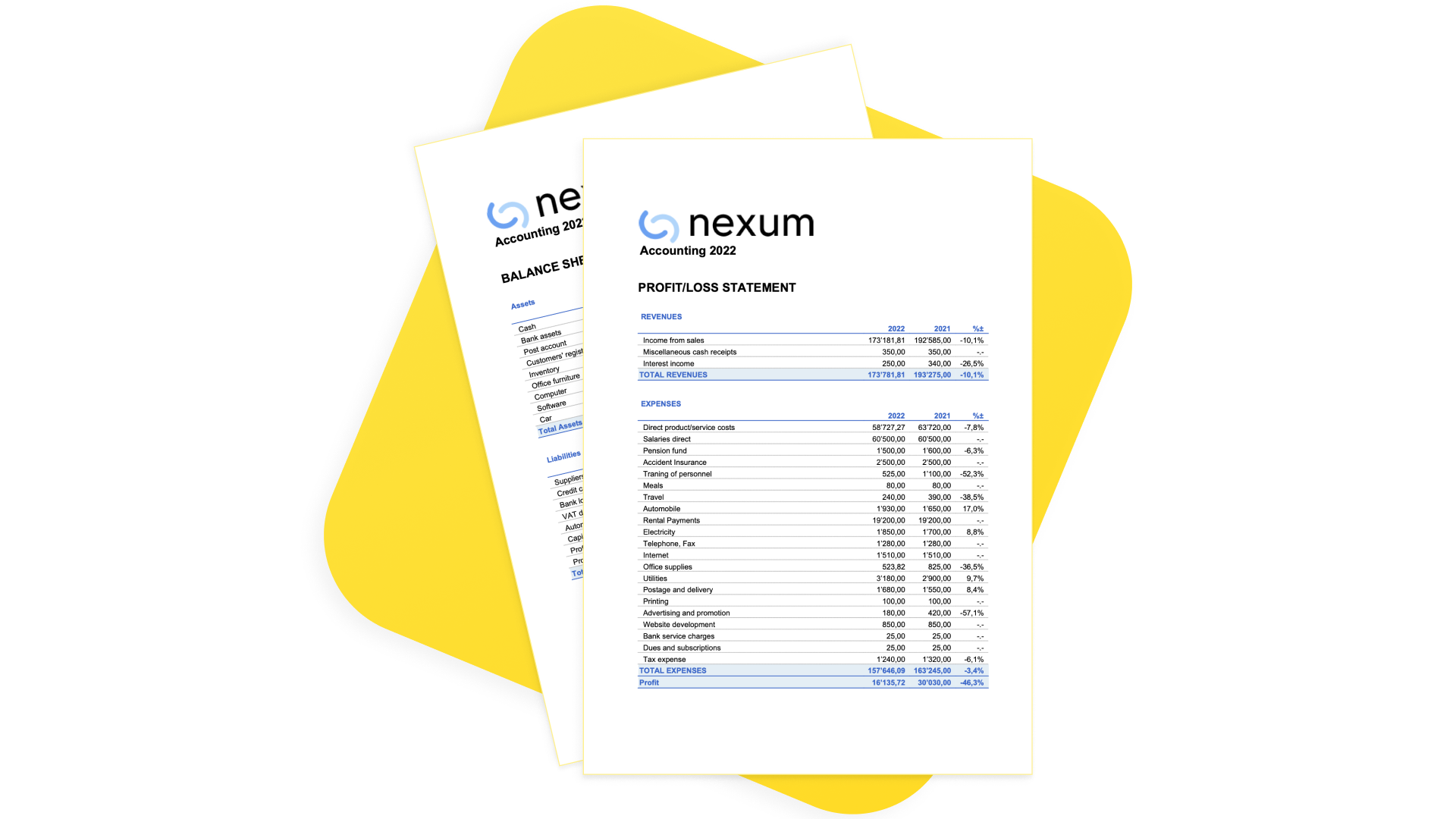
Investments and Portfolio Reporting
The software provides multiple investment and portfolio reports.

Documentation
Limitations
The current version has some limitations:
- Market prices are not automatically retrieved from financial data providers.
Current prices can be entered manually or imported using the Investment Accounting Extension. - The current account value of each item is available as a report, but it is not displayed in the Items table.
Dedicated Newsletter
Subscribe to our newsletter to stay updated on new features and tips for Investment Accounting in Banana. Interested? Just write to us at info@banana.ch and mention that you’d like to subscribe to the Investment Accounting newsletter.
Is there more you need?
The solution is already used by several customers, but we still consider it to be under development, as we continue to improve it based on user feedback and requests.
We also plan to add the automatic import of investment data (ISIN, quantity, price, commissions) from bank statements.
Please feel free to reach out if you have any specific questions or requests. Given the time invested in development and the high value it provides to customers with specific investment accounting needs, we may offer it through a specific subscription plan in the future.
How to start with an Investment Accounting
This page outlines the main steps required to set up Investment Accounting in Banana Accounting and links to the detailed documentation for each topic.
You can start from a ready-to-use Investment Accounting template or add the Investment Accounting functionality to an existing double-entry accounting file.
Before You Start
Investment Accounting combines double-entry accounting with investment management, allowing you to manage investments within the same accounting system.
This page assumes that you are already familiar with concepts such as:
- Book Value and Market Value
- valuation methods
- realized and unrealized gains and losses
- exchange rate gains and losses.
If you are new to Investment Accounting, refer to the Theoretical Introduction before continuing.
Note: If you currently use an Income & Expenses accounting file, convert it to a Double-entry Accounting file before continuing.
Setting Up the Accounting File
There are two ways to start working with Investment Accounting:
- Adapt an existing accounting file
If you already use Banana Accounting, you can add the Investment Accounting functionality to your existing accounting file by configuring the required tables, columns, accounts, Items, and settings. - Start from a template
You can create a new accounting file from one of the provided templates. Templates already include the required tables, columns, accounts, and settings.
For more information, see the following Templates:- Double-entry accounting with Investment Accounting – for managing investments in a single accounting currency.
- Multi-currency double-entry accounting with Investment Accounting – for managing investments in multiple currencies.
- Multi-Currency Investment Accounting in a Separate File
If you prefer to keep your investment accounting separate from your general accounting, you can manage investments in a dedicated Banana Accounting file.
The templates also provide examples of Asset Accounts, Items, realized and unrealized gain and loss accounts, and investment transactions.
Even if you intend to adapt an existing accounting file, reviewing one of the templates can help you understand the recommended structure.
Add the Items Table and Investment Columns
If your accounting file was not originally created for Investment Accounting, enable the required tables and columns.
Complete the following steps:
- Add the Items table and the investment-specific columns to the Transactions table.
- Make sure that the ItemId column is visible in the Transactions table. Use Data > Display Columns and enable the ItemId column if necessary.
- Install the Investment Accounting extension using Extensions > Manage Extensions.
Change the Decimal Precision for Unit Price
Some investments require Unit Prices with more decimal places.
If necessary, increase the Unit Price decimal precision using:
Tools > Add/Remove functionalities > Change Unit Price Decimal Places
This can be useful for investments whose prices require greater decimal precision.
Setting Up the Exchange Rate Table
If you use Multi-currency Accounting, define the currencies and exchange rates in the Exchange Rate Table.
The Exchange Rate table stores both opening and current exchange rates:
- the opening exchange rate is used to convert opening account balances and opening investment values into the base currency;
- the current exchange rate is used for current valuations and exchange rate calculations.
For foreign-currency investments, set up the required currencies before entering opening values for the related accounts and Items.
Setting Up the Accounts Table
Review your chart of accounts and add the accounts required for Investment Accounting. See Accounts.
In particular:
- add the Investment Balance Sheet Accounts that will hold the Book Value of your investments;
- add any income and expense accounts required for investment transactions, such as:
- realized gains and losses;
- unrealized gains and losses;
- commissions, bank fees, and broker expenses;
- dividends;
- interest;
- exchange rate gains and losses, when applicable;
- enter the opening balance for each Investment Balance Sheet Account.
You may use separate Investment Balance Sheet Accounts for different investment categories or currencies, for example shares, bonds, or funds.
Setting Up the Items Table
Each investment, such as a share, bond, fund, or ETF, is represented by an Item.
In the Items table:
- create one Item for each investment;
- assign a unique ItemId;
- link each Item to its Investment Balance Sheet Account using the Asset Account field;
- specify the investment currency;
- specify the Asset Type:
- 1 – investments measured by effective quantity, such as shares, ETFs, and funds;
- 2 – investments measured by nominal value, such as bonds;
- enter the opening Quantity and Price Begin, when applicable.
The Item and its Asset Account must use the same currency.
If you are continuing from a previous accounting year, the opening Quantity and Price Begin should correspond to the closing Quantity and Price Current carried forward from the previous year.
Opening Value Reconciliation
The opening values of the Items must be consistent with the opening balances of their Investment Balance Sheet Accounts.
For each Investment Balance Sheet Account:
Opening balance of the account = sum of the Value Begin amounts of the Items linked to that account
Banana calculates the Current Quantity from the opening Quantity and the Quantity changes recorded in Transactions for the corresponding Item.
The current balance of each Investment Balance Sheet Account must remain reconciled with the Book Values of the Items linked to that account.
Enter or Import Transactions
The Transactions table combines double-entry accounting information with investment-specific information.
Transactions can be entered manually or imported, for example from a bank statement.
For transactions involving investments:
- enter the ItemId;
- for purchases and sales, enter the Quantity;
- enter or verify the Unit Price;
- make sure that the Investment Balance Sheet Account used in the transaction corresponds to the Asset Account assigned to the Item.
When Quantity and Amount are entered, Banana can calculate the corresponding Unit Price.
Investment purchases and sales are generally recorded as compound transactions. Separate rows may be used for:
- the investment movement;
- the bank payment or receipt;
- commissions, bank fees, or other transaction costs;
- interest or other income;
- realized gain or loss on the investment;
- realized exchange rate gain or loss, when applicable.
For sales, use Calculate Sale Data to calculate the values required to complete the sale transaction.
Update Market Prices
Enter the current Market Price of each investment in the Price Current column of the Items table.
You can enter prices manually or use the Update Market Prices command.
Banana calculates:
Market Value = Current Quantity × Market Price
Updating the Market Price allows you to determine the Market Value and the unrealized gain or loss without changing the Book Value of the investment.
Create Market Value Adjustments
When required by the applicable accounting treatment, you can adjust the Book Value of investments to their Market Value.
Before creating the adjustment:
- update the current exchange rates, when applicable;
- update the Price Current of the investments.
Then use Create Adjustment Transactions.
The extension calculates the difference between the current Book Value and the Market Value and creates the required unrealized gain or loss transactions.
The adjustment changes the Book Value without changing the Quantity held. A neutral or zero Quantity is used as applicable.
For exchange rate differences, use Create Exchange Rate Differences when required.
End-of-Year Operations and Checks
At the end of the accounting year, complete the required valuation and exchange rate adjustments and verify that the balance of each Investment Balance Sheet Account corresponds to the sum of the Book Values of the Items linked to that account.
For the complete year-end procedure, see:
Theoretical Introduction to Investment and Portfolio Accounting
Multi-currency investment accounting combines financial accounting, based on double-entry bookkeeping, with investment accounting, which uses inventory-like information such as quantities, unit prices, and investment values.
This combination makes it possible to manage both the accounting value of investments and the information required to track individual securities, including their quantities, prices, and valuations in different currencies.
Investment Accounting requires an understanding of both financial accounting and the specific principles used to track and value investments. This introduction provides a practical overview of these concepts and explains how they are applied in Banana Investment Accounting.
It covers key topics such as quantities and unit prices, book value and market value, investment valuation, realized and unrealized gains or losses, and the effects of exchange rate changes on investments denominated in foreign currencies.
This introduction provides a high-level overview of Investment Accounting and does not address specific accounting, regulatory, or tax requirements that may apply to individual circumstances or jurisdictions. Users should verify the appropriate accounting and tax treatment for their circumstances with their auditors or professional advisors.
Banana Investment Accounting can also be used by finance educators as a practical tool for teaching Investment Accounting.
Terminology
In the industry, several equivalent terms are used, which may vary depending on the context, such as Investment Accounting, Portfolio Accounting, and Securities Accounting. In this text, the term Investment Accounting will be used as a synonym for Securities Accounting. Portfolio Accounting, on the other hand, more specifically refers to information and trading systems for securities.
In Banana Accounting, investment accounting uses the inventory functionalities, specifically the Items table and the Item ID as the code for the security. Each Item therefore represents a security, although Items can also be used simply for other purposes, such as creating invoices.
When an Item is linked to an Asset Account, the program treats it as an asset with an accounting value. The term “asset” is therefore applicable to securities management, but it can also refer to other types of assets or, hypothetically, even to other balance sheet elements, including liabilities.
The use of different terminology can naturally be confusing, but this situation arises from the program’s flexibility, which allows the same features to be used in multiple ways. The investment accounting setup is therefore an additional extension of these core functionalities.
The Purpose of Investment Accounting
Online investment platforms provided by your bank or broker are designed to help you follow the market, compare assets, and make informed buy or sell decisions. However, they do not give you full control over your investments from an accounting perspective.
The purpose of Investment Accounting is to provide a comprehensive financial overview of your investments. It allows you to maintain an inventory of all your securities, track quantities and historical changes, and seamlessly integrate investment values, purchases, sales, and market fluctuations into your accounting records. Additionally, it ensures that revenues such as interest and dividends and costs like expenses and commissions are accurately reflected within your Balance Sheet and Income & Expense accounting.
Beyond financial tracking, Investment Accounting helps you optimize the fiscal impact of your investments, ensuring that tax-related aspects such as capital gains, withholding taxes, and deductions are properly accounted for. It also supports compliance and auditing, providing structured and transparent records that facilitate regulatory reporting and financial reviews.
Investment Accounting Goals and Future Developments
Over the years, we have refined the Investment Accounting solution in close collaboration with financial specialists, particularly those in the Swiss financial sector.
Our objective has always been aligned with their needs: to deliver a straightforward, reliable, and professional way to manage investments directly within financial accounting software. Traditionally, such functionality has only been available in specialized and costly financial systems.
With Banana Accounting, we have focused on creating a solution that is simple, intuitive, and efficient, yet powerful enough to give you full control over your investments while streamlining compliance and reporting.
We have also developed and introduced highly innovative features, such as the unique neutral numbers (±123.00) — exclusive to Banana Accounting. This groundbreaking concept makes it incredibly easy to record transactions that affect the value of investments without changing their quantity, ensuring both precision and simplicity in day-to-day accounting operations.
We highly value your feedback and suggestions, as they help us continuously improve the solution, its documentation, and this introduction.
Please use the form at the bottom of this page to get in touch with us — we’ll be glad to hear your thoughts and ideas.
Learning Tool for Finance Students
In line with our company’s mission, we aim to provide a solution that enhances financial literacy and supports practical learning.
By integrating investment management directly into Banana Accounting, students of Finance, Accounting, and Auditing can explore how an investment accounting solution works, gain hands-on experience, and avoid time-consuming manual exercises.
Using a professional accounting tool, they can easily experiment with real-world and complex scenarios, from managing investments to recording transactions, and immediately see how each operation affects the Balance Sheet and the Income Statement.
Differentiating Investments from Bank Deposits & Cryptocurrency Holdings
From an accounting perspective, it is crucial to distinguish between bank deposits or cryptocurrency holdings and investments (securities) based on how they are recorded and valued.
Bank Deposits & Cryptocurrency Holdings – Tracked with an Accounting Balance
- Bank deposits and cryptocurrency holdings are monetary assets recorded as part of a company’s or individual’s cash or financial reserves.
- These holdings are easily tracked using a standard accounting balance, as they have a single value expressed in the account’s currency.
- If held in foreign currency or cryptocurrency, their value is adjusted using the exchange rate at the reporting date.
- Example: A bank account with $10,000 is recorded as a cash asset, converted into the base currency if needed (e.g., €9,090 at an exchange rate of 1.10).
Investments (Securities) – Require an Inventory-Like System
- Investments such as stocks, bonds, and mutual funds share similarities with inventory management, as they involve:
- A quantity (e.g., number of shares or bond nominal value).
- A unit price (e.g., market price per share or bond percentage value).
- An exchange rate, if denominated in a foreign currency.
- Unlike bank holdings, investments cannot be tracked using a simple accounting balance because their value changes not just due to exchange rates but also due to market price fluctuations and transactions (buying, selling, reinvesting).
- Proper Investment Accounting ensures that each transaction and value change is accurately recorded, much like how an inventory system tracks stock levels and price variations over time.
Why Investment Accounting Matters
Because investments behave more like an inventory of financial instruments, traditional accounting methods used for bank balances are not sufficient to track them accurately. Instead, a dedicated investment accounting system is required to properly manage:
- Purchases & Sales – Tracking quantities and cost basis.
- Market Value Changes – Adjusting for price fluctuations.
- Revenues & Expenses – Including dividends, interest, and commissions.
- Exchange Rate Effects – Converting values in foreign currencies.
By structuring investment records similarly to inventory management, Investment Accounting ensures full control and accurate reporting of financial assets.
Structure of the Investment Accounting File
Banana Accounting is a highly modular financial accounting system that allows you to create files with features activated only when needed.
The multi-currency investment accounting setup is among the most advanced, as it combines double-entry financial accounting with inventory-style management for tracking securities, quantities, and valuations. A typical Investment Accounting template or file includes the following elements:
- File properties
- Company names, Currency and Accounting Period.
- Settings Specific to the Investment accounting .
- Accounts Table
- Contains the chart of accounts and defines how data is grouped for the Balance Sheet and Income Statement.
- Enter the Opening amounts.
- Items Table
- Lists and codes all investments, such as bonds, shares, and funds.
- The Asset Investment column links each security to its corresponding Balance Sheet account — a key element of the entire solution.
- Exchange Rate Table
Defines the currency codes and stores both opening and current exchange rates for accurate multi-currency management. - Transactions Table
- Records all investment transactions.
- Enter the double entry account, amounts and exchange rate for the financial accounting.
- Enter the Item code, quantity and price specific for the Investment accounting.
- Double-Entry Accounting Reports
Provides access to all standard accounting reports such as Balance Sheet, Income Statement, Account Cards, and more. - Investment Accounting Extensions
You need to install the Investment Accounting Extensions to add specific functionalities for investment management, including profit and loss calculations, valuation reporting, and other analytical tools tailored to securities accounting.
The Investment Accounting Elements
To understand investment accounting, it is important to understand the following key elements:
- Accounting period.
- Information regarding the investment.
- Investment Classification by Measurement Type.
- The Quantity element.
- Price and valuation methods.
- Investment account.
The connection between the financial accounting and the Investments Inventory System. - Book Value and Book Price.
- Realized Gains and Losses
- Unrealized Gains and Losses
- Investments Revenues and Costs.
- Impact of exchange rates
- Double-Entry Investment Transactions.
- Investments and Account Reconciliation.
- Investments (Items) card.
Accounting period
Financial accounting is always relative to a specific period. In the accounting you specify the start and end date:
- The balance sheet is prepared for a specific date (instant).
- The Balance at the beginning of the period (opening balance).
- The current balance or the balance at the end of the period.
- The Profit & Loss is prepared for a period (duration).
- Revenues, costs, gains, losses, and taxes are always related to a specific period.
Inventory systems do not have an accounting period concept. They record purchases and sales continuously over time.
There is a conceptual difference in the temporal logic between Financial Accounting, an Inventory system, and Portfolio management systems.
- Portfolio management systems
- Only track events that affect the change in a position (purchase or sale).
- The profit or loss is calculated based on the difference between purchase and sale.
- Accounting systems
- Require an initial balance and therefore a specific valuation. Quantity and price per unit for each investment at the beginning of the period.
- Require an end balance and a valuation of each investment. Quantity and price per unit for each investment at the end of the period.
The end quantity and price will become the opening quantity and price for the following year. - Under the fair value method, the Investment Value is adjusted and recorded as an unrealized gain or loss.
If the Investment Value increases over time, an increase in value and a gain are recorded for the period and contribute to the overall profit or loss. - When an investment is sold, the realized gain or loss is determined by comparing the value of the sale with the Book Value attributable to the quantity sold.
Information Regarding the Investments
To properly manage and account for investments, it is essential to record key identifying information and classify them based on their measurement type.
Every investment should be clearly defined with standard financial identifiers:
- Investment Id (ItemId):
The ItemId is used to uniquely identify the Investment. You can use a ticker symbol or an ISIN as the ItemId. - Ticker Symbol.
The unique exchange-listed symbol for publicly traded securities (e.g., AAPL for Apple Inc.). - ISIN (International Securities Identification Number).
A globally recognized unique identifier for financial instruments (e.g., US0378331005 for Apple Inc.). - Description.
The full name and type of the investment (e.g., "Apple Inc. – Common Stock" or "U.S. Treasury Bond 10Y"). - Investments can be grouped to provide clearer overviews and totals.
Investments are entered in the Items table.
Investment Classification by Quantity Type
Investments can be classified based on how their quantity and Unit Price are expressed:
- Investments Measured by Nominal Value (Asset Type = 2)
(e.g., Bonds, Treasury Notes)- These securities are expressed in terms of face value (nominal value).
- The Book Value is determined based on the purchase price, which may be different from the nominal value due to discounts or premiums.
- Example: A €100,000 corporate bond might be acquired at 97% of face value, meaning the actual acquisition cost is €97,000.
- Investments Measured by Effective Quantity (Asset Type = 1)
(e.g., Shares, ETFs, Mutual Funds)- These securities are recorded based on the number of units owned.
- Each unit has a Market Price, and the total investment value fluctuates accordingly.
- Example: 200 shares of XYZ Corp. at €50 per share have a Market Value of €10,000.
By properly identifying and classifying investments, Investment Accounting ensures accurate tracking of quantities, values, and financial reporting.
Quantity Element
Investment accounting shares similarities with inventory systems. When buying or selling investments, a quantity element is involved, which can be expressed as either an effective quantity or a nominal value.
The key quantities to manage include:
- Quantity at the beginning of the accounting period. Recorded in the Items Table.
- Quantity changes during the accounting period.
Tracked through transactions. - Current Quantity.
Calculated as the initial quantity plus increases and minus decreases.
Unit Price and Valuation
Each investment has a Unit Price, or simply a price.
- For quantity-based investments, such as shares, the Unit Price is expressed per unit.
- For nominal-value investments, such as bonds, the Unit Price is generally expressed as a percentage of nominal value.
The investment value is determined by multiplying the Quantity by the applicable Unit Price.
Cost Attribution Methods
Cost attribution methods determine how the historical cost of an investment is allocated to individual units when multiple purchases are made at different prices.
These methods affect the calculation of realized gains or losses, but do not determine the measurement basis of the investment itself.
- Weighted Average Cost (WAC)
The cost per unit is calculated as a weighted average of all purchase prices.
This method smooths price fluctuations over time and is commonly used for investment accounting. - Moving Average Cost with Market Adjustments (MAC-MA)
This method is based on the Weighted Average Cost approach but includes periodic adjustments to reflect market prices.
It combines cost averaging with market valuation elements.
This method is used by the Banana Accounting Investment Extension. - First-In, First-Out (FIFO)
The earliest purchased units are considered sold first.
In rising markets, this often results in lower costs and higher reported profits. - Last-In, First-Out (LIFO)
The most recently purchased units are considered sold first.
This method can reduce reported profits in rising markets but is rarely used for investments and is not permitted under IFRS.
FIFO
The FIFO (First-In, First-Out) method assumes that the investments purchased first are also the first to be sold.
FIFO is an accepted cost attribution method under IFRS and various national GAAP frameworks. In some jurisdictions, it may also be used for tax purposes when calculating realized gains on investment sales.
Banana Investment Accounting does not automatically calculate realized gains using the FIFO method, but the corresponding amounts can be calculated and recorded manually.
Weighted Average Cost (WAC)
The cost per unit is averaged over time with each purchase, smoothing price fluctuations.
Moving Average Cost with Market Adjustments (MAC-MA)
Investments may be measured at fair value, in which case their accounting value is periodically adjusted to reflect market prices.
Banana Investment Accounting uses the Moving Average Cost with Market Adjustments (MAC-MA) method, which combines moving average cost calculations with periodic market value adjustments. This approach allows the Book Value of investments to be adjusted to reflect market prices while maintaining the quantity information required for investment tracking.
Example Calculation (MAC-MA)
Step 1: Purchases and Moving Average Cost
- Buy 100 shares @ $10 → Cost = $1,000
- Buy 50 shares @ $15 → Total Cost = $1,000 + $750 = $1,750
- Total Quantity = 150 shares
- Moving Average Cost per share = $11.67
Step 2: Market Value Adjustment
Assume the market price increases to $14 per share.
- Market Value = 150 × $14 = $2,100
- Current Book Value = $1,750
- Unrealized Gain = $2,100 − $1,750 = $350
After recording the market value adjustment:
- Quantity = 150 shares
- Book Value = $2,100
- Book Price = $14 per share
- The $350 increase is recorded as an unrealized gain.
Step 3: Sale of Investments
Assume 50 shares are then sold at $15 per share.
- Selling Value = 50 × $15 = $750
- Book Value of Quantity Sold = 50 × $14 = $700
- Realized Gain = $750 − $700 = $50
After the sale:
- Remaining Quantity = 100 shares
- Remaining Book Value = 100 × $14 = $1,400
- Remaining Book Price = $14 per share.
Investment Valuation Methods in Accounting
Investments can be accounted for using different measurement bases and different cost attribution methods.
These two concepts serve different purposes and should not be confused.
Measurement bases define the value at which investments are recognized in the financial statements, independently of how costs are attributed upon sale.
- Historical Cost
Investments are recorded at their original purchase price, without considering subsequent market fluctuations, except in cases of impairment or disposal.
Compatible with: WAC, FIFO - Fair Value (Mark-to-Market)
Investments are remeasured at their current market price, reflecting changes in market conditions in real time.
Compatible with: MAC-MA. - Lower of Cost or Market (LCM)
Investments are measured at the lower of historical cost or current market value, applying a conservative valuation approach to prevent overstatement. - Amortized Cost
Used primarily for fixed-income securities.
The investment value is adjusted over time based on interest income and principal repayments, using an effective interest method. - Net Realizable Value (NRV)
Investments are measured at the estimated selling price minus any costs necessary to complete the sale. - Intrinsic Value
The investment is valued based on fundamental analysis of its underlying economic value rather than observable market prices.
This approach is typically used for analytical purposes rather than formal accounting measurement. - Recoverable Amount
The investment is measured at the higher of its fair value less costs to sell and its value in use.
This basis is commonly applied in impairment testing.
Market value of an investment
The market value of an investment is the current price assigned to it in the financial market, and this price can fluctuate according to market conditions. When securities are bought or sold, the portfolio management system informs the holder of the exact market price at which each transaction occurred. Unlike the book value, which is determined by the accounting process, the market price is directly provided by the market and does not require any calculation by the holder.
Within the Investment Manager, the market value of an investment is entered in the "Price Current" column of the Items table. By entering this market price, you can use the valuation report feature to calculate any unrealized gains or losses, which represent the difference between the current Market Value and the Book Value of the investment. This provides a snapshot of the potential profit or loss if the securities were sold at the current market price, even though they have not yet been sold.
Fair Value Adjustments and Realized vs. Unrealized Results
When investments are measured at fair value, changes in market prices give rise to fair value adjustments. These adjustments reflect changes in the value of an investment after initial recognition and before its disposal.
Accounting standards differ in how these fair value changes are presented and whether a distinction is made between realized and unrealized gains and losses.
IFRS approach
Under full IFRS, a clear distinction is made between:
- Realized gains and losses, arising from the sale or disposal of an investment; and
- Unrealized gains and losses, arising from changes in fair value while the investment is still held.
Depending on the classification of the financial instrument, unrealized fair value changes may be recognized:
- in profit or loss, or
- in other comprehensive income (OCI), for financial instruments measured at fair value through other comprehensive income (FVOCI).
In all cases, unrealized results remain analytically distinct from realized gains and losses, even if they are recognized in equity rather than in profit or loss.
IFRS for SMEs, Swiss GAAP FER, and International GAAP Approach
Under IFRS for SMEs, Swiss GAAP FER, and most national GAAP frameworks worldwide (including European continental GAAPs as well as accounting systems in North America, Asia, and other jurisdictions), the accounting model for investments is deliberately simplified.
Although investments may be measured at fair value in specific circumstances, these frameworks generally do not require a formal separation between realized and unrealized gains and losses at the equity level and do not apply an OCI or FVOCI model comparable to full IFRS.
When fair value changes are recognized, they are typically recorded directly in profit or loss as part of the period result, without mandatory reclassification into realized, unrealized, or OCI components. The emphasis is placed on prudence, understandability, and practical application, rather than on detailed presentation structures designed primarily for capital-market reporting.
Implications of Using the MAC-MA Method
Banana Accounting uses the Moving Average Cost with Market Adjustments (MAC-MA) method to manage investment portfolios.
This method is compatible with the accounting approaches applied under IFRS for SMEs, Swiss GAAP FER, and most national GAAP frameworks worldwide, which are based on simplified valuation and presentation principles for investments.
Under these frameworks:
- Investments may be measured at fair value without a mandatory formal separation between realized and unrealized gains and losses at the equity level.
- Fair value adjustments, when recognized, are generally recorded directly in profit or loss as part of the period result.
No OCI or FVOCI model comparable to full IFRS is required.
Within the MAC-MA method:
- The moving average cost is used to determine the carrying amount of investments sold and the resulting realized gains or losses.
- Market value adjustments reflect changes in fair value while investments are held and give rise to unrealized gains or losses.
By contrast, MAC-MA is not an IFRS-defined measurement model. Under full IFRS, financial instruments must be classified and measured according to specific categories (such as amortized cost, FVTPL, or FVOCI), each with prescribed recognition and presentation rules.
Accordingly, the MAC-MA method cannot be applied directly for IFRS financial statements and requires appropriate adjustments or reconciliations when IFRS reporting is required.
User Responsibility, Disclosure, and Professional Assessment
The applicability of the MAC-MA method depends on the specific accounting framework, regulatory environment, and tax rules applicable to each entity. In addition, the investment valuation and cost attribution method applied should generally be disclosed in the presentation of the financial statements, in accordance with applicable accounting standards.
Users are therefore required to assess the suitability of the MAC-MA method in consultation with their auditors and tax advisors, taking into account their individual reporting, disclosure, and compliance requirements.
Asset Account and Book Value
Investments are assets that are part of the balance sheet. In financial accounting, unlike an inventory system, there is no direct tracking of quantity and price. Instead, financial transactions are recorded based on monetary amounts, requiring the use of specific accounts to track changes in investments.
When setting up the accounting system, you must create the necessary investment Asset Accounts in the Accounts table to track securities. If you hold investments in multiple currencies, you need one investment account per currency.
- When creating investment elements in the Items Table, you need to specify for each Item a valid Asset account specified in the Account table of the same currency.
- The Asset account of the Item serves as the link between financial accounting and investment accounting.
- For each transaction affecting an investment account, you must also associate the corresponding investment item (Item ID).
If you post an amount to an Asset account without specifying the Item ID, discrepancies will arise between financial accounting and the investment inventory system.
Book Value and Book Price
The Book Value is the accounting value of an investment position. It represents the value assigned to the investment in the accounting records.
The Book Price is the accounting value per unit of the investment. When a single unit book price applies to the position, it is calculated by dividing the Book Value by the quantity:
- Book Price = Book Value / Quantity
Therefore:
- Book Value = Book Price × Quantity
The Book Value changes when transactions or accounting adjustments affect the accounting value of the investment. Purchases and sales may change both the quantity and the Book Value, while valuation adjustments and other book value adjustments may change the Book Value without changing the quantity.
The Book Price depends on the cost attribution and valuation method used. It is particularly important when an investment is sold because it is used to determine the Book Value attributable to the quantity sold.
Reconciliation between Financial Accounting and Investment Accounting
Financial accounting and investment accounting must remain reconciled through the Asset Account:
- The opening balance of each Asset Account must equal the sum of the opening values of all Items linked to that Asset Account.
- The opening value of each Item is calculated as Opening Quantity × Opening Price.
- The current balance of each Asset Account must equal the sum of the current Book Values of all Items linked to that Asset Account.
- The current Book Value of each Item is determined by its opening value and by the transactions and adjustments recorded for that Item through its Asset Account.
Gains and Losses on Investments
Changes in the value of an investment may result in realized or unrealized gains and losses.
- A realized gain or loss arises when all or part of an investment is sold.
- An unrealized gain or loss arises when the Book Value of an investment is adjusted to a different valuation, such as its current Market Value, while the investment is still held.
Realized and unrealized gains and losses are recorded separately through the appropriate accounting transactions.
Realized Gains and Losses
A realized gain or loss arises when all or part of an investment is sold. It represents the difference between the Selling Value and the Book Value attributable to the quantity sold.
- If the Selling Price is higher than the Book Price, there is a realized gain.
- If the Selling Price is lower than the Book Price, there is a realized loss.
The Book Value attributable to the quantity sold is:
Book Value of Quantity Sold = Book Price × Quantity Sold
The realized gain or loss is:
Realized Gain/Loss = Selling Value − Book Value of Quantity Sold
or, when expressed using unit prices:
Realized Gain/Loss = (Selling Price − Book Price) × Quantity Sold
Accounting Treatment
When the sale is recorded in double-entry accounting, the amount received is debited to the bank account and credited to the Asset Account. The realized gain or loss is then recorded separately so that the balance of the Asset Account corresponds to the Book Value of the investment quantity that remains.
When the entire investment is sold, the remaining quantity is zero and the Book Value must also be zero. After recording the sale, but before recording the realized gain or loss:
- A remaining debit balance in the Asset Account represents a realized loss.
- A remaining credit balance in the Asset Account represents a realized gain.
The realized gain or loss is then recorded in the appropriate account so that the Asset Account balance returns to zero.
When only part of an investment is sold, the realized gain or loss relates only to the quantity sold. The remaining balance of the Asset Account must correspond to the Book Value of the quantity still held.
Example – Complete Sale
Assume an investment has:
- Quantity: 10 shares
- Book Value: $200
- Book Price: $20 per share
If all 10 shares are sold at $25 per share:
- Selling Value = 10 × $25 = $250
- Book Value of Quantity Sold = 10 × $20 = $200
- Realized Gain = $250 − $200 = $50
- Remaining Quantity = 0
- Remaining Book Value = 0
The $50 realized gain is recorded in the appropriate Realized Gain account.
If all 10 shares are sold at $18 per share:
- Selling Value = 10 × $18 = $180
- Book Value of Quantity Sold = 10 × $20 = $200
- Realized Loss = $200 − $180 = $20
- Remaining Quantity = 0
- Remaining Book Value = 0
The $20 realized loss is recorded in the appropriate Realized Loss account.
Example – Partial Sale
Using the same initial position, assume that 4 shares are sold.
If 4 shares are sold at $25 per share:
- Selling Value = 4 × $25 = $100
- Book Value of Quantity Sold = 4 × $20 = $80
- Realized Gain = $100 − $80 = $20
- Remaining Quantity = 6 shares
- Remaining Book Value = 6 × $20 = $120
If 4 shares are sold at $18 per share:
- Selling Value = 4 × $18 = $72
- Book Value of Quantity Sold = 4 × $20 = $80
- Realized Loss = $80 − $72 = $8
- Remaining Quantity = 6 shares
- Remaining Book Value = 6 × $20 = $120
The Calculate Sales Data command can calculate the realized gain or loss and create the corresponding accounting transactions.
Unrealized Gains and Losses
An unrealized gain or loss arises when the Book Value of an investment is adjusted to a different valuation, such as its current Market Value, while the investment is still held.
Unlike a realized gain or loss, no sale takes place and the quantity of the investment remains unchanged.
When an investment is adjusted to its Market Value:
- If the Market Value is higher than the Book Value, there is an unrealized gain.
- If the Market Value is lower than the Book Value, there is an unrealized loss.
The Market Value is:
Market Value = Market Price × Quantity
The unrealized gain or loss is:
Unrealized Gain/Loss = Market Value − Book Value
or, when expressed using unit prices:
Unrealized Gain/Loss = (Market Price − Book Price) × Quantity
The adjustment is recorded between the Asset Account and the appropriate Unrealized Gain or Loss account. The adjustment changes the Book Value without changing the quantity.
Example – Unrealized Gain
Assume an investment has:
- Quantity: 10 shares
- Book Value: $200
- Book Price: $20 per share
- Market Price: $25 per share
The Market Value is:
10 × $25 = $250
The unrealized gain is:
$250 − $200 = $50
After recording the $50 adjustment:
- Quantity = 10 shares
- Book Value = $250
- Book Price = $25 per share
Example – Unrealized Loss
If the Market Price is instead $18 per share:
- Market Value = 10 × $18 = $180
- Unrealized Loss = $200 − $180 = $20
After recording the $20 adjustment:
- Quantity = 10 shares
- Book Value = $180
- Book Price = $18 per share
The Create Adjustment Transactions command can calculate the required valuation adjustments and create the corresponding accounting transactions.
Revenues and Costs of Investments
A key function of an accounting system is to track both revenues (such as interest and dividends) and costs (such as commissions, bank fees, and broker expenses) associated with investments.
Revenues and costs related to investments are recorded as transactions linked to the investment (ItemId) but using accounts different from the Asset account. This ensures that these transactions do not affect the Book Value of the investment itself.
Each transaction can be assigned to an appropriate revenue or expense account, allowing for detailed reporting on all income and costs associated with a specific investment. This approach provides clear insights into the performance and profitability of investments while maintaining accurate financial records.
Impact of Exchange Rates on Investments
For investments denominated in foreign currencies, their valuation in accounting is influenced by both market price changes and exchange rate fluctuations. In addition to affecting the value of the investment in the accounting currency, exchange rate changes may give rise to unrealized or realized gains or losses that require appropriate accounting treatment.
Key Factors in Exchange Rate Impact
- Initial Exchange Rate at Purchase.
The exchange rate used to record the investment at the time of acquisition. - Current Exchange Rate at Reporting Date.
The rate used to update the investment’s book value in financial statements. - Market Price and Currency Interaction.
A security's value may increase in its original currency, but if the exchange rate moves unfavorably, the gain may be reduced or turned into a loss when converted. - Realized Gains/Losses on Sale.
When an investment is sold in a foreign currency, exchange rate differences can lead to additional gains or losses beyond market price changes.
Example of Exchange Rate Impact
- You purchase 100 shares of a stock at $200 per share, for a total cost of $20,000.
- At the time of purchase, the USD/EUR exchange rate is 1.10, meaning the recorded book value is €18,182.
- If the stock price remains at $200 but the exchange rate changes to 1.05, the book value in EUR would increase to €19,048, reflecting a gain purely due to currency fluctuation.
Because investments can be impacted by both market price movements and exchange rate variations, a proper Investment Accounting System ensures accurate financial reporting, helping investors and accountants manage risk and maintain compliance.
Impact of Exchange Rates on Investments and Adjustments
For investments denominated in foreign currencies, their valuation in accounting is influenced by both market price changes and exchange rate fluctuations. These fluctuations impact both unrealized gains/losses (before sale) and realized gains/losses (after sale), requiring proper adjustments in financial reporting.
Key Factors in Exchange Rate Impact
- Initial Exchange Rate at Purchase
- The exchange rate at the time of acquisition is used to record the investment's book value in the reporting currency.
- Current Exchange Rate at Reporting Date
- At each financial reporting period (e.g., month-end, quarter-end, year-end), investments in foreign currencies must be revalued based on the latest exchange rate.
- Market Price and Currency Interaction
- A security’s value may increase in its original currency, but if the exchange rate moves unfavorably, the gain could be reduced or even turned into a loss when converted to the reporting currency.
- Unrealized Gains/Losses Due to Exchange Rate Changes
- Even if an investment is not sold, the difference in exchange rates between the purchase date and the reporting date can create unrealized foreign exchange gains or losses, which should be recorded separately.
- Realized Gains/Losses on Sale
- When an investment is sold, the difference between:
- The original exchange rate at purchase, and
- The exchange rate at the time of sale,
determines an additional realized gain or loss due to currency fluctuations.
- When an investment is sold, the difference between:
Example of Exchange Rate Impact
- Step 1: Initial Investment Purchase
- You buy 100 shares at $200 per share, for a total cost of $20,000.
- At the time of purchase, the USD/EUR exchange rate is 1.10.
- The recorded book value in EUR is 20,000 divided by 1.10, which equals €18,182.
- Step 2: Exchange Rate Adjustment at Reporting Date
- At the reporting date, the stock price remains $200, but the exchange rate changes to 1.05.
- The new book value in EUR is 20,000 divided by 1.05, which equals €19,048.
- The unrealized foreign exchange gain is 19,048 minus 18,182, which equals €866.
- This gain is recorded in the foreign exchange adjustment account as an unrealized gain.
- Step 3: Realized Foreign Exchange Gain/Loss on Sale
- Later, you sell 100 shares at $210 per share, for a total of $21,000.
- At the time of sale, the USD/EUR exchange rate is 1.08.
- The converted sale amount in EUR is 21,000 divided by 1.08, which equals €19,444.
- The initial book value was €18,182, so the total realized gain is 19,444 minus 18,182, which equals €1,262.
- This realized gain includes both the market price gain (from $200 to $210) and the foreign exchange gain (due to currency movement from 1.10 to 1.08).
Accounting Treatment
- Unrealized Exchange Gains and Losses
- At reporting periods, any changes in exchange rates affect the book value.
- These adjustments are recorded in an exchange rate adjustment account.
- Realized Exchange Gains and Losses
- When an investment is sold, the foreign exchange gain or loss is finalized and recorded in the profit and loss statement.
End of Year Exchange Rates
Different banks/custodians may use different exchange rates when preparing their reports.
- Due to the accounting principle of consistency, for the end of year revaluation you should always use the exchange rate defined in the Exchange Rate table.
- If, for auditing purposes, you need to reconcile the amounts reported by custodians or banks, you should create an Excel sheet and not change the values or exchange rates in the accounting records.
Double-Entry Investment Transactions
Investment account transactions are recorded in the Banana Accounting Transactions table. The Transactions table includes both standard double-entry accounting columns and additional columns used for investment tracking.
- Investment Id (Item or ItemId).
When recording a transaction that refers to an investment you always need to specify the Investment ID. - Quantity.
- If present, together with the Unit Price it is used to calculate the transaction amount.
- When you enter a positive or negative quantity the program will update the existing quantity for the Investment in the Items Table.
- When using quantities, you must always specify the security’s Asset Account as either the debit or credit account.
If not, the Investment unit price (Balance divided by the quantity) will be wrong. - Positive quantity values (123.00)
- Will increase the existing quantity.
- You will use when
- Buying investments.
- Stock split, which increases the quantity without affecting the value.
- Negative values (-123.00)
- Will decrease the existing quantity.
- You will use when selling investments.
- Neutral Values (±123.00) or zero quantity
- Neutral Values will be used to calculate the transaction amount.
- Neutral Values will not increment or decrement the existing quantity in the Item table.
- They are used to record changes to the Investments without affecting the quantity.
For example, Market price adjustments, the quantity remains the same, but the value of the investment (balance) is changed.
- Price per unit.
If present, together with the Quantity it is used to calculate the transaction amount. - Transaction amount
- If you enter the Quantity and Unit Price, the program automatically calculates the Amount.
- For market price adjustments the amount is entered without quantity or with a neutral quantity.
- Account Debit or Account Credit
- Asset account
- When changing the quantity or the balance of the investment you always need to enter as a debit or credit account that corresponds to the Asset account associated with the Investment.
- Revenues and Cost accounts
- When recording revenues and costs related to the investment, you specify the account that is related to the revenue or cost.
- The program will create reports that calculate all the costs associated with a specific investment.
- Asset account
Examples of Double-Entry Transactions
The Transactions Table is where you enter investment transactions. Here is a brief explanation:
- When buying or selling investments, multiple lines are typically needed to enter the necessary accounts, quantity, and price. The date and item are repeated.
- The Item column (Investment ID) allows you to specify the investment, while the Qt. (quantity) and Unit Price columns provide the necessary information for inventory tracking.
- The Account Debit and Account Credit columns enable you to specify the accounts for bank transactions, asset accounts, revenues, costs, and realized or unrealized gains or losses, including those related to exchange rates.
Opening Value
When starting a new accounting or a new year you need to enter:
- Opening amounts for Investment accounts.
As with any other accounts, enter the opening amount of each Investment account in the account currency.- The program calculates the opening amount in the base currency using the opening exchange rate from the Exchange Rate table.
- The opening balance should equal the sum of the opening values of all investments associated with that account.
- Opening Quantity and Price for Investments.
For each investment, enter the opening quantity and opening price.- The program calculates the opening value by multiplying the opening quantity by the opening price.
- The program also calculates the opening value in the base currency using the opening exchange rate.
Accounts and Investments Reconciliation
When an investment is entered in the Items table, it must be linked to the Asset Account where its accounting value is recorded.
For all investments linked to the same Asset Account, there must be full correspondence between:
- the opening balance of the Asset Account and the opening values of the linked investments
- the current balance of the Asset Account and the Book Values of the linked investments.
The command Reconciliation Report will calculate the book value of all accounts and check for the correspondence. If there are any differences it will notify you.
Investment Accounting Software
An Investment Accounting system is specialized software that records, values, and reports investments such as shares, bonds, ETFs, and investment funds.
Unlike a traditional accounting system, it manages both the accounting value and the investment-specific information required to track securities over time, including quantities, prices, market values, exchange rates, and realized and unrealized gains and losses.
Typical functions include:
- Recording purchases and sales of securities.
- Calculating book value and cost basis.
- Processing interest, dividends, and commissions.
- Perfoming market and foreign currency valuations.
- Calculating realized and unrealized gains and losses.
- Preparing accounting and investment reports.
Professional investment accounting systems may also support multiple accounting frameworks, such as IFRS and GAAP, as well as tax, reconciliation, and compliance reporting.
Elements
Investment accounting software consists of sophisticated solutions that are usually based on general accounting software or ERP (Enterprise Resource Planning) systems. These solutions typically include several components.
These solutions include several components.
- General ledger
- Double-entry accounting engine (Accounting Book of Record, ABOR) – Records all investment-related debits/credits.
- Multi-basis accounting – Supports IFRS, US GAAP, statutory, and tax accounting simultaneously.
- Chart of accounts & financial statements – Provides Balance Sheet and Profit & Loss outputs.
- Trade and transaction capture – Records purchases, sales, income events, fees, and settlements.
- Cash and liquidity management – Tracks cash movements, forecasts, and balances.
- Investment accounting
- Investment Book of Record (IBOR) – Tracks real-time quantities, cash, and exposures.
- Security master and reference data – Provides centralized instrument definitions and reference data, such as ISINs, coupons, and ratings.
- Market data & pricing engine – Imports or calculates prices, FX rates, yields, and curves.
- Valuation and revaluation logic – Calculates fair value, amortized cost, and unrealized gains and losses.
- Performance measurement – Calculates returns and contributions and compares performance against benchmarks (optional).
- Risk and exposure analytics – Provides duration, FX exposure, sensitivity, and VaR metrics (optional).
- Regulatory & compliance reporting – Supports filings (e.g., Solvency II, NAIC, UCITS).
- Reconciliation tools – Matches cash, positions, and transactions with custodians/brokers.
- Client & portfolio reporting – Generates statements, holdings reports, and dashboards.
Accounting and Investment Book of Record
- Accounting Book of Record (ABOR)
An ABOR is a double-entry accounting journal that records financial transactions. - Investment Book of Record (IBOR)
- An IBOR is similar to an inventory system and records the quantities and prices of securities bought and sold.
- It may be maintained in a separate database or as a subledger of the ABOR system.
Investment data from the IBOR is typically integrated into the ABOR through a process that creates double-entry accounting transactions at specified intervals, usually daily.
Single Book of Record
Instead of maintaining a separate IBOR, Banana Accounting uses a single ABOR journal that also integrates the information required for investment accounting.
Double-entry transactions include the information required for investment accounting, such as the Investment ID, quantity, price, and other details.
The Asset Account provides the connection between investment accounting and financial accounting. In the Accounts table, you define the Asset Accounts used to record the accounting value of the investments.
In the Items table, each investment is linked through the Asset Account column to one of the Asset Accounts defined in the Accounts table.
When entering transactions that change the quantity or value of an investment, you must use the Asset Account defined for that investment in the Items table.
The opening balance of each Asset Account must match the sum of the opening values of all investments linked to that Asset Account.
The current balance of each Asset Account must match the sum of the current values of all investments linked to that Asset Account.
Simplicity Through Innovation
Simplicity Through Innovation
Integrating investment management into a financial accounting system while keeping it simple to use is a significant technical challenge. Many investment accounting solutions rely on separate portfolio management systems or complex subledgers, making implementation and daily operation more complicated.
Banana Accounting follows a different approach by extending its standard accounting system with features specifically designed for investment accounting.
One of these is the integrated Items system, which allows investment information to be recorded directly in accounting transactions. Each transaction can include the Investment ID, quantity, and unit price, while the program automatically calculates the corresponding accounting amount. This makes it possible to manage investment movements without maintaining a separate investment journal.
Another distinctive feature is the support for neutral quantities (±). A neutral quantity is entered by typing ±123, which Banana Accounting automatically converts to ±123. Unlike positive or negative quantities, a neutral quantity does not change the number of securities held. Instead, it is used to calculate the accounting amount for transactions that modify the book value of an investment without affecting its quantity, such as market value adjustments, unrealized gains and losses, or other valuation entries.
These innovations allow Banana Accounting to manage complex investment accounting scenarios using the same transaction model employed for standard accounting, reducing complexity while maintaining complete integration between financial accounting and investment management.
Keeping Track of the Book Value
One of the most challenging aspects of investment accounting is maintaining the book value of each investment throughout its entire life cycle.
Unlike portfolio management systems, which primarily focus on market value, portfolio performance, and trading activities, investment accounting must determine and maintain the accounting value of each investment. The book value represents the accounting value of the investment and is used to determine realized and unrealized gains and losses. It may also be relevant for tax purposes, depending on the applicable tax rules.
To maintain the correct book value, every investment transaction must be recorded together with all the information that affects its accounting value. This includes:
- purchases and sales;
- quantities and unit prices;
- commissions and transaction costs;
- interest and dividends;
- realized gains and losses;
- unrealized gains and losses resulting from market value adjustments;
- realized and unrealized exchange rate differences.
Traditional accounting software generally records only monetary amounts and does not manage the quantities and prices required for investment accounting. As a result, accountants often maintain separate spreadsheets to calculate book values, realized gains and losses, and year-end valuations, increasing both workload and the risk of errors.
Banana Investment Accounting integrates investment management directly into the accounting system. By recording quantities, prices, expenses, commissions, and other investment data together with the accounting entries, the information required to maintain the book value of each investment and calculate realized and unrealized gains and losses, including those arising from exchange rate fluctuations, remains integrated within the accounting system.
Using the Moving Average Cost with Market Adjustments (MAC-MA) method, Banana Accounting produces both financial accounting reports, such as the Balance Sheet and Profit & Loss Statement, and investment reports for monitoring securities, eliminating the need for separate spreadsheets and manual reconciliations.
Banana Investment Accounting: Professional Wealth Management for the Individual
Banana Investment Accounting integrates investment management directly into a double-entry accounting system. It allows you to manage securities, maintain their book values, and produce both investment reports and financial statements from a single accounting file.
Unlike traditional portfolio management software, Banana Accounting maintains both investment positions and their accounting book values within a single integrated system. Every investment transaction is reflected in both the investment data and the financial accounting, keeping investment information and the Balance Sheet and Profit & Loss Statement directly connected.
Key Benefits for the Professional Investor
- Unified Financial View: Manage your assets, liabilities, revenues, and expenses within a single, integrated accounting environment. This provides a comprehensive view of your financial position and reduces the need to maintain information across separate systems.
- Professional-Grade Accounting: Leverage a professional accounting solution used by companies, pension funds, and family offices. This ensures your records are structured, controlled, and audit-ready, providing a high level of financial transparency.
- Integrated Reporting: Investment transactions update both the investment data and the financial accounting. This allows you to generate Balance Sheet, Profit & Loss, and investment reports from the same accounting data.
- Complex Investment Management: Manage different types of investments, including shares, bonds, funds, ETFs, and cryptocurrencies, with support for multiple currencies.
- Gain, Loss, and Valuation Calculations: The Investment Accounting Extension can calculate realized gains and losses when investments are sold. Investment values can also be adjusted to current market prices to calculate and record unrealized gains and losses.
- Data Privacy and Control: Banana Accounting runs locally on your computer, and you decide where your accounting files are stored, whether locally or using a cloud storage service of your choice.
Ease of Use & Accessibility
- Excel-Like Interface: Banana Accounting uses a table-based interface similar to Excel, where accounting and investment data is entered and displayed in tables. This makes it easy to view, search, select, and modify data.
- Simple Installation: Banana Accounting can be installed directly on Windows, macOS, and Linux, without requiring a complex server setup.
- Prerequisite Knowledge: A working knowledge of double-entry accounting is required to use the solution effectively.
How It Works: The Double-Entry Advantage
Banana Investment Accounting combines financial accounting, based on the double-entry method, with investment accounting, which uses information similar to inventory management, such as quantities and prices.
- Accounts Table: This table contains the Chart of Accounts and shows the current balance of each account. Transactions entered in the Transactions table update the corresponding account balances according to the double-entry accounting method, providing the data used for the Balance Sheet and Profit & Loss Statement.
- Items Table: In the Items table, you define your investments, such as shares, bonds, funds, and ETFs. Each investment is linked to an Asset Account defined in the Accounts table.
- Transactions Table: Investment transactions, such as purchases, sales, dividends, and fees, are recorded here. Along with the standard double-entry information, such as debit and credit accounts and amounts, you also specify the Investment ID, quantity, and price.
- Automatic Updates: The software automatically updates the quantities in the Items table and the balances in the Accounts table based on the transactions entered. The updated accounting data is reflected in the Balance Sheet and Profit & Loss Statement.
- Investment Reporting: Use the Investment Accounting Extension to generate detailed reports on investments, including quantities, values, gains and losses, and other investment-related information.
Get Started
To get started with Banana Investment Accounting, download Banana Accounting and explore the available documentation, templates, and examples.
Detailed guides and tutorials are available in the Banana Accounting documentation to help you set up Investment Accounting and manage different investment accounting scenarios.
How Finance Professors Can Use Banana Investment Accounting to Enhance Investment Education
Teaching investment and accounting concepts can be challenging when students only see theory or isolated examples. Banana Investment Accounting provides a practical tool for applying these concepts in an accounting environment. By combining traditional double-entry accounting with investment management, the software allows professors to demonstrate how investment transactions, valuations, and market changes are reflected in financial accounting and financial statements.
Whether used in financial accounting, investment accounting, portfolio management, or auditing courses, Banana helps students develop practical skills and understand how accounting principles are applied to real-world investment scenarios.
Students learn not only how investment transactions are recorded, but also why they affect the Balance Sheet, the Profit & Loss Statement, and the book value of each investment. By applying accounting principles and workflows used in professional investment accounting, students can connect theoretical concepts with practical application.
Free for students:
Students can use the Banana Accounting Free plan and manage up to 70 transactions at no cost.
Teaching Benefits
Banana Accounting gives professors a practical tool that supports both traditional accounting education and investment-related courses.
Strengthens Core Accounting Skills
Students learn double-entry accounting through realistic investment transactions and practical examples. Each transaction, whether a purchase, sale, dividend, fee, or adjustment, shows its impact on the Balance Sheet and Profit & Loss Statement. This reinforces the fundamental accounting principles taught in introductory and intermediate accounting courses.
Helps Students Understand Investment Concepts
Banana integrates quantities, prices, book values, and market values directly into the accounting system..
Students can see how:
- book values and market values are determined
- realized and unrealized gains and losses are calculated and recorded
- exchange rate differences affect financial results
This helps students connect investment accounting concepts with their practical accounting treatment.
Connects Theory With Real-World Practice
Students work with realistic investment scenarios, including:
- Recording purchases and sales
- Accounting for bond coupon accruals
- Performing multi-currency valuations
- Preparing year-end adjustments and reconciliations.
These exercises help students apply accounting concepts to situations they may encounter in professional accounting and finance roles.
Helps Reduce Teaching Workload
Ready-made templates, automated calculations, and reports such as the Appraisal, Security Card, and Reconciliation reports reduce the need to create complex spreadsheets and manual examples from scratch.
Suitable for Multiple Courses
Banana can be used across different accounting and finance courses:
- Financial Accounting – Double-entry accounting, financial reporting, and adjustments
- Investment Accounting – Book values, valuations, and realized and unrealized gains and losses
- Investment and Portfolio Management – Investment transactions, market values, and foreign currency effects
- Auditing – Transaction tracing, reconciliation, and accounting controls.
A single tool can therefore support different teaching and learning objectives.
What Professors Can Teach Using Banana Investment Accounting
This section explains concrete learning outcomes:
Securities Valuation and Book Value Tracking
Students learn:
- the difference between book value and market value
- the moving average cost method
- how unrealized gains and losses are calculated and recorded
- how to prepare year-end valuation adjustments using the Investment Accounting Extension.
Investment Transactions: From Theory to Double-Entry
Students practice recording:
- Purchases
- Sales
- Commissions and fees
- Accrued interest (for bonds)
- Dividends and coupons
- Realized gains and losses and exchange rate differences.
Multi-Currency Investment Accounting
Students learn how exchange rate changes affect:
- book values
- realized exchange rate gains and losses
- year-end revaluations using the Exchange Rate Table
- realized and unrealized exchange rate gains and losses.
Investment Reporting and Analysis
Using investment accounting reports, students can work with:
- Appraisal report
- Security Card Report
- Reconciliation and Check Balances.
Students learn to analyze investment positions, valuations, gains and losses, and their relationship with the financial accounting data.
By combining double-entry accounting with integrated investment management, Banana Accounting provides a practical learning environment for teaching investment accounting, securities valuation, portfolio management concepts, financial reporting, and the accounting treatment of investment transactions.
Accounts Table
To manage investments with Banana Investment Accounting, the Accounts table includes both standard financial accounting accounts and specific accounts used for investment accounting.
Each investment is represented by an Item linked to an Investment Balance Sheet Account. Investment transactions combine investment-specific information, such as the Item ID, quantity, and price, with the corresponding accounting entries, keeping investment data and financial accounting directly connected.
Investment accounts are organized into three categories:
- Investment Balance Sheet Accounts – represent the book value of investments
- Investment Value Adjustment Accounts – record realized and unrealized gains and losses and other adjustments affecting investment book values
- Investment Profit & Loss Accounts – record investment income and expenses such as dividends, interest, commissions, and fees.
Together, these accounts provide the accounting structure required to record investment transactions, maintain the book value of each investment, and reflect investment activity in the Balance Sheet and Profit & Loss Statement.
Investment Balance Sheet Accounts
Investment Balance Sheet Accounts represent the book value of investments reported in the Balance Sheet. Each account summarizes the book value of all investments linked to it.
Each investment (Item) is associated with one Investment Balance Sheet Account where purchases, sales, and other transactions affecting its book value are recorded.
The balance of each Investment Balance Sheet Account must equal the total book value of all Items linked to that account.
When to Create Investment Balance Sheet Accounts
The number of Investment Balance Sheet Accounts depends on the organization of the portfolio. Common configurations include:
- You need at least one Investment Balance Sheet Account to record the purchase and sale of investments.
- If you manage different types of securities, such as shares, bonds, or investment funds, it is recommended to create a separate account for each category.
- If you are using multi-currency accounting, you need at least one Investment Balance Sheet Account for each currency.
- If you manage bonds, it is recommended to create a separate Balance Sheet account to record recoverable withholding tax, where applicable.
- Key Characteristics:
- Every Item must be linked to one Investment Balance Sheet Account.
- The currency of the Item must match the currency of its Investment Balance Sheet Account.
- In investment transactions affecting quantity or book value, the Investment Balance Sheet Account is used together with the corresponding Item ID.
- Types of Balance Accounts:
- Investment Balance Sheet Accounts are normally asset accounts because they represent the book value of investments. Other Balance Sheet accounts, including liability accounts where required, may also be used for specific investment-related transactions.
- Account Configuration:
- Account: Account name.
- Description: Account description.
- BClass: 1 for Asset accounts or 2 for liability accounts.
- Sum In: Name of the group.
- Currency (multi-currency accounting only): Account currency.
- Opening (and Opening Currency for multi-currency accounting): The opening balance of the account.
- The opening balance must match the sum of the opening values of all securities (items) linked to the account in the Items table. See also Opening and closing page for more information.
- You can verify the opening balances using Actions > Check Accounting. Select “Items” and “Asset accounts opening balances” to check for inconsistencies.
Investment Value Adjustment Accounts
Unlike Investment Balance Sheet Accounts, Investment Value Adjustment Accounts do not represent the Book Value of investments. Instead, they record gains, losses, and other accounting adjustments that increase or decrease the Book Value of an investment.
They are used to record gains, losses, and other adjustments resulting from:
- the sale of an investment
- a market value revaluation
- an exchange rate fluctuation
- other accounting adjustments.
Investment Value Adjustment Accounts are used in investment adjustment transactions together with:
- the Investment Balance Sheet Account
- the corresponding Item ID.
Realized Gains and Losses
These accounts are used when an investment is sold and a gain or loss is realized.
- Realized Gain on Investments: Records a gain when the Selling Price is higher than the Book Price. The gain is calculated as:
(Selling Price−Book Price) × Quantity Sold - Realized Loss on Investments: Records a loss when the Selling Price is lower than the Book Price. The loss is calculated as:
(Book Price − Selling Price) × Quantity Sold - Realized Exchange Rate Gain: Records a gain when the base currency value of the investment increases due to exchange rate differences upon sale.
- Realized Exchange Rate Loss: Records a loss when the base currency value of the investment decreases due to exchange rate differences upon sale.
Unrealized Gains and Losses
Unrealized gain and loss accounts are used to record changes in the value of an investment while the investment is still held.
- Unrealized Gain on Investments: Records an increase in value when the market value is higher than the Book Value.
- Unrealized Loss on Investments: Records a decrease in value when the market value is lower than the Book Value.
- Unrealized Exchange Rate Gain: Records an increase in the base currency value resulting from exchange rate fluctuations.
- Unrealized Exchange Rate Loss: Records a decrease in the base currency value resulting from exchange rate fluctuations.
Other Value Adjustments:
Other adjustment accounts may be used to record specific changes to the Book Value of an investment that are not directly related to realized or unrealized gains and losses.
- Depreciation: Records decreases in the Book Value of assets resulting from depreciation or similar value adjustments.
- Capitalized Costs: Records costs that are capitalized and therefore increase the Book Value of an investment.
- Income Adjustments: Records investment-related income adjustments that affect the Book Value, where applicable.
- Rounding Differences: Records small adjustments required to correct differences resulting from rounding.
Investment Profit & Loss Accounts
These accounts record income and expenses associated with investments, such as dividends, interest, commissions, and fees.
Unlike Investment Balance Sheet Accounts and Investment Value Adjustment Accounts, these accounts do not represent or adjust the Book Value of an investment. They may be associated with the corresponding Item ID to track income and expenses related to individual investments.
- Common Profit & Loss Accounts:
- Interest Earned: Records interest income earned from investments.
- Interest Paid: Records interest expenses related to investments, borrowing, or margin accounts.
- Dividend Income: Records dividend income received from investments.
- Commission Costs: Records commissions and transaction fees recognized as expenses.
- Charges: Records other charges related to investments.
- Other Income: Records other investment-related income.
- Other Costs: Records other investment-related expenses.

These accounts record income and expenses related to investments but do not affect their Book Value.
Relationship Between Investment Accounts
Together with the linked Items and investment transactions, these account categories form the core of the Banana Investment Accounting model, ensuring consistency between investment positions, Book Values, and financial accounting.
Items Table with Investments List
The Items table contains one row for each investment and provides the information required to track quantities and determine the Book Values and Market Values of all securities managed in Banana Investment Accounting. Together with the Accounts table, it forms the core of the investment accounting model.
Each row represents one investment (Item). The Item identifies the security, tracks its quantity and valuation information, and links investment transactions to the corresponding Investment Balance Sheet Account.
Data to be entered
Enter all investments by specifying the following information:
- Item: The unique ID used to identify the investment, such as an ISIN or ticker symbol.
- Description: The description of the investment.
- Sum In: Defines the group to which the investment belongs, such as stocks, bonds, funds, or other investment categories.
- Groups are used to calculate subtotals in the Items table and organize investment reports.
- Investments belonging to the same group are often linked to the same Investment Balance Sheet Account.
- Asset Account: The Investment Balance Sheet Account to which the investment is linked.
- It represents the connection point between Financial Accounting and Investment Accounting.
- The Asset Account must be an asset Balance Sheet account, as it represents the accounting value of the investment. If a different type of account is entered, such as an Income Statement account, the program displays a warning message.
- The total Book Value of all securities linked to the same Investment Balance Sheet Account must correspond to the balance of that account. The Reconciliation Report verifies that the account balance and the total Book Value of investments remain consistent.
- Asset Type: Defines how the investment quantity and price are expressed:
- 1- Investments Measured by Effective Quantity: Stocks, ETFs, funds, and similar securities.
- 2- Investments Measured by Nominal Value: Bonds, debt securities, and similar investments.
- This internal classification is used by the investment accounting extension to calculate quantities and values. It is not part of the accounting reports.
- Currency (for multi-currency accounting only): The currency of the investment.
- The currency must be the same as the currency of the Investment Balance Sheet Account selected in the Asset Account field.
- Begin Qt: The opening quantity of the investment.
- Price Begin: The opening Book Price per unit of the investment.
- Price Current: The current Market Price per unit of the investment.
- This value can be entered manually or updated using the Import market prices, which allows market prices for multiple securities to be updated at once.
Data calculated automatically
The program automatically calculates:
- Value Begin (also Value Begin Currency for multi-currency accounting): Represents the opening Book Value of the investment.
- Value Begin = Begin Qt × Price Begin.
- In multi-currency accounting, the exchange rate applied between Value Begin Currency and Value Begin is the opening exchange rate without a date specified in the Exchange rates table for that particular currency.
- The sum of the Value Begin amounts of all investments linked to the same Investment Balance Sheet Account must correspond to the opening balance of that account in the Accounts table.
- See also the Opening and closing page for more information.
- Current Qt: Represents the current quantity of the investment.
- It is calculated from the Begin Qt plus or minus the quantity changes recorded in transactions.
- Value Current (also Currency Value for multi-currency accounting): Represents the current Market Value of the investment.
- Value Current = Current Qt × Price Current.
- In multi-currency accounting, the exchange rate applied between Currency Value and Value Current is the current exchange rate without a date specified in the Exchange rates table for that particular currency.
- Value Current represents the Market Value of the investment and should not be confused with its current Book Value.
- The totals for the different groups.
Grouping
Grouping allows investments to be organized into categories such as stocks, bonds, ETFs, or funds.
The Sum In field links each Item to the corresponding group, allowing subtotals to be calculated in the Items table and results to be organized in reports such as the Portfolio Valuation Report.
Grouping and Investment Balance Sheet Accounts serve different purposes. A group determines how investments are organized and totaled for reporting purposes, while the Investment Balance Sheet Account determines where their Book Value is recorded in financial accounting.
Transactions of purchase and sale of investments
The Transactions table is the core of the accounting workflow. It records all investment operations, including purchases, sales, income, expenses, transfers, and valuation adjustments.
By linking accounting entries to the corresponding Item, Banana Investment Accounting keeps the accounting records and the related investment data synchronized.
Before entering investment transactions, you must:
- create the required Investment Balance Sheet Accounts in the Accounts table
- define each investment in the Items table.
This documentation assumes that you are familiar with financial accounting, investment accounting, and the principles used to determine the Book Value and realized gain or loss when an investment is sold.
Recording Investment Transactions
Investment transactions are recorded in the Transactions table and linked to the corresponding Item. This allows Banana Investment Accounting to update the accounting records together with the related investment quantities and Book Values.
The information required depends on the type of investment operation. The sections below explain the general booking requirements, while the specific pages provide detailed instructions and examples for shares, funds, bonds, and other investment operations.
Preparing Transaction Data
Before entering an investment transaction, collect all the information required to complete the accounting entry.
The information is often provided by different sources:
- Bank statement – provides the net amount credited or debited
- Portfolio statement – provides the investment details, including quantity, unit price, currency, and transaction date.
Transactions can be entered manually or imported automatically.
Banana Investment Accounting supports several import methods:
- importing bank statements using Import into Accounting
- copying and pasting data prepared in Excel
- importing data generated by Excel macros
- using customized import extensions for specific banks or portfolio management systems.
Regardless of the import method, every investment transaction must contain the information required to correctly update the related accounting records and investment data.
Transaction Structure
Investment purchases and sales are generally recorded as compound (multi-line) transactions following the principles of double-entry accounting. Each row records one accounting component of the operation, while the same Item is used on all rows related to the investment.
A typical investment transaction may include:
- a row for the bank payment or receipt
- a row for the investment movement, including Quantity and Unit Price and, when applicable, Exchange Rate
- separate rows for commissions, bank charges, taxes, or other transaction costs
- for sales, separate rows for the realized investment gain or loss
- for foreign-currency sales, separate rows for the realized exchange rate gain or loss.
The Item identifies the investment involved in the transaction. Repeating the Item on the related rows allows Banana Investment Accounting to associate revenues, costs, gains, losses, and other accounting entries with the corresponding investment for tracking and reporting purposes.
For sales, the Calculate Sale Data command uses the historical investment data to calculate the realized investment gain or loss and, when applicable, the realized exchange rate gain or loss.
Required booking information
To correctly update both Financial Accounting and Investment Accounting, each investment transaction must include the information required to identify the investment and record the related accounting entries.
The required information depends on the type of transaction. The following information is typically required when recording investment purchases and sales.
Basic Transaction Information
- Date – The transaction date.
- Item – Identifies the investment defined in the Items table. Enter the same Item on all rows related to the investment.
- Description – A short description of the transaction.
Bank Payment or Receipt
This row records the payment for a purchase or the receipt from a sale.
- Debit Account (sale) – Bank account receiving the sale proceeds
- Credit Account (purchase) – Bank account used to pay for the investment
- Amount – Amount credited or debited by the bank for the transaction.
Investment Movement
This row records the purchase or sale of the investment and updates its quantity and the balance of the corresponding Investment Balance Sheet Account.
- Debit Account (purchase) – Investment Balance Sheet Account assigned to the Item in the Items table.
- Credit Account (sale) – Investment Balance Sheet Account assigned to the Item in the Items table.
- Quantity – Positive for purchases and negative for sales.
- Unit Price – Price per unit at which the investment is purchased or sold.
- Exchange Rate – Exchange rate used for the transaction, when applicable.
Banana Investment Accounting uses the Quantity and Unit Price to calculate the transaction amount. In multi-currency accounting, the applicable Exchange Rate is used to convert the amount into the base currency.
Note: The Investment Balance Sheet Account must correspond to the account assigned to the Item in the Items table. If a different account is used, Banana Investment Accounting displays a warning.
Bank Charges and Commissions
Use additional rows to record brokerage fees, bank commissions, taxes, or other transaction costs according to the applicable accounting treatment.
- Debit Account – Expense account for transaction costs recognized as expenses.
Additional Details for Sales Transactions
When an investment is sold, the sale is recorded at the Selling Value. The realized gain or loss adjusts the Investment Balance Sheet Account so that the Book Value attributable to the quantity sold is removed and the remaining balance corresponds to the Book Value of the quantity still held.
The realized gain or loss corresponds to the difference between the Selling Value and the Book Value attributable to the quantity sold.
Realized Gain/Loss = Selling Value − Book Value of Quantity Sold
Book Value of Quantity Sold = Book Price × Quantity Sold
The Book Price used for the calculation is determined according to the MAC-MA method used by Banana Investment Accounting.
These values can be entered manually or calculated using the Calculate Sale Data command.
Realized Gain/Loss on Investment
The realized gain or loss is recorded between the Investment Balance Sheet Account assigned to the Item and the appropriate realized gain or loss account:
- Realized Gain – recorded using the Realized Gain on Investments account.
- Realized Loss – recorded using the Realized Loss on Investments account.
The adjustment ensures that the remaining balance of the Investment Balance Sheet Account corresponds to the Book Value of the quantity still held.
Realized Exchange Rate Gain/Loss
For investments denominated in a foreign currency, an additional adjustment may be required to account for exchange rate differences realized upon sale.
- Realized Exchange Rate Gain – recorded using the appropriate realized exchange rate gain account.
- Realized Exchange Rate Loss – recorded using the appropriate realized exchange rate loss account.
The Investment Balance Sheet Account assigned to the Item is used as the corresponding account for the adjustment.
Transactions that change the Book Value without changing the investment quantity, such as market value adjustments, can be recorded using a neutral quantity or zero quantity, so that the accounting value changes without affecting the Current Quantity. See Adjustment to the Market Price for detailed instructions.
Specific Investment Transactions
The accounting structure and required entries vary depending on the type of investment and transaction. See the following pages for detailed instructions and examples:
- Booking Share Movements – purchases and sales of shares
- Booking Fund Unit Movements – subscriptions, redemptions, distributions, reinvestments, switches, and consolidations
- Booking Bond Movements – purchases, sales, accrued interest, coupons, and withholding tax
- Adjustment to the Market Price – year-end market value adjustments
- Book Rounding Differences – adjustments for rounding differences
- Calculate Sale Data – calculation of realized investment and exchange rate gains or losses on sales.
Booking share movements
Share purchases and sales are recorded as compound transactions, with separate rows for the different accounting components of the operation. This structure makes it possible to record the investment movement, bank payment or receipt, transaction costs, and any realized gains or losses while keeping the Book Value of the investment up to date.
The Item identifies the share involved in the transaction. Enter the same Item on all rows related to the investment so that Banana Investment Accounting can associate the accounting entries with the corresponding investment.
Purchase of shares
A share purchase is generally recorded using separate rows for the investment purchase, transaction costs, and payment.
- Purchase of shares
- In the Debit Account column, enter the Investment Balance Sheet Account assigned to the Item in the Items table.
- Enter the number of shares purchased in the Quantity column.
- Enter the purchase price per share in the Unit Price column.
- Banana Investment Accounting automatically calculates the corresponding amount.
- Transaction costs
- Enter the appropriate account for bank charges, commissions, or other transaction costs in the Debit Account column, according to the applicable accounting treatment.
- Enter the amount of the transaction costs.
- Payment for shares and transaction costs
- Enter the account used to make the payment, normally the bank account, in the Credit Account column.
- The payment corresponds to the total amount debited by the bank for the purchase, including any transaction costs included in the payment.

Sale of shares
A share sale generally requires additional rows because, in addition to recording the sale and the amount received, the Book Value of the investment must be updated and the realized gain or loss must be recorded.
- Sale of shares
- In the Credit Account column, enter the Investment Balance Sheet Account assigned to the Item in the Items table.
- Enter the number of shares sold as a negative value in the Quantity column.
- Enter the Selling Price per share in the Unit Price column.
- Banana Investment Accounting automatically calculates the corresponding Selling Value before transaction costs.
- Transaction costs
- Enter the appropriate account for bank charges, commissions, or other transaction costs in the Debit Account column, according to the applicable accounting treatment.
- Enter the amount of the transaction costs.
- The Selling Value less transaction costs corresponds to the net amount received, unless other transaction components are present.
- Net amount received
- In the Debit Account column, enter the bank account receiving the sale proceeds.
- Enter the net amount credited by the bank after deducting transaction costs and any other amounts included in the transaction.
- In multi-currency accounting, use a bank account with the same currency as the investment.
- Realized Gain or Loss on Investment
- The realized gain or loss corresponds to the difference between the Selling Value and the Book Value attributable to the shares sold.
- Use the Calculate Sale Data extension to automatically calculate the realized gain or loss based on the historical investment data.
- On the same row, the extension records the sale quantity as a neutral number, allowing the quantity to be used for the calculation without changing the Current Quantity of the investment.
- Record a realized gain using the appropriate realized investment gain account, or a realized loss using the appropriate realized investment loss account. Use the Investment Balance Sheet Account assigned to the Item as the corresponding account.
- Realized Exchange Rate Gain or Loss (multi-currency accounting only)
- When an investment is denominated in a foreign currency, its sale may generate a realized exchange rate gain or loss in addition to the realized gain or loss on the investment.
- The realized exchange rate gain or loss reflects the effect of exchange rate differences on the Book Value of the quantity sold when expressed in the base currency.
- Use the Calculate Sale Data extension to automatically calculate the realized exchange rate gain or loss based on the historical investment data.
- Record a realized exchange rate gain using the appropriate realized exchange rate gain account, or a realized exchange rate loss using the appropriate realized exchange rate loss account. Use the Investment Balance Sheet Account assigned to the Item as the corresponding account.

Booking share fund unit movements
Fund units are generally accounted for in the same way as shares when they are purchased or sold. However, funds may involve specific transactions such as:
- subscriptions
- redemptions
- distributions
- reinvested distributions
- accumulation units
- switches or conversions between fund classes
- splits or consolidations.
Each fund is identified by an Item and linked to the Investment Balance Sheet Account assigned to that Item. Transactions affecting the number of units are recorded using the corresponding Item, Quantity, and Unit Price.
For funds, the price per unit is often referred to as the Net Asset Value (NAV). The NAV represents the value per fund unit and is generally used as the Unit Price when recording subscriptions, redemptions, reinvestments, and other transactions involving fund units.
Subscriptions and Redemptions
Subscriptions and redemptions of fund units are recorded in the same way as purchases and sales of shares.
A subscription increases the number of units held and the Book Value of the investment. Record the additional units as a positive value in the Quantity column and use the Investment Balance Sheet Account assigned to the Item.
A redemption decreases the number of units held. Record the redeemed units as a negative value in the Quantity column. If the redemption value differs from the Book Value of the units redeemed, the difference is recorded as a realized gain or loss on the investment.
For foreign-currency investments, a redemption may also generate a realized exchange rate gain or loss.
For detailed instructions on purchases and sales, see Booking Share Movements. For the calculation of realized gains or losses, see Calculate Sale Data.
Distribution / Income Units
Income or distribution units periodically distribute income to the investor without changing the number of fund units held.
Record the amount received as investment income and the corresponding increase in the bank account. Use the corresponding Item to associate the income with the investment.
If taxes, withholding taxes, commissions, or other charges are deducted from the distribution, record them on separate rows using the appropriate accounts.

Accumulation Units
Accumulation units do not normally distribute income in cash. Instead, the income generated by the fund is retained within the fund and reflected in the value of the units.
Because no additional units are normally issued and no cash is received, the quantity held does not normally change.
If the accumulated income must be recognized separately for accounting, tax, or reporting purposes, record the required adjustment according to the applicable accounting and tax treatment.
An increase in the NAV does not by itself change the Book Value of the investment. Any adjustment to the Book Value must be recorded according to the applicable accounting treatment.

Reinvestment
When a distribution is reinvested, the distribution income is used to acquire additional fund units instead of being paid out to the investor.
Record the investment income and the acquisition of the additional units as separate accounting components of the transaction. The acquisition increases both the Quantity and the Book Value of the investment, even when there is no net movement on the bank account.
The quantity of additional units is calculated as:
Additional Units = Reinvested Amount / Unit Price (NAV)
For example, if USD 100 is reinvested at a NAV of USD 50 per unit, 2 additional units are acquired. If the NAV is USD 37.50, 2.6667 additional units are acquired.
Fund quantities can therefore include decimal units.

Switch / Conversion
A switch or conversion transfers an investment from one fund or fund class to another. The accounting treatment depends on whether the operation is treated as a sale and subsequent purchase or as an internal transfer.
If the switch is treated as a sale and purchase, record the sale of the old Item and the acquisition of the new Item as separate investment movements. Any resulting realized gain or loss and, for foreign-currency investments, any resulting realized exchange rate gain or loss are also recorded.
If the switch is treated as an internal transfer, decrease the Quantity of the old Item and increase the Quantity of the new Item. Transfer the corresponding Book Value from the Investment Balance Sheet Account associated with the old Item to the Investment Balance Sheet Account associated with the new Item. No realized gain or loss is recorded if the transaction does not constitute a realization.
If both Items are assigned to the same Investment Balance Sheet Account, the transfer changes the quantities and Book Values attributed to the individual Items without changing the overall balance of the Investment Balance Sheet Account.
For Items denominated in different currencies, the transferred values and any exchange rate differences must be recorded according to the accounting treatment applicable to the conversion.

Split / Consolidation
A split or consolidation changes the number of fund units held without changing the total Book Value of the investment.
- In a split, the number of units increases and the Book Value per unit decreases proportionally.
- In a consolidation, the number of units decreases and the Book Value per unit increases proportionally.
No cash movement and no realized gain or loss are normally recorded.

Booking share bonds movements
Bond transactions are recorded using the same general transaction structure as other investments, but bonds introduce specific concepts such as nominal value, accrued interest, coupon interest, and withholding tax.
For bonds, the Quantity represents the nominal value of the bond rather than the number of securities held. The Unit Price represents the bond price, generally expressed as a percentage of the nominal value.
Purchase of Bonds
A bond purchase generally includes separate rows for the bond purchase, bank charges, accrued interest, and payment.
- Purchase of bonds
- In the Debit Account column, enter the Investment Balance Sheet Account assigned to the Item in the Items table.
- In the Quantity column, enter the nominal value of the bond purchased.
- In the Unit Price column, enter the purchase price of the bond, generally expressed as a percentage of the nominal value.
- Banana Investment Accounting automatically calculates the corresponding purchase amount.
- Transaction costs
- In the Debit Account column, enter the appropriate account for bank charges, commissions, or other transaction costs, according to the applicable accounting treatment.
- Enter the amount of the transaction costs.
- Accrued Interest
- When a bond is purchased between coupon payment dates, the buyer normally pays the seller the interest accrued from the previous coupon date to the purchase date.
- Record the accrued interest using the appropriate account according to the applicable accounting treatment.
- In the Description column, you can indicate the accrual period and the applicable interest rate.
- Payment of Bonds
- In the Credit Account column, enter the account used to make the payment, normally the bank account.
- The total payment generally includes the bond purchase amount, accrued interest, bank charges, and any other transaction costs.

Collection of Interest Coupons
At each coupon payment date, record the interest earned on the bond. The gross interest may be divided between the net amount received and any withholding tax deducted.
- Net Interest
- In the Debit Account column, enter the bank account receiving the net interest.
- Enter the amount credited by the bank after deduction of withholding tax and any other applicable deductions.
- Recoverable Withholding Tax
- If withholding tax has been deducted and is recoverable, record the recoverable amount using the appropriate Balance Sheet account.
- In Switzerland, a 35% withholding tax may apply to certain Swiss investment income, including interest subject to Swiss withholding tax.
- Gross Interest
- In the Credit Account column, enter the appropriate interest income account.
- Record the gross amount of interest before withholding tax.
The net interest received plus the recoverable withholding tax corresponds to the gross interest, unless other deductions are present.

Sale of Bonds
A bond sale generally requires separate rows for the sale, bank charges, accrued interest, net amount received, realized gain or loss and, for foreign-currency investments, any realized exchange rate gain or loss.
- Sale of Bonds
- In the Credit Account column, enter the Investment Balance Sheet Account assigned to the Item in the Items table.
- In the Quantity column, enter the nominal value of the bond sold as a negative value.
- In the Unit Price column, enter the selling price of the bond.
- Banana Investment Accounting automatically calculates the corresponding Selling Value.
- Transaction costs
- In the Debit Account column, enter the appropriate account for bank charges, commissions, or other transaction costs, according to the applicable accounting treatment.
- Enter the amount of the transaction costs.
- Accrued Interest
- When a bond is sold between coupon payment dates, the buyer normally pays the seller the interest accrued from the previous coupon date to the sale date.
- Record the accrued interest received using the appropriate account according to the applicable accounting treatment.
- Net Amount Received
- In the Debit Account column, enter the bank account receiving the proceeds.
- Enter the net amount credited by the bank.
- The net amount received generally reflects the Selling Value plus accrued interest, less transaction costs and any other deductions.
- Realized Gain or Loss on Investment
- When a bond is sold, the difference between its sale value and its Book Value must be recorded as a realized gain or loss.
- Use the Calculate Sale Data extension to automatically calculate the realized gain or loss based on the historical investment data.
- On the same row, the extension records the sale Quantity as a neutral number, allowing the quantity to be used for the calculation without changing the Current Quantity of the investment.
- Record a realized gain using the appropriate realized investment gain account, or a realized loss using the appropriate realized investment loss account. Use the Investment Balance Sheet Account assigned to the Item as the corresponding account.
- Realized Exchange Rate Gain or Loss (multi-currency accounting only)
- When a bond is denominated in a foreign currency, its sale may generate a realized exchange rate gain or loss in addition to the realized gain or loss on the investment.
- The realized exchange rate gain or loss reflects the effect of exchange rate differences on the Book Value of the nominal value sold when expressed in the base currency.
- Use the Calculate Sale Data extension to automatically calculate the realized exchange rate gain or loss based on the historical investment data.
- Record a realized exchange rate gain using the appropriate realized exchange rate gain account, or a realized exchange rate loss using the appropriate realized exchange rate loss account. Use the Investment Balance Sheet Account assigned to the Item as the corresponding account.

Nominal Value
The nominal value, also known as the face value, is the amount on which the bond interest is calculated.
In Banana Investment Accounting, the nominal value of a bond is entered in the Quantity column.
Interest
Bond interest is generally determined by the coupon rate, expressed as a percentage of the nominal value. The bondholder receives the interest according to the coupon conditions, typically at regular intervals. Interest is calculated on the nominal value of the bond.
Adjustment to the market price
Market price adjustments are generally recorded at the end of the accounting period to adjust the Book Value of investments that are still held to their current Market Value.
The adjustment is based on the difference between the Market Value of the investment and its current Book Value:
Market Value Adjustment = Market Value − Current Book Value before the adjustment
- If the Market Value is higher than the Book Value, the difference is recorded as an Unrealized Gain on Investments.
- If the Market Value is lower than the Book Value, the difference is recorded as an Unrealized Loss on Investments.
The adjustment is recorded between the Investment Balance Sheet Account assigned to the Item and the appropriate Investment Value Adjustment Account.
The investment remains in the portfolio; the adjustment changes its Book Value without changing the Quantity held.
You can automatically create the required adjustment transactions using the Create adjustment transactions extension.

Book rounding difference
Small rounding differences may arise, especially at year-end, because banks, financial institutions, and Banana Investment Accounting may apply different rounding methods to investment prices and values.
When a rounding difference affects the Book Value of an investment, it can be corrected by entering a manual adjustment transaction.
Record the adjustment between the Investment Balance Sheet Account assigned to the Item and the appropriate Rounding Differences account.
The adjustment changes the Book Value of the investment without changing the Quantity held.
Command for calculating profit and loss investment's sales
When an investment is sold, the Book Value attributable to the quantity sold must be removed from the investment, and the realized result of the sale must be recorded.
Depending on the investment and its currency, the sale may require the calculation of:
- Realized Gain or Loss on Investment – the realized result arising from the difference between the Selling Value and the Book Value attributable to the quantity sold.
- Realized Exchange Rate Gain or Loss – for investments denominated in a foreign currency, the realized result arising from exchange rate differences associated with the Book Value of the quantity sold when expressed in the base currency.
The Calculate Sale Data extension uses the historical investment data to automatically calculate the values required to complete the sale transaction, record the realized results, and correctly update the Book Value of the investment.
Calculate Sale Data dialog

Investment Accounting Opening and Closing the Year
Beginning of the year
At the beginning of a new accounting year, make sure that the opening quantities and values of the investments in the Items table are consistent with the corresponding opening balances.
When a new accounting year is created from the previous year, Banana Accounting automatically carries forward the closing investment data and account balances required as opening values for the new year.
If you need to add a new security manually, enter its opening information in the Items table and make sure that its opening value is consistent with the opening balance of the Investment Balance Sheet Account specified in the Asset Account column.
Add a new security
To manually add a new security at the beginning of the accounting year, define it in the Items table and enter its opening values:
- Begin Qt. – Enter the opening quantity of the security. For bonds, enter the opening nominal value.
- Price Begin – Enter the opening unit price of the security.
Banana Investment Accounting automatically calculates the Value Begin based on the values entered in Begin Qt. and Price Begin.
In multi-currency accounting, the corresponding opening value in the base currency is also calculated automatically.

Matching Opening Values with the Investment Balance Sheet Account
The total opening value of the securities must correspond to the opening balance of the Investment Balance Sheet Account specified in the Asset Account column of the Items table.
If multiple Items are assigned to the same Investment Balance Sheet Account, the sum of their Value Begin amounts must equal the opening balance of that account.
For example, if two shares are assigned to the same Shares CHF account, the sum of their opening values in the Items table must correspond to the opening balance of the Shares CHF account in the Accounts table.
This correspondence keeps the investment values in the Items table and the related balances in Financial Accounting aligned.

The following image shows that the opening values in the Items table correspond to the opening balance of the related Investment Balance Sheet Account in the Accounts table.

Opening Exchange Rate
In multi-currency accounting, Banana Investment Accounting automatically calculates the Value Begin of each security in the base currency using the applicable opening exchange rate.
The same opening exchange rate is used to calculate the opening balance of the corresponding Investment Balance Sheet Account in the base currency. This allows the opening Value Begin amounts of the Items and the opening balance of the related Investment Balance Sheet Account to remain consistent.
For more information about the values calculated in the Items table, see Data calculated automatically.
Check initial balances
After entering the opening values, you can verify that the opening values of the securities correspond to the opening balances of the related Investment Balance Sheet Accounts:
- Use the Actions > Check Accounting command. Select the Items and Asset accounts opening balances options.

- Use the Check balances report extension to verify that the opening values of the securities are consistent with the corresponding opening accounting balances.

End of the Year
At the end of the accounting year, enter the current Market Price of the security in the Price Current column of the Items table, normally using the year-end market price.
Banana Investment Accounting automatically calculates the Market Value:
Value Current = Current Qt. × Price Current
The Current Qt. is automatically updated based on the investment transactions recorded during the year.
The resulting Value Current represents the Market Value of the investment.
Closing Exchange Rate
In multi-currency accounting, Banana Investment Accounting automatically calculates the Value Current of each security in the base currency using the applicable current exchange rate.
This allows the Market Value of investments to be expressed in the base currency and used when calculating the required year-end valuation adjustments.
This is particularly important when determining the difference between the current Book Value and Market Value of foreign-currency investments.
Create Adjustment Transactions
Before closing the accounting year, make sure that all required valuation adjustments have been recorded.
You can use the Create adjustment transactions extension to automatically calculate and create the required adjustment transactions based on the difference between the current Book Value and the Market Value of each investment.
The extension records the adjustment in the Investment Balance Sheet Account specified in the Asset Account column of the Items table, using the appropriate Investment Value Adjustment Account as the corresponding account.
After the adjustment, the Book Value of the investment corresponds to its Market Value. Consequently, the balance of each Investment Balance Sheet Account should correspond to the sum of the Value Current amounts of all Items assigned to that account.
To verify the balances, compare:
- the current balance of the Investment Balance Sheet Account in the accounting records
- the Value Current of the related Items in the Items table.
If multiple Items are assigned to the same Investment Balance Sheet Account, its balance should correspond to the sum of the Value Current amounts of all Items assigned to it.

In this example, the corresponding values in the Items table confirm that the Item values are consistent with the balance of the related Investment Balance Sheet Account.

Recording the adjustment using a separate Balance Sheet account
If required by the applicable accounting treatment, auditing requirements, or reporting structure, the valuation adjustment may be recorded in a separate Balance Sheet account instead of directly adjusting the Investment Balance Sheet Account specified in the Asset Account column.
In this case, you can:
- manually record the adjustment transactions
- modify the account used in the transactions generated by the Create adjustment transactions extension.
The Price Current should continue to represent the current Market Price of the investment, and Value Current therefore continues to represent its Market Value.
When the valuation adjustment is recorded in a separate Balance Sheet account, the balance of the Investment Balance Sheet Account alone will not correspond to the Value Current of the related Items. The separate Balance Sheet account used for the valuation adjustment must also be taken into account when reconciling the accounting values with the Market Value of the investments.
Creating a New Accounting Year
When you create a new accounting year using the Create New Year command, Banana Accounting automatically carries forward the closing values required for the new accounting year.
For each Item:
- the closing Current Qt. becomes the Begin Qt. of the new year
- the closing Price Current becomes the Price Begin of the new year.
The closing balances of the Investment Balance Sheet Accounts are also carried forward as opening balances for the new accounting year.
The opening Value Begin amounts of the Items should therefore be reconciled with the corresponding opening balances. When valuation adjustments are recorded directly in the Investment Balance Sheet Accounts, the Value Begin amounts should correspond to those account balances. When valuation adjustments are recorded in separate Balance Sheet accounts, the balances of those accounts must also be taken into account.
After creating the new year, use the Check balances report to verify the consistency between the opening values of the Items and the corresponding opening balances.
自定义设置
常用的会计应用功能
Add tables
With Banana Accounting Plus, you can create simple tables to enter additional information directly into the accounting file, without using external documents and without complicating the main structure.
These are empty and fully customizable tables, ideal for organizing and collecting data according to your needs. They do not have built-in accounting functions but serve as a practical tool for organizing and collecting data related to business management.
You can add one or more simple tables to your file and, if necessary, link them either to one of the predefined tables in Banana Accounting Plus or to each other.
Possible uses of a simple table
Simple tables can be used to create lists and manage data that supports accounting, such as:
- Employment records
- Information, notes, appointments with customers and suppliers
- Services provided to clients
- Insurance policy deadlines
- Property key management
- Internal management notes and comments
- References to contracts, projects, or ongoing cases
- Task lists related to accounting
Advantages
- Flexibility: you can freely decide the content and structure
- Everything in a single file: your information remains always linked to the accounting
- Simplicity: just add rows and columns, with no accounting knowledge required
- Immediacy: once confirmed with OK, the table is immediately available in the file
How to add a simple table to the file
- Open your accounting file
- From the menu Tools > Add/Remove Functionalities > Add Simple Table
The program adds a new table to the existing file with the name you chose, including the following predefined columns:
- RowId → used to uniquely identify each item.
- Description → description of the item.
- Notes → additional notes or information.

For more information on tables you can add to your file, see the page:
- Simple Table
This page explains how to customize the table, show other predefined columns or add your own.
Examples of simple tables
To give you an idea of the possibilities, here are some examples:
- Internal Notes Table
In accounting, it’s often necessary to add notes about deadlines or messages for colleagues and managers. These notes are sometimes stored in Excel or Word files, risking they get lost or forgotten. By creating a simple table in the same accounting file, notes remain always available and easy to consult.
- Volunteers/Events Table
Useful for recording names, availability, and roles for events or association activities.
- Sales Agents Table
Allows you to collect information about agents, monitor areas of responsibility, and track client relationships.
In this way, simple tables become a real support tool for accounting, adaptable to the specific needs of your business.
How to create an Internal Notes table
In Banana Accounting Plus, you can create a simple table dedicated to Internal Notes, to collect reminders, annotations, and useful references directly within the same accounting file.
This way, you have all the information at your fingertips, without needing to use external documents.
How to create the Internal Notes table
- Open the accounting file
- Create the simple table and name it Internal notes
- Set up the columns:
- RowId = in our example, the Id column was hidden, as we don't need to link it to other tables
Hide this column from the menu Data > Columns setup > Id (uncheck "Visible"). - Description = in our example, we entered the subject of the note
- Notes = the content of the note
- Link = the link to the document related to the note.
Add this column from the menu Data > Columns setup > Links (check “Visible”).
- RowId = in our example, the Id column was hidden, as we don't need to link it to other tables

With this setup, you can create and manage a table of internal notes and documents directly visible in the accounting file, without needing additional files, and consult them at any time.
Using the Internal Notes table
- You can record reminders, checks to perform, document references, and any other useful information.
- The notes are always accessible and linked to the accounting file, without overloading the main structure.
- When notes become numerous, you can simplify searching using the Filter rows feature: just type a keyword, and the program will display all rows containing it.
How to create a Sales Agents table linked to the Transactions table
In Banana Accounting Plus, you can create a simple table dedicated to Sales Representatives (or Agents) and link it directly to the Transactions table.
This way, you can associate each sale with the name of the agent who handled it, keeping all information within the same accounting file, without needing external documents.
Structure of the Sales Representatives table
The Sales Representatives simple table can include the following columns:
- RowId → unique identifier code for the agent (also used for linking).
- Description → additional information about the agent.
- Commission Percentage → commission rate for each agent.
- Notes → specific annotations.
- Links → link to the commission contract or other related documents.

Linking with the Transactions table
To link the Sales Representatives table to the Transactions table:
- Open your accounting file.
- Go to the Transactions table.
- From the menu Tools > Add/Remove Functionalities > Add columns to link tables.
- Select the Sales Representatives table.
- Indicate after which column the link should be added.
- Confirm with OK.
The Transactions table will now include the linked columns:
- RowId → where to enter the identifier code of the Sales Representative
- Sales Representative → the description linked to the Id. When you enter the code, the agent’s name appears automatically.
For each sales transaction, you can select the agent’s name directly from the Sales Representatives table.
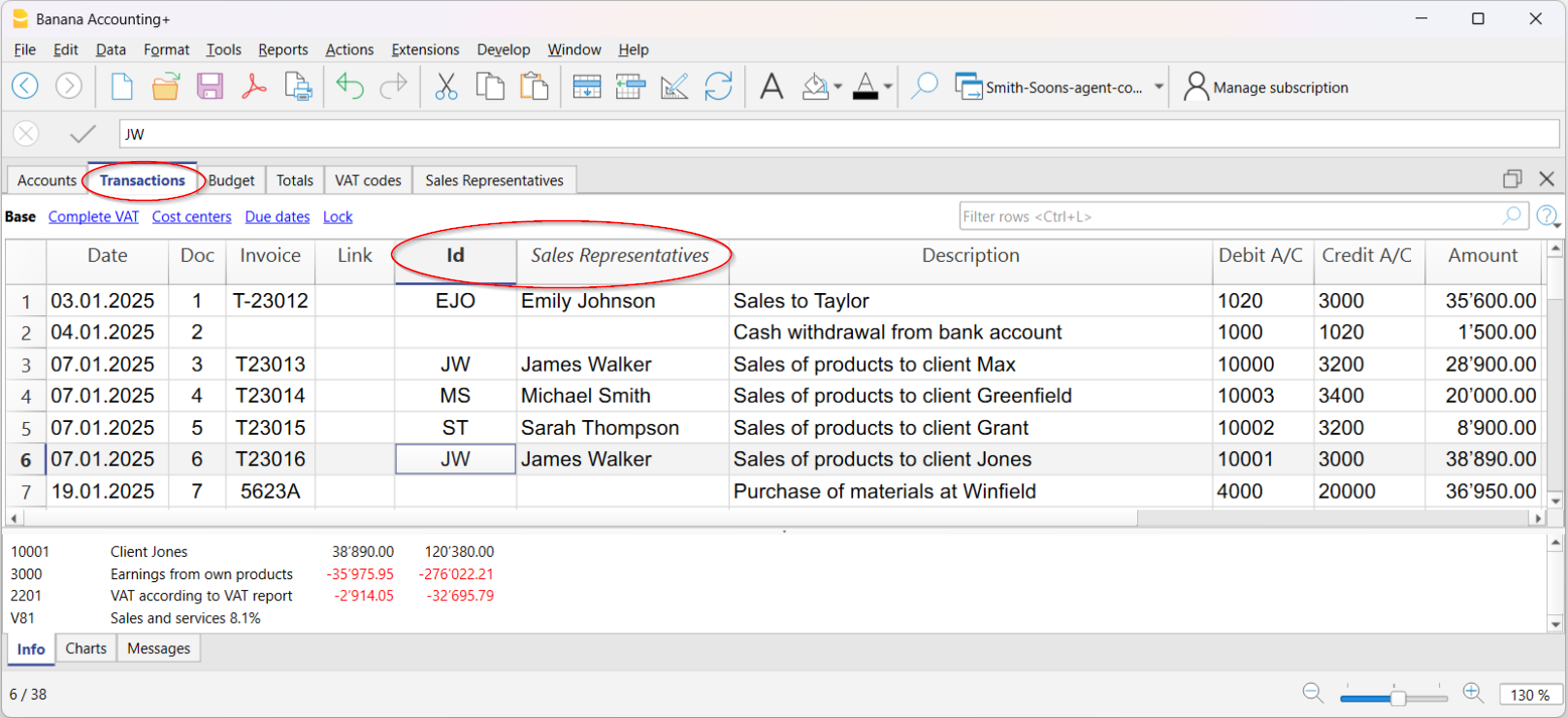
Advantages of linking
- Centralization → all agent information remains in the same accounting file.
- Traceability → each sale can be immediately associated with the agent who completed it.
- Quick analysis → with the Filter rows function, you can display only transactions related to a specific agent.
Calculating commissions
- Filter transactions by agent.
- At the bottom of the info window, you immediately see the total sales amount.
- To calculate the commission, you can:
- In the Amount column, copy the total shown at the bottom of the window (after selecting the cells) and multiply it by the commission rate.
- Export the filtered rows to Excel and apply the commission percentage formula.
With this setup, you can easily manage sales by agent, calculate commissions, and always have an up-to-date history within the same Banana file.
Extensions
Extensions are additional modules of the program that allow the use of supplementary features; most of these are exclusively available with the Advanced plan of Banana Accounting Plus.
Below is the list of the main ones:
VAT Statement 2024 for Switzerland
This extension is exclusively with the Advanced plan of Banana Accounting Plus. For more information...
QR Invoicing for Switzerland
Financial Analysis and Cash Flow
Advanced financial reports and charts for your double-entry accounting, including the financial statement, standard financial reports, Dupont analysis, and Altman index. You can compare historical data over multiple years and forecast data with the current year.
This extension is exclusively available with the Advanced plan of Banana Accounting Plus.
Securities Portfolio Management
To manage securities within your accounting file. It generates reports with details on the movements of your securities, reconciliation, and accounting valuation data for the portfolio.
This extension is exclusively available with the Advanced plan of Banana Accounting Plus.
Construction and Renovation Management
To manage construction and renovation projects. Easily keep track of your project costs, from the estimate phase to allocations and payments. See if costs align with estimates and avoid overruns and surprises. Data classification by expense category and companies involved.
This extension is exclusively available with the Advanced plan of Banana Accounting Plus.
List of all extensions
On our Extensions web page, you can find a list of all available extensions for Switzerland, Italy, and other countries.
Self-Programmed Extensions
For programming experts, it is possible to modify existing extensions or create new ones, and then manually install them into the program.
This possibility is exclusively available with the Advanced plan of Banana Accounting Plus.
共享对话
时期
此标签出现在很多的对话框中 (例如在账户明细,资产负债表中等),此标签还可以特定想被显示或被计算的期间。
例如,如果选择了一个季度: 在账户明细中只有被选定季度中的发生业务会被显示, 而在资产负债表中只有被选定季度的结果会被计算。
全部
如果选择了此功能,那么整个会计报表的期间都会被包含在内。
选择时间段
如果您需要一个特定的期间,那么请您指示出起始日期和结束日期。
无日期的发生业务
如果在会计中输入了没有日期的动向,只有在选择全部的情况下才会被考虑。
然而,尽管您输入的起始和结束日期为1月1日和12月31日, 无日期的动向也将不包含在报告中。
Features for Auditors and chartered accountants
With the Advanced plan of Banana Accounting Plus, you have tools designed for audit and accounting professionals. Faster checks, reliable financial statements, and automated processes: less time on controls, more time to deliver value to your clients.
Why choose the Advanced plan of Banana Plus
The Advanced plan combines reliability, automation, and control. It's the ideal solution for professionals who want to work with more precision and less effort. It's not just about managing numbers, but about getting a system that works with you, reducing errors and increasing the value of your service.
Main benefits:
- Efficiency – Automatic checks and verifications that drastically reduce audit times.
- Precision – Features that prevent errors and instantly detect inconsistencies.
- Versatility - Allows you to go beyond simple accounting, also including specialized areas such as forensic accounting, trusts and financial planning.
- Added value – More time for complex mandates and consulting activities.
Set up your client's accounting in just a few minutes
Thanks to the predefined templates of Banana Accounting Plus, you can start working immediately with a ready-to-use chart of accounts, configured based on language, legal form, and business sector. Of course, you can then customize every detail to suit your client's specific needs.

Simplify your client's accounting with automation
Many clients enter transactions independently, but they don't always have in-depth accounting knowledge.
With Banana Accounting Plus, you can set up rules and automations that ensure consistent data and reduce the time spent on manual checks.
Thanks to the automatic features, you can:
- Automatically create recurring transactions
- Store recurring transactions
- Set rules to automatically complete imported transactions from bank statements.
Fewer errors, more efficiency, and more time to dedicate to your clients.
Set up your clients' accounting in no time
If you manage accounting for several clients, you can significantly speed up transactions by importing them directly from bank statements.
- With the Advanced plan of Banana Accounting Plus, you have import filters compatible with .csv files from major Swiss banks.
- With the Professional plan, on the other hand, you can only import files in the ISO 20022 standard format.
In addition, by setting Rules for completing imported transactions, the program automatically enters the counterpart accounts, VAT codes, and other accounting elements (feature available only in the Advanced plan).
This way, you’ll have more time to:
- Handle more mandates
- Focus on more complex accounting
- Offer targeted analysis and consulting
▶ Video: Rules for completing imported transactions (Apply rules dialog).
Instantly spot accounting discrepancies
The Balance column helps you immediately identify any discrepancies between Debit and Credit (or between Income and Expenses), directly highlighting the non-matching amount from the row where it occurs. This way, you can promptly correct the differences and always have accurate and reliable accounting.
Since the discrepancy is also shown in the following rows until it is corrected, keeping an eye on this column allows you to spot errors immediately and prevent them from accumulating.
▶ Watch the Video on the Balance column
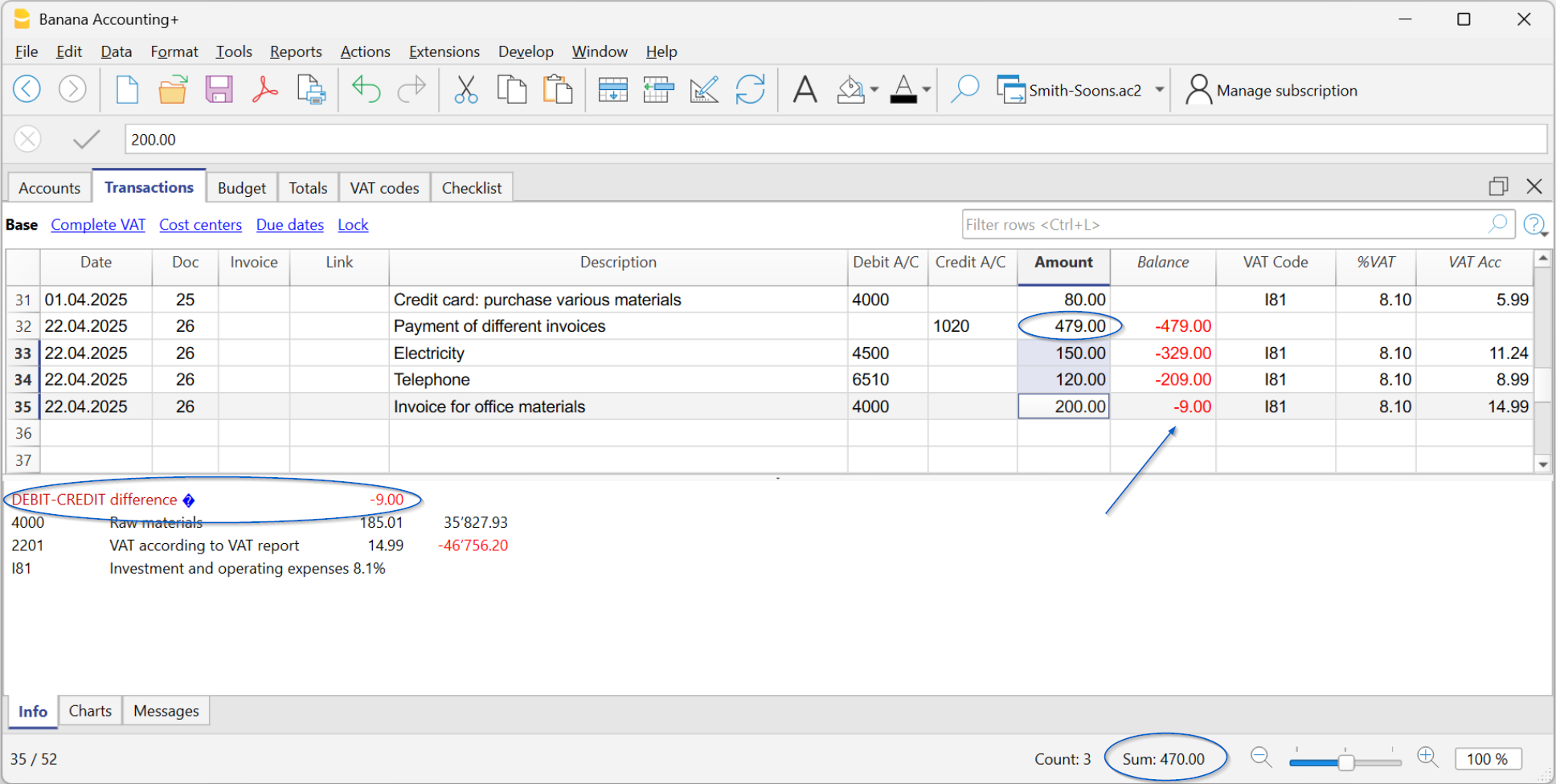
Instant checks and verifications
When the client sends you the Banana file, you have everything under control. With the Check accounting command, the program automatically performs checks on:
- Errors in the chart of accounts, in case it has been modified
- Differences in opening balances (Accounts table).
- Differences in transactions (Transactions table).
- Uncalculated exchange rate differences.
- Bank balances that do not match the statement balances.
More information about balance check transactions is available on the Balance check transactions page.

Find and fix errors instantly
With the Temporary filter feature, you can immediately find any transaction by typing a text or an amount, saving a lot of time in searches and checks.
For example, by entering a supplier’s name, you can check if all invoices have the correct VAT code and directly edit the filtered rows.
Or, by entering a bank account number, all rows of related transactions will be displayed, just like an account card. You can edit and correct directly in the filtered rows.
Client's VAT management
Banana Accounting Plus handles VAT according to Swiss Federal Tax Administration regulations. The Swiss VAT Report is automatically generated thanks to the following extensions, included in the Advanced plan of Banana Accounting Plus:
The extensions are based on current rates and VAT codes linked to the respective boxes of the VAT report.
In Banana Accounting Plus, for accounting transactions, the VAT code entry depends on the two reporting methods provided by Swiss VAT regulations:
- Cash basis reporting (Received).
- Accrual basis reporting (Invoiced).
VAT Return Reconciliation with Turnover
Banana Accounting Plus includes the Swiss Annual VAT Reconciliation extension (currently in Beta version), which allows you to compare the VAT data submitted to the Swiss Federal Tax Administration (FTA) with the data recorded in your accounting file.
The extension generates detailed reconciliation reports and, in the event of discrepancies, enables you to identify the transactions that caused them, making verification and any necessary corrections much easier.
This tool is particularly useful during accounting closing and auditing procedures, but it can also be used before submitting each periodic VAT return to verify the accuracy of the data and ensure that the information reported to the FTA corresponds to the accounting transactions recorded in the books.
Professional financial statements and reports
Thanks to automated functions, you instantly get the Balance Sheet and Income Statement, automatically generated using the Report > Formatted balance sheet by groups command. You can generate, for example:
- Annual and periodic balance sheet and income statement
- Balance sheet and income statement with budget comparison
- Balance sheet and income statement with previous year or period comparison.
- Reports directly in the Accounts table, with column customization.
Reclassified Financial Statements
Forecasts and cash flow analysis
With Banana Accounting Plus, you can offer your clients a more complete and timely financial analysis service. The forecasting and cash flow management features allow you to create real-time liquidity projections, integrating budget data with actual data.
This way, you can monitor liquidity trends, identify potential issues in advance, and support your clients in strategic decision-making.
Advanced management in specific areas
Banana Accounting also offers solutions for specialized fields, particularly appreciated by fiduciaries and accountants.
- Trust accounting
With Banana Accounting, it is also possible to manage the accounting of a trust in a simple and transparent way. Thanks to the flexibility of the chart of accounts, you can clearly separate assets, income, and distributions to beneficiaries, while always maintaining full control of the situation. Banana helps you keep orderly accounting, suitable for reporting requirements and compliant with the principles of clarity and traceability required for managing a trust. More information on the following pages: Trust accounting (double-entry and multi-currency) | Banana Accounting Software - Forensic accounting
Allows you to reconstruct accounting situations, analyze even incomplete data, and document every intervention accurately. More information on the following page: Forensic Accounting and Accounting Reconstruction - Financial planning
Allows you to create forecast scenarios, analyze cash flows, and support strategic decisions. More information on the following pages: Planning and analysis
These solutions allow you to offer a more complete service, going beyond simple accounting management.