Accounting Templates and Extensions | Universal
Accounting Templates and Extensions | UniversalAlongside country-specific options, Banana Accounting also offers Universal templates that can be easily adapted to your country and needs. They use descriptive account names instead of numerical codes, making accounting simpler and easier to understand.
Here is an example of a chart of accounts for an income and expenses accounting file:

Choose the template that best suits your needs from the drop-down menu on the left, or directly in Banana Accounting (File > New).
Universale: Business
Plantillas de contabilidad universales sin IVA
商店会计
商店会计 feiLibro de caja para un comercio (con transacciones)
Libro de caja para un comercio (con transacciones) rebecaIncome & Expense Accounting for Property Management
Income & Expense Accounting for Property Management michaelIncome & Expense Accounting for a Corporation
Income & Expense Accounting for a Corporation michaelComptabilité multidevise pour PME
Comptabilité multidevise pour PMEModèle idéal pour la gestion de la comptabilité des sociétés anonymes. Le plan comptable est structuré selon le schéma PME et présente les registres clients/fournisseurs. Il y a des comptes en devises étrangères et des centres de coûts.
Comptabilité pour sociétés anonymes
Comptabilité pour sociétés anonymes caterinaComptabilité pour sociétés de personnes morales avec les registres clients/fournisseurs
Comptabilité pour sociétés de personnes morales avec les registres clients/fournisseursModèle idéal pour la gestion de la comptabilité des sociétés anonymes. Le plan comptable est structuré conformément au régime des PME. Il y a des centres de coûts.
Comptabilité pour sociétés de personnes morales avec les registres clients/fournisseurs
Comptabilité pour sociétés de personnes morales avec les registres clients/fournisseursModèle idéal pour la gestion de la comptabilité de personnes morales. Le plan comptable est structuré conformément au régime des PME. Il y a des centres de coûts et la gestion des clients et fournisseurs.
Comptabilité pour Entreprise jusqu'à 500'000 CHF chiffre d'affaires
Comptabilité pour Entreprise jusqu'à 500'000 CHF chiffre d'affairesPlan comptable structuré pour gérer une entreprise dont le chiffre d'affaires annuel n'excède pas 500'000 CHF. Avec TVA et des centres de coûts.
公司会计 (含中英文报表)
公司会计 (含中英文报表) feiComptabilité pour Entreprises Individuelles
Comptabilité pour Entreprises IndividuellesPour gérer les comptes d'une petite entreprise individuelle. Le plan comptable est structuré avec des groupes et sousgroupes et centres de coût.
Comptabilité pour Entreprises individuelles
Comptabilité pour Entreprises individuellesPour gérer les comptes d'une petite entreprise individuelle avec TVA et centres de coût.
Double-Entry Accounting for a Corporation
Double-Entry Accounting for a Corporation michaelGestión de presupuesto y contabilidad para yates, barcos y cruceros (ingresos y gastos)
Gestión de presupuesto y contabilidad para yates, barcos y cruceros (ingresos y gastos)Realiza un seguimiento profesional de los gastos e ingresos de un yate o velero. Sin necesidad de experiencia en contabilidad.
Software de contabilidad para yates fácil de usar. Archivo de cuenta predefinido con un plan de cuentas, con una lista completa de gastos (motor, tripulación, administración, invitados) e ingresos, que pueden ser fácilmente adaptados a tus necesidades específicas.
Este modelo de contabilidad proporciona.
- Cuadro de cuentas predefinido con gastos (motor, tripulación, administración, invitados) e ingresos, que pueden ser fácilmente adaptados a tus necesidades específicas. Subdivisión también para crucero.
Cómo empezar
Administración de Restaurantes (ingresos y gastos)
Administración de Restaurantes (ingresos y gastos) rebecaDouble-Entry Accounting for a Corporation with foreign currencies
Double-Entry Accounting for a Corporation with foreign currencies michaelPayPal Templates | Double-entry
PayPal Templates | Double-entryPayPal import transaction
Banana has an import filter that allows you to directly import the PayPal transactions data in your accounting file.
The attached files are predefined with the accounts so that you can start immediately using it.
There are two template example files you can download and open in Banana:
Files suitable for
These template files are especially suitable in case you have only one PayPal preferred currency.
The imported transactions will automatically be imported to the currency account, so that you can separately see all transactions.
If in PayPal you keep balances in different currencies, it will be more suitable to use a PayPal accounting in Multicurrency.
Even if you use another accounting software, you will find that is very efficient to keep a separate accounting in Banana and keep your PayPal accounting in it. Instead of recording all transactions in your accounting solution, you can keep a separated accounting in Banana and once a month or when needed, only record the summary movement for the period in your accounting solution .
Further adapting the file
The file can easily be adapted to suit your needs.
Adding new accounts and new currencies
-
In the Accounts table, add new accounts for other currencies or for different Income or Expense types.
Changing to another Basic currency
This file can easily be converted into one with another Basic currency.
- Change the Basic currency in the File properties.
Add VAT/Sales Tax, change language or convert into another type
Use Convert to new file to add more options or change the accounting file settings.
Contabilità Ristorante (Multi-Moneta)
Contabilità Ristorante (Multi-Moneta)Come fare il preventivo per un ristorante
Segui passo per passo la nostra guida alla pagina Come fare il preventivo per un ristorante che ti insegna come creare e gestire un budget familiare.
PayPal Templates | Multi-currency accounting
PayPal Templates | Multi-currency accountingPayPal import transactions
Banana has an import filter that allows you to directly import the PayPal transaction data into your accounting files.
The attached files are predefined with the accounts so that you can immediately start using it.
There are two template example files that you can download and open in Banana:
- Multi currency accounting with EUR as a Basic Currency
- Multi currency accounting with USD as a Basic Currency
Files suitable for
These example files are especially suitable in case you have PayPal transactions in different currencies and especially if you have set up your PayPal account to use and keep different currencies (see also PayPal template for Double-entry accounting) .
The imported transactions will automatically be imported to the currency account, so that you can see all transactions separately and have a balance in the currency.
Even if you use another accounting software, you will find that is very efficient to keep a separate accounting in Banana and keep your PayPal accounting in it. Instead of recording all transctions in your accounting solution, you can keep a separated accounting in Banana and once a month or when needed, only record the summary movement for the period in your accounting solution .
Further adapting the file
The file can easily be adapted to suit your needs.
Adding new accounts and new currencies
-
In the Accounts table, add new accounts for other currencies or for different Income or Expense types.
-
Add new currencies in the Exchange rates Table
Changing to another basic currency
This file can easily be converted into one with another Basic Currency
- Change the Basic currency in the Accounting properties.
- Adapt the Exchange Rates table with the appropriate currencies and exchange rates.
- In the Accounts table, change the currency for the accounts that need to be in Basic currency.
Add VAT/Sales Tax, change language or convert into another type
Use the Convert to new file command to add more options or change the accounting file settings.
Plantillas de contabilidad universales con IVA
商店会计
商店会计 feiDouble-Entry Accounting for a Corporation with VAT/Sales tax
Double-Entry Accounting for a Corporation with VAT/Sales tax michaelLibro de caja para un Comercio con IVA (con transacciones)
Libro de caja para un Comercio con IVA (con transacciones) barbaraDouble-Entry Accounting for a Corporation with foreign currencies and VAT/Sales tax
Double-Entry Accounting for a Corporation with foreign currencies and VAT/Sales tax michael公司 (含中英文报表)
公司 (含中英文报表)使用Banana财务会计软件,做专业的复式记账会计,一键生成资产负债表,损益表。多语言多汇率,使用中文做账一键点击生成外文报表。
创建您的文件
- 从该模板开始,创建一个新文件(模板编号+10680),使用在文中所解释的任何一种方式。
- 文件菜单→文件和账户属性命令,设置公司名称,会计期间及本位币。
- 文件菜单→另存为命令保存文件。以公司名称和年份作为文件名很有用。
例如“公司-2020.ac2”
文件和账户属性
- 账套
此标签可以编辑账套的信息,账套名称,开账日期和结账日期,以及记账本位币。 - 选项
此标签可以激活会计发生业务所需的功能。 - 地址
此标签中可以填入该会计账套的公司或个人信息,这些信息会做为本公司信息显示在给客户开具的发票中。 - 外汇
此标签中选择汇兑损益的会计科目代码。 - 增值税
此标签中选择应交增值税的会计科目代码。 - 其它
此标签中选择做账的语言和出报表的语言。 - 密码
此标签中设置账套密码。 - 文字
此标签中可以输入额外的信息,比如会计的名字。
编辑账户表
账户表格内显示有资产负债表及损益表的账户。
- 资产负债表显示所有资产账户的余额,即资产和负债。资产与负债之间的差额决定了个人资本。
- 损益表显示所有收入和费用的账户,它们的差额决定会计年度的损益状况。
所有的账户都可以根据您的需求进行客制化的编辑。例如,可以更改账号或摘要,可以在期初列内输入初始的余额,可以添加账户并且删除那些不需要的账户。
创建您的预算
在预算表格内,您可以输入指定年份的预估收入和费用。
- 列出每月费用和收入
例如,在办公室的租金中输入日期,重复,摘要,费用,借方账户,贷方账户和金额。
也可以会月收入执行相同的操作,并输入预估的收入。
输入会计发生业务
在会计发生业务表格中,输入实际的会计发生业务。
- 日期
- 摘要
- 借方账户
输入相对应的账户科目 - 贷方账户
输入相对应的账户科目 - 金额
对所有的会计发生业务执行同样的操作。
导入银行对账单
为了加快这些操作的进程,您可以导入银行对账单的数据并将其链接到数字收据。可以使用报表菜单→导入到账套命令。
报告和预算的比较
在输入会计发生业务后,程序将自动更新账户余额,您可以立即将其与预算余额进行比较。可随时查看并比较过去,现在和未来的会计数据。
外贸公司 (含中英文报表)
外贸公司 (含中英文报表) feiGlobal Accounting Chart - IFRS
The global accounting chart for SME is a IFRS compatible accounting chart specially conceived especially for SME (Small and Medium Enterprises).
- Easy to understand thank to the fact that accounts number follow the presentation.
- Groups numbering have the same sequence of the account numbers.
- Complete but not complex. It covers all the necessities SME, but don't have the complexity typical of accounting charts for large companies.
- Balance sheet and Income and Expenses.
- IFRS (International Financial Reporting Standard) SME compliant.
The Accounting chart structure and presentation is conform to the rule of the International Financial Reporting Standard for SME. - Easily adaptable.
- Fully tested.
This chart of account has been developed by the largest accounting association in Switzerland especially for SME. It has demonstrated to be easy to use and give all important results to companies owners and managers.
Global accounting templates for SME
The global accounting chart is the base for building the Banana Global accounting templates for Small and Medium Enterprise.
- Double entry accounting.
- Multi-currency accounting.
- The templates are available in many languages.
- It can be easily translated if necessary.
- There is a template with many languages together. So you can have the financial statements in different languages.
UndeeUse if Suitable for many countries
Use it in case your country authorities do not mandate a specific accounting chart. Many countries require accounting reporting to be conform to the IFRS rules, but they do not mandate a specific accounting plan or numbering.
A company that desire to keep their accounting in a modern way can adopt this accounting chart and adapt to their own needs.
More information
- Introduction IFRS for SME
- Structure of IFRS for SME
- Reclassification IFRS with Banana
- Excel file structure
- Free Excel model for the IFRS-SME
Balance Sheet - Statement of Financial Position
In SME the cash position is very important, so the presentation start with the account 1000 for Cash.
The group 100 is for Cash and cash equivalents and 10 for Current assets.
- 1. Assets
- 10. Current assets
- 100. Cash and cash equivalents
- 106. Short-term Assets listed in Stock Exchange
- 109. Transfer accounts
- 110. Accounts receivable
- 114. Other short-term receivables
- 120. Inventories
- 130. Prepaid Expenses
- 14. Fixed Assets
- 140. Financial assets
- 148. Investments
- 150 . Tangible assets
- 160. Tangible fixed asset management
- 170. Intangible fixed assets
- 180. Capital or non-paid Foundation capital
- 10. Current assets
- 2. Liabilities and Equities
- 20. Short-term third party capital
- 200. Suppliers or creditors
- 210. Short-term onorous debts
- 220. Other short-term debts
- 230. Accruals and deferred income
- 24. Long-term third party capital
- 240. Long-term onorous debts
- 250. Other long-term debts
- 260. Provisions and similar statutory posts
- 28. Equity
- 280. Capital or capital of the foundation
- 290. Legal reserves
- 295. Legal reserve from profit
- 296. Optional reserves from profit
- 297. Profit / Loss from Balance Sheet
- 298. Treasury stock, shares, rights of investment (negative)
- 20. Short-term third party capital
Statement of Comprehensive Income
The Income and Expense account start with 3000 for revenues and 3 for the Revenue Groups.
The structure is sufficient detailed to satisfy the need of a statement presentation. Depending on the situation other accounts and groups can be added, to provide a better look of the situation.
- 3. Revenues from supplies and services
- 30. Net revenues from supplies and services
- 39. Change in inventories and Non-invoiced services
- 4. Costs for material, goods, services and energy
- E1. Gross operating result after deducting costs for materials and goods
- 5. Personnel expenses
- E2. Gross operating result after deducting personnel expenses
- 6. Other operating expenses, depreciation, value adjustments and financial results
- 60. Rental
- 61. Maintenance, repairs and replacement of tangible assets
- 62. Vehicle and transportation expenses
- 63. Insurance for damage of items
- 64. Energy and disposal costs
- 65. Administrative and IT costs
- 66. Advertising
- 67. Various costs for the financial year
- 6. Other operating expenses, depreciation, value adjustments and financial results
- E3. Operating result before depreciation and value adjustments, financial results and taxes (EBITDA)
- 68.Depreciation and value adjustments of fixed assets
- E4. Operating result before financial results and taxes (EBIT)
- 69. Financial costs and revenue
- E5. Operating result before taxes (EBT)
- 7. Non-operating items
- 8. Results of extraneous, extraordinary or unique character, or for other accounting periods
- E6. Profit or loss before taxes
- 89. Direct taxes
- E7. Annual profit or loss
Full accounting Chart
| Section | Group | Account | Description |
| * | BALANCE SHEET | ||
| 1 | ASSETS | ||
| 1000 | Cash on hand | ||
| 1020 | Bank account | ||
| 100 | Cash and cash equivalents | ||
| 1060 | Bonds and stocks | ||
| 106 | Short-term Assets listed in Stock Exchange | ||
| 1090 | Internal transfers | ||
| 1091 | Transfer account for salaries | ||
| 1099 | Amounts to be clarified | ||
| 109 | Transfer accounts | ||
| 1100 | Due from Clients or Debtors | ||
| 1109 | Provision for Doubtful Debts | ||
| 110 | Accounts receivable | ||
| 1140 | Advances and loans | ||
| 1176 | Withholding tax | ||
| 1180 | Receivables from social insurances and social security institutions | ||
| 1188 | Source tax | ||
| 1190 | Various short-term receivables | ||
| 1199 | Securities | ||
| 114 | Other short-term receivables | ||
| 1200 | Goods for resale | ||
| 1210 | Raw materials | ||
| 1220 | Auxiliary material | ||
| 1230 | Consumables | ||
| 1260 | Finished products | ||
| 1270 | In-process products | ||
| 1280 | Non-invoiced services | ||
| 120 | Inventories | ||
| 1300 | Prepaid expenses | ||
| 1301 | Accrued income | ||
| 130 | Prepaid Expenses | ||
| 10 | Current assets | ||
| 1400 | Bonds and stocks | ||
| 1440 | Loans | ||
| 1460 | Loan to share-holder | ||
| 140 | Financial assets | ||
| 1480 | Investments | ||
| 148 | Investments | ||
| 1500 | Machinery | ||
| 1510 | Office furniture and equipment | ||
| 1520 | Office machinery, information and communication technology | ||
| 1530 | Motor vehicles | ||
| 1540 | Tools and equipment | ||
| 150 | Tangible assets | ||
| 1600 | Commercial buildings | ||
| 160 | Tangible fixed asset management | ||
| 1700 | Patents, know-how, licences, rights and development | ||
| 1710 | Brands | ||
| 1712 | Models | ||
| 1770 | Goodwill | ||
| 170 | Intangible fixed assets | ||
| 1850 | Share capital, rights not paid or non-paid Foundation capital | ||
| 180 | Capital or non-paid Foundation capital | ||
| 14 | Fixed Assets | ||
| 1 | Total Assets | ||
| 2 | LIABILITIES | ||
| 2000 | Suppliers or creditors | ||
| 2030 | Deposits received | ||
| 200 | Suppliers or creditors | ||
| 2100 | Due to banks short/term | ||
| 2120 | Financial leasing commitments | ||
| 2140 | Other onerous debts | ||
| 210 | Short-term onorous debts | ||
| 2206 | Withholding tax | ||
| 2208 | Direct taxes | ||
| 2210 | Other short-term debts | ||
| 2260 | Due to share-holders | ||
| 2261 | Dividends | ||
| 2270 | Social insurances and social security institutions | ||
| 2279 | Source tax | ||
| 220 | Other short-term debts | ||
| 2300 | Accrued expenses | ||
| 2301 | Next year's revenues collected | ||
| 2330 | Short-term provisions | ||
| 230 | Accruals and deferred income | ||
| 20 | Short-term third party capital | ||
| 2400 | Due to banks | ||
| 2420 | Financial leasing commitments | ||
| 2430 | Debenture loans | ||
| 2450 | Loans | ||
| 2451 | Mortgage | ||
| 240 | Long-term onorous debts | ||
| 2500 | Other long-term debts (non-onorous) | ||
| 250 | Other long-term debts | ||
| 2600 | Provisions | ||
| 260 | Provisions and similar statutory posts | ||
| 24 | Long-term third party capital | ||
| 2A | Third party capital | ||
| 2800 | Share capital, rights, foundation capital | ||
| 280 | Capital or capital of the foundation | ||
| 2900 | Legal reserves | ||
| 2940 | Revaluation reserves | ||
| 290 | Legal reserves | ||
| 2950 | Legal reserve from profit | ||
| 295 | Legal reserve from profit | ||
| 2960 | Optional reserves from profit | ||
| 296 | Optional reserves from profit | ||
| 2970 | Profit / Loss carried forward | ||
| 29A | Profit / Loss for the year | ||
| 297 | Profit / Loss from Balance Sheet | ||
| 2980 | Treasury stock, shares, rights of investment (negative) | ||
| 298 | Treasury stock, shares, rights of investment (negative) | ||
| 28 | Equity | ||
| 2 | Total liabilities | ||
| * | PROFIT & LOSS STATEMENT | ||
| 4 | |||
| 3000 | Earnings from own products | ||
| 3200 | Earnings from resale | ||
| 3400 | Earnings from services rendered | ||
| 3600 | Other revenues and services | ||
| 3710 | Own consumption | ||
| 3800 | Decrease in revenues | ||
| 3805 | Losses on accounts receivable, credit variation | ||
| 30 | Net revenues from supplies and services | ||
| 3900 | Change in inventories of in-process products | ||
| 3901 | Change in inventories of finished products | ||
| 3940 | Non-invoiced services variations | ||
| 39 | Change in inventories and Non-invoiced services | ||
| 3 | Revenues from supplies and services | ||
| 4000 | Raw materials | ||
| 4200 | Expenses for goods for resale | ||
| 4400 | Third party expenses | ||
| 4500 | Energy consumption for production | ||
| 4900 | Reduction of costs | ||
| 4 | Costs for material, goods, services and energy | ||
| E1 | Gross operating result after deducting costs for materials and goods | ||
| 5000 | Salaries | ||
| 5700 | Contribution to old age insurance and unemployment | ||
| 5710 | Family equalization fund | ||
| 5720 | Contribution to pension funds | ||
| 5730 | Contribution to accident insurance | ||
| 5740 | Contribution to voluntary daily benefits insurance | ||
| 5790 | Source tax | ||
| 5800 | Other personnel expenses | ||
| 5810 | Training of personnel | ||
| 5820 | Travel and entertainment expenses effective | ||
| 5830 | Travel and entertainment expense allowance | ||
| 5900 | Temporary staff | ||
| 5 | Personnel expenses | ||
| E2 | Gross operating result after deducting personnel expenses | ||
| 6000 | Rental | ||
| 6040 | Cleaning of facilities | ||
| 60 | Rental | ||
| 6100 | Maintenance, repairs and replacement of tangible assets | ||
| 6105 | Leasing costs tangible assets | ||
| 61 | Maintenance, repairs and replacement of tangible assets | ||
| 6200 | Repairs | ||
| 6210 | Fuel | ||
| 6220 | Car insurance | ||
| 6260 | Car leasing and rental | ||
| 6270 | Car costs - private part | ||
| 6282 | Transportation expenses | ||
| 62 | Vehicle and transportation expenses | ||
| 6300 | Insurance for damage of items | ||
| 63 | Insurance for damage of items | ||
| 6402 | Electricity | ||
| 6410 | Heating expenses | ||
| 6430 | Water | ||
| 6460 | Garbage | ||
| 64 | Energy and disposal costs | ||
| 6500 | Office supplies | ||
| 6503 | Technical magazines, newspapers, periodicals | ||
| 6510 | Telephone / internet | ||
| 6511 | Hosting at third-party | ||
| 6513 | Postal charges | ||
| 6570 | IT charges including leasing | ||
| 6580 | Licenses and updates | ||
| 6583 | Consumables | ||
| 65 | Administrative and IT costs | ||
| 6600 | Advertising | ||
| 6642 | Gifts to customers | ||
| 66 | Advertising | ||
| 6700 | Various costs for the financial year | ||
| 67 | Various costs for the financial year | ||
| 6 | Other operating expenses, depreciation, value adjustments and financial results | ||
| E3 | Operating result before depreciation and value adjustments, financial results and taxes (EBITDA) | ||
| 6800 | Depreciation and value adjustments of fixed assets | ||
| 68 | Depreciation and value adjustments of fixed assets | ||
| E4 | Operating result before financial results and taxes (EBIT) | ||
| 6900 | Costs for bank interest | ||
| 6940 | Bank costs | ||
| 6950 | Financial revenue | ||
| 69 | Financial costs and revenue | ||
| E5 | Operating result before taxes (EBT) | ||
| 7000 | Non-operating revenue | ||
| 7010 | Non-operating costs | ||
| 7500 | Corporate real estate revenues | ||
| 7510 | Corporate real estate costs | ||
| 7 | Non-operating items | ||
| 8000 | Extraneous costs | ||
| 8100 | Extraneous revenue | ||
| 8500 | Extraordinary, unique costs or costs relating to other accounting periods | ||
| 8510 | Extraordinary, unique revenue or revenue relating to other accounting periods | ||
| 8 | Results of extraneous, extraordinary or unique character, or for other accounting periods | ||
| E6 | Profit or loss before taxes | ||
| 8900 | Direct taxes | ||
| 89 | Direct taxes | ||
| E7 | Annual profit or loss |
Definition and principles of IFRS for SME
Definition of IFRS for SME
They are a set of accounting standards adopted globally for the financial statements of small to medium-sized companies with the goal of ensuring transparency, reliability, and comparability of the companies’ financial information.
They were issued by the International Accounting Standards Board (IASB), an independent organization based in London, composed of a group of experts with the function of defining accounting principles, preparing, reviewing, or using financial statements, and in accounting training.
When the IASB releases a new standard, there must be approval from the European Union, in the specific approval process, the responsibility lies with the European Commission with other consumptive entities.
IFRS Purposes
The main purpose is to create a common accounting framework for most companies operating within the European Community, offering the advantage of greater simplicity and transparency in relation to the balance sheets and financial information.
The objectives are characterized in various aspects as follows:
Transparency:
provide stakeholders with clear and detailed information on the company's financial status and performance.
Reliability:
financial reports that correspond to the business reality and are trustworthy.
Uniformity:
to report financial information that is comparable on a global scale.
Relevance:
to ensure that important information is provided to potential investors and other stakeholders.
Fundamental Principles IFRS SME
The characteristics of IFRS standards are based on principles as explained below:
Full Disclosure
All relevant information must be fully disclosed.
Substance over Form Principle
Transactions must be accounted for and presented based on their economic substance and reality, not just their legal form.
Principle of Prudence
Uncertainties and risks must be duly considered.
Fair Value Measurement
Numerous balance sheet items must be measured at their fair value, rather than at their historical cost.
Qualitative characteristics of financial information
Understandability
The presentation of financial statement information should be understandable in terms of the company’s commercial and economic activities. This principle does not allow for the omission of important information as it would become difficult to understand for some users.
Comparability
Information about an entity is useful if it can be compared with similar information from other entities. This characteristic allows stakeholders to identify and understand similarities and differences in business accounting realities.
Verifiability
Verifiability helps ensure a faithful representation of the company’s accounting and financial information. Quantified accounting information does not necessarily have to be an exact estimate to be verifiable.
Timeliness
Timeliness means having information available in time to make decisions. In this sense, the older the information, the less useful it is. There are exceptions, it is emphasized that for some information it can also be less timely since there is an evaluation over a longer period of time to study and identify trends.
References:
Composition of IFRS for SME
Introduction
According to Article 3.17 of the document "Exposure Draft IFRS for SMEs® Accounting Standard - Third edition of the IFRS for SMEs Accounting Standard - September 2022", it must include all of the following documents in order to have a complete set of financial statements:
- Financial statement.
- Income Statement.
- Statement of changes in equity.
- Cash flow.
- Notes.
References
Statement of financial position
It is a document that represents the balance sheet and financial situation of a company. The balance sheet is separated into current and non-current assets, and consists of assets, equity, liabilities.
Current assets comprise resources that are expected to be liquidated or used as part of usual business operations within one year from the date of the balance sheet. The distinction is particularly useful for investors who distinguish between net working capital and capital used for long-term operations in an operating cycle.
There is also another presentation, it is based on the degree of liquidity, but is suitable for banks and financial institutions that do not provide goods or services within an identifiable operating period.
Non-current assets are corporate resources that are expected to remain in use for an extended period beyond twelve months after the balance sheet date.
Short-term (current) liabilities are those due within the usual operating cycle or within twelve months after the balance sheet date. Trade payables must always be classified as short-term liabilities even if their settlement occurs beyond the normal operating cycle or more than twelve months after the balance sheet date.
Long-term (non-current) liabilities are those due beyond the normal operating cycle or more than twelve months after the balance sheet date.
Income statement
The income statement is the representation of the profit and loss account and is classified according to the by nature of expense method.
The classification by nature is one of the options available from the IFRS for SMEs, and since it is the simplest and most flexible for different business realities, it was decided to implement this approach.
The concept is that costs are aggregated according to their nature, such as depreciation, purchases of materials, transportation costs, etc.
There is also the classification by cost destination, where costs are distinguished between cost of goods sold and other costs, which provides more meaningful information but requires a considerable degree of discretion on the part of the financial statement preparer.
Statement of changes in equity
The statement of changes in the equity of a company between two financial years reflects the variations in the net equity due to the increase or decrease of its net assets for the period or the wealth generated, based on the specific valuation criteria implemented and indicated in the financial statements.
Cash flow
The IFRS for SMEs stipulates that entities must categorize their transactions into three distinct activities:
- Operating.
- Investing.
- Financing.
It further permits entities to present their operating cash flows using either the direct or indirect method. Ultimately, the framework’s goal is to furnish decision-useful information to users, aiding them in making informed economic choices.
Notes
The notes to the financial statements represent a fundamental part of financial reporting under IFRS for SMEs. They provide additional and detailed information that integrates and explains the data presented in the main financial statements.
Furthermore, they play a crucial role in ensuring the transparency and completeness of financial reporting, allowing users of the financial statements to fully understand the company's financial position, performance, and cash flows.
In conclusion, the notes to the financial statements are therefore an essential tool for improving the transparency and comparability of financial reporting at an international level.
Reclassification IFRS with Banana
Reclassification IFRS with BananaIntroduction
On this page, there is a brief explanation of the templates created with the Banana accounting software and how to use them to print the income statement and balance sheet report according to IFRS standards for SMEs.
At the bottom of the page are links to download the templates.
Template IFRS SME
The template file is set up with the IFRS SME chart of accounts in which the Statement of financial position, Income statement and Statement of changes in equity are present.
This file refers to the document "Reclassification IFRS SME" to print the report according to the IFRS SME setting, with the use of the financial statements embellished by groups.
For more information on financial statement enhanced balance sheet with groups:
- Video of how-to do enhanced balance sheet with groups.
- Documentation about enhanced balance sheet with groups.
- Documentation about reclassification of financial statement and Income statement.
Reclassification IFRS SME
The document contains the basic settings to print the page layout (document title, company master data), amounts, totals, subtotals of the Statement of Financial Position and Income Statement accounts.
The accounts will be printed even if the amount is zero. If you want to change the setting of this printout or the style you can do so within this file.
Report creation with Statement of financial position and Income statement
To create a report with the Statement of Financial Position and Income Statement documents, follow the next steps:
- Open the template file and record all case-specific accounting transactions.
- Click on Reports -> Enhaced balance sheet with groups
- Enter the important data relating to the reference company (e.g. document name, company master data) in the Page-Header and Footer section.
- You can make other settings by reading the details on Banana's site on the enhanced balance sheet.
- Click OK.
At the end of the process a new file will be opened with the Statement of Financial Position and Income Statement inside.
Download IFRS SME per Banana
We make the models available without any liability, as stipulated in our Terms and Conditions of Use.
Excel file structure
Introduction
On this page, there is a full explanation of how to use the file, what to find in it and its logic.
In addition, there are illustrations and sample figures to help explain how to use the Excel file. The amounts shown in these images are purely for illustrative purposes and do not necessarily reflect actual or significant values.
Documentary reference
For the creation of the accounting structure within the Excel file, the indications of the documentation related to the IFRS standards for SMEs were followed.
Specifically, the documentation is:
- Accounting principles, notes and other: "Exposure Draft IFRS for SMEs Accounting Standard" of September 2022".
- The presentation of the accounts and the explanatory notes: "IFRS Taxonomy Illustrated IFRS Accounting Taxonomy 2023".
Description structure file
The Excel template is divided into ten main parts:
- General information.
- Financial Statement.
- Income Statement.
- Financial Statement detailed.
- Income Statement detailed.
- Statement of changes in equity.
- Cash flow indirect.
- Notes of financial statements.
- Notes of income statement.
- Notes of cash flow statement.
In order to have a complete set of IFRS financial statements for SMEs, it is mandatory to complete the sheets on General information, Financial statement and Notes of financial statements, Income statement and Notes of income statement, Statement of changes in equity and Cash flow indirect and Notes of cash flow statement.
The Financial Statement detailed and Income Statement detailed sheets, are an alternative to the compilation procedure specified above, as they integrate the entire aspect of the Financial Statement and Income Statement, with all accounts detailed by the notes, having a direct view of the composition and structure of an account with the notes.
Organitation of the file
File content
The file contains seven fields:
- Main field.
- Main account.
- Sub-category of the main account.
- Code.
- Formula.
- Note.
- Account amount.
In the main field, you specify the name of the main account, the document reference and generic company information.
The main account is the name of the main account.
The sub-category of the main account can only be displayed if the Statement Financial detailed and Statement Income detailed sheet is used. It is an account taken from the notes and serves to detail the structure of an account, as required in the IFRS notes for SME.
The code is used for Banana's accounting model and serves to identify the account.
The formula is applied for account totals and subtotals.
The note is account-specific and is entered for some accounts as per the IFRS documentation for EMS.
The account amount is a number to two decimal places without currency indication.
Some fields are not editable as they are an essential part of the file structure. The only part to be changed are the amounts to be entered for the various accounts and the descriptions in the note sheet.
The legend below summarises what the fields correspond to and which are and are not editable.
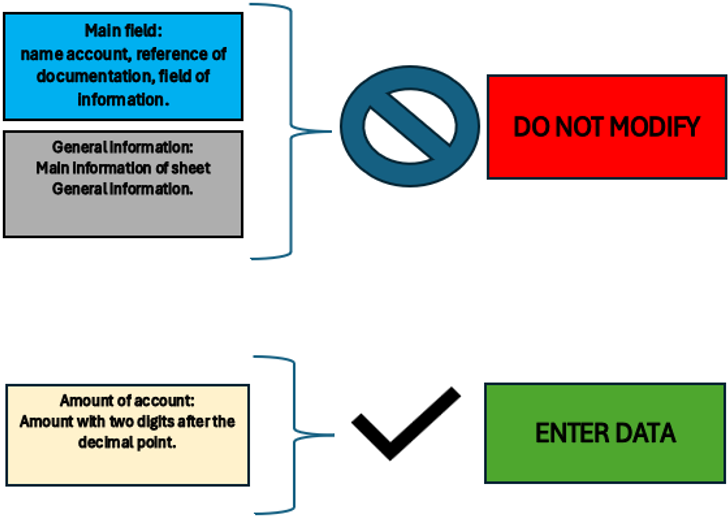
Figure of Excel in the sheet Legend
In the General information sheet, the essential information required by IFRS for SME is entered.
The essential information is useful to understand the biographical data of the company, the relevant accounting period, the currency used, the main activities and the content of this file, which is the complete structure of the financial statement.
Certain information such as company name, company name, domicile and accounting period is reported on all sheets specifically for the Identifying information of company.
General information
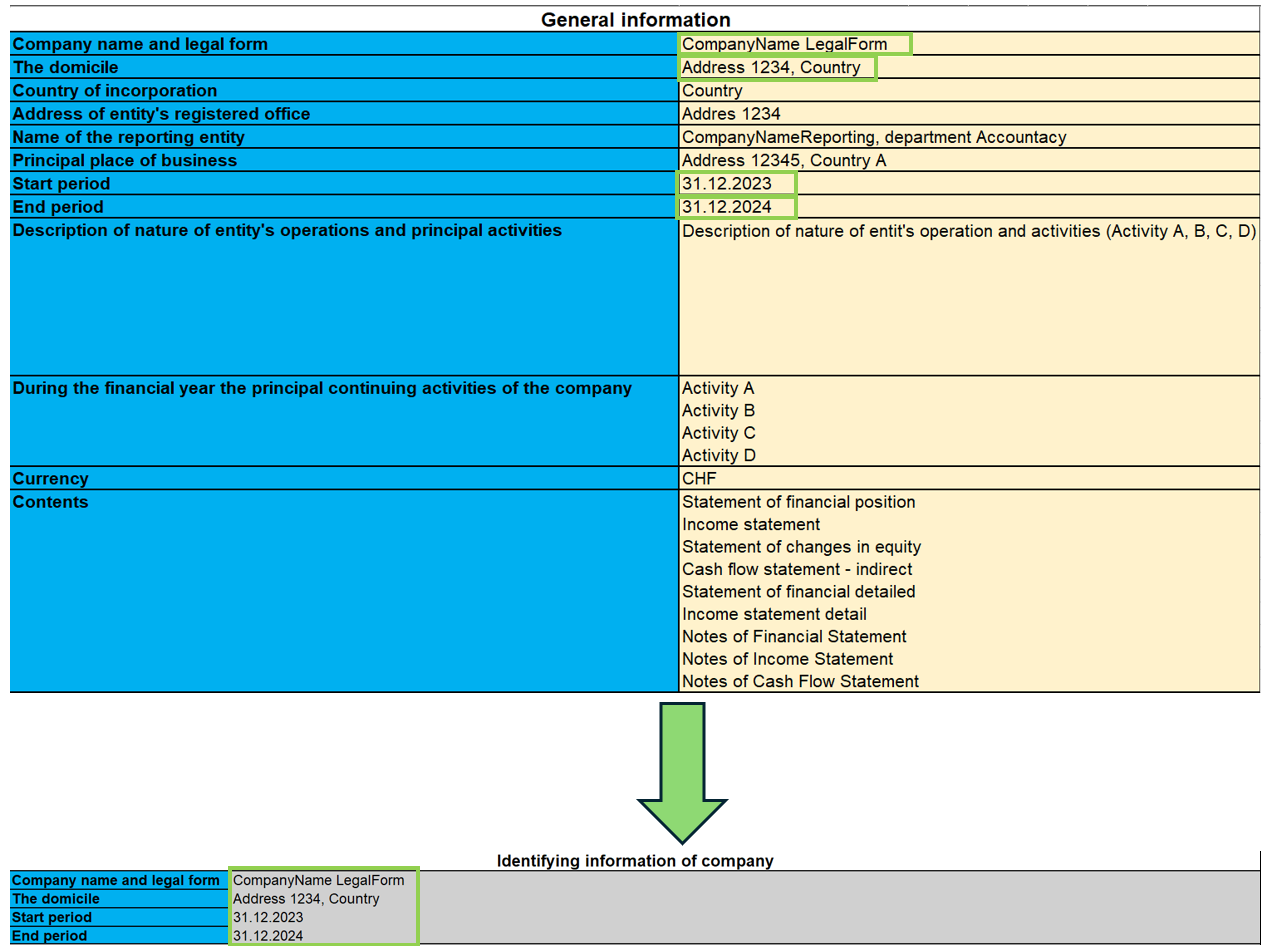
As shown in the image, the information entered on this sheet is carried over to all sheets, so that the company can be identified on each IFRS document, such as: the full name of the company, the address and registered office, and the beginning and end accounting year to be taken into account for accounting purposes.
Statement of financial position
The Financial Statement contains all account items relating to the current and non-current positions of the business for the years 2023 and 2024.
In this part you are required to enter the budget amounts in the specific accounts. Totals and subtotals are calculated automatically by the formulas.
It should also be noted that for some accounts it is mandatory to complete the Notes. This is done by entering the amounts and other descriptive notes in the ‘Notes of Finacial Statement’ sheet.
If an account has notes, its amount for the last year refers to the corresponding cell of the account total put in the notes, so it is necessary to fill in the amounts in the notes first.
For the notes, there is also the possibility of consulting the documentation indicated in the ‘Reference documentation’ field, specifying the page and section where the information on the notes can be found.
Finally, there is a final check part to see if the total assets and liabilities are equal.
Modalities of use
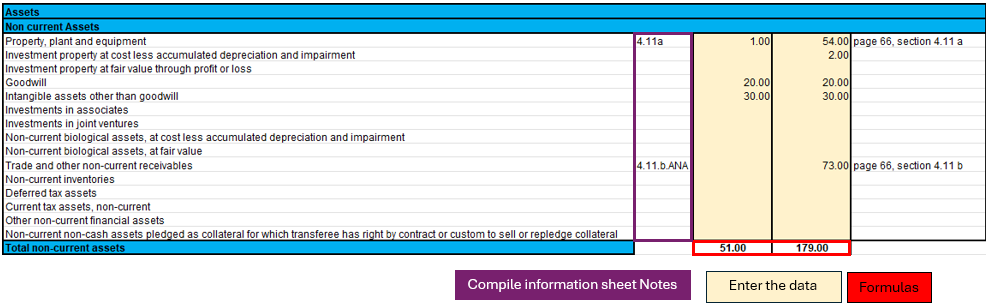
In the picture shown, a part of the Statement of Financial Position is selected as an illustrative example to guide the user. There are three highlighted parts in the image:
- Notes.
- The formulas.
- The data to be filled in.
Each part has its own specific function and in some cases the data are directly linked to each other.
Specifically, if an account has notes, it means that in the ending balance (31.12.xx) there will be the total of the amount calculated in the ‘Notes of financial statement’ sheet. This implies that in order to change that amount, one must fill in the account data on the "Notes of financial statement" sheet.
In this sheet one must therefore:
- Verify that the account is not linked to notes and enter the amount in the account.
- If there are notes, then only the ‘Notes of financial statement’ part of the sheet must be filled in.
The formulas integrated in this sheet will make the totals and subtotals of the accounts in the Statement of financial position.
Income Statement
The income statement is presented according to the classification ‘by nature of expense’.
This classification is an aggregation of costs according to their nature (e.g. depreciation, purchase of materials, transport costs, salaries, advertising costs, etc.) and are not allocated according to their purpose within the company.
The implementation of this classification was decided upon because it is simple and widely applicable for SMEs. The other classification was according to costs by function, where a distinction was made between costs of sales versus other costs (e.g. distribution costs or administrative costs) and this representation requires a considerable degree of discretion on the part of the end user.
As previously done for the Financial Statement, there are the amounts to be entered while the totals are already calculated by means of the formulas applied in the sheets.
In addition, a further breakdown has been made for EBIT (earnings before interest and tax) and EBT (earnings before interest).
Modalities of use
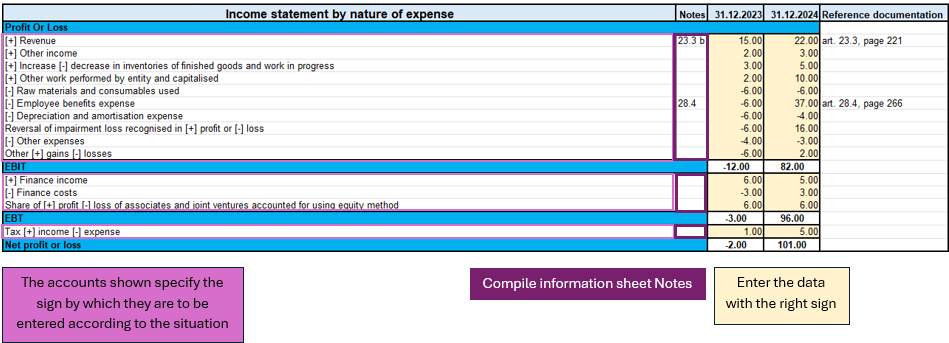
This figure highlights the important parts of the income statement.
Looking at the accounts, there are indications of the signs (+/-) to be used in the various circumstances, which implies that for accounts that have both positive and negative signs, there is an assessment of the positive or negative impact of that amount on the result of the income statement.
As previously seen in the ‘Statement of financial position’, there are also notes to be entered in the relevant sheet ‘Notes of income statement’ in order to be able to correctly define the amount, as the latter depends on the total in the notes.
In summary, what you need to do on this sheet are the following steps:
- Evaluate the circumstances of the account with both positive and negative sign and understand whether you are in a situation where it has a positive or negative impact on the result.
- Verify that the account is not linked to notes and enter the corresponding amount with the correct sign.
- If the account is correspondent with the notes, then only the ‘Notes of income statement’ sheet must be completed.
Statement Financial detailed
This document differs from the Statement of financial position in that there is more detail on the accounts. The official presentation of the accounts can be found in the ‘Statement of financial position’ sheet in terms of how the accounts are summarised; in this sheet, however, we have more detail, with the aim of avoiding filling in the notes directly in the specific sheet. The use of this sheet excludes the use of the ‘Statement of financial position’ sheet because they refer to the same notes.
The main difference is that not only the main accounts required as a presentation by IFRS for EMS are shown, but they are detailed in sub-categories of accounts that are the same as those found in the notes, so that using this document one can avoid filling in the notes, using only the sub-categories of accounts, except in some cases where the account requires descriptive textual type details, without using calculation formulas or amounts. For this reason, not all parts of notes are integrated, as some accounts require a textual type description.
To distinguish the main accounts from the sub-categories of accounts, the main categories are coloured dark, while the light categories are the accounts related to the notes.
If there are no subcategories of accounts (coloured light), then it is sufficient to go to the specific Notes of Statement or financial position sheet.
Modalities of use
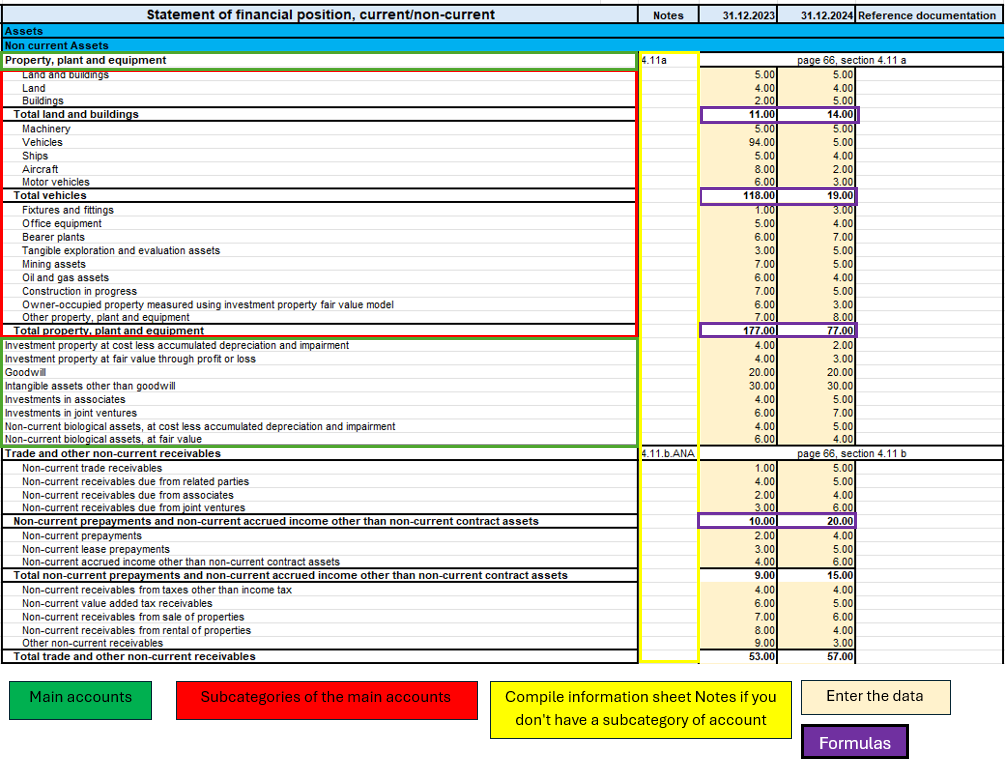
In this image, you can see four essential parts of the document:
- Main accounts.
- Subcategories of the main accounts.
- Notes.
- The amounts to be entered.
- The formulas.
This part, there is more detail only if an account has notes, otherwise it is the same as the Statement of Financial Position. What requires attention is the verification of an account if it is an account with notes and has no sub-categories of accounts, if you find yourself in this situation then it means that the account requires an additional textual description to define some peculiarities in the ‘Notes of financial statement’ sheet.
On the other hand, for accounts that have notes but also account sub-categories, only the amounts of the sub-categories of the specific account need to be filled in. In this way, having filled in all the amounts of the sub-categories of the account, the formulas applied to the sub-categories will calculate the subtotals and the total of the main account.
So to summarise, the procedure for filling in this sheet is:
- I enter the amounts in the main accounts if there are no notes to refer to.
- If the main account has notes, I check that it has sub-accounts, if it does not, then I go to the ‘Notes of financial statement’ sheet and fill in the text description.
- If, on the other hand, the main account has notes and has the subcategories of accounts, then I only fill in the amounts of the subcategories.
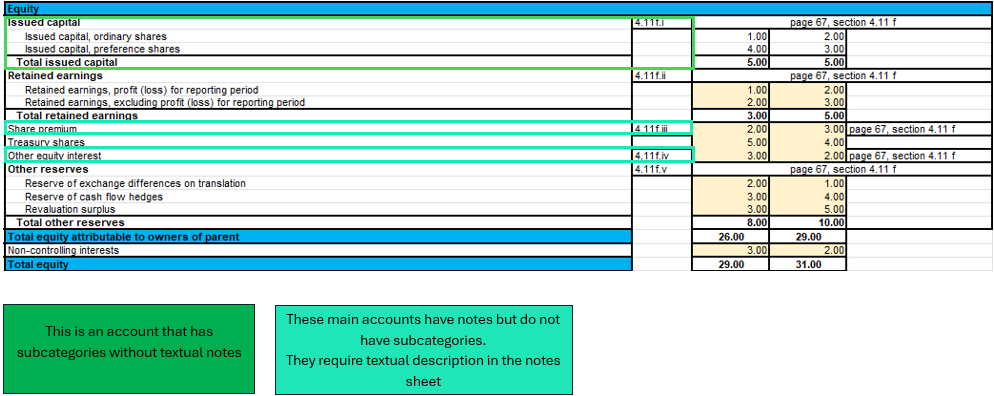
In this example image in the Equity part, a case is illustrated where an account has notes but no account subcategories, which requires a textual description in the ‘Notes of financial statement’ sheet, and a normal case where there are notes with account subcategories.
Income statement detailed
Income statement detail is based on the same logic as the Statement of financial detailed, with the aim of providing a single document for its function, detailed by the accounts of the notes, without having to fill in the Notes of income statement.
There are the main accounts and when there are notes, they are detailed by the sub-categories of accounts that are part of them.
Modalities of use
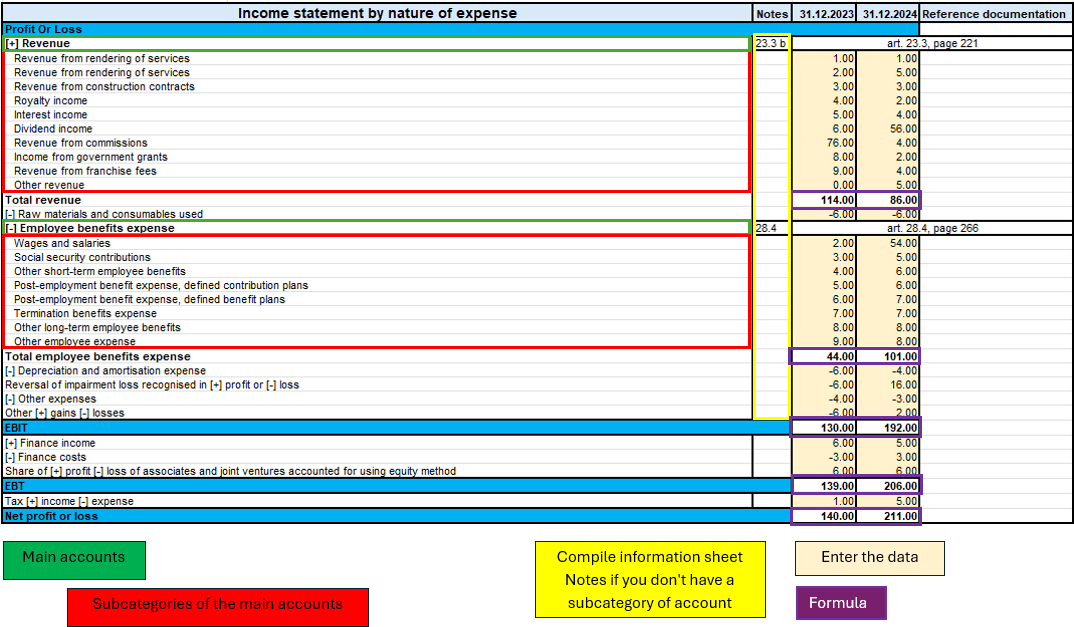
As illustrated in the figure above, there are four equal parts to the ‘Statement of financial detailed’ sheet with the same logic.
The only difference is that there are no descriptive notes, so all accounts with notes are already with their sub-categories without requiring additional compilation on the ‘Notes of income statement’ sheet.
Therefore, to summarise, it is essential to follow these steps:
- Enter the amounts of the main accounts if they have no notes.
- If the main account has notes, enter the amounts only in the subcategories of the account.
The Statement of Changes in Equity
The Statement of Changes in Equity reflects changes in equity.
This part provides insight and transparency into decisions and their effect on the value of equity. It is also a useful tool for investors and other stakeholders to understand how the company has generated and utilised equity capital.
Modalities of use
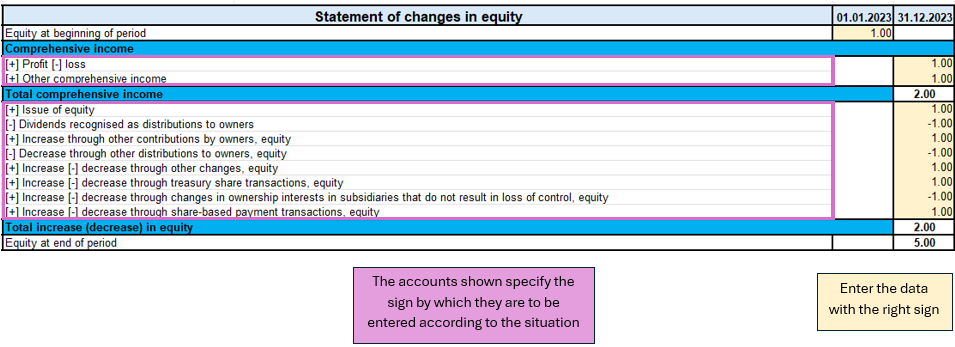
In the sheet ‘Statement of changes equity’ as shown in the image, there is one part to pay attention to.
The first is the evaluation of the change in the account item, whether it increases or decreases, and then according to the sign (+/-) the amount must be written with the correct sign.
Unlike other documents, this one does not require notes.
So the process of completing the document is:
- Evaluate the account change and follow the indications on the sheet on the sign to be taken in the various circumstances (increase or decrease in the account).
- Enter the amount with the correct sign.
Cash flow indirect
This document draws up the entity in four parts:
1. Cash flow from operating activities;
2. Cash flow from investing activities;
3. Cash flow from financing activities;
4. Net cash flow.
The document is independent of the other sheets, so you have to do your own calculations to deduct the various amounts to be included in the cash flow items.
The accounts are taken from the IFRS for SME taxonomy, first there are the profit or loss adjustments and then the operating activities are calculated.
Investing activities are characterised by the purchase or sale of fixed assets such as equipment, real estate, joint venture participations and others.
Cash flows from financing activities are related to the company's sources of financing, such as leasing, share issues, debt repayments or financing income. There is also the payment of dividends to shareholders.
In the last part of cash flow there are some clarifications to be made. The net change in cash is assessed in two steps, the first is calculated before the effect of the exchange rate change and the second after this change. In addition, as a form of control, the change in liquidity is also calculated, showing the changes in the period of activity, by calculating the difference between the initial and final liquidity balance.
Modalities of use
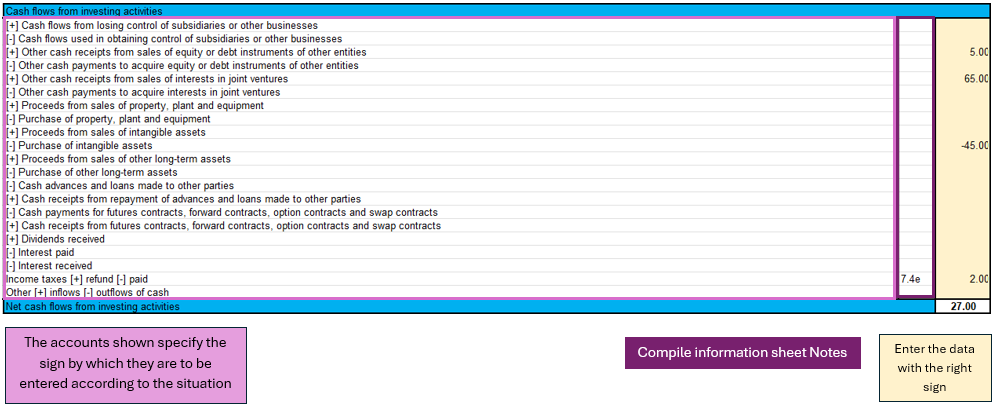
As shown in the figure of the cash flow for investing activities, three main components can be identified:
- The main accounts show the sign depending on the situation.
- For some accounts, the notes of cash flow statement are required.
- Entering the amounts requires attention with respect to the sign.
In the cash flow statement, reasoning on the implications of the balance sheet and profit and loss accounts is required in order to conclude which amount to enter in the specific item of the cash flow statement, so the conclusion depending on which cash flow statement has been analysed, could be an increase or decrease of an asset, a payment for property purchase, payment of dividends to shareholders,...
There is no sheet for this purpose, the user must reason with the amounts available, entered in the balance sheet and profit and loss account, and come to his own conclusions.
Next, having an amount, one must distinguish the situation as indicated in the sheet, in order to enter the amount with the correct sign.
Finally, in the event that it is required, fill in the notes of cash flow statement with the specific amounts in the case.
Notes
The notes are divided by the three IFRS documents:
- Notes to the Financial Statement.
- Notes of the Income Statement.
- Notes to the Cash Flow Statement.
As mentioned in the introductory section, the notes serve to supplement the information taken from the financial documents.
The note sheet contains four essential parts: the note code, reference account, amount and notes (text).
The note code is the reference for each part of the documents that serves to understand in which account the notes are to be completed.
The account represents the account taken from the document (Financial Statement, Income Statement, Cash Flow) to be detailed in the notes.
The amount is singular for the detailed account and is not always required because in some cases only a textual description is needed.
Notes as text are necessary if there are cases where only a description or more detailed customisation is required to explain an account.
Modalities of use
Case for the Financial Statement
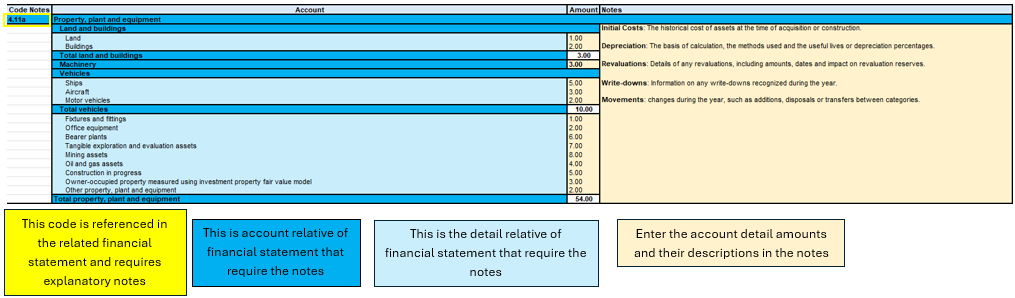
Figure of Excel in the sheet Notes of financial statement
In this image, four main components can be seen, the account reference code, the account, the detail grouping the sub-categories of accounts, the amounts to be entered with any textual notes.
The starting point for completing this sheet is then the financial statement, where we list which accounts need more detail, and then move on to complete the information in the notes sheet.
The data entry part concerns the amount of the detail account and any descriptive text.
The account totals and subtotals are calculated from the formulas, the account total is shown on the main sheet of the financial statement, so it is essential that if an account needs notes, it is only on the notes sheet.
Case for the Income Statement
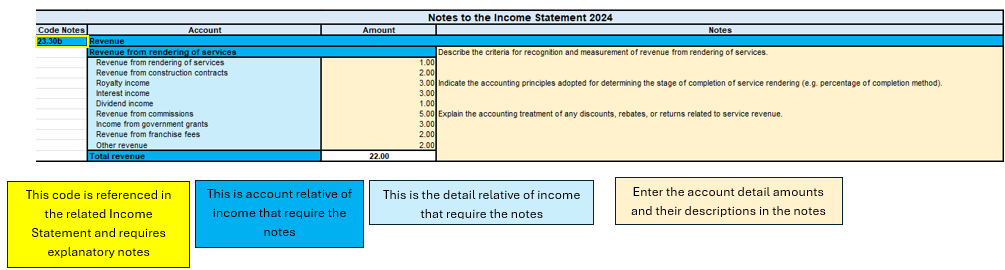
Figure of Excel in the sheet Notes of income statement
As seen above, the structure does not change for the Income statement notes. The main parts are always the same, as also for the cash flow notes.
To summarise therefore in this process one must:
- Depending on which sheet you are compiling, you must check that the analysed account of the financial statement, income statement or cash flow note is there.
- All the necessary data and information must be filled in.
- If there is a sub-account in the notes that is not needed or not used, you can simply leave it blank or enter a zero amount.
Objectives of the file
The process of creating the IFRS structure for SMEs took the official documentation and reconstructed a structure in the Excel template, with the aim of allowing the user to follow the IFRS reporting logic by entering the main information in the parts of the file.
The basic characteristics of such a file is the completeness of the document by having all the main parts required for IFRS, the usefulness of preferring the most widely used models that are more suitable for several companies, and excluding other more specialised models only in certain contexts.
The end result is to have a financial and economic view of the company's situation in the specific period, in compliance with the IFRS standards for SMEs.
In addition, the aim of IFRS for SMEs is to improve the comparability of financial data between different companies, to facilitate the analysis and interpretation of financial results by stakeholders outside the company, and to promote the adoption of IFRS for SMEs by providing a practical and accessible tool.
Free Excel model for the IFRS-SME
We make the model available without liability as per our Terms and Conditions of Use.
Cash Flow Statements and Financial Ratios [BETA]
Cash Flow Statements and Financial Ratios [BETA]Easily add advanced financial reporting and charts to your existing double entry accounting. It works with any accounting plan, the first time you enter your groups/accounts in the settings dialog, and then all calculations and reporting will be done automatically. This extension is available in Banana Accounting Plus only with the Advanced plan. Update now!
How to start
First time setup:
- Open Banana Accounting Plus
- Open your existing Banana double entry accounting file.
- Go to the Extensions menu → Manage Extensions... command and install the Cash Flow Statements and financial Ratios extension.
- Map you accounting plan.
- Extensions menu → Cash Flow and Financial Ratio → Settings.
- Under Grouping enter the groups you have in your accounting plan in the predefined groups.
The extension uses a standard, simplified Balance and Profit and loss structure, that allows to automatically calculate the Financial Ratios. - Click OK to verify your data.
Check the Ignore warnings/errors if you want to save the data and complete the grouping later.
- Add information to some special transactions (dividends, change in reserve, disinvestment, investments) they can be identified for the Cash Flow Statements.
Run the reports (at any time).
- Open your Banana double entry accounting file.
- Menu Extensions → Cash Flow and Financial Ratio
- Financial Charts
- Financial Reports
Available reports and charts
- Reclassification and checks
- Reclassified balance sheet
- Reclassified Profit and Loss Statement
- Control sums
- Cashflow Statement
- Cash Flow statement based on the indirect method.
- Cash Flow ratios.
- Financial ratios and analysis
- Liquidity ratios:
- Financing ratios
- Profitability ratios
- Efficiency ratios
- Dupont Analysis
- Altman index
- Charts
- Evolution of ratios over time
- Evolution of the Reclassified balance sheet
- Evolution of the elements of the Reclassified Profit and Loss Statement.
Prerequisites
In order to be able to use this extension you have to:
- Use Banana Accounting Plus with the Advanced plan. We recommend using the Dev-Channel, some features or functionality present in the insider version may not yet be accessible in the regular version of Banana.
- Open a Double-entry accounting file.
It is important that the various accounting years files included in the analysis have the chart of accounts set up in the same way, at least as far as references to groups are concerned.
For example, if I want to analyze the accounting years: 2018, 2019, 2020, and I set up group 100 in the Liquidity grouping. I need to make sure that for all three years the group is the same.
Try the extension now
You have the opportunity to use a test accounting file with some random entries to get an idea of the extension's functionality. The file already includes the extension, so you don't even have to download it
You can test it by editing the transactions, the chart of accounts or the various settings in the dialog.
The accounting file does not exceed 70 transactions, so you can also try it out with the free or professional version and upgrade to the Advanced plan later.
Compare historical data over more years and forecast data with current year.
Introduction
What is exactly the financial statement analysis?
Financial statement analysis is an accounting tool that provides an assessment of a company's economic, financial and asset condition. It is based on the financial statements and reports the data. It contains the profits and losses of a company and therefore serves to derive the general performance of the company.
Why is this activity very important for your SME ?
Until recently there were few SMEs that often used a financial statement analysis as larger companies could use it.
Today, times have changed. Reading the numbers well can make a difference within the strategy and management of an enterprise. Understanding which products it is worth investing in and which jobs can be neglected determines the difference between the growth or decline of a company.
This activity can be a source of interest for various subjects, external or internal to the company. Entities or external individuals can analyse their solvency profile (current or potential lenders), capacity to provide an adequate return on capital (for those who want to buy shares for example) or even just obtain information on the company's situation with respect to competition in the sector.
Through the comparative balance sheet analysis of the various elements available, it is possible to arrive at the following formulation of a "judgement" on the health of the company in all its dimensions:
- Economic
- Asset
- Financial
How it works
The financial statement analysis is based on two fundamental documents for a company:
- The Balance sheet
- The Profit and loss statement
In order to perform a correct analysis, it is always necessary to start from the reclassification of the accounts, which includes 3 phases in particular.
- Group the account items into groups
- Order such groups
- Bringing out intermediate results
The reclassification allows for a slightly cleaner first view of the company's situation and is already useful information can be obtained from it.
Analysis by Indexes
Once the intermediate results have been obtained, it is possible to proceed with the calculation of the indices useful for the analysis. The financial statements analysis by means of indexes is a very powerful tool that allows you to use indicators capable of providing a very concise assessment of one's own situation.
How should the data be interpreted?
Better results in terms of interpretation and evaluation are therefore achieved by analysing a series of balance sheets and studying the trend over time of the significant balance sheet ratios, so as to understand in which management is moving the company (dynamic financial statements analysis).
How do I evaluate them?
- Temporal evolution
- Comparison with average values of the sector
- Comparison with "normal" values i.e. with the benchmark
- Comparison with objectives
Response to results
This is the last activity of the analysis cycle, where the "relay" passes into the hands of those who deal with the Management of the Company, with data that speak clearly, the Manager will have to plan how to proceed using the right Project Management techniques.
The report contain errors?
If you notice incorrect data within the report or find that for some reason the calculated amounts do not match, please follow the steps below:
- Check that the data in your accounts are correct.
- Check that you have set up the groups correctly in the settings dialog.
If the errors persist, contact us via our feedback form and send us an example accounting file (*.ac2), even with little data, but allowing us to reproduce the possible problem and correct it.
Multi-language
The extension is available in the following languages:
- English
- Italian
- French (translation currently not complete)
- German (translation currently not complete)
And will adapt according to the language in which the application is set up. For all other languages, the standard version in English will be displayed.
Save your analysis
You can save the report in the following formats:
- Html
- Excel
- Latex
Settings Dialog
Dialog is accesible:
- By going to the Extensions menu→Cash Flow Statements and financial Ratios →Financial Reports.
- By going to the Extensions menu→Cash Flow Statements and financial Ratios →Settings.
Set up the groups
The first and most important step is to enter the groups or accounts number you are using in your account table.
Once you enter the groups the report and calculations are all done automatically, except for some specific transactions for the Cash Flow Statement.
- Groups must be entered manually
- Groups must be separated by a semi-colon ';'
- Both groups and accounts can be entered
- It is important to make sure that you include elements that exist in your chart of accounts, if are entered groups or accounts that do not exist in your chart of accounts, a message will be displayed on the row of the grouping concerned, returning those elements for which a match was not found in the chart of accounts. Once corrected, you only need to run the dialogue again and the message will disappear.
- By default, the groups within the dialogue refer to the Swiss SME chart of accounts, and it is possible to return to the base scenario by clicking the Restore Defaults button. Beware, however, that in this way the customisations made will be lost, and will be replaced with the default values.
.png?raw=true)
All the necessary elements must be inserted within the different groupings defined in the dialogue (Liquidity, Fixed Asset,Owned base capital,...).
Assets
They show the total employment of a company, so the investments to which the company has allocated
the means found in carrying out its activity.
- Liquidity: Must include groups or accounts that define liquidity in the company, such as cash or bank
- Credits: Must include groups or accounts within which are recorded all the operations
concerning money due to buyers who didn’t paid yet for their purchases - Stocks: Must include groups or accounts with all goods for resale in the ordinary course of business.
- Fixed assets: Must include groups or accounts containing fixed assets elements, as:
- Buildings
- Computer equipment
- Computer software
- Furniture and fixtures
- Intangible assets
- Land
- Leasehold improvements
- Machinery
- Vehicles
Liabilities and Equity
Shows where company's resources come from. In general, the funds at the company's disposal are
classified in a way to distinguish between own funds (which flow into equity) and those from third parties.
- Short-term debt capital: Must include groups or accounts representing the company commitments that must be fulfilled, without any particular cancellation, in the current year.
- Long term debt capital: Must include groups or accounts containing that kind of capital that the company can have at its disposal for several years, on a fixed basis, and that can usually only be withdrawn within a set time limit.
- Own Base capital: Must include groups or accounts those group referring to the company's own capital.
- Reserves and Profits: Must include groups or accounts within which are recorded the amounts to be paid to reserves or designated as profits.
Revenues
Indicates what is produced by the company during a financial year. Whether it is an increase in the value of products or semi-finished products in the course of production or services in progress, revenue from the sale of products or services or the increase in the value of fixed assets thanks to own resources, all these heterogeneous factors add up.
- Sales turnover: Must include groups or accounts within which is recorded what is produced by the company during a financial year. Whether it is an increase in the value of products or semi-finished products in the course of production or services in progress.
Costs
- Costs of Merchandise and services: Must include those groups or accounts in which all costs relating to goods and services consumed during the annual financial year are recorded.
- Personnel Costs: Must include all those accounts referring to a cost due to personnel, such as:
- Salaries
- Social charges
- Severance Pay
- Pension and similar treatment
- Other costs
- Different Costs: Must include all other groups or accounts relating to costs during the operating period.
- Interests: Must include groups or accounts containing the costs of financing sources, such as bank interest payable or interest on loans.
- Depreciation and Adjustments: Must include groups or accounts where are registered possible revaluations and write-downs of equity investments, as well as of financial fixed assets and securities included in current assets that are not equity investments.
- Final Result: The group containing the difference between the costs and the revenues at the end of the year.
Average Number of employees
This information is useful for calculating efficiency ratios, enter the average number of employees in the company and find out information such as the average company revenue per employee.
Printing Preferences
To make the Analysis as close as possible to your needs you can set some preferences, and choose about the details of printing and analysis
.png?raw=true)
Printing Details
- Page header: Include the header in the report, the header is composed with the information retrieved from the properties of the file.
- Logo: Choose whether to include your company logo in the report. for information on how to set up a logo visit this Logo set up page.
- Background color of headers: Choose the colors for the table headings
- Text color of headers: Choose the color for the texts in the table headings
- Report Without colors: Check the box for no colours in the report.
Analysis Details
- Number of previous years: Set the number of previous accounts (years) to be included in the analysis, which will be added to the current year and the Budget (if present and included).If you don't know how to set the previous year to a file, go to “File→File and Accounting Properties→Options Tab.
- Number of decimals: Choose how many numbers after the decimal point you want for the digits in the report, if you don't want to have decimals you only need to insert a zero 0.
- Include Budget: If you are using the Budget table for your financial planning, you have the possibility to include it in the analysis.
- Include Budget to date column: Include the columns showing the values of the budget up to that day, compare the values with those of the year-to-date.
- Include Current year projection column: You can include the projection for the current year. The programme uses the values in the budget table to return what could be the values at the end of the year.
- Current Date: Insert the current date. If no date is entered, the date of the day is taken automatically
- Include DuPont Analysis: Choose whether to include the Dupont Analysis
- Include Control Sums: Choose whether to include the table with the control sums, useful to inform in case of errors on the totals (assets/liabilities, operating result).
- Show the formulas column: Choose whether to show the column with the calculation formulas.
- Show the acronym column: Decide whether or not to show the acronym column, which is useful for identifying the elements used for formulas.
The columns of acronyms and formulas are complementary, that's beacuse the acronym column is useful to uderstand how the formulas are composed. if you dont need these columns, just uncheck the checkbox.
Set the benchmarks
Benchmarking is a method of assessing an organisation's competences based on comparison with the "best
in class", whatever sector it belongs to. So the Benchmark is a key performance indicator on the basis of
which a company assesses its performance with regarding to products, services and business processes.
You can customise these values depending on your company:
- Sector
- Size
- Targets
These values are only representative, which means that the figures you enter are not used in the analysis but are shown as they are. In the report, they are displayed in the Benchmark column, in the indexes tables, so that you can quickly assess the situation.
.png?raw=true)
It's also possible to call the dialog from the opened report and change the parameters. The values of the
analysis will be updated automatically.
Cash Flow Statement
Cash Flow is an analytical tool that helps to visualise the positive and negative changes in liquidity as a result of management, with reference to a given period of time: it is in fact the reconstruction of monetary flows, then the difference between all the monetary income and expenditure of a company.
Cash Flow analysis is not subject to accounting rules and many investors use the data to assess the strength of the company.
Essentially, if the Cash Flow is positive, it shows the financial availability for the company within the reporting period, whereas if the cash flow is negative, it means that more resources have been absorbed than have been received.
Special Cash Flow transactions
The first step to obtain the Cash flow Statement i its to setup the account groups in the settings dialog, Most value needed for preparing the Cash Flow Statement can be calculated based on the changes of the standard account classification. Identifying Disinvestments, Revaluations, transactions and other specific movements effecting the cash flow, would require a restructuring of the account plan. We have therefore opted to identify these values, by adding a special code to the description of a transaction.
It is important that these transactions are made using the recommended account type or group, because the program searches for cashflow amounts in certain groups, so if an entry is made using another account type, there could be an error as the amount may not be found.
If we talk about entering a fixed asset account, the account must belong to one of the groups entered in the fixed assets section of the dialogue. For example, if I disinvest by selling a vehicle and I use the standard chart of accounts for SMEs, I can use the account Vehicles '1530', which is part of the group 150, which in the dialogue is entered under the section 'Tangible Assets' in the fixed assets.
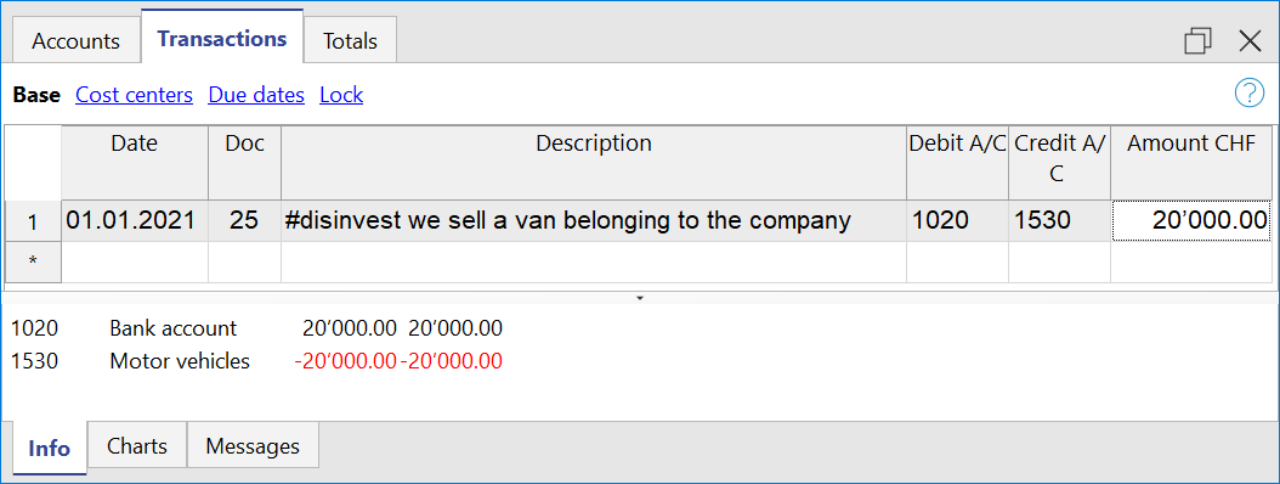
- Disinvestments (#disinvest)
- A disinvestment simply represents the sale of a fixed asset such as a vehicle or machinery. When recording a disinvestment.
- Debit Column: Insert the account where you will collect the money from the sale, such as the post or the bank.
- Credit Column: Insert a fixed asset account that relates to the item sold.
- Knowing the amount of disinvestments, the program is able to calculate in detail the real amount of investments that have been made during the year. For an SME, the number of disinvestments during the accounting period usually remains quite small, whereas investment activities are much more frequent operations, which is why it is very important to find the real amount net of all other movements.
- A disinvestment simply represents the sale of a fixed asset such as a vehicle or machinery. When recording a disinvestment.
- Revaluations of fixed assets (#revaluations)
- Revaluation of a fixed asset is the accounting process of increasing the carrying value of a company's fixed asset or group of fixed assets to account for any major changes in their fair market value.
- Debit Column: Enter the account of the fixed asset item you are revaluing to increase its value.
- Credit Colum: Enter an income account, if you don't have a particular one you can enter it as extraordinary income.
- Revaluation of a fixed asset is the accounting process of increasing the carrying value of a company's fixed asset or group of fixed assets to account for any major changes in their fair market value.
- Devaluations of fixed assets (#devaluations)
- It works in the same way as a revaluation, but instead of increasing the value of the fixed asset it decreases it, which means that the accounting entry is also reversed, i.e. the income becomes a cost.
- Debit Column: Enter a cost account, if you don't have a particular one you can enter it as extraordinary cost.
- Credit Colum: Enter the account of the fixed asset item you are revaluing to increase its value.
- It works in the same way as a revaluation, but instead of increasing the value of the fixed asset it decreases it, which means that the accounting entry is also reversed, i.e. the income becomes a cost.
- Dividends (#dividends)
- Dividends are fees paid to shareholders and usually depend on the profit made. The payment of a dividend must be recorded in a specific liability account, and should appear under short-term liabilities.
- Debit Column: Enter the reported balance sheet Profit / Loss carried forward account.
- Credit Colum: Enter the specific account for dividends.
- Dividends are fees paid to shareholders and usually depend on the profit made. The payment of a dividend must be recorded in a specific liability account, and should appear under short-term liabilities.
Cashflow Statement
Cash flow is divided into three main components:
- Operating cash flow which originates from the core business operations of a company.
- Cash flow for the company, which is the cash flow available to all investors in the company.
- Cash flow available to shareholders, which only considers the cash flows that are due to the shareholders, resulting from the net of all payments made and received, including from debt holders.
Adding up all the totals you find the amount that corresponds to the change in liquidity for the period, which in turn when added to the value of the liquidity at the opening of the period should give you the current liquidity balance.
If the results do not match, an error message is displayed.
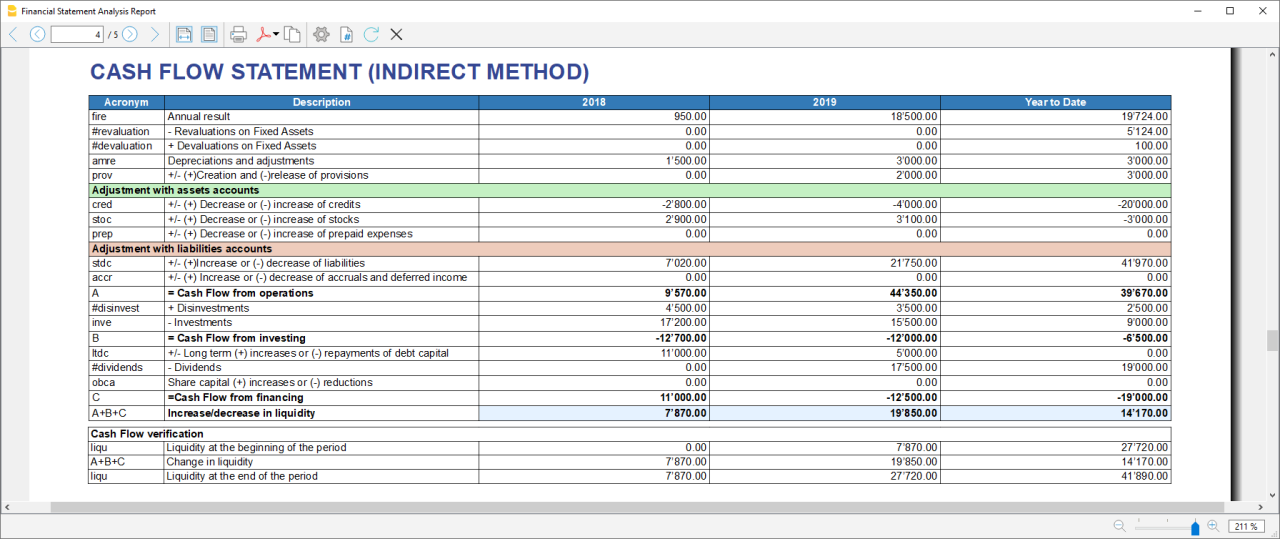
Acronym column
In the acronym column of the cashflow, the reference to the account taken into account in the calculation is entered, or in the case of special entries, the prefix of the entry, so that it is easy to see which item of the balance sheet or income statement a certain movement relates to.
Cash Flow verification
This table shows any differences between the change in cash flow calculated in the cashflow and the actual cash flow in the accounts, which in an optimal situation should match. If there is a difference in one of the years of analysis the amount in question is printed in red on a line below.
Usually, when an error occurs, the first thing to do is to check whether the amounts in the balance sheet and profit and loss statement are correct or whether there are differences between the assets and liabilities, for checking them, control sums are very useful because they immediately show whether there is a difference.
if you realise there is some error but you dont know exactly where, you can check the amounts by comparing the ones in the report with those in the chart of accounts.
The differences are generally due to an error when entering groups in the settings dialog, which can occur in two ways:
- One or more groups were not included
- One or more groups were entered under the wrong heading
In case the balance and profit and loss amounts are correct but the cashflow displays an error, is probably due to the fact that a group has been inserted in the wrong place.
Retained Earnings Statement
This table shows the movements made with the annual profit achieved. Starting from the reported annual profit it adds the profit for the period and adjusts the value by taking into account the payment of dividends and the creation or dissolution of reserves. The last two rows show the total undistributed profit, and the undistributed profit realised in the current year.

This information is somewhat supportive of Cash Flow but since earnings management does not directly affect cash, it is presented in a separate statement.
Record Transactions
It is useful to first record the transfer of the profit for the year from the profit and loss account to the profit shown in the balance sheet as shown in the example image.
In order to record the payment/discharge of reserves and the payment of dividends, it is sufficient to use the specific account of one of the above items and to decrease or increase the profit account shown in the balance sheet. The remaining amount (not allocated to reserves or dividends) then increases the retained earnings.

Cash Flow Ratios
In addition to the ratios already present, those ratios are added just below the Cashflow table and in the Charts
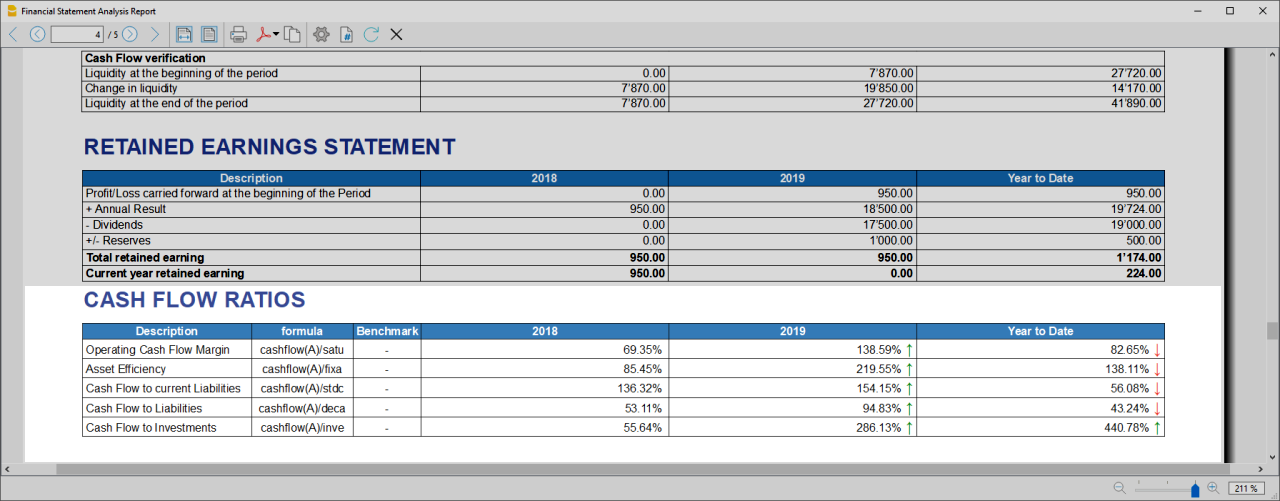
- Cashflow margin: Measures the amount of revenue a firm can convert into operating cash flow. When a firm is thriving, operating cash flow should grow alongside revenue. While profit margins measure a firm's pricing power; a declining cash flow margin also measures the health of customer and supplier relationships.
- Asset Efficiency Ratio: This is a basic ratio to show you how well the company uses its assets to generate cash flow. It’s best used to view the historical trend as well as to compare with competitors.
- Cashflow to current Liabilties: This ratio gives you an idea about the company’s debt management practices.It’s also a better indicator of the company’s ability to pay current liabilities than the current ratio or quick ratio
- Cashflow to Liabilities: Measures the amount of operating cash flow a firm generates on each dollar of total liabilities. Businesses that can't produce operating cash flow to pay off all their liabilities cannot continue to operate indefinitely, making this ratio an important indicator of liquidity as well as solvency
- Cashflow to Investments: Measures the amount a company outlays for capital assets for each dollar of cash dollar it generates from those investments.
Why Is Cash Flow Analysis Important?
Performing cash flow calculations in combination with constant monitoring of the company's cash flows is the winning formula for effective treasury management, and is useful for making the best use of available cash.
Thanks to the ability to generate cash flow and the financial solvency of the company, you gain confidence from banks and suppliers, as it symbolises a certain control over your business: the calculation of cash flow is in fact a way to detect the actual availability of the company, giving the possibility to face unexpected events or to plan consistently the future of projects.
For more information on Cashflow Analysis, please refer to the following page.
Balance Sheet and Profit and Loss Reclassification
Generate the Report by going to the Extensions menu→Cash Flow Statements and financial Ratios →Financial Reports.
The Report contains all the analysis data processed by the extension:
- Reclassified balance sheet
- Reclassified Profit and Loss Statement
- Control Sums table
Reclassified Balance Sheet
The reclassification of accounts allows for the display of a series of values, results and intermediate margins that contain more information than the traditional structure.
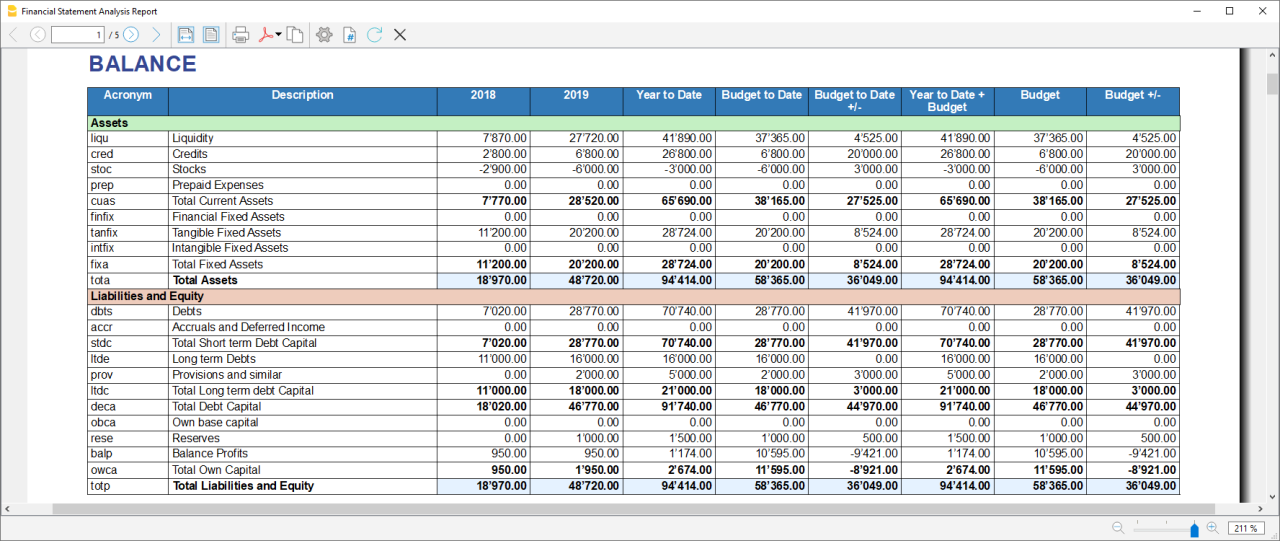
- Current Assets: All the assets of a company that are expected to be sold or used as a result of standard business operations over the next year.
- Fixed Assets: Items, such as property or equipment, a company plans to use over the long-term to help generate income.
- Total Assets: The sum of current assets and fixed assets.
- Debt Capital: Is the capital that a business raises by taking out a loan. It is a loan made to a company, typically as growth capital, and is normally repaid at some future date.
- Own Capital: It is the capital owned by the company.
- Total Liabilites and equity: The sum of Debt Capital and Own Capital.
Reclassified Profit and Loss Statement
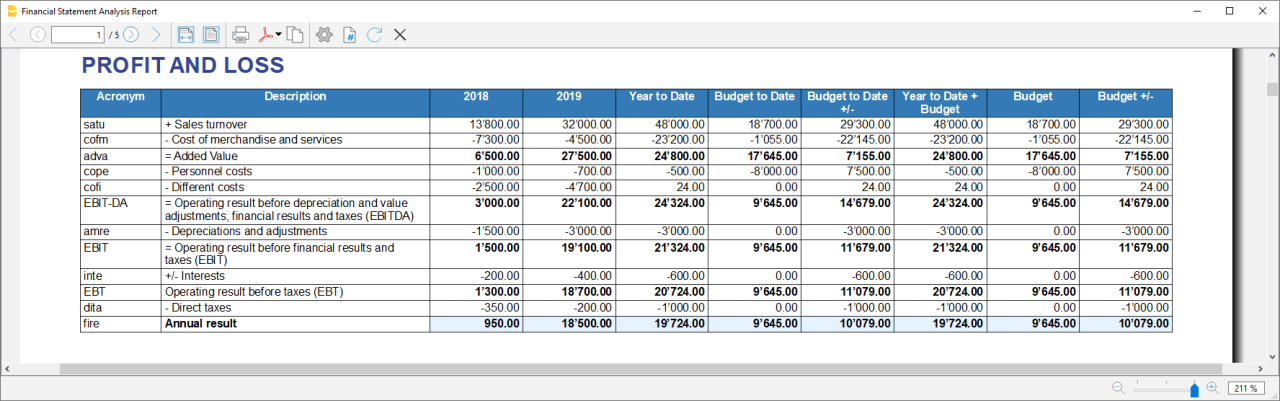
- Added value: The difference between operating costs and operating revenues incurred for resources outside the company, expresses the company's ability to create wealth and then remunerate the various production factors and stakeholders.
- MOL /EBITDA: "Earning Before Interests, Taxes, Depreciation and amortization" is obtained by subtracting from production revenues the costs of production (including internal costs such as personnel costs), without considering provisions and depreciation. As it does not contain economic items without monetary movement, its value assumes very important information for financial investors.
- EBIT :"Earning Before interests and Taxes", helps to understand whether the company is also able to cover the financial charges arising from its financial commitments.
Control Sums
Resumes the totals of the reclassified accounts (Assets, Liabilities and Equity , Annual Result). Checks that the sums calculated in the analysis match the totals in the accounting sheets and that Assets and Labilities and equity match.
- Accounting Total column: Represents the actual total in the accounts.
- Calculated Total column: Represents the total calculated by the program based on the groups entered.
- Difference column: Represents the difference found between the total in the accounts and the calculated total for each year. The value equal to 0, otherwise will be displayed an error message, which means that there may have been an error in entering the accounts/groups .In this case it is useful to check in the dialogue that you have entered the groups correctly.
Financial Ratios
Generate the Report by going to the Extensions menu→Cash Flow Statements and financial Ratios →Financial Reports.
The balance sheet ratios are formulas calculated on financial, economic and asset values. These ratios are derived from the income statement and balance sheet data. Balance sheet indices are important analysis tools that provide essential indications for the entrepreneur's activity.
It is widely used by all professionals who are interested in assessing the soundness of a company for their work.
In fact, banks use the balance sheet indexes to evaluate company loan applications.
the indexes are divided into four main types
- Liquidity ratios:
- Financing ratios
- Profitability ratios
- Efficiency ratios
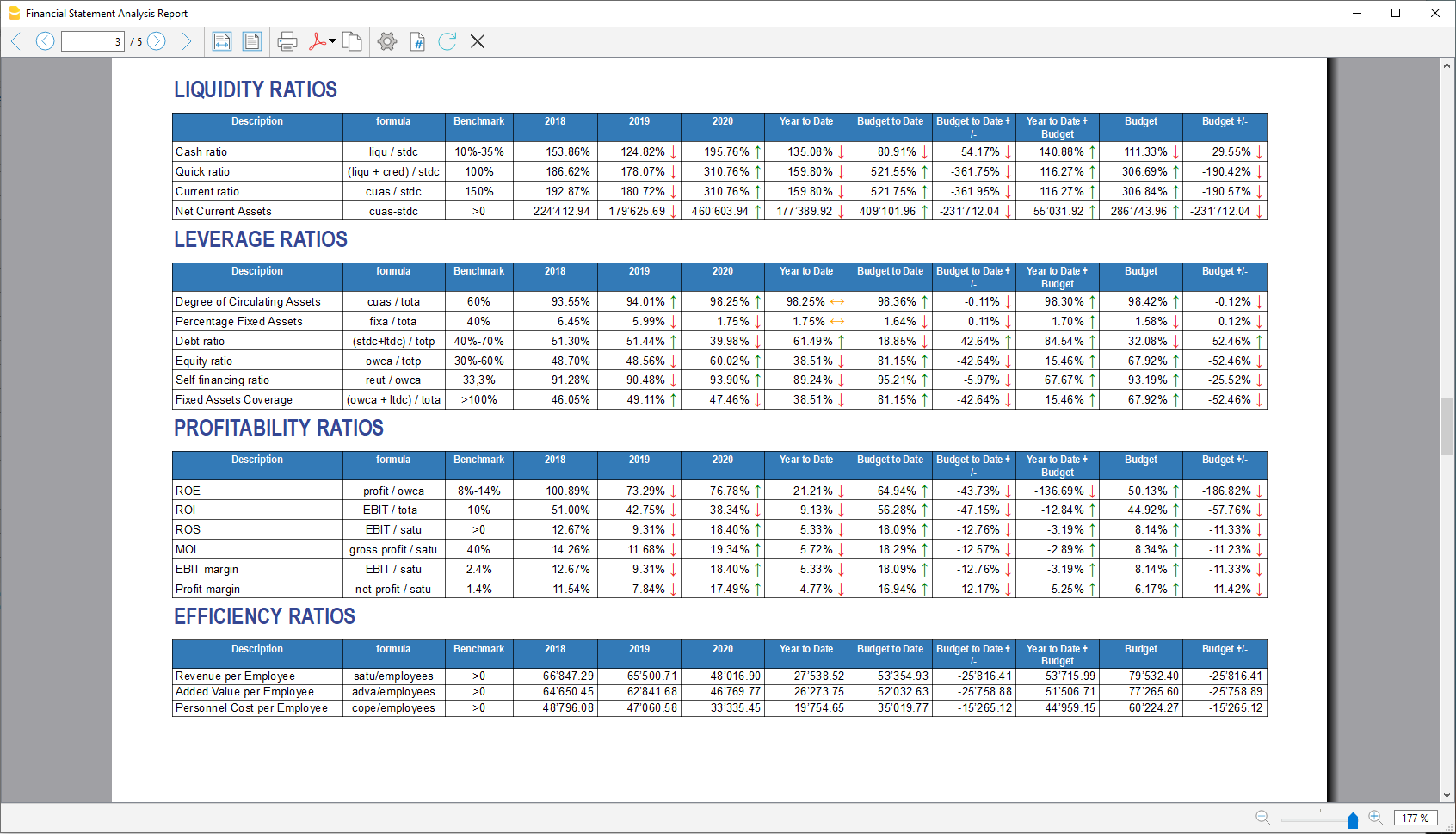
Liquidity ratios
An important class of financial metrics used to determine a debtor's ability to pay off current debt obligations without raising external capital. Liquidity ratios measure a company's ability to pay debt obligations and its margin of safety through the calculation of metrics.
- Cash ratio: Indicates the extent to which the company is able to repay its debts at the end of the term.
- Quick ratio: Indicates the extent to which the company is able to pay its debts when due.
- Current ratio: Indicates the extent to which the company is able to pay its short-term debts without touching fixed assets.
- Net Current Asset: Indicates the part of the current assets free of short-term commitments, which can therefore be used in the activity.
Financing ratios
They look at how much capital comes in the form of debt (loans) or assesses the ability of a company to meet its financial obligations.
- Degree of Circulating Assets: It allows us to understand whether there is a balance within the company's assets, a judgement can only be made if we have the average data for the same line of business.
- Percentage Fixed Assets: It is complementary to the previous one.
- Debt ratio: Indicates the extent to which the company has had to resort to external financing, the judgement depends very much on the branch of activity.
- Equity ratio: Is complementary to the previous one, equity ratio has the advantage of being less expensive.
- Self-Financing ratio: Indicates the extent to which the company has been able to accumulate undistributed profits.
- Fixed Asset coverage: The fixed assets must absolutely be financed from equity or possibly from long term capital, otherwise major repayment problems could occur.
Profitability ratios
Are useful to assess a business's ability to generate earnings relative to its revenue, operating costs, balance sheet assets, or shareholders' equity over time, using data from a specific point in time.
- Return on equity (ROE): By comparing the percentage obtained with the rates commonly applied for other investments, it is possible to understand whether the equity invested by the company gives a sufficient return or not.
- Return on investment (ROI): Identifies the return on invested capital. Basically it serves to understand how much the invested capital returns in terms of income.
- Gross Operating Margin (MOL) :Is a value that measures the profitability of a company. In other words, it measures the ability to make profit margins: Indicates the company's return on sales made.
- EBIT margin: Is the ratio of EBIT to turnover of a company. This ratio provides information on its profitability and helps to compare different companies and sectors.
- Profit margin: It represents what percentage of sales has turned into profits.
Efficiency ratios
Express the degree of efficiency of the company's factors of production, those chosen by us give us an indication of the relationship between the number of employees and the various margins of the profit and loss account. Efficiency indicators are related to profitability indicators, as higher productivity generates an improvement in profitability indicators.
- Revenue per Employee: An increase indicates greater efficiency of the company and a lowering of the break even point. Its increase is certainly an indicator of the good health of the company itself.
- Added Value per Employee: Gives evidence of efficiency in terms of cost reduction (e.g. economies of scale). If the revenue per capita index remains stable and the value added per capita index increases, this is evidence of cost efficiency.
- Personnel Cost per Employee: Highlights the trend in average personnel costs.
Within the tables and also visible the calculation formula of each index.
Dupont Analysis and Altman index Z-Score
Dupont Analysis
The Dupont model is a technique that can be used to analyse the profitability of a company using
traditional performance management tools. To enable this, the model integrates the elements of the Profit
and Loss Account and Balance Sheet.
Altman index Z-Score
The Z-Score is an index of the discriminating analysis used to determine the probability of bankruptcy of a
company within 2 years using statistical techniques.
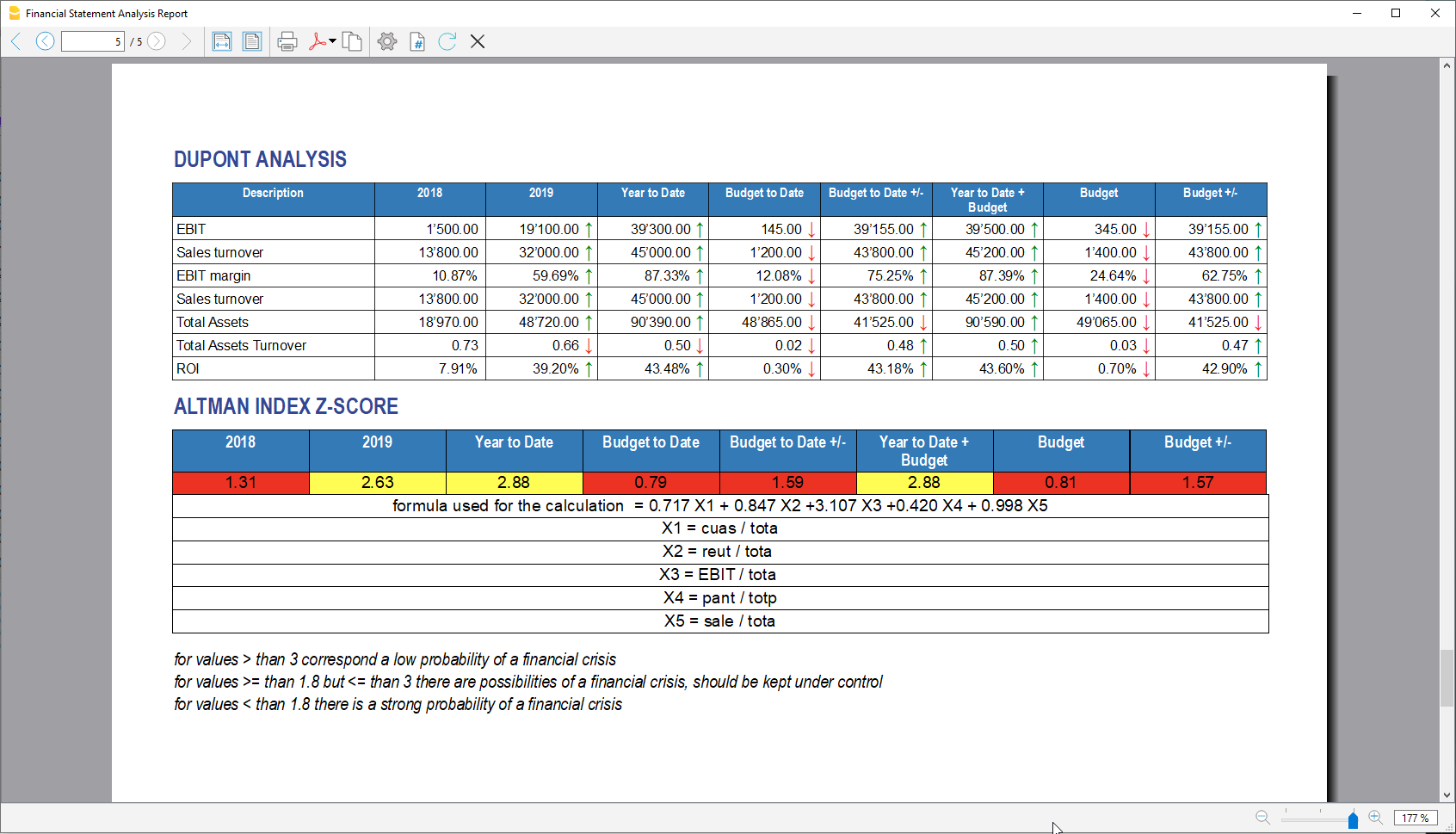
Financial Charts
It’s possible to access to the charts by going to the Extensions menu→Cash Flow Statements and financial Ratios →Financial Charts.
Charts allow you to read the same information as you can find in the report but in a clearer and more
intuitive way. Once the dialogue is open, you can move between the various elements thanks to a drop-down menu.
Ratios charts
- Financing ratios evolution
- Liquidity ratios evolution
- Profitability ratios evolution
- Efficiency ratios evolution
- Cashflow ratios evolution
These charts represent the evolution of the indexes over time. For each type of index there is a bar chart,
within which there is a section that represents the evolution over time of each index for each year included
in the analysis.
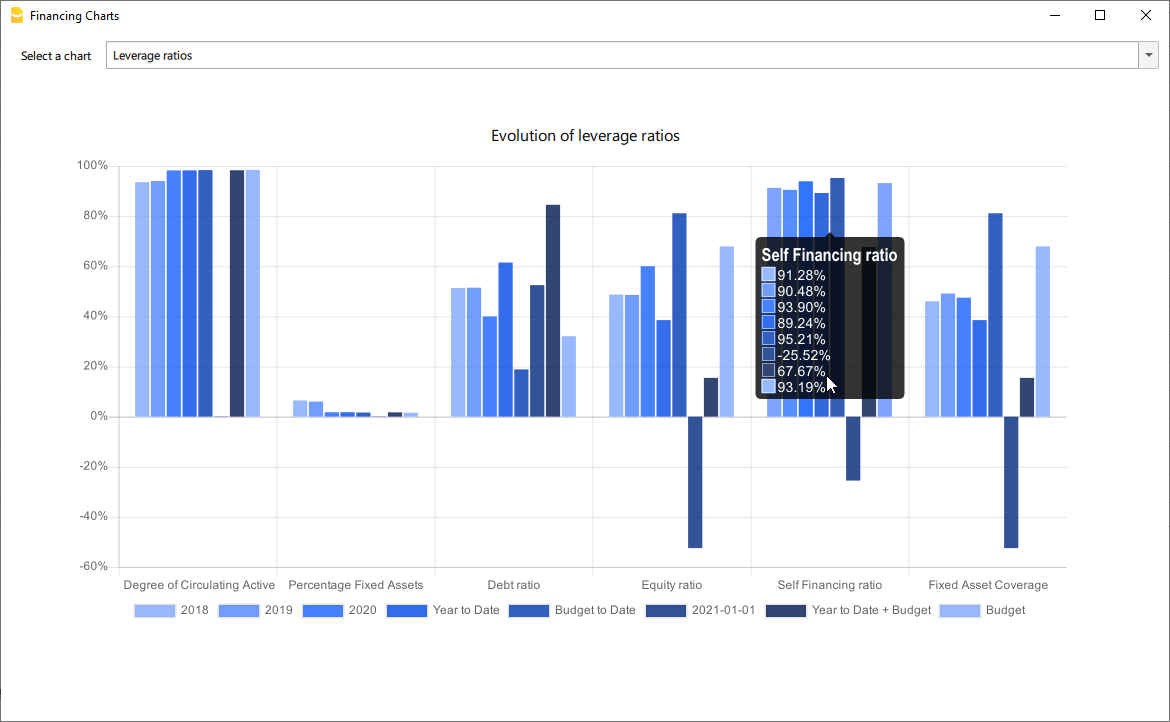
Reclassified Elements charts
- Reclassified asset variation
- Reclassified liabilities and equity variation
These charts show the time evolution of the reclassified assets, and reclassified liabilities, using stacked
chart. It is possible to see how and in what quantity the groups make up the total of assets and liabilities (in
percentage %)
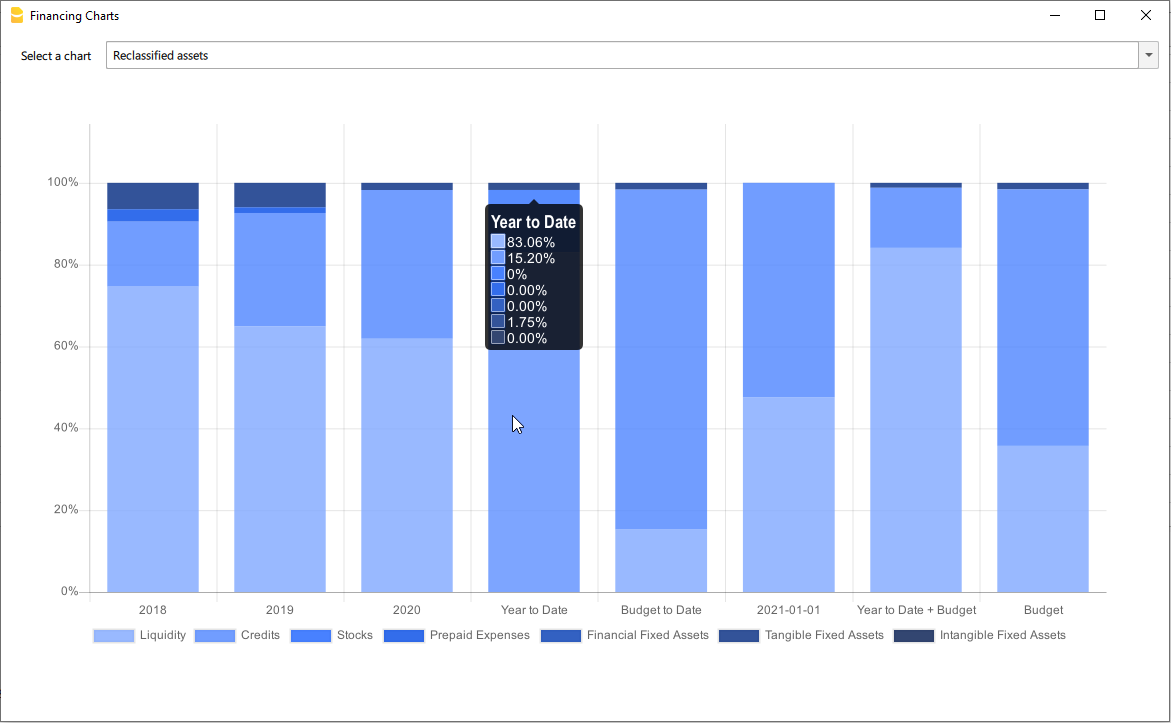
Reclassified profit and loss variation
Shows by using histogram the value of the intermediate totals (EBIT,EBIT-DA,..) of the reclassified profit and loss account ,and their evolution over the time.
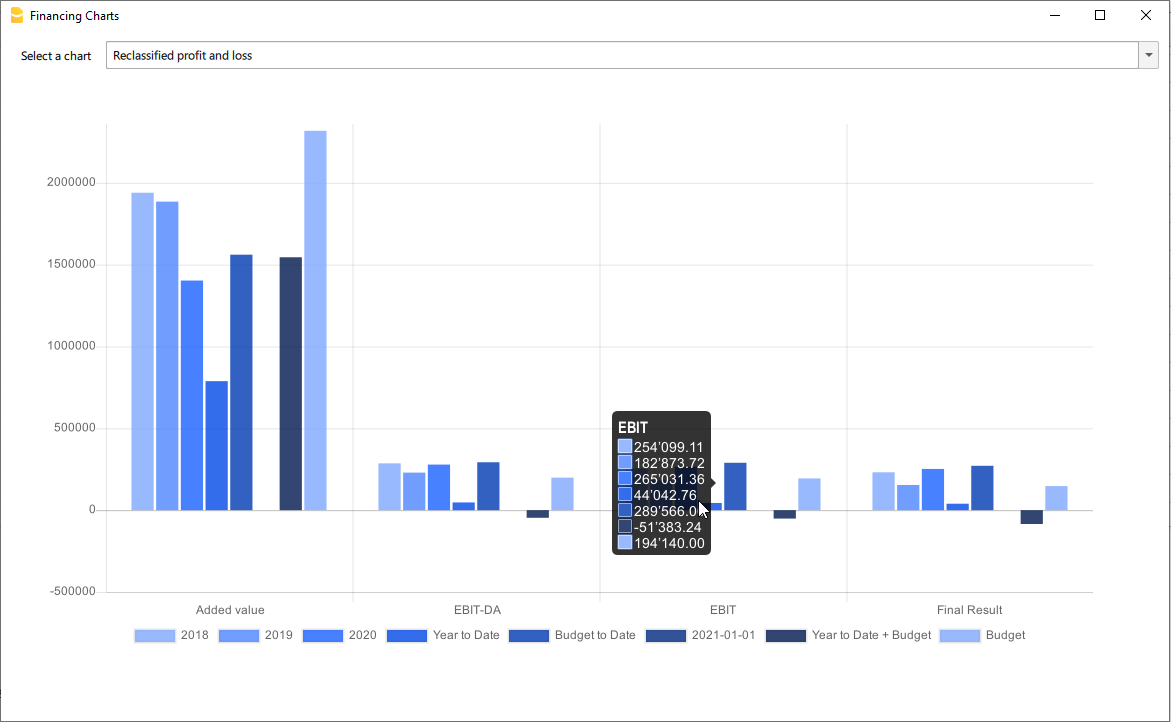
Airbnb, Booking.com, Vrbo and similiar hosting platform templates
Those who have an Airbnb rental business and are looking for a simple and efficient way to manage their finances will find the ideal solution in Banana Accounting Plus templates for several reasons.
With the templates, you can manage and track all expenses and income for all the rooms, apartments or houses you rent without any limits.
Moreover, you can manage the budget for your business in a flexible and personalized way. Whether you have multiple rooms, apartments or houses, you can keep track of specific income and expenses either collectively or divided for each individual rental unit. Additionally, you can set the budget according to irregular or regular deadlines such as monthly, quarterly, semi-annually or annually. This way, you can adapt the budget to your financial and business planning needs.
Through the budget feature in the templates, you can also make financial forecasts for your short-term rental business. You can gain a clear and detailed overview of your future income and plan ahead for all your activities.
Inventory management is another useful and powerful functionality offered by Banana Accounting Plus. You can keep track of all the items relevant to your business, categorizing them by room, apartment or rented house. This way, you will always be aware of what you own and easily manage the purchase or replacement of any necessary assets. With Banana Accounting Plus, you can create all the accounting files you need without limitations.
Regarding the management of income from hosting platforms such as Airbnb, Booking.com, Vrbo and others, the templates provide you with the option to record both the actual income deposited into your bank account and all other rental-related income, especially the commissions paid to the platforms. This information is crucial for tax purposes as it allows you to comply with the rules of the country where you operate your business.
For those who have an Airbnb business and are looking for a simple and efficient way to manage their finances, Banana Accounting Plus templates provide the ideal solution for other several reasons too.
Available templates
There are two templates available for short-term rental hosts on Airbnb, Booking.com, Vrbo or similar platforms.
The completely free template is suitable for those without accounting knowledge who want to manage the finances of their business. The second template is designed for those with double-entry accounting knowledge and who manage a business using multiple assets and possibly different currencies:
- Free template based on Banana Accounting Plus Cash Manager.
- Double-entry and multi-currency template.
All the functionalities and features described in the free template are also included in the double-entry multi-currency template.
In each template, you can easily view some sample accounting entries.
Manage Airbnb reservations
With Banana Accounting Plus templates, you have complete control over your reservations even before they are paid. This allows you to keep track of all bookings in your file, ensuring you are always up to date on availability and key dates. You can input reservations into the system and monitor them, making planning and management of your rental properties easier.
In addition to managing reservations, the templates also allow you to record payment receipts and income. This is particularly useful for monitoring and ensuring compliance with maximum nights allowed regulations in your country. You will have an accurate record of guest stays and corresponding income, providing clear and transparent documentation for regulatory compliance purposes.
Manage Airbnb Experiences
Banana Accounting Plus templates also enables you to manage and track Airbnb experience reservations. If you offer unique experiences such as sailing trips, mountain bike tours, tastings or others, you can record these specific bookings and efficiently monitor them. You will have a comprehensive overview of your Airbnb experience activities, including booking details and corresponding income.
With Banana Accounting Plus templates you simplify the financial management of your Airbnb rental business. You can take advantage of all the features offered and gain a clear and organized view of your finances.
Manage Airbnb business budget and financial forecasts
The Budget table in all Banana Accounting Plus files provides a comprehensive tool for creating your business budget and forecasting future financials.
This feature, always accessible through the Tools > Add/Remove functionalities menu, allows you to generate cash flow statements, liquidity plans and investment plans.
For more advanced needs, you can create budgets using formulas and automatic calculations. Additionally, you can obtain monthly, quarterly and annual financial forecasts as well as projections for multiple years.
Explore the full documentation on budget management and financial forecasting with Banana Accounting Plus.
Manage inventory along with their corresponding receipts
On all files, Banana Accounting Plus allows the display of the Link column in the Transactions table, enabling you to attach supporting documents to each accounting entry.
If needed, there are other predefined columns that you can easily show in your accounting file.
Additionally, with Banana, you can add your custom columns, additional tables, and link them to existing ones. Refer to the documentation on enabling the display of predefined columns and adding columns and new tables to your file.
The ability to add new tables and create custom columns also allows you to integrate the inventory of items in the rooms and apartments you rent into your file and attach relevant documentation, which can be useful, for example, for warranty or insurance purposes.
If you prefer you can create a dedicated new file to create and manage the inventory of your rooms and rented apartments. With all Banana Accounting Plus subscription plans, there are no limits on the number of files you can create and manage.
Handle the accounting recording of the fees you pay to platforms
Using a spreadsheet like Excel or Google Sheets doesn't always allow for proper management of income received from platforms such as Airbnb, Booking.com, Vrbo or similar ones. Often, the income received in your bank account does not include the commissions you need to pay to the platforms.
These platforms deduct the commissions before making payments, but there are countries where you are required to declare the gross income for tax purposes, including the deducted commissions.
With Banana Accounting Plus you can record the gross income you receive, ensuring that everything is accurately accounted for and that your bank balance always matches the actual balance in your account.
Check the example entries in the provided templates pages to see how this accounting record is done.
Free Airbnb template for income and expenses management: ideal also for Booking.com and Vrbo
Free Airbnb template for income and expenses management: ideal also for Booking.com and VrboManage your accommodation on Airbnb, Booking.com, Vrbo or the platforms you use with this free template and keep track of your finances easily and efficiently.
The Banana Accounting Plus template is superior to an Excel spreadsheet or a Google Sheet but avoids potential errors and time loss due to formula management. This way, you have a completely free accounting management template specifically designed for hosts.
With Banana Accounting Plus, unlike Excel or Google spreadsheets, there are no limits on the number of rooms, apartments or houses you can manage, and it allows you to easily track income and expenses for each individual rental property and your entire short-term rental business.

With this template, you can record and monitor all your income and expenses quickly and easily, providing you with a clear and detailed snapshot of your finances and how to optimize expenses. The accounting management template on Banana Accounting Plus offers a simple and effective way to organize and analyze all the financial data that is important for hosts.
Here are some of the key features and benefits of the free accounting management template:
- Easy to use: the template is designed to be intuitive and user-friendly, even for those who are not accounting experts. No technical skills or in-depth knowledge of Excel spreadsheets are required to use it. Banana Accounting also has extensive online documentation in multiple languages readily available.
- Startup budget: create, manage and update the budget of your startup to generate detailed and useful reports and forecasts for the success of the business.
- Income tracking: record all income generated from bookings, including payments from platforms, booking fees and reimbursement of cleaning expenses for rooms, apartments or houses, with all the necessary tracking details.
- Expense management: keep track of all expenses associated with your properties, such as utilities, cleaning, maintenance and supplies. Choose the level of detail you prefer for each expense associated with your rental properties. Add, edit, group and customize expenses you want to monitor without limitations.
- Track rental property information: easily track guest names, rented room, apartment or house, check-in and check-out dates, total nights stayed, number of guests per booking, the source of guests' bookings and payment dates from platforms.
- Automatic calculations: the template performs calculations automatically for you, without the potential errors of Excel or Google Sheet formulas, providing a clear overview of your cash flow, profits and expenses for your entire business or for a single room, apartment or house you manage.
- Detailed reports: generate comprehensive and professional financial reports, including profit and expense statements, balance sheets and more. These reports will help you make informed decisions and have detailed control over your finances.
- Manage hosting platform Experiences: easily and quickly manage the Experiences you offer on Airbnb, Vrbo or other similar platform.
- Customizable: the template can be easily customized to fit your specific needs. You can add custom categories, modify, group and personalize all the details you want to monitor according to your preferences.
- Privacy: it's important to note that the data entered into Banana Accounting is not used for commercial purposes. Your information remains confidential, offline and is not repurposed in any way.
This free template for income and expense accounting management for hosts managing their short-term rental properties simplifies the management of your finances, saves you valuable time, and provides you with a clear and comprehensive overview of your income and expenses professionally.
Banana Accounting is a highly versatile and customizable accounting software that can be used for broader accounting purposes beyond managing hosts on Airbnb, Booking.com, Vrbo and other hosting platforms.
Totally free
This template is based on the Cash Manager feature of Banana Accounting Plus, which can be used for free and without limitations with the free subscription plan.
Create and save the file
You can open and save your new file to start either through Banana Accounting Plus Web or by downloading and installing the software on your computer:
- Download and install Banana Accounting Plus.
- Click on File > New.
- Select Cash Manager.
- Search for the Category Business.
- Select the template "Income and expenses management template for Airbnb or similar platforms".
- Click on Create.
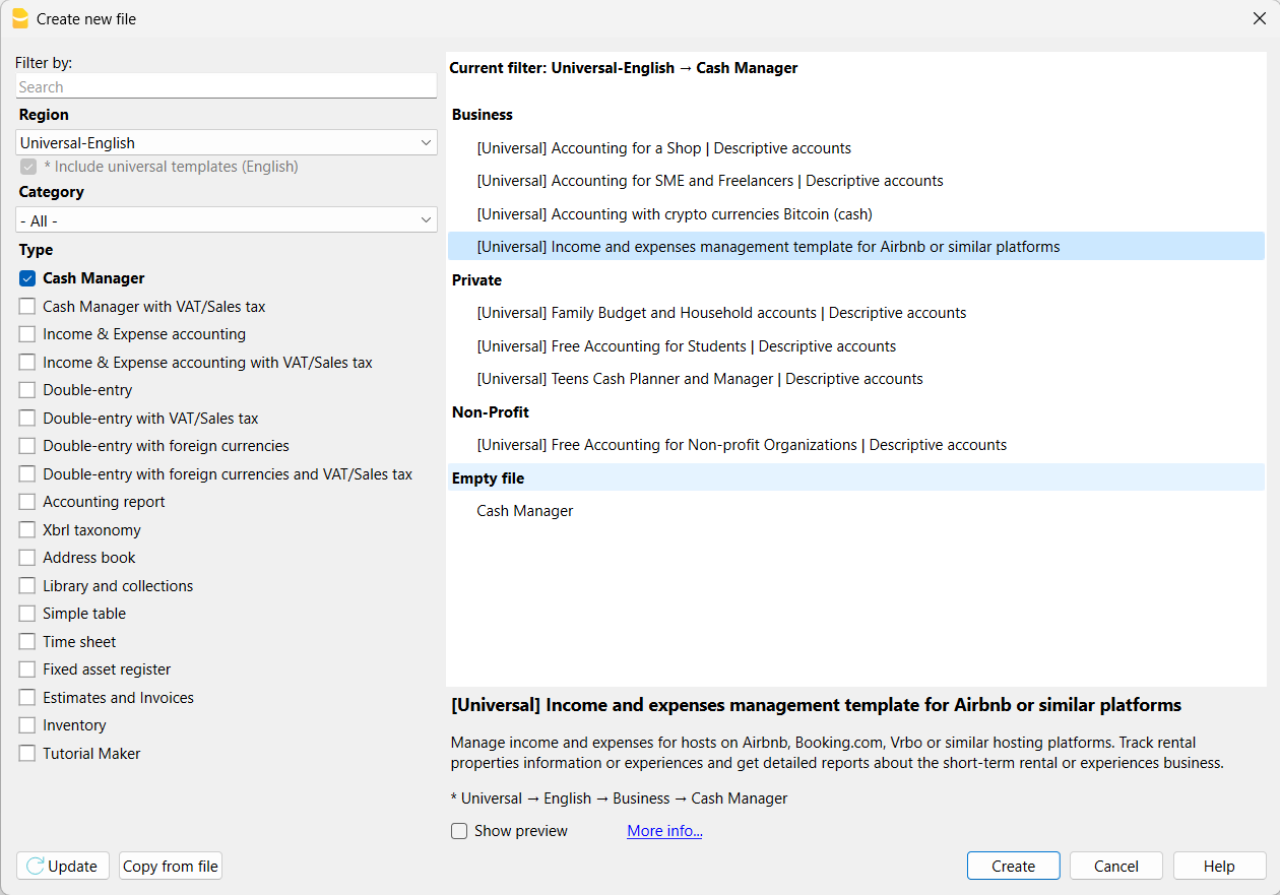
If you click on the text "More info...", you will be directed to this specific documentation page for the template. On this page, you can always find the tutorial file including sample records.
Using the command File > File Properties, set your references, the accounting period with opening, closing dates and the base currency. In the Address section, fill in the fields for the entity managing the rental properties. If necessary, change the base currency of the accounting file in the Accounting section.
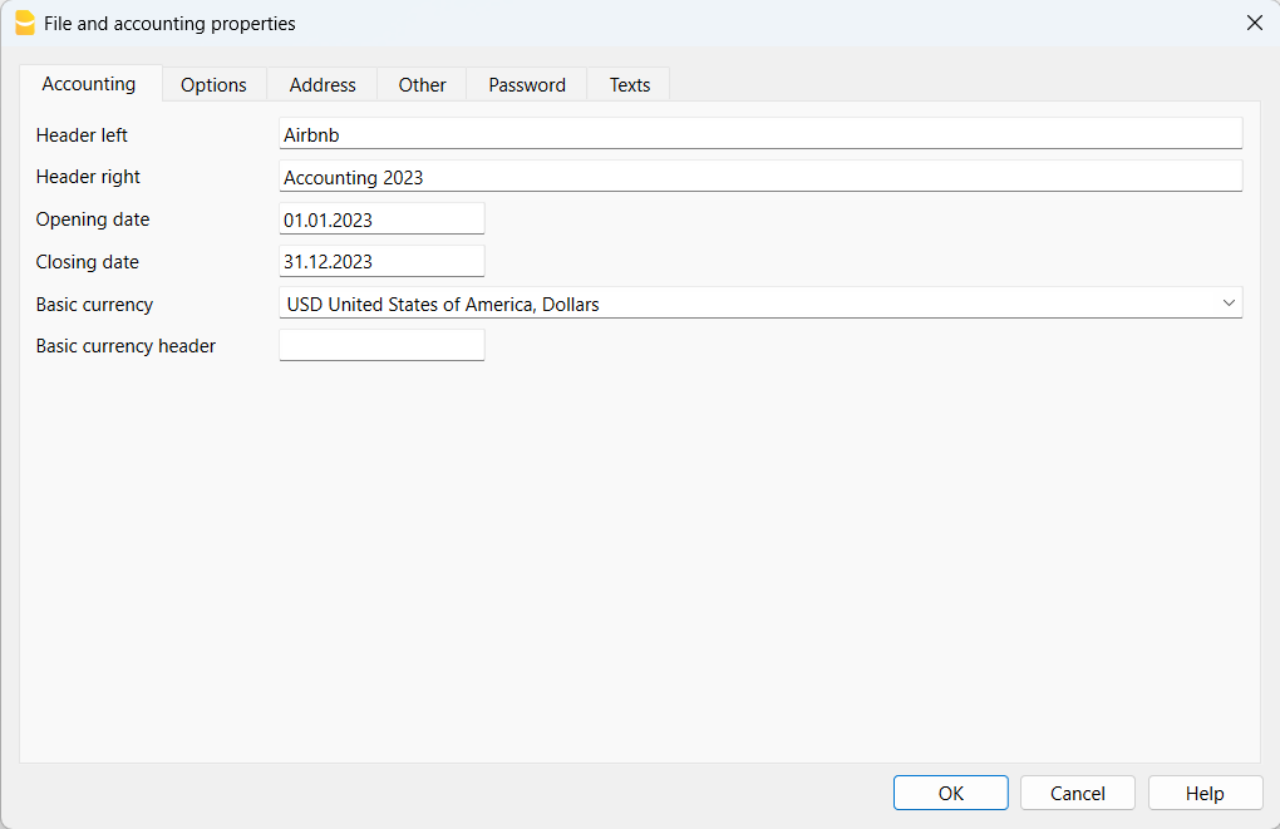
With the command File > Save As, save the file. It is useful to include the name of your business and the year in the file name. For example, "BusinessName-2023.ac2".
Also, refer to the article on organizing accounting files locally, on a network, and in the cloud.
Banana Accounting Plus Web Access
When you have downloaded and saved your new accounting file to open and use it from the web, you can bookmark the following link to access Banana Accounting Plus Web. However, it is recommended to download and install Banana Accounting Plus on the computers where it is needed, because Banana Accounting Plus Web does not yet have all the features available.
Create the budget
With Banana Accounting Plus, you can easily create a startup budget for your new short-term rental business on Airbnb, Booking.com, Vrbo and other platforms, and forecast all the costs you'll need to deal with. Consult all the relevant documentation on how to create a budget with Banana Accounting for detailed information.
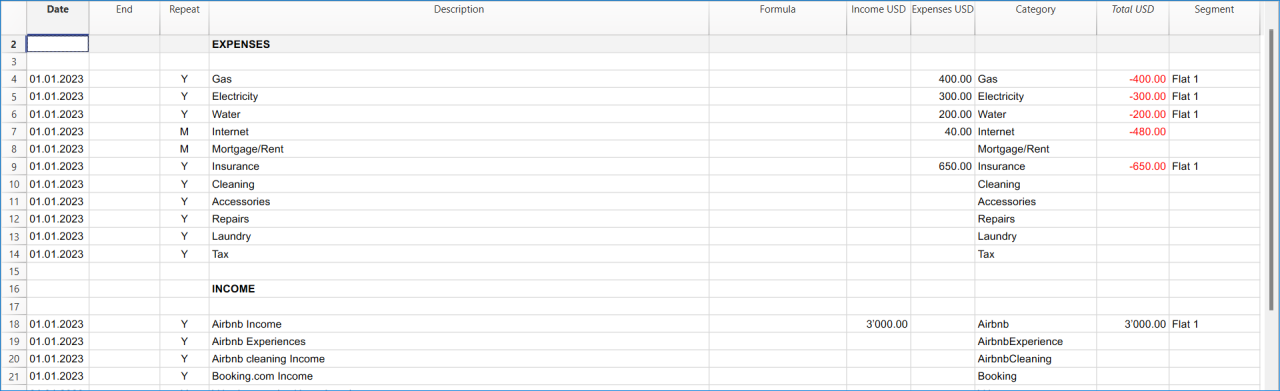
Customize and categorize expenses
If you prefer, you can group similar costs into categories and maintain the detail for each type of expense:
- Properties costs: mortgage payments, repairs and insurance coverage.
- Initial setup expenses: spending on furniture and household utensils.
- Bills: electricity, gas and water expenses.
- Supplies: expenses for items like linens, toiletries and cleaning products.
- Business expenses: costs related to accounting, software and taxes.
- Other costs: payments for cleaners, laundry services and ads.
See how you can easily create accounts groups.
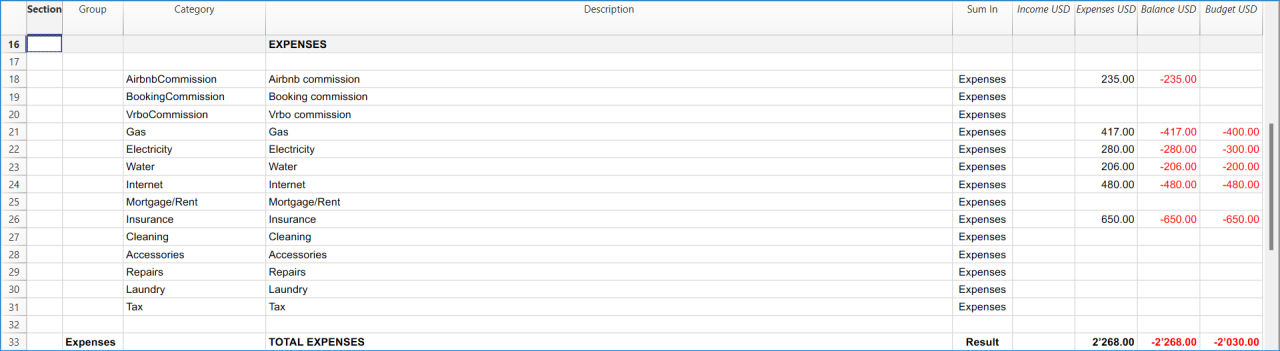
Recording transactions
In the Transactions table, record all transactions in chronological order, including debtor payments and invoice payments, as well as other types of transactions. The recordings can always be sorted and viewed instantly. You can highlight rows, correct any mistakes and copy and paste previously entered transactions.
To expedite data entry, we suggest using the various features of Banana:
- The auto-completion data entry feature automatically retrieves previously entered data.
- The recurring transactions feature (in the Actions menu) allows you to store frequently recurring transactions in a dedicated table.
- You can import data from bank statements, automatically capturing all bank transactions.
- You can link each recording to its corresponding digital document, and with a simple click, you can view the document. Refer to accounting files and digital documents for better document organization.
- Use the sort recordings command to arrange rows in chronological order.
- Use the print/preview command to print or export the journal in PDF format.
Bank transactions import
You can import bank statements, eliminating the need for manual entry.
Additionally, with the Advanced plan, it also allows for easy management of rules to automate accounting according to your specified criteria. This significantly reduces the effort required for accounting management, resulting in unmatched time savings.
Print financial statements or accounting reports
To view and print the financial statements at any time, click on the Report menu > Enhanced financial statements with groups. You can customize them or have an accounting report for a specific period.
Obtain detailed and customizable reports on all expenses and revenues of your business with Airbnb. You can compare them with the budget to always keep track of the performance of your startup.
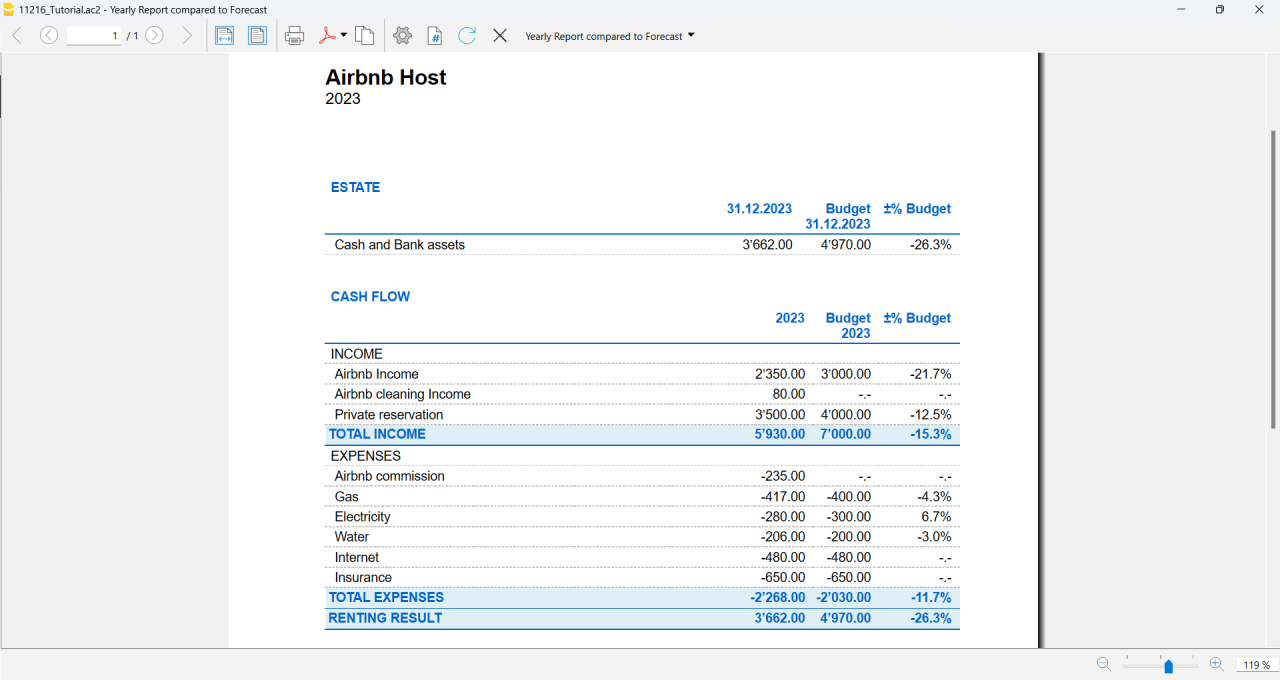
If you manage multiple rooms, apartments or rental properties, you can keep track of expenses and revenues allocated to each individual property you rent. You can also create room-specific budgets and compare the results with the actual expenses and earnings whenever you want.
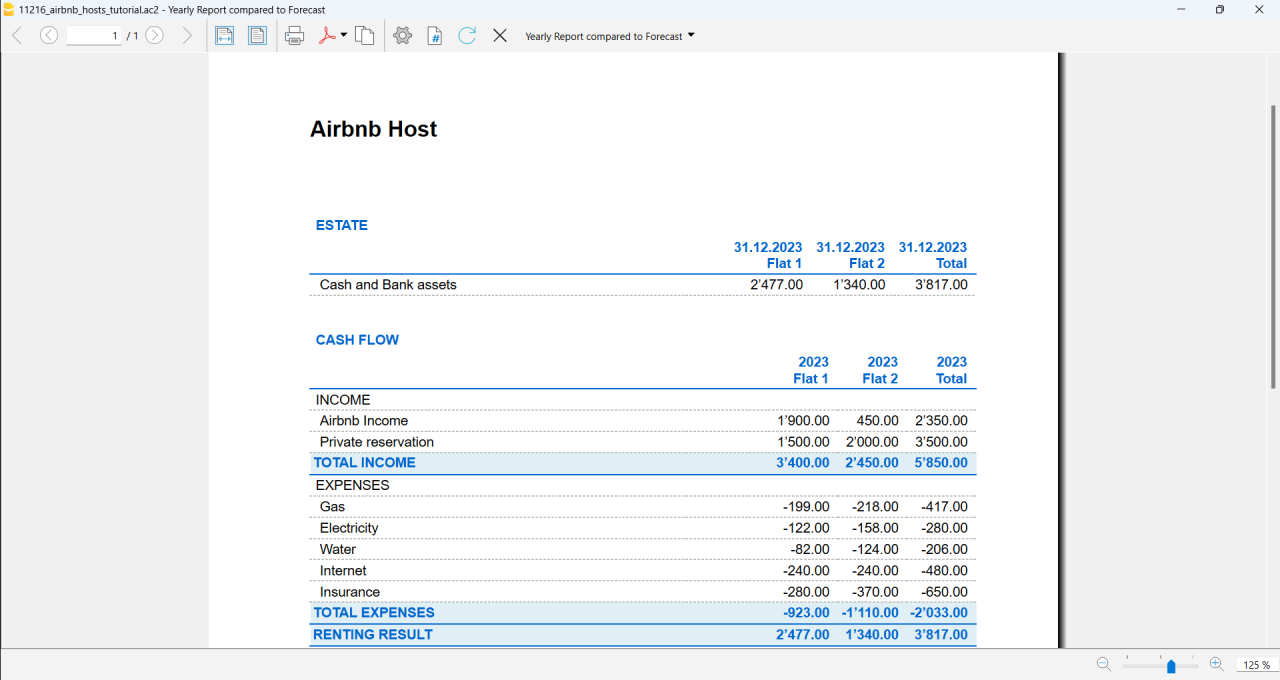
Advanced management
If you want, you can manage your Airbnb business in an advanced and optimized way through the rental management view called Manage Rentals. This allows you to keep track of all the necessary information about the reservations you receive. For those who offer Airbnb Experiences, there is the experiences management view, called Manage Experiences, available to track guest bookings related to experiences.
Navigate between the various available views to keep all the relevant data under control.
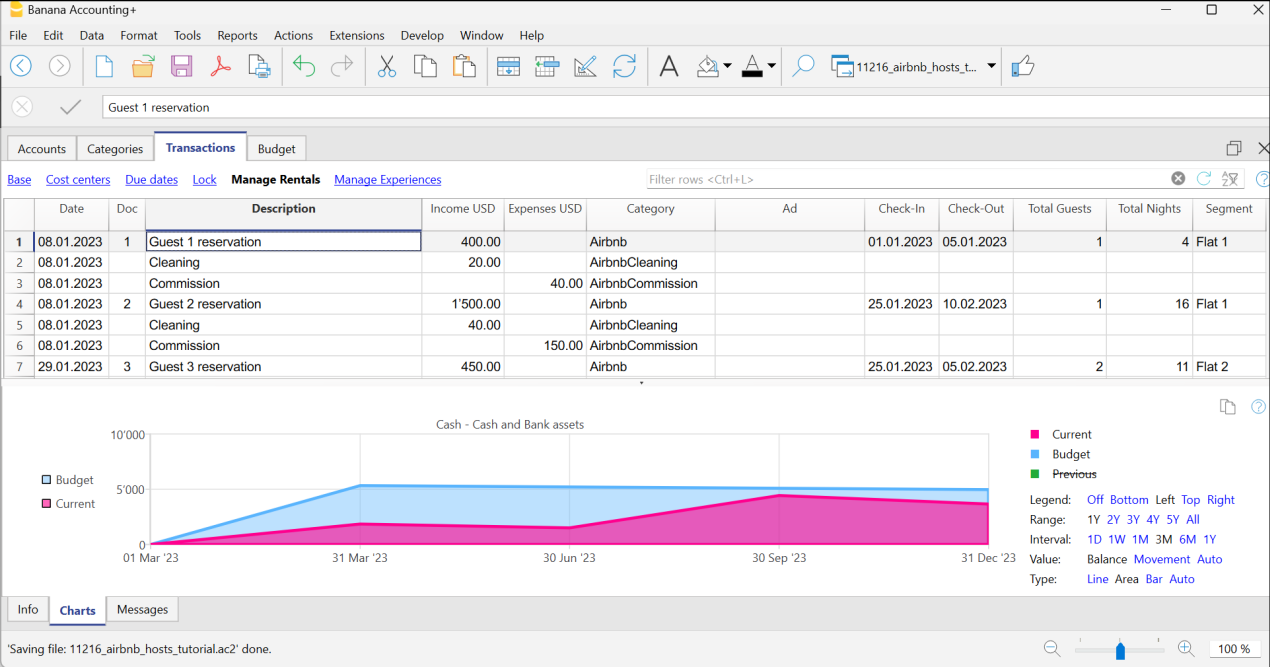
Questions or specific requests
Do you have any questions or specific requests regarding this template for Airbnb hosts or other short-term rental platforms? Please e-mail us.
Sample records for managing income and expenses for Airbnb hosts or other hosting platforms
Here are the sample accounting records for this template.
Recording an Airbnb or other platform revenue transaction
Record revenue from online platforms such as Airbnb, where you receive booking fees, with the preferred breakdown of the collected amounts and platform commissions. If you want, keep track of the ad from which the guest made the reservation, the check-in and check-out dates, the number of guests for the booking, the booked nights, the room or flat rented and the date of payment from the online platform.
To print the receipt to be given to the guest upon arrival, enter the receipt number in the Doc column and use the designated printer extension. You can also attach the receipt to the corresponding revenue record using the Link column.

Recording an expense for your short-term rental business
Record the expenses you incur for your Airbnb business by indicating the date of the expense, a description of the purchase, the amount incurred, the expense category, and the room or flat associated with your monetary outflow. You can always attach your receipts using the Link column.

Airbnb template for multi-currency accounting management
Airbnb template for multi-currency accounting managementThis template is useful for comprehensive and efficient accounting management for Airbnb hosts who need a system that supports double-entry bookkeeping and handles multiple currencies. Banana Accounting Plus provides a wide range of features to track the income and expenses of your short-term rental business.
Banana Accounting Plus is an advanced accounting software that is superior to Excel, yet it is simpler and more cutting-edge, catering to the common needs of Airbnb hosts. The accounting template has been specifically designed to offer a comprehensive and customizable solution for the financial management of your Airbnb properties. It allows you to track expenses, record income, monitor cash flow and much more.
The key features of this accounting template for Airbnb include:
- Asset Management: this template encompasses all the features of the free template for Airbnb, Booking.com, Vrbo and similar hosting platforms and provides an advanced solution for those with greater needs. It allows you to manage unlimited assets compared to the free template.
- Double-Entry Bookkeeping: the template adheres to the fundamental accounting principle of double-entry bookkeeping, ensuring the accuracy and correctness of your financial records.
- Multi-Currency Management: if you manage Airbnb properties using different currencies, Banana Accounting enables you to record and track income and expenses in different currencies, simplifying international financial management.
- Advanced Reporting: the software offers the ability to generate detailed reports on your finances, including profit and loss statements, account statements, balance sheets and detailed budgets. These reports provide you with a comprehensive overview of the performance of your Airbnb properties.
- User-Friendly: the software is designed to be user-friendly, even for those new to double-entry bookkeeping or without extensive accounting experience. The accounting template is intuitive, and the extensive available online documentation guides you step-by-step in managing your finances.
Banana Accounting Plus is intuitive, easy to use and simplifies your accounting management for Airbnb.
Example of a multi-currency income transaction for hosts
Here's how to use the multi-currency feature of Banana Accounting Plus:
- Set the desired currency exchange rate through the Exchange Rates table.
- Perform the accounting entry by entering date, description, bank of the currency received, income account, amount in the currency received and specify the currency received. Banana Accounting Plus will automatically calculate the amount in the main currency used for managing your Airbnb accounting.

Image of the Exchange Rates table

Image of the Transactions table where to record the income received from Airbnb or similar platform.
Accounting templates with crypto currencies
Accounting with crypto currencies Bitcoin (cash)
Accounting with crypto currencies Bitcoin (cash) tizianaIncome & Expense Accounting with crypto currencies Bitcoin
Income & Expense Accounting with crypto currencies Bitcoin tizianaDouble-Entry Accounting with crypto currencies Bitcoin
Double-Entry Accounting with crypto currencies Bitcoin tizianaDouble-Entry Accounting for digital currencies Bitcoin and Ethereum (Base Currency ETH)
Double-Entry Accounting for digital currencies Bitcoin and Ethereum (Base Currency ETH) tizianaDouble-Entry Accounting for digital currencies Bitcoin and Ethereum (Base currency USD)
Double-Entry Accounting for digital currencies Bitcoin and Ethereum (Base currency USD) tizianaEssential Expense Manager PDF report with embedded receipts
Essential Expense Manager PDF report with embedded receiptsImproving how employee expenses are managed is crucial for all businesses.
Whether employees are traveling for work or working from home, keeping track of their expenses and making sure they get reimbursed correctly has become a complex task.
Banana Accounting expense manager functionality to create a PDF dossier is essential and cost-effective for the majority of small and medium-sized businesses. It helps track expenses, improves transparency and makes it smoother for employees to interact with the company's accounting department.
All in one PDF report with embedded receipts
Banana Accounting create a PDF report with embedded receipts. The PDF file includes everything is necessary for reporting, approval and reimbursement.
- The list of expenses with all information necessary and the link to receipt.
- The report of the categorized expenses, for accounting purposes.
- The scanned receipt's files.
PDF file can embed other files. If you don't know just open this example PDF file and click on the link (look the link icons on the left in the image below), so that the receipt document will directly open (some browser don't show the files, better use Adobe Acrobat Reader that is free to use).
Totally free for up to 70 expense entries
The Banana Accounting template is designed to benefit companies of all sizes. The expense manager template is a software entirely free for up to 70 expense entries, making it a very accessible solution.
How to start
Using this Banana Accounting functionality allows you to obtain your PDF dossier with expenses categorized and embedded in a simple and immediate way:
- Install Banana Accounting
- Open the template file and save to a directory, where you also scan your documents.
- Scan your receipts or invoices (Banana Accounting does not perform the scanning).
- Enter the incurred expenses in the Transaction table and add a Link to the scanned receipt file.
- With File menu > Create Pdf Dossier create the PDF report (check the Include attachments).
- Transmit the file for reimbursement.
Now you'll be ready to send your PDF dossier by email to the accounting department, for approval and reimbursement.
This workflow is essential and cost-effective for the majority of small and medium-sized businesses.
Add the payment methods used by employees
If you wish, you can manage the payment methods used for expenses through the CC3 column.
To enable it, double-click on the column headers in the Transactions table. In the window that opens, on the left, enable the display of the Cc3 column and confirm with the Ok button.
Manage the different payment methods from the Categories table by adding the accounting accounts with a semicolon in front. You can add as many payment methods as you prefer.
Add the quantity columns to manage travel kilometers
To manage travel expenses based on the distance traveled, it could be useful to enable the display of columns related to quantities.
To enable them, double-click on the column headers in the Transactions table. In the window that opens, on the left, enable the display of the columns Quantity, ReferenceUnit, UnitPrice, and confirm with the Ok button.
Remember to enter Unit Price in the Transactions table with a negative sign.
Additional features of the Essential Expense Manager
Easy Expense Logging: the core of this tool is a user-friendly interface. Employees can quickly record their expenses by entering the date, category, amount and payment method. This reduces mistakes and ensures accurate data entry.
Digital Receipts: instead of using paper receipts, the software lets employees attach digital copies of receipts. This prevents losing receipts and keeps expense records secure.
Detailed PDF Reports: the software is great at creating comprehensive expense reports. These reports include all embedded receipts in a single PDF file, which can be easily shared with accountants through email. The reports break down expenses, categories and receipts, promoting transparency.
Customizable Categories: the software lets administrators customize expense categories to fit the company's needs. This ensures that expenses are organized in a way that matches the company's reporting and analysis requirements.
Easy Access: the expense manager can be shared through email, which is helpful for remote employees or those who often travel for work.
Data Privacy: it's important to note that the data entered into Banana Accounting is not used for commercial purposes. Your information remains confidential, offline and is not repurposed in any way.
WooCommerce Products Export-Import [BETA]
WooCommerce Products Export-Import [BETA]WooCommerce extension description
This extension for importing and exporting products sold on WooCommerce online shop simplifies and optimizes the integration between your online store and Banana Accounting software.
The extension either allows the export of products already listed in your inventory from Banana Accounting to your WooCommerce online store, or may become an intuitive and efficient solution to easily allow you to import products directly from your online store into Banana Accounting.
Banana Accounting is superior to Excel, allowing you to swiftly edit product details at any time and it guarantees that the information remains aligned to your online store on WooCommerce.
The Banana Accounting extension offers you the opportunity to export product data already present in your Banana Accounting inventory in a format already prepared for import into WooCommerce. This streamlines the input and/or management of products in your online store, enabling you to maintain coherence and consistency between the two platforms and to begin selling online more seamlessly.
As it is crucial to manage product information accurately and effortlessly in your online store and inventory, this extension allows you to do so in a simple and secure manner. With the export file obtained from the WooCommerce platform, you can easily create your inventory in Banana Accounting or update existing products directly in Banana Accounting to align them with those present on your online store.
Both functions eliminate the need for lengthy and complex manual procedures and reduce the risk of transcription errors, ensuring data accuracy and efficiency.
This solution is suitable for those who want to manage the inventory in a simple way, exporting or importing to WooCommerce whenever they desire. It is not suitable for those looking for a cloud solution that automatically synchronizes warehouse management with WooCommerce.
Banana Accounting key features
Easy: the Banana Accounting software is easy to use and every file can be shared through email, which is helpful for a easy support too.
Privacy: it's important to note that the data entered into Banana Accounting is not used for commercial purposes. Your information remains confidential, offline and is not repurposed in any way.
Beta version
This extension is published in BETA version. We recommend creating a backup copy of the inventory file. Having regular file backups is always useful in any context. This WooCommerce extension require a subscription to Banana Accounting Plus Advanced version.
Primary Key Used
The Id column from Banana's Items table will be exported and used as the primary key for import and it must contain the product's SKU reference of WooCommerce online shop.
Those who already have a warehouse in Banana Accounting can replace the codes in the Id column using the Rename function from Banana's Data menu. This function will automatically replace the Id value even in the Transactions table.
Create/Update products from WooCommerce
The Create/Update products from WooCommerce function will create the products exported from WooCommerce (CSV file format) in the Items table of the inventory in Banana Accounting if they do not exist. If products with the same Id value already exist, it will update the values in the Description, Quantity begin and Unit Price columns in the Items table with the information present in the exported file from WooCommerce.
Export products for WooCommerce
The Export products for WooCommerce function will export data from the Id, Description, Quantity balance and Unit Price columns in the Items table into a CSV file format, ready to be imported into WooCommerce.
Asociaciones y ONG sin ánimo de lucro (Universal)
Modelos Universal Noprofit
Free Excel Standard INPAS Template
[This page is currently being updated]
INPAS key accounting documents
This page is dedicated to the chart of accounts template that conforms to the INPAS standard. The INPAS standard is designed to improve the transparency and accuracy of nonprofit associations' financial statements. It is also possible to download a complete Excel template that facilitates the compilation of all the documents required to comply with the standard.
The chart of accounts has been designed and interpreted based on the INPAS drafts and may require adjustments once the final guidance is published in 2025.
The compliance of the accounting with the INPAS standard always depends on the accountant and the auditor working on the accounts.
Updates may be possible following the final publication of INPAS in 2025.
Statement of Financial Position
The balance sheet is an essential document that provides a detailed view of your organization's financial health, clearly showing assets, liabilities and net worth. Because of the flexibility of the INPAS standard, you can present the financial statements either vertically or horizontally, tailoring them to the specific needs of your nonprofit.
This document can be generated easily using Banana Accounting+ template.
Statement of Income and Expenses
This document shows your organization's income and expenses during a period. Proper management of the income statement is crucial to demonstrate how resources were used to achieve missionary goals.
This document can be generated easily using Banana Accounting+ template.
Statement of Changes in Net Assets
This document is critical to understanding the changes that have occurred in net assets during the fiscal year. The INPAS standard provides a sequence of elements that transparently reflects the changes, making clear the impact of financial activities on the organization's assets.
Statement of Cash Flows
The cash flow statement, which shows cash flows, is essential for monitoring your organization's liquidity and ability to fund its activities. With our INPAS template, you can present this information in a clear and accessible way, improving transparency to donors and board members.
Explanatory notes
Explanatory notes offer crucial details to fully understand the numbers presented in other accounting documents. They provide a clear description of adopted accounting policies and significant changes, contributing to a deeper and more accurate analysis of the institution's financial position.
Excel template to download
To facilitate the accounting management of associations, a complete Excel template can be downloaded to provide all the necessary documents according to the INPAS standard. In fact, this versatile and easy-to-use tool also allows you to create the Statement of Changes in Net Assets, Statement of Cash flows and Explanatory notes, completing the documentation with the Balance Sheet and Statement of Income and Expenses you can easily obtaine through Banana Accounting+.
Download the INPAS Excel Template
Statement of Financial Position
This document can be generated easily using Banana Accounting+ template. Here is what the statement of financial position must contain.
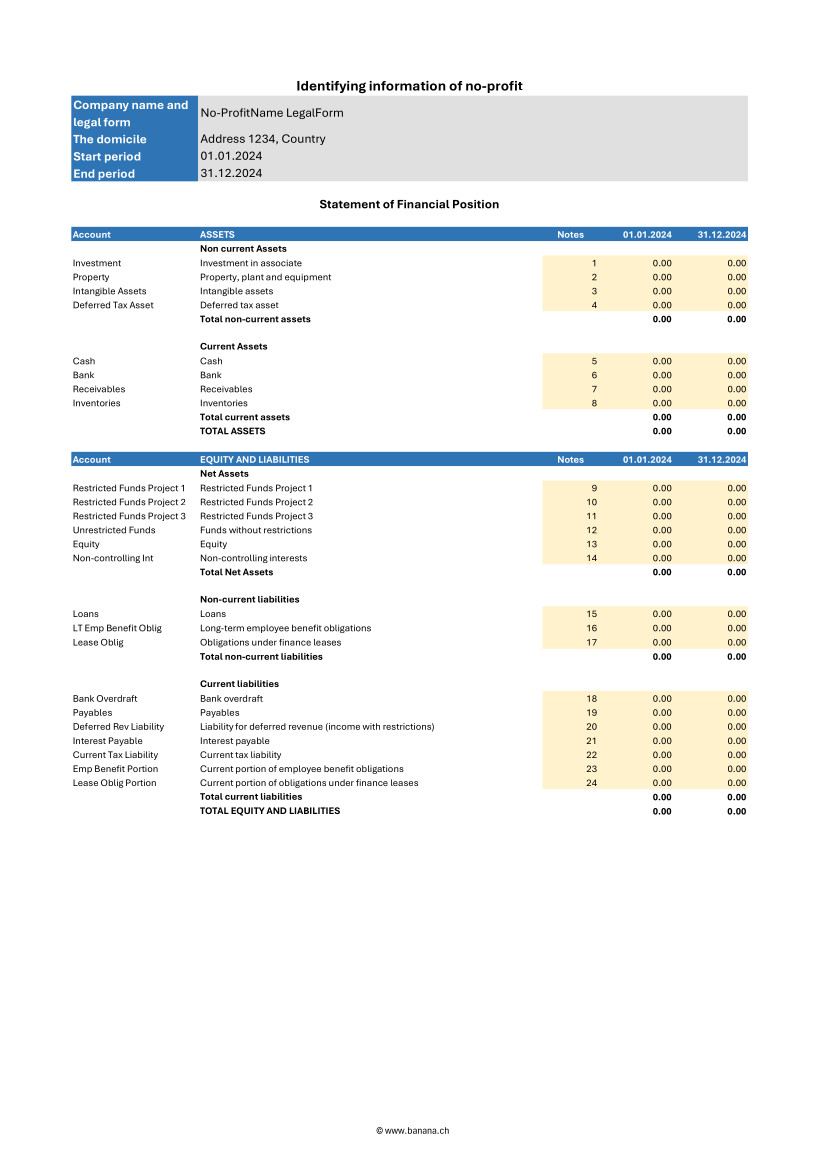
Current and non-current assets
Assets should be distinguished into current and non-current. Current assets are those that are expected to be converted to cash or used within one year. They include accounts such as cash and cash equivalents, short-term receivables, and inventories. Non-current assets, on the other hand, are those that are expected to be held for periods longer than one year and may include tangible assets, intangible assets, and long-term investments.
Current and non-current liabilities
Liabilities must also be classified into current and noncurrent. Current liabilities are payables and obligations that are expected to be settled within one year, such as accounts payable, accrued expenses, and other short-term liabilities. Non-current liabilities represent long-term commitments that the organization does not expect to settle within the next year, such as long-term debts and mortgages.
Shareholders' Net Assets
Net Assets represents the difference between the organization's total assets and total liabilities. In financial statements according to the INPAS standard, net assets should be divided into three main categories:
- Unrestricted funds: resources available for general use and not subject to specific restrictions. These funds may be used at the discretion of the organization to fund any activity or operational need.
- Restricted funds:
- Temporarily restricted funds: resources subject to restrictions imposed by donors or temporary conditions. These funds may be used only for specific purposes and for a specified period, after which, if conditions are met, they may be reclassified as unrestricted funds.
- Permanently restricted funds: resources that must be kept intact indefinitely, often to ensure a continuous source of income for the organization. These funds are typically associated with permanently restricted donations.
Statement of Income and Expenses
This document can be generated easily using Banana Accounting+ template. Here is what the statement of activities must contain.
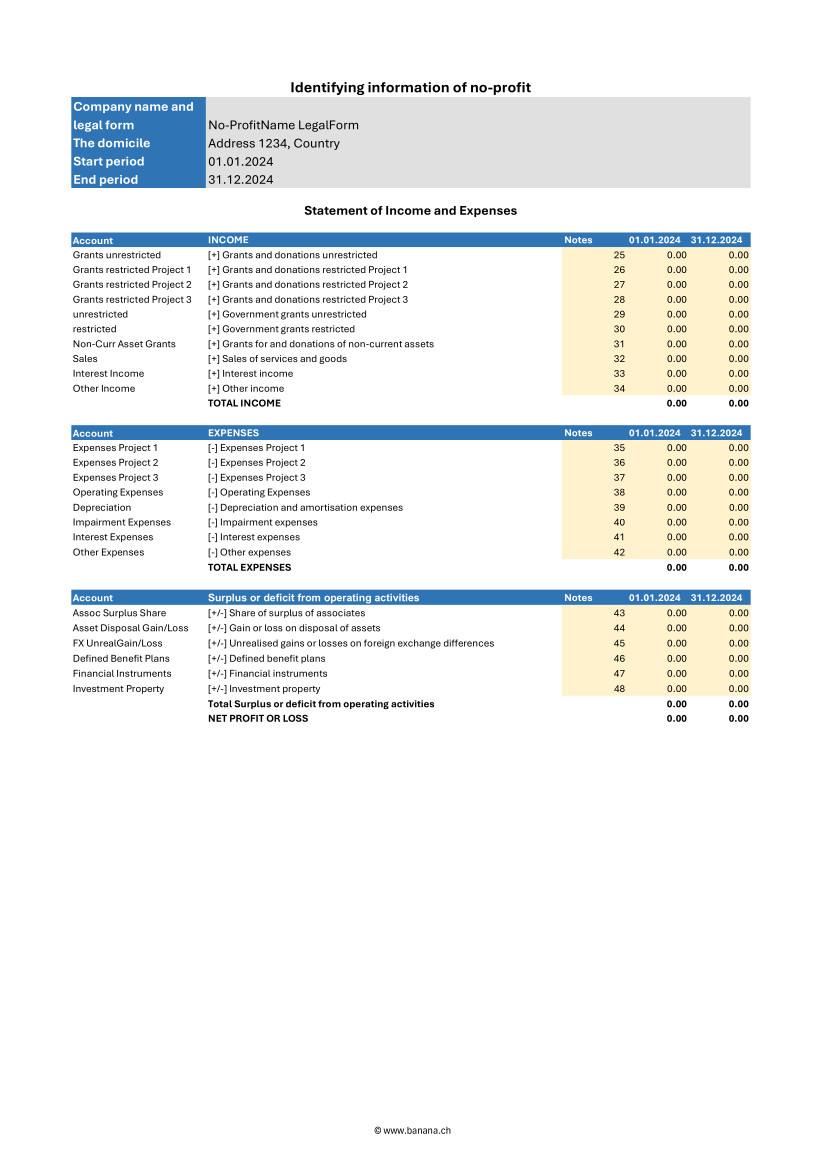
Revenue
Income should be divided between restricted and unrestricted to reflect donor or regulatory restrictions. This distinction is crucial to understanding the organization's flexibility in the use of funds received.
- Restricted income: funds earmarked for specific purposes, such as particular projects or specific periods. These funds may come from donations, grants, or funding with donor-imposed conditions limiting their use.
- Unrestricted income: funds that can be used at the discretion of the organization for any operational need. These include general donations, proceeds from nonspecific fundraising events, and other income that has no special restrictions.
Expenses
Expenses should be broken down into major categories to give a clear view of how resources are allocated. This breakdown helps to better understand the organization's priorities and efficiency in managing funds.
- Programmatic expenses: costs directly associated with the implementation of the organization's core programs and activities. These include salaries of operational staff, costs of materials and equipment used in projects, and other expenses directly related to the organization's missions.
- Fundraising expenses: costs incurred for fundraising activities, including events, marketing campaigns, and salaries of dedicated fundraising staff. This category highlights the investment made to secure future financial resources.
- Administrative expenses: general costs of running and administering the organization. These include administrative staff salaries, office rent, consulting fees, and other overhead costs necessary for the day-to-day operation of the organization.
Changes in shareholders' Net Assets
The income and expenses statement should report changes in net worth during the reporting period, broken down by fund category:
- Unrestricted funds: changes resulting from the use or appropriation of unrestricted revenues and non-programmatic expenditures.
- Restricted funds:
- Temporarily restricted funds: changes due to the use of restricted funds according to donor-imposed conditions and their eventual transfer to unrestricted funds once conditions are met.
- Permanently restricted funds: changes related to new permanently restricted gifts or changes in the investment policies of permanent assets.
Statement of Changes in Net Assets
Here is what the statement of changes in net assets must contain.
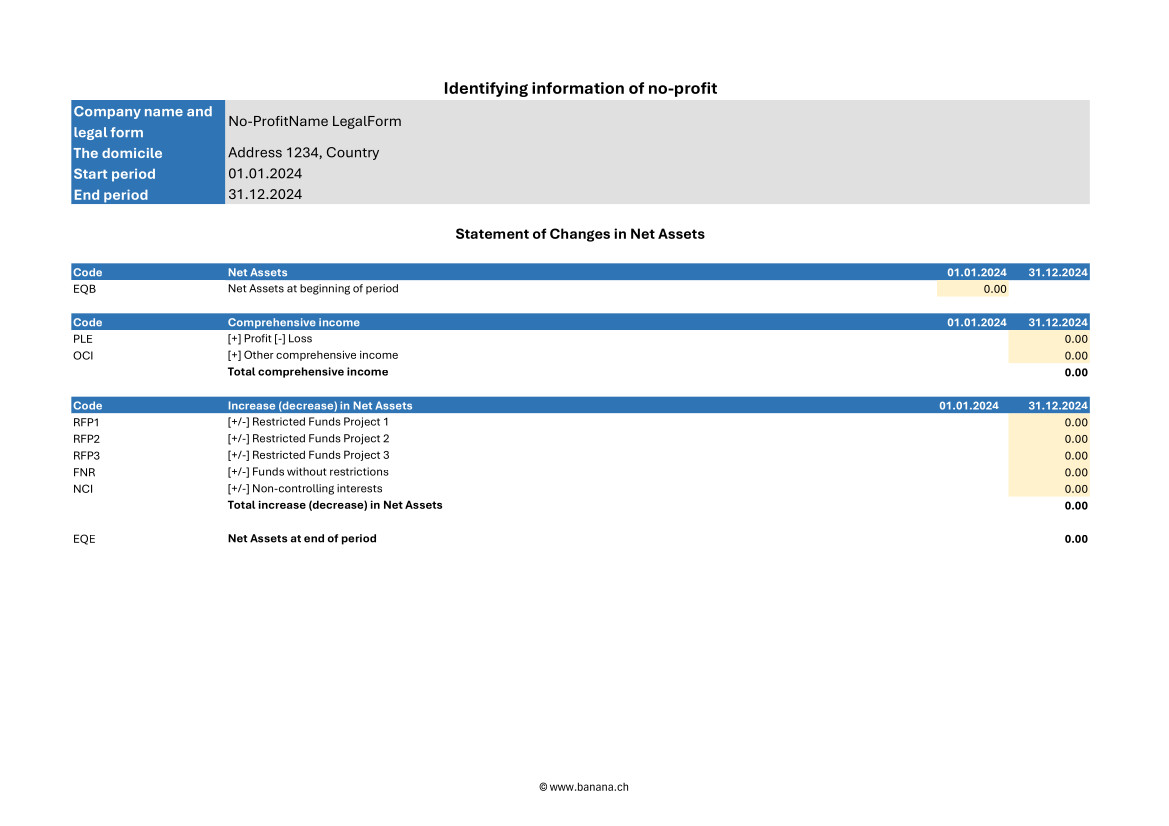
Changes in shareholders' Net Assets by period
The statement should report all changes in net assets broken down by period, clearly showing increases and decreases in the various funds.
- Increases in net assets: these may result from new donations, contributions, grants received, or other sources of income. Each increase should be specified in terms of restricted and unrestricted funds to highlight restrictions on the use of funds.
- Decreases in net assets: decreases may result from the use of funds to cover programmatic, fundraising, and administrative expenses. Again, it is important to specify whether the decreases involve restricted or unrestricted funds.
Details on contributions, donations and other sources of funding
The statement should include a detailed description of all funding sources received during the period, broken down by type and restriction.
- Contributions and donations: specify donations received, indicating whether they are restricted or unrestricted, and describe any conditions or restrictions imposed by donors.
- Grants and funding: detail grants obtained, including conditions of use and periods of application.
- Other income: include any other sources of funding, such as income from fundraising activities, investment income, or income from ancillary activities, detailing any applicable restrictions.
Use of funds under restrictions
The statement should clearly show how funds have been used according to donor or regulatory restrictions, ensuring transparency and compliance.
- Restricted funds:
- Temporarily restricted funds: describe how these funds were used for specific projects or programs, and whether any restrictions were met, allowing the funds to be reclassified as unrestricted.
- Permanently restricted funds: highlight the use of income generated by these funds to support the organization's activities, keeping the principal capital intact according to the conditions set by the donors.
- Unrestricted funds: indicate how these funds have been allocated for general operating expenses and other needs without specific restrictions.
Mandatory elements of the statement of changes in Net Assets
- Beginning balances
- The beginning balances of each component of net assets at the beginning of the accounting period must be reported.
- Example: share capital, reserves, retained earnings.
- Changes for each component
- Detail all changes for each component of net assets during the accounting period.
- These changes may include:
- Profits or losses for the year.
- Increases in capital stock.
- Reductions in capital stock.
- Dividend distributions (if applicable).
- Contributions and distributions from owners
- If applicable, indicate contributions made by owners and distributions made to owners.
- Reserves
- Any changes in reserves, such as legal reserves, extraordinary reserves, revaluation reserves, etc.
- Ending balance
- Report the ending balances of each component of net assets at the end of the accounting period.
Steps to implement the statement of changes in Net Assets
- Identification of the components of shareholders' Net Assets
- Determine all components of net assets that should be reported in the statement, such as share capital, reserves, and retained earnings.
- Collection of initial data
- Collect the beginning balances of all components of net assets from the last closed financial statements.
- Recording of changes
- Record all changes that have occurred during the accounting period, such as capital increases, recorded gains or losses, dividend distributions, and other changes in reserves.
- Calculating ending balances
- Calculate the ending balances of each component of net assets taking into account the changes recorded.
- Preparation of schedule
- Compile the statement of changes in net worth with all the information collected, making sure that the totals are correct and that all changes are adequately explained.
Statement of changes in funds
The Statement of Changes in Funds is a crucial accounting document that illustrates the changes in an organization's funds during an accounting period. According to the INPAG standard, the Statement of Changes in Funds must include a detailed set of information to ensure transparency and accuracy in reporting.
Here are the required elements of the statement of changes in funds.
- Initial balances of funds
- The initial balances of each fund at the beginning of the accounting period must be reported.
- Revenue by fund
- Detail the income received for each fund during the accounting period.
- Expenditures by fund
- Detail the expenditures made for each fund during the accounting period.
- Transfers between funds
- Information on any transfers of resources between different funds.
- Ending fund balances
- Indication of the ending balance of each fund at the end of the accounting period.
- Variations in funds with restrictions
- Specific details on changes in time-restricted or donor-restricted funds.
Statement of Cash Flows
Here is what the cash flow statement must contain.
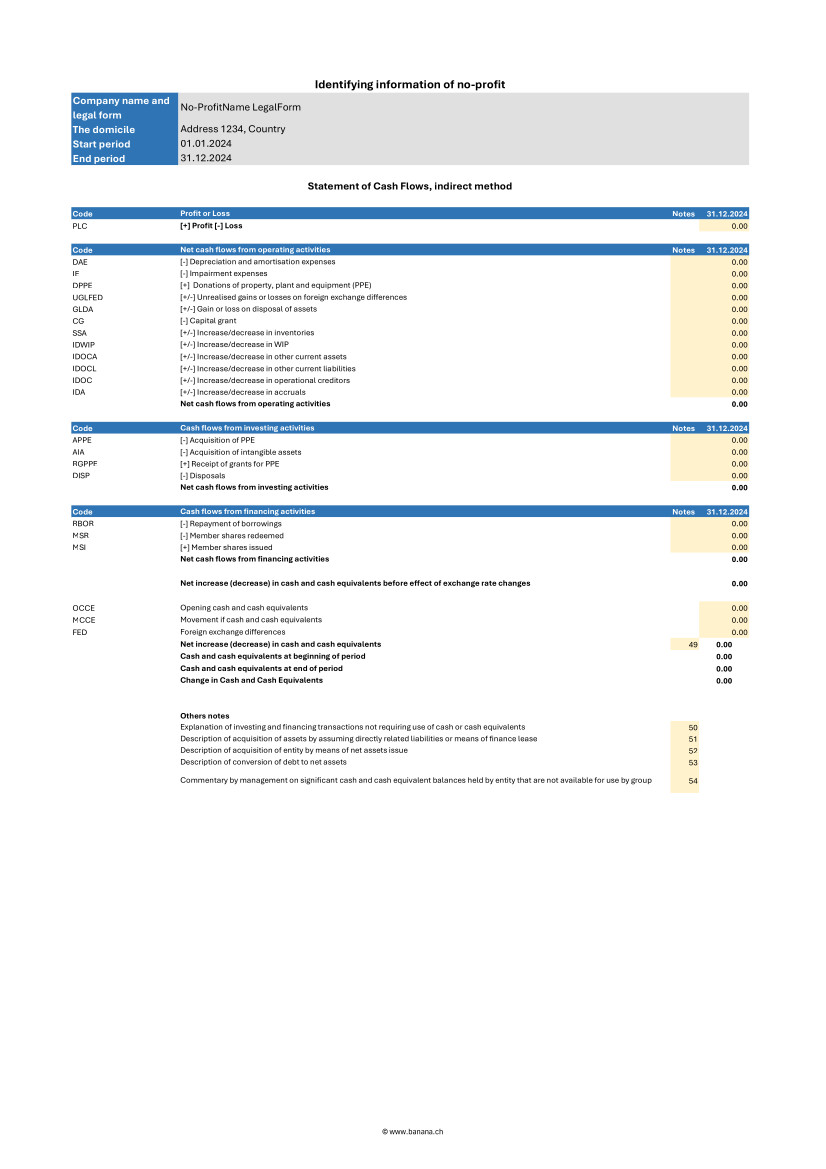
Cash flows from operating activities
This section reports cash flows generated or used by the daily operations of the organization. It must include:
- Income from donations and grants: cash flows from donations, grants, and other funding sources not specifically tied to investments or financing.
- Payments for operating expenses: cash flows used to cover programmatic, fundraising, and administrative expenses, including salaries, supplies, and other operating costs.
- Receivables collections and payables payments: cash flows associated with the management of short-term receivables and payables.
Cash flows from investing activities
This section covers cash flows related to the purchase and sale of long-term assets and other investments. It must include:
- Purchases of fixed assets: cash flows used to purchase tangible fixed assets, such as buildings, equipment, and intangible fixed assets.
- Income from sales of fixed assets: cash flows generated from the sale of long-term assets.
- Financial investments: cash flows related to acquisitions or disposals of financial investments, such as securities and other investment instruments.
Cash flows from financing activities
This section reports cash flows associated with the organization's financing activities, including changes in restricted and unrestricted funds. It must include:
- Receipts from long-term restricted loans and donations: cash flows from donations and loans restricted specifically for long-term purposes.
- Repayment of long-term debts: cash flows used to repay long-term debts and obligations.
- Interest payments and other financing costs: cash flows related to interest payments and other financing-related costs.
Reconciliation of net income to net cash flow from operating activities
This section is critical to linking net income with actual cash flows from operations. It must include:
- Net income: the net economic result of the organization for the period.
- Adjustments for nonmonetary items: for example, depreciation and amortization.
- Changes in financial statement balances: changes in accounts receivable, accounts payable, inventories and other operating items.
- Extraordinary items: any extraordinary non-recurring cash inflows or outflows.
Explanatory notes
Explanatory notes should include detailed information regarding the accounting policies adopted, explanations of major items in the financial statements, and details of material subsequent events that could affect the understanding of the financial statements.
Here is what the explanatory notes must contain.
Information on accounting policies adopted
The notes to the financial statements should provide a detailed description of the accounting policies followed by the organization. This information helps users of financial statements understand the principles on which the figures reported are based.
- Principles of recognition and measurement: description of the criteria used to recognize and measure assets, liabilities, income, and expenses.
- Depreciation methods: explanation of the methods used to depreciate tangible and intangible assets.
- Valuation policies: information on valuation policies for inventories, receivables, and liabilities.
- Revenue recognition: criteria adopted for revenue recognition, including restricted and unrestricted donations.
Additional details on items in the balance sheet and income statement
Explanatory notes should provide additional details that help to better understand the items presented in the balance sheet and income statement.
- Analysis of principal items: detailed explanation of major items of assets, liabilities, income, and expenses. For example, a breakdown of fixed assets, long-term debt, and major revenue categories.
- Significant transactions: description of significant transactions that occurred during the period, such as acquisitions, sales of fixed assets, or extraordinary events.
- Significant changes: explanation of significant changes from previous periods, providing a context for understanding changes in financial data.
Information on possible risks and uncertainties
Explanatory notes should include information on any risks and uncertainties that could affect the organization. This information helps assess the financial strength and risk management of the institution.
- Financial risks: description of key financial risks, such as credit risk, liquidity risk, and market risk, and the policies adopted to manage them.
- Contingencies and contingent liabilities: information on legal contingencies, contingent liabilities, or other uncertain events that could have a significant financial impact.
- Risk management: details of the risk management strategies and policies implemented by the organization to mitigate the effects of such risks.
Segment reporting if applicable
If the organization operates in different industries or geographic areas, the explanatory notes should include segment reporting information to provide a more detailed view of financial and operational performance.
- Information by segment: details on revenues, expenses, assets, and liabilities for each operating or geographic segment.
- Aggregation criteria: explanation of the criteria used to aggregate data for different segments.
- Performance by segment: analysis of the financial and operational performance of each segment, highlighting differences and relative contributions to the overall performance of the organization.
Accrual accounting requirement
The INPAG standard requires that all transactions be recorded on an accrual basis. This means that transactions must be recognized in the period in which they occur, regardless of actual cash flows. Adopting accrual accounting provides a more accurate and realistic view of an organization's financial position and performance, improving the transparency and reliability of financial information.
Examples for Income from donations
When a donation is promised but has not yet been received insert:
- in Debtor Account column the account Debtors from donations.
- in Creditor Account column the account Income from donations.
- in the Amount column the promised amount.
This record recognizes the income as a debt, reflecting the promise of the donation, even though the money has not yet been received.
When the donation is actually received insert:
- in the Debtor Account column the account Bank.
- in the Creditor Account column the account Donation debtor.
- in the Amount column the received amount.
This recording adjusts the accounts once the money is actually received, eliminating the previously recorded debt.
Examples for project expenses
When an invoice for project services is received but not yet paid insert:
- in the Debtor Account column the account Project expenses.
- in the Creditor Account column the account Creditors.
- in the Amount column the invoice total amount.
This entry recognizes the expense when the invoice is received, regardless of whether it has been paid or not.
When the invoice is actually paid insert:
- in the Debtor Account column the account Creditors.
- in the Creditor Account column the account Bank.
- in the Amount column the paid invoice total amount.
This entry reduces creditors once the invoice has been paid, reflecting actual cash flow.
Benefits of accrual accounting
Adopting accrual accounting, as required by the INPAG standard, ensures that revenues and expenses are recorded in the correct period. This approach provides a more accurate view of the organization's financial activities, facilitating better resource management and more accurate planning. Nonprofit organizations that follow these accounting practices can demonstrate greater transparency and accountability, increasing the trust of donors, board members and other stakeholders.
Accounting for restricted grants and donations
INPAG requires that funds be distinguished between restricted and unrestricted funds. This distinction should be visible in the financial statements or notes.
Accounting for grant and donation income according to the INPAG standard requires a specific structure to ensure proper recording and recognition. The accounting process includes the following steps:
- Identify whether there is an enforceable agreement that confers rights and obligations.
- Identify the enforceable obligations in the agreement.
- Determine the amount of the transaction.
- Allocate the transaction amount to the enforceable obligations.
- Recognize the revenue when (or while) the enforceable obligation is satisfied.
- These steps ensure that revenue is recognized appropriately, accurately reflecting the economic activity of the organization.
Example of accounting transactions for restricted donations
Receipt of a grant for a specific project with implementing obligations.
When you receive the amount insert:
- in the Debtor Account column the account Cash/Bank or Donation debtor if the donation was promised.
- in the Creditor Account column the account Liabilities for grants.
- in the Amount column the amount received.
At this stage the amount received is recorded as a liability because the organization has an obligation to meet the conditions of the grant.
When you fulfill the executive obligation insert:
- in the Debtor Account column the account Expense1.
- in the Creditor Account column the account Bank.
- in the Amount column the paid amount.
The second transaction must be insert:
- in the Debtor Account column the account Liabilities from grants.
- in the Creditor Account column the account Income from grants.
- in the Amount column the paid amount.
Once the enforceable obligation is fulfilled, the liability is reduced and the amount is recognized as revenue, reflecting the completion of the project or condition fulfilled.
Accounting for unrestricted donations
Unrestricted donations, which do not impose specific obligations on the organization, follow a simpler accounting process than donations with enforceable obligations. These receipts can be recognized immediately upon receipt.
Example of an unrestricted donation
When you receive the amount insert:
- in the Debtor Account column the account Cash/Bank or Donation debtor if the donation was promised.
- in the Creditor Account column the account Income from donations.
- in the Amount column the received amount.
In this case the amount is immediately recognized as income since there are no specific obligations to be met.
Foreign currency conversion
Managing foreign currency transactions is an essential part of accounting, especially for nonprofit organizations that receive international grants and donations. The INPAS standard establishes precise rules for managing these transactions, including disclosure of foreign exchange gains and losses and retranslation of foreign currency monetary assets and liabilities related to grant agreements.
Foreign currency transactions must be translated into the functional currency using the exchange rate in effect on the date of the transaction. Monetary items, such as debtors and creditors, must be retranslated at the balance sheet date to reflect current exchange rates.
Example of transactions for foreign currency conversion
Receipt of 10'000$ grant when the exchange rate is 1$ = 0.90€.
Initial acknowledgement:
- in the Debtor Account column the account Cash/Bank.
- in the Creditor Account column the account Liabilities for grants.
- in the Amount column the amount 9'000€ (10'000$ * 0.90€ = 9'000€).
In this case the grant is recorded in euros at the exchange rate in effect at the time of the transaction.
Retranslation on the balance sheet date with the exchange rate 1$ = 0.85€.
- in the Debtor Account column the account Loss on exchange.
- in the Creditor Account column the account Cash/Bank.
- in the Amount column the lost amount 500€.
At the balance sheet date the grant must be retranslated at the new exchange rate. The difference between the initial value and the retranslated value is recorded as an exchange loss.
Treatment of exchange rate changes on grants
Exchange rate differences on monetary items related to grants should be treated in a manner consistent with the nature of the transaction. For example, if a grant received is to be spent on a specific project and the exchange rate varies, the amount to be reimbursed could differ due to exchange rate fluctuations.
For example a grant received of 10'000$ must be spent on a specific project. If the exchange rate varies and the grant must be partially repaid due to exchange rate differences.
No INPAS adoption for certain transactions
When an organization chooses not to apply INPAS standard for certain transactions, it is essential to provide a clear explanation and details of the accounting management adopted. The INPAS standard requires disclosure of the following information to maintain transparency and understandability in financial statements.
Mandatory disclosures in the case of no INPAS adoption
- Disclosure of transactions not compliant with INPAS
- The organization must specify which transactions do not follow INPAS standards.
- Example: “Donations in kind were not accounted for in accordance with INPAS standards.”
- Accounting treatment adopted
- The alternative accounting treatment used for these transactions must be described.
- Example: “In-kind donations were recorded at appraised value rather than market value according to INPAS guidelines.”
- Rationale for non adoption of INPAS
- It is necessary to explain the reasons why INPAS standards were not applied.
- Example: “Valuation of in-kind donations according to INPAS standards required specialized skills that the organization does not currently possess.”
- Impact on budgets
- It must be indicated how the financial statements would differ if INPAS requirements had been applied.
- Example: “If in-kind donations had been valued according to INPAS, the total value of income would have increased by €10,000.”
- Quantification of differences
- Where possible differences between the accounting treatment adopted and that provided by INPAS should be quantified, without excessive costs.
- Example: “Donations in kind were recorded at €5,000, while according to INPAS the correct value would have been €15,000, resulting in a difference of €10,000.”
References
- International Financial Reporting For Non Profit Organisations: www.ifr4npo.org
International Non-Profit Accounting Guidance - INPAS Standard Template
International Non-Profit Accounting Guidance - INPAS Standard Template[This page is currently being updated]
The INPAS International template for associations provides a comprehensive framework for organizing financial transactions and reporting for associations adhering to international standards.
This chart of accounts template is designed to streamline accounting processes, ensure consistency in financial reporting and facilitate compliance with regulatory requirements. With a user-friendly format and customizable accounts name, associations can efficiently track income, expenses, assets and liabilities, enabling clear and transparent financial management. Whether managing donations, membership dues or program expenditures, this template offers flexibility and adaptability to suit the unique needs of diverse associations while promoting transparency and accountability in financial operations.
The chart of accounts has been designed and interpreted based on the INPAS drafts and may require adjustments once the final guidance is published in 2025.
The compliance of the accounting with the INPAS standard always depends on the accountant and the auditor working on the accounts.
Updates may be possible following the final publication of INPAS in 2025.
Using Banana Accounting Plus you can manage the balance sheet and the income statement. All other documents are easily obtained thanks to the Excel template.
Create your file
- Create a new file, starting from this template (Template ID +11255), using one of the methods explained.
- With the command File → File properties, set the period, the association name and the basic currency.
- With the command File → Save as, save the file. Enter the association name and year in the file name.
For example "no-profit-2024.ac2".
See also Organize accounting files locally, online or in the cloud
Customize the Accounts table
Once you have entered the transactions, you can check the Accounts table. You will have an overview of your assets, liabilities, income and expenses, which allows you to keep your balance under control.
Customize the Accounts table to suit your needs: you can add, delete and edit accounts, groups or descriptions.
Enter Opening Balances
In the Opening column enter the opening balances of the Accounts. Negative asset account amounts are entered with a minus sign in front.
Enter the balances of the previous year
If you are creating a new accounting and you want the amounts of the previous year to appear in the statements to be printed, you must insert the values in the appropriate column. Go to the Previous view and in the Previous Year column enter the values.
Enter the Transactions
Register the accounting transactions in the journal. Enter the date, the document number and the description. Enter the destination account into the Debit account column, and the account of origin in the Credit account. Then add the amount.
You can modify the journal at any time.
Manage funds, grants and donations, project and operating expenses
Manage funds in the Balance Sheet divided by project.

Manage grants and donations in the Income Statement.
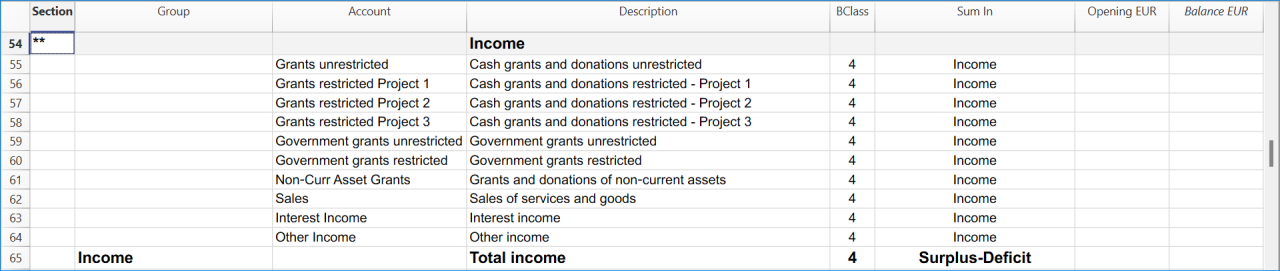
Manage projects expenses and operating expenses in the Income Statement.

Get the Statement of Financial Position and the Income Statement
At any time of the year you can create your Balance sheet, which is a financial report of your assets, liabilities and equity and the Profit and Loss statement, which includes income and expenses. You will achieve optimal reports because you can always modify the data until they are perfect. You have the possibility to print out your statements or save them in PDF format.
Complete the documentation using the Excel Template
When you get the balance sheet and the income statement, complete the Excel template to get all the documents needed to comply with the INPAG standard.
Income & Expenses: INPAS Standard Template
Income & Expenses: INPAS Standard Template[This page is currently being updated]
The chart of accounts has been designed and interpreted based on the INPAS drafts and may require adjustments once the final guidance is published in 2025.
The compliance of the accounting with the INPAS standard always depends on the accountant and the auditor working on the accounts.
Updates may be possible following the final publication of INPAS in 2025.
Free Excel Standard INPAS Template
Free Excel Standard INPAS Template timoContabilidad libro de caja para organización sin ánimo de lucro
Contabilidad libro de caja para organización sin ánimo de lucro rebecaContabilidad ingresos y gastos para organización sin ánimo de lucro
Contabilidad ingresos y gastos para organización sin ánimo de lucro rebecaContabilidad partida doble para organización sin ánimo de lucro
Contabilidad partida doble para organización sin ánimo de lucro rebecaContabilidad multidivisa para organización sin ánimo de lucro
Contabilidad multidivisa para organización sin ánimo de lucro rebeca非营利组织
非营利组织 fei非营利组织会计
非营利组织会计 feiModelos universales Organizaciones religiosas
Contabilidad ingresos y gastos para organización religiosa
Contabilidad ingresos y gastos para organización religiosa rebecaKirchgemeinde | Einnahmen-Ausgaben-Rechnung
Kirchgemeinde | Einnahmen-Ausgaben-RechnungDiese Vorlage enthält einen HRM2-Kontenplan mit den typischen Konten und Kategorien für die Buchhaltung einer Kirchgemeinde. Einnahmen und Ausgaben lassen sich einfach erfassen – auch ohne Kenntnisse der doppelten Buchhaltung oder der Unterscheidung zwischen Soll und Haben.
In der Tabelle Konten sind die Bilanzkonten aufgeführt, während die Tabelle Kategorien der Erfassung von Einnahmen und Ausgaben dient.
Die Einnahmen und Ausgaben sind in mehrere Untergruppen gegliedert. Zudem stehen in der Tabelle Kategorien zwei Arten von Kostenstellen zur Verfügung, mit denen sich die Kosten der Kirchgemeinde und des Oratoriums getrennt verwalten lassen.
Konten und Kategorien können individuell angepasst und auf die spezifischen Bedürfnisse Ihrer Buchhaltung zugeschnitten werden.
Für erweiterte Anforderungen empfehlen wir die Vorlage Doppelte Buchhaltung für Kirchgemeinde.
Weitere Details finden Sie in unserer Dokumentation, insbesondere zu folgenden Themen:
Contabilidad partida doble para organización religiosa
Contabilidad partida doble para organización religiosa rebecaContabilidad multidivisa para organización religiosa
Contabilidad multidivisa para organización religiosa rebeca非营利协会或组织会计
非营利协会或组织会计 feiDonation statement for Associations (Banana+)
Donation statement for Associations (Banana+)A donation statement certifies a voluntary donation to an association. Usually associations print out donation statements for their members and volunteers, as these are often tax deductible.
The extension presented below allows you to create a donation statement for donors registered in Banana Accounting (Accounts table) or in the Estimates and Invoices application (Contacts table).
If members/donors are defined within an accounting file, they must be set up as cost centres using CC3. However, when using the Estimates and Invoices extension, members or donors may remain unchanged in their current configuration.
Prerequisites
To use this extension you must:
- Download and install Banana Accounting+ (version 10.1.7 or later).
- Have the Professional plan or the Advanced plan of Banana Accounting Plus.
Beta Version
The extension is currently released as a beta version. This means that some details may change without notice.
Installing and using the extension
- Install Banana Accounting+.
- Install the extension Donation statement for Associations (Banana Plus). Visit the Manage Extensions documentation.
- Once installed, the extension will be visible in the Extensions menu where it can be executed.
Create a donation statement
- Enter the Association data in the Address tab of the accounting file or the Estimates and Invoices application.
- From the Extensions menu select the Donation statement for Associations (Banana Plus) extension.
- Enter the period in the dialogue box.
- Complete the fields in the Settings dialogue and click OK.
Settings dialogue
Run the extension from the Extensions menu > Donation statement for Associations (Banana Plus).
After selecting the period, the extension Settings dialogue will open. From here you can define the information required to create the print-out of the donation statement.
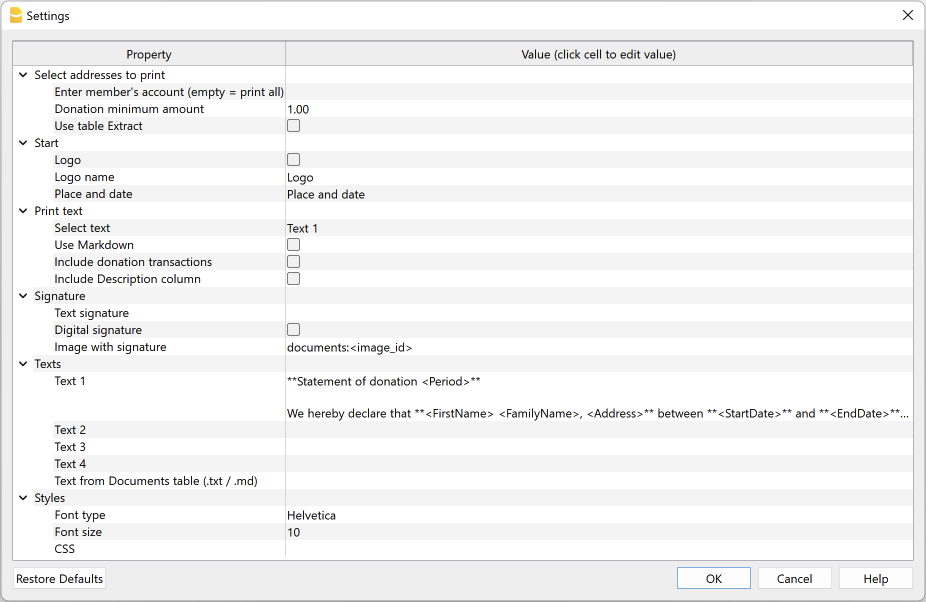
For data entry, click in the cell in the Value column.
The settings are divided into the following groups:
- Select addresses to print
- Define the member accounts for which the donation statement is to be created.
- Start
- Define logo for header, location and date.
- Print text
- Define which text to use and decide whether to include donation records.
- Signature
- Define text and image for signature.
- Texts
- Define up to four different texts or take a text from the Documents table.
- Styles
- Define font type and size for the letter texts.
The entered data are used to generate the report, which you can then save and print.
Select addresses to print
Here you can decide for which members, defined with CC3 cost centres, to create the donation statement.
- Enter member's account (empty = print all)
- Enter a single account (e.g. "10001").
- Enter several accounts divided by a "," (e.g. "10001,10002,10005").
- If you do not enter anything, statements will be printed for all registered members.
- Donation minimum amount
- Accounts with a balance below the indicated amount are not included. The default value is '1.00' (e.g. accounts with zero balance are excluded).
- Enter '0.00' to include accounts with zero balance.
- Use Extract table
- Use the extracted accounts in the Extract table.
- You must first use the command from the Data menu > Extract and sort rows to extract the rows with the accounts you want to use.
Header
Here you define the logo for the header, location and date.
- Logo
- Include a logo in the header. The logo is defined via the command in File → Logo setup.
- Logo name
- Enter the name of the logo to be used.
- Place and Date
- Enter the location and date of issue of the statement.
Print text
Here you can decide which text to use from the ones you have entered and whether to also include donation records.
- Select text
- Select the text you wish to use from the list.
- See below for inserting text.
- Use Markdown
- The selected text is interpreted as Markdown text (requires the Advanced plan of Banana Accounting Plus).
- Include donations transactions
- By checking the box you can include a summary table with details of donations taken from the Transactions table.
- Include Description column
- If you have previously activated the option 'Include donation transactions', it will then be possible, by checking this option, to also include the column with the description of the transaction in the statement.
Signature
Here you define the text and image for the signature of the donation statement.
- Text signature
- Enter the first and last name of the person issuing the statement.
- Digital signature
- Use an image as a signature.
- Image with signature
- Enter the image to be used. You have two ways to do this:
- documents:<nome_id>: to use an image saved in the Documents table, where <name_id> represents the name entered in the ID column of the table (e.g. "documents:signature").
- file:document/<immagine>: to use an image saved externally to Banana, but in the same folder as the .ac2 file. Also indicate the extension of the .png or .jpg image (e.g. "file:document/signature.png").
- Enter the image to be used. You have two ways to do this:
Texts
Here you define the texts of the donation statement. You can enter up to four different texts or take a text from the Documents table.
- Text 1, Text 2, Text 3, Text 4
- Enter the text you wish to display in the printout. The text can also be on several rows.
- Texts can be of text type and Markdown type.
- You can enter up to four different texts, and then choose which one to use..
- The field Text 1 contains the default text. It is possible to change it.
- Text from Documents table (.txt / .md)
- You can use the texts entered in the Documents table.
- Enter the document Id (e.g. 'Letter.txt', 'Letter', 'Letter.md', etc.).
- Texts can be of text type and Markdown type.
- For Markdown-type texts, the Id in the Documents table must end with ".md" and the full name, including the final ".md" (e.g. "Letter.md"), must be entered here.
Styles
Here you define the font type and size for the letter texts.
- Font Type:
- Define the font type.
- The default font is 'Helvetica'.
- Font size:
- Define the font size.
- The default font size is '10'.
- CSS
- Optional.
- You can change the appearance of the print (text formatting, address positioning, etc.) by entering CSS code to customise the style. (requires the Advanced plan of Banana Accounting Plus).
Predefined CSS
/* Donation Statement (Banana+) predefined CSS */

@page {
   margin-top: 0.0cm;
   margin-bottom: 0.0cm;
   margin-left: 0.0cm;
   margin-right: 0.0cm;
}

body {
   font-family: $font_family;
   font-size: $font_size;
}

.bold {
   font-weight: bold;
}

.right {
   text-align: right;
}

.center {
   text-align: center;
}

.header_address_row_1 {
   font-family: $font_family;
   font-size: $font_size_header;
}

.header_address_row_2_to_5 {
   font-family: $font_family;
   font-size: $font_size;
}

.header_text {
  margin-top: 1.2cm;
  margin-left: 1.2cm;
  margin-right: 1.2cm;
  text-align: right;
  position: absolute;
}

.logo {
  margin-top: 1.2cm;
  margin-left: 1.34cm;
  margin-right: 1.2cm;
  position: absolute;
}

.address {
  top: 4.5cm;
  left: 12.3cm;
  width: 7.5cm;
  position: absolute;
}

.date {
   margin-top: 4.6cm;
   margin-left: 1.5cm;
   position: absolute;
}

.text {
   margin-top: 8.5cm;
   margin-left: 1.5cm;
   margin-right: 1.0cm;
}

.transactions_details {
   margin-top: 0.5cm;
   margin-left: 1.65cm;
}

.transactions_rows {
   border-bottom:thin solid black;
}

.transactions_total {
   font-weight: bold;
   border-top:thin solid black;
   border-bottom:thin solid black;
}

.signature {
   margin-top: 1.5cm;
   margin-left: 12.3cm;
}

.image-signature {
   height: 15mm;
   margin-left: 12.3cm;
}
Extract table (Extract rows command)
The Extract and Sort rows feature can be used to select member accounts for which to create the statement. This is useful when, for example, you only want to print the donation statement for certain members, without having to enter the list of accounts directly into the extension settings.
For example, by allocating members into several groups (Accounts table), the command from the Data menu > Extract and sort rows can then be used to extract the rows of members belonging only to certain groups (in the example, members belonging to groups S1 and S3).
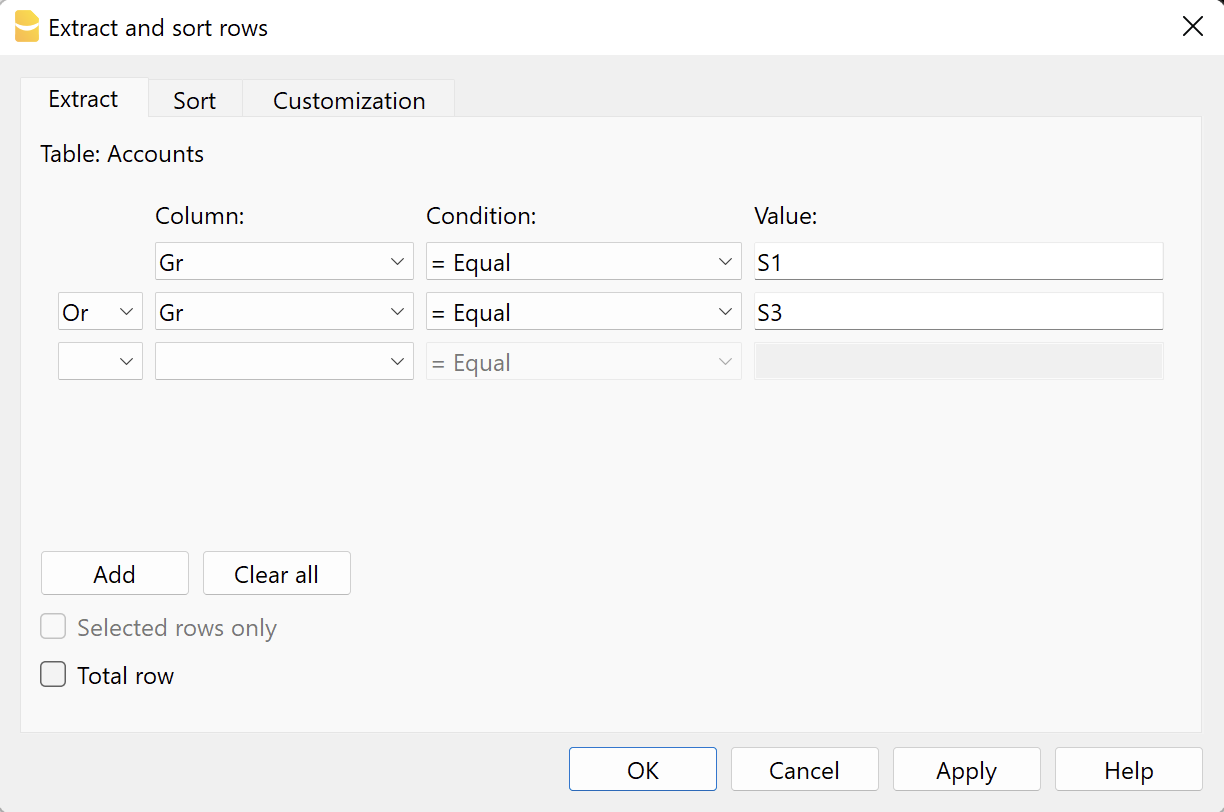
To use the extracted rows:
- Extract rows with the command from the Data menu > Extract and sort rows.
- Run the extension and in the settings dialogue, section Select addresses to print, check the box Use Extract table.
- If the rows were not extracted before printing was started, a warning message will be displayed and all registered member accounts will be used.
Donation statement text (plain text)
There are two possibilities for entering and using a plain text:
- Enter the text in the settings dialogue.
- Enter text in the fields Text 1, Text 2, Text 3 or Text 4.
Up to four texts can be added. - Under Print Text > Select Text, select the text to be used.
- Under Print Text, do NOT select the option Use Markdown.
- Enter text in the fields Text 1, Text 2, Text 3 or Text 4.
- Enter text in the Documents table.
- Add a document by selecting the type Plain text (text/plain).
There is no limit, you can add as much text as you want.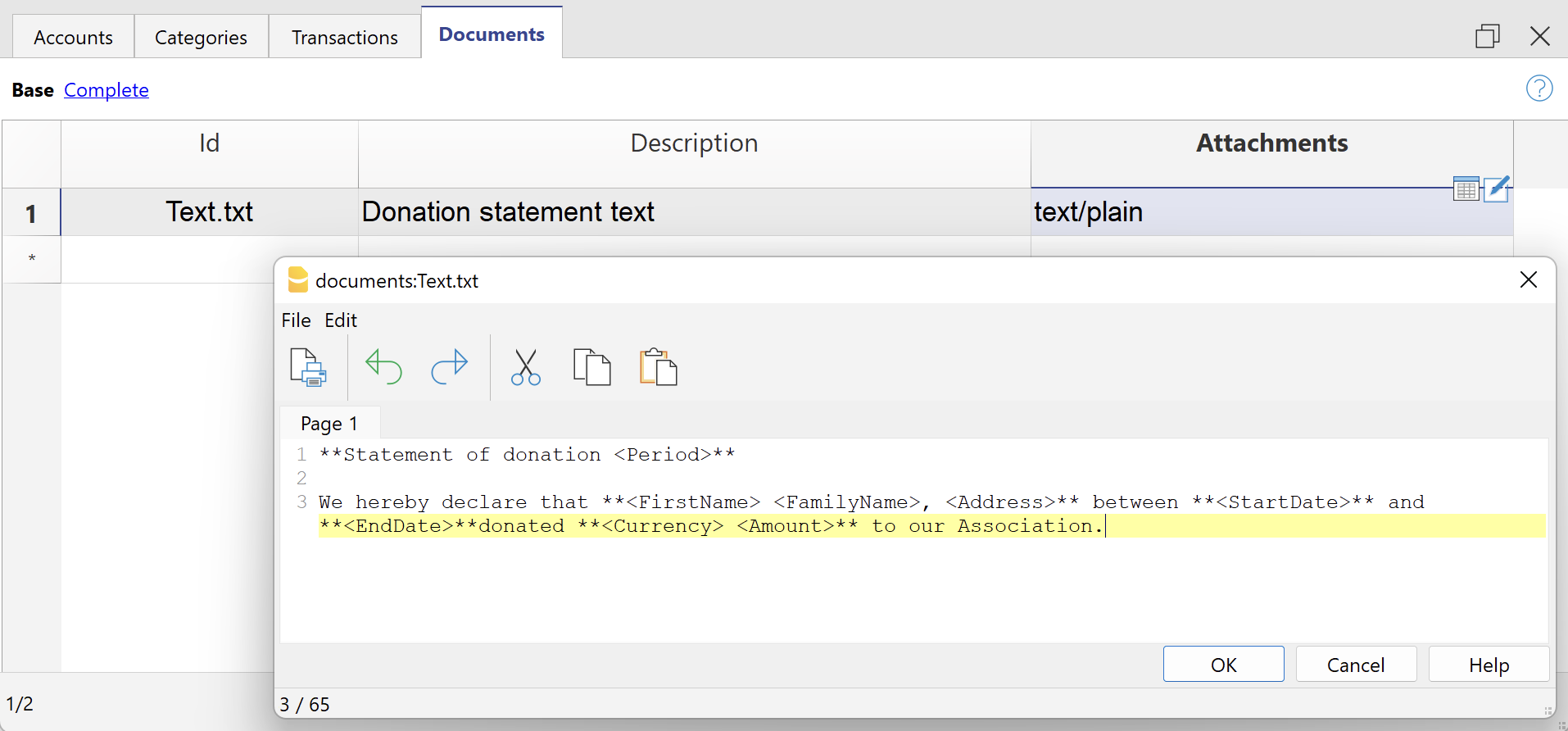
- In the Settings dialogue:
- Under Print Text > Select Text, select the option Text from Documents table (.txt / .md).
- Under Texts > Text from Documents table (.txt / .md), enter the Id of the text entered in the Documents table (e.g. 'text.txt').
- Add a document by selecting the type Plain text (text/plain).
For all texts:
- With a specific annotation you can apply the bold style to texts. To do so, include the desired texts between double asterisks ** .
Examples:- **text** = text
- **textA textB** textC = textA textB textC
- If the following values are entered in the text rows, they will be replaced by the corresponding values:
- <Period> : selected period
- <Account> : member account
- <NamePrefix> : member prefix
- <FirstName> : member's first name
- <FamilyName> : member's last name
- <OrganisationName> : member's organisation
- <Address> : member's address
- <AddressExtra> : extra address
- <Region> : region/state or province
- <Country> : country
- <StartDate> : start date of the selected period
- <EndDate> : end date of the selected period
- <Currency> : currency
- <Amount> : total amount of donations
Donation statement text (Markdown text)
Markdown is a language that allows formatted text to be created using a standard text editor and a syntax that is easy to write and read.
To use Markdown, the Banana Accounting Plus Advanced plan is required.
There are two ways to enter and use Markdown text:
- Enter the text in the Settings dialogue.
- Enter the text in fields Text 1, Text 2, Text 3 or Text 4.
Up to four texts can be added. - Under Print Text > Select Text, select the text to be used.
- Under Print Text, view the option Use Markdown.
- Enter the text in fields Text 1, Text 2, Text 3 or Text 4.
- Enter text in the Documents table.
- Use the Markdown Editor to add a document, selecting the type Markdown-formatted text (text/markdown).
There are no limits, you can add as much text as you want. - The file name in the Id column must end with '.md' (e.g. 'text.md').
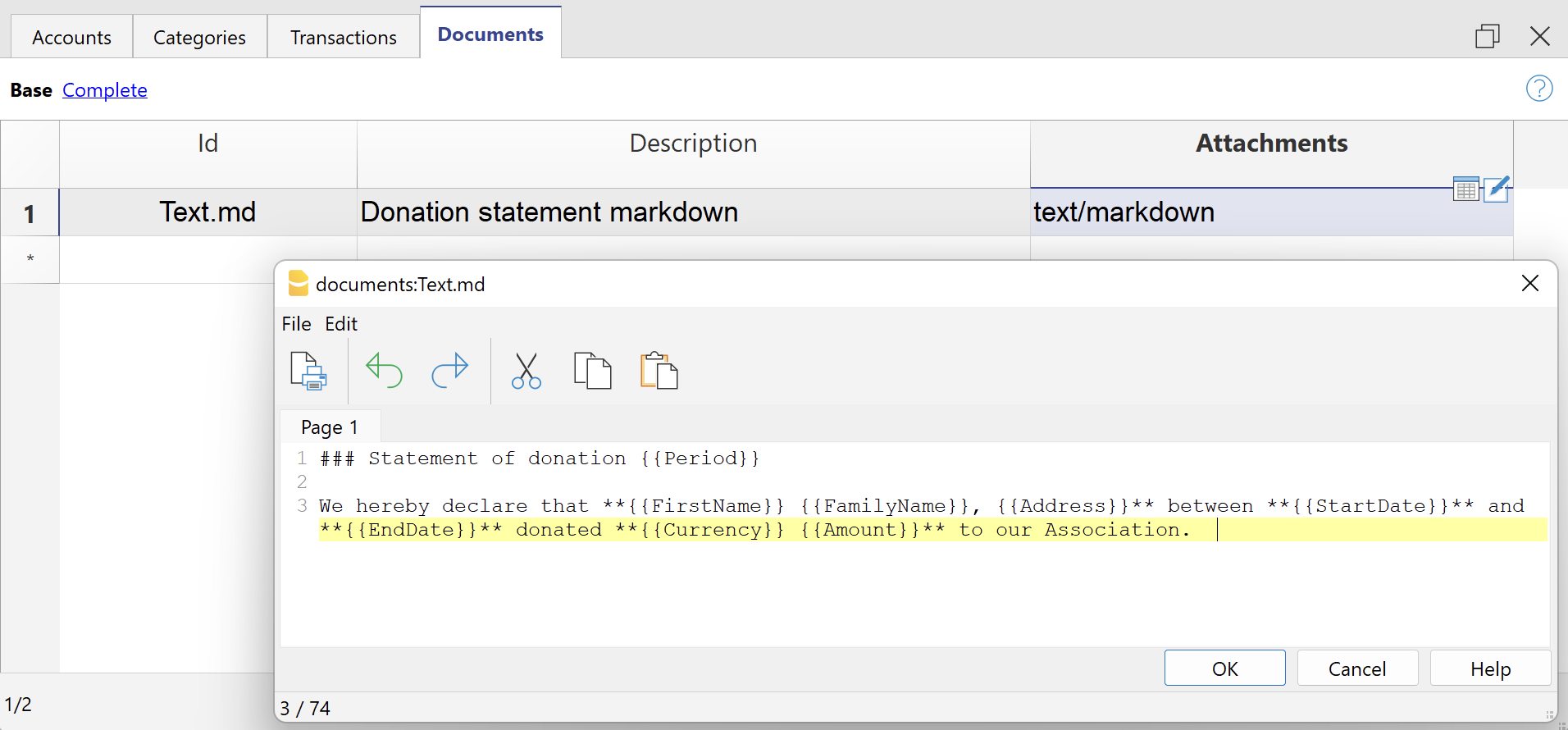
- In the Settings dialogue:
- Under Print Text > Select Text, select the option Text from Documents table (.txt / .md).
- Under Texts > Text from Documents table (.txt / .md), enter the Id of the text entered in the Documents table (e.g. 'text.txt').
- Use the Markdown Editor to add a document, selecting the type Markdown-formatted text (text/markdown).
For all texts:
- If the following values are entered in the text lines, they will be replaced by the corresponding values:
- {{Period}} : selected period
- {{Account}} : member's account
- {{NamePrefix}} : member's prefix
- {{FirstName}} : member's name
- {{FamilyName}} : member's surname
- {{OrganisationName}} : member's organisation
- {{Address}} : member's address
- {{AddressExtra}} : extra address
- {{Region}} : region/state/province
- {{Country}} : country
- {{StartDate}} : start date of the selected period
- {{EndDate}} : end date of the selected period
- {{Currency}} : currency
- {{Amount}} :total amount of donations
Print example
Donation statement with registration details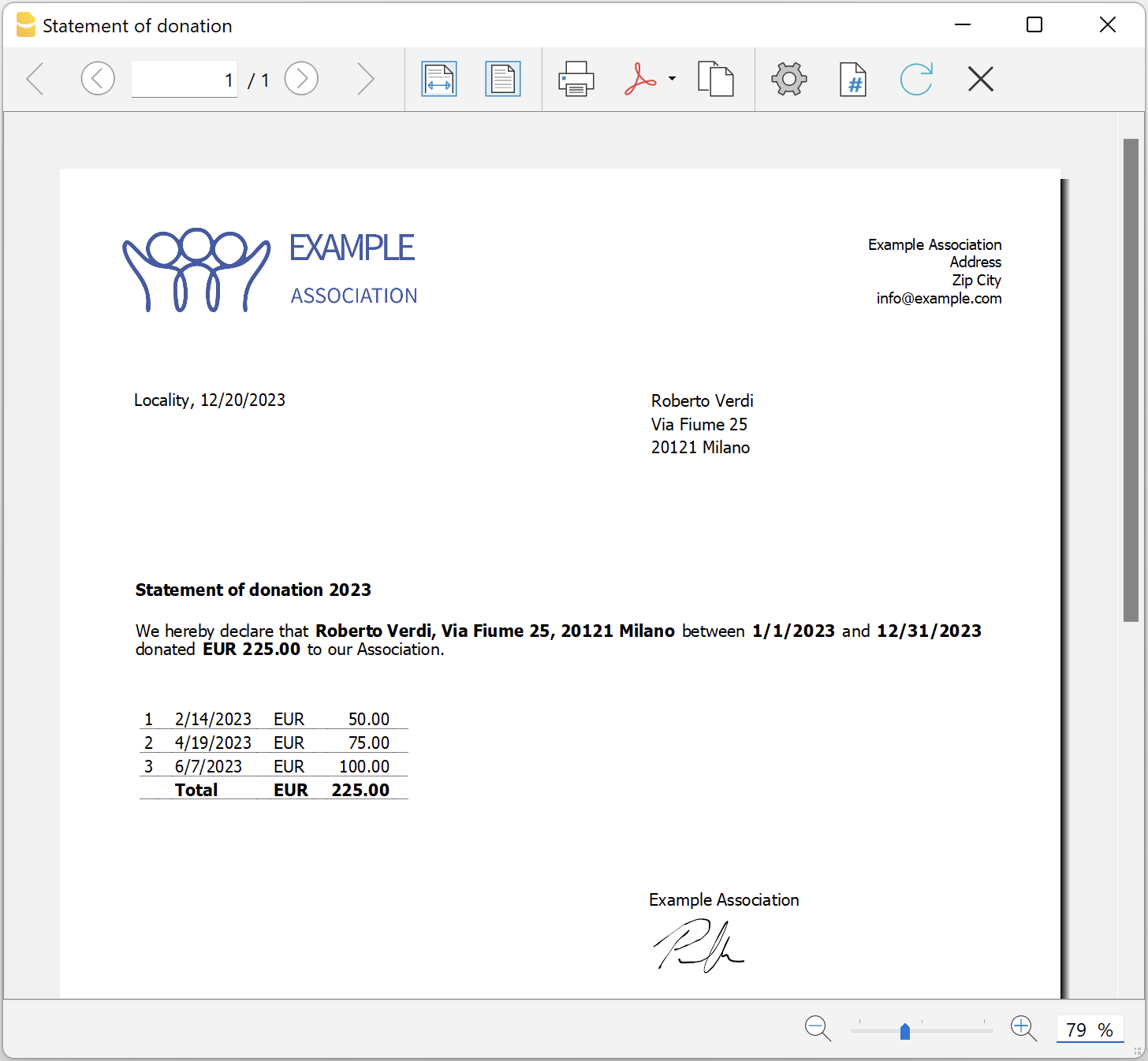
Donations statement for Associations (Banana 9)
Donations statement for Associations (Banana 9)A donation certificate certifies a voluntary donation to an association. Usually, all associations print donation certificates for their members and volunteers, because these are often tax deductible.
The extension presented below makes it possible to create a donation certificate for donors registered in Banana Accounting (Accounts table).
It is essential to have the members/donors set up with cost centres by using cost center CC3.
Installation and usage of the Extension
- Install Banana Accounting (version 9.0.5 and above).
- Install the Banana extension Donations statement for associations (visit the Manage Extensions documentation).
- Once installed, the App is visible and ready to be used from the Extensions menu .
How to create a statement of donation
- Insert all the Association's data on the address tab of the accounting file.
- From the Menu Extensions select the Donations statement for associations extension.
- Insert a period in the dialog window.
- Complete the dialog fileds and click Ok.
Settings dialog
To enter the data, double-click in the 'Value' column field.
- Insert account member (empty = print all)
- Insert an individual account (e.g. "10001").
- Insert multiple accounts separated by a "," (e.g. "10001,10002,10005").
- Let empty to print a donation statement for all the registered members.
- Minimum amount of the donation: accounts with balance below this amount are not included. Default value is "1.00" (e.g. accounts with zero balance are excluded). Insert "0.00" to include accounts with zero balance.
- Texts
- Use standard texts: check the box to use the default texts (any personal texts will be overwritten).
- Title (optional): insert the subject of the letter.
- Text 1 (optional): insert the text of the first paragraph.
- Text 2 (optional): insert the text of the second paragraph.
- Text 3 (optional): insert the text of the third paragraph.
- Text 4 (optional): insert the text of the fourth paragraph.
- Include donation details: check the box to include a summary table of donations.
For all texts:
You can mark one or more words or even the full text in bold.
To get the desired word in bold, enter it in double asterisks (e.g. **word**).
To get the full text in bold, insert two asterisks at the beginning of the text (e.g. **text...).
If the following values (in english) are inserted in the text lines, they will be replaced by the corresponding values (e.g. <Account> is replaced with 10001):
<Period>: selected period
<Account>: account of the member
<FirstName>: name of the member
<FamilyName>: surname of the member
<Address>: address of the member
<StartDate>: start date of the selected period
<EndDate>: end date of selected period
<Currency>: currency
<Amount>: amount of donations.
- Signature: insert the name and surname of the person issuing the statement.
- Location and date: insert location and date of the statement issue.
- Signature with image: check the box to use an image as signature.
- Image: insert the image to be used. There are two possible ways to do this:
- documents:<id_name>: to use an image saved in the Documents Table, where <id_name> represents the name entered in the ID column of the table (e.g. "documents:signature") ; or
- file:document/<image_name>: to use an image saved outside Banana, but in the same folder as the .ac2 file. Also indicate the extension of the image .png or .jpg (e.g. "file:document/signature.png").
- Image height (mm): change the height of the image to resize it. The height is in millimeters.
- Styles
- Logo: include the logo in the header. The logo is defined with the command File → Logo setup.
- Logo name: enter the name of the logo customization to be used.
- Font type: define the type of the font. Default type is "Helvetica".
- Font size: define the size of the font. Default size is "10".
The data entered are used to generate the report, which you can then save and print.
Dialog example:
Example of statement:
Example of statement with details:

非营利协会或组织会计
非营利协会或组织会计 feiHow the Agile method can help NGO projects
Learn what Agile methodology is and how it can lead to effective and dynamic implementation of projects related to NGOs and international cooperation.
Nowadays, inside an NGO it is common to see project management that follows very defined and rigid models. But what are the effects of the Agile applied in the cooperation field? Banana Accounting offers a complete example on how Agile, slowly integrated in a non-profit project, can simplify its management. As a result, you can also obtain more flexibility, adaptability, and efficiency.
Discover the numerous advantages of Agile integration with us. Our experience with the goal to offer accounting training to all the young students in Congo, shows how Agile can be effective also for NGO projects.
Introduction
Most certainly, you already heard about the Agile methodology, often opposed to rigid project management models. In particular, companies mainly focused on making profits prefer to apply this model. But mostly, start-ups and software development companies cannot renounce to Agile for its numerous advantages.
And what do non-governmental organizations think about an agile project management? Unfortunately, at the moment they seem to lack trust on this innovative method. In addition, the institutions that financially support the projects keep adopting the traditional methodology. As a result, it becomes difficult to obtain some money that is used, as it happens in start-ups, to experiment with method procedures from small to large scale.
Yet Agile methodology could be a solution to simplify international cooperation projects, which usually have complicated management. In fact, they often operate in very difficult contexts, with precarious logistical situations, limited financial resources and in very different cultures and environments. The lack of predictability is similar to the one found in dynamic and innovative fields, such as software development and start-ups. But Agile could be integrated with current NGOs models to lead to a smooth management and greater flexibility.
Agile methodology has been applied since the 1990s, however different non-profits are reticent or not very familiar with this option that could be combined with traditional models without disrupting the current management system, thus leading to a better projects achievements.
With this Agile dossier, we would like to present you a project in which Banana.ch plays a relevant role. Being a company that develops software, we always apply the Agile method in our projects. Thanks to it, we have achieved continuous success. But at one point we asked ourselves:
"What if we apply the same model, little by little, in an industry where rigid models are the norm?".
In 2017, we began a collaboration as technology partners with the Ministry of Education of the Democratic Republic of Congo, with the goal to better the teaching of accounting. This aim was clearly quite different from the ones we usually set. But, even in this case, we decided to use the Agile methodology, with the approval of the client who, although unfamiliar, was open to the possibility for a dynamic management. With the Agile methodology we made progress, overcame several difficulties and obtained important results, despite the difficulties in terms of logistics and available resources. In general, we achieved several goals on the accountants training project, managed by the Ministry of Primary, Secondary and Professional Education of Congo.
The method proved to be very suitable for this cooperation project, which operates in complex situations that require great flexibility and adaptability. The educational project was not stopped by cultural differences, the distance between the various stakeholders, very limited resources, unforeseen events and scarce funding. And that's due, in large part, to the adoption of a methodology that is not very known in the non-profit field. Agile was not imposed and the application was gradual so the commissioner could get familiar without getting wary of this alternative management model. After overcoming the initial wariness, thanks in part to the enthusiasm of the Ministry of Education, we were working with management almost based on Agile.
Our journey into Agile methodology for NGOs and non-profits will start by explaining the principles and history. Then we will move on to the accounting education project in Congo. You will discover together with us how Agile can be the solution for an efficient, flexible and optimal management for projects in the nonprofit sector, this to the benefit of all stakeholders involved, but most importantly to all people who will see an improvement in their lives.
It is good to underline that Agile does not have to be broadly applied to the NGO sector. It can be used to manage certain projects, or alongside traditional models and it certainly doesn't have to disrupt the current cooperation frameworks. However, by using the Agile method here and there, you will slowly discover the advantages and features also for the non-profit sector.
As you will see from our example, gradually opening up to new management possibilities can help you achieve certain goals without huge changes.
We will start our journey into Agile methodology for NGOs and non-profits by explaining the principles and history. Then, we will move on to the accounting education project in Congo. You will discover with us how Agile can be the solution for an efficient, flexible and optimal project management in the non-profit sector, to the benefit of all involved stakeholders, and most importantly for people who will benefit from it.
The agile methodology: birth and characteristics
You can manage projects inside profit and non-profit oriented companies by following different methodologies.
The model we're going to explore in depth originates from the software development industry. The Agile methodology has been developed since the 90s thanks to the Agile movement initiated by a group of computer scientists.
The Agile method contrasts with the Waterfall method, one of the classic project management models. Let’s take a look at a real example of Waterfall: a house construction. As the first step, the architect prepares the detailed drawings. Next, the enterprise will get a quote, plan all work phases and deliver the house, as designed. The planning follows a series of clear steps: it will start with the preparation of the site, continue with the excavation and the creation of the basement and the roof. The interiors will be built and the technical systems, fixtures and fittings will be installed in a well-defined sequence and with a progress status that is predicted with precision. This model, however, has great limits, for example a major change in progress is problematic and leads to a high increase in costs. Moreover, the house will stay the same for years.
This waterfall model was the standard in the field of software development. Until, in 2001, some "anarchist" developers decided to make a big change in the software industry by publishing the Agile Manifesto. Their purpose is to create organizational models "based on people, collaboration, and building communities in which we would like to work."
The foundations of Agile
Currently, the four principles of the Agile methodology are being applied outside of the world of IT. Let's take a look at these values:
- Individuals and interactions over processes and tools
The Agile method encourages direct communication between people, so as to reduce possible misunderstandings. There must be a reduction of steps and obstacles between the different members working on the project. - A satisfactory product over detailed documentation
The main indicator of project success is when the product meets the needs of the client. Documentation of the procedure and steps is relevant, but the product is more important. - Collaboration with clients over contract negotiation
Customers usually know their needs better than the software developer or any other product. Therefore, collaboration is essential to determine the next steps in product development. This point is central to the Agile methodology. - Responding to change over following a plan
Updates and changes are inevitable and encouraged. With each round of feedback, the product will be more responsive to customer needs. You need to be flexible and responsive first, the plan is secondary.
In the Agile method you define a goal, but requirements are stated and implemented step by step. Development occurs in several cycles called "sprints", in which product changes happen quickly. This is obviously in contrast with a project that shows the full solution right away.
Usually projects related to the digital world do not have a predefined sequence and the product is often not physical, so Agile is an ideal method. Initially what matters is a Minimum viable product, which is a first version of the product with minimum requirements. The client then interacts with the developers, provides feedback, reports problems and prioritizes. The final result comes from all the interactions and changes that occur in the different cycles.
A concrete example: website design
Obviously, Agile requires a careful organization of the project. You have to divide it in different phases and find a logical order to implement them. In that way, you can go from the minimum working product to the final product.
To better understand how the methodology works, let's take as an example a company that wants its own website.
- To create an online presence, the firm decides not to ask the website design company to deliver the final product. Instead, following the Agile model, the firm will start by defining its key needs and resources. The choice will probably fall on creating company presentation pages with minimal content.
- In a very short time, the company will have a functional product (i.e. website) and will start collecting data on users.
- These statistics will then be used to determine, in close cooperation with the client, the further development. By assessing the needs, capabilities and resources, it will be possible to define what to achieve in the next "sprint". For example, priority is given to the creation of technical content, or the video presentation, or a online shop or integration with the management system.
- The result may look completely different from what you initially imagined, and the website next improvements will then continue by using Agile.
A methodology that helps all start-ups
The Agile methodology is also very suitable for tackling complex problems, where there isn’t yet a clear final solution. After being applied in the software industry, Agile has become the preferred project management method for start-ups and has also been adopted by large companies to manage projects in very innovative areas.
Start-ups need to be very flexible, so they usually never implement their projects by rigidly fix everything from the beginning. In fact, these young companies proceed step by step, setting up a product prototype to see if the technology works. Then they move on making the MVP to understand if it can meet customer needs. Later, the start-up will improve the product, at some point bring it to market, and so on.
Typically, start-ups work with little resources, so you are constantly checking if you are following the right path and investing in the right places. Thanks to the Agile method, if you don't achieve the expected results or face unexpected problems, it will be quite easy to adapt to a different approach. Experience and results from different project cycles will help set new goals, plan next steps, and decide what investments to make.
Progressive financing
Among its many advantages, Agile uses funding in a way that well adapts to the start-up world, often faced with great variability and unpredictability, always keeping risks to a minimum. An innovative company like a start-up does not receive funding to run the project in one go, but in a series of rounds.
- It starts by funding a prototype. If the prototype meets expectations, then an MVP (Minimum Viable Product) is financed. The solution can now be on the market and the start-up verifies the interest and response of the first customers.
- You move on to the next round, where you improve the product and, through a marketing strategy, expand the customers’ number. The initial amounts are limited and are generally available without special procedures. The idea, its potential and the capabilities of the start-up team are now evaluated. It often happens that the start-up decides to explore products or markets different from the ones initially imagined.
- In the following rounds there is an increase of funding, but only if the previous rounds were successful. If the start-up fails to realize the prototype or the product finds little customer interests, the investments are suspended.
Use of Agile methodology in non-profit organizations
We saw that Agile methodology is effective not only for software development companies, but also for the start-up world and in large companies as well. Two decades after the publication of the Agile Manifesto, this model has led to the success of many companies and has been widely used by all kinds of profit-oriented organizations.
Unfortunately, at the moment Agile is not well known among non-profit organizations. In this context the Agile methodology and also other methodologies that use similar concepts such as Design Thinking can be easily adopted and bring important benefits.
In the context of international cooperation the issue is more complicated, because there are public actors, laws, references and others that are difficult to adapt. There is a strong static nature and in addition, unlike the business environment, communication between the different levels: NGOs, funders, local partners and project beneficiaries, is much more complicated and cannot be easily simplified and sped up. However, there are also attempts to introduce new methodologies in this area, one of which is Adapting Development. Normally, established working standards such as Logical Framework Methodology and Theory of Change are used in the context of cooperation. In order to ensure a successful outcome, it is important to define the phases in as much detail as possible and to set up monitoring and control systems in advance. However, this leads to projects becoming more complex, expensive and less able to adapt to actual circumstances,
In the field of international cooperation, it is unlikely that Agile can supplant existing methods. However, Agile methodology can certainly be very useful as a complement, to manage certain phases of projects. The Agile method could help to:
- Move forward in a progressive way
- Collect feedback constantly
- Plan objectives and approaches in a more informed way
- Cope with problems and unexpected events in a fast and flexible way.
Introducing more dynamism at certain stages of projects would also help improve transparency, communication and trust between the different parties involved.
We now want to present you a well-detailed case of a Banana project created and implemented in collaboration with an NGO.
From "profit projects" to NGOs: the Banana case
Fortunately, over the last few years, the drive to manage "agile" projects has also arisen within some non-profit organizations. They take the experiences of companies that use the Agile methodology as an example, and they noticed that small changes can bring benefits. Even a partial application of the Agile model gives the ability to effectively react to the uncertainty of emergency situations.
Agile methodology could bring numerous benefits to NGOs and more generally, it makes high operational flexibility possible.
- You obtain important feedback on every cycle to adjust the program integrity
- Identify new operating ways that meet humanitarian goals better
- Understand what could be the future developments and respond quickly
- Ability to make mistakes without regret, and learn from them to improve strategy
- Administration and accounting that quickly adapts to change
- Nurture trust among the various stakeholders involved in the project through increased transparency and communication
Among the many Banana.ch projects, we also have a strong example on how the Agile model applies almost perfectly to a project related to non-profit organizations.
In 2017, Banana.ch took part to a project as a technology partner in the Democratic Republic of Congo.
Before explaining the details and developments, we'll start by giving you a context in which Banana.ch had to fit it.
Congo and the education of students in the digital world
The Democratic Republic of Congo (DRC) is a nation with a vast territory located in the center of Africa and it has over 100 million inhabitants. Like other countries in sub-Saharan Africa, the DRC is faced with a large number of difficulties, including logistical, financial and health problems. The population is very young and one of the main challenges is strengthening the educational system and adapt it to digital transformation, so as to reduce the existing technological gap.
In Congo, schools are managed and funded by the counties. On the other hand, the Ministry of Primary, Secondary and Professional Education (MEPST), based in the capital Kinshasa, is responsible for the education coordination in the whole country and is in charge of defining the curricula and teaching materials.
After joining the Organization for the Harmonization of African Business Law (OHADA) in 2012, the RDC adopted the common accounting rules and the Ministry of Education modified the training programs in accordance with the new modalities. Taking into account that most Congolese firms keep or will keep their accounts digitally, the MEPST decided to review the accounting training in professional schools. For this reason, they introduced the use of computers, productivity software (spreadsheets such as Excel, word processors) and accounting programs.
Unfortunately, with the current system it is not possible to solve the digital divide. Currently, students only learn theoretical concepts. This means that once they start working, they have to be trained to use computers and software. Instead, students should receive comprehensive training on some IT tools. This would not only facilitate the access in the working life, but the students themselves could become the promoters of digital modernization in the Congo companies and public agencies.
The Cellules's plan facing a major limitation
In order to solve the digital divide, the Ministry of Education entrusted in 2015 the Cellules des Branches Commerciales of the Direction des Programmes Scolaires et Matériel didactique (also called Cellules) to implement a plan to improve digital skills in more than 4 thousand schools. This project is part of the Ministry's broader strategy to promote digitalization, which also involves the primary, secondary and professional sectors.

Unfortunately, there was one major limitation: a large number of the schools did not have computer classrooms. In addition, the Government of DRC, as well as its provinces, has limited financial resources, and free education for pupils is already a great challenge. However, it remains essential that schools are equipped with computers, especially if students want to get familiar with certain software.
Accounting in Congo: the OHADA system
Among the various steps of the educational project, the Cellules had to select an accounting software, which complies with OHADA regulations and is also suitable for teaching. Thus, in 2017 they contacted our company Banana Accounting.
Our software caught their attention since it is suitable for small businesses, it is used in several countries and has obtained very important references in the field of accounting. Besides that, Banana software is also available in French, the official language of Congo, and offers a free license for educational purposes. The Cellules realized that Banana Accounting software was well suited for teaching in Congolese schools.
Another essential aspect in the selection was the compatibility with the accounting system, therefore the program must be aligned with chart of accounts and the reporting used by OHADA. This system is used by large companies, has a specific numbering and also includes fixed schemes for the balance sheet presentation, the profit and loss account and the capital flow account. During the preliminary stages, the Cellules requested the collaboration of the Conseil Permanent de Comptabilité au Congo (CPCC). From then on, the Banana's project to train students on our accounting software has begun.
The begin of the project and the first difficulties faced with Agile
In normal situations, we organize meetings between the different stakeholders and the developers. In that way, we can clearly define the project functionalities
But the project with the Cell did not start in a smooth way. Domenico Zucchetti, CEO and founder of Banana.ch traveled to Nairobi (Kenya) for a brief training session, but later on, it was no longer possible to meet in person. Other means of communication were very limited, so it was not easy to efficiently collaborate and carry out the project. Therefore, we proposed the integration of an alternative solution.
Within Banana.ch we have always applied the Agile methodology for any project, it is normal for us to follow a progressive, tackling one problem at a time. We are aware that going step by step, with close interaction between stakeholders is essential to work remotely and with very different cultural and operational contexts. That is why we decided to suggest a new method for the project in Congo, and we convinced the Cellules to apply Agile.
Thanks to the Agile modeling, Banana.ch and the Cellules of the Minister of Education have been able to face the hard project path. Slowly, this methodology was applied to each phase of the project.
Regarding the first phase, that is developing a software that meets OHADA's accounting rules, we solved the various snags thanks to Agile.
- COMMUNICATION
As the main contact, Zucchetti turned to Didier Kinano, the Cellules Director. Directives were typically reported via email and phone calls. In turn, the Banana Accounting CEO explained the Banana functionalities to achieve certain results and then he gave directions to his software development team. - THE FIRST CRITICAL STEPS
Even though there was a good collaboration, the division of tasks was too complex and the communication possibilities were not fully exploited. In addition, we had to face limited work progressions. After numerous iterations, the chart of accounts was finally completed with the corresponding balance sheet printouts and income statement. - THE COMPLEX PHASE
Banana.ch then tackled the most complex part, that is the creation of the capital flow account, with the related revision of the chart of accounts. Mr. Kinano gave instructions and then checked the results’ correctness. - A FLEXIBLE VERIFICATION SYSTEM
Having reliable test is an important element of the Agile methodology. In the case of the project with the Cellules, our developers had difficulties because they were not familiar with the OHADA system and did not know how to test the functionalities. Hence, Kinano had to prepare accounts that were used as tests. This facilitated rapid progression because the developers could avoid regressions, without being in contact all the time. - A NEW DEVELOPER
Banana.ch was also able to make progress at the level of capital flow reporting. Later, we started a collaboration with a developer based in Kinshasa, who received instructions directly from Kinano and turned to Banana.ch for the programming part. - THE LAST STEPS
Finally, Banana.ch was able to realize other reports and to implement the management and printing part of the VAT statement according to the templates required by the local tax authorities.
Agile: winning collaboration for the accounting project in Congo
Using the Agile method to implement the accounting project in Congo turned out to be a winning choice.
Our role was limited to technical assistance for the installation and use of Banana Accounting, as well as the adaptation to the OHADA System. Moreover, not being on site, we had a very limited view of what was going on and we were not particularly familiar with the educational system of Congo. Although we did not have a clear management view (the Ministry was in charge), the Agile method allowed us to achieve goals.
Didier Kinano had become our reference person. The talks were focused on technical aspects, but sometimes we discussed the project in a broader way. Little by little, Domenico Zucchetti got a better view of the various stakeholders, the context in which they operated and their available resources. At one point we could start with the implementation of the new digital accounting system in Congo.
The implementation of the digital accounting system in Congo
As a first step, the Ministry's plan was to provide schools with computers, then install the software and train teachers and students. However, most of the schools did not have computer rooms, and some did not even have electricity!
The available resources were very limited and it was not possible to ask more from the Congo Government, since it was already busy ensuring the free basic education. Support from third parties was also unlikely, so the prospect to have more computers appeared remote. There was a lot of concern on the project realization. But with Zucchetti's suggestion, something began to change:
"The situation didn't seem that bad to me. In fact, the Ministry was in the same situation as many start-ups, where you find very ambitious and transformative ideas, united by great motivation and capacity, but with many obstacles and very limited financial resources. I told that it would probably be very beneficial if the Ministry adopted start-up-like operation modes, that aims to make the most of existing resources."
Unexpectedly, this remark aroused a lot of interest, which is quite uncommon in government departments that have operating modes very different from the start-ups ones. Instead, in the following meetings, the Ministry became open to approach problems in a different way.
One reason for this acceptance of the Agile may lie in the different level of predictability between Europe and Africa. In Europe, the degree of unpredictability is very low and, especially, there is little flexibility in public administration. On the contrary, in Africa, the population and public officials are faced with great unpredictability. Unforeseen difficulties force them to come up with new solutions. In essence, Banana.ch saw that in Congo people are more willing to adopt and use the Agile methodology.
Exploiting available resources for great results
The next step in the project included defining the path implementation through existing resources.
The Democratic Republic of Congo has a large territory, even though most schools did not have appropriate infrastructure, a few of them had computer classrooms. As we could expect, there weren’t the next generation of computers, but they were perfectly suited to install and use Banana Accounting.
We then provided the software in some schools in the capital Kinshasa. The accounting teachers showed great interest and requested training in order to familiarize with Banana Accounting. The Cellules prepared the informative material, being very competent in its role. Thus, in a short time, they set up a 13-day training course, both for the software and for the OHADA system. The teachers who attended the course were very satisfied, so, the Ministry set a plan to train more teachers with the existing resources.
Thanks to the gradual change in methodology towards Agile, the project progressed without major hiccups. We didn’t have to wait for all schools to be equipped with computers. With time, Banana Accounting was installed in several computers and the number of trained teachers was raising too. We then moved on to the phase of teaching to students, with considerable success. Installation and software training expanded to other provinces, always with great interest.
New issues arose regularly, but by applying the Agile methodology, the Ministry was able to solve them shortly. We developed small-scale solutions, making adjustments quickly and then implementing them in other schools. For example, Congo's program involved using handwriting for exams. The Ministry then introduced the option to have exams with computer to schools with suitable classrooms. This experience then served as a basis for solving new or similar problems, improving the system and then introducing it to other schools. The strategy was constantly improved sprint after sprint, reducing unforeseen problems and making the best use of available resources.
From small goals towards a long-term vision
Usually Agile helps achieving short-term results, but it is also extremely effective for a long-term vision.
Keeping in mind that technological development rapidly evolves, we are aware that some solutions can become obsolete in no time. Therefore, it is very important to update the long-term project vision and check whether we are going in the right direction.
In large-scale projects such as the accounting in Congo, one of the most important tasks of the technological partner (Banana.ch) is to find lasting solutions to integrate new technologies. In this case, as seen above, the main problem was the difficulty to equip all Congolese schools with computer classrooms.
How to solve the IT classrooms’ problem
Banana.ch has been providing its software to Swiss schools for many years. However, in Switzerland a shortage of computer rooms is not a problem at all; moreover, all the students of professional schools already have a laptop. So, in Switzerland, schools are adopting the Bring Your Own Device (BYOD) model and are no longer investing in IT classrooms. On the other hand, in Congo the situation is different because the buying power is lower and teachers and students cannot afford a laptop.

Working closely with ministry officials, we came up with an alternative scenario. In the DRC, all teachers and students from professional schools have a cell phone. Thanks to technological advances, we predicted that students will soon have smartphones as well. So, we adapted to their current situation and we have focused on:
- Improvements of Banana Accounting on the mobile operating systems (Android and iOS) until it is almost in line with the desktop version.
- Possibility, also on mobile, to keep the accounting without connecting to the Internet, since in Congo the connections are not always fast and have significant costs.
Keeping accounts on a cell phone is certainly not the ideal solution. But knowing that learners will have a smartphone, we are sure they will keep accounts by using ERP functions (enterprise resource planning software), even without connecting to the Internet. As a result, by the time students find a job, they will already be ready to use accounting software.
We have noticed an increase in the use of the mobile version of Banana.ch in Congo, a sign that the strategy is working.
Adaptation to new technologies: the BYOD model in Congolese schools
At the moment, we see a convergence between the use of mobile and desktop software. The Ministry of Education in Congo presented a new technology available, for now, on high-end smartphones. Teachers can activate the Android Desktop Mode by connecting a monitor and keyboard to the latest generation smartphone. The small device is thus transformed into a real computer.
In the years to come, thanks to technological progress, this feature will certainly be available also for less expensive smartphones. Even Congolese students will have the chance to use a phone that becomes a computer. In that way the BYOD model can be adopted, and we will eliminate the problem of computer classrooms.
This scenario seems more and more realistic, and the Ministry is looking for a new plan to train teachers with the new modalities. In the future, when desktop mode will be possible on smartphones, Ministry officials should be ready to deliver a training that fits this new technology.
The MEPSP has already set up a plan for training several people in the different provinces, who in turn will train teachers on the OHADA accounting system and on the use of Banana Accounting.
With time, the Agile methodology has become integral in the collaboration with the various stakeholders, but we also used it to experiment with new technologies and new interesting solutions. You don’t need to change the current NGO project management system to see results with Agile, but in our case a wide application made the achievement of many objectives a lot easier.
Financing the project in Congo
In the case of the educational project in Congo financing, the Ministry had not a lot of money source. Then there was the COVID pandemic in 2020, which brought the finances of many states, including the DRC, to their knees. We had to find other ways, so we decided to present the project to possible financing entities. Following the Agile method, we develop a documentation and fundraising structure starting with very limited funding, necessary to offer the training and to find new solutions. Then, in later stages, these solutions can eventually be applied on a larger scale. We divided the project for extending the training in new provinces into blocks, making the figures affordable for many foundations and organizations.
| Indicative budget for seminary in the provinces |
| Activities | Cost |
|---|---|
| Accommodation for 2 educators (13 nights) | $ 800 |
| Catering for 2 educators | $ 400 |
| Lunch break for 52 participants (12 days) | $ 6.000 |
| Remuneration 2 educators (14 days) | $ 4.000 |
| Round trip 2 educators | $ 1.500 |
| Total investment for 1 seminary | $ 12.700 |
| Total investment for the 37 provinces | $ 427.000 |
| Fundraising (50% of costs) * | $ 223.500 |
However, we encountered a major limitation: the Agile methodology is not well known in the international cooperation sector, and funding is usually granted for complete projects, with rather complex and bureaucratic decision-making processes.
In our case, all the stakeholders could see that the project managed with Agile was valid and suitable. In fact, the different phases made possible the consolidation of the existing school system. The positive impact of the project is evident because the beneficiaries, or the new generations of students, will be better prepared for their job and will have a greater chance of finding employment.
Despite the results, at the moment we have not yet found support from foreign funding. The amounts required are small, but unfortunately in the cooperation world it is still complicated and expensive to develop funding strategies, since planning is only done with the waterfall method. Contrary to the world of start-ups, there is not yet a predisposition on granting support in a progressive manner, open to the development of new solutions.
A perspective towards widespread use of agile in NGOs
The successful project management of digital accounting in Congo is just one of the examples that show the effectiveness and suitability of Agile in the non-profit area. We are not there yet, but so far we have considerably progressed in a difficult context. This model made possible to make the most from available resources, skills and organizations that are already well structured and widely present in the area.
Agile applied to NGOs opens perspectives that were unthinkable a few years ago. Surely, the integration of this method will be very useful to international cooperation projects, all characterized, more or less, by a high degree of difficulty, variability and unpredictability. Agile can become a project management option, without affecting the currently-used non-profit methodologies.
We hope that this project in which we are involved demonstrated you the high potential of the Agile methodology. NGOs could consider to apply it to improve the effectiveness of interventions and to facilitate the granting of small amounts for humanitarian projects.
With the hope that Agile will be integrated in many non-profit projects, we invite you to reach us if you have any questions on the educational accounting project in Congo or about the use of Agile in the cooperation sector.
References
Helms, B. (2019, 10 settembre). Can the Development Community Adopt Agile?. DAI. https://dai-global-developments.com/articles/can-the-development-community-adopt-agile.
Manifesto for Agile Software Development. (2001). Agile Manifesto. https://agilemanifesto.org/
Modernisation de la formation en comptabilité au Congo RDC. (2020, gennaio). Banana.ch. https://www.banana.ch/fr/formation/comptabilite-rdc.
Terbeche, M., Carrier, M. (2019, 26 marzo). An “Agile Manifesto” for humanitarian and development projects. Groupe URD. https://www.urd.org/en/review-hem/an-agile-manifesto-for-humanitarian-and-development-projects/.
(2018, 2-4 ottobre). Humanitarian Aid on the Move No. 20. [Relazione a convegno]. Groupe URD. Autumn School on Humanitarian Aid. https://www.urd.org/en/review-hem/humanitarian-aid-on-the-move-n20/.
Shafiq, M., & Soratana, K. (2019). Lean and Agile paradigms in humanitarian organizations' logistics and supply chain management. LogForum, 15 (1).
Trish. ( n.d.). Agile for Nonprofits: A Project Management Method. Springly. https://www.springly.org/en-us/blog/agile-method-project-management-method-nonprofit/.
Familias y particulares (universal)
Contabilidad Gratuita para Niños - Alcanza tus objetivos y aprende a administrar tu dinero
Contabilidad Gratuita para Niños - Alcanza tus objetivos y aprende a administrar tu dinero
Una buena administración del dinero es el punto de partida de tu bienestar financiero. Por eso es importante adquirir esta habilidad a una edad temprana. Con el fin de ahorrar dinero y tener más recursos en el futuro, aprenderás a planificar cómo gastar tu dinero, tratando de corregir los hábitos erróneos y evitando gastos innecesarios.
Banana te guiará aprendiendo a través de sencillos pasos:
Los destinatarios de este modelo y sus beneficios
- Padres y profesores: La administración del dinero es una destreza que a menudo no se enseña en la escuela pero que puede ser muy útil en la vida de los niños. Banana se convierte en una excelente herramienta para los padres y profesores que quieren guiar a las nuevas generaciones en la gestión de sus primeras ganancias. El objetivo es concienciar a los jóvenes sobre el dinero y hacerlos conscientes y responsables de sus gastos. De esta manera, los jóvenes podrán autodisciplinarse y ser independientes en la gestión de los pequeños ingresos, el dinero recibido como regalo o los salarios de los primeros trabajos de verano.
- Los niños son los principales destinatarios de este modelo. Pueden llevar un registro de sus ingresos y gastos sin tener que pedir constantemente dinero a sus padres. Aprender el arte de ahorrar nunca ha sido tan fácil como con Banana Contabilidad: gracias a la función Presupuesto puedes planificar tus gastos; como unas vacaciones con amigos, y asegurarte de antemano de que tus ahorros son suficientes para alcanzar tus objetivos.
Mejora tus habilidades digitales
Las habilidades digitales ayudan a manejar las nuevas tecnologías de una forma eficiente.
Además de aprender los fundamentos de la contabilidad y así administrar el dinero personal, Banana Contabilidad te permitirá mejorar tus habilidades digitales. Aprenderás a utilizar un nuevo software, a trabajar con documentos y enlaces digitales, ahorrando papel y tiempo. Serás capaz de trasladar estas habilidades a diferentes áreas de tu vida, por ejemplo el trabajo y tu vida privada.
Cómo utilizar Banana Contabilidad
- Descarga Banana de forma gratuita (via web o la aplicación)
- Abre el programa y haz clic en "Utilizar versión gratuita"
- Descarga la plantilla que se abrirá en el programa aquí
- Cambia el nombre del documento y dirígete a "Archivo” → Propiedades de archivo y contabilidad… → Introduce tu nombre en la cabecera derecha o izquierda, la fecha de apertura y cierre y la moneda base.
Funciones básicas: Cómo utilizar Banana Contabilidad en varios sencillos pasos
Efectivo
El registro de efectivo muestra tu saldo actual, lo que indica cuánto dinero tienes en este momento. Esto te permitirá comprobar tu disponibilidad financiera en cualquier momento.
Para empezar a administrar tu dinero, lo primero que debes hacer es abrir tu Cuenta de Efectivo. Luego selecciona la tabla "Cuentas" donde verás el concepto "Efectivo". En la columna "Descripción" puedes añadir notas personales. Luego haz clic en "Apertura" e introduce el balance.

Categorías
A la derecha en la tabla "Cuentas" encontrarás la tabla "Categorías". En esta sección puedes visualizar los gastos e ingresos; el dinero que recibes o ganas y el dinero que gastas. Se incluyen categorías tanto para los ingresos como para los gastos y son útiles para identificar la naturaleza de tus movimientos. En la plantilla que puedes descargar en esta página haciendo clic en descargar plantilla, hemos incluido algunas entradas que te guiarán en el proceso. Por ejemplo, en entradas podemos encontrar: Dinero suelto, Familia/Regalos, la entrada de un trabajo de verano, mientras que para gastos algunos ejemplos son: Alimentación, Ropa, Salidas, etc. ...
También puedes cambiar las categorías y sus descripciones como quieras o añadir otras insertando nuevas líneas.

Presupuesto
Una vez abierta tu Cuenta de Efectivo, puedes preparar tu propio presupuesto; una previsión a partir de tus gastos e ingresos. Esta función es muy importante para la gestión de tu dinero, pero sobre todo para cambiar los malos hábitos de consumo. Serás capaz de ahorrar dinero y asegurarte los recursos para tus planes futuros.
Ahora deberás introducir tus ingresos fijos, (ej. dinero suelto), gastos fijos (factura telefónica), y gastos extra (salidas al restaurante). Para cada entrada puedes introducir la fecha (de comienzo y fin), la repetición, es decir, cuán a menudo vas a tener cierto ingreso o gasto. Si es una vez al año, escribe "Y", si va a ser una vez al mes, "M", una vez a la semana, "W", una vez al día, "D". Ahora el programa calculará automáticamente el total de ingresos fijos, gastos fijos y gastos extra.

Llegados a este punto, puedes planear y gestionar tus gastos. Por ejemplo, si estás planeando unas vacaciones de verano, tendrás que asegurarte de que tendrás suficiente dinero. Para tener una visión inmediata de cómo evoluciona tu dinero, dirígete a la tabla "Cuentas" y haz clic en la celda Efectivo. Ahora haz clic en la parte inferior de la sección "Gráficos": visualizarás la tendencia de tu saldo a lo largo del tiempo, indicado por la línea rosa "Actual" y la línea azul de presupuesto. Esto te permitirá comparar la tendencia de tu saldo con la de tu presupuesto para asegurarte de no gastar de más.

En este ejemplo sabemos que si nos vamos de vacaciones debemos esperar al menos hasta finales de junio, ya que en julio y agosto tendremos una estabilidad económica que nos permitirá salir. Así que ahora podemos reservar nuestras vacaciones y descansar tranquilos.
Transacciones
Las transacciones son registros simples de tus ganancias y tus gastos. Para introducir las transacciones haz clic en la tabla "Registros". Ahora introduce la fecha, descripción (ej. "Pizza con amigos", e introduce cuánto dinero has gastado en la columna "Gastos". Haz lo mismo con las entradas pero introduce la cantidad en la columna "Ingresos". A continuación, introduce la categoría y, escribiendo sólo las primeras letras, el programa mostrará una lista de sugerencias (autocompletado) con las palabras que habías introducido anteriormente.

A partir de este momento el programa hará todo por ti. Puedes volver a la tabla de Cuentas para comprobar tu saldo actualizado, o ir a la tabla de Categorías y comprobar tus ingresos y gastos en las distintas categorías.

Presupuesto y gastos reales
Si accedes a la tabla Categorías, puedes comparar tus gastos e ingresos actuales (columna Balance) con aquellos que habías presupuestado (columna Presupuesto) y la diferencia entre ambos (Diferencia de Presupuesto).
Esto te permitirá comprobar si estás gastando más o menos dinero de lo esperado y si necesitas cambiar la gestión o el pronóstico de tu dinero.

Comprobación final
Si quieres asegurarte de no haber cometido ningún error, Banana Contabilidad te ayuda mediante una función de comprobación muy útil. Reporta los errores y te muestra las líneas donde se encuentran exactamente (por ejemplo si olvidaste registrar una categoría o una cantidad).
Para comprobar tu contabilidad, dirígete al menú Acciones→ Ccomprobar contabilidad.
En pocas palabras: ¿Por qué Banana?
- Aplicación gratuita descargable para tu móvil u ordenador.
- Rápida y sencilla
- Planificada para establecer objetivos
- Aprende el arte del ahorro y conviértete en emprendedor
Referencias
Credit Suisse PocketMoney Study: Learning How to Manage Money Properly. (Credit Suisse, 2017)
Peachery, Kevin. How much pocket money should we give our kids? (bbcnews.com, 2019)
Raisiningchildren. Pocket money. (Raisingchildren.net.au, 2018)
Ubs. Why pocket money is important for your child. (ubs.com)
Contabilidad Gratuita para estudiantes - Gestiona tu dinero y logra tus metas
Contabilidad Gratuita para estudiantes - Gestiona tu dinero y logra tus metasLa vida del estudiante no es toda color de rosa. Después de la secundaria te encuentras en una vida llena de responsabilidad. Entre estas responsabilidades se encuentra la administración del dinero. Para los estudiantes que se encuentran lejos de casa, o aquellos que tienen que pagarse los estudios trabajando, puede ser un reto estar al día con las facturas, alquiler, etc.
Banana Contabilidad es un programa fácil e intuitivo que te guiará a través de esta difícil tarea y te ayudará a organizar tus proyectos futuros.
Por qué deberias descargar Banana Contabilidad
- Control constante de tu saldo: una de las características principales de Banana Contabilidad es que puedes seguir la pista de tus ingresos y gastos a lo largo del tiempo. Esto te ayudará a no gastar en exceso y evitar llegar a fin de mes sin dinero. Para un estudiante es muy importante entender cómo están gastando su dinero, especialmente cuando tienen que pagar un préstamo de estudiante o pagar sus estudios con un dinero limitado disponible.
- Planificando y ahorrando: gracias a la función Presupuesto puedes finalmente planear tus gastos de estudiante, la compra de un coche o el pago de un préstamo. De hecho, esta funciónte permitirá saber cuánto dinero tendrás disponible en un periodo de tiempo.
- Rápido y sencillo: Si quieres comenzar tu contabilidad, simplemente descarga la plantilla en esta página, que contiene todos los elementos de tus necesidades como estudiante. Solamente añade las cantidades y el programa hará el resto.
Incrementa tus habilidades digitales: Las habilidades digitales ayudan a dominar las nuevas tecnología. Además de aprender los fundamentos de la contabilidad y por lo tanto el manejo de tu dinero, Banana Contabilidad te permitirá mejorar tus habilidades digitales. Aprenderás a utilizar un nuevo software, a trabajar con documentos y enlaces digitales, ahorrando papel y tiempo. Serás capaz de transferir estas habilidades a distintas áreas de tu vida, por ejemplo, al trabajo y a cuestiones del día a día.
Banana Contabilidad en comparación con otros programas
Comparado a la contabilidad registrada en Excel u otros programas, Banana te permite procesar tu presupuesto en unos sencillos pasos. Además, puedes obtener el plan de liquidez, una herramienta que hará un seguimiento de la tendencia de liquidez a lo largo del tiempo, y te informará cuando hay escasez o falta de dinero.
Cómo utilizar Banana Contabilidad
- Descarga Banana gratuitamente (a través de la web o la aplicación)
- Abre el programa y haz clic en "Utilizar la versión gratuita"
- Descarga el ejemplo que abrirá el programa
- Modifica el nombre del documento y dirígete a "Archivo" "Propiedades de archivo y cuenta" → Introduce tu nombre en la esquina derecha superior, la fecha de inicio y fin y la moneda base.
Crea tu Presupuesto
Antes de comenzar a hacer los registros, te recomendamos que prepares tu presupuesto, ej. una previsión de tus gastos e ingresos. En las plantillas prediseñadas, solamente tienes que introducir las cantidades de tus ingresos fijos, gastos fijos, y gastos extraordinarios. De esta manera podrás predecir cuánto gastarás en cierta categoría y la cantidad de saldo en cierto periodo de tiempo.
If you want to delete entries, simply right-click on the line you don't want and click on "eliminar filas". Si quieres añadir filas, simplemente haz clic derecho donde quieres insertarla y selecciona "insertar filas".También puedes realizar estos cambios en la tabla Categorías.

Registro de gastos e ingresos reales
Ahora vamos directos a las transacciones. Tendrás que introducir la fecha, la descripción, la cantidad y la categoría. Para simplificar la entrada de la categoría, el programa te sugerirá la lista de categorías simplemente introduciendo la primera letra de la palabra.
Procura introducir las cantidades en la columna correcta: si es dinero que recies, escribe la cantidad bajo "Ingresos", y si es dinero que gastas, bajo "Gastos".

Presupuesto y gastos reales: Comparación
Una vez preparado tu presupuesto y realizados los registros, puedes comparar tu saldo real con el presupuestado dirigiéndote a la tabla Categorías. Esto te permitirá comprobar si estás gastando más dinero del que deberías, si necesitas cambiar o reconsiderar tus gastos.

Plan de flujo de efectivo
Para obtener una visión más inmediata de tu saldo comparado al presupuesto, dirígete a la tabla Cuentas y haz clic en "Gráficos" en la parte derecha inferior. Verás un gráfico con el flujo de tu balance real (rosa) y el presupuesto (azul).
También puedes introducir tu saldo inicial bajo la columna "Apertura".

Préstamos y becas
Si tienes préstamos o becas, tendrás que registrarlos de forma separada para distinguir entre dinero ingresado y dinero que no es tuyo. Si es un préstamo de estudiante, también puedes registrar el pago y hacer un seguimiento de cuánto dinero te queda por pagar.

Adjunta facturas, recibos, nóminas...
En la tabla Registros, Banana Contabilidad te permite adjuntar archivos PDF con recibos, facturas, nóminas, etc... Simplemente dirígete a la columna DocLink y selecciona el archivo que quieras. Así también tendrás un justificante con el detalle de tus gastos e ingresos.
Para introducir la columna DocLink, dirígete al menú Datos → columna configuración → activar DocLink.

Comprobación final
Si quieres asegurarte de no haber cometido ningún error, Banana Contabilidad te ayuda con una útil función de comprobación. Reporta errores y te muestra las líneas excta donde se encuentran (por ejemplo, si se te ha olvidado registrar una categoría o cantidad).
Para hacer la comprobación, dirígete al menú Acciones→ Comprobar contabilidad.
Informe anual
A final de año o en un periodo de tu elección puedes obtener un sumario detallado del saldo y todas las categorías de entradas y salidas. En el informe también puedes elegir visualizar el dinero del presupuesto y compararlo con los registros. Esto te permitirá evaluar si has preparado un buen presupuesto y saber si has ahorrado dinero. Para hacer un informe anual, dirígete al menú Informes → Balance general avanzado con grupos → Informe anual comparado al presupuesto.
En la ventana que aparece también puedes activar otras opciones, las más importantes se encuentran en la sección "Columnas", ej. "Actual", "Presupuesto" and "Diferencia".
Finalmente, verás un PDF que puedes guardar y consultar cuando necesites preparar el presupuesto del año siguiente.

Previsión mensual
También puedes crear una previsión mensual para mantener bajo control la evolución de tu saldo.
Para crear una subdivisión de mes-a-mes dirígete al menú Informes → Informe Avanzado por grupos. Luego selecciona "Periodo" → "1 mes"y se creará el documento.

Vamos a entender mejor la contabilidad: ¿Qué es la contabilidad y para qué sirve?
La palabra "contabilidad" puede parecernos compleja, sin embargo, es menos complicada de lo que parece. En pocas palabras, es el registro y control de nuestro dinero, el de otra persona, o compañía. Por "transacciones" o "registros" nos referimos a ingresos y salidas, por ejemplo, el dinero que entra y el dinero que nos gastamos.
El control de los ingresos y gastos es fundamental en la gestión de una compañía, cuyo objetivo es maximizar ingresos mientras reduce gastos. A través de la contabilidad se dispone de información inmediata sobre la evolución de la economía, lo que permite elaborar estrategias oportunas para corregir o mejorar la gestión de la empresa con vistas a futuros éxitos.
La contabilidad también facilita la realización de la declaración de la renta, ya que se tiene una visión inmediata de los ingresos y los gastos, de dónde proceden los ingresos, cómo se ha gastado el dinero y el estado del saldo.
Además de las grandes empresas y los pequeños negocios, la contabilidad también ayuda a las personas en su vida cotidiana, por ejemplo, para llevar un registro de los gastos familiares o para planes pequeños o importantes, como la compra de una casa.
En resumen, la contabilidad nos permitirá a todos y cada uno de nosotros convertirnos en un verdadero empresario.
Conceptos básicos de contabilidad
Presupuesto
El presupuesto es una previsión de sus ingresos y gastos con la categoría especificada. El Presupuesto te permitirá comprobar que tus gastos no superan tus ingresos y, si es necesario, evitar los gastos.
Para hacer un presupuesto adecuado tendrás que anotar el tipo de ingresos que crees que tendrás y todos los gastos fijos y extraordinarios al principio del año. Al predecir tus gastos e ingresos tendrás una visión muy clara desde el principio y un mayor control sobre tu dinero que te permitirá planificar y optimizar tus ahorros para no gastar más de lo que tienes. Con el presupuesto podrás comparar tus previsiones con la evolución real de tu dinero para corregir tus gastos en caso de que gastes tu dinero de forma inadecuada.
Plan de administración de efectivo
El plan de efectivo es la evolución real de los ingresos y gastos a lo largo del tiempo. A través de las categorías, Banana te permite controlar de dónde viene tu dinero (por ejemplo, de tu trabajo a tiempo parcial), el tipo de gastos que haces (salida con amigos) y cuándo se producen estos movimientos.
Previsión de flujo de efectivo
A través del presupuesto se puede ver el saldo futuro (evolución esperada del saldo de liquidez). De hecho, Banana también te permitirá introducir la fecha de tus registros, lo que te permitirá no sólo planificar y optimizar tus gastos, sino sobre todo conocer de antemano una posible falta de dinero y evitar gastos innecesarios. En vistas de un gasto más sustancial, como un teléfono nuevo, podrá predecir cuándo y cuánto dinero necesitará para afrontar este gasto.
En conclusión, el plan de efectivo y el presupuesto son dos herramientas complementarias que resultan muy útiles para aprender a administrar tu dinero, optimizar tus gastos o moverte en el tiempo para cambiarlos con el fin de lograr un determinado objetivo. Esto te permitirá gastar conscientemente y evitar quedarte sin dinero.
En pocas palabras: ¿Por qué Banana?
- Aplicación gratuita descargable para tu móvil y ordenador
- Rápida y sencilla
- Planificada para establecer objetivos
- LAprende el arte del ahorro y conviértete en emprendedor
References
Burek, Owen. How to Budget at University. Save The Student (2019).
Segal, Troy. Money Management for College Students. Investopedia (2020).
Presupuesto familiar y cuentas del hogar (Cash Manager)
Presupuesto familiar y cuentas del hogar (Cash Manager) rebecaPresupuesto familiar y cuentas del hogar (ingresos y gastos)
Presupuesto familiar y cuentas del hogar (ingresos y gastos) rebecaIndividual with ancillary activity
Individual with ancillary activity caterinaPresupuesto familiar y cuentas del hogar (contabilidad partida doble)
Presupuesto familiar y cuentas del hogar (contabilidad partida doble) rebecaPresupuesto familiar y cuentas del hogar (contabilidad multidivisa)
Presupuesto familiar y cuentas del hogar (contabilidad multidivisa) rebecaDie Organisation persönlicher Finanzen
Banana hat ein Haushaltsbuch entwickelt, das das Verwalten der Konten zu Hause erleichtert. In Kürze:
- Sofortiger und vollständiger Überblick über die finanzielle Situation
- Detailansicht der zukünftigen Entwicklung der Finanzen
Im Gegensatz zu anderer Buchhaltungssoftware ermöglicht Ihnen unsere Methode, in die Vergangenheit, die Gegenwart und die Zukunft zu blicken.
Vorteile unserer Vorlagen für die Verwaltung der Finanzen zu Hause
In Banana Buchhaltung wird die Kakebo-Methode mit einer eigenen Technologie kombiniert, damit Sie auch die Finanzen im Haushalt besser verwalten können.
Die Methode Banana hat folgende Vorteile:
- Ordnungsgemässe und genaue Klassifizierung der Ausgaben je nach Bedürfnis
- Prognose der Ausgaben und Einnahmen
- Täglicher Überblick über die Ausgaben für ein besseres Konsumverhalten
- Hilft sparen zu lernen
- Fördert die Selbstdisziplin
- Sie sind entspannt, weil Sie nie mehr ausgeben, als zur Verfügung steht.
Klassifizierung der Einnahmen und Ausgaben
Banana übernimmt von der Kakebo-Methode die Struktur der Kategorien (Ausgaben), mit Hinzufügen einer Business-Kategorie, um die mit einer Nebentätigkeit verbundenen Kosten unter Kontrolle zu halten.
Die Struktur der Ausgabeposten ist nur ein Ausgangspunkt; sie kann zu Beginn oder während des Jahres angepasst werden, um besser auf Ihre Bedürfnisse und deren Entwicklung einzugehen (wenn Sie z.B. Immobilien besitzen und diese vermieten, ist es sinnvoll, eine Gruppe zu bilden, in der alle Einnahmen und Ausgaben im Zusammenhang mit der Immobilie zusammengefasst sind).
- Einnahmen
Alle Einnahmen jeglicher Art - Ausgaben
Die Ausgaben werden so klassifiziert:- Fixe Ausgaben
Sind die Ausgaben, die regelmässig anfallen und die nicht umgangen werden können (wie Miete, Hypothek, Versicherung, Telefonabonnements, öffentliche Verkehrsmittel, Fitnessstudio, Sozialversicherungsbeiträge) - Veränderliche Ausgaben
Ausgaben, die mehr oder weniger nötig sind, wobei die Möglichkeit besteht, selber Produkte aufgrund des Preises auszuwählen- Alltag
Die üblichen, unvermeidbaren Ausgaben für Lebensmittel, Gesundheit, Verkehr oder andere Zwecke - Fakultativ
Ausgaben für Freizeit und Vergnügen - Kultur
Ausgaben, die Geist und Körper bereichern - Extra
Alle Ausgaben, die nicht in andere Kategorien fallen oder die langzeitig sind.
Bei der Einnahmen/Ausgaben-Rechnung sowie der doppelten Buchführung werden langzeitige Ausgaben wie Investitionen behandelt und als Aktiva gebucht - Business.
Ausgaben im Zusammenhang mit Nebentätigkeiten
- Alltag
- Fixe Ausgaben
Effektive Ausgaben und Einnahmen buchen
In der Tabelle Buchungen werden alle Ausgaben angegeben. Neben Datum, Beschreibung und Betrag definiert man die Kategorie einer Ausgabe
- Bewegungen können aus dem Kontoauszug der Bank importiert werden.
- Belege erhalten eine fortlaufende Nummer in der Spalte Beleg
So ist es einfach, Dokumente wieder zu finden - Buchung können an ein digitales Dokument gebunden sein, das gescannt und auf Ihrem Computer gespeichert ist
In der Tabelle Kategorien haben Sie einen sofortigen Überblick über Ihre finanzielle Situation.
Finanzplanung
In der Tabelle Budget können Sie Bewegungen eingeben, die Sie voraussehen.
Die Daten werden zu Beginn des Jahres eingegeben, aufgrund von dem, was Sie erwarten zu verdienen und auszugeben; periodisch können Sie alle Ausgaben und Einnahmen überprüfen und mit dem Budget vergleichen. So können Sie eine detaillierte Finanzplanung erstellen und wissen, wie sich Ihre Finanzen im laufenden und in den folgenden Jahren entwickeln werden.
- Sich wiederholende Bewegungen, geben Sie sie nur einmal ein
- Alle festen Ein- und Ausgaben, die sich nie ändern
- Sie müssen die variablen festen Ausgänge schätzen.
- Die anderen Ausgaben können Sie auch schätzen und als wiederkehrende Ausgaben eingeben
- Wichtige Ausgaben, wie z.B. der Kauf eines Autos, müssen Sie vorhersagen und auch das voraussichtliche Datum angeben
Sie werden augenblicklich wissen, wie sich Ihre Finanzen entwickeln werden
- Sie sehen sofort, ob Sie genug Geld für Ihre Ausgaben haben
- Sie sind in der Lage, Liquiditätskrisen frühzeitig zu erkennen
- Bei grösseren Ausgaben können Sie simulieren, wie sie sich auf Ihre Finanzen auswirken würden
Die Art der Buchhaltung, die Ihren Bedürfnissen am besten entspricht
Sie können die Art der Buchhaltung wählen, die Ihren Bedürfnissen am besten entspricht. Es stehen gebrauchsfertige Vorlagen mit Konten und Kategorien zur Verfügung:
- Kassenbuch
Für eine einfache und effiziente Kontrolle der Ausgaben und der Finanzplanung
Alle Einnahmen und Ausgaben werden so betrachtet, als ob sie von einem einzigen Konto stammen - Einnahmen-und Ausgabenrechnung
Neben dem Ausgabeposten wird auch das Herkunfts- oder Bestimmungskonto angegeben. Ausserdem haben Sie einen klaren Überblick über Ihr Vermögen, Ihre Bankkonten und Kreditkarten. Sie können auch andere Aktiva wie Investitionen, Autos, Möbel, Wohnungen und sogar kurz- oder langfristige Darlehen im Auge behalten. - Doppelte Buchführung
Das ist die professionelle Art und beruht auf internationalen Standards. Buchungen werden eingegeben, indem man das Konto Soll und Haben angibt. - Doppelte Buchführung mit Fremdwährungen.
Wird verwendet, wenn Sie Konten und Ausgaben in verschiedenen Währungen verwalten möchten.
Wenn sich Ihre Bedürfnisse ändern, können Sie Ihre Buchhaltung auch während des Jahres in eine andere umwandeln. (Z.B. von der Einnahmen-Ausgabenrechnung auf die Doppelte Buchhaltung übergehen).
Geschichte und Struktur unserer Methode für Hauskonten
Die Banana Methode für Haushaltskonten basiert auf der Kakebo-Methode, einem innovativen japanischen System, das Anfang des 19. Jahrhunderts entwickelt worden ist. Die Kakebo-Methode kombiniert die Planung von Ausgaben für den Haushalt mit dem Erfassen von Ausgaben. Zu Beginn des Monats werden Einnahmen, fixe Ausgaben, die variablen Ausgaben und Sparziele definiert. Während des Monats werden die tatsächlichen Ausgaben erfasst, so dass am Ende des Monats Ihre finanzielle Situation und erreichten Ziele leicht zu erkennen sind. Diese ständige Arbeit von Voraussehen und Kontrolle ermöglicht es Ihnen, eine ganze Reihe von Wissen zu erwerben, das es Ihnen ermöglicht, Ihre finanzielle Situation besser zu managen.
Die Methode Banana verfolgt das gleiche Konzept, indem sie die Planung mit der tatsächlichen Datenerfassung kombiniert, aber im Gegensatz zur Kakebo-Methode bietet sie neben dm Anzeigen der monatlichen festen Einnahmen und Ausgaben auch eine vollständige Planung mit allen Einnahmen und Ausgaben für das nächste Jahr oder die nächsten Jahre. Diese Zukunftsvision ermöglicht es Ihnen, Ihre Ressourcen besser zu kontrollieren und wichtige Entscheidungen mit grösserer Sicherheit zu treffen. Während Sie Ihre tatsächlichen Ausgaben buchen, sind Sie immer auf dem neuesten Stand Ihrer finanziellen Situation und können sehen, wie weit Sie gekommen sind.
Die Finanzplanung von Banana basiert auf der Buchführung. Prognosen werden mit den gleichen Ausgabepositionen und durch Erfassen von Budgetbuchungen erstellt. Es besteht eine totale Symbiose zwischen Prognose- und effektiven Daten, die eine effiziente Kontrolle der Ausgaben und eine Verbesserung der Prognosen ermöglicht.
Offensichtlich ist die Methode Banana optimiert, um die Konten mit dem Computer zu verwalten. Alle Rechnungen und Projektionen werden von der Software Banana Buchhaltung durchgeführt. Das ist einfacher und Sie verfügen immer über aktuelle Informationen. Die für Banana typischen Funktionen erleichtern die Buchführung und erlauben, einfach und schnell machen.
Accounting Education
Banana Accounting Plus is an ideal tool for teaching and learning accounting. It has been used for many years in Swiss business schools and by teachers and students around the world.
It combines traditional double-entry accounting principles with a modern digital interface, making accounting mechanisms clear and easy to understand. Students learn how accounting really works and can then easily transfer their knowledge to other accounting software.
Banana Accounting for Education
Discover resources for teachers and students, practical accounting exercises and solutions designed specifically for accounting education.
Free subscription for schools
Schools that teach accounting can request a free Banana Accounting subscription for teachers and students.
Start for free
Download Banana Accounting and start practicing immediately with the Free plan.
Basic Education Templates
Basic Double-entry accounting for Accounting Teaching
Basic Double-entry accounting for Accounting TeachingThis template presents a very simple chart of accounts, ideal for teaching the basics of double-entry accounting, with Assets, Liabilities, Costs and Revenues, without subgroups.
For more information on Education:
- Accounting Education page
- Free subscription of Banana Plus for schools
- Teacher Tools: extension for Accounting exercises preparation and correction
To learn how to use Banana Accounting:
Chart of Accounts
The Chart of Accounts, with Balance Sheet and Income Statement at a glance, is visible in the Accounts table.
It can be adapted by modifying, adding, and deleting accounts, according to the needs. More details on how to set up the chart of accounts are available in the online lesson Chart of Accounts.
An important aspect is that from an IT perspective, accounting software generally relies on the equation "Debits = Credits", which is rewritten as "Debits - Credits = 0". The developers have chosen to maintain this format, so debit amounts are associated by the system with the plus sign "+," while credit amounts are associated with the minus sign "-".

Opening Balances
In the Opening column, you enter the opening balances of Assets and Liabilities. Liabilities balances are entered with a minus sign in front.
Journal and Transactions
The Transactions table is the core of Banana Accounting and is used to enter double-entry accounting transactions. Students perform all operations here: they practice entering data, check it, and can correct any mistakes at any time.
To enter transactions in the journal, you need to complete the following columns:
- Date, eventual document number
- Description
- Debit Account
- Credit Account
- Amount
Individual transactions can take the form of a single row or be composed of multiple rows (if more than two accounts are involved). This is exactly the same as in the traditional paper form, but quicker thanks to the use of the computer.
After each transaction, the balances of the accounts (in the Accounts table) are automatically updated. This way, students can immediately see the impact of each operation, and the accounting is always in order.

Balance Column
Thanks to the Balance Column, students can instantly see if there are any accounting errors or anomalies and correct the data entered immediately.

Account cards
The Account Cards correspond to the ledgers and therefore show the movements of each individual account. They report the initial balance, the variations due to the entries made in the journal, and the resulting final balance.
Balance Sheet and Profit & Loss Statement
Once the accounting transactions have been entered, you can obtain the Balance Sheet and Profit & Loss Statement. The Chart of Accounts, which has already been automatically and instantly completed with the final balances, already shows the final Balance Sheet and Profit & Loss Statement.
Thanks to the Report > Enhanced Balance Sheet with Groups command, you can obtain an orderly and well-crafted presentation of the Balance Sheet and Profit & Loss Statement to be saved in PDF or printed out. They are "enhanced" and reproduced in a traditional style for presentation purposes.
The statements can be customised by choosing the sections to be printed, the period, the subdivision of the period and more.

Balance Sheet Analysis
By means of a special extension, from the menu Extensions > Cash Flow Statements and Financial Ratios, you can automatically obtain a report in PDF format containing:
- Liquidity ratios (Cash ratio, Quick ratio, Current ratio)
- Profitability ratios (ROE, ROI, ROS, ... )
- Efficiency ratios
- Cash Flow
- DuPont Analysis and Altman Index Z-Score
Student File for the automatic correction of accounting exercises and exams
Student File for the automatic correction of accounting exercises and exams patrickTeacher File for the automatic correction of accounting exercises and exams
Teacher File for the automatic correction of accounting exercises and exams patrickEjercicios del software de contabilidad
Se indica a los estudiantes que usen el software de contabilidad y que comiencen a usarlo practicando.
Introducción al uso del software
Banana Contabilidad es similar a Excel y generalmente fácil de entender. Los estudiantes pueden ser orientados fácilmente al uso del software simplemente usándolo durante la lección.
Por ejemplo, el profesor puede presentar el Plan de Cuentas explicando su configuración. Lo mismo se aplica a la introducción de transacciones.
Los estudiantes tienen la oportunidad de usar el programa y realizar los ejercicios asignados por el profesor, ya sea por su cuenta o en grupo. Esta fase está precedida por una presentación sobre el uso del programa, como se indica en el punto anterior.
Prepara la lección y las plantillas
El docente prepara los archivos de contabilidad que se utilizarán para explicar las preguntas teóricas o para que los estudiantes puedan seguir la lección y la práctica. La duración de esta fase dependerá de la duración del plan de estudios.
El docente:
- Prepara los archivos de contabilidad para cada fase de aprendizaje.
- Da las explicaciones teóricas y muestra cómo se traducen a la práctica simultáneamente.
- Prepara ejercicios para los estudiantes.
Instalar el programa en el ordenador de los estudiantes
El profesor da indicaciones sobre cómo cada estudiante puede instalar el programa en su ordenador.
- Es mejor proporcionar esta información con antelación, para que cada estudiante tenga tiempo de instalar el programa de forma independiente.
Tener a todos los estudiantes instalando el programa al mismo tiempo mientras se enseña es siempre problemático porque las conexiones se ralentizarán. - Se debe proporcionar información sobre la instalación para los distintos sistemas operativos:
- Indicar la página de descarga de Banana Contabilidad para ordenadores Windows, Mac y Linux.
- La instalación es completamente automática, pero los estudiantes deben ser conscientes de que para la instalación del software, deben operar en modo administrador del equipo.
- Si los estudiantes tienen conexiones lentas, la escuela puede descargar los archivos de instalación a su red.
En este caso, hay que tener cuidado de actualizar los archivos para que los estudiantes siempre instalen la última versión. - Instar a los estudiantes a que inicien el programa para que verifiquen que se ha realizado la instalación con éxito.
- Android Play Store. Buscar Banana Mobile e instalar.
- IOS App Store. Buscar Banana Mobile e instalar.
- Indicar la página de descarga de Banana Contabilidad para ordenadores Windows, Mac y Linux.
- En la siguiente lección, el profesor verifica que todos los estudiantes hayan instalado el programa.
Proporcionar archivos de ejercicios a los estudiantes
Para cada ejercicio, el profesor proporciona los archivos de contabilidad que los estudiantes suben a su ordenador.
- La forma en que los estudiantes obtienen los archivos de ejercicios depende de la estructura informática de la escuela. En esta fase los estudiantes necesitan una conexión.
- Es útil asignar el tiempo y las conexiones necesarias para que los estudiantes descarguen estos archivos.
El flujo de trabajo para los ejercicios efectuados por los estudiantes
Desde el momento en que los estudiantes han instalado Banana Contabilidad y han subido los archivos de ejercicios proporcionados por el profesor, ya no es necesaria una conexión a Internet.
Hay varias opciones disponibles para hacer que los estudiantes trabajen en los ejercicios:
- Hacer los ejercicios en su equipo mientras el profesor explica.
- Realizar los ejercicios en el aula, durante el tiempo asignado por el profesor.
- Realizar los ejercicios fuera del horario escolar.
Método de trabajo del estudiante:
- Cada estudiante trabaja en su propio archivo de contabilidad y realiza las tareas que le asigna el profesor.
- Después de realizar el ejercicio, cada estudiante envía el archivo al profesor.
El método de envío dependerá de la infraestructura de la escuela.
Generalmente, los archivos se suben a la plataforma de formación online, al sistema de red de la escuela o a la nube designada (Google Drive, Dropbox, I-cloud, One drive).
Corrección de los ejercicios:
- El docente abre el archivo del estudiante y comprueba si el ejercicio se ha realizado correctamente.
- Los profesores pueden destacar las líneas con colores y añadir notas y comentarios para indicar cualquier error.
- Los estudiantes entonces recargan el archivo corregido por el profesor en su ordenador.
Insegnare Contabilità
Libro “Funzionamento e logiche dei programmi di contabilità”
Scopri il libro che svela le logiche alla base dei software di contabilità, pensato per chiunque voglia comprendere a fondo il funzionamento dei programmi contabili. Questo testo offre una guida completa e accessibile, partendo dalla storia della contabilità fino alle tecnologie digitali più recenti, per mostrare come i software moderni automatizzano operazioni complesse di bilancio, calcolo e reporting.
A chi è indirizzato?
Il libro è rivolto a una vasta gamma di lettori: professionisti, sviluppatori di software, docenti, studenti e chiunque si avvicini alla contabilità per la prima volta. È ideale per chi utilizza software di contabilità senza una formazione specifica, fornendo una comprensione più profonda delle logiche e dei meccanismi che facilitano la gestione contabile e permettono di sfruttare al meglio questi strumenti.
Perché leggere questo libro?
L'automazione dei software contabili ha semplificato notevolmente il lavoro di contabilità, ma spesso ha anche nascosto i meccanismi fondamentali della contabilità a partita doppia. Questo libro è stato scritto per colmare questa lacuna, offrendo una guida chiara che permette ai lettori di comprendere come i software gestiscono automaticamente diverse operazioni contabili. La comprensione delle logiche di base dietro questi strumenti consente di usare i software in modo più consapevole e di sfruttarne al massimo il potenziale.

Domenico Zucchetti, contabile, giurista e programmatore, è un pioniere nello sviluppo di soluzioni per la contabilità digitale. Con oltre 40 anni di esperienza nel settore, ha fondato Banana.ch SA e creato Banana Contabilità, uno dei software più accessibili per la gestione contabile. Zucchetti ha dedicato la sua carriera a rendere la contabilità intuitiva e automatizzata, focalizzandosi sulle esigenze delle piccole imprese e sull’efficacia didattica dei suoi strumenti. La sua profonda conoscenza dei principi contabili e delle tecnologie emergenti lo rende una figura di riferimento per chiunque voglia migliorare la gestione finanziaria aziendale.
Condividi la tua opinione
Siamo sempre interessati a conoscere le opinioni dei nostri lettori. Dopo aver letto “Funzionamento e logiche dei programmi di contabilità” ti invitiamo a condividere i tuoi feedback e suggerimenti. Facci anche sapere se dovessi trovare che alcuni argomenti vadano spiegati in maniera più semplicistica. Le tua opinione è preziosa e ci aiuta a migliorare continuamente la qualità del nostro lavoro.
Puoi inviare il tuo feedback tramite questo modulo. Grazie per il tuo contributo!
Automatic Corrections for Accounting Exams: extension for exercises preparation and correction [BETA]
Automatic Corrections for Accounting Exams: extension for exercises preparation and correction [BETA][This extension and this documentation is in development and is not in its final form]
How it works
- Students complete the double entry accounting exercises using Banana Accounting.
- Automatic Corrections for Accounting Exams compares the student file with the solution file, highlights errors, shows the correct solution and calculates the score.
This process largely automates the correction work, allowing teachers to focus more on providing personalized feedback to their students.
Prerequisites
The extension requires the Advanced subscription plan of Banana Accounting Plus.
A Free subscription is available for schools.
The workflow for using the extension
The extension assumes that the teacher gives the student an exercise composed of different assignments on how to record transactions with double-entry accounting:
- The teacher prepares:
- The exercise-assignment-file, usually a Word or PDF document, which in some cases may also include documents such as invoices or receipts.
- The exercise, which consists of multiple assignments or documents.
- Each assignment or document should have a unique number or identifier (numeric, alphabetic, or similar).
- Instructions on how students should record accounting entries when they span multiple lines.
- The student-file-empty, a ready-to-use Banana Accounting template that already contains an accounting plan. If necessary, the teacher can import a different plan into the file.
- The teacher-file-solution, which contains the correct transactions in the Transactions table:
- Each transaction must include the exercise number or identifier in the Doc column.
- If the transaction spans multiple lines, the number must be repeated.
- Each transaction must include the exercise number or identifier in the Doc column.
- The exercise-assignment-file, usually a Word or PDF document, which in some cases may also include documents such as invoices or receipts.
- The student will then:
- Receive the student-file-empty.
- Create their own student-file-result by renaming the file with their name.
- Enter the required transactions in the file.
- Return the file to the teacher via e-mail or by saving it to a cloud platform such as Moodle, Google Classroom, or similar.
- Teacher correction process:
- All student-result-files received are saved in a directory named student-original.
- These files are also copied into another directory named student-corrections.
- The sequence of exercises in either the student’s file or the teacher’s file is not important. The extension associates the exercise numbers or identifiers with the corresponding solutions.
- For each student’s file in the student-corrections folder, the teacher will:
- Open the file in Banana Accounting Plus.
- Execute the command Extensions > Automatic Corrections for Accounting Exams > Correct the exercises.
- Select the teacher-file-solution when prompted.
- Let the extension update the student file with corrections, automated score calculations, and other information.
- Save the corrected file.
- Return the file to the student.
Preparing the accounting exercise
As usual, the teacher prepares the double-entry accounting exercise using a word processor.
- Transaction number: each exercise is assigned a unique number.
- Transaction description: each exercise begins with a description of a financial transaction that has occurred within a business. This could involve activities such as purchasing goods, selling services, paying expenses, receiving payments, or acquiring loans.
The teacher also prepares a Banana Accounting template with the accounting plan, but without any transactions entered.
Students use Banana Accounting to enter the transactions in order to solve the exercise. They then submit the completed file to the teacher.
Below is an example of an accounting exercise prepared by the teacher.
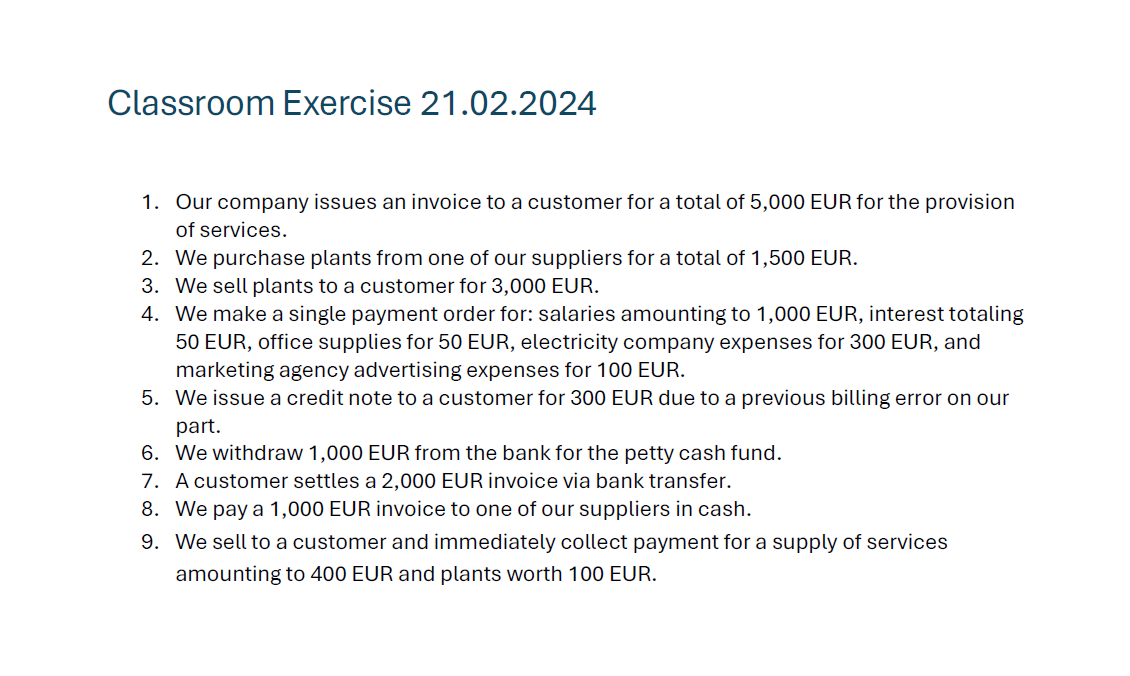
Teacher Solution File
The teacher creates a Banana Accounting file containing the double-entry records for each exercise.
- In the Transaction Table the teacher enters the transactions corresponding to each exercise.
- The solution has multiple lines.
- Each transaction must include the exercise number in the Doc column which can be numeric or alphanumeric.
- The number should match the one in the assignment file or in the related document (such as an invoice, receipt, or other supporting document).
- If a transaction requires multiple lines, the same exercise number must be repeated on each line.
- The order of exercises in either the student’s file or the teacher’s file is not important.
- The sequence of accounting transactions across multiple lines does not affect the functioning of the correction or the calculation of scores.
Below is an image showing an example of the teacher’s solution file.
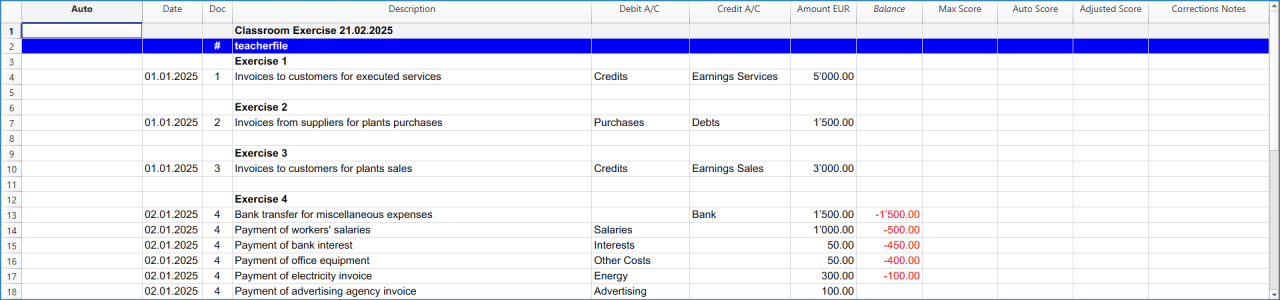
Auto Score Calculation
In collaboration with accounting teachers we are experimenting with automating the process of score calculation.
- Each row in the exercise is evaluated separately.
- If an exercise has multiple rows, each row receives its own score.
The settings in the teacher’s file are configured to assign partial points for each element of the accounting transaction, even when the transaction spans multiple lines. Specifically, points are awarded for each of the following correct entries:
- debit account
- credit account
- amount
- date
- VAT code
- currency amount
- currency
- exchange rate
Scores can be reduced down to zero if all columns are incorrect. Teachers can also customize the scoring system by adjusting the settings.
At the bottom of the student-result-file, the total score obtained by the student is displayed, along with the maximum possible score.
Correction of the Student's Files
We assume that:
- Each student has completed the exercise using Banana Accounting.
- Each student has created a file and submitted it to the teacher.
The correction process will add information directly to the student’s file. To preserve the original work, it is recommended to first make a copy of the file.
When the teacher runs the Correct command, the extension automatically adds the following information to the student’s file:
- Max Score: the maximum possible score that can be achieved.
- Auto Score (Calculated): the score automatically calculated by the extension.
- Adjusted Score (Teacher adjusted score): the score after the teacher’s review or manual adjustment.
- Corrections Notes: feedback showing which values were incorrect.
Correcting a Single Student File
- Open the student's accounting file.
- Click on the Extensions menu in Banana Accounting Plus.
- Click on Automatic Corrections for Accounting Exams and then, on the right, click on Correct the exercises.
- A window will appear asking you to select the Banana Accounting Plus file containing the exercise solutions. Once the solution file is selected, click Open.
- A preview window, similar to the one shown below, will open with the information that will be automatically added to the file. Click Ok button to confirm and view the results in the Transactions table.
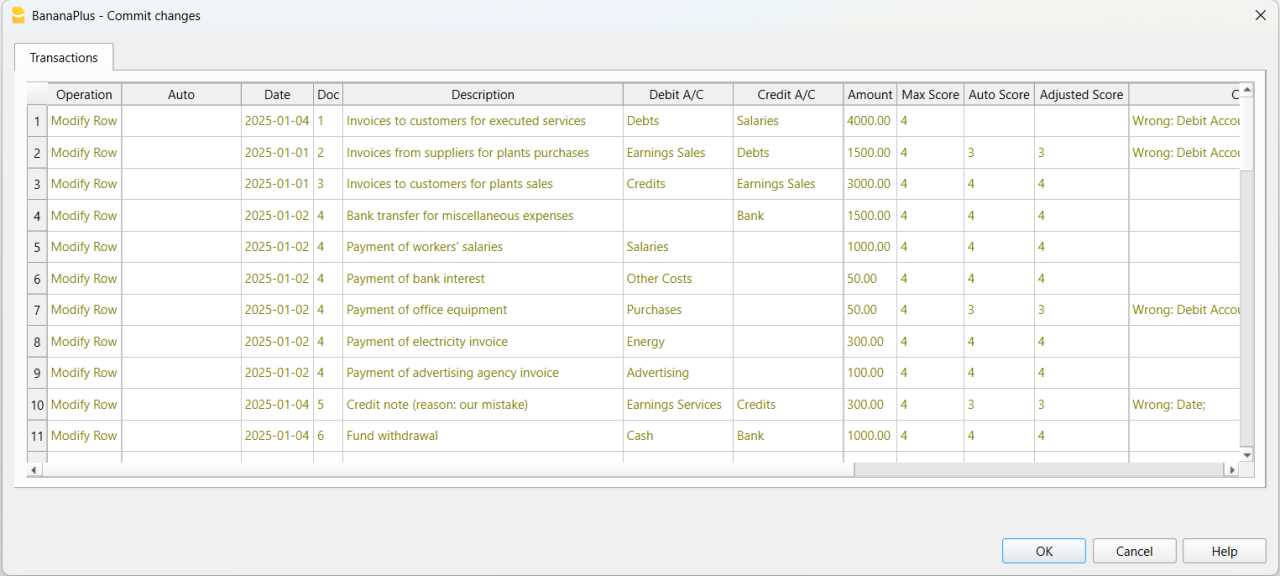
How to read the result
In the image below, the student’s accounting transactions are displayed alongside the teacher’s solutions for easier comparison:
- Teacher’s solutions – shown in bold, so teachers can quickly identify errors.
- Square brackets – placed before and after accounts from the teacher’s solution file, indicating transactions that do not affect the balance sheet or income statement in the Accounts table.
- Highlighted rows – red rows mark errors, while green rows indicate correct entries.
- Max Score column – shows the maximum possible points for each exercise, based on the teacher’s settings (e.g., Date, Debit Account, Credit Account, Amount, etc.).
- Auto Score column – displays the automatically calculated score. Each incorrect entry (such as a wrong debit account, credit account, amount, or date) deducts points from the Max Score.
- Adjusted Score column – initially copied from the Auto Score, but can be modified by the teacher if adjustments are needed.
- Corrections Notes column – provides details about which values were incorrect.
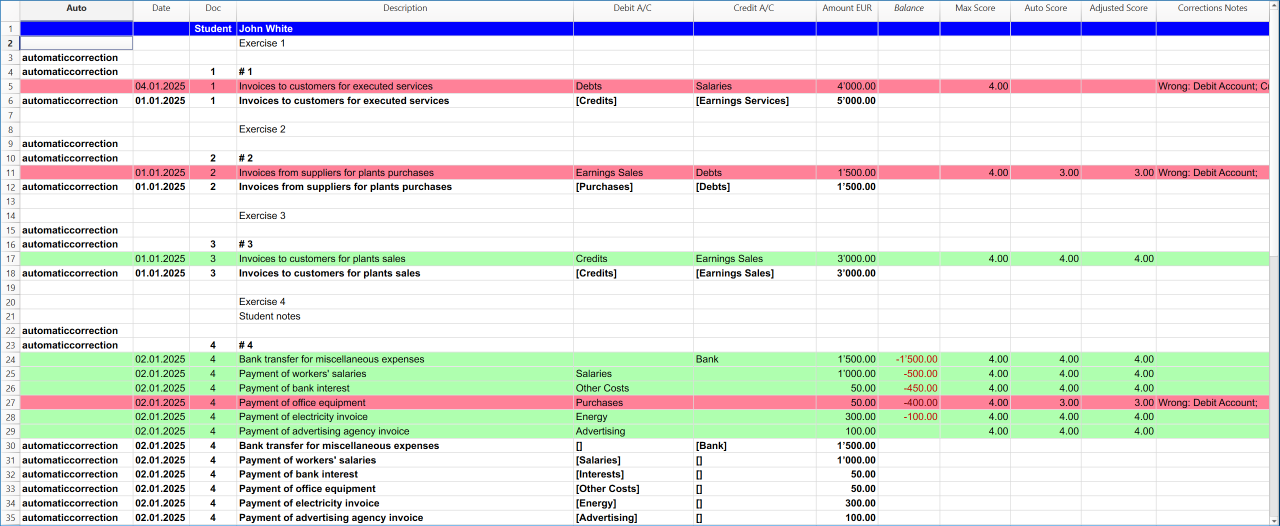
Resources for testing the extension
To try out the student accounting exercise correction extension, you can download the following pre-prepared templates:
- Exercise assignment file.
- Sample template for the student's exercise.
- Sample template for the teacher's solutions.
Resources to start using the extension
To begin using the Automatic Corrections for Accounting Exams extension, download these pre-prepared templates:
How to install the extension
Installing the extension is quick and will help you save time when correcting students’ exercises. Follow these steps:
- Click on the Extensions menu in Banana Accounting Plus.
- Click on Manage Extensions...
- In the window that opens, search by typing the term "automatic corrections" in the empty text field at the top left of the window.
- Click on Automatic Corrections for Accounting Exams in the middle of the window.
- In the right column of the window, click the Install button.
Easily Share Educational Content with Students
Schools and teachers can now share accounting materials created in Banana directly within the Banana Accounting Plus software.
This makes it simple and fast to adopt Banana files for use in both classroom teaching and individual learning in business accounting.
For more information and resources, visit the Banana Accounting Plus Community pages.
Adapt an existing template for automatic exercise corrections
[This extension and this documentation is in development and is not in its final form]
The Automatic Corrections for Accounting Exams extension can adapt existing files or use the chart of accounts templates available directly in Banana Accounting+. This makes them suitable for training purposes as well as for exercises and exams in double-entry accounting.
- Create or open a double-entry accounting file.
- From the Banana menu, click on Extensions.
- Click on Automatic Corrections for Accounting Exams.
- Click on File Preparation.
- The extension asks you to prepare either a teacher file or a student file.
- Choose the file type you want to prepare and click the Ok button.

- Click the OK button in the window that appears. The modifications shown in the image below will then be applied to the file.
The extension will automatically add the necessary columns to the file, while preserving your existing transactions.
If the required columns are already present, they will not be added again. If the file is already prepared, this function will make no changes.
If your file is already ready to be used this function will not make any modifications.
The following columns are added:
- Auto (the first column on the left).
- Max Score.
- Auto Score.
- Adjusted Score.
- Corrections Notes.
This feature is available only for double-entry accounting templates.
Instructions Added for the Teacher’s File
- A hash symbol (#) is inserted in the Doc column of the Transactions Table.
- The key teacherfile is added in the Description column (without quotation marks and written entirely in lowercase).
Instructions Added for the Student’s File
- The word Student is added in the Doc column (without quotation marks and with the first letter capitalized).
Correct the exercises
[This extension and this documentation is in development and is not in its final form]
The automatic correction can be executed only on the student’s file:
- It is not available when run on the teacher’s file.
- It can only be performed if no previous automatic corrections have been applied to the student’s file.
- If a second correction is needed, the existing automatic corrections must first be removed using the Delete the corrections function.
Check the solution
This is the workflow for running an automatic correction with the extension:
- From the menu, select Actions > Recalculate Accounting. The program will notify you if there are issues within the file.
- Run the command Extensions > Automatic Corrections for Accounting Exams > Correct the Exercises.
- This command performs specific checks, such as verifying that account numbers and other data are correct.
- If a transaction contains an error, a message will appear in the Corrections Notes column.
- The Auto Score column will be updated with the calculated score.
- This command performs specific checks, such as verifying that account numbers and other data are correct.
Recalculate the total
[This extension and this documentation is in development and is not in its final form]
This functionality works only if automatic corrections have already been executed using Correct the exercises.
The Adjusted Score column allows the teacher to manually change the automatically calculated score whenever necessary. After making adjustments, the teacher can recalculate the total score for the entire exercise through the extension menu.
The last row, which displays the total score, will then be updated with the final adjusted score set by the teacher.
Delete the corrections
[This extension and this documentation is in development and is not in its final form]
This function removes the rows that were automatically added by the extension during the correction process.
The student’s original rows remain in the file, but any color highlighting, scores or error messages are removed.
In this way, the student’s file is restored to its original state.
The function can only be executed if an automatic correction has already been performed, and it applies exclusively to the student’s file.
Settings
[This extension and this documentation is in development and is not in its final form]
The settings allow you to decide whether to assign an automatic score and to define the points for each condition being verified.
All settings must be configured in the teacher’s file, and they will be applied automatically when grading the students’ files.
Available Settings in the teacher's file
The currently available settings and their descriptions are as follows:
- Point-based assessment: enables or disables the automatic scoring of student records.
- Points for correct date: awards points if the student’s date matches the teacher’s date.
- Set to zero if you do not want to grade this field.
- Points for correct debit account: assigns a score if the entered debit account is correct.
- Set to zero if you do not want to grade this field.
- Points for correct credit account: assigns a score if the entered credit account is correct.
- Set to zero if you do not want to grade this field.
- Separate debit and credit accounts : allows for separate scoring if the debit account and credit account are correct.
- If the checkbox is checked the score is assigned separately even if one of the debit or credit accounts is incorrect.
- If the checkbox is not selected, the score is zero when both the debit and credit accounts are incorrect, or when either one is incorrect.
- If the checkbox is not selected, points are awarded only when both the debit and credit accounts are correct.
- In this case the debit account score and credit account score are added together as the final score assigned to the student.
- Points for correct amount: assigns a score if the entered amount is correct.
- Set to zero if you do not want to grade this field.
- Points for VAT code: assigns a score if the entered VAT code is correct.
- Set to zero if you do not want to grade this field.
- The VAT code points are only considered for templates with VAT functionalities enabled.
- Points for currency amount: assigns a score if the entered currency amount is correct.
- Set to zero if you do not want to grade this field.
- The currency amount points are only considered for multi-currency templates.
- Points for currency: assigns a score if the entered currency is correct.
- Set to zero if you do not want to grade this field.
- The currency points are only considered for multi-currency templates.
- Points for exchange rate: assigns a score if the entered exchange rate is correct.
- Set to zero if you do not want to grade this field.
- The exchange rate points are only considered for multi-currency templates.
- Penalize the amount only if Debit and Credit are correct: assigns a score to the amount if the entered Debit and Credit Accounts are correct.
At the bottom, an image of the settings window in the teacher’s file illustrates how these options are configured.
Banana Investment Accounting
Banana Investment Accounting allows you to manage shares, bonds, funds, and other investments in multiple currencies directly within your accounting file. It combines double-entry Financial Accounting with the detailed tracking of individual investments, including quantities, prices, book values, and market values.
Investment transactions update both the accounting records and the related investment data, providing an integrated view of your investments and their impact on the Balance Sheet and Income Statement.
The Investment Accounting Extension adds specialized commands and reports for tasks such as calculating realized gains or losses, creating valuation adjustments, checking balances, and preparing investment reports.
Templates
We provide two predefined accounting templates to help you get started:
Both templates are preconfigured with sample Investment Balance Sheet Accounts and account groups, providing a ready-to-use starting point for managing investments with Banana Investment Accounting. The chart of accounts can be customized to suit your specific requirements.
The Double-Entry Accounting template is suitable for managing investments in the base currency only.
The Multi-Currency Accounting template allows you to manage investments denominated in foreign currencies. The Exchange Rates table is used to define the currencies and exchange rates, while the Accounts table includes the accounts required to record exchange rate gains and losses.
Double-Entry Accounting Example For Integrated Investment Accounting
Double-Entry Accounting Example For Integrated Investment Accounting michaelDouble-Entry Multi-Currency Accounting Example With Investment Accounting
Double-Entry Multi-Currency Accounting Example With Investment Accounting
For more information see:
Use for your accounting
This template is conceived to experiment with the Portfolio extension and it contains example of investments and transactions.
The accounts list is very limited, but if you want to use as a base of your accounting simply:
- Delete all transactions
- Delete the opening amount in the Accounts table
- Delete the opening values in the Items table.
Investment Accounting Extension [BETA]
Investment Accounting Extension [BETA]The extension enhances the core accounting functionality of Banana Accounting by adding specialized tools for Investment Accounting. It provides commands and reports for updating market prices, calculating realized gains and losses on sales, creating valuation adjustment transactions, checking balances, reconciling investment values with the corresponding Investment Balance Sheet Accounts, and preparing detailed investment reports.
For an introduction to the accounting concepts used in Banana Investment Accounting, see the Theoretical Introduction.
- Accounts settings
- Update market prices
- Calculate sales data
- Create adjustment transactions
- Check balances report
- Reconciliation report
- Security card report
- Evaluation of investments report
Requirements
- This extension requires the Advanced plan of Banana Accounting Plus.
- Record investment transactions in chronological order in the Transactions table. This is essential for extensions that calculate or use the book value, because the book value is updated progressively after each transaction in date order.
How to start
- Open Banana Accounting Plus
- Open an existing Investment Accounting file or create a new one using one of the available Investment Accounting templates.
- Choose Extensions > Manage Extensions and install the Investment Accounting extension.
Accounts settings
The Accounts Settings dialog allows you to specify the accounts used for different investment transactions, such as sales, valuation adjustments, and other investment-related entries.
These accounts are used by the Investment Accounting extension when it automatically calculates or creates accounting transactions, ensuring that the appropriate accounts are used for each type of operation.
You do not need to specify every account, only those required for your accounting setup. The accounts entered in the dialog must exist in the Accounts table. If an account does not exist, the program displays an error message when you try to confirm the settings.
Sections in the Dialog and Account Usage

The dialog is divided into three main sections.
Balance Accounts
This section contains the Balance Sheet accounts associated with investments and other investment-related balances.
- Assets
Contains the accounts used to record investment assets.
The first time you open the dialog, the program automatically fills this field with the Investment Balance Sheet Accounts specified in the Asset Account column of the Items table. - Liabilities
Contains the accounts used for investment-related liabilities, such as margin loans or other financial obligations.
Value Changing Accounts
This section contains the accounts used to record realized and unrealized gains and losses, exchange rate differences, and other adjustments affecting the value of investments.
- Realized Gain: Account for recording realized gains from investment sales.
- Realized Loss: Account for recording realized losses from investment sales.
- Unrealized Gain: Account for recording unrealized gains due to an increase in the market value of investments.
Used by the Create adjustment transactions command. - Unrealized Loss: Account for recording unrealized losses due to a decrease in the market value of investments.
Used by the Create adjustment transactions command. - Realized Exchange Rate Gain: Account for recording realized exchange rate gains arising from the sale of investments denominated in a foreign currency.
- Realized Exchange Rate Loss: Account for recording realized exchange rate losses arising from the sale of investments denominated in a foreign currency.
- Unrealized Exchange Rate Gain: Account for recording unrealized currency gains due to favorable exchange rate movements.
- Unrealized Exchange Rate Loss: Account for recording unrealized currency losses due to unfavorable exchange rate movements.
- Depreciations: Account for recording investment depreciation adjustments, if applicable.
- Other Value Changing Costs: Account for miscellaneous expenses affecting the value of investments.
- Other Value Changing Income: Account for miscellaneous income affecting the value of investments.
- Rounding Differences: Account for small discrepancies due to rounding or decimal precision differences.
Profit and Loss Accounts
This section contains the accounts used to record income and expenses related to investment activities.
- Charges: Account for general investment-related charges and fees.
- Commissions: Account for broker or bank commissions on investment transactions.
- Interest Earned: Account for interest income from bonds or other financial instruments.
- Interest Paid: Account for interest expenses related to investment loans or margin trading.
- Dividends Income: Account for dividend income received from investments.
- Other Income: Account for any additional investment-related income not classified elsewhere.
- Other Costs: Account for any additional investment-related costs not classified elsewhere.
Error Messages
- Account XXX not found in the Accounts table: The account entered does not exist in the Accounts table.
- Add the account to your Accounts table.
- Select the “Ignore warnings/errors” checkbox at the bottom of the dialog to ignore the error.
Update market prices
This command updates the current market prices of investments in the Items table. Market price data can be imported from a CSV file or from the clipboard.
Before applying the changes, Banana Accounting displays a preview in the Commit changes dialog. Once the changes are confirmed, the imported prices are entered in the Price Current column of the Items table.
Price Current Column
The Price Current column in the Items table contains the current market price used to calculate the current value of the investment.
You can update Price Current manually, by copying and pasting values into the Items table, or by using the Update market prices command to import prices for multiple investments.
When market prices are imported and the changes are confirmed, the command updates the Price Current column of the corresponding Items.
Prepare Current Market Price Data
Current market prices can be obtained from financial information providers and prepared in an Excel or CSV file for import.
For each investment, provide:
- the ISIN or other identifier used to identify the investment
- the corresponding current market price.
Make sure that the identifier used in the import data corresponds exactly to the identifier entered for the investment in the Items table.
File Format
The extension expects the data to be in the following two-column format, with ISIN and current market price separated by a semicolon (;):
US123456789;11.04873
IT000792468;10.98732
...
- First column: The ISIN or other investment identifier.
- Second column: The current market price, without thousands separators and using a period (".") as the decimal separator.
Import Procedure
You can import the data in two different ways.
Import *.csv File
- Choose Extensions > Investment accounting > Update market prices.
- Select the *.csv file.
- Review the changes in the Commit changes dialog and confirm them.
Import from Clipboard
- Choose Actions > Import to accounting and select the Import File option.
- Select the extension to be used, in this case 2. Update market prices.
- Open the Excel file, select the data, and copy it to the clipboard.
- In the import dialog, select Import data from clipboard.
- Click OK.
- Review the changes in the Commit changes dialog and confirm them.

Error Messages
- Unrecognised *.csv file format: The format of the *.csv file you are trying to import does not match the required format.
- Make sure that you selected the correct file.
- Check that the data follows the format described in the File Format section above.
- Items table not found: The Items table is not present in the accounting file.
- Add the Items table to the accounting file.
- Asset: XXX not found in the Items table: The identifier contained in the imported data does not correspond to an investment in the Items table.
- Check that the identifier is correct and corresponds to the one entered in the Items table.
- If the investment has not yet been defined, add it to the Items table before importing its market price.
Calculate sales data
The Calculate sales data dialog allows you to calculate the realized gain or loss resulting from the sale of an investment and, when required, create the related accounting transactions.
The dialog provides two main functions:
- Calculate the Sale Result – Click Calculate profit or loss to preview the realized gain or loss based on the data entered in the dialog or automatically retrieved from the accounting file. No accounting transactions are created. This function can also be used without starting from the sale transaction row in the Transactions table.
- Create the Sales Record – Click Create sales record to create the accounting transactions required to complete the sale recording. To use this function, start from the sale transaction row in the Transactions table that records the net proceeds from the investment sale.
Start from the Sale Transaction Row
When creating the sales record, the program needs to identify the transaction to be completed with the additional entries required to record the sale, such as charges, realized gains or losses, and exchange rate differences. Therefore, you must start from the transaction row that records the net proceeds from the investment sale.
If this row already includes:
- Item (security ID)
- Quantity
- Unit Price (Market Price)
- Exchange Rate (for multi-currency accounting)

The dialog retrieves this information automatically. Otherwise, you need to enter the missing information in the dialog.
The sale transaction row is the only row that must be entered manually. Once this row is available, the program can automatically create the additional entries required to complete the sale recording.
How to use the dialog
When you execute this command, a dialog titled Calculate book profit/loss on sale opens.

Enter or review the information required for the sale:
- Security Data:
- Id (ISIN): Select the security from the dropdown.
- Type: Displays whether the security is a Stock or a Bond.
- Quantity/Nominal Value: Enter the quantity or nominal value of the investment being sold.
- Current Price: Enter the price per unit at which the investment is being sold.
- Current Exchange Rate: For investments denominated in a foreign currency, enter the exchange rate applicable to the transaction.
- Bank Charges: Enter any bank charges related to the sale. If no amount is entered, the corresponding transaction is not created.
- Other Charges: Enter any additional costs related to the sale. If no amount is entered, the corresponding transaction is not created.
- Accrued Interests: For bonds, enter any accrued interest related to the sale. This field is enabled only for bonds.
- Results Preview: Once the required data is entered, click Calculate profit or loss to generate a preview showing:
- Actual Quantity: The quantity held before the sale.
- Book Value per Unit: The current book value per unit of the investment.
- Total Book Value: The book value of the investment quantity being sold.
- Total at Current Price: The value of the investment quantity being sold at the entered Current Price.
- Book Profit/Loss: The difference between the book value and the sale value.
- Exchange Rate Profit/Loss: For investments denominated in a foreign currency, the gain or loss resulting from exchange rate differences.
Amounts are displayed using the number of decimal places defined for the corresponding columns in the Transactions table.
When you enter an amount in the dialog, make sure to use the local number format (for example, “1'234.56” in Switzerland), as this is the format expected by the program.
Recording the Sale
Once you are satisfied with the preview, click Create sales record to create the accounting entries required to complete the sale recording. The program displays a confirmation dialog showing the entries to be added or modified, allowing you to review them before applying the changes.

- Upon confirmation, the program updates the accounting records with the new or modified entries.
- If the quantity is zero or the calculated profit/loss is zero, no transaction is created.
- The program adds a transaction identifier to the ExternalReference column of both the original sale row and any newly created rows. This prevents duplicate entries if the command is run multiple times on the same sale row.
- If the program detects an existing record for this sale, it will ask whether you want to overwrite it.
This procedure helps ensure that investment sales are correctly recorded while allowing you to review the accounting entries before they are applied.

In the example shown in the image, placeholder accounts are used. These are used when the corresponding accounts have not been defined in the Accounts Settings dialog.
The extension uses a neutral number (±123.00) in the Quantity column when recording the realized gain or loss. A neutral quantity does not change the quantity held but allows the amount of the realized gain or loss to be associated with the investment and its corresponding unit value to be shown in the Unit Price column. This is especially useful for investment funds and ETFs.
Error Messages
- Items table not found: The Items table is not present in the accounting file.
- Add the Items table to your file.
- Asset: XXX not foun: The selected Asset does not exist in the Items table.
- Asset: XXX without assigned Asset Account: No Asset Account has been assigned to this Asset in the Items table.
- Define an account in the Asset Account column for the Asset in the Items table.
- Asset: XXX without assigned type: No Asset Type has been defined for this Asset.
- The selected row does not contain the Asset ID: The selected row does not contain a valid Asset ID. To create the sales record, the selected row must contain the ID of an Asset defined in the Items table.
- The selected row does not contain a valid sale Quantity: The selected row does not contain a valid quantity for an investment sale. The sale quantity must be negative. Check that the quantity is preceded by a minus sign (-) and that you have selected a sale row rather than a purchase row.
- The selected row in the Transactions table is not correct: The selected row does not correspond to the investment sale row required to create the sales record.
- The selected row in the Transactions table is not valid: The selected row in the Transactions table is not a valid transaction row.
Create adjustment transactions
This command automatically creates adjustment transactions to align the book value of investments with their current market value and, for investments denominated in a foreign currency, with current exchange rates. Adjustment transactions can be created multiple times during the year. For year-end adjustments, see Investment Accounting Opening and Closing the Year.
Define Current Market Values
Set Up the Current Prices
In the Items table, enter the current market price for each investment in the Price Current column.
You can:
- Enter the current prices manually, including only for the investments for which you want to create adjustment transactions.
- Use the Update Market Prices command to import and update current prices for multiple investments.
Current Exchange Rates
For investments denominated in a foreign currency, the current value in base currency is automatically calculated using the current exchange rate defined for the corresponding currency in the Exchange rates table.
The current exchange rate is the exchange rate entered without a specific date. For more information, see Items Table with Investments List.
Adjustment Transactions Dialog
When you run the Create adjustment transactions command, a dialog asks you to enter the date to be used for the adjustment transactions. By default, the current date is suggested.
All adjustment transactions created by the command are recorded with the specified date.

Commit Changes Dialog
Before the adjustment transactions are recorded, the Commit changes dialog displays a preview of all the transactions that will be created, allowing you to review them before confirming the changes.

Adjustement Transactions
Adjustment transactions are generated and grouped by investment. If both a market price adjustment and an exchange rate adjustment are required for the same investment, the corresponding transactions are kept together.
Adjustment transactions are recorded using the Asset Account defined for the investment in the Items table, increasing or decreasing its book value. The offsetting entry is recorded in the corresponding gain or loss account.
If the following accounts are defined in the Accounts Settings dialog, the program uses them to record the adjustments:
- Unrealized Gain / Unrealized Loss for market price adjustments.
- Unrealized Exchange Rate Gain / Unrealized Exchange Rate Loss for exchange rate adjustments.
If the required accounts are not defined in the Accounts Settings dialog, the program inserts descriptive placeholder accounts in the generated transactions.

Once the adjustment transactions have been recorded, verify that the balances of the Asset Accounts match the current values of the corresponding investments in the Items table. For more information, see Create Adjustment Transactions.
In the following cases, no adjustment transactions are created:
- The book value already corresponds to the current market value and, for investments denominated in a foreign currency, the book exchange rate corresponds to the current exchange rate.
- The investment has a current quantity of zero.
- No current market price is defined for the investment.
Error Messages
- Items table not found: The Items table is not present in the accounting file.
- Add the Items table to your file.
- No Asset found in the Items table: The Items table does not contain any valid Assets.
- Add Assets to the Items table.
- A valid Asset must have an ID and an Asset Account.
- No Asset with current price found in the Items table: No Asset with a valid current price was found in the Items table.
- The carrying amounts are already aligned with the current market prices. No unrealized gains or losses have been generated: The book values of the investments are already aligned with their current market values and, where applicable, current exchange rates. No adjustment transactions are required.
Check balances report
The Check Balances report verifies that the values of individual investments are consistent with the balances of the Asset Accounts to which they are assigned.

This check is particularly useful at the beginning of a new accounting year to verify that:
- Opening and closing balances have been recorded correctly.
- The values of individual investments are consistent with the balances of their corresponding Asset Accounts.
Currently, the check is performed only for the current accounting year.
Why Use This Report?
The report helps you:
- Identify discrepancies between investment values and the balances of the corresponding Asset Accounts.
- Verify that investments and their assigned Asset Accounts remain consistent.
- Check the consistency of balances after year-end closing.
The report can be exported and saved at any time. For more information, see Printouts/preview.
Error Messages
- Items table not found: The Items table is not present in the accounting file.
- Add the Items table to your file.
- No Asset found in the Items table: The Items table does not contain any Asset.
- Add Assets to the Items table.
- A valid Asset must have an ID and an Asset Account.
- No Asset accounts found in the Items table: No Asset Accounts have been assigned to the Assets in the Items table.
- Define an Asset Account for each Asset using the Asset Account column. in the Items table.
Reconciliation report
The Reconciliation Report provides a detailed overview of the transactions recorded for investments and verifies that the balance of each Asset Account in the accounting records is consistent with the balance calculated from the transactions of the investments assigned to that account.
At the end of the report, a reconciliation summary shows the opening balance, the net change during the period, and the closing balance, allowing you to verify that the Asset Account balance matches the balance calculated from the corresponding investment transactions. Any differences are shown in the Differences fields, with the corresponding amounts highlighted in red.
Selection Dialog
Select the Asset Account(s) for which you want to generate the reconciliation report.

Report Structure
The structure of this report is similar to the Security Card report, as it lists the transactions for each investment assigned to the selected Asset Account.
For each selected Asset Account, a separate table is generated on a new page of the report.

Saving and Exporting the Report
The report can be exported and saved at any time. For more information, see Printouts/preview.
Error Messages
- Items table not found: The Items table is not present in the accounting file.
- Add the Items table to your file.
- No Asset found in the Items table: The Items table does not contain any Asset.
- Add Assets to the Items table.
- A valid Asset must have an ID and an Asset Account.
- No Asset accounts found in the Items table: No Asset Accounts have been assigned to the Assets in the Items table.
- Define an Asset account for each Asset in the Items table using the Asset Account column.
Security card report
The Security Card report provides a detailed overview of all transactions recorded for a specific investment. Its structure is similar to the Account Card, but the report is filtered by investment and also shows how the quantity held and the book value change after each transaction.
Selection Dialog
Select the investment for which you want to generate the Security Card report. By default, the dialog displays the list of investments defined in the Items table.
If the selected investment is not found in the Items table, an error message is displayed. Make sure that the investment is correctly defined in the table.

When you reopen the dialog, the investment selected the last time is displayed again.
Report structure
- Date: Transaction date.
- Doc: Transaction number.
- Description: Transaction description.
- Debit (item Currency): Debit amount in the item currency.
- Credit (item Currency): Credit amount in the item currency.
- Quantity:
- Purchased: No sign.
- Sold: With minus '-' sign.
- Neutral: With neutral number symbol: '±'.
- Unit Price (item Currency): purchase or sale (unit) price of the investment.
- Balance (item Currency): Balance amount in the item currency.
- Quantity Balance: Current quantity of securities.
- Book value per unit (item Currency): Current book value per unit of the investment.
- Debit (Base Currency): Debit amount in base currency.
- Credit (Base Currency): Credit amount in base currency.
- Balance (Base Currency): Balance amount in base currency.

Saving and Exporting the Report
The report can be exported and saved at any time. For more information, see Printouts/preview.
Error Messages
- Items table not found: The Items table is not present in the accounting file.
- Add the Items table to your file.
- Asset: XXX not found: The selected Asset has not been found in the Items table.
- No Asset found in the Items table: The Items table does not contain any Asset.
- Add Assets to the Items table.
- A valid Asset must have an ID and an Asset Account.
Evaluation of investments report
The report provides a comprehensive overview of your current investments. It is divided into two main sections:
- Appraisal Report: Offers a snapshot of your investments, comparing the book value of each investment with its current market value.
- Investment Accounting Transactions: Displays a detailed list of all transactions carried out for each investment.
Appraisal Report
The Appraisal Report helps you quickly assess the situation of your investments. It displays key information such as book value, current market value, and any unrealized gains or losses for each investment.
To obtain an up-to-date appraisal, enter the current market price for each investment in the Price Current column of the Items table.
- Type/Security: Name of the group or investment.
- ISIN: ISIN or other identification number of the investment.
- Currency: Currency in which the investment is denominated.
- Current quantity: Current quantity of the investment held.
- Book value per unit: Current book value per unit of the investment.
- Book value: Total book value of the investment.
- Market value per unit: Current market price per unit of the investment, as defined in the Price Current column of the Items table.
- Market value: Current market value of the investment.
- % of Port: Percentage of the total portfolio represented by the investment.
- Un.Gain or Loss: Unrealized gain or loss on the investment.
- % G/L: Ratio of the unrealized gain or loss to the market value.
Investment Accounting Transactions Report
The report summarises the accounting transactions recorded for each investment.

Saving and Exporting the Report
The report can be exported and saved at any time. For more information, see Printouts/preview.
Error Messages
- Items table not found: The Items table is not present in the accounting file.
- Add the Items table to your file.
- No Asset found in the Items table: The Items table does not contain any Asset.
- Add Assets to the Items table.
- A valid Asset must have an ID and an Asset Account.
Management accounting and Cash Management
Banana Accounting is a sophisticated a flexible accounting solution designed to complement existing accounting systems with powerful tools for Cash and Management Accounting.
It enhances and does not replace statutory or tax accounting typically structured around fiscal deadlines and compliance requirements.
Management Accounting
Banana Accounting supports a management-driven approach to accounting, starting with one of the most critical aspects of business control: liquidity management.
Effective financial management requires up-to-date information on cash availability, expected inflows, and planned payments. Liquidity control cannot rely solely on accounting prepared for tax deadlines or year-end reporting. It requires regular and systematic updates so that management always has a clear and reliable view of the company’s financial position. Banana Accounting enables continuous cash monitoring and forward-looking planning, helping organizations anticipate cash shortages and make timely decisions.
Beyond liquidity, Banana Accounting supports full Management Accounting functions. Companies can analyze costs and revenues by project or cost center, compare budget and actual figures, and generate customized management reports for any period. This makes it possible to monitor performance throughout the year and adjust strategies based on current data.
The objective is not only compliance, but control. Instead of focusing exclusively on statutory and tax-driven accounting, Banana Accounting complements existing solutions by providing timely financial insight that strengthens internal management and supports informed, proactive decision-making.
Trust Accounting
Double-Entry Accounting for Trust
Double-Entry Accounting for Trust jessica.mattiMulti-Currency Accounting for Trust
Multi-Currency Accounting for Trust jessica.mattiForensic Accounting, Reconstruction, Auditing and Cleanup of Financial Records
Banana Accounting Software helps accounting professionals quickly rebuild, verify, reconcile, and reorganize financial records in a clear, reliable, and professionally structured environment. It combines the flexibility of a spreadsheet with the control of double-entry accounting, making complex cleanup, reconstruction, and audit work faster and more effective.
With its table-based structure, Banana Accounting greatly reduces the time needed to rebuild accounting records and makes it much easier to view the data. The powerful filtering tools let you quickly find information and categorize movements. It generates professional financial reports, including balance sheets, income statements, account cards, and detailed transaction listings. It also includes advanced features such as investment accounting, which are not available in standard ERP systems.
Use in Investigative Units
Banana Accounting is used with satisfaction by several Swiss investigative units for accounting reconstruction in the context of financial investigations.
A Precious Tool for Accounting Professionals
For many accounting professionals, Banana Accounting has become a very valuable tool that complements accounting systems and Excel. It allows them to take on complex and interesting assignments and make them economically worthwhile while ensuring full client satisfaction. The professionalism and efficiency demonstrated often become the starting point for consulting activities and other value added services that are highly appreciated and well paid.
This documentation introduces the principles of forensic accounting and the cleanup and reconstruction of financial records, and explains how Banana Accounting can be used to support these activities effectively.
Accounting Cleanup
Accounting cleanup refers to the systematic correction and reorganization of financial records that have become inaccurate, inconsistent, or incomplete during normal business operations. It is commonly required when a CPA takes over a new client, prepares year-end financial statements, or discovers discrepancies during routine review work.
Typical cleanup tasks include reconciling bank and credit card accounts, resolving unexplained balances, correcting misclassified transactions, rebuilding opening balances, clearing suspense or temporary accounts, and ensuring that receivables, payables, and tax liabilities are properly stated. In some cases, it may also involve partially reconstructing prior periods to restore continuity and accuracy.
The objective of accounting cleanup is to re-establish a coherent and internally consistent accounting structure that produces reliable financial statements. Unlike daily bookkeeping, cleanup work focuses on identifying accumulated errors and restoring confidence in the underlying data before further reporting, advisory, or tax activities can proceed.
Auditing of Accounting
The auditing process often requires checking the accounting data managed with the company’s accounting software. In many cases, the accounting software does not provide the tools needed for this work. As a result, auditors often export the data and rebuild the accounting situation in Excel.
A useful alternative is to import the chart of accounts and the transactions into Banana Accounting. The program is based on double entry accounting logic and rebuilds the accounting situation from the start. This makes it possible to verify that the results match correctly.
Once the data is in Banana Accounting, it becomes easier to perform additional checks, filter the information, and export the data to other formats.
Accounting Reconstruction
Accounting Reconstruction is the rapid and systematic restoration and analysis of financial information in cases of fraud, legal disputes, insolvency, data loss, or abrupt management changes, when reliable accounting records are missing, incomplete, or inconsistent. It may also be necessary to obtain more detailed information when the current system does not allow it, for example during an M&A due diligence process.
The primary objective is to swiftly rebuild a structured and verifiable accounting system from available source documents, including bank statements, invoices, contracts, and tax filings. By organizing transactions through the double-entry bookkeeping method, Backlog Accounting Reconstruction ensures internal data consistency, highlights discrepancies, and restores full operational control over financial records.
The final output is a clear, accurate, and legally defensible representation of the organization’s financial position—including the Balance Sheet, Income Statement, and detailed transaction ledgers—enabling informed decision-making in legal, financial, or operational contexts.
Emergency accounting is the rapid reconstruction and analysis of financial information in crisis situations, such as fraud, disputes, insolvency, data loss, or sudden management changes, when reliable accounting records are missing, incomplete, or inconsistent.
Forensic accounting
Forensic Accounting is the application of accounting and auditing techniques to legal, judicial, and investigative matters. The goal is to reconstruct the financial truth when data is missing, incomplete, manipulated, or suspicious. Financial investigations often analyze existing accounting records and require a solid understanding of accounting practices. They are usually conducted by experienced accountants, often with specific training.
The popularity of crime investigation series like CSI has led to associating the term "forensic" mainly with crimes such as fraud or money laundering. In reality, it also includes the collection of evidence and investigations in civil matters, such as shareholder or inheritance disputes, or in tax cases like overdue taxes.
Forensic accounting includes all investigative activities related to reconstructing financial situations, such as:
- Legal audits, assessments, financial consulting, damage quantification, and analysis.
- Bankruptcies, company liquidations, and financial restructurings.
- Disputes between partners, inheritance transfers, or checks during due diligence.
- M&A due diligence.
- Legal and tax compliance failures.
- Fraud, bankruptcy, or money laundering.
- Monitoring the use of funds, illegal expenses, and corruption.
- Lack of access to or problems with the original IT system.
Shortcomings of Pre-Existing Tools
Professional accountants and CPAs already rely on established tools such as ERP systems, accounting platforms, and spreadsheets. These solutions are highly effective for routine bookkeeping, compliance, payroll processing, and periodic reporting.
However, situations involving reconstruction, cleanup, data verification, due diligence, or other non-recurring operations present different requirements. These tasks are exploratory, corrective, and often temporary in nature. They require flexibility, transparency, and the ability to reorganize data without disrupting operational systems.
In these contexts, traditional tools may reveal structural limitations.
Shortcomings of ERP and Standard Accounting Systems
Enterprise accounting software and ERP systems are designed primarily for structured, ongoing operations. They are optimized for efficiency, internal control, and compliance within a stable workflow.
In reconstruction or cleanup scenarios, these characteristics can become constraints:
- Rigid process flows and approval structures.
- Complexity caused by the need to cover all requirements.
- Multiple integrated modules that do not communicate well with each other.
- Reduced transparency and control due to increased automation.
- Standardized charts of accounts and predefined reporting formats.
- Emphasis on periodic tax and regulatory reporting.
- Many constrains importing and reorganizing raw transactional data.
- Risk associated with modifying historical records in live systems.
- Difficulty testing alternative classifications or adjustments without affecting official books.
- Vendor lock-in, with the need to move to a more expensive version to access certain features.
Such systems are excellent for daily operations but are not specifically designed for investigative, corrective, or one-time analytical work.
Shortcomings of Excel
When faced with reconstruction or cleanup tasks, many professionals turn to Excel because it allows rapid data collection, filtering, and analysis. Spreadsheets are flexible and familiar, and they support quick experimentation.
However, Excel lacks the structural safeguards of accounting software:
- It requires careful management of formulas and links.
- It does not enforce double-entry accounting logic.
- It does not automatically ensure that debits and credits balance.
- Categorization is manual and not inherently based on accounting rules.
- Standard financial statements must be built manually.
- Errors can remain undetected in complex models.
Excel is a powerful analytical tool, but it was not designed to function as a controlled accounting system.
Banana Accounting for Reconstruction and Cleanup
Reconstruction, cleanup, and other non-recurring accounting tasks require a working environment that combines flexibility with accounting control. Banana Accounting provides a structured and independent space where financial data can be reorganized, verified, and recalculated without affecting the operational system.
Unlike ERP systems, it is not constrained by rigid workflows. Unlike spreadsheets, it enforces double-entry consistency automatically.
Banana Accounting allows professionals to:
- Work in a separate accounting file without modifying the client’s live system.
- Import and reorganize raw transactional data quickly.
- Use a fully customizable chart of accounts.
- Automatically ensure debit/credit balance and internal consistency.
- Detect discrepancies through built-in double-entry controls.
- Test reclassifications and adjustments safely.
- Instantly generate balance sheets, income statements, and detailed account cards.
- Present results in a clear and professionally recognized accounting format.
By combining spreadsheet flexibility with accounting discipline, Banana Accounting bridges the gap between rigid ERP systems and unstructured Excel files, making it particularly suited for reconstruction and cleanup work.

Similar to Excel
Banana Accounting is similar to Excel, does not require specific training, and offers great flexibility. It is therefore a very useful tool for reconstructing financial situations and managing accounting for forensic analysis.
- The accounting is a file that contains multiple tables.
- The tables are similar to Excel sheets: you can move freely, insert and select cells, copy and paste.
- You can create as many files as you want, each with its own settings.
- The file can be saved and moved wherever you want.
Local data management
Unlike other accounting software that operates only in the cloud, Banana Accounting allows you to choose where to save and store your accounting file. This way, you can keep your data locally without uploading it to cloud systems, avoiding the need for specific authorizations. Accounting records can be easily linked to digital supporting documents stored on your computer, allowing you to quickly and thoroughly check the reason for specific expenses during data analysis.
This feature can be especially useful in the preliminary analysis phase, not only for privacy reasons but also because it makes it easier to share information and reuse data in later stages.
Importing data
Banana Accounting is based on tables, so it is quite easy to import existing data, whether it concerns the chart of accounts, customers or suppliers, product or investment lists, VAT codes, or other information. For more information, please refer to the page:
- Importing data from other programs.
- Once you have imported the data you can complete it and modify.
- You can filter, select multiple cells, copy and paste, search and replace, and fix multiple rows almost instantly.
- You can undo and redo operations.
Ideal for various fields
Banana Accounting is not a specialized forensic analysis software, but it can be extremely helpful for professionals such as:
- Accountants and auditors.
- Family offices.
- Fiduciary, financial, and real estate management firms.
- Lawyers and law firms.
- Restructuring specialists.
- Court-appointed or party-appointed technical consultants.
- Inspectors or experts working within legal teams.
- Departments of large organizations.
Try Banana Accounting with the WebApp
If you want to see how easy it is to collect and categorize accounting data:
- See how to get started with double-entry accounting, including a short explanatory video.
- Try the Banana Accounting WebApp, which runs directly in your browser (no registration required):
it’s the fastest way to test, set up an accounting file, and start entering data.
These links launch the WebApp and open one of the universal templates, not tied to any specific country:
To manage accounting regularly and completely, we recommend using the desktop version of Banana Accounting (to download and install on your computer). The Free plan of Banana Accounting lets you create accounting files and use most features, with a saving limit of 70 transactions. It's the ideal way to get started and see if the tool fits your needs.
Our customer service is available for more information. Our specialists can also advise you on how to proceed with data recovery or other specific needs.
Use Banana Accounting for Reconstructing the Financial Situation
Below you’ll find an explanation of how to use Banana Accounting to reconstruct accounting records for forensic accounting activities.
Keep in mind that reconstruction can be done in two phases:
- Preliminary data collection and analysis to assess the situation.
- Data collection and analysis with more specific goals.
The financial reconstruction, whether preliminary or final, is generally structured as follows:
- Defining the objectives of the investigation.
- Collecting documents, bank statements, and other financial information.
- Re-entering transactions into an accounting system, completing and categorizing them.
- Verifying, evaluating, and analyzing the data.
- Presenting the financial information.
- Economic and legal evaluations, with preparation of reports.
Create accounting starting from a template
What makes Banana Accounting particularly suitable for forensic accounting is that it is a professional international accounting tool, not designed solely for corporate accounting. It is modular, so you can have double-entry accounting setups for foundations, associations, individuals, in different currencies and languages. For simpler situations, you can also use the income & expense method, which can still manage the balance sheet.
To start a new accounting file, use a predefined template for a specific purpose:
- Menu File > New.
A dialog will appear where you can choose a template by region and type of accounting. - Templates for specific regions.
These are set up according to national accounting standards.
The chart of accounts usually has numerical account IDs. - Universal templates.
These are for more general use. The account IDs are usually descriptive text.
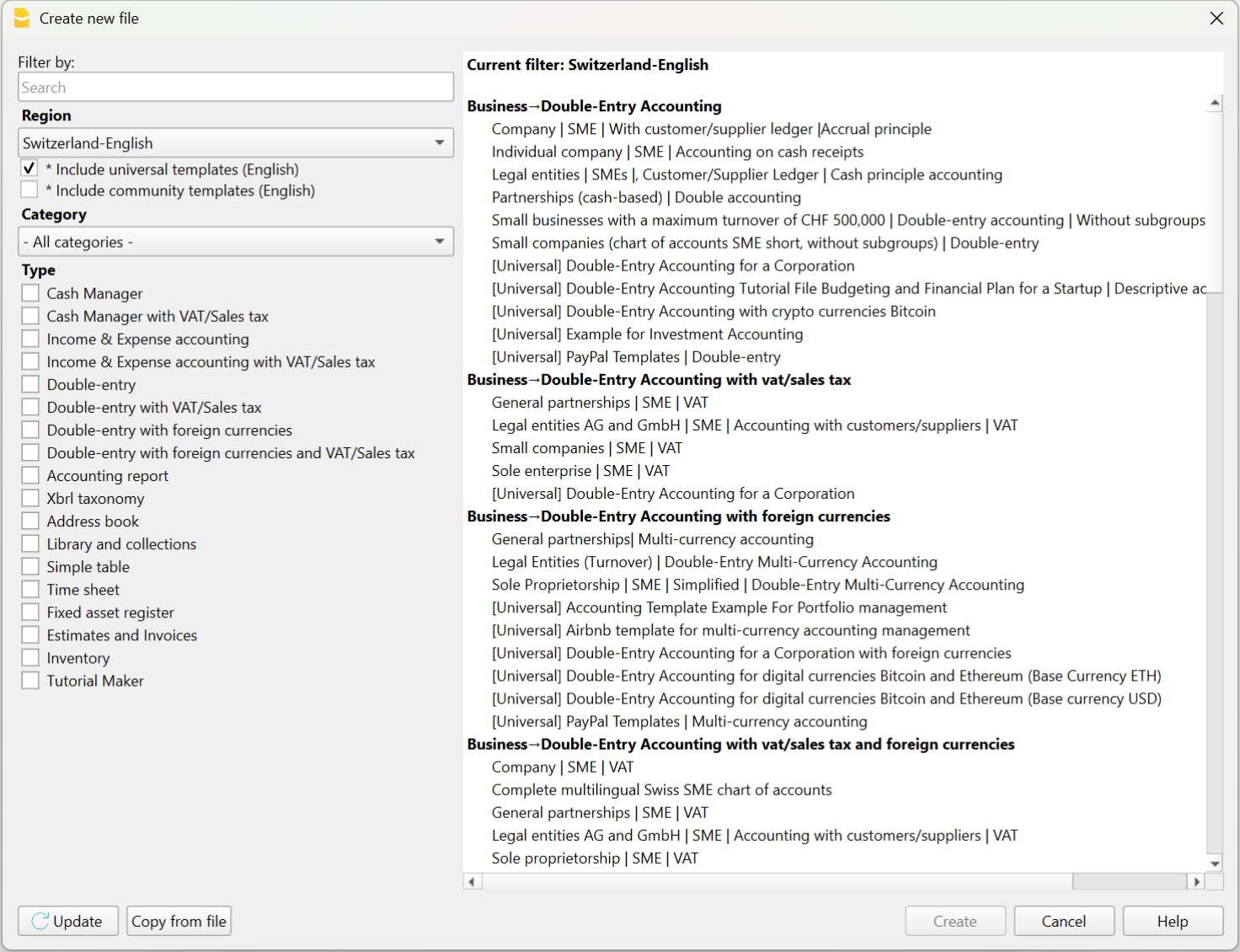
Chart of accounts and opening balances
After choosing the template that best suits your needs, you will need to customize the Accounts table by modifying, adding, or removing accounts. You can adjust the chart of accounts and grouping structure at any time.
You can create account plans with grouping structures that reflect those used in existing accounting systems managed with other software.
If you're reconstructing an accounting file, you will likely need to enter opening balances using the “Opening” column in the Accounts table.
Note that in Banana Accounting’s double-entry system, amounts are displayed according to the logic of accounting programs, so Debit amounts are positive and Credit amounts are negative. Opening balances in Credit must therefore be entered as negative values.
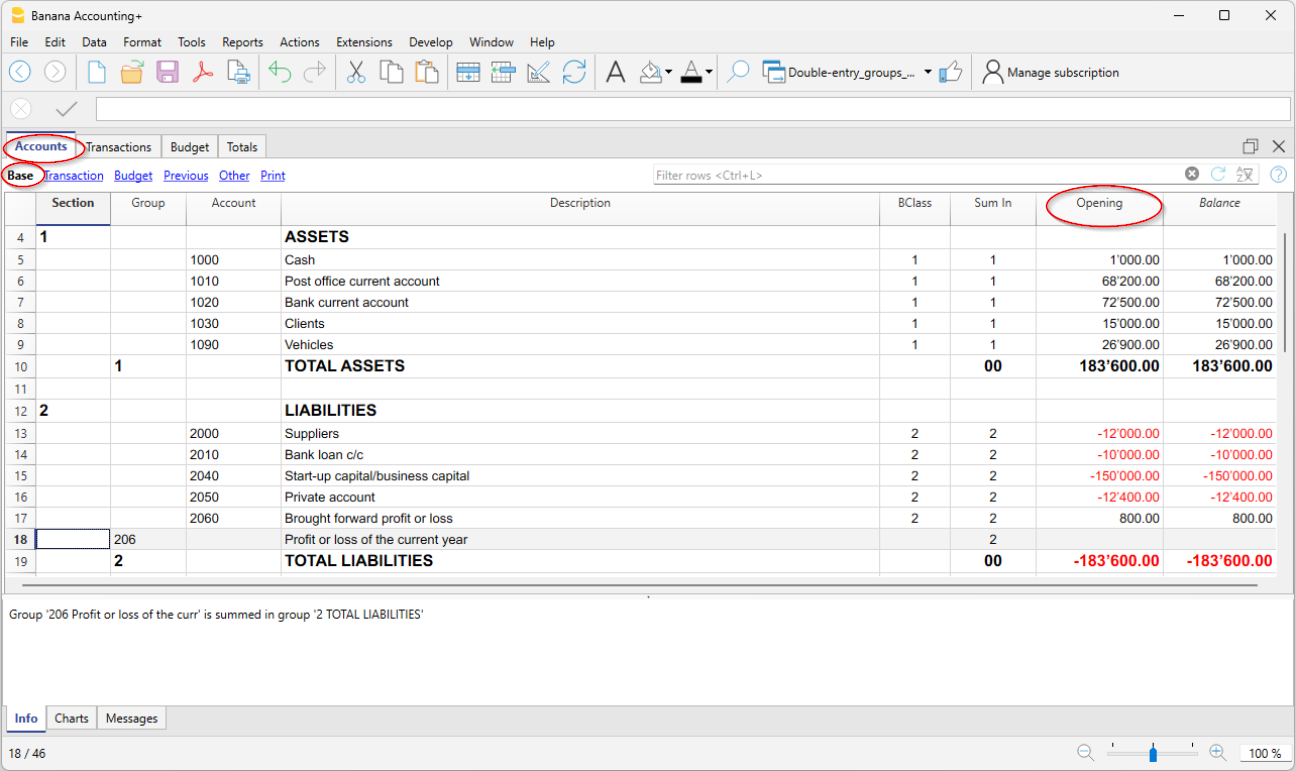
Entering and importing transactions
In the Transactions table you enter accounting transactions:
- You can enter and edit them manually.
- Entering and modifying data within the tables is very easy.
- You can copy and paste from Excel or other programs.
- In the Recurring Transactions table you can set up repeating entries.
- You can import data:
- You can import from CSV or other file formats.
- You can import digital bank statements.
- Several import extensions are available.
- You can create Import Rules that automatically complete the offset account and other elements.
- Modify and complete the transactions:
- When you enter or import transactions, the software will alert you to any errors or differences.
- You can apply rules for automatic completion.
- You can modify the transactions.
Banana Accounting was designed for small businesses, but in theory, there are no limits to the number of transactions or accounts you can manage. The software keeps all data in memory, so performance depends on your computer’s RAM and processor. Some clients successfully manage very large accounting files, with tens of thousands of accounts and hundreds of thousands of entries.
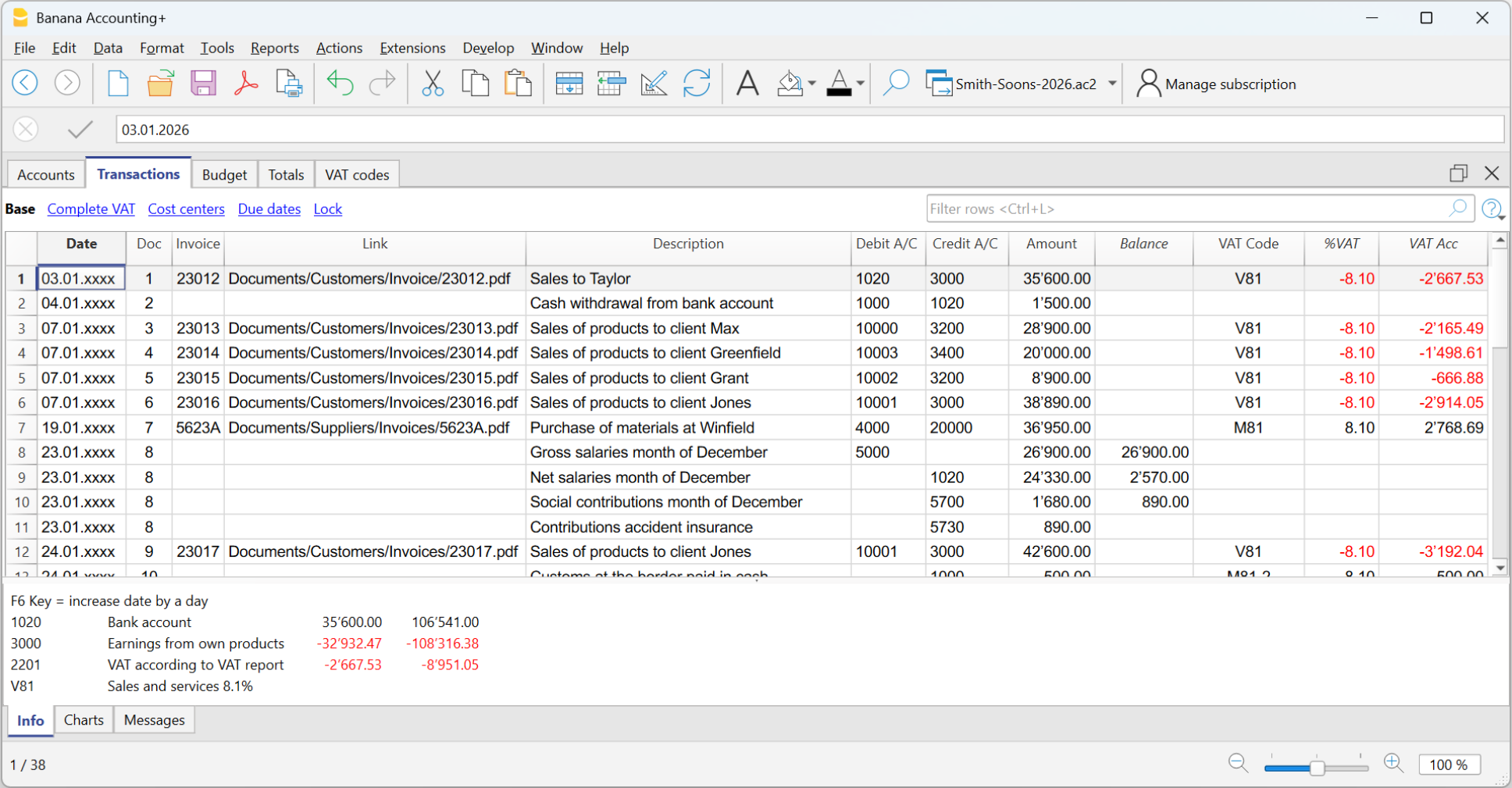
Automatic transaction categorization
Banana Accounting provides a deterministic rule system, configured by the accountant, to automatically categorize and complete transactions imported from bank statements. Thanks to these rules, you can quickly process large volumes of data. The applied rules are always visible in the Recurring Transactions table, where they can be printed and reviewed by auditors. Still, it is good practice to always check individual account statements.
There are many tools that digitize paper documents and, through artificial intelligence, extract information, analyze, and categorize content based on probabilistic logic. These tools can be very helpful and save time. However, it's important to note that categorization based on probabilistic logic is not a reliable source and always requires thorough verification.
AI-based tools often allow data export in CSV or Excel format, so you can easily import the data into Banana Accounting for manual review, corrections, and completion.

Review and add additional information
Once transactions are imported, you can review, edit, and complete them manually with the information you need:
- You can highlight and color rows, bold them, or change font size.
- Using the Data > Arrange Columns menu:
- You can show pre-configured columns (e.g. Notes, Links),
- You can add new types of columns.
- You can add links to supporting digital documents.
- You can use:
- Cost and profit centers – to categorize transactions in different ways.
- Segments – to divide activity by areas, branches, or other categories.

Error detection, reconciliation, and closing procedures
Banana Accounting provides built-in tools for identifying errors, performing reconciliations, and preparing adjusting entries and period-end closings. Thanks to the double-entry structure, inconsistencies are immediately visible, and the accounting check function systematically verifies the chart of accounts and all recorded transactions.
Bank and account reconciliations are simplified through clear account cards, transaction filtering, balance controls, and automatic calculation of differences. This makes it easier to detect missing entries, duplicated postings, or incorrect classifications.
The structured framework also supports the preparation of accruals, deferrals, provisions, and other adjusting entries required for accurate financial reporting. As a result, period-end closings can be completed efficiently and with a high level of reliability, even in complex reconstruction or investigative contexts.
Filtering and other useful features
There are many useful features that allow you to analyze and complete data quickly, including:
- The Balance column in the Transactions table indicates if there is an imbalance between Debit and Credit, due to account coding errors or unbalanced multi-account entries.
- The Temporary row filter function shows only the rows containing a specific text. There is also advanced syntax available for more powerful searches.
When the filter is active, you can edit transaction content, select, copy, and paste cells just like in Excel. - With Temporary row sorting, you can view rows in ascending or descending order based on a column. You can remove the temporary sort to return to the original order.
- Find and replace.
- The Copy rows command copies the selection with column headers. When you paste into Excel, the headers are already included so you can easily apply filters or create pivot tables.
- The Check accounting tool rechecks the chart of accounts and all entries and alerts you if there are errors or discrepancies.

Balance sheet and Account cards
The main advantage of Banana Accounting compared to Excel is that, once transactions are entered, you automatically get the Balance Sheet, the Income Statement, and the account cards for each account.
In the Accounts table, you have an immediate view of all accounts and groups, with updated movements and balances. This way you instantly see the current situation of your Balance Sheet and Income Statement. Of course, it’s essential to verify that bank balances match those in your accounting.

Additional accounting features
At any time, you can adapt your accounting setup and add or remove features. See:
Extensions
Banana Accounting, like Excel, provides a programming language that allows you to perform all kinds of processing.
It is commonly used to create custom reports, but it can also be used, for example, to create import extensions or modify existing data:
- Create extensions for Banana Accounting
- Information on importing data into Banana Accounting
- Information on exporting data from Banana Accounting
We have also created ChatGPT assistants to help you create extensions for generating reports. The extensions run locally in Banana, so you don’t need to send your data to the cloud AI assistant.
Analisi e revisione dei dati contabili
Banana Contabilità permette di analizzare e revisionare facilmente i dati contabili. L’impostazione a tabelle, simile a Excel, consente di visualizzare e ricercare con immediatezza tutte le informazioni. Inoltre, i dati sono strutturati secondo le regole della contabilità in partita doppia, quindi il programma esegue automaticamente una serie di controlli, segnala eventuali errori e mette a disposizione tutti gli strumenti e i report necessari per l’analisi contabile.
Comando Controlla contabilità
Quando si ricostruisce una contabilità capita spesso che non tutte le operazioni possano essere completate, vengano lasciate in sospeso e che magari si cambi anche in modo importante la struttura del piano dei conti.
Banana Contabilità mette però a disposizione il comando che permette di lavorare con la massima libertà e tranquillitaà.
Che azzera tutti i valori e ricalcola e ricontrolla il piano dei conti e tutte le operazioni come se si stessero inserendo manualmente. Se ci sono operazioni in sospeso, errori o differenze queste vengono nuovamente segnalate.
Filtra righe
È certamente una delle funzioni più utili nella ricostruzione contabile, poiché consente di ricercare e modificare rapidamente le operazioni di interesse.
Offre inoltre comandi di filtro avanzati, per esempio per visualizzare solo le righe colorate o le celle che contengono un testo specifico.
Un aspetto molto importante è che, anche quando si applica un filtro o un ordinamento temporaneo, è possibile continuare a utilizzare le funzioni di selezione e copia-incolla. Si possono, per esempio, cercare tutte le righe che contengono un determinato nome e sostituire il conto di tutte le righe in un’unica operazione.
Scheda conto
Il vantaggio principale di Banana Contabilità rispetto a Excel è che, una volta inserite le registrazioni, ottieni in automatico il Bilancio, il Conto Economico, le schede con i movimenti di ogni conto, principale o centro di costo o profitto.
L'estratto conto è ovviamente uno strumento insostituibile in contabilità, perché puoi vedere l'elenco di movimenti specifici che sono stati categorizzati in un preciso conto e quindi avere tutti i dettagli.
Bilanci e Conto economico
Nella tabella Conti hai una visione immediata di tutti i conti e i gruppi, con i movimenti e i saldi aggiornati. Così vedi a colpo d'occhio la situazione aggiornata del Bilancio e del Conto economico. Rimane naturalmente fondamentale verificare che i saldi bancari corrispondano a quelli registrati in contabilità.
Estensioni
Banana Contabilità, come Excel, mette a disposizione un linguaggio di programmazione che consente di effettuare elaborazioni di ogni genere.
Viene generalmente usato per creare dei report personalizzati, ma può anche essere usato ad esempio per creare estensioni di importazione o che modificano i dati esistenti:
- Creare estensioni per Banana Contabilità (in inglese)
- Informazioni per importare dati in Banana Contabilità (in inglese)
- Informazioni per esportare dati da Banana Cobtabilità (in inglese)
Abbiamo anche creato degli assistenti in ChatGPT che ti permettono di creare delle estensioni per generare report. Le estensioni vengono poi eseguite localmente da Banana, pertanto non si devono inviare i dati all’Assistente AI cloud.
Ricostruzione della situazione contabile e finanziaria
Questa pagina introduce alle particolarità dell'attività di ricostruzione contabile finanziaria, dette anche di Forensic Accounting, che pur avendo molte similirità con la tenuta contabile abituale, presenta molte diversità,.
Spiega i come usare al meglio Banana Contabilità in questo ambito e ottere velocemente i risultati desiderati.
Particolarità della ricostruzione contabile
L'attività di ricostruzione contabile è un progetto a se stante, che, da un punto di vista operativo, si differenzia dalla normale tenuta contabile:
- Ha degli obiettivi più specifici (non necessariamente strumento di controllo di gestione).
- Il lavoro viene svolto da un numero limitato di specialisti che ha generalmente accesso illimitato ai dati (situazione diversa rispetto a un ERP).
- Gli specialisti possono non avere o avere poche conoscenze circa l'attività da investigare.
- L'attività viene svolta in un periodo di tempo definito e non ha carattere ricorrente.
- Si ha la possibilità e necessità di elaborare tutti i dati in blocco.
- I dati da trattare non sono stati necessariamente predisposti per servire allo scopo e devono quindi essere rielaborati.
Queste particolarità aiutano a comprendere perché non tutti i software di contabilità, e in particolare gli ERP, siano adatti.
Banana Contabilità, invece, grazie alla sua flessibilità e modularità, è un software ideale per le ricostruzioni contabili e finanziarie di qualsiasi genere.
Fasi per la ricostruzione della situazione finanziaria
La ricostruzione finanziari e generalmente strutturata in più fasi:
- Definizione degli obiettivi dell’indagine.
- Raccolta documenti, estratti conti bancari e altre informazioni finanziarie.
- Ripresa dei movimenti in un sistema contabile, completamento e categorizzazione.
- Verifica, valutazione e analisi dei dati.
- Presentazione delle informazioni economico finanziarie.
- Valutazioni economico e legali, con preparazione dei rapporti.
Durante la fase di verifica e valutazione dei dati, può rilevarsi un'insufficienza di elementi e la necessità di raccogliere ulteriori dati e informazioni.
Organizzare i dati del progetto
La ricostruzione contabile consiste principalmente nel categorizzare i movimenti finanziari relativi a una determinata attività, con l’obiettivo di accertare la provenienza dei fondi o il modo in cui sono stati utilizzati. Si tratta quindi di esaminare documenti che testimoniano i movimenti finanziari, individuare gli elementi più rilevanti e inserirli in un sistema contabile, affinché possano essere classificati ed elaborati per ottenere le analisi e i report necessari.
La ricostruzione contabile parte dunque da un insieme di informazioni digitali o cartacee, che potranno eventualmente essere digitalizzate. Nel corso di un’indagine ci si troverà a gestire una quantità significativa di informazioni digitali, e quindi di file. Idealmente, è opportuno creare una cartella di progetto nel proprio sistema informatico, all’interno della quale salvare tutti i documenti, organizzandoli in sotto-cartelle. Si presume che la gestione degli accessi avvenga tramite le funzioni del sistema operativo, e che gli utenti con accesso ai file siano anche autorizzati a prenderne visione. Se così non fosse, sarà necessario creare cartelle separate, in modo da suddividere i dati e regolare l’accesso in base alle autorizzazioni.
Banana Contabilità è un software che lavora localmente e presuppone che i file contabili su cui opera siano accessibili localmente, direttamente o tramite collegamenti di rete o sistemi di sincronizzazione:
Ovviamente la situazione di un’indagine è generalmente diversa, ma è utile tenerne conto per comprendere la logica di funzionamento del programma e il collegamento con i giustificativi.
Raccolta e digitalizzazione dei documenti
Ogni contabilità si basa su dei giustificativi contabili e quindi il primo passo per avviare un'indagine finanziaria è quello di raccogliere tutti i dati necessari, come
- Giustificativi contabili, come ricevute, fatture, note spese e tutte le informazioni che certificano un cambiamento nella situazione finanziaria.
- Estratti conto bancari, dei clienti o dei fornitori.
- Contratti di diverso genere.
È inutile evidenziare che i risultati di un indagine dipendono in larga misura dalla possibilità di avere informazioni il più possibile precise e dettagliate. Queste devono poi essere valutate e categorizzate, generalmente facendo uso di software atti alla ricostruzione contabile.
Se le informazioni non sono disponibili in formato digitale, sarà necessario riprenderli, tramite degli scanner e software in grado di trasformare delle immagini in dati che possono essere più facilmente trattati. Se il volume di dati è limitato, come può essere il caso di una situazione di un'anziano, i datti possono anche essere ripresi manualmente. Se invece si l'indagine richiede di valutare una grande quantità di informazioni ecco che saranno indispensabili degli strumenti che possano ridurre i tempi e contenere i costi.
Ci sono molti software che si concentrano sulla digitalizzazione e l'estrazione di dati da documenti esistenti, per poi mettere a disposizioni le informazioni in un formato leggibile da Excel, programmi di analisi o software di contabilità.
Creazione del file di contabilità
Il primo passo consiste nel creare un file di contabilità che conterrà il piano dei conti e nel quale saranno registrati e categorizzati i movimenti finanziari. Ciò che rende Banana Contabilità particolarmente adatto all’ambito del forensic accounting è il fatto di essere uno strumento contabile professionale di livello internazionale, modulare e altamente flessibile, che consente di creare contabilità perfettamente adattate alle esigenze specifiche delle indagini, rendendo il lavoro più semplice, rapido e accurato.
È possibile creare un numero illimitato di contabilità, ognuna in lingue e valute diverse, utilizzando sia il metodo delle Entrate e Uscite sia quello della Partita Doppia. Si tratta di una soluzione molto efficace, poiché permette di utilizzare lo stesso strumento per ricostruire qualsiasi tipo di situazione finanziaria: di imprese, fondazioni, associazioni o privati, oppure per analizzare in modo mirato attività specifiche, come la gestione dei fondi di un singolo progetto.
Banana Contabilità è stato concepito per contabilità di piccole imprese, ma teoricamente non esistono limiti al numero di registrazioni o conti che si possono gestire. Il programma tiene tutti i dati in memoria, quindi le prestazioni sono dipendenti dalla quantitià di memoria (RAM) del computer e dalla potenza del processore. Alcuni nostri clienti gestiscono con successo contabilità molto estese, con anche decine di migliaia di conti e centinaia di migliaia di movimenti.
Creare una contabilità partendo da un modello
Il modo più veloce per creare una contabilità è quello di scegliere un fra i tanti modelli disponibili nel Template store:
- Menu File > Nuovo.
Ti appare un dialogo dove scegliere il modello in base alla regione e tipo di contabilità. - Modelli per specifiche Regioni.
- Sono impostati secondo degli schemi contabili nazionali.
- Il piano dei conti ha l’identificativo dei conti generalmente numerico, usato nella nazione.
- Modelli Universali.
- Sono per un uso più generale.
- L’identificativo dei conti è generalmente testuale (conti descrittivi).
Il periodo contabile e numero di file
Generalmente con Banana Contabilità si crea un file di contabilità per ogni anno contabile, pertanto nei dati base della contabilità, la data inizio e fine corrisponderà all'anno civile o fiscale.
Per una ricostruzione contabile che riguarda più anni, può comunque risultare più facile tenere un file unico con tutte le registrazioni. In questo modo si potranno vedere e modificare direttamente tutte i movimenti. Ai fini della reportistica si sceglierà poi il periodo di reporting.
Tenere dei file separati per più anni può risultare utile, specialmente se vi è una gran mole di dati. Con più file separati più persone possono dividersi il lavoro e ciascuno può lavorare così indipendentmente dagli altri. In questi casi è comunque utile tenere un piano dei conti che è identico, così che si può anche creare un file riassuntivo nel quale sono integrati tutti gli anni contabili.
Impostazione del Piano dei conti
Dopo aver scelto il modello più adatto alle tue esigenze, dovrai personalizzare la tabella Conti, modificando, aggiungendo o rimuovendo conti. L’adattamento del piano dei conti e la modifica dei raggruppamenti possono essere eseguiti in qualsiasi momento.
Puoi creare dei piani dei conti con strutture di raggruppamento che riprendono quella di una contabilità esistente gestita con altri programmi.
Inserimento dei saldi d'apertura
Se stai ricostruendo una contabilità dovrai probabilmente inserire i saldi iniziali utilizzando la colonna “Apertura” nella tabella Conti.
Considera che Banana Contabilità, nella contabilità in partita doppia, visualizza gli importi esattamente seguendo la logica interna dei programmi di contabilità, quindi gli importi in Dare sono in positivo e gli importi in Avere sono in negativo. I saldi di apertura in Avere devono quindi essere inseriti in negativo.
Multi-moneta, Criptocurrency, Gestione titoli e altro
Come accennato in precedenza, Banana Contabilità è uno strumento estremamente modulare. Si possono creare contabilità molto semplici, con solo gli elementi essenziali, ma, quando necessario, è possibile aggiungere un’ampia gamma di funzionalità aggiuntive, tra cui la gestione:
- Gestione Clienti e fornitori.
- Gestione IVA.
- Gestione quantitativi e magazzino integrata in contabilità.
- Contabilità Titoli.
Questa funzionalità è generalmente disponibili sono il software contabili specializzati e con costi molto alti. - Tabelle note.
Puoi integrare direttamente in contabilità informazioni che hai raccolto.
Inserire e importare registrazioni
Una volta impostato il file di contabilità, ti rimane la parte principale del lavoro di ricostruzione finanziaria, ovvero importare o inserire nella tabella Registrazioni i movimenti contabili, competandoli e categorizzandoli:
- Puoi inserirli e modificarli manualmente.
- Nella tabella Registrazioni ricorrenti puoi impostare movimenti che si ripetono.
- Puoi copiare e incollare da Excel o altri programmi.
Vedi Riprendere dati da altri programmi. - Puoi importarli da file CSV o di altro genere.
- Puoi importarli da estratti bancari digitali.
- Ci sono diverse estensioni di importazioni.
- Puoi creare delle Regole di importazione che completano in automatico la contropartita e altri elementi.
In poco tempo la contabilità è fatta! Quando inserisci o importi i movimenti, il programma ti segnala eventuali errori o differenze.
Categorizzazione dei movimenti
Elemento centrale di un'indagine forense è la categorizzazione dei movimenti. Se si sospetta una frode i movimenti leciti verranno registrati sui conti considerati leciti, mentre quelli sospetti su altri conti specifici. Se invece se dovrà ricostruire la contabilità per delle indagini tributarie, si dovrà categorizzare i movimenti in base alle specifiche necessità di rendicontazione.
Il primo livello di categorizzazione offerto da Banana Contabilità è quello relativo ai conti impostati nel piano dei conti. I movimenti bancari verranno quindi registrati sul conto apposito e poi si sceglierà il conto di contropartita. Se un'importo deve essere assegnato a più conti di spesa o entrata, la registrazione dovrà usare più righe, ciascuno con il proprio conto e importo.
Con questa categorizzazione tipica di tutti software contabili si avranno già importanti informazioni relativamente alla situazione patrimoniale (Bilancio) e all'evoluzione finanziaria (Conto Perdite e Profitti). Ovviamente si avrà poi l'estratto conto che mostra tutti i movimenti del conto. Se si necessitano di categorizzare con un maggiore livello di dettaglio si possono creare più conti, per esempio, creare un conto "Benzina", in aggiunto a quello "Spese auto" e modificare le registrazioni di conseguenza.
Banana Contabilità consente però anche di categorizzare contemporaneamente gli importi anche usando altre logiche. Ci sono diversi possibilità.
- Puoi evidenziare e colorare le righe, oppure metterle in grassetto o cambiare la dimensione del carattere.
- Centri di costo e profitto,
Permettono di categorizzare i movimenti logiche diverse da quelle contabili.
Sono certamente quelli più adatti per una ricostruzione contabile, perché sono facilmente utilizzabili e danno una visione immediata di certe situazioni. - Segmenti
Permettono di suddividere l’attività per ambiti, succursali o altro. - Colonne Note e altre predefinite.
Con il comando Menu Dati > Disponi colonne puoi rendere visibili diverse colonne predisposte per inserire altre informazioni, come la data valuta, note, ecc. - Sempre con Menu Dati > Disponi colonne puoi aggiungere nuovi tipi di colonne.
Collegamento ai documenti digitali
Ogni riga di qualsiasi tabella ha una colonna già predisposta dove inserire il collegamento a un documento digitale.
- Collegamenti ai documenti (giustificativi) digitali.
- Con un semplice click puoi visualizzare la fatura o la ricevuta collegata a un movimento.
Se vuoi collegare più documenti, puoi aggiungere altre colonne per collegamenti.
Completamento e categorizzazione automatica
Banana Contabilità mette a disposizione un sistema di regole deterministiche, impostate dal contabile, per categorizzare e completare in automatico i movimenti importati dagli estratti conto bancari. Grazie a queste regole, è possibile processare velocemente un grande volume di operazioni. Le Regole applicate sono sempre visibili nella tabella Registrazioni ricorrenti, dove possono essere stampate e verificate da periti. Rimane comunque una buona prassi controllare sempre le singole schede.
Esistono numerosi programmi che digitalizzano documenti cartacei e che, grazie all’uso dell’intelligenza artificiale, estraggono informazioni, analizzano e categorizzano i contenuti basandosi su logiche probabilistiche. Questi strumenti possono essere molto utili e permettere un notevole risparmio di tempo. Bisogna però considerare che la categorizzazione fondata su logiche probabilistiche non rappresenta una fonte sicura e richiede sempre una verifica puntuale.
Gli strumenti basati sull’AI danno la possibilità di esportare i dati in formato CSV o Excel, così da poterli facilmente importare in Banana Contabilità per poi essere controllati, modificati e completati manualmente.
Verifica e modifiche a mano
Gli strumenti di automazione sono molto utili, ma non possono di certo sostituire il controllo e la verifica dei dati da parte dello specialista. Il fatto di essere simile a Excel, di potere vedere tutti i conti, i movimenti e gli estratti conti e molti report disposti in tabella rende le verifiche molto più facile.
Si possono infatti scorrere i dati Banana Contabilità, selezionare celle e completare o apportare modifiche molto velocemente, grazie anche a delle funzionalità che pochi software di contabilità hanno:
- La funzione Filtro righe temporaneo ti mostra solo le righe che contengono un determinato testo. C’è però anche una sintassi avanzata, che permette ricerche molto più potenti.
Quando il Filtro è attivo, puoi modificare il contenuto dei movimenti, selezionando e copiando e incollando celle esattamente come fai con Excel. - Con l'Ordine temporaneo delle righe
Visualizzi le righe nell’ordine ascendente o discendente di una colonna. Diversamente da Excel, dove il sort è definitivo, con Banana Contabilità puoi togliere l'ordine temporaneo per ritornare alla sequenza originale delle righe. - Cerca e sostituisci.
- Il comando Copia e Incolla.
- Il comando Copia righe che è un anche un copia incolla potenziato, in quanto include anche le intestazioni colonne. Così quando incolli i dati in Excel, hai già le intestazioni per applicare facilmente filtri o creare tabelle pivot.
- La colonna Saldo nella tabella Registrazioni indica se vi è uno sbilancio fra Dare e Avere, dovuto ad errori nella codifica dei conti oppure a registrazioni su più conti che non si compensano.
- I grafici nella finestrra Info che mostrano l'evoluzione di un conto o gruppi nel tempo.
Filtra righe
È certamente una delle funzioni più utili nella ricostruzione contabile, poiché consente di ricercare e modificare rapidamente le operazioni di interesse.
Offre inoltre comandi di filtro avanzati, per esempio per visualizzare solo le righe colorate o le celle che contengono un testo specifico.
Un aspetto molto importante è che, anche quando si applica un filtro o un ordinamento temporaneo, è possibile continuare a utilizzare le funzioni di selezione e copia-incolla. Si possono, per esempio, cercare tutte le righe che contengono un determinato nome e sostituire il conto di tutte le righe in un’unica operazione.
Comando Controlla contabilità
Quando si ricostruisce una contabilità capita spesso che non tutte le operazioni possano essere completate, vengano lasciate in sospeso e che magari si cambi anche in modo importante la struttura del piano dei conti.
Banana Contabilità mette però a disposizione il comando che permette di lavorare con la massima libertà e tranquillitaà.
Che azzera tutti i valori e ricalcola e ricontrolla il piano dei conti e tutte le operazioni come se si stessero inserendo manualmente. Se ci sono operazioni in sospeso, errori o differenze queste vengono nuovamente segnalate.
Revisione e analisi dati
Banana Contabilità permette di analizzare e revisionare facilmente i dati contabili grazie all’impostazione a tabelle, simile a Excel, che consente di visualizzare con immediatezza tutte le informazioni. Inoltre, i dati sono strutturati secondo le regole della contabilità in partita doppia, quindi il programma esegue automaticamente una serie di controlli, segnala eventuali errori e mette a disposizione tutti gli strumenti e i report necessari per l’analisi contabile.
Crea una contabilità con i dati di una contabilità preesistente
Banana Contabilità è un software molto flessibile e modulare, che consente di creare facilmente una nuova contabilità partendo dai dati di una contabilità esistente gestita con un altro programma. Avere tutti i dati della contabilità disponibili in Banana Contabilità può essere molto utile in divesti ambiti e specialmente per indagini nell'ambito del forensic accounting.
Di seguito viene illustrata la tematica e come procedere in modo efficace, fornendo anche rimandi alle informazioni utili per ogni fase.
Perché riprendere i dati in Banana Contabilità
Banana Contabilità visualizza tutti i dati contabili in forma tabellare, permettendo di scorrerli, ricercarli rapidamente e ottenere immediatamente i report contabili. Consente inoltre di modificarli, aggiungendo informazioni o categorizzando i movimenti secondo criteri personalizzati. In molti casi riprendere una contabilità esistente in Banana Contabilità può essere molto utile:
- Si dispongono dei dati contabili, ma il software originale con cui era stata tenuta la contabilità non è più disponibile, oppure riattivarlo risulterebbe troppo complesso o costoso.
- La ricostruzione contabile ha uno scopo limitato e non giustifica la riattivazione dell’intera applicazione.
- Le persone che svolgono l’indagine non possono accedere all’applicativo contabile oppure dispongono di un accesso molto limitato, che restringe le possibilità di analisi.
- L’accesso ai dati contabili in modo strutturato facilita attività di controllo, audit, analisi e permette di estrarre nuovamente informazioni o stampare rendiconti.
- Il software originario è ancora operativo, ma non offre sufficiente flessibilità nelle indagini, né consente di aggiungere facilmente nuove informazioni o riclassificare i dati.
- L’impresa desidera un metodo più flessibile per accedere ai propri dati contabili.
- È necessario conformarsi a un obbligo legale che prevede la disponibilità continua dei dati contabili.
- Si vuole abbandonare l’altro software e utilizzare Banana Contabilità, proseguendo il lavoro già iniziato.
La ripresa dei dati contabili risulta utile anche per indagini finanziarie di forensic accounting, per attività ispettive o di revisione dei conti, oltre che per facilitare analisi e ricerche.
I dati preesistenti
Gli elementi principali di una contabilità sono:
- Informazioni circa la società, periodo contabile e altro.
- Il piano dei conti, con la relativa classificazione.
- I movimenti contabili.
- I giustificativi contabili.
In Banana Contabilità ci si limita a mettere un link che collega la registrazione al documento. - Informazioni supplementari circa gestione IVA, clienti e fornitori, fatture.
Queste informazioni possono essere già disponibili in un formato che può essere trasformato o importato in Banana Contabilità. Se non è il caso si dovrà procedere alla trasfromazione.
Probabimlente non si andrà a riprendere tutti i dati, ma solo quelli che sono necessari per lo scopo che ci si prefissa.
I passi per creare una contabilità e riprendere i dati
Per potere arrivare ad trasferire tutti i dati in Banana Contabilità ci sono dei passi da seguire:
- Creare un nuovo file di contabilità.
Generalmente è utile partire da un modello esistente, configurato in modo simile a quello che sono le proprie necessità. - Impostare i dati base.
Nome della ditta, moneta base, periodo contabile e altro necessario. - Impostare o importare il piano dei conti sulla base di quello esistente.
Si stratta di riprendere nella Tabella Conti il piano dei conti. - Impostare altre informazioni, come per esempio la tabella dei codici IVA.
- Importare i movimenti contabili nella Tabella Registrazioni.
È utile ovviamente automatizzare il più possibile questa operazione.
I dati importati potranno comunque anche essere aggiustati manualmente. - Controllo e verifica.
Si deve controllare che i saldi della contabilità corrispondano a quella originale.
Creazione contabilità e ripresa dati in un passo unico
Se i dati della contabilità sono disponibili in un formato che contiene tutte le informazioni necessarie è possibile creare un'estensione che crea, in base alla struttura dati esistenti, la nuova contabilità e vi traferisce tutti i dati in modo automatico.
Il presupposto è che l'applicativo originale salvi o esporti i dati in un file unico e che vi sia un'estensione di Banana Contabilità predisposto per questo scopo, tipo:
- Audit file for Taxation
- È un formato file XML concepito appositamente per archiviare i dati di una contabilità in modo standard, così che possano essere resi facilmente accessibili alle autorità tributarie, per dei controlli e verifiche
- In certe nazioni, è pure obbligatorio salvare i dati in questo formato per scopi di archiviazione.
- Banana Contabilità ha delle estensioni in grado di leggere in automatico taluni di questi file e ricreare in automatico la contabilità.
- Formati file proprietari
- Ci sono applicativi contabili in grado di salvare tutti i dati della contabilità in un formato proprietario.
Per creare un nuovo file si usa:
- Comando: Menu Strumenti > Crea File da dati esterni
- La programmazione dell'estensione avviene tramite le funzionalità File Creator Extensions.
Ripresa dati in blocco
Il processo di ripresa dei dati viene fatto in due tempi:
- Creazione e impostazione del file di contabilità in modo manuale.
- Importazione dei dati in blocco usando il comando
- Menu Azioni > Importa in Contabilità > Importa file
Questo approccio viene usato per esempio per:
- Italia: Estensione importazione delle fatture scaricate dal cassetto fiscale dell'Agenzia delle entrate.
L'estensione in automatico crea i conti dei clienti e dei fornitori e aggiunge i movimenti contabili.
Le estensioni che usano questo approccio usano la Document Change API di Banana Contabilità che permette di apportare modifiche a più tabelle.
Ripresa dati in più fasi
Il processo di ripresa dei dati viene fatto in diversi tempi:
- Creazione e impostazione del file di contabilità in modo manuale.
- Importazione o impostazione del piano dei conti.
- Importazione o ripressa dei dei movimenti.
L'automazione del processo si concentra sull'importazione die movimenti.
Questo approccio è quello più comunemente usato, anche perché
- Vi sono diverse estensioni già predisposte per l'importazione dei movimenti.
- L'importazione dei dati può essere fatta in modo semi automatico trasferendo prima i dati in Excel e poi copiandoli in Banana Contabilità.
Vedi: Riprendere dati da altri programmi.
The Standard Audit File for Taxation (SAF-T)
The Standard Audit File - for Taxation (SAF-T) is a file format that specify how to package all the most important accounting data in a standard format. The SAF-T is a recommendation of the OECD’s Committee on Fiscal Affairs (CFA). The file format makes it easier for taxpayers to provide their electronic records to tax auditors in support of their tax return and for auditors to review accounting records.
Import SAF-T Files
Banana Accounting allows you to export and import accounting data in various national SAF-T formats. See:
Main SAF-T Uses
There are different uses for the SAF-T files:
- Auditing purpose.
Every Auditor or VAT inspector has the discretion to demand the file at the occasion of an audit. Accounting software should be able to generate the SAF-T file when auditors require it.SAF-T allows auditors ready-access to data to perform compliance and substantive testing. - Archival purpose.
The SAF-T format is used to store the accounting data for archival purpose. Accounting data is therefore available over the times in a standard format. This use case is especially important for cloud service solution, that makes the data available only until they pay the subscription.
Using the SAF-T file for archival purpose is a very intelligent way to have always access to the accounting data.
SAF-T is the standard archival format in Norwegian for companies with a minimun revenues. - Analytics purpose.
You can use the accounting data for analytics and reporting that your current accounting solutions does not offer. - Moving data to other solutions.
The SAF-T file allows companies that switch solution to more easily move their accounting data to other solutions.
The structure of the SAF-T
The SAF-T file is an XML file that has been conceived to structure all the accounting data in a standard format. The SAF-T format has been conceived in a way that allows countries to create localized version that best support the local
The forma include the most important accounting data:
- Header information.
Company information - Master Files
- General ledger Accounts (GeneralLedgerAccounts)
All the accounts used within the accounting solutions, with- AccountId and Description
- Account grouping, account type and account standard id for country specific categorisation.
- Opening and closing balance.
- Accounting Taxonomy (Taxonomies)
Information for grouping the accounts for reporting. - Customers (Customers)
List of all the customers:- Address and company information.
- AccountId and grouping.
- Opening and closing balance.
- Suppliers (Suppliers)
List of all the suppliers:- Address and company information’s.
- AccountId and grouping.
- Opening and closing balance.
- TAX table (TaxTable)
Information regarding the VAT or Sales Tax.- Tax Code
- Percentages and applicability date.
- Inventory (PhysicalStock)
- Products list
- Quantities, opening and closing values.
- Fixed Assets
- Id and descriptions
- Acquisition information
- Valuation
- General ledger Accounts (GeneralLedgerAccounts)
- General Ledger Entries
Journal Entries- Transactions date, type
- Source documents
- Account id, customer or supplier info
- Debit and credit amount
- Tax information
- Analysis (Cost, projects, amounts)
- Source Documents (SourceDocuments)
- Sales Invoice
- Purchase invoice
- Payments
- Movements of goods
- Assets transactions
Currently Products, Source documents and other data is not imported.
Standard Audit File for Payroll (SAF-P)
The SAF-P (AuditFilePayroll) is aimed at saving data relative the payroll. The SAF-P is structured in this way.
- Header
With company information. - MasterFiles
With data for Employees, Branches. - TransactionsFiles.
For more information see the OECD Guidance document for SAF-P version 1.0 (2010).
Banana Accounting currently does not provide a reader for SAF-P files.
References
- SAF-T Wikipedia page
- OECD (FTA - Forum on Tax Administration)
- Guidance for accounting software developers concerning auditing requirements.
- FTA Guidance Notes on E-Auditing Standards
- SAF-T Version 2.0 (2010)
- SAF-T Version 1.0 (2005)
- SAF-T and SAF-P overview and governing bodies.
- TJC Group - SAF -T
- Czechia: VAT Control Statement
Standard Audit File Reader
How to view the content of a SAF-T file
Follows this simple steps.
- First use
- Install and run the Banana Accounting Insider Preview.
- Menu->Extensions->Manage Extensions install the Import extension for your audit file.
See the list of country specific import extensions.
- View the audit file
- Menu->Tools->Create file from external data.
- Select the audit file you want to import.
- You should have an audit file created with a country specific accounting software.
- Select the correct extension (*.xml or *.*) to show the file on disk.
Banana will create a in memory new accounting file and import all the data. Depending on the size of the audit file, after some time, you will see all the data in the Transactions and Accounting table.
Once the data is converted you can save the file and access the data later at any time without the need to convert.
In order to import all the data you need the Advanced Plan. With the free plan or professional plan only 70 transactions will be imported.
See how the SAF-T Reader work
If you don't have any audit file and you want to see how the SAF-T Reader work, we make available some test file you can experiment with.
- Download a test file
- Install the audit file country specific import extension.
- Proceed as explained above.
Country specific SAF-T file
Each country has their own specification that is usually a derivation of the OECD SAF-T 2.0 standard.
Currently Banana Accounting has import extensions for this SAF-T format:
Other file import
There are also extensions that import data from other country specific file types.
- German DATEV
- Import accounts
- Import transactions
- Electronic invoices Italy
It allows to import customer's invoice from a XML files (Cassetto fiscale).
In order to import the content of this kind of file you should proceed as explained before under import in existing files.
Structure of the accounting data in Banana
In Banana is a flexible accounting software based on the double entry accounting method. The SAF-T reader recreate a complete accounting file. In Banana Accounting the data is contained in tables that are like Excel sheets.
- Accounts table.
It contains the account plan, including:- The general ledger accounts
- The customers and suppliers accounts with address.
- The groups and grouping structure that form the Balance sheet and Profit & Loss statements.
- The opening balance and current balance calculated based on the transactions.
- Transactions table
It contains all the journal movements including the VAT information.
View and analyze the accounting data
Once the SAF-T data is loaded in Banana, you can view the content and use the accounting specific commands. Here are some suggestion on the use the converted accounting data. Kindly let us know if you have any feedback or suggestion on getting the max out of your accounting data.
View the content
- Scroll the Transactions and Accounts tables.
- The Data->Find command let you search for any text.
- The Data->Extract command to filter and sort content.
See graphic trend
- Select the Charts window.
- Select the account or group you are interested in seeing the graphical performance of.

Copy and paste to Excel
- Select the cell of the table you want to copy and paste in Excel.
- Select the rows and use the command Edit->Copy rows and when pasting in Excel you will also have the column header, for simple filtering.
Print or export
- Preview and print the content of the table or any reports.
- Export to pdf, html or any other format.
Accounting reports
The conversion process recreates a complete accounting file. So, you can use all the double entry reporting functionalities, like:
- The Actions->Account card give you the reconstructed card with all the transactions of any account or group.
- Within the Accounts table you have the recalculate balance of each accounts and groups that form the Balance Sheet, Profit & Loss Statement.
- With Reports->Advanced Balance Sheet with groups, you can print and customize the balance sheet and profit and loss statement. You can also have reporting by periods.
- With Reports->Accounting report you get the data in table format, for period or other parameters.
Adding comments or other information
Once you have the SAF-T data in the accounting file you can add other information.
- Make the column Notes visible.
- Use Cost centers columns to group transactions.
- Add any other column you need.
- Add a linked table for further categorisation.
- Mark the lines with colors to quickly retrieve some transactions.
Javascript extraction and reporting
The integrated Javascript interpreter let you create script:
- Select and extract data.
- Use the Banana Accounting API for
- Create any type of reports.
Organizing files of more years
If you have to do analysis on more than one account years it make sense to save the data in the Banana Accounting and connect the file of the previous year. Later you quickly open the files and create reports with data of multiple years.
- Convert the SAF-T to Banana Accounting and save the file.
- Set the file of the previous year.
File->File Properties->Options.
Importing SAF-T In an Existing Banana Accounting File
You can also import the SAF-T in an existing accounting file.
- Open your accounting file.
- Menu->Action->Import
- Import file
- Install and select the import extension for the specific country.
Feedback and contacts
The SAF-T Reader is a new product. We welcome any feedback on how to improve it or to provide extensions that could make auditing and analytics more easy.
Kindly contact our costumer service specifying "audit file" and the country extension you are using. Also briefly indicate your question or suggestion.
Universal Business plan templates
Free Cash Flow Planning, Budgeting And Management For Freelance And Small Companies
Free Cash Flow Planning, Budgeting And Management For Freelance And Small CompaniesCreating a cash flow forecast with Banana Accounting is like creating it with Excel, but faster, more secure and completely free. Thanks to the ready-to-use template, you start right away, just enter the data.
You know in advance how much liquidity you have and how long it will last, when and what expenses you will face and what income you can count on. You can simulate the reduction of expenses and see what effect it has on your liquidity and profitability, understand future sales volumes and whether your capital will be enough.
We have prepared this guide to help you make your cash flow forecast and solve your financial problems. If you follow it in detail you will succeed, because you can always modify and correct it, so it's easy to update your forecasts.
Create your file
- Create a new file, starting from this template (Template ID +11044), using one of the methods explained.
- With the command File → File properties sets the period, the company name and the basic currency.
- With the command File → Save as save the file. It is useful to enter the company name and year in the file name.
For example "company-2020.ac2".
See also Organize accounting files locally, online or in the cloud
Adapt accounts and categories tables
Before creating your own cash flow, you need to quickly adapt your account and categories to your specific needs.
Accounts table
The Accounts table only shows the Cash account, or rather, the liquidity in your possession. You can customize it by changing the account name, description and opening balance.

Categories table
This table contains the income and expense categories and the change in capital. You can edit these categories by adding new items, changing the category name, changing the order and deleting categories that you don’t need. At any time, you can see the updated balances of each category.

With the useful Capital In & Capital Out sections you can register:
- Loan injections and reimbursements
- Owners injections and disbursements
- Sales and purchases of fixed assets
To know at any time how much the current cash flow will be (when you will start to entering daily transactions), you only have to look at the value in the row "Net Cash Change". In this way you will know at a glance if you are having an Inflow or an Outflow and the exact amount.

Create your cash flow forecast
The interesting innovation of Banana Accounting is the possibility to create cash flow forecasts to control liquidity and make timely decisions for your business.
For this reason, we now recommend that you create your own cash flow forecast. Go to the Budget table: this table contains all the cash inflows and outflows that you will have during the year.
To create the forecast correctly, follow these simple steps:
- Insert operating income
- Insert operating expenses
- Insert capital in
- Insert capital out
Insert operating income
Start by listing all the operating income you have and the amount of it. Cash sales is the main income, but there are others depending on your activity.
Operating Income may include:
- Cash sales
- Miscellaneous cash receipts
- Collections from customer credit accounts
- Interests
To insert a transaction in the budget you must enter the date (when you expect to have that income), the end date (if needed), the repetition (how often this income is repeated, if weekly, monthly or annual), the description, the amount in the income column and the income category.
In the template you will already find typical ready transactions where you can quickly enter only the amounts. You can still insert new transactions, edit and delete them.
To be as precise as possible with the estimate, look at last year’s values, rounding down the amount when you want to be more cautious.
Tips:
- Only rely on assured income
- Group the income according to their repetition (weekly, monthly, annual, …)

Insert operating expenses
Now it’s time to list all the operating costs. As you did for the income, here you have to estimate expenses by looking at last year’s values, but rounding up the amounts when you want to be more cautious. It’s always better to make an inaccurate forecast at the beginning of the year, than to have surprises of higher expenses.
Operating costs may include:
- Salaries
- Payroll
- Rent
- Insurances
- Advertising and promotion
- Utilities
- Travels
- Telephone
- Bank charges
- Interests
- …
Tip:
- Group the expenses according to their repetition (weekly, monthly, annual, …)

Insert capital in & out
This section is very useful to have a net cash flow forecast and not just an operational one. You must then enter the expected capital in and out transactions, the investments and disinvestments in fixed assets.
Capital In may include:
- Loan injections
- Cash injections by owners
- Sales of fixed assets
Capital Out may include:
- Loan reimbursements
- Cash disbursements to owners
- Purchases of fixed assets

Control your cash flow forecast
It’s important to know right away whether your business, thanks to your estimates, generates a positive cash flow or not. Are you curious, aren’t you? The generation of the forecast report will give you the answer!
To do this check is very easy: just go to Reports → Enhanced statement with groups, and from the list that appears choose the Yearly forecast report. Press OK to view the forecast report.
A goal of any activity is certainly to have a positive cash flow, because only this allows it to survive, or rather to pay suppliers, reimburse debts, ... Check the Net cash change item (at the bottom of the report) and make sure that you have a positive result (Inflow). If so, you can be happy, because you are managing your business well!
On the other hand, if you have a negative net cash flow (Outflow), it means that unfortunately your business has difficulties to manage liquidity. What you need to do in this case is first of all to recheck well both your estimated income and expenses, if there are any adjustments to be made or errors to be corrected, that improve the cash flow. If you still have a negative cash flow, you need to think about actions to be taken to improve liquidity management from next year or when the forecast period starts. Most likely you will have to try to reduce your operating expenses.

In addition to the annual forecast, always in Reports → Enhanced statement with groups, to have even more detailed control over the liquidity trend (for example how it behaves during the year), you can choose monthly, quarterly and 4-years reports, or create your own report.


Enter the transactions
With the cash flow forecast under control, you can start register the various real liquidity transactions and compare them from time to time with the expected values.
Insert the liquidity transactions
Daily transactions must be inserted in the Transactions table. Making a registration is the same process as you did for the forecast in the budget table (the only difference is you don’t have the repeat column). There are also some examples in the table that you can delete and edit.

Check the movements with account cards
When you gradually enter your transactions, could be useful to check how the cash account or a particular expense category has evolved over time. To do this you can view the respective Account/Category Card.
For example, by selecting the Cash account card you will have a summary of all its movements. By also clicking on the chart option at the bottom, you have an even more immediate view of the account's performance.
Tip: Check your Cash account at least once a month to see immediately how it is progressing and compare it with past months.

Check the difference between balance and budget
For more control over your performance, you can go to the Account or Categories table, selecting the Budget view and look at the Diff.Budget column, which shows you the difference between the real balances and the values you had budgeted. In this way you have an additional indicator to understand if you are following the budget well and to take better decisions.

Compare the forecast with the report
During the year you can compare at any time your current situation with the forecast, to understand if and where you are spending more, in order to take decisions in advance. At the end of the year you can make the final comparison between the actual report and the forecast to see if you have achieved the expected net cash flow.
Create the control report from the menu Reports → Enhanced statement with groups → Yearly report compared to forecast.

If you want to have a more precise and targeted view, you can create reports with monthly subdivision, which also include the difference between the balance and budget value of each month. This gives you an overview of the months in which you had the most liquidity difficulties and those in which you earned the most.

You are arrived at the end of the year, so you will now have to re-plan the next one creating a new cash flow forecast, exactly as you have done up to now. Don't stop, only in this way will you see your cash flow improve more and more!
Financial Planning for a Startup | Income and Expense accounting
Financial Planning for a Startup | Income and Expense accountingNote: For this business plan template, the management of a bar or restaurant has been taken as an example, since it is an activity that all people are familiar with and is therefore ideal to understand the functioning of Banana Accounting. Obviously, the template can also be used for other types of activities (Startups) for which you want to do financial and liquidity planning.
Financial and liquidity planning for Luke's Coffeehouse
This section will explain how to set up a financial plan for a new entrepreneurial activity, according to the income and expense accounting model.
Consult the Benefits and Features of Financial Planning section for further information.
Luke plans to open a Coffeehouse in 2022 and is preparing a Financial Plan, including all the necessary details.
- The financing of his project includes his proper means and a loan from a third person.
- In January 2022 he rents the premises, redecorates and furnishes them and starts his commercial activity.
- The Financial Planning is established for the period running from January 2022 through to December 2025.
By entering the detail of the various expenses and income, Luke will be able to generate and print financial statements (cash and other) showing his expenses and revenues, as well as the financial performance for the year, by quarter or any other subdivision of period of his choosing.
The evolution of his bank account balance, in particular, will allow him to track wether the available liquidity will be sufficient for his activity.

Example File
Download the template file and open it with Banana Accounting Plus Software (for further information consult the following template link).
Enter your expected Income and Expense estimates into the Budget table and the financial plan and liquidity projections will immediately be available.
File properties
In the File and accounting properties menu, enter your general data.
Opening date is 1st of January 2022 and closing date December 31st 2022.
This is also the period of calculation that will be used for the Total in your Budget column.

The Chart of Accounts
The following example will explain the functioning of the Budget table.
- The Chart of Accounts is is simplified to it's essence.
- Comprehensive name for accounts are used to illustrate the use of Banana Accounting Plus.
- Opening. The activity starts from scratch, so there are no opening balances.
- Budget. This is the overall budget at the end of the accounting period.
As you see, this represents the balance sheet and income statement at the end of the budgeting period.
If your activity is less complex, you may alter your Chart of Accounts accordingly.
If you require a more structured Chart of Accounts, it is recommended to set off with one of Banana Accounting Plus's Chart of Accounts templates and then add the Budget table.
The Accounts table
Enter your Balance Sheet data (Assets and Liabilities) here.
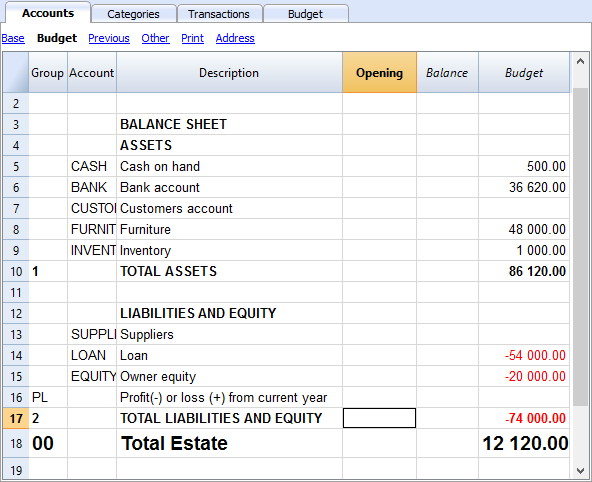
The Categories table
Enter your Operating data (Expenses and Income) here.
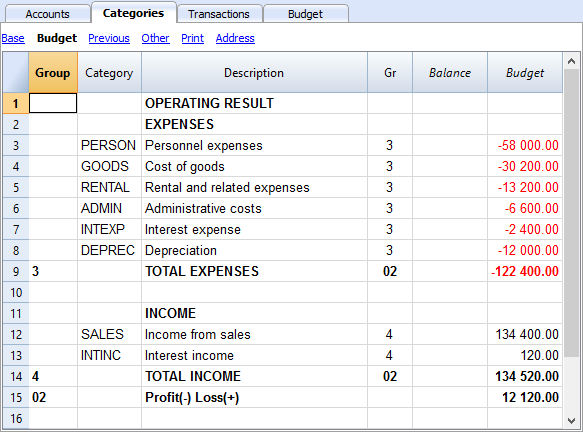
The Budget table
The Budget table (check explanations about the use of columns), is where data relative to your Financial Planning are entered.
Financial Planning is set up by entering forecasts such as income and expenses in the Budget table. The budget table offers some additional columns that make Financial Planning easier, such as:
- Repeat.
Entering “M” = Monthly will return your operation for each following month.
If left blank, the operation will only take place once. - End (Data).
Used in conjunction with Repeat, this will determine the last date when the operation will be repeated. - Total.
The total amount recorded in the current year.
Transactions for January
Those are identical to entering in the transactions table, because there is no Repeat yet.
This is the first month of running the Coffeehouse and there are the registration of the owner's equity, the payment of the furniture and the accession to a loan.
The entering in the below screenshot, such as first month's rent, were included as non-repetitive recordings, to illustrate some simple recordings that contain no Repeat.
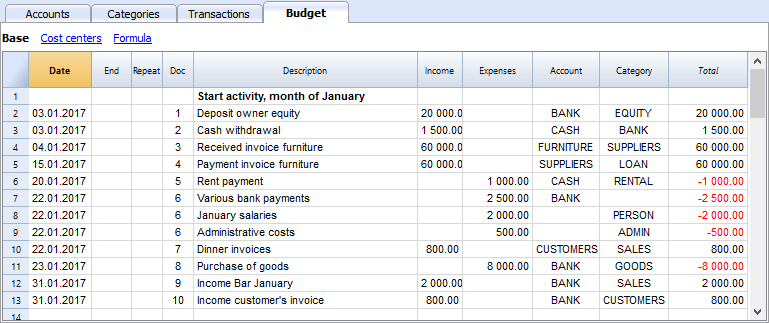
Repetitive transactions for February
Operations that are occurring on a monthly basis are entered in February.
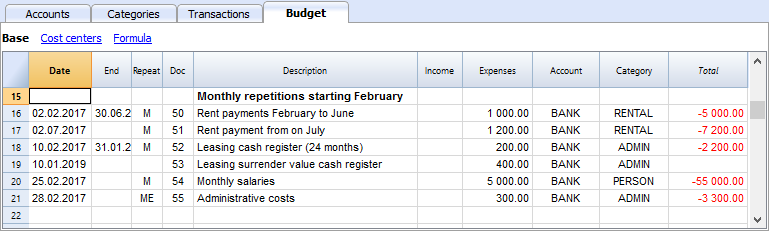
- The rent from January to June is of 1'000 per month and increases to 1'200 as per July.
- Doc 5:
The first rent was paid cash. There will probably also be the downpayment of a guarantee. - Doc. 50:
The rent of 1'000 is budgeted from February to June.- On February 2 the rent is paid from the BANK account.
In the following months the payment of the rent will figure on to 2nd day of each month. - The End date is the 30th of June.
The last rent of 1'000 will be on the 2nd of June. - Repeat. M = monthly.
- Total 5,000 (5 x 1'000), automatically calculated, is the total amount for the transaction during this period.
- On February 2 the rent is paid from the BANK account.
- Doc 51:
Rent is budgeted from July onwards.- Date 2nd of July.
In the following months the payment of the rent of 1'200 will figure on to 2nd day of each month. - End
As no date is indicated, this expense will be repeated for all the following months and years. - Repeat. M = monthly.
- Total 7'200 (6 x 1'200) is automatically calculated.
Represents six months' rent from July to December.
- Date 2nd of July.
- Doc 5:
- Doc. 52.
The leasing of the Cash Register.- Date is 10th of February.
- End (of lease) January 31st 2019. When the last installment on the lease is due.
- Repeat. M = monthly.
The operation will be repeated each month, the last time in January 2019. - Account the BANK.
- Category Administrative expenses.
- Amount 200.00 monthly lease rate.
- Total 2'200 (200 x 11 months).
- Doc. 53.
Payment towards the lease redemption.
This operation only takes place in 2019, but is included here, because it is linked to the monthly lease.- Date is 10th February 2019.
- Account the BANK.
- Category Administrative expenses.
- Amount 400.00 the release amount.
- Total empty because there is no expenditure in the current year.
- Doc. 54:
Monthly salaries.
- Date: 25th of February.
- Repeat. M = monthly.
The operation will be repeated on the 25th of each month to come. - Total 55'000 (5 x 11 months).
- Doc. 55.
Administrative expenses (this is an approximation: for a correct budgeting, entering for each separate expense will be necessary).- Date 28th of February.
- Repeat is ME = Month End.
The operation will be repeated every month on the last day of the month.
In March it will be on 31st, April 30nd and so on. - Amount 300.00
- Total 3'300 (300 x 11 months)
Budgeting for income and purchase of goods
Income and goods purchases are itemized below as monthly amounts, taking into account that there might be important monthly fluctuations.
It might prove more appropriate to use separate turnover figures for drinks or/and food.
February's Repeat column is empty, as we expect a higher figure for he next year and this will be added at a later stage.
From March onwards, the turnover is considered to be representative for the years to come.
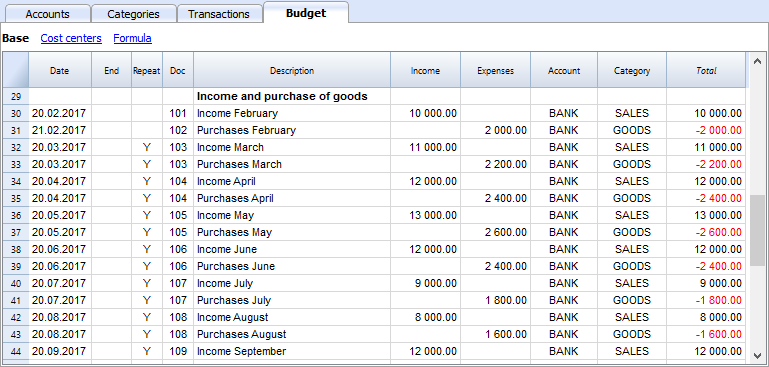
Calculations for Income and Expense will be calculated on a monthly basis by Banana 8 Accounting Software.
- Doc 101
Income indications for February
- Date 20th of February.
Income occurs on every day of a month. We choose a date towards mid-month as an approximated level of liquidity. - Repeat no repetition.
A higher figure is expected next year and will be recorded in the successive year. - Account Cash register receipts that are deposited in BANK.
- Category Provenance of SALES deposited.
- Amount 10'000.00.
- Total The next operation falls within next year, hence, the total represents one single amount.
- Date 20th of February.
- Doc 102
Indication of forecasted costs for goods, on a pro rata 20% monthly basis.
- Date 21st of February . The day after entering the sales transactions.
- Repeat no repetition.
The operation will be repeated on the 21st of each following month.
Therefore, cost of goods will be calculated each month as a percentage of purchases of sales account transactions. - Account Payments are settled via BANK.
- Category Purchase of GOODS.
- Doc 103
Two lines, which are similar to Doc 101 and 102, but for March.- Repeat Y= yearly. Turnover and costs for the month of March for subsequent years.
- Doc 104 through to Doc 112
Each 20th of the month projected sales for the different months of the year are indicated.
Following Years' Proceeds
Transactions can also be indicated for the following years.
These data will be used to establish budgets for the years to come.
The Total column will remain empty, as these values are out of scope and only refer to the current accounting period.
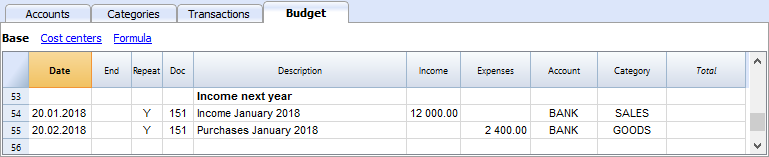
- Doc 151
Transaction entering similar to the previous year
- Date 20th of January
- Repeat Y = yearly
This will be repeated in the subsequent years. - Total empty (calculated automatically).
- The Total column remains empty, as these values are out of scope for current accounting period, and will not be indicated in the Total column which refers to the current period.
End of quarter
Indications of some typical entries that are repeated at the end of quarter.
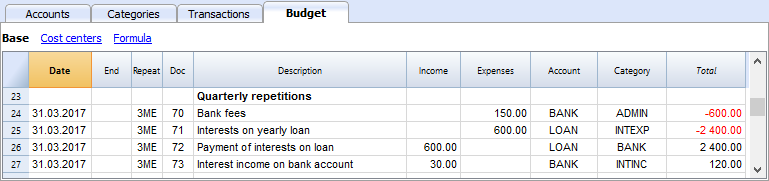
- Doc 70
Indications of some typical entries that are repeated at the end of quarter.- Dat 31st of March.
- Repeat 3ME 3 Months End.
- Category ADMIN. Administrative costs, this would normally be financial bank charges.
- Amount 150 (Automatically calculated) by multiplying the quantity by the unit price.
- Total 600 (Automatically calculated) 150 quarterly until the end of the year.
- Doc 71
Interest on the loan that must be paid quarterly.- Date 31st of March
- Repeat 3ME 3 Months End.
- Account LOAN interest is added to the loan.
- Category INTEXP interest on loan.
- Amount interest for current quarter.
- Total interest for the current year.
- Doc 72
Interest accrued on the LOAN is payed from the Bank count.- Date 31st of March.
- Repeat 3ME 3 Months End.
- Account LOAN interest owned on liabilities.
- Category BANK account used for payment.
- Formula "interest“ content of variable interest (value saved in the operation Doc 71).
- Amount the result of the formula, i.e. the interest for this quarter.
- Total interest for the current year,
.
- Doc 73
Interest earned on current account with the Bank.- Date 31st of March.
- Repeat 3ME 3 Months End.
- Account BANK where interest is received.
- Category INTINC interest income.
- Amount is interest income for this quarter.
- Total interest for the current year,
Year End
Some typical operations might take place at year end. Here, we use Repeat "Y" in order for them to be carried out for subsequent years.
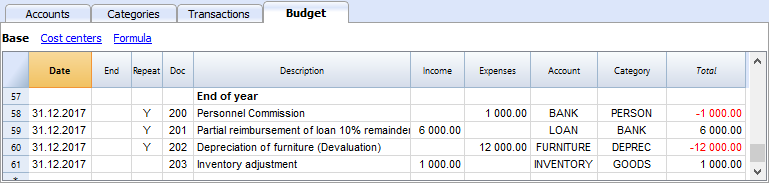
- Doc 200
Attribution to staff of a 1% commission on annual sales at the end of the year.- Date 31st of december.
- Repeat Y= calculation is repeated each year.
- Account BANK
- Category PERSON Personnel expenses.
- Amount is the commission payed to the sales staff.
- Total identical to Amount.
- Doc 201
Reimbursement of 10% of the outstanding loan.- Date 31st of december.
- Repeat Y= calculation is repeated each year.
- Account LOAN account (reimbursement of your loan).
- Category BANK Bank account used for reimbursement.
- Amount 6'000 is the equivalent of 10% of your total Loan.
- Total identical to Amount.
- Doc 202
Used for depreciation for your furniture.
- Doc 203
Assessment of your Inventory value.
This is non-repetitive because the assessment will be based on asset values of your inventory at each year end.
Compositions
Use the create new compositions command to generate new compositions for the printout including print parameters already preset in Budget and enhanced for groups.
You can preset the prints configuration according to your requirements.
If you understand how compositions functions, you will be able use it with other commands and create prints or other adapted to your own purpose.
Reports in the Accounts table
In the Accounts tab, view Budget to access the updated budget amounts.
Financial and liquidity planning for the first year
Use Command
- Reports -> Quarterly forecast 1. evolution during the first year can be seen.
The composition that has been set up can be visualized as
- Breakdown by Period -> Quarter
These two prints will allow you to apprehend:
- The economic forecast (expenses and income) and budgeting of the current financial year.
- The detailed evolution of liquidity in your bank's current account.
Modifying or Creating a new composition will give you a breakdown by month.
As per month

Financial and liquidity planning for a four year period
Use Command
- Reports -> Forecast 4 years
This will display the predefined composition for:
- Period from 01/01/2017 to 31/12/2020
In this report, you can specify a period that differs from the accounting period.
The program will then project the data for the specified period. - Subdivision per year.

Account Card
After opening the Budget table, click on the BANK cell and all budgeted transactions contained in the account card will be displayed.
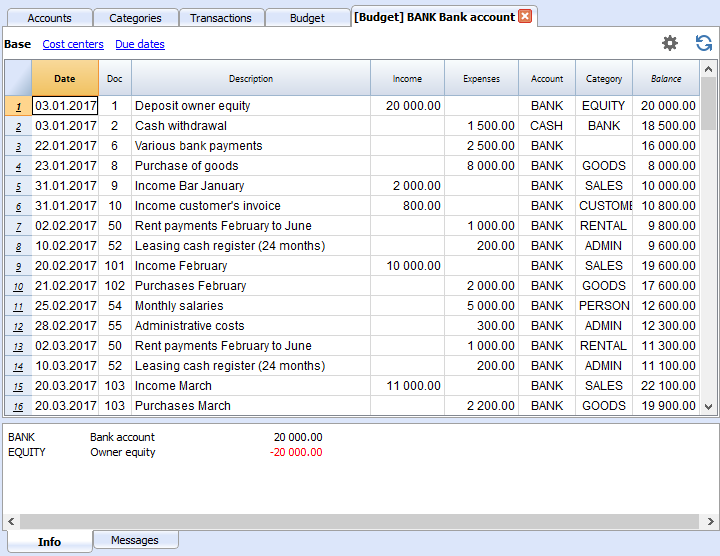
Double-Entry Accounting Tutorial File Budgeting and Financial Plan for a Startup
Double-Entry Accounting Tutorial File Budgeting and Financial Plan for a StartupWhether you're planning to start a new business, or setting up a business plan, it is of the utmost importance to manage your liquidity projections. Especially at the beginning of a new activity, this could easily happen to land yourself in financial difficulties.
Banana Accounting software offers you the possibility to set up your financial planning and liquidity projections, allowing monitoring on a daily basis, with a high degree of accuracy. It allows you to project your accounting into the future and manage the years ahead of you in your ledger.
Note: For this business plan template, the management of a bar or restaurant has been taken as an example, since it is an activity that all people are familiar with and is therefore ideal to understand the functioning of Banana Accounting. Obviously, the template can also be used for other types of activities (Startups) for which you want to do financial and liquidity planning.
Financial planning and liquidity management of Luke's Restaurant
This section will explain how to set up a financial plan for a new entrepreneurial activity, according to the double-entry accounting model.
Consult the Benefits and Features of Financial Planning section for further information.
Luke plans to open a restaurant in 2022 and is preparing a financial plan, including all the necessary details.
- The financing of his project includes his proper means and a loan from a third person.
- In January 2022, he rents the premises, redecorates and furnishes them and starts his commercial activity.
- The Financial Planning is established for the period from January 2022 to December 2025.
Below you have an example of a monthly planning that Banana Accounting can make easy for you:
Economical forecasting and liquidity management
This model will help you to learn about the different features of Financial planning in Banana Accounting software. Some features, such as formulas, will be used in more advanced cases. The possibility to enter formulas is available in Banana Accounting Plus only with the Advanced plan. Update now!
- Use of budgeted transactions
- Repetitive transactions
- Using Quantities and Price
- Using Formulas
- Using Variables
- Calculation of interest on Asset and Liability Accounts
- Carrying forward of account balances
- Carrying forward of transactions recording
- Budgeting for one financial year divided by quarter, including results and liquidity projection
- Budgeting for several financial years, including results and liquidity projection
The File Properties
Opening date is 1st of January 2022 and closing date December 31st 2022.
This is also the period of calculation that will be used for the Total column in your Budget.
The Chart of Accounts
This example is intended to explain the functioning of your Budget table of forecasts.
- The Chart of Accounts, reduced to it's essence.
- Comprehensive name for accounts are used to illustrate the use of Banana Accounting software.
- Opening Basic Currency. The activity starts from scratch, so there are no opening balances.
- Budget Basic Currency. It's the overall budget at the end of the accounting period. Notice that this represents the balance sheet and income statement at the end of the budgeting period.


Create your own Chart of Accounts
The Chart of Accounts defines the elements of Expenses, Income and Investments. In case you want to subdivide the expenses more in detail, you need to add other accounts.
Rather than starting with a very simple Chart of Accounts and add on accounts and groups, it is recommended to start with a more structured Chart of Accounts. Banana Accounting software offers different Charts of Accounts templates, and it is recommended to choose and adapt the one closest to your needs and then add the Budget tab .
The Budget table
The budget table (see also explanation on columns) is where you insert recordings relative to the planning.
The financial plan is inserted via normal entering in double-entry bookkeeping in the Budget table. The budget table provides additional columns that greatly facilitate the preparation of the financial plan.
- Repeat
If you specify "M" = Monthly, for example, this will generate monthly registration for all subsequent months.
If the cell is left empty, the operation will be performed only once. - End (Date)
Used in combination with Repeat, setting the last date when the operation will occur. - Total
The total amount recorded in the current year. - Quantity, Price
Allows for indication of the combination of values on the basis of which the amount will be calculated. - Formula
Allows you to specify a formula for calculating the amount.
The formula has priority for the calculation of the amount.
Transactions for January
Those are identical to entering in the transactions table, because there is no Repeat yet.
This is the first month of the Coffeehouse's exploitation and these are the registrations of the owner's equity, payment of the furniture and the accession to a loan.
The entering shown in the below screenshot, such as first month's rent, were included as not repetitive recordings, to illustrate some simple recordings that contain no Repeat.

Repetitive transactions for February
In February, enter the transactions that will occur on a monthly basis

- The rent from January to June is of 1'000 per month and increases to 1'200 as per July.
- Doc 5:
The first rent was paid cash. There will probably also be the payment of a guarantee. - Doc. 50:
The rent of 1'000 is budgeted rom February to June.- On 2nd Februar the rent is paid from the bank account.
In the following months the payment of the rent will figure on to 2nd of each month. - End Date is 30th June.
The last rent of 1'000 will be on 2nd June. - Repeat. M = monthly.
- Total 5'000 (5 x 1'000, automatically calculated) is the total amount for the transactions during this period.
- On 2nd Februar the rent is paid from the bank account.
- Doc 51:
Rent Budgeted from July onward.- Date 2nd July.
In the following months the payment of the rent of 1'200 will figure on to 2nd of each month. - End
As no date is indicated, this expense will be repeated for all the following months and years. - Repeat. M = monthly.
- Total 7'200 (5 x 1,200), automatically calculated.
Represents six months' rent from July to December.
- Date 2nd July.
- Doc 5:
- Doc. 52.
The leasing for the cash register.- Date is 10th of February.
- End (of lease) January 31st 2024. When the last installment on the lease is due.
- Repeat M = monthly.
The operation will be repeated each month, the last time in January 2024. - Debit A/C Administrative fees.
- Credit A/C BANK (used for payment).
- Amount 200.00 monthly lease rate.
- Total 2,200 (200 x 11 months).
- Doc. 53.
Payment towards the lease redemption.
This operation only takes place in 2024, but is included here, because it is linked to the monthly lease.- Date is 10th February 2024.
- Debit A/C Administrative fees.
- Credit A/C BANK (used for payment).
- Amount 400.00 the release amount.
- Total empty because there is no expenditure in the current year.
- Doc. 54:
Monthly salaries.- Date: 25th February.
- Repeat. M = monthly.
The operation will be repeated on the 25th of each month to come.. - Total 55,000 (5'000 x 11 months).
- Doc. 55.
Administrative expenses (this is an approximation: for a correct budgeting entering for each separate expense will be necessary).- Date is 28th February.
- Repeat is ME = Month End.
The operation will be repeated every month on the last day of the month.
In March it will be on 31st, in April 30th and so on. - Amount 300.00.
- Total 3,300 (300 x 11 months).
Budgeting for income and purchase of goods
Depending on the type of business activity, the most appropriate way to specify the revenues must be chosen.
Income and goods purchases are itemized below as monthly amounts, taking into account that there might be important monthly fluctuations.
It might prove more appropriate to use separate turnover figures for drinks or/and food.
February's Repeat column is empty, as we expect a higher figure for he next year and this will be added at a later stage.
From March onward the turnover is considered to be representative for the years to come.

Indications of forecast income and merchandise costs, calculated on a monthly basis.
- Doc 101
Income indications for February- Date: 20th February.
Income occurs on every day of a month. We choose a date towards mid-month as an approximated level for liquidity. - Repeat Empty (no repetition).
A higher figure is expected next year and will be recorded in the successive year.. - Debit A/C Cash register receipts that are deposited in BANK.
- Credit A/C Provenance of receipts in SALES account.
- Amount 10'000.00.
- Total 10'000.00 The next operation falls within next year, hence the total represents one single amount.
- Date: 20th February.
- Doc 102
Indications of forecast costs for goods, on 20%a pro rata monthly basis.- Date 21st February. The day after the entering of the sales transaction.
- Repeat no repetition.
The operation will be repeated on the 21st of each following month. Therefore, each month cost for goods will be calculated as a percentage of purchases of sales account transactions. - Debit A/C GOODS costs to be recorded in goods Account.
- Credit A/C BANK payment of goods costs through the bank.
- Doc 103
Two lines, which are similar to Doc 101 and 102, but for March.- Repeat Y=Yearly. Turnover and costs for the month of March for subsequent years.
- Doc 104 through to Doc 112: Each 20th of the month projected sales for the different months of the year are indicated.
Following Years' Proceeds
Transactions can also be indicated for the following years..
These data will be used to establish budgets for the years to come.
The Total column will remain empty, as these values are out of scope and only refer to the current accounting period.

- Doc 151
Transaction entering similar to the previous year- Date 20th January.
- Repeat Y = Yearly.
This will be repeated in the subsequent years. - Total empty (calculated automatically). The Total column will remain empty, as these values are out of scope and only refer to the current accounting period.
End of quarter
Indications of some typical entries that are repeated at the end of a quarter.

- Doc 70
Here's an example for the use of the quantity and price column.
Known bank charges are 50 per month and we indicate the amount for a 3 months period.- Date 31st March.
- Repeat 3ME=3 Months End.
- Debit A/C ADMIN. Administrative costs, this would normally be financial bank charges.
- Credit A/C BANK. Administrative costs.
- Amount 150 (Automatically calculated) by multiplying the quantity by the unit price.
- Total 600 (Automatically calculated) 150 quarterly until the end of the year.
- Doc 71
Interest on the loan that must be paid quarterly.- Date 31st March.
- Repeat 3ME=3 Months End.
- Debit A/C INTEXP interest expense on liabilities.
- Credit A/C LOAN interests are added to the loan.
- Amount interest for current quarter.
- Total interest for the current year.
- Doc 72
Interest accrued on the LOAN are payed from the Bank count.- Date 31st March 31.
- Repeat 3ME=3 Months End.
- Debit A/C LOAN interest expense account.
- Credit A/C BANK the account used to pay interest.
- Amount the result of the formula, i.e the interest for this quarter.
- Total total interests for the current year.
- Doc 73
Interest earned on current account with the Bank.- Date 31st March 31.
- Repeat 3ME=3 Months End.
- Debit AC BANK Bank account.
- Credit A/C INTINC interest income.
- Amount interest income for this quarter.
- Total total interest for the current year.
Year End
These are some year-end operations. Here we use Repeat "Y" in order for them to be carried out for subsequent years.

- Doc 200
Attribution to staff of a 1% commission on annual sales at the end of the year.- Date 31st December.
- Repeat Y= calculation is repeated each year.
- Debit A/C PERSON Personnel expenses.
- Credit A/C BANK Bank account.
- Amount is the commission payed to the sales staff.
- Total identical to Amount.
- Doc 201
Reimbursement of 10% of he outstanding loan- Date 31st December.
- Repeat Y calculation will be repeated each year.
- Debit A/C LOAN Loan account (your liability).
- Credit A/C BANK Bank account used for reimbursement.
- Amount 6'000 is the equivalent of 10% of your total Loan.
- Total identical to Amount.
- Doc 202
Use for the amortization of your furniture. - Doc 203
Use for adjustment of your inventory.
This is non-repetitive, because the assessment should be based on the asset values of your inventory.
Customization
Use the create new customization command to generate new customization for the printout including print parameters already preset in Budget and enhanced for groups.
You can preset the prints configuration according to your requirements.
If you understand how customization works, you will be able to use it with other commands and create prints or other adapted to your own purpose.
Reports in the Accounts table
In the Accounts tab, view Budget to access the updated budget amounts.
Financial and liquidity planning for the first year
With Command
- Reports → Enhanced balance sheet with groups → Quarterly forecast 1st year, the evolution during the first year can be seen.
The customization that has been set up can be visualized
- Breakdown by Period → Quarter
These two prints will allow you to apprehend:
-
The economic forecast (expenses and income) and budgeting of current financial year..
- The detailed evolution of liquidity in your bank's current account.
Modifying or Creating a new customization will give you a breakdown by month.
By month
Financial and liquidity planning for a four year period
With Command
- Reports →Enhanced balance sheet with groups → Budget 4 years
This will display the predefined customization for:
- Period from 01/01/2022 to 31/12/2025
In this report, you can specify a period that differs from the accounting period. The program will then project the data for the specified period. - Subdivision per year.
Account card
After opening the Budget table, click on the BANK cell and all budgeted transactions contained in the account card will be displayed.

Tutorial file for amortisation and interest calculation with budget's formulas
Tutorial file for amortisation and interest calculation with budget's formulasThe possibility to enter formulas is available in Banana Accounting Plus only with the Advanced plan. Update now!
Tutorial file for using Formulas for Budgeting and Financial Planning
Tutorial file for using Formulas for Budgeting and Financial PlanningThe possibility to enter formulas is available in Banana Accounting Plus only with the Advanced plan. Update now!
This file contains examples of how to use the Formula tab in the Budget table, as well as the Quantity and Unit price columns.
For explanations about the use of the Budget table and columns consult Budget table page.
Keep in mind that calculations are made in chronological order and not according to the sequence in which your budget registrations were entered.
Use of Quantity and Unit price columns
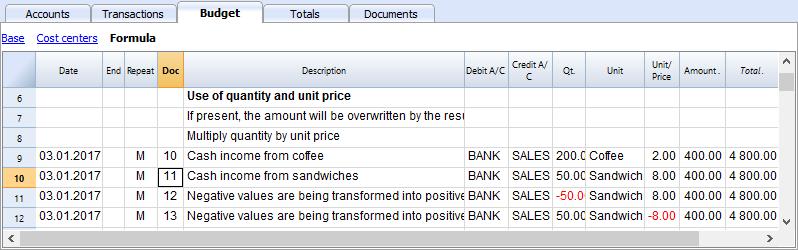
In the Formula view you will see the Qt. (quantity) and Unit/Price columns.
- Doc 10. The Qt column. The number (Unit column) of coffees sold in one month at the price of (Unit/price column) and total income from coffee sales (Amount column).
- Values in the Qt and Unit/Price columns can also be entered as a negative number, but the amount will be shown as a positive value.
Formula in JavaScript language
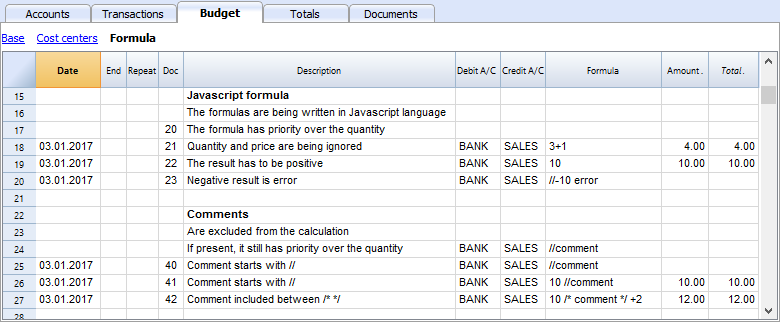
The Formula column allows you to enter calculations expressed in JavaScript language.
- If the result of the formula is a number it will be shown as Amount in the respective column.
- Doc. 21+22. You may specify numbers or mathematical expressions.
- Doc 40 e 41. "//" indicates that a comment is entered.
- Doc 42. Text entered between /* e */ are treated as comment and not part of the formula.
Formula errors
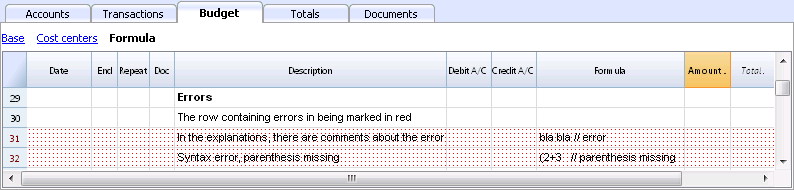
In case of errors, when you enter data:
- The row containing the error is highlighted in red.
- An error text is shown in the “message” window.
In order to avoid constant acoustic signals and popping up of error message windows, the errors have been treated as a comment in the example file (they start with "//").
Semicolon separator ";"
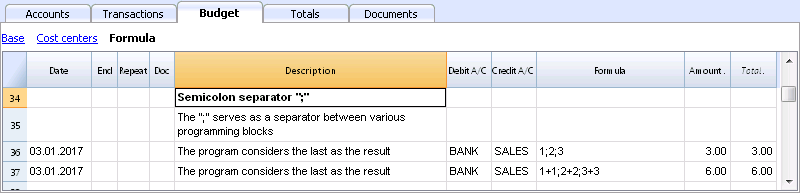
JavaScript uses ";" to terminate each line of command. You may concatenate mathematical expressions into one line. The return value will be the result of the last expression.
Comma separator ","
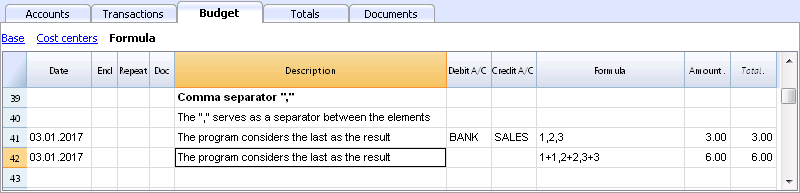
In JavaScript, comma is used as a separator between the different expressions in a function. The result value will be the result of the last expression.
Do not use the comma as a decimal separator, because in the formula it will be considered as an expression separator, and therefore numeric values will be truncated.
Full stop separator for decimals "."
JavaScript uses full stop "." as a separator for decimals. Regardless of the settings for decimals in your operating system preferences, full stop will always be used.
Calculations with simple numbers
You can compound mathematical calculations with simple numbers in the Formula column.
Texts and variables
- Text is contained between quotation marks, as quotes.
- Variables are the elements that mention the values that have been assigned.
- The name of the variable must start with a letter or an underscore.
- First of all, variables must be defined via a “variablename = 100” assigned punctuation.
Examples:
- Doc 70.
"Banana" between quotation marks is a text - Doc 101.
A value of 100 is assigned to the variable. - Doc 102.
The content of the Amount variable will be used. - Doc 103.
The content of the Amount variable will be used, with an increment of 10. - Doc 104.
The content of the Amount variable is assigned to the Amount variable with an increment of 10. The Amount variable will be equal to 110. - Doc 105.
The Formula will be applied on a monthly basis “Repeat=M”- For the first time 110+10 = 120
- For second time 120 + 10 = 130, and so on.
- Doc 106.
If no comment is entered, an error message will signal that Amount1 has not been defined. - Doc 110.
The name “Banana” is assigned to the text Variable.
Controls for if .. then .. else flows
You can use all the conditional expressions of JavaScript. The subject is broad and we suggest you to refer to the documentation on the JavaScript language.
In this regard we only want to point out that in JavaScript:
- The equal sign "=" is used to assign a value to a variable "a = 10"
- On the contrary, for comparison, two successive equal signs are used "==". If (10 == 10) {1};
- Doc 200-203
If the criteria given in round brackets after the word "if" is true "(10 == 10)", then the Amount column the result of the next expression contained in curly brackets "{1}" will be shown.
If it is not true "(10 == 9)" the amount will be zero.
Properties and Functions
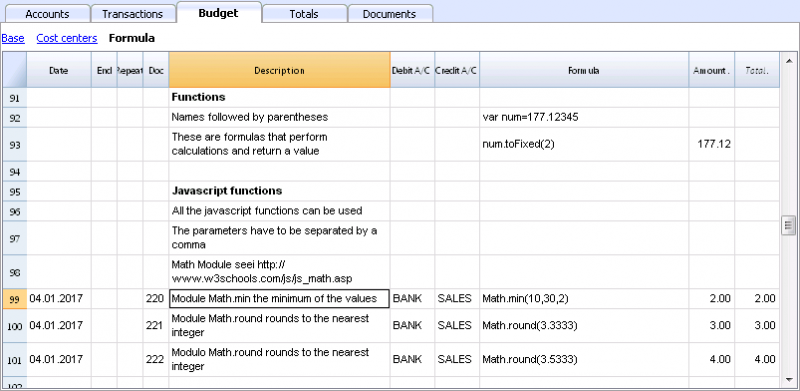
Predefined JavaScript functions, such as Module Math.library, can be used (see examples Doc 220-222).
To call up a function, indicate it's name followed by the parameters of the function, indicated between brackets.
- Doc 220.
Math.min(10, 30, 2) will return the minimum value of the values specified between commas.
“Row object” for current row
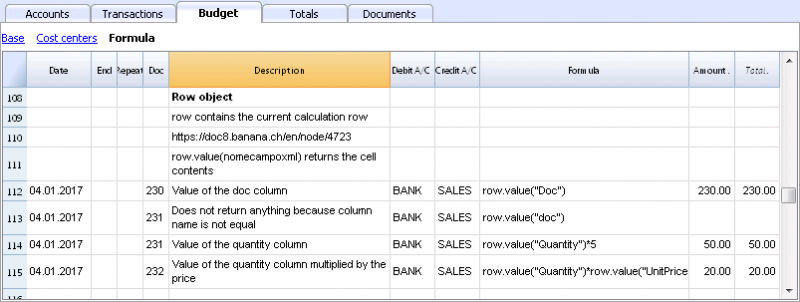
Row object is of the Banana.Document.Row type an refers to the current row.
Specifying the name of a column via the Value function, will return the content of that specific column.
Predefined Debit and Credit functions
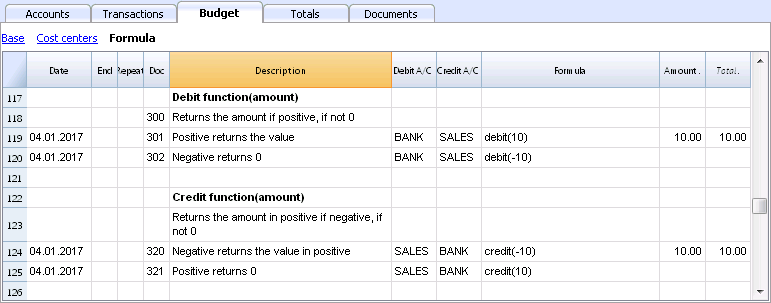
Formula only allows for positive values.
- The debit function returns the value entered as a parameter if it is positive.
- The credit function returns the value with as inverted, if the entered value is negative.
Accounting functions for the entire period
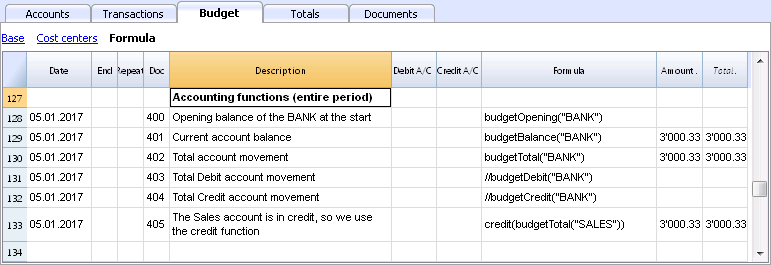
Without indication of a defined period, the use of specific Budget functions will return the values relative to the present situation.
Please note and remember, that data in rows is processed sequentially, so there will be no subsequent values to the line being processed.
Use of accounting functions for a defined period
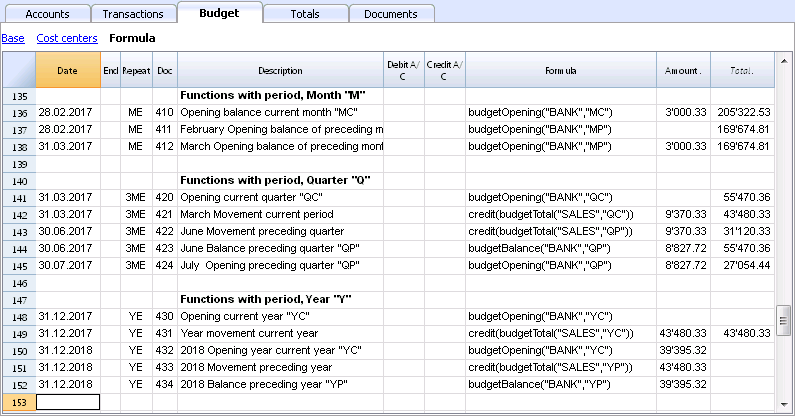
Use of accounting functions for a defined period.
The budgetBalance function for the current period will always be the same as the function for the entire period, as the budgetBalance function returns the balance at the end of the period and the last row processed is also the last of the current period.
he budgetOpening and budgetTotal functions, on the contrary, take the initial date into account so it's indication is necessary.
Interest calculation function
The budgetInterest function calculates interest at entering date, on the indicated account on an actual days count basis (365/365.
When calculating interest for the current month, you must indicate month end as the date.
- Doc 500.
The second parameter represents the interest rate, 5 meaning 5%. If debit interest is due, calculation will be effectuated for the corresponding days. - Doc 520.
If credit interest is due, calculation will be effectuated for the corresponding days. This will show as a negative towards the BANK account.
Functions for calculating tax on profit

- Doc 600.
The tax on profit is calculated on the movement in the "budgetTotal" period of the final group of the Profit & Loss statement (in this case the 02).
credit (budgetTotal ("Gr = 02", "YC")) * 0.10- You obtain the group movement in the current year
budgetTotal ("Gr = 02", "YC") - The credit () function returns the value only if it is negative and converts it to positive.
credit (budgetTotal ("Gr = 02", "YC")) - The result is multiplied by 0.10 (percentage 10%)
- In the Debit account, the Tax account of the Profit & Loss statement must be indicated.
- In the Credit account, you must indicate the Bank account or the Treasury credit account.
- You obtain the group movement in the current year
User-defined Functions
In the Documents table, a "_budget.js" file is added where you can define functions in Javascript that can be called in the formula column.
Calculating tax on profit with progressive rate
- Doc 610
The profit is first calculated and assigned to the variable - Doc 611
The profit is passed on to the calcTaxes() function that applies the tax percentage based on the amount and returns the tax amount to be paid.
Other user-defined functions
- Doc 620
The test () function is called, which is also defined in the budget_js document, which simply returns a value.
Use of Variables for next calculations
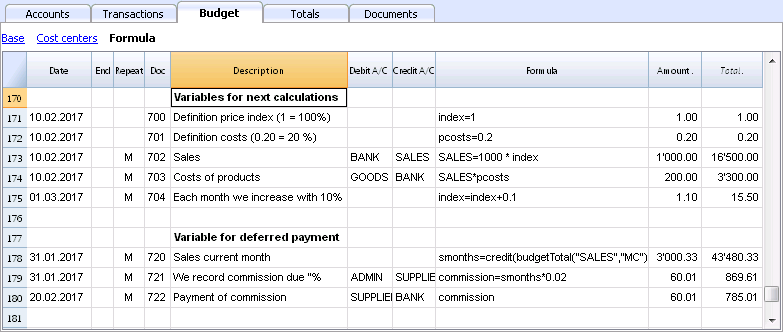
Variables are very useful for storing values for next calculations.
- Doc 700-704.
Indexation of sales.- Doc 700.
Fixation of the index at 1 (100%).
Debit A/C and Credit A/C are not used here, as this row is only used for Definition of the Price index. - Doc 701.
pscosts variable is used for calculation of acquisition cost (0.2=20%) - Doc 702.
Sales are a 1000 multiple of the price index value. - Doc 704.
As per 1st of March the index will be increased by 0.1 (=10%).
As per this date, value of sales will increase in a monthly progression.
- Doc 700.
- Doc 720-722
Monthly sales figures are assigned to months function. Sales commissions are then calculated
JrepeatNumber Column
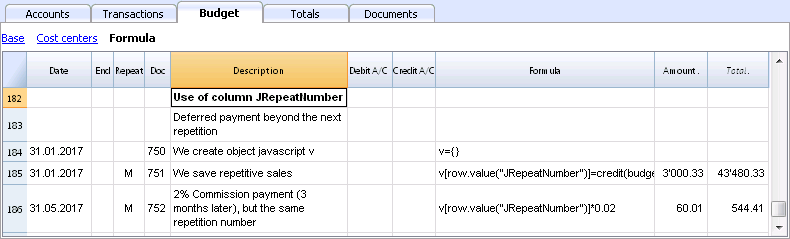
When Rows contain a Repeat, insert the Repeat number in the Formula cell as JrepeatNumber.
- First repeat value is 0.
- Second repeat value is 1, and so on.
Use JRepeatNumber when Repeat doesn't allow you to overwrite predefined Variables.
By using JrepeatNumber as a parameter for your object, sequences are registered and can be called at a later stage,
Tutorial File Budget Formulas For Multi-Currency Financial Planning
Tutorial File Budget Formulas For Multi-Currency Financial PlanningThe possibility to enter formulas is available in Banana Accounting Plus only with the Advanced plan. Update now!
This example will explain how to use formulas specific to double-entry bookkeeping with multi-currency functionalities.
Documentation on use of formula in the Budget table.
Amount calculation in base currency
The formula will calculate the value in the account's currency first and then the relative value in the base currency.
Exchange rates and historical rates
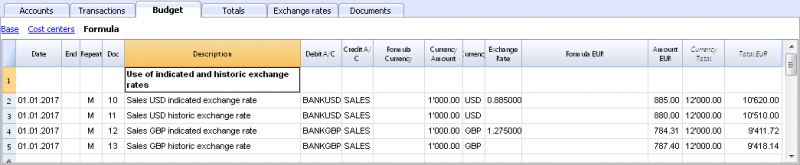
- Doc 10 and 12.
If an exchange rate is indicated in the exchange rate column, the program will calculate the amount in the base currency (EUR in this case) using the exchange rate indicated in this row. - Doc 11 and 13.
If there is no exchange rate indicated, the program will apply the exchange rate in the Exchange rates table for this calculation as well as for the successive operation in the case a Repeat function is applied.
-
If historical exchange rates are defined in the Exchange rates table, via adding a date, the program will apply the exchange relative to the date or the previous, most recent one.
Use of formulas in the base currency
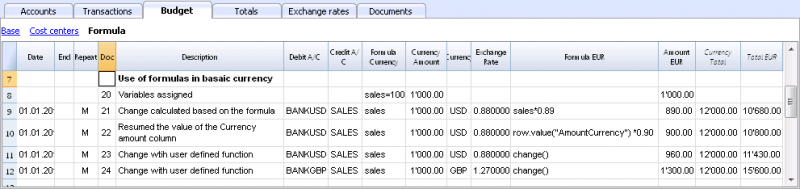
All formulas available in the Budget table can be used in the Formula column.
The following examples show the value in the base currency (EUR) calculated according to a Formula.
- Doc 21.
The sales value is multiplied according to the Formula EUR value. The exchange rate in the corresponding column will be ignored. - Doc 22.
As in the previous example, but for the value of "AmountCurrency" which is the result of the formula. - Doc 23.
In the “budget.js” document we have defined an exchange rate function calculating the value on the basis of the contents in the row.
With these functions it is possible to create exchange rate simulations.
Example for Exchange rate function
The USD exchange rate is established on a monthly basis.
A constant exchange rate is used for GBP instead.
The function will result as the amount of AmountCurrency multiplied by the exchange rate.
  function cambio() {
    var importo = row.value("AmountCurrency");
    var cambio = 1;
    var moneta = row.value("ExchangeCurrency");
    var data = Banana.Converter.toDate(row.value("JDate"));
    var mese = data.getMonth() + 1;
    if (moneta == "USD") {
      cambio = 0.95;
      if (mese == 1)
      cambio = 0.96;
    else if (mese == 2)
      cambio = 0.97;
    }
    if (moneta == "GBP") {
    cambio = 1.30;
    }
    return importo * cambio;
  }
Formulas for calculation of exchange rate differences
For further information on calculation of exchange rate differences please refer to information about transactions in multi currency and to the Create exchange rate differences command.
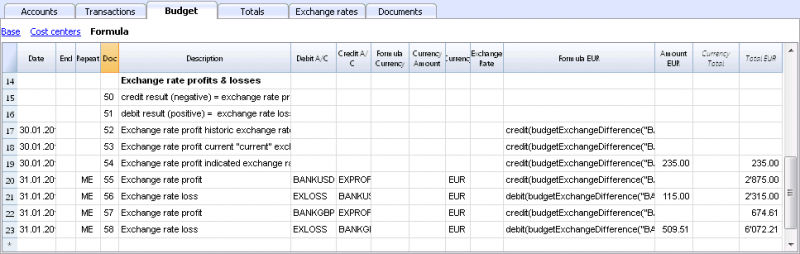
- The currency is always the base currency.
- Amounts must not be entered in the account's currency.
- Exchange rate is left blank and will be ignored, even if a value is entered.
- The budgetExchangeDifference function calculates the exchange rate difference for an account. This value represents the non realized exchange rate profit or loss.
.- The function will return a positive value if it is an exchange rate loss and a negative (credit) in case of exchange rate profit.
Exchange rate profit and exchange rate loss need to be entered in two different rows.
-
The resulting amount represents the revaluation necessary in the base currency to ensure that the account balance in the base currency matches the balance of the account in the currency converted at the exchange rate used for the calculation of exchange rate differences.
- The function will return a positive value if it is an exchange rate loss and a negative (credit) in case of exchange rate profit.
- The first parameter "CUSD" of the budgetExchangeDifferences function is the account in foreign currency for which the exchange rate difference will be calculated.
- The second parameter is the exchange rate to be applied.
- If no exchange rate is indicated, the historical exchange rate relative to the date of the entered transaction is applied.
- When "current" is used, the exchange in the Exchange rate tables with no date will be used.
- An exchange my also be indicated. A point "." must be used as a decimal separator.
  credit(budgetExchangeDifference("CUSD"))
  credit(budgetExchangeDifference("CUSD", "current"))
  credit(budgetExchangeDifference("CUSD", "0.95"))
Tutorial Financial Planning for Accounting Experts
Tutorial Financial Planning for Accounting ExpertsThe precision financial planning is a method to build the company’s financial future with the same rigor as real accounting.
In Banana Accounting, forecasting is not separate, but integrated into the same accounting file.
In this tutorial, you will see how to create a complete forecast by entering future transactions and automatically obtaining forecast balance sheet, profit and loss statement, and cash flow. You can also simulate different scenarios.
Introduction video
To see the system in action, watch our video below:
Who this tutorial is for
This tutorial is designed for:
- Accounting experts
- Fiduciary companies
- Consultants and accountants
The goal is to show you how to quickly create a complete financial plan in the same accounting file, including:
- Forecast profit and loss statement
- Forecast balance sheet
- Cash flow evolution
- Comparison between budget and actual results.
You can prepare the financial plan both for your company and for your clients, offering added value to your consulting services that goes beyond accounting management.
Planning structure
With Banana Accounting, you do not need to create anything new. This means you work with:
- the same chart of accounts
- the same Debit/Credit logic
- the same analysis tools
To enter budget transactions, use:
- the Budget table where you enter the transactions you expect during the year:
- enter the transaction only once
- define the frequency
- you can determine that a transaction appears within a period defined by a start and end date.
Chart of Accounts
The accounts you use are those already available in the chart of accounts. In the Accounts table, you can display the Budget column to always have forecast balances available:
- menu Data > Columns setup > enable Budget column
Assets and Liabilities (Balance Sheet)
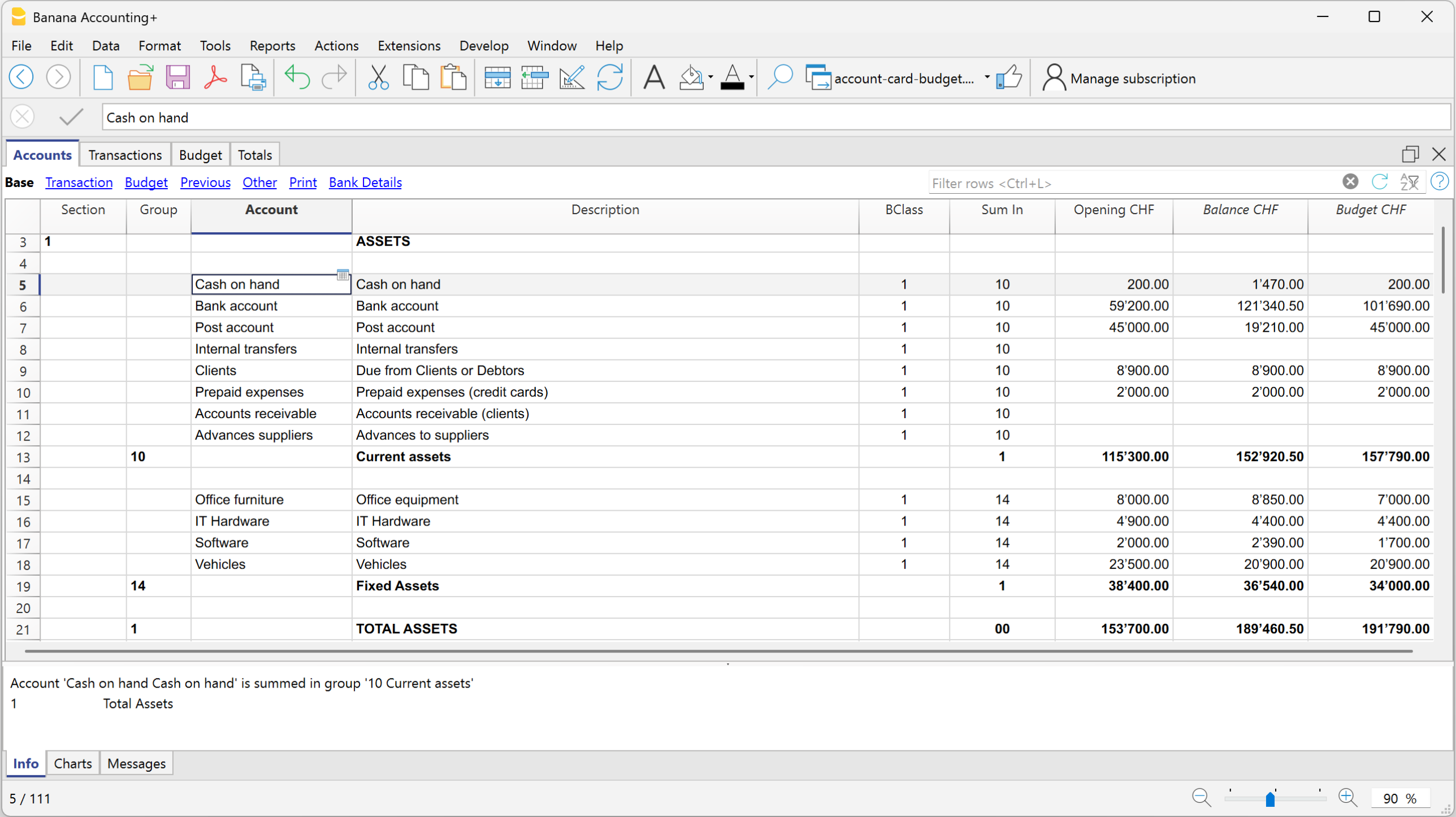
- Costs and Revenue (Profit and Loss Statement)
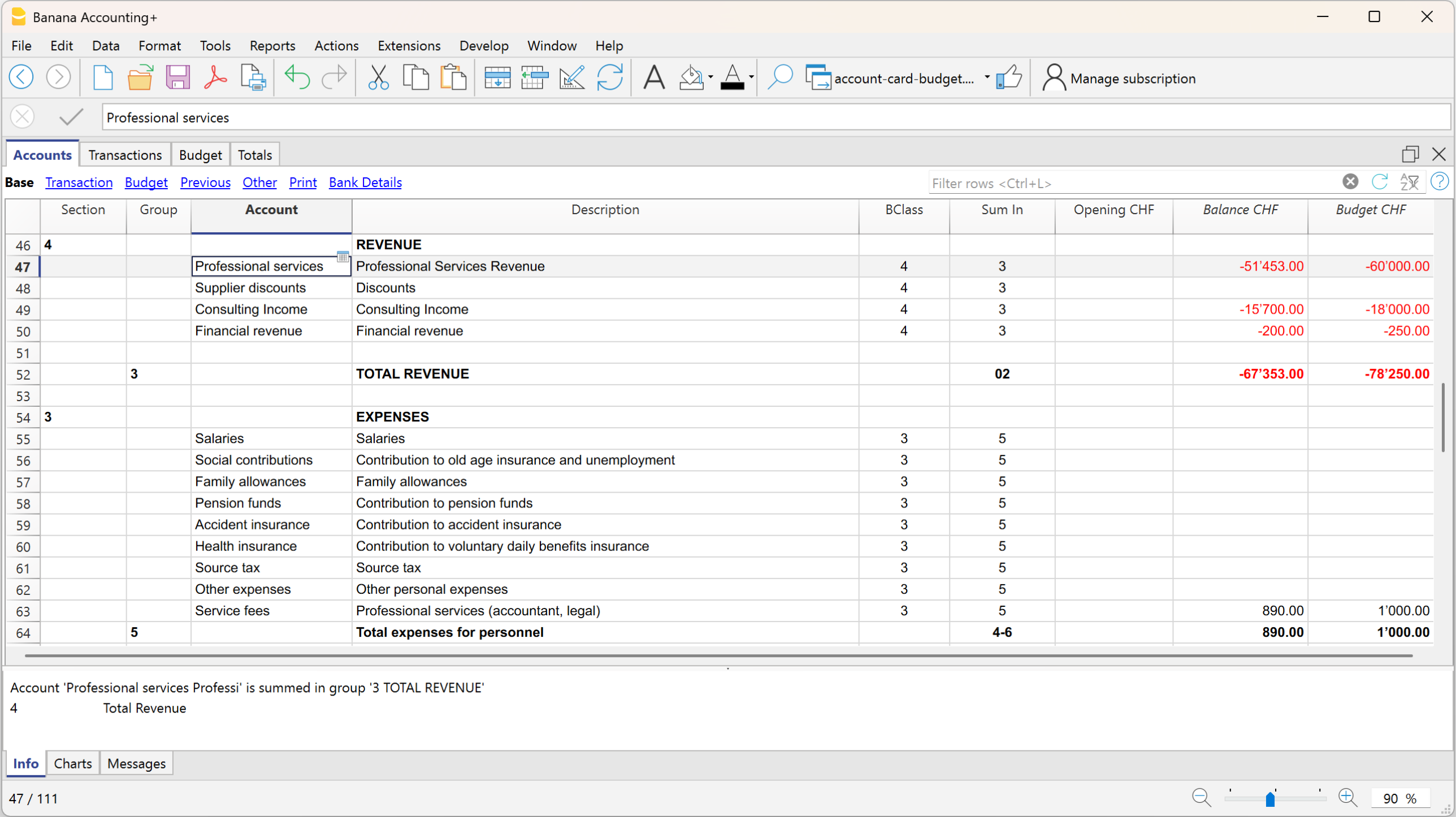
For a more detailed forecast, if not already present, we recommend setting up and using:
Budget Table
The Budget table is the core of the forecasting system, where you enter the transactions you expect during the year or within a defined period.
For each future event, enter the data in the following columns:
- Start date: the date when the transaction begins
- End date: the last date by which the transaction ends (a date one or more years later can also be specified).
If the transaction will always repeat every year, you do not need to enter any date. - Repeat: repetition frequency (day, month, quarter, half-year, year)
- Description: description of the transaction
- Debit / Credit account: accounts available and taken from the chart of accounts
- Amount: transaction amount
If needed, you can also enter VAT code, segments, or cost centers.
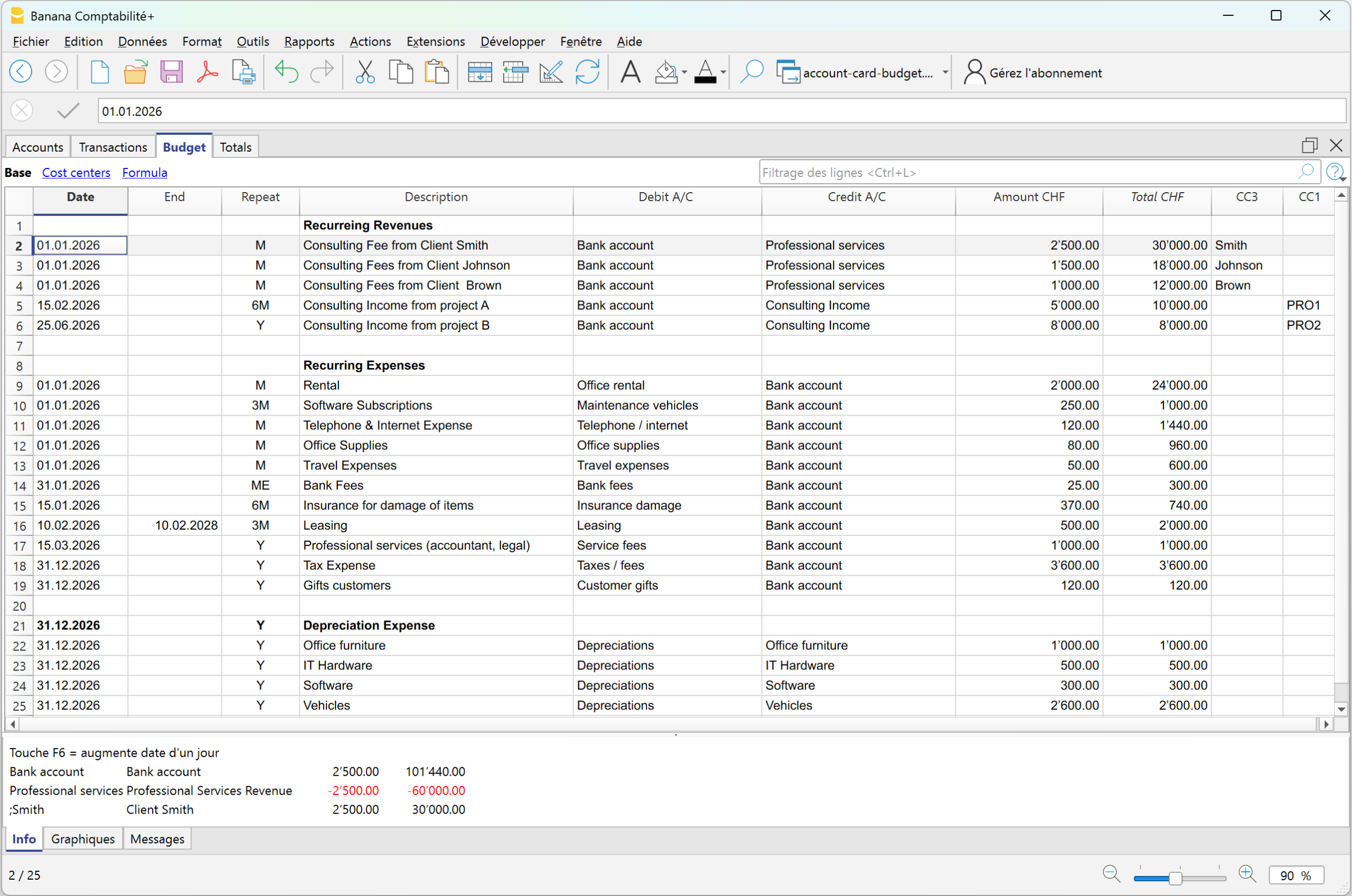
Based on the entered transactions, the program automatically creates all reports, with the same speed and options available in the Enhanced Balance sheet with groups, and reports the balances in the Accounts column, in the Budget view.
Complete forecast reports and comparison with actual data
Forecast reports do not only provide aggregated yearly projections. You can also analyze the data by specific periods: if a cost or revenue occurs only during certain months, the system represents it exactly in the correct periods.
For example: if a cost occurs only in June, July, and August, in the Budget table, by defining the accrual dates, the amount will be assigned exactly to the specific period in the forecast report, without any distribution across other months.
To obtain the forecast balance sheet and profit and loss statement:
- From the menu Reports > Enhanced Balance sheet with groups > in the section Chart of Accounts > Columns, enable Budget
In the Enhanced Balance sheet with groups, if you display the actual, budget, and Budget difference columns, you immediately get an overall view:
Balance Sheet with actual balances, budget balances, and differences
Forecasting in Banana Accounting is not a separate document, but integrates with accounting data and evolves together with real accounting.
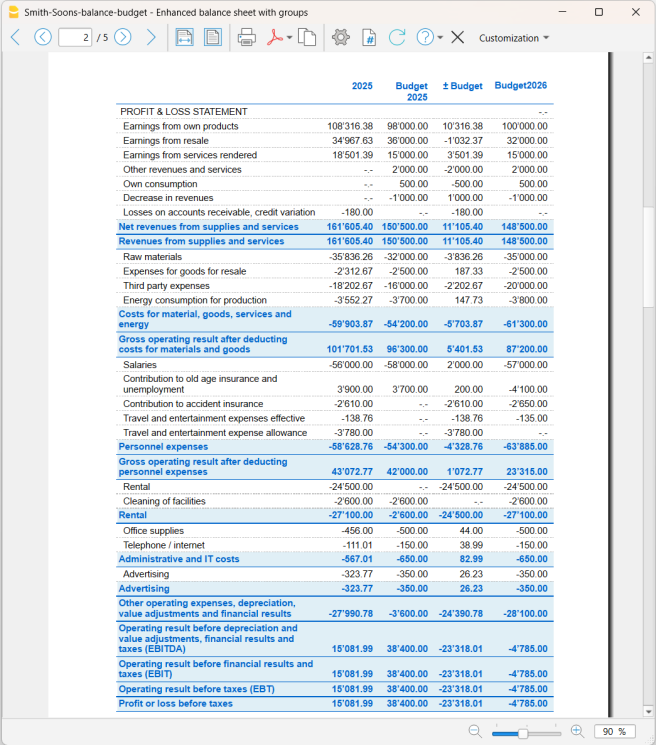
Profit and Loss Statement with actual balances, budget balances, and differences
With this report presentation, you can evaluate whether the company will be profitable and identify possible issues in advance.
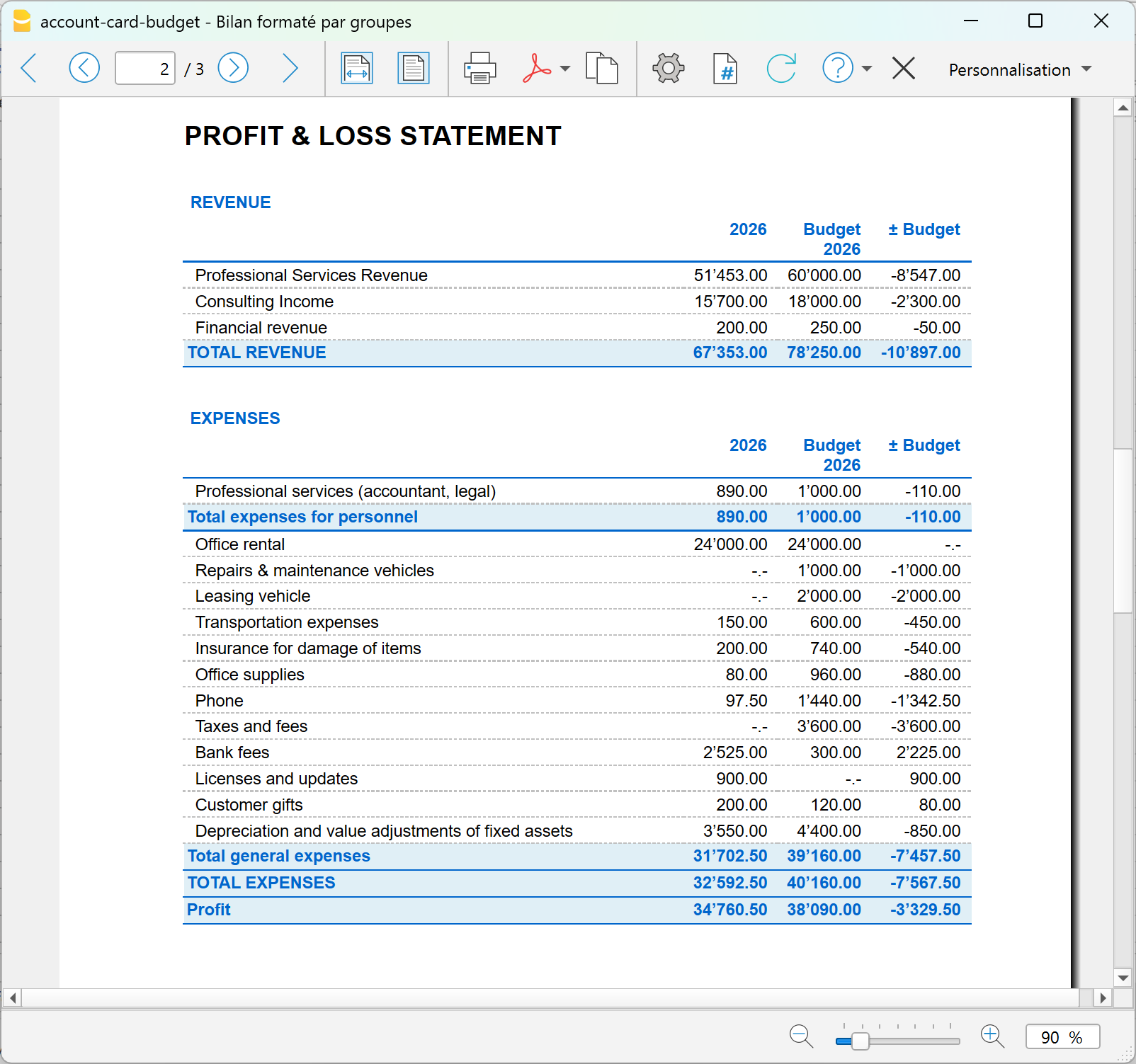
Comparison of actual vs budget account card
With Banana Accounting financial forecasting, you can go beyond traditional forecasting. With the new Account card: Current vs/Budget extension (Beta version), you can compare an account card with both actual transactions and budget transactions.
This is a completely new feature that allows you to:
- analyze in detail the actual transactions compared to the budgeted ones
- easily identify variances shown in the Differences column.
- progressively improve your planning capabilities.
Advantage: customer account card with actual and budget data
With Banana Accounting, for each customer you have a complete account card that integrates:
- actual data → issued invoices and real payments received
- forecast data → future invoices and expected payments
With Banana, the customer account card does not only show what has happened, but also what will happen, with all management details already integrated. In one single view, you can see the past, present, and future.
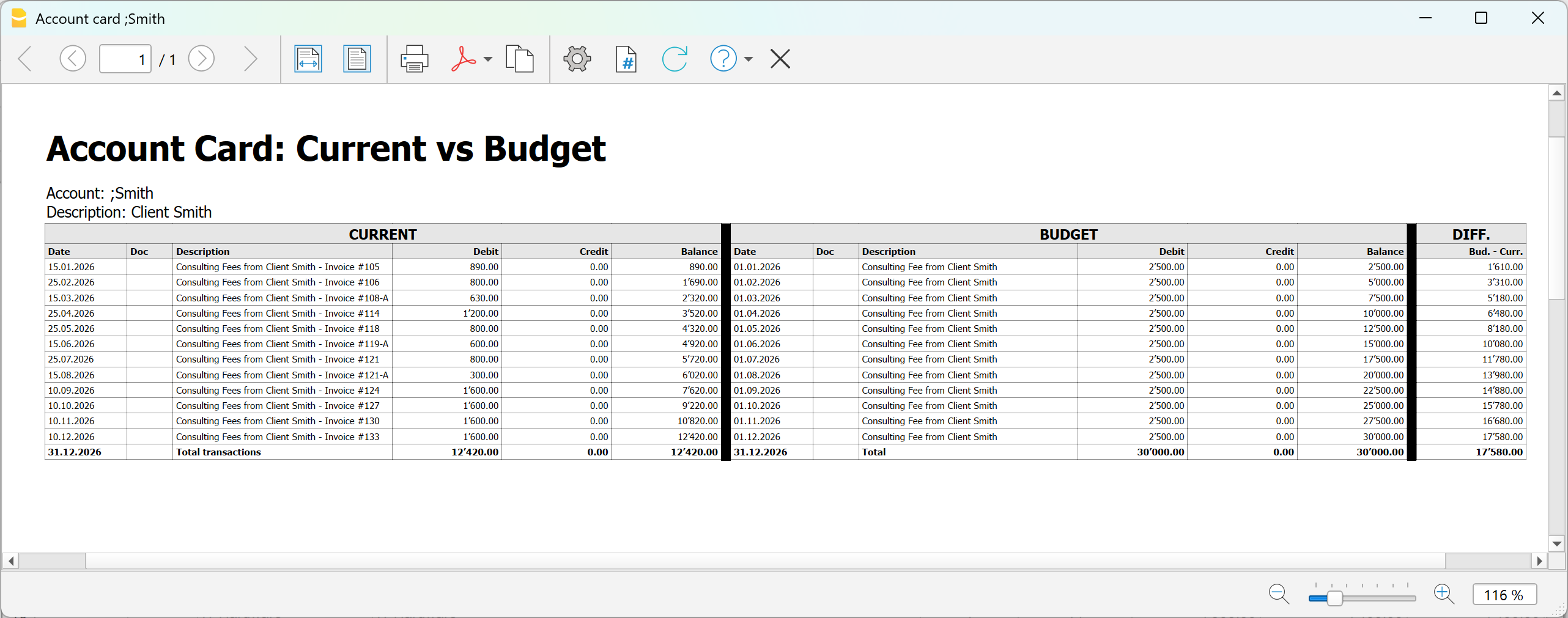
Using the new extension dedicated to the account card, which compares actual and budget transactions, you can analyze in detail:
- Customer
- Project
- Cost center
- Segment
To display the comparison between actual and budget data for an account, you need to:
- Install the Account card current vs budget extension (Beta version)
- From the menu Extensions > Manage extensions > Accout card: current vs budget (Beta version)
- In the dialog window that opens:
Double-click on Account and select from the account list the account (or category), cost center- Two account cards related to the same account are displayed side by side
- In the last column of the budget account card, the Difference column is displayed, highlighting line by line the difference in amounts between actual and budget data.
Summary
With precision financial planning, you can:
- enter detailed forecasts transaction by transaction
- automatically obtain all reports
- monitor liquidity and profitability
- compare forecasts and actual results
- progressively improve decision-making
It is not just about creating a budget, but about using an integrated system to plan and manage the financial future with professional accounting tools.
Account Card: Current vs Budget (BETA)
Account Card: Current vs Budget (BETA)The report provides:
- detailed transaction data
- progressive balances
- differences between actual and planned values
Prerequisites
To use this extension you must download and install Banana Accounting Plus.
Create the report
Run the extension from the menu Extensions > Account Card: Current vs Budget.
The extension Settings dialogue will open. From here you can choose some options to create the report.
- Account
Select the account to analyze (populated automatically from the Accounts table). - Subdivision by period
Select the period subdivision (none, by month, by quarter).- None: shows all transactions in chronological order.
- By month: groups transactions by month; each month is visually separated.
- By Quarter: groups transactions by quarter (Q1, Q2, Q3, Q4); each quarter is visually separated.
- Print in landscape
Prints the report in landscape orientation.
The report will be generated and shown in preview.
Report content
The report is structured into three main sections:
- Current account card
Displays current account card transactions with the columns Date, Document, Description, Debit, Credit, Balance. - Budget account card
Displays budget account card transactions with the columns Date, Document, Description, Debit, Credit, Balance. - Difference (between budget balances and current balances).
For each row, the difference is calculated as: Budget balance – Current balance.
This column highlights deviations between planned and actual values.
Each row or the report includes:
- current transaction (if available)
- budget transaction (if available)
- updated balance
- difference between balances
When one side has no data, the last available balance is carried forward. This ensures continuous and consistent comparison.
Report example:
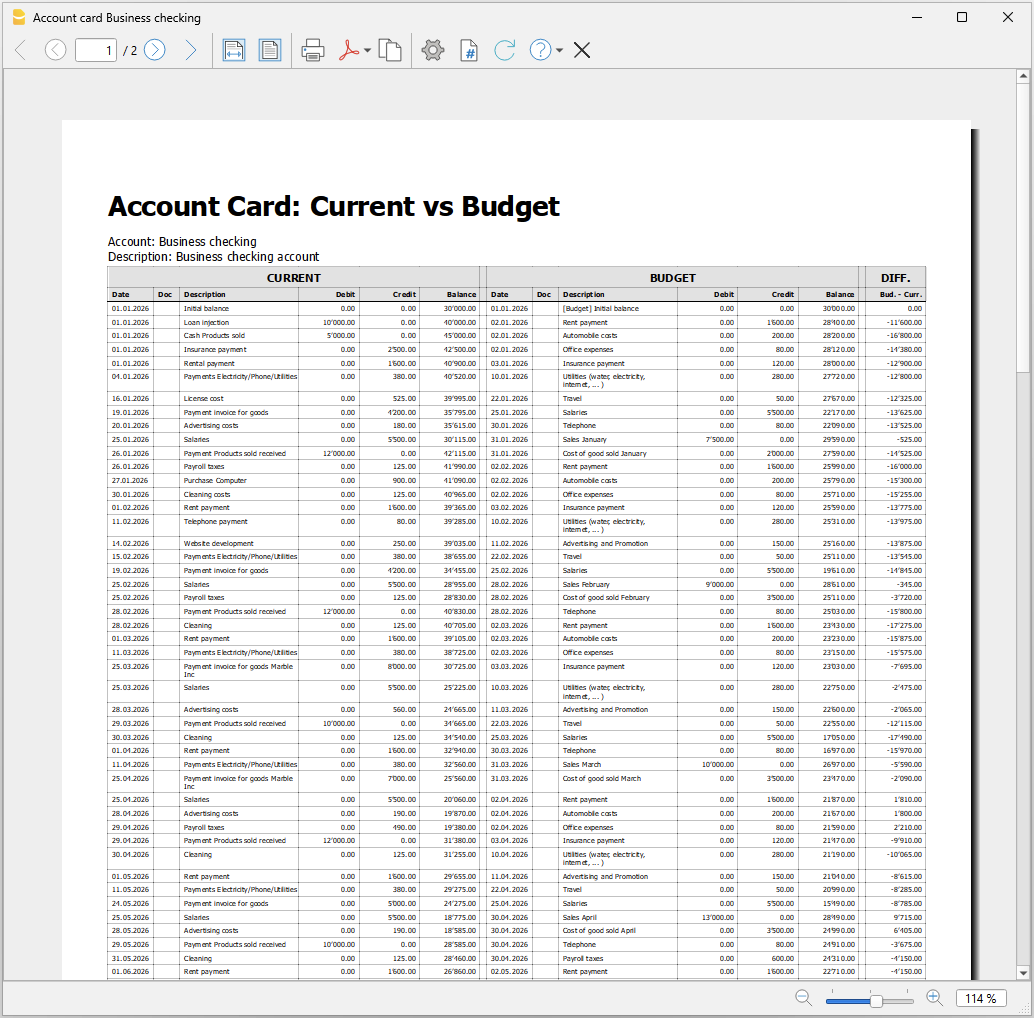
Accounting software for Accountants, Fiduciaries and Auditors
Banana Accounting complements the accounting software you already use, giving you the flexibility to handle special cases and offer services that go beyond traditional bookkeeping.
From investment portfolio accounting and financial forecasting to forensic accounting, trusts and international mandates, Banana helps you turn your accounting expertise into new opportunities for your practice.
The modern accountant: turning change into opportunity
The role of the accountant has evolved. Accounting and tax compliance remain essential, but digitalisation, cloud solutions and AI are making many operational tasks faster and increasingly accessible to clients themselves.
As clients take care of more of their day-to-day bookkeeping, the accountant's expertise becomes valuable in new ways: reviewing their work, interpreting financial data, anticipating problems and helping them make better decisions.
This shift creates new opportunities. By spending less time on repetitive tasks, accountants can manage more clients while focusing their expertise on higher-value advisory and specialised services — from financial analysis and planning to more sophisticated mandates for businesses and private clients with complex needs.
This is what we call the "poliedrico" accountant: a versatile professional who combines accounting expertise, technology, analysis and advisory skills, adapting them to very different clients and situations.
Banana Accounting is designed for precisely this kind of flexibility.
Add flexibility to the software you already use
You don't need to replace your existing accounting or management system. Banana Accounting works alongside it whenever you need more flexibility, customisation or specialised functionality.
Its table-based approach combines the freedom of a spreadsheet with the controls and logic of professional accounting software. You can adapt the chart of accounts, settings and structure to each mandate, start from ready-to-use templates and customise them to the specific needs of each client.
With a single Banana Accounting subscription, you can also create and manage an unlimited number of accounting files, with no additional cost for each new client, company or mandate.
This gives you the freedom to take on very different types of work and develop specialised services that strengthen your expertise and your relationship with your clients.
Here are some of the high-value services you can add to your practice with Banana Accounting:
Accounting reviews and controls
Let your clients manage their day-to-day bookkeeping while you provide the professional oversight.
Banana's accounting checks and verification tools help you review accounts efficiently, identify problems and prepare reports or VAT statements. Clients gain greater independence while you remain their professional point of reference.
Investment portfolio accounting
Help private clients, foundations and organisations gain a clear overview of their financial investments. With Banana Investment Accounting, you can manage shares, bonds, funds and other securities directly within the accounting system, including multi-currency portfolios.
- You always know the quantity and book value of your investments.
- The program automatically calculates gains and losses on sales transactions.
"I oversee several foundations and had to manage investment portfolios with Excel. Every update required time, manual checks, and continuous verification. With Banana Accounting I integrated investment portfolio management and now work faster, with a clear overview of investments." - anonymous user

Precision financial forecasting
Banana's financial forecasting is based on double-entry accounting logic. Create detailed forecasts for liquidity, balance sheet and profit and loss, develop different scenarios and continuously compare forecasts with actual figures. Give entrepreneurs and organisations a clearer basis for decisions about investments, financing and future cash requirements.
Liquidity management and cash flow analysis
Give your clients an up-to-date view of their liquidity and cash flows, helping them understand where their money comes from, where it goes and how their financial position is evolving.
With Banana's Rules for the automatic completion of imported transactions, you can quickly update the accounts with the latest bank transactions and provide cash flow analysis based on data that is current up to the previous day — turning liquidity monitoring into a valuable ongoing advisory service.
Forensic accounting and accounting reconstruction
Special situations require the freedom to work directly with the data. Banana's transparent table-based approach makes it particularly suitable for reconstructing incomplete accounts, analysing transactions, identifying inconsistencies and cleaning up accounting data. It provides accountants and auditors with a professional alternative to complex Excel spreadsheets for unusual or investigative cases.
Trusts, foundations and special mandates
Not every client fits into a standard company structure. Adapt charts of accounts, currencies, reports and accounting structures to trusts, foundations, associations, real estate, entities in other jurisdictions, parallel accounts and other non-standard situations.
Ready-to-use templates provide a starting point and can be customised to each client's requirements with relatively little effort.
Explore all Banana Accounting features for accounting experts...
Why Banana instead of Excel?
When traditional accounting software cannot handle a particular case, Excel is often the natural fallback. It offers flexibility, but formulas must be created and maintained, accounting consistency is not guaranteed and errors can be difficult to detect.
Banana retains the freedom of working in tables while adding accounting intelligence:
- automatic accounting controls
- reliable calculations without complex formulas
- transparent and traceable data
- easy filtering, copying and editing
- professional reports
- files that can be understood and worked on by others
You remain free to work with the data without giving up the safeguards of professional accounting software.
Your clients' data remains under your control
Confidentiality is fundamental when dealing with financial information.
Banana Accounting works locally and does not require you to upload your clients' accounting data to Banana servers. You decide where files are stored: on your computer, your firm's infrastructure or the cloud storage solution of your choice. Your clients' sensitive financial information remains under your control.
Try Banana Accounting
Discover how Banana Accounting can work alongside the tools you already use and help you expand the services you offer your clients.
The advanced features designed for accounting professionals are included in the Banana Accounting Advanced plan, at CHF 179/year.
Would you like to see how they could fit into your practice? We’ll be happy to provide you, upon request, with a free trial period of the advanced features, so you can explore them with your own accounting needs and workflows.
Useful links
Auditing companies using Banana Accounting
Auditing companies that use Banana Accounting take usually less time then when using other accounting software.
- The auditor can install the Banana Accounting software on his computer.
It is free, as with the Free Version that you download and install, you can open any accounting file and you can navigate through the accounting data. - With the full version, you can save changes (colored rows, added cost centers, selections to copy data in Excel).
- Ask your client to give you their accounting file.
You can copy it on your computer and you have access to all accounting data.
If possible, you might even ask for the files of the previous years, so you can have access to historic data. - If your client uses digital documents, ask them also for these data, so you don't need them to bring you all the paper folders.
When you are on a specific transaction or in the account card, a simple click lets you open the document relative to the transaction. - Use the command "Check accounting" and the software will inform you if there are any imbalances or differences.
- You can check if the digital seal of the blockchain is the same same as the one archived.
If it is, you can be sure that the content of file has not been altered. - In the Accounts table, you see all accounts and you drill down and see all transactions.
- You can extract the transactions for a specified period of your choice.
- You can color transactions that need further inquiry.
- You can add other information (columns auditors note) or Cost centers for reconciliation.
- You can select and extract data.
Banana Accounting will do the sums for you, without worries about possible errors. You do not have to do reconciliations with Excel. - You can copy the data from Banana and paste in Excel.
- When you select an account or a group, you can see the chart with the evolution of the balance at the bottom of the window.
You immediately can have an overview of the evolution. If the Cash account gets negative, you will notice immediately.
Using Banana Accounting for auditing purposes
Using Banana for auditing companies that use other accounting software
When you are auditing companies that use other software, you usually do not have full access to the accounting data on their computers. The auditors usually receive pdf files and in some cases a limited access to the accounting solution.
Excel is a very important tool for auditors. They use it to do reconciliations and create specific reports.
This requires a lot of attention from the auditors. Errors in formulas can be difficult to discover.
Where there is quite a lot of data to reconcile, auditors can create a new accounting file in Banana and import the data from the original accounting file.
With Excel you can read CSV files, adjust and copy and paste into Banana Accounting.
You will immediately know if there are any imbalances and you can have access to all account cards and print the Profit & Loss statement and Balance sheet. You have full access to the data and in most cases, you don't need to setup reconciliations in Excel.
Importing data in Banana Accounting
See the documentation available:
Financial management statements for construction projects extension [BETA]
Financial management statements for construction projects extension [BETA]Start by downloading the Financial management for construction projects template, build your accounting and use the extension to control and compare the costs of your project. Generate the report by choosing in the dialog the columns to show, in this way you will have only the data that really interest you.
▶ Video: Construction projects management.
How it works
Easily manage all financial aspects of a construction project. Everything is already set up, you can easily adapt it to the individual project and enter the data.
- For each construction project you shall create an accounting file.
- Start with the preset template in the software, with accounts and categories already set up.
- You can also open the tutorial template, with examples.
-
You can manage as many projects as you like.
- Estimate Budget.
The development phase of the project where it is important to have an overall view of the costs.- In the Categories table enter the Estimate Budget. You can edit, add expense items and also groupings.
-
You have an overview of the overall costs of the project.
- If you want you can add more columns to manage more variants.
- Assingments.
You have chosen the project and now it's time to start with the request for offers and assignments to companies.- In the Accounts table, enter a row with the relative cost center for each company.
- In the Budget table enter the approved amounts, indicating the category of expenditure and the company.
- You have the report with the total of the budgeted values, the approved values and the deviations from the budget. You know in advance if you will be able to avoid overruns on the budget.
- Actual expenses.
Companies send requests of advance payment and invoices.-
In the Transactions table, enter the amounts have been paid.
- You have the report with the total amount paid by category and by company. See the deviations from the approved and budgeted amounts. You immediately notice if there are overruns, for a type of work or company.
-
The main advantages
- It is used like Excel.
- Easy to use, it is based on income and expense accounting, which everyone knows.
- Financial situation of the construction project always up-to-date.
- Covers all phases of the project, from budgeting to assignments and payments.
- It manages both the expenses and the income (inputs of own funds, contributions, and other).
- You notice immediately, at each stage, if there are any overruns.
- Complete reports.
-
By expense/income category
- By company
- Estimate budget.
- Assignments Amounts
- Amounts actually paid (advance payments and invoices).
- Deviation, indicating in color whether there are increases or savings.
-
- Collect documents.
When you enter an assignment or a payment you can also link the transactions to the digital document. Easy to make verifications because you can open attachments with a simple click. -
Bank account movements. Payment account statement.
- Data reuse for further reporting.
Requirements for using the extension
To use it, it is necessary to download and install Banana Accounting Plus with the Advanced plan.
Classification of data by cost category and by companies. It is used like Excel, making it ideal for architects, engineers, surveyors and contractors. Complete with key financial statements offering very sophisticated project management programs.
File setup of project accounting
Create new file
To create a new File, go to the File menu and click the New command.
This command opens the window for creating a new file. From this window you can search for the template you are interested in, in this case choose the Construction Project Accounting template.
Basic properties
The main parameters of the accounting file are defined in the file and accounting properties, such as the header, the opening and closing date of the project. You can change the properties from the File menu → File and accounting properties.
This data is included in the report and can be printed.
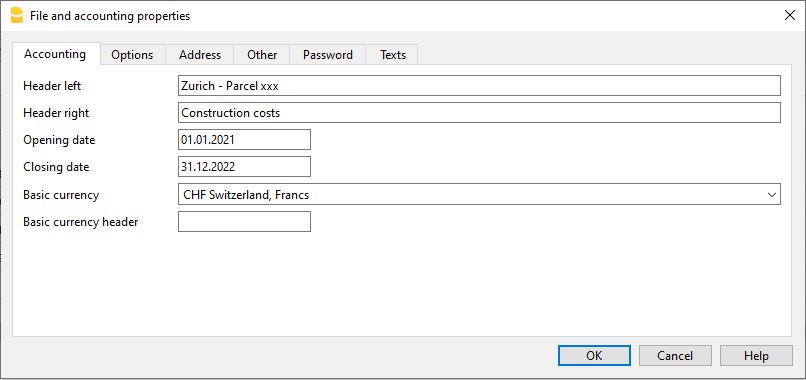
Create a project folder
You can manage your documents and receipts in digital format by linking them to transactions so you have everything well organized and can view them with one click.
It is therefore useful that you create a folder to save the accounting file you have created.
Then create subfolders for documents of deliberations, receipts, and others. See how to organize digital documents.
Categories and Estimate Budget
Categories Table
The Categories table is where you set the elements of the work to be performed. Cost categories can be changed or personalized in any moment, if you have particular requirements you can decide to change the structure of grouping of the elements, or use the one proposed by the template.
Estimate Budget Column
In this column you define the amount of the estimate for each Cost category. You can change the amount whenever you want.
Variants of Budget
You can add additional columns to enter the amounts relating to any variants of the estimate. Use the Data menu → Columns setup command, and add a column of Amount type to make sure that the values are totalized.
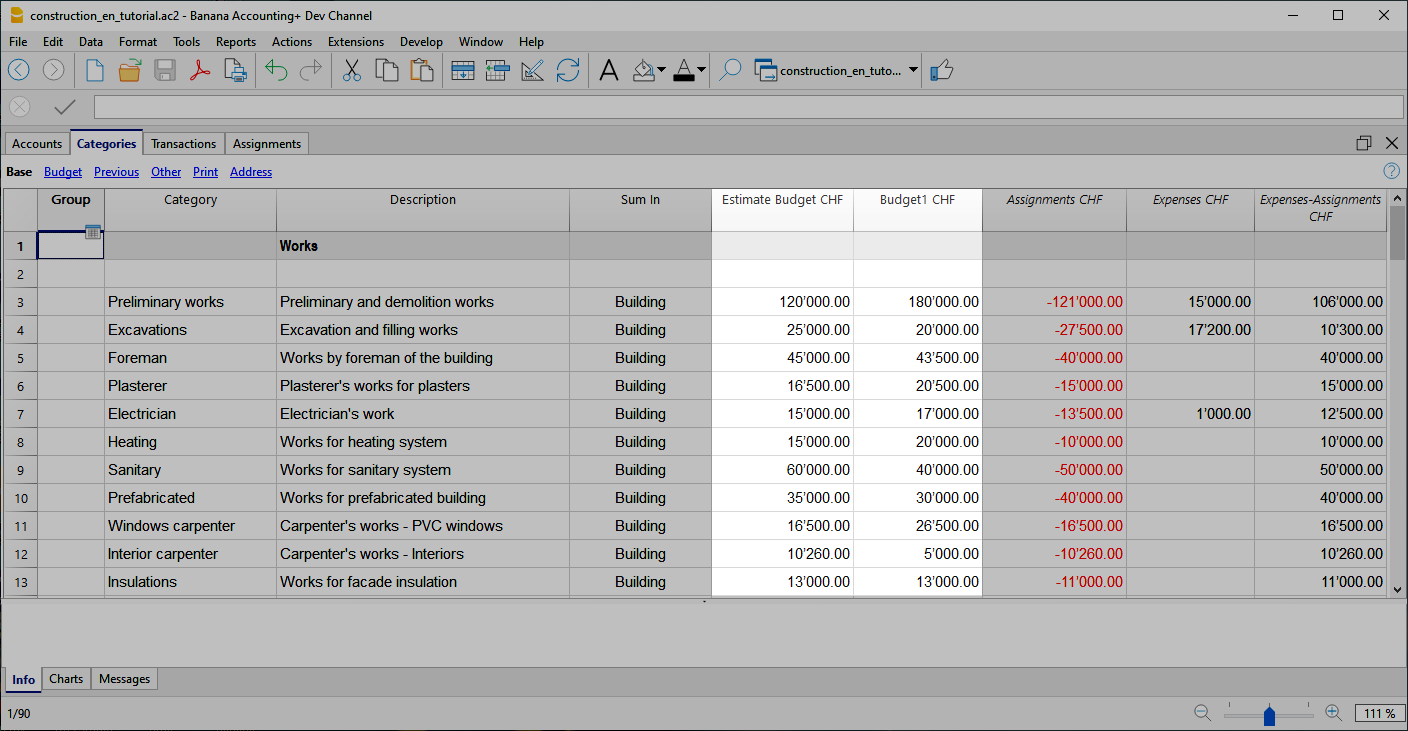
Additional columns
In Banana Accounting terminology, the Budget column is the one that contains the values calculated on the basis of the movements contained in the Budget table.
In project management, the Budget table has been renamed to "Assignments " and is used to insert assignments . This can create a moment of confusion.
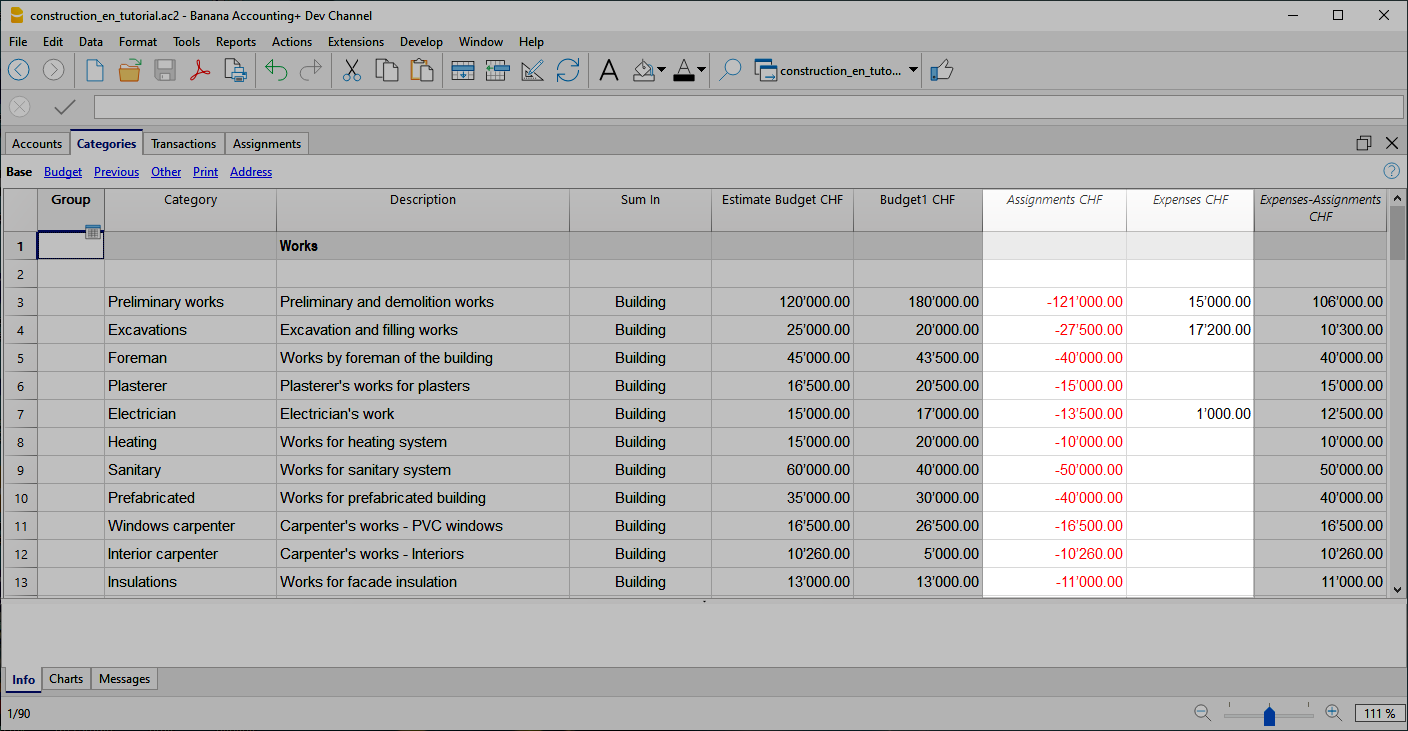
Assignments column
Contains the values shown in the Assignments table.
Expenses column
It contains the values calculated on the basis of the movements in the Transactions table.
Expenses-Assignments column
Calculates the difference between the values obtained with the movements in the Transactions table and the amounts in the Assignments .
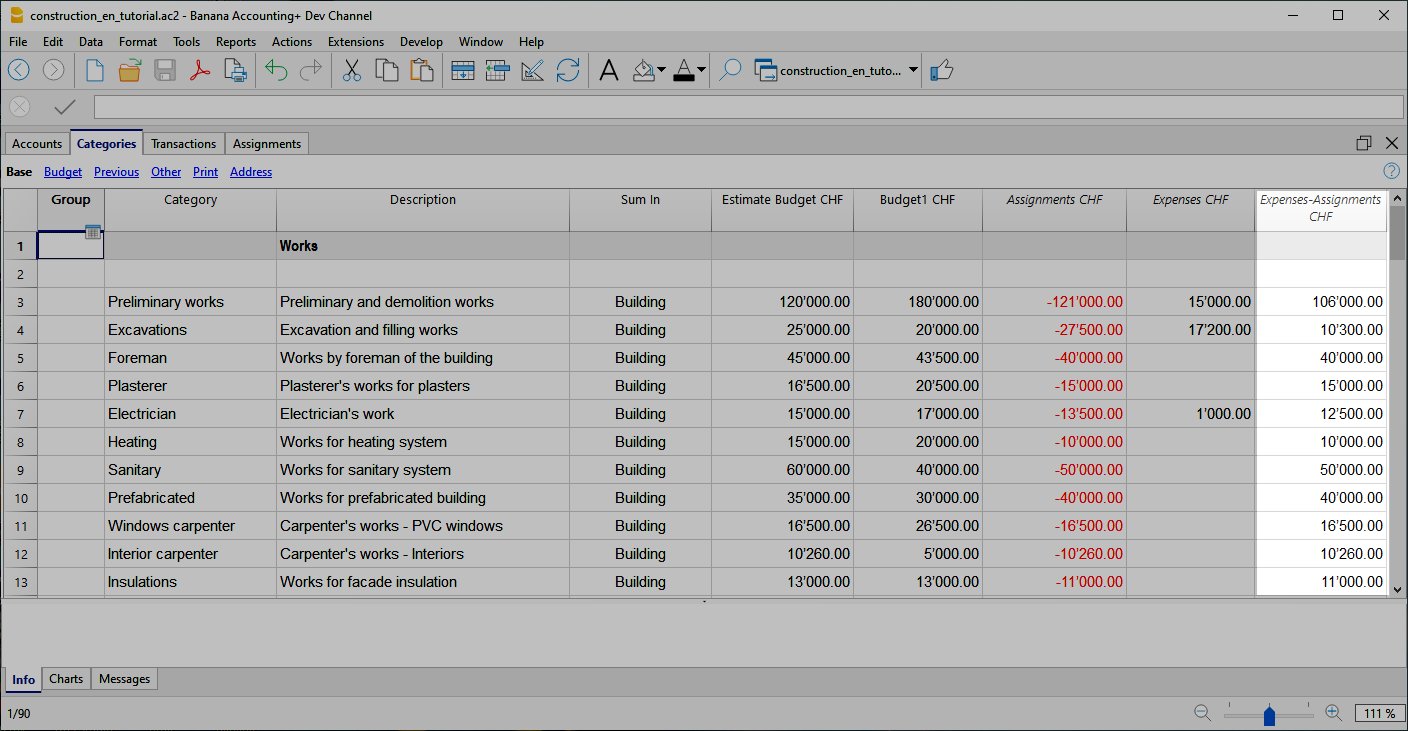
Use your own structure
You can freely create a structure of Categories as you wish, also taking up standard structures.
- Create categories.
You can use numbers or descriptors. - Create the groupings.
You can use as many levels as you like.
Additional groupings
For tax authorities or other needs you may find it useful to group the Categories entries by other criteria. You can use the Gr1 column for this purpose or add additional columns as needed.
Assignments
Movements relating to the assignment of work are entered in the Assignments table.
When entering a assignment, the Company account and the category to which it refers must also be entered.
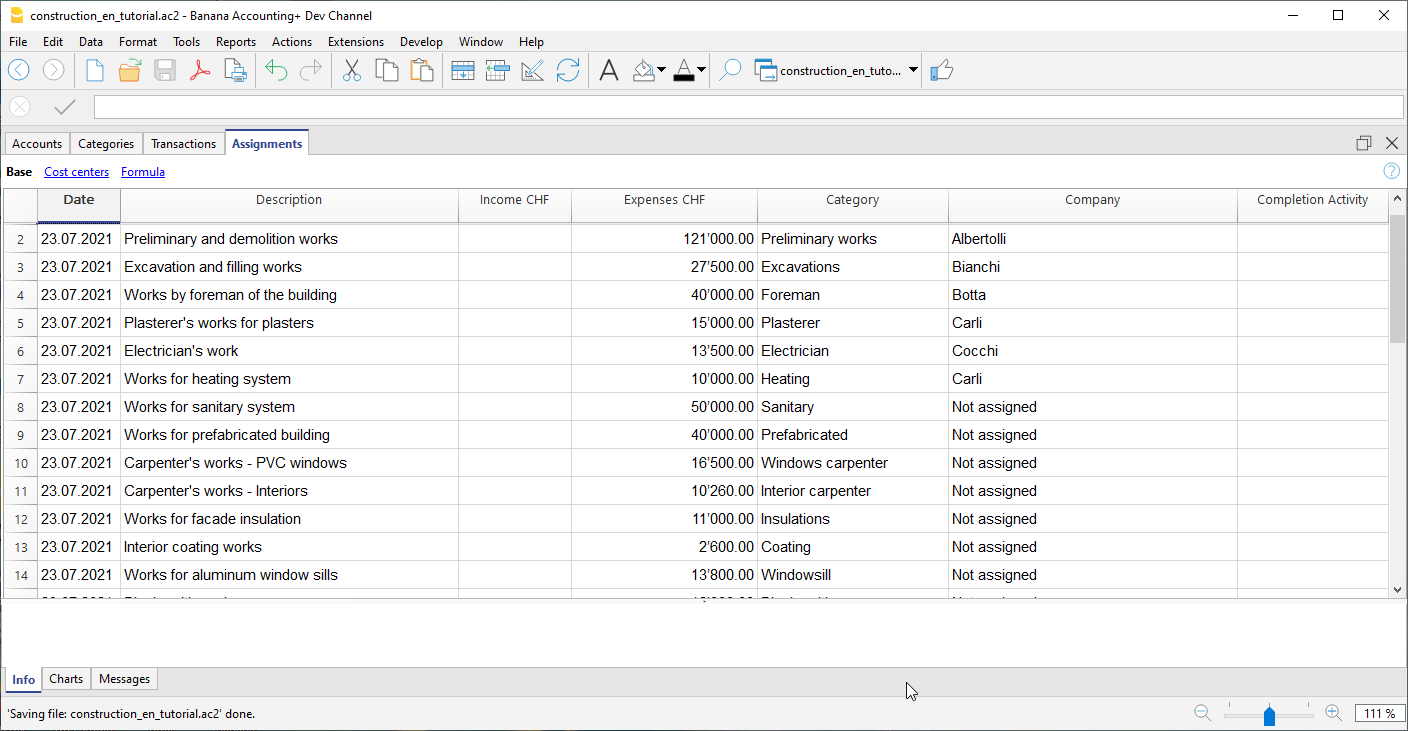
Once you have entered the data, you can use the report to see the overall situation and deviations from the estimate budget. You can also see the assignment amounts in the Categories table, they are listed in the 'Assignments ' column so that you can have a quick comparison with the other values.
Create assignments movements
You can create Assignments transactions in an easy and fast way. From the Extensions menu choose Construction Project Statement→Create transactions for assignments . The extension takes the data from the Categories table and for each cost category you have defined creates a transaction with the following fields:
- Date: Current Date.
- Description: Description present in the column of the same name in the Categories table.
- Expenses: Amount of the estimate budget. At the time you define the exact amount of the assignment, you can change the amount.
- Category: Name of the category.
- Company: Initially, each assignment is assigned a default "Unassigned" company, as soon as the assignment is assigned to a company, enter the correct name, referring to the companies you have defined in your chart of accounts.
When you start the extension, a dialog is shown with a summary of the changes that will be made, by pressing OK, the changes will be confirmed and executed. On the contrary, if you press Cancel the operation will be cancelled. You can execute this command every time when you add new categories to which you assign an estimate budget, starting the extension again will create the movements of the assignment only for the new elements.
Alternatively, you can always choose to record the assignment manually.
Companies and Accounts
Accounts Table
The program allows you to manage the origin of the funds that are used to make payments. It indicates the accounts with which you are going to pay the artisans and other accounts of origin of the funds (own contributions).
Typically in a construction project there will be the construction bank account.
There are also preset accounts for:
- Disputed Invoices.
- Record the part of the invoice amount, which is not considered due.
- Invoices awaiting payment. Invoices received that have not yet been paid.
- Work in Progress. To record work that has been done, but for which you have not yet received the invoice.
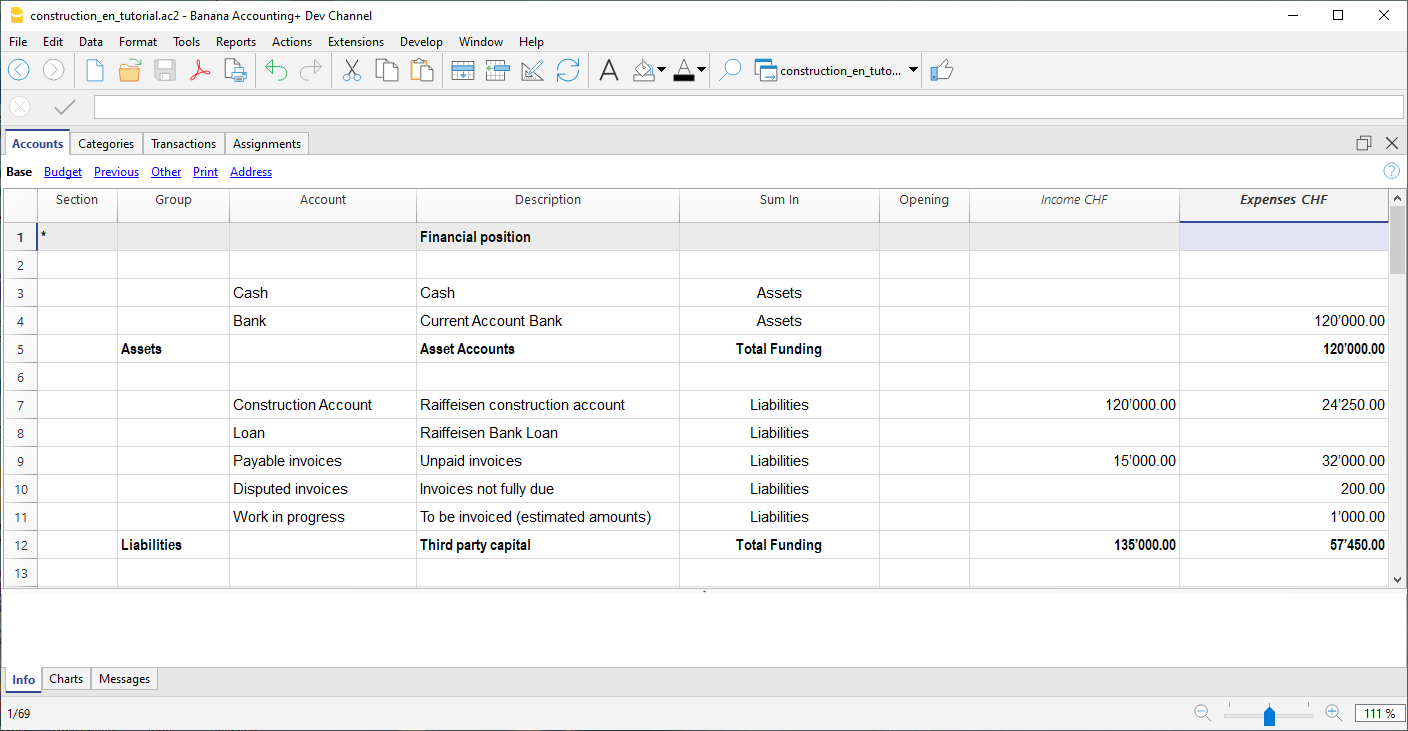
However, you can also create other accounts used to make payments or those of mortgages, used for the consolidation of the project.
Company accounts
For each company to which a job is assigned, you must first create an account of type cost center 1 (preceded by ".").
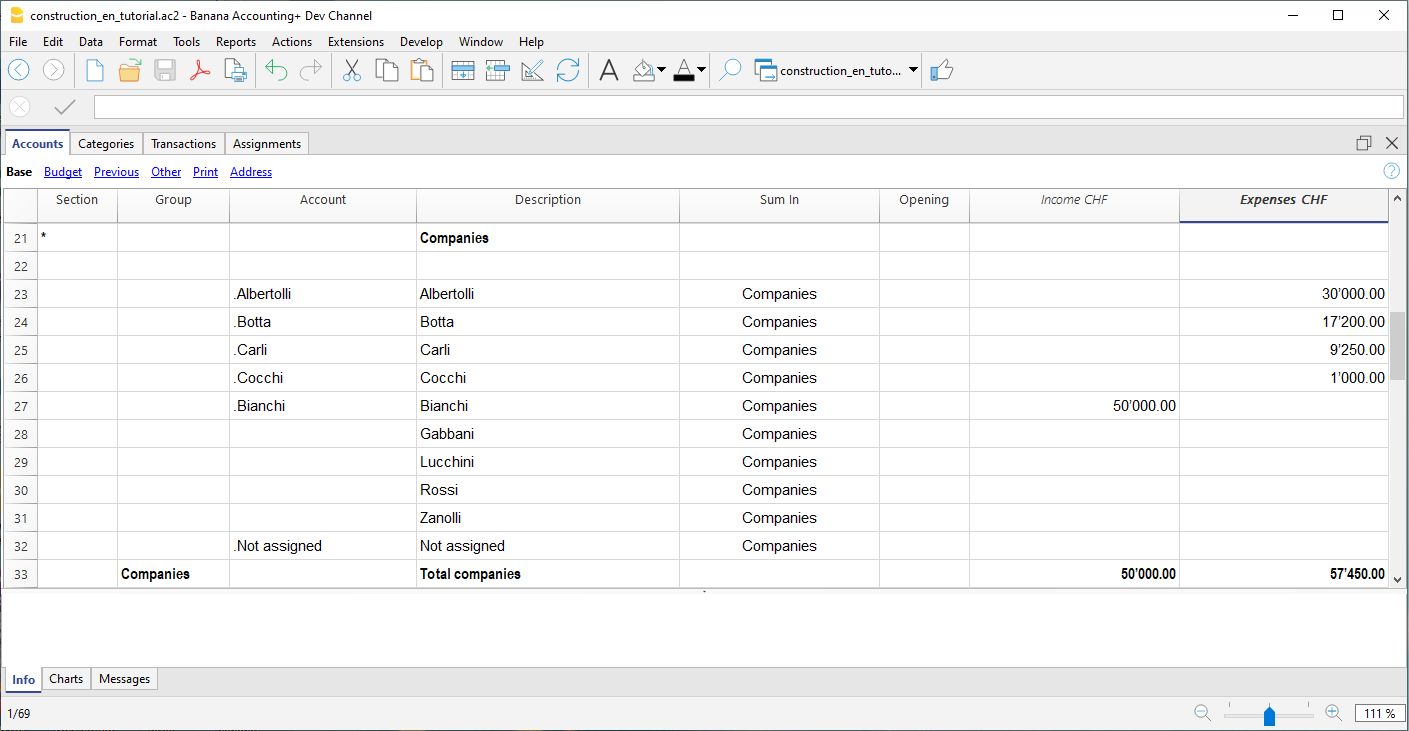
With the address view you can also enter the personal data, contacts and other information relating to the company.
Segments
Payments and Transactions table
Transactions table
In the transactions table, record the payments that are made for the project. For each transaction, in addition to the account, it also indicates the company and the category to which it refers. In the Expenses column indicates the amount of the payment, this value is also included in the Categories table.
Advance payment and invoices
The advance payment or invoice payment is recorded, indicating the date, the amount, the account used for the payment, expense category and the company's account.
You can also link the transaction row to the digital slip, so that you can view it with one click.
Receipt of invoice
The accounting management is carried out on the amounts actually been paid. To have an updated situation, it is possible to insert also the receipt of the invoice. In the account column you will have to insert the invoice account to be paid.
When you subsequently make the payment, the invoice receipt transaction must be overwritten with the payment information. If the payment is partial, you will need to create another transaction and split the amounts manually.
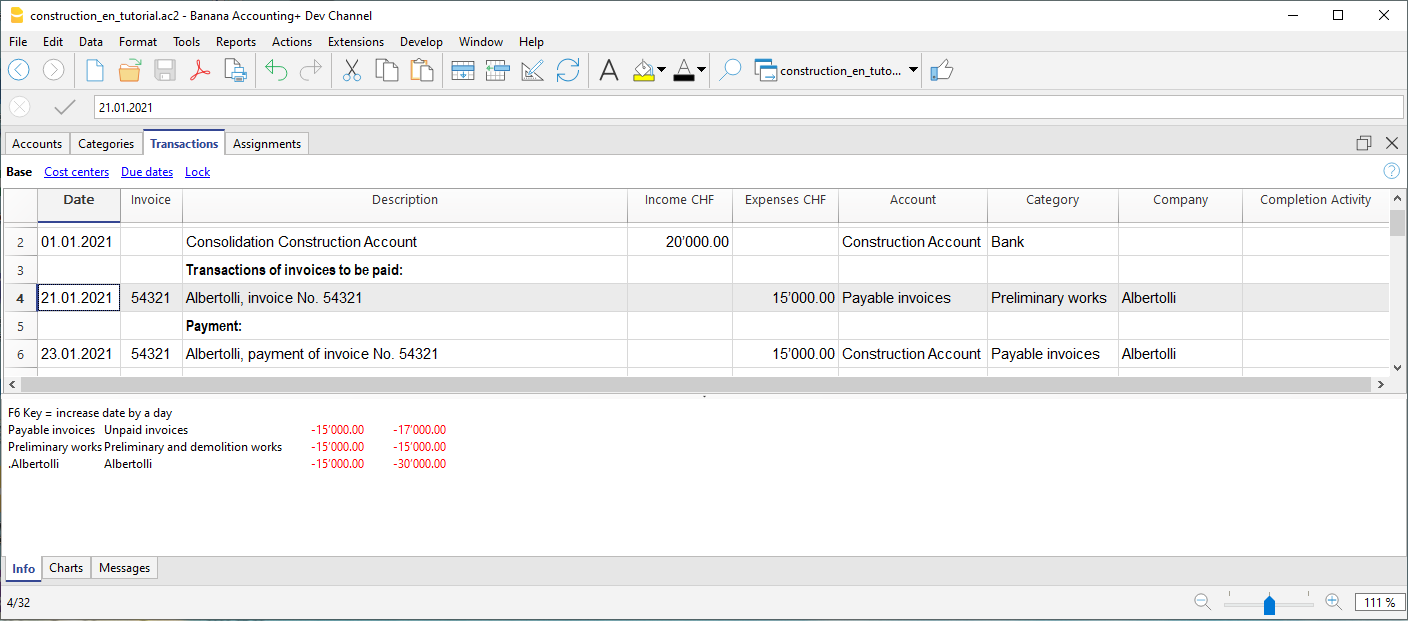
Disputed works
Records as if it were a payment, but using the account, disputed invoices.
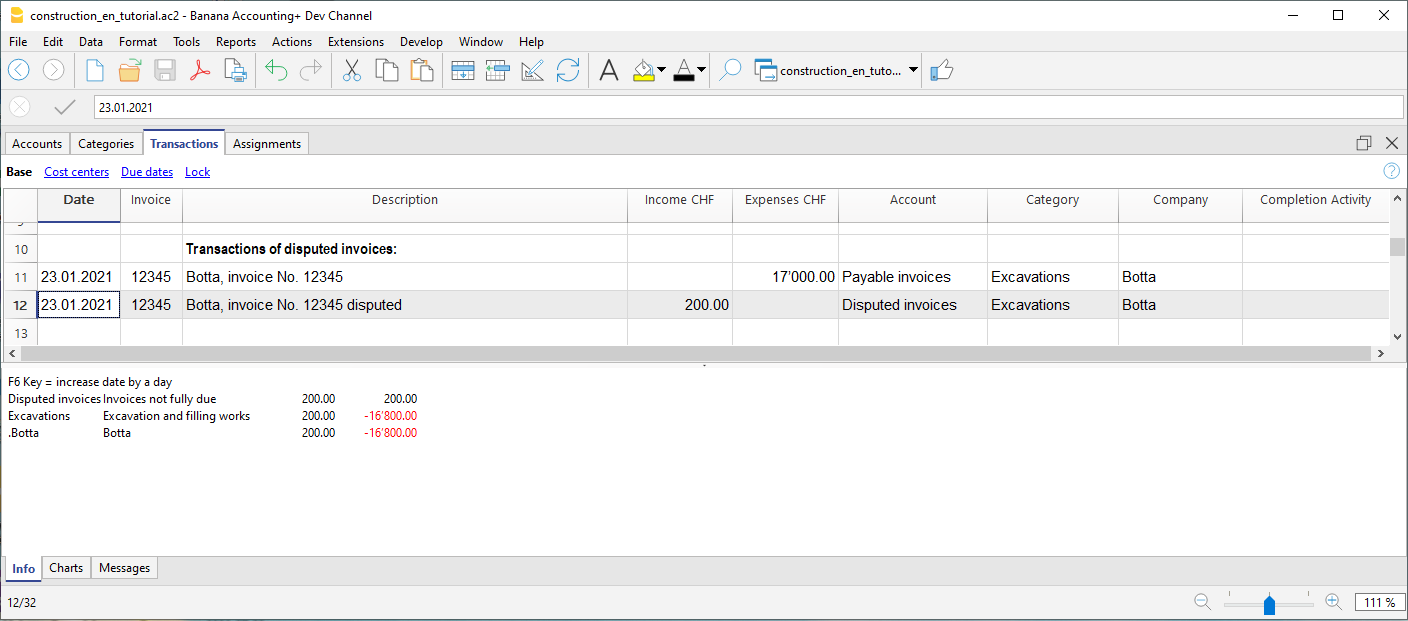
Work in progress
You can enter registrations, similar to payments, but indicating the work in progress account. The amount will be estimated by the construction management. In this way, you can have a progression of the works. You can also color these rows with a particular color, so that you can easily distinguish them from the others.
When the invoices arrive, you will need to replace the invoice.
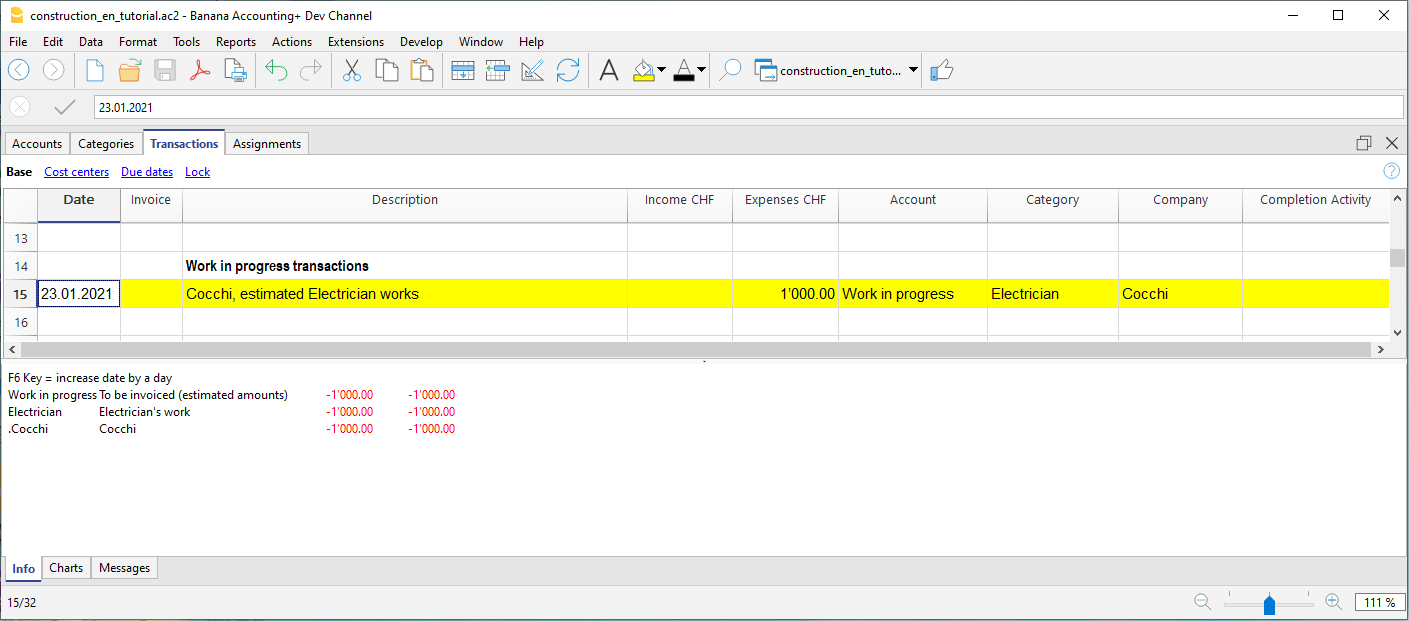
Income and financial transactions
In the transactions table you can also enter income such as subsidies or other financial transactions, capital payment or construction account consolidation.
Percentage of work progress
Use the transactions table also to record manually the percentage of work progress. Define if the transaction is related to a company or a category, and the percentage. In the report you can evaluate the progress with the costs incurred.
Reports by Categories and Companies
Heading
The extension takes the following information that you have defined in the file properties:
- Header left: Indicates for example the area, or the city with the mapping where the work will be performed.
- Header right: Indicates the project title.
- Opening/Closing Date: Indicates when the project started or when it will be concluded.
Dialog
When the extension is launched, a dialog window appears in which you can define the columns you want to display. For example, you can initially decide to show in the report only the columns of the estimate budget and the assignments , and then add the columns of the expenses later.
Report by Category
Inside the first table, the report shows the expenses divided by cost category, all the categories you have defined in the Categories table are included.
The columns you can view are as follows:
- Category: Name of the category, taken directly from the Categories table.
- Progress %: Resumes the last recorded work completion percentage, attributed to a specific category.
- Estimate Budget: This is the amount defined in the Estimate Budget column in the categories table.
- Assignments : Assignments are defined in the "Budget" table.
- Diff. Assign./Budg.: It is the difference between the assigned amounts and the budget, if the assigned amounts are less than the budget, it means that the costs will be lower than initially estimated budget, in this case a green icon is shown, if the assign is greater than the budget instead, then the icon appears red, if the amount is equal it remains yellow.
- Expenses: They are the actual expenses recorded in the transactions table.
- Diff. Exp./Budg.: This is the difference between the actual expenses and the estimate budget; if the estimate budget is greater than the expenses, then a green icon is shown because the actual expenses were less than the budgeted amount for that work. If the amounts are equal, then the icon remains yellow.
- Diff. Exp./Assign.: This is the difference between the actual expenses and the assigned amounts, if the assignments are greater than the expenses, then a green icon is shown as the actual expenses were less than the assigned amount for that work. If the amounts are equal, then the icon remains yellow.
Report by Company
The second table shows the expenses divided by company, the companies are defined in the Accounts table.
The columns you can view are as follows:
- Company: Company name, taken from the account table.
- Progress %: Resumes the last recorded work completion percentage, attributed to a specific company.
- Assignments : The assignments are defined in the "Budget" table, make sure you have assigned a company to the assignments , otherwise no amount will be displayed (see template).
- Expenses: These are the actual expenses recorded in the transactions table.
- Diff. Exp./Del.: This is the difference between the actual expenses and the assigned amounts for each company, if the assignments are greater than the expenses, then a green icon is shown as the actual expenses were less than the assigned amount for that work. If the amounts are equal, then the icon remains yellow.
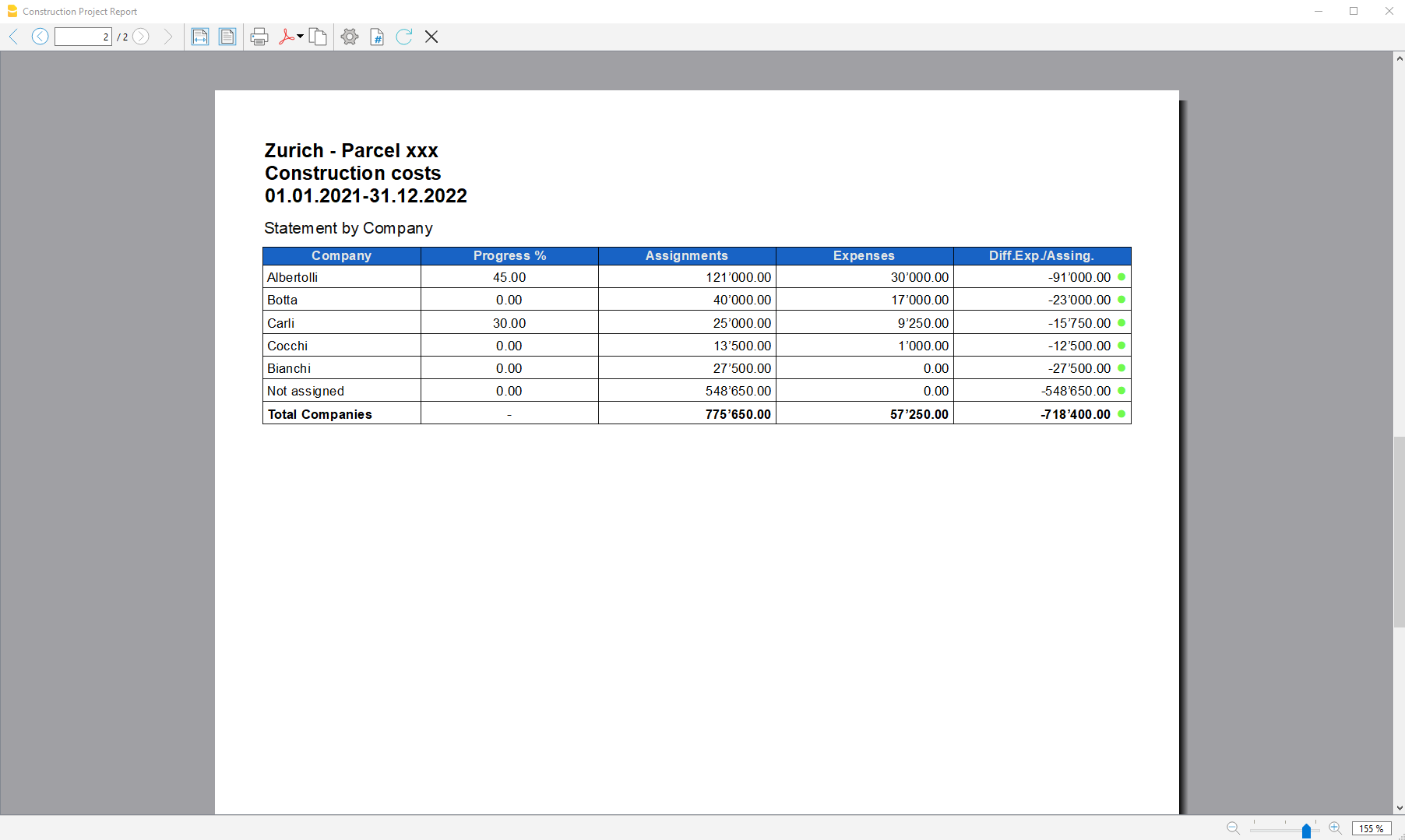
Accounting Extensions
Extensiones universales de importación
Las Extensiones añaden nuevas funcionalidades a Banana Contabilidad Plus, que no están disponibles en el programa base.
Las extensiones son pequeños programas en Javascript que permiten:
- Importar datos desde otros programas.
- Crear informes personalizados.
- Automatizar operaciones.
Con Banana Contabilidad Plus puedes importar datos desde varios formatos.
Extracto bancario SEPA/ISO 20022
El camt/ISO 20022 es el formato de extractos bancarios puesto a disposición por la mayoría de los bancos. Ver:
Importaciones desde PayPal
Esta extensión te permite importar en Banana Contabilidad Plus los movimientos de PayPal:
Importing SEPA/ISO Bank Statement 20022
Importing SEPA/ISO Bank Statement 20022Importing data into existing accounts
This is a functionality included in the programme. Proceed as indicated in the Import into accounting command.
With this function it is also possible to open a compressed file. The programme in this case will ask you to choose the file from which to import the data into the compressed file.
Viewing the content
If you wish to view the contents before importing the file, use the function View ISO20022 file.
The ISO 20022 standard for account statements
With SEPA (Single Euro Payment Area), the ISO 20022 standard becomes mandatory in Europe as of 1.1.2014, and replaces the Swift MT940 format.
Banana Accounting supports the ISO 20022 formats camt.052, camt.053 (including version 4 and 8) and camt.054 .
Technical notes on ISO 20022 conversion
The ISO 20022 standard encodes the accounting data of the account statement in a very precise manner. However, it also leaves a certain amount of freedom to insert additional account and movement information.
When reading the file Banana tries to adapt to the way the ISO 20022 file was prepared.
- Reads as beginning balance similar encodings
- Reads as ending balance the similar encodings
- All the movements contained are read and transformed into movements
- Transaction date (Date)
- Currency date
- Movement amount (positive or negative)
- Description (Banana for the moment assembles the various descriptions into a single text)
In the future, it is planned to extract this information more specifically and indicate other columns where it should be allocated.
SumUp - Import movements .csv (Banana+ Advanced)
SumUp - Import movements .csv (Banana+ Advanced)This extension allows to import transactions from the SumUp platform into Banana Accounting.
You can install the extension from the menu Extensions → Manage Extensions.
Requirements for Use
- Banana Accounting Plus with the Advanced Plan.
Export Procedure
Export your transactions from the SumUp platform in CSV format.
- Login on your SumUp profile.
- Click on Home
- Click on Download Center
- Go to the Accounting section
- Download Transactions and select the CSV (current format) option.
The Transaction report lists all your transactions, including card payments, cash payments, and refunds.
Import Procedure
- Via the Actions → Import to accounting → select Import transactions box.
- Choose the extension to be used, in this case 'SumUp - Import movements .csv (Banana+ Advanced)'.
- With the Browse button, choose the file from which to import the transactions.
- Press OK Button.
In the settings dialog you must enter the date format and the accounts to be used to record SumUp movements in the accounts:
- Bank account: Account where the amount is credited.
- SumUp income account: Revenue account, this account records the gross amount paid by the customer
- Cash account: Account to book the amounts paid by cash.
- SumUp fee account: Cost account to record transaction-related expenses retained by SumUp.

The accounts inserted must exists in your chart of accounts, if you do not yet have any suitable accounts, you can create new ones in your chart of accounts.
For more details see import transactions page.
Imported data
The program imports the following entries in the Transactions table:
- Sales with a successful bank payout
Typically related to products/services paid by the customer via card. These transactions are recorded in accounting with three entries:- Recognition of the sales revenue in the account defined as "SumUp income account" (gross amount).
- Recognition of the actual amount received, net of SumUp fees, in the "Bank account".
- Recognition of the fees retained by SumUp in the "SumUp fee account".
- Cash sales
These transactions are recorded with a single entry:- "Cash account" as the receiving account
- "SumUp income account" as the counter-account
- Refunds (when recorded as a bank payout)
Refunds are recorded like standard payouts (see point 1), with an additional reversal entry:- Decrease of the "Bank account"
- Decrease of the "SumUp income account"
Enable the ExternalReference (External Reference) and the Notes columns to see the id that SumUp has assigned to the transaction, this way you have a reference to the original transaction id generated in SumUp .
Error Messages
If the import fails, an error message will be displayed. The most common errors are:
- Unrecognised *.csv file format: The format of the *.csv file you are trying to import does not match any of the formats associated with this filter:
- Check that you have chosen the correct file.
- If the file you have chosen is correct, it may be that our filter requires updating. - This extension requires Banana Accounting+ Advanced: You are trying to use the extension with a licence other than the one requested, please upgrade to the Advanced Plan to be able to use the functionality of this filter.
Send us a feedback
This extension is currently in beta, and we welcome suggestions for improvement.
SumUp provides multiple types of reports, which can also be generated in different languages. Make sure to select the correct report, as described in the export procedure above on this page. If SumUp updates its export process and the instructions provided here are no longer valid, please let us know.
If the Transaction Report is generated in a language that is not yet supported by the program, resulting in an unrecognized format, please send us the file so we can update and improve the extension.
It may happen that the format of the csv file is updated and as a result the filter no longer functions correctly. Send us feedback and attach an example file (.csv) with the new format and we will proceed to update the filter.
Useful Links
Chase - Import movements .csv (Banana+ Advanced)
Chase - Import movements .csv (Banana+ Advanced)This import extension allows you to import the transactions from Chase bank into Banana.
You can install the extension from the menu Extensions → Manage Extensions.
Requirements for use
- Banana accounting Plus with the Advanced Plan.
Export procedure
Export your banking transactions in *.csv format by accessing your Chase bank account.
- Find your movements.
- Export your account movements by choosing the *.csv format.
- Save the file on your computer.
- We recommend saving the file in a place where you can easily find it later and not opening it before importing it.
Import procedure
- Via the Actions → Import to accounting → select Import transactions box
- Choose the extension to be used, in this case 'Chase - Import movements csv (Banana+ Advanced)'.
- With the Browse button, choose the file from which to import the transactions.
- Press OK Button.
For more details see import transactions page.
Error Messages
- Unrecognised *.csv file format: The format of the *.csv file you are trying to import does not match any of the formats associated with this filter:
- Check that you have chosen the correct file.
- If the file you have chosen is correct, it may be that our filter requires updating.
- This extension requires Banana Accounting+ Advanced: You are trying to use the extension with a licence other than the one requested, please upgrade to the Advanced Plan. to be able to use the functionality of this filter.
Send feedback
It may happen that the format of the csv file is updated and as a result the filter no longer functions correctly. Send us feedback and attach an example file (.csv) with the new format and we will proceed to update the filter.
PayPal Importación *.csv (Banana+) [BETA]
PayPal Importación *.csv (Banana+) [BETA]Esta extensión le permite importar sus transacciones de PayPal en Banana Contabilidad. Solo para la versión Banana Plus.
Contabilidad separada para transacciones de PayPal
Las transacciones de PayPal generalmente están compuestas por montos pequeños y tienen muchas particularidades (reembolsos, comisiones, etc.).
Puede ser costoso y tomar mucho tiempo manejar todo este trabajo dentro de la contabilidad principal de la empresa.
Hemos preparado diferentes plantillas que puede usar de inmediato:
En muchos casos, es más adecuado gestionar las transacciones de PayPal dentro de un archivo de contabilidad separado e integrar mensualmente los datos resumidos (movimientos del mes) en la contabilidad principal.
Esta solución también permite que una tercera persona se encargue de la contabilidad de PayPal.
Si utiliza Banana para una solución de contabilidad PayPal, puede:
- Crear un archivo contable para una cuenta PayPal específica
- Tener un plan de cuentas con
- Una cuenta diferente para cada moneda utilizada
- Cuentas diferentes para ingresos y egresos
- Importar las transacciones de PayPal y tener todas las cuentas, egresos, ingresos y comisiones de PayPal asignadas automáticamente, y la conversión de divisas a la moneda base.
- Registrar las transacciones en las cuentas correspondientes para
- Transferencias bancarias
- Ingresos con diferentes códigos de impuestos sobre ventas
- Diferentes tipos de gastos
- Reembolsos y contracargos
- Agregar otra información para informes especiales (Centros de Costos, Segmentos, Clientes, etc.)
- Integrar regularmente (semanal, mensual, trimestralmente) los datos a la contabilidad principal, ya sea
- Imprimiendo un resumen y registrándolo manualmente
- O exportando los datos del período e importándolos al sistema principal
- En cualquier momento, imprimir el diario y los informes necesarios para auditorías o control.
- Eventualmente, si tiene muchas transacciones, puede personalizar el filtro de importación (Javascript) para que ciertas transacciones se registren en números de cuentas específicos.
Dentro de la contabilidad PayPal de Banana, puede mantener fácilmente todo el historial y tener acceso inmediato a todos los datos necesarios para brindar un buen servicio al cliente.
Activar la importación de transacciones PayPal
Primero debe actualizar los filtros de importación en Banana Contabilidad. Vea también Administrar extensiones.
- Iniciar Banana Contabiliad Plus
- Abrir su archivo contable
- Menú Acciones > Importar a la contabilidad...
- Seleccionar Importar Registros
- Botón Administrar extensiones
- Botón Actualizar extensiones
- Marque PayPal Importación *.csv (Banana+) [BETA] y desmarque los otros filtros que no necesita
- Cierre el diálogo
Descargar transacciones de PayPal
Personalizar campos para descargar en PayPal
Tenga cuidado que el archivo estándar de descarga de PayPal no contiene todos los campos necesarios para la importación en Banana.
Debe cambiar la configuración en PayPal para obtener una descarga correcta
Cuenta Empresarial
- Inicie sesión en PayPal
- Vaya a Actividad.
- Haga clic en Todos los informes
- Haga clic en Descargar actividad bajo Informes.
- Seleccione el tipo de transacción, rango de fechas y el formato de archivo CSV.
- Haga clic en Personalizar campos del informe y asegúrese de que todos los campos estén marcados o marque todos los campos disponibles.
- Haga clic en Crear informe.
- Cuando el informe esté listo, haga clic en Descargar.
Cuenta Personal
- Inicie sesión en PayPal
- Vaya a Actividad.
- Haga clic en el ícono de botón de descarga.
- Haga clic en Personalizado.
- Haga clic en Descargar actividad bajo Informes.
- Seleccione el tipo de transacción, rango de fechas y el formato de archivo CSV.
- Haga clic en Personalizar campos del informe y asegúrese de que todos los campos estén marcados o marque todos los campos disponibles.
- Haga clic en Crear informe.
- Cuando el informe esté listo, haga clic en Descargar.
Configuración de codificación de idioma en PayPal (solo para Cuenta Empresarial)
Si usa una codificación local, asegúrese de que la codificación coincida con la de su computadora local.
La importación de Banana funciona mejor si configura la codificación de archivo en UTF-8.
Para cambiar la configuración de codificación de idioma en PayPal:
- Inicie sesión en PayPal
- Mi cuenta → Configuración de cuenta → Pagos del sitio web
- Botón de PayPal Codificación de idioma (haga clic en Actualizar)
- Opcionalmente, en Más opciones puede configurar UTF-8 en la lista desplegable
Esta configuración puede resolver el error: 'Imposible traducir el encabezado del archivo: Convierta el archivo de PayPal a código de página Latin1 o use la nueva versión de Banana Contabilidad'
Importar transacciones de PayPal
Ver también importar transacciones
- Abra su archivo contable
- Menú Acciones > Importar a la contabilidad...
- Seleccionar Importar Registros
- Seleccionar PayPal
- En Nombre del archivo, introduzca la ruta y el nombre del archivo descargado de PayPal (o Buscar)
- Haga clic en OK.
- En el diálogo de configuración introduzca:
- Elija el formato de fecha para el formato de fecha de PayPal.
Si recibe el error "Formato de fecha no válido", abra el archivo que ha descargado de PayPal con un bloc de notas y verifique cómo están escritas las fechas, luego elija el formato apropiado. - Introduzca el número de cuenta para la cuenta PayPal (Cuenta PayPal)
- Introduzca el número de cuenta donde se deben registrar los ingresos (PayPal In)
- Introduzca el número de cuenta donde se deben registrar los gastos (PayPal Out)
- Introduzca el número de cuenta donde se deben registrar las comisiones de PayPal (PayPal Fee)
- Si es una contabilidad multimoneda también configure los tipos de cambio
- Elija el formato de fecha para el formato de fecha de PayPal.

Una vez que haya importado las transacciones, puede deshacer la operación o cambiar los datos importados.
Este será el caso si desea que algunos ingresos o gastos se registren en una cuenta diferente.
Adaptar su archivo contable para la importación
En lugar de especificar la cuenta PayPal cuando inicia el script, puede indicar en el Plan de cuentas de Banana qué cuentas debe usar. Este método también es necesario si desea tener cuentas diferentes para cada moneda.
- La moneda base en las propiedades del archivo debe estar configurada con una moneda válida.
- Antes de importar, el programa buscará y usará cuentas con la siguiente descripción:
- "Cuenta PayPal": la cuenta de PayPal
- "PayPal In": la cuenta para ingresos
- "PayPal Out": la cuenta para egresos
- "PayPal Fee": la cuenta para las comisiones de PayPal.
- Establezca el saldo inicial de las cuentas PayPal.
Para cada moneda, puede especificar una cuenta. Todas las transacciones para esta moneda se registrarán en la cuenta especificada. También tendrá las transacciones de conversión de divisas entre las diversas monedas.
- Para un archivo contable NO multimoneda, inserte el código de moneda en la descripción de la cuenta:
- Cuenta PayPal EUR
- Cuenta PayPal USD
- Cuenta PayPal CHF
- Cuenta PayPal GBP
- Para un archivo contable multimoneda, el programa buscará la cuenta donde la descripción comience con "Cuenta PayPal" y luego usará el símbolo de moneda de la columna Moneda.
Si no se ha especificado una cuenta para la moneda, el monto se asignará a la cuenta de moneda base.
Configuración de monedas de PayPal y ajustes contables
Es recomendable que las configuraciones de moneda en su cuenta PayPal (Mi cuenta → Perfil → Mi dinero → Saldo PayPal → Monedas) coincidan con las del archivo contable:
- La "Moneda principal" de PayPal debe ser la misma que la Moneda básica.
- Si ha configurado PayPal para usar varias monedas (Agregar moneda), debe utilizar la contabilidad de partida doble con multimoneda.
Podrá mantener una cuenta separada para cada moneda en su valor original.
Puede convertir un archivo contable existente en un archivo multimoneda con el comando Convertir a nuevo archivo. - Para contabilidad multimoneda, las cuentas "PayPal In", "PayPal Out", "PayPal Fee" deberían estar preferiblemente en la moneda base.
División y selección de transacciones
Cada transacción de PayPal incluye el monto bruto, la comisión y el monto neto. Si el neto es diferente al bruto, el programa generará 3 líneas:
- Línea con el monto bruto registrado en la cuenta PayPal
- Línea con el monto neto registrado en la cuenta de ingresos o egresos
- Línea con la comisión registrada en la cuenta de comisiones
Transacciones ya importadas
La columna "ExternalReference" de la tabla Transacciones se llenará con el ID único de transacción de PayPal.
La próxima vez que importe, se excluirán las transacciones con el mismo ID. La información de las transacciones anteriores se utilizará para la conversión de moneda y agrupación.
Último saldo
La importación también añadirá una línea con información sobre el último saldo de PayPal para cada moneda utilizada. Si no desea esta información, elimine las líneas importadas.
Modificación de transacciones importadas
Una vez importadas las transacciones, podrá modificarlas a su gusto.
- Registre las transferencias hacia y desde la cuenta bancaria en una "Cuenta de transferencias internas (cuenta Giro)".
Haga lo mismo al importar las transacciones de su cuenta bancaria.
El saldo de la cuenta de transferencias internas debe compensarse y llegar a cero. - Los ingresos por ventas pueden registrarse en cuentas específicas según el impuesto de ventas aplicado o el tipo de venta.
Debe adaptar su plan contable en consecuencia. - Puede añadir segmentos o centros de costo.
Adapte la Vista de la tabla de transacciones para tener todas las columnas visibles y en la mejor secuencia para modificar los datos.
Ganancias y pérdidas por tipo de cambio
Los saldos de las cuentas PayPal en moneda extranjera coincidirán con el saldo de la cuenta PayPal.
Los saldos en la moneda base pueden diferir debido a:
- Las tasas de cambio de las transacciones varían con el tiempo.
- PayPal tiene tasas diferentes para comprar o vender una moneda específica.
Debe ajustar periódicamente la moneda base con el comando Registrar diferencias de tipo de cambio.
Conversión multimoneda
Si hay diferentes transacciones en distintas monedas en el archivo, los montos se convertirán a la moneda base siguiendo esta regla y orden:
- Moneda base
- Conversión de moneda PayPal
Las transacciones que pertenezcan al mismo bloque usarán la misma conversión, de modo que el monto en moneda base para una misma cantidad y transacción siempre sea el mismo. - Tasa de cambio de la conversión monetaria en la misma fecha
- Tasas de cambio tomadas del archivo contable (tabla de tasas de cambio)
- Tasa de cambio recogida de la conversión monetaria de PayPal.
La conversión mostrará un mensaje si no se encuentra una tasa de cambio válida y solicitará una.
Importar otros campos de PayPal
Puede importar otra información contenida en el archivo de PayPal dentro de Banana Accounting.
- Agregue una nueva columna en la tabla de Transacciones con el nombre "PayPal" + el nombre de la columna del archivo de PayPal.
Por ejemplo "PayPalTimeZone", "PayPalSalesTax", "PayPalTip".- Especifique el tipo de columna (Texto, Número, Monto, Fecha, Hora).
- Para Monto y Número indique también los decimales.
- En la Tarjeta de cuenta, las columnas de tipo Monto también tendrán un total final.
- En el historial de descargas de PayPal con "Personalizar campos de descarga", puede especificar las columnas a descargar.
- Las columnas disponibles (nombres en inglés, sin espacios y en formato CamelCase) son:
Time, TimeZone, Type, Name, Status, Subject, Currency, Gross, Fee, Net, Note, FromEmailAddress, ToEmailAddress, TransactionId, PaymentType, CounterpartyStatus, ShippingAddress, AddressStatus, ItemTitle, ItemId, ShippingAndHandlingAmount, InsuranceAmount, SalesTax, Tip, Discount, SellerId, Option1Name, Option1Value, Option2Name, Option2Value, AuctionSite, BuyerId, ItemUrl, ClosingDate, ReferenceTxnId, InvoiceNumber, SubscriptionNumber, CustomNumber, ReceiptId, Balance, ContactPhoneNumber, BalanceImpact, AddressLine1, AddressLine2, State, Town, Zip, Country.
Cuando importe las transacciones, las celdas de columnas PayPal* se llenarán con el contenido del archivo PayPal.
Extensión de importación PayPal para Banana
La conversión del formato de PayPal al formato contable es un programa en Javascript.
El programa es "software de código abierto" y puede modificarse según las necesidades del usuario.
Para modificar la extensión, cambie primero los siguientes valores para que no entren en conflicto con el filtro de PayPal original:
- Use un nombre de archivo diferente
- Use un @id diferente
- Use una descripción diferente
Términos de licencia
La documentación de PayPal no cubre todas las transacciones posibles. El script de importación se ha desarrollado en base a casos de uso, y es posible que no todas las situaciones estén contempladas y que el script necesite mejoras.
PayPal también puede cambiar el formato de los datos y los resultados del script podrían variar.
Tenga precaución al usar la importación y verifique siempre que el saldo de la cuenta coincida con el saldo de PayPal.
El uso del script de importación está sujeto a la licencia Apache 2.0, el archivo puede ser modificado libremente.
Al utilizar el script, acepta los términos de la licencia y el descargo de responsabilidad.
Solución de problemas
Si experimenta algún problema, primero actualice el filtro de importación a la última versión en Gestionar aplicaciones.
- Problemas de redondeo.
Puede suceder que el archivo PayPal use un formato decimal diferente al de su computadora. Los montos se truncan (12.34 se convierte en 12 o en 1234).
PayPal asigna un formato específico de codificación de idioma basado en su país (ver explicaciones sobre codificación de idioma de PayPal).- Asegúrese de que la descarga de PayPal coincida con la configuración de su computadora
- O inicie sesión en su cuenta de PayPal y cambie la codificación de idioma (https://www.paypal.com/cgi-bin/customerprofileweb?cmd=_profile-language-encoding).
Con el botón Más opciones, eventualmente puede seleccionar UTF-8 que es el mejor para intercambio de datos.
- Mensaje de error "Imposible traducir el encabezado del archivo: ."
- Intente usar la versión Banana Contabilidad Plus.
- Cambie la configuración de descarga como se especifica en "Configuración de codificación de idioma de PayPal"
- Asegúrese de estar usando el archivo CSV original descargado de PayPal y no uno abierto y guardado con Excel.
- El mensaje "Moneda no convertida" indica que no hay tasa de cambio disponible.
- Es posible que no haya configurado su moneda básica
- Ha configurado PayPal para manejar más de una moneda. El archivo de PayPal no convierte divisas, por lo tanto, debe usar una contabilidad multimoneda.
- Si el último saldo es diferente del de la cuenta
- Verifique que tenga un monto de apertura correcto (el saldo anterior a la primera transacción importada)
- Su cuenta no está en la misma moneda.
Si su cuenta PayPal está configurada para usar diferentes monedas o una distinta a la moneda base, sería recomendable usar una contabilidad multimoneda.
- Si recibe el mensaje "AccountDebit" y "AccountCredit" no encontrados, tiene un archivo con nombres de columna antiguos.
Use el comando Herramientas > Crear nuevo archivo para crear una copia con las columnas correctas.
Referencia
Documentación de PayPal
Cambios
- 2021-03-24 Nueva versión para Banana Plus
- Historial completo
Comentarios
Cuéntenos qué opina sobre el script de importación o cómo podríamos mejorarlo.
Revolut - Import movements .csv (Banana+ Advanced)
Revolut - Import movements .csv (Banana+ Advanced)This import extension allows you to import the transactions from Revolut platform (Private & Business) into Banana.
You can install the extension from the menu Extensions → Manage Extensions.
Requirements for use
- Banana accounting Plus with the Advanced Plan.
Export procedure
Export your banking transactions in *.csv format by accessing your Revolut account.
- Find your movements.
- Export your account movements by choosing the *.csv format.
- Save the file on your computer.
- We recommend saving the file in a place where you can easily find it later and not opening it before importing it.
Import procedure
- Via the Actions → Import to accounting → select Import transactions box
- Choose the extension to be used, in this case 'Revolut - Import movements csv (Banana+ Advanced)'.
- With the Browse button, choose the file from which to import the transactions.
- Press OK Button.
If you are importing transactions from the Business platform, enable in Banana the ExternalReference column, shows the transaction id assigned by Revolut.
For more details see import transactions page.
Error Messages
- Unrecognised *.csv file format: The format of the *.csv file you are trying to import does not match any of the formats associated with this filter:
- Check that you have chosen the correct file.
- If the file you have chosen is correct, it may be that our filter requires updating.
- This extension requires Banana Accounting+ Advanced: You are trying to use the extension with a licence other than the one requested, please upgrade to the Advanced Plan. to be able to use the functionality of this filter.
Send feedback
It may happen that the format of the csv file is updated and as a result the filter no longer functions correctly. Send us feedback and attach an example file (.csv) with the new format and we will proceed to update the filter.
Stripe - Import movements .csv (Banana+ Advanced) [BETA]
Stripe - Import movements .csv (Banana+ Advanced) [BETA]This import extension allows you to import the transactions from Stripe platform into Banana. Stripe allows multiple export options, you can use two different export types to import data into Banana:
You can install the extension from the menu Extensions → Manage Extensions.
Requirements for use
- Banana accounting Plus with the Advanced Plan.
- Use a double entry or income and expenses accounting
Export the transactions report
It allows you to obtain all customer payments, including fees and collected transfers, and their corresponding status. To obtain this report you need to:
- Log in to your Stripe account on the browser
- In the main dashboard, select Transactions.
- Click All activity.
- Click Export.
In the export dialog select:
- Columns: All columns.
- Then click on Export.
We recommend saving the file in a place where you can easily find it later and not opening it before importing it.
Export of the balance summary report
This report is similar to a bank statement, helping you to reconcile your Stripe balance at the end of the month.
It provides an itemized CSV export of your complete transaction history and any custom metadata associated
with those transactions. All transactions are shown in your settlement currency (after any foreign currency conversion).
To obtain this report you need to:
- Log in to your Stripe account on the browser
- In the main dashboard, select Reports.
- Click Summary balance.
- Choose Balance change from activity.
- Click Download.
In the export dialog select:
- Report format: Itemized.
- Columns: All columns.
- Then click on Download.
We recommend saving the file in a place where you can easily find it later and not opening it before importing it.
Import procedure
The import procedure works the same for both reports:
- Via the Actions → Import to accounting → select Import transactions box
- Choose the extension to be used, in this case 'Stripe- Import movements .csv (Banana+ Advanced) [BETA]'.
- With the Browse button, choose the file from which to import the transactions.
- Press OK Button.
In the settings dialogue you must enter the date format and the accounts to be used to record stripe movements in the accounts:
- Stripe Account: Account where the amount is credited.
- Stripe In: Revenue account, this account records the gross amount paid by the customer
- *Stripe Reserved Funds: Cost account, used to record the amount reserved by stripe and then returned.
- *Stripe Fee: Cost account to record transaction-related expenses retained by stripe.

*These elements are only to be entered if you import the data using the "All transactions" method, if you import the balance change from activity you can leave them empty.
The accounts inserted must exists in your chart of accounts, if you do not yet have any suitable accounts, you can create new ones in your chart of accounts.
Currently only data in Stripe's Standard columns are imported, data in columns added by other platforms you are connected to are not imported.
For more details see import transactions page.
Visualize the imported data
In the Transactions table:
- Enable the ExternalReference (External Reference) and the Notes columns to see the id that Stripe has assigned to the transaction, this way you have a reference to the original transaction id generated in Stripe.
- When imported, transactions are sorted by date, it is possible that transactions belonging to the same operation are split by date and therefore do not occur in succession. We recommended to keep the .csv file as a reference as movements are exported grouped by operation, for control activities you can trace back the original movements using the external reference and notes columns.
Error Messages
- Unrecognised *.csv file format: The format of the *.csv file you are trying to import does not match any of the formats associated with this filter:
- Check that you have chosen the correct file.
- If the file you have chosen is correct, it may be that our filter requires updating.
- This extension requires Banana Accounting+ Advanced: You are trying to use the extension with a licence other than the one requested, please upgrade to the Advanced Plan. to be able to use the functionality of this filter.
Send us a feedback
This extension is a BETA version, we welcome suggestions for improvement.
It may happen that the format of the csv file is updated and as a result the filter no longer functions correctly. Send us feedback and attach an example file (.csv) with the new format and we will proceed to update the filter.
Wise - Import movements .csv (Banana+ Advanced)
Wise - Import movements .csv (Banana+ Advanced)This import extension allows you to import the transactions from Wise platform (Personal & Business) into Banana.
You can install the extension from the menu Extensions → Manage Extensions.
Requirements for use
- Banana accounting Plus with the Advanced Plan.
- Wise also provides files with standard format ISO20022, which you can import with the Professional plan. To import files in this format you need to install the relevant import extension: Importing SEPA/ISO Bank Statement 20022 . Using SEPA/ISO20022 format is preferred over .csv when you have transactions in multiple currencies.
Export procedure
Export your banking transactions in *.csv format by accessing your Wise account.
- Find your movements.
- Export your account movements by choosing the *.csv format.
- Save the file on your computer.
- We recommend saving the file in a place where you can easily find it later and not opening it before importing it.
Import procedure
- Via the Actions → Import to accounting → select Import transactions box
- Choose the extension to be used, in this case 'Wise - Import movements .csv (Banana+ Advanced)'.
- With the Browse button, choose the file from which to import the transactions.
- Press OK Button.
For more details see import transactions page.
Error Messages
- Unrecognised *.csv file format: The format of the *.csv file you are trying to import does not match any of the formats associated with this filter:
- Check that you have chosen the correct file.
- If the file you have chosen is correct, it may be that our filter requires updating.
- This extension requires Banana Accounting+ Advanced: You are trying to use the extension with a licence other than the one requested, please upgrade to the Advanced Plan. to be able to use the functionality of this filter.
Send us a feedback
It may happen that the format of the csv file is updated and as a result the filter no longer functions correctly. Send us feedback and attach an example file (.csv) with the new format and we will proceed to update the filter.
Yokoy - Import movements .csv (Banana+ Advanced) [BETA]
Yokoy - Import movements .csv (Banana+ Advanced) [BETA]This import extension allows you to import the transactions from Yokoy platform into Banana.
You can install the extension from the menu Extensions → Manage Extensions.
Requirements for use
- Banana accounting Plus with the Advanced Plan.
Export procedure
Export your banking transactions in *.csv format by accessing your Yokoy account.
- Find your movements.
- Export your account movements by choosing the *.csv format.
- Save the file on your computer.
- We recommend saving the file in a place where you can easily find it later and not opening it before importing it.
Accounting file Setup
Before importing the data into Banana make sure you follow the steps described below to correctly set up the accounting file (*.ac2) and prepare it for the correct import of transactions:
- In the transactions table make visible the ExternalReference column. The unique registration number created by revolut is entered here. This value can be used to avoid importing the same registration twice.
- Check that the accounts you refer to in the entries you import exist in the Accounts table. If an account is not found, an error will be displayed, in which case simply add the account in question to the Accounts table. Do the same thing with the VAT codes in the VAT Table
Import procedure
- Via the Actions → Import to accounting → select Import transactions box
- Choose the extension to be used, in this case 'Yokoy- import transactions (*.csv)'.
- With the Browse button, choose the file from which to import the transactions.
- Press OK Button.
If you are importing transactions from the Business platform, enable in Banana the ExternalReference column, shows the transaction id assigned by Revolut.
For more details see import transactions page.
Error Messages
- Unrecognised *.csv file format: The format of the *.csv file you are trying to import does not match any of the formats associated with this filter:
- Check that you have chosen the correct file.
- If the file you have chosen is correct, it may be that our filter requires updating.
- This extension requires Banana Accounting+ Advanced: You are trying to use the extension with a licence other than the one requested, please upgrade to the Advanced Plan. to be able to use the functionality of this filter.
Send us a feedback
It may happen that the format of the csv file is updated and as a result the filter no longer functions correctly. Send us feedback and attach an example file (.csv) with the new format and we will proceed to update the filter.
CiviCRM Contributions - Import movements .csv (Banana+ Advanced) [BETA]
CiviCRM Contributions - Import movements .csv (Banana+ Advanced) [BETA]You can install the extension from the menu Extensions > Manage Extensions.
Requirements for Use
Banana Accounting Plus with the Advanced Plan.
Send us a feedback
This extension is a BETA version, we welcome suggestions for improvement.
It may happen that the format of the csv file is updated and as a result the filter no longer functions correctly. Send us feedback and attach an example file (.csv) with the new format and we will proceed to update the filter.
OFX - Open financial exchange transactions import filter (*.ofx *.ofc *.xml)
OFX - Open financial exchange transactions import filter (*.ofx *.ofc *.xml)Import extension (*.ofx *.ofc *.xml). Install this filter via the menu command Extensions → Manage Extensions.
The file is an import extension for Banana Accounting 8 and following.
It allows the software to:
Read OFX (Open Financial Exchange) files
Extract financial transactions
Convert them into Banana’s Transactions table
What Is OFX?
OFX (Open Financial Exchange) is a structured financial data format used by banks and software such as:
Quicken
Microsoft Money
It is more reliable than QIF because it includes:
Unique transaction IDs (FITID)
Structured account information
Statement balances
Currency data
What the Script Does
The OFX import extension:
Parses the OFX file structure
Extracts transaction blocks (<STMTTRN>)
Reads key fields:
Date (<DTPOSTED>)
Amount (<TRNAMT>)
Description (<NAME>)
Memo (<MEMO>)
Transaction ID (<FITID>)
Converts them into Banana transaction rows
Prevents duplicate imports using FITID
Typical OFX Transaction Structure
<STMTTRN>
  <TRNTYPE>DEBIT
  <DTPOSTED>20260301
  <TRNAMT>-125.50
  <FITID>20260301001
  <NAME>Vendor Payment
  <MEMO>Invoice 4587
</STMTTRN>
Export from Online Banking (Recommended)
Many banks in USA allow transaction export.
Steps:
Log into your online banking portal
Go to transaction history
Select Download / Export
Choose format:
OFX
or QFX
Select date range
Download the file
Export from Financial Software
Software like Quicken allows exporting to OFX:
Open your account
Choose Export transactions
Select OFX format
Save the file
Quicken Interchange Format import filter (*.qif)
Quicken Interchange Format import filter (*.qif)It allows Banana Accounting to read and convert data from QIF (Quicken Interchange Format) files into Banana’s internal accounting structure (Transactions table, Accounts, Categories).
The script:
- Parses QIF records (such as date, amount, payee, memo, category)
- Transforms them into Banana-compatible transaction rows
- Handles different QIF types (Bank, Cash, Credit Card, etc.)
- Ensures correct formatting for dates and amounts
In short, it enables importing bank or financial transaction data exported in QIF format into Banana Accounting.
How to Export Data in QIF Format
QIF is an older financial exchange format originally used by Quicken.
Exporting from Financial Software
If your software supports QIF export:
Open your accounting or banking software
Go to Export or Data Export
Select:
Format: QIF (Quicken Interchange Format)
Account type: Bank / Cash / Credit Card
Choose date range
Save the
.qiffile
Exporting from Online Banking
Some banks still allow QIF export:
Log in to your online banking portal
Open the transaction history
Choose Download / Export
Select format:
QIF (if available)
Otherwise: CSV (you would need conversion)
Many banks today provide CSV or OFX instead of QIF.
Basic QIF Structure Example
A QIF file looks like this:
!Type:Bank
D03/01/2026
T-125.50
PPayment to Vendor
MInvoice 4587
LExpenses:Office
^Export Extensions
Export Address data in the VCard format
Export Address data in the VCard formatUsing the extension to export vCards
This extension is compatible only with the following file types:
- Address book
- Library and collections
- Estimates and Invoices
To generate and export vCards, the extension uses data from the Contacts table in the file. Specifically, it reads the following columns:
- First Name
- Family Name
- Street
- Zip
- Locality
- Country Code
- Country
- Mobile Phone
- Home Phone
- Email Home
Ensure that your file is of a supported type and that the required columns are filled in correctly to guarantee a successful export.
Install the extension
To install the extension:
- Open Banana Accounting Plus.
- Menu Extensions > Manage Extensions.
- In the search field enter Export Address data in the VCard format.
- From the extensions list select Export Address data in the VCard format.
- Select the extension and click Install.
- Click Close to close the window.
Export address data in vCard format
To export the vCard with the addresses data:
- Open the Banana file.
- From the Extensions menu select Export Address data in the VCard format.
- Enter the contact ID. You can export a vCard containing all contacts or just specific ones.
- Save the vCard.
The generated .vcf file contains a structure like the following one:
BEGIN:VCARD
VERSION:3.0
N:Pallino;Pinco
FN:Pinco Pallino
TEL;type=CELL:1234567890
TEL;type=HOME:1234567890
ADR;TYPE=HOME:;;Via Trevano 7a;Lugano;;6900;
LABEL;TYPE=HOME:Via Trevano 7a Lugano,6900
REV:2017-02-07T14:07:54.694Z
END:VCARD
Export vCard for unsupported file types
If you're using a file type that is not supported by this extension (e.g., a double-entry accounting file, an income/expense accounting file, etc.), you can still export the data for members, customers and suppliers by following these steps:
- Copy the contact information from your current accounting file.
- Create a new file of type Address book and paste the copied data into the appropriate columns.
- Run the extension to export the vCards in the new file.
Journal Export (Banana 9)
Journal Export (Banana 9)How to use it
In order to use this app you have to:
- Install the app
- Menu Apps → Manage Apps...
- Select Universal as country.
- Select english as language.
- Select Online → Productivity.
- From the apps list select Journal Export.
- Click Install to install the app.
- Click Close to close the window.
- Run the app
- Menu Apps → Journal Export.
- Export the content
- From the top bar select Copy to Clipboard.
- Copy into Excel
- Open Excel and paste the copied content.
Journal Export (Banana+)
Journal Export (Banana+)Prerequisites
To use this extension you must download and install Banana Accounting Plus.
Install the extension
To install the extension:
- Open Banana Accounting Plus.
- Menu Extensions > Manage Extensions
- Select Universal as country.
- Select english as language.
- Select Online > Productivity.
- From the extensions list select Journal Export (Banana+).
- Click Install to install the extension.
- Click Close to close the window.
Create the journal report
To creare and export the journal:
- Open an accounting file.
- From the Extensions menu select the Journal Export (Banana+).
- In Settings dialogue choose the journal columns you want to display, then click OK.
- From the Print Preview of the report select the Copy to Clipboard command in the top bar.
- Open Excel and paste the copied content. Columns headers and data will be copied in Excel. From there you can use it to create your own reports.
Settings dialogue
Run the extension from the menu Extensions > Journal Export (Banana+).
The extension Settings dialogue will open. From here you can choose the journal columns you want to include in the report.
You can find more information about the journal columns in the Journal’s API documentation.
Print example
Time Sheet Export
Time Sheet ExportPrerequisites
- Download and install Banana Accounting Plus (or Banana Accounting 9, version 9.0.5).
Install the extension
To install the extension:
- Open Banana Accounting Plus.
- MenuExtensions > Manage Extensions.
- Select Universal as country.
- Select english as language.
- Select Online > Productivity.
- From the extensions list select Time Sheet Export.
- Click Install.
- Click Close to close the window.
Export the time sheet columns
To export the columns of the time sheet table:
- Open a time sheet file type.
- From the Extensions menu select the Time Sheet Export.
- In Settings dialogue choose the time sheet columns you want to export, then click OK.
- From the Print Preview of the generated report select the Copy to Clipboard command in the top bar.
- Open Excel and paste the copied content. Columns headers and data will be copied in Excel. From there you can use it to create your own reports.
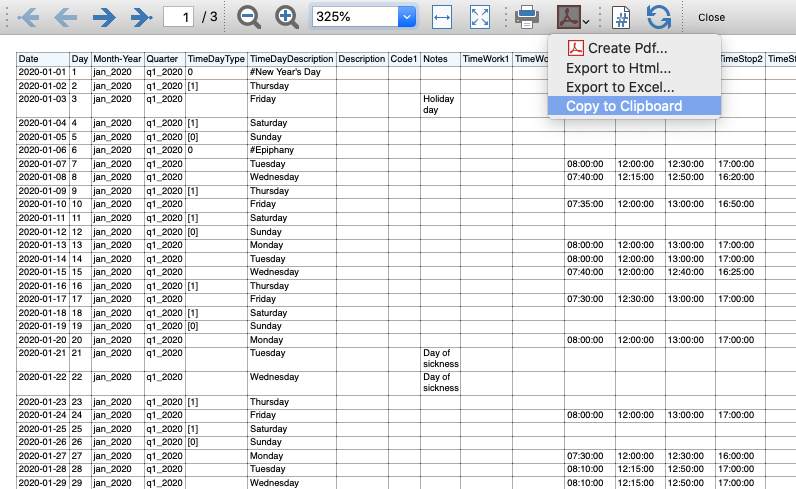
Report Extensions
Account Statement Letter
Account Statement LetterInstall the extension
To install the extension:
- Open Banana Accounting Plus.
- Menu Extensions > Manage Extensions.
- In the search field enter Account Statement Letter.
- From the extensions list select Account Statement Letter.
- Select the extension and click Install.
- Click Close to close the window.
Create the report
To creare the report:
- Open an accounting file.
- From the menu File > File and accounting properties > Address, enter the sender address.
- In the Accounts table (Address view) enter the receiver address for the account.
- From the Extensions menu select the Account Statement Letter.
- Enter the account number.
Example of account statement report:
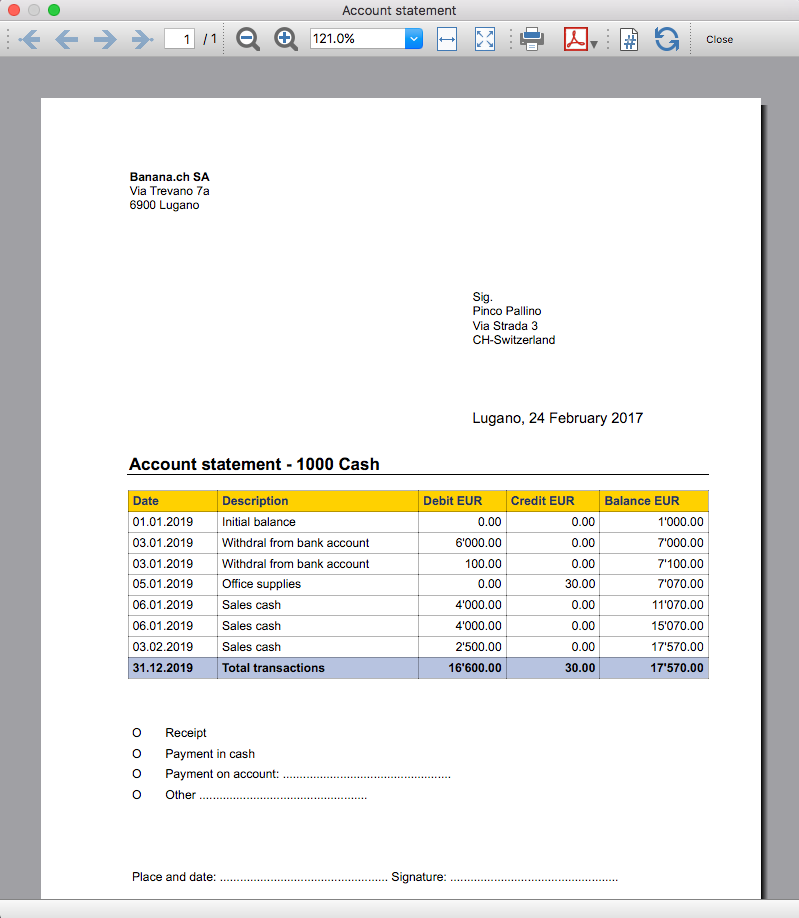
Account balance by day within a period
Account balance by day within a periodInstall the extension
To install the extension:
- Open Banana Accounting Plus.
- Menu Extensions > Manage Extensions.
- In the search field enter Account balance by day within a period.
- From the extensions list select Account balance by day within a period.
- Select the extension and click Install.
- Click Close to close the window.
Create the report
To creare the report:
- Open an accounting file.
- From the Extensions menu select the Account balance by day within a period.
- Enter the account number.
- Select the period.
A window with results is displayed. You can copy, save and print the results.
Account balance for all days in a month
Account balance for all days in a monthInstall the extension
To install the extension:
- Open Banana Accounting Plus.
- Menu Extensions > Manage Extensions.
- In the search field enter Account balance for all days in a month.
- From the extensions list select Account balance for all days in a month.
- Select the extension and click Install.
- Click Close to close the window.
Create the report
To creare the report:
- Open an accounting file.
- From the Extensions menu select Account balance for all days in a month.
- Enter the month number.
- Enter the account number.
A window with results is displayed. You can copy, save and print the results.
Audit Reports [BETA]
Audit Reports [BETA]The main purpose of this extension is to provide reports that can be easily copied into excel, summarising and showing the main accounting data that are normally taken as a basis by auditors when preparing their analysis.
Useful reports for Banana users who need to send their auditor accounting data, but also for auditors who use Banana themselves, as these reports are based on the functionalities already offered by Banana and therefore facilitate and speed up the collection of accounting data.
Reports
The following reports can be generated:
- General Ledger: Shows the transactions for each account, like in the account card.
- Journal: Shows the details of each transaction.
- VAT Journal: Shows the details of each VAT transaction.
- Trial Balance: Shows the balance of all accounting items in two columns (debit and credit).
- Customers And Suppliers: Shows list of customers and suppliers and information about them.
Through a dialogue it is possible to decide the time of year to be taken into account in the reports.
Adding extra columns
Through the command "Columns Settings" additional columns can be inserted in each report, except for the trial balance, which remains as it is. To add a column to the report, simply enter its xml name in the dialogue. To add several columns, separate them with a semicolon ";" as shown in the example.

The columns you can add are the same present in the Transactions table, except for the Customers and Suppliers report, for which you find the data in the Accounts table.
If you accidentally add a column that is not contained in the tables mentioned, no error is currently raised, the column will be added but no value will be present.
Copy to Excel
Reports are easily copied to Excel, when the report preview is generated, just click on the "copy" icon and paste the copied table into an Excel sheet.

Once the whole table has been copied, you can arrange the file as you want and customise your report with Excel tools.

Messages
- Total debit and total credit are different: The total Debit and total Credit do not match, check if the same error is present in your Accounting file, if it is only present in the report send us a feedback
Free text letter (Banana+) [BETA]
Free text letter (Banana+) [BETA]
The extension presented below allows you to create a free text letter for the members registered in Banana Accounting Plus (Accounts table).
It is essential to have the members set up with cost centres, using cost centre CC3.
Prerequisites
To use this extension you must:
- Download and install Banana Accounting+ (version 10.1.7 or later).
- Have the Banana Accounting Plus Advanced plan.
Beta version
The extension is currently released as a beta version. This means that some details may change without notice.
Installing and using the extension
- Install Banana Accounting Plus Dev-Channel
- Install the Letter extension (Banana+). Visit the Manage extensions documentation.
- Once installed, the extension will be visible in the Extensions menu where it can be executed.
Create a letter
- Enter the Association data in the Address tab of the accounting file.
- From the Extensions menu select the extension Letter (Banana+) .
- Complete the fields in the Settings dialogue and click OK.
Settings dialogue
Run the extension from the Extensions menu > Letter (Banana Plus).
The extension Settings dialogue will open, where you can define the information required to create the letter printout.
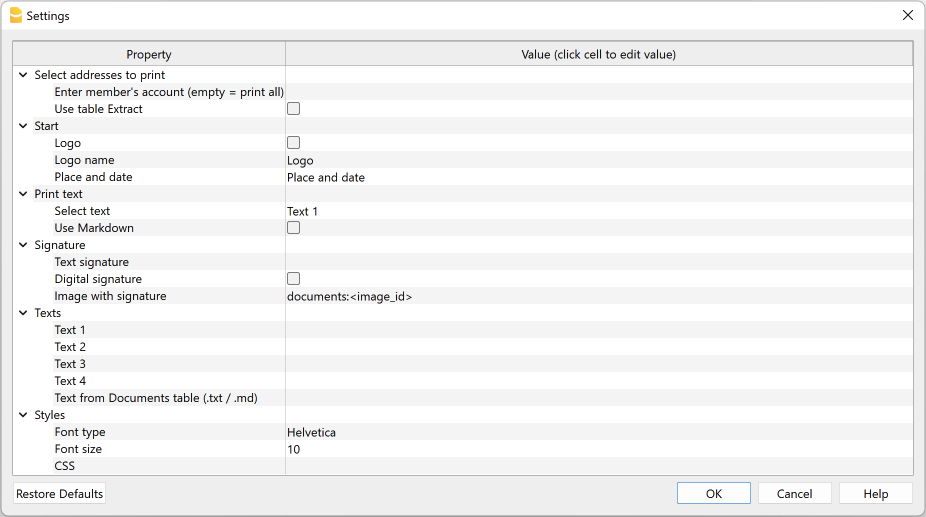
For data entry, click in the field of the Value column.
The settings are divided into the following groups:
- Select addresses to print
- Define the member accounts for which the donation statement is to be created.
- Start
- Define logo for header, location and date.
- Print text
- Define which text to use and decide whether to include donation records.
- Signature
- Define text and image for signature.
- Texts
- Define up to four different texts or take a text from the Documents table.
- Styles
- Define font type and size for the letter texts.
The entered data are used to generate the report, which you can then save and print.
Select addresses to print
Here you can decide for which members, defined with CC3 cost centres, to create the letter.
- Enter member's account (empty = print all)
- Enter a single account (e.g. "10001").
- Enter several accounts divided by a "," (e.g. "10001,10002,10005").
- If you do not enter anything, statements will be printed for all registered members.
- Use Extract table
- Use the extracted accounts in the Extract table.
- You must first use the command from the Data menu > Extract and sort rows to extract the rows with the accounts you want to use.
Start
Here you define the logo for the header, place and date.
- Logo
- Include a logo in the header. The logo is defined via the command in File → Logo setup.
- Logo name
- Enter the name of the logo to be used.
- Place and Date
- Enter the location and date of issue of the statement.
Print text
Here you can decide which text to use from the ones you have entered.
- Select text
- Select the text you wish to use from the list.
- See below for inserting text.
- Use Markdown
- The selected text is interpreted as Markdown text (requires the Advanced plan of Banana Accounting Plus).
Signature
Here you define the text and image for the signature of the letter.
- Text signature
- Enter the first and last name of the person issuing the statement.
- Digital signature
- Use an image as signature.
- Image with signature
- Enter the image to be used. You have two ways to do this:
- documents:<nome_id>: to use an image saved in the Documents table, where <name_id> represents the name entered in the ID column of the table (e.g. "documents:signature").
- file:document/<immagine>: to use an image saved externally to Banana, but in the same folder as the .ac2 file. Also indicate the extension of the .png or .jpg image (e.g. "file:document/signature.png").
- Enter the image to be used. You have two ways to do this:
Texts
Here you define the texts of the letter. You can enter up to four different texts or take a text from the Documents table.
- Text 1, Text 2, Text 3, Text 4
- Enter the text you wish to display in the printout. The text can also be on several rows.
- Texts can be of text type and Markdown type.
- You can enter up to four different texts, and then choose which one to use.
- Text from Documents table (.txt / .md)
- You can use the texts entered in the Documents table.
- Enter the document Id (e.g. 'Letter.txt', 'Letter', 'Letter.md', etc.).
- Texts can be of text type and Markdown type.
- For Markdown-type texts, the Id in the Documents table must end with ".md" and the full name, including the final ".md" (e.g. "Letter.md"), must be entered here.
Styles
Here you define the font type and size for the letter texts.
- Font Type:
- Define the font type.
- The default font is 'Helvetica'.
- Font size:
- Define the font size.
-
The default font size is '10'.
- CSS
- Optional.
- You can change the appearance of the print (text formatting, address positioning, etc.) by entering CSS code to customise the style.
- See the documentation for creating CSS styles. (requires the Advanced plan of Banana Accounting Plus).
Extract table (Extract rows command)
The Extract and Sort rows feature can be used to select member accounts for which to create the letter. This is useful when, for example, you only want to print the letter for certain members, without having to enter the list of accounts directly into the extension settings.
For example, by allocating members into several groups (Accounts table), the command from the Data menu > Extract and sort rows can then be used to extract the rows of members belonging only to certain groups (in the example, members belonging to groups S1 and S3).
To use the extracted rows:
- Extract rows with the command from the Data menu > Extract and sort rows.
- Run the extension and in the Settings dialogue, section Select addresses to print, check the box Use Extract table.
- If the rows were not extracted before printing was started, a warning message will be displayed and all registered member accounts will be used.
Letter text (plain text)
There are two possibilities for entering and using a plain text:
- Enter the text in the Settings dialogue.
- Enter text in the fields Text 1, Text 2, Text 3 or Text 4.
Up to four texts can be added. - Under Print Text > Select Text, select the text to be used.
- Under Print Text, do NOT select the option Use Markdown.
- Enter text in the fields Text 1, Text 2, Text 3 or Text 4.
- Enter text in the Documents table.
- Add a document by selecting the type Plain text (text/plain).
There is no limit, you can add as much text as you want.
- Add a document by selecting the type Plain text (text/plain).
-
- In the Settings dialogue:
- Under Print Text > Select Text, select the option Text from Documents table (.txt / .md).
- Under Texts >Text from Documents table (.txt / .md), enter the Id of the text entered in the Documents table (e.g. 'text.txt').
- In the Settings dialogue:
For all texts:
- With a specific annotation you can apply the bold style to texts. To do so, include the desired texts between double asterisks ** .
Examples:- **text** = text
- **textA textB** textC = textA textB textC
- If the following values are entered in the text rows, they will be replaced by the corresponding values:
-
- <Account> : member account
- <NamePrefix> : member prefix
- <FirstName> : member's first name
- <FamilyName> : member's last name
- <OrganisationName> : member's organisation
- <Address> : member's address
- <AddressExtra> : extra address
- <Region> : region/state or province
- <Country> : country
- <Currency> : currency
- <Amount> : total amount of donations
Letter text (Markdown text)
Markdown is a language that allows formatted text to be created using a standard text editor and a syntax that is easy to write and read.
To use Markdown, the Banana Accounting Plus Advanced plan is required.
There are two ways to enter and use a Markdown text:
- Enter the text in the Settings dialogue.
- Enter the text in fields Text 1, Text 2, Text 3 or Text 4.
Up to four texts can be added. - Under Print Text > Select Text, select the text to be used.
- Under Print Text, check the option Use Markdown.
- Enter the text in fields Text 1, Text 2, Text 3 or Text 4.
- Enter text in the Documents table.
- Use the Markdown Editor to add a document, selecting the type Markdown-formatted text (text/markdown).
There are no limits, you can add as much text as you want. - The file name in the Id column must end with '.md' (e.g. 'text.md').
- Use the Markdown Editor to add a document, selecting the type Markdown-formatted text (text/markdown).
-
- In the Settings dialogue:
- Under Print Text > Select Text, select the option Text from Documents table (.txt / .md).
- Under Texts > Text from Documents table (.txt / .md), enter the Id of the text entered in the Documents table (e.g. 'text.txt').
- In the Settings dialogue:
For all texts:
- If the following values are entered in the text lines, they will be replaced by the corresponding values:
- {{Account}} : member's account
- {{NamePrefix}} : member's prefix
- {{FirstName}} : member's name
- {{FamilyName}} : member's surname
- {{OrganisationName}} : member's organisation
- {{Address}} : member's address
- {{AddressExtra}} : extra address
- {{Region}} : region/state/province
- {{Country}} : country
- {{Currency}} : currency
- {{Amount}} :total amount of donations
Print example
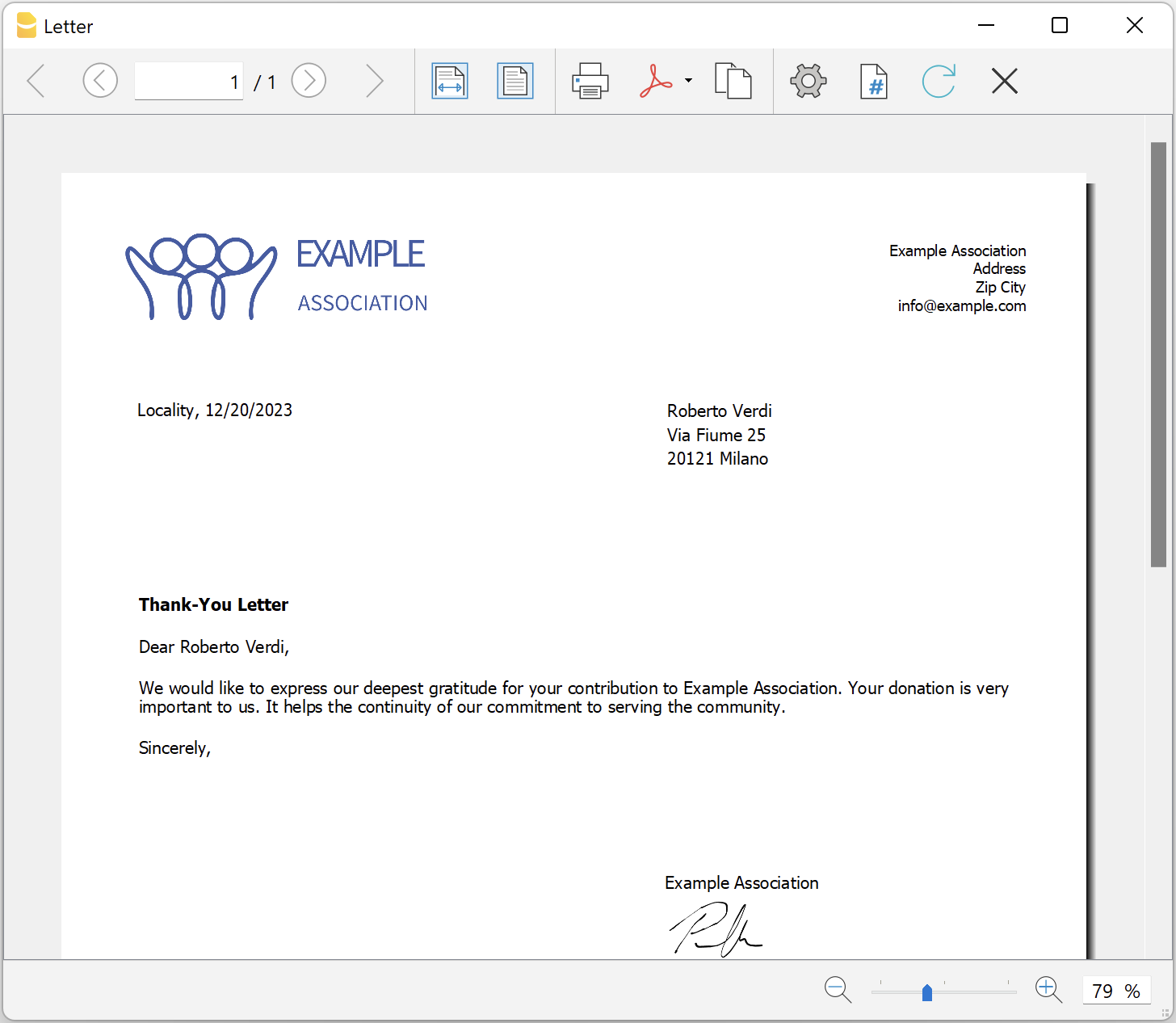
Printing receipts from cash book transactions
Printing receipts from cash book transactionsThis extension prints payment receipts based on transactions from cash book accounting file.
Example of a payment receipt:
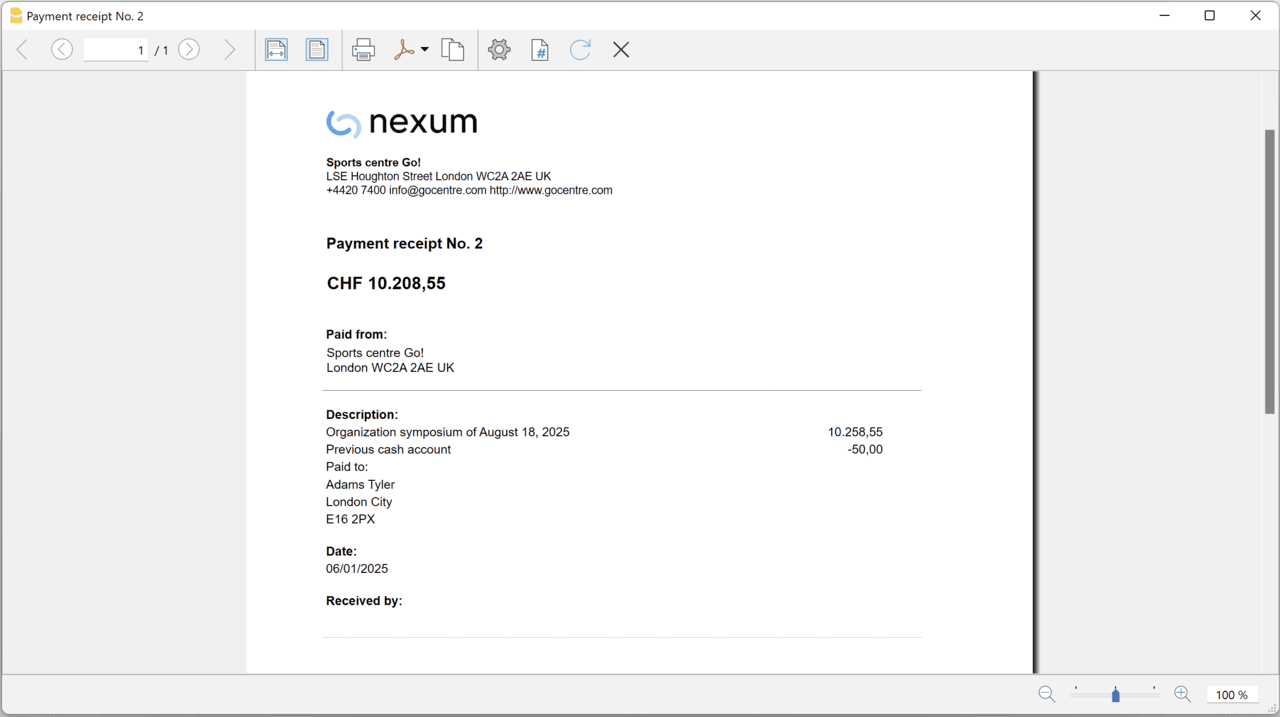
The program prints the receipt using the following logic:
- It takes all the lines with the same Doc Number, of the lines where the cursor is positioned.
- It prints the document number in the "Payment receipt No: "
- It prints the amount by summing all the amounts.
- It prints the Descriptions in different lines.
with the text of the Description column of all the transactions that have the same doc number.
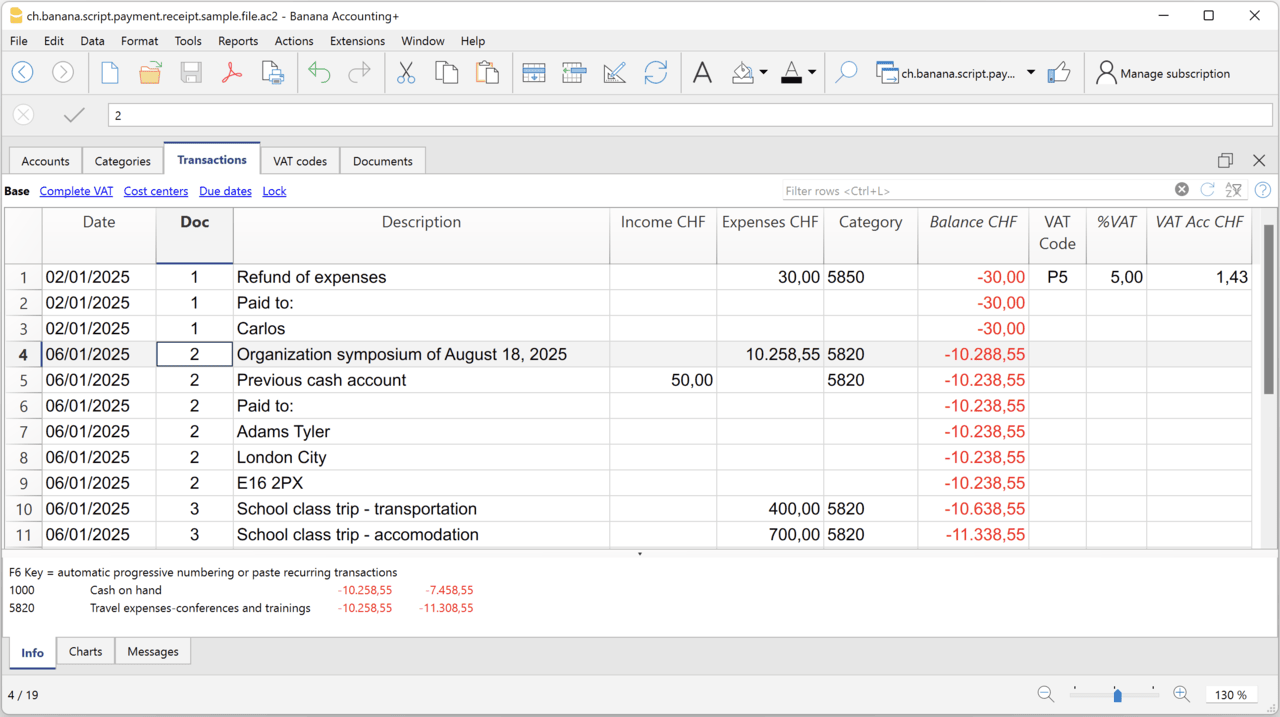
Example file
To created the receipts:
- Open a Cash Book file:
- Or download the example ch.banana.script.payment.receipt.sample.file.ac2 and open it.
- Positions on the line of the transaction group you wish to print.
- From the Extensions menu select the Printing receipts from cash book transactions.
Settings and properties
Prior to printing the receipt you can set the
Extension properties
You can set the following parameters from the menu Extensions > Manage Extensions, select the Printing receipts from cash book transactions extension and click on Settings.
- Include page header (1=yes, 0=no)
The logo and the address information can be included as header of the page. - Automatic date (1=yes, 0=no)
The date of the transaction is used. - Font type
The font type of the texts (Arial, Helvetica, Times New Roman, ...)
Address
Set your address from the menu File > File and accounting properties > Address.
Header logo
A logo for the header can be added as attachment in the Documents table.
- Add the Documents table to the Banana Accounting file.
If it is not already present you need to add the Documents table in the Banana document with the menu command Tools > Add new features > Add document table. - Add a row in the Documents table.
- In the ID column, enter "logo".
- In the Attachments column, double click on the cell and select Image, then choose the logo image you want to use.
Entering transactions
Cash book transactions are entered as usual in the Transactions table.
- Transactions are considered to belong to the same group when they have the same doc number.
- Paid to
- You can enter the text you want to display on the printout (e.g. "Paid to:").
- You can also enter text in bold by enclosing it in double asterisks ** (e.g. **Paid to:**)
- You can enter the text "#paidto" (without quotes) to let the program insert a blank line followed by the text in bold and in the language of the accounting file (it, fr, de, en, nl).
Report Balance and Profit & Loss with transactions details
Report Balance and Profit & Loss with transactions detailsThis extension creates a Balance Sheet and Profit & Loss report with transactions details for each account.
Install the extension
To install the extension:
- Open Banana Accounting Plus.
- Menu Extensions > Manage Extensions.
- In the search field enter Report Balance and Profit & Loss with transactions details.
- From the extensions list select Report Balance and Profit & Loss with transactions details.
- Select the extension and click Install.
- Click Close to close the window.
Create the report
To creare the report:
- Open an accounting file.
- From the Extensions menu select the Report Balance and Profit & Loss with transactions details.
- Select the financial report you want to print:
- Assets / Liabilities
- Income / Expenses
- All
Example of assets details: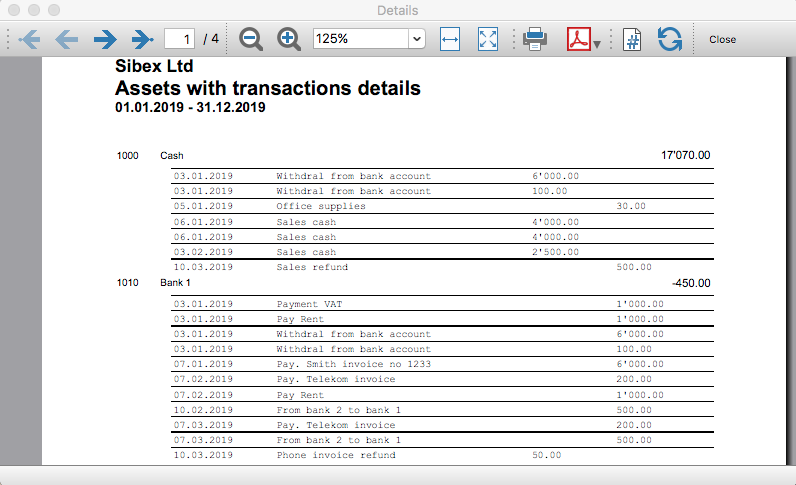
Example of liabilities details: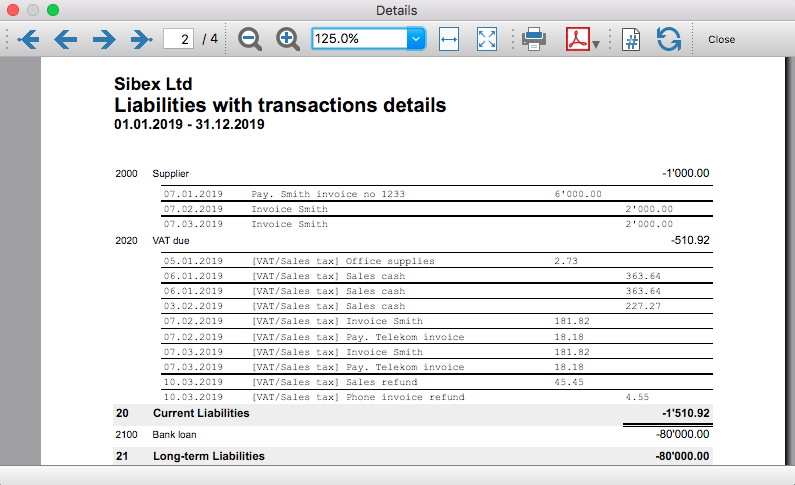
Example of income details: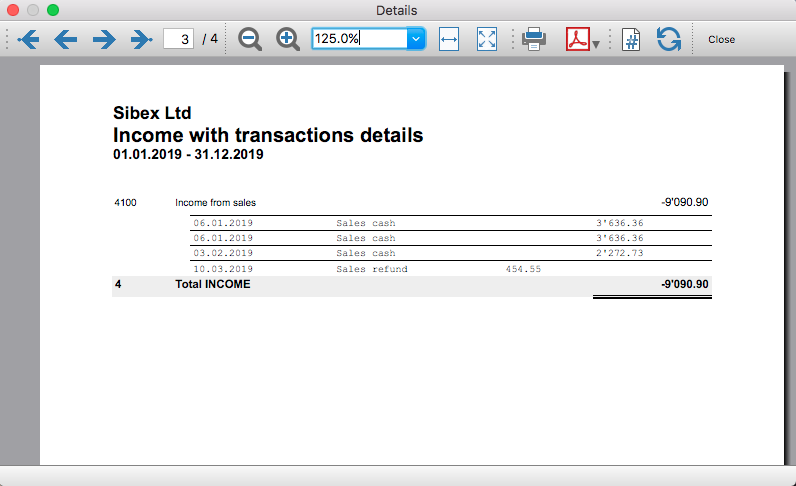
Example of expenses details: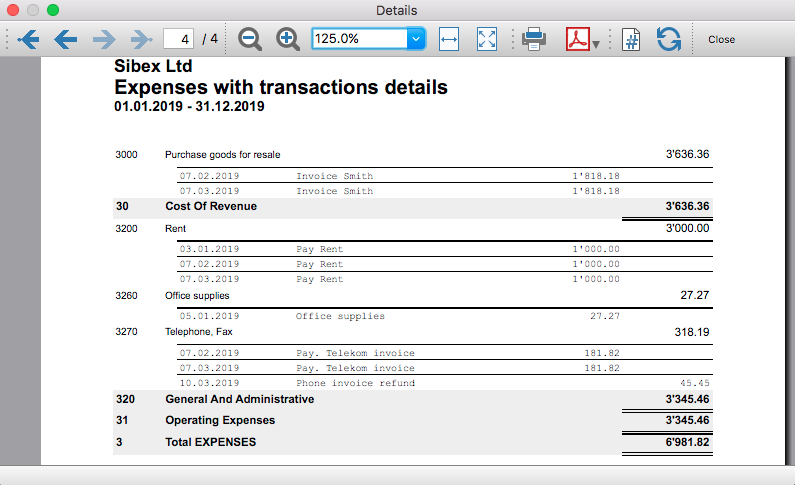
Transaction Voucher (Banana+)
Transaction Voucher (Banana+)Accounting settings
From menu File > File and accounting properties > Accounting Tab, enter the project number/name in the Header Left field.
How it works
- For each transaction of the Transactions table enter the voucher number in the Doc column.
- From the Transactions table of the accounting file select a row with the desired voucher number you want to create the report.
The voucher number is taken from the selected row where the cursor is positioned, but you can also change it manually into settings dialog. - Launch the extension from the menu Extensions > Transaction Voucher (Banana+).
- In the settings dialog window enter the required information.
- Logo
Check to include the logo in the header.
The logo is defined with the command File > Logo setup where you can also set the size, choose how to align it (left, centre, right). - Logo-Name
Enter the name of the logo customisation defined in the menu File > Logo setup, respecting upper and lower case. - Title
- Voucher number
- Paid to
- Paid in
- Cheque No.
- Payment Received by
- Paid by
- Prepared by
- Verified by
- Recommended by
- Approved by
- Logo
- All the values entered are saved and proposed the next time.
- The extension will print the information entered in the dialog plus the data of the transaction with the specified Voucher / Doc number.
Transaction Voucher (Helvetas model)
Transaction Voucher (Helvetas model)How it works
- From the Transactions table of the accounting file select a row with the desired Doc number.
- Launch the extension from the menu Extensions > Transaction Voucher (Helvetas model).
- A dialog window requesting some information will appear.
The voucher number is taken from the row selected where the cursor is positioned, but you can change it manually.
Complete all the remaining fields by entering your data and click Ok.
The values entered are saved and proposed the next time. - The extension will print the information entered in the dialog plus the data of the transactions with the specified Voucher / Doc number.
Example of Voucher report:
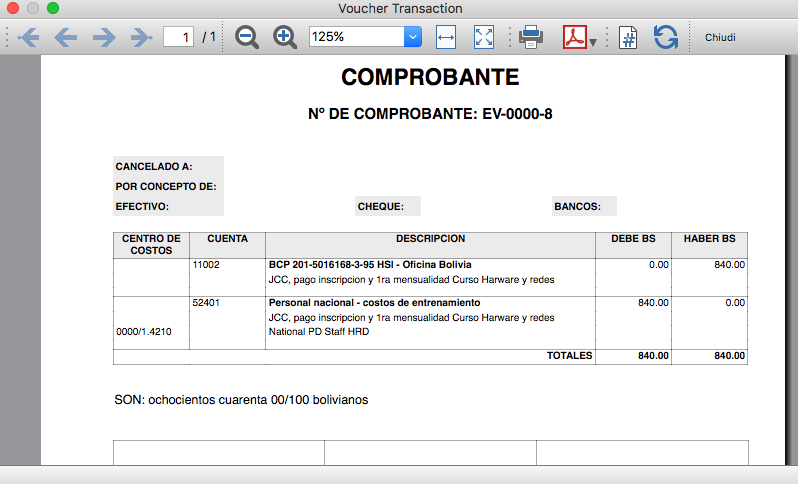
Transaction Voucher (Swiss Red Cross model)
Transaction Voucher (Swiss Red Cross model)Accounting settings
Two settings are required:
- the Header Left
- click menu File > File and accounting properties > Header Left.
The Header Left field must contain the project number and the project name divided by the "-" character (example: "1234 - Abc")
- click menu File > File and accounting properties > Header Left.
- add a small image/logo
- Add the Documents table to the Banana Accounting file.
If it is not already present you need to add the Documents table in the Banana document with the menu command Tools > Add new features > Add document table. - In the Id column, of the documents table insert transaction_voucher_image.
- In the Attachments column, double click on the cell, select Image and add the desired image.
- Add the Documents table to the Banana Accounting file.
How it works
- From the Transactions table of the accounting file select a row with the desired Doc number.
For example: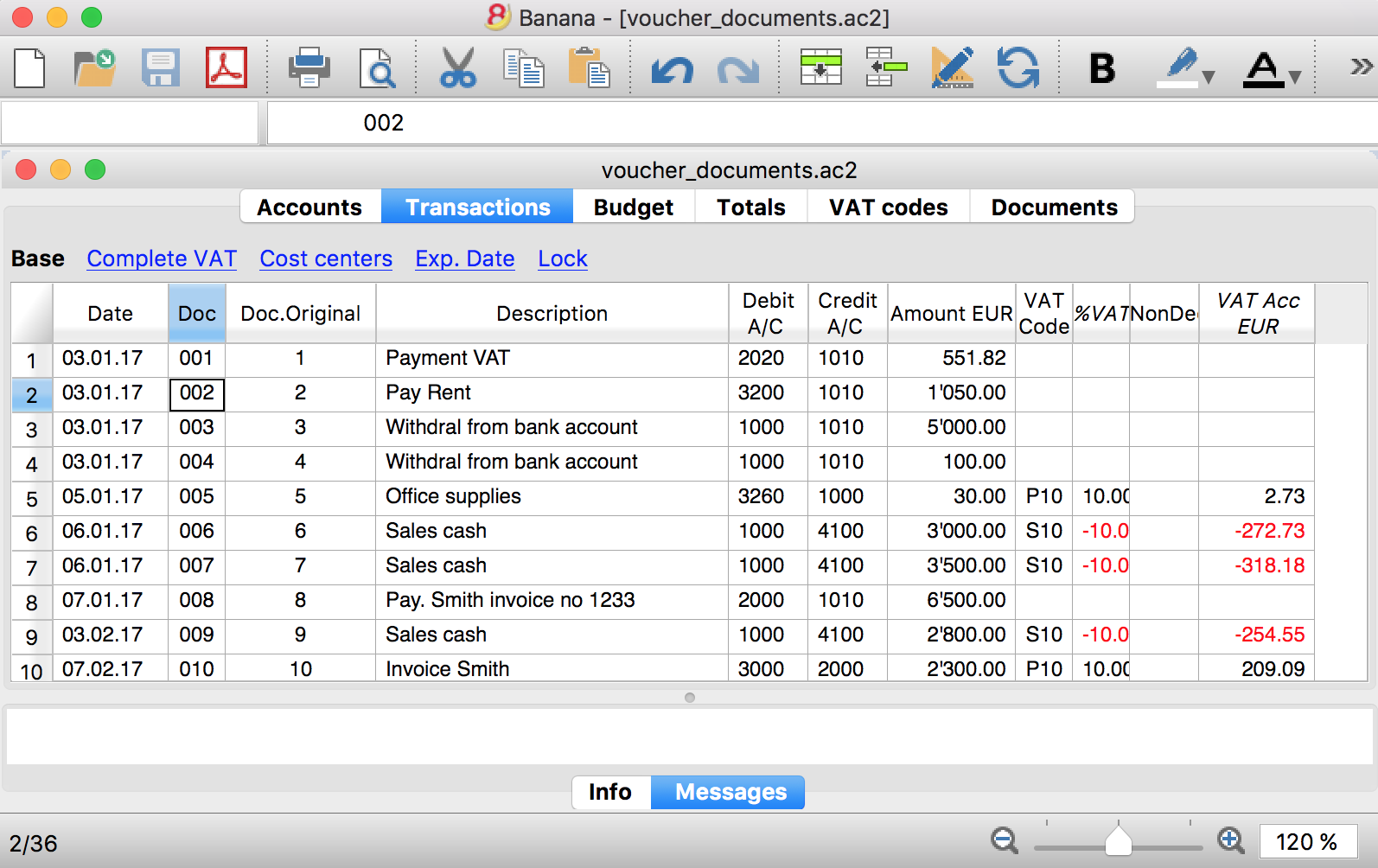
- Launch the extensions from the menu Extension > Transaction Voucher. A dialog window requesting some information will appear.
- The voucher number is taken from the row selected where the cursor is positioned, but you can change it manually.
- Complete all the remaining fields by entering your data and click Ok.
The values entered are proposed the next time.
Dialog example:
- The extension will print the information enterd in the dialog plus the data of the transactions with the specified Voucher / Doc number.
For example: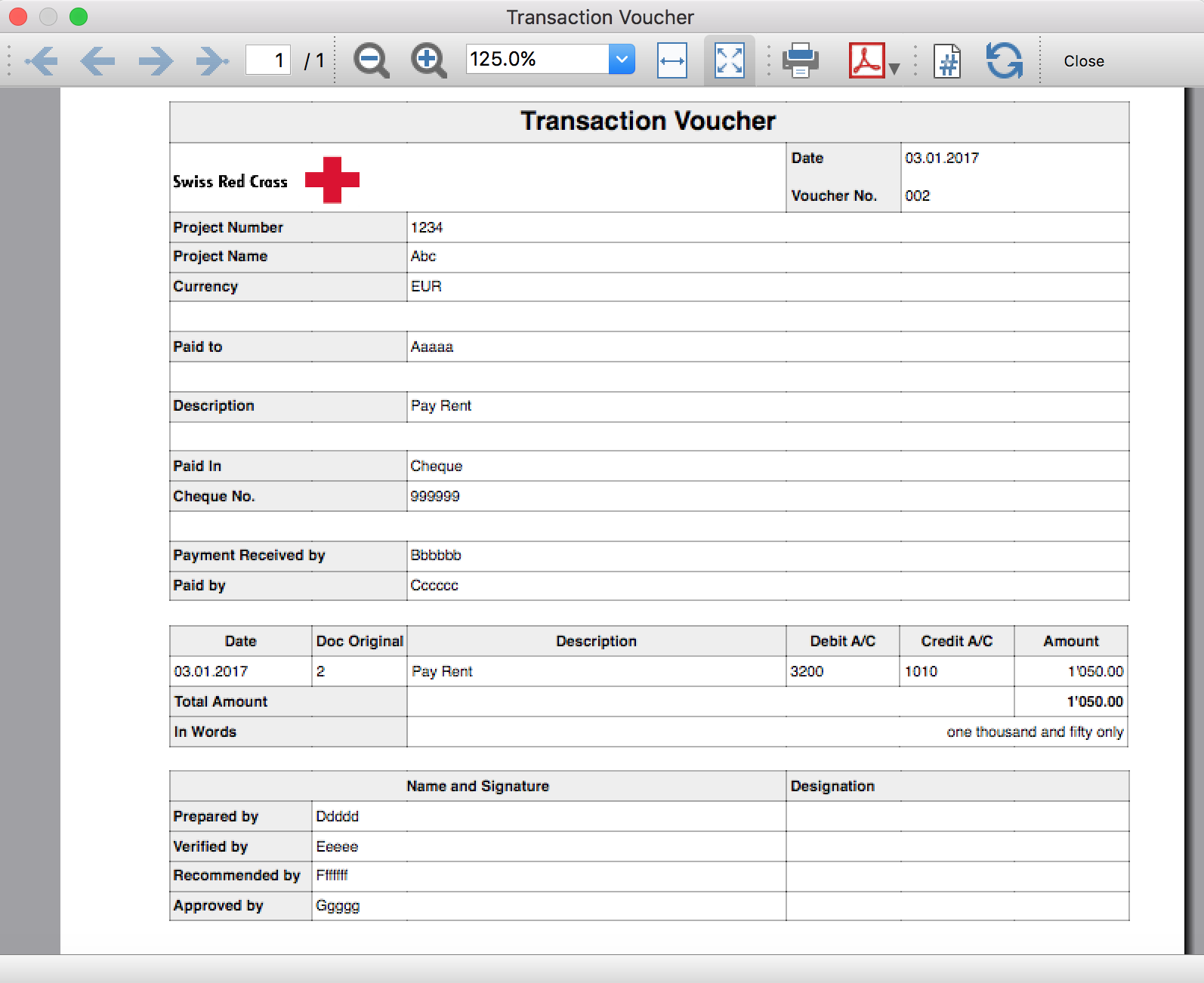
Trial Balance
Trial BalanceInstall the extension
To install the extension:
- Open Banana Accounting Plus.
- Menu Extensions > Manage Extensions.
- In the search field enter Trial Balance.
- From the extensions list select Trial Balance.
- Select the extension and click Install.
- Click Close to close the window.
Create the report
To creare the report:
- Open an accounting file.
- From the Extensions menu select the Trial Balance.
- Select the period.
For the given period, display a Trial Balance report containing:
- Balance sheet
- Profit & Loss
The details displayed are the following:
- Account
- Account description
- Debit amounts
- Credit amounts
Example of Trial Balance report: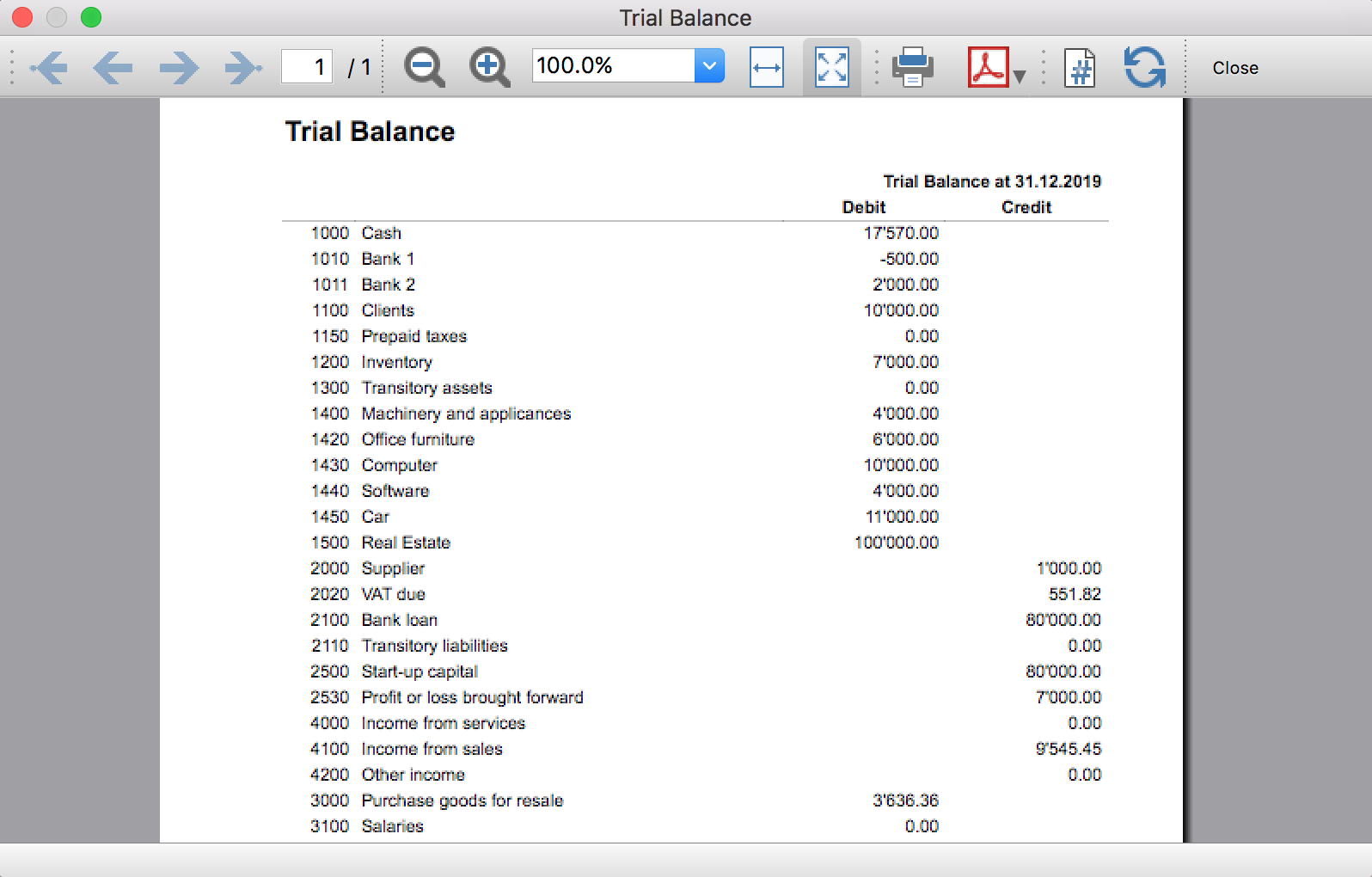
Trial Balance and Blockchain (Quarter periods)
Trial Balance and Blockchain (Quarter periods)This extension creates a report containing the table Accounts and at the end the blockchain for the selected quarter period.
Prerequisites
To use this extension you must download and install Banana Accounting Plus.
Install the extension
To install the extension:
- Open Banana Accounting Plus.
- Menu Extensions > Manage Extensions
- Select Universal as country.
- Select Online > Productivity.
- From the extensions list select Trial Balance and Blockchain (Quarter periods).
- Click Install to install the extension.
- Click Close to close the window.
Create the report
To creare the report:
- Open an accounting file.
- From the menu File > File and accounting properties, in the Header left and Header right fields enter the texts to be printed on the left and right in the page header.
- From the Extensions menu select Trial Balance and Blockchain (Quarter periods).
- In Settings dialogue select the period, set the header texts, the title and font, then click OK to create the report.
The texts of the settings dialog and column headers in the printout are fixed and are in the same language as the Banana file (defined from the menu File > File and accounting properties > Other > Current language). The languages that can be used are Italian, French, German and English.
Settings dialogue
Run the extension from the menu Extensions > Trial Balance and Blockchain (Quarter periods).
The extension Settings dialogue will open. From here you can choose some parameters to print the report.
- Period.
Select a period from the list. The periods are divided into three quarters. - Header left text.
Insert another text to be printed on the left side of the page header. - Header right text.
Insert another text to be printed on the right side of the page header. - Title.
Insert text to be printed as title of the page. - Font family.
Insert the font type. - Font size.
Insert the font size for all the page texts. - Title font size.
Insert the font size for the title.
Print example
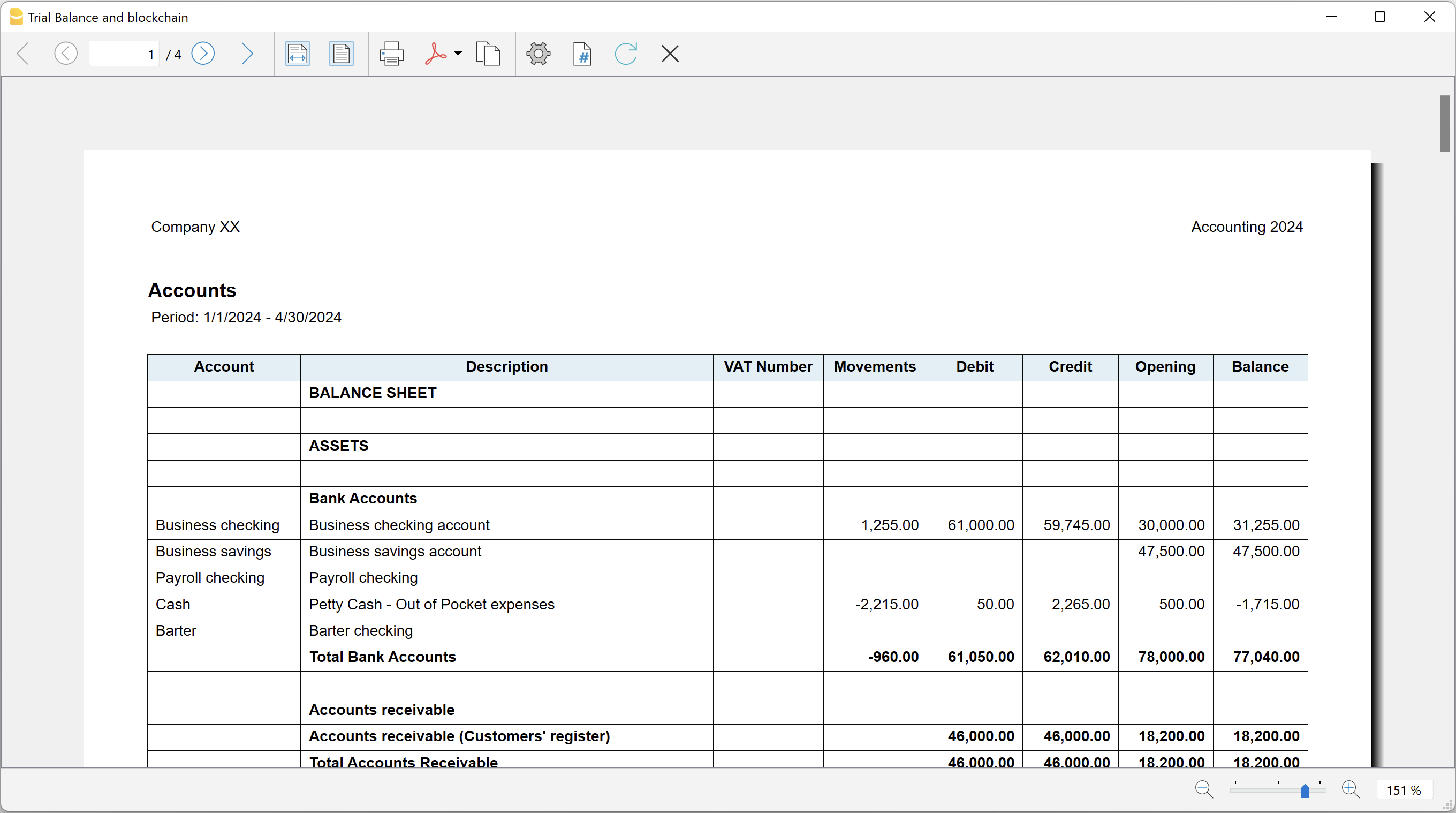
Trial Balance with transaction's lock blockchain information
Trial Balance with transaction's lock blockchain informationThe extension creates a report containing the table Accounts and the blockchain information regarding the transaction lock of the previous period and of the current period.
This printout has been conceived for a customer that has central SAP accounting and use Banana Accounting locally, to keep accounting for at more than 40 schools. Each school keep their own accounting and every 4 months the data is integrated in the main accounting system.
In order to assure that the information is perfectly synchronized:
- The school lock the transactions so that each movement is marked with a blockchain.
- The school print the report using this extension, with the data and the blockchain info of the current and last period.
- Prior to entering the data in the main system, the responsable verify that the blockchain of the last period already entered is the same as the one printed on the current report.
Personal at the schools can easily manage their finance locally and have more details and better control over the spending. Data is only entered in the main system periodically. The organisation have a better accounting system and save a lot of money in training and SAP licenses.
Install the extension
To install the extension:
- Open Banana Accounting Plus.
- Menu Extensions > Manage Extensions
- Select Universal as country.
- Select Online > Productivity.
- From the extensions list select Trial Balance with transaction's lock blockchain information.
- Click Install to install the extension.
- Click Close to close the window.
Create the report
To creare the report:
- Open an accounting file.
- From the menu File > File and accounting properties, in the Header left and Header right fields enter the texts to be printed on the left and right in the page header.
- From the Extensions menu select Trial Balance with transaction's lock blockchain information.
- In Settings dialogue set header texts, title and font as you want, then click OK.
- In Period dialogue select a period and confirm with OK to create the report.
The texts of the settings dialog and column headers in the printout are fixed and are in the same language as the Banana file (defined from the menu File > File and accounting properties > Other > Current language). The languages that can be used are Italian, French, German and English.
Settings dialogue
Run the extension from the menu Extensions > Trial Balance with transaction's lock blockchain information.
The extension Settings dialogue will open. From here you can choose some parameters to print the report.
- Header left text.
Insert another text to be printed on the left side of the page header. - Header right text.
Insert another text to be printed on the right side of the page header. - Title.
Insert text to be printed as title of the page. - Font family.
Insert the font type. - Font size.
Insert the font size for all the page texts. - Title font size.
Insert the font size for the title.
Print example
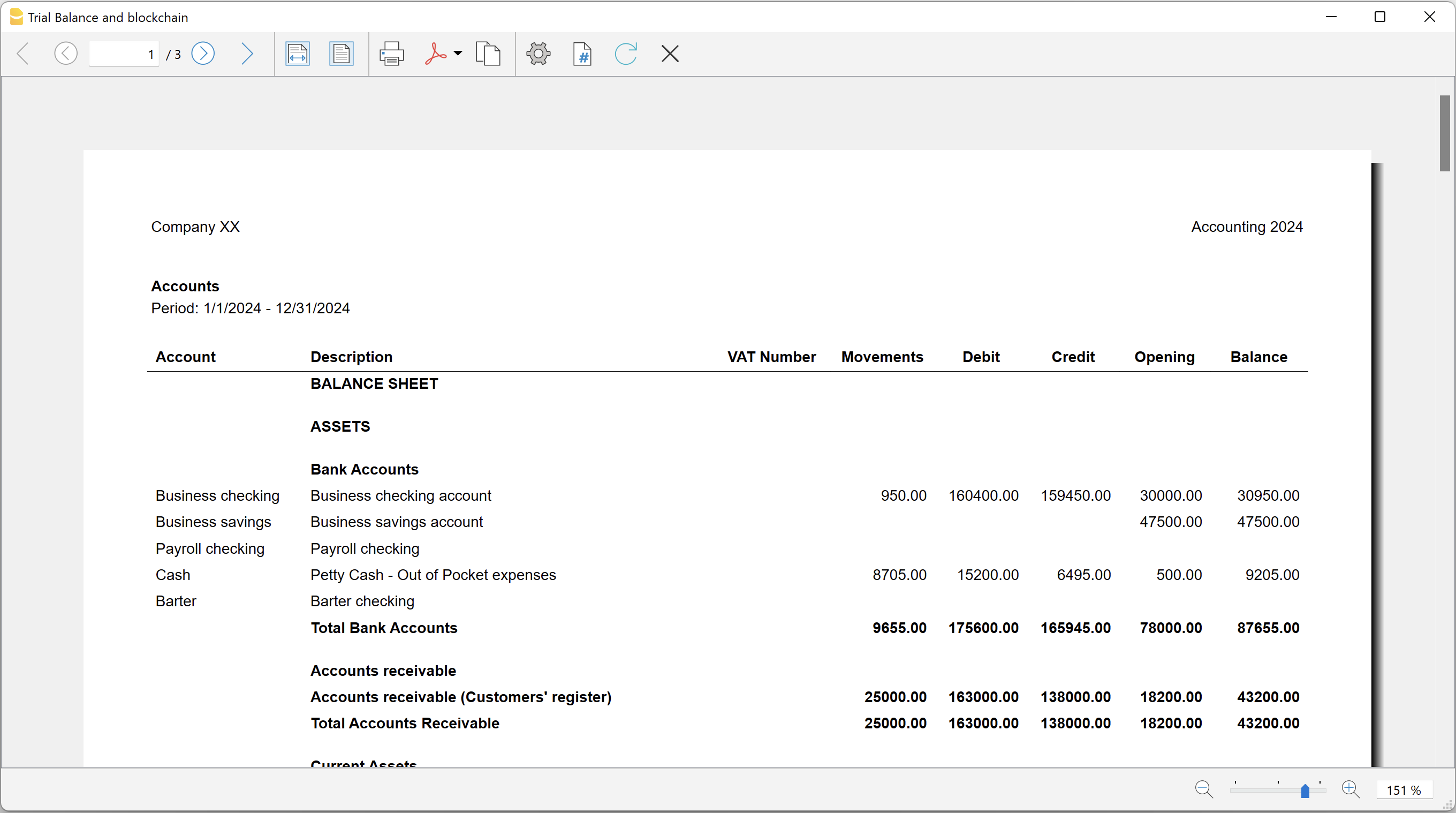
Blockchain row explanation:
- Date until which transactions are locked.
- Date of the last transaction.
- Number of locked transactions.
- Progressive hash of last locked transaction.
Utilities Extensions for accounting
This section covers general utility extensions for accounting.
Table of contents
- Compare current with other accounting file
- Calculate interest on account (exact days 365/365)
- Update Dates in the accounting file
- Invoice from member fee (Banana 9)
- Invoice from member fee (Banana+)
- Printing receipts from cash book transactions
- Reconcile account with mt940/ISO20022 file
- Duplicate transaction checking
Calculate interest on account (exact days 365/365)
Calculate interest on account (exact days 365/365)Install the extension
To install the extension:
- Open Banana Accounting Plus.
- Menu Extensions > Manage Extensions.
- In the search field enter Calculate interest on account (exact days 365/365).
- From the extensions list select Calculate interest on account (exact days 365/365).
- Select the extension and click Install.
- Click Close to close the window.
Create the report
To creare the report:
- Open an accounting file.
- From the Extensions menu select Calculate interest on account (exact days 365/365).
- Enter the account number.
- Select the period.
- Enter the interest rate on debit balance.
- Enter the interest rate on credit balance.
A window with results is displayed. You can copy, save and print the results. The transactions list can be paste into the table Transactions.
Compare current with other accounting file
Compare current with other accounting fileInstall the extension
To install the extension:
- Open Banana Accounting Plus.
- Menu Extensions > Manage Extensions.
- In the search field enter Compare current with other accounting file.
- From the extensions list select Compare current with other accounting file.
- Select the extension and click Install.
- Click Close to close the window.
Compare two accounting files
To compare two accounting files:
- Open an accounting file.
- From the Extensions menu select Compare current with other accounting file.
- Select a second accounting file to compare.
The differences are reported as messages, when you click on it you go to the row.
Create invoice transactions from member fee (Banana 9)
Create invoice transactions from member fee (Banana 9)Prerequisites
- Double-entry accounting file with normal accounts for members/customers is required.
Install the extension
To install the extension:
- Open Banana Accounting.
- Menu Extensions > Manage Extensions.
- In the search field enter Create invoice transactions from member fee (Banana 9).
- From the extensions list select Create invoice transactions from member fee (Banana 9).
- Select the extension and click Install.
- Click Close to close the window.
Add the MemberFee column
- Open the Accounts table (Address view).
- Activate the MemberFee column (the column already exists, it just needs to be activated).
- For each member/customer use the MemberFee column to enter the invoice amount.
Create invoice transactions
To creare the invoice transactions:
- Open an accounting file.
- From the menu Account1 select Import to accounting.
- As import option select Transactions.
- From the list select the Create invoice transactions from member fee extension.
- In the File name field, click Browse and select the current open accounting file.
- Click OK.
- Enter the invoice start number.
- Enter the revenue account.
- Enter the transaction description.
- The Import transactions opens, confirm with OK.
The program creates the invoice transactions for all the member/customer that has an amount in the MemberFee column of the table Accounts.
Create invoice transactions from member fee (Banana+)
Create invoice transactions from member fee (Banana+)Prerequisites
- Banana Accounting Plus.
- Double entry accounting file with Cost Centers accounts (Cc1, Cc2, Cc3) for members/customers is required.
Install the extension
To install the extension:
- Open Banana Accounting Plus.
- Menu Extensions > Manage Extensions.
- In the search field enter Create invoice transactions from member fee (Banana+).
- From the extensions list select Create invoice transactions from member fee (Banana+).
- Select the extension and click Install.
- Click Close to close the window.
Add the MemberFee column
- Open the Accounts table (Address view).
- Activate the MemberFee column (the column already exists, it just needs to be activated).
- For each member/customer use the MemberFee column to enter the invoice amount.
Create invoice transactions
To creare the invoice transactions:
- Open the accounting file.
- From the menu Extensions select Create invoice transactions from member fee (Banana+).
- In the Settings dialogue:
- Set the invoice description.
The text that is displayed on the invoice. This text is automatically followed by first and last name or company name. - Set the starting invoice number.
The first invoice starts whit this number, while all others invoices use progressive numbers.
- Set the invoice description.
- The program shows a dialog with all the invoice transactions that will be added.
- Confirm with OK.
The program creates the invoice transactions for all the members/customers that have an amount in the MemberFee column of the table Accounts.
- Date: the date of the current day.
- Description: text entered in the settings followed by first and last name or company name.
- Amount: the amount defined in the MemberFee column of the Accounts table.
- Cc1 / Cc2 / Cc3: the Cost Center account of the member/customer:
- Cc1 when using cost centers that starts with "."
- Cc2 when using cost centers that starts with ","
- Cc3 when using cost centers that starts with ";"
Duplicate transaction checking
Duplicate transaction checkingInstall the extension
To install the extension:
- Open Banana Accounting Plus.
- Menu Extensions > Manage Extensions.
- In the search field enter Duplicate transaction checking.
- From the extensions list select Duplicate transaction checking.
- Select the extension and click Install.
- Click Close to close the window.
Check for duplicate transactions
To check for duplicate transactions:
- Open an accounting file.
- From the Extensions menu select Duplicate transaction checking.
A transaction is duplicate if another transaction exists with the same amount, the same credit account and the same debit account in a time laps of 3 days.
If a duplicate transaction is found, a message is displayed to the user.
It is possible to skip the check for a transaction: just add a column with the name 'SkipDuplicateCheck' and insert any value (ie.: 'x') to the transaction to skip.
Reconcile account with mt940/ISO20022 file
Reconcile account with mt940/ISO20022 fileThis extension takes as input an electronic bank statemant (MT940 or ISO20022) and compare day by day with the account statements and shows differences.
It is very usefull for finding transactions not recordered or incorrectly recorded.
Install the extension
To install the extension:
- Open Banana Accounting Plus.
- Menu Extensions > Manage Extensions.
- In the search field enter Reconcile account with mt940/ISO20022 file.
- From the extensions list select Reconcile account with mt940/ISO20022 file.
- Select the extension and click Install.
- Click Close to close the window.
Create the report
To creare the report:
- Open the accounting file.
- From the Extensions menu select the Reconcile account with mt940/ISO20022 file.
- Select the electronic bank statement (MT940 or ISO20022).
- Enter the account number.
A window with results is displayed. You can copy, save and print the results.
Update Dates in the accounting file
Update Dates in the accounting fileIn order to change the accounting data, the extension uses the Document Change API. For more information visit How-to update Accounting Dates using Document Change.
Install the extension
To install the extension:
- Open Banana Accounting Plus.
- Menu Extensions > Manage Extensions.
- In the search field enter Update Dates in the accounting file.
- From the extensions list select Update Dates in the accounting file.
- Select the extension and click Install.
- Click Close to close the window.
Change accounting dates
To change accounting dates using the extension:
- Open an accounting file.
- From the Extensions menu select the Update Dates in the accounting file.
- A confirmation window dialogue shows all the sections and tables of the accounting where dates will be changed.
- Confirm with OK to apply the changes to the accounting file.
[UNI11] Layout 11 Programmable Invoice (Banana+)
[UNI11] Layout 11 Programmable Invoice (Banana+)Layout to print the invoice of Banana Accounting highly customizable and also programmable.
You can easily adapt the invoice to your desires, decide which elements to print and change texts.
Watch the video tutorial: Invoice customization (Layout UNI11).
Prerequisites
To use this extension you need to download and install Banana Accounting Plus.
Customization printing invoices
The invoice print layout is already set and ready to use. If you wish, however, you can customize. You can easily adapt the printing of the invoice to your requirements.
Layout UNI11 has the same functionality as layout CH10 except for printing the Swiss QR-Code.
See the documentation CH10 layout.
Bank details for payment are to be entered as a final text. See how to enter a final text.
- Customization via the settings dialog
- Choose the elements of the invoice you want to include in the printout.
- Print the address on the right or left.
- Indicate which detail columns to include and define the sequence. You can have an invoice with quantities and prices, or only total amounts or even with columns that you have added in the transactions table.
- Change the default texts for use in printing.
- Add translations into other languages.
- Change the font and print character.
- Choose the color combination you want.
Customisation by programming
- Customization using Javascript programming.
- Create print functions that replace the default ones, for printing the header, addresses, details, final texts and footers.
- Customization using CSS.
- You can adapt the printing by creating custom styles so that you can change the appearance of the invoice (text formatting, positioning of elements, etc.).