复式记账
Banana财务会计软件已经实现了现代化的复式记账。许多功能允许您快速、专业地输入数据,符合国际复式记账标准。快速工作并立即获得资产负债表,损益表,财务计划,预算和许多其它的报告。
许多复杂的操作,例如增值税管理、多币种、资产负债表和损益表的起草都变得非常简单,因为它们都已经实现了自动化操作。
- 无需浪费时间,立刻开始使用,Banana财务会计软件为您提供有各种现成的模板,以满足最多样化的需求。
- 全面,专业的自动期初和期末余额。您不再需要输入期初和期末的记录来关闭和打开资产负债表,因为新一年的期初余额是自动的结转的。
- 自动账户明细 (会计记录)。记入日记账后自动结转金额 (发生业务表)。
- 通过点击立即显示资产负债表和损益表,您可以选择具有总计的简单结构,也可以选择更为详细的结构,为子组选择具有中间总计的结构。
- 要登记增值税,您不需要输入其它的发生业务,只需输入一个代码,即可计算出增值税金额,并同时将其记录在增值税账户中。
- 借助特定的扩展功能,增值税表格是自动的,使您可以将增值税数据发送给税务机关。
- 您不必等到年底才知道盈利或亏损,因为在每次注册后,您都会得到最新的余额,并显示出经营的结果。
-
在同一会计文件中,您可以将预算设置为能够估计财务计划以及与成本和收入有关的预算,避免在未来出现的不确定性。
想要了解Banana财务会计软件内复式记账的所有特点,请点击以下页面:特性。
了解更多
开始复式记账
复式记账的视频:视频教程,向您展示如何轻松设置复式记账会计,调整账户表,设置预算,输入发生业务和打印报告。
创建一个会计文件,从一个在线模板开始
Banana财务会计包括所有符合会计准则格式的模板,按国家和类型划分。可以从程序的文件菜单,创建新命令中直接打开,也可以从我们网站的模板页面进行下载。
下面解释了直接从程序中设置的模板开始的启动过程:
- 菜单文件 → 新建。
- 选择国家,语言,类别和记账方法。
- 从在线模板列表中选择最接近于您需求的模板。
- 点击创建按钮。
在搜索栏中输入一个关键字,程序将显示出包含关键字的模板。
也可以通过激活空白文件选项来创建一个空白文件。无论如何,为了便于启动和避免分组错误,我们建议您始终从一个现有的模板开始。
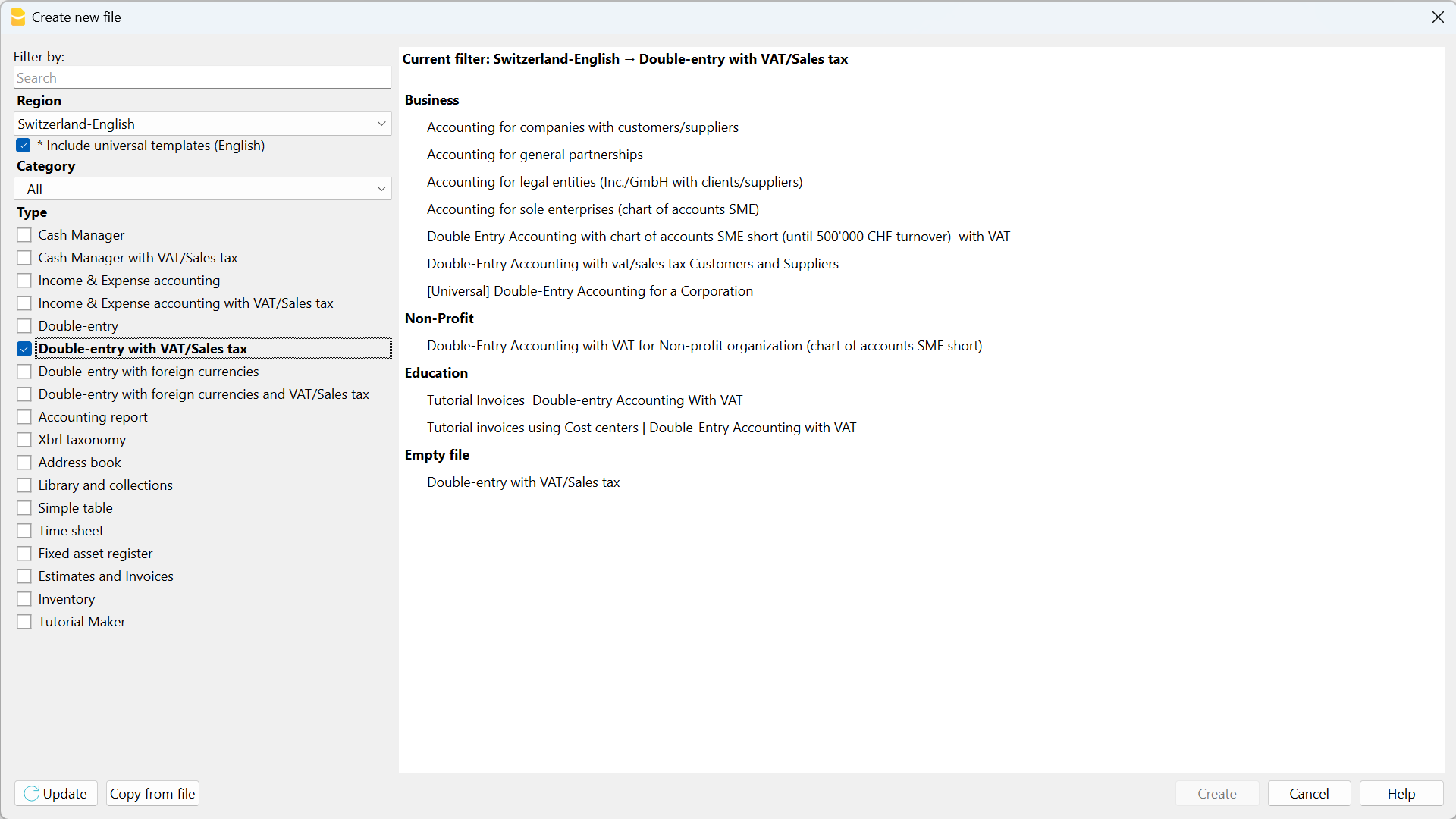
更多的关于创建一个新文件的信息,请参见建立新文件页面。
设置文件属性 (基础数据)
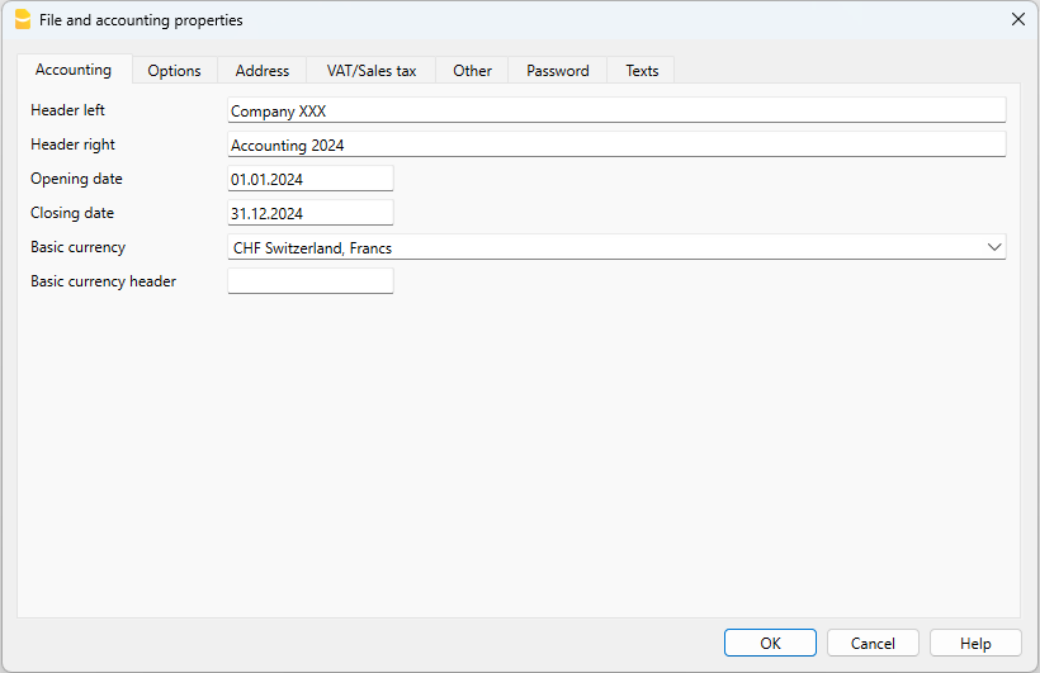
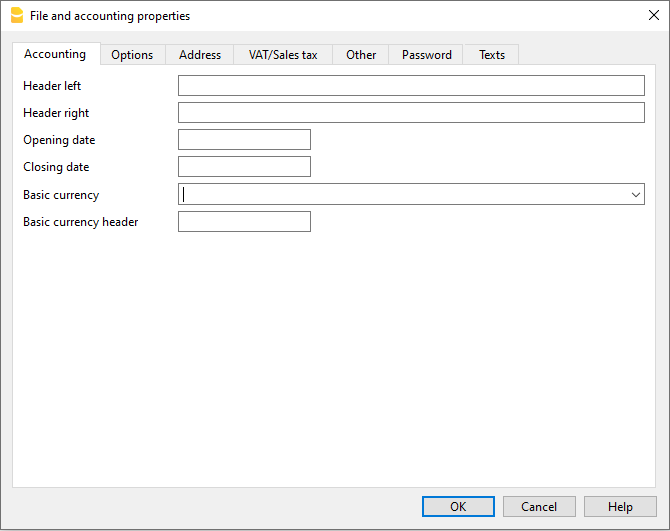
- 从文件 → 文件和账户属性命令,在抬头栏中输入公司的名称及其它数据。
- 选择会计记账的记账本位币。
保存到磁盘
使用文件 → 另存为命令,保存数据并给这个文件命名。操作系统会出现一个保存对话框。
- 建议使用公司名称及年份,比如 ”公司-2020.ac2.” 为文件名,将其与其它会计文件相区分。
- 可以根据需要保存多个会计文件,每个会计文件都可以独立命名。
- 您可以选择所需的保存路径 (保存到磁盘,U盘或云端)。
如果还希望将文档链接到当前年度的账户,则建议您为每个会计年度创建一个单独的目录,以便对所有文件进行分组。
程序的一般使用
Banana财务会计软件的灵感来自Excel,使用方法和命令尽可能的保持与 Microsoft Office 类似。
有关程序使用的更多信息,请参阅我们程序主界面上的说明。
会计核算包含在表格中,所有的表格都具有相同的操作方式。
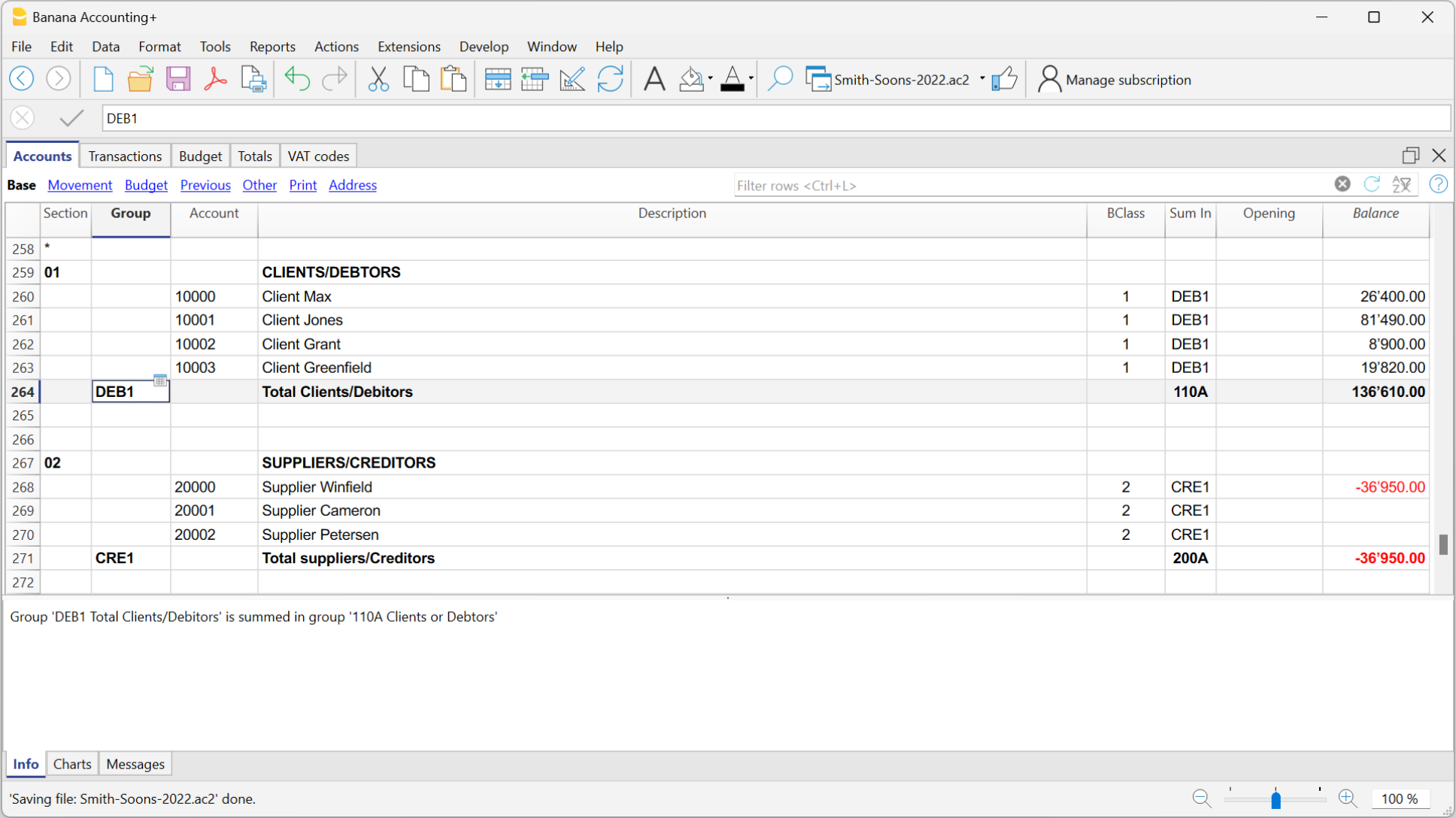
自定义账户表
在账户表中,用户可以自定义账户科目并根据自己需求进行调整。
可以这样做:
- 添加新的账户/或删除现有的账户 (请参阅添加新行的页面信息)。
- 修改账号和摘要 (例如,输入银行的名称),输入其它的组等。
- 要创建子组,请参阅我们的总组页面。
- 定义成本中心或部门,用于更详细和具体的方式对金额进行分类。
发生业务表
发生业务必须在发生业务表中输入,它们一起组成了日记账。
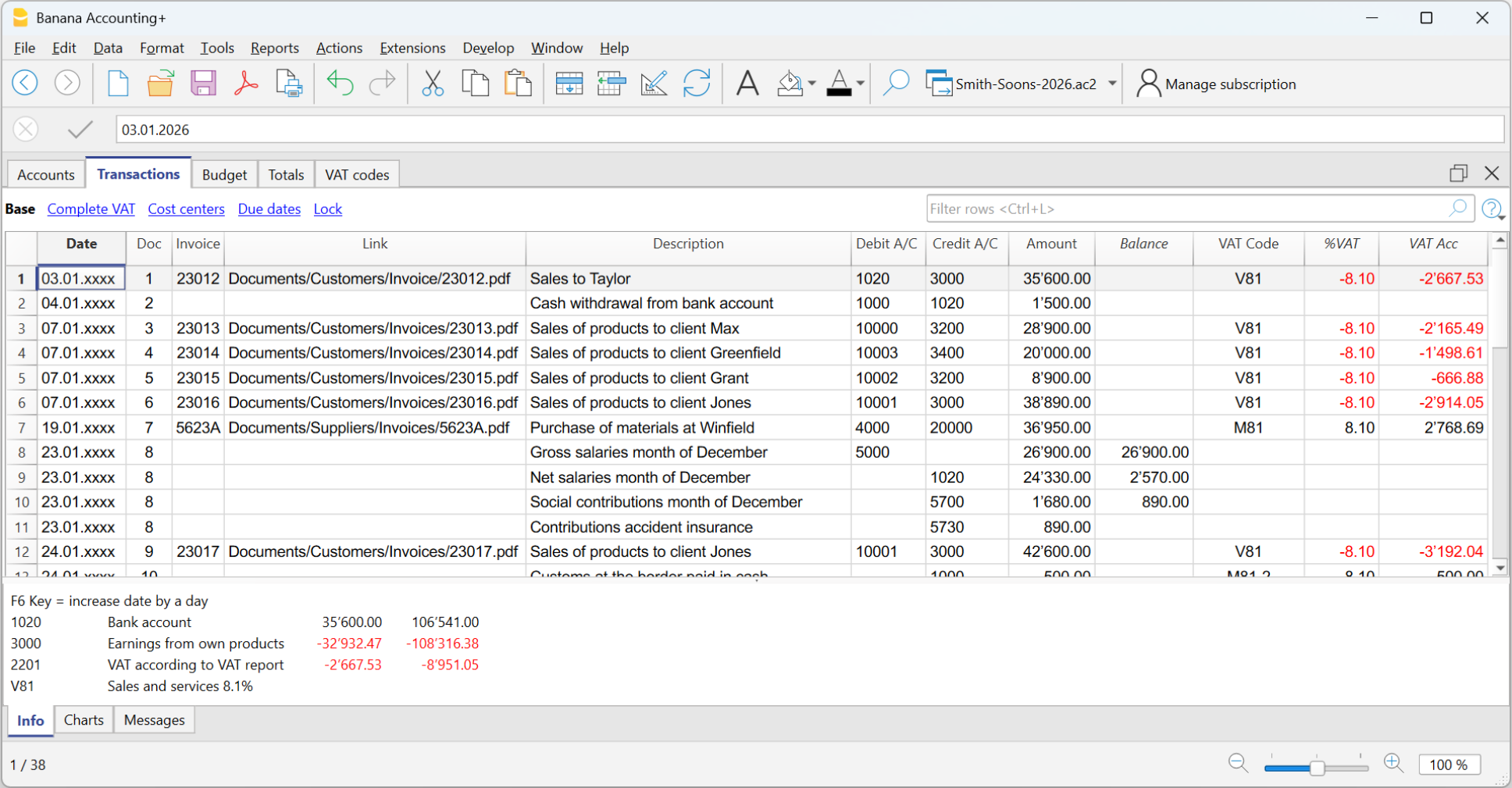
特定的列:
- 输入日期。
- 输入手动分配给纸质凭证的记账凭证号,一旦输入了会计发生业务,便可以轻松地找到单据。
- 输入摘要。
- 在借方列输入目标账户。
- 在贷方列输入原始账户。
- 输入金额。
- 在含增值税的会计中,输入总金额和增值税代码。程序会将增值税,净成本和净收入分开。
提高编辑会计凭证的速度
为了提高编辑会计凭证的速度,可以使用:
- 智能填充功能,系统自动填充以前输入过的数据。
- 经常性业务功能,将经常发生的业务存储在一个单独的表格中。
- 从银行或邮政对账单导入交易 - 将银行、邮政或信用卡对账单中的所有交易导入到会计文件中。
发生业务含增值税
为了输入含有增值税的发生业务,请按以下步骤操作:
多行发生业务
多行发生业务是涉及两个以上账户和多个账户或科目的借/贷方 (例如,从一个银行账户支付不同的账单)。在这种情况下,需要在多行中输入发生业务。
- 每一个借/贷方账户都有一行。
- 当所有的借方和贷方都输入后,差额应当为零。
有关更多详细的信息,请参阅发生业务类型。
检查客户和供应商发票
Banana财务会计软件可以让用户跟踪查看应收,应付发票及开具发票。详情请参阅:
账户明细
账户明细可以自动显示同一账户已经输入的所有发生业务 (例如,现金,银行,客户等)。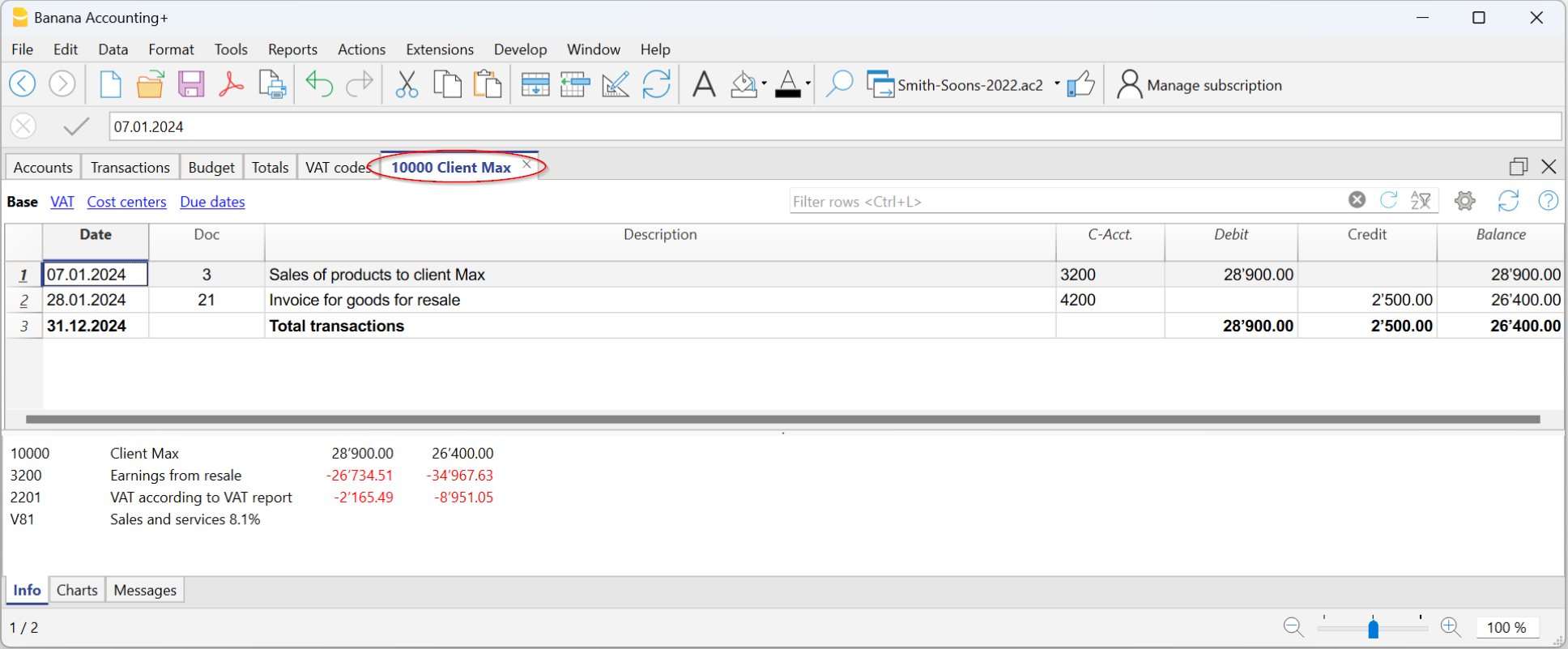
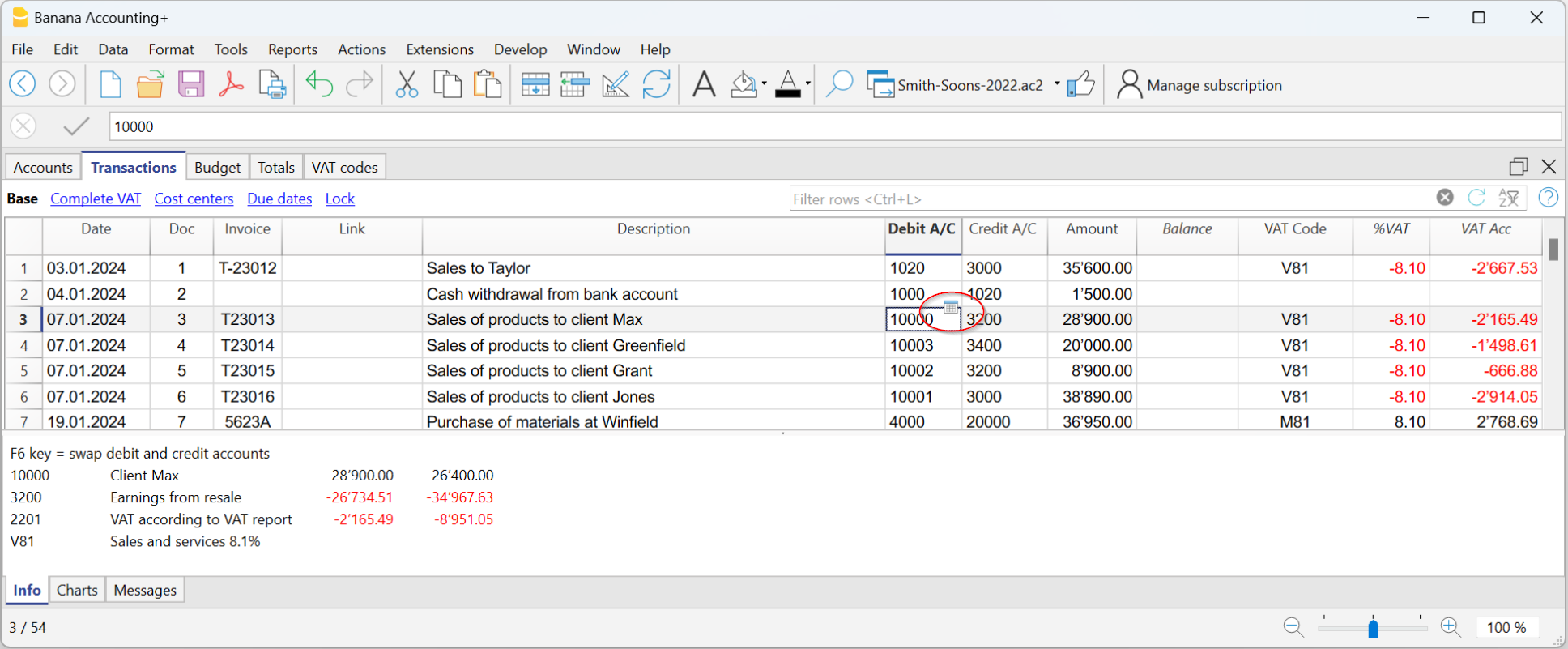
要打开一个账户明细,只需用鼠标点击账户代码单元格上出现的蓝色小箭头即可。
时期内的账户明细
要显示特定时期内的账户明细,请按照以下步骤进行:
- 报表菜单 → 账户明细。
- 在时期部分,通过输入时间段的开始日期和结束日期来激活选择的时期。
请查阅时期页面以获取更多的信息。
打印账户明细
要打印一份账户明细,请从任意一个 (账户或发生业务) 表中打开,并选择文件菜单下的打印即可。
打印全部或部分账户明细
打印全部或部分账户明细的步骤如下:
- 报表菜单 → 账户明细。
- 选择要打印的账户明细。
窗口中的过滤功能可以选择所有的账户明细,成本中心,部门,总组或可以简单地只选择需要的账户。
有关更多的信息,请参阅账户明细页面。
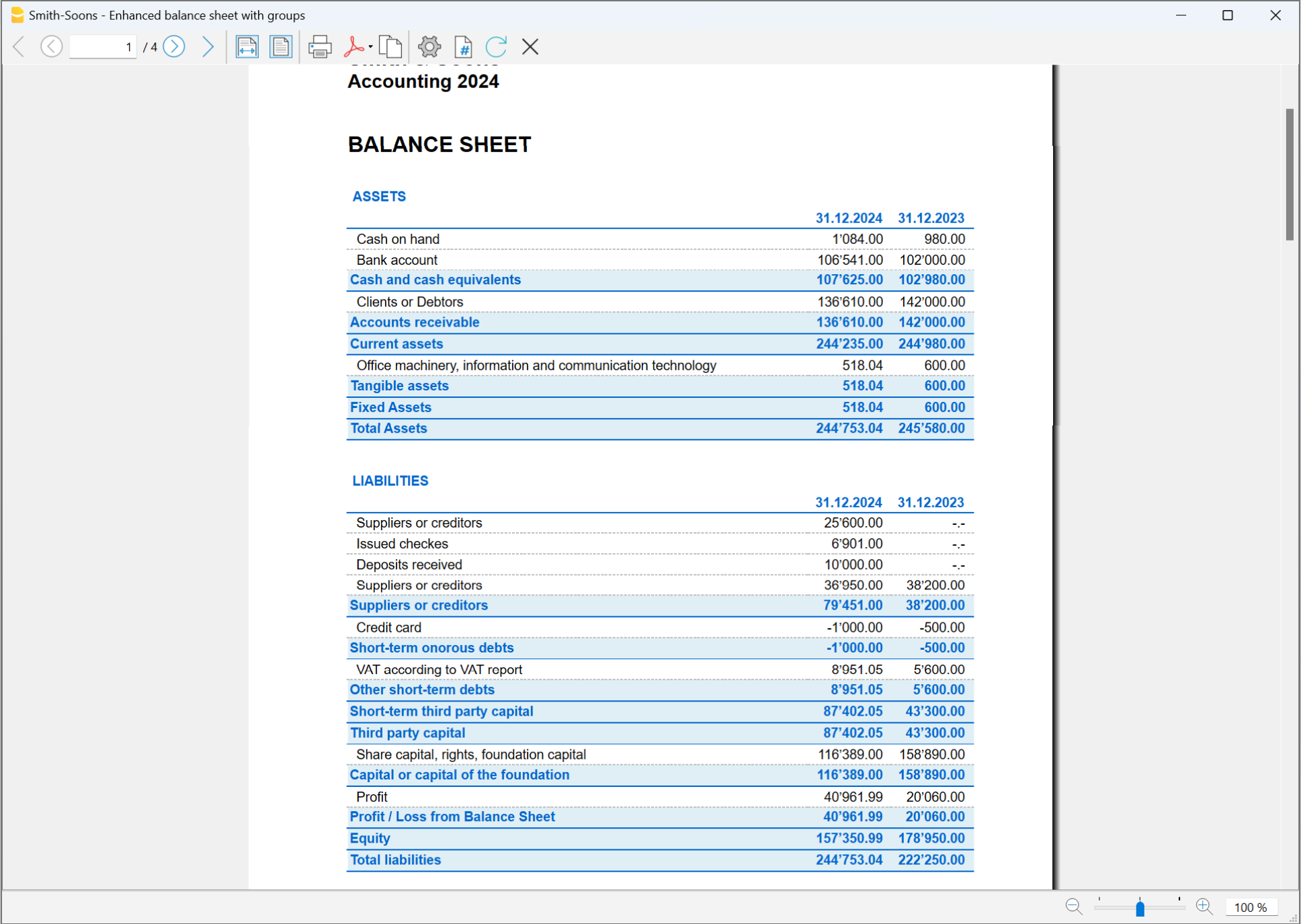
资产负债表
资产负债表显示了所有的资产负债类账户,资产和负债的余额,并确定股本。
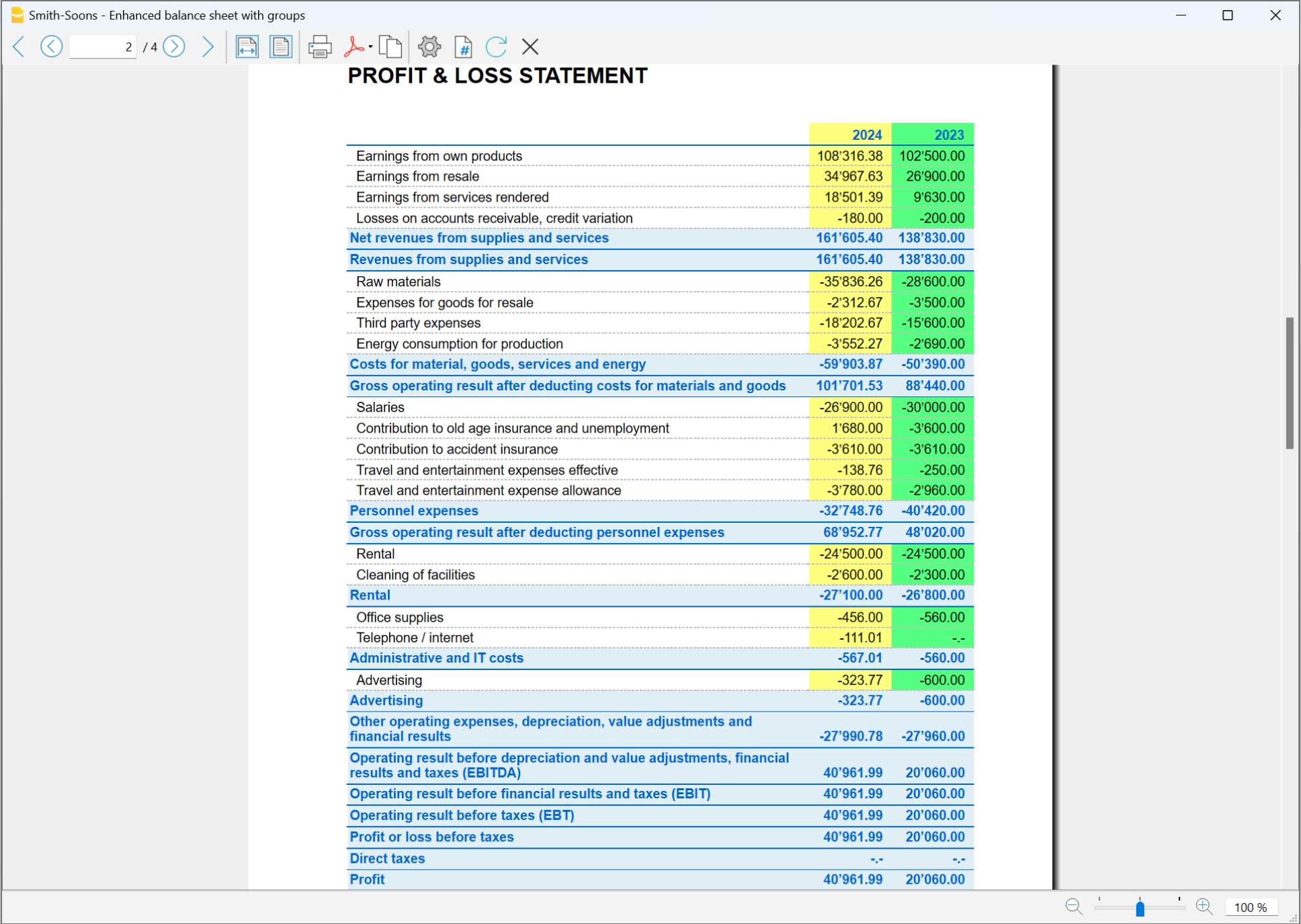
损益表
损益表显示了收入和费用账户,决定了本会计年度的利润或亏损。
打印资产负债表和损益表
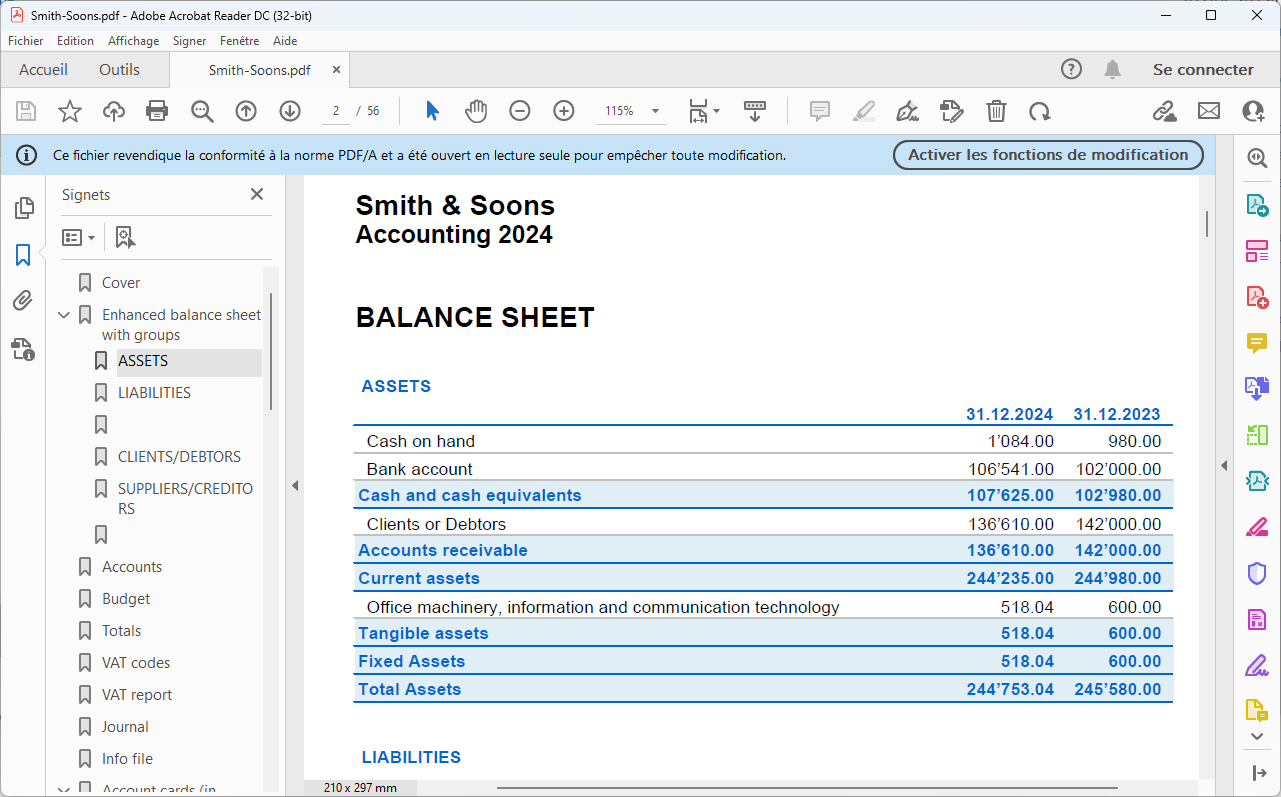
在Banana财务会计中,资产负债表和损益表可以用两种不同的方式打印和查看:
- 在生成资产负债表/损益表模式下,资产负债表/损益表显示了所有账户的简单列表,不区分总组和子组。
- 在按组生成资产负债表/损益表模式下,显示的是按总组和子组划分的账目余额;此外,还有许多在生成预算中不包含的自定义功能。
要打印财务报表和损益表的两种方法:
以PDF格式存档数据
在年度末,当整个会计核算工作完成,更正并审计后,所有的会计数据都可以存档。
- 文件菜单 → 创建PDF档案。
预算
在开始新的会计年度之前,您可以对成本和收入来进行估算,以便对公司的经济和财务状况进行控制。
预算表可以通过两种不同的方式来设置:
- 在账户表的年度预算设置,预算列。每个账户的年度预算金额都会显示。在这种情况下,当用户从报表菜单 → 按组生成资产负债表/损益表中详细制定预算时,预算列显示与整年相关的数据。
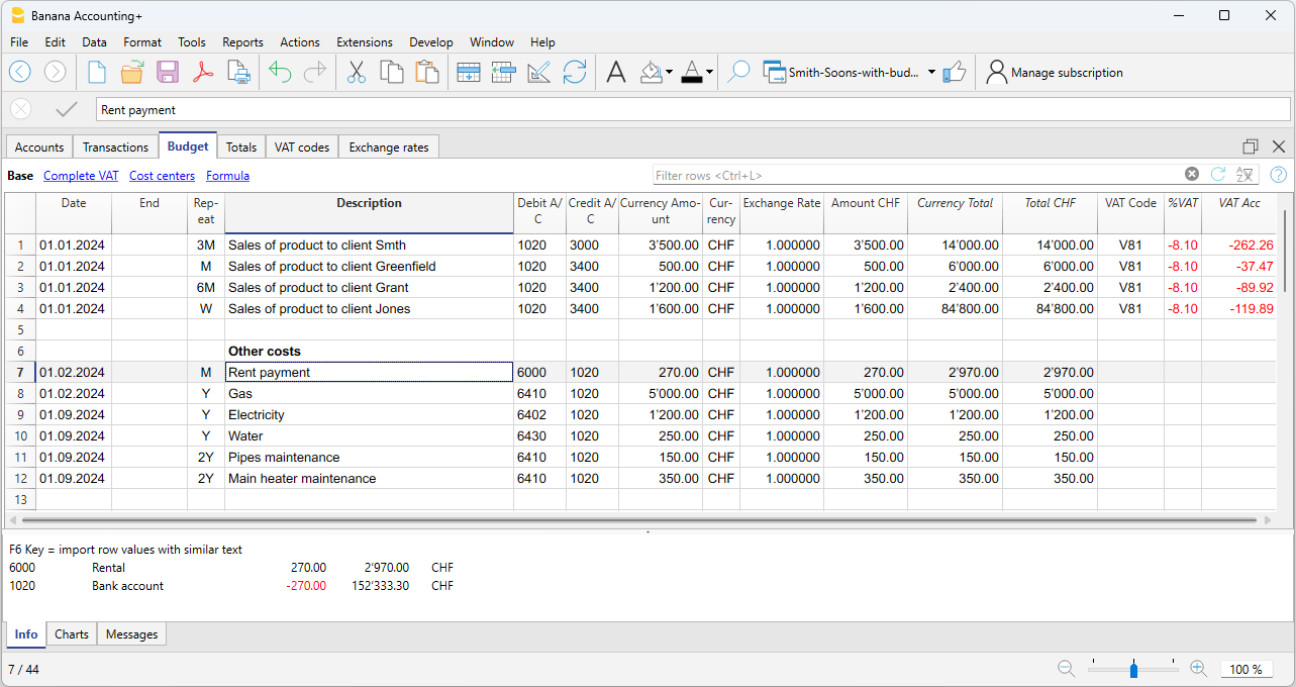
- 在预算表中设置预算。通过工具栏菜单 → 添加/删除功能来激活预算表。
该表记录了所有涉及成本和收入 (或收入和费用) 的变动,就和这些变动被记录在发生业务表中一样。如果激活了这个表格,账户表中的预算列则会自动停用。
有关更多的详细信息,请参见预算页面。
复式记账法的功能特点
在法律要求进行会计核算的情况下,复式记账的应用程序功能符合任何公司和实体的专业标准。
-
非常强大的记账工具,非常灵活,且易于使用,因为您可以选择激活或停用不同的功能。还可以在多个级别上管理主要的会计,以及结构化的会计科目表:使用增值税,客户和供应商管理,发票,成本中心和部门。
- 您可以随时对其进行编辑,为每个人提供量身定做的结果。 对于想快速工作,有经验的会计师以及初学者来说,都是理想的选择。 也被用于许多学校的会计教学中。
与Excel相似
类似Excel的功能和命令
- 您在表中输入的所有数据始终可见,并且随时可用。
- 您可以快速工作,因为您可以在多个单元格和多个行上进行选择,复制和粘贴重复的业务。
- 如果您输入有误,可以通过取消或恢复操作来更正错误。
- 无限添加任意数量的行,或删除不需要的行。
- 如果您在值,科目,增值税代码,摘要上输入有误,则可以使用搜索替换功能立即进行更正。
- 您无需输入公式,因为数据的计算会立即得到更新,并且具有视图 (如电子表格中的视图一样)。
- 您看到的所有内容都可以打印或导出为pdf或其它的格式。
- 您可以设置公司商标或Logo以自定义打印标题。
- 列是可自定义的,您可以按位置移动它们,添加新列并更改其宽度。
- 使用最适合您的格式。
- 涂上线条以立即识别您需要查看或显示给会计师的业务或需要完成的业务。
基于电子表格的软件
会计管理集中在两个表格中,这两个表格的使用方式与Excel电子表格类似,但已经完全设置好,并已编程好您所需的一切,以确保快速,安全地进行会计核算。
- 账户表格。
设置所有的流动性账户,客户,供应商等,然后输入期初余额,而不必在发生业务表中手动输入。您可以将多个账户组合在一起,例如现金账户,银行或流动性资金,以便拥有已更新的余额,您可以立即对其进行检查。 - 发生业务表格。
会计中心,在此输入或导入业务。 借方和贷方业务可以使用其它的信息来完成,用来管理客户和供应商,开具发票,管理成本/利润中心,细分,数量和价格以及您需要的其它任何信息。使用鼠标来上下滚动浏览表格,您将拥有所有业务的完整视图。您可以对其进行修改,以使会计核算保持完美的顺序。 - 合计表。
将按组显示总计,并用于检查会计余额。
可以添加其它表格,用来支持其它的功能。
- 预算表格。
使用复式记账法来准备财务预测。完成一年或多年的流动性计划,预算和损益表预测,客户,供应商,投资,项目,部门。 - 增值税代码表。
在发生业务表中设置所需的税率和参数,用来自动计算增值税和要提交给税务机关的报告。 - 项目表格。
设置要用于计费的项目列表。该程序会追踪您的收入和支出。 - 新表格。
以满足进一步的需求。
快速开始
模板
会计管理主要集中在三个表格上,这些表格的使用方式类似于Excel电子表格,但是它们已被完全设置和编程,并且具有快速而安全地保持会计核算所需的一切:
- 立即开始轻松记账,从模板开始创建会计文件。
- 如果您已经在Banana财务会计软件中拥有自己的模板,则可以使用所有的设置并上传到模板,并将其用于其它的会计记账。
- 超过1000个模板,可按国家和用户类型细分,可自定义并带有用户手册及在线文件。
- 直接在程序中轻松搜索和使用模板。
会计设置
- 自由设置会计货币,您可以从世界货币列表中进行选择,也可以自由设置 (加密货币)。
- 自由设置会计期间,如果需要,可以设置为几年,并且与1月1日至12月31日的经典期间无关。
- 在单个对话框中设置标题和会计数据,易于显示。
- 输入所需的小数位数,范围为0到27 (在记账时选择)。
- 您可以毫无问题地更改一年中的会计小数位数。
多语言
- 创建文件时,您可以自由选择会计语言。
- 根据需要自定义列标题。
- 您可以同时以多种语言运行会计文件。
- 也可以多种语言设置打印的文件及报告。
文件和数据保存
- 所有数据都保存在一个文件中,您可以在其中轻松地检索所有内容而不会浪费时间。
- 每年创建一个单独的文件。 所有数据的均以年份为准,没有混淆。
- 为文件命名。
- 一个许可证即可管理无限数量的账户。
- 数据完全由您拥有。
- 将您的数据保存到任何多媒体设备,计算机,网络,云或可以通过电子邮件发送。您可以随时随地对其访问。
- 多个用户可以同时访问文件,但在同一时间只有一个用户可以打开正处于编辑模式的文件。
- 通过使用密码保护来使您的会计更加安全。
计划-执行-控制
在同一个文件中,并且始终使用复式记账法,您可以保留会计或预算,或同时保留两者。可以非常直观的使用强大的计划-执行-控制的方法。
复式记账法
- Banana财务会计软件可以使用复式记账法进行会计核算,并且符合国际标准。
- 符合任何会计核算的标准。
- 在任何国家均可使用。
- 含有借方和贷方列的发生业务。
- 如果在发生业务表中存在不平衡,您将收到相关的信息提示。
金额以计算机使用的格式显示在列中,您不必习惯其它不熟悉的格式。- 借方金额以正数表示,贷方以负数表示。
- 根据“借方-贷方= 0”方程进行计算。
- 资产负债表,损益表和所有典型的会计打印输出。
- 均可客制化所有的打印输出。
- 选择显示的格式。
- 根据现金或应计原则进行的发生业务。
- 利用尖端的区块链技术 (专利方法) 保护您的数据。
- 全世界很多学校都使用复式记账法来教学会计。
会计科目表
- 完全可以客制化的会计科目表,可以更好地满足您的需求。
- 同一会计科目表用于会计核算以及财务计划,资产和收入预测。
- 资产负债表和损益表可根据您要求的结构和内容进行调整。
- 我们支持任何国家,国际或免费的分组计划。
- 资产负债表外的账户用于管理不应包含在预算中,但需要写下来的项目。
- 自由选择您的账户ID (数字或字母数字账户,最多256个字符)。
- 您可以自由输入摘要的文字,最多256个字符。
- 不再需要在会计记录中输入初始和最终的余额。
仅在您首次使用Banana财务会计软件的时候,才需在账户表的期初列中输入余额。在接下来的几年中,结转都是自动的。 - 余额,账户动向和总计在上下文中显示,并始终是更新的状态。
- 对于每个客户,供应商,合作伙伴的账户,您都有用于输入地址和其它所需数据的列。
- 添加其它列用于注释,分组或金额。
- 如果添加金额列,它们将自动合计。
因此,您可以使用自己的数据创建列并选择非常详细的细节。
发生业务
- 您可以输入单笔业务或复合业务。
单个业务记录在一个单一的行中,而复合业务的记录使您可以轻松记录影响多个账户的发生业务。 - 您可以使用现金或能力方法输入。
- 输入数据时,系统会显示已经存在的文本供您选择。只需单击一下即可完成登记 (自动完成)。
- 立即报告错误和差额,并拥有在以后完成的可能性。
- 存储重复操作,用来在它们重新出现时恢复它们,而不必重写。
- 预定义列的列在所有表中均可用,并且可以根据您的选择显示。
- 数量和价格列,用于开票或成本控制。
- 同时为不同编号的文件自动编号。
- 通过将数字会计凭证 (pdf,图像) 连接到文件,然后单击以打开文件。
- 输入最多256个字符的文字,也可以多行输入。
- 涂上线条用来立即搜索您需要检查或以后要更正的业务,或将其报告给审计师。
- 添加列以输入任何更多信息。
- 保存列 (视图) 的排列以查看对您最重要的内容。
- 有关账户余额,差额或错误的上下文信息。
- 在定期或年终结算之前,您可以使用检查账务的功能。
您将能够识别实际余额之间的错误 (例如,报表提供的银行余额和会计的余额)。您将立即注意到错误,并且可以更正所有的内容。 - 动向导入:
- 通过从数字银行对账单导入数据来加快发生业务的记录。
- 您可以导入银行提供的不同格式的业务。
- 导入的行可以编辑,完成或删除。
- 它还可以导入发票数据或从其它软件导入。
财务预测
- 如果需要创建预算,则可以通过添加预算表来激活功能。
- 基于复式记账法,可以轻松地使用您已经习惯的方法进行工作。
- 完成流动资金计划的财务预测。
- 预算预测。
- 损益表预测。
- 几年内的自动预测。
- 像输入发生业务的方式输入预算业务。
- 一笔业务设定的经常性收入和支出。
- 会计中可用的所有功能:
- Javascript中的计算公式,可访问当前预测的值:
- 营业额增长计划。
- 计算佣金和成本在占销售额的百分比。
- 折旧计算。
- 利息计算。
- 变量的使用。
- 会计打印输出中可用的预测值:
- 包含按账户或组预测动向的账户明细。
资产负债表和损益表
- 带有最终数据或预算数据,或两者兼有的报告,并带有变量指示。
- 有分组和总组的自由安排。
- 更新结果直接显示在账户表中。
- 客制化打印:
- 添加您自己的商标 (logo)。
- 选择要包括的列。
- 选择要包括的部分。
- 每组的详细数据信息或打印输出。
- 每个周期的打印输出。
- 按期划分的列 (月,季度,学期,年)。
- 上一年的值。
- 比较预测值。
- 按部门细分的列。
- 添加了附件信息。
- 根据会计科目表或根据您自己的方案进行分组。
- 保存合成。
- 表格报告 (类似于可自定义的打印输出,但表中包含数据)。
- 导出至pdf,用来保存数据。导出其它格式,用来进行数据处理。
其它会计打印
- 可以打印全部的内容或仅打印所选择的部分。
- 添加您自己的商标 (logo),个性化文档和打印。
- 日记账。
- 含总组和账户动向的账户明细:
- 包含会计核算或预测的动向。
- 按期间划分。
- 按账户,组,成本中心或细分划分。
- 会计核算或预测的数据。
- 可定制的列安排。
图表
- 可以在表格的最下面看到相关的内容。
- 不同的式样。
- 每个账户和组的演变。
- 会计价值。
- 预测。
- 上一年。
- 图表类型的选择。
进一步管理
该程序还允许您在发生业务中添加其它的信息,从而使您可以使用增值税管理所需的相同数据,跟踪客户和供应商,开具发票,为项目或业务部门生成报告以及承担各种公司和税收义务 。
增值税管理
- 可以选择启用该功能 (在创建会计核算时)。
- 增值税代码表指示不同的增值税率和具体事件。
- 支持所有国家的规范。
- 也可以用于管理其它类型的营业税 (例如,美国营业税)。
- 输入增值税代码。
- 增值税冲销功能 (使用带负号的增值税代码)。
- 根据净额或毛额计算增值税。
- 在指定的增值税账户上自动分类和注册。
- 增值税控制报告:
- 按期间或完整的。
- 包含或不包含动向。
- 可选项目,带有每个费率的总计,增值税代码,账户。
- 根据相关税务机关的要求,在全国范围内扩展了增值税报告功能。
客户管理与控制
- 您可以选择需要激活的功能 (在账户科目表中添加账户)。
- 检查发票和客户付款。
- 在会计科目表中设置的客户主数据。
- 为不同组中的客户创建组和总计。
- 每个客户的未结发票或全局概览。
- 客户变动账户对账单和未结发票。
- 自动对账,开具发票。
- 客户管理也可以作为成本中心 (以现金为基础)。
给客户的发票
- 您可以选择需要激活的功能 (使用发生业务表格中的发票编号列)。
- 直接在发生业务表中输入发票。
- 需要建立客户数据库。
- 像填写发生业务那样输入发票的数据。
- 查看开具的发票并打印给客户。
- 指示数量和价格的列。
- 包含或不包含增值税。
- 修改,修正的可能性。
- 点击即可打印一张发票,也可以打印多张发票。
- 可以选择不同的打印式样。
- 根据您的喜好自定义发票。
- 通过扩展程序以数字格式导出。
- 通过扩展程序自定义提醒。
- 通过扩展程序自定义客户账户的对账单。
供应商管理
- 您可以选择需要激活的功能 (在账户科目表中添加账户)。
- 在会计科目表中设置的供应商数据库。
可以将供应商分为不同的组。 - 发票和付款由供应商控制。
- 每个供应商的未结发票或完整报告。
供应商流动账户的对账单和发票仍未结清。 - 自动对账,开具发票。
成本和利润中心
- 您可以选择需要激活的功能 (添加成本和利润中心的账户)。
- 对于项目,是成本核算或盈利能力。
- 直接在会计科目表中设置成本中心。
- 多层次分组。
- 成本和利润中心的三个层次。
- 每个级别的成本中心数量不受限制。
- 负登记 (使用负号)。
- 资产负债表和损益表等财会报表:
- 余额会不断得到更新。
- 客制化的报告。
- 具有渐进平衡的所有动向明细。
- 图表。
部门
- 您可以选择需要激活的功能 (通过添加部门的账户)。
- 部门的列。
- 一个或多个业务部门的资产负债表和损益表。
- 直接在会计科目表中设置部门。
- 多层次分组。
- 多达10个细分级别。
- 每个级别无限数量的部门细分。
- 实时更新余额。
- 各种财务报表,例如资产负债表和损益表账户的报告:
- 每个部门的资产负债表和损益表。
项目表格
- 用于发票以及集成仓库或证券管理。
- 将项目链接到发生业务表的动向。
- 自动更新进出的动向。
- 初始值和最终值。
- 添加其它列。
控制和结束
错误报告和会计控制
- 检查账户的命令。
立即重新核算会计账套,就好像再次输入所有操作一样。 - 报告任何错误的设置,差额或错误。
- 每个报告都链接到一个帮助页面,该页面会解释原因并提出解决方案。
- 检查账户余额是否与实际余额 (现金,银行,增值税) 匹配。
- 错误提醒和提供解决方案的功能。
保护发生业务
- 行保护。
- 通过区块链技术确保会计发生业务的数据及动向不被篡改 (比特币类型)。
- 密码保护。
- 符合法律要求。
- 确定发送给审核员的数据不会被篡改。
- 按日期解锁动向。
结束和新年
- 自动程序创建新年的文件。
- 结转余额和利润分配。
- 即使上一年尚未结束,也可以在新的一年开始工作。
- 结转上一年的期末余额。
导出和存储数据
扩展程序和其它功能
添加的功能
- 增加新功能。
- 删除不再需要的功能。
- 从一种会计类型转换为另一种会计类型:
- 包含或不包含增值税的会计。
- 多币种会计,反之亦然。
- 从收益&费用核算到复式记账,反之亦然。
文件表格
其它附加表格
- 添加其它表格,可在其中输入附注信息或其它信息。
- 可以通过在表中添加列来自定义表格。
扩展程序
- 针对不同的打印,和其它功能默认的扩展程序。
- 快速搜索和安装。
- 可定制的扩展程序。
- 自动更新
- 能够创建和安装您本地的扩展程序。
综合文件
文件和账户属性
会计科目表 | 复式记账会计
账户表是您的会计文件的控制室,其用法类似于Excel表格。
在账户表中,设置管理会计所需的所有内容,并可快速更新公司财务和经济状况的概览。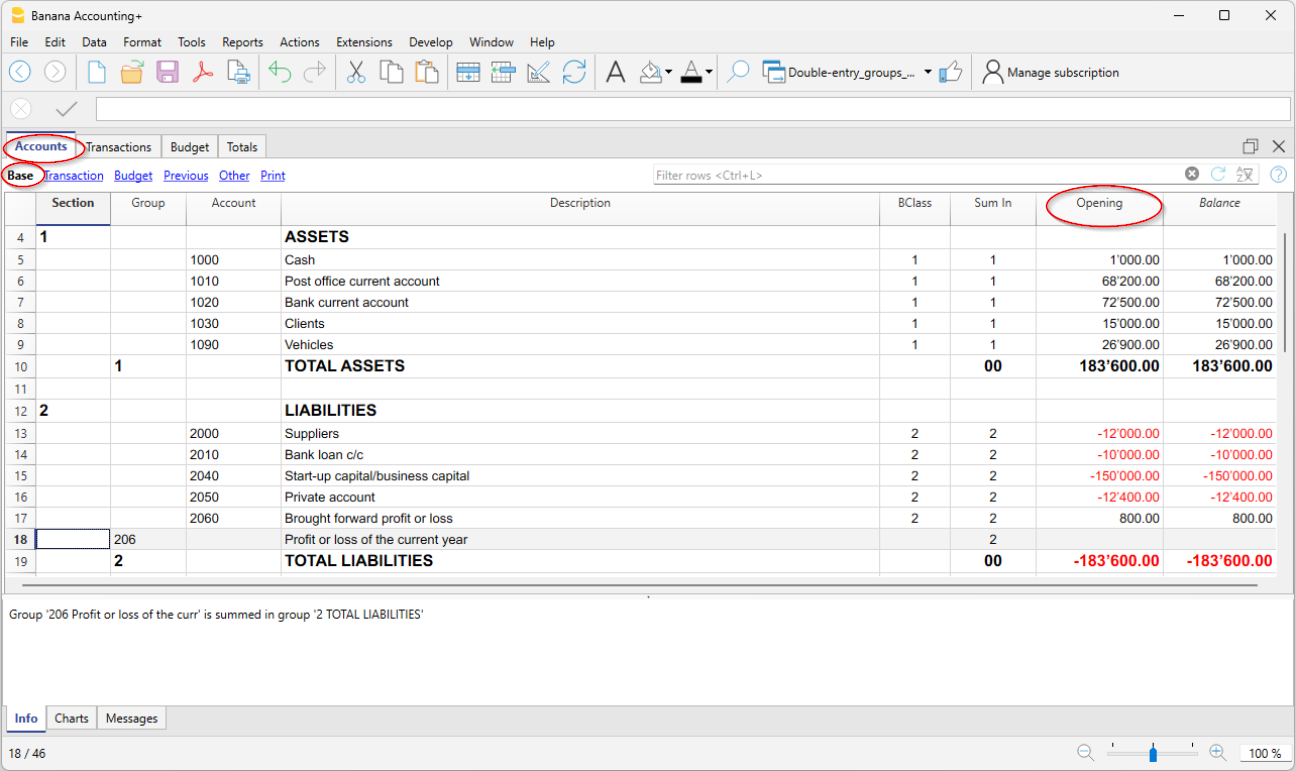
输入和编辑数据很简单
- 只需简单地插入或删除行,即可快速轻松地添加和修改账户。
- 对于账户表中要添加的账户没有数量限制。
- 可以使用数字或文本设置每个账户。
- 摘要可以很长。
- 可以自由安排总组和所属组,用以构成资产负债表和损益表。
- 期初余额立即输入到期初列中。
- 可以添加列以输入其它信息。
- 在发生业务表中也可以对账户进行重命名或自动替换。
- 金额列会立即更新。一眼可见流动性,资本,销售及利润状态。
- 然后设置预测并与最终余额进行比较。
灵活的分组系统
分组系统具有高度的灵活性和强大的功能:
- 它允许根据国家计划来设置会计科目表,并完全适合公司的需求。
- 如果您对账户和总组的排列或编码不满意,也可以轻松更改它们。
账户表中的会计结构和财务报表,损益表中显示的会计结构保持一致。
主要要素
- 类
它们用于指示会计科目表的细分,用以打印资产负债表,损益表等。 - 总组
它们允许您创建在多个级别上汇总账户和所属组的项目。 - 账户
这些是记录变动的会计要素。可以根据变动的性质,目的或起源,将它们显示为借方或贷方。
每个账户都有一个数字或缩写 (账户编码) ,摘要,基本类和其所属的总组,期初余额,当前余额,预算等。
客户和供应商数据
您可以有开具发票和检查付款的特定账户,它们通常设置在账户表的末尾,可以将它们设置为与资产负债表链接的总计进行登记,也可以将其设置为成本和利润中心,并包含所有详细信息,但不链接至资产负债表。
成本和利润中心
非常适合管理项目或具有特定事件的精确细节,或根据现金原则 (收到) 来管理客户和供应商。
- 成本和利润中心
它们是特殊账户,在其编码前带有一个句号 "." ,一个逗号 "," 或一个分号 ";" 。其目的是为了能够将一些金额分配到除基本会计账户以外的特殊账户。
部门
用于获取公司经营的不同部门或活动的财务报表。
- 部门
它们类似子账户,在号码之前有一个 ":" 。其目的是能够将一些发生业务分配给会计计划的子类别。
高级打印输出
- 会计报告
可以仅选择带有发生业务的账户,以获得临时分组或根据基本类或外部分组方案而对账户进行分组。 - 生成资产负债表
打印所有根据资产,负债,费用和收入划分的会计账户。 - 按组生成资产负债表
允许用户根据组获得自定义的打印输出。 - 可使用Banana扩展程序获得特定的高级打印输出。
会计科目表中的列 | 复式记账
账户表由几列组成。根据表格设置的不同,列会同时显示,每列都有其自己的功能。
以下各列中输入的数据解释如下:
- 类
当打印按组生成资产负债表时,输入的代码允许用户只打印会计科目表的确定部分。 - 总组
包含了定义组内行的账号。组的账号被用于所属组的列中,去指示一个账户或组的总计。 - 账户
帐号,成本中心或部门被输入。 - 摘要
指示账户名,组或类的文本。 - 禁用 (仅在其他视图中可见)
通过输入1,该账户不会出现在自动完成列表中,但可用于发生业务表中;
通过输入2,该账户被禁用,并无法使用。 - 基本类
它指出账户为1=资产,2=负债,3=费用,4=收入,查看账户。
- 总和 (所属组)
表示一个组的代码,以便程序合计该组中的行的数量。
在 Banana财务会计+ 中使用“总和”作为在表格中显示的列标题。
列的名称仍为所属组,以保持与之前版本的兼容性。 - 所属组1和所属组2
附加的分组码与外部会计报告文件一起使用。
- 期初余额
- 在年初输入账户余额。
-
在贷方金额的前面必须加一个负号。
-
属于1,2,3和4类的账户的所有金额,即总的借方金额 (正值) 和贷方金额 (负值) 必须平衡,差额应当为零。如果期初余额不平衡,则在信息窗口会显示差额。如果用户添加了账户,而差额不正确,则需重新检查。
- 在资产负债表账户中的期初余额用于计算当前余额。
- 如果已经在预算表中输入了金额,则程序将期初余额用于期初财务计划。
- 更多信息,请参见复式记账期初余额页面。
- 借方变动和贷方变动 (受保护列)
这些列会自动显示发生业务表内借方到贷方列的总计。
- 如果没有错误,两列的总数是平衡的,否则在余额一列中会显示出差额,必须对其进行检查和纠正。
- 在标有差额必须为零的一行中,关于这两列,有金额是正确的,重要的是这些金额是相等的。详见会计的数学基础页面。
- 余额 (被保护列)
账户的余额包括初期余额以及借贷双方的变动。借方余额为正,贷方余额为负 (负号) 。 - 预算
输入当前期间的预算金额。-
预算金额中费用 (借方) 必须输入正值,收入为负值 (贷方)。
-
如果激活了预算表,则账户表中的预算列将受到保护,并且金额是根据预算预估值计算得出的。
-
-
预算差额 (受保护列)
余额和预算额之间的差额。 - 上期
该账户在上一年度的期末余额。
使用命令建立新账或更新初期余额,前一年文件的余额列中的值会被结转。
当一个新的账户被创建,用户希望获得打印输出前一年的数额,那一年的值必须手动输入。 - 上年差额 (被保护列)
余额和上年金额之间的差额。 - 增值税号码
增值税号码在一些情况下连接到客户或供应商。 - 增值税代码
当账户在业务列被输入为借方账户或贷方账户的时候, 增值税代码需被自动应用。 - 地址列
这些列用于输入客户和供应商账户的地址。如果这些列不存在,可以通过工具 → 添加/删除功能 → 在账户表中的添加地址列菜单激活它们来添加。
添加或移动列
- 当在会计科目表内添加了金额列,该程序根据所选分组的方案进行总量合成。
-
相反,被添加列的号码类型不被汇总。
- 使用列设置命令,该列变得可见,序列可以被改变,也可以添加其它的列。
- 使用页面设置命令, 用户也可以自定义打印 (纵向或横向) 和缩放的布局。
根据摘要或其它标准来排序账户列表
要获得以不同方式排序的账户列表,请使用数据菜单中的提取和排序行命令。我们建议您在用不同的标准对行进行排序时要非常小心,以免在分组和总计中造成混乱。
视图
- 基本 显示主要的列,分组列和余额。
- 发生业务 显示拥有借贷业务的列。
- 预算 显示的是预算列和预算差额列。
- 上期 显示的是前一列和上年前列的差异。
- 其它 禁用列,增值税代码和会计代码列被显示。
- 打印 只有账户列,描述和余额被显示。
视图可被自定义,其它视图可以通过表格设置命令来添加。
账户 | 复式记账
账户构成了所有会计的主要结构。如果打开Banana财务会计中包含的一个模板,则账户已经存在于账户表中,并包含所有需要的设置,以即时记录发生业务表中的发生业务。
账户表中的账户划分如下:
- 资产负债表账户 - 资产和负债。
- 损益表账户 - 费用和收入。
- 客户和供应商的主要数据。
- 成本和利润中心账户 - 用于管理项目或保存客户/供应商登记。
- 部门账户 - 用于管理业务分部或分支机构。
基本类账户
基本类对于正确的金额和余额的总计是至关重要的。在基本类列中,必须为每个账户分配下列数值之一,无论其属于哪个账户编码或组:
- 1 - 资产
- 2 - 负债
- 3 - 费用
- 4 - 收入
总组和子组没有基本类,所以相关列的单元格保持为空。
资产负债表外基本类账户
资产负债表外账户是指其金额和余额不在资产负债表和损益表账户合计的账户。它们在账户表中,是用以查看担保和有条件承诺的账户。
资产负债表外账户必须有以下基本类:
- 5 为资产负债表外资产
- 6 为资产负债表外负债
- 7 - 10 - 其它资产负债表外账户
添加一个新的账户或科目
在账户表的基础视图中,您可以添加新的账户 (或在收益 & 费用核算中添加新的科目) 。
在添加一个账户或科目之前,重要的是要知道:
- 账户或科目编号可以由数字、字母和分隔符组成。
- 不能有多个账户或科目有相同的编号。
- 每个账户都必须有一个总组 (Gr) 和一个基本类 (BClass) 。
添加账户或科目步骤如下:
- 转到要插入新账户或科目的行前。
- 使用编辑 → 插入行命令。
- 在相应的列中填写账户或科目编码、摘要、基本类 (1 代表资产,2代表负债,3代表费用,4代表收入 - 仅适用于复式记账) 。总组的数量必须与为属于同一组的账户输入的数量相同。
警告:如果您输入的发生业务的账户在账户表中不存在,而是在创建新账户后才输入,您会收到一条错误信息:为了消除它,有必要使用 Shift + F9 命令或通过操作菜单 → 刷新合计来重新计算会计。
重命名账户
这是一个非常有用的功能,因为它允许当您更改一个账户时,在发生业务表中可同时进行替换。它避免了必须为包含先前帐户的每笔发生业务更改帐户。此外,它还允许您重命名总组或增值税代码。
- 在账户表中,转到账户/科目或总组列,或在增值税代码表的增值税代码列。
- 使用数据 → 替换命令。
- 指明新的帐户编码,总组,科目或增值税代码。
程序会用新的增值税号码或代码自动更新发生业务表。
删除账户
如果一个账户已经启用,在删除这个账户之前,请确认该账户没有被使用,或者在发生业务表中没有期初余额。
- 找到要删除的帐户行。
- 使用编辑 → 删除行命令。
删除账户或科目后,建议使用操作 → 刷新合计来进行重新计算。如果被删除的账户或科目在发生业务中被使用,程序将报告错误信息。
账户的期初余额
账户的期初余额显示在期初列中。
- 借方 (资产) 余额正常显示。
- 贷方 (负债) 余额在金额前用一个减号 (负号) 表示。
- 通常,只显示资产和负债账户的期初余额。
要将期初余额自动结转到下一年度,请参见创建新年账教程。
有关期初余额的更多详情,请参见期初余额页面。
期初余额的差异
为了进行正确的会计核算,期初借方余额的总额必须与期初贷方余额的总额相一致,这样才不会出现差异。
如果总数不一致,将在信息窗口中通知初始余额之间的差异。
如果有任何账户编号被改动,并且有差异,请执行完整的刷新合计。
第一次使用Banana财务会计时,要建立期初余额,需要手动输入期初余额 (期初列) , 确保输入的负债类余额在金额前加负号 (-) 。
更多关于期初余额的详细内容请参见:
客户和供应商账户
客户和供应商账户可被直接输入资产负债表的类中,列出每个客户和供应商的账户,并建立两个不同的合计组,在资产中是客户,在负债中是供应商。如果客户和供应商非常多,可以在会计科目表的最后创建一个客户/供应商分类账。
有几个设置选项:
- 直接在财务报表中设置,在资产和负债中分别列出客户和供应商。
- 在会计计划结束时,设置客户/供应商登记,并在财务报表中报告总计。这种设置对于那些采用权责发生制方法管理增值税的人来说是非常理想的。
- 在会计科目表的末尾设置成本和利润中心,不在资产负债表中进行合计。
这种设置对于采用收付实现制管理增值税的人来说是理想的。
带地址的账户
在账户表的地址视图中,有一些列可以输入客户、供应商或会员的地址。如果地址视图的列缺失,可以添加它们:
地址列是能够管理账单、提醒以及控制付款和收款的必要条件。
更多详情可在地址页面查看。

成本和利润中心账户
它们是项目管理的理想选择,对特定事件具有精确的细节或任何其它需求。
- 成本和利润中心
它们是数字前面带有句号 "." ,逗号 "," 或分号 ";" 的帐户,用于将会计发生业务金额分配给其它账户,相对于基本会计账户。
所有归属于成本和利润中心的金额都与资产负债表和损益表分开,完全出于提供信息的目的。
部门账户
还有公司经营的不同部门或活动的财务报表。
- 部门
它们类似于子账户,编号前用冒号 ":" ,用于将会计业务归入子账户科目。
添加,重命名,移除账户和科目
添加一个新的账户或科目
使用Banana财务会计软件,可以通过添加或删除账户和科目来客制化会计科目表。
添加一个新账户或科目的步骤如下:
- 把自己定位在您想添加新账户的上一行。
- 点击编辑菜单 → 添加行的命令来添加新的行。
- 在相应的列中输入:
- 账号
- 摘要
- 基本类 (1是资产, 2是负债,3是费用,4是收入)
- 所属组 (总和) 要与之前输入的相对应的总组的内容一致。
如果您在账户不存在的情况下先输入了一笔发生业务,然后您才在会计计划中创建了新的账户,那么您会首先收到一个错误信息的提示,只有在您使用Shift + F9键重新检查会计账户后才会消失, 或者点击操作菜单 → 检查账务的命令。
添加一个新的总组
如果你想要新的合计组,步骤如下:
- 把自己定位在您想添加新的总组的上一行。
- 点击编辑菜单 → 添加行的命令来添加新的行。
- 在相应的列中输入:
- 组的号码
- 组的摘要
- 您希望在其中汇总该组的分组号码 (总和列)。
重新命名一个账户、一个组、一个科目或一个增值税代码
这是一个非常实用的功能,允许您重新命名一个账户、一个科目、一个组或一个增值税代码,并在发生业务表和预算表中自动进行替换,而不必手动输入。
重命名其中一个元素的步骤如下:
- 把自己放在需要重命名的账户或组 (账户表) 或科目 (科目表) 所在的单元格中。
- 如果有必要重新命名一个增值税代码,就需要在增值税代码表中把自己放在要替换的单元格上。
- 点击数据菜单 → 重命名的命令。
- 输入新的账号,总组,科目或增值税代码。
删除一个账户、一个组、一个科目或一个增值税代码
- 把自己定位在需要被删除账户的那一行。
- 点击编辑菜单 → 删除行的命令。
- 输入想要被您删除的行的数字。
在删除了一个账号,总组,科目或增值税代码之后,需要点击操作菜单 → 检查账务的命令。如果被删除的账号或总组是被使用在发生业务表中的,系统会发出一个提醒您的警告信息。
当删除了一个组时,属于被删除组的所有账户都没有被删除,您必须更改剩余账户的总和列中的分组号,否则软件会报告错误。
总组
分组和总计系统
Banana财务会计软件开发了一个非常实用和直接的分组系统,它允许您在账户表中设置定义资产负债表、损益表和其它会计部分结构所需的所有信息。
分组系统是很灵活的;它允许您实施任何国家的会计科目表,同时使其适用您业务的具体需要。无论是非常简单的还是非常复杂的计划和演示,都可以为每一种会计类型创建多层次的总计。
此软件的另一个优点是,它允许您立即看到结果。在每个账户和组的旁边,可以立即看到余额、变动和预算。当您编辑文件时,总计会立即得到更新。
Banana财务会计软件的分组和总计系统基于账户和科目表的两列:
- 总组 (总行)
- 在一个行中,当一个组的标识符被输入,该行将成为一个总行。
- 在包含相同标识符的所属组列的行中,其数额将被汇总。
- 当一个组存在时,则不可能有一个账户。
- 总和
- 对指定组别中的行数进行加总。
- 对于每个账户或组的行,要指出该行要被合计的组。
- 这里的数字必须是总组列中定义的数字之一。
设置会计科目表的结构
Banana财务会计中的会计科目表主要可以通过两种不同的方式设置:
1. 没有子组 (或小计) 的结构
在这种情况下,结构非常简单。您列出没有子组的所有账户,并汇总主要组中的所有账户或科目:
对于复式记账:
- 资产
- 负债
- 收入
- 费用
用于收益&费用核算或现金日记账 (科目表):
- 收入
- 费用
2. 包含子组的结构
结构更复杂。主要组的账户或科目分为几个子组,这些子组依次汇总到相应的主要组中。
在这里,我们通过复式记账中的子组细分示例展示了会计科目表的结构。每个子组可以依次为:
-
资产
- 流动资产
- 现金和现金等价物
- 客户
- 存货
- 固定资产
- 家具
- 机器和设备
- 计算机、软件
- 流动资产
-
负债
- 第三方资本
- 供应商
- 银行贷款
- 其它短期债务
- 长期债务
- 股权
- 股权
- 储备资金
- 结转的利润和亏损
- 本年度利润
- 第三方资本
在账户表,在任何时候,通过文件菜单 → 打印或打印预览的命令,您都可以打印整个会计科目表或其中的一部分。
在账户表,选择发生业务的视图,您可以打印验证余额。
一些复式记账法中的主要组的示例
每一个账户科目表都使用它自身的总计系统。下面我们将解释复式记账法中的主要组。
在复试记账法中,借方余额(正的)与贷方余额(负的)的总和为0(零)。
- 00是所有总额被加在一起的行。
- 它是所有贷方&借方余额的“总和”。
- 假如余额列的总和不等于0,则意味着有贷方/借方差额,那么很有可能是错误的。在这种情况下,使用检查账务是有效的。
- 在发生业务视图(账户表格)的贷方和借方列,只有正的数额,因此在00组的行,发生业务的总额将不等于0。
到达00的计算序列如下:
- 1000 账户 → 组 1(总资产) → 组 00
- 2000 账户 → 组 2(总负债)→ 组 00
- 3000 账户 → 组 3(总费用)→ 组 02 (损益表结果)→ 组 01(当年度资产负债表中的损益)→ 组 2 (总负债)→ 组 00.
- 4000 账户 → 组 4(总利润)→ 组 02 (损益表结果)→ 组 01(当年度资产负债表中的损益) → 组 2 (总负债)→ 组 00.
在权益中加入了损益表的结果
就像您在例子中所看到的,组2 (损益表中的收益/损失) 被汇总在负债组01当中 (本年度的结果)。
使用这样组的形式,具有以下的优点:
- 在本年度,经营业绩显示在资产负债表中;
- 总负债将与总资产(前提是没有会计错误)相匹配。

添加或删除子组
- 在将输入新组的行之前的行中的位置
- 点击编辑菜单 → 添加行的命令来添加行
- 在组的列中输入您希望该组总计的组编号、摘要和总组的编号 (列中的总和)
增加一个总计的等级
使用该系统很容易增加总计的等级。
如果我们想拥有流动资金账户的子集的时候:
- 在一个空帐户后输入一个空的行。
- 在组列中输入数值10。
- 在所属组列输入数值1。
- 明确所属组10在账户1000和账户1001中。
- 则计算序列变为:
1000 账户 → 组 10(现金&现金等价物)→ 组 1 (总资产)→ 组 00。
软件会汇总以下的内容:
- 对一个组中的账户行进行合计。
例如,现金账户在现金组中被合计。 - 将一个组或子组在另一个组中进行合计,而这个组又在另一个组中进行合计,从而建立资产负债表和利润表的计算结构。
例如,现金组在总资产中被合计,而总资产又将在00组中被合计,并被检查。

假如您希望插入另一个子组,“流动资产”,可以用相同的处理方式。
- 在总资产行的上方插入一个空行
- 在新的行中:
- 在组列中输入数字11
- 在所属组列中输入数字1
- 在客户和商品转售(库存)行中,输入所属组11
标题行 (含总组)
同样在标题行中,指示它所属的总组 (总行的组) 是很有用的。如此一来,在打印按组生成的资产负债表中,如果账户为零,则不会打印标题。

删除子组
如果账户科目表中的子组您不再需要或是不想要,它们可以被删除。只需要删除子组的行并且修改每一个属于子组一部分的账户的所属组。
检查结构
账户科目表一旦被设置,点击操作菜单 → 检查账务的命令。假如存在错误,则程序会发布一个警告。
无限循环错误
当一个组被总计在一个较低级别的组中时,该错误将会出现。因为一个无限循环的错误被创建了。
在之前的例子中,如果资产组(1)被总计在组10中时,将会出现无限循环。
在计算完成组1之后,该程序将会总计组10的数额,然后按顺序总计组1的数额,然后再次总计组10的数额……没有结束。
损益表与毛利
本软件也可以使用从营业总结果减去成本开始的损益表。
下面将使用瑞士PME账户科目表作为示例。

总计系统的延伸使用
总计系统非常灵活:
- 在一个组中,它既可以增加组,也可以增加账户。
在以下例子中,我们可以看到,现金及现金等价物组(10)和账户(1100和1300)组都可以被总计到资产中。 - 也可以将组分配给标题行。
这样一来,如果在打印输出中因为组的金额为零而没有打印,那么标题也不会被打印。 - 您可以使用任何类型的编号 (数字和/或字母 )。
- 您可以创建高达100级的总计。
- 总计行可以在行的后面。
- 总计行可以在行的前面。
- 总计行完全可以在任何地方,在一个独立的位置。
它可以被用于创建登记簿(例如,客户登记)。
- 账户和组可以被总计在一个单独的其它组。
但是它不能同时在两个组中总计同一个账户。 - 该系统也被用于总计成本中心和部门。
注意不要对正常账户和成本中心使用不同的组,因为由此产生的金额将不正确。
金额列的总计
计算程序将金额列合计为
- 由系统定义的金额列被总计。
- 由用户增加的金额列被总计。
计算序列
本程序使用以下方式计算总数:
- 将组行的金额列的数值设置为0
- 把金额行的数额加到组行的总额中去(第一计算级别)
- 把组行的余额加入到高级别的组中去
重复以上操作直到所有级别都被计算。
相关文档
类
在类的列中,必须有一个编码,用来确定打印输出的各种设置。构成财务报表的各个项目被分为几个部分,每个部分都是独立的。
这种对于类的细分,您可以选择打印整个资产负债表及损益表,或者只选择打印某些类 (例如只打印资产负债表,或者只打印一个总组,不打印其它部分) 。
下面我们介绍一个表格,其中包含在账户表、类列中使用的编码。
| * | 标题 1 | 星号作为各类之间的分隔符并指示主标题 |
| ** | 标题 2 | 为副标题而输入 |
| 1 | 资产 | 在资产标题行中输入 |
| 2 | 负债 | 在负债标题行中输入 |
| 3 | 费用 | 在费用标题行中输入 |
| 4 | 收入 | 在收入标题行中输入 |
| 01 | 客户登记 | 在客户登记标题行中输入 |
| 02 | 供应商登记 | 在供应商登记标题行中输入 |
| 03 | 成本中心 | 在成本中心标题行中输入 |
| 04 | 利润中心 | 在利润中心标题行中输入 |
| # | 备注 | 在备注标题行中输入 |
| #X | 隐藏数据 |
在必须隐藏数据的行中输入 |
在类列中设置的编码类型用于确定按组生成资产负债/损益表的打印设置。
每个类都像单独的表格一样被打印。
文件夹
- * 标题 1 生成 1 级文件夹。
它可以包含 2 级类或文件夹。
它有助于将需要一起打印的类分组,如资产负债表,其中包含资产和负债。 - ** 标题 2 生成 2 级文件夹。
基本类
类编号确定:
- 金额的打印方式:金额可以像账户表那样显示,也可以反转显示。
贷方金额 (负数) ,如果反转则以正数显示,而正数的则以负数显示。 - 用哪一列来显示金额:用余额列或时期变动列来显示。
- 余额列表示某时点的账户余额 (截至6月30日的余额) 。
- 时期变动合计列表示指定时期的变动金额:用于损益表,表示特定时期的费用或收入。
对不同类的解释
- 1 资产 (金额在账户表中的余额列) 。
- 2 负债 (金额反转,余额列) 。
- 3 费用 (金额在账户表中总变动列) 。
- 4 收入 (金额反转,总变动列) 。
此类也可以单独使用,同时包括费用和收入 (损益表) 。在这种情况下,收入以正数显示,费用以负数显示。
这些类必须是唯一的。只能有一个类,1 资产或 2 负债。相似的类可以用于其它类、分类账或成本中心。
衍生类
此类的特性与主要的类相似:
- 01 作为资产 (金额在账户表中的余额列)
用于客户登记。 - 02 作为负债 (金额反转,余额列)
用于供应商登记。 - 03 作为费用 (金额在账户表中的总变动列)
用于成本中心。 - 04 作为收入 (金额反转,总变动列)
用于利润中心。
其它类
还有其它类的类型:
- # 用来表示备注的类 (仅打印说明)
用于预算附件。 - #X 隐藏的类。此类在选择类或打印输出中不被占用。它用于表示您不想打印的类。
打印中列的排列和宽度
列的配置和宽度是由程序自动决定的:
- 类 1, 2, 01, 02 与指定日期的余额一起打印。
- 类 3, 4, 03, 04 与相关时期的动向一起打印。
资产负债表报告的各类
为了将财务报表分为不同的类,必须输入类列的编码:
- 在资产负债表标题的同一行输入 * 。
- 在资产标题的同一行输入 1 。
- 在负债标题的同一行输入 2 。

损益表的类
- 在损益标题的同一行输入 * 。
- 在收入标题的同一行输入 4 。
- 在费用标题的同一行输入 3 。

损益表的各类以分级格式显示
如果是分级式损益表,则费用和收入总组交替出现,因此在费用和收入的类之间没有明显的区别,因此只需输入:
- 在损益表标题的同一行输入 * 。
- 在损益表下面的空白行输入 4 。

客户/供应商登记中的类
金额的显示与资产和负债相同。如果客户和供应商被设置为成本中心,则此编码也适用。
- 在客户/债务人登记标题相同的行或空白行 (如示例所示) 中插入 * 。
- 在客户登记标题相同的行中输入 01 。
- 在供应商登记标题相同的行中输入 02 。

如果有成本和利润中心,您必须输入:
- 在成本和利润中心标题的同一行或空白行中输入 * 。
- 在成本中心标题相同的行或空白行 (在成本中心之前) 输入 03 。
- 在利润中心标题相同的行或空白行 (在利润中心之前) 输入 04。
成本中心金额将以正数显示为费用;利润中心将以负数显示为收入。

相关文件:
基本会计功能
The grouping system in Banana Accounting+
Banana Accounting's grouping system is used to totalise the amounts of accounts and groups quickly and easily. The programme gives you maximum flexibility to create as many levels of totalling as you want.
▶ Video: Grouping and totalling system
Where it is used
- In the Accounts and Categories tables to define the structure of the Balance sheet and the Profit & Loss Statement.
- In the VAT Codes table to group VAT codes
- In the Items table in the Stock Application.
- In the Items table in the Fixed asset register Application.
How it works
Grouping is always based on two columns:
- The Group column, where group identifiers are indicated, which may be textual or numeric.
- The column Sum In, where for each account or group row the Totalisation Group is indicated.
Each group row is a total row, where:
- Group balances are the sum of the rows that contain the group name in the Sum In column.
- The programme calculates the totals of all columns containing amounts (type Amount), both the predefined ones (Opening, Balance, etc.) and those added manually.
Grouping allows the creation of many levels of totalisation.
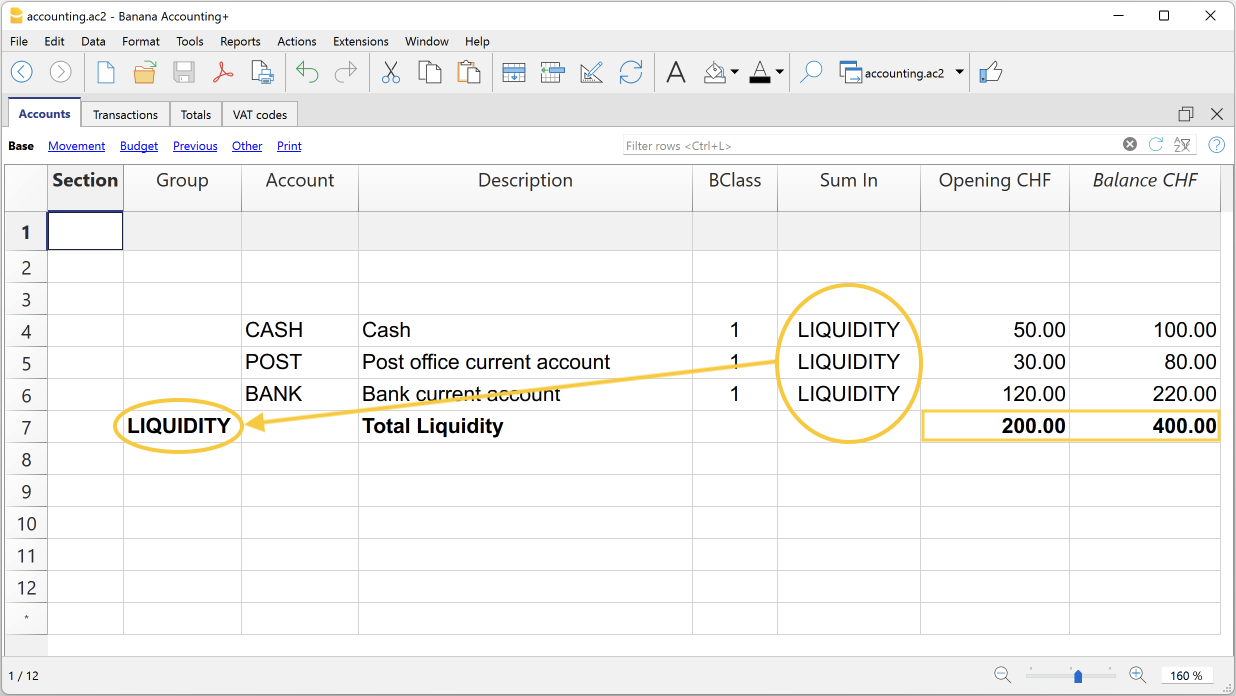
The logic of the programme
To understand the logic, let us present an example of a small part of the chart of accounts. For the accounts Cash, Post and Bank we create the Liquidity group:
- In the line below the liquidity accounts, in the Group column, enter the name of the Liquidity group.
- In the Description column, you enter the description of the group.
- In order for the programme to be able to update the balances in the liquidity group, it must be indicated which accounts are to be totalled.
In the Sum In column of the Cash, Post and Bank account, the name of the cash group is entered. The balances of the group are updated immediately.
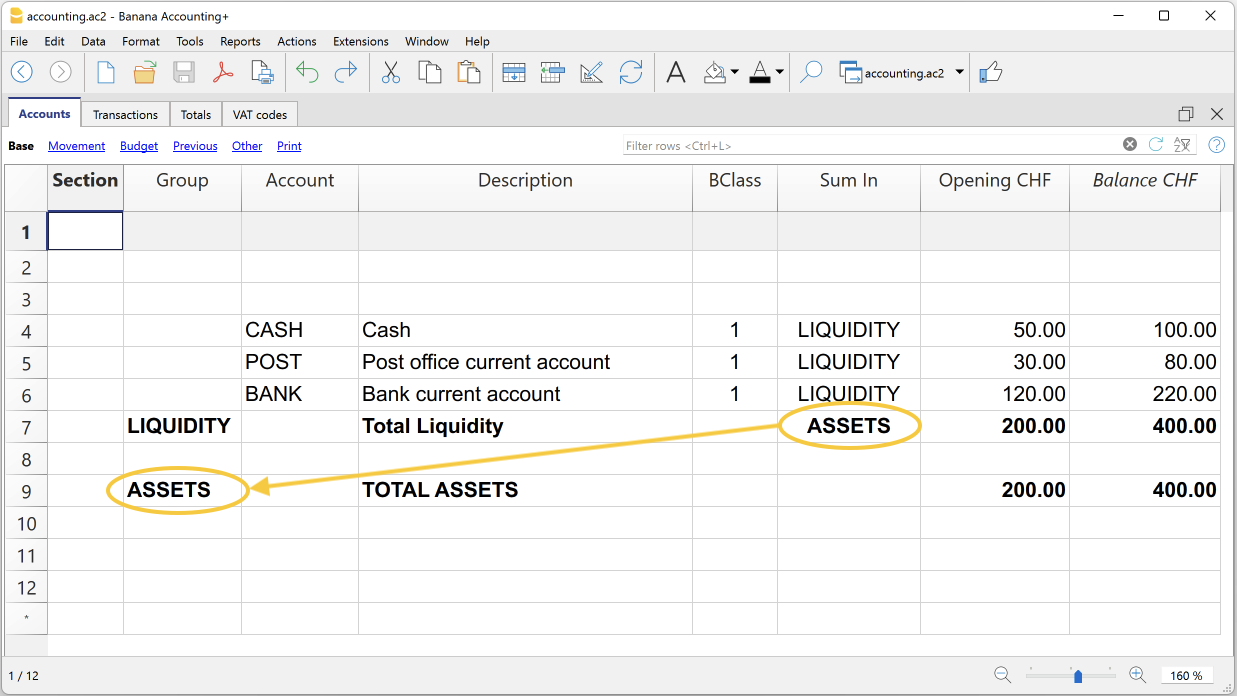
Using the same logic, we can also group groups. In fact, groups can also be totalled into other groups at a higher level.
Suppose we add a group into which to group and then total the Liquidity group.
- In the line below the Liquidity group, in the Group column, the name of the Assets group is entered.
- In the Description column, you enter the description of the group.
- In order for the programme to be able to update the balances in the Assets group, it must be indicated which groups are to be totalled.
In the Sum In column of the Liquidity group, the name of the Assets group is entered. The group's balances are updated immediately.
Following this logic, it is possible to create a structure with groups and subgroups for the entire chart of accounts, in order to create charts of accounts suitable for any specific country and requirement.
The exact same logic can also be applied for grouping VAT codes in the VAT Codes table, and also for grouping items in the Items table of the Warehouse and Fixed asset register.
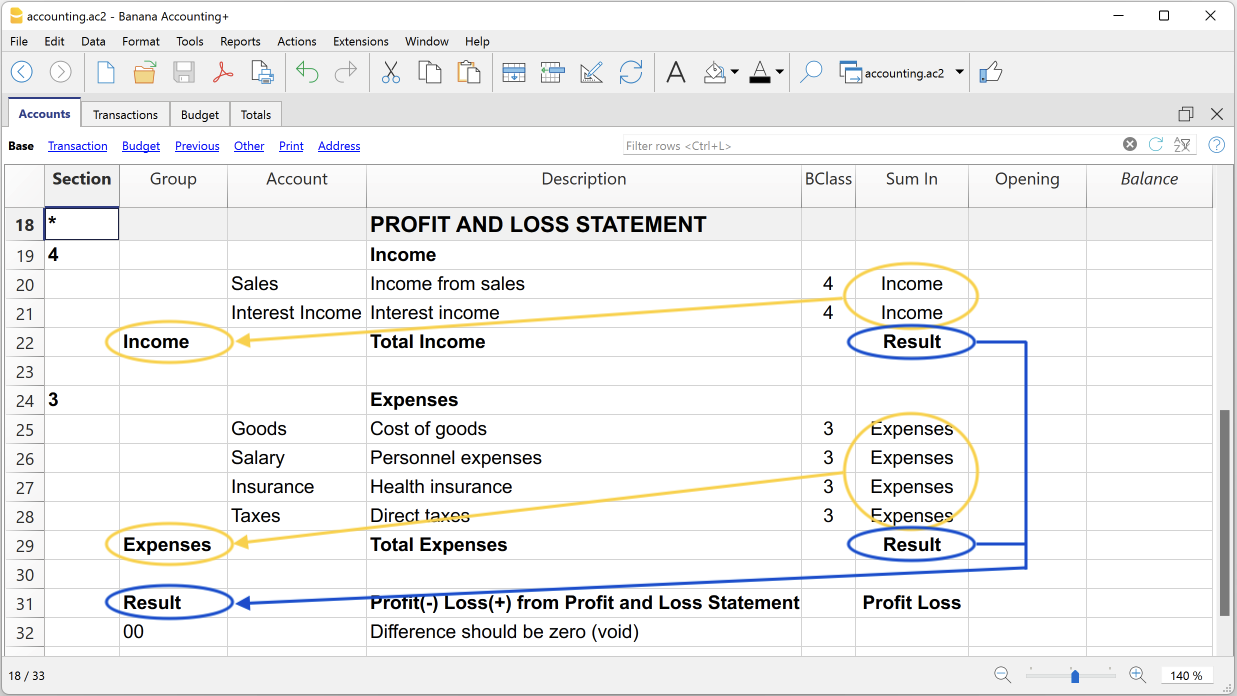
Extensive use of the totalisation system
The totalisation system is very flexible:
- Accounts and groups can be added together in a group.
- Title texts can be assigned the group to which they belong.
- Any kind of numbering (numerical and/or letter) can be used.
- Up to 100 totalisation levels can be created.
- Group totalisation is independent of the sequence of rows:
- The total row can be defined before and after the account or group rows.
- The total row can also be defined in a completely detached position from the account and group rows, as in the case of the Accounts Payable / Suppliers ledger.
- The same account cannot be totalled in two Groups at the same time.
- The system is also used to total the Cost Centres and Segments.
The totalisation of amount columns
The calculation procedure totals the columns of type amount.
- The amount columns defined by the system are totalled.
- The amount columns added by the user are totalled.
The calculation sequence
The programme calculates totals as follows:
- Clears the column amounts of the Group rows.
- Adds up the amounts of the Accounts rows in the Group rows (first level of calculation).
- Adds up the balance of the Group rows in the higher level Groups.
Repeats the operation until all levels are calculated.
When a Group is totalled in a lower level Group, an infinite error loop is created.
Error checking and reporting
When creating groupings, the programme checks and reports any errors so that they can be corrected immediately.
When a non-existent group has been indicated in the Sum In column, the programme reports the error 'Group not found'. In this case it is sufficient to:
- Create the group in the Group column.
- Recalculate accounting with the command Check and recalculate accounting
- Recalculate all totals with the command Recalculate totals.
Rename groups
With the Rename command, existing group names can be renamed automatically, without having to manually change the matches in the Group and Sum In columns.
Printouts
When printing the Balance Sheet, Profit and Loss Statement or other reports that contain groupings, the printout shows the order of the groupings as they have been set in the various tables.
转换至最新的会计账套
下面我们将介绍如何处理以下情况:
- 传递一个不同的编号到会计科目表
- 检索现有会计数据,发生业务,并将其转换为新的会计科目表。
转换为新的一年
如果您想以新的会计科目表开始新的一年,有两种可能性:
- 转换前一年(2022年),然后创建新的一年(2023年)。
您将会有两个2022年的文件(包含有旧账号的账户列和有新账号的账户_1列的文件)和只有新的会计科目表的2023年的文件。
这种方法可使两个年度的会计科目表保持一致。
这样,您也可以在2022年继续做出改变,然后在2023年恢复期初余额。 - 创建新的一年(2023年),然后转换2023年的文件,结转余额。
2022年的文件将保持不变。对于2023年,您将有一个中间文件,使用旧的会计科目表,但结转期初余额。
2023年文件的转换可以立即进行,也可以在输入发生业务后进行。
如果您在2022年的文件中拥有旧的账号,您将无法在 2023 年恢复在 2022 年所做的任何进一步更改。
步骤1:创建一个新的会计文件
- 创建一个新的文件:
- 根据您的需求来修改账户科目表。
步骤2:添加匹配的账户
- 在账户表格中:
- 数据菜单 → 列设置
- 点击窗口内的添加按钮
- 然后输入账户_1的摘要
- 在账户_1列中,在旧账户分类表中为每一个账户输入相应的账户;
如果账户保持不变,可以省略。 - 如果有些账户需要被分在同一个组内,输入分离账户时请输入一个分号,例如“1000;1001”。
在这种情况下,重复 1000 账户,否则只需要 1001。 - 如果同一个账户需要被细分为几个账户,您需要进行手工处理,请参见下文。

步骤3:开始导入操作
- 点击操作菜单 → 导入到账套 → 导入文件。
- 通过浏览按钮,选择带有旧会计科目表的会计文件。

- 点击OK按钮确认,并进入下一个窗口;
- 定义导入选项;
- 激活账户号码选项,表明该账户匹配在目标文件中。

重复导入
如果报告了错误,需要重复导入,必须取消导入操作,使源文件为空,否则余额的数额会重复,无论是在期初余额还是在发生业务表中。
一个账户细分成几个账户
当一个账户需要被转换成更明细的账户科目表时,把一个账户细分成几个账户是必要的。
在导入操作完成后,您可以从以下几个方式进行手工操作:
- 在账户科目表中,把一个账户的期初账户、预算金额和先前金额细分到几个账户中;
- 一个账户中的过去的交易,需要一个接一个地被细分,并将其分配到具体的账户中,或者当一个数额需要被细分为更详细的金额时,则需要创建额外的发生业务;
- 用相同的方式对预算表格中的发生业务进行处理。
结果和可能出现的错误
假如程序报告错误(账户缺失或其他),导入操作可能需要被取消,匹配需要被完成;然后重复导入操作。
当本程序面临不同的账户科目表时,不能自动完成广泛的核查,因此不能保证所有的数据都可以被导入或是被正确的分组。
因此,我们强烈建议您人工核查结果,确保资产负债表和损益表的总额是正确的。
会计报表文件
会计报告是一种文件类型,在其中设置了特定的表示方式,以指示与会计计划不同的将账户分组的方法。
创建的分组方案与账目相匹配,以提取和总计为新报表选择的账目。
外部会计报告除了用于定制资产负债表和损益表或其它报告外,还可用于切换到不同的会计科目表并转移相关余额。更多细节可参见更改会计科目表的页面。
- 按照指定的组进行分组
当需要根据不同的标准对账户进行分组时,这种方式非常有用,例如,按照分组系统显示的资产负债表/损益表和账户表中的设置是不同的。- 在报告中,分组系统被生成。
- 对于会计账户表中的每一个账户,在所属组1列(或另一列),表明账户必须在这里被分组。
- 当生成报告时,在报表文件中标记分组的所有账户都会被结转。
- 按照指定的账户进行分组
如果用户不想选择所有的会计科目,只选定部分会计科目,此方式是非常有用的。- 在报告中,表明应包含在会计文件中的账户表的账户。
- 执行报告时,只有指定的账户被结转。
创建会计报告
为了生成一份会计报告:
- 点击文件菜单→ 新建命令 → 会计报表的选项
- 可以选择一个现存的模板或使用新的模板开始
- 以一个新的名称保存生成的文件

会计报告的列
会计报告文件中包括了与被用于创建账户表格中的分组和总计相同的列。

类
该列显示出所使用的值。
有关各种可能性,请参阅类的页面。
总组
必须对会计科目进行汇总的组或报告组。
账户 (仅在完整视图中可见)
账户必须被包含在报告中。
- 如果指明账户,当执行报告时,它们会发生结转。
- 如果未指明账户,账户可以通过组被结转。
摘要
分组的摘要或是该行本身的摘要。
汇总
在汇总列中,表示必须对行进行总计的总数。
总和
如果是单词“Yes”被输入,只有总行被显示,而不是该总行里的一部分账户被显示。
详情请参阅会计报表中的“只显示组汇总”。
表保留行
通常情况下,包含账户余额的总行数会被包括在报表中。
如果您在该列中输入“Yes”,该行将会一直显示。该功能可以被应用于总计和账户中。
含本期发生额报表
该行不仅是有余额的时候才显示,当此处有本期发生额时,也会被显示。该功能只可应用于总计中。
创建通过组链接的报告
- 在报告中,根据需要创建一个组或分组系统。
- 在账户表中,所属组1或所属组2的列显示出必须要被汇总的组。
如果所属组1列(或其他首选列)不可见,请使用列设置命名使其可见。 - 未链接的账户不会包含在报告中。
- 通过命令执行报告:
- 按组生成资产负债表
- 会计报告
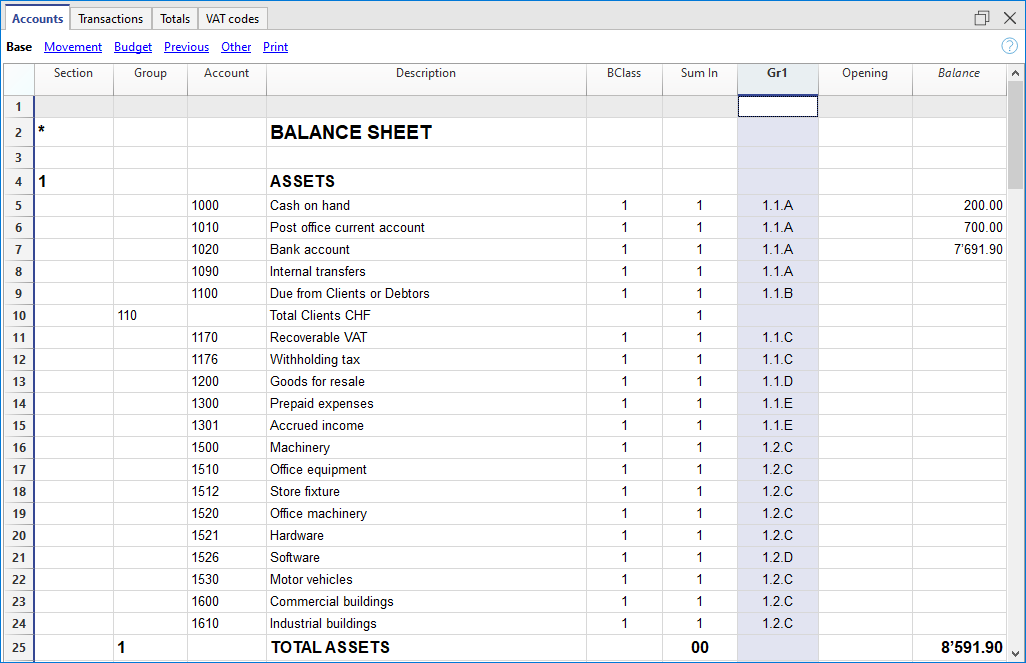
创建选定账户的分组报告
即使报告中只显示一个账户,此程序也是有效的。
如果希望报告在组的程序下执行,请勿指明任何账户。
报告中显示:
- 会计账户必须被组合在一起。
报告中只显示选定的账户。 - 账户中的组必须分在一个组里。
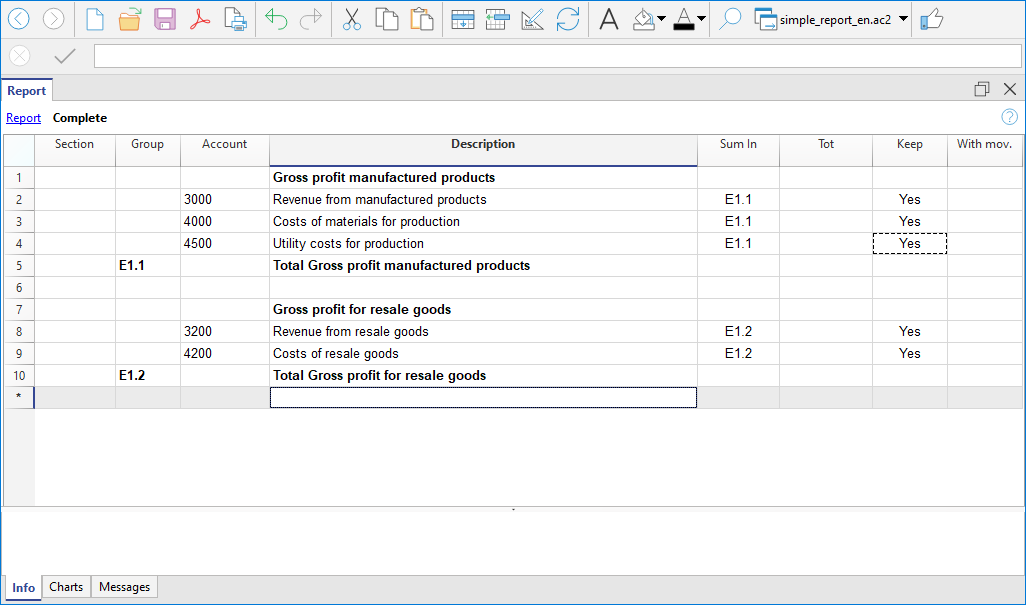
- 从报表菜单中选择按组生成资产负债表的命令
- 然后选择会计科目表 → 类 → 外部会计报告。
- 从报表菜单中选择会计报表的命令 (然后选择基本选项中的外部会计报告选项)。
发生业务表 | 复式记账
发生业务表是记账的中央枢纽,在其中输入所有对财务和经济有影响的业务。其使用方式与Excel类似。在发生业务表中,可以看到所有的变动,且顺序完美,通过滚动浏览,您可以立即一目了然的看到所有的事件。
可以对所有输入的数据进行修改和更正,从而使您轻松拥有一个完美的会计核算文件。
快速输入
该表类似于Excel,您可以上下滚动并将鼠标放置在任何的单元格中。
有很多功能可以使输入和编辑数据的速度变得非常快。
可以进行以下操作:
- 取消并重做。
- 选择一个或多个单元格并复制/粘贴。
- 单独或批量添加、复制、粘贴和删除行。
- 搜索和替换文本。
- 按日期对行进行排序。
- 自动完成功能会建议所输入的值 (例如账户列表)。
- 使用F6键可以完成该行的数值,并取代同一行的数值。
- 使用F4键恢复上一行的数值。
- 日期是用上一行中的值来完成的。
- 在记账凭证号列中,建议您使用累进的数字 (使用不同的计数器)。
- 在借方或贷方账户列中,您可以通过输入账户的描述来搜索该账户。
- 在金额列中,您可以输入公式,例如“ 30 + 25”,程序将插入结果。
欲了解更多信息,请参见单元格的页面。
导入动向
通过从银行,邮政储蓄或信用卡的对账单中导入发生业务,可以加快发生业务表中的数据输入并避免错误的发生。数据记录与银行对账单上显示的完全相同。
- 除了账户报表,您还可以从其它程序导入数据。
- 程序会自动补充缺失的数值。
- 有几种格式可供导入。
- 您可以从其它程序中复制和粘贴数据。
- 可以完成、修改或删除导入的数据。
- 能够对扩展程序进行编程以导入任何类型的文件。
欲了解更多信息,请参见导入到账套的页面。
多种信息的管理
可以为每个条目行指示很多信息:
- 该日期和文件的数值。
- 文件和协议,或外部参考的渐进编号。
- 通过添加列的方式可提供您所需要的任何附加信息。
- 链接到数字文档文件。
- 添加和删除链接。
- 打开链接并查看内容。
- 增值税管理 (如果在创建文件时选择了带增值税的会计类型):
- 在发生业务中输入增值税代码,程序就会自动计算出增值税。
- 细分增值税并将其过账到指定账户。
- 您可以定义该金额是增值税净额还是毛额。
- 您可以在增值税代码前插入负号"-"来表示是相反的情况。
- 您可以指定一个不可收回的增值税百分比。
- 您可以用附加代码对特殊情况进行编码。
- 成本和利润中心:
- 每个发布行最多有3个成本和利润中心。
- 您可以在成本或利润中心账户前注明"-"号,就可以发布负数。
- 部门:
- 对于每个借方或贷方账户,您最多可以指定10个部门。
- 供应商管理:
- 根据能力 (设置为分类账) 和现金 (设置为成本和利润中心) 进行管理。
- 管理到期日和付款,以拥有未结和已付款发票的报告。
- 客户管理:
- 根据能力 (设置为分类账) 和现金 (设置为成本和利润中心) 进行管理。
- 管理到期日和付款,以拥有未结发票和已收发票的报告。
- 给客户的发票 :
- 用于创建发票的数据输入。
- 客户账户建议。
- 数量和价格 (使列可见)。
- 用于计费或成本控制。
- 自动计算金额。
- 物品数量 (如果选项已被激活)
- 要连接到物品表格。
- 自动计算进出产品的数量。
- 打印发票。
- 指示需要打印发票的更多信息。
账户明细
在发生业务表中,您可以查看任何账户的明细,只需找到相关账户的单元格即可 (在借方或贷方列中),然后单击显示在该单元格右上角的小图标。
当您在查看账户明细的时候,点击相关的行号就可以自动跳转到在发生业务表格内相对应的原始发生业务。
更多关于账户明细的信息可以查看账户/科目明细的页面。
验证数据
输入数值是非常安全的。Banana财务会计软件有自动检测和报告错误的功能。
- 程序会验证输入的数值是否正确。
- 如果借方和贷方列之间存在不平衡,在信息窗口中将以红色表示。
- 您不确定的发生业务可以留到以后再完成。
- 每条错误信息都有相应的帮助页面 (需要网络连接)。
- 在软件下方的信息窗口中,包含以下信息:
- 摘要,动向和使用的账户余额。
- 错误消息提示,并包含直接连至帮助页面的链接。
- 报告借方和贷方的差额。
- 使用#余额检查的功能,通过输入实际的银行余额,您可以立即检查会计中余额的对应关系并避免错误。
- 使用检查账务的命令,该程序将重新检查所有输入的数据,并提醒您注意疏忽和错误。
- 您可以为行着色,更改字体并使它们变为粗体。
- 您可以保护行。
- 使用区块链技术为发生业务加锁。
列的排列
要获得更合适的数据输入,您可以按自己的顺序排列所有的列。
您可以选择:
- 将列向右或向左移动。
- 显示其它列或隐藏不必要的列。
- 添加自己的列
- 保存列的排列 (视图)。
在列设置的页面上提供了更多信息。
发生业务表内的列 - 复式记账
在发生业务表内已经预设了一系列的列和视图。
发生业务表内的列
下面列出的列和前面带 * 的列通常不可视。
要使它们可视,请使用数据菜单中的列设置命令。
日期
程序用来将发生业务归入某一时间段的日期。该日期应在会计基本数据中定义的会计期间范围内。在选项标签中,可以指明是否需要发生业务日期,否则该值也可以留空。
如果有锁定的发生业务,当输入的日期等于或早于锁定的日期时,程序会出现一条错误信息提示。
*文件日
可以输入文件的日期,例如发票的签发日期。
*起息日
银行操作的起息日可以被指示。该值是从电子银行对账单导入的。
记账凭证号
作为会计发生业务基础的凭证编号。在录入会计发生业务时,最好在记账凭证上注明一个连续的编号,以便轻松追踪会计业务的记账凭证。
自动完成功能提出的渐进值和业务代码,之前在经常性业务表内已被定义。
程序提出的下一个文件编码,可以使用 F6 键来继续。
- 如果是数字编号,程序只需增加记账凭证号列中的最高值。
- 字母数字编号:程序增加最后的数字部分,当您希望为现金及银行的变动保持一个单独的编号时是非常有用的:
- 如果先前的记账凭证号已经输入 C-01,并且开始输入 C, 那么程序建议输入 C-02。
- 如果先前的记账凭证号已经输入 B104,并且开始输入 B,那么程序建议输入 B-105。
- 如果先前的记账凭证号已经输入 D10-04,并且开始输入 D,那么程序建议输入 D10-05。
在经常性业务中,您可以设置发生业务组,用一个代码重新加载。
为了添加大量的记账凭证号,您也可以使用Excel。在Excel中创建所需数量的记账凭证编号,然后复制粘贴到Banana财务会计发生业务表的列中。
*议定书文件
一个额外的列,以备发生业务或记账凭证需要其它编号时使用。
自动完成特性提出的渐进值功能和在记账凭证列中的是一样的。它的用途,例如:
- 当有必要给发生业务分配一个不同于记账凭证号的递进编号时。
- 如果发生业务是由其他人使用另一个文件输入的,然后将其导入到会计中。这样就可以同时使用会计的累进编号和原始编号。
*文件类型
包含的代码是程序用于识别一种发生业务的类型。如果您更偏向于使用自己的代码,那么最好增添一个新的列。
- 01 在报告中,此笔业务被视为期初业务,因此没有显示在期间中,而是显示在期初余额之中。
- 从 10 至 19: 客户发票的代码。
- 从 20 至 29:供应商发票的代码。
- 从 30 至 1000:保留为将来使用的代码。
*发票文件
已签发或已支付的发票号码,将与客户和供应商的发票控制功能一起使用。
*原始文件
在记账凭证中出现的参考编号,用于输入,例如,信用支票的数量。
*文件链接到外部参考
作用是输入一个外部文件的链接,通常是会计凭证。
点击单元格上部的小图标,程序就会打开该文件。参见插入、编辑和打开链接。
- 当单元格中插入链接后,会出现一个小图标,点击它就可以打开文档,但前提是它是一个被认为安全的扩展名。
- 另一个小图标允许你插入和编辑链接。
*外部参考
生成该发生业务的程序分配的参考号。这个值可以用来检查某个操作是否被导入两次。
摘要
发生业务的文本。
自动完成功能会建议已输入发生业务的文本,或者如果适当的选项处于活动状态,则输入前一年的发生业务文本。当按 F6 键时,程序会检索前一行的数据,并以相同的描述来完成当前行的列。
如果摘要是以#检查余额开头的,则该发生业务被认为是用于检查余额的业务。
请参考我们的页面检查会计,以了解有关该主题的更多信息。
*附注
可用于添加发生业务的附注。
借方
将被收取的账户。
- 可以在借方帐户列中输入一个部门。通常用 ":" 或 "-" 或 "-" 来分隔。
通过插入部门分隔符,立即移动到下一个部门。 - 如果按Enter键,则输入结束并移动到下一列。
- 自动完成功能建议账户计划的账户和部门。
- 您可以输入一个搜索文本来代替账户。程序会在其中一列中显示出包含文字的账户列表。
*借方账户明细
从会计科目表中检索到的所输入账户的摘要。
贷方
贷方账户。其余信息请参考借方账户下的解释。
*贷方账户明细
从会计科目表中检索到的所输入账户的摘要。
金额
将计入借方和贷方账户的金额。
*余额
余额列显示借方和贷方的总和。因此,只有在几个账户的发生业务中才会显示一个金额。在输入结束时,余额应该为零。如果有一个重复出现的金额,那是因为有一个错误。
增值税列
关于增值税列的信息可以在发生业务表页面的增值税列中找到。
成本中心1
成本中心账户前面要输入 "." ,而不要输入 "." 。
如果首字母前有负号 "-P1" ,则金额为贷方。
*成本中心1 摘要
成本中心的摘要, 可以在账户科目表中检索。
成本中心2
成本中心账户前面要输入 "," ,而不要输入 "," 。
缩写词前有负号 "-P2" ,则金额为贷方。
*成本中心2 摘要
成本中心的摘要, 可以在账户科目表中检索。
成本中心3
成本中心账户前面要输入 ";" ,而不要输入 ";" 。
缩写前有负号 "-P3" ,则金额为贷方。
*成本中心3 摘要
成本中心的摘要, 可以在账户科目表中检索。
*到期日
在此日期之前要支付发票。更多信息请参见客户和供应商页面。
*支付日
与显示到期日的命令结合使用。
当使用客户/供应商发票控制特性来检查付款时,必须为已开具的发票输入一个发生业务,为付款输入另一个发生业务。
*锁号,加锁金额,累计锁,加锁行
更多的信息请访问加锁发生业务页面。
附加列
通过菜单 工具 → 添加/删除功能 → 在分录表中添加项目列,会添加以下列。
更多信息请参阅 分录表中的项目列。
项目编号 (IdItem)
- 来自 项目表 的项目标识符。 如果输入的项目存在于项目表中,程序会自动读取描述、单位、单价、增值税代码和账户。
数量
- 数量与单价相乘可得出总金额(也可以是负数)。
- 如果存在项目表:
- 正值 (+) 将增加项目的数量。
- 负值 (–) 将减少项目的数量。
- 中性值 (±) 仅用于计算总金额,但不会影响项目表中的数量。
中性值通常用于证券管理,用于记录收益或亏损。您可以为单个证券指定收益或亏损的数量和金额,而不会影响可用证券的数量。您可以先输入"+"再输入"-"来插入"±"符号。程序会自动识别这一组合并将其转换为"±"符号。
- 如果输入了数量而单价为空,并且分录中存在金额,程序会自动计算单价。
单位
- 与数量相关的说明,例如:平方米(m²)、吨(t)、件(pcs)。
单价
- 每个单位的价格,与数量相乘可得出总金额(也可以为负数)。
- 可以通过菜单 “工具 > 添加/删除功能” 中的相应命令修改小数位数。
分录金额
- 如果在数量或单价列中输入了数值,分录金额将根据这两列的内容自动计算,并转换为正值。
添加新的列
使用列设置命令,它可以显示,隐藏或移动列的顺序,添加新列,或者指示出在打印中不应该出现的列。
- 在发生业务表中被添加的列也会被添加到经常性业务表中,在账户明细和增值税报告中,不可见。
为了显示在其它表格中的这些列, 请使用列设置的命令。 - 如果一个列的"金额" 类型被添加了,那么被输入的金额将被添加在账户明细中。
视图
当新的会计账户被创建后,以下的视图也会被自动的创建:
- 基本:主要的列被显示。
- 成本中心:CC1,CC2 和 CC3 列被显示。
- 到期日:列的到期日和支付日被显示。
- 加锁: 与加锁功能相关的列被显示。
银行支票
为了输入签发的银行支票,用户需要在负债类中添加一个签发的支票账户。

此时签发的支票用来支付供应商,之后将成为银行当前账户中的借方。

输入发生业务后的签发支票账户明细。

Registrazioni su conto privato
Il conto privato è un conto finanziario, utilizzato nella contabilità per registrare quelle transazioni che non riguardano direttamente l'azienda, ma il patrimonio personale del titolare. Questo conto tiene traccia dei prelievi e degli apporti del titolare a scopi privati; pertanto serve per tenere separate le finanze aziendali da quelle personali, evitando confusione contabile.
Prelievi dall'azienda del privato/socio
I prelievi personali vengono registrati come diminuzione del patrimonio netto. Se il titolare/socio utilizza fondi aziendali per spese personali, l'importo viene addebitato al conto privato.
Esempio di scrittura contabile per un prelievo in contanti:
- Dare: Conto privato (per il prelievo del titolare/socio)
- Avere: Cassa/Banca (per l'importo prelevato).
Apporti nell'azienda dal privato/socio
Gli apporti personali del titolare (es. aumento di capitale o versamenti per coprire spese) vengono registrati come incremento del patrimonio netto.
Esempio di scrittura contabile per un apporto in contanti:
- Dare: Cassa/Banca (per l'importo versato dal titolare/socio)
- Avere: Conto privato (per l'apporto del titolare/socio).
Utili prelevati
Se il titolare/socio preleva utili maturati:
- Dare: Conto utili a nuovo (o Risultato di esercizio)
- Avere: Conto privato
Saldo del Conto Privato/socio
- Saldo positivo: indica che il titolare ha un credito verso l'azienda.
- Saldo negativo: indica che il titolare ha debito verso l'azienda.
余额检查的发生业务 (#CheckBalance)
Banana财务会计+ 在检查账务的命令中包含有#CheckBalance的功能,用于检查和匹配会计余额。CheckBalance 的中文意思是余额检查。
这种检查对会计核算的的真实性至关重要。除了在会计年度结束时检查余额外,最好是在月末定期进行这种检查,以避免有任何不匹配的余额从一个月结转到另一个月。
进行该检查的步骤如下:
- 记录余额的相关日期。
- 在摘要列中,输入#CheckBalance,然后输入与要检查的余额相对应的金额 (例如,现金的实际余额,银行报表中的银行余额等)。
- 在借方账户中,指出要核实的账户 (银行账户、现金账户、增值税账户或其它要核实的账户)。
- 在金额列中,单元格必须是空的。
通过这个命令,如果余额不匹配,软件会在信息窗口显示余额不匹配的账户。
信用卡预付款登记
信用卡预付款
使用信用卡支付首付款时,必须检查在账户表中是否存在信用卡的账户,如果没有,则必须在负债部分中输入该信用卡的账户。
信用卡账户被添加到短期负债的总组或所属组中,如果没有所属组,则必须在负债部分列出。

例如:
有一笔1000美元的款项已经存入了信用卡账户。
- 信用卡账户记入借方
- 在贷方中,我们记录的是存款的银行账户。

登记您的信用卡账单
收到信用卡账单后,您必须记录信用卡上列出的所有费用,并从您的信用卡账户中注销。
例如:
我们收到了一张信用卡发票,总额为790.-瑞士法郎 (详情:购买电脑560.00瑞士法郎,酒店费用150.00瑞士法郎,购买办公设备80.00瑞士法郎) (记账凭证号:25)。
其记录在多行中:
- 在信用卡账单中列出的所有消费都记录在借方列的相关费用中,每行登记一笔费用,
- 在贷方列中登记信用卡账户。
检查信用卡账户余额
当您每次为信用卡存入预付款,并登记了信用卡上列出的所有消费后,您必须检查信用卡余额与登记的信用卡余额是否一致。

登记您的信用卡发生业务
信用卡和现金核算
如果未对信用卡进行任何预付款,并且发票是通过银行全额支付的,则在付款时会记录带有费用记录的信用卡发票。
您需要记录以下几行:
- 在组成发生业务的所有行上为每个变动输入相同的日期和会计凭证号。
- 在借方列中,每行输入一个账户,指的是信用卡交易的成本或投资。
- 输入记录在借方的每笔交易的金额。
- 在贷方列中,输入用于支付发票的银行或邮政储蓄的账户。
- 在金额列中,输入信用卡发票的总金额。
- 如果需要缴纳增值税,请在增值税码列中为每一行输入相对应的增值税代码。

记录所有变动后,只需打开信用卡账户卡,即可查询信用卡余额。
信用卡和营业额核算
如果会计记录以营业额为基础,那么在收到信用卡发票时,所有与信用卡购买有关的成本都会被记录下来:
- 在组成发生业务的所有行上,为每个发生业务输入相同的日期和相同的凭证号码。
- 在借方中,记录了所有与成本有关的账目。每项费用必须记录在一行中。
- 在金额列中,输入记录在借方中的单笔业务金额。
- 在贷方列中,您可以像其它供应商一样登记您的信用卡账户。
- 在金额列中,输入要为信用卡支付的总金额。
- 如果需要缴纳增值税,请在增值税码列中为每一行输入增值税代码。

在支付了信用卡账单时,其记录了:
- 在借方的信用卡账户 (债务已清偿)。
- 在具有用来支付发票的银行或邮政储蓄账户中。
- 已付信用卡的总金额记录为该金额。

从您的信用卡导入对账单数据
Banana 财务会计软件允许将信用卡中的对账单数据导入到主要的会计文件中。
您必须确保账户表包括信用卡账户和用于支付首付的转账账户。
安装您银行的格式
为了能够执行导入,信用卡发卡行提供的数据格式必须与 Banana 会计软件提供的格式兼容。
安装与发卡银行发布的数据格式相关的扩展程序的步骤如下:
- 点击扩展程序菜单 → 管理扩展程序的命令。
- 选择发行信用卡的银行,然后单击安装的按钮。
该格式将出现在导入到套账的对话框中。
导入信用卡的动向
在安装了Banana兼容数据格式的扩展程序后,按以下步骤导入数据:
- 点击操作菜单 → 导入到账套 → 发生业务:
- 选择信用卡发卡银行的格式类型。
- 使用浏览按钮,选择银行提供的文件,然后单击确定进行确认。
-
输入期间并指定转账账户。单击确定进行确认。 所有动向都将导入到发生业务表格中。
- 在每一行中,输入该变动的对应账户。
导入已付定金的信用卡交易
当信用卡上的存款已被记录在会计系统中。在这种情况下,导入信用卡数据后,就会出现存款记录的问题。在这种情况下,信用卡账户上会出现双重交易:
-
信用卡账户作为银行向信用卡付款收费的对应物。
-
从信用卡导入的交易中存在信用卡帐户。
为了避免这种重叠,在导入时使用转移账户。
如何进行导入:
- 点击操作菜单 → 导入到账套 → 发生业务:
- 选择信用卡发卡银行的格式类型。
- 使用浏览按钮,选择银行提供的文件,然后单击确定进行确认。
-
输入期间并指定转账账户。单击确定进行确认。 所有动向都将导入到发生业务表格中。
- 在每一行中,输入该变动的对应账户。
Salary transactions
Companies that have employees must manage salaries, as well as employees’ social security and insurance contributions.
Salaries can be managed in two different ways:
Net salary management is the simplest solution because it provides for:
- recording salaries at the time they are paid
- recording social security and insurance contributions only when advance payments of contributions and employees’ insurance premiums are paid.
Gross salary management is much more complex because transactions must record monthly gross salaries and the social security and insurance contributions deducted from employees’ pay, as well as the withholdings on employees’ salaries.
Net salary transactions
Net salary accounting consists of recording in the accounting only the amounts actually paid to employees. It is a simple and practical method, particularly suitable when payroll processing is carried out using dedicated payroll software or outsourced to a fiduciary firm.
Compared with gross salary accounting, it provides a less detailed view of personnel costs, as it does not separately show the employer's social security contributions and the contributions withheld from employees.
For this reason, the calculation of gross salaries, deductions, and social security contributions is performed by the payroll software or by a fiduciary firm, which submits the required declarations to the relevant authorities. The annual declaration to the AHV Compensation Office is based on the gross payroll, which must be determined from the payroll statements.
What is recorded
With net salary accounting, the following items are normally recorded in the accounting:
- net salaries paid to employees
- advance payments of social security contributions (AHV/IV/EO/ALV), paid monthly or quarterly
- insurance and pension premiums, paid at the beginning of the year or every six months.
- any year-end adjustments.
What is not recorded:
- Gross salary
- Employee deductions
- Liabilities towards social security institutions at the end of the period.
Advantages of net salary accounting
- Simple transactions
- Few accounts to manage
- Faster accounting.
Limitations of net salary accounting
- The gross salary does not appear in the accounting.
- The details of employee salary deductions are not visible.
- Employer and employee contributions are not shown separately.
When to use net salary accounting
Recording salaries on a net basis is recommended when payroll management is handled by payroll software or by a fiduciary firm, and the main purpose of the accounting is to record payments and accounting transactions.
It is particularly suitable when:
- the details of salaries, deductions, and social security contributions are managed outside the accounting
- there is no need to analyse personnel costs separately in the accounting
- you want to keep the accounting simpler and reduce the number of transactions.
Accounts normally used
Only a few accounts are normally required to manage net salaries.
Expense accounts
- 5000 Salaries
- 5700 AHV/IV/EO/ALV Contributions
- 5710 Family allowance fund contributions
- 5720 Mandatory occupational pension contributions
- 5730 Occupational accident insurance premiums
- 5740 Daily sickness allowance insurance
- 5790 Withholding tax
Payment accounts
- 1020 Bank
- Another cash account.
Distinction between the employer's share and the employee's share
With net salary accounting, the accounting records do not directly show the allocation of social security contributions between the employer's share and the share withheld from employees.
Payments made to social security institutions (AHV, occupational pension fund, insurance companies, and other institutions) generally include both shares and are recorded as total amounts. Consequently, it is not possible to identify the employer's share directly from the accounting entries alone.
To determine it, you need to refer to:
- the expense accounts dedicated to social security contributions
- the payroll statements generated by the payroll software.
The accounting correctly records the total personnel cost, while the detailed allocation of contributions is provided by the payroll statements.
Payment of net salaries
When paying employees, the net salary paid is recorded.
In the Transactions table, record the following each month:
- Date: the salary payment date
- Description: the payment description
- Debit: account 5000 Salaries
- Credit: the Bank account
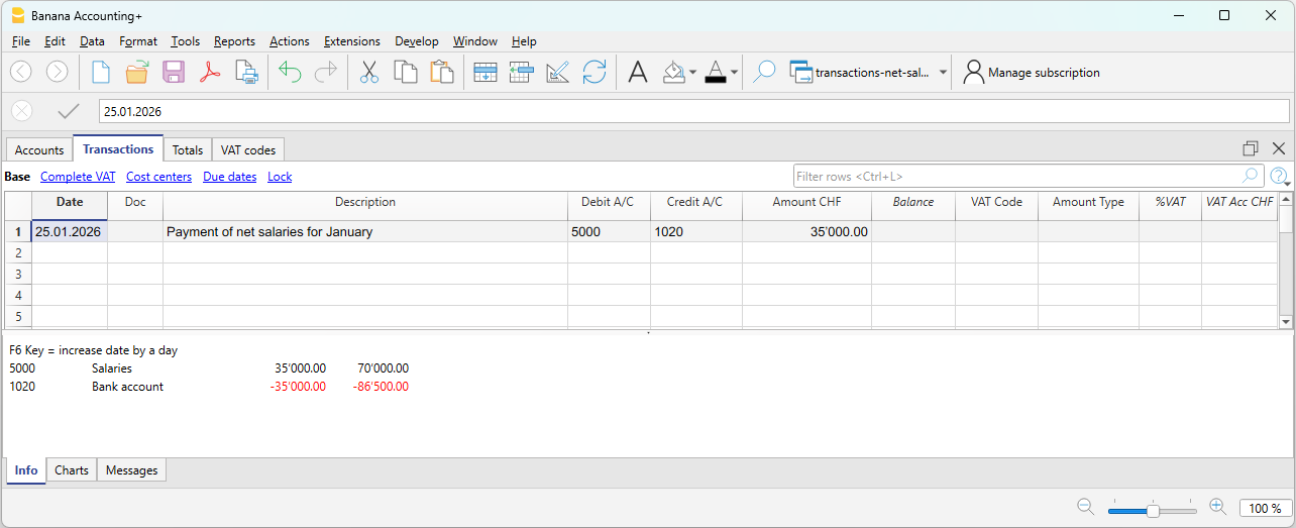
Periodic payment of social security contributions
When paying advance social security contributions, record:
- Date: the payment date of the social security contributions
- Description: the payment description
- Debit: account 5700 AHV/IV/EO/ALV Contributions
- Credit: the Bank account
- Amount: enter the amount of the social security contributions (shown on the advance invoice), including both the employer's share and the employee's share.
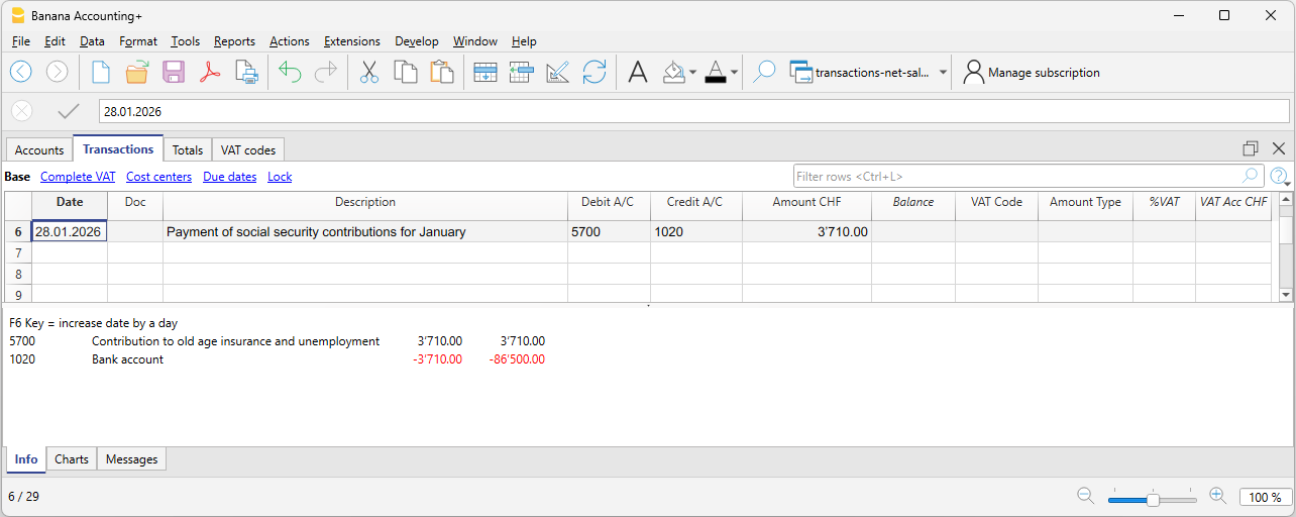
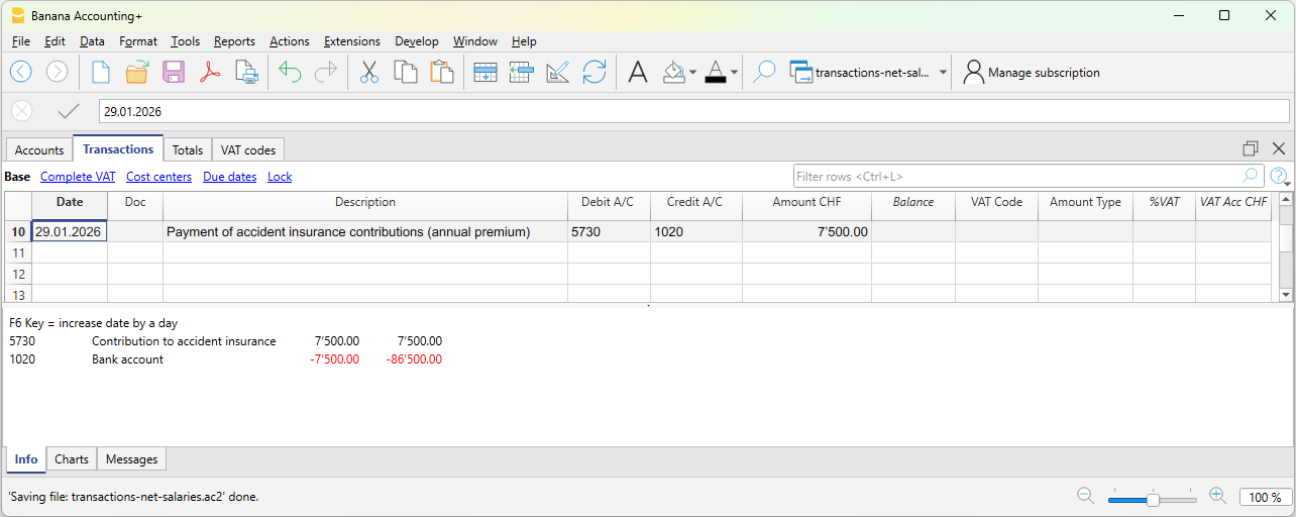
Annual payment of insurance premiums
When paying insurance premiums, for example Occupational Accident Insurance or supplementary Occupational Accident Insurance, record the payment to the insurance company.
- Date: the annual insurance premium payment date
- Description: the payment description
- Debit: account 5730 Occupational accident insurance premiums
- Credit: the Bank account
- Amount: enter the amount shown on the invoice. It includes both the employer's share and the employee's share.
Annual payment of the pension fund premium
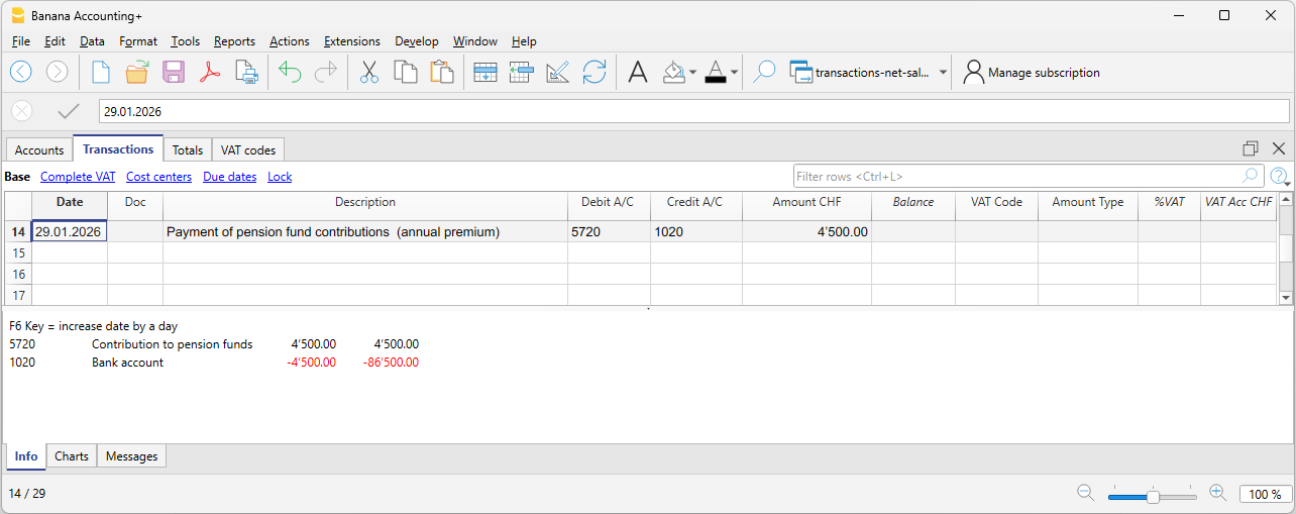
When paying the annual occupational pension fund premium:
- Date: the annual pension fund premium payment date
- Description: the payment description
- Debit: account 5720 Mandatory occupational pension contributions
- Credit: the Bank account
- Amount: enter the amount shown on the invoice. It includes both the employer's share and the employee's share.
Payment of the daily sickness allowance insurance premium
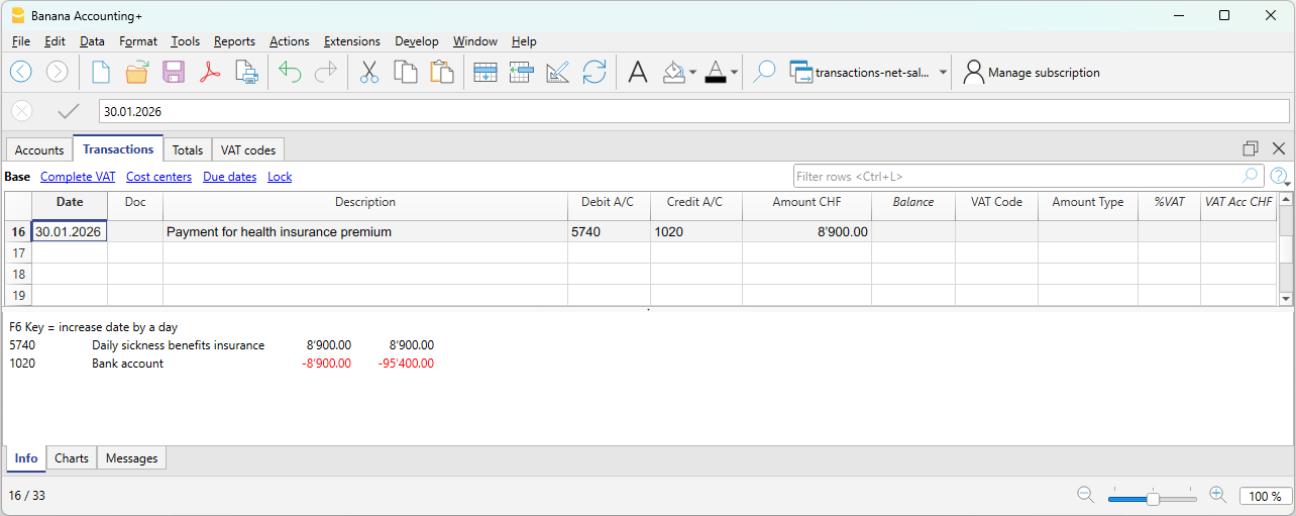
When paying the annual daily sickness allowance insurance premium:
- Date: the payment date of the daily sickness allowance insurance premium
- Description: the payment description
- Debit: account 5740 Daily sickness allowance insurance
- Credit: the Bank account
- Amount: enter the amount shown on the invoice. It includes both the employer's share and the employee's share.
Expense reimbursement included in the net salary paid
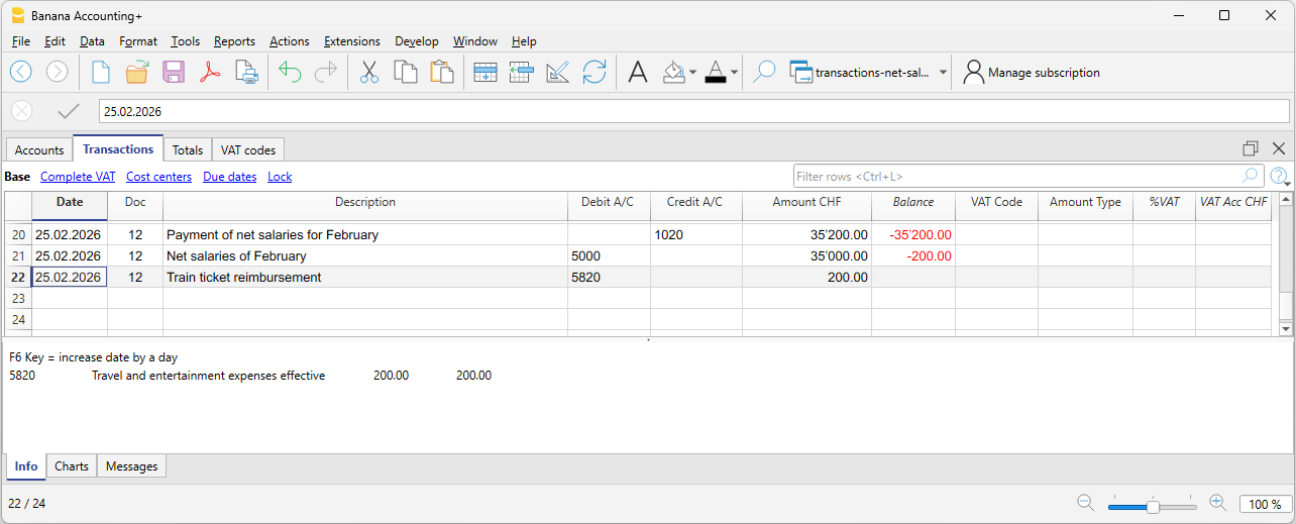
When the net salary paid includes an expense reimbursement, it is advisable to separate the net salary from the expense reimbursement in the accounting records. This ensures that the salary account is not affected by amounts that do not actually represent salary.
Example:
- Net salary: CHF 4'000
- Expense reimbursement: CHF 200
- Total payment through the bank: CHF 4'200
In the accounting entry, the two amounts must be recorded separately. Therefore, the transaction should be entered using three rows:
In the Transactions table:
- First row – total payment through the bank
- Date: the transaction date
- Description: monthly salary payment
- Debit: leave blank
- Credit: the Bank account
- Amount: the total amount paid CHF 4'200
- Second row – monthly net salary
- Date: the transaction date
- Description: monthly salary payment
- Debit: account 5000 Salaries
- Credit: leave blank
- Amount: the net salary paid CHF 4'000
- Third row – expense reimbursement
- Date: the transaction date
- Description: expense reimbursement
- Debit: the Expense reimbursement account (for example, travel expenses)
- Credit: leave blank
- Amount: the expense reimbursement amount CHF 200
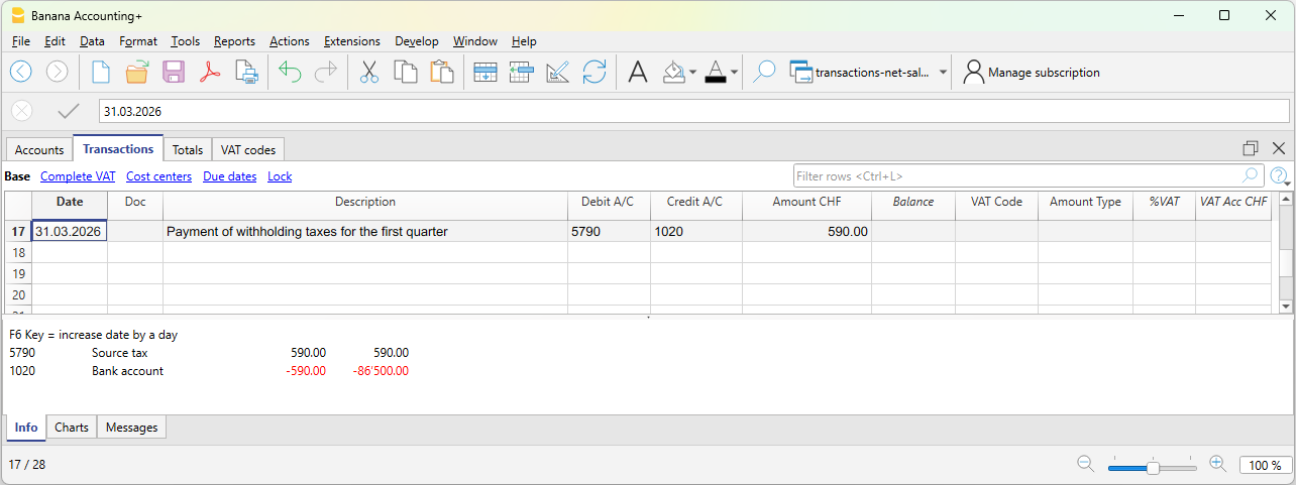
Payment of withholding tax
When paying withholding tax at the end of the quarter:
- Date: the withholding tax payment date
- Description: the payment description
- Debit: account 5790 Withholding tax
- Credit: the Bank account
- Amount: enter the amount calculated by the payroll software according to the requirements of the Withholding Tax Office.
Checks and verification
During the year, social security contributions and some insurance premiums are generally paid as advance payments. The actual amount due is determined only when the final statements or the year-end adjustments are issued.
For this reason, when using net salary accounting, it is essential to carry out regular checks and a thorough verification at the end of the financial year.
For more information, see the Net salary reconciliation.
Gross salary transactions
Gross salary management consists of recording in the accounting the entire salary, including all employee salary deductions and social security contributions.
Unlike net management, this method provides a complete view of salary costs and liabilities toward social institutions.
What is recorded
With gross management, the following are recorded monthly:
- the gross salary
- employee deductions (AVS, LPP, withholding tax, etc.)
- employer’s social security contributions
- liabilities toward social security and insurance institutions (if the accounting is kept on an accrual basis)
- the net salary paid
In gross management, the accounting clearly distinguishes between:
- the employee’s share (deducted from the salary),
- the employer’s share.
The accounting principle
Gross management follows the accrual principle:
Salary costs and the related liabilities are recorded in the period in which they arise, regardless of the time of payment.
Difference compared to net management
Unlike net management, which records only actual payments, gross management records all salary components and the related liabilities.
When to use gross management
Gross management is appropriate when:
- A complete and detailed accounting is required
- You want to monitor personnel costs precisely
- Liabilities toward social security and tax authorities must be recorded
- The accounting is used for analysis and reporting
Accounts normally used
Gross management requires a larger number of accounts compared to net management.
Expense accounts
- 5000 Gross salaries
- 5700 Employer social security contributions
- 5710 Family allowance fund contributions
- 5720 Occupational pension contributions (LPP)
- 5730 Accident insurance premiums (LAINF)
- 5740 Daily sickness allowance insurance
Liability accounts
- 2270 Liabilities to social security institutions (AVS/AI/IPG/AD)
- 2272 Pension fund liabilities (LPP)
- 2273 Accident insurance liabilities
- 2274 Collective health insurance liabilities
- 2209 Withholding tax liabilities
- 2371 Liabilities to employees
Payment accounts
- 1020 Bank
- other Cash accounts
Employer’s share of social security and insurance contributions
In gross salary management, the accounts relating to social security contributions and insurance costs make it possible to clearly identify the portion effectively borne by the employer.
In the dedicated account cards (for example AVS, LPP, accident insurance, etc.), the following are recorded:
- in Debit, the total amounts due to the institutions (employer + employee),
- in Credit, the employee’s share deducted from the salary.
The difference between these amounts represents the employer’s share, i.e. the portion borne by the company as its own expense.
This approach makes it possible to:
- clearly distinguish between company costs and amounts withheld from employees,
- have a transparent view of obligations toward social institutions,
- accurately monitor the impact of personnel costs on the company’s results.
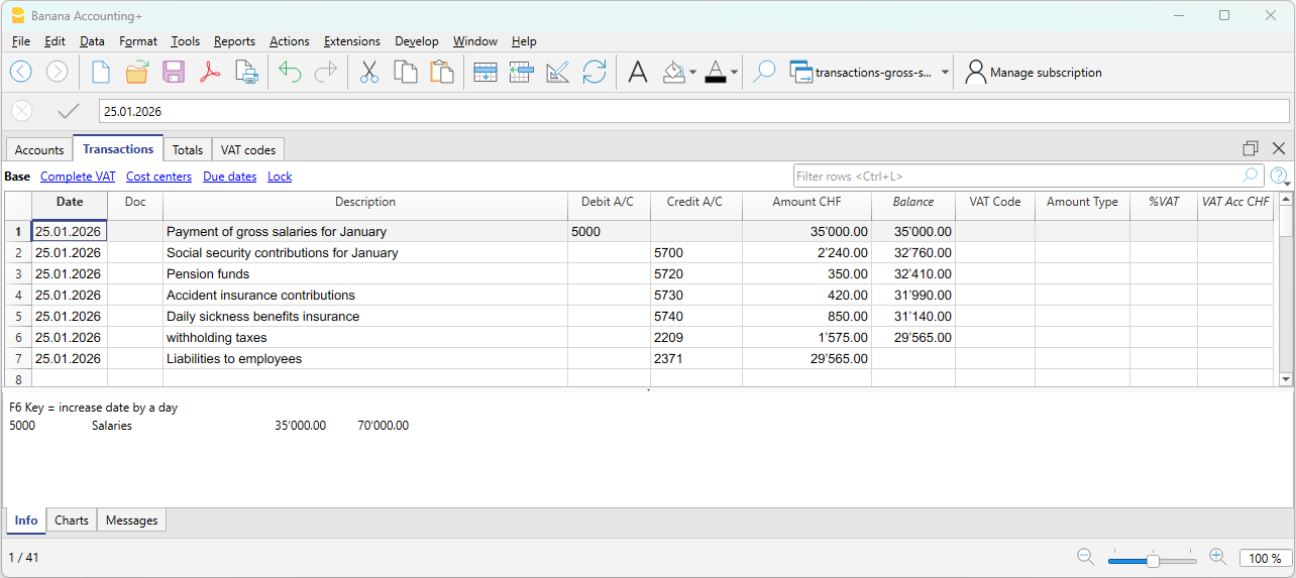
Accounting entry of gross salaries
At the end of the payroll period, the gross salary and the related deductions from employees’ pay are recorded. With gross recording, both the salary cost and the deductions and liabilities toward third parties are recognized.
Example:
- 5000 Gross salaries → Debit
- 1181 Family allowances → Debit
- 5700 AVS/AI/IPG/AD Contributions → Credit (employee’s share, deducted from salary)
- 5720 LPP Contributions → Credit (employee’s share, deducted from salary)
- 5730 LAINF Contributions → Credit (employee’s share, deducted from salary)
- 5740 Sickness contributions → Credit (employee’s share, deducted from salary)
- 2209 Withholding tax liabilities → Credit (fully borne by the employee). The withholding tax deducted from the employee’s salary must be fully paid to the Withholding Tax Office and represents a liability for the company.
- 2371 Liabilities to employees → Credit
Payment of the net salary
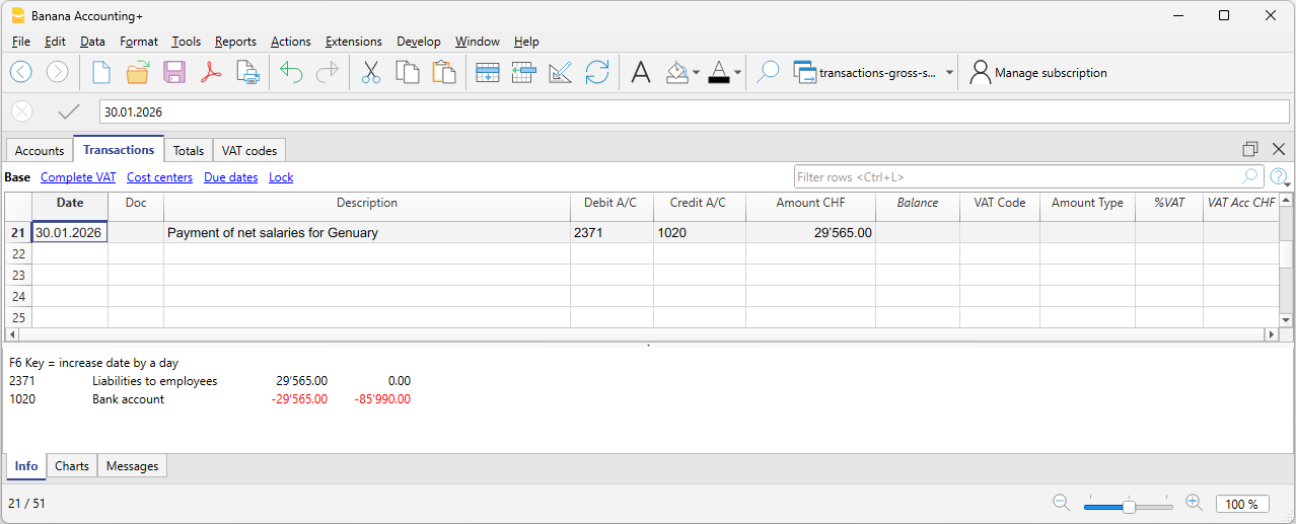
If salaries have been recorded when accrued and the payment takes place later, the payment entry is recorded as follows:
- 2371 Liabilities to employees → Debit
- 1020 Bank → Credit
Recording AVS advances and payment
Monthly or at another regular interval, the employer receives from the cantonal AVS office the advance invoices for AVS contributions to be paid. These amounts also include any allowances advanced in the salary of the employee entitled to them.
The advance invoice includes both the employer’s share and the employee’s share.
Recording the invoice:
On 03.01.2026 we record the invoice for AVS advances:
- 5700 Employer social security contributions → Debit
- 2270 Liabilities to social security institutions (AVS/AI/IPG/AD) → Credit
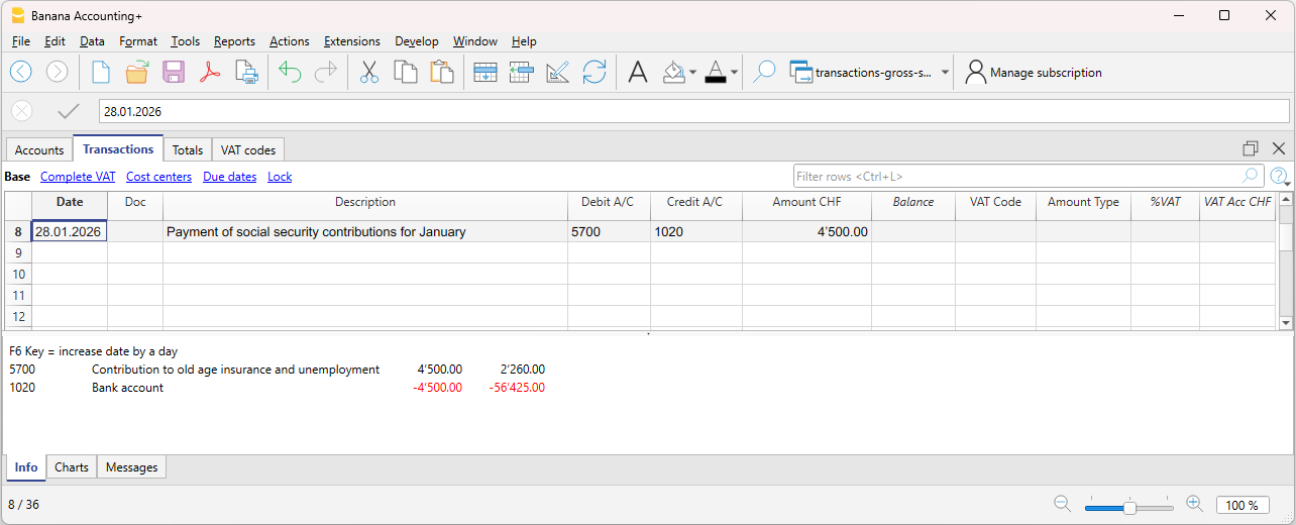
Payment:
On 30.01.2026 we record the payment of the AVS advances:
The contributions are paid according to the invoice, the amount of which is net of any family allowances or other benefits.
- 2270 Liabilities to social security institutions (AVS/AI/IPG/AD) → Debit
- 1020 Bank → Credit
The AVS account plays a central control role:
- in Credit, employees’ salary deductions are recorded
- in Debit, payments to the institution.
The account balance therefore represents the employer’s share.
In the AVS contributions account card (see image), advances paid appear in Debit, while contributions deducted from employees’ salaries appear in Credit. The account balance therefore represents the employer’s share. This presentation makes it easy to verify the correctness of contributions and payments made.
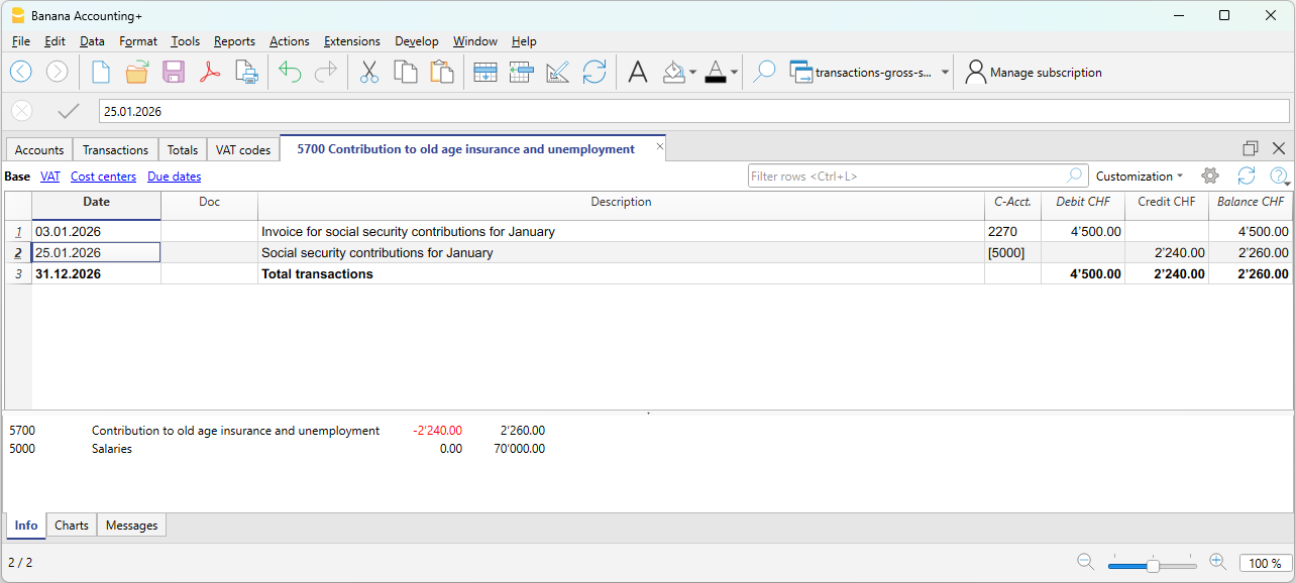
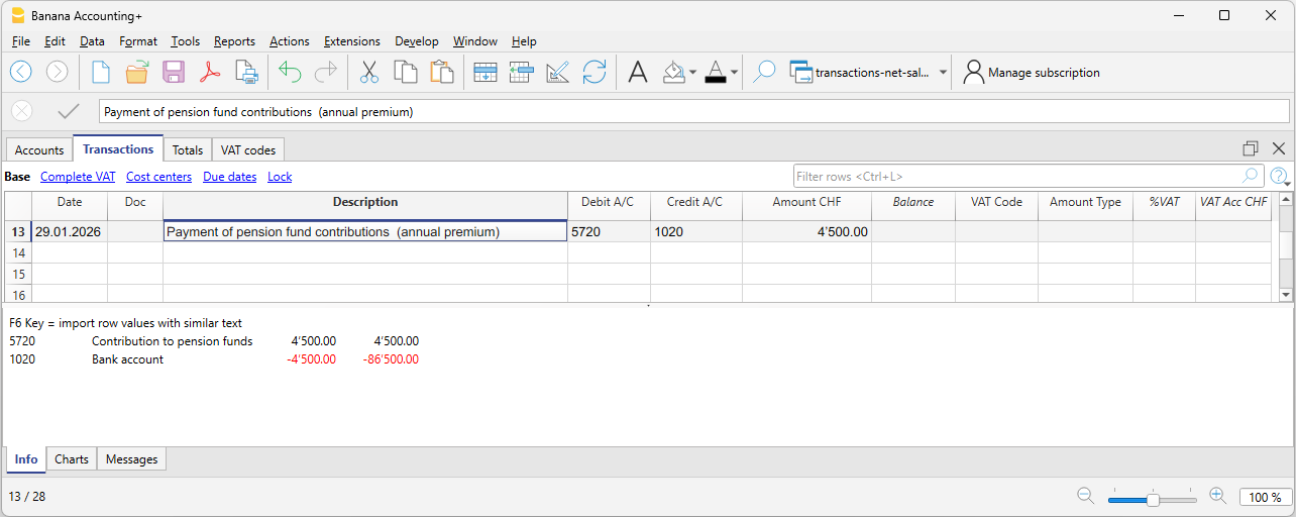
LPP contribution premium and payment
When the annual LPP premium is received, the total cost borne by the employer and the liability toward the LPP insurer are recorded.
When we receive the LPP premium invoice:
- 5720 LPP Contributions → Debit
- 2272 LPP Liabilities → Credit
When we pay the LPP premium invoice:
- 2272 LPP Liabilities → Debit
- 1020 Bank → Credit
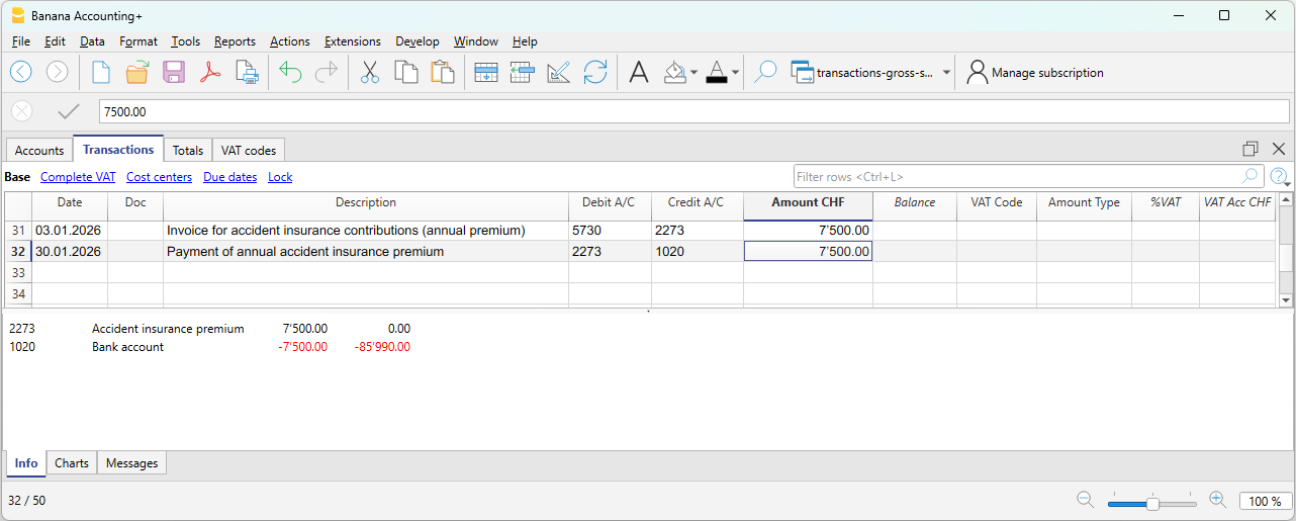
Annual accident insurance premium (LAINF) and payment
When the annual LAINF premium is received, the total cost borne by the employer and the liability toward the LAINF insurance are recorded.
When we receive the LAINF premium invoice:
- 5730 Accident insurance premiums (LAINF) → Debit
- 2273 Accident insurance liabilities → Credit
When we pay the LAINF premium invoice:
- 2273 Accident insurance liabilities → Debit
- 1020 Bank → Credit
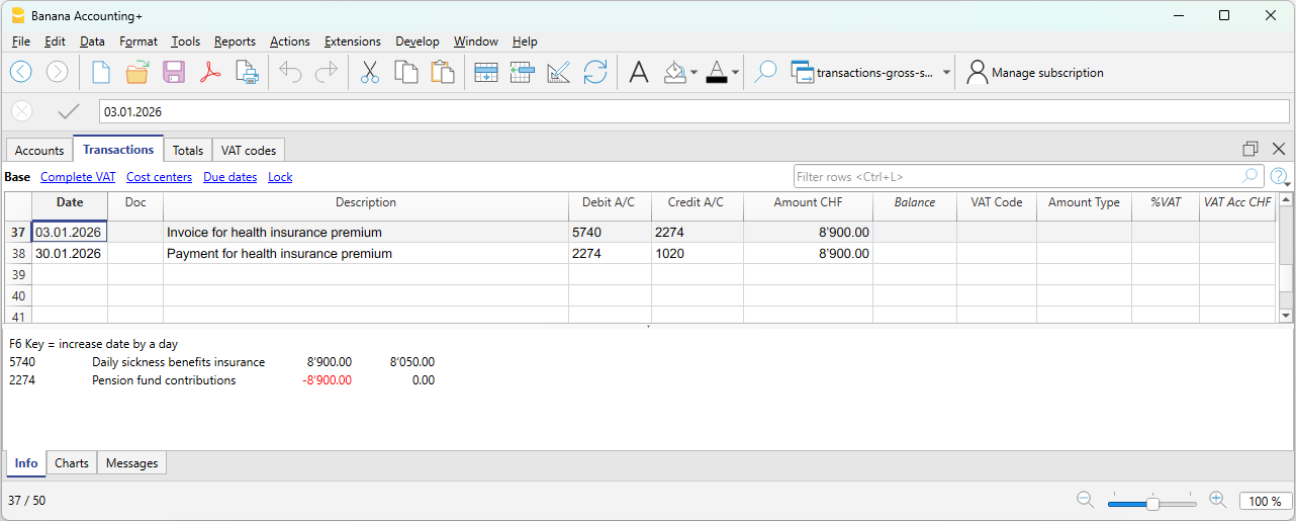
Annual collective health insurance premium (IGM) and payment
When the annual collective health insurance premium is received, the total cost (including both the employer’s and the employee’s share) and the liability toward the health insurance are recorded.
When we receive the health insurance premium invoice:
- 5740 Daily sickness allowance insurance → Debit
- 2274 Health insurance liabilities → Credit
When we pay the health insurance premium invoice:
- 2274 Health insurance liabilities → Debit
- 1020 Bank → Credit
Payment of withholding tax
The withholding tax, deducted from the monthly salaries of employees subject to withholding tax, must be declared and paid by the employer within the prescribed deadlines. It is borne solely by the employee.
- 2209 Withholding tax liabilities → Debit
- 1020 Bank → Credit
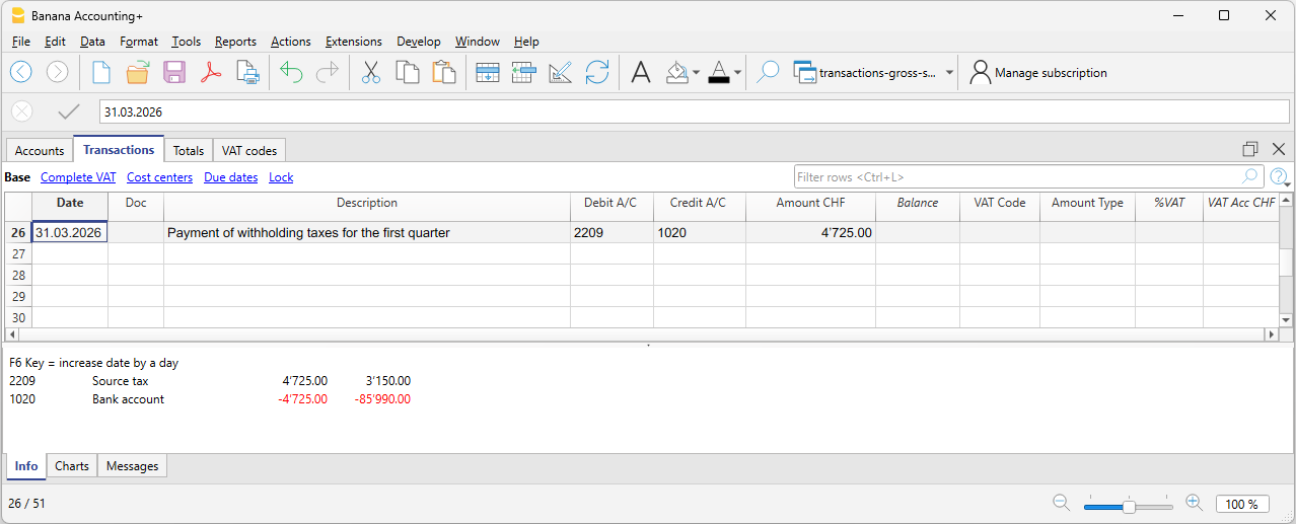
Control and verification
It is important to regularly verify:
- the consistency between accounting and payroll calculations
- the balances of liability accounts toward social institutions
- the payments made
During the year, social contributions are often paid as advances.
Following the final statements from the social institutions, any adjustments are recorded to align costs and liabilities with the amounts actually due.
Advantages of gross management
- Complete view of salary costs
- Greater accounting transparency
- Detailed control of deductions and contributions
- Proper representation of liabilities
Limitations of gross management
- Greater complexity
- More accounting transactions
- Requires more accounts and careful management
Salary Reconciliation and Verification of the OASI Declaration
When salary accounting is managed on a net basis, the annual OASI declaration cannot be verified by directly comparing the Salaries account with the final statement issued by the OASI Compensation Office. This is because the Salaries account contains the recorded net amounts, whereas the OASI statement is based on the gross payroll calculated by the payroll management software.
To verify the accuracy of the annual OASI declaration and the other year-end statements, it is therefore necessary to reconstruct the gross payroll and carry out a series of reconciliation checks.
The reconciliation process makes it possible to verify the consistency between:
- the accounting records
- the payroll statements generated by the payroll management software
- the annual OASI declaration
- the final statements issued by the social security institutions.
Reconciliation objectives
The year-end reconciliation has two main objectives:
- to reconstruct the gross payroll and compare it with the gross payroll declared to the OASI Compensation Office;
- to reconcile the OASI contributions by comparing account 5700 OASI Contributions with the final statement issued by the OASI Compensation Office.
Required documents
The following documents are normally required to perform the reconciliation:
- the accounting file
- the payroll statements
- the annual OASI declaration
- the final statement issued by the OASI Compensation Office
- the occupational pension (LPP/BVG) statements
- the insurance statements (OAI, daily sickness allowance insurance, etc.).
Verification of net salaries
The first check is to verify that the amounts paid to employees match those shown in the payroll statements generated by the payroll management software.
The total net salaries recorded in the accounting records must match the net salaries shown in the payroll statements.
It is also necessary to verify that there are no missing or duplicate transactions and that all entries have been recorded in the correct accounting period.
Any differences must be analyzed and corrected before proceeding with the reconciliation of the gross payroll.
Reconstruction of the gross payroll
To compare the accounting records with the OASI statement, the gross payroll must first be reconstructed.
The reconstruction must be carried out using the data from the payroll management software, which provides the details of the deductions applied to each employee.
Start from the net salaries recorded in the accounting records and add only the deductions withheld from employees, such as:
- OASI, DI, IC, and ALV
- occupational pension (LPP/BVG) contributions
- withholding tax
- other salary deductions.
The following must instead be excluded:
- family allowances;
- expense reimbursements;
- other allowances that are not subject to OASI contributions.
Verification of OASI contributions
During the year, OASI contributions are normally paid as advance payments. The actual amount due is determined only by the final statement.
For this reason, the balance of account 5700 OASI Contributions must be compared with the final statement issued by the OASI Compensation Office.
The account balance must include the advance payments made during the year as well as any year-end adjustments. The total must match the contributions shown on the final statement issued by the OASI Compensation Office.
Verification of other social security contributions
The same principle can also be applied to other social security and insurance contributions by comparing the balances of the related accounts with the annual statements issued by the relevant institutions.
In particular, it is advisable to verify:
- occupational pension (LPP/BVG) contributions;
- occupational accident insurance (OAI) premiums;
- daily sickness allowance insurance premiums;
- other recorded social security contributions or insurance premiums.
Any differences relating to these institutions should also be analyzed and reconciled before the financial year is closed.
Year-end checks
At the end of the financial year, the reconciliation should confirm that:
- the gross payroll matches the gross payroll declared to the OASI Compensation Office;
- the recorded contributions match the final statements issued by the institutions;
- all advance payments and any year-end adjustments have been recorded;
- there are no differences between the accounting records, the payroll statements, and the declarations submitted to the social security institutions.
A complete reconciliation makes it possible to identify any differences before submitting the declarations to the social security institutions and ensures consistency between the accounting records, the payroll management software, and the annual statements.
FAQ
Why doesn't the gross payroll in the OASI declaration match the Salaries account?
- Because under net salary accounting, the Salaries account records only the net amounts paid to employees, whereas the OASI declaration is based on the gross payroll.
Why is the balance of the OASI account different from the advance payments made?
- Because advance payments are normally made during the year. The actual amount due is determined only by the final statement.
How is the gross salary determined?
- The gross salary is reconstructed using the payroll statements generated by the payroll management software.
How do you reconstruct the gross salary starting from the net salary?
- Start with the net salary recorded in the accounting records and add the deductions withheld from the employee (OASI/DI/IC/ALV, occupational pension (LPP/BVG) contributions, withholding tax, and other deductions). Family allowances, expense reimbursements, and other allowances that are not subject to OASI contributions must instead be excluded.
Customising the Transactions Table
The Transactions table is the hub of accounting and can be customised to support a multitude of functions, such as entering quantities and prices, VAT, cost and profit centres and much more.
The table can be customised by displaying or adding columns, so that certain functions are only activated when needed.
Default settings
The Transactions table is set up with standard columns, such as Date, Description, etc., which are already visible when the file is opened. The user can decide which columns to make visible and customise with the command from the menu Data > Columns setup.
There are specific columns for the type of file opened. For example, in double-entry accounting, there are Debit and Credit columns, whereas in Income and Expense accounting, there are Account and Category columns.
The columns common to all accounts are fully explained on the page Columns of the transactions table - Double-entry, as listed:
- Columns for entering different dates
Currency date, document date, due date or estimated date - Documents
Columns to insert references to documents or protocol. - Remarks and observations
To add additional information of all kinds. - Links to digital documents
To immediately display the movement receipts. - Document type.
To indicate the type of entry (e.g. 01 means opening balance.) - Invoice number
- Cost and Profit centers
To subdivide costs and revenues into specific accounts for projects or other - Segments
To obtain branch or business sector reports.
Here listed the columns only present in certain types of accounts:
- VAT management
Columns only present in accounts with VAT. - Multi-currency accounting
Columns only present in double-entry accounting with multi-currency.
Customising the display
You can adapt the table display to your specific needs, as follows:
- With the command Data > Column setup
- By changing the width and formatting of columns.
- By changing the order in which columns are displayed.
- By making visible or hiding columns already present.
- By creating or modifying new views with display settings (Tables setup)
Adding additional columns
You can add additional columns according to your needs. The options are:
- Add preset columns with specific functionalities
For example, columns for quantities, unit price (as explained in the next section). - Add free columns (Data > Columns setup)
To insert any other information required. - Add columns and link them to tables added by the user
You can add additional tables, e.g. the Projects table, and then create a column where you can enter the name of the project.
Additional columns quantities and prices
You can enter quantities and prices directly in the accounting file.
Specific columns are displayed from the menu Tools > Add / Remove Functionality. The following columns are added in bulk:
- Article identifier
Which is linked to the Items table - Quantity. A numerical value
- Unit price
- Descriptive quantity.
If you enter a value in the quantity or price column, the programme automatically calculates the amount by multiplying the two values.
These columns can be used for various purposes:
- Manage quantities and prices for cost accounting.
- Specify the elements of an invoice.
- Enter the movements of items indicated in the Items table or to manage the purchase and sale of securities (see Portfolio extension).
Link to the Items table
The Items table is a kind of mini-warehouse integrated into the accounting , where:
- You can enter the list of products, quantities and prices.
- When you enter an item in a line in the transactions table, the programme automatically takes over the description and sales price.
- If you enter transactions in the Transactions table by entering quantities, the programme updates the current quantity in the Items table.
Additional Payment Management Columns
They are added from the menu Tools > Add / Remove Functionality
Please refer to the explanation in the Payment Management page.
Additional columns end date, repeat
You can also add specific columns to insert automatic movements in the Recurring Transactions table.
They are added from the menu Tools > Add / Remove Functionalities
Please refer to the explanation Automatic Transactions.
Recurring Transactions table
The Recurring Transactions table has the same columns and arrangements as the Transactions table. If you change the display of columns in the Recurring Transactions table, this will also be changed in the Recurring Transactions table.
合计表
合计表按组显示总计,用于检查会计余额。
它由程序自动计算,用户无法修改。

在合计表中,对自己的经营活动情况一目了然。您可以看到资产,负债,支出和收入的总和,最重要是您可以看到是盈利还是亏损。
作为总组的00非常重要,因为它可以让您立即查看是否一切就绪或余额是否有差异。
Budget Table
The financial planning entries are entered in the Budget Table. It is similar to the Transactions table, but has some columns specific to help speeding up and make budgeting easier.
You can also modify the data as you require, to own reliable and always perfectly updated budgets.
For more information on the Budget table, see the pages:

发生业务类型
简单的发生业务 (一行)
简单的发生业务涉及到两种账户 (一个是借方账户,一个是贷方账户) 并且在一个单独的行中被输入。
每笔业务有其自己的记账凭证号。

多次发生业务 (多行)
多次发生业务涉及两个以上的账户,必须在几行内输入。用户应该每行输入一个账户,整个发生业务的对应账户必须在第一行输入。
在不同行中所输入的记账凭证号是相同的,因为我们处理的是同一笔发生业务。
注意:
在多次发生业务中,业务的日期应该是相同的,否则,在按时期进行计算时,会计核算中可能会出现差额。

期初发生业务
期初余额通常在账户表中显示。
在特殊情况下,需要设置期初发生业务,例如:
通过在文件类型列中插入期初日期等于会计开始日期和代码为 01 的发生业务,创建期初发生业务。
- 期初发生业务不改变账户表中的期初余额。
- 与发生业务一起输入的期初余额用于资产负债表打印输出,账户明细中。
- 如果在同一账户中有期初余额和期初余额记录,则这两个金额将加在一起。
这样,就可以输入期初发生业务,更正账户的期初金额。 - 在发生业务中输入期初余额时,必须确保借方 (正数) 和贷方 (负数) 之和为零。
对于每一个借方业务,必须有一个相应的贷方业务。
有一个期初账户作为输入期初金额的对应账户可能是有用的。
在输入所有期初发生业务后,这个账户的余额显然必须是零余额。
在输入期初余额时,一般只注明借方或贷方账户。但是,也可以注明对应账户,一般是专门的期初账户。
年末结算|复式记账法
会计结算是指在年末编制财务报表之前进行的所有控制、调整和按时间划分的操作。
技术方面和新的一年
在Banana财务会计中,每个会计年度都有自己独立的文件,在技术层面上不存在会计结算的概念:
税务方面
在结束会计核算之前,有必要进行一系列涉及税收的操作。商品账户需要进行调整,折旧的业务需要被输入,应计收入和负债,增值税申报需要被完成,建立盈利或亏损的账户以及还有其它许多验证和检查的工作。
从程序的角度而言,不论收益是高还是低都没有区别。然而,从税务的角度看,却意味着很多。这些方面的事项需要与您的税务顾问或会计进行核对。尤其在您第一次管理会计核算的时候是非常有用的,在您进行结算之前,我们建议您向专家进行咨询,以便了解什么是您所需的。会计师在年初和在纳税申报最后期限之前的时期是非常忙碌的。因此在会计结算的几个月前与您的会计师会面或把会计文件发送给他/她是非常必要的。
检查账务的命令
Banana财务会计软件允许您快速记录并保留待处理的操作,不用中断工作。
点击操作菜单 → 检查账务的命令执行一系列的检查,就像从头开始重新输入数据一样,一旦发现错误或差异,软件就会自动报告。
每当出现差额或报告错误、重要变化 (初始变化、增值税代码) 的时候,建议定期使用检查账务的命令,特别是在关闭会计核算之前。
检查与核实
核查期初余额
- 在账户表中的期初列和余额列中,"差额必须为零 "一行必须没有金额,否则需要发现相关的错误并加以纠正,以平衡初始余额。
请注意:在发生业务的视图中,在借方和贷方列中,有金额是正常的。 - 确保上一年的应收和应付交易都已经结束。
- 检查期初余额是否与已经审计并向税务局申报的前一年的期末余额一致。
- 对于多币种会计,请参见相应的多币种会计期初余额的页面信息。
核对会计余额
第一次检查无疑是为了确保账户余额与现实相符。现金账户余额必须与实际现金状况相符。您的银行、信用卡、贷款或信用账户的余额必须与您对账单上的余额相符。这同样适用于所有其他有延期、增值税、供应商等的账户。
如果有差额,有必要找出原因并完成初始余额或发生业务。
发生业务表中的差额
在发生业务表 (页面底部的信息窗口) 中,检查是否有存在差额的信息提示。除了检查账务命令中的功能外,Banana财务会计+ 还在发生业务表中提供了余额列,它允许您可以检测所有存在差额的行。只需快速向下滚动该列,即可立即识别出所有的会计差额并进行更正,而不会在新年度出现错误。
银行对账单的银行余额和账户余额之间的差额 (余额检查功能)
此操作是会计真实性的基础。我们建议您进行余额检查,#CheckBalance,不仅在会计期末,而且在每个月末定期进行,以避免要逐月进行任何不匹配的余额。
有关核查余额业务的信息请点击查看核查余额业务的页面。
多币种会计核算
如果您使用的是多币种会计核算,也必须设置期末汇率,并记录未实现的汇率收益和损失。关于这一点,请参考:
年末结算的发生业务
在年底,在进入新年之前,有结账的会计操作要做。这些是调整分录、价值调整和与工作人员缴款相关的调整。主要的情况列举如下:
将现金账户的动向导入会计文件
此操作仅在现金帐户与会计分开保存在单独文件中的情况下进行。
导入后,验证主会计文件中现金账户的余额是否与现金文件的余额相符。也可以使用上一段中描述的检查余额功能来完成此验证。
将工资的动向导入会计文件
只有在用特定的会计软件管理薪资,并允许您将发生业务导入Banana财务会计+的文件时,才能进行这一操作。
导入是通过操作菜单 → 导入到账套 → 导入:发生业务的选项进行的。
请记得在12月输入第13个月的工资数据,如果薪资软件没有创建这个业务的话。
保付账户调整
采用权责发生制的公司,如果预见到潜在的损失,必须结算保付账户。
折旧
在12月31日,您必须记录动产和不动产的折旧,并评估那些快速报废的资产可能的加速折旧。
您可以使用我们的折旧资产登记应用程序,它可以自动创建折旧记录,您可以将其记录在您的会计文件中。
库存调整
库存的应用程序允许您按件数和按价值进行精确计数,帮助您更快地确定库存的结算。
记录截至31.12时未结算的客户和供应商的发票
为方便流程,通过客户开发票和供应商开发票的功能,您可以快速检测到12月31日的数值。
私人消费
如果公司里有使用公司的汽车,要用相应的增值税代码来登记自己的消费。
结算和增值税申报
在提交增值税申报之前,我们建议进行以下检查:
- 使用检查账务的命令。如果出现错误和差额,您可以在底部的信息窗口中找到相关的信息。
- 检查发生业务表的余额列是否有差额。
- 检查银行余额是否与银行所发送的余额一致。
- 检查在冲销应付增值税账户(应付给联邦税务局的增值税) 的余额后,增值税账户自动为零。应付增值税的账户必须显示要支付的金额或要收到的抵扣金额。
- 在提交最后一份增值税申报表之前,再次查看其它季度的增值税报表,以检查支付给联邦税务局的金额是否仍然与显示的金额一致。
- 使用增值税报表的命令查看各种报告,并创建一个PDF打印文件,以便将数据存档。在税务审计时将会很有用。
结算预扣税账户
在统计和记录12月份的工资后,根据寄给税务局的报表,记录结算。
对高级管理人员的退款
如果有规定,请将税务机关规定的金额作为一次性报销列入12月工资中。
私人账户结算
检查私人账户的余额。如果企业与所有者 (或与他们关系密切的人) 之间存在借贷关系,应根据贷款协议的条款或根据适用的税务准则记录利息收入或支出。
税收和关税账户结算
核实当年支付的首付是否与当年有关。与往年有关的税款应先入账,以结清相应的搁置金额,然后 (如有超额),应使用“直接税”科目 (资产) 入账。如果准备金余额不足或过多,则差额必须记录为非常费用/收入或与以前期间有关的费用/收入。
AVS/AD/IPG/AD 业务的余额及调整
- 在这一年中,在社保 (AVS) 缴费账户中,通常会记录支付给州级社保 (AVS) 补偿基金的预付款 (借方) 和从雇员工资中扣留的金额 (贷方)。
- 如果在这一年中,支付给雇员的家庭津贴已经记录在一个专门的账户中,例如在 "家庭津贴缴款 "账户中,那么这个账户的余额可以转到社保 (AVS) 缴款账户中,以便与社保 (AVS) 的结账报表进行核对,并记录相应的调整。
社保,退休金等业务的最终余额及调整
随着十二月工资的录入和第十三个月工资的支付,您必须打印工资单,并注明所有工资总额。您必须向员工的保险公司报告保险的总金额,保险公司将决定要支付的任何调整。
将文件发送给会计师进行结算
如果结账和/或审计是由您的受托人进行的,只需将您用Banana 财务会计+ 创建的会计文件通过电子邮件发送,或将数据保存在U盘上。
- 如果您的受托人有Banana财务会计软件,只要通过电子邮件或U盘发送ac2文件即可。您也可以将您的文件和数字文档保存在例如Dropbox上与受托人共享的文件夹中。您将不再需要把沉重的纸质文件拿给受托人。此外,受托人也可以迅速开展工作,而不必在纸质文件中寻找。
- 如果您没有Banana财务会计软件,可以通过文件菜单 → 创建PDF档案的命令来创建PDF格式的会计数据,并通过电子邮件发送。受托人将向您指明所有需要修改和添加的业务,以便正确结束会计期间。
另外,您的受托人可以使用Banana财务会计+ 的免费计划打开您所发送的会计文件,从我们的下载页面下载。如果您的文件中有超过70行的发生业务,您的受托人将不能添加业务或对其进行修改,但仍能看到所有的数据,通过简单地点击账户号码获得每个账户的明细等,并向您提出可能的修正或改进意见。
对发生业务加锁
一旦完成了年末业务和账务检查,我们建议您为发生业务加锁。
- 点击操作菜单 → 锁定发生业务的命令。
发生业务行会被编号,并会获得相关的区块链密码来保证其的安全性。
年终打印
对于会计年度结束时的打印输出,您可以通过单击以下链接找到相关的信息:
PDF档案文件
创建PDF档案的命令允许您将整个会计期间的所有文件 (账户明细、日记账、增值税报表、月报、季报和年报等) 放在同一个PDF文件中。
您可以将会计数据归档,将会计文件和打印件保存为PDF格式。如果有必要,可以在外部磁盘驱动器上做备份。
为审计程序准备的文件
在准备供审查的文件这一页面上,我们发表了一系列关于发送给审计师的文件的说明和建议。完整的文件是使审计师的工作更有效率和速度的良好基础。
利润/亏损的分配
在Banana财务会计软件中,利润或亏损的分配在新年开始时自动进行。有关更多信息,请参阅创建新年的页面。
Year-end closure checklist
On this page you will find a general checklist for those using Banana Accounting Plus, useful for carrying out all the necessary checks to close the accounting year and start the new one.
We also explain how to proceed if, after closing, differences or missing transactions emerge. More information on the page Changes after closing the accounting year.
Use the Temporary Filter for quick checks and corrections
To perform a quick check, especially at year-end, we recommend using the Temporary row filter function, which shows you all the transactions that match a keyword, phrase, account or a group of elements. You can correct or edit the transactions directly in the rows displayed by the Filter, without having to scroll through the entire Transactions table. When you remove the Temporary Filter, the rows return to their original order. More information on the page:
- Temporary row filter (only with Advanced plan).
Accounting check command
With Banana Accounting you can record quickly, even leaving some operations pending without interrupting your workflow.
The Actions > Check accounting command performs multiple checks, as if re-entering the data from scratch, and immediately reports any detected errors or differences.
Use this command regularly, especially in case of differences or error messages, significant changes (initial balances, VAT codes), and especially before closing the accounting.
Check the opening balances
- In the Accounts table, in the Opening and Balance columns, on the row "Difference must be zero" there must be no amount, otherwise you need to find the error and correct it to balance the opening balance sheet.
Note: in the Transactions view, it's normal to have amounts in the Debit and Credit columns. - Make sure that the accrued and deferred accounts from the previous year have been closed.
- Verify that the opening balances match the final balances from the previous year, already reviewed and declared to the tax office.
- For multi-currency accounting, see the page Opening balances in multi-currency accounting.
Check correspondence of account balances
The first check is undoubtedly to ensure that the account balances match reality. The cash account balance must match the actual cash status. The balance of bank accounts, credit cards, loans or assets must match the statement balance. The same applies to all other accounts with reconciliations, VAT, suppliers, etc.
If there is a difference, you must find the cause and update either the opening balance or the transactions.
Differences in the Transactions table
In the Transactions table (Info panel at the bottom), check that there are no reported differences. In addition to using the Check accounting command, with Banana Accounting Plus you can activate the Balance column in the Transactions table. This column detects all the rows where there are differences. You can then quickly scroll through the column to immediately spot and correct discrepancies, avoiding errors in the new year.
Differences between bank statement balances and accounting balances (CheckBalance function)
The #CheckBalance function checks that accounting balances match the bank statement balances. We recommend running this check not only at the end of the accounting period, but every month, to prevent mismatched balances from carrying over incorrectly month after month.
Information about the verification transactions is available on the page Verification balance transactions.
Multi-currency accounting
If you are using multi-currency accounting, you must also set the closing exchange rates and record the unrealized exchange rate gains and losses. More information on the page:
Checks before closing
To ensure the year’s accounting is complete and consistent, it is important that:
- All transactions of the year have been entered (bank, cash, customers, suppliers).
- There are no unbalanced or inconsistent rows.
- VAT transactions are consistent (if applicable).
- The multi-currency accounting includes all currency movements.
- The exchange rate differences in multi-currency accounting have been calculated.
- The Check accounting command has been run and no errors were found.
Year-end operations
- Record depreciations.
- Enter accruals and deferrals.
- Verify cost and revenue allocation.
- Reconcile bank accounts and customer and supplier balances.
More information on the page: Closing accounting transactions.
Exchange rate differences (if multi-currency)
- Update the exchange rate on 12/31 in the Exchange rates table (use the official rate from the Federal Tax Administration).
- Run the command Create exchange rate difference transactions.
Create a custom checklist
Every year, there are many review and closing operations, and from one fiscal year to another, it’s not always easy to remember everything. To avoid omissions, with Banana Accounting Plus you can create a simple table directly in your accounting file to note:
- All information related to the checks.
- The comments and corrections made by the auditor in the previous year, so as not to repeat the same mistakes.
- The list of documents to print.
- The documents to send to the auditor.
- Links to pages or resources you find useful.
More information on the following pages:
Year-end closure accounting transactions
At the end of the fiscal year, before opening the new accounting year, it is necessary to carry out some closing operations. Some transactions are simple and can be done independently, while others require specific technical skills or have tax and social security implications for which it is advisable to consult an accountant or fiduciary.
Preliminary checks
Before closing, make sure that:
- There are no errors using the Check accounting command.
- Bank balances in the accounting match the bank statements.
- Use the #CheckBalance function.
- There are no differences between the Debit and Credit columns in the Transactions table.
- Display the Balance column and check that there are no discrepancies.
- All transactions for the year have been entered.
- The balance of the automatic VAT account has been transferred to the VAT due account.
Open customer and supplier invoices (with cash accounting)
If you use cash accounting, at the end of the year you must record:
- Customer invoices issued but not yet paid.
- Supplier invoices received but not yet paid.
These entries allow you to correctly allocate costs and revenues to the correct fiscal year.
You can use the Open customer invoices and Open supplier invoices functions.
Open customer invoices as of 12/31
If you use cash accounting, at the end of the year you must record customer invoices that have been issued but not yet paid. This closing operation serves to determine the costs and revenues pertaining to the fiscal year. To make the process easier, you can quickly identify the values as of 12/31 using the open invoices by customer functions.
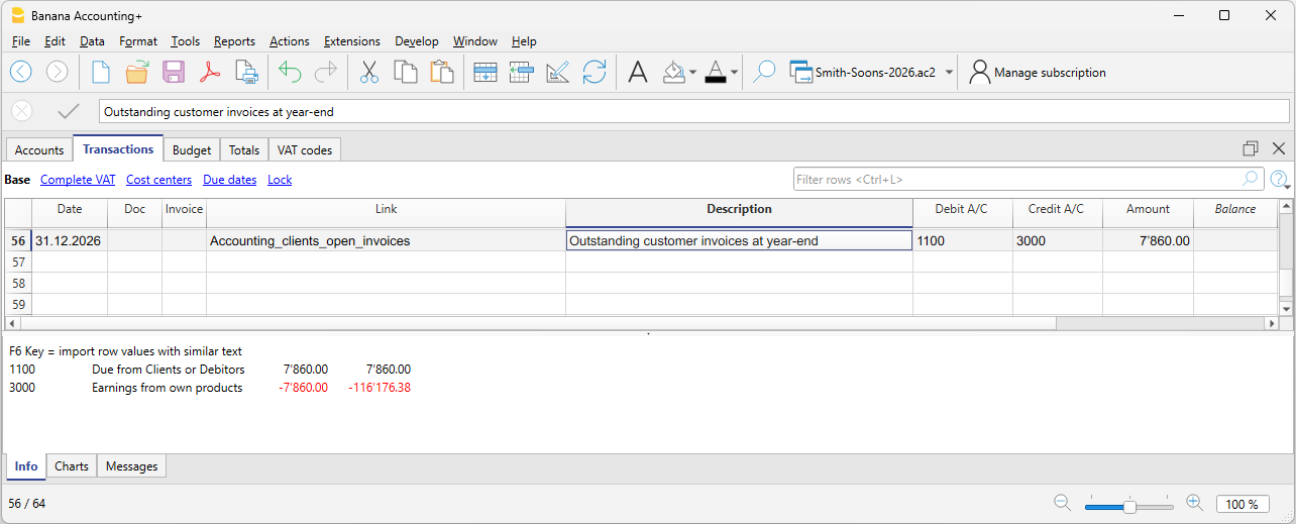
Open supplier invoices as of 12/31
If you use cash accounting, at the end of the year you must record supplier invoices received but not yet paid. This closing operation serves to determine the costs and revenues pertaining to the fiscal year. To make the process easier, you can quickly identify the values as of 12/31 using the open invoices by supplier functions.
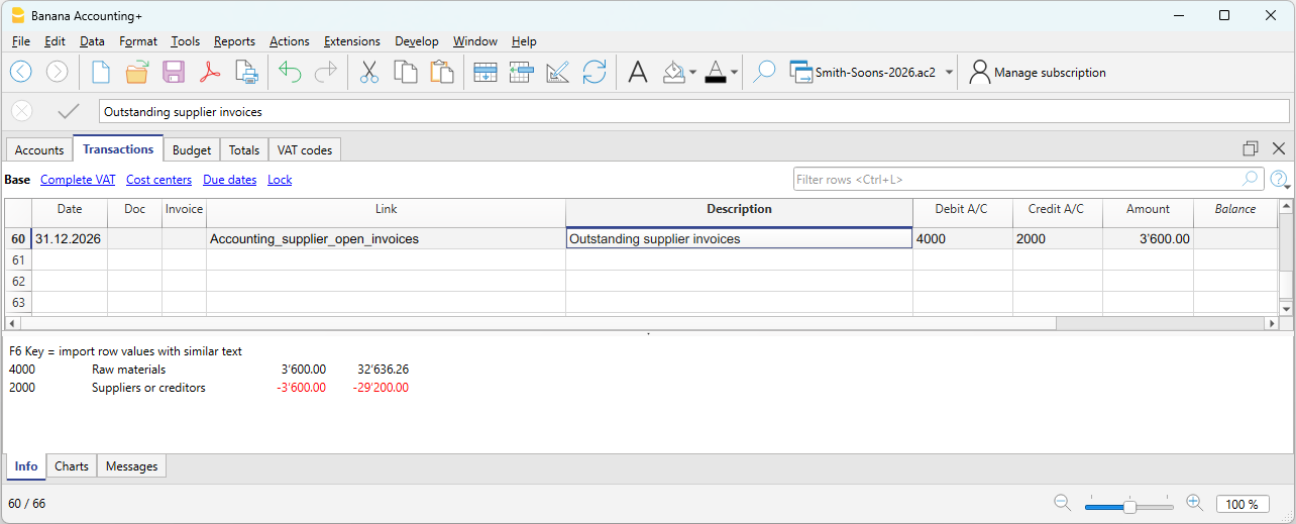
Depreciation
At the end of the fiscal year, you must record the depreciation of movable and immovable assets and consider accelerated depreciation for assets subject to rapid obsolescence.
You can use our application Fixed assets register which automatically creates depreciation transactions that you can import into your accounting file. The depreciation transaction varies depending on the method used:
- Direct depreciation: the depreciation is recorded directly in the income statement, using the depreciation account on the debit side and the asset account on the credit side. In the balance sheet, the asset always appears with its residual value.
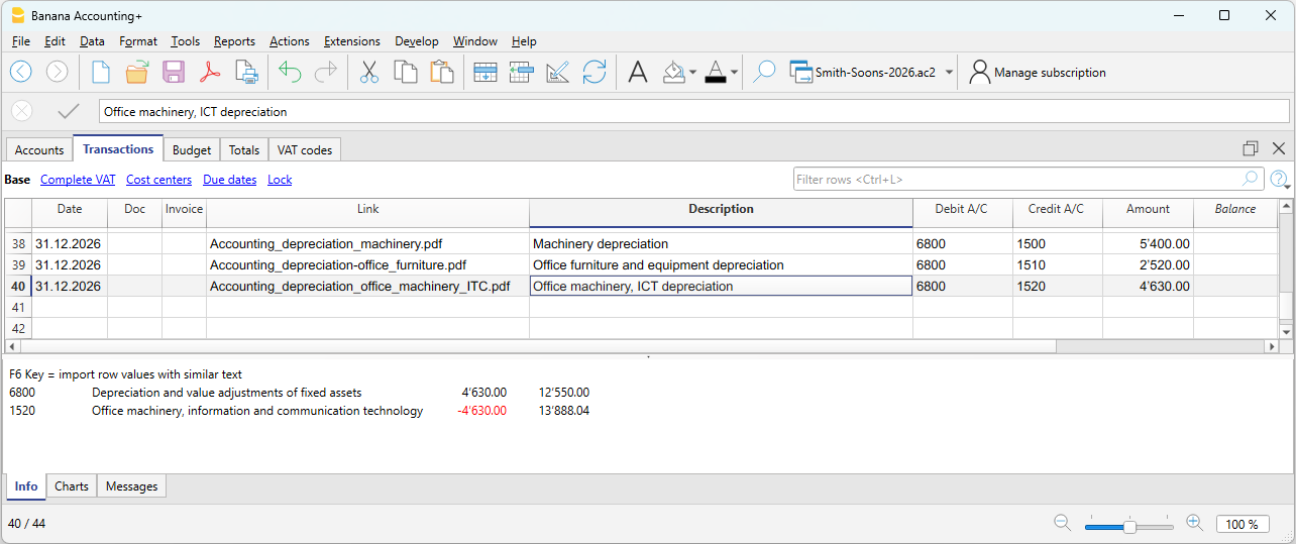
- Indirect depreciation: in this case, the depreciation is recorded not as a reduction of the asset but as an adjustment by posting it to a depreciation fund (reduction of assets).
Inventory adjustment
If you have inventory with goods, or simply a company material inventory, the inventory value at year-end must be adjusted in accounting. During the year, inventory movements are not recorded in the accounting file:
- Incoming and outgoing goods and their respective values are managed and updated in a dedicated inventory file or application.
Our Inventory application makes it easier to manage incoming and outgoing quantities, unit prices and final inventory values, allowing you to quickly determine the adjustment to be recorded at year-end in your accounting.
To calculate the inventory value to report correctly in the Balance Sheet:
- Determine the inventory value.
- Compare the beginning inventory value with the ending value.
- Record the difference as a change in inventory using the income statement account for goods as the offset.
In our example shown in Banana, there is an assumed increase in inventory compared to the opening value. Therefore, inventory (account 1200) is recorded on the Debit side, while the decrease in cost of goods is recorded on the Credit side.
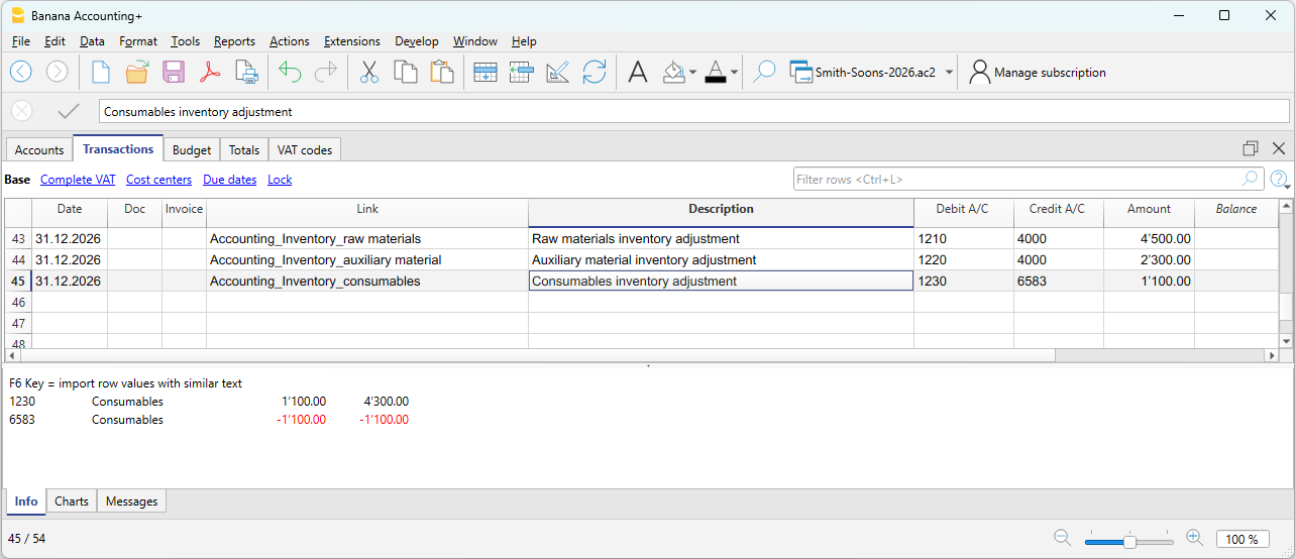
Private use
Private use occurs when the business owner uses goods or services belonging to the company (goods, materials, vehicles, premises, etc.) for personal purposes.
For tax purposes, it is as if the company sells to the owner and therefore it must be recorded as revenue. If the company is subject to VAT, the transaction is VAT taxable.
In Switzerland, according to the VAT Act (LIVA), private use is taxable because it represents a private use of goods for which the company has previously deducted VAT.
The value to be considered is generally:
- Market value of the used item, or
- Purchase cost if lower.
The applicable VAT rate is the one of the good (e.g. 8.1%).
If the owner withdraws goods from the company for personal use:
- Revenue is recorded (as if it were a sale).
- VAT is calculated on the value of the goods.
- Inventory is reduced.
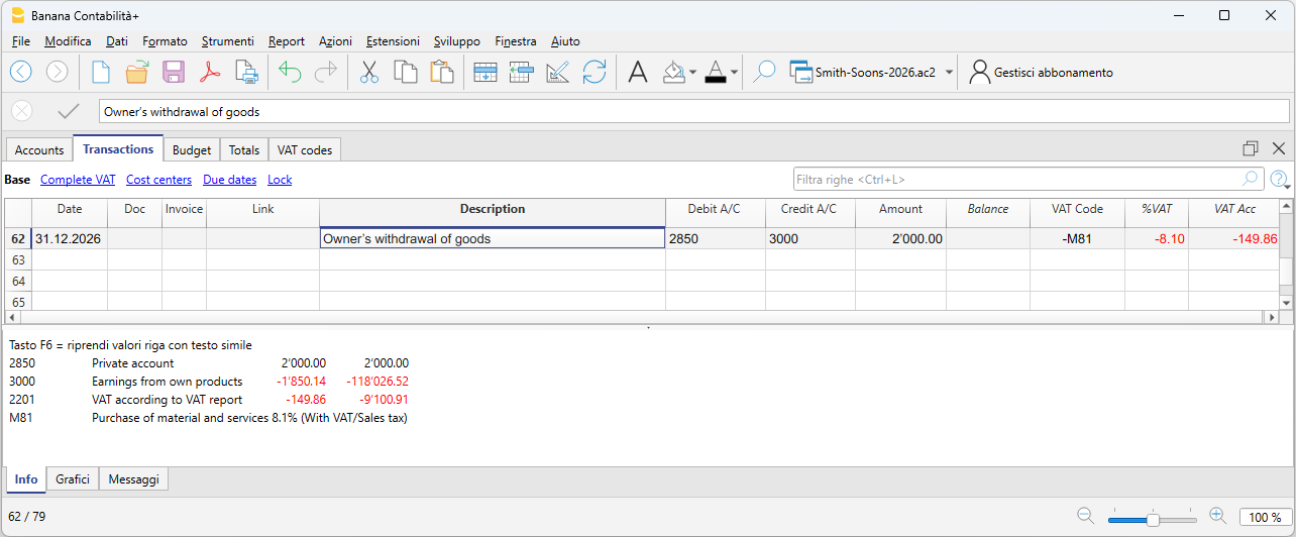
Private use of company vehicles:
If the owner uses the company car for personal purposes, the private use must be recorded as if it were company revenue. If the company is subject to VAT, the transaction is VAT taxable.
- The amount to be recorded is either a flat rate or calculated according to tax rules (e.g. 9.6% of the purchase price per year).
- Private use is considered revenue.
- VAT must be declared as VAT payable.
- The offset can be:
- a reduction in vehicle costs (6900), or
- a reduction in the asset value (vehicle), often preferred for sole proprietorships.
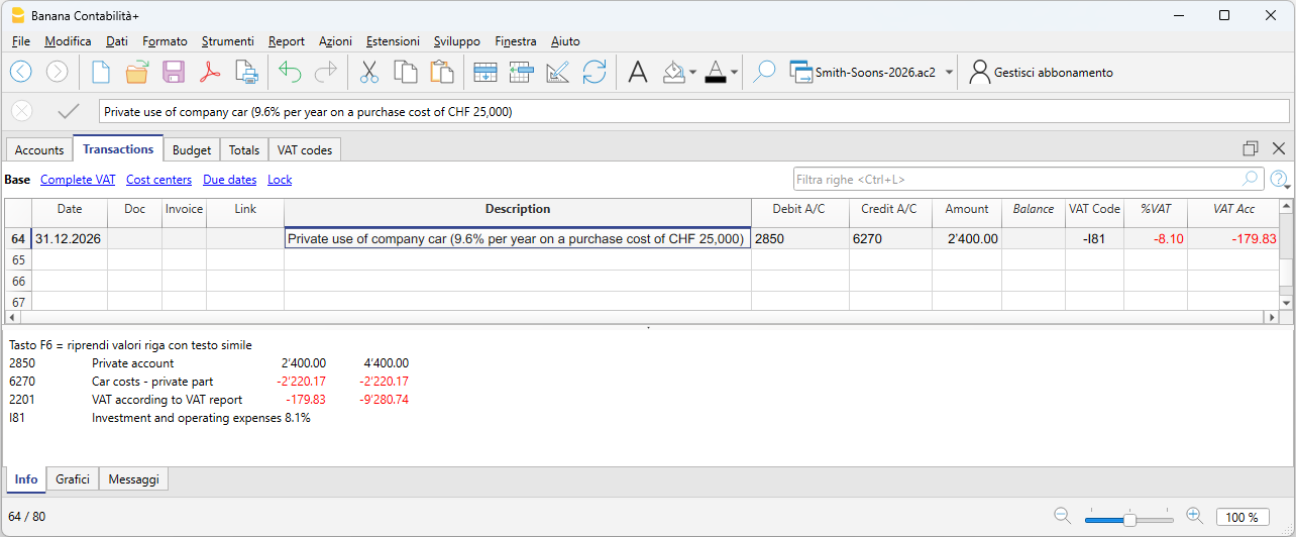
Adjustment of Taxes and Duties account
The adjustment of taxes and duties is a year-end entry that serves to:
- Record the taxes and duties accrued during the year but not yet paid.
- Adjust previously estimated amounts based on the actual tax assessment.
This ensures the correct cost is recognized for the fiscal year and the related liability to the tax authority is recorded.
It is also necessary to check that the advance payments made during the year refer to the current fiscal year.
Tax payments relating to previous years must be recorded to close the accruals present in the "Direct taxes" (balance sheet) account.
If the accrual balance is insufficient or excessive, the difference must be recorded as an extraordinary cost or revenue, or as a prior period item, depending on the nature of the variation.
Adjustment of the Private account
The private account (usually 2850 / 2860) is used in sole proprietorships or partnerships to record:
- Personal withdrawals by the owner
- Personal deposits by the owner
- Use of company assets for personal purposes (private use)
- Private expenses mistakenly paid by the company
- Year-end adjustments
At the end of the year, this account must be adjusted to reflect the correct balance between the owner and the company.
If the private account is an asset (debit balance) and therefore represents a receivable from the owner to the company, interest could theoretically be recognized.
VAT closing and declaration
For companies subject to VAT, it is important at year-end to check the VAT entries and proceed with the closings correctly. Banana Accounting Plus supports data checking and the preparation of VAT declarations (Advanced plan) for Switzerland, making it easier to manage everything in an orderly and compliant manner. At the end of the year, after proper checks and error corrections, you must:
- Record VAT for the fourth quarter (or the last semester in the case of the flat-rate VAT method).
- You must transfer the balance of the automatic VAT account to the VAT due account.
- Before submitting the final VAT declaration:
- Open the PDF files of the VAT reports previously submitted to the FTA.
- Use the VAT extensions to recalculate the VAT reports for each previous period.
- Verify that the newly calculated VAT reports still match those already submitted.
- Use the VAT Summary command to view various reports and create a PDF printout for data archiving. These documents will be useful in case of a tax audit.
Adjustments for AVS/AI/IPG/AD
The AVS/AI/IPG/AD contributions are mandatory social security contributions in Switzerland covering pension (AVS), disability (AI), allowances for military service and maternity (IPG), and unemployment (AD).
- During the year, the AVS contributions account usually records advance payments made to the Cantonal AVS Compensation Office (Debit) and the amounts withheld from employee salaries (Credit).
- If during the year the family allowances paid to employees were recorded in a dedicated account, for example in the “Family allowance contributions” account, to reconcile the accounting with the AVS year-end statement and record the corresponding adjustment, you can transfer the balance from this account to the AVS/AD Contributions account.
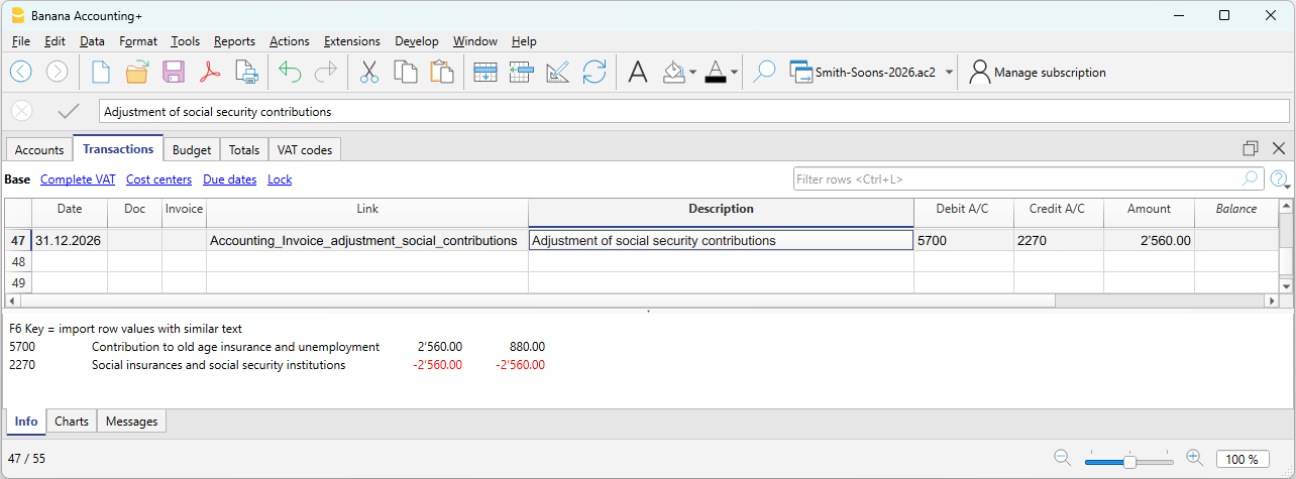
Accident insurance adjustments (LAINF, supplementary LAINF)
LAINF and supplementary LAINF contributions in Switzerland are mandatory insurance contributions against professional and non-professional accidents (LAINF) and additional coverage provided by the employer (supplementary LAINF).
With the recording of the December salaries and the payment of the thirteenth salaries, you need to print the salary list showing all gross wages. You must report the total AVS gross wages to the employee insurance providers, who will determine any adjustments to be paid.
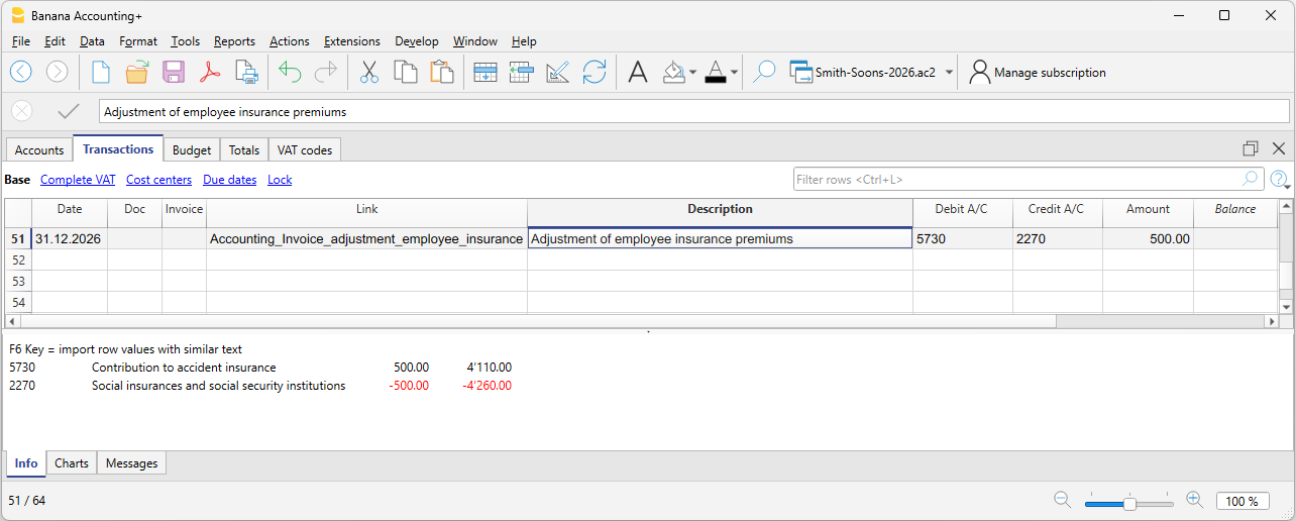
Pension fund adjustments
The pension fund (or LPP) is the mandatory Swiss occupational pension insurance that complements the AVS pension.
Many second pillar (LPP) pension providers calculate the annual premium based on salary estimates provided by the company before the end of the year. Bonuses are not included. Important changes during the year must be communicated promptly so the insurance can adjust the premium. The company may also decide to pay a higher amount in advance to avoid a deficit due to changes during the year.
At the end of the year, the LPP insurance sends a final statement showing either a payable or receivable balance, depending on whether too much or too little was paid.
In the following example, a balance is assumed to be payable. Therefore, the entry will be made in two accounts: Debit to the LPP Contributions account and Credit to the Liabilities to pension institutions account.
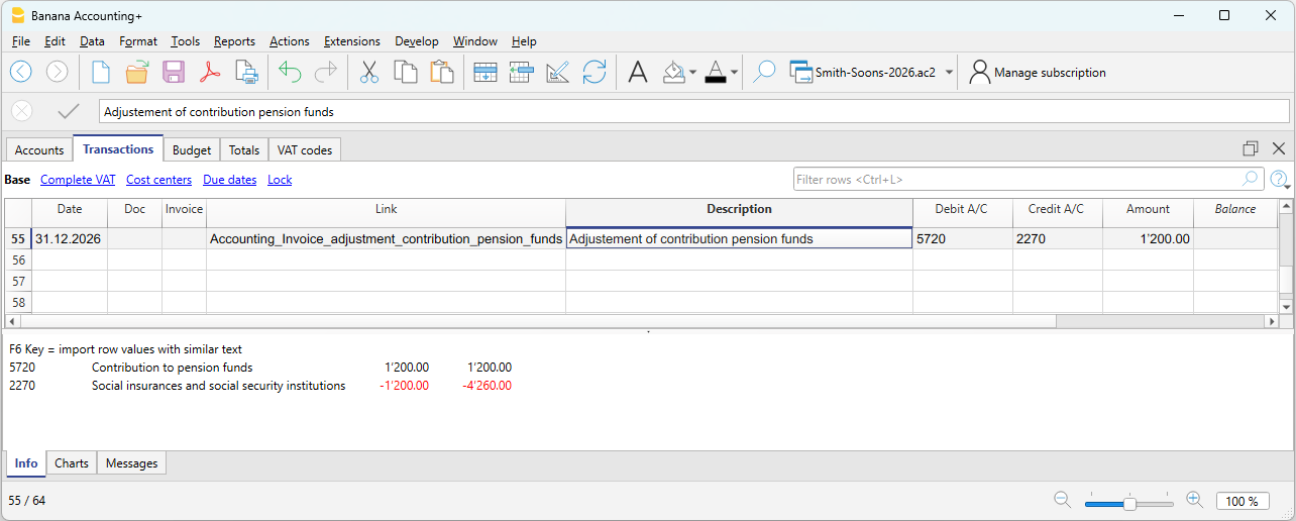
In case of a receivable, the LPP Contributions account is reversed: Debit the Receivables from pension institutions account and Credit the LPP Contributions account (as a decrease).
In the new year, the receivable must be reversed from the LPP Contributions account (for the new year) and the receivable is closed on the Credit side.
Adjustment of the allowance for doubtful accounts (Delcredere)
The allowance for doubtful accounts / Delcredere is a contra asset account associated with receivables. It is used to reduce the value of customer receivables to account for the risk that some may not be collected.
In practice:
- Receivables on the balance sheet are shown at a realistic value.
- The allowance represents an estimate of possible losses.
- It increases the prudence of the balance sheet, as required by the Swiss Code of Obligations.
Debit the expense account "Doubtful accounts" and credit the allowance for doubtful accounts.
Adjustment of withholding tax (IAF)
During the year, the employer withholds the tax at source from the salaries of foreign employees who are not fiscally domiciled in Switzerland. The withheld amounts must be paid to the Tax Office each quarter.
At the end of the year, with the final December report, the declaration for the last quarter’s withholding tax is made. All gross salaries paid are reviewed, and in case of changes or errors, corrections can be made in the final declaration.
Generally, the total amount payable for fourth quarter withholding tax is recorded as a liability as of 12/31 or, if too much was paid, as a receivable. The offset account is always the salaries account (account 5000).
Reimbursements for executive staff
“Executive staff” refers to management figures (CEO, directors, unit heads).
Reimbursements may be for actual expenses incurred by the executive employee on behalf of the company. These are not taxable for the employee and are therefore not subject to AVS, LPP, or withholding tax, provided that they are documented or, in the case of flat-rate allowances, approved through regulations by the FTA.
In this case, they are recorded in accounting as expense reimbursements or personnel expenses.
Carry forward profit/loss for the accounting period
In Banana Accounting, the profit or loss is automatically allocated during the carry forward of opening balances to the new year using the Create New Year command.
In the dialog window, in the Profit/Loss Allocation section, by clicking the down arrow of the first field, all available balance sheet accounts are displayed.
You can select the account or accounts to which the profit or loss will be allocated. The allocation can be made to a maximum of three accounts, using the three available fields.
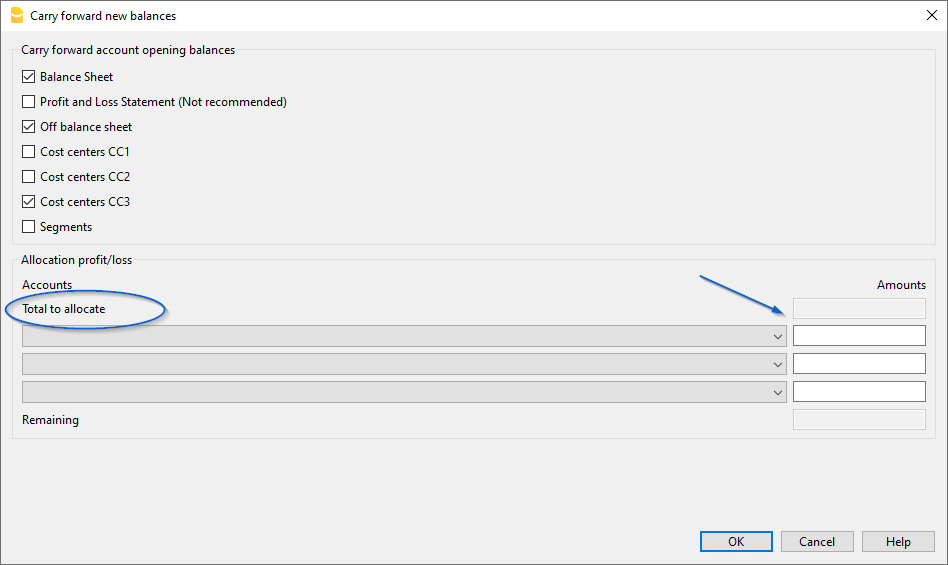
In the field(s) under the Amount column, enter the amount to be allocated for each selected account.
Detailed information about the Create New Year dialog window is available on the documentation page: Carry forward new balances dialog
Accruals and Deferrals in Assets and Liabilities
Accruals and deferrals are year-end adjusting entries used to apply the accrual principle, allocating costs and revenues to the year to which they economically relate, regardless of when the payment is made or received.
Attention
Accruals and deferrals do not concern invoices that are simply unpaid or not yet collected, but adjustments necessary to correctly determine the accrual basis of the financial year.
Difference between accruals and deferrals
At the end of the year, two situations may occur:
- Costs or revenues accrued but not yet recorded → Accruals
- Costs or revenues already recorded but not entirely relating to the current year → Deferrals
Simple rule
- Accruals add what is missing.
- Deferrals postpone what has been recorded in excess.
Accrued income and accrued expenses
Accruals concern costs or revenues already accrued in the financial year, but that will have a financial impact (receipt or payment) in the following year.
They are divided into:
- Accrued income → Revenues to be collected
- Accrued expenses → Costs to be paid
The cost or revenue fully relates to the current year, but has not yet been collected or paid.
Prepaid expenses and deferred income
Deferrals postpone costs and revenues already recorded but relating to the following financial year.
They are divided into:
- Prepaid expenses → postpone part of a cost already recorded
- Deferred income → postpone part of a revenue already recorded.
Accruals and deferrals in the chart of accounts structure of Banana Accounting
Accruals and deferrals are recorded through normal entries in the Transactions table, using specific balance sheet accounts in the chart of accounts.
The accounts are listed in the following subgroups:
Current assets
- 1300 Prepaid expenses (costs paid in advance)
- 1301 Accrued income (revenues to be collected)
Short-term third-party capital
- 2300 Costs to be paid
- 2301 Revenues received in advance
Below we present some examples of accrued income and expenses and prepaid expenses and deferred income created in the Transactions table of Banana Accounting
Accounting method and accruals
- In the Accrual basis method or accrual principle, issued or received invoices are recorded directly in the Customers or Suppliers accounts and appear as open items.
- In the Cash basis method, accruals are necessary at year-end to record costs and revenues accrued but not yet collected or paid.
- In the Hybrid system method, the solution most consistent with the adopted recording method is applied.
Case 1 - Accrued income (Revenues to be collected)
Example: the bank grants interest income of CHF 1’200 for the period 01.10–31.03. As of 31.12, 3 months have accrued (October–December).
Portion relating to the current year:
- 1’200 ÷ 6 months × 3 months = CHF 600
Entry on 31.12
- Debit: 1301 Revenues to be collected CHF 600
- Credit: 6950 Interest income CHF 600
In the Income Statement, CHF 600 is shown for the portion of interest income accrued up to 31.12; in the Balance Sheet, accrued income is shown for interest accrued but not yet collected.
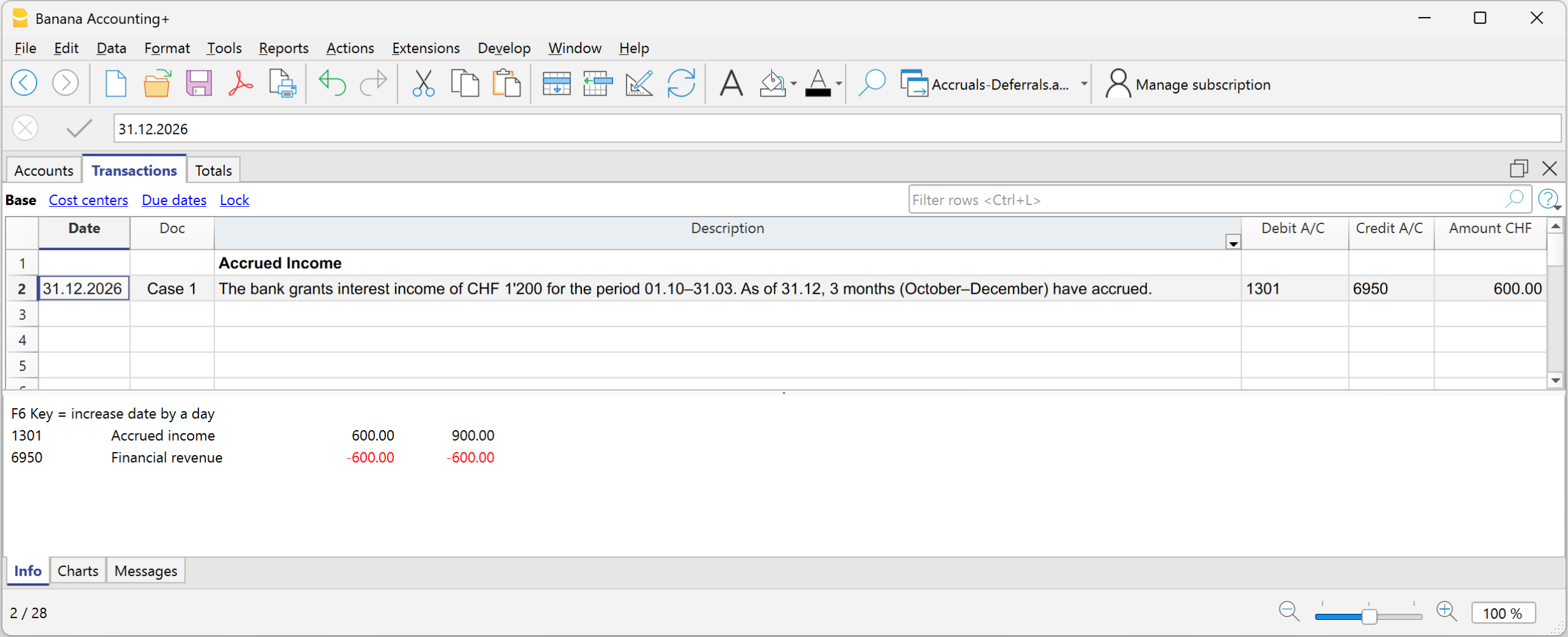
Case 2 - Accrued expense (Costs to be paid)
Example: Interest expense on a loan: CHF 2’400 per year, payable on 31.03 of the following year.
As of 31.12, 3 months have accrued.
2’400 ÷ 12 × 3 = CHF 600
Entry on 31.12
- Debit: 6900 Accrued interest expense CHF 600
- Credit: 2300 account Costs to be paid (liability) CHF 600
In the Income Statement, the interest expense accrued up to 31.12 is shown; in the Balance Sheet, the accrued expense is shown for the liability to be paid.
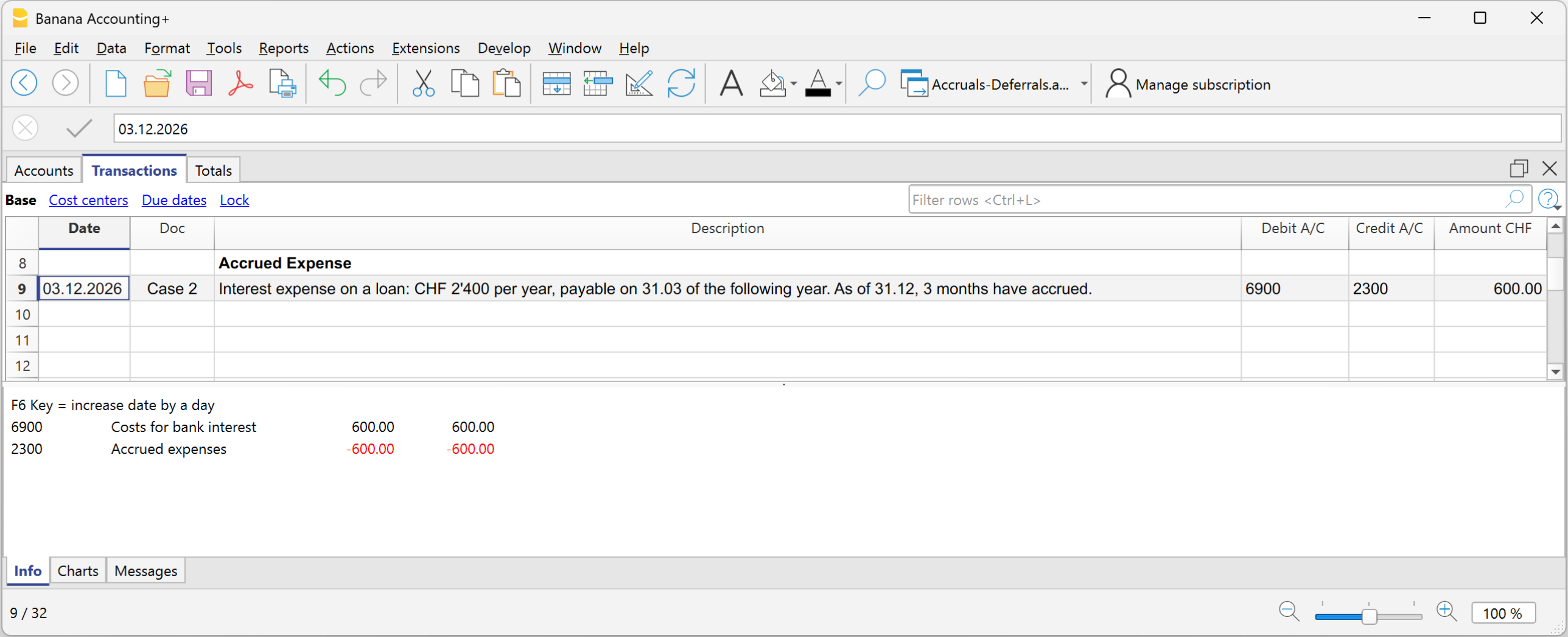
Case 3 - Prepaid expense
Example - Insurance premium paid of CHF 1’200 for 12 months, for the period from 01.10 to 30.09 of the following financial year:
Period relating to the current year:
October–December = 3 months
Portion relating to the current year:
1’200 ÷ 12 × 3 = CHF 300
Portion relating to the following year:
1’200 − 300 = CHF 900
Entry on 31.12
- Debit: Prepaid expenses CHF 900
- Credit: Insurance CHF 900
In the Income Statement, the cost of CHF 300 remains because a reduction of the insurance premium is recorded for the part paid in advance; in the Balance Sheet, CHF 900 remains because it is the portion of cost relating to the following financial year.
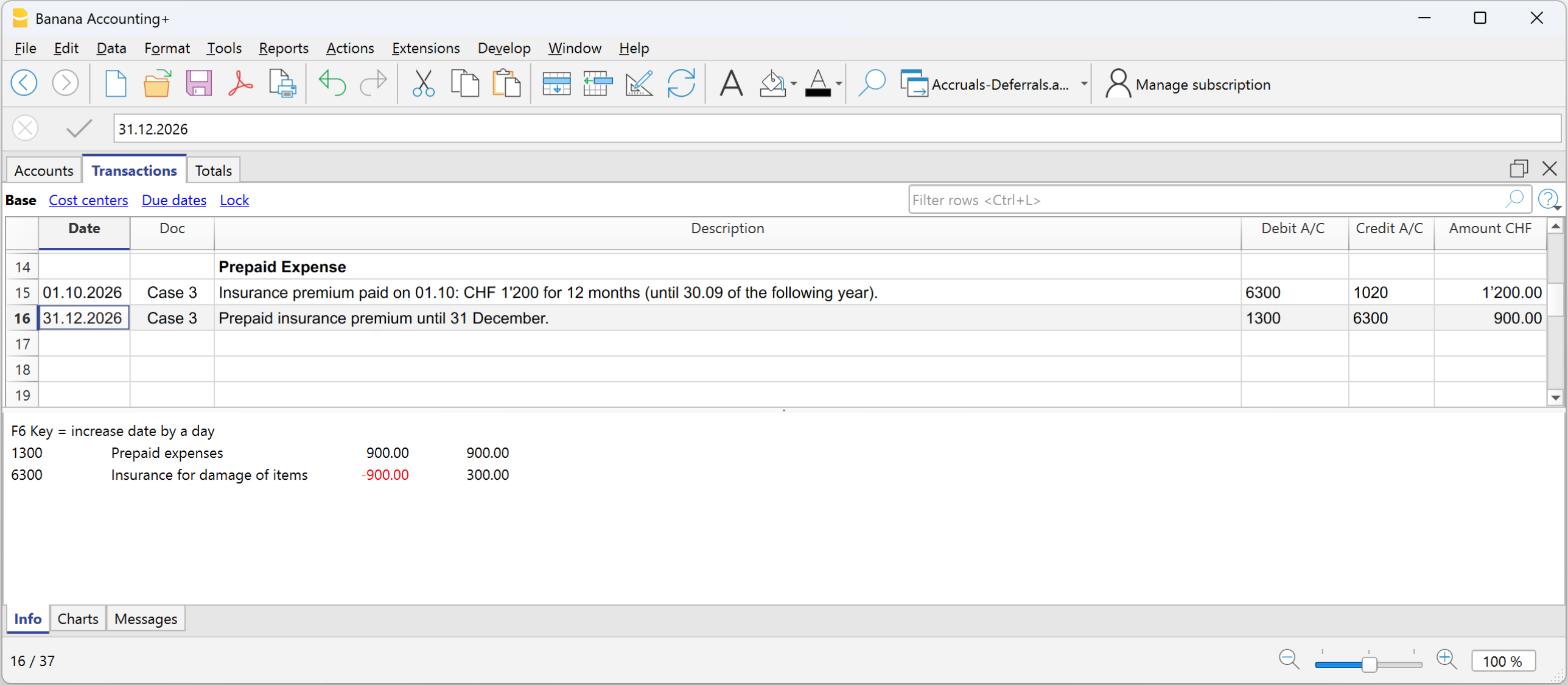
Account card of the Prepaid expense
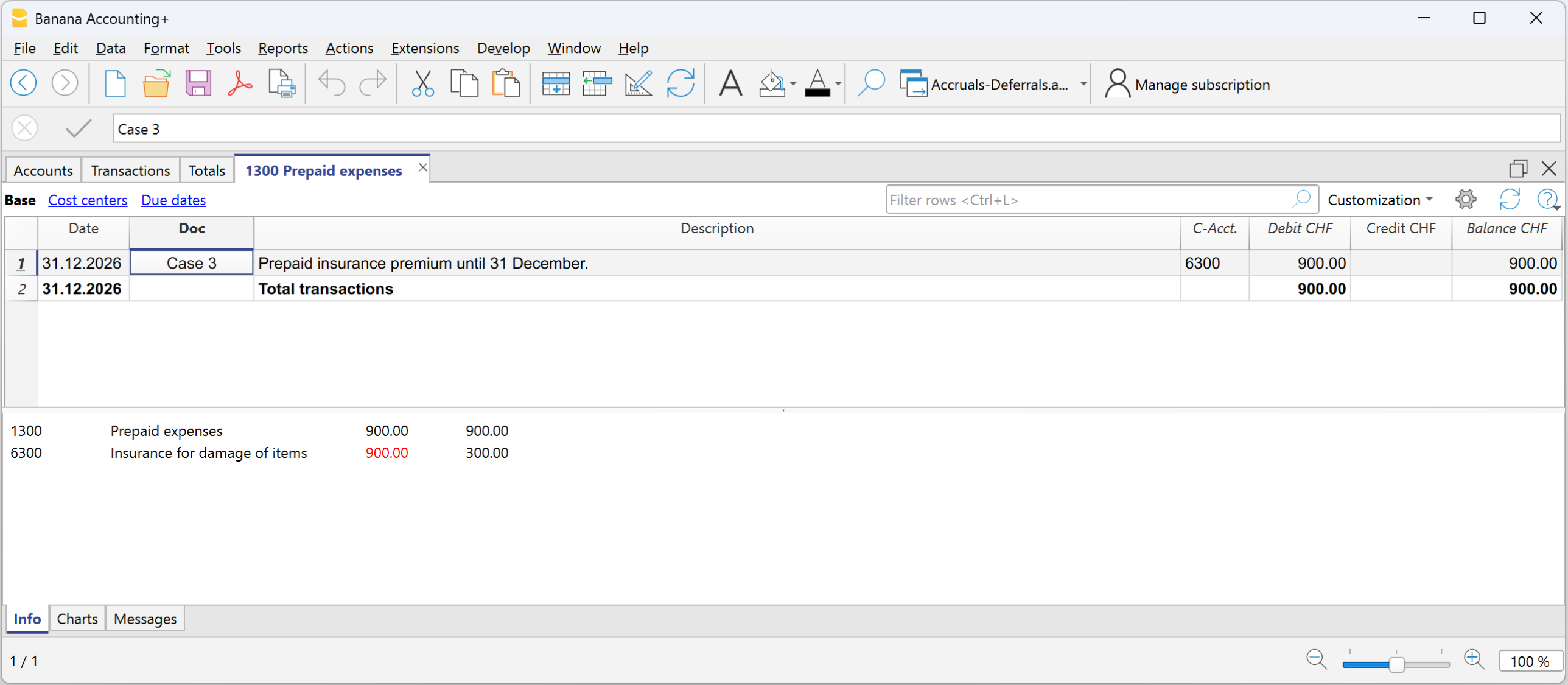
Account card of the Insurance premium expense

Case 4 - Deferred income
Example - Semi-annual rent of CHF 6'000, received in advance on 01.12, for the period from 01.12 to 31.05:
Monthly portion:
6’000 ÷ 6 = 1’000 per month
Portion relating to the current year:
December = CHF 1’000
Portion relating to the following year:
5 months = CHF 5’000
Initial entry:
- Debit: Bank CHF 6’000
- Credit: Rental income CHF 6’000
Entry on 31.12
- Debit: Rental income CHF 5’000
- Credit: Deferred income CHF 5’000 (revenues received in advance)
In the Income Statement, the reduction of rental income must be shown for the part relating to the following financial year; in the Balance Sheet, deferred income is shown for the part of revenue received in advance relating to the following financial year and representing a liability towards the customer.
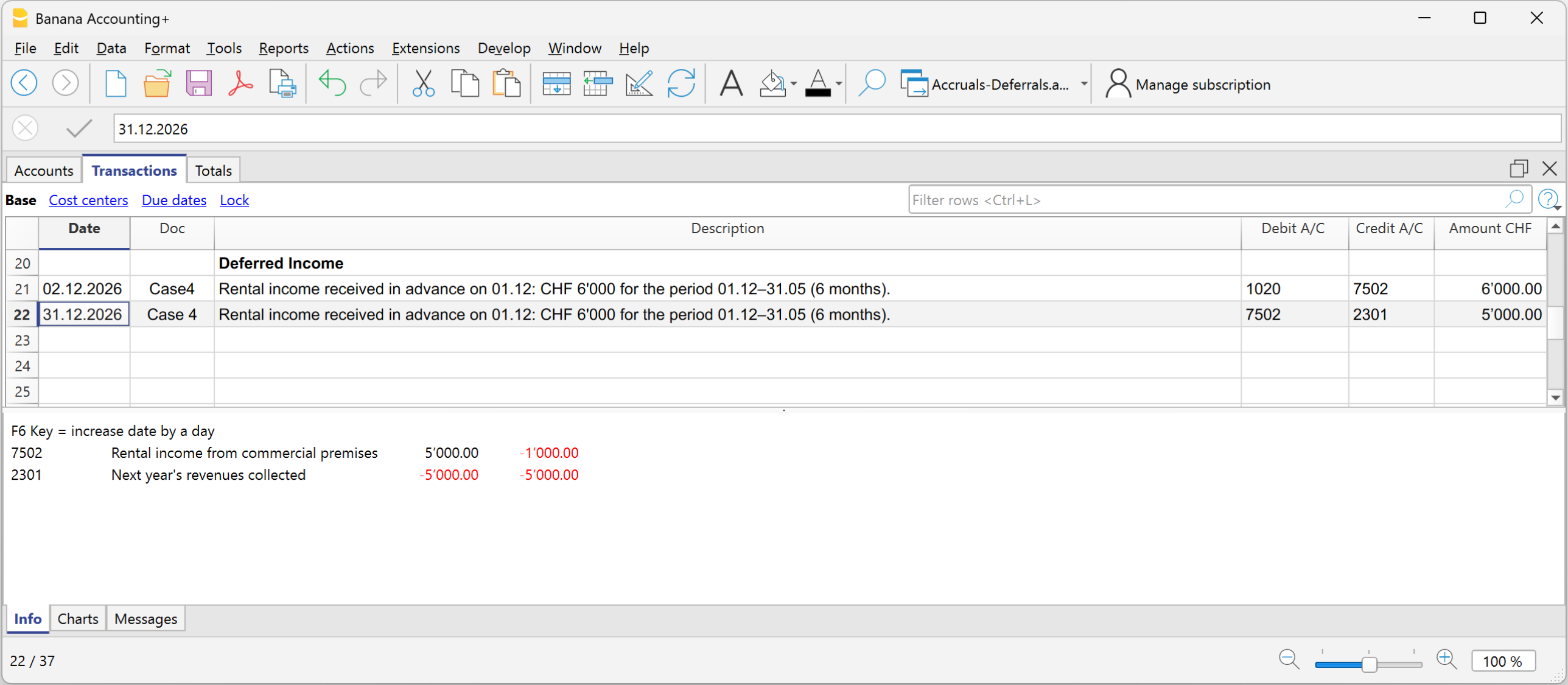
Account card Rental income
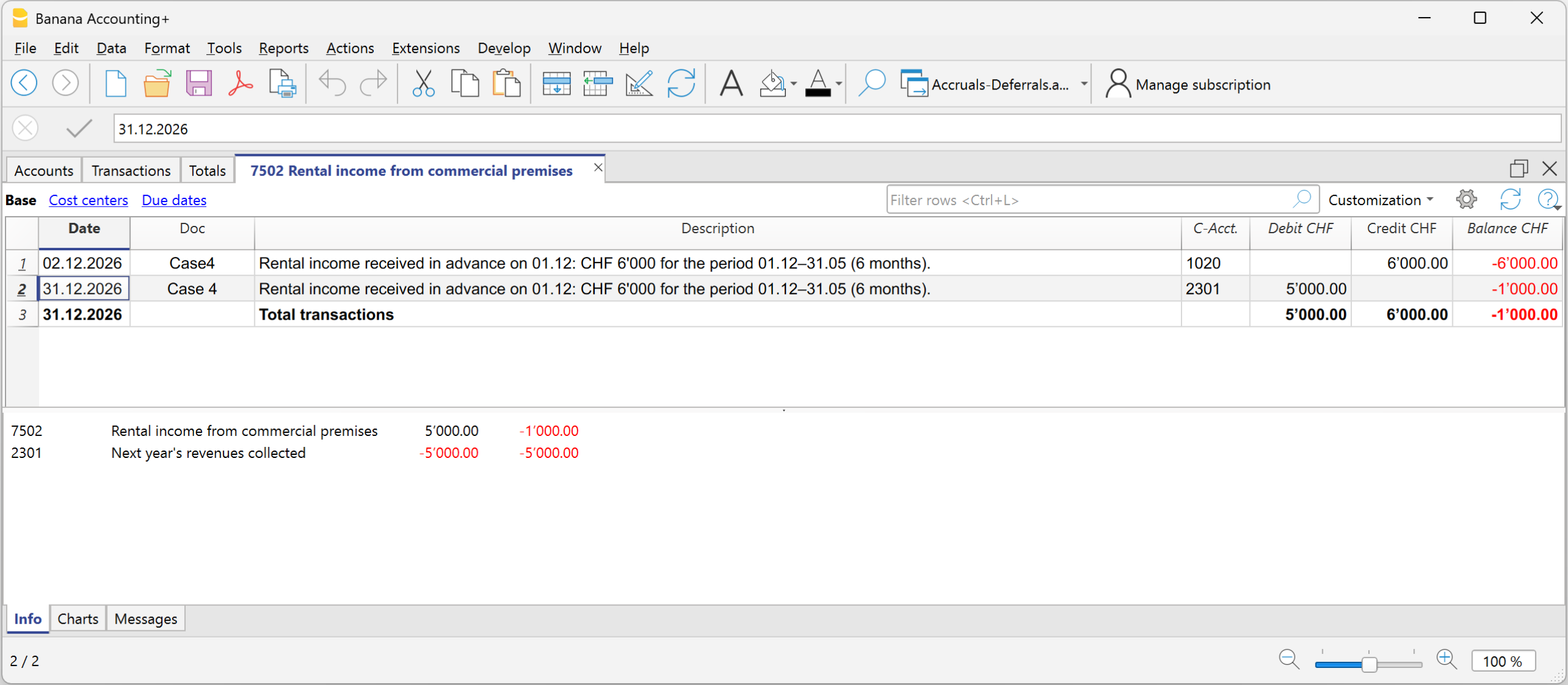
Account card Deferred income for revenues received in advance
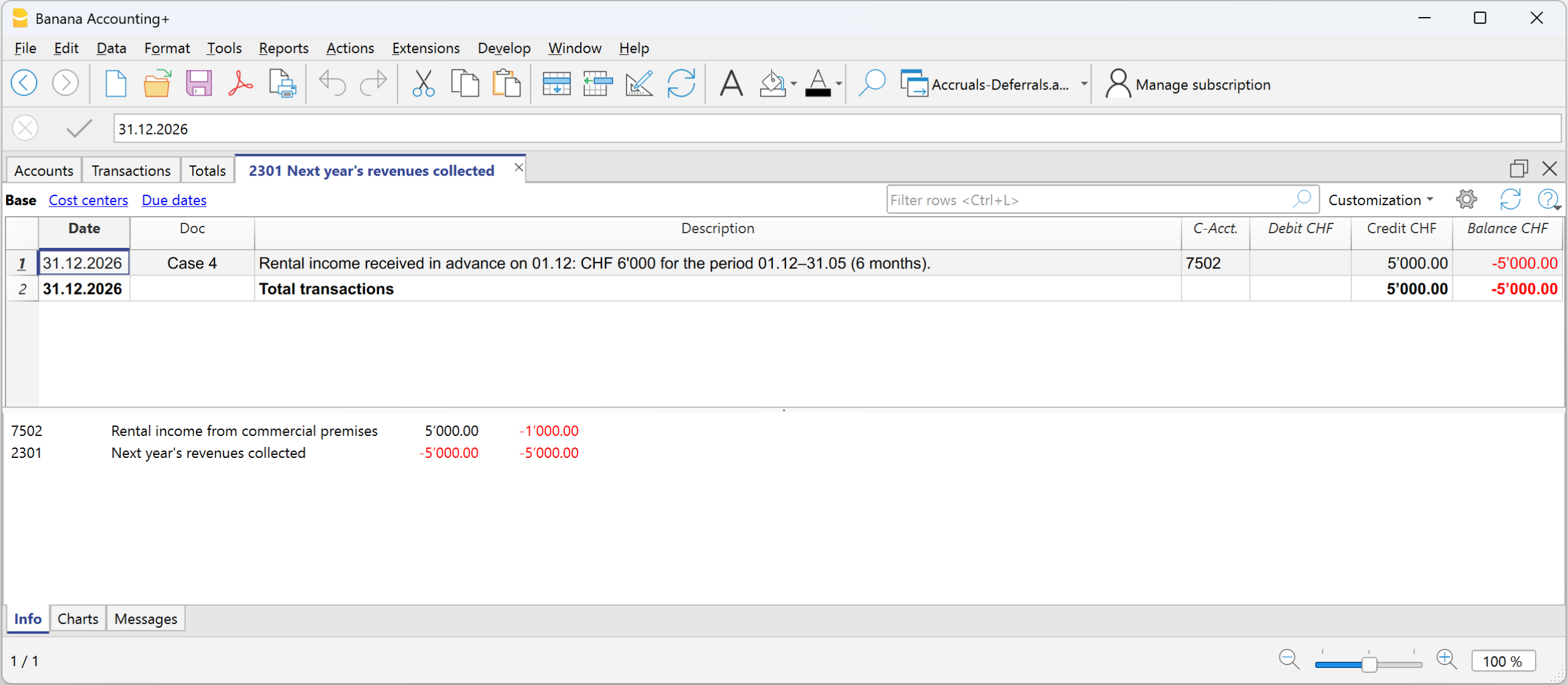
Reversal in the following financial year
At the beginning of the new financial year, accrued income and expenses and prepaid expenses and deferred income are reversed.
To reverse, the same accounts that generated the accruals and deferrals are used:
- the accrual and deferral accounts and the cost and revenue accounts are reversed
- or they are offset at the time of payment or collection.
The reversal is necessary to close the accrued income and expenses and prepaid expenses and deferred income accounts.
In summary:
Accruals add what is missing, deferrals postpone what has been recorded in advance.
Profit allocation
In accounting, the recording of profit distribution takes place when the shareholders' meeting or the competent body formally approves the allocation of the profit resulting from the financial statements.
Year-End Closing
At the end of the year, accounts are closed and the profit (or loss) for the year is determined.
- Operating profit = the positive result of operations (revenues > costs).
- The profit is recorded in the Income Statement and carried over to Equity in the Retained Earnings account.
The distribution of profits is the allocation of this result among various items, established by the shareholders' meeting.
Resolution on Profit Allocation
The shareholders' meeting decides how to allocate the profit.
Below we provide some general practice recommendations, but we suggest consulting your trusted professional.
Example of accounts for profit distribution:
- Legal reserve
- Other reserves
- Dividends to shareholders
- Retained earnings
The distribution is not recorded at the time of payment, but on the official decision date (resolution). The payment is only the subsequent phase of settling the debt to the shareholders.
- From the Retained earnings account, the amounts are transferred to the various accounts established by the resolution.
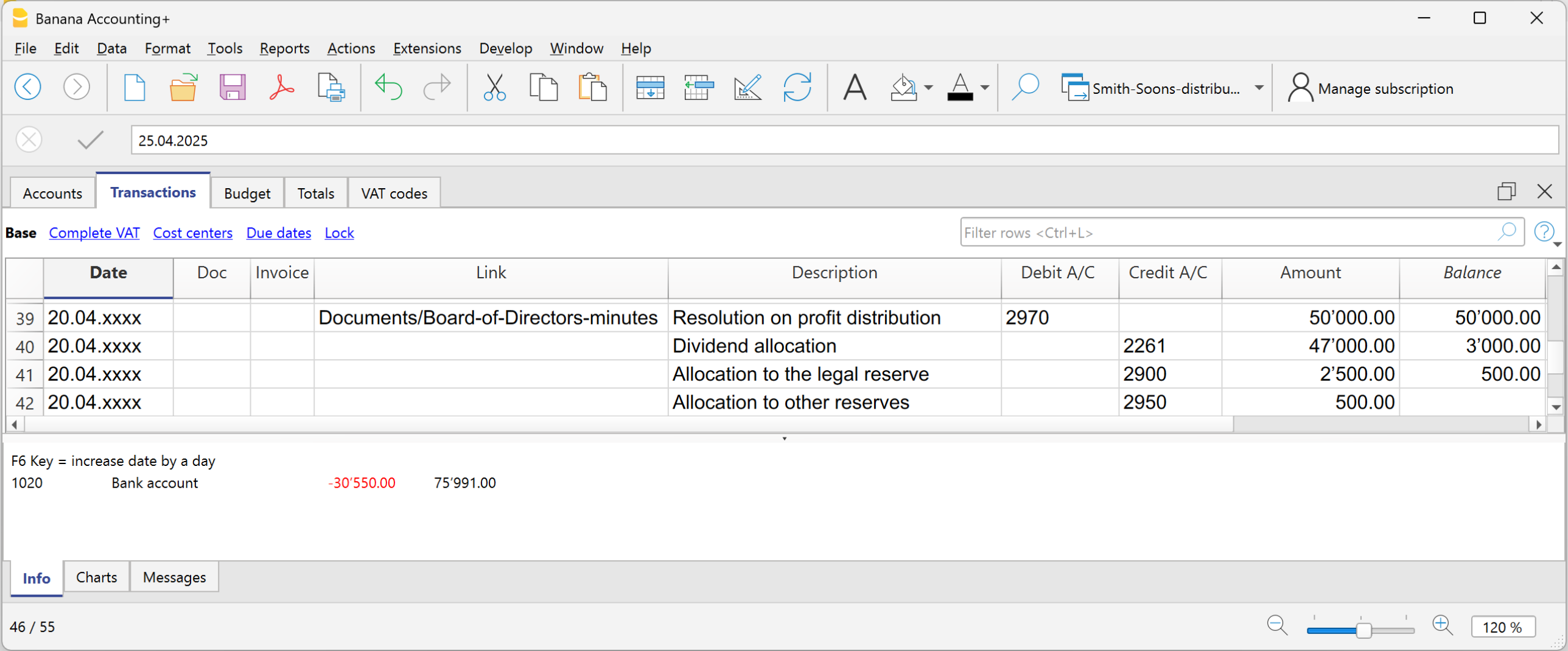
Withholding Tax on Dividends in Switzerland
In Switzerland, when a company distributes dividends to its shareholders, it must withhold a tax called “withholding tax” equal to 35% of the distributed amount.
It is called “withholding” because it is collected at the source, meaning immediately, at the time of payment, before the shareholder receives the money.
The withholding tax on dividends is a mandatory 35% tax deduction, which serves two purposes:
- Ensure tax revenue (the State receives the tax immediately).
- Prevent tax evasion (those who do not declare dividends do not recover the withholding).
Dividend Payment
At the time of dividend payment, the company withholds 35% as withholding tax.
The withholding tax must be declared on the official portal and subsequently paid to the Swiss Federal Tax Administration (SFTA).
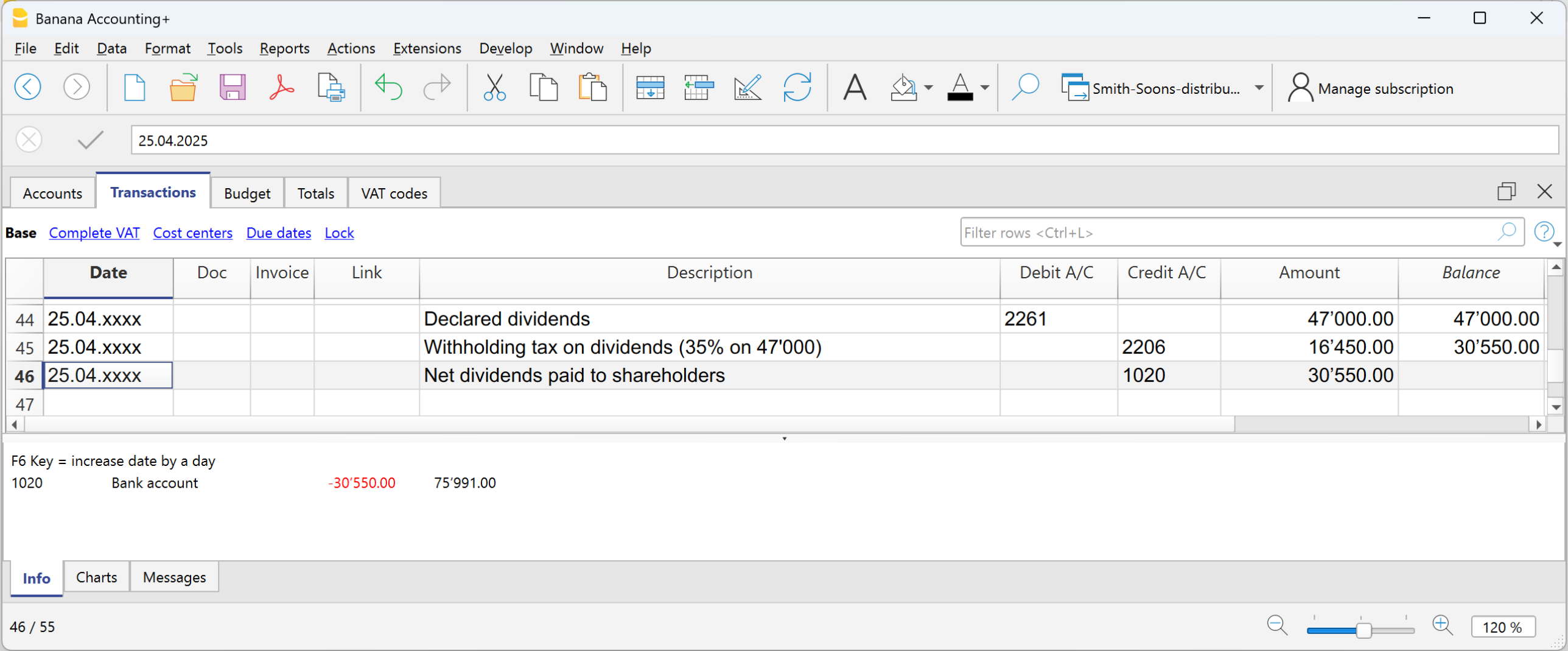
Refund of Withholding Tax on Dividends
- Shareholders residing in Switzerland can recover the full withholding by filing a tax return (the tax office offsets it against taxes due).
- Shareholders abroad can recover it partially, depending on the double taxation treaties between Switzerland and the country of residence.
准备供审查的文件
在准备把文件寄给审计师之前,建议您参考年末结算页面上的信息。除了有关如何使用程序功能的信息外,还应在财务年度结束之前执行许多检查和验证。
被要求进行审计的公司必须向审计师发送一系列的文件和档案。
年复一年,很容易忘记需要发送给审核员的内容。 因此,建议准备一份清单,其中包括审计员在前几年要求的所有文件,以及要执行的年末结算和调整的操作。
为了促进这项工作,在一年中可以采取几个简单的步骤,使记账员和审计师的工作更容易。我们的建议如下。
- 创建一个文件夹来存储扫描过的文件。
保存本年度会计核算中的所有扫描文件。 - 扫描收据。
- 扫描所有发票,现金单,社会保障和保险缴款等的报表。
数字文件,如发票和收据,可以成为会计档案的一个组成部分。Banana财务会计软件允许您在上下文记录的行中插入数字化的文件。审计员通过点击数字文件的链接,打开文件,可以看到文件的内容,而不需要浪费时间在纸质文件中寻找信息。
发给审计师的PDF打印件
以下是要发送给审计师的关键文件清单。
为雇员提供的报表
- 12月31日发送的社保工资申报单
- 预付款的申报 (已经包括在社保工资申报中)
- 雇员薪资日志
- 雇员工资账户表
- 薪资证书
- 12月31日发出的意外保险声明
- 12月31日发出的意外保险补充声明
- 12月31日发出的疾病津贴声明
银行/邮政账户报表
- 截至12月31日的最终银行和邮政报表
- 截至12月31日的银行对账单,用于支付任何预扣税款
增值税申报
- 每个季度的增值税报表
- 每个季度的增值税申报
最终计算
- 社保
- 意外保险
- 附加意外保险
- 疾病津贴
- 养老基金
- 源头税
官方文件
- 前一年的股东常会议记录。
- 股东特别会议记录。
- 前一年的征税通知。
- 为任何已支付的股息提交给联邦税务局的预扣税款支付令和103表的副本。
- 建筑物保险单的副本。
- 库存明细+截至12月31日的库存估价。
- 应计项目和递延项目的细节。
- 固定资产和折旧的详细情况 (表,明细...)。
- 税收计算。
数据导出
会计法规要求以数字格式向审计师和检查员提供会计数据。
Banana财务会计软件符合这些规定,因为:
- 审计员可以使用Banana财务会计的免费计划来打开会计文件。
- 所有的会计数据都可以在表格中轻松看到。
- 这些数据可以直接复制和粘贴到其它程序中。
- 可以直接从表中导出不同格式的数据。
- 创建pdf文件将所有会计数据以理想的格式导出,以供阅读。
数据展示和导出的扩展程序
有几个扩展程序用于展示和导出特定格式的数据。
- 审计文件报告创建了对审计师有用的报告,可以复制和粘贴到Excel中。
- 标准审计文件 - 用于税收。
根据经合组织准则和某些国家的要求,以XML和其它格式导出数据。 - 如果有特定于您所在国家/地区的扩展程序,请在扩展程序中搜索。
其它有用的信息
以下是其它有用信息的链接,用于优化记账和文件管理:
Documents to be sent to the auditor
Below is a list of documents that are normally requested during an audit. You can use it as a base and customize it according to the needs of your company or the requests of your auditor.
Employee Declarations
- AVS salary declaration and adjustment as of 31.12
- Family allowance declaration (included in the AVS declaration)
- Employee salary journal
- Salary account cards
- Salary certificates
- LAINF and complementary LAINF declarations with adjustment
- Sickness benefit declarations
- LPP statement as of 31.12
- Withholding tax calculations, quarterly and annual
Bank/Post Account Statements and Calculations
- Final statements as of 31.12
- Bank calculations for withholding tax
- Loan statements
- Investment statements
- Copy of form 103 sent to the FTA
VAT Declarations
- Quarterly VAT calculations
- Quarterly VAT declarations
- Turnover – VAT reconciliation
- Any VAT adjustments
Documents for Year-End Closing
- List of open customer and supplier invoices as of 31.12
- Inventory valuation
- Details of accruals and deferrals
- Details of fixed assets and depreciation
Official Documents
- Minutes of ordinary and extraordinary meetings
- Tax ruling from the previous year
- Payment order for withholding tax
- Copies of active contracts (leasing, loans, rental)
- Insurance values of buildings
- Documents for any patents
- Annual reports and appendix to the financial statement
Printouts and Archiving
With Banana Accounting Plus you can automatically generate:
- Account cards
- Journal
- Enhanced balance sheet with groups
- Watch the video tutorial showing how to create and print the enhanced balance sheet with groups.
- Accounting report
- VAT summary
- Year-end PDF printouts
PDF Dossier
The Create PDF dossier command allows you to generate a single file with the entire documentation of the fiscal year.
Archiving
It is good practice to keep:
- the accounting file
- the PDF printouts
- backup copies on an external drive.
Tools and exports useful for the auditor
Banana Accounting Plus allows you to export data in various formats.
- The auditor can use the Free plan to open the accounting file.
- Data can be copied and pasted into other programs.
- Tables can be exported in various formats.
- The Create PDF dossier command generates a complete file ideal for reading.
- Extensions allow specific exports:
- Audit File Reports creates reports that can be useful for the auditor and can be copied and pasted into Excel.
- Standard Audit File - for Tax.
Export of data in XML and other formats according to OECD guidelines and for specific countries. - Search the extensions to see if there are specific extensions for your country.
Other Useful Information
Changes after the end of the financial year
Closing the fiscal year is the moment when you verify that the accounting is complete, consistent, and ready for the next year. Once completed, ideally no further changes should be made. However, it may happen that missing transactions, errors, or unrecorded exchange rate differences are identified.
This page explains when it is necessary to make changes after closing and which tools Banana Accounting offers to do so correctly.
When it is necessary to intervene after closing
The most common situations are:
- Exchange rate differences not recorded in multi-currency accounting.
- Missing transactions entered late.
- Posting errors identified afterwards.
In any case, it is important to document the reason for the intervention and ensure that the changes comply with the fiscal and legal framework.
Adjustments in the following year (recommended procedure)
If you have already reviewed the accounting or submitted the tax return, you should not make changes to a closed year.
In this case, we recommend that you:
- Record the adjustment in the new year.
- Clearly describe the issue in the entry or in an attached document.
- Check the tax impact with your accountant.
Multi-currency case
For unrecorded exchange rate differences in a closed year:
- record the difference in a transition account (e.g. Prior year exchange adjustment)
- create an opening entry to reset the account
- allocate the change to the exchange gain/loss account
This procedure allows you to keep balances correct without retroactively modifying the closed year.
Changes to a closed year
If you have not yet reviewed or submitted the tax return, you can still make corrections directly in the file of the closed year. In this case:
- Proceed with caution, limiting yourself only to essential changes.
- Run the Check accounting command again to verify that the entries are correct and balanced.
- Save and reclose the year.
- Open the new year and run the Update opening balances command to realign the balances.
Useful Banana tools to manage adjustments
Create exchange rate difference entries
Allows you to automatically generate transactions for exchange rate differences as of the closing date, using the rates in the Exchange rates table. This is especially useful if the year has not been definitively closed.
Update opening balances
This command, available from the Actions > Update opening balances menu, transfers the final balances of the previous year into the new fiscal year. Use it whenever you make changes to the closed year or to the chart of accounts, to ensure consistency between years.
Check accounting
This command, available from the Actions > Check accounting menu, performs a complete check of imbalances, posting errors, or inconsistent entries. It is recommended after each change, both in the previous year and in the new one.
Common errors and how to fix them
- Opening balances of the Income Statement reported by mistake
Delete the amounts from the Opening column and run Update opening balances. - Profit or loss for the year not reported correctly
Correct the entry in the previous year and then update the opening balances in the new year. - Imbalances after changes to the previous year
Use Update opening balances and run Check accounting again.
Best practices
- Always run the checks and record all exchange rate differences before creating the new year.
- In case of changes after closing, always document the reasons for the intervention.
- Before making changes to a closed year, consider the legal and tax implications with a professional.
- After each adjustment, use the Update opening balances and Check accounting commands to ensure data consistency.
打印
所有的财务报表、损益表和各种会计报告的打印结果都可以从报表菜单中获得。每个命令都有各种选项,用于定制各种打印输出。
按组生成增强版的资产负债表 - 有颜色的列
示例具有以下的特征:

含预算的资产负债表
示例具有以下的特征:
- 按组生成的资产负债表
- 选项,在打印中包括:表示要显示哪些列 (在例子中显示的是当前,预估列)。
- 风格:柏林,彩色列。

增强版的资产负债表
示例具有以下的特征:

按季度划分
示例具有以下的特征:
- 增强版按组生成资产负债表
- 列设置,以表明要显示哪些列 (当前和预算)。
- 细分 -> 按时期细分,以便设置按期细分。
- 风格:卢加诺 (组突出显示),风格属性: 组和总数: 颜色。
-
颜色列属性,以不同的颜色列。

按分部细分
示例具有以下的特征:
- 增强版按组生成损益表
- 细分 -> 按分部细分: 以便按照分部的细分来显示
- 打印风格
在打印分部的时候, 设置不同颜色的列是可能的

拥有所有会计核算数据的PDF档案
此PDF文件是以总结的方式创建的,用户可以简单的方式实现不同的打印。
以下数据可以保存在PDF中
- 资产负债表和损益表
- 账户表,发生业务,增值税代码,总计
- 增值税报表
- 账户明细
如果将此文件保存在不可重写的CD上(与会计凭证一起使用),则满足归档会计数据的法律要求。
示例具有以下的特征:
点击文件菜单中的创建PDF档案命令。

打印额外的列
为了能够打印在资产负债表内额外的列,需要使用以下的功能:
账户明细-分类账
账户明细与分类账相对应,并可获得有关同一账户,成本中心,部门及总组的会计变动的完整列表。
如何打开账户明细
有两种方法可以打开一个账户明细:
第一种方法
当您要显示和打印所有或多个账户明细时,建议使用此方法。
- 在菜单中选择报表 → 账户明细

会出现一个对话框,其中包含以下部分:
有关各部分的详细信息,请单击相应的链接。
第二种方法
- 单击选择包含账户,科目或总组编码单元格时出现的小图标。
更新账户明细
账户或科目明细的数据反映地是当下的情况,在发生请求时被进行计算。如果在发生业务表中更改或添加了新的发生业务,那么这些数据不会在账户明细中自动得到更新。
更新账户明细时,请执行以下更改,账户明细命令必须重新选择,或者如果该账户明细仍处在打开状态,请单击下图所示的符号。

标注:
账户明细中的数据无法被修改,双击行编号以返回到发生业务表中的原始对应行。
所选账户列
从任意账户明细开始,都可以通过数据菜单 → 列设置使选定的账户列可见,并显示发生业务的账户。
当您获得一个或多个账户,组和部门的账户明细时,就会看到已被使用地确切的账户。
账户明细中的抵销科目
在账户明细中,显示抵销科目列,它指示完成发生业务的账户。

如以下示例所示,当存在多个账户的发生业务 (多行发生业务) ,并且在借方输入了一个账户,在贷方输入了多个账户的时候,或者相反情况,软件会使用以下逻辑抵销可能的抵销账户:
- 在第一行发生业务中,将账户5000 视为后续发生业务的普通抵销账户。

- 在账户明细5000 上,显示的多笔发生业务 (付款或各种发票) 使用 [*] 符号作为抵销账户。直接在账户明细中显示抵销账户是不可能的,因为该账户有多个抵销账户 (1020, 5700, 5730) 。因此,程序会显示 [*] ,表示正在处理多个账户的发生业务。

- 在下一行发生业务 (1020, 5700, 5730) 的账户明细中,在方括号 [5700] 之间指示普通的抵销账户,并指示已抵销的抵销账户。

组和类的明细
在组和类的账户明细中,属于所选组或类的所有账户的发生业务会被分组在一起。
通过把选定的列变成可视的列,可以显示组或类的账户。

预算账户明细
如果已经在预算表中输入预算发生业务,则可生成预算的账户明细或组。
- 通过报表 → 账户明细 → 预算发生业务必须被激活。

打印分类账 (所有账户明细)
要打印账户明细:
- 报表菜单 → 账户明细命令。
- 使用过滤器,可以自动选择需要全部或部分打印的所有账户明细 (例如,仅账户,成本中心,部门) 。
- 在期间,选项,自定义各个部分中,激活所需的选项 (例如,期间,每页1个账户, ...) 。
- 选择所需选项后,按确定键。

有关不同标签的说明,请访问以下几个页面:账户/科目标签, 时期和选项。
该程序将显示所选的账户明细。
为了打印,请从文件菜单中选择打印命令。
在文件中激活预算表后,您可以选择要查看的发生业务 (实际发生业务或预算发生业务) 。
在账户明细中包含Logo (商标)
从Banana财务会计 9,就可以在账户明细打印输出中包含Logo (商标) 。获得您的账户明细详细信息 (使用报表 → 账户明细命令) 后,转到文件菜单 → 打印预览命令。在打印预览中,单击设置图标,然后在将要打开的对话框窗口中,选中Logo (商标) 选项, 选择您的Logo (商标) (而不是无选项) 。
您还可以查看如何设置Logo (商标) 页面。
保存设置
如果您定期打印特定账户的账户明细,例如与销售账户有关的所有账户,则创建特定的自定义设置是很有用的。
- 转到自定义标签。
- 使用新建按钮创建新的自定义项。
- 在窗口的摘要字段中指明名称,例如销售账户。
- 选择需要打印的账户。
- 设置标签的视图选项。可以选择和改变那些可用的视图,但不能创建一个新的视图。如果您改变了某一列的设置,例如通过改变其标题,这将应用于所有自定义的相关视图。
每次您希望打印这些账户时,都可以选择已经创建好的自定义。
页面设置
在页面设置中,您可以指定页面的边距和其它设置。
账户/科目标签
这个对话框可以通过点击报表菜单 → 账户明细的命令进入 (可以查看账户明细的页面)。

账户
所有账户的列表出现在这一部分。
全选
激活这个功能可以选择会计科目表中的所有账户明细。
如果您想打印一个账户明细,只需选择要打印的账户即可。
用鼠标选择账户
- 通过点击账户名称,该账户被选中,之前的选择被取消。
- 点击账户复选框 (在复选框内) 可以选择/取消选择账户,之前的选择保持不变。
- 要同时选择几个相邻的账户,只需点击第一个账户,按住鼠标左键,将鼠标移到列表上。
- 对于非相邻账户的多重选择,按住Ctrl或Cmd键 (Mac电脑)。Shift键保持选择。
使用键盘选择账户
- 使用空格键,账户被选择/取消选择,并取消之前的选择。
- 对于多个账户的选择,按住Ctrl键或Cmd键 (在Mac电脑上),同时用上/下方向键和空格键移动。Shift键可以保持选择。
搜索
该选项允许立即搜索一个或多个账户。账户号码或账户摘要被输入搜索框中;程序会过滤有输入搜索值的帐户。
您也可以同时输入几个账户来显示,或者,结合账户和分部 (请参阅开发人员说明):
- 1000|1001 - 显示账户1000和1001的变动。
- 1000:01 - 显示账户1000和分部01的所有变动。
按账户号码排序
如果这个选项被激活,账户将根据您在过滤器中的选择 (在对话框的底部) 进行排序。例如,如果有账户、成本中心或分部的缩写,这些都是按字母顺序排列的。
过滤
该功能允许选择或过滤所有账户明细:
- 账户; 成本中心; 部门 - 如果没有做出选择,它们将会为默认过滤。
- 账户 - 任何成本中心和部门都被排除在外。
- 账户; 成本中心 - 任何部门都被排除在外。
- 成本中心 - 账户和任何部门都被排除在外。
- 部门 - 账户和任何成本中心都被排除在外。
- 组- 显示所有组;必须选择要打印的组。
- 类 - 所有的类将被显示;您需要选择被打印的。
实际交易或预算交易
当预算表格出现在会计文件中时,您可以选择查看和打印它:
- 实际交易
用于显示发生业务表的动向。

- 预算交易
用于在预算表中显示发生业务。
如果没有预算表,但在账户表的预算列中输入了金额 (预算视图),这些金额将被转换为月度金额。
程序执行的细分基于会计的开始和结束日期 (如果持续时间为 1 年,则细分为 12 个月)。
账户00的明细 - 会计分录差额
如果发生会计分录差额 (请参阅借方-贷方差额页面),打开组00的账户明细 (或您的会计科目表中包含基本类 1,2,3,4 的所有账户明细)。
所有动向的清单与渐进式余额一起出现,每次输入后必须归零。从余额不再为零的那条线开始,就有了差额。
时期标签
时期标签的解释与保存文件为Pdf - 时期标签中的是一样的。
选项标签

页尾前可加行数
此功能的创建是为了避免在打印账户时一部分出现一页上,另外一部分出现在其他页上的情况。如果要打印的账户明细没有与此区域的数字输出相对应的行数,那么全部的明细的打印将被移到下一页上。
每页一个账户
通过激活此功能,每个明细都将被打印在单独的页面上。
重复列标题
通过激活此功能,在页面内,每个账户的列标题将被重复。
包括没有发生业务的账户
通过激活此功能,没有发生业务的明细也将被打印。
视图
您可以选择会被包含在账户明细中显示和打印的列视图:
- 基本
- 增值税
- 成本中心
- 到期日
如果没有特定的标准,那么系统将保持在发生业务表中的顺序。
列排序
在账户明细中, 发生业务可以根据不同的数据标准被排序:
- 文件日期
- 起息日
- 到期日期
- 支付日期
日记账
在Banana会计软件中与日记账相对应的是发生业务表。选择您想要打印的行,打印全部的日记账或一部分的日记账是有可能的。
有多种打印日记账的方法:
- 打开发生业务表,点击打印预览图标;然后点击打印图标。
- 打开发生业务表,点击文件菜单 → 打印预览的命令 → 打印的图标。
- 点击报表菜单 → 分期日记账... 的命令。
时期

您可以选择打印全部或自定义的时期。要打印一个特定的时期,请输入开始日期和结束日期。
排序

在列排序的选项中,可以选择对日记账进行排序和打印的标准。
客制化日记账的打印
为了定制日记账的打印,您可以改变列的排列和标题。可以在列设置的页面上找到相关的信息;在页面设置上可以找到在打印输出中所包含选项的信息。
生成资产负债
资产负债表代表了某一特定时间点的权益状况 (资产和负债)。资产和负债之间的差异决定了权益。在Banana财务会计软件中,所生成的资产负债表具有以下特点:
- 账户的分组是由基本类列的内容而完成的。
- 预览中显示的资产负债表可以保存为PDF、HTML、MS Excel的格式,并可以复制到剪贴板。
- 可以计算、查看和打印年末或特定时期的资产负债表。
- 不含日期的发生业务将被视为初期业务,将不会出现在打印出的损益表中。
要计算、查看和打印所生成的资产负债表,请点击报表菜单 → 生成资产负债/损益表的命令。在跳出的窗口中,包含允许您设置打印参数的各个部分。
请参阅打印示例。

页标题
行1到行4
可以自定义资产负债表标题的行。
商标 (Logo)
可以在报告的所有页面的页眉处插入商标。
您可以在报告的封面上添加公司的Logo/商标。
点击文件菜单→Logo(商标)设置命令,添加了一个或多个商标,您可以从列表中选择一个。
如果没有添加商标,可以用编辑按钮来添加商标。
打印页码
如果启用了该选项,则会在页面底部依次输入数字。
打印日期
如果启用此选项,则会在页脚中插入日期。
封面页
打印封面页
通过激活该功能,可以打印封面。
商标 (Logo)
您可以在报告的封面上添加公司的Logo/商标。
点击文件菜单→Logo(商标)设置命令,添加了一个或多个商标,您可以从列表中选择一个。如果没有添加商标,可以用编辑按钮来添加商标。
列标题
前两个垂直区域指的是资产负债表的日期,之后的两个指的是损益表的日期。
本年
输入当前账户的结束日期。
上年
输入上年账户的结束日期。
其它的标签
在以下标签所链接的页面中您可以找到相关的解释:
Attachments / Notes in the Balance sheet
The notes in the annual report (explanatory notes) are texts that accompany the balance sheet and the income statement.
They serve to:
- explain how the annual report was prepared (principles and criteria used)
- clarify important items or specific aspects of the year (e.g. depreciation, VAT, extraordinary events)
- provide contextual information for a correct interpretation of the data.
The notes do not change the totals of the balance sheet, but they improve its clarity and transparency.
How to insert notes / attachments
In Banana Accounting, the notes are managed as attachments and are included in the balance sheet printout.
The Attachments section is accessible from the menu: Reports > Enhanced Balance Sheet with Groups > Attachments.
The attached texts are printed after the balance sheet and the income statement, each on a new page.
How to prepare the attachments
The notes or attachments to be included in the balance sheet printout can be prepared in two different ways:
- with the Document table
- with the Attachments section of the Enhanced Balance Sheet with Groups
Below you can find the detailed explanations.
Create attachments in the Documents table
The notes or attachments to be included in the balance sheet printout can be prepared via the Documents table.
To make it visible, go to the menu Tools > Add/Remove functionality > Add Documents table.
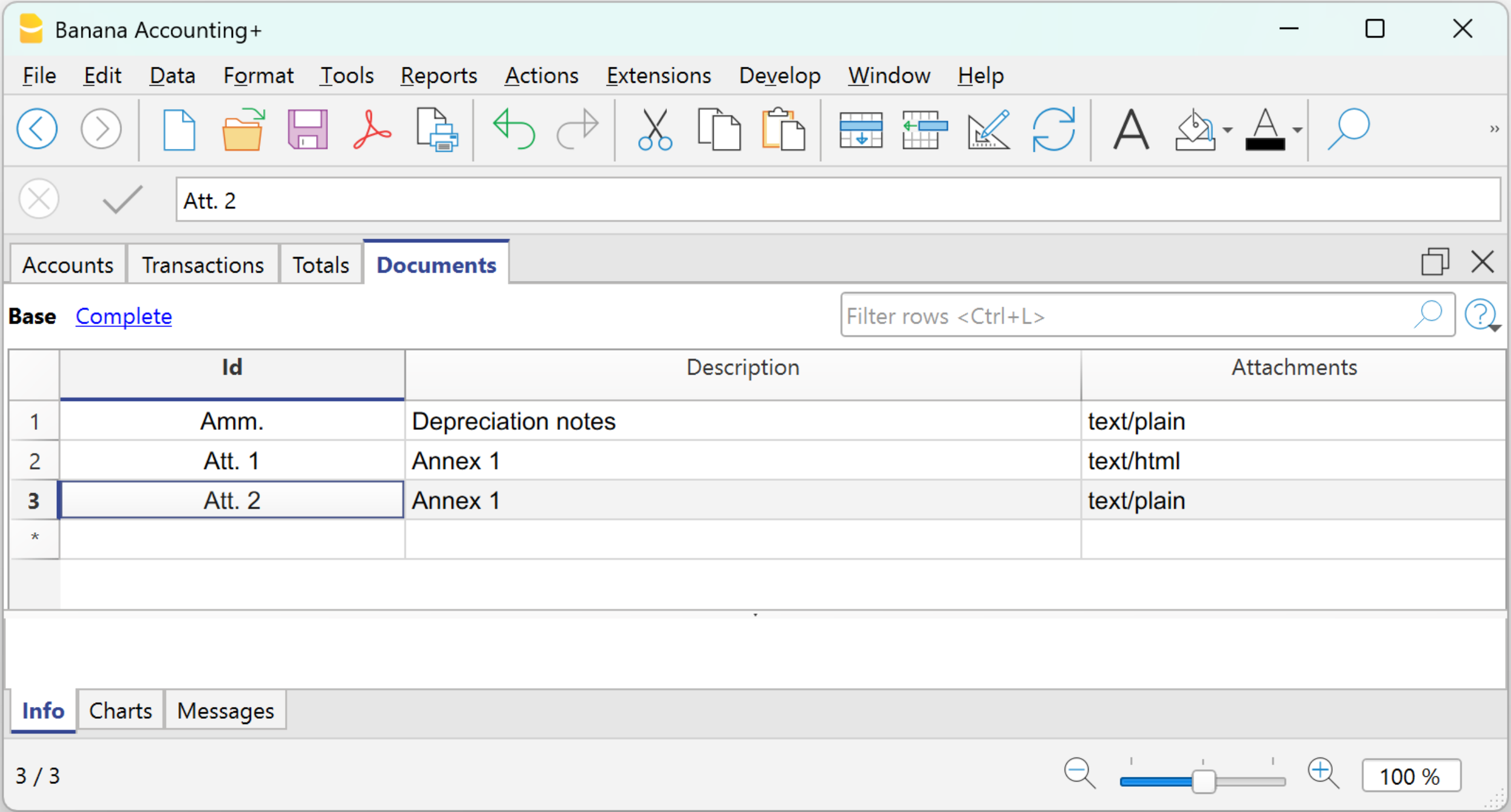
Procedure:
- In the Id column, indicate the type of note.
- In the Description column, enter the description of the note.
The description text is used as the document name in the Attachments section of the Enhanced Balance Sheet with Groups. - In the Attachments column, click the pencil icon, select the document type, and enter the text in the editor.
You can choose between two types of documents:- Text
Plain text with no formatting (e.g. for simple notes). - HTML Text
Text with formatting (bold, bullet points, etc.). You can choose to write the text normally or enter the HTML source code in the dedicated section.
- Text
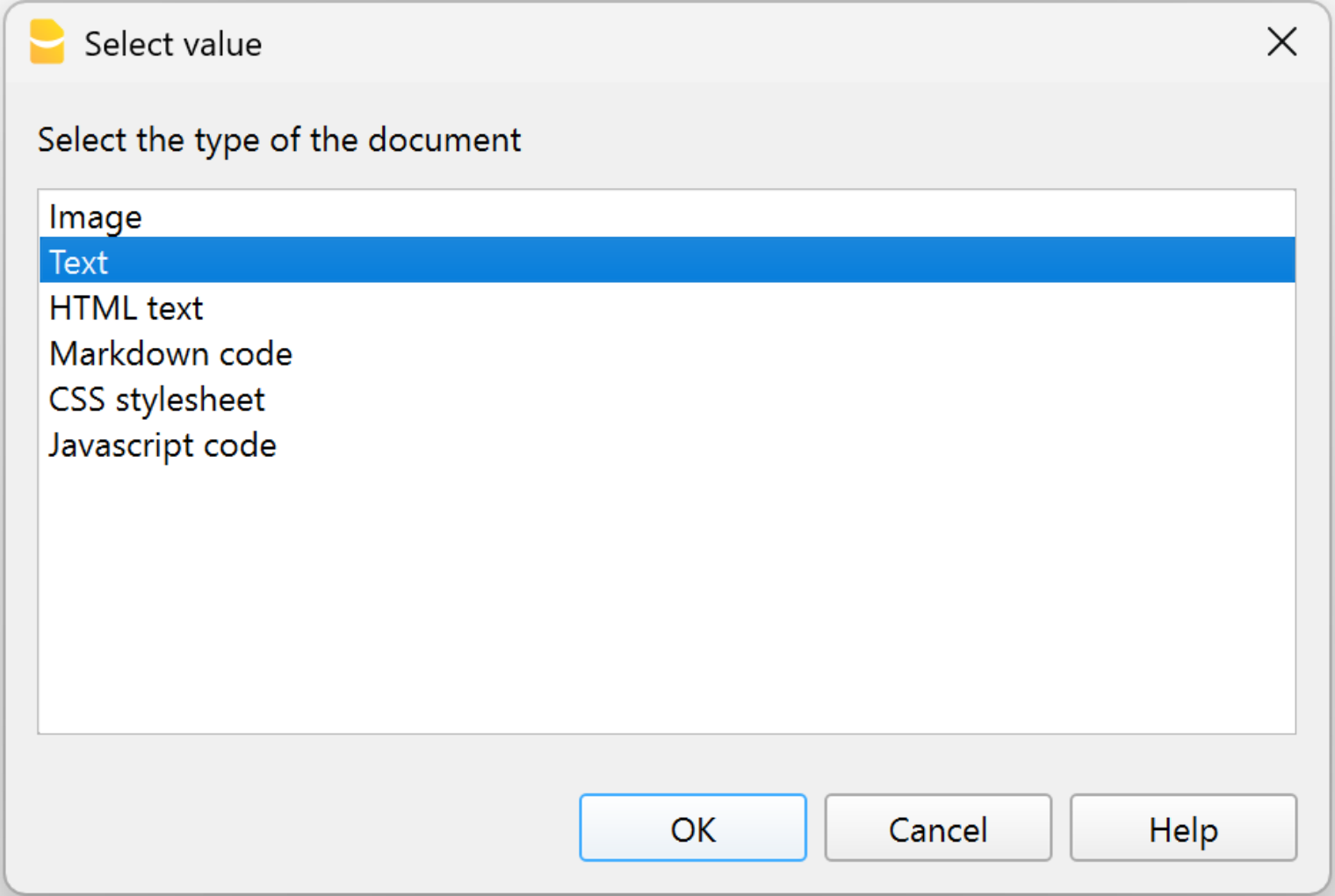
The texts created in the Documents table are displayed in the section Attachments of the Enhanced Balance Sheet with Groups.
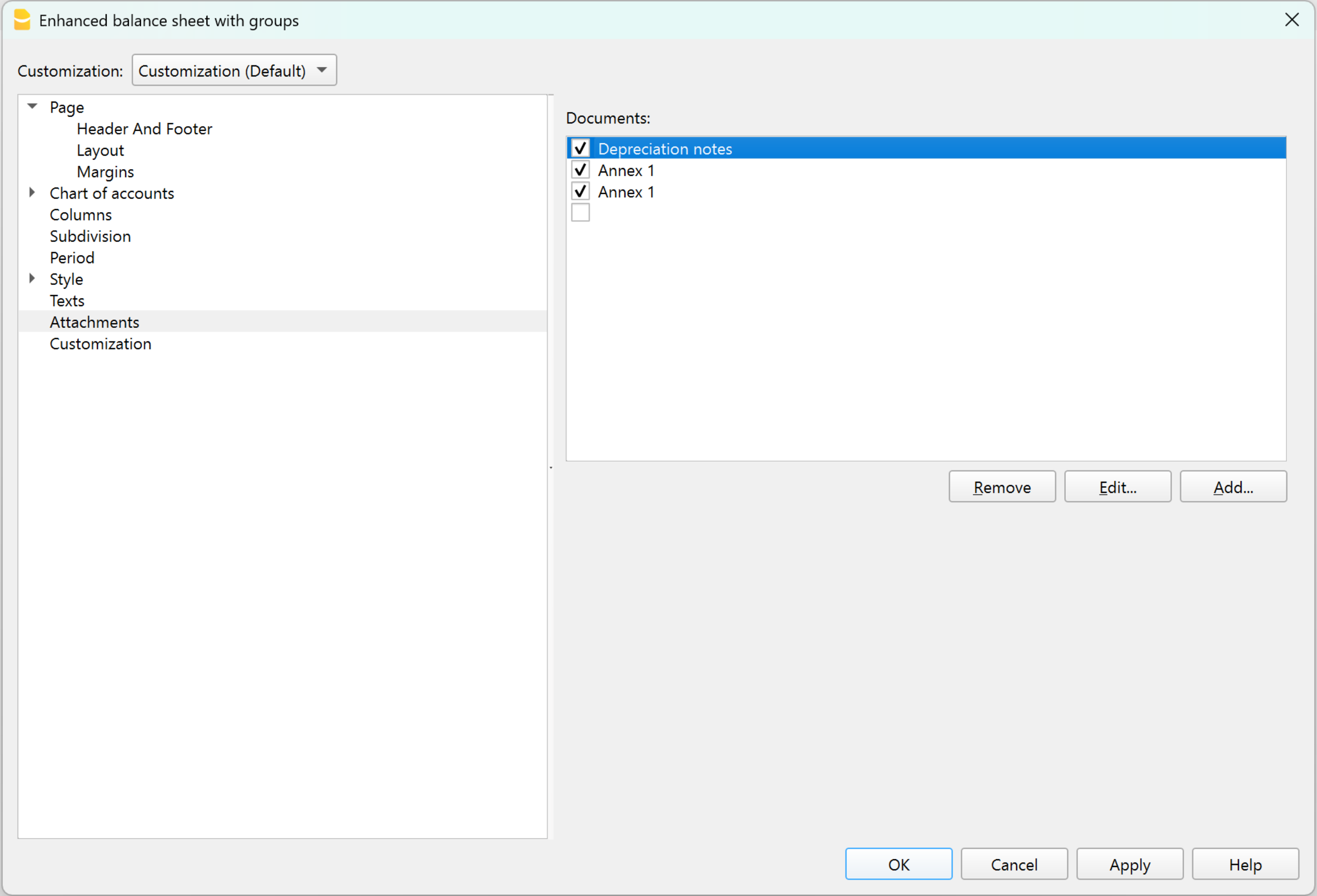
Create attachments in the Enhanced Balance Sheet with Groups
The notes or attachments to be included in the balance sheet printout can be prepared directly from the Attachments section of the Enhanced Balance Sheet with Groups.
Procedure:
- open Formatted Balance Sheet by Groups > Attachments
- click on Add
- The HTML Text editor dialog opens.
- Enter or modify the text in the editor.
You can choose to write the text normally or insert the HTML source code in the dedicated section.
The text is formatted (bold, bullet points, etc.).
The texts entered in the editor are automatically shown in the Documents table.
View and print notes / attachments
In the Attachments section of the Enhanced Balance Sheet with Groups, check the documents to be included in the printout. Only checked documents will be printed. The notes are printed at the end of the balance sheet and income statement, each on a new page.
按组生成资产负债表
按组生成资产负债/损益表与生成资产负债/损益表的不同特点如下:
- 在打印中也包含了在会计科目表中所提到的分组 (不仅仅是总组)。
- 提供了排除总组和账户的可能性 (例如,只展示组的汇总,而不是汇总已经合成的账户)。
- 在会计科目表 - 类的部分,想要选择在打印中出现或不出现的账户是可能的。
- 在一个给定的区间内,选择您想要的细分是可能的 (例如在第一的半年中,您可以选择获得每月或每季度的数据)。
- 通过部门获得细分是可能的。
为了计算,展示和打印出按组生成资产负债/损益表, 请您激活菜单报表 → 按组生成资产负债/损益表命令; 之后将出现一个信息窗口,在那里您可以定义想在打印文件中出现的不同部分。

请您查看打印输出的例子。
常见问题与解答
- 如果我把余额为零的组排除在外,被排除在外的组的行标题依然会被显示; 我要怎样才能消除它们?
请到类的部分,然后激活您想要排除在外的行标题上的隐藏当前行。 - 我想要在打印文件中不呈现标题中的期间 ("2013的第一个半年"); 我要怎么做?
请到标题的部分并且激活打印期间的选项。 - 在封面上, 当有长标题的时候,我希望能够选择怎样把文字细分为两行,以及是否能把其打印成粗体字,这些有办法实现吗?
更改封面上的字体是有可能实现的。 - 有些金额没有被包含在指定的期间内,为什么?
没有日期的发生业务将被视为初期业务,不会出现在损益表的打印中。请您确保在各个发生业务中都输入了日期。 - 根据账户期间的结果,包含有全部的类3和类4账户的总组被以损或益重新命名。我能改变这种情况吗?
请到类的部分,在激活行的选择文本区覆盖原始文本。 - 如果激活了查看上一年的选项,并且上一年文件中存在不属于当前年份的组,则会报错。 有可能补救吗?
要打印包含上一年度和本年度数据的资产负债表,本年度中还必须存在上一年度的组。 - 如何在打印的时候使各个部分或报告出现在单独的页面上?
请查看类的页面,并选择开始新页。 - 如果上一年的数据比标准年长,如何显示上一年的数据?
在按组生成资产负债表的对话框中,在“列”标题下,对于资产负债表和损益表部分,单击“高级”按钮,在“列”窗口中单击“添加”。 此时,激活“打印列”窗口中的“优先”选项。 然后按“确定”按钮关闭所有窗口。 如有必要,您可以通过单击“属性”按钮在“列”窗口中自定义列的标题。
标题
在页 → 标题部分是打印财务报表和损益表时的页面标题和商标的选项。
标题
行1(1),行2(2),行3(3),行4(4)
输入您想要其出现在打印页面上的标题。您输入的标题会显示在第一页 (封面) 和每张纸上,作为主标题。
商标 (Logo)
可以在报告的所有页面的页眉处插入商标。
您可以在报告的封面上添加公司的Logo/商标。
点击文件菜单→Logo(商标)设置命令,添加了一个或多个商标,您可以从列表中选择一个。
如果没有添加商标,可以用编辑按钮来添加商标。
打印期间和/或细分
只有当特定的期间被选定的时候才能激活此选项。当您未激活此选项的时候,在打印页面的标题部分将不会出现此选项。
页脚
打印页码
在您激活此项功能之后,页码将被打印。
打印日期
在您激活此项功能后,日期将被打印。
封面
打印封面
在您激活此项功能后,封面将被打印。
商标 (Logo)
您可以在报告的封面上添加公司的Logo/商标。
点击文件菜单→Logo(商标)设置命令,添加了一个或多个商标,您可以从列表中选择一个。如果没有添加商标,可以用编辑按钮来添加商标。
版面设计
在页 → 版面设计部分部分,您可以设置打印资产负债表和利润表的字体大小和页面方向。

字体
打印输出的显示因输入的值而异。
页面方向
您可以选择页面的方向: 自动,横向和竖向。
Logo/商标
通过文件菜单 → Logo (商标) 设置命令进入创建商标并定义其设置 (宽度、高度、位置);也可以从不同的Logo (商标) 设置去创建和保存客制化的设置。
该功能是设置带有文件表格Logo (商标) 的简单替代方案。

在打印财务报表和损益表时,要激活Logo (商标)选项,需对其进行选择,不能选择无。
为了使Logo (商标)选项可见,您需要在文件 → Logo (商标)设置命令中设置您的商标。
边距
在页 → 边距的部分,您可以设置打印资产负债表和损益表的边距。

上, 下, 左, 右
这是页面边框和内容之间的距离。
标题
这是页面标题和内容之间的距离。
页脚
这是页脚和内容之间的距离。
增加边距至可打印的区域
如果内容超出了页边距,它将自动调整至适合打印的区域。
类
这个部分可以根据会计科目表的类列的设置而变化,详见相关的文件:会计做账中的类。
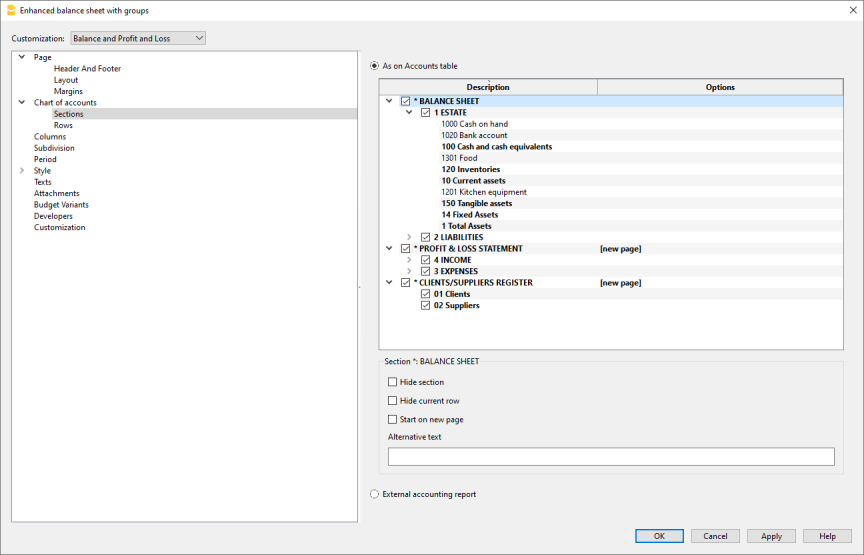
如在账户表中所示
按组生成资产负债表的表现形式以及打印设置与账户表中的是一致的。
通过点击左边的箭头,您可以显示该部分的组成部分。通常情况下,只显示有余额的组。要同时显示余额为零的组,请到行的部分,点击查看余额为零的组。
根据您的选择,不同的部分有着不同的选项:
- 1, 2, 3, 4, 01, 02, 03, 04... 不同的部分是资产负债表中所提到的主要项目
- 账户部分是指选定的账户
- 组的部分是指选定的组
部分*
如果您选择带星号的部分,您将有以下选项:
隐藏分区
点击您想要隐藏的部分。
隐藏当前行
点击您想要隐藏的行。
开始新页
点击您想要开始新页的标题以及激活该选项。
备用文本
如果您想要一个所选的不同行或不同的类,请输入备用文本。
如果您选择了数字的类 (1, 2, 3, 4.....), 会有一个额外的选项:

计算百分比组 (%)
当您选择一个类 (资产、负债、成本、收入....) 时是可见的。
它是作为计算账户和组百分比的基础的组。
- 由软件决定。 该组是由程序建立的。 通常,它是该部分中的最后一组 (总资产、负债、成本和收入)。
- 用户指定的组。
对于损益表来说,必须指明一个组别 (例如,总销售额)。
隐藏子行
如果您选择了一个组,并且激活了此项功能,那么在打印出来的生成资产负债表中将不会出现此组的子行。
显示为账户
如果您选择了一个组,并且激活了此项功能, 那么此组将在资产负债表中以账户的形式呈现。
外部会计报告
根据会计报表文件的结构来打印按组生成资产负债/损益表。

报表文件
您可以使用浏览按键来选择外部会计报告的文件。
列分组
在外部会计报告中被定义的组的列。可供选择的列为: 所属组1, 所属组2, 所属组, 基本类和增值税组。
信号丢失分组
用来控制是否全部的账户都属于在外部会计报告中的一个组。
行
在会计科目表 → 行的部分您可以选择以下要打印的元素:账户, 零余额账户, 含业务发生额账户,零余额组,空行。
设置复式记账的列
在会计科目表 → 列的部分包含最重要的选项,用于自定义在财务报表和利润表及附注中显示和打印的列。

资产负债表, 损益表和附注
您可以选择希望包括在资产负债表,损益表和附注内的选项:
账号
除了账户摘要外,还包括账户号码。
当前
在本位币中的余额或活动在所选的时期或时期细分中被提到。
行的百分比
在汇总中提到的包含有百分比的列 (例如, 总资产的百分比)。
外汇
这个选项只在多币种文件中可见。
通过在打印输出中激活该选项,余额也将以外币显示在所选时期或该时期的细分中。
期初
在期初的期初余额。
预算
在所选的时期或时期细分中被提到的预算额:
- 如果没有设置预算表,则需标明账户表预算列中的金额。
每个账户的总金额被划分为12个月。 - 如果已经设置了预算表,账户的预算金额将根据预算表中输入的发生业务来计算。
上期
在所选的时期或时期细分中被提到上期金额。
上年
在上年同一时期内的金额。
差额
当前时期和其他列金额间的差额 (预算, 上期, 上年)
差额百分比
当前时期和其他列之间以百分比形式呈现的差额 (预算, 上期, 上年)
年到日
从账户的初始至最后一笔业务日期间的余额或活动。
高级
通过高级按钮,您可以进一步自定义列的排列、文本和颜色。
隐藏/显示
您可以隐藏或显示列表中显示的一列。
改变顺序
使用上移和下移按钮或用鼠标拖动该列。
添加新的列
您可以在报告中包括账户表中的其它列或报告计算的其中一列。
从列表中删除该列
通过删除按钮,该列被删除。您可以随时再次添加它。
特殊情况
上一个会计年度长于本会计期间
如果上一会计年度长于本年度的正常期限(例如,从11月或12月开始),则使用账户表的之前的列(Prior)来正确显示上一年度的利润表总额,否则,Banana会计软件在计算利润表的总额时,会采取与本年度相同的期限,总额将与上一年度的财务报表所显示的内容不同。
在这种情况下,请按以下步骤进行:
- 对于损益表,停用上年和上期的列。
- 点击高级 ...
- 点击添加 ... , 点击添加账户表格列内的 → 之前的列(Prior)
- 通过点击属性 ... 的命令,输入要显示的文字,作为之前的列(Prior)的标题。
- 行 1 → 文字 → "2021", "2022", ...
- 确认并显示资产负债表。
列(高级)
这个对话框可以让您看到报告中出现的不同列的列表,并可以自定义它们的列显示、标题和列内容的颜色或背景颜色。

有下列可用的选项:
- 隐藏/显示
您可以隐藏或显示列表中显示的一列。 - 改变顺序
使用上移和下移按钮或用鼠标拖动该列。 - 添加新的列
您可以在报告中包括账户表中的其它列或报告计算的其中一列。 - 从列表中删除该列
通过删除按钮,该列被删除。您可以随时再次添加它。 - 更改文字或背景色。
- 改变列的标题或其它属性。
列 - 添加
在资产负债表,损益表和备注中,可以添加更多的列。
点击报表菜单 → 按组生成资产负债/损益表 → 列 → 高级 → 添加。

可用列的列表
对话框中列出了可以包含在报告中的所有列:
- 账户表中存在的列。
- 有会计金额的列。
- 带有预算金额的列。
激活列表中的列,将其添加到报告中。在高级对话框中,您可以改变顺序和标题。
通过取消勾选,该列被从报告中删除。
账户表中的列
您可以包括在账户表中的任何列,例如:
- 备注。
- 附加摘要。
- 另一种语言的摘要。
- 导入列或您所添加的其它列。
会计金额
这些列包含有由系统计算出的金额,初期余额和被输入的发生业务,为了指定的期间或为了细分的期间。
账户货币金额
只针对多币种会计记账,外币的账户余额也会被显示。
当前
本年的余额也将被显示。
初期
初期余额将被显示。
上期 (期间)
上期的余额将被显示 (余额,季度,本年,等等)。
上年的
上年的余额将被显示。
本年度截止到目前为止-YTD (本年度截止到目前为止)
此列仅在损益表中可见。从年初到最后一笔业务日期为止的余额被显示。
预算金额
这些列包含有根据在账户表中或预算表中的预算金额,并且由系统计算出的金额。如果您创建了预算表,并且一些行已经被输入,系统将会使用本表格的数据进行计算,尽管在账户表中的预算列中已有数值。请您也查看预算的信息。
预算 (本期的)
与本期预算相关的金额会被显示。
上期预算
与上期预算相关的金额会被显示。
上年预算
与上年预算相关的金额会被显示。
计算期间的备注
系统无法计算在几个会计年或拥有初始和结束会计日期不相符的年份之间重叠的金额。
要获得超过一个日历年的前一年的余额,请激活之前的列(Prior)。这一列取代了之前所用的上年列(Previous year),其只显示从01.01.xx到31.12.xx的上年余额。
您可以从报表菜单 → 按组生成资产负债表 → 列 → 高级 → 添加中找到此列。点击账户表列标题将显示账户表中定义的所有列的列表。激活之前的(Prior)列。
标题和选项(列属性)
在此部分提供了改变报告中列标题的选项。

标题
行 1/ 行 2 / 行 3
通过选择文本选项来改变列的标题是可能的 (从下拉菜单中选择),然后输入新的标题。如果您选择了列选项,那么被选列的名称将被显现出来。
选项
可视
若此单元格被激活,列标题则被显示。
显示为一个总列
若被激活, 此选项仅显示在总列中的金额。
颜色| 列属性
对话框可从报表菜单 → 按组生成资产负债表 → 列 → 高级 → 属性 → 颜色中进入。有一些选项可以改变文本和列的颜色。

更改
使用此项功能,您可以改变文本颜色或背景颜色。
默认颜色
使用此功能,您可以恢复文本或背景的默认颜色。
细分
通过会计科目表 → 细分的部分,您可以进入选项,选择时期的细分 (年、学期、季度、月)。

不选
整个期间会被显示。
按时期细分
在按时期分类的情况下,程序为指定的时期创建列。对于每个时期,您在整个期间的将看到相同的列。
该功能允许您查看以下时期的数据:
- 日
- 月
- 双月
- 季度
- 四个月
- 学期
- 年
- 5年
- 10年
选定的时期出现在列标题中。
为避免打印过多的列:
- 限制要打印的项目数。
- 指示出更短的时期。
- 指明最大周期数。

为整年创建期间
当会计账户的期间与日历年不同时,但用户仍然想要查看全部的月份,那么此功能需要被激活。
列汇总
此功能为在损益表中选定的期间创建了列汇总,以及在会计报告命令中的汇总视图。
分部的最大数量
最大的默认期间为36。在特殊情况下,如果用户想要在一个相当长的时间跨度上获取特殊的和非常细节的统计数据的话,可以手动来改变数据。一个非常高的最大期间可以使系统变慢。
按分部细分
这些部门允许您为公司的某个部分提供报告。部门在会计科目表中被定义。通过按期间细分,程序为不同的段创建列。 对于每个部门,您在整个期间将看到相同的列。
每个分部都采用会计科目表中给出的标题名称。分割后的数据(基于您的选择) 会被显示出来。
只有在账户表中设置了分部,按分部划分的选项才是有效的。
您可以选择:
- 所有部门 - 这样,当有新的部门加入时,它们将被自动加入到打印输出中。
- 空白的 - 只显示未分配给任何部门的金额。
- 部门的选择 - 只指示出您想看到的打印的部门。

列汇总
当此选项被激活的时候,将可获取所选定部门的汇总。
部门标题
如同部门的标题列一样,您可以选择被显示的文字。
时期
在会计科目表 → 时期的部分,您可以限制数据的处理,只显示和打印一个指定的时期,或者,在预算的情况下,其允许您获得几年的预测。

全部
所有的会计分录都包括在内。
所选时期
表示指定的期间,表明开始和结束的日期。
为了得到几年的预测,有必要在文件菜单内的文件和账户属性中输入所需预算未来年份的结束日期。在按组生成的资产负债表的期间部分也要输入开始和结束的日期。
要拥有超出会计期间的预算,在预算表中,动向必须具有重复代码。
预测将显示在预算列中。
无日期的动向
如果在会计中输入了没有日期的发生业务,只有在选择了全部时才会被考虑在内。
另一方面,如果您输入了具体的期间,例如,从1月1日到12月31日,没有日期的发生业务不会显示在报告中。
风格标签
这个对话框包括了选择打印资产负债表和负债表的模板和数字格式的选项。每个模板都可以通过改变风格属性和颜色进行定制。也可以在列的部分进行自定义。

使用风格
提供不同模式的生成资产负债表。通过选择,用户可以获得相关的生成资产负债表。
风格属性
对每一种风格,可定义字体和背景的颜色。
数值 / 更改... / 默认
这些功能允许用户改变风格或恢复默认风格。
忽略边线格式
如果此功能被激活,格式将无法维持。
数字格式
从 Banana 会计 Plus 的菜单 报表 > 分组美化资产负债表 中,在 样式 部分,您可以修改数字格式并选择负数的显示方式。

除以 1'000
如果有大金额,通过激活此选项,三个零将被去掉。
显示分币
通过激活此选项,分币将被显示。
显示零金额
通过激活此选项,可以选择零金额以0,00数字显示或以-,-符号显示。
负数
可以在金额的前面或后面加以负号显示其是负数,或者金额可以在括号中被显示。您也可以激活负数显示为红色的选项。
文字
通过风格 → 文字部分,您可以改变程序在打印时使用的固定标题的文字。
要改变数值,只需双击与要改变的键相对应的数值单元,并输入新的文字。

附件
通过 附件的部分,您可以添加文字,与报告一起打印。
- 文本在资产负债表和损益表之后打印
- 每个文件都在新页面上开始

文件
此处列出了文件表格 (Html 或文本格式) 中列出的所有文件。
- 您只需要使用鼠标拖动项目即可更改报告顺序
- 所有带勾号的文件都将被打印出来。
编辑...
文本编辑器将打开,您可以输入新文本或编辑现有文本。
添加…
此按钮将打开一个文本编辑器,您可以在其中添加新文本。
如果您尚未创建文件表格,程序将自动添加它。
清除
此按钮将删除所选元素及其内容。
请注意
- 此功能在以前的版本中不可用。
如果使用以前版本的Banana财务会计软件打开新文件,则会收到一条提示消息:该文件不完全兼容。 - 如果您编辑此部分并按OK,那么想要撤销该操作时,您需要多次点击撤销命令。
自定义
年末PDF打印
包含所有会计数据的Pdf档案
该文件创建时有一个目录,可以方便地访问不同的打印件。
您可以把以下的文件保存为PDF格式:
- 资产负债表和损益表
- 账户,发生业务,增值税,汇总表格
- 增值税报告
- 账户明细
如果您把此文件保存在不可重写式的CD上 (与会计文件一起保存), 您会遇到会计数据存档的法律要求。
这个例子是用以下功能创建的。

打印一个额外的列
- 在账户表中添加新列,通过数据菜单 → 列设置
- 按组生成资产负债表
- 列 - 高级,激活新列的显示。
跨度几年的报告
通过几年的财务报表可以对您的业务有一个简单明了的比较。Banana财务会计软件可以在同一个报告中显示前两年的余额。
为了使用该功能,您需要确保在基本会计数据中激活了“上年文件”选项,并输入了正确的文件 (文件菜单 → 文件属性 (基本数据) → 选项标签 →上年文件),否则Banana财务会计软件将无法恢复前一个会计期间的余额,导致它们不出现在报告中。
在以下示例中,我们将向您展示如何获取2022、2021和2020年的报告。操作步骤如下:
- 报表菜单 → 按组生成资产负债表...
- 在列部分检查当前和上一年。
- 高级选项 (对资产负债表和损益表都点击该按钮)。

- 在打开的窗口中,点击添加按钮来添加一个列。

- 向下滚动列表,直到您看到-2年 (我们需要从今年开始往前推2年)。

- 点击确定键来获取报告。
会计报表
- 为了能够计算,获得和打印报告,请您选择在报表菜单中的会计报表命令。
- 没有日期的发生业务将被视为初期业务,并且不会出现在打印出来的损益表中。
在会计报告打印输出中包含公司的 Logo/商标
要获得带有商标的会计报告,在创建会计报告后,您需要:
- 文件菜单 → 打印预览 → 选择页面设置
在打开的窗口中,在Logo(商标)一栏下,指示出商标 (不要选择无)。
您可参阅 如何设置Logo(商标) 的页面。

基本标签
报表
您可以选择所需的分组方案:
- 在账户表 - 该报告会显示一个所有账户的列表,正如含有初期余额和初期列的账户一样
- 按类的账户 - 报告将显示不含分组的账户的列表
- 外部会计报告 - 报告将根据一个单独的文件中的组来显示数据 (文件菜单 → 新建命令 → 复式记账组 → 会计报表)。
选项
您可以选择被包含或不被包含的账户:
- 只显示组汇总 - 仅组汇总会被显示
- 含发生额账户 - 仅含发生业务的账户将被打印
- 含零余额账户 - 零余额的账户也将被打印
- 不含无账户的组 - 仅含零余额账户的组将不被打印
其它的标签
在下面的页面中您可以看到其它部分的说明:
报告结果
一个新的展示结果的表格会被创建。
注意: 会计报表中的行已受保护。如果取消保护,可以修改数据,但无法保存更改。
增值税报告 (仅适用于有增值税选项的文件)

XBRL CH report
This document is Work in Progress
Definition of XBRL
The acronym for XBRL is eXtensible Business Reporting Language and this is the global standard of digital business and financial reporting.
It is the representation standard used to codify accounting data.
An XBRL report, historically called an instance document, contains the facts reported by a specific entity.
Each fact is associated with a concept defined by the applicable taxonomy and with contextual information such as:
- The reporting entity.
- Reporting period.
- Unit of measurement.
The taxonomy defines the applicable reporting model, including the available concepts, labels, relationships, presentation structures, calculation rules, references and validation constraints.
A taxonomy defines the reporting model for a specific domain, including:
- The concepts that can or must be reported.
- Their labels and relationships.
- Presentation and calculation structures.
- References and validation rules.
It was developed by XBRL International, a global non-profit organization that operates in the public interest with the goal of improving:
- Accountability.
- Transparency of corporate performance globally.
- Providing an open standard for data exchange for corporate reporting.
The XBRL CH
Scope
The XBRL CH taxonomy provides a standardised framework for:
- Representing Swiss financial statements and tax-related information in a structured Machine-readable format.
Its financial reporting concepts are based on the Swiss Code of Obligations, while additional concepts support the reporting needs of cantonal tax authorities.
Its purpose is to facilitate:
- The preparation.
- Processing.
- Analysis.
- Electronic transmission of financial and tax-related information for legal entities.
It is not intended for individual tax returns.
State of Development of the XBRL CH Taxonomy
Swiss XBRL is a recent standard.
The first version was published in 2025.
It is currently in a pilot phase and is not yet in production.
The XBRL CH Association and the Swiss Tax Conference developed the taxonomy, defining a standard for the presentation of balance sheets and annual financial statements for Swiss companies.
The taxonomy of XBRL CH, is based on the Swiss Code of Obligations and practical needs.
The taxonomy concepts include references to the Swiss SME chart of accounts.
In Banana Accounting, the accounts in the entity’s operational chart of accounts are mapped to the corresponding XBRL CH taxonomy concepts through the XBRL Mapping Reference field.
The mapping between the chart of accounts and the XBRL chart of accounts was based on the chart of accounts for SMEs and is under development.
Legal forms covered
This taxonomy is applicable to:
- Stock companies (AG).
- Limited liability companies (GmbH).
- Cooperatives.
- Associations and foundations subject to accounting requirements under the Swiss Code of Obligations.
Users
Companies
- To digitize operational accounting and financial data structured according to the XBRL CH taxonomy.
Fiduciaries
- To manage the financial statements of multiple clients in a more standardized manner.
Receiving authorities/entities
- To achieve greater consistency and standardisation of accounting and financial data.
Auditors and consultants
- To perform financial analyses more efficiently, having a uniform basis.
Content
The content of the XBRL CH file corresponds to the following documents:
- General and tax-relevant data (Global common document).
- Statement of Financial Position.
- Statement of Income.
- Statement of Cash Flows.
- Notes to Statement of Financial Position.
- Allocation of Profits.
- Allocation of Reserves.
These components are designed to support financial and tax reporting by Swiss SMEs.
The financial statement component are based on the requirements of the Swiss Code of Obligations, while the taxonomy also includes concepts relevant to the reporting needs of cantonal tax authorities.
The components actually reported depend on the reporting entity and applicable legal and reporting requirements.
Global common document
This data allows the tax authority receiving the XBRL file to identify:
- The company.
- The company's fiscal period.
- The currency used for tax returns.
Specifically, the following information is required:
- Reporting period (corresponding to the tax period of the declaration).
- Company information (name, address, city, zip code, legal form).
- Identification information (UID number).
- Currency.
Statement of Financial Position
The Statement of Financial Position, also known as the balance sheet, presents the entity's financial position at the end of the reporting period.
It reports:
- Assets: representing the entity's economic resources.
- Liabilities: representing its obligations to third parties.
- Equity: representing the residual interest attributable to the entity's owners.
In the the XBRL CH taxonomy, each line items is identified by a standard concept and associated with:
- The reporting entity.
- The reporting date.
- The relevant currency.
Statement of Income
The Stetement of Income, also know as income statement or profit and loss statement, presents the entity's income and expenses for the reporting period and resulting net profit or loss.
In the XBRL CH taxonomy, it is identified as "200 - Stament of Income".
Each amount is mapped to a standardised concept and associated with the reporting entity, the relevant reporting period and the reporting currency.
The taxonomy organises income and expense items within:
- A defined hierarchy.
- Uses calculation rules to validate certain subtotals.
- Resulting profit or loss.
Extension: XBRL Report Switzerland (eBilanz) [TEST]
With the XBRL Report Switzerland (eBilanz) [TEST] extension offered in Banana Accounting, you can:
- Map the operating chart of accounts to the XBRL file.
- Create an instance of the XBRL file.
The Banana Accounting extension is currently available for testing and is not intended for production use.
XBRL Mapping Reference
Mapping Definition in the Context of the XBRL File
Mapping is an association process that occurs between the reference chart of operating accounts and the corresponding XBRL concepts.
XBRL concepts are the individual information items that define an account, such as "Equity" grouping all the accounts corresponding to that item, such as shareholders' equity, capital reserves, premiums, etc.
The account mapping reference in the XBRL file is the Swiss chart of accounts for SMEs. Therefore, any association made through the accounts used in operational accounting will reference the Swiss chart of accounts for SMEs.
The mapping is in development and is not final.
If you find any inaccuracies, missing mappings, or have suggestions, we would appreciate your feedback. Your contribution will help improve the quality and completeness of the XBRL mapping.
Mapping process
The XBRL extension includes a standard mapping between the accounting operating accounts and groups in the Swiss chart of accounts for SMEs (Swiss chart of accounts for SMEs) and the corresponding XBRL concepts.
The XBRL file export process occurs through mapping, in which each accounting element is associated with the element of the selected taxonomy.
The accounts and groups defined in the Swiss chart of accounts for SMEs are associated with one or more XBRL tags.
If your operational chart of accounts differs from the Swiss chart of accounts for SMEs, the extension allows you to add an "SME Account" column to the account table.
To allow for customization of the mapping, you can also use the "SME Accounts" column to associate the account with the SME chart of accounts, ensuring correct mapping in the XBRL application.
The tables below list the concepts used in the XBRL extension.
The account and group number ranges refer to the Swiss chart of accounts for SMEs.
Mapping Table SME Accounts with Xbrl concepts
Version 20260610 / XBRLCH 2025-05-31
| Group | From Account | To Account | XBRL Tag Debit XBRL Tag Credit (if different) | Reverse Sign | Description |
| 1 | ct:Assets | No | Total assets | ||
| 10 | ct:CurrentAssets | No | Current assets | ||
| 100 | 1000 | 1051 | ct:CashAndCashEquivalents ct:ShorttermInterestBearingLiabilities | No | Cash and cash equivalents |
| 106 | 1060 | 1079 | ct:CurrentAssetsWithMarketprice ct:ShorttermInterestBearingLiabilities | No | Short-term assets listed on the stock exchange |
| 109 | 1090 | 1099 | ct:OtherReceivablesByThirdParties ct:OtherShorttermLiabilitiesToThirdParties | No | Transfer accounts |
| 110 | ct:TradeReceivables ct:TradePayables | No | Receivables from deliveries and services | ||
| 110 | 1100 | 1109 | ct:TradeReceivablesByThirdParties ct:TradePayablesToThirdParties | No | Receivables from deliveries and services from third parties |
| 110 | 1110 | 1119 | ct:TradeReceivablesByParticipations ct:TradePayablesToParticipations | No | Receivables from deliveries and services from participations |
| 110 | 1120 | 1129 | ct:TradeReceivablesByShareholdersAndGoverningBody ct:TradePayablesToShareholdersAndGoverningBody | No | Receivables from deliveries and services from related parties and governing bodies |
| 114 | 1140 | 1199 | ct:OtherReceivablesByThirdParties ct:OtherShorttermLiabilitiesToThirdParties | No | Other short-term receivables |
| 120 | 1200 | 1289 | ct:InventoryAndUnbilledServices | No | Inventories and non-invoiced services |
| 130 | 1300 | 1303 | ct:AccruedIncomeAndPrepaidExpenses | No | Accrued income and prepaid expenses |
| 14 | ct:NoncurrentAssets | No | Fixed assets | ||
| 140 | 1400 | 1470 | ct:FinancialAssets | No | Financial assets |
| 148 | 1480 | 1489 | ct:Participations | No | Participations |
| 150 | 1500 | 1599 | ct:MobileTangibleFixedAssets | No | Movable tangible assets |
| 160 | 1600 | 1689 | ct:LandAndBuildings | No | Fixed tangible assets |
| 170 | 1700 | 1799 | ct:IntangibleAssets | No | Intangible assets |
| 180 | 1850 | 1851 | ct:NonPaidInCapital | No | Unpaid share capital or foundation capital |
| 2 | ct:EquityAndLiabilities | Yes | Total liabilities | ||
| 20 | ct:CurrentLiabilities | Yes | Short-term third party capital | ||
| 200 | 2000 | 2068 | ct:TradePayables | Yes | Accounts payable |
| 210 | 2100 | 2170 | ct:ShorttermInterestBearingLiabilities | Yes | Short-term interest-bearing debts |
| 220 | 2200 | 2279 | ct:OtherShorttermLiabilities | Yes | Other short-term debts |
| 230 | 2300 | 2303 | ct:DeferredIncomeAndAccruedExpenses | Yes | Accruals and deferred income |
| 233 | 2330 | 2391 | ct:ShortTermProvisions | Yes | Short-term provisions |
| 24 | ct:LongtermLiabilities | Yes | Long-term third party capital | ||
| 240 | 2400 | 2491 | ct:LongtermInterestBearingLiabilities | Yes | Long-term interest-bearing debts |
| 250 | 2500 | 2570 | ct:OtherLongtermLiabilities | Yes | Other long-term debts |
| 260 | 2630 | 2695 | ct:LongtermProvisions | Yes | Long-term provisions and similar statutory positions |
| 28 | ct:Equity | Yes | Equity | ||
| 280 | 2800 | 2810 | ct:IssuedCapital | Yes | Nominal capital or capital of the foundation |
| 290 | 2900 | 2985 | ct:RetainedEarningsAccumulatedLosses | Yes | Reserves and profit or loss carried forward |
| 2900 | 2903 | ct:FiscallyRecognisedCapitalReserves | Yes | Fiscally recognisedcapital reserves | |
| 294 | 2940 | ct:RevaluationReserve | Yes | Revaluation reserve | |
| 295 | 2950 | ct:StatutoryProfitReserves | Yes | Statutory profit reserves | |
| 296 | 2960 | 2961 | ct:VoluntaryProfitReserves | Yes | Voluntary profit reserves |
| 297 | 2970 | ct:ProfitOrLossCarriedForward | Yes | Profit or loss carried forward | |
| 2979 | ct:ProfitOrLoss | Yes | Annual profit or loss | ||
| 3 | ct:OperatingIncome | Yes | Net revenues from supplies and services | ||
| 30 | 3000 | 3097 | ct:ProductionRevenues | Yes | Manufactured products revenues |
| 32 | 3200 | 3297 | ct:TradingRevenues | Yes | Revenues from resale of goods |
| 34 | 3400 | 3497 | ct:ServiceRevenues | Yes | Revenues from provided services |
| 36 | 3600 | 3691 | ct:OtherOperatingRevenues | Yes | Other revenues from deliveries and services |
| 37 | 3700 | 3790 | ct:SelfPerformedServices | Yes | Own contributions and own consumption |
| 38 | 3800 | 3809 | ct:RevenueReductions | Yes | Decrease in revenues |
| 39 | 3900 | 3940 | ct:ChangesInventoriesUnfinishedFinishedGoodsAndUnbilledServices | Yes | Changes in inventories of semi-finished products, finished products and value of non-invoiced services |
| 4 | ct:ExpenseForMaterialsGoodsAndServices | No | Costs for material, goods, services and energy | ||
| 40 | 4000 | 4096 | ct:ProductionMaterialExpense | No | Material costs |
| 42 | 4200 | 4296 | ct:TradingGoodsExpense | No | Costs of goods for resale |
| 44 | 4400 | 4496 | ct:ExpensesForPurchasedServices | No | Expenses for purchased services |
| 45 | 4500 | 4540 | ct:EnergyExpenseForProduction | No | Energy consumption for production |
| 46 | 4600 | 4660 | ct:ProductionMaterialExpense | No | Other costs of materials, goods for resale and services |
| 47 | 4700 | 4702 | ct:OtherDirectExpenses | No | Direct purchasing expenses |
| 48 | 4800 | 4886 | ct:ChangesInventoriesUnfinishedFinishedGoodsAndUnbilledServices | No | Changes in inventories, material and goods losses |
| 49 | 4900 | 4906 | ct:ProductionMaterialExpense | No | Purchase price reductions |
| 5 | ct:PersonnelExpense | No | Personnel expenses | ||
| 50 | 5000 | 5090 | ct:SalaryExpense | No | Personnel expenses - Production |
| 52 | 5200 | 5290 | ct:SalaryExpense | No | Personnel expenses - Trading Activities |
| 54 | 5400 | 5490 | ct:SalaryExpense | No | Personnel expenses - Services Activities |
| 56 | 5600 | 5690 | ct:SalaryExpense | No | Personnel expenses - Administration |
| 57 | 5700 | 5790 | ct:SocialSecurityExpense | No | Social insurance expenses |
| 58 | 5800 | 5890 | ct:OtherEmployeeExpensesTotal | No | Other personnel expenses |
| 59 | 5900 | 5901 | ct:CompensationFromThirdParties | No | Benefits from third parties |
| 6 | ct:OtherOperatingExpense | No | Other operating expenses, depreciation, value adjustments and financial results | ||
| 60 | 6000 | 6090 | ct:RentalExpense | No | Facility expenses |
| 61 | 6100 | 6145 | ct:RepairsMaintenanceEnhancementsOrLeasing | No | Maintenance, repairs, replacements (MRR): leasing of movable tangible assets |
| 62 | 6200 | 6282 | ct:VehicleExpenses | No | Vehicle and transport expenses |
| 63 | 6300 | 6371 | ct:InsuranceContributionFeeApprovalExpenses | No | Property insurance, charges, fees, permits |
| 64 | 6400 | 6462 | ct:EnergyAndDisposalExpense | No | Energy and disposal costs |
| 65 | 6500 | 6590 | ct:AdministrativeAndITExpense | No | Administrative and IT expenses |
| 66 | 6600 | 6690 | ct:AdvertisingExpense | No | Advertising expenses |
| 67 | 6700 | 6791 | ct:AllOtherOperatingExpense | No | Other operating expenses |
| 68 | 6800 | 6849 | ct:DepreciationAndValueAdjustmentFixedAssets | No | Depreciation and value adjustments to fixed assets positions |
| 69 | 6900 | 6999 | ct:FinanceExpenseIncome | No | Financial expenses and revenues |
| 7 | ct:ExpenseFromAuxiliaryOperationsAndOperationalProperties ct:RevenueFromAuxiliaryOperationsAndOperationalProperties | No | Ancillary operating result | ||
| 70 | 7000 | 7019 | ct:ExpenseFromAuxiliaryOperationsAndOperationalProperties ct:RevenueFromAuxiliaryOperationsAndOperationalProperties | No | Result from ancillary activities |
| 75 | 7500 | 7519 | ct:ExpenseFromAuxiliaryOperationsAndOperationalProperties ct:RevenueFromAuxiliaryOperationsAndOperationalProperties | No | Result from operational real estate |
| 8 | ct:NonOperatingExpenseAndIncome | No | Non-operating, extraordinary, non-recurring or unrelated to the period result | ||
| 80 | 8000 | 8100 | ct:NonOperatingExpenseAndIncome | No | Non-operating costs and revenues |
| 85 | 8500 | 8719 | ct:ExtraordinaryExpensesAndIncome | No | Extraordinary, non-recurring or unrelated to the period expenses and revenues |
| 89 | 8900 | 8901 | ct:DirectTaxes | No | Direct taxes |
| 9200 | ct:ProfitOrLoss | No | Profit or loss for the year |
更新期初余额 | 复式记账
使用更新期初余额的命令 (在操作菜单中) 从上一年的文件中获取数据并更新本年度的期初余额。
何时使用更新期初余额的命令
更新期初余额命令在以下情况下使用:
-
新的一年是用年度账结转的命令创建的,但在上一年仍有变化 (增加或改变了发生业务,增加了账户,等等)。
-
决定改变该年度的利润或损失的分配。
控制前一年的账目
为了避免下一年度的期末和期初余额之间出现差额,重要的是,在执行命令之前,要确保所有的检查、核对和期末会计业务都已按照结算页面上的说明完成。
更新期初余额的对话框
从操作菜单中,点击更新期初余额的命令。
您必须输入检索前一年余额文件的路径:
- 程序建议保存文件的名称。
- 如果文件名或路径已更改,请使用浏览命令。

命令所执行的操作
该命令恢复上一年的数据,而不修改其内容。 然后可以重复此命令而不会影响上一年的文件。
该命令所执行的操作与创建新年中的操作相同,除了那些提及创建文件的操作。
如果误报了损益表账户的期初余额,请按照期初余额差额 (第5点解决方案) 这一页上的信息进行更正。
修改上一年度的会计科目表
如果在创建了新的一年后,您在上一年增加了账户并恢复了余额,程序会报告错误信息。在这种情况下,有必要:
- 在新年文件中输入新账户。
- 重复更新期初余额的命令。
您可以使用导入账户命令来调整账户表。
期初余额|复式记账
会计核算开始时的期初余额
当您第一次使用Banana财务会计软件的时候,为了创建资产负债表的期初余额,需要手动输入。
- 进入账户表,基本视图,期初列。
- 手动输入资产和负债账户的期初余额。借方余额应在金额前加负号。
- 检查资产总额是否与负债总额相等,以达到会计平衡。如果期初余额有差额,那么您需要对它们进行检查并修改。
成本中心的期初余额
在账户表中,期初列也可用于输入成本中心的期初余额。
各部门的期初余额
要输入各部门的期初余额,必须输入期初的发生业务。
在部门的页面上可以看到更多的详细信息。
已经开始核算的期初余额
如果开始新的一年的会计核算,接手已经用其它程序完成的工作,有两种可能:
- 通过输入年初的期初余额 (账户表,期初列) 和之前已经在其它程序中记录的发生业务 (发生业务表),从年初开始进行会计核算 (另见从其它会计软件传输数据的页面)。这样,您将在一个文件中拥有所有的会计细节。
- 从恢复核算之日算起:
- 输入期初余额 (账户表,期初列),取代其它会计的数值。
除了输入资产和负债账户的期初余额外,还必须输入费用 (正数) 和收入 (负数) 的期初余额。 - 截至该点的经营结果必须输入到结转的利润/亏损账户中。
如果是利润,则期初余额应输入负数,如果是亏损,则应输入正数。 - 检查期初余额之和是否为零,以免程序发出任何差额的信息提示。
- 在发生业务表中输入新的会计发生业务。
- 输入期初余额 (账户表,期初列),取代其它会计的数值。
期初余额如同期初的发生业务
期初余额也可作为期初业务被输入在发生业务表中。
对于每笔期初的发生业务,按以下步骤进行操作:
- 指明会计开始日期作为发生业务的日期。
- 在记账凭证号一列中,输入代码 "01"。
- 指明借方或贷方账户和金额。
- 期初借方余额的总额必须与贷方余额一致。
在准备报告时会使用在发生业务中输入的期初余额。发生业务的期初余额将添加到账户表的期初列内所输入的金额中。
上年度的余额
如果您通过接管现有的会计核算开始新的会计工作,并希望在打印输出中出现上一年的数值,则需要在账户表的上期视图中的上年列中输入上一年的余额:
- 输入资产账户上一年的期末余额。
- 输入负债账户上一年度的期末余额 (在金额前加负号)。
- 输入费用上年度的期末余额。
- 输入上一年度收入的期末余额 (在金额前面加上负号)。
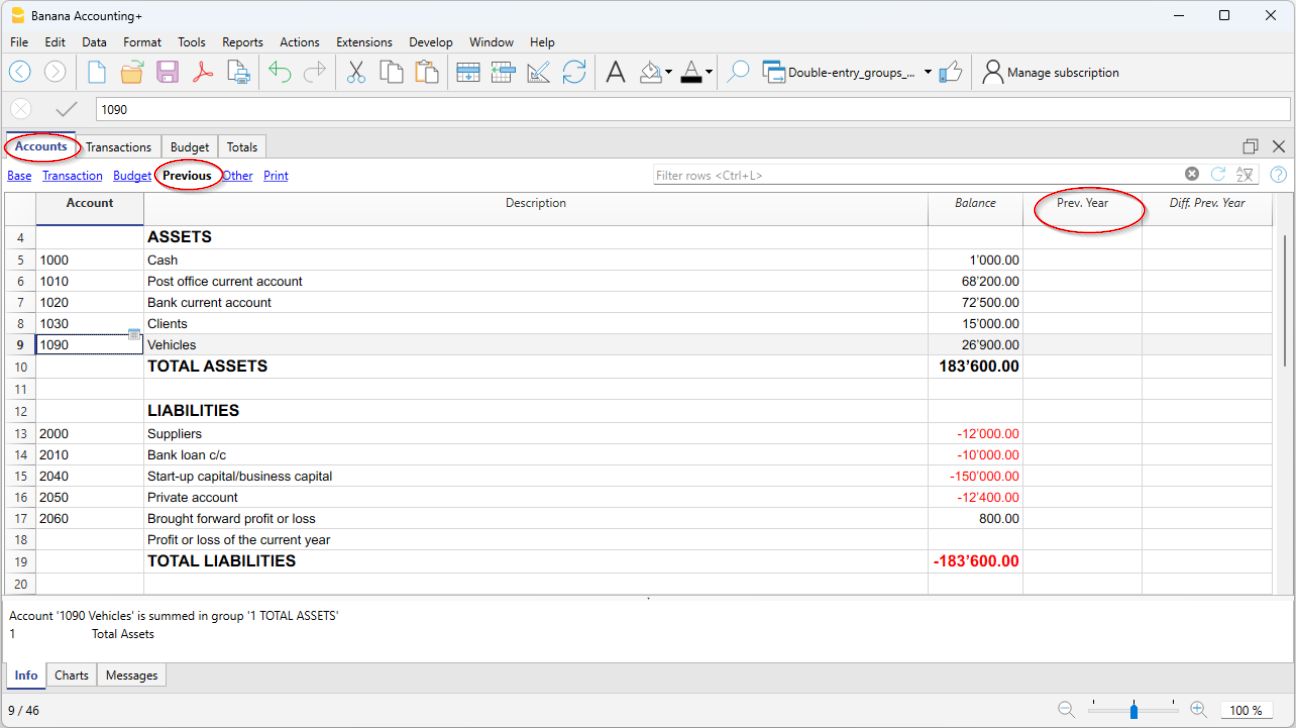
创建新年
当您开始新的一年时,程序会自动转入下一年的期初余额。
请参考创建新年的页面。
如果出于某些特殊需要,需要更改期初余额,可以在账户表的期初列中手动修改。每次修改后,要确保没有会计核算的差额。总之,我们建议用年度账结转的命令来结转期初余额,如果新年度的会计核算已经建立,则需使用更新期初余额的命令。
账户明细是自动的,无法直接输入期初余额或进行修改。
如果要更改账户明细的期初余额,需要进入账户表的期初列,而如果要更正变动,则需要在发生业务表中更改相应的发生业务。
打印期初余额
要打印期初余额:
- 要打印表格的内容,请使用打印/预览的命令,选择资产负债表的行。
- 您也可以使用会计核算内打印的命令,设置只打印资产负债表和期初列的部分。
创建新年 | 复式记账法
年度账结转的命令根据正在关闭的会计文件为新的一年准备一个文件。该命令不会修改当前文件,所以执行起来没有任何影响。
顺理成章地过渡到新的一年
使用Banana财务会计软件,每年都有一个单独的文件。当新的一年开始时,操作逻辑如下:
- 通过年度账结转的命令,程序为该年度创建一个新的文件,使用与即将结束年度相同的会计科目表、设置和余额。
- 一旦创建了新年份的文件,需使用新的名字将其保存。
- 如果您决定不保存该文件,可以重复创建新文件的操作。
- 这两个文件可以同时进行工作:
- 在新的一年里,将输入新一年的业务动向。还可以对会计科目表、增值税或其它的内容进行修改,而不影响以前的会计科目表。
- 在上一年的会计科目表中,您将继续输入完成一年的业务,并进行结账、检查余额、打印余额等典型的操作。
- 在新一年的文件中,通过操作菜单 → 更新期初余额的命令,在上一年的文件中所做的更改将被延续。该操作最迟在上一年没有变化的时候进行。
一旦创建了新一年的文件,订阅了Banana财务会计+ 专业计划的用户,将看到信息窗口中出现演示模式下高级计划的信息,直至达到70行发生业务的限制。
检查和结清上一年的账目
在更新期初余额之前,为了避免下一年度的期末和期初余额之间出现差额,必须确保所有的期末检查、核实和会计分录都已完成。请参考以下的页面:
- 复式记账的年末结算与检查。
- 多币种会计核算的年末结算与汇率。
关于设定期末汇率和记录未实现的汇率损益的具体信息。
年度账结转命令所执行的操作
年度账结转的命令在考虑到用户设置的参数的情况下,自动执行以下操作:
- 创建一个新的文件 (未命名),其会计科目表和设置与打开的文件相同,没有任何发生业务。
- 将当前文件的余额列中的数据复制到新文件的期初列中 (只针对指定的类别)。
- 将上一年度的利润或亏损与资产负债表账户的期初余额相加,以进行分配 (通常标明结转的利润/亏损账户)。
- 将所有资产负债表账户的数据从当前文件的余额列复制到新文件的上年列。
- 更新文件的属性:
- 设置开始和结束日期,在现有的基础上增加1年。
- 在选项部分设置前一年的文件名称,并激活智能填充上年业务的选项。
- 在多币种会计中,将前一年的期末汇率作为期初汇率输入。
- 如果预算表中有数据,就会考虑到设置,将变动情况结转到新的一年。
- 如果激活了部门的选项,可以为部门创建期初的发生业务。
年度账结转命令的对话框
在年度账结转的对话框中允许您指定创建新年文件的参数:

结转到新账套的开账余额
已激活期初余额的选项如下所示:
资产负债表
报告应收账款、应付账款和权益的余额。这个选项一般来说是必须要被激活的。
损益表 (不推荐)
收入和支出账户余额不应结转到新的一年。
只在特殊情况下且仅当您确定其含义时才激活此选项。
资产负债表外业务
使用基本类 (5和6)来报告账目。
成本中心
仅当成本中心用于管理必须随着时间推移而持续存在的职位 (例如客户、供应商和合作伙伴) 时,它们才会被激活。
成本中心 1 (1)
那些以点 " . " 开头的。
成本中心 2 (2)
那些以逗号 ' , ' 开头的。
成本中心 3 (3)
那些以分号 ' ; ' 开头的。
更多信息请参见成本和利润中心的页面。
部门
部门的期初余额是通过发生业务表中的期初业务创建的。
- 欲了解更多信息,请参见部门的页面。
- 该程序为每个账户和部门匹配创建一个发生业务, 完全恢复了上一年的最终状态。
-
最好不要使用期初列输入部门的期初余额。如果您在前一年已经这样做了,程序会在新一年的期初列中再次报告余额。
请注意:对于结算操作,例如临时账户的记录和关闭,这些必须手动记录。
损益分配
在将期初余额结转至新的一年时, 所示的数字都会被添加到结转账户中。
划分汇总
该程序会自动指示要分配的损益金额。
账户
选择要分配业务盈余的账户 (最多三个)。如果有一个以上的账户用于分配年度结果,则必须在相应的单元格中手动输入金额。
如果只显示一个账户,金额将自动输入到从列表中选择的账户中。
程序会自动更新期初余额。总资产正好对应总负债。
将经营成果分配在三个以上的账户上
在这种情况下,自动将该年度的结果只分配给结转的损益账户,并继续创建新的年度。
在新的一年 (新的文件),在发生业务表中,做一个多重业务,将本年度的利润或亏损从结转的损益账户转移到所需的账户。
推迟分配本年度的利润或损失
如果您还不想分配年度结果,可以通过点击确定按钮继续创建新的一年。可以从操作菜单 → 更新期初余额的命令中继续分配操作结果。程序显示的窗口与年度账结转命令所显示的窗口相同。
保存新文件
该方案为新的一年创建一个新的会计文件:
- 确认新一年的基本数据。该程序采用前一年的标题,并自动输入新一年的开始和结束日期。
- 点击文件菜单 → 另存为的命令,指出您要存储新会计文件的文件夹。我们建议您以公司名称和年份作为名称。
另外请参见管理会计文件的页面。
如果有差额或其它错误信息,您可以不保存创建的文件,以后再重复创建新一年的文件的操作。
更新期初余额
在保存新一年的文件并对上一年进行修改后,点击操作菜单 → 更新期初余额的命令,以恢复期初余额并再次分配利润。
这种操作可以重复多次,并且可以安全地进行,因为在转换过程中数据的完整性得到了保证,不会有数据丢失。
如果您想在新的一年切换到另一种会计类型 (多币种核算或含增值税的),请继续创建新文件,然后使用工具栏菜单 → 转换到新账套的命令。
如果您想创建文件的副本而不报告余额,请使用工具栏菜单 → 备份文件的命令。
更改结转余额
一旦余额结转到新的一年 (新文件),如果需要改变期初余额,可以通过手动来改变以下各列的金额:
- 打开账户表。
- 上一年度,为上一年度的余额。
- 在发生业务表中的部门。
如果您在上一年的文件中进行了更改,请单击操作菜单 → 更新期初余额的命令,以恢复并再次更新期初余额。
期初余额中的差额
在会计年度开始时,资产总额应与负债总额相对应。 否则,会计余额将不对等,并且有必要检查原因并更正错误,以使在信息窗口中所显示信息内没有期初余额的差额。
导致期初余额差额的原因可能有以下几种:
- 第一次使用程序时,没有在负债额前输入负号。
- 创建新的一年时,前一年的结果没有自动分配。
- 在创建新的年度时,成本和收入的余额被结转,而它们不应该被结转。
- 在手动输入期初余额时,没有考虑前一年的经营结果。在这种情况下,差额与报告的利润或损失相对应。
- 当将利润分配到多个账户时,手动执行时,对金额使用了Banana财务会计软件中没有提供的千位分隔符和小数。
每个错误的解决方案在错误解释页面中都进行了说明。
在该示例中,程序报告期初余额相差-800。
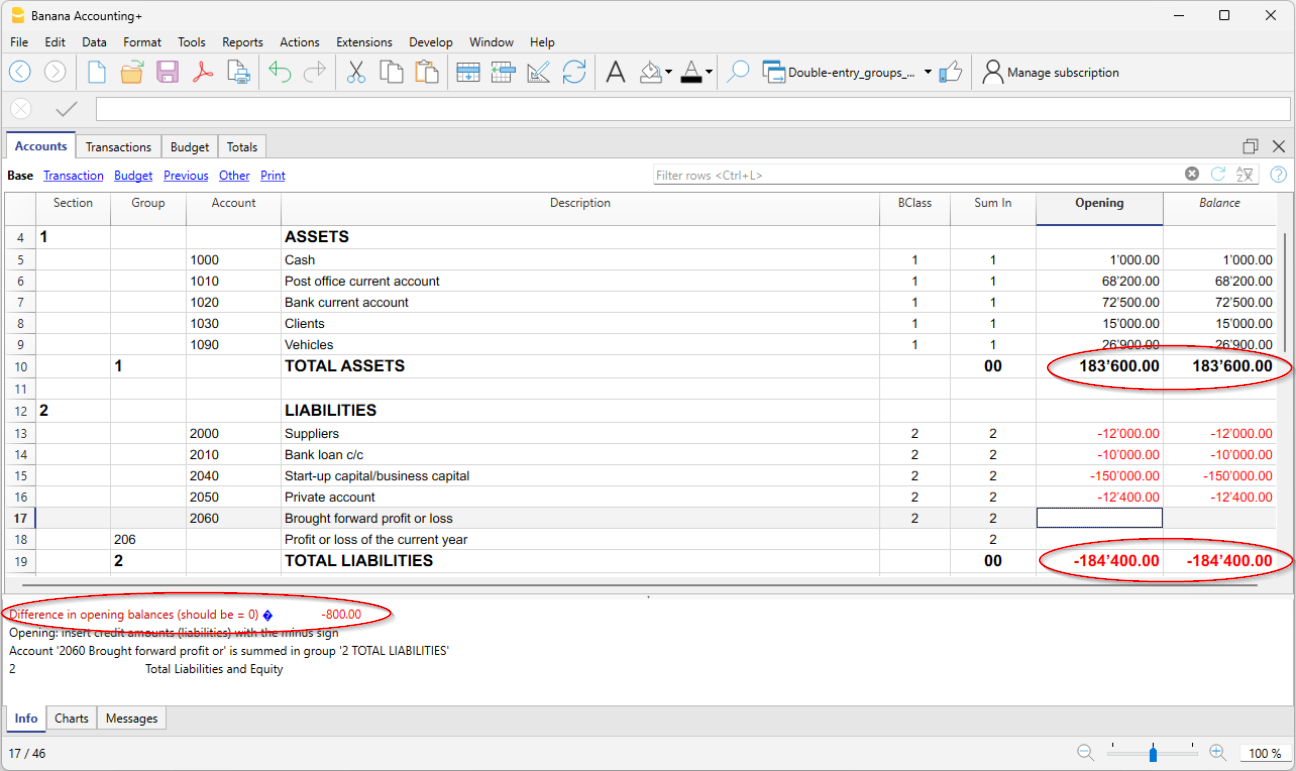
在检查和纠正期初余额后,总资产必须与总负债相对应。
也可以在合计表格中检查会计余额。