Non Profit templates Switzerland
Banana Accounting Plus is fast, easy, and flexible. Ideal for non-profit organizations.
Intuitive Approach
Associations rely on volunteer work, and often those handling accounting do not have advanced accounting knowledge. With Banana Accounting Plus, it is possible to manage accounting even without being an accountant, thanks to ready-to-use templates where accounts can always be modified, corrected, or deleted, just like in Excel. Banana Accounting Plus can be used confidently both in Switzerland and abroad.
Easy and Quick Guided Start
To simplify the setup, choose one of our ready-made accounting templates, adapt the accounts to your needs, and start recording transactions immediately.
After each transaction, the accounts are updated automatically, and the entered data is always visible and can be corrected at any time.
Professional Features
Once the transactions are entered, you can generate professional reports and printouts to present to members. Banana Accounting Plus offers many features, from invoicing with Swiss QR codes to automatic import of bank or postal transactions, even with the offset account.
Key features for associations include:
- Invoices with QR code for membership fees
- Letter Extension with Swiss QR Code (BETA)
- Print the member list and addresses and labels (with the help of cost center CS3)
- Project or event management
- Donation receipt for the association
- Print membership fee requests
- Various printouts
- Balance sheet and income statement
- Account statements
- Journal
Low Cost - Excellent Value for Money
Non-profit organisations often have limited budgets and aim to allocate all income to their social mission. The cost of Banana Accounting Plus is very affordable and accessible to all.
More Information
Additional Documentation
Non Profit Templates Switzerland
Banana Accounting Plus offers chart of accounts templates for associations, based on the Swiss standard model by swissaccounting.ch (formerly veb.ch), the leading Swiss accounting association.
Once you have created your accounting file, it can be fully customized to your needs by adding or removing accounts and groups.
Available Templates
To view the full list of available templates for Swiss associations, visit the Templates page.
Double-entry Accounting
Complete and professional accounting.
- Associations full chart of accounts
Ideal for a structured association that wants to manage its accounting professionally, like a company. The chart includes all accounts required by the standard.
This template also serves as a reference when adding additional accounts. - Associations simplified chart of accounts
Ideal for small associations with basic activity. The template includes only main groups and accounts. - VAT Management
Associations with commercial activity and VAT billing can use this template, which includes features and parameters for VAT management.- Full chart of accounts with VAT
- See the Federal Tax Administration for threshold information.
- Multi-currency
Income and Expense Accounting
For simple accounting using the income and expense method, including financial position and cash flow.
Cash Manager
For very simple accounting with a single account using the income and expense method, including financial position and cash flow.
Chart of Accounts Structure
In Banana Accounting Plus, the chart of accounts for associations is based on the SME chart of accounts structure developed by swissaccounting.ch (formerly veb.ch).
To download the related template, visit: Associations full chart of accounts.
Balance Sheet Structure
- Assets are divided into:
- Current assets (10)
- Fixed assets (14)
- Liabilities are divided into:
- Short-term liabilities (20)
Long-term liabilities (24) - Funds (27)
- Equity (28)
- Short-term liabilities (20)
Profit and Loss Statement
The profit and loss statement is divided into Revenues and Expenses.
- Revenues are divided into:
- Membership fees (300)
- Contribution income (310)
- Income from activities and services (330)
- Other income (360)
- Expenses are divided into:
- Costs for activities and services (4)
- Personnel costs (5)
- Administrative expenses (6)
- Depreciation and value adjustments (68)
- Financial costs and revenues (69)
- Direct taxes (89)
Cost Centers and Segments
The chart of accounts templates in Banana Accounting Plus also include cost centers.
- With cost center CC3 (;) members are managed:
- Allows to enter members' addresses and keep track of payments made
- The dedicated Extension allows printing of donation certificates
- With cost center CC1 (.) projects are managed
- With Segment (:) details for various departments or areas are managed
Section-based Reporting
Associations needing separate financial reports for different sections can use the segment functionality.
References
The chart of accounts is set up based on the structure published by veb.ch, the largest Swiss accounting association. Veb.ch also published the Swiss chart of accounts for Small and Medium Companies (SMEs), which is the standard for companies in Switzerland.
- Documentation for associations and model chart of accounts structure (in German).
A very comprehensive document for those managing an association, unfortunately available only in German.
Full List of Accounts and Groups
Below is a reference list of all accounts and groups included in the template.
| Section | Group | Account | Description | BClass | Sum In |
| * | BALANCE SHEET | ||||
| 1 | ASSETS | ||||
| 1000 | Cash on hand | 1 | 10 | ||
| 1020 | Bank account (including postal account) | 1 | 10 | ||
| 1060 | Securities | 1 | 10 | ||
| 1100 | Receivables from deliveries and services (debtors) | 1 | 10 | ||
| 1109 | Provision for doubtful debts | 1 | 10 | ||
| 1140 | Short-term advances and loans | 1 | 10 | ||
| 1176 | Withholding tax | 1 | 10 | ||
| 1190 | Other short-term receivables | 1 | 10 | ||
| 1200 | Inventories and non-invoiced services | 1 | 10 | ||
| 1300 | Accrued income and prepaid expenses | 1 | 10 | ||
| 10 | Current assets | 1 | |||
| 1400 | Securities | 1 | 14 | ||
| 1440 | Long-term loans | 1 | 14 | ||
| 1441 | Other long-term receivables | 1 | 14 | ||
| 1500 | Movable tangible assets (machinery, equipment, furniture, PCs) | 1 | 14 | ||
| 1600 | Properties | 1 | 14 | ||
| 14 | Fixed assets | 1 | |||
| 1 | Total assets | 00 | |||
| 2 | LIABILITIES | ||||
| 2000 | Accounts payable (creditors) | 2 | 20 | ||
| 2100 | Bank debts | 2 | 20 | ||
| 2140 | Other interest-bearing debts | 2 | 20 | ||
| 2210 | Other short-term debts (not onerous) | 2 | 20 | ||
| 2270 | Social insurances and social security contributions | 2 | 20 | ||
| 2300 | Accruals and deferred income | 2 | 20 | ||
| 20 | Short-term third party capital | 2 | |||
| 2400 | Bank debts | 2 | 24 | ||
| 2450 | Loans and mortgages | 2 | 24 | ||
| 2500 | Other long-term debts (not onerous) | 2 | 24 | ||
| 2600 | Provisions | 2 | 24 | ||
| 24 | Long-term third party capital | 2 | |||
| 2700 | Funds established from donations | 2 | 27 | ||
| 2710 | Funds established by the association | 2 | 27 | ||
| 27 | Fund capital | 2 | |||
| 2850 | Association’s equity | 2 | 28 | ||
| 2900 | Restricted equity of the association (funds) | 2 | 28 | ||
| 2979 | Profit or loss for the year | 28 | |||
| 28 | Equity | 2 | |||
| 2 | TOTAL LIABILITIES | 00 | |||
| * | PROFIT & LOSS STATEMENT | ||||
| 4 | INCOME | ||||
| 3000 | Membership contributions | 4 | 300 | ||
| 3010 | Active members’ contributions | 4 | 300 | ||
| 3011 | Passive members’ contributions | 4 | 300 | ||
| 3012 | ……. | 4 | 300 | ||
| 3015 | Voluntary members’ contributions | 4 | 300 | ||
| 300 | Membership contributions | 3 | |||
| 3100 | Donations and contributions from supporters | 4 | 310 | ||
| 3110 | Inheritance and bequests | 4 | 310 | ||
| 3120 | Donations/Government grants | 4 | 310 | ||
| 3130 | Revenues from fundraising | 4 | 310 | ||
| 310 | Contributions received | 3 | |||
| 3300 | Revenues from sale of goods and materials | 4 | 330 | ||
| 3310 | Proceeds from services | 4 | 330 | ||
| 3320 | Proceeds from events | 4 | 330 | ||
| 3330 | Courses and participation fees | 4 | 330 | ||
| 3340 | Rental income (material, clubhouse) | 4 | 330 | ||
| 330 | Revenues from activities and services | 3 | |||
| 3600 | Revenue from advertisements, advertising and sponsorships | 4 | 360 | ||
| 3610 | Revenues from own properties | 4 | 360 | ||
| 3620 | Other revenues | 4 | 360 | ||
| 360 | Other revenues | 3 | |||
| 3805 | Losses on receivables, changes in value adjustments | 3 | 380 | ||
| 380 | Decrease in revenues | 3 | |||
| 3 | TOTAL INCOME | 02 | |||
| 3 | EXPENSES | ||||
| 4000 | Purchase of goods and materials | 3 | 4 | ||
| 4400 | Third-party services | 3 | 4 | ||
| 4500 | Services for association purposes (e.g. expenses for active men, women and youth teams) | 3 | 4 | ||
| 4900 | Expenses for own properties (excluding interest and depreciation) | 3 | 4 | ||
| 4 | Expenses for activities and services | 4-5-6 | |||
| 5000 | Salaries | 3 | 5 | ||
| 5700 | Social insurance contributions | 3 | 5 | ||
| 5800 | Other personnel expenses | 3 | 5 | ||
| 5 | Personnel expenses | 4-5-6 | |||
| 6000 | Expenses for premises (rent) | 3 | 6 | ||
| 6100 | Maintenance and repairs, replacement of movable tangible assets | 3 | 6 | ||
| 6200 | Vehicle and transport costs | 3 | 6 | ||
| 6300 | Property insurance, charges, fees and permits | 3 | 6 | ||
| 6400 | Energy and disposal costs | 3 | 6 | ||
| 6500 | Office equipment, printers, photocopies, specialist publications | 3 | 6 | ||
| 6510 | Telephone, internet, postages | 3 | 6 | ||
| 6530 | Secretarial, accounting and auditing expenses | 3 | 6 | ||
| 6540 | Expenditures, allowances and reimbursements for board of directors and executive bodies | 3 | 6 | ||
| 6541 | Association general meeting expenses | 3 | 6 | ||
| 6542 | Board of directors meeting expenses | 3 | 6 | ||
| 6570 | IT expenditures | 3 | 6 | ||
| 6600 | Advertising and marketing expenses | 3 | 6 | ||
| 6660 | Contributions, donations, grants | 3 | 6 | ||
| 6700 | Other operating expenses of the association | 3 | 6 | ||
| 6 | Other costs and administrative expenses of the association | 4-5-6 | |||
| 6800 | Depreciation and value adjustments | 3 | 68 | ||
| 68 | Depreciation and value adjustments | 4-5-6 | |||
| 6900 | Interest expenses | 3 | 69 | ||
| 6902 | Mortgage interest and ground rents | 3 | 69 | ||
| 6940 | Fees and commissions | 3 | 69 | ||
| 6942 | Exchange losses on capital investments | 3 | 69 | ||
| 6950 | Revenues from investments (interest and dividends) | 4 | 69 | ||
| 6993 | Exchange gains on capital investments | 4 | 69 | ||
| 69 | Financial result | 4-5-6 | |||
| 8900 | Direct taxes | 3 | 89 | ||
| 89 | Direct taxes | 4-5-6 | |||
| 4-5-6 | TOTAL EXPENSES | 02 | |||
| 02 | Loss(+)/Profit(-) from Profit & Loss Statement | 2979 | |||
| 00 | Difference should be = 0 (blank cell) | ||||
| * | COST AND PROFIT CENTERS | ||||
| 04 | Members | ||||
| ;001 | Member 1 | MG | |||
| ;002 | Member 2 | MG | |||
| ;003 | Member 3 | MG | |||
| MG | Total members | ||||
| 03 | Projects | ||||
| .P1 | Project 1 | PR | |||
| .P2 | Project 2 | PR | |||
| PR | Total projects | ||||
| * | SEGMENTS | ||||
| Sectors | |||||
| :MEN | Men sector | SEC | |||
| :WOM | Women sector | SEC | |||
| :YOU | Youth sector | SEC | |||
| SEC | Total sectors |
Non-profit organization | Cash Manager (Free)
Non-profit organization | Cash Manager (Free)Banana Accounting Plus Cash Manager is a completely free application. Just a few simple steps are enough to create your file.
Create your file
- Open the template with the Banana Accounting Plus WebApp
- With the File > File Properties command, set the period, the name of your association, and the base currency (you can do the budget and accounting in any currency).
- With the File > Save As command, save the file. It is useful to include the name of the association and the year in the file name. For example: "Association-20xx.ac2".
WARNING: if you close your browser without saving, you will lose the entered data. Always save the file on your computer.
You can find all the information in our Documentation, especially on the following pages:
Non-profit organization | Income & Expenses
Non-profit organization | Income & ExpensesThe template, while simple and essential in structure, allows you to manage your accounting professionally.
- You can customize the accounts and categories at any time to suit your specific needs.
- The Accounts and Categories tables provide an immediate view of the balances for each account and category, allowing you to maintain full control over your financial situation.
- By setting up the members and donors list, you can issue invoices with the added benefit that they are automatically recorded in the accounting.
- You can speed up the entry of transactions by importing banking data and using Rules: for each imported transaction, you enter a keyword (Rule) that completes all the other elements of the transaction (counterpart, cost center, etc.); in future imports, the program will automatically complete the data whenever it finds the keyword, significantly reducing work time and minimizing errors.
Some features require a subscription to the Advanced plan of Banana Accounting Plus, such as using the new Rules, Filter and Temporary Row Sorting functions. See all features of the Advanced plan.
Create your file
- Open the template with Banana Accounting Plus WebApp
- With the File > File properties command, set the period, the name of your organization and the base currency.
- With the File > Save As command, save the file. It is helpful to include the association name and year in the file name. For example "Association...-20xx.ac2".
WARNING: if you close the browser without saving, you will lose the entered data. Always save the file on your computer.
In our Documentation you will find all the information on the various topics:
Non-profit organization with VAT | Income / Expenses
Non-profit organization with VAT | Income / ExpensesThis template, while having a simple and essential setup, allows you to manage accounting in a professional way.
- You can customize accounts and categories at any time, adapting them to your specific needs.
- The tables Accounts and Categories provide an immediate view of balances for each account and category, allowing you to maintain full control of your financial situation.
- By setting up the list of members and donors, you can issue invoices which are automatically recorded in the accounting system.
- The VAT Codes table is updated with the new 2024 VAT rates.
- To speed up the entry of transactions, you can use bank data import together with the use of Rules: for each imported transaction you enter a keyword (Rule) that fills in all other elements of the transaction (counter-account, VAT code, cost center...). In future imports, the software will automatically complete entries whenever it finds the keyword, significantly reducing work time and minimizing errors.
Some functions require a subscription to the Banana Accounting Plus Advanced Plan, such as generating the VAT report facsimile or XML file, using the new Rules features, Temporary Row Filter, and Sort. See all the Advanced Plan features.
Create your file
- Open the template with Banana Accounting Plus WebApp
- Use the File > File Properties command to set the accounting period, the name of your organization, and the base currency (you can do budgeting and accounting in any currency).
- Use the File > Save As command to save the file. It's useful to include the association's name and year in the file name. For example, "Association-20xx.ac2".
WARNING: if you close the browser without saving, all entered data will be lost. Always save the file to your computer.
To reopen the saved file, click on File > Open.
Also check out Organize your accounting files locally, on a network or cloud.
More information is available on the following pages:
Tutorial: So erstellen Sie Mitgliederrechnungen in der Einnahmen-Ausgaben-Rechnung
Tutorial: So erstellen Sie Mitgliederrechnungen in der Einnahmen-Ausgaben-RechnungDie Informationen zur Verwendung der Mitgliederfunktionen sind identisch mit denen im Tutorial Rechnungen an Mitglieder für die Zahlung von Mitgliedsbeiträgen.
Der einzige Unterschied liegt in der Buchführungsart, die hier auf der Vorlage Einnahmen-Ausgaben-Rechnung basiert.
Um dies zu ändern, wählen Sie einfach die Buchhaltungsart Einnahmen-Ausgaben.
- Konten und Kategorien lassen sich jederzeit individuell anpassen, sodass Sie die Buchhaltung optimal auf die Bedürfnisse Ihres Vereins abstimmen können.
- Die Tabellen Konten und Kategorien bieten Ihnen eine sofortige Übersicht über die Salden sämtlicher Konten und Kategorien. So behalten Sie die finanzielle Lage Ihres Vereins stets im Blick.
- Rechnungen, die Sie über die Mitgliederliste erstellen, werden automatisch in die Buchhaltung übernommen.
- Durch den Import von Bankdaten in Kombination mit individuell definierbaren Regeln zur automatischen Vervollständigung importierter Datensätze lässt sich die Buchungserfassung erheblich beschleunigen: Beim ersten Import weisen Sie einer Transaktion ein Schlüsselwort (Regel) zu, das automatisch Felder wie Gegenkonto oder Kostenstelle ausfüllt. Bei zukünftigen Importen erkennt das Programm dieses Schlüsselwort und ergänzt die Buchung automatisch – das spart Zeit und reduziert Fehlerquellen.
Durch das Öffnen der Datei dieses Tutorials können Sie Tests durchführen oder sie als Grundlage für Ihre eigene Buchhaltungsdatei verwenden, indem Sie die Buchungen und Anfangssalden manuell löschen.
Einige Funktionen – wie erweiterte Regeln sowie temporäre Filter- und Sortierfunktionen – erfordern ein Abonnement des Advanced-Plans von Banana Buchhaltung Plus.
Sehen Sie sich alle Funktionen des Advanced-Plans im Überblick an.
Erstellen Sie Ihre Datei
- Öffnen Sie die Vorlage mit der WebApp von Banana Buchhaltung Plus.
- Legen Sie unter Datei > Eigenschaften (Stammdaten) den Zeitraum, den Vereinsnamen sowie die Basiswährung fest.
- Speichern Sie die Datei über Datei > Speichern unter. Wir empfehlen, im Dateinamen den Vereinsnamen und das Jahr anzugeben (z.B. Verein-20XX.ac2).
WICHTIG: Wenn Sie den Browser schliessen, ohne die Datei zu speichern, gehen alle eingegebenen Daten verloren. Speichern Sie daher immer eine Kopie lokal auf Ihrem Computer.
Um die gespeicherte Datei erneut zu öffnen, wählen Sie den Menübefehl Datei > Öffnen.
In unserer Dokumentation finden Sie ausführliche Anleitungen zu verschiedenen Themen, mit denen Sie Ihre Buchhaltung optimal verwalten können:
Non-profit organization | Double-Entry Accounting
Non-profit organization | Double-Entry AccountingTutorial created based on the information available on the site www.swissaccounting.ch (formerly www.veb.ch). The chart of accounts is structured according to the system developed by Herbert Mattle and Dieter Pfaff.
More information:
- Swissaccounting.ch (German) - PDF document and useful information for efficiently managing finances and accounting, complying with legal and insurance regulations.
- Kmu.admin.ch - Useful information for establishing an association
Set up your file
- Create a new file starting from this template (Template ID +10940), using one of the methods explained.
- From the File > File properties menu, set the period and the company name.
- From the File > Save As menu, save the file. It's useful to include the association's name and year in the file name. For example, "Association XX-2025.ac2".
See also Organising accounting files locally, on a network, and in the cloud.
Accounts Table
In the Accounts table of this tutorial, you will find the balance sheet and income statement accounts already set up. To get intermediate totals and more detailed views, the main groups are divided into various subgroups. You can fully customize the chart of accounts according to your needs.
The Balance Sheet accounts are divided into groups and subgroups: Current Assets, Fixed Assets, Total Assets; Short-term Liabilities, Long-term Liabilities, Funds, and Equity. The Income Statement is in a stepped format. Cost and profit centers are available to manage members and projects, as well as segments to manage different activity sectors.
Assets
Assets are divided into the following main groups:
- Current Assets
- Fixed Assets
Liabilities
Liabilities are divided into three main groups:
- Short-term liabilities
- Long-term liabilities
- Equity
In the Accounts table, in the Opening column, enter the opening balance for each account.
When moving to the new year, the opening balance is carried over automatically from the menu Actions > Create New Year.
After each entry, the columns of the Accounts table are immediately updated, giving you a clear and immediate view of the financial situation.

Income Statement
The income statement is divided into Revenues and Costs with the following subgroups:
Revenues
- Membership fees
- Revenue from contributions
- Revenue from activities and services
- Other revenue
Costs
- Costs for activities and services
- Personnel costs
- Administrative costs
- Depreciation and value adjustments
- Financial costs and revenues
- Direct taxes

Other Elements of the Chart of Accounts
At the end of the chart of accounts, profit centers are set up to provide detailed information for the following groups:
- List of members, managed with CC3 (;) - Allows you to view details for each member, as well as print subscriptions and donation certificates.
- Projects, managed with CC1 (.) - To view details for each project.
- Activity sectors, managed with Segments - To know which sector was most successful and generated more profit.

Plan Liquidity
Liquidity is the main pillar of the Association: it allows activities to be carried out to achieve the set goals, to forecast in advance how much liquidity will be available while minimizing risks, and to constantly check whether the budget approved by the general meeting is being followed.
Banana Accounting Plus gives you the ability to create both liquidity planning and the economic budget.
Discover the various Forecasting features in our Documentation:
Enter Budget Transactions
You enter the budget in the Budget table, using the double-entry accounting method. You use the same chart of accounts already available for general accounting. You simply start recording the transactions that usually occur each month, entering only one record. You should also include operations that happen once a year or repeat quarterly. The table includes the Repeat column, which, based on the period option you enter, allows the program to automatically calculate the total with all details.
When entering transactions, record the accounts in Debit and Credit as if you were entering actual accounting data. This way, by using all accounts available in the chart of accounts, you will have all movements for liquidity, other balance sheet accounts, and the income statement.

For revenues, it is more difficult to make forecasts. We recommend entering the amounts based on revenues from the same period of the previous year, evaluating upcoming events or focusing on other special events, such as the purchase of new equipment or other investments.
Always record in the Budget table, using the accounts from the income statement and liquidity accounts.
Budget Account Card
If you enter your Budget, you can view all data grouped by each cost or revenue item in the respective cards, just like with actual recorded data.
This way, you can see all details of each account card or group and constantly check whether the budgeted data matches the recorded data, thanks to the graph that provides an immediate visual for comparisons.
To activate one or more Budget account cards, proceed as follows:
- Menu Report > Account cards > activate Budget entries.

Financial Planning Balance Sheet
Once you've completed your forecast entries, by viewing the balance sheet and income statement, you can see the impact on liquidity. You can always go back to the Budget table and change the amounts where necessary.
Cash flow planning is a very effective and successful strategy that allows you to make more prudent decisions regarding the association’s activities.
To view the financial planning balance sheet, click:
Menu Report > Enhanced balance sheet with groups > in the Columns section, activate Budget in the balance sheet.

Forecast of Costs and Revenues
In the income statement, you can assess the impact of your forecast on costs and revenues and understand if the forecasted revenues will be sufficient to cover the costs.
To view the financial planning balance sheet, click:
Menu Report > Enhanced balance sheet with groups > in the Columns section, activate Budget in the Income Statement.

Record Actual Transactions
In the Transactions table, enter all daily movements. If you want to speed up the entry process, we recommend using Banana’s various features:
- The Data entry with autocomplete function automatically recalls previously entered data.
- The Recurring Transactions function (under the Actions menu) lets you save repetitive entries in a dedicated table.
- Importing data from bank statements automatically retrieves all bank transactions.
- You can link each transaction to its related digital document, and with a single click view the document.
See also Accounting file and digital receipts to better organize your documents. - Use the Sort rows by date command to sort rows in chronological order.
- Use the Print/Preview command to print or export the journal in PDF format.

Enhanced Balance Sheet
To view the Balance Sheet, click on the Report menu and then the Enhanced Balance Sheet or Enhanced Balance Sheet with groups command. You can customize the statement with the columns you wish to display, such as also including the budget column or balance sheet by period.
- The Enhanced Balance Sheet shows all accounts without any subgroups.
- The Enhanced Balance Sheet with groups displays all accounts including the subgroups.

Check Balances Against Budget
When the actual data has been recorded, you can view the Balance Sheet and Income Statement and compare them with the budget. Monitoring the comparison is an excellent way to check whether everything is proceeding as planned or if you need to adjust some amounts to better match the accounting values and avoid compromising future forecasts.
To obtain the balance sheet with actual and budgeted comparisons, click:
Menu Report > Enhanced balance sheet with groups > in the Columns section, activate Current, Budget, and Difference for both the Balance Sheet and the Income Statement.

Invoices to members in double-entry accounting
Invoices to members in double-entry accountingCreate your file
To get started quickly, we recommend downloading the template provided at the beginning of this page, or opening it directly from the program as follows:
- Open the template with the Banana Accounting Plus WebApp
- Using the File > File Properties command, set the period, your organisation's name, and base currency
- Using the File > Save As command, save the file. It's useful to include the name of the organisation and the year in the filename. For example "Association...-20xx.ac2".
Enter the basic information of the organisation
In the menu File > File Properties > Accounting, enter your organisation’s data, start and end dates, and base currency.
In the Address section, fill in the required fields. These details are essential for invoice headers.

Insert the logo and define the invoice header position
To insert the organisation’s logo and define the position of the various headers on the invoice, go to the menu File > Set Logo.
For more details, visit the page Set Logo

Enter members' data
In the Accounts table, at the end of the chart of accounts, enter all members of the organisation using the cost center CC3, which uses a semicolon.
In the Addresses view, fill in the various columns with the members' details. For each member, you can specify the invoice language in the Language column.
If you selected a different template that does not include the Addresses view, you can activate it from the menu Tools > Add New Features > Add Addresses and fill in the requested columns.

Set the Members Group
Once you have created the member list with a grouping code, you need to define this group in the invoice settings:
From the menu Report > Customers > Settings, select the members' grouping code. In our tutorial it is indicated as TM (Total members).

Prepare and print member invoices
Enter the invoice data in the Transactions table. You only need to fill in the following fields:
- Date
- Description
- Invoice number (essential for invoice printing)
- Membership fee amount
- In the CC3 column, enter the cost center for the member that you defined at the end of the chart of accounts, but without the semicolon.
- The Debit and Credit columns remain empty.

Now you're ready to print the invoices. Proceed as follows:
- From the menu Report > Customers > Print Invoices, access the dialog where you can select one or more invoices to print, choose the layout, and adjust settings for customization.

In the Options section, you can enter notes for the member and define the language.

Invoice

Further information:
- Layout with Swiss QR Code (Banana+)
- Import ISO 20022 file (See section on national specifications)
Non-profit organisations with VAT | Double-entry accounting
Non-profit organisations with VAT | Double-entry accountingChart of accounts structured with groups and subgroups. Swiss VAT codes are already set up to automatically generate a sample VAT return and the XML file for electronic submission of VAT data on the FTA’s online platform (available only with the Advanced plan). Member and project management using cost centers.
The chart of accounts has a stepped format that allows you to see the composition of the operating result even at intermediate stages.
- You can customize the accounts to suit your specific needs.
- By setting up the member list, you can issue invoices for subscription fees, with the advantage of having them automatically recorded in the accounting.
- The VAT Codes table is updated with the new 2024 VAT rates.
- To speed up data entry, you can import banking transactions using Rules: for each imported transaction, enter a keyword (Rule) to automatically complete the other elements of the transaction (counter account, VAT code, cost center...); in future imports, the program will automatically complete the transaction every time it finds that keyword, significantly reducing workload and minimizing errors.
Many automation features, such as importing banking data using Rules, the sample VAT Form with the new 2024 rates, the XML file for electronic VAT submission, filters, and many others, are included exclusively in the Banana Accounting Plus Advanced plan.
Create your file
- Open the template with the Banana Accounting Plus WebApp
- Use the File > File Properties command to set the period, your organisation’s name, and base currency (you can do budgeting and accounting in any currency you choose).
- Use the File > Save As command to save the file. It is useful to include the organisation name and year in the filename. For example: "Association...-20xx.ac2".
WARNING: if you close the browser without saving, you will lose any data entered. Always save the file to your computer.
In our Documentation you’ll find all the information and insights to manage your accounting effectively:
Non-profit organisations | Multi-currency double-entry accounting
Non-profit organisations | Multi-currency double-entry accountingManage members, projects, and activities using cost centers and segments. Automated member subscriptions and donation certificates.
In our Documentation you’ll find all the information and insights to manage your accounting efficiently:
Non-profit organisations with VAT | Multi-currency double-entry accounting
Non-profit organisations with VAT | Multi-currency double-entry accountingChart of accounts with a very simple structure of groups and subgroups. Swiss VAT codes are already set up to automatically generate a sample VAT report and the XML file for electronic VAT data submission to the FTA’s online platform (Advanced plan only).
All the settings and features you need for:
- Creating and printing invoices with Swiss QR code
- Importing data from bank statements
- Setting up Rules to save and automate the completion of transactions imported from bank statements.
- Managing VAT according to the new VAT rates
- Managing cost centers, customizable to suit your needs to get detailed insights into specific accounts.
- Creating budgets and financial forecasts
- Printing all the reports you need: Balance Sheets, Journal, Account Cards, VAT Reports, Open Invoices and much more.
For managing VAT with the new rates, you can find detailed information on the VAT Management page.
Some features require a subscription to the Banana Accounting Plus Advanced plan, such as generating the sample or XML VAT Report, using new features like Rules, Filter and Temporary Row Sorting. See all Advanced plan features.
Create your file
- Open the template with the Banana Accounting Plus WebApp
- From the menu File > File Properties set the period, your company name, and base currency in any currency you want.
- From the menu File > Save As, save the file. It’s useful to include your company name and year in the file name. For example: "Rossi-SA-20xx.ac2".
- In the Exchange Rates table, set up foreign currencies always in reference to the base currency. Opening exchange rates are set only the first time Banana Accounting is used. At the new year transition, these are automatically carried forward using the closing exchange rates as of 31.12.
WARNING: If you close the browser without saving, you will lose any entered data. Always save the file to your computer.
To reopen the saved file, click on File > Open.
In our Documentation you’ll find all the information and insights you need to manage your accounting effectively:
GAAP FER 21 Templates
The chart of accounts we offer is set up according to the NGO model, as published in the PDF manual by the FGC (Fédération Genevoise de Coopération), where the SWISS GAAP RPC standards are presented and the proper accounting practices are explained.
Gemeinnützige Nonprofit-Organisationen | Vorlage gemäss den Swiss GAAP FER 21 Normen | Doppelte Buchhaltung
Gemeinnützige Nonprofit-Organisationen | Vorlage gemäss den Swiss GAAP FER 21 Normen | Doppelte BuchhaltungDer von uns vorgeschlagene Kontenplan ist nach dem NGO-Modell (Non-Governmental Organisations bzw. Nichtregierungsorganisation) aufgebaut, das im PDF-Handbuch der FGC (Fédération genevoise de coopération) veröffentlicht ist, in dem die SWISS GAAP RPC-Standards vorgestellt und die korrekte Buchführung erläutert werden.
Referenzen:
Enthält auch Kostenstellen, um Mitglieder, Projekte und Segmente zu verwalten.
In unserer Dokumentation finden Sie alle Informationen und Erkenntnisse, die Sie benötigen, um Ihre Buchhaltung optimal zu führen:
Gemeinnützige Nonprofit-Organisationen | Vorlage gemäss den Swiss GAAP FER 21 Normen | Doppelte Buchhaltung mit Fremdwährungen
Gemeinnützige Nonprofit-Organisationen | Vorlage gemäss den Swiss GAAP FER 21 Normen | Doppelte Buchhaltung mit FremdwährungenDer von uns vorgeschlagene Kontenplan ist nach dem NGO-Modell (Non-Governmental Organisations bzw. Nichtregierungsorganisation) aufgebaut, das im PDF-Handbuch der FGC (Fédération genevoise de coopération) veröffentlicht ist, in dem die SWISS GAAP RPC-Standards vorgestellt und die korrekte Buchführung erläutert werden.
Referenzen:
https://fgc.federeso.ch/sites/default/files/fgc_manuel_rpc21.pdf
In unserer Dokumentation finden Sie alle Informationen und Erkenntnisse, die Sie benötigen, um Ihre Buchhaltung optimal zu führen:
Membership list
To manage your members, you can start from one of the following templates (with example entries):
- Income/Expense Accounting for Associations in Switzerland
- Double-entry Accounting for Associations in Switzerland
With Banana Accounting Plus, you can set up a member list with address data and other configurations. You can then automatically generate:
- Member Invoicing (using integrated invoicing)
- Member account cards with all transactions and balances
- Donation certificate
- Letters to members / Mail merge
Below is how to set up the member list as cost centers (cash-based accounting).
In a later section, you’ll find how to set up the member list with active accounts if using accrual accounting.
Set up member accounts – cash-based accounting
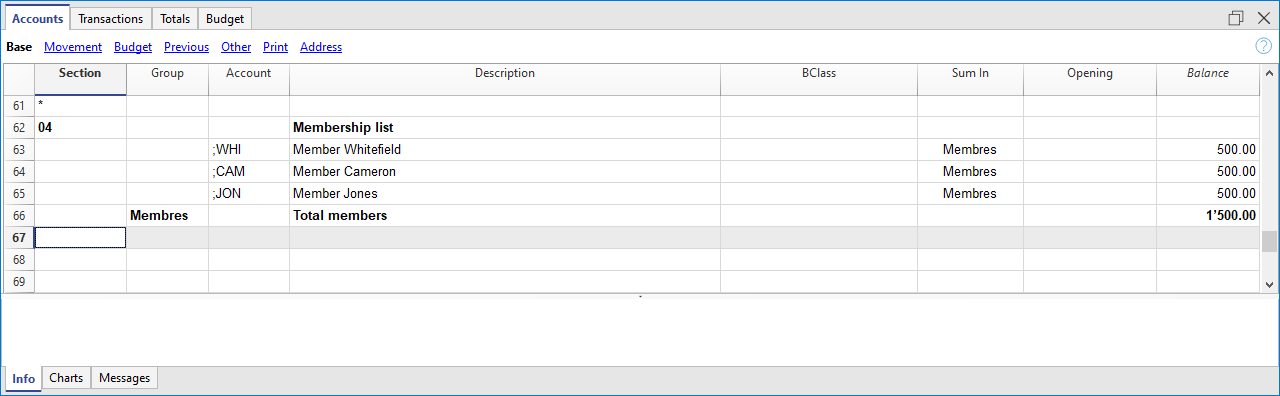
Associations that use cash-based accounting must configure member accounts with cost center CC3 (;). Membership fees are recorded as income upon receipt. The member code appears as supplementary information.
- In the Section column, insert an asterisk to change the section.
- In the next row’s Section column, insert 04 for income.
- Use cost center CC3 (;) for each member account.
Enter address data
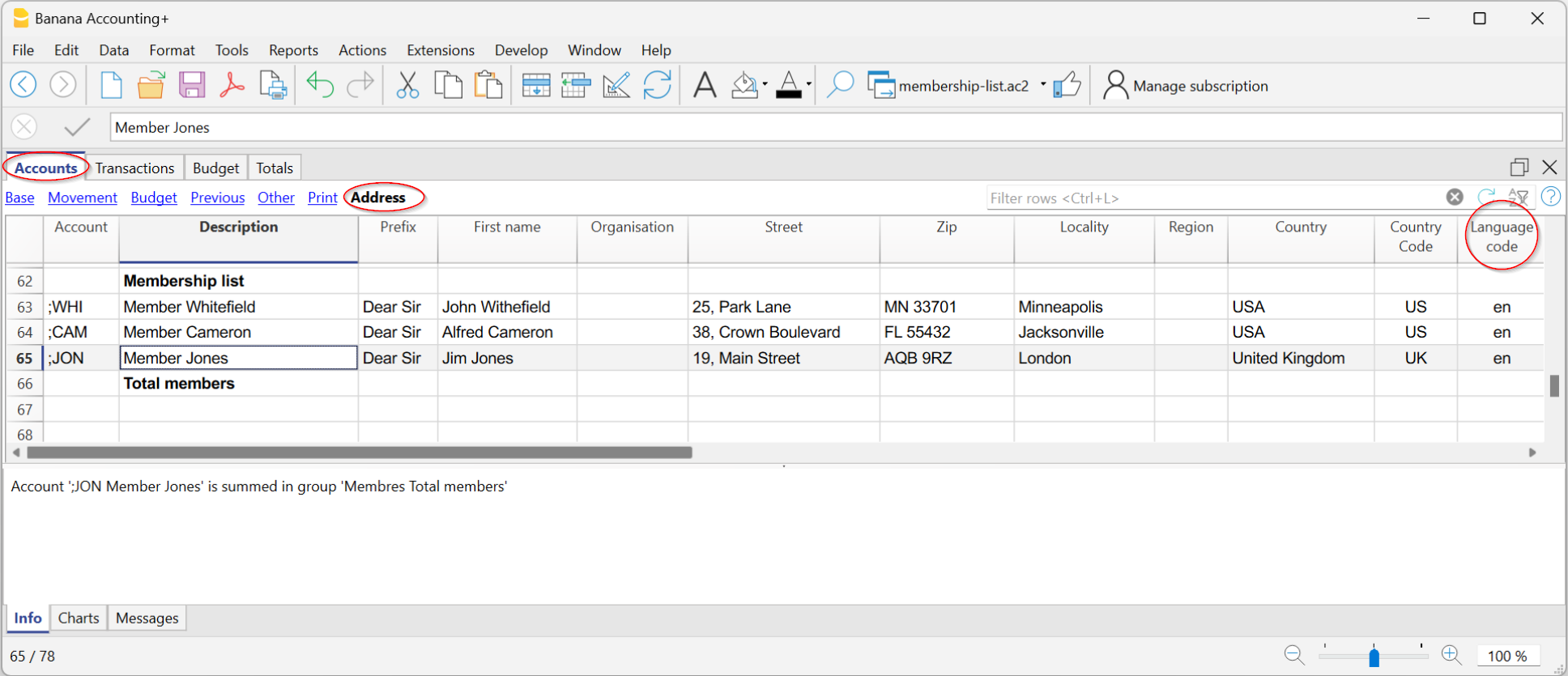
Member data such as address, phone, and email are entered in dedicated columns visible in the Addresses view. If the view is not visible, add it from the menu Tools > Add/Remove Features > Add Address columns in Accounts table.
Enter membership fee payments in CC3
Payments and other entries related to members are recorded in the Transactions table. If members were set up with CC3, record as follows:
- Enter date and document number
- Enter description
- In the Debit column, enter the bank account; in Credit, the donation income account
- In the CC3 column, enter the member account (without punctuation)
If the CC3 column is not visible, go to Data > Organize Columns > CC3 and enable visible.

You can view each member’s transactions and balance in the account card by clicking the blue icon in the cell, or via Reports > Account cards.

Invoices for membership fees
With entries set (either with CC3 or ledger), you can generate membership fee invoices:
- From the menu Reports > Customers > Print invoices, access the dialog to customize and print invoices.
For more details, see the tutorial Invoices for membership fees.

Donation certificate for members
If income is recorded with member information, you can use the extension to print donation certificates. This automatically prepares a letter with member payment info.
Print member list
- Select the member rows in the Accounts table
- Go to File > Print and choose Print selection
You can also use the Extract Rows command to filter accounts, then print the displayed table.
Export member data
- Use the Extract Rows command
- Copy/paste data from Banana Accounting Plus into Excel
- Export data to CSV or Excel
Set up member accounts – accrual-based accounting
Associations using accrual accounting can set up members as standard asset accounts or subledger accounts at the end of the chart of accounts.
The fee is recorded as income when the invoice is issued (or at the start of the period) by debiting the member account. Upon payment, the member account is credited.
Detailed instructions on setting up member accounts in this case are the same as for Customer subledger.

Registering and invoicing membership fees with member subledger
- Enter the date and document number
- Enter the description and invoice number
- In the Debit column, enter the member account; in Credit, the donation income account

Related documents
Donation certificate for non-profit organizations
Banana Accounting Plus allows you to create donation certificates in letter format for non-profit organizations in Switzerland in a very simple, fast way and without the need for external tools like Word.
This extension is only available with the Integrated invoicing.
For more information, see the page:
The following templates are available to get started (with examples):
- Income/Expense accounting for non-profit organisations in Switzerland
- Double-entry accounting for non-profit organisations in Switzerland
Related documents
QR invoices to members
Banana Accounting Plus allows you to create QR-coded invoices for Switzerland, including the letters to be sent to members.
More information can be found at the following links:
- QR-code Invoices to members for annual membership fees
- Letter with Swiss QR slip to be sent to members
- Bulk QR-Invoices from Excel data list - Advanced plan only
With the Advanced plan of Banana Accounting Plus you can create more customisations and get free support for up to 3 cases per year.
Free text letter
The extension allows you to create a free text letter for the members registered in Banana Accounting Plus (Accounts table).
For more information visit the page:
Letters to members with mail merge of Word
Banana Accounting allows you to export data, which can be used to create documents in Word. For example, you can create letters of request for payment of associative fees where addresses are inserted thanks to the Word mail merge command.
Suppose we want to write a letter to be sent to each member: the content of the letter will be the same for all, but the address must be different for each letter. To avoid editing all addresses manually, we can use the Word mail merge feature .
Below we explain how to use the function with Windows, for Mac please refer to the relevant documentation of Word.
Use the following steps:
- Create a Membership list in Banana Accounting (Income & Expense Accounting or Double-entry accounting file).
- Export the address lines from Banana Accounting in HTML format.
- Use the Print merge feature of Word.
Reference documentation
Export address lines from Banana Accounting in HTML format
The first step is to export addresses from Banana Accounting in html format, so that Word can read and use them:
- In the Accounts table select Address view.
- Select the lines of the addresses that you wish to export.
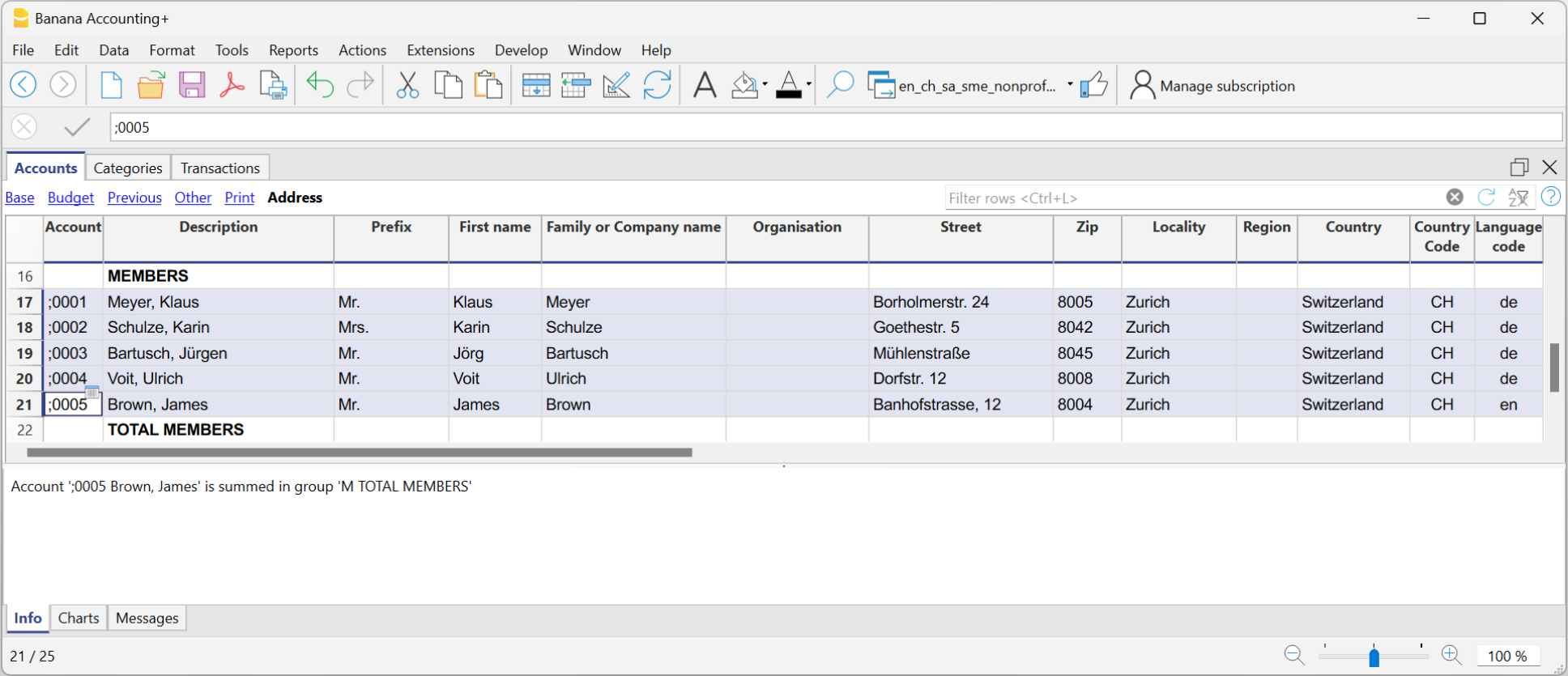
- From the Data menu select > Export rows > Export rows to Html
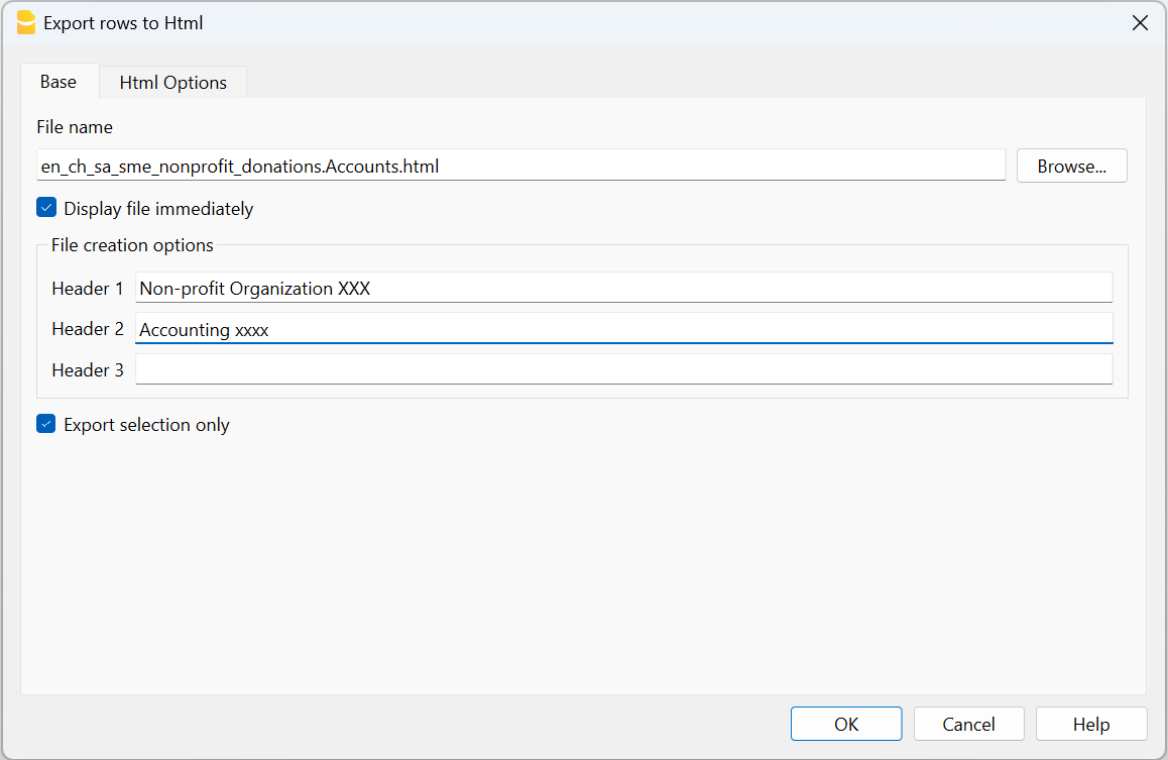
- In the dialog window:
- Enter the file name
- Click Browse... to select the file save location
- Insert a text in Header 1. The other fields are optional
- Make sure the Export selection only zone option is checked.
Open the Html Options section and make sure the options are displaying as shown in the image below.
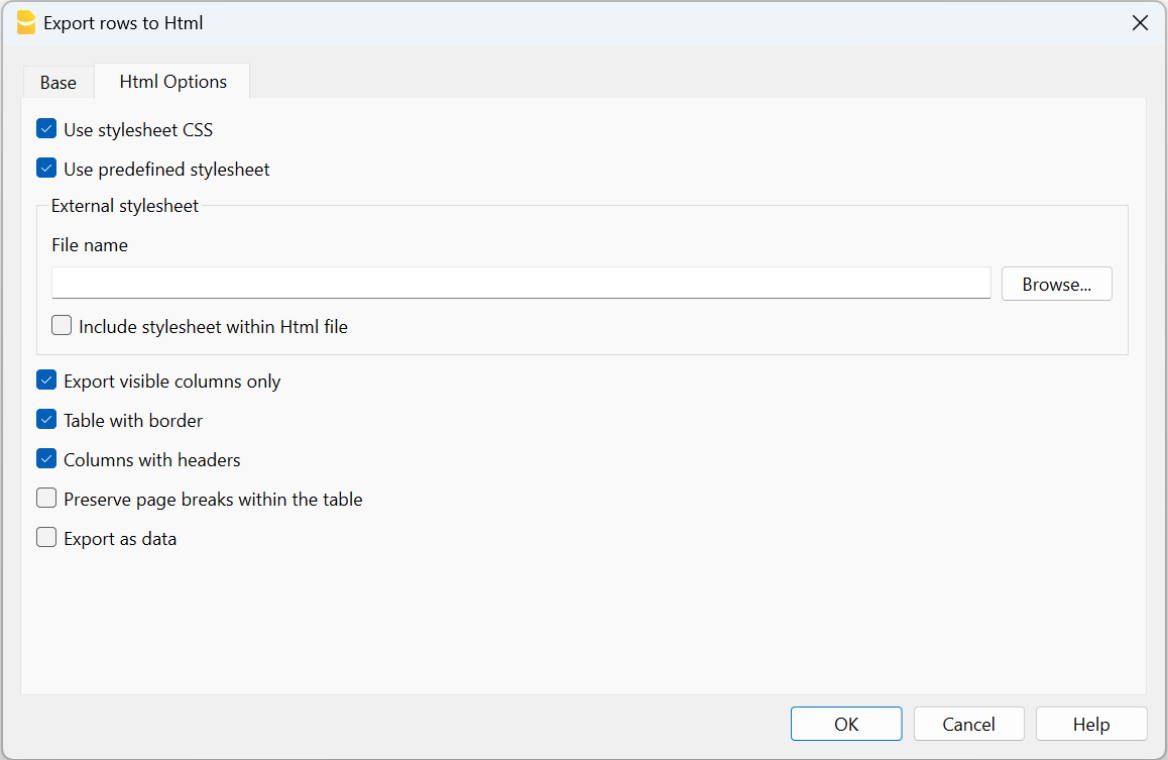
- Click OK to finalise the export of the lines in html format
Use the mail merge feature of Word
After export of addresses in html format, you can start working with Word and use the mail merge feature.
The procedure to follow is described below, but we recommend that you visit the Microsoft
- Create the letter:
- open Microsoft Word
- select the Mailings tab
- select Start Mail Merge
- select Letters
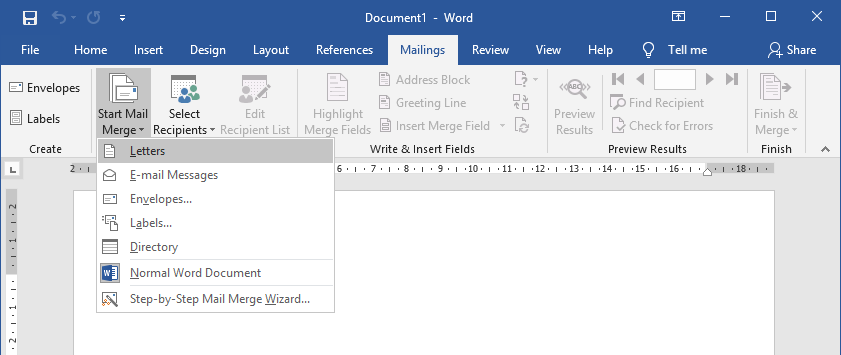
- type in the content of the letter in Word inserting the text that will be repeated for each document.
- Link the exported addresses of the HTML file to the Word document:
- in the Mailings tab select Select Recipients
- select Use an existing list
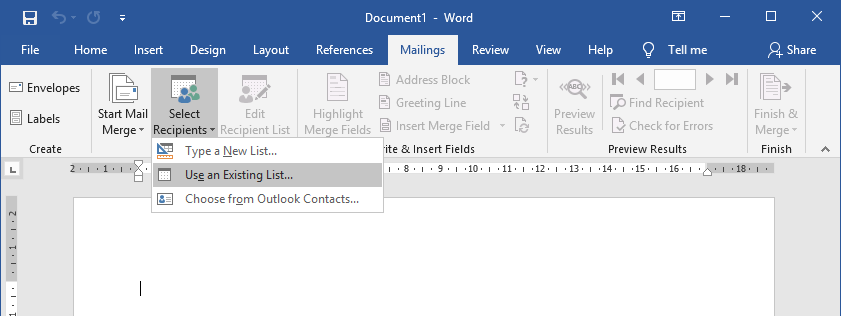
- select the .html file exported from Banana
- confirm with OK in the appearing window
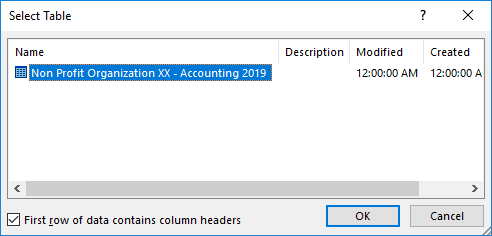
- Add the addresses:
- Place the cursor where you want the address to be inserted in the Word document, (for example, at the top of the page)
- In the Mailings tab select Insert Merge Field
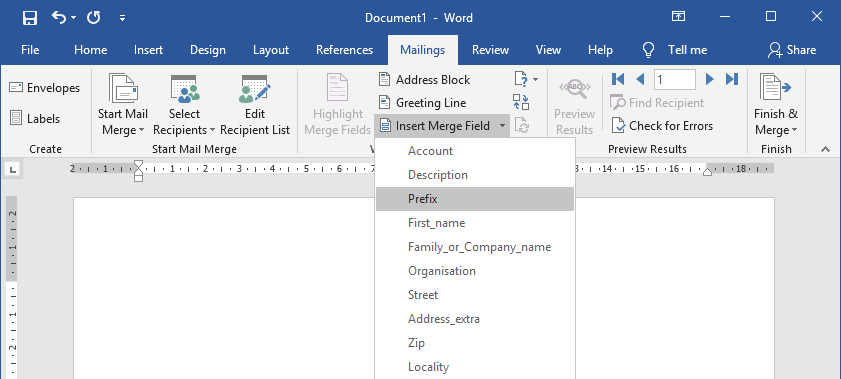
- One by one, select the address fields you wish to add
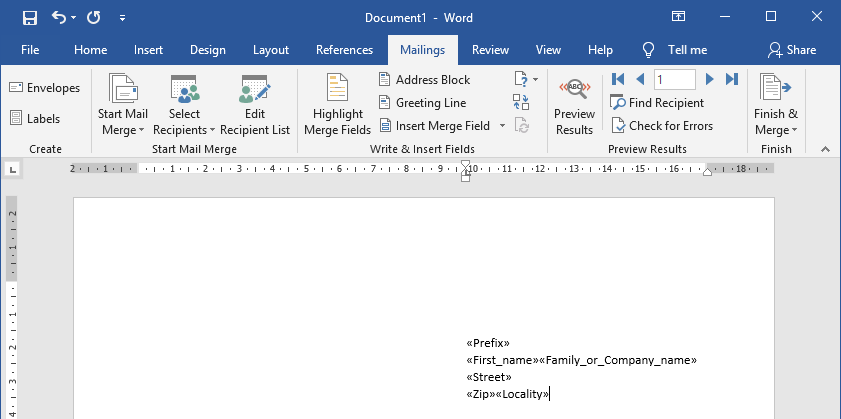
- Check with Preview Results using the forward
 and back
  darts
darts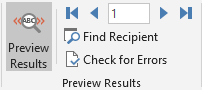
- Print the letters:
- select Finish & Merge > Print Documents... to print all letters
- select Finish & Merge > Edit individual Documents... and All to eventually modify and save the letters
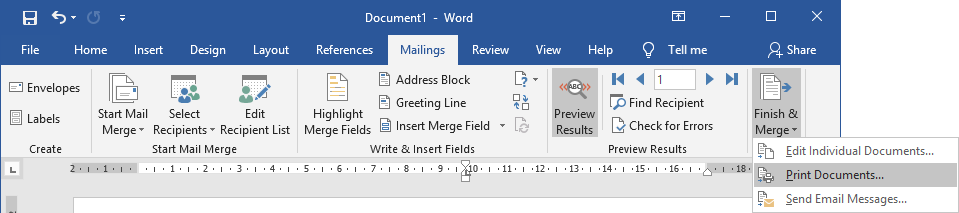
- Send messages by email:
As an alternative to step 4, you can choose to send letters by email.
For each member will be used the email address specified in the address view in Banana Accounting. If there are no email addresses you need to add them, and eventually export again the address lines in HTML format so that the exported file also contains the email addresses.
It is also necessary to install and use Outlook as email program. It's not possible to use the web version. More information at Use mail merge to send bulk email messages.
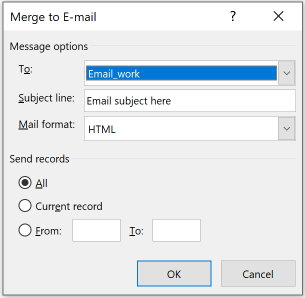
To send email messages:- select Finish & Merge > Send Email Messages...

- In the field "To" select Email_work (the column used in Banana Accounting for entering the email address).
- In the field "Subject line" enter the subject text of the email.
- In the "Mail Format" field select HTML (default setting).
- Select All to send the email to all members.
- Confirm with OK.
- select Finish & Merge > Send Email Messages...