Swiss VAT management
Banana Accounting Plus manages VAT in accordance with the Swiss regulations of the Federal Tax Administration (FTA). The extensions for the 2024/2025 VAT Reports generate the XML file for online transmission of VAT data to the FTA and a control printout, similar to the data entry interface of the FTA portal.
To use the 2024/2025 VAT extensions, you need to:
- Have a subscription to the Advanced plan of Banana Accounting Plus
- If you already have the Professional plan, you can upgrade
- Download the latest program release
The Swiss VAT Report 2024/2025 is automatically created thanks to the following extensions, integrated into Banana Accounting Plus:
Changes and Updates as of 01.01.2025
Starting from January 1, 2025, important changes to the VAT law have been introduced, mainly concerning:
- Mandatory electronic processing of VAT data
- Introduction of more than two VAT rates for balance and flat-rate methods
- Option to choose annual reporting
The VAT extensions of Banana Accounting are based on the current rates and the VAT codes linked to the respective figures of the VAT report. You can find detailed information about the VAT codes at the following web page:
Recording transactions with VAT
With Banana Accounting, recording transactions with VAT is extremely simple due to its complete automation. VAT transactions are registered in the Transactions table, which serves as the central hub of the entire accounting process. For each VAT transaction, you need to enter the corresponding VAT code, indicating whether it's a sale or purchase and referring to the applicable VAT rates.
The software provides several pre-configured columns, and you have the flexibility to customize their display according to your preferences.
Additionally, the program offers the following functionalities:
Types of accounting
There are two types:
- On the issued invoices
It implies keeping a Clients and Suppliers register.
The costs and revenues, with the relative VAT code, are recorded when the invoice is issued and received.
More information is available on the page How to manage Supplier and Customers with VAT on turnover.
- On cash received
It is not mandatory to keep a Clients and Suppliers register, but if you wish to have one anyway, it is important to set it up with cost centers.
The costs and the revenues, with the relevant VAT code, are registered at the moment of collection or payment.
Further information can be found on the page Clients and suppliers with VAT, using the Cash principle.
Calculation method
To calculate the VAT amounts and generate the VAT report to be sent to the FTA, it is necessary to have costs and revenues in CHF base currency.
There are two methods of calculation:
- Effective method report
Provides for the deduction of the VAT paid on purchases (VAT due - recoverable VAT).
- Net tax rate method
The VAT to be paid to the FTA is calculated according to the granted rates.
Does not provide for the deduction of VAT paid on purchases.
Electronic transmission of the VAT Report
With the new Banana Accounting extensions, in addition to the VAT statement facsimile, it is possible to export data in XML format for submission on the Federal Tax Administration (FTA) online portal.
More information is available on the page VAT Report Submission.
All VAT statements can be saved as PDF files and securely archived.
Banana VAT Summary (VAT Journal)
In addition to VAT extensions, Banana Accounting Plus can generate VAT summaries based on the period and other parameters.
VAT summaries are useful for understanding the movement of VAT (VAT payable, recoverable, and to be paid) and enable effective control. In the event of audits by tax authorities, VAT summaries provide targeted details to facilitate the verification process.
For more information, please visit the VAT Summary page.
All VAT summaries can be saved in PDF format and securely archived.
VAT year-end reconciliation
Regarding the annual correction statement, which contains any differences found at the end of the year compared to the already submitted statements, Banana does not allow for a comparison of the calculated tax with the previously transmitted statements because the program does not save the total calculated tax from previous calculations. Therefore, the user must manually calculate the tax difference and communicate it to the AFC using the appropriate form.
Users of Banana Accounting 9 or earlier
Users of version 9 or earlier must switch to Banana Accounting Plus with the Advanced plan to use extensions and prepare the VAT report or generate the XML file.
Those who do not wish to switch to the new version will have to manage VAT using only the VAT/Sales Tax Report and manually enter the data on the FTA website.
Useful links
Program and plan update
To use the Swiss VAT Statement Extensions 2024/2025, we invite you to upgrade your program right away to the Advanced plan of Banana Accounting Plus.
As usual, Banana does not force you to switch plans and allows you to continue working with the Professional plan, but switching to the Advanced plan is definitely the most efficient way to manage VAT.
To use the VAT Extensions 2024/2025, you need to:
Upgrade to the Advanced plan from the Professional plan
If you are still using a version prior to Banana Accounting Plus or the Professional Plan, we recommend upgrading to the Advanced plan of Banana Accounting. You'll have access to the new extensions to create VAT Statements quickly, without wasting time manually calculating and entering the amounts on the VAT portal.
Switch to the Advanced plan of Banana Plus
You only pay the difference between the two plans
Upgrade to the Advanced plan from the Free plan
If you don’t have a subscription yet, purchase the Advanced plan of Banana Accounting Plus
Compatibility notice for Banana 9 users
Banana Accounting 9 and earlier versions are no longer updated. Banana 9 allows the installation of the VAT Extensions 2024/2025, but it is indicated that they are not compatible. There are two options:
- Switch to Banana Accounting Plus with the Advanced plan and start using the VAT Extensions 2024/2025 right away.
- Continue using Banana Accounting 9: you can create the VAT Report in Banana (VAT journal by rate type) and then manually fill in the VAT Statement online. Further explanations in the next paragraph.
Managing VAT without the Advanced plan of Banana Accounting Plus
If you are using Banana Accounting Plus with a plan other than Advanced, or if you have Banana Accounting 9 (or an earlier version), you can still manage VAT in the following way:
- Before proceeding, it is advisable to always make a backup copy of your accounting file.
- Update the VAT Codes table with the new codes
- Banana+
- See the documentation Update VAT Codes Table 2025.
- Banana9
- Download the VAT Codes Table 2025.
- Open your accounting file and from the menu Account1 > Import into accounting > Import VAT Codes.
- Select the format type Accounting File (*.ac2).
- Use the Browse button to select the vat_codes_2025.ac2 file that was saved in the Download folder.
- Banana+
- Enter the transactions in the Transactions table using the new VAT codes with the updated rates.
- Generate the VAT Report (also called VAT journal), which includes the data required to fill in the online VAT statement.
- Manually enter the data into the online portal of the FTA.
Current VAT rates
In Switzerland, VAT rates changed as of 1 January 2024. Below you will find the new rates for both the actual method and the net rate method.
VAT rates for the effective method
From 2024 the new VAT rates came into force as indicated in the following table:
| Until December 31, 2023 | From January 1, 2024 |
|---|---|---|
| Normal rate: | 7,7 % | 8,1 % |
| Reduced rate: | 2,5 % | 2,6 % |
| Special rate for accommodation: | 3,7 % | 3,8 % |
Further details are available on the website of the Federal Tax Administration page.
VAT rates for the net tax rate method
The new VAT rates for the net tax rate method are the following:
| Net tax rates until December 31, 2023 | Net tax rates from January 1, 2024 |
|---|---|
| 0,1 % | 0,1 % |
| 0,6 % | 0,6 % |
| 1,2 % | 1,3 % |
| 2,0 % | 2,1 % |
| 2,8 % | 3,0 % |
| 3,5 % | 3,7 % |
| 4,3 % | 4,5 % |
| 5,1 % | 5,3 % |
| 5,9 % | 6,2 % |
| 6,5 % | 6,8 % |
For managing balance rates, the VAT Codes table includes:
- the VAT codes from F1 to F9
- do not correspond to a specific VAT rate.
- the rate is applied based on the configuration chosen by the user.
- it is not necessary to use all the codes.
- unconfigured codes remain empty and have no effect on VAT calculations.
- The numbering (F1, F2, F3, …) only serves as a configuration order, it does not indicate the rate.
- the VAT discount codes from FS1 to FS9
- follow the same logic set for the F1–F9 codes.
- the rates must match the VAT codes F1–F9.
Example with the setup of two balance rates:
- VAT code F1, balance rate 0.1%
- VAT code FS1, balance rate 0.1%
- VAT code F2, balance rate 3.7%
- VAT code FS2, balance rate 3.7%
These codes have not set the rate in the table. There are two ways of calculating:
Updating the Swiss VAT Codes table 2025
Users who are using outdated VAT codes and rates can easily update the VAT Codes table by following the instructions below.
The procedure to update to the 2025 codes is the same as the one used for the 2024 codes.
▶ Video Update the Swiss VAT codes table
It is necessary to have downloaded and installed the latest version of Banana Accounting Plus.
Update VAT Codes table in accounting
All users who have their own coding for VAT codes must update the VAT Codes table according to the new rates with their respective reference figures.
You can check the version of the VAT Codes table in use by looking at the date of the last update shown in the "VAT Codes Information" row of the VAT Codes table.
To update the VAT Codes table in your accounting file, proceed as follows:
- Make a backup copy of your file to be safe
- Open your accounting file
- Select from the menu Actions > Import to accounting > Import VAT codes

- Select Switzerland New VAT Rates 2025
If the option "Switzerland new VAT Rates 2025" is not listed among the available ones, it means you are working with an older version of Banana Accounting. In this case, you need to download and install the latest version of Banana Accounting Plus. - Confirm by clicking on the OK button

- From the dialog that appears there are two options:
- Add new codes and new groups
To be used when you want to maintain your VAT codes. In this case the program adds the new VAT codes leaving the existing ones unchanged. If the VAT codes to be added already exist in the table, but have a different rate or grouping, they will be inserted by adding '-1' to the name. - Replace all rows (recommended choice)
Use this command if you don't need to maintain the existing VAT code page.
In this case, the VAT code table is completely replaced with the new table.
Existing VAT accounts are retained and need to be reviewed after the update. The default VAT account can be changed via the File Properties dialog (basic data).
- Add new codes and new groups

- Check the accounting
From Actions menu > Check accounting.
If there are incorrect VAT codes in the transactions table, you need to update them according to the new VAT Codes table.
To replace the old VAT codes in the Transactions table, you can use the command from the menu Data > Search and replace.
If the VAT codes have also been entered in the Accounts table, to associate the VAT codes to the accounts, these must be updated.
Update the VAT Codes table in the Estimates and Invoices application
It is not possible to automatically update the VAT Codes table in the Estimates and Invoices application, as explained in the previous paragraphs.
ID codes and percentage VAT rates must be updated manually each time there are changes.
Alternatively, you can also follow this procedure:
- Open a new Banana template for Estimates and Invoices, which has updated VAT codes
- Go to the VAT Codes table
- Copy and paste the entire table from the template to your Estimates and Invoices file.
For more details, refer to the VAT Codes table in Estimates and Invoices page.
VAT Codes Table History
Current versions
- VAT Codes Table 2025 (12.03.2025, id=vatcodes-che-2025.20250312)
- VAT Codes Table 2024 (02.04.2025 id=vatcodes-che-2024.20250402)
Outdated versions
- VAT Codes Table 2024 20230614 (14.06.2023, id=vatcodes-che-2024.20230614)
- VAT Codes Table 2018 (10.12.2021, id=vatcodes-che-2018.20211210)
Transactions with VAT
Supplier customers with VAT on turnover
Set up the accounts of the ledger
To set up the Customers / Suppliers register consult the Customers setup with the accrual method page.

VAT registration on turnover
With the system of VAT on turnover, the Customers / Suppliers register will be kept. Therefore, the invoices issued and received are recorded, posting the costs and revenues and entering the corresponding VAT code.

Clients and suppliers with VAT, using the Cash principle
With the system of the VAT on cash received, there is no provision for entering transactions on the clients/suppliers accounts, for the expenses and income are being entered at the moment the payment is made or received. Only at that moment, the VAT code is being entered. However, in spite of this rule, it is still possible to enter the issued and received invoices by using the cost centers.
Procedure:
- Insert the clients' and suppliers' accounts as cost center CC3, defined with the semicolon in two different groupings, one for clients, another one for suppliers.

Entering the invoices of clients and suppliers
For the issued and received invoices:
- Position yourself in the Transactions table, Cost centers view;
- Enter the date, the document number and the invoice number in the respective columns;
- Enter the description;
- Enter the amount of the issued or received invoice in the Amount column, the Debit and Credit columns have to remain empty.
- Enter the cost or profit center in the CC3 column: in positive when it concerns an invoice issued to a client; preceded by the minus sign (in negative) when it is an invoice received from a supplier.
When the payment for an invoice is received or made:
- Position yourself in the Transactions table, Cost centers view;
- Enter the date, the document number and the invoice number in the respective columns;
- Enter the description;
- If it concerns a payment received, enter a liquidity account in the Debit column and a revenue account in the Credit column;
When it's about a payment that has been made, enter an expense account in the Debit column and a liquidity account in the Credit column; - Enter the amount;
- Enter the appropriate VAT code;
- Enter the cost or profit center in the CC3 column, preceded by the minus sign (in negative) when it is a payment received (customer) and in positive when it concerns a payment made to a supplier.

In the Account card of the cost center, the transactions of the customer or supplier are being displayed.
Related documents
How to record only the VAT amount
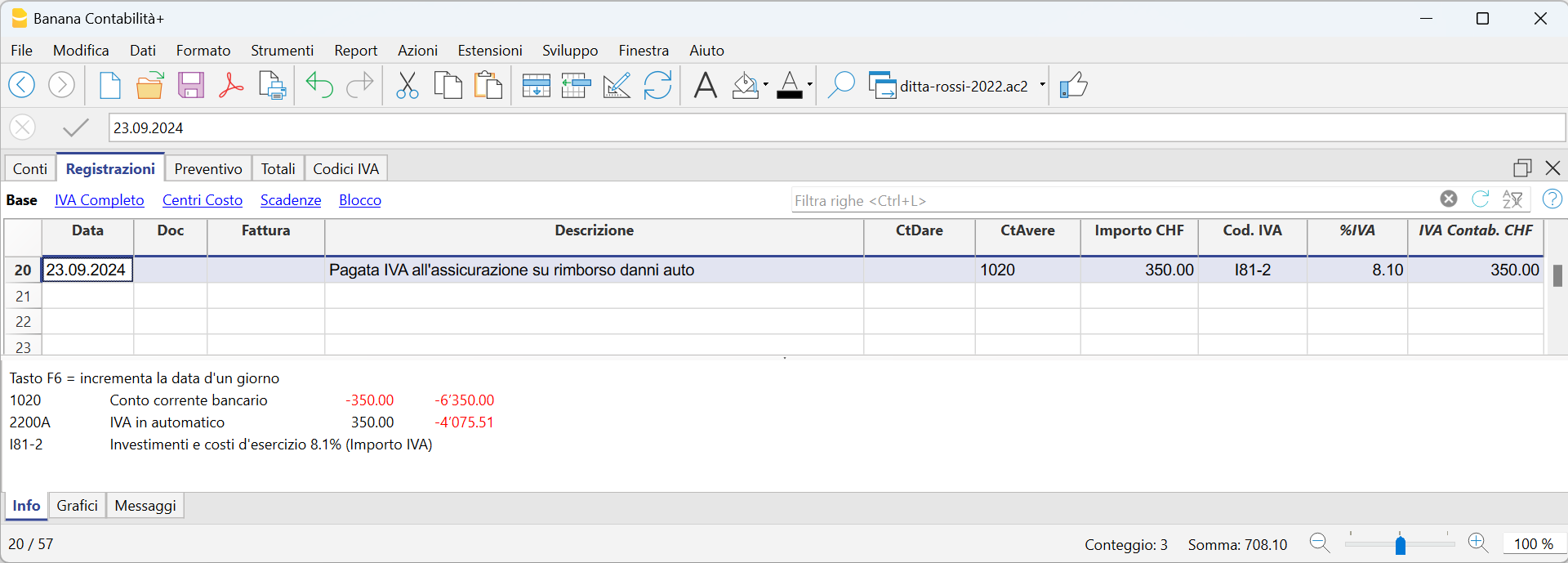
There are cases where you only need to record the VAT amount, such as when you receive compensation from your car insurance.
You record as follows:
- Enter the date, document number and the description in the columns provided.
- In the Credit column, enter the account with which the VAT amount is paid (the Debit account remains empty)
- In the Amount column, enter the VAT amount to be paid
- In the VAT code column, enter the VAT code I77-2 (VAT code relating to the VAT amount 100%)
Jahresabrechnung und Vorauszahlungen der MWST nach der effektiven Methode
Eine Vorauszahlung buchen
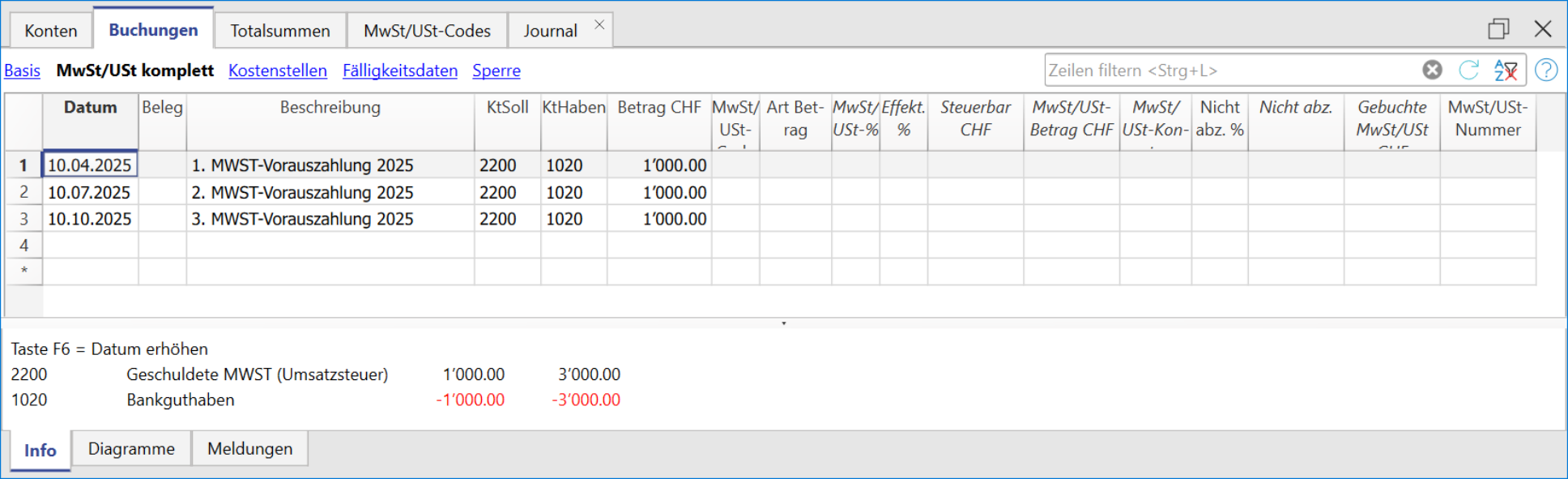
Wenn Sie eine Vorauszahlung (Akonto) leisten, sollte diese korrekt in Ihrer Buchhaltung erfasst werden, um die Übersicht über bereits geleistete Zahlungen an die ESTV zu behalten. Es wird empfohlen, ein separates MWST-Konto zu verwenden, das nicht mit dem automatischen MWST-Konto verknüpft ist.
Die Buchung sollte wie folgt erfolgen:
- Geben Sie das Datum und eine Beschreibung ein.
- In der Spalte Soll tragen Sie das MWST-Konto ein.
Es wird empfohlen, ein spezielles MWST-Konto für Akontozahlungen und den Zahlungsausgleich zu verwenden. - In der Spalte Haben geben Sie das Bankkonto an, über das die Zahlung erfolgt.
- In der Spalte Betrag erfassen Sie den überwiesenen Betrag.
Beispiel für die Buchung einer Akontozahlung:
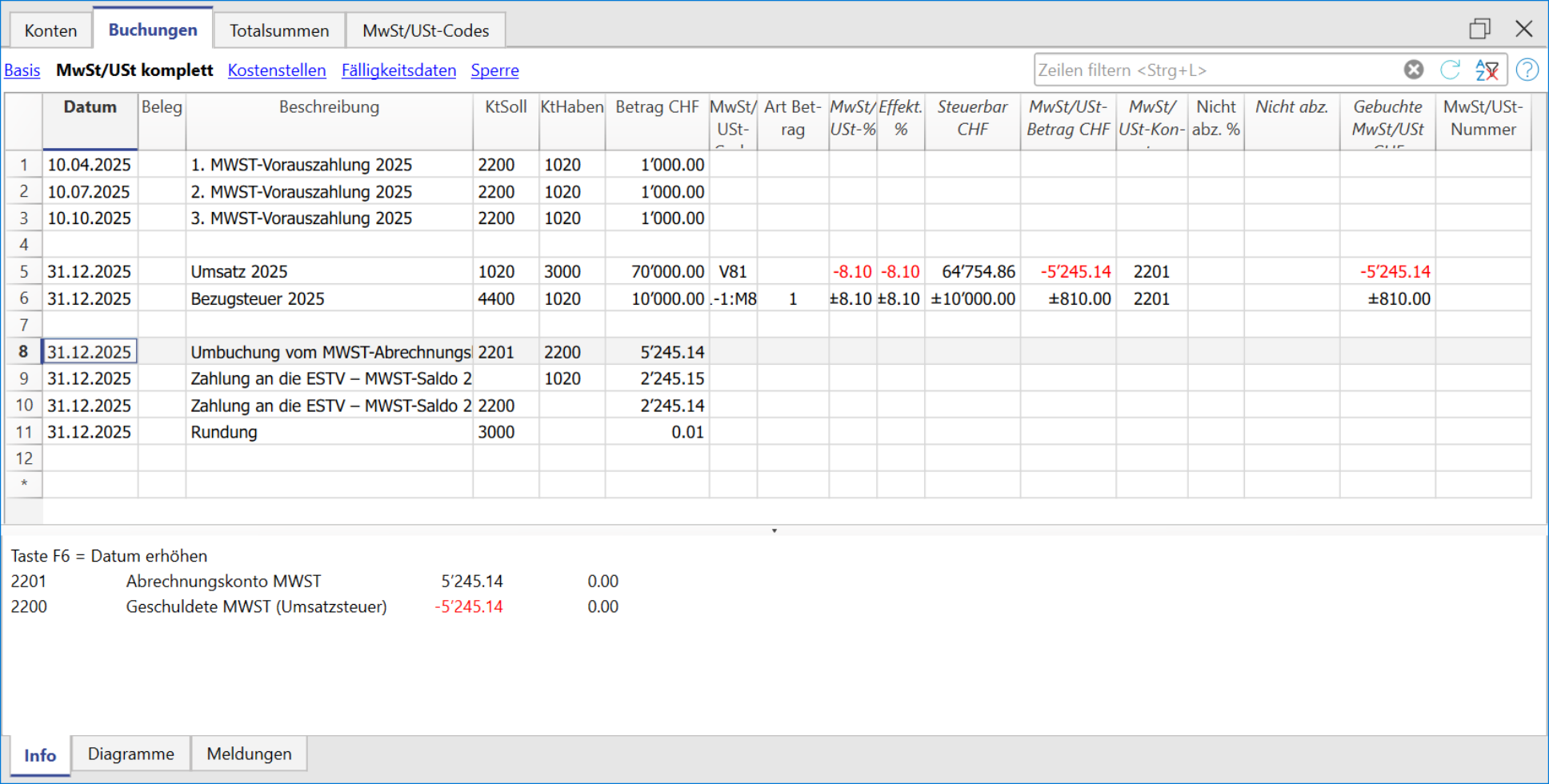
Abschlussbuchung und Zahlung
Beispiel einer Abschlussbuchung unter Berücksichtigung der Akontozahlungen:
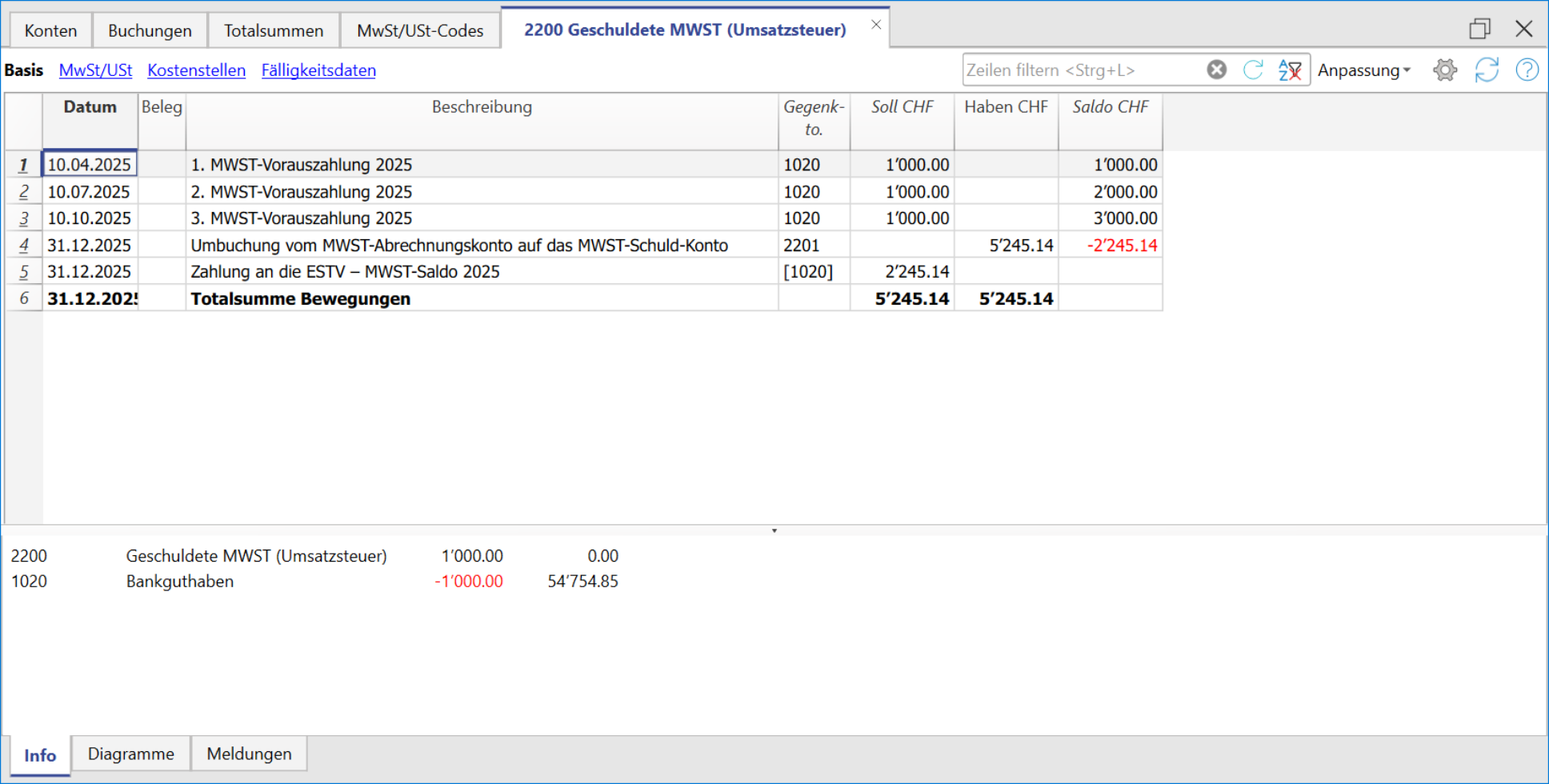
Kontoauszug - MWST 'Konto'
Jahresabrechnung und Vorauszahlungen für die MWST-Abrechnungsmethode mit Saldo-/Pauschalsteuersatz
Vorauszahlung buchen
Wenn Sie eine Vorauszahlung (Akonto) leisten, sollte diese korrekt in Ihrer Buchhaltung erfasst werden, um die Übersicht über bereits geleistete Zahlungen an die ESTV zu behalten. Es wird empfohlen, ein separates MWST-Konto zu verwenden, das nicht mit dem automatischen MWST-Konto verknüpft ist.
Die Buchung sollte wie folgt erfolgen:
- Geben Sie das Datum und eine Beschreibung ein.
- In der Spalte Soll tragen Sie das MWST-Konto ein.
Es wird empfohlen, ein spezielles MWST-Konto für Akontozahlungen und den Zahlungsausgleich zu verwenden. - In der Spalte Haben geben Sie das Bankkonto ein, über das die Zahlung erfolgt.
- In der Spalte Betrag erfassen Sie den überwiesenen Betrag.
Beispiel für die Buchung einer Akontozahlung:
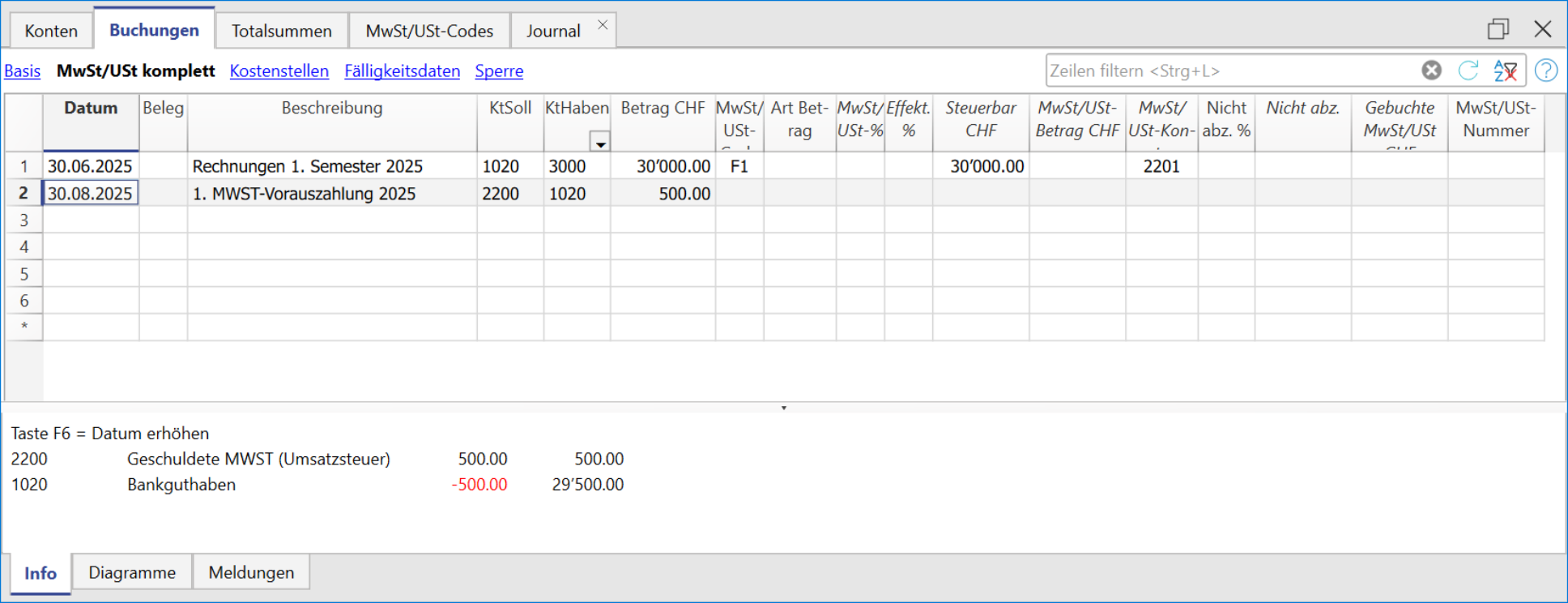
- In der ersten Zeile wurde der Gesamtbetrag der ausgestellten und bereits bezahlten Rechnungen erfasst. Der MWST-Code F1 kennzeichnet den MWST-Betrag, der im Formular berechnet wird.
- In der zweiten Zeile wurde die Akontozahlung erfasst, die von der Eidgenössischen Steuerverwaltung (ESTV) festgelegt wurde. Diese Akontozahlung wird nicht im MWST-Formular ausgewiesen.
Abschlussbuchung und Zahlung
Für die Abschlussbuchungen verweisen wir auf die entsprechende Dokumentation:
Beispiel einer Abschlussbuchung ohne MWST-Zerlegung unter Berücksichtigung der Akontozahlungen:

Kontoauszug - Geschuldete MWST

Periodic VAT Return and Payment
Reset of Account 2201, VAT Return
At the end of the period, the balance of account 2201 VAT Return (automatic VAT account) must be reset with a reversal entry by entering:
- In the Debit column: account 2201 VAT Return
- In the Credit column: account 2200 VAT Payable
This operation involves:
- Reset of the balance of account 2201, VAT Return (automatic VAT account).
- Transfer of the VAT balance to the VAT due account (or Treasury VAT account).
- If this results in a VAT debit, the VAT balance is posted in Credit of the VAT due account; in Debit of the "VAT according to VAT report" account, the balance is set to zero.
- If this results in a VAT credit, the VAT balance is posted in Debit of the VAT due account; in Credit of the "VAT according to VAT report" account, the balance is set to zero.

Transaction for charging the quarter balance to the Due VAT account

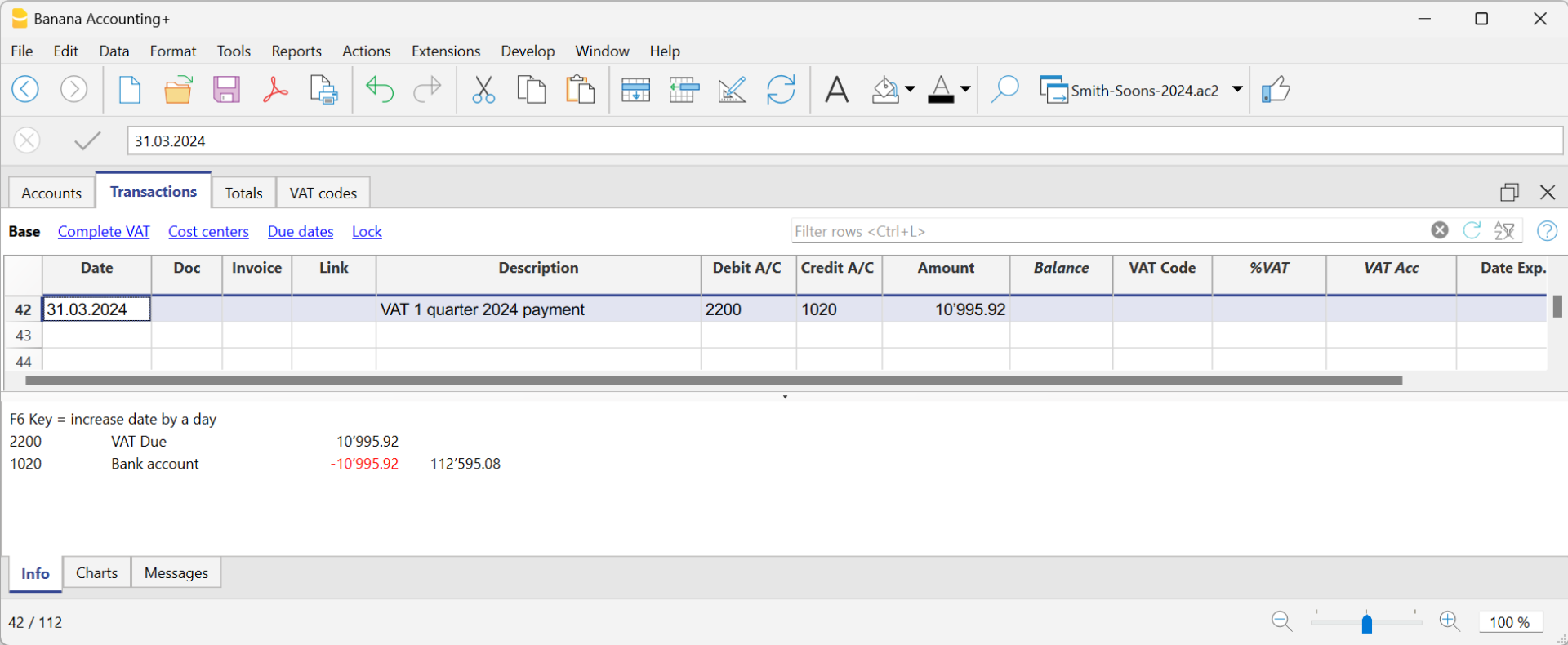
VAT balance payment
When the VAT amount is paid to the FTA (Federal Tax Administration), the balance in the VAT Due account resets to zero.
For the transaction:
- Enter the Date, Document number, and Description in the respective columns.
- In the Debit column, enter the VAT Due account.
- In the Credit column, enter the liquidity account.
- In the Amount column, enter the VAT Due amount paid.
With this system, it is possible to monitor the balance for each quarter, and in case of an error, identify the period in which the balance no longer matches.
Ledger of account 2200 VAT Payable after the payment entry
Note
The procedure explained refers to the payment of VAT recorded using the effective method and also applies to the flat-rate VAT method with VAT breakdown.
For those who have recorded VAT using the balance rate method without VAT breakdown, specific information can be found on the web page Accounting Adjustment and VAT Payment.
VAT due account card after the payment

How to register a VAT credit (Switzerland)
If at the end of a period, when calculating the VAT declaration, the previous VAT is bigger than the due VAT, your VAT report has a Debit balance.
To reset the "VAT according to VAT report" account to zero, you need to enter a transaction as follows:
- put in Debit A/C the VAT Due account
- put in Credit A/C the "VAT according to VAT report" account
Usually, in Switzerland the VAT credit is reimbursed to the company, without having to move the credit to the following period.
When your VAT is reimbursed, you need to enter a transaction as follows:
- put in Debit A/C your liquidity account
- put in Credit A/C your Due VAT account (where the balance should go to zero).
Entering VAT at customs for import
VAT paid in cash at import
Goods purchased abroad must be declared at customs and paid for in cash on the spot.
Customs issues a customs clearance document indicating the taxable amount and the VAT amount paid. VAT paid at customs can be recovered by VAT payers.
In order to recover the VAT paid at customs, the user needs to operate as follows:
To recover the VAT, register as follows:
- In the Debit column the cash account. The Debit column remains empty.
- In the Amount column, the amount paid in customs is recorded.
- In the VAT Code column, a VAT code type 2 (M77-2) is entered, which allows the VAT amount to be recorded at 100%.
Note
New codes can be added to the VAT Codes table. If you need the 2.5% VAT code, for customs VAT recovery, simply add a new code, e.g. M25-2, completing the same grouping in the column Sum in, GR1, the amount type 2 and entering 2.5 as the rate.

In the Transactions table, enter the cash account in credit, the paid VAT amount and the corresponding VAT code.
The program calculates the VAT amount at 100%, without creating differences in the recordings.

VAT paid at import by the shipping company
The procedure is the same as the previous one, except for the fact that the transaction extends itself over several rows, since, at the moment the shipper's invoice is being paid, the shipping costs and/or the customs clearance may be included.
Example:
Payment of the shipper's invoice for a total of CHF 359.- CHF 150 of which shipping costs, and CHF 209 for VAT advanced at customs.

VAT on Imports – Income/Expense accounting
VAT on goods purchased abroad must be paid directly at customs. After payment, customs issues a clearance document that shows the taxable amount and the VAT paid. VAT-registered businesses can reclaim this amount.
VAT codes for VAT paid at customs
All preconfigured accounting templates with VAT include a specific code for recording VAT on imported goods:
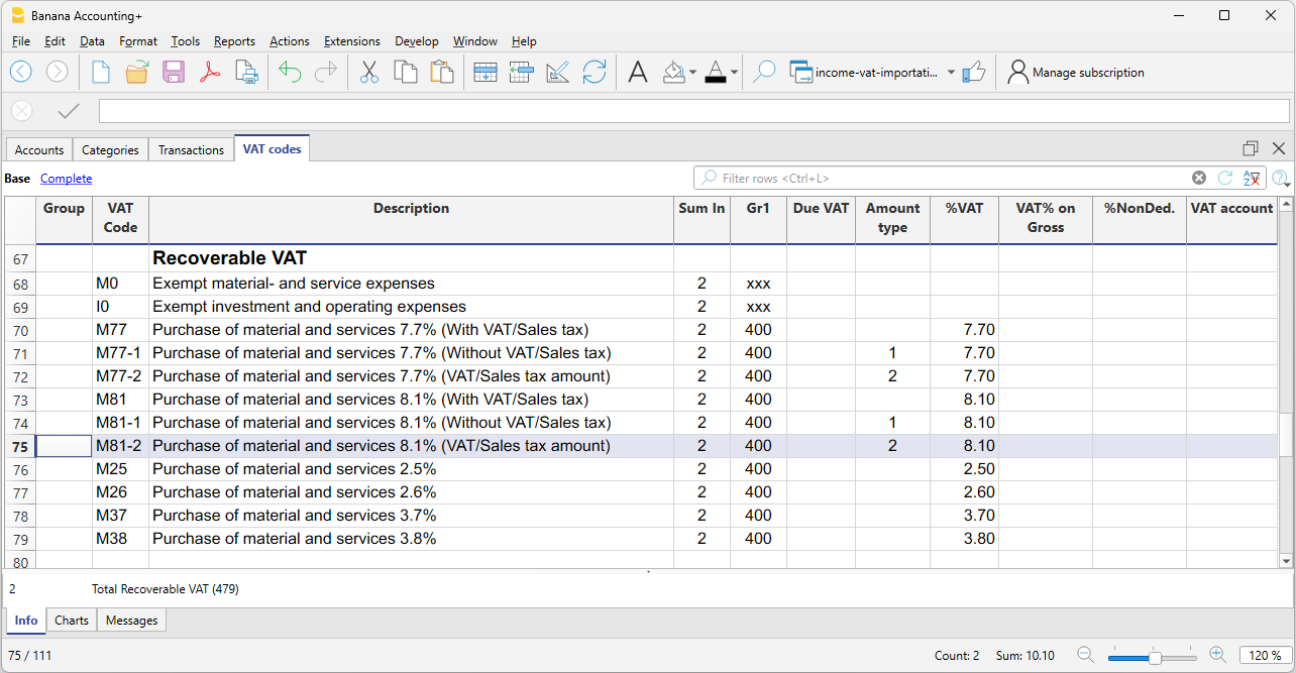
- M81-2 Purchase of goods and services 8.1% (VAT amount)
By using this code, the program considers the amount entered in the Amount column as 100% VAT. As a result, the full amount paid at customs is correctly recorded in the VAT return.
- Adding custom VAT codes
In the VAT Codes table, you can add new codes, for example to manage a different rate.
To reclaim customs VAT at 2.6%, simply:- create a new code, for example M26-2
- set the GR1 group in the Sum in column
- set amount type 2
- indicate 2.6% as the rate
Customs VAT paid in cash
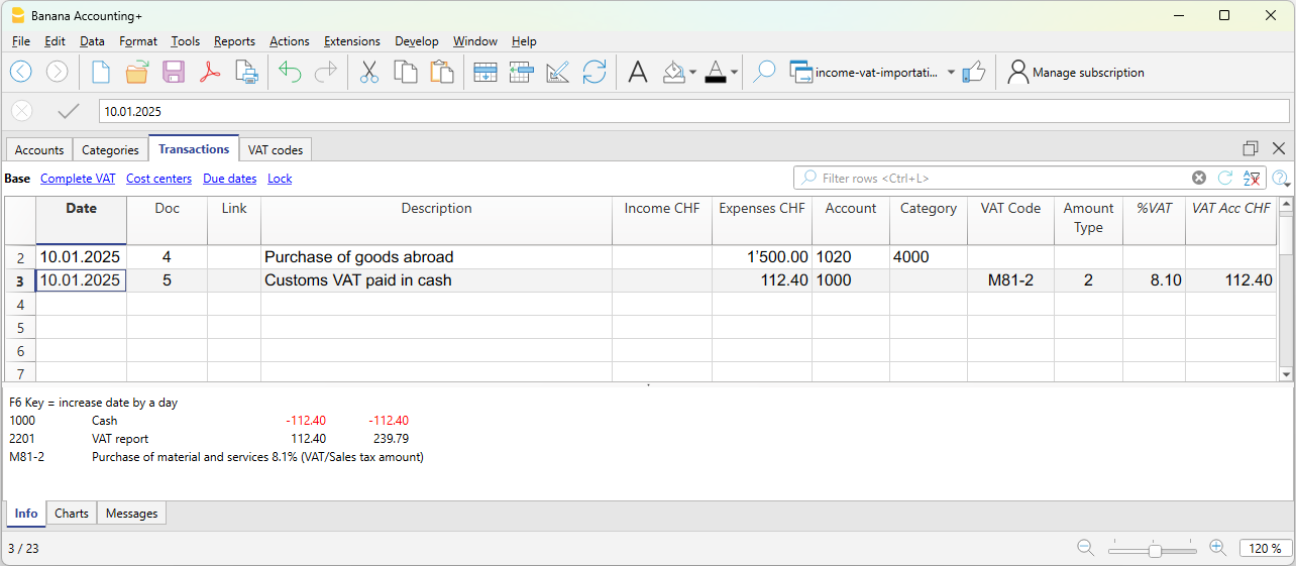
When VAT on imported goods is paid in cash, to reclaim the VAT proceed as follows:
- In the Transactions table:
- enter the date, document number, and description in the respective columns
- in the Expenses column, enter the amount paid in cash
- in the Account column, enter the Cash account
- in the Category column, enter the shipping expense category
- in the VAT Code column, enter the M81-2 code, which calculates and automatically enters the full VAT amount into the VAT account.
The program posts the full VAT amount without creating discrepancies in the entries.
Customs VAT paid by the freight forwarder
In this case, VAT is advanced by the freight forwarder, who handles the transport and customs clearance of the goods. The freight forwarder’s invoice will include transport costs, customs charges, and the advanced VAT on the imported goods.
The process is similar to the previous case, but the entry is made over several rows, as the forwarder's invoice may include both transport expenses and customs VAT.
Example
Forwarder's invoice paid for a total of CHF 250, of which CHF 200 is for transport and CHF 50 is for VAT advanced at customs.

In the Transactions table:
- In the first row, record in the appropriate columns:
- the date, document number, description
- in the Expenses column, the total amount of the forwarder's invoice
- in the Account column, the bank account. The Category column remains empty
- In the second row, record in the appropriate columns:
- the date, document number, description
- in the Expenses column, the amount of transport costs with VAT code M81
- in the Category column, the shipping expense account or similar
- in the VAT Code column, enter M81 to calculate VAT on the transport costs
- In the third row, record in the appropriate columns:
- the date, document number, description
- in the Expenses column, the amount of VAT paid at customs by the forwarder
- the Account and Category columns remain empty
- in the VAT Code column, enter the code M81-2, which calculates and automatically posts the full VAT amount to the VAT account
VAT on services obtained abroad-Reverse charge- CH
All services obtained abroad must be included in the Swiss VAT report. Unlike the import of goods that are being cleared at customs, for services obtained abroad there are no customs papers, but the VAT for this type of operation must be calculated and recovered. This self-imposition and recovery operation is called Reverse Charge.
The simplified Reverse Charge operation is a new feature of Banana Accounting Plus. Thanks to the possibility of inserting in the same cell of the VAT code both the code for self-imposition and the code for recovery, it is very easy to register.
Codes to be used
In the VAT codes table, there are specific codes to be used for services obtained abroad: codes B81-1 and M81-1 or I81-1.
They are two codes with Amount type 1, where the VAT is calculated on the Net amount (without VAT).
In detail:
- the B81-1 code calculates a VAT debit amount
It is important that in the Complete view> the column Don't Warn is activated "Yes", otherwise you get an error message. - the M81-1 or I81-1 code calculates a VAT credit amount

How to enter a transaction
The entry is made by applying in the VAT code column, a double code B81-1 (self input) and I81-1 (or M81-1).
By entering the double code, the programme registers both the VAT due and the recoverable VAT in the account 2201 VAT return.

VAT on services obtained in a foreign currency
When the recording of services abroad involves a foreign currency account, the Reverse Charge must be registered onto two lines:
- Register foreign purchases in foreign currency without entering any VAT code.
- On the next line, to be able to register the Reverse Charge, register:
- In the Currency column register the amount converted to base currency.
- In the Debit and Credit column a giro account (1090) is registered.
- In the VAT Code column apply the double code B81-1 for self-imposition and M81-1 or I81-1 for recovery.
- At the end of the entries the claering account must be zero.

VAT on services obtained abroad with the Swiss flat tax rate VAT method
When adopting the Swiss flat tax rate VAT method, you need to register the purchase with the B81-1 VAT code for self-imposition.
You don't need to enter the VAT recovery transaction, as this method doesn't allow any deduction on purchases, including those occurred abroad.
Korrekturen der Vorsteuer in der Schweiz
Nachfolgend listen wir die wichtigsten Praxisfälle zur Erfassung eines Vorsteuerabzugs oder einer Korrektur der Vorsteuer für die schweizerische Mehrwertsteuer auf. Es ist wichtig, den korrekten MWST-Code zu verwenden, da jede Korrektur in eine spezifische Ziffer des Abrechnungsformulars (400, 405, 415, 420…) fliesst, je nach verwendetem MWST-Code.
Stornierung von Wareneinkäufen oder Betriebsaufwand
Buchung einer Gutschrift, die von einem Lieferanten für retournierte Ware ausgestellt wurde.
- Sie müssen die ursprünglich abgezogene MWST reduzieren, indem Sie denselben MWST-Code wie bei der Rechnungsbuchung verwenden, jedoch mit negativem Vorzeichen.
- Auf diese Weise wird die Vorsteuer auf Materialkosten und Dienstleistungen (Ziffer 400) oder auf Investitionen oder Betriebskosten (Ziffer 405) korrigiert.
| Datum | Beleg | Beschreibung | KtSoll | KtHaben | Betrag | MwSt-Code | Art Betrag | MwSt-% | Gebuchte MwSt |
| 01.04.2025 | Lieferantenrechnung | 4000 Warenaufwand | 1020 Bank | 10'810.00 | M81 |
| 8.10 | 810.00 | |
| 30.04.2025 | Gutschrift vom Lieferanten | 1020 Bank | 4000 Warenaufwand | 1'081.00 | -M81 |
| -8.10 | -81.00 |
- MWST-Code verwendet für die Erfassung der Rechnung:
M81 Wareneinkauf und Dienstleistungen 8.1 % (inkl. MWST), zugeordnet zur Ziffer 400 - MWST-Code verwendet für die Buchung der Gutschrift:
-M81 Wareneinkauf und Dienstleistungen 8.1 % (inkl. MWST), negativ zugeordnet zur Ziffer 400 - Falls die Korrektur in einer anderen Abrechnungsperiode erfolgt, kann die Berichtigung auf die gleiche Weise übermittelt oder ein spezifisches Korrekturformular verwendet werden – dies ist mit der Eidgenössischen Steuerverwaltung abzuklären.
Beispiel einer Stornobuchung für eine Investition
| Datum | Beleg | Beschreibung | KtSoll | KtHaben | Betrag | MWST-Code | Art Betrag | MWST-% | Gebuchte MWST |
| 02.06.2025 | Kauf einer Maschine | 1500 Maschinen und Apparate | 2000 Lieferanten | 21'620.00 | I81 |
| 8.10 | 1'620.00 | |
| 30.06.2025 | Gutschrift vom Lieferanten | 2000 Lieferanten | 1500 Maschinen und Apparate | 5'405.00 | -I81 |
| -8.10 | -405.00 |
- MWST-Code verwendet für die Erfassung der Rechnung:
I81 Investition und Betriebsaufwand 8.1% (inkl. MWST), zugeordnet zur Ziffer 405 - MWST-Code verwendet für die Buchung der Gutschrift:
-I81 Investition und Betriebsaufwand 8.1% (inkl. MWST), negativ zugeordnet zur Ziffer 405 - Falls die Korrektur in einer anderen Abrechnungsperiode erfolgt, kann die Berichtigung auf die gleiche Weise übermittelt oder ein spezifisches Korrekturformular verwendet werden – dies ist mit der Eidgenössischen Steuerverwaltung abzuklären.
Eigenverbrauch oder interner Verbrauch von eingekauften Waren
Wenn Güter vom steuerpflichtigen Bereich in den privaten Gebrauch oder in von der Steuer ausgenommene Bereiche überführt werden, müssen Sie den Vorsteuerabzug korrigieren: Die MWST muss in derselben Höhe zurückerstattet werden, wie sie beim Einkauf abgezogen wurde. Die MWST wird unter der Ziffer 415 «Korrekturen der Vorsteuer: Doppelverwendung, Eigenverbrauch (Art. 31 MWSTG)» verbucht.
- Buchen Sie die Lieferantenrechnung mit dem üblichen MWST-Code für Einkäufe
- Buchen Sie den Eigenverbrauch der Ware, wodurch die Warenkosten reduziert werden, da die Ware nicht für den Geschäftsbetrieb verwendet wurde
- Als Gegenkonto verwenden Sie ein Privatkonto oder ein ähnliches Konto
| Datum | Beleg | Beschreibung | KtSoll | KtHaben | Betrag | MwSt-Code | Art Betrag | MWST-% | Gebuchte MWST |
| 01.04.2025 | Lieferantenrechnung | 4000 Warenaufwand | 1020 Bank | 10'810.00 | M81 |
| 8.10 | 810.00 | |
| 30.04.2025 | Eigenverbrauch der Ware | 2850 Privatkonto | 4000 Warenaufwand | 5'405.00 | K81-B |
| -8.10 | -405.00 |
- MWST-Code verwendet für die Erfassung der Rechnung:
M81 Wareneinkauf und Dienstleistungen 8.1 % (inkl. MWST), zugeordnet zur Ziffer 400 - MWST-Code verwendet für die Buchung des Eigenverbrauchs:
K81-B Korrekturen der Vorsteuer 8.1 % zugeordnet zur Ziffer 415
Reduktion aufgrund von Subventionen
Wenn ein Unternehmen eine Subvention (zum Beispiel kantonal oder vom Bund) erhält, ist dieser Betrag in der Regel nicht der Mehrwertsteuer unterstellt. In bestimmten Fällen kann jedoch die Pflicht zur Berichtigung der Vorsteuer entstehen, wenn mit dieser Subvention finanzierte Güter oder Dienstleistungen für mehrwertsteuerpflichtige Tätigkeiten verwendet wurden.
In solchen Fällen ist eine Korrektur der ursprünglich abgezogenen Vorsteuer erforderlich. Diese ist unter der Ziffer 420 der MWST-Abrechnung zu erfassen, wobei der entsprechende Korrektur-Mehrwertsteuercode zu verwenden ist.
| Datum | Beleg | Beschreibung | KtSoll | KtHaben | Betrag | MWST-Code | Art Betrag | MWST-% | Gebuchte MWST |
| 15.04.2025 | Eingang kantonale Subvention | 1020 Bank | 3900 Subventionserträge | 10'000.00 | Z0-A |
|
|
| |
| 15.04.2025 | MWST-Korrektur, stillschweigende Steuerpflicht | 3900 Subventionserträge | 3900 Subventionserträge | 810.00 | K81-C | 2 | -8.10 | -810.00 |
- MWST-Code verwendet für die Buchung des Zahlungseingangs:
Z0-A Subventionen, durch Kurvereine eingenommene Tourismusabgaben, Entsorgungs-und Wasserwerkbeiträge 0% zugeordnet zur Ziffer 900 - MWST-Code verwendet für die MWST-Erfassung:
K81-C Reduktion des Vorsteuerabzugs 8.1 % zugeordnet zur Ziffer 420 - Die Erfassung des Zahlungseingangs erfolgt ohne effektive Mehrwertsteuer, muss jedoch aus Gründen der steuerlichen Transparenz trotzdem dokumentiert werden.
- Die zweite Buchung dient der fiktiven Besteuerung der Subvention (sogenannte stille Besteuerung), um den ursprünglich abgezogenen Vorsteuerbetrag anteilsmässig zu korrigieren.
- Es ist wichtig, bei der Korrektur den Steuertyp „2“ (MWST-Betrag) zu verwenden, damit der Betrag korrekt unter der Ziffer 420 der MWST-Abrechnung ausgewiesen wird.
- Für die zweite Buchung muss der MWST-Betrag manuell berechnet werden.
Weitere Korrekturbuchungen
VAT on cash basis and open invoices at year-end
There are two methods established by the Federal Tax Administration for collecting Value Added Tax (VAT):
- In the invoice-based method, VAT is recorded when the invoice is issued or received, regardless of when payment is made or received.
- In the cash-based method, VAT is recorded only when the payment is received (for customers) or made (for suppliers).
The cash-based method is often chosen by small businesses and professionals because it avoids paying VAT in advance on amounts that have not yet been actually collected.
This page provides a general overview of the VAT cash-based method and refers to detailed pages for operational entries.
VAT on a cash basis: the basic principle
In the VAT cash-based method, the focus is not on the invoice date, but on the moment the financial transaction occurs. This approach is designed to simplify daily management and to avoid paying VAT in advance when the money has not yet actually been collected or paid. With the cash-based method:
- VAT becomes due only at the time of collection (for customers)
- VAT becomes deductible only at the time of payment (for suppliers)
Therefore, during the year, issued or received invoices do not affect VAT until the payment or receipt actually occurs.
Setting up customer and supplier accounts with VAT on a cash basis
With VAT under the cash-based method, during the year it is not necessary to manage customers and suppliers. However, if you still wish to manage invoices and due dates, customer and supplier accounts can be set up using cost and profit centers.
For more information, see:
Why accruals are needed at year-end
Even if operations are based on the cash principle during the year, at year-end it is necessary to apply the accrual principle. This allows costs and revenues to be properly attributed to the year they belong to, providing an accurate financial picture of the activity. At the end of the fiscal year, it is essential to determine the correct economic result for the year.
This means that:
- the revenues of the year must also include invoices issued but not yet collected
- the costs of the year must also include invoices received but not yet paid
For this reason, outstanding invoices are recorded as accrual invoices, without anticipating VAT.
Recording outstanding customer invoices
At year-end, with the VAT cash-based method, it is necessary to record customer invoices that have been issued but not yet collected, in order to correctly allocate revenues to the fiscal year. On the dedicated page, you will find the entries to be made on 31.12 and the reversal to be recorded at the beginning of the new year.
Recording outstanding supplier invoices
At year-end, with the VAT cash-based method, it is necessary to record supplier invoices that have been received but not yet paid, in order to correctly allocate costs to the fiscal year. On the dedicated page, you will find the entries to be made on 31.12 and the reversal to be recorded at the beginning of the new year.
Recording open invoices – Customers
This page explains how to correctly record accounting transactions using the VAT cash basis method, both during the year and at year-end, using Banana Accounting.
It is a practical guide, following the introductory page on VAT on a cash basis, and is intended for VAT taxpayers who apply this method (with prior authorization from the relevant office).
This page describes only the operational entries and does not replace the introductory page on the principles of VAT on a cash basis.
Transactions during the year with VAT on a cash basis
With the VAT cash method, during the year VAT is determined only at the time of receipt or payment. For this reason, customers are not managed as open items during the year.
In practice:
- revenues are recorded when the customer pays
- the VAT code must be entered on the same line as the revenue
The example below shows a possible entry in Banana Accounting for a payment received with VAT on a cash basis.
A bank account receives payment of an invoice from customer Bianchi for CHF 3,500.
The entry is made as follows:
- Debit: bank account
- Credit: revenue account
- VAT Code: VAT code (e.g. V81)
In this way, VAT is recorded only on the amount actually received.

Why additional transactions are needed at year-end
Even if the cash principle is applied during the year, at the end of the fiscal year it is necessary to determine the actual financial result of the year.
For this reason, as of 31.12, invoices issued but not yet collected must be recorded, so that revenues are attributed to the correct fiscal year, without anticipating VAT.
Accounts needed for open customer invoices
To correctly record open customer invoices at year-end, certain specific accounts must be created in the Accounts table.
Balance sheet accounts
- Customers on open invoices (Assets)
- VAT on open customer invoices (Liabilities)

Profit and loss accounts
- Revenues on open customer invoices

These accounts allow you to separately record:
- the revenue attributable to the year
- the VAT, which will only be recorded in the following year
Recording open customer invoices as of 31.12
At year-end, invoices issued to customers but not yet collected must be recorded as follows:
Accounting transation
- First row
- Credit: Revenues on open customer invoices
- Amount: net amount (excluding VAT)
- VAT Code: empty
2. Second row
- Credit: VAT on open customer invoices
- Amount: VAT amount
- VAT Code: empty
3. Third row
- Debit: Customers on open invoices
- Amount: gross amount (including VAT)
- VAT Code: empty
No VAT code should be entered in these transactions, because VAT is not yet due.

Closing open customer invoices in the new year
At the beginning of the new year (01.01), year-end transactions must be reversed to allow normal recording of incoming payments.
Reversal transaction
- First row
- Debit: Revenues on open customer invoices
- Amount: net amount (excluding VAT)
- VAT Code: empty.
2. Second row
- Debit: VAT on open customer invoices
- Amount: VAT amount.
3. Third row
- Credit: Customers on open invoices
- Amount: gross amount (including VAT).

When the customer makes the payment:
- the receipt is recorded as usual
- VAT is recorded in the VAT return of the period in which the payment occurs

Recording open invoices – Suppliers
This page explains how to correctly record supplier-related accounting transactions using the VAT cash method, both during the year and at year-end, using Banana Accounting.
It is a practical guide, following the introductory page on VAT on a cash basis, and is intended for VAT taxpayers who apply this method (with prior authorization from the relevant office).
This page describes only the operational transactions and does not replace the introductory page on the principles of VAT on a cash basis.
Transactions during the year with VAT on a cash basis
With the VAT cash method, VAT is determined only at the time of payment.
For this reason, suppliers are not managed as open items during the year.
In practice:
- costs are recorded when the supplier is paid
- the VAT code must be entered on the same line as the cost
- VAT becomes deductible only at the time of payment
Practical example – Payment of a supplier invoice
The following example shows a possible entry in Banana Accounting for a supplier invoice open as of 31.12.
A bank account is used to pay a supplier invoice from Rossi for CHF 1,200.
The entry is recorded as follows:
- Debit: cost account
- Credit: bank account
- VAT Code: VAT code (e.g. V81)

In this way, VAT is recorded only on the amount actually paid.
Why additional transactions are needed at year-end
Even if the cash principle is applied during the year, at the end of the fiscal year it is necessary to correctly determine the financial result of the year.
For this reason, as of 31.12, invoices received from suppliers but not yet paid must be recorded, so that the costs are attributed to the correct fiscal year, without anticipating the VAT deduction.
Accounts needed for open supplier invoices
To correctly record open supplier invoices at year-end, certain specific accounts must be created in the Accounts table.
Balance sheet accounts
- Suppliers on open invoices (Liabilities)
- VAT on open supplier invoices (Assets)

Profit and loss accounts
- Costs on open supplier invoices

These accounts allow for a clear separation of:
- the cost attributable to the year
- the VAT, which will be deducted only in the following year
Recording open supplier invoices as of 31.12
At year-end, invoices received from suppliers but not yet paid must be recorded as follows.
Accounting transaction
- First row
- Debit: Costs on open supplier invoices
- Amount: amount excluding VAT
- VAT Code: empty
2. Second row
- Debit: VAT on open supplier invoices
- Amount: VAT amount
- VAT Code: empty
3. Third row
- Credit: Suppliers on open invoices
- Amount: gross amount including VAT
- VAT Code: empty
No VAT code should be entered in these entries because the VAT is not yet deductible.

Closing open supplier invoices in the new year
At the beginning of the following year (01.01), year-end entries must be reversed to allow for the normal recording of payments.
Reversal transaction
- First row
- Credit: Costs on open supplier invoices
- Amount: amount excluding VAT
- VAT Code: empty
2. Second row
Credit: VAT on open supplier invoices
Amount: VAT amount
3. Third row
- Debit: Suppliers on open invoices
- Amount: gross amount including VAT

When the invoice is paid:
- the payment is recorded normally
- the VAT is deducted in the VAT report for the period in which the payment occurs

Print invoice with VAT
VAT calculation and rounding on the Invoice
In the printing of invoices integrated into accounting, the total VAT amount corresponds to the sum of the individual VAT transactions that make up the same invoice. Since each VAT entry is rounded to the nearest cent, there may be a difference compared to the VAT calculated on the total invoice amount.
To better understand, let's consider the following example:
- Line 1: 7.7% of CHF 187.50 = CHF 14.4375 -> Rounded: CHF 14.44
- Line 2: 7.7% of CHF 875.00 = CHF 67.375 -> Rounded: CHF 67.38
- Total: 7.7% of CHF 1062.50 = CHF 81.8125 -> Rounded: CHF 81.81
On the invoice, a VAT amount of CHF 81.82 is printed instead of CHF 81.81. In fact, the amount of CHF 81.82 corresponds to the sum of the VAT calculated individually for each item (CHF 14.44 + CHF 67.38).
This logic is adopted to avoid discrepancies between the VAT amounts recorded in accounting and those shown on the invoice. In this way, the total VAT in accounting matches that reported on the invoice.
Net VAT and VAT management on a cash basis
In Banana Accounting it is possible to manage customers using both the turnover and the cash received method. However, as far as invoice printing is concerned, there are some limitations if in accounting you record the amounts net and at the same time use the cash received method.
If we want to create invoices, it is not possible to enter amounts net of VAT with the method on the cash received because, when the invoice is issued, the VAT codes must be written between square brackets and the VAT is not calculated but is only an indication for the printing of the document.
Management based on turnover
| ||
| Gross Amount | Net amount | |
| Effective VAT method | ✓ | ✓ |
| VAT Flat tax rate method | ✓ | ✗ |
Management based on cash received
More details can be found at the following page : https://www.banana.ch/doc10/en/node/9739 | ||
| Gross Amount | Net amount | |
| Effective VAT method | ✓ | ✗ |
| VAT Flat tax rate method | ✓ | ✗ |
Examples with transactions to create invoices and enter them into the accounting for both the effective VAT method and the VAT Flat tax rate method:
VAT management CHF- EU
Companies that have to make VAT/Sales tax declarations in Switzerland and the EU must keep two accounting files.
- One main file for Switzerland/Liechtenstein with all accounting transactions.
More information under Swiss VAT management- Purchases and sales in Europe must be registered with the VAT codes for export or import.
- At the time of the periodic VAT calculation for the EU (with the auxiliary file), the VAT debt is also registered in this main accounting file using no VAT code.
- An auxiliary file for European VAT management
- The basic currency is EUR
- The chart of accounts corresponds to that of the main file (this allows you to copy and paste records).
- VAT/Sales tax table with the VAT codes and rates necessary for your own situation in Europe.
When doing business with only a single nation, the VAT/Sales tax table for that nation and the automatic VAT accounting scripts can be used.
See our web pages: Germany, Austria, Italy, Holland and our webpages with templates for various other nations. - Enter the appropriate amount and VAT code in the transactions
- For the periodic VAT declaration in the EU, use the VAT/Sales tax report command (Reports Menu; Account1 menu in the old version) and total the amounts as necessary on the VAT form of the European nation in which the VAT declaration is made.
Please consult your tax advisor to ensure that this solution meets all the specific requirements of the tax authority in the EU
VAT Report 2024/2025
As of January 1, 2025, significant changes have been introduced to the VAT law. Below is a summary of the main updates:
- Mandatory electronic processing of VAT data.
- Introduction of more than two VAT rates for the flat-rate and balance methods.
- Option to choose annual VAT reporting.
Full details are available in the documentation of the Federal Tax Administration.
Update Status (January 2026)
In the Swiss VAT extension, both the 2024 and 2025 reports are available.
If you have an earlier version of Banana, or the Professional plan of Banana Plus, see the page Update program and plan.
VAT Report 2025
- Effective method
- Compatible with accounting starting from 2025 and previous years
- Requires the VAT Codes table updated to the 2025 version
- New transmission format eCH-0217 2.0.0 (XML file)
- Flat/Fixed rate method
- Compatible with accounting starting from 2025 and previous years
- Requires the VAT Codes table updated to the 2025 version
- Allows the use of more than 4 VAT rates
- New transmission format eCH-0217 2.0.0 (XML file)
- Code 415 for VAT corrections available
VAT Report 2024 (previous version)
- Effective method
- Compatible with accounting up to 31.12.2024
- Transmission format eCH-0217 1.0.1 (XML file) no longer supported
- Flat/Fixed rate method
- Compatible with accounting up to 31.12.2024
- Transmission format eCH-0217 1.0.1 (XML file) no longer supported
VAT Advance Payments Management
The revision of the VAT law, in effect since January 1, 2025, introduces the possibility of making advance payments for the annual return.
In Banana Accounting, these advances are currently not visible in the form but are managed directly in the accounting records, due to the complexity of integrating them into the official model.
VAT Regulations and Changes 2025 – Technical Summary
As of January 1, 2025, important changes to VAT regulations have come into effect. Below are the key points.
Main regulatory changes
- Mandatory electronic submission of VAT return data.
- Extension of the number of allowed rates for the net/flat rate method (beyond the previous two).
- Option to choose an annual VAT return.
For detailed information, please refer to the official documentation from the FTA.
Changes to the net/flat rate VAT method
For fiscal years starting from 2025
- It is permitted to indicate multiple net rates in the same return, provided each covers at least 10% of the total taxable turnover.
- The treatment is unified: there is no longer a distinction between "net rate" and "flat rate".
- For each rate, the type of activity must be indicated using an activity code provided by the FTA; only authorized codes may be used.
Transmission formats (eCH-0217)
The FTA has published the draft of the new standard eCH-0217 E-VAT 2.0 which, once finalized, will replace the current version 1.0.
Elements/methods included in 2.0:
- Effective VAT method
- effectiveReportingMethod – valid for all fiscal years (the XML element indicates the supported method for submission).
- Net/flat rate VAT method
- Until fiscal year 2024: netTaxRateMethod and flatTaxRateMethod – XML elements supported for submission only until 2024.
- From 2025: simpleTaxRateMethod – XML element valid starting from 2025.
VAT effective method
Swiss VAT Report effective method 2025
The extension and the VAT report are available in English.
The documentation is currently not available in English.
Please refer to the relevant pages in German, French, or Italian.
Error messages
- The extension 'VAT 2025' requires Banana Accounting+ minimum version %1. To update or for more information click Help
- This extension works only with Banana Accounting Plus (version 10.0.12 or higher), Advanced plan. See update program and plan.
- This extension requires Banana Accounting+ Advanced. To update or for more information click on Help
- This extension works only with Banana Accounting Plus and the Advanced plan. See update program and plan.
- The VAT Number of your company is not valid or missing. Please use File - File and accounting Properties (Address)
- The VAT number is entered in the VAT number field and must consist of 9 digits. You can also indicate the CHE prefix, as long as all 9 digits are present.
For example: CHE-211.311.311 or 211.311.311. - The VAT number must be set or corrected in the File Properties (Basic data) dialog, in the Address tab, by filling in the VAT number field.
- The dialog is accessible from the menu File > File and accounting Properties, Address section.
- The VAT number is entered in the VAT number field and must consist of 9 digits. You can also indicate the CHE prefix, as long as all 9 digits are present.
- The company name is not valid or missing. Please use File - File and accounting Properties (Address)
- The organization name is taken from the Company field. If this field is empty, the Name and Surname fields are used.
- The organization name must be entered in the File Properties (Basic data) dialog, in the Address tab, by filling in the Company field or the Name and Surname fields.
- The dialog is accessible from the menu File > File and accounting Properties, Address section.
- At group %1 the tax rate %2 is not permitted. Please check the vat code %3
- The %1 rate for the specified group is not allowed. Enter the correct rate in the VAT codes table.
- For groups 302, 303, 312, 313, 342, 343, 382, and 383, the VAT rates are validated according to the rates published by the Swiss Federal Tax Administration (FTA) (VAT rates effective from 1 January 2024).
- WARNING: The selected report period does not match the expected period
- Check the periodicity of reporting set in the extension dialog, in the Options section.
- For example, if you selected the entire year (All) as the period but the report periodicity is set to Q = Quarterly, this message will be displayed.
- To resolve the issue, make sure that the report period and periodicity are consistent by setting the same interval.
Swiss VAT Report effective method 2024/2025
Swiss VAT Report effective method 2024/2025This page is not available in English at the moment.
Please consult the relative pages in German, French or Italian.
VAT net tax rate method
Swiss VAT Report net tax rate method 2025
The extension and the VAT report are available in English.
The documentation is currently not available in English.
Please refer to the relevant pages in German, French, or Italian.
Error messages
- The extension 'VAT 2025' requires Banana Accounting+ minimum version %1.\nTo update or for more information click Help
- This extension works only with Banana Accounting Plus (version 10.0.12 or higher), Advanced plan. See update program and plan.
- This extension requires Banana Accounting+ Advanced. To update or for more information click on Help
- This extension works only with Banana Accounting Plus and the Advanced plan. See update program and plan.
- The VAT Number of your company is not valid or missing. Please use File - File and accounting Properties (Address)
- The VAT number is entered in the VAT number field and must consist of 9 digits. You can also indicate the CHE prefix, as long as all 9 digits are present.
For example: CHE-211.311.311 or 211.311.311. - The VAT number must be set or corrected in the File Properties (Basic data) dialog, in the Address tab, by filling in the VAT number field.
- The dialog is accessible from the menu File > File and accounting Properties, Address section.
- The VAT number is entered in the VAT number field and must consist of 9 digits. You can also indicate the CHE prefix, as long as all 9 digits are present.
- The company name is not valid or missing. Please use File - File and accounting Properties (Address)
- The organization name is taken from the Company field. If this field is empty, the Name and Surname fields are used.
- The organization name must be entered in the File Properties (Basic data) dialog, in the Address tab, by filling in the Company field or the Name and Surname fields.
- The dialog is accessible from the menu File > File and accounting Properties, Address section.
- The activity code %1 for tax rate %2 is missing or invalid. Verify the 5-digit code provided by the FTA and enter it in the extension dialog under the 'Net/Flat tax rates' section
- Ensure that a 5-digit activity code has been entered for the VAT rate.
- Enter the activity code directly in the extension dialog.
- Each taxpayer must only submit the activity codes that have been expressly authorized by the FTA.
- The activity codes authorized by the FTA are provided in writing upon request or can be found directly on the FTA online portal under the Calculation method tab, accessible after authentication with your account.
- See details in Company activity codes
- The VAT percentage of code% 1 is not calculated on the gross
- Check in the VAT Codes table that the VAT codes for numbers 323, 333, 322, and 332 have 'Yes' set in the '% VAT on gross' column. This is because the balance/flat rate method calculates VAT on the gross amount. For example, if I issue an invoice for 100 CHF, the VAT will be calculated on this amount, i.e., CHF 6.50 if the rate is 6.5%.
- At group %1 the tax rate %2% is not permitted. Please check the vat codes
- The 0% rate for the specified group is not allowed. Enter the correct rate directly in the dialog for the corresponding group or in the VAT codes table.
- At group %1 only one tax rate is allowed. Please check the tax rates related to this group
- Check in the VAT Codes table the codes associated with this number through the Gr1 column. All VAT codes with this number in the Gr1 column must have the same rate.
- WARNING: The selected report period does not match the expected period
- Check the periodicity of reporting set in the extension dialog, in the Options section.
- For example, if you selected the entire year (All) as the period but the report periodicity is set to S = Half-year reporting, this message will be displayed.
- To resolve the issue, make sure that the report period and periodicity are consistent by setting the same interval.
Swiss VAT Report net tax rate method 2024/2025
Swiss VAT Report net tax rate method 2024/2025This page is not available in English at the moment.
Please consult the relative pages in German, French or Italian.
Business Activity Codes
If you use the flat rate method, you must enter the activity code in Banana exactly as defined and approved by the Swiss Federal Tax Administration (FTA).
The activity codes are assigned individually and can be consulted on the FTA portal, in the Reporting method section, or requested directly from the FTA, which communicates them to the taxpayer in writing.
The activity codes:
- Are not available in Banana and there is no complete list of usable codes.
- Are managed and accessible via the FTA portal, in the Reporting method section.
- If you cannot retrieve the activity code via the FTA portal (as described on this page), you must contact the FTA directly, which will provide the codes to be used.
- Are only applicable for periods starting in 2025. For periods before 2025, no activity code is required.
- If you only intend to print the VAT report and manually enter the amounts in the FTA portal, the activity codes are not required.
How to obtain activity codes and rates
Below is the procedure to find the activity codes and the flat rates to be entered in the VAT extension dialog in Banana.
- Log in to the FTA portal using your registered user credentials.
- Click on New transactions.
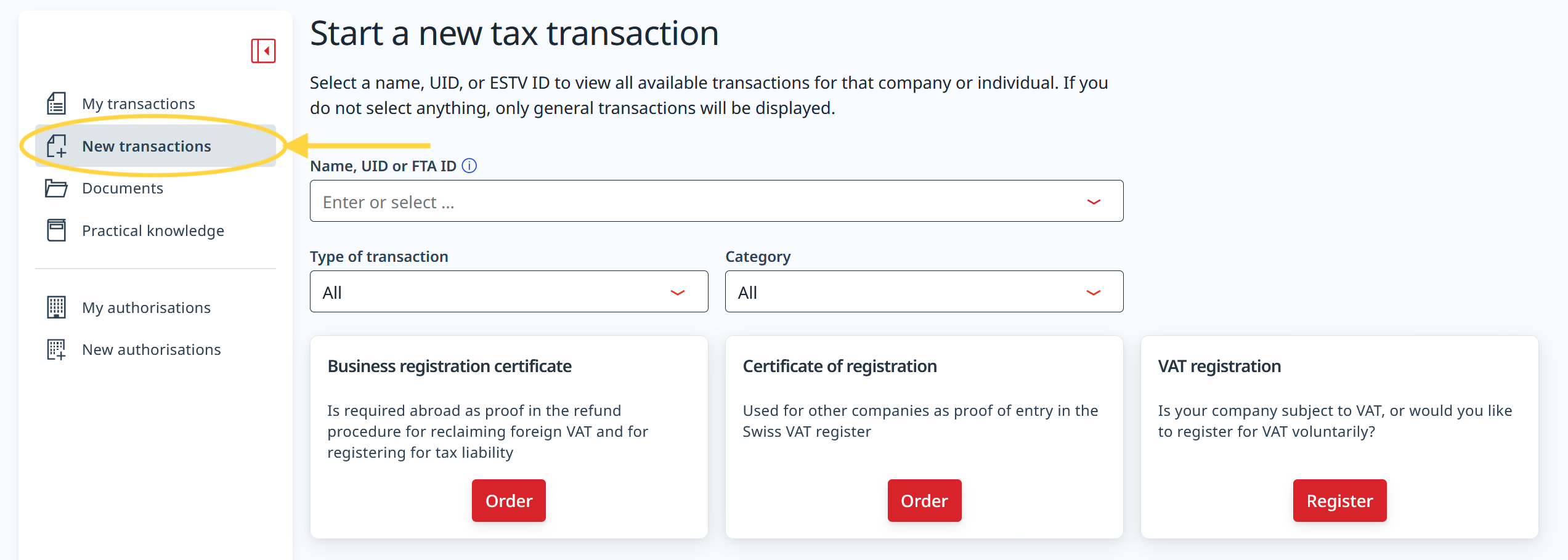
- Select the company name and the corresponding VAT number.
- Click on Adjust in the Declaration modalities section.
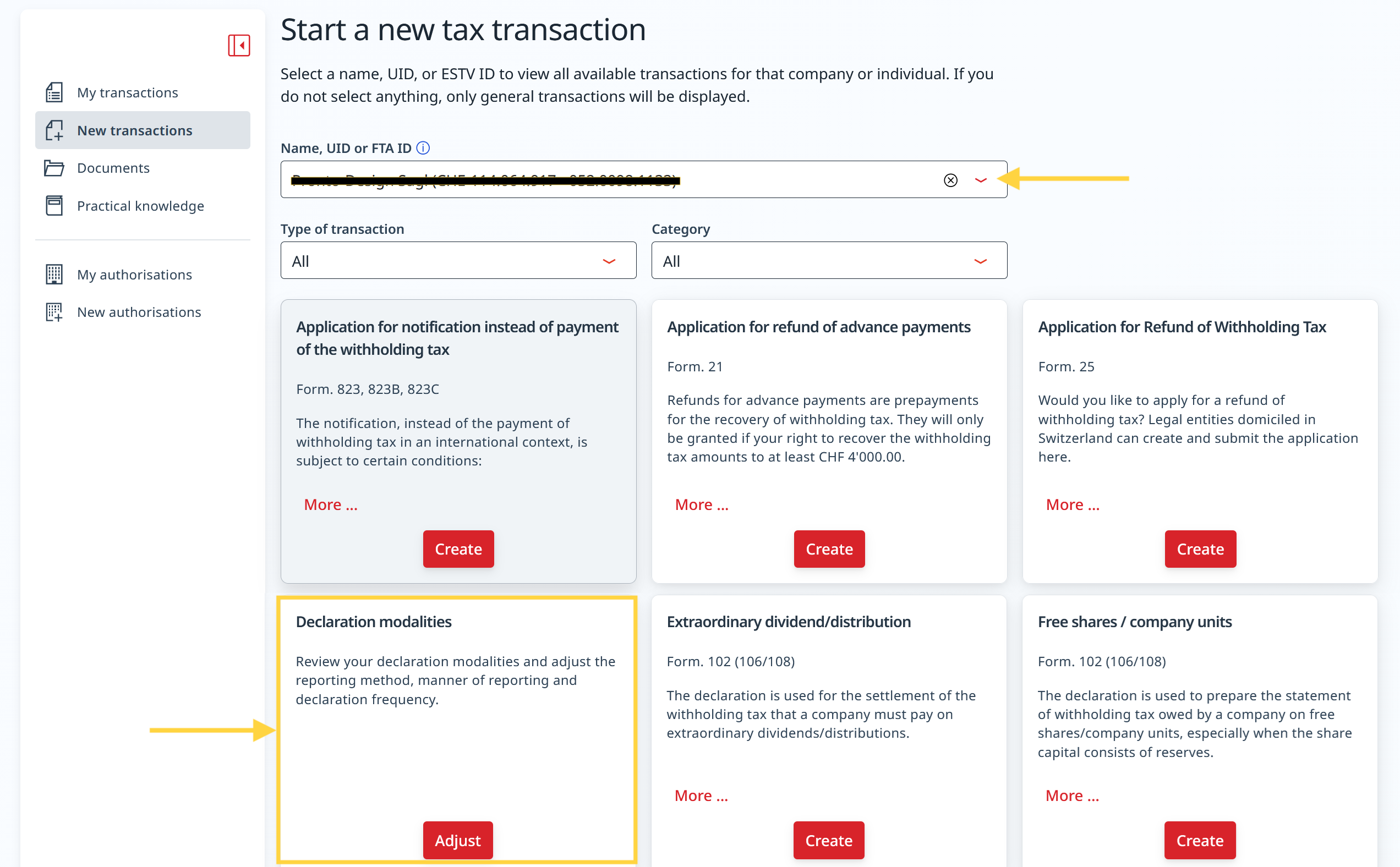
- Click on menu to open the Declaration method.
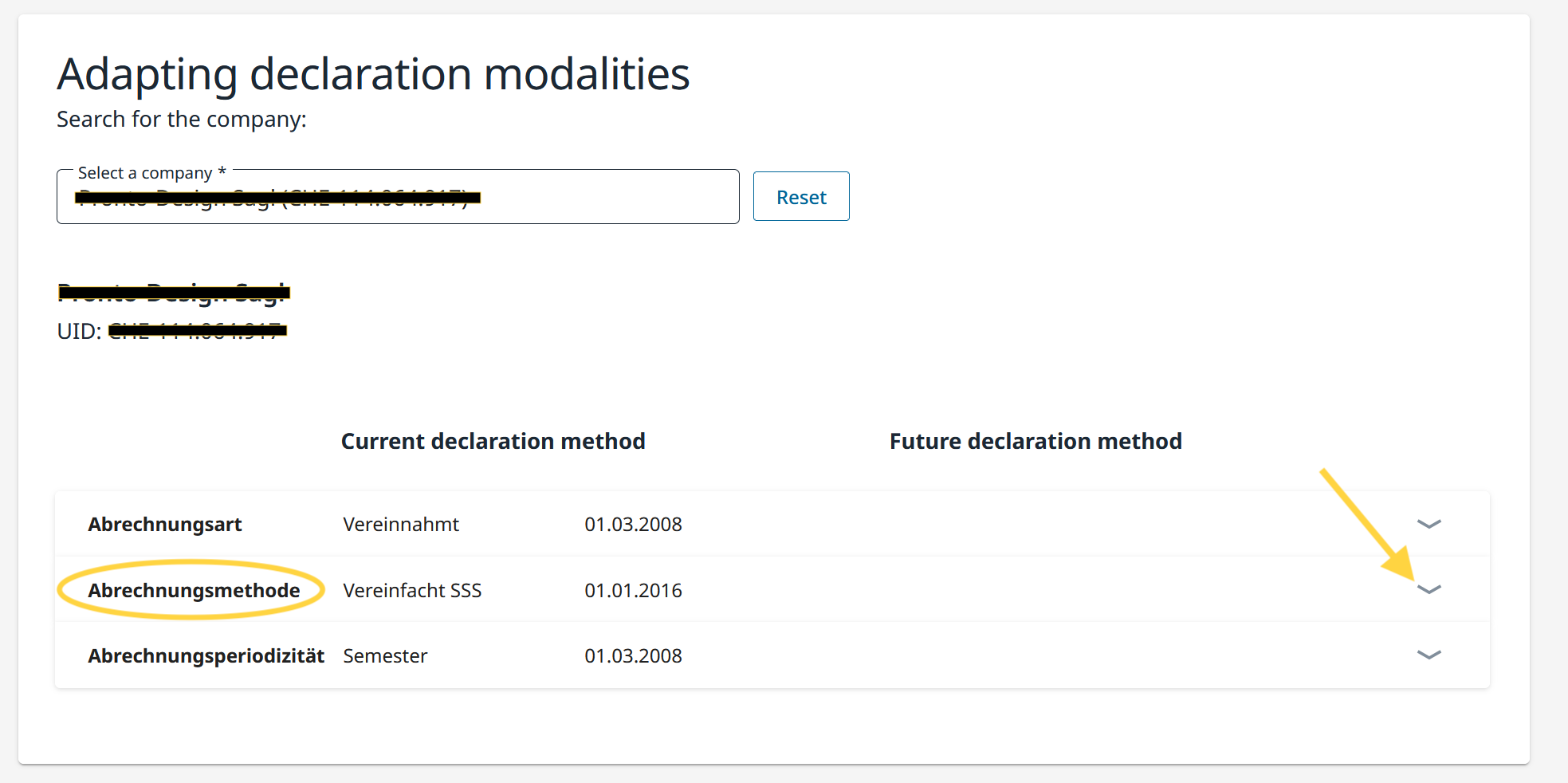
- A new section opens at the bottom of the page.
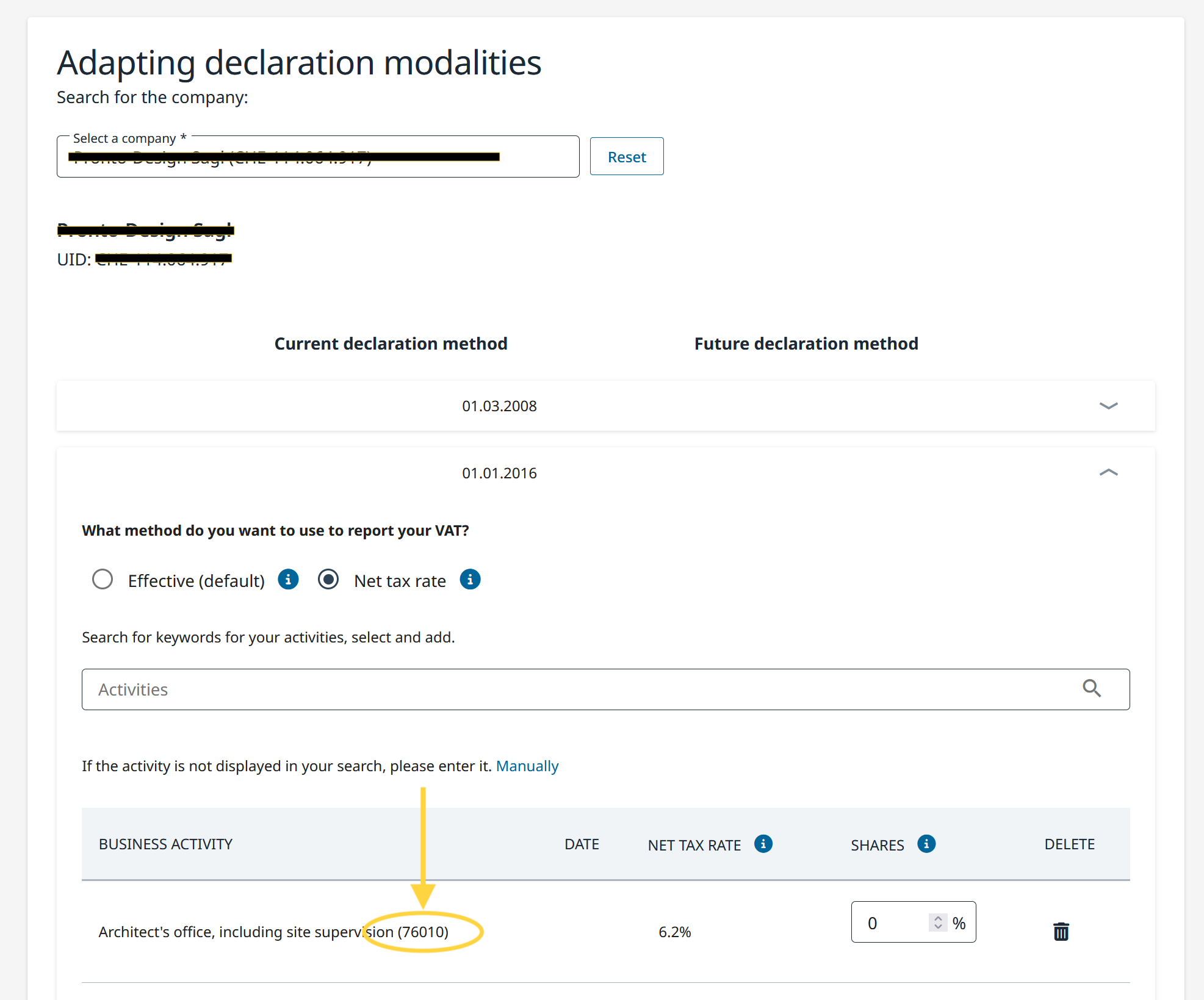
- Check the list of registered business activities and note the activity code assigned to each activity (e.g. 58010, 64610, 20010, 71140), as indicated by the FTA.
- The name of the activity and its five-digit code are loaded automatically based on the data already registered.
- The activity code is shown after the name/description of the selected activity (see example in the image below).
- If no activity code is displayed, you must contact the FTA directly, which will communicate the codes to be used.
Entering the activity code in Banana
Each taxpayer must only submit the activity codes that have been explicitly authorized by the FTA.
Once you have obtained the necessary activity codes along with their corresponding rates, you must enter them when running the Switzerland VAT extension.
- In Banana, launch the extension VAT Report flat rate method > VAT Report from 2025.
- The dialog Switzerland VAT: Net tax rate method will open.
- In the Net/Flat tax rates section of the dialog:
- identify the corresponding activity and enter the five-digit FTA activity code in the Code field.
- check that the VAT rate shown in Banana under VAT% matches the one defined by the FTA for that activity code.
- Repeat the operation for all activities subject to the net rate method.
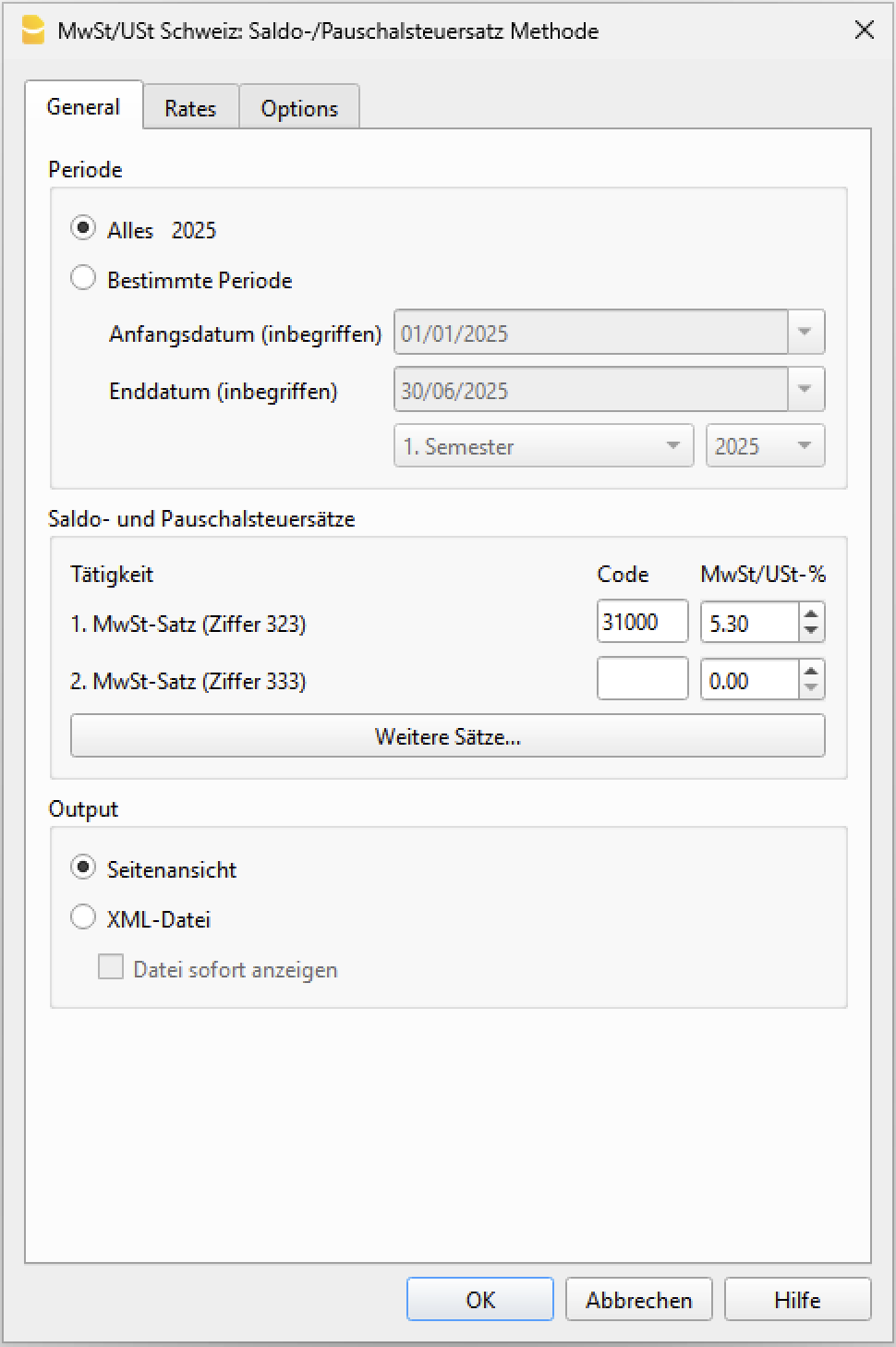
Warning: the code 76010 and the VAT rate 5.30 are provided as examples; please verify the correct code for your case.
When activity codes are required
When launching the VAT Report extension, the program checks that activity codes and the corresponding rates have been entered. If an activity code is missing or if the code entered is not valid, the extension displays a warning message.
Warning messages are useful when you want to generate the XML file for electronic submission to the FTA, since activity codes are required to obtain a valid transmission file.
If, instead, you only intend to print the VAT report and manually enter the amounts in the FTA portal, activity codes are not required. In this case, you can ignore the warning messages.
Transactions with VAT breakdown
This system is used when you want to have the immediate breakdown of VAT for each transaction in the Transactions table .
It is important to know:
- If this method is used, attention must be paid to the fact that the final VAT is calculated on the invoice amount already including VAT, therefore on the total turnover.
- The VAT deduction that is made in the account will not be the same as the VAT amount invoiced to the customer. These situations can be confusing, so we recommend using this method only if you have a good understanding of VAT mechanisms.
How to proceed
Before proceeding with the processing of the VAT statement (facsimile and XML file) it is necessary to:
- Check if the VAT Codes table is updated.
- In the VAT Codes table, enter your tax rates relating to codes F1, F2, FS1, FS2 (sample rates have been entered in the following window).
- In the Transactions table, enter the transactions, indicating the code for the balance rate. The VAT balance percentage and the amount separated from the revenue account will appear.
VAT facsimile and XML file for the FTA
At the end of the period, to process the VAT facsimile statement and the XML file to be forwarded to the FTA, use the Swiss VAT: net tax rate method extension.
Extensions are installed via the Extensions menu > Manage Extensions command.
VAT codes for the net rate (figures 322, 332 up to 2023, 323, 333 from 2024)
From 01.01.2024, the VAT codes for the flat tax rate are indicated with F1, F2 and FS1, FS2 those relating to discounts.
For 2023, the existing ones (F3, F4 e FS3, FS4) will remain valid. These codes can also be renamed.
Important: by default the value "YES" must appear in the "% VAT on Gross" column, as shown in the following screen:
 See the information below for more details.
Registration with VAT breakdown
Figures 322, 332 up to 2023, 323, 333 from 2024
When registering, the program breaks down the related VAT amount for each individual transaction and it registers it to the VAT account statement.
VAT payment at the end of the period
At the end of the period, after calculating the VAT to be paid, a transaction must be made to transfer the balance from the VAT account to the VAT account to be paid.
The VAT return account, after this transaction, will have zero as a balance.
When the VAT is paid, the payable VAT account will be registered onto the debit account and a liquidity account will be registered in the credit account.

Comparison between the turnover in the accounting records and the turnover declared in the VAT return
When using the Flat VAT Rate method with VAT excluded from the transaction amount, it is normal for the turnover shown in the accounting records to differ from the turnover reported in the VAT return.
Why does this difference occur?
With the VAT exclusion method, each sales transaction is recorded using a VAT code that automatically separates the VAT amount from the amount posted to the revenue accounts.
As a result:
- only the net amount, excluding VAT, is recorded in the revenue account;
the VAT amount is recorded separately in the VAT account.
For this reason, the turnover shown in the Profit & Loss Statement and in the accounting records is lower than the turnover reported in the VAT return.
Why does the VAT return show a higher amount?
Under the Flat VAT Rate method, VAT is calculated on the gross turnover, that is, including the VAT charged to the customer.
Therefore, the program correctly reports the gross amounts in the VAT return, as required by the Swiss Federal Tax Administration.
The difference between the turnover in the accounting records and the turnover reported in the VAT return therefore corresponds to the VAT that has been automatically excluded from the revenue.
How can you verify that the turnover is correct?
To verify that the turnover declared in box 200 of the VAT return is correct, simply add the VAT amount excluded from the revenue to the turnover shown in the accounting records.
This gives you the gross turnover reported in the VAT return.
The recommended method
To simplify the reconciliation between the accounting records and the VAT return, we generally recommend using the Flat VAT Rate method without excluding VAT from the transaction amount.
In this case:
- the gross amount always remains recorded in the sales transactions;
- Flat VAT Rates are not entered in the VAT Codes table;
- when preparing the VAT return, the rates are entered directly in the extension dialog.
At the end of the period, you will then need to make an adjusting transaction to transfer the VAT portion from the revenue account to the VAT account.
Transaction without VAT breakdown
The method with VAT breakdown described below is the one we recommend, because it is the simplest and fully automated.
Before proceeding with the filling in of the VAT statement (facsimile and XML file) it is necessary to:
- Check that the VAT Codes table is updated.
- Check that there is a Yes in the VAT Codes table in the VAT due column.
- In the Transactions table, post the transactions, indicating the code for the balance rate. No percentage will appear and no VAT amount will be indicated.
VAT facsimile and XML file for forwarding to the FTA
At the end of the period, the extension Swiss VAT: net tax rate method must be used to process the VAT facsimile statement and the XML file to be forwarded to the FTA.
Extensions are installed via the Extensions menu > Manage Extensions command.
VAT codes for the net rate (figures 322, 332 up till 2023, 323, 333 from 2024)
Starting from 01.01.2024, the VAT codes for the balance rate are indicated with F1 and F2, FS1, FS2 those relating to discounts.
For the year 2023, the existing ones will remain valid. These codes can also be renamed.
It is important to know that:
- No percentage is entered in the VAT% column (empty cell)
- In the Transactions table there will be no breakdown and indication of the VAT amount.

The GR1 column shows the figures of the VAT form where the amounts are totalled.
When the amounts are to be totalled with several digits, these are separated by a semicolon.
Transactions without VAT breakdown
Figures 322, 332 up till 2023, 323, 333 from 2024
Each time sales are recorded, the code "F1" for the 1st rate and F2 for the 2nd rate must be entered.
If there is a discount, use the FS1 or FS2 code. These codes are valid from 01.01.2024.
For year 2023, the VAT codes remain the same ( F3,F4,FS3,FS4).
Credit notes and adjustments
When recording reversals or adjustments using credit notes, you can proceed in two ways:
- Reverse the accounts in the Debit and Credit columns (for example: sales account in Debit and customer in Credit)
- Or use a revenue reduction account (for example account 3800, as shown in the image)
In both cases, in the VAT Code column you must enter the VAT code preceded by a minus sign (for example: -F1).
When calculating the VAT Report at the end of the period, the program automatically takes the credit note into account and reduces the VAT amount accordingly.

Accounting settlement and payment
At the end of the period, the VAT payable calculated with the VAT Rate Balance extension must be recorded in the accounting, so that the turnover is reduced by the VAT amount.
The transaction is recorded as follows:
- Enter the date related to the adjustment
- Enter the description as shown in the image
- In the Debit column, enter account 3809 to adjust revenues
- In the Credit column, record account 2200 VAT payable
For the VAT payment, proceed by clearing account 2200 VAT payable, which will then be zeroed. As a counterpart, a liquidity account is used, which will decrease.

VAT codes for net rate (numbers 470 - 471) - Exports declared using form no. 1050 and 1055
These are two VAT codes that apply in special situations and please refer to the relevant explanation of the Federal Tax Administration.
The above figures refer to exports that have been noted and declared using form no. 1050 and 1055.
(forms valid until December 31, 2024)

Transactions for VAT codes F1050 - F1055 (Figures 470 - 471)
In the Transactions table, you must enter the total amount of VAT on the purchase and apply the type 2 VAT code (100% VAT amount - F1050, F1055).
The program reports the VAT amounts to numbers 470 - 471 of the VAT Form.
(forms valid until December 31, 2024)

Swiss VAT Codes and VAT references
The Swiss VAT report uses specific references to include the different tax rates and types of transactions. These references are defined in the VAT Codes table and it is essential that they are set correctly to ensure accurate calculation and completion of the VAT report. For this reason, it is essential that the VAT Codes table is up to date.
Once the VAT Codes table has been updated, it will appear as follows:
- V = Sales (200)
- VS = Discount sales and services (235)
- B = Acquisition tax (38x)
- M = Expenses for material and services (400)
- I = Investments and other operating expenses (405)
- K= Corrections (410, 415, 420)
- Z = Not considered (910)
Gr1 Grouping
The GR1 column in the VAT Codes table shows the figures of the VAT form, where the amounts are grouped according to the relevant VAT code.
For the programme, these indications are essential for the preparation of the VAT form (facsimile) and the Xml file for the electronic submission of VAT data on the portal of the Federal Administration.
There are VAT codes that must appear in several boxes for the figures on the form. For example, the sales taxable amount must appear in digit 200 (Turnover figure) and also in digit 303 (Tax calculation). In these cases, the figures separated by a semicolon (200;303) are entered in column Gr1.
If a VAT code, which is present in the table VAT Codes, is used in the table Recording and does not have a grouping in the column GR1, when printing the VAT form, the programme will report an error. If a VAT code is not to appear in any figure on the VAT form, 'xxx' must be indicated in column Gr1; thus no error is reported.
Gr1 codes till end of 2023 and from 2024
In the VAT form with the Effective method, in the Calculation of tax part, there are boxes up to 31.12.2023 (302, 312, 342, 382) and boxes from 1.1.2024 (303, 313, 343, 383).
In the VAT Form for Flat Tax Rate method, there are boxes up to 31.12.2023 (321, 331, 381) and boxes from 1.1.2024 (322, 332, 382) in the Calculation of tax part.
The Print VAT Form command inserts the values of the boxes according to the figure contained in Gr1. If a new code is added, the VAT form reference figure must therefore be entered correctly.
Turnover / Taxable Amount
Initial letter V is used for codes relating to Turnover.
Reference 200 - Total amount of agreed or collected consideration
All transactions related to turnover, whether subject or not to VAT, must be reported here. Exempt sales are to be indicated with the appropriate VAT code.
Codes for exempt transactions or supplies provided abroad must be grouped in reference 200 and simultaneously reported in the relative deduction reference number.
The VAT codes related to turnover are:
- V81, V26, V38 (valid from 01.01.2024)
- V77, V25-N, V37 (valid until 31.12.2023).
Sales subject to VAT must be grouped not only in the figure 200 but also in the respective positions according to the rate (302, 303, 312, 342, 343, 382, 383).
Reference 205 - Consideration exempt from tax where option for taxation has been exercised
These transactions must be indicated under reference number 200, but must also figure under reference no 205.
They carry a VAT code that is identical to a VAT sales code, with the additional indication in the Gr1 column that they also must be grouped in the ref 205.
In order to be able to use this position, VAT codes must be replicated from reference number 200. For simplicity, the letter B has been added to the existing VAT codes.
The following codes must be used in the VAT codes tab:
- V77 (valid until 31.12.2023)
- V81 (valid from 01.01.2024).
Reference 299 - Taxable turnover
The taxable turnover is constituted by the turnover minus the non-taxable turnover (Deductions) (221, 225, 230, 235, 280).
Decrease in Turnover
For each non-taxable or non-VATable position, there is a VAT code with a percentage of 0 (due).
Reference 220 - Tax-exempt services
Use the following code:
- V0
Reference 221 - Services provided abroad
Purchase of goods and services abroad are intended (Article 23) or when the beneficiary is not subject to tax(Article 107).
Use the following code:
- V0-E
Reference 225 - Transfers via Notification Procedure
Transfers via notification procedure (Article 38; to be submitted with form No. 764).
The code to use is the following:
V0-T
Acquisition tax (Art. 45)
Reference 381 - 382 - Acquisition tax
Services that are obtained abroad, that do not carry any customs documents, must be subject to VAT as if they were sales.
For these cases, special VAT codes are needed to calculate VAT both as VAT due and as recoverable VAT.
The VAT codes to be used are:
- B81 for transactions with VAT code type 0 (VAT amount included), valid from 01.01.2024
- B81-1 for transactions with VAT code type 1 (VAT amount excluded), valid from 01.01.2024
- B81-2 for transactions with VAT code type amount 2 (VAT amount 100%), valid from 01.01.2024
- B77 for transactions with VAT code type 0 (VAT amount included), valid until 31.12.2023
- B77-1 for transactions with VAT code type 1 (VAT amount excluded), valid until 31.12.2023
- B77-2 for transactions with VAT code type amount 2 (VAT amount 100%), valid until 31.12.2023
Recoverable taxation
Recoverable VAT is reported in this part of the (refundable VAT).
Reference 400 - Input tax on Purchase of material and services
These are purchases of goods and services that are part of the company's core business.
The codes for recoverable taxation are:
- M81, M26, M38 (valid from 01.01.2024)
- M77 (valid until 31.12.2023)
In cases where VAT has been paid at customs and there exists an invoice with the VAT amount only, VAT code type 2 (Registration Amount = VAT amount) must be used. For these cases, the following code was set up:
- M81-2 (valid from 01.01.2024)
- M77-2 (valid until 31.12.2023).
For Amount type 1 (Amount of registration = Net Amount) use the following code:
- M81-1 (valid from 01.01.2024)
- M77-1 (valid until 31.12.2023)
Reference 405 - Input tax on Investment and operating costs
These are purchases for investments and operating costs that are not part of the 400 figure.
The VAT codes are:
- I81, I26, I38 (valid from 01.01.2024)
- I81-2 to be used for obtaining services abroad, in conjunction with the codes designated for calculating the purchase tax (see page VAT on foreign services)
- I77, I37 (valid until 31.12.2023).
It might be necessary to add further codes of Amount type 2, or Amount type 1 with different rates.
Purchases without VAT should not be included in the VAT return.
In some cases (eg clarity of the review) it may be useful to identify specific transactions without VAT.
The VAT codes are:
- M0 and I0, grouped with "xxx" in order to avoid generating an error message.
Corrections and reductions (recoverable tax)
It might not be necessary for the taxpayer to use these positions. If needed, use one of the codes grouped in the Correction and adjustments Group.
From an accounting point of view, correction transactions may essentially result in a reduction of VAT deductibility.
A registration must therefore be made for the deductible VAT adjustment (as a plus or minus).
Reference 410 - De-taxation (art. 32)
You can deduct the recoverable VAT paid in previous years.
The codes are:
- K81-A (valid from 01.01.2024)
- K77-A (valid until 31.12.2023).
Reference 415 Corrections of the input tax deduction, mixed use
In cases where merchandise has not been used for corporate or taxable purposes, it is not possible to recover all previous input tax VAT.
You can do this by always using the same purchase account (both credit and debit); in this way the purchase account will be increased by the amount of non-deductible VAT.
The codes are :
- K81-B (valid from 01.01.2024)
- K77-B (valid until 31.12.2023).
Reference 420 - Reduction of the input tax deduction
These are the transactions to be deducted from deductible VAT, such as subsidies.
This position must contain the same elements as the ones in reference 900.
The codes are:
- K81-C (valid from 01.01.2024)
- K77-C (valid until 31.12.2023).
Other cash flows of financial resources
In this part, the amounts relating to the base for the calculation for VAT must be reported..
These are transactions that are not part of the turnover and are not countervailing duties.
Reference 900 - Subsidies, tourist taxes and similar
Operations in reduction the deductible VAT, such as subsidies.
The code to use in these cases is:
- Z0-A
Reference 910 - Donations, dividends, compensation for damages etc.
Out of scope transactions. Donations, dividends and all other "receipts" that do not lead to a reduction of deductible VAT.
The code to use in these cases is:
- Z0
Note: VAT codes falling within references 900 and 910 have a 0% rate; therefore, amount type 2 (VAT amount) must not be used, since the tax is always zero. Instead, use only amount type 0 (amount including VAT) or amount type 1 (amount excluding VAT).
VAT Codes - Flat tax rate
As a result of the VAT rates for 2024, in Banana Accounting, the VAT rates have also been updated using the flat tax rate method.
Column GR1 shows the figures of the VAT form where the amounts are totalled. If the amounts are to be totalled in several digits, these are separated by a semicolon.
- F1 - sales subject to 1st rate (reference 200, 323), to be used from 01.01.2024; also valid in 2025
- F2 - sales subject to 2nd rate (reference 200, 333), to be used from 01.01.2024; also valid in 2025
- F3 - sales subject to 1st rate (reference 200, 322), to be used until 31.12.2023; from 01.01.2025 used for the 3rd rate
- F4 - sales subject to 2nd rate (reference 200, 332), to be used until 31.12.2023; from 01.01.2025 used for the 4th rate
- F5 - sales subject to 5th rate (reference 200, 324), to be used from 01.01.2025
- F6 - sales subject to 6th rate (reference 200, 334), to be used from 01.01.2025
- F7 - sales subject to 7th rate (reference 200, 325), to be used from 01.01.2025
- F8 - sales subject to 8th rate (reference 200, 335), to be used from 01.01.2025
- F9 - sales subject to 9th rate (reference 200, 326), to be used from 01.01.2025
- FS1 - discount on sales subject to 1st rate (reference 235, 323), to be used from 01.01.2024; also valid in 2025
- FS2 - discount on sales subject to 2nd rate (reference 235, 333), to be used from 01.01.2024; also valid in 2025
- FS3 - discount on sales subject to 1st rate (reference 235, 322), to be used until 31.12.2023; from 01.01.2025 used for the 3rd rate
- FS4 - discount on sales subject to 2nd rate (reference 235, 332), to be used until 31.12.2023; from 01.01.2025 used for the 4th rate
- FS5 - discount on sales subject to 5th rate (reference 235, 324), to be used from 01.01.2025
- FS6 - discount on sales subject to 6th rate (reference 235, 334), to be used from 01.01.2025
- FS7 - discount on sales subject to 7th rate (reference 235, 325), to be used from 01.01.2025
- FS8 - discount on sales subject to 8th rate (reference 235, 335), to be used from 01.01.2025
- FS9 - discount on sales subject to 9th rate (reference 235, 326), to be used from 01.01.2025
- F1050 - exports which have been annotated and declared using form 1050 (reference 470) until 31.12.2024
- F1055 - exports which have been recorded and declared by means of form No. 1055 (reference 471) until 31.12.2024
Those who run previous versions, can download the updated file of the new VAT Codes table, or enter the missing codes.
VAT account in the basic accounting data
All default Banana Accounting templates have the VAT account (2201) already set up in the File properties (File menu, VAT section). This allows the VAT calculations to be automated, so that all VAT amounts are accounted for in this account.
At the end of the quarter, the balance of this account represents the amount to be paid to the FTA (or to be recovered).
When the VAT Return account (2201) is set in the file properties, in the VAT Codes table, the VAT Account column must be empty.
If account 2201 is not set in the file properties, the previous VAT account 1, 2 and the VAT account due to each individual code can be set. In this case, the VAT is spread over three different accounts and at the end of the quarter the VAT accounts must be closed in order to determine the VAT payable to the FTA.
Submission of the VAT Report
Starting in 2025, it will no longer be possible to submit the VAT statement in paper format: the data must be transmitted exclusively via the FTA portal. The transmission can take place using one of the following methods:
Manually enter the VAT data in the AFC portal
- View and print out the VAT return facsimile and check that the data is correct.
- Log in to the Federal Tax Administration portal with your account details.
- Manually enter the data from the VAT Facsimile in the online VAT report.
- Check all data before sending.
- Proceed with the submission.
Online submission of VAT data with Xml file
For the creation of Xml files, please refer to the information at
Before entering the data on the FTA portal, proceed as follows:
- View and print the VAT Return facsimile and check that the data is correct.
- Create the XML file for the VAT for the quarter or the semester you are interested in. Ensure that the transmitted period is correct (see the next section).
- Log in to the Federal Tax Administration portal with your account data.
- Choose to import the data in XML format.
- Check the data automatically displayed in the online form against the data in the VAT facsimile.
- Validate the data and proceed with the submission.
Verification of the Transmitted Period
- If an invalid period is transmitted, the file will be rejected.
The valid periods, divided by method, are as follows:- Vat Net/Flat Rate Method: semi-annual and annual.
- Vat Effective Method: quarterly, semi-annual, and annual.
- If you recently registered as a VAT taxpayer, the reporting period does not necessarily start on 1st MM.YYYY but could, for example, start on 16th MM.YYYY.
- Submitting a report for a period from 01.01.20YY to 30.09.20YY, thus covering multiple periods, will result in the file being rejected.
Net or gross sales
In the effective method, when manually entering the data in the FTA portal, it is important to correctly select the net setting at the top of the form.
If, on the other hand, you directly submit the XML file generated by Banana Accounting Plus, the information is already included in the file itself through the <eCH-0217:grossOrNet> tag.
Transition from net tax rate method to the effective method
To correctly transition from the net tax rate method to the effective method in Banana Accounting, follow these steps:
Verify the VAT Codes table
- Ensure that the VAT Codes table is the default one provided by the program.
The default table contains all the necessary codes for both thenet tax rate method and the effective method. - If the table is not updated, it must be updated following the instructions on the webpage: Update VAT Codes Table 2024.
Update the Accounts table
- Add the following accounts:
- 2201 VAT Report (automatic VAT account).
- 2200 VAT Due (VAT to be paid to the AFC).
Update File Properties
- Set account 2201 VAT Report in the following path:
File > File and accounting properties (Basic data) > VAT.
Transactions Table
- For transactions with VAT, use the VAT codes provided for the effective method.
For the quarterly VAT declaration, use the extension VAT Effective Method (available only with the Advanced plan).
Wechsel von der effektiven Methode zur Saldosteuersatzmethode
Gemäss den Bestimmungen der Eidgenössischen Steuerverwaltung (ESTV) ist ein Wechsel von der effektiven Abrechnungsmethode zur SSS-Methode grundsätzlich möglich:
- frühestens nach drei ganzen Steuerperioden
- immer nur auf Beginn einer Steuerperiode
Die Meldung an die ESTV muss spätestens 60 Tage nach Beginn der Steuerperiode erfolgen, ab der mit den Saldosteuersätzen abgerechnet werden soll.
Beim Wechsel der Abrechnungsmethode ist eine Korrektur der Vorsteuer vorzunehmen.
Die bereits geltend gemachte Vorsteuer auf steuerlich relevanten Aufwendungen und Investitionen ist nach dem Zeitwert im Zeitpunkt des Wechsels zu korrigieren.
Die Korrektur:
- wird in der letzten Abrechnung nach der effektiven Methode, unmittelbar vor dem Wechsel vorgenommen
- betrifft Gegenstände, Vorräte, Betriebsmittel sowie Dienstleistungen, die noch nicht vollständig abgeschrieben oder verbraucht sind
- stellt eine Vorsteuerkorrektur dar
Der Betrag der Korrektur ist in der MWST-Abrechnung unter der Ziffer 415 (Vorsteuerkorrekturen) zu deklarieren.
Nachfolgend wird gezeigt, wie die Vorsteuerkorrektur beim Wechsel zur Saldosteuersatzmethode in Banana erfasst wird.
Tabelle MWST-Codes prüfen
Stellen Sie sicher, dass die verwendete MWST-Codetabelle die Standardtabelle des Programms ist und auf dem neuesten Stand ist.
Die Standardtabelle enthält alle notwendigen Schweizer MWST-Codes sowohl für die Saldosteuersatzmethode als auch für die effektive Methode und ist mit der Erweiterung MWST-Abrechnung kompatibel, welche die korrekte Auswertung und Kontrolle der MWST-Beträge ermöglicht.
Ist die Tabelle nicht aktuell, muss sie gemäss den Anweisungen auf der Webseite aktualisiert werden: Tabelle der MWST-Codes aktualisieren.
Tabelle Konten prüfen
Stellen Sie sicher, dass die folgenden MWST-Konten im Kontenplan vorhanden sind und sowohl für die Saldosteuersatzmethode als auch für die effektive Methode verwendet werden:
- 1170 Vorsteuer (Aktivkonto)
- 2200 Geschuldete MWST (Passivkonto)
- 2201 MWST-Abrechnung (Passivkonto)
- 3809 MWST Saldosteuersatz (Ertragskonto)
Beispiel: Wechsel zur Saldosteuersatzmethode
Die folgenden Buchungen zeigen die Vorsteuerkorrektur beim Wechsel von der effektiven Abrechnungsmethode zur Saldosteuersatzmethode.
Die Korrektur betrifft die bereits geltend gemachte Vorsteuer auf Gegenständen und Investitionen, die zum Zeitpunkt des Wechsels noch nicht vollständig genutzt oder abgeschrieben sind.
Der Betrag der Korrektur ist in der MWST-Abrechnung unter der Ziffer 415 (Vorsteuerkorrekturen) zu deklarieren.
Anwendungsperiode der Methoden
- 01.01.2025–31.12.2025: effektive Methode
- 01.01.2026–31.12.2026: Saldosteuersatzmethode
Verwendete Konten
- 1020 Bank
- 2200 Geschuldete MWST
- 2201 MWST-Abrechnung
- 3000 Erlöse aus Fabrikaten
- 3809 MWST Saldosteuersatz
- 4000 Materialaufwand
| Datum | Beleg | Beschreibung | KontoSoll | KontoHaben | Betrag CHF | MWST-Code | Steuerart | %MWST | MWST Betrag CHF |
|---|---|---|---|---|---|---|---|---|---|
| Effektive Abrechnungsmethode bis 31.12.2025 | |||||||||
| 01.09.2025 | Verkäufe steuerbar | 1020 | 3000 | 2,000.00 | V81 | -8.10 | -243.00 | ||
| 02.09.2025 | Wareneinkauf mit Vorsteuerabzug | 4000 | 1020 | 1,000.00 | M81 | 8.10 | 81.00 | ||
| 31.12.2025 | Vorsteuerkorrektur auf Restwert der Waren (30% von CHF 1’000 = CHF 300) | 3809 | 3809 | 300.00 | K81-B | 1 | -8.10 | -24.30 | |
| 31.12.2025 | MWST-Schuld gemäss Abrechnung | 2201 | 2200 | 186.30 | |||||
| Saldosteuersatzmethode ab 01.01.2026 |
|
| |||||||
| 15.07.2026 | Zahlung MWST 2025 | 2200 | 1020 | 186.30 | |||||
In der MWST-Abrechnung der letzten Periode mit der effektiven Methode erscheint die Korrektur von CHF 24.30 unter der Ziffer 415 (Vorsteuerkorrekturen).
Swiss Annual VAT Reconciliation (Beta)
Swiss Annual VAT Reconciliation (Beta)In Switzerland, VAT Reconciliation (Value Added Tax) is an essential process to ensure that the accounting data relating to turnover and VAT calculations are consistent with the figures declared to the FTA (Swiss Federal Tax Administration).
To simplify and speed up the VAT reconciliation process, an extension has been developed with an automatic procedure that immediately identifies and compares the declared amounts with those recorded in the accounting file, highlighting any differences and the transactions that generated them.
Prerequisites
To use this extension:
- The Advanced plan of Banana Accounting Plus is required. In the future, a special subscription or an additional fee may be required.
- The accounting file must use double-entry bookkeeping.
- Download the Swiss Annual VAT Reconciliation (Beta) extension.
- For the time being, the VAT Reconciliation extension is available only for the Effective VAT method.
Beta version
The extension is currently released as a beta version. This means that some details may change without prior notice.
Installing and using the extension
- Install Banana Accounting Plus.
- Install the Swiss Annual VAT Reconciliation extension. From the Extensions > Manage Extensions menu, find and select Swiss Annual VAT Reconciliation (Beta), then click the Install button. See the Managing Extensions documentation.
- Once installed, the extension will be available from the Extensions menu, where it can be run.
VAT Reconciliation extension
To perform VAT Reconciliation in Banana Accounting:
- Open the accounting file.
- From the Extensions menu, select the Swiss Annual VAT Reconciliation extension.
- 1. Print report
- To generate the VAT Reconciliation report.
- 2. Accounting/VAT Differences
- To view the details of the differences between the declared turnover and the turnover recorded in the accounting file.
Print VAT Reconciliation Report
The extension generates and displays a report with four types of checks:
- Comparison between the turnover declared in the VAT Return and the turnover recorded in the accounting file.
- Turnover declared in the VAT form, grouped by VAT code.
- Taxable VAT declared in the VAT form.
- Transactions for accounts with differences.
To generate the VAT Reconciliation report:
- Open the accounting file.
- From the Extensions menu, select Swiss Annual VAT Reconciliation > 1. Print report.
The extension Settings dialog will open. Here you can define the information required to create the VAT Reconciliation report:
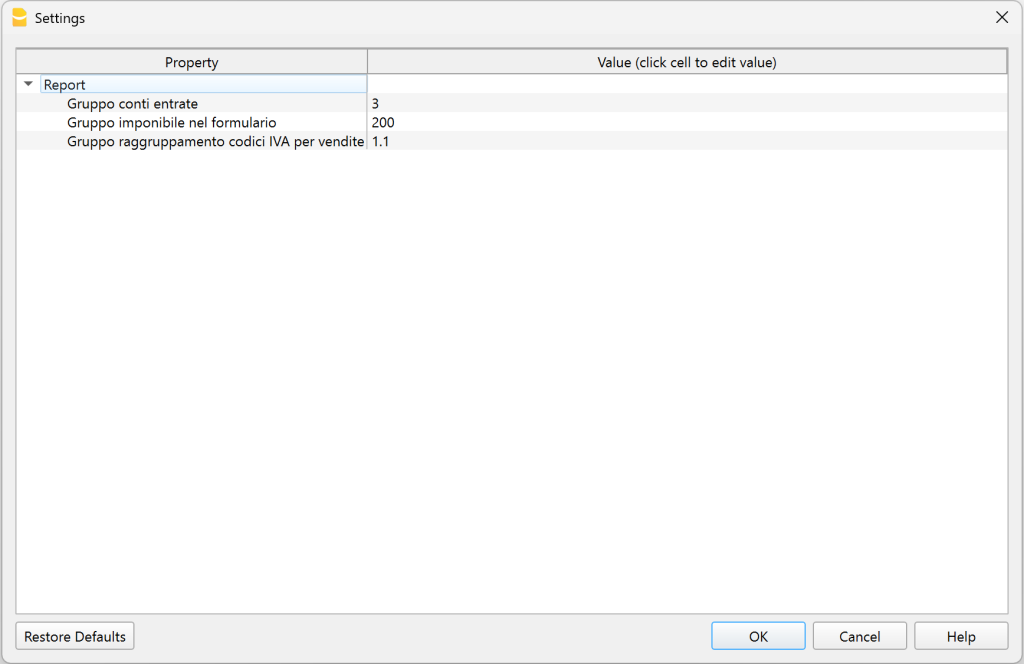
- Income accounts group.
Enter the main income group that includes all income accounts, as defined in the chart of accounts in the Accounts or Categories table (for Income & Expense accounting and Cash Manager). The default value is 3. In our example, the income group is 30.
If the turnover totalization group in your chart of accounts is different, you must change this value. - Taxable group in the VAT form.
Enter the group shown in the Gr1 column of the VAT Codes table that represents the value of box 200 of the VAT Return. The default value is 200. - VAT codes grouping for sales.
Enter the group shown in the Sum in column of the VAT Codes table that totals the sales VAT codes. The default value is 1.1.
- Income accounts group.
- Click OK to run the extension.
1. Comparison between the turnover declared in the VAT Return and the turnover recorded in the accounting file
This check compares the declared turnover with the turnover recorded in the accounting file and identifies any differences.
The following example is based on an accounting file where the displayed turnover is CHF 5'800.28.

The report generated by the extension contains tables divided by period, including an overall annual period.
Each table displays all the accounts that generate turnover, including accounts with transactions that do not have a VAT code.
Each table contains the following columns:
- Account
List of the accounts included in the turnover or with VAT transactions (including any balance sheet accounts). - Turnover with VAT code
Amount of turnover for each account where the transactions have a VAT code. - Turnover without VAT code
Amount of turnover for each account where the transactions do not have a VAT code. - Total turnover
Total turnover for each account, including both transactions with and without a VAT code. - Declared net amount
Net amounts declared in the VAT Return. - Differences
Differences between the turnover recorded in the accounting file and the declared turnover.
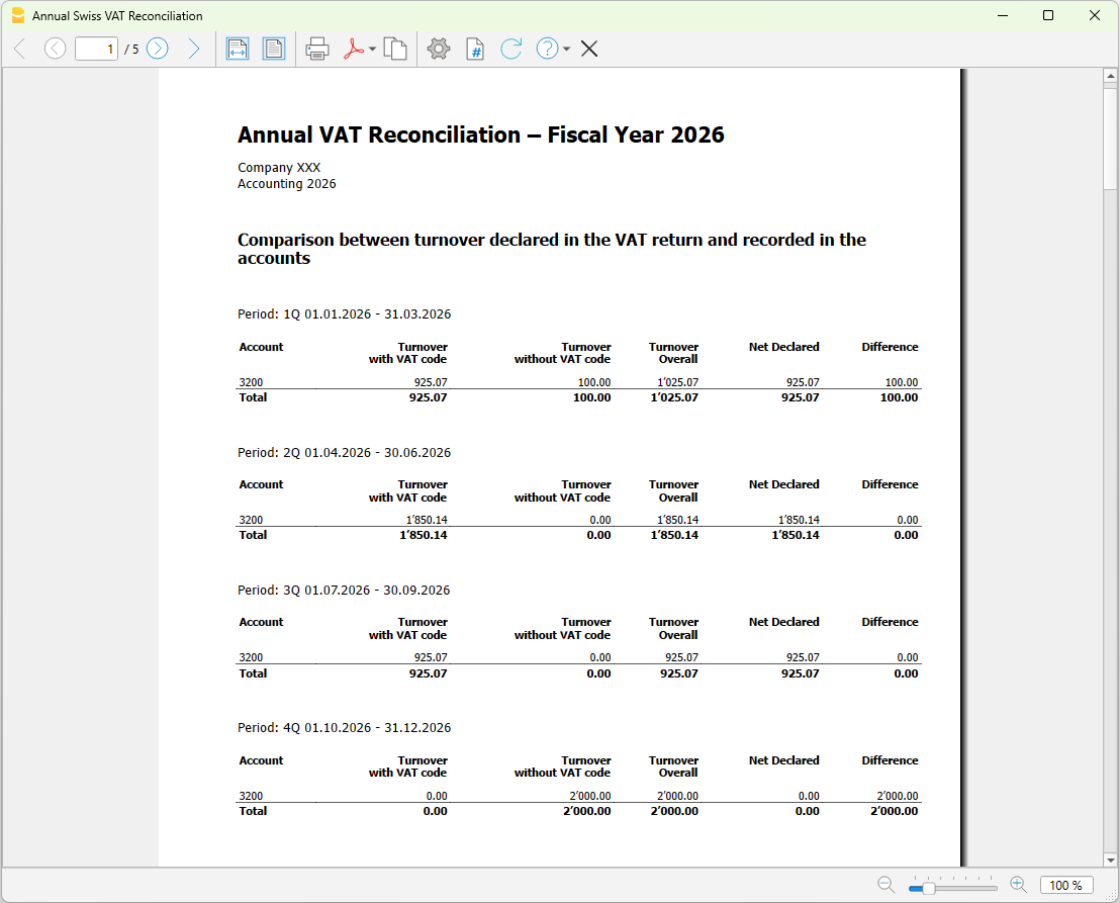
In the example, the report shows the calculation for account 3000 (Sales account), which represents the turnover:
- In the first quarter (1Q), there is a turnover difference of CHF 100.00 (Differences column).
- Turnover recorded in the accounting file = CHF 1'025.07 (Total turnover column).
- Turnover declared in the VAT Return = CHF 925.07 (Declared net amount column).
- In the fourth quarter (4Q), there is a turnover difference of CHF 2'000.00 (Differences column).
- Turnover recorded in the accounting file = CHF 2'000.00 (Total turnover column).
- Turnover declared in the VAT Return = CHF 0.00 (Declared net amount column).
- For the annual period, the differences from each period are added together and displayed:
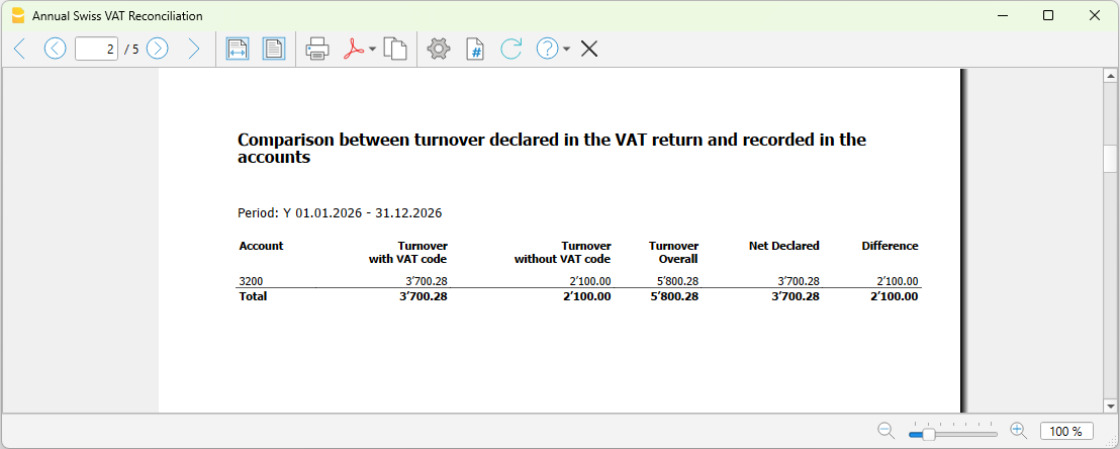
- Turnover recorded in the accounting file = CHF 5'800.28 (Total turnover column).
- Turnover declared in the VAT Return = CHF 3'700.28 (Declared net amount column).
- Total turnover difference = CHF 2'100.00 (Differences column).
2. Turnover declared in the VAT form, grouped by VAT code
This check compares the turnover for each VAT code relating to income accounts with VAT.
- Description
Description of each VAT code used in the turnover transactions. - Taxable amount Y
Taxable amount for the year. - Taxable amount 1Q
Taxable amount for the first quarter. - Taxable amount 2Q
Taxable amount for the second quarter. - Taxable amount 3Q
Taxable amount for the third quarter. - Taxable amount 4Q
Taxable amount for the fourth quarter.
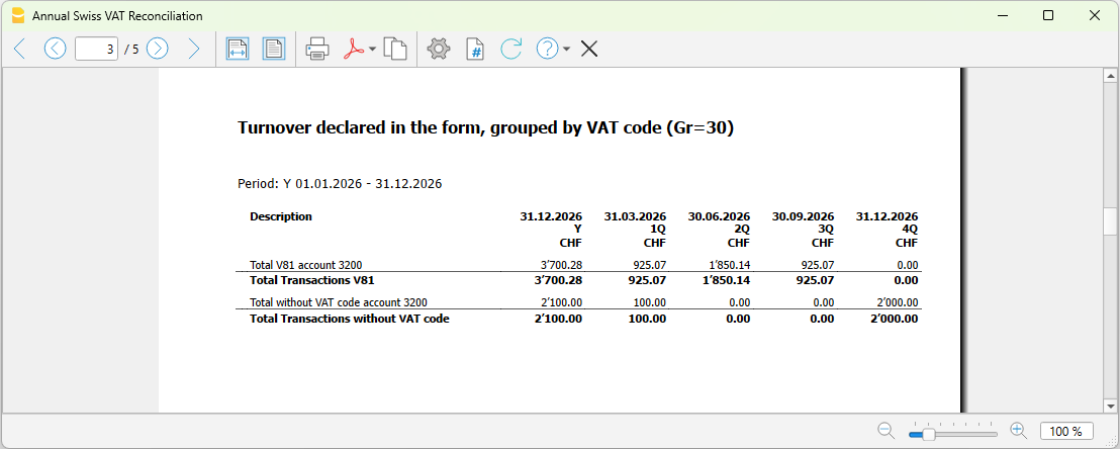
3. Taxable VAT declared in the VAT form
The report provides a summary of the VAT amounts declared to the Swiss Federal Tax Administration (FTA) for each quarter, without checking for any differences.
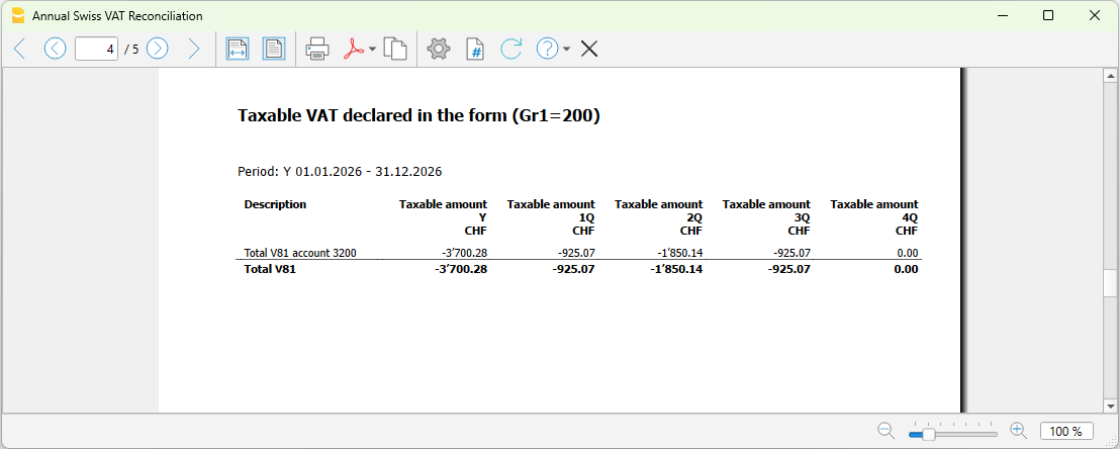
4. Transactions for accounts with differences
For each account, all transactions that generated differences in the various VAT Returns are grouped together.
The list of all transactions that generated differences allows you to quickly identify possible errors, such as a transaction subject to VAT that is missing the related VAT code, or to identify transactions that are correct but, although they have a VAT code, are not included in the turnover calculation (such as purchase tax or reverse charge transactions).
The following columns are displayed:
- Row
The row number of the transaction in the Transactions table. - Date
The transaction date. - Description
The transaction description. The description text is truncated to 20 characters to keep the table tidy and easy to read. - Account
The account with the transaction difference. - Contra account
The contra account of the transaction. - Debit
The debit amount of the transaction. - Credit
The credit amount of the transaction. - VAT code
The VAT code of the transaction. - VAT amount type
The VAT amount type of the transaction. - Taxable VAT amount
The taxable VAT amount of the transaction. - VAT amount
The VAT amount of the transaction. - Posted VAT amount
The posted VAT amount of the transaction.
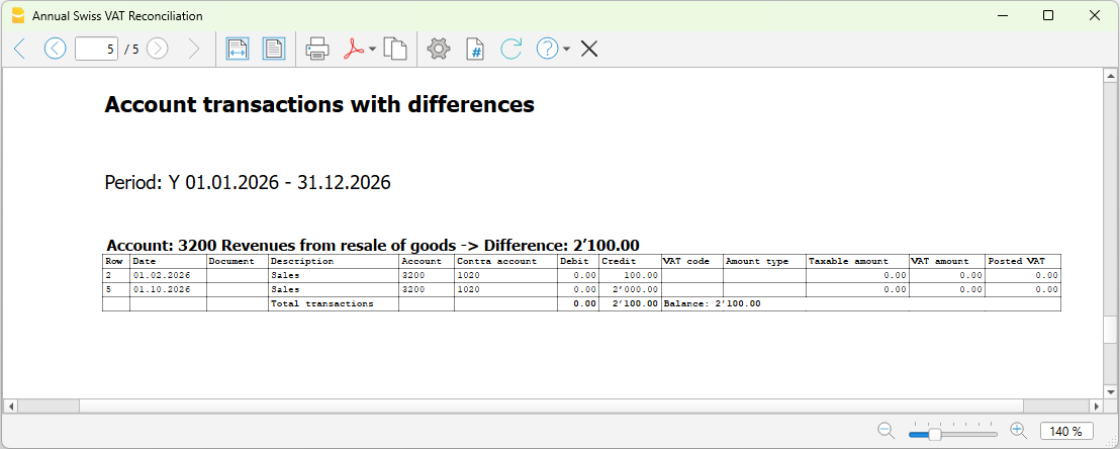
In the example:
- The difference between the turnover recorded in the accounting file (CHF 5'800.28) and the turnover declared (CHF 3'700.28), amounting to CHF 2'100.00, is shown.
- The transactions in the Transactions table that generated this difference are also listed.
Looking at the Transactions table, at the indicated rows (2 and 5), you can see that the transactions do not have a VAT code even though they were posted to sales account 3000 (the VAT code is missing).
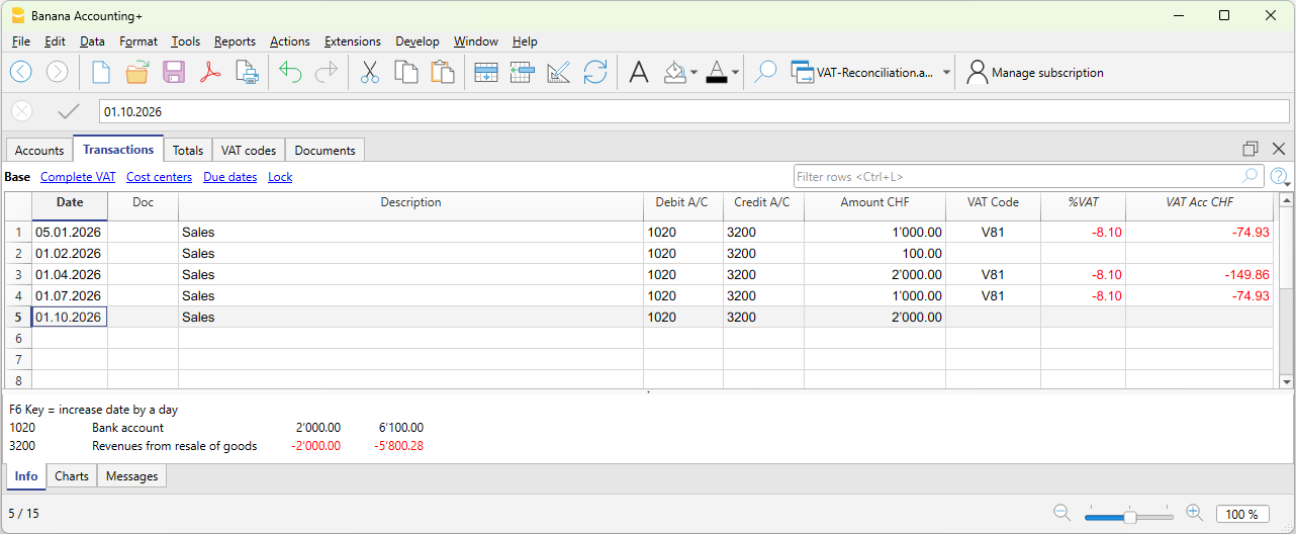
In these cases, once the error has been identified, the VAT Return for the affected quarter must be generated again using the VAT Return extension, and the corrected figures must then be submitted in the correction return on the Swiss Federal Tax Administration (FTA) portal.
Differences between the accounting records and the VAT Return
The details of the differences between the declared turnover and the turnover recorded in the accounting file can be saved.
- From the Extensions menu, select Swiss Annual VAT Reconciliation > 2. Accounting/VAT Differences.
- The extension Settings dialog opens, where you can choose between two methods of saving the data:
- 1) Show in dialog.
All details of the differences, which are also included in the report, are displayed in a dedicated dialog. The data is shown in tabular format and can be copied or saved directly using the available commands. - 2) Save to table.
All details of the differences, which are also included in the report, are automatically inserted into a table in the accounting file. A new table must be added beforehand. - Table name (XML name).
The name of the table (XML name) where the difference details will be inserted.
- 1) Show in dialog.
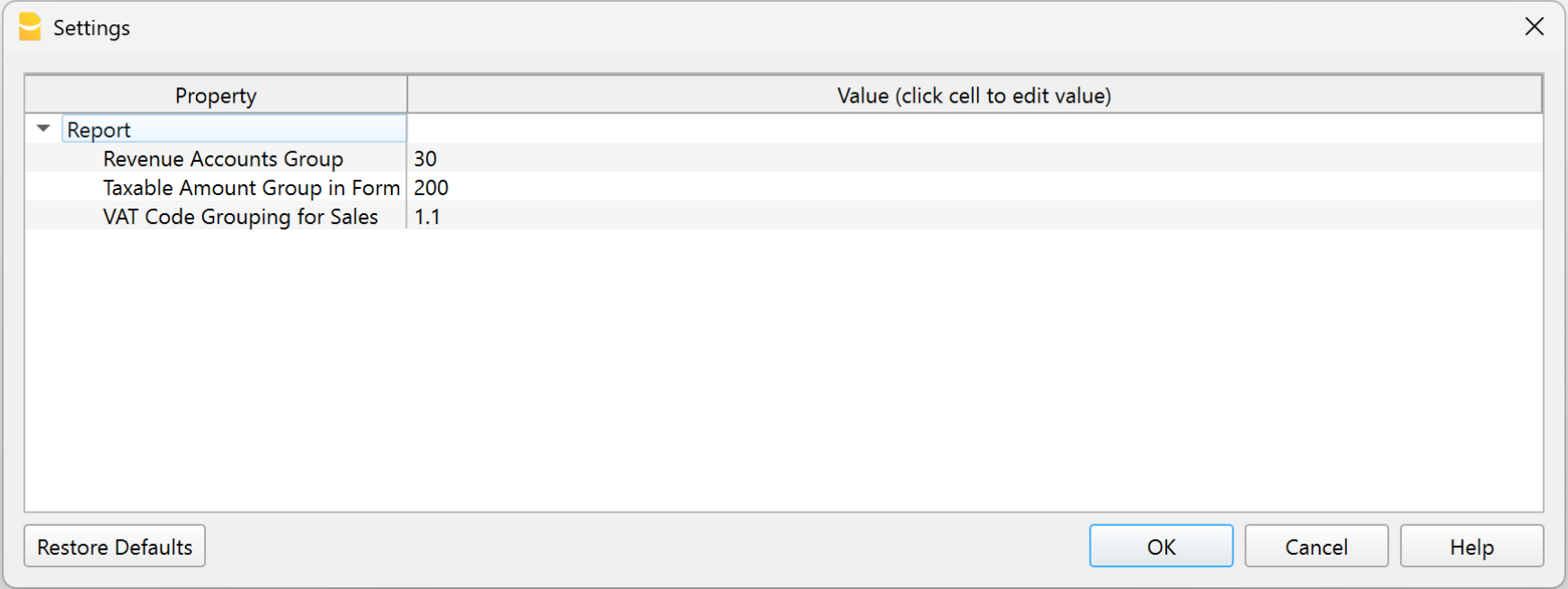
1. Display in the dialog
In the extension settings, by enabling the Display in the dialog option, a new dialog appears showing the transactions with the differences, which can be exported to a text file.
- The generated text can be copied by clicking the Copy button.
- Afterwards, the text can be pasted into Excel using the Paste Special > Text command (this way the data is saved in separate columns).
- Alternatively, the text can also be pasted directly into a table in the accounting file.
If you want to paste the text into the accounting file, you need to:
- Add a simple table
using the Tools > Add/Remove functionalities > Add simple table command. You can choose any name for the table. - Add the columns to the simple table
Using the Data > Columns setup command, add the following columns in the exact order and with the correct data type, as shown below:- Account (data type: Text)
- Row (data type: Number)
- Date (data type: Date)
- Doc (data type: Text)
- Description (existing column)
- Debit (data type: Amount)
- Credit (data type: Amount)
- VAT Code (data type: Text)
- VAT Amount Type (data type: Text)
- VAT Taxable Amount (data type: Number)
- VAT Amount (data type: Number)
- Posted VAT Amount (data type: Number)
- Notes (existing column).
After configuring the columns, the table is ready for data entry. To copy the data generated by the extension and insert it into the table:
- Run the extension from the Extensions > Swiss Annual VAT Reconciliation > 2. Accounting/VAT Differences menu.
- Select the Display in the dialog option and confirm with OK.
- In the window that appears, select Copy.
- Close the window by clicking Close.
- Open the table created in the accounting file.
- Place the cursor in the first cell of the added table.
- Paste the copied text.
- All data is automatically inserted into the corresponding columns.
2. Save to table
By enabling the Save to table option in the extension settings, the table containing the transactions with differences can be imported directly into the accounting file, into the table specified in the Table name (XML name) field.
In this case, you must:
- Before running the extension, add a new table using Tools > Add/Remove Features > Add Simple Table. You can choose any name for the table.
- After adding the table, run the extension from Extensions > Swiss Annual VAT Reconciliation > 2. Accounting/VAT Differences.
- Select the Save to table option.
- Enter the XML name of the table you created (to view the XML name, use Data > Tables setup, Table settings).
- Click OK.
- The extension displays the changes that will be made to the selected table. Click OK to confirm.
- The extension automatically adds the required columns to the selected table and inserts all the data into the corresponding columns.
The Id (RowId) column is not used and can safely be hidden using the appropriate option in Data > Columns setup.
Error messages
When saving the difference data to the table, the extension checks for possible errors and displays the corresponding messages.
- "Missing XML table name. You must create a new table using Tools > Add/Remove Features > Add Simple Table."
- The extension checks that the name of the table where the data will be saved has been entered in the extension settings.
- Solution: Enter the XML name of the table.
- "The table XXX does not exist. You must create a new table using Tools > Add/Remove Features > Add Simple Table."
- The extension checks that the table specified in the extension settings exists in Banana Accounting.
- Solution: Add the table using Tools > Add/Remove Features > Add Simple Table.
- "The table XXX cannot be used. You must create a new table using Tools > Add/Remove Features > Add Simple Table."
- The extension checks that the table specified in the extension settings is not a predefined Banana table. Differences cannot be saved in predefined tables.
- Solution: Add a new table using Tools > Add/Remove Features > Add Simple Table.
Structure of the Differences table
For both modes, 1. Show in dialog and 2. Save to table, the generated table has the following structure:
- Update date row.
This row displays the date when the data was inserted into the table.
New data is always appended at the end of the table. - Account row.
This row summarizes the total difference for the account.- The Account column contains the account of the transaction with a difference.
- The Description column displays the total difference amount for the account.
- All other columns are left empty.
- Transaction detail rows.
These rows display the transactions from the Transactions table that generated the difference.- The Account column is empty.
- The Row column contains the transaction row number.
- The Date column contains the transaction date.
- The Doc column contains the transaction document.
- The Description column contains the transaction description.
- The Debit column contains the transaction debit amount.
- The Credit column contains the transaction credit amount.
- The VAT Code column contains the transaction VAT code.
- The VAT Amount Type column contains the transaction VAT amount type.
- The Taxable VAT Amount column contains the transaction taxable VAT amount.
- The VAT Amount column contains the transaction VAT amount.
- The Posted VAT Amount column contains the posted VAT amount of the transaction.
- The Notes column contains "[...]" so that you can add your own notes. This is useful for explaining the reason for the difference.
Extensions Swiss VAT Report 2018
The 2018 VAT extensions allow you to generate the VAT Report Facsimile and XML file for the years 2018 to 2023.
These extensions are not compatible to manage VAT statements and the XML file with the new 2024 VAT rates.
In order to benefit from the updates regarding VAT 2024, you must :
- Update to the Advanced plan of Banana Accounting Plus
- Download the extension Swiss VAT Report 2024: effective method with XML file or
- Download the extension Swiss VAT Report 2024: net tax rate method with XML file
For users who still need the VAT extension with 2018 rates, information is available on the following pages:
VAT rates until 31.12.2023
Below you will find the 2018 VAT rates (valid for the years 2018-2023), both for the effective method and for the net tax rate method. From January 1. 2024 new VAT rates will be introduced.
VAT rates for the effective method
The accounting templates available on our website already contain the new VAT codes, with both the rates before and after the 2017 vote.
| Normal rate | Special rate for the hotel sector | Reduced rate | |
|---|---|---|---|
| Current VAT rates | 8.0% | 3.8% | 2.5% |
| - Additional funding from AI limited up to 31.12.2017 | -0.4% | -0.2% | -0.1% |
| + TVAT rates increase for FAIF 01.01.2018 - 31.12.2030 | 0.1% | 0.1% | 0.1% |
| VAT rates from 01.01.2018 | 7.7% | 3.7% | 2.5% |
Billing
- Bills issued in 2017:
- For sales, services or supplies concerning 2017, that year's rates are used (8% normal rate, 3.8% for hotel sector, 2.5% reduced).
- For sales, services or supplies concerning 2018, that year's rates are used (7.7% normal rate, 3.7 for hotel sector, 2.5% reduced).
- Bills issued in 2018:
- For sales, services or supplies concerning 2017, that year's rates are used (8% normal rate, 3.8% for hotel sector, 2.5% reduced).
- For sales, services or supplies concerning 2018, that year's rates are used (7.7% normal rate, 3.7 for hotel sector, 2.5% reduced).
VAT Codes from 2018
At the end of 2017 and for 2018 the different rates should be used in parallel.
- The VAT Codes table already contains the VAT codes with the relative rates for both 2017 and 2018.
Simply import the VAT codes into your accounting. - At the latest, when starting the 2018 fiscal year, the new VAT codes must be imported
VAT rated 2018 for the net rate method
The list of VAT codes is already provided with the relative codes for the final rates.
- F1 and F2 VAT Codes remain unchanged and relate to services invoiced with the 2017 rates.
- F3 and F4 VAT Codes must be set up for services invoiced with 2018 rates.
Two methods are used for calculation:
Further information is available at the following link: reduced VAT rates as per 1st of January 2018.
Transactions with VAT until 30.06.2023
Swiss VAT Report: effective method 2018
Swiss VAT Report: effective method 2018For more information, please consult the corresponding pages in the following languages:
Swiss VAT Report: net tax rate method 2018
Swiss VAT Report: net tax rate method 2018For more information, please consult the corresponding pages in the following languages: