In questo articolo
Il modo più semplice e veloce per inserire le registrazioni in Banana Contabilità Plus è importare i movimenti direttamente dall'estratto conto bancario nella tabella Registrazioni, evitando l'inserimento manuale.
Dopo l'importazione, i movimenti devono essere completati con i conti e le contropartite necessari. Con il piano Advanced, anche questa operazione può essere automatizzata grazie alle Regole di completamento automatico, che permettono a Banana Contabilità di riconoscere e completare automaticamente le registrazioni nelle importazioni successive.
Se invece desideri importare movimenti da altre fonti, per esempio da un altro file di Banana Contabilità, consulta la pagina Importazione movimenti generici.
▶ Video: Importa i movimenti dell'estratto bancario
Procedura per l'importazione
- Dal menu Azioni > Importa in contabilità, nella casella Importa seleziona Registrazioni.
- Scegli il tipo di file che desideri importare. I diversi formati disponibili sono descritti più avanti.
- Con il pulsante Sfoglia, seleziona uno o più file contenenti i movimenti da importare.
- Imposta i parametri di importazione secondo le tue necessità.
- Conferma con OK.
Per maggiori informazioni sulle diverse opzioni disponibili, consulta la pagina Importa in contabilità.
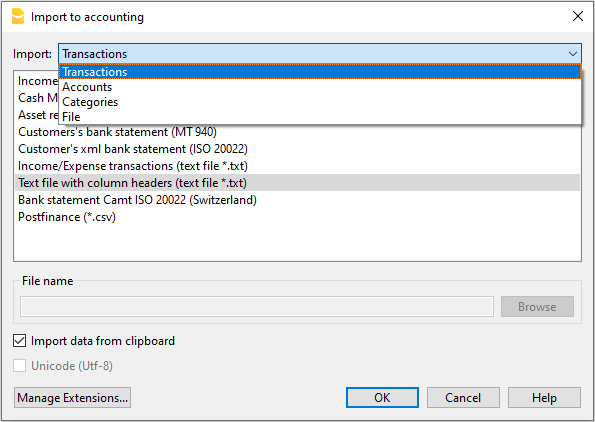
Dopo avere confermato l'importazione, i dati vengono letti e vengono visualizzati i dialoghi necessari per completare l'operazione:
- Dialogo importa movimenti, dove puoi specificare le informazioni necessarie per completare le righe importate.
- Applica regole (piano Advanced), dove puoi applicare o creare regole per completare automaticamente le registrazioni importate.
Importare più file contemporaneamente
Nel campo Nome file viene indicato il percorso del file scaricato dalla banca. Puoi selezionare anche più file oppure un file ZIP che contiene diversi estratti conto.
Questa possibilità è utile, per esempio:
- se la banca fornisce un file camt.053 per ogni giorno, puoi selezionare tutti i file del mese e importarli in un'unica operazione
- se la banca fornisce un file ZIP, puoi selezionare direttamente il file che contiene tutti gli estratti.
I file importati contemporaneamente devono essere dello stesso tipo. Non è possibile importare insieme formati diversi.
Formati di importazione degli estratti bancari
Dal menu Azioni > Importa in contabilità > Importa Registrazioni puoi scegliere il formato corrispondente al file fornito dalla tua banca.
Molti formati vengono gestiti tramite estensioni di importazione, che permettono a Banana Contabilità Plus di leggere i file messi a disposizione dai diversi istituti bancari.
Le estensioni possono essere installate e aggiornate dal menu Estensioni > Gestisci estensioni.
Formati standard
Sono disponibili diversi formati standard:
Formato standard Camt ISO 20022 - Svizzera
È il formato standard utilizzato dalle banche svizzere e dovrebbe essere disponibile presso tutti gli istituti bancari, in alcuni casi su richiesta.L'estensione può inoltre decodificare il riferimento di pagamento generato dal Layout fatture CH10 e recuperare informazioni utili, come il numero della fattura o del cliente.
- Estratto conto MT940
- Estratto conto ISO 20022 generico
Permette di importare estratti conto ISO 20022 messi a disposizione da diverse banche europee. - Formato generico con movimenti Entrate e Uscite TXT
Per informazioni sulla struttura del file consulta le Indicazioni tecniche per importare un file Entrate e Uscite (in inglese).
Questi formati sono disponibili nei piani Professional e Advanced e nel piano Free fino a 70 righe.
Formati specifici delle banche
Oltre ai formati standard, molte banche mettono a disposizione file CSV o altri formati specifici.
Questi file possono contenere informazioni aggiuntive rispetto a un normale estratto conto, per esempio:
- IBAN;
- riferimenti QR;
- informazioni sul pagatore o sul beneficiario;
- numero di fattura o del cliente;
- dettagli aggiuntivi sul pagamento.
Banana Contabilità mette a disposizione estensioni di importazione specifiche per numerose banche. Poiché i formati bancari possono cambiare nel tempo, è importante mantenere aggiornate le estensioni.
Dal menu Estensioni > Gestisci estensioni puoi cercare e installare l'estensione relativa alla tua banca.
I formati specifici delle banche sono disponibili con il piano Advanced di Banana Contabilità Plus.
Se utilizzi il piano Professional, puoi passare al piano Advanced in qualsiasi momento pagando la differenza.
Completare automaticamente i movimenti importati
Quando importi un estratto conto, Banana Contabilità inserisce nella tabella Registrazioni i dati disponibili nel file bancario.
Con le Regole di completamento automatico, disponibili nel piano Advanced, puoi definire come Banana deve completare automaticamente i movimenti ricorrenti.
In questo modo, nelle importazioni successive, il programma può riconoscere determinate operazioni e inserire automaticamente le informazioni contabili necessarie, riducendo ulteriormente il lavoro manuale.
Struttura del file d'importazione
Un file di estratto conto contiene normalmente le informazioni principali relative a ogni movimento:
- data
- numero dell'operazione, se disponibile
- descrizione
- importo in entrata o in uscita.
Al momento dell'importazione indichi il conto della contabilità al quale appartengono i movimenti. Banana Contabilità può così creare le registrazioni inserendo il conto nella colonna Dare o Avere appropriata.
È inoltre possibile creare estensioni di importazione per altri formati di estratto conto bancario.
Per maggiori informazioni tecniche consulta le Indicazioni tecniche per importare un file Entrate e Uscite (in inglese).
FAQ
Non vedo il formato per l'estratto conto della mia banca. Cosa posso fare?
Vai al menu Estensioni > Gestisci estensioni e aggiorna l'elenco delle estensioni disponibili. Puoi quindi utilizzare i filtri o la ricerca per trovare il formato della tua banca.
Se il formato non è disponibile, verifica anche se la banca permette di scaricare l'estratto conto in un formato standard, come ISO 20022.
Qual è la differenza tra Estratto bancario Camt ISO 20022 - Svizzera ed Estratto conto ISO 20022 generico?
L'estensione Estratto bancario Camt ISO 20022 - Svizzera è pensata specificamente per gli estratti conto delle banche svizzere e permette di utilizzare informazioni aggiuntive proprie del sistema dei pagamenti svizzero.
Per esempio, nel caso delle QR-fatture, il riferimento di pagamento può contenere informazioni come il numero della fattura o del cliente. L'estensione può estrarre automaticamente questi dati per facilitare l'abbinamento dei pagamenti e la contabilizzazione.
L'Estratto conto ISO 20022 generico è invece pensato per file ISO 20022 provenienti da diversi paesi e istituti bancari.
Non vedo il formato per l'estratto conto XML di PostFinance (file .tgz). Come posso importare i movimenti?
Questo formato non è più supportato. Richiedi a PostFinance l'estratto conto nel formato ISO 20022.
Appare il messaggio "Questo file ISO 20022 non contiene un estratto bancario (camt.052/053/054)". Cosa significa?
ISO 20022 è uno standard che può contenere diversi tipi di messaggi finanziari e non tutti corrispondono a un estratto conto bancario.
Per l'importazione degli estratti bancari, Banana Contabilità Plus utilizza i messaggi camt.052, camt.053 e camt.054. Il messaggio indica quindi che il file selezionato non contiene uno di questi tipi di estratto bancario.
La mia banca non è nella lista dei formati supportati. Si può aggiungere?
Sì. È possibile creare nuove estensioni per formati bancari non ancora supportati.
Puoi contattare il nostro servizio clienti. È disponibile anche un supporto a pagamento per l'implementazione di formati personalizzati.
Vedo solo gli ordini collettivi e non i singoli pagamenti. Perché?
Dipende dalle impostazioni utilizzate nell'e-banking. Alcune banche raggruppano i pagamenti effettuati come ordine collettivo e nell'estratto conto riportano quindi un unico movimento.
Quando disponibile, nell'e-banking scegli l'opzione ordine individuale invece di ordine collettivo, in modo che i singoli pagamenti possano essere riportati separatamente nell'estratto conto.
È possibile importare anche gli estratti conto delle carte di credito?
Sì. Banana Contabilità permette di importare i movimenti di diverse carte di credito.
Se il formato della tua carta non è ancora disponibile, è possibile valutare la creazione di un'estensione di importazione sulla base di un file di esempio.
Consulta anche la pagina Importare carta di credito.
È possibile importare dati da altri software, compreso Easy Salary?
Sì. Banana Contabilità permette di riprendere dati provenienti da diversi programmi.
Consulta la pagina Ripresa dati da altri programmi per conoscere le possibilità disponibili.