In questo articolo
I saldi iniziali, o saldi di apertura, rappresentano la situazione dei conti all'inizio dell'anno o del periodo contabile.
Nella Contabilità in partita doppia di Banana Contabilità vengono normalmente inseriti nella tabella Conti, colonna Apertura. Gli Attivi sono inseriti con segno positivo e i Passivi con segno negativo, in modo che il totale dei saldi iniziali sia uguale a zero.
In questa pagina trovi le procedure per inserire e verificare i saldi iniziali, riprenderli da una contabilità precedente e correggerli quando necessario.
Inserire i saldi iniziali in una nuova contabilità
Quando crei una nuova contabilità, inserisci manualmente i saldi iniziali.
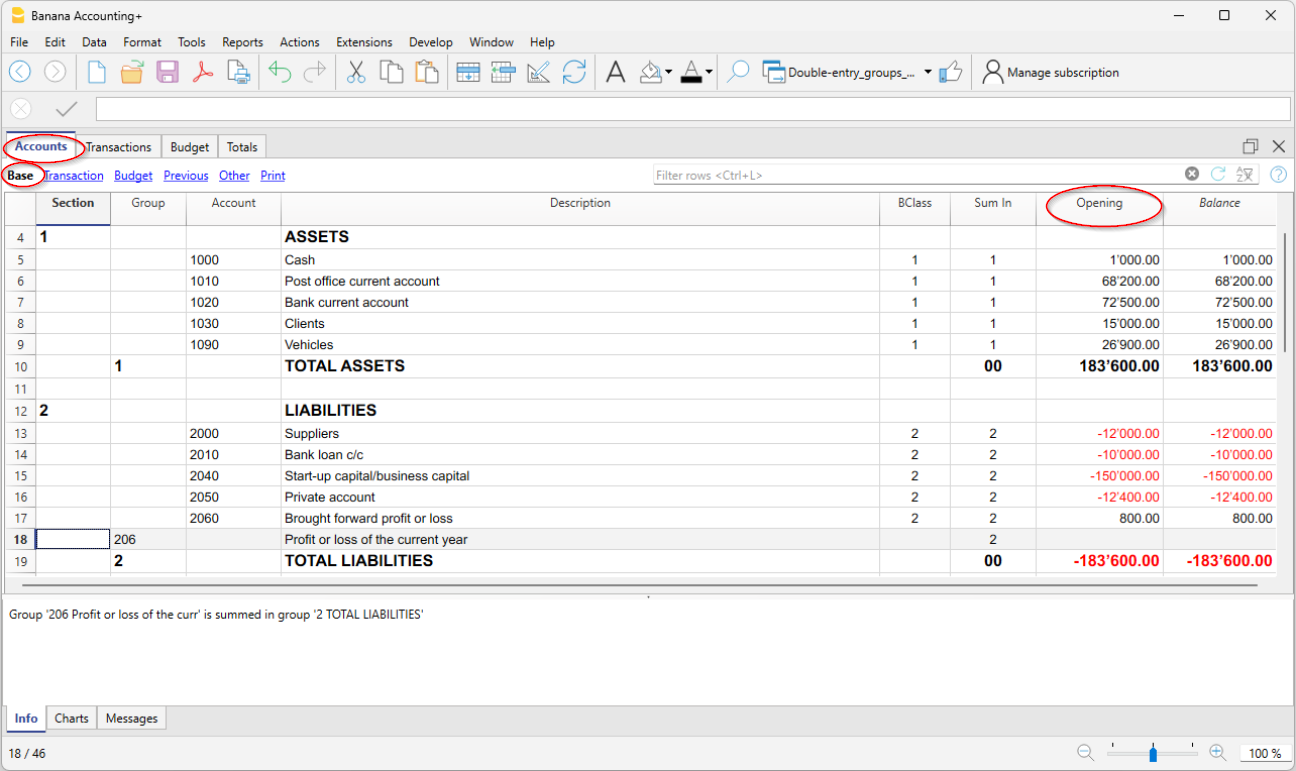
- Vai nella tabella Conti, vista Base, colonna Apertura.
- Inserisci i saldi iniziali:
- Attivi → importi positivi
- Passivi → importi negativi, inserendo il segno meno (-) davanti all'importo.
- Verifica che la somma dei saldi iniziali sia uguale a zero.
Il totale degli Attivi deve quindi corrispondere al totale dei Passivi, considerando questi ultimi con segno negativo.
Per maggiori informazioni sull'uso degli importi positivi e negativi, consulta Matematica della partita doppia.
Verificare la quadratura dei saldi iniziali
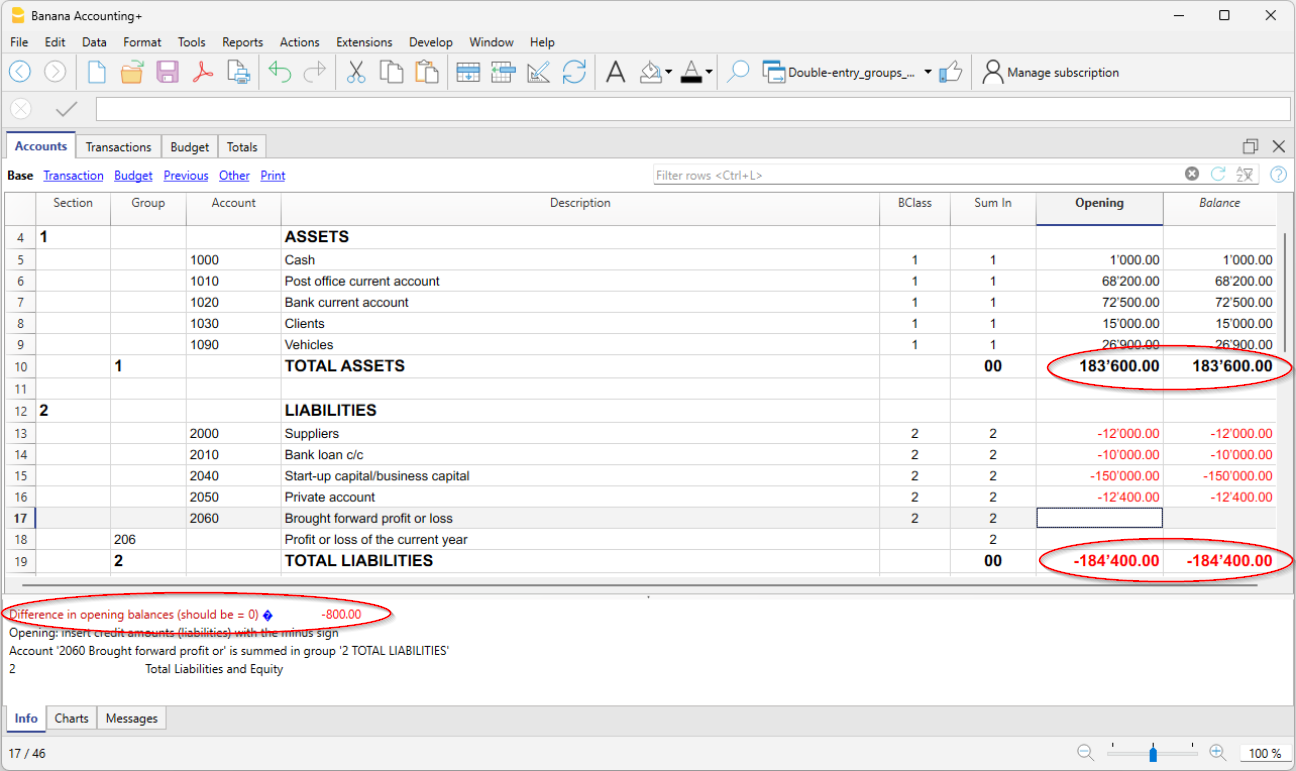
All'apertura dell'anno contabile, il totale dei conti degli Attivi, inseriti con segno positivo, deve compensarsi con il totale dei conti dei Passivi, inseriti con segno negativo.
Se la somma dei saldi iniziali non è uguale a zero, la contabilità non è in quadratura e Banana Contabilità segnala il messaggio Differenza nei saldi iniziali nella finestra informativa.
In questo caso verifica gli importi inseriti e correggi i saldi fino a quando la differenza non viene eliminata.
Per maggiori informazioni sulle possibili cause e sulle relative soluzioni consulta:
Saldi iniziali di Centri di costo
Nella tabella Conti, la colonna Apertura può essere usata anche per inserire i saldi iniziali dei Centri di costo.
Saldi iniziali per i Segmenti
Per inserire i saldi iniziali dei segmenti, si devono invece effettuare delle registrazioni di apertura.
Maggiori dettagli sono disponibili alla pagina Segmenti.
Iniziare una contabilità già in corso
Se inizi a utilizzare Banana Contabilità quando l'anno contabile è già iniziato e devi riprendere i dati gestiti precedentemente con un altro programma, puoi procedere in due modi.
Riprendere la contabilità dall'inizio dell'anno.
Puoi ricostruire la contabilità completa a partire dall'inizio dell'anno.
In questo caso:
- Inserisci nella tabella Conti, colonna Apertura, i saldi di apertura all'inizio dell'anno.
- Inserisci nella tabella Registrazioni i movimenti già registrati nel precedente programma.
- Prosegui quindi con le nuove registrazioni direttamente in Banana Contabilità.
In questo modo disponi di tutti i movimenti dell'anno contabile in un unico file.
Per maggiori informazioni consulta Ripresa dati da altri programmi.
Inserire i saldi iniziali come registrazioni di apertura
In alternativa alla colonna Apertura della tabella Conti, i saldi iniziali possono essere inseriti anche come registrazioni di apertura nella tabella Registrazioni.
Per ogni registrazione di apertura:
- indica come data la data di inizio della contabilità
- nella colonna TipoDoc, inserisci il codice 01.
Se la colonna non è visibile, attivala dal menu Dati > Disponi colonne. - indica il conto in Dare o in Avere
- inserisci l'importo.
Il totale dei saldi di apertura registrati in Dare deve compensarsi con il totale di quelli registrati in Avere.
I saldi di apertura inseriti come registrazioni vengono utilizzati nella preparazione dei report.
Il saldo di apertura derivante dalle registrazioni viene sommato all'eventuale importo inserito nella colonna Apertura della tabella Conti.
Saldi dell'anno precedente
I saldi dell'anno precedente sono distinti dai saldi iniziali.
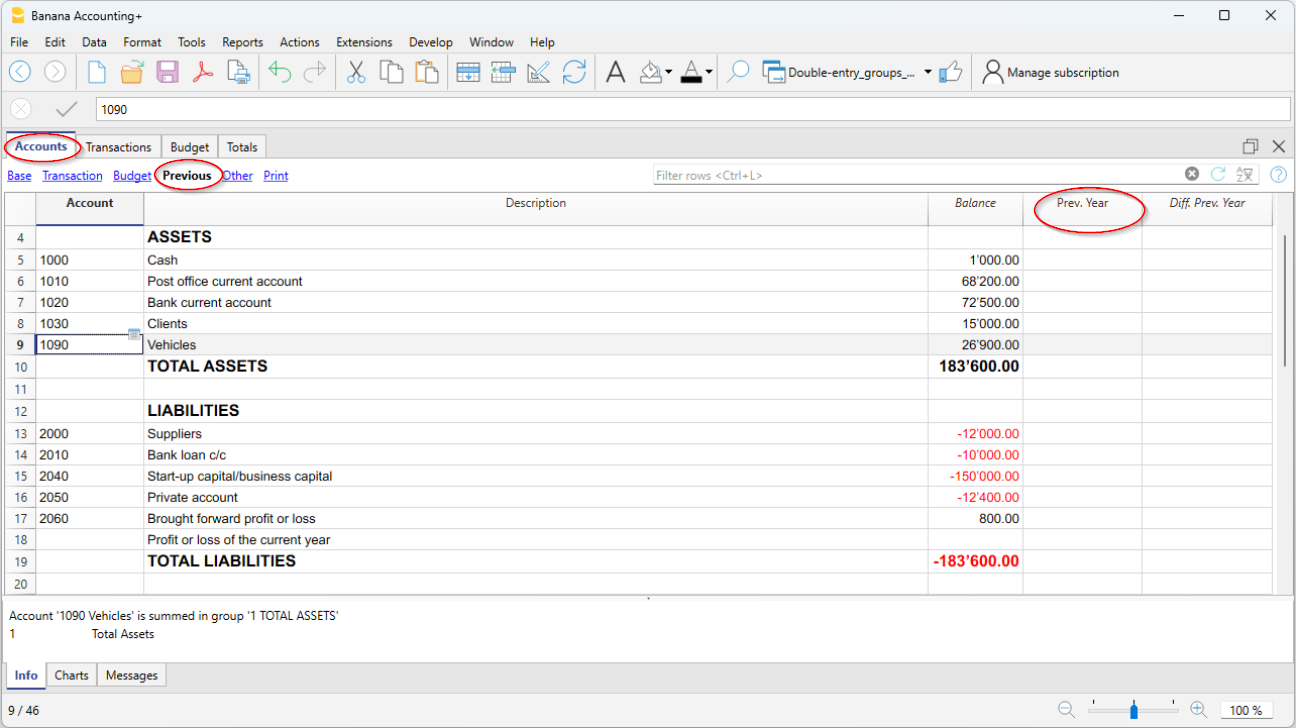
Se inizi una nuova contabilità riprendendo una contabilità esistente e vuoi visualizzare nelle stampe anche i valori dell'anno precedente, inserisci i relativi saldi finali nella tabella Conti, vista Precedente, colonna Precedente.
Inserisci:
- i saldi finali dei conti Attivi
- i saldi finali dei conti Passivi, con segno negativo
- i saldi finali dei Costi
- i saldi finali dei Ricavi, con segno negativo.
Questi valori permettono di disporre dei dati dell'anno precedente nelle stampe comparative.
Riprendere i saldi iniziali dall'anno precedente
Quando passi al nuovo anno contabile, Banana Contabilità può riportare automaticamente i saldi di apertura nel nuovo file.
La procedura consigliata è utilizzare il comando Crea nuovo anno.
Se la contabilità del nuovo anno è già stata creata, puoi utilizzare il comando Aggiorna saldi iniziali.
Se necessario, i saldi di apertura possono anche essere modificati manualmente nella colonna Apertura della tabella Conti.
Dopo ogni modifica verifica che i saldi iniziali siano ancora in quadratura.
Modificare il saldo di apertura di un conto
La scheda conto viene generata automaticamente e non è possibile inserire o modificare direttamente il saldo di apertura dalla scheda conto.
Per modificare un saldo di apertura devi intervenire nella tabella Conti, colonna Apertura.
Se invece devi correggere un movimento contabile, modifica la relativa registrazione nella tabella Registrazioni.
Correggere il riporto dei saldi iniziali del Conto economico
Se per errore sono stati riportati nel nuovo anno anche i saldi iniziali dei conti del Conto economico, puoi correggere la situazione in due modi:
Eliminare manualmente i saldi
Vai nella tabella Conti, colonna Apertura, seleziona i saldi iniziali dei conti del Conto economico e cancellali.
Ripetere l'aggiornamento dei saldi iniziali
Dal menu Azioni > Aggiorna saldi iniziali, seleziona il file dell'anno precedente.
Nella finestra di dialogo Riporta saldi a nuovo, disattiva la casella relativa al Conto economico per evitare il riporto dei relativi saldi nel nuovo anno.
Stampare i saldi iniziali
Per stampare i saldi iniziali hai due modalità:
- per stampare direttamente il contenuto della tabella usa il comando Stampa/Anteprima, selezionando le righe del Bilancio
puoi utilizzare anche le Stampe contabili, impostando la stampa sulla parte relativa al Bilancio e sulla colonna Apertura.