In this article
Opening balances are the values with which the accounting starts when you create a new file or begin a new accounting year.
They represent the financial position at the beginning of the year or accounting period:
- What you own: cash on hand and at the bank, assets and receivables.
- What you owe: debts, loans and taxes payable.
- Equity: the difference between what you own and what you owe.
Opening balances when you create a file for the first time
The first time you use Banana Accounting or create a new file, the opening balances must be entered manually.
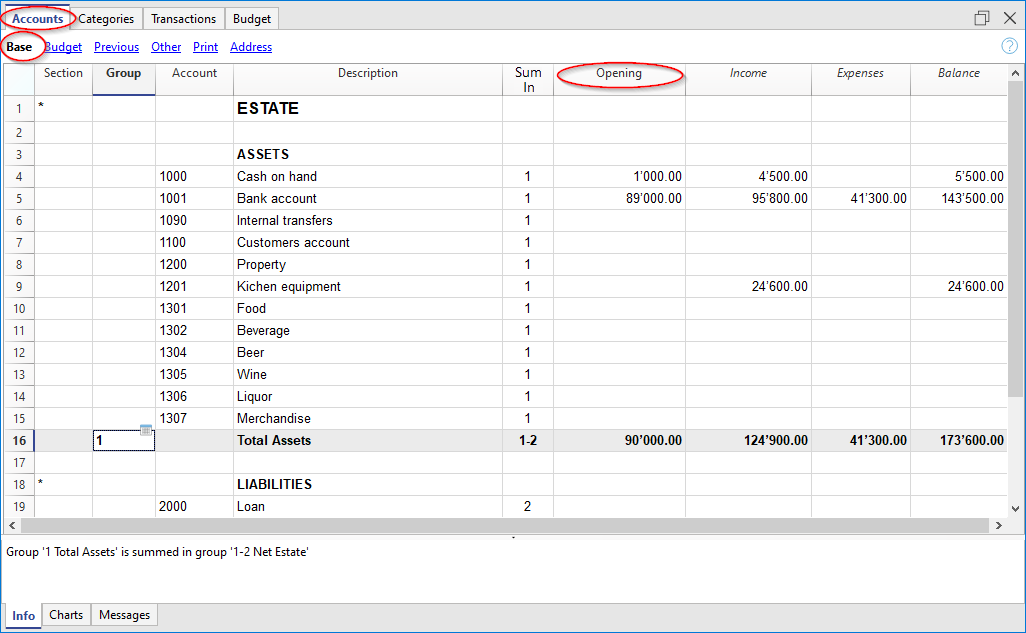
In the Accounts table, Opening column:
- enter the amounts of accounts with a positive balance as usual;
- enter the amounts of accounts with a negative balance, such as debts and other liability accounts, with a minus sign (-).
In subsequent years, you do not need to enter these values manually again. When you use the Actions > Create new year command, Banana Accounting automatically carries the balances forward to the new file.
Start using Banana Accounting during the year
If you start using Banana Accounting during the year and need to transfer accounting data already managed with another program, you can proceed in two ways.
1. Resume accounting from the beginning of the year
In this case:
- in the Accounts table, Opening column, enter the balances you had at the beginning of the year
- in the Transactions table, also enter all transactions already recorded during the year with the previous program.
This way, you will have all the data for the year in a single file.
To transfer the data, you can use copy and paste or see the Retrieving data from other programs page.
2. Resume accounting from a date during the year
If you prefer to start recording in Banana Accounting from the date on which you switch:
- in the Accounts table, Opening column, enter the account balances as of the date you switch
- in the Categories table, enter the balances accumulated up to that date:
- Income as a positive amount
- Expenses as a negative amount.
- in the Transactions table, enter only the new transactions from the date you switch onward.
This way, Banana Accounting also takes into account the values accumulated before switching to the new file.
Previous year balances
If you start a new accounting file by transferring an existing accounting file and want to display the previous year's values in the reports as well, you must enter the closing balances from the previous year.
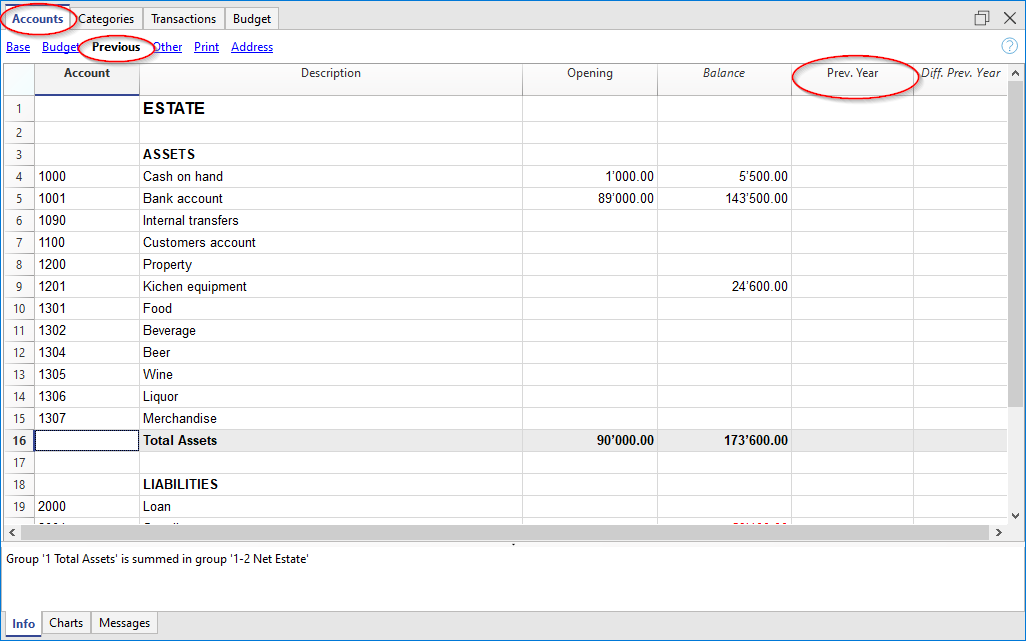
In the Accounts and Categories tables, switch to the Previous view and enter the values in the Previous year column.
Enter the amounts as follows:
- balance sheet accounts with a positive balance → positive amount
- balance sheet accounts with a negative balance → negative amount
- Income categories → positive amount
- Expense categories → negative amount.
These values are used in the reports to compare the current year with the previous year.
Create a new year
To move to the next year:
- choose Actions > Create new year
- save the new file with a name that makes it easy to identify, for example Accounting 2026.
Banana Accounting automatically carries forward to the new file the balances needed to start the new year.
For more information, see the Create new year page.
Print opening balances
You can print the opening balances in two ways:
- Print/Preview → print the Accounts table, selecting only the rows of the Opening column.
- Accounting reports → set the Statement printout to display the Opening column.