收益 & 费用核算
简单实用的专业会计核算
收益 & 费用核算非常直观且易于使用,因为可以将业务变动作为收入和费用输入在程序中。无需任何会计培训,所有人都可以使用它。
它是管理小型公司,协会,独资企业会计,项目或财产的理想辅助工具。
从技术层面上来讲,因为该程序使用了复式记账的理念,所以其结果是非常专业的。 因此,它具有与复式记账相同的功能,例如资产负债表和损益表,账目表,增值税管理,成本和利润中心,部门。无法以多种货币保留账户。 账户,增值税管理,成本和利润中心,细分。 无法为账户保留多个币种。
要查找收益 & 费用核算的所有功能,请单击下一页: 特点。
与复式记账相比的异同
为了使其使用起来更轻松,更直观,已在以下的两个表格内构建了账户表。
- 资产负债表 (账户表):
- 资产负债表显示在账户表中。
- 资产显示为正,债务显示为负。
- 股东权益按资产与承诺之间的差额计算。
- 费用和收入账户 (科目表)
- 科目表显示费用项目(负)和收入项目(正)。
- 盈亏计算为正值与负值之差。
输入发生业务时,必须指示出进出的金额,出入的账户和科目。该金额已过账到指定的账户。 在类别列中,您可以输入科目或账户:
- 如果在科目列中指示了科目,金额则将被作为收入和支出输入到科目中。
- 如果在科目列中指示一个账户,该金额将被反向记录 (符号被反转),如果其是正向的,则为正。这样,可以在两个资产负债表之间进行交易。
- 但是,一次登记不可能在两个科目之间进行分配。
您必须使用两条登记行,而不使用账户列,第一行进入,第二行退出。
即时信息
在输入收入和支出的相关信息及数据后,在账户及科目表中会立即显示出账户余额。
在每次输入相关的发生业务后,余额将自动调整,您不需要特定的报告即可查看帐户概览,您可以通过账户表和科目表内的选项进行调用。
与复式记账相似的主题
命令
打印
开始收益 & 费用核算
对于那些没有太多会计知识的人来说,完整而专业的,类似于Excel的Banana财务会计软件是最完美的选择。您可以随时进行编辑,并获得完美无瑕的效果。
观看视频:▶ 收益 & 费用核算的视频,视频教程向您展示如何创建一个新的收入/支出账户,调整账目表、科目、设置预算、输入发生业务和打印报表。
创建一个会计文件,从一个在线模板开始
Banana财务会计+ 内有很多的实用模板,按国家和类别进行细分。可以从程序中直接打开,点击文件菜单中的新建命令,或者从我们网站的模板页面下载。
下面从程序中的模板开始解释启动过程:
- 点击文件菜单 → 新建命令。
- 选择地区,类别和记账的类型。
- 从在线模板列表中选择最接近于您需求的模板。
- 点击创建的按钮。
在搜索栏中输入一个关键词,程序将会显示含有关键词的模板。
也可以通过激活空文件选项来创建一个空白文件。无论如何,为了便于启动和避免分组错误,我们建议始终从一个现有的模板开始。
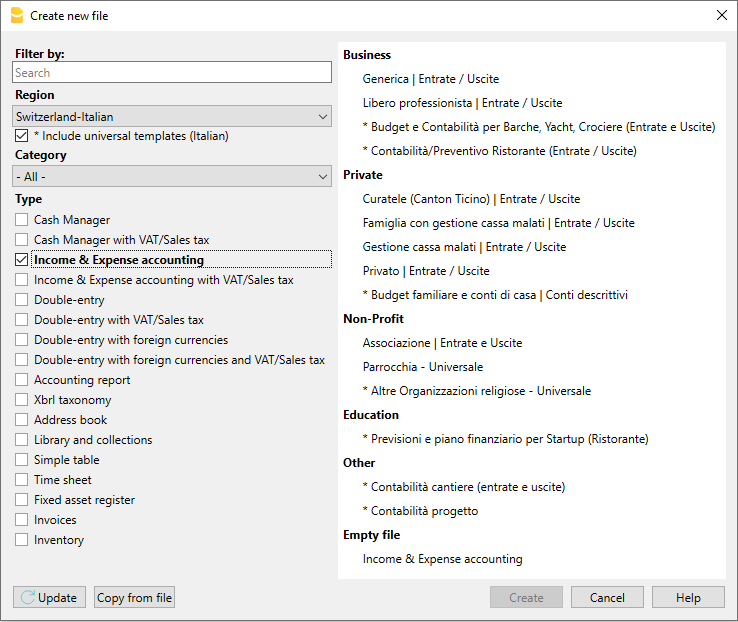
更多的关于创建一个新文件的信息 ,请参见创建新文件页面。
设置文件属性
从文件菜单中的文件和账户属性窗口中输入基本的数据并使用自己的文件名保存。

保存到磁盘
点击文件菜单 → 另存为的命令, 保存数据并给这个文件命名。操作系统会出现一个保存对话框。
- 建议使用公司名称及年份 ”公司-2018” 为文件名,将其与其它会计文件相区分。
- 可以根据需要保存多个会计文件,每个会计文件都可以独立命名。
- 您可以选择路径和支持 (保存到磁盘、U盘或云端)。
如果还希望将文档链接到当前年度的账户,则建议您为每个会计年度创建一个单独的目录,以便对所有文件进行分组。也请参见组织文件的页面。
自定义账户表
在账户表中,可以根据自己的需求来自定义科目。
- 可以更改账号
- 可以更改摘要
- 需要在期初列输入期初余额
应付账款的期初余额必须在金额前加上负号。
此操作只需要在第一次使用Banana财务会计软件时设置,以后每个会计年末创建新的一年 (操作菜单,年度账结转的命令),期初余额将会自动结转。

自定义科目表
在科目表中,自定义收益 (利润/总收入) 和费用 (费用/成本) 的科目。
科目的代码和摘要可以被修改。
为了确保会计年度核算的正确性,科目类不能包含初期余额。

发生业务表
在发生业务表内输入日常的收入与费用发生业务,并指明相关账户和科目的代码。
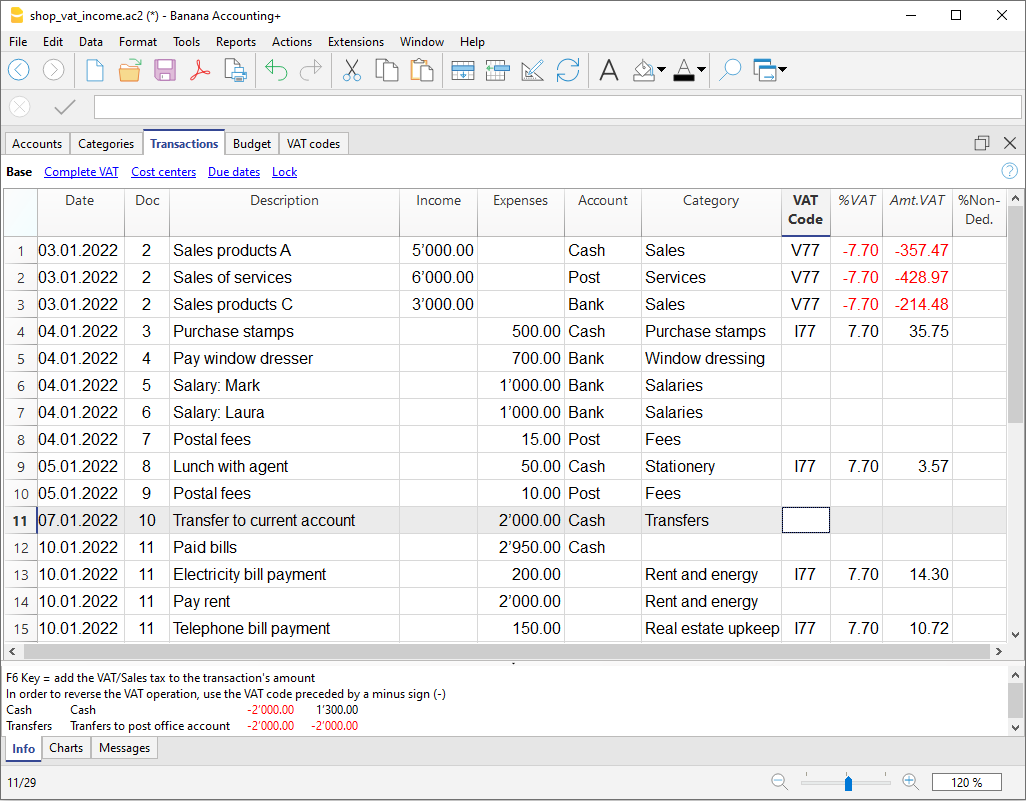
发生业务表中的列:
- 输入日期。
- 输入记账凭证号,便于查找输入的会计发生业务。
- 输入摘要。
- 在收入列输入收入的金额。
- 在支出列输入费用的金额。
- 在账户列输入账户代码 (它必须是账户表中现有的账户,例如:银行)。
- 在科目列输入费用和收入科目 (它必须是科目表中现有的科目)。
提高输入发生业务的速度
为了提高输入发生业务的速度,可以使用:
含有增值税的发生业务
为了输入含有增值税的发生业务,请按以下步骤进行:

多行发生业务
多行发生业务或发生业务类型是涉及两个以上账户和多个账户或科目的借/贷方 (例如,当用户从一个银行账户支付不同的账单)。在这种情况下,需要在多行中输入发生业务。
- 在第一行的借或贷方输入收入或支出的总金额。
- 随后的每一行中,在科目列输入收入或支出金额并输入相对应科目代码.
在不同的行输入每个单独的金额。所有单独的收入和支出被输入后,差额应当为零。 - 如果您已经添加了余额列,就会立即看到,随着您的操作差额会逐渐减少,直到您完成多行发生业务时结束。

账户明细
账户明细可以生成与同一账户或同一组相关的发生业务列表。
- 要打开账户明细,请在账户代码的单元格上单击一次,然后单击单元格右上角出现的蓝色小箭头
- 要打开多个账户明细,必须在报表菜单下选择账户明细命令
- 如果要同步发生业务表里的改变来更新账户明细,必须单击位于账户明细右上方的两个圆形箭头符号

科目明细
科目明细可以生成与同一科目相关的发生业务列表。
- 要打开科目明细,请在科目代码的单元格上单击一次,然后单击单元格右上角出现的蓝色小箭头。
- 要打开多个科目明细,必须在报表1菜单下选择科目明细命令。
- 如果要同步发生业务表里的改变来更新科目明细,必须单击位于科目明细右上方的两个圆形箭头符。

期间内的账户明细
要在选定的期间内打开一个含有余额的账户明细,请点击报表菜单 → 账户/科目明细的命令,并点击选择时间段,然后输入选定的期间。更多信息请参见时期的页面。
打印账户明细
要打印账户明细, 请从任意一个(账户或发生业务)表中打开,并选择文件菜单下的打印即可。
要打印多个或所有的账户明细,请点击报表菜单,选择账户/科目明细,并选择所需打印的账户。窗口中的过滤功能可以选择账户,成本中心,部门,组等自动选项。有关更多的信息,请参阅账户明细的页面。
生成报表
要浏览生成报表和按组生成报表,请选择报表菜单 → 生成报表或按组生成报表命令。也可以按时期获得报表。

以PDF格式存档数据
在年度末,对会计数据进行更正和修改并结账后,可以从文件菜单下把所有的会计数据以创建 PDF 档案的命令来存储。
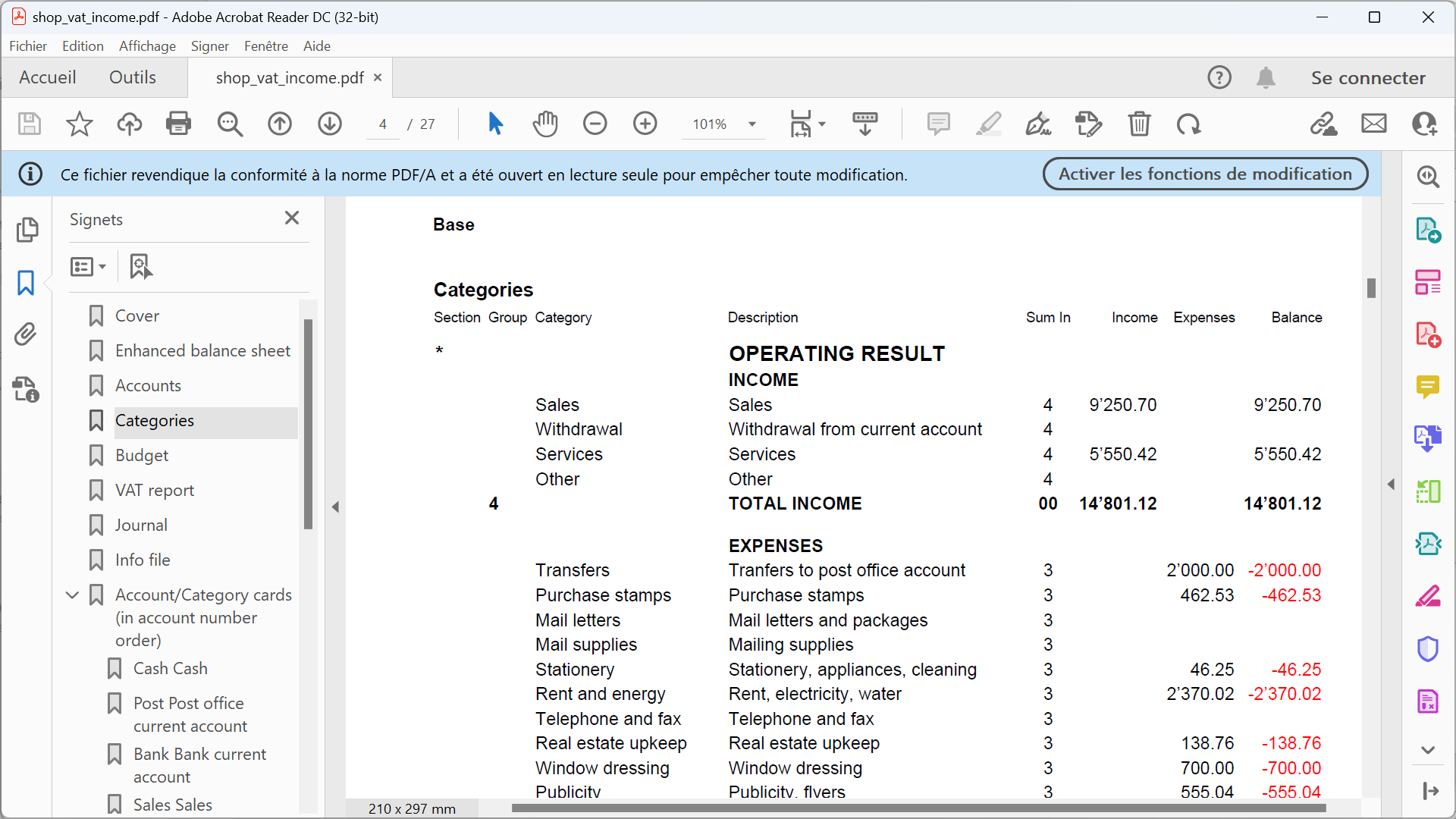
预算
在开始新的会计年度之前,用户可以根据假定的费用和收入来创建一个预算表,以便掌控公司的财务和经济状况。
预算表可以通过两种不同的方式来设置:
- 从科目表的预算列。 每个账户的年度预算都会显示。
在这种情况下, 当用户从报表菜单中处理预算时,按组生成报表命令, 预算列显示与整年相关的数据。 - 需要使用工具栏菜单下的添加新功能命令来手动激活预算表 。
在预算表中,无论是收入还是费用,所有被输入的估价都是作为预算发生业务的。如果激活了这个表格,账户表中的预算列则会自动禁用。
考虑到年度和不同时期账户可能发生的变化,用户可以在预算表中设置一个详细的预算。
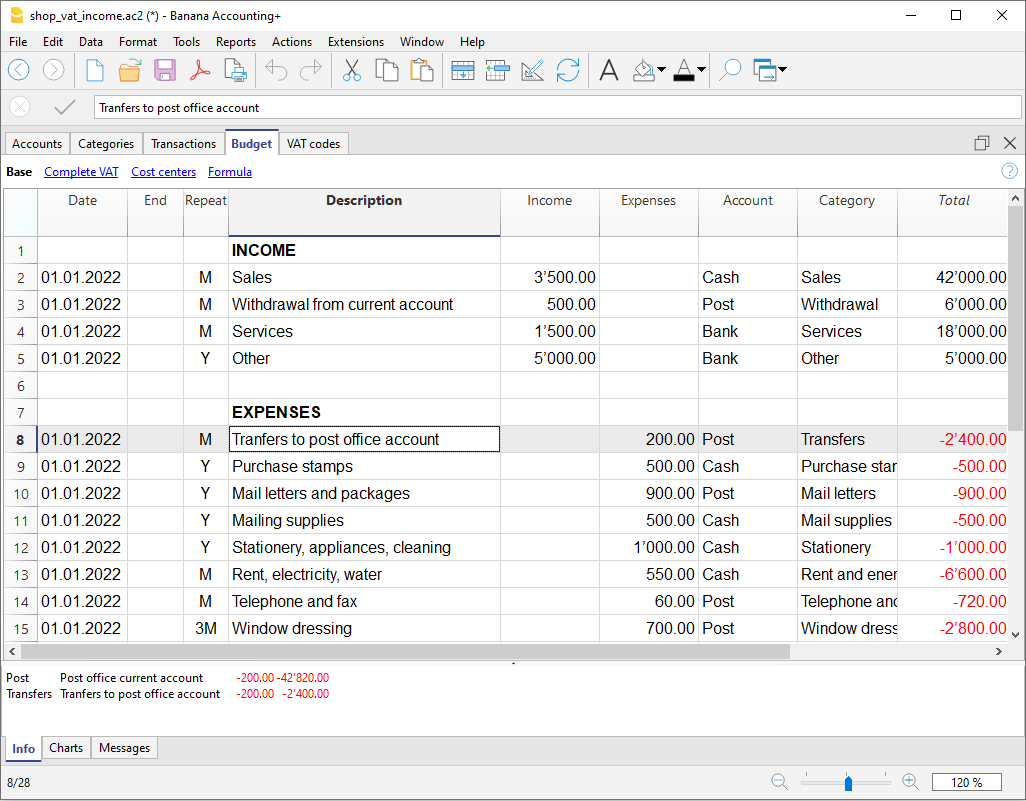
收益 & 费用核算的账户科目表
账户表格
在账户表中列出了资产负债表,以下是插入的内容:
- 资产负债表,包括任何客户、供应商账户。
- 组汇总。
关于分组制的详细内容,请参考复式记账总组的页面。 - 期初余额。
在账户表中还有账户余额、变动和预算。因此,可以即时、不断地更新财务状况概览。正资产显示为正数,负债显示为负数。
在下面的例子中,所有账户都归入账户表中的第1组内 (总资产)。资产账户与负债账户相加,差额将决定净财产。
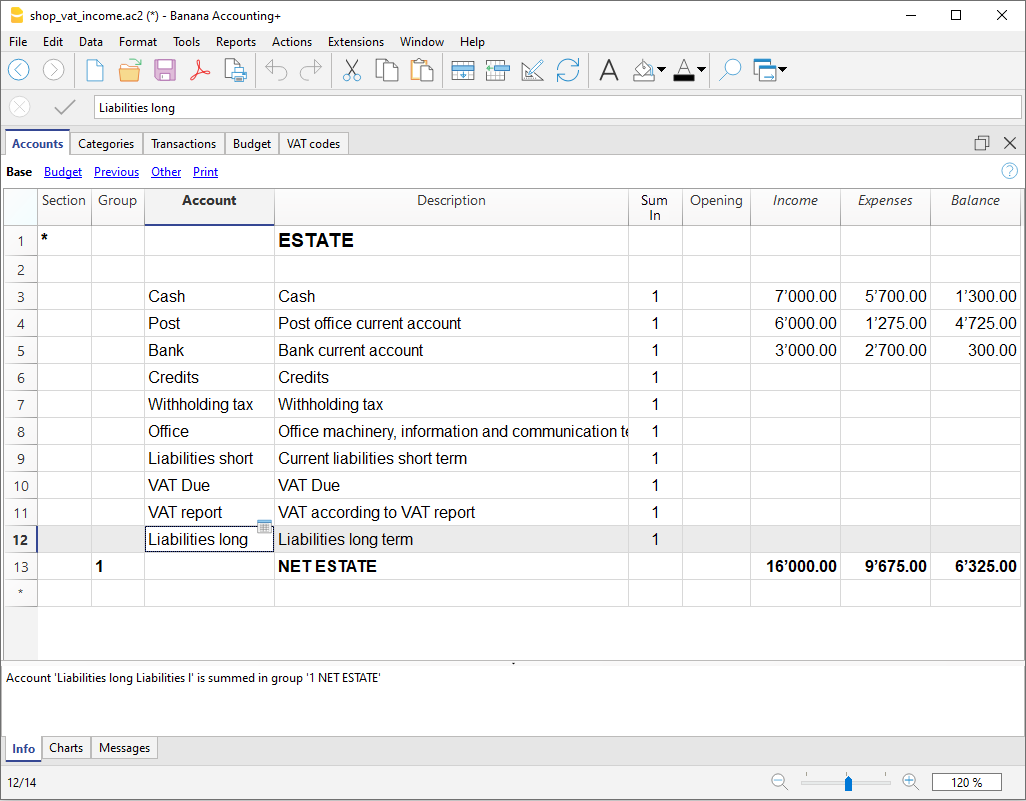
账户表格内的列:
科目表中主要的列如下所示。列的显示会根据所选择的视图而改变。
您可以通过数据菜单 → 列设置的命令来添加其它软件中已设置的列以及您所需的列。
类
用星号(*)来区分每个类。例如, 将总资产与成本中心区分开来。
必须将数值输入在类的表格内,用来显示包含组的生成报表。
点击阅读类的页面来获取更多的细节和信息。
总组
值被添加到拥有相同所属组的科目中。它们是总计的基础。
账户
输入要管理账户的号码或首字母 (现金,银行,邮局)。
摘要
输入相关账户的摘要。该摘要自动取自发生业务表的账户摘要列 (如果已显示的话)。
总和 (所属组)
表示一个组的代码,以便程序合计该组中的行的数量。
在 Banana财务会计+ 中使用“总和”作为在表格中显示的列标题。
列的名称仍为所属组,以保持与之前版本的兼容性。
期初
只有在打开新文件或第一次使用Banana财务会计软件的时候才需要输入账户余额。
当创建新的会计年度时,将自动生成余额。
收入
此锁定列显示收入条目的余额。余额将在每次注册后自动更新。
支出
此锁定列显示费用余额。余额将在每次注册后自动更新。
余额
此锁定列显示收入和费用后产生的余额。余额将在每次注册后自动更新。
类
账户和/或科目表中的类允许您通过报表 → 按组生成报表的命令来定义一组要打印的账户和科目。
- 这些科目在账户表和科目表的科目列中被指示
- *(星号)表示该部分的开头
- **(双星号)表示小节的开始。
- #表示注释部分的开始
- 一个部分在另一部分开始时结束
- 与复式记账不同,不能使用数字的部分
- 如果没有指定的类,第一次使用该命令时,程序会自动插入。
- 在账户表格的“资产负债表”中
- 在科目表的 "经营结果 "中
- 如果您有成本中心、部门,客户或供应商分类账,创建单独的部分是很有用的。
这样您可以只打印出您感兴趣的报告。
在按组生成资产负债表中账户和科目的设定
在对话框中,您可以设置如何打印账户和科目。

收益&费用核算的科目表
科目表
科目表显示了收支状况。
它们是自由设置的:
在下方示例中,有3个主要的组:
- 总组4 - 所属组列中有4的科目总计 (总收益)。
- 总组3 - 所属组列中有3的科目总计 (总费用)。
- 总组00 - 总组3和4的总计 (总收益和费用),决定了会计期间的结果。

科目表内的列:
科目表中主要的列如下所示。列的显示会根据所选择的视图而改变。
您可以通过数据菜单 → 列设置的命令来添加其它软件中已设置的列以及您所需的列。
类
在包含标题的行中输入一个星号(*),以表示类更改,该更改将显示在包含组的生成报表中。
(在我们的示例中,星号插入了“经营成果”标题行。)
在未计划收益和费用的不同类(例如成本和利润中心)中,可以在相应的标题行中输入另一个星号(*)。点击阅读类的页面来获取更多的细节和信息。
总组
在所属组列中输入与为每个科目输入的标识符相同的标识符(数字或符号)。然后,将属于同一个所属组的每个科目的总计相加(在我们的示例中,总组3总计收入科目,总组4总计费用科目)。
科目
输入收益和费用的科目号。
摘要
输入收益或费用相关科目的摘要。该摘要自动取自发生业务表的账户摘要列 (如果已显示的话)。
总和 (所属组)
表示一个组的代码,以便程序合计该组中的行的数量。
在 Banana财务会计+ 中使用“总和”作为在表格中显示的列标题。
列的名称仍为所属组,以保持与之前版本的兼容性。
每个科目都有一个标识符,可用于确定相关组的总计(在我们的示例中,所有收入科目均为总和(所属组)4,因为它们将在组4中总计,即总收益)。
收益
该锁定列显示收入分录的余额。每次登记后,余额都会自动更新。
费用
该锁定列显示了费用余额。每次登记后,余额都会自动更新。
余额
该锁定列显示扣除收入和费用后的余额。每次登记后,余额都会自动更新。
Speed up your transactions | Income/Expense accounting
In the Transactions table, to speed up data entry, you can use several automation functions.
Keyboard shortcuts
Keyboard shortcuts let you perform actions instantly, without opening menus or using the mouse.
They are a great way to save time and make your work smoother.
With keyboard shortcuts you can, for example:
- Copy and paste data.
- Quickly move between cells, columns, and tables.
- Insert the current date with one keystroke.
- Apply formatting such as bold text.
- and much more.
Data entry with auto-completion
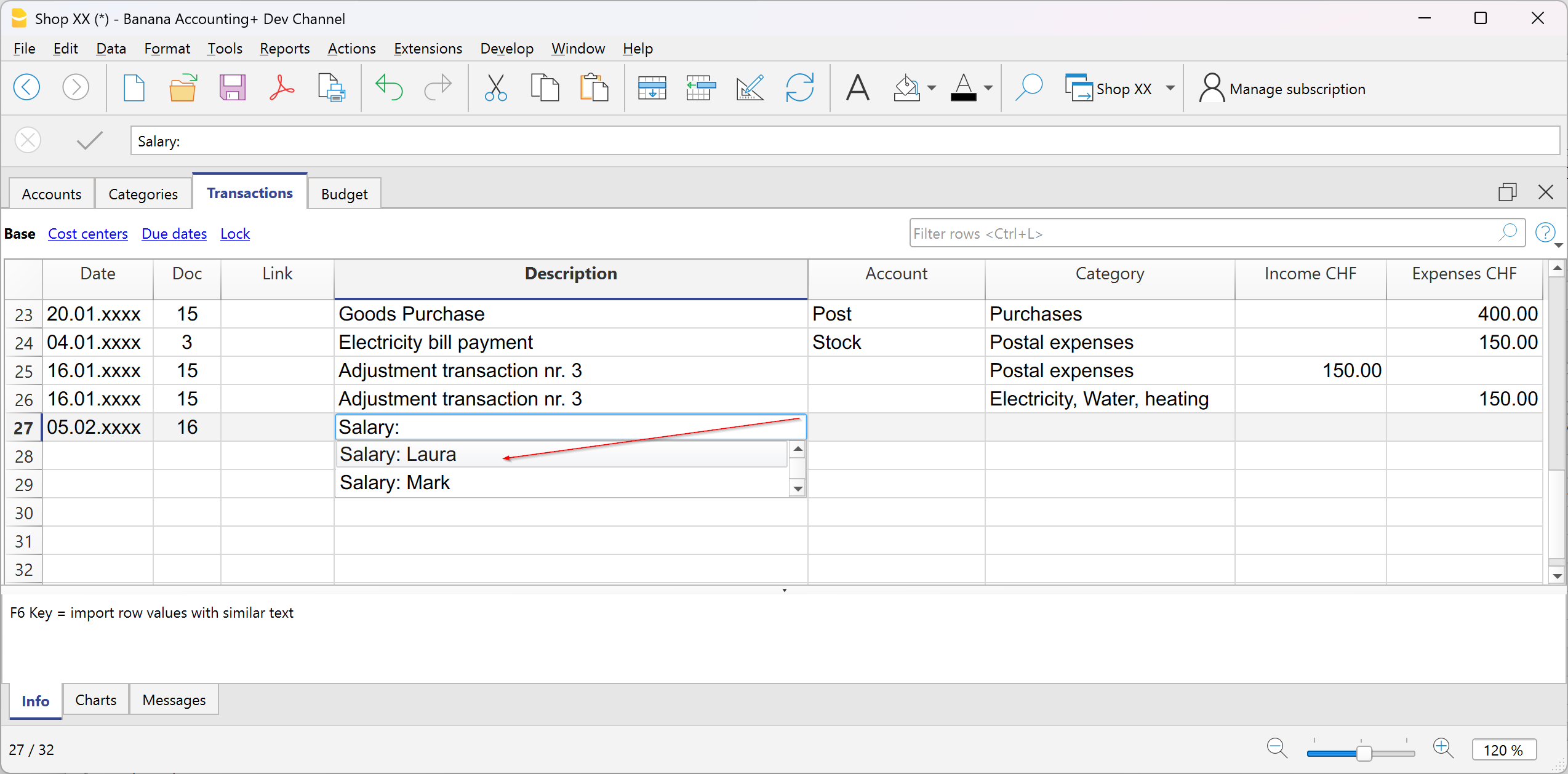
In the Transactions table, when you start typing in the Description column, the program suggests a list of previously entered transactions with the same text at the bottom of the window. If you want to reuse a previous transaction:
- Type the first letters of the description.
- Press F6.
- The transaction is automatically recalled: you just need to adjust the amount (if different) or any other necessary details.
This trick is very useful for repetitive operations, because it saves you from retyping everything each time.
Recurring transactions
In the Recurring transactions table you can save operations that are repeated during the year and reuse them when needed in the Transactions table.
More information can be found on the page:

Importing bank transactions
You can download your bank, credit card, or other account statements, as long as they are in a format compatible with Banana Accounting (csv, ISO 20022, ...), and import all the transactions into the Transactions table. This saves a lot of time and avoids errors.
More information about importing is available on the page:
Setting Rules in automatic import
Even with Income and Expense accounting, you can take advantage of the advanced Rules function to further automate your work.
With Import Rules you can automate the recording of repetitive transactions. For each imported transaction that you expect to recur, you can create a Rule, assigning not only the counterpart account (that is, the reason for the expense or income), but also other details such as cost center, VAT code, row color, and so on. This way, in subsequent imports, the program will automatically apply the Rule to the corresponding transactions, importing them already complete with all the information you have defined.
More information is available on the page:
Import bank transactions | Income/Expense accounting
Download the file with your transactions from your bank and import it directly into the Transactions table. The date, description, account, and amount will already be filled in; you will only need to assign the income or expense category.
Proceed as follows:
- Go to the Actions menu > Import into accounting.
- Select your bank. If you don’t see it in the list, click the button at the bottom left Manage extensions. Search for it and install it in the dialog window that opens, then return here.
- Select the format of the file downloaded from the bank, postal account, or credit card.
- Confirm with the OK button.
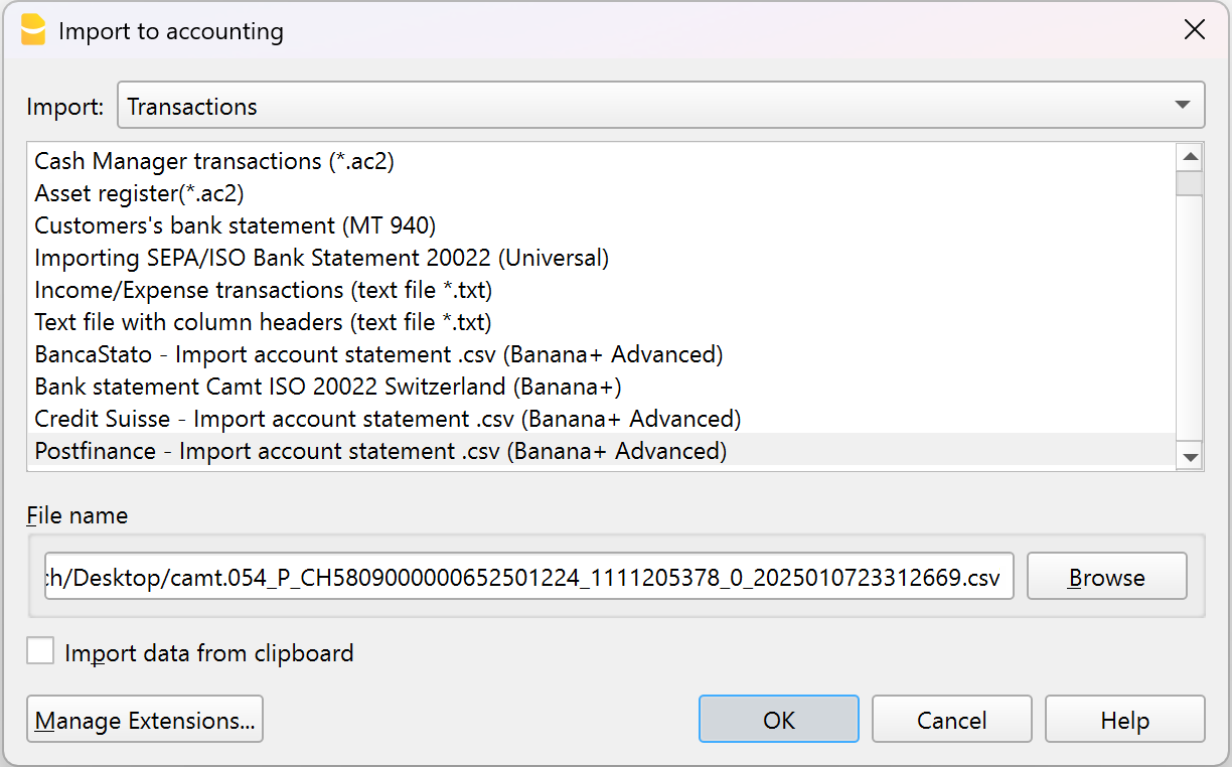
Standard formats such as ISO 20022 and .txt are available with the Professional plan, while bank-specific .csv files are included only in the Advanced plan.
Once you have selected the import file, the next dialog will appear:
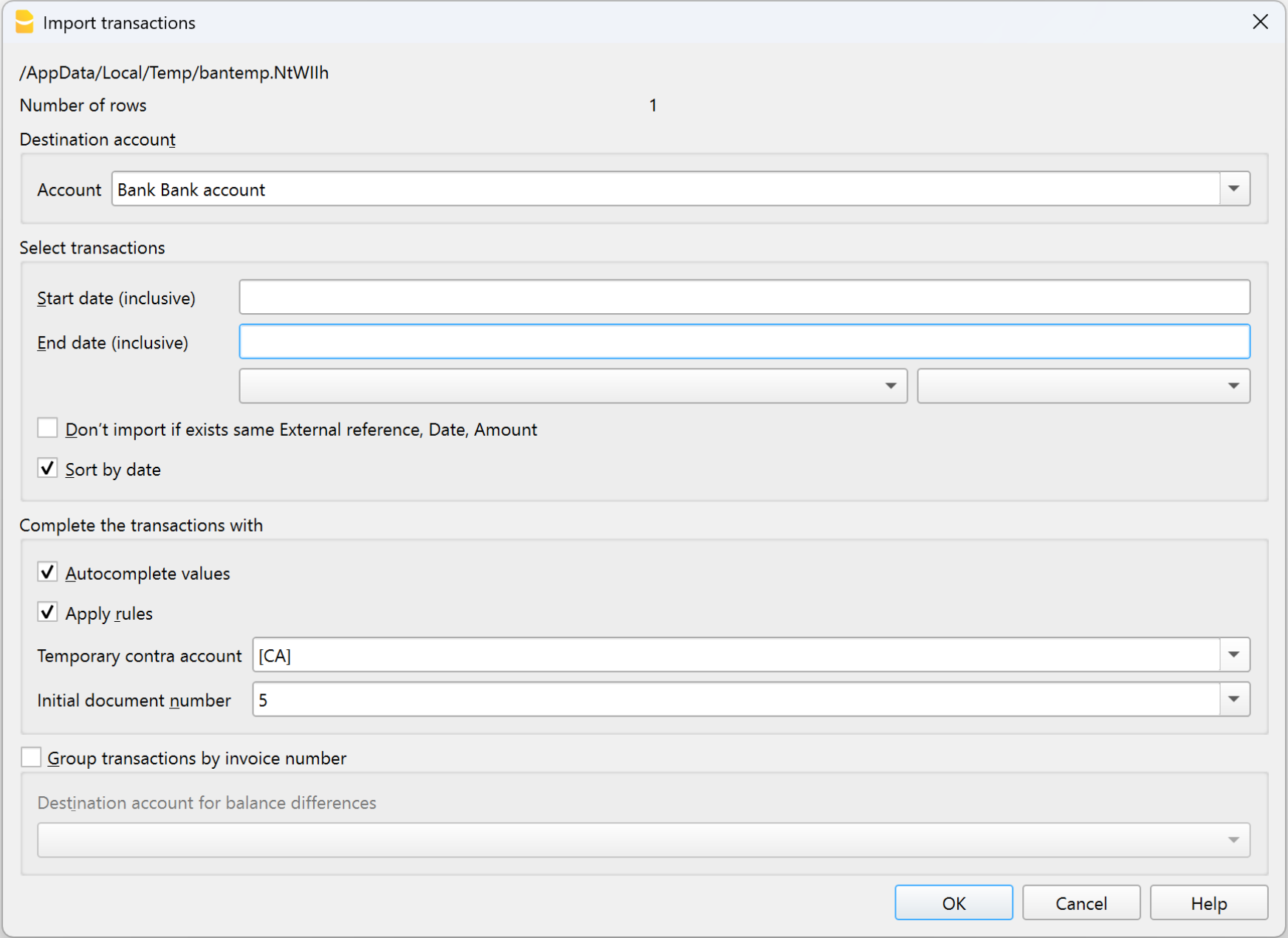
The program will import all transactions into the Transactions table: you will only need to enter the counterpart, any VAT code, cost centers, or segments.
From this dialog, you can also enable the Apply Rules option (available only in the Advanced plan) to further automate transaction entry.
More information about importing is available on the page:
Recurring transactions | Income/Expenses accounting
The Recurring transactions table allows you to save transactions that repeat during the year and automatically recall them in the Transactions table when needed. You can store, for example:
- Salaries
- Rents
- Subscriptions
- Periodic payments
How to save a recurring transaction
- Go to the Transactions table.
- Select one or more transactions that are repeated.
- Copy them (Ctrl+C).
- Paste them into the Recurring transactions table (Ctrl+V).
In the Recurring transactions table you can also manually enter the transactions that are repeated during the year.
How to recall a recurring transaction
- In the Transactions table, place the cursor on the row where you want to insert it.
- Double-click in the Doc column: a list of saved transaction codes will appear.
- Select the code of the transaction you want to use.
- Press Enter.
The program automatically inserts all the transaction data: you only need to update the amount or date if necessary.
Advantage: with this method you avoid rewriting identical operations each time, saving time and reducing the risk of errors.
More information is available on the page:
Rules for automatic completion of imported transactions | Income/Expenses accounting
Even with Income and Expense accounting, you can take advantage of the advanced Auto-completion Rules for imported transactions to further automate your work. Rules are available only in the Advanced plan of Banana Accounting Plus.
With Rules you can automate the recording of recurring transactions. For each imported transaction that you expect to recur, you can create a Rule, assigning not only the counterpart account (i.e. the reason for the expense or income), but also other details such as cost center, VAT code, row color, and so on. This way, in future imports, the program will automatically apply the Rule to the corresponding transactions, importing them already complete with all the information you have defined.
You can set up Rules:
- from the Transactions table
- from the Apply Rules dialog
- from the Recurring transactions table
Below we explain how to set up Rules from the Transactions table
Rules from the Transactions table
In the Transactions table you can use already imported and completed recurring transactions to create Rules.
- Select the imported transactions (after completing counterpart, VAT if applicable, cost centers, and segments).
- Right-click and choose Create rules from selection from the menu that appears.
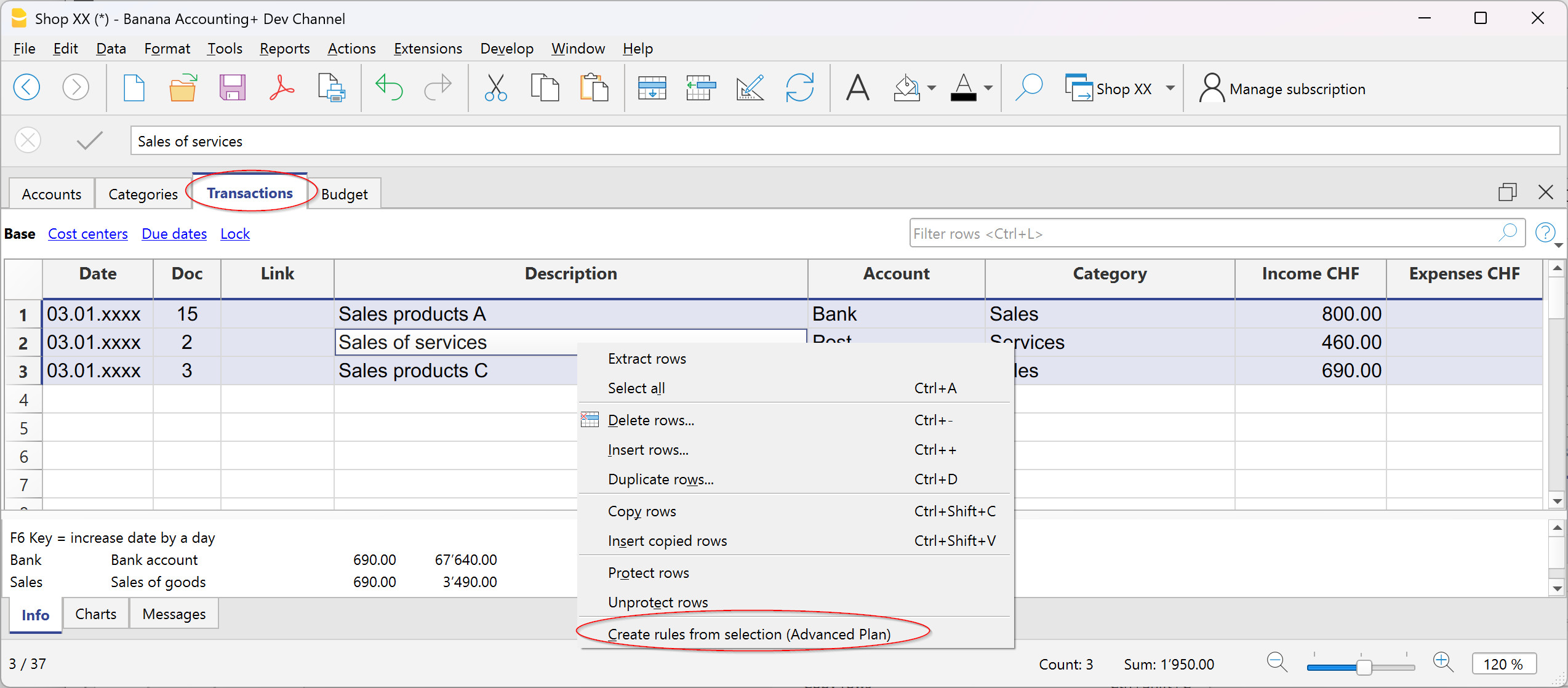
Transactions with rules are saved in the Recurring transactions table and can be identified in the Doc column by the “!Rule” identifier.
By saving rules complete with all details, at the next data import from the bank or postal statement, the program will insert the transactions automatically completing the counterpart and all the other stored elements. The amount is updated based on the latest import.
In the Recurring transactions table you can edit rule-based transactions at any time:
- add more transactions with rules
- delete transactions with rules that are no longer needed
- modify rules of already existing transactions
Rules from the Apply Rules dialog
Rules can also be set at the moment when transactions are imported from the bank statement or other statements through the Apply Rules dialog.

More information is available on the following pages:
The indicated pages use double-entry accounting files as examples, but the principles are the same for income/expense accounting.
Rules from the Recurring transactions table
This procedure requires manually entering recurring transactions directly in the Recurring transactions table before recording the transactions in the Transactions table.
To follow this procedure, see the information on the following page:
The indicated page uses double-entry accounting files as examples, but the principles are the same for income/expense accounting.
Customising Accounts and Categories | Income/Expense accounting
All Banana Accounting templates already include the Accounts and Categories tables, with all the essential items to manage your accounting. However, if you want to adapt the chart of accounts to your business, you can easily customize these tables.
Customize Accounts
The Accounts table contains the items that represent what you own (assets) and what you owe (liabilities).
You can modify it as you wish:
- Change account descriptions
Example: in the Bank account row, enter the name of your bank (e.g. UBS Bank).
Add new accounts
If you have multiple bank accounts, add a new row and enter the bank name.
The same applies to customers and suppliers: you can create a separate account for each one, with the corresponding description. - Change account numbers
If the template uses numbers, you can replace them with descriptive names or assign different numbering. - Remove unused accounts
If you don’t need them, simply delete the corresponding row.
Customize the Categories table
The Categories table contains the reasons for your income (revenues) and expenses.
You can also freely adapt the items here:
- Change category descriptions
Example: instead of Sales, you can write Retail sales or Sales to resellers. - Add new categories
Insert a new row and define the item you need. - Change category numbers
You can replace numbers with descriptive names or assign new ones. - Remove unused categories
If you don’t need them, delete the row.
Advanced customization
As your business grows, you might need more detailed information. With Banana, you can expand the structure by adding:
- New total groups (subtotals), to get more homogeneous breakdowns.
- Customer and Supplier ledgers, to monitor each balance.
- Cost and profit centers, to analyze expenses and revenues.
- Segments, to differentiate sales or costs by area, sector, or project.
- Project management, to monitor specific activities.
- Invoicing and reminders features, if you want to issue invoices and manage reminders.
Example of customization in the Accounts table
In the following example, we explain how to add the Liquidity group in the Accounts table. This group allows you to see the total liquidity, separate from other amounts.
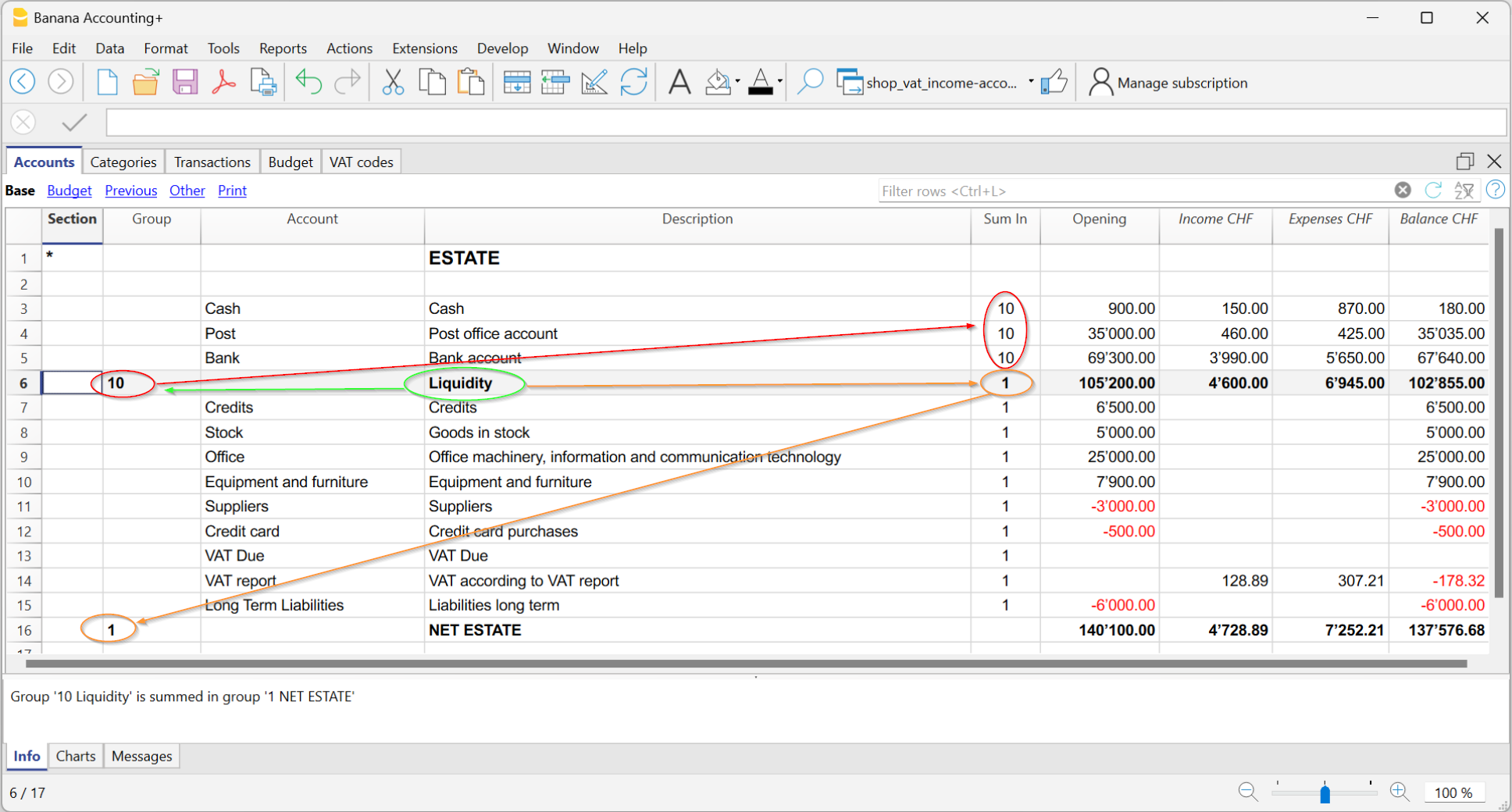
You can create a total group to sum the accounts related to liquidity (cash, postal account, bank).
- Add a new row below the bank accounts.
- In the Group column, enter the code 10 (new group).
- In the Sum in column of the Cash, Postal, and Bank rows, write 10.
This way, they will all flow into Group 10. - In the Sum in column of the Liquidity row (Group 10), write 1 so the total flows into Group 1 – Equity.
Result: a new "Liquidity" subtotal separate from other amounts.
You can also find information on the pages:
在收益&费用核算中的期初余额
当您开始使用 Banana财务会计软件时的期初余额
在第一次使用Banana财务会计软件创建新文件的时候,必须在账户表的期初列中手动输入期初余额。
- 对于资产负债表的正数金额 (现金、银行、客户、家具等) 必须正常填入期初列。
- 对于资产负债表的负数金额 (应付账款、贷款等) 必须在期初列金额前填入负号。
当您移动至新年的时候,使用年度账结转的命令,Banana财务会计软件会自动在账户表中报告所有的期初余额。

在一年内开始使用Banana财务会计软件
如果您要开始新的会计工作,接管了由其它软件程序已经完成的工作,您会有两种可能性:
- 通过输入年初的期初余额 (账户表,期初列) 和之前已经在其它程序中记录的发生业务 (发生业务表),从年初开始进行会计核算 (可参见从其它会计软件传输数据的页面)。这样,您将在一个文件中拥有所有的会计细节。
- 从恢复核算之日算起:
- 输入期初余额 (账户表,期初列),承接其它会计的数值。
除了在账户表中填入资产负债表的期初余额外,还需要在科目表中填入收入(正) 和支出 (负) 的余额。 - 在发生业务表中输入新的业务。
- 输入期初余额 (账户表,期初列),承接其它会计的数值。
前一年的余额
如果您通过接管现有的会计核算来开始新的会计工作,并希望在打印输出中出现上一年的数值,则需要在账户表的上期表格内的上年列中输入上一年的余额。
- 输入上一年度资产负债表的期末正余额。
- 输入上一年度资产负债表的期末负余额 (在金额前加负号)。
- 输入去年收入的期末余额。
- 输入上一年度支出的最终余额 (在金额前加负号)。

创造新的一年
当您开始新的一年时,程序会自动转入下一年的期初余额。
请参考年度账结转的页面。
打印期初余额
要打印期初余额:
- 要打印表格的内容,请使用打印/预览命令,通过选择账户表中的行。
- 您也可以使用会计核算的打印输出,设置只打印资产负债表的部分和期初列。
收益 & 费用核算的发生业务
发生业务表
在发生业务表中输入发生业务。
对于每项发生业务,请您输入日期,文件编码, 摘要,收入和支出的金额,以及科目。
- 收入/支出: 进入或支出的金额。
- 账户: 输入其中之一的账户 (现金,银行,邮局,客户,供应商...)。
- 科目: 输入一个收入或支出的科目。
收益费用核算允许以类似于复式会计的方式管理业务,但两个科目之间的动向需要两个业务行。
加快发生业务的录入
为了加快发生业务的录入,您可以使用:
- 智能填表功能,可以自动完成输入之前已经输入过的数据。
- 经常性业务的功能,用于将定期经常性的业务存储到相对应的表格中。
- 导入银行或邮局对账单,自动从银行、邮政或信用卡报表中导入发生业务。
发生业务表内的列
发生业务表中主要的列如下所示。列的显示会根据所选择的视图而改变。
您可以通过数据菜单 → 列设置的命令来添加其它软件中已设置的列以及您所需的列。

日期
输入收入或支出的发生业务日期。
记账凭证号
输入记账凭证号。通常在这里所指的是纸质记账凭证的编号,这将方便以后检索文件。
摘要
输入相关收入或支出的摘要。
收入
输入收入的金额。
支出
输入费用的金额。
账户
输入财产账户 (现金,银行,邮政,客户,供应商..)。
- 如果是收入,则该金额应在账户中记录为正数。
- 如果是费用,则该金额应在账户中记录为负数。
科目
如同在科目表中所定义的,输入收入或费用的科目。
- 输入科目:
这用于将收入或费用归因于项目。科目的符号跟随账户的符号。- 如果是收入,则该金额应记录为正数。
- 如果是费用,则金额应记为负数。
- 输入账户:
这用于来将金额从一个账户转移到另一个账户。在科目列中输入的账户上,以相反的方式输入金额。该发生业务的功能与复式记账法一样:- 如果是收入,则该金额应记录为负数。
- 如果是费用,则该金额应记录为正数。
科目摘要
此列会自动获取摘要的描述,并输入到科目表中。
如果您在科目表中改变了一个科目的摘要,必须重新核算会计,以便在发生业务表的科目摘要列中显示新的文字。
收入或支出的发生业务
在记录动向的时候,账户列应指明金额进出的账户。
科目列表示的是支出或收入的科目。
在账户/科目明细中,如果是收入,该金额将被记录为正数,如果是支出,则记录为负数。
资产账户之间的变动
在科目列中,您也可以输入一个资产账户,它存在于账户表中。
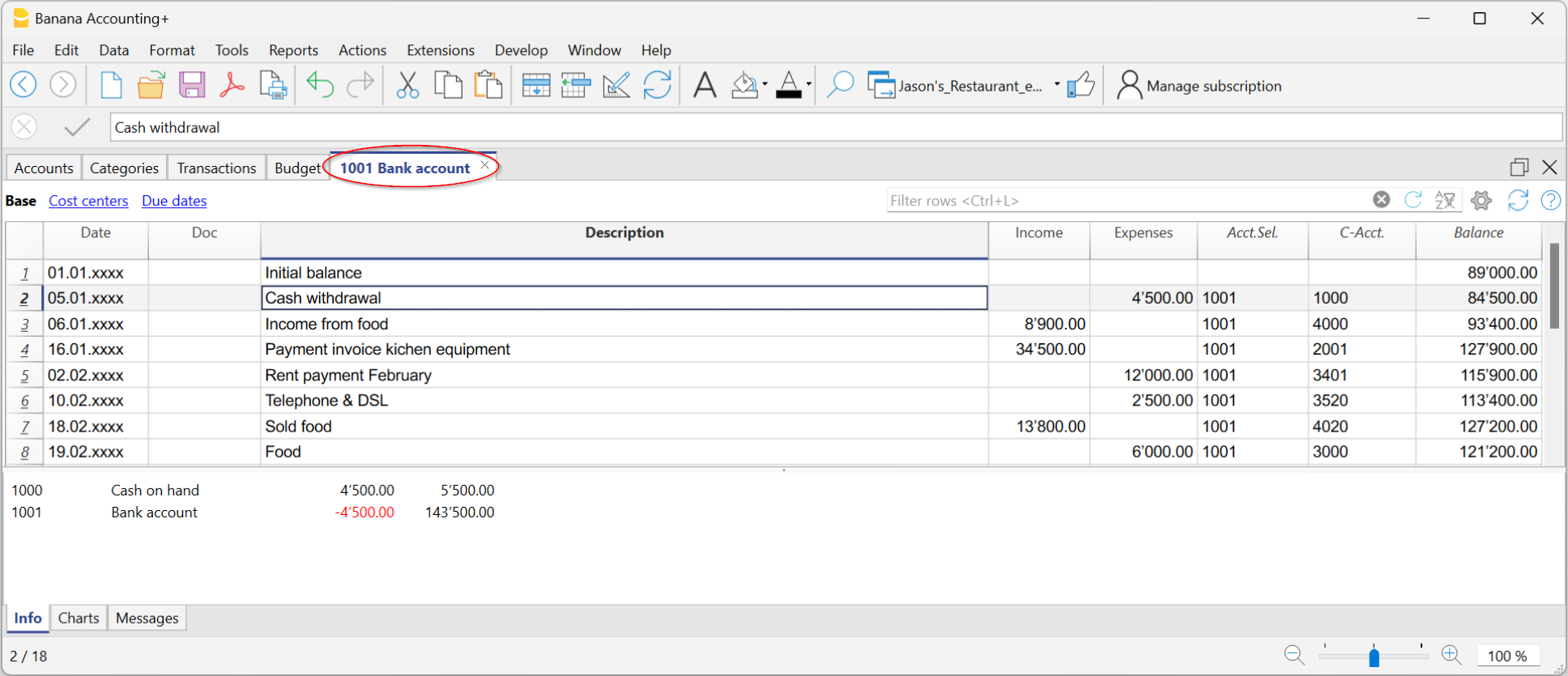
例如,为了记录银行取款的分录,方法如下:
- 在收入列中,输入收入金额。
- 在账户列中输入现金账户。
-
在科目列中输入银行账户。
程序会将正数记入现金账户,将负数记入银行账户。
由于这种业务输入模式,两个资产账户之间的任何直接变动都可以记录在一个发生业务行上,类似于复式记账 (见上图中的例子,第一笔发生业务)。
一借多贷/一贷多借的发生业务
当面临涉及多个预订的操作时,您需要在几行内输入。
下面我们举个例子 (见编号为11的发生业务)。
多张票据通过银行支付。
- 在影响同一发生业务的所有行中输入相同的日期和文件号。这使您可以轻松地找到一个一借多贷/一贷多借的发生业务。
- 在第一行,如果是付款,则在支出列中输入总金额,如果是存款,则在收入列中输入总金额。
- 在账户一列中,输入流动资金账户 (您通过该账户付款或收款)。第一行的科目一列仍为空。
- 在下面的行中,输入每行 (支出列或收入列) 已付或已收发票的金额。
每张发票都将在单独的一行中输入。
账户列仍为空。 - 在科目一列中,为每一行输入科目,以识别业务的输入或动向的输入。
含增值税的发生业务示例
为了管理含增值税的发生业务,有必要建立一个含增值税选项的收益&费用核算的模板。
增值税的附加列
根据收入/支出账户设置的类型 (包含或不含增值税),还有其它列需要输入增值税数据。
增值税码
输入涉及销售或成本的增值税代码。增值税代码表中必须有一个代码。
有关增值税代码和更多信息的说明,请参阅发生业务的页面。
在账户列和科目列中,您也可以输入要查找的文本,而不是输入账号和科目号。
该软件将向您显示包含所有账户和科目的列表,其中包含要输入的文字。使用向下箭头键,您可以直接在列表中移动并通过按回车键选择所需的账号。
为了显示账户或科目的变动,在输入发生业务后,单击账户/科目单元格 (所选单元格的右上角) 中的蓝色小符号。
账户和科目明细
在账户和科目明细中,发生业务的呈现方式与其在发生业务表中的是非常相似的。
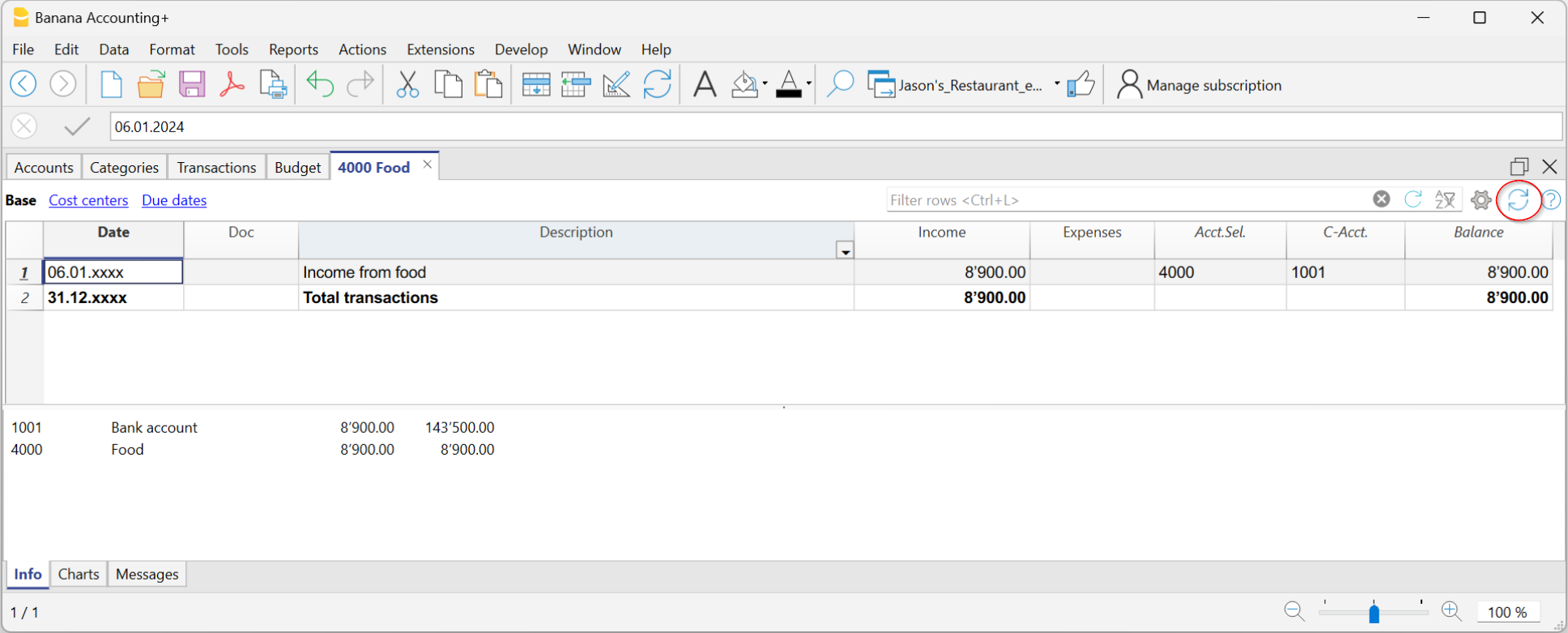
如果您进一步输入了发生业务或进行了修改 (总是在发生业务表中进行操作)。如下图所示,您可以通过点击账户和科目明细表中右上角的刷新图标来进行更新。

Entering transactions | Income/Expense accounting
The Transactions table is the core of accounting: here you enter all incoming (income) and outgoing (payments) transactions. After each entry, the amount is automatically updated in the account and category cards, so you always have totals under control.
You can enter transactions in two ways:
Record data automatically
With Banana Accounting Plus you no longer need to waste time with manual entries: thanks to automation features you can record data automatically, quickly and accurately.
Speed up data entry
To speed up transaction entry, use the following automation features:
- Data entry with auto-completion – automatically retrieves previously entered data.
- Recurring transactions – allows you to store recurring entries in a dedicated table.
Import data from bank statement
With Banana Accounting, you can speed up your work by entering transactions directly from your bank statement. Instead of recording each operation manually, simply import the file you downloaded from your bank (usually in CSV or ISO20022 format). For more information, visit the page Importing data from bank or postal statements.
Apply Rules to imported transactions
Transactions with Rules – You can define instructions for the software to automatically complete imported transactions from bank statements, with contra account, cost centers, segments, and VAT code if needed.
Manual entry
Manual entry is quite intuitive. However, we explain the most common operations.
Manual entry of an income
Below is a practical example of an income. Specifically, it's a merchandise sale.
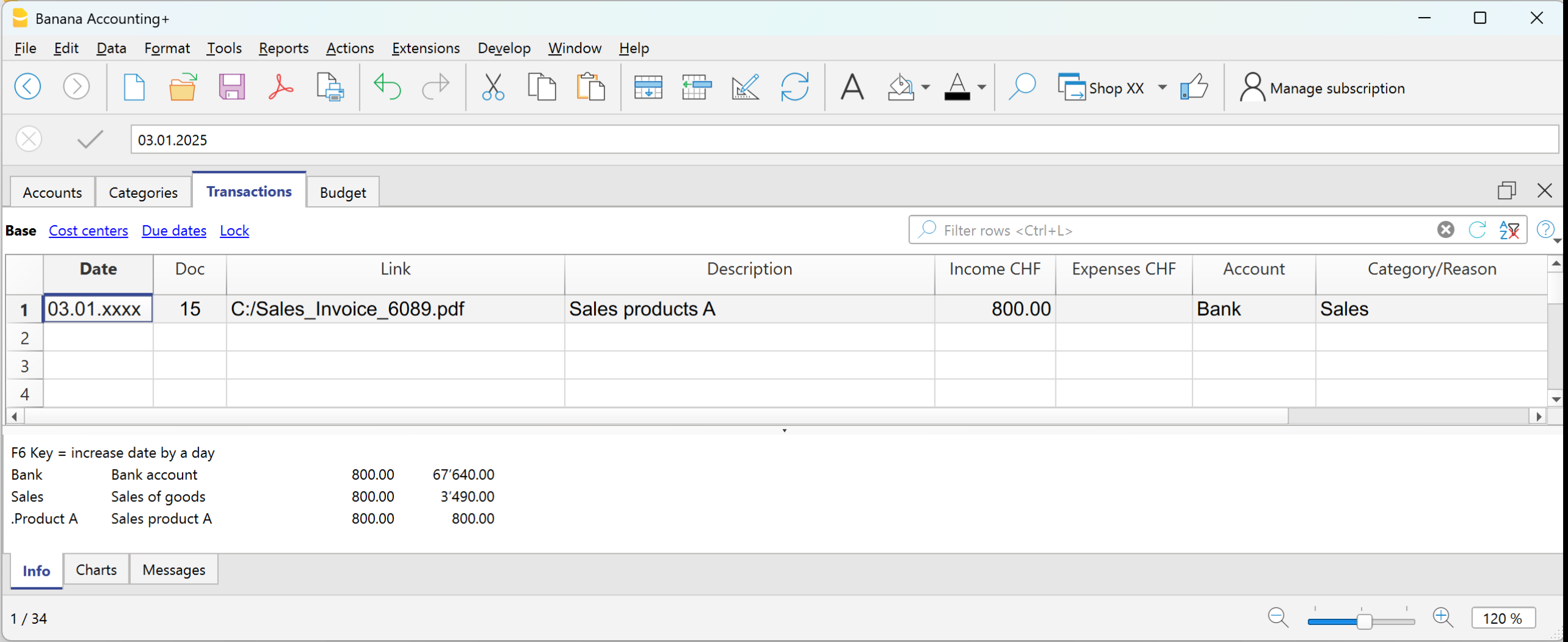
Example: payment received for a sale via bank.
- Date → enter the date of the document (e.g. invoice date).
- Doc → document number (optional).
- DocLink → link to the digital document (if available).
- Description → short description (e.g. Sale of goods to customer Rossi).
- Income → amount received.
- Account → liquidity account used (e.g. Bank).
- Category → reason for the income (e.g. Sales).
The amount will be shown as positive both in the account card and the category card.
Manual entry of an expense
Below is a practical example of an expense. Specifically, it's a merchandise purchase.
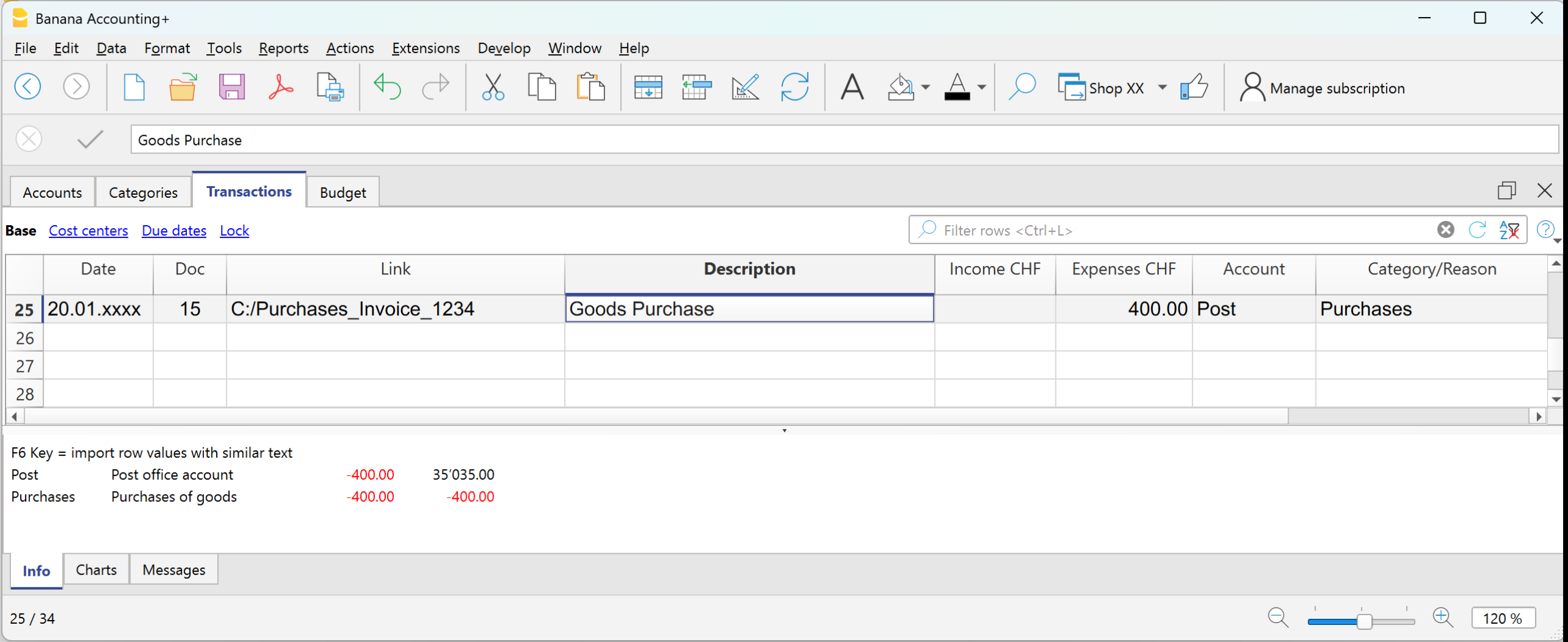
Example: paid invoice for merchandise purchase via bank.
- Date → enter the date of the document.
- Doc → document number (optional).
- DocLink → link to the digital document.
- Description → short description (e.g. Purchase of goods from supplier Bianchi).
- Expenses → amount paid.
- Account → liquidity account used (e.g. Bank).
- Category → reason for the expense (e.g. Purchases).
The amount will be shown as negative both in the account card and in the category card.
Multi-row transaction
When you have a transaction that involves multiple accounts and/or categories, you must enter it using multiple rows.
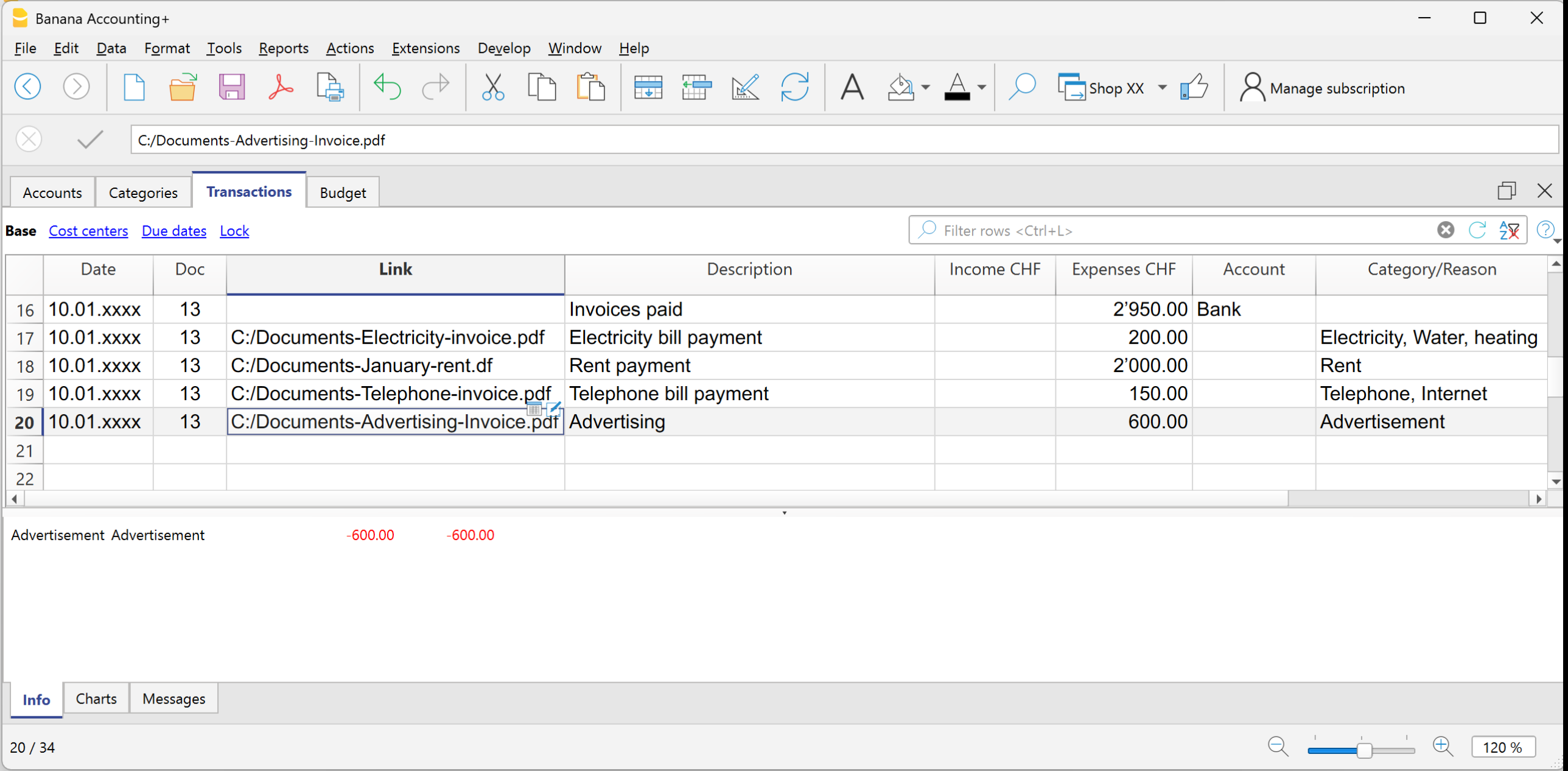
Example: payment of several invoices using cash.
- Use the same date and document number for all rows.
First row:
- Enter the total amount paid in the Expenses column.
- In the Account column, indicate the liquidity account used (e.g. Cash).
- Leave the Category column empty.
Following rows:
- Enter each paid invoice in a separate row, with the amount in the Expenses column.
- The Account column remains empty.
- In the Category column, indicate the corresponding expense item.
If you have enabled the Balance column, you will see that the remaining total decreases row by row, until it reaches zero.
Transactions between two accounts | Income/Expense accounting
In Income / Expense accounting, a transaction is generally recorded with one account entered in the Account column and one category entered in the Category column.
- The accounts are those listed in the Accounts table.
- The categories are those listed in the Categories column.
It is also possible to record a transaction involving multiple accounts or categories, by entering one account or category per row, until the entry is complete.
When you need to record a transaction that involves two accounts, without using a category, you can use the Category column to enter the second account from the Accounts table.
An example could be the recording of a cash withdrawal from the postal account. The transaction should be entered as shown in the example below.
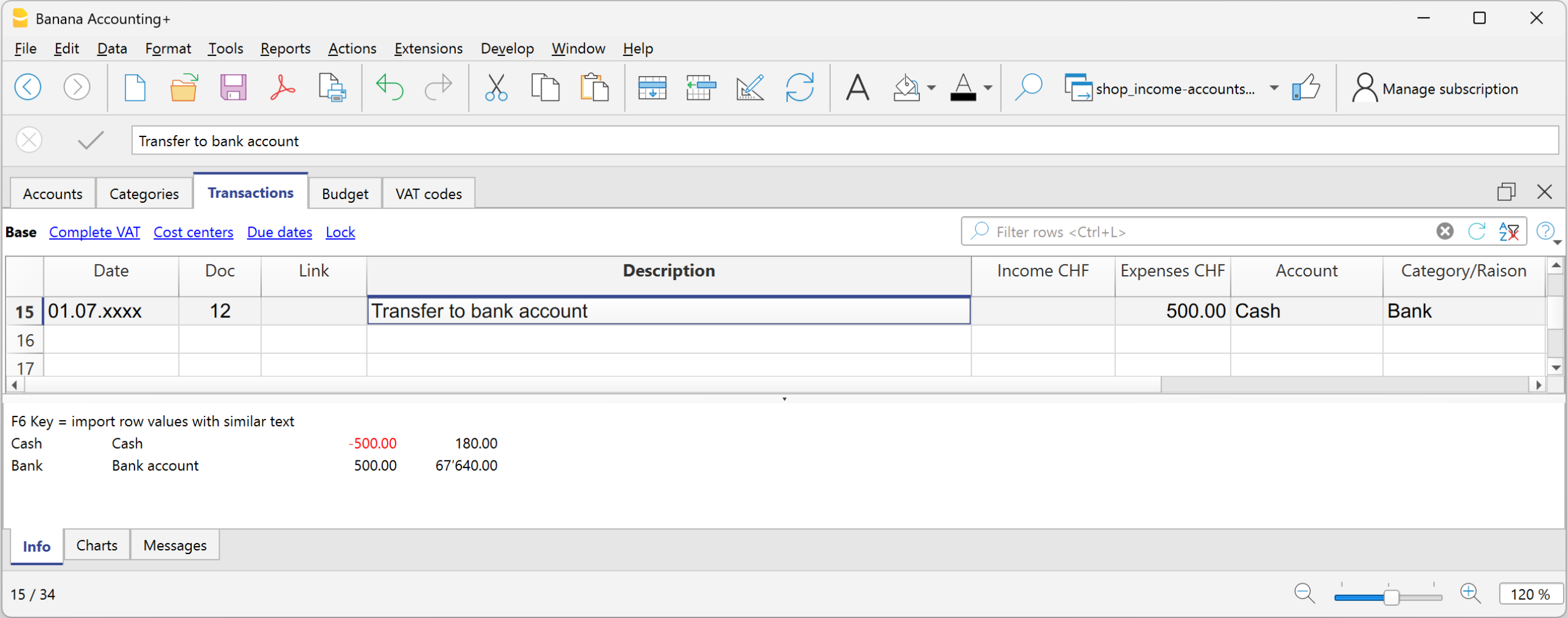
- Enter the Date and Description in the respective columns
- In the Income or Expense column, enter the amount
- In the Account column, enter the first account
- In the Category column, enter the second account
Transactions between two categories | Income/Expense accounting
In Income / Expense accounting, a transaction is generally recorded with one account, entered in the Account column, and one category, entered in the Category column.
It is also possible to record a transaction involving multiple accounts or multiple categories, by entering one row for each account or category, until the transaction is complete.
- The accounts to be used in the trasnsactions are those listed in the Accounts table.
- The categories to be used in the transactions are those listed in the Categories table.
When it is necessary to record a transaction between two categories, it is not possible to do so on a single row. A category cannot be entered in the Account column.
Therefore, the transaction between two categories must be recorded over two rows:

- On the first row:
- Enter the Date and Description in the respective columns
- Enter the amount in the Income or Expense column
- Leave the Account column empty
- Enter the first category in the Category column
- On the second row:
- Enter the Date and Description in the respective columns
You can also copy the data from the previous row - Enter the amount in the Income or Expense column.
If necessary, you can reverse the income or expense amount compared to the previous entry. - Leave the Account column empty
- Enter the second category in the Category column
- Enter the Date and Description in the respective columns
Transactions with VAT | Income/Expense accounting
To record transactions with VAT in Banana Accounting, you need to use an Income / Expense template with the VAT management option.
These templates already include all the settings needed to manage VAT:
- The Accounts table includes VAT report and VAT payable accounts.
- In File properties > Basic data > VAT, the VAT report account is set.
- The VAT Codes table already contains VAT codes updated according to regulations.
How to record transactions with VAT
The Transactions table includes specific columns for VAT. If you activate the Complete view, you can see all the dedicated columns.
For each transaction, enter:
- Date → the date of the document (invoice, receipt, etc.).
- Doc → the document number (if available).
- Invoice No. → enter the invoice number from the customer or supplier.
- Doc Link → enter the path to the PDF document to attach.
- Description → short text describing the operation (e.g. Sale of goods or Rent payment).
- Income/Expense → the amount received or paid.
- Account → an account related to the transaction from the Accounts table (e.g. Cash, Bank).
- Category → the reason for the transaction represented by a category from the Categories table (e.g. Sales, Rent).
- VAT Code → indicate the applicable rate:
- V81 → sales.
- M81 → purchases related to main business activity.
- I81 → purchases related to investments or general costs.
Automate the VAT code
To speed up entries, you can make the VAT code fill in automatically.
- Go to the Accounts and Categories table.
- From the menu Data > Columns setup, activate the VAT Code column.
- Enter the VAT code in the corresponding rows. The VAT code must exist in the VAT Codes table. For Switzerland, for example:
- On fixed asset purchase accounts → I81.
- On sales categories → V81.
- On purchase categories → M81 or I81.
This way, when you enter a transaction linked to that account or category, the program will automatically fill in the VAT Code and immediately calculate the related data.
Learn more
- VAT Summary
- Swiss VAT Management
- Various VAT transaction cases (double-entry accounting)
- Swiss VAT reports → Only with Advanced plan.
记录信用卡的交易动向
使用信用卡消费变得越来越普遍,不仅在企业,在家庭也是如此。为了更好地控制信用卡的支出,您需要记录账户中的交易。要做到这一点,请确保您在账户表中有一个信用卡账户,或者将其添加到您的账户中。
记录预付款中的信用卡交易动向
信用卡账户是一个借方账户,需要输入在账户列中。

在收益费用核算中,每当您用信用卡支付首付款时,必须记录如下:
- 输入日期、摘要。
- 在支出列中,将金额记录为输出。
- 在账号列内,输入现金账户 (银行、邮局)。
- 在科目列中,输入信用卡的账号。
当信用卡账单到账后,费用由首期付款支付,必须记录信用卡的动向以检测产生的费用并冲销信用额。
在这种情况下,其被记录在多行中:
- 每个动向都必须输入相同的日期和相同的文件编号。
- 输入表明费用类型的说明。
- 在支出一列中,输入从信用卡支付的总金额。
- 在账号一列中输入信用卡的账户。
- 在以下各行中,要记录通过信用卡支付的每笔费用,在支出列中记录费用的金额,在科目列中记录费用的类别。
在记录所有的交易后,检查信用卡余额 (打开信用卡的账户明细)。
Transactions on private account | Income/Expense accounting
The private account is a financial account used in accounting to record transactions that do not directly concern the business, but rather relate to the owner's private sphere. This account tracks withdrawals and contributions made by the owner for personal purposes; it serves to keep business and personal finances separate, avoiding confusion in the company's bookkeeping.
Withdrawals from the company by the owner
If the owner uses business funds for personal expenses, the amount is debited to the private account. The amounts withdrawn by the owner appear in the Accounts table, in the Income column of the private account, because they represent a receivable of the company from the owner. In the Balance column of the private account, the amount is positive.
Deposits into the company by the owner
If the owner deposits private funds into business accounts, the amount is credited to the private account. The amounts deposited by the owner appear in the Accounts table, in the Expenses column of the private account, because they represent a liability of the company to the owner. In the Balance column of the private account, the amount is negative.
Balance of the private/partner account
- Positive balance: indicates that the owner owes money to the company.
- Negative balance: indicates that the company owes money to the owner.
Credit card December invoice paid the following year | Income/Expense Accounting
The December credit card invoice is usually received in January of the following year, and consequently, the payment is also made in January.
All expenses listed in the December credit card invoice belong to the previous year; therefore, they must be recorded in the accounting of the previous year.
Recording the December credit card invoice
To record it correctly, it is necessary to have the liability account Costs to be Paid in the Accounts table, which is a transitional account. If it is not present, it must be added.
In the Transactions table, enter:
- Date and any document number in the respective Date and Doc. columns.
- Description
- Total credit card amount in the Expenses column
- Costs to be Paid account in the Account column
- Expense category in the Category column. If the invoice includes multiple expenses, record each expense on a separate row.
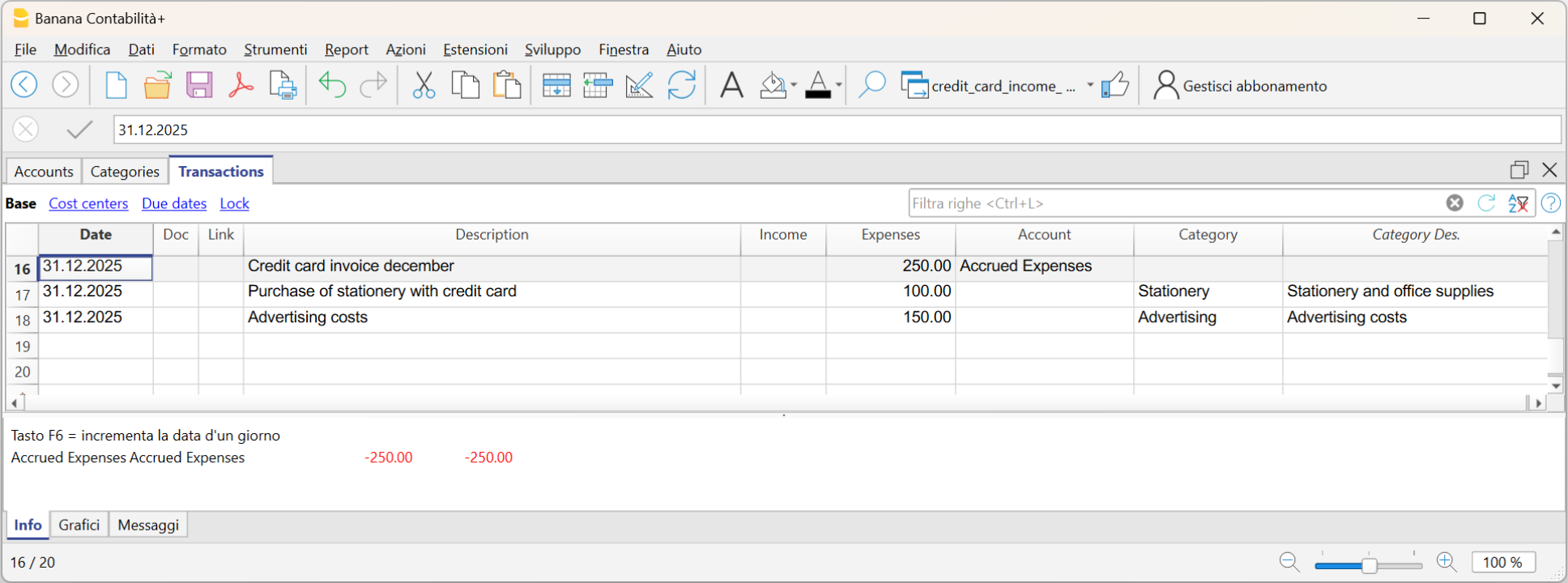
Recording the payment of the December credit card invoice in the following year
In the following year, when the new year is created, the balance of the Costs to be Paid account is displayed as an opening balance in the Accounts table.
When the credit card invoice is paid, the Costs to be Paid account is cleared.
To record the payment of the credit card invoice, enter:
- Date, any document number
- Description
- Total amount of the credit card invoice in the Expenses column
- Liquidity account from which the invoice is paid in the Account column
- The Costs to be Paid category in the Category column.
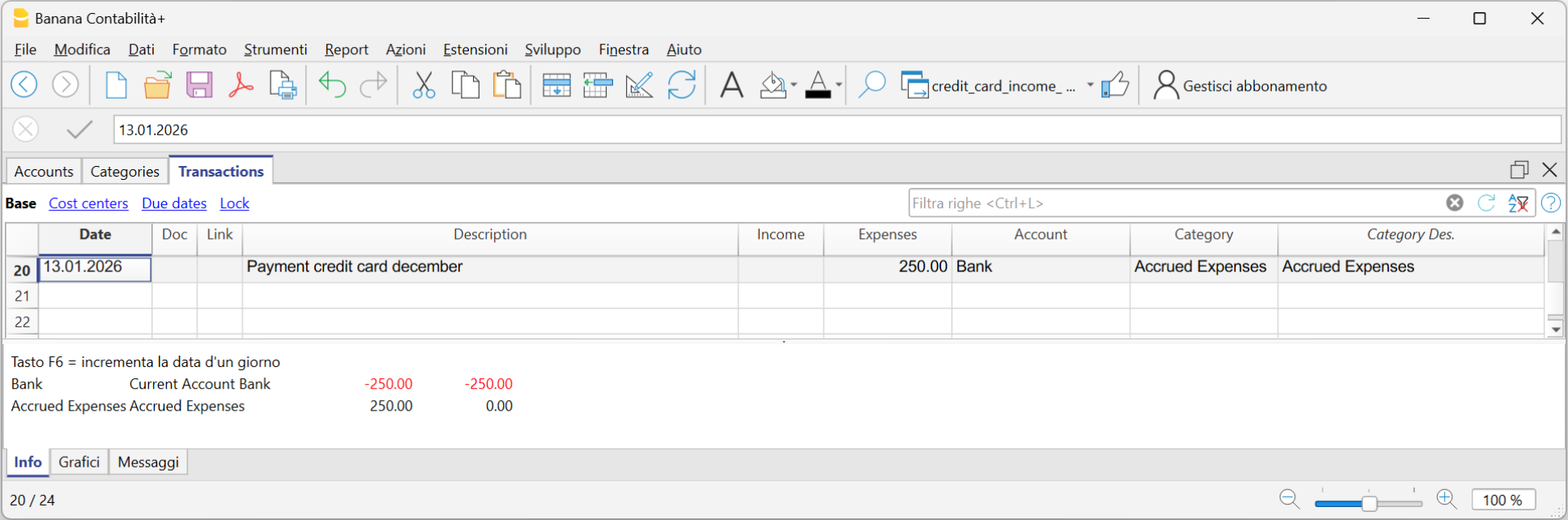
Budget |Income /Expenses Accounting
The annual budget is a tool that allows you to plan income and expenses in advance for the year, providing a clear view of the future and helping you make the best decisions. During the year, you can compare the budget with the actual values (actuals) to assess how reality aligns with your planning.
Thanks to the budget, you can:
- Make informed decisions: understand whether conditions allow you to invest in a project or if it's better to cut some expenses.
- Monitor financial performance: by comparing budget and actuals, you can easily see if you're spending more or less than planned.
- Manage responsibly: for associations, organizations, and small businesses, it is also a tool of transparency and good management.
How to set up the budget in Banana Accounting
There are two available methods:
- Annual budget in the Accounts or Categories table
A very simple and traditional method:
- Enter the budget values directly in the Budget column of the Categories table.
More information is available on the Budget in column page.
- In the Accounts table, you can also add additional columns to manage different types of budgets.
A useful case is adding a column dedicated to the next year's budget, so you can plan the future while staying in the current year's accounting file.
More details are available on the page Budget for the next year in the current accounting.
- Enter the budget values directly in the Budget column of the Categories table.
- Full financial planning using the Budget table
This is a more advanced and detailed approach:
- You activate the Budget table and enter forecasted transactions not only for costs and revenues but also for liquidity.
- The Budget column in the Accounts table is updated automatically based on the transactions recorded in the Budget table.
This method gives you a dynamic view of financial developments, month by month or quarter by quarter, including liquidity.
The following sub-pages explain how to manage the budget in an Income and Expenses file.
If you are using a double-entry accounting file instead, refer to the section on budgeting by clicking the following link: https://www.banana.ch/doc/en/node/10211.
Comparison between Budget in column and Budget in the Table Budget
Here below is a comparison table between the budget in column in the Accounts table and the budget in the Budget table.
| Feature | Budget Column | Budget Table |
|---|---|---|
| Where it is located | In the Accounts table, Budget column | Dedicated table: Budget |
| Activation | Always available (default) | Must be activated: Tools > Add /Remove functionalities > Add Budget Table |
| Level of detail | Annual budget per account/category | Detailed entries with dates and repetition |
| Data entry | Total amount for the year | Individual entries with date, account, and category |
| Additional fields | Only amounts | Quantity, Price, Calculation formulas |
| Recurring transactions | Not available | Available (Repeat column) |
| Future liquidity by period | Not calculated | Automatically calculated (forecasted cash/bank) |
| Results | Totals per account/category | Periodic details (day/month/year) + totals |
| Typical use | Simple forecasts, annual budget | Detailed forecasts, precise financial planning |
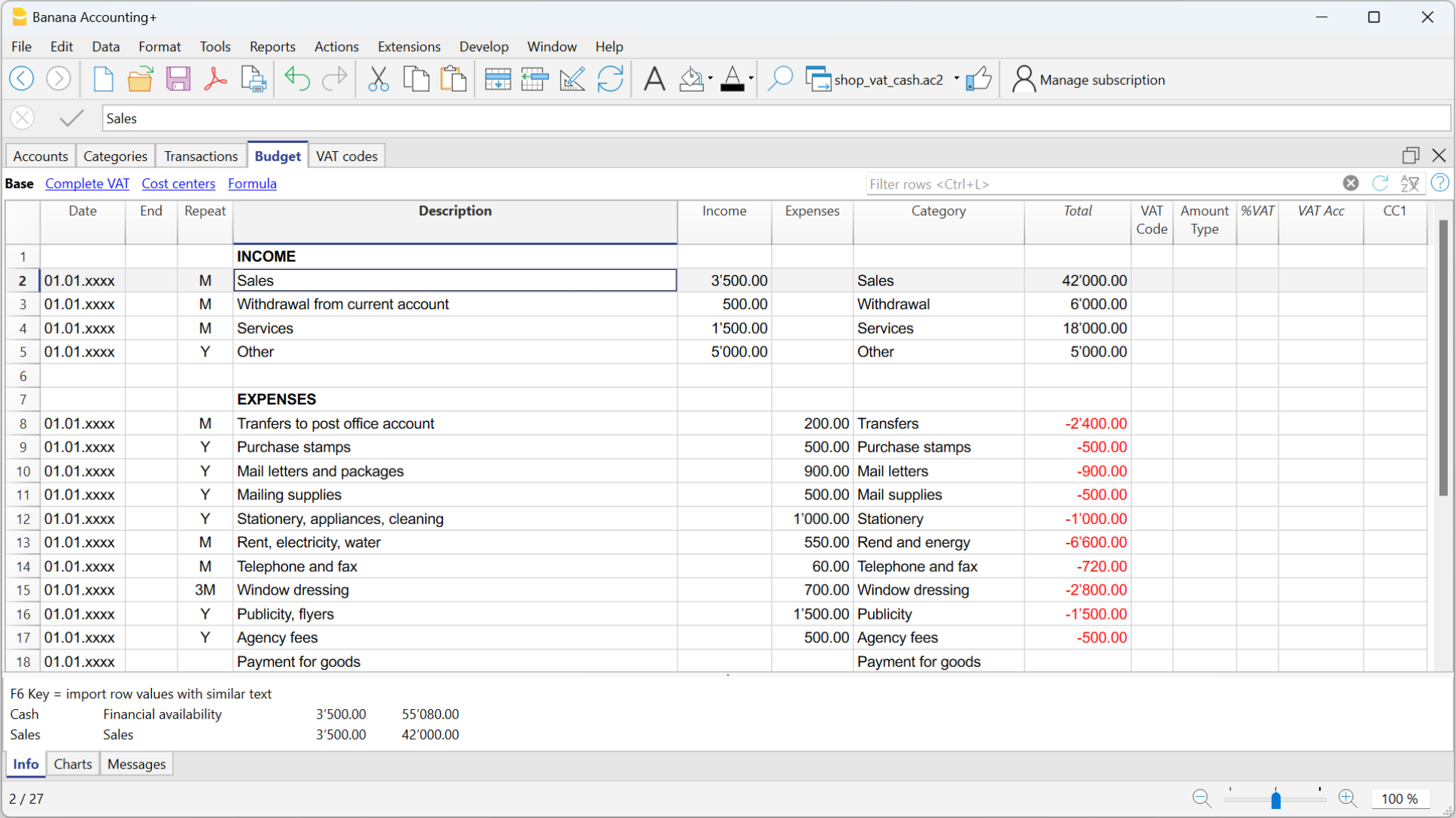
预算发生业务
Budget for the following year in the current accounting | Income / Expense accounting
In Banana Accounting, in the Categories (or Accounts) table, you can add, in addition to the column for the current year's budget, an extra column to create a Budget for the following year. This is a very practical solution, for example for associations, where members must approve not only the final accounts of the year, but also the budget for the following year.
How to add the Budget column for the following year
You need to add the Budget for the following year column in the Categories table.
- Go to the Categories table of your accounting file.
- From the Data menu > Columns setup > Add.
- Enter as the title of the new column: Budget following year (e.g. Budget year xxxx).
- Set the Data type = Amount, so that Banana automatically calculates the group totals.
- Confirm with OK.
The new column for the following year’s budget will be visible in the Categories table.
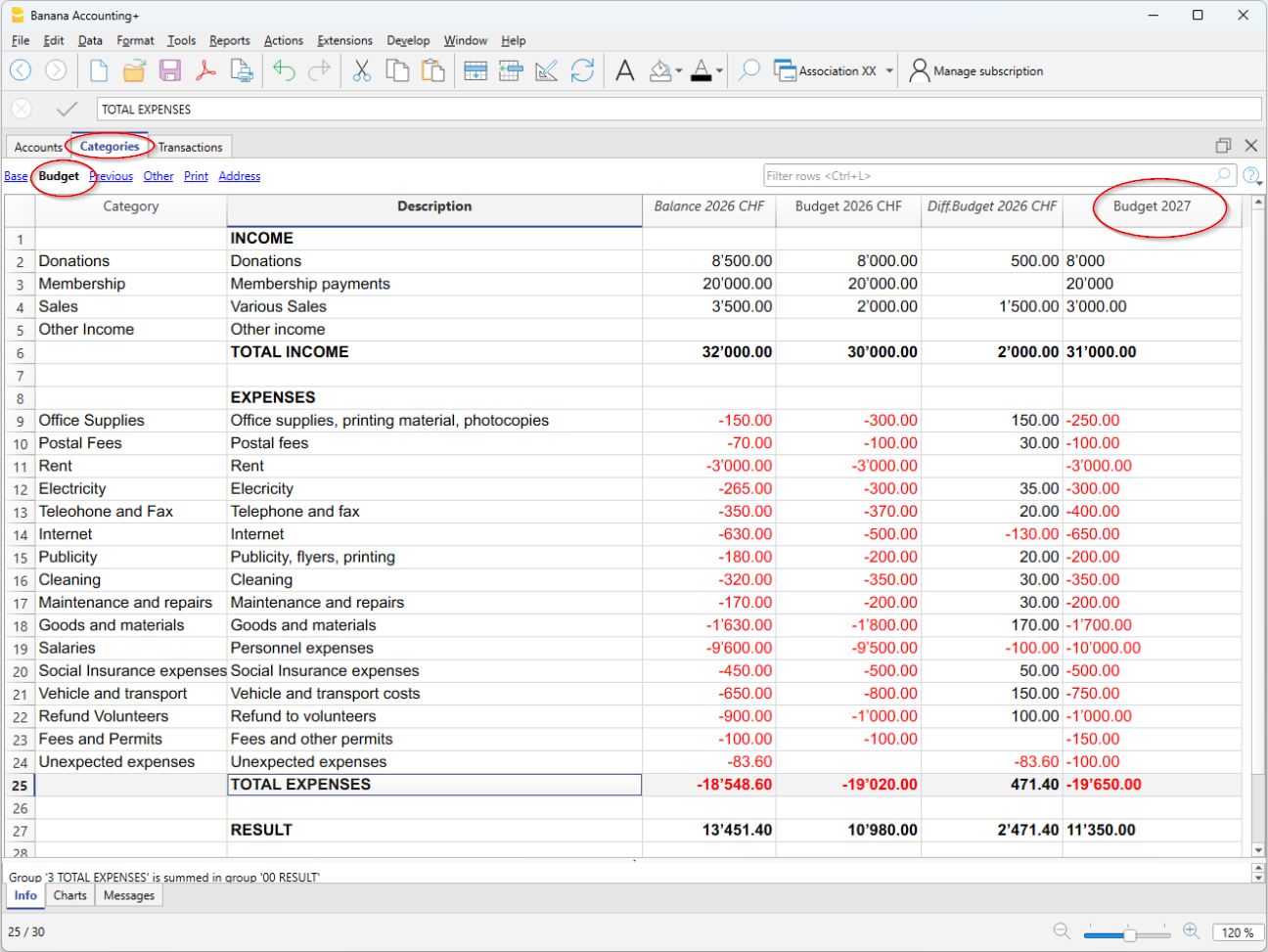
Entering the values
In the column you added, enter the estimated amount for the following year for each income and expense category.
- Income column → positive amounts
- Expense column → negative amounts.
Printing the Budget
Currently, it is not possible to print the Statement with the additional Budget column for the following year. It will be available soon.
At the moment, the Statement must be printed directly from:
- The Categories table, in the Budget view
- or from the Print view, displaying the Budget columns via the menu Data > Columns setup
In this view, the Section, Group, Sum In and Opening columns are not displayed. - Create the PDF from the File > Create PDF menu
Before creating the PDF, you can also select the rows of the Categories table.
Budget, Financial Forecasts and Liquidity Plans
The advanced budget allows you to create a very detailed budget. Based on the transactions and dates entered, the program automatically calculates the expected results for each period.
▶ Video: Income and Expense Accounting Budget
Activate the Budget Table
To activate the Budget table, go to the menu:
Once activated, the table will be available in the accounting file.
Entering the forecasts
In the Budget table, enter the future transactions by indicating:
- Liquidity account (e.g. bank, cash).
- Category (reason for expense or income).
You can also specify:
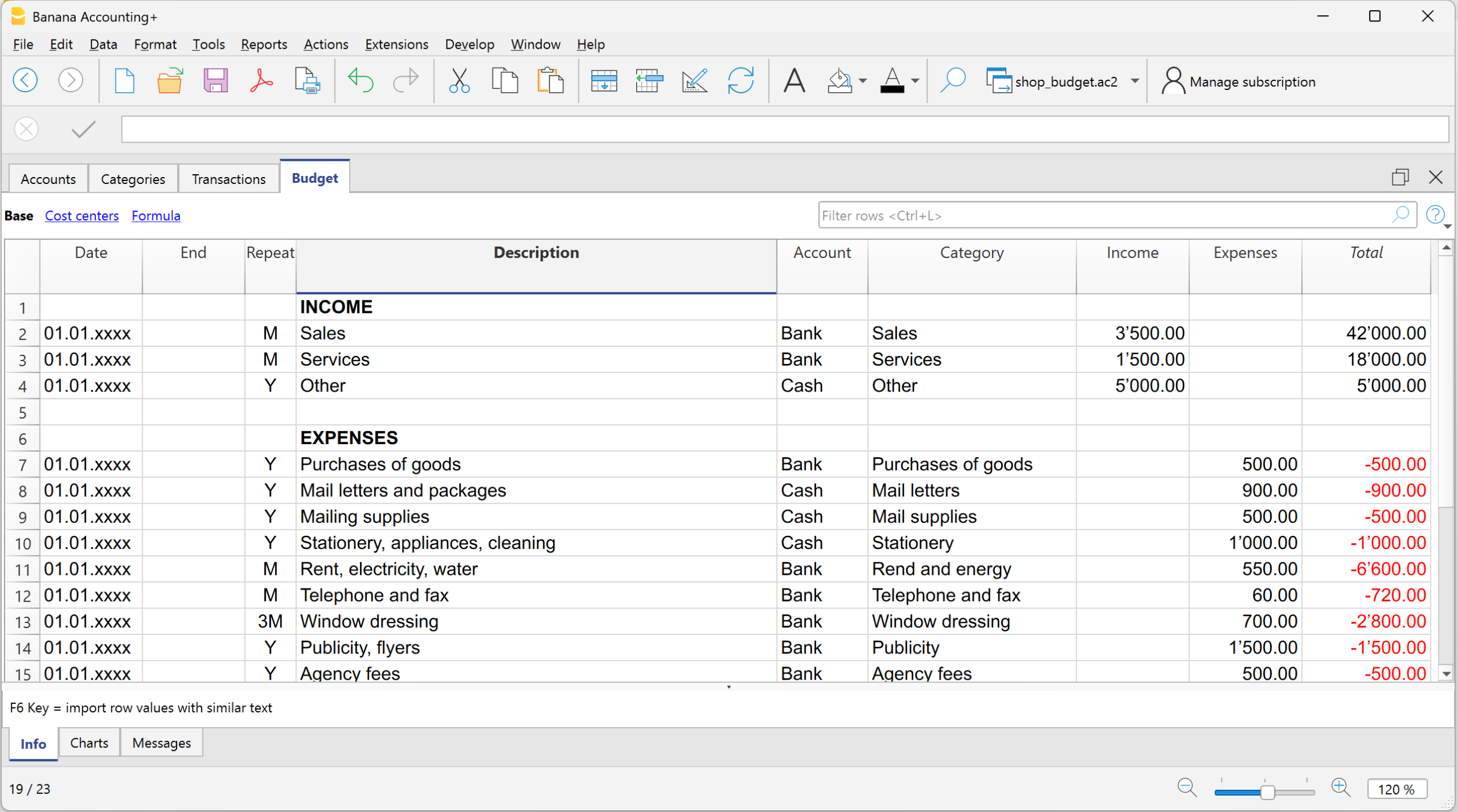
Columns of the Budget table
In the Income and Expense Accounting, the columns of the Budget table are the same as in the double-entry accounting, with a few differences:
- Budget amounts → entered in the Income or Expenses columns.
- Instead of the Debit/Credit columns → there are the Account (items of what you have and what you owe) and Category (reason for income or expense) columns.
- Optional columns: Quantity, Price, Formula → if filled in, the program automatically calculates the amount. When the program automatically calculates the amount based on the Quantity, Price or Formula columns, the result is entered in the Income column if positive, and in the Expenses column if negative.
Both positive and negative values can be entered in the Quantity and Price columns.
More information:
Results
Thanks to the data entered for the expected future transactions and the recurrence, the program automatically calculates:
- Expected income and expenses.
- Future liquidity movements, showing at any time how much money will be available.
- Specific results per period, useful for detailed analysis and forecasts.
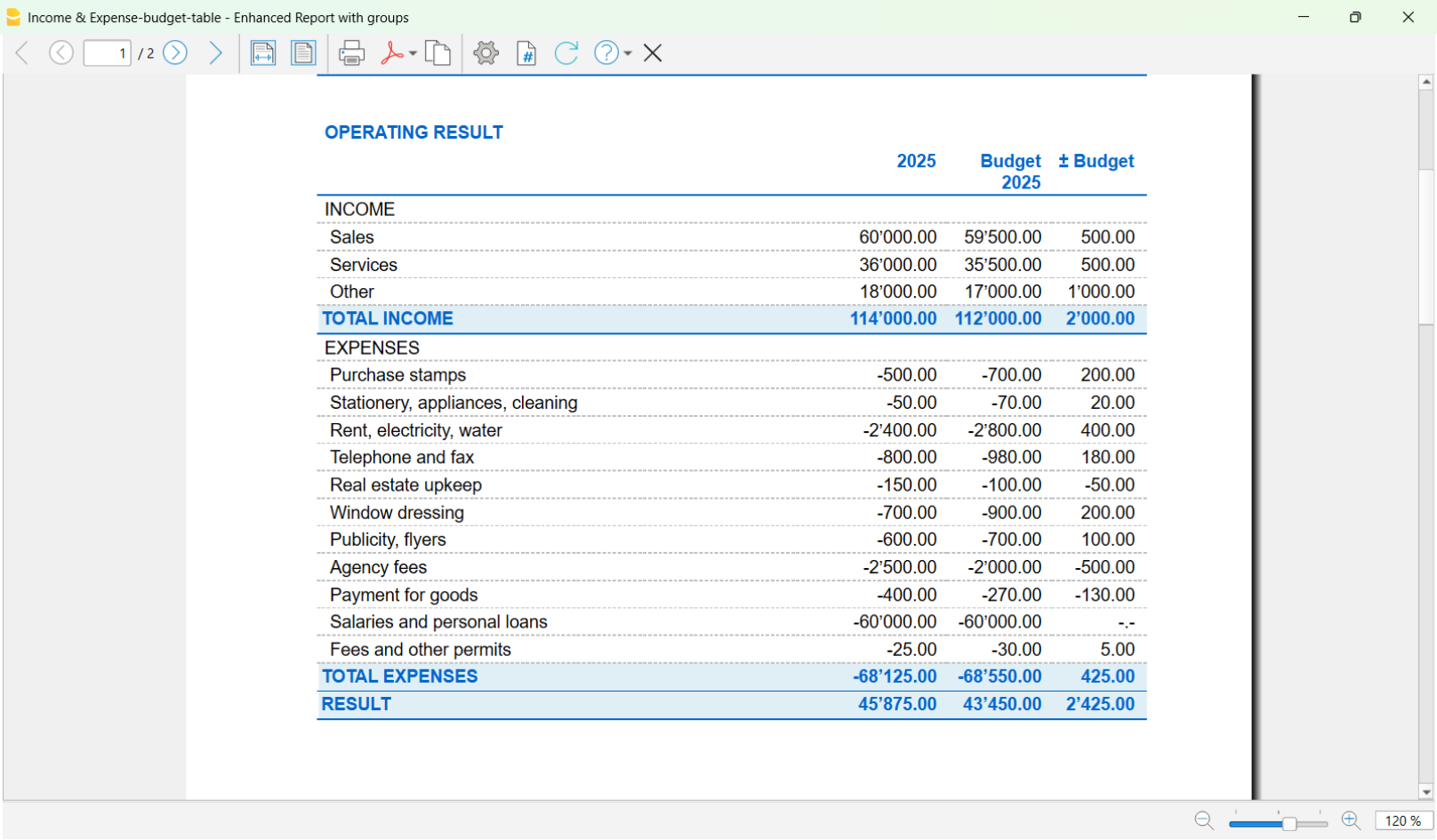
Printing the Budget
You can print the Budget using one of the following methods:
- Directly from the Accounts table, Budget view.
This method is used when selecting the budget in the Accounts or Categories table (on a yearly basis).
The printout appears with the same column layout as shown in the image.
- From the menu Report > Enhanced balance sheet with groups.
This method is used when using the detailed budget from the Budget table.
In the Columns section, you need to activate the option:- Budget for the Categories and optionally for the Accounts.
打印
即时信息
账户/科目明细表中已显示账户余额,收益和费用。
每录入一次发生业务,余额都会自动调整,无需运行报告,只需显示账户或科目表即可。
高级打印输出
所有打印均从报表菜单运行,不同的打印功能位于以下菜单:
-
分期日记账: 在这里可以显示和打印整个表格或者是一个特殊的时期。
-
账户/科目明细或组明细的命令:在这里可以选择所有明细或自定义您的选择。
在时期选项中选择时间段并在选项中单击所需的设置。打印设置可以在自定义选项中被保存,无需重新定义便可以恢复它们。 -
生成报表:您可以打印选定的时期,并且可能包含各种选项和合成。
-
按组生成报表:您可以打印选定的时期,并且可能包含各种选项和合成。
-
会计报表: 所需选项显示在账户报表中。报告可以是当前的,以前时期或是以前年份,每个期间都可以包含细分,并且可以保存其合成。
分期日记账 - 收益 & 费用核算
如同Banana财务会计软件内所有其它的应用程序一样,在收益&费用核算内的发生业务,也是要输入在发生业务表中。如果您想打印日记账 (所有动向的列表),您可以通过两种不同的方式进行操作:
- 在发生业务表格,选择文件菜单 → 页面设置 → 打印
- 报表菜单 → 分期日记账的命令。
分期日记账
点击报表菜单 → 分期日记账的命令,可以打印整个时期或选定时期内的日记账,您只需输入时期的开始和结束日期。

打印输出的日期将和您所选的日期是一致的。

在列排序的标签下,您可以选择不同类型的日期,以及打印日记账。
账户/科目明细 - 收益 & 费用核算
账户或科目明细对应于分类账,并允许您拥有关于同一账户、科目、成本中心、分部或组的会计条目的完整列表。
打开账户明细
有两种方法可以打开和打印账户明细或科目明细。
第一种方法
当您想要查看和打印所有或多个账户/科目明细的时候,建议使用此方法。
- 点击报表菜单 → 账户/科目明细

之后会出现一个对话框,里面包含以下几个部分。
要了解各部分的详细信息,请点击相应的链接。
第二种方法
当您只需要在表格中一次打开一个明细时,可以使用这种方法。
- 点击选择包含账户、科目或组号单元格内右上角出现的小符号。

更新账户明细
账户或科目的明细显示的都是当前的数据,在请求的当下进行的计算。如果在发生业务表中更改或添加了发生业务,不会同时更新账户明细。
要想在做出更改之后更新相应的账户明细,必须再次点击账户/科目明细的命令。或者,如果该账户明细仍处于打开的状态,请单击下图所示的符号进行刷新。
附注信息
在账户、科目或组的明细中不能更改数据。在账户明细中,通过双击行号,程序会切换到发生业务或预算表中的相应行。
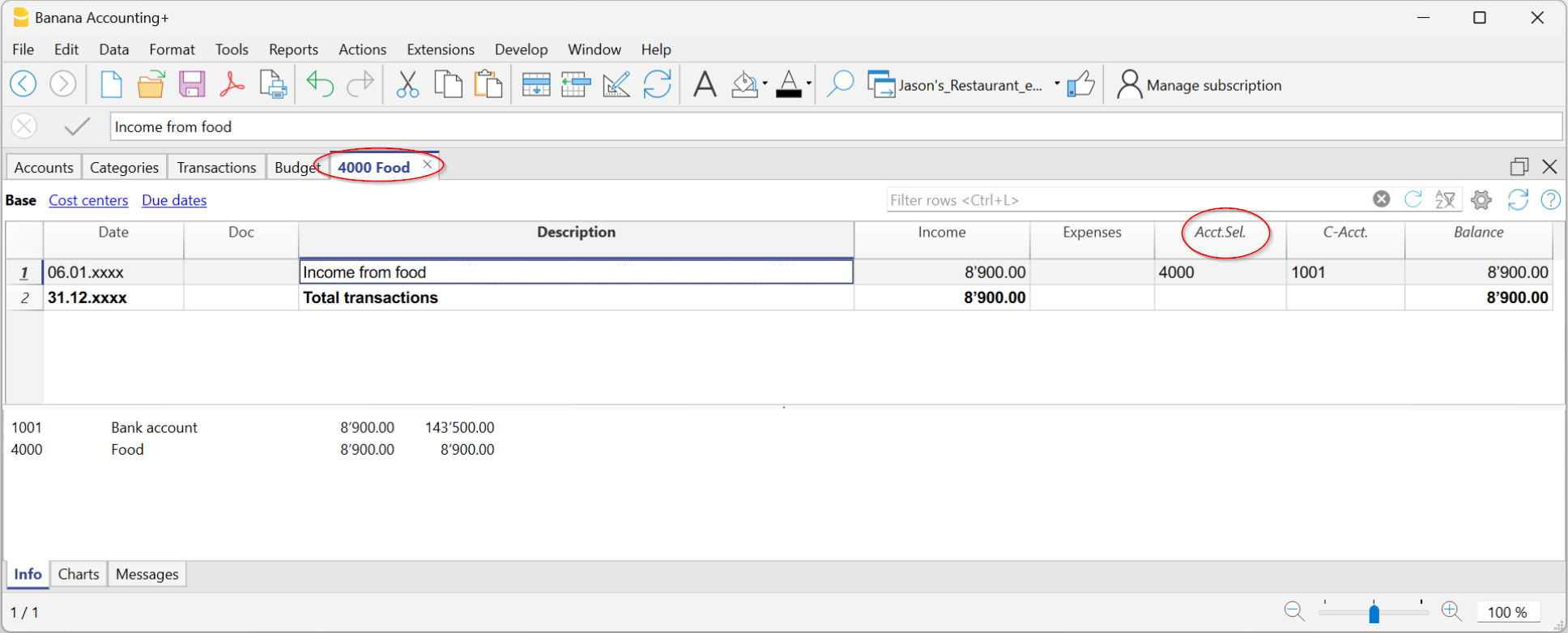
已选账户的列
点击数据菜单 → 列设置命令,在跳出的窗口中选择添加已选账户,在此列中会显示发生变动的账户。
当您得到一个或多个账户、科目、组和部门的账户标签时,您可以看到具体使用了哪个账户。
抵销科目的列
在账户或科目的明细表格中,抵销列显示的是完成该发生业务的对应账户。
组或类的明细
在一个组或类的明细中,对属于所选组或类的账户的所有记录进行了分组。
在已选账户的列中,可以显示组或类的账户或类别。

预算的账户明细
如果在预算表格内输入了预估的发生业务,之后便可以查看预算的账户明细或组的明细:
- 报表菜单 → 账户/科目明细的命令 → 激活预算交易的选项。

打印分类账 (账户明细)
打印明细:
- 点击报表菜单 → 账户/科目明细的命令。
- 通过点击过滤的选项,可以自动选择所要打印的账户明细 (例如,仅打印账户,成本中心或部门)。
- 在时期,选项,自定义的各个选项标签中,激活所需的功能 (例如,自选时间段,每页一个账户,等等)。
- 设置所需选项后,单击确定。
所选的账户明细将出现在屏幕上。如需打印,请点击文件菜单 → 打印的命令。
在账户明细中插入商标 (Logo)
从 Banana财务会计软件9开始,您可以在打印的账户明细中插入商标 (Logo)。
在创建账户明细后,按以下步骤进行:
- 点击报表菜单 → 账户/科目明细的命令。
- 文件菜单 → 打印预览的命令。
- 点击页面设置命令的图标,然后在跳出的窗口中,在 Logo(商标) 一栏中对其进行更改。
更多详细的信息可在设置Logo/商标的页面查看。
保存设置
如果您需要经常打印某些账户的明细,例如所有的销售明细,那么创建一个特殊的自定义设置是很有用的:
- 点击报表菜单 → 账户/科目明细的命令 → 自定义的标签。
- 点击新建的选项。
- 在摘要中输入名称,例如 "销售账户"。
- 选择您要打印的账户。
- 点击文件菜单 → 页面设置的命令,您可以编辑页边距和其它页面的设置。
每当您需要打印账户的时候,可以选择您创建的自定义。
生成报表
生成报表为资产的发展情况及指定年度的运营结果给出了一个概况。此功能存在于收益 & 费用会计核算中;
- 点击报表菜单中的生成报表命令,来对要打印的生成报表进行设置;
- 预览中显示的资产负债表可以保存为PDF、HTML、MS Excel的格式,并可以复制到剪贴板。
- 可以在年底或某一特定时期计算、查看和打印该报告。

页标题
行 1-4
在这些行中,用户可以自由的定义报表的标题。
商标 (Logo)
可以在报告的所有页面的页眉处插入商标。
您可以在报告的封面上添加公司的Logo/商标。
点击文件菜单→Logo(商标)设置命令,添加了一个或多个商标,您可以从列表中选择一个。
如果没有添加商标,可以用编辑按钮来添加商标。
列标题
开始日
输入会计核算的开始日期。
结束日
输入会计核算的结束日期。
上年
输入上一会计年度的最后日期。
封面页
封面页
通过激活该功能,可以打印封面。
商标 (Logo)
您可以在报告的封面上添加公司的Logo/商标。
点击文件菜单→Logo(商标)设置命令,添加了一个或多个商标,您可以从列表中选择一个。如果没有添加商标,可以用编辑按钮来添加商标。
打印页
激活您想要其出现在打印出的生成报表上的选项:
账户
账户将被打印。
首页
拥有文件标题的首页将被打印。
科目
科目将被打印。
账户页尾
账户和科目将被打印在两张不同的页面上。
打印范围
被选中的选择必将会出现在打印出来的报表中。
如果您在时期标签下选择了特定的时间段,那么有些选项将会是不可用的 (例如预算余额)。
其它标签
对于其它标签,您可以在下面的页面中找到相对应的解释:

按组生成报表
这一特征仅在 Banana财务会计软件的7.0.4版本或更高的版本中可用。其可以允许用户们获得按组生成的报表,并且拥有在复式记账中所有可用的选项。
生成报表使以下成为可能:
- 在打印中,包括所有出现在账户和科目表中的组;
- 排除组或单个账户;
- 通过时期选择一个细分;
(例如,在上半年,用户可以选择每月或每季度的细分); - 通过分部选择细分。

会计报表
- 此命令通过使用特定的组,特定的时期及细分来显示账户的金额;
- 不含日期的业务将被视为期初业务,其不会被显示在打印出的损益表中。

显示
您可以选择所需的分组方案:
- 账户 - 报表会显示出一个拥有以下列的所有账户列表: 初期余额,收入,费用及账户余额;
- 科目 - 报表会显示出一个拥有以下列的所有科目列表: 初期余额,收入,费用及账户余额。
选项
您可以选择被包含或被排除的账户:
- 不含账户 - 只有科目会被打印;
- 含发生额账户 - 不含发生业务的账户也会被打印;
- 含零余额账户 - 拥有零余额的账户也会被打印;
- 不含无账户的组 - 零余额的账户组将不会被打印。
其它标签
对于其它标签,您可以在下面的页面中找到相对应的解释:
增值税报告 (仅适用于带增值税选项的会计账套)

可以在增值税报告的页面上找到更加详细的信息。
Save accounting data as PDF | Income/Expense Accounting
At the end of the year, when the accounting has been completed, checked, and reviewed, you can create an archive of your data in PDF format.
To do this:
- Go to the menu File > Create PDF dossier.
The program gathers all the main accounting information of the year into a single PDF document. You can keep the file as a digital archive, print it, or share it.
This allows you to have an organized and non-editable copy of your accounting, useful for long-term storage or for presenting to auditors, partners, or external entities.

Closures, Accounting Aspects – Advanced Concepts
On this page you will find useful information for closing the accounting at the end of the year.
If you do not have basic accounting knowledge or do not feel confident in carrying out these operations, we recommend contacting a trustee or a professional accountant. This way you will be sure that the closing is done correctly and in compliance with tax regulations.The suggestions provided in no way replace the advice of your trusted tax consultant.
At year-end closing, before moving on to the new year, some adjustment and correction entries must be made. These are needed to correctly determine the year’s result and ensure that the accounting reflects the true financial and economic situation.
Salaries and staff
- Import salary transactions - if you use dedicated payroll software, you can import the transactions into Banana (Actions > Import into accounting > Import transactions with column headers).
- Thirteenth month salary - remember to record it in December, if not already managed automatically.
- Social security adjustments (AVS/AD/IPG/AD) - reconcile AVS contributions paid with the statements from the Compensation Office.
- Pension adjustments (LAINF, LPP, etc.) - report the total gross salaries to the insurance companies for possible corrections.
- Withholding taxes - record the adjustment based on the statement received from the Tax Office.
- Executive reimbursements - if applicable, include in the December salary the amounts established by the tax authorities.
Accounting adjustments
- Doubtful accounts (Allowance for doubtful debts) - record any expected losses on receivables.
- Depreciation - record the depreciation of movable and immovable assets as of 31.12. You can use the Fixed assets register application to automatically generate the entries.
- Inventory - update the values with the Inventory application to have accurate counts of quantities and values.
- Open customer and supplier invoices - record balances as of 31.12 using the dedicated functions (open invoices by customer - open invoices by supplier).
- Private use - record personal use of company assets (e.g. car) with the appropriate VAT.
- Private account - check and record any interest income or expenses relating to the owners.
- Taxes and duties - check the advances paid during the year, close the provisions from previous years and record any differences as extraordinary costs/income.
VAT closing and return
- Use the Check accounting command to verify that there are no errors.
- Make sure the VAT payable account correctly shows the amount to be paid or recovered.
- Check the quarterly VAT statements and compare them with the amounts paid to the FTA.
- Use the VAT Report to generate detailed reports and archive the data in PDF.
Collaboration with the trustee
If the closing is handled by your accountant/trustee:
- you can send the ac2 file by email or share it via Dropbox,
- if they don’t have Banana, you can create a PDF of your file from File > Create PDF dossier and send it,
- alternatively, they can open the file with the Free plan of Banana Accounting Plus (view-only mode beyond 70 rows).
Year end Closing Checks | Income/Expense Accounting
Accounting closings are all the verification and control operations carried out at the end of the year (or accounting period) to ensure that the data is correct and that the year’s result is calculated without errors.
With Banana Accounting, many operations are simplified and automated, but it is important to use the available functions, including:
- The Balance column highlights any discrepancies and carries them forward to the following rows until they are corrected.
Tip: keep an eye on this column during the year to immediately correct errors and prevent them from accumulating.

With the Filter rows (only with the Advanced plan), you can quickly search for transactions with the same texts, amounts, or accounts, and correct them without scrolling through the entire table.

Automatic accounting check
The Check accounting command (Actions menu) automatically performs a series of checks to immediately detect any errors or differences.

We recommend using it:
- when error messages appear
- after modifying Accounts, Categories, or VAT Codes
- during the annual closing
- after creating the new year and making further changes.
Errors are shown in the Messages window, with the indication of the table and row to be corrected.
With the Check accounting command, the program searches and reports:
- Differences in the Transactions table
All amounts must balance: income and expenses must not generate differences. Differences between accounting balances and actual balances
With the CheckBalance function you can automatically compare recorded balances with those from bank statements and detect discrepancies.
This is essential to ensure the truthfulness and accuracy of the accounting: the balances of the accounts must match the actual balances:- bank and credit card accounts must match bank/postal statements,
- the cash balance must match the actual cash,
- the VAT payable account must match the balance of the VAT Report account.
More information about Verification entries is available on the page Verification balance transactions.
- Summation errors in the Accounts and Categories table
If in the Accounts or Categories table you have added, deleted, or renamed accounts, groups, or subgroups, grouping errors may occur.
These are reported by the Check accounting command and must be corrected, otherwise the totals in the reports will be wrong.
- Differences in opening balances
In the Accounts table, the balances of the balance sheet accounts must always exactly match the closing balances of the previous year (previous year’s file).
Differences may occur for the following reasons:- In the previous year’s file, transactions were added or deleted after creating the new year.
- In the previous year’s file, errors were corrected after creating the new year.
- In these cases, to correct the opening balances, you need to use Update opening balances.
How to start the new year
In Banana Accounting, each year has its own separate file:
- from the menu Actions > Create New Year you generate the new year’s file,
- you can work simultaneously on the old file and on the new one,
- once the closing is complete, update the balances in the new file with Update opening balances.
Annual Report printing
The Annual Report is the document that summarizes all the year’s income and expenses, showing the final balance and the result (profit or loss).
It is based on the following calculation scheme:
- Sum of income → revenues and proceeds.
- Sum of expenses → costs and charges.
- Difference between income and expenses → profit or loss.
You can prepare it from the menu Reports > Enhanced statement with groups, customizing columns and print settings.
Carry forward the year’s result in Income / Expenses accounting
In Income/Expenses accounting, it is not necessary to allocate profit or loss, because the Net worth total in the Accounts table already represents equity.
The year’s result (income – expenses) is automatically carried forward into the balance sheet.
If you also want to display the results of previous years, you can create a specific account Previous years’ results and manually enter the amount in the Opening column.
Locking transactions
Once the checks and closings are completed, you can lock the transactions:
- From the menu Actions > Lock transactions
- The rows will be numbered and protected by a blockchain code that ensures their integrity.
PDF Dossier
With the Create PDF dossier command you can save all the year’s documents (account cards, journal, report, VAT report, etc.) in a single PDF file. We recommend saving it and, for security, making copies on external media.
创建新年 | 收益&费用核算
年度账结转的命令根据正在关闭的会计文件为新的一年准备一个文件。该命令不会修改当前文件,所以执行起来没有任何影响。
顺理成章地过渡到新的一年
使用Banana财务会计软件,每年都有一个单独的文件。当新的一年开始时,操作逻辑如下:
- 通过年度账结转的命令,程序为该年度创建一个新的文件,使用与即将结束年度相同的会计科目表、设置和余额。
- 一旦创建了新年份的文件,需使用新的名字将其保存。
- 如果您决定不保存该文件,可以重复创建新文件的操作。
- 这两个文件可以同时进行工作:
- 在新的一年里,将输入新一年的业务动向。还可以对会计科目表、增值税或其它的内容进行修改,而不影响以前的会计科目表。
- 在上一年的会计科目表中,您将继续输入完成一年的业务,并进行结账、检查余额、打印余额等典型的操作。
- 在新一年的文件中,通过操作菜单 → 更新期初余额的命令,在上一年的文件中所做的更改将被延续。该操作最迟在上一年没有变化的时候进行。
一旦创建了新一年的文件,订阅了Banana财务会计+ 专业计划的用户,将看到信息窗口中出现演示模式下高级计划的信息,直至达到70行发生业务的限制。
检查和结清上一年的账目
在更新期初余额之前,为了避免下一年度的期末和期初余额之间出现差额,必须确保所有的期末检查、核实和会计分录都已完成。请参考以下的页面:
与复式记账不同的是,当收益&费用核算的会计期结束的时候,没有利润或损失需要分配。在新的一年里,收入和支出科目之间的差被显示为资产的增加或减少。
年度账结转命令所执行的操作
年度账结转的命令在考虑到用户设置的参数的情况下,执行以下操作:
- 创建一个新的文件 (未命名),其会计科目表和设置与打开的文件相同,没有任何发生业务。
- 将当前文件的余额列中的数据复制到新文件的期初列中 (只针对指定的类别)。
- 将所有资产负债表账户的数据从当前文件的余额列复制到新文件的上年列。
- 更新文件的属性:
- 设置开始和结束日期,在现有的基础上增加1年。
- 在选项部分设置前一年的文件名称,并激活智能填充上年业务的选项。
- 如果预算表中有数据,就会考虑到设置,将变动情况结转到新的一年。
请注意
在收益&费用核算中,不可能对经营结果进行分配。如果您需要这样做,则需使用复式记账法。
更新期初余额 | 收益&费用核算
更新期初余额的命令从上一年的文件中获取数据并更新本年度的期初余额。
何时使用更新期初余额的命令
在以下情况使用更新期初余额的命令:
- 已经用年度账结转的命令创建了新年新账,但这项工作还没有完成。
- 在上一年进行了改变 (增加或改变了发生业务,增加了账户...)。
控制前一年的会计核算
为了避免下一年度的期末和期初余额之间出现差额,重要的是,在发出命令之前,请确保您已执行所有的检查、验证和所有期末的会计业务,如同复式记账年末结算页面中所示的内容。
更新期初余额的对话框
输入要从中获取上一年余额的文件路径:
- 程序会建议保存文件的名称。
- 如果文件名或路径已更改,请使用浏览命令。

执行命令的操作
该命令恢复上一年的数据,而不修改其内容。可以重复此命令而不会影响上一年的文件。
该命令所执行的操作与年度账结转的相同,除了那些与创建文件有关的。
修改上一年度的会计科目表
如果在创建新年份后您添加了上一年的账户并恢复余额,则程序会报告错误消息。在这种情况下,有必要:
- 在新年文件中输入新账户。
- 重复更新期初余额的命令。
您可以使用导入账户的命令来调整会计科目表。