In this article
The Balance column is present in the Transactions table in the double-entry accounting, multi-currency accounting, income/expenses accounting, and cash manager files. It is very useful because it detects accounting discrepancies in the Transactions table.
The Balance column only shows a value when there is an accounting difference.
If the transaction is correct and the balance is zero, the cell remains empty and the column does not highlight any anomaly.
The presence of an amount in the Balance column therefore indicates that the transaction is incomplete or contains an error that needs to be checked and corrected.
▶ Watch the video: The new Balance column
How to activate the Balance column
The Balance column is not visible by default. It can be displayed via the menu:
Data > Columns setup > Balance
The Balance column can be positioned as desired using the Up (moves the column to the left) and Down (moves the column to the right) buttons in the Columns setup dialog.
Reasons for differences in the Balance column
When accounting discrepancies are encountered, it is essential to identify the cause and proceed with the correction.
Errors are likely due to the following reasons:
- The cell where the Debit account, Credit account, or Category is recorded was inadvertently left blank or is incorrect.
- For an entry spanning multiple accounts or categories, the total amounts do not match.
- In an entry with a VAT code, the VAT breakdown or the VAT account is incorrect.
Note: In composed transactions of several rows, the program will display a difference between Debit and Credit until the entry is completed.
The Balance column in Double-Entry Accounting
In double-entry accounting, the Balance column shows the differences between the Debit and Credit columns.
When the accounting is correct, the Balance column should have no value (empty cells):
- The balance is zero if the sum of the amounts in the Debit and Credit columns offset each other (no difference).
- For entries spanning multiple accounts, a balance is displayed until the entry is completed for all the accounts and/or categories involved. With the final entry, the balance should reach zero.

The example shown in the image concerns a transaction relating to the payment of multiple invoices. The accounts and their corresponding amounts are entered on multiple lines:
- In the first line, in the Credit column, bank account 1020 is recorded for a total amount paid of 1'000.
- In the following lines, in the Debit column, the following accounts are recorded:
- account 1520 – Investments, for 300
- account 5820 – Travel, for 200
- account 4000 – Material Purchases, for 400.
The total amount recorded in Debit is therefore 900, while the amount recorded in Credit is 1'000.
The transaction therefore has a difference of 100. This difference is highlighted in the Balance column, in the last line of the transaction, making it immediately clear that the transaction is not balanced.
The Balance column in Income/Expense Accounting
In Income/Expenses Accounting and Cash Manager, the Balance column shows the differences between the Account and Category columns.
When the accounting is correct, the Balance column should have no value (empty cells):
- The balance is zero if the sum of the amounts in the Account and Category columns offset each other (no difference).
- For entries spanning multiple accounts, a balance is displayed until the entry is completed for all the accounts and categories involved. With the final entry, the balance should reach zero.
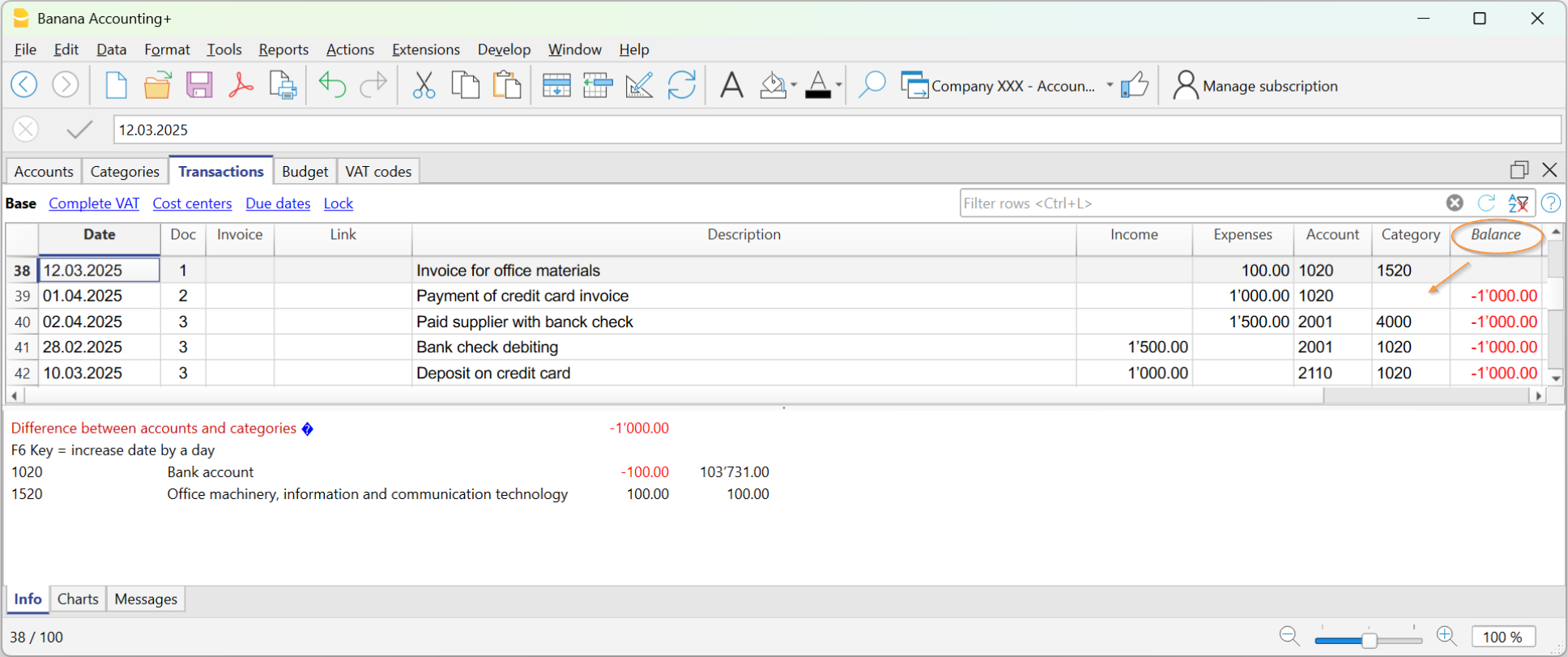
In the example image, a difference of 1000 was generated:
- In the entry on line Doc 2, the category was not entered in the Category column. Therefore, the amount, having been recorded only in the Account, resulted in a difference of 1000.
Checking the Accounting
The Check accounting command also includes a check of the Balance column.
If the Balance column is not zero, it means there are errors. To locate the first row where the accounting discrepancy occurred:
- Scroll through the Balance column to identify the first row where the discrepancy starts.
- Use the Recalculate accounting command, which indicates the row where the discrepancy begins.