En este artículo
Print everything you see on the screen
In addition to the various available reports, Banana Accounting lets you print everything you see on the screen simply by clicking the File > Print menu.
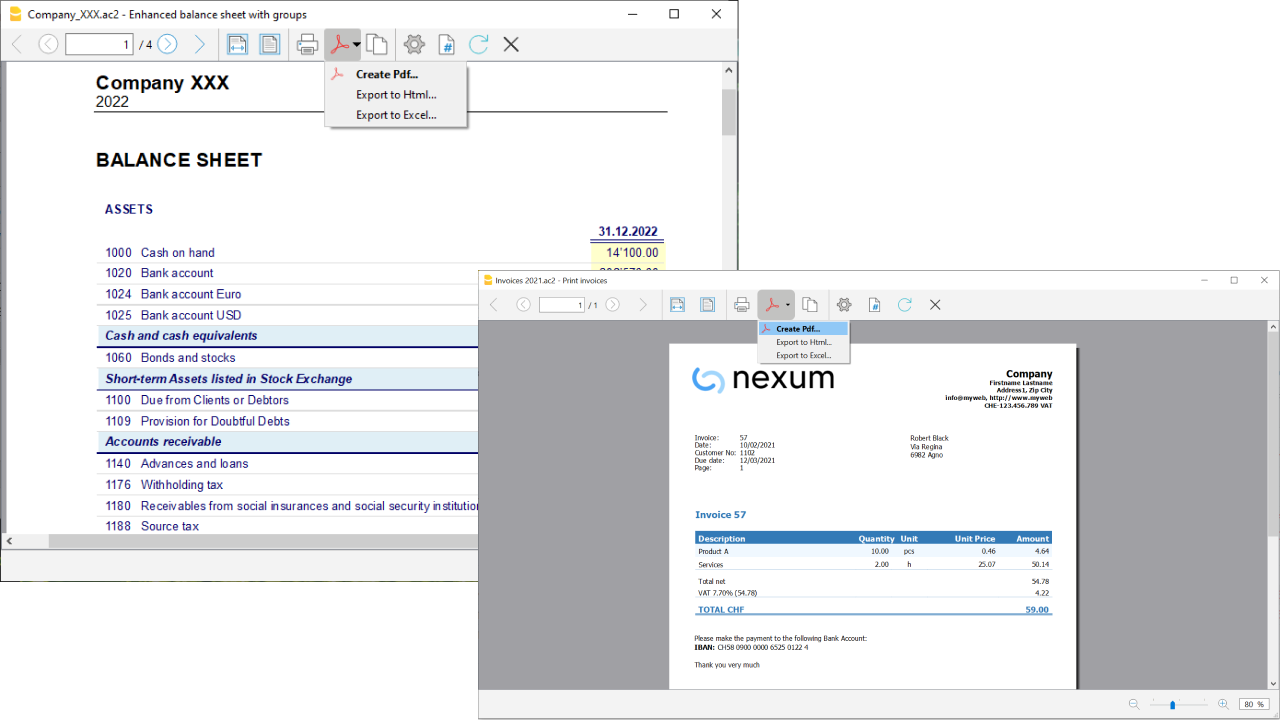
Preview window
All printouts of the various accounting documents and invoices can be saved in PDF, HTML, MS Excel format and copied to the clipboard, allowing you to access them even after some time.
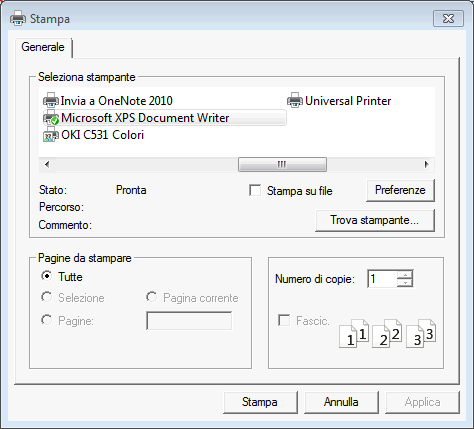
The button opens the Print Setup dialog of your operating system. Below is the dialog for Windows; those for other operating systems are similar. The choices you make are valid only for the current session; if you want to make permanent changes, they must be set through the control panel of your operating system (in this case Windows).
Landscape or portrait printing and other table print parameters must be set using the Page Setup command and they are different for each View.
Print selected cells only
When you have a selection of cells in the table, the Selection option is enabled and the preview and printout refer only to the selected cells. To print the whole table, simply disable the Selection option.
Page size
The page size is taken from the printer preferences. To change or correct the page size, go to the print preferences and select the desired format (e.g. A4). If you have already selected this format (A4), you must select it again to correct the page size.
Print to PDF
Most modern operating systems offer the option to select a PDF printer or to export to PDF directly from the print dialog. This method of creating a PDF has limited features compared to exporting to PDF from the Banana program.
- It is recommended to use the Print to PDF option if exporting to PDF has problems.
- Printing to PDF does not include attachments.
- Printing to PDF is not available for the Create PDF dossier function.
Export to other formats
The printout can be exported to different formats:
- Export to PDF
The format that keeps the printout characteristics. - Export to HTML / Excel / LaTeX
Formats for using the data in other programs.
Copy to clipboard button
The whole report is copied to the clipboard, so you can paste it into Excel or other programs, in these formats:
- Text
- HTML (with formatting styles).
Print settings
By clicking the gear icon in the command bar you access:
- If it is a table, the print setup dialog.
- If it is a report, the specific report dialog.
In the default settings, the program is set to automatically resize the columns or reduce the zoom so that all columns are printed correctly on the page.
Page numbering
The page numbering can be changed by setting the start number and the prefix.
Refresh
By clicking the Refresh button the document is regenerated based on the specific print or report settings.
Printing issues
- If the preview display is slow, it is probably because the default printer is not available.
- It is important to use the updated printer driver.
Accounting printouts
The explanations of the printouts can be found on the following pages: