In this article
From the Print preview you can export any document to PDF using the Create PDF command.
Depending on the documents you want to export to PDF, the program displays a dialog with different options.
Export a single document to PDF
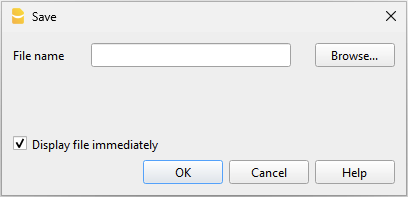
This function allows you to export a document to a PDF file.
To export a document to PDF, you need to:
- From the print preview, click on Export > Create PDF.
- Click on Browse and select or create the folder where you want to save the file.
- Enter the name of the PDF file. The file name will appear in the File name field.
- Enable the Open file immediately option to view the created PDF.
- Confirm with OK
Export multiple documents in a single PDF
This option is only visible if several documents have been selected to export to PDF.
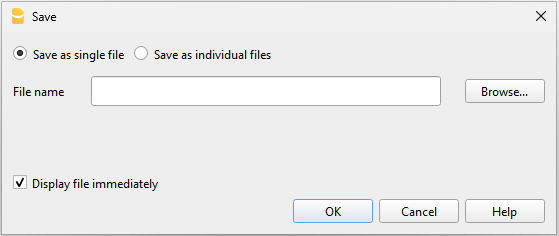
To export multiple documents into a single PDF, you need to:
- From the print preview, click on Export > Create PDF.
- Enable the Save as single file option.
- Click on Browse to select or create the folder where you want to save the file.
- Enter the name of the PDF file.
- Enable the Open file immediately option to view the created PDF.
- Confirm with OK
Export multiple documents as separate PDFs
This function allows you to export several documents in one operation, resulting in separate PDF files.
This option is only available:
- With the Advanced plan of Banana Accounting Plus.
- If several documents have been selected to export to PDF.
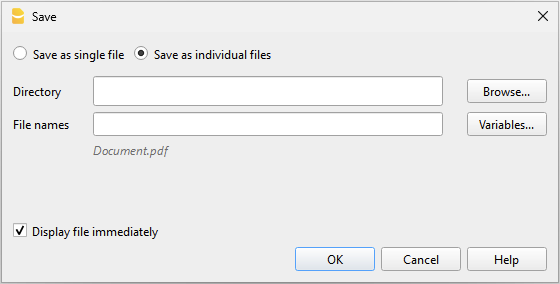
To export different documents as separate PDFs, you need to:
- From the print preview, click on Export > Create PDF.
- Enable the Save as individual files option.
- Click on Browse to select or create the folder where you want to save the files.
- Customize the file names using the variables available in the dialog window.
- Click on Variables to view the full list of variables.
- Double-click each variable you want to use to compose the file name.
While using the variables, you will immediately see a preview of the file name below.
- Enable the Open file immediately option to view the created PDF.
- Confirm with OK
If a file with the same name already exists in the selected folder, the program will ask for confirmation before saving.
Export invoices or customer statements to PDF
The same dialog is also valid for exporting customer statements and invoices to PDF.
For more information, go to the page Export invoices to PDF
Include attachments in PDFs
When a document contains attachments external to the accounting file, the dialog includes the Include attachments option. This option saves the attachments in the PDF file and allows for their export.
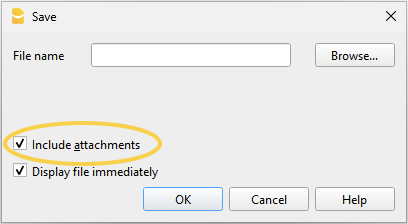
Attachments are local files added as digital links, for example PDF supplier invoices, credit notes or debit notes. The option is visible if links to the documents to be attached have been entered in the DocLink column.
- The attachment entered in the DocLink column is marked with a paperclip symbol. Clicking the symbol opens and displays the attachment.
- Only attachments that are in the same folder as the accounting file or in a subfolder are exported.
For attachments in other folders, a message "access denied" is shown.
This limitation prevents system or confidential files from being exported accidentally. It is therefore recommended to save attached documents in a subfolder of the accounting file. - Files with absolute paths are not exported.
Only some advanced readers like Adobe Acrobat Reader and Foxit allow viewing of attached files. Other PDF readers, such as those in browsers, do not allow viewing of attachments.
For more information, go to the page Create PDF file with digital attachments.
PDF creation parameters
- Page size
- The page size of the PDF is taken from the printer preferences.
- Before creating PDFs to print or send by email, make sure the page size in the print preferences is set to A4.
- PDF/A format
- The file is converted to the PDF/A format, the archiving standard, which is a more limited subset of the PDF standard.
- If certain elements are included, the PDF file will not comply with the PDF/A standard.
- Including any type of attachment is only compliant with the PDF/A-3 standard.
- Links to external documents are not allowed.
- Fonts
- The program creates the PDF using the fonts specified by the user.
- If there are readability issues or the PDF search function doesn't work, you can disable the True Type fonts from the menu Tools > Program Options > Advanced > True Type fonts.
PDF Creation Issues
In some situations, related to specific operating systems, fonts, or characters used, it may not be possible to correctly create a PDF file, or the text may appear cut off or not visible.
In these cases, it is recommended to use the operating system functionality by opening the print dialog window and choosing Print to Pdf.