In questo articolo
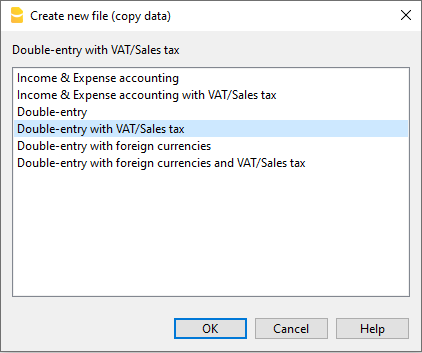
Il comando si attiva dal menu Strumenti > Converti in nuovo file.
Nella finestra di dialogo che appare, il tipo di file su cui si sta lavorando risulta selezionato.
Viene anche elencata una lista di possibili scelte:
La funzione permette di convertire un file esistente (che non verrà modificato) in uno nuovo con caratteristiche diverse. Pertanto è possibile:
- Cambiare la lingua.
- Cambiare l'arrotondamento.
- Cambiare il tipo di file. Per esempio:
- Passare da una contabilità senza IVA a una con IVA.
- Passare da una contabilità in partita doppia ad una multimoneta.
È come se si creasse un file nuovo vuoto e poi si riportassero manualmente i dati.
Le caratteristiche del file esistente si possono vedere con il comando Strumenti > Info File.
Creazione e trasferimento dati
Il comando Strumenti > Converti in nuovo file:
- Crea un nuovo file del tipo specificato con le impostazioni predefinite delle colonne.
- Trasferisce i dati nel nuovo file procedendo alle conversioni necessarie.
- Salva e indica il nome del nuovo file.
Passaggio da una contabilità con più opzioni ad una con meno opzioni
I casi di passaggio da un tipo di contabilità con più opzioni a uno con meno opzioni sono i seguenti:
Passaggio da una contabilità con IVA a una senza IVA
Durante la conversione:
- nelle Proprietà del file (dati base) viene eliminata la sezione IVA
- viene eliminata la tabella Codici IVA
- nella tabella Registrazioni vengono eliminati i dati delle colonne relative all'IVA
- nella tabella Conti possono essere eliminati i conti relativi all'IVA.
Passaggio da una contabilità multimoneta a una senza monete estere
Durante la conversione:
- nelle Proprietà file (Dati base) viene eliminata la sezione Moneta estera
- viene eliminata la tabella Cambi
- nella tabella Conti vengono eliminate le colonne Moneta e Aper. Moneta
- nella tabella Conti possono essere eliminati i conti relativi alle differenze di cambio
- nella tabella Registrazioni vengono eliminate le colonne relative ai cambi e alla moneta estera.
Importante: prima di passare da una contabilità multimoneta a una senza monete estere, assicurarsi che i saldi dei conti in moneta estera siano azzerati. In caso contrario, nel file convertito verranno riportate delle differenze di apertura.
Passaggio dalla contabilità doppia alla multimoneta
- È necessario che nelle Proprietà del file venga specificata la sigla moneta (che diventerà la moneta base).
- Scegliere come destinazione la contabilità con multimoneta
- Il programma crea una contabilità multimoneta riprendendo i dati esistenti:
- Le registrazioni avranno le colonne per la gestione multimoneta, come moneta quella di base e cambio 1.0000
- I conti esistenti nella tabella conti sono completati con la sigla moneta base:
- Aggiungere i conti utile e perdite di cambio predefiniti.
- Indicare nelle proprietà file i conti perdita e utile di cambio predefiniti.
- La tabella cambi è vuota, pertanto si dovranno aggiungere le monete e i cambi utilizzati nelle registrazioni.
- Nella tabella conti aggiungere i conti in moneta estera.
Per cambiare la moneta di una contabilità consulta la pagina Proprietà file.
Passaggio da una contabilità senza IVA ad una con IVA
- Scegliere come destinazione la contabilità con IVA che si desidera.
- Il programma crea una contabilità con le colonne IVA riprendendo i dati esistenti:
- Aggiungere i conti IVA nel piano contabile.
- Le proprietà file relative all'IVA devono essere completate, in particolare indicare il conto predefinito sul quale registrare l'IVA.
- Dal menu Azioni > Importa in contabilità > Codici IVA si possono riprendere le aliquote in vigore presenti nella tabella Codici IVA.
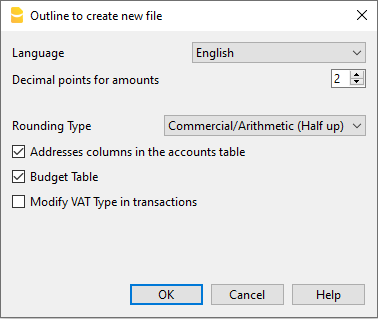
Parametri creazione nuovo file
Per maggiori informazioni su questo dialogo vedi: