In this article
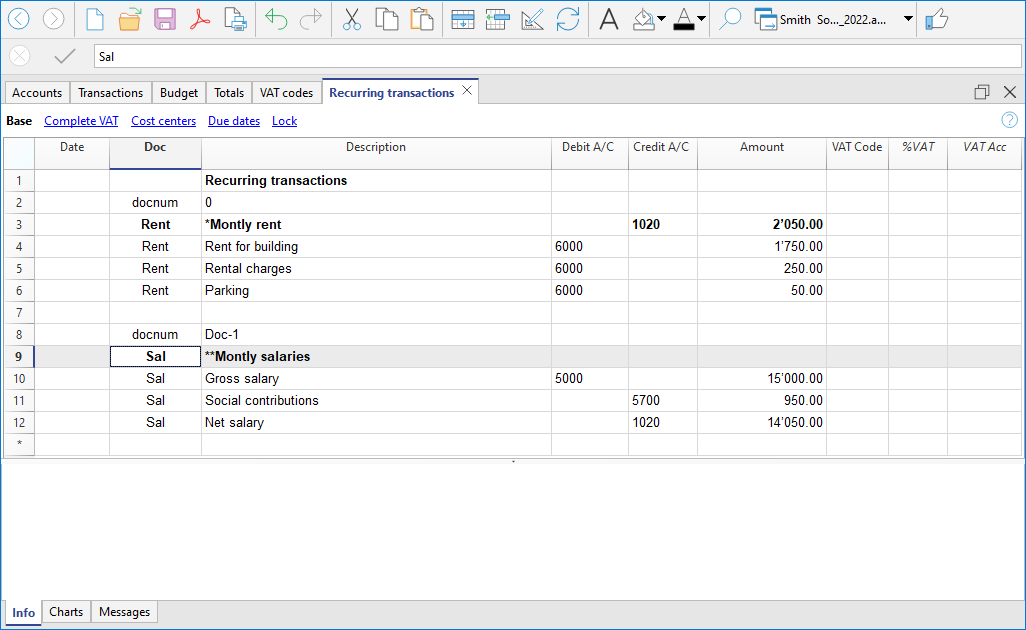
The Recurring Transactions table is used to store transactions that are used repeatedly.
It contains three types of recurring transactions:
- Recurring transations stored and retrieved using the Doc column in the Transactions table.
These have an identifier code without any punctuation in the Doc column. - Rules for completing imported transactions.
These define how imported entries should be completed.
They have "!Rule" or "RuleSplit" in the Doc column. - Automatic transactions with regular intervals.
These are used to automatically generate transactions that repeat with a certain frequency, for example, monthly, quarterly, semi-annually, or annually.
They have "!Auto" in the Doc column.
Display and arrange columns and views in the Recurring Transactions table
Before inserting repetitive entries, you must display the Recurring Transactions table from the Actions > Recurring Transactions menu.
The Recurring Transactions table does not allow saving custom display settings but inherits views and column settings from the Transactions table.
To customize the columns and their layout in the Recurring Transactions table, you need to:
- Add a new view in the Transactions table.
- Arrange the columns setup the Transactions table in the desired order.
- In the Recurring Transactions table, choose the view that was created (in the Transactions table). The columns will be displayed in the same order as the created view.
Insert recurring transactions using the Doc column
- If the "End date" column is present (see Automatic transactions), you can also specify a date after which the entry should no longer be used in the Transactions table.
Transactions that are no longer used must be deleted manually.
The Recurring Transactions table in Income and Expense Accounting
The functionality of the Recurring Transactions table is the same as in Double-entry Accounting, only the columns differ:
- In Income/Expense accounting, the Account and Category columns are used.
- The Account column refers to the bank, postal, credit card account, etc. It indicates where the money is taken from or where it goes.
- The Category column indicates the category of the expense or income. It represents the reason for the expenditure or income.
- The Income and Expenses columns indicate the amount of the transaction.
- In double-entry accounting, the Debit Account and Credit Account columns and the Amount column are used.

Progressive numbering of documents "docnum"
If you need a different progressive numbering in the Doc column of the Transactions table, other than the automatic one, you can set it via the Recurring Transactions table.
Insert a row with the code docnum in the Doc column. From the following rows, the program will use the type of numbering indicated in the Description column.
"0" – If you don’t need automatic numbering.
"1" – For simple progressive numbering.
"doc-1" – For progressive numbering with a prefix, for example cash-1, cash-2, cash-3. Replace "doc-1" with the prefix you want (e.g., cash-1, cash-2, etc.).
The program replaces the number at the end of the text with a progressive number.
Managing display in suggestions
If you want only one row per code to be shown in the suggestions, you can use these prefixes in the description:
A single "*" – Displays only this row and not those with a similar code.
A double ""** – Displays only this row, but does not use it (title row only).
A backslash + asterisk "\*" – Allows you to start the description with an asterisk without it being interpreted as a command.
Retrieve recurring transactions in the Transactions table
In the Transactions table, you can retrieve the rows defined in the Recurring Transactions table:
- In the Transactions table, enter the date in the transaction row. You can also add other missing columns compared to those in the Recurring Transactions table, depending on the view you're using.
- In the Doc column of the Transactions table, select one of the codes defined in the Recurring Transactions table (Doc column) and press Enter:
- The program inserts the repetitive rows with the same code.
- If needed, you can always modify or complete some values.
- Rows stored in the Recurring Transactions table can also be retrieved in the Transactions table by entering the code in the Doc column and pressing the F6 key.
Copy transactions from the Transactions table to the Recurring Transactions table
Repetitive entries can also be inserted by copying entries from the Transactions table and pasting them into the Recurring Transactions table.
Proceed as follows:
- In the Transactions table, select the rows to copy.
- Edit Menu > Copy rows.
- Go to the Recurring Transactions table.
Edit Menu > Paste copied rows
You can also use the Ctrl + C and Ctrl + V keys to copy transactions.