In this article
The commands display the list of recently used files and favorite files. These are also shown on the Start page.
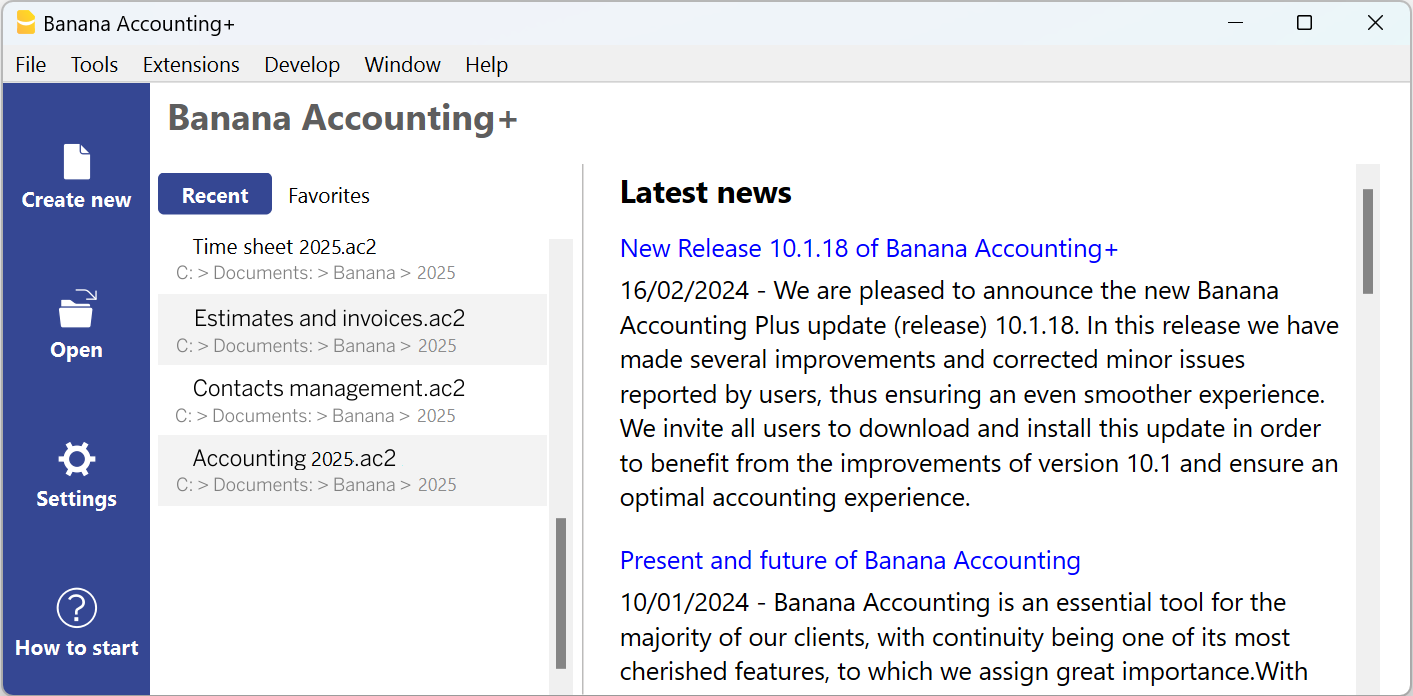
Recent files
In this section, Banana Accounting lists the most recently used files and the paths where they were saved.
A path indicates where a file is stored on your computer. It is like an “address” that guides you to the exact location of the file, for example: C:\Documents\Banana\2024\Estimates and invoices.ac2.
Banana files are not stored inside the program. You choose where to save them.
Edit or remove Recent files from the list
From the File > Recent files menu, the following commands are available:
Edit recent files list...
This command opens the following dialog: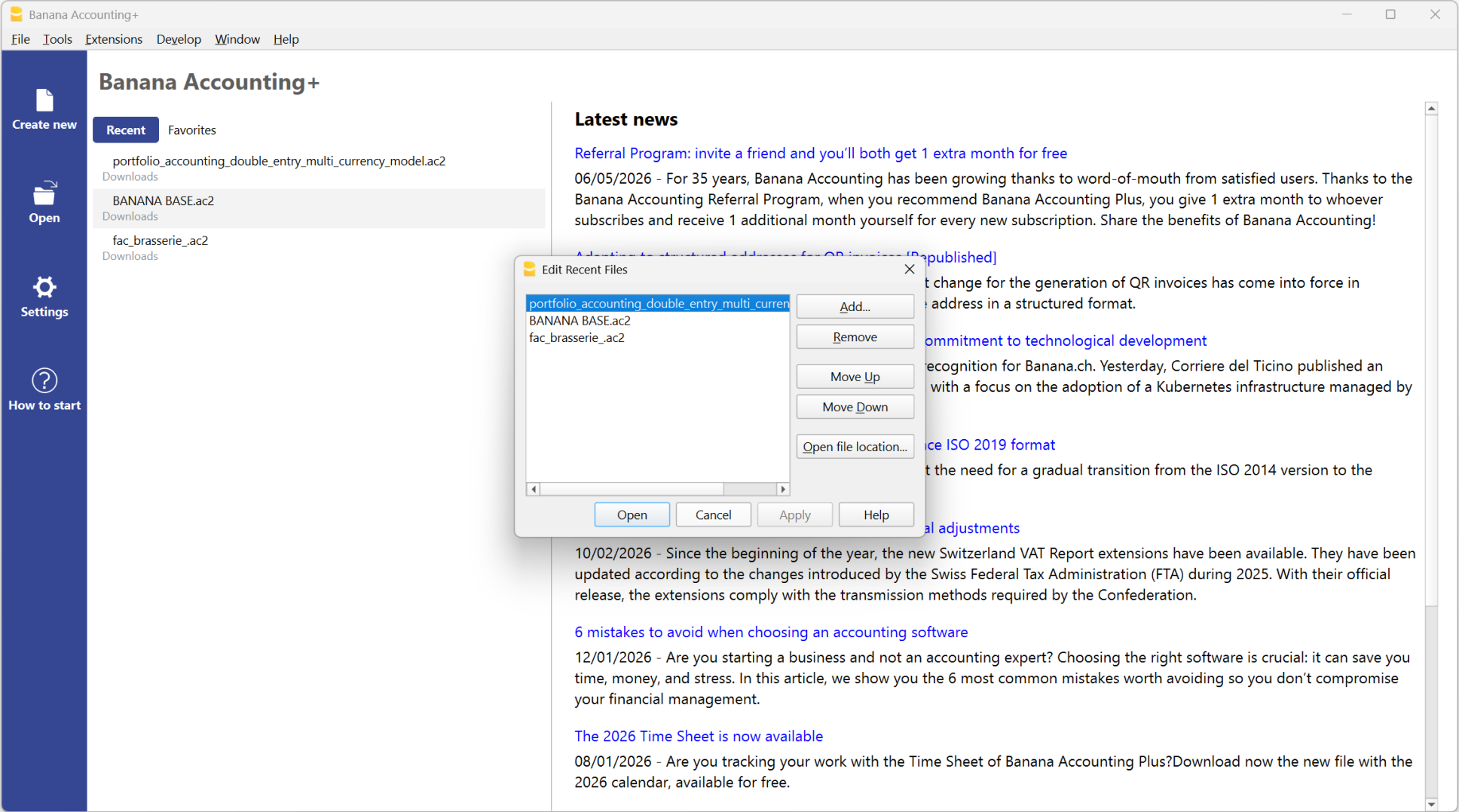
- Clear recent files list
This command removes all files from the Recent files list.
You can also edit or remove one or all files from the Recent files list directly from the Start page. Place the cursor over a file and right-click it. Mac users must use Ctrl + right-click.
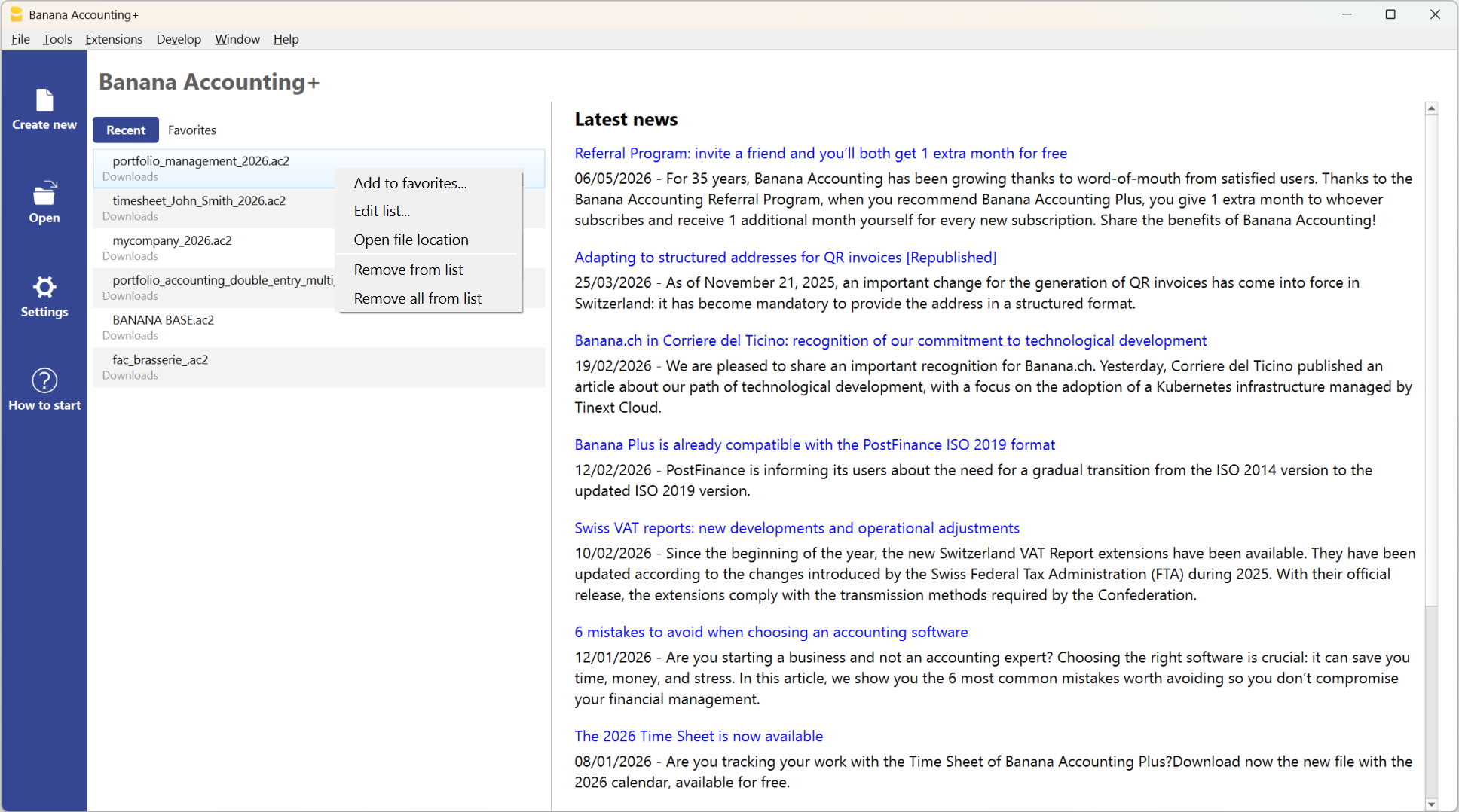
The following commands are available:
- Add to favorites...
This command adds the selected Recent file to the Favorite files list. - Edit list...
This command opens the dialog shown above. - Open file location
This command opens the folder where the file was last saved in Windows Explorer or Finder on Mac. This can be useful for checking whether the file has been renamed. In the same folder, you may also find the .bak file, which is the backup copy that the program automatically creates and updates each time the file is saved. - Remove from list
This command removes the selected file from the Recent files list. - Remove all from list
This command clears the Recent files list.
If you cannot open Recent files
If the error message File not found appears when you click a Recent file, the program can no longer find the file in its saved location.
The file may have been moved, deleted, or renamed. For more information, see: https://www.banana.ch/doc/en/systemmsg_en_err_filenontrovato.
Favorite+files
In this section, you can create a list of the files you use most often, together with their file paths.
Add a file to Favorites
- Open the desired file.
- Select File > Favorite files > Add to Favorite files.
Edit the Favorite files list
- Select File > Favorite files > Edit Favorite files list...
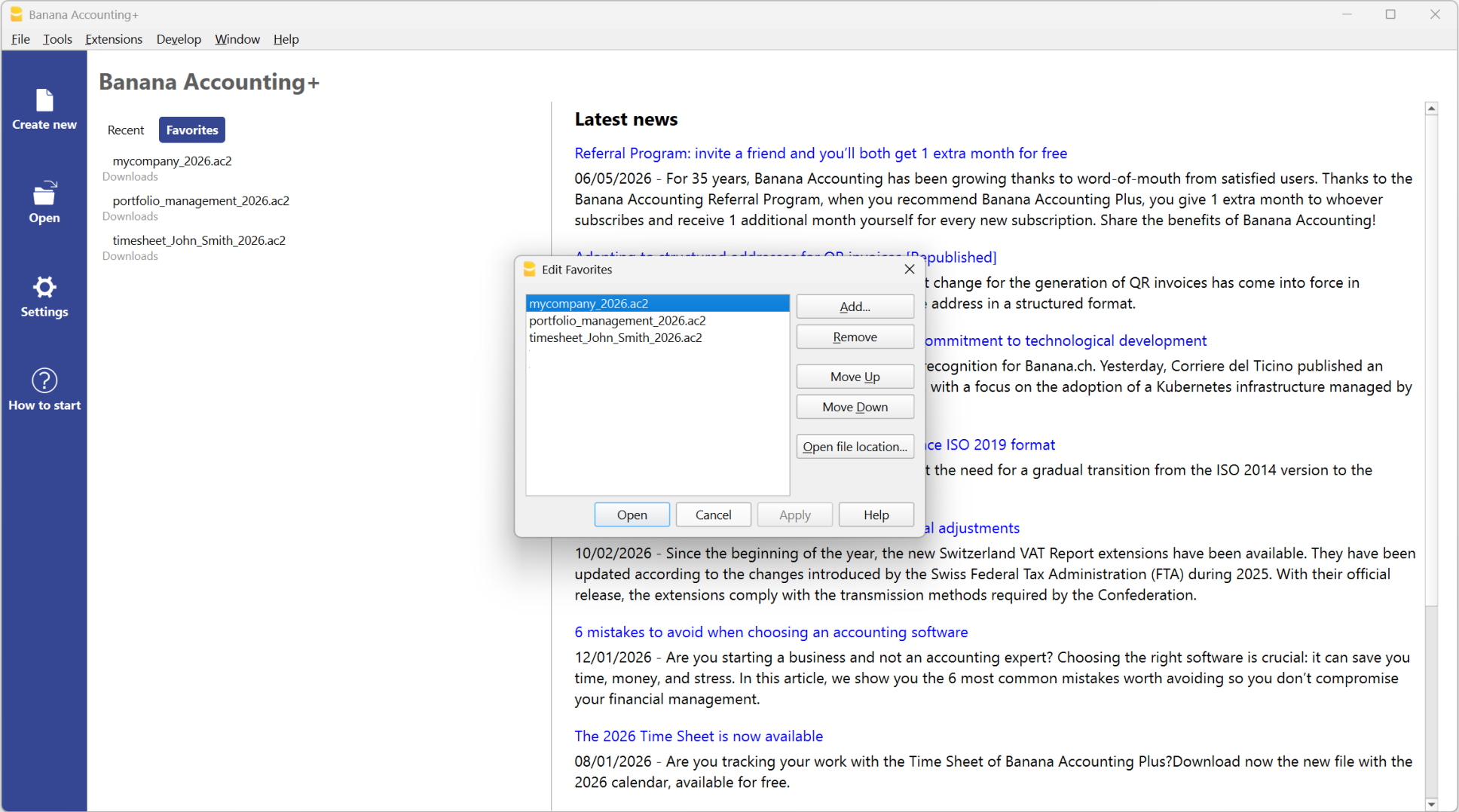
You can also edit or remove one or all files from the Favorite files list directly from the Start page. Place the cursor over a file and right-click it. Mac users must use Ctrl + right-click.
The following commands are available. They work in the same way as the corresponding commands for Recent files:
- Edit list
- Open file location
- Remove from list
- Remove all from list
Where are accounting files saved?
Banana Accounting files are saved in the .ac2 format. This should not be confused with the program executable file, which has the .exe extension. File management works in the same way as it does for Word or Excel files, which use the .doc or .xls formats respectively.
When you save a file, you choose the folder where it will be stored: on your computer, for example under C:\Documents\..., in your cloud storage, on a USB flash drive, or elsewhere.
Banana Accounting shows links to the most recently used Banana files and to the files you have marked as Favorites.
Your files are not stored inside the program, but in the folder you chose when saving them. Banana.ch SA has no access to your files.
For more information, see Open and save a file.