VAT Management in Banana Accounting+
Banana Accounting Plus simplifies VAT management by automating the calculation, recording, and submission of VAT returns to tax authorities. Cutting-edge features reduce manual errors, ensuring tax compliance. Banana Accounting Plus simplifies VAT management by automating the calculation, recording, and submission of declarations to tax authorities. Cutting-edge features reduce manual errors, ensuring tax compliance. Pre-set templates with VAT options and pre-configured codes are available for all accounting applications,
For Switzerland, the new 2024 VAT rates are already available. The new VAT extension for submitting returns digitally is available.
- Swiss VAT management
- ▶ Video: Swiss VAT return (in French, German, Italian)
Recording transactions with VAT
With Banana Accounting, VAT management is very simple because it is completely automated. Transactions with VAT are recorded in the Transactions table, the main hub of all accounting, by entering for each VAT transaction the corresponding VAT code, referring to the sale or purchase, according to the rates in force.
Several pre-set columns are available, the display of which can be customised.
In addition, the programme offers:
- Accounting with different VAT rates in the same transaction
- Add the invoice in PDF in the link column.

In the Transactions table there are specific VAT Columns for various VAT-related information.
To record a transaction with VAT, enter the following data:
- The date of the transaction.
- The invoice number.
- In the Link column, you can enter the digital link to the Pdf accounting document.
- The Debit and Credit Account where you can indicate the account and the contra-account
- The amount.
- The VAT code relating to the purchase or sale (codes found in the VAT Codes table).
For each transaction, the programme performs the following automatisms:
- Accurately records the VAT paid on purchases and the VAT received on sales.
- Automatically calculates the VAT amount.
- Breaks down the VAT amount from the cost or revenue.
- Retreives the VAT amount, taxable amount and VAT amount on the VAT accounts.
Predefined VAT accounts and settings
In the Banana Accounting Plus VAT models, the VAT accounts are already set up in the Accounts table. In the passive accounts, there are the automatic VAT split account and the VAT due account (or VAT receivable account).
To speed up VAT transactions, it is possible to set the VAT code to each account that has VAT transactions in the Accounts table. This setting allows you to automate the entry of the VAT code when you enter the account in the Accounts table.
More details can be found on the page Match the VAT code to account.

VAT Codes Table
The VAT Codes table defines the VAT codes for the rates in force and other parameters for calculating VAT.
- There are columns in which to set VAT codes for calculating VAT gross, net or by VAT amount only.
- There are both VAT codes for the effective method and for the flat rate method
- Swiss templates have the VAT Codes table already set up:
- with the VAT codes relating to the rates in force
- for each VAT code, in the GR1 column, the reference figure is set, which will allow the VAT data to be reported in the VAT reporting template and also in the Xml file to be transmitted to the Federal Tax Administration (FTA).
- For each country, there are files with the VAT codes already set according to the national reporting requirements.
Automated VAT reports and returns
The programme automatically generates various reports with very detailed summaries by VAT code, account, percentages, records and period. VAT summaries can be customised by displaying columns specific to the data you wish to obtain. VAT summaries are useful for understanding the movement of VAT (VAT due, recoverable and payable) and allow effective control and in the event of audits by tax authorities, targeted details are available to facilitate audit work.
More information is available on the VAT Report page.

The VAT functionalities of Banana Accounting Plus offer several advantages:
- Efficiency
You avoid preparing calculations and statements manually, saving time and effort - Accurate calculations and statements
Errors are avoided because calculations are performed automatically and accurately by the programme on the basis of the data recorded by the system. - Compliance with current regulations
The programme is updated according to current rates. Simply update the VAT Codes table and the calculations and statements are performed correctly and in a manner consistent with the regulations. - National VAT Reports Extensions
These are additional modules, different per country, that print or export VAT data in the format required by the tax authorities. Please refer to the national VAT documentation - Archiving of VAT printouts
All printouts with VAT data can be saved in pdf or other formats and archived. Archiving allows the data to be available at all times in case of tax audits.
Calculation methods
Banana Accounting is a powerful calculation tool and in VAT management, too, you can take advantage of its potential to always have accurate and correct VAT calculations and reports.
There are two calculation methods:
- Effective Method - calculations and accounting of VAT using the cash principle and on turnover
- Flat tax rate Method - Calculations and accounting of VAT upon the VAT rates granted by fiscal authorities
Accounting methods
- Turnover
Demands the for the keeping of a customer and supplier ledger.
Costs and revenues, with the corresponding VAT code, are recorded when the invoice is issued and received.
More information can be found on the page How to manage VAT on turnover.
- Cash principle/ Collection
It is not compulsory to keep a customer and supplier ledger, but if you still wish to have one, it is important to set it up with cost centres.
Costs and revenues, with the corresponding VAT code, are recorded when collected or paid.
More information can be found on the page Clients and Suppliers with VAT using the Cash principle
Features currently unavailable
These features are not available at the moment:
- In multi-currency accounting, the account to which VAT is recorded net (usually Revenue and Expense accounts) must be in base currency.
It is not possible to deduct VAT from accounts that are not in base currency. - The VAT amount is calculated by the programme and recalculated when the Recalculate accounting is done. This gives the auditor or others who check the accounts the certainty that the calculations are always made with the same logic.
For VAT rounding, it is not possible to enter a different VAT amount than the one calculated by the programme. Generally, these are VAT amounts that have been rounded on the invoice, even by a few cents.
Insights
VAT documentation specific to Switzerland, Italy and other countries.
In the section of each country you will find the most specific documentation on VAT.
English not being an official language, you will be redirected to the relevant pages in official languages for Switzerland.
- VAT management for Swizerland
Information pages specific to Switzerland:- Swiss VAT codes table.
- How to register VAT.
- Prepare the VAT return.
- Use the Swiss VAT Extension.
- VAT management for Italy
- Information pages specific to Italy:
- Italian VAT codes table.
- How to register VAT.
- Prepare the VAT return.
- Use the Italian VAT Extension.
Extensions for national VAT reports
For some countries there are Extensions that can be easily installed and allow you to print or export the VAT report in the format required by the authorities.
Each country's VAT extensions work in conjunction with the country's VAT Codes table.
Theory
VAT (Value-added Tax) is a tax that weighs on the final consumer. Every VAT subject must calculate and periodically deposit the tax to the Revenues Authority.
Every country has its own VAT rates that are established in different percentages depending on the type of merchandise or service. Certain merchandise and services are exempt or excluded.
The percentages vary according to the financial necessity of the country; therefore, there can be changes over the years.
VAT rate
In this document, to make calculations easier, we will use the following rates:
- 10 % normal rate
- 5% reduced rate
- 0% excluded operations or exempt operations
VAT calculation
Net Price x VAT Percentage / 100 = VAT Amount
Example:
Net price 300
Tax rate 10%
VAT amount = 300 x 10 / 100 = 30
Gross price calculation
Net price + VAT Amount = Gross Price
Example:
300 + 30 = 330
Sometimes the gross amount is known and it is necessary to find the net and VAT amounts.
Net price calculation
Gross Price / (100 + VAT rate) x 100 = Net Price
Example:
330 / (100 + 10) x 100 = 300
The net price represents the cost (purchase) or the revenue (sale) of the company
VAT amount calculation
Gross Price - Net Price = VAT Amount
Example:
330 - 300 = 30
or
330 - [330 / (100 + 10) x 100] = 30
The VAT amount represents the debit (sales) or the credit (purchases) towards the Revenues Authority.
VAT rate calculation
VAT Amount / Net Amount x 100 = VAT Rate
Example:
30 / 300 x 100 = 10%
or
[330 - 330 / (100 + 10) x 100]/100 = 10%
Another example:
20 / 400 x 100 = 5%
This way of calculating is used when the rate is not known.
File properties (VAT/Sales tax tab)
This tab will only appear if an accounting template with VAT/Sales tax management is selected.
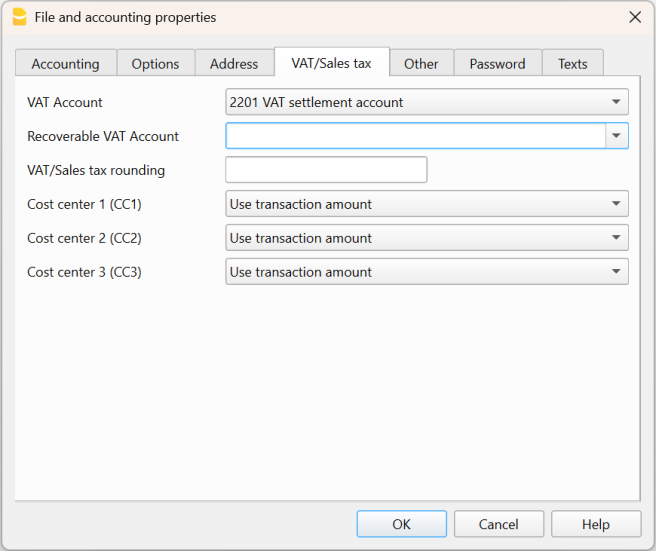
The VAT section for setting up VAT accounts is accessed via the File menu > File properties (basic data) > VAT/Sales tax tab.

VAT Account
The automatic breakdown VAT account, present in the chart of accounts, is set by default. For Swiss users it corresponds to the VAT according to VAT report. In this case it is not necessary to enter the VAT account in the VAT Code Table.
With the setting of the automatic breakdown VAT account only, all the VAT amounts, both of the sales and of the purchases, flow respectively into the credit and debit of this account and it is not necessary to set up the recoverable VAT account. At the end of the quarter, the balance of the automatic breakdown VAT account is turned over to the VAT payable account (or Inland Revenue VAT account).
Recoverable VAT Account
If the automatic breakdown VAT account is not set up as the only VAT account, the recoverable VAT account is set up. In this case it is not necessary to enter the account in the VAT Codes table.
VAT rounding
It is defined how the VAT amounts must be rounded; for example, if you enter 0.05, the VAT amounts are rounded to multiples of 0.05.
Cost centers 1 (CC1), 2 (CC2), 3 (CC3)
For each type of Cost Center it is possible to choose which amount to use for registration in the cost center:
- Use the transaction amount.
- Use the amount with VAT included
(In the case of cost centers used for customer or supplier accounts) - use the amount without VAT
Setting whether the cost center is used for costs or revenues.
Note
if one of these parameters is changed, the accounting will have to be recalculated.
Related documents:
VAT Codes Table
The settings in the VAT Codes table allow you to define all the parameters necessary to manage the procedures for registering with VAT. The settings concern:
- VAT due or recoverable.
- Transaction amount recorded as net, gross, or VAT amount at 100% (Customs VAT).
- Percentage of applicable VAT rates.
- The account in which VAT is be recorded.
- Special rounding off for each code.
- Grouping and totaling method.
The VAT Codes table has a Base view and a Complete view. The difference between the two is the fact that the Complete view presents several columns that are not available in the Base view.
Calculation method
The parameters indicated in the VAT Codes table are being used to calculate the VAT of the individual transactions.
The parameters established in the VAT Codes table cannot be changed in the transactions. This modality guarantees that the VAT calculations are correct and consistent.
Please note: if the values of a VAT Code, which has already been used in the transactions, are being modified, the changes are not active immediately; in this case it is necessary to use the Actions > Check accounting command.
When modifying the VAT table, the program, as a precaution, displays a message in the Info window inviting for a complete recalculation.
The following Table refers to the codes being used according to the Swiss legislation:
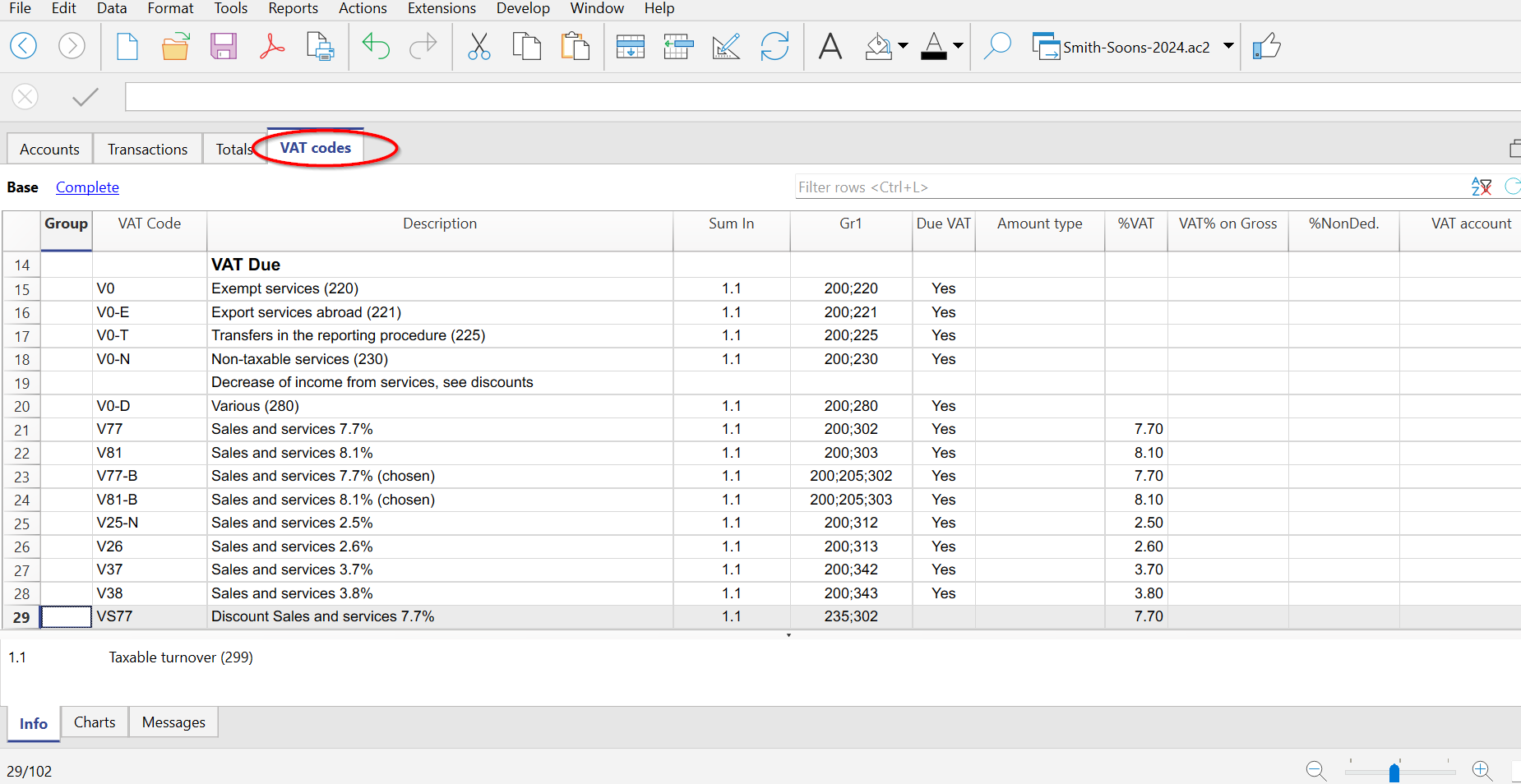
Detailed description of the columns
In the following columns, insert the following data:
- Group: an abbreviation or a number that indicates the group to which the codes belong.
For more information on the grouping system, please refer to the Grouping System page. - VAT Code:
The program provides for three types of codes- Normal VAT codes
The abbreviation used to identify and apply the VAT code in the transactions
Used in the Transactions table, VAT Code column (e.g. V81)
Note: they cannot contain the character ":" - Special codes prefixed by the character ":"
These are not VAT codes but are used to specify VAT cases in more detail
Used in the Transactions table, Extra VAT column (e.g. :ESCL) - Reverse charge VAT codes
In reverse charge transactions, two VAT codes separated by a colon are entered; the program calculates both the VAT payable and receivable
Used in the Transactions table, VAT Code column (e.g. B81:M81)
Note: in the VAT Codes table only the two individual codes are defined; the combination is entered in the Transactions table.
- Normal VAT codes
- Description: a text for the description of the VAT Code or the group.
- Disable:
Allows you to disable VAT codes that are not used. Facilitates data entry in the Transactions table.- 1 - the VAT code is not visible in the auto-completion list (Transactions table), but it can still be used;
- 2 - the VAT code is not visible in the auto-complete list and must not be used.
- Sum in: abbreviation or number of the Group in which the row of a code must be totaled.
- Gr1: this column is used for specific groupings.
The screen capture shows the groupings for the encoding of the figures of the Swiss VAT return. - Gr2: code for additional groupings.
- Due VAT:
If the word Yes is being inserted, this means that the VAT is at debit (due to the State)
If the cell is empty, this means that the VAT is at credit (recoverable) - Amount type:
The code indicates how the VAT amount of the transaction is to be understood.- 0 (or empty cell) - with VAT/sales tax (the transaction amount is considered VAT included)
- 1 = without VAT/Sales tax (the transaction amount is considered VAT excluded)
- 2 = VAT amount (the transaction amount is considered the VAT amount, 100%)
The amount type 2 is used in particular to account for customs VAT paid or charged on the shipper's invoice. More details on the recording are available on the page: Entering VAT at customs for import
- % VAT: VAT code percentage.
- % NonDed.: if, for a VAT code, it is not possible to deduct the full 100%, enter the non deductible percentage here (example 100%)
- VAT% on gross: is usually left empty. The word "Yes" has to be inserted only if the VAT percentage has to be applied on the gross amount (VAT included) and not on the taxable amount (e.g. for flat rates).
- VAT account: The account to which the broken down VAT automatically is posted.
In the File and Accounting properties (File menu), a general account, that will be used as the VAT account, can be defined. - Round Min: minimum rounding value.
If left empty, the rounding indicated in the basic accounting data is used. - Don't warn: there are particular entries that the program might interpret as wrong, but which are in fact correct. To prevent the program from reporting error warnings, enter Yes to the code of interest.
Rechecking the accounting file
When the accounting is recalculated and the transactions are not blocked, the program resumes the VAT parameters assigned to each code in the transactions. Therefore, if a setting of a VAT code has been changed, the change is resumed in the respective columns of the transactions which are not editable by the user.
For this reason, when editing the VAT codes table, the program suggests to operate a full accounting recheck.
Adding a new percentage
When a new percentage is added, a new row has to be added; in the new row, insert the data of the new VAT code with the new percentage, while paying attention to insert the correct grouping. Don't change a code that has already been used in the transactions.
VAT codes for services provided abroad
In the VAT Codes table, it is possible to set up, in separate groups, VAT codes for the provision of services provided abroad, with specific rates for the country in which one operates and for which VAT is also due to foreign countries.
The corresponding VAT code is set for each country, which can be totaled in its own group or in a totalization group that refers to the VAT to be paid to foreign countries.
To view the amounts to be paid, go via the Reports > VAT /Sales tax report menu and select the specific code for the country or the totalization group for the VAT to be paid to foreign countries.
For the VAT to be paid in foreign countries, it is not possible to send it electronically.
Own Groupings
By creating groups with multiple totaling levels, the user can obtain the totals that are necessary for the VAT declaration.
In the VAT report, by activating the option Use own grouping scheme, the software calculates the totals exactly as indicated in the sequence of the indicated groupings in the VAT Codes table.
The groupings are being used to obtain totals for groups of transactions, for example, the totals for all exportations or importations.
Match the VAT Code to an Account
All the codes listed in the VAT Codes table can be linked to the VAT-related accounts in the Accounts table. This way, when entering transactions in the Transactions table, the program automatically inserts the corresponding VAT code.
The procedure for linking a VAT code is described on the page:
Related document:
- Import VAT codes
- National VAT documentation
Link to specific VAT documentation for Switzerland, Italy and other countries.
Match the VAT code to the account
In accounting with VAT, in the Accounts table, you can automate the entry of the VAT code by associating each account with its corresponding VAT code. In this way, in the Transactions table, when you enter the account, the program automatically inserts the VAT code and completes the columns with the corresponding data.
Link a VAT code to an account (effective method)
To link a VAT code to an account:
- The VAT Code column is visible by default in the Advanced view.
If you want to display the VAT Code column in the Basic view, go to the menu Data > Columns setup > VAT Code. - Once the column is visible, enter the VAT codes related to the accounts.
If the VAT code is entered in square brackets, such as [V81], VAT will appear only on issued invoices and will not be posted.
Link a VAT code to an account (flat rate method)
The procedure is the same as described in the previous paragraph:
- In the Accounts table, in the VAT Code column, enter the VAT code on the rows of the accounts related to sales.
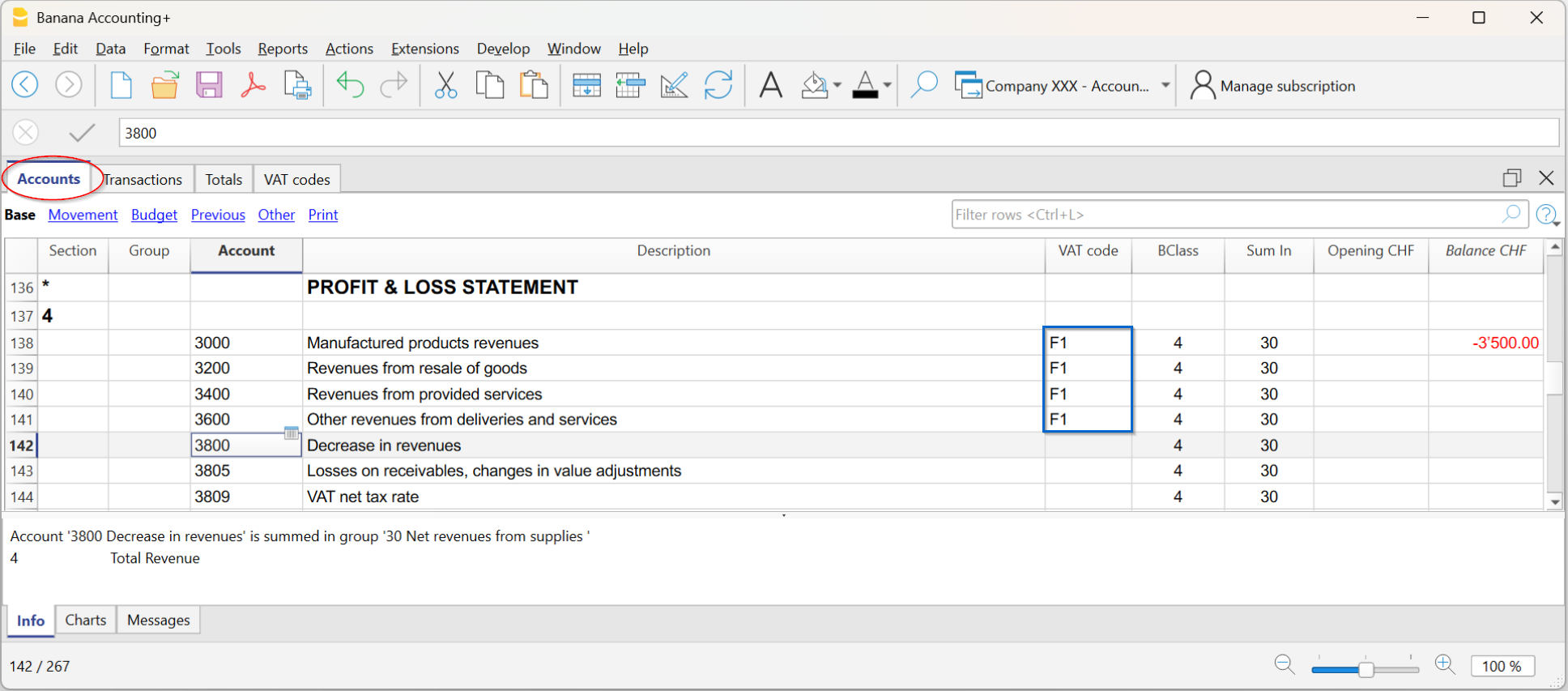
Depending on the type of transaction, there are two cases:
Case 1 – Transaction with VAT breakdown
If you want to record with VAT breakdown:
- In the VAT Codes table, enter the flat rate VAT rate(s).
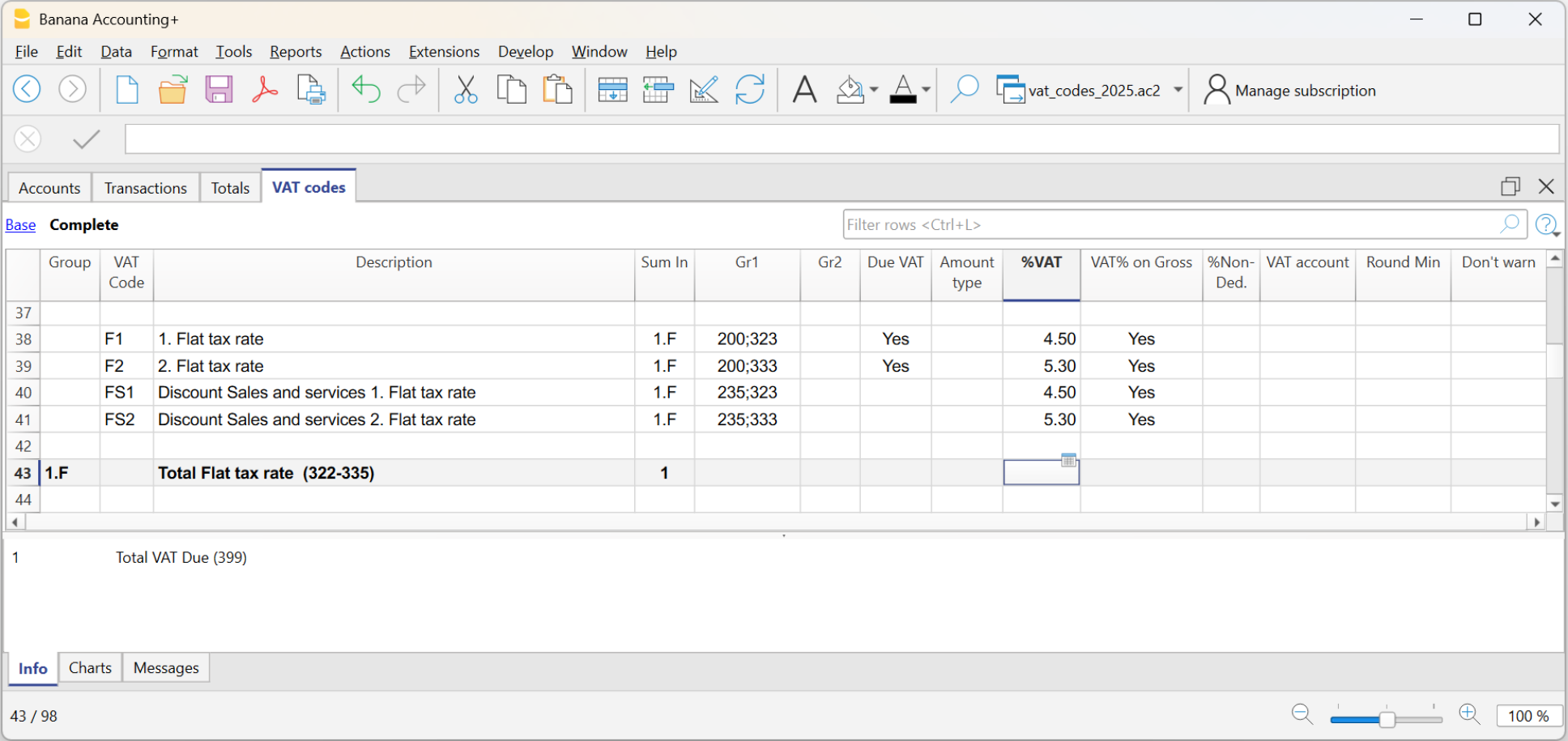
- The program will show for each transaction:
- the gross sales amount
- and the corresponding VAT breakdown.
In this way, you get a complete detail of the taxable amount and the tax.
Case 2 – Transaction without VAT breakdown
If you want to record without VAT breakdown:
- In the VAT Codes table, the flat rate VAT rates must not be entered.
- In the Accounts table, in the VAT Code column, simply enter the corresponding code.
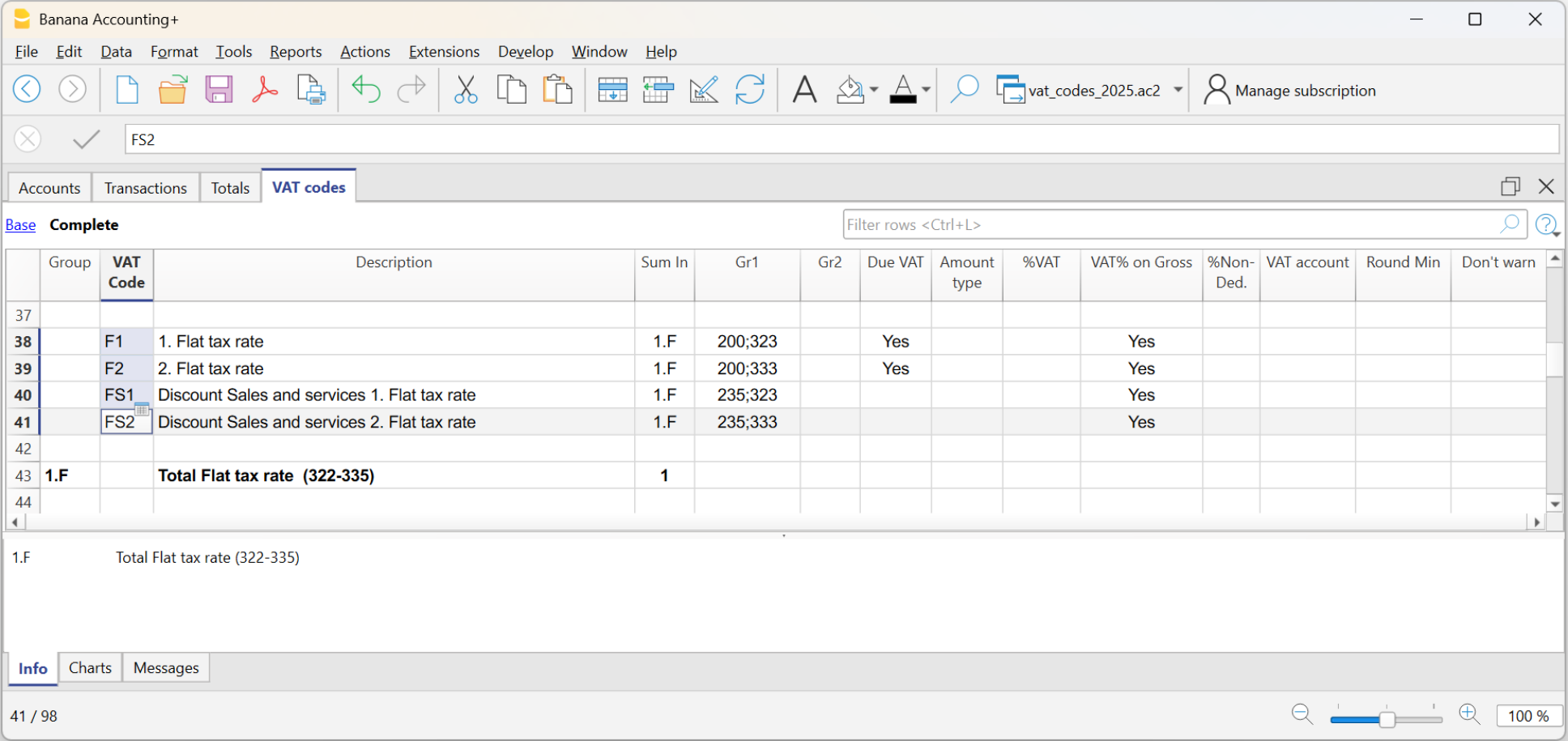
At the end of the semester (or the defined period), the program automatically calculates the VAT due based on the gross turnover amount determined from the sales transactions marked with the flat rate VAT code.
Note: if the VAT rates have changed (see New VAT Rates), the values entered in the VAT Code column must be updated manually. The same applies to transactions already present in the Transactions table (VAT Code column), which must be manually edited row by row or all at once using the Replace command.
VAT rounding
The Swiss system for VAT calculation, provides for calculated to the cent, without rounding.
For those who need to have VAT amounts rounded up to cents, the following procedure is followed:
- In the Transactions table, post normally by applying the appropriate VAT code
- On the next row, post the expense or revenue account used in the previous line in debit and credit
- In the amount column, enter the cents to be rounded
- In the VAT Code column, enter a VAT code with amount type 2 (100% VAT amount), for example M81-2
- When the cents are to be decreased, enter the code with the minus sign in front of "-M81-2".

Setting up VAT accounts
VAT accounts are ledger accounts used to automatically record VAT amounts calculated by the program when a VAT code is used.
They are used to record and monitor VAT due on sales and input VAT (recoverable) on purchases. Thanks to the automation of VAT codes, it is not necessary to manually calculate or record VAT amounts: Banana Accounting performs the calculations and postings automatically.
How VAT accounts work
When a VAT code is used, Banana Accounting automatically calculates:
- the taxable amount
- the VAT amount
- the amounts to be recorded in the Debit and Credit accounts
- the VAT amount to be recorded in the VAT account.
Based on the VAT account settings defined in the menu File > File and accounting properties > VAT/Sales tax or in the VAT Codes table, the program automatically records the VAT amounts in the appropriate accounts.
To check the calculation details, simply place the cursor on the transaction. In the information window at the bottom, the amounts recorded in the different accounts are displayed.
Use one automatic VAT account or specific VAT accounts?
In most cases, it is sufficient to use one automatic VAT account, a simpler solution to manage and control.
From a tax perspective, it is necessary to distinguish VAT due on sales from input VAT on purchases. In Banana Accounting, this distinction can be achieved either through separate VAT accounts or through VAT codes and the related reports.
In programs that do not use VAT codes, it is often necessary to record each type of transaction in separate VAT accounts in order to obtain the details required for checks and the VAT return.
With Banana Accounting, however, thanks to VAT Codes and the VAT Report, it is possible to obtain detailed information even when using a single VAT account.
In fact, it is possible to view:
- transactions and totals by individual VAT code
- transactions and totals by VAT rate
- transactions and totals by VAT account
- transactions and totals of VAT due and input VAT
- taxable amounts and recorded VAT amounts.
For this reason, in the standard Swiss templates of Banana Accounting, account 2201 - VAT settlement is normally used.
Using a single VAT account (2201 - VAT settlement)
If in the menu File > File and accounting properties > VAT /Sales tax the account 2201 - VAT settlement (automatic VAT account) is set as the default VAT account, it will be automatically used for all transactions containing a VAT code, both for VAT due and for input VAT.
In this case, in the VAT Codes table, column VAT account, it is not necessary to specify any VAT account.
All VAT amounts are recorded in the account 2201 - VAT settlement
- in Debit, input VAT amounts on purchases are recorded;
- in Credit, VAT amounts due on sales are recorded.
The account balance therefore represents the VAT amount to be paid to the tax authority or the VAT credit to be recovered.
Using specific VAT accounts
If you wish to use specific VAT accounts, you can associate a different VAT account with each VAT code.
For example, in Swiss charts of accounts it is common to use:
- accounts 1170 and 1171 for input VAT
- account 2200 for VAT due
- additional accounts for particular categories of VAT transactions.
To use specific VAT accounts, you must:
- add the desired VAT accounts to the chart of accounts (for example accounts 1170 and 1171 for input VAT);
- leave the Automatic VAT account field empty in the File and accounting properties > VAT/Sales tax (File menu)
- specify in the VAT Codes table, VAT account column, the VAT account to be used for each code.
In this way, VAT amounts will be automatically recorded in the accounts specified for each VAT code, instead of in a single automatic VAT account.
Advantages of using the automatic VAT account
After years of experience and user support, we have found that using a single VAT account is often the most intuitive solution.
Unlike many traditional accounting programs, Banana Accounting allows you to obtain all this information directly from VAT Codes and the VAT Report, while at the same time maintaining a simpler and more orderly chart of accounts.
The main advantages are:
- a simpler and more orderly chart of accounts;
- an easier-to-read balance sheet;
- simplified management of transactions with different VAT rates;
- immediate view of the overall VAT balance;
- the possibility to check all VAT transactions in a single account card.
In the VAT account card, all VAT transactions are visible, both in Debit and in Credit.

When to use specific VAT accounts
In Banana Accounting, thanks to VAT Codes and the VAT Report, in most cases it is not necessary to use separate VAT accounts, as all the information required for VAT control and analysis is already available through the program reports.
In some countries or in certain organisations, however, it is common practice to use separate VAT accounts for each type of transaction. For example, in Germany it is common to use separate accounts for:
- VAT on sales
- VAT on purchases
- intra-community transactions
- other specific types of VAT transactions.
In these cases, the VAT return can be prepared directly using the balances of the individual VAT account cards.
To ensure compatibility with these operational requirements and different accounting practices, Banana Accounting allows you to associate a specific VAT account with each VAT code.
Closing VAT accounts at the end of the period
At the end of each VAT period, it is advisable to close the VAT accounts and transfer the balance to a single summary account.
This operation allows you to:
- To accurately determine the VAT amount to be paid or reclaimed
- keep the different VAT periods separate
- facilitate checks and the identification of any errors
- start the new period with a VAT balance of zero.
In templates that use account 2201 - VAT Report, the periodic closing allows the VAT situation to remain clear and easily verifiable at all times.
For more details, see the Periodic VAT Closing and VAT Payment page.
Transactions with VAT
In Banana Accounting, in the Charts of Accounts prepared for Switzerland, the VAT accounts and the VAT rates currently in force are already set. In particular, the 2201 "VAT according to VAT report" account (VAT account with automatic splitting) is set both in the Chart of accounts and in the File properties (basic data) → VAT section. In this case no VAT account needs to be inserted in the VAT Codes Table.
In case you are not using the Charts of accounts already available in Banana, make sure that the necessary VAT accounts are present in your own Chart of accounts. Our advice is to use the 2201 "VAT according to VAT report" account (VAT account with automatic splitting) and to enter it into the File properties (basic data) → VAT section.
In the VAT codes table, there are codes for the sales, the purchases and for services rendered. When entering the transactions, use the appropriate VAT code.
The software automatically splits the VAT amounts and records them in the "VAT according to VAT report" account or in the VAT account that has been indicated by the user in the File and Accounting properties.
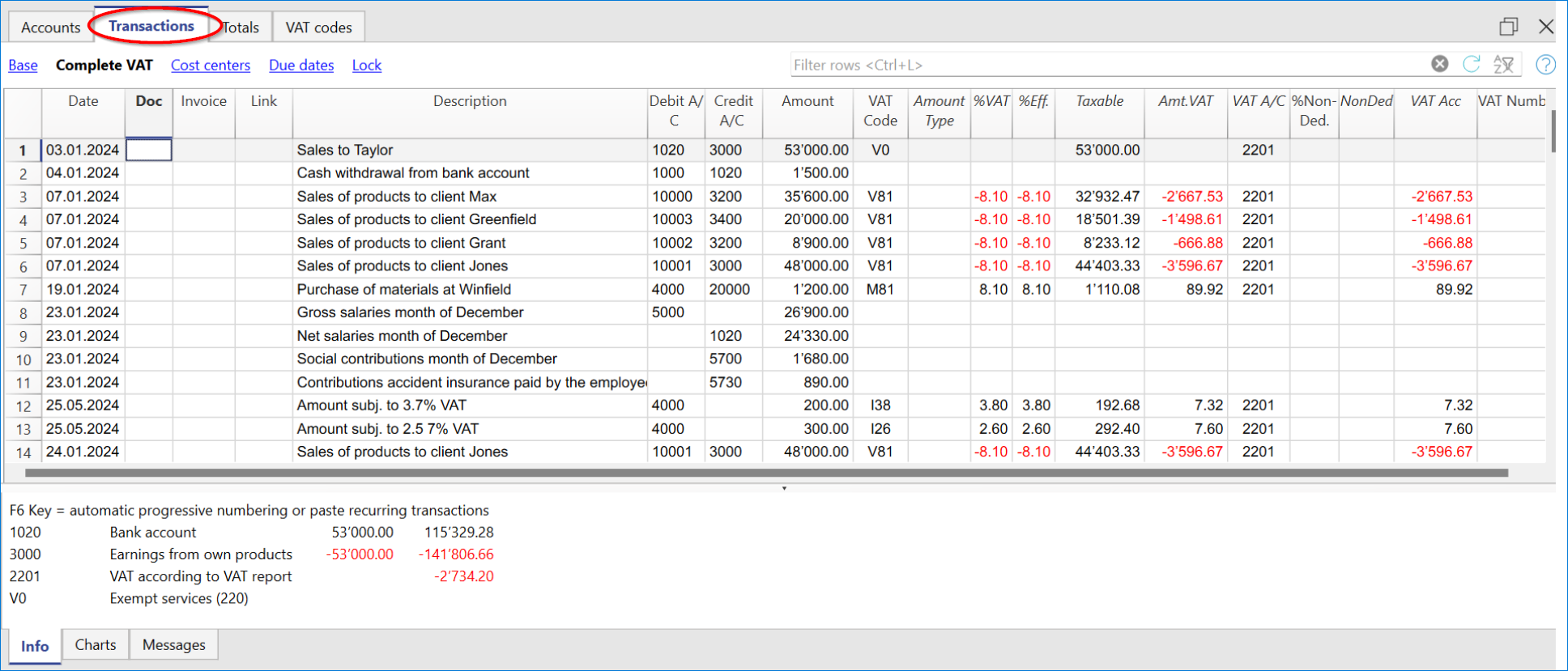
VAT columns in the Transactions table (Complete VAT view)
You can find the full explanation of the main Transactions table columns in the Columns and Views page.
In the Double-entry accounting with VAT or in the Income & Expense accounting with VAT, you will find the following VAT columns:
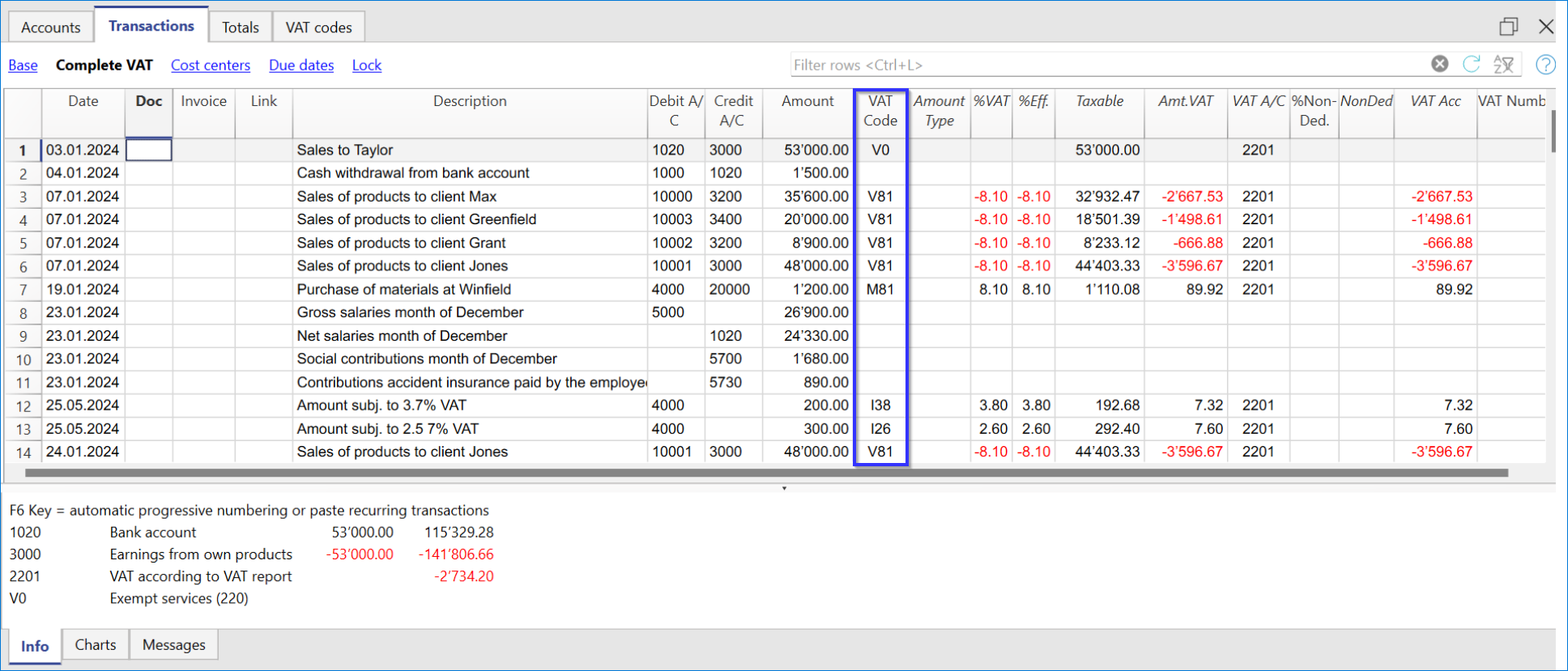
- VAT Code: for each transaction with VAT you need to enter one of the VAT codes from the VAT codes table. In Reverse Charge operations, two VAT codes can be used, separated by the symbol ":".
- VAT %: the program automatically enters the VAT percentage associated with the VAT code you entered. If the amount is preceded by a "+/-" sign, it is a Reverse Charge operation.
- VATExtraInfo: A code related to extra info about the VAT, to be used only in very exceptional cases.
It is possible to enter a symbol to identify specific VAT cases. The program suggests options, corresponding to the VAT Codes that start with a colon ":". - %Eff.: the program automatically enters the VAT percentage referred to the net amount (taxable amount). It is different from the percentage applied when the latter is calculated on the gross amount (balance rate).
- Taxable: once you enter the VAT code, the software automatically indicates the taxable amount (without VAT).
- VAT amount: the program automatically indicates the VAT amount.
- VAT A/C: the account where the VAT is registered is automatically indicated (for Switzerland, this is normally the 2201 "VAT according to VAT report" account) previously entered in the File Properties (basic data), VAT tab (from the File menu).
- Amount type: this is a code that indicates how the software considers the transaction amount:
- 0 (or empty cell) with VAT/sales tax, the transaction amount is VAT included.
- 1 = without VAT/Sales tax, the transaction amount is VAT excluded.
- 2 = VAT amount, the transaction amount is considered the VAT amount at 100%.
- Amount type not editable: Default mode.
- The column is protected.
- The program uses the associated value of the VAT Codes table.
- When you edit the value in the VAT Codes table and you recalculate the accounting, the program uses the new value associated with this VAT Code.
- Amount type editable: this option can be activated with the Add new functionalities command. The activation of the option cannot be undone.
- When you edit the VAT Code, the program uses the Amount type associated with this code.
- The value can be edited manually.
- When the accounting is being recalculated, the value indicated in the Transactions table is being maintained.
- Non. Ded. %: this indicates the non deductible %.
- The program uses the Non. Ded. % associated to a VAT Code that is present in the VAT Codes table.
- You can manually edit the value.
- VAT Acc.: this is the VAT amount registered in the VAT account.
It is calculated by the program according to the transaction amount, the Amount type and the non deductible percentage. - VAT number: this is the code or VAT number of your client/supplier.
When you enter a transaction with VAT, it is possible to enter the VAT number of your counterparty. If in the Accounts table, Address view, in your clients/suppliers register accounts, you enter their VAT number, this is automatically loaded in the Transactions table, in the VAT number column.
Transactions with VAT
Before entering transactions with VAT, you must keep in mind all the information on the Transactions page.
Entering a VAT transaction is very easy:
- Enter the date, document number and invoice number in the respective columns
- Enter the description, the Debit account and the Credit account
- Enter the gross amount (including VAT)
- Enter the VAT code provided for the type of transaction (purchases, sales, investments...) and present in the VAT Codes Table.
How to correct VAT transactions
In case of an error in a transaction with VAT, it is possible to correct it directly on the transaction row, provided that no VAT declaration has been submitted or no accounting lock has been executed.
If however your accounting file is locked or if you have already sent your VAT declaration, you cannot simply delete the wrong transaction, but you need to operate some cancellation-transaction and then re-enter the correct transaction.
In order to rectify VAT operation(s), you need to:
- Make a new transaction by inverting the Debit and Credit accounts used in the wrong transaction.
- Enter the same amount.
- Enter the same VAT code but preceded by the minus sign (ex.: -V81).
- Enter a new transaction with the correct accounts, amount and VAT code.
Depending on the entity of the mistake, you should consider informing your local VAT office; usually they ask you to download a specific form for correcting mistakes in the previous VAT period that you already declared.
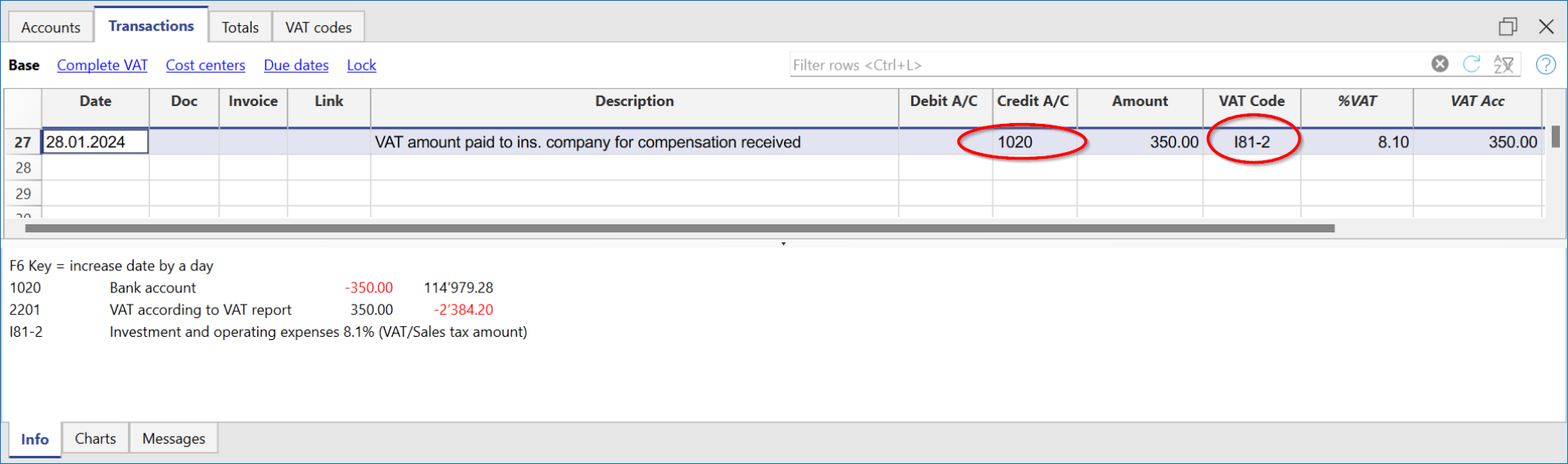
How to only enter the VAT amount
There are cases where only the VAT amount needs to be recorded, such as when you receive compensation from the car insurance.
In these cases, you can proceed as follows:
- Enter the date, document number and description in the appropriate columns.
- In the Credit A/C column enter the account used to pay the VAT amount (the Debit A/C column remains empty).
- In the Amount column enter the VAT amount to be paid.
- In the VAT code column enter the VAT code I81-2 (the code that refers to 100% amount VAT).
Transactions with different VAT rates
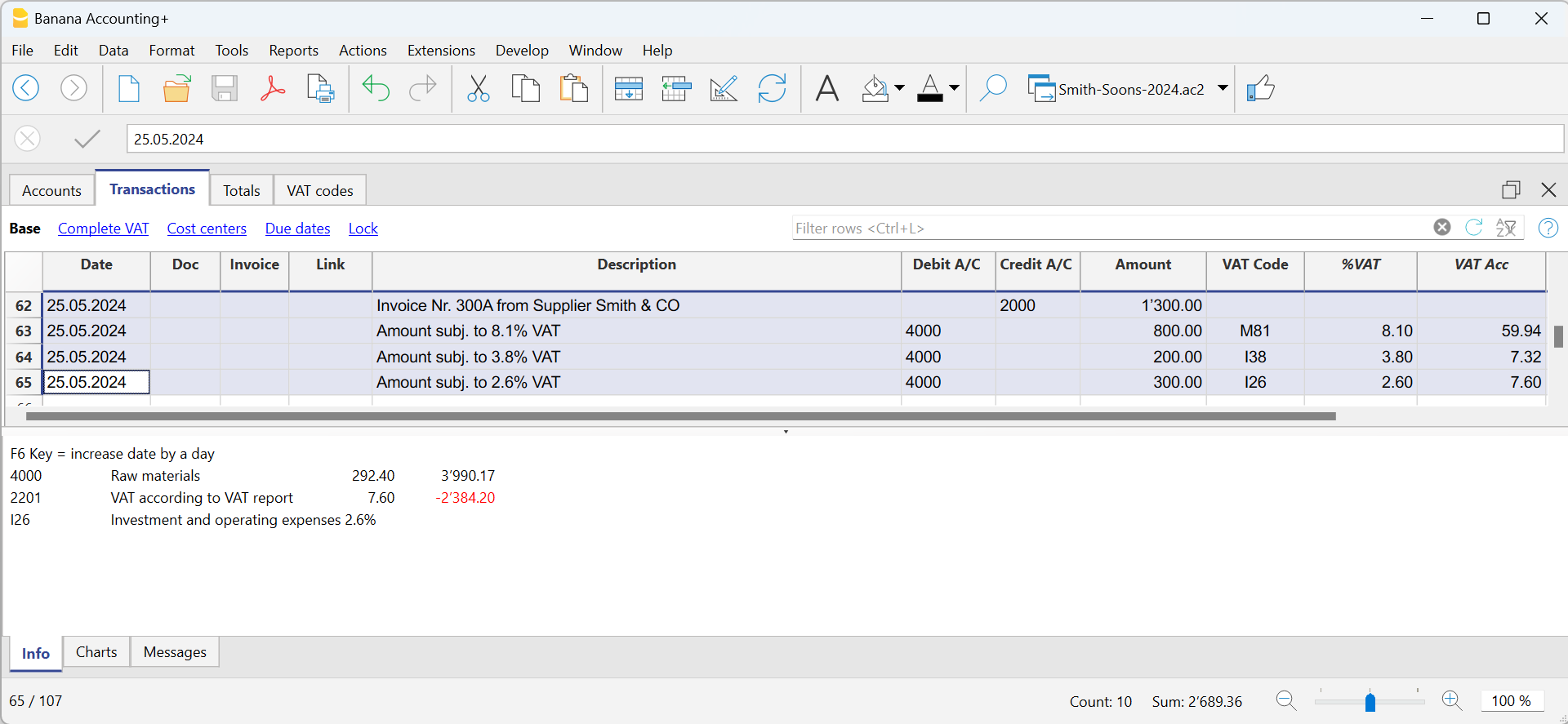
There may be cases in which the total amount is composed of several taxable amounts with different VAT rates. In this case the transaction is recorded on several rows.
For the transaction, it is necessary to:
- Subdivide the overall amount into the various amounts, each of which is subject to a specific VAT rate.
- On each row, enter the amount (amount with VAT) and insert the VAT code with the specific rate.
- Once the transaction is completed, check that the sum of the single gross amounts and the VAT amounts correspond to the invoice total.
Example
VAT EXEMPTION
When in the invoice the total amount subject to VAT is made up of a taxable part and a VAT-exempt part, it is necessary to register on more than one row as in the previous case, applying the exempt VAT code, present in the VAT Codes table.
Reversals/Credit note
When there are reversal operations for credit or debit notes, or simply to rectify previously recorded transactions whose amounts are subject to VAT, the VAT must also be reversed in the reversal transaction.
For the transaction:
- Reverse in the Debit and in the Credit column the accounts that were used in the previous transaction, to which the credit note refers.
To reverse the VAT there are two possibilities:
- Put the minus sign in front of the VAT code (e.g. -V81).
- Use one of the codes that refer to discounts, already set in the VAT Codes table.
With these procedures the VAT amount will be adjusted.
Example of a credit note on a sale
When a client finds a defect on a sold product, usually a credit note on his behalf is being issued. The credit note implies a decrease of the income and as a result a recovery of the VAT (Sales tax).
For example, we enter a sale amount of 12'000 including a 8.1% VAT. We then issue on the client's behalf a credit note of CHF 200.- for a product defect.
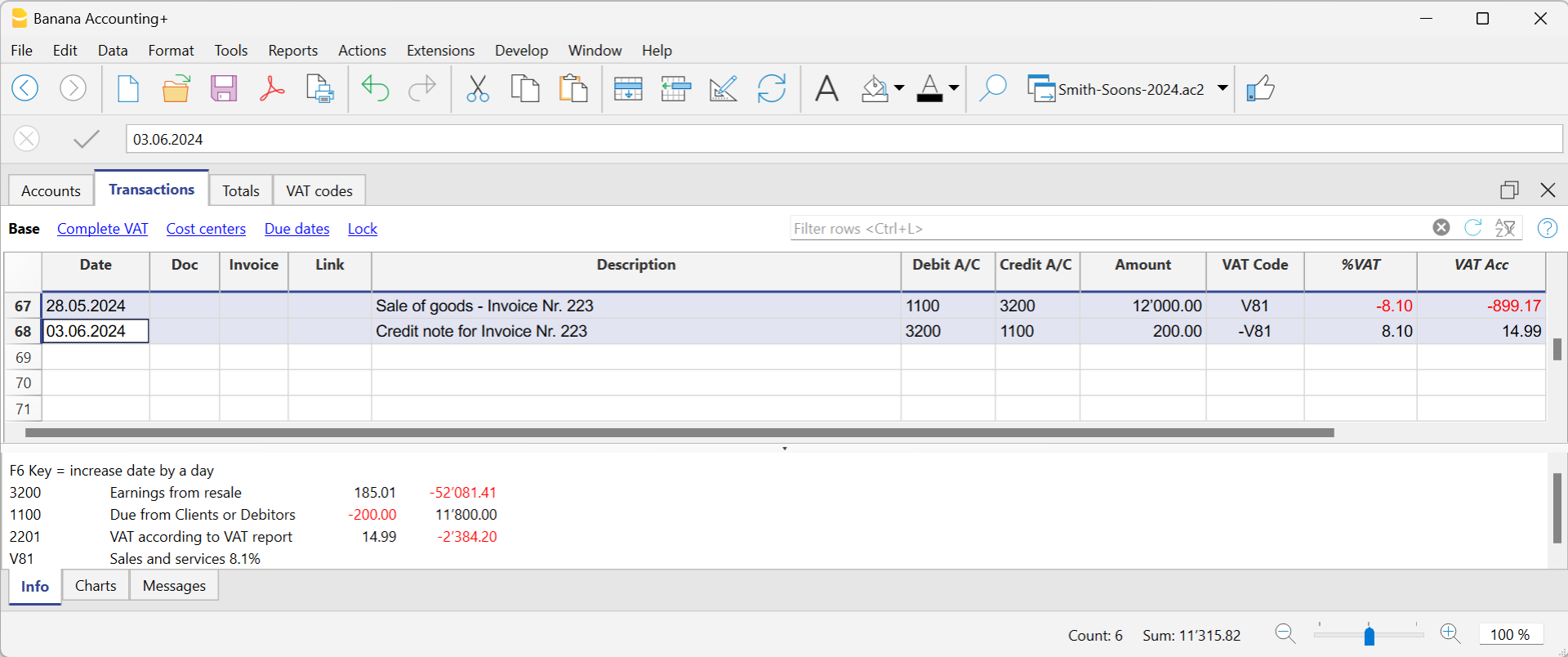
In the transaction of the credit note issued to the customer:
- The accounts of the sale, to which the credit note refers, have been reversed
- For VAT recovery on the credit note, the VAT code of the sales is recorded, preceded by the minus sign.
Example of a credit note on a purchase
When we receive a credit note from a supplier, the procedure for the transaction is similar:
- The accounts used for the purchase are reversed.
- Enter the same VAT code used for the purchase, preceded by the minus sign.
For example, we record an invoice for the purchase of goods for CHF 3'000 including a 8.1% VAT. We then receive a credit note of CHF 300.- from our supplier for a product defect.
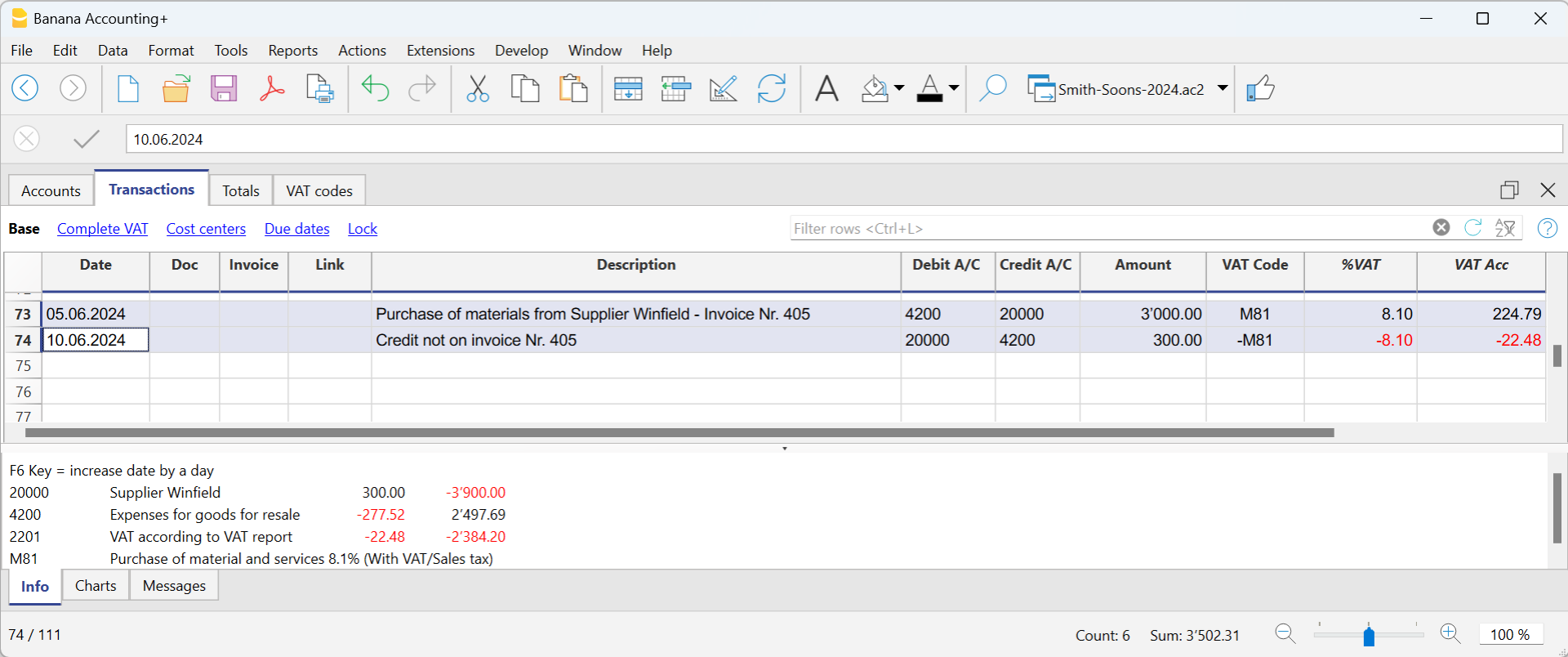
In the transaction of the credit note received from the supplier:
- The accounts of the purchase, to which the credit note refers, have been reversed.
- For VAT recovery on the credit note, the VAT code of the purchases is recorded, preceded by the minus sign.
Reverse charge: cos’è e quando si applica
Normalmente l’IVA è a carico del venditore, che la addebita in fattura e la versa all’autorità fiscale.
Con il reverse charge (o inversione contabile), questo meccanismo viene invertito: l’IVA è posta a carico dell’acquirente.
Il reverse charge non modifica l’importo dell’operazione, ma cambia il modo in cui l’IVA viene dichiarata e registrata.
Si tratta di una gestione particolare dell’IVA che richiede attenzione sia dal punto di vista fiscale sia nella registrazione contabile.
Nel reverse charge:
- il fornitore emette una fattura senza IVA
- il cliente calcola e dichiara l’IVA
- l’IVA risulta, nella maggior parte dei casi, sia a debito sia a credito
Dal punto di vista fiscale, l’IVA risulta quindi:
- dovuta
- e, se previsto dalla normativa, recuperabile
Nella maggior parte dei casi, l’effetto finale sull’IVA è neutro, ma l’operazione deve essere comunque registrata correttamente.
Quando si applica
Il reverse charge si applica principalmente quando:
- si acquistano beni o servizi all’estero
- l’operazione non è stata assoggettata all’IVA in dogana
- il fornitore è esonerato dall’applicazione dell’IVA
Oltre agli acquisti all’estero, ogni Paese prevede altri casi specifici di applicazione del reverse charge, definiti dalla propria legislazione fiscale.
Non tutte le fatture senza IVA rientrano nel reverse charge. È quindi necessario verificare, caso per caso, se l’operazione è soggetta a inversione contabile.
Logica generale di registrazione dell’IVA
Quando un’operazione è soggetta a reverse charge:
- l’IVA deve risultare come IVA dovuta
- se deducibile, deve risultare anche come IVA recuperabile
Questa logica è comune a tutti i tipi di contabilità, ma le modalità di registrazione cambiano a seconda del sistema contabile utilizzato.
Reverse charge in Banana Contabilità
In Banana, la gestione del reverse charge è facilitata dall’uso dei codici IVA già impostati nella tabella Codice IVA, che permettono di calcolare correttamente l’IVA dovuta e l’IVA recuperabile.
Nel caso in cui l'IVA può essere recuperata, nella registrazione Banana Contabilità permette di inserire un doppio codice che va a contabilizzare sia l'IVA dovuta sia l'IVA recuperabile.
Questa modalità semplifica la registrazione e riduce il rischio di errori, mantenendo al tempo stesso la correttezza fiscale.
La possibilità di registrare l'operazione soggetta al Reverse Charge, assoggettamento e recupero IVA, su di un'unica riga, è disponibile nella versione Banana Contabilità Plus.
A seconda del caso, l’operazione può essere registrata:
- con un solo codice IVA, quando l’IVA è solo dovuta
- oppure con due codici IVA, quando l’IVA è sia dovuta sia recuperabile
I dettagli operativi dipendono dal tipo di contabilità utilizzato e sono spiegati nelle sezioni dedicate.
In Banana, il reverse charge utilizza la stessa logica IVA sia nella contabilità in partita doppia sia nella contabilità Entrate/Uscite.
La differenza riguarda la rappresentazione contabile: nella partita doppia i movimenti sono registrati su conti in dare e avere, mentre nella contabilità Entrate/Uscite gli importi sono registrati nelle colonne Entrata e Uscita.
In entrambi i casi, l’effetto IVA è determinato dai codici IVA utilizzati.
Applicazione del reverse charge per nazione
L’applicazione del reverse charge dipende dalla normativa fiscale nazionale. Le regole descritte in questa pagina illustrano il principio generale; i casi concreti variano in base al Paese.
VAT registration with the Reverse Charge
VAT with the Reverse Charge
Normally VAT is applied to the seller of the goods. Reverse Charge is the term used to indicate that the VAT tax is applied to the buyer.
The Reverse Charge is used mainly when buying goods or services abroad and that have not been taxed at customs. In these cases, the exporting seller is exempted from VAT, while the importing buyer is taxed at the local rate and can possibly deduct it. In addition, there are other cases of purchases abroad subject to the Reverse Charge and each country, in its tax legislation, provides for different situations. When registering VAT with the Reverse Charge:
- The transaction must be included so that it will result as VAT due.
- If the VAT is also deductible, the deductible part of VAT must also be recorded.
Software prerequisites
The possibility of recording the transaction subject to the Reverse Charge, tax liability and VAT recovery on one single row, is available for the Banana Accounting Plus.
Reverse Charge with tax liability only
If you have to include the purchase of goods or services, but do not have the possibility to deduct VAT:
- Indicate the VAT code due to the appropriate case in the transaction.
The liability with the Reverse Charge without deduction is generally used in the case one is benefiting from a flat-rate scheme or when the type of expense is not considered deductible.
Reverse Charge with tax liability and VAT deduction
If the amount of VAT due is equal to that of the deductible VAT, the Reverse Charge can be registered on a single row, by simultaneously entering both the code for the VAT due and the code for the recoverable VAT.
- The pre-defined VAT codes are used and there is no need to change the VAT table.
- In the row of the entry with VAT Reverse Charge, enter the two predefined VAT codes in the VAT Code column, separated by a colon ":".
- The two VAT codes must be complementary in order for the result to offset one other.
- One of the two codes must be set up with VAT due and the other with recoverable VAT.
- The VAT rate and all other calculation parameters must also be identical.
- If the VAT codes do not have the same parameters, an error message will be displayed.
- The sequence of codes is not relevant, you can put one or the other first.
- When reversing an operation, the first VAT code must be preceded by the minus sign "-".
Reversal is used to cancel an incorrectly posted transaction. In this case, the same elements are kept, but the original transaction is reversed:- The VAT payable code is recorded as recoverable.
- The recoverable VAT code is posted as due.
- In the VAT columns, the amounts are preceded by the sign "+/-", which signals that the amounts offset each other for VAT purposes.
- In the account card and in the VAT summary there are separate entries for the debit and credit entries.
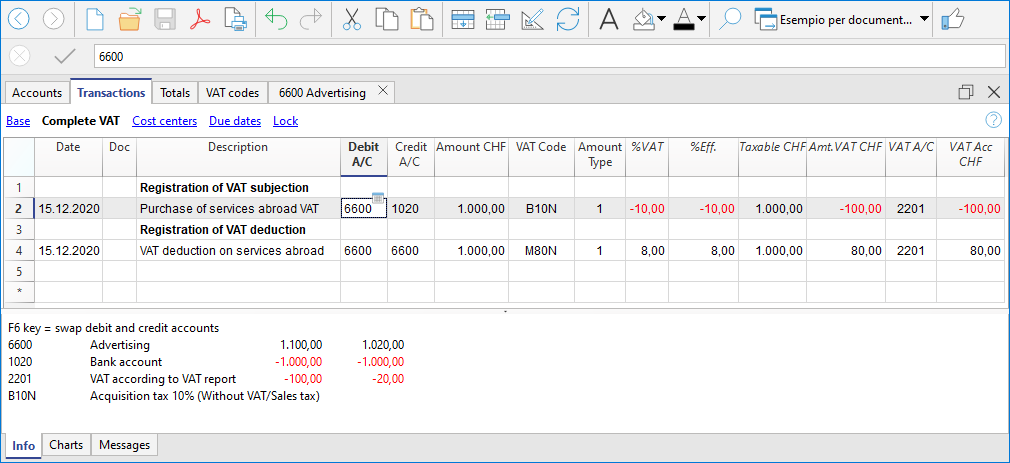
Example of transaction with Reverse Charge
Below are some examples of the Reverse Charge transaction inclusive of VAT due and recoverable:
- VAT included and excluding operations.
- Cancellation transactions, with VAT codes preceded by the "-" sign.
Notes: The examples in the image below are purely indicative. These codes must be adapted according to the rates in your country. Further information:
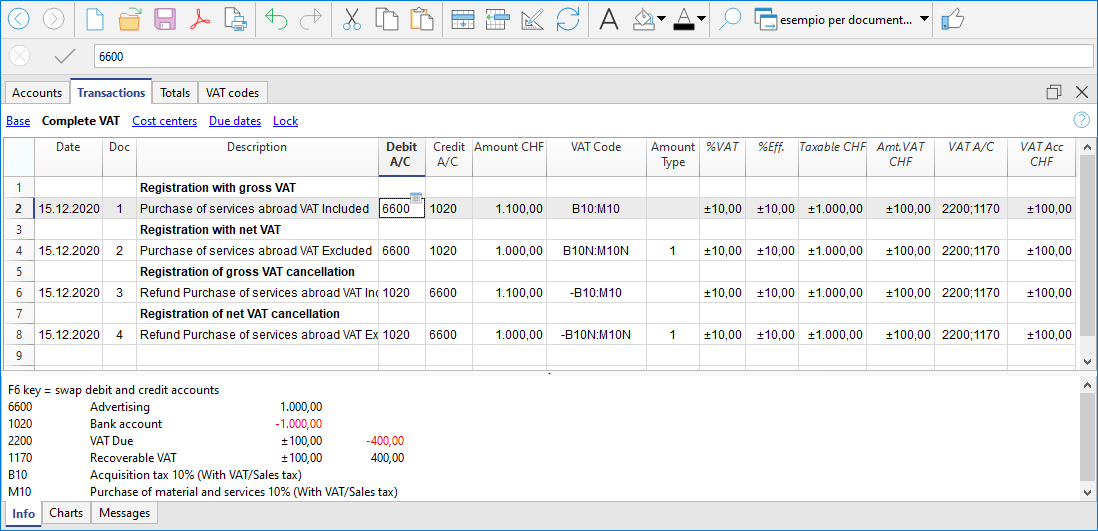
Reverse Charge with account in foreign currency
When the invoice is presented in a currency other than the accounting currency, the posting must be carried out on two lines:
- the invoice in foreign currency is entered on the first row
- the second line records the taxation and deduction of VAT, taking up the amount calculated in the accounting currency.
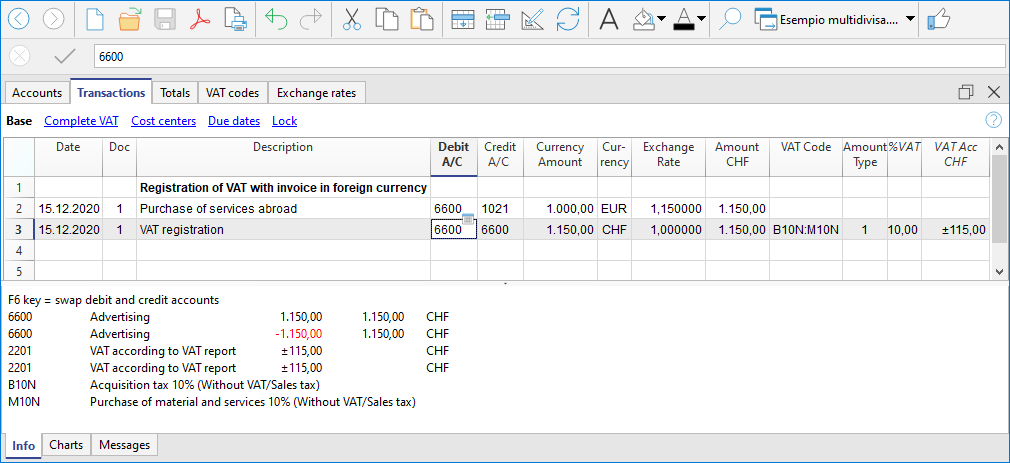
Reverse Charge at different rates
When different rates are to be considered in the taxation of the due and recoverable VAT or the VAT is partially deductible, the transaction must be made on several rows:
- On one row, enter the VAT due code (tax liability).
- On another row, the recoverable VAT code is entered.
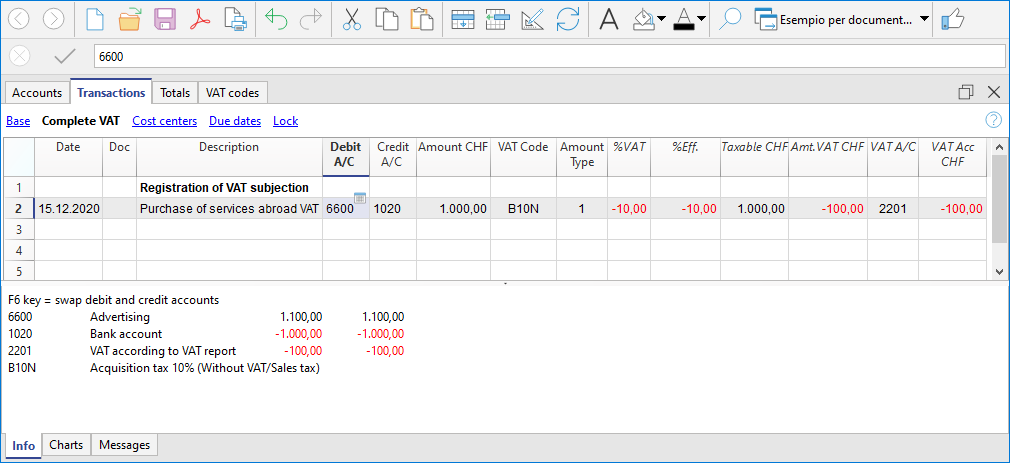
Reverse charge with the net / flat rate method (CH)
In this case, it is not possible to post the VAT deduction, as it is not possible to recover the VAT on purchases. In any case, the tax liability must be registered.
Registrazioni Reverse charge nella contabilità Entrate/Uscite
Nella contabilità Entrate/Uscite, il reverse charge viene gestito registrando correttamente l’IVA dovuta e, se prevista, l’IVA recuperabile, in modo che l’imposta risulti conforme alla normativa fiscale e correttamente esposta nei report IVA.
Anche nella contabilità Entrate/Uscite, Banana facilita la gestione del reverse charge tramite l’uso del doppio codice IVA nella stessa registrazione.
Principio contabile
Con il reverse charge:
- il fornitore non addebita l’IVA in fattura
- l’acquirente deve assoggettare l’operazione all’IVA
- se ne ha diritto, può dedurre la stessa IVA
Dal punto di vista fiscale, l’IVA deve quindi risultare:
- come IVA dovuta
- e, se deducibile, come IVA recuperabile
Quando l’IVA dovuta e l’IVA recuperabile hanno lo stesso importo, l’effetto finale sull’IVA è neutro, anche nella contabilità Entrate/Uscite.
Modalità di registrazione
Le modalità di registrazione del reverse charge dipendono dal diritto alla deduzione dell’IVA:
- reverse charge con solo assoggettamento IVA
- reverse charge con assoggettamento e deduzione IVA
Reverse charge con solo assoggettamento IVA
Se l’IVA è dovuta ma non deducibile:
- si utilizza un solo codice IVA, impostato come IVA dovuta
- l’IVA risulta come IVA da versare
- non viene registrata alcuna IVA recuperabile
Questo caso si presenta, ad esempio, quando:
- si applica un regime forfettario
- il tipo di spesa non consente la deduzione dell’IVA
Reverse charge con assoggettamento e deduzione IVA
Se l’IVA dovuta è interamente deducibile, il reverse charge può essere registrato su un’unica riga, anche nella contabilità Entrate/Uscite.
In questo caso:
- nella colonna Codice IVA si inseriscono due codici IVA
- i codici sono separati dal segno ":" (due punti)
- un codice è impostato come IVA dovuta
- l’altro come IVA recuperabile.
I due codici IVA devono essere:
- complementari
- con stessa aliquota
- con stessi parametri di calcolo
Se i parametri non coincidono, Banana visualizza un messaggio di errore.
La sequenza dei codici non è rilevante.
Effetti sulla contabilità e sui report IVA
Con questa modalità di registrazione:
- l’IVA dovuta e l’IVA recuperabile si compensano
- l’operazione risulta neutra ai fini IVA
- nei report IVA Banana evidenzia correttamente:
- l’IVA dovuta
- l’IVA recuperabile.
Questo garantisce:
- correttezza fiscale
- trasparenza nei controlli
- tracciabilità delle operazioni.
Operazioni di storno
Per annullare una registrazione di reverse charge effettuata in modo non corretto:
- si utilizza lo storno
- il primo codice IVA viene preceduto dal segno “-”
- i ruoli dei codici IVA vengono invertiti:
- l’IVA dovuta diventa recuperabile
- l’IVA recuperabile diventa dovuta
Lo storno mantiene gli stessi elementi della registrazione originale, ma ne annulla gli effetti.
Esempi e casi particolari con reverse charge
Gli esempi che seguono illustrano alcuni casi tipici di reverse charge nella contabilità Entrate/Uscite:
- operazioni con assoggettamento e deduzione IVA inclusa
- operazioni con assoggettamento e deduzione IVA esclusa
- operazioni di storno.
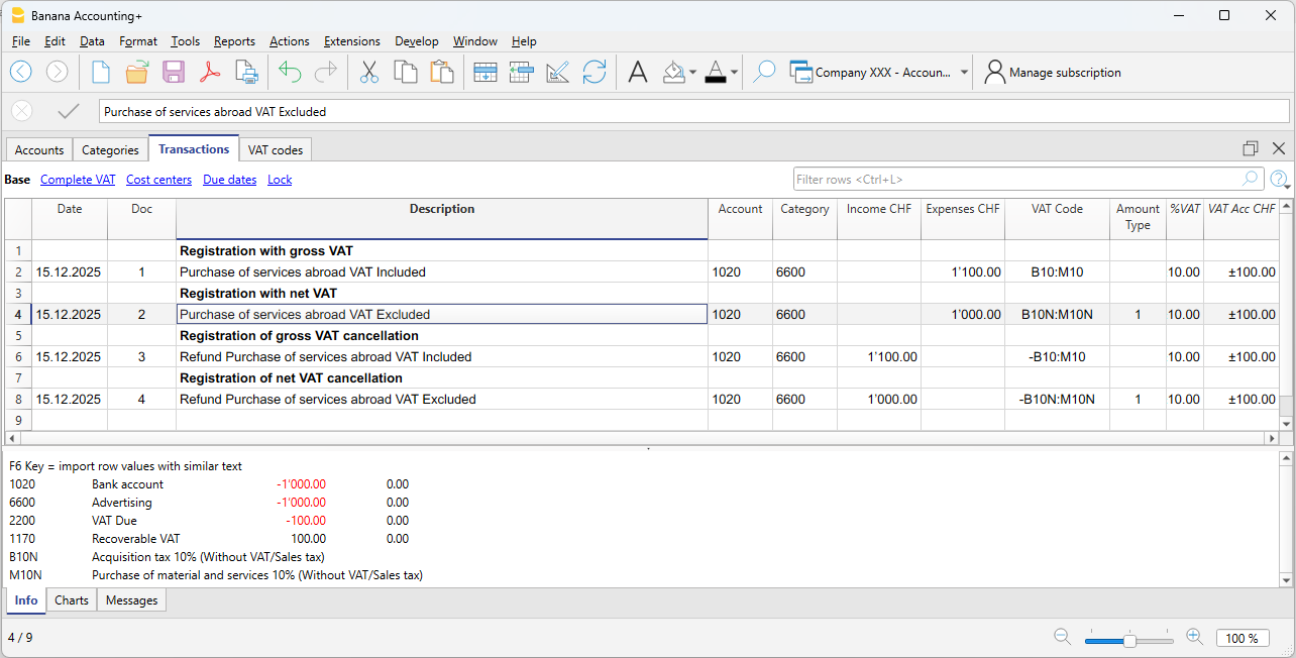
Nota
Gli esempi sono indicativi e devono essere adattati alle aliquote e alle disposizioni fiscali del proprio Paese.
In sintesi
Nella contabilità Entrate/Uscite di Banana, il reverse charge:
- non è un automatismo
- si basa sull’uso corretto dei codici IVA
- utilizza il doppio codice IVA quando l’IVA è dovuta e recuperabile
- riflette fedelmente la logica fiscale dell’operazione.
Le modalità operative sono pensate per garantire precisione contabile e chiarezza nei controlli IVA.
VAT Summary (Report)
The VAT Summary is a document or a section of an accounting ledger where transactions subject to Value Added Tax (VAT) are summarized for a specific period (monthly, quarterly, or yearly).
Main elements of the VAT summary
- VAT payable: total amount of VAT due on issued or collected invoices (sales).
- VAT receivable: total amount of VAT recoverable on received or paid invoices (purchases).
- VAT to be paid or credited: Difference between VAT due and VAT recoverable.
- If VAT payable > VAT receivable: The company must pay VAT to the State.
- If VAT receivable > VAT payable: The company has a VAT credit that can be offset or claimed for a refund.
The VAT Summary in Banana Accounting Plus is a journal that records VAT transactions and balances, based on the set parameters and selected options.
It is automatically generated by the program through the Reports > VAT Summary menu and can be saved and archived in PDF format. All transactions with a VAT code, depending on the selected options, can be broken down by account, VAT code, and percentage.
There are two main groups:
- Total Due
- Total Recoverable
The difference between these two totals results in the VAT to be paid or recovered with respect to the FTA (Federal Tax Administration).
Below is an example of a VAT summary table for the first quarter of 2025:
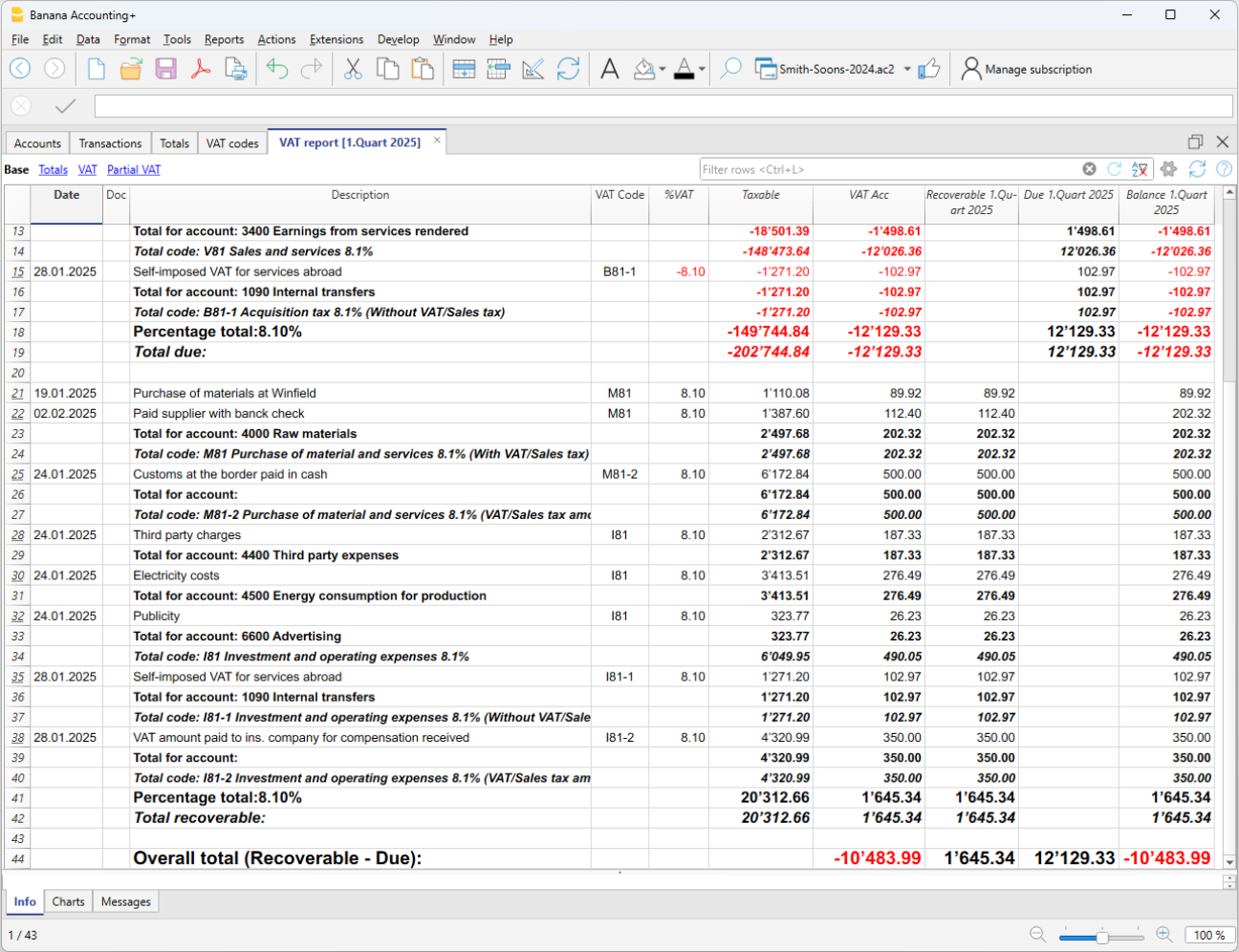
For users who do not wish to use automated solutions for managing and submitting VAT data online, the VAT Summary is essential for calculating the VAT amounts to be manually entered into the Swiss paper VAT return or the FTA online portal.
If you wish to have a fully automated Swiss VAT return and electronic VAT data transmission, we recommend using the new VAT extensions, available in the Advanced plan of Banana Accounting Plus.
Comparison between VAT summary and VAT extension
To better understand the differences between the VAT Summary and the VAT Extension, below are their main features:
VAT Summary
- Available in all plans of Banana Accounting Plus, in all accounting applications with VAT management.
- It is an integral part of accounting because it represents a ledger where all VAT transactions are recorded.
- It is particularly important as it provides details that allow monitoring of sales.
- Serves as a basis for manually preparing the VAT declaration and settlement.
- It is a support tool for auditors and tax inspections, facilitating the verification of VAT records.
- In case of tax audits, it provides all the details necessary to verify VAT transactions.
- Does not allow automatic preparation of the VAT form. Everything must be manually reported.
- The user must identify and manually sum the amounts to be reported in the various sections of the VAT return.
- Does not provide automatic submission of data to the Federal Tax Administration (FTA).
VAT Extension
- Available only with the Advanced plan of Banana Accounting Plus.
- A set of advanced features to automate VAT management and data submission to the FTA.
- Filters, calculates, and automatically fills in VAT amounts in the correct sections of the VAT return.
- Always performs calculations according to predefined rules, reducing the risk of errors.
- Automatically generates an XML file for electronic submission of VAT data to the FTA portal.
- Creates a PDF file with a facsimile of the VAT return, facilitating documentation and archiving.
At the end of the return, there is a section where any calculation and rounding differences are reported.
Thanks to the VAT Extension, VAT management becomes simpler, faster, and free from manual errors, improving administrative efficiency.
The Advanced plan includes the two VAT calculation and reporting methods:
The VAT summery dialog
The VAT report is obtained by clicking on the menu Reports > VAT report

When activated, the following options allow you to include the following data in the VAT report:
Include movements
All transactions with VAT are included.
Include totals for accounts
The totals of transactions with VAT are included, grouped by single account.
Include totals by codes
The totals of transactions with VAT are included, grouped by single VAT code.
Include totals by percentages
The totals of transactions with VAT for each individual rate are included.
Include unused codes
Also included are the unused codes present in the VAT Codes table.
Use own grouping (group and Gr)
Transactions with VAT are grouped according to the grouping of the VAT Codes table.
Order registration by
This function allows you to sort the recordings based on the selected option (date, doc.,
description, etc ....).
Partial Report
By specifying a code or a group and checking the appropriate boxes, the total of transactions with VAT is obtained:
- just the code indicated (by selecting from the list)
- just the indicated group (by selecting from the list).
Other sections
Information for the other sections is available on the following web pages:
VAT Report / transactions with totals by code
The overall total in the last row of the VAT report has to correspond with the amount for the end of period of the Automatic VAT account, Balance column, on the condition that both of them refer to the same period.
The data of the VAT report can also be transferred to and elaborated by other programs (f.i. Excel, XSLT) and be presented in formats that are similar to the forms of the tax authority
For Switzerland, one can automatically obtain a document similar to the form that has to be sent to the VAT office. This form shows the amount to enter for each number. Please consult (in German, French, or Italian) Swiss VAT Report.
Periodic VAT return and payment
In VAT management, each country requires specific VAT accounts within the chart of accounts. These accounts are used to record and manage input and output VAT:
- VAT payable – Account where VAT amounts related to sales and services are recorded.
- VAT receivable – Account where VAT amounts on purchases of goods and services are recorded.
- VAT payment account – Account where, at the end of the period, the balances of VAT payable and VAT receivable are transferred.
The account balance represents the VAT to be paid to the tax authorities or the credit to be received. This account is cleared once the VAT payment is made.
In Banana Accounting, to manage VAT, you must choose an accounting model with VAT that already includes the following settings:
- In the Banana chart of accounts, the VAT accounts are already set up according to the country
- The VAT Codes table is already prepared with country-specific VAT codes
- In the menu File > File properties, basic data > VAT section, the two VAT accounts where VAT is automatically recorded are set, one VAT payable account and one VAT receivable account.
- You can also set only one VAT account. This is used for both VAT payable and VAT receivable.
- In the VAT Codes table, you can set a specific VAT account for a single VAT code.
- If these settings are missing, it is possible to:
- Add an additional VAT account in the chart of accounts, named Automatic VAT account.
- Set the automatic VAT account as default by going to File > File properties, basic data > VAT section.
How to automatically clear VAT accounts at the end of the period
To better understand how the automatic VAT account is used, let’s look at a practical example.
Note: the VAT account numbers shown in the following example refer to the numbering used in Switzerland. In your own chart of accounts, you must adapt the account numbers according to your country.
- VAT account 2201 – Represents the automatic VAT account.
- VAT account 2200 – Represents the VAT payment account.
At the end of the period, to clear the balance of the automatic VAT account, the VAT amount recorded automatically must be transferred to the VAT payment account. This step allows you to determine the VAT to be paid or the possible VAT credit, simplifying accounting management.
In our example shown in the image, at the end of the period, scheduled for VAT submission and payment, the balance of the automatic VAT account shows a balance of 10,995.92.

The balance of account 2201 VAT Report (automatic VAT account) must be cleared with a reversal entry by entering:
- In the Debit column, account 2201 VAT report (automatic VAT account)
- In the Credit column, account 2200 VAT due (VAT payment account).
This entry is made in this way if there is an amount owed to the tax authorities. If there is a VAT credit, the VAT account transactions are reversed.
This operation results in:
- Clearing of the balance in account 2201, VAT Report (automatic VAT account).
- Transferring the VAT balance to the VAT due account (VAT payment account).

Payment of the VAT due account balance
When the VAT amount is paid to the tax authorities, the balance of the VAT due account is cleared.
For the entry:
- Enter the date, document number, and description in the respective columns.
- In the Debit column, enter the VAT Due account.
- In the Credit column, enter the liquidity account.
- In the Amount column, enter the VAT amount paid.
With this system, it is possible to monitor the balance of each quarter, and in case of errors, it is possible to identify in which period the balance no longer matches.
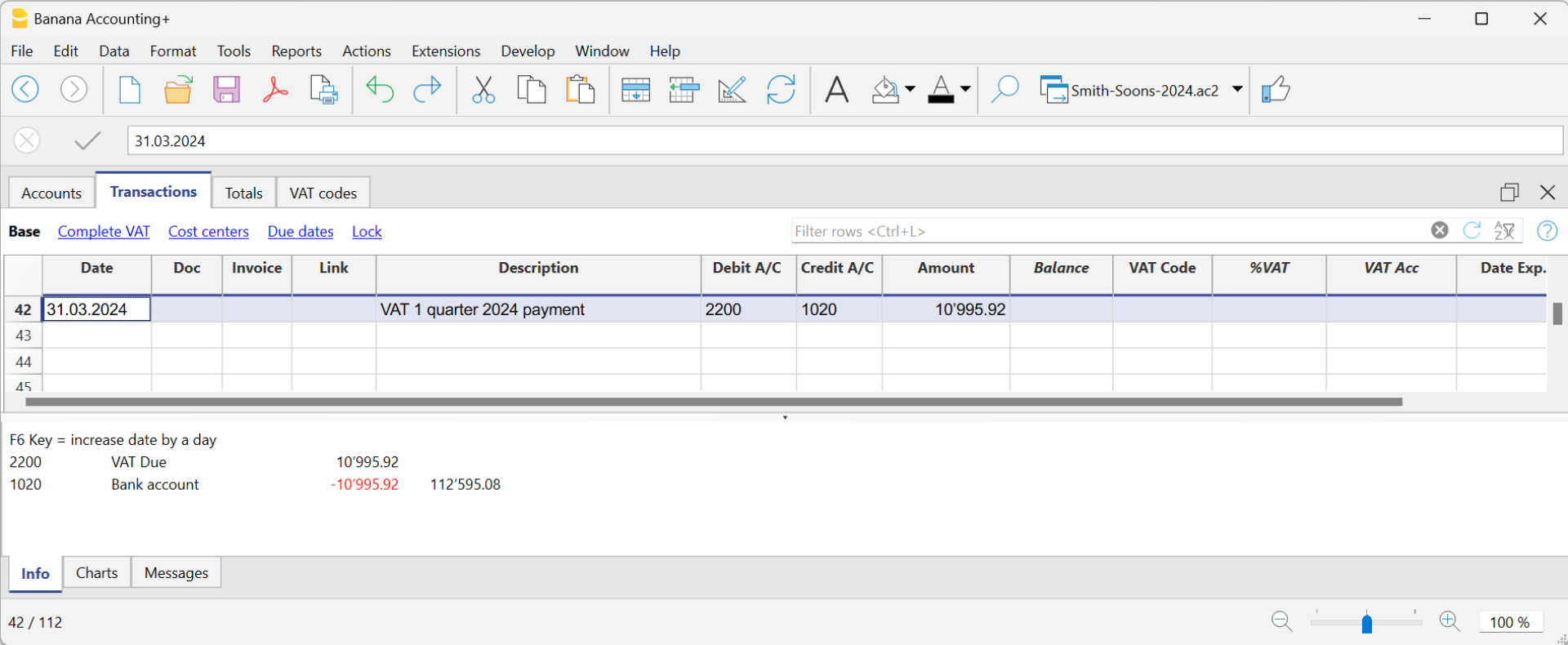
Ledger of account 2200 VAT due after recording the payment
