Precision budgeting and financial forecasting in the Budget table
Precision financial planning is Banana Accounting's advanced budgeting system.
It allows you to build the company's financial future with the same rigour as actual accounting, creating detailed forecasts transaction by transaction and using the same chart of accounts and the same Debit/Credit logic as the accounting.
The forecast is not managed as a separate element: accounting and forecast data are part of the same system. Costs, revenues, financial position and liquidity therefore remain linked, and Banana automatically calculates the related projections.
In this tutorial, you will see how to use this method to create a complete economic and financial forecast, keep it up to date over time and compare it with actual data.
Origins of the system
Precision financial planning was developed from the need to use the same rigorous structure for the future that is already available for analysing the past.
Accounting makes it possible to know precisely how much has been sold, which costs have been incurred, how much customers still have to pay, which debts need to be settled and how much liquidity is available.
To make decisions, however, it is equally important to be able to look ahead and answer questions such as:
Precision financial planning is Banana Accounting's advanced budgeting system.
It allows you to build the company's financial future with the same rigour as actual accounting, creating detailed forecasts transaction by transaction and using the same chart of accounts and the same Debit/Credit logic as the accounting.
The forecast is not managed as a separate element: accounting and forecast data are part of the same system. Costs, revenues, financial position and liquidity therefore remain linked, and Banana automatically calculates the related projections.
In this tutorial, you will see how to use this method to create a complete economic and financial forecast, keep it up to date over time and compare it with actual data.
Origins of the system
Precision financial planning was developed from the need to use the same rigorous structure for the future that is already available for analysing the past.
Accounting makes it possible to know precisely how much has been sold, which costs have been incurred, how much customers still have to pay, which debts need to be settled and how much liquidity is available.
To make decisions, however, it is equally important to be able to look ahead and answer questions such as:
- sales and purchases
- receipts and payments
- salaries and other recurring costs
- investments and depreciation
- financing and repayments
For each event, you can specify when it will occur and the amount. If it is a recurring transaction, you can enter it only once and define the frequency and repetition period.
Banana uses these transactions to automatically generate future projections.
In practice, it is like doing the accounting of the future today.
An economic, balance sheet and financial forecast
Planning does not only mean forecasting costs and revenues.
Every business decision can simultaneously affect the financial result, financial position and liquidity. Precision financial planning keeps these effects linked by using accounting logic.
You can therefore automatically obtain:
- forecast income statement
- forecast balance sheet
- liquidity development
- comparison between budget and actual results
Each forecast transaction produces the corresponding accounting effects and keeps the different components of the forecast consistent.
Example: from sale to liquidity
Suppose you forecast a sale with payment at a later date.
Recording the sale determines:
- the expected revenue
- the receivable from the customer
When you also enter the expected receipt, the system determines:
- the decrease in the receivable from the customer
- the increase in liquidity
You can therefore see not only how much you expect to earn, but also when you expect to receive the money.
Liquidity-focused planning
A positive financial result does not necessarily mean having enough money to meet payments.
A company can be profitable and still face difficulties if receipts come after payments, or if investments, financing repayments or other outflows temporarily absorb the available liquidity.
This is why liquidity is a key element of precision financial planning.
By linking costs, revenues, receivables, payables, investments, financing, receipts and payments, you can see how planned operations will affect financial availability over time.
Planning thus becomes a tool for anticipating possible liquidity shortages and assessing decisions in good time, such as postponing an investment, changing payment terms or obtaining financing.
How to build the forecast
With Banana Accounting, you do not need to create a separate structure for planning.
You use:
- the same accounting file
- the same chart of accounts
- the same Debit/Credit logic
Future transactions are entered in the Budget table.
For each transaction, you can define, among other elements:
- date
- description
- Debit account and Credit account
- amount
- repetition frequency
- validity period
When necessary, you can also use VAT codes, cost centres, segments, formulas, quantities and prices.
For recurring transactions, you do not need to enter all future transactions. Enter the transaction only once, define the frequency and period, and Banana automatically generates the related projections.
The process can be summarised as follows:
Chart of accounts → Forecast transactions → Dates and repetitions → Forecast reports → Comparison with actual results
On the following pages of the tutorial, you will see step by step how to set up and use these elements.
Automating planning
Detailed planning can include a large number of future transactions. To avoid having to enter and update them manually one by one, Banana Accounting lets you automate many forecasting operations.
You can use repetitions, formulas, quantities and prices to automatically generate future transactions. This makes it possible to plan recurring operations, such as rent, salaries, sales, purchases and other periodic costs, by entering only the information needed to determine how they will develop over time.
Formulas also allow you to create forecasts based on other values and automate calculations such as depreciation, interest and other financial projections.
When you change a value on which the forecast is based, Banana automatically recalculates the linked values and updates the related projections.
In this way, you can also create detailed multi-year plans and keep them up to date without having to manually rebuild the entire budget.
Precise forecasts by period
With Precision Budgeting, you do not only get a forecast for the entire year.
Each transaction is assigned to the period in which you expect it to occur. You can therefore obtain detailed reports by month, quarter, year or other periods.
For example, if a cost is expected only in June, July and August, with different amounts for each month, you can enter the corresponding transactions with the expected dates and amounts.
In the reports, Banana will show each cost in the corresponding period, without affecting the other months.
The forecast therefore reflects when an event occurs and for what amount, instead of simply distributing an annual value evenly over the twelve months.
Planning that evolves over time
Financial planning should not be a static document prepared once a year.
During the course of business, conditions change: new orders arrive, some costs increase, investments are brought forward or postponed, and receipts may occur at different times from those originally expected.
You can update the plan at any time by:
- changing amounts
- changing dates
- adding new transactions
- deleting forecasts that are no longer valid
Banana automatically recalculates the projections and the related reports.
This makes it possible to use the system for continuous planning or a rolling budget, regularly updating forecasts based on the new information available.
The budget therefore does not remain a snapshot created at the beginning of the year, but becomes an operational tool that evolves together with the business.
Budget and actual results in the same system
One of the advantages of integration is that the forecast and actual accounting use the same structure.
As the accounting is updated, you can compare:
- what you had forecast
- what actually happened
- the related differences
You can therefore identify variances, understand their causes and use the information obtained to progressively update and improve future forecasts.
Compared with planning managed using separate spreadsheets, you do not have to manually keep the income statement, balance sheet and liquidity aligned: the links are created by the same accounting logic used to build the forecast.
An advanced tool
Precision financial planning is an advanced tool because it uses accounting logic to create and keep economic, balance sheet and financial forecasts linked together.
To make full use of its possibilities, it is therefore useful to be familiar with accounting, financial planning and receipt and payment flows.
This approach requires greater understanding than a simple annual budget, but it allows you to create much more detailed forecasts and consistently analyse the effects of future decisions on profitability, financial position and liquidity.
Who it is for
Precision Budgeting is aimed in particular at accounting experts, fiduciary firms, accountants and consultants who want to integrate detailed economic and financial planning into their accounting.
The system can be used both for your own accounting and for your clients' accounting.
For accounting professionals, this means going beyond recording and analysing what has already happened and offering clients a tool to:
- plan future business activities
- monitor profitability and liquidity
- assess investments and financing
- compare forecasts with actual results
- identify possible financial needs in advance
Precision financial planning therefore makes it possible to use accounting expertise not only to analyse the past, but also to support decisions about the future.
Berechnungslogik des Budgets
Banana Buchhaltung verarbeitet die Buchhaltungs- und Plandaten und berechnet daraus automatisch Werte und Salden pro Konto und Zeitraum. Zudem erstellt das Programm Kontoauszüge, Berichte und Vergleiche zwischen Planwerten und Istwerten (tatsächlichen Werten).
Diese Seite beschreibt die Berechnungslogik, nach der die Plandaten verarbeitet und in die für die Berichte verwendeten Werte umgewandelt werden.
Das Berechnungsjournal
Für die Berechnungen erstellt Banana Buchhaltung intern ein Berechnungsjournal.
Das Berechnungsjournal fasst die erforderlichen Informationen zur Ermittlung der Buchhaltungs- und Planwerte zusammen und enthält je nach Art der Verarbeitung:
- Eröffnungssalden
- Buchungen
- Planbuchungen
Aus diesen Daten werden die Kontosalden berechnet und die Kontoauszüge, die Bilanz, die Erfolgsrechnung, die Planwerte sowie die entsprechenden Vergleiche erstellt.
Auch die Planbuchungen werden nach der Logik der doppelten Buchhaltung verarbeitet. Dadurch bleiben die Auswirkungen zukünftiger Geschäftsvorgänge auf das Geschäftsergebnis, das Vermögen und die Liquidität miteinander verknüpft.
Für fortgeschrittene Anwendungen und individuelle Entwicklungen sind die Daten des Berechnungsjournals auch über die APIs von Banana Buchhaltung zugänglich (nur auf Englisch).
Erstellung des Berechnungsjournals
Wenn die Daten neu berechnet werden, erstellt Banana Buchhaltung das Berechnungsjournal anhand der in der Datei enthaltenen Informationen neu.
Jeder Geschäftsvorgang erzeugt die erforderlichen Zeilen, um die Werte den entsprechenden Konten zuzuordnen.
Ein einzelner Geschäftsvorgang kann daher mehrere Zeilen im Berechnungsjournal erzeugen. Abhängig von den vorhandenen Informationen können beispielsweise Zeilen für Soll- und Habenkonten, die MWST/USt, Kosten- und Profitstellen oder Segmente erstellt werden.
Die Berechnungszeilen enthalten unter anderem folgende Informationen:
- Herkunft der Buchung: Buchhaltung oder Budget
- Art des Geschäftsvorgangs
- Datum
- Beschreibung
- Konto
- Kontoart
- Betrag in der Basiswährung
- gegebenenfalls Betrag in der Kontowährung
- weitere für die Berechnung erforderliche Informationen
Die Beträge werden den Konten nach der Soll-/Haben-Logik zugeordnet. Im Berechnungsjournal stellen positive Beträge Bewegungen im Soll und negative Beträge Bewegungen im Haben dar.
Das Berechnungsjournal bildet somit die gemeinsame Grundlage, auf der Banana Buchhaltung sowohl die Gesamtwerte als auch die Details der einzelnen Geschäftsvorgänge ermittelt.
Berechnung der Buchhaltungswerte
Die Buchhaltungs- beziehungsweise Istwerte werden anhand der Eröffnungssalden und der in der Tabelle Buchungen erfassten Buchungen berechnet.
Die Eröffnungssalden werden in entsprechende Zeilen des Berechnungsjournals umgewandelt und den jeweiligen Konten sowie dem Eröffnungsdatum zugeordnet.
Bei der Berechnung werden die Buchungen verarbeitet und den entsprechenden Konten zugeordnet.
Je nach Buchhaltungsart und den vorhandenen Informationen kann eine Buchung auch Werte für MWST/USt, Kosten- und Profitstellen, Segmente und weitere Buchhaltungselemente erzeugen.
Das Ergebnis der Verarbeitung bildet die Ist-Situation, die für Salden, Kontoauszüge und Berichte verwendet wird.
Berechnung der Planwerte
Die Planwerte werden anhand der in der Datei enthaltenen Plandaten berechnet.
Die Berechnung hängt davon ab, wie das Budget eingerichtet wurde:
- Ist die Tabelle Budget vorhanden, werden die Planbuchungen verarbeitet.
- Ist die Tabelle Budget nicht vorhanden, werden die in der Spalte Budget der Tabelle Konten oder Kategorien erfassten Werte verwendet.
Auch bei der Berechnung der Planwerte bilden die Eröffnungssalden den Ausgangspunkt.
Wenn die Tabelle Budget nicht vorhanden ist, werden die in der Spalte Budget erfassten Jahresbeträge zur Berechnung der Planwerte für die verschiedenen Zeiträume verwendet. Das Programm ermittelt die im Buchhaltungszeitraum enthaltenen Monate und verteilt den Jahresbetrag auf die entsprechenden Zeiträume. Allfällige Rundungsdifferenzen werden im letzten Zeitraum ausgeglichen.
Verarbeitung der Planbuchungen in der Tabelle Budget
Wenn die Tabelle Budget verwendet wird, verarbeitet Banana Buchhaltung jede Zeile anhand der darin erfassten Informationen.
Bei der Berechnung können folgende Angaben berücksichtigt werden:
- Datum
- Soll- und Habenkonto
- Betrag
- Wiederholungscode
- Enddatum
- Anzahl
- Preis/Einheit
- Formel
- MWST/USt
- Kosten- und Profitstellen
- Segmente
Eine Zeile der Tabelle Budget kann somit eine einzelne zukünftige Planbuchung darstellen oder zur Berechnung mehrerer Planwerte verwendet werden.
Aus diesen Angaben erzeugt Banana Buchhaltung die erforderlichen Berechnungszeilen, um die zukünftige Entwicklung der Konten zu berechnen.
In der Buchhaltung mit Fremdwährungen kann die Verarbeitung sowohl den Betrag in der Kontowährung als auch den entsprechenden Wert in der Basiswährung umfassen. Enthält die Buchung MWST/USt-Angaben, werden zudem die vom jeweiligen MWST/USt-Code vorgesehenen Auswirkungen berechnet.
Berechnung des Betrags
Der Betrag einer Planbuchung kann direkt eingegeben oder automatisch berechnet werden.
Wenn Anzahl, Preis/Einheit oder Formeln verwendet werden, berechnet Banana Buchhaltung den Betrag anhand der in der Zeile enthaltenen Angaben.
Enthält dieselbe Zeile mehrere Elemente zur Berechnung des Betrags, gilt folgende Reihenfolge:
- Formel
- Anzahl × Preis/Einheit
- Direkt eingegebener Betrag
Ist eine Formel vorhanden, wird deren Ergebnis verwendet. Ist keine Formel vorhanden, sind jedoch Anzahl und Preis/Einheit angegeben, wird der Betrag anhand dieser Werte berechnet. In allen anderen Fällen wird der direkt eingegebene Betrag verwendet.
Dadurch können Sie das Budget sowohl mit festen Werten als auch mit Werten erstellen, die von anderen Planungsannahmen abhängen.
Wenn sich die für die Berechnung verwendeten Daten ändern, können der Betrag der Planbuchung und damit auch die davon abhängigen Planwerte automatisch aktualisiert werden.
Wiederkehrende Planbuchungen
Eine Planbuchung kann einen Geschäftsvorgang darstellen, der sich im Laufe der Zeit wiederholt.
In der Spalte Wiederholen der Tabelle Budget können Sie den Wiederholungscode festlegen. Banana Buchhaltung verwendet diese Angabe zusammen mit dem Anfangsdatum und einem allfälligen Enddatum, um die vorgesehenen Wiederholungen automatisch zu erzeugen.
Eine einzige Zeile kann somit beispielsweise eine Reihe von Mietzahlungen, Lohnzahlungen, Ratenzahlungen, Zahlungseingängen oder anderen wiederkehrenden Geschäftsvorgängen darstellen.
Existiert ein Wiederholungsdatum im betreffenden Monat nicht, wird es auf den letzten verfügbaren Tag dieses Monats angepasst. Dadurch können auch Planbuchungen berücksichtigt werden, die für das Monatsende vorgesehen sind.
Jede Wiederholung wird dem entsprechenden Datum zugeordnet und in den Planwerten des jeweiligen Zeitraums und der betroffenen Konten berücksichtigt.
Dadurch müssen die einzelnen zukünftigen Planbuchungen nicht manuell erfasst werden.
Anzahl und Preis/Einheit
Wenn Anzahl und Preis/Einheit verwendet werden, wird der Betrag der Planbuchung anhand der eingegebenen Werte berechnet.
Diese Methode eignet sich beispielsweise für die Planung von:
- verkauften Einheiten und deren Verkaufspreis
- eingekauften Einheiten und deren Einkaufspreis
- geplanten Stunden und dem entsprechenden Stundensatz
- Kunden oder Leistungen und deren jeweiligem Wert
Wenn Sie die Anzahl oder den Preis pro Einheit ändern, wird der Betrag neu berechnet und die damit verbundenen Planwerte werden aktualisiert.
Formeln und JavaScript
Mit Formeln können die Beträge der Planbuchungen automatisch berechnet und Zusammenhänge zwischen verschiedenen Elementen der Finanzplanung hergestellt werden.
Für die Verarbeitung der Formeln verwendet Banana Buchhaltung JavaScript.
Beim Erstellen des Berechnungsjournals wird die JavaScript-Umgebung für die Verarbeitung der Formeln initialisiert. Dabei werden die programminternen Skripte und, sofern vorhanden, die für die Finanzplanung verwendete Datei _budget.js geladen.
In der Datei _budget.js können Variablen, Funktionen und weitere benutzerdefinierte Automatisierungen definiert werden, die sich in den Budgetformeln aufrufen lassen.
Dadurch können sowohl einfache Formeln als auch komplexere Berechnungen mit Variablen, Funktionen und bereits berechneten Planwerten verwendet werden.
Eine Formel kann beispielsweise Folgendes berechnen:
- Kosten als Prozentsatz der Verkäufe
- einen Betrag in Abhängigkeit von einem geplanten Saldo
- Zinsen oder andere berechnete Werte
- Beträge, die von zuvor berechneten Ergebnissen abhängen
Auf diese Weise lassen sich die verschiedenen Planungsannahmen miteinander verknüpfen. Die Änderung eines Werts wirkt sich dadurch automatisch auf die davon abhängigen Berechnungen aus.
Ausführliche Informationen zur JavaScript-Syntax, zu den verfügbaren Funktionen und zu Anwendungsbeispielen finden Sie in der Dokumentation zu den Budgetformeln.
Fortlaufende Berechnung im Zeitverlauf
Die Planbuchungen werden in ihrer zeitlichen Reihenfolge verarbeitet.
Während der Berechnung kann eine Formel auf Planwerte zugreifen, die sich aus den bis zu diesem Zeitpunkt bereits verarbeiteten Planbuchungen ergeben.
Der Zustand des JavaScript-Interpreters bleibt während der Verarbeitung erhalten. Dadurch können nachfolgende Formeln zuvor definierte Variablen und berechnete Werte verwenden.
Haben mehrere Planbuchungen dasselbe Datum, bleibt ihre relative Verarbeitungsreihenfolge erhalten. Auch die Formeln wiederkehrender Planbuchungen werden in der chronologischen Reihenfolge der automatisch erzeugten Wiederholungen verarbeitet.
Dadurch lässt sich eine Finanzplanung erstellen, die sich im Laufe der Zeit weiterentwickelt.
Eine Planbuchung für einen bestimmten Zeitraum kann beispielsweise anhand der bis dahin berechneten Planwerte für Verkäufe, Kosten oder Kontosalden berechnet werden.
Die zeitliche Reihenfolge der Planbuchungen ist somit Bestandteil der Berechnungslogik des Budgets.
Berechnung der Spalte Total
Die Spalte Total der Tabelle Budget zeigt den Gesamtwert, den eine Planbuchung innerhalb des Buchhaltungszeitraums ergibt.
Das Total hängt vom Betrag der einzelnen Planbuchung und vom allfälligen Wiederholungscode in der Spalte Wiederholen ab.
Der Betrag der einzelnen Planbuchung kann:
- direkt in der Spalte Betrag eingegeben
- anhand von Anzahl × Preis/Einheit berechnet
- mithilfe einer Formel ermittelt werden
Ist die Spalte Wiederholen leer, entspricht das Total dem Betrag der einzelnen Planbuchung.
Ist in der Spalte Wiederholen ein Wiederholungscode angegeben, erzeugt Banana Buchhaltung die vorgesehenen Wiederholungen innerhalb des Buchhaltungszeitraums. Das Total entspricht der Summe der Beträge aller berücksichtigten Planbuchungen.
Liegt die Planbuchung ausserhalb des berücksichtigten Buchhaltungszeitraums, wird sie nicht in das Total einbezogen.
Das Total berücksichtigt somit sowohl die Art der Betragsberechnung als auch allfällige Wiederholungen im Zeitverlauf.
Wenn Sie den Betrag, die Anzahl, den Preis pro Einheit, die Formel oder den Wiederholungscode in der Spalte Wiederholen ändern, wird auch das Total aktualisiert.
In der Spalte Total sehen Sie somit unmittelbar die Gesamtwirkung einer Planbuchung innerhalb des Buchhaltungszeitraums.
Planwerte pro Konto und Zeitraum
Nach der Verarbeitung der Planbuchungen berechnet Banana Buchhaltung die Planwerte der einzelnen Konten.
Für jedes Konto können unter anderem folgende Werte berechnet werden:
- Anfangssaldo
- Sollbewegungen
- Habenbewegungen
- Veränderung im Zeitraum
- Endsaldo
Der Endsaldo wird anhand des Anfangssaldos sowie der dem Zeitraum zugeordneten Soll- und Habenbewegungen berechnet.
Da jede Planbuchung ein Datum enthält, können dieselben Plandaten für unterschiedliche Zeiträume ausgewertet werden.
So lassen sich beispielsweise Werte pro Monat, Quartal, Halbjahr oder Jahr ermitteln, ohne für jeden Zeitraum eine separate Finanzplanung erstellen zu müssen.
Weitere Informationen zur Verwendung von Datumsangaben und zum Planungshorizont finden Sie auf der Seite Planungszeitraum.
Erstellung der Kontoauszüge
Anhand des Berechnungsjournals lassen sich nicht nur die Gesamtwerte, sondern auch die Buchungen nachvollziehen, aus denen sich der Saldo jedes Kontos ergibt.
Dadurch kann Banana Buchhaltung einen Kontoauszug mit Planwerten erstellen, der die dem Konto zugeordneten Planbuchungen im Detail anzeigt.
So können Sie von einem Wert in einem Bericht zur Finanzplanung ausgehen und die Planbuchungen analysieren, die diesem Wert zugrunde liegen.
Erstellung der Berichte zur Finanzplanung
Die für die verschiedenen Konten berechneten Planwerte werden zur Erstellung der Berichte zur Finanzplanung verwendet.
Abhängig von der Buchhaltungsstruktur und dem verwendeten Bericht können Sie folgende Informationen erhalten:
- Geschäftsergebnis
- Aktiven und Passiven
- Liquidität
- Forderungen und Verbindlichkeiten
- weitere Bilanz- und Finanzwerte
- nach Zeiträumen gegliederte Werte
Die verschiedenen Berichte basieren somit auf denselben Plandaten und derselben Berechnungslogik.
Änderungen an den Planbuchungen wirken sich auf die Planwerte der Konten und die daraus erstellten Berichte aus.
Vergleich zwischen Plan- und Istwerten
Plan- und Istwerte werden auf Grundlage derselben Buchhaltungsstruktur berechnet.
Dadurch können Sie für dieselben Konten und Zeiträume Folgendes vergleichen:
- Istwerte
- Planwerte
- Differenzen oder Abweichungen
Je nach verwendetem Bericht können die Abweichungen betragsmässig und prozentual dargestellt werden.
Der Vergleich ist in den Berichten möglich. Beim Budget mit Planbuchungen können Sie zudem die einzelnen Buchungen in den Kontoauszügen detailliert analysieren.
So können Sie vom Vergleich der Gesamtwerte zur Analyse der einzelnen Buchungen wechseln, die zu diesen Werten geführt haben.
Für erweiterte Auswertungen lassen sich ausserdem Ist- und Plandaten kombinieren. Beispielsweise können die Istwerte bis zu einem bestimmten Datum und die Planwerte für den darauffolgenden Zeitraum verwendet werden.
Neuberechnung der Plandaten
Wenn Daten geändert werden, die sich auf die Finanzplanung auswirken, berechnet Banana Buchhaltung die Planwerte neu.
Eine Änderung kann sich somit auf nachfolgende Berechnungen auswirken und folgende Elemente aktualisieren:
- berechnete Beträge
- wiederkehrende Planbuchungen
- formelabhängige Werte
- geplante Salden
- Planwerte der Konten
- Kontoauszüge
- Berichte
- Vergleiche mit den Istwerten
Dank dieses Mechanismus können Sie die Finanzplanung aktualisieren, ohne alle damit verbundenen Werte manuell neu berechnen zu müssen.
Die Neuberechnung erfolgt normalerweise, wenn Daten geändert werden, die sich auf die Finanzplanung auswirken, oder wenn eine Auswertung aktuelle Werte erfordert.
Bestimmte Elemente, die von Formeln indirekt verwendet werden, können jedoch eine vollständige Neuberechnung erfordern. Dies kann beispielsweise der Fall sein, wenn die Datei _budget.js, andere von den Formeln verwendete JavaScript-Skripte oder externe Daten geändert werden, von denen die Berechnungen abhängen.
Bei komplexen Finanzplanungen oder wenn Formeln externe Abhängigkeiten verwenden, kann es erforderlich sein, die Buchhaltung vollständig neu zu berechnen.
Bei sehr umfangreichen Finanzplanungen hängt die Berechnungsdauer von der Anzahl der Konten und Planbuchungen, den durch wiederkehrende Planbuchungen erzeugten Wiederholungen, der Komplexität der Formeln und der Länge des Planungszeitraums ab.
Bei Bedarf kann die Neuberechnung manuell ausgeführt werden, um die Ergebnisse zum gewünschten Zeitpunkt zu aktualisieren.
Budget table
Financial planning transactions are entered in the Budget table. It's setup is similar to the Transactions table of the accounting type you are using, but has specific columns that speed up entering the budget data.
You can also modify the data as you wish, to display reliable forecasts that are always perfectly updated.
Easy and comprehensive forecasts
- You can enter all the operations in detail.
- You have comprehensive forecasts because they are based on the double-entry method:
- Based on the transactions entered, the program calculates and displays the forecasts.
- Indicate when an operation will be performed, and if and until when it will repeated.
- Indicate the account of origin and destination.
- Indicate the expected amount.
- You can complete the registration with:
- Customer account
- Accounts Payable.
- VAT code
- Cost / Profit Center
- Segments.
- Add more columns for additional information.
- You can enter the transactions in the order you want, so as to form groups.
- You can enter additional information to facilitate the transfer of data to the new year.
Budget table columns
The Budget table columns are very similar to the Transactions table columns. To facilitate understanding, letters have been used for account designation in the following example. If you have accounts with numeric accounts, you will obviously use your own account numbers.

Below you will find explanations for each Budget column:
- Date
The future date when you expect the operation to take place.
If an exact date is not available, for example a monthly sales budget, enter the end of the month date. - Repeat
A repetition code is entered. for further information on use, also see Dates and Repetitions.
When the forecast is calculated, the program internally creates copies of the rows with the date set successively and based on the indicated repetition code.- Blank - no repetition takes place.
- The initial row keeps the date indicated in the Date column..
- The date of the copy rows is progressively increased as defined by the repeat code.
- If the repetition is monthly or yearly, in the created rows:
- It is generally used on the same day as the Date column.
- If the day is greater than the number of days in the month, the last day of the month is used.
- If the end of month indication "ME" or end of the year "YE" is indicated, the last day of the month/year will be used.
- Basic codes for repetition:
- "D" for a daily repetition (Day)
- "W" for a weekly repetition (Week)
- "M" for a monthly repetition (Month)
- "Y" for a yearly repetition (Year)
- Multiples
If the code is preceded by a number, the repetition occurs with the multiplied frequency.- "2M" for bimonthly
- "3M" for quarterly
- "6M" for six months
- Repetition with a later date at the end of the period.
The "M" and Y "codes with the" E "at the end move the repetition date to the end of the month.- "ME" monthly repetition, but with a date at the end of the month.
If you enter the date 1.1.2022 the next date will be 28.2.2022 and the one after 31.3.2022
If the date is 28.2.2022, the next date will be 31.3.2022. - "3ME" for quarterly end of month
If you start on 30.6.2022, the next date will be 31.12.2022. - "6ME" for half-yearly end of the month
- "YE" each year, but at the end of the month.
If the date is 28.2.2022 the next date will be 28.2.2023. - "5YE" every five years, but at the end of the month.
If the date is 28.2.2022 the next date will be 28.2.2027.
- "ME" monthly repetition, but with a date at the end of the month.
- End - End date:
- Generally to be left blank.
- Enter the date after which there must be no repetition.
For a lease, the date on which the lease ends will be indicated as the final date.
- Variant
To indicate a possible variant relating to the budget, in combination with the Extensions. - Management of a New Year
To indicate how the transfer should take place when a new year is created.- No value - the date is incremented by one year.
- "1" The date remains the same.
- "2" The transaction is not transferred to the new year.
- Description
A descriptive text for the operation that appears in the account card.- You can use Calculation formulas by entering the value between ${} (see Javascript template literals).
When the account card is prepared the formula is resolved and the result is replaced.- For example the text "Amount ${10+20} year" will be "Amount 30 year".
- If you have defined a variable "quantity=10" and "price=20"
The text "Quantity: ${quantity} Price: ${price}" will result in "Quantity: 10 Price: 20". - You can use all the formulas, but to avoid confusion, it is recommended to avoid entering value assignments in the Description column.
- You can use Calculation formulas by entering the value between ${} (see Javascript template literals).
- Debit and Credit Account, CC1, CC2, CC3
As in the Transactions table, the accounts in which the transactions are to be registered are indicated.
Segments and cost centers can also be used. This way, a budget may also be prepared for segments or cost centers. - Quantity
The quantity which, multiplied by the unit price, returns the total amount (see Quantity and Price columns) - Unit
A description referring to the quantity, for example: m2, ton, pcs. - Price/Unit
The unit price which, multiplied by the quantity, returns the total amount- In the Income and Expense accounting, enter a negative value to have the amount entered in the Expenses column.
- Formula (in base currency)
Allows you to enter Calculation formulas, in Javascript, plus the programming functions of the Banana Accounting Extensions.
If there is a formula (or any text), the value in the Amount column is set based on the result of the formula.- In double-entry accounting, the result of the formula must always be a positive number.
- In the income and expense accounting, if the result is positive, it will be considered as an revenue, if negative as a cost.
- FormulaBegin
The text that you insert in this column is inserted before the text used in the Formula and then used for calculation.- The main use of the FormulaBegin to insert a variable setting like "A=", in the Formula you then only insert the value, so that it easier to modify.
- In multi-currency accounting, the FormulaBegin refers to the Currency Formula column.
- Amount (in base currency)
The amount that is used for the forecast.
In the event in the row includes a repetition, the amount of the first transaction is indicated. The amounts of subsequent repetitions are visible in the account card.
The amount is automatically calculated in the following cases:- If you entered a value in the Quantity or Unit price columns, the amount is calculated based on the contents of these two columns.
- In double-entry accounting, the result is converted into a positive value.
- In the income and expense accounting, if the result is positive, it will be considered as an revenue, if negative as a cost.
- If a formula has been entered, the amount will be the result of the formula.
The formula also has priority over quantity and price.
- If you entered a value in the Quantity or Unit price columns, the amount is calculated based on the contents of these two columns.
- Total
This is the total of the repeated row amounts that fall within the Accounting and Forecasting Period set in the file properties.
If there is no date or if the start or end date are outside of the accounting period, this column will remain empty.
Columns in Income and Expense accounting
For the Cash Manager and the Income and Expense Accounting, the amounts are indicated are follows:
- Income and Expense Columns
The budget amounts are entered in the income and expense columns. - Use of Quantity, Price and Formula columns
When the program automatically calculates the amount based on the Quantity, Price or Formula columns, the result will be entered in the Revenue column if it is positive, and in the Expense column if it is negative.
In the Quantity and Price columns you can indicate a positive or negative value.
Columns in multi-currency accounting
- Amount in account currency
Is the amount in the currency of the transaction account (see multi-currency transactions).
This amount is used to calculate the basic currency value at the indicated exchange rate.
If there is a formula, the value is the result of the formula calculation.
If the row includes a repetition, the amount of the first transaction is indicated. - Account currency amount formula
A Calculation formula can be entered.- If the line includes a repetition, the amount of the first transaction is indicated. The amounts of subsequent repetitions are visible in the account card.
- The FormulaBegin column refers to this column.
- Exchange rate
It is the exchange rate that is applied to convert the amount into the account currency into the base currency. - Total amount in the account currency
Is the total of the amounts of the repeated lines in the currency of the account, whose date falls within the accounting period defined in the file properties
If there is no date or if the start or end date is outside the accounting period, this column remains empty.
See also: Tutorial File Budget Formulas For Multi-Currency Financial Planning
Starting a financial forecast
You can easily prepare financial forecasts including liquidity plans, balance sheet and income statements.
The procedure is the same as for creating the accounting.
▶ Video: Financial Planning | Double-entry
1. Create the accounting/forecast file
With the File → New command , create a financial forecast file, using the accounting type and the accounting template that best suits your needs.
You can also start by using one of the templates already prepared for learning, which also contain examples of budget transactions.
- Financial planning for the family (with the Cash Manager)
To plan your family's expenses and income. - Financial planning for the opening of a restaurant (Income and Expenses Accounting)
This template uses alphabetical account numbers, which make comprehension more immediate.
With income and expenses; even without accounting knowledge, you can create a professional planning, including the liquidity plan, asset forecasts, costs and income. - Financial planning for the opening of a restaurant (Double-entry Accounting)
For complete financial forecasts, with the double-entry bookkeeping system, intended for those who are familiar with the double-entry bookkeeping method.
This model uses alphabetical account numbers, which make it easier to understand.
There are also sample files for more advanced functionalities:
- Double-entry accounting, using the quantity and formula columns
The different possibilities of using the formula column are listed. With examples and explanations. - Multi-currency accounting with examples of budget transactions with formulas
To use multi-currency specific formulas. - With examples of transactions on more complex themes.
Once created you can save the file under a new name, preferably composed of the company name and the year "company-2020.ac2".
2. Customize the file
Once you have created the file, adapt it to your specific needs:
- Set the File properties.
- The company name.
- The Accounting period.
Normally it is the one corresponding to the calendar year. However, you can indicate another one as needed. See Period for the forecast.
- Customize the Chart of Accounts.
You can change the description, add or delete accounts or groups.
If necessary, you can adapt the Chart of Accounts at any time later. - If it’s an activity already in progress, enter the Opening Balances.
3. Enter financial budgeting movements
In the Budget Table you can now enter the financial forecast movements.
4. View the forecasts
The forecast data are visible:
- In the Charts window.
- In the Accounts table, in the Budget column.
- In the Reports, in the Budget column.
- In the Account card, Budget values.
Adapt the forecast
You can change, add or delete transactions at any time. The forecast will be immediately recalculated.
Period for the financial forecast
The planning system based on the double-entry method allows you to prepare forecasts indicating when the operation will take place.
Unlike Excel, where you set up a sheet with the columns for the forecast periods (month, quarter or year), with Banana Accounting you simply indicate the expected date for the event. The assignment to a period is generated automatically by the program when it processes the data. You can decide to display forecasts by day, week, month, 2 months, quarter, semester, annual, 2, 5 or 10 years.
- Forecasts can be made for one or more years.
- Based on the data entered, the program calculates the liquidity, Balance Sheet and Income statement projections for the period in question.
- Daily forecasts can be obtained, particularly useful for liquidity, or even by month or year.
See Prints and financial forecast reports.
Accounting, planning and forecasting period
Accounting or forecasting is always relevant to a period. The following periods are differentiated:
- Accounting period
This is the one defined in the file properties, with start and end date.
Generally, it will be the same as the calendar year, but it can have any start and end date. - Planning period
The period for which the planning data is entered.- The schedule does not require a planning period to be set.
- It is generally assumed that it is the same as the accounting period.
- The planning period may be different from the accounting period. In the Budget table, rows are inserted which take effect beyond the accounting period.
- Transactions with dates outside the accounting period.
- Repetitive transactions without an end date or with an end date that is beyond the the accounting period.
- Forecast period
The period used by the program to calculate the forecast.- It is indicated when a print is requested.
- Use the accounting period as default.
- It can be set freely and in this way forecasts can be obtained for several years and even for several decades.
- The accounting period is used as the Forecast period for the calculation of the content of the Total column in the Budget table and of the Budget column of the Accounts and Categories tables.
- These values therefore refer to the accounting period defined in the file properties.
- If you change the accounting start and end date, the forecasts are recalculated.
- It is indicated when a print is requested.
Forecast with monthly logic
Forecast movements are entered in the Budget table indicating the date on which these are expected to occur. For the purpose of liquidity forecasting, it is important to indicate dates for revenues and costs as precisely as possible.
For all other income and expenses that occur on a day of the month or rather at the beginning or the end, such as rent, wages, bank charges and other expenses or income, it is important to indicate by selecting the day close to the actual day of payment.
For other revenues and expenses, approximations will be made. For example - except in special cases - for restaurant revenues, which come in daily, it is not adequate to make day-to-day forecasts. In this case it is sufficient to indicate the overall sales that are expected to occur in the month. We recommend to indicate day 15, the middle of the month.
Forecast for the current year
Movements with or without repetition are inserted in the Budget table.
The calculation of the forecast is generally generated, taking into account the movements that fall within the current accounting period, as defined in the file properties.
- The total amount for the current period is indicated in the Total column of the Budget table.
- The estimate balance for the current period is indicated in the Budget column of the Accounts and Categories table.
- In the various printouts, if it is indicated as the All period, there are forecasts for the current period.
If the file is also used to keep the accounting, the accounting period must obviously be the one referring to the accounting. Even when the file is used for forecasts only, it is better to set the accounting period referring to only one year. In fact, if a period of two years is entered in the base data, the values of the forecasts, in the Total and Accounts column, will be for the two years. This can lead to confusing values.

Forecasts over several years
If you insert the forecast movements with a repetition code, the program is able to prepare forecasts that extend beyond the defined period.
To obtain forecasts over several years, the movements are entered in the Budget table.
- Opening balances
- These are inserted in the Accounts table.
- Forecast movements prior to the accounting period.
- For special cases, it is also possible to insert transactions with dates prior to the accounting period.
- Attention must be paid, because these operations will change the balances at the time of opening.
- For these transactions, the Total column will be empty because it is outside the accounting period.
- Forecast movements for the accounting period.
- Movements are indicated with the date falling within the accounting period.
- If there are operations that will also repeat in the following years, the annual repetition code must be set to "Y".
- If the repetition of the operation occurs during several years, indicate the number of years before the Y, i.e. for every 2 years indicate "2Y", 5 years "5Y", 10 years "10Y".
- If the repetition does not extend beyond a set date (for example the payment of a lease), the end date must be indicated.
- Forecast movements for the following years.
- The future date, on which the transaction is expected is indicated.
- The repeat code and the end date can be indicated.
- For these transactions, the Total column will remain empty because they are outside the accounting period.
Use of formulas
The formulas allow you to automate amortization and interest calculations. When an investment increases, the income statement is also immediately updated. Formulas are especially useful when making forecasts over multiple years.
You can use the formulas to automatically adjust the amount in the repeat rows .
- The calculation of depreciation can be based on the balance of the fixed assets account.
- Interest can be calculated directly on the bank account movements.
- You can determine a sales progression.
- Purchases can be defined as a percentage.
Print with the forecast period
Thanks to the fact that movements with the repetition code or with the dates of the following years have been inserted in the Budget table, the program is able to calculate forecasts for future years.
When the report is printed, indicate the start and end date in the Period section.
Considering that the start date is January 1, 2022:
- If you want a 2-year forecast, indicate the end date as 31 December 2024.
- If you want a 5-year forecast, indicate the end date as 31 December 2027.
- If you want a 20-year forecast, indicate the end date as 31 December 2042.
The possibility of getting a forecast is available for the following printouts:
All accounting reports can contain accounting values, forecast values, or both together. The parameters available are the same for accounting reports and forecasts.
Thanks to these reports, you may generate a
- Provisional Balance Sheet,
- Provisional Income statement,
- Liquidity planning,
- Investment planning,
- Financing planning
and more, for future interest periods.
Columns divided by period
In the Subdivision section you can use the program to create columns for the period.
You can thus display the evolution by month, quarter or year.
With Customization you can set up print formats and call them up again later. If you run forecasts over several years, it is will be useful to have pre-set customizations, overall, per year, 5 years or with the comparisons between the final balance and the estimate, which can be called up immediately .
Budget - Four-year forecast

Income statement - Four-year forecast

Budget transactions
In order to prepare financial forecasts, based on the double-entry method, transactions are entered in the Budget table. Indicate origin and destination accounts for each one. The program has the information necessary to prepare Balance Sheets and Income statements, that will however relate to the future and not the past.
When one is planning with Excel, the Income statement is set up first, then the revenues and costs are listed. Generally, the liquidity and investment plan is prepared only later and on separate sheets.
When making forecasts with the double-entry method, we proceed instead as if we were keeping an accounting for the future. All the transactions that are expected to occur will be listed. The program will then automatically prepare the Balance Sheet and Profit and Loss account for the indicated period.
Structuring of budget transactions
For the preparation of a financial plan, we generally proceed by listing the different elements in the following order:
- Capital injections.
- Third party capital injections.
- Setting up expenses.
- Investments.
In furniture, equipment. - Recurring fixed costs.
Rent, staff, social security charges, energy, subscriptions. - Recurring revenues.
- Variable revenues
The turnover which is typically seasonal. - Variable costs.
Commissions, costs of the goods sold and others, which are related to the expected volume of revenues. - Year-end transactions.
Depreciation, taxes, interest on loans, dividends.
By the time you enter sales and variable costs, you already have the cost and capital structure. It will be possible to know instantly, whether the expected turnover will allow the company to generate sufficient profits and liquidity to guarantee its sustainability over time.
Amount and Formula column
As a rule, to prepare a budget, simply use the Amount column.
For more elaborate estimates, there is the possibility of indicating quantities, unit prices, or a formula. The program will automatically calculate the value in the Amount column.
Updating forecasts
With the double-entry method, thanks to the possibility of indicating each operation in detail, it becomes easier to update and improve the forecast. Initially, estimates of different costs or investments will be entered. As you get closer to the operational phase and there will be more precise data, just replace the existing ones. Even when the activity has started and exact elements are known, the forecast can be updated easily. Precise and reliable indications on profitability and liquidity are thus available.
Dates and repetitions in financial forecast transactions
The Date column
The value contained in the Date column is the one that will validate the forecast.
- If there is no date, the transaction will be taken into account at the beginning of the planning.
If you require a forecast indicating a period, the amounts will be taken into account in the balance value at the beginning of the period.
Due to the fact that it does not fall within the period, no amount will be displayed in the Total column. - Dates in the accounting period set in the file properties.
These are the ones commonly used. The total amount will be indicated in the Total column, taking into account repetitive movements, within the accounting period. - Dates prior to the period.
You can enter movements that precede the forecast period. However, you must be careful that they do not conflict with the opening balances entered in the account table.
Due to the fact that it is not within the period, no amount will be displayed in the Total column. - Dates after the period.
If you make forecasts over several years, they allow you to indicate transactions for the years to come.
Due to the fact that it is not within the period, no amount will be displayed in the Total column.
The End date
This is used in combination with repetition, to indicate the last date beyond which there is to be no repeat.
- Must generally be left empty.
If you enter a date when it is not necessary (for example the end of the accounting period) the forecasts for the following years will not include this operation. - For leasing transactions.
Indicate the date on which the payment of the last installment will be made as the end date. - For loan repayment.
Indicate the last expected payment date. - For changes in the amount at set deadlines.
In the case, for instance, that the amount of a recurring transaction is adapted at certain deadlines (salary increase).- Create a transaction row with repeat "M" and End date as per the last payment before the increase.
Create transaction rows with Dates when the increase begins. - If the increase follows a precise and regular automation, this can also be programmed with formulas.
- Create a transaction row with repeat "M" and End date as per the last payment before the increase.
Repetitions
For recurring expenses or income, the repetition code is recommended (refer to Documentation on the columns).
- When calculating the forecast, the program creates copies of the operation and progressively increases the date, taking into account the indicated frequency.
- If there is no end date, the program will generate internal copies of the records for the entire period of the forecast indicated at the time of the report when calculating the forecast.
- If the start date is January, the frequency is monthly
- If the forecast period is the year, it will generate rows from February, 1 original row and 11 automatic rows, for a total of 12.
- If the forecast period is 10 years, it will generate rows starting from February, 1 original row and 119 automatic lines (11 the first year + 12 * 9 for the following ones), for a total of 120 lines.
- If the start date is January, the frequency is monthly
- If you want the program to automatically calculate forecasts for subsequent years.
- For recurring operations, indicate the relative repetition code.
- For transactions that occur only once a year (for example depreciation at the end of the year), indicate the repetition code "Y", so that the depreciation is also calculated in the following years.
- Don't use the repetition only if the operation will not occur in the following year.
Total column of the Budget table
The Total column is calculated automatically and represents the sum of the amounts of the current row and the repetition amounts that fall within the accounting period. The Total column is empty if the transactions have an earlier date or extend beyond the accounting period.
Schedule with precise date and monthly logic
Forecast movements are entered in the Budget table indicating the date on which these are expected to occur.
However, it is not always possible to predict all revenues and expenses with a daily precision. When making a forecast it is therefore useful, in some cases, to use approximations, generally reasoning on a monthly basis. In any case, it is useful to always follow a specific logic so that reliable liquidity forecasts can also be obtained in the short term:
- Punctual operations (capital payment, investments) are indicated with the date on which they are expected to occur.
If there is no precise date, it is useful to indicate them on the 15th day of the month in which they are expected to occur. - Recurring charges that have a precise payment date are to be set with the expected payment date and the relative repetition code:
- Bank charges, interest, amortization are to be indicated at the end of the month, quarter or year that they will take place.
- Rentals on the due expected date of payment.
- Salaries and social security charges
- For the calculation and monthly payment on the day that wages are paid.
- For thirteenths, bonuses or whatever at the moment they are paid.
- Payments for advances and adjustments of social security charges on the expected payment date.
- Payments and VAT adjustments on the typical payment due day.
- Revenue Forecasting.
The preparation of the forecasts depends on the type of activity.
If you do not know the exact day, but you will know that it will happen in a certain month, it is recommended to indicate the 15th of the month- Punctual revenue.
They are to be indicated on the date on which it is expected to take place or mid-month. - Recurring revenue.
To be indicated on the date of entry or mid-month. - In many cases a monthly forecast is well suited. The revenue can be indicated on the 15th of the month.
- If the revenues are recurring, the revenue can be entered with the monthly repetition. Using formulas you can predict growth.
- If there are seasonal differences, it is helpful to have a sales forecast row for each month.
- Forecast of projects or major works.
If there is a calendar with receipts, a transaction row is to be indicated for each expected entry. It can be approximated by indicating the 15th of the month. - Forecast for customers.
For a consultant or commercial advisor, who works both with budgets and projects, it can prove very useful to set up a detailed revenue forecast for each client, with the expected payment dates. This forecast will also be very useful to check if the customer has actually paid.
- Punctual revenue.
- Variable costs.
- Constant expenses linked to the turnover (a restaurant for example ), are indicated with the same date as the turnover. With a formula you can also calculate as a percentage value of the turnover.
- Costs can also be linked to other elements, such as the number of employees, rented premises or other.
Forecasting with the cash principle
Planning for small business and cash activities (such as shops, restaurants) it is useful to proceed with the cash principle, then indicate the revenues with the date on which they will be collected and the costs when paid.
For important operations, such as the purchase of a machine whose payment is deferred over time, it is however useful to insert forecast movements with precise details:
- Purchase of machinery (asset registration with suppliers) with date of purchase.
- Payment of the machinery, with the date(s) on which payment is expected.
Forecasts with the accrual method
In this case, the insertion of the operations takes into account when the payment will be made.
- Cash transactions.
They are obviously registered normally. - Transactions expected to be settled in the near future.
For simplicity, the operations that fall within the forecast month or the one immediately following, it can be useful to use the cash principle. - Deferred payments.
If the dates are not known with precision, you can use the 15th of the month.- Transactions with precise payment terms.
- One movement indicates the purchase date with the counterpart in the supplier account.
- One of the other movements indicates payment on the scheduled dates.
- Transactions with precise payment terms.
- Deferred collections.
- With precise payment terms, as is the case with a project:
- A movement indicates the billing date and the customer account with the counterpart.
- One of the other movements indicates payment on the scheduled dates.
- Late payment.
This is the case when a part of the revenues is collected in the short term, a percentage is collected later. It can be done like this:- Enter the revenue as cash collection.
- With the same date, a movement is created that moves a part of the collection to the customer account.
- At a later date, the cash collection is indicated with the client account of the counterpart.
- With precise payment terms, as is the case with a project:
- Use of variables for deferred collections and payments( see Example use of variables)
When the same value must be reused at the time of payment, it can prove very useful to use the formula column and variables.- In the billing transaction, the amount is assigned to a variable.
- In the payment movement, the variable is inserted so that the amount is automatically taken over.
- Variables can also be used to define the percentage of the amount that will be deferred, for example.
Examples of financial forecast movements
Scheduling transactions are entered like normal entries, with the date, description, amount, debit and credit account.
In addition, the Repeat column is used, which allows recurring transactions to be entered on a single line.
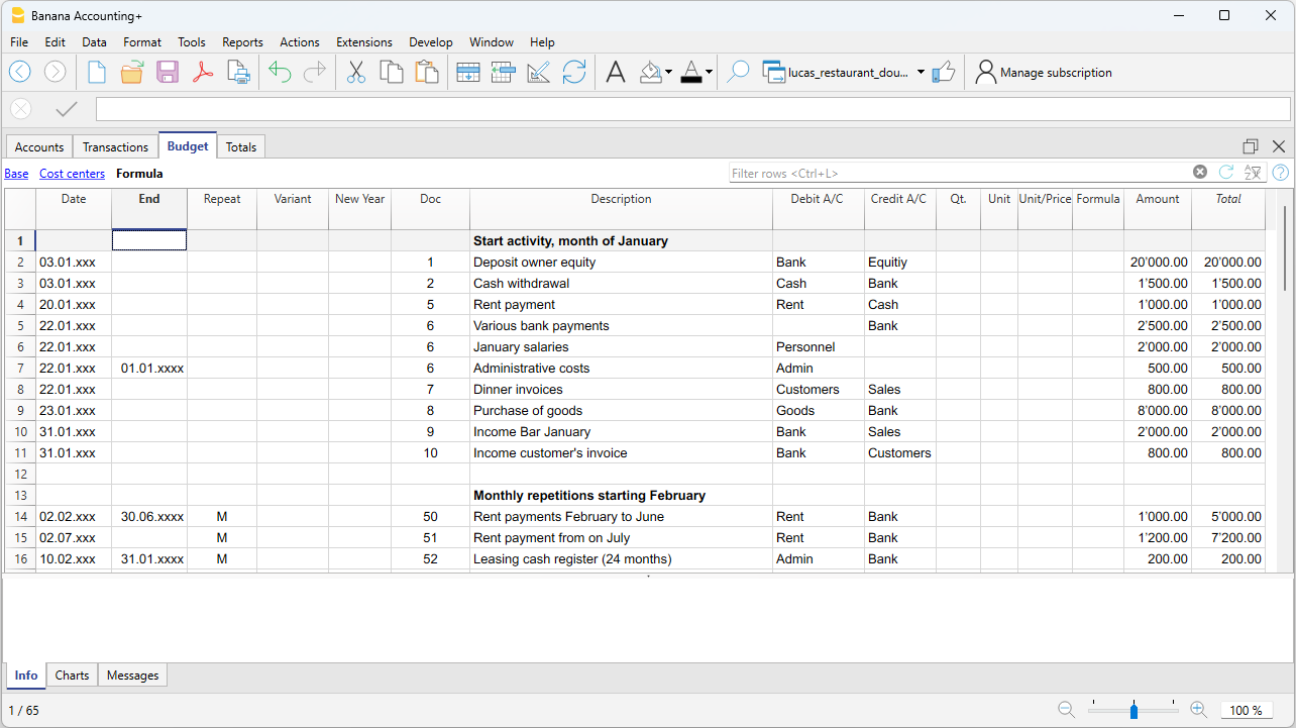
Below are several examples, taken from the template below, to which we refer for further explanation.
Start-up forecast registrations
These are forecast entries as those registered in the Transactions table.
The example shown here refers to the start of the activity, so it concerns transactions that are not repeated.

Monthly repetitive entries
Below are examples of entries with monthly repetition, code 'M'. The column Total shows the total amount for the year.
The first two entries refer to the rent, which from February to June is 1'000 monthly, while from July it is 1'200.
The date 2024, when the lease redemption amount must be paid, is also indicated. In this line, in the column Total, there is no amount, because the movement does not fall within the dates of the accounting period defined in the file properties.
The repetition code "ME" Month End is used for administrative expenses counted by the bank. For subsequent entries the day 28 is not used, but the last day of the month, thus March 31, April 30.

Quarter-end
Here we indicate some typical entries that repeat at the quarter end. We enter the 3ME repetition, which means repeat every 3 months, with end of month date.

End of Year
At the end of the year there are operations which are carried out. Use Repeat 'Y' so that these operations are also performed for subsequent years.

Forecast of income and purchase of goods
The income forecast is specific to each activity. In this case, the income and purchase forecast is shown month by month, with a specific amount.
Starting in March, the annual 'Y' repetition is indicated, so that these transactions are repeated in subsequent years.

Purchases and next year sales
The months of January and February, in the first year, were not considered significant for the following years, so they did not have a repeat.
For the first two months of the second year, we have to set sales. We also set the annual 'Y' repetition, so that we can repeat the income in the following year.

Forecasting with quantity and price
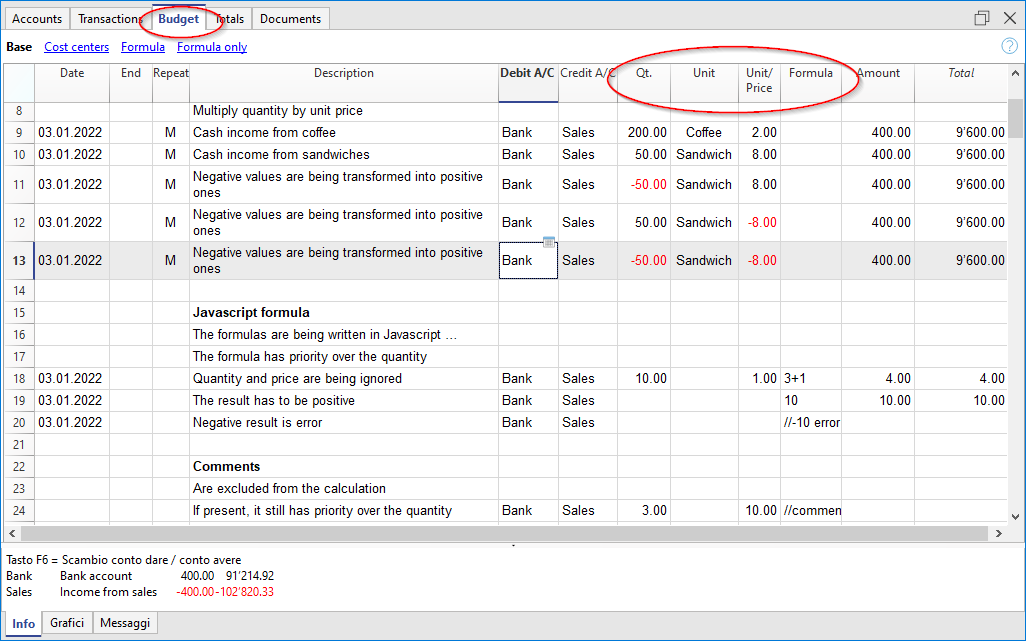
The Quantity, Unit and Unit Price columns of the Budget table allow you to prepare forecasts faster.
The value of the Amount column is calculated by the program by multiplying the Quantity by the Unit Price (under the condition that Formula column is empty).
The Quantity, Unit Price columns are set as visible in the Formula View.

Advantages of using the Quantity and Prices columns
The quantity and price columns are useful for making predictions based on quantities. For example:
- In the Unit column you can indicate what the price refers to.
- The Quantity column indicates the number of seats served daily.
- The Price column indicates the estimated revenue for each cover.
- The Amount column will be calculated automatically based on the values indicated.
This approach offers several advantages:
- All elements of the planning can be precisely detailed in the Budget.
- We remember the quantities and prices used to make the estimate.
- Changing the schedule is very simple, you can change the element you want only.
- How the profit varies, can be seen with a change in the quantities sold or in the price.
Break-even analysis.
Using formulas in the Budget table
The addition of Javascript formulas in the Budget table of Banana Accounting Plus, opens up several possibilities.
The use of formulas is available in Banana Accounting Plus with the Advanced plan only.
See all the advantages of the Advanced plan.
Formula column
The Formula column allows you to enter calculation formulas. The estimate amounts can thus be calculated on the basis of other values of the same budgeting (see Examples of formulas).
- Indicate the cost of goods based as a percentage of sales.
- Increase your sales budget based as a percentage of growth.
- At the end of the year, calculate the depreciation based on the value of the investments made.
- Quarterly, calculate interest on the bank account based on actual usage (days / 365).
- Monthly, calculate interest on the bank account based on actual usage (days / 365).
If you enter a value in the Formula column, the Amount column is calculated by the program based on that formula.
Formula Begin Column
In the Formula Begin column you can enter any formula, that is pre-pended to Formula and resolved (see documentation of the table Budget):
It is useful to specify a variable name and the assignment operator, so that you can easily change amounts:
- Instead of writing in the Formula "Price= 100", you can write
- Formula Begin "Price="
- In Formula "100" , so you can easily see the amount and change it
Formulas in Description column
You can also enter formula in the column text, so that the text is completed automatically when you request an account card (see documentation of the table Budget).
The Formula in the Description should be entered within curly brackets preceded by the dollar sign.
- Assuming that in the formula you have defined the variable Price "Price= 100"
- In the Description text you can use the variable price
"Sell of goods at price ${Price}" will results in the account card in
"Sell of goods at price 100"
Within the Description column you can use any Javascript formula, but you should avoid use assignment or other calculations, and use only the Description to for retrieving values.
Example files
For examples of the formulas, refer to the following explanations:
- Template with transactions using the Quantity and Formula columns.
- Template with transactions for Multi-Currency accounting using the Formula column in the base currency.
- Also refer to Examples of using formulas in financial forecasts.

Calculation formulas in Javascript
- The formula must be expressed in the Javascript language (not to be confused with the Java language).
- If there is a formula (or any text), the value in the Amount column is set according to the formula result.
- You can use all the functions of the Javascript language, plus the APIs provided by Banana.
Decimal separator
In JavaScript only the point "." is used as a decimal separator
If you use a different separator, the one used for numbers in the local format, the number is likely to be truncated.
Amount = result of the last instruction
In Javascript the semicolon ";" is used to separate expressions.
If the Javascript formula contains multiple expressions separated by ";" the value of the Amount column will be the result of the last executed expression.
- 10*3 //30 will be returned
- If there is a sequence of several operations separated by a semicolon ";", the last operation will be resumed.
10*3;7; //7 will be returned - If there is a return, the value is resumed after the return.
return 10; // 10 will be returned.
Variables
Javascript variables are the most powerful elements of programming, as they let you give a name to a value stored in the computer's memory, so you can easily save, reuse, and update that value in your formulas.
Variables do not exist in Excel formulas, but are similar to the name of the cells, with the difference that the name can be freely assigned.
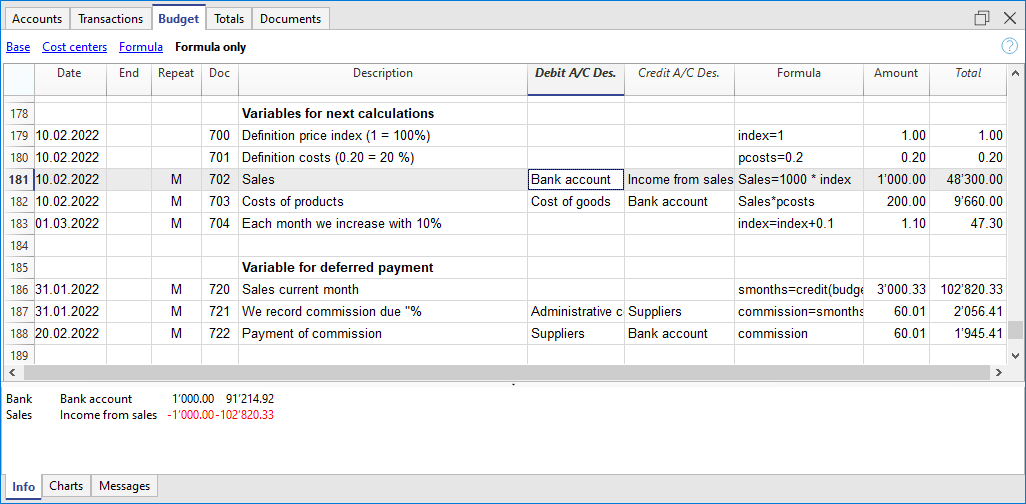
What is a variable?
A variable is like a labeled box where you store a value. For example:
price = 10This means you’re giving the name price to the value 10. You can then use "price" in other calculations:
total = price * 5This will multiply the value of "price" (which is 10) by 5 and store the result in a new variable "total".
You can also reassign the value of a variable later:
price = 20Variable initialization
To create a variable, just write a name, an equal sign (=), and a value.
There are two different ways to create and initialize a variable, and they behave slightly differently:
- Variable with the word "var"
var price = 10- This creates the variable "price" and the value 10 is assigned to it.
- The value will not appear in the Amount column. The cell looks empty.
- The value will be used and displayed only when you refer to "price" in another row.
- Variable without "var"
price = 10- This also creates the variable "price" and the value 10 is assigned to it.
- The value appears directly in the Amount column of the same row.
- Useful when you want to both define the variable and see its value immediately.
You can define and use variables directly within the rows. By entering the variable name in the formula, the saved value is taken over.
Nullish coalescing operator "??"
Sometimes, you want to give a variable a value only if it doesn’t already have one.
You can do this using a special symbol called the Nullish coalescing operator "??", in this case the value specified after the operator "??" is used only if the price has not been already assigned.
price = price ?? 10;This means: “If price doesn’t already have a value, set it to 10. Otherwise, keep the current value.”
Before using "??", make sure the variable exists. You can write:
var price
price = price ?? 10
Or simply:
var price = price ?? 10The Nullish coalescing operator is useful for repetitions, due that it allows to assign an initial value, the first time only. So you can than increment the value and by the next repetition the value will not be assigned again.
Note: The Nullish coalescing assignment operator "??=" is not supprted.
Objects
Javascipt objects are variables that allow you to save multiple values, each indicated with a property.
The prices object is created below, indicating the curly brackets. To access and save the values, instead use the square brackets or indicate in the name of the property after the name of the object.
prices = {}
prices['car'] = 10;
prices.car = 10;
prices['computer'] = 20;
prices.computer = 20;
Array
Javascript Arrays are created using square brackets and also to access them.
The first element of the array has index 0.
costs = [1,2,3];
costs[0]=3;
result = prices['car'] - costs[0];
Repetition and variables
For more information on the calculation sequence, see Planning Logic.
- All rows (including those created for repetitions) are sorted by date. If there are rows with the same date, the order is that of insertion in the table.
- After the sorting, the rows (including the formulas) are recalculated.
- In the formulas, you therefore only have access to the budget data up to that date.
- A variable must be defined in a row that has the date preceding the row where it is used.
- If the budget entry has a repetition the variable will be reassigned each time.
sum = 10; - If you want to calculate the grand total instead.
- In an initial line create the variable with value zero.
sum = 0; - In the line that repeats in the sum also include the previous value.
sum = sum + 10;
or use the "+="
sum += 10
- In an initial line create the variable with value zero.
- Use the Nullish coalescing operator "??" for assigning a value to a variable that is not yet initialized.
Automatic variables
- budgetCurrent
It is a table that contains the budget rows after the repetitions creation.
These are used to record values in conjunction with the JRepeatNumber. - DEBUG is a variable that can be "true" or "false".
If "true", in the messages, all the results of the formulas are being displayed. - row
Is a Javascript object that refers to the current row.- The values of the cells can be retrieved with the value function ("columnNameXml").
row.value("date") returns to the date of the transaction. - row.value ("JRepeatNumber") returns the progressive of the repetition.
The first repetition is 0.
- The values of the cells can be retrieved with the value function ("columnNameXml").
- _totalPrice
This is the value of the Quantity column multiplied by the UnitPrice column.
Equivalent to the formula "row.value('Quantity')*row.value('UnitPrice')"
Budget Functions
In addition to the budget API defined in the accounting class API, there are specific functions.
budgetGetPeriod(tDate, period)
This function is used in combination with the use of repetition.
When repetitions are indicated, it is advisable to refer to a calculation period and not to a precise date.
- Parameter tDate.
The date to which the calculation of the period refers. Usually the date of the recording line. - Period parameter.
Abbreviations- For the current
- "BC" current bi-monthly (2 months)
- "DC" current day
- "MC" current month
- "QC" current trimester
- "SC" current half-year
- "YC" current year.
- "WC" current week
- For previous
- "BP" previous bi-monthly
- "DP" previous day
- "MP" previous month
- "QP" previous quarter
- "SP" previous shalf-year
- "YP" previous year
- "WP" previous week
- For the current
- Returned values.
An object composed of two dates- startDate
- endDate
// example
t = BudgetGetPeriod ('2015-01-01', 'MP') returns
t.startDate // 2014-12-01
t.endDate // 2014-12-31
Specific budget functions
The following are similar to those available with Banana.document, but can be used without indicating the object Banana.document.
To be taken into account:
- Instead of the startDate parameter, you can use one of the abbreviations "MC", "MP", explained in the budgetGetPeriod.
- If you use an abbreviation, the function calculates the start and end date of the period, based on the date of the current registration.
- It makes sense to use the end date only if it is earlier than the row date.
If it is equal or higher, it has no effect because the values after the current row are not yet available, because they have not been processed. - If the registration row date is April 15th:
- budgetBalance("1000","MP") the balance of the 1000 account returns at the end of March.
- budgetBalance("1000","MC") returns the balance at the current time is the same as budgetBalance("1000").
- budgetTotal("1000","QP") returns total of the movement for the previous quarter.
- budgetTotal("1000","QC") returns the total of the movement for the previous quarter, up to the current date.
budgetBalance(account, startDate, endDate, extraParam)
The balance up to the current row.
//returns the balance of 1000 at the end of the previous month
budgetBalance('1000', 'MP');

//returns the balance of group E6 for the period 01.01.2026-31.01.2026
credit(budgetBalance('Gr=E6','2026-01-01','2026-01-31'))- If budgetBalance returns a negative amount, the program generates an error, because it is not possible to enter negative values in the Amount column of the Budget table.
- When the account balance is not known in advance, it may be useful to enter two transactions using the debit() and credit() functions.
- Only one of the two transactions will show the correct balance, while the other will have an amount of 0, depending on whether the balance is a credit or a debit.
- The two transactions must of course reverse the debit and credit accounts: for example, in the first transaction debit 2210 and credit 1000; in the second debit 1000 and credit 2210.
//returns the balance of account 1000 on the day of the transaction, 0 if negative
debit(budgetBalance('1000'));

//returns the balance of account 1000 on the day of the transaction, 0 if positive
credit(budgetBalance('1000'))
budgetOpening(account, startDate, endDate, extraParam)
The balance at the beginning of the period.
budgetTotal(account, startDate, endDate, extraParam)
The difference between the debit and the credit movement of the period.
//returns the total movement of the 1000 account for the current month
budgetTotal('1000', 'MC')
budgetInterest( account, interest, startDate, endDate, extraParam)
Calculates the interest on an account, for the period indicated (at the maximum the current date)
If you use it to calculate interest on an account at the end-of-period, the row where the formula is shown should always be the last one for this date.
- Account parameter
This is the account number on whose movements interest will be calculated - Interest parameter,
Indicates the interest rate in percent.- Positive (2.5, 4, 10) calculates the interest on the account's debit movement
- Negative (-2.5, -4, -10) calculates the interest on the account's credit movement.
credit(amount)
- If the amount parameter is negative returns the amount as a positive
credit(-100) // returns 100 - If the amount parameter is positive, returns 0 (zero)
credit(100) // returns 0
This function is useful in conjunction with the other budgetBalance functions to work only on the balances you need.
If you want to calculate the percentage on sales, using this function is easier.
credit(budgetTotal('1000')) // enter the value only if it is a negative.
debit(amount)
- If the amount parameter is positive, returns the amount
debit(100) // returns 100 - If the amount parameter is negative, returns 0 (zero)
debit(-100) // returns 0
Useful if you have to make calculations using only the debit amount and avoid using the credit amount
include
Includes and executes a Javascript file, with the possibility to create its own functions and variables that can be recalled in the script.
- Include "file:test.js"
Executes the contents of the indicated file. The name refers to the file on which one is working. - Include "documents:test.js"
Executes the contents of the text document contained in the documents table.
This has to be a file of the "text/javascript" type.
Functions for multi-currency accounting
They can also be used for accounting without multi-currency, in this case the account is always in basic currency.
budgetBalanceCurrency(account, startDate, endDate, extraParam)
The balance in the account currency up to the current line.
budgetExchangeDifference (account, [date, exchangeRate])
This formula recalls the Banana.document.budgetExchangeDifference function.
budgetOpeningCurrency(account, startDate, endDate, extraParam)
The balance in the account currency at the beginning of the period.
budgetTotalCurrency(account, startDate, endDate, extraParam)
Starting with version 9.01, the following functions are also included : budgetCreditCurrency, budgetDebitCurrency.
User defined functions
The user can define personal function with the JavaScript language, and recall them in the formulas.
It is possible to define functions:
- Directly in a formula
- In a JavaScript coded attachment; this attachment must have as row id the "_budget.js" name
- In a text of the Documents table, that needs to be included with the Include command
Note:
In the user functions it is currently not possible to use functions that access current accounting data (currentBalance, ...).
function Taxcalculation(profit)
{
   var percentage = 10;
   if (profit > 50000)
      percentage = 10;
   else if (profit > 100000)
      percentage =20;
   return profit * percentage / 100;
}
Banana Accounting Plus GPT Budget formula creator
The GPT budget formula creator is only experimental: it might be subject to changes and improvements.
This Banana Accounting GPT was created using ChatGPT and is designed to generate calculation formulas to be used in the Budget table of Banana Accounting Plus.
Requirements
To use this GPT, you must have a ChatGPT Plus subscription. Without it, you can try the service for free for up to ten requests. After that, you’ll need to either upgrade to ChatGPT Plus or wait some hours before making additional requests.
How it works
- Open the Banana GPT from this link:
- In the Message field at the bottom, enter a sentence describing what formula you want to create. Explain what your purpose is. Generally, more specific requests will yield better results.
- GPT will process your request and return the corresponding result.
Based on the input provided to the GPT, examples and text strings are generated containing the formulas. - Copy the generated formulas.
- Paste the copied formulas into the Formula column of the Budget table in Banana Accounting Plus.
Examples of messages to enter in GPT
The following are examples of messages to enter into the GPT chat, along with their respective generated results:
Example 1
Input text:
I have the sales amounts for January, February and March 2024. Now I want to calculate the sales forecast for the same months in 2025. I predict that sales will increase by 20% compared to sales in 2024. Let me have the formulas keeping in mind that I want to see the calculated values right away, and then also the example records to enter.
Response:
| Date | Description | Account Debit | Account Credit | Formula |
| 2025-01-31 | January sales expected 2025 | 3000 | 4000 | var jan24 = 1000; jan24 * 1.2 |
| 2025-02-28 | February sales expected 2025 | 3000 | 4000 | var feb24 = 1200; feb24 * 1.2 |
| 2025-03-31 | March sales expected 2025 | 3000 | 4000 | var mar24 = 1500; mar24 * 1.2 |
Examples of the use of formulas in financial forecasts
The possibility to enter formulas is available in Banana Accounting Plus only with the Advanced plan. Update now!
Below you will find some examples of how to use formulas to automate financial forecasts.
Please refer to the specific documentations:
- Javascript formulas in the Budget table
- Templates with transactions using the Quantity and Formula column
Parameters
When planning, it can be useful to define variables that can and will be used later.
It is useful to create a parameter section with a posting date of January 1st, or another date that corresponds to the first day of the Budget. The parameter variables will then be used in the following rows.
// 30%
costOfGoodsSold = 0.3
// 5%
interestRateDebit = 0.05
// 2%
interestRateCredit = 0.02
// 10 %
latePaymentPercentage = 0.1
This way, all parameters that can be set are displayed instantly. When a parameter is changed, the forecast is recalculated.
Repetitions or values per month
By using the Repeat column, you can plan for the whole year on one recording row.
If however, the activity has seasonal variations, it is recommended to use a forecast by month. For each month, a row is created with the sales amount for the month.
If you wish to make forecasts automatic for several years, it is useful to insert the repetition "Y" in this row, so that the row of the year is also used for the next one.
Prices and sales quantities
When making a sales plan it will be easier to enter values using the quantity and price column. For example, a restaurant can enter the number of covers served per day, week or month and the program automatically calculates the amount. By changing the number of covers or the price, the impact on liquidity and on the result for the year is instantly displayed.
Use of formulas with variables for growth
When you use formulas, remember that they are expressed in the Javascript language:
- The variable must be defined before being used, hence the line, in which it is defined, must be a date preceding the the line in which it is used.
- Thousands separators in numbers can't be used.
- The decimal separator is always the "." (Full stop)
- The names are different for uppercase / lowercase.
You can assign a value to a variable (this name can be freely chosen) and enter the variable name in the following lines to resume the value.
By changing the value assigned to the variable, all the lines, in which the variable is used, are automatically modified.
As an example, you may set the expected sales amount, proceeding with the following months, by using a formula to increase the amount.
- Create a "S" (sales) variable , by entering the following text in the Formula column.
Sales=1000
The value 1000.00 will be inserted in the amount column - In the following lines use the variable by simply inserting the variable name in the formula:
Sales
The value 1000.00 will be inserted in the amount column - You can add 10% to the amount (multiplying by 1.1)
Sales*1.1
The value 1100.00 will be inserted in the amount column (The value of the Sales variable does not change) - You can increase the value of S
Sales=Sales+200
The value 1200.00 will be inserted in the amount column (The value of the Sales variable will change) - If the variable is used in the following line, there will be the new calculation
Sales
The value 1200.00 will be inserted in the amount column
You can also define a variable to define the percentage of growth.
- Percentage=1.1
- Amount=200
- In formulas you can use the variable name instead of the number
- Sales*Percentage
- Sales=Sales+Amount
Variables and repetitions
Let's say you expect the turnover to rise by 5% every month.
- Enter two lines where you assign the value to the variable, without putting any account with the start date of the year.
Sales=1000
Increment=5 - Then create a line with the repetition where you enter the accounts and the formula
Sales=Sales*(1+Increment/100)
Each time the row is repeated the value of the variable S will be increased by 5% and consequently also the amount of the transaction. By simply changing the growth percentage, the forecast will be recalculated.
In a row you can also insert multiple Javascript instructions, by separating them with a semicolon ";"
Sales=1000; P=5
Use of budget formulas
There are functions that allow you to access the balances and movements of the accounts for planning up to the row that is calculated.You can enter a formula that through the budgetTotal function, recovers the value of the sales account "SALES" of the previous month.
credit( budgetTotal("SALES", "MP") )
The budgetTotal function takes account numbers and periods as arguments. An abbreviation can be used instead of the period.
- MP stands for previous month.
- QP stands for previous quarter.
Revenues show in Credit, therefore the value returned by the function will be negative and will not be accepted as an amount in the double entry accounting.
Therefore use the credit () function, which uses the negative value and turn it into a positive value.
Objects for incrementing sales or costs
Instead of using a single variable you can group the elements in an objects, for sale or costs.
s = {} // sales
s.p1 = 100 // product 1
s.p2 = 200 // product 2
c = {} // costs
c.rent = 500
c.utilities = 200
c.admin = 100
You can now use a function to increments all element by a value
// function to increment the values within an object by a percentage
function Increment(obj, perc) {for (v in obj) { obj[v]+=obj[v]*(perc/100)}}
// Increment all values
Increment(s,20) // Increments sales by 20%
Increment(c,10) // Increments costs by 10%
// Decrement use a negative number
Increment(s,-10)// Decrements sales by 10%
Increment(c,-5) // Decrements costs by 5%
If you want to initialize the element in a repetition row use the Nullish coalescing operator "??"
// initialize objects
s = {} // sales
c = {} // costs
// repetition rows assign the value only the first time
s.p1 = s.p1 ?? 100
s.p2 = s.p2 ?? 200
c.rent = c.rent ?? 500
c.utilities = c.utilities ?? 200
c.admin = c.admin ?? 100

// Begin next year increments values
Increment(s,20) // Increments sales by 20%
Increment(c,10) // Increments costs by 10%
You can see an example how to insert all data:
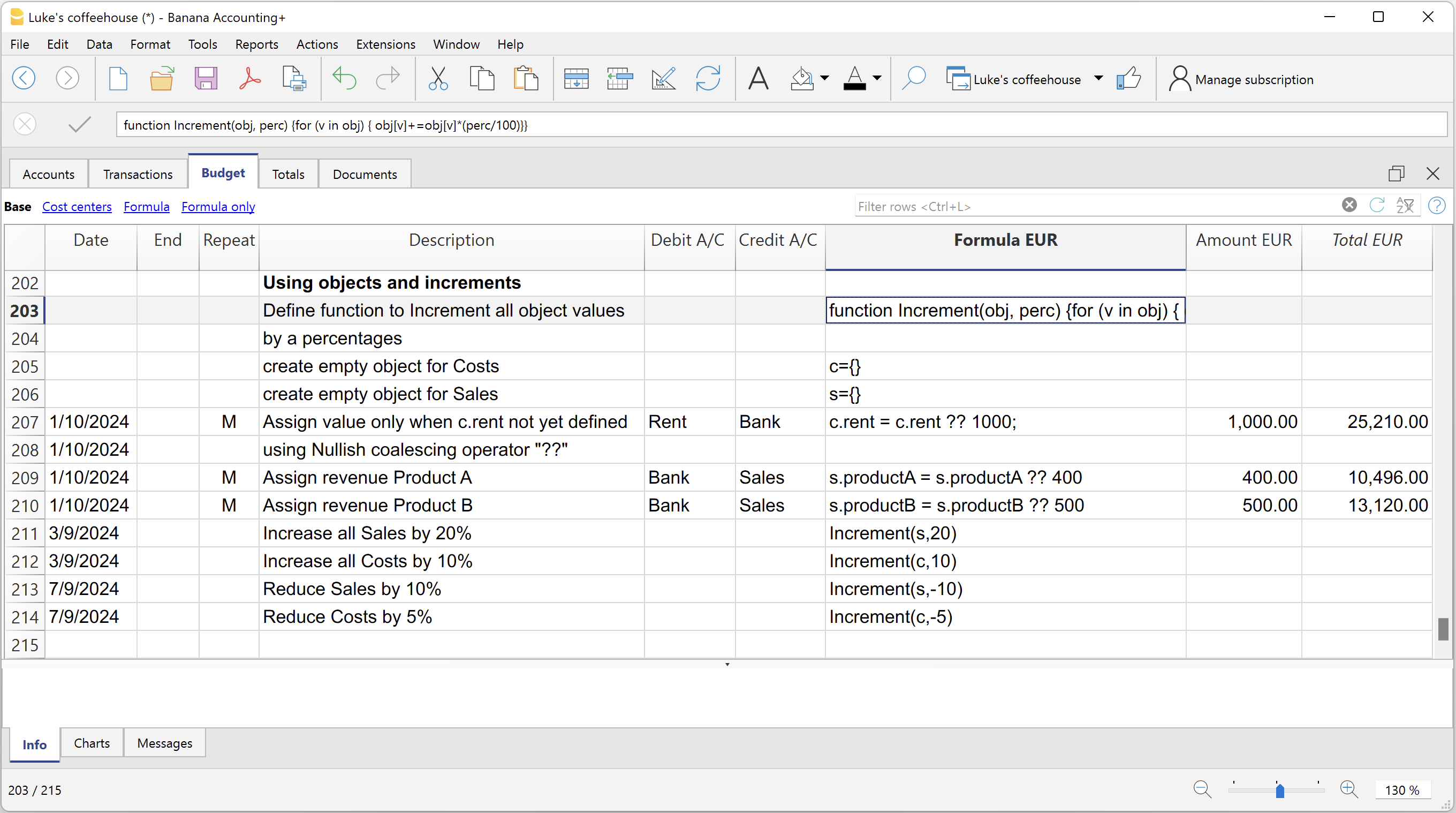
Variables for monthly sales
Sales may vary for each month. In this case it is useful to use separate registrations for each month with the variable name.
sales_01 = 1000
cost_01 = sales_01 * costOfGoodsSold
sales_01 = 1100
Deferred payments
If you want a very precise liquidity plan, it is useful to separate the sales, which are paid immediately and those that are deferred.
One approach may be to record all sales as if they were paid cash, assigning the value of the monthly variable to the amount.
sales_01 = 1000
A registration is then entered, which reverses the sales that are deferred, calculating the amount with the formula.
sales_01 * latePaymentPercentage
A payment registration with the same formula will then be inserted for the following month.
Selling costs
There are costs that can be related to sales (cost of goods) or to other costs (social charges, in relation to wages).
Cost calculation with variables
If the sales are defined with variables, the sales costs can also be indicated as a percentage of the sales.
- You can define variable S for sales and variable C for the percentage of the cost.
Sales=1000
Cost=60 - The formula for the calculation will be:
Sales*Cost/100
You can also use the same approach to calculate social security charges.
This formula can possibly be entered in a repetitive row.
Sales cost calculation with budget functions
When the costs are related to sales, the budget formula can also be used.
credit( budgetTotal("SALES", "MC") )*60/100
When the costs related to sales, "MC" stands for the current month.
This formula will return the sales value of the current month, turn them into a positive and multiply them by 60 and divide by 100.
The date must be beyond the sales registration dates, obviously.
It may be used it in a repeat row, inserting the month end date. Therefore, the costs of the sale will automatically be calculated based on the sales entered with the transaction.
The formula can be combined with variables.
- At the beginning of the year define the percentage of costs.
Cost=60 - Therefore, the formula C is used.
credit( budgetTotal("SALES", "MC") )*Cost/100
When you change the contribution percentage or any sale, the schedule will be updated automatically.
Sales commission calculation at the end of the year
At the end of the year, you calculate the commissions of 5% on the total net sales with this formula:
credit( budgetTotal("SALES", "YC") )*5/100
The bugetTotal function returns the movement of the sales account for the period "YC", current year. With the credit () function, the amount is turned into a positive value and then multiplied by 5 and divided by 100.
If you make forecasts over several years, remember to insert the repetition "Y" in the row, so that the same formula will be also calculated for the previous year. As indicated above instead of entering the 5 directly in the formula, you can assign it with a variable.
- Commission=5
- credit( budgetTotal("SALES", "YC") )*Commission/100
If the percentage changes from one year to the next, it is sufficient enter a transaction with the following year date that resets the variable for commissions.
Inflation with variables
If you want to forecast over several years, you can also take inflation into account.
- At the beginning of the planning, assign a base variable for prices and inflation (2%).
Base=1;Inflation=2 - When you use the Sales variable, you multiply it by the inflation rate
Sales=Sales*Base - At the beginning of the following year, with annual repetition, you increase the price base
Base=Base+Base*Inflation/100
Depreciation calculation
Thanks to the formulas, the calculation of depreciation can be automated.
If you change the value of your investments in planning, depreciation will be automatically recalculated. Make sure that the date of the depreciation calculation line has a date superior to that of the investments. Date is generally 31st December .
Depreciation calculation on book value
To calculate the depreciation of the "EQUIPMENT" account, insert a line at the end of the year with the following formula and the debit and credit accounts appropriately set up to register the depreciation.
budgetBalance("EQUIPMENT")*20/100
The budgetBalance function returns the balance to that date. The amortization of 20% is then calculated on this.
Use the debit function, in case you think the asset account can go into credit.
debit(budgetBalance("EQUIPMENT"))*20/100
Calculation of depreciation on the initial value
To calculate the initial value of the investments, it is necessary to use variables to remember the value of the initial investment.
Equipment=10000
If the depreciation is spread over 5 years, the formula will be inserted in the year-end depreciation line
Equipment=10000/5
The annual repetition "Y" and the end date, which corresponds to the date of the last installment of the amortization, will be inserted in the row to prevent the amortization from running on indefinitely.
For each investment you will have to create a variable and a specific row of depreciation. Numbers can also be entered in variable names.
Equipment1=10000
Equipment2=5000
Interest calculation
The budgetInterest( account, interest, startDate, endDate) function allows you to automatically calculate interest based on the actual use of an account.
The parameters are:
- Account
Whose movements are used to calculate interest, in case it will be the bank account or the loan. - Interest
The interest rate in percentage.
If the value is positive, interest on the debit balances is calculated.
If the value is negative, interest on the credit balances is calculated.. - Initial date, which may also be an acronym.
- End date, which may also be an acronym.
- The returned value is the interest calculated for 365/365 days.
Interest expense on the bank account
To calculate the interest expense of 5%, insert a line with the end date of the quarter and the repetition "3ME", which contains the formula
budgetInterest( "Bank", -5, "QC")
The interest rate is negative, because "QC" means current quarter. The debit and credit accounts must be the usual ones for recording interest expense. If the interest decreases the bank account balance will also be used in the registration. However, another account can be used if it is paid with another account.
It is important that the "3ME" repeat is used so that the date used will always be the last of the quarter.
To calculate the interest of the month use the abbreviation "MC"
budgetInterest( "Bank", -5, "MC")
Interest on the bank account
For interest income of 2%, use positive interest instead.
budgetInterest( "Bank", 2, "QC")
Interest on fixed-term loan accounts
For fixed-term loans, interest will be calculated and recorded on the specified date.
- Create an separate account for each loan.
Use the budgetInterest function indicating exactly the start and end dates .If the date is indicated as text, the notation "yyyy-mm-dd" should be used, then "2022-12-31" - Use variables.
As indicated for depreciation, the loan amount can be assigned to a variable. The interest calculation will be done with a Javascript calculation formula,- Define the loan variable
Loan=1000 - 5% interest calculation, for 120 days.
Loan*5/100*120/365.
- Define the loan variable
Profit tax calculation
Profit is the total of the group's profit for the specified period.
To calculate a 10% profit tax, use the following formula.
credit(budgetTotal("Gr=Result","MC"))*10/100
- Use the the budgetTotal function parameter in the "Gr = Result" group, which indicates that instead of an account it has to calculate the movements for the group.
- MC, current month, is indicated as the period.
- The budgetTotal function will return a positive value if there is a loss and negative (credit) if there is a profit.
- the credit function takes only negative values into account, therefore if there is a loss the tax will be zero.
Payments with deferred or different deadlines
For deferred payments or with different deadlines, you can proceed in two ways:
- Use variables to which payment amounts are to be assigned.
Use the variable in question when recording the payment. - Create customer or supplier accounts for different credit deadlines.
Other cases
Please tell us about your other requirements, so we can add more examples.
Budget separate from accounting
Preparing the file
If the Budget table is not visible in the accounting file, proceed to display it via the Tools → Add/Remove functionalities → Add Budget Table menu.
The Transactions table remains as preset in any case. If you don't need it, use the Data → Tables setup menu and un-tick Transactions table so it is not displayed.
The process will be the same whether you are managing only an accounting, a budget or both:
- Create an accounting file.
- Set the file properties.
- Set up the Chart of Accounts.
- Enter opening balances (if any).
- Enter the forecast values in the Budget table.
Accounting and budgeting are usually performed in the same Banana Accounting file. If you wish to manage the Budget separately from the accounting, just enter the Transactions in the Budget table only. In this case, the Transactions table, is left empty of posting of movements.
A Budget only file is used:
- To set up the Budget of a Startup:
- Prepare the financial plans of a new company, that has not yet started.
- Initially, if you don't have precise ideas, it might prove useful to select a template with few accounts, without VAT.
- If you plan to keep the accounting as well, it's helpful to start with one of our pre-set Charts of Accounts.
- For an existing company that keeps the accounting with another program:
- The Chart of Accounts will be modeled on the one used for the accounting.
- There are three possibilities to compare with the actual balance sheet:
- You can export the Budget data of Banana Accounting and import it into the accounting program.
- In case you wish to make a comparison between the Budget created in the Banana Accounting file and the actual data of your program on the other hand, you have to export the data and import them into the Budget file (Banana Accounting Budget table).
- Create Excel spreadsheets and report the Banana Accounting Budget data and the accounting data present in your own program.
Further information on Budget transactions can be found at the following links:
Budget period
It is not necessary to define the budgeting period. You can set up the budget for a year and still get forecasts for the following years.
Annual Budget
As a rule, the budget is prepared for the accounting period defined in the File properties, which is generally identical to the calendar year.
- Enter the opening balance at the beginning of the period in the Opening column of the Accounts table.
- Enter the forecasted data for the current year in the Budget table.
When requesting Reports, the program will use the accounting period, if you do not specify a period different from the one present in the File Properties
When you want to budget for the following year, you create a file for the new year. The program reports the budget postings, which can then be modified (see Create new year ... in Actions menu).
Multi-year budgeting
With Banana Accounting you can have planning over several years available. The planning period is free and is set at the time the report is requested.
To make a budget over several years, generally proceed by setting the budget for the first year, then extending it for the following years.
Technically, therefore, proceed as if you were establishing an annual budget, extending it for the following years:
- In the File properties, the date of the first year (which is generally the calendar year,) is indicated as the start and end date.
- The opening balances are entered in the Chart of Accounts.
- The movements of the budget are inserted in the Budget table
- Operations that are specific to the first year only, are indicated without repetition.
- Indicate the repetition code for all other operations, which are presumed to also be repeated in subsequent years.
- Operations that take place only once a year are indicated by the annual "Y" repetition code. For example, the calculation of depreciation, that is done at the end of the year.
- Specific operations for subsequent years are indicated with the respective date on which they occur.
- For repetitive operations that are limited to a single year or to a specific period (fixed-term leasing transactions) the End date will be indicated. After that date, no repetition will be made.
- Formulas may be used to make the amount of the row to be repeated automatic .
- The calculation of depreciation can be based on the balance of the fixed assets account.
- Interest can be calculated directly on the movement in the bank account.
- A progression of sales can be specified.
- Purchases can be defined as a percentage of the cost.
- To obtain the budget (Enhanced Balance Sheet or Enhanced Balance Sheet with groups, Account cards) indicate the start and end date of the required budget.
Changeover to the new year
The Banana Accounting function for Creating a new year ... also carries forward the budgeting transactions.
- At the level of each row you have the possibility to indicate whether the operation should be carried over or not, and whether the original data should be kept or replaced by that of the new year.
- Creating the budget for the new year is therefore very simple, because it is only a question of changing the items of expenditure and income that are expected to change.