In questo articolo
Questa finestra di dialogo viene visualizzata dall'anteprima di stampa quando occorre esportare fatture ed estratti dei clienti in PDF.
Per esportare delle fatture in PDF:
- Dal menu Report > Clienti > Stampa fatture
- Indica le fatture da stampare (es. 1-10)
- Conferma con OK.
- Dall'anteprima di stampa clicca sull'icona PDF.
Esporta singole fatture o estratti clienti in PDF
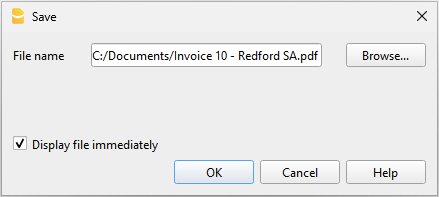
Questa funzione permette di esportare una fattura o un estratto cliente in un file PDF.
L’opzione è visibile quando è stata selezionata una sola fattura o un estratto cliente da esportare in PDF.
Per esportare una fattura o un estratto cliente in PDF devi:
- Dall'anteprima di stampa clicca su Esporta > Crea pdf.
- Clicca su Sfoglia e seleziona o crea la cartella dove salvare il file.
- Inserisci il nome del file pdf. Il nome del file viene ripreso nella casella Nome file.
- Attiva l'opzione Visualizza file immediatamente per visualizzare il pdf creato.
- Conferma con OK.
Esporta diverse fatture o estratti clienti in un unico PDF
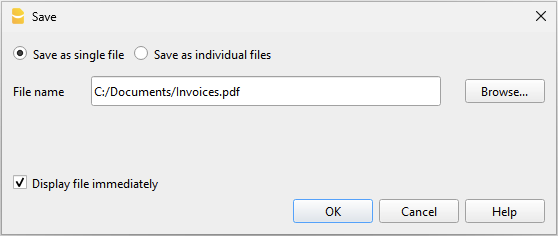
Questa funzione permette di esportare diverse fatture o estratti clienti in un unico PDF.
L'opzione è unicamente visibile quando sono state selezionate più fatture o estratti clienti da esportare in PDF.
Per esportare fatture o estratti clienti in un PDF singolo devi:
- Dall'anteprima di stampa clicca su Esporta > Crea pdf.
- Attiva l'opzione Salva come file singolo.
- Clicca su Sfoglia e seleziona o crea la cartella dove salvare il file.
- Inserisci il nome del file pdf. Il nome del file viene ripreso nella casella Nome file.
- Attiva l'opzione Visualizza file immediatamente per visualizzare il pdf creato.
- Conferma con OK.
Esporta diverse fatture o estratti clienti in PDF separati
Questa funzione permette di esportare diverse fatture o estratti clienti con un'unica operazione ottenendo dei file PDF separati.
L'opzione è unicamente utilizzabile:
- Con il piano Advanced di Banana Contabilità Plus.
- Se sono state selezionate più fatture o estratti clienti da esportare in PDF.
Per esportare fatture o estratti clienti in pdf separati devi:
- Dall'anteprima di stampa clicca su Esporta > Crea pdf.
- Attiva l'opzione Salva come file individuali.
- Clicca su Sfoglia e seleziona o crea la cartella dove salvare i file.
- Nella casella Nomi file, puoi personalizzare il nome dei documenti utilizzando le variabili disponibili nella finestra di dialogo.
- Clicca su Variabili per visualizzare l’elenco completo delle variabili.
- Fai doppio clic sulle variabili che desideri inserire e componi il nome del file. Durante la composizione, l’anteprima del nome risultante viene aggiornata automaticamente.
Esempio: <doc_date> per la data del documento, <customer_name> per il nome del cliente e <doc_number> per il numero del documento.
- Attiva l'opzione Visualizza file immediatamente per visualizzare il pdf creato.
- Conferma con OK.
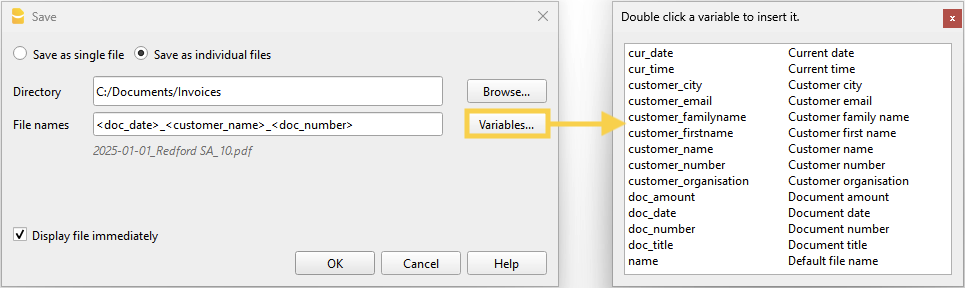
Nel caso in cui un file con lo stesso nome esiste già nella cartella indicata, durante il salvataggio il programma ti chiederà conferma.
Elenco delle variabili disponibili
Per personalizzare i nomi dei file utilizza le variabili seguenti:
- cur_date: la data del giorno corrente, quando si creano i documenti pdf.
- cur_time: l'orario del giorno corrente, quando si creano di documenti pdf.
- customer_city: la località del cliente.
- customer_email: l'indirizzo email del cliente.
- customer_familyname: il cognome del cliente.
- customer_firstname: il nome del cliente.
- customer_name: il nome e cognome del cliente o il nome della ditta (organizzazione).
- customer_number: il numero del cliente.
- customer_organisation: il nome della ditta (organizzazione).
- doc_amount: l'importo del documento.
- doc_date: la data del documento.
- doc_number: il numero del documento.
- doc_title: il titolo della fattura con il numero, il nome e cognome del cliente o il nome della ditta.
- name: il nome file di default (titolo della fattura con il numero, il nome e cognome del cliente o il nome della ditta).
Esporta altri tipi di documenti
Dall'anteprima di stampa puoi esportare qualsiasi documento in PDF con il comando Crea Pdf.
Per maggiori informazioni vai alla pagina: