In this article
This page contains details regarding the Banana Accounting installation on Windows Operating System and the different options available to install Banana Accounting on Windows operating systems. Below you will find:
- Technical information and requirements regarding the installation.
- Parameters that can be used with the bananaplus-setup.exe.
- How to install on a single computer, on multiple computers, or on a server for multiple users.
- Installation on servers for RDS (Remote Desktop Services) users.
- Packaged installation (automatic Distribution)
- Enterprise offline multi-user subscription
Installation types
There are three main types of installation :
- Manual local Installation
Banana Accounting software is installed manually on the personal computer and runs locally.
This is the standard installation. - Packaged Installation
For large organizations. The personal computer is managed centrally. The Banana Accounting application is packaged on the server and is than automatically installed on the local computer through a central application management tool. - Remote Desktop Services (RDS), is a feature in Windows Server that allows users to access a desktop or applications hosted on a central server from a remote location.
The Banana Accounting application and accounting files live on a central server computer in an office or cloud data center. Your laptop/tablet at home is just a screen showing you what's happening on the server.
Stable and Developer versions
Banana Accounting Plus is available in two installers:
- Stable Version, the normal one available under Download
- Application id of the normal version: BananaPlus
- Developer Version, the one available on the Insider Program Page
- Application id of the dev-channel: BananaPlusDev
Although they are different programs, they share the same settings and at startup you will find the same list of recent files in both programs.
Common settings and requirements
Valid internet connection
Once you have installed Banana Accounting Plus, the application will need to connect to banana.ch web server:
- A valid internet connection is required:
- Access to the https://www.banana.ch+(port 80) must be granted for:
- Subscription registration and activation
- Check for updates
- Download of templates
- Download of extensions
- Download of news
Application data
Customization and settings are saved in the users profile; the following folders and Registry keys should be granted read/write rights to the user:
- Folders:
- %localappdata%\Banana.ch\BananaPlus
- %appdata%\Banana.ch
- Registry:
- HKEY_CURRENT_USER\SOFTWARE\Banana.ch\BananaPlus
Windows bananaplus-setup.exe installer
This is the default way to install Banana Accounting on your computer.
You download the bananaplus-setup.exe, run it and it takes care of the installation.
- It will display the information necessary for completing the installation
- It will also install the uninstall command that is registered in the Window App Setup.
- No internet connection is necessary.
Subscription activation:
- The first time you install the software, it will operate according to the Free plan.
- You need to Start the program and connect to your subscription by entering the e-mail address that you have used to buy the subscription or has been assigned to the subscription (administrator e-mail).
Command line installation
This option is intended for advanced users or IT technicians. It allows you to install the program automatically using commands, without manually clicking through the installation windows. It is useful, for example, when installing Banana on many computers.
You can start the BananaSetup.exe program from a command line. The bananaplus-setup.exe is created with the InnoSetup tool and you can use the command available from InnoSetup:
Here a list of the most used parameters:
- /ALLUSERS
Instructs Setup to install in administrative install mode. (install under C:\Program Files) - /CURRENTUSER
Instructs Setup to install in non administrative install mode. (install under %localappdata%\Programs) - /VERYSILENT
Setup will run without showing any progress window or dialog. (/ALLUSERS or /CURRENTUSER must be set to silent the initial dialog). - /NORESTART
Prevents from restarting the system following a successful installation (usually not necessary). - /DIR="x:\bananaPlus"
Overrides the default installation directory. - /GROUP="Banana plus"
Overrides the folder name displayed on the Start Menu Folder
Example: silent install in C:\Program Files\BananaPlus:
.\bananaplus-setup.exe /ALLUSERS /VERYSILENT /DIR="C:\Program Files\BananaPlus"
Default local installation
When running the bananaplus-setup.exe without parameters the program will start in default mode.
During the installation, you can choose whether to install Banana only for yourself or for all users of the computer. This choice depends on how the computer is used (personal or shared).
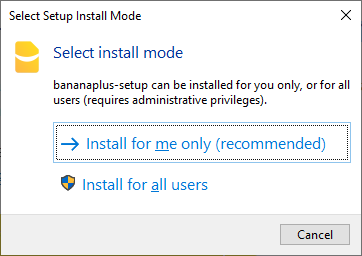
Install for me only
This is the simplest option and is suitable if you are the only person using the computer. This is the default setting if you run the installer without administrative privileges.
- No password is requested
- The uninstall info will be under HKEY_CURRENT_USER.
- The installation directory is %localappdata%\Programs\BananaPlus
Install for all users (Administrator)
- Administrator password will be requested
- The uninstall info will be under HKEY_LOCAL_MACHINE.
- The installation directory is %ProgramFiles%\BananaPlus
Installing Updates
To update Banana Accounting, simply run the installer again with the BananaSetup.exe. When installing it for the second time, the installer will overwrite the existing installation and you will not need to uninstall anything:
- Run the installer as administrator.
- The installer will suggest the last directory used for installation. If you have last installed a Dev-Channel and you are installing the Release version, it will suggest to you the Dev-Channel directory.
- You have to manually select the right directory for installation.
RDS - Remote Desktop Service - Server Installation (centralized)
With an RDS deployment, Windows applications run on a central server (historically called a Terminal Server). Users then connect to that server and interact with the software using a Remote Desktop application. Banana Accounting+ can be installed on computers registered in a Windows domain with Active Directory and Roaming User Profiles and on computers that offer a Remote Desktop Services.
Banana Accounting+ works on Windows Server 2016 and following, and also with Citrix, TSPlus or other similar technologies.
Banana Accounting+ requires a graphics driver that supports Direct 3D 11, Direct3D 12, Vulkan 1.0, or OpenGL 2.1 or higher is required. As of Qt 6, the default for Qt Quick on Windows is Direct3D 11.
In case of problems, you will find troubleshooting info on this website.
Installation for Remote Desktop Service
You need to install Banana Accounting on your server.
- Use the "Install for all users" at the beginning of the installation process.
- Once the installation is completed you can copy the content of the installation to any other suitable directory.
An update is the same as a new installation.
To automate the update process you can create a script that use a Command Line .
Subscription License requirements
Each user of the application must have a valid Banana Accounting subscription.
Packaged Installation (Distributed)
With a "packaged installation" (often called software distribution or local installation) the installer resides on the server and the application is automatically installed on the user device.
- The software runs directly on the user's laptop.
- A "package" (like an .msi or .exe file), that contains the application is created and then sent out to be installed on every single user's device.
- The system allows to define the users that will be able to use a specific application
There are many technologies to distribute and install software on the users computer. Microsoft Intune and others.
They usually all provide their own tool to create a package.
Subscription license requirements
Each user of the application must have a valid Banana Accounting subscription.
Create a package using the BananaPlus-Setup.exe
The InnoSetup installer is compatible with most packaging tools. You can therefore include the BananaSetup.exe that should be run with the appropriate parameters to ensure a "silent" install:
- /VERYSILENT
This is the most important switch. It tells the installer to run completely in the background with no windows shown at all. - /SUPPRESSMSGBOXES
Prevents any small warning or info pop-ups that might halt the installation. - /NORESTART
Tells the installer not to automatically reboot the computer if it finishes—allowing the distribution tool to handle the reboot schedule instead. - /SP-
Skips the "This will install... Do you wish to continue?" prompt that usually appears at the start.
Create a package using the installed directory
Your packaging tool probably lets you also create package using the installed files:
- Install Banana Accounting on you local computer, specifying the desired directory.
- Create a package using the file on your directory.
Subscription license activation
Each user of Banana Accounting Plus must have a valid subscription. The following options are available:
- Single-user subscription.
Each user purchases and manages their own subscription individually. - Multi-user subscription
An administrator manages licenses for multiple users. The administrator purchases the subscriptions and assigns them to users by linking their email addresses in the Banana user account. The administrator may also be a user of the program, but this is not required. - Enterprise offline-subscription.
For large organizations we provide the possibility to purchase Enterprise offline-subscriptions.
Please contact our offices with your request.
Multi-user subscription
- The administrator can purchase and manage a multi-user subscription within the Banana User Account.
- Each user must activate their subscription by linking their email in the program via:
- Menu, Help > Manage Subscription
- In order to activate the subscription, the user must be able to connect to the banana.ch website via the https protocol.
- The activation is stored in the user's profile (see Common settings and requirements above).
Enterprise offline-subscription (Windows only)
This is a special subscription that does not require the user to connect and activate the license. It is intended for large organizations that use Banana Accounting on a central server RDS or use a prepackaged installation.
Banana.ch provides the possibility to purchase Enterprise offline-subscriptions.
Please contact our offices with your request.
- The subscription is purchased upon request to Banana.ch SA.
- The organization must qualify for this subscription model.
- The organization should have a system in place to manage and distribute the application, with the ability to track which users are authorized to use it and who has actually used it.
- The subscription is assigned to the organization email.
- The administrator will receive a special key.
Subscription dialog
When you use the offline activation method the Manage Subscription (from the Help menu) will show the subscription information.
Users will not be able to modify their subscription information.
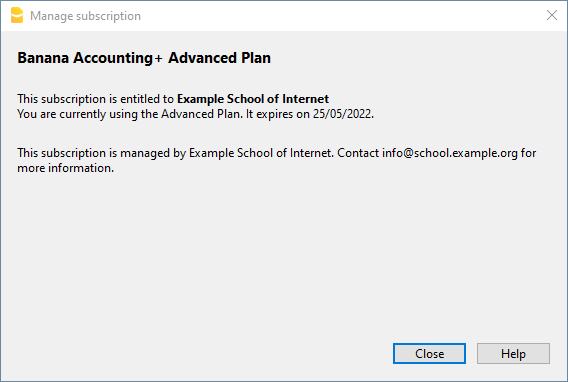
License information
For Enterprise subscriptions, the system administrator receives a dedicated encrypted activation code linked to a specific email address.
- To activate a subscription, Banana Accounting Plus requires a valid email address.
- During the installation process, this activation code can be provided to automatically generate and store an organization activation key file in the installation directory. Banana Accounting Plus will then read the subscription details directly from this file, ensuring a seamless and centralized activation experience across all systems.
- If Banana Accounting Plus has already been installed without activation, the activation key file can be added manually afterwards. Alternatively, the file can be distributed across multiple systems using automated deployment tools such as Group Policy or Microsoft Intune, simplifying large-scale rollouts.
- Application updates do not remove or overwrite the activation key file, ensuring that the subscription remains active across software upgrades without requiring reactivation.
- Subscription renewals are handled automatically: all client computers with internet access and the ability to reach the Banana subscription server will receive updated subscription information without requiring manual intervention. This ensures continuous service availability while minimizing administrative overhead.
Starting BananaPlus with the Subscription information
You can start BananaPlus.exe with the subscription information.
The parameters are different:
- Start BananaPlus.exe with the following parameters
It is better to put the parameters in quotes,- -cmd=activate_sub
Instruct BananaPlus that this is a subscription activation - -cmd_p1=your@mail.address
- -cmd_p2=<the activation code without line break>
- -cmd=activate_sub
- The installation process will update the information regarding your license.
Example:
BananaPlus.exe "-cmd=activate_sub" "-cmd_p1=info@school.example.org" "-cmd_p2=U0QxM8o77zlMg16K7HohVa8Ex1njLn+o8
Installation with organization license key
When installing the application, or using the package, you need to provide the email and the encrypted license key, that will be used during the installation
- Start the Bananaplus-setup.exe installation with a Command Line
- Provide the appropriate parameters, see above:
- /VERYSILENT
- /<user option>
- /ALLUSERS
Instruct Setup to install in administrative mode. (Installation under C:\Program files). - /CURRENTUSER
Instruct Setup to install in normal user mode. (Installation under %localappdata%\Programs)
- /ALLUSERS
- /MAIL=your@mail.address
The administrative address for which you have requested the subscription. - /KEY=<the activation code without line break>
The code you have received from Banana.ch that is connected to your email and subscription.
Bananaplus-setup.exe /VERYSILENT /ALLUSERS /MAIL=info@school.example.org /KEY=U0QxM8o77zlMg16K7HohVa8Ex1njLn+o8