Transactions table | Double-entry accounting
The Transactions table is the central hub for keeping the accounts, where all the operations with financial and economic impact are entered. The use is similar to Excel. In the Transaction table the movements are always visible and in perfect order and by scrolling them, you instantly have a clear view of all the events.
All the data entered can be modified and corrected, making it easy to have a perfect accounting.
The Transaction Table is also characterized by the Balance Column, which allows identifying any differences between the Debit and Credit columns and especially the row where the difference originated. Additionally, errors and accounting differences are flagged in the information window at the bottom.
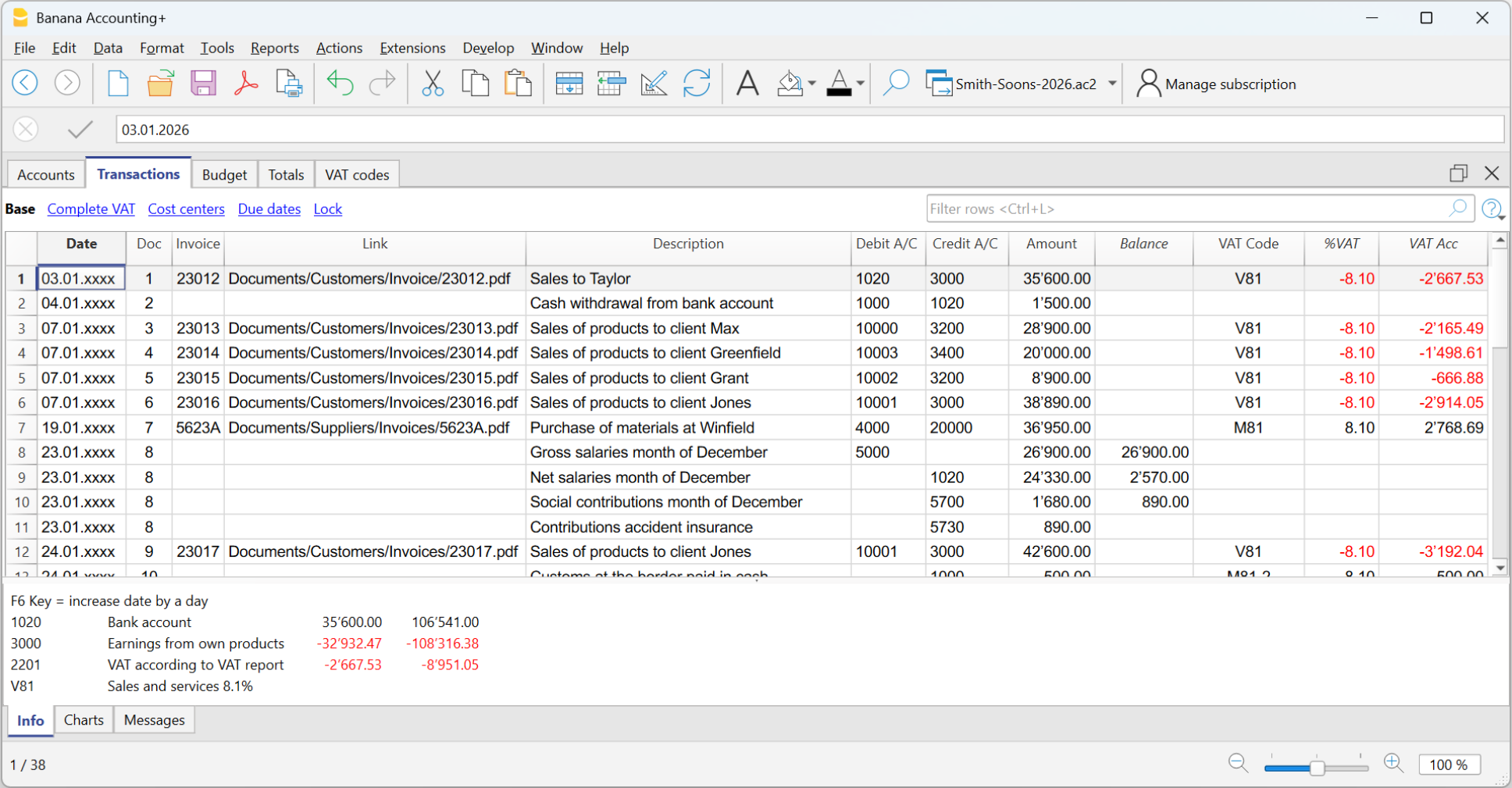
Key features:
- Single or compound entries: Single entries record simple transactions with one Debit and one Credit account, while compound entries are entered on multiple lines with different Debit and Credit accounts. The program suggests previously entered text for quick auto-completion.
- Recording Method: Transactions can be recorded using either the accrual or cash method, ensuring accuracy and compliance with accounting standards.
- Management of Repetitive Operations: Stores repetitive operations for quick future recording, reducing data entry time.
- Customizable Columns: Default columns can be made visible at the user's choice, including quantity, price, and other relevant information.
- Automatic Numbering: Automatically assigns document numbers with different numbering simultaneously, maintaining systematic order and facilitating search and archiving.
- Digital Attachments: Links digital justifications such as PDFs or images to files, accessible with a simple click for complete and organized documentation.
- Exception Management: Highlights rows to quickly identify entries to verify or correct, facilitating the review and control process.
- Data Integration: Imports transactions from various digital bank statements and other programs, speeding up entry of records and ensuring data accuracy.
- Cost/Profit Centers and Segmentation: Allows recording operations on cost/profit centers and segments for detailed analysis and better financial management.
- Balance Verification Entries: Before period or year-end closings, quickly identifies and corrects errors between actual balances, ensuring accurate and updated balances.
Fast insertion
The table is similar to Excel, you can scroll up and down and position yourself in any cell.
There are many features that make entering and editing data very fast.
The following operations are possible:
- Cancel and redo.
- Select one or more cells and copy / paste.
- Add, copy, paste and delete lines, individually or in bulk.
- Search and replace texts.
- Sort the rows by date.
- The auto-complete function suggests the values to enter (for example the list of accounts).
- With the F6 key the values of the row are completed, taking over those of the same row.
- The F4 key resumes the values from the previous row.
- The date is completed with the values from the previous row.
- In the Doc column progressive numbers (with different counters) are suggested.
- In the Debit or Credit Account column you can search for the account by typing it's description.
- In the columns of the amounts you can enter formulas, such as "30 + 25" and the program inserts the result.
Further information is available on the pages:
Movements import
By importing transactions from bank, postal or credit card statements, data entry in the Transactions table is speeded up and errors are avoided. Data is recorded exactly as it appears on the bank statement.
- In addition to the account statements, you can also import data from other programs.
- The program automatically completes the missing values.
- Several formats are available for importing.
- You can copy and paste data from other programs.
- Imported data can be completed, modified or deleted.
- Ability to program extensions to import any type of file.
Further information is available on the Import to Accounting page.
Management of multiple information
A lot of information can be indicated for each entry row:
- The value date and that of the document.
- A progressive number of document and protocol, or external reference.
- Any additional information you need by adding columns.
- Link to a digital document file.
- Add and remove links.
- Open the link and view the content.
- VAT management (if the type of accounting with VAT was chosen in the creation of the file):
- By entering the VAT code in the transaction, the program calculates the VAT automatically.
- Break down and post the VAT on the designated account.
- You can define whether the amount is net or gross of VAT.
- You can indicate that it is a reversal by inserting the minus sign "-" before the VAT code.
- You can indicate a VAT percentage that is not recoverable.
- You can encode special cases with additional codes.
- Cost and Profit centres:
- Up to 3 cost and profit centers for each posting line.
- You can post negative by indicating the "-" sign in front of the cost or profit center account.
- Segments:
- For each debit or credit account you can indicate up to 10 segments.
- Supplier management:
- Management both on the basis of competence (setting as ledger) and cash (setting as cost and profit centers).
- Management of due date and payment, to have the report of open and paid invoices.
- Client management:
- Management both on the basis of competence (setting as ledger) and cash (setting as cost and profit centers).
- Management of due date and payment, to have the report of open and collected invoices.
- Invoices to customers:
- Data entry for the creation of invoices.
- Customer account suggestion.
- Quantity and price (make columns visible).
- For billing or cost control.
- Automatic calculation of the amount.
- Item number (if option activated)
- To connect to the items table.
- Automatic calculation of the quantities of products entered and exited.
- Print invoices.
- Indication of further information needed to print the invoice.
Account card
From the Transactions table you can access any account card, just go to the account cell (in the Debit or Credit column) and click on the small icon that appears in the upper right corner of the cell.
When you are in the account card, clicking on the row number of a transaction takes you back to the Transactions table, on the original transaction precisely.
More information on account cards can be found on the Account / Category Card page.
Verify data
Entering values is very secure. Banana Accounting has functions that allow automatic detection and reporting of errors.
- The program verifies that the entered values are correct.
- If there is an imbalance between the Debit and Credit columns, this will be indicated in red in the Info window.
- Transactions you are unsure about can be left pending and completed later.
- For each error message there is a corresponding help page (requires internet connection).
- In the Info window below you have the following information:
- Description, movement and balance of the accounts used.
- Error reports error messages with a link to the help page.
- Reporting of the debit and credit difference.
- By entering the actual bank balances via the #checkbalance function, you can immediately check the correspondence of the balances in the accounting and avoid errors.
- With the Check accounting command, the program rechecks all the data entered and alerts you to oversights and errors.
- You can colour the rows, change fonts and make them bold.
- You can protect the rows.
- Lock transactions with blockchain technology.
Arrangement of columns
To have a more congenial data entry, you can arrange all the columns in your own order.
You can choose to:
- Move the columns to the right or left.
- Display additional columns or hide unnecessary ones.
- Add own columns
- Save the arrangement of the columns (views).
Further information is available on the Columns setup page.
Transactions table columns and views | Double-entry accounting
The Transactions table has a series of columns and views already set.
The columns of the Transactions table
The columns listed hereunder and preceded by an * are usually not visible.
In order to make them visible, use the Columns setup command from the Data menu.
Date
The date the program uses to attribute the transaction to a certain time frame. The date should be within the limits of the accounting period defined in the Basic data of the accounting. In the Options tab, one can indicate whether the transaction date is required, otherwise this value can also be left empty.
If there are locked transactions, the program triggers an error message when a date equal or earlier to the one of the lock is being entered.
*Date Document
The date of the document can be entered, for example the date of issue for an invoice.
*Date Value
The value date of the bank operation can be indicated. This value is being imported from an electronic bank statement.
Document
The number of the voucher that serves as a base for the accounting transaction. When entering transactions, it is advisable to indicate a progressive number on the document, so that the accounting document of the transaction can be easily traced.
The auto-complete feature proposes progressive values as well as transaction codes that have been defined earlier in the Recurring transactions table.
The program proposes the next document number, that can be resumed with the F6 key.
- In case of a numeric numbering, the program simply increases the highest value found in the Doc column.
- Alphanumeric numbering: the program increases the final numeric part; this is useful when one would like to keep a separate numbering for cash and bank movements:
- If earlier Doc number C-01 has been entered, and one starts to type C, the program proposes C-02.
- If earlier Doc number B104 has been entered, and one starts to type B, the program proposes B-105.
- If earlier Doc number D10-04 has been entered, and one starts to type D, the program proposes D10-05.
In the recurring transactions you can setup transactions groups that can be reloaded with a single code.
In order to add a large number of document numbers, you can also use Excel. You can create the desired quantity of document numbers in Excel and then copy and paste it into Banana, in the column of the Transactions Table.
*Document Protocol
An extra column in case an alternative numbering for the transactions or for the document is required.
The auto-complete feature proposes progressive values that function in the same way as the ones in the Document column. It is used, for example:
- When it is necessary to assign a progressive number to the transactions, different from the document number.
- If the transactions are entered by other people, using another file and then these are imported into the accounting. This way it is possible to use both a progressive numbering referred to the accounting and the original number.
*Document Type
Contains a code that the program uses to identify a type of transaction. If you prefer to use your own codes, it is advisable to add a new column.
- 01 In the reports (as in the account statement), this transaction is considered an opening transaction, so it doesn't show in the period but in the opening balances.
- from 10 to 19: codes for customers' invoices
- from 20 to 29: codes for suppliers' invoices
- from 30 to 1000: codes reserved for future purposes.
*Document Invoice
A number of an issued or paid invoice that will be used together with the invoice control feature for Customers and Suppliers
*Document Original
The reference number present on a document, to enter, for example, the number of a credit note.
*DocLink to external file
Serves to enter a link to an external file, usually the accounting voucher.
Clicking on the small icon in the upper part of the cell, the program opens the document. See insert, edit and open links.
- When a link has been inserted in the cell, a small icon appears and clicking on it opens the document, but only if it is an extension considered to be safe.
- The other small icon allows you to insert and edit the link.
*External reference
The reference number that was allocated by a program that has generated this transaction. This value can be used to check whether a given operation is imported twice.
Description
The text of the transaction.
The auto-complete feature proposes the text of an already entered transaction, or of one that has been entered in the preceding year when the appropriate option has been activated. When pressing the F6 key, the program retrieves the data of the preceding row with the same description and completes the columns of the active row.
In case the description begins with #CheckBalance, the transaction is being considered as one that serves to check the balance.
Please consult our page Check accounting for more information on the subject.
*Notes
Useful to add notes to the transaction.
Debit Account
The account that will be charged.
- It is possible to also enter a segment in the Debit account column. These are usually separated by a ":" or a "-" o un "-".
By inserting the segment separator sign, immediately move to the next segment. - If instead the Enter key is being pressed, the input will end and one moves to the next column.
- The auto-complete feature proposes the accounts and segments of the Plan of Accounts.
- Instead of the account, you can enter a search text. The program proposes the list of accounts which contains the text in one of the columns.
- [Comment]. A value enclosed in square brackets is considered a comment and its content is not taken into account, except in particular situations.
*Debit Account Description
The description of the entered account retrieved from the Chart of accounts.
Credit Account
The account that will be credited.
We refer to the explanation under Debit account for the rest of the information.
*Credit Account Description
The description of the entered account retrieved from the Chart of accounts.
Amount
The amount that will be entered unto the debit and credit account.
*Balance
The Balance column shows the sum of debit and credit. An amount is therefore only displayed for entries in several accounts. At the end of the entry the balance should be zero. If there is a recurring amount it is because there is an error.
VAT columns
Information on the VAT columns can be found att the VAT columns in the Transactions table page
CC1
The Cost center account preceded by "." to be entered without the ".".
- If the initials are preceded by the minus sign "-P1", the amount is recorded in credit.
- [Comment]. A value in square brackets is considered a comment and its content is not taken into account, except in particular cases.
*CC1 Description
The description of the Cost centre, retrieved from the Chart of accounts.
CC2
The Cost center account preceded by "," to be entered without the ",".
- If the acronym is preceded by the minus sign "-P2", the amount is recorded in credit.
- [Comment]. A value in square brackets is considered a comment and the content is not taken into account, except in particular cases.
*CC2 Description
The description of the Cost centre, retrieved from the Chart of accounts.
CC3
The Cost center account preceded by ";" to be entered without the ";".
- If the acronym is preceded by the minus sign "-P3", the amount is recorded in credit.
- [Comment]. A value in square brackets is considered a comment and the content is not taken into account, except in particular cases.
*CC3 Description
The description of the Cost centre, retrieved from the Chart of accounts.
*Expiry date
The date before which the invoice has to be paid. For further information see the Customers and Suppliers pages.
*Payment date
Used in combination with the Show Expiry dates command.
When the invoices customers/suppliers control feature in order to check on the payments is used instead, a transaction has to be entered for an issued invoice and another one for the payment thereof.
*Lock Number, Lock Amount, Lock Progressive, Lock Line
More information at the Lock Transactions page.
Additional columns
From the menu Tools → Add new features → Add Items columns in the Transactions table, the following columns are added.
For more information, see also Items columns in the Transactions table.
ItemId
- The identifier of the item from the Items table. If you enter an item that exists in the Items table, the description, unit, unit price, VAT code and account are retrieved automatically.
Quantity
- The quantity, which multiplied by the unit price gives the total amount (it can also be a negative number).
- If the Items table is present:
- A positive value (+) is added to the quantity of the item.
- A negative value (–) is subtracted from the quantity of the item.
- A neutral value (±) is considered for calculating the total amount, but does not affect the quantity in the Items table.
Neutral values are used in the management of securities, for recording gains or losses. You can specify the quantity and the amount of profit or loss for a specific security, without affecting the available quantity of securities. You can enter the "±" symbol by typing "+" followed by "-". The program automatically recognizes this combination and converts it into the "±" symbol.
- If a quantity is entered and the unit price is empty, and there is an amount in the transaction, the unit price is calculated automatically.
Unit
- A description referring to the quantity, for example: sqm, ton, pcs.
Unit Price
- The price for each unit, which multiplied by the quantity gives the total amount (it can also be a negative number).
- The number of decimals can be modified with the appropriate command in the menu Tools > Add and Remove features.
Transaction amount
- If a value has been entered in the Quantity or Unit Price column, the transaction amount is calculated based on the contents of these two columns and converted into a positive value.
Adding new columns
With the Columns setup command, it is possible to display, hide or move the order of columns, add new ones, or indicate that a column should not be included in the printout.
- The added columns in the Transactions table will be added also in the Recurring transactions table, in the Account card and in the VAT report, without being made visible.
In order to display these columns in the other tables, use the Columns setup command. - If a column of the "amount" type is being added, the entered amounts will be added up in the Account card.
Views
When a new accounting is being created, the following views are being automatically created as well:
- Base: the main columns are being displayed
- Cost centres: the CC1, CC2 and CC3 columns are being displayed
- Expiry dates: the columns Expiry date and Payment date are being displayed
- Lock: the columns relative to the Lock function are being displayed.
With the Views setup command, the views can be customized and personal views can be created.
With the Page setup command, you can modify the print mode of the view.
Recording Bank checks
To enter issued bank checks, the user needs to insert an Issued checks account in the Liabilities.

The check is issued at the moment of paying a supplier and later on is being debited from the Bank current account.

The Issued checks account card after the transactions.

Registrazioni su conto privato
Il conto privato è un conto finanziario, utilizzato nella contabilità per registrare quelle transazioni che non riguardano direttamente l'azienda, ma il patrimonio personale del titolare. Questo conto tiene traccia dei prelievi e degli apporti del titolare a scopi privati; pertanto serve per tenere separate le finanze aziendali da quelle personali, evitando confusione contabile.
Prelievi dall'azienda del privato/socio
I prelievi personali vengono registrati come diminuzione del patrimonio netto. Se il titolare/socio utilizza fondi aziendali per spese personali, l'importo viene addebitato al conto privato.
Esempio di scrittura contabile per un prelievo in contanti:
- Dare: Conto privato (per il prelievo del titolare/socio)
- Avere: Cassa/Banca (per l'importo prelevato).
Apporti nell'azienda dal privato/socio
Gli apporti personali del titolare (es. aumento di capitale o versamenti per coprire spese) vengono registrati come incremento del patrimonio netto.
Esempio di scrittura contabile per un apporto in contanti:
- Dare: Cassa/Banca (per l'importo versato dal titolare/socio)
- Avere: Conto privato (per l'apporto del titolare/socio).
Utili prelevati
Se il titolare/socio preleva utili maturati:
- Dare: Conto utili a nuovo (o Risultato di esercizio)
- Avere: Conto privato
Saldo del Conto Privato/socio
- Saldo positivo: indica che il titolare ha un credito verso l'azienda.
- Saldo negativo: indica che il titolare ha debito verso l'azienda.
Transactions for Balances Verification (#CheckBalance) | Double-entry accounting
Banana Accounting Plus includes the #CheckBalance function in the Check and recalculate accounting command for verifying and matching account balances.
This check is essential for the accuracy of the accounting. It is recommended to perform the balance verification periodically at the end of each month, in addition to the end of the accounting period, to avoid incorrect balances being carried over from month to month.
To perform this check, follow these steps:
- Record the date to which the balance refers.
- In the Description column, enter #CheckBalance followed by the amount corresponding to the balance to be verified (e.g., the actual cash balance, bank account balance from the bank statement, etc.).
- In the Debit column, indicate the account being checked (bank account, cash, VAT account, or another account to be verified).
- The Amount column must be left empty.
With this command, the program will flag any accounts with mismatched balances in the Messages window if discrepancies are found.
Credit card registration with advance payment
Advance payment on Credit cards
Before taking you through the procedure, check that an account for Credit card exists in the liabilities part of the Chart of Accounts. Create it if that is not the case.
The credit card account is added to the group or sub-group of short-term debts, as long as this is pre-requisite of the Chart of Accounts selected. If there are no sub-groups, it must be listed in the liabilities section.
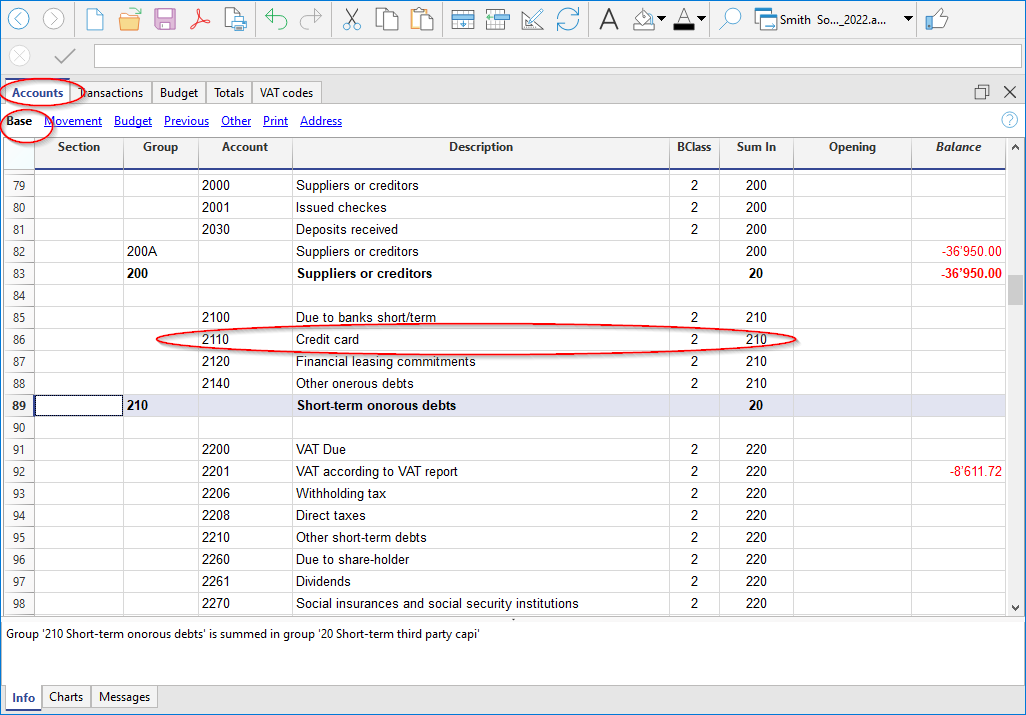
Example:
An amount of CHF 1'000.- is transferred from the bank account to the credit card.
- In Debit the credit card account is recorded
- In Credit the bank account with which the payment is made is recorded.
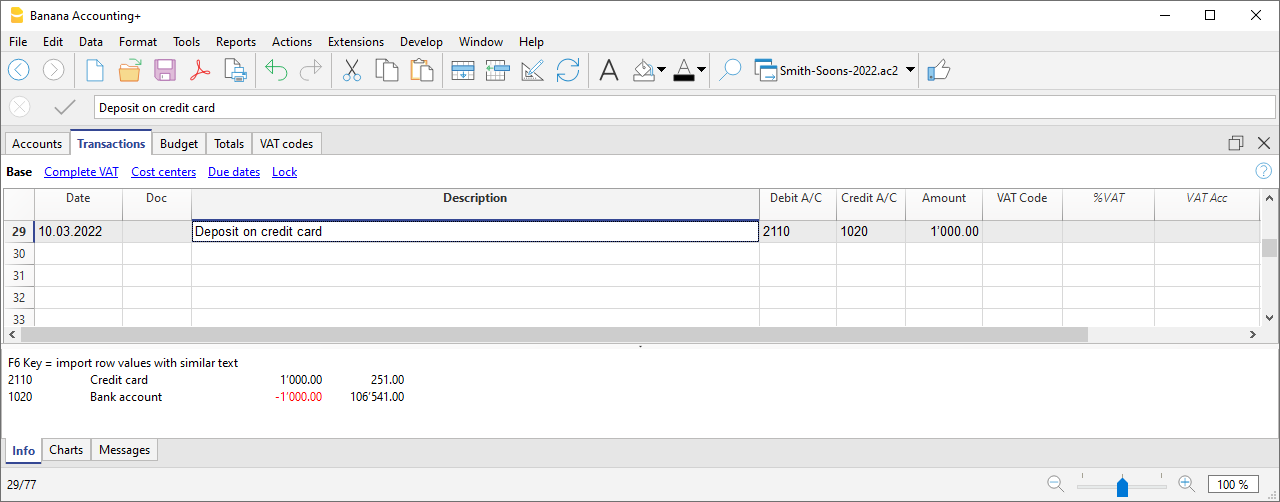
Register your credit card bill
When the credit card bill arrives, you must record all charges listed on the credit card and reverse the credit from the credit card account.
Example:
The credit card statement shows a total of CHF 749.- (detail: CHF 479.- for computer purchase, CHF 150.- for hotel expenses, CHF 120.- purchase of office supplies) (Doc.10)
Enter on several rows:
- All costs related to the expenses listed on the credit card are recorded as a Debit; you post a cost per line.
- Enter your credit card account as a Credit.

Check the credit card account balance
Each time you pay an advance towards the credit card and once all the costs listed on the credit card have been recorded, you must verify that the credit card balance matches the balance stated on the credit card.
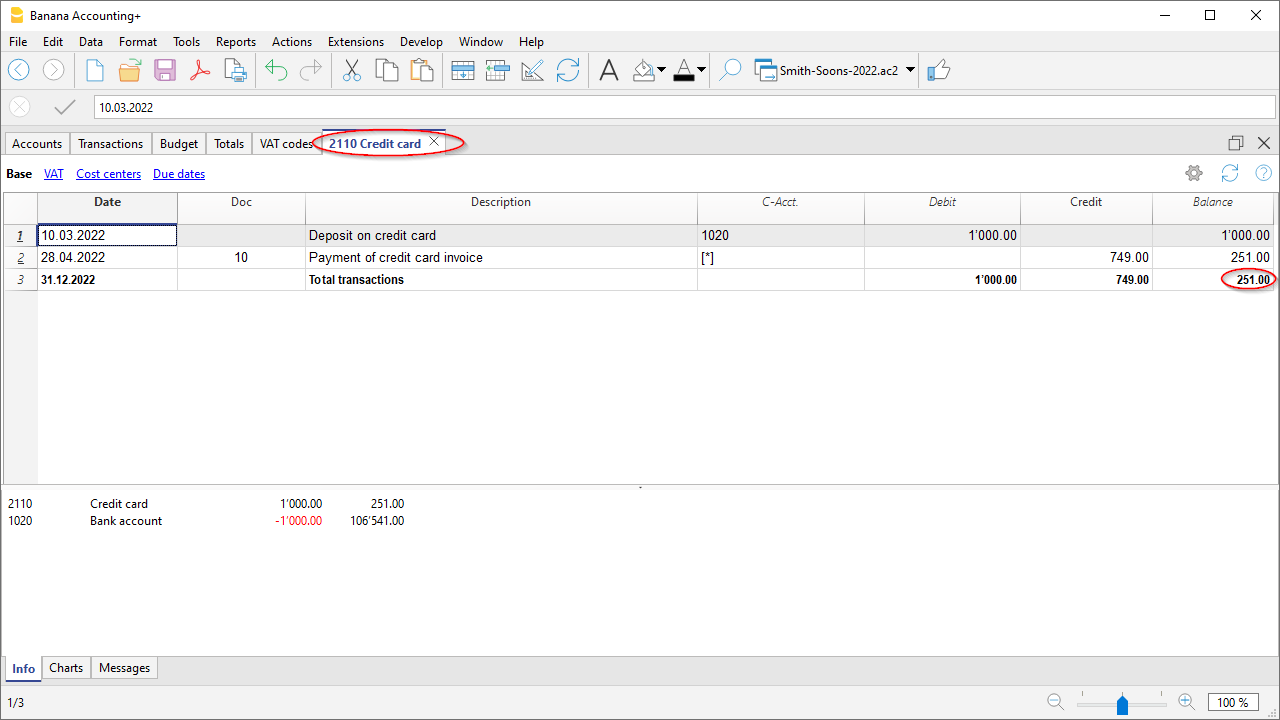
Register your credit card transactions according to the Cash and the Turnover principle
Credit Card with an accounting using the Cash principle
If no down payments are made on the credit card and the invoice is paid in full by the bank, you should record the credit card invoice at the time of payment when the costs should also be recorded.
You need to record on several rows:
- Enter the same date and the same Document No. for each transaction on all the rows that make up for the transaction.
- In the Debit column, enter one account per row, referring to the cost or investment of the credit card transaction.
- Enter the amount of each single transaction recorded in Debit.
- In the Credit column, enter the bank or post office account with which the invoice is paid.
- In the Amount column, enter the total amount paid on the credit card invoice.
- In the case of VAT liability, enter the VAT code for each row in the VAT Code column.

After recording all movements, check your credit card balance by opening the credit card account card.
Credit card and turnover accounting
If the accounting postings are based on turnover, all costs related to credit card purchases are recorded upon receipt of the credit card invoice:
- Enter the same date and the same Document No. for each transaction for all the rows that make up for the transaction.
- All cost accounts are posted as a Debit. Each cost must be recorded on one row.
- In the Amount column, enter the amount of the single transaction recorded in Debit.
- Register your credit card account, as a Credit, as any supplier.
- In the Amount column, enter the total amount to be payed by the credit card.
- In the case of VAT liability, enter the VAT code for each row in the VAT Code column.

When the credit card bill is paid, enter the payment:
- As Debit in credit card account (the debt is extinguished).
- As Credit in the bank or post office account with which the invoice is paid.
- The total amount of the credit card paid is entered as the amount.

Importing transactions from your credit card
Banana Accounting allows the importation of movements from the credit card into the main accounting file.
You must ensure that the chart of accounts includes the credit card account and the transfer account to be used for down payments.
Install the import extension
In order to be able to carry out the import it is necessary that the data format, provided by the credit card issuing bank, is compatible with the formats provided by Banana accounting.
To install the extension related to the data format released by the issuing bank, proceed as follows:
- Menu Extensions > Manage Extensions
- Select the extension corresponding to the format in which the credit card issuer provides the card transactions (international standard format ISO 20022 with the Professional plan or .CSV with the Advanced plan) and click the Install button.
The format will be displayed in the Import into accounting box.
Importing the credit card movements
After having installed the extension for the Banana compatible data format, proceed as follows to import the data:
- Actions Menu > Import into accounting > Transactions:
- Select the format type of the bank that issued the credit card.
- With the Browse button, select the file transmitted by the bank and confirm with OK.
- Enter the period and indicate the credit card account and confirm with OK.
All transactions are imported into the Transactions table. - Enter the counterpart account that refers to the movement for each row.
Import credit card transactions with deposits made
When deposits have been made on the credit card, they are recorded in the accounting system. In this case, after importing the credit card data, there is the problem of the recording of the deposits. In this case a double transaction appears on the credit card account:
- Presence of the credit card account as a counterpart to the bank charges for payments to the credit card.
- Presence of the credit card account in the transactions imported from the credit card.
To avoid this overlap, the transfer account is being used at the time of import.
How to proceed with the import:
- Actions Menu > Import into accounting > Transactions:
- Select the format type of the bank that issued the credit card.
- With the Browse button, select the file transmitted by the bank and confirm with the OK button
- Enter the period and indicate the transfer account. Confirm with the OK button.
All transactions are imported into the Transactions table. - Enter the counterpart account that refers to the movement for each row.
Salary transactions
Companies that have employees must manage salaries, as well as employees’ social security and insurance contributions.
Salaries can be managed in two different ways:
Net salary management is the simplest solution because it provides for:
- recording salaries at the time they are paid
- recording social security and insurance contributions only when advance payments of contributions and employees’ insurance premiums are paid.
Gross salary management is much more complex because transactions must record monthly gross salaries and the social security and insurance contributions deducted from employees’ pay, as well as the withholdings on employees’ salaries.
Net salary transactions
Net salary accounting consists of recording in the accounting only the amounts actually paid to employees. It is a simple and practical method, particularly suitable when payroll processing is carried out using dedicated payroll software or outsourced to a fiduciary firm.
Compared with gross salary accounting, it provides a less detailed view of personnel costs, as it does not separately show the employer's social security contributions and the contributions withheld from employees.
For this reason, the calculation of gross salaries, deductions, and social security contributions is performed by the payroll software or by a fiduciary firm, which submits the required declarations to the relevant authorities. The annual declaration to the AHV Compensation Office is based on the gross payroll, which must be determined from the payroll statements.
What is recorded
With net salary accounting, the following items are normally recorded in the accounting:
- net salaries paid to employees
- advance payments of social security contributions (AHV/IV/EO/ALV), paid monthly or quarterly
- insurance and pension premiums, paid at the beginning of the year or every six months.
- any year-end adjustments.
What is not recorded:
- Gross salary
- Employee deductions
- Liabilities towards social security institutions at the end of the period.
Advantages of net salary accounting
- Simple transactions
- Few accounts to manage
- Faster accounting.
Limitations of net salary accounting
- The gross salary does not appear in the accounting.
- The details of employee salary deductions are not visible.
- Employer and employee contributions are not shown separately.
When to use net salary accounting
Recording salaries on a net basis is recommended when payroll management is handled by payroll software or by a fiduciary firm, and the main purpose of the accounting is to record payments and accounting transactions.
It is particularly suitable when:
- the details of salaries, deductions, and social security contributions are managed outside the accounting
- there is no need to analyse personnel costs separately in the accounting
- you want to keep the accounting simpler and reduce the number of transactions.
Accounts normally used
Only a few accounts are normally required to manage net salaries.
Expense accounts
- 5000 Salaries
- 5700 AHV/IV/EO/ALV Contributions
- 5710 Family allowance fund contributions
- 5720 Mandatory occupational pension contributions
- 5730 Occupational accident insurance premiums
- 5740 Daily sickness allowance insurance
- 5790 Withholding tax
Payment accounts
- 1020 Bank
- Another cash account.
Distinction between the employer's share and the employee's share
With net salary accounting, the accounting records do not directly show the allocation of social security contributions between the employer's share and the share withheld from employees.
Payments made to social security institutions (AHV, occupational pension fund, insurance companies, and other institutions) generally include both shares and are recorded as total amounts. Consequently, it is not possible to identify the employer's share directly from the accounting entries alone.
To determine it, you need to refer to:
- the expense accounts dedicated to social security contributions
- the payroll statements generated by the payroll software.
The accounting correctly records the total personnel cost, while the detailed allocation of contributions is provided by the payroll statements.
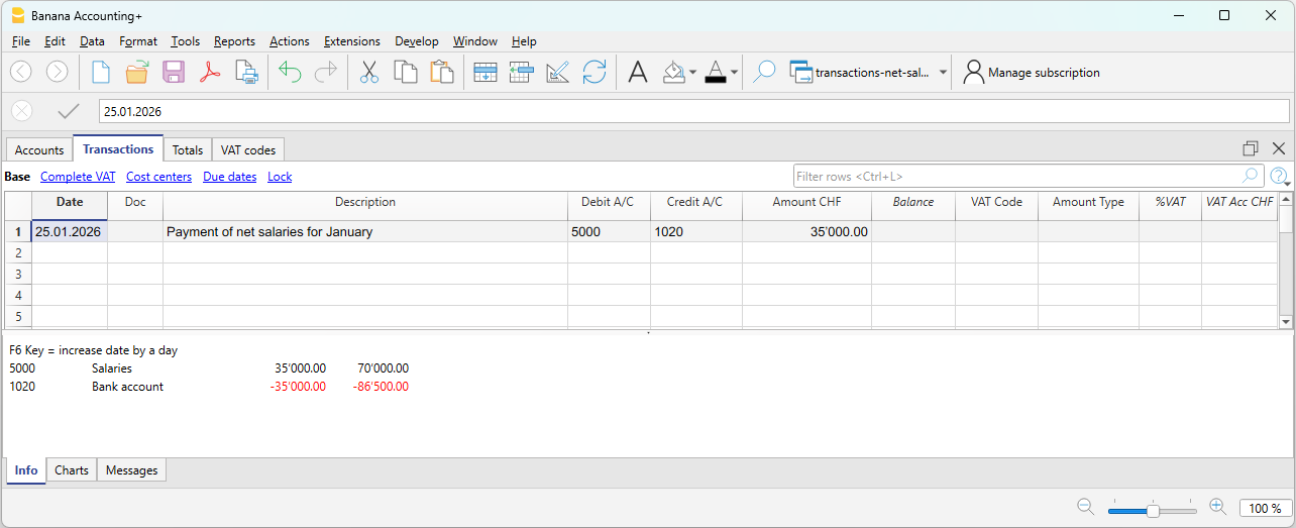
Payment of net salaries
When paying employees, the net salary paid is recorded.
In the Transactions table, record the following each month:
- Date: the salary payment date
- Description: the payment description
- Debit: account 5000 Salaries
- Credit: the Bank account
Periodic payment of social security contributions
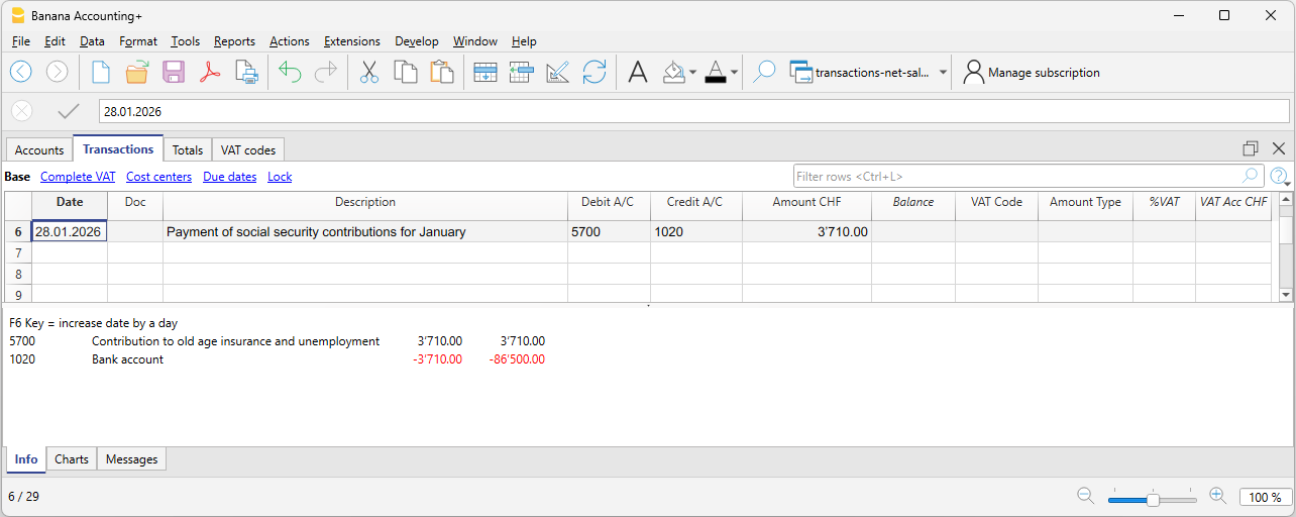
When paying advance social security contributions, record:
- Date: the payment date of the social security contributions
- Description: the payment description
- Debit: account 5700 AHV/IV/EO/ALV Contributions
- Credit: the Bank account
- Amount: enter the amount of the social security contributions (shown on the advance invoice), including both the employer's share and the employee's share.
Annual payment of insurance premiums
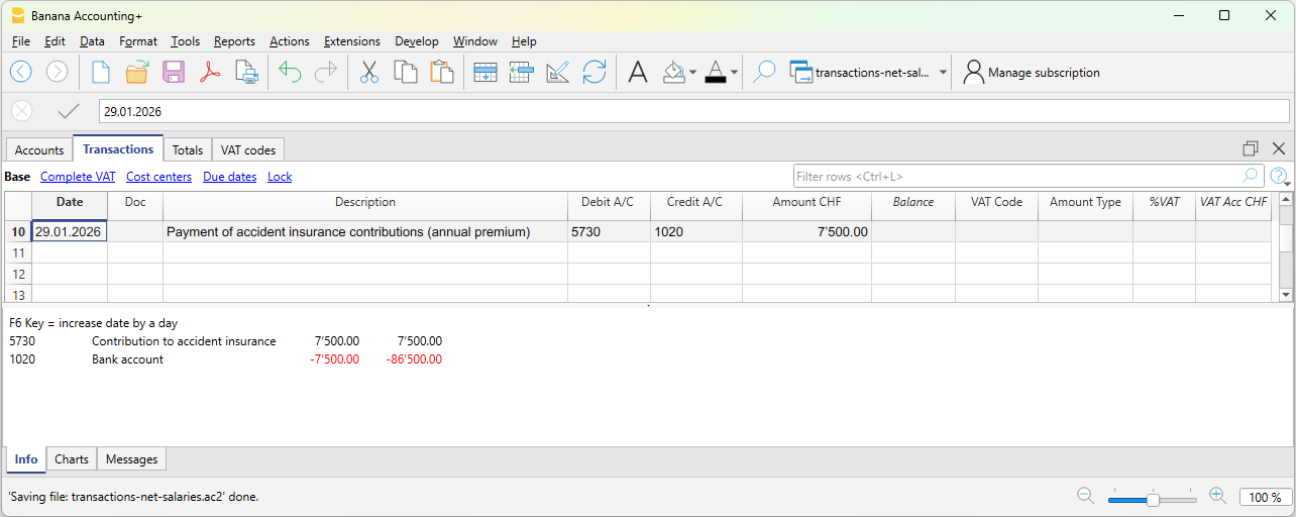
When paying insurance premiums, for example Occupational Accident Insurance or supplementary Occupational Accident Insurance, record the payment to the insurance company.
- Date: the annual insurance premium payment date
- Description: the payment description
- Debit: account 5730 Occupational accident insurance premiums
- Credit: the Bank account
- Amount: enter the amount shown on the invoice. It includes both the employer's share and the employee's share.
Annual payment of the pension fund premium
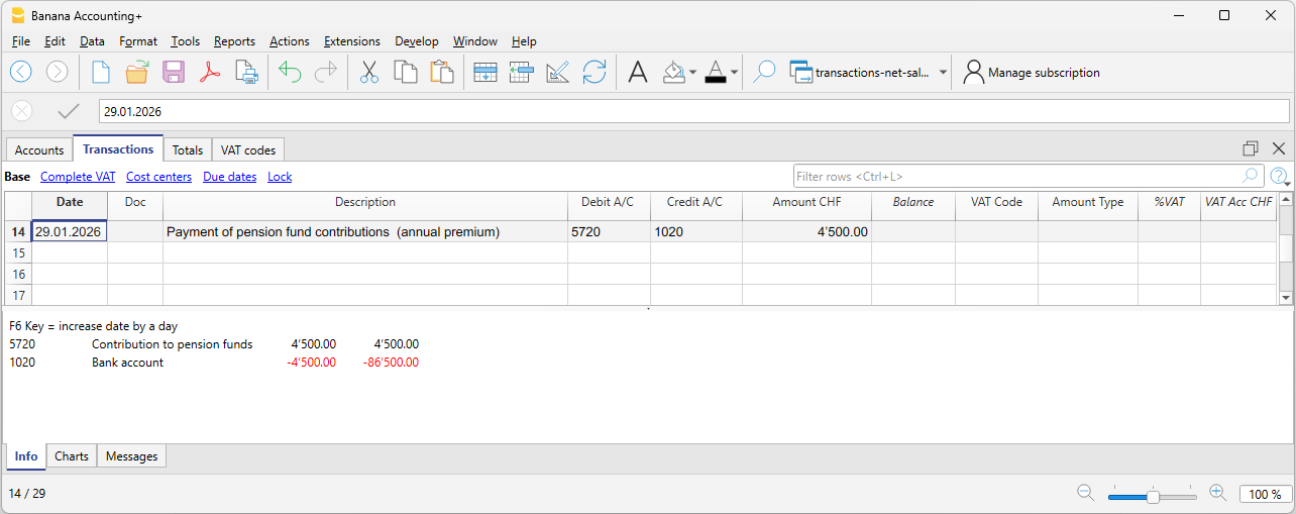
When paying the annual occupational pension fund premium:
- Date: the annual pension fund premium payment date
- Description: the payment description
- Debit: account 5720 Mandatory occupational pension contributions
- Credit: the Bank account
- Amount: enter the amount shown on the invoice. It includes both the employer's share and the employee's share.
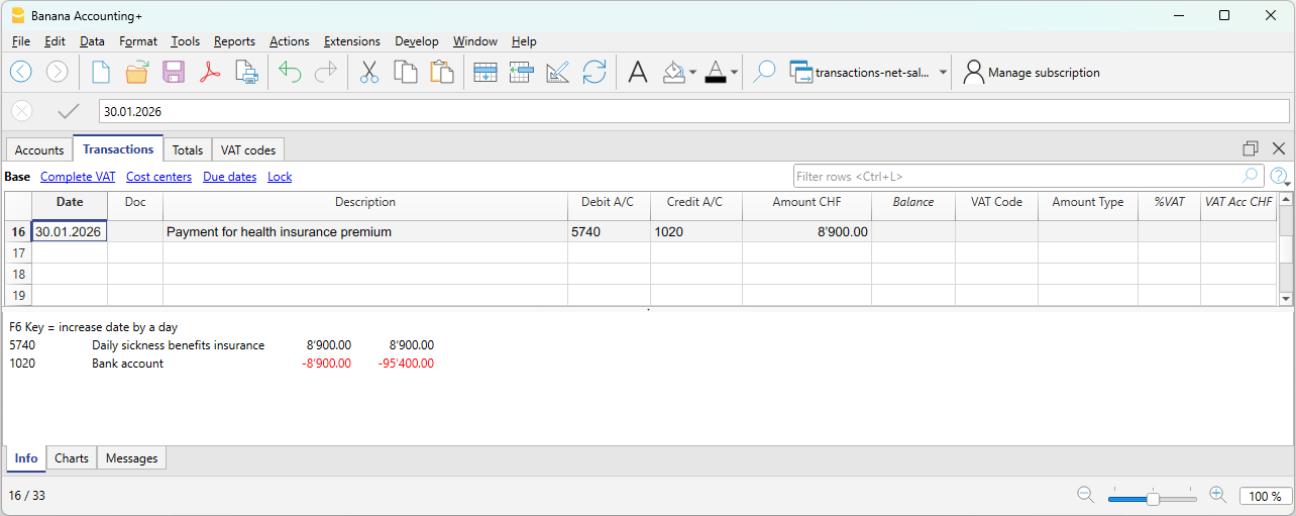
Payment of the daily sickness allowance insurance premium
When paying the annual daily sickness allowance insurance premium:
- Date: the payment date of the daily sickness allowance insurance premium
- Description: the payment description
- Debit: account 5740 Daily sickness allowance insurance
- Credit: the Bank account
- Amount: enter the amount shown on the invoice. It includes both the employer's share and the employee's share.
Expense reimbursement included in the net salary paid
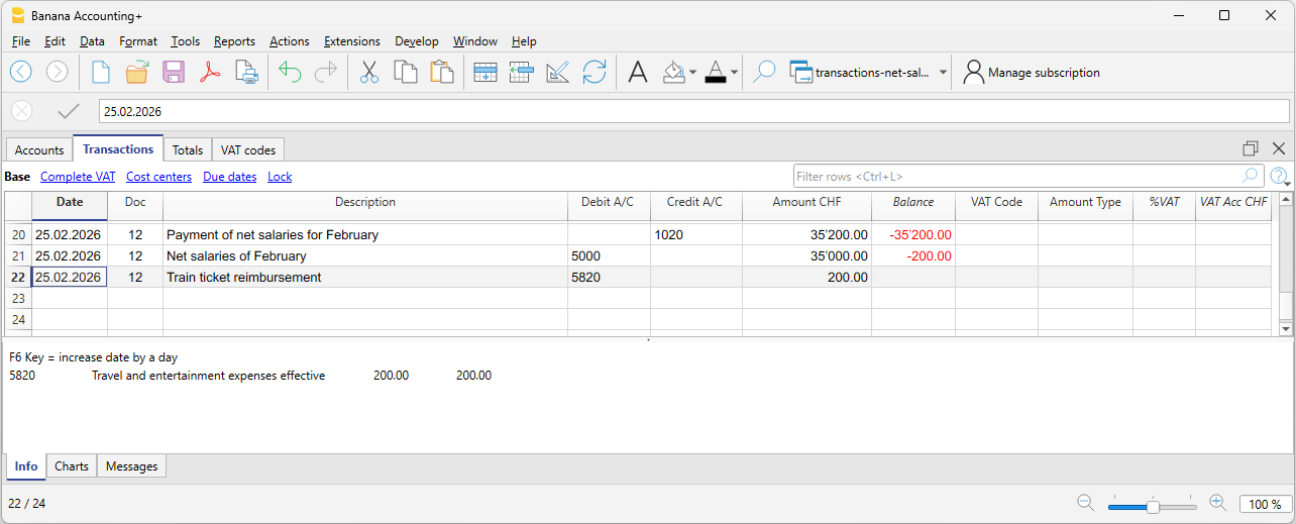
When the net salary paid includes an expense reimbursement, it is advisable to separate the net salary from the expense reimbursement in the accounting records. This ensures that the salary account is not affected by amounts that do not actually represent salary.
Example:
- Net salary: CHF 4'000
- Expense reimbursement: CHF 200
- Total payment through the bank: CHF 4'200
In the accounting entry, the two amounts must be recorded separately. Therefore, the transaction should be entered using three rows:
In the Transactions table:
- First row – total payment through the bank
- Date: the transaction date
- Description: monthly salary payment
- Debit: leave blank
- Credit: the Bank account
- Amount: the total amount paid CHF 4'200
- Second row – monthly net salary
- Date: the transaction date
- Description: monthly salary payment
- Debit: account 5000 Salaries
- Credit: leave blank
- Amount: the net salary paid CHF 4'000
- Third row – expense reimbursement
- Date: the transaction date
- Description: expense reimbursement
- Debit: the Expense reimbursement account (for example, travel expenses)
- Credit: leave blank
- Amount: the expense reimbursement amount CHF 200
Payment of withholding tax
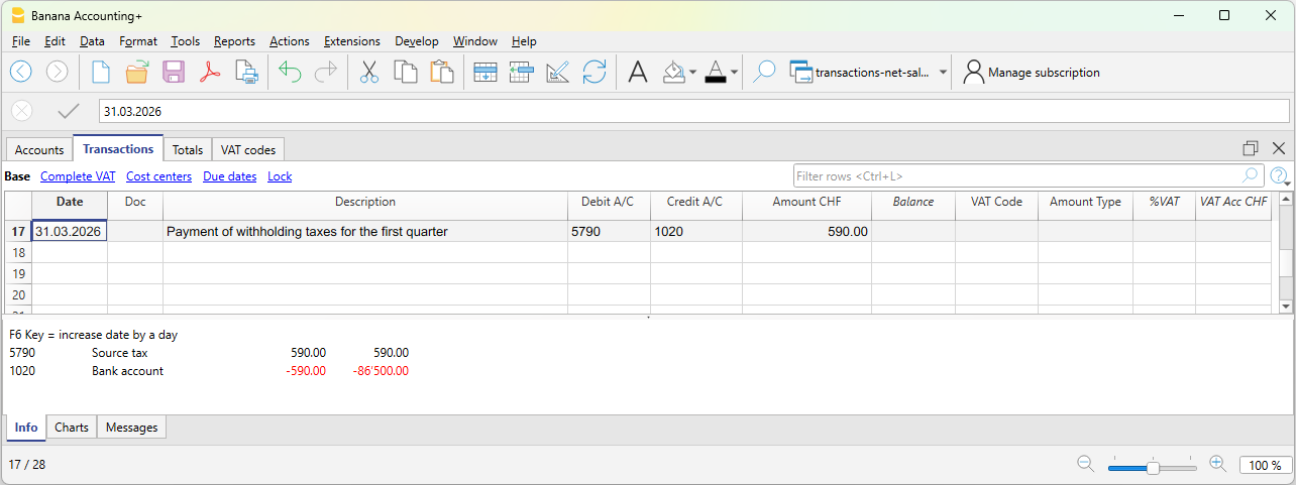
When paying withholding tax at the end of the quarter:
- Date: the withholding tax payment date
- Description: the payment description
- Debit: account 5790 Withholding tax
- Credit: the Bank account
- Amount: enter the amount calculated by the payroll software according to the requirements of the Withholding Tax Office.
Checks and verification
During the year, social security contributions and some insurance premiums are generally paid as advance payments. The actual amount due is determined only when the final statements or the year-end adjustments are issued.
For this reason, when using net salary accounting, it is essential to carry out regular checks and a thorough verification at the end of the financial year.
For more information, see the Net salary reconciliation.
Gross salary transactions
Gross salary management consists of recording in the accounting the entire salary, including all employee salary deductions and social security contributions.
Unlike net management, this method provides a complete view of salary costs and liabilities toward social institutions.
What is recorded
With gross management, the following are recorded monthly:
- the gross salary
- employee deductions (AVS, LPP, withholding tax, etc.)
- employer’s social security contributions
- liabilities toward social security and insurance institutions (if the accounting is kept on an accrual basis)
- the net salary paid
In gross management, the accounting clearly distinguishes between:
- the employee’s share (deducted from the salary),
- the employer’s share.
The accounting principle
Gross management follows the accrual principle:
Salary costs and the related liabilities are recorded in the period in which they arise, regardless of the time of payment.
Difference compared to net management
Unlike net management, which records only actual payments, gross management records all salary components and the related liabilities.
When to use gross management
Gross management is appropriate when:
- A complete and detailed accounting is required
- You want to monitor personnel costs precisely
- Liabilities toward social security and tax authorities must be recorded
- The accounting is used for analysis and reporting
Accounts normally used
Gross management requires a larger number of accounts compared to net management.
Expense accounts
- 5000 Gross salaries
- 5700 Employer social security contributions
- 5710 Family allowance fund contributions
- 5720 Occupational pension contributions (LPP)
- 5730 Accident insurance premiums (LAINF)
- 5740 Daily sickness allowance insurance
Liability accounts
- 2270 Liabilities to social security institutions (AVS/AI/IPG/AD)
- 2272 Pension fund liabilities (LPP)
- 2273 Accident insurance liabilities
- 2274 Collective health insurance liabilities
- 2209 Withholding tax liabilities
- 2371 Liabilities to employees
Payment accounts
- 1020 Bank
- other Cash accounts
Employer’s share of social security and insurance contributions
In gross salary management, the accounts relating to social security contributions and insurance costs make it possible to clearly identify the portion effectively borne by the employer.
In the dedicated account cards (for example AVS, LPP, accident insurance, etc.), the following are recorded:
- in Debit, the total amounts due to the institutions (employer + employee),
- in Credit, the employee’s share deducted from the salary.
The difference between these amounts represents the employer’s share, i.e. the portion borne by the company as its own expense.
This approach makes it possible to:
- clearly distinguish between company costs and amounts withheld from employees,
- have a transparent view of obligations toward social institutions,
- accurately monitor the impact of personnel costs on the company’s results.
Accounting entry of gross salaries
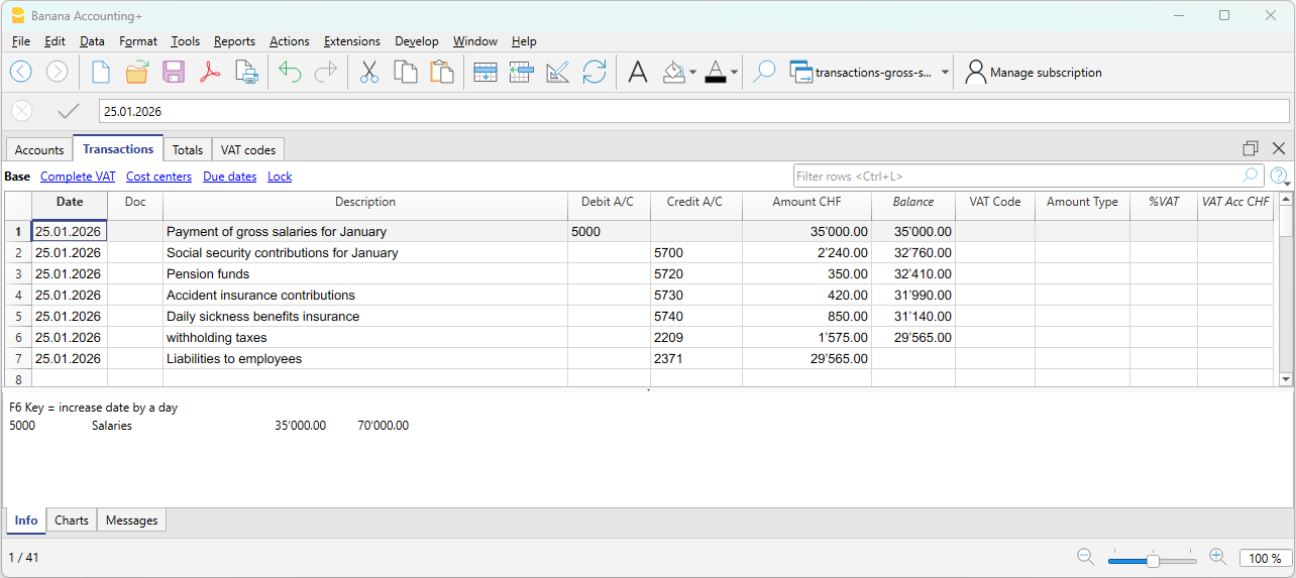
At the end of the payroll period, the gross salary and the related deductions from employees’ pay are recorded. With gross recording, both the salary cost and the deductions and liabilities toward third parties are recognized.
Example:
- 5000 Gross salaries → Debit
- 1181 Family allowances → Debit
- 5700 AVS/AI/IPG/AD Contributions → Credit (employee’s share, deducted from salary)
- 5720 LPP Contributions → Credit (employee’s share, deducted from salary)
- 5730 LAINF Contributions → Credit (employee’s share, deducted from salary)
- 5740 Sickness contributions → Credit (employee’s share, deducted from salary)
- 2209 Withholding tax liabilities → Credit (fully borne by the employee). The withholding tax deducted from the employee’s salary must be fully paid to the Withholding Tax Office and represents a liability for the company.
- 2371 Liabilities to employees → Credit
Payment of the net salary
If salaries have been recorded when accrued and the payment takes place later, the payment entry is recorded as follows:
- 2371 Liabilities to employees → Debit
- 1020 Bank → Credit
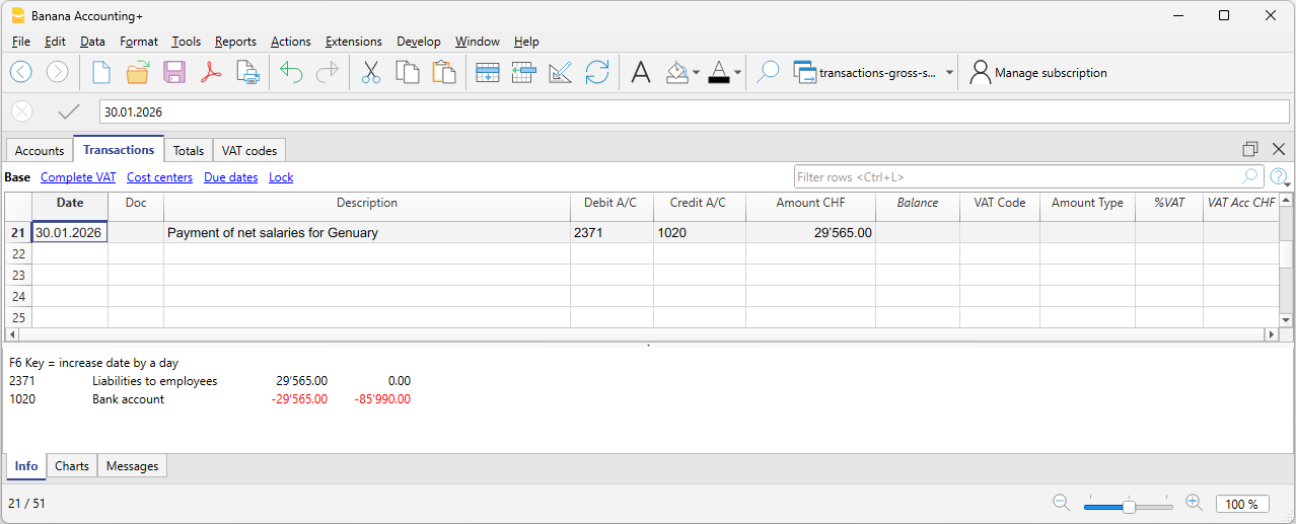
Recording AVS advances and payment
Monthly or at another regular interval, the employer receives from the cantonal AVS office the advance invoices for AVS contributions to be paid. These amounts also include any allowances advanced in the salary of the employee entitled to them.
The advance invoice includes both the employer’s share and the employee’s share.
Recording the invoice:
On 03.01.2026 we record the invoice for AVS advances:
- 5700 Employer social security contributions → Debit
- 2270 Liabilities to social security institutions (AVS/AI/IPG/AD) → Credit
Payment:
On 30.01.2026 we record the payment of the AVS advances:
The contributions are paid according to the invoice, the amount of which is net of any family allowances or other benefits.
- 2270 Liabilities to social security institutions (AVS/AI/IPG/AD) → Debit
- 1020 Bank → Credit
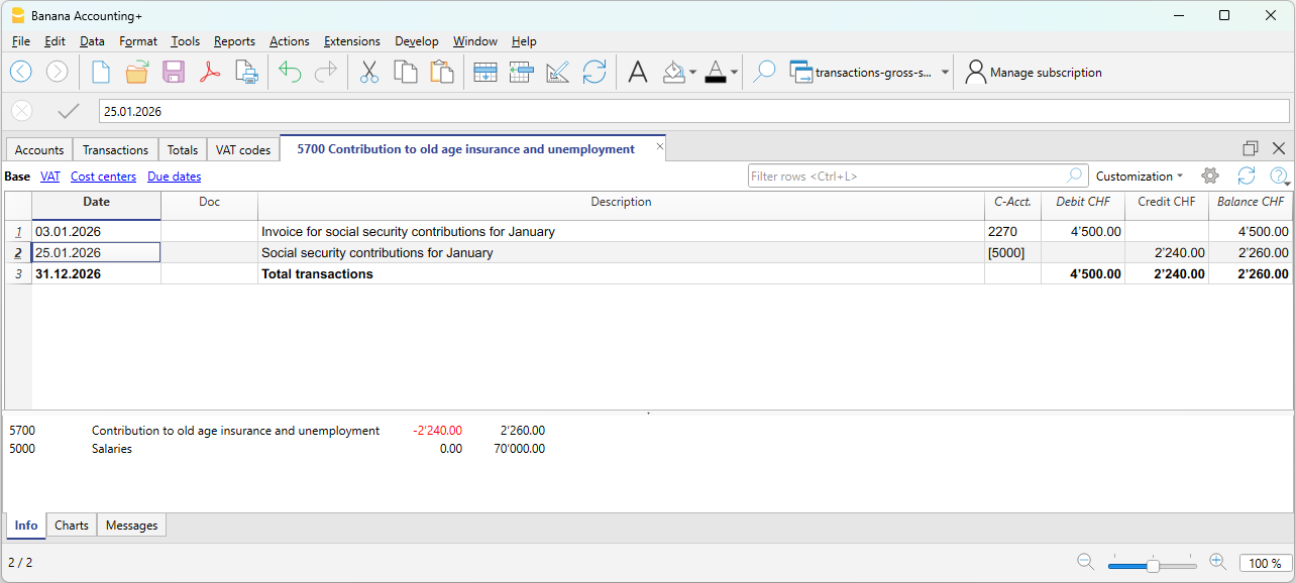
The AVS account plays a central control role:
- in Credit, employees’ salary deductions are recorded
- in Debit, payments to the institution.
The account balance therefore represents the employer’s share.
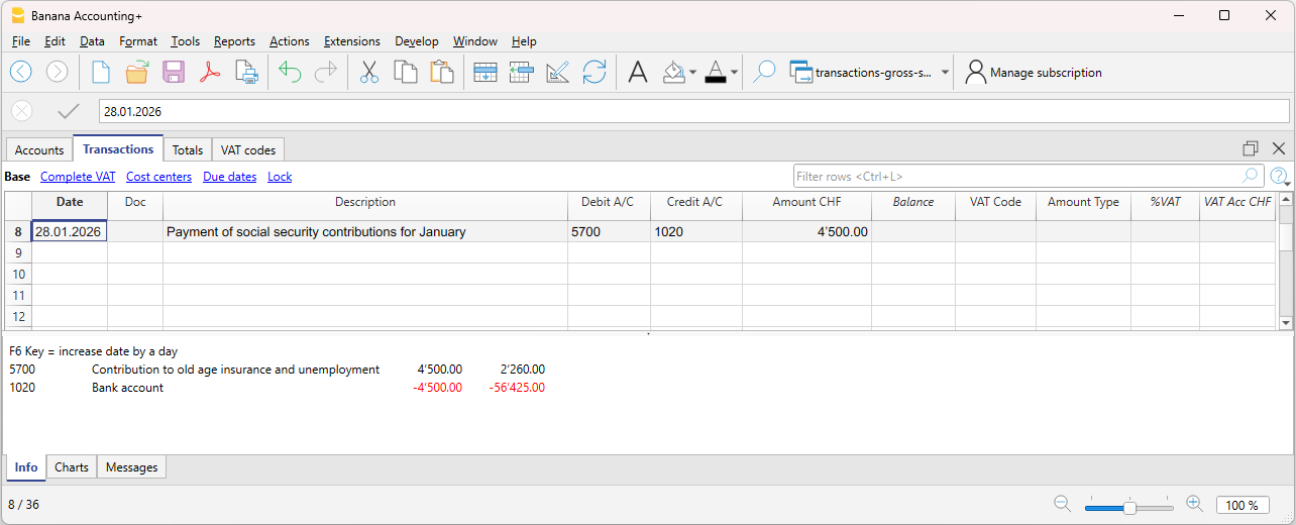
In the AVS contributions account card (see image), advances paid appear in Debit, while contributions deducted from employees’ salaries appear in Credit. The account balance therefore represents the employer’s share. This presentation makes it easy to verify the correctness of contributions and payments made.
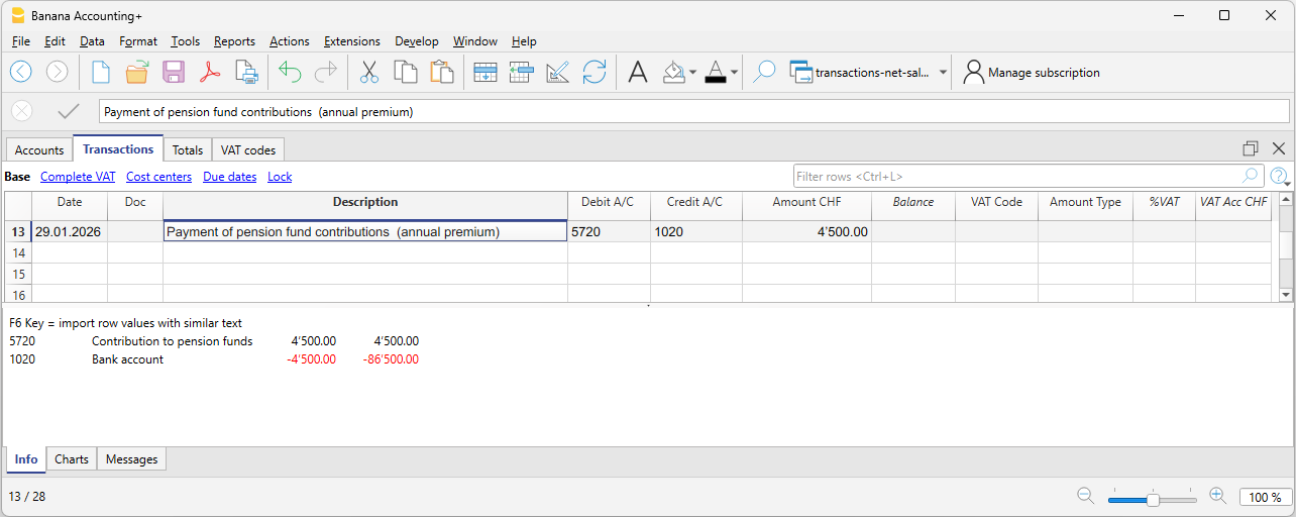
LPP contribution premium and payment
When the annual LPP premium is received, the total cost borne by the employer and the liability toward the LPP insurer are recorded.
When we receive the LPP premium invoice:
- 5720 LPP Contributions → Debit
- 2272 LPP Liabilities → Credit
When we pay the LPP premium invoice:
- 2272 LPP Liabilities → Debit
- 1020 Bank → Credit
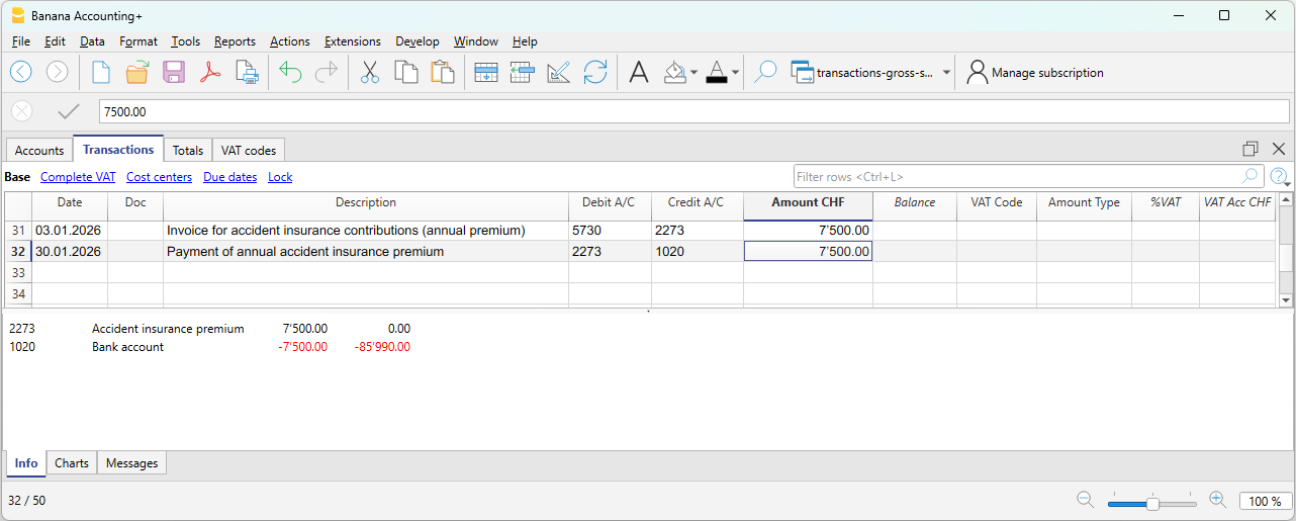
Annual accident insurance premium (LAINF) and payment
When the annual LAINF premium is received, the total cost borne by the employer and the liability toward the LAINF insurance are recorded.
When we receive the LAINF premium invoice:
- 5730 Accident insurance premiums (LAINF) → Debit
- 2273 Accident insurance liabilities → Credit
When we pay the LAINF premium invoice:
- 2273 Accident insurance liabilities → Debit
- 1020 Bank → Credit
Annual collective health insurance premium (IGM) and payment
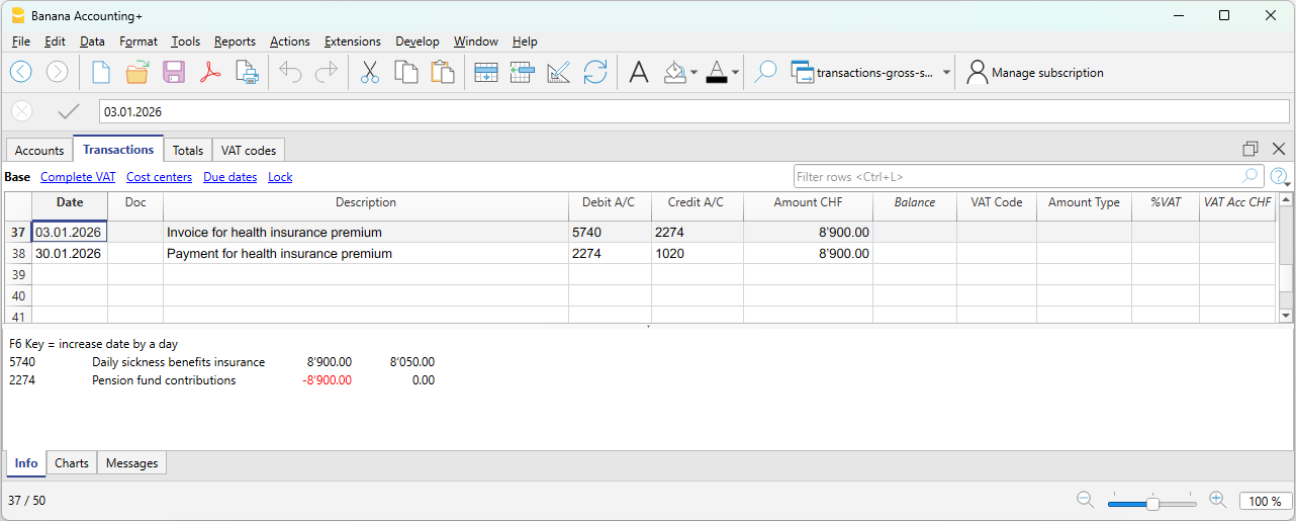
When the annual collective health insurance premium is received, the total cost (including both the employer’s and the employee’s share) and the liability toward the health insurance are recorded.
When we receive the health insurance premium invoice:
- 5740 Daily sickness allowance insurance → Debit
- 2274 Health insurance liabilities → Credit
When we pay the health insurance premium invoice:
- 2274 Health insurance liabilities → Debit
- 1020 Bank → Credit
Payment of withholding tax
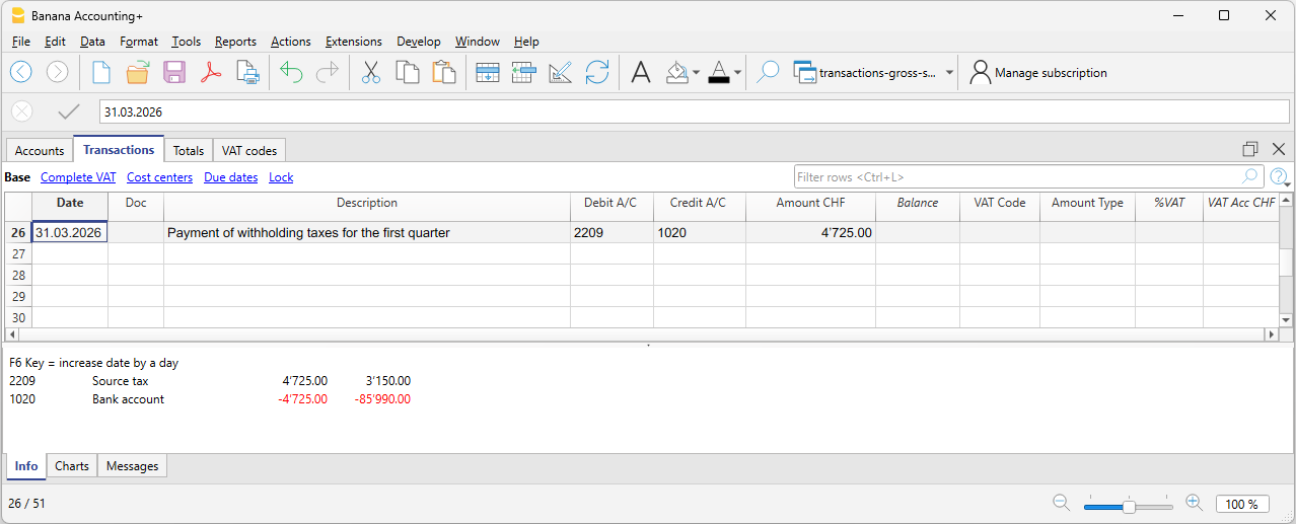
The withholding tax, deducted from the monthly salaries of employees subject to withholding tax, must be declared and paid by the employer within the prescribed deadlines. It is borne solely by the employee.
- 2209 Withholding tax liabilities → Debit
- 1020 Bank → Credit
Control and verification
It is important to regularly verify:
- the consistency between accounting and payroll calculations
- the balances of liability accounts toward social institutions
- the payments made
During the year, social contributions are often paid as advances.
Following the final statements from the social institutions, any adjustments are recorded to align costs and liabilities with the amounts actually due.
Advantages of gross management
- Complete view of salary costs
- Greater accounting transparency
- Detailed control of deductions and contributions
- Proper representation of liabilities
Limitations of gross management
- Greater complexity
- More accounting transactions
- Requires more accounts and careful management
Salary Reconciliation and Verification of the OASI Declaration
When salary accounting is managed on a net basis, the annual OASI declaration cannot be verified by directly comparing the Salaries account with the final statement issued by the OASI Compensation Office. This is because the Salaries account contains the recorded net amounts, whereas the OASI statement is based on the gross payroll calculated by the payroll management software.
To verify the accuracy of the annual OASI declaration and the other year-end statements, it is therefore necessary to reconstruct the gross payroll and carry out a series of reconciliation checks.
The reconciliation process makes it possible to verify the consistency between:
- the accounting records
- the payroll statements generated by the payroll management software
- the annual OASI declaration
- the final statements issued by the social security institutions.
Reconciliation objectives
The year-end reconciliation has two main objectives:
- to reconstruct the gross payroll and compare it with the gross payroll declared to the OASI Compensation Office;
- to reconcile the OASI contributions by comparing account 5700 OASI Contributions with the final statement issued by the OASI Compensation Office.
Required documents
The following documents are normally required to perform the reconciliation:
- the accounting file
- the payroll statements
- the annual OASI declaration
- the final statement issued by the OASI Compensation Office
- the occupational pension (LPP/BVG) statements
- the insurance statements (OAI, daily sickness allowance insurance, etc.).
Verification of net salaries
The first check is to verify that the amounts paid to employees match those shown in the payroll statements generated by the payroll management software.
The total net salaries recorded in the accounting records must match the net salaries shown in the payroll statements.
It is also necessary to verify that there are no missing or duplicate transactions and that all entries have been recorded in the correct accounting period.
Any differences must be analyzed and corrected before proceeding with the reconciliation of the gross payroll.
Reconstruction of the gross payroll
To compare the accounting records with the OASI statement, the gross payroll must first be reconstructed.
The reconstruction must be carried out using the data from the payroll management software, which provides the details of the deductions applied to each employee.
Start from the net salaries recorded in the accounting records and add only the deductions withheld from employees, such as:
- OASI, DI, IC, and ALV
- occupational pension (LPP/BVG) contributions
- withholding tax
- other salary deductions.
The following must instead be excluded:
- family allowances;
- expense reimbursements;
- other allowances that are not subject to OASI contributions.
Verification of OASI contributions
During the year, OASI contributions are normally paid as advance payments. The actual amount due is determined only by the final statement.
For this reason, the balance of account 5700 OASI Contributions must be compared with the final statement issued by the OASI Compensation Office.
The account balance must include the advance payments made during the year as well as any year-end adjustments. The total must match the contributions shown on the final statement issued by the OASI Compensation Office.
Verification of other social security contributions
The same principle can also be applied to other social security and insurance contributions by comparing the balances of the related accounts with the annual statements issued by the relevant institutions.
In particular, it is advisable to verify:
- occupational pension (LPP/BVG) contributions;
- occupational accident insurance (OAI) premiums;
- daily sickness allowance insurance premiums;
- other recorded social security contributions or insurance premiums.
Any differences relating to these institutions should also be analyzed and reconciled before the financial year is closed.
Year-end checks
At the end of the financial year, the reconciliation should confirm that:
- the gross payroll matches the gross payroll declared to the OASI Compensation Office;
- the recorded contributions match the final statements issued by the institutions;
- all advance payments and any year-end adjustments have been recorded;
- there are no differences between the accounting records, the payroll statements, and the declarations submitted to the social security institutions.
A complete reconciliation makes it possible to identify any differences before submitting the declarations to the social security institutions and ensures consistency between the accounting records, the payroll management software, and the annual statements.
FAQ
Why doesn't the gross payroll in the OASI declaration match the Salaries account?
- Because under net salary accounting, the Salaries account records only the net amounts paid to employees, whereas the OASI declaration is based on the gross payroll.
Why is the balance of the OASI account different from the advance payments made?
- Because advance payments are normally made during the year. The actual amount due is determined only by the final statement.
How is the gross salary determined?
- The gross salary is reconstructed using the payroll statements generated by the payroll management software.
How do you reconstruct the gross salary starting from the net salary?
- Start with the net salary recorded in the accounting records and add the deductions withheld from the employee (OASI/DI/IC/ALV, occupational pension (LPP/BVG) contributions, withholding tax, and other deductions). Family allowances, expense reimbursements, and other allowances that are not subject to OASI contributions must instead be excluded.