Universal Business plan templates
Free Cash Flow Planning, Budgeting And Management For Freelance And Small Companies
Free Cash Flow Planning, Budgeting And Management For Freelance And Small CompaniesCreating a cash flow forecast with Banana Accounting is like creating it with Excel, but faster, more secure and completely free. Thanks to the ready-to-use template, you start right away, just enter the data.
You know in advance how much liquidity you have and how long it will last, when and what expenses you will face and what income you can count on. You can simulate the reduction of expenses and see what effect it has on your liquidity and profitability, understand future sales volumes and whether your capital will be enough.
We have prepared this guide to help you make your cash flow forecast and solve your financial problems. If you follow it in detail you will succeed, because you can always modify and correct it, so it's easy to update your forecasts.
Create your file
- Create a new file, starting from this template (Template ID +11044), using one of the methods explained.
- With the command File → File properties sets the period, the company name and the basic currency.
- With the command File → Save as save the file. It is useful to enter the company name and year in the file name.
For example "company-2020.ac2".
See also Organize accounting files locally, online or in the cloud
Adapt accounts and categories tables
Before creating your own cash flow, you need to quickly adapt your account and categories to your specific needs.
Accounts table
The Accounts table only shows the Cash account, or rather, the liquidity in your possession. You can customize it by changing the account name, description and opening balance.

Categories table
This table contains the income and expense categories and the change in capital. You can edit these categories by adding new items, changing the category name, changing the order and deleting categories that you don’t need. At any time, you can see the updated balances of each category.

With the useful Capital In & Capital Out sections you can register:
- Loan injections and reimbursements
- Owners injections and disbursements
- Sales and purchases of fixed assets
To know at any time how much the current cash flow will be (when you will start to entering daily transactions), you only have to look at the value in the row "Net Cash Change". In this way you will know at a glance if you are having an Inflow or an Outflow and the exact amount.

Create your cash flow forecast
The interesting innovation of Banana Accounting is the possibility to create cash flow forecasts to control liquidity and make timely decisions for your business.
For this reason, we now recommend that you create your own cash flow forecast. Go to the Budget table: this table contains all the cash inflows and outflows that you will have during the year.
To create the forecast correctly, follow these simple steps:
- Insert operating income
- Insert operating expenses
- Insert capital in
- Insert capital out
Insert operating income
Start by listing all the operating income you have and the amount of it. Cash sales is the main income, but there are others depending on your activity.
Operating Income may include:
- Cash sales
- Miscellaneous cash receipts
- Collections from customer credit accounts
- Interests
To insert a transaction in the budget you must enter the date (when you expect to have that income), the end date (if needed), the repetition (how often this income is repeated, if weekly, monthly or annual), the description, the amount in the income column and the income category.
In the template you will already find typical ready transactions where you can quickly enter only the amounts. You can still insert new transactions, edit and delete them.
To be as precise as possible with the estimate, look at last year’s values, rounding down the amount when you want to be more cautious.
Tips:
- Only rely on assured income
- Group the income according to their repetition (weekly, monthly, annual, …)

Insert operating expenses
Now it’s time to list all the operating costs. As you did for the income, here you have to estimate expenses by looking at last year’s values, but rounding up the amounts when you want to be more cautious. It’s always better to make an inaccurate forecast at the beginning of the year, than to have surprises of higher expenses.
Operating costs may include:
- Salaries
- Payroll
- Rent
- Insurances
- Advertising and promotion
- Utilities
- Travels
- Telephone
- Bank charges
- Interests
- …
Tip:
- Group the expenses according to their repetition (weekly, monthly, annual, …)

Insert capital in & out
This section is very useful to have a net cash flow forecast and not just an operational one. You must then enter the expected capital in and out transactions, the investments and disinvestments in fixed assets.
Capital In may include:
- Loan injections
- Cash injections by owners
- Sales of fixed assets
Capital Out may include:
- Loan reimbursements
- Cash disbursements to owners
- Purchases of fixed assets

Control your cash flow forecast
It’s important to know right away whether your business, thanks to your estimates, generates a positive cash flow or not. Are you curious, aren’t you? The generation of the forecast report will give you the answer!
To do this check is very easy: just go to Reports → Enhanced statement with groups, and from the list that appears choose the Yearly forecast report. Press OK to view the forecast report.
A goal of any activity is certainly to have a positive cash flow, because only this allows it to survive, or rather to pay suppliers, reimburse debts, ... Check the Net cash change item (at the bottom of the report) and make sure that you have a positive result (Inflow). If so, you can be happy, because you are managing your business well!
On the other hand, if you have a negative net cash flow (Outflow), it means that unfortunately your business has difficulties to manage liquidity. What you need to do in this case is first of all to recheck well both your estimated income and expenses, if there are any adjustments to be made or errors to be corrected, that improve the cash flow. If you still have a negative cash flow, you need to think about actions to be taken to improve liquidity management from next year or when the forecast period starts. Most likely you will have to try to reduce your operating expenses.

In addition to the annual forecast, always in Reports → Enhanced statement with groups, to have even more detailed control over the liquidity trend (for example how it behaves during the year), you can choose monthly, quarterly and 4-years reports, or create your own report.


Enter the transactions
With the cash flow forecast under control, you can start register the various real liquidity transactions and compare them from time to time with the expected values.
Insert the liquidity transactions
Daily transactions must be inserted in the Transactions table. Making a registration is the same process as you did for the forecast in the budget table (the only difference is you don’t have the repeat column). There are also some examples in the table that you can delete and edit.

Check the movements with account cards
When you gradually enter your transactions, could be useful to check how the cash account or a particular expense category has evolved over time. To do this you can view the respective Account/Category Card.
For example, by selecting the Cash account card you will have a summary of all its movements. By also clicking on the chart option at the bottom, you have an even more immediate view of the account's performance.
Tip: Check your Cash account at least once a month to see immediately how it is progressing and compare it with past months.

Check the difference between balance and budget
For more control over your performance, you can go to the Account or Categories table, selecting the Budget view and look at the Diff.Budget column, which shows you the difference between the real balances and the values you had budgeted. In this way you have an additional indicator to understand if you are following the budget well and to take better decisions.

Compare the forecast with the report
During the year you can compare at any time your current situation with the forecast, to understand if and where you are spending more, in order to take decisions in advance. At the end of the year you can make the final comparison between the actual report and the forecast to see if you have achieved the expected net cash flow.
Create the control report from the menu Reports → Enhanced statement with groups → Yearly report compared to forecast.

If you want to have a more precise and targeted view, you can create reports with monthly subdivision, which also include the difference between the balance and budget value of each month. This gives you an overview of the months in which you had the most liquidity difficulties and those in which you earned the most.

You are arrived at the end of the year, so you will now have to re-plan the next one creating a new cash flow forecast, exactly as you have done up to now. Don't stop, only in this way will you see your cash flow improve more and more!
Financial Planning for a Startup | Income and Expense accounting
Financial Planning for a Startup | Income and Expense accountingNote: For this business plan template, the management of a bar or restaurant has been taken as an example, since it is an activity that all people are familiar with and is therefore ideal to understand the functioning of Banana Accounting. Obviously, the template can also be used for other types of activities (Startups) for which you want to do financial and liquidity planning.
Financial and liquidity planning for Luke's Coffeehouse
This section will explain how to set up a financial plan for a new entrepreneurial activity, according to the income and expense accounting model.
Consult the Benefits and Features of Financial Planning section for further information.
Luke plans to open a Coffeehouse in 2022 and is preparing a Financial Plan, including all the necessary details.
- The financing of his project includes his proper means and a loan from a third person.
- In January 2022 he rents the premises, redecorates and furnishes them and starts his commercial activity.
- The Financial Planning is established for the period running from January 2022 through to December 2025.
By entering the detail of the various expenses and income, Luke will be able to generate and print financial statements (cash and other) showing his expenses and revenues, as well as the financial performance for the year, by quarter or any other subdivision of period of his choosing.
The evolution of his bank account balance, in particular, will allow him to track wether the available liquidity will be sufficient for his activity.

Example File
Download the template file and open it with Banana Accounting Plus Software (for further information consult the following template link).
Enter your expected Income and Expense estimates into the Budget table and the financial plan and liquidity projections will immediately be available.
File properties
In the File and accounting properties menu, enter your general data.
Opening date is 1st of January 2022 and closing date December 31st 2022.
This is also the period of calculation that will be used for the Total in your Budget column.

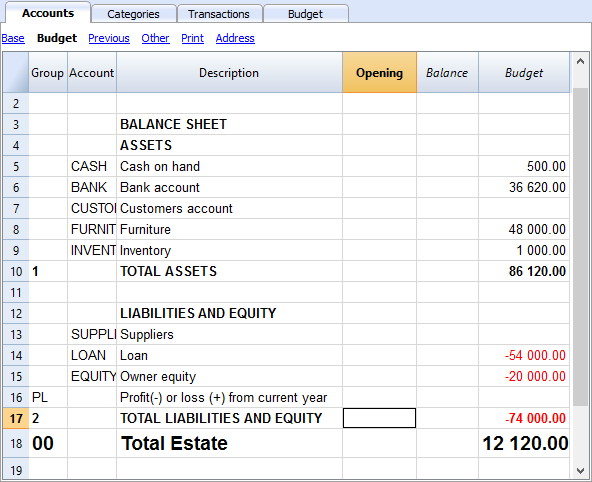
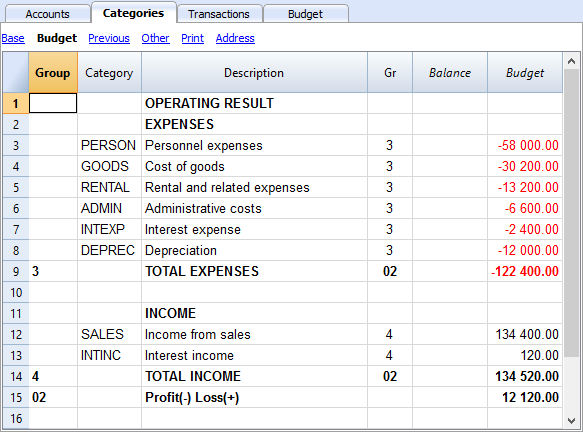
The Chart of Accounts
The following example will explain the functioning of the Budget table.
- The Chart of Accounts is is simplified to it's essence.
- Comprehensive name for accounts are used to illustrate the use of Banana Accounting Plus.
- Opening. The activity starts from scratch, so there are no opening balances.
- Budget. This is the overall budget at the end of the accounting period.
As you see, this represents the balance sheet and income statement at the end of the budgeting period.
If your activity is less complex, you may alter your Chart of Accounts accordingly.
If you require a more structured Chart of Accounts, it is recommended to set off with one of Banana Accounting Plus's Chart of Accounts templates and then add the Budget table.
The Accounts table
Enter your Balance Sheet data (Assets and Liabilities) here.
The Categories table
Enter your Operating data (Expenses and Income) here.
The Budget table
The Budget table (check explanations about the use of columns), is where data relative to your Financial Planning are entered.
Financial Planning is set up by entering forecasts such as income and expenses in the Budget table. The budget table offers some additional columns that make Financial Planning easier, such as:
- Repeat.
Entering “M” = Monthly will return your operation for each following month.
If left blank, the operation will only take place once. - End (Data).
Used in conjunction with Repeat, this will determine the last date when the operation will be repeated. - Total.
The total amount recorded in the current year.
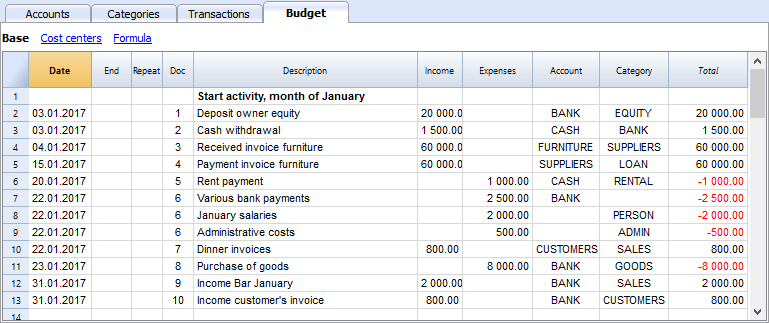
Transactions for January
Those are identical to entering in the transactions table, because there is no Repeat yet.
This is the first month of running the Coffeehouse and there are the registration of the owner's equity, the payment of the furniture and the accession to a loan.
The entering in the below screenshot, such as first month's rent, were included as non-repetitive recordings, to illustrate some simple recordings that contain no Repeat.
Repetitive transactions for February
Operations that are occurring on a monthly basis are entered in February.
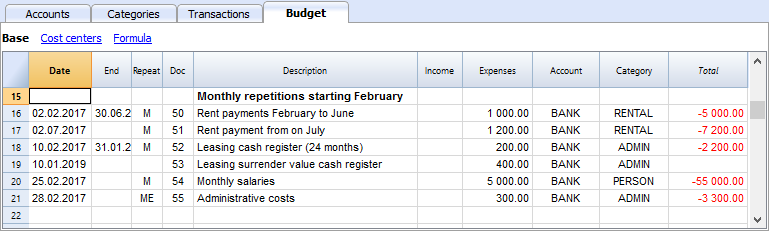
- The rent from January to June is of 1'000 per month and increases to 1'200 as per July.
- Doc 5:
The first rent was paid cash. There will probably also be the downpayment of a guarantee. - Doc. 50:
The rent of 1'000 is budgeted from February to June.- On February 2 the rent is paid from the BANK account.
In the following months the payment of the rent will figure on to 2nd day of each month. - The End date is the 30th of June.
The last rent of 1'000 will be on the 2nd of June. - Repeat. M = monthly.
- Total 5,000 (5 x 1'000), automatically calculated, is the total amount for the transaction during this period.
- On February 2 the rent is paid from the BANK account.
- Doc 51:
Rent is budgeted from July onwards.- Date 2nd of July.
In the following months the payment of the rent of 1'200 will figure on to 2nd day of each month. - End
As no date is indicated, this expense will be repeated for all the following months and years. - Repeat. M = monthly.
- Total 7'200 (6 x 1'200) is automatically calculated.
Represents six months' rent from July to December.
- Date 2nd of July.
- Doc 5:
- Doc. 52.
The leasing of the Cash Register.- Date is 10th of February.
- End (of lease) January 31st 2019. When the last installment on the lease is due.
- Repeat. M = monthly.
The operation will be repeated each month, the last time in January 2019. - Account the BANK.
- Category Administrative expenses.
- Amount 200.00 monthly lease rate.
- Total 2'200 (200 x 11 months).
- Doc. 53.
Payment towards the lease redemption.
This operation only takes place in 2019, but is included here, because it is linked to the monthly lease.- Date is 10th February 2019.
- Account the BANK.
- Category Administrative expenses.
- Amount 400.00 the release amount.
- Total empty because there is no expenditure in the current year.
- Doc. 54:
Monthly salaries.
- Date: 25th of February.
- Repeat. M = monthly.
The operation will be repeated on the 25th of each month to come. - Total 55'000 (5 x 11 months).
- Doc. 55.
Administrative expenses (this is an approximation: for a correct budgeting, entering for each separate expense will be necessary).- Date 28th of February.
- Repeat is ME = Month End.
The operation will be repeated every month on the last day of the month.
In March it will be on 31st, April 30nd and so on. - Amount 300.00
- Total 3'300 (300 x 11 months)
Budgeting for income and purchase of goods
Income and goods purchases are itemized below as monthly amounts, taking into account that there might be important monthly fluctuations.
It might prove more appropriate to use separate turnover figures for drinks or/and food.
February's Repeat column is empty, as we expect a higher figure for he next year and this will be added at a later stage.
From March onwards, the turnover is considered to be representative for the years to come.
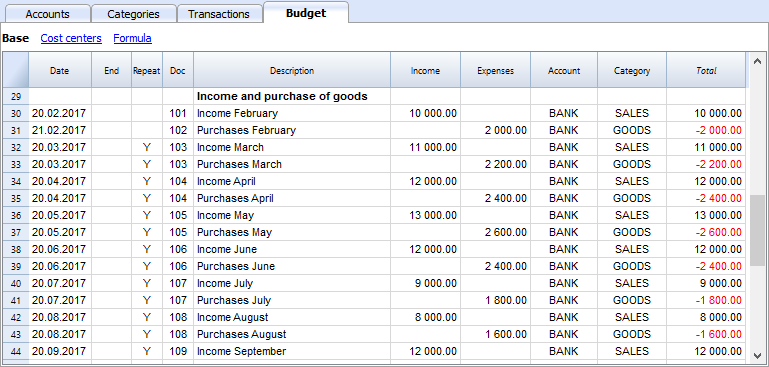
Calculations for Income and Expense will be calculated on a monthly basis by Banana 8 Accounting Software.
- Doc 101
Income indications for February
- Date 20th of February.
Income occurs on every day of a month. We choose a date towards mid-month as an approximated level of liquidity. - Repeat no repetition.
A higher figure is expected next year and will be recorded in the successive year. - Account Cash register receipts that are deposited in BANK.
- Category Provenance of SALES deposited.
- Amount 10'000.00.
- Total The next operation falls within next year, hence, the total represents one single amount.
- Date 20th of February.
- Doc 102
Indication of forecasted costs for goods, on a pro rata 20% monthly basis.
- Date 21st of February . The day after entering the sales transactions.
- Repeat no repetition.
The operation will be repeated on the 21st of each following month.
Therefore, cost of goods will be calculated each month as a percentage of purchases of sales account transactions. - Account Payments are settled via BANK.
- Category Purchase of GOODS.
- Doc 103
Two lines, which are similar to Doc 101 and 102, but for March.- Repeat Y= yearly. Turnover and costs for the month of March for subsequent years.
- Doc 104 through to Doc 112
Each 20th of the month projected sales for the different months of the year are indicated.
Following Years' Proceeds
Transactions can also be indicated for the following years.
These data will be used to establish budgets for the years to come.
The Total column will remain empty, as these values are out of scope and only refer to the current accounting period.
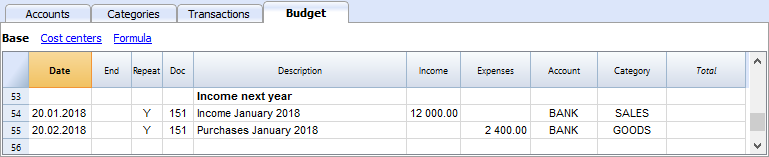
- Doc 151
Transaction entering similar to the previous year
- Date 20th of January
- Repeat Y = yearly
This will be repeated in the subsequent years. - Total empty (calculated automatically).
- The Total column remains empty, as these values are out of scope for current accounting period, and will not be indicated in the Total column which refers to the current period.
End of quarter
Indications of some typical entries that are repeated at the end of quarter.
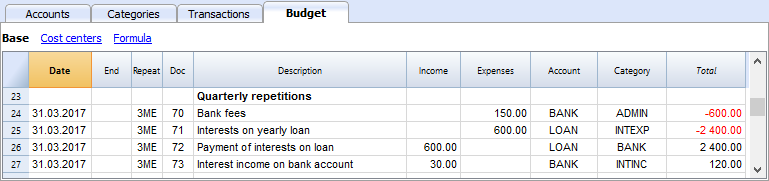
- Doc 70
Indications of some typical entries that are repeated at the end of quarter.- Dat 31st of March.
- Repeat 3ME 3 Months End.
- Category ADMIN. Administrative costs, this would normally be financial bank charges.
- Amount 150 (Automatically calculated) by multiplying the quantity by the unit price.
- Total 600 (Automatically calculated) 150 quarterly until the end of the year.
- Doc 71
Interest on the loan that must be paid quarterly.- Date 31st of March
- Repeat 3ME 3 Months End.
- Account LOAN interest is added to the loan.
- Category INTEXP interest on loan.
- Amount interest for current quarter.
- Total interest for the current year.
- Doc 72
Interest accrued on the LOAN is payed from the Bank count.- Date 31st of March.
- Repeat 3ME 3 Months End.
- Account LOAN interest owned on liabilities.
- Category BANK account used for payment.
- Formula "interest“ content of variable interest (value saved in the operation Doc 71).
- Amount the result of the formula, i.e. the interest for this quarter.
- Total interest for the current year,
.
- Doc 73
Interest earned on current account with the Bank.- Date 31st of March.
- Repeat 3ME 3 Months End.
- Account BANK where interest is received.
- Category INTINC interest income.
- Amount is interest income for this quarter.
- Total interest for the current year,
Year End
Some typical operations might take place at year end. Here, we use Repeat "Y" in order for them to be carried out for subsequent years.
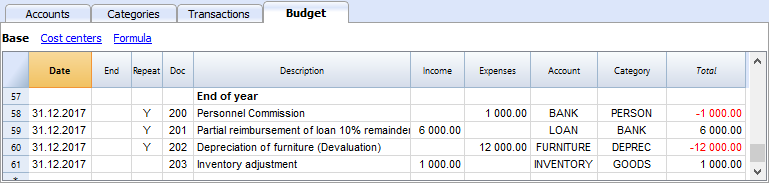
- Doc 200
Attribution to staff of a 1% commission on annual sales at the end of the year.- Date 31st of december.
- Repeat Y= calculation is repeated each year.
- Account BANK
- Category PERSON Personnel expenses.
- Amount is the commission payed to the sales staff.
- Total identical to Amount.
- Doc 201
Reimbursement of 10% of the outstanding loan.- Date 31st of december.
- Repeat Y= calculation is repeated each year.
- Account LOAN account (reimbursement of your loan).
- Category BANK Bank account used for reimbursement.
- Amount 6'000 is the equivalent of 10% of your total Loan.
- Total identical to Amount.
- Doc 202
Used for depreciation for your furniture.
- Doc 203
Assessment of your Inventory value.
This is non-repetitive because the assessment will be based on asset values of your inventory at each year end.
Compositions
Use the create new compositions command to generate new compositions for the printout including print parameters already preset in Budget and enhanced for groups.
You can preset the prints configuration according to your requirements.
If you understand how compositions functions, you will be able use it with other commands and create prints or other adapted to your own purpose.
Reports in the Accounts table
In the Accounts tab, view Budget to access the updated budget amounts.
Financial and liquidity planning for the first year
Use Command
- Reports -> Quarterly forecast 1. evolution during the first year can be seen.
The composition that has been set up can be visualized as
- Breakdown by Period -> Quarter
These two prints will allow you to apprehend:
- The economic forecast (expenses and income) and budgeting of the current financial year.
- The detailed evolution of liquidity in your bank's current account.
Modifying or Creating a new composition will give you a breakdown by month.
As per month

Financial and liquidity planning for a four year period
Use Command
- Reports -> Forecast 4 years
This will display the predefined composition for:
- Period from 01/01/2017 to 31/12/2020
In this report, you can specify a period that differs from the accounting period.
The program will then project the data for the specified period. - Subdivision per year.

Account Card
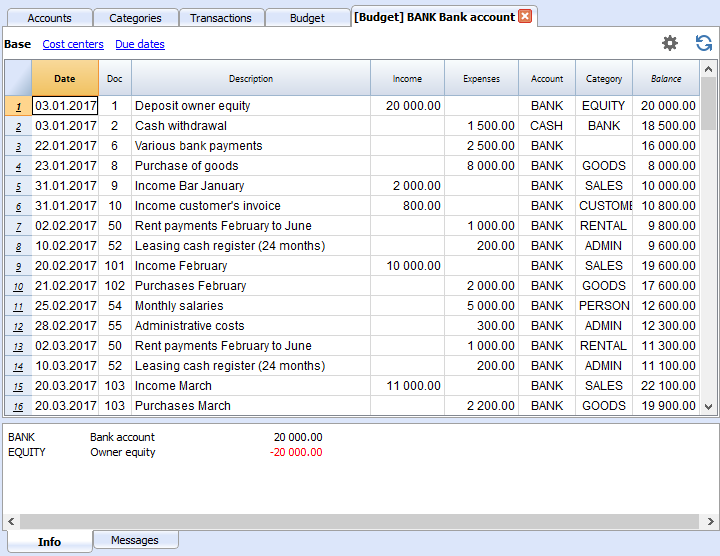
After opening the Budget table, click on the BANK cell and all budgeted transactions contained in the account card will be displayed.
Double-Entry Accounting Tutorial File Budgeting and Financial Plan for a Startup
Double-Entry Accounting Tutorial File Budgeting and Financial Plan for a StartupWhether you're planning to start a new business, or setting up a business plan, it is of the utmost importance to manage your liquidity projections. Especially at the beginning of a new activity, this could easily happen to land yourself in financial difficulties.
Banana Accounting software offers you the possibility to set up your financial planning and liquidity projections, allowing monitoring on a daily basis, with a high degree of accuracy. It allows you to project your accounting into the future and manage the years ahead of you in your ledger.
Note: For this business plan template, the management of a bar or restaurant has been taken as an example, since it is an activity that all people are familiar with and is therefore ideal to understand the functioning of Banana Accounting. Obviously, the template can also be used for other types of activities (Startups) for which you want to do financial and liquidity planning.
Financial planning and liquidity management of Luke's Restaurant
This section will explain how to set up a financial plan for a new entrepreneurial activity, according to the double-entry accounting model.
Consult the Benefits and Features of Financial Planning section for further information.
Luke plans to open a restaurant in 2022 and is preparing a financial plan, including all the necessary details.
- The financing of his project includes his proper means and a loan from a third person.
- In January 2022, he rents the premises, redecorates and furnishes them and starts his commercial activity.
- The Financial Planning is established for the period from January 2022 to December 2025.
Below you have an example of a monthly planning that Banana Accounting can make easy for you:
Economical forecasting and liquidity management
This model will help you to learn about the different features of Financial planning in Banana Accounting software. Some features, such as formulas, will be used in more advanced cases. The possibility to enter formulas is available in Banana Accounting Plus only with the Advanced plan. Update now!
- Use of budgeted transactions
- Repetitive transactions
- Using Quantities and Price
- Using Formulas
- Using Variables
- Calculation of interest on Asset and Liability Accounts
- Carrying forward of account balances
- Carrying forward of transactions recording
- Budgeting for one financial year divided by quarter, including results and liquidity projection
- Budgeting for several financial years, including results and liquidity projection
The File Properties
Opening date is 1st of January 2022 and closing date December 31st 2022.
This is also the period of calculation that will be used for the Total column in your Budget.
The Chart of Accounts
This example is intended to explain the functioning of your Budget table of forecasts.
- The Chart of Accounts, reduced to it's essence.
- Comprehensive name for accounts are used to illustrate the use of Banana Accounting software.
- Opening Basic Currency. The activity starts from scratch, so there are no opening balances.
- Budget Basic Currency. It's the overall budget at the end of the accounting period. Notice that this represents the balance sheet and income statement at the end of the budgeting period.


Create your own Chart of Accounts
The Chart of Accounts defines the elements of Expenses, Income and Investments. In case you want to subdivide the expenses more in detail, you need to add other accounts.
Rather than starting with a very simple Chart of Accounts and add on accounts and groups, it is recommended to start with a more structured Chart of Accounts. Banana Accounting software offers different Charts of Accounts templates, and it is recommended to choose and adapt the one closest to your needs and then add the Budget tab .
The Budget table
The budget table (see also explanation on columns) is where you insert recordings relative to the planning.
The financial plan is inserted via normal entering in double-entry bookkeeping in the Budget table. The budget table provides additional columns that greatly facilitate the preparation of the financial plan.
- Repeat
If you specify "M" = Monthly, for example, this will generate monthly registration for all subsequent months.
If the cell is left empty, the operation will be performed only once. - End (Date)
Used in combination with Repeat, setting the last date when the operation will occur. - Total
The total amount recorded in the current year. - Quantity, Price
Allows for indication of the combination of values on the basis of which the amount will be calculated. - Formula
Allows you to specify a formula for calculating the amount.
The formula has priority for the calculation of the amount.
Transactions for January
Those are identical to entering in the transactions table, because there is no Repeat yet.
This is the first month of the Coffeehouse's exploitation and these are the registrations of the owner's equity, payment of the furniture and the accession to a loan.
The entering shown in the below screenshot, such as first month's rent, were included as not repetitive recordings, to illustrate some simple recordings that contain no Repeat.

Repetitive transactions for February
In February, enter the transactions that will occur on a monthly basis

- The rent from January to June is of 1'000 per month and increases to 1'200 as per July.
- Doc 5:
The first rent was paid cash. There will probably also be the payment of a guarantee. - Doc. 50:
The rent of 1'000 is budgeted rom February to June.- On 2nd Februar the rent is paid from the bank account.
In the following months the payment of the rent will figure on to 2nd of each month. - End Date is 30th June.
The last rent of 1'000 will be on 2nd June. - Repeat. M = monthly.
- Total 5'000 (5 x 1'000, automatically calculated) is the total amount for the transactions during this period.
- On 2nd Februar the rent is paid from the bank account.
- Doc 51:
Rent Budgeted from July onward.- Date 2nd July.
In the following months the payment of the rent of 1'200 will figure on to 2nd of each month. - End
As no date is indicated, this expense will be repeated for all the following months and years. - Repeat. M = monthly.
- Total 7'200 (5 x 1,200), automatically calculated.
Represents six months' rent from July to December.
- Date 2nd July.
- Doc 5:
- Doc. 52.
The leasing for the cash register.- Date is 10th of February.
- End (of lease) January 31st 2024. When the last installment on the lease is due.
- Repeat M = monthly.
The operation will be repeated each month, the last time in January 2024. - Debit A/C Administrative fees.
- Credit A/C BANK (used for payment).
- Amount 200.00 monthly lease rate.
- Total 2,200 (200 x 11 months).
- Doc. 53.
Payment towards the lease redemption.
This operation only takes place in 2024, but is included here, because it is linked to the monthly lease.- Date is 10th February 2024.
- Debit A/C Administrative fees.
- Credit A/C BANK (used for payment).
- Amount 400.00 the release amount.
- Total empty because there is no expenditure in the current year.
- Doc. 54:
Monthly salaries.- Date: 25th February.
- Repeat. M = monthly.
The operation will be repeated on the 25th of each month to come.. - Total 55,000 (5'000 x 11 months).
- Doc. 55.
Administrative expenses (this is an approximation: for a correct budgeting entering for each separate expense will be necessary).- Date is 28th February.
- Repeat is ME = Month End.
The operation will be repeated every month on the last day of the month.
In March it will be on 31st, in April 30th and so on. - Amount 300.00.
- Total 3,300 (300 x 11 months).
Budgeting for income and purchase of goods
Depending on the type of business activity, the most appropriate way to specify the revenues must be chosen.
Income and goods purchases are itemized below as monthly amounts, taking into account that there might be important monthly fluctuations.
It might prove more appropriate to use separate turnover figures for drinks or/and food.
February's Repeat column is empty, as we expect a higher figure for he next year and this will be added at a later stage.
From March onward the turnover is considered to be representative for the years to come.

Indications of forecast income and merchandise costs, calculated on a monthly basis.
- Doc 101
Income indications for February- Date: 20th February.
Income occurs on every day of a month. We choose a date towards mid-month as an approximated level for liquidity. - Repeat Empty (no repetition).
A higher figure is expected next year and will be recorded in the successive year.. - Debit A/C Cash register receipts that are deposited in BANK.
- Credit A/C Provenance of receipts in SALES account.
- Amount 10'000.00.
- Total 10'000.00 The next operation falls within next year, hence the total represents one single amount.
- Date: 20th February.
- Doc 102
Indications of forecast costs for goods, on 20%a pro rata monthly basis.- Date 21st February. The day after the entering of the sales transaction.
- Repeat no repetition.
The operation will be repeated on the 21st of each following month. Therefore, each month cost for goods will be calculated as a percentage of purchases of sales account transactions. - Debit A/C GOODS costs to be recorded in goods Account.
- Credit A/C BANK payment of goods costs through the bank.
- Doc 103
Two lines, which are similar to Doc 101 and 102, but for March.- Repeat Y=Yearly. Turnover and costs for the month of March for subsequent years.
- Doc 104 through to Doc 112: Each 20th of the month projected sales for the different months of the year are indicated.
Following Years' Proceeds
Transactions can also be indicated for the following years..
These data will be used to establish budgets for the years to come.
The Total column will remain empty, as these values are out of scope and only refer to the current accounting period.

- Doc 151
Transaction entering similar to the previous year- Date 20th January.
- Repeat Y = Yearly.
This will be repeated in the subsequent years. - Total empty (calculated automatically). The Total column will remain empty, as these values are out of scope and only refer to the current accounting period.
End of quarter
Indications of some typical entries that are repeated at the end of a quarter.

- Doc 70
Here's an example for the use of the quantity and price column.
Known bank charges are 50 per month and we indicate the amount for a 3 months period.- Date 31st March.
- Repeat 3ME=3 Months End.
- Debit A/C ADMIN. Administrative costs, this would normally be financial bank charges.
- Credit A/C BANK. Administrative costs.
- Amount 150 (Automatically calculated) by multiplying the quantity by the unit price.
- Total 600 (Automatically calculated) 150 quarterly until the end of the year.
- Doc 71
Interest on the loan that must be paid quarterly.- Date 31st March.
- Repeat 3ME=3 Months End.
- Debit A/C INTEXP interest expense on liabilities.
- Credit A/C LOAN interests are added to the loan.
- Amount interest for current quarter.
- Total interest for the current year.
- Doc 72
Interest accrued on the LOAN are payed from the Bank count.- Date 31st March 31.
- Repeat 3ME=3 Months End.
- Debit A/C LOAN interest expense account.
- Credit A/C BANK the account used to pay interest.
- Amount the result of the formula, i.e the interest for this quarter.
- Total total interests for the current year.
- Doc 73
Interest earned on current account with the Bank.- Date 31st March 31.
- Repeat 3ME=3 Months End.
- Debit AC BANK Bank account.
- Credit A/C INTINC interest income.
- Amount interest income for this quarter.
- Total total interest for the current year.
Year End
These are some year-end operations. Here we use Repeat "Y" in order for them to be carried out for subsequent years.

- Doc 200
Attribution to staff of a 1% commission on annual sales at the end of the year.- Date 31st December.
- Repeat Y= calculation is repeated each year.
- Debit A/C PERSON Personnel expenses.
- Credit A/C BANK Bank account.
- Amount is the commission payed to the sales staff.
- Total identical to Amount.
- Doc 201
Reimbursement of 10% of he outstanding loan- Date 31st December.
- Repeat Y calculation will be repeated each year.
- Debit A/C LOAN Loan account (your liability).
- Credit A/C BANK Bank account used for reimbursement.
- Amount 6'000 is the equivalent of 10% of your total Loan.
- Total identical to Amount.
- Doc 202
Use for the amortization of your furniture. - Doc 203
Use for adjustment of your inventory.
This is non-repetitive, because the assessment should be based on the asset values of your inventory.
Customization
Use the create new customization command to generate new customization for the printout including print parameters already preset in Budget and enhanced for groups.
You can preset the prints configuration according to your requirements.
If you understand how customization works, you will be able to use it with other commands and create prints or other adapted to your own purpose.
Reports in the Accounts table
In the Accounts tab, view Budget to access the updated budget amounts.
Financial and liquidity planning for the first year
With Command
- Reports → Enhanced balance sheet with groups → Quarterly forecast 1st year, the evolution during the first year can be seen.
The customization that has been set up can be visualized
- Breakdown by Period → Quarter
These two prints will allow you to apprehend:
-
The economic forecast (expenses and income) and budgeting of current financial year..
- The detailed evolution of liquidity in your bank's current account.
Modifying or Creating a new customization will give you a breakdown by month.
By month
Financial and liquidity planning for a four year period
With Command
- Reports →Enhanced balance sheet with groups → Budget 4 years
This will display the predefined customization for:
- Period from 01/01/2022 to 31/12/2025
In this report, you can specify a period that differs from the accounting period. The program will then project the data for the specified period. - Subdivision per year.
Account card
After opening the Budget table, click on the BANK cell and all budgeted transactions contained in the account card will be displayed.

Tutorial file for amortisation and interest calculation with budget's formulas
Tutorial file for amortisation and interest calculation with budget's formulasThe possibility to enter formulas is available in Banana Accounting Plus only with the Advanced plan. Update now!
Tutorial file for using Formulas for Budgeting and Financial Planning
Tutorial file for using Formulas for Budgeting and Financial PlanningThe possibility to enter formulas is available in Banana Accounting Plus only with the Advanced plan. Update now!
This file contains examples of how to use the Formula tab in the Budget table, as well as the Quantity and Unit price columns.
For explanations about the use of the Budget table and columns consult Budget table page.
Keep in mind that calculations are made in chronological order and not according to the sequence in which your budget registrations were entered.
Use of Quantity and Unit price columns
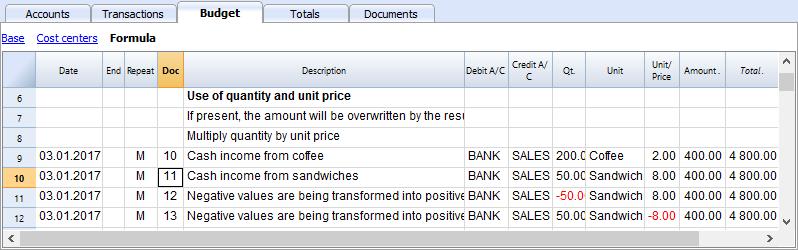
In the Formula view you will see the Qt. (quantity) and Unit/Price columns.
- Doc 10. The Qt column. The number (Unit column) of coffees sold in one month at the price of (Unit/price column) and total income from coffee sales (Amount column).
- Values in the Qt and Unit/Price columns can also be entered as a negative number, but the amount will be shown as a positive value.
Formula in JavaScript language
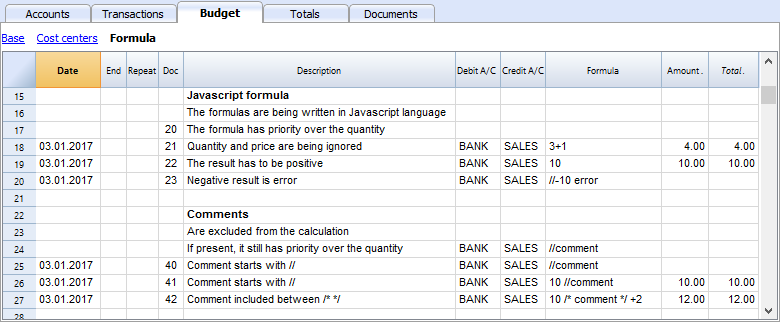
The Formula column allows you to enter calculations expressed in JavaScript language.
- If the result of the formula is a number it will be shown as Amount in the respective column.
- Doc. 21+22. You may specify numbers or mathematical expressions.
- Doc 40 e 41. "//" indicates that a comment is entered.
- Doc 42. Text entered between /* e */ are treated as comment and not part of the formula.
Formula errors
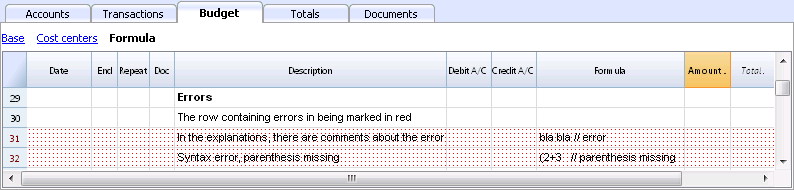
In case of errors, when you enter data:
- The row containing the error is highlighted in red.
- An error text is shown in the “message” window.
In order to avoid constant acoustic signals and popping up of error message windows, the errors have been treated as a comment in the example file (they start with "//").
Semicolon separator ";"
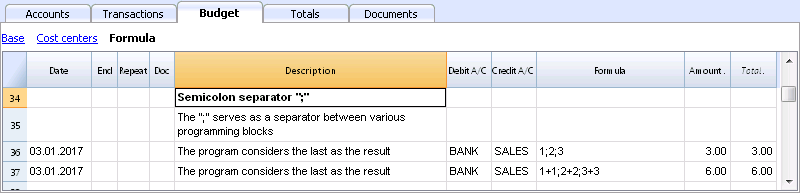
JavaScript uses ";" to terminate each line of command. You may concatenate mathematical expressions into one line. The return value will be the result of the last expression.
Comma separator ","
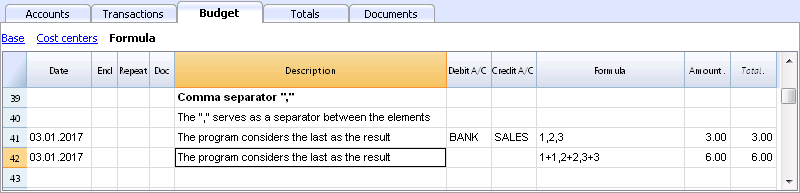
In JavaScript, comma is used as a separator between the different expressions in a function. The result value will be the result of the last expression.
Do not use the comma as a decimal separator, because in the formula it will be considered as an expression separator, and therefore numeric values will be truncated.
Full stop separator for decimals "."
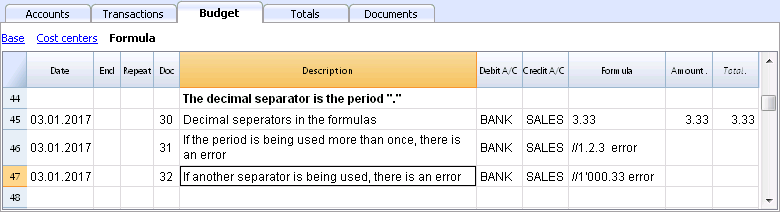
JavaScript uses full stop "." as a separator for decimals. Regardless of the settings for decimals in your operating system preferences, full stop will always be used.
Calculations with simple numbers
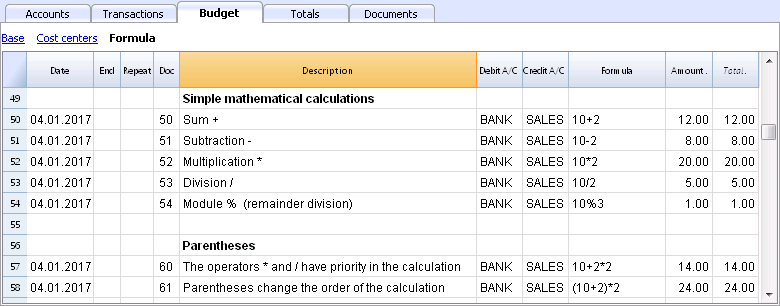
You can compound mathematical calculations with simple numbers in the Formula column.
Texts and variables
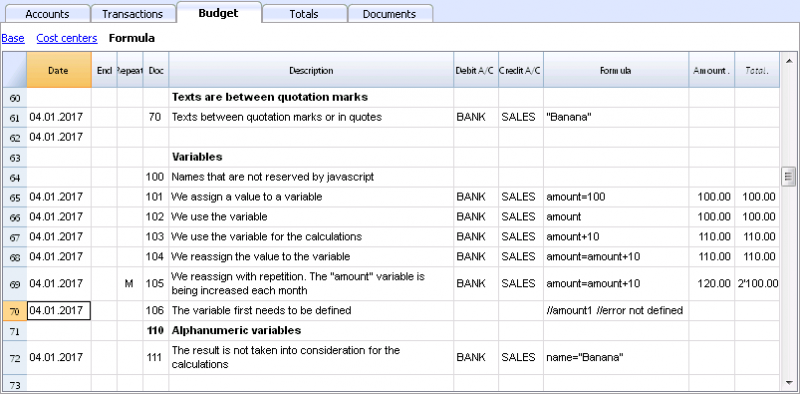
- Text is contained between quotation marks, as quotes.
- Variables are the elements that mention the values that have been assigned.
- The name of the variable must start with a letter or an underscore.
- First of all, variables must be defined via a “variablename = 100” assigned punctuation.
Examples:
- Doc 70.
"Banana" between quotation marks is a text - Doc 101.
A value of 100 is assigned to the variable. - Doc 102.
The content of the Amount variable will be used. - Doc 103.
The content of the Amount variable will be used, with an increment of 10. - Doc 104.
The content of the Amount variable is assigned to the Amount variable with an increment of 10. The Amount variable will be equal to 110. - Doc 105.
The Formula will be applied on a monthly basis “Repeat=M”- For the first time 110+10 = 120
- For second time 120 + 10 = 130, and so on.
- Doc 106.
If no comment is entered, an error message will signal that Amount1 has not been defined. - Doc 110.
The name “Banana” is assigned to the text Variable.
Controls for if .. then .. else flows
You can use all the conditional expressions of JavaScript. The subject is broad and we suggest you to refer to the documentation on the JavaScript language.
In this regard we only want to point out that in JavaScript:
- The equal sign "=" is used to assign a value to a variable "a = 10"
- On the contrary, for comparison, two successive equal signs are used "==". If (10 == 10) {1};
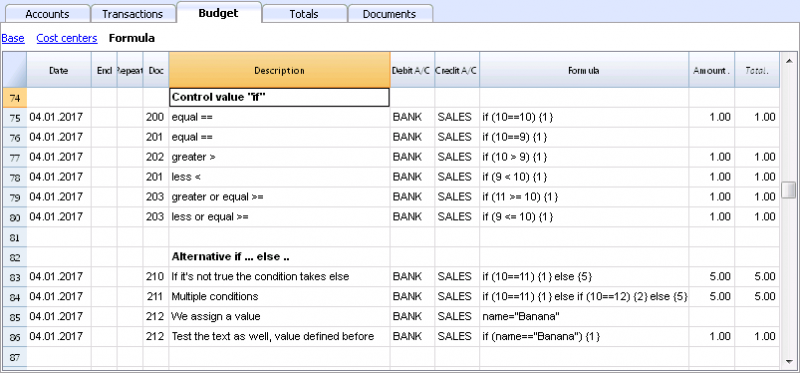
- Doc 200-203
If the criteria given in round brackets after the word "if" is true "(10 == 10)", then the Amount column the result of the next expression contained in curly brackets "{1}" will be shown.
If it is not true "(10 == 9)" the amount will be zero.
Properties and Functions
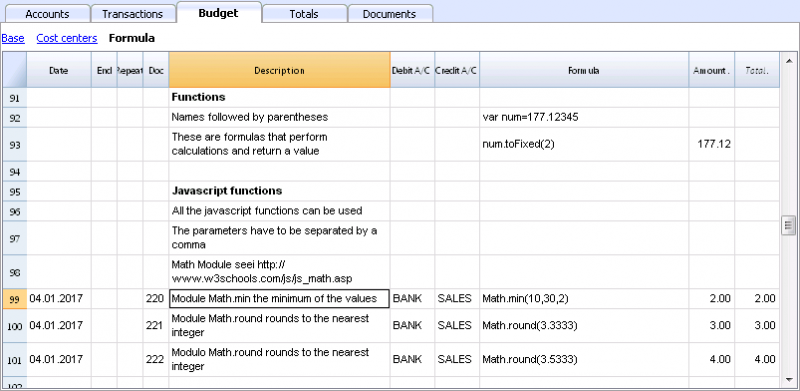
Predefined JavaScript functions, such as Module Math.library, can be used (see examples Doc 220-222).
To call up a function, indicate it's name followed by the parameters of the function, indicated between brackets.
- Doc 220.
Math.min(10, 30, 2) will return the minimum value of the values specified between commas.
“Row object” for current row
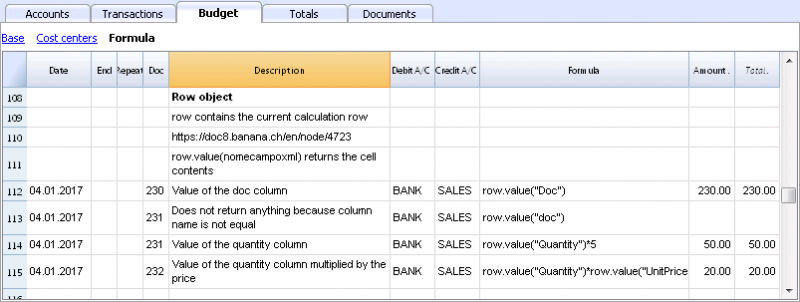
Row object is of the Banana.Document.Row type an refers to the current row.
Specifying the name of a column via the Value function, will return the content of that specific column.
Predefined Debit and Credit functions
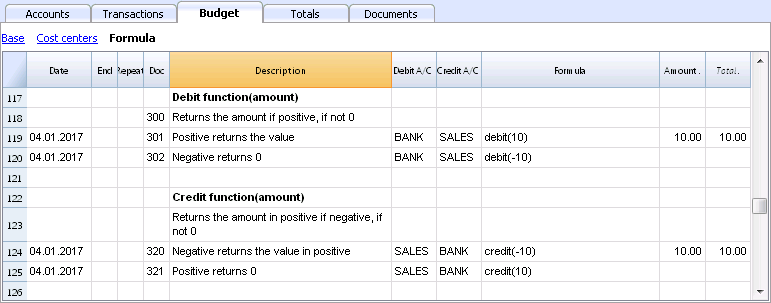
Formula only allows for positive values.
- The debit function returns the value entered as a parameter if it is positive.
- The credit function returns the value with as inverted, if the entered value is negative.
Accounting functions for the entire period
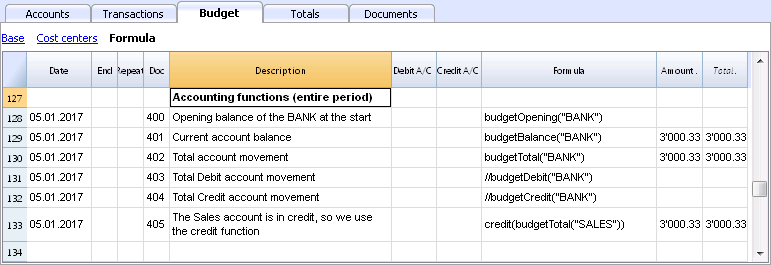
Without indication of a defined period, the use of specific Budget functions will return the values relative to the present situation.
Please note and remember, that data in rows is processed sequentially, so there will be no subsequent values to the line being processed.
Use of accounting functions for a defined period
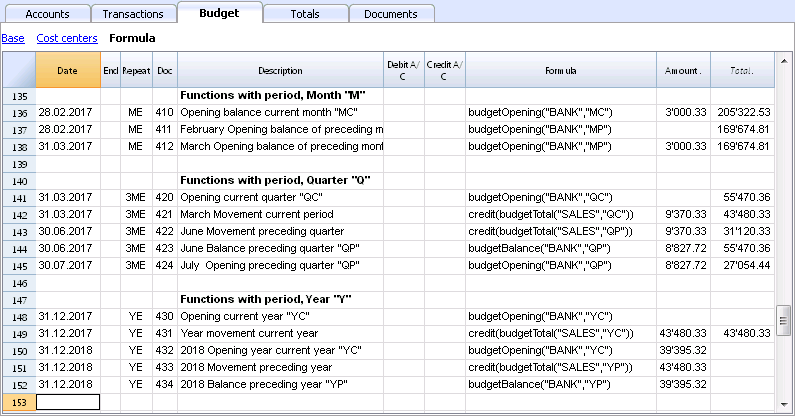
Use of accounting functions for a defined period.
The budgetBalance function for the current period will always be the same as the function for the entire period, as the budgetBalance function returns the balance at the end of the period and the last row processed is also the last of the current period.
he budgetOpening and budgetTotal functions, on the contrary, take the initial date into account so it's indication is necessary.
Interest calculation function
The budgetInterest function calculates interest at entering date, on the indicated account on an actual days count basis (365/365.
When calculating interest for the current month, you must indicate month end as the date.
- Doc 500.
The second parameter represents the interest rate, 5 meaning 5%. If debit interest is due, calculation will be effectuated for the corresponding days. - Doc 520.
If credit interest is due, calculation will be effectuated for the corresponding days. This will show as a negative towards the BANK account.
Functions for calculating tax on profit

- Doc 600.
The tax on profit is calculated on the movement in the "budgetTotal" period of the final group of the Profit & Loss statement (in this case the 02).
credit (budgetTotal ("Gr = 02", "YC")) * 0.10- You obtain the group movement in the current year
budgetTotal ("Gr = 02", "YC") - The credit () function returns the value only if it is negative and converts it to positive.
credit (budgetTotal ("Gr = 02", "YC")) - The result is multiplied by 0.10 (percentage 10%)
- In the Debit account, the Tax account of the Profit & Loss statement must be indicated.
- In the Credit account, you must indicate the Bank account or the Treasury credit account.
- You obtain the group movement in the current year
User-defined Functions
In the Documents table, a "_budget.js" file is added where you can define functions in Javascript that can be called in the formula column.
Calculating tax on profit with progressive rate
- Doc 610
The profit is first calculated and assigned to the variable - Doc 611
The profit is passed on to the calcTaxes() function that applies the tax percentage based on the amount and returns the tax amount to be paid.
Other user-defined functions
- Doc 620
The test () function is called, which is also defined in the budget_js document, which simply returns a value.
Use of Variables for next calculations
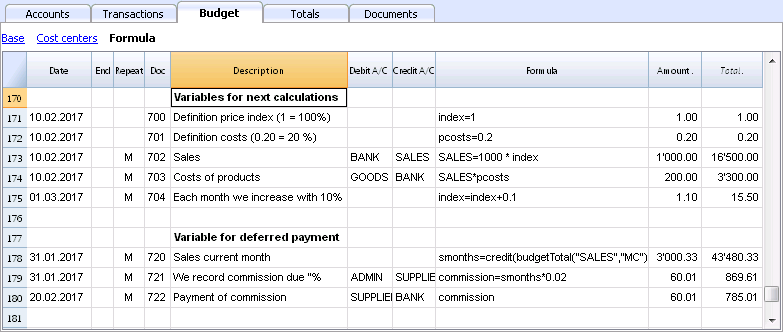
Variables are very useful for storing values for next calculations.
- Doc 700-704.
Indexation of sales.- Doc 700.
Fixation of the index at 1 (100%).
Debit A/C and Credit A/C are not used here, as this row is only used for Definition of the Price index. - Doc 701.
pscosts variable is used for calculation of acquisition cost (0.2=20%) - Doc 702.
Sales are a 1000 multiple of the price index value. - Doc 704.
As per 1st of March the index will be increased by 0.1 (=10%).
As per this date, value of sales will increase in a monthly progression.
- Doc 700.
- Doc 720-722
Monthly sales figures are assigned to months function. Sales commissions are then calculated
JrepeatNumber Column
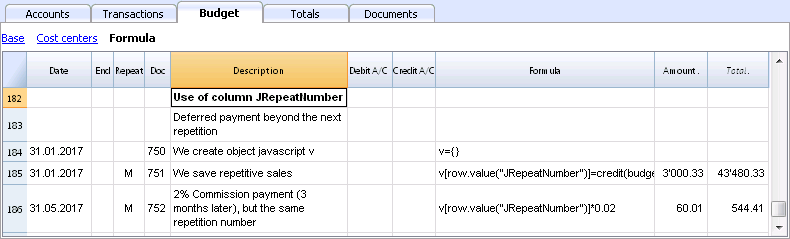
When Rows contain a Repeat, insert the Repeat number in the Formula cell as JrepeatNumber.
- First repeat value is 0.
- Second repeat value is 1, and so on.
Use JRepeatNumber when Repeat doesn't allow you to overwrite predefined Variables.
By using JrepeatNumber as a parameter for your object, sequences are registered and can be called at a later stage,
Tutorial File Budget Formulas For Multi-Currency Financial Planning
Tutorial File Budget Formulas For Multi-Currency Financial PlanningThe possibility to enter formulas is available in Banana Accounting Plus only with the Advanced plan. Update now!
This example will explain how to use formulas specific to double-entry bookkeeping with multi-currency functionalities.
Documentation on use of formula in the Budget table.
Amount calculation in base currency
The formula will calculate the value in the account's currency first and then the relative value in the base currency.
Exchange rates and historical rates
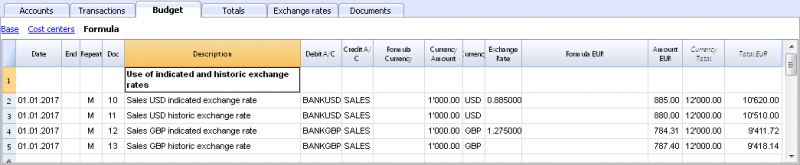
- Doc 10 and 12.
If an exchange rate is indicated in the exchange rate column, the program will calculate the amount in the base currency (EUR in this case) using the exchange rate indicated in this row. - Doc 11 and 13.
If there is no exchange rate indicated, the program will apply the exchange rate in the Exchange rates table for this calculation as well as for the successive operation in the case a Repeat function is applied.
-
If historical exchange rates are defined in the Exchange rates table, via adding a date, the program will apply the exchange relative to the date or the previous, most recent one.
Use of formulas in the base currency
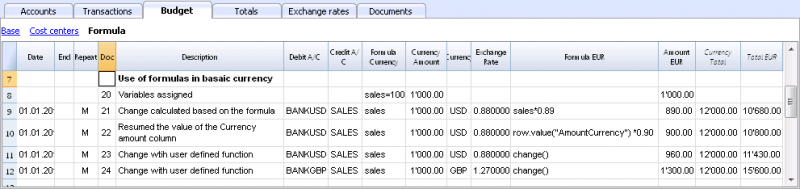
All formulas available in the Budget table can be used in the Formula column.
The following examples show the value in the base currency (EUR) calculated according to a Formula.
- Doc 21.
The sales value is multiplied according to the Formula EUR value. The exchange rate in the corresponding column will be ignored. - Doc 22.
As in the previous example, but for the value of "AmountCurrency" which is the result of the formula. - Doc 23.
In the “budget.js” document we have defined an exchange rate function calculating the value on the basis of the contents in the row.
With these functions it is possible to create exchange rate simulations.
Example for Exchange rate function
The USD exchange rate is established on a monthly basis.
A constant exchange rate is used for GBP instead.
The function will result as the amount of AmountCurrency multiplied by the exchange rate.
  function cambio() {
    var importo = row.value("AmountCurrency");
    var cambio = 1;
    var moneta = row.value("ExchangeCurrency");
    var data = Banana.Converter.toDate(row.value("JDate"));
    var mese = data.getMonth() + 1;
    if (moneta == "USD") {
      cambio = 0.95;
      if (mese == 1)
      cambio = 0.96;
    else if (mese == 2)
      cambio = 0.97;
    }
    if (moneta == "GBP") {
    cambio = 1.30;
    }
    return importo * cambio;
  }
Formulas for calculation of exchange rate differences
For further information on calculation of exchange rate differences please refer to information about transactions in multi currency and to the Create exchange rate differences command.
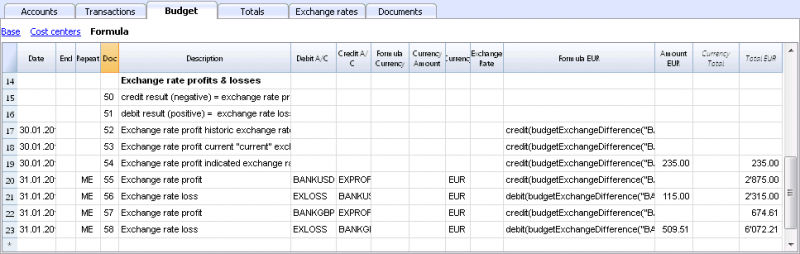
- The currency is always the base currency.
- Amounts must not be entered in the account's currency.
- Exchange rate is left blank and will be ignored, even if a value is entered.
- The budgetExchangeDifference function calculates the exchange rate difference for an account. This value represents the non realized exchange rate profit or loss.
.- The function will return a positive value if it is an exchange rate loss and a negative (credit) in case of exchange rate profit.
Exchange rate profit and exchange rate loss need to be entered in two different rows.
-
The resulting amount represents the revaluation necessary in the base currency to ensure that the account balance in the base currency matches the balance of the account in the currency converted at the exchange rate used for the calculation of exchange rate differences.
- The function will return a positive value if it is an exchange rate loss and a negative (credit) in case of exchange rate profit.
- The first parameter "CUSD" of the budgetExchangeDifferences function is the account in foreign currency for which the exchange rate difference will be calculated.
- The second parameter is the exchange rate to be applied.
- If no exchange rate is indicated, the historical exchange rate relative to the date of the entered transaction is applied.
- When "current" is used, the exchange in the Exchange rate tables with no date will be used.
- An exchange my also be indicated. A point "." must be used as a decimal separator.
  credit(budgetExchangeDifference("CUSD"))
  credit(budgetExchangeDifference("CUSD", "current"))
  credit(budgetExchangeDifference("CUSD", "0.95"))
Tutorial Financial Planning for Accounting Experts
Tutorial Financial Planning for Accounting ExpertsThe precision financial planning is a method to build the company’s financial future with the same rigor as real accounting.
In Banana Accounting, forecasting is not separate, but integrated into the same accounting file.
In this tutorial, you will see how to create a complete forecast by entering future transactions and automatically obtaining forecast balance sheet, profit and loss statement, and cash flow. You can also simulate different scenarios.
Introduction video
To see the system in action, watch our video below:
Who this tutorial is for
This tutorial is designed for:
- Accounting experts
- Fiduciary companies
- Consultants and accountants
The goal is to show you how to quickly create a complete financial plan in the same accounting file, including:
- Forecast profit and loss statement
- Forecast balance sheet
- Cash flow evolution
- Comparison between budget and actual results.
You can prepare the financial plan both for your company and for your clients, offering added value to your consulting services that goes beyond accounting management.
Planning structure
With Banana Accounting, you do not need to create anything new. This means you work with:
- the same chart of accounts
- the same Debit/Credit logic
- the same analysis tools
To enter budget transactions, use:
- the Budget table where you enter the transactions you expect during the year:
- enter the transaction only once
- define the frequency
- you can determine that a transaction appears within a period defined by a start and end date.
Chart of Accounts
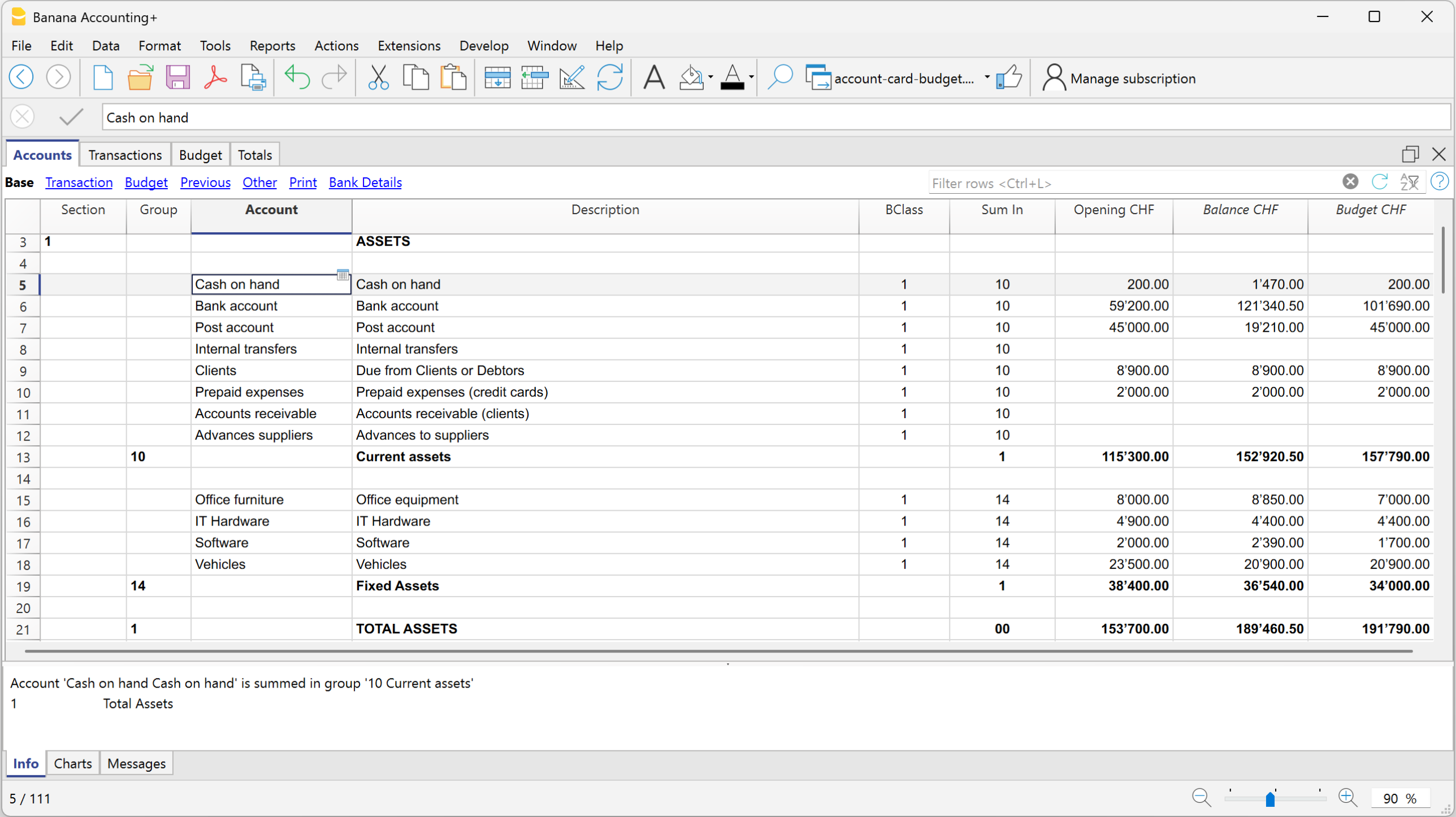
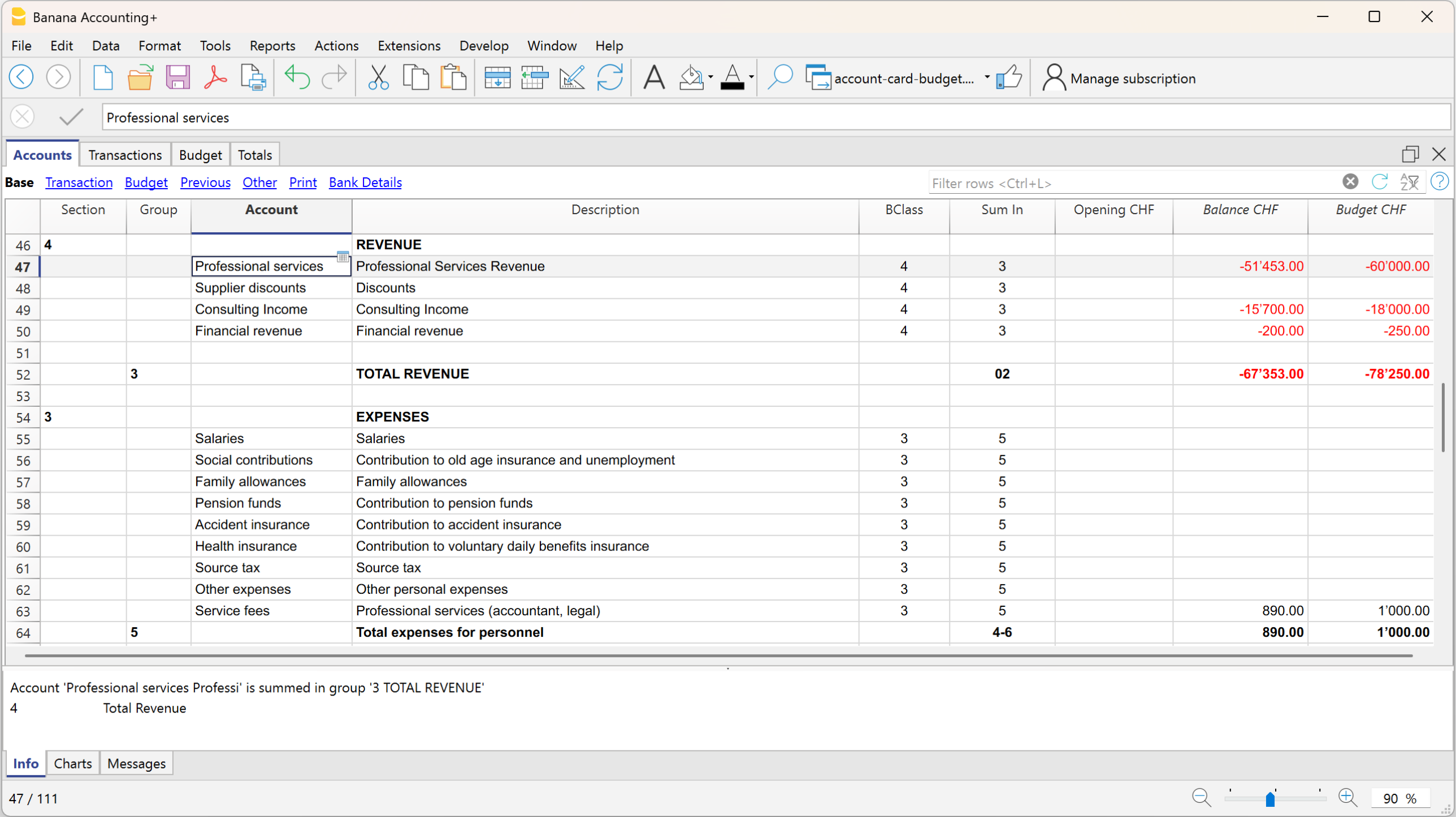
The accounts you use are those already available in the chart of accounts. In the Accounts table, you can display the Budget column to always have forecast balances available:
- menu Data > Columns setup > enable Budget column
Assets and Liabilities (Balance Sheet)
- Costs and Revenue (Profit and Loss Statement)
For a more detailed forecast, if not already present, we recommend setting up and using:
Budget Table
The Budget table is the core of the forecasting system, where you enter the transactions you expect during the year or within a defined period.
For each future event, enter the data in the following columns:
- Start date: the date when the transaction begins
- End date: the last date by which the transaction ends (a date one or more years later can also be specified).
If the transaction will always repeat every year, you do not need to enter any date. - Repeat: repetition frequency (day, month, quarter, half-year, year)
- Description: description of the transaction
- Debit / Credit account: accounts available and taken from the chart of accounts
- Amount: transaction amount
If needed, you can also enter VAT code, segments, or cost centers.
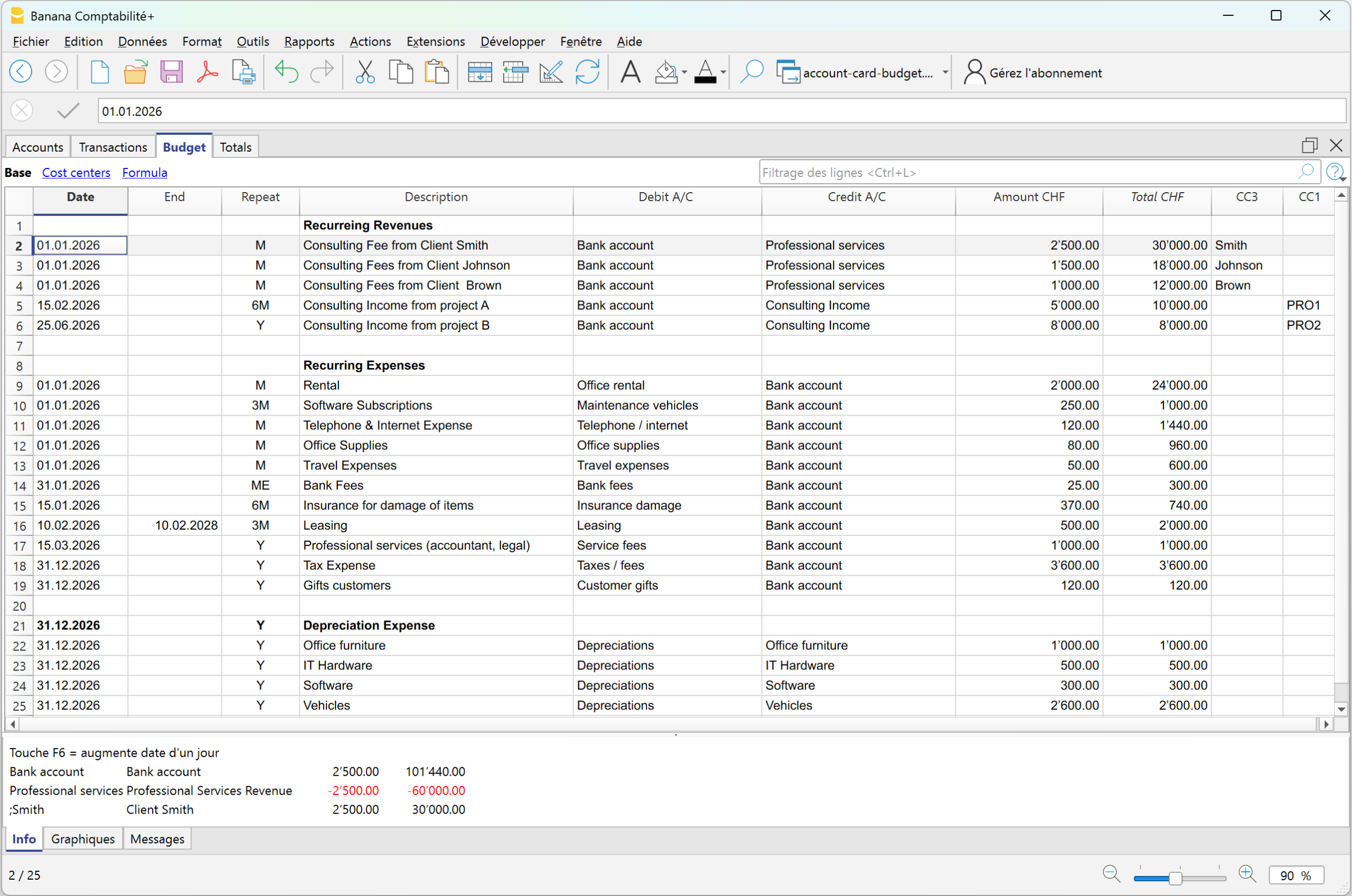
Based on the entered transactions, the program automatically creates all reports, with the same speed and options available in the Enhanced Balance sheet with groups, and reports the balances in the Accounts column, in the Budget view.
Complete forecast reports and comparison with actual data
Forecast reports do not only provide aggregated yearly projections. You can also analyze the data by specific periods: if a cost or revenue occurs only during certain months, the system represents it exactly in the correct periods.
For example: if a cost occurs only in June, July, and August, in the Budget table, by defining the accrual dates, the amount will be assigned exactly to the specific period in the forecast report, without any distribution across other months.
To obtain the forecast balance sheet and profit and loss statement:
- From the menu Reports > Enhanced Balance sheet with groups > in the section Chart of Accounts > Columns, enable Budget
In the Enhanced Balance sheet with groups, if you display the actual, budget, and Budget difference columns, you immediately get an overall view:
Balance Sheet with actual balances, budget balances, and differences
Forecasting in Banana Accounting is not a separate document, but integrates with accounting data and evolves together with real accounting.
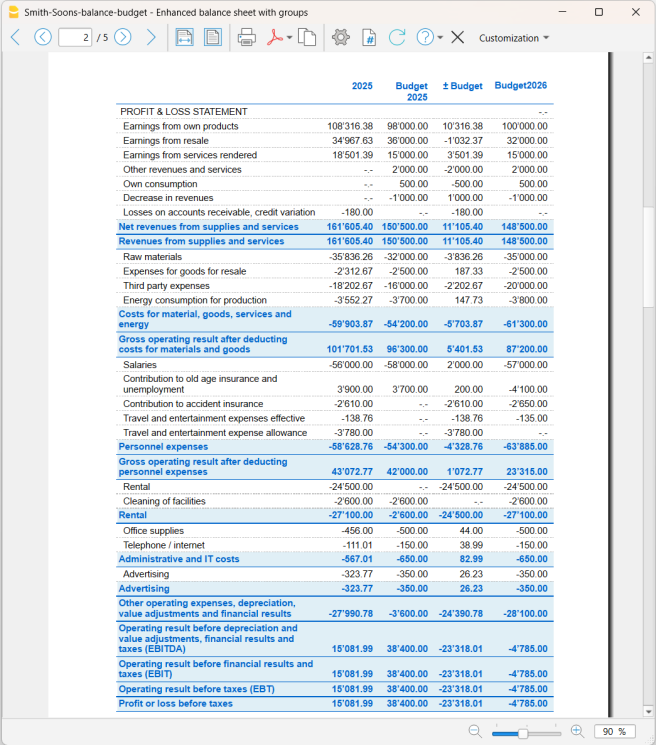
Profit and Loss Statement with actual balances, budget balances, and differences
With this report presentation, you can evaluate whether the company will be profitable and identify possible issues in advance.
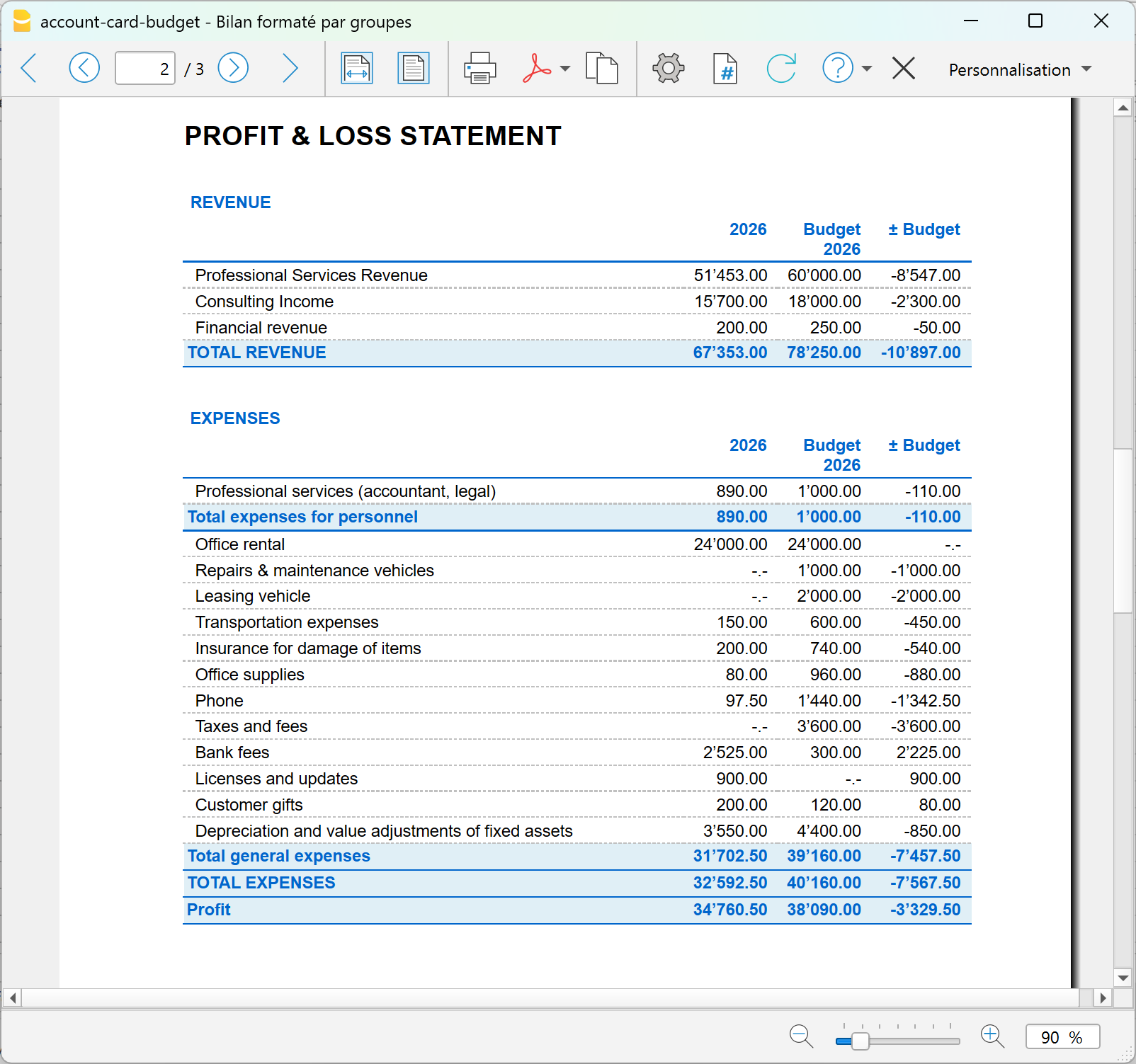
Comparison of actual vs budget account card
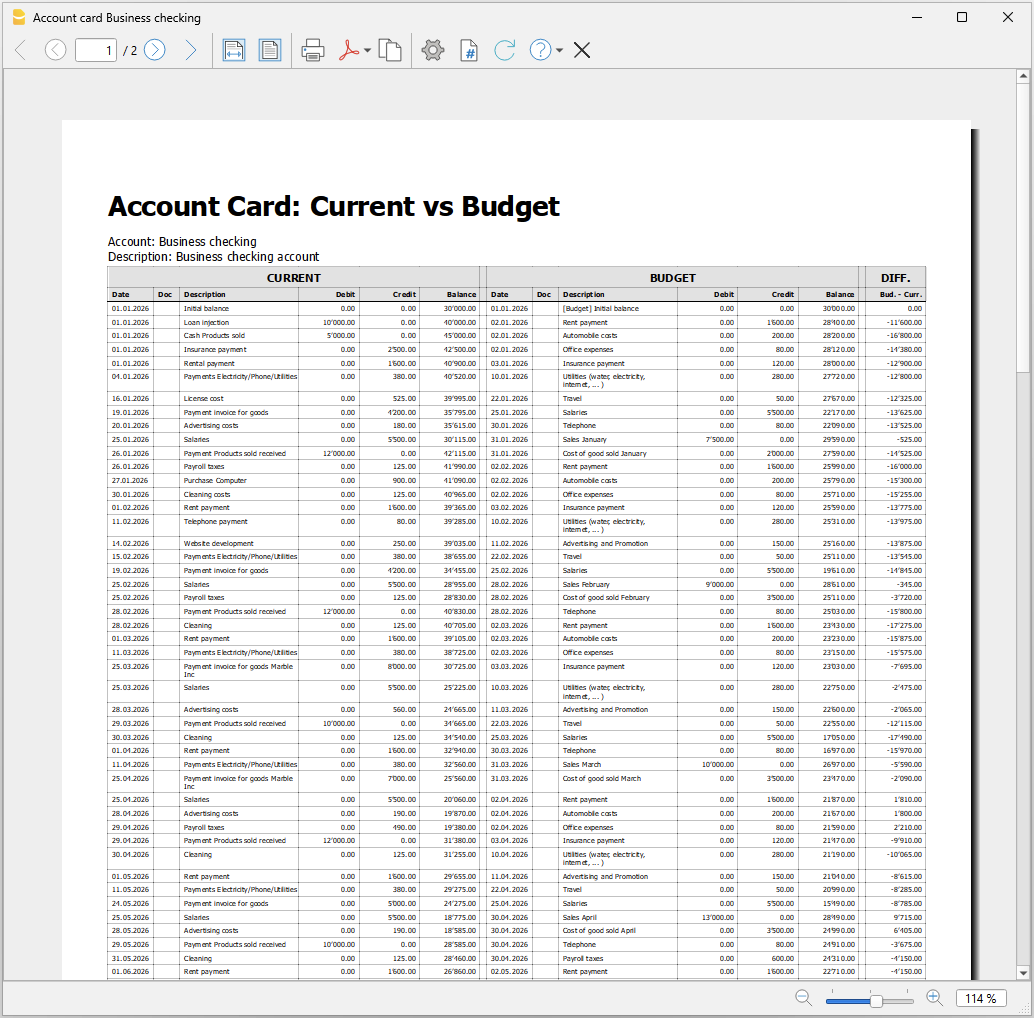
With Banana Accounting financial forecasting, you can go beyond traditional forecasting. With the new Account card: Current vs/Budget extension (Beta version), you can compare an account card with both actual transactions and budget transactions.
This is a completely new feature that allows you to:
- analyze in detail the actual transactions compared to the budgeted ones
- easily identify variances shown in the Differences column.
- progressively improve your planning capabilities.
Advantage: customer account card with actual and budget data
With Banana Accounting, for each customer you have a complete account card that integrates:
- actual data → issued invoices and real payments received
- forecast data → future invoices and expected payments
With Banana, the customer account card does not only show what has happened, but also what will happen, with all management details already integrated. In one single view, you can see the past, present, and future.
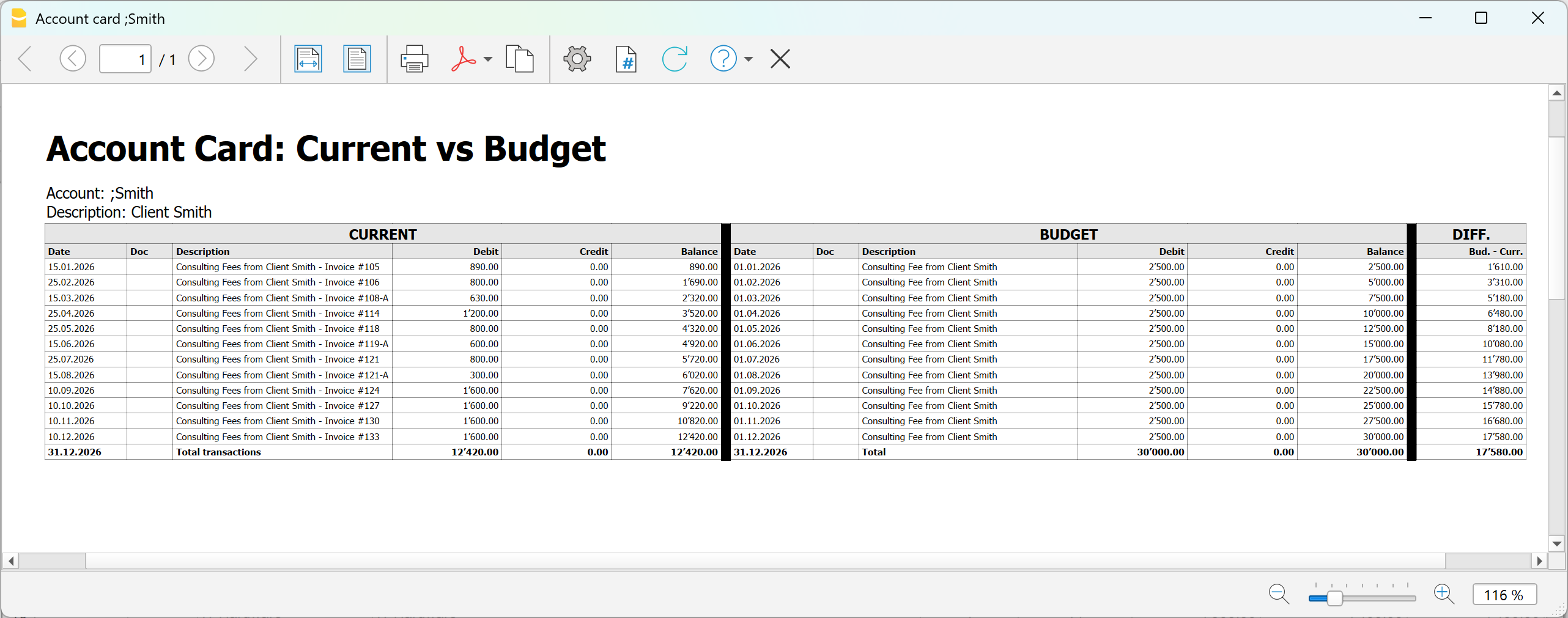
Using the new extension dedicated to the account card, which compares actual and budget transactions, you can analyze in detail:
- Customer
- Project
- Cost center
- Segment
To display the comparison between actual and budget data for an account, you need to:
- Install the Account card current vs budget extension (Beta version)
- From the menu Extensions > Manage extensions > Accout card: current vs budget (Beta version)
- In the dialog window that opens:
Double-click on Account and select from the account list the account (or category), cost center- Two account cards related to the same account are displayed side by side
- In the last column of the budget account card, the Difference column is displayed, highlighting line by line the difference in amounts between actual and budget data.
Summary
With precision financial planning, you can:
- enter detailed forecasts transaction by transaction
- automatically obtain all reports
- monitor liquidity and profitability
- compare forecasts and actual results
- progressively improve decision-making
It is not just about creating a budget, but about using an integrated system to plan and manage the financial future with professional accounting tools.
Account Card: Current vs Budget (BETA)
Account Card: Current vs Budget (BETA)The report provides:
- detailed transaction data
- progressive balances
- differences between actual and planned values
Prerequisites
To use this extension you must download and install Banana Accounting Plus.
Create the report
Run the extension from the menu Extensions > Account Card: Current vs Budget.
The extension Settings dialogue will open. From here you can choose some options to create the report.
- Account
Select the account to analyze (populated automatically from the Accounts table). - Subdivision by period
Select the period subdivision (none, by month, by quarter).- None: shows all transactions in chronological order.
- By month: groups transactions by month; each month is visually separated.
- By Quarter: groups transactions by quarter (Q1, Q2, Q3, Q4); each quarter is visually separated.
- Print in landscape
Prints the report in landscape orientation.
The report will be generated and shown in preview.
Report content
The report is structured into three main sections:
- Current account card
Displays current account card transactions with the columns Date, Document, Description, Debit, Credit, Balance. - Budget account card
Displays budget account card transactions with the columns Date, Document, Description, Debit, Credit, Balance. - Difference (between budget balances and current balances).
For each row, the difference is calculated as: Budget balance – Current balance.
This column highlights deviations between planned and actual values.
Each row or the report includes:
- current transaction (if available)
- budget transaction (if available)
- updated balance
- difference between balances
When one side has no data, the last available balance is carried forward. This ensures continuous and consistent comparison.
Report example: