Accounting Extensions
Extensiones universales de importación
Las Extensiones añaden nuevas funcionalidades a Banana Contabilidad Plus, que no están disponibles en el programa base.
Las extensiones son pequeños programas en Javascript que permiten:
- Importar datos desde otros programas.
- Crear informes personalizados.
- Automatizar operaciones.
Con Banana Contabilidad Plus puedes importar datos desde varios formatos.
Extracto bancario SEPA/ISO 20022
El camt/ISO 20022 es el formato de extractos bancarios puesto a disposición por la mayoría de los bancos. Ver:
Importaciones desde PayPal
Esta extensión te permite importar en Banana Contabilidad Plus los movimientos de PayPal:
Importing SEPA/ISO Bank Statement 20022
Importing SEPA/ISO Bank Statement 20022Importing data into existing accounts
This is a functionality included in the programme. Proceed as indicated in the Import into accounting command.
With this function it is also possible to open a compressed file. The programme in this case will ask you to choose the file from which to import the data into the compressed file.
Viewing the content
If you wish to view the contents before importing the file, use the function View ISO20022 file.
The ISO 20022 standard for account statements
With SEPA (Single Euro Payment Area), the ISO 20022 standard becomes mandatory in Europe as of 1.1.2014, and replaces the Swift MT940 format.
Banana Accounting supports the ISO 20022 formats camt.052, camt.053 (including version 4 and 8) and camt.054 .
Technical notes on ISO 20022 conversion
The ISO 20022 standard encodes the accounting data of the account statement in a very precise manner. However, it also leaves a certain amount of freedom to insert additional account and movement information.
When reading the file Banana tries to adapt to the way the ISO 20022 file was prepared.
- Reads as beginning balance similar encodings
- Reads as ending balance the similar encodings
- All the movements contained are read and transformed into movements
- Transaction date (Date)
- Currency date
- Movement amount (positive or negative)
- Description (Banana for the moment assembles the various descriptions into a single text)
In the future, it is planned to extract this information more specifically and indicate other columns where it should be allocated.
SumUp - Import movements .csv (Banana+ Advanced)
SumUp - Import movements .csv (Banana+ Advanced)This extension allows to import transactions from the SumUp platform into Banana Accounting.
You can install the extension from the menu Extensions → Manage Extensions.
Requirements for Use
- Banana Accounting Plus with the Advanced Plan.
Export Procedure
Export your transactions from the SumUp platform in CSV format.
- Login on your SumUp profile.
- Click on Home
- Click on Download Center
- Go to the Accounting section
- Download Transactions and select the CSV (current format) option.
The Transaction report lists all your transactions, including card payments, cash payments, and refunds.
Import Procedure
- Via the Actions → Import to accounting → select Import transactions box.
- Choose the extension to be used, in this case 'SumUp - Import movements .csv (Banana+ Advanced)'.
- With the Browse button, choose the file from which to import the transactions.
- Press OK Button.
In the settings dialog you must enter the date format and the accounts to be used to record SumUp movements in the accounts:
- Bank account: Account where the amount is credited.
- SumUp income account: Revenue account, this account records the gross amount paid by the customer
- Cash account: Account to book the amounts paid by cash.
- SumUp fee account: Cost account to record transaction-related expenses retained by SumUp.

The accounts inserted must exists in your chart of accounts, if you do not yet have any suitable accounts, you can create new ones in your chart of accounts.
For more details see import transactions page.
Imported data
The program imports the following entries in the Transactions table:
- Sales with a successful bank payout
Typically related to products/services paid by the customer via card. These transactions are recorded in accounting with three entries:- Recognition of the sales revenue in the account defined as "SumUp income account" (gross amount).
- Recognition of the actual amount received, net of SumUp fees, in the "Bank account".
- Recognition of the fees retained by SumUp in the "SumUp fee account".
- Cash sales
These transactions are recorded with a single entry:- "Cash account" as the receiving account
- "SumUp income account" as the counter-account
- Refunds (when recorded as a bank payout)
Refunds are recorded like standard payouts (see point 1), with an additional reversal entry:- Decrease of the "Bank account"
- Decrease of the "SumUp income account"
Enable the ExternalReference (External Reference) and the Notes columns to see the id that SumUp has assigned to the transaction, this way you have a reference to the original transaction id generated in SumUp .
Error Messages
If the import fails, an error message will be displayed. The most common errors are:
- Unrecognised *.csv file format: The format of the *.csv file you are trying to import does not match any of the formats associated with this filter:
- Check that you have chosen the correct file.
- If the file you have chosen is correct, it may be that our filter requires updating. - This extension requires Banana Accounting+ Advanced: You are trying to use the extension with a licence other than the one requested, please upgrade to the Advanced Plan to be able to use the functionality of this filter.
Send us a feedback
This extension is currently in beta, and we welcome suggestions for improvement.
SumUp provides multiple types of reports, which can also be generated in different languages. Make sure to select the correct report, as described in the export procedure above on this page. If SumUp updates its export process and the instructions provided here are no longer valid, please let us know.
If the Transaction Report is generated in a language that is not yet supported by the program, resulting in an unrecognized format, please send us the file so we can update and improve the extension.
It may happen that the format of the csv file is updated and as a result the filter no longer functions correctly. Send us feedback and attach an example file (.csv) with the new format and we will proceed to update the filter.
Useful Links
Chase - Import movements .csv (Banana+ Advanced)
Chase - Import movements .csv (Banana+ Advanced)This import extension allows you to import the transactions from Chase bank into Banana.
You can install the extension from the menu Extensions → Manage Extensions.
Requirements for use
- Banana accounting Plus with the Advanced Plan.
Export procedure
Export your banking transactions in *.csv format by accessing your Chase bank account.
- Find your movements.
- Export your account movements by choosing the *.csv format.
- Save the file on your computer.
- We recommend saving the file in a place where you can easily find it later and not opening it before importing it.
Import procedure
- Via the Actions → Import to accounting → select Import transactions box
- Choose the extension to be used, in this case 'Chase - Import movements csv (Banana+ Advanced)'.
- With the Browse button, choose the file from which to import the transactions.
- Press OK Button.
For more details see import transactions page.
Error Messages
- Unrecognised *.csv file format: The format of the *.csv file you are trying to import does not match any of the formats associated with this filter:
- Check that you have chosen the correct file.
- If the file you have chosen is correct, it may be that our filter requires updating.
- This extension requires Banana Accounting+ Advanced: You are trying to use the extension with a licence other than the one requested, please upgrade to the Advanced Plan. to be able to use the functionality of this filter.
Send feedback
It may happen that the format of the csv file is updated and as a result the filter no longer functions correctly. Send us feedback and attach an example file (.csv) with the new format and we will proceed to update the filter.
PayPal Importación *.csv (Banana+) [BETA]
PayPal Importación *.csv (Banana+) [BETA]Esta extensión le permite importar sus transacciones de PayPal en Banana Contabilidad. Solo para la versión Banana Plus.
Contabilidad separada para transacciones de PayPal
Las transacciones de PayPal generalmente están compuestas por montos pequeños y tienen muchas particularidades (reembolsos, comisiones, etc.).
Puede ser costoso y tomar mucho tiempo manejar todo este trabajo dentro de la contabilidad principal de la empresa.
Hemos preparado diferentes plantillas que puede usar de inmediato:
En muchos casos, es más adecuado gestionar las transacciones de PayPal dentro de un archivo de contabilidad separado e integrar mensualmente los datos resumidos (movimientos del mes) en la contabilidad principal.
Esta solución también permite que una tercera persona se encargue de la contabilidad de PayPal.
Si utiliza Banana para una solución de contabilidad PayPal, puede:
- Crear un archivo contable para una cuenta PayPal específica
- Tener un plan de cuentas con
- Una cuenta diferente para cada moneda utilizada
- Cuentas diferentes para ingresos y egresos
- Importar las transacciones de PayPal y tener todas las cuentas, egresos, ingresos y comisiones de PayPal asignadas automáticamente, y la conversión de divisas a la moneda base.
- Registrar las transacciones en las cuentas correspondientes para
- Transferencias bancarias
- Ingresos con diferentes códigos de impuestos sobre ventas
- Diferentes tipos de gastos
- Reembolsos y contracargos
- Agregar otra información para informes especiales (Centros de Costos, Segmentos, Clientes, etc.)
- Integrar regularmente (semanal, mensual, trimestralmente) los datos a la contabilidad principal, ya sea
- Imprimiendo un resumen y registrándolo manualmente
- O exportando los datos del período e importándolos al sistema principal
- En cualquier momento, imprimir el diario y los informes necesarios para auditorías o control.
- Eventualmente, si tiene muchas transacciones, puede personalizar el filtro de importación (Javascript) para que ciertas transacciones se registren en números de cuentas específicos.
Dentro de la contabilidad PayPal de Banana, puede mantener fácilmente todo el historial y tener acceso inmediato a todos los datos necesarios para brindar un buen servicio al cliente.
Activar la importación de transacciones PayPal
Primero debe actualizar los filtros de importación en Banana Contabilidad. Vea también Administrar extensiones.
- Iniciar Banana Contabiliad Plus
- Abrir su archivo contable
- Menú Acciones > Importar a la contabilidad...
- Seleccionar Importar Registros
- Botón Administrar extensiones
- Botón Actualizar extensiones
- Marque PayPal Importación *.csv (Banana+) [BETA] y desmarque los otros filtros que no necesita
- Cierre el diálogo
Descargar transacciones de PayPal
Personalizar campos para descargar en PayPal
Tenga cuidado que el archivo estándar de descarga de PayPal no contiene todos los campos necesarios para la importación en Banana.
Debe cambiar la configuración en PayPal para obtener una descarga correcta
Cuenta Empresarial
- Inicie sesión en PayPal
- Vaya a Actividad.
- Haga clic en Todos los informes
- Haga clic en Descargar actividad bajo Informes.
- Seleccione el tipo de transacción, rango de fechas y el formato de archivo CSV.
- Haga clic en Personalizar campos del informe y asegúrese de que todos los campos estén marcados o marque todos los campos disponibles.
- Haga clic en Crear informe.
- Cuando el informe esté listo, haga clic en Descargar.
Cuenta Personal
- Inicie sesión en PayPal
- Vaya a Actividad.
- Haga clic en el ícono de botón de descarga.
- Haga clic en Personalizado.
- Haga clic en Descargar actividad bajo Informes.
- Seleccione el tipo de transacción, rango de fechas y el formato de archivo CSV.
- Haga clic en Personalizar campos del informe y asegúrese de que todos los campos estén marcados o marque todos los campos disponibles.
- Haga clic en Crear informe.
- Cuando el informe esté listo, haga clic en Descargar.
Configuración de codificación de idioma en PayPal (solo para Cuenta Empresarial)
Si usa una codificación local, asegúrese de que la codificación coincida con la de su computadora local.
La importación de Banana funciona mejor si configura la codificación de archivo en UTF-8.
Para cambiar la configuración de codificación de idioma en PayPal:
- Inicie sesión en PayPal
- Mi cuenta → Configuración de cuenta → Pagos del sitio web
- Botón de PayPal Codificación de idioma (haga clic en Actualizar)
- Opcionalmente, en Más opciones puede configurar UTF-8 en la lista desplegable
Esta configuración puede resolver el error: 'Imposible traducir el encabezado del archivo: Convierta el archivo de PayPal a código de página Latin1 o use la nueva versión de Banana Contabilidad'
Importar transacciones de PayPal
Ver también importar transacciones
- Abra su archivo contable
- Menú Acciones > Importar a la contabilidad...
- Seleccionar Importar Registros
- Seleccionar PayPal
- En Nombre del archivo, introduzca la ruta y el nombre del archivo descargado de PayPal (o Buscar)
- Haga clic en OK.
- En el diálogo de configuración introduzca:
- Elija el formato de fecha para el formato de fecha de PayPal.
Si recibe el error "Formato de fecha no válido", abra el archivo que ha descargado de PayPal con un bloc de notas y verifique cómo están escritas las fechas, luego elija el formato apropiado. - Introduzca el número de cuenta para la cuenta PayPal (Cuenta PayPal)
- Introduzca el número de cuenta donde se deben registrar los ingresos (PayPal In)
- Introduzca el número de cuenta donde se deben registrar los gastos (PayPal Out)
- Introduzca el número de cuenta donde se deben registrar las comisiones de PayPal (PayPal Fee)
- Si es una contabilidad multimoneda también configure los tipos de cambio
- Elija el formato de fecha para el formato de fecha de PayPal.

Una vez que haya importado las transacciones, puede deshacer la operación o cambiar los datos importados.
Este será el caso si desea que algunos ingresos o gastos se registren en una cuenta diferente.
Adaptar su archivo contable para la importación
En lugar de especificar la cuenta PayPal cuando inicia el script, puede indicar en el Plan de cuentas de Banana qué cuentas debe usar. Este método también es necesario si desea tener cuentas diferentes para cada moneda.
- La moneda base en las propiedades del archivo debe estar configurada con una moneda válida.
- Antes de importar, el programa buscará y usará cuentas con la siguiente descripción:
- "Cuenta PayPal": la cuenta de PayPal
- "PayPal In": la cuenta para ingresos
- "PayPal Out": la cuenta para egresos
- "PayPal Fee": la cuenta para las comisiones de PayPal.
- Establezca el saldo inicial de las cuentas PayPal.
Para cada moneda, puede especificar una cuenta. Todas las transacciones para esta moneda se registrarán en la cuenta especificada. También tendrá las transacciones de conversión de divisas entre las diversas monedas.
- Para un archivo contable NO multimoneda, inserte el código de moneda en la descripción de la cuenta:
- Cuenta PayPal EUR
- Cuenta PayPal USD
- Cuenta PayPal CHF
- Cuenta PayPal GBP
- Para un archivo contable multimoneda, el programa buscará la cuenta donde la descripción comience con "Cuenta PayPal" y luego usará el símbolo de moneda de la columna Moneda.
Si no se ha especificado una cuenta para la moneda, el monto se asignará a la cuenta de moneda base.
Configuración de monedas de PayPal y ajustes contables
Es recomendable que las configuraciones de moneda en su cuenta PayPal (Mi cuenta → Perfil → Mi dinero → Saldo PayPal → Monedas) coincidan con las del archivo contable:
- La "Moneda principal" de PayPal debe ser la misma que la Moneda básica.
- Si ha configurado PayPal para usar varias monedas (Agregar moneda), debe utilizar la contabilidad de partida doble con multimoneda.
Podrá mantener una cuenta separada para cada moneda en su valor original.
Puede convertir un archivo contable existente en un archivo multimoneda con el comando Convertir a nuevo archivo. - Para contabilidad multimoneda, las cuentas "PayPal In", "PayPal Out", "PayPal Fee" deberían estar preferiblemente en la moneda base.
División y selección de transacciones
Cada transacción de PayPal incluye el monto bruto, la comisión y el monto neto. Si el neto es diferente al bruto, el programa generará 3 líneas:
- Línea con el monto bruto registrado en la cuenta PayPal
- Línea con el monto neto registrado en la cuenta de ingresos o egresos
- Línea con la comisión registrada en la cuenta de comisiones
Transacciones ya importadas
La columna "ExternalReference" de la tabla Transacciones se llenará con el ID único de transacción de PayPal.
La próxima vez que importe, se excluirán las transacciones con el mismo ID. La información de las transacciones anteriores se utilizará para la conversión de moneda y agrupación.
Último saldo
La importación también añadirá una línea con información sobre el último saldo de PayPal para cada moneda utilizada. Si no desea esta información, elimine las líneas importadas.
Modificación de transacciones importadas
Una vez importadas las transacciones, podrá modificarlas a su gusto.
- Registre las transferencias hacia y desde la cuenta bancaria en una "Cuenta de transferencias internas (cuenta Giro)".
Haga lo mismo al importar las transacciones de su cuenta bancaria.
El saldo de la cuenta de transferencias internas debe compensarse y llegar a cero. - Los ingresos por ventas pueden registrarse en cuentas específicas según el impuesto de ventas aplicado o el tipo de venta.
Debe adaptar su plan contable en consecuencia. - Puede añadir segmentos o centros de costo.
Adapte la Vista de la tabla de transacciones para tener todas las columnas visibles y en la mejor secuencia para modificar los datos.
Ganancias y pérdidas por tipo de cambio
Los saldos de las cuentas PayPal en moneda extranjera coincidirán con el saldo de la cuenta PayPal.
Los saldos en la moneda base pueden diferir debido a:
- Las tasas de cambio de las transacciones varían con el tiempo.
- PayPal tiene tasas diferentes para comprar o vender una moneda específica.
Debe ajustar periódicamente la moneda base con el comando Registrar diferencias de tipo de cambio.
Conversión multimoneda
Si hay diferentes transacciones en distintas monedas en el archivo, los montos se convertirán a la moneda base siguiendo esta regla y orden:
- Moneda base
- Conversión de moneda PayPal
Las transacciones que pertenezcan al mismo bloque usarán la misma conversión, de modo que el monto en moneda base para una misma cantidad y transacción siempre sea el mismo. - Tasa de cambio de la conversión monetaria en la misma fecha
- Tasas de cambio tomadas del archivo contable (tabla de tasas de cambio)
- Tasa de cambio recogida de la conversión monetaria de PayPal.
La conversión mostrará un mensaje si no se encuentra una tasa de cambio válida y solicitará una.
Importar otros campos de PayPal
Puede importar otra información contenida en el archivo de PayPal dentro de Banana Accounting.
- Agregue una nueva columna en la tabla de Transacciones con el nombre "PayPal" + el nombre de la columna del archivo de PayPal.
Por ejemplo "PayPalTimeZone", "PayPalSalesTax", "PayPalTip".- Especifique el tipo de columna (Texto, Número, Monto, Fecha, Hora).
- Para Monto y Número indique también los decimales.
- En la Tarjeta de cuenta, las columnas de tipo Monto también tendrán un total final.
- En el historial de descargas de PayPal con "Personalizar campos de descarga", puede especificar las columnas a descargar.
- Las columnas disponibles (nombres en inglés, sin espacios y en formato CamelCase) son:
Time, TimeZone, Type, Name, Status, Subject, Currency, Gross, Fee, Net, Note, FromEmailAddress, ToEmailAddress, TransactionId, PaymentType, CounterpartyStatus, ShippingAddress, AddressStatus, ItemTitle, ItemId, ShippingAndHandlingAmount, InsuranceAmount, SalesTax, Tip, Discount, SellerId, Option1Name, Option1Value, Option2Name, Option2Value, AuctionSite, BuyerId, ItemUrl, ClosingDate, ReferenceTxnId, InvoiceNumber, SubscriptionNumber, CustomNumber, ReceiptId, Balance, ContactPhoneNumber, BalanceImpact, AddressLine1, AddressLine2, State, Town, Zip, Country.
Cuando importe las transacciones, las celdas de columnas PayPal* se llenarán con el contenido del archivo PayPal.
Extensión de importación PayPal para Banana
La conversión del formato de PayPal al formato contable es un programa en Javascript.
El programa es "software de código abierto" y puede modificarse según las necesidades del usuario.
Para modificar la extensión, cambie primero los siguientes valores para que no entren en conflicto con el filtro de PayPal original:
- Use un nombre de archivo diferente
- Use un @id diferente
- Use una descripción diferente
Términos de licencia
La documentación de PayPal no cubre todas las transacciones posibles. El script de importación se ha desarrollado en base a casos de uso, y es posible que no todas las situaciones estén contempladas y que el script necesite mejoras.
PayPal también puede cambiar el formato de los datos y los resultados del script podrían variar.
Tenga precaución al usar la importación y verifique siempre que el saldo de la cuenta coincida con el saldo de PayPal.
El uso del script de importación está sujeto a la licencia Apache 2.0, el archivo puede ser modificado libremente.
Al utilizar el script, acepta los términos de la licencia y el descargo de responsabilidad.
Solución de problemas
Si experimenta algún problema, primero actualice el filtro de importación a la última versión en Gestionar aplicaciones.
- Problemas de redondeo.
Puede suceder que el archivo PayPal use un formato decimal diferente al de su computadora. Los montos se truncan (12.34 se convierte en 12 o en 1234).
PayPal asigna un formato específico de codificación de idioma basado en su país (ver explicaciones sobre codificación de idioma de PayPal).- Asegúrese de que la descarga de PayPal coincida con la configuración de su computadora
- O inicie sesión en su cuenta de PayPal y cambie la codificación de idioma (https://www.paypal.com/cgi-bin/customerprofileweb?cmd=_profile-language-encoding).
Con el botón Más opciones, eventualmente puede seleccionar UTF-8 que es el mejor para intercambio de datos.
- Mensaje de error "Imposible traducir el encabezado del archivo: ."
- Intente usar la versión Banana Contabilidad Plus.
- Cambie la configuración de descarga como se especifica en "Configuración de codificación de idioma de PayPal"
- Asegúrese de estar usando el archivo CSV original descargado de PayPal y no uno abierto y guardado con Excel.
- El mensaje "Moneda no convertida" indica que no hay tasa de cambio disponible.
- Es posible que no haya configurado su moneda básica
- Ha configurado PayPal para manejar más de una moneda. El archivo de PayPal no convierte divisas, por lo tanto, debe usar una contabilidad multimoneda.
- Si el último saldo es diferente del de la cuenta
- Verifique que tenga un monto de apertura correcto (el saldo anterior a la primera transacción importada)
- Su cuenta no está en la misma moneda.
Si su cuenta PayPal está configurada para usar diferentes monedas o una distinta a la moneda base, sería recomendable usar una contabilidad multimoneda.
- Si recibe el mensaje "AccountDebit" y "AccountCredit" no encontrados, tiene un archivo con nombres de columna antiguos.
Use el comando Herramientas > Crear nuevo archivo para crear una copia con las columnas correctas.
Referencia
Documentación de PayPal
Cambios
- 2021-03-24 Nueva versión para Banana Plus
- Historial completo
Comentarios
Cuéntenos qué opina sobre el script de importación o cómo podríamos mejorarlo.
Revolut - Import movements .csv (Banana+ Advanced)
Revolut - Import movements .csv (Banana+ Advanced)This import extension allows you to import the transactions from Revolut platform (Private & Business) into Banana.
You can install the extension from the menu Extensions → Manage Extensions.
Requirements for use
- Banana accounting Plus with the Advanced Plan.
Export procedure
Export your banking transactions in *.csv format by accessing your Revolut account.
- Find your movements.
- Export your account movements by choosing the *.csv format.
- Save the file on your computer.
- We recommend saving the file in a place where you can easily find it later and not opening it before importing it.
Import procedure
- Via the Actions → Import to accounting → select Import transactions box
- Choose the extension to be used, in this case 'Revolut - Import movements csv (Banana+ Advanced)'.
- With the Browse button, choose the file from which to import the transactions.
- Press OK Button.
If you are importing transactions from the Business platform, enable in Banana the ExternalReference column, shows the transaction id assigned by Revolut.
For more details see import transactions page.
Error Messages
- Unrecognised *.csv file format: The format of the *.csv file you are trying to import does not match any of the formats associated with this filter:
- Check that you have chosen the correct file.
- If the file you have chosen is correct, it may be that our filter requires updating.
- This extension requires Banana Accounting+ Advanced: You are trying to use the extension with a licence other than the one requested, please upgrade to the Advanced Plan. to be able to use the functionality of this filter.
Send feedback
It may happen that the format of the csv file is updated and as a result the filter no longer functions correctly. Send us feedback and attach an example file (.csv) with the new format and we will proceed to update the filter.
Stripe - Import movements .csv (Banana+ Advanced) [BETA]
Stripe - Import movements .csv (Banana+ Advanced) [BETA]This import extension allows you to import the transactions from Stripe platform into Banana. Stripe allows multiple export options, you can use two different export types to import data into Banana:
You can install the extension from the menu Extensions → Manage Extensions.
Requirements for use
- Banana accounting Plus with the Advanced Plan.
- Use a double entry or income and expenses accounting
Export the transactions report
It allows you to obtain all customer payments, including fees and collected transfers, and their corresponding status. To obtain this report you need to:
- Log in to your Stripe account on the browser
- In the main dashboard, select Transactions.
- Click All activity.
- Click Export.
In the export dialog select:
- Columns: All columns.
- Then click on Export.
We recommend saving the file in a place where you can easily find it later and not opening it before importing it.
Export of the balance summary report
This report is similar to a bank statement, helping you to reconcile your Stripe balance at the end of the month.
It provides an itemized CSV export of your complete transaction history and any custom metadata associated
with those transactions. All transactions are shown in your settlement currency (after any foreign currency conversion).
To obtain this report you need to:
- Log in to your Stripe account on the browser
- In the main dashboard, select Reports.
- Click Summary balance.
- Choose Balance change from activity.
- Click Download.
In the export dialog select:
- Report format: Itemized.
- Columns: All columns.
- Then click on Download.
We recommend saving the file in a place where you can easily find it later and not opening it before importing it.
Import procedure
The import procedure works the same for both reports:
- Via the Actions → Import to accounting → select Import transactions box
- Choose the extension to be used, in this case 'Stripe- Import movements .csv (Banana+ Advanced) [BETA]'.
- With the Browse button, choose the file from which to import the transactions.
- Press OK Button.
In the settings dialogue you must enter the date format and the accounts to be used to record stripe movements in the accounts:
- Stripe Account: Account where the amount is credited.
- Stripe In: Revenue account, this account records the gross amount paid by the customer
- *Stripe Reserved Funds: Cost account, used to record the amount reserved by stripe and then returned.
- *Stripe Fee: Cost account to record transaction-related expenses retained by stripe.

*These elements are only to be entered if you import the data using the "All transactions" method, if you import the balance change from activity you can leave them empty.
The accounts inserted must exists in your chart of accounts, if you do not yet have any suitable accounts, you can create new ones in your chart of accounts.
Currently only data in Stripe's Standard columns are imported, data in columns added by other platforms you are connected to are not imported.
For more details see import transactions page.
Visualize the imported data
In the Transactions table:
- Enable the ExternalReference (External Reference) and the Notes columns to see the id that Stripe has assigned to the transaction, this way you have a reference to the original transaction id generated in Stripe.
- When imported, transactions are sorted by date, it is possible that transactions belonging to the same operation are split by date and therefore do not occur in succession. We recommended to keep the .csv file as a reference as movements are exported grouped by operation, for control activities you can trace back the original movements using the external reference and notes columns.
Error Messages
- Unrecognised *.csv file format: The format of the *.csv file you are trying to import does not match any of the formats associated with this filter:
- Check that you have chosen the correct file.
- If the file you have chosen is correct, it may be that our filter requires updating.
- This extension requires Banana Accounting+ Advanced: You are trying to use the extension with a licence other than the one requested, please upgrade to the Advanced Plan. to be able to use the functionality of this filter.
Send us a feedback
This extension is a BETA version, we welcome suggestions for improvement.
It may happen that the format of the csv file is updated and as a result the filter no longer functions correctly. Send us feedback and attach an example file (.csv) with the new format and we will proceed to update the filter.
Wise - Import movements .csv (Banana+ Advanced)
Wise - Import movements .csv (Banana+ Advanced)This import extension allows you to import the transactions from Wise platform (Personal & Business) into Banana.
You can install the extension from the menu Extensions → Manage Extensions.
Requirements for use
- Banana accounting Plus with the Advanced Plan.
- Wise also provides files with standard format ISO20022, which you can import with the Professional plan. To import files in this format you need to install the relevant import extension: Importing SEPA/ISO Bank Statement 20022 . Using SEPA/ISO20022 format is preferred over .csv when you have transactions in multiple currencies.
Export procedure
Export your banking transactions in *.csv format by accessing your Wise account.
- Find your movements.
- Export your account movements by choosing the *.csv format.
- Save the file on your computer.
- We recommend saving the file in a place where you can easily find it later and not opening it before importing it.
Import procedure
- Via the Actions → Import to accounting → select Import transactions box
- Choose the extension to be used, in this case 'Wise - Import movements .csv (Banana+ Advanced)'.
- With the Browse button, choose the file from which to import the transactions.
- Press OK Button.
For more details see import transactions page.
Error Messages
- Unrecognised *.csv file format: The format of the *.csv file you are trying to import does not match any of the formats associated with this filter:
- Check that you have chosen the correct file.
- If the file you have chosen is correct, it may be that our filter requires updating.
- This extension requires Banana Accounting+ Advanced: You are trying to use the extension with a licence other than the one requested, please upgrade to the Advanced Plan. to be able to use the functionality of this filter.
Send us a feedback
It may happen that the format of the csv file is updated and as a result the filter no longer functions correctly. Send us feedback and attach an example file (.csv) with the new format and we will proceed to update the filter.
Yokoy - Import movements .csv (Banana+ Advanced) [BETA]
Yokoy - Import movements .csv (Banana+ Advanced) [BETA]This import extension allows you to import the transactions from Yokoy platform into Banana.
You can install the extension from the menu Extensions → Manage Extensions.
Requirements for use
- Banana accounting Plus with the Advanced Plan.
Export procedure
Export your banking transactions in *.csv format by accessing your Yokoy account.
- Find your movements.
- Export your account movements by choosing the *.csv format.
- Save the file on your computer.
- We recommend saving the file in a place where you can easily find it later and not opening it before importing it.
Accounting file Setup
Before importing the data into Banana make sure you follow the steps described below to correctly set up the accounting file (*.ac2) and prepare it for the correct import of transactions:
- In the transactions table make visible the ExternalReference column. The unique registration number created by revolut is entered here. This value can be used to avoid importing the same registration twice.
- Check that the accounts you refer to in the entries you import exist in the Accounts table. If an account is not found, an error will be displayed, in which case simply add the account in question to the Accounts table. Do the same thing with the VAT codes in the VAT Table
Import procedure
- Via the Actions → Import to accounting → select Import transactions box
- Choose the extension to be used, in this case 'Yokoy- import transactions (*.csv)'.
- With the Browse button, choose the file from which to import the transactions.
- Press OK Button.
If you are importing transactions from the Business platform, enable in Banana the ExternalReference column, shows the transaction id assigned by Revolut.
For more details see import transactions page.
Error Messages
- Unrecognised *.csv file format: The format of the *.csv file you are trying to import does not match any of the formats associated with this filter:
- Check that you have chosen the correct file.
- If the file you have chosen is correct, it may be that our filter requires updating.
- This extension requires Banana Accounting+ Advanced: You are trying to use the extension with a licence other than the one requested, please upgrade to the Advanced Plan. to be able to use the functionality of this filter.
Send us a feedback
It may happen that the format of the csv file is updated and as a result the filter no longer functions correctly. Send us feedback and attach an example file (.csv) with the new format and we will proceed to update the filter.
CiviCRM Contributions - Import movements .csv (Banana+ Advanced) [BETA]
CiviCRM Contributions - Import movements .csv (Banana+ Advanced) [BETA]You can install the extension from the menu Extensions > Manage Extensions.
Requirements for Use
Banana Accounting Plus with the Advanced Plan.
Send us a feedback
This extension is a BETA version, we welcome suggestions for improvement.
It may happen that the format of the csv file is updated and as a result the filter no longer functions correctly. Send us feedback and attach an example file (.csv) with the new format and we will proceed to update the filter.
OFX - Open financial exchange transactions import filter (*.ofx *.ofc *.xml)
OFX - Open financial exchange transactions import filter (*.ofx *.ofc *.xml)Import extension (*.ofx *.ofc *.xml). Install this filter via the menu command Extensions → Manage Extensions.
The file is an import extension for Banana Accounting 8 and following.
It allows the software to:
Read OFX (Open Financial Exchange) files
Extract financial transactions
Convert them into Banana’s Transactions table
What Is OFX?
OFX (Open Financial Exchange) is a structured financial data format used by banks and software such as:
Quicken
Microsoft Money
It is more reliable than QIF because it includes:
Unique transaction IDs (FITID)
Structured account information
Statement balances
Currency data
What the Script Does
The OFX import extension:
Parses the OFX file structure
Extracts transaction blocks (<STMTTRN>)
Reads key fields:
Date (<DTPOSTED>)
Amount (<TRNAMT>)
Description (<NAME>)
Memo (<MEMO>)
Transaction ID (<FITID>)
Converts them into Banana transaction rows
Prevents duplicate imports using FITID
Typical OFX Transaction Structure
<STMTTRN>
  <TRNTYPE>DEBIT
  <DTPOSTED>20260301
  <TRNAMT>-125.50
  <FITID>20260301001
  <NAME>Vendor Payment
  <MEMO>Invoice 4587
</STMTTRN>
Export from Online Banking (Recommended)
Many banks in USA allow transaction export.
Steps:
Log into your online banking portal
Go to transaction history
Select Download / Export
Choose format:
OFX
or QFX
Select date range
Download the file
Export from Financial Software
Software like Quicken allows exporting to OFX:
Open your account
Choose Export transactions
Select OFX format
Save the file
Quicken Interchange Format import filter (*.qif)
Quicken Interchange Format import filter (*.qif)It allows Banana Accounting to read and convert data from QIF (Quicken Interchange Format) files into Banana’s internal accounting structure (Transactions table, Accounts, Categories).
The script:
- Parses QIF records (such as date, amount, payee, memo, category)
- Transforms them into Banana-compatible transaction rows
- Handles different QIF types (Bank, Cash, Credit Card, etc.)
- Ensures correct formatting for dates and amounts
In short, it enables importing bank or financial transaction data exported in QIF format into Banana Accounting.
How to Export Data in QIF Format
QIF is an older financial exchange format originally used by Quicken.
Exporting from Financial Software
If your software supports QIF export:
Open your accounting or banking software
Go to Export or Data Export
Select:
Format: QIF (Quicken Interchange Format)
Account type: Bank / Cash / Credit Card
Choose date range
Save the
.qiffile
Exporting from Online Banking
Some banks still allow QIF export:
Log in to your online banking portal
Open the transaction history
Choose Download / Export
Select format:
QIF (if available)
Otherwise: CSV (you would need conversion)
Many banks today provide CSV or OFX instead of QIF.
Basic QIF Structure Example
A QIF file looks like this:
!Type:Bank
D03/01/2026
T-125.50
PPayment to Vendor
MInvoice 4587
LExpenses:Office
^Export Extensions
Export Address data in the VCard format
Export Address data in the VCard formatUsing the extension to export vCards
This extension is compatible only with the following file types:
- Address book
- Library and collections
- Estimates and Invoices
To generate and export vCards, the extension uses data from the Contacts table in the file. Specifically, it reads the following columns:
- First Name
- Family Name
- Street
- Zip
- Locality
- Country Code
- Country
- Mobile Phone
- Home Phone
- Email Home
Ensure that your file is of a supported type and that the required columns are filled in correctly to guarantee a successful export.
Install the extension
To install the extension:
- Open Banana Accounting Plus.
- Menu Extensions > Manage Extensions.
- In the search field enter Export Address data in the VCard format.
- From the extensions list select Export Address data in the VCard format.
- Select the extension and click Install.
- Click Close to close the window.
Export address data in vCard format
To export the vCard with the addresses data:
- Open the Banana file.
- From the Extensions menu select Export Address data in the VCard format.
- Enter the contact ID. You can export a vCard containing all contacts or just specific ones.
- Save the vCard.
The generated .vcf file contains a structure like the following one:
BEGIN:VCARD
VERSION:3.0
N:Pallino;Pinco
FN:Pinco Pallino
TEL;type=CELL:1234567890
TEL;type=HOME:1234567890
ADR;TYPE=HOME:;;Via Trevano 7a;Lugano;;6900;
LABEL;TYPE=HOME:Via Trevano 7a Lugano,6900
REV:2017-02-07T14:07:54.694Z
END:VCARD
Export vCard for unsupported file types
If you're using a file type that is not supported by this extension (e.g., a double-entry accounting file, an income/expense accounting file, etc.), you can still export the data for members, customers and suppliers by following these steps:
- Copy the contact information from your current accounting file.
- Create a new file of type Address book and paste the copied data into the appropriate columns.
- Run the extension to export the vCards in the new file.
Journal Export (Banana 9)
Journal Export (Banana 9)How to use it
In order to use this app you have to:
- Install the app
- Menu Apps → Manage Apps...
- Select Universal as country.
- Select english as language.
- Select Online → Productivity.
- From the apps list select Journal Export.
- Click Install to install the app.
- Click Close to close the window.
- Run the app
- Menu Apps → Journal Export.
- Export the content
- From the top bar select Copy to Clipboard.
- Copy into Excel
- Open Excel and paste the copied content.
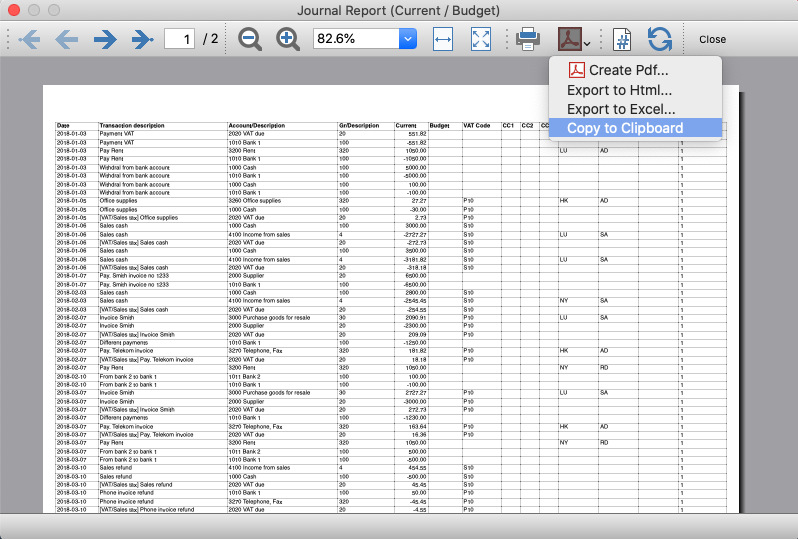
Journal Export (Banana+)
Journal Export (Banana+)Prerequisites
To use this extension you must download and install Banana Accounting Plus.
Install the extension
To install the extension:
- Open Banana Accounting Plus.
- Menu Extensions > Manage Extensions
- Select Universal as country.
- Select english as language.
- Select Online > Productivity.
- From the extensions list select Journal Export (Banana+).
- Click Install to install the extension.
- Click Close to close the window.
Create the journal report
To creare and export the journal:
- Open an accounting file.
- From the Extensions menu select the Journal Export (Banana+).
- In Settings dialogue choose the journal columns you want to display, then click OK.
- From the Print Preview of the report select the Copy to Clipboard command in the top bar.
- Open Excel and paste the copied content. Columns headers and data will be copied in Excel. From there you can use it to create your own reports.
Settings dialogue
Run the extension from the menu Extensions > Journal Export (Banana+).
The extension Settings dialogue will open. From here you can choose the journal columns you want to include in the report.
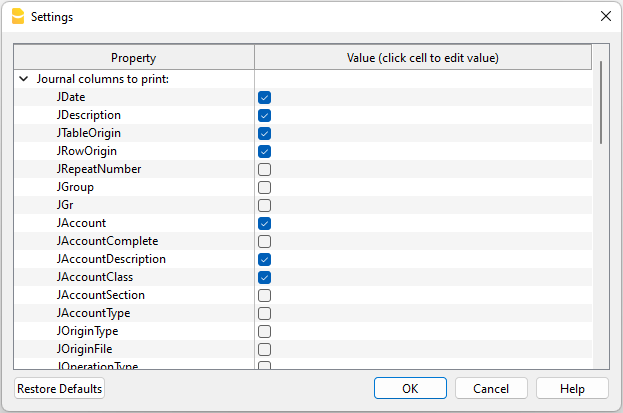
You can find more information about the journal columns in the Journal’s API documentation.
Print example
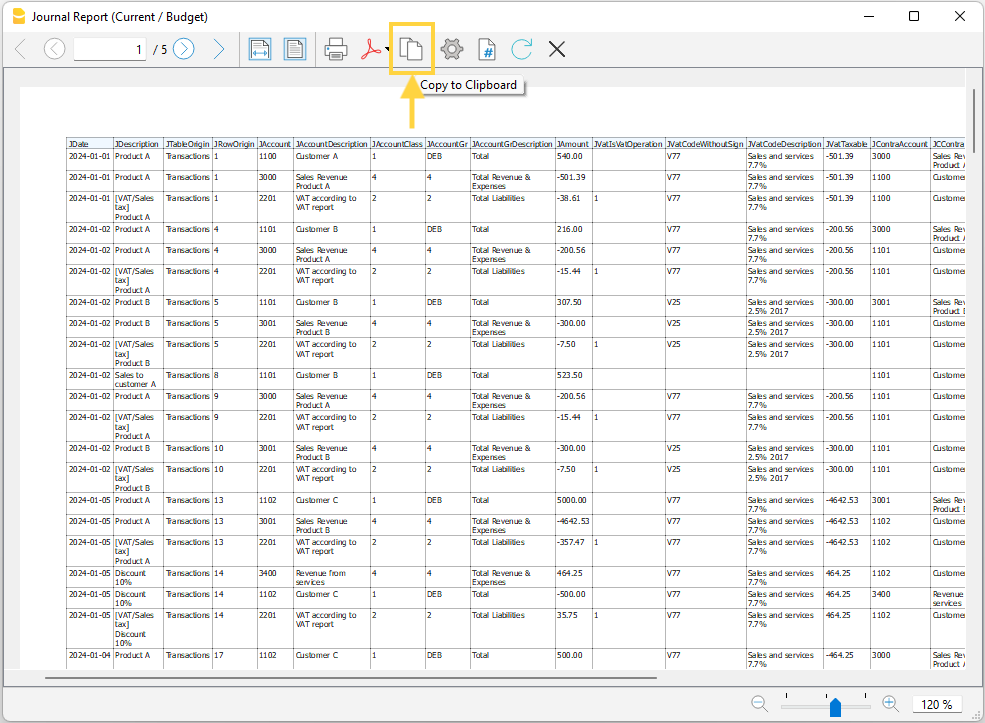
Time Sheet Export
Time Sheet ExportPrerequisites
- Download and install Banana Accounting Plus (or Banana Accounting 9, version 9.0.5).
Install the extension
To install the extension:
- Open Banana Accounting Plus.
- MenuExtensions > Manage Extensions.
- Select Universal as country.
- Select english as language.
- Select Online > Productivity.
- From the extensions list select Time Sheet Export.
- Click Install.
- Click Close to close the window.
Export the time sheet columns
To export the columns of the time sheet table:
- Open a time sheet file type.
- From the Extensions menu select the Time Sheet Export.
- In Settings dialogue choose the time sheet columns you want to export, then click OK.
- From the Print Preview of the generated report select the Copy to Clipboard command in the top bar.
- Open Excel and paste the copied content. Columns headers and data will be copied in Excel. From there you can use it to create your own reports.
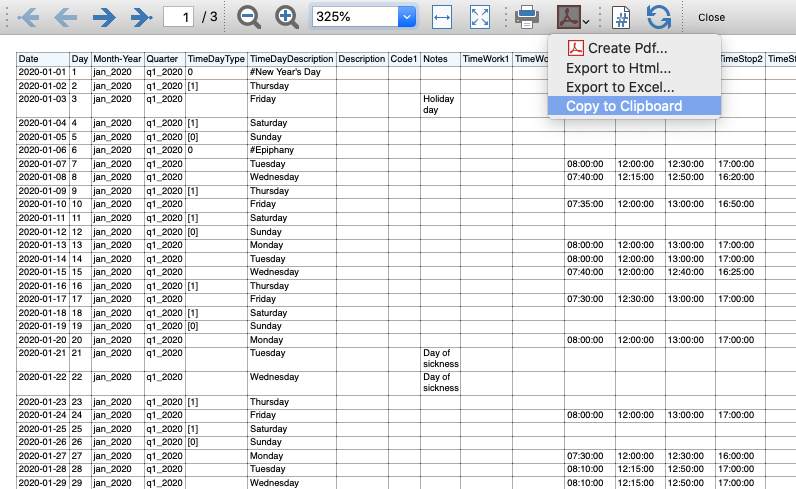
Report Extensions
Account Statement Letter
Account Statement LetterInstall the extension
To install the extension:
- Open Banana Accounting Plus.
- Menu Extensions > Manage Extensions.
- In the search field enter Account Statement Letter.
- From the extensions list select Account Statement Letter.
- Select the extension and click Install.
- Click Close to close the window.
Create the report
To creare the report:
- Open an accounting file.
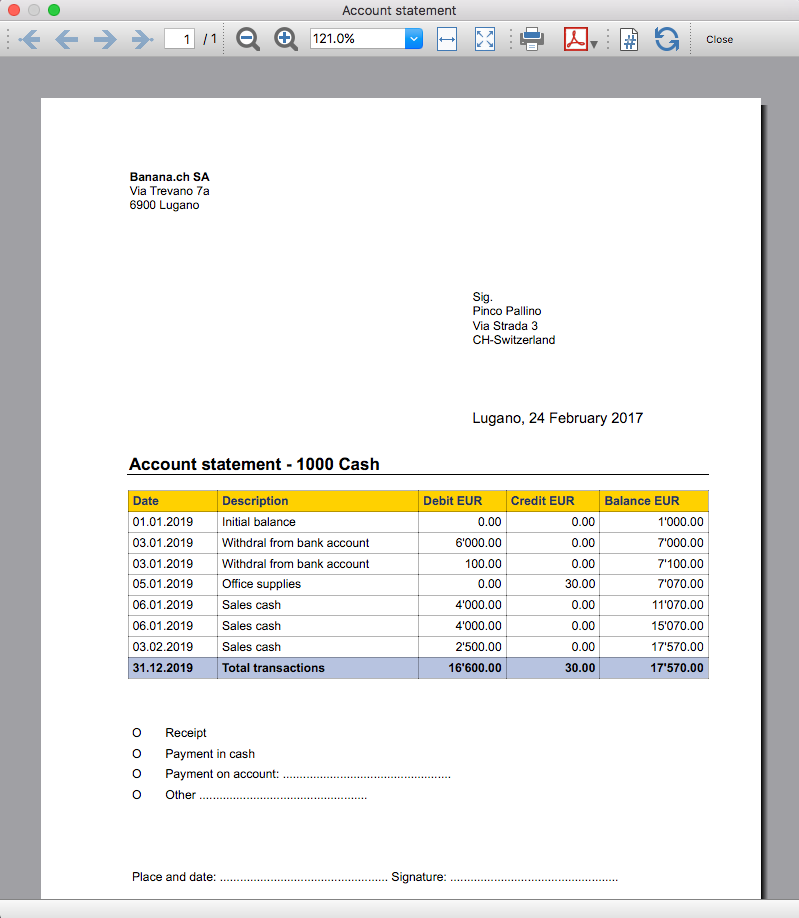
- From the menu File > File and accounting properties > Address, enter the sender address.
- In the Accounts table (Address view) enter the receiver address for the account.
- From the Extensions menu select the Account Statement Letter.
- Enter the account number.
Example of account statement report:
Account balance by day within a period
Account balance by day within a periodInstall the extension
To install the extension:
- Open Banana Accounting Plus.
- Menu Extensions > Manage Extensions.
- In the search field enter Account balance by day within a period.
- From the extensions list select Account balance by day within a period.
- Select the extension and click Install.
- Click Close to close the window.
Create the report
To creare the report:
- Open an accounting file.
- From the Extensions menu select the Account balance by day within a period.
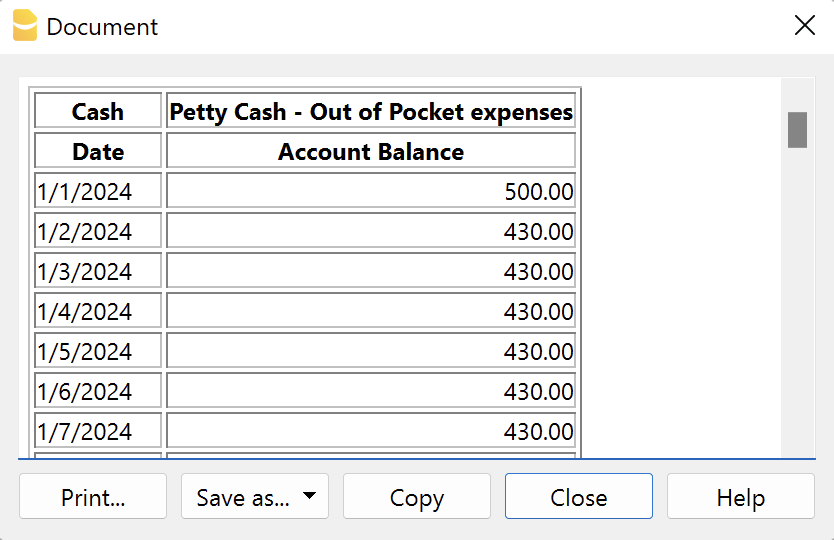
- Enter the account number.
- Select the period.
A window with results is displayed. You can copy, save and print the results.
Account balance for all days in a month
Account balance for all days in a monthInstall the extension
To install the extension:
- Open Banana Accounting Plus.
- Menu Extensions > Manage Extensions.
- In the search field enter Account balance for all days in a month.
- From the extensions list select Account balance for all days in a month.
- Select the extension and click Install.
- Click Close to close the window.
Create the report
To creare the report:
- Open an accounting file.
- From the Extensions menu select Account balance for all days in a month.
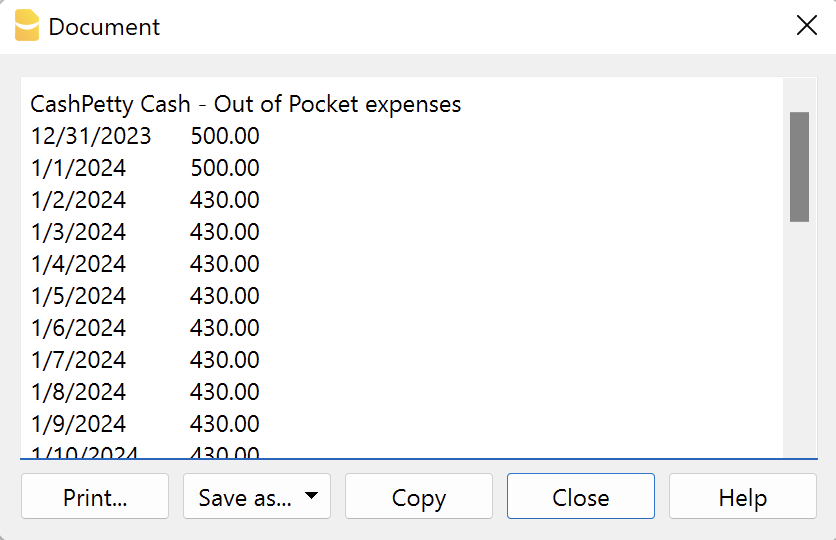
- Enter the month number.
- Enter the account number.
A window with results is displayed. You can copy, save and print the results.
Audit Reports [BETA]
Audit Reports [BETA]The main purpose of this extension is to provide reports that can be easily copied into excel, summarising and showing the main accounting data that are normally taken as a basis by auditors when preparing their analysis.
Useful reports for Banana users who need to send their auditor accounting data, but also for auditors who use Banana themselves, as these reports are based on the functionalities already offered by Banana and therefore facilitate and speed up the collection of accounting data.
Reports
The following reports can be generated:
- General Ledger: Shows the transactions for each account, like in the account card.
- Journal: Shows the details of each transaction.
- VAT Journal: Shows the details of each VAT transaction.
- Trial Balance: Shows the balance of all accounting items in two columns (debit and credit).
- Customers And Suppliers: Shows list of customers and suppliers and information about them.
Through a dialogue it is possible to decide the time of year to be taken into account in the reports.
Adding extra columns
Through the command "Columns Settings" additional columns can be inserted in each report, except for the trial balance, which remains as it is. To add a column to the report, simply enter its xml name in the dialogue. To add several columns, separate them with a semicolon ";" as shown in the example.

The columns you can add are the same present in the Transactions table, except for the Customers and Suppliers report, for which you find the data in the Accounts table.
If you accidentally add a column that is not contained in the tables mentioned, no error is currently raised, the column will be added but no value will be present.
Copy to Excel
Reports are easily copied to Excel, when the report preview is generated, just click on the "copy" icon and paste the copied table into an Excel sheet.

Once the whole table has been copied, you can arrange the file as you want and customise your report with Excel tools.

Messages
- Total debit and total credit are different: The total Debit and total Credit do not match, check if the same error is present in your Accounting file, if it is only present in the report send us a feedback
Printing receipts from cash book transactions
Printing receipts from cash book transactionsThis extension prints payment receipts based on transactions from cash book accounting file.
Example of a payment receipt:
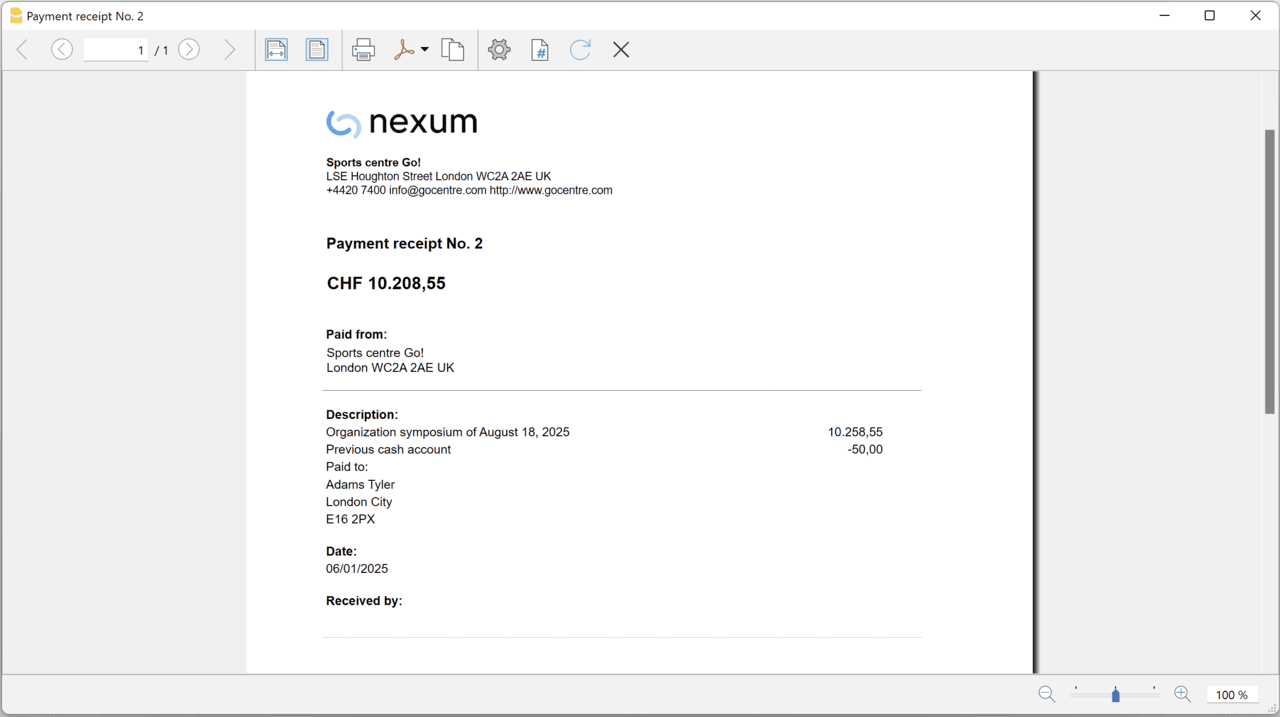
The program prints the receipt using the following logic:
- It takes all the lines with the same Doc Number, of the lines where the cursor is positioned.
- It prints the document number in the "Payment receipt No: "
- It prints the amount by summing all the amounts.
- It prints the Descriptions in different lines.
with the text of the Description column of all the transactions that have the same doc number.
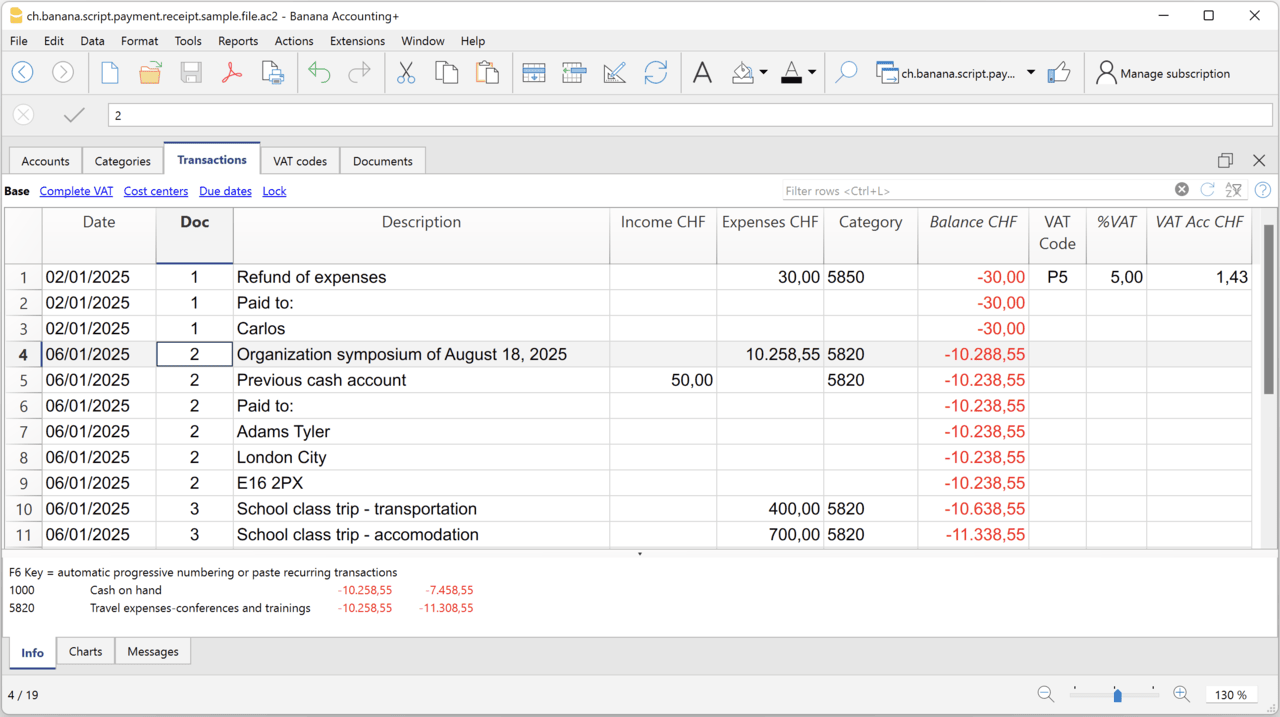
Example file
To created the receipts:
- Open a Cash Book file:
- Or download the example ch.banana.script.payment.receipt.sample.file.ac2 and open it.
- Positions on the line of the transaction group you wish to print.
- From the Extensions menu select the Printing receipts from cash book transactions.
Settings and properties
Prior to printing the receipt you can set the
Extension properties
You can set the following parameters from the menu Extensions > Manage Extensions, select the Printing receipts from cash book transactions extension and click on Settings.
- Include page header (1=yes, 0=no)
The logo and the address information can be included as header of the page. - Automatic date (1=yes, 0=no)
The date of the transaction is used. - Font type
The font type of the texts (Arial, Helvetica, Times New Roman, ...)
Address
Set your address from the menu File > File and accounting properties > Address.
Header logo
A logo for the header can be added as attachment in the Documents table.
- Add the Documents table to the Banana Accounting file.
If it is not already present you need to add the Documents table in the Banana document with the menu command Tools > Add new features > Add document table. - Add a row in the Documents table.
- In the ID column, enter "logo".
- In the Attachments column, double click on the cell and select Image, then choose the logo image you want to use.
Entering transactions
Cash book transactions are entered as usual in the Transactions table.
- Transactions are considered to belong to the same group when they have the same doc number.
- Paid to
- You can enter the text you want to display on the printout (e.g. "Paid to:").
- You can also enter text in bold by enclosing it in double asterisks ** (e.g. **Paid to:**)
- You can enter the text "#paidto" (without quotes) to let the program insert a blank line followed by the text in bold and in the language of the accounting file (it, fr, de, en, nl).
Report Balance and Profit & Loss with transactions details
Report Balance and Profit & Loss with transactions detailsThis extension creates a Balance Sheet and Profit & Loss report with transactions details for each account.
Install the extension
To install the extension:
- Open Banana Accounting Plus.
- Menu Extensions > Manage Extensions.
- In the search field enter Report Balance and Profit & Loss with transactions details.
- From the extensions list select Report Balance and Profit & Loss with transactions details.
- Select the extension and click Install.
- Click Close to close the window.
Create the report
To creare the report:
- Open an accounting file.
- From the Extensions menu select the Report Balance and Profit & Loss with transactions details.
- Select the financial report you want to print:
- Assets / Liabilities
- Income / Expenses
- All
Example of assets details: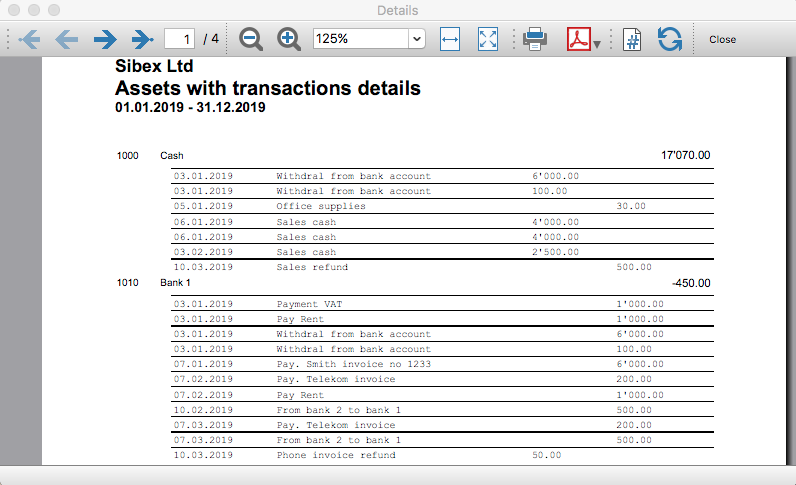
Example of liabilities details: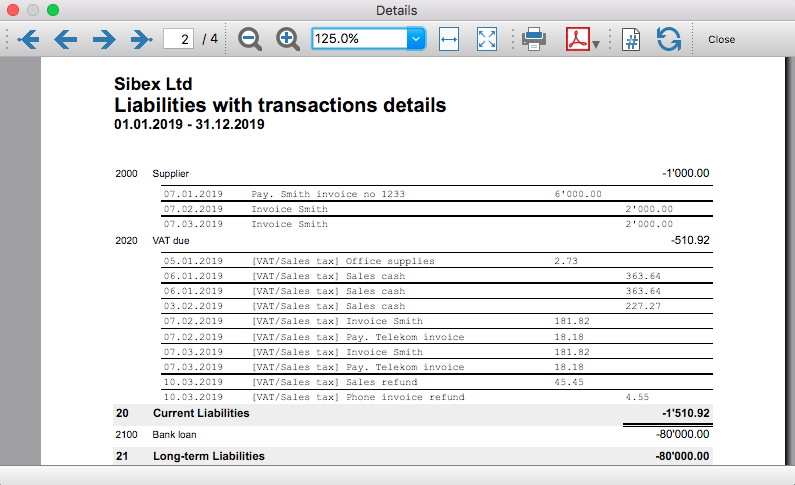
Example of income details: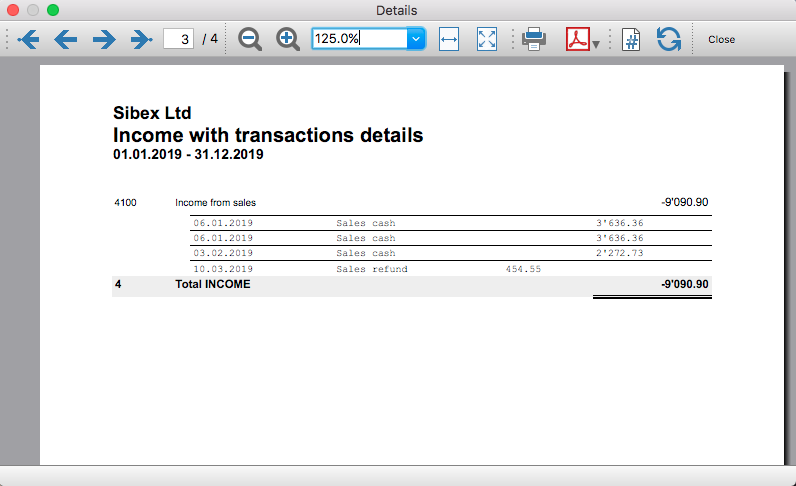
Example of expenses details: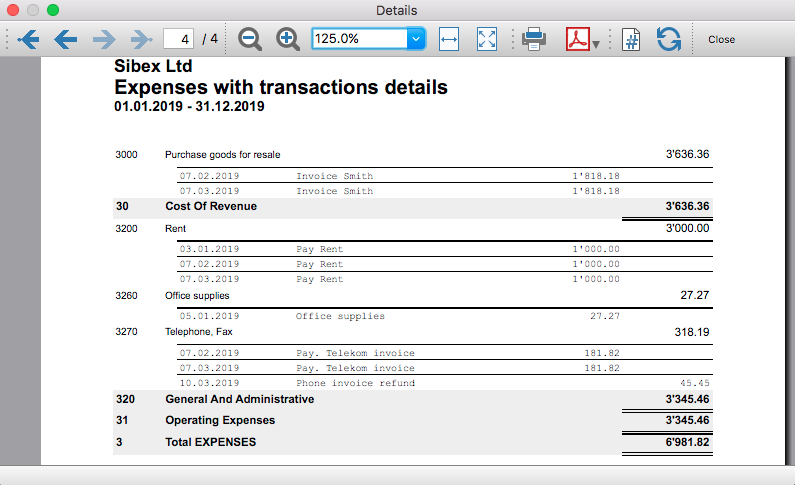
Transaction Voucher (Banana+)
Transaction Voucher (Banana+)Accounting settings
From menu File > File and accounting properties > Accounting Tab, enter the project number/name in the Header Left field.
How it works
- For each transaction of the Transactions table enter the voucher number in the Doc column.
- From the Transactions table of the accounting file select a row with the desired voucher number you want to create the report.
The voucher number is taken from the selected row where the cursor is positioned, but you can also change it manually into settings dialog. - Launch the extension from the menu Extensions > Transaction Voucher (Banana+).
- In the settings dialog window enter the required information.
- Logo
Check to include the logo in the header.
The logo is defined with the command File > Logo setup where you can also set the size, choose how to align it (left, centre, right). - Logo-Name
Enter the name of the logo customisation defined in the menu File > Logo setup, respecting upper and lower case. - Title
- Voucher number
- Paid to
- Paid in
- Cheque No.
- Payment Received by
- Paid by
- Prepared by
- Verified by
- Recommended by
- Approved by
- Logo
- All the values entered are saved and proposed the next time.
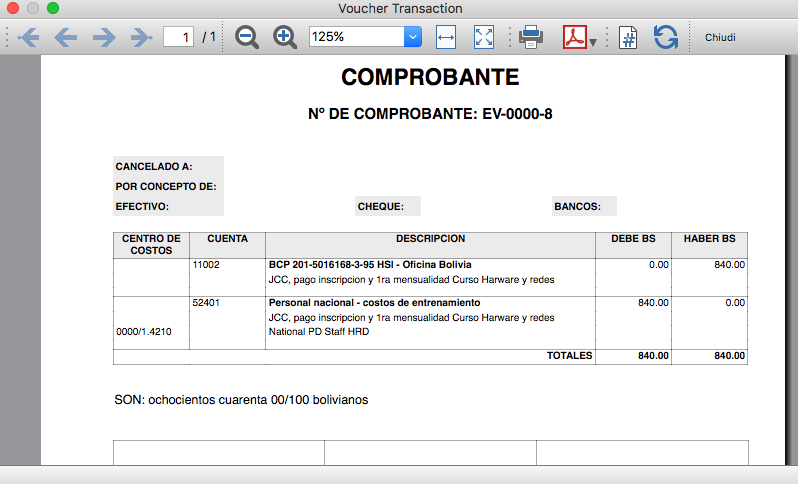
- The extension will print the information entered in the dialog plus the data of the transaction with the specified Voucher / Doc number.
Transaction Voucher (Helvetas model)
Transaction Voucher (Helvetas model)How it works
- From the Transactions table of the accounting file select a row with the desired Doc number.
- Launch the extension from the menu Extensions > Transaction Voucher (Helvetas model).
- A dialog window requesting some information will appear.
The voucher number is taken from the row selected where the cursor is positioned, but you can change it manually.
Complete all the remaining fields by entering your data and click Ok.
The values entered are saved and proposed the next time. - The extension will print the information entered in the dialog plus the data of the transactions with the specified Voucher / Doc number.
Example of Voucher report:
Transaction Voucher (Swiss Red Cross model)
Transaction Voucher (Swiss Red Cross model)Accounting settings
Two settings are required:
- the Header Left
- click menu File > File and accounting properties > Header Left.
The Header Left field must contain the project number and the project name divided by the "-" character (example: "1234 - Abc")
- click menu File > File and accounting properties > Header Left.
- add a small image/logo
- Add the Documents table to the Banana Accounting file.
If it is not already present you need to add the Documents table in the Banana document with the menu command Tools > Add new features > Add document table. - In the Id column, of the documents table insert transaction_voucher_image.
- In the Attachments column, double click on the cell, select Image and add the desired image.
- Add the Documents table to the Banana Accounting file.
How it works
- From the Transactions table of the accounting file select a row with the desired Doc number.
For example: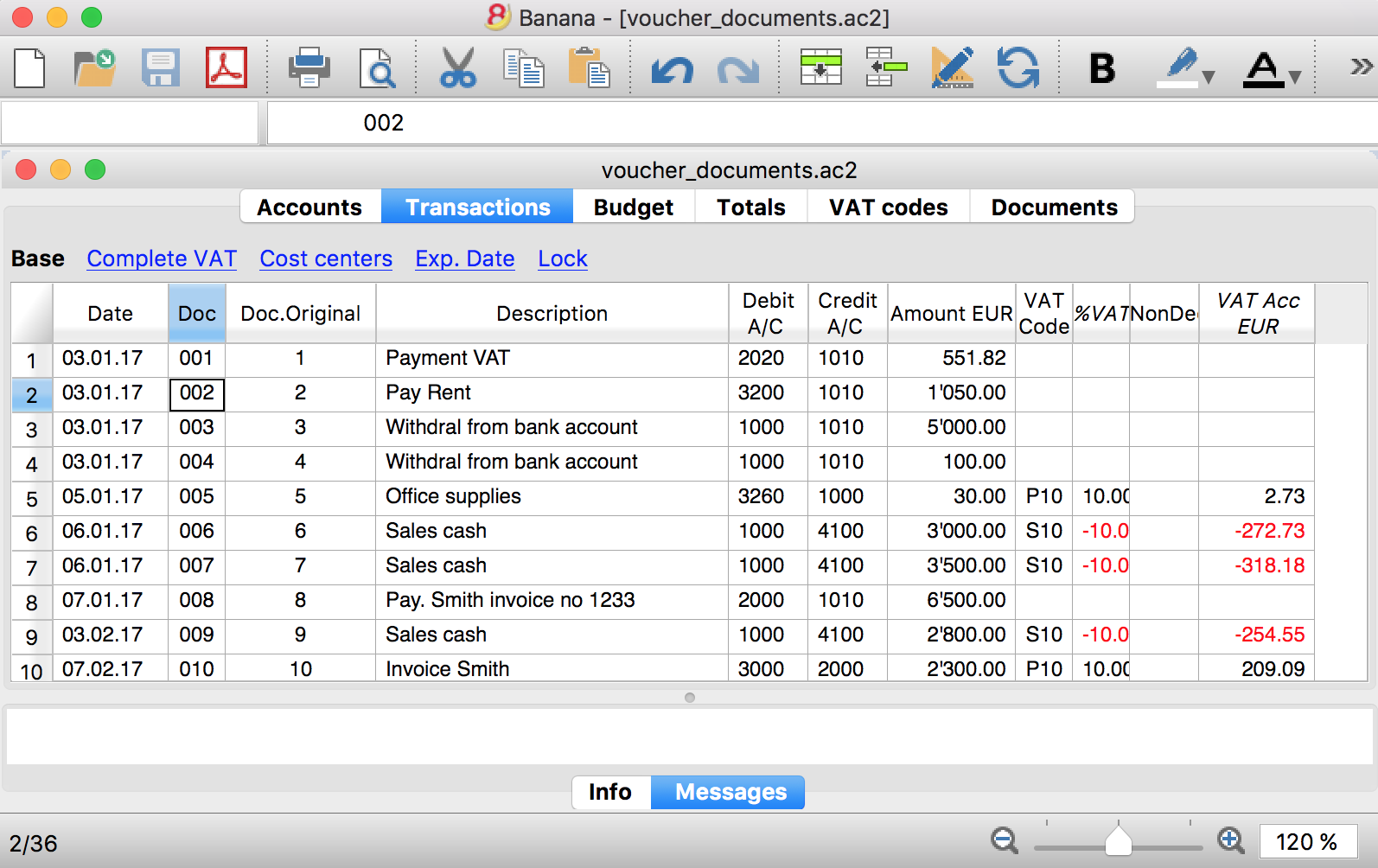
- Launch the extensions from the menu Extension > Transaction Voucher. A dialog window requesting some information will appear.
- The voucher number is taken from the row selected where the cursor is positioned, but you can change it manually.
- Complete all the remaining fields by entering your data and click Ok.
The values entered are proposed the next time.
Dialog example: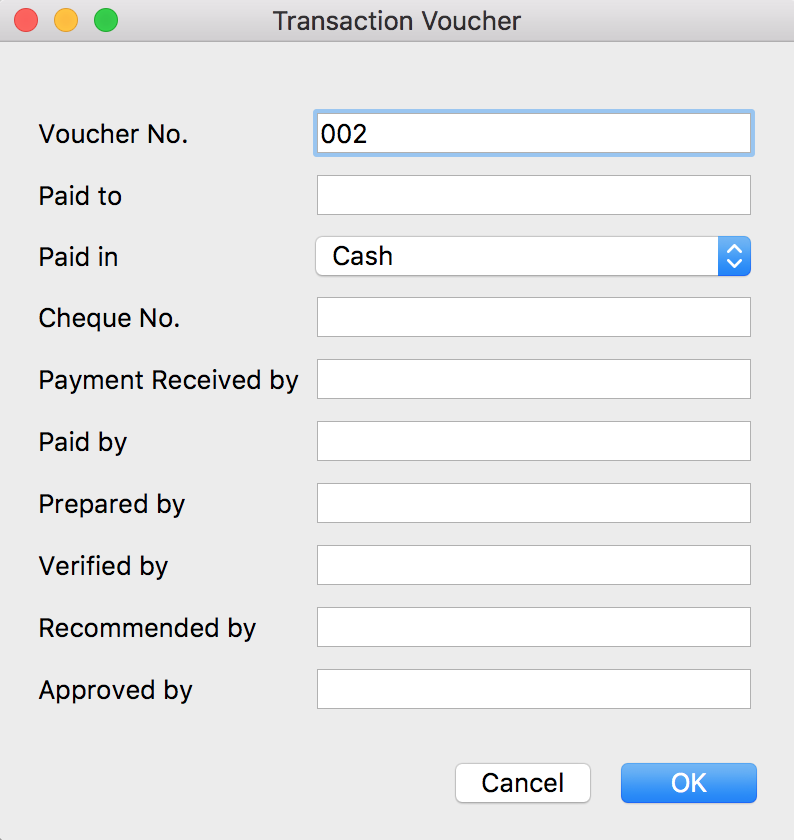
- The extension will print the information enterd in the dialog plus the data of the transactions with the specified Voucher / Doc number.
For example: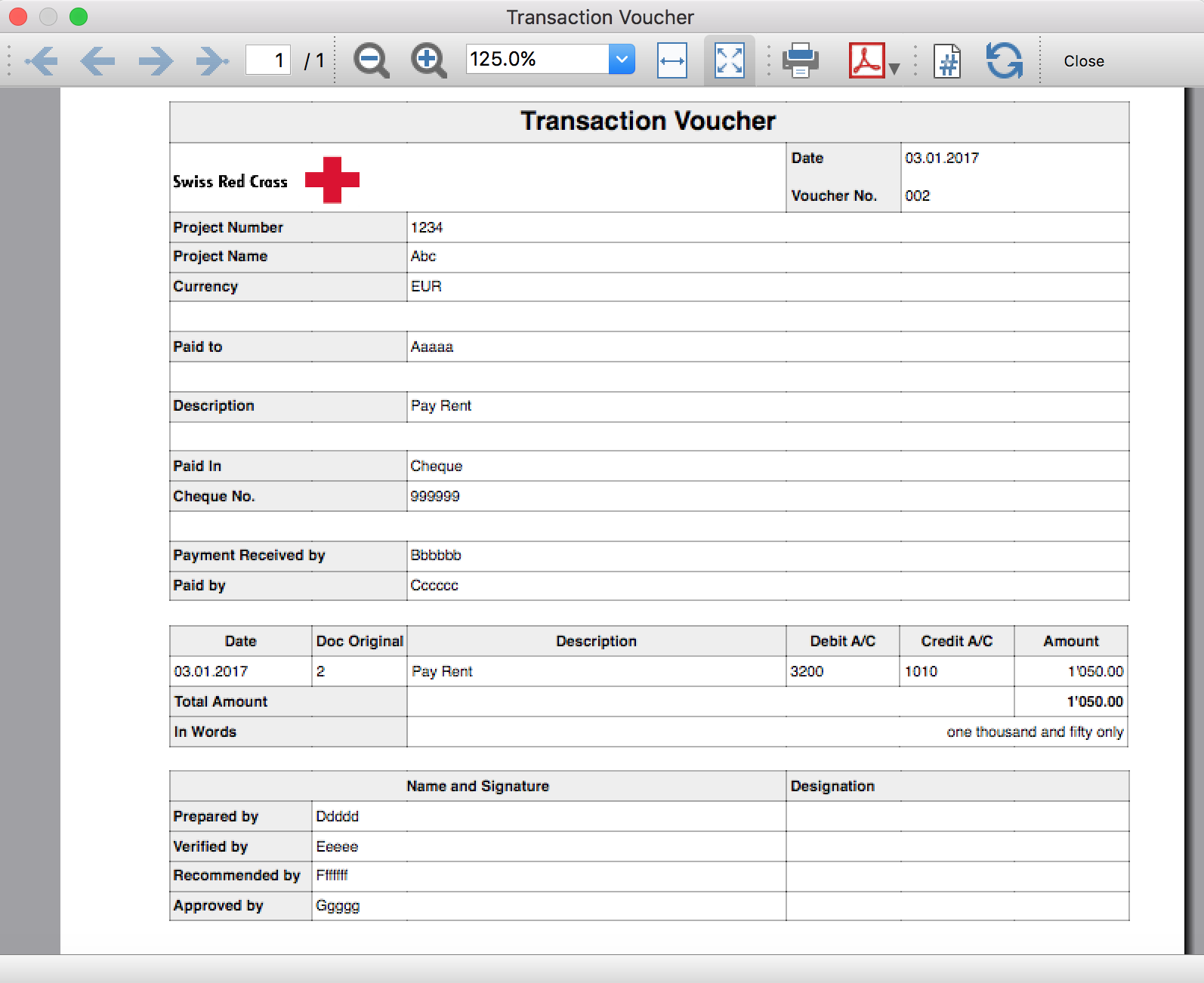
Trial Balance
Trial BalanceInstall the extension
To install the extension:
- Open Banana Accounting Plus.
- Menu Extensions > Manage Extensions.
- In the search field enter Trial Balance.
- From the extensions list select Trial Balance.
- Select the extension and click Install.
- Click Close to close the window.
Create the report
To creare the report:
- Open an accounting file.
- From the Extensions menu select the Trial Balance.
- Select the period.
For the given period, display a Trial Balance report containing:
- Balance sheet
- Profit & Loss
The details displayed are the following:
- Account
- Account description
- Debit amounts
- Credit amounts
Example of Trial Balance report: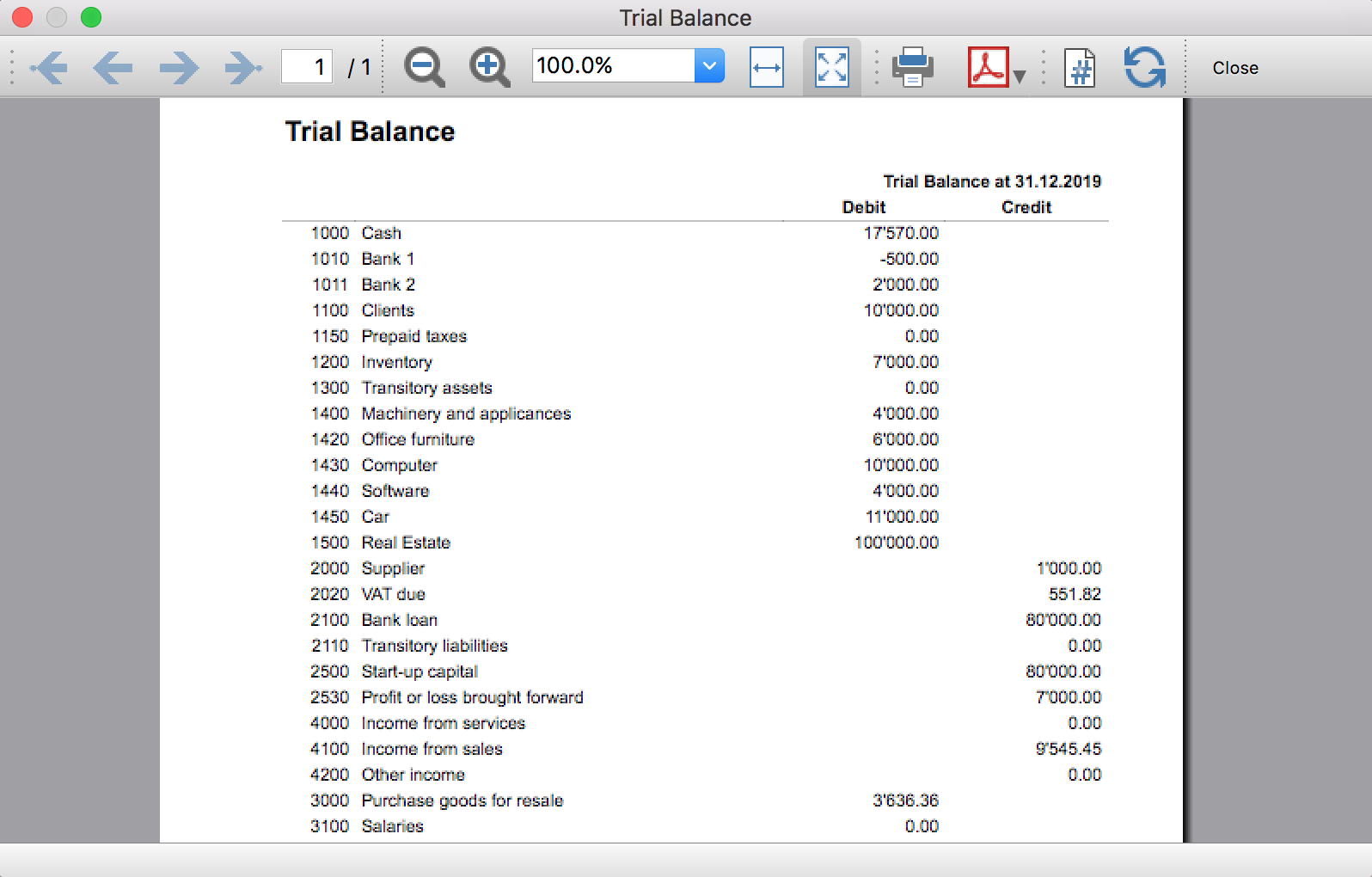
Trial Balance and Blockchain (Quarter periods)
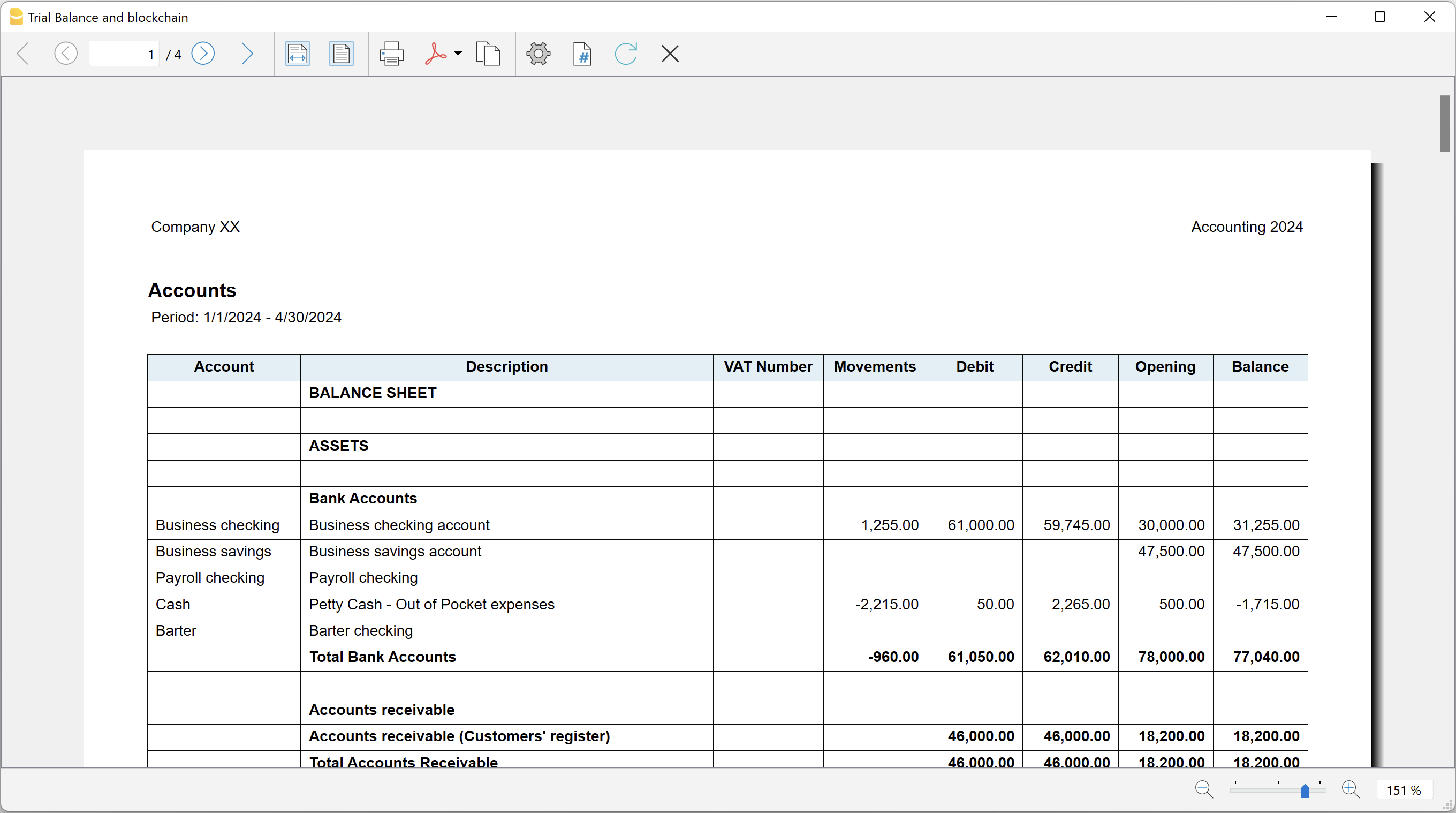
Trial Balance and Blockchain (Quarter periods)This extension creates a report containing the table Accounts and at the end the blockchain for the selected quarter period.
Prerequisites
To use this extension you must download and install Banana Accounting Plus.
Install the extension
To install the extension:
- Open Banana Accounting Plus.
- Menu Extensions > Manage Extensions
- Select Universal as country.
- Select Online > Productivity.
- From the extensions list select Trial Balance and Blockchain (Quarter periods).
- Click Install to install the extension.
- Click Close to close the window.
Create the report
To creare the report:
- Open an accounting file.
- From the menu File > File and accounting properties, in the Header left and Header right fields enter the texts to be printed on the left and right in the page header.
- From the Extensions menu select Trial Balance and Blockchain (Quarter periods).
- In Settings dialogue select the period, set the header texts, the title and font, then click OK to create the report.
The texts of the settings dialog and column headers in the printout are fixed and are in the same language as the Banana file (defined from the menu File > File and accounting properties > Other > Current language). The languages that can be used are Italian, French, German and English.
Settings dialogue
Run the extension from the menu Extensions > Trial Balance and Blockchain (Quarter periods).
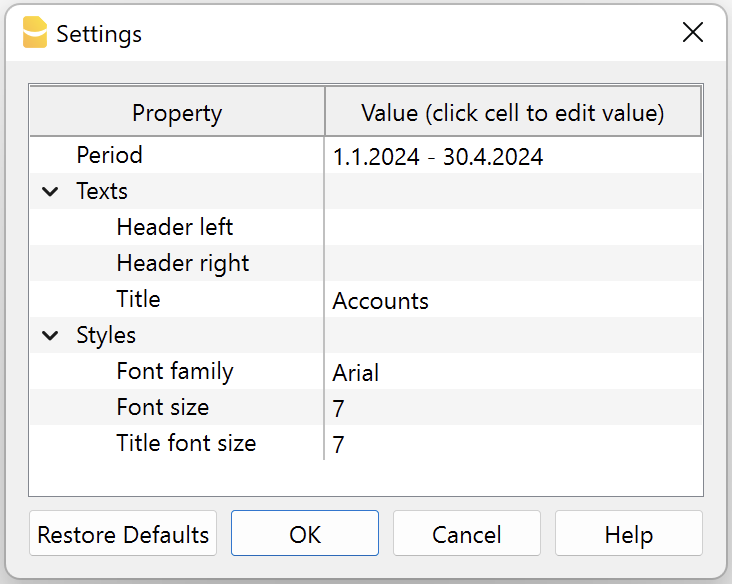
The extension Settings dialogue will open. From here you can choose some parameters to print the report.
- Period.
Select a period from the list. The periods are divided into three quarters. - Header left text.
Insert another text to be printed on the left side of the page header. - Header right text.
Insert another text to be printed on the right side of the page header. - Title.
Insert text to be printed as title of the page. - Font family.
Insert the font type. - Font size.
Insert the font size for all the page texts. - Title font size.
Insert the font size for the title.
Print example
Trial Balance with transaction's lock blockchain information
Trial Balance with transaction's lock blockchain informationThe extension creates a report containing the table Accounts and the blockchain information regarding the transaction lock of the previous period and of the current period.
This printout has been conceived for a customer that has central SAP accounting and use Banana Accounting locally, to keep accounting for at more than 40 schools. Each school keep their own accounting and every 4 months the data is integrated in the main accounting system.
In order to assure that the information is perfectly synchronized:
- The school lock the transactions so that each movement is marked with a blockchain.
- The school print the report using this extension, with the data and the blockchain info of the current and last period.
- Prior to entering the data in the main system, the responsable verify that the blockchain of the last period already entered is the same as the one printed on the current report.
Personal at the schools can easily manage their finance locally and have more details and better control over the spending. Data is only entered in the main system periodically. The organisation have a better accounting system and save a lot of money in training and SAP licenses.
Install the extension
To install the extension:
- Open Banana Accounting Plus.
- Menu Extensions > Manage Extensions
- Select Universal as country.
- Select Online > Productivity.
- From the extensions list select Trial Balance with transaction's lock blockchain information.
- Click Install to install the extension.
- Click Close to close the window.
Create the report
To creare the report:
- Open an accounting file.
- From the menu File > File and accounting properties, in the Header left and Header right fields enter the texts to be printed on the left and right in the page header.
- From the Extensions menu select Trial Balance with transaction's lock blockchain information.
- In Settings dialogue set header texts, title and font as you want, then click OK.
- In Period dialogue select a period and confirm with OK to create the report.
The texts of the settings dialog and column headers in the printout are fixed and are in the same language as the Banana file (defined from the menu File > File and accounting properties > Other > Current language). The languages that can be used are Italian, French, German and English.
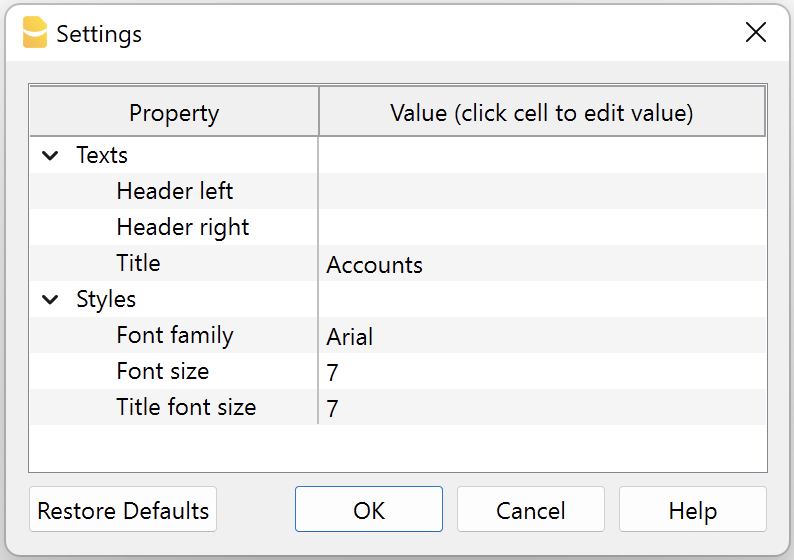
Settings dialogue
Run the extension from the menu Extensions > Trial Balance with transaction's lock blockchain information.
The extension Settings dialogue will open. From here you can choose some parameters to print the report.
- Header left text.
Insert another text to be printed on the left side of the page header. - Header right text.
Insert another text to be printed on the right side of the page header. - Title.
Insert text to be printed as title of the page. - Font family.
Insert the font type. - Font size.
Insert the font size for all the page texts. - Title font size.
Insert the font size for the title.
Print example
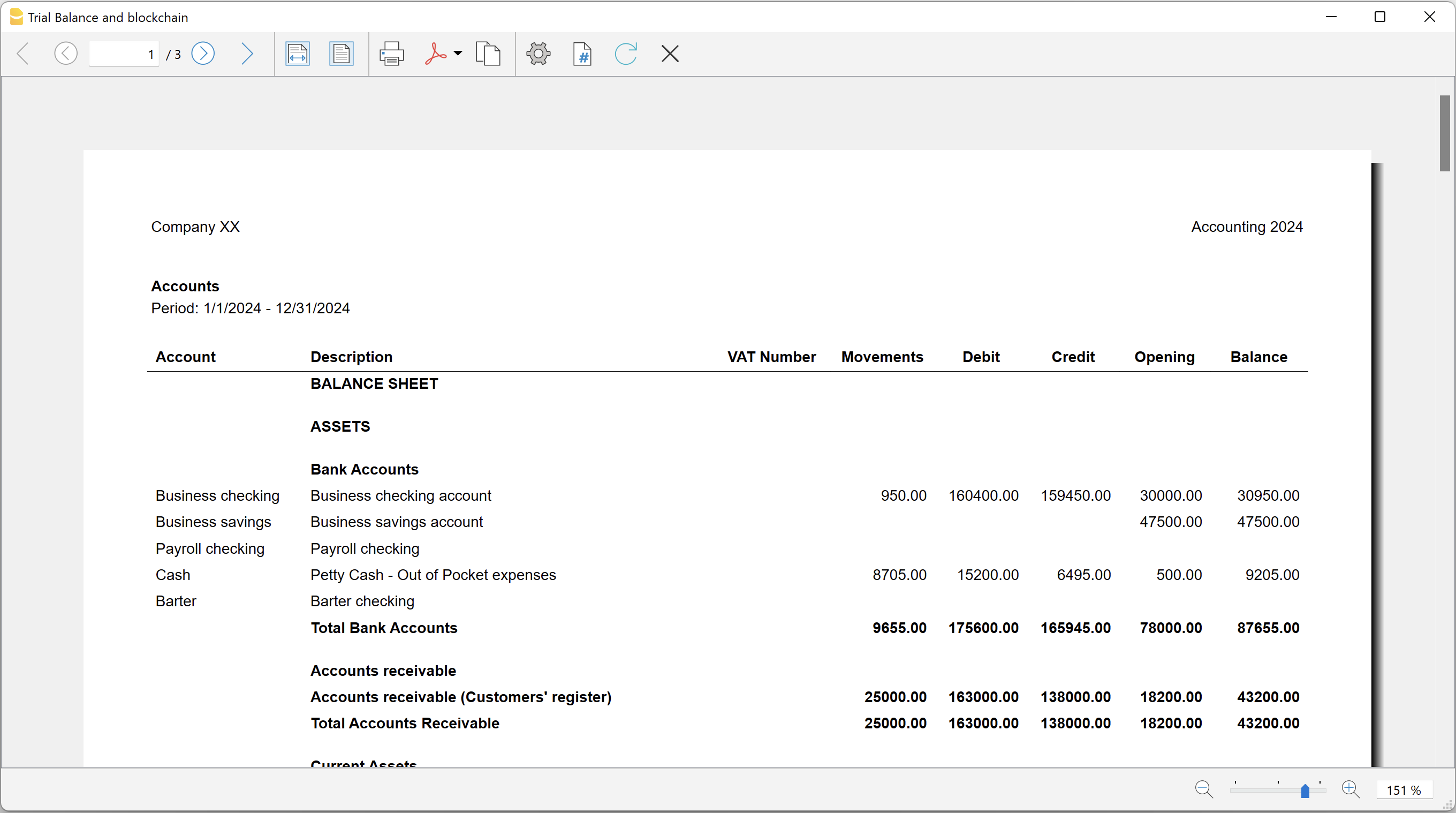
Blockchain row explanation:
- Date until which transactions are locked.
- Date of the last transaction.
- Number of locked transactions.
- Progressive hash of last locked transaction.
Utilities Extensions for accounting
This section covers general utility extensions for accounting.
Table of contents
- Compare current with other accounting file
- Calculate interest on account (exact days 365/365)
- Update Dates in the accounting file
- Invoice from member fee (Banana 9)
- Invoice from member fee (Banana+)
- Printing receipts from cash book transactions
- Reconcile account with mt940/ISO20022 file
- Duplicate transaction checking
Calculate interest on account (exact days 365/365)
Calculate interest on account (exact days 365/365)Install the extension
To install the extension:
- Open Banana Accounting Plus.
- Menu Extensions > Manage Extensions.
- In the search field enter Calculate interest on account (exact days 365/365).
- From the extensions list select Calculate interest on account (exact days 365/365).
- Select the extension and click Install.
- Click Close to close the window.
Create the report
To creare the report:
- Open an accounting file.
- From the Extensions menu select Calculate interest on account (exact days 365/365).
- Enter the account number.
- Select the period.
- Enter the interest rate on debit balance.
- Enter the interest rate on credit balance.
A window with results is displayed. You can copy, save and print the results. The transactions list can be paste into the table Transactions.
Compare current with other accounting file
Compare current with other accounting fileInstall the extension
To install the extension:
- Open Banana Accounting Plus.
- Menu Extensions > Manage Extensions.
- In the search field enter Compare current with other accounting file.
- From the extensions list select Compare current with other accounting file.
- Select the extension and click Install.
- Click Close to close the window.
Compare two accounting files
To compare two accounting files:
- Open an accounting file.
- From the Extensions menu select Compare current with other accounting file.
- Select a second accounting file to compare.
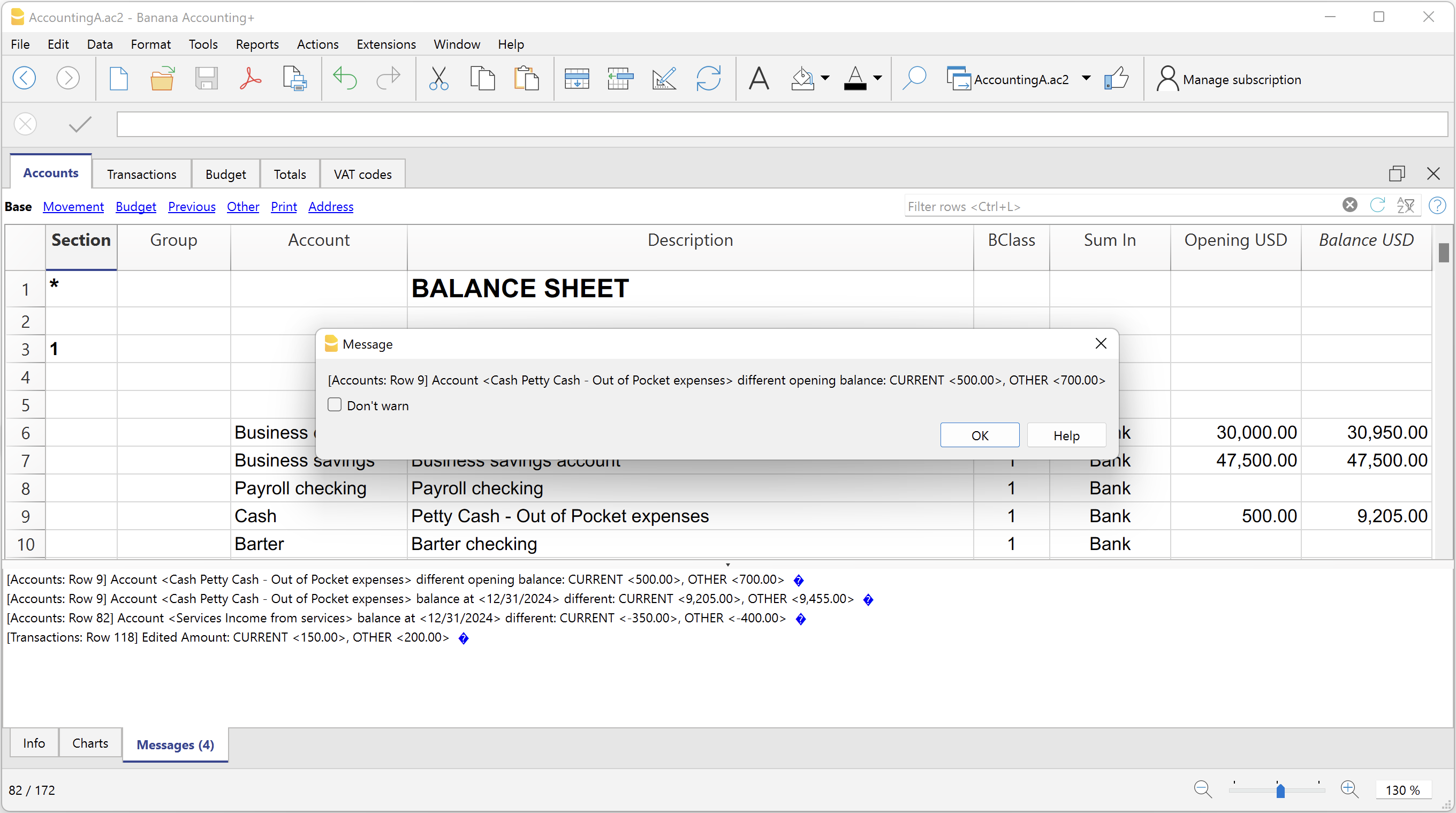
The differences are reported as messages, when you click on it you go to the row.
Create invoice transactions from member fee (Banana 9)
Create invoice transactions from member fee (Banana 9)Prerequisites
- Double-entry accounting file with normal accounts for members/customers is required.
Install the extension
To install the extension:
- Open Banana Accounting.
- Menu Extensions > Manage Extensions.
- In the search field enter Create invoice transactions from member fee (Banana 9).
- From the extensions list select Create invoice transactions from member fee (Banana 9).
- Select the extension and click Install.
- Click Close to close the window.
Add the MemberFee column
- Open the Accounts table (Address view).
- Activate the MemberFee column (the column already exists, it just needs to be activated).
- For each member/customer use the MemberFee column to enter the invoice amount.
Create invoice transactions
To creare the invoice transactions:
- Open an accounting file.
- From the menu Account1 select Import to accounting.
- As import option select Transactions.
- From the list select the Create invoice transactions from member fee extension.
- In the File name field, click Browse and select the current open accounting file.
- Click OK.
- Enter the invoice start number.
- Enter the revenue account.
- Enter the transaction description.
- The Import transactions opens, confirm with OK.
The program creates the invoice transactions for all the member/customer that has an amount in the MemberFee column of the table Accounts.
Create invoice transactions from member fee (Banana+)
Create invoice transactions from member fee (Banana+)Prerequisites
- Banana Accounting Plus.
- Double entry accounting file with Cost Centers accounts (Cc1, Cc2, Cc3) for members/customers is required.
Install the extension
To install the extension:
- Open Banana Accounting Plus.
- Menu Extensions > Manage Extensions.
- In the search field enter Create invoice transactions from member fee (Banana+).
- From the extensions list select Create invoice transactions from member fee (Banana+).
- Select the extension and click Install.
- Click Close to close the window.
Add the MemberFee column
- Open the Accounts table (Address view).
- Activate the MemberFee column (the column already exists, it just needs to be activated).
- For each member/customer use the MemberFee column to enter the invoice amount.
Create invoice transactions
To creare the invoice transactions:
- Open the accounting file.
- From the menu Extensions select Create invoice transactions from member fee (Banana+).
- In the Settings dialogue:
- Set the invoice description.
The text that is displayed on the invoice. This text is automatically followed by first and last name or company name. - Set the starting invoice number.
The first invoice starts whit this number, while all others invoices use progressive numbers.
- Set the invoice description.
- The program shows a dialog with all the invoice transactions that will be added.
- Confirm with OK.
The program creates the invoice transactions for all the members/customers that have an amount in the MemberFee column of the table Accounts.
- Date: the date of the current day.
- Description: text entered in the settings followed by first and last name or company name.
- Amount: the amount defined in the MemberFee column of the Accounts table.
- Cc1 / Cc2 / Cc3: the Cost Center account of the member/customer:
- Cc1 when using cost centers that starts with "."
- Cc2 when using cost centers that starts with ","
- Cc3 when using cost centers that starts with ";"
Duplicate transaction checking
Duplicate transaction checkingInstall the extension
To install the extension:
- Open Banana Accounting Plus.
- Menu Extensions > Manage Extensions.
- In the search field enter Duplicate transaction checking.
- From the extensions list select Duplicate transaction checking.
- Select the extension and click Install.
- Click Close to close the window.
Check for duplicate transactions
To check for duplicate transactions:
- Open an accounting file.
- From the Extensions menu select Duplicate transaction checking.
A transaction is duplicate if another transaction exists with the same amount, the same credit account and the same debit account in a time laps of 3 days.
If a duplicate transaction is found, a message is displayed to the user.
It is possible to skip the check for a transaction: just add a column with the name 'SkipDuplicateCheck' and insert any value (ie.: 'x') to the transaction to skip.
Reconcile account with mt940/ISO20022 file
Reconcile account with mt940/ISO20022 fileThis extension takes as input an electronic bank statemant (MT940 or ISO20022) and compare day by day with the account statements and shows differences.
It is very usefull for finding transactions not recordered or incorrectly recorded.
Install the extension
To install the extension:
- Open Banana Accounting Plus.
- Menu Extensions > Manage Extensions.
- In the search field enter Reconcile account with mt940/ISO20022 file.
- From the extensions list select Reconcile account with mt940/ISO20022 file.
- Select the extension and click Install.
- Click Close to close the window.
Create the report
To creare the report:
- Open the accounting file.
- From the Extensions menu select the Reconcile account with mt940/ISO20022 file.
- Select the electronic bank statement (MT940 or ISO20022).
- Enter the account number.
A window with results is displayed. You can copy, save and print the results.
Update Dates in the accounting file
Update Dates in the accounting fileIn order to change the accounting data, the extension uses the Document Change API. For more information visit How-to update Accounting Dates using Document Change.
Install the extension
To install the extension:
- Open Banana Accounting Plus.
- Menu Extensions > Manage Extensions.
- In the search field enter Update Dates in the accounting file.
- From the extensions list select Update Dates in the accounting file.
- Select the extension and click Install.
- Click Close to close the window.
Change accounting dates
To change accounting dates using the extension:
- Open an accounting file.
- From the Extensions menu select the Update Dates in the accounting file.
- A confirmation window dialogue shows all the sections and tables of the accounting where dates will be changed.
- Confirm with OK to apply the changes to the accounting file.
[UNI11] Layout 11 Programmable Invoice (Banana+)
[UNI11] Layout 11 Programmable Invoice (Banana+)Layout to print the invoice of Banana Accounting highly customizable and also programmable.
You can easily adapt the invoice to your desires, decide which elements to print and change texts.
Watch the video tutorial: Invoice customization (Layout UNI11).
Prerequisites
To use this extension you need to download and install Banana Accounting Plus.
Customization printing invoices
The invoice print layout is already set and ready to use. If you wish, however, you can customize. You can easily adapt the printing of the invoice to your requirements.
Layout UNI11 has the same functionality as layout CH10 except for printing the Swiss QR-Code.
See the documentation CH10 layout.
Bank details for payment are to be entered as a final text. See how to enter a final text.
- Customization via the settings dialog
- Choose the elements of the invoice you want to include in the printout.
- Print the address on the right or left.
- Indicate which detail columns to include and define the sequence. You can have an invoice with quantities and prices, or only total amounts or even with columns that you have added in the transactions table.
- Change the default texts for use in printing.
- Add translations into other languages.
- Change the font and print character.
- Choose the color combination you want.
Customisation by programming
- Customization using Javascript programming.
- Create print functions that replace the default ones, for printing the header, addresses, details, final texts and footers.
- Customization using CSS.
- You can adapt the printing by creating custom styles so that you can change the appearance of the invoice (text formatting, positioning of elements, etc.).