In this article
With Banana Accounting you can create a credit note both when recording on an accrual basis (Accrual principle) and on a cash basis (Cash principle).
Below are the two separate procedures:
Credit note on an accrual basis (Accrual principle)
Credit notes have their own DocType, different from invoices.
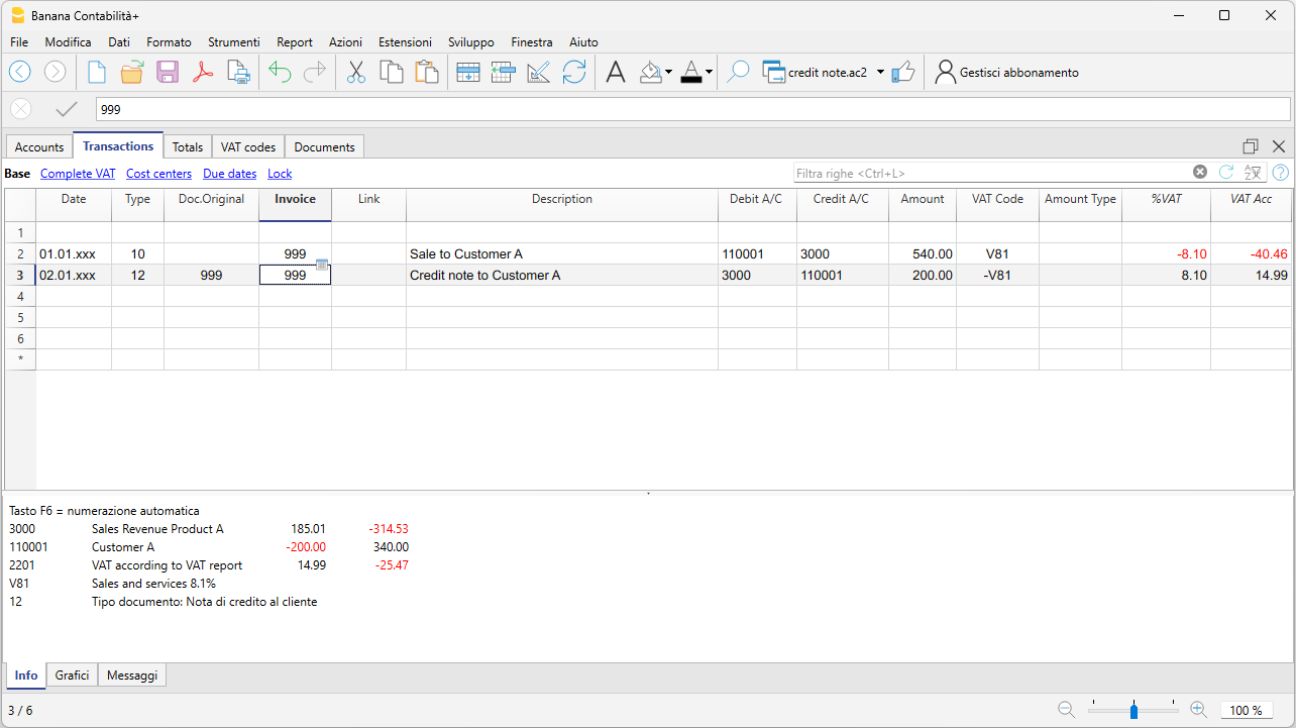
Entering the transaction
- Enter the transaction as if it were an invoice.
- In the Invoice column, indicate the credit note number.
- In the DocType column, enter 12.
- In the Description column, enter the text that will appear in the credit note details.
- In the Debit column, enter the sales account and in the Credit column, enter the customer account.
The accounts will follow the posting logic of a credit note. As a result, the amount in the document will be negative.
VAT reversal (if necessary)
If you also need to reverse VAT in the credit note:
- In the VAT Code column, enter the sales VAT code with a minus sign in front (Example -V81).
Printing the credit note
To print the credit note, use the same command as for invoices:
Credit note on a cash basis (Cash principle)
Also in this case, credit notes have a specific DocType.
Entering the transaction
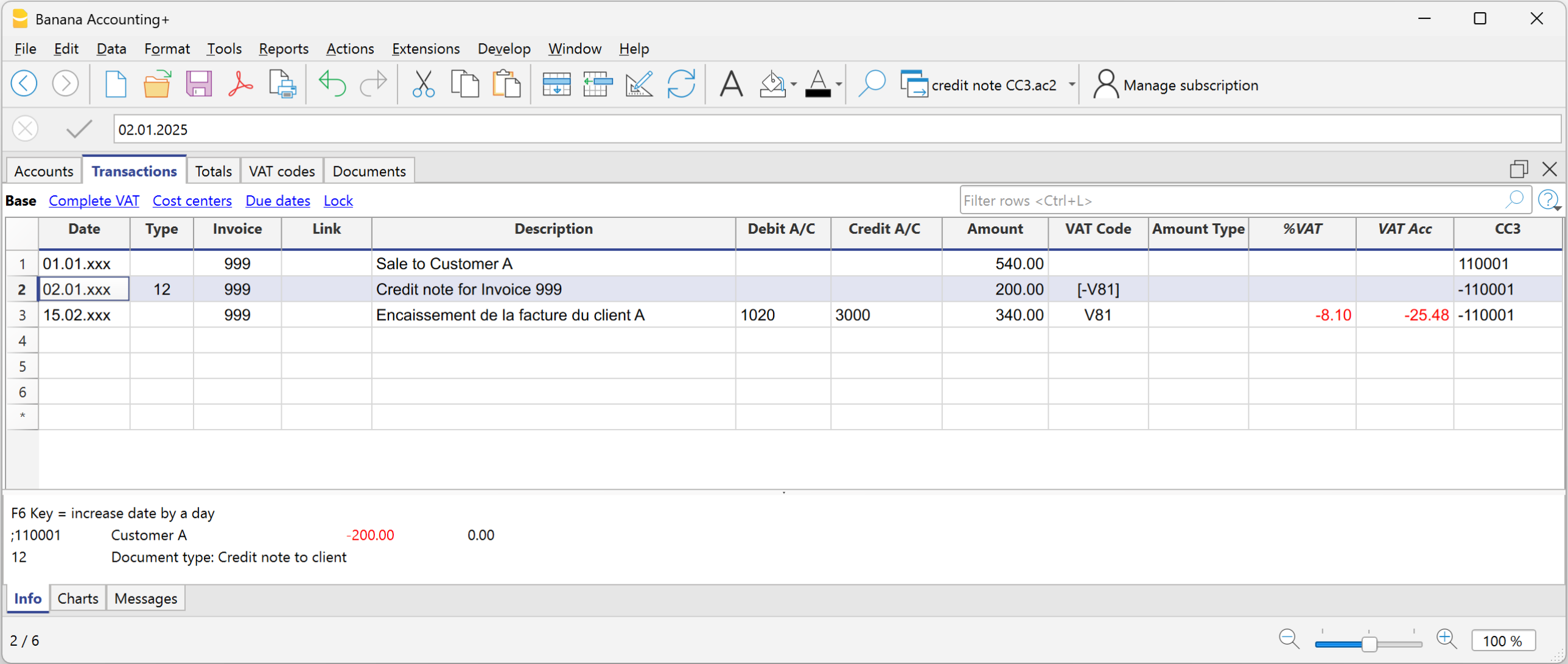
Enter the transaction as if it were an invoice, without entering any account in the Debit and Credit columns.
- In the DocType column, enter 12.
- In the Invoice column, indicate the credit note number.
If the credit note must be shown as a reduction of the invoice amount:- The credit note number must be the same as the invoice number.
- In the Description column, enter the text that will appear in the credit note details.
- In the Amount column, enter the amount.
- In the CC3 column, enter the customer’s CC3 account with a minus sign in front.
VAT reversal (if necessary)
If you also need to reverse VAT in the credit note:
- In the VAT Code column, enter the sales VAT code in square brackets with a minus sign in front (Example [-V81]).
Printing the credit note
Also in this case, printing is done using the same command as for invoices: