Import Extensions for Switzerland
With Banana Accounting you can import data from different formats.
SEPA Bank Statement /ISO 20022 Switzerland
Camt/ISO 20022 is the bank statement format made available by most Swiss banks.
- SEPA/ISO 20022 Switzerland extension for importing data from bank statements.
- This extension supports the Swiss file format and also imports QR-Code data.
- ISO 20022 Switzerland extension for importing account statement movements.
- This extension supports the Swiss file format and is similar to the previous one, but its specific function is for files in the ISO 20022 camt052, camt053 and camt054 format for Swiss specifications.
These import filters in standard formats are available regardless of the plan purchased.
Other bank statements
Some banks or credit cards also make the account statement file available in CSV format, see:
- List of import extensions available for Switzerland.
- List of Universal Import Extensions (including Paypal and others).
It happens very often that banks change CSV export formats without notice. Updating these import files can be time-consuming, so the import extensions are only available with the Advanced plan. We usually advise our users whenever possible to use files in ISO20022 format.
Bank statement Camt ISO 20022 Switzerland (Banana+)
Bank statement Camt ISO 20022 Switzerland (Banana+)Supported versions of the CAMT ISO 20022 format (Switzerland):
- Swiss camt05x.001.08 schema (SPS 2022)
- Swiss camt05x.001.04 schema (SPS 2021)
Prerequisites
To use this extension, Banana Accounting Plus is required.
Features
This extension differs from the generic ISO20022 extension due to the following features:
- Follows the Swiss specifications.
- You can choose which transactions to import (all transactions, only credits or only debits).
- The QR reference number (old PVR) is entered in the description column of the Transactions table.
- It is possible to extract the invoice number from the QR reference number (old PVR). See Set parameters.
The extracted invoice number will be saved in the Invoice column of the Transactions table. - You can choose whether to extract the customer account from the QR reference number (old PVR). See Set parameters.
The extracted customer account will be saved as account/category or cost center depending on the parameters set by the user. - You can disable the automatic insertion of the temporary contra account [CA] in the transaction. See Set parameters.
Invoice matching
This extension works in conjunction with the Swiss QRCode invoice printout, see:
Extension installation
To install the extension, proceed as follows:
- From the Extensions > Manage Extensions > Online > Import > menu, select the extension Bank Statement Camt ISO 20022 Switzerland (Banana+) > button Install.

Set extension parameters
With these settings you can define which transactions to import and specify whether and how to automatically extract the invoice number and customer number, inserting them in the respective columns of the transactions table.
Extension parameters are required to electronically record invoice collection transactions.
To access the extension parameters, proceed as follows:
- Open the accounting file where you want to import the transactions.
- Access the parameters:
- From the Actions menu > Import to Accounting, select the extension Bank Statement Camt ISO 20022 Switzerland (Banana+) and click on Settings.
- Or, from the Actions menu > Import to Accounting > Manage Extensions, select the extension Bank Statement Camt ISO 20022 Switzerland (Banana+) and click on Settings.
- Or, from the Extensions menu > Manage Extensions, select the extension Bank Statement Camt ISO 20022 Switzerland (Banana+) and click on Settings.
The following image shows the default parameters.
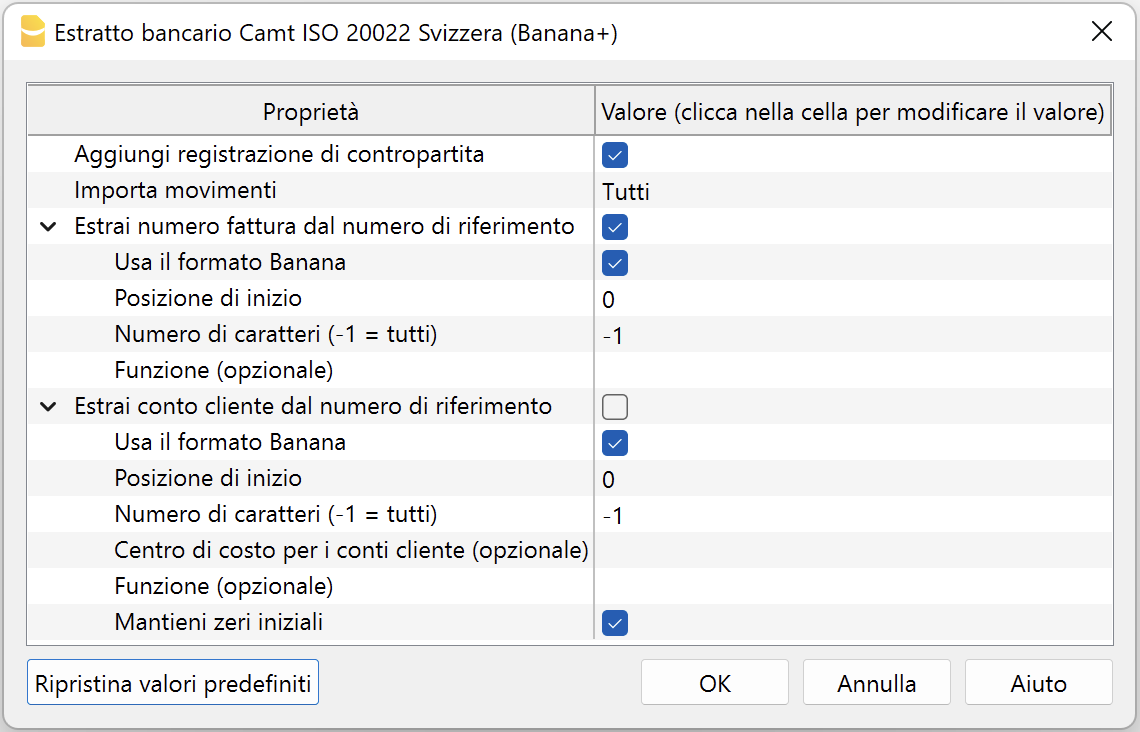
Add Contra Account Transaction
If this parameter option is enabled, for transactions with details the extension inserts a temporary contra transaction [CA] with the total amount of the details.
In the [CA] contra account, the corresponding account number must be entered manually.
If the option is disabled, no temporary contra transaction [CA] will be inserted.
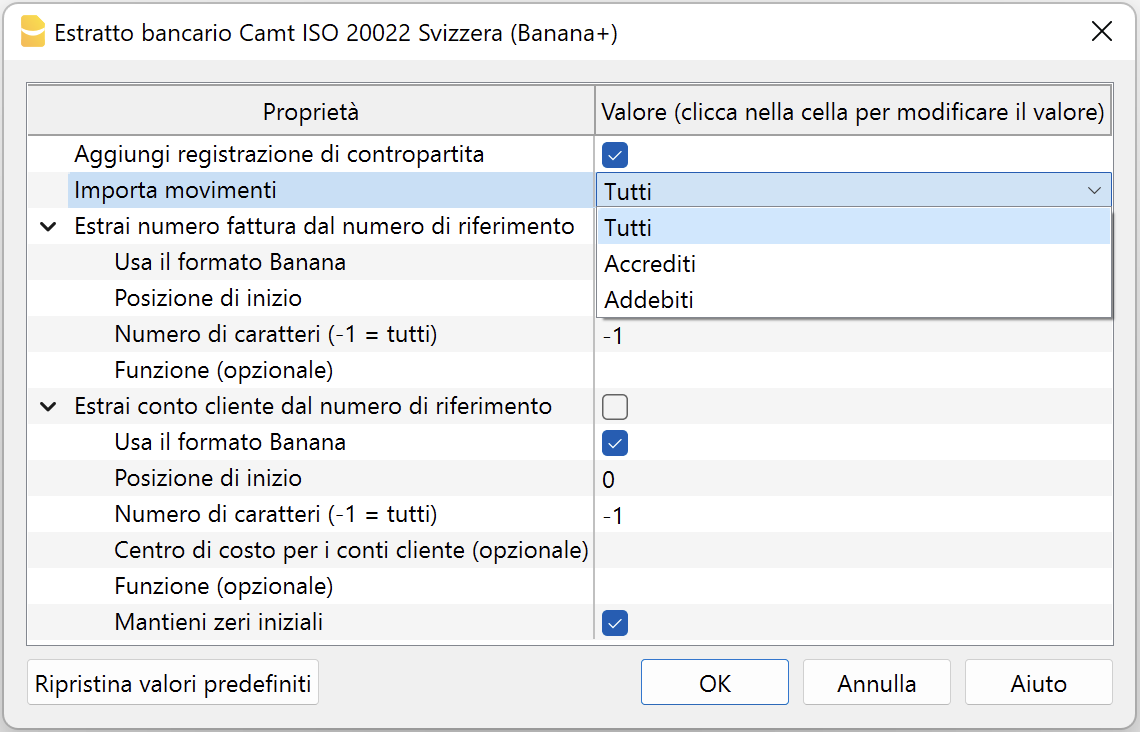
Import Transactions
You can choose which transactions to import by selecting one of the following options:
- All.
Imports all transactions. - Credits.
Imports only credits (incoming transactions). - Debits.
Imports only debits (outgoing transactions).
Extract customer invoice number from reference number
The reference number contains the invoice number. More information SCOR Reference and QRR Reference.
To extract the customer's invoice number from the reference number, there are two modes depending on whether the invoice reference number was created with Banana Accounting or other software.
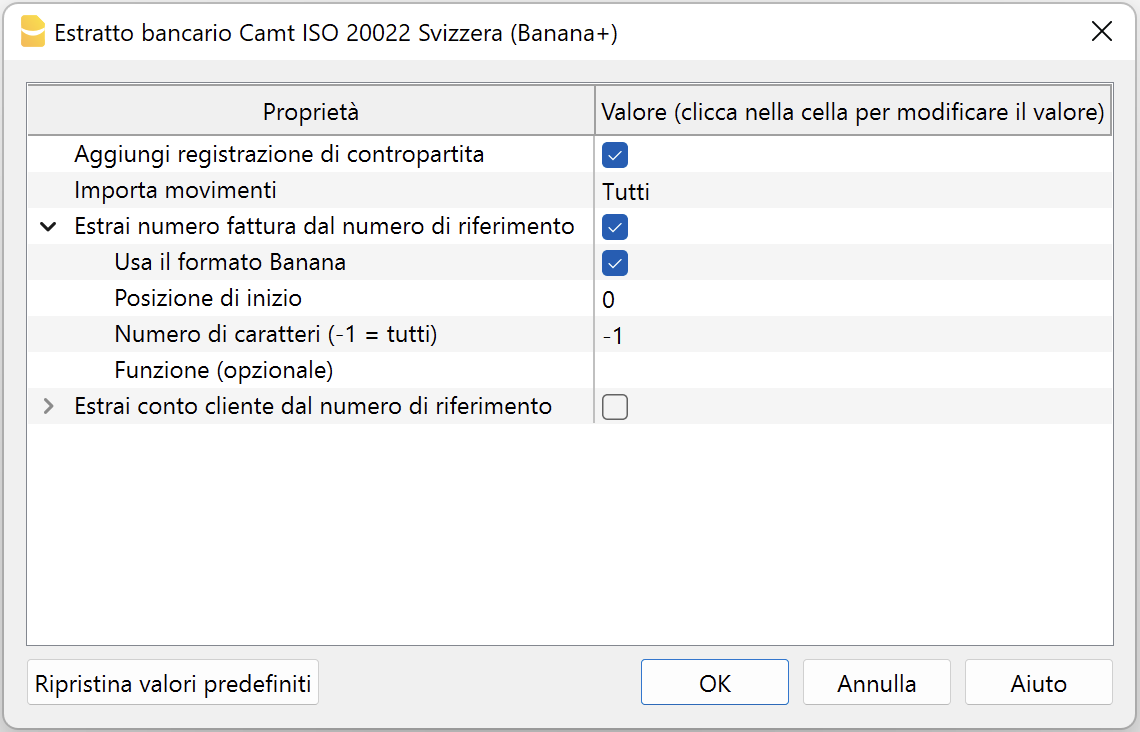
Case 1: Invoices created with Banana Accounting Plus
If the reference number was created by the Banana Accounting Plus program:
- Check the box Extract customer invoice number from reference number.
- Check the box Use Banana format.
- The fields 'Start position', 'Number of characters' and 'Function' should not be used.
Case 2: Invoices created with other software
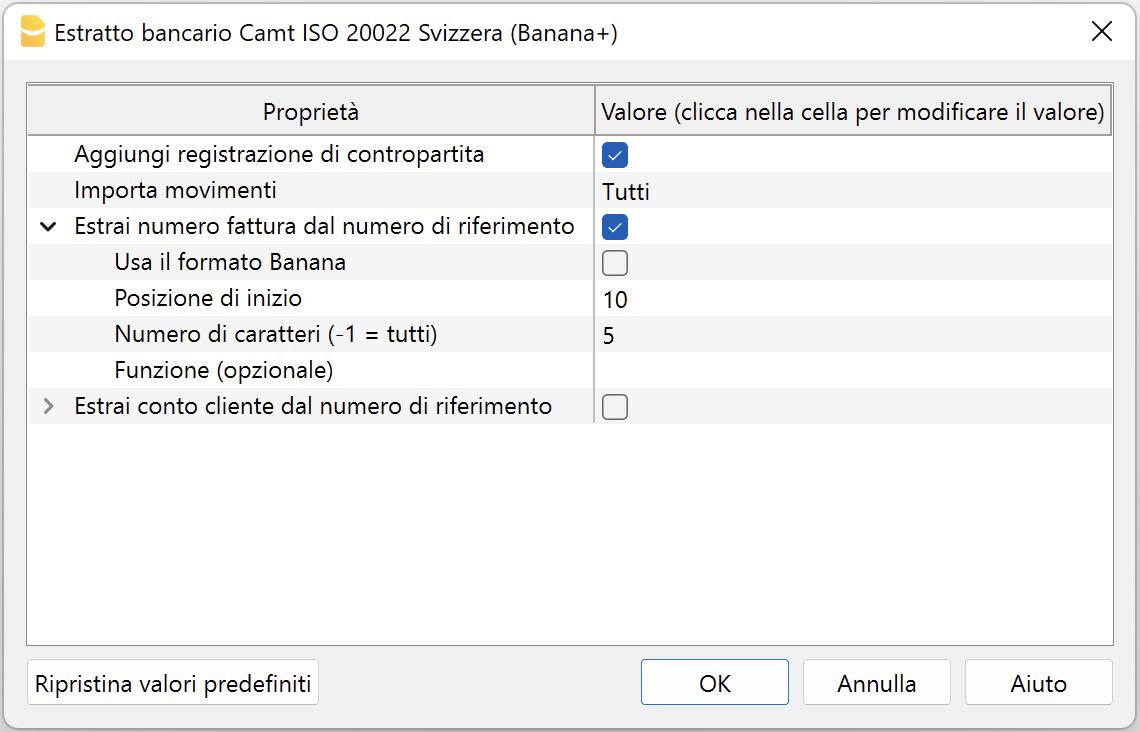
If the reference number was created with other invoicing systems:
- Do not check the 'Use Banana format' box.
- In the Start position field, indicate the position of the first character where the invoice number starts within the reference number.
- In the Number of characters field, indicate how many characters the invoice number consists of.
- Alternatively, instead of indicating position and number of characters, you can enter a JavaScript function that extracts the invoice number. For example: (function(text) {return text.substr(10,5);}). Note: the string must include the opening and closing parentheses.
The extracted invoice number is saved in the Invoice (DocInvoice) column of the Transactions table.
Extract customer account from reference number
The reference number contains the customer account. More information SCOR Reference and QRR Reference.
To extract the customer's invoice number from the reference number, there are two modes depending on whether the invoice reference number was created with Banana Accounting or other software.
Case 1: Invoices created with Banana Accounting Plus
If the reference number was created by the Banana Accounting Plus program:
- Check the Extract customer account from reference number box.
- Check the Use Banana format box.
- The fields 'Start position', 'Number of characters', and 'Function' should not be used.
- If using general ledger accounts as customer accounts, leave the Cost center for customer accounts parameter empty.
Otherwise, if using cost centers as customer accounts, indicate the cost center used (Cc1, Cc2, Cc3). - Check the Keep leading zeros box if the customer account starts with one or more zeros.
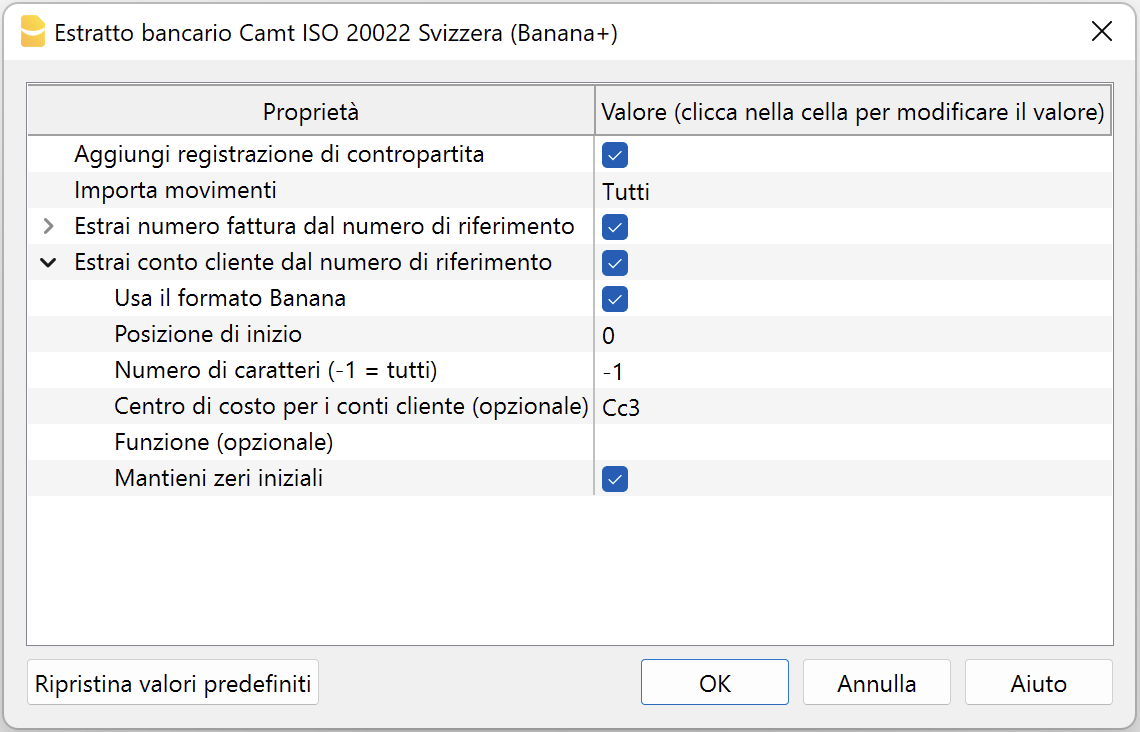
Case 2: Invoices created with other software
If the reference number was created with other invoicing systems:
- Do not check the 'Use Banana format' box.
- In the Start position field, indicate the position of the first character where the customer account starts within the reference number.
- In the Number of characters field, indicate how many characters the customer account consists of.
- If using general ledger accounts as customer accounts, leave the Cost center for customer accounts parameter empty.
Otherwise, if using cost centers as customer accounts, indicate the cost center used (Cc1, Cc2, Cc3). - Alternatively, instead of indicating position and number of characters, you can enter a JavaScript function in the Function field to extract the invoice number. For example: (function(text) {return text.substr(10,5);}). Note: the string must include the opening and closing parentheses.
- Check the Keep leading zeros box if the customer account starts with one or more zeros.
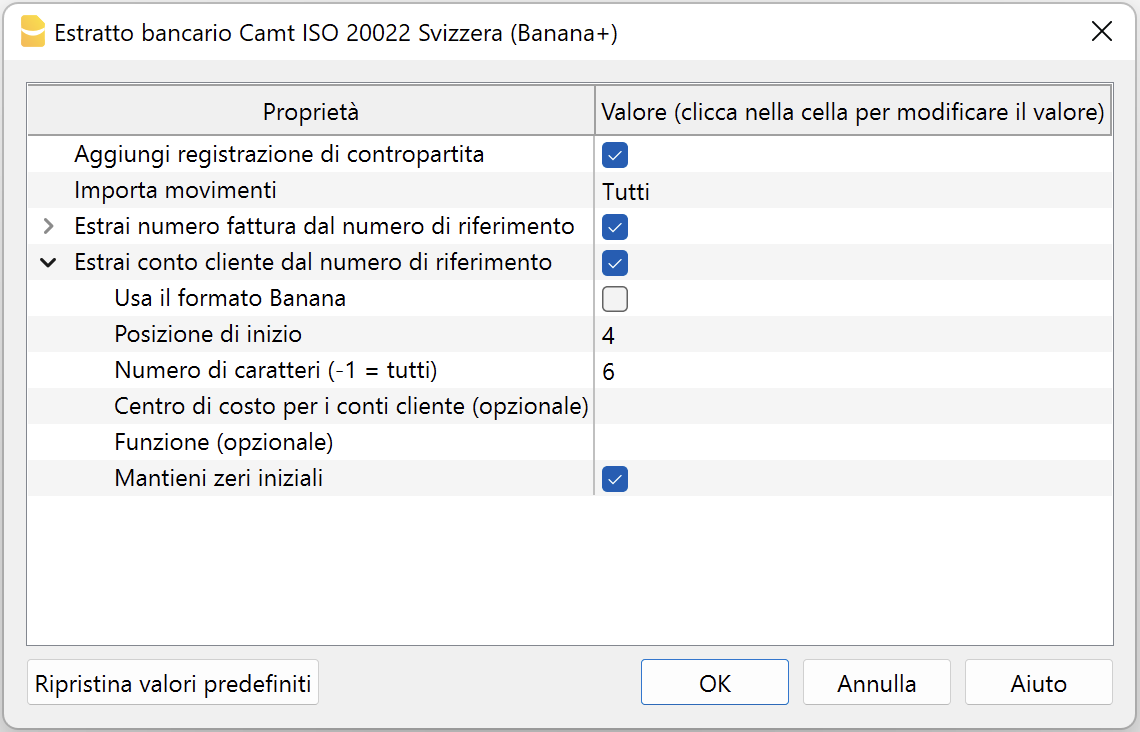
The extracted customer account is saved in the Account/Category or cost center (Cc1/Cc2/Cc3) column of the Transactions table.
For example, if by mistake you use general ledger accounts as customer accounts and specify Cc1 in the 'Cost center for customer accounts' field, the respective general ledger account will be treated as a cost center and shown in the Cc1 column of the Transactions table with a minus sign in front, for example: -110001. In this case, simply correct the parameters and repeat the operation.
Swiss Specifications
The Swiss banking system has defined specific formats for the international ISO20022 standard format.
The formats have been standardized as follows:
- camt053 (Standard electronic bank statement IBAN)
- QR-Invoice with standard IBAN account.
- Standard electronic bank statement with full details of transactions (debits and credits). It can be used when invoicing with the standard IBAN and SCOR reference number, to automatically record both debits and credits using auto-completion rules.
- If you receive payments to the special QR-IBAN account, the daily total of received payments (without detail) will also be included.
- camt054 (Special QR-IBAN electronic bank statement)
- QR-Invoice with special QR-IBAN account.
- This is the electronic bank statement that contains only the details of payments received on the QR-IBAN account (only credits invoiced with QRR reference type).
- camt052 (Accounting report)
- Used only in specific cases for transactions made during the day.
Integration between camt054 and camt053 statement
Those who collect payments via QR-IBAN can use the camt054 XML file to import and automatically record payments. At the same time, the full bank statement can be imported using the camt053 XML file.
How the camt054 and camt053 XML files work:
- The camt054 XML file contains only the details of payments from each customer (e.g. two invoices from two different customers result in two separate entries of CHF 100.00 each).
- The camt053 XML file, on the other hand, reports the total daily credit, without details (e.g. same two invoices, but only one credit entry of CHF 200, without identifying who paid).
- The payments received on the QR-IBAN account and imported via camt054 are transferred daily to the linked IBAN account (main bank account in the chart of accounts).
Issue: If both XML files (camt054 and camt053) are imported into the bank account, the same credit is recorded twice: once with detailed entries (camt054) and once with the total daily amount (camt053). This causes duplication of credited amounts.
There are two possible solutions:
- Use a clearing account.
- Manually delete the total credits from the camt053 file.
Below is the clearing account procedure, designed to avoid manually deleting duplicate credits and to prevent accidentally removing other accounting entries.
Solution: using the clearing account
To avoid double credit entries, a clearing account is used.
The clearing account is used:
- As an intermediary account to record payments from both camt054 and camt053 formats.
- To record incoming payments on the QR-IBAN.
- To transfer the payments to the IBAN account.
To avoid duplicate entries, follow a procedure similar to credit card management:
- Set up the chart of accounts
- Create the main bank account (e.g. 1020, IBAN account)
- Create the clearing account for the QR-IBAN (e.g. 1021, QR-IBAN account)
- Importing the camt054 file (QR-IBAN payments)
- Import the camt054 XML file selecting the clearing account (QR-IBAN) as the import bank account.
- Complete each transaction by entering as counter account CA the respective customer account.
- Importing the camt053 file (IBAN bank statement)
- Import the camt053 XML file selecting the bank account (IBAN) as the import account.
- Complete each transaction by entering, as counter account CA:
- the related account for detailed debit and credit transactions
- the clearing account (QR-IBAN), for global credits without detail, i.e., the total amount of customer credits

In the example, the account card for account 1021 (bank with QR-IBAN) shows:
- In the Debit column, the detailed payments from each customer (camt054).
- In the Credit column, the reversal of the global credit to zero out the clearing account.

In the example, the account card for account 1020 (bank with IBAN) shows:
- In the Debit column, the global credits from the camt053 file.
In the balance sheet, after import:
- The clearing account should have a balance of zero.
- The bank account (IBAN account) should show the global credit.
- Individual payments will be recorded in the customer subledger.

Related documents
Enter supplier account and invoice number
Unlike customer invoices, it is not possible to automatically retrieve the supplier invoice number from the reference number, because its structure varies from one supplier to another. Each supplier defines the structure of their reference number independently, making standardized recognition impossible. This is currently a technical limitation that applies to all accounting software.
However, it is possible to automatically assign the supplier account using Rules, but the invoice number must be entered manually for each transaction. To facilitate entry, you can use the F2 key or double-click in the Invoice column: a list of the supplier's open invoices will appear, from which you can select the correct one. Alternatively, in the Invoice column, you can directly type the supplier's name to display the list of their open invoices.
A CAMT file is provided by banks to download account statement transactions. In Switzerland, it is the standard format used by banks.
Bank statement Camt ISO 20022 Switzerland (compatible with Banana 9)
Bank statement Camt ISO 20022 Switzerland (compatible with Banana 9)This extension imports and converts account statement movements into accounting movements. Supports files in ISO 20022 camt052, camt053 or camt054 for the Swiss specifications.
The ISO 20022 format is an international standard, offering the schemes camt.052, camt.053 and camt.054. The first version of these schemas was camt.05x.001.04, usable ONLY until November 2025. Thereafter it is to be replaced by the new scheme camt.05x.001.08.
Subsequently, it will need to be replaced by the new camt.05x.001.08 schema.
To import the bank statement in the new ISO 20022 format, camt.05x.001.08, available from November 2022, it is necessary to have Banana Accounting Plus and to use the new extension, which reads both formats.
Requirements
To use this extension, Banana Accounting 9.0.5 is required.
If you have Banana Accounting Plus, use the new extension Bank Statement Camt ISO 20022 Switzerland (Banana+)
Characteristics
This import extension differs from the generic ISO20022 import by the following specifics:
- The ISR reference number is entered in the description of the transaction;
- You can extract the invoice number from the ISR reference number (see Setting the parameters);
The invoice number you extracted will be saved in the Invoice (DocInvoice) column; - You can extract the customer account from the ISR reference number (see Setting the parameters);
The customer account you extracted will be saved as an account/category or cost center depending on the parameters; - You can disable the entry of the contra-account in the transaction (see Setting the parameters).
Extension installation
From the Extensions Menu > Manage Extensions > Online > Import > select the extension ~Bank Statement Camt ISO 20022 (Switzerland) > Import Bank extract Camt. (Banana 9) > Install button.
Setting the parameters
The extension parameters are required to electronically record invoice collection movements.
With these settings, it is possible to define how the invoice number and customer data are to be extracted, so that they are automatically entered in the relevant columns of the Transactions table.
To access the extensions parameters:
- Open the accounting file where you wish to import the transations.
- Access the extension parameters:
- From the Extensions Menu > Manage extensions > select extension ~Bank statement Camt ISO 20022 Switzerland - Import bank extract Camt. (Banana 9) > Settings button.
- or from the Account1 Menu > Import to accounting > Manage extensions > select extension ~ Bank statement Camt ISO 20022 Switzerland - Import Bank extract Camt. (Banana 9) > Settings button
- The following image shows the default parameters.
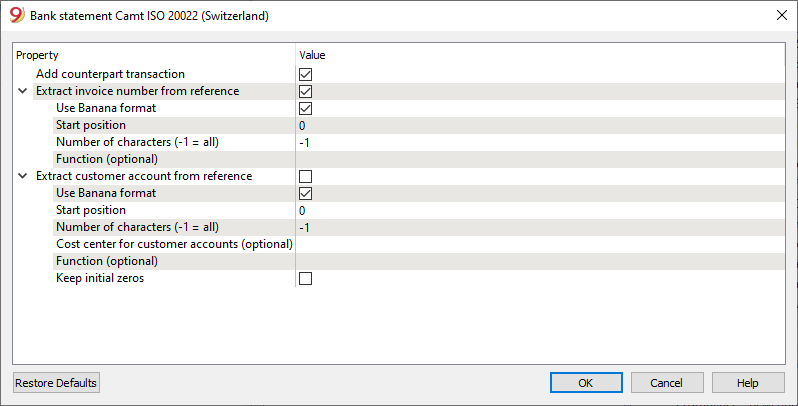
Add counterpart transaction
If this option is enabled, the extension will enter a counterpart entry with the total amount of the details for movements with details. The [CA] symbol appears in the clearing account and the corresponding account number must be entered manually. If this option is deactivated, no counterpart entry is made.
Extract invoice number from ISR reference
If this option is enabled, you can define how to extract the invoice number from the ISR reference number. The invoice number you extracted will be saved in the Invoice (DocInvoice) column.
You can extract the invoice number by indicating the position of the first character and the number of characters that match the invoice number in the ISR reference number, or by indicating a JavaScript function that extracts the invoice number from the ISR number, for example: "(function(text) {return text.substr(10,5);})". NB: The string must contain the initial and final round brackets.
Extract customer account from ISR reference number
If the option is enabled, it is possible to define how to extract the customer account from the reference number. The extracted customer account will be saved in the account/category or cost center field based on the parameters. If balance sheet accounts are used as the customer account, leave the 'Cost center for customer accounts' parameter empty. Otherwise, if cost centers are used as the customer account, specify the cost center used, e.g.: 'Cc1', 'Cc2', or 'Cc3' without the quotation marks.
For example, if by mistake, balance sheet accounts are used as customer accounts and 'Cc1' is indicated in the 'Cost center for customer accounts' field, the respective balance sheet account will be treated as a cost center and reported in the CC1 column of the Transactions table with a negative sign in front, for example: -110001. In this case, it is sufficient to correctly set the parameters and repeat the operation.
It is possible to extract the customer account from the reference number created by the Banana Accounting Plus program by checking the appropriate box without modifying the parameters related to the 'Starting position' and 'Number of characters' to be used.
It is possible to extract the billed customer account from other invoicing systems by specifying the position of the first character and the number of characters in the reference number corresponding to the customer account, or by specifying a JavaScript function that extracts the invoice number, for example: (function(text) {return text.substr(10,5);}). NB: the string must include the opening and closing parentheses.
Swiss specifications
Specifications for the use of ISO 20022 have been issued for the Swiss banking system.
Formats have been standardized as follows:
- camt053: Account Statement, with detailed transactions.
This is the file that your bank should provide, specifying that it does also include payments received.
A summary file (without any details) might be asked for, in which case camt054 form will also have to be requested, detailing the receipts. - camt054:
Transactions detailed by type (such as bills payments received for bills issued).
If detailed cash receipts are required, the bank will provide the dates in a camt054 file (as a substitute for V11).
This results in two files:- camt053 file (Account Statement) with the several payments and the daily total of cashed bills, which details are contained in the camt054 file.
- camt054 file, detailing all transactions for cashed bills with their reference number.
- camt052: (Account Reporting).
Is only used in special situations, to monitor transactions for a specific day.
New: now with Banana Accounting Plus, you can also obtain the QR-invoice with a standard IBAN account or the QR-invoice with a special QR-IBAN account. Additionally, you can use the auto-completion rules for transactions to automatically record both debits and credits with the new Camt ISO 20022 Bank Statement Switzerland extension (Banana+).
Related document:
Swiss CAMT XML Validator with XSD Schema [BETA]
Swiss CAMT XML Validator with XSD Schema [BETA]Can be used to validate the files used by the extension Camt ISO 20022 Switzerland Bank Statement (Banana+).
Extension installation
To install the extension, proceed as follows:
- From the Extensions > Manage Extensions > Online > Productivity > menu, select the Swiss CAMT XML Validator with XSD schema extension > click the Install button.
Using the extension
To use the extension, proceed as follows:
- From the Extensions > Manage Extensions > menu, select Swiss CAMT XML Validator with XSD schema
- Then select the CAMT file
Results
The extension checks the CAMT file using the related XSD schema.
If the message "XML document is valid against xxx" is returned, it means that the CAMT file is correct.
Aargauische Kantonalbank - Import account statement .csv (Banana+ Advanced)
Aargauische Kantonalbank - Import account statement .csv (Banana+ Advanced)This import extension allows you to import Aargauische Kantonalbank transactions into Banana. You can install the extension from the menu Extensions->Manage Extensions.
Refer to the documentation in German: Aargauische Kantonalbank - Bewegungen importieren .csv (Banana+ Advanced)
Acrevis Bank - Import movements .csv (Banana+ Advanced)
Acrevis Bank - Import movements .csv (Banana+ Advanced)The .csv format is different for each bank and is updated and changed regularly. On this page, you will find the most recent extension for importing the Acrevis bank .csv format. This import extension allows you to import Acrevis bank transactions into Banana Accounting Plus.
The extension can be installed from the Extensions menu > Manage Extensions.
Requirements for use
- Banana Accounting Plus with the Advanced Plan.
- Acrevis bank also provides files with standard format ISO20022, which you can import with the Professional plan. To import files in this format, you need to install the relevant import extension Swiss for ISO20022 Camt 052, 053, 054. If you do not find this format already available by default, you can request it from Acrevis bank.
For some banks, the specific .csv format may offer better results. In any case, the Advanced plan guarantees a wider choice and maximum results and also offers several other advanced functions that speed up and simplify accounting work considerably.
Export procedure from Acrevis Bank
Export your bank transactions in CSV format by accessing your online account.
- Open the Accounts section and select the account for which you want to export movements.
- Export your account movements by choosing *.csv format.
- Save the file to your computer.
- We recommend saving the file somewhere you can easily find it later and not opening it before importing.
Import procedure
- From the Actions menu > Import into Accounting > select 'Import: Transactions' from the pull-down menu.
- Select the extension to use, in this case "Acrevis Bank - Import movements .csv (Banana+ Advanced)".
- Use the Browse button to select the file from which you want to import the movements.
- Press the OK button.
Error messages
- Unrecognized .csv file format: The format of the .csv file you are trying to import does not match any of the formats associated with this extension:
- Check that you have selected the correct file.
- If the file you chose is correct, our extension may need to be updated.
- This extension requires Banana Accounting+ Advanced plan: You are attempting to use the extension with a license other than the one requested. Please switch to the Advanced plan to use the features of this extension.
Send feedback
The format of the *.csv file may be updated and the extension no longer works properly. Send us feedback including a sample file (.csv) with the new format and we will update the import extension.
BancaStato - Import account statement .csv (Banana+ Advanced)
BancaStato - Import account statement .csv (Banana+ Advanced)The .csv format is different for each bank and is updated and changed regularly. On this page you will find the most recent extension for importing the Bancastato.csv format. This import extension allows you to import BancaStato transactions into Banana Accounting Plus. The extension can be installed from the Extensions menu > Manage Extensions.
Requirements for use
- Banana accounting Plus with the Advanced Plan.
- BancaStato also provides files with standard format ISO20022, which you can import with the Professional plan. To import files in this format you need to install the relevant import extension Swiss for ISO20022 Camt 052, 053, 054. If you do not find this format already available by default, you can request it from BancaStato.
In some banks, the specific .csv format may offer better results. In any case, the Advanced plan guarantees a wider choice and maximum results, and also offers several other advanced functions that speed up and simplify accounting work considerably.
Export procedure
Export the *.xlsx file with your transactions by logging into your ebanking
- Open the accounts section and select the account for which you want to export movements.
- Export the movements of your account by choosing the *.xlsx (Excel) format.
You can decide whether to keep the file in Excel format and later import the data by copying it from the clipboard or convert it to a *.csv file, if you want to convert it:
- Open the file and click on File->Export->Change File Type and choose the CSV (Comma delimited) (*.csv) format.
- Save the file in the new format, without modify the content.
We recommend saving the file in a place where you can easily find it later and not opening it before importing it.
Import procedure
You can import the data in two different ways.
Import *.csv file
- Via the Actions → Import to accounting → select Import transactions box
- Choose the extension to be used, in this case 'BancaStato - Import account statement .csv (Banana+ Advanced)'.
- With the Browse button, choose the file from which to import the transactions.
- Press OK Button.
Import from clipboard (*.xlsx file)
- Via the Actions → Import to accounting → select Import transactions box
- Choose the extension to be used, in this case 'BancaStato - Import account statement .csv (Banana+ Advanced)'.
- Open the Excel file, press Ctrl+A to select all the data, then Ctrl+C to copy the data to the clipboard.
- In the dialog in the dialogue check the box Import data from clipboard.
- Press OK Button.
For more details see Import transactions page.
Error Messages
- Unrecognised *.csv file format: The format of the *.csv file you are trying to import does not match any of the formats associated with this filter:
- Check that you have chosen the correct file.
- If the file you have chosen is correct, it may be that our filter requires updating.
- This extension requires Banana Accounting+ Advanced: You are trying to use the extension with a licence other than the one requested, please upgrade to the Advanced Plan to be able to use the functionality of this filter.
Send us a feedback
It may happen that the format of the *.csv file is updated and as a result the filter no longer functions correctly. Send us feedback and attach an example file (*.csv) with the new format and we will proceed to update the filter.
Bank SoBa - Basel - Import transactions .csv
Bank SoBa - Basel - Import transactions .csvThis BananaApp lets you import Baloise Bank SoBa transactions in CSV format.
The file format is the following. See Testfile.
Datum;Valuta;Buchungstext;Belastung;Gutschrift;Saldo CHF;Kontonummer;Kontoinhaber;
29.03.2018;29.03.2018;Vergütung Inland GTSM - Info - - MIETZINSZAHLUNGEN;1475.00;;19496.65;00000000; Firma AG;
29.03.2018;29.03.2018;Vergütung Inland MONIKA - Info - - PARKPLATZMIETE MEINRADSTRASSE 6;100.00;;19496.65;00000000; Firma AG;
29.03.2018;29.03.2018;Vergütung Inland WALTER - Info - - MIETZINS MEINRADSTR. 5;3400.00;;21071.65;00000000; Firma AG;
History
- 2018 -07-10 First release
Bank CIC - Import account statement .csv (Banana+ Advanced)
Bank CIC - Import account statement .csv (Banana+ Advanced)The .csv format is different for each bank and is updated and changed regularly. On this page you will find the most recent extension for importing the CIC Bank .xlsx/csv formats. This import extension allows you to import CIC Bank transactions into Banana Accounting Plus. The extension can be installed from the Extensions menu > Manage Extensions.
Requirements for use
- Banana accounting Plus with the Advanced Plan.
- CIC Bank should also provides files with standard format ISO20022, which you can import with the Professional plan. To import files in this format you need to install the relevant import extension Swiss for ISO20022 Camt 052, 053, 054. If you do not find this format already available by default, you can request it from the bank
In some banks, the specific .xlsx/csv format may offer better results. In any case, the Advanced plan guarantees a wider choice and maximum results, and also offers several other advanced functions that speed up and simplify accounting work considerably.
Export procedure
Export the *.xlsx file with your transactions by logging into your ebanking.
- Open the accounts section and select the account for which you want to export movements.
- Export the movements of your account by choosing the *.xlsx (Excel) format.
You can decide whether to keep the file in Excel format and later import the data by copying it from the clipboard or convert it to a *.csv file, if you want to convert it:
- Open the file and click on File->Export->Change File Type and choose the CSV (Comma delimited) (*.csv) format.
- Save the file in the new format, without modify the content.
We recommend saving the file in a place where you can easily find it later and not opening it before importing it.
Import procedure
You can import the data in two different ways.
Import *.csv file
- Via the Actions → Import to accounting → select Import transactions box
- Choose the extension to be used, in this case 'CIC Bank - Import account statement .csv (Banana+ Advanced)'.
- With the Browse button, choose the file from which to import the transactions.
- Press OK Button.
Import from clipboard (*.xlsx file)
- Via the Actions → Import to accounting → select Import transactions box
- Choose the extension to be used, in this case 'CIC Bank - Import account statement .csv (Banana+ Advanced)'.
- Open the Excel file, press Ctrl+A to select all the data, then Ctrl+C to copy the data to the clipboard.
- In the dialog in the dialogue check the box Import data from clipboard.
- Press OK Button.
For more details see Import transactions page.
Error Messages
- Unrecognised *.csv file format: The format of the *.csv file you are trying to import does not match any of the formats associated with this filter:
- Check that you have chosen the correct file.
- If the file you have chosen is correct, it may be that our filter requires updating.
- This extension requires Banana Accounting+ Advanced: You are trying to use the extension with a licence other than the one requested, please upgrade to the Advanced Plan to be able to use the functionality of this filter.
Send us a feedback
It may happen that the format of the *.csv file is updated and as a result the filter no longer functions correctly. Send us feedback and attach an example file (*.csv) with the new format and we will proceed to update the filter.
Banque Cantonale Vaudoise - Import account statement .xlsx/.csv (Banana+ Advanced)
Banque Cantonale Vaudoise - Import account statement .xlsx/.csv (Banana+ Advanced)The .csv format is different for each bank and is updated and changed regularly. On this page you will find the most recent extension for importing the Banque Cantonale Vaudoise .xlsx/.csv format. This import extension allows you to import Banque Cantonale Vaudoise transactions into Banana Accounting Plus. The extension can be installed from the Extensions menu > Manage Extensions.
Requirements for use
- Banana accounting Plus with the Advanced Plan.
- Banque Cantonale Vaudoise should also provides files with standard format ISO20022, which you can import with the Professional plan. To import files in this format you need to install the relevant import extension Swiss for ISO20022 Camt 052, 053, 054. If you do not find this format already available by default, you can request it from the bank
In some banks, the specific .csv format may offer better results. In any case, the Advanced plan guarantees a wider choice and maximum results, and also offers several other advanced functions that speed up and simplify accounting work considerably.
Export procedure
Export the *.xlsx file with your transactions by logging into your ebanking.
- Open the accounts section and select the account for which you want to export movements.
- Export the movements of your account by choosing the *.xlsx (Excel) format.
You can decide whether to keep the file in Excel format and later import the data by copying it from the clipboard or convert it to a *.csv file, if you want to convert it:
- Open the file and click on File->Export->Change File Type and choose the CSV (Comma delimited) (*.csv) format.
- Save the file in the new format, without modify the content.
We recommend saving the file in a place where you can easily find it later and not opening it before importing it.
Import procedure
You can import the data in two different ways.
Import *.csv file
- Via the Actions → Import to accounting → select Import transactions box
- Choose the extension to be used, in this case 'Banque Cantonale Vaudoise - Import account statement .xlsx/.csv (Banana+ Advanced)'.
- With the Browse button, choose the file from which to import the transactions.
- Press OK Button.
Import from clipboard
- Via the Actions → Import to accounting → select Import transactions box
- Choose the extension to be used, in this case 'Banque Cantonale Vaudoise - Import account statement .xlsx/.csv (Banana+ Advanced)'.
- Open the Excel file, press Ctrl+A to select all the data, then Ctrl+C to copy the data to the clipboard.
- In the dialog in the dialogue check the box Import data from clipboard.
- Press OK Button.
For more details see Import transactions page.
Error Messages
- Unrecognised *.csv file format: The format of the .xlsx/.csv file you are trying to import does not match any of the formats associated with this filter:
- Check that you have chosen the correct file.
- If the file you have chosen is correct, it may be that our filter requires updating.
- This extension requires Banana Accounting+ Advanced: You are trying to use the extension with a licence other than the one requested, please upgrade to the Advanced Plan to be able to use the functionality of this filter.
Send us a feedback
It may happen that the format of the .xlsx/.csv file is updated and as a result the filter no longer functions correctly. Send us feedback and attach an example file (*.xlsx/*.csv) with the new format and we will proceed to update the filter.
Basellandschaftliche Kantonalbank - Import account statement .csv (Banana+ Advanced)
Basellandschaftliche Kantonalbank - Import account statement .csv (Banana+ Advanced)The .csv format is different for each bank and is updated and changed regularly. On this page you will find the most recent extension for importing the Basellandschaftliche Kantonalbank .csv format. This import extension allows you to import Basellandschaftliche Kantonalbank transactions into Banana Accounting Plus. The extension can be installed from the Extensions menu > Manage Extensions.
Requirements for use
- Banana Accounting Plus with the Advanced Plan.
- Basellandschaftliche Kantonalbank also provides files with standard format ISO20022, which you can import with the Professional plan. To import files in this format you need to install the relevant import extension Swiss for ISO20022 Camt 052, 053, 054. If you do not find this format already available by default, you can request it from Basellandschaftliche Kantonalbank.
In some banks, the specific .csv format may offer better results. In any case, the Advanced plan guarantees a wider choice and maximum results, and also offers several other advanced functions that speed up and simplify accounting work considerably.
For more information please to the documentation in German.
Basler Kantonalbank - Import account statement .csv (Banana+ Advanced)
Basler Kantonalbank - Import account statement .csv (Banana+ Advanced)This import extension allows you to import Basler Kantonalbank transactions into Banana. You can install the extension from the menu Extensions->Manage Extensions.
Refer to the documentation in German: Basler Kantonalbank - Bewegungen importieren .csv (Banana+ Advanced)
Berner Kantonalbank - Import account statement .csv (Banana+ Advanced)
Berner Kantonalbank - Import account statement .csv (Banana+ Advanced)The .csv format is different for each bank and is updated and changed regularly. On this page you will find the most recent extension for importing the Berner Kantonalbank .csv format. This import extension allows you to import Berner Kantonalbank transactions into Banana Accounting Plus. The extension can be installed from the Extensions menu > Manage Extensions.
Requirements for use
- Banana accounting Plus with the Advanced Plan.
- Berner Kantonalbank should also provides files with standard format ISO20022, which you can import with the Professional plan. To import files in this format you need to install the relevant import extension Swiss for ISO20022 Camt 052, 053, 054. If you do not find this format already available by default, you can request it from the bank
In some banks, the specific .csv format may offer better results. In any case, the Advanced plan guarantees a wider choice and maximum results, and also offers several other advanced functions that speed up and simplify accounting work considerably.
Export procedure
Export the *.xlsx file with your transactions by logging into your ebanking.
- Open the accounts section and select the account for which you want to export movements.
- Export the movements of your account by choosing the *.xlsx (Excel) format.
You can decide whether to keep the file in Excel format and later import the data by copying it from the clipboard or convert it to a *.csv file, if you want to convert it:
- Open the file and click on File->Export->Change File Type and choose the CSV (Comma delimited) (*.csv) format.
- Save the file in the new format, without modify the content.
We recommend saving the file in a place where you can easily find it later and not opening it before importing it.
Import procedure
You can import the data in two different ways.
Import *.csv file
- Via the Actions → Import to accounting → select Import transactions box
- Choose the extension to be used, in this case 'Berner Kantonalbank - Import account statement .csv (Banana+ Advanced)'.
- With the Browse button, choose the file from which to import the transactions.
- Press OK Button.
Import from clipboard
- Via the Actions → Import to accounting → select Import transactions box
- Choose the extension to be used, in this case 'Berner Kantonalbank - Import account statement .csv (Banana+ Advanced)'.
- Open the Excel file, press Ctrl+A to select all the data, then Ctrl+C to copy the data to the clipboard.
- In the dialog in the dialogue check the box Import data from clipboard.
- Press OK Button.
For more details see Import transactions page.
Error Messages
- Unrecognised *.csv file format: The format of the *.csv file you are trying to import does not match any of the formats associated with this filter:
- Check that you have chosen the correct file.
- If the file you have chosen is correct, it may be that our filter requires updating.
- This extension requires Banana Accounting+ Advanced: You are trying to use the extension with a licence other than the one requested, please upgrade to the Advanced Plan to be able to use the functionality of this filter.
Send us a feedback
It may happen that the format of the *.csv file is updated and as a result the filter no longer functions correctly. Send us feedback and attach an example file (*.csv) with the new format and we will proceed to update the filter.
Bexio - Import movements .xlsx (Banana+ Advanced) [BETA]
Bexio - Import movements .xlsx (Banana+ Advanced) [BETA]This import extension allows you to import your Bexio transactions into Banana. You can install the extension from the menu Extensions->Manage Extensions.
Requirements for use
- Banana accounting Plus with the Advanced Plan.
- File type for accounting: Double-entry accounting files with VAT and multi-currency, you can either create a new file or use an existing one.
Import procedure
You can import the data in two different ways.
Import *.csv file
- Open your accounting file (*.ac2).
- Via the Actions > Import to accounting > select Import transactions in the dropdown menu.
- Choose the extension to be used, in this case 'Bexio - Import transactions .xlsx (Banana+ Advanced) [BETA]'.
- With the Browse button, choose the file from which to import the transactions.
- Confirm with OK.
- Review the changes using the proposed dialog. Press OK if everything is correct otherwise press Cancel if you have seen any errors, at which point correct any errors and repeat the process from step 1.
Import from clipboard
- Open your accounting file (*.ac2).
- Via the Actions > Import to accounting > select Import transactions from the dropdown menu.
- Choose the extension to be used, in this case 'Bexio - Import transactions .xlsx (Banana+ Advanced) [BETA]'.
- Open the Excel file, press Ctrl+A to select all the data, then Ctrl+C to copy the data to the clipboard.
- In the dialog box that opens, select the option to Import data from the clipboard.
- Confirm with OK.
- Review the changes using the proposed dialog. Press OK if everything is correct otherwise press Cancel if you have seen any errors, at which point correct any errors and repeat the process from step 1.

Accounts table
Accounts used for the transaction import but not yet in the Banana chart of accounts will automatically be added to the end of the chart of accounts. You will need to manually add the corresponding information for the newly imported accounts. Proceed as follows:
- You can move the account by repositioning it in another row.
- Check that the BClass automatically set during import is correct.
- Set the correct grouping in the Sum In column.
- Set the correct account currency code. *
*Set the correct currency code/symbol also to those accounts that were already in the chart of accounts in Banana but with a different currency than the one assigned to them in Bexio.
For more details, visit the Accounts page.
Vat Codes table
Some of the VAT codes used in imported transactions are automatically recognized and converted into VAT codes used by Banana Accounting. Unrecognized tax codes will be added as new items at the end of the VAT Codes table. Proceed as follows:
- Complete the missing details for the VAT code and create a new tax rate in the VAT Codes table. On the following VAT Codes table page, it is explained how this table is structured.
- (RECOMMENDED) Check if the newly entered VAT rate matches one of the existing tax rates. There is likely already an identical tax code that meets your requirements. If so, you need to update the rows in the Transactions table that refer to the old VAT code and replace it with the new one. You can use the Find and Replace function for this. After replacing the VAT codes in the Transactions table, you can delete the rows with the old VAT codes.
Transactions Table
Bexio exports accounting entries by splitting the net amount of the transaction and the VAT amount into two separate rows.
During import, both rows are added to the Transactions table, but this results in a duplicate VAT entry. In fact, Banana is already capable of correctly calculating and recording VAT using the VAT columns in the row with the net amount, making the specific VAT rows redundant.
However, the program cannot definitively identify which rows refer to VAT, as the accounts used may vary depending on the chart of accounts. For this reason, both rows are always imported.
You can manually remove the duplicate VAT entries using the Filter rows function:
- Open the filter rows tool and enter a search criterion, using the filter command generator provided by Banana GPT.
- Search for all rows related to VAT entries, for example by specifying the accounts used or filtering transactions that include a VAT code.
- Once the filtered list is shown, select all the rows and delete them.
- Remove the filter to view the entire content of the Transactions table again.
At this point, the duplicate VAT entries will be removed, and VAT will be correctly recorded only once for each transaction.
You might still see some errors or warnings related to VAT entries:
- VAT due not correctly recorded: this issue can be resolved by using the VAT codes set up in Banana or indicating in the VAT Codes table whether the VAT is due for a given code.
- Warning: VAT due not correctly recorded: in some transactions, the applicable VAT may appear to be entered in reverse, though this is not necessarily an error. This can happen, for example, in cancellations or adjustments.
See the VAT Management page.
Check accounting
Your accounting in Banana Accounting should now be ready, and there should be no further issues. You can perform an additional check by Checking and recalculating your accounting.
Error Messages
- Unrecognised file format: The format of the file you are trying to import does not match any of the formats associated with this filter:
- Check that you have chosen the correct file.
- If the file you selected is correct, it may be that our extension requires updating.
- This extension requires Banana Accounting+ Advanced: You are trying to use the extension with a licence other than the one required. Please switch to the Advanced Plan to use this extensions' features.
If you encounter other errors or have questions about the import process, feel free to send us a feedback.
Send us a Feedback
It is possible that the format of the .csv file will be updated, and as a result, the extension may no longer function correctly. Please send us a feedback and include an example of the (*.csv) file with the new format, so that we can update the filter accordingly.
This is a BETA version. This means that it is not the final version of the filter. Contact us if you have suggestions for the following improvements:
- Tips on how to improve import.
- Test files exported by Bexio (*.xlsx/*.csv).
- Any errors that were not reported or described in the documentation.
Cler Bank - Import movements .csv (Banana+ Advanced)
Cler Bank - Import movements .csv (Banana+ Advanced)The .csv format is different for each bank and is updated and changed regularly. On this page you will find the most recent extension for importing the Cler bank .csv format. This import extension allows you to import Cler bank transactions into Banana Accounting Plus.
The extension can be installed from the Extensions menu > Manage Extensions.
Requirements for use
- Banana Accounting Plus with the Advanced Plan.
- Cler bank also provides files with standard format ISO20022, which you can import with the Professional plan. To import files in this format you need to install the relevant import extension Swiss for ISO20022 Camt 052, 053, 054. If you do not find this format already available by default, you can request it from Cler bank.
For some banks, the specific .csv format may offer better results. In any case, the Advanced plan guarantees a wider choice and maximum results and also offers several other advanced functions that speed up and simplify accounting work considerably.
Export procedure from Cler Bank
Export your bank transactions in CSV format by accessing your online account.
- Open the Accounts section and select the account for which you want to export movements.
- Export your account movements by choosing *.csv format.
- Save the file to your computer.
- We recommend saving the file somewhere you can easily find it later and not opening it before importing.
Import procedure
- From the Actions menu > Import into Accounting > select 'Import: Transactions' from the pull-down menu.
- Select the extension to use, in this case "Cler Bank - Import movements .csv (Banana+ Advanced)".
- Use the Browse button to select the file from which you want to import the movements.
- Press the OK button.
Error messages
- Unrecognized .csv file format: The format of the .csv file you are trying to import does not match any of the formats associated with this extension:
- Check that you have selected the correct file.
- If the file you chose is correct, our extension may need to be updated.
- This extension requires Banana Accounting+ Advanced plan: You are attempting to use the extension with a license other than the one requested. Please switch to the Advanced plan to use the features of this extension.
Send feedback
The format of the *.csv file may be updated and the extension no longer works properly. Send us feedback including a sample file (.csv) with the new format and we will update the import extension.
Clientis Bank Aareland - Import movements .csv (Banana+ Advanced)
Clientis Bank Aareland - Import movements .csv (Banana+ Advanced)This import extension allows you to import Clientis Bank Aareland transactions into Banana. You can install the extension from the menu Extensions->Manage Extensions.
Refer to the documentation in German: Clientis Bank Aareland - Bewegungen importieren .csv (Banana+ Advanced)
Corner Bank - Import transactions .csv (Banana+ Advanced)
Corner Bank - Import transactions .csv (Banana+ Advanced)The .csv format is different for each bank and is updated and changed regularly. On this page you will find the most recent extension for importing the Cornèr Bank .csv format. This import extension allows you to import Cornèr Bank transactions into Banana Accounting Plus. The extension can be installed from the Extensions menu > Manage Extensions.
Requirements for use
- Banana accounting Plus with the Advanced Plan.
- Cornèr Bank also provides files with standard format ISO20022, which you can import with the Professional plan. To import files in this format you need to install the relevant import extension Swiss for ISO20022 Camt 052, 053, 054. If you do not find this format already available by default, you can request it from Cornèr Bank.
In some banks, the specific .csv format may offer better results. In any case, the Advanced plan guarantees a wider choice and maximum results, and also offers several other advanced functions that speed up and simplify accounting work considerably.
Export procedure
Export your banking transactions in *.csv format by accessing your online bank account.
- Open the accounts section and select the account for which you want to export movements.
- Export your account movements by choosing the *.csv format.
- Save the file on your computer.
- We recommend saving the file in a place where you can easily find it later and not opening it before importing it.
Import procedure
- Via the Actions > Import to accounting > select Import transactions box
- Choose the extension to be used, in this case 'Corner Bank - Import account statement .csv (Banana+ Advanced)'.
- With the Browse button, choose the file from which to import the transactions.
- Press OK Button.
Error Messages
- Unrecognised *.csv file format: The format of the *.csv file you are trying to import does not match any of the formats associated with this filter:
- Check that you have chosen the correct file.
- If the file you have chosen is correct, it may be that our filter requires updating.
- This extension requires Banana Accounting+ Advanced: You are trying to use the extension with a licence other than the one requested, please upgrade to the Advanced Plan to be able to use the functionality of this filter.
Send us a feedback
It may happen that the format of the *.csv file is updated and as a result the filter no longer functions correctly. Send us feedback and attach an example file (*.csv) with the new format and we will proceed to update the filter.
To import Corner card transactions see the extension Corner Card.
Corner Card - Import account statement .csv (Banana+ Advanced)
Corner Card - Import account statement .csv (Banana+ Advanced)The .csv format is different for each bank and is updated and changed regularly. On this page you will find the most recent extension for importing the Cornerd card .csv format. This import extension allows you to import Corner card transactions into Banana Accounting Plus. The extension can be installed from the Extensions menu > Manage Extensions.
Requirements for use
- Banana accounting Plus with the Advanced Plan.
- Corner Bank also provides files with standard format ISO20022, which you can import with the Professional plan. To import files in this format you need to install the relevant import extension Swiss for ISO20022 Camt 052, 053, 054. If you do not find this format already available by default, you can request it from Corner Bank.
In some banks, the specific .csv format may offer better results. In any case, the Advanced plan guarantees a wider choice and maximum results, and also offers several other advanced functions that speed up and simplify accounting work considerably.
Export procedure
Export the *.xlsx file with your transactions by logging into your ebanking: "www.cornercard.ch".
- Open the accounts section and select the account for which you want to export movements.
- Export the movements of your account by choosing the *.xlsx (Excel) format.
You can decide whether to keep the file in Excel format and later import the data by copying it from the clipboard or convert it to a *.csv file, if you want to convert it:
- Open the file and click on File > Export > Change File Type and choose the CSV (Comma delimited) (*.csv) format.
- Save the file in the new format, without modify the content.
We recommend saving the file in a place where you can easily find it later and not opening it before importing it.
Import procedure
You can import the data in two different ways.
Import *.csv file
- Via the Actions > Import to accounting > select Import transactions box
- Choose the extension to be used, in this case 'Corner Card - Import account statement .csv (Banana+ Advanced)'.
- With the Browse button, choose the file from which to import the transactions.
- Press OK Button.
Import from clipboard
- Via the Actions > Import to accounting > select Import transactions box
- Choose the extension to be used, in this case 'Corner Card - Import account statement .csv (Banana+ Advanced)'.
- Open the Excel file, press Ctrl+A to select all the data, then Ctrl+C to copy the data to the clipboard.
- In the dialog in the dialogue check the box Import data from clipboard.
- Press OK Button.

To import Corner Bank statement transactions see the extension Corner Bank.
Error Messages
- Unrecognised *.csv file format: The format of the *.csv file you are trying to import does not match any of the formats associated with this filter:
- Check that you have chosen the correct file.
- If the file you have chosen is correct, it may be that our filter requires updating.
- This extension requires Banana Accounting+ Advanced: You are trying to use the extension with a licence other than the one requested, please upgrade to the Advanced Plan to be able to use the functionality of this filter.
Send us a feedback
It may happen that the format of the *.csv file is updated and as a result the filter no longer functions correctly. Send us feedback and attach an example file (*.csv) with the new format and we will proceed to update the filter.
Credit Suisse - Import account statement .csv (Banana+ Advanced)
Credit Suisse - Import account statement .csv (Banana+ Advanced)The .csv format is different for each bank and is updated and changed regularly. On this page you will find the most recent extension for importing the Credit Suisse.csv format. This import extension allows you to import Credit Suisse transactions into Banana Accounting Plus. The extension can be installed from the Extensions menu > Manage Extensions.
Requirements for use
- Banana accounting Plus with the Advanced Plan.
- Credit Suisse upon request also provides files in standard format ISO20022 ("camt.053 SPS V08 details"), which you can import with the Professional plan. To import files in this format you need to install the relevant import extension Swiss for ISO20022 Camt 052, 053, 054. If you do not find this format already available by default, you can request it from Credit Suisse.
In some banks, the specific .csv format may offer better results. In any case, the Advanced plan guarantees a wider choice and maximum results, and also offers several other advanced functions that speed up and simplify accounting work considerably.
Export procedure
Export your banking transactions in *.csv format by accessing your online bank account.
- Open the accounts section and select the account for which you want to export movements.
- Export your account movements by choosing the *.csv format.
- Save the file on your computer.
- We recommend saving the file in a place where you can easily find it later and not opening it before importing it.
Import procedure
- Via the Actions → Import to accounting → select Import transactions box
- Choose the extension to be used, in this case 'Credit Suisse - Import account statement .csv (Banana+ Advanced)'.
- With the Browse button, choose the file from which to import the transactions.
- Press OK Button.
For more details see Import transactions page.
Error Messages
- Unrecognised *.csv file format: The format of the *.csv file you are trying to import does not match any of the formats associated with this filter:
- Check that you have chosen the correct file.
- If the file you have chosen is correct, it may be that our filter requires updating.
- This extension requires Banana Accounting+ Advanced: You are trying to use the extension with a licence other than the one requested, please upgrade to the Advanced Plan to be able to use the functionality of this filter.
Send us a feedback
It may happen that the format of the *.csv file is updated and as a result the filter no longer functions correctly. Send us feedback and attach an example file (*.csv) with the new format and we will proceed to update the filter.
EFG - Import account statement .csv (Banana+ Advanced)
EFG - Import account statement .csv (Banana+ Advanced)The .csv format is different for each bank and is updated and changed regularly. On this page you will find the most recent extension for importing the EFG .csv format. This import extension allows you to import EFG transactions into Banana Accounting Plus. The extension can be installed from the Extensions menu > Manage Extensions.
Requirements for use
- Banana Accounting Plus with the Advanced Plan.
- EFG also provides files with standard format ISO20022. To import files in this format, you can install the relevant import extension Swiss for ISO20022 Camt 052, 053, 054, also available with the Professional plan.
In some banks, the specific .csv format may offer better results. In any case, the Advanced plan guarantees a wider choice and maximum results, and also offers several other advanced functions that speed up and simplify accounting work considerably.
Export procedure
Export your banking transactions in *.csv format by accessing your online bank account.
- Open the accounts section and select the account for which you want to export movements.
- Export your account movements by choosing the *.csv format.
- Save the file on your computer.
- We recommend saving the file in a place where you can easily find it later and not opening it before importing it.
Import procedure in Banana
- Via the menu Actions > Import to accounting > select the Import transactions box.
- Choose the extension to be used, in this case EFG - Import account statement .csv (Banana+ Advanced).
- With the Browse button, choose the file from which to import the transactions.
- Press the OK button.
For more details see the Import transactions page.
Error Messages
- Unrecognised *.csv file format: The format of the *.csv file you are trying to import does not match any of the formats associated with this filter:
- Check that you have chosen the correct file.
- If the file you have chosen is correct, it may be that our filter requires updating.
- This extension requires Banana Accounting+ Advanced: You are trying to use the extension with a subscription other than the one required. Please upgrade to the Advanced Plan to be able to use the functionality of this extension.
Send us a feedback
It may happen that the format of the *.csv file is updated and, as a result, the import extension no longer functions correctly. Send us feedback and attach an example file (*.csv) with the new format; even just one transaction is enough, and we will proceed to update the extension.
Hypo Vorarlberg Bank - Import bank account statement (*.csv)
Hypo Vorarlberg Bank - Import bank account statement (*.csv)The .csv format is different for each bank and is updated and changed regularly. On this page you will find the most recent extension for importing the Hypo Vorarlberg Bank .csv format. This import extension allows you to import Hypo Vorarlberg Bank transactions into Banana Accounting Plus. The extension can be installed from the Extensions menu > Manage Extensions.
Requirements for use
- Banana Accounting Plus with the Advanced Plan.
- Hypo Vorarlberg Bank also provides files with standard format ISO20022, which you can import with the Professional plan. To import files in this format you need to install the relevant import extension Swiss for ISO20022 Camt 052, 053, 054. If you do not find this format already available by default, you can request it from Hypo Vorarlberg Bank.
In some banks, the specific .csv format may offer better results. In any case, the Advanced plan guarantees a wider choice and maximum results, and also offers several other advanced functions that speed up and simplify accounting work considerably.
For more information please to the documentation in German.
Infoniqa Sage ONE 50 - Import movements .csv (Banana+ Advanced) [BETA]
Infoniqa Sage ONE 50 - Import movements .csv (Banana+ Advanced) [BETA]Easily switch from Infoniqa to Banana Accounting, the smart alternative, with our dedicated import extension. It helps you seamlessly transfer your Infoniqa ONE 50 (formerly Sage) accounting transactions into Banana.
More and more users have asked us how to switch from Infoniqa to Banana. That’s why we developed this dedicated extension and prepared these instructions.
Banana as an alternative to Infoniqa
If you are looking for an alternative to Infoniqa, Banana Accounting offers a simple and complete solution to manage your accounting, ideal even for non-specialists.
With Banana you get:
- Ease of use thanks to the intuitive spreadsheet interface.
- Affordable annual cost.
- All accounting data clearly under control at a glance.
- Work automation with bank transaction import and rules to automatically complete missing data.
- Professional reports (balance sheet, profit and loss, etc.) at your fingertips.
- Privacy and full control: your data stays on your computer or in the cloud you choose.
Tips for switching
- If you switch to Banana at the beginning of the year (recommended):
You don’t need to import anything from Infoniqa. Simply create a new file in Banana Accounting and manually enter your opening balances and previous year’s totals. - If you switch to Banana during the year:
Follow the import procedure below to bring all your accounting transactions into Banana.
For general guidance on switching to Banana, see our Retrieving data from other programs page.
Requirements for using the extension
- Banana accounting Plus with the Advanced Plan.
- File type: double-entry accounting with VAT and multi-currency. You can either create a new file or use an existing one.
Export procedure
Export the *.csv file with your transactions by logging into Infoniqa ONE 50 platform. For more information about the export process, see: Der Dialog Buchungen exportieren (DE).
We recommend saving the file in a place where you can easily find it later and not opening it before importing it.
Import procedure
- Open your accounting file (*.ac2).
- Install the extension 'Infoniqa ONE 50 - Import movements .csv (Banana+ Advanced)' from the Extensions menu > Manage Extensions.
- Via the Actions > Import to accounting > select Import transactions in the drop down menu.
- Choose the extension to be used, in this case 'Infoniqa ONE 50 - Import movements .csv (Banana+ Advanced)'.
- With the Browse button, choose the file from which to import the transactions.
- Confirm with OK.
- Review the changes using the proposed dialog. Press OK if everything is correct otherwise press Cancel if you have seen any errors, at which point correct any errors and repeat the process from step 1.
Managing Imported Data in Banana Accounting
Once the data has been imported into Banana, some manual adjustments to the accounting may be required.
During the import process, most transactions are automatically recognized and converted according to Banana Accounting’s logic. However, in some cases, the program cannot confidently determine the correct conversion for certain operations. As a result, these transactions are imported in a “raw” format and need to be reviewed and adjusted manually.
In Banana, you can edit transactions at any time, the following sections explain how to manage the imported data across the different tables.
Accounts table
Accounts used for the transaction import but not yet in the Banana chart of accounts will automatically be added to the end of the chart of accounts. You will need to manually add the corresponding information for the newly imported accounts. Proceed as follows:
- You can move the account by repositioning it in another row.
- Check that the BClass automatically set during import is correct.
- Set the correct grouping in the Sum In column.
- Set the correct account currency code. *
*Set the correct currency code/symbol also to those accounts that were already in the chart of accounts in Banana but with a different currency than the one assigned to them in Infoniqa ONE 50.
If the accounts used in the transactions do not have a defined currency, the program sets the base currency, since the transaction file provided by Infoniqa contains no reference to the original currency of the account. For this reason, it can be a good practice to first manually complete the chart of accounts by entering the accounts along with their currencies, and then proceed with the transaction import.
For more details, visit the Accounts page.
VAT Codes table
Some of the VAT codes used in imported transactions are automatically recognized and converted into VAT codes used by Banana Accounting. Unrecognized tax codes will be added as new items at the end of the VAT Codes table. Proceed as follows:
- Complete the missing details for the VAT code and create a new tax rate in the VAT Codes table. On the following VAT Codes table page, it is explained how this table is structured.
- (RECOMMENDED) Check if the newly entered VAT rate matches one of the existing tax rates. There is likely already an identical tax code that meets your requirements. If so, you need to update the rows in the Transactions table that refer to the old VAT code and replace it with the new one. You can use the Find and Replace function for this. After replacing the VAT codes in the Transactions table, you can delete the rows with the old VAT codes.
Transactions table
Infoniqa ONE 50 exports accounting entries by splitting the net amount of the transaction and the VAT amount into separate rows.
Transactions with VAT
During import, all rows are added to the Transactions table, but this results in a duplicate VAT entry. In fact, Banana is already capable of correctly calculating and recording VAT using the VAT columns in the row with the net amount, making the specific VAT rows redundant.
However, the program cannot definitively identify which rows refer to VAT, as the accounts used may vary depending on the chart of accounts. For this reason, both rows are always imported.
You can manually remove the duplicate VAT entries using the Filter rows function:
- Open the filter rows tool and enter a search criterion, using the filter command generator provided by Banana GPT.
- Search for all rows related to VAT entries, for example by specifying the accounts used or filtering transactions that include a VAT code.
- Once the filtered list is shown, select all the rows and delete them.
- Remove the filter to view the entire content of the Transactions table again.
At this point, the duplicate VAT entries will be removed, and VAT will be correctly recorded only once for each transaction.
You might still see some errors or warnings related to VAT entries:
- VAT due not correctly recorded: this issue can be resolved by using the VAT codes set up in Banana or indicating in the VAT Codes table whether the VAT is due for a given code.
- Warning: VAT due not correctly recorded: in some transactions, the applicable VAT may appear to be entered in reverse, though this is not necessarily an error. This can happen, for example, in cancellations or adjustments.
See the VAT Management page.
Transactions using DIV
Some transactions use a placeholder account: "DIV". When these rows are imported, a row-level error is triggered indicating that the "DIV" account does not exist in the Chart of Accounts. This account is intentionally not included in the Chart of Accounts in order to make it immediately clear which transactions use this placeholder, thereby making it easier to later replace it with the appropriate account.
In some cases, the rows containing "DIV" represent only the total of a multi-line operation. In such cases, the row can simply be deleted manually, as the detailed transactions are already present. In other cases, the placeholder is used as the counter-account of a single transaction. In these cases, "DIV" should be replaced with the correct account (usually already visible in the following transaction).
Check accounting
- Use the Balance column to check if the transactions are booked correctly.
- Perform a general check by Checking and recalculating your accounting file.
Error Messages
- Unrecognised file format: The format of the file you are trying to import does not match any of the formats associated with this filter:
- Check that you have chosen the correct file.
- If the file you selected is correct, it may be that our extension requires updating.
- This extension requires Banana Accounting+ Advanced: You are trying to use the extension with a licence other than the one required. Please switch to the Advanced Plan to use this extensions' features.
If you encounter other errors or have questions about the import process, feel free to send us a feedback.
We are here for you - Send us a Feedback
We are available for any questions or assistance.
It is possible that the format of the .csv file will be updated, and as a result, the extension may no longer function correctly. Please send us a feedback and include an example of the (*.csv) file with the new format, so that we can update the filter accordingly.
This is a BETA version. This means that it is not the final version of the filter. Contact us if you have suggestions for the following improvements:
- Tips on how to improve import.
- Test files exported by Infoniqa ONE 50(*.xlsx/*.csv).
- Any errors that were not reported or described in the documentation.
Switch to Banana Accounting Plus today
Discover how easy it is to manage your accounting with Banana and save time every day!
Switch now to Banana Accounting Plus
Let us know after purchase to claim your 2 free months
Luzerner Kantonalbank - Import account statement .csv (Banana+ Advanced)
Luzerner Kantonalbank - Import account statement .csv (Banana+ Advanced)This import extension allows you to import Luzerner Kantonalbank transactions into Banana. You can install the extension from the menu Extensions->Manage Extensions.
Refer to the documentation in German: Luzerner Kantonalbank - Bewegungen importieren .csv (Banana+ Advanced)
Migros Bank - Import account statement .csv (Banana+ Advanced)
Migros Bank - Import account statement .csv (Banana+ Advanced)The .csv format is different for each bank and is updated and changed regularly. On this page you will find the most recent extension for importing the Migros Bank .csv format. This import extension allows you to import Migros Bank transactions into Banana Accounting Plus. The extension can be installed from the Extensions menu > Manage Extensions.
Requirements for use
- Banana accounting Plus with the Advanced Plan.
- Migros Bank upon request also provides files in standard format ISO20022 ("camt.053 SPS V08 details"), which you can import with the Professional plan. To import files in this format you need to install the relevant import extension Swiss for ISO20022 Camt 052, 053, 054. If you do not find this format already available by default, you can request it from Migros Bank.
In some banks, the specific .csv format may offer better results. In any case, the Advanced plan guarantees a wider choice and maximum results, and also offers several other advanced functions that speed up and simplify accounting work considerably.
Export procedure
Export your banking transactions in *.csv format by accessing your online bank account.
- Open the accounts section and select the account for which you want to export movements.
- Export your account movements by choosing the *.csv format.
- Save the file on your computer.
- We recommend saving the file in a place where you can easily find it later and not opening it before importing it.
Import procedure
- Via the Actions → Import to accounting → select Import transactions box
- Choose the extension to be used, in this case 'Migros Bank - Import account statement .csv (Banana+ Advanced)'.
- With the Browse button, choose the file from which to import the transactions.
- Press OK Button.
For more details see Import transactions page.
Error Messages
- Unrecognised *.csv file format: The format of the *.csv file you are trying to import does not match any of the formats associated with this filter:
- Check that you have chosen the correct file.
- If the file you have chosen is correct, it may be that our filter requires updating.
- This extension requires Banana Accounting+ Advanced: You are trying to use the extension with a licence other than the one requested, please upgrade to the Advanced Plan to be able to use the functionality of this filter.
Send us a feedback
It may happen that the format of the *.csv file is updated and as a result the filter no longer functions correctly. Send us feedback and attach an example file (*.csv) with the new format and we will proceed to update the filter.
Neon Switzerland AG - Import transactions .csv [BETA]
Neon Switzerland AG - Import transactions .csv [BETA]The .csv format is different for each bank and is updated and changed regularly. On this page you will find the most recent extension for importing the Neon Switzerland AG .csv format. This import extension allows you to import Neon transactions into Banana Accounting Plus. The extension can be installed from the Extensions menu > Manage Extensions.
Requirements for use
- Banana accounting Plus with the Advanced Plan.
In some banks, the specific .csv format may offer better results. In any case, the Advanced plan guarantees a wider choice and maximum results, and also offers several other advanced functions that speed up and simplify accounting work considerably.
Export procedure
Export your banking transactions in *.csv format by accessing your online bank account.
- Open the accounts section and select the account for which you want to export movements.
- Export your account movements by choosing the *.csv format.
- Save the file on your computer.
- We recommend saving the file in a place where you can easily find it later and not opening it before importing it.
Import procedure
- Via the Actions → Import to accounting → select Import transactions box
- Choose the extension to be used, in this case 'Neon Switzerland AG - Import account statement .csv (Banana+ Advanced)'.
- With the Browse button, choose the file from which to import the transactions.
- Press OK Button.
For more details see import transactions page.
Error Messages
- Unrecognised *.csv file format: The format of the *.csv file you are trying to import does not match any of the formats associated with this filter:
- Check that you have chosen the correct file.
- If the file you have chosen is correct, it may be that our filter requires updating.
- This extension requires Banana Accounting+ Advanced: You are trying to use the extension with a licence other than the one requested, please upgrade to the Advanced Plan to be able to use the functionality of this filter.
Send us a feedback
It may happen that the format of the *.csv file is updated and as a result the filter no longer functions correctly. Send us feedback and attach an example file (*.csv) with the new format and we will proceed to update the filter.
Nidwaldner KantonalBank - Import account statement .csv (Banana+ Advanced)
Nidwaldner KantonalBank - Import account statement .csv (Banana+ Advanced)This import extension allows you to import Nidwaldner Kantonalbank transactions into Banana. You can install the extension from the menu Extensions->Manage Extensions.
Refer to the documentation in German: NidwaldnerKantonalbank - Bewegungen importieren .csv (Banana+ Advanced)
Postfinance - Import account statement .csv (Banana+ Advanced)
Postfinance - Import account statement .csv (Banana+ Advanced)The .csv format is different for each bank and is updated and changed regularly. On this page you will find the most recent extension for importing the Postfinance .csv format. This import extension allows you to import Postfinance transactions into Banana Accounting Plus. The extension can be installed from the Extensions menu > Manage Extensions.
Requirements for use
- Banana Accounting Plus with the Advanced Plan.
- Postfinance also provides files with standard format ISO20022, which you can import with the Professional plan. To import files in this format you need to install the relevant import extension Swiss for ISO20022 Camt 052, 053, 054. If you do not find this format already available by default, you can request it from Postfinance.
In some banks, the specific .csv format may offer better results. In any case, the Advanced plan guarantees a wider choice and maximum results, and also offers several other advanced functions that speed up and simplify accounting work considerably.
Export procedure from Postfinance
Export your banking transactions in .csv format by accessing your online bank account.
- Open the accounts section and select the account for which you want to export movements.
- Export your account movements by choosing the .csv format.
- Save the file on your computer.
- We recommend saving the file in a place where you can easily find it later and not opening it before importing it.
Import procedure into Banana Plus
- Via the Actions > Import to accounting > select Import: Transactions box
- Choose the extension to be used, in this case 'Postfinance - Import account statement *.csv (Banana+ Advanced)'
- With the Browse button, choose the file from which to import the transactions.
- Press the OK button to confirm.
For more details see the Import transactions page.
Error Messages
- Unrecognised .csv file format: The format of the *.csv file you are trying to import does not match any of the formats associated with this filter:
- Check that you have chosen the correct file.
- If the file you have chosen is correct, it may be that our filter requires updating.
- This extension requires Banana Accounting+ Advanced: You are trying to use the extension with a subscription other than the one requested. Please upgrade to the Advanced Plan to enable the functionality of this extension.
Send us a feedback
It may happen that the format of the *.csv file is updated and as a result the filter no longer functions correctly. Send us your Feedback and attach an example file (*.csv) with the new format (a single transactions will be enough) and we will proceed to update the extension.
Raiffeisen - Import account statement .csv (Banana+ Advanced)
Raiffeisen - Import account statement .csv (Banana+ Advanced)The .csv format is different for each bank and is updated and changed regularly. On this page you will find the most recent extension for importing the Raiffeisen .csv format. This import extension allows you to import Raiffeisen transactions into Banana Accounting Plus. The extension can be installed from the Extensions menu > Manage Extensions.
Requirements for use
- Banana accounting Plus with the Advanced Plan.
- Raiffeisen also provides files with standard format ISO20022, which you can import with the Professional plan. To import files in this format you need to install the relevant import extension Swiss for ISO20022 Camt 052, 053, 054. If you do not find this format already available by default, you can request it from Raiffeisen.
In some banks, the specific .csv format may offer better results. In any case, the Advanced plan guarantees a wider choice and maximum results, and also offers several other advanced functions that speed up and simplify accounting work considerably.
Export procedure
Export your banking transactions in *.csv format by accessing your online bank account.
- Open the accounts section and select the account for which you want to export movements.
- Export your account movements by choosing the *.csv format.
- Save the file on your computer.
- We recommend saving the file in a place where you can easily find it later and not opening it before importing it.
Import procedure
- Via the Actions → Import to accounting → select Import transactions box
- Choose the extension to be used, in this case 'Raiffeisen - Import account statement .csv (Banana+ Advanced)'.
- With the Browse button, choose the file from which to import the transactions.
- Press OK Button.
For more details see import transactions page.
Error Messages
- Unrecognised *.csv file format: The format of the *.csv file you are trying to import does not match any of the formats associated with this filter:
- Check that you have chosen the correct file.
- If the file you have chosen is correct, it may be that our filter requires updating.
- This extension requires Banana Accounting+ Advanced: You are trying to use the extension with a licence other than the one requested, please upgrade to the Advanced Plan to be able to use the functionality of this filter.
Send us a feedback
It may happen that the format of the *.csv file is updated and as a result the filter no longer functions correctly. Send us feedback and attach an example file (*.csv) with the new format and we will proceed to update the filter.
Schwyzer KantonalBank - Import movements .csv (Banana+ Advanced)
Schwyzer KantonalBank - Import movements .csv (Banana+ Advanced)This import extension allows you to import Schwyzer KantonalBank transactions into Banana. You can install the extension from the menu Extensions->Manage Extensions.
Refer to the documentation in German: Schwyzer KantonalBank - Import movements .csv (Banana+ Advanced).
SmallInvoice - Import data .csv
SmallInvoice - Import data .csvThis extension allows you to quickly import all your data from SmallInvoice. Start by exporting your files in . csv format, then import all your information into Banana Accounting Plus. Use the Estimates and Invoices application to open the old invoices you have imported and create new ones, update your contacts, modify your products and services whenever you need to.
You can import:
- The list of your Contacts
- The list of your Products
- The list of your Services
- The list of your Invoices
Follow the steps below, most of the process only needs to be done at the beginning, after which you only need to start the extension each time you want to import a file.
Export data from SmallInvoice
- Log in to SmallInvoice.
- Proceed with the export, repeating the operation for Contacts, Products, and Services.
- Go to the specific section, for example Contacts (Customer or Creditor)
- Click on Export
- Tick all the columns you use (it is better to tick all the columns).
- Choose the CSV format.
- Save the file on your computer. As soon as you have saved the file or received it by email, rename the file with the content type, e.g. "contacts.csv", "products.csv", "services.csv".
Export your invoices
- In SmallInvoice go to the "Invoices" section.
- Click on Export.
- As export type select "Detail (a row/item)".
- Under "Status" check the box "All".
- Tick all the columns you use (best to tick all).
- Choose the CSV format.
- Save the file on your computer by renaming it for example "invoices.csv".
Import your existing data
- Create a new file of type Estimates and Invoices or use an existing one.
- In the menu select Extensions->Manage Extensions
- Search for the name of the extension among the online ones and click on Install
- Start the extension from the menu Extensions > SmallInvoice - Import data .csv and select your .csv file.
- Check the changes proposed and press OK, at this point the import of your data in banana is successful.
Repeat the last two points of the list for each .csv file you want to import. Import Contacts before Invoices, the program automatically takes over the data of your contacts when you import invoices, if the invoices show a contact that does not exist in the "Contacts" table, the program may give you an error.
For importing, we recommend the use of the new Banana Plus Dev Channel version.
Messages
- Contact id not found in contact table. Did you import the contacts? It is important to import the contacts first and then the invoices, the program automatically takes the customer data from the Contacts table when you import your invoices, if the Contact id is not found within the Contacts table, the program will give an error.
- The calculated amount is different from the amount in your file, invoice nr xxx. The amount in your CSV file is different from the amount calculated by the program, this is probably due to a rounding problem, with the new version of the Estimates and Invoices application this problem will be resolved.
- You are trying to import a 'Single line' invoice, import a 'Detailed' invoice instead. You tried to import an invoice with an invalid format. When exporting invoices from SmallInvoice make sure you select the Detailed export type.
Swisscard - Import movements .csv (Banana+ Advanced)
Swisscard - Import movements .csv (Banana+ Advanced)The .csv format is different for each bank and is updated and changed regularly. On this page you will find the most recent extension for importing the Swisscard.csv format. This import extension allows you to import Swisscard transactions into Banana Accounting Plus. The extension can be installed from the Extensions menu > Manage Extensions.
Requirements for use
- Banana accounting Plus with the Advanced Plan.
Export procedure
Export the *.csv or *.xlsx file with your movements by logging into Swisscard portal.
- Open the accounts section and select the account for which you want to export movements.
- Export the movements of your account by choosing the *.csv or *.xlsx (Excel) format.
- We recommend saving the file in a place where you can easily find it later and not opening it before importing it.
Import procedure
You can import the data in two different ways.
Import *.csv file
- Via the Actions > Import to accounting > select Import transactions box
- Choose the extension to be used, in this case 'Swisscard - Import movements .csv (Banana+ Advanced)'.
- With the Browse button, choose the file from which to import the transactions.
- Press OK Button.
Import from clipboard (*.xlsx file)
- Via the Actions > Import to accounting > select Import transactions box
- Choose the extension to be used, in this case 'Swisscard - Import transactions (*.csv)'.
- Open the Excel file, press Ctrl+A to select all the data, then Ctrl+C to copy the data to the clipboard.
- In the dialog in the dialogue check the box Import data from clipboard.
- Press OK Button.
In the transactions table, if it is not already displayed, also enable the column 'External Reference' with the command the Columns Setup command, so that you have a complete overview of the imported data.
For more details see Import transactions page.
Error Messages
- Unrecognised *.csv file format: The format of the *.csv file you are trying to import does not match any of the formats associated with this filter:
- Check that you have chosen the correct file.
- If the file you have chosen is correct, it may be that our filter requires updating.
- This extension requires Banana Accounting+ Advanced: You are trying to use the extension with a licence other than the one requested, please upgrade to the Advanced Plan to be able to use the functionality of this filter.
Send us a feedback
It may happen that the format of the *.csv file is updated and as a result the filter no longer functions correctly. Send us feedback and attach an example file (*.csv) with the new format and we will proceed to update the filter.
Thurgauer Kantonalbank TKB - Import bank account statement .csv (Banana+ Advanced)
Thurgauer Kantonalbank TKB - Import bank account statement .csv (Banana+ Advanced)The .csv format is different for each bank and is updated and changed regularly. On this page you will find the most recent extension for importing the Thurgauer Kantonalbank .csv format. This import extension allows you to import Thurgauer Kantonalbank transactions into Banana Accounting Plus.
The extension can be installed from the Extensions menu > Manage Extensions.
Requirements for use
- Banana Accounting Plus with the Advanced Plan.
- Thurgauer Kantonalbank also provides files with standard format ISO20022, which you can import with the Professional plan. To import files in this format you need to install the relevant import extension Swiss for ISO20022 Camt 052, 053, 054. If you do not find this format already available by default, you can request it from Thurgauer Kantonalbank.
For some banks, the specific .csv format may offer better results. In any case, the Advanced plan guarantees a wider choice and maximum results and also offers several other advanced functions that speed up and simplify accounting work considerably.
Export procedure from Thurgauer Kantonalbank (TKB)
Export your bank transactions in CSV format by accessing your online account.
- Open the Accounts section and select the account for which you want to export movements.
- Export your account movements by choosing *.csv format.
- Save the file to your computer.
- We recommend saving the file somewhere you can easily find it later and not opening it before importing.
Import procedure
- From the Actions menu > Import into Accounting > select 'Import: Transactions' from the pull-down menu.
- Select the extension to use, in this case "Thurgauer Kantonalbank - Import account statement (*.csv)".
- Use the Browse button to select the file from which you want to import the movements.
- Press the OK button.
Error messages
- Unrecognized .csv file format: The format of the .csv file you are trying to import does not match any of the formats associated with this extension:
- Check that you have selected the correct file.
- If the file you chose is correct, our extension may need to be updated.
- This extension requires Banana Accounting+ Advanced plan: You are attempting to use the extension with a license other than the one requested. Please switch to the Advanced plan to use the features of this extension.
Send feedback
The format of the *.csv file may be updated and the extension no longer works properly. Send us feedback including a sample file (.csv) with the new format and we will update the import extension.
Twint - Import movements .csv (Banana+ Advanced) [BETA]
Twint - Import movements .csv (Banana+ Advanced) [BETA]This import extension allows you to import the transactions from Twint Merchant portal into Banana. The advantage of importing transactions directly from Twint compared to downloading them from the bank portal is that the fees applied to a transaction are visible.
You can install the extension from the menu Extensions → Manage Extensions.
Requirements for use
- Banana accounting Plus with the Advanced Plan.
- Use a double entry or income and expenses accounting
Export procedure
Export your banking transactions in *.csv format by accessing your Twint account (Business customers).
- Find your movements.
- Export your account movements by choosing the *.csv format.
- Save the file on your computer.
- We recommend saving the file in a place where you can easily find it later and not opening it before importing it.
For more information see Twint documentation.
Import procedure
The import procedure is similar for both file types
- Via the Actions → Import to accounting → select Import transactions box
- Choose the extension to be used, in this case 'Twint- Import movements .csv (Banana+ Advanced) [BETA]'.
- With the Browse button, choose the file from which to import the transactions.
- Press OK Button.
In the settings dialogue you must enter the date format and the accounts to be used to record twint movements in the accounts:
- Twint Account: Account where the amount is credited.
- Twint In: Revenue account, this account records the gross amount paid by the customer
- Twint Fee: Cost account to record transaction-related expenses retained by Twint.
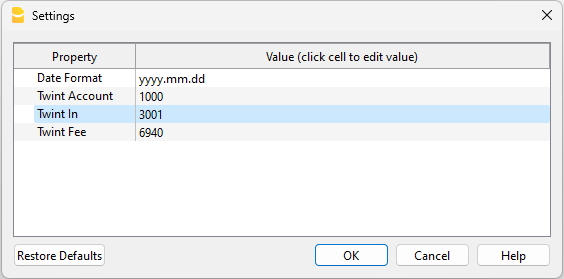
The accounts inserted must exists in your chart of accounts, if you do not yet have any suitable accounts, you can create new ones in your chart of accounts.
For more details see import transactions page.
Error Messages
- Unrecognised *.csv file format: The format of the *.csv file you are trying to import does not match any of the formats associated with this filter:
- Check that you have chosen the correct file.
- If the file you have chosen is correct, it may be that our filter requires updating.
- This extension requires Banana Accounting+ Advanced: You are trying to use the extension with a licence other than the one requested, please upgrade to the Advanced Plan. to be able to use the functionality of this filter.
Send us a feedback
This extension is a BETA version, we welcome suggestions for improvement.
It may happen that the format of the csv file is updated and as a result the filter no longer functions correctly. Send us feedback and attach an example file (.csv) with the new format and we will proceed to update the filter.
UBS - Import account statement .csv (Banana+ Advanced)
UBS - Import account statement .csv (Banana+ Advanced)The .csv format is different for each bank and is updated and changed regularly. On this page you will find the most recent extension for importing the UBS .csv format. This import extension allows you to import UBS transactions into Banana Accounting Plus. The extension can be installed from the Extensions menu > Manage Extensions.
Requirements for use
- Banana accounting Plus with the Advanced Plan.
- UBS also provide files with standard format ISO20022. To import files with this format you can install the relative Import extension Swiss for ISO20022 Camt 052, 053, 054, which is available also with the Professional plan.
In some banks, the specific .csv format may offer better results. In any case, the Advanced plan guarantees a wider choice and maximum results, and also offers several other advanced functions that speed up and simplify accounting work considerably.
Export procedure from UBS
Export your banking transactions in .csv format by accessing your online bank account.
For each account, UBS allows you to export two different types of .csv files:
- The first type of file contains transactions sorted by date of payment. It includes all transactions, even those not yet recorded by the bank. To obtain this file you must:
- Select "Accounts and Cards" on the main menu.
- Select "Overview".
- Select the account or card for wich you would like to export the transactions.
- Click on "Transactions" button.
- Click on the Excel Icon (CSV).
- The second file type contains more specific information about a transactions and these are sorted according to the date on which the payment was recorded by the bank, only movements already recorded by the bank appear in this file. To export this file you must:
- Select "Assets and Investments" on the main menu.
- Select "Accounts".
- Select the account for wich you would like to export the transactions.
- Click on the Excel Icon (CSV).
We recommend saving the file in a place where you can easily find it later and not opening it before importing it.
Import procedure into Banana
- Via the Actions → Import to accounting → select Import transactions box
- Choose the extension to be used, in this case UBS - Import account statement .csv (Banana+ Advanced).
- With the Browse button, choose the file from which to import the transactions.
- Press OK Button.
For more details see Import transactions page.
Error Messages
- Unrecognised .csv file format: The format of the *.csv file you are trying to import does not match any of the formats associated with this filter:
- Check that you have chosen the correct file.
- If the file you have chosen is correct, it may be that our filter requires updating.
- This extension requires Banana Accounting+ Advanced: You are trying to use the extension with a subscription other than the one requested. Please upgrade to the Advanced Plan to enable the functionality of this extension.
Send us a feedback
It may happen that the format of the *.csv file is updated and as a result the filter no longer functions correctly. Send us your Feedback and attach an example file (*.csv) with the new format (a single transactions will be enough) and we will proceed to update the extension.
VZ Depotbank - Import account statement (.xlsx/.csv) (Banana+ Advanced)
VZ Depotbank - Import account statement (.xlsx/.csv) (Banana+ Advanced)The .csv format is different for each bank and is updated and changed regularly. On this page you will find the most recent extension for importing the VZ Depotbank .xlsx/.csv format. This import extension allows you to import VZ Depotbank transactions into Banana Accounting Plus. The extension can be installed from the Extensions menu > Manage Extensions.
Requirements for use
- Banana accounting Plus with the Advanced Plan.
- VZ Depotbank should also provides files with standard format ISO20022, which you can import with the Professional plan. To import files in this format you need to install the relevant import extension Swiss for ISO20022 Camt 052, 053, 054. If you do not find this format already available by default, you can request it from the bank
In some banks, the specific .csv format may offer better results. In any case, the Advanced plan guarantees a wider choice and maximum results, and also offers several other advanced functions that speed up and simplify accounting work considerably.
Export procedure
Export the *.xlsx file with your transactions by logging into your ebanking.
- Open the accounts section and select the account for which you want to export movements.
- Export the movements of your account by choosing the *.xlsx (Excel) format.
You can decide whether to keep the file in Excel format and later import the data by copying it from the clipboard or convert it to a *.csv file, if you want to convert it:
- Open the file and click on File->Export->Change File Type and choose the CSV (Comma delimited) (*.csv) format.
- Save the file in the new format, without modify the content.
We recommend saving the file in a place where you can easily find it later and not opening it before importing it.
Import procedure
You can import the data in two different ways.
Import *.csv file
- Via the Actions → Import to accounting → select Import transactions box
- Choose the extension to be used, in this case 'VZ Depotbank - Import account statement (.xlsx/.csv) (Banana+ Advanced)'.
- With the Browse button, choose the file from which to import the transactions.
- Press OK Button.
Import from clipboard
- Via the Actions → Import to accounting → select Import transactions box
- Choose the extension to be used, in this case 'VZ Depotbank - Import account statement (.xlsx/.csv) (Banana+ Advanced)'.
- Open the Excel file, press Ctrl+A to select all the data, then Ctrl+C to copy the data to the clipboard.
- In the dialog in the dialogue check the box Import data from clipboard.
- Press OK Button.
For more details see Import transactions page.
Error Messages
- Unrecognised *.csv file format: The format of the .xlsx/.csv file you are trying to import does not match any of the formats associated with this filter:
- Check that you have chosen the correct file.
- If the file you have chosen is correct, it may be that our filter requires updating.
- This extension requires Banana Accounting+ Advanced: You are trying to use the extension with a licence other than the one requested, please upgrade to the Advanced Plan to be able to use the functionality of this filter.
Send us a feedback
It may happen that the format of the .xlsx/.csv file is updated and as a result the filter no longer functions correctly. Send us feedback and attach an example file (*.xlsx/*.csv) with the new format and we will proceed to update the filter.
Valiant - Import movements .csv (Banana+ Advanced)
Valiant - Import movements .csv (Banana+ Advanced)The .csv format is different for each bank and is updated and changed regularly. On this page you will find the most recent extension for importing the Valiant Bank .csv format. This import extension allows you to import Valiant Bank transactions into Banana Accounting Plus. The extension can be installed from the Extensions menu > Manage Extensions.
Requirements for use
- Banana Accounting Plus with the Advanced Plan.
- Valiant Bank also provides files with standard format ISO20022, which you can import with the Professional plan. To import files in this format you need to install the relevant import extension Swiss for ISO20022 Camt 052, 053, 054. If you do not find this format already available by default, you can request it from Valiant Bank.
In some banks, the specific .csv format may offer better results. In any case, the Advanced plan guarantees a wider choice and maximum results, and also offers several other advanced functions that speed up and simplify accounting work considerably.
For more information please to the documentation in German.
Viseca (One) - Import movements .csv (Banana+ Advanced) [BETA]
Viseca (One) - Import movements .csv (Banana+ Advanced) [BETA]The .csv format is different for each bank and is updated and changed regularly. On this page you will find the most recent extension for importing the Viseca (one).csv format. This import extension allows you to import Viseca (one)transactions into Banana Accounting Plus. The extension can be installed from the Extensions menu > Manage Extensions.
Requirements for use
- Banana accounting Plus with the Advanced Plan.
- Viseca (One) only offers export in .csv format to business customers.
Export procedure
Export the *.csv or *.xlsx file with your movements by logging into Viseca (one) portal.
- Open the accounts section and select the account for which you want to export movements.
- Export the movements of your account by choosing the *.csv or *.xlsx (Excel) format.
- We recommend saving the file in a place where you can easily find it later and not opening it before importing it.
Import procedure
You can import the data in two different ways.
Import *.csv file
- Via the Actions > Import to accounting > select Import transactions box
- Choose the extension to be used, in this case 'Viseca (One) - Import movements .csv (Banana+ Advanced) [BETA]'.
- With the Browse button, choose the file from which to import the transactions.
- Press OK Button.
Import from clipboard (*.xlsx file)
- Via the Actions > Import to accounting > select Import transactions box
- Choose the extension to be used, in this case 'Viseca (One) - Import movements .csv (Banana+ Advanced) [BETA]'.
- Open the Excel file, press Ctrl+A to select all the data, then Ctrl+C to copy the data to the clipboard.
- In the dialog in the dialogue check the box Import data from clipboard.
- Press OK Button.
In the transactions table, if it is not already displayed, also enable the column 'External Reference' with the command the Columns Setup command, so that you have a complete overview of the imported data.
For more details see Import transactions page.
Error Messages
- Unrecognised *.csv file format: The format of the *.csv file you are trying to import does not match any of the formats associated with this filter:
- Check that you have chosen the correct file.
- If the file you have chosen is correct, it may be that our filter requires updating.
- This extension requires Banana Accounting+ Advanced: You are trying to use the extension with a licence other than the one requested, please upgrade to the Advanced Plan to be able to use the functionality of this filter.
Send us a feedback
It may happen that the format of the *.csv file is updated and as a result the filter no longer functions correctly. Send us feedback and attach an example file (*.csv) with the new format and we will proceed to update the filter.
Yuh - Import movements .csv (Banana+ Advanced)
Yuh - Import movements .csv (Banana+ Advanced)On this page you will find the most recent extension for importing the Yuh finance app .csv format. This import extension allows you to import Yuh app transactions into Banana Accounting Plus. The extension can be installed from the Extensions menu > Manage Extensions.
Requirements for use
- Banana accounting Plus with the Advanced Plan.
Export procedure
Export your transactions in *.csv format by accessing your Yuh account.
- Open the accounts section and select the 'Documents' item, then select 'Request' (top-left on iOS) or 'REQUEST DOCUMENT' (bottom right on Android).
- Tap the 'Account activities export' option and then the Next button.
- Select your desired export filter options and follow the options through until you are taken to the Documents section where your CSV is added.
- Save the file on your computer.
- We recommend saving the file in a place where you can easily find it later and not opening it before importing it.
Import procedure
- Via the Actions → Import to accounting → select Import transactions box
- Choose the extension to be used, in this case 'Yuh Transactions - Import account statement .csv (Banana+ Advanced)'.
- With the Browse button, choose the file from which to import the transactions.
- Press OK Button.
For more details see import transactions page.
Error Messages
- Unrecognised *.csv file format: The format of the *.csv file you are trying to import does not match any of the formats associated with this filter:
- Check that you have chosen the correct file.
- If the file you have chosen is correct, it may be that our filter requires updating.
- This extension requires Banana Accounting+ Advanced: You are trying to use the extension with a licence other than the one requested, please upgrade to the Advanced Plan to be able to use the functionality of this filter.
Send us a feedback
It may happen that the format of the *.csv file is updated and as a result the filter no longer functions correctly. Send us feedback and attach an example file (*.csv) with the new format and we will proceed to update the filter.
Zuger Kantonalbank - Import bank account statement .csv (Banana+ Advanced)
Zuger Kantonalbank - Import bank account statement .csv (Banana+ Advanced)The .csv format is different for each bank and is updated and changed regularly. On this page you will find the most recent extension for importing the Zuger Kantonalbank .csv format. This import extension allows you to import Zuger Kantonalbank transactions into Banana Accounting Plus. The extension can be installed from the Extensions menu > Manage Extensions.
Requirements for use
- Banana Accounting Plus with the Advanced Plan.
- Zuger Kantonalbank also provides files with standard format ISO20022, which you can import with the Professional plan. To import files in this format you need to install the relevant import extension Swiss for ISO20022 Camt 052, 053, 054. If you do not find this format already available by default, you can request it from Zuger Kantonalbank.
In some banks, the specific .csv format may offer better results. In any case, the Advanced plan guarantees a wider choice and maximum results, and also offers several other advanced functions that speed up and simplify accounting work considerably.
For more information please to the documentation in German.
Zürcher Kantonalbank ZKB - Import bank account statement .csv (Banana+ Advanced)
Zürcher Kantonalbank ZKB - Import bank account statement .csv (Banana+ Advanced)The .csv format is different for each bank and is updated and changed regularly. On this page you will find the most recent extension for importing the Zürcher Kantonalbank .csv format. This import extension allows you to import Zürcher Kantonalbank transactions into Banana Accounting Plus. The extension can be installed from the Extensions menu > Manage Extensions.
Requirements for use
- Banana Accounting Plus with the Advanced Plan.
- Zürcher Kantonalbank also provides files with standard format ISO20022, which you can import with the Professional plan. To import files in this format you need to install the relevant import extension Swiss for ISO20022 Camt 052, 053, 054. If you do not find this format already available by default, you can request it from Zürcher Kantonalbank.
In some banks, the specific .csv format may offer better results. In any case, the Advanced plan guarantees a wider choice and maximum results, and also offers several other advanced functions that speed up and simplify accounting work considerably.
For more information please to the documentation in German.