Accounting Extensions
Estensioni di importazione Universali
Con Banana Contabilità Plus puoi importare dati da diversi formati.
Estratto bancario SEPA/ISO 20022
Il camt/ISO 20022 è il formato degli estratti conti bancari messo a disposizione dalla maggior parte delle banche. Vedi:
Importazioni da PayPal
Questa estensione ti permette di importare in Banana Contabilità Plus i movimenti di PayPal:
Importazione estratto bancario SEPA/ISO 20022
Importazione estratto bancario SEPA/ISO 20022Importazione dei dati nella contabilità esistente
Si tratta di una funzionalità inclusa nel programma. Procedere come indicato nel comando Importa in contabilità.
Con questa funzione è anche possibile aprire un file compresso. Il programma in questo caso chiederà di scegliere il file da dove importare i dati nel file compresso.
Visione del contenuto
Se prima di importare il file volete vedere il contenuto, usate la funzione Apri file ISO20022.
Lo standard ISO 20022 per estratti conto
Con il SEPA (Single Euro Payment Area) lo standard ISO 20022 diventa obbligatorio in Europa a partire dal 1.1.2014, e soppianta il formato Swift MT940.
Banana Contabilità supporta i formati ISO 20022 camt.052, camt.053 (incluse versioni 4 e 8) e camt.054 .
Note tecniche relative alla conversione ISO 20022
Lo standard ISO 20022 codifica i dati contabili dell'estratto conto in modo molto preciso. Lascia però anche diversa libertà per inserire informazioni aggiuntive del conto e dei movimenti.
Banana quando legge il file cerca di adattarsi alle modalità con il quale è stato predisposto il file ISO 20022.
- Legge come saldo iniziale le codifiche simili
- Legge come saldo finale le codifiche simili
- Tutti i movimenti contenuti sono letti e trasformati in movimenti
- Data operazione (Data)
- Data valuta
- Importo movimento (in positivo o negativo)
- Descrizione (Banana per il momento assembla le varie descrizioni in un testo unico)
In futuro è prevista la possibilità di estrarre più specificatamente questa informazione e indicare altre colonne dove destinarla.
SumUp - Importa movimenti .csv (Banana+ Advanced)
SumUp - Importa movimenti .csv (Banana+ Advanced)Questa estensione di importazione permette di importare le transazioni dalla piattaforma SumUp in Banana.
Consultare la documentazione in inglese: SumUp - Import movements .csv (Banana+ Advanced)
Chase - Import movements .csv (Banana+ Advanced)
Chase - Import movements .csv (Banana+ Advanced)Questa estensione di importazione permette di importare le transazioni dalla piattaforma Chase in Banana.
Consultare la documentazione in inglese: Chase - Import movements .csv
PayPal Import *.csv (Banana+) [BETA]
PayPal Import *.csv (Banana+) [BETA]This extension lets you import in Banana Accounting your PayPal transactions. Only for Banana+ version.
Separate accounting for PayPal transactions
PayPal transactions are usually composed of small amounts and have many particularities (refund, fees, etc.).
It can be expensive and time consuming to handle all this work within the main company accounting.
We have prepared different template that you can immediately use:
In many cases, it is more appropriate to manage the PayPal transactions within a separated accounting file and once a month integrate the summary data (movements for the month) into the main accounting.
This solution also allows a third person to take responsibility for the PayPal accounting.
If you use Banana for a PayPal Accounting solution, you can:
- Create an accounting file for a specific PayPal account
- Have a Chart of accounts with
- A different account for each currency used
- Different accounts for Income and Expenses
- Import the PayPal transactions and have all accounts, expenses, income and PayPal fees automatically allocated, and currency converted into basic currency.
- Record the transactions on the appropriate accounts for
- Bank transfers
- Revenue with different Sale tax codes
- Different expense types
- Refunds and charge backs
- Adding other information for special reporting (Cost Centers, Segments, Customers, etc.)
- Regularly (week, month, quarter) integrate the data into the main accounting, either by
- Printing a summary and recording manually
- Or exporting the data for the period and import them into the main system
- At any time, print the journal and necessary reports for auditing or control.
- Eventually, in case you have a lot of transactions, you can customize the import filter (Javascript) so that certain transactions are registered onto specific accounts numbers.
Within the Banana PayPal accounting you can easily keep the whole history, have instant access to all the data necessary to give a good customer service.
Activate the import PayPal transaction
First you need to update the import filters in Banana Accounting. See also Manage extensions.
- Start Banana Accounting+
- Open your accounting file
- Menu "Actions→ Import to accounting"
- Select "Import transactions"
- Button Manage extensions
- Button Update extensions
- Check the "PayPal Import (*.csv)" and deselect the other filters you do not need
- Close the dialog
Download PayPal transactions
PayPal customize fields to download
Be careful that the PayPal standard download file does not contain all the fields necessary for the import into Banana.
You need to change the settings in PayPal so that you can have a correct download.
Business Account
- Login into PayPal
- Go to Activity.
- Click All Reports
- Click Activity download under Reports.
- Select the transaction type, date range, and choose the CSV file format.
- Click Customize report fields and make sure that all field are checked or check all fields available.
- Click Create Report.
- When the report is ready, click Download.
Personal Account
- Login into PayPal
- Go to Activity.
- Click the download button icon.
- Click on Custom.
- Click Activity download under Reports.
- Select the transaction type, date range, and choose the CSV file format.
- Click Customize report fields and make sure that all field are checked or check all fields available.
- Click Create Report.
- When the report is ready, click Download.
PayPal language encoding setting (only for Business Account)
If you use a local encoding, make sure that the encoding reflects your local computer encoding.
Banana import works better if you set your file encoding in UTF-8.
To change your language encoding settings in PayPal:
- Login into PayPal
- My Account → Account Settings → Website payments
- PayPal button Language encoding (click on Update)
- Eventually More Options is where you can set the UTF-8 in the list box
This setting can resolve the error: 'Impossible to translate file header: Convert paypal file to code page Latin1 or use new version of Banana Accounting'
Import PayPal transactions
See also import transactions
- Open your accounting file
- Menu "Actions→ Import to accounting"
- Select "Import transactions"
- Select "PayPal"
- In File Name, enter the path and file name of the PayPal download (or Browse)
- Click OK.
- In the settings dialog enter:
- Choose the date format for the PayPal date format.
If you get the error "Date Format not valid" open the file you have downloaded from PayPal with notepad and check how the dates are written and then choose the appropriate format. - Enter the Account number for the PayPal Account (PayPal Account)
- Enter the Account number where Income should be registered (PayPal In)
- Enter the Account number where Expenses should be registered (PayPal Out)
- Enter the Account number where PayPal Fees should be registered (PayPal Fee)
- If it is multi-currency accounting also sets the exchange rates
- Choose the date format for the PayPal date format.

Once you have imported the transactions, you can undo the operation or change the imported data.
This will be the case if you want some income or some expenses to be registered on a different account..
Adapt your accounting file for import
If you do not specify the PayPal accounts in the setting, you can set up the accounts in the table Accounts with the exact decription as specified here.
This method is also necessary if you want to have different accounts for each currency.
- The Basic currency in File properties should be set to a valid currency.
- Description for accounts:
- "PayPal Account": the account for PayPal
- "PayPal In": the account for income
- "PayPal Out": the account for expenses
- "PayPal Fee": the account for the PayPal fees.
- Set the opening balance of the PayPal accounts.
For each currency, you can specify an account. All transactions for this currency will be recorded on the specified account. You also will have the currency conversion transactions between the various currencies.
- For an accounting file NOT in multi/foreign currency, insert the currency code into the account description:
- PayPal Account EUR
- PayPal Account USD
- PayPal Account CHF
- PayPal Account GBP
- For an accounting file with multi/foreign currency, the program will look for the account where the description begins with "PayPal Account" and will then use the currency symbol of the Currency column.
If no account has been specified for the currency, the amount will go to the basic currency account.
PayPal currency settings and accounting settings
It is suitable that your PayPal currency settings (My Account → Profile → My Money→ PayPal Balance → Currencies) are the same as the ones of the accounting file:
- PayPal "Primary currency" is the same as your Basic Currency.
- If you have set up PayPal to use more currencies (Add Currency) you should use the Double-entry accounting with Multi-currency.
You will be able to keep a separate account for each currency in the original value.
You can convert an existing accounting file into a multi-currency file with the Convert to new file command. - For multi-currency accounting, the accounts "PayPal In", "PayPal Out", "PayPal Fee" should preferably be in basic currency.
Transaction split and selection
Each PayPal transaction includes the Gross amount, the Fee amount and the Net amount. If the Net is different from the Gross, the program will generate 3 lines:
- Line with the Gross amount registered on the PayPal Account
- Line with the Net amount registered on the Income or Expense account
- Line with the Fee amount registered on the Fee account.
Transactions already imported
The columns "ExternalReference" of the Transactions table will be filled with the unique PayPal transactionsID.
The next time you import, transactions with the same ID will be excluded from the import. The information from the older transactions will be used for currency conversion and grouping.
Last balance
The import will also add a line with information regarding the last PayPal Balance for each currency used. If you do not want this information, delete the imported lines.
Modifying the imported transactions
Once the transactions are imported, you will be able to change the transactions, as you like.
- Record the transfers to and from the bank account on a "Internal transfers account (Giro bank account)".
Do the same when you import your Bank account transactions.
The balance of the "Internal transfers account (Giro bank account)" should compensate and go to zero. - Income from sales can be registered on specific accounts based on the sales tax applied or based on the type of sales.
You must adapt your accounting plan accordingly. - You can add segments or cost centers.
Adapt the View of the Transaction table so that you have all columns visible and in the best sequence for modifying the data.
Exchange rate profit and loss
The balances of the PayPal accounts in currency will match the balance of the PayPal account.
The balances in basic currency may be different due to:
- The exchange rates for the transactions vary over the time.
- PayPal has different exchange rates for selling or buying a specific currency.
You should from time to time adjust the basic currency with the command Recording exchange rate differences.
Multi currency conversion
If there are different transactions in different currencies in the file, the amounts will be converted into basic currency following this rule and order:
- Basic currency
- PayPal currency conversion
Transactions that belong to the same block will use the same conversion, so that the amount in basic currency for the same amount and transaction will always be the same. - Exchange rate from currency conversion of the same date
- Exchange rates taken from the Accounting file (Exchange rates table)
- Exchange rate collected from the PayPal currency conversion.
The conversion will give an indication when it could not find a valid exchange rate for a currency and ask for a currency exchange rate.
Import other PayPal fields
You can import other information, included in the PayPal file, into Banana Accounting.
- Add a new column to the Transactions table with the name "PayPal" + the column name of the PayPal file.
For example "PayPalTimeZone", "PayPalSalesTax", "PayPalTip".- Specify the column type (Text, Number, Amount, Date, Time).
- For Amount and Number also indicate the decimal place.
- In the Account Card, the columns of the Amount type will also have an end total.
- In the PayPal download history with "Customize Download Fields", you can specify the column to download.
- The available columns (names in English, without space and in CamelCase) are:
Time, TimeZone, Type, Name, Status, Subject, Currency, Gross, Fee, Net, Note, FromEmailAddress, ToEmailAddress, TransactionId, PaymentType, CounterpartyStatus, ShippingAddress, AddressStatus. ItemTitle, ItemId, ShippingAndHandlingAmount, InsuranceAmount, SalesTax, Tip, Discount, SellerId, Option1Name, Option1Value, Option2Name, Option2Value, AuctionSite, BuyerId, ItemUrl, ClosingDate, ReferenceTxnId, InvoiceNumber,SubscriptionNumber, CustomNumber, ReceiptId, Balance, ContactPhoneNumber, BalanceImpact, AddressLine1, AddressLine2, State, Town, Zip, Country.
When you import the transactions, the PayPal* column cells will be filled with the contents of the PayPal file.
Banana PayPal import extension
The conversion from the PayPal format to the accounting format is a Javascript program.
The program is "open source software" and can be modified to suit the user's needs at best.
To modify the extension, first change the following values so that it does not conflict with the Banana PayPal filter:
- Use a different file name
- Use a different @id
- Use a different description.
License terms
The PayPal documentation does not cover all possible transactions. The import script has been developed based on use cases, and it is possible that not all possibilities have been covered and that the script need improvements.
PayPal may also change the data format and the script results may not be the same.
Take care using the import and always check that the Account Balance corresponds to the PayPal balance.
The use of the import script is governed by the Apache 2.0 license, the file can be freely modified.
By using the script you accept the license and the disclaimer terms.
Troubleshooting
If you experience any problem first update the import filter to the latest version in Manage apps.
- Rounding problem.
It can happen that the PayPal file use a decimal format that is different from the one of your computer. Amount are therefore truncated (12.34 become 12 or it become 1234).
PayPal assign you a specific format for the language encoding based on you country (see PayPal language encoding explanations).- Make sure that the PayPal download are the same as your computer settings
- Or login in you PayPal account and change the PayPal language encode setting (https://www.paypal.com/cgi-bin/customerprofileweb?cmd=_profile-language-encoding).
With the button More Option you can eventually select the UTF-8 that is the best suited to exchange data.
- The error message "Impossible to translate file header: .."
- Try using the Banana Accounting 9 version.
- Change your download settings as specified above in the "PayPal language encoding setting"
- Assure you are using the original CSV file downloaded from PayPal and not one opened and saved with Excel.
- The error message "Currency non converted" indicates that there has been no available exchange rate for the conversion.
- It is possible you have not set up your basic currency
- You have set up the PayPal to keep more than one currency. The PayPal file does not convert currency and you should therefore use a multi-currency accounting.
- If the last balance is different from the account
- Check whether you have a correct opening amount (the balance prior to the first imported transaction)
- Your account is not in the same currency.
If your PayPal account is set up to use different currencies or in a currency different from basic currency, it would be suitable to use a multi currency account.
- If you get a message field "BalanceImpact not found in headers" or the same message with another field name, is due to the fact that the PayPal History file does not contains a field that is needed for import.
- Login in PayPal and go to download history
- Before downloading the PayPal history file click on "Customize My History Download"
- You will see a list of available field and check the one that is missing
The "Balance Impact" is near the end of the list.
PayPal will save the setting. Next time you download again the field will be included. - Download again the history file.
- If you have an error message "AccountDebit" and "AccountCredit" not found, you have a file with old columns name.
use the command Tools->Create New File to create a copy of the file with the correct columns.
Reference
PayPal Documentation
Changes
- 2021-03-24 New version for Banana+
- Complete history
Feedback
Let us know what you think of the import script or how we could eventually improve the script.
Revolut - Import movements .csv (Banana+ Advanced)
Revolut - Import movements .csv (Banana+ Advanced)Questa estensione di importazione permette di importare le transazioni dalla piattaforma Revolut (Personal & Business) in Banana.
Consultare la documentazione in inglese: Revolut - Import movements .csv
Stripe - Import movements .csv (Banana+ Advanced) [BETA]
Stripe - Import movements .csv (Banana+ Advanced) [BETA]Questa estensione di importazione permette di importare le transazioni dalla piattaforma Stripe in Banana.
Consultare la documentazione in inglese: Stripe - Import movements .csv
Wise - Import transactions (*.csv)
Wise - Import transactions (*.csv)Questa estensione di importazione permette di importare le transazioni dalla piattaforma Wise (Personal & Business) in Banana.
Consultare la documentazione in inglese: Wise - Import transactions (*.csv)
Yokoy - Import movements .csv (Banana+ Advanced) [BETA]
Yokoy - Import movements .csv (Banana+ Advanced) [BETA]Questa estensione di importazione permette di importare le transazioni dalla piattaforma Yokoy in Banana.
Consultare la documentazione in inglese: Yokoy - Import movements .csv
CiviCRM Contributions - Import movements .csv (Banana+ Advanced) [BETA]
CiviCRM Contributions - Import movements .csv (Banana+ Advanced) [BETA]You can install the extension from the menu Extensions > Manage Extensions.
Requirements for Use
Banana Accounting Plus with the Advanced Plan.
Send us a feedback
This extension is a BETA version, we welcome suggestions for improvement.
It may happen that the format of the csv file is updated and as a result the filter no longer functions correctly. Send us feedback and attach an example file (.csv) with the new format and we will proceed to update the filter.
OFX - Open financial exchange transactions import filter (*.ofx *.ofc *.xml)
OFX - Open financial exchange transactions import filter (*.ofx *.ofc *.xml)Import extension (*.ofx *.ofc *.xml). Install this filter via the menu command Extensions → Manage Extensions.
The file is an import extension for Banana Accounting 8 and following.
It allows the software to:
Read OFX (Open Financial Exchange) files
Extract financial transactions
Convert them into Banana’s Transactions table
What Is OFX?
OFX (Open Financial Exchange) is a structured financial data format used by banks and software such as:
Quicken
Microsoft Money
It is more reliable than QIF because it includes:
Unique transaction IDs (FITID)
Structured account information
Statement balances
Currency data
What the Script Does
The OFX import extension:
Parses the OFX file structure
Extracts transaction blocks (<STMTTRN>)
Reads key fields:
Date (<DTPOSTED>)
Amount (<TRNAMT>)
Description (<NAME>)
Memo (<MEMO>)
Transaction ID (<FITID>)
Converts them into Banana transaction rows
Prevents duplicate imports using FITID
Typical OFX Transaction Structure
<STMTTRN>
  <TRNTYPE>DEBIT
  <DTPOSTED>20260301
  <TRNAMT>-125.50
  <FITID>20260301001
  <NAME>Vendor Payment
  <MEMO>Invoice 4587
</STMTTRN>
Export from Online Banking (Recommended)
Many banks in USA allow transaction export.
Steps:
Log into your online banking portal
Go to transaction history
Select Download / Export
Choose format:
OFX
or QFX
Select date range
Download the file
Export from Financial Software
Software like Quicken allows exporting to OFX:
Open your account
Choose Export transactions
Select OFX format
Save the file
Quicken Interchange Format import filter (*.qif)
Quicken Interchange Format import filter (*.qif)It allows Banana Accounting to read and convert data from QIF (Quicken Interchange Format) files into Banana’s internal accounting structure (Transactions table, Accounts, Categories).
The script:
- Parses QIF records (such as date, amount, payee, memo, category)
- Transforms them into Banana-compatible transaction rows
- Handles different QIF types (Bank, Cash, Credit Card, etc.)
- Ensures correct formatting for dates and amounts
In short, it enables importing bank or financial transaction data exported in QIF format into Banana Accounting.
How to Export Data in QIF Format
QIF is an older financial exchange format originally used by Quicken.
Exporting from Financial Software
If your software supports QIF export:
Open your accounting or banking software
Go to Export or Data Export
Select:
Format: QIF (Quicken Interchange Format)
Account type: Bank / Cash / Credit Card
Choose date range
Save the
.qiffile
Exporting from Online Banking
Some banks still allow QIF export:
Log in to your online banking portal
Open the transaction history
Choose Download / Export
Select format:
QIF (if available)
Otherwise: CSV (you would need conversion)
Many banks today provide CSV or OFX instead of QIF.
Basic QIF Structure Example
A QIF file looks like this:
!Type:Bank
D03/01/2026
T-125.50
PPayment to Vendor
MInvoice 4587
LExpenses:Office
^Export Extensions
Export Address data in the VCard format
Export Address data in the VCard formatUsing the extension to export vCards
This extension is compatible only with the following file types:
- Address book
- Library and collections
- Estimates and Invoices
To generate and export vCards, the extension uses data from the Contacts table in the file. Specifically, it reads the following columns:
- First Name
- Family Name
- Street
- Zip
- Locality
- Country Code
- Country
- Mobile Phone
- Home Phone
- Email Home
Ensure that your file is of a supported type and that the required columns are filled in correctly to guarantee a successful export.
Install the extension
To install the extension:
- Open Banana Accounting Plus.
- Menu Extensions > Manage Extensions.
- In the search field enter Export Address data in the VCard format.
- From the extensions list select Export Address data in the VCard format.
- Select the extension and click Install.
- Click Close to close the window.
Export address data in vCard format
To export the vCard with the addresses data:
- Open the Banana file.
- From the Extensions menu select Export Address data in the VCard format.
- Enter the contact ID. You can export a vCard containing all contacts or just specific ones.
- Save the vCard.
The generated .vcf file contains a structure like the following one:
BEGIN:VCARD
VERSION:3.0
N:Pallino;Pinco
FN:Pinco Pallino
TEL;type=CELL:1234567890
TEL;type=HOME:1234567890
ADR;TYPE=HOME:;;Via Trevano 7a;Lugano;;6900;
LABEL;TYPE=HOME:Via Trevano 7a Lugano,6900
REV:2017-02-07T14:07:54.694Z
END:VCARD
Export vCard for unsupported file types
If you're using a file type that is not supported by this extension (e.g., a double-entry accounting file, an income/expense accounting file, etc.), you can still export the data for members, customers and suppliers by following these steps:
- Copy the contact information from your current accounting file.
- Create a new file of type Address book and paste the copied data into the appropriate columns.
- Run the extension to export the vCards in the new file.
Journal Export (Banana 9)
Journal Export (Banana 9)How to use it
In order to use this app you have to:
- Install the app
- Menu Apps → Manage Apps...
- Select Universal as country.
- Select english as language.
- Select Online → Productivity.
- From the apps list select Journal Export.
- Click Install to install the app.
- Click Close to close the window.
- Run the app
- Menu Apps → Journal Export.
- Export the content
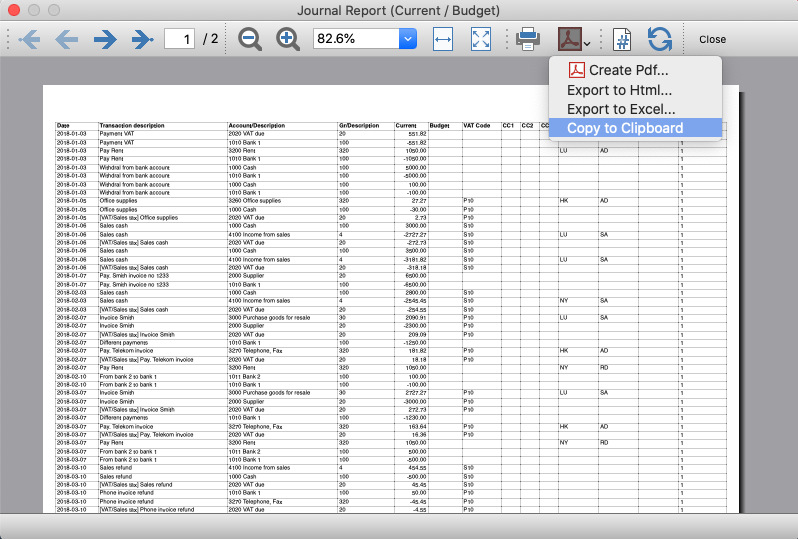
- From the top bar select Copy to Clipboard.
- Copy into Excel
- Open Excel and paste the copied content.
Journal Export (Banana+)
Journal Export (Banana+)Prerequisites
To use this extension you must download and install Banana Accounting Plus.
Install the extension
To install the extension:
- Open Banana Accounting Plus.
- Menu Extensions > Manage Extensions
- Select Universal as country.
- Select english as language.
- Select Online > Productivity.
- From the extensions list select Journal Export (Banana+).
- Click Install to install the extension.
- Click Close to close the window.
Create the journal report
To creare and export the journal:
- Open an accounting file.
- From the Extensions menu select the Journal Export (Banana+).
- In Settings dialogue choose the journal columns you want to display, then click OK.
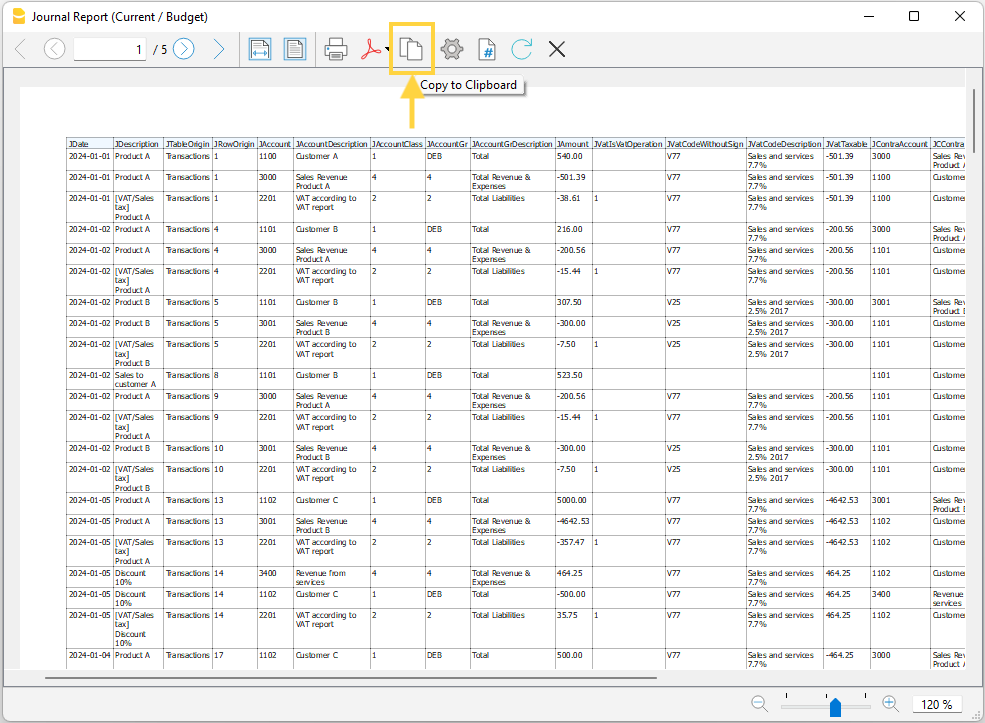
- From the Print Preview of the report select the Copy to Clipboard command in the top bar.
- Open Excel and paste the copied content. Columns headers and data will be copied in Excel. From there you can use it to create your own reports.
Settings dialogue
Run the extension from the menu Extensions > Journal Export (Banana+).
The extension Settings dialogue will open. From here you can choose the journal columns you want to include in the report.
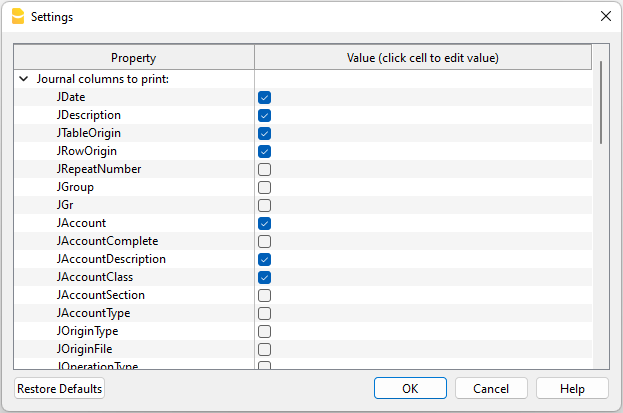
You can find more information about the journal columns in the Journal’s API documentation.
Print example
Time Sheet Export
Time Sheet ExportPrerequisites
- Download and install Banana Accounting Plus (or Banana Accounting 9, version 9.0.5).
Install the extension
To install the extension:
- Open Banana Accounting Plus.
- MenuExtensions > Manage Extensions.
- Select Universal as country.
- Select english as language.
- Select Online > Productivity.
- From the extensions list select Time Sheet Export.
- Click Install.
- Click Close to close the window.
Export the time sheet columns
To export the columns of the time sheet table:
- Open a time sheet file type.
- From the Extensions menu select the Time Sheet Export.
- In Settings dialogue choose the time sheet columns you want to export, then click OK.
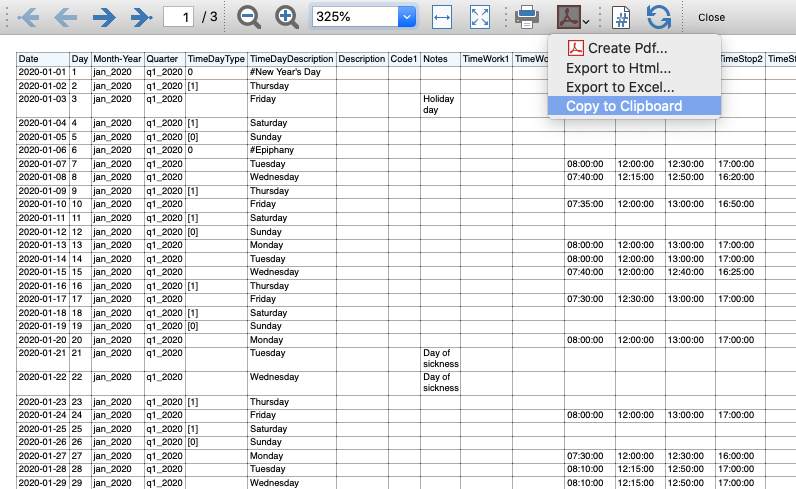
- From the Print Preview of the generated report select the Copy to Clipboard command in the top bar.
- Open Excel and paste the copied content. Columns headers and data will be copied in Excel. From there you can use it to create your own reports.
Report Extensions
Account Statement Letter
Account Statement LetterInstall the extension
To install the extension:
- Open Banana Accounting Plus.
- Menu Extensions > Manage Extensions.
- In the search field enter Account Statement Letter.
- From the extensions list select Account Statement Letter.
- Select the extension and click Install.
- Click Close to close the window.
Create the report
To creare the report:
- Open an accounting file.
- From the menu File > File and accounting properties > Address, enter the sender address.
- In the Accounts table (Address view) enter the receiver address for the account.
- From the Extensions menu select the Account Statement Letter.
- Enter the account number.
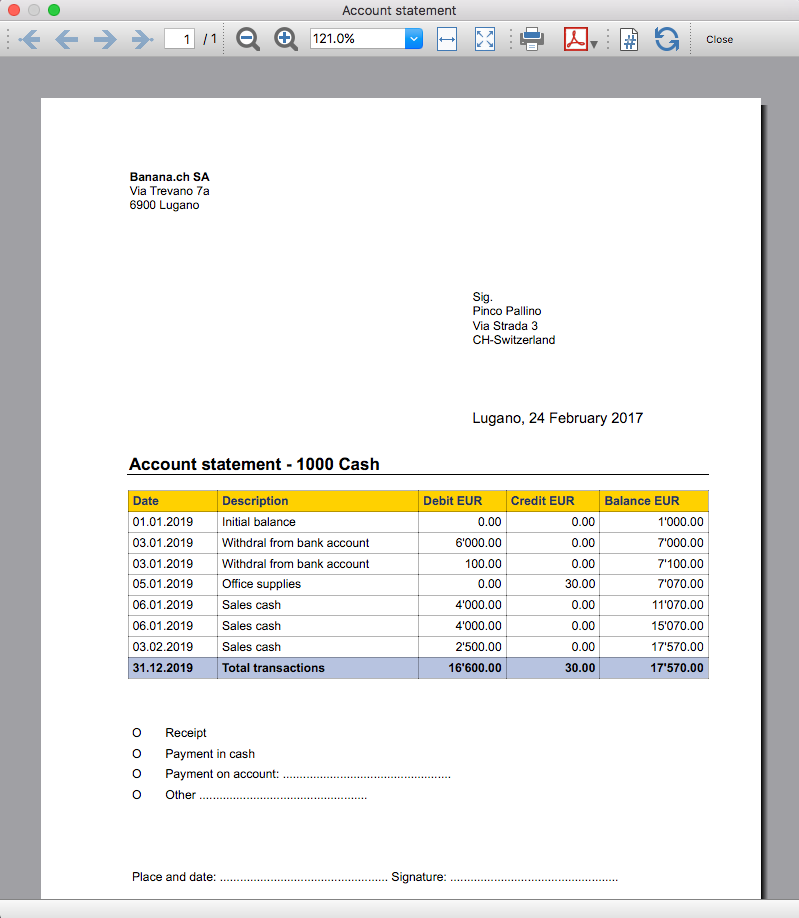
Example of account statement report:
Account balance by day within a period
Account balance by day within a periodInstall the extension
To install the extension:
- Open Banana Accounting Plus.
- Menu Extensions > Manage Extensions.
- In the search field enter Account balance by day within a period.
- From the extensions list select Account balance by day within a period.
- Select the extension and click Install.
- Click Close to close the window.
Create the report
To creare the report:
- Open an accounting file.
- From the Extensions menu select the Account balance by day within a period.
- Enter the account number.
- Select the period.
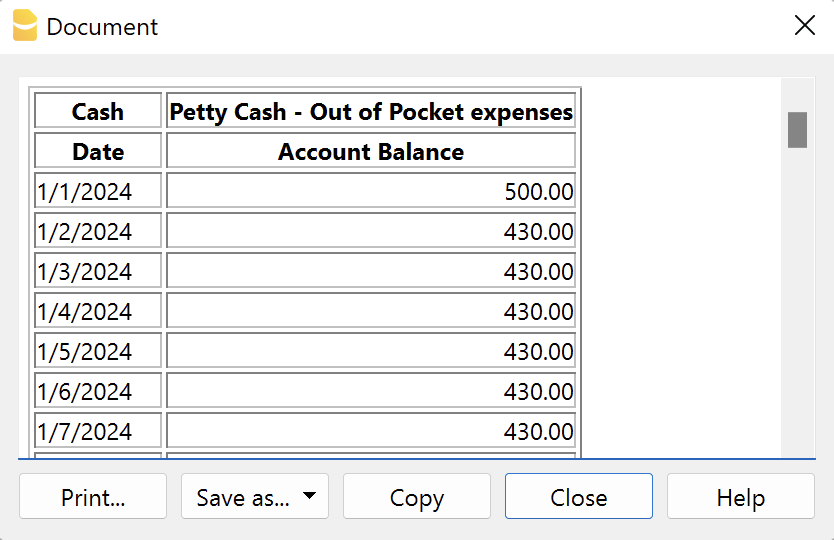
A window with results is displayed. You can copy, save and print the results.
Account balance for all days in a month
Account balance for all days in a monthInstall the extension
To install the extension:
- Open Banana Accounting Plus.
- Menu Extensions > Manage Extensions.
- In the search field enter Account balance for all days in a month.
- From the extensions list select Account balance for all days in a month.
- Select the extension and click Install.
- Click Close to close the window.
Create the report
To creare the report:
- Open an accounting file.
- From the Extensions menu select Account balance for all days in a month.
- Enter the month number.
- Enter the account number.
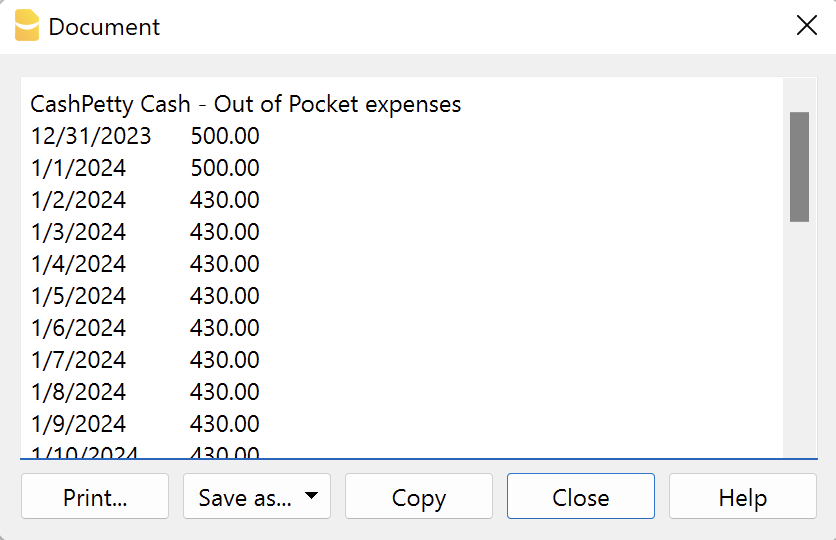
A window with results is displayed. You can copy, save and print the results.
Audit Reports [BETA]
Audit Reports [BETA]The main purpose of this extension is to provide reports that can be easily copied into excel, summarising and showing the main accounting data that are normally taken as a basis by auditors when preparing their analysis.
Useful reports for Banana users who need to send their auditor accounting data, but also for auditors who use Banana themselves, as these reports are based on the functionalities already offered by Banana and therefore facilitate and speed up the collection of accounting data.
Reports
The following reports can be generated:
- General Ledger: Shows the transactions for each account, like in the account card.
- Journal: Shows the details of each transaction.
- VAT Journal: Shows the details of each VAT transaction.
- Trial Balance: Shows the balance of all accounting items in two columns (debit and credit).
- Customers And Suppliers: Shows list of customers and suppliers and information about them.
Through a dialogue it is possible to decide the time of year to be taken into account in the reports.
Adding extra columns
Through the command "Columns Settings" additional columns can be inserted in each report, except for the trial balance, which remains as it is. To add a column to the report, simply enter its xml name in the dialogue. To add several columns, separate them with a semicolon ";" as shown in the example.

The columns you can add are the same present in the Transactions table, except for the Customers and Suppliers report, for which you find the data in the Accounts table.
If you accidentally add a column that is not contained in the tables mentioned, no error is currently raised, the column will be added but no value will be present.
Copy to Excel
Reports are easily copied to Excel, when the report preview is generated, just click on the "copy" icon and paste the copied table into an Excel sheet.

Once the whole table has been copied, you can arrange the file as you want and customise your report with Excel tools.

Messages
- Total debit and total credit are different: The total Debit and total Credit do not match, check if the same error is present in your Accounting file, if it is only present in the report send us a feedback
Lettera con testo libero (Banana+)
Lettera con testo libero (Banana+)L'estensione presentata qui di seguito permette di creare una lettera con testo libero per i soci registrati in Banana Contabilità Plus (tabella Conti).
È fondamentale avere l'impostazione dei soci con i centri di costo, utilizzando il centro di costo CC3.
Prerequisiti
Per utilizzare questa estensione è necessario:
- Scaricare e installare Banana Contabilità+ (versione 10.1.7 o successive).
- Avere il piano Advanced di Banana Contabilità Plus.
Installazione e utilizzo dell'estensione
- Installa l'estensione Lettera (Banana+). Visita la documentazione Gestione Estensioni.
- Una volta installata, l'estensione sarà visibile nel menu Estensioni dove potrà essere eseguita.
Creare una lettera
- Inserisci i dati dell'Associazione nella scheda Indirizzo del file contabile.
- Dal menu Estensioni seleziona l'estensione Lettera (Banana+) .
- Completa i campi del dialogo Impostazioni e clicca su OK.
Dialogo Impostazioni
Esegui l'estensione dal menu Estensioni > Lettera (Banana Plus).
Si aprirà il dialogo delle Impostazioni dell'estensione, dove puoi definire le informazioni necessarie per creare la stampa della lettera.
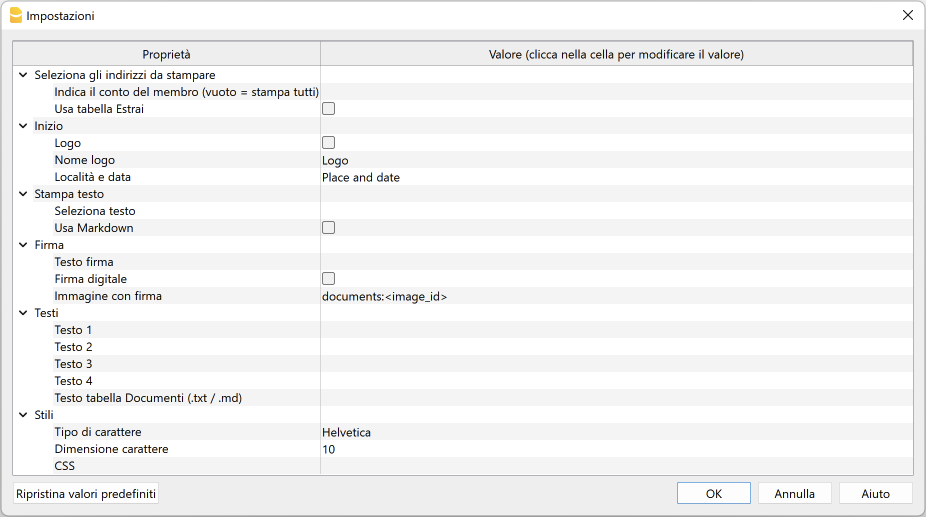
Per l'inserimento dei dati fai un clic nel campo della colonna Valore.
Le impostazioni sono suddivise nei seguenti gruppi:
- Seleziona gli indirizzi da stampare
- Definisci i conti dei soci per i quali creare la lettera.
- Inizio
- Definisci il logo per l'intestazione, la località e la data.
- Stampa testo
- Definisci quale testo utilizzare.
- Firma
- Definisci il testo e l'immagine per la firma.
- Testi
- Definisci fino a quattro testi diversi o riprendi un testo dalla tabella Documenti.
- Stili
- Definisci il tipo di carattere e la dimensione per i testi della lettera.
I dati inseriti vengono utilizzati per generare il report, che sarà poi possibile salvare e stampare.
Seleziona gli indirizzi da stampare
Qui puoi decidere per quali soci, definiti con i centri di costo CC3, creare la lettera.
- Indica il conto del membro (vuoto = stampa tutti)
- Inserisci un conto singolo (ad es. "10001").
- Inserisci più conti suddivisi da una "," (ad es. "10001,10002,10005").
- Se non inserisci nulla verrà stampata una lettera per tutti i membri registrati.
- Usa tabella Estrai
- Utilizza i conti estratti nella tabella Estrai.
- È necessario prima utilizzare il comando dal menu Dati > Estrai righe e ordina righe per estrarre le righe con i conti che vuoi utilizzare.
Inizio
Qui definisci il logo per l'intestazione, la località e la data.
- Logo
- Includi un logo nell'intestazione. Il logo è definito tramite il comando dal menu File > Imposta logo.
- Nome logo
- Inserisci il nome del logo da utilizzare.
- Località e data
- Inserisci la località e la data.
Stampa testo
Qui puoi decidere quale testo utilizzare tra quelli che hai inserito.
- Seleziona testo
- Seleziona dalla lista il testo che si desidera utilizzare.
- Per l'inserimento dei testi vedere più in basso.
- Usa Markdown
- Il testo selezionato viene interpretato come un testo di tipo Markdown (richiede il piano Advanced di Banana Contabilità Plus).
Firma
Qui definisci il testo e l'immagine per la firma della lettera.
- Testo firma
- Inserisci nome e cognome di chi rilascia la lettera.
- Firma digitale
- Utilizza un'immagine come firma.
- Immagine con firma
- Inserisci l'immagine da utilizzare. Hai due modalità per farlo:
- documents:<nome_id>: per utilizzare un'immagine salvata nella tabella Documenti, dove <nome_id> rappresenta il nome inserito nella colonna ID della tabella (es. "documents:firma").
- file:document/<immagine>: per utilizzare un'immagine salvata esternamente a Banana, ma nella stessa cartella del file .ac2. Indica anche l'estensione dell'immagine .png oppure .jpg (es. "file:document/firma.png").
- Inserisci l'immagine da utilizzare. Hai due modalità per farlo:
Testi
Qui definisci i testi della lettera. Puoi inserire fino a quattro testi diversi o riprendere un testo dalla tabella Documenti.
- Testo 1, Testo 2, Testo 3, Testo 4
- Inserisci il testo che desideri visualizzare nella stampa. Il testo può essere disposto anche su più righe.
- I testi possono essere di tipo testo e di tipo Markdown.
- Puoi inserire fino a quattro testi diversi, e scegliere poi quale utilizzare.
- Testo tabella Documenti (.txt / .md)
- Per utilizzare i testi inseriti nella tabella Documenti.
- Inserisci l'Id del documento (es. "Lettera.txt", "Lettera", "Lettera.md", ecc).
- I testi possono essere di tipo testo e di tipo Markdown.
- Per i testi di tipo Markdown, l'Id nella tabella Documenti deve terminare con ".md" e quì deve essere riportato il nome completo, compreso il ".md" finale (es."Lettera.md").
Stili
Qui definisci il tipo di carattere e la dimensione per i testi della lettera.
- Tipo di carattere
- Definisci il tipo di carattere.
- Il tipo predefinito è "Helvetica".
- Dimensione carattere:
- Definisci la dimensione del carattere.
- La dimensione predefinita è "10".
- CSS
- Opzionale.
- Puoi modificare l'aspetto della stampa (formattazione del testo, posizionamento dell'indirizzo, ecc.) inserendo il codice CSS per personalizzare lo stile (richiede il piano Advanced di Banana Contabilità Plus).
- Vedi la documentazione per creare stili CSS (documentazione in in inglese).
Tabella Estrai (comando Estrai righe)
La funzionalità Estrai e ordina righe può essere utilizzata per selezionare i conti dei soci per cui creare la lettera. È utile per quando ad esempio si vuole stampare una lettera solo per alcuni soci, senza dover inserire l'elenco dei conti direttamente nelle impostazioni dell'estensione.
Raggruppando ad esempio i soci in diversi gruppi (tabella Conti), con il comando dal menu Dati > Estrai righe e ordina righe si possono poi estrarre le righe dei soci appartenenti solo a determinati gruppi (nell'esempio i soci appartenenti ai gruppi S1 e S3).
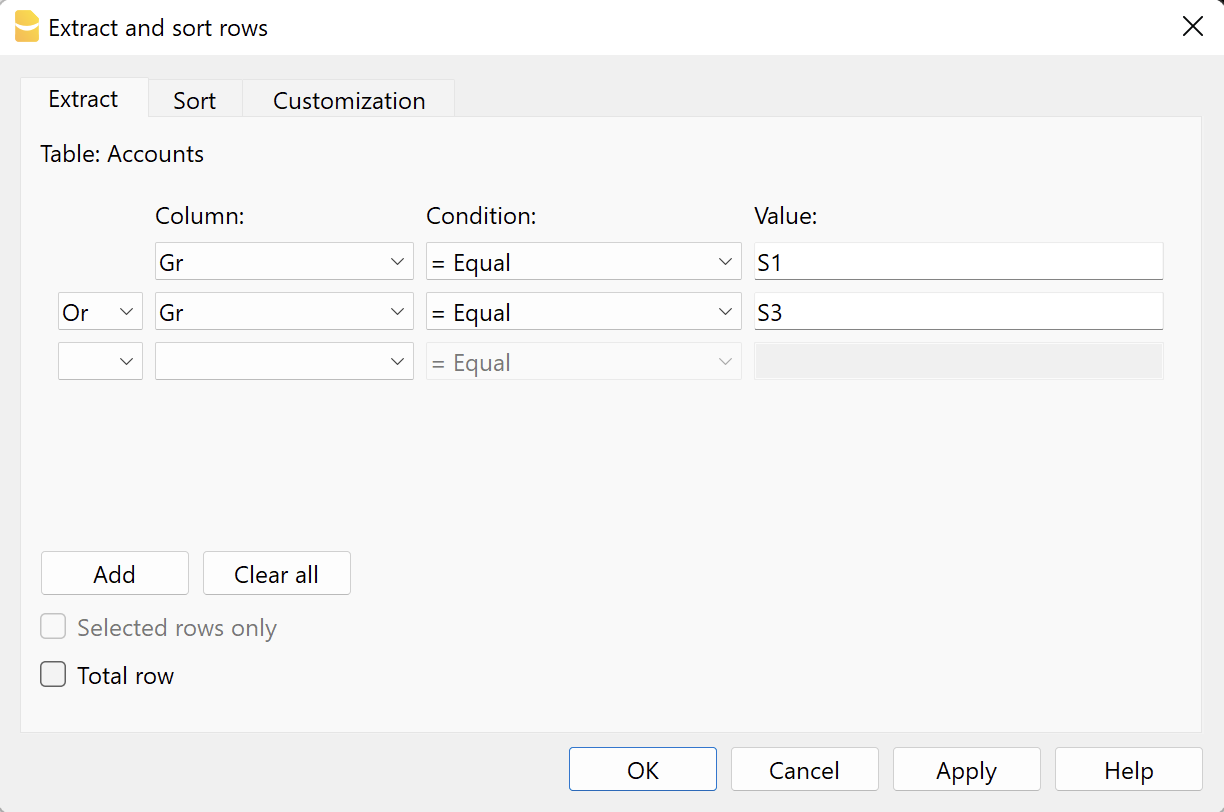
Per utilizzare le righe estratte:
- Estrai le righe con il comando dal menu Dati > Estrai righe e ordina righe.
- Esegui l'estensione e nel dialogo Impostazioni, sezione Seleziona gli indirizzi da stampare, e vista la casella Usa tabella Estrai.
- Se non sono state estratte le righe prima di avviare la stampa, verrà mostrato un messaggio di avviso e verranno utilizzati tutti i conti dei soci registrati.
Testo della lettera (testo normale)
Per inserire e utilizzare un normale testo ci sono due possibilità:
- Inserire il testo nel dialogo Impostazioni.
- Inserisci il testo nei campi Testo 1, Testo 2, Testo 3 o Testo 4.
Puoi aggiungere fino a quattro testi. - In Stampa testo > Seleziona testo, selezionare il testo da utilizzare.
- In Stampa testo, NON selezionare l'opzione Usa Markdown.
- Inserisci il testo nei campi Testo 1, Testo 2, Testo 3 o Testo 4.
- Inserire il testo nella tabella Documenti.
- Aggiungi un documento selezionando il tipo Testo normale (text/plain).
Non ci sono limiti, puoi aggiungere tutti i testi che vuoi. - Nel dialogo Impostazioni:
- In Stampa testo > Seleziona testo, seleziona l'opzione Testo tabella Documenti (.txt / .md).
- In Testi > Testo tabella Documenti (.txt / .md), inserisci l'Id del testo inserito nella tabella Documenti (es. "text.txt").
- Aggiungi un documento selezionando il tipo Testo normale (text/plain).
Per tutti i testi:
- Con un'annotazione specifica puoi applicare lo stile grassetto ai testi. Per farlo, includi i testi desiderati tra doppi asterischi ** .
Esempi:- **testo** = testo
- **testoA testoB** testoC = testoA testoB testoC
- Se nelle righe di testo vengono inseriti i seguenti valori (in inglese), essi saranno sostituiti dai valori corrispondenti:
- <Account> : conto del socio
- <NamePrefix> : prefisso socio
- <FirstName> : nome del socio
- <FamilyName> : cognome del socio
- <OrganisationName> : organizzazione del socio
- <Address> : indirizzo del socio
- <AddressExtra> : indirizzo extra
- <Region> : regione/stato o provincia
- <Country> : nazione
- <Currency> : moneta
- <Amount> : importo totale delle donazioni
Testo della lettera (testo Markdown)
Il Markdown è un linguaggio che permette di creare del testo formattato usando un normale editore di testo e una sintassi semplice da scrivere e leggere.
Per utilizzare il Markdown è necessario il Piano Advanced di Banana Contabilità Plus.
Per inserire e utilizzare un testo di tipo Markdown ci sono due modalità.
- Inserire il testo nel dialogo impostazioni.
- Inserisci il testo nei campi Testo 1, Testo 2, Testo 3 o Testo 4.
Puoi aggiungere fino a quattro testi. - In Stampa testo > Seleziona testo, selezionare il testo da utilizzare.
- In Stampa testo, vistare l'opzione Usa Markdown.
- Inserisci il testo nei campi Testo 1, Testo 2, Testo 3 o Testo 4.
- Inserire il testo nella tabella Documenti.
- Utilizza l'Editor Markdown per aggiungere un documento, selezionando il tipo Testo formattato markdown (text/markdown).
Non ci sono limiti, puoi aggiungere tutti i testi che vuoi. - Il nome del file nella colonna Id deve terminare con ".md" (es. "text.md").
- Nel dialogo Impostazioni:
- In Stampa testo > Seleziona testo, seleziona l'opzione Testo tabella Documenti (.txt / .md).
- In Testi > Testo tabella Documenti (.txt / .md), inserisci l'Id del testo markdown inserito nella tabella Documenti (es. "text.md").
- Utilizza l'Editor Markdown per aggiungere un documento, selezionando il tipo Testo formattato markdown (text/markdown).
Per tutti i testi:
- Se nelle righe di testo vengono inseriti i seguenti valori (in inglese), essi saranno sostituiti dai valori corrispondenti:
- {{Account}} : conto del socio
- {{NamePrefix}} : prefisso socio
- {{FirstName}} : nome del socio
- {{FamilyName}} : cognome del socio
- {{OrganisationName}} : organizzazione del socio
- {{Address}} : indirizzo del socio
- {{AddressExtra}} : indirizzo extra
- {{Region}} : regione/stato o provincia
- {{Country}} : nazione
- {{Currency}} : moneta
- {{Amount}} : importo totale delle donazioni
Esempio di stampa
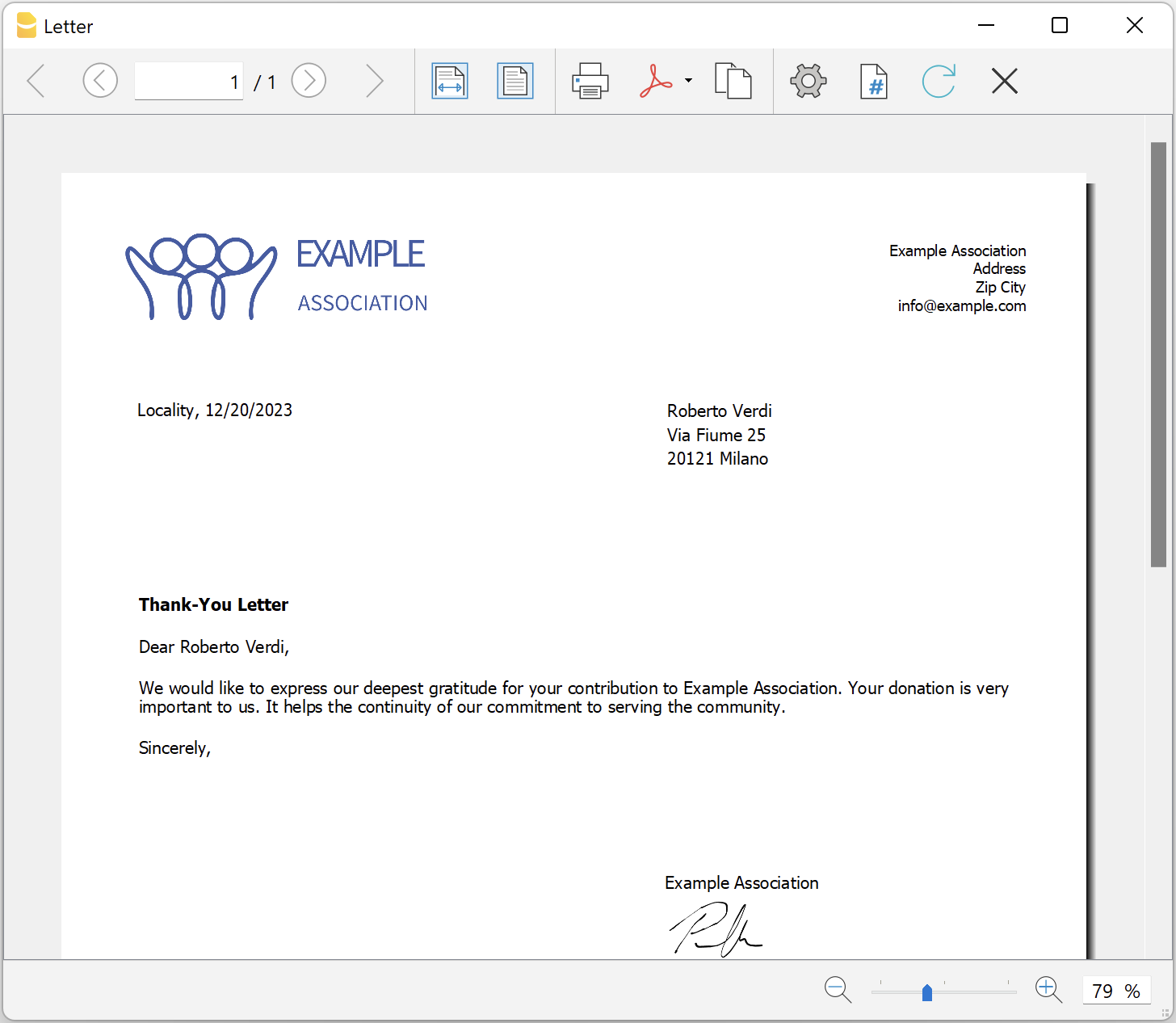
Printing receipts from cash book transactions
Printing receipts from cash book transactionsThis extension prints payment receipts based on transactions from cash book accounting file.
Example of a payment receipt:
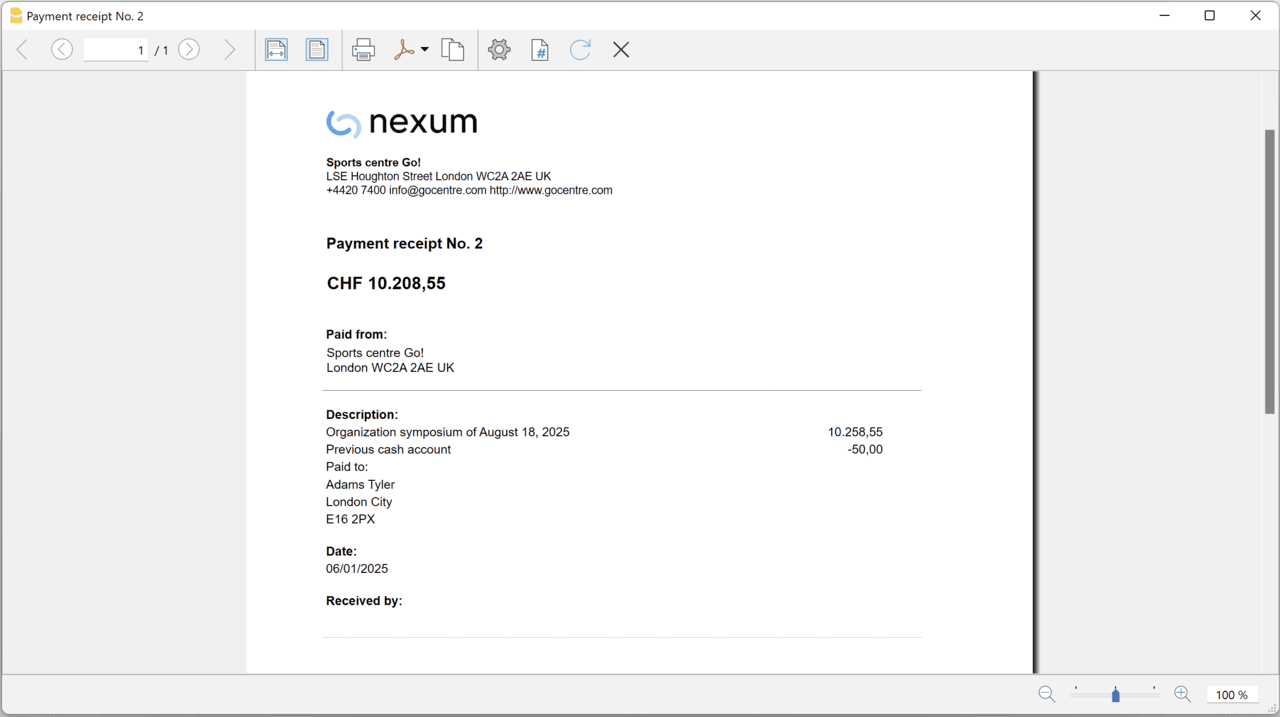
The program prints the receipt using the following logic:
- It takes all the lines with the same Doc Number, of the lines where the cursor is positioned.
- It prints the document number in the "Payment receipt No: "
- It prints the amount by summing all the amounts.
- It prints the Descriptions in different lines.
with the text of the Description column of all the transactions that have the same doc number.
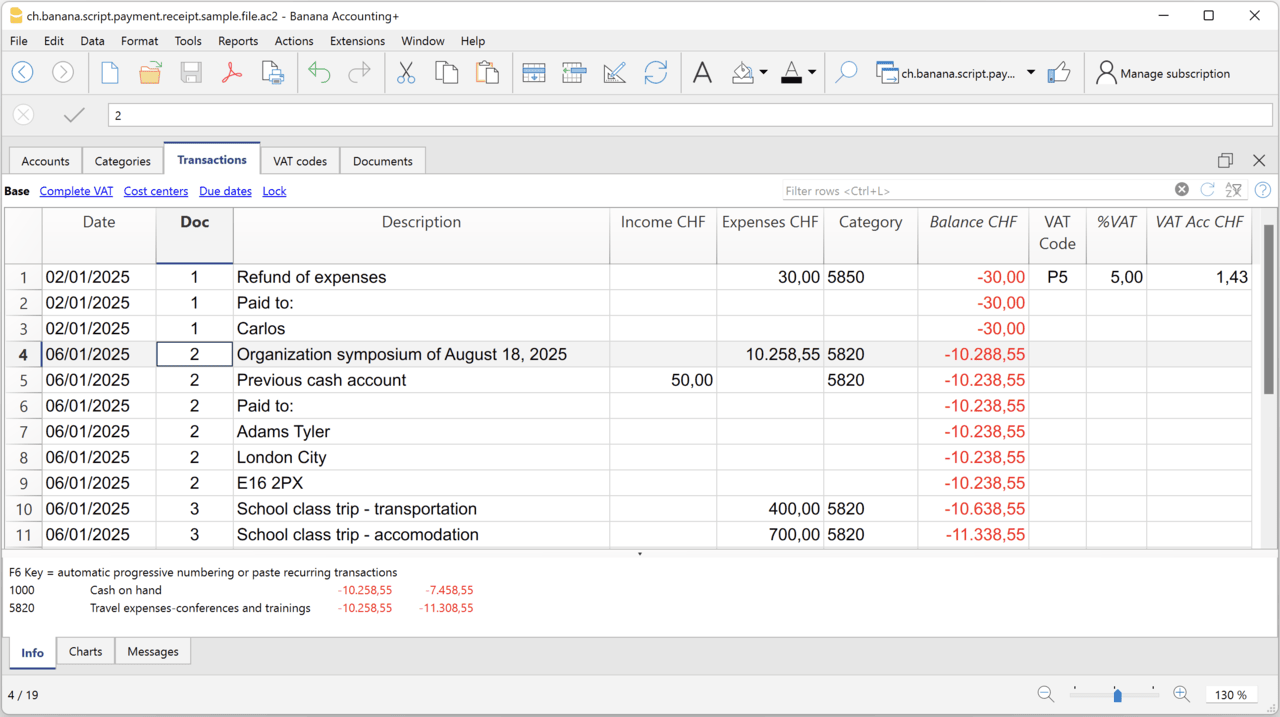
Example file
To created the receipts:
- Open a Cash Book file:
- Or download the example ch.banana.script.payment.receipt.sample.file.ac2 and open it.
- Positions on the line of the transaction group you wish to print.
- From the Extensions menu select the Printing receipts from cash book transactions.
Settings and properties
Prior to printing the receipt you can set the
Extension properties
You can set the following parameters from the menu Extensions > Manage Extensions, select the Printing receipts from cash book transactions extension and click on Settings.
- Include page header (1=yes, 0=no)
The logo and the address information can be included as header of the page. - Automatic date (1=yes, 0=no)
The date of the transaction is used. - Font type
The font type of the texts (Arial, Helvetica, Times New Roman, ...)
Address
Set your address from the menu File > File and accounting properties > Address.
Header logo
A logo for the header can be added as attachment in the Documents table.
- Add the Documents table to the Banana Accounting file.
If it is not already present you need to add the Documents table in the Banana document with the menu command Tools > Add new features > Add document table. - Add a row in the Documents table.
- In the ID column, enter "logo".
- In the Attachments column, double click on the cell and select Image, then choose the logo image you want to use.
Entering transactions
Cash book transactions are entered as usual in the Transactions table.
- Transactions are considered to belong to the same group when they have the same doc number.
- Paid to
- You can enter the text you want to display on the printout (e.g. "Paid to:").
- You can also enter text in bold by enclosing it in double asterisks ** (e.g. **Paid to:**)
- You can enter the text "#paidto" (without quotes) to let the program insert a blank line followed by the text in bold and in the language of the accounting file (it, fr, de, en, nl).
Report Balance and Profit & Loss with transactions details
Report Balance and Profit & Loss with transactions detailsThis extension creates a Balance Sheet and Profit & Loss report with transactions details for each account.
Install the extension
To install the extension:
- Open Banana Accounting Plus.
- Menu Extensions > Manage Extensions.
- In the search field enter Report Balance and Profit & Loss with transactions details.
- From the extensions list select Report Balance and Profit & Loss with transactions details.
- Select the extension and click Install.
- Click Close to close the window.
Create the report
To creare the report:
- Open an accounting file.
- From the Extensions menu select the Report Balance and Profit & Loss with transactions details.
- Select the financial report you want to print:
- Assets / Liabilities
- Income / Expenses
- All
Example of assets details: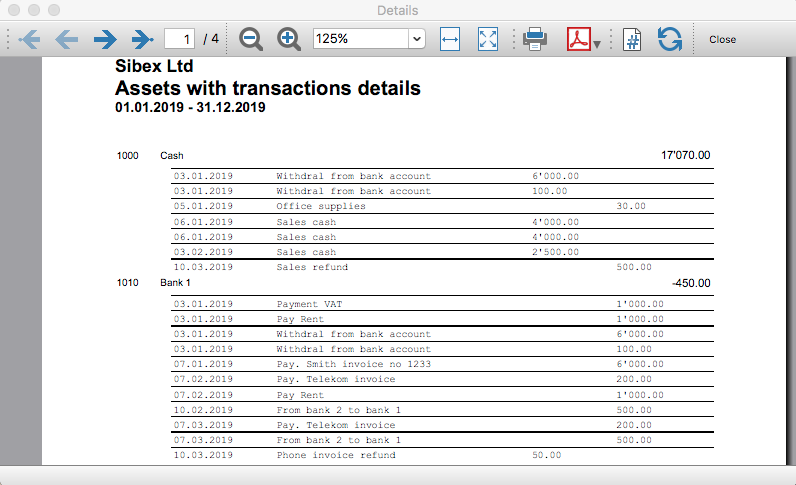
Example of liabilities details: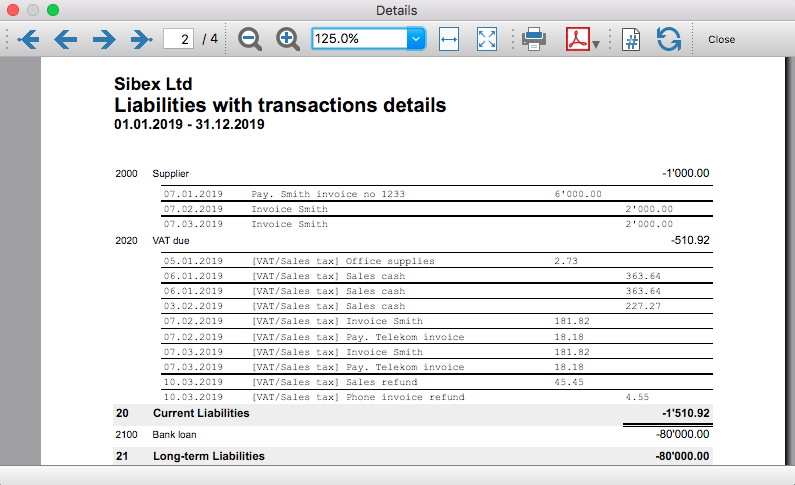
Example of income details: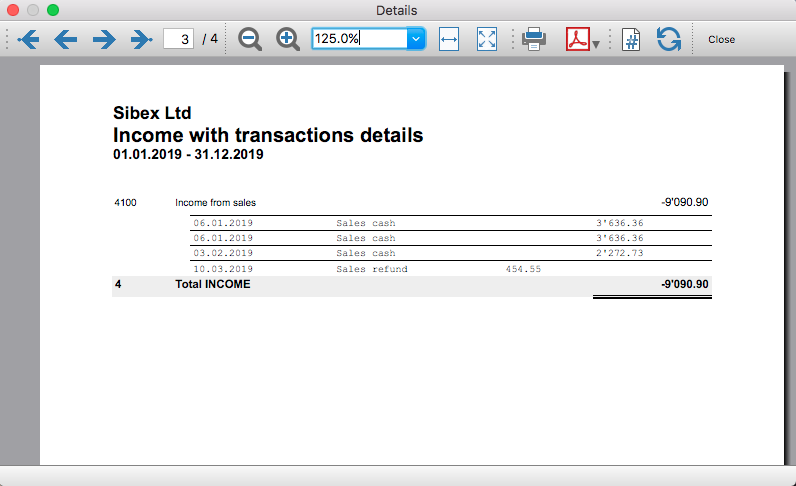
Example of expenses details: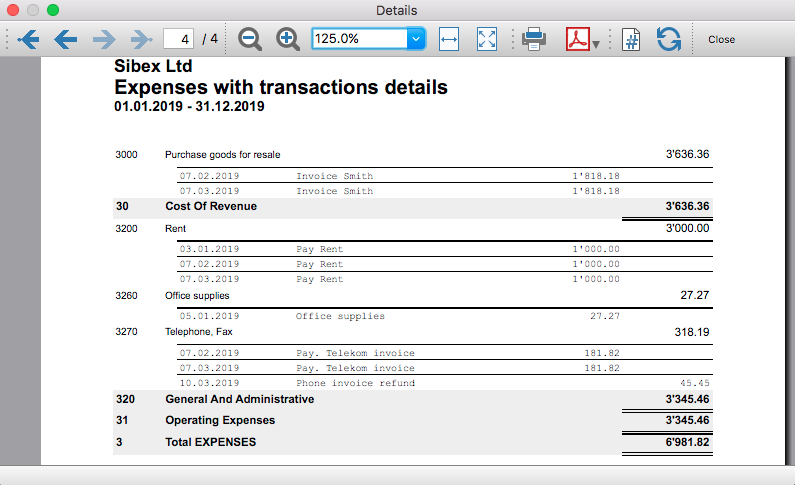
Transaction Voucher (Banana+)
Transaction Voucher (Banana+)Accounting settings
From menu File > File and accounting properties > Accounting Tab, enter the project number/name in the Header Left field.
How it works
- For each transaction of the Transactions table enter the voucher number in the Doc column.
- From the Transactions table of the accounting file select a row with the desired voucher number you want to create the report.
The voucher number is taken from the selected row where the cursor is positioned, but you can also change it manually into settings dialog. - Launch the extension from the menu Extensions > Transaction Voucher (Banana+).
- In the settings dialog window enter the required information.
- Logo
Check to include the logo in the header.
The logo is defined with the command File > Logo setup where you can also set the size, choose how to align it (left, centre, right). - Logo-Name
Enter the name of the logo customisation defined in the menu File > Logo setup, respecting upper and lower case. - Title
- Voucher number
- Paid to
- Paid in
- Cheque No.
- Payment Received by
- Paid by
- Prepared by
- Verified by
- Recommended by
- Approved by
- Logo
- All the values entered are saved and proposed the next time.
- The extension will print the information entered in the dialog plus the data of the transaction with the specified Voucher / Doc number.
Transaction Voucher (Helvetas model)
Transaction Voucher (Helvetas model)How it works
- From the Transactions table of the accounting file select a row with the desired Doc number.
- Launch the extension from the menu Extensions > Transaction Voucher (Helvetas model).
- A dialog window requesting some information will appear.
The voucher number is taken from the row selected where the cursor is positioned, but you can change it manually.
Complete all the remaining fields by entering your data and click Ok.
The values entered are saved and proposed the next time. - The extension will print the information entered in the dialog plus the data of the transactions with the specified Voucher / Doc number.
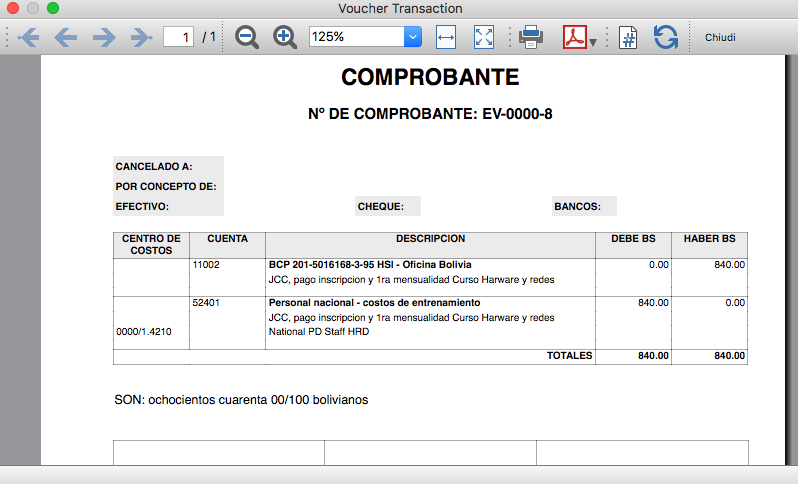
Example of Voucher report:
Transaction Voucher (Swiss Red Cross model)
Transaction Voucher (Swiss Red Cross model)Accounting settings
Two settings are required:
- the Header Left
- click menu File > File and accounting properties > Header Left.
The Header Left field must contain the project number and the project name divided by the "-" character (example: "1234 - Abc")
- click menu File > File and accounting properties > Header Left.
- add a small image/logo
- Add the Documents table to the Banana Accounting file.
If it is not already present you need to add the Documents table in the Banana document with the menu command Tools > Add new features > Add document table. - In the Id column, of the documents table insert transaction_voucher_image.
- In the Attachments column, double click on the cell, select Image and add the desired image.
- Add the Documents table to the Banana Accounting file.
How it works
- From the Transactions table of the accounting file select a row with the desired Doc number.
For example: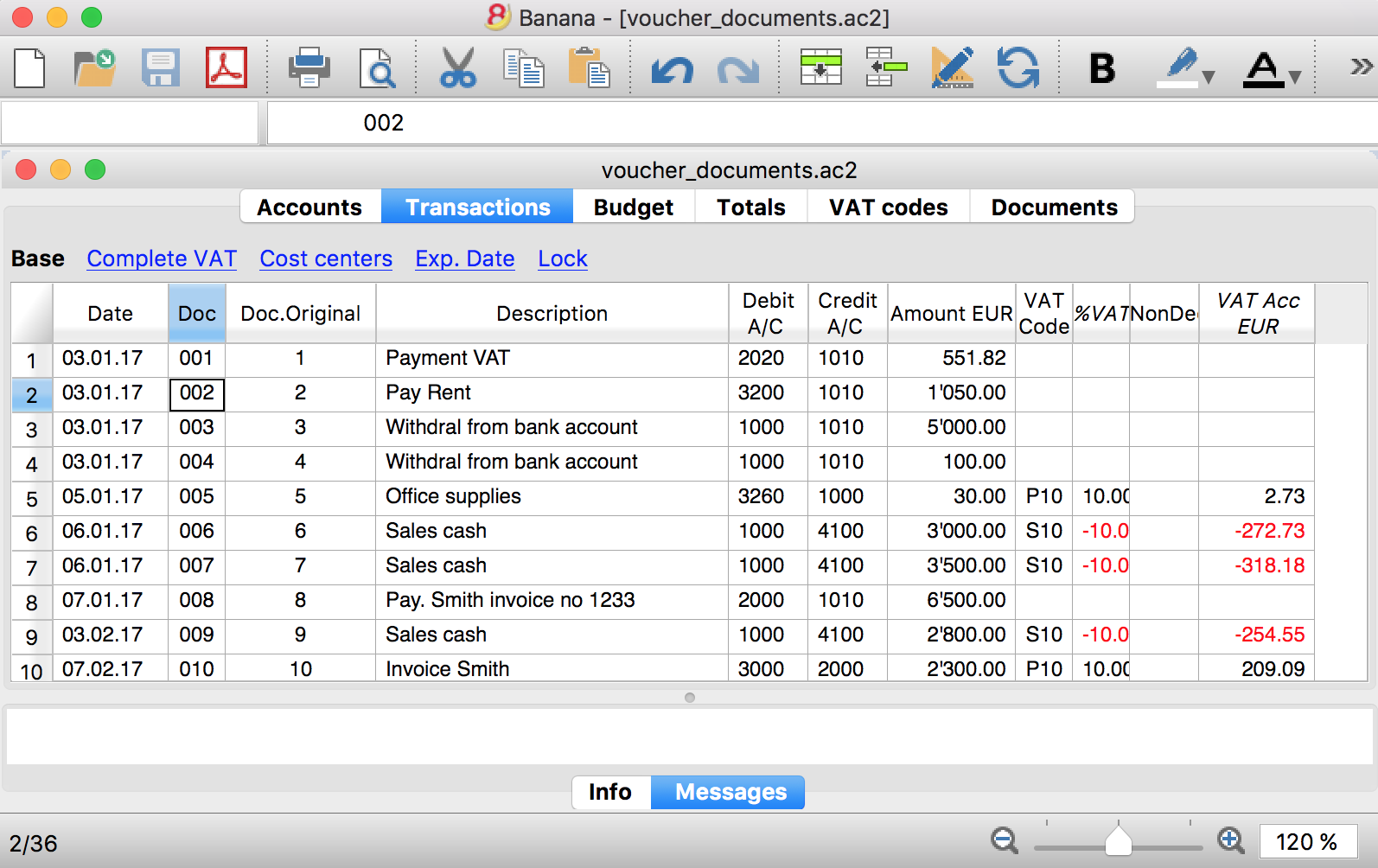
- Launch the extensions from the menu Extension > Transaction Voucher. A dialog window requesting some information will appear.
- The voucher number is taken from the row selected where the cursor is positioned, but you can change it manually.
- Complete all the remaining fields by entering your data and click Ok.
The values entered are proposed the next time.
Dialog example: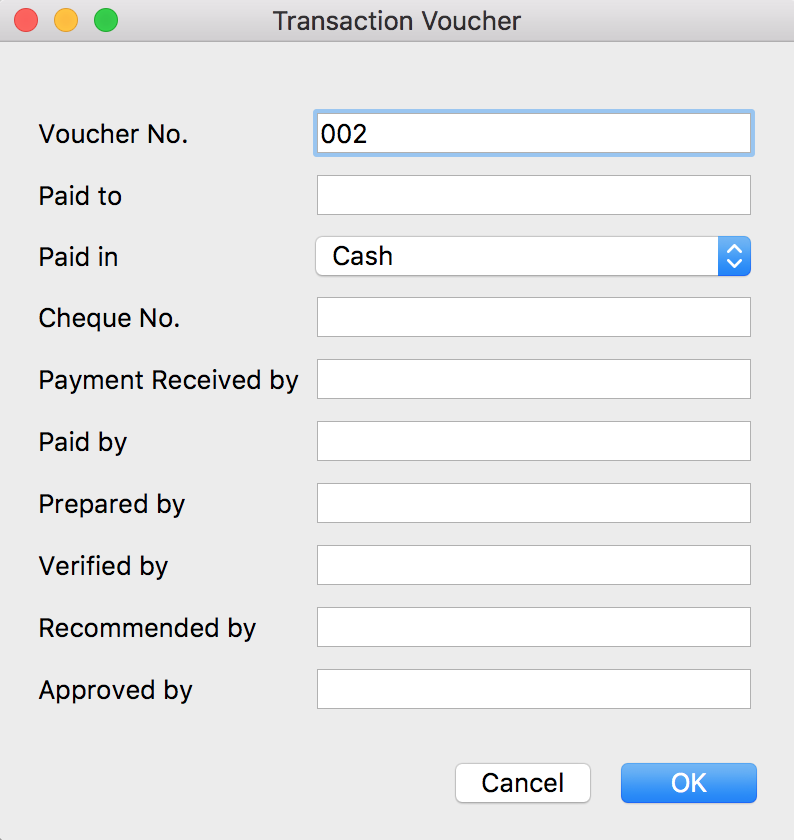
- The extension will print the information enterd in the dialog plus the data of the transactions with the specified Voucher / Doc number.
For example: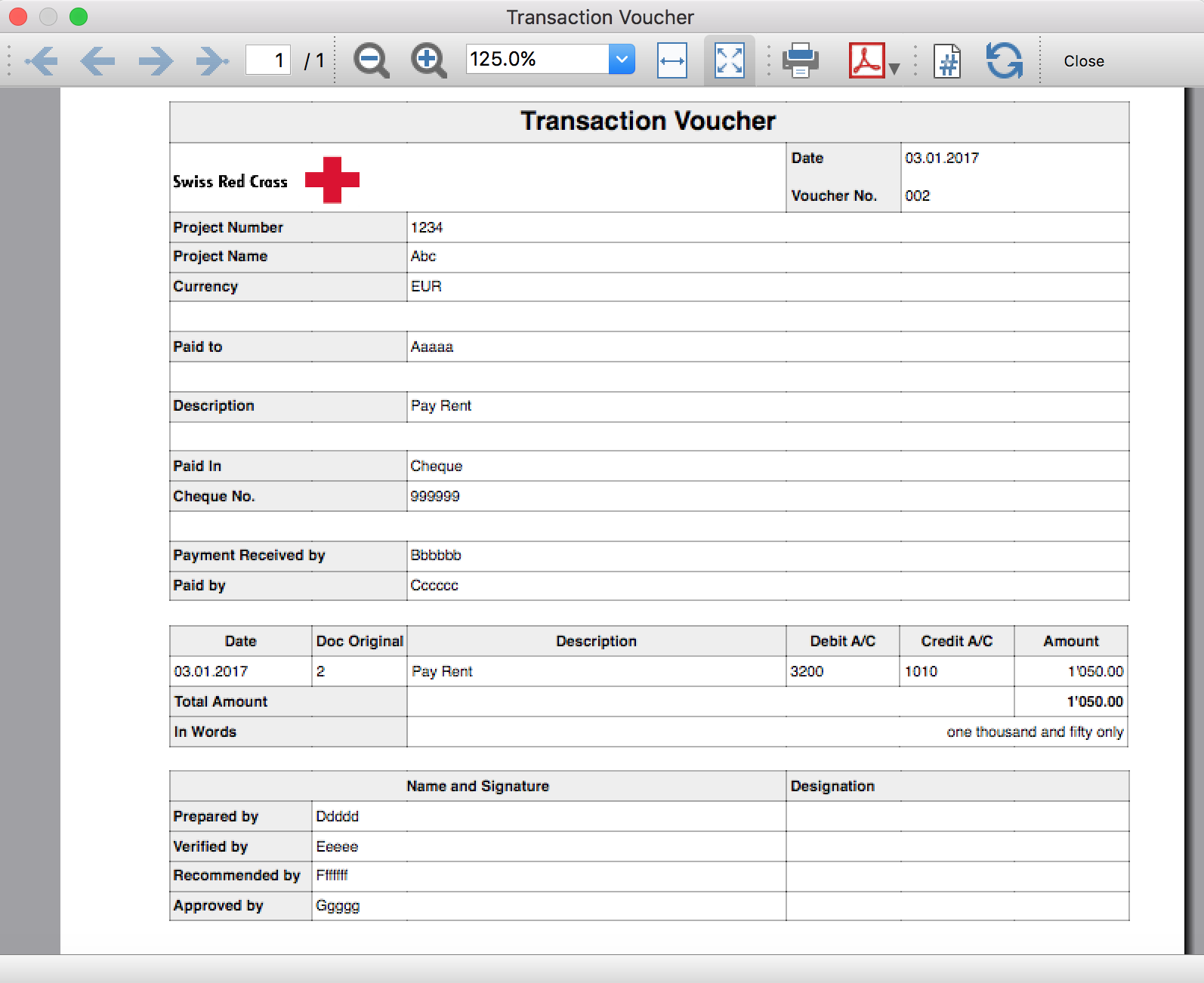
Trial Balance
Trial BalanceInstall the extension
To install the extension:
- Open Banana Accounting Plus.
- Menu Extensions > Manage Extensions.
- In the search field enter Trial Balance.
- From the extensions list select Trial Balance.
- Select the extension and click Install.
- Click Close to close the window.
Create the report
To creare the report:
- Open an accounting file.
- From the Extensions menu select the Trial Balance.
- Select the period.
For the given period, display a Trial Balance report containing:
- Balance sheet
- Profit & Loss
The details displayed are the following:
- Account
- Account description
- Debit amounts
- Credit amounts
Example of Trial Balance report: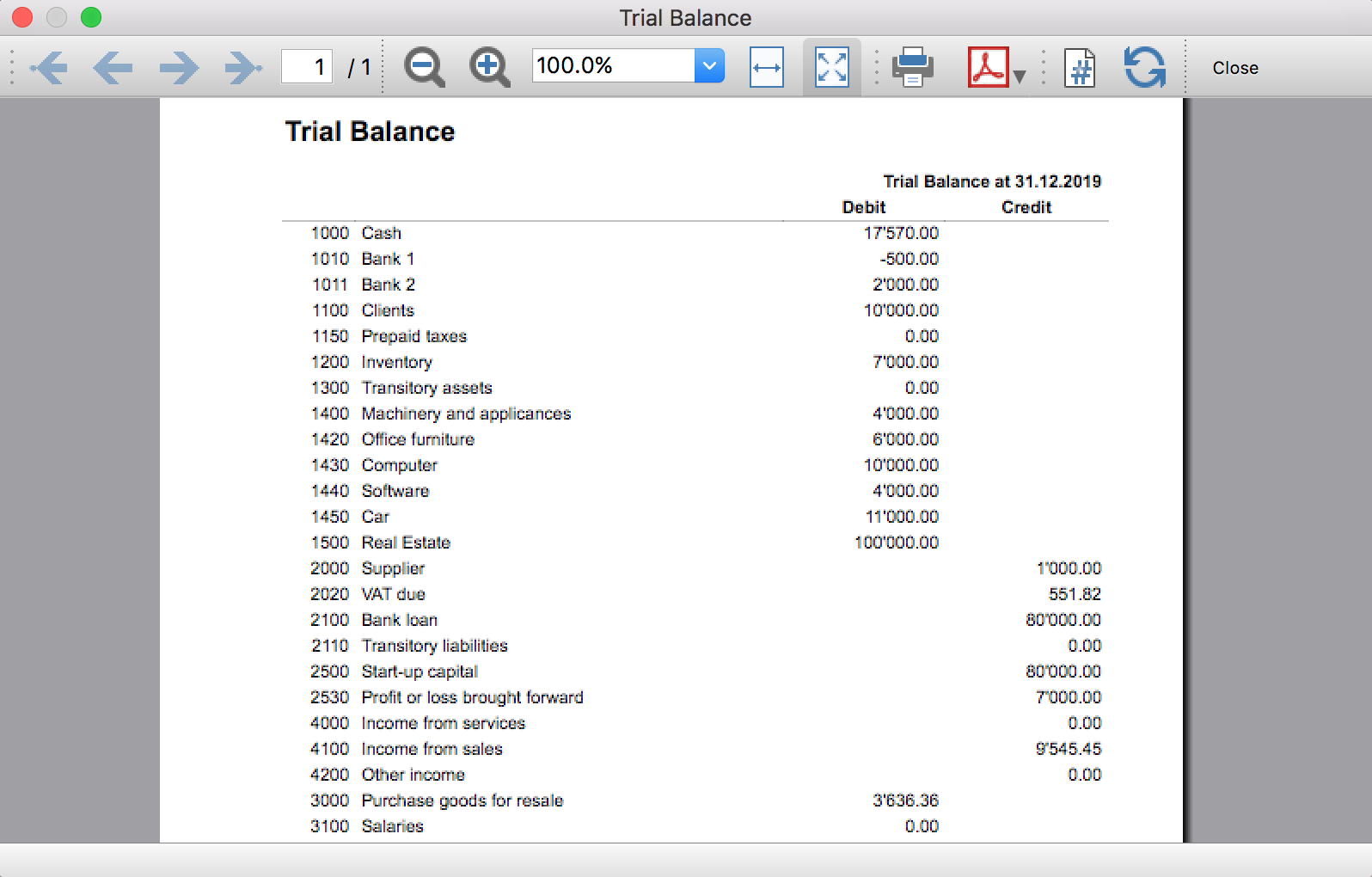
Trial Balance and Blockchain (Quarter periods)
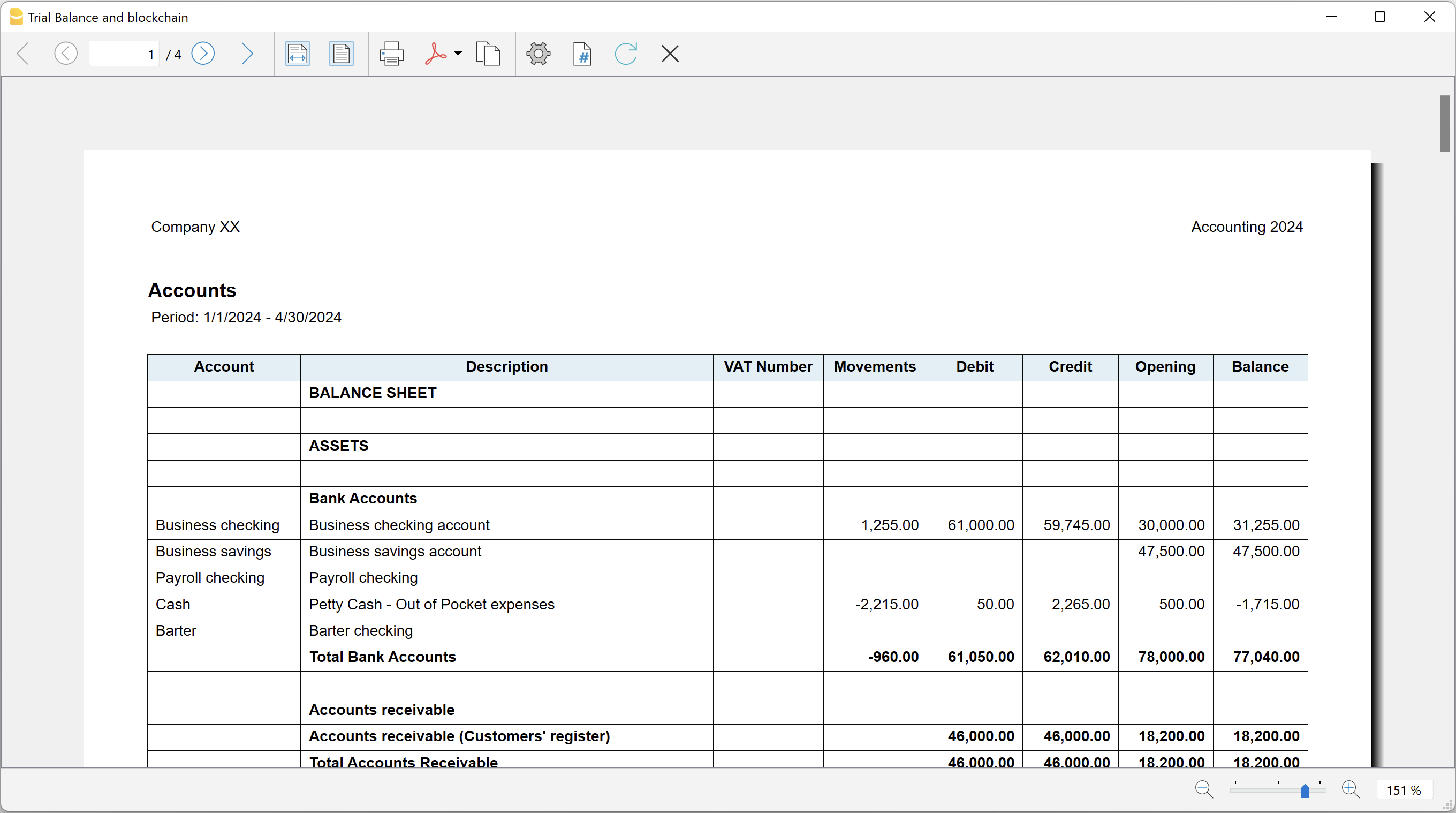
Trial Balance and Blockchain (Quarter periods)This extension creates a report containing the table Accounts and at the end the blockchain for the selected quarter period.
Prerequisites
To use this extension you must download and install Banana Accounting Plus.
Install the extension
To install the extension:
- Open Banana Accounting Plus.
- Menu Extensions > Manage Extensions
- Select Universal as country.
- Select Online > Productivity.
- From the extensions list select Trial Balance and Blockchain (Quarter periods).
- Click Install to install the extension.
- Click Close to close the window.
Create the report
To creare the report:
- Open an accounting file.
- From the menu File > File and accounting properties, in the Header left and Header right fields enter the texts to be printed on the left and right in the page header.
- From the Extensions menu select Trial Balance and Blockchain (Quarter periods).
- In Settings dialogue select the period, set the header texts, the title and font, then click OK to create the report.
The texts of the settings dialog and column headers in the printout are fixed and are in the same language as the Banana file (defined from the menu File > File and accounting properties > Other > Current language). The languages that can be used are Italian, French, German and English.
Settings dialogue
Run the extension from the menu Extensions > Trial Balance and Blockchain (Quarter periods).
The extension Settings dialogue will open. From here you can choose some parameters to print the report.
- Period.
Select a period from the list. The periods are divided into three quarters. - Header left text.
Insert another text to be printed on the left side of the page header. - Header right text.
Insert another text to be printed on the right side of the page header. - Title.
Insert text to be printed as title of the page. - Font family.
Insert the font type. - Font size.
Insert the font size for all the page texts. - Title font size.
Insert the font size for the title.
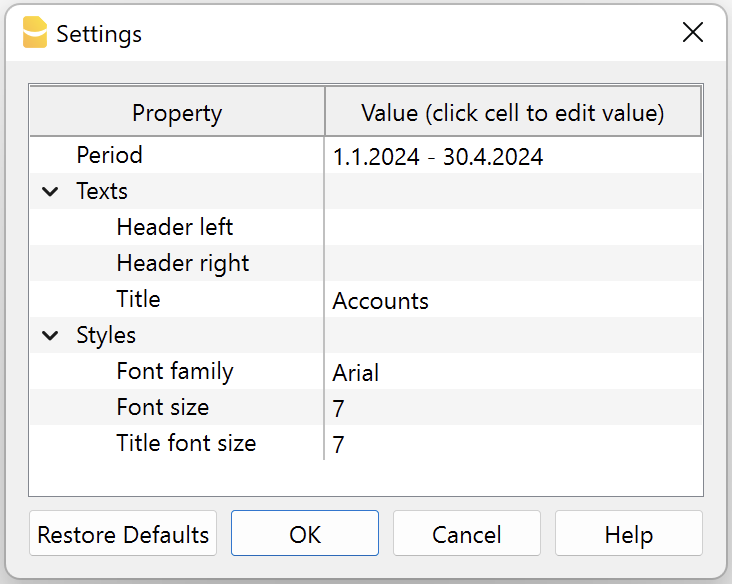
Print example
Trial Balance with transaction's lock blockchain information
Trial Balance with transaction's lock blockchain informationThe extension creates a report containing the table Accounts and the blockchain information regarding the transaction lock of the previous period and of the current period.
This printout has been conceived for a customer that has central SAP accounting and use Banana Accounting locally, to keep accounting for at more than 40 schools. Each school keep their own accounting and every 4 months the data is integrated in the main accounting system.
In order to assure that the information is perfectly synchronized:
- The school lock the transactions so that each movement is marked with a blockchain.
- The school print the report using this extension, with the data and the blockchain info of the current and last period.
- Prior to entering the data in the main system, the responsable verify that the blockchain of the last period already entered is the same as the one printed on the current report.
Personal at the schools can easily manage their finance locally and have more details and better control over the spending. Data is only entered in the main system periodically. The organisation have a better accounting system and save a lot of money in training and SAP licenses.
Install the extension
To install the extension:
- Open Banana Accounting Plus.
- Menu Extensions > Manage Extensions
- Select Universal as country.
- Select Online > Productivity.
- From the extensions list select Trial Balance with transaction's lock blockchain information.
- Click Install to install the extension.
- Click Close to close the window.
Create the report
To creare the report:
- Open an accounting file.
- From the menu File > File and accounting properties, in the Header left and Header right fields enter the texts to be printed on the left and right in the page header.
- From the Extensions menu select Trial Balance with transaction's lock blockchain information.
- In Settings dialogue set header texts, title and font as you want, then click OK.
- In Period dialogue select a period and confirm with OK to create the report.
The texts of the settings dialog and column headers in the printout are fixed and are in the same language as the Banana file (defined from the menu File > File and accounting properties > Other > Current language). The languages that can be used are Italian, French, German and English.
Settings dialogue
Run the extension from the menu Extensions > Trial Balance with transaction's lock blockchain information.
The extension Settings dialogue will open. From here you can choose some parameters to print the report.
- Header left text.
Insert another text to be printed on the left side of the page header. - Header right text.
Insert another text to be printed on the right side of the page header. - Title.
Insert text to be printed as title of the page. - Font family.
Insert the font type. - Font size.
Insert the font size for all the page texts. - Title font size.
Insert the font size for the title.
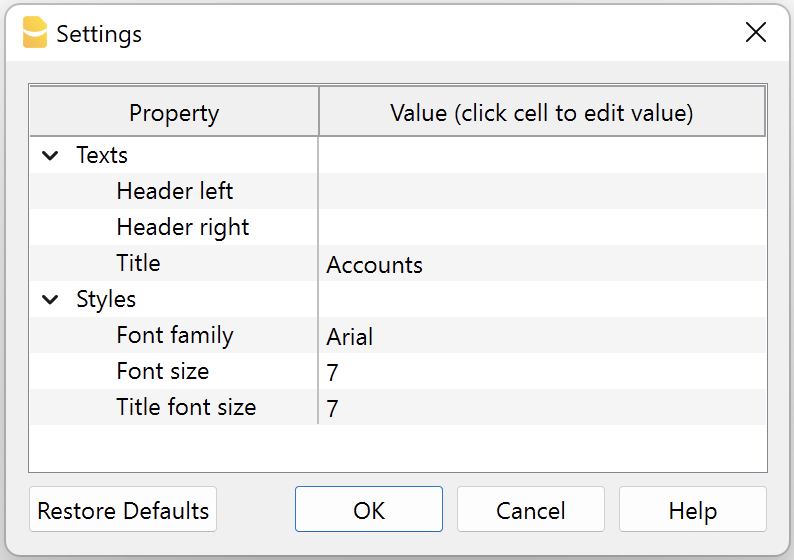
Print example
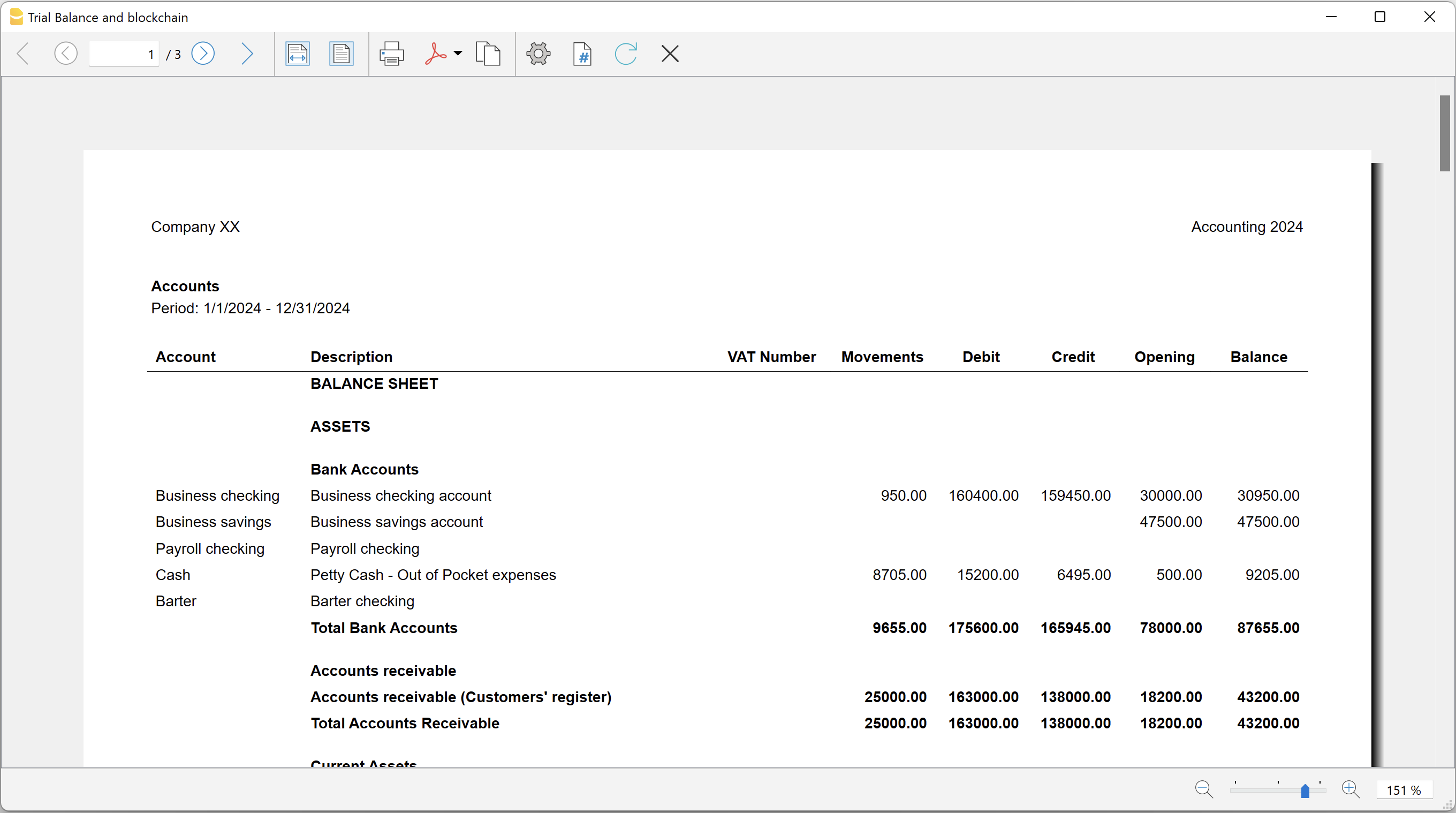
Blockchain row explanation:
- Date until which transactions are locked.
- Date of the last transaction.
- Number of locked transactions.
- Progressive hash of last locked transaction.
Utilities Extensions for accounting
This section covers general utility extensions for accounting.
Table of contents
- Compare current with other accounting file
- Calculate interest on account (exact days 365/365)
- Update Dates in the accounting file
- Invoice from member fee (Banana 9)
- Invoice from member fee (Banana+)
- Printing receipts from cash book transactions
- Reconcile account with mt940/ISO20022 file
- Duplicate transaction checking
Calculate interest on account (exact days 365/365)
Calculate interest on account (exact days 365/365)Install the extension
To install the extension:
- Open Banana Accounting Plus.
- Menu Extensions > Manage Extensions.
- In the search field enter Calculate interest on account (exact days 365/365).
- From the extensions list select Calculate interest on account (exact days 365/365).
- Select the extension and click Install.
- Click Close to close the window.
Create the report
To creare the report:
- Open an accounting file.
- From the Extensions menu select Calculate interest on account (exact days 365/365).
- Enter the account number.
- Select the period.
- Enter the interest rate on debit balance.
- Enter the interest rate on credit balance.
A window with results is displayed. You can copy, save and print the results. The transactions list can be paste into the table Transactions.
Compare current with other accounting file
Compare current with other accounting fileInstall the extension
To install the extension:
- Open Banana Accounting Plus.
- Menu Extensions > Manage Extensions.
- In the search field enter Compare current with other accounting file.
- From the extensions list select Compare current with other accounting file.
- Select the extension and click Install.
- Click Close to close the window.
Compare two accounting files
To compare two accounting files:
- Open an accounting file.
- From the Extensions menu select Compare current with other accounting file.
- Select a second accounting file to compare.
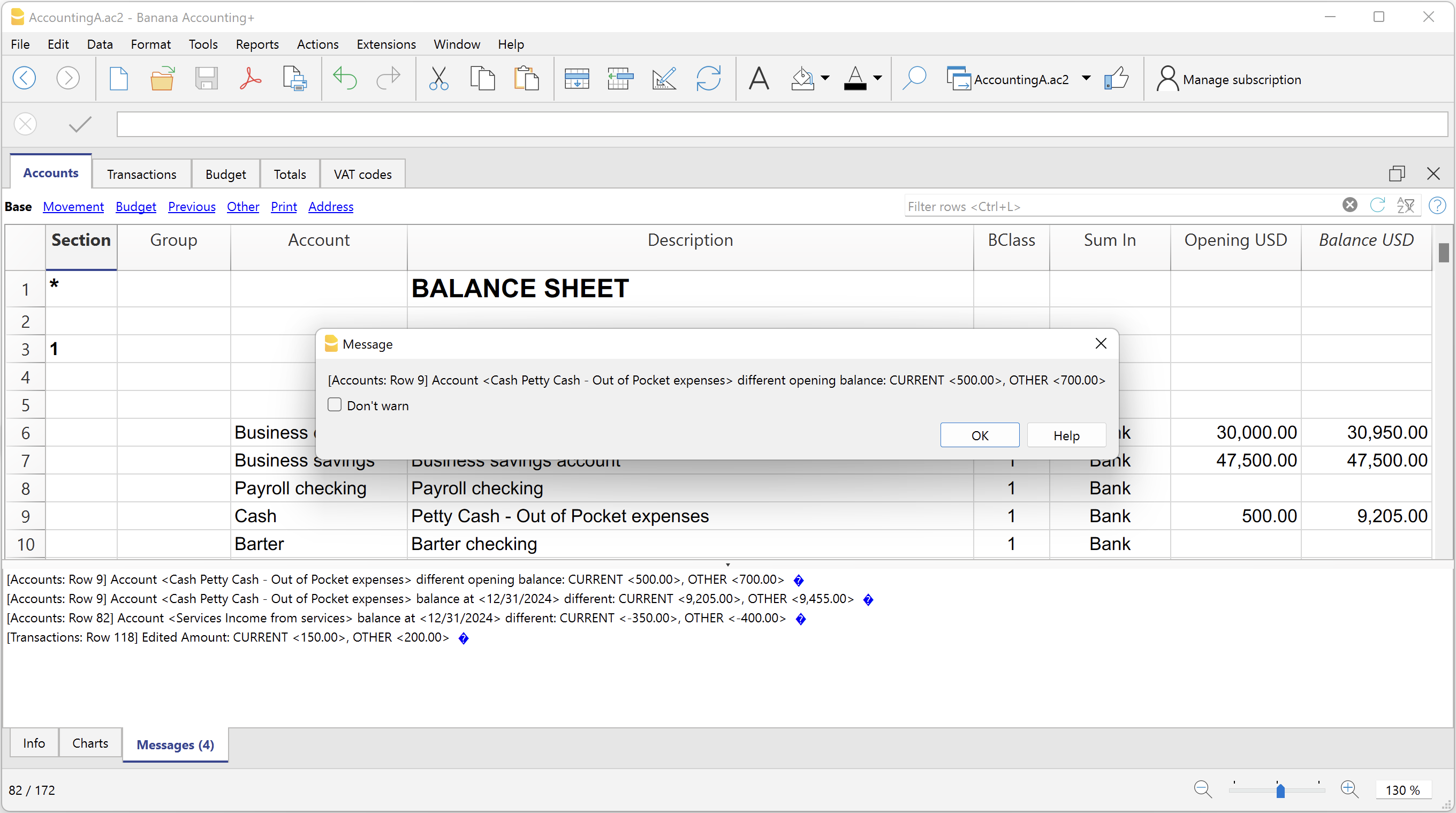
The differences are reported as messages, when you click on it you go to the row.
Create invoice transactions from member fee (Banana 9)
Create invoice transactions from member fee (Banana 9)Prerequisites
- Double-entry accounting file with normal accounts for members/customers is required.
Install the extension
To install the extension:
- Open Banana Accounting.
- Menu Extensions > Manage Extensions.
- In the search field enter Create invoice transactions from member fee (Banana 9).
- From the extensions list select Create invoice transactions from member fee (Banana 9).
- Select the extension and click Install.
- Click Close to close the window.
Add the MemberFee column
- Open the Accounts table (Address view).
- Activate the MemberFee column (the column already exists, it just needs to be activated).
- For each member/customer use the MemberFee column to enter the invoice amount.
Create invoice transactions
To creare the invoice transactions:
- Open an accounting file.
- From the menu Account1 select Import to accounting.
- As import option select Transactions.
- From the list select the Create invoice transactions from member fee extension.
- In the File name field, click Browse and select the current open accounting file.
- Click OK.
- Enter the invoice start number.
- Enter the revenue account.
- Enter the transaction description.
- The Import transactions opens, confirm with OK.
The program creates the invoice transactions for all the member/customer that has an amount in the MemberFee column of the table Accounts.
Create invoice transactions from member fee (Banana+)
Create invoice transactions from member fee (Banana+)Prerequisites
- Banana Accounting Plus.
- Double entry accounting file with Cost Centers accounts (Cc1, Cc2, Cc3) for members/customers is required.
Install the extension
To install the extension:
- Open Banana Accounting Plus.
- Menu Extensions > Manage Extensions.
- In the search field enter Create invoice transactions from member fee (Banana+).
- From the extensions list select Create invoice transactions from member fee (Banana+).
- Select the extension and click Install.
- Click Close to close the window.
Add the MemberFee column
- Open the Accounts table (Address view).
- Activate the MemberFee column (the column already exists, it just needs to be activated).
- For each member/customer use the MemberFee column to enter the invoice amount.
Create invoice transactions
To creare the invoice transactions:
- Open the accounting file.
- From the menu Extensions select Create invoice transactions from member fee (Banana+).
- In the Settings dialogue:
- Set the invoice description.
The text that is displayed on the invoice. This text is automatically followed by first and last name or company name. - Set the starting invoice number.
The first invoice starts whit this number, while all others invoices use progressive numbers.
- Set the invoice description.
- The program shows a dialog with all the invoice transactions that will be added.
- Confirm with OK.
The program creates the invoice transactions for all the members/customers that have an amount in the MemberFee column of the table Accounts.
- Date: the date of the current day.
- Description: text entered in the settings followed by first and last name or company name.
- Amount: the amount defined in the MemberFee column of the Accounts table.
- Cc1 / Cc2 / Cc3: the Cost Center account of the member/customer:
- Cc1 when using cost centers that starts with "."
- Cc2 when using cost centers that starts with ","
- Cc3 when using cost centers that starts with ";"
Duplicate transaction checking
Duplicate transaction checkingInstall the extension
To install the extension:
- Open Banana Accounting Plus.
- Menu Extensions > Manage Extensions.
- In the search field enter Duplicate transaction checking.
- From the extensions list select Duplicate transaction checking.
- Select the extension and click Install.
- Click Close to close the window.
Check for duplicate transactions
To check for duplicate transactions:
- Open an accounting file.
- From the Extensions menu select Duplicate transaction checking.
A transaction is duplicate if another transaction exists with the same amount, the same credit account and the same debit account in a time laps of 3 days.
If a duplicate transaction is found, a message is displayed to the user.
It is possible to skip the check for a transaction: just add a column with the name 'SkipDuplicateCheck' and insert any value (ie.: 'x') to the transaction to skip.
Reconcile account with mt940/ISO20022 file
Reconcile account with mt940/ISO20022 fileThis extension takes as input an electronic bank statemant (MT940 or ISO20022) and compare day by day with the account statements and shows differences.
It is very usefull for finding transactions not recordered or incorrectly recorded.
Install the extension
To install the extension:
- Open Banana Accounting Plus.
- Menu Extensions > Manage Extensions.
- In the search field enter Reconcile account with mt940/ISO20022 file.
- From the extensions list select Reconcile account with mt940/ISO20022 file.
- Select the extension and click Install.
- Click Close to close the window.
Create the report
To creare the report:
- Open the accounting file.
- From the Extensions menu select the Reconcile account with mt940/ISO20022 file.
- Select the electronic bank statement (MT940 or ISO20022).
- Enter the account number.
A window with results is displayed. You can copy, save and print the results.
Update Dates in the accounting file
Update Dates in the accounting fileIn order to change the accounting data, the extension uses the Document Change API. For more information visit How-to update Accounting Dates using Document Change.
Install the extension
To install the extension:
- Open Banana Accounting Plus.
- Menu Extensions > Manage Extensions.
- In the search field enter Update Dates in the accounting file.
- From the extensions list select Update Dates in the accounting file.
- Select the extension and click Install.
- Click Close to close the window.
Change accounting dates
To change accounting dates using the extension:
- Open an accounting file.
- From the Extensions menu select the Update Dates in the accounting file.
- A confirmation window dialogue shows all the sections and tables of the accounting where dates will be changed.
- Confirm with OK to apply the changes to the accounting file.
[UNI11] Layout 11 Fattura Programmabile (Banana+)
[UNI11] Layout 11 Fattura Programmabile (Banana+)Layout per la stampa della fattura di Banana Contabilità Plus altamente personalizzabile e programmabile.
Puoi facilmente adattare la stampa della fattura ai tuoi desideri, decidere quali elementi stampare, cambiare la descrizione dei testi.
Per utilizzare questa estensione é richiesto Banana Contabilità Plus.
Personalizzazione stampa fatture
Il layout di stampa fattura è già impostato e pronto all'uso. Se lo desideri puoi personalizzare e adattare la stampa della fattura ai tuoi desideri.
Il layout UNI11 ha le medesime funzionalità del layout CH10, con l'eccezione che non permette la stampa del QR-Code svizzero.
La documentazione rimanda al layout CH10.
Le coordinate bancarie per il pagamento sono da inserire come testo finale. Vedi come inserire un testo finale.
- Dialogo impostazioni.
- Scegliere gli elementi della fattura che vuoi includere nella stampa.
- Stampare l'indirizzo a destra o a sinistra.
- Indicare quali colonne di dettaglio includere e definire la sequenza. Puoi avere una fattura con quantità e prezzi, oppure solo importi totali o anche con colonne che hai aggiunto nella tabella registrazioni.
- Cambiare i testi predefiniti da utilizzare in stampa.
- Aggiungere traduzioni in altre lingue.
- Cambiare il font e il carattere di stampa.
- Scegliere la combinazione di colori che desideri.
Personalizzazione tramite programmazione
- Programmazione in Javascript.
- Puoi adattare ancora maggiormente la stampa con la creazione di funzioni che sostituiscono quelle predefinite, per la stampa dell'intestazione, indirizzi, dettagli, testi e piè di pagina.
- Creazione di stili CSS.
- Puoi adattare ancora maggiormente la stampa con la creazione di stili personalizzati in modo da poter modificare l'aspetto della fattura (formattazione del testo, posizionamento degli elementi, ecc.).