En este artículo
The details of the differences between the declared turnover and the turnover recorded in the accounting file can be saved.
- From the Extensions menu, select Swiss Annual VAT Reconciliation > 2. Accounting/VAT Differences.
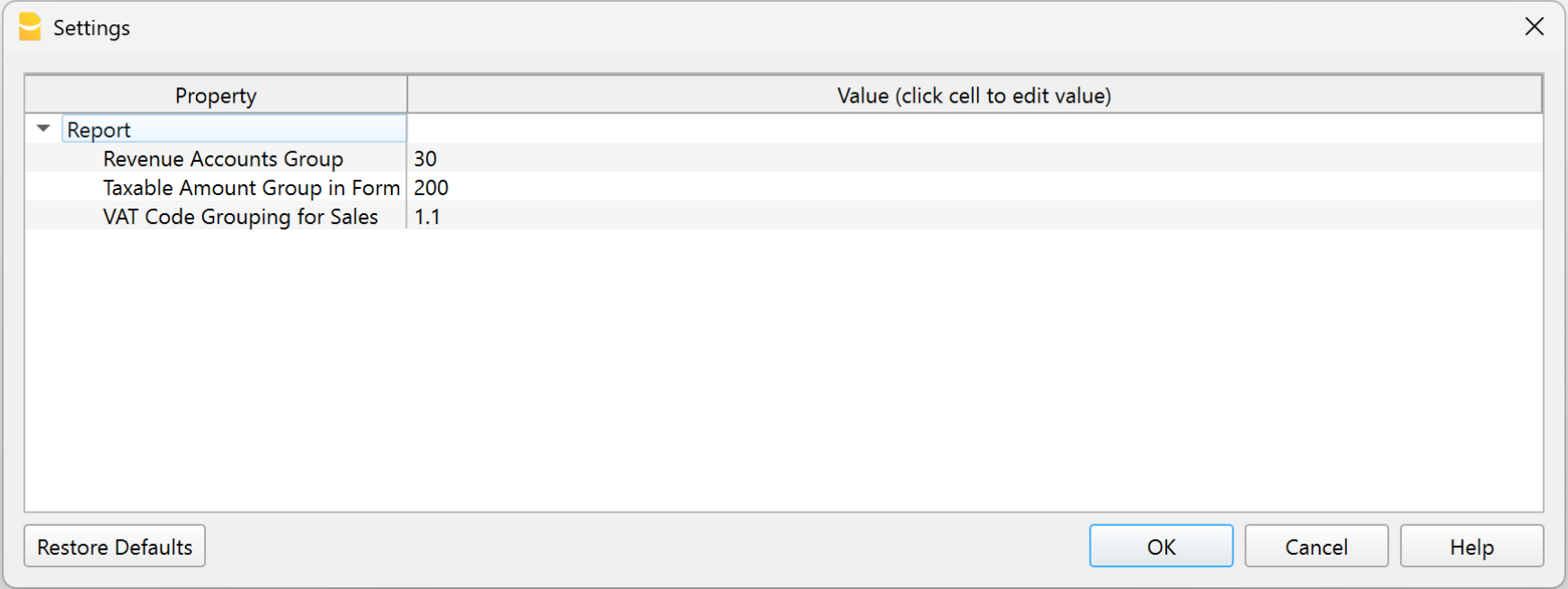
- The extension Settings dialog opens, where you can choose between two methods of saving the data:
- 1) Show in dialog.
All details of the differences, which are also included in the report, are displayed in a dedicated dialog. The data is shown in tabular format and can be copied or saved directly using the available commands. - 2) Save to table.
All details of the differences, which are also included in the report, are automatically inserted into a table in the accounting file. A new table must be added beforehand. - Table name (XML name).
The name of the table (XML name) where the difference details will be inserted.
- 1) Show in dialog.
1. Display in the dialog
In the extension settings, by enabling the Display in the dialog option, a new dialog appears showing the transactions with the differences, which can be exported to a text file.
- The generated text can be copied by clicking the Copy button.
- Afterwards, the text can be pasted into Excel using the Paste Special > Text command (this way the data is saved in separate columns).
- Alternatively, the text can also be pasted directly into a table in the accounting file.
If you want to paste the text into the accounting file, you need to:
- Add a simple table
using the Tools > Add/Remove functionalities > Add simple table command. You can choose any name for the table. - Add the columns to the simple table
Using the Data > Columns setup command, add the following columns in the exact order and with the correct data type, as shown below:- Account (data type: Text)
- Row (data type: Number)
- Date (data type: Date)
- Doc (data type: Text)
- Description (existing column)
- Debit (data type: Amount)
- Credit (data type: Amount)
- VAT Code (data type: Text)
- VAT Amount Type (data type: Text)
- VAT Taxable Amount (data type: Number)
- VAT Amount (data type: Number)
- Posted VAT Amount (data type: Number)
- Notes (existing column).
After configuring the columns, the table is ready for data entry. To copy the data generated by the extension and insert it into the table:
- Run the extension from the Extensions > Swiss Annual VAT Reconciliation > 2. Accounting/VAT Differences menu.
- Select the Display in the dialog option and confirm with OK.
- In the window that appears, select Copy.
- Close the window by clicking Close.
- Open the table created in the accounting file.
- Place the cursor in the first cell of the added table.
- Paste the copied text.
- All data is automatically inserted into the corresponding columns.
2. Save to table
By enabling the Save to table option in the extension settings, the table containing the transactions with differences can be imported directly into the accounting file, into the table specified in the Table name (XML name) field.
In this case, you must:
- Before running the extension, add a new table using Tools > Add/Remove Features > Add Simple Table. You can choose any name for the table.
- After adding the table, run the extension from Extensions > Swiss Annual VAT Reconciliation > 2. Accounting/VAT Differences.
- Select the Save to table option.
- Enter the XML name of the table you created (to view the XML name, use Data > Tables setup, Table settings).
- Click OK.
- The extension displays the changes that will be made to the selected table. Click OK to confirm.
- The extension automatically adds the required columns to the selected table and inserts all the data into the corresponding columns.
The Id (RowId) column is not used and can safely be hidden using the appropriate option in Data > Columns setup.
Error messages
When saving the difference data to the table, the extension checks for possible errors and displays the corresponding messages.
- "Missing XML table name. You must create a new table using Tools > Add/Remove Features > Add Simple Table."
- The extension checks that the name of the table where the data will be saved has been entered in the extension settings.
- Solution: Enter the XML name of the table.
- "The table XXX does not exist. You must create a new table using Tools > Add/Remove Features > Add Simple Table."
- The extension checks that the table specified in the extension settings exists in Banana Accounting.
- Solution: Add the table using Tools > Add/Remove Features > Add Simple Table.
- "The table XXX cannot be used. You must create a new table using Tools > Add/Remove Features > Add Simple Table."
- The extension checks that the table specified in the extension settings is not a predefined Banana table. Differences cannot be saved in predefined tables.
- Solution: Add a new table using Tools > Add/Remove Features > Add Simple Table.
Structure of the Differences table
For both modes, 1. Show in dialog and 2. Save to table, the generated table has the following structure:
- Update date row.
This row displays the date when the data was inserted into the table.
New data is always appended at the end of the table. - Account row.
This row summarizes the total difference for the account.- The Account column contains the account of the transaction with a difference.
- The Description column displays the total difference amount for the account.
- All other columns are left empty.
- Transaction detail rows.
These rows display the transactions from the Transactions table that generated the difference.- The Account column is empty.
- The Row column contains the transaction row number.
- The Date column contains the transaction date.
- The Doc column contains the transaction document.
- The Description column contains the transaction description.
- The Debit column contains the transaction debit amount.
- The Credit column contains the transaction credit amount.
- The VAT Code column contains the transaction VAT code.
- The VAT Amount Type column contains the transaction VAT amount type.
- The Taxable VAT Amount column contains the transaction taxable VAT amount.
- The VAT Amount column contains the transaction VAT amount.
- The Posted VAT Amount column contains the posted VAT amount of the transaction.
- The Notes column contains "[...]" so that you can add your own notes. This is useful for explaining the reason for the difference.