Revenue-based Accounting Tutorial for Ltd and LLC | SME
Revenue-based Accounting Tutorial for Ltd and LLC | SMEEfficient and customizable accounting management for SMEs
Our accounting template is pre-configured according to the standard framework of the Swiss Code of Obligations, specifically designed to meet the needs of small and medium-sized enterprises (SMEs) with an annual turnover equal to or greater than CHF 500,000.
Flexibility and customization
If you need to customize the chart of accounts, you can easily add new accounts. See our dedicated page on the Complete SME Chart of Accounts, which includes all the accounts and groups specified by the Swiss SME account system (Sterchi, Mattle, Helbing), ensuring perfect integration.
Simplicity and automation
Data entry is fast and intuitive, with an interface similar to Excel. You can import data directly from your bank statements or credit cards, and thanks to the use of Rules, the process becomes fully automated, drastically reducing manual work.
All-round accounting management
Record transactions quickly and automatically, keep balances always updated, and generate professional real-time reports. With our system, you can:
- Create and post invoices simultaneously
- Send reminders easily
- Make cash flow forecasts and manage budgets
- Generate Balance Sheet, Profit and Loss Statement, Account Cards and Journal
- With the VAT extension, send VAT report data online to the FTA (only with Advanced plan).
Some features require a subscription to the Banana Accounting Plus Advanced plan, such as generating the sample or XML file for the VAT report, using the new Rules functions, Filter, and temporary Sort Rows. See all the features of the Advanced plan.
Create your file
- Open the template with Banana Accounting Plus WebApp
- With the File > File Properties command, set the period, your company name, and the base currency (you can do budgeting and accounting in any currency).
- With the File > Save As command, save the file. It is useful to include the company name and year in the file name. For example, "Rossi-SA-20xx.ac2".
WARNING: if you close the browser without saving, you will lose the entered data. Always save the file to your computer.
To reopen the saved file click on File > Open.
Also see Organize accounting files locally, on network and cloud.
Accounts Table
When opening the template, the chart of accounts includes all the accounts to manage your business. You only need to enter:
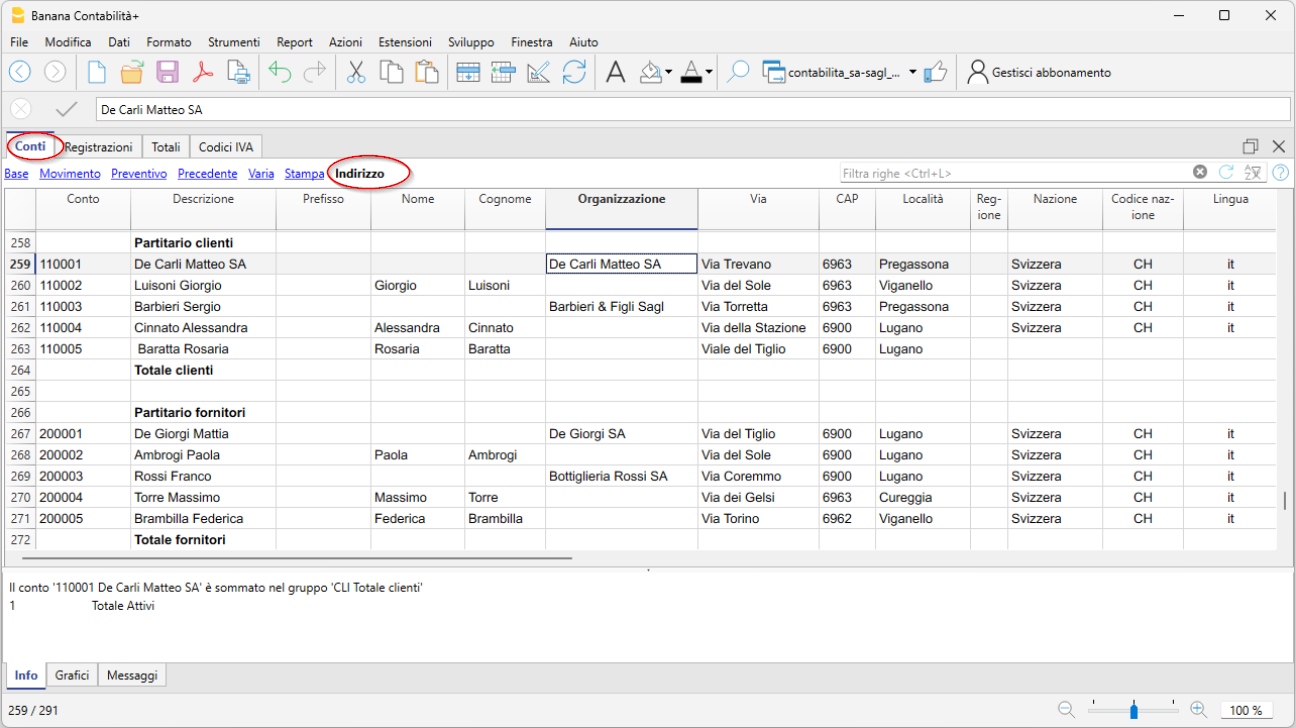
- In the Accounts table, Account column, your Customer and Supplier accounts complete with address, country code, and language.
- In the Accounts table, Opening column, the initial balance for each account (for assets and liabilities)
At year-end closing, the opening balance is carried forward automatically via Actions > Create new year.
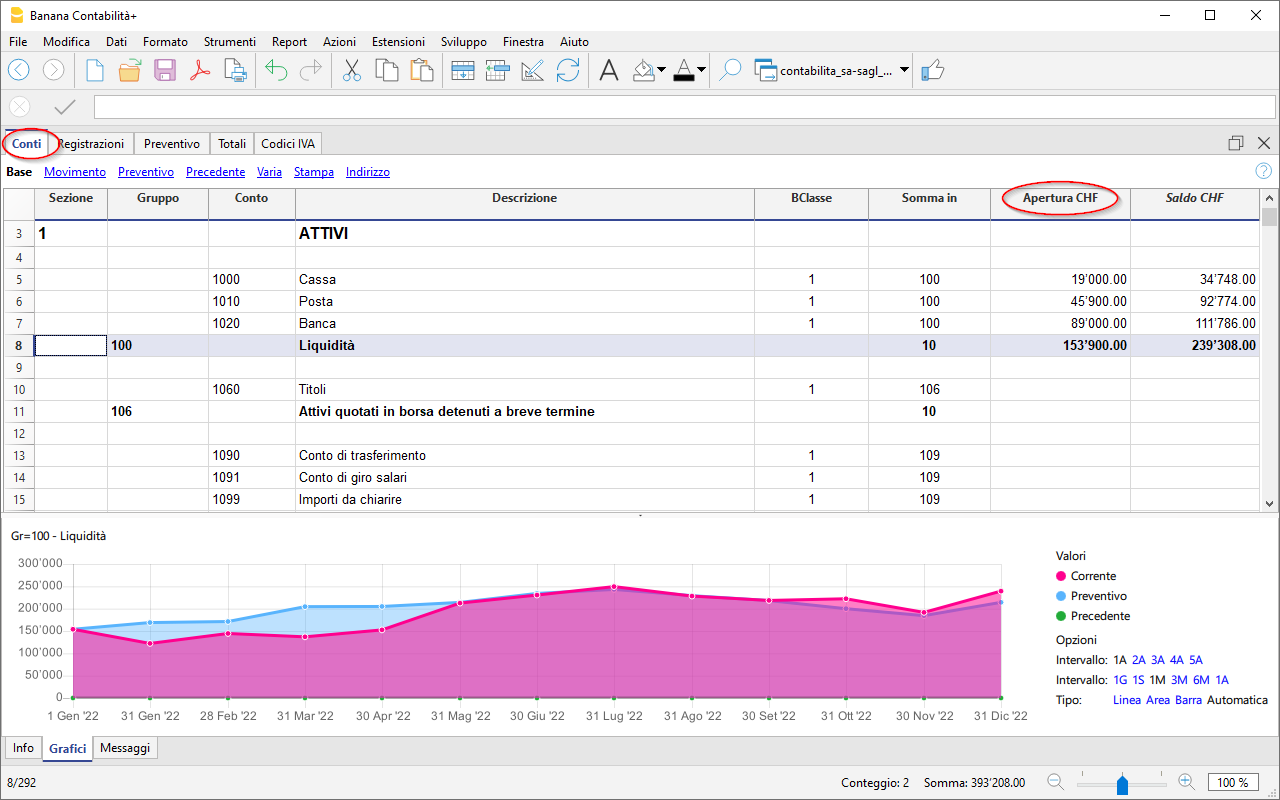
After each transaction, the columns in the Accounts table are updated immediately, giving you a clear and instant view of your financial situation.
The Income Statement has a progressive structure, allowing the profit to be viewed in the following stages:
- Gross operating profit after deducting material and resale goods costs
- Gross operating profit after deducting personnel costs
- Operating result before depreciation, adjustments, financial results, and taxes (EBITDA)
- Operating result before financial results and taxes (EBIT)
- Operating result before taxes (EBT)
- Non-operating result
- Profit or loss before taxes
- Annual profit or loss

Record transactions
In the Transactions table, enter all daily movements. To speed up entry, we recommend using various automation features:
- The Autocomplete data entry feature allows automatic reuse of previously entered data
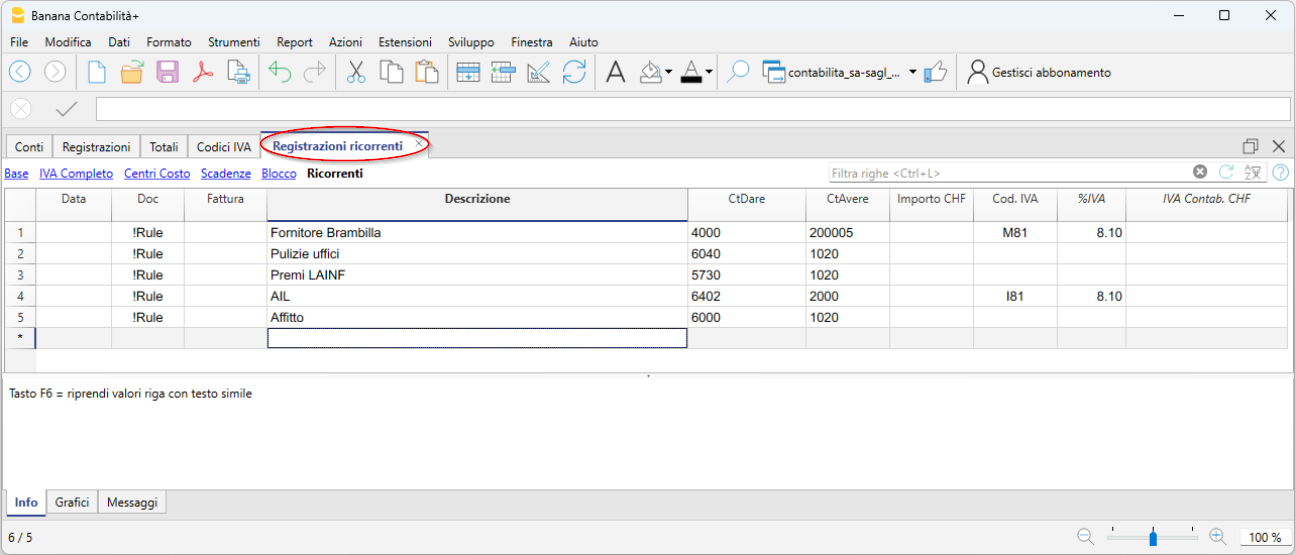
- The Recurring Transactions feature (under the Actions menu) allows you to store repetitive transactions in a dedicated table
- Importing data from the bank statement retrieves all bank transactions automatically. With the Advanced plan you can use Rules, a new feature that provides full automation of transaction entry.
- You can link each transaction to its digital receipt, and with one click, view the document.
See also Accounting files and digital receipts for better organization of your documents. - Use the Sort Transactions by Date command to order rows by progressive date.
- Use the Print/Preview command to print or export the journal in PDF format.
Transactions with VAT
To record VAT transactions, simply enter the VAT code corresponding to the operation (purchase, sale, international transactions, etc.). Calculations are made automatically, with no need to manually post to the VAT account.
In our templates, all VAT codes are pre-set in compliance with the new 2024 VAT rates.
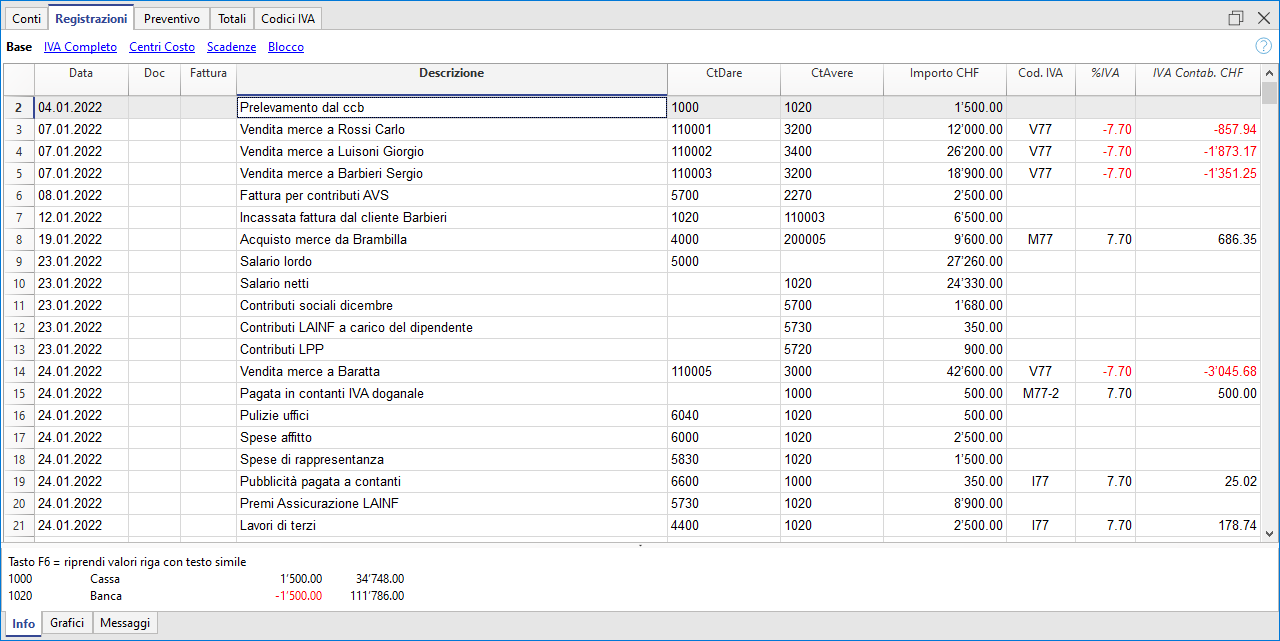
At the end of the period, you can automatically obtain:
- VAT Summary by account, code, percentage for all transactions (Professional and Advanced plans).
- VAT Sample, Effective Method (Advanced plan only)
- VAT Sample, Flat Rate Method (Advanced plan only)
- XML file for electronic data submission (Advanced plan only).
Import transactions from bank statements with Rules (Advanced plan only)
The new Rules feature is the most advanced automation innovation, highly appreciated by our users. This technology simplifies the management of financial transactions imported from bank, postal, and credit card statements using keywords. Each recurring transaction is automatically linked to a keyword, allowing precise assignment of the counterpart, VAT code, costs, and related segments.
Thanks to this system, during subsequent imports, the software quickly recognizes transactions based on the keywords and automatically completes the entry in the Transactions table. This drastically reduces manual entry, significantly speeds up workflow, and minimizes the chance of errors.
Create your invoices
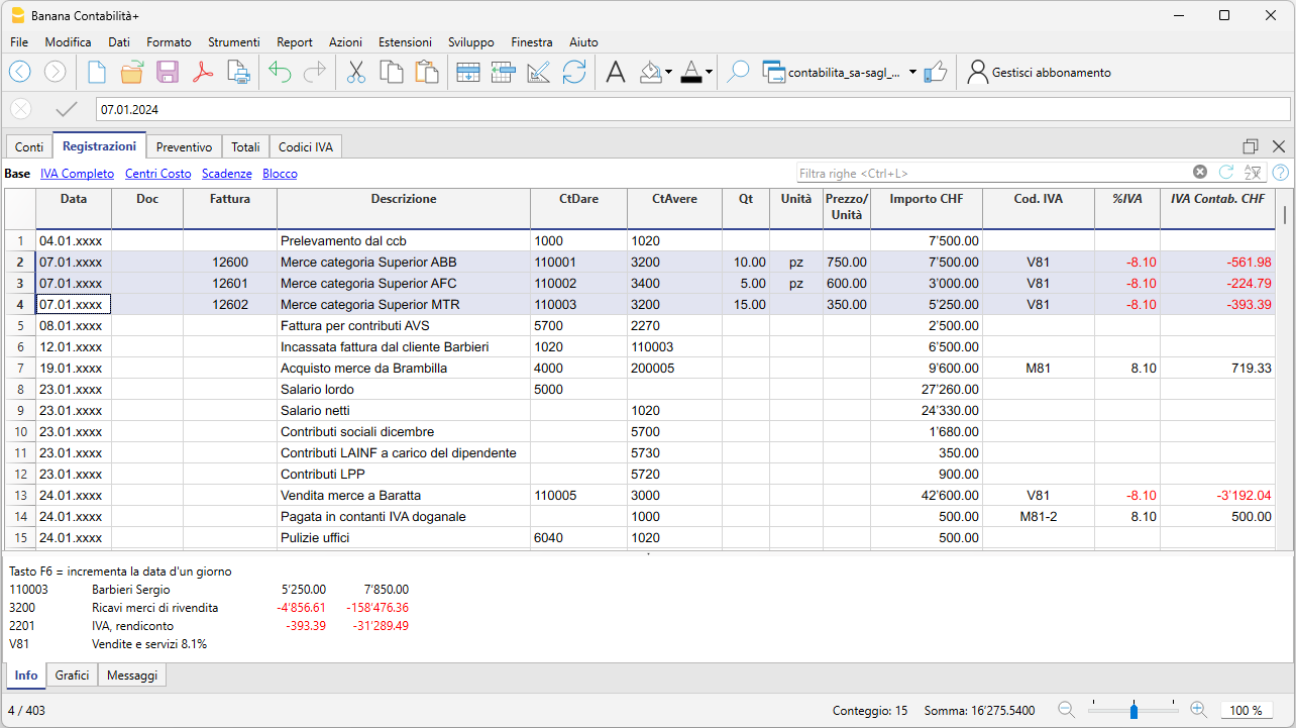
Integrated invoicing in the accounting file allows invoice data to be recorded in the Transactions table. For each new invoice, insert a new transaction row.
The following settings are essential for creating invoices:
- Enter customer addresses (columns in the Address view)
- Set the customer group
- In the Transactions table, it is essential to enter the invoice number,
You can enter simple invoices on a single row or more complex invoices on multiple rows. Additionally, by enabling the Items columns (from the Tools menu), you can specify quantities, unit, and unit price.
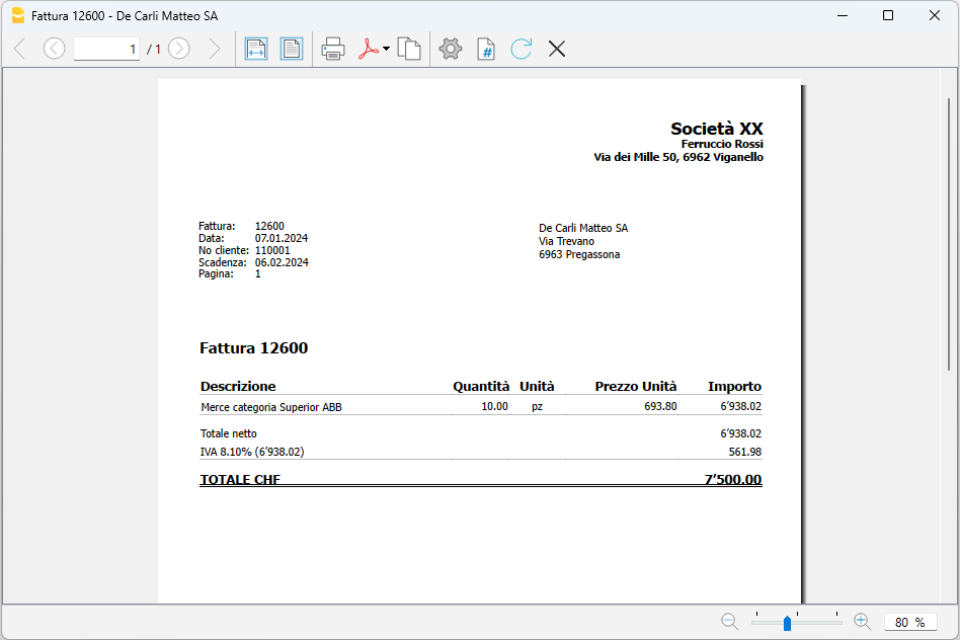
To print the invoice go to Report > Customers > Print Invoice
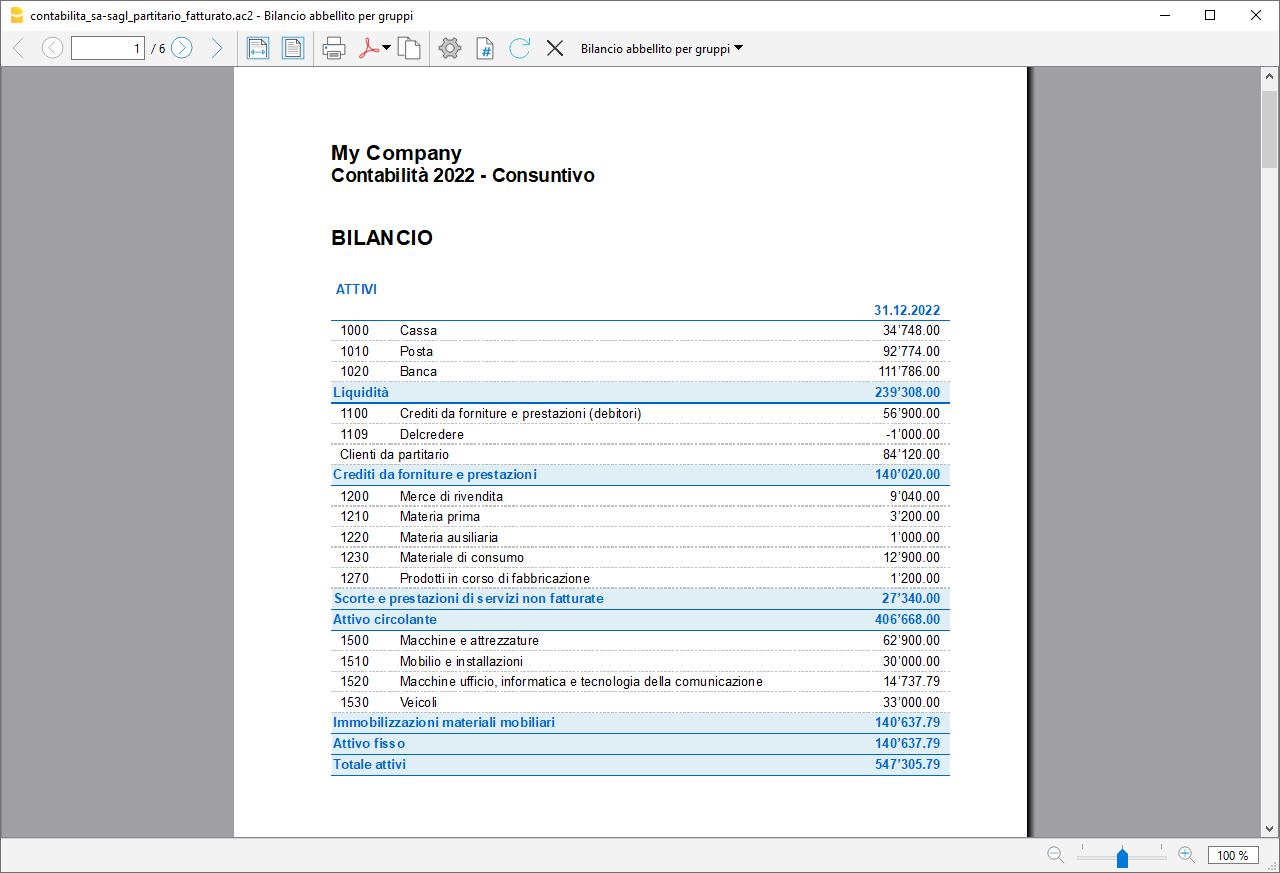
Beautified Balance Sheet with Groups
To view the Balance Sheet, click on the menu Report > Beautified Balance Sheet with Groups. You can customize the report with the columns you want to see, such as including the budget column or having Reports also by period.
Cash Flow: the lifeblood of your business
Cash flow is central to a company’s ability to operate, maintain solvency with suppliers, and generate income. Anticipating cash availability is essential to avoid mistakes, minimize risks, and optimize strategic decisions, helping you reach your goals successfully.
For optimal business management, it is crucial to have forward-looking insights, forecasting cash flow trends, sales, purchases, and future investments. Knowing whether your business will generate income is important, but forecasting cash availability is even more decisive. Without sufficient liquidity, you may be forced to cut expenses or seek financing.
With Banana Accounting, you can easily create both a cash flow forecast and a financial budget—strategic tools that will help you build a successful future for your business.
Discover the advanced forecasting features in our Documentation: