Automatización
Importación y autocompletado de transacciones bancarias
Es la funcionalidad que te permite llevar la contabilidad de forma rápida:
- Importa las transacciones bancarias en contabilidad
El programa crea los asientos con fecha, descripción, importe, cuenta y cambio. Los datos adicionales como la contrapartida deben completarse manualmente.
Los formatos estándar, como ISO 20022 o TXT están incluidos en el plan Professional; otros formatos requieren el plan Advanced. - Completa los asientos automáticamente gracias a las reglas (plan Advanced)
Puedes definir reglas de autocompletado para importar las transacciones añadiendo también la contrapartida, el código de IVA, los Centros de coste y otra información que hayas especificado.
Siempre puedes modificar y completar los asientos posteriormente.
Formatos de importación de transacciones bancarias
- Banana Contabilidad Plus lee las transacciones en varios formatos. Consulta la página Importar transacciones.
- Gracias a las Extensiones de importación desarrolladas a medida, puedes importar datos desde distintos extractos bancarios y otros programas estándar. Algunas extensiones están disponibles únicamente en el plan Advanced.
Otros comandos para la importación de datos
Banana Contabilidad Plus ofrece varias modalidades para la importación de datos:
- Importar en contabilidad
Puedes importar en cualquier tabla y desde distintos formatos. - Importar Filas
Todas las tablas permiten importar datos desde el formato CSV. - Copiar y pegar desde Excel u otros programas.
Puedes preparar las transacciones u otros datos en una hoja de Excel y copiarlos y pegarlos en bloque en la tabla Registros o en cualquier otra tabla.
Completado manual y anulación de la importación
Una vez importadas las transacciones u otros datos, puedes fácilmente completarlos y modificarlos. De esta forma, automatizar los procesos es muy fácil, ya que si hay excepciones no previstas, puedes modificar directamente los datos.
Como todos los comandos, también el de importación se puede anular. Así puedes probar fácilmente a importar los datos y comprobar si funciona como esperabas. Si no has elegido el formato correcto o no has configurado bien los parámetros, basta con anular la importación y volver a intentarlo.
Enlaces útiles
Reglas para completar automáticamente los registros importados
La Inteligencia Artificial (IA) se utiliza cada vez más en los sistemas de automatización. En colaboración con nuestros usuarios, hemos desarrollado sin embargo un sistema de autocompletado de los asientos importados basado en reglas definidas y controladas por el propio usuario, por lo tanto, basadas en algoritmos deterministas y no probabilísticos (IA).
Esta funcionalidad automatiza y simplifica el proceso de registro contable, permitiendo ahorrar tiempo y reducir errores en la introducción de datos.
Las Reglas son registros predefinidos que incluyen toda la información necesaria para completar automáticamente las operaciones contables de manera precisa y rápida.
A continuación el vídeo introductorio de las Reglas, y los vídeos sobre cómo crearlas:
- ▶ Vídeo: Importar y completar registros automáticamente (introducción) - 0'55"
- ▶ Vídeo: Reglas para completar registros importados (diálogo Aplicar reglas) - 7'26"
- ▶ Vídeo: Reglas para completar registros importados (tabla Registros memorizados) - 5'54"
Esta funcionalidad está disponible únicamente con el plan Advanced de Banana Contabilidad Plus (versión 10.1 o superior). También se puede probar con los planes Free o Professional hasta 70 líneas de transacción.
¿Qué son las Reglas?
Las Reglas son filas de registros predefinidas que contienen información útil para que el programa pueda:
- Identificar los registros importados que deben completarse
Si introduces en la columna Descripción "Swisscom", la regla se aplicará a los registros importados que contengan en la descripción el texto "Swisscom". - Indicar los elementos para completar el registro
- En la columna Cuenta Débito introduce la cuenta "Gastos telefónicos".
- En la columna IVA introduce el código "I81".
Las reglas de autocompletado se guardan en la tabla de Registros memorizados. Puedes introducirlas y modificarlas directamente en la tabla o utilizar el diálogo Añadir/Modificar reglas durante la fase de aplicación de reglas.

¿Para qué sirven las Reglas?
Normalmente, cuando importas transacciones bancarias en la tabla Registros, debes completar manualmente los registros añadiendo la contrapartida en Débito o Crédito, el código de IVA, los Centros de coste u otra información.
Ejemplo: cuando importas un movimiento de salida que indica un pago a la empresa "Swisscom", deberás completar la columna Cuenta Débito con "Gastos telefónicos" y la columna Código IVA con "I81".
Con la creación de Reglas, los movimientos importados son completados automáticamente por el programa, sin intervención manual.
Dependiendo del método utilizado para crear las reglas, estas pueden generarse antes o durante la importación. Una vez creadas, se aplican automáticamente en todas las futuras importaciones.
Procedimiento de trabajo
- Importa los movimientos bancarios
El programa crea las filas con fecha, descripción, importe, cuenta, número de documento, tipo de cambio. - Crea la regla utilizando uno de los métodos disponibles.
- En la tabla Registros, el programa completa automáticamente todos los movimientos importados con contrapartida, códigos de IVA, centros de coste y más.
- En la tabla Registros memorizados el programa guarda los registros con las Reglas.
Métodos para crear Reglas
Hemos creado un sistema que ofrece diferentes métodos para crear Reglas. Tú eliges cómo prefieres trabajar:
- Reglas desde la tabla Registros
- Reglas desde la tabla Registros memorizados
- Reglas desde el diálogo Aplicar Reglas
Ventajas de las Reglas
Las ventajas del sistema de autocompletado son inmediatamente evidentes:
- Completas los registros en segundos.
- Alto nivel de control y precisión.
- Evitas errores y omisiones.
- Puedes delegar fácilmente el trabajo de importar datos contables.
- Puedes ver cómo se han registrado ciertos movimientos.
- El auditor puede definir cómo registrar determinadas operaciones.
- Funciona de inmediato, incluso sin una base de datos de aprendizaje.
- Puedes añadir, modificar y eliminar reglas en cualquier momento.
Paso al nuevo año
Cuando creas el archivo del nuevo año desde el menú Acciones > Crear nuevo año, todas las Reglas presentes en la tabla Registros memorizados se trasladan e insertan en el nuevo archivo.
Cuando importas los movimientos del extracto bancario, las Reglas se aplican de inmediato.
Puedes añadir nuevas Reglas y adaptar las existentes a nuevas necesidades, como por ejemplo el cambio del IVA, la adición o eliminación de cuentas.
Copiar Reglas de un archivo a otro
Cuando creas un nuevo archivo, puedes copiar las reglas de un archivo a otro desde la tabla Registros memorizados:
- Ve a la tabla Registros memorizados
Asegúrate de que la disposición de las columnas sea la misma en ambos archivos. - Selecciona las filas de las Reglas que deseas copiar.
- Copia las filas desde el menú Editar > Copiar filas, o con la combinación Ctrl + C.
- Pega las filas copiadas en la tabla Registros memorizados del nuevo archivo desde el menú Editar > Pegar filas copiadas, o con la combinación Ctrl + V.
Algoritmos deterministas vs. probabilísticos (IA)
La Inteligencia Artificial (IA) se utiliza cada vez más en los sistemas de automatización. Sin embargo, los sistemas basados en algoritmos probabilísticos no son adecuados para el ámbito contable, donde los registros deben ser exactos.
En colaboración con nuestros usuarios, hemos desarrollado un sistema para el autocompletado de registros importados basado en Reglas, es decir, en algoritmos deterministas.
Es un enfoque más alineado con la lógica contable, porque:
- El enfoque probabilístico conlleva una serie de riesgos en el ámbito contable y fiscal, y es difícil de controlar.
- Las reglas ofrecen un nivel de control y precisión muy elevado.
Por ejemplo, los pagos realizados a compañías de seguros pueden asignarse con precisión a una cuenta según el número de contrato. - Todas las reglas constituyen una valiosa base de conocimiento.
Se enumeran en la tabla de Registros memorizados, pueden modificarse fácilmente (por ejemplo, cuando cambia el IVA) y sirven como referencia y herramienta de control. Puedes:- Ver cómo se registran determinadas operaciones si no lo recuerdas.
- Explicar a quienes llevan la contabilidad cómo registrar las operaciones.
- Definir para el auditor cómo registrar ciertas operaciones.
- Adaptar las reglas si cambian los códigos de IVA o se añaden o eliminan cuentas, centros de coste, etc.
- Eliminar reglas que ya no se aplican.
- Copiar y pegar las reglas en otra contabilidad y adaptarlas según tus necesidades.
- No requieren fase de aprendizaje y funcionan perfectamente incluso para pagos que ocurren solo una o pocas veces al año.
- Las reglas pueden adaptarse de inmediato a cambios normativos. En cambio, la Inteligencia Artificial aprende del pasado y tiende a repetir lo ya hecho, incluso si la situación ha cambiado.
Funcionalidades actualmente no disponibles
Estas funciones, aunque solicitadas por algunos usuarios, no están disponibles actualmente:
- Posibilidad de cambiar el texto del registro, para acortarlo y simplificarlo.
- Para los registros en varias líneas, posibilidad de usar fórmulas que calculen los importes en función del importe del registro importado.
- Posibilidad de aplicar una regla según la fecha del registro (condición: columna Fecha).
Cómo funcionan las reglas de autocompletado de registros importados en 3 pasos
A continuación se explica el procedimiento de funcionamiento de las Reglas y cómo se aplican.
El proceso puede resumirse en tres pasos:
- Importar los movimientos bancarios en la tabla Registros.
- Crear las reglas.
- Aplicar las reglas para el autocompletado de los registros.
1. Importar los movimientos bancarios
Cuando se importan los movimientos bancarios, el programa inserta una cuenta de contrapartida temporal [CA]. Normalmente, la contrapartida debe completarse manualmente en cada registro.

En la imagen de ejemplo, en la tabla Registros se observa que:
- (1) - Las celdas tienen la misma contrapartida temporal, relacionada con ventas a través de Twint.
- (2) - La celda tiene una contrapartida temporal relacionada con gastos mensuales de mayo.
- (3) - La celda tiene una contrapartida temporal relacionada con gastos telefónicos de Swisscom.
- (4) - La celda tiene una contrapartida temporal relacionada con costes de seguros, póliza nº 892-948.
- (5) - La celda tiene una contrapartida temporal relacionada con costes de seguros, póliza nº 987-650.
A continuación se explica el procedimiento de funcionamiento de las Reglas y cómo se aplican.
El proceso puede resumirse en tres pasos:
- Importar los movimientos bancarios en la tabla Registros
- Crear las reglas.
- Aplicar las reglas para el autocompletado de los registros.
1. Importar los movimientos bancarios
Cuando se importan los movimientos bancarios, el programa inserta una cuenta de contrapartida temporal [CA]. Normalmente, la contrapartida debe completarse manualmente en cada registro.
En la imagen de ejemplo, en la tabla Registros se observa que:
- (1) - Las celdas tienen la misma contrapartida temporal, relacionada con ventas a través de Twint.
- (2) - La celda tiene una contrapartida temporal relacionada con gastos mensuales de mayo.
- (3) - La celda tiene una contrapartida temporal relacionada con gastos telefónicos de Swisscom.
- (4) - La celda tiene una contrapartida temporal relacionada con costes de seguros, póliza nº 892-948.
- (5) - La celda tiene una contrapartida temporal relacionada con costes de seguros, póliza nº 987-650.
2. Crear las Reglas
Las Reglas sirven para completar automáticamente todas las contrapartidas temporales de los registros importados, añadiendo también códigos de IVA, centros de coste, enlaces y más.
Las reglas son registros modelo ya completos, presentes en la tabla Registros memorizados, donde:
- La columna Descripción contiene el texto (una o más palabras clave) que debe contener el registro importado.
- Las columnas Cuenta Débito y Cuenta Crédito contienen la Contrapartida que sustituirá la temporal.
Hemos creado un sistema que ofrece diferentes métodos para crear las Reglas:
- Reglas desde el diálogo Aplicar reglas
- Reglas desde la tabla Registros
- Reglas desde la tabla Registros memorizados
Sea cual sea el método utilizado, las Reglas creadas se guardan en la tabla Registros memorizados.

En el ejemplo, en la tabla Registros memorizados se ha creado una Regla para los siguientes movimientos:
- (1) - Para los movimientos "Twint", la regla reemplaza la contrapartida temporal con la cuenta "Sales". También se ha añadido el código de IVA.
- (2) - Para el movimiento "Interac Electronics", la regla reemplaza la contrapartida temporal con la cuenta "Goods". También se ha añadido el código de IVA.
- (3) - Para el movimiento "Swisscom", la regla reemplaza la contrapartida temporal con la cuenta "Admin".
- (4) - Para el movimiento "Best insurance" con número de póliza "892-948", la regla reemplaza la contrapartida temporal con la cuenta "Insurance Health".
- (5) - Para el movimiento "Best insurance" con número de póliza "987-650", la regla reemplaza la contrapartida temporal con la cuenta "Insurance Car".
3. Aplicar las Reglas para el autocompletado (Resultado)
En la tabla Registros, el programa completa automáticamente los registros importados añadiendo la cuenta de contrapartida, el código de IVA, etc., independientemente del método utilizado para crear las Reglas.

En el ejemplo, en la tabla Registros los movimientos importados han sido completados automáticamente:
- (1) - Para los movimientos "Twint", la contrapartida temporal fue sustituida por la cuenta "Sales", y se añadió el código de IVA.
- (2) - Para el movimiento "Interac Electronics", la contrapartida temporal fue sustituida por la cuenta "Goods" y se añadió el código de IVA.
- (3) - Para el movimiento "Swisscom", la contrapartida temporal fue sustituida por la cuenta "Admin".
- (4) - Para el movimiento "Best insurance" con número de póliza "892-948", la contrapartida temporal fue sustituida por la cuenta "Insurance Health".
- (5) - Para el movimiento "Best insurance" con número de póliza "987-650", la contrapartida temporal fue sustituida por la cuenta "Insurance Car".
Además, el programa reconoce los registros con código de IVA y completa todas las columnas relacionadas con el IVA (cuenta de IVA e importes).
Create Rules from the Apply Rules Dialog
The Apply Rules dialog allows you to create and edit Rules directly while importing bank transactions, immediately checking which transactions they will be applied to.
The main advantages are:
- View all imported transactions, divided into incoming and outgoing transactions, with and without Rules.
- Identify applicable Rules, displayed in bold above the corresponding transactions.
- Create, edit or delete Rules directly from the dialog.
- Immediately check the results when you change the conditions of a Rule, such as the description, amount or account.
- Identify duplicate or conflicting Rules, to avoid ambiguity when applying them.
- Choose which Rules to apply, enabling or disabling them as needed.
The following sections explain, step by step, how to create and apply Rules from the Apply Rules dialog.
1. Import bank transactions
To create Rules from the Apply Rules dialog, you must first start importing bank or postal account transactions.
Proceed as follows:
- Select the command Actions > Import to accounting > Transactions.
- Choose the import format and select the bank statement file.
- In the import dialog:
- Account: specify the bank or postal account to which the transactions refer.
- Period: specify the start and end dates of the transactions to be imported.
- Temporary contra account: keep the default value
[CA]or enter a different one. If the account is enclosed in square brackets, it is not posted to the accounts. - Apply Rules: enable this option, available with the Advanced plan of Banana Accounting Plus.
- Confirm with OK.
The following image shows the import dialog with the Apply Rules option enabled.
After confirmation, Banana Accounting opens the Apply Rules dialog, where you can check the imported transactions and create the necessary Rules.
2. Apply Rules dialog
After confirming the import, Banana Accounting opens the Apply Rules dialog, where you can view the imported bank transactions, check existing Rules and create new ones.
The dialog displays:
- Temporary contra account: the default account [CA] or the one specified during import.
- Bank account: the account to which the imported transactions are posted.
- Imported transactions, divided into four groups:
- Incoming transactions without Rules Money In without rules.
- Outgoing transactions without Rules Money Out without rules.
- Incoming transactions with Rules Money In with rules.
- Outgoing transactions with Rules Money Out with rule.
The following image shows how bank transactions are displayed and grouped in the dialog.
This grouping allows you to immediately identify transactions already recognized by the Rules and those for which a new Rule needs to be created.
3. Create new Rules
In the Apply Rules dialog, you can create a new Rule directly from an imported bank transaction.
Proceed as follows:
- Select the transaction for which you want to create a Rule.
- Click the three dots (…) to the right of the transaction.
- Select Add new rule.
The following image shows where to find the command for creating a new Rule.
The Apply Rules, Add Rule dialog opens, where you can define the conditions for recognizing bank transactions and the accounting data to be entered.
Set the matching criteria
In the Description field, the program automatically suggests the text of the selected bank transaction. This text may contain very detailed information, such as invoice numbers, payment references and other specific data.
Important: if you keep the entire original description, the Rule may be too specific and recognize only that transaction, making it unsuitable for subsequent imports.
To create an effective and reusable Rule:
- Remove information that changes with each payment, such as invoice numbers or unique references.
- Keep recurring keywords that allow you to identify the desired transactions, for example:
- Company name or registered business name.
- Legal form or location, if useful for distinguishing the beneficiary.
- Customer, contract or policy number, when it remains unchanged in subsequent payments.
- Other recurring references that identify a specific type of transaction.
Choose the search method
You can use two methods to recognize bank transactions.
Search by phrase
The program searches the bank description for the text sequence specified in the Rule, keeping the words in the same order and without interruptions.
For example:
Best Insurance Contract 892-948
The Rule recognizes transactions containing this text sequence in the same order.
Search by independent words (with +)
By entering the + symbol at the beginning of the search criteria, the program searches for all the specified keywords, even when they appear in a different order or are separated by other words in the bank description.
For example:
+Best Insurance Contract 892-948
The Rule recognizes transactions containing all the keywords Best, Insurance, Contract and 892-948, regardless of their order.
Tip: when you want to distinguish transactions from the same supplier based on the contract, policy or customer number, use the search by independent words. This allows you to recognize transactions even when the bank changes the order of the information in the description.
Important: when the bank description contains contract, policy or customer numbers or other specific references, we recommend entering the
+symbol at the beginning of the search criteria.The + symbol allows the Rule to search for all the specified keywords and numerical sequences, regardless of their order and position in the description of the imported transaction.
The program displays the imported transactions that match the specified conditions and to which the new Rule will be applied. In the example, only one transaction is recognized.
Check that the recognized transactions are correct and confirm with OK.
4. Confirm Apply Rules
After creating a new Rule and confirming with OK, the program returns to the Apply Rules dialog, where you can check:
- The new Rule, identified by the label NEW, which shows the contra account and the other specified accounting data.
- The matching transactions, displayed immediately below the Rule, to which the specified accounting data will be applied.
You can choose which Rules to apply and when to apply them:
- Apply some Rules and continue working on the others.
- Disable the Rules you do not want to apply.
- Exit the dialog and resume your work later.
Apply the Rules
Two main buttons are available in the dialog:
- Apply Rules: the program completes the matching transactions in the Transactions table and saves the new Rules and changes in the Recurring Transactions table. The dialog remains open, allowing you to continue creating and applying other Rules.
- OK: confirms the applied Rules and closes the dialog.
The following image shows the new Rule and the recognized transactions in the Apply Rules dialog.
Undo changes
After closing the dialog, the completed transactions are visible in the Transactions table.
If necessary, you can undo the operation:
- From the Edit > Undo menu.
- Using the Undo button (green arrow).
To also undo the import of bank transactions, you must execute the Undo command a second time.
5. Complete transactions with a temporary contra account
After applying the Rules, some imported transactions may still have the temporary contra account [CA], because they do not match any Rule.
To complete these transactions, you can:
- Manually enter the contra account and other accounting data, especially for occasional transactions that do not recur.
- Create new Rules for transactions that you expect to import again, using one of the available methods:
The goal is to complete all imported transactions by removing the temporary contra accounts [CA].
Add accounting information to existing Rules
You can edit existing Rules in the Recurring Transactions table, by adding VAT codes, cost centers, segments and other accounting data.
The additional information will be used the next time the Rules are applied, allowing more accounting data in the imported transactions to be completed automatically.
Auto-completion rules from the Apply Rules dialogue
The Apply Rules window offers an excellent level of control over changes to accounting transactions because it shows a preview of existing rules, with an indication of which transactions match each one and which transactions do not yet match any rules. You then have the option of creating new rules, modifying or deleting existing ones.
▶ Video: Rules for completing imported transactions (Apply Rules dialogue)
The dialogue may be displayed:
- From the Import Transactions dialogue, when the Apply Rules option is checked
Rules are only applied to imported rows
- From the Actions menu > Recurring transactions > Apply rules...
Rules are applied to the entire contents of the Transactions table
The Apply Rules dialogue, coupled with the import of banking data, becomes a crucial tool for setting up all repetitive records. In this dialogue window, when faced with multiple repetitive transactions of the same type, it suffices to set the rule for just one of the transactions, and the rules are automatically applied to all other transactions in the dialogue, eliminating the need to set the rule again.
Once the rules are confirmed, all transactions are listed in the Transactions table, ensuring consistency and accuracy in records of the same type, and speed in accounting for all transactions.

This dialogue box is divided into three sections:
Apply rules to transactions with...
- Temporary contra account:
This field is mandatory.
It filters all imported transactions that contain that specific contra account, e.g. [CA], which was indicated in the Import transactions dialogue. - Account:
Filters all imported transactions that contain a specific account, usually a bank account or [A], which has been indicated in the Import Transactions Dialogue.
The rule-based auto-completion system assumes that once the transactions have been completed, there is no longer any transaction containing the temporary contra account.
Imported data corresponding to rules or not
The window shows all transactions that have temporary contra accounts indicated above (e.g. [CA]). These are grouped in four main sections:
- Incoming transactions with rules
Transactions with positive change of account (credit) and with indication of the rule to which they correspond - Outgoing transactions with rules
Transactions with negative account variation (debit) and with indication of the rule to which they correspond - Incoming transactions without rules
Transactions with positive change of account (credit) and not belonging to any rule - Outgoing transactions without rules
Transactions with negative account variation (debit) and not belonging to any rule
Contextual commands
From the row of a transaction without a rule, a simple click or the three dots (...) to the right, or a right click anywhere on the row, opens a menu allowing you to:
- Add/Edit Rule
- Cancel an existing rule
- Change an overlapping rule

The commands at the bottom of the dialogue
- Expand All/Collapse All: displays or hides the elements of the Transactions.
- Display unused rules: checking this option displays all rules defined in the Recurring transactions table; if the option is not checked, the programme only displays rules that have matches.
- Display rows without rules: if this option is checked, all imported transactions are displayed; if the option is not checked, the programme only shows transactions that match a rule.
- Remove accounts between [ ]: in multi-row transactions, the import account is placed in square brackets [ ] in the detail rows. If this option is activated, the programme removes the import account from the detail rows.
Rules with transactions on multiple rows can only be defined in the Recurring transactions table. - OK: this button applies the active rules and closes the window.
- The temporary contra account is replaced in all transactions that have a match with a rule.
- New or changed rules are also saved in the Recurring Transactions table.
- Cancel: this button closes the window without applying the rules.
- If there have been changes to one or more rules, you will be asked for confirmation before closing the window.
- With this button you cannot undo the Apply Rules command; to do so, you must close this window and use the Undo command from the Edit menu.
- Apply Rules: this button applies the rules without closing the window.
- The temporary contra account is replaced in all transactions that have a match with a rule.
- Rules that are added or changed are saved in the Recurring transactions table.
- If you wish to undo changes, you must close the window and use the Undo command from the Edit menu.
Tips on how to use the Apply Rules window
The most effective way to work with the Apply Rules window is as follows:
- Check that the transactions matching rules are correct.
- Use the Apply Rules button to update the Transactions table with the selected rules.
- Add new rules for the remaining transactions and check that they are applied correctly.
- Use the Apply Rules button again.
- Repeat steps 3 and 4 until all recurring transactions are associated with rules.
Recurring transactions table
Rules are saved and may be edited in the Recurring transactions table.
You can complete or add rules also with transactions on multiple rows in the Recurring transactions table.
As time goes by, you will see that more and more imported transactions will have matches with rules; the more rules you add, the more your accounting work will be reduced.
Apply Rules dialog – Add Rule
From the Apply rules dialogue you may access the Add/Edit rule section as follows:
- By right-clicking on one of the transactions or rules:
- For transactions that already have a rule, you can choose Edit Rule or Delete Rule.
- For transactions that do not have a rule, you can choose Add New Rule.
Add New Rule example
The following example in the dialogue below is an outgoing transaction of the payment of a health insurance.
To add a new rule:
- Right-click on the movement row and choose Add New Rule.
- The dialogue Add rule appears.
- Fill in the fields available.
- Confirm with OK.

Add New Rule dialogue
The Add New Rule dialogue shows the data of the selected transaction from which you are creating the rule.
- Complete the rule with the matching parameters (conditions) and the rule completion parameters.
- All rules are saved in the Recurring Transactions table (rules for completion), where you can also:
- Edit, add and delete rules.
- Add any other column for completion, which is not available in this dialogue (e.g. Notes or DocLink columns).
- Colour the row if you want to highlight the imported transaction.
- Add transactions on multiple rows (SplitRule).

The Rule
- Rule type.
The programme, depending on the type of transaction, if in credit or debit on the bank account, sets the rule as Money in or Money out transaction. - Rule title.
It is optional, it is displayed in the Apply Rule dialogue.
Conditions
These are the elements that are used to check whether there is a match for each individual transaction.
- A match is given if all conditions are found.
- If a match is given, the entry is listed among the transactions with rule.
The description
In the description, enter the text to be searched in the text of the imported transaction. If the text is found the transaction will be considered suitable for applying the rule, if the other conditions are then met.
- Exact word or phrase
- If you write only Best Insurance 982-948 as a condition of the rule, only transactions containing those words in that exact order will be considered matches.
- If you write only Insurance, as a condition of the rule, all entries containing this exact word will be considered matches.
- All words (starting with the "+ "sign)
- If you write +Best Insurance 982-948 as a condition of the rule, all records containing these exact words, in any position, will be considered matches.
All words must be present in the description of the transaction.
The position of the words in the sentence is not relevant.
The "+" sign is not considered in the search.
- If you write +Best Insurance 982-948 as a condition of the rule, all records containing these exact words, in any position, will be considered matches.
- List of words (using |)
- If you enter "coffee|restaurant", the program searches for imported transactions that contain the word "coffee" or "restaurant".
- This mode is useful for identifying multiple categories without having to create separate searches.
- Upper and lower case
When searching for input text, no case difference is made.
The text you enter is applied to both upper and lower case text.
Amount
If you indicate an amount in the rule, only transactions with the same amount, as well as a match in the Description, will be considered as matches.
If you do not indicate any amount, any transaction of any amount that meets all other criteria will be treated as a match.
Account
In this field you will already find by default the account from which you imported the transactions. If you leave the account field empty, all transactions, imported from any account, that meet all other criteria will be considered as matches.
Actions
These are the elements used to complete the transaction row if a match is given.
If the contra account or other items to be completed are not present, you can abort the Apply rules command, add the missing account, and call up the Actions > Recurring transactions > Apply rules... command.
Contra account
Enter the account in your chart of accounts that is to be matched in the rule. In this example, the correct contra account is the Health Insurance account.
VAT
You can already enter in the rule the VAT code that the programme must add to each movement considered as a match.
CC1, CC2, CC3
You can already enter in the rule the Cost Centres that the programme must add to each movement considered as a match.
By confirming with the OK button, the new rule is saved. You will return to the previous window where the imported movements with and without rules are displayed again.
Matching Transactions
This table shows all imported transactions selected in the Apply Rules dialogue, which fall under this rule.
Buttons
- The Delete button, cancels the rule.
- The OK button, saves the rule data.
Be aware though that, until you do not give the command Apply Rules, the new rules won't be saved in the Recurring transactions table.
Create Rules from the Transactions table
You can create Rules directly from the Transactions table, starting from imported bank transactions that you have completed with the necessary accounting data.
With the Create rules from selection command, Banana Accounting uses the selected transactions to create Rules in the Recurring Transactions table.
This method is particularly useful when you want to create multiple Rules at the same time, working directly in the Transactions table that you normally use.
The main advantages
- Work directly in the Transactions table, with all the accounting columns available.
- Create Rules from already completed transactions, with contra accounts, VAT codes, cost centers and other data.
- Create multiple Rules with a single command, by selecting the completed transactions and using Create rules from selection.
- Avoid entering Rules one by one through dialogs or in the Recurring Transactions table.
- Automate subsequent imports: once the matching conditions have been correctly defined, the program uses the Rules to complete new matching transactions.
Important: after creating the Rules, you must check and adjust the descriptions used to recognize transactions. Imported descriptions may contain variable references that would make the Rules too specific.
The following sections explain, step by step, how to create and complete Rules from the Transactions table.
Import transactions
In the Transactions table, import transactions from your bank, postal account or credit card statement.
The imported transactions are displayed in the Transactions table, where you can complete them with the necessary accounting data before creating the Rules.
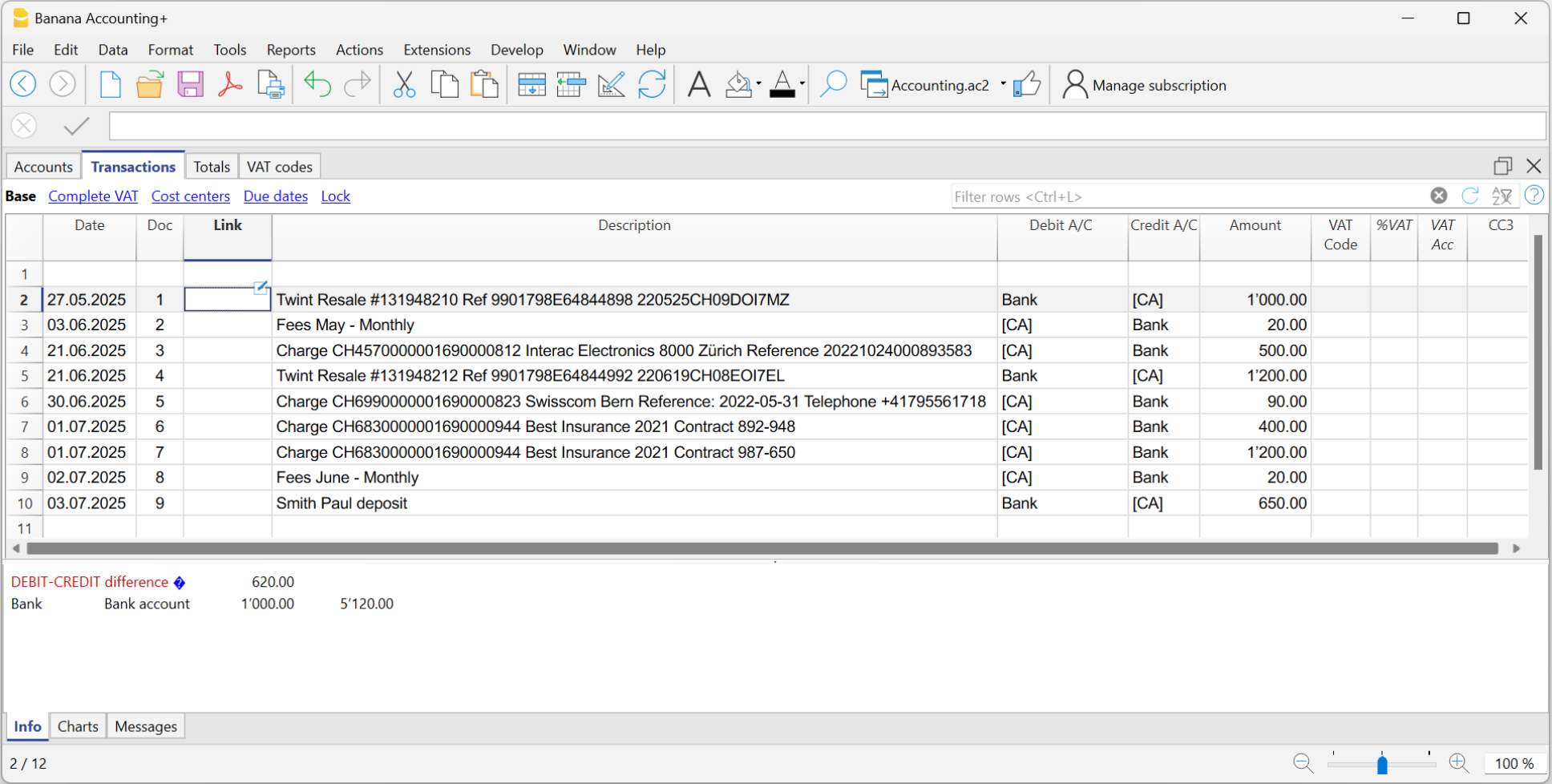
Complete the imported transactions
In the Transactions table, complete the imported bank transactions by entering the necessary accounting data:
- Contra account: replace the temporary account [CA] with the correct account from the chart of accounts.
- VAT code: enter the VAT code, if necessary.
- Cost centers and other data: complete the relevant columns according to your accounting needs.
The completed transactions will serve as the basis for creating the Rules.
Transactions on multiple rows
If a bank transaction needs to be split across multiple accounts, the program initially imports it as a single transaction, with the total amount and the temporary contra account [CA].
To complete it:
- Remove the temporary contra account [CA] from the imported transaction.
- Insert the additional rows immediately below the transaction.
- For each new row, specify the description, contra account, amount and any VAT codes or cost centers.
The following image shows the completed transactions, including those split across multiple rows.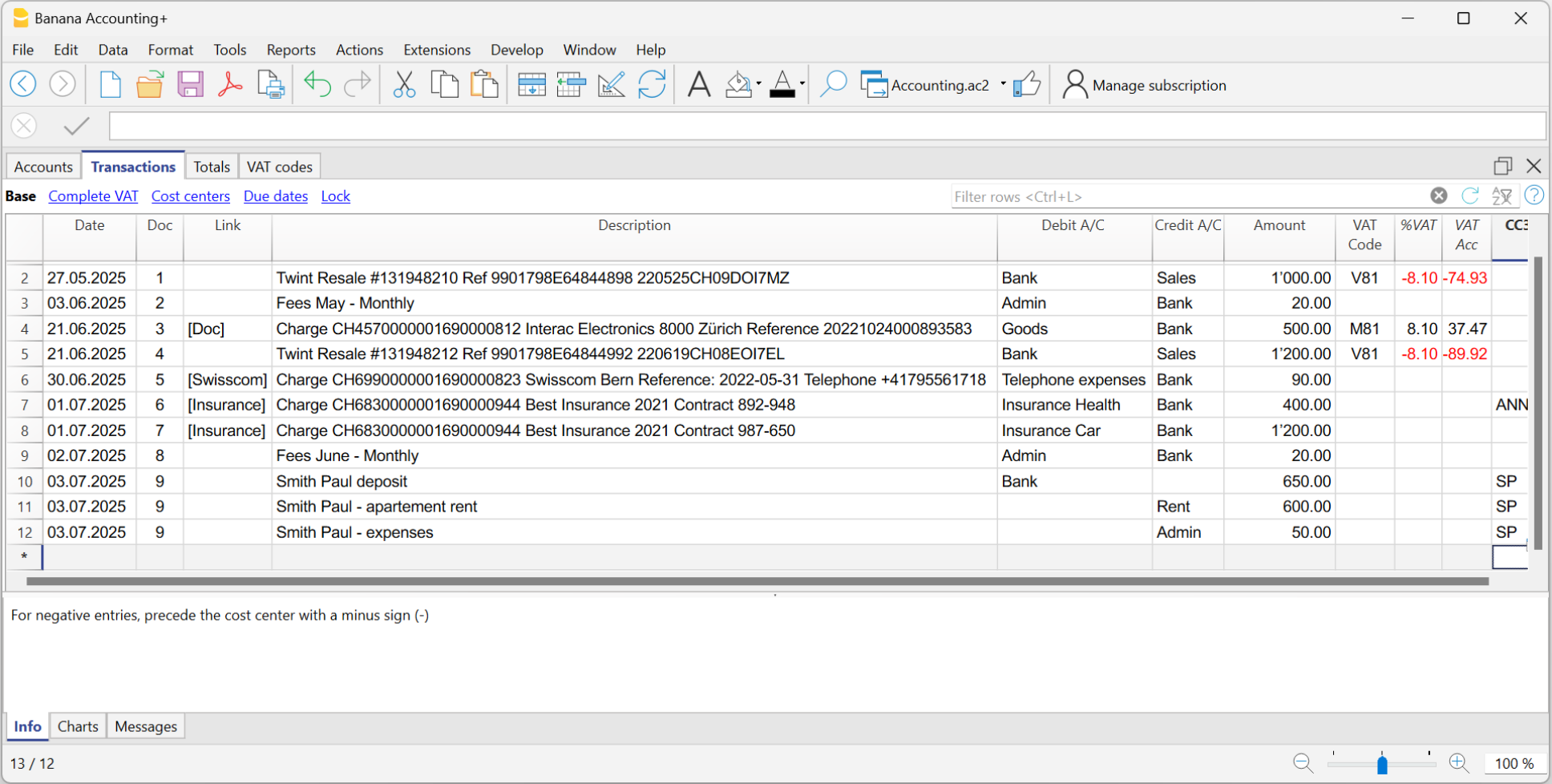
Create the Rules
After completing the bank transactions in the Transactions table, you can create Rules directly from the selected transactions.
Proceed as follows:
- Select the rows of the completed transactions for which you want to create Rules.
- Right-click the selection and choose Create rules from selection.
Alternatively, use the menu Actions > Recurring transactions > Create rules from selection.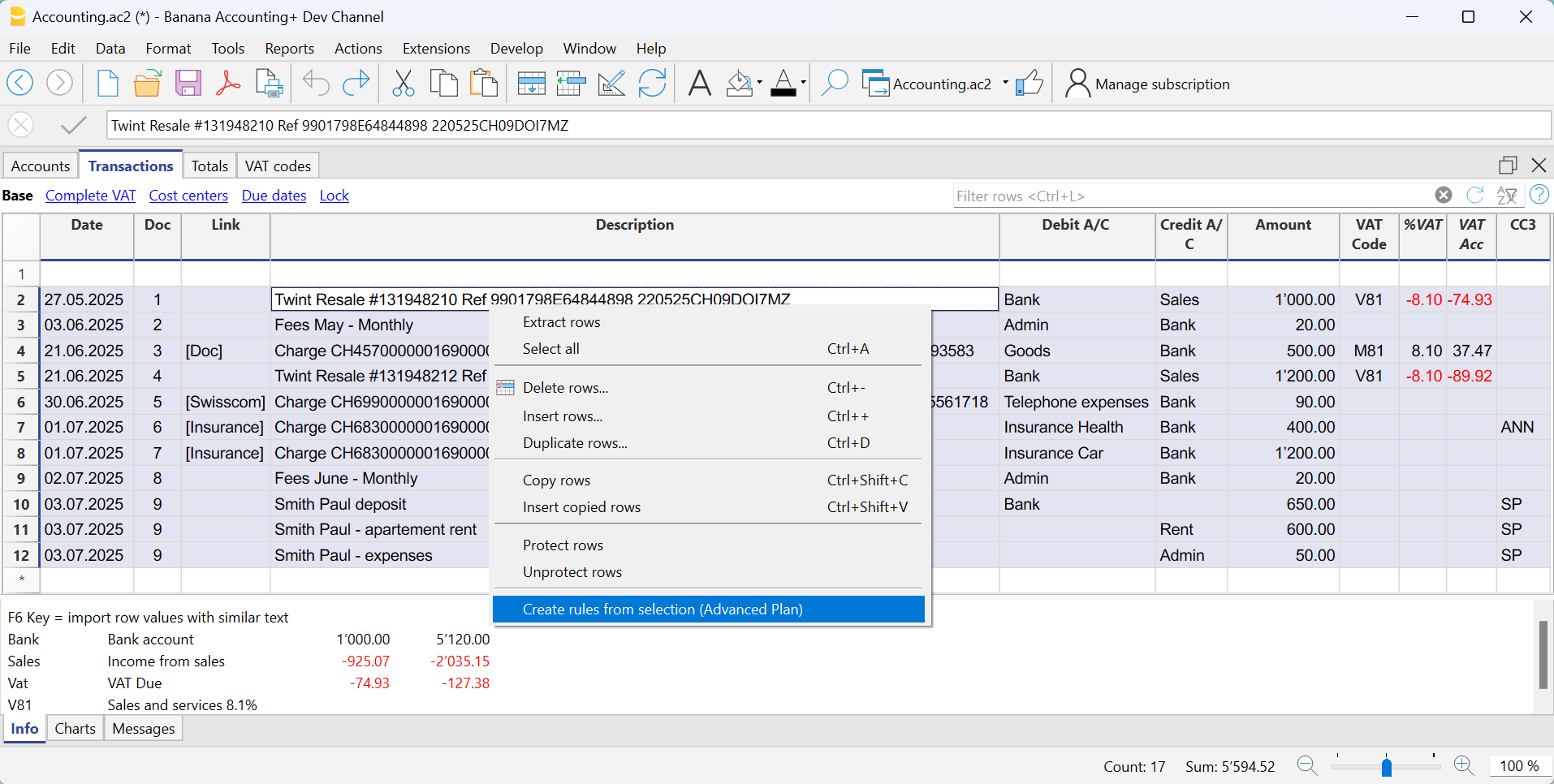
The program creates the Rules in the Recurring Transactions table, copying the data from the selected transactions, including the contra accounts and other accounting information.
Important: the Rules are created using the data from the selected transactions. Before using them in subsequent imports, you must check and complete the matching conditions in the Recurring Transactions table.
Complete the Rules
After creating the Rules from the selection, open the Recurring Transactions table to check and complete the information needed to recognize future transactions.
1. Edit the search description
In the Description column, the program initially copies the text of the imported bank transaction.
Edit this text, keeping only the keywords and references that identify the transaction and removing variable information, such as dates, invoice numbers or individual payment identifiers.
For example, you can use:
- Best Insurance – Searches for this sequence of words in the bank description.
- +Best Insurance 892-948 – Searches for all the specified keywords and numerical sequences, regardless of their order and position in the description.
Important: when using specific references, such as contract, policy or customer numbers, the + symbol at the beginning of the search criteria allows transactions to be recognized even if the order of the information in the bank description changes.
For more details, see the Description condition.
2. Check the Debit and Credit accounts
In the Debit account and Credit account columns, the program copies the accounts from the selected transactions.
In particular, check the following:
- Contra account: check that it is the correct account and change it if necessary.
- Bank account used for the import: if you want the Rule to apply to a specific bank account, the account must be specified without square brackets. If it is enclosed in square brackets, for example [1020], remove the brackets.
- Rule valid for multiple bank accounts: if you want to apply the same Rule to transactions imported from different bank accounts, remove the bank account used for the import from the Rule and leave only the contra account. In this way, the Rule recognizes transactions based on their description, regardless of the bank account they come from.
Important: a bank account enclosed in square brackets is treated as a comment and is not used as the main account for identifying matching transactions.
3. Complete Rules for transactions on multiple rows
For transactions split across multiple rows, the Rule must be set up correctly:
- In the first row, enter empty square brackets [] in the contra account column.
- In the subsequent rows, enter !RuleSplit in the Doc column.
- Check that each row contains the correct contra account, amount and any VAT data or cost centers.
The following image shows the completed Rules in the Recurring Transactions table, including those on multiple rows.
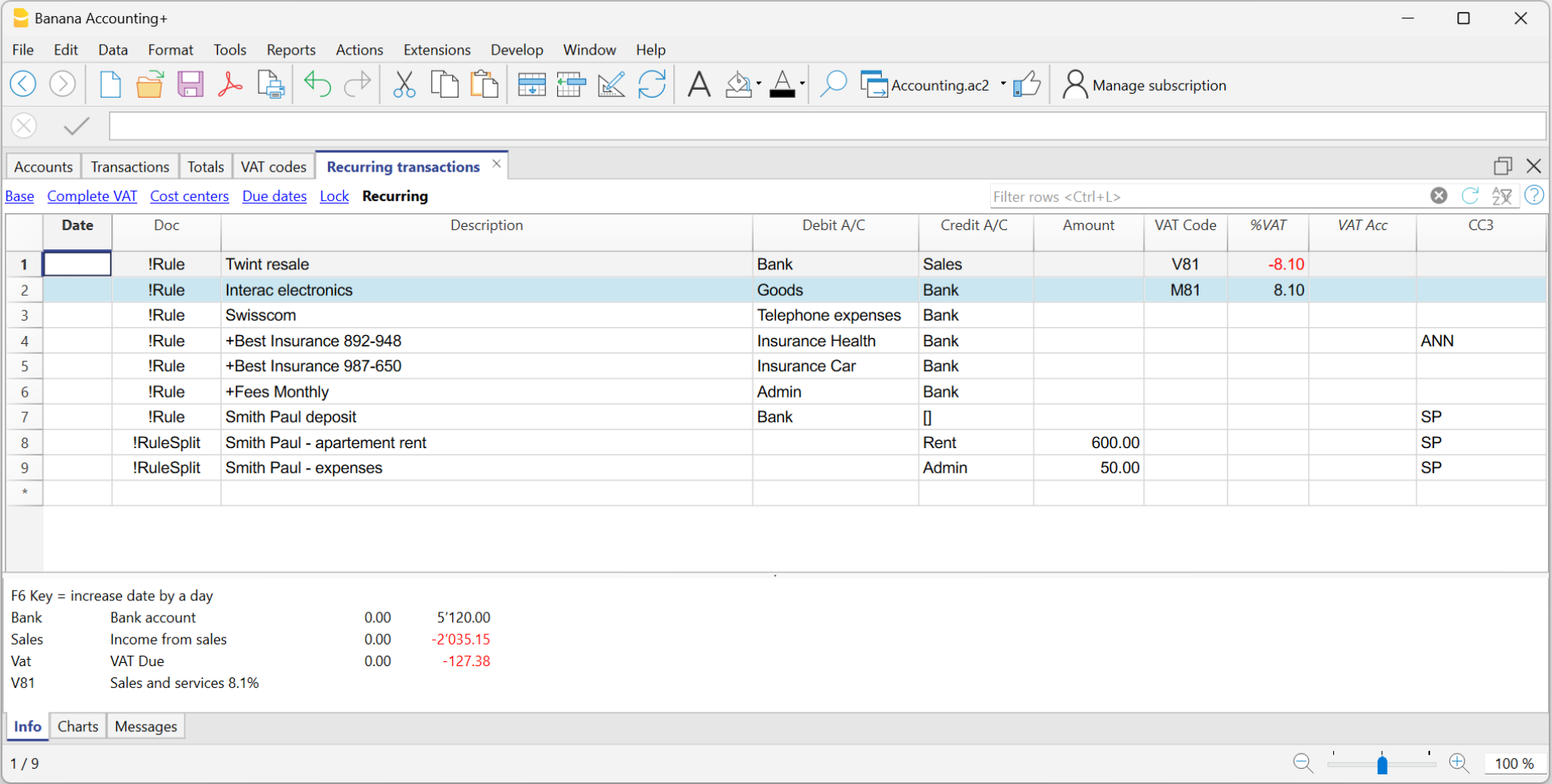
For more information, see the documentation on transactions on multiple rows with !RuleSplit.
Apply the Rules in subsequent imports
The procedure for creating and configuring the Rules only needs to be carried out the first time.
In subsequent imports, the program recognizes transactions that match existing Rules and completes them automatically when the Rules are applied.
For new transactions without Rules, you can:
- Complete the transactions manually, if they are occasional transactions.
- Create new Rules, following the same procedure, to automate future transactions as well.
Identify transactions that still need to be completed
To find imported bank transactions that still have the temporary contra account [CA], use the Filter rows function in the Transactions table, entering the text [CA]. The filter displays transactions that contain this temporary contra account and still need to be completed.
You can then decide whether to complete them manually or create new Rules to automate the recording of similar transactions in subsequent imports.
Automation rules in the Recurring transactions table
Rules are stored in the Recurring transactions table, accessible from the menu Actions > Recurring transactions > Recurring transactions table.
Rows containing !Rule or !RuleSplit in the Doc column are used to define Rules.
In the Rule rows, the table columns have a specific meaning and are divided into two categories:
- Condition (or search) columns: contain the criteria used to identify imported bank transactions and determine when to apply a Rule.
- Action (or replacement) columns: contain the data to be automatically entered in the transactions that match the Rule.
The main condition columns are Doc, Date, Description, Debit/Credit Account and Amount. The other columns can be used to complete the transactions, as described below.

Condition columns
The condition columns define which bank transactions must be identified by the Rule.
Doc column (mandatory)
In the Doc column, enter one of the following values:
- !Rule: identifies the main row of a Rule.
- !RuleSplit: identifies an additional row of a Rule that creates transactions on multiple rows. It must be used in the rows following the main Rule.
Description column (mandatory)
In the Description column, enter the text that the Rule must search for in the description of the imported bank transactions.
You can use different search methods:
- Search by phrase: enter the words in the same order in which they must appear in the bank transaction description. For example, Best Insurance.
- Search by independent words: enter the + symbol before the first word, for example +Best Insurance 892-948. The Rule searches for all the specified words, even if they appear in a different order or are separated by other words.
- Search by alternative words: separate the words with the | symbol, for example coffee|restaurant. The Rule identifies transactions containing at least one of the specified terms.
You can also assign a name to the Rule by entering it in square brackets at the beginning of the description. The name is optional and makes it easier to identify the Rule.
For more information, see the Description condition.
Debit and Credit Account columns (recommended)
These columns allow you to specify the bank account to which the Rule applies.
In Double-entry accounting:
- Debit Account: is used as a condition to identify incoming transactions.
- Credit Account: is used as a condition to identify outgoing transactions.
In Income & Expense accounting, use the Account column.
Normally, the specified account is the bank account from which the transactions are imported. If you want the Rule to apply to a specific bank account, enter the account without square brackets. If you want to apply the same Rule to transactions from different bank accounts, you can remove the bank account used for the import, leaving only the contra account.
Important: a bank account enclosed in square brackets, for example [1020], is treated as a comment and is not used as a condition to identify transactions.
For more details, see the Account condition.
Date column (optional)
The Date column allows you to limit the application of the Rule to a specific period.
This is useful when a Rule must only be applied to bank transactions within a specific date range.
Amount column (optional)
The Amount column allows you to limit the application of the Rule to a specific amount or range of amounts.
In Income & Expense accounting, use:
- Income: for incoming transactions.
- Expenses: for outgoing transactions.
For more information, see the Conditions for Rules.
Replacement columns
The replacement columns contain the accounting information that the Rule must enter in the imported transactions.
Contra account column
Specify the accounting account that must replace the temporary contra account [CA], or the one selected in the Apply rules dialog.
In Double-entry accounting:
- Incoming transactions: use the Credit Account column.
- Outgoing transactions: use the Debit Account column.
In Income & Expense accounting, use the Category column.
VAT Code column
Enter the VAT Code to be applied to the bank transaction. When the Rule is applied, Banana Accounting automatically completes the VAT-related columns.
Cost center columns (CC1, CC2, CC3)
Enter the cost centers to be assigned to the bank transactions identified by the Rule.
Notes column
You can enter additional information that will be transferred to the imported transactions. The Notes column can also be used to enter temporary text that makes it easier to find transactions that need to be checked or completed manually.
Other columns
All columns that are not used as condition columns can be used as replacement columns, except for ExternalReference. The ExternalReference column is reserved for bank imports and is used to identify imported transactions, helping to prevent duplicates.
Linking supporting documents using the DocLink column
The DocLink column makes it easier to associate bank transactions with their corresponding digital documents, such as invoices and other supporting documents. You cannot enter a direct link to a specific document in the Rule, because each bank transaction may have a different supporting document. However, you can enter search text in square brackets, which will be transferred to the imported transaction and used to identify the documents to be linked.
How to proceed
- In the Recurring transactions table, enter text in square brackets in the DocLink column, for example [invoice].
- Inside the square brackets, specify a word that must appear in the file name of the supporting document.
- Import the bank transactions and apply the Rules.

- In the Transactions table, the identified transactions contain the text in square brackets in the Link column.

Searching for transactions without supporting documents
In the Transactions table, use the Filter rows function by entering the text !link![ ]. The program displays the transactions that contain square brackets in the Link column and for which you still need to enter a link to the document.
When you edit a cell in the Link column, Banana Accounting uses autocomplete to suggest files that have not yet been associated with a transaction and whose names contain the text specified in square brackets.
Example: if the Link column contains [invoice], the program suggests files that have not yet been linked and contain the word "invoice" in their names.
This allows you to identify and link supporting accounting documents more quickly.
Quickly finding and completing transactions
After importing bank transactions and applying the Rules, some transactions may require additional information or manual checks.
To quickly identify the transactions that need to be completed, you can use two methods.
Using the Notes column
You can enter temporary search text in the Rules, which will be transferred to the imported transactions and used to identify them through a filter.
Proceed as follows:
- In the Notes column of the Recurring transactions table, enter identifying text, for example #city. You can also use another available replacement column, provided it is not reserved for the Rule conditions.
- Import the bank transactions and apply the Rules.
- In the Transactions table, use the Filter rows function, searching for the same text #city.
The program displays the transactions containing the specified text, allowing you to quickly identify and complete them.
Coloring the Rule rows
You can assign a color to the Rule rows in the Recurring transactions table.
When you apply the Rules, the color is transferred to the Transactions table, highlighting the transactions to which the Rule has been applied.
To display only the colored transactions, use the Filter rows function by entering the text !_co!.
This method allows you to visually identify and filter transactions that require manual checking or completion.

Transactions on multiple rows (split rows)
Normally, when you apply a Rule to an imported bank transaction, Banana Accounting completes the transaction by entering a single contra account.
Rules with !RuleSplit can only be created and edited in the Recurring transactions table. Rules associated with !RuleSplit rows are not displayed in the Add/Edit rules dialog. They are available in the Add/Edit rules dialog, which does not display Rules associated with !RuleSplit rows.
Example: receiving a rent payment
Suppose you regularly receive a bank payment of 550, which must be split between two revenue accounts:
- 550: total rent payment received, recorded in the bank account specified in the Rule.
- 500: rental income, to be allocated to the Rental income account.
- 50: income from additional charges, to be allocated to the corresponding accounting account.
The Rule therefore uses one main row for the incoming bank payment and two additional rows to split the amount between the revenue accounts.
How to create a Rule on multiple rows
1. Set up the first row (!Rule)
The first row identifies the imported bank transaction and contains the conditions for identifying it.
- In the Doc column, enter !Rule.
- In the Description column, enter the text to search for in the description of the imported bank transactions.
- In the contra account column, enter the account to be used or empty square brackets
[]if you want to leave the account empty.
2. Set up the following rows (!RuleSplit)
The following rows define the additional transactions to be created when the Rule is applied.
- In the Doc column, enter !RuleSplit.
- In the Description column, enter the text that must appear in the additional transaction.
- In the Debit Account and Credit Account columns, enter the accounting accounts to be used or leave them empty, depending on the requirements of the transaction.
- In the Amount column, enter the amount to be allocated to the additional transaction.
- In the other columns, enter any VAT Codes, cost centers and other accounting data to be transferred to the additional rows.
In the rent example, the two !RuleSplit rows contain the amounts of 500 and 50, with their respective revenue accounts. You can also specify the cost center associated with the tenant.
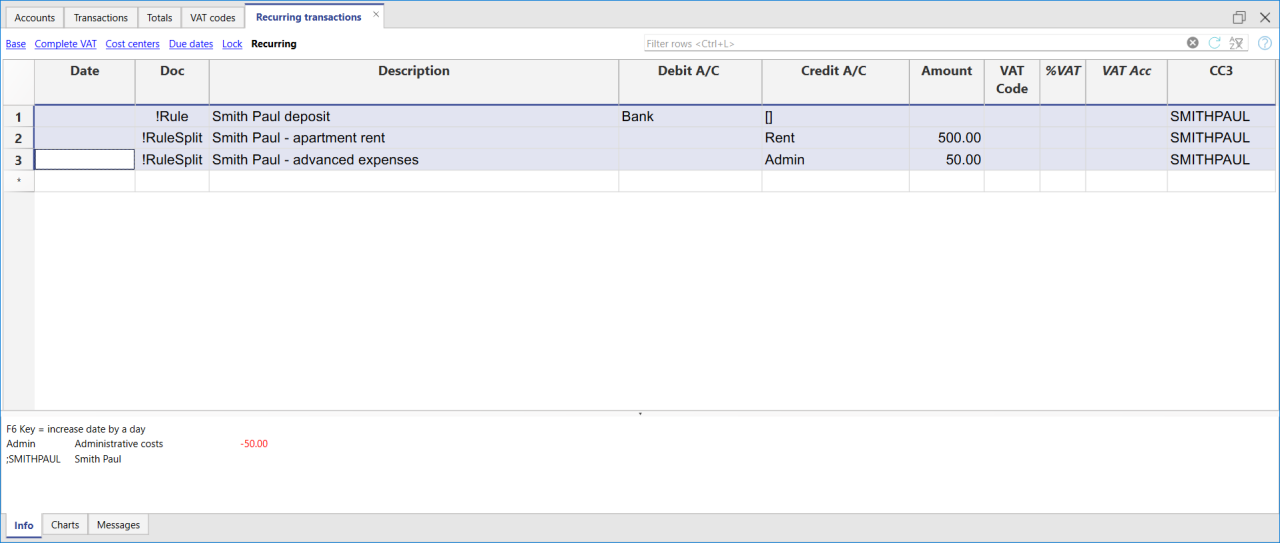
Fixed amounts in Rules on multiple rows
Important: the amounts specified in the !RuleSplit rows are fixed. It is currently not possible to use formulas to calculate them automatically based on the amount of the imported bank transaction.
In the example, the Rule is set up for an incoming payment of 550. If the actual amount received is different, you must check and complete the transaction manually.
Editing Rules in the Recurring transactions table
You can edit, delete or create new Rules directly in the Recurring transactions table, even when the existing Rules were created using the Apply rules dialog.
You can also create new Rules in advance to automate bank transactions that you expect to import in the future.
Setting a description different from the imported one (Notes column)
When you import bank transactions, Banana Accounting transfers the original text from the bank statement to the Description column of the Transactions table. These descriptions are often very detailed.
Rules do not allow you to automatically change the original description of imported transactions.
However, you can use the Notes column of the Recurring transactions table to prepare an alternative description, which can later be copied to the Description column of the Transactions table.
Important: if you already use the Notes column for other notes, you can use a custom column, as explained in the next section.
How to proceed
1. Enter the alternative description in the Rule
- Open the Recurring transactions table.
- Display the Notes column using the Data > Columns setup menu, enabling the display of the Notes column.
In the Notes column of each relevant Rule, enter the text you want to use as the description in the Transactions table.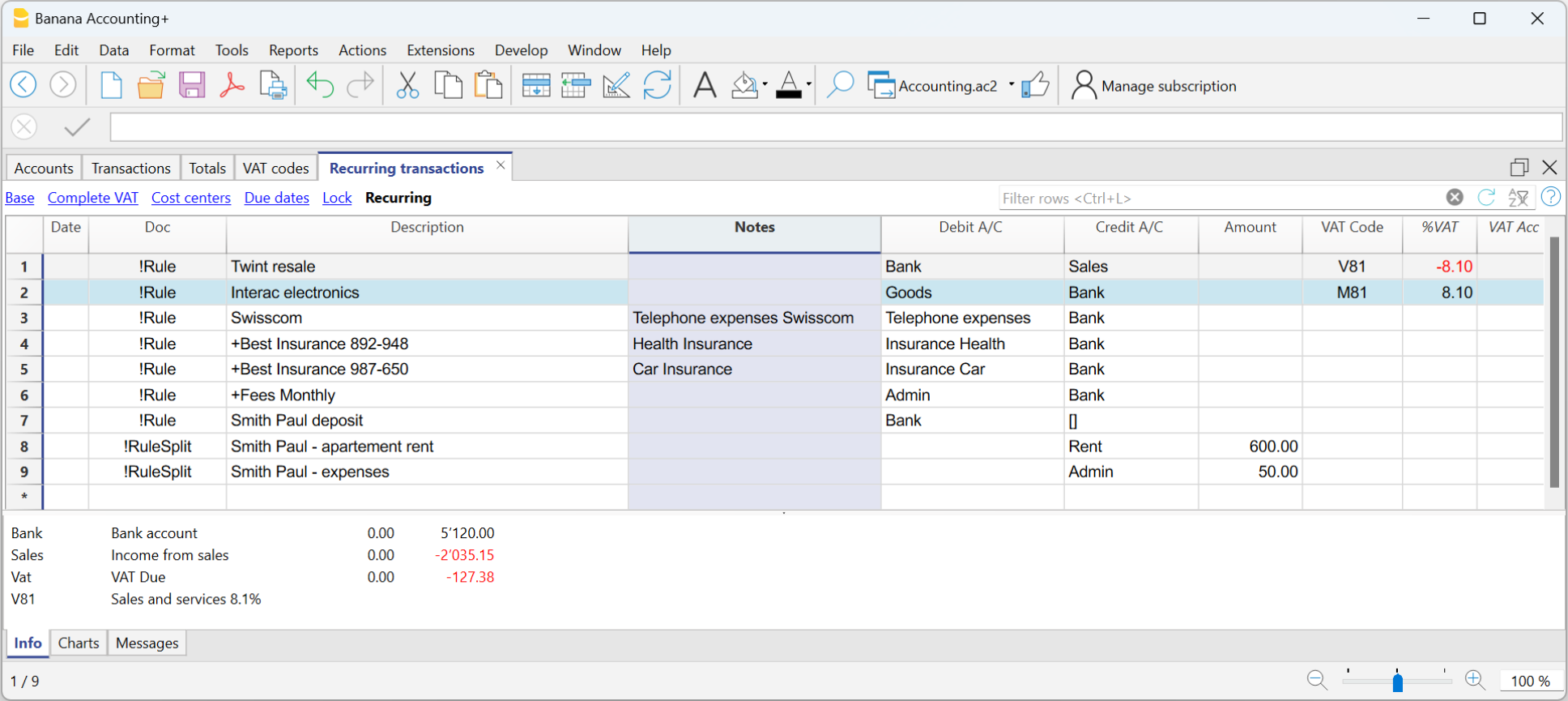
2. Import the bank transactions and apply the Rules
- Import the bank transactions and apply the Rules.
- In the Transactions table, display the Notes column using the Data > Columns setup menu.
- The program automatically transfers the alternative descriptions defined in the Rules of the Recurring transactions table to the Notes column.
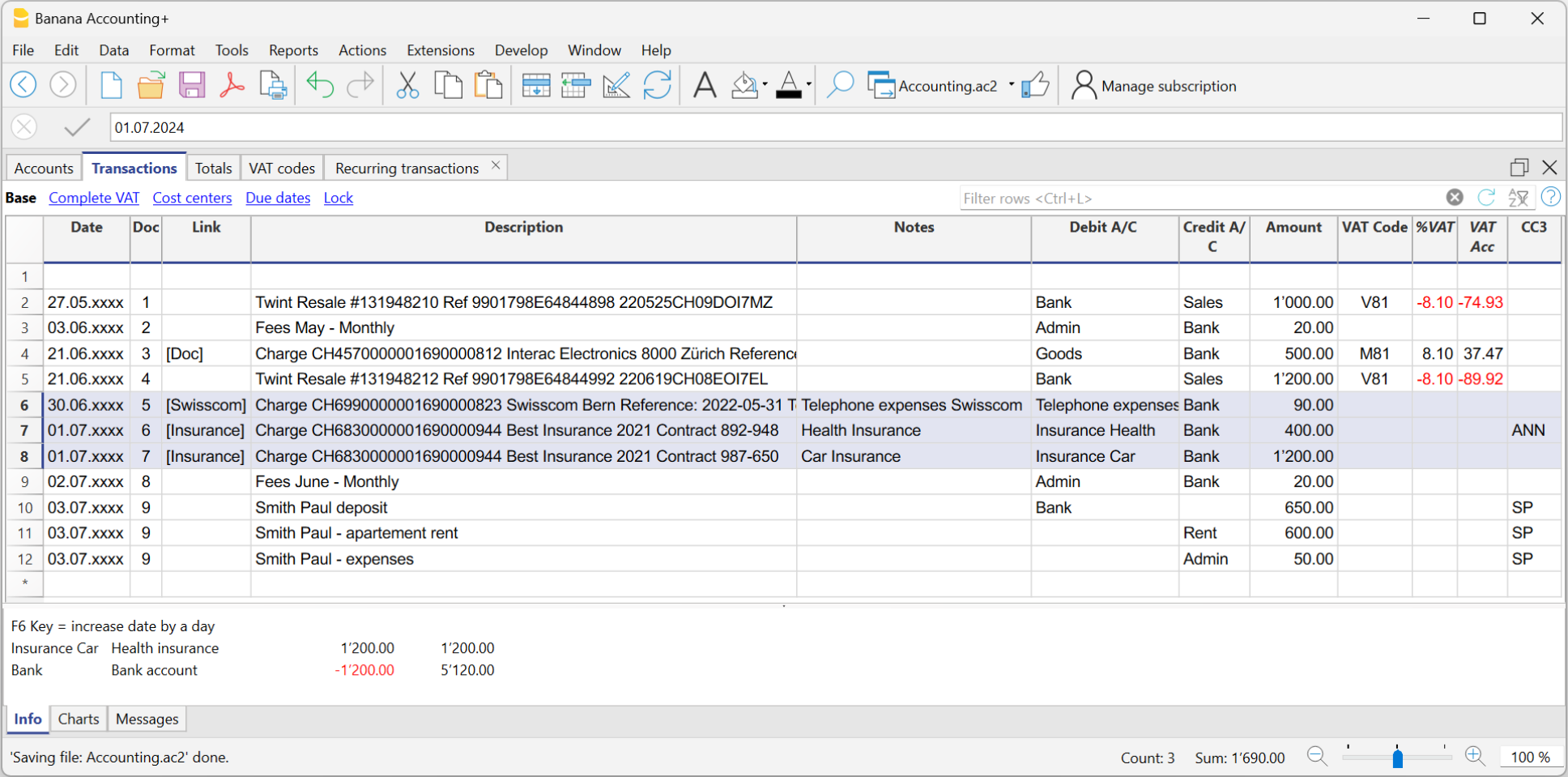
3. Manually replace the original description
- For each relevant transaction, copy the text from the Notes column and paste it into the Description column, replacing the original text imported from the bank. The following image shows the transactions after the descriptions have been manually replaced.
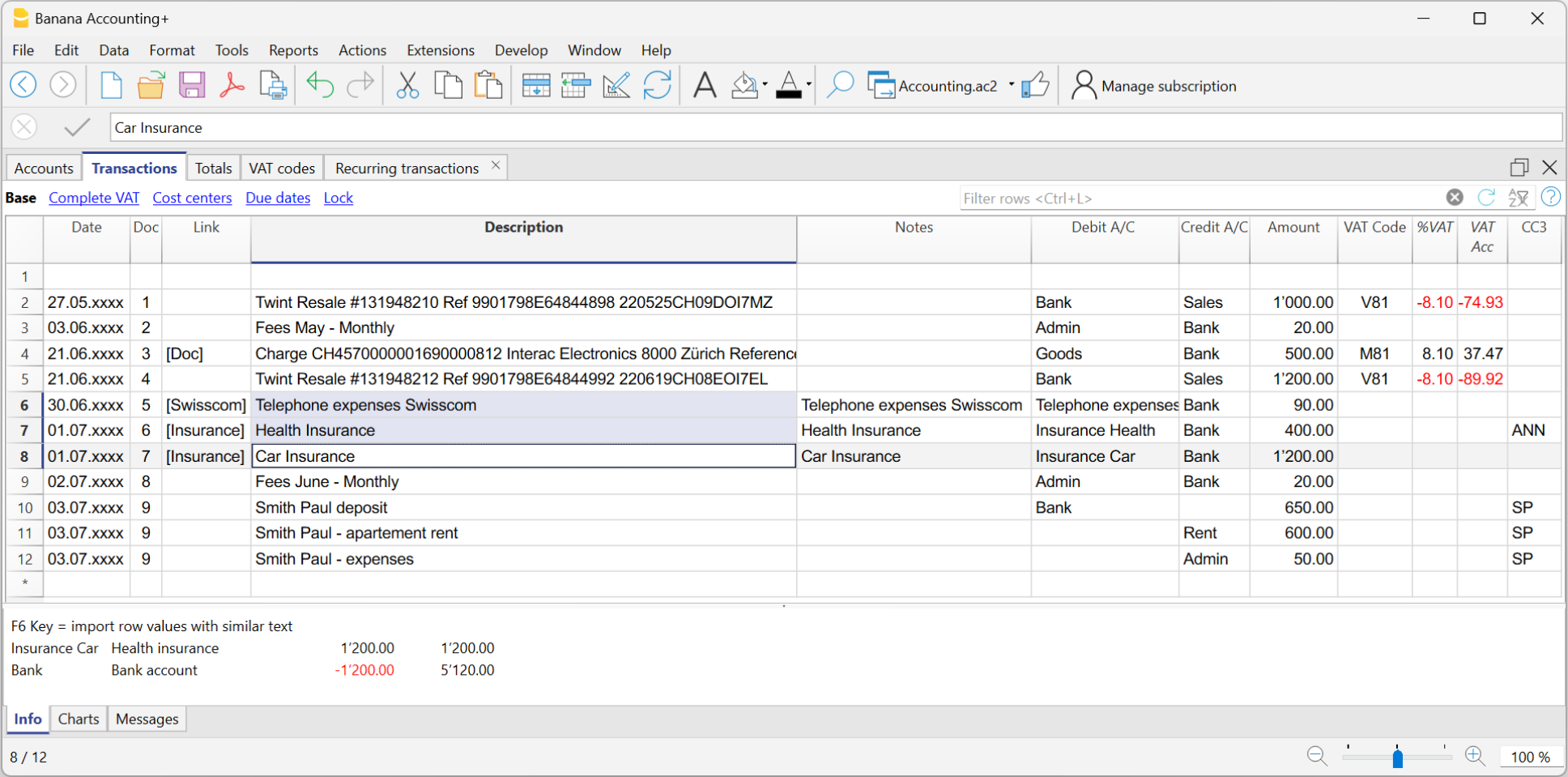
Setting a description different from the imported one – Custom column
In the Recurring transactions table, you cannot add custom columns directly. To use a custom column in the Rules, you must first add it to the Transactions table. The new column will also be available in the Recurring transactions table. You can then use it to store an alternative description to the original description of the imported bank transaction, without using the Notes column.
The procedure is the same as described in the section Setting a description different from the imported one – Notes column.
Important: the alternative description is transferred to the custom column when you apply the Rule. To replace the original bank transaction description, you must manually copy it to the Description column of the Transactions table.
Creating the new year file with the Rules
When you create the file for the new accounting year using the Actions > Create new year command, Banana Accounting automatically transfers the Rules stored in the Recurring transactions table to the new file. You can therefore continue to use the Rules for bank imports in the new year, without having to recreate them.
However, it is advisable to check that the accounts, VAT Codes and other references used by the Rules are still valid for the new accounting year.
Copying Rules between accounting files
If you manage several similar accounting files, for example for clients with similar characteristics, you can reuse previously created Rules, without having to set them up again.
When the accounting files have the same chart of accounts, or a compatible structure, you can copy the Rules from the Recurring transactions table of one file to that of another.
How to copy Rules
- Open the source file, which contains the Rules to be reused.
- Display the Recurring transactions table using the Actions > Recurring transactions > Recurring transactions table menu.
- Select the rows of the Rules you want to copy.
- Copy the rows using the Edit > Copy rows command, or the Ctrl + C keyboard shortcut.
- Open the destination file and display the Recurring transactions table.
- Paste the Rules using the Edit > Insert copied rows command, or Ctrl + V.
Important: before copying, check that the columns are arranged in the same order in both files. After copying, check that the accounts, VAT Codes and other references used by the Rules are also valid in the destination accounting file.
Creating a Rules library
You can also create a dedicated accounting file to use as a Rules library.
In this file, you can collect the Rules you use frequently and copy them to new accounting files when needed.
This allows you to reuse previously defined transaction criteria, avoiding the need to recreate the same Rules and maintaining greater consistency between similar accounting files.
Condiciones para las reglas
Las condiciones de las reglas son criterios que definen cuándo debe aplicarse automáticamente una regla de autocompletado a un registro contable.
Se configuran durante la creación o modificación de una regla en el diálogo Aplicar reglas, o directamente en la tabla de Registros memorizados.
Las condiciones pueden hacer referencia a la Descripción, a la Cuenta, al Importe y a la Fecha.
Una regla se aplica solo si se cumplen todas las condiciones definidas. Si incluso una sola condición no se cumple, la regla no se ejecuta. Las condiciones vacías se ignoran.

Condición sobre la Descripción
Introduce una palabra o frase corta como palabra clave para identificar los movimientos que deben automatizarse, según el texto en la columna Descripción del extracto bancario.
Banana Contabilidad compara automáticamente el texto de la descripción de cada movimiento con el indicado en la regla y, si encuentra una coincidencia, aplica la regla asociada.
Para obtener mejores resultados, se recomienda utilizar solo palabras clave representativas (por ejemplo, el nombre del proveedor o del servicio), para aplicar la regla a múltiples movimientos similares.
Los textos de búsqueda pueden introducirse de distintas maneras:
- Palabra o frase exacta
- Si introduces por ejemplo "Best Insurance 982-948", el programa busca movimientos importados que contengan exactamente "Best Insurance 982-948".
- Si introduces solo "Insurance", el programa buscará todos los movimientos que contengan la palabra "Insurance".
- Todas las palabras en cualquier orden (+ al inicio)
- Si introduces "+Best Insurance 892-948", el programa buscará los movimientos importados que contengan las palabras "Best", "Insurance" y el número "892-948", en cualquier orden.
- Todas las palabras deben estar presentes en la descripción del registro, pero el orden no es importante.
- El símbolo "+" no se considera en la búsqueda.
- Lista de palabras (usando |)
- Si introduces "café|restaurante", el programa buscará los movimientos que contengan la palabra "café" o "restaurante".
Esta opción es útil para identificar varias categorías sin tener que crear búsquedas separadas.
- Si introduces "café|restaurante", el programa buscará los movimientos que contengan la palabra "café" o "restaurante".
- Mayúsculas y minúsculas
- La búsqueda de texto no distingue entre mayúsculas y minúsculas. El texto se aplicará igual independientemente del uso de mayúsculas.
Todo el texto introducido en la Descripción se transfiere a la columna Descripción en la tabla Registros memorizados.
- La búsqueda de texto no distingue entre mayúsculas y minúsculas. El texto se aplicará igual independientemente del uso de mayúsculas.
Atención: NO utilices como descripción todo el texto del extracto bancario, ya que es único para cada movimiento.
Condición sobre la Cuenta
- Introduce la cuenta desde la que se importan los movimientos (banco, postal, etc.).
- El programa contabiliza automáticamente en Débito o en Crédito según el tipo de movimiento.
- Si el campo Cuenta se deja vacío, la regla se aplica a todas las cuentas que cumplan la condición sobre la descripción.
Condición sobre el Importe (o Importe en moneda)
- Permite aplicar una regla solo cuando el registro tiene un importe específico.
- Alternativamente, si el importe no es conocido con precisión, puedes definir un rango de importes, indicando un valor mínimo, máximo o un intervalo específico en el cual aplicar la regla.
- Disponible desde la versión 10.2.3 de Banana Contabilidad Plus (Dev Channel)
- La condición debe:
- empezar con el símbolo !
- escribirse entre corchetes [ ]
- usar el importe sin formato: sin separador de miles y con punto como separador decimal
(otros formatos no son reconocidos) - Los operadores disponibles son: mayor >, menor <, mayor o igual >=, menor o igual <=, distinto <>
- Ejemplo: para seleccionar registros con importe mayor o igual a CHF 1'000.00:
[!>=1000.00]

En la imagen se muestra el diálogo Aplicar reglas donde es posible seleccionar el campo Importe y definir un intervalo de cifras (en este ejemplo, se aplica la cuenta 1510 Mobiliario e instalaciones a los registros que tienen la descripción "Compra material de oficina" y un importe mayor o igual a CHF 1'000).
El uso de este filtro es útil cuando se desean asignar contrapartidas diferentes según el importe del registro.
Ejemplos de condiciones aplicables a la columna Importe
| Sintaxis | Significado |
| [!=1000.00] | registros con importe exacto de CHF 1'000.00 |
| [!>1000.00] | registros con importe superior a CHF 1'000.00 |
| [!>=1000.00] | registros con importe igual o superior a CHF 1'000.00 |
| [!<1000.00] | registros con importe inferior a CHF 1'000.00 |
| [!<=1000.00] | registros con importe igual o inferior a CHF 1'000.00 |
| [!>=1000.00 !<=2000.00] | registros con importe entre CHF 1'000 y CHF 2'000 |
| [! |!100.00 |!<150.00] | registros con importe exacto de CHF 100.00 o de CHF 150.00 |
Condición sobre la Fecha
A partir de la versión 10.2.3 de Banana Contabilidad Plus (Dev Channel), puedes aplicar una regla a registros que se encuentren dentro de un periodo de tiempo determinado (por ejemplo, solo los registros de enero).
Cómo proceder:
- Añade una nueva regla como se explica en la página Diálogo Aplicar reglas - Añadir regla
- Selecciona el campo Fecha
- Introduce la condición de filtro en el campo Comentario.
La condición debe:- empezar con el símbolo !
- escribirse entre corchetes [ ]
- usar el formato de fecha ISO YYYY-MM-DD
(otros formatos no son reconocidos)
- Ejemplo: para seleccionar los registros con fecha anterior al 01.04.2025:
[!<2025-04-01]

En la imagen se muestra el diálogo Aplicar reglas donde se puede seleccionar el campo Fecha y definir un intervalo (en este ejemplo se aplica a registros anteriores al 1 de abril de 2025).
El uso de este filtro es útil para diferenciar procesos por mes, trimestre o año, por ejemplo si hasta una fecha determinada se aplica un código de IVA y después cambia por la adopción de un nuevo método.
Ejemplos de condiciones aplicables a la columna Fecha
| Sintaxis | Significado |
| [!=2025-03-31] | registros con fecha 31.03.2025 |
| [!>2025-03-31] | registros con fecha posterior al 31.03.2025 |
| [!>=2025-03-31] | registros con fecha igual o posterior al 31.03.2025 |
| [!<2025-03-31] | registros con fecha anterior al 31.03.2025 |
| [!<=2025-03-31] | registros con fecha igual o anterior al 31.03.2025 |
| [!>=2025-03-31 !<=2025-06-30] | registros entre el 31.03.2025 y el 30.06.2025 |
| [! |!2025-03-15 |!<2025-03-18] | registros con fecha 15.03.2025 o 18.03.2025 |
Cómo definir condiciones en la tabla Registros memorizados
Las condiciones pueden introducirse directamente en la tabla Registros memorizados con la misma sintaxis explicada en los párrafos anteriores.

The benefits of deterministic rules in accounting automation
The bank transaction automation system in Banana Accounting was developed in collaboration with our users, taking into account the limitations of probabilistic systems based on Artificial Intelligence (AI) and the need to reduce the risk of accounting errors.
The efficiency of an accounting automation system is measured not only by the percentage of automated transactions, but also by the total time required to obtain accurate accounts, including the work involved in checking, identifying and correcting any errors.
For this reason, the system is based on deterministic Rules and a preview that allows you to check the results before confirming the transactions.
The Rules follow a deterministic logic: under the same conditions, the program always applies the same instructions and produces the same result.
Unlike AI systems that use probabilistic models to suggest classifications, this approach offers the following features:
- Accounting decisions defined by the user: the Rules allow you to determine which bank transactions to identify and how to complete them, specifying accounts, VAT codes, cost centers and any segments.
- Explicit and verifiable instructions: you can check the conditions that determine when a Rule is applied and the accounting data that is entered.
- Preview and preventive checks: before confirming the application of the Rules, you can view the bank transactions, the matching Rules and the results of completing the transactions. This allows you to identify and correct any errors before they are entered into the accounts.
- Immediate automation, without the need for historical data: once the accounting criteria have been defined by the user, the Rules are immediately operational, even for new or infrequent transactions, without the program having to learn from previous transactions.
The advantages of Rule-based automation
- Predictable and verifiable results: the same Rules produce the same results under the same conditions, consistently applying the defined accounting criteria.
- Control over accounting decisions: the transaction entry criteria are defined by the user and can be checked or modified at any time, even for transactions involving multiple accounts, VAT codes, cost centers or segments.
- Adaptation to specific business requirements: the Rules can be customized according to the needs of each business, regardless of the amount of accounting data available.
- Immediate automation, without learning: the Rules work as soon as they are created, even for new or infrequent transactions.
- Adaptation to changes: the Rules can be updated when VAT rates, the chart of accounts, the business organization or accounting criteria change.
- Preservation of accounting knowledge: the Rules document the transaction entry criteria and provide a knowledge base that can be consulted, shared, reused and updated over time.
The Rules do not replace the accountant in making decisions, but turn the defined accounting criteria into instructions that the program applies automatically in a consistent, repeatable and controllable way.
Previewing and checking the Rules before applying them
One of the important features of Banana Accounting is the ability to check in advance how the Rules will be applied to imported transactions.
The Apply rules dialog displays:
- The imported bank transactions and their matching Rules.
- The transactions for which no matching Rule has been found.
- The existing Rules, which can be checked and modified before being applied.
This preview allows you to identify any incorrect matches, modify the Rules and check their effect on the transactions before confirming their application.
Preventive checks are particularly important because an incorrect Rule could be applied to numerous transactions, generating accounting entries that would subsequently require time to identify and correct.
The preview does not eliminate the need to check the accuracy of the accounting criteria, but it allows you to identify many problems before they affect the transactions.
For more information, see the Apply rules dialog.
The elements that make accounting automation reliable
The reliability of an accounting automation system depends not only on the number of completed transactions, but also on the ability to control the process and prevent errors.
The key elements are:
- Predictable and repeatable results: under the same conditions, the system always applies the same accounting criteria.
- Customizable Rules: the ability to adapt the Rules to specific business requirements and update them when needs change.
- Precise transaction completion criteria: the ability to define in detail the search conditions and the values to be entered or replaced, including across multiple accounting elements.
- Preview of the results: the ability to check which Rules will be applied to individual transactions and how the transactions will be completed.
- Management of unrecognized transactions: the ability to identify transactions for which no applicable Rules exist and complete them manually.
- Correction and undo: the ability to identify errors, modify the Rules and undo their application.
These elements make it possible to achieve a high degree of automation, reducing manual work and the risk of errors while maintaining control over accounting transactions and the ability to verify them.
High degree of automation and reduced accounting time
The Rules in Banana Accounting make it possible to achieve a high degree of bank transaction automation, significantly reducing the time required for bookkeeping.
Once the Rules have been defined, the program can automatically identify and complete numerous imported transactions, even when they require the assignment of multiple accounting elements or the creation of split transactions.
The system allows you to:
- Automate most repetitive transactions: the Rules are reused with each import, without having to enter the accounting information again.
- Gradually increase the degree of automation: each new Rule allows you to automate additional types of transactions, reducing manual work in subsequent imports.
- Focus on specific cases: unrecognized transactions can be completed manually or used to create new Rules.
- Reduce the time spent on checks and corrections: the preview allows you to check the matches and results before confirming them, limiting the risk of systematic errors.
Deterministic automation therefore makes it possible to quickly complete a large number of transactions, with predictable and controllable results.
Accounting accuracy depends on the Rules that have been defined and the checks that have been carried out, but the system allows you to automate repetitive work without relying on probabilistic classifications for accounting decisions.
The limitations of accounting automation based on Artificial Intelligence
Accounting automation systems based on Artificial Intelligence (AI) often use probabilistic models to analyze bank transactions and suggest how to record them. Classifications are generated based on the available information, the models used and, in some cases, previous transactions.
This approach can make transaction classification easier, but it presents some challenges:
- Plausible but incorrect classifications: the system may suggest an account or a VAT code that appears appropriate but does not correspond to the actual nature of the transaction or the accounting criteria adopted.
- Difficulties with multidimensional classifications: a transaction may require the simultaneous assignment of an account, a VAT code, a cost center and a segment. Research shows that accuracy can decrease significantly when multiple accounting elements need to be correctly identified.
- Difficulties with split transactions: when a bank transaction must be split across multiple accounts and amounts, the system must correctly identify all the components. The bank transaction description often does not contain enough information to determine how the amount should be allocated.
- Results that are not always reproducible or explainable: depending on the model and its configuration, the same transaction may receive different classifications. It is not always possible to determine precisely which criteria led to a suggestion.
- Dependence on available information: models that use previous transactions may reproduce errors or accounting criteria that are no longer valid. Even a statistically probable classification may be incorrect if essential information is missing.
The challenges of adapting to small businesses
Small businesses present a particular challenge for probabilistic automation systems.
Each business may use a customized chart of accounts and specific criteria for assigning transactions to accounts, cost centers and segments. The same bank transaction may therefore require different accounting entries depending on the business.
Small businesses also have a limited number of historical transactions, which is often insufficient to effectively train or adapt a model. Some transactions occur only once or twice a year, making it difficult to learn the correct accounting treatment.
Even the latest AI models, which can operate without specific training, do not automatically know the internal accounting choices of each business. Adaptation may therefore require configuration, additional information and checks, with an effort that is not always proportionate to the size of the business.
The importance of accounting accuracy
Research on accounting automation using Machine Learning has highlighted significant difficulties in classifying cost centers and simultaneously predicting multiple accounting elements.
These findings do not necessarily apply to all AI systems, but they show how the complexity of transactions and specific business requirements can reduce the reliability of automatic classifications.
In accounting, it is not enough for a classification to be probable: all elements of the transaction must be correct and comply with the accounting criteria adopted.
Probabilistic systems can provide valuable support, but their suggestions require appropriate checks, especially when transactions are complex or depend on business-specific information.
When automation goes wrong: the consequences of accounting errors
One of the risks of accounting automation is that an incorrect classification may go unnoticed and be repeated across numerous transactions, generating errors that are difficult to identify and correct.
A transaction may have the correct date, amount and bank account, but be assigned to the wrong expense account, VAT code, cost center or segment. In these cases, the bank reconciliation may be correct even though the accounting classification is incorrect.
The consequences can be significant:
- Incorrect financial reports: the balance sheet, profit and loss statement, VAT reports and management reports may contain incorrect information.
- Errors repeated across numerous transactions: an incorrect classification may be applied systematically, compromising the reliability of the accounting data.
- Difficulty in identifying errors: transactions may appear correct during an initial check, requiring a more thorough review to identify incorrect classifications.
- Time-consuming corrections: it may be necessary to review numerous transactions, compare them with supporting documents and correct data relating to previous periods as well.
The time saved through automation may therefore be offset by the work required to identify and correct errors.
The reliability of an accounting automation system therefore depends not only on its ability to complete many transactions, but also on the ability to prevent, identify and correct errors in a simple and controllable way.
Tabla de Registros memorizados
La tabla Registros memorizados se utiliza para guardar los registros que se usan repetidamente.
Contiene tres tipos de registros repetidos:
- Transacciones repetidas recuperadas mediante la columna Doc en la tabla Registros.
Tienen en la columna Doc un código identificativo sin signos de puntuación. - Reglas para completar los registros importados.
Sirven para definir cómo deben completarse los registros importados.
Tienen en la columna Doc el código "!Rule" o "RuleSplit". - Registros automáticos con frecuencia regular.
Se utilizan para generar automáticamente registros que se repiten con una cierta frecuencia, por ejemplo mensual, trimestral, semestral o anual.
Tienen en la columna Doc el código "!Auto".
Visualizar y organizar columnas y vistas en la tabla Registros memorizados
Antes de introducir registros repetitivos, debes visualizar la tabla Registros memorizados desde el menú Acciones > Registros memorizados.
La tabla Registros memorizados no permite guardar configuraciones propias de visualización, sino que utiliza las vistas y configuraciones de columnas de la tabla Registros.
Para personalizar las columnas y su disposición en la tabla Registros memorizados, debes:
- Crear una nueva vista en la tabla Registros.
- Organizar las columnas en la tabla Registros en el orden deseado.
- En la tabla Registros memorizados, selecciona la vista creada en la tabla Registros. Se visualizarán las columnas en el mismo orden que esa vista.
Insertar transacciones repetidas mediante la columna Doc
- Si está presente la columna "Fecha fin" (ver Registros automáticos), también puedes indicar una fecha después de la cual el registro no debe recuperarse más en la tabla Registros.
Los registros que ya no se usan deben eliminarse manualmente.

La tabla Registros memorizados en la Contabilidad de Ingresos y Egresos
La funcionalidad de la tabla Registros memorizados es la misma que en la contabilidad de partida doble, solo cambian las columnas:
- En la contabilidad de Ingresos / Egresos se utilizan las columnas Cuenta y Categoría.
- La columna Cuenta corresponde a la cuenta bancaria, postal, tarjeta de crédito... Indica de dónde sale el dinero o hacia dónde va.
- La columna Categoría indica la categoría del gasto o ingreso. Representa el motivo por el que gastaste o ganaste dinero.
- Las columnas Entradas y Salidas son donde se indica el importe del movimiento.
- En la contabilidad de partida doble se utilizan las columnas Cuenta Débito y Cuenta Crédito, y la columna Importe.

Número progresivo de documentos "docnum"
Si en la columna Doc de la tabla Registros necesitas una numeración distinta a la automática, introduce en la tabla Registros memorizados una fila con el código "docnum" en la columna Doc. Para las filas siguientes se utilizará el tipo de numeración especificado en la columna Descripción.
- "0": si no necesitas numeración automática.
- "1": para numeración progresiva.
- "caja-1": para numeración progresiva con prefijo "caja-" (caja-2, caja-3).
El programa reemplaza el número al final del texto con un número progresivo. - Si en las sugerencias deseas que se visualice solo una fila por código, precede la descripción de la siguiente manera:
- Un "*": muestra solo esta fila y no las que tienen un código similar.
- Un "**": muestra solo esta fila, pero no se recupera (solo fila de título).
- Un "\*": permite iniciar la descripción con un asterisco, sin que se interprete como un comando.
Recuperar transacciones repetidas en la tabla Registros
En la tabla Registros puedes recuperar las filas definidas en la tabla Registros memorizados:
- En la tabla Registros, introduce la fecha en la fila del registro. También puedes añadir otras columnas no presentes en la tabla Transacciones Repetidas, según la vista activa.
- En la columna Doc de la tabla Registros, selecciona uno de los códigos definidos en la tabla Registros memorizados (columna Doc) y pulsa Enter:
- El programa inserta las filas repetitivas que tienen el mismo código.
- Si necesitas modificar o completar algún valor, siempre puedes hacerlo.
- Las filas almacenadas en la tabla Transacciones Repetidas también se pueden recuperar escribiendo el código en la columna Doc y presionando la tecla F6.
Copiar registros de la tabla Registros a la tabla Registros memorizados
Los registros repetitivos también pueden insertarse copiando las transacciones presentes en la tabla Registros y pegándolas en la tabla Registros memorizados.
Procede de la siguiente manera:
- En la tabla Registros, selecciona las filas que deseas copiar.
- Menú Editar > Copiar filas.
- Ve a la tabla Registros memorizados.
Menú Editar > Pegar filas copiadas
También puedes usar los atajos Ctrl + C y Ctrl + V para copiar y pegar los registros.
Automatic transactions with recurring deadlines
Automatic transactions are useful for facilitating the recording of repetitive entries, such as subscriptions, insurances or taxes. By using automatic transactions, you only have to enter the entry of interest once, set a few parameters such as the start date, the frequency and the end date and then Banana Accounting Plus will inform you when an automatic transaction is ready to be created and will create it for you.
In Banana Accounting Plus, there are two ways to create automatic transactions:
- From the Recurring Transactions table
- From the Manage Automatic Transactions dialogue.
Requirements
- This feature is available in the latest release of Banana Accounting+ Dev Channel.
- It requires the Advanced plan. If you do not have this plan, you can request a promotional code valid for 1 month via the contact form.
- You need to add the End Date and Repeat columns to your accounting file.
- This feature is in Beta Test; we kindly ask you to test it and report any problem.
Adding the End Date and Repeat columns to your accounting file
To be able to activate the commands for automatic transactions, the End Date and Repeat columns must be added; without these columns the commands will not be displayed.
- Open your accounting file or create a new accounting from the File menu > New command.
- Select the command from the Tools menu > Add/Remove Functionalities...
- The Add/Remove Functionality dialogue will appear with the list of available functionalities.
- Select the option Add End Date and Repeat columns in Transactions table.
If this option is not available, check the Banana version and the plan you are using, as described in the Requirements section. - Click on the OK button.

Creating an automatic transaction from the Recurring Transactions table
- Select the command from the Actions menu > Recurring transactions > Create automatic transaction.
- The Recurring transactions table will appear with a new row, showing the date of the day in the Date column and the text !Auto in the Doc column, which serves to identify the automatic transaction.
- Update the Date column with the date of the first occurrence you wish to schedule.
- Display the End Date and Repeat columns with the command from the Data menu > Columns setup...
Make sure to check the Visible box for both the End Date and Repeat columns.
If these columns are missing, you can add them as described in the Adding the End Date and Repeat columns paragraph.
Note: The new columns are added to the Transactions table, but are only used in the Recurring Transactions table, visible in the Recurring view. - Add the desired repetition to the Repeat column. For example, if you want a quarterly repetition, enter the text 3MS in the Repeat column.
- If the automatic transaction has an expiry date, set it in the End Date column.
- Complete the Description, Debit Account, Credit Account and Amount columns.
- Select the command from the Actions menu > Recurring transactions > Manage automatic transactions to display the scheduled transactions.
Note: If you use the command from the Actions menu > Recurring transactions > Create automatic transaction from an existing transactions in the Transactions table, the Description, Amount and Accounts columns will show the text of the original transaction.
The Create automatic transaction command is also available in the context menu of the Transactions table (right-click on a transaction, and choose the Create automatic transaction command).
Creating an automatic transaction from the Manage automatic transactions dialogue
- Select the command from the Actions menu > Recurring transactions > Manage automatic transactions.
- The Manage automatic transactions dialogue will appear.
- Click on New automatic transaction button at the bottom of the dialogue.
- Complete the necessary fields:
- Start date
Date from which the first automatic transaction will start. When the transactions are generated, this date will be updated with the date of the last automatic transaction created. - End Date
- Repeat
- Description
- Account
- Contra-account
- Amount
- CC1, CC2, CC3
- Name or description (optional)
- Start date
- Click on the OK button.
Auto-completion rules for income and expenses accounting
In Income and Expenses Accounting and the Cash manager, the functionality for Completing Imported transactions works in the same way as for Completing transactions in Double-entry Accounting.
The main difference is as follows:
- In the Income / Expenses accounting, the columns Account and Category are used.
- The Account column refers to the bank account.
- The Category column is where the category is specified. It represents the counterpart account entered automatically.
- The Income and Expense columns are where the amount for the transaction is indicated.
- In double-entry accounting, the Debit Account and Credit Account columns, along with the Amount column, are used.
Therefore, even with income and expense accounting, it is possible to create rules using one of the following methods:
- Rules from the Apply Rules dialog.
- Rules from the Transactions table.
- Rules from the Recurring Transactions table.
The Recurring transactions table in Income / Expenses accounting
In the Recurring Transactions table, all imported transactions to which Rules have been applied are saved:
- The columns associated with the amount are the Income and Expenses columns.
- If no amount is specified, the rule will be applied to both outgoing and incoming transactions.
