Neste artigo
With Banana Accounting Plus you can manage supporting documents (invoices, receipts, bank statements and other documents) in digital format, reducing or eliminating the use of paper.
Each row of the Transactions table can contain a link to a PDF file. With a simple click you can immediately view the associated document.
In this way:
- transactions and supporting documents remain linked
- document searches are faster
- control and auditing are simplified
How to organize the accounting file and attachments
To ensure that document links work correctly, the Banana accounting file (.ac2) and the digital documents must be saved in the same storage environment (all locally or all in the cloud) and be located in the same main folder.
You can organize the documents in two ways:
- Case 1 – Attachments saved directly in the main folder
The digital attachments and the accounting file are located directly in the main folder.
- Case 2 – Attachments saved in a subfolder of the main folder
The digital attachments (supporting documents) are saved in a subfolder (for example "Attachments" or "Documents") of the main folder that contains the accounting file.
We recommend this second solution, as it keeps the accounting file separate from the attached documents and makes the archive more organized and easier to consult.
Advantages of relative links
When documents (e.g. PDF supporting documents) are saved in the same main folder as the accounting file (directly or in a subfolder), Banana Accounting Plus uses relative links. This allows document links to remain valid even:
- when using synchronization systems (for example Dropbox or similar services)
- when the file path differs from one computer to another.
Archive organization
It is advisable to create a separate folder for each accounting year.
Inside the yearly folder you can create a subfolder dedicated to attachments and, if necessary, additional subfolders to organize documents, for example:
- customer invoices
- supplier invoices
- credit cards
- foreign invoices
The important thing is to maintain a logical and consistent structure that reflects the organization of your accounting and allows you to easily retrieve documents even years later.
Example of digital archive organization
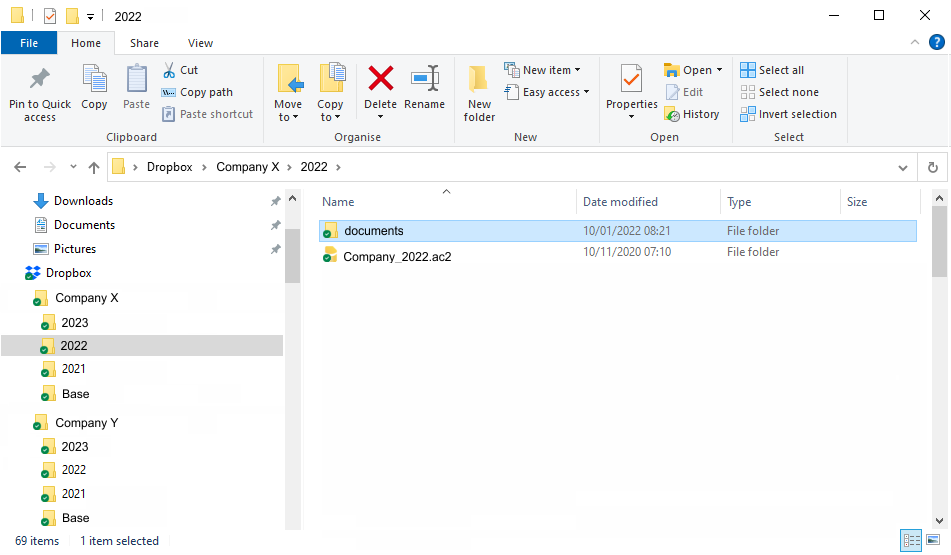
Save in the Documents folder all the digital supporting documents that you receive or that you scan during the year.
Advice on file naming
Always use the same criteria when naming files. A recommended format is:
- year-month-day + counterparty + document type
Examples:
- 2024-01-15-TIM-invoice.pdf
- 2024-01-31-Rossi Marco-invoice.pdf.
It is preferable to use the date of the supporting document.
With this method:
- documents are automatically sorted in chronological order
- searching is easier
- the archive remains consistent over time.
Systematic naming is just as important as the folder structure.
Linking the document to the transaction
When entering a transaction, link it to the related digital document using the DocLink column.
To view the PDF:
Position yourself on the relevant transaction row.
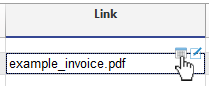
- Click the open icon in the Doc.Link column.
Summary
To correctly organize digital supporting documents in Banana Accounting Plus:
- create a clear and stable folder structure
- save documents in the subfolder dedicated to the accounting year
- use a consistent file naming system (year-month-day + counterparty + document type)
- link each PDF to the related transaction using the Doc.Link column
Systematic management of digital documents improves organization, facilitates searching and makes accounting more verifiable over time.