File Menu
When using Banana Accounting, each accounting management is on a different file.
Banana Accounting files are compatible with versions from all operating systems and with synchronization systems (Dropbox, ICloud, ...)
New...
This command opens the window to create a new file. All the available templates are accessed from the same window. We recommend starting from an existing template and personalizing it with your data. For more information, see the Create a new file page
Open...
This command allows you to open a previously created Banana Accounting file. For more information, visit the Open, save, copy and backup page.
Close / Close all
These commands allow you to close the active file or all open files of Banana Accounting.
File and accounting properties
This command accesses the basic data of the accounting file. For more information visit the File properties page.
Save / Save As / Save All
To save your accounting files. For more information see the Save page.
Create PDF dossier...
Create a single PDF file where you can customize what you want to include. All accounting data can be included.
For more information, visit the Create PDF dossier page.
Export file
It is possible to export the entire accounting file or only certain parts in Html, Excel, Xml, JCsv, Json
For more information, see the Export page.
Page setup...
Allows you to define printing properties. For more information see the Page setup page.
Setup a Logo ...
To insert a logo into your prints. For more information, visit the Setup a Logo page.
Print ...
To start printing. For more information, visit the Printouts/preview page.
Create PDF ...
To print in PDF format what you see on the screen.
Print Preview
To check how your printout will look like.
Recent files / Favorite files
Banana Accounting automatically shows, when the program is opened, a list of recently used files.
It is also possible to draw up a list of favorite files.
For more information visit the Recent / Favorite files page.
Create a new file
To create a new File, go to the File menu and click the New command
The appearing window will allow you the possibility to create a new file in three different ways:
Start with one of our templates adapted to your business
This will generate a new File based on one of the existing templates.
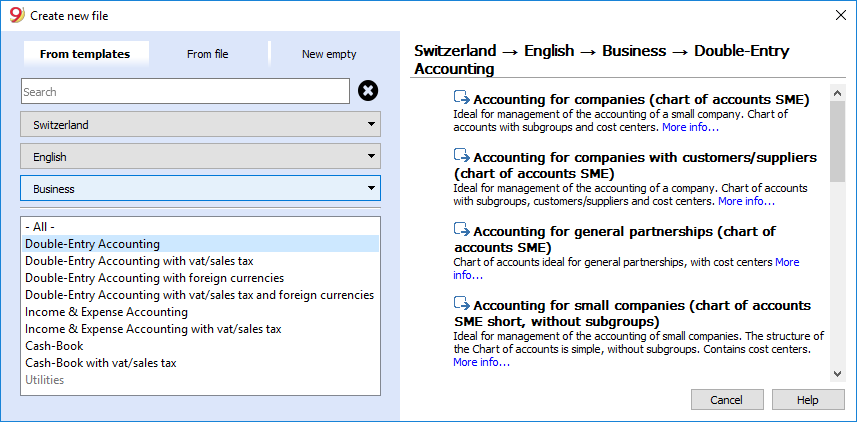
- File Menu, New command
- Select your country
- Select your language
- Select your category
- Select your Accounting template
- From the dropdown list of templates that will display in the dialog box, select the template that most closely matches your needs.
Clicking on the file will automatically open it and can then be saved with the name you wish.
All the files with the VAT option have the VAT codes table adjusted to the new rates.
The Chart of Accounts can be adapted to your requirements (change of account description, insert or delete groups, sub-groups, etc.)
You can search for a template by entering a keyword in the search box.
Save the file with a name
Once you have opened the template with Banana you need to use the Save as command from the File menu
- Chose the destination folder
It might be useful to create a separate folder for each year, so you are able to store documents, other than the accounting file that are related to that year. - Chose a file name containing the company name and the accounting year, for example smith_company_2018.
- The software will add the .ac2 extension, typical for the Banana files
- Chose a file name containing the company name and the accounting year, for example smith_company_2018.
The software will add the .ac2 extension that distinguishes the Banana files.
Adapt the template
- Edit the File properties
- Enter the headings and the accounting period
- Enter the address
- You can now adapt your Chart of accounts
- Enter your bank accounts.
- Enter or edit the chart of account to fit it to your requirements.
While going along with your work, you will still be able to add or edit, if new needs arise.
Start with an existing File
Starting from an existing file or template, without modifying the existing file.
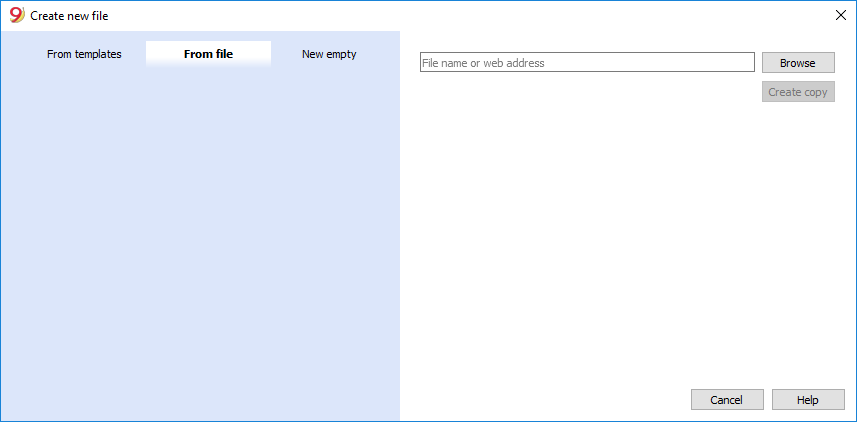
There are several possibilities to copy data:
- Open the File that is to be your template via the Browse button and indicate the path to locate your file.
- Create a copy of the open file, using the Save As command from the File menu
- Else, you may create a copy of the open file via the Tools menu, click on the Create File Copy command, the window that will appear allows you to choose which data to keep. If none of the three options are activated, a file is created with the Plan of Accounts only.
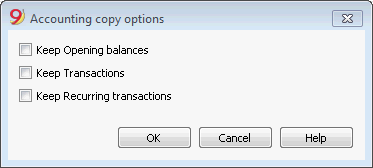
Save the file in the folder where you wish to keep the data (normally in the documents folder)
- Enter the company name and the accounting year as file name, for example smith_company_2018.
- If you are taking over an existing accounting file, you will also need to enter the opening balances in the Opening column.
- If you are working in a multi-currency file, you need to update the opening exchange rates.
Starting from a New empty File
You will be starting from scratch, so you will need to set up the basic accounting data and the entire Plan of Accounts (not recommended).
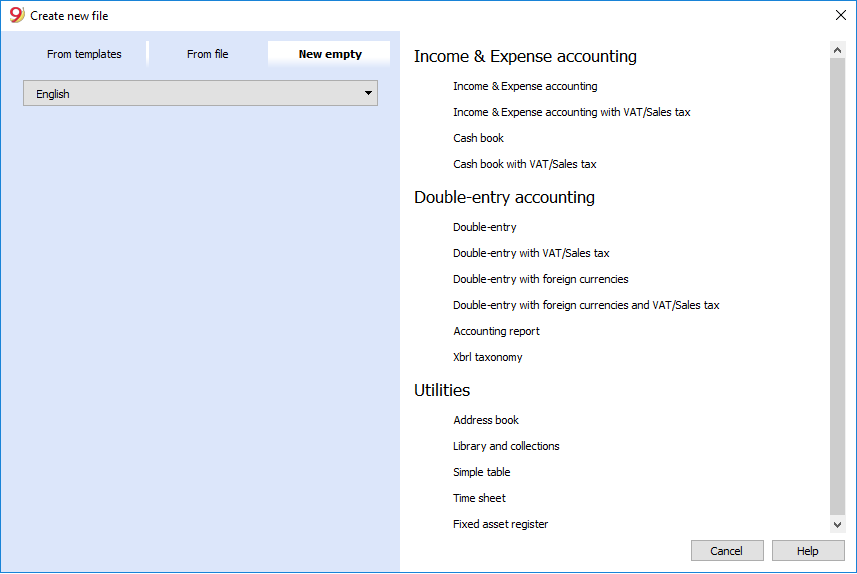
- File Menu, New command
- Click New empty
- Select your language
- Select your category
- Select your Accounting template
- From the dropdown list of templates that will display in the dialog box, select the template that most closely matches your needs.
Clicking on the file will automatically open it and can then be saved with the name you wish. - Setup the Outline to create new file
- Setup the File and accounting properties
- Save with File Name.
- Create the Plan of Accounts structure
Related documents
- Start a new Income and expenses accounting and Cashbook file
- Start a new Double-entry accounting file
- Start a new Double-entry accounting with multicurrency file
- Utilities documents
Transferring to a new year
When transferring to a new year, there is a specific procedure to follow, in order to create a new year's file and automatically carry forward the opening balances.
New file settings
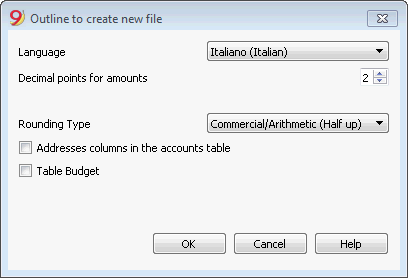
When the program creates a file with new characteristics, you need to setup the outline of the new file.
Outline to create new file

Language
The language used for the columns headers of the various tables.
Decimal points for amounts
In order to avoid accounting differences, the number of decimal points for the amounts is fixed for each file. Two decimal points are normally used, but there are currencies where decimal points are not required so 0 needs to be inserted.
Decimal points for amounts in foreign currency
If using multi-currency accounting, then it is necessary to define the number of decimal points for the amounts in the foreign currency as well.
Rounding type
The amounts are rounded up or down to the closest whole number. In the case of exactly half (for example: 100.5 / 101.5 / 102.5 / 103.5) the following systems are being used:
- Banking (Half at even) is being rounded up or down towards the nearest even number (100 / 102 / 102 / 104).
- Commercial/Arithmetic (Half up) is being rounded up to the next whole number (101 / 102 / 103 / 104). In accounting, this is the system most used.
- Compatible version 4. A minor precision is being used, which in very special cases, can bring forth a different rounding.
Address fields in accounts table
When this option is activated, the Address view is created in the Accounts table. In this view, the user can enter the addresses of clients, suppliers and members.
Budget Table
When this option is activated a Budget Table is created, where the user can enter his budget transactions.
The user can thus create different accounting files, in different languages, and with different decimal points. In order to change the language or the decimal points once the accounting file has been created, the accounting type must be converted by selecting Convert to new file from the Tools menu.
Open, save, copy and backup
Opening a file
- Accounting files can be opened in Banana Accounting if they are on the local computer or if they are accessible through a network.
If they have been sent by email, before opening them you need to move them in a computer folder - Only one user at a time can edit a file
If you edit a protected file or a file already in use by other users, you need to save the file with another name in order to save your changes. - The Banana Accounting program, notifies that you have opened a read-only file in the following cases:
- the file is located on a non-writable disk (CD-ROM)
- the file is located on a temporary non-writable folder
- the file is protected or the user doesn't not have rights to edit it
- the file has already been opened by another user
- the file has already been opened from the same user but in another session
How to look for *.ac2 files
If you don't remember in which directory your accounting files are located, you can use the search Windows Explorer box or the Mac finder search tool.
Find your accounting file on a Windows computer
Banana Accounting files have an .ac2 or .sba extention. The Windows search tool will vary depending on your Windows version.
- Windows 10: click on the search icon on the Applications bar and enter "ac2" or "sba" or your file name and click on the Documents arrow.
- From the Explorer File Manager enter the "*.ac2" extension, the "*.sba" extension or your file name and let Windows look for it.
- When in Banana you get to the Open file dialog window (File menu -> Open), enter the "*.ac2" or "*.sba" extension in the top right search box and then click on the look in the whole PC icon, or select the directory where you want Windows to look for your file.
Find your accounting file on a Mac computer
- When in Banana you get to the Open file dialog window (File menu -> Open), enter "ac2" or "sba" or a word that is part of the file name in the top right search box. With the icons, select where you want to look for your file (in the entire computer or in selected folders).
- Open the Finder and enter "ac2" or "sba"or a word belonging to the file name in the search box.
- Right click on the Finder icon, then click on Search, and then enter "ac2" or "sba" or a word belonging to the file name.
Saving a file
With the Save or Save as... command, the data are saved onto the hard disk. Pre-existing disk data are replaced with the new ones.
- A single file can be saved by one user at a time
The file can be saved by the user only if it is not also being used by other users - Files can be saved anywhere.
You can enter the file name and destination when saving it for the first time or when using the Save as command from the File menu
As a first option, Banana Accounting suggest the Documents folder as destination folder for the .ac2 files, but it can be changed with the Browse button. - If you are managing different accounting files, we suggest you to create a separate folder for each company and for each accounting year.
- Each file can be password protected.
Accounting files (*.ac2, *.sba)
- Files created with Banana Accounting have an ".ac2" or ".sba" extension, regardless the operating system used.
- The file with the extension "sba" is completely similar to ac2. The sba extension is used for the Dutch and Chinese version of the program. When referring to the file type "ac2" it also applies to the file type "sba".
- The .ac2 file format is specific for Banana. When saving, all data are compacted and saved in bulk.
- Ac2 files are compatible between different operating systems (Windows, Mac and Linux)
You can save a file with Windows, then open it and edit it on a Mac, and then reopen in on a Linux or Windows computer. - Each file can be sent as an email attachment, edited on different operating system and resent to the sender.
- Accounting files are completely separated from the software Banana itself, that has an .exe extension for Windows,
- The installation files for Mac have a .dmg extension and a .deb, .rmp .run or .tgz extension for Linux.
Automatic saving
Banana Accounting automatically creates and saves your work in a temporary file that ends with ".autosave" . When you press the Save button or you exit the program, this temporary file is deleted. In case your computer should crash or turn off in the middle of your work, it would be possible to recover your data by opening this file.
In order to have the program automatically create this temporary autosave file, the corresponding option should be active (it usually is by default) in the Program Options (you can access them from the Tools menu).
How to copy or move your accounting files
Banana can save your files on any unit seen by the operating system or on a rewritable disc.
From non-rewritable discs (CDs or DVDs) Banana can open the files on a "read only" mode.
All .ac2 files can be moved in different ways:
from one directory to another:
- using Windows Explorer or Mac Finder to locate the directory where your files have been saved
- copying and pasting them in the new destination directory (once you pasted them you can delete from the original directory)
from one computer to another:
- saving the files on a memory stick and then saving them on the new computer:
- open the file to be moved
- from the File menu choose the Save as command, choosing the memory stick as destination unit
- this copy can also be made from Explorer by dragging the accounting file into the memory stick unit
- by sending them as email attachments and then saving them on the new computer
DropBox, Google Drive and other synchronization systems
Banana is compatible with systems such as DropBox and Google that keep files synchronized with cloud storage services.
Banana overwrites *.ac2 files and deletes the *.ac2.bak files. In the deleted files list you will find all *.ac2.bak files previous versions.
Viewing changes
Banana Android works directly with Dropbox servers. If you make changes on your PC, usually you have to wait a few seconds before you see the changes on the server, so also on Banana.
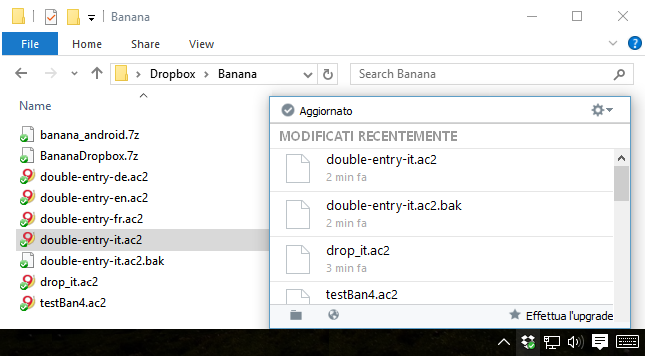
To ensure that the file is properly synchronized with the server, the file on your PC must be marked with the green check mark.
If you do not see the sync symbols (green, red, blue), you have to update the Dropbox application installed on your PC.
Another way to check the synchronization status from your PC, is to click on the Dropbox icon in the bottom bar:
In addition, Android synchronization does not occur while you are working with the app. You must close and reopen it.
Attention: Banana cannot realize if some files are opened simultaneously on more than one computer. It could thus happen that someone erases some data or that someone else adds some new data. Only the more recent copy of the saved file is kept. For this reason we strongly advise to avoid working at the same time on the same file.
Security copies (backup)
We strongly advise you to create external backup copies of your accounting files, in order to prevent a possible data loss, due for example to a computer crash or other causes.
- if you have a Mac computer you can use "Time Machine"
- if you have a Windows computer you can use the "File history" function
You can find other programs on the market that allow you to automatically create a backup of your data.
Saving and .bak files
When saving, Banana Accounting replaces the contents of the existing file, with the more recent data, only if the saving process is successfull:
- Data are saved on a temporary file
Only if the saving process is successfull the data on your disk are replaced to the existing ones. - If the Create backup copy (.bak) option is activated (Tools menu -> Program options command -> Avanced tab) the program renames the pre-existing file with the same name, adding the .bak extension.
A new file named "filename.ac2.bak" is created, containing the data before the saving process.
If an error occurs during the saving process, if for example the network disk is no longer available, choose another file name for saving your data.
Recover your data from a .bak file
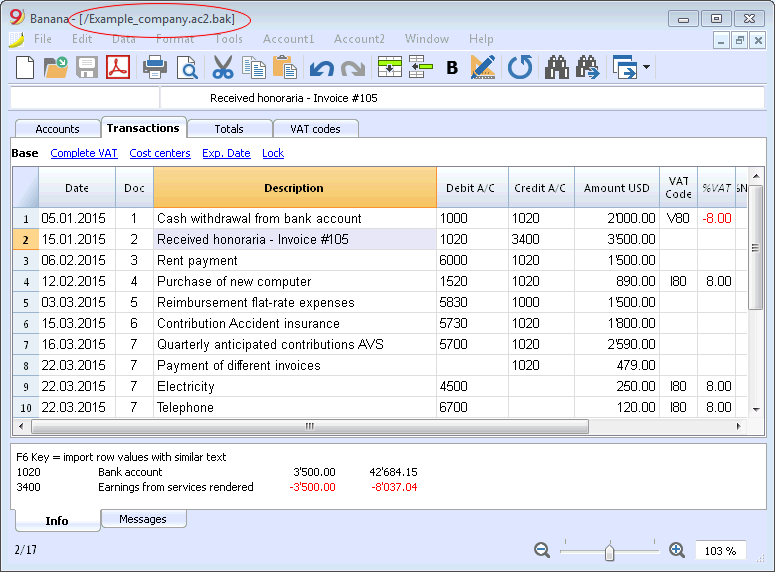
When for a number of reasons you cannot find your accounting file, you can recover your data from the backup copy automatically created by the program. Here is how to proceed:
- open the directory where your accounting file was located
- open the file with a .bak extension. If it is not shown in the dialog window, you need to select the "show all files (*.*)" option at the bottom right of the window
- once the file is opened, save it with a name. Usually the same name as the lost file is chosen.
Damaged .ac2 files
Sometimes a computer crashes due to technical problems or viruses. Sometimes data received by email are compromised or damaged. For these reasons we strongly suggest you to make copies of your files.
If, for technical reasons you have a damaged file, our support team can verify, for a fee, if there are data that can be recovered.
Recover autosave file
This dialog appears when the program closes unexpectedly, and it was not possible to save changes made to the file.
When the program is reopened, it detects that the autosave file (temporary file) has not been canceled, and then asks if you want to retrieve the file.
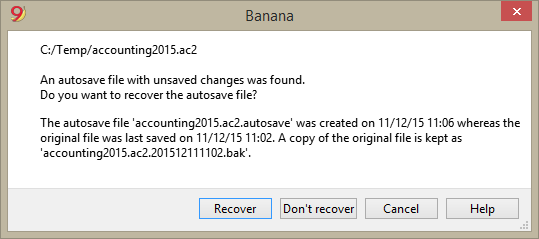
You can choose from the following options:
- Recover
- The autosave file is copied replacing the original file
- The original file is renamed as indicated in the dialog window
- Don't recover
- Both the original file and the autosave file are kept
- The program will not warn you anymore that the autosave file was kept
- Cancel
- Both the original file and the autosave file are kept
- Next time you open this file, the program will warn you that an autosave file with unsaved changes was found
The autosave files that were not recovered will be kept, and will have to be deleted manually.
If the program stops working
If the program is closed normally, it asks whether to save the modified data, and the autosave file is deleted.
However that program may be unexpectedly closed for a number of reasons:
- A power outage or another event that caused an immediate arrest of the operating system
- A problem that led to the crash of the program
- Due to another program or to a situation of the operating system or driver that caused the program to stop.
Try to restart your computer and use the program without other programs.- A flaw in the operating system or a faulty program can cause an interruption of Banana.
- Problem with some Dell computers.
- A computer fault (memory error)
- A virus or some other problem
- A flaw in the operating system or a faulty program can cause an interruption of Banana.
- A problem in the Banana Accounting software
Usually when, repeating the same command always causes the program to crash.
If the program stops in completely different situations, is more likely that the problem is due to a computer or operating system problema (see above)- First of all make sure that you have the latest version of the program
Install the updates if necessary. The problem could have been solved in the meantime
- First of all make sure that you have the latest version of the program
- Due to another program or to a situation of the operating system or driver that caused the program to stop.
Contact technical support
Verify the situation in which the program stops.
- It is important to understand in what situations the program stops, so that technicians can replicate the problem.
- When you contact the technical service:
- Describe the problem and how it can be reproduced - describe the error.
- Enter your system details (you can copy them under Tools -> Program Options -> Info System.
- If the problem occurs in relation to a file, send a copy of the file (removing confidential data).
File properties
When a new file is created, the basic data need to be entered in the File menu, using the File and accounting properties command.
The file properties can vary depending on the chosen accounting type.
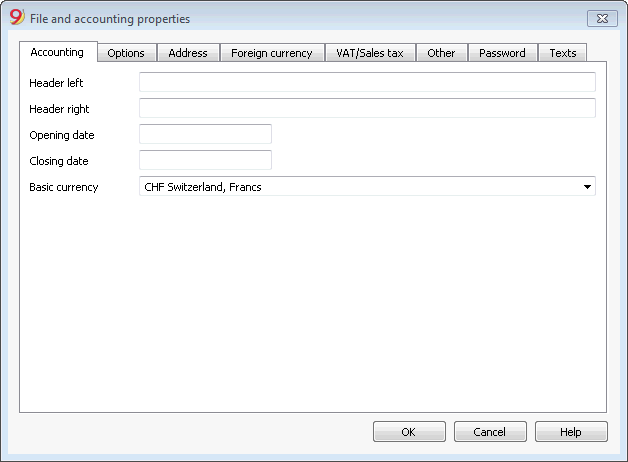
For the explanations of the different tabs please visit the pages hereunder.
Accounting Tab
Left and right headers
These are the two empty cells at the top where any desired text can be inserted which will be used as a header for print-outs (left and right).
Opening date
The opening date is the date when the accounting begins. It can also be left blank. If a date prior to the opening date is inserted when entries are made, the program will give an error message.
Closing date
This is the closing date of the accounting. It can also be left blank. If a date greater than the closing date is inserted when entries are made, the program will give an error message.
Basic currency
The code of the currency in which the accounting is being handled. You can enter any currency code, even the one that are not in the list. When the code of the basic currency is being changed, the program changes the column headers for the amounts in basic currency using the new code.
In the multicurrency accounting files it is mandatory to select the basic currency, which will work as the funcional currency, the one used for the calculation of the Balance sheet and Profit & Loss statement.
Changing the basic currency symbol
If you change the basic currency symbol the program will not change the existing amounts. We advise you to change your basic currency symbol only if you don't have yet entered any opening balances and any transactions.
Accounting file WITHOUT foreign currencies
You can replace the basic currency symbol with the new symbol.
Accounting file WITH foreign currencies
- Replace the currency symbol in the File properties dialog (from the File menu)
- in the Accounts table
- Select the whole Currency column (click on the column's header)
- Use the Find and replace command from the Data menu and enter the old and the new currency symbol - make sure to check the Selected area only option. Replace all the symbols found.
- in the Exchange rates table
Enter the new exchange rates for all the currencies. - Give the Check accounting command from the Account1 menu.
- If there are opening balances or transactions, the amounts and the exchange rates will have to be manually updated.
Options Tab
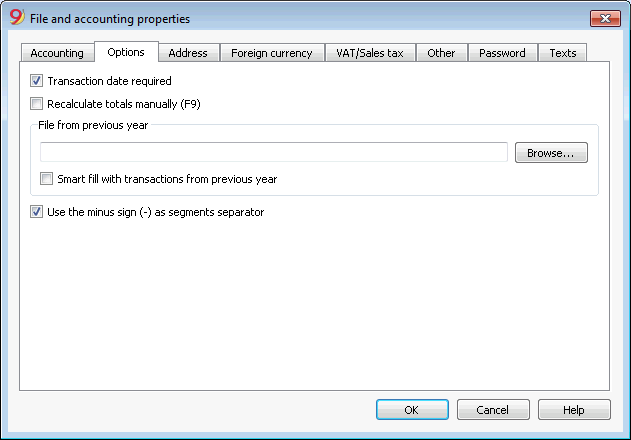
Transaction date required
If this option is activated and then a transaction is entered without a date, there will be an error message.
Recalculate totals manually (F9)
If this option is activated, the program will not automatically recalculate the principal groups of the accounting file, but the user needs to use the F9 key.
File from previous year
By using the Browse button, the user can select a file from the previous year.
Smart fill with transactions from previous year
If this cell is checked, the program keeps the transactions from the previous year in memory, and offers them as Smart Fill while the user inputs new entries.
Use the minus sign (-) as segments separator
When this option is activated, the segments have to be entered in the Transactions table with the minus (-) sign preceding the segment code. When this option is deactivated, the segments need to be entered with the colon sign (:), as in the chart of accounts. The colon needs to always precede the segment code.
Records (+/-) cost centers according to the category
This function is active only for Income & Expenses accounting and Cash book. By activating this box, the amount is entered in the cost center (positive or negative) according to the category.
If, instead, this option is not active, in order to enter a negative value, it is necessary to enter a minus sign before the cost center (-CC).
Related document: Text imput, edit and Smart fill
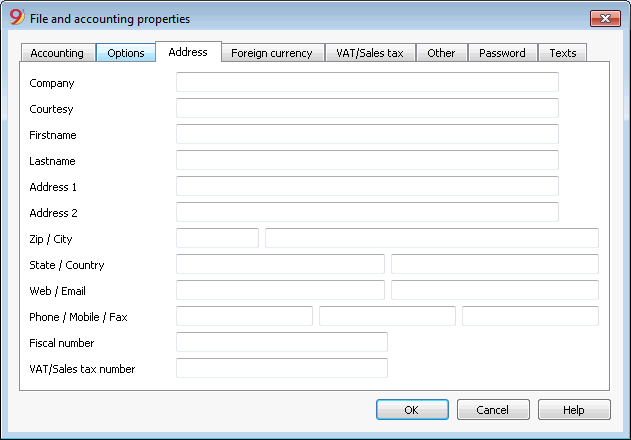
Address Tab
In this tab data about the company or the individual whose accounting is being handled can be entered.
Foreign currency
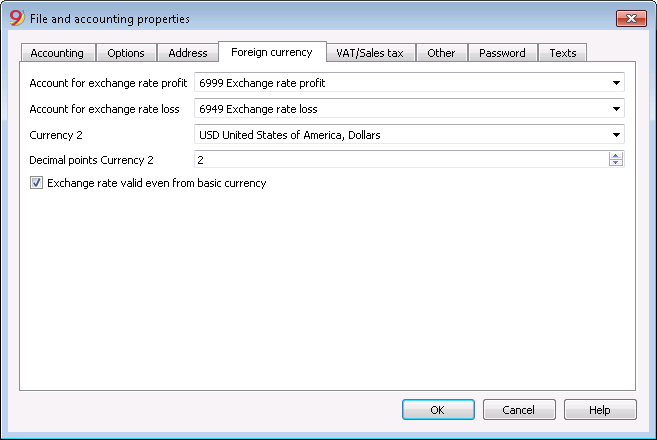
For the explanations of the different tabs please visit the corresponding page Starting a multi-currency accounting.
VAT/Sales tax
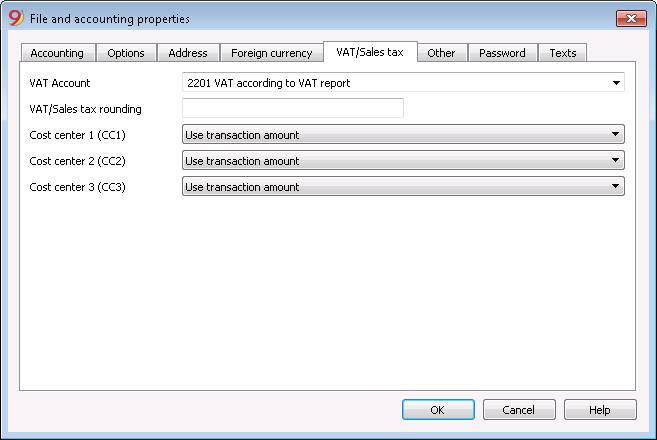
For the explanations of the different tabs please visit the corresponding page File properties (VAT/Sales tax tab).
Other Tab
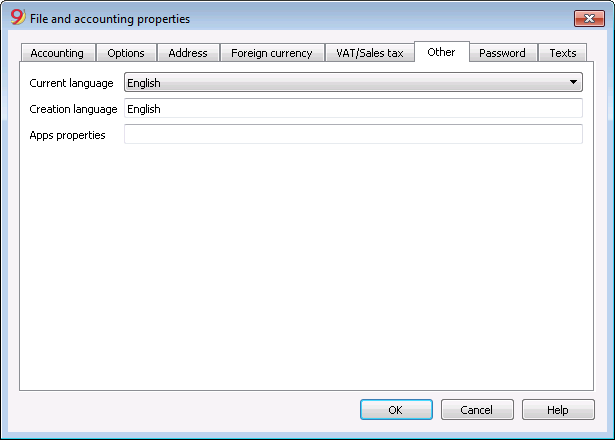
Current language
There are some file texts that the program generates automatically, (e.g. the lines of the Totals table, the transactions on the account card, and the printout of the Enhanced balance sheet); in this tab, the user can indicate the language for these texts (usually the same as the creation language).
Creation language
This is the language chosen and selected when the user creates an accounting file; this language is used for the column headers. If the user wants to change the creation language, then it is necessary to convert the file to a new one using the Convert to new file command in the Tools menu.
Apps properties
You can enter one or more keywords to view the Banana scripts (BananaApp) that require so.
If a script has the @docproperties attribute, it will only work in Banana files that have set the same keyword in the Apps properties field. To set multiple keywords, you need to separate them with the ; (example: datev; donations)
Usually these keywords are specified in the scripts installation instructions; most of the scripts do not use keywords to limit the display to certain files.
Password Tab
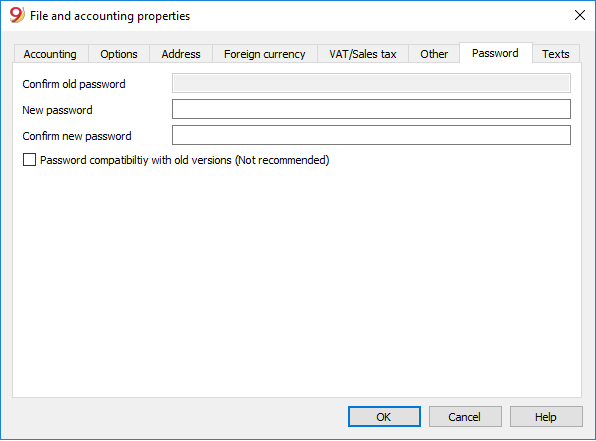
The files can be protected by using a password.
Password compatibility with old versions
Activate this option if you want your password to be compatible with the Banana Accounting 8 versions and earlier.
This option not recommended because the password is saved in a less secure mode.
Entering a password in a file that doesn't have a password
- The box Confirm old password is shown in gray.
- Indicate your new password twice (New password and Confirm new password).
- Confirm with OK.
Changing an existing password
- Enter the existing password.
- Indicate your new password twice.
- Confirm with OK.
How to cancel a password
- Enter the existing password.
- Leave the boxes for the new password empty.
- Confirm with OK.
Forgotten password
For information about a forgotten password, please refer to the Questions and Answers page, Password unlock paragraph.
Note
Using a password does not give a high level of protection. In order to render the data truly inaccessible to third parties, it is necessary to have the appropriate cryptographic software.
Text Tab
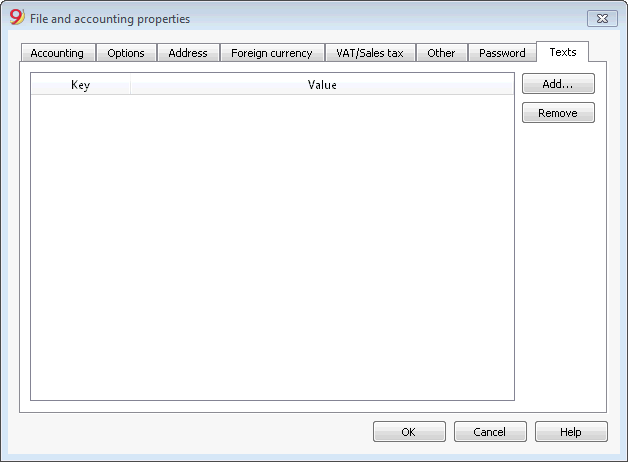
In this tab it is possible to enter different keys in order to save extra information, such as the accountant name, for example.
Key
In this field, input the reference text (e.g.: Address).
Value
In this field, it is necessary to input the value related to the key (e.g.: Ocean Avenue, ...).
Add
This button saves the new entered data.
Remove
This button removes the selected Key.
Create Pdf dossier
In order to create a Pdf file choose the Create Pdf dossier from the File menu (or click on the corresponding icon on the Toolbar).
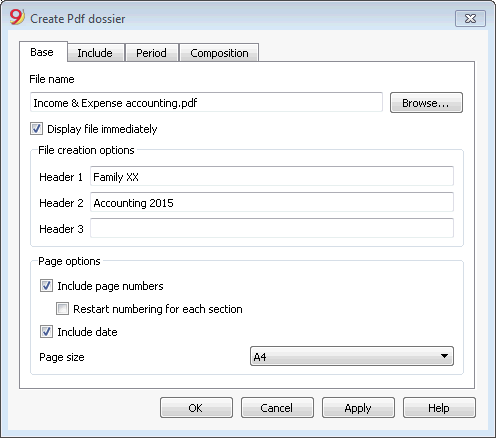
File Name
In this area you need to enter the name of the new file that the program will create to export the data. If, however, an existing file is selected by using the Browse button, the program will overwrite it with the new data.
Display file immediately
As soon as the Pdf file has been created, the software to view it will be launched. In this way, the result of the export can be seen immediately. It is best to remember that browsers like Mozilla and MS Explorer use a cache mechanism for files. When the export is made for a second time, it is possible that the user will see the previous version until the browser Reload button is pressed.
Table creation options
Headers 1, 2 and 3
These are the table headers.
Page options
By activating the page options it is possible to include:
- page numbers
- page progressive numbering
- date
Page size
You can select the page format
Other Tabs
For the explanations of the other tabs, please visit the following pages:
Setup a Logo
Setup a Logo
From the Banana version 9.0.3 it is possible to include a logo and to define its settings (width, height, position) from the File menu > Logo setup command. It is also possible to create and save Compositions with different logo settings.
This feature is a simplified alternative to the logo setting with the Documents Table.
In the Logo Formats dialog window -> Options tab, it is possible to include an image with the Add button; you can also define the width, height and alignment of the logo image. If the logo has already been inserted, it my be modified or deleted via the Modify/Delete button.

Note:
Thanks to this feature, the logo can now be recalled and applied for all printouts, as follows:
- from the File -> Page setup command
- or directly from the Print preview, by clicking on the Settings icon.
If, however, you only wish to use the logo in a specific printout, you need to directly enter it in the setup of that printout, for example the Account cards, the Enhanced Balance sheet, the Enhanced Balance sheet with groups and the Accounting report.
Text
If this box is ticked, headings of the dialog windows for "Account Cards", "Enhanced Balance Sheet", "Enhanced Balance Sheet with Groups" and "Accounting Report" will be added, relative to the logo (i.e. Below, Center, Top).
Dateispeicherort öffnen
Dieser Befehl im Menü Datei öffnet das Dateiverwaltungsprogramm Ihres Betriebssystems (Windows Explorer, Finder Mac) und zeigt den Ordner an, in dem sich die Datei befindet, an der Sie gerade arbeiten. Hieraus kann die gewünschte Datei kopiert, verschoben, umbenannt oder gelöscht werden (rechte Maustaste).
- Menü Datei
- Befehl Speicherort öffnen - Öffnet das Dateiverwaltungsprogramm um die Dateien zu verwalten.
- Zum umbenennen, verschieben oder löschen, muss die Datei zuvor in Banana Buchhaltung geschlossen werden.
Manchmal bleibt die Datei gesperrt, auch wenn Sie sie geschlossen haben. In diesem Fall muss auch das Programm beendet werden, um die Datei vollständig freizuschalten. - Kehren Sie zum Dateiverwaltungsprogramm zurück.
Recent / Favorite files
These commands display the list of recently used files and the favorite files.
In order to eliminate the list of recently used files, click on the File menu, Recent files, and on Clear list recent files.
In order to remove just one single file from the Recent Files list of the Favorites (Start page), position the cursor on the file name, proceed with a right mouse click and select Remove (Mac users should use the key combination Ctrl + right mouse button).
To make a file Favorite:
- Open the desired file
- Click on Favorite files
- Click on Add to list
To edit the list of favorites, click on:
- Favorite files
- Edit list..
- In the window that appears, edit the favorites, by using the buttons: Add, Remove, Open folder.