Automation
Banana Accounting Plus provides several ways to import transactions or other data to speed up and automate bookkeeping.
Importing and completing bank transactions
This is the functionality that allows you to keep your accounting quickly:
- Import bank transactions into your accounting file
The programme creates the entries with date, description, amount, account and exchange rate. Additional data such as the counterpart must be completed by hand.
Standard formats, such as ISO 20022 or TXT, are included in the Professional plan; other formats require the Advanced plan. - Automatically complete the transactions by using the rules (Advanced plan)
You can set auto-completion rules to import transactions, including the counterpart, VAT code, cost centres and other information you have specified.
You can always edit and further complete your entries.
Bank transactions import formats
- Banana Accounting Plus reads the transactions in different formats. Visit the Import transactions page.
- Thanks to the customised Import Extensions, you can import data from various bank statements and other standard programmes. Some extensions are only available in the Advanced plan.
Other commands for importing data
Banana Accounting Plus provides different ways to import data:
- Import into Accounting
You can import in any table and from different formats. - Import Rows
All tables allow the import of data from the CSV format. - Copy and paste from Excel or other programmes.
You can prepare movements or other data in an Excel table and copy and paste them in bulk into the Transactions table or any other table.
Manual completion and undo import
Once movements or other data have been imported, you can easily complete and edit them. This makes it very easy to automate processes, because if there are unforeseen exceptions, you can edit the data directly.
Like all commands, the import command can also be undone. So you can easily try importing the data and see if it works as expected. If you have not chosen the right format or have not set the parameters correctly, simply Undo the import and do it again.
Useful links
Rules for the automatic completion of imported transactions
The Rules in Banana Accounting allow you to significantly reduce bookkeeping time and improve the quality of transactions by automating the completion of bank transactions in a reliable and controlled way.
During import, the Rules recognize bank transactions and automatically complete them with accounts, VAT codes, cost centers, segments and other information. Once defined, they are reused in subsequent imports, eliminating much of the manual and repetitive work.
The system is based on Deterministic Rules, which apply accounting criteria defined by the user. A preview also allows you to check the results before confirming, reducing the risk of errors and the time needed for corrections.
Explanatory videos
The Rules are available only with the Advanced plan of Banana Accounting Plus (from release 10.1).
Watch the introductory video on Rules and the videos explaining the different ways to create Rules:
- ▶ Video: Import and automatically complete transactions (introduction) - 0'55"
- ▶ Video: Rules for completing imported transactions (Apply Rules dialog) - 7'26"
- ▶ Video: Rules for completing imported transactions (Recurring Transactions table) - 5'54"
How the Rules work
When you import bank transactions, Banana Accounting enters the bank statement data in the Transactions table, such as the date, description, amount and bank account. However, accounting information such as the Debit and Credit accounts, VAT code, cost centers and segments is often missing and is needed to complete the transactions.
The Rules allow you to recognize bank transactions and automatically complete them with the missing accounting data, according to the criteria you have defined.
The Rules are stored in the Recurring Transactions table. Each Rule contains the criteria for recognizing bank transactions and the accounting data to be entered automatically. A Rule can occupy one or more rows in the table, for example when a bank transaction needs to be split between several accounts.
In the following image, you can see three examples of Rules for Twint receipts and Best Insurance payments.
- Twint receipts: the Rule recognizes bank transactions containing the exact text "Twint resale" and completes the transaction by entering the Debit account Bank, the Credit account Sales and the VAT code V81.
- Best Insurance payment. The search text is preceded by the "+" symbol, so the Rule is applied to transactions whose description contains the words in any order.
- +Best Insurance 892-948. In addition to the insurance company, the search text also includes the policy number. The Rule completes the transaction by entering the Debit account Health insurance.
- +Best Insurance 987-650. The policy number refers to the car insurance policy.
The Rule completes the transaction by entering the Debit account Car insurance.
Once the Rules have been created, Banana Accounting automatically applies them to the matching bank transactions in subsequent imports, without having to manually complete the same transactions.
You can create and edit Rules directly in the Recurring Transactions table or through the Add/Edit Rules dialog.
What the Rules can do
Banana Accounting offers an advanced Rules system that allows a high degree of automation while maintaining accuracy, control and reliability.
- Flexible and precise search
The Rules allow you to recognize bank transactions using two search methods: by phrase, when the words must appear in the same order, or by independent words, by entering the + symbol at the beginning of the search criteria, when the words can appear in any order in the bank description. You can therefore combine several keywords to accurately identify transactions, for example by distinguishing payments to the same insurance company based on the policy number, or Swisscom invoices based on the telephone number, and assigning them to different accounts. - Complete multiple accounting fields at the same time
A single Rule can enter the contra account, VAT code, cost centers, segments and other transaction information. - Create transactions on multiple rows
You can split a single bank transaction into several accounting transactions, for example when a payment needs to be assigned to different accounts. - Highlight transactions that need to be checked
You can use colors, temporary values or notes to identify transactions that require checking or manual intervention. - Check the Rules before applying them
You can see which transactions are recognized, which Rules will be applied and according to which criteria. - Identify duplicate or conflicting Rules
The program identifies Rules that could create ambiguity, allowing you to check them before applying them. - Undo and repeat the application of Rules
You can undo the operation, correct the Rules and apply them again.
Workflow
- Import bank transactions
Banana Accounting imports the bank statement data, such as the date, description, amount and bank account, and creates the corresponding rows in the Transactions table. - Check the Rules and create the missing ones
In the Apply Rules dialog, you can see which transactions are recognized by existing Rules and create new Rules for those that do not have one. - Apply the Rules and complete the transactions
The program automatically completes the transactions that match the applied Rules by entering the Debit or Credit contra account, VAT code, cost centers, segments and other accounting data. - Reuse the Rules in subsequent imports
The Rules are saved in the Recurring Transactions table and remain available to automatically complete transactions in subsequent imports, without having to recreate them.
How to create Rules
We have created a system that offers different ways to create Rules. You can choose the method that best suits the way you work:
- Rules from the Transactions table
- Rules from the Recurring Transactions table
- Rules from the Apply Rules dialog
The benefits of Rules
The Rules in Banana Accounting allow you to:
- Save time: automatically complete imported bank transactions that match the Rules, without having to enter the same accounting data each time.
- Reduce errors and manual work: avoid repetitive data entry, omissions and possible errors when completing transactions.
- Ensure accounting consistency: apply the same accounting criteria to all transactions that meet the defined conditions.
- Maintain control over transactions: check which Rules are applied and which accounting data is entered.
- Make it easier to delegate work: allow other team members to import and complete transactions using predefined Rules.
- Preserve and reuse accounting knowledge: allow the person responsible for accounting or the auditor to define how certain transactions should be recorded, making these criteria available for subsequent imports as well.
- Automate immediately, without a learning phase: use the Rules as soon as they are created, without requiring a transaction history or a learning phase.
- Easily adapt the automation: add, edit or delete Rules when accounting requirements change.
Transition to the new year
When you create the file for the new accounting year using the Actions > Create New Year command, the Rules saved in the Recurring Transactions table are automatically transferred to the new file.
You can therefore continue using them to complete imported bank transactions without having to recreate them every year. When you import new transactions and apply the Rules, the program recognizes the matching transactions and completes them with the defined accounting data.
You can also add new Rules or edit existing ones to adapt them to the requirements of the new accounting year, for example in the event of:
- changes to VAT rates or VAT codes
- addition, modification or deletion of accounts
- changes to accounting criteria.
Copying Rules from one file to another
You can copy existing Rules from one accounting file to another without having to set them up again. This option is useful when you create a new accounting file and want to reuse the same accounting criteria.
To copy the Rules:
- Open the file containing the Rules you want to copy and go to the Recurring Transactions table.
- Check that the columns are arranged in the same order in both files.
- Select the rows containing the Rules you want to transfer.
- Copy the rows using the Edit > Copy rows command, or Ctrl + C.
- Open the destination file and go to the Recurring Transactions table.
- Paste the rows using Edit > Paste rows, or Ctrl + V.
After copying, check that the accounts, VAT codes and other references in the Rules are also valid in the destination accounting file.
Features currently not available
Currently, the Rules have some limitations:
- Automatic modification of the description: it is not possible to use a Rule to automatically shorten, simplify or replace the original description of the imported bank transaction.
- Dynamic calculation of amounts in transactions on multiple rows: it is not possible to use formulas to calculate the amounts of additional rows based on the amount of the imported bank transaction.
How the rules for completing imported transactions work in 3 steps
This page explains how the Rules in Banana Accounting work, from their creation to their automatic application to imported bank transactions.
The procedure consists of three steps:
- Import bank transactions into the Transactions table.
- Create Rules to recognize transactions and define how to complete them.
- Apply Rules to automatically complete the accounting transactions.
1. Import bank transactions
When you import bank transactions into the Transactions table, Banana Accounting enters the bank statement data and uses the temporary contra account [CA] for transactions that still need to be completed.
The Rules allow you to automatically replace [CA] with the correct accounting account, without having to manually complete each transaction.
The following image shows some imported bank transactions with the temporary contra account [CA].
In the example image, you can see the following in the Transactions table:
- (1) The cells have a temporary contra account related to sales via Twint.
- (2) The cell has a temporary contra account related to the monthly expenses for May.
- (3) The cell has a temporary contra account related to Swisscom telephone expenses.
- (4) The cell has a temporary contra account related to insurance expenses, policy number 892-948.
- (5) The cell has a temporary contra account related to insurance expenses, policy number 987-650.
2. Create Rules
The Rules allow you to automatically replace the temporary contra accounts [CA] of imported transactions with the correct accounting accounts, also entering VAT codes, cost centers, segments and other data.
The Rules are template transactions saved in the Recurring Transactions table, where:
- The Description column contains one or more keywords to recognize bank transactions.
- The Debit Account and Credit Account columns indicate the account to be entered in place of the temporary contra account [CA].
- The VAT column and the other accounting columns contain any additional data needed to complete the transaction.
You can create Rules in different ways, choosing the one that best suits the way you work:
- Rules from the Apply Rules dialog
- Rules from the Transactions table
- Rules from the Recurring Transactions table
Regardless of the method used, all Rules are saved in the Recurring Transactions table.
The following image shows the five Rules created to complete the bank transactions in the previous example.
Two methods for recognizing transactions
Search by phrase
The program searches the bank description for the text sequence specified in the Rule, keeping the words in the same order.
- (1) Twint resale: replaces [CA] with the Sales account and enters the VAT code.
- (2) Interac Electronics SA: replaces [CA] with the Goods account and enters the VAT code.
Search by independent words (with +)
By entering the + symbol at the beginning of the search criteria, the program searches for all the specified keywords, regardless of their order in the bank description.
- (3) +Swisscom 41795561718: recognizes payments related to the specific telephone number and replaces [CA] with the Admin account.
- (4) +Best insurance 892-948: recognizes payments for policy 892-948 and replaces [CA] with the Insurance Health account.
- (5) +Best insurance 987-650: recognizes payments for policy 987-650 and replaces [CA] with the Insurance Car account.
Searching with multiple keywords allows you to distinguish transactions from the same supplier and automatically assign them to different accounting accounts.
3. Apply Rules for automatic completion (Result)
When you apply the Rules, Banana Accounting recognizes bank transactions that meet the specified criteria and replaces the temporary contra accounts [CA] with the accounting accounts defined in the Rules.
The program also automatically enters any VAT codes, cost centers, segments and other data specified in the Rules.
The following image shows the result of applying the five Rules from the previous example.
In the Transactions table, the transactions have been completed as follows:
- (1) Twint resale: the contra account [CA] has been replaced with the Sales account and the VAT code has been entered.
- (2) Interac Electronics SA: the contra account [CA] has been replaced with the Goods account and the VAT code has been entered.
- (3) Swisscom: the contra account [CA] has been replaced with the Admin account.
- (4) Best insurance 892-948: the contra account [CA] has been replaced with the Insurance Health account.
- (5) Best insurance 987-650: the contra account [CA] has been replaced with the Insurance Car account.
When a Rule enters a VAT code, Banana Accounting automatically calculates the VAT amounts and completes the corresponding accounting columns.
The transactions are therefore completed according to the defined criteria, without having to manually replace the contra accounts one by one.
Frequently asked questions (FAQ)
Can a Rule also automatically enter the VAT code?
Yes. When you create a Rule, you can specify both the contra account and the VAT code to be used. The program automatically enters this data in the transactions that match the Rule and calculates VAT according to the accounting settings.
Can I also use the Rules in another accounting file?
Yes. The Rules are saved in the Recurring Transactions table and can be copied to another file using copy and paste.
When you create the file for the new accounting year using the Actions > Create New Year command, the Rules are automatically transferred, without having to copy them manually.
Can I manually edit a transaction completed with a Rule?
Yes. Automatically completed transactions can always be edited or corrected in the Transactions table, for example to make the description more precise or change an account.
You can use the Filter to quickly find the transactions you want to edit.
Can a Rule modify the imported bank description?
The keywords entered in the Description column of the Rule are used to recognize transactions, not to automatically modify the original text.
After importing, you can still manually edit the description in the Transactions table.
Can I exclude a transaction from the application of a Rule?
Yes. In the Apply Rules dialog, you can check which transactions match the Rules and deselect those that should not be completed automatically.
This is useful when a transaction meets the criteria of a general Rule but needs to be recorded differently.
Can I create a Rule for transactions with amounts that change every month?
Yes. You can create a Rule without specifying an amount. In this case, the program recognizes transactions that meet the other specified criteria, regardless of the amount.
The more conditions you specify in the Rule, the more specific the transaction search becomes.
Create Rules from the Apply Rules Dialog
The Apply Rules dialog allows you to create and edit Rules directly while importing bank transactions, immediately checking which transactions they will be applied to.
The main advantages are:
- View all imported transactions, divided into incoming and outgoing transactions, with and without Rules.
- Identify applicable Rules, displayed in bold above the corresponding transactions.
- Create, edit or delete Rules directly from the dialog.
- Immediately check the results when you change the conditions of a Rule, such as the description, amount or account.
- Identify duplicate or conflicting Rules, to avoid ambiguity when applying them.
- Choose which Rules to apply, enabling or disabling them as needed.
The following sections explain, step by step, how to create and apply Rules from the Apply Rules dialog.
1. Import bank transactions
To create Rules from the Apply Rules dialog, you must first start importing bank or postal account transactions.
Proceed as follows:
- Select the command Actions > Import to accounting > Transactions.
- Choose the import format and select the bank statement file.
- In the import dialog:
- Account: specify the bank or postal account to which the transactions refer.
- Period: specify the start and end dates of the transactions to be imported.
- Temporary contra account: keep the default value
[CA]or enter a different one. If the account is enclosed in square brackets, it is not posted to the accounts. - Apply Rules: enable this option, available with the Advanced plan of Banana Accounting Plus.
- Confirm with OK.
The following image shows the import dialog with the Apply Rules option enabled.
After confirmation, Banana Accounting opens the Apply Rules dialog, where you can check the imported transactions and create the necessary Rules.
2. Apply Rules dialog
After confirming the import, Banana Accounting opens the Apply Rules dialog, where you can view the imported bank transactions, check existing Rules and create new ones.
The dialog displays:
- Temporary contra account: the default account [CA] or the one specified during import.
- Bank account: the account to which the imported transactions are posted.
- Imported transactions, divided into four groups:
- Incoming transactions without Rules Money In without rules.
- Outgoing transactions without Rules Money Out without rules.
- Incoming transactions with Rules Money In with rules.
- Outgoing transactions with Rules Money Out with rule.
The following image shows how bank transactions are displayed and grouped in the dialog.
This grouping allows you to immediately identify transactions already recognized by the Rules and those for which a new Rule needs to be created.
3. Create new Rules
In the Apply Rules dialog, you can create a new Rule directly from an imported bank transaction.
Proceed as follows:
- Select the transaction for which you want to create a Rule.
- Click the three dots (…) to the right of the transaction.
- Select Add new rule.
The following image shows where to find the command for creating a new Rule.
The Apply Rules, Add Rule dialog opens, where you can define the conditions for recognizing bank transactions and the accounting data to be entered.
Set the matching criteria
In the Description field, the program automatically suggests the text of the selected bank transaction. This text may contain very detailed information, such as invoice numbers, payment references and other specific data.
Important: if you keep the entire original description, the Rule may be too specific and recognize only that transaction, making it unsuitable for subsequent imports.
To create an effective and reusable Rule:
- Remove information that changes with each payment, such as invoice numbers or unique references.
- Keep recurring keywords that allow you to identify the desired transactions, for example:
- Company name or registered business name.
- Legal form or location, if useful for distinguishing the beneficiary.
- Customer, contract or policy number, when it remains unchanged in subsequent payments.
- Other recurring references that identify a specific type of transaction.
Choose the search method
You can use two methods to recognize bank transactions.
Search by phrase
The program searches the bank description for the text sequence specified in the Rule, keeping the words in the same order and without interruptions.
For example:
Best Insurance Contract 892-948
The Rule recognizes transactions containing this text sequence in the same order.
Search by independent words (with +)
By entering the + symbol at the beginning of the search criteria, the program searches for all the specified keywords, even when they appear in a different order or are separated by other words in the bank description.
For example:
+Best Insurance Contract 892-948
The Rule recognizes transactions containing all the keywords Best, Insurance, Contract and 892-948, regardless of their order.
Tip: when you want to distinguish transactions from the same supplier based on the contract, policy or customer number, use the search by independent words. This allows you to recognize transactions even when the bank changes the order of the information in the description.
Important: when the bank description contains contract, policy or customer numbers or other specific references, we recommend entering the
+symbol at the beginning of the search criteria.The + symbol allows the Rule to search for all the specified keywords and numerical sequences, regardless of their order and position in the description of the imported transaction.
The program displays the imported transactions that match the specified conditions and to which the new Rule will be applied. In the example, only one transaction is recognized.
Check that the recognized transactions are correct and confirm with OK.
4. Confirm Apply Rules
After creating a new Rule and confirming with OK, the program returns to the Apply Rules dialog, where you can check:
- The new Rule, identified by the label NEW, which shows the contra account and the other specified accounting data.
- The matching transactions, displayed immediately below the Rule, to which the specified accounting data will be applied.
You can choose which Rules to apply and when to apply them:
- Apply some Rules and continue working on the others.
- Disable the Rules you do not want to apply.
- Exit the dialog and resume your work later.
Apply the Rules
Two main buttons are available in the dialog:
- Apply Rules: the program completes the matching transactions in the Transactions table and saves the new Rules and changes in the Recurring Transactions table. The dialog remains open, allowing you to continue creating and applying other Rules.
- OK: confirms the applied Rules and closes the dialog.
The following image shows the new Rule and the recognized transactions in the Apply Rules dialog.
Undo changes
After closing the dialog, the completed transactions are visible in the Transactions table.
If necessary, you can undo the operation:
- From the Edit > Undo menu.
- Using the Undo button (green arrow).
To also undo the import of bank transactions, you must execute the Undo command a second time.
5. Complete transactions with a temporary contra account
After applying the Rules, some imported transactions may still have the temporary contra account [CA], because they do not match any Rule.
To complete these transactions, you can:
- Manually enter the contra account and other accounting data, especially for occasional transactions that do not recur.
- Create new Rules for transactions that you expect to import again, using one of the available methods:
The goal is to complete all imported transactions by removing the temporary contra accounts [CA].
Add accounting information to existing Rules
You can edit existing Rules in the Recurring Transactions table, by adding VAT codes, cost centers, segments and other accounting data.
The additional information will be used the next time the Rules are applied, allowing more accounting data in the imported transactions to be completed automatically.
Auto-completion rules from the Apply Rules dialogue
The Apply Rules window offers an excellent level of control over changes to accounting transactions because it shows a preview of existing rules, with an indication of which transactions match each one and which transactions do not yet match any rules. You then have the option of creating new rules, modifying or deleting existing ones.
▶ Video: Rules for completing imported transactions (Apply Rules dialogue)
The dialogue may be displayed:
- From the Import Transactions dialogue, when the Apply Rules option is checked
Rules are only applied to imported rows
- From the Actions menu > Recurring transactions > Apply rules...
Rules are applied to the entire contents of the Transactions table
The Apply Rules dialogue, coupled with the import of banking data, becomes a crucial tool for setting up all repetitive records. In this dialogue window, when faced with multiple repetitive transactions of the same type, it suffices to set the rule for just one of the transactions, and the rules are automatically applied to all other transactions in the dialogue, eliminating the need to set the rule again.
Once the rules are confirmed, all transactions are listed in the Transactions table, ensuring consistency and accuracy in records of the same type, and speed in accounting for all transactions.

This dialogue box is divided into three sections:
Apply rules to transactions with...
- Temporary contra account:
This field is mandatory.
It filters all imported transactions that contain that specific contra account, e.g. [CA], which was indicated in the Import transactions dialogue. - Account:
Filters all imported transactions that contain a specific account, usually a bank account or [A], which has been indicated in the Import Transactions Dialogue.
The rule-based auto-completion system assumes that once the transactions have been completed, there is no longer any transaction containing the temporary contra account.
Imported data corresponding to rules or not
The window shows all transactions that have temporary contra accounts indicated above (e.g. [CA]). These are grouped in four main sections:
- Incoming transactions with rules
Transactions with positive change of account (credit) and with indication of the rule to which they correspond - Outgoing transactions with rules
Transactions with negative account variation (debit) and with indication of the rule to which they correspond - Incoming transactions without rules
Transactions with positive change of account (credit) and not belonging to any rule - Outgoing transactions without rules
Transactions with negative account variation (debit) and not belonging to any rule
Contextual commands
From the row of a transaction without a rule, a simple click or the three dots (...) to the right, or a right click anywhere on the row, opens a menu allowing you to:
- Add/Edit Rule
- Cancel an existing rule
- Change an overlapping rule

The commands at the bottom of the dialogue
- Expand All/Collapse All: displays or hides the elements of the Transactions.
- Display unused rules: checking this option displays all rules defined in the Recurring transactions table; if the option is not checked, the programme only displays rules that have matches.
- Display rows without rules: if this option is checked, all imported transactions are displayed; if the option is not checked, the programme only shows transactions that match a rule.
- Remove accounts between [ ]: in multi-row transactions, the import account is placed in square brackets [ ] in the detail rows. If this option is activated, the programme removes the import account from the detail rows.
Rules with transactions on multiple rows can only be defined in the Recurring transactions table. - OK: this button applies the active rules and closes the window.
- The temporary contra account is replaced in all transactions that have a match with a rule.
- New or changed rules are also saved in the Recurring Transactions table.
- Cancel: this button closes the window without applying the rules.
- If there have been changes to one or more rules, you will be asked for confirmation before closing the window.
- With this button you cannot undo the Apply Rules command; to do so, you must close this window and use the Undo command from the Edit menu.
- Apply Rules: this button applies the rules without closing the window.
- The temporary contra account is replaced in all transactions that have a match with a rule.
- Rules that are added or changed are saved in the Recurring transactions table.
- If you wish to undo changes, you must close the window and use the Undo command from the Edit menu.
Tips on how to use the Apply Rules window
The most effective way to work with the Apply Rules window is as follows:
- Check that the transactions matching rules are correct.
- Use the Apply Rules button to update the Transactions table with the selected rules.
- Add new rules for the remaining transactions and check that they are applied correctly.
- Use the Apply Rules button again.
- Repeat steps 3 and 4 until all recurring transactions are associated with rules.
Recurring transactions table
Rules are saved and may be edited in the Recurring transactions table.
You can complete or add rules also with transactions on multiple rows in the Recurring transactions table.
As time goes by, you will see that more and more imported transactions will have matches with rules; the more rules you add, the more your accounting work will be reduced.
Apply Rules dialog – Add Rule
From the Apply rules dialogue you may access the Add/Edit rule section as follows:
- By right-clicking on one of the transactions or rules:
- For transactions that already have a rule, you can choose Edit Rule or Delete Rule.
- For transactions that do not have a rule, you can choose Add New Rule.
Add New Rule example
The following example in the dialogue below is an outgoing transaction of the payment of a health insurance.
To add a new rule:
- Right-click on the movement row and choose Add New Rule.
- The dialogue Add rule appears.
- Fill in the fields available.
- Confirm with OK.

Add New Rule dialogue
The Add New Rule dialogue shows the data of the selected transaction from which you are creating the rule.
- Complete the rule with the matching parameters (conditions) and the rule completion parameters.
- All rules are saved in the Recurring Transactions table (rules for completion), where you can also:
- Edit, add and delete rules.
- Add any other column for completion, which is not available in this dialogue (e.g. Notes or DocLink columns).
- Colour the row if you want to highlight the imported transaction.
- Add transactions on multiple rows (SplitRule).

The Rule
- Rule type.
The programme, depending on the type of transaction, if in credit or debit on the bank account, sets the rule as Money in or Money out transaction. - Rule title.
It is optional, it is displayed in the Apply Rule dialogue.
Conditions
These are the elements that are used to check whether there is a match for each individual transaction.
- A match is given if all conditions are found.
- If a match is given, the entry is listed among the transactions with rule.
The description
In the description, enter the text to be searched in the text of the imported transaction. If the text is found the transaction will be considered suitable for applying the rule, if the other conditions are then met.
- Exact word or phrase
- If you write only Best Insurance 982-948 as a condition of the rule, only transactions containing those words in that exact order will be considered matches.
- If you write only Insurance, as a condition of the rule, all entries containing this exact word will be considered matches.
- All words (starting with the "+ "sign)
- If you write +Best Insurance 982-948 as a condition of the rule, all records containing these exact words, in any position, will be considered matches.
All words must be present in the description of the transaction.
The position of the words in the sentence is not relevant.
The "+" sign is not considered in the search.
- If you write +Best Insurance 982-948 as a condition of the rule, all records containing these exact words, in any position, will be considered matches.
- List of words (using |)
- If you enter "coffee|restaurant", the program searches for imported transactions that contain the word "coffee" or "restaurant".
- This mode is useful for identifying multiple categories without having to create separate searches.
- Upper and lower case
When searching for input text, no case difference is made.
The text you enter is applied to both upper and lower case text.
Amount
If you indicate an amount in the rule, only transactions with the same amount, as well as a match in the Description, will be considered as matches.
If you do not indicate any amount, any transaction of any amount that meets all other criteria will be treated as a match.
Account
In this field you will already find by default the account from which you imported the transactions. If you leave the account field empty, all transactions, imported from any account, that meet all other criteria will be considered as matches.
Actions
These are the elements used to complete the transaction row if a match is given.
If the contra account or other items to be completed are not present, you can abort the Apply rules command, add the missing account, and call up the Actions > Recurring transactions > Apply rules... command.
Contra account
Enter the account in your chart of accounts that is to be matched in the rule. In this example, the correct contra account is the Health Insurance account.
VAT
You can already enter in the rule the VAT code that the programme must add to each movement considered as a match.
CC1, CC2, CC3
You can already enter in the rule the Cost Centres that the programme must add to each movement considered as a match.
By confirming with the OK button, the new rule is saved. You will return to the previous window where the imported movements with and without rules are displayed again.
Matching Transactions
This table shows all imported transactions selected in the Apply Rules dialogue, which fall under this rule.
Buttons
- The Delete button, cancels the rule.
- The OK button, saves the rule data.
Be aware though that, until you do not give the command Apply Rules, the new rules won't be saved in the Recurring transactions table.
Create Rules from the Transactions table
You can create Rules directly from the Transactions table, starting from imported bank transactions that you have completed with the necessary accounting data.
With the Create rules from selection command, Banana Accounting uses the selected transactions to create Rules in the Recurring Transactions table.
This method is particularly useful when you want to create multiple Rules at the same time, working directly in the Transactions table that you normally use.
The main advantages
- Work directly in the Transactions table, with all the accounting columns available.
- Create Rules from already completed transactions, with contra accounts, VAT codes, cost centers and other data.
- Create multiple Rules with a single command, by selecting the completed transactions and using Create rules from selection.
- Avoid entering Rules one by one through dialogs or in the Recurring Transactions table.
- Automate subsequent imports: once the matching conditions have been correctly defined, the program uses the Rules to complete new matching transactions.
Important: after creating the Rules, you must check and adjust the descriptions used to recognize transactions. Imported descriptions may contain variable references that would make the Rules too specific.
The following sections explain, step by step, how to create and complete Rules from the Transactions table.
Import transactions
In the Transactions table, import transactions from your bank, postal account or credit card statement.
The imported transactions are displayed in the Transactions table, where you can complete them with the necessary accounting data before creating the Rules.
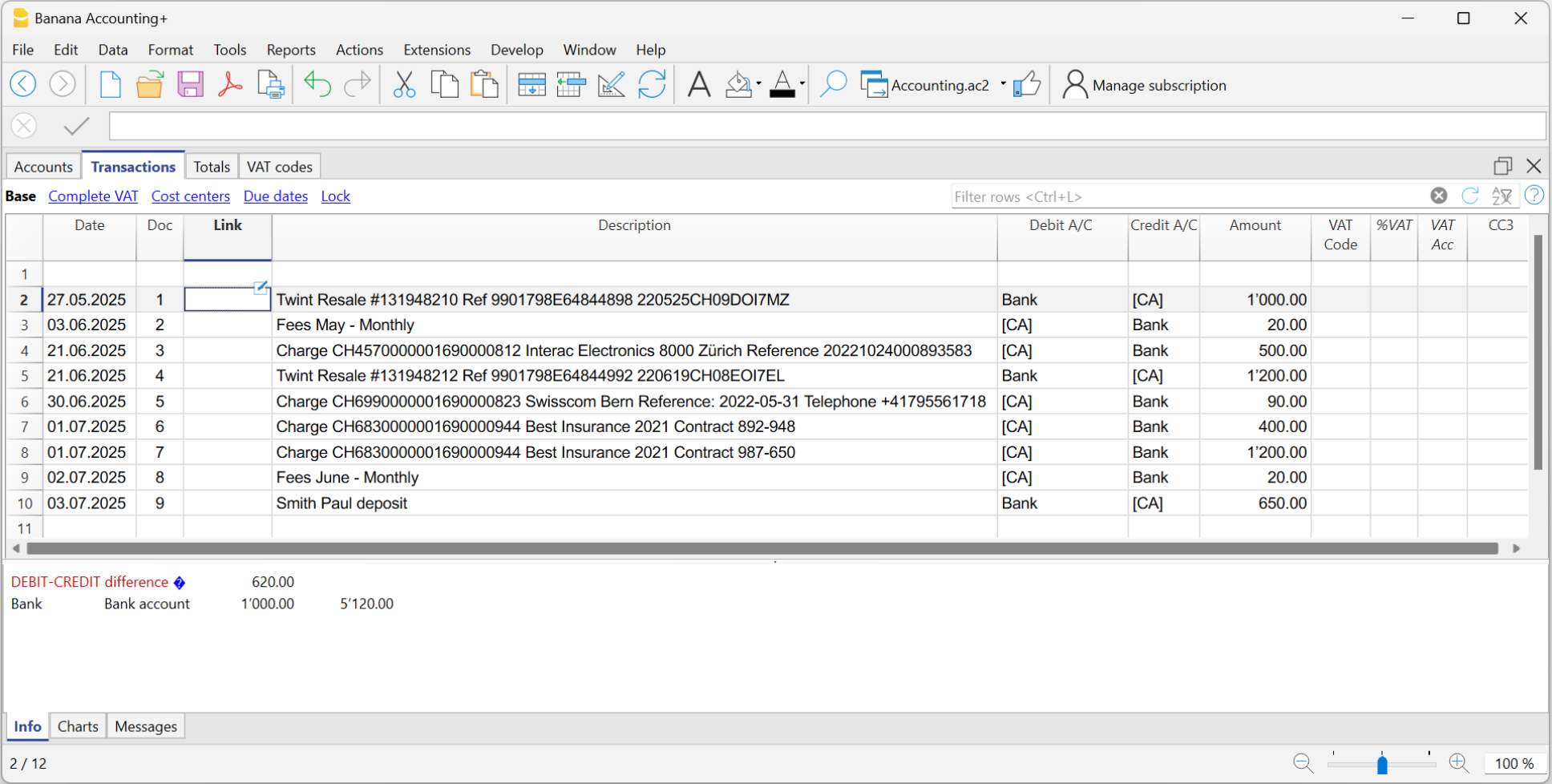
Complete the imported transactions
In the Transactions table, complete the imported bank transactions by entering the necessary accounting data:
- Contra account: replace the temporary account [CA] with the correct account from the chart of accounts.
- VAT code: enter the VAT code, if necessary.
- Cost centers and other data: complete the relevant columns according to your accounting needs.
The completed transactions will serve as the basis for creating the Rules.
Transactions on multiple rows
If a bank transaction needs to be split across multiple accounts, the program initially imports it as a single transaction, with the total amount and the temporary contra account [CA].
To complete it:
- Remove the temporary contra account [CA] from the imported transaction.
- Insert the additional rows immediately below the transaction.
- For each new row, specify the description, contra account, amount and any VAT codes or cost centers.
The following image shows the completed transactions, including those split across multiple rows.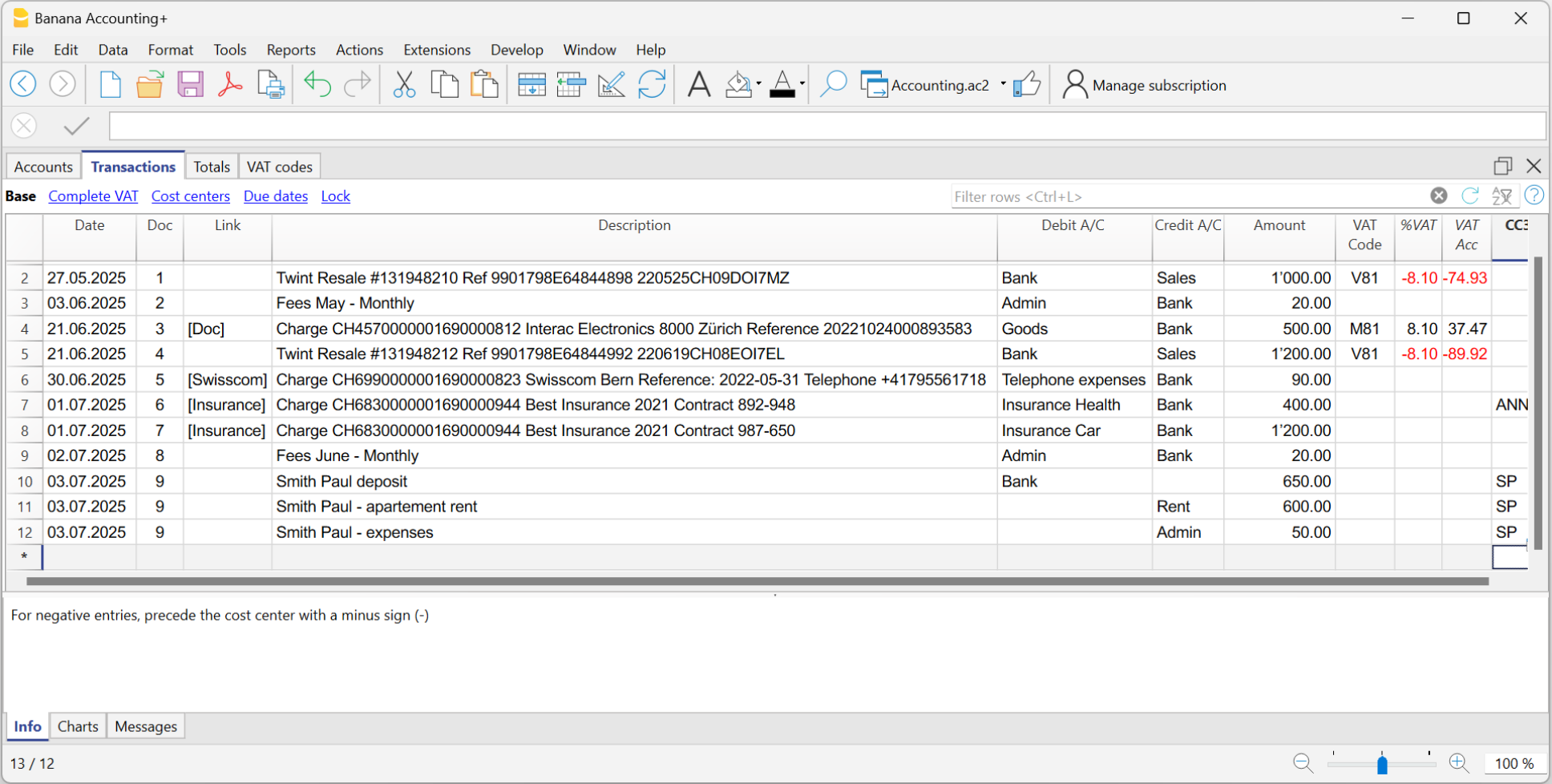
Create the Rules
After completing the bank transactions in the Transactions table, you can create Rules directly from the selected transactions.
Proceed as follows:
- Select the rows of the completed transactions for which you want to create Rules.
- Right-click the selection and choose Create rules from selection.
Alternatively, use the menu Actions > Recurring transactions > Create rules from selection.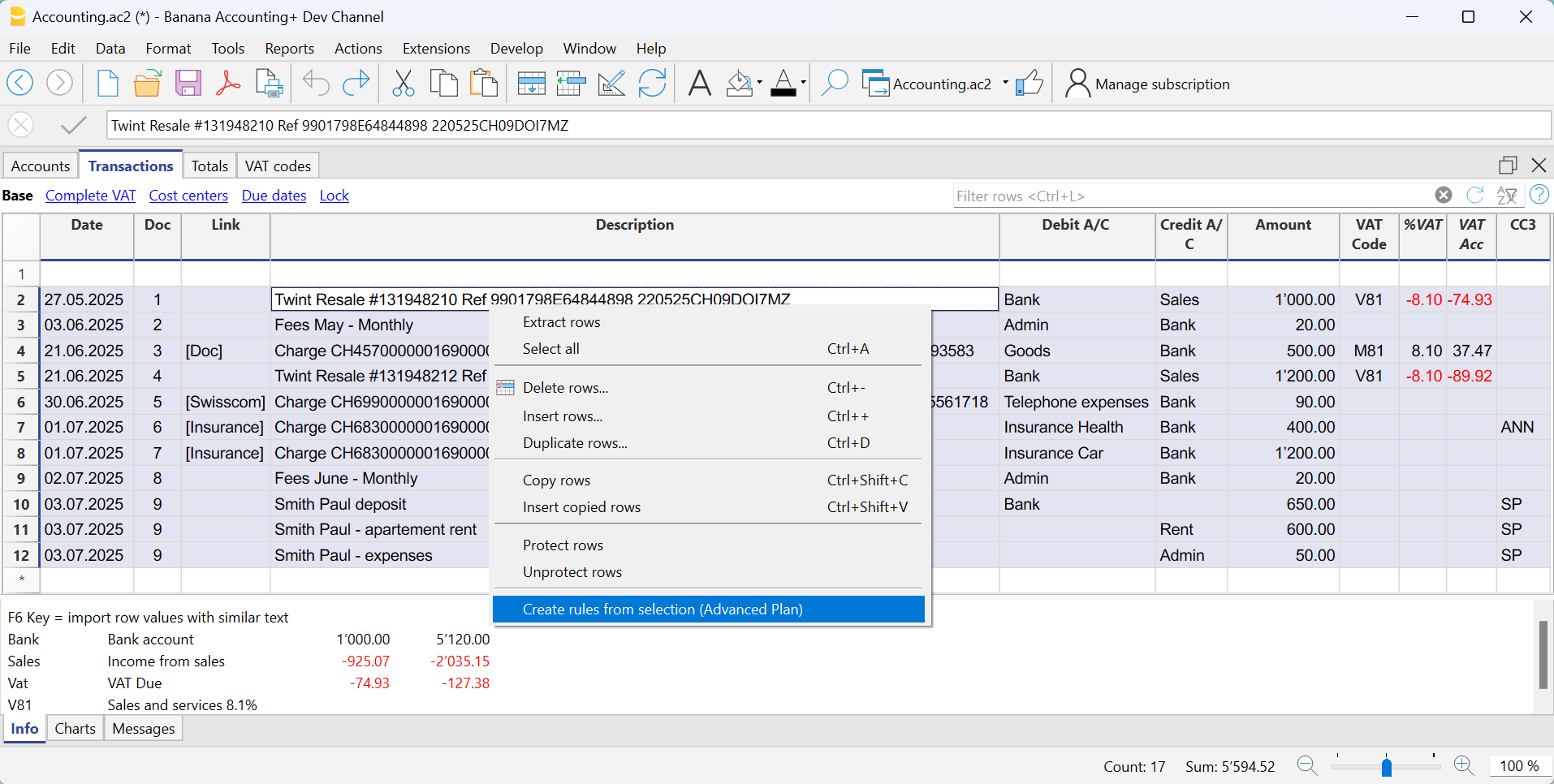
The program creates the Rules in the Recurring Transactions table, copying the data from the selected transactions, including the contra accounts and other accounting information.
Important: the Rules are created using the data from the selected transactions. Before using them in subsequent imports, you must check and complete the matching conditions in the Recurring Transactions table.
Complete the Rules
After creating the Rules from the selection, open the Recurring Transactions table to check and complete the information needed to recognize future transactions.
1. Edit the search description
In the Description column, the program initially copies the text of the imported bank transaction.
Edit this text, keeping only the keywords and references that identify the transaction and removing variable information, such as dates, invoice numbers or individual payment identifiers.
For example, you can use:
- Best Insurance – Searches for this sequence of words in the bank description.
- +Best Insurance 892-948 – Searches for all the specified keywords and numerical sequences, regardless of their order and position in the description.
Important: when using specific references, such as contract, policy or customer numbers, the + symbol at the beginning of the search criteria allows transactions to be recognized even if the order of the information in the bank description changes.
For more details, see the Description condition.
2. Check the Debit and Credit accounts
In the Debit account and Credit account columns, the program copies the accounts from the selected transactions.
In particular, check the following:
- Contra account: check that it is the correct account and change it if necessary.
- Bank account used for the import: if you want the Rule to apply to a specific bank account, the account must be specified without square brackets. If it is enclosed in square brackets, for example [1020], remove the brackets.
- Rule valid for multiple bank accounts: if you want to apply the same Rule to transactions imported from different bank accounts, remove the bank account used for the import from the Rule and leave only the contra account. In this way, the Rule recognizes transactions based on their description, regardless of the bank account they come from.
Important: a bank account enclosed in square brackets is treated as a comment and is not used as the main account for identifying matching transactions.
3. Complete Rules for transactions on multiple rows
For transactions split across multiple rows, the Rule must be set up correctly:
- In the first row, enter empty square brackets [] in the contra account column.
- In the subsequent rows, enter !RuleSplit in the Doc column.
- Check that each row contains the correct contra account, amount and any VAT data or cost centers.
The following image shows the completed Rules in the Recurring Transactions table, including those on multiple rows.
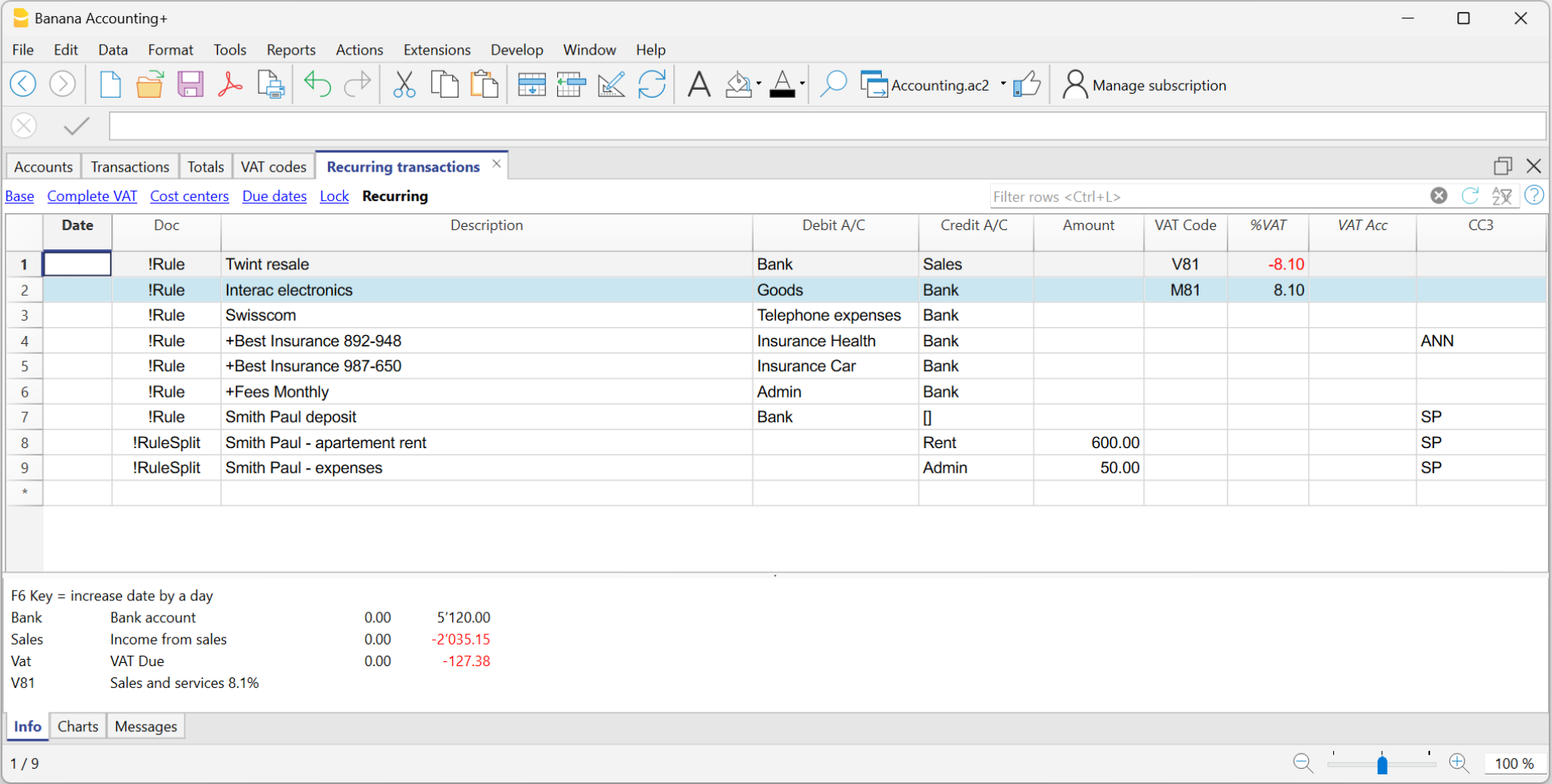
For more information, see the documentation on transactions on multiple rows with !RuleSplit.
Apply the Rules in subsequent imports
The procedure for creating and configuring the Rules only needs to be carried out the first time.
In subsequent imports, the program recognizes transactions that match existing Rules and completes them automatically when the Rules are applied.
For new transactions without Rules, you can:
- Complete the transactions manually, if they are occasional transactions.
- Create new Rules, following the same procedure, to automate future transactions as well.
Identify transactions that still need to be completed
To find imported bank transactions that still have the temporary contra account [CA], use the Filter rows function in the Transactions table, entering the text [CA]. The filter displays transactions that contain this temporary contra account and still need to be completed.
You can then decide whether to complete them manually or create new Rules to automate the recording of similar transactions in subsequent imports.
Automation rules in the Recurring transactions table
Rules are stored in the Recurring transactions table, accessible from the menu Actions > Recurring transactions > Recurring transactions table.
Rows containing !Rule or !RuleSplit in the Doc column are used to define Rules.
In the Rule rows, the table columns have a specific meaning and are divided into two categories:
- Condition (or search) columns: contain the criteria used to identify imported bank transactions and determine when to apply a Rule.
- Action (or replacement) columns: contain the data to be automatically entered in the transactions that match the Rule.
The main condition columns are Doc, Date, Description, Debit/Credit Account and Amount. The other columns can be used to complete the transactions, as described below.

Condition columns
The condition columns define which bank transactions must be identified by the Rule.
Doc column (mandatory)
In the Doc column, enter one of the following values:
- !Rule: identifies the main row of a Rule.
- !RuleSplit: identifies an additional row of a Rule that creates transactions on multiple rows. It must be used in the rows following the main Rule.
Description column (mandatory)
In the Description column, enter the text that the Rule must search for in the description of the imported bank transactions.
You can use different search methods:
- Search by phrase: enter the words in the same order in which they must appear in the bank transaction description. For example, Best Insurance.
- Search by independent words: enter the + symbol before the first word, for example +Best Insurance 892-948. The Rule searches for all the specified words, even if they appear in a different order or are separated by other words.
- Search by alternative words: separate the words with the | symbol, for example coffee|restaurant. The Rule identifies transactions containing at least one of the specified terms.
You can also assign a name to the Rule by entering it in square brackets at the beginning of the description. The name is optional and makes it easier to identify the Rule.
For more information, see the Description condition.
Debit and Credit Account columns (recommended)
These columns allow you to specify the bank account to which the Rule applies.
In Double-entry accounting:
- Debit Account: is used as a condition to identify incoming transactions.
- Credit Account: is used as a condition to identify outgoing transactions.
In Income & Expense accounting, use the Account column.
Normally, the specified account is the bank account from which the transactions are imported. If you want the Rule to apply to a specific bank account, enter the account without square brackets. If you want to apply the same Rule to transactions from different bank accounts, you can remove the bank account used for the import, leaving only the contra account.
Important: a bank account enclosed in square brackets, for example [1020], is treated as a comment and is not used as a condition to identify transactions.
For more details, see the Account condition.
Date column (optional)
The Date column allows you to limit the application of the Rule to a specific period.
This is useful when a Rule must only be applied to bank transactions within a specific date range.
Amount column (optional)
The Amount column allows you to limit the application of the Rule to a specific amount or range of amounts.
In Income & Expense accounting, use:
- Income: for incoming transactions.
- Expenses: for outgoing transactions.
For more information, see the Conditions for Rules.
Replacement columns
The replacement columns contain the accounting information that the Rule must enter in the imported transactions.
Contra account column
Specify the accounting account that must replace the temporary contra account [CA], or the one selected in the Apply rules dialog.
In Double-entry accounting:
- Incoming transactions: use the Credit Account column.
- Outgoing transactions: use the Debit Account column.
In Income & Expense accounting, use the Category column.
VAT Code column
Enter the VAT Code to be applied to the bank transaction. When the Rule is applied, Banana Accounting automatically completes the VAT-related columns.
Cost center columns (CC1, CC2, CC3)
Enter the cost centers to be assigned to the bank transactions identified by the Rule.
Notes column
You can enter additional information that will be transferred to the imported transactions. The Notes column can also be used to enter temporary text that makes it easier to find transactions that need to be checked or completed manually.
Other columns
All columns that are not used as condition columns can be used as replacement columns, except for ExternalReference. The ExternalReference column is reserved for bank imports and is used to identify imported transactions, helping to prevent duplicates.
Linking supporting documents using the DocLink column
The DocLink column makes it easier to associate bank transactions with their corresponding digital documents, such as invoices and other supporting documents. You cannot enter a direct link to a specific document in the Rule, because each bank transaction may have a different supporting document. However, you can enter search text in square brackets, which will be transferred to the imported transaction and used to identify the documents to be linked.
How to proceed
- In the Recurring transactions table, enter text in square brackets in the DocLink column, for example [invoice].
- Inside the square brackets, specify a word that must appear in the file name of the supporting document.
- Import the bank transactions and apply the Rules.

- In the Transactions table, the identified transactions contain the text in square brackets in the Link column.

Searching for transactions without supporting documents
In the Transactions table, use the Filter rows function by entering the text !link![ ]. The program displays the transactions that contain square brackets in the Link column and for which you still need to enter a link to the document.
When you edit a cell in the Link column, Banana Accounting uses autocomplete to suggest files that have not yet been associated with a transaction and whose names contain the text specified in square brackets.
Example: if the Link column contains [invoice], the program suggests files that have not yet been linked and contain the word "invoice" in their names.
This allows you to identify and link supporting accounting documents more quickly.
Quickly finding and completing transactions
After importing bank transactions and applying the Rules, some transactions may require additional information or manual checks.
To quickly identify the transactions that need to be completed, you can use two methods.
Using the Notes column
You can enter temporary search text in the Rules, which will be transferred to the imported transactions and used to identify them through a filter.
Proceed as follows:
- In the Notes column of the Recurring transactions table, enter identifying text, for example #city. You can also use another available replacement column, provided it is not reserved for the Rule conditions.
- Import the bank transactions and apply the Rules.
- In the Transactions table, use the Filter rows function, searching for the same text #city.
The program displays the transactions containing the specified text, allowing you to quickly identify and complete them.
Coloring the Rule rows
You can assign a color to the Rule rows in the Recurring transactions table.
When you apply the Rules, the color is transferred to the Transactions table, highlighting the transactions to which the Rule has been applied.
To display only the colored transactions, use the Filter rows function by entering the text !_co!.
This method allows you to visually identify and filter transactions that require manual checking or completion.

Transactions on multiple rows (split rows)
Normally, when you apply a Rule to an imported bank transaction, Banana Accounting completes the transaction by entering a single contra account.
Rules with !RuleSplit can only be created and edited in the Recurring transactions table. Rules associated with !RuleSplit rows are not displayed in the Add/Edit rules dialog. They are available in the Add/Edit rules dialog, which does not display Rules associated with !RuleSplit rows.
Example: receiving a rent payment
Suppose you regularly receive a bank payment of 550, which must be split between two revenue accounts:
- 550: total rent payment received, recorded in the bank account specified in the Rule.
- 500: rental income, to be allocated to the Rental income account.
- 50: income from additional charges, to be allocated to the corresponding accounting account.
The Rule therefore uses one main row for the incoming bank payment and two additional rows to split the amount between the revenue accounts.
How to create a Rule on multiple rows
1. Set up the first row (!Rule)
The first row identifies the imported bank transaction and contains the conditions for identifying it.
- In the Doc column, enter !Rule.
- In the Description column, enter the text to search for in the description of the imported bank transactions.
- In the contra account column, enter the account to be used or empty square brackets
[]if you want to leave the account empty.
2. Set up the following rows (!RuleSplit)
The following rows define the additional transactions to be created when the Rule is applied.
- In the Doc column, enter !RuleSplit.
- In the Description column, enter the text that must appear in the additional transaction.
- In the Debit Account and Credit Account columns, enter the accounting accounts to be used or leave them empty, depending on the requirements of the transaction.
- In the Amount column, enter the amount to be allocated to the additional transaction.
- In the other columns, enter any VAT Codes, cost centers and other accounting data to be transferred to the additional rows.
In the rent example, the two !RuleSplit rows contain the amounts of 500 and 50, with their respective revenue accounts. You can also specify the cost center associated with the tenant.
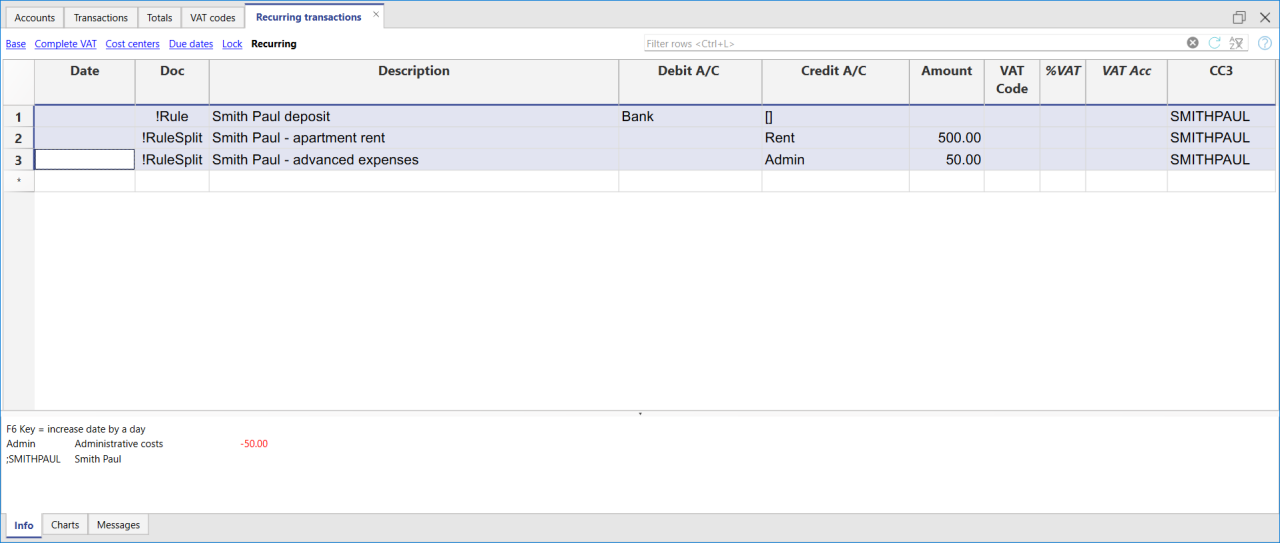
Fixed amounts in Rules on multiple rows
Important: the amounts specified in the !RuleSplit rows are fixed. It is currently not possible to use formulas to calculate them automatically based on the amount of the imported bank transaction.
In the example, the Rule is set up for an incoming payment of 550. If the actual amount received is different, you must check and complete the transaction manually.
Editing Rules in the Recurring transactions table
You can edit, delete or create new Rules directly in the Recurring transactions table, even when the existing Rules were created using the Apply rules dialog.
You can also create new Rules in advance to automate bank transactions that you expect to import in the future.
Setting a description different from the imported one (Notes column)
When you import bank transactions, Banana Accounting transfers the original text from the bank statement to the Description column of the Transactions table. These descriptions are often very detailed.
Rules do not allow you to automatically change the original description of imported transactions.
However, you can use the Notes column of the Recurring transactions table to prepare an alternative description, which can later be copied to the Description column of the Transactions table.
Important: if you already use the Notes column for other notes, you can use a custom column, as explained in the next section.
How to proceed
1. Enter the alternative description in the Rule
- Open the Recurring transactions table.
- Display the Notes column using the Data > Columns setup menu, enabling the display of the Notes column.
In the Notes column of each relevant Rule, enter the text you want to use as the description in the Transactions table.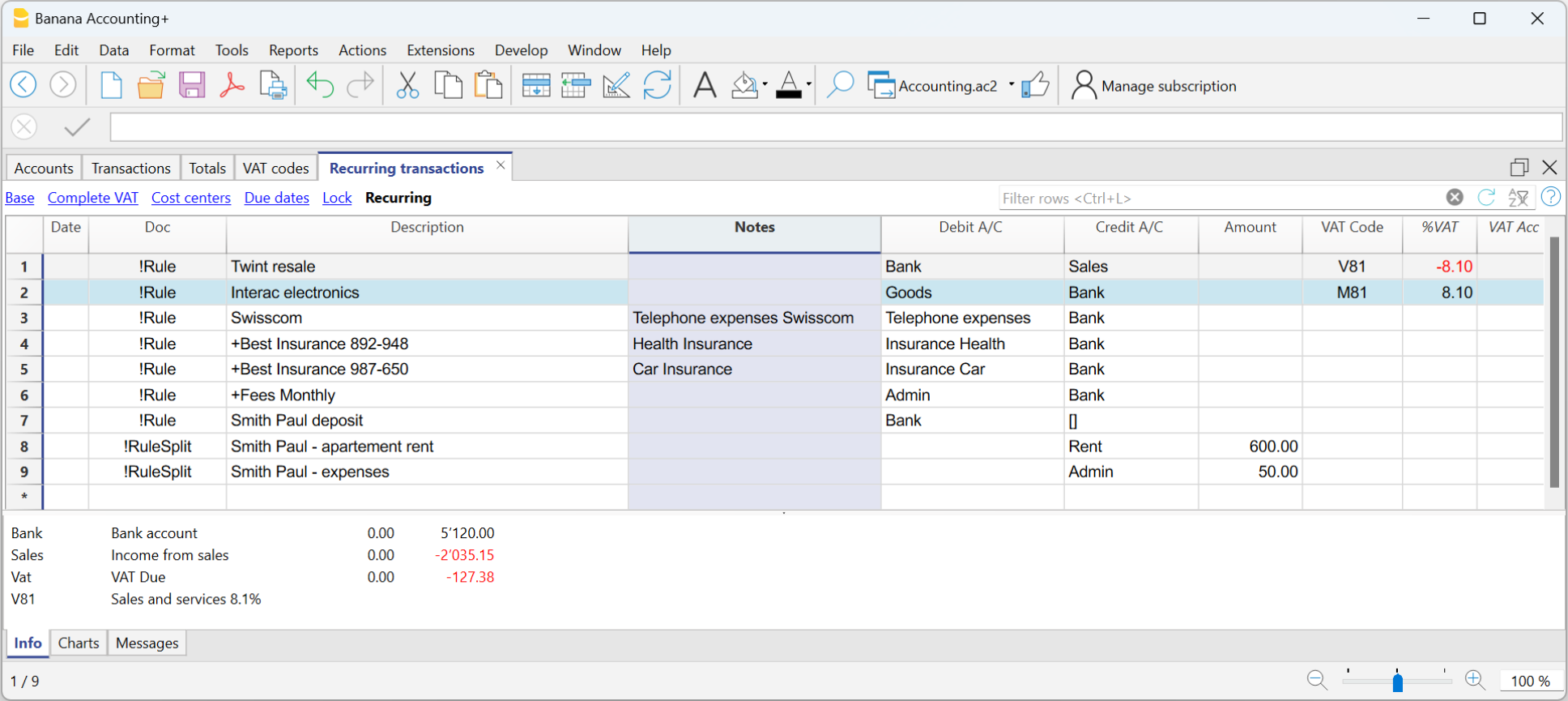
2. Import the bank transactions and apply the Rules
- Import the bank transactions and apply the Rules.
- In the Transactions table, display the Notes column using the Data > Columns setup menu.
- The program automatically transfers the alternative descriptions defined in the Rules of the Recurring transactions table to the Notes column.
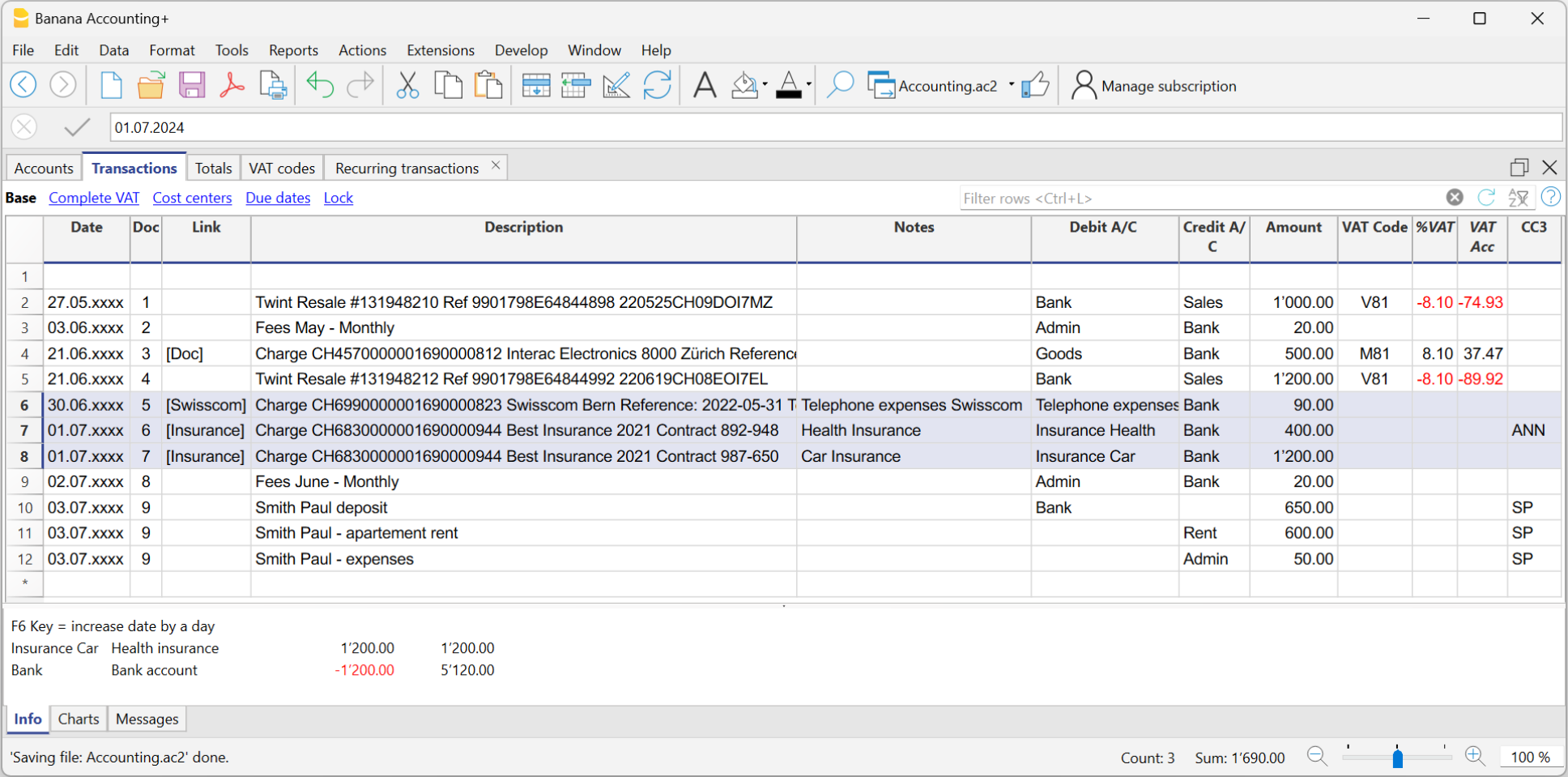
3. Manually replace the original description
- For each relevant transaction, copy the text from the Notes column and paste it into the Description column, replacing the original text imported from the bank. The following image shows the transactions after the descriptions have been manually replaced.
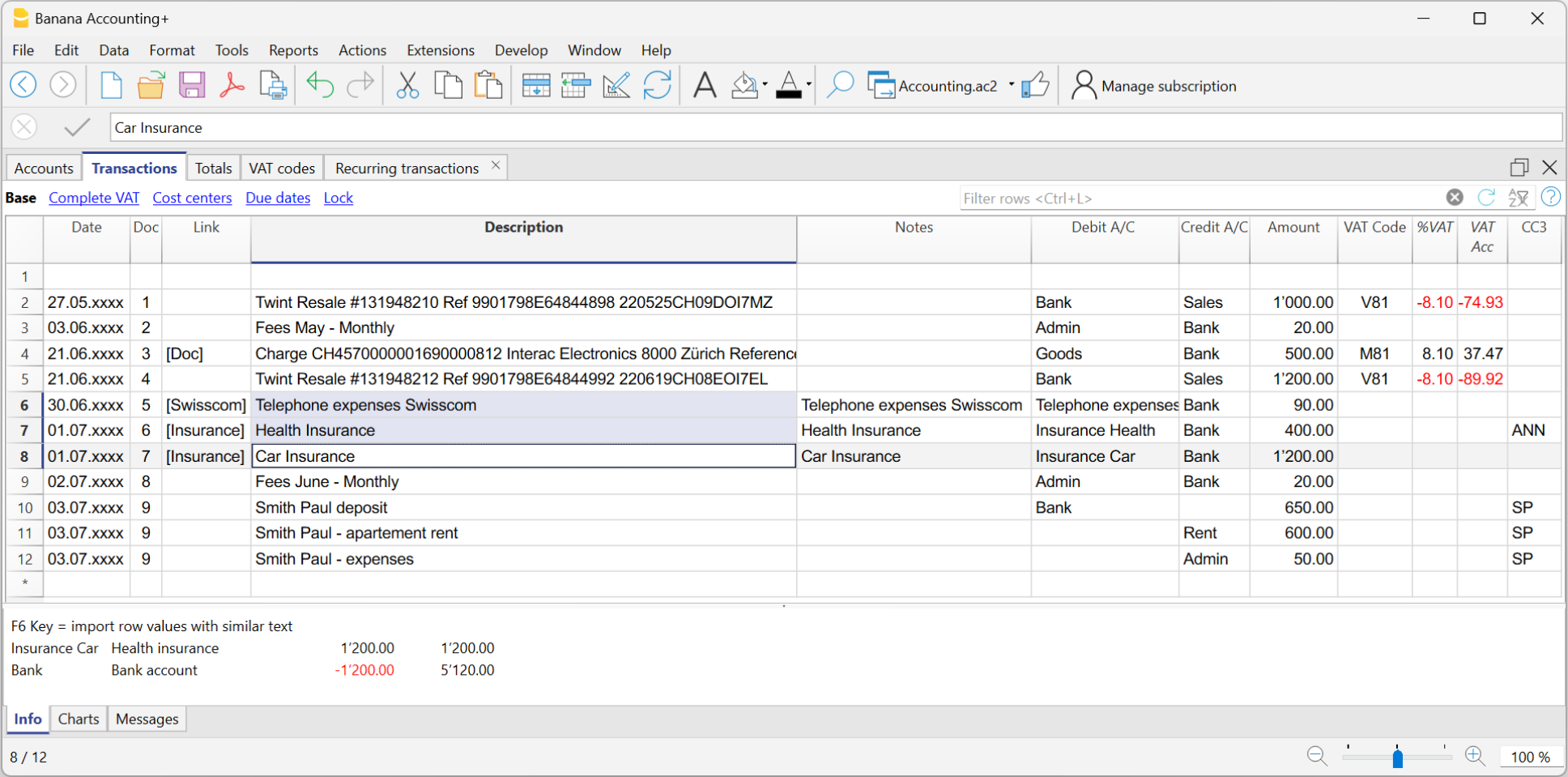
Setting a description different from the imported one – Custom column
In the Recurring transactions table, you cannot add custom columns directly. To use a custom column in the Rules, you must first add it to the Transactions table. The new column will also be available in the Recurring transactions table. You can then use it to store an alternative description to the original description of the imported bank transaction, without using the Notes column.
The procedure is the same as described in the section Setting a description different from the imported one – Notes column.
Important: the alternative description is transferred to the custom column when you apply the Rule. To replace the original bank transaction description, you must manually copy it to the Description column of the Transactions table.
Creating the new year file with the Rules
When you create the file for the new accounting year using the Actions > Create new year command, Banana Accounting automatically transfers the Rules stored in the Recurring transactions table to the new file. You can therefore continue to use the Rules for bank imports in the new year, without having to recreate them.
However, it is advisable to check that the accounts, VAT Codes and other references used by the Rules are still valid for the new accounting year.
Copying Rules between accounting files
If you manage several similar accounting files, for example for clients with similar characteristics, you can reuse previously created Rules, without having to set them up again.
When the accounting files have the same chart of accounts, or a compatible structure, you can copy the Rules from the Recurring transactions table of one file to that of another.
How to copy Rules
- Open the source file, which contains the Rules to be reused.
- Display the Recurring transactions table using the Actions > Recurring transactions > Recurring transactions table menu.
- Select the rows of the Rules you want to copy.
- Copy the rows using the Edit > Copy rows command, or the Ctrl + C keyboard shortcut.
- Open the destination file and display the Recurring transactions table.
- Paste the Rules using the Edit > Insert copied rows command, or Ctrl + V.
Important: before copying, check that the columns are arranged in the same order in both files. After copying, check that the accounts, VAT Codes and other references used by the Rules are also valid in the destination accounting file.
Creating a Rules library
You can also create a dedicated accounting file to use as a Rules library.
In this file, you can collect the Rules you use frequently and copy them to new accounting files when needed.
This allows you to reuse previously defined transaction criteria, avoiding the need to recreate the same Rules and maintaining greater consistency between similar accounting files.
Rule conditions
The Rule conditions are criteria that define when a completion Rule must be applied to an imported bank transaction.
You can set the conditions when creating or editing a Rule in the Add/Edit rule dialog, accessible from the Apply rules dialog, or directly in the Recurring transactions table.
The conditions can refer to the Description, Account, Amount and Date.
A Rule is applied only if all the specified conditions are met. If even one condition is not met, the Rule is not applied. Conditions left empty are ignored.

Description condition
The Description condition allows you to identify bank transactions based on the text in the bank statement description.
Enter a word or a short phrase that identifies the transactions to be automated, such as the name of a supplier, a service or a contract number.
Banana Accounting compares the text specified in the Rule with the description of the imported bank transactions. When a match is found and all the other specified conditions are met, the Rule is applied.
For better results, it is advisable to use only the keywords needed to identify the transaction, avoiding information that may vary in the bank transaction descriptions.
Search methods in the Description
You can use different search methods:
- Search by word or phrase: the program searches for the specified word or sequence of words in the same order.
- Best Insurance 892-948 – Identifies transactions containing this sequence of words and numbers.
- Insurance – Identifies transactions containing the word "Insurance".
Search by independent words (+): enter the + symbol only once before the first word. For example, +Best Insurance 892-948. The Rule searches for all the specified words and number sequences, even if they appear in a different order or are separated by other words. The + symbol is not considered part of the search text.
Important: when the bank transaction description contains contract, policy or customer numbers, or other specific references, it is advisable to use the + symbol. This allows the Rule to identify the transaction even if the order of the information in the description changes.
- Search by alternative words (|): use the | symbol to separate alternative words. For example, coffee|restaurant. The Rule identifies transactions containing at least one of the specified words.
- Uppercase and lowercase: the search is not case-sensitive. For example, a Rule that searches for Insurance also identifies INSURANCE and insurance.
The text used as a condition is stored in the Description column of the Recurring transactions table.
Warning: avoid using the entire original description from the bank statement. It may contain dates, reference numbers or identifiers specific to a single transaction, preventing the Rule from identifying similar transactions in subsequent imports.
Account condition
The Account condition allows you to limit the application of the Rule to transactions imported from a specific bank, postal or credit card account.
- Account specified: the Rule identifies only transactions from the specified account, provided that the other conditions are also met.
- Account left empty: the Rule can be applied to transactions from different bank accounts, provided that all the other specified conditions are met.
Banana Accounting uses the bank account and the transaction type to correctly complete the transaction in Debit or Credit.
This option is useful, for example, when you want to use the same Rule to identify payments to a supplier made from different bank accounts.
Amount condition (or Amount in currency)
The Amount condition allows you to apply a Rule only to bank transactions with a specific amount or within a specified range of amounts.
This is useful, for example, when you want to assign different contra accounts to transactions from the same supplier based on the amount.
The feature for defining ranges of amounts is available starting from version 10.2.3 of Banana Accounting Plus (Dev Channel).
How to set an Amount condition
The condition must:
- Start with the ! symbol.
- Be enclosed in square brackets [ ].
- Use unformatted amounts, without thousands separators and with a period as the decimal separator.
- Use the supported comparison operators: =, >, <, >=, <=, <>.
For example, to identify transactions with an amount greater than or equal to CHF 1'000.00, enter:
[!>=1000.00]

In the image, the Rule identifies transactions with the description "Purchase of office supplies" and an amount greater than or equal to CHF 1'000.00, assigning the contra account to account 1510 Furniture and fixtures.
This condition allows you to distinguish between transactions with similar descriptions but different amounts.
Examples of conditions applicable to the Amount column
| Syntax | Meaning |
| [!=1000.00] | transactions with an exact amount of CHF 1'000.00 |
| [!>1000.00] | transactions with an amount greater than CHF 1'000.00 |
| [!>=1000.00] | transactions with an amount greater than or equal to CHF 1'000.00 |
| [!<1000.00] | transactions with an amount less than CHF 1'000.00 |
| [!<=1000.00] | transactions with an amount less than or equal to CHF 1'000.00 |
| [!>=1000.00 !<=2000.00] | transactions with amounts between CHF 1'000 and CHF 2'000 |
| [! |!100.00 |!<150.00] | transactions with an exact amount of CHF 100.00 or CHF 150.00 |
Date condition
The Date condition allows you to apply a Rule only to bank transactions with a specific date or within a specified period.
- This is useful when you want to apply different accounting criteria based on the month, quarter or year, for example when VAT rates or accounting procedures change.
- This feature is available starting from version 10.2.3 of Banana Accounting Plus (Dev Channel).
How to set a Date condition
- Open the Add/Edit rule dialog.
- Select the Date field.
- Enter the condition in the Comment field.
- The condition must:
- Start with the ! symbol.
- Be enclosed in square brackets [ ].
- Use the date in ISO format YYYY-MM-DD.
- For example, to identify transactions dated before April 1, 2025, enter:
- [!<2025-04-01]

In the image, the Rule is applied to transactions dated before April 1, 2025.
The Date condition allows you to distinguish between transactions by month, quarter or year, for example when a VAT Code must be used until a specific date and replaced by another code in subsequent transactions.
Examples of conditions applicable to the Date column
| Syntax | Meaning |
| [!=2025-03-31] | transactions dated 31.03.2025 |
| [!>2025-03-31] | transactions dated after 31.03.2025 |
| [!>=2025-03-31] | transactions dated on or after 31.03.2025 |
| [!<2025-03-31] | transactions dated before 31.03.2025 |
| [!<=2025-03-31] | transactions dated on or before 31.03.2025 |
| [!>=2025-03-31 !<=2025-06-30] | transactions within the date range from 31.03.2025 to 30.06.2025 |
| [! |!2025-03-15 |!<2025-03-18] | transactions dated 15.03.2025 or 18.03.2025 |
How to define conditions in the Recurring transactions table
You can enter and edit conditions directly in the Recurring transactions table, using the same syntax described in the previous sections.
The conditions are entered in the Rule columns, such as Description, Debit Account, Credit Account, Amount and Date.
When all the specified conditions match the data of the imported bank transaction, the Rule can be applied to complete the transaction.

Rule weight and conflict resolution
The weight of a Rule determines which Rule takes priority when multiple Rules identify the same bank transaction.
The weight depends on the number of specified conditions: the greater the number of conditions, the greater the weight of the Rule.
When multiple Rules can be applied to the same transaction, Banana Accounting selects the one with the highest weight, considering it more specific.
This allows you to use general Rules and more detailed Rules at the same time, letting the program automatically apply the one with the highest priority.
| Date | Doc | Description | Debit A/C | Credit A/C |
| !Rule | Credit | 1100 Accounts receivable | ||
| !Rule | Credit Fratelli Bernasconi | 1030 | 1150 Customer Bernasconi |
Suppose you import a transaction with the description "Credit Fratelli Bernasconi" into bank account 1030.
Both Rules identify the transaction:
- First Rule: identifies the word "Credit" and contains a general contra account.
- Second Rule: identifies the description "Credit Fratelli Bernasconi" and contains an additional condition on Debit Account 1030.
The second Rule has a higher weight because it contains an additional condition on the Debit Account and is therefore applied with priority.
The transaction is completed with the contra account 1150 Customer Bernasconi, instead of the general contra account 1100 Accounts receivable.
This allows you to define general Rules for common transactions and specific Rules for particular transactions, letting Banana Accounting automatically select the one with the highest priority.
The benefits of deterministic rules in accounting automation
The bank transaction automation system in Banana Accounting was developed in collaboration with our users, taking into account the limitations of probabilistic systems based on Artificial Intelligence (AI) and the need to reduce the risk of accounting errors.
The efficiency of an accounting automation system is measured not only by the percentage of automated transactions, but also by the total time required to obtain accurate accounts, including the work involved in checking, identifying and correcting any errors.
For this reason, the system is based on deterministic Rules and a preview that allows you to check the results before confirming the transactions.
The Rules follow a deterministic logic: under the same conditions, the program always applies the same instructions and produces the same result.
Unlike AI systems that use probabilistic models to suggest classifications, this approach offers the following features:
- Accounting decisions defined by the user: the Rules allow you to determine which bank transactions to identify and how to complete them, specifying accounts, VAT codes, cost centers and any segments.
- Explicit and verifiable instructions: you can check the conditions that determine when a Rule is applied and the accounting data that is entered.
- Preview and preventive checks: before confirming the application of the Rules, you can view the bank transactions, the matching Rules and the results of completing the transactions. This allows you to identify and correct any errors before they are entered into the accounts.
- Immediate automation, without the need for historical data: once the accounting criteria have been defined by the user, the Rules are immediately operational, even for new or infrequent transactions, without the program having to learn from previous transactions.
The advantages of Rule-based automation
- Predictable and verifiable results: the same Rules produce the same results under the same conditions, consistently applying the defined accounting criteria.
- Control over accounting decisions: the transaction entry criteria are defined by the user and can be checked or modified at any time, even for transactions involving multiple accounts, VAT codes, cost centers or segments.
- Adaptation to specific business requirements: the Rules can be customized according to the needs of each business, regardless of the amount of accounting data available.
- Immediate automation, without learning: the Rules work as soon as they are created, even for new or infrequent transactions.
- Adaptation to changes: the Rules can be updated when VAT rates, the chart of accounts, the business organization or accounting criteria change.
- Preservation of accounting knowledge: the Rules document the transaction entry criteria and provide a knowledge base that can be consulted, shared, reused and updated over time.
The Rules do not replace the accountant in making decisions, but turn the defined accounting criteria into instructions that the program applies automatically in a consistent, repeatable and controllable way.
Previewing and checking the Rules before applying them
One of the important features of Banana Accounting is the ability to check in advance how the Rules will be applied to imported transactions.
The Apply rules dialog displays:
- The imported bank transactions and their matching Rules.
- The transactions for which no matching Rule has been found.
- The existing Rules, which can be checked and modified before being applied.
This preview allows you to identify any incorrect matches, modify the Rules and check their effect on the transactions before confirming their application.
Preventive checks are particularly important because an incorrect Rule could be applied to numerous transactions, generating accounting entries that would subsequently require time to identify and correct.
The preview does not eliminate the need to check the accuracy of the accounting criteria, but it allows you to identify many problems before they affect the transactions.
For more information, see the Apply rules dialog.
The elements that make accounting automation reliable
The reliability of an accounting automation system depends not only on the number of completed transactions, but also on the ability to control the process and prevent errors.
The key elements are:
- Predictable and repeatable results: under the same conditions, the system always applies the same accounting criteria.
- Customizable Rules: the ability to adapt the Rules to specific business requirements and update them when needs change.
- Precise transaction completion criteria: the ability to define in detail the search conditions and the values to be entered or replaced, including across multiple accounting elements.
- Preview of the results: the ability to check which Rules will be applied to individual transactions and how the transactions will be completed.
- Management of unrecognized transactions: the ability to identify transactions for which no applicable Rules exist and complete them manually.
- Correction and undo: the ability to identify errors, modify the Rules and undo their application.
These elements make it possible to achieve a high degree of automation, reducing manual work and the risk of errors while maintaining control over accounting transactions and the ability to verify them.
High degree of automation and reduced accounting time
The Rules in Banana Accounting make it possible to achieve a high degree of bank transaction automation, significantly reducing the time required for bookkeeping.
Once the Rules have been defined, the program can automatically identify and complete numerous imported transactions, even when they require the assignment of multiple accounting elements or the creation of split transactions.
The system allows you to:
- Automate most repetitive transactions: the Rules are reused with each import, without having to enter the accounting information again.
- Gradually increase the degree of automation: each new Rule allows you to automate additional types of transactions, reducing manual work in subsequent imports.
- Focus on specific cases: unrecognized transactions can be completed manually or used to create new Rules.
- Reduce the time spent on checks and corrections: the preview allows you to check the matches and results before confirming them, limiting the risk of systematic errors.
Deterministic automation therefore makes it possible to quickly complete a large number of transactions, with predictable and controllable results.
Accounting accuracy depends on the Rules that have been defined and the checks that have been carried out, but the system allows you to automate repetitive work without relying on probabilistic classifications for accounting decisions.
The limitations of accounting automation based on Artificial Intelligence
Accounting automation systems based on Artificial Intelligence (AI) often use probabilistic models to analyze bank transactions and suggest how to record them. Classifications are generated based on the available information, the models used and, in some cases, previous transactions.
This approach can make transaction classification easier, but it presents some challenges:
- Plausible but incorrect classifications: the system may suggest an account or a VAT code that appears appropriate but does not correspond to the actual nature of the transaction or the accounting criteria adopted.
- Difficulties with multidimensional classifications: a transaction may require the simultaneous assignment of an account, a VAT code, a cost center and a segment. Research shows that accuracy can decrease significantly when multiple accounting elements need to be correctly identified.
- Difficulties with split transactions: when a bank transaction must be split across multiple accounts and amounts, the system must correctly identify all the components. The bank transaction description often does not contain enough information to determine how the amount should be allocated.
- Results that are not always reproducible or explainable: depending on the model and its configuration, the same transaction may receive different classifications. It is not always possible to determine precisely which criteria led to a suggestion.
- Dependence on available information: models that use previous transactions may reproduce errors or accounting criteria that are no longer valid. Even a statistically probable classification may be incorrect if essential information is missing.
The challenges of adapting to small businesses
Small businesses present a particular challenge for probabilistic automation systems.
Each business may use a customized chart of accounts and specific criteria for assigning transactions to accounts, cost centers and segments. The same bank transaction may therefore require different accounting entries depending on the business.
Small businesses also have a limited number of historical transactions, which is often insufficient to effectively train or adapt a model. Some transactions occur only once or twice a year, making it difficult to learn the correct accounting treatment.
Even the latest AI models, which can operate without specific training, do not automatically know the internal accounting choices of each business. Adaptation may therefore require configuration, additional information and checks, with an effort that is not always proportionate to the size of the business.
The importance of accounting accuracy
Research on accounting automation using Machine Learning has highlighted significant difficulties in classifying cost centers and simultaneously predicting multiple accounting elements.
These findings do not necessarily apply to all AI systems, but they show how the complexity of transactions and specific business requirements can reduce the reliability of automatic classifications.
In accounting, it is not enough for a classification to be probable: all elements of the transaction must be correct and comply with the accounting criteria adopted.
Probabilistic systems can provide valuable support, but their suggestions require appropriate checks, especially when transactions are complex or depend on business-specific information.
When automation goes wrong: the consequences of accounting errors
One of the risks of accounting automation is that an incorrect classification may go unnoticed and be repeated across numerous transactions, generating errors that are difficult to identify and correct.
A transaction may have the correct date, amount and bank account, but be assigned to the wrong expense account, VAT code, cost center or segment. In these cases, the bank reconciliation may be correct even though the accounting classification is incorrect.
The consequences can be significant:
- Incorrect financial reports: the balance sheet, profit and loss statement, VAT reports and management reports may contain incorrect information.
- Errors repeated across numerous transactions: an incorrect classification may be applied systematically, compromising the reliability of the accounting data.
- Difficulty in identifying errors: transactions may appear correct during an initial check, requiring a more thorough review to identify incorrect classifications.
- Time-consuming corrections: it may be necessary to review numerous transactions, compare them with supporting documents and correct data relating to previous periods as well.
The time saved through automation may therefore be offset by the work required to identify and correct errors.
The reliability of an accounting automation system therefore depends not only on its ability to complete many transactions, but also on the ability to prevent, identify and correct errors in a simple and controllable way.
Recurring Transactions Table
The Recurring Transactions table is used to store transactions that are used repeatedly.
It contains three types of recurring transactions:
- Recurring transations stored and retrieved using the Doc column in the Transactions table.
These have an identifier code without any punctuation in the Doc column. - Rules for completing imported transactions.
These define how imported entries should be completed.
They have "!Rule" or "RuleSplit" in the Doc column. - Automatic transactions with regular intervals.
These are used to automatically generate transactions that repeat with a certain frequency, for example, monthly, quarterly, semi-annually, or annually.
They have "!Auto" in the Doc column.
Display and arrange columns and views in the Recurring Transactions table
Before inserting repetitive entries, you must display the Recurring Transactions table from the Actions > Recurring Transactions menu.
The Recurring Transactions table does not allow saving custom display settings but inherits views and column settings from the Transactions table.
To customize the columns and their layout in the Recurring Transactions table, you need to:
- Add a new view in the Transactions table.
- Arrange the columns setup the Transactions table in the desired order.
- In the Recurring Transactions table, choose the view that was created (in the Transactions table). The columns will be displayed in the same order as the created view.
Insert recurring transactions using the Doc column
- If the "End date" column is present (see Automatic transactions), you can also specify a date after which the entry should no longer be used in the Transactions table.
Transactions that are no longer used must be deleted manually.

The Recurring Transactions table in Income and Expense Accounting
The functionality of the Recurring Transactions table is the same as in Double-entry Accounting, only the columns differ:
- In Income/Expense accounting, the Account and Category columns are used.
- The Account column refers to the bank, postal, credit card account, etc. It indicates where the money is taken from or where it goes.
- The Category column indicates the category of the expense or income. It represents the reason for the expenditure or income.
- The Income and Expenses columns indicate the amount of the transaction.
- In double-entry accounting, the Debit Account and Credit Account columns and the Amount column are used.

Progressive numbering of documents "docnum"
If you need a different progressive numbering in the Doc column of the Transactions table, other than the automatic one, you can set it via the Recurring Transactions table.
Insert a row with the code docnum in the Doc column. From the following rows, the program will use the type of numbering indicated in the Description column.
"0" – If you don’t need automatic numbering.
"1" – For simple progressive numbering.
"doc-1" – For progressive numbering with a prefix, for example cash-1, cash-2, cash-3. Replace "doc-1" with the prefix you want (e.g., cash-1, cash-2, etc.).
The program replaces the number at the end of the text with a progressive number.
Managing display in suggestions
If you want only one row per code to be shown in the suggestions, you can use these prefixes in the description:
A single "*" – Displays only this row and not those with a similar code.
A double ""** – Displays only this row, but does not use it (title row only).
A backslash + asterisk "\*" – Allows you to start the description with an asterisk without it being interpreted as a command.
Retrieve recurring transactions in the Transactions table
In the Transactions table, you can retrieve the rows defined in the Recurring Transactions table:
- In the Transactions table, enter the date in the transaction row. You can also add other missing columns compared to those in the Recurring Transactions table, depending on the view you're using.
- In the Doc column of the Transactions table, select one of the codes defined in the Recurring Transactions table (Doc column) and press Enter:
- The program inserts the repetitive rows with the same code.
- If needed, you can always modify or complete some values.
- Rows stored in the Recurring Transactions table can also be retrieved in the Transactions table by entering the code in the Doc column and pressing the F6 key.
Copy transactions from the Transactions table to the Recurring Transactions table
Repetitive entries can also be inserted by copying entries from the Transactions table and pasting them into the Recurring Transactions table.
Proceed as follows:
- In the Transactions table, select the rows to copy.
- Edit Menu > Copy rows.
- Go to the Recurring Transactions table.
Edit Menu > Paste copied rows
You can also use the Ctrl + C and Ctrl + V keys to copy transactions.
Automatic transactions with recurring deadlines
Automatic transactions are useful for facilitating the recording of repetitive entries, such as subscriptions, insurances or taxes. By using automatic transactions, you only have to enter the entry of interest once, set a few parameters such as the start date, the frequency and the end date and then Banana Accounting Plus will inform you when an automatic transaction is ready to be created and will create it for you.
In Banana Accounting Plus, there are two ways to create automatic transactions:
- From the Recurring Transactions table
- From the Manage Automatic Transactions dialogue.
Requirements
- This feature is available in the latest release of Banana Accounting+ Dev Channel.
- It requires the Advanced plan. If you do not have this plan, you can request a promotional code valid for 1 month via the contact form.
- You need to add the End Date and Repeat columns to your accounting file.
- This feature is in Beta Test; we kindly ask you to test it and report any problem.
Adding the End Date and Repeat columns to your accounting file
To be able to activate the commands for automatic transactions, the End Date and Repeat columns must be added; without these columns the commands will not be displayed.
- Open your accounting file or create a new accounting from the File menu > New command.
- Select the command from the Tools menu > Add/Remove Functionalities...
- The Add/Remove Functionality dialogue will appear with the list of available functionalities.
- Select the option Add End Date and Repeat columns in Transactions table.
If this option is not available, check the Banana version and the plan you are using, as described in the Requirements section. - Click on the OK button.

Creating an automatic transaction from the Recurring Transactions table
- Select the command from the Actions menu > Recurring transactions > Create automatic transaction.
- The Recurring transactions table will appear with a new row, showing the date of the day in the Date column and the text !Auto in the Doc column, which serves to identify the automatic transaction.
- Update the Date column with the date of the first occurrence you wish to schedule.
- Display the End Date and Repeat columns with the command from the Data menu > Columns setup...
Make sure to check the Visible box for both the End Date and Repeat columns.
If these columns are missing, you can add them as described in the Adding the End Date and Repeat columns paragraph.
Note: The new columns are added to the Transactions table, but are only used in the Recurring Transactions table, visible in the Recurring view. - Add the desired repetition to the Repeat column. For example, if you want a quarterly repetition, enter the text 3MS in the Repeat column.
- If the automatic transaction has an expiry date, set it in the End Date column.
- Complete the Description, Debit Account, Credit Account and Amount columns.
- Select the command from the Actions menu > Recurring transactions > Manage automatic transactions to display the scheduled transactions.
Note: If you use the command from the Actions menu > Recurring transactions > Create automatic transaction from an existing transactions in the Transactions table, the Description, Amount and Accounts columns will show the text of the original transaction.
The Create automatic transaction command is also available in the context menu of the Transactions table (right-click on a transaction, and choose the Create automatic transaction command).
Creating an automatic transaction from the Manage automatic transactions dialogue
- Select the command from the Actions menu > Recurring transactions > Manage automatic transactions.
- The Manage automatic transactions dialogue will appear.
- Click on New automatic transaction button at the bottom of the dialogue.
- Complete the necessary fields:
- Start date
Date from which the first automatic transaction will start. When the transactions are generated, this date will be updated with the date of the last automatic transaction created. - End Date
- Repeat
- Description
- Account
- Contra-account
- Amount
- CC1, CC2, CC3
- Name or description (optional)
- Start date
- Click on the OK button.
Auto-completion rules for income and expenses accounting
In Income and Expenses Accounting and the Cash manager, the functionality for Completing Imported transactions works in the same way as for Completing transactions in Double-entry Accounting.
The main difference is as follows:
- In the Income / Expenses accounting, the columns Account and Category are used.
- The Account column refers to the bank account.
- The Category column is where the category is specified. It represents the counterpart account entered automatically.
- The Income and Expense columns are where the amount for the transaction is indicated.
- In double-entry accounting, the Debit Account and Credit Account columns, along with the Amount column, are used.
Therefore, even with income and expense accounting, it is possible to create rules using one of the following methods:
- Rules from the Apply Rules dialog.
- Rules from the Transactions table.
- Rules from the Recurring Transactions table.
The Recurring transactions table in Income / Expenses accounting
In the Recurring Transactions table, all imported transactions to which Rules have been applied are saved:
- The columns associated with the amount are the Income and Expenses columns.
- If no amount is specified, the rule will be applied to both outgoing and incoming transactions.
