Instalar Banana Contabilidad+
En esta página encontrarás una explicación paso a paso del proceso de instalación y activación de Banana Contabilidad Plus. Las imágenes de instalación se refieren al sistema operativo Windows; los otros sistemas operativos adoptan procedimientos similares.
Por favor consulta los requisitos del sistema antes de instalar Banana Contabilidad Plus.
Cómo descargar Banana Contabilidad Plus
Tan pronto como hagas clic en el botón de Descarga tu navegador descargará el archivo ejecutable de Banana Contabilidad Plus. Para ver el archivo descargado, haga clic en la flecha de su navegador. Aquí tienes un par de ejemplos con Microsoft Edge y Firefox. Si tienes otros navegadores, la apariencia puede cambiar ligeramente. Haga doble clic en el archivo bananaplus-setup.exe.


Selecciona Guardar archivo para descargar el programa y haz doble clic en el archivo para iniciar el proceso de instalación.
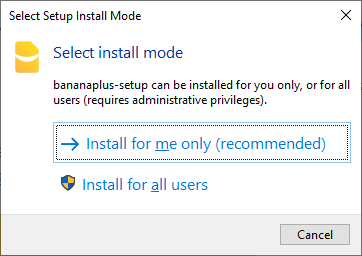
Cuando se ejecuta por primera vez, el programa ofrece la opción de instalar para el usuario actual (opción recomendada) o para todos los usuarios (véase la instalación avanzada para Windows, en inglés). Si desea cambiar esta opción más adelante, primero debe desinstalar la aplicación.

El programa sugiere que se guarde en la carpeta AppData\Nlocal de tu nombre de usuario. Si deseas guardarlo en otra carpeta, selecciónala pinchando en Examinar. Si cambia la carpeta propuesta y el programa le advierte de que no tiene permiso para crear una o varias carpetas, reinicie el programa con derechos de administrador.

La instalación normalmente sólo tarda unos segundos. Al final del proceso de instalación se inicia el programa Banana Contabilidad Plus.
Banana Accounting Custom, RDS Installation and App Packaging for Windows
This page contains details regarding the Banana Accounting installation on Windows Operating System and the different options available to install Banana Accounting on Windows operating systems. Below you will find:
- Technical information and requirements regarding the installation.
- Parameters that can be used with the bananaplus-setup.exe.
- How to install on a single computer, on multiple computers, or on a server for multiple users.
- Installation on servers for RDS (Remote Desktop Services) users.
- Packaged installation (automatic Distribution)
- Enterprise offline multi-user subscription
Installation types
There are three main types of installation :
- Manual local Installation
Banana Accounting software is installed manually on the personal computer and runs locally.
This is the standard installation. - Packaged Installation
For large organizations. The personal computer is managed centrally. The Banana Accounting application is packaged on the server and is than automatically installed on the local computer through a central application management tool. - Remote Desktop Services (RDS), is a feature in Windows Server that allows users to access a desktop or applications hosted on a central server from a remote location.
The Banana Accounting application and accounting files live on a central server computer in an office or cloud data center. Your laptop/tablet at home is just a screen showing you what's happening on the server.
Stable and Developer versions
Banana Accounting Plus is available in two installers:
- Stable Version, the normal one available under Download
- Application id of the normal version: BananaPlus
- Developer Version, the one available on the Insider Program Page
- Application id of the dev-channel: BananaPlusDev
Although they are different programs, they share the same settings and at startup you will find the same list of recent files in both programs.
Common settings and requirements
Valid internet connection
Once you have installed Banana Accounting Plus, the application will need to connect to banana.ch web server:
- A valid internet connection is required:
- Access to the https://www.banana.ch (port 80) must be granted for:
- Subscription registration and activation
- Check for updates
- Download of templates
- Download of extensions
- Download of news
Application data
Customization and settings are saved in the users profile; the following folders and Registry keys should be granted read/write rights to the user:
- Folders:
- %localappdata%\Banana.ch\BananaPlus
- %appdata%\Banana.ch
- Registry:
- HKEY_CURRENT_USER\SOFTWARE\Banana.ch\BananaPlus
Windows bananaplus-setup.exe installer
This is the default way to install Banana Accounting on your computer.
You download the bananaplus-setup.exe, run it and it takes care of the installation.
- It will display the information necessary for completing the installation
- It will also install the uninstall command that is registered in the Window App Setup.
- No internet connection is necessary.
Subscription activation:
- The first time you install the software, it will operate according to the Free plan.
- You need to Start the program and connect to your subscription by entering the e-mail address that you have used to buy the subscription or has been assigned to the subscription (administrator e-mail).
Command line installation
This option is intended for advanced users or IT technicians. It allows you to install the program automatically using commands, without manually clicking through the installation windows. It is useful, for example, when installing Banana on many computers.
You can start the BananaSetup.exe program from a command line. The bananaplus-setup.exe is created with the InnoSetup tool and you can use the command available from InnoSetup:
Here a list of the most used parameters:
- /ALLUSERS
Instructs Setup to install in administrative install mode. (install under C:\Program Files) - /CURRENTUSER
Instructs Setup to install in non administrative install mode. (install under %localappdata%\Programs) - /VERYSILENT
Setup will run without showing any progress window or dialog. (/ALLUSERS or /CURRENTUSER must be set to silent the initial dialog). - /NORESTART
Prevents from restarting the system following a successful installation (usually not necessary). - /DIR="x:\bananaPlus"
Overrides the default installation directory. - /GROUP="Banana plus"
Overrides the folder name displayed on the Start Menu Folder
Example: silent install in C:\Program Files\BananaPlus:
.\bananaplus-setup.exe /ALLUSERS /VERYSILENT /DIR="C:\Program Files\BananaPlus"
Default local installation
When running the bananaplus-setup.exe without parameters the program will start in default mode.
During the installation, you can choose whether to install Banana only for yourself or for all users of the computer. This choice depends on how the computer is used (personal or shared).
Install for me only
This is the simplest option and is suitable if you are the only person using the computer. This is the default setting if you run the installer without administrative privileges.
- No password is requested
- The uninstall info will be under HKEY_CURRENT_USER.
- The installation directory is %localappdata%\Programs\BananaPlus
Install for all users (Administrator)
- Administrator password will be requested
- The uninstall info will be under HKEY_LOCAL_MACHINE.
- The installation directory is %ProgramFiles%\BananaPlus
Installing Updates
To update Banana Accounting, simply run the installer again with the BananaSetup.exe. When installing it for the second time, the installer will overwrite the existing installation and you will not need to uninstall anything:
- Run the installer as administrator.
- The installer will suggest the last directory used for installation. If you have last installed a Dev-Channel and you are installing the Release version, it will suggest to you the Dev-Channel directory.
- You have to manually select the right directory for installation.
RDS - Remote Desktop Service - Server Installation (centralized)
With an RDS deployment, Windows applications run on a central server (historically called a Terminal Server). Users then connect to that server and interact with the software using a Remote Desktop application. Banana Accounting+ can be installed on computers registered in a Windows domain with Active Directory and Roaming User Profiles and on computers that offer a Remote Desktop Services.
Banana Accounting+ works on Windows Server 2016 and following, and also with Citrix, TSPlus or other similar technologies.
Banana Accounting+ requires a graphics driver that supports Direct 3D 11, Direct3D 12, Vulkan 1.0, or OpenGL 2.1 or higher is required. As of Qt 6, the default for Qt Quick on Windows is Direct3D 11.
In case of problems, you will find troubleshooting info on this website.
Installation for Remote Desktop Service
You need to install Banana Accounting on your server.
- Use the "Install for all users" at the beginning of the installation process.
- Once the installation is completed you can copy the content of the installation to any other suitable directory.
An update is the same as a new installation.
To automate the update process you can create a script that use a Command Line .
Subscription License requirements
Each user of the application must have a valid Banana Accounting subscription.
Packaged Installation (Distributed)
With a "packaged installation" (often called software distribution or local installation) the installer resides on the server and the application is automatically installed on the user device.
- The software runs directly on the user's laptop.
- A "package" (like an .msi or .exe file), that contains the application is created and then sent out to be installed on every single user's device.
- The system allows to define the users that will be able to use a specific application
There are many technologies to distribute and install software on the users computer. Microsoft Intune and others.
They usually all provide their own tool to create a package.
Subscription license requirements
Each user of the application must have a valid Banana Accounting subscription.
Create a package using the BananaPlus-Setup.exe
The InnoSetup installer is compatible with most packaging tools. You can therefore include the BananaSetup.exe that should be run with the appropriate parameters to ensure a "silent" install:
- /VERYSILENT
This is the most important switch. It tells the installer to run completely in the background with no windows shown at all. - /SUPPRESSMSGBOXES
Prevents any small warning or info pop-ups that might halt the installation. - /NORESTART
Tells the installer not to automatically reboot the computer if it finishes—allowing the distribution tool to handle the reboot schedule instead. - /SP-
Skips the "This will install... Do you wish to continue?" prompt that usually appears at the start.
Create a package using the installed directory
Your packaging tool probably lets you also create package using the installed files:
- Install Banana Accounting on you local computer, specifying the desired directory.
- Create a package using the file on your directory.
Subscription license activation
Each user of Banana Accounting Plus must have a valid subscription. The following options are available:
- Single-user subscription.
Each user purchases and manages their own subscription individually. - Multi-user subscription
An administrator manages licenses for multiple users. The administrator purchases the subscriptions and assigns them to users by linking their email addresses in the Banana user account. The administrator may also be a user of the program, but this is not required. - Enterprise offline-subscription.
For large organizations we provide the possibility to purchase Enterprise offline-subscriptions.
Please contact our offices with your request.
Multi-user subscription
- The administrator can purchase and manage a multi-user subscription within the Banana User Account.
- Each user must activate their subscription by linking their email in the program via:
- Menu, Help > Manage Subscription
- In order to activate the subscription, the user must be able to connect to the banana.ch website via the https protocol.
- The activation is stored in the user's profile (see Common settings and requirements above).
Enterprise offline-subscription (Windows only)
This is a special subscription that does not require the user to connect and activate the license. It is intended for large organizations that use Banana Accounting on a central server RDS or use a prepackaged installation.
Banana.ch provides the possibility to purchase Enterprise offline-subscriptions.
Please contact our offices with your request.
- The subscription is purchased upon request to Banana.ch SA.
- The organization must qualify for this subscription model.
- The organization should have a system in place to manage and distribute the application, with the ability to track which users are authorized to use it and who has actually used it.
- The subscription is assigned to the organization email.
- The administrator will receive a special key.
Subscription dialog
When you use the offline activation method the Manage Subscription (from the Help menu) will show the subscription information.
Users will not be able to modify their subscription information.
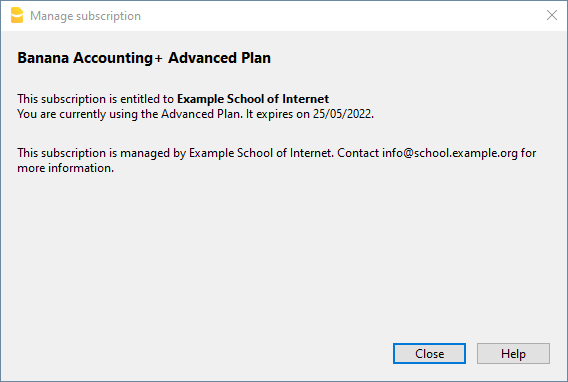
License information
For Enterprise subscriptions, the system administrator receives a dedicated encrypted activation code linked to a specific email address.
- To activate a subscription, Banana Accounting Plus requires a valid email address.
- During the installation process, this activation code can be provided to automatically generate and store an organization activation key file in the installation directory. Banana Accounting Plus will then read the subscription details directly from this file, ensuring a seamless and centralized activation experience across all systems.
- If Banana Accounting Plus has already been installed without activation, the activation key file can be added manually afterwards. Alternatively, the file can be distributed across multiple systems using automated deployment tools such as Group Policy or Microsoft Intune, simplifying large-scale rollouts.
- Application updates do not remove or overwrite the activation key file, ensuring that the subscription remains active across software upgrades without requiring reactivation.
- Subscription renewals are handled automatically: all client computers with internet access and the ability to reach the Banana subscription server will receive updated subscription information without requiring manual intervention. This ensures continuous service availability while minimizing administrative overhead.
Starting BananaPlus with the Subscription information
You can start BananaPlus.exe with the subscription information.
The parameters are different:
- Start BananaPlus.exe with the following parameters
It is better to put the parameters in quotes,- -cmd=activate_sub
Instruct BananaPlus that this is a subscription activation - -cmd_p1=your@mail.address
- -cmd_p2=<the activation code without line break>
- -cmd=activate_sub
- The installation process will update the information regarding your license.
Example:
BananaPlus.exe "-cmd=activate_sub" "-cmd_p1=info@school.example.org" "-cmd_p2=U0QxM8o77zlMg16K7HohVa8Ex1njLn+o8
Installation with organization license key
When installing the application, or using the package, you need to provide the email and the encrypted license key, that will be used during the installation
- Start the Bananaplus-setup.exe installation with a Command Line
- Provide the appropriate parameters, see above:
- /VERYSILENT
- /<user option>
- /ALLUSERS
Instruct Setup to install in administrative mode. (Installation under C:\Program files). - /CURRENTUSER
Instruct Setup to install in normal user mode. (Installation under %localappdata%\Programs)
- /ALLUSERS
- /MAIL=your@mail.address
The administrative address for which you have requested the subscription. - /KEY=<the activation code without line break>
The code you have received from Banana.ch that is connected to your email and subscription.
Bananaplus-setup.exe /VERYSILENT /ALLUSERS /MAIL=info@school.example.org /KEY=U0QxM8o77zlMg16K7HohVa8Ex1njLn+o8
Installing on Mac
Installing the software is very easy, thanks to the autoinstall function.
By downloading the program, you accept the user license conditions.
Before installing Banana Accounting Plus, consult the system requirements.
Follow these steps:
- Download the .dmg file by clicking on the Download BananaPlus for Mac button.
After saving the file in your Download folder, double click on it. - Drag the Banana Plus icon in the Applications folder

The first time installing Banana Plus on your Mac, the following window will appear:

You can safely press the Open button.
The installation usually only takes a few seconds. At the end of the installation process Banana Accounting Plus is launched. Once the installation is done, check out how to activate your Banana Plus subscription.
Once Banana Accounting Plus is open, hover over the Banana icon in the Dock, then right-click and select Options > Keep in Dock.
Particularities
Installations of Banana Accounting Plus on servers, USB flash drives or on computers not connected to the Internet are not possible.
Related information
Installing under Linux
By downloading the program, you accept the user license conditions.
Linux store - Ubuntu Software - snapcraft.io
Banana Accounting+ is published on snapcraft.io, the app store for Linux. On Ubuntu, Ubuntu software lists all apps published on snapcraft.io.
To Install Banana Accounting+, Simply open Ubuntu software, click on the search button in the upper left corner and search for "banana".
In the list of the results, click on Banana Accounting+ and finally click on Install.
Choosing the beta channel
If you want to install our Dev-channel from the Insider Program, choose the latest/beta channel from the source option, on top of the store window.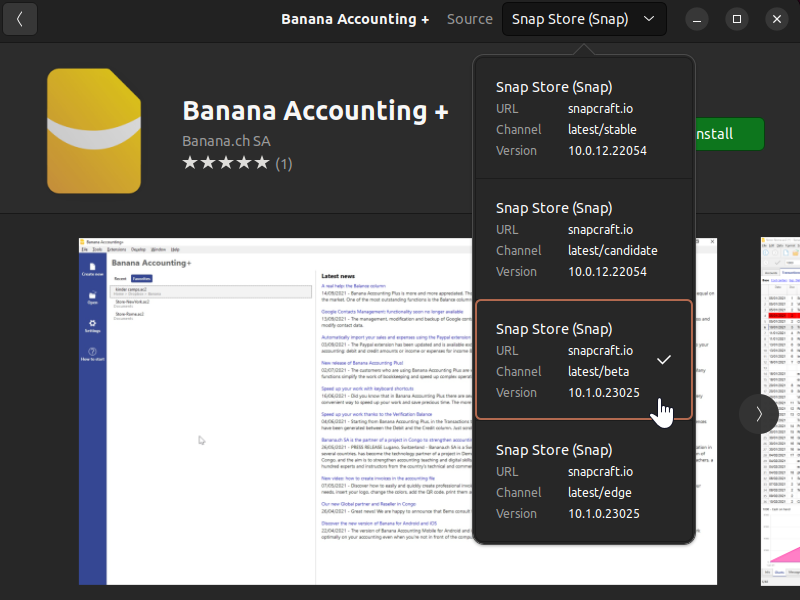
Or install from the command line:
sudo snap install banana-accounting --channel=betaIf you are missing the snap command you might need to install snapd first.
.AppImage Package
Download the application, make it executable, and run!
- Download the package
- Make the package executable
- Right click the package and select Properties
- Under the tab Permission activate the option "Allow execution ..."
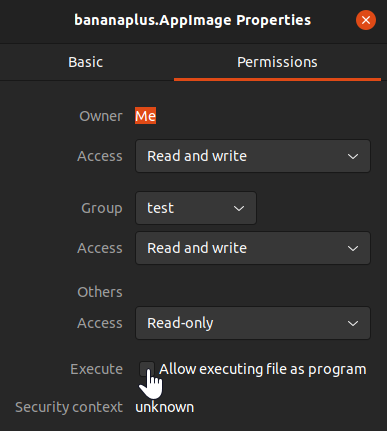
- Confirm the change with Ok
- Start the application with a double click on the package
Package .tgz
For those who need it...
- Download the .tgz package
- Extract the .tgz package
- Run the file start_Banana.sh
The .tgz package contains the script install-banana.sh. When you execute it, Banana Accounting+ will be copied to the /opt/ folder, registered in the system and associated with the .ac2 files.
Or install from the command line:
wget https://cdn.banana.ch/accounting/files/bananaplus/exe/bananaplus.tgzDownload tar.gz
mkdir bananaplus
tar -xvzf bananaplus.tgz -C bananaplus
bananaplus/install-banana.sh
Install Banana Accounting Plus on Android
You can download and install Banana Mobile for Android for free from the Google Android Play Store
Banana Mobile versions are an excellent support if you already have a desktop version and want to access your files from outside your office. These applications are constantly updated and improved.
Limitations of Banana Mobile compared to the Desktop version
- Cloud storage services other than Google Drive and Dropbox work in read-only mode.
- Import - export functions from files are not available.
- Multiple cell selection in touch mode is not available.
- Copy and paste functions in touch mode are not available.
- It is not possible to print data and create PDFs.
- Files can be saved to the device or to the cloud; however, direct access to files saved on an external SD card is not currently supported.
OneDrive "File Access Error"
Unfortunately Microsoft Onedrive Application does not fully support the SAF (Android standard Storage Access Framework API) , therefore when you are saving the data to a OneDrive you will get a "File Access Error".
Users think that this is a bug of Banana Accounting, but instead it is a limitation of OneDrive.
On this Github issue page "OneDrive Android API" you can see a full technical description of the problem and why it is related to Microsoft and not Banana Accounting.
Access documents on the cloud from your Android
Banana Accounting, like many other apps, relies on the Android standard Storage Access Framework API (SAF) to select, read, and write files that are stored on Cloud storage services like Google Drive, iCloud, OneDrive, etc.
Unfortunately, some Android cloud storage apps do not fully or correctly implement the SAF standard.
Kindly use the comment feature of the storage app to request the cloud service to fully and correctly support the SAF standard.
The following table shows you the available operations for the main Cloud storage services:
| Provider | Open | Create | Modify |
|---|---|---|---|
GoogleDrive | Yes | Yes | Yes |
Swisscom MyCloud | Yes | Yes | Yes |
Yes | Yes | Yes | |
Yes | No | No |
Install Banana Accounting+ on iOS and iPadOS
You can download and install Banana Mobile for iOS/iPadOS from the Apple App Store.
Banana Mobile versions are an excellent support if you already have a desktop version and want to access your files from outside your office. These applications are constantly updated and improved.
Limitations compared to the Desktop version
Banana Accounting Mobile looks similar and has many features that are also available on the Desktop version, like creating new accounting sheets, opening and modifying existing files, execute accounting calculations, show print previews, etc. At the moment, functionalities using external files, i.e. "Import to accounting", are disabled. It is not possible to print data and create PDF files. It does not allow opening password-protected files.
Access documents on the cloud from your cell iPhone
With Banana Accounting+ Mobile you can access to *.ac2 files stored on Cloud storage services like GoogleDrive, OneDrive, etc. Therefore you can easily share accounting files between your desktop and your iPhone or iPad. What you just need is to install on your device the corresponding app from the cloud storage provider.
The available operations on the cloud storage services depends on their implementation of the iOS FileProvider Framework. If the implementation is complete (like for iCloud or Dropbox) you will be able to open, create and modify ac2 files with Banana Accounting+ Mobile. For other providers that doesn't fully implement the FileProvider Framework, the available operations could be limited.
The following table shows you the available operations for the main Cloud storage services as of 2022-05-03:
Provider | Open | Create | Modify |
|---|---|---|---|
| iCloud | yes | yes | yes |
| Dropbox | yes | yes | yes |
GoogleDrive | yes | no | yes |
| Infomaniak KDrive | yes | no | yes |
Microsoft OneDrive | yes (1) | no | yes |
Swisscom MyCloud | yes | no | yes |
(1) The file have to be opened via the Open File Dialog. If the file is opened via the Recent Files list ti don't match the latest version present on the cloud.
Associate .ac2 files with the most recent Banana Accounting version
When the Banana Accounting program is being installed, the "Associate Banana Accounting+ with the .ac2 file extension" option is activated by default; as a result all the accounting files will be opened with the new version.
If, when clicking directly on the file before opening the program, it should occur that the file gets opened with a previous version of Banana Accounting, this problem can be solved in the following way:
Windows:
- right-click on the file icon
- on the menu that appears select "Open with" and then "Choose Default Program..."
- choose the Banana program, the latest installed version.
Mac:
- right-click (or "ctrl "+ click) on the file icon
- on the menu that appears select "Get Info"
- under "Open with..." choose the latest installed version of Banana, click then on "Change All..." option.
Important information when updating to Banana Accounting+
The following information is intended for those who already have an accounting file created with a previous version (4, 5, 6, 7, 8, 9) and are upgrading to Banana Accounting Plus.
▶ Video: How to update to Banana Accounting Plus (Switzerland)
Step by step guide on how to update from an old version to Banana Plus.
File management and exchange
Once Banana Accounting Plus has been installed (either on Windows or Mac), you can launch the program and open the accounting files that have been created with Banana Accounting:
- Banana Plus opens the files of all previous versions: 2.02, 3, 4, 5, 6, 7 , 8 and 9.
- Files saved with Banana Accounting Plus can be opened and edited with the versions 5, 6, 7 , 8, and 9 of Banana Accounting.
- If you are using features only available in Banana Plus, these do not work with previous versions.
- Files saved with Banana 5, 6, 7, 8 , 9 and 10 cannot be opened anymore with Banana 2, 3 or 4.
- Files can be transferred easily from one operating system to another.
If the files are not listed in the recent files (Initial page), they can be searched for as indicated on our web page Open and save.
Free Version / Full version
If you install Banana Accounting Plus, without subscribing and activating it , the new version operates in Free mode, which allows the unlimited and complete use of the Cash Book and Time Sheet, but for all other applications it allows the use of all functions and the saving of up to 70 lines of entries. To use Banana Accounting Plus in full, a subscription must be carried out and it needs to be activated.
Version for Mac
In order to avoid conflicts with the keys used by the Apple operating system, the function keys F4, F5, F6 of Windows have become CMd+4, Cmd+5, Cmd+6 under Mac.
Importing bank statements
Banana Accounting Plus provides various import extensions to import data from bank statements.
To import the bank statements / update the extensions, you need to:
- Via the Actions → Import to accounting → Import transactions.
- click on the Manage extensions button to see all the available extensions.
- click on the Update extensions button.
- enable the desired extensions by selecting them and clicking on OK.
Importing Postfinance Xml files
Banana Accounting Plus imports bank statements using the new XML ISO 20022 standard. Postfinance supplies this format only upon request of the customer.
It is therefore necessary to ask your Postfinance consultant to change the format and switch to ISO 20022.
Postfinance Business clients can ask to have the Pdf as well as the ISO 20022 format.
Swiss VAT Report with new rates
The current VAT rates are integrated into the programme and can be imported. See Updating the VAT Code Table with the 2024 VAT rated 2024.
In order to obtain the quarterly Swiss VAT report, ready for the official form, proceed as follows:
- From the Menu Extensions > Manage extensions and according to the VAT method:
- Choose the Swiss VAT tax report - effective method
- Choose the Swiss VAT tax report - Flat tax rate method
- The Electronic transmission of the XML file to the AFC- VAT Authority is also forseen .
Changes from Banana 6 (or previous versions)
In Banana Accounting Plus, compared to version 6 or earlier versions, some functions have changed:
- Data can be edited directly in the table cell (just like in Excel)
- With a double-click you go in the cell editing mode.
In order to open an account card or to access the Extract rows command, instead of the double-click you can use:- Alt + mouse click and then choose command Account card
- Right mouse click (opens the menu) and then choose Account card
- A mouse click on the little blue arrow next to the account number (cell top left corner)
- The Messages window has been moved in the lower corner of the screen, next to the Info window.
The Messages window can be reached by clicking on the corresponding table. - The Views list has been moved to the top of the screen, just below the tables list.
- When scrolling the vertical bar, the table content now immediately scrolls too.
- In the transactions, the indication of the date and the document are not shown any more.
- From the Banana 7 version it is possible to update the Account card (see refresh button on the top right corner); in Banana Accounting 6 it was necessary to give the command again.
- When printing or when viewing the print preview, it is now possible to only print a selection of rows.
In the print dialog window, it is possible to choose if you want to print everything or just a selection (only in Banana for Windows). - In the Date column, by entering the “.” symbol, the program automatically enters the date of the day.
- Simple Accounting → has been changed into→ Income & Expense accounting
- The Cash1, Simple1, Cash2 and Simple2 menus have been replaced by the menu Actions
- Accounts by period → has been changed into → Accounting report
- Export file in pdf → has been changed into → Create Pdf dossier
- In some functions, such as the Enhanced Balance sheet, a new submenu called "Customizations" has been created in order to recall saved personal settings (in Banana 6 they were called Favorites).
- In the Help menu→ Keyboard Shortcuts, you find the list of key-combinations and the commands that are associated with them.
- In the Info and Messages windows, next to the error message, there is now the
 symbol: if you click on it, you will be directly connected to the online page explaining the error message and suggesting possible causes and solutions.
- DDE connections are no longer supported
Banana Accounting+ WebApp
Banana Accounting Plus WebApp is based on the innovative WebAssembly technology, which lets you run the application locally in modern browsers without installing anything. In addition, you don’t need to register or provide any email address, and your accounting data stays private (which does NOT happen with other cloud programs).
With Google Chrome, Microsoft Edge, and Apple Safari you can save and install the WebApp. This is useful to create shortcuts on the desktop or the taskbar for quicker access.
Installing the WebApp with Google Chrome
To install Banana Accounting Plus WebApp with Google Chrome, follow these steps:
- Launch Google Chrome.
- Open Banana Accounting Plus WebApp in Google Chrome.
- Click Customize and control Google Chrome (three vertical dots).
- Select Save and share > Install Banana Accounting Plus WebApp.
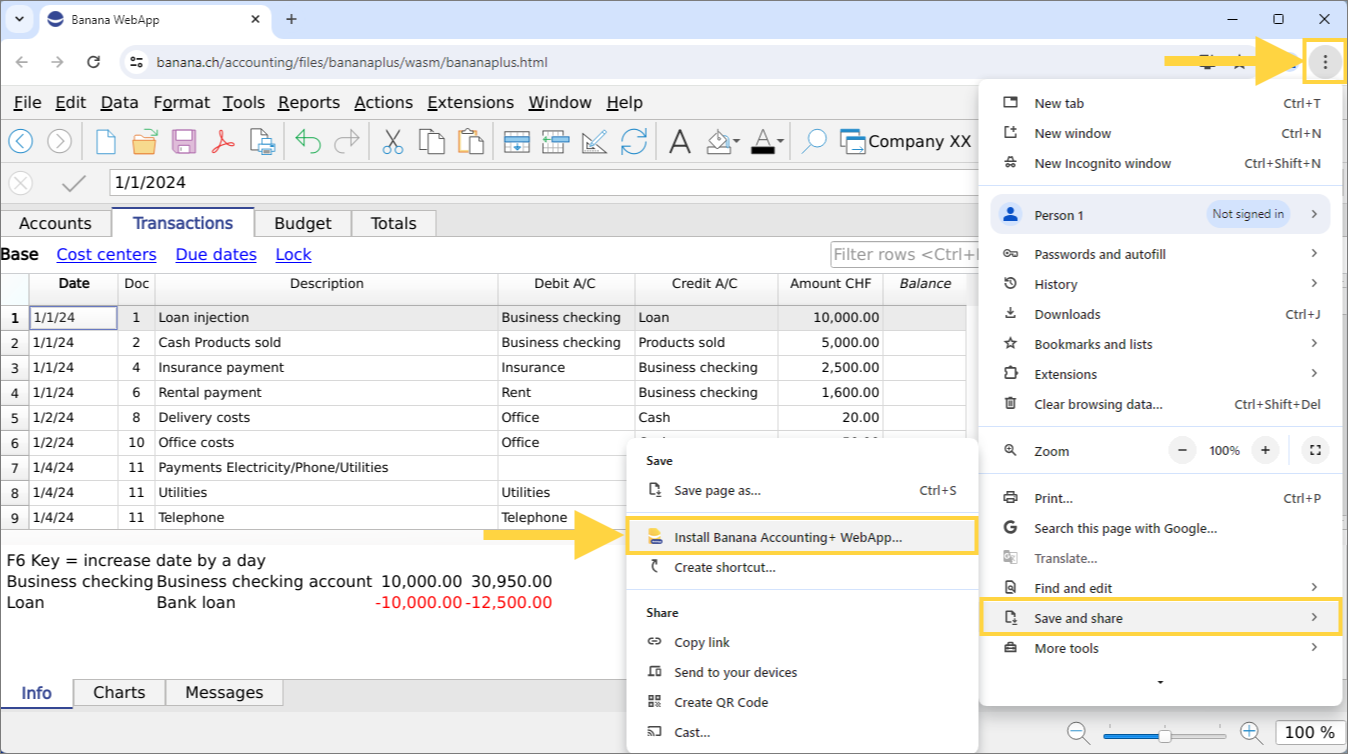
- In the dialog that opens, click Install.
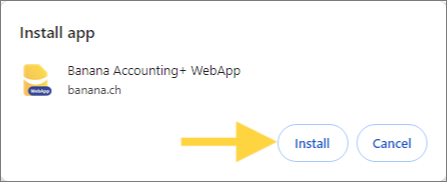
- The WebApp starts immediately and is saved as a shortcut on the Desktop and also on the taskbar at the bottom.
To launch the WebApp, click the shortcut on the Desktop or from the taskbar.
If you want to uninstall Banana Accounting Plus WebApp, proceed as follows:
- Launch Banana Accounting Plus WebApp.
- Click Customize and control Banana Accounting Plus WebApp (three vertical dots).
- Click Uninstall Banana Accounting Plus WebApp.
- Confirm with Remove.
Installing the WebApp with Microsoft Edge
To install Banana Accounting Plus WebApp with Microsoft Edge, follow these steps:
- Launch Microsoft Edge.
- Open Banana Accounting Plus WebApp in Microsoft Edge.
- Click Settings and more (three dots).
- Select Apps > Install Banana Accounting Plus WebApp.
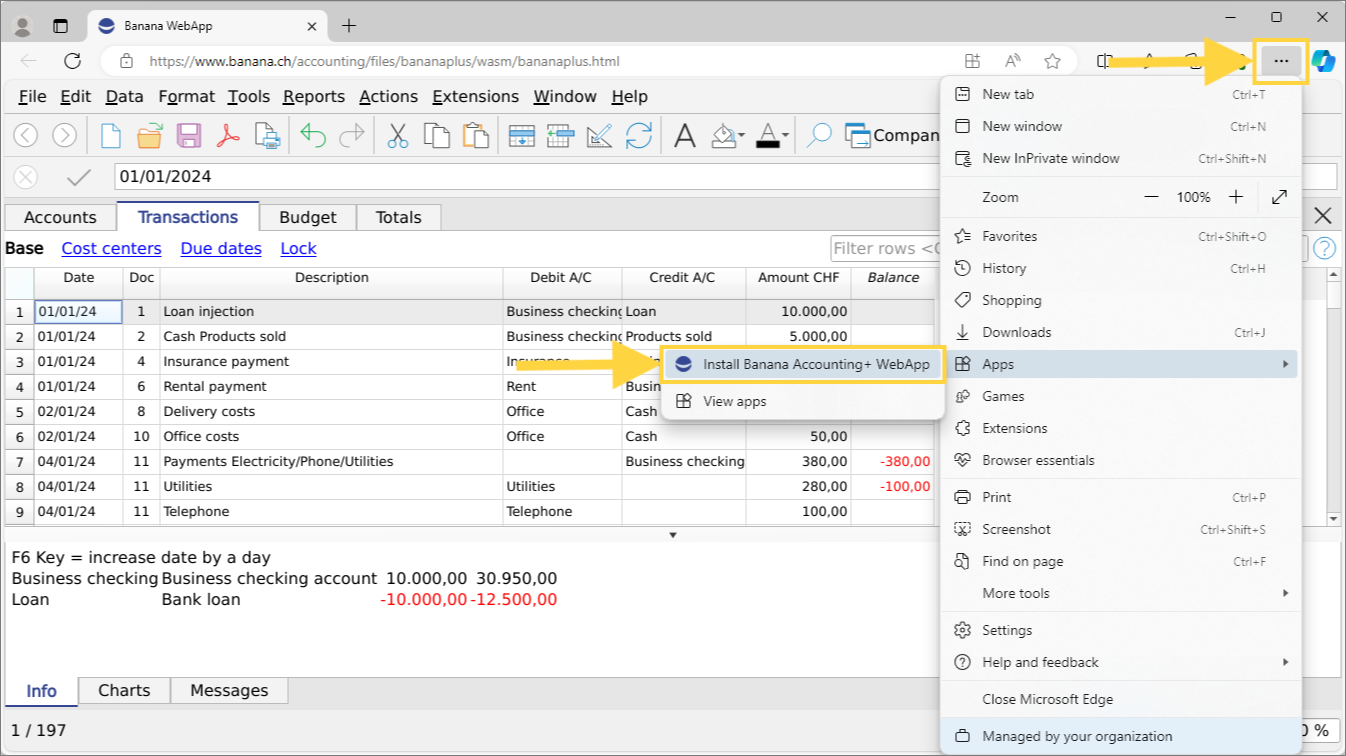
- In the dialog that opens, click Install.
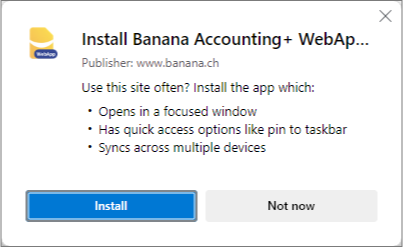
- In the installation confirmation window, select your preferred options and then click Allow.
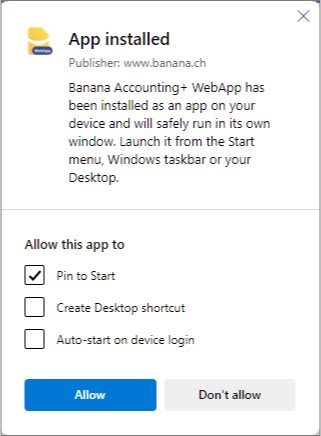
- The WebApp starts immediately and is saved according to the chosen options (taskbar, Start menu, desktop shortcut).
To launch the WebApp, click the icon on the taskbar, from the Start menu, or the desktop shortcut.
If you want to uninstall Banana Accounting Plus WebApp, proceed as follows:
- Launch Microsoft Edge.
- Click Settings and more (three dots).
- Select Apps > View apps.
- Click More options (three dots) > Manage app.
- Find Banana Accounting Plus WebApp, click More options (three dots) > Uninstall.
- Confirm with Remove.
Installing the WebApp with Apple Safari
WebApp installation is available starting from macOS Sonoma.
To install Banana Accounting Plus WebApp with Safari, follow these steps:
- Launch Safari.
- Open Banana Accounting Plus WebApp in Safari.
- From Safari’s menu, select File > Add to Dock.
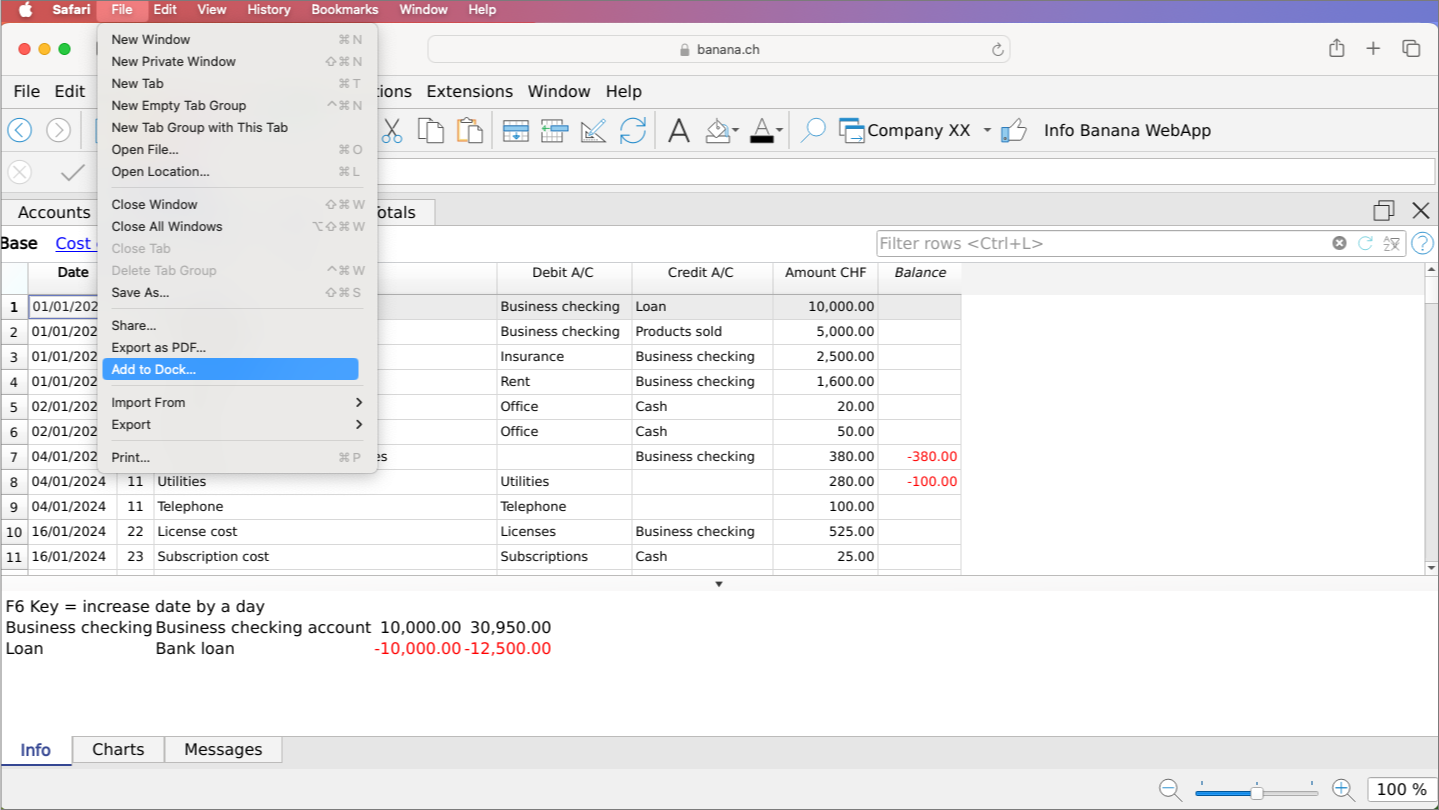
- In the dialog that opens, enter the name you want to use for the WebApp and then click Add.
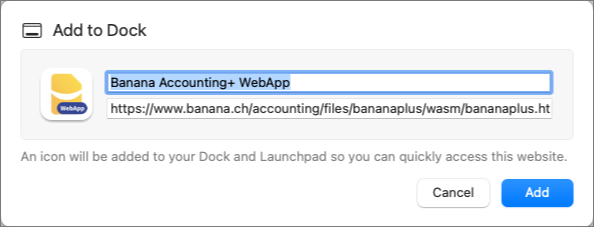
- The WebApp starts immediately and is saved in the Dock.
To launch the WebApp, click its icon in the Dock.
If you want to uninstall Banana Accounting Plus WebApp, proceed as follows:
- Open Finder.
- From the menu bar select Go > Home.
- Go to the Applications folder (web apps created by Safari are saved in this folder).
- Locate Banana Accounting Plus WebApp and drag it to the Trash.
- Empty the Trash to complete the uninstallation.
Known issues
- 13.08.2024
When selecting the command File > Open, the file selection dialog does not appear.
Safari Web App cannot access local files after updating to macOS 14.6 (Sonoma) with Safari 17.6 on ARM processors.
macOS 15 Sequoia works correctly, as does running the application inside the browser (without installing the Web App).
Banana Accounting for Microsoft Teams
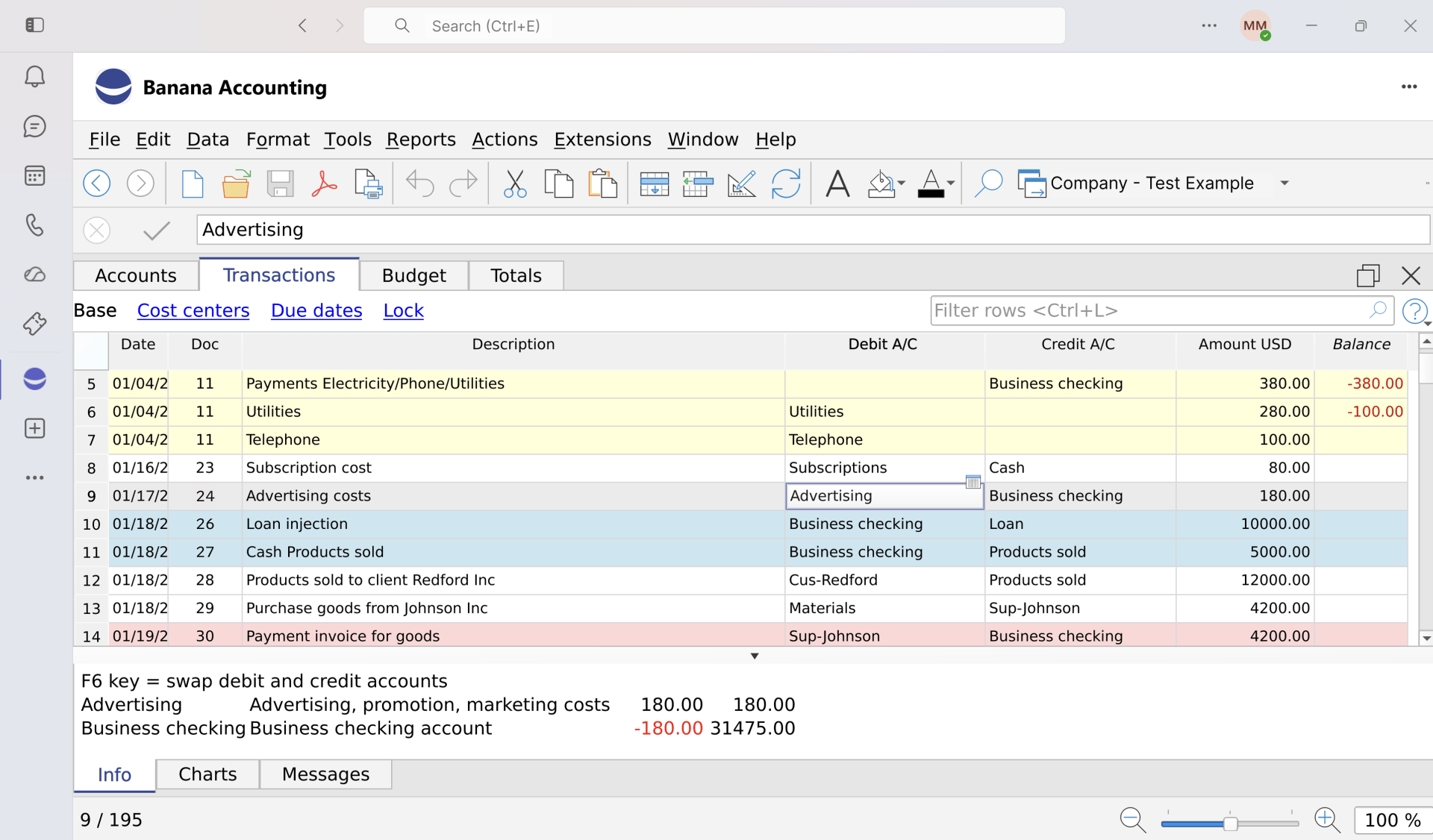
Banana Accounting is now available in Microsoft Teams. With the new Banana Teams App, you can manage your accounting directly from the Teams window, open files stored on OneDrive or SharePoint without downloading them, and share them with your team without switching tools.
With Banana Teams App, it feels like working in the cloud. On any device where Teams is installed, you can open and save files with Banana without any additional login. Unlike other cloud-based accounting software, however, you remain in full control of your data and can copy and move your files.
The app appears as a personal tab in Teams. Once installed, you can find it in the Teams sidebar or within one of your team's channels, just like any other Microsoft or third-party app.
Features
In short, the app allows you to:
- Manage your accounting within the Teams workspace, alongside chats, meetings and documents
- Open and edit
.ac2files stored on your device, OneDrive or SharePoint - Save changes directly to the cloud, keeping files available to your colleagues
- See whether other users currently have the same file open
- Open a file from a shared link (1drv.ms, onedrive.com, sharepoint.com) or a public URL
- Quickly find recent and favourite files, synchronised across devices
The app is suitable for both individual use and teamwork in accounting firms, associations, NGOs and small and medium-sized businesses.
Limitations
Teams is based on browser technology and therefore still has some limitations.
Banana Teams App is still under development and may not offer all the features available in Banana Desktop.
- Teams does not allow different zoom levels for individual tabs or separate windows.
- Attachments cannot be accessed for files stored in the cloud.
- Switching from the Banana tab to another tab and back may take some time to load.
Teams may also close the tab. It is better to open Banana in a new window.
Installing Banana Teams App
Prerequisites
To use Banana Teams App, you need:
- A business or school Microsoft 365 account (a personal Microsoft account, such as Outlook.com, is not sufficient because the app uses Microsoft Teams single sign-on authentication)
- The Microsoft Teams application (desktop, web or mobile version)
- Storage space on OneDrive or SharePoint for your accounting files (recommended but not required, as you can also open and save files from your device)
- Permission to install apps from the Microsoft Teams Store. In some organisations, the IT administrator must first allow the app or approve its permissions.
- A modern browser if you use Teams in a browser: an up-to-date version of Edge or Chrome. WebAssembly is also supported by recent versions of Firefox and Safari.
- The app is NOT available for personal accounts because they do not support single sign-on.
You do not need to install any additional software on your computer: the entire Banana Accounting application is loaded within Teams.
Enabling the app for your tenant
Banana Accounting is available from the Microsoft Teams Store. If your Microsoft 365 tenant allows apps published in the Store to be installed, you can search for it directly in Teams and add it like any other app.
However, actual availability depends on your organisation's settings. The Microsoft 365 administrator can:
- Allow the installation of apps published in the Teams Store
- Block or approve individual apps
- Make the app available only to specific users or groups
- Automatically install or pin the app for users
- Require administrator consent for the app's Microsoft 365 permissions
How to add Banana Accounting Teams App
To add it to your Teams:
- Open Microsoft Teams
- Click the Store icon (+) in the left sidebar
- Search for Banana Accounting
- Click Add
- Confirm the installation
If you cannot find the app, contact your organisation's IT administrator and ask them to allow Banana Accounting in Microsoft Teams.
Technical notes on installation
Banana for Teams is an application published on the Marketplace and is automatically updated whenever we release a new version.
- When you install the Teams App, it runs within the workspace and computing environment provided by Microsoft.
- Microsoft Graph serverless Azure Functions (OneDrive/SharePoint) are used to open and save files. These services are managed by Microsoft and, according to Microsoft's specifications, process requests in a serverless environment without retaining copies of the data.
- Banana.ch, as the software developer, has no access to your storage spaces. It does not receive copies of your data, cannot see what you do, and cannot access or modify your files.
Launching Banana Accounting for Teams
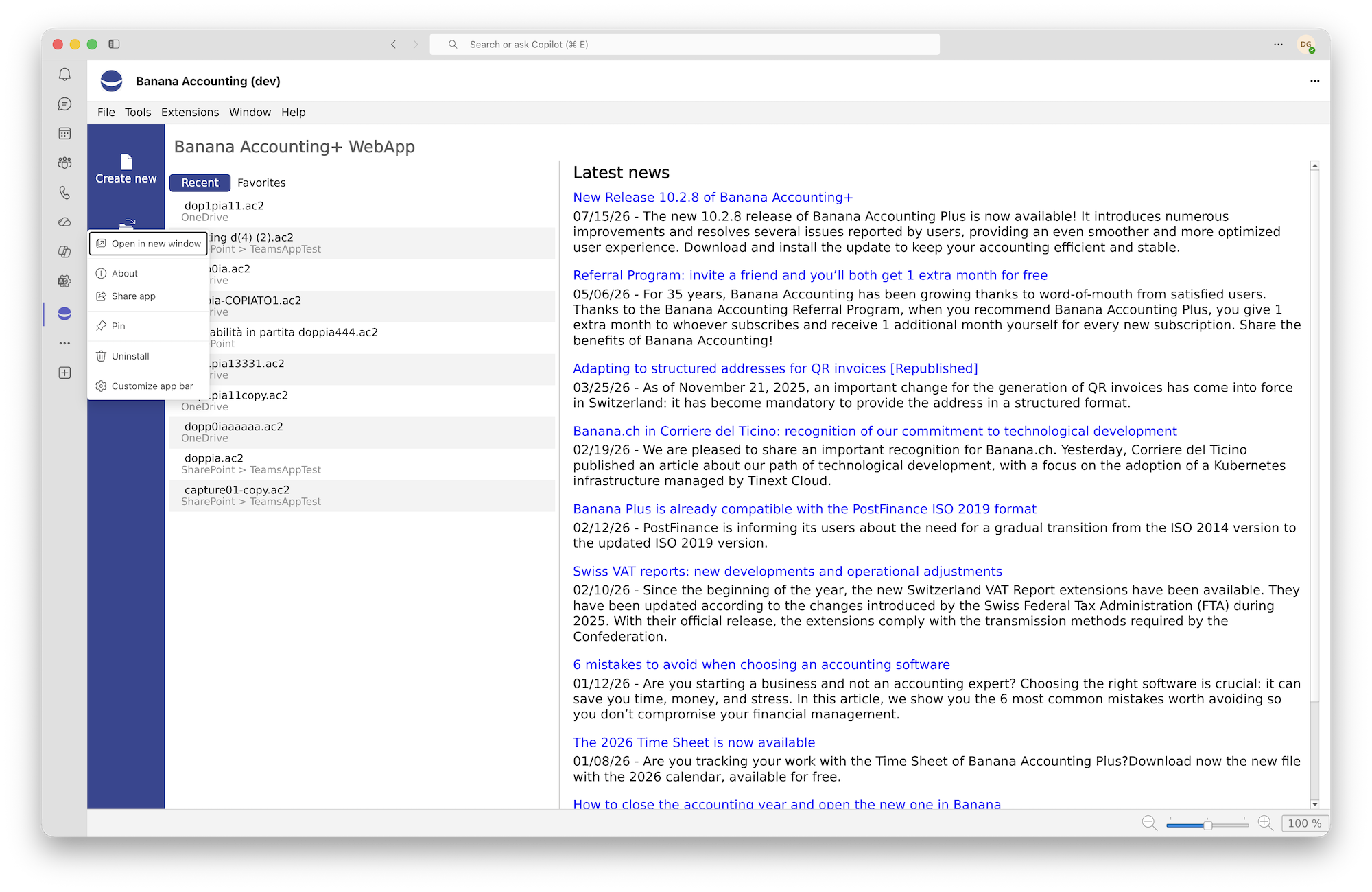
To launch the app, go to the sidebar and click ... (View more apps), then select Banana Accounting from the list.
Tip:
You can pin the app to the sidebar by right-clicking it and selecting Pin. This allows you to open it with a single click.
First launch and sign-in
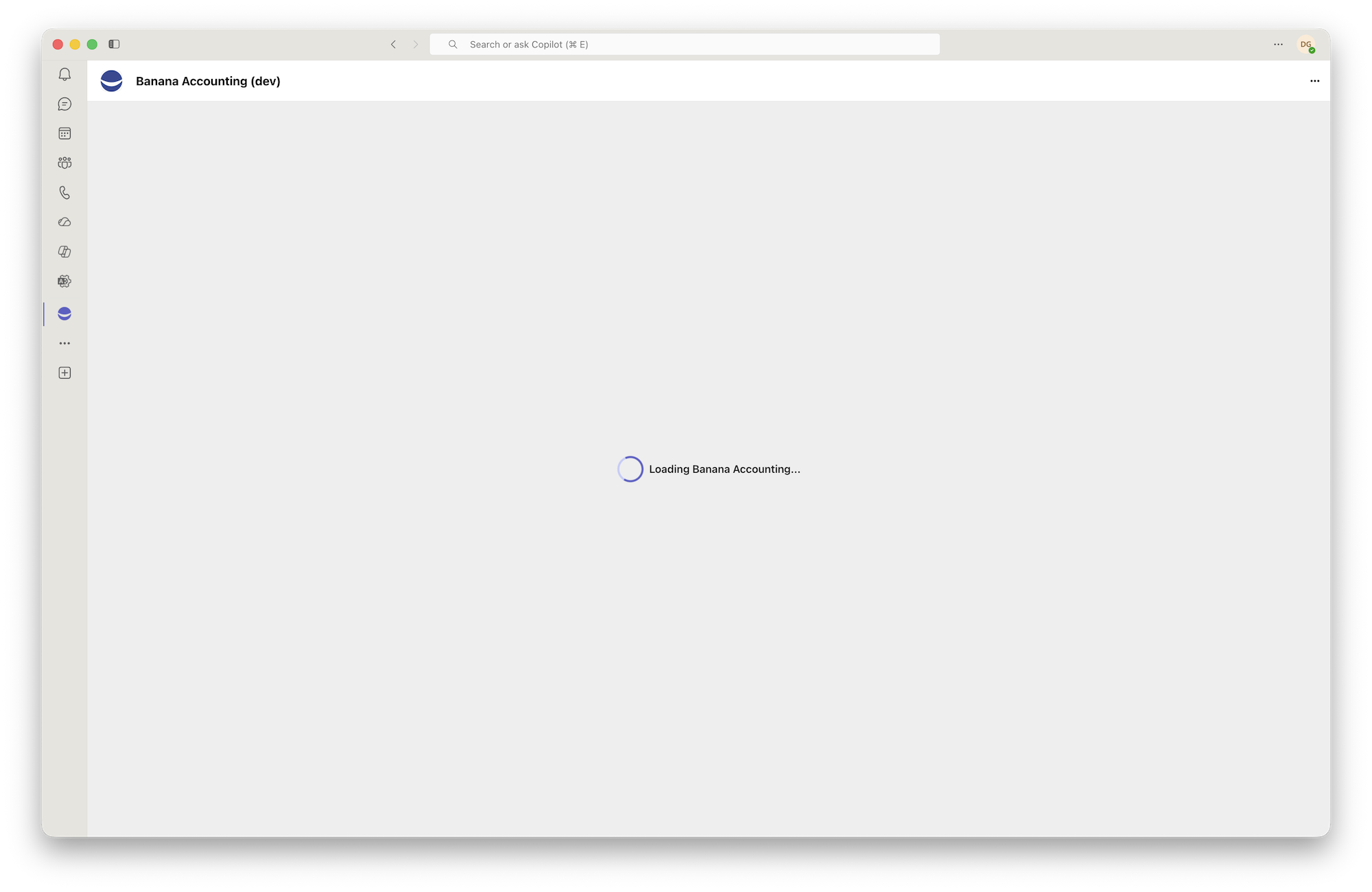
The first time you open Banana Teams App, you will see a loading screen with the message "Loading Banana Accounting...". The app is downloading the Banana engine and preparing the workspace. This may take a few seconds or longer, especially on the first launch or with a slow connection.
When launching the app for the first time, you may be asked to consent to Microsoft 365 permissions.
- In some tenants, users can grant consent directly.
- In other cases, administrator approval is required.
- These permissions are needed to identify you and to open and save, on your behalf, the
.ac2files you have access to on OneDrive and SharePoint.
Once loaded, the Banana Accounting interface is identical to the one you already know from the desktop version.
Open in a new window
When you launch Banana directly in the Teams window as a new tab, that window is automatically closed when you switch to another Teams tab.
It is therefore better to open the app in a new window:
- In the sidebar, right-click Banana Accounting Teams App and select Open in new window.
- Alternatively, while using Banana Accounting Teams App, click the ... menu in the top-right corner and select Open app in new window.
File access (single sign-on)
Once you have signed in to Teams (single sign-on), Banana automatically gives you access to all your files and shared resources.
If this is your very first time, Teams or Microsoft 365 may ask you or your administrator to grant the app access permissions for:
- Your user profile
- Your OneDrive files
- The SharePoint sites you have access to
- The basic information needed to display collaborator presence
These permissions allow the app to open and save files and show who else has the same document open. Without the required permissions, the app's cloud features cannot work.
Opening and sharing an accounting file
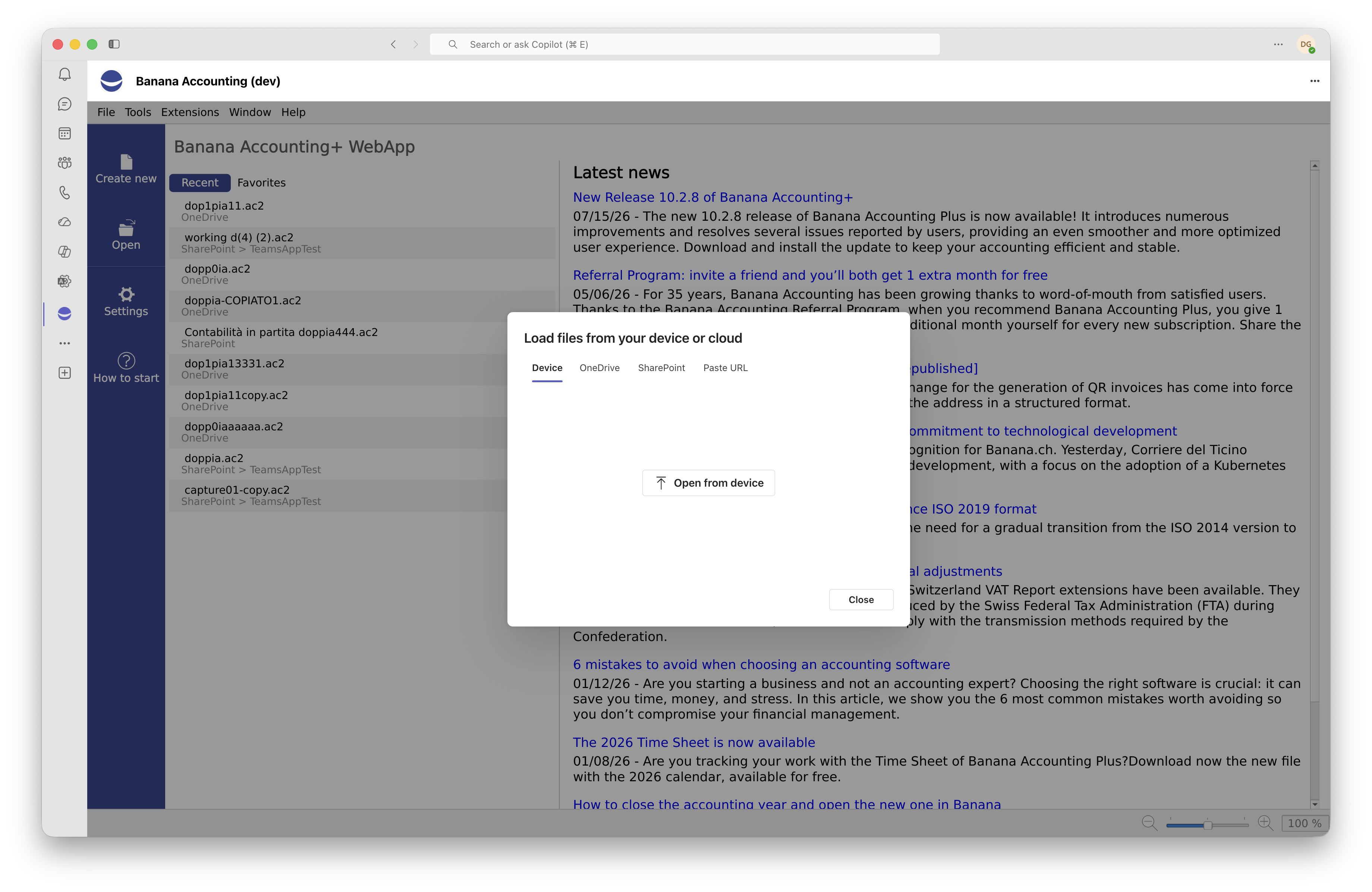
To open a file, click Open in the Banana menu or use the recent files start page. The Load file from device or cloud window opens, divided into four tabs:
Local device
- The Device tab allows you to select a
.ac2file saved locally on your computer. - Click Open from device, select the file using the system file picker, and Banana will load it immediately.
- Files opened from your device are not added to the recent files list because they do not have a permanent cloud identity.
OneDrive
- The OneDrive tab provides a file browser for your personal files on OneDrive for Business.
- Browse folders and subfolders just as you would in OneDrive in your browser. The available columns show the name, size, modification date and person who made the modification.
- Click a
.ac2file to open it: the app securely downloads its contents without requiring you to leave Teams.
SharePoint
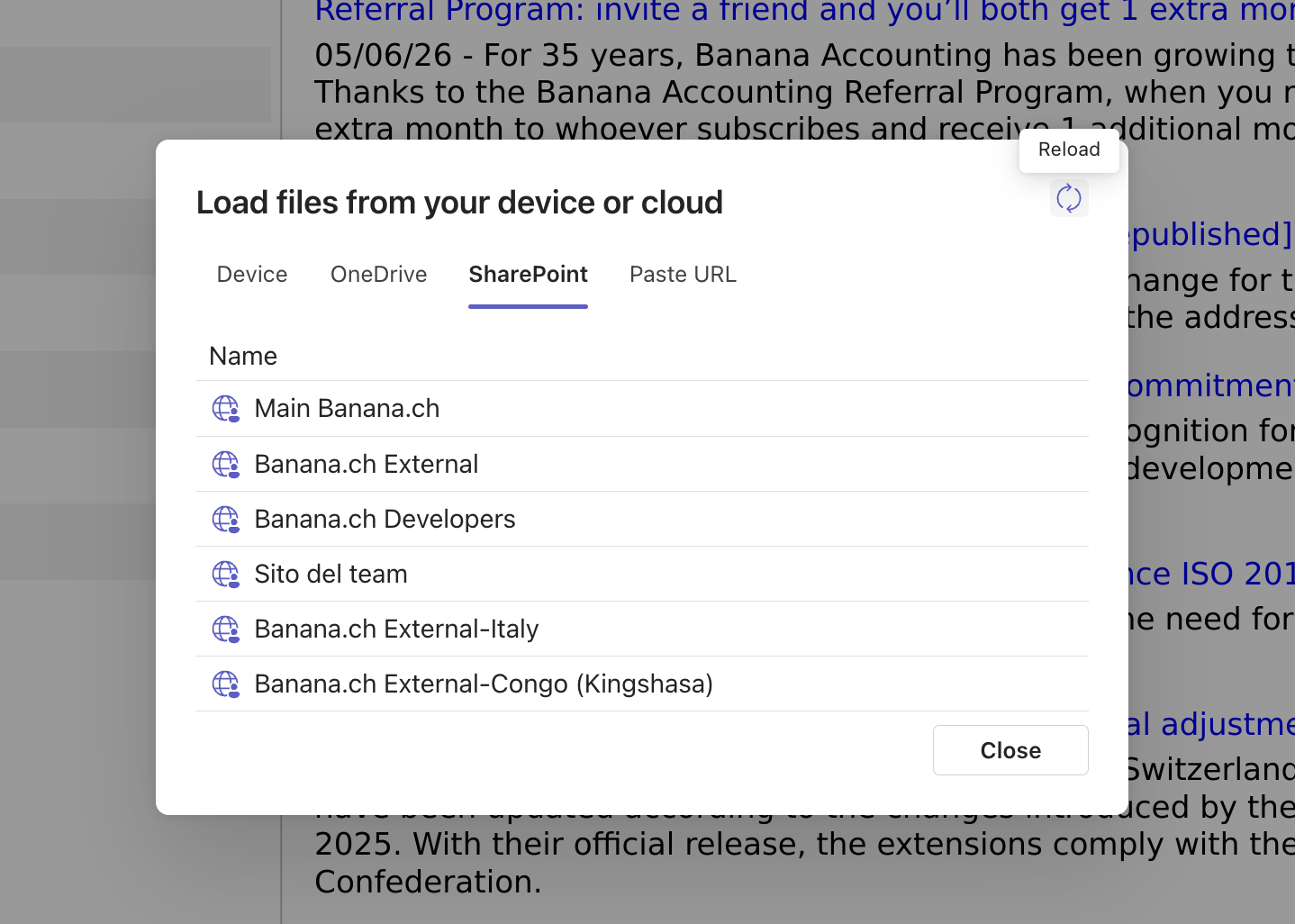
- The SharePoint tab lists the SharePoint sites you have access to.
- Select the desired site, then browse its document libraries to find the file.
- The structure is identical to OneDrive: folders, files and navigation breadcrumbs.
- If you belong to many sites, you can return to the root by clicking the home button in the breadcrumb navigation.
Open from URL (shared files)
- The Paste URL tab allows you to open a file using a link. This is useful in three situations:
- A colleague has shared a link to a file on OneDrive or SharePoint (1drv.ms, onedrive.com, sharepoint.com): paste it here and the app will open it using the Microsoft Graph sharing system
- You have a direct link to a public
.ac2file on a web server (HTTPS or HTTP) - You are opening a link generated by another Banana application
Microsoft shared links
When a colleague shares a .ac2 file with you from OneDrive or SharePoint using the Microsoft 365 Share feature, you receive a URL such as https://...sharepoint.com/.... You can:
- Paste it into the app's Paste URL tab
- Open the file from OneDrive or SharePoint using the Open with Banana Accounting option, when available in the file menu
The app automatically recognises Microsoft domains (onedrive.com, 1drv.ms, sharepoint.com) and uses the Graph sharing system to download the file with your permissions.
Paste the link into the File URL field and click Open URL. Only http:// and https:// links are accepted.
Tip: the Ctrl+V shortcut (or Cmd+V on Mac) also works inside the Teams window, even though Teams generally restricts clipboard access for security reasons.
Reload button
When browsing OneDrive or SharePoint, you will find a button with a reload icon in the top-right corner of the window. Click it to refresh the list of files and folders, for example if a colleague has just uploaded a new document.
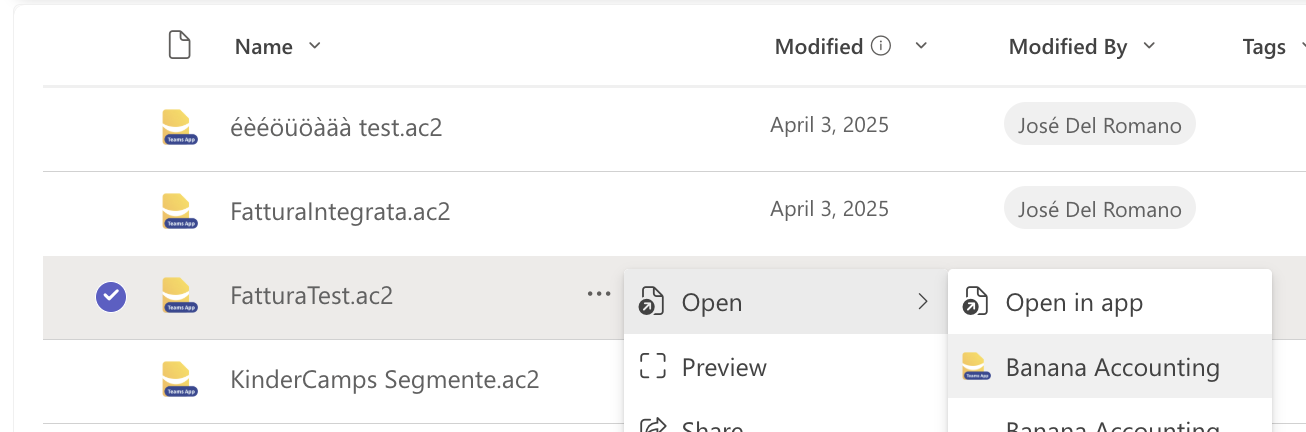
Open with Banana Accounting
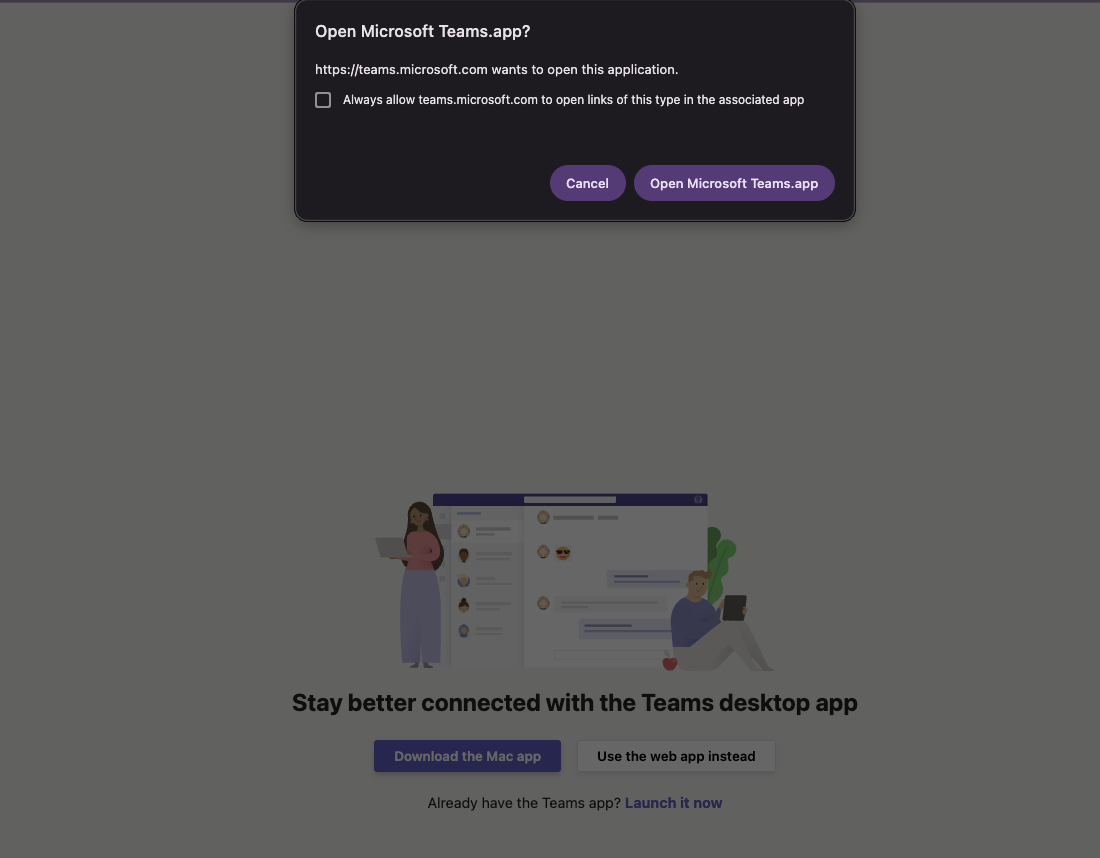
When Microsoft 365 file integration is available in your tenant, .ac2 files stored on OneDrive or SharePoint may display the Open with Banana Accounting action. Selecting it opens Banana Accounting directly in Teams and loads the selected file.
This feature depends on the app being published in the Teams Store, the availability of integration in your tenant, and the policies configured by your administrator.
Opening files from shared links
Banana Teams App supports deep links, which open a specific file directly instead of displaying the app's start page.
There are two ways to use them:
- Teams deep links
If you use a Teams link that points directly to a file (with thefileIdandsourceparameters), the app automatically opens it on launch. This is useful, for example, when adding a link to an accounting file in a Teams message or a channel tab: anyone who clicks it is taken directly to the open file.
- Recent and favourite files
The Banana start screen shows your recently opened files (up to 8) and those you have marked as favourites.
Synchronisation across devices
Recent and favourite files are stored both locally and in your cloud profile, so you can find them even when opening Teams from another computer. Synchronisation is automatic.
The list contains file references, such as the name, location and cloud identifier. It does not contain the contents of the .ac2 files.
Available actions
- Open: click a file to reopen it. The app downloads the latest version from the cloud, not an outdated copy.
- Open file location: takes you directly to the folder containing the file in the OneDrive or SharePoint file browser.
- Add to favourites: marks a file as a favourite. Favourites are never automatically removed from the list, even when you open new files.
- Remove from recent: removes an individual entry from the list (the file remains in the cloud).
- Clear all: completely clears the recent files list.
Files opened only from your device are not stored in the recent files list because they do not have a unique cloud reference.
Saving the file
Banana automatically distinguishes between two situations:
- Save (Ctrl+S): if the file comes from the cloud, it is updated directly in its original location (OneDrive or SharePoint), without prompting you
- Save As: opens the save window, where you can choose the location, file name and destination
When the file comes from your device, even a simple Save opens the save window. This is necessary because, for security reasons, browsers cannot automatically overwrite local files.
The save window
The save window offers three destinations, similar to those available when opening files:
- Device: downloads the file to your computer (the browser's Downloads folder)
- OneDrive: saves the file to your personal OneDrive, allowing you to choose the destination folder
- SharePoint: first select the site, then the folder
The File name field allows you to rename the file before saving.
Smart upload
For large files, the app automatically divides the upload into several parts, making the saving process more resilient to network interruptions. Smaller files (under 4 MB) are uploaded in a single step. You do not need to do anything: the app chooses the best method automatically.
During saving, you will see a series of status messages:
- "Exporting .ac2 from Banana..."
- "Checking remote version..."
- "Preparing upload payload..."
- "Uploading to OneDrive..." (or SharePoint)
- "File saved to OneDrive."
Version and conflict management
When working on a shared file, a colleague may modify and save it while you still have it open. Banana Teams App automatically detects this situation by comparing the remote file version with the version currently in your memory.
If the remote version has changed when you try to save, the app does not automatically overwrite your colleague's work. Instead, it displays a Remote file has changed dialog with three options:
- Overwrite: forces your version to be saved, discarding the changes made by your colleague. Use this only if you are sure of what you are doing.
- Save As: saves your work as a separate copy. The app automatically suggests a name such as
FileName (conflict 2026-05-09 10-30-15).ac2, so you can compare the two versions later. - Cancel: closes the dialog without saving, allowing you to reconsider what to do.
The app also checks the opposite scenario: if the remote file has been deleted while you were working, you are prompted directly to save your conflict copy.
Collaborator presence
When you open a .ac2 file from OneDrive or SharePoint, Banana Teams App tells you whether other colleagues in your organisation currently have the same file open. Their avatars (Microsoft 365 profile pictures) appear next to the file name.
This helps you to:
- Coordinate with colleagues before making important changes
- Avoid version conflicts, for example by agreeing on who should save first
- Immediately see who is viewing or editing the same file
Presence information is updated approximately every 30 seconds and automatically stops when you close the file or the app.
Technical note: presence does not share file contents or real-time changes. It only shows who is working on the same file. Actual changes still follow the "open - edit - save" process, just like in the desktop version.
Languages and theme
Supported languages
The Banana Teams App interface is available in:
- Italian
- English
- German
- French
The language is selected automatically based on your Teams language settings. If Teams is set to Italian, the app will also be in Italian. If your language is not supported, the app uses English as a fallback.
Light and dark theme
The app follows the Teams theme: light, dark or high contrast. When you change the theme in Teams, the app automatically adapts to the new colour scheme.
Privacy and security
The security of your accounting data is a priority. Here is how the app's architecture is designed:
- Single sign-on: you do not need to enter your password again. The app uses the Teams authentication token through the On-Behalf-Of flow, Microsoft's standard for Teams apps.
- Tokens are never exposed to the browser: access tokens for OneDrive and SharePoint are never stored in the browser or local storage. They are handled exclusively on the server side.
- Microsoft Graph behind the scenes: communication with OneDrive and SharePoint always goes through a dedicated backend service, which acts as a secure intermediary between the app and Microsoft Graph. Your browser never calls the Microsoft Graph APIs directly.
- File integrity during transmission:
.ac2files are transmitted byte for byte, without transformations that could alter their contents. The app may keep temporary technical or recovery copies only on the user's device, in IndexedDB, the browser's local database, to protect unsaved work. These copies are not used to share your data with other services. - Permissions limited to the app's purpose: the app requests the permissions needed to identify you, read and write files you have access to, and display collaborator presence. It does not request access to emails, calendars or chats.
You can find more details on the Privacy Policy and Terms of Use pages, accessible from the app menu within Teams.
Frequently asked questions
Can I work offline?
Opening a file requires an active connection because Banana is loaded dynamically. Once the file is open, local changes to the document do not require a network connection, but saving to the cloud does. If the connection drops while you are editing, you can still save the file to your device as a backup copy.
Does Banana Teams App replace the Banana Plus desktop application?
No. It is an additional way of working, designed for people who primarily use Teams. You can continue using the full Banana Accounting Plus desktop version for Windows, Mac and Linux.
Can I open .ac2 files with Banana Teams App and then continue working on them in the desktop version?
Yes. The .ac2 file format is the same. You can open a file in Teams, save it to OneDrive, and then open the same file in the Banana desktop version synchronised through OneDrive (or downloaded manually).
What happens if I close Teams while working?
The app detects when the tab is closed and warns you if there are unsaved changes, just like the desktop version. Automatic recovery mechanisms are also available for changes in more extreme situations.
Can I install the app on Teams mobile?
Yes, if your organisation also allows the app on Teams mobile. The experience is mainly designed for desktop computers, browsers and tablets. On smartphones, some operations may be less convenient because of the smaller screen size.
How many people can edit the same file at the same time?
Technically, several people can open the same file at the same time, and the app provides a visual notification through presence avatars. However, this is not real-time co-authoring like in Word or Excel: each user works on their own open copy and then saves the result to the cloud. If the remote version has changed in the meantime, the app displays a conflict dialog and allows you to overwrite the file, save a separate copy or cancel. We recommend coordinating with your team before making changes to a file that is already in use.
How can I report a problem or suggest an improvement?
Contact Banana.ch support through the contact form. When submitting your request, remember to mention that you are using the Teams App version so the support team can direct you to the right person immediately.
Conclusion
Banana Teams App brings the power of Banana Accounting Plus into the workspace you already use every day. Open your files wherever they are stored, save directly to the cloud and work on shared documents without exchanging emails: everything in one place.
If you have not installed it yet, try adding it to Teams today. For any questions or support, the banana.ch website is always available to help you.