Manage your Banana Accounting+ subscription
Download and install Banana Accounting Plus.
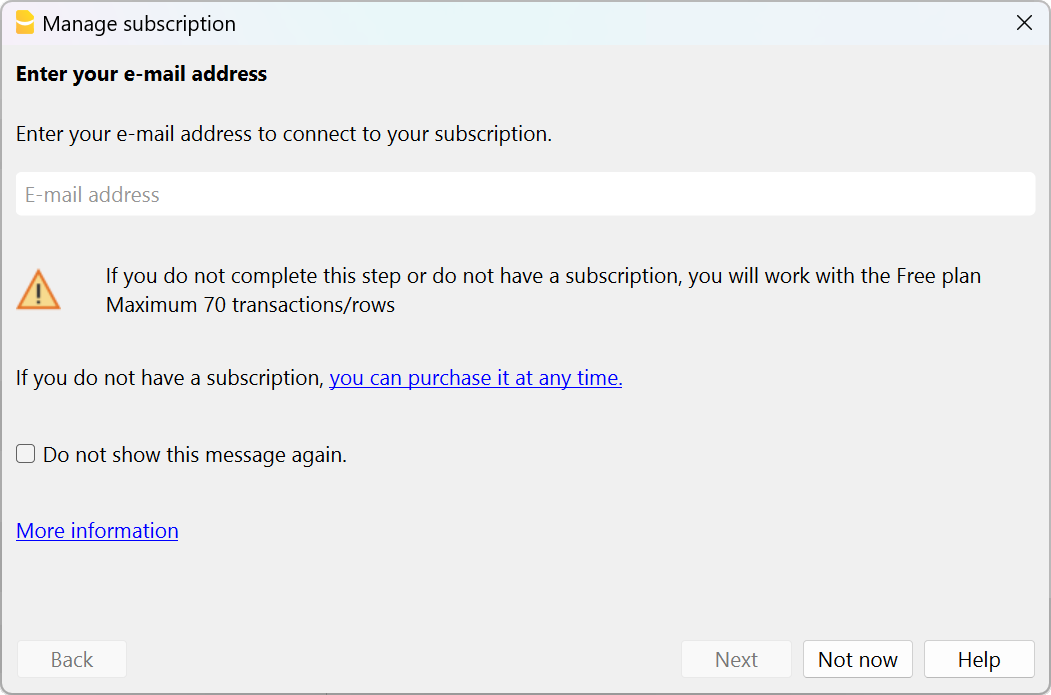
- When opening the program for the first time, a dialog window will appear where you enter your email.
- You can also access the same window from the Help menu > Manage subscription... command.
Note: in Mac operating systems, the menu bar is located at the top, to the right of the Apple logo.
▶ Video: Link your subscription (Swiss online shop)
Enter your email
The first step in order to use the software is to enter your email:
- If you already have an active subscription, the software will show you the plan info and the expiration date.
- If you received a Product Key upon purchase, you can enter it (in-store purchase or international purchase).
- If you do not have a paid subscription you can purchase it. Then, simply click on the Sync account info button (Help menu > Manage subscription) so that the programme can load your subscription data.
- If you do not purchase any paid plan, the program works according to the Free plan (even without entering the e-mail).
You can use Banana Accounting Plus on up to 5 personal devices by simply entering your email.
Companies, with more than one person using Banana Accounting Plus, must purchase a subscription for each user. For more information visit the Multi-user page.
IMPORTANT: Before pressing on the Submit button, please double check that you have entered your email correctly.
Enter the verification code
After entering your email address, you will be notified that a verification message with a 6-digit verification code has been sent to you.
Please check in your Inbox and copy/paste your verification code in this dialogue window, then press the Submit button.

If you haven't received the email
It is possible that the email we sent did not arrive in your inbox.
- You have entered the wrong email address
This is the most important reason our support finds when users fail to activate:- Verify that the email listed is indeed your correct email. Maybe you forgot or reversed letters.
- If you have entered the wrong email address, you can correct it with the Change ... button
- Make sure that your email box has updated the email
Multiple programs only read emails with a frequency of several minutes- In your email program click on "Get Messages", "Update".
- Check that the email has not ended up in the spam folder
It is possible that your email system did not deposit the email in the inbox, but in a Spam section. - Wait for the email to arrive
It may take some time for the email to be delivered.- While you are waiting for the email to arrive, you can click on the Not now button
- When the email arrives, you can return to the Help menu > Manage subscriptions command, and enter the verification code received.
- Request another code to be sent
- The verification code has a temporary validity.
- After 1 hour or 3 failed attempts you will need to request a new one
- Click on the link Request a new verification code (release 10.1.15) or If you're still having problems you can request we resend the mail (older releases). A different code will be sent to you. The previous one will no longer be valid.
- Make sure that the email is not deleted by your anti-spam
If the email doesn't arrive, it is possible that your email system is completely blocking the sending of the email.
You can instruct your email program not to block the messages that arrive from Banana.ch.
Information about your subscription
Once you have entered your email address as a registered user, the program shows you all the information about your subscription and the possibility of performing a number of operations. You can always access this dialogue box via the Help menu > Manage subscription...

 | Manage accountWith this link you can directly access to your Banana user account. You can access your license information, invoices, see and edit profile data perform other operations. Also visit the User account page. | |
 | Sync account infoThis link connects to Banana.ch and retrieves the updated subscription data. | |
Sign outWith this button you can remove your email address from Banana Accounting Plus, along with any subscription associated with it, therefore:
| ||
Subscription dataHere you can see your current subscription data and its expiry date. If you renew your subscription before it expires or if you buy a different subscription you will see both here. | ||
 | Upgrade to Advanced planIf you have the Professional plan, you can upgrade to the Advanced plan at anytime. The cost of the upgrade is calculated pro-rata. | |
Add a Product KeyIn some cases you will receive a product key after your purchase. For more information visit the Product Key page. |


Requirements
To activate the subscription it is essential to:
- Have an internet connection.
- Make sure that the Banana Accounting+ can connect to the internet.
If you have a firewall blocking the connection, you will need to temporarily disable it.
Once the subscription is activated, the program no longer needs any internet connection, until the subscription renewal.
Enable the reception of emails from banana.ch
To avoid that the sending of the email is blocked you can indicate to your email program that banana.ch is a secure domain.
Outlook: enable the reception of emails from banana.ch
- Open Outlook and go to Settings > Mail > Junk mail > Safe senders and domains > Add
- Add us as a safe sender

Check your Proxy Server
Is your computer frozen and the program seems to be running idle? It is possible that there is a problem with your Proxy Server.
To check if this is the case, and to solve the problem, proceed as follows:
- Open the menu File > New
- Click on the Update button (bottom left corner)
- Are you getting a Proxy error message?
Check the Proxy settings on your operating system. It is important that the Manual Proxy setup is turned off!
Banana Accounting Plus is now active!
Need help to get going? Find suggestions and directions on the How to start.
Changing the email connected to your subscription
In order to change the email connected to your subscription you need to follow these steps:
- Login to your Banana user account and change the email connected to your subscription or contact our customer service and ask us to change it for you.
- Open Banana Accounting Plus > Help menu > Manage subscription
- Choose the Sign out button and confirm pressing the Yes button. You will be temporarily using only the Free plan.
- Open again the Help menu > Manage subscription window
- Enter your new email address
- Verify your new email address by entering the verification code you received in your inbox (as described above)
- You can now see that your are working again with your paid Professional or Advanced subscription.
Renewing or changing your subscription
When you purchase a Banana Accounting Plus product, a Banana user account is automatically created, from which you can see all the information related to your subscription. For more information visit the Renew page.
Transferring the subscription to someone else
This need arises mainly for associations and NGOs, when for example the treasurer changes. Here is how to proceed:
- If the subscription is in the association's name - Log into the Banana user account and change the email of the person using the programme. From now on, the old treasurer can no longer use the subscription. The new treasurer will have to download Banana Plus and enter his/her email.
- If the subscription is in the name of the outgoing treasurer
- If he/she wishes to continue using Banana Plus for private purposes - The association or the new treasurer has to buy a new subscription
- If he/she does not wish to continue using Banana Plus - Log into the Banana user account and change, besides the email, all the other data. In this way the annual renewal will be invoiced and registered according to the new information.
The former treasurer must then transfer and/or share any .ac2 accounting files of the association with the new treasurer simply by sending the .ac2 files via email, using a USB key, or saving the file in a shared folder on Drive/Cloud.
For associations not in Switzerland or Liechtenstein we can make the changes ourselves. We are happy to answer any questions you may have.
Changing your device or purchasing a new one
Have you changed or purchased a new device? You can continue using your Banana Accounting Plus subscription without any issues:
- Download and install Banana Accounting Plus on your new device.
- Open the program, then enter and verify the email address associated with your subscription so that the program recognizes it.
- Open any previously created .ac2 accounting files from the File menu > Open, which were shared via email, USB stick, shared folder, or Drive/Cloud. Or create new accounting files from the File menu > New, choosing from the many templates we provide.
Cancelling your subscription
Both the subscription and the payment are annual. If you want to cancel your subscription at the end of the 12 months, you can do so at any time or when you receive the renewal reminder email. Here's how to proceed:
- Log in to your Banana user account and, in the Subscription section, disable the automatic renewal for the end of the period.
- If, in addition to the subscription, you also want to disable notifications (emails and newsletters from us), you must also disable notifications from the main page of your Banana user account.
Alternatively, you can also contact our customer service by sending us a short cancellation message.
Managing your notifications
By default, the following notifications are active for all our subscriptions:
- Subscription expiration notices
- Banana Newsletter
To deactivate notifications, visit the Banana user account.
Always access your data
Even after the cancellation of your subscription you can always access your accounting data, because Banana Accounting Plus continues to work according to the FREE plan that allows you to freely open and view the files.
*Why wasn't I given the free month?
The free month is credited automatically if you purchased your old version from 2018 onward and if your email has remained the same. For old versions purchased before 2018 you need to contact us to get the free month.
If you purchased Banana Accounting in a physical shop and have never registered, register now!
We will be happy to answer any questions you may have.
Activate a subscription with a Product Key
The Product Key is a code that allows you to activate or extend a Banana Accounting Plus subscription.
The Product Key is only provided in some cases of online purchase of in the retail box product. If after the purchase you do not receive a Product Key, it means that you don't need it: simply enter your registered user email in the programme to see your subscription's info.
▶ Video: Activate your Banana Accounting Plus subscription with a Product Key
The Product Key is only used the first time to activate or extend a subscription. If you need to install Banana Accounting Plus on your other devices, simply enter your email linked to the subscription.
In order to activate your subscription, proceed as follows:
- Download, install and launch the program
- Enter and verify your email
- Enter your Product Key
2. Enter your email
- Enter your email in the Manage subscription dialog window that opens upon opening the program (you can always access it from the Help menu > Manage subscription....). A verification code is sent to your email address.
Above: image from our latest release - Below: image from older releases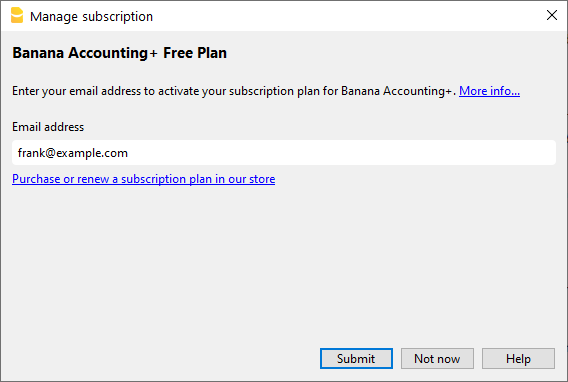
- Enter your verification code in the program, as a confirmation that you own the indicated email address.
- If you don't receive the confirmation email, please go to the Manage subscription to solve the issue.
Above: image from our latest release - Below: image from older releases
- Your email is now associated with the program. If you don't already have any active subscription you will see that you are working with the Free plan.

3. Activate a subscription with the Product Key
After entering your email you can proceed as follows:
- Click on the Add Product Key link
- Enter your Product Key and press Submit

- You now see the updated data regarding your subscription and its expiration date.

You can now work with Banana Accounting Plus without limitations. We recommend visiting the How to start with Banana Accounting Plus page for some useful tips.
For more information also see the explanations for the Manage subscription page.
Extend or renew a subscription with a Product Key
You can also use a Product Key to extend an existing subscription.
- Open the Help menu → Manage subscription...
- If you already entered your email you will see the data of your existing subscription, if not you need to enter it (see instructions above)
- Click on the Add a Product Key link and enter your Product Key

- The months related to the new Product Key will be added to the months of your current subscription.
- You will see the updated data for your subscription plan and the new expiration date.

Banana user account
All online purchases from our online shop automatically originate a Banana user account.
Login into your Banana user account
From your user account you can view and edit your subscription information: invoices, address, payment method, manage and add users, cancel subscription, ...
Access your Banana user account

If you haven't setup a password during your checkout process, you will be asked to do so the first time you access your user account.

Dashboard
From the Dashboard of your user account you see a summary overview of all your data. Using the Modify or View buttons, you can view the details of each entry and make changes.

Subscriptions
From the left side menu you can see your Subscriptions and manage them.
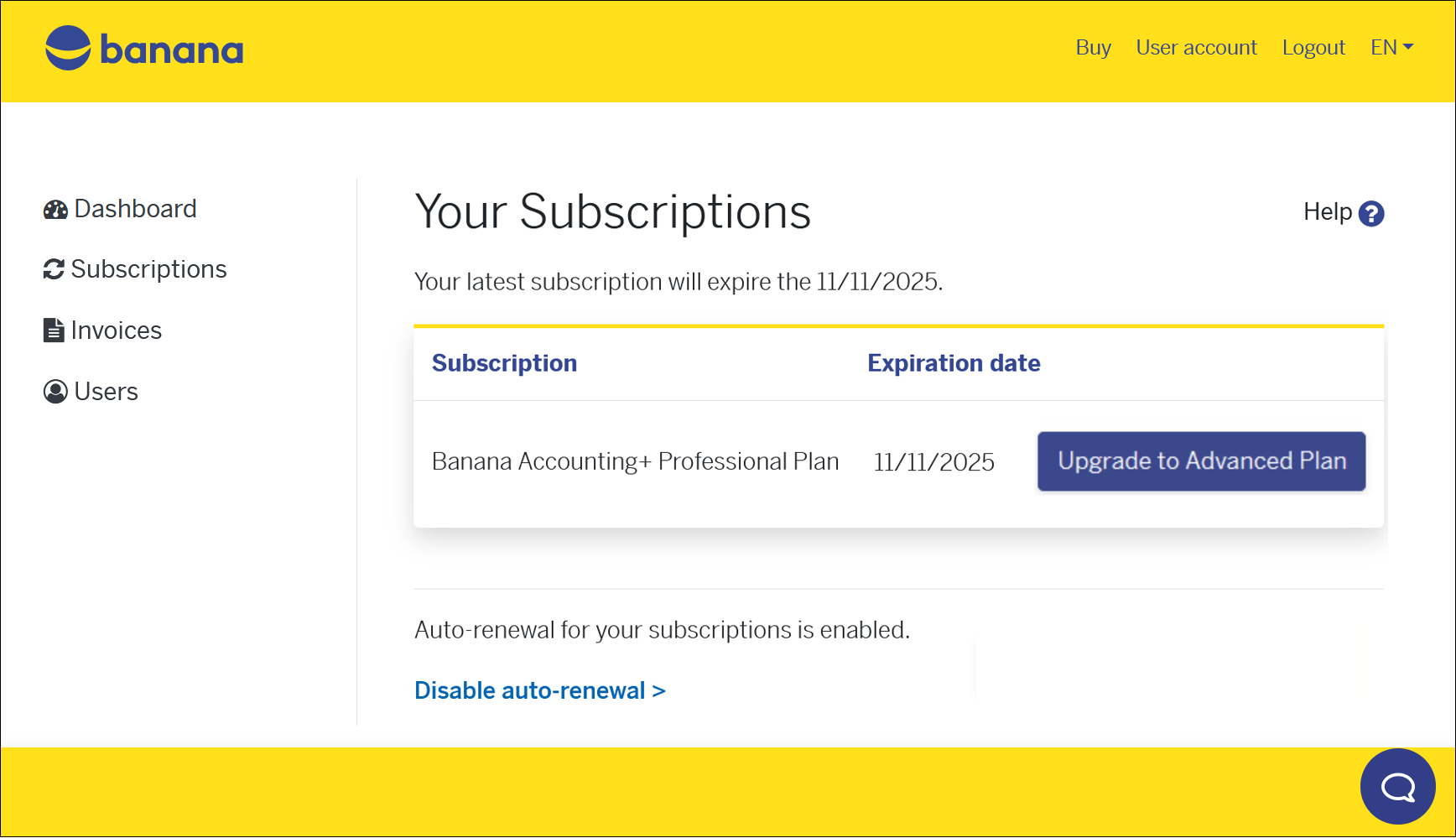
You can perform the following operations:
- Renew your subscription directly from here. You only see the Renew button if you are close to your subscription's expiration date.
- Upgrade to Advanced plan - your price will be automatically calculated on a pro-rata basis depending on your remaining period
Cancel your subscription
From the left side menu, choose Subscriptions and then click on the Disable the auto-renewal link.

Disabling the auto-renewal is equivalent to giving notice to cancel your subscription.
However the subscription remains active until the expiration date.
If, in addition to disabling automatic renewal, you no longer wish to receive our newsletters or expiry notifications either, you must also change the Notifications settings from the Dashboard.
Orders and invoices
From the left side menu choose Invoices.
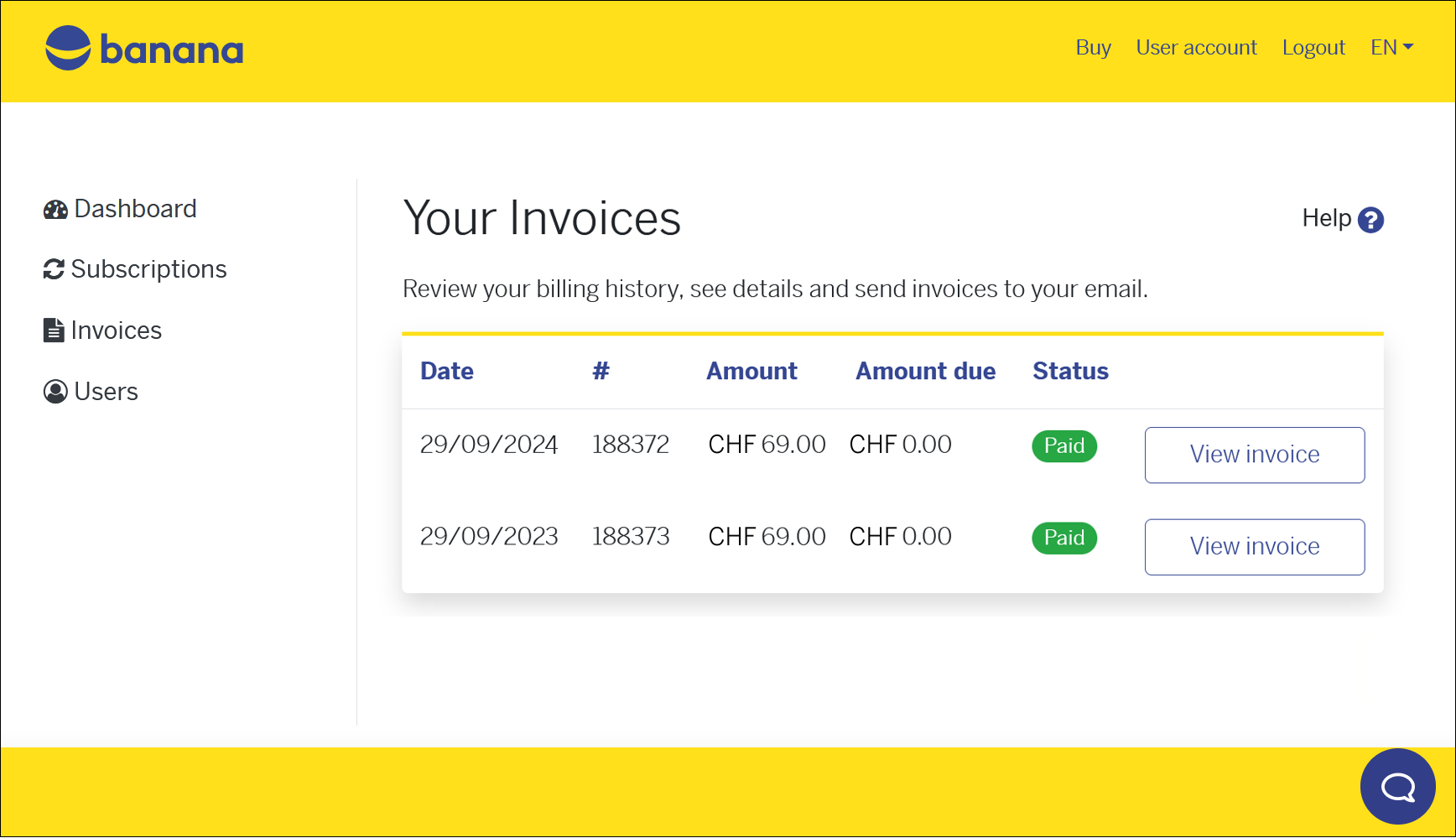
You can see all your past orders, the amounts you paid, and the status of each invoice. If you need to download or print your invoices proceed as follows:
- Click on the View invoice button (you can also download it in PDF format).
For purchases from Switzerland and Liechtenstein there is also the Resend the invoice to your email button (always PDF format).
In the case of open invoices (payment deadline within 10 days) see the Pay now button.
For purchases from countries other than Switzerland and Liechtenstein, the invoices are generated by our partner Paddle. Paddle handles all international payments.
Payment method
The payment method can be viewed and edited directly from the Dashboard by clicking on the Modify button .
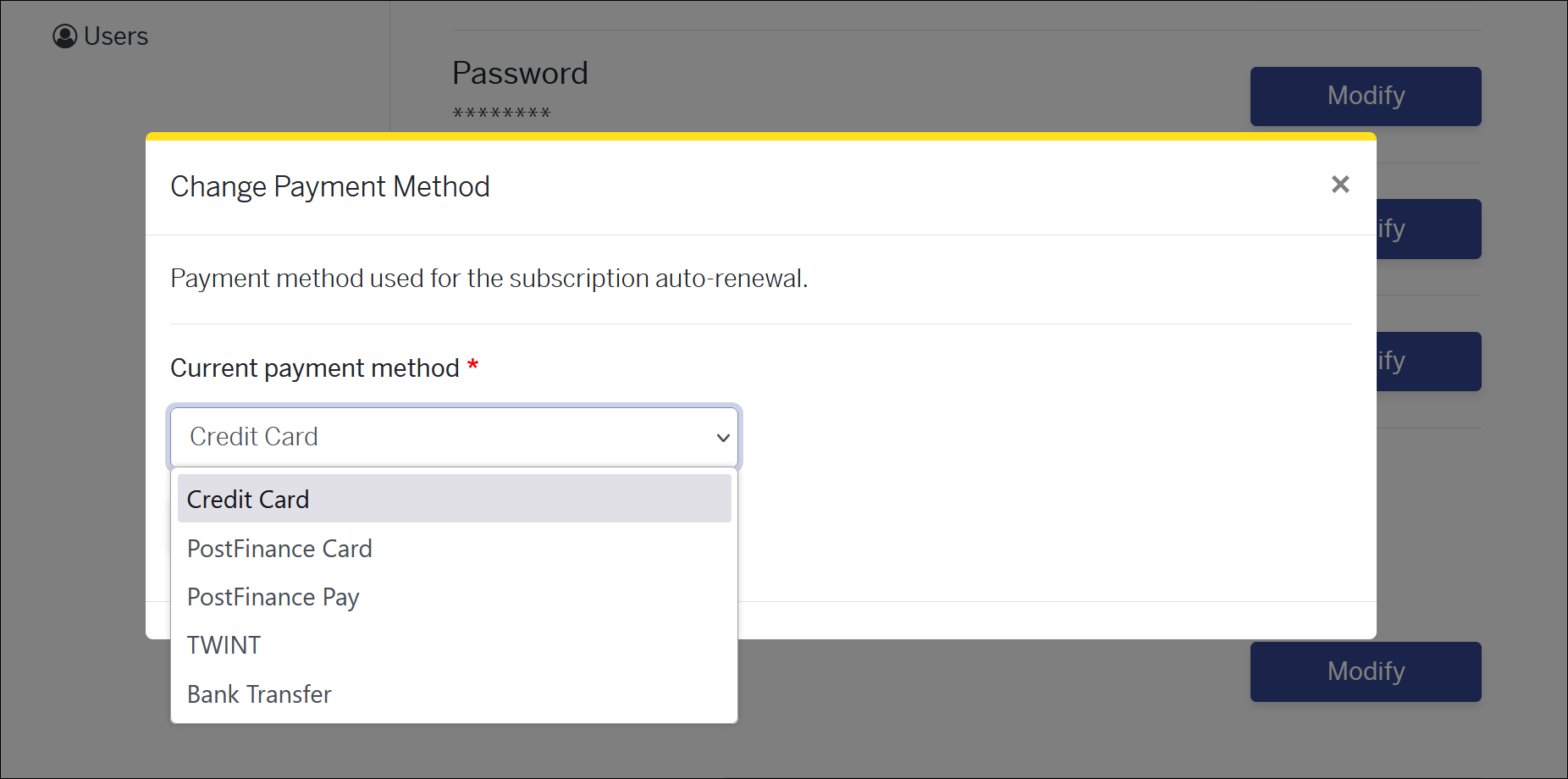
You can see what your last payment method was and change it if you want, for the next payment.
Payments from Switzerland and Liechtenstein
For processing payments from Switzerland and Liechtenstein (according to the country indicated in the Address section), we rely on the Postfinance platform. Postfinance handles all national payments, stores payments data, and offers different possible payment methods:
- Immediate payment and, on the next due date, automatic charge.
- Credit Card - Banana.ch does not save sensitive credit card data (they are kept by our payment provider, PostFinance).
You will be asked to enter your credit card data:- The first time you make the payment or you have set the credit card as the payment method.
- If the credit card has expired or is no longer valid.
- If during the year you change your payment method to credit card, Banana won't ask you for the card details immediately, but you'll be able to enter them at the time of renewal payment.
- Credit Card - Banana.ch does not save sensitive credit card data (they are kept by our payment provider, PostFinance).
- Immediate payment and, on the next due date, a new payment will be necessary
- PostFinance card
- TWINT
- Manual payment and, on the next due date, a new manual payment will be necessary
- Bank transfer - Payment within 10 days from the invoice date.
If you remove the existing payment method with the Remove button, you can select a different one. Automatic subscription renewal can always be disabled from the Subscriptions page.
Payments form other countries
For processing payments from other countries (according to the country indicated in the Address section), we rely on an external sales platform, from our partner Paddle, who handles all international payments, stores payment data and applies the local VAT to the transaction.
The following payment methods are available: Credit Cards, Paypal, Google Pay (are from Chrome browser), Apple Pay (only from Safari browser), etc.
Change password
The password can be changed directly from the Dashboard > Password, by clicking on the Modify button.

You can change your user account password anytime.
Change email address
The email connected to your Banana Accounting Plus subscription is very important, as you need to enter it in the program to activate it. If you need to connect your subscription to a different email address proceed as follows:
- from your user account, from the Dashboard > Email, click on the Modify button.
- From the Banana Accounting Plus program enter and verify the new email.
This procedure is useful, for example, to associations that change their treasurer. Likewise, they can change their mailing address.
Please note: it is possible to have an administrative email other than the email of the person using the software. The administrative email can be changed in the section Change address. The email of the user of the software can be changed in the Users section.
Change address
Your location address is where our invoices are sent and addressed to. If you need to update it you can easily do it from your user account.
From the Dashboard > Billing > Name and address, you can see your current registered address, but you can edit it and update the page with a new one. Press the Change address button to save your changes.
Change language
It is the language in which your invoices are processed, your reminder emails and newsletters are sent.
From the Dashboard > Language, you can see the language currently used for your user account, and you can easily change it from here. Click on the Change language button to save your changes. The change affects all future documents; documents that have already been processed will not be changed.
Notifications
In this section you can indicate whether you would like to receive subscription expiration notices and our newsletters.
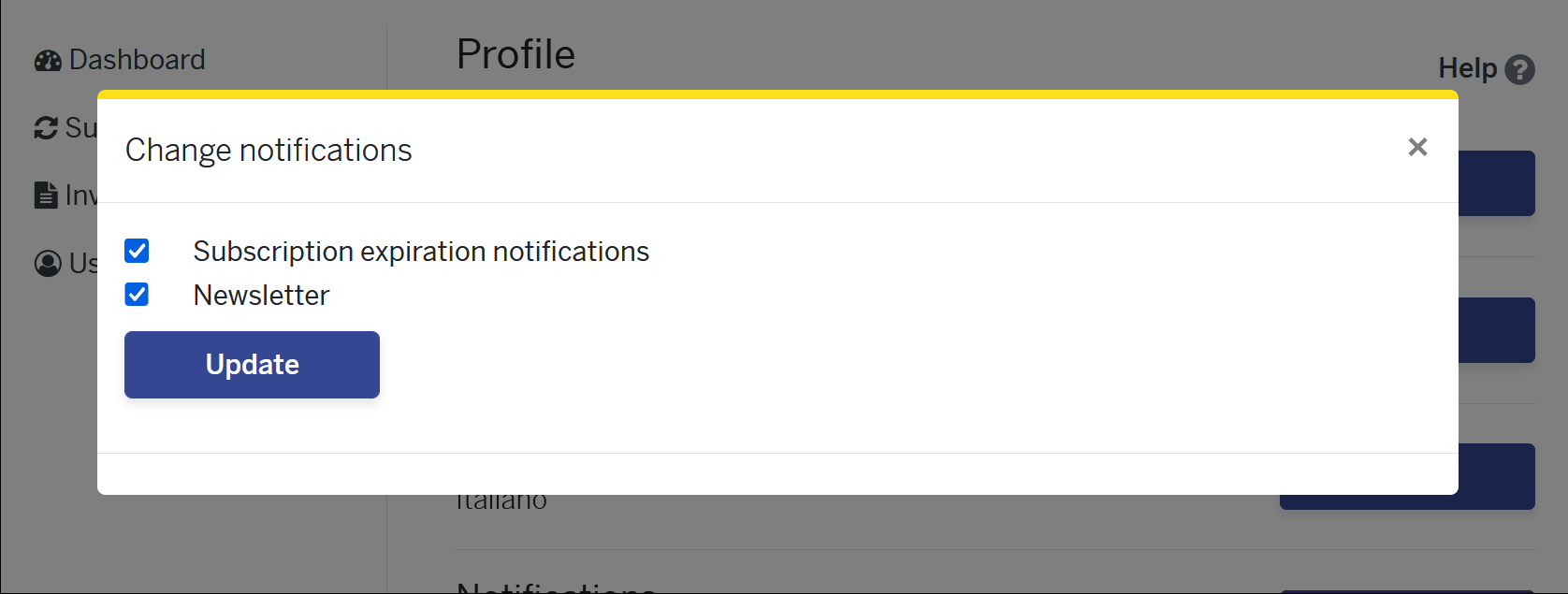
By default both options are turned on. You can turn them off by simply removing the check from their respective boxes and then pressing the Update button.
Users
From this section you can manage the users connected to your subscription.
You can add multiple users to your subscription at any time during the year, creating a multi-user subscription. A single-user subscription includes only one user, but you can always purchase additional seats.
For a company, a multi-user subscription is attractive because there is only one purchase/renewal invoice and it can manage its users independently.
Please note: it is possible to have an administrative email other than the email of the person using the software. The administrative email can be changed under Change address. The email of the user of the software can be changed in the Users section, using the Manage button.

To add users to your subscription, click on the Buy more button (the system will calculate the pro-rata for adding the user until the administrator subscription's expiration).
Forgot password?
If you forgot the password to your Banana user account, you can reset it and create a new one.
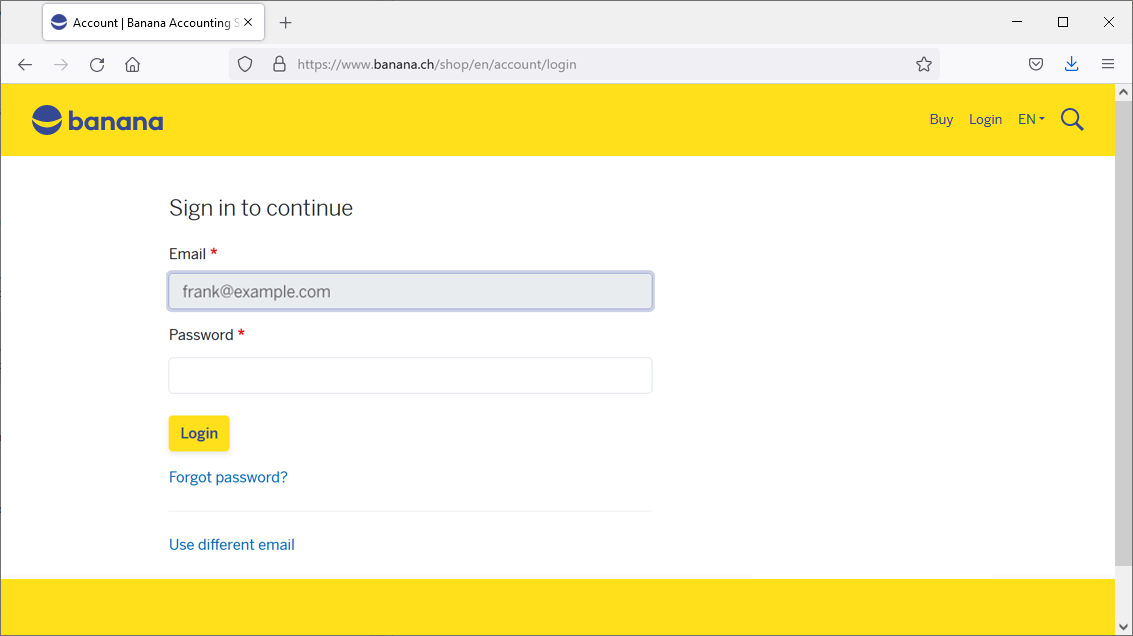
When logging into your user account click on the Forgot password? link.
You will be asked confirmation that you want to reset the password.
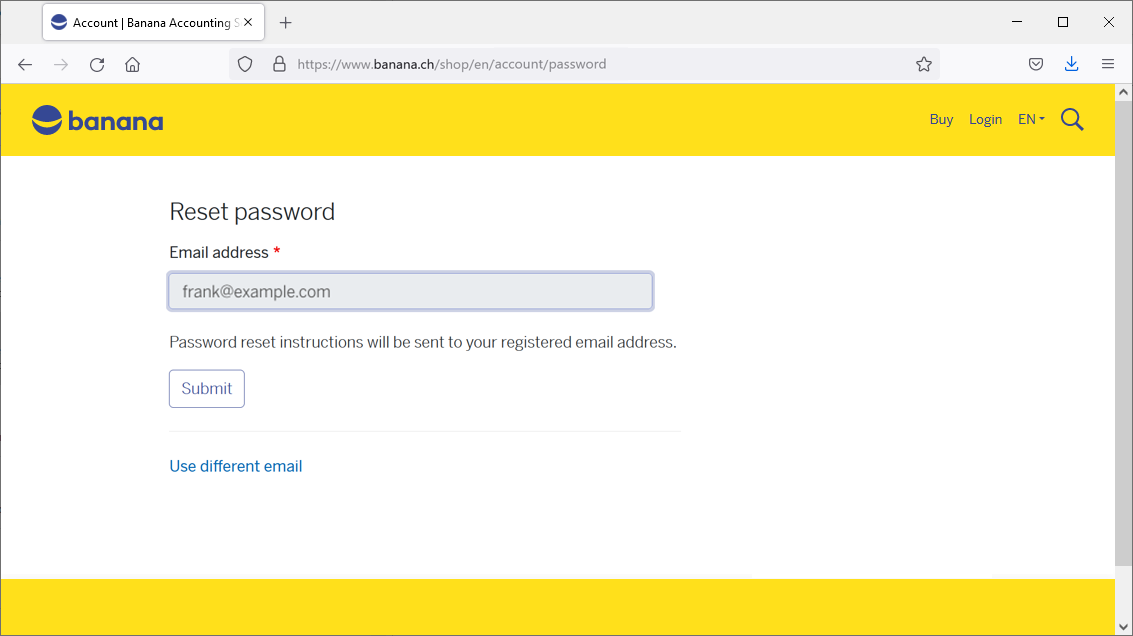
Press on the Submit button.
You will receive an email in your inbox of your mail provider, similar to the one below:
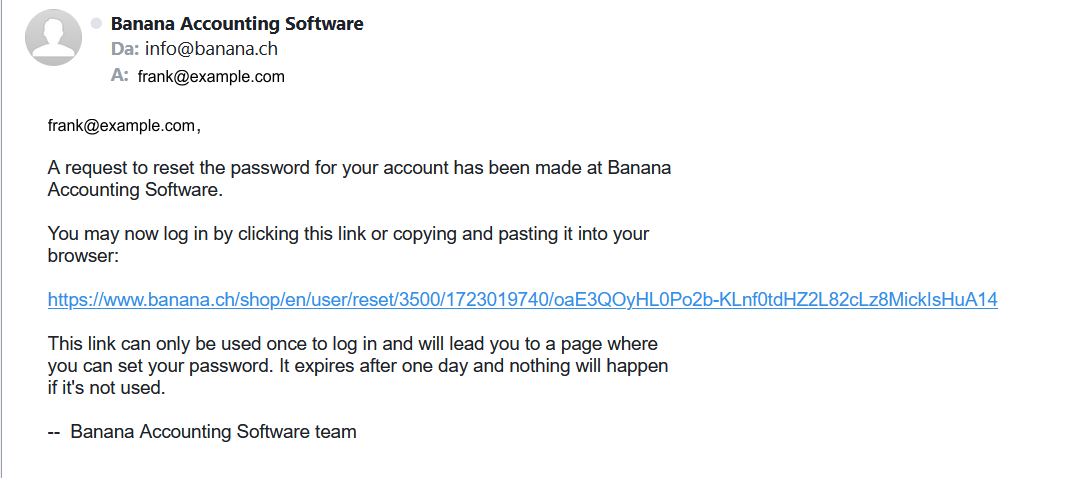
Click on the link.
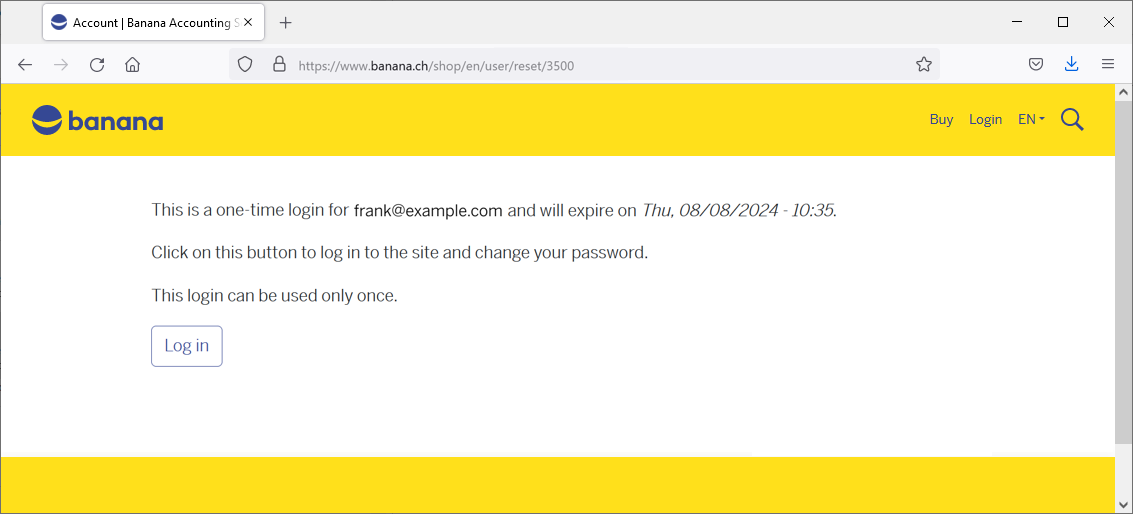
Press on the Log in button.
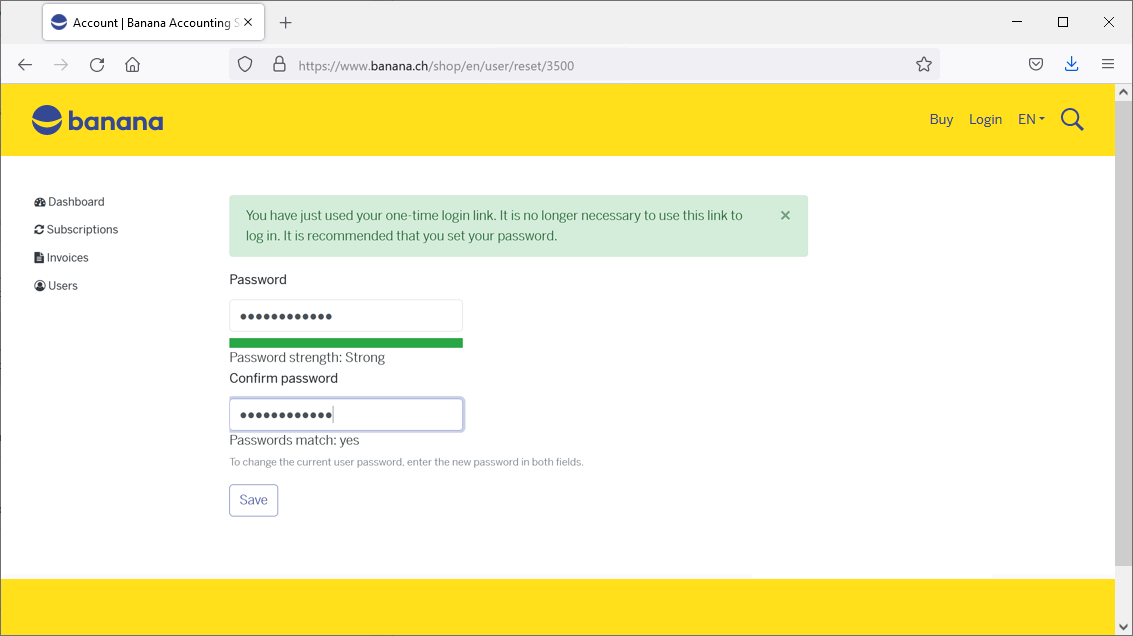
In this dialog you need to enter twice your new password and then press the Save button.

If you see the green message "The changes have been saved", it means that you are already logged into your Banana user account and that your new password has been saved.
You are back to the Dashboard of your user account.
User account for international purchases
For international purchases from our website, we rely on the Paddle platform.
Our former partner, MyCommerce Digital River, is no longer active.
Purchases can be made directly from our shop. With the purchase, a Banana user account is automatically created, from which all subscription data can be viewed.
Important notes:
- Use the same email address you have already registered with us.
- With the purchase, the subscription is automatically activated and you can start working in Banana Accounting immediately. No license key or Product Key is needed.
We are available for any questions or needs.
Multi-user subscription to Banana Accounting+
The Multi-User Subscription of Banana Accounting Plus allows multiple people within the same organization to access Banana through a single annual subscription, managed by one designated administrator. This setup offers several organizational benefits and simplifies administrative tasks. The program's features remain unchanged for all users accessing it.
The Multi-User Subscription should not be confused with a personal single-user subscription, where each user must register with their own email and can then install and use the program on up to five personal devices. If this applies to you, please visit the Subscription page for more details.
Benefits of the multi-user subscription
- Manage all your employees using Banana Plus from a single user account
- Access the user account by entering a main (administrative) email
- Receive a single invoice for all users on the administrative email
- Independently manage the secondary emails (of those using the software)
- Add new users at any time
From your Banana Plus user account you always see your subscription status, expiry date, invoices issued, and much more.
Purchase of multi-user Subscription
- Purchase from Switzerland and Liechtenstein
- Purchase outside of Switzerland, from our international online shop
- Conversion of individual subscriptions to a multi-user one
- Parallel management of a Professional and an Advanced multi-user subscription
- Conversion of a multi-user Professional subscription to an Advanced subscription.
Management of the multi-user subscription
- Access your user account
- View all your data from the Dashboard
- Manage and update the user list
- Remove users If the administrator is not also a user
Multi-user purchase from Switzerland or Liechtenstein
Our new Swiss shop allows customers to choose the number of subscription they want to purchase.
For example, if a company has 5 employees in need to work with Banana Plus, on the shop page the company's administrator needs to purchase 5 subscriptions.
It is not possible to purchase a multi-user subscription in stores or on other websites outside of our online shop.
It is not possible to purchase from our Swiss shop from other countries. Please visit the international shop.
As a first step to any purchase from our Swiss shop, you need to enter your email. This will be the main email used for administration purposes (purchases, renewals). It can also be one of the emails that use the software.

Now you can see the purchase page. Enter the number of subscriptions you want to purchase.

After the purchase you will receive a confirmation email asking you to login into your user account, from which you will be able to define the 5 emails that will be connected to the 5 subscriptions (Users tab). You can access anytime your user account trough the link: www.banana.ch/shop/en/account
International multi-user purchase
The purchase of Banana products outside of Switzerland is handled by an external partner. Please contact our customer service via email!
Conversion of individual subscriptions into a multi-user subscription
If you have specific requirements, such as converting previously purchased individual subscriptions (from us or in-store) into a multi-user subscription, this is possible but it requires manual processing by our staff. Please contact our customer service via email!
Parallel management of a multi-user Professional subscription and an Advanced subscription
If you want to have two different subscriptions in parallel, one for the Professional plan and one for the Advanced plan, both with the same administrative email, this is possible but it requires manual configuration by our staff. Please contact our customer service via email!
Conversion of a multiuser Professional subscription to an Advanced subscription.
From Switzerland → Log in to your user account > Subscriptions > press the Upgrade to Advanced plan button. Pro-rata pricing is automatically calculated: you pay only the difference between the Professional and Advanced plans for the remaining period till the subscription expiry for the number of users you have. Work is not interrupted.
International → switching from the Professional to the Advanced plan for international users is not automatic. Please contact our customer service via email!
Access your user account
To access your user account, please enter https://www.banana.ch/shop/en/account in your browser.
If you haven't set a password yet, you will be asked to do so the first time you access your user account.
See all your data from the Dashboard
From the Dashboard of your user account, you can view a summary of all your data.
Manage and update your user list
Once log into your user account, go to the Users section.

Press on the Manage button to be able to enter the emails of your 5 employees using the purchased subscriptions. You can also add new users at anytime with the Buy more button.

Each employee/associate will have then to:
- Download Banana Accounting Plus
- Install Banana Accounting Plus
- Enter his/her email in order to connect it to the subscription
The administrator can modify and update the emails of employees/partners at any time.
Remove users
In your user account, under the Users section, you can see the list of your users through the Manage button. In the same screen, you will also find the Remove users at next renewal link. By clicking on this link, you will be directed to a window where you can specify the number of users you want to renew. Please note that users can only be removed at the end of the subscription period.
Warning: If the number of users is reduced for the next renewal, the program removes the last users from the listby default. For example, if there are 5 users (see image above) and it is indicated that there will be only 3 users from the next renewal, the program will remove the emails of employee4@example.com and employee3@example.com. If necessary, change the order of the emails so that the program removes the correct ones.
If the administrator is not a user
Unless otherwise indicated, the administrator's email is also automatically entered as the first user. If the administrator is not a user, simply remove him/her from this list. It is always possible to see the administrator's email from the Dashboard, and it can be changed from the Email section > Modify.
FAQ
What do I do if I have already used the same email for two Product Keys?
Contact our support team directly, describing the problem and possibly indicating the order number with which you purchased your Product Keys.
In which cases may I need a multi-user purchase?
If you have a company where several users have to work on Banana Accounting Plus, you need a subscription for each user. Each user will need a personal email to access Banana Accounting Plus. In such cases, the multi-user subscription offers several organisational and administrative advantages. The programme features remain the same as for the single subscription; it is not possible to share the same accounting file between several users at the same time.
What does the installation of Banana Accounting Plus on 5 devices imply ?
Each user can install Banana Accounting Plus on up to 5 of the devices he personally uses, always activating the program with his registered user email. You can then, for example, install it on your desktop computer (at home or at work), on your laptop, on mobile phones, etc. This also means that if the accounting files (.ac2 format) are saved on some Cloud device, such as ICloud or Dropbox, the user can access and work on them from all his devices.
The conditions of use always remain valid.
Can I Install Banana Accounting+ on a Server running Terminal Service or in a Windows Domain?
Banana Accounting+ can be installed on computers registered in a Windows domain with Active Directory and Roaming User Profiles and on computers that offer a Terminal Service. Each user must proceed with the activation as described above, the data regarding the activation are saved in the user's profile.
Offline Multi-User subscription
For large companies, public bodies, institutions or schools, it is also possible to obtain an Offline Multi-User subscription.
How the Offline Multi-user Subscription Works
This type of multi-user subscription involves the preparation, by our development team, of a programming string (which includes all the subscription data) that your IT administrator can use to install Banana on the server, giving access to the various computers.
This type of subscription refers solely to the installation method of the software and should not be confused with the saving of Banana accounting files (in .ac2 format). These files can be saved wherever you prefer: in a local folder, on a company network drive, or in the cloud. More information can be found on the following pages:
- Save your Banana Accounting Plus files also on the Cloud
- Organize your accounting files efficiently locally, online, or in the Cloud
Features of the Multi-User Offline subscription:
- Individual users do not have to do anything; they already have access to Banana from their computers
- Renewals are managed at the administrative level
- The administration does not have to manage the emails of individual users
- Banana.ch SA provides a dedicated contact person
How to apply for an offline Multi-user subscription
- For schools or training institutions that use Banana for educational purposes - fill out the online form
- If you are a company or institution, send us a request
We will evaluate your request and contact you.
Technical installation info for the Offline Multi-user subscription
In order to be able to use an Offline Multi-user subscription, you need to run the Banana-setup with the parameters specified below.
Subscription dialog
When you use the offline activation method the Manage Subscription (from the Help menu) will show the subscription information. Users will not be able to modify their subscription information.
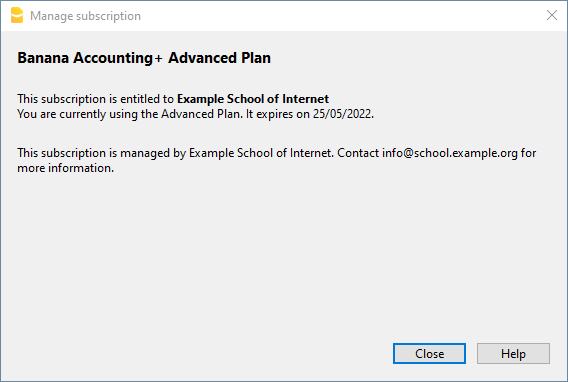
Activation during installation
For Windows only, open a Command Prompt in Administrator mode and launch the installer using the following parameters.
Bananaplus-setup.exe /VERYSILENT /<user option> /MAIL=<your@mail.address> /KEY=<the activation code without line break>
- user option:
- /ALLUSERS: tells Setup to install in administrative mode. (Installation under C:\Program files).
- /CURRENTUSER: tells Setup to install in normal user mode. (Installation under %localappdata%\Programs)
Here you will find more information about the command line parameters.
Example:
Bananaplus-setup.exe /VERYSILENT /ALLUSERS /MAIL=info@school.example.org /KEY=U0QxM8o77zlMg16K7HohVa8Ex1njLn+o8SMv5nahijMheIwJg8zW1dq9JWrkAc2y0wispI+yvOhdgIq3ucqV2HGxiI6YK75xD57gROP9d5n6MBZ8I5e
Activation after installation
The process is very similar but instead of running the Bananaplus-setup.exe you need to run the BananaPlus.exe.
The parameters are different.
- -cmd=activate_sub: tells BananaPlus that this is a subscription activation
- -cmd_p1=<your@mail.address>
- -cmd_p2=<the activation code without line break>
You can use this proceeding to update the license information.
In this case, it's better to put the parameters in quotes
Example:
BananaPlus.exe "-cmd=activate_sub" "-cmd_p1=info@school.example.org" "-cmd_p2=U0QxM8o77zlMg16K7HohVa8Ex1njLn+o8SMv5nahijMheIwJg8zW1dq9JWrkAc2y0wispI+yvOhdgIq3ucqV2HGxiI6YK75xD57gROP9d5n6MBZ8I5e"
Update to a new version of the software
If you run again the installer the license information will be retained. But it may be advisable to redo the installation from beginning and have a clean installation.