Supplier Management
The supplier management allows you to record, organize, and manage supplier information, enabling you to keep track of supplier transactions and payments, payment deadlines, and contact information. You can monitor due invoices, paid invoices, and the account balance for each supplier, as well as the total open balance.
Supplier management is one of the features of Banana Accounting Plus available in all accounting applications.
Supplier master data settings include both revenue and cash management. Foreign currency supplier accounts can also be managed.
The function of making supplier invoice payments via e-banking is only available in the Advanced plan.
Recording Supplier Transactions
The Transactions table is the heart of Banana Accounting and is used to record all operations, including supplier transactions, simply by specifying the supplier's account. You can work quickly because you can select, copy, and paste supplier transactions that have been entered previously. If you make any mistakes, you can always correct them.
The supplier transactions recorded in the Transactions table include the following:
- Receiving invoices
- Making invoice payments
- Receiving credit notes or refunds
- Managing payments via e-banking
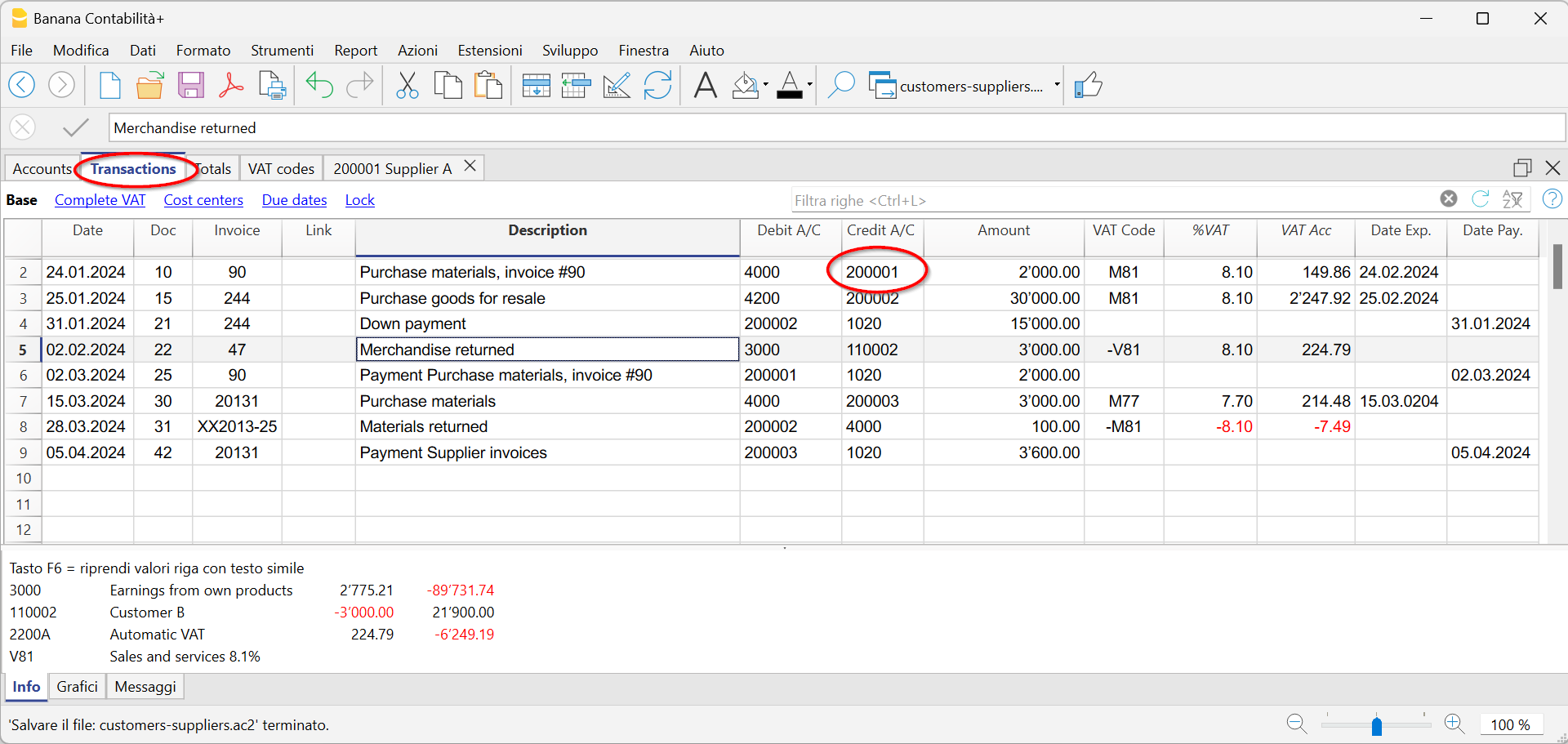
There are columns where you can enter various pieces of information, including:
- Date of the Transaction, Due Date, and Payment Date.
- Invoice number.
- Debit and Credit Accounts where you specify the supplier's account (Credit) and the counterpart account (Debit).
- Amount.
- VAT codes for the automatic calculation of VAT
- Links to Digital Documents (such as the invoice received from the supplier or PDF annotations).
Supplier Accounts
Supplier accounts are used to record all transactions related to a company's suppliers.
The main functions of supplier accounts are as follows:
- Create an Account for Each Supplier and Track All Transactions.
- Record Received Invoices for Each Supplier.
- Create an E-banking Payment Order Directly from the Supplier Invoice.
- Record Payments to Suppliers and Associate Them with Received Invoices.
- Generate Lists for Payment Verification.
In Banana Accounting Plus:
- Supplier accounts and their Addresses (name, surname, company name, address, VAT number, etc.) are set up in the Accounts table.
- Accounting transactions related to these accounts are entered in the Transactions table.
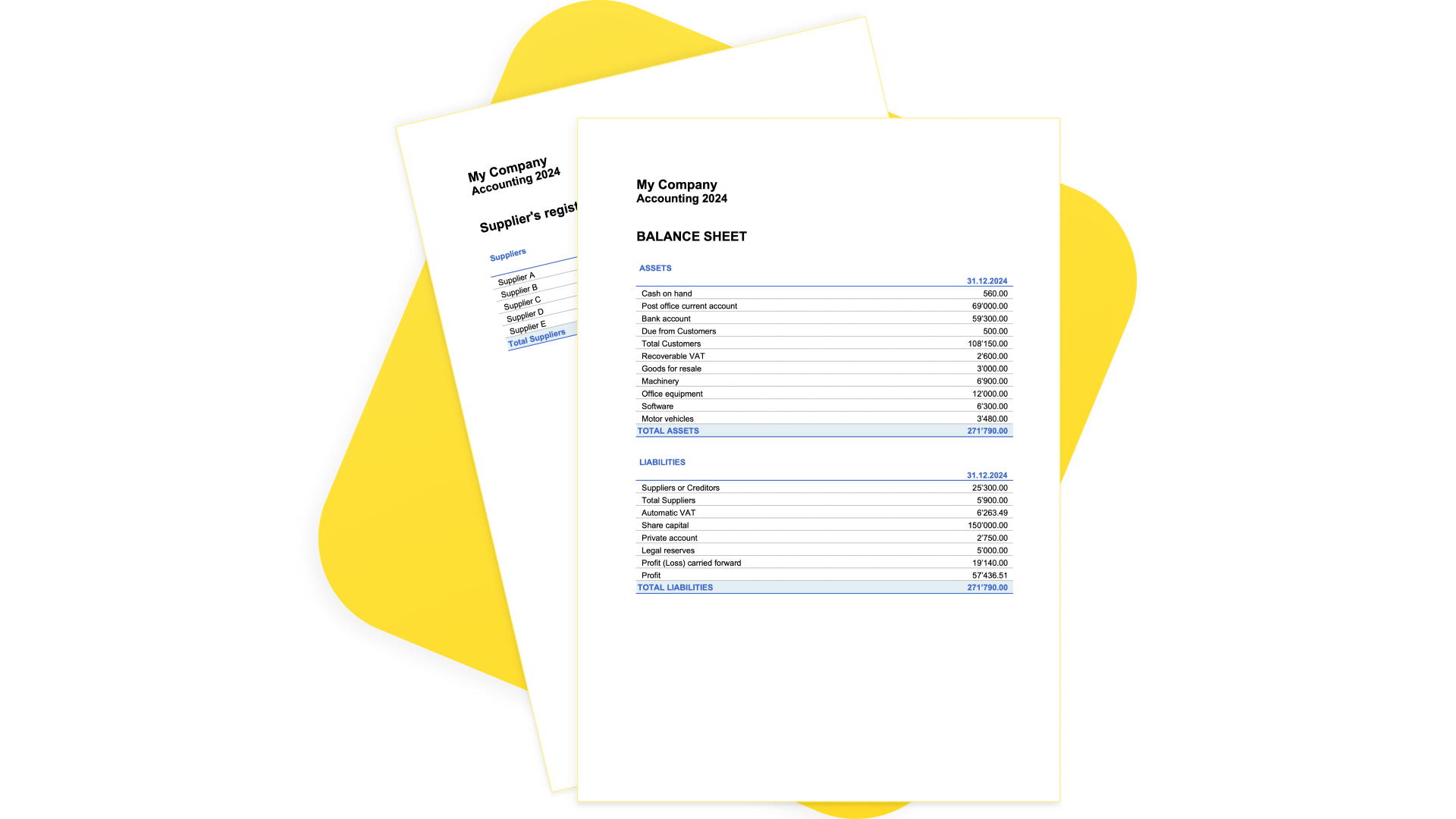
- After each entry, all supplier account balances (Accounts table) are automatically updated, providing an immediate overview of outstanding balances yet to be paid.
Recording Received Invoices
The invoice received from the supplier is used for accounting and tax purposes as it allows for the accurate recording of a company's costs and expenses, as well as the calculation of VAT.
In Banana Accounting, invoices are recorded in the Transactions table by:
- Entering the date and description.
- Adding an invoice number.
- Recording the cost account in the Debit column and the supplier account in the Credit column.
- Specifying the VAT code for goods or services purchased. Calculations and VAT amounts are automatically inserted.
Recording Payments
In Banana Accounting, payments are recorded in the Transactions table using one of the following methods:
- Manual Recording:
- Enter the date and description.
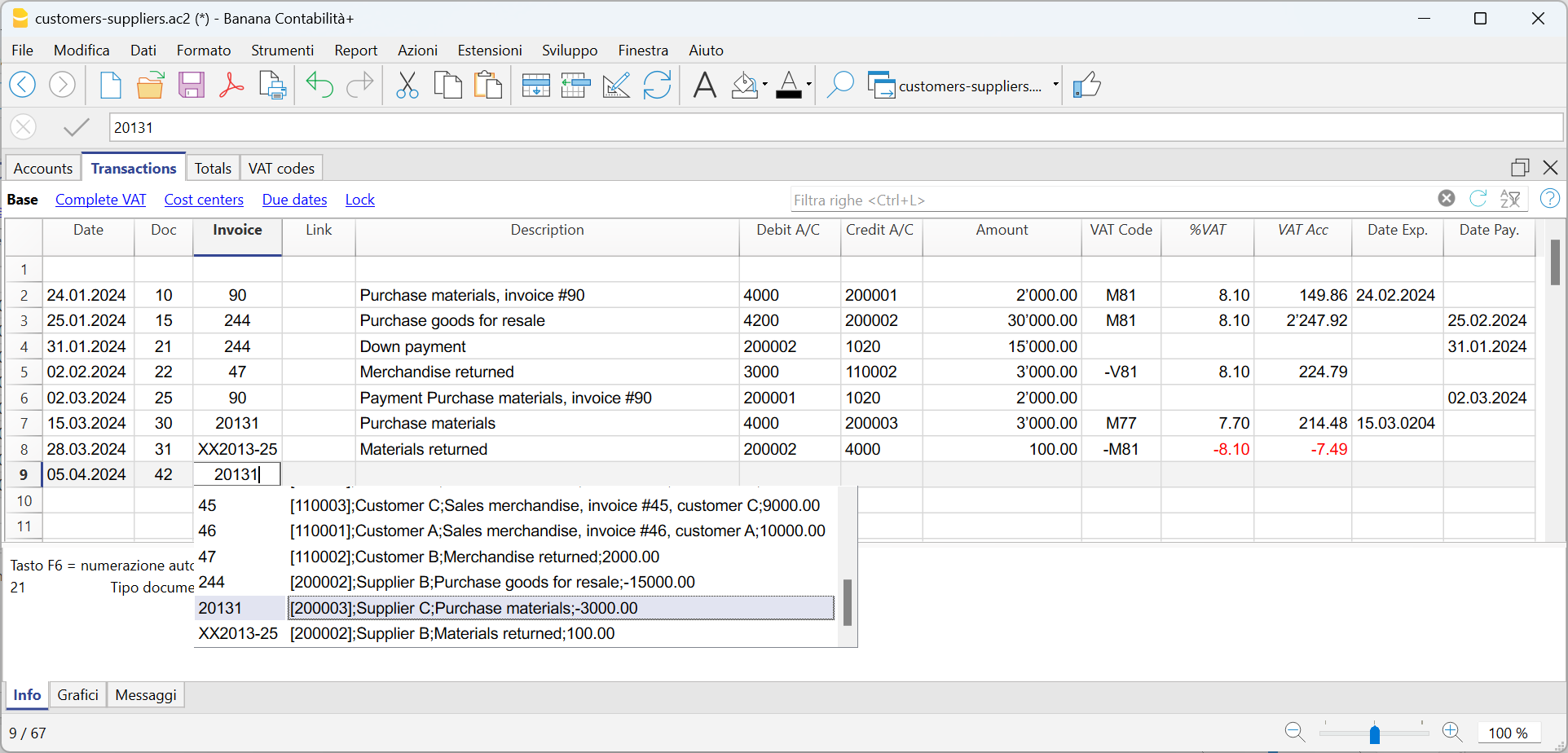
- In the Invoice column, specify the supplier's account. A dropdown menu will display the open invoices. Simply select the invoice received from the supplier, press Enter, and the program will automatically fill in the supplier's account in the Debit column, along with the invoice amount. Basta poi Then, enter the cash account in the Credit column to complete the recording.
- Data Import from Bank Statements Using Rules
- The program imports data from ISO 20022 bank statements, and with the use of Rules, it automatically enters complete transactions, including all necessary details, without the need for manual intervention.
Outstanding Invoices
Outstanding invoices from suppliers are those invoices that have been received but are still pending payment.
Supplier's outstanding invoices can be managed through an accounting register that tracks issued invoices, payment due dates, and received payments. This allows the seller to monitor the financial status of each supplier and send payment reminders if invoices remain unpaid for an extended period.
It's important to note that outstanding supplier invoices have an impact on a company's liquidity, as they represent funds that need to be allocated for payment.
Banana Accounting automatically generates a report of outstanding invoices, where you can quickly verify which invoices are still pending payment, from which supplier, and the total amount of outstanding invoices.
There are two types of reports:
- Open Invoices by Supplier, where all open invoices for each supplier are listed.
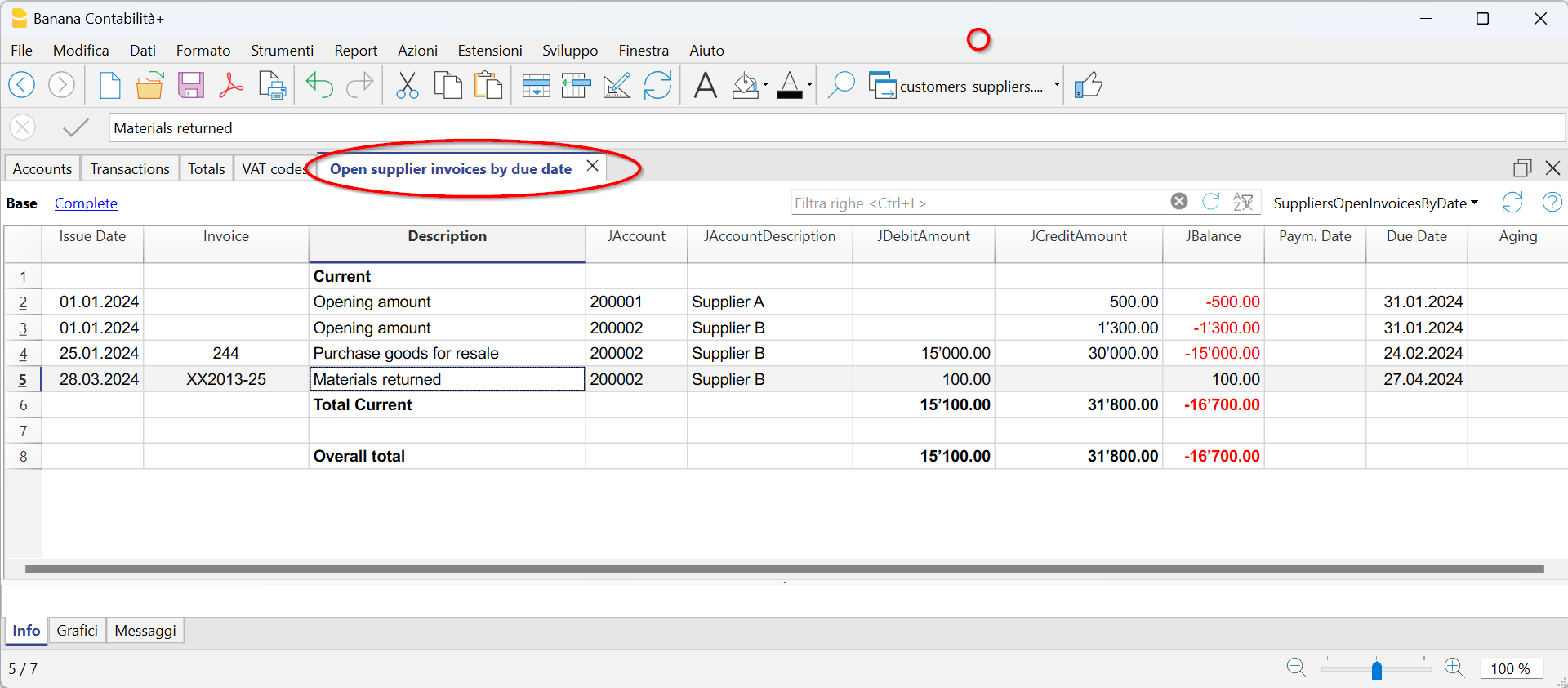
2. Open Invoices by Due Date, where open invoices are listed in order of their due dates.
The due date for an invoice can be set in various ways. Further information is available on the following page: "Expiry Dates and Payment Terms."
Accounts Cards
Accounts cards are accounting documents that record the financial transactions of a company. Each card represents a specific account in the company's general ledger and contains detailed information about the transactions related to that account, such as the date of the financial transaction, the type of transaction, the amount, and the description of the transaction.
In Banana Accounting, based on the data entered in the Transactions table, the program automatically generates an Accounts Card for each supplier. These cards display the opening balance, all transactions, and the final balance. You can also generate account cards for specific time periods.

Set up and use supplier features
- Set up accounts for turnover accounting (accrual principle).
- Set up accounts for collection accounting (cash principle).
- Configure supplier settings (explanation as for customers).
- Set up the transactions table and post supplier invoices.
- Open, overdue or received supplier invoice reports.
Notes
- In multi-currency accounting, the reports are based on the balances in the currency of the supplier's account, so any exchange rate differences are not taken into consideration.
- In the Invoices received table, the exchange rate differences transactions are also listed, while in the other printouts only the supplier's currency amount is valid.
- The Description column of the reports includes the first transaction row for each invoice.
- For the accounting on the collected, it is possible to set up a suppliers register with cost centers.
Example file
Managing with the accrual method
Introduction
In Banana Accounting it is possible to manage suppliers both with the accrual and cash method. A detailed explanation is available on the accounting with the accrual or cash principle page.
Below we explain how to set up the group and supplier accounts, so that you can have a separate invoice list for each supplier.
If you have few invoices and do not want to keep a detail by supplier, it is also possible to have only one account where all the invoices of the suppliers are recorded. In this case, the list of invoices will be grouped by all suppliers and not by a single supplier.
Setting up the Suppliers' register
To create the Suppliers' register, add at the end of the Chart of accounts:
- A* section (header) (see Sections)
- A 02 section for suppliers (see Sections)
- The Suppliers' accounts that are needed (see Adding a new account). Each supplier is entered on a row of the Chart of Accounts and has its own account number. The account numbering can be freely chosen (see Accounts), however it is recommended to use only numbers, in particular for the management of payments.
- A group where all the accounts payable are totaled.
- This group is in turn totaled into a group present in the liabilities.

- The total Suppliers will be totaled in the 200A summary group of the Sum in column.
- The same code or number used for the Gr (200A), must be used in the Liabilities Group column, in the row corresponding to the Total Suppliers. The groups numbering can be freely chosen (see Groups).

Record a received invoice

Record a payment
- Enter the transaction date
- Position yourself on the Invoice field and press the F2 key or double click on the cell.
The list of open invoices will be displayed. - Select the paid supplier invoice and press Enter.
The program will complete the transaction with the Description, Debit Account and Amount fields. As long as the contra account is not entered, the program will report the difference in the transactions.

Record a credit note
The same invoice number must be used for the amount to be deducted from the initial invoice. If the adjustment document (for example a credit note) has a different numbering that you still need to keep available, write this reference in another column, for example DocOriginal.

Collection management (cash principle)
Set up the suppliers register with the cost centers
For Swiss users who have VAT on their receipts, this setting allows you to manage VAT in an optimal way.
It is possible to manage the customers and suppliers register as cost centers (see also the Cost and Profit Centers page). A detailed explanation is available on the Accounting page on accrual or cash method.
- It is advisable to use the cost center CC3 (accounts preceded by a semicolon ";")
- The balances of the cost centers will therefore not appear in the balance sheet.

Transactions
The information is available on the Customers and suppliers page with VAT using the cash principle.

Miscellaneous operations
The various functions listed use the same methods as those used for clients. For further information, please refer to the relevant client pages.
View the Invoice column in the Transactions table
See Clients - Display Invoice columns.
Auto-complete
Extract invoice rows and open invoice link commands
Vedi Clients - Extract invoice rows commands.
Activating the Address columns (optional)
See Clients - Address column setup.

Configure supplier settings
- Select the Reports → Suppliers → Settings command.
- It is important to indicate in the "Group or account", the group of the chart of accounts where the various accounts of the suppliers are grouped.
- For explications of the different options see Customers/Suppliers settings.
List of supplier invoices
Displaying invoices received
Command: Reports → Suppliers → Open invoices by supplier.
All invoices that belong to the supplier register or to an individual supplier are displayed in this table.

Displaying the open invoices
Command: Reports → Suppliers → Open supplier invoices
In this table, only invoices that have an open balance are being listed.
For multi-currency accounting, if there are unrecorded exchange rate differences for a particular supplier, an 'Adjustment exchange rate differences' line will be displayed that balances the balance in the open invoice list with the balance on the account card.

Displaying invoices by due date
Command: Reports → Suppliers → Open supplier invoices by due date
Only invoices that have an open balance, are displayed in this table, grouped by due period.

Payment files for invoices from suppliers
The new Payments function allows you to create payment orders (pain.001) either from a list of transactions or by scanning the QR codes on received invoices.
The pain.001 files are XML messages that contains details of the payments to be made and that can be uploaded to the portal of the major financial institutions. Banana currently supports the Swiss payment standards (SPS).
More info Payment orders PAIN.001.
Migration to structured addresses
Prerequisites and important notes
Currently the payment functionality
- Is available in the Dev-Channel version, so please install the latest version of Banana Accounting+ Dev Channel.
- This extension works only with the Advanced Plan, you can request a 1 month promo code from our support service.
- The extension is currently in Beta Test, please check everything and report any problem.
How to create the payment file (pain.001)
- Open your accounting file (double entry accounting or income-expense accounting ) or download our example file Payments_2024_en.ac2
- In the Accounts table, verify the presence of the Address view.
You can add it using the menu command Tools > Add/Remove functionalities... > Add Address columns in Accounts table.
If your Address columns are different (e.g. missing IBAN, see the documentation Address view.
- The first time, install the Payment functionalities with the command Tools > Add/Remove functionalities... > Add payment functionalities
- Set up the debit bank account, which will be used when creating the payment order. In the Accounts table, select the debit account and complete the following data (Address view):
- Name, surname or company name (bank account holder)
- IBAN (IBAN account of the bank or postal account to be debited)
- Bank clearing (BIC code of the financial institution to be debited)
- Check and update the address and payment information of your suppliers in the Accounts table (Address view).
If you don't have a list of suppliers, please define it according to our explanation in the Suppliers section.
If you make payments by scanning QR-Codes you don't need to setup the addresses because all information for the payment is included in the QR-Code
- In the Transactions table enter the invoices of your suppliers or scan your QR-Codes

- Enter and complete the payment details by clicking directly on the Payment Data column. Ensure that all transactions to be paid are completed with the payment information.
If the supplier list (Account ID) is empty, it is necessary to configure the Payments extension by setting up the Suppliers group.
See the Payment orders extension (Payment Data dialog) for guidance.
- Select the command Reports > Suppliers > Create payment file

- Please fill in with the name of the account holder to be debited, their corresponding IBAN, and BIC code. If you have previously entered this information in the Accounts table, it will be automatically suggested.
If you want to display each payment separately on the bank statement, you must enable the "Individual booking" option when creating the payment order; otherwise, only the total amount will be shown on the bank statement.
Press the "Next" button.
- A summary of the payment file is displayed and you can specify where to save it. Click on Finish, you will be asked to save the payment file, which you can upload to your bank. Note: In Banana it's not possible to connect to your bank and transmit the file, you need to upload the file from your computer into the bank app or website.

- After saving the payment file, a row containing the payment/file object will be inserted into the Transactions table.
You can view the content of the XML file again by double-clicking on the Payment Data cell or by clicking on the edit icon located at the top right of the cell.
This is a receipt, and it is no longer possible to modify the payment file or send it again.
Warning! The payment/file objects are used to determine whether a payment has been transmitted to the bank.
Therefore, it is recommended not to delete the rows containing these objects; otherwise, payments that have already been transmitted will continue to appear among the pending ones.

- When creating a payment order in Banana, the related payment entries are not generated immediately, as the file must first be transmitted to the bank and the payment is only executed after bank confirmation.
Once the payments have been made, it is recommended to import into Banana the ISO 20022 file provided by the bank, which contains the details of the completed payments.
After importing the invoice payments, you can complete them by pressing F2 in the Invoice column, so that they are marked as paid in the Supplier Invoices table (menu Reports > Suppliers).
Opening a new year
The payment file (XML file) can only be created in the accounting file that contains the necessary payment data for its generation. When opening the new year, only customer and supplier invoices are carried forward, without their related payment data; therefore, it is not possible to create a payment file for invoices recorded in the accounting file of the previous year.
However, through the menu Report > Suppliers > List of payment files, you can also view the payment files from previous years, based on the Suppliers settings, by enabling the Include transactions from previous years option in the Report > Suppliers > Settings command.
Create payment file
The command Reports > Suppliers > Create payment file creates an XML message collecting information from payment data objects.
See How to create the payment file (pain.001)
Scanning QR-Codes
The Reports→ Suppliers→ Scan QR-code command displays the Scan code dialog,which allows you to enter one or more QR codes and create the accounting entries and related payment files from these data.
We tested the functionality with the Datalogic QuickScan reader (more on scanner configuration).
It is also possible to scan the QR-Codes with a mobile app, copy the data to the clipboard and paste them into the Banana Scan code dialog. You can search for an app that scans QR codes and saves them to the clipboard in the Apple or Android store. Our company does not provide or publish any software of this type.
If you have multiple QR codes to scan, use the Next Scan button after each scan.
If you are picking up a list of QR codes from the clipboard, they must be separated by semicolons, without adding spaces or line breaks (...EDP;SPC...).
To automatically retrieve the supplier's account number, you must correctly specify the supplier's name in the Organization column of the Accounts table, Address view. The text in the Organization column must exactly match the name indicated in the QR code.

Configure and Use QR Code Scanner
- Configure and connect the scanner.
- In Banana, select the command Reports > Suppliers > Scan QRCode (Ctrl+8) and place the cursor in the input field.
- Press the button on the scanner.
- The scan dialog will be automatically filled in.
- Complete the process.
Configure and Use Mobile App
- Install the mobile app, scan QR codes with the app, and save the data to the clipboard.
- Transfer the saved text to your computer with Banana (e.g., via email or AirDrop).
- In Banana, select the command Reports > Suppliers > Scan QRCode (Ctrl+8) and place the cursor in the input field.
- Paste the copied text into the scan dialog.
- Complete the process.
List of payments
The command Reports > Suppliers > List of payment files display all payments included in payment files present in the Transaction table (Payment file).

Payment List
