Print invoices | Integrated Invoicing
- You can choose the Print layout.
- You can customise invoice printing by changing the settings.
- Several layouts are available for invoice printing, here are the recommended ones:
- The CH10 layout for all users in Switzerland (with Swiss QR-Code).
- The UNI11 layout for all users in other countries. (Same as CH10, but without the QR-Code).
For more information on customisation, see:
With the Advanced plan of Banana Accounting Plus it is also possible to print several invoices at the same time and obtain single PDFs for each of them! For more information visit the page Print invoices or customer statements as separate PDFs.
Print invoice dialog Estimates and Invoices

From here you can:
- Select the invoice or invoices you wish to print.
- Set the layout to be used for printing the invoice.
- Access the layout settings to customise the printout.
Once the print options have been chosen, the OK button displays the invoice in the print preview window.
From the invoice preview you can:
- Print the invoice.
- Save it in PDF so that you can easily send it by e-mail
- Save the invoice in other formats.
- Access the Print Invoices dialogue.
Print tab
Invoice numbers
You can print single or multiple invoices:
- For single prints, indicate the number of the invoice.
- For multiple prints, indicate the numbers of the invoices between commas "1,3,6".
- To print a range ( from..to..) indicate the numbers separated by hyphen "1-3" .
If the invoice itself contains a '-', for example if you have an invoice number '2016-1', this must be enclosed in brackets {}, to distinguish the numbering of a range of documents {2016-1}-{2016-3}.
Invoices from
This option allows you to print all invoices included in the selected period. You need to enter an initial and final date.
Unprinted invoices
Invoices where the InvoicePrinted column of the Transactions table is empty are printed. All unprinted invoices are therefore printed.
Layout
The styles allow you to change the invoice layout.
Layout Preferences
Requirements to be able to use the layout preferences:
- Banana Accounting Plus (version 10.1.7 or more recent).
- Advanced plan
This option allows you to set the preferences offered by the selected layout.
If a layout with no preferences is selected, this section is not displayed in the dialogue box.
- Print as
You can select the type of document you wish to print, the choices are:- Automatic: prints the document in invoice format.
- Delivery note with amounts: prints the document as a delivery note.
- Delivery note without amounts: prints the document as a delivery note, without showing the amounts and the total.
- Estimate: prints document as estimate.
- Order confirmation: prints the document as order confirmation.
- Proforma Invoice: prints document as proforma invoice.
- Invoice: prints the document in invoice format.
- QR Slip: prints only the QR slip (for layout CH10 only).
- 1st reminder: prints the document as first reminder.
- 2nd reminder: prints the document as second reminder.
- 3rd reminder: prints document as third reminder.
The chosen document type is not saved for the next time, instead it is set to "automatic" again.
Layout preferences are offered by the following layouts:
Other layouts
This button takes you to the Manage extensions dialog window, where you can install new layouts, update existing ones with the latest versions, or add your own customised layouts.
Settings
Allows you to access the settings dialogue of the selected layout, where you can customise the printing of the invoice. Each layout has its own customisable settings.
Update the InvoicePrinted column after printing
You can make this column visible by using the Data menu → Columns setup command.
The program will update the content of the column Printed after the print preview, adding the text 1. This will allow the Select unprinted invoices command to only print the invoices with no content in this column.
Options tab
In this section, language-specific texts can be added, for example, to indicate final greetings or bank details for payment. Depending on the customer's language, the programme will display at the end of the invoice the texts saved for the language indicated.
Only one type of text can be entered, one for each language.
The texts entered here are taken over when printing all invoices, whichever print layout is used.
To enter a final text:
Menu Reports > Customers > Print invoices.
In the Options section, enter the desired text.
Confirm with OK.
The text entered will appear in the print preview of the invoice.

Adding different types of end texts
In order to add different types of notes in invoices, please refer to the following paragraph in page:
Export to PDF
The program displays a preview of invoices or customer statements. From the print preview, using the Export PDF command, you can create:
- A single file that contains all invoices or customer statements.
- Separate files for each individual invoice or customer statement.
Print Delivery notes | Integrated Invoicing
With Integrated invoicing, when you create an invoice, it is automatically recorded in the accounting system and the customer's account. It is possible to print an invoice with the wording "Delivery Note" containing the same invoice data, using layouts CH10 and UNI11.
However, it is not possible to create a standalone record for the delivery note without any accounting impact, one that doesn't debit the customer's account or credit other accounts.
Mandatory requirements to use the layout preferences:
- Banana Accounting Plus (Release 10.1.7 or later).
- The Advanced plan
How to print a delivery note
In the Transactions table select the row where the delivery note to be printed is located and proceed as follows:
- Menu Report > Customers > Print invoices
- Select Layout CH10 or UNI11
- Under Print as, select:
- Delivery note with amounts
In this case, amounts in details and total amount are included in the delivery note. - Delivery note without amounts
Only the details of the dispatched goods are displayed in the delivery note, without any amounts.
- Delivery note with amounts
- Conferm with OK.
Delivery address
When printing the delivery note with an address other than the billing address, the delivery address must be entered in the Transactions table, using the Type column.
In this case, the delivery note will print the address entered in the Transactions table and not that of the respective customer, which is instead found in the Accounts table, Address view.
Printing customization
All settings that characterise Layout CH10 and UNI11 are also retained when printing the delivery note.
To change the settings, go to Print Layout Settings.
Under Texts > Delivery Note you can define the initial and final texts in the delivery note.
Print example:
Print Estimates | Integrated Invoicing
With Integrated invoicing, when you create an invoice, it is automatically recorded in the accounting system and the customer's account. It is possible to print an invoice with the wording "Estimate" containing the same invoice data, using layouts CH10 and UNI11.
However, it is not possible to create a standalone transaction for the Estimate without any accounting impact, one that doesn't debit the customer's account or credit other accounts.
Requirements in order to use layout preferences to select the label "Estimate" are
- Banana Accounting+ (version 10.1.7 or later).
- Advanced plan
How to print an estimate
In theTransactions table, select the row that corresponds to the estimate and proceed as follows:
- Menu Reports > Customers > Print invoices
- Select Layout CH10 or UNI11
- Select the option Print as, and choose Estimate
- Confirm with OK.
The offer is always printed without the Swiss QR bulletin.
Printing customization
All the settings that characterize the CH10 and UNI11 Layout are also retained in the printing of the estimate.
To modify the settings, go to the Print Layout Settings.
In the Texts > Estimate section, you can define the initial and final texts of the quote.
Print Reminders | Integrated Invoicing
In Banana Accounting Plus you can print reminders in two different ways:
Print Reminders from the Print Invoice dialogue | Integrated Invoicing
Banana Accounting Plus, with the CH10 and UNI11 layouts, also allows you to print reminders.
Requirements for using layout preferences:
On the basis of the invoice data entered in the Transactions table, reminders can be printed.
How to print a reminder
In the Transactions table select the row where the invoice for which you need to print the reminder is located and proceed as follows:
- From the Menu Reports > Customers > Print Invoices
- Select Layout CH10 or UNI11
- Under Print as, select one of the following options:
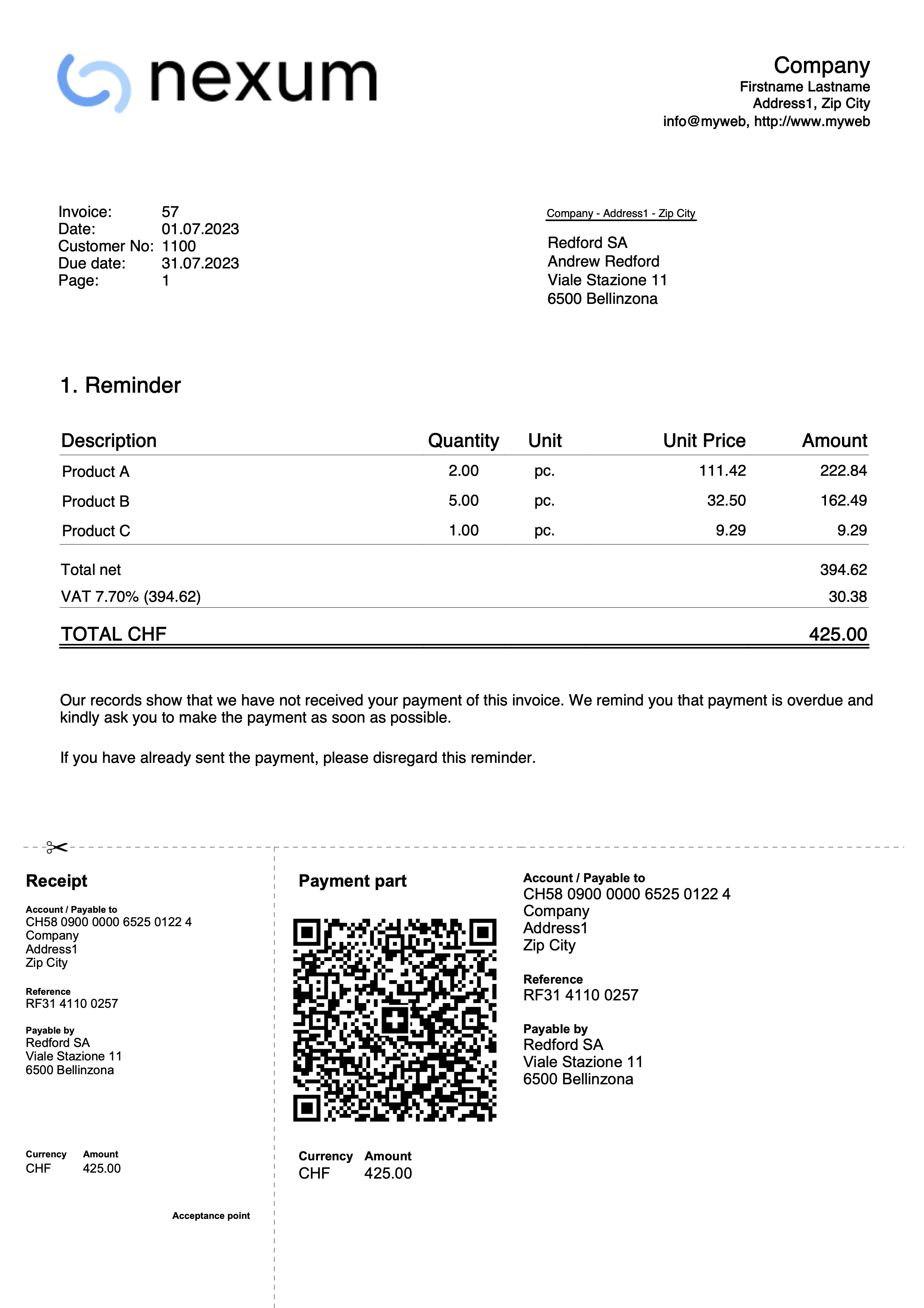
- 1. reminder
- 2. reminder
- 3. reminder
- Confirm with OK
Print customization
All settings that characterise the CH10 and UNI11 layouts are also retained in the reminder printout.
To change the settings, go to Print Layout Settings.
Under Texts → Reminder you can define the start and end texts in the reminder.
Print example: