Update opening balances
The Update Opening Balances (Actions menu) command takes data from the previous year's file and updates the opening balances for the current year.
When do you need to use the Update Opening balances command?
The Update Opening Balances command is required in the following cases:
- You have created the New Year with the Create New Year command, but you still made changes to the previous year's file (additional transactions, new accounts, ..).
- You decided to change the allocation of the the profit or loss for the year.
Check the previous year accounting
In order to avoid differences between the previous year closing balances and the New Year and opening balances, it is important, before using the Update opening balance command, to make sure that you have carried out all the checks, verification operation and all the closing accounting entries as indicated in the Year end closure page.
The Update Opening balances dialog window
In order to access this dialog, use the Actions menu → Update opening balances command.
You need to enter the path to where the previous year's file is located:
- The program will suggest the name of the saved file
- If the file's name or the location path is changed you the Browse button

Operations carried forward by this command
The command resumes the data from the previous year, without changing its contents. This command can therefore be repeated without any impact on the previous year's file.
The command performs the same operations as in Create New Year , except those referring to the creation of the file.
If the opening balances of the Profit and Loss Account accounts were reported in error, follow the information on the Difference in opening balances page (item 5 Solutions) to correct this.
Change of the Chart of Accounts of the previous year
If after creating the New Year you add accounts to the previous year and carry over the balances, the program may indicate an error.
- Update the Chart of Accounts for the current year.
- Repeat the Update Opening balances operation
You can import changes with the Import Accounts command.
Edit current year chart of accounts
If, after creating the new year, you change the numbering of the accounts, when you issue the command Update opening balances, the programme will indicate that it cannot find the accounts.
In this case, you must update the account balances manually:
- Opening column ( Accounts table > Base view)
- Previous column ( Accounts table > Previous view)
Opening balances | Double-entry accounting
On this page, you will find all the information you need to enter, modify, and restore initial balances (or opening balances) in Banana Accounting.
Opening balances when starting an accounting
When using Banana Accounting for the first time, the opening balances need to be inserted manually in order to create the opening balance sheet.
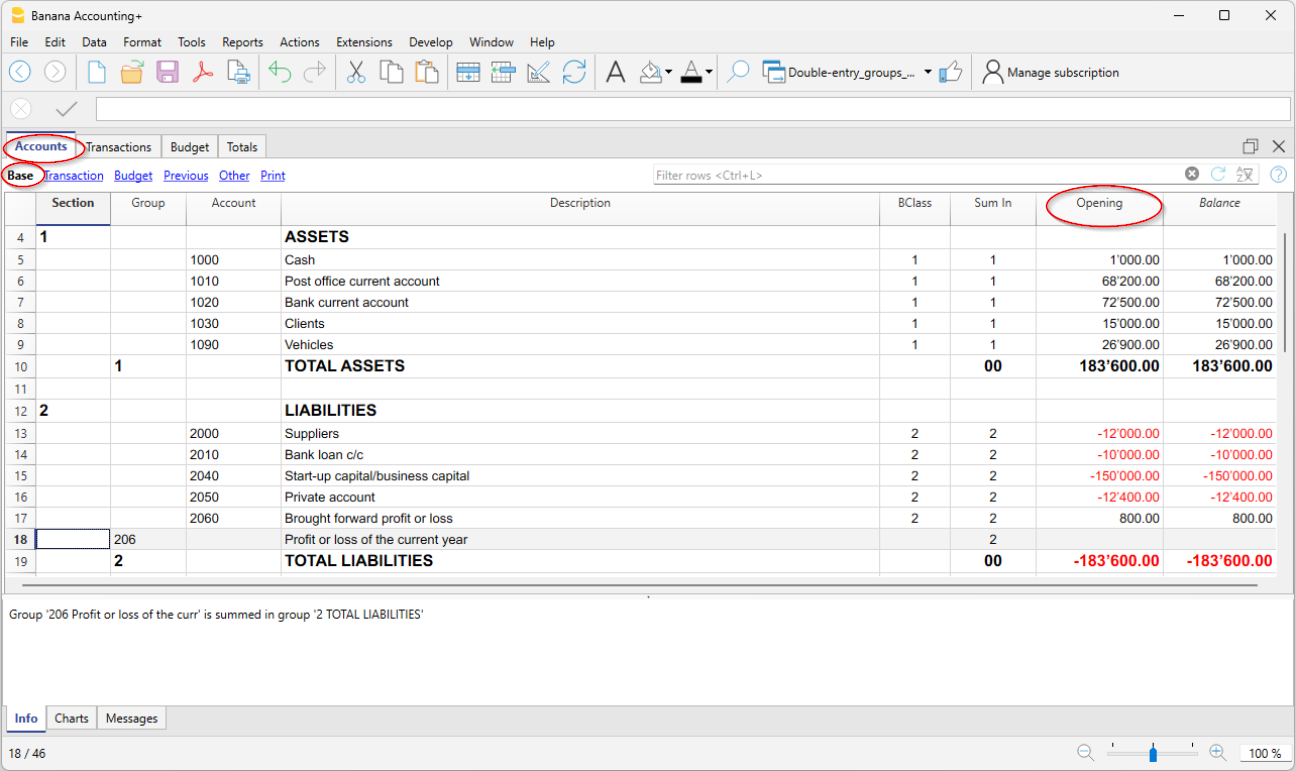
- Position yourself in the Accounts table, Base view, Opening column.
- Enter the opening balances of the Assets and Liabilities accounts manually. Liabilities are to be entered preceded by the minus sign.
- Check if the total Assets equal the total Liabilities so that your accounting squares. If there are differences in the opening balances you need to check and correct them.
Difference in opening balances
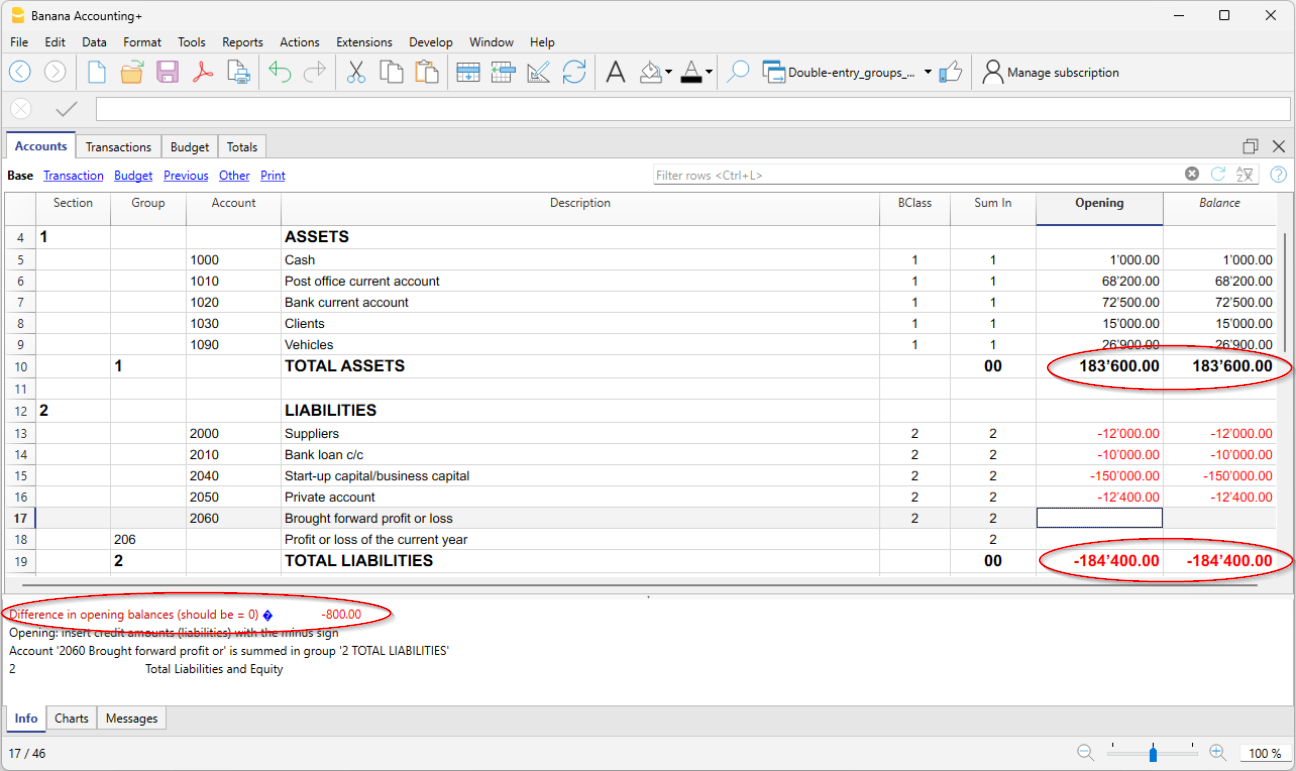
At the opening of the accounting year, the Assets accounts (positive) must balance with the Liabilities accounts (negative). If this is not the case, the accounts do not balance and error messages are displayed in the information window at the bottom; in this case, the reasons must be checked and corrected, until the message Difference in opening balances disappears. For more information and solutions see:
Opening balances of Cost Centers
In the Accounts table, the Opening column can also be used to enter the opening balances of the Cost Centers.
Opening balances for Segments
To enter the opening balances of the segments, opening transactions must be entered instead.
More details are available on the Segments page.
Opening balances for an already started accounting
If you start a new accounting, taking over work already done with other programs, there are two possibilities:
- Start accounting from the beginning of the year, by entering the opening balances for the beginning of the year (Accounts table, Opening column) and the transactions (Transactions table) that have already been previously recorded with other programs (also see Transferring data from other software). Thus you will have all the accounting details in one file.
- Starting from the date when the accounting is resumed:
- Enter the opening balances (Accounts table, Opening column), taking over the values of the other accounting.
In addition to entering the opening balances of the Assets and Liabilities accounts, it is also necessary to enter those of the Expenses (positive amounts) and Revenues (negative amounts). - The operating result up to that point must be disclosed in the Profit / Loss carried forward account.
If it is a profit, the opening balance must be entered in negative, if it is a loss as a positive. - Check that the sums of the opening balances are zero, so that the program does not signal any differences.
- Enter the new entries in the Transactions table.
- Enter the opening balances (Accounts table, Opening column), taking over the values of the other accounting.
Opening balances as opening transactions
Opening balances can also be entered as opening transactions in the Transactions table.
For each opening transaction, proceed as follows:
- Indicate the accounting start date as the transaction date.
- In the Doc Type column, enter the code "01".
- Indicate the debit or credit account and the amount.
- The total of the opening debit balances must match those in credit.
Opening balances entered as transactions are used when preparing reports. The opening balance of the transactions is added to the amount entered in the Opening column of the Accounts table.
Balances of the previous year
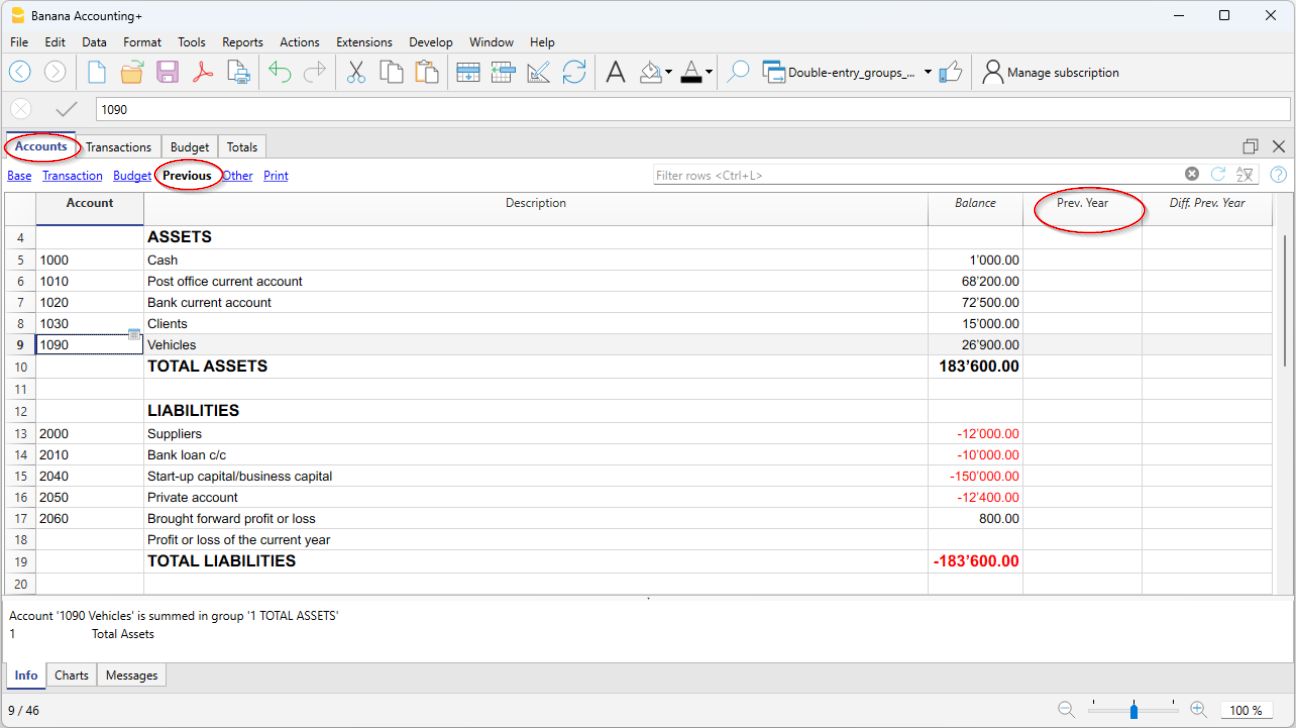
If you start a new accounting by taking over an existing accounting and you want the previous year's values to appear on the printouts, it is necessary to enter the previous year's balances in the Previous view, Previous Year (Prior) column of the Accounts table:
- Enter the closing balances of the previous year of the Assets accounts.
- Enter the closing balances of the previous year of the Liabilities accounts (insert the minus sign in front of the amount).
- Enter the last year's closing balances of the Expenses.
- Enter the final balances of the previous year of Revenues (insert the minus sign in front of the amount).
Create new year
When you start the new year, the program automatically carries over the opening balances to the following year.
Consult the Create New Year lesson.
If for some particular need, opening balances need to be changed, these can be modified manually in the Opening column of the Accounts table. After each modification, make sure that there are no accounting differences. Anyway, we recommend carrying over the opening balances with the Create new year command or, if the accounting for the new year has already been created, use the Update opening balances command.
The account card is in automatic and it is not possible to directly enter the opening balance or make changes.
To change an opening balance of an account card, you need to go to the Accounts table, Opening column, whereas to correct movements, you need to change the entry in the Transactions table.
Print opening balances
To print the opening balances:
- To print the contents of the table, use the Print / Preview command, by selecting the rows of the Balance Sheet.
- You can also use the Accounting printouts and set the printout for the Balance Sheet part and the opening column only.
Create New Year | Double-entry accounting
The Actions > Create New Year command prepares a file for the new year based on the accounting file that is about to be closed. The command does not modify the current file, so it can be executed without any effect.
Transition logic to the new year
With Banana Accounting, you have a separate file for each year. When the new year begins, the operational logic is as follows:
- With the Actions > Create New Year command, the program creates a new file for the following year using the same chart of accounts, settings, and balances of the current year that is being closed.
- Once the file for the new year is created, you must save it with a new name.
- The operation of creating the new file can be repeated if you decide not to save the file.
- It is possible to work on both files simultaneously:
- In the new file, the entries for the new year will be recorded. You can also make changes to the chart of accounts, VAT, or other items without affecting the previous one.
- In the previous year's file, you will continue to enter transactions to complete the year and carry out the typical closing operations, such as verifying balances, printing financial statements, etc.
- In the file for the new year, using the Actions > Update Opening Balances command, the changes made in the previous year's file are imported. This operation should be performed at the latest when there are no more changes in the previous year.
Note: Users with a subscription to the Professional plan of Banana Accounting Plus will see the following message at the bottom after creating the new year file: Active subscription: Professional Plan. Advanced plan features are available up to 70 transactions.
Check and close the previous year's accounting
Before updating the opening balances, to avoid discrepancies between closing and opening balances for the next year, it is important to ensure that all checks, verifications, and closing accounting entries have been completed.
In Banana Accounting Plus, in the Advanced plan, there is a Filter feature that is especially useful during closing to quickly search for rows with the same texts or values, based on the key entered for the filter (word, account, amount, etc.). With this function, you can make corrections directly on the filtered rows without having to scroll through the Transactions table—very convenient especially at year-end when the number of entries is high.
For more details, refer to the following pages:
- Filter (paragraph Filter rows)
- Check and close double-entry accounting
- Closing and exchange rates for multi-currency accounting
Specific information for setting closing rates and recording unrealized exchange gains and losses.
Operations performed by the Create New Year command
The Create New Year command, based on the parameters set by the user, automatically performs the following operations:
- Creates a new file (unnamed) with the same chart of accounts and settings as the open file, without transactions.
- Copies the data from the Balance column of the current file and inserts them into the Opening column of the new file (only for the specified classes).
- Adds the previous year's profit or loss to the opening balance of the account(s) specified for allocation (usually the Retained Earnings account).
- Copies for all Balance Sheet accounts the data from the Balance column of the current file and inserts them into the Previous Year column of the new file.
- Updates file properties:
- Sets the start and end dates of the fiscal year, adding one year to the existing ones.
- In the Options section, sets the name of the previous year’s file and enables the option to use previous year’s transactions for autocomplete.
- In multi-currency accounting, it sets the opening exchange rates to match the closing exchange rates of the previous year.
- If there is data in the Budget table, it carries forward the transactions to the new year according to the settings.
- If the Segments option is enabled, it creates opening entries for the segments.
Carry forward new balances dialog
The Carry forward new balances dialog allows you to specify parameters for creating the new year's file:

Carry forward opening balances of accounts
The opening balances of the activated items are carried forward:
Balance Sheet
Transfers balances of asset, liability, and equity accounts. This option should generally be activated.
Income Statement (not recommended)
Cost and revenue account balances should NOT be carried forward to the new year.
Activate this option only in special cases and only if you are sure of the implications.
Off-Balance Sheet
Transfers accounts with BClass (5 and 6 for off-balance asset and liability accounts and 7 - 10 for other off-balance accounts). If the closing balances should not be carried forward, deactivate the relevant option.
Cost Centers
Activate only if cost centers are used to manage positions that must continue over time, such as customers, suppliers, and members.
Cost Center CC1
Those starting with a dot ".".
Cost Center CC2
Those starting with a comma ",".
Cost Center CC3
Those starting with a semicolon ";".
For more information see the page Cost/Profit Centers.
Segments
The opening balances of segments are created with opening entries in the Transactions table.
- For more information see the page Segments.
- The program creates one entry for each combination of account and segment, reproducing exactly the final situation of the previous year.
- It is preferable not to enter segment opening balances using the Opening column. If this was done in the previous year, the program will again transfer the balance into the Opening column of the new year.
Note: adjusting operations such as recording and closing transitional accounts must be entered manually.
Allocation of profit/loss
When carrying forward the opening balances into the new year, the amounts indicated are added to the profit carryforward accounts.
Total to be allocated
The program automatically shows the amount of profit or loss to be allocated.
Accounts
Select the account or accounts (up to three) in which the result of the financial year should be allocated. If there are more than three destination accounts, you must manually enter the amount in the appropriate fields.
If only one account is indicated, the amount will be automatically entered in the selected account from the list.
The program automatically updates the opening balances. The total assets exactly match the total liabilities.
Allocation of the financial result to more than three accounts
In this case, automatically allocate the result only to the Retained Earnings account and continue with the creation of the new year.
In the new year (new file), in the Transactions table, perform a multiple entry to transfer the result from the Retained Earnings account to the desired accounts.
Postpone the allocation of the financial result
If you do not want to allocate the financial result yet, you can still proceed with the creation of the new year by clicking the OK button. You can later allocate the result from the Actions > Update Opening Balances menu. The program will display the same window as the Create New Year command.
Save the new file
The program creates a new accounting file for the new year:
- Confirm the Basic data of the new year. The program takes the headers from the previous year and automatically enters the start and end date of the new year.
- Click on the File menu > Save As, indicating the folder where you want to store the new accounting file. It is recommended to use the company name and year as the filename.
See also Organize your accounting files.
If there are differences or other error messages, you may choose not to save the created file and repeat the new year file creation later.
Professional Plan message with Advanced features up to 70 rows
The message that appears in the active Professional Plan, Active Plan: Professional Plan. Advanced features are available up to 70 rows, simply confirms that the Advanced plan features are also active and can be used free of charge for up to 70 transactions, without affecting the use of the Professional plan, where entries can continue without any limit. This message disappears automatically once 70 rows are exceeded.
Update opening balances
After saving the file for the new year and making modifications in the previous year, click on the Actions > Update Opening Balances menu to carry forward and reallocate the profit.
This operation can be repeated multiple times and can be performed safely, as data integrity during the transition to the new year is guaranteed and no data is lost.
If you want to switch to another type of accounting in the new year (with multi-currency or VAT), proceed with the creation of the new file and then use the Tools > Convert to New File command.
If instead you want to create a copy of the file without carrying forward the balances, use the Tools > Create File Copy command.
Modify carried forward balances
Once the balances have been carried forward into the new year (new file), if you need to modify the opening balances, you can manually change the amounts in the following columns:
- Opening column in the Accounts table.
- Previous column ( Accounts table > Previous view) , for balances related to the previous year.
- In the Transactions table for Segments.
If you have made changes in the previous year's file, click on the Actions > Update Opening Balances menu to carry forward and update the opening balances again.
Check the Rules in the Recurring Transactions table
When the Create New Year command is executed, the program carries over into the new year's file all the transactions that have Rules.
Before proceeding to post the transactions for the new year, it is advisable to check and update all the Transactions with Rules in the Recurring Transactions table.
If the conditions are no longer valid, you may:
- Modify the account, counterpart, VAT code, CC3, or segments.
- Delete outdated transactions.
- Add new transactions with Rules.
If, in the Recurring Transactions table, in addition to the transactions with rules, you have also saved:
you must also check and update these.
Performing this check immediately helps prevent errors and later corrections both in the Transactions table and in the Recurring Transactions table.
Resuming texts in the new year / Smart Fill
When a new year is created, the descriptive texts from the previous year are also transferred. This feature simplifies and speeds up the entry of transactions in the new year.
If you do not want the descriptive texts to be carried over automatically, simply disable the Smart Fill function:
- from the menu File > File and accounting properties > Options.
Differences in the opening balances | Double-entry accounting
At the opening of the Accounting year, the amounts of the Total Assets should correspond to the Total Liabilities. Otherwise, the accounting balance will not square and it is necessary to verify the reasons and correct the error, so that there is no Difference in the opening balances message displayed in the information window .
There may be several causes that lead to a difference in the opening balances:
- When using the program for the first time, the liabilities were not entered with a minus sign in front of the amount.
- The result of the previous year was not automatically allocated when creating a new year.
- The balances for expenses and income have been carried over, when creating a new year, whilst they should not have been.
- When opening balances have been entered manually, the previous year's operating result has not been taken into account. In this case the difference corresponds to the carried forward profit or loss.
- When allocating the profit to multiple accounts is performed manually, thousands separators and decimals other than those provided in Banana Accounting were used for the amounts.
The solutions for each single error are explained in the error explanation page, at the https://www.banana.ch/doc/en/contamsg_en_tot_teid11des?portal=banana link.
In the example, the program reports a difference in opening balances of 800.-
After having checked and corrected the opening balances the Total Assets must correspond to the Total Liabilities.
It is also possible to check and square the balances in the Totals Table.