Printouts
Instant information
In the Accounts and Categories tables, the balances of the accounts and the categories of income and expenses are displayed immediately. After each individual entry, the balances are updated automatically, and there is no need to generate reports to keep the situation under control; you simply need to position yourself in the Accounts and Categories table.
To print the content of the tables, please refer to the Page setup section (last paragraph).
Advanced printouts
All printing is run from the Reports menu, where the different functions for printing are located:
- Journal - command to define the period. You can display and print the whole table or just a specified period.
- Account/Category cards - Account cards / Categories. You may select all cards or define your selection.
Define the required period in the Period tab and click the required settings in the Options tab. Print settings can be saved in the Customization tab so they can be resumed without them to be having defined again.
- Enhanced statement - Enhanced statement command. You may also print a defined period and various options and customizations may be included.
- Enhanced statement with groups - Enhanced statement with groups command. You may also print a defined period and various options and customization may be included.
- Accounting report - Account report command. The required options are displayed in the Accounts table. Reports are possible for current, previous periods or previous years; each period may contain subdivisions and the customizations can be saved.
Example of printout of Enhanced statement with groups

Cash Manager account / category card
The account or category card corresponds to the ledger and allows you to have a complete list of the accounting entries concerning the same account, the same category, a cost center, a segment or a group.
Open the account card
There are two ways to open and print an account or category card.
First method
This method is recommended when you want to view and print all or several account/category cards.
- Via the Reports > Account / Category Cards menu

A dialog box with the following sections appears:
For detailed information on the sections, click on the corresponding links.
Second method
This method can be used when you need to open only one card at a time within the tables.
- Click on the small icon that appears when you select the cell that contains the account, category or group number.

Update the account card
The account or category card is temporary and is calculated at the time of the request. If transactions are changed or added in the Transactions table, the account card is not updated simultaneously.
To update the account card, following changes, it is necessary to use the Account / category card command again, or if the account card is still open, click on the symbol shown in the image below  .
.

Note
It is not possible to change the data in the account, category or group card. Within the account card, by double clicking on the row number, the program switches to the corresponding row of the Transactions table or of the Estimate.
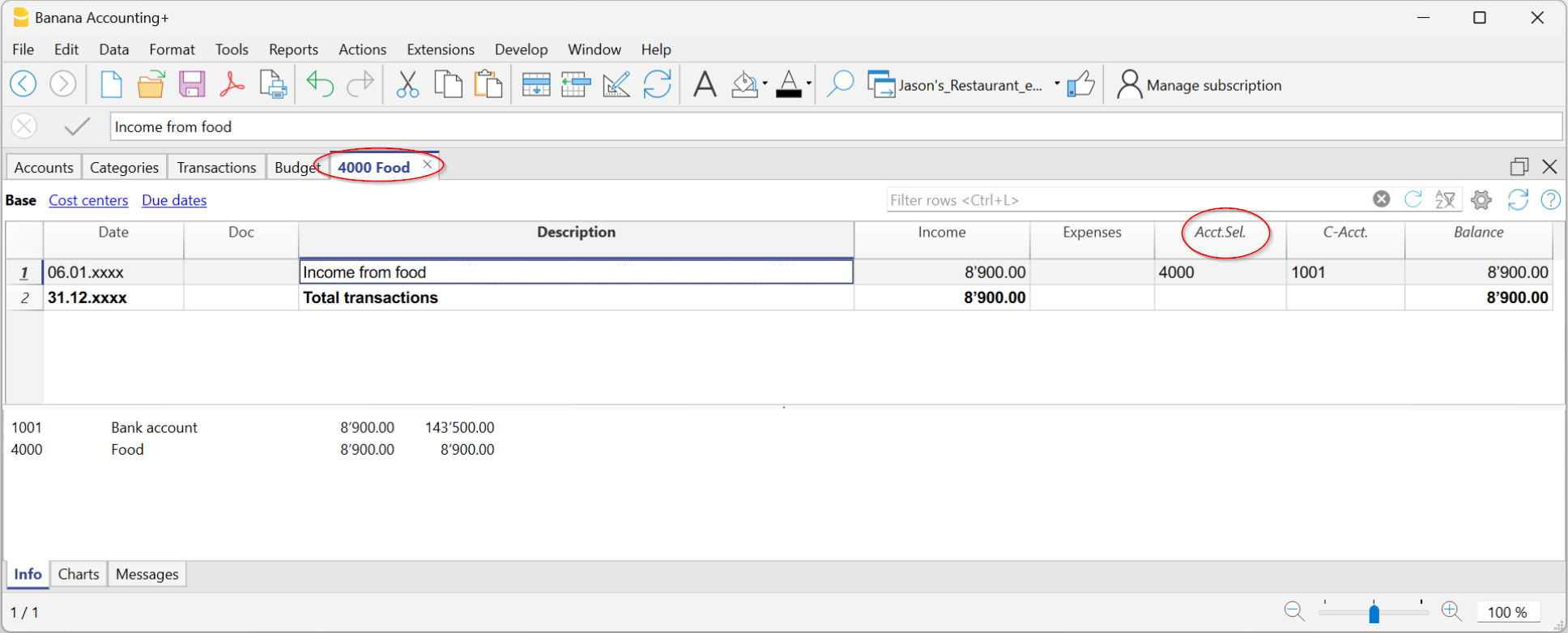
The Account Selection column
In the Account selected column, which can be made visible, starting from any account card, via the Data > Columns setup menu, the account on which the transaction took place will be displayed.
When you get an account card of one or more accounts, categories, groups and segments, you see exactly which account is used.
Cards of groups or classes
In the account card of a group or class, all the transactions of those accounts belonging to the selected group or class are regrouped.
The accounts or categories of the group or class can be viewed by making the Account Selected column visible.

Budget Account card
Once the budget transactions have been entered in the Budget table, it is possible to have the account or group cards of the budget:
- Reports menu > Account / category cards > activate Budget transaction.

Print the ledger (account cards)
To print the cards:
- Reports menu > Account cards
- Through the Filter it is possible to automatically select all the account cards to be printed or partially (eg only accounts, cost centers or segments).
- In the various sections Period, Options, Customization the desired functions are activated (eg period, one account per page ....).
- Confirm with OK after setting the desired options.
The selected account cards will be displayed on screen. To print, click on the File > Print menu.
Insert a logo in the account cards
As per Banana 9 version, it is possible to insert a logo also in the printout of the account cards.
After creation of the account card detail, proceed as follows:
- Reports menu > Account cards
- File menu > Print preview
- In the dialog box that opens, under Logo, indicate your logo (instead of none).
More detailed information is available on the Logo setup page.
Save the settings
If you happen to regularly print the cards of certain accounts, for example all those of sales, it is useful to create a relevant customization:
- Report menu > Account cards > Customization section
click on the New button - Indicate the name in the description, for example "Sales Accounts"
- Select the accounts you want to print
- From the File > Page setup menu you can determine the margins and other page settings.
Whenever you need to print the accounts, select the customization you created.
Movement Column in the Account Card – Cash Manager
The Movement column, available in the Account cards, allows you to display the amounts recorded in Debit and Credit in a single column.
The amounts are displayed with:
- Positive sign (+) for Income transactions
- Negative sign (−) for Expense transactions.
The amounts correspond exactly to those shown in the Income and Expenses columns.
Displaying the amounts in a single column makes it easier to read transactions and check the accounting records.
To enable the Movement column, go to the Data > Columns setup menu and enable the Movement column.
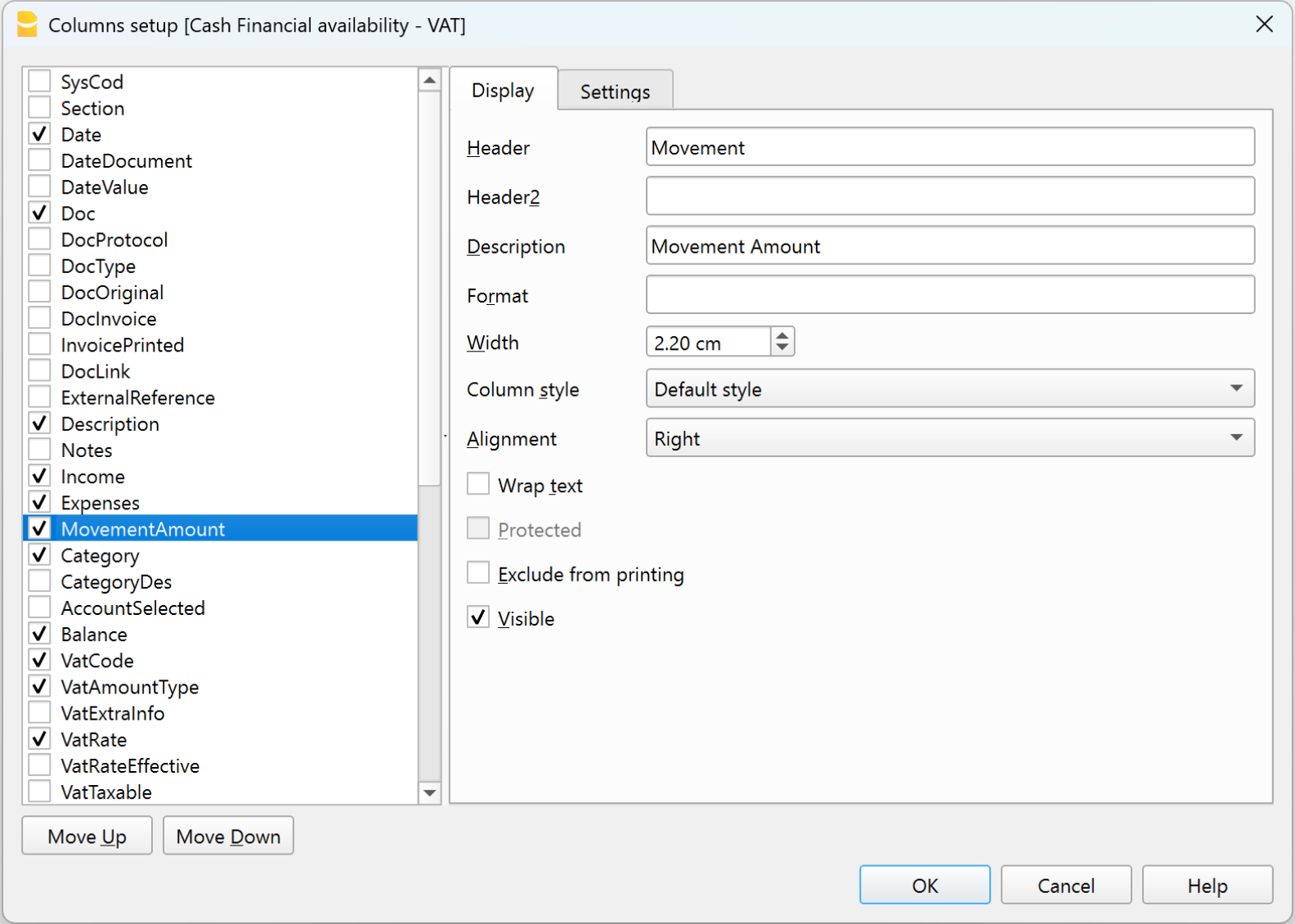
Movement column in the Cash account card
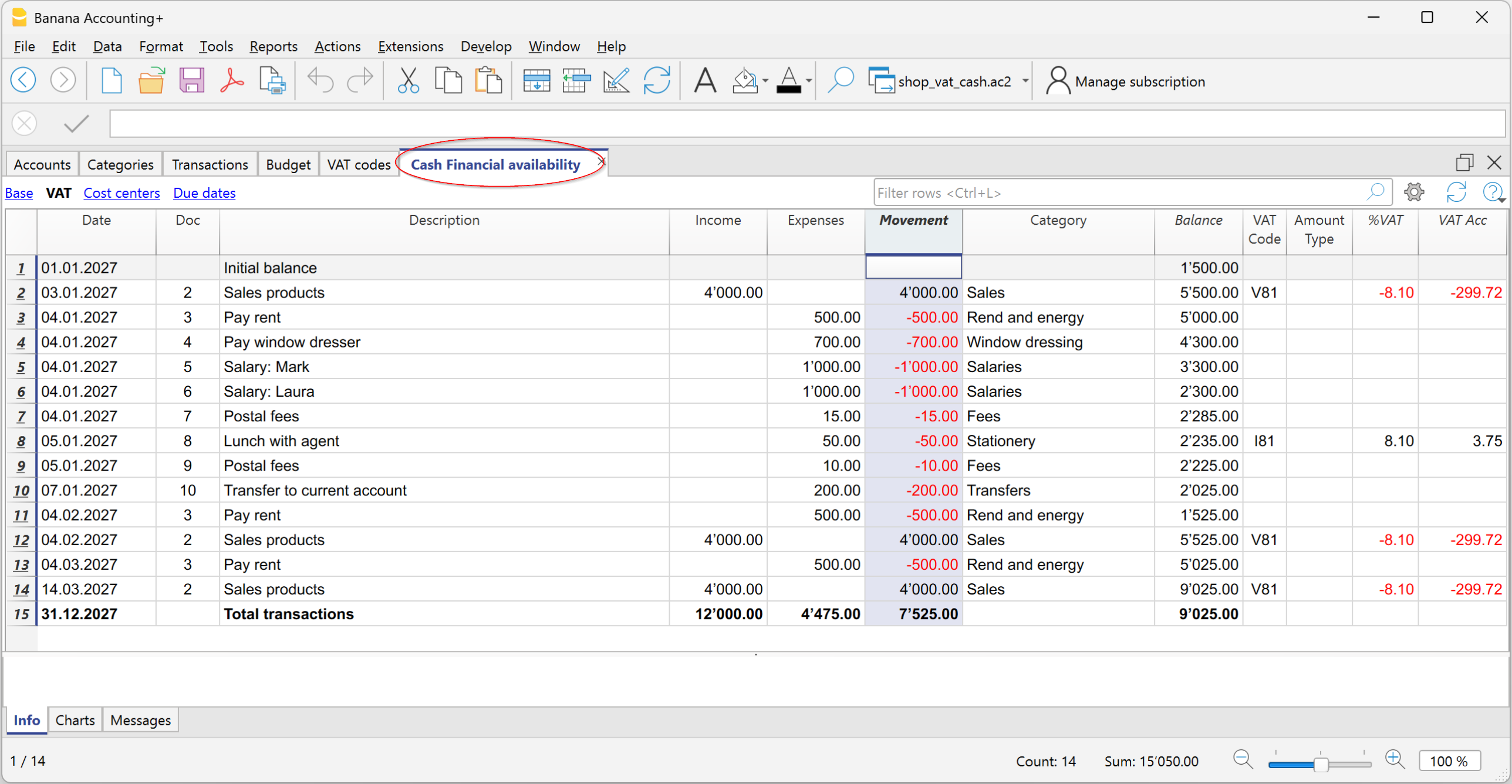
Journal Cash Manager
Journal
As in all Banana Accounting applications, transactions are entered in the Transactions table. If you want to print the Journal (list of all transactions), you can proceed in several different ways:
- Position yourself in the Transactions table and click on the Print preview icon; then click on the Print icon
- From the Transactions table and select from the File menu > Print preview > Print icon.
- From the menu Reports menu > Journal by period ...
Journal by period
Banana Accounting, through the menu Report > Journal by period, offers the possibility to print the Journal with the movements of the entire period or of the selected period, by entering the start and end date of the period.

The information on the Period section is available on the Period page of the common functions.
In the Sort column tab, you can select the base on which type of date to order and print the journal.
Enhanced Statement
The information on the Enhanced Statement is identical to that of the Enhanced Statement of Income / Expenses.
Enhanced Statement with groups
The information on the Enhanced Statement with groups is identical to that of the Enhanced Statement of Income / Expenses.
Accounting report
The information in the Cash Manager Accounting Report is identical to that of the Income / Expenses Accounting Report.
VAT/sales tax report (only with VAT option)

Information on the VAT Report is available on the web page VAT/Sales tax report.