Installeren
Op deze pagina vindt u een stap-voor-stap uitleg van de installatie en activatie van Banana Boekhouding Plus. Zodra de installatie is voltooid, is het nuttig de activeringspagina van het Banana Boekhouding Plus-abonnement te raadplegen.
De installatie afbeeldingen verwijzen naar de Windows omgeving: voor de andere operating systemen gelden gelijksoortige procedures. Zie ook de pagina's over de Installatie op een Mac en Installatie onder Linux.
Raadpleeg de systeemvereisten voordat u Banana Boekhouding Plus installeert.
Banana Boekhouding+ downloaden
Zodra u op de knop Download klikt zal uw browser het Banana Boekhouding Plus uitvooerbare installatiebestand downloaden. Om het gedownloade bestand te zien klikt u op de knop met de pijl naar beneden van uw browser. Hier zij wat voorbeelden met Microsoft Edge en Firefox. Als u een andere browser gebruikt kan het er iets anders uitzien. Klik op het bananaplus-setup.exe bestand.


Klik op de knop Bestand Opslaan om het programma te downloaden en dubbelklik op het gedownloade bestand om het installatieproces te starten.
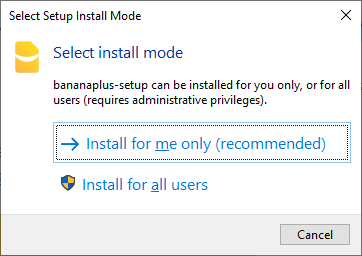
Wanneer het programma voor het eerst wordt gestart, biedt het de optie om te installeren voor de huidige gebruiker (aanbevolen keuze) of voor alle gebruikers (zie geavanceerde installatie voor windows). Als u deze keuze later wilt wijzigen, moet u de toepassing eerst verwijderen.

Het programma stelt voor om op te slaan in de AppData\Local map van uw gebruikersnaam. Als u het in een andere map op wilt slaan klikt u op de knop Browse om deze te kiezen. Als u de voorgestelde map wijzigt en het programma waarschuwt dat het geen toestemming heeft om een of meer mappen aan te maken, start het programma dan opnieuw met beheerdersrechten.

Het installeren duurt meestal maar een paar seconden. Aan het eind van het installatieproces wordt Banana Boekhouding Plus gestart.
Bijzonderheden
Installaties van Banana Boekhouding Plus op servers, USB flash drives of op computers die niet met het internet verbonden zijn, zijn niet mogelijk.
Gerelateerde pagina's
- On MacOS krijg ik de melding dat "BananaPlus" niet geopend kan worden (Engelstalig)
- Zeldzame gevallen (Engelstalig)
Windows Advanced
- Installaties voor meerdere gebruikers.
- Installatie met terminal server
- Gelijktijdig gebruik van het Dev-kanaal en de Release
- Meer informatie over de installatie
Ga naar de pagina Advanced Installation for Windows in het Engels.
Installatie op een Mac
Het installeren van de software is heel eenvoudig, dankzij de functie voor automatisch installeren.
Door het programma te downloaden accepteert u de gebruikerslicentie.
Raadpleeg de systeemeisen voor het installeren van Banana Boekhouding Plus.
Volg deze stappen:
- Download het .dmg bestand door te klikken op de knop Download Banana Plus voor Mac.
Dubbel klik op het bestand nadat u het opgeslagen heeft in Download folder. - Sleep het Banana Plus icoon naar de Toepassingen folder.

Bij de eerste installatie van Banana Boekhouding Plus op uw Mac verschijnt het volgende bericht:

U kunt veilig op de knop Open klikken.
De installatie duurt gewoonlijk maar een paar seconden. Aan het eind van het installatieprocess wordt Banana Boekhouding Plus gestart. Wanneer de installatie klaar is, ziet u hoe u het Banana Boekhouding Plus abonnement kunt activeren.
Nadat Banana Boekhouding Plus is geopend, gaat u met de muis over het Banana icoon in de Dock, klikt met rechts en kies Opties > In de Dock houden.
Bijzonderheden
Installaties van Banana Boekhouding Plus op servers, USB sticks of op computers die niet verbonden zijn met Internet zijn niet mogelijk.
Gerelateerde informatie
Installatie onder Linux
Door het programma te downloaden accepteert u de gebruikerslicentie.
Linux store - Ubuntu Software - snapcraft.io
Banana Boekhouding+ wordt gepubliceerd op snapcraft.io, de app store voor Linux. Bij Ubuntu, Ubuntu software worden alle apps weergegeven die gepubliceerd worden op snapcraft.io.
Om Banana Boekhouding+ te installeren opent u Ubuntu software, klikt u op de knop zoeken in de hoek linksboven en zoekt u naar "banana".
In de zoekresultaten klikt u op Banana Boekhouding+ en tenslotte op Installeren.
Het beta channel kiezen
Wanneer u ons Dev-channel van het Insider Program wil installeren kiest u de laatste/beta channel van de source optie, bovenaan het store venster.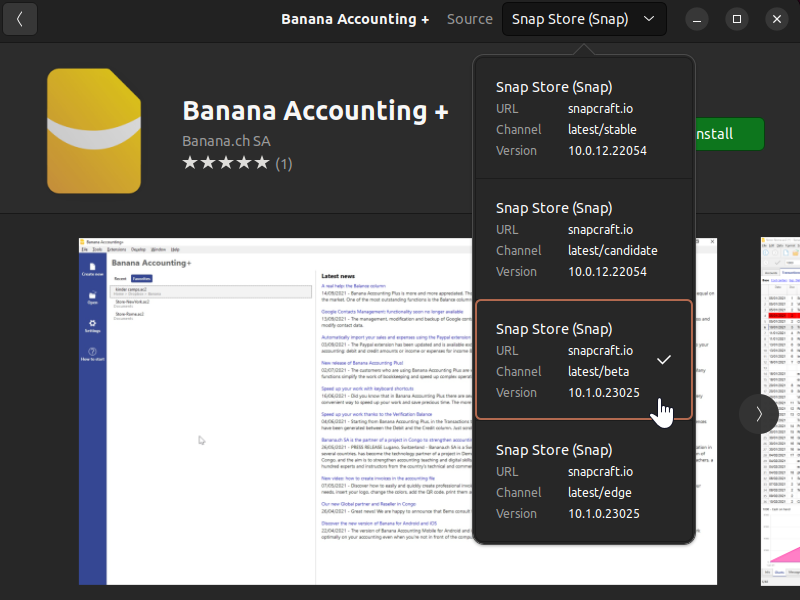
Of installeer vanuit de commandoregel:
sudo snap install banana-accounting --channel=betaAls u nog geen snap heeft moet u dit eerst installeren.
.AppImage Pakket
Download de applicatie, maak deze executeerbaar, en gaan!
- Download het pakket
- Maak het pakket executeerbaar
- Klik met de rechtermuisknop op het pakket en kies eigenschappen
- Activeer in het tabblad Permissies de optie "Uitvoeren toestaan..."
-
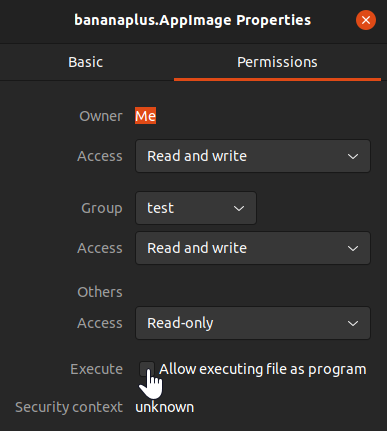
- Bevestig de verandering met Ok
- Start de applicatie met dubbelklik op het pakket
Package .tgz
Voor wie geen internetverbinding heeft of de volledige installatie wil uitvoeren.
- Download het .tgz pakket
- Extract het .tgz pakket
- Voer het bestand start_Banana.sh uit
Het .tgz pakket bevat het script install-banana.sh. Wanneer u dit uitvoert wordt Banana Boekhouding+ gekopieerd naar de /opt/ folder, in the system geregistreerd en geassocieerd met de .ac2 bestanden.
Of installeer vanuit de commandoregel:
wget https://cdn.banana.ch/accounting/files/bananaplus/exe/bananaplus.tgzDownload tar.gz
mkdir bananaplus
tar -xvzf bananaplus.tgz -C bananaplus
bananaplus/install-banana.sh
Banana Boekhouding+ onder Android
U kunt Banana Mobile voor Android gratis downloaden en installeren vanuit de Google Android Play Store.
De mobiele versies van Banana Boekhouding bieden uitstekende ondersteuning wanneer u al een desktop versie heeft en uw bestanden wilt gebruiken buiten uw kantoor. Deze versies worden voortdurend verbeterd en bijgewerkt.
Met de mobiele versie van Banana Boekhouding kunt u snel transacties invoeren en uw boekhouding op elk moment controleren! Deze mobiele versie is afgeleid van de desktop versie en is geoptimaliseerd voor het gebruik op tablets, chromebook in desktop modus, terwijl op kleine schermen de ervaring wat beperkt is omdat deze niet zo geschikt zijn voor de Excel-achtige interface.
Beperkingen van Banana Mobiel in vergelijking met de desktop versie
De meeste functies die in de desktop versie aanwezig zijn worden ook door Banana Boekhouding Plus Mobiel geleverd. Er zijn enkele beperkingen die het gevolg zijn van de aanraakscherminterface en het gegeven dat Android minder resources beschikbaar stelt dan een desktop apparaat.
- Cloud diensten ander dan Google Drive en Dropbox werken in read-only mode.
- Import - export functies vanuit bestanden zijn niet beschikbaar.
- Het selecteren van meerdere cellen is in aanraakmodus niet beschikbaar.
- Kopiëren en plakken functies zijn in aanraakmodus niet beschikbaar.
- Het is niet mogelijk gegevens af te drukken en PDF bestanden aan te maken.
- Bestanden kunnen op het apparaat of in de cloud worden opgeslagen, maar directe toegang tot bestanden die op een externe SD-kaart zijn opgeslagen, wordt momenteel niet ondersteund.
Documenten in de cloud benaderen vanaf uw Android
Banana Accounting vertrouwt, net als veel andere apps, op de Android standaard Storage Access Framework API (SAF) om bestanden te selecteren, lezen en schrijven die zijn opgeslagen op Cloud opslagdiensten zoals Google Drive, iCloud, OneDrive, enz.
Helaas implementeren sommige Android-apps voor cloudopslag de SAF-standaard niet volledig of correct.
Gebruik de commentaarfunctie van de opslagapp (OneDrive, Dropbox, enz.) om de cloudservice te verzoeken de SAF-standaard volledig en correct te ondersteunen.
De volgende tabel laat de beschikbare bewerkingen zien voor de belangrijkste clouddiensten:
Provider | Open | Aanmaken | Veranderen |
|---|---|---|---|
GoogleDrive | ja | ja | ja |
Microsoft OneDrive | ja | ja | nee |
Swisscom MyCloud | ja | ja | ja |
Dropbox (SAF) | ja | ja | nee |
Dropbox (With Banana Login) | ja | nee | ja |
Banana Boekhouding+ onder iOS en iPadOS
U kunt Banana Mobile voor iOS/iPadOS installeren vanuit de Apple App Store.
De mobiele versies van Banana Boekhouding bieden uitstekende ondersteuning wanneer u al een desktop versie heeft en uw bestanden wilt gebruiken buiten uw kantoor. Deze versies worden voortdurend verbeterd en bijgewerkt.
Met de mobiele versie van Banana Boekhouding kunt u snel transacties invoeren en uw boekhouding op elk moment controleren! Deze mobiele versie is afgeleid van de desktop versie en is geoptimaliseerd voor het gebruik op tablets, chromebook in desktop modus, terwijl op kleine schermen de ervaring wat beperkt is omdat deze niet zo geschikt zijn voor de Excel-achtige interface.
Beperkingen in vergelijking met de desktop versie
Banana Boekhouding Mobiel ziet er hetzelfde uit en heeft veel functies die ook beschikbaar zijn op de desktop versie, zoals het aanmaken van nieuwe boekhoudingen, het openen en aanpassen van bestanden, het doen van boekhoudkundige berekeningen, het weergeven van afdrukvoorbeelden, etc. Functionaliteiten die externe bestanden gebruiken, bijvoorbeeld "naar boekhouding importeren", zijn nu uitgeschakeld en het is niet mogelijk gegevens af te drukken en PDF bestanden aan te maken. Het openen van met een wachtwoord beveiligde bestanden is niet toegestaan.
Documenten in de cloud benaderen vanaf uw iPhone
Met Banana Accounting+ Mobiel heeft u toegang tot *.ac2 bestanden opgeslagen op clouddiensten zoals GoogleDrive, OneDrive, etc. Daardoor kunt u eenvoudig boekhoudbestanden delen tussen uw desktop en uw iPhone of iPad. U moet alleen de app van de betreffende clouddienstprovider installeren.
De beschikbare bewerkingen in de clouddiensten hangen af van de implementatie door de providers van de iOS FileProvider Framework. Wanneer de implementatie compleet is (zoals voor iCloud en Dropbox) kunt u ac2 bestanden openen, aanmaken en veranderen met Banana Boekhouding+ Mobiel. Voor andere providers die het FileProvider Framework niet helemaal geïmplementeerd hebben kunnen de beschikbare bewerkingen beperkt zijn.
De volgende tabel laat de beschikbare bewerkingen zien voor de belangrijkste clouddiensten op 3 mei 2022:
Provider | Open | Aanmaken | Veranderen |
|---|---|---|---|
| iCloud | ja | ja | ja |
| Dropbox | ja | ja | ja |
GoogleDrive | ja | nee | ja |
| Infomaniak KDrive | ja | nee | ja |
Microsoft OneDrive | ja (1) | nee | ja |
Swisscom MyCloud | ja | nee | ja |
(1) Het bestand moet worden geopend met de Bestand Openen dialoog. Wanneer het bestand wordt geopend in de Recente Bestanden komt het niet overeen met de laatste versie die aanwezig is in de cloud.
.ac2 bestanden met de meest recente Banana versie associëren
Bij de installatie van het Banana Boekhoudprogramma wordt de "Associeer Banana Boekhouding met de AC2 bestandsextensie" optie standaard geactiveerd; daardor zullen alle boekhoudbestanden worden geopend met de nieuwe versie.
Het kan gebeuren dat bij het direct klikken op een bestand, voordat het programma geopend is, een vorige versie van Banana Boekhouding geopend wordt. Dit probleem kan op de volgende manier opgelost worden:
Windows:
- klik met de rechtermuisknop op het bestandsicoon
- In het menu dat verschijnt kiest u "Openen met" en dan "Standaardprogramma selecteren..."
- Kies de laatse versie van het Banana programma in het dialoogvenster dat verschijnt
Mac:
- klik met de rechtermuisknop (ctrl + muisknop) op het bestandsicoon
- in het menu dat verschijnt kiest u "Toon info"
- onder "Open met ..." de laatste geïnstalleerde versie van Banana kiezen, daarna klikken op "Wijzig alles"
Technische informatie voor updates
Belangrijke informatie bij het updaten naar Banana Boekhouding Plus
De volgende informatie is bedoeld voor degenen die reeds beschikken over een boekhoudbestand van een eerdere versie (4, 5, 6, 7 en 8) en overschakelen op Banana boekhouding Plus.
▶ Video: Hoe update u naar Banana Boekhouding Plus (Switzerland) (Engelstalig)
Stap voor stap gids over het updaten van een oude versie naar Banana Boekhouding Plus.
Bestandsbeheer en -uitwisseling
Wanneer u Banana Boekhouding Plus heeft geïnstalleerd (in Windows of Mac) kunt u het programma starten en de boekhoudbestanden openen die met Banana Boekhouding gemaakt zijn:
- Banana Plus opent alle bestanden van de versies 2.02, 3, 4, 5, 6, 7, 8 en 9.
- Bestanden opgeslagen met Banana Plus kunnen geopend en veranderd worden met de versies 5, 6, 7, 8, 9 van Banana Boekhouding.
- Indien u functies gebruikt die alleen in Banana Boekhouding Plus aanwezig zijn, dan werken deze niet in de voorgaande versies.
- Bestanden opgeslagen met Banana Boekhouding 5, 6, 7, 8, 9 en 10 kunnen niet meer geopend worden met Banana 2, 3 of 4.
- Bestanden kunnen eenvoudig van het ene operating systeem naar het andere overgebracht worden.
Indien de bestanden niet op de lijst van de recente bestanden staan (Startpagina van het programma), kunt u ze als volgt opzoeken.
Indien, na het installeren van een nieuwe versie van Banana Boekhouding Plus, de bestanden geopend worden met de oude versie, moet men de volgende optie activeren ".ac2 bestanden met de meest recente Banana versie associëren."
Gratis versie / volledige versie
Wanneer u Banana Boekhouding Plus installeert zonder een abonnement te nemen en het te activeren, werkt de nieuwe versie in de gratis (Free) modus waarmee u Kasboek en Time Sheet volledig en onbeperkt kunt gebruiken, maar waarbij u in alle andere toepassingen alle functies kunt gebruiken waarbij tot een maximum van 70 regels invoer. Om Banana Boekhouding Plus volledig te kunnen gebruiken moet een abonnement genomen worden dat moet worden geactiveerd.
Versie voor Mac
Om conflicten te voorkomen met de toetsen die gebruikt worden door het Apple operating systeem zijn de de functietoetsen F4, F5, F6 van Windows vervangen door de Cmd+4, Cmd+5, Cmd+6 van de Mac.
Importeren van bank afschriften
Banana Boekhouding Plus levert verschillende import extensies die kunnen worden gedownload van onze website.
Om de bankafschriften te importen / de extensies bij te werken moet u het volgende doen:
- Ga naar Acties → Naar boekhouding importeren → Transacties.
- Klik op de knop Extensies beheren... om alle beschikbare extensies te bekijken.
- Klik op de knop Extensies bijwerken.
- Schakel de gewenste extensies in door ze te selecteren en op OK te klikken.
Veranderingen vanaf Banana 6 (of eerdere versies)
In Banana Boekhouding Plus zijn sommige functies veranderd in vergelijking met Banana 6 of eerdere versies:
- Gegevens kunnen direct in de cel van een tabel aangepast worden (precies zoals in Excel)
- Met een dubbel-klik gaat u in de modus bewerken.
Om een rekeningkaart te openen of om de Rijen ophalen opdracht te gebruiken kunt u, in plaats van de dubbel-klik, gebruiken:- Alt + muisklik en vervolgens het commando Rekeningkaarten... kiezen
- Rechter muisklik (opent het menu) en vervolgens het commando Rekeningkaarten... kiezen
- Een muisklik op het blauwe symbooltje naast het rekeningnummer (rechter bovenhoek van de cel)
- Het Berichtenscherm is verplaatst naar de onderkant van het scherm, rechts van het Infovenster.
Het Berichtenscherm kan geopend worden door op de gelijknamige tab te klikken. - De lijst met Weergaven is verhuisd naar de bovenkant van het scherm, precies onder de tabbladen lijst.
- Bij het scrollen met de verticale scrollbalk scrolt de inhoud van het tabblad meteen mee.
In de transacties worden de datum en het document niet meer getoond. - Vanaf Banana 7 is het mogelijk om de rekeningkaart bij te werken (zie de ververs knop in de rechterbovenhoek); in Banana Boekhouding 6 was het nodig de rekeningkaart opnieuw op te vragen.
- Bij het afdrukken of bij het bekijken van het afdrukvoorbeeld is het nu mogelijk om alleen een selectie van de rijen weer te geven.
In het afdruk dialoogvenster is het mogelijk te kiezen om alles af te drukken of alleen een selectie. (Alleen in Banana Boekhouding voor Windows). - In de Datum kolom voert het programma automatisch de huidige datum in bij het invoeren van een punt '.' symbool.
- Uitgebreid Kasboek → is veranderd in Boekhouding Inkomsten & Uitgaven.
- Diverse functies zijn samengevoegd in het menu Rapporten.
- Rekeningen per periode → zijn veranderd in → Boekhoudoverzicht.
- Bestand naar PDF exporteren → is veranderd in → Pdf bestand aanmaken
- In sommige functies zoals Uitgebreide balans is een nieuw submenu toegevoegd, "Aanpassingen" genaamd, om opgeslagen persoonlijke instellingen terug te halen (in Banana Boekhouding 6 werden dit Favorieten genoemd).
- In het Help menu → Sneltoetsen vindt u de lijst van toetscombinaties en de opdrachten die daarbij horen.
- In de 'Info-' en 'Berichten' vensters verschijnt nu het symbool
 naast de foutmelding: door een muisklik op dit symbool, komt u direct uit op de corresponderende webpagina, die de mogelijke oorzaken en oplossingen voor de fout geeft.
- DDE verbindingen worden niet langer ondersteund.
Banana Boekhouding Web
Banana Boekhouding Web is gebaseerd op de vernieuwende WebAssembly (Engelstalig) technologie waarmee de applicatie kan draaien in moderne browsers zonder iets te hoeven installeren.
Probeer Banana Boekhouding Web nu
Informatie over Banana Boekhouding Web
- Banana Boekhouding Web is gebaseerd op WebAssembly technologie.
- Het is een eerste versie, vrijgegeven om de desktop versie aan te vullen.
- Werkt met de meeste moderne browsers.
- Het biedt het merendeel van de functies van Banana Boekhouding Plus voor de desktop.
- Banana Boekhouding Web werkt in de browser en de gebruiker moet toestemming geven om bestanden op de computer te openen en op te slaan.
- Dezelfde code als voor de desktop toepassing wordt gebruikt, maar met beperkingen door het gebruik van WebAssembly.
- WebAssembly is een technologie in ontwikkeling en heeft wat beperkingen.
- Gebruikt QT libraries, WebAssembly (commerciële licentie).
- Kan op dit moment gratis worden gebruikt.
WebAssembly
- WebAssembly (Engelstalig) is een nieuwe standaard voor applicaties die draaien op elke computer.
- WebAssembly programma's draaien in gescheiden compartimenten en hebben geen toegang tot het besturingssysteem. Daardoor zijn deze erg veilig.
- Het is een techniek ontwikkeld door de belangrijkste technologie bedrijven die verder wordt verbeterd en nog veel zal opleveren.
- De WebAssembly applicatie is erg snel omdat deze wordt gedownload en meteen wordt gecompileerd voor het specifieke besturingssysteem en processor.
- Als u het programma voor de tweede keer laadt gebruikt de browser de kopie die al in het geheugen staat zodat het sneller werkt.
- Wanneer een nieuwe versie van het programma wordt vrijgegeven laadt de browser deze automatisch.
Beperkingen
WebAssembly is een geheel nieuwe techniek en dit is de eerste vrijgegeven versie van Banana Boekhouding Web. In Vergelijking met de desktop versie zijn er belangrijke beperkingen aan het programma:
- Als u de browser of de browser tab waarin de applicatie wordt weergegeven sluit, zonder uw werk op te slaan, gaan dit verloren.
- Het ondersteunt niet alle dialoogvensters. Enkele commando's zijn daardoor niet beschikbaar.
- Het ondersteunt geen Recente bestanden of Favorieten omdat het geen toegang heeft tot lokale bestanden.
- Extensies kunnen niet geïnstalleerd worden.
- De facturen en offertes applicatie is niet beschikbaar.
- Slepen en neerzetten wordt niet ondersteund.
- Bestanden kunnen worden geopend en opgeslagen met zeer beperkte bestandstoegang die browsers bieden.
- Dialoogvensters aanpassen met de muis is moeilijk.
- Toegankelijkheidsfuncties zoals bij native applicaties voor verschillende besturingssystemen worden niet ondersteund.
- Het werkt niet met kleine schermen, aanraak schermen en virtuele toetsenborden.
- Als u problemen heeft met het laden of uitvoeren kan het helpen uw browsercache te legen. We raden aan Chrome of Edge te gebruiken.
Het programma kan gratis gebruikt worden. We nodigen u uit het te proberen en ons uw eerste indrukken te laten weten en terugkoppeling te geven.
Minimum vereisten en browser instellingen
- Banana Boekhouding Web is compatibel met de nieuwste versies van de volgende browsers:
- Mozilla Firefox (alleen de 64-bit versie; de 32-bit versie wordt niet ondersteund)
- Google Chrome
- Microsoft Edge
- Apple Safari
- Stel "Schakel meerdere bron beperkingen uit" in het developer menu van de browser in (zonder deze instelling worden modellen niet gedownload).
Als het programma de dialogen niet correct weergeeft, bijvoorbeeld als ze afgesneden worden, wordt aanbevolen uw browser bij te werken naar de nieuwste beschikbare versie en de zoom van de browserpagina op 100% in te stellen.
- Stel "Schakel meerdere bron beperkingen uit" in het developer menu van de browser in (zonder deze instelling worden modellen niet gedownload).
Banana Boekhouding Web routekaart
WebAssembly is zeker de toekomst voor applicatieontwikkeling. We hopen binnen een jaar een versie te hebben die dezelfde functionaliteit heeft als de desktop versie:
- Opheffen van de huidige beperkingen.
- Mogelijkheid bestanden lokaal te openen en op te slaan.
- Mogelijkheid uw boekhoudgegevens direct in de cloud op te slaan.
- Meerdere mensen tegelijk op dezelfde tijd laten werken aan dezelfde boekhoudingen.
Banana Accounting for Microsoft Teams
Banana Accounting is now available in Microsoft Teams. With the new Banana Teams App, you can manage your accounting directly from the Teams window, open files stored on OneDrive or SharePoint without downloading them, and share them with your team without switching tools.
With Banana Teams App, it feels like working in the cloud. On any device where Teams is installed, you can open and save files with Banana without any additional login. Unlike other cloud-based accounting software, however, you remain in full control of your data and can copy and move your files.
The app appears as a personal tab in Teams. Once installed, you can find it in the Teams sidebar or within one of your team's channels, just like any other Microsoft or third-party app.
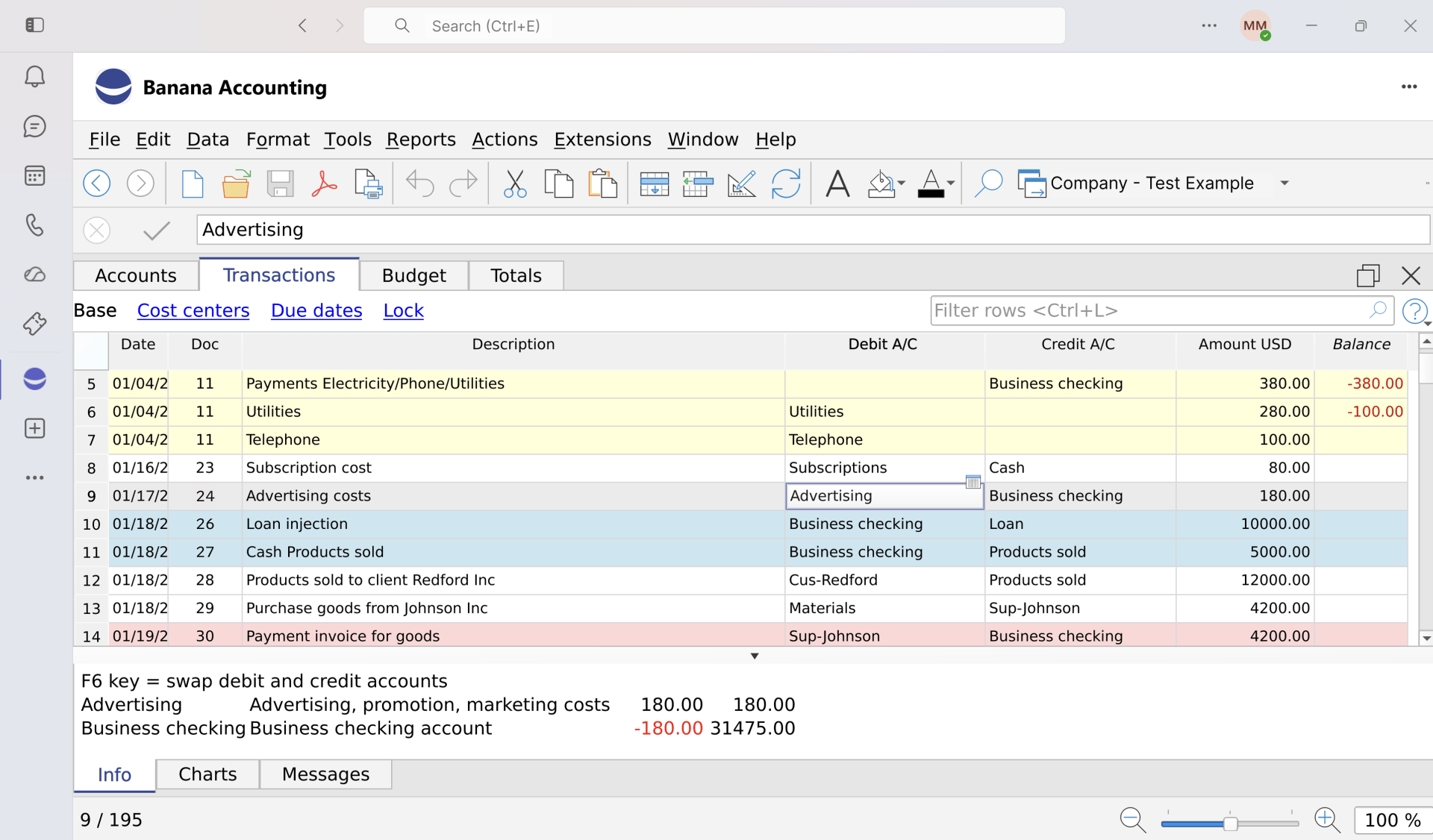
Features
In short, the app allows you to:
- Manage your accounting within the Teams workspace, alongside chats, meetings and documents
- Open and edit
.ac2files stored on your device, OneDrive or SharePoint - Save changes directly to the cloud, keeping files available to your colleagues
- See whether other users currently have the same file open
- Open a file from a shared link (1drv.ms, onedrive.com, sharepoint.com) or a public URL
- Quickly find recent and favourite files, synchronised across devices
The app is suitable for both individual use and teamwork in accounting firms, associations, NGOs and small and medium-sized businesses.
Limitations
Teams is based on browser technology and therefore still has some limitations.
Banana Teams App is still under development and may not offer all the features available in Banana Desktop.
- Teams does not allow different zoom levels for individual tabs or separate windows.
- Attachments cannot be accessed for files stored in the cloud.
- Switching from the Banana tab to another tab and back may take some time to load.
Teams may also close the tab. It is better to open Banana in a new window.
Installing Banana Teams App
Prerequisites
To use Banana Teams App, you need:
- A business or school Microsoft 365 account (a personal Microsoft account, such as Outlook.com, is not sufficient because the app uses Microsoft Teams single sign-on authentication)
- The Microsoft Teams application (desktop, web or mobile version)
- Storage space on OneDrive or SharePoint for your accounting files (recommended but not required, as you can also open and save files from your device)
- Permission to install apps from the Microsoft Teams Store. In some organisations, the IT administrator must first allow the app or approve its permissions.
- A modern browser if you use Teams in a browser: an up-to-date version of Edge or Chrome. WebAssembly is also supported by recent versions of Firefox and Safari.
- The app is NOT available for personal accounts because they do not support single sign-on.
You do not need to install any additional software on your computer: the entire Banana Accounting application is loaded within Teams.
Enabling the app for your tenant
Banana Accounting is available from the Microsoft Teams Store. If your Microsoft 365 tenant allows apps published in the Store to be installed, you can search for it directly in Teams and add it like any other app.
However, actual availability depends on your organisation's settings. The Microsoft 365 administrator can:
- Allow the installation of apps published in the Teams Store
- Block or approve individual apps
- Make the app available only to specific users or groups
- Automatically install or pin the app for users
- Require administrator consent for the app's Microsoft 365 permissions
How to add Banana Accounting Teams App
To add it to your Teams:
- Open Microsoft Teams
- Click the Store icon (+) in the left sidebar
- Search for Banana Accounting
- Click Add
- Confirm the installation
If you cannot find the app, contact your organisation's IT administrator and ask them to allow Banana Accounting in Microsoft Teams.
Technical notes on installation
Banana for Teams is an application published on the Marketplace and is automatically updated whenever we release a new version.
- When you install the Teams App, it runs within the workspace and computing environment provided by Microsoft.
- Microsoft Graph serverless Azure Functions (OneDrive/SharePoint) are used to open and save files. These services are managed by Microsoft and, according to Microsoft's specifications, process requests in a serverless environment without retaining copies of the data.
- Banana.ch, as the software developer, has no access to your storage spaces. It does not receive copies of your data, cannot see what you do, and cannot access or modify your files.
Launching Banana Accounting for Teams
To launch the app, go to the sidebar and click ... (View more apps), then select Banana Accounting from the list.
Tip:
You can pin the app to the sidebar by right-clicking it and selecting Pin. This allows you to open it with a single click.
First launch and sign-in
The first time you open Banana Teams App, you will see a loading screen with the message "Loading Banana Accounting...". The app is downloading the Banana engine and preparing the workspace. This may take a few seconds or longer, especially on the first launch or with a slow connection.
When launching the app for the first time, you may be asked to consent to Microsoft 365 permissions.
- In some tenants, users can grant consent directly.
- In other cases, administrator approval is required.
- These permissions are needed to identify you and to open and save, on your behalf, the
.ac2files you have access to on OneDrive and SharePoint.
Once loaded, the Banana Accounting interface is identical to the one you already know from the desktop version.
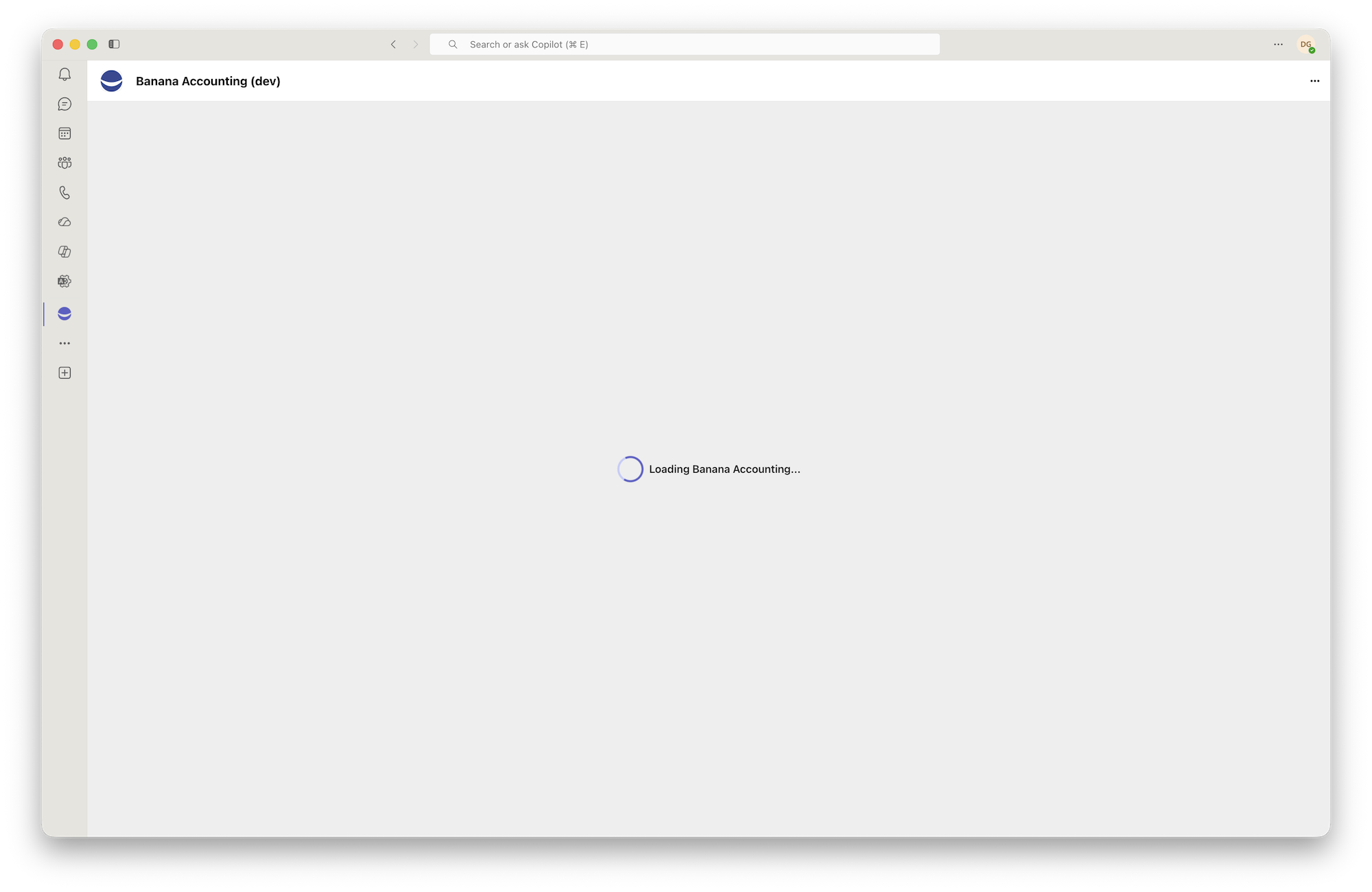
Open in a new window
When you launch Banana directly in the Teams window as a new tab, that window is automatically closed when you switch to another Teams tab.
It is therefore better to open the app in a new window:
- In the sidebar, right-click Banana Accounting Teams App and select Open in new window.
- Alternatively, while using Banana Accounting Teams App, click the ... menu in the top-right corner and select Open app in new window.
File access (single sign-on)
Once you have signed in to Teams (single sign-on), Banana automatically gives you access to all your files and shared resources.
If this is your very first time, Teams or Microsoft 365 may ask you or your administrator to grant the app access permissions for:
- Your user profile
- Your OneDrive files
- The SharePoint sites you have access to
- The basic information needed to display collaborator presence
These permissions allow the app to open and save files and show who else has the same document open. Without the required permissions, the app's cloud features cannot work.
Opening and sharing an accounting file
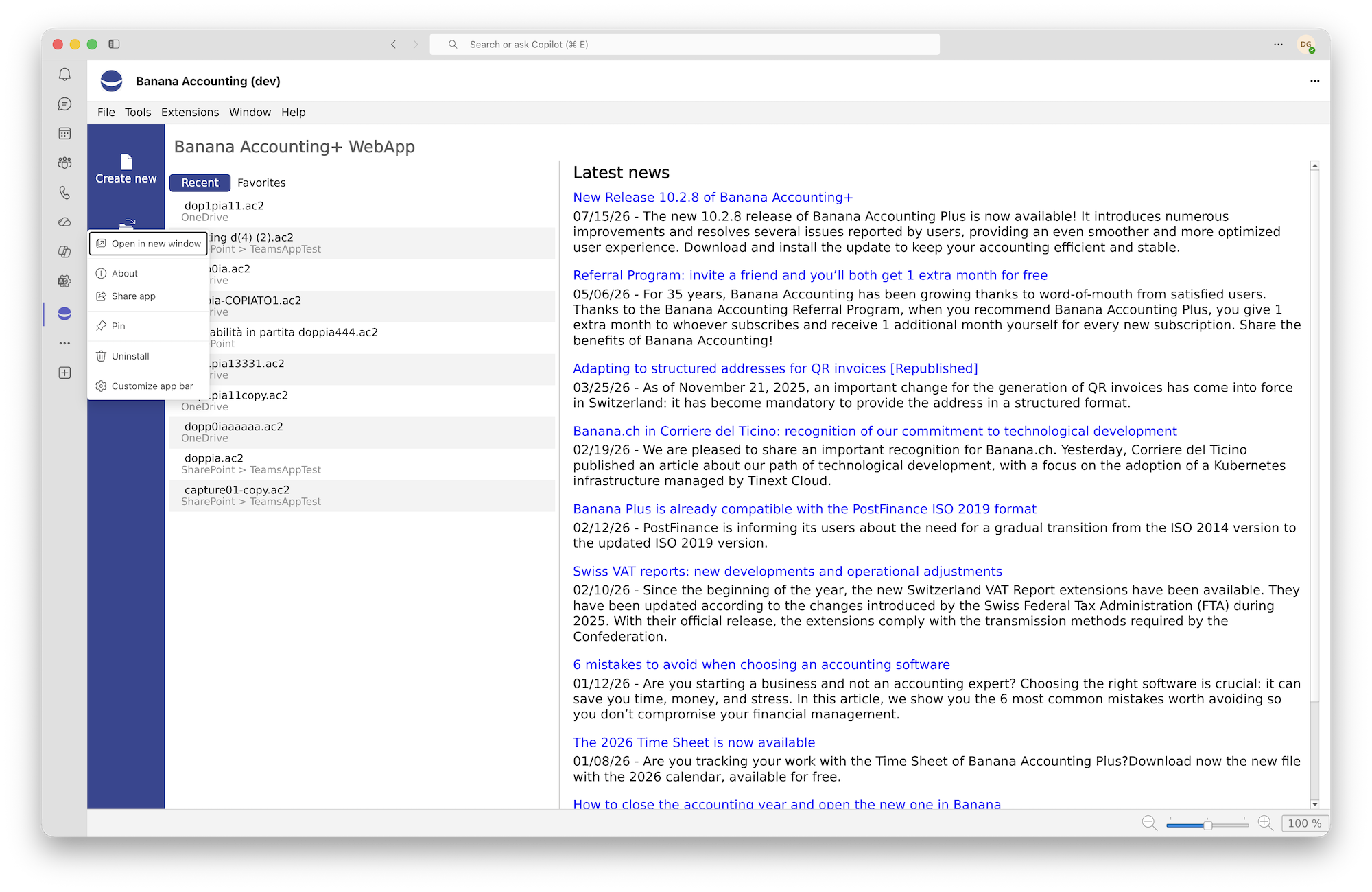
To open a file, click Open in the Banana menu or use the recent files start page. The Load file from device or cloud window opens, divided into four tabs:
Local device
- The Device tab allows you to select a
.ac2file saved locally on your computer. - Click Open from device, select the file using the system file picker, and Banana will load it immediately.
- Files opened from your device are not added to the recent files list because they do not have a permanent cloud identity.
OneDrive
- The OneDrive tab provides a file browser for your personal files on OneDrive for Business.
- Browse folders and subfolders just as you would in OneDrive in your browser. The available columns show the name, size, modification date and person who made the modification.
- Click a
.ac2file to open it: the app securely downloads its contents without requiring you to leave Teams.
SharePoint
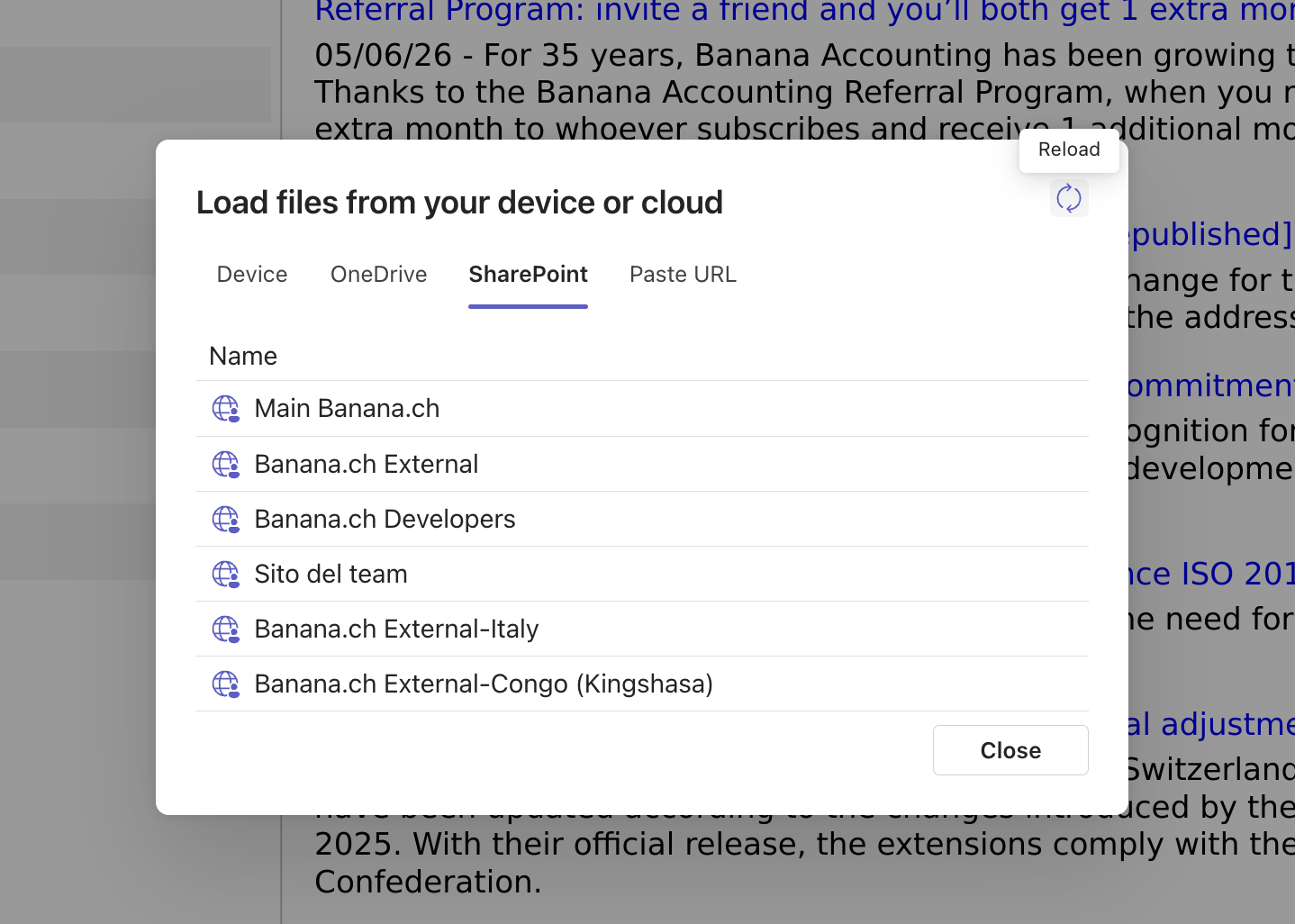
- The SharePoint tab lists the SharePoint sites you have access to.
- Select the desired site, then browse its document libraries to find the file.
- The structure is identical to OneDrive: folders, files and navigation breadcrumbs.
- If you belong to many sites, you can return to the root by clicking the home button in the breadcrumb navigation.
Open from URL (shared files)
- The Paste URL tab allows you to open a file using a link. This is useful in three situations:
- A colleague has shared a link to a file on OneDrive or SharePoint (1drv.ms, onedrive.com, sharepoint.com): paste it here and the app will open it using the Microsoft Graph sharing system
- You have a direct link to a public
.ac2file on a web server (HTTPS or HTTP) - You are opening a link generated by another Banana application
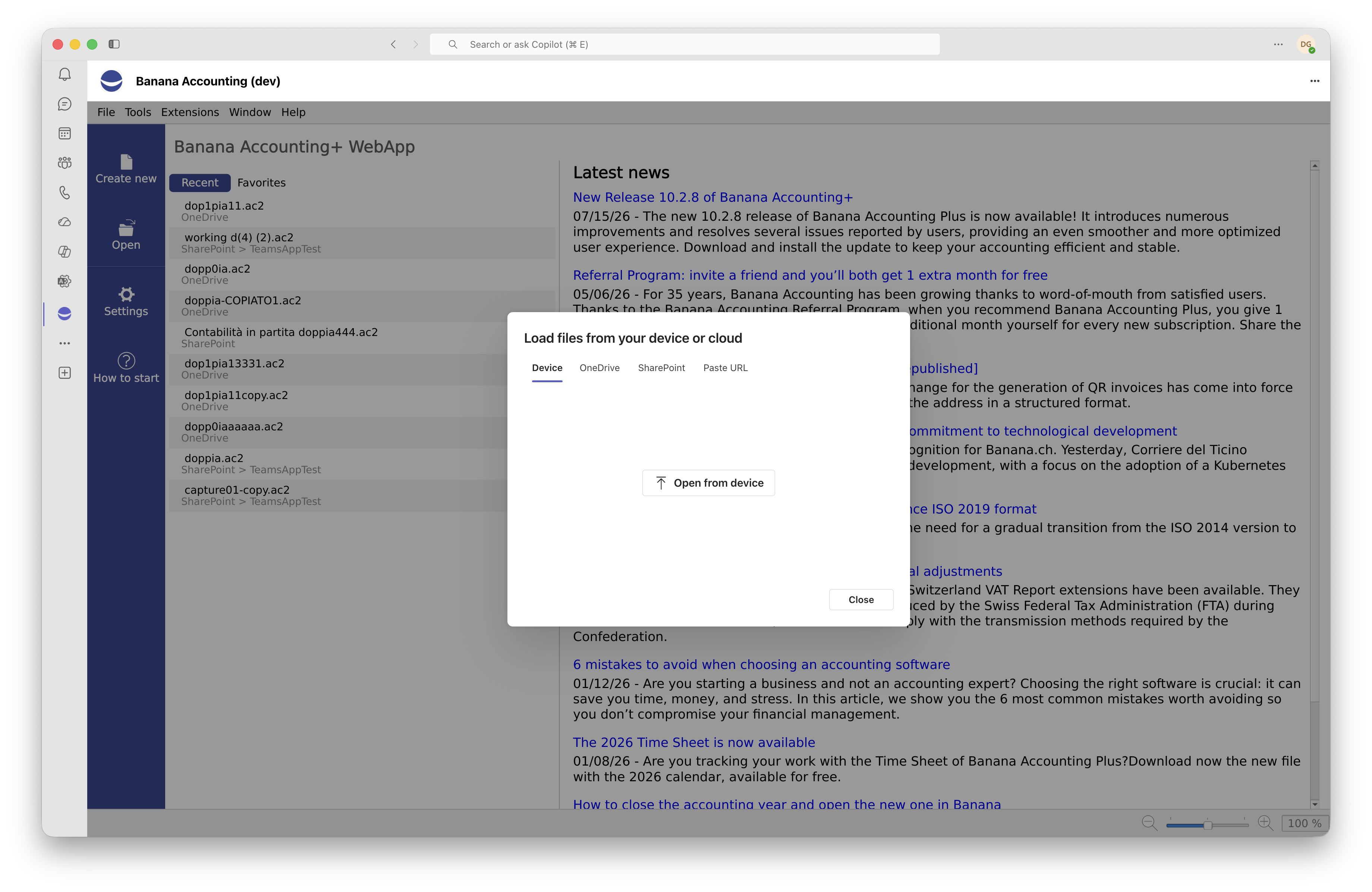
Microsoft shared links
When a colleague shares a .ac2 file with you from OneDrive or SharePoint using the Microsoft 365 Share feature, you receive a URL such as https://...sharepoint.com/.... You can:
- Paste it into the app's Paste URL tab
- Open the file from OneDrive or SharePoint using the Open with Banana Accounting option, when available in the file menu
The app automatically recognises Microsoft domains (onedrive.com, 1drv.ms, sharepoint.com) and uses the Graph sharing system to download the file with your permissions.
Paste the link into the File URL field and click Open URL. Only http:// and https:// links are accepted.
Tip: the Ctrl+V shortcut (or Cmd+V on Mac) also works inside the Teams window, even though Teams generally restricts clipboard access for security reasons.
Reload button
When browsing OneDrive or SharePoint, you will find a button with a reload icon in the top-right corner of the window. Click it to refresh the list of files and folders, for example if a colleague has just uploaded a new document.
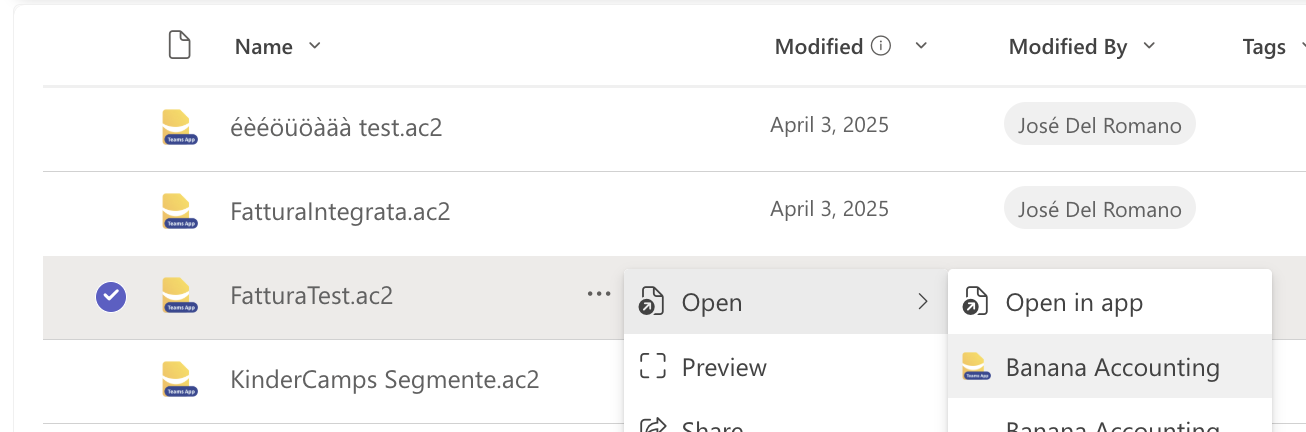
Open with Banana Accounting
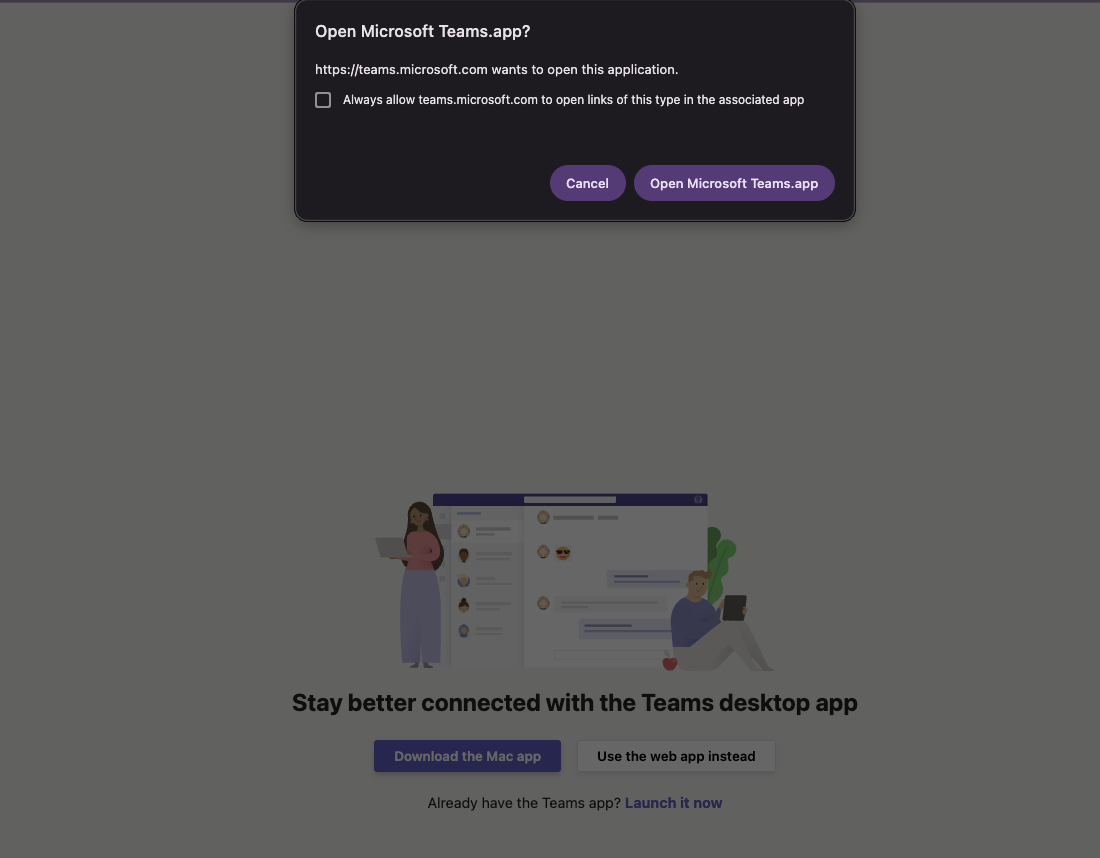
When Microsoft 365 file integration is available in your tenant, .ac2 files stored on OneDrive or SharePoint may display the Open with Banana Accounting action. Selecting it opens Banana Accounting directly in Teams and loads the selected file.
This feature depends on the app being published in the Teams Store, the availability of integration in your tenant, and the policies configured by your administrator.
Opening files from shared links
Banana Teams App supports deep links, which open a specific file directly instead of displaying the app's start page.
There are two ways to use them:
- Teams deep links
If you use a Teams link that points directly to a file (with thefileIdandsourceparameters), the app automatically opens it on launch. This is useful, for example, when adding a link to an accounting file in a Teams message or a channel tab: anyone who clicks it is taken directly to the open file.
- Recent and favourite files
The Banana start screen shows your recently opened files (up to 8) and those you have marked as favourites.
Synchronisation across devices
Recent and favourite files are stored both locally and in your cloud profile, so you can find them even when opening Teams from another computer. Synchronisation is automatic.
The list contains file references, such as the name, location and cloud identifier. It does not contain the contents of the .ac2 files.
Available actions
- Open: click a file to reopen it. The app downloads the latest version from the cloud, not an outdated copy.
- Open file location: takes you directly to the folder containing the file in the OneDrive or SharePoint file browser.
- Add to favourites: marks a file as a favourite. Favourites are never automatically removed from the list, even when you open new files.
- Remove from recent: removes an individual entry from the list (the file remains in the cloud).
- Clear all: completely clears the recent files list.
Files opened only from your device are not stored in the recent files list because they do not have a unique cloud reference.
Saving the file
Banana automatically distinguishes between two situations:
- Save (Ctrl+S): if the file comes from the cloud, it is updated directly in its original location (OneDrive or SharePoint), without prompting you
- Save As: opens the save window, where you can choose the location, file name and destination
When the file comes from your device, even a simple Save opens the save window. This is necessary because, for security reasons, browsers cannot automatically overwrite local files.
The save window
The save window offers three destinations, similar to those available when opening files:
- Device: downloads the file to your computer (the browser's Downloads folder)
- OneDrive: saves the file to your personal OneDrive, allowing you to choose the destination folder
- SharePoint: first select the site, then the folder
The File name field allows you to rename the file before saving.
Smart upload
For large files, the app automatically divides the upload into several parts, making the saving process more resilient to network interruptions. Smaller files (under 4 MB) are uploaded in a single step. You do not need to do anything: the app chooses the best method automatically.
During saving, you will see a series of status messages:
- "Exporting .ac2 from Banana..."
- "Checking remote version..."
- "Preparing upload payload..."
- "Uploading to OneDrive..." (or SharePoint)
- "File saved to OneDrive."
Version and conflict management
When working on a shared file, a colleague may modify and save it while you still have it open. Banana Teams App automatically detects this situation by comparing the remote file version with the version currently in your memory.
If the remote version has changed when you try to save, the app does not automatically overwrite your colleague's work. Instead, it displays a Remote file has changed dialog with three options:
- Overwrite: forces your version to be saved, discarding the changes made by your colleague. Use this only if you are sure of what you are doing.
- Save As: saves your work as a separate copy. The app automatically suggests a name such as
FileName (conflict 2026-05-09 10-30-15).ac2, so you can compare the two versions later. - Cancel: closes the dialog without saving, allowing you to reconsider what to do.
The app also checks the opposite scenario: if the remote file has been deleted while you were working, you are prompted directly to save your conflict copy.
Collaborator presence
When you open a .ac2 file from OneDrive or SharePoint, Banana Teams App tells you whether other colleagues in your organisation currently have the same file open. Their avatars (Microsoft 365 profile pictures) appear next to the file name.
This helps you to:
- Coordinate with colleagues before making important changes
- Avoid version conflicts, for example by agreeing on who should save first
- Immediately see who is viewing or editing the same file
Presence information is updated approximately every 30 seconds and automatically stops when you close the file or the app.
Technical note: presence does not share file contents or real-time changes. It only shows who is working on the same file. Actual changes still follow the "open - edit - save" process, just like in the desktop version.
Languages and theme
Supported languages
The Banana Teams App interface is available in:
- Italian
- English
- German
- French
The language is selected automatically based on your Teams language settings. If Teams is set to Italian, the app will also be in Italian. If your language is not supported, the app uses English as a fallback.
Light and dark theme
The app follows the Teams theme: light, dark or high contrast. When you change the theme in Teams, the app automatically adapts to the new colour scheme.
Privacy and security
The security of your accounting data is a priority. Here is how the app's architecture is designed:
- Single sign-on: you do not need to enter your password again. The app uses the Teams authentication token through the On-Behalf-Of flow, Microsoft's standard for Teams apps.
- Tokens are never exposed to the browser: access tokens for OneDrive and SharePoint are never stored in the browser or local storage. They are handled exclusively on the server side.
- Microsoft Graph behind the scenes: communication with OneDrive and SharePoint always goes through a dedicated backend service, which acts as a secure intermediary between the app and Microsoft Graph. Your browser never calls the Microsoft Graph APIs directly.
- File integrity during transmission:
.ac2files are transmitted byte for byte, without transformations that could alter their contents. The app may keep temporary technical or recovery copies only on the user's device, in IndexedDB, the browser's local database, to protect unsaved work. These copies are not used to share your data with other services. - Permissions limited to the app's purpose: the app requests the permissions needed to identify you, read and write files you have access to, and display collaborator presence. It does not request access to emails, calendars or chats.
You can find more details on the Privacy Policy and Terms of Use pages, accessible from the app menu within Teams.
Frequently asked questions
Can I work offline?
Opening a file requires an active connection because Banana is loaded dynamically. Once the file is open, local changes to the document do not require a network connection, but saving to the cloud does. If the connection drops while you are editing, you can still save the file to your device as a backup copy.
Does Banana Teams App replace the Banana Plus desktop application?
No. It is an additional way of working, designed for people who primarily use Teams. You can continue using the full Banana Accounting Plus desktop version for Windows, Mac and Linux.
Can I open .ac2 files with Banana Teams App and then continue working on them in the desktop version?
Yes. The .ac2 file format is the same. You can open a file in Teams, save it to OneDrive, and then open the same file in the Banana desktop version synchronised through OneDrive (or downloaded manually).
What happens if I close Teams while working?
The app detects when the tab is closed and warns you if there are unsaved changes, just like the desktop version. Automatic recovery mechanisms are also available for changes in more extreme situations.
Can I install the app on Teams mobile?
Yes, if your organisation also allows the app on Teams mobile. The experience is mainly designed for desktop computers, browsers and tablets. On smartphones, some operations may be less convenient because of the smaller screen size.
How many people can edit the same file at the same time?
Technically, several people can open the same file at the same time, and the app provides a visual notification through presence avatars. However, this is not real-time co-authoring like in Word or Excel: each user works on their own open copy and then saves the result to the cloud. If the remote version has changed in the meantime, the app displays a conflict dialog and allows you to overwrite the file, save a separate copy or cancel. We recommend coordinating with your team before making changes to a file that is already in use.
How can I report a problem or suggest an improvement?
Contact Banana.ch support through the contact form. When submitting your request, remember to mention that you are using the Teams App version so the support team can direct you to the right person immediately.
Conclusion
Banana Teams App brings the power of Banana Accounting Plus into the workspace you already use every day. Open your files wherever they are stored, save directly to the cloud and work on shared documents without exchanging emails: everything in one place.
If you have not installed it yet, try adding it to Teams today. For any questions or support, the banana.ch website is always available to help you.