VAT net tax rate method
Swiss VAT Report net tax rate method 2025
The extension and the VAT report are available in English.
The documentation is currently not available in English.
Please refer to the relevant pages in German, French, or Italian.
Error messages
- The extension 'VAT 2025' requires Banana Accounting+ minimum version %1.\nTo update or for more information click Help
- This extension works only with Banana Accounting Plus (version 10.0.12 or higher), Advanced plan. See update program and plan.
- This extension requires Banana Accounting+ Advanced. To update or for more information click on Help
- This extension works only with Banana Accounting Plus and the Advanced plan. See update program and plan.
- The VAT Number of your company is not valid or missing. Please use File - File and accounting Properties (Address)
- The VAT number is entered in the VAT number field and must consist of 9 digits. You can also indicate the CHE prefix, as long as all 9 digits are present.
For example: CHE-211.311.311 or 211.311.311. - The VAT number must be set or corrected in the File Properties (Basic data) dialog, in the Address tab, by filling in the VAT number field.
- The dialog is accessible from the menu File > File and accounting Properties, Address section.
- The VAT number is entered in the VAT number field and must consist of 9 digits. You can also indicate the CHE prefix, as long as all 9 digits are present.
- The company name is not valid or missing. Please use File - File and accounting Properties (Address)
- The organization name is taken from the Company field. If this field is empty, the Name and Surname fields are used.
- The organization name must be entered in the File Properties (Basic data) dialog, in the Address tab, by filling in the Company field or the Name and Surname fields.
- The dialog is accessible from the menu File > File and accounting Properties, Address section.
- The activity code %1 for tax rate %2 is missing or invalid. Verify the 5-digit code provided by the FTA and enter it in the extension dialog under the 'Net/Flat tax rates' section
- Ensure that a 5-digit activity code has been entered for the VAT rate.
- Enter the activity code directly in the extension dialog.
- Each taxpayer must only submit the activity codes that have been expressly authorized by the FTA.
- The activity codes authorized by the FTA are provided in writing upon request or can be found directly on the FTA online portal under the Calculation method tab, accessible after authentication with your account.
- See details in Company activity codes
- The VAT percentage of code% 1 is not calculated on the gross
- Check in the VAT Codes table that the VAT codes for numbers 323, 333, 322, and 332 have 'Yes' set in the '% VAT on gross' column. This is because the balance/flat rate method calculates VAT on the gross amount. For example, if I issue an invoice for 100 CHF, the VAT will be calculated on this amount, i.e., CHF 6.50 if the rate is 6.5%.
- At group %1 the tax rate %2% is not permitted. Please check the vat codes
- The 0% rate for the specified group is not allowed. Enter the correct rate directly in the dialog for the corresponding group or in the VAT codes table.
- At group %1 only one tax rate is allowed. Please check the tax rates related to this group
- Check in the VAT Codes table the codes associated with this number through the Gr1 column. All VAT codes with this number in the Gr1 column must have the same rate.
- WARNING: The selected report period does not match the expected period
- Check the periodicity of reporting set in the extension dialog, in the Options section.
- For example, if you selected the entire year (All) as the period but the report periodicity is set to S = Half-year reporting, this message will be displayed.
- To resolve the issue, make sure that the report period and periodicity are consistent by setting the same interval.
Swiss VAT Report net tax rate method 2024/2025
Swiss VAT Report net tax rate method 2024/2025This page is not available in English at the moment.
Please consult the relative pages in German, French or Italian.
Business Activity Codes
If you use the flat rate method, you must enter the activity code in Banana exactly as defined and approved by the Swiss Federal Tax Administration (FTA).
The activity codes are assigned individually and can be consulted on the FTA portal, in the Reporting method section, or requested directly from the FTA, which communicates them to the taxpayer in writing.
The activity codes:
- Are not available in Banana and there is no complete list of usable codes.
- Are managed and accessible via the FTA portal, in the Reporting method section.
- If you cannot retrieve the activity code via the FTA portal (as described on this page), you must contact the FTA directly, which will provide the codes to be used.
- Are only applicable for periods starting in 2025. For periods before 2025, no activity code is required.
- If you only intend to print the VAT report and manually enter the amounts in the FTA portal, the activity codes are not required.
How to obtain activity codes and rates
Below is the procedure to find the activity codes and the flat rates to be entered in the VAT extension dialog in Banana.
- Log in to the FTA portal using your registered user credentials.
- Click on New transactions.
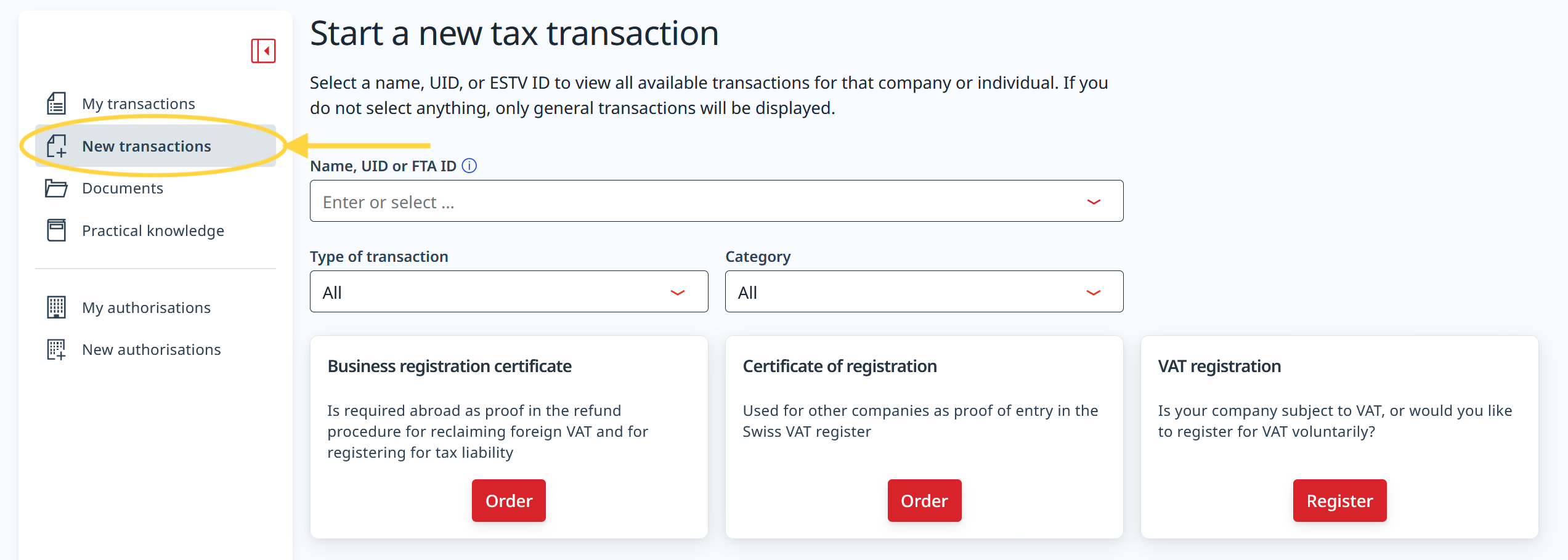
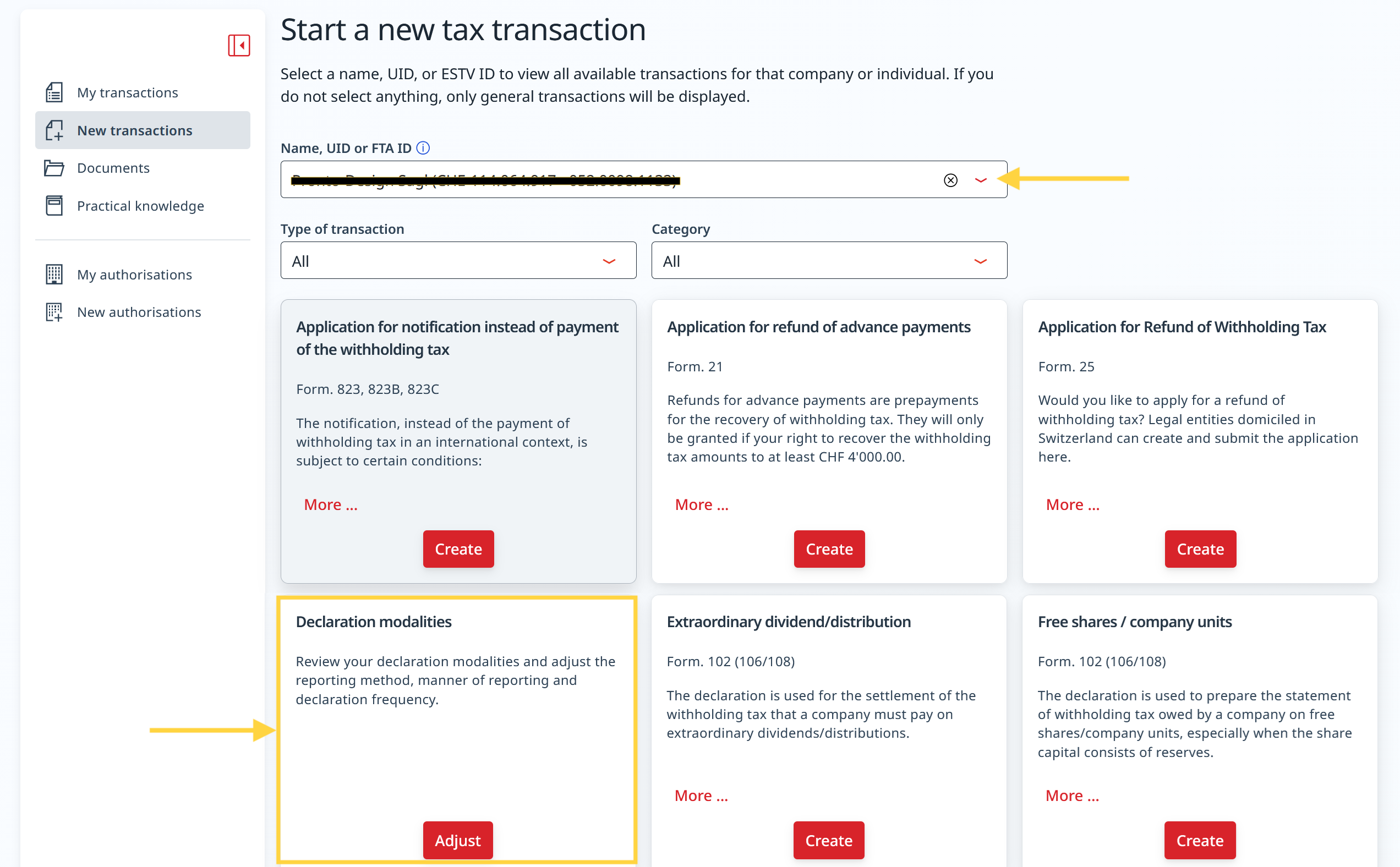
- Select the company name and the corresponding VAT number.
- Click on Adjust in the Declaration modalities section.
- Click on menu to open the Declaration method.
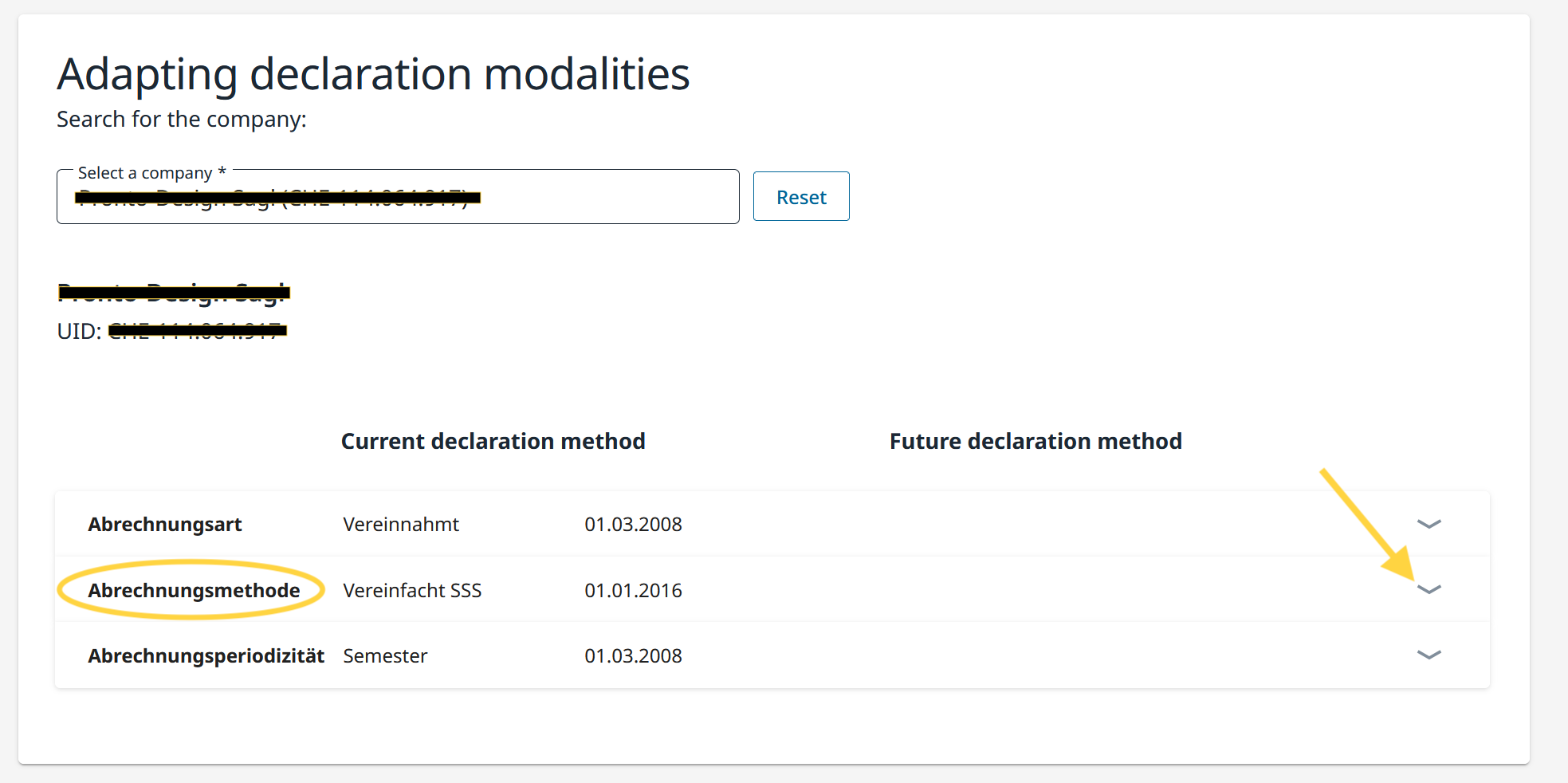
- A new section opens at the bottom of the page.
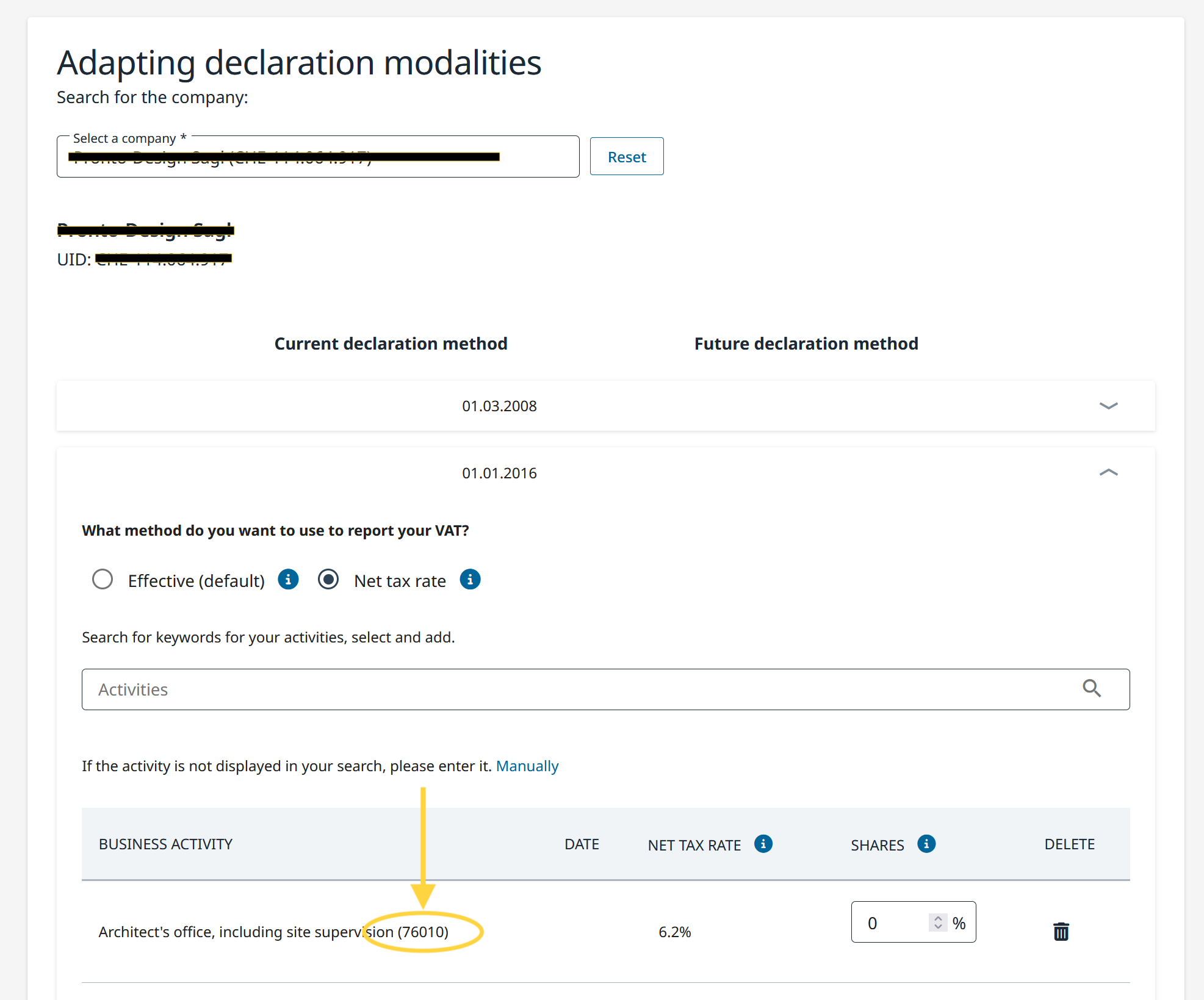
- Check the list of registered business activities and note the activity code assigned to each activity (e.g. 58010, 64610, 20010, 71140), as indicated by the FTA.
- The name of the activity and its five-digit code are loaded automatically based on the data already registered.
- The activity code is shown after the name/description of the selected activity (see example in the image below).
- If no activity code is displayed, you must contact the FTA directly, which will communicate the codes to be used.
Entering the activity code in Banana
Each taxpayer must only submit the activity codes that have been explicitly authorized by the FTA.
Once you have obtained the necessary activity codes along with their corresponding rates, you must enter them when running the Switzerland VAT extension.
- In Banana, launch the extension VAT Report flat rate method > VAT Report from 2025.
- The dialog Switzerland VAT: Net tax rate method will open.
- In the Net/Flat tax rates section of the dialog:
- identify the corresponding activity and enter the five-digit FTA activity code in the Code field.
- check that the VAT rate shown in Banana under VAT% matches the one defined by the FTA for that activity code.
- Repeat the operation for all activities subject to the net rate method.
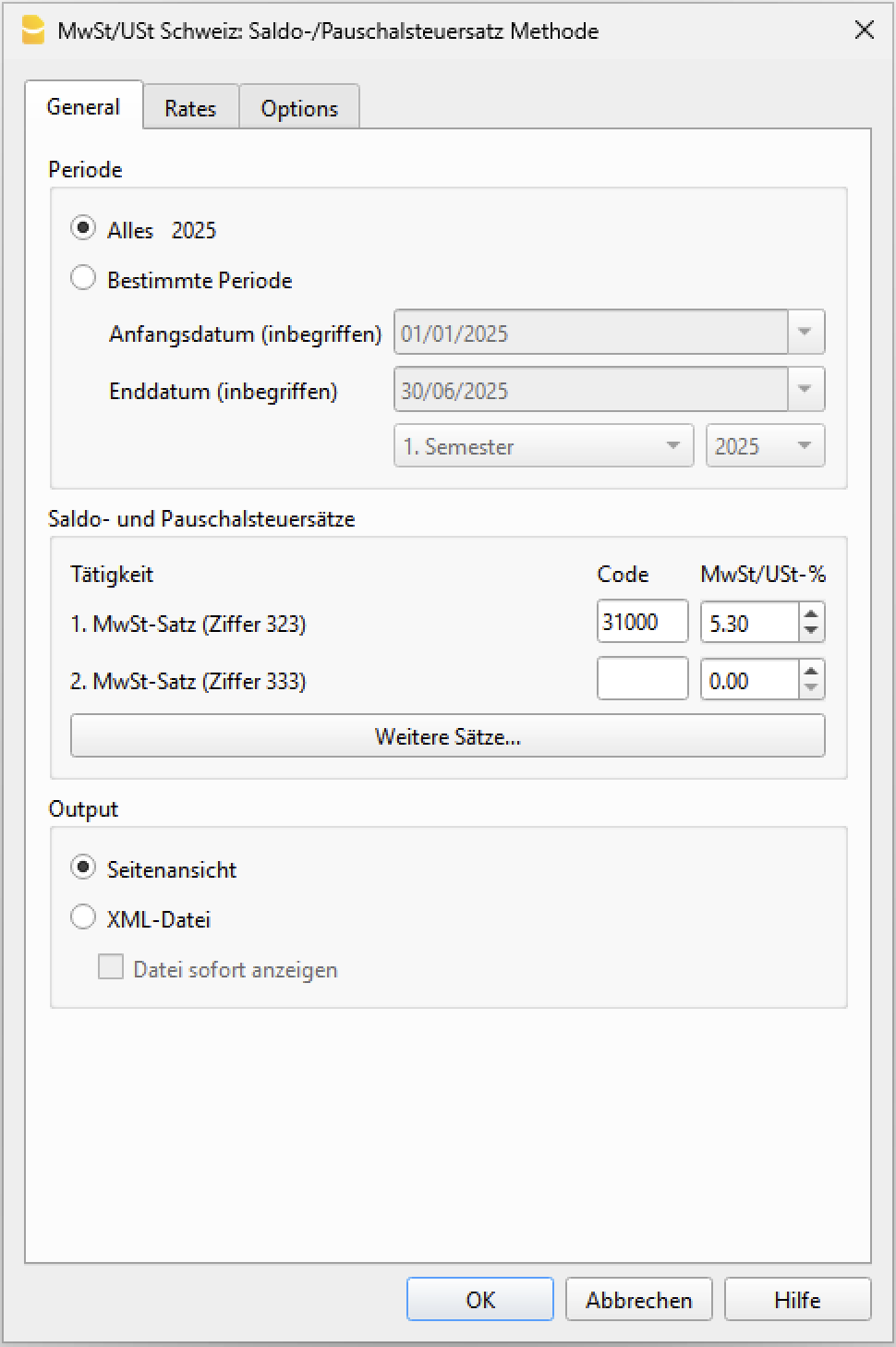
Warning: the code 76010 and the VAT rate 5.30 are provided as examples; please verify the correct code for your case.
When activity codes are required
When launching the VAT Report extension, the program checks that activity codes and the corresponding rates have been entered. If an activity code is missing or if the code entered is not valid, the extension displays a warning message.
Warning messages are useful when you want to generate the XML file for electronic submission to the FTA, since activity codes are required to obtain a valid transmission file.
If, instead, you only intend to print the VAT report and manually enter the amounts in the FTA portal, activity codes are not required. In this case, you can ignore the warning messages.
Transaction without VAT breakdown
The method with VAT breakdown described below is the one we recommend, because it is the simplest and fully automated.
Before proceeding with the filling in of the VAT statement (facsimile and XML file) it is necessary to:
- Check that the VAT Codes table is updated.
- Check that there is a Yes in the VAT Codes table in the VAT due column.
- In the Transactions table, post the transactions, indicating the code for the balance rate. No percentage will appear and no VAT amount will be indicated.
VAT facsimile and XML file for forwarding to the FTA
At the end of the period, the extension Swiss VAT: net tax rate method must be used to process the VAT facsimile statement and the XML file to be forwarded to the FTA.
Extensions are installed via the Extensions menu > Manage Extensions command.
VAT codes for the net rate (figures 322, 332 up till 2023, 323, 333 from 2024)
Starting from 01.01.2024, the VAT codes for the balance rate are indicated with F1 and F2, FS1, FS2 those relating to discounts.
For the year 2023, the existing ones will remain valid. These codes can also be renamed.
It is important to know that:
- No percentage is entered in the VAT% column (empty cell)
- In the Transactions table there will be no breakdown and indication of the VAT amount.

The GR1 column shows the figures of the VAT form where the amounts are totalled.
When the amounts are to be totalled with several digits, these are separated by a semicolon.
Transactions without VAT breakdown
Figures 322, 332 up till 2023, 323, 333 from 2024
Each time sales are recorded, the code "F1" for the 1st rate and F2 for the 2nd rate must be entered.
If there is a discount, use the FS1 or FS2 code. These codes are valid from 01.01.2024.
For year 2023, the VAT codes remain the same ( F3,F4,FS3,FS4).
Credit notes and adjustments
When recording reversals or adjustments using credit notes, you can proceed in two ways:
- Reverse the accounts in the Debit and Credit columns (for example: sales account in Debit and customer in Credit)
- Or use a revenue reduction account (for example account 3800, as shown in the image)
In both cases, in the VAT Code column you must enter the VAT code preceded by a minus sign (for example: -F1).
When calculating the VAT Report at the end of the period, the program automatically takes the credit note into account and reduces the VAT amount accordingly.

Accounting settlement and payment
At the end of the period, the VAT payable calculated with the VAT Rate Balance extension must be recorded in the accounting, so that the turnover is reduced by the VAT amount.
The transaction is recorded as follows:
- Enter the date related to the adjustment
- Enter the description as shown in the image
- In the Debit column, enter account 3809 to adjust revenues
- In the Credit column, record account 2200 VAT payable
For the VAT payment, proceed by clearing account 2200 VAT payable, which will then be zeroed. As a counterpart, a liquidity account is used, which will decrease.

VAT codes for net rate (numbers 470 - 471) - Exports declared using form no. 1050 and 1055
These are two VAT codes that apply in special situations and please refer to the relevant explanation of the Federal Tax Administration.
The above figures refer to exports that have been noted and declared using form no. 1050 and 1055.
(forms valid until December 31, 2024)

Transactions for VAT codes F1050 - F1055 (Figures 470 - 471)
In the Transactions table, you must enter the total amount of VAT on the purchase and apply the type 2 VAT code (100% VAT amount - F1050, F1055).
The program reports the VAT amounts to numbers 470 - 471 of the VAT Form.
(forms valid until December 31, 2024)

Transactions with VAT breakdown
This system is used when you want to have the immediate breakdown of VAT for each transaction in the Transactions table .
It is important to know:
- If this method is used, attention must be paid to the fact that the final VAT is calculated on the invoice amount already including VAT, therefore on the total turnover.
- The VAT deduction that is made in the account will not be the same as the VAT amount invoiced to the customer. These situations can be confusing, so we recommend using this method only if you have a good understanding of VAT mechanisms.
How to proceed
Before proceeding with the processing of the VAT statement (facsimile and XML file) it is necessary to:
- Check if the VAT Codes table is updated.
- In the VAT Codes table, enter your tax rates relating to codes F1, F2, FS1, FS2 (sample rates have been entered in the following window).
- In the Transactions table, enter the transactions, indicating the code for the balance rate. The VAT balance percentage and the amount separated from the revenue account will appear.
VAT facsimile and XML file for the FTA
At the end of the period, to process the VAT facsimile statement and the XML file to be forwarded to the FTA, use the Swiss VAT: net tax rate method extension.
Extensions are installed via the Extensions menu > Manage Extensions command.
VAT codes for the net rate (figures 322, 332 up to 2023, 323, 333 from 2024)
From 01.01.2024, the VAT codes for the flat tax rate are indicated with F1, F2 and FS1, FS2 those relating to discounts.
For 2023, the existing ones (F3, F4 e FS3, FS4) will remain valid. These codes can also be renamed.
Important: by default the value "YES" must appear in the "% VAT on Gross" column, as shown in the following screen:
 See the information below for more details.
Registration with VAT breakdown
Figures 322, 332 up to 2023, 323, 333 from 2024
When registering, the program breaks down the related VAT amount for each individual transaction and it registers it to the VAT account statement.
VAT payment at the end of the period
At the end of the period, after calculating the VAT to be paid, a transaction must be made to transfer the balance from the VAT account to the VAT account to be paid.
The VAT return account, after this transaction, will have zero as a balance.
When the VAT is paid, the payable VAT account will be registered onto the debit account and a liquidity account will be registered in the credit account.

Comparison between the turnover in the accounting records and the turnover declared in the VAT return
When using the Flat VAT Rate method with VAT excluded from the transaction amount, it is normal for the turnover shown in the accounting records to differ from the turnover reported in the VAT return.
Why does this difference occur?
With the VAT exclusion method, each sales transaction is recorded using a VAT code that automatically separates the VAT amount from the amount posted to the revenue accounts.
As a result:
- only the net amount, excluding VAT, is recorded in the revenue account;
the VAT amount is recorded separately in the VAT account.
For this reason, the turnover shown in the Profit & Loss Statement and in the accounting records is lower than the turnover reported in the VAT return.
Why does the VAT return show a higher amount?
Under the Flat VAT Rate method, VAT is calculated on the gross turnover, that is, including the VAT charged to the customer.
Therefore, the program correctly reports the gross amounts in the VAT return, as required by the Swiss Federal Tax Administration.
The difference between the turnover in the accounting records and the turnover reported in the VAT return therefore corresponds to the VAT that has been automatically excluded from the revenue.
How can you verify that the turnover is correct?
To verify that the turnover declared in box 200 of the VAT return is correct, simply add the VAT amount excluded from the revenue to the turnover shown in the accounting records.
This gives you the gross turnover reported in the VAT return.
The recommended method
To simplify the reconciliation between the accounting records and the VAT return, we generally recommend using the Flat VAT Rate method without excluding VAT from the transaction amount.
In this case:
- the gross amount always remains recorded in the sales transactions;
- Flat VAT Rates are not entered in the VAT Codes table;
- when preparing the VAT return, the rates are entered directly in the extension dialog.
At the end of the period, you will then need to make an adjusting transaction to transfer the VAT portion from the revenue account to the VAT account.