In questo articolo
La WebApp di Banana Contabilità Plus è la versione del programma che funziona direttamente nel browser. È il modo più veloce per provare il software: senza installazione, puoi subito creare una contabilità, inserire registrazioni e valutare se risponde alle tue esigenze.
Avvia WebApp di Banana Contabilità Plus
Versione 10.2.9, 09.06.2026, dimensione del file: 75.9 MB.
Cronologia modifiche (in Inglese)
Prova subito a creare la tua contabilità
Utilizzabile gratuitamente, con delle limitazioni rispetto alla versione desktop, dovute in particolare alle restrizioni di accesso ai file imposte dai browser.
- Cliccando sul bottone blu "Avvia WebApp di Banana Contabilità Plus" viene lanciato Banana Contabilità+ WebApp.
- Crea una nuova contabilità con comando File > Nuovo e scegli un modello.
- Puoi modificare il file a tuo piacimento, adattando il piano dei conti e inserendo le registrazioni.
- Cliccando dal menu File > Salva con nome, il file con le tue modifiche viene salvato con la modalità del browser (normalmente la cartella download).
Per motivi di sicurezza, tutte le volte che salvi, il browser crea una nuova copia, e chiede di inserire il nome del file.
Per un uso ricorrente, una volta che hai creato e salvato il file di contabilità consigliamo di usare la versione desktop.
Inizia con un modello universale
Nel Template Store puoi cercare un modello e aprirlo direttamente nella WebApp,
Qui di seguito trovi i link a dei modelli universali che si aprono direttamente nella WebApp.
- Cash Manager - Piano della liquidità per Freelance e piccole Aziende
- Cash Manager - Contabilità per Studenti
- Contabilità Entrate/Uscite - Bilancio familiare e Conti di casa
- Contabilità Entrate/Uscite - Organizzazione religiosa
- Contabilità in Partita doppia - Insegnamento contabilità
- Contabilità in Partita doppia - Business plan e pianificazione finanziaria di una Startup
- Contabilità in Partita doppia - Società Finanziaria con gestione Portafoglio (Inglese)
- Contabilità in Partita doppia Multimoneta - Business plan e pianificazione finanziaria avanzata con formule per la multimoneta
- Gestione del Magazzino
Riapri i file sul tuo computer
Puoi aprire il file salvato con la WebApp o con la versione desktop, che offre maggiori funzionalità.
- Avvia nuovamente Banana Contabilità+ WebApp
- File > Apri e scegli il file che hai salvato.
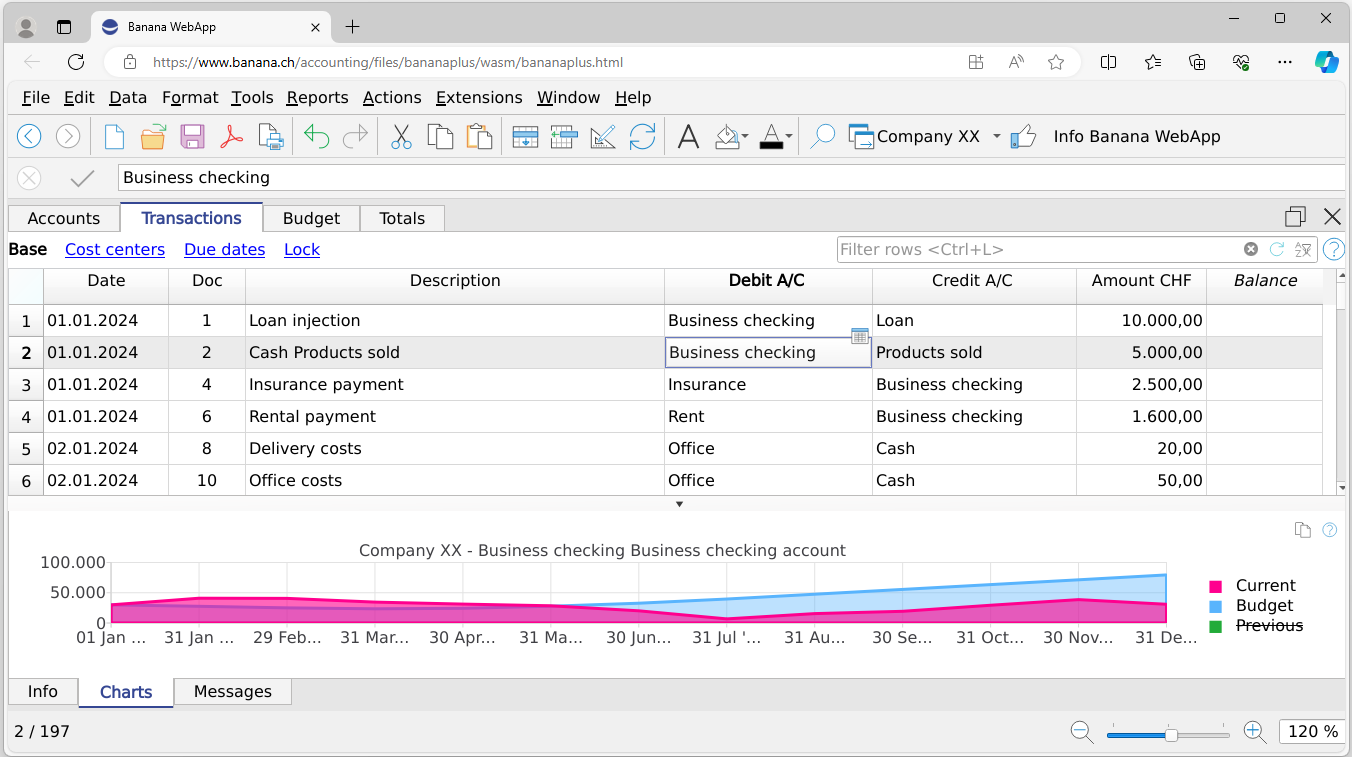
Cos’è una WebApp?
Una WebApp è un programma che funziona direttamente all’interno del browser, senza bisogno di installazione.
Offre la praticità delle applicazioni web con l’esperienza d’uso di un software tradizionale.
Con Banana Contabilità+ WebApp:
- Puoi lavorare ovunque, anche senza connessione internet (dopo il caricamento iniziale);
- Non serve alcuna registrazione o account;
- I dati rimangono sul tuo computer e non vengono inviati al cloud;
- Puoi salvare e aprire file solo con il tuo consenso;
- Il browser salva copie temporanee dei tuoi file per proteggerti da chiusure improvvise;
- Puoi installarla come app tramite il browser, per un accesso più rapido.
Impiego e finalità
La WebApp è pensata per:
- Permettere a tutti di provare Banana Contabilità senza installazione.
- Creare e personalizzare velocemente una contabilità partendo dai modelli disponibili nel Template Store.
- Offrire agli studenti un ambiente pratico per esercitarsi.
- Mostrare le potenzialità della tecnologia WebApp nel campo della contabilità.
Limitazioni attuali
Rispetto alla versione desktop:
- L’accesso ai file è più rigido a causa delle regole di sicurezza dei browser.
- I dati possono andare persi se si chiude il browser senza salvare.
- Alcuni comandi e dialoghi non sono ancora supportati.
- Mancano funzioni come drag&drop, Recenti e Preferiti.
- Non è compatibile con dispositivi touch o schermi piccoli.
- Non supporta file protetti da password.
La WebApp è gratuita: invitiamo a provarla e a inviare suggerimenti e feedback.
Compatibilità
Banana Contabilità WebApp funziona con i browser più diffusi (Google Chrome, Microsoft Edge, Apple Safari e Mozilla Firefox 64-bit) e utilizza la tecnologia WebAssembly, che consente di eseguire applicazioni complesse direttamente nel browser in modo veloce e sicuro.
- Si consiglia di usare l’ultima versione del browser e impostare lo zoom al 100%.
- In caso di problemi durante il caricamento o l'esecuzione, potrebbe essere utile svuotare la cache del browser. Consigliamo di utilizzare Chrome o Edge.
- Su Safari è necessario abilitare “Disabilita restrizioni su origini multiple” nel menu Sviluppo.
Parametri avvio della WebApp
La WebApp di Banana Contabilità può essere avviata da qualsiasi pagina internet, mettendo un collegamento a questa pagina.
Al link possono essere aggiunti dei parametri di avvio, che permettono di caricare direttamente un modello presente sul Banana Template Store:
- I parametri vengono indicati nel link, separate con un "?". I parametri sono poi separati da "&"
- Per esempio per aprire il modello https://www.banana.ch/apps/en/node/4900
- "cmd=template_open", indica che all'apertura deve essere caricato un modello.
- "cmd_file=templateId"
- Il TemplateId è un numero superiore a 10000 che viene attribuito ai modelli presenti nel Banana Template Store.
- Esempio link completo:
https://www.banana.ch/webapp?cmd=template_open&cmd_file=11046
https://www.banana.ch/accounting/files/bananaplus/wasm/bananaplus.html?…
- "cmd_file=url-file"
- È l'url del file del template presente sul Template Store relativo allo specifico template, che è contenuto nel link del download del template.
- È l'url che appare nella pagina relativa al Template Store
- Esempio link completo:
https://www.banana.ch/webapp?cmd=template_open&cmd_file=https://cdn.ban…
- Altri comandi, per esempio relativi alla tabella, riga e colonna su cui posizionarsi.
Roadmap Banana Contabilità WebApp
WebAssembly è certamente il futuro per lo sviluppo di applicativi. Speriamo di avere al più presto una versione che abbia le medesime funzionalità della versione desktop:
- Rimuovere le attuali limitazioni.
- Collegarsi e salvare i dati della contabilità direttamente su cloud.
- Permettere a più persone di lavorare contemporaneamente sulla stessa contabilità.