Journal table of the Time Sheet
In the Journal table of the Time Sheet, you can enter the daily data, which can be modified and entered according to your needs.
Thanks to the rows and columns with totals, it allows you to have an immediate overview of the situation.
The Journal table includes several columns to suit all needs. Depending on your needs, the columns of your choice can be displayed.
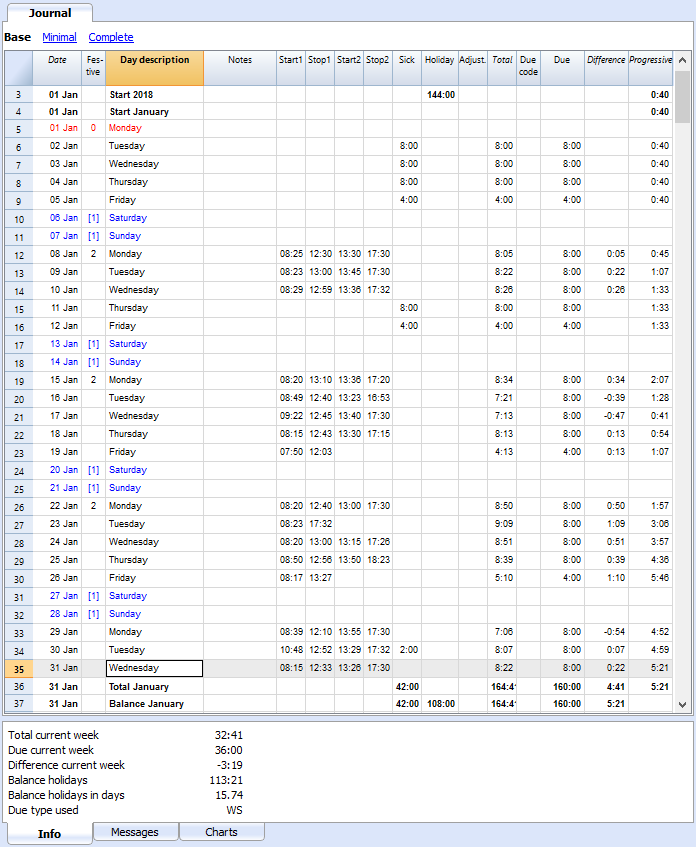
Typology of rows, colors, and formats
When creating a new file, the rows of the Journal are generated automatically by the program. When using an existing template, they will already be predefined.
Daily rows
Daily rows are used for entering your data.
- Normal rows - refer to rows for working hours.
- Rows in red - refer to official holidays
- Rows in blue - refer to non working days.
- Rows high-lighted in yellow - refer to the current date.
Multiple rows for a day
By duplicating the day row, you can enter additional information about the same day, such as timetables by project, annotations, or other.
To differentiate between the following rows, the Day description is slightly indented.
Carried forward, Start, Total and Balance rows
The Carried forward, Start, Total and Progressive row are indicated in bold character.
- The Carried forward row will automatically display holidays and hours belonging to the previous year, that were entered via File property → Start.
- The Start rows refer to the start of the year and month. Enter the initial values for holidays and hours.
- The Total rows refer to the end of the year and month. The total of columns are automatically reported and totalized here.
- The Balance rows are automatically calculated by the program and will the progressive value of the columns that contain data.
Journal table view
The Journal table is created with a series of columns that will cover the major part of your requirements.
Predefined columns are displayed, depending on the view you select:
- Base - displays the main principal columns.
- Minimal - displays the columns to enter your data.
- Complete - displays all available columns of the Journal.
Columns for the Journal in Base view
The Base view displays the principal columns in use for the Time sheet.
Date
This column is protected and is used to insert the date of the day.
Festive
This column for calibrating the type of day. If the cell remains empty, the value will be set to the one defined in the File properties, or to the one defined with the W code (see below).
Possible values are:
- Empty. Working day
- 0 - The current day is set as festive (the row will be displayed in red).
If a day is generally considered to be a "festive day", but on which you are required to work, you must enter "working day". - 1 - The current day is set as non-working (the row will be displayed in blue).
- 2 - The current day is a working day. It overwrites the predefined value.
- [0] - A festive day set up automatically as defined in File properties. There will be no value in the Due column.
- [1] - A up day set up automatically as defined in File properties. There will be no value in the Due column.
- W0 - Defines the current day as festive. The same day in successive weeks will be set up with a value of (0).
- W1 - Defines the current day as non-working day. The same day in successive weeks will be set up with a value of (1).
- W2 - Defines the current day as working day. The same day in successive weeks will be set up with a value of (2)
- WR - Resets the current day to the value of the predefined one from the File properties.
- WA - Resets the current day to the value of the predefined one from the File properties. The same day in successive weeks will be set up with a value of Properties file.
Day description
This column is used by the program to generate the name of the day date based on your data.
If you wish a different text than the one suggested by the program, enter a your one preceded by the # character (ex. #Christmas, #National Holiday).
Start1, Stop1, Start2, Stop2...
These columns allow you to enter the stop and start date of worked hours. The Total and Difference columns are automatically updated by the program.
Sick leave
Column to insert hours of absence due to sick leave.
Holidays
Column to insert hours of holidays.
Adjustment
Column to insert any adjustment values.
Total
This column is protected. The program uses it to automatically insert the total sum of hours worked, extra hours, leaves and adjustments.
Due Code
This column helps you define, if needed, the value of Due amounts (hours worked).
If the Due code is left empty, the due value is completed by the software, according to the File menu → File and accounting settings → Start.
To change the Due amount in the Journal table:
- Reset the Due time.
Codes to be entered in the Due code column, in order to edit the daily due from the row you are in. You will then need to enter the new value in the Due column.- DS (Set Today) the due hours for the current day, without modifying other days.
- WS (Set Week Day)
Sets the due hours for a specific week day and for the same days for the subsequent weeks. - PS (Set Predefined)
Sets the due hours for that day and successive days, keeping same preset value.
- Reset codes for the daily Due time.
- WR (Reset Week Day).
Resets the predefined value for the week day. - WA (Reset All Week Days)
Resets all predefined values related to the weekdays. - PR (Reset Predefined)
Resets the general predefined value. Removes the general predefined value. - PA (Reset Predefined and Week Day)
Resets the general predefined value and the ones of the week.
It will be like starting from scratch.
- WR (Reset Week Day).
- Code to reset the Progressive calculation
- RP (Restart progressive)
The Progressive column amount will restart from zero. Insert this code in the first row of the month, when all hourly worked hours, with an hourly pay, have been payed for the previous month.
- RP (Restart progressive)
Due
This column is protected. The software will automatically calculate the difference between hours worked and hours due. At the end of each month the total for hours due is carried forward
- If no data is present in the Due column, the program will use those present in the Properties file -Start tab.
- When codes are entered in the Due column, calculations will be executed on the basis of those codes (see previous paragraph).
- All of the rows in Festive that contain 0 (festive) or 1 (non working), in the Due column will display an empty cell.
Difference
This column is protected. The software will automatically calculate the difference between hours worked (Total) and hours due (Due). Totals for the differences will be reported for month and year end.
Progressive
This column is protected. The software will automatically calculate the difference between hours worked (Total) and hours due (Due). Totals for the progressive differences will be reported for month and year end.
Columns for the Journal in Complete view
Additional columns to the Base view will be available in the Complete view.
Section
This is a protected column. It is used by the program to make a distinction between the lines to be used for data entry and system specific lines.
The codes used are: AllStart, YearStart_2020, MonthStart_202001, MonthTotal_202001, MonthBalance_202001, SpaceAfterMonth_202001.
Values of a code is defined by different elements:
Period
- All - Refers to all rows.
- Year - Refers to the rows of the Year.
- Month - Refers to the rows of the Month.
- Week - Refers to the rows of the Week.
- Day - Refers to the rows of the Day.
Type
- CarryForward - Rows report previous year. Automatically generated by the software from Properties file.
- Start - Opening rows. Insert initial balances (planned holidays, effective holidays etc).
- Total - Rows used for totals (columns related to daily hours, adjustments to Start or Carry Forward Balances).
- Balance - Holiday balance. Displays difference between balance of holidays due that are carried over and current holidays due and taken).P
- SpaceAfterMonth - To specify that there must be an empty row (year, month or day referred by the identifier).
Description
Column used to insert additional description.
Code1
Use this column to add a client, project or other identification number.
Work1 and Work2 (only Experimental version)
The Work1 and Work2 columns are used in particular to record working hours in the Time Sheet - Simplified template. In addition, in the Experimental version they can be used to enter particular working hours (e.g. nights, holidays).
In parallel to these columns the surcharge columns are also used (see explanations below).
Worked
This is a protected column. This is used by the software to automatically calculate the total of hours worked.
Detail
This is a protected column. It is used by the program to automatically display work details (e.g. projects). See Managing projects details.
Surcharge
You can add enter working time with a surcharge, with a different pay, in hours and minutes. It can also be used to manage recoveries or penalties for delays or other.
%Surcharge
You can enter the percentage increase in working time that is paid with a different pay.
If on the same day you work both hours without surcharge and hours with surcharge, you must enter the time on two rows:
- Add row Day
- On the first row you will indicate the work (beginning and end) normally.
- In the second line, the overtime hours will be indicated and the appropriate percentage will be indicated.
If you want the daily total directly in the table, you must add a daily total line.
Surcharge calc.
This is a protected column. It is used by the program to calculate the surcharge time (overtime), indicated in the Surcharge or %Surcharge column.
Surcharge total
This is a protected column. It is used by the program to calculate the total surcharge time (overtime), indicated in the Surcharge or %Surcharge column.
This value is added to the total hours column.
Service
Compulsory leaves, such as military duties, civil service or other can be registered here.
Other
Different types of absence can be defined. Do not indicate Sick Leave or Holidays in the Service column, if you use this option.
Absence
This is a protected column. It is used by the software to calculate the total hours of absence leave.
Split1 and Split2
These columns may be used to distinguish between hours invested in different projects.
Adding columns and changing the header
With the command Data->Columns setup you can add new columns or change the column's headers.
Currently the columns added are not shown in the monthly report.
Arbeitszeiten und Stunden
Das Programm berücksichtigt alle Zeitwerte als Stunden und Minuten (z.B. 8:30 bedeutet 8 Stunden und 30 Minuten).
- Intern werden die Werte als Sekunden gespeichert und dann im Stunden- und Minutenformat angezeigt.
- Bei der Eingabe von Arbeitszeiten werden die Zeitwerte auf die Minute gerundet.
Stunden im Dezimalformat
Stunden können auch im Digitalformat (Dezimalen) eingegeben werden (z.B. 1:50). Eineinhalb Stunden werden mit 1:30 (1 Stunde und 30 Minuten) angezeigt.
Der ":" (Doppelpunkt) trennt die Stunden, Minuten und Sekunden. Der Punkt "." trennt die Tausendstel.
- Wird einem Zeitwert in Dezimalen das Zeichen ">" oder "<" (grösser als oder kleiner als) vorangestellt, erkennt das Programm ihn als Dezimalwert und rechnet ihn in Stunden und Minuten um:
- "<1.50" wird umgerechnet in 1.30 (1 1/2 Stunden)
- "<1.75" wird umgerechnet in 1:45 (1 3/4 Stunden).
- Geben Sie im Stundenrechner die Anzahl der Stunden mit dem Dezimaltrennzeichen ein. Wenn Sie beispielsweise 1.75 schreiben, zeigt das Programm den Wert in Stunden und Minuten (1:45) an. Dieser Wert muss übernommen werden.
Im Digitalformat (Dezimalen) anzeigen
-
Im Fenster Info wird auch der Wert der Stunden in Dezimalstellen angezeigt.
- Im Monatsausdruck werden bestimmte Werte auch als Dezimalstellen angegeben (da Lohnabrechnungsprogramme oft mit Dezimalstellen arbeiten).
Schnelle Eingabe der täglichen Arbeitszeiten - Tipps und Tricks
- Sich auf die Tageszeile begeben.
- Die Zeile des aktuellen Tages ist gelb markiert.
- Menü Verschiedene1 → Zu heute gehen.
- In der Spalte Anfang1 die Zeit des Arbeitsbeginns erfassen sowie in der Spalte Ende1 die Zeit des Arbeitendes.
- Mit dem "." (Punkt) wird die Uhrzeit des Computers eingefügt.
- Wird hierauf +5 oder -5 erfasst (oder jede andere Nummer) zeigt das Programm die aktuelle Uhrzeit des Computers plus oder minus 5 Minuten an. Diese ist auszuwählen, um sie zu übernehmen.
- Von vorheriger Woche übernehmen.
- Aus Menü Verschiedene1 kann man Mittels Befehl Woche übernehmen (von vorheriger Woche) die erfassten Arbeitszeiten für denselben Wochentag der vorherigen Woche übernehmen.
- Die Werte der vorherigen Zeile kopiert.
- Mit der Ikone 'Von oben kopieren' der Werkzeugleiste (F4 oder Cmd 4) werden die Werte der Zeile zuvor kopiert.
- Autovervollständigung der Urlaubstage oder Abwesenheiten.
- Bearbeiten Sie die Zelle (mit einem Leerzeichen), und das Programm schlägt die fälligen Stunden abzüglich der der bereits geleisteten Stunden vor.
Stundenspalten in Blöcke
Die Stundenspalten der Journal-Tabelle sind wie unten erläutert in Blöcken zusammenfasst.
Geleistete Arbeitsstunden
Dies sind die Spalten, in denen die täglichen Arbeitsstunden angegeben sind.
Es gibt zwei Möglichkeiten, die effektiv geleisteten Stunden einzugeben:
- Als geleisteten Arbeitsstunden (Spalten Arbeit1 und Arbeit2 ).
In der Experimental-Version werden alle Spalten vom Typ Zeitrechner, die mit 'TimeWork' beginnen, als geleisteten Arbeitsstunden betrachtet. - Als Uhrzeit Anfang und Ende der Arbeit (Anfang1, Ende1, Anfang2, Ende2, ...).
Das Programm berechnet automatisch die Dauer zwischen den zwei Zeitangaben.
Total geleisteter Arbeitsstunden
In der Spalte Total (Tageszeit) werden die in den Spalten für die geleisteten Arbeitsstunden angegebenen Stunden zusammen mit den als Anfangs- und Endzeiten angegebenen Stunden addiert.
In der Experimental-Version gibt es zusätzlich die Spalte Detail (Total Details Arbeitszeit). Wenn der Zeilentyp den Wert "D" enthält, werden die gearbeiteten Stunden in der Spalte 'Detail' und nicht in der Spalte 'Total' addiert.
Überstunden
Diese Spalten sind nur in der Experimental-Version vorhanden.
Sie werden zur Eingabe zusätzlicher Stunden verwendet. Zum Beispiel bei Feiertage oder Nachtschichten, die mit einem Zuschlag ausbezahlt werden.
Das Total 'Überstunden' ist die Gesamtsumme zusätzlicher geleisteten Stunden (in Stunden erfasst) addiert mit den aufgrund eines Prozentsatzes berechneten Stunden.
Abwesenheiten und Krankheiten
Die Abwesenheitsstunden werden in den Spalten Krankheit, Ferien, Dienst oder Sonstige erfasst.
Diese Stunden werden dann automatisch in der Spalte Abwesenheit (TimeAbsenceTotal) und dann in der Spalte Total summiert. Bei der Berechnung der Differenz zwischen den fälligen Stunden gelten Abwesenheiten als bezahlt.
In der Experimental-Version werden alle Spalten vom Typ Zeitrechner, die mit 'TimeAbsense' beginnen, zum Total 'Abwesenheiten' addiert. Der Benutzer kann Abwesenheitsspalten für andere Fälle hinzufügen.
Wenn Sie den Überblick über Abwesenheiten behalten möchten, die nicht zu den Gesamtstunden summiert werden sollten, müssen Sie Spalten vom Typ Zeitrechner hinzufügen.
Korrektur
Es handelt sich um eine Spalte, die für buchhalterische Anpassungen verwendet wird, z.B. wenn es angehäufte Stunden gibt, die bezahlt werden. Um sie dann von der Totalsumme abzuziehen, geben Sie in der Spalte Korrektur den Wert der bezahlten Stunden mit Minuszeichen an.
Totale Arbeitsstunden
Dies ist die Totalsumme der geleisteten Arbeitsstunden, die als zu bezahlende Stunden und als Teil der zu leistenden Stunden betrachtet werden.
Es schliesst folgende Spalten ein:
- Total geleisteter Arbeitsstunden
- Total Überstunden
- Total Abwesenheiten
- Total Korrekturen
Sollzeit
Im Zeiterfassungsblatt (Timesheet) können Sie die täglich zu leistenden Stunden erfassen. Beim einem fixen Monatslohn (Fixlohn) wird die im Arbeitsvertrag vereinbarte Stundenzahl angegeben. Bei einem Stundenlohn, deren Arbeitsvertrag eine Entlöhnung pro Stunde ohne eine vereinbarte Stundenzahl vorsieht, wird der Stundenanteil Sollzeit in der Regel nicht verwendet.
In der Spalte Sollzeit wird die tägliche Arbeitszeit des Mitarbeiters angezeigt. Der Wert wird aufgrund verschiedener Parametern angegeben (siehe Spalten der Journal-Tabellen):
- Die Arbeitszeiteinstellungen, die in den Dateieigenschaften → Anfang angegeben sind.
- Spalte Feiertag.
Das Programm vervollständigt den Sollzeit-Wert nur für die als Arbeitstage angegebenen Tage. - Spalte Sollzeit-Typ.
Bei der Eingabe eines Codes kann der Inhalt der Spalte Sollzeit (täglich zu leistenden Arbeitsstunden) anders festlegen.
Sollstundendifferenz und progressiver Stunden-Saldo
In der Spalte Differenz gibt das Programm die Differenz zwischen den geleisteten Arbeitsstunden und der Sollzeit (in Stunden) an.
In der Spalte Progressiv gibt das Programm die kumulierte Differenz an.
Wurde keine Sollzeit angegeben, entspricht der progressive Stunden-Saldo der Summe geleisteter Arbeitsstunden. Um diesen Wert auf Null zurückzusetzen, ist in der Spalte Code Sollzeit der RP-Code (Progressiver Neustart) anzugeben.
Unterteilung1 und Unterteilung2
Diesen Spalten können verwendet werden, um die Zeit anzugeben, die man für ein bestimmtes Projekt gebraucht hat (dienen nur zu Informationszwecken).
Managing holidays with the Time Sheet
Holidays are designated in hours and are entered in the Holiday column of the Journal.
Holidays carried forward
When creating a new year via File and accounting properties ... → Start, any holidays to be carried forward from the previous year must be indicated.
The value is indicated automatically in the Carry forward row of the Holiday column.
Paid holidays or paid leaves, as defined by contract
If some holidays are already included in your schedules :
- Indicate the number of hours of paid holiday in the Start year (for example, Start 2020) initial row.
- Enter the number of paid holiday hours, as per your contract, in the Holiday column. (ex. for 20 days of 8 hours, enter 160, or 80 hours in case you would work part-time at 50%).
- Paid leave days, considered as holidays:
Enter the amount of hours you are entitled to (days x daily hours) in the Start Month row .
Setting up holidays and paid leaves
The start rows are used to indicate the number of holidays granted in hours and minutes. You may indicate the holidays either in the Start year or in the Start month row.
If a person is entitled to 4 weeks of holidays and works 40 hours a week: 40 * 4 = 160. This value will be indicated in the Start year row.
If the hours of allocated holidays changes during the year, enter the number of hours as plus or minus (negative sign) in the available Start month row, Holiday column.
The Holiday column is also used to indicate paid leaves.
Completed and paid holidays
Completed or paid hours of holidays are indicated In the Holiday column of the daily rows.
Remaining holidays
The hours of remaining holidays is indicated in the Total column and calculated automatically.
When holidays are paid:
- In the start row of the following month enter the vacation hours paid with a negative sign.
- For example, indicate "Payment Holidays" in the Notes column.