Swiss VAT management
New forms for the VAT return
Banana Accounting Plus automatically prepares the VAT returns and the electronic transmission to the VAT Authority. This is not possible in Banana Accounting 8. In the new Banana Accounting Plus version, there are extensions to prepare in an easy and quick way:
- Swiss VAT tax report - effective method
- Swiss VAT tax report - Flat tax rate method
- Electronic XML VAT tax report - transmission to the VAT Authority
We advise you to immediately switch to Banana Accounting Plus and take advantage of the many new features.
Banana Accounting is set up to manage the VAT according to the regulations of the Federal Tax Administration:
- Type of accounting
- On the issued invoices
- On cash received
- Method
- Effective method report (with deductions of the paid VAT)
- Flat tax rate method.
Specific reports for Switzerland
Specific reports for Switzerland are provided, that present the date as requested in the form of the Federal Tax Administration:
- Report for the Effective method
- Report for the Flat tax rate method
Using the Swiss VAT function
In order to ne able to use the specific Swiss VAT functions, the VAT codes have to be set up according to the regulations.
Hereunder the necessary setup for the VAT codes is being indicated.
New 2018 VAT rates
New VAT percentages and new VAT form
In the new Banana Accounting Plus version of you will find the updated VAT codes table and the new VAT reports to be submitted:
- Swiss VAT tax report - effective method
- Swiss VAT tax report - Flat tax rate method
- Electronic XML VAT tax report - transmission to the VAT Authority
We advise you to immediately switch to Banana Accounting Plus and take advantage of the many new features.
As of 01.01.2018, new reduced VAT rates have come into force, according to the September 24th 2017 vote.
Banana Accounting 8 doesn't prepare the VAT report for the 4th Quarter 2017 and for those of the year 2018.
From Banana Accounting 9, the new facsimile of the official VAT form can be obtained automatically. Those who are in possession of an earlier version can update the VAT-codes table with the new codes and rates, but can only create the VAT report and not the facsimile of the official VAT form. We therefore strongly advise you to update to Banana Accounting 9, specifically prepared for the transition to the 2018 VAT rates.
The accounting templates available on our website already contain the new VAT codes, with both the rates before and after the 2017 vote.
| Normal rate | Special rate for the hotel sector | Reduced rate | |
|---|---|---|---|
| Current VAT rates | 8.0% | 3.8% | 2.5% |
| - Additional funding from AI limited up to 31.12.2017 | -0.4% | -0.2% | -0.1% |
| + TVAT rates increase for FAIF 01.01.2018 - 31.12.2030 | 0.1% | 0.1% | 0.1% |
| VAT rates from 01.01.2018 | 7.7% | 3.7% | 2.5% |
How to update your VAT Codes table with the new rates
We recommend that you do this at the beginning of 2018, before you start entering your 2018 transactions.
To update the VAT Codes table of your accounting file, proceed as follows:
- Download and save this file -> VAT_Codes_2018
- Open your accounting file
- From the Account1 menu, choose the Import into accounting command and then select VAT Codes.
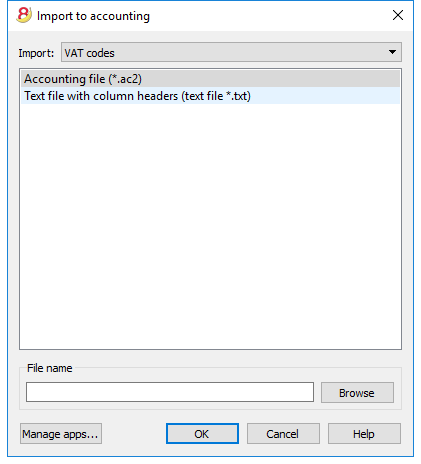
- Using the Browse button, choose the path were you saved the file you downloaded -> VAT rates 2018
- Confirm with the OK button.
- A dialog window will appear were you can choose between two options:
- Add new codes and new groups
To be used when maintaining some of your own VAT codes. In this case, the program adds the new VAT codes while leaving the existing ones unchanged. - Replace all rows
To be used if you do not need to keep the existing VAT Codes table.
In this case, the VAT Codes table is completely replaced with the new table from the downloaded file.
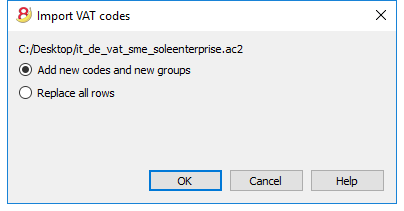
- Add new codes and new groups
- Check your accounting file
From the Account1 menu choose the Check accounting... command.
If in your transactions there are VAT codes not present in the VAT Codes table, you need to enter the missing VAT codes or replace the existing ones with the ones from the new VAT Codes table.
In order to speed up this operation you can use the Find and replace command from the Data menu.
Flat VAT rate
For the Flat VAT rate method, from 2018 new VAT rates will be applicable.
We recommend updating the VAT Codes table, replacing all the codes as described above.
- If you use the end of the period VAT calculation method (without splitting the VAT amount in the transactions), you must enter the new VAT rate when proceeding with the VAT report.
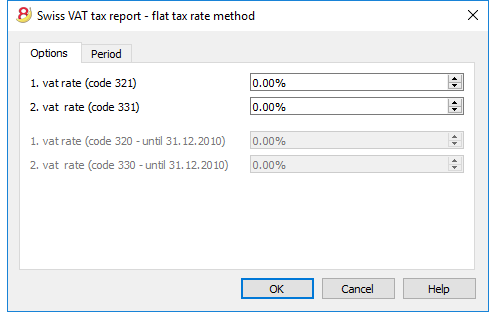
- If you however split the VAT amount for each transaction, you need to change your VAT Codes table entering the new rate.
For more information please visit the Swiss VAT tax report - Flat tax rate method page.
Description VAT Codes
New forms for the VAT return
Banana Accounting Plus automatically prepares the VAT returns and the electronic transmission to the VAT Authority. This is not possible in Banana Accounting 8. In the new Banana Accounting Plus version, there are extensions to prepare in an easy and quick way:
- Swiss VAT tax report - effective method
- Swiss VAT tax report - Flat tax rate method
- Electronic XML VAT tax report - transmission to the VAT Authority
We advise you to immediately switch to Banana Accounting Plus and take advantage of the many new features.
Content not available in English.
This content is available in German, French and Italian.
Clients and suppliers with VAT on cash received
With the system of the VAT on cash received, there is no provision for entering transactions on the clients/suppliers accounts, for the expenses and income are being entered at the moment the payment is made or received. Only at that moment, the VAT code is being entered. However, in spite of this rule, it is still possible to enter the issued and received invoices by using the cost centers.
Procedure:
- Insert the clients' and suppliers' accounts as cost center CC3, defined with the semicolon in two different groupings, one for clients, another one for suppliers.
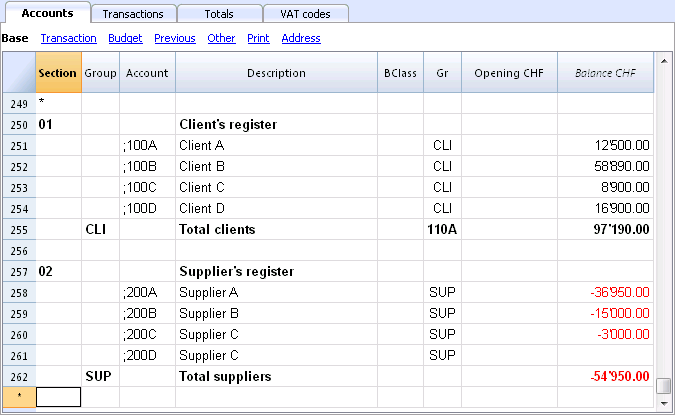
Entering the invoices of clients and suppliers
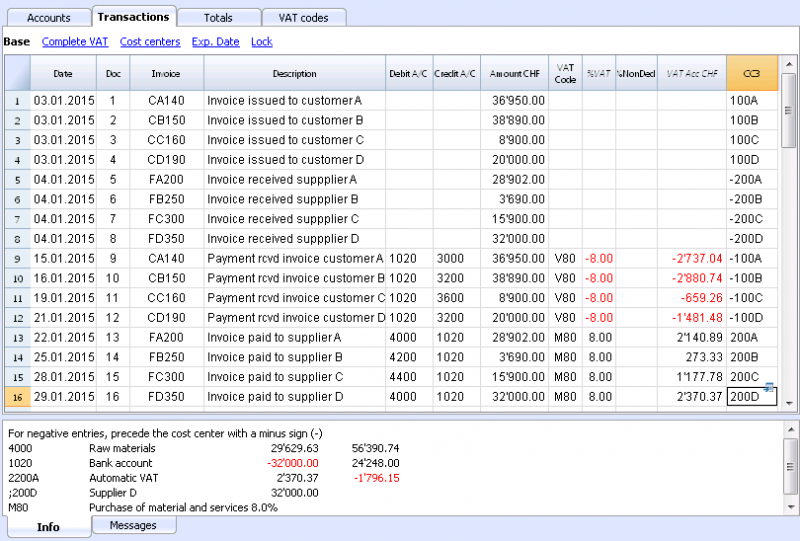
For the issued and received invoices:
- Position yourself in the Transactions table, Cost centers view;
- Enter the date, the document number and the invoice number in the respective columns;
- Enter the description;
- Enter the amount of the issued or received invoice in the Amount column, the Debit and Credit columns have to remain empty.
- Enter the cost or profit center in the CC3 column: in positive when it concerns an invoice issued to a client; preceded by the minus sign (in negative) when it is an invoice received from a supplier.
When the payment for an invoice is received or made:
- Position yourself in the Transactions table, Cost centers view;
- Enter the date, the document number and the invoice number in the respective columns;
- Enter the description;
- If it concerns a payment received, enter a liquidity account in the Debit column and a revenue account in the Credit column;
When it's about a payment that has been made, enter an expense account in the Debit column and a liquidity account in the Credit column; - Enter the amount;
- Enter the appropriate VAT code;
- Enter the cost or profit center in the CC3 column, preceded by the minus sign (in negative) when it is a payment received (customer) and in positive when it concerns a payment made to a supplier.
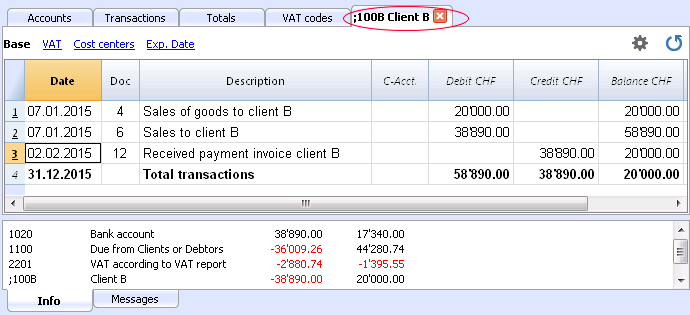
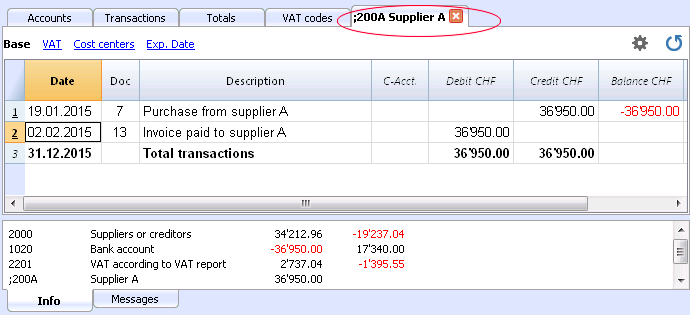
In the Account card of the cost center, the transactions of the customer or supplier are being displayed.
Related documents
VAT on services obtained abroad
Reverse charge
In the new Banana Accounting Plus version it is possible to register services abroad in a much simpler and more automated way with the new Reverse charge function.
We advise you to immediately switch to Banana Accounting Plus and take advantage of the many new features.
All services obtained abroad must be included in the Swiss VAT report. Unlike the import of goods that are being cleared at customs, for services obtained abroad there are no customs papers, but the VAT for this type of operation must be calculated and paid anyway.
Codes to be used
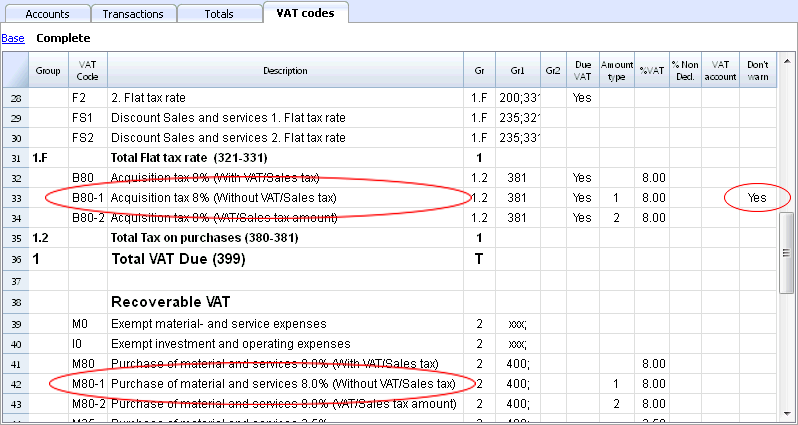
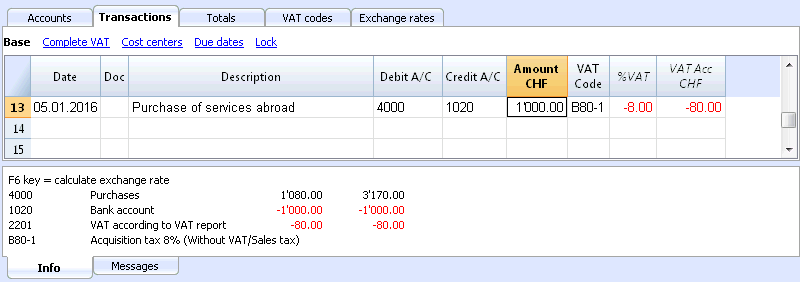
In the VAT codes table, there are specific codes to be used for services obtained abroad: codes B80-1 and M80-1.
They are two codes with Amount type 1, where the VAT is calculated on the Net amount (without VAT).
In detail:
- the B80-1 code calculates a VAT debit amount
It is important that the column Don't Warn is activated (Yes), otherwise you get an error message. - the M80-1 code calculates a VAT credit amount
How to enter the transactions
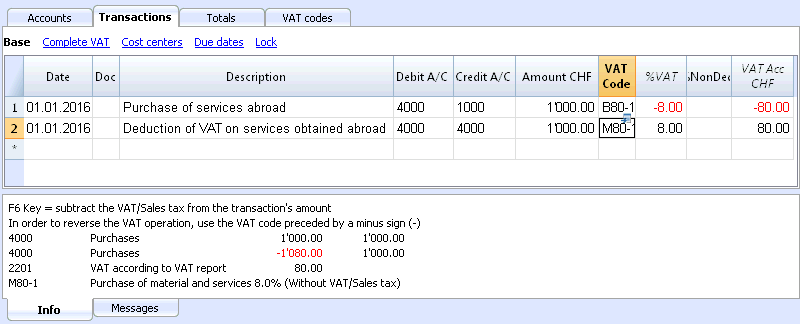
The transaction must be entered on two rows.
On the first row:
- enter the account for the service obtained abroad (as Debit), a liquid assets account or a supplier account (as Credit), the invoice amount (as amount) and the B80-1 VAT code (as VAT code)
On the second row:
- enter the account for the service obtained abroad (both in Debit and Credit columns), the same amount as the previous row (as amount) and the M80-1 VAT code for the VAT recovery
VAT on services obtained in a foreign currency
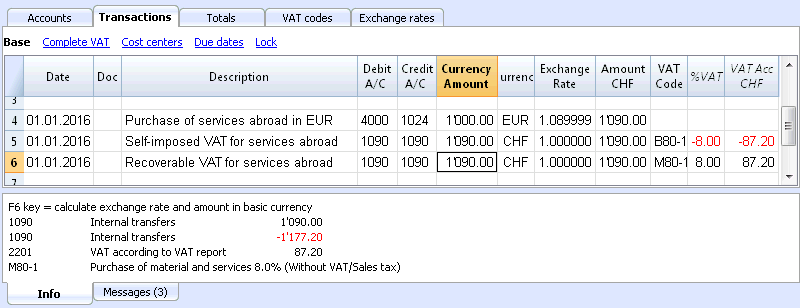
If when using a foreign currency in combination with VAT codes, the program notifies some warning messages, you can use an internal transfers account in the basic currency:
- enter the service purchase from abroad without entering any VAT code.
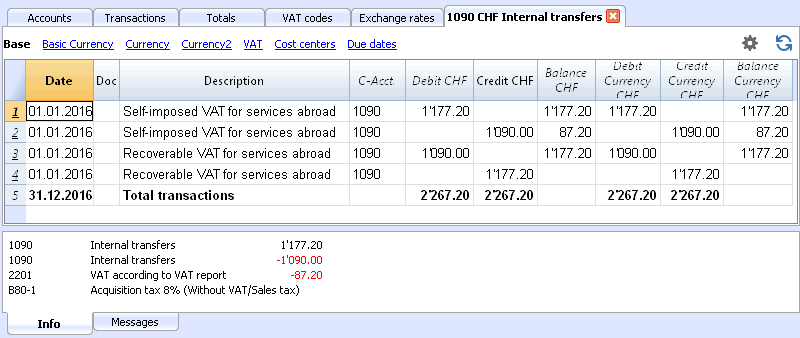
- for the next transaction (self-imposing VAT + VAT recovery for services abroad), use the internal transfers account (for both Debit and Credit columns), the amount in basic currency obtained from the previous transaction (as amount), and the B80-1 and M80-1 VAT codes (as VAT codes). The B80-1 code is to be used for the VAT self-imposing, and the M80-1 VAT code is to be used for the VAT recovery.
- for your reference, if you wish so, you can indicate the amount in the original foreign currency in the transaction description
- at the end of the operation the internal transfers account balance should be zero.
VAT on services obtained abroad with the Swiss flat tax rate VAT method
When adopting the Swiss flat tax rate VAT method, you only need to register the purchase vith the B80-1 VAT code for the self-imposition.
You don't need to enter the VAT recovery transaction, as this method doesn't allow any deduction on purchases, including those occurred abroad.
Entering VAT at customs for import
VAT paid in cash at import
In order to recover the VAT paid at customs, the user needs to operate as follows:
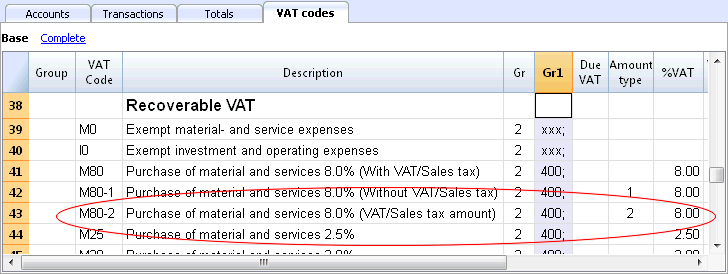
In the table VAT codes there has to be a VAT code of type 2, which allows to record the VAT amount to 100%
Note: In the VAT Codes table, new codes can be added. If it would be needed, for the VAT at 2.5%, in order to recover the VAT at customs, one can just simply add a new code, for example M25-2, completing it with the same GR, GR1, amount type 2 and entering 2.5 as rate.
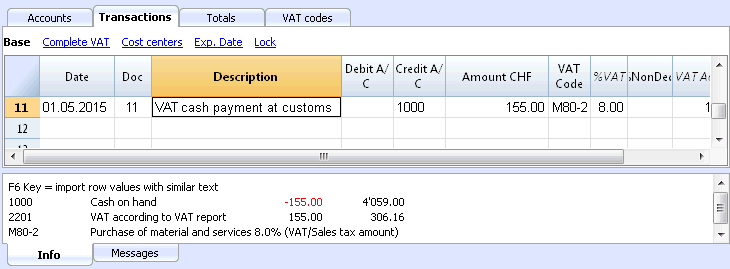
In the Transactions table, enter the cash account in credit, the paid VAT amount and the corresponding VAT code.
The program calculates the VAT amount at 100%, without creating differences in the recordings.
VAT paid at import by the shipping company
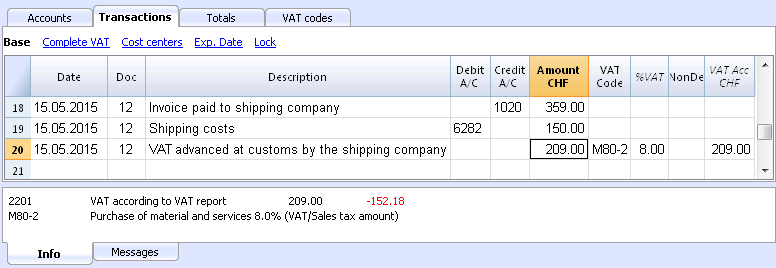
The procedure is the same as the previous one, except for the fact that the transaction extends itself over several rows, since, at the moment the shipper's invoice is being paid, the shipping costs and/or the customs clearance may be included.
Example:
Payment of the shipper's invoice for a total of 359.- CHF: 150.- CHF for customs clearance and shipping costs, and 209.- CHF for VAT advanced at customs.
VAT on cash received and transitory assets/liabilities at the end of year
There are two methods, established by the Federal Tax Administration, for the collection of the Value Added Tax (VAT):
- Method according to the issued invoices - the determination of the VAT amount takes place at the moment the suppliers' invoices are received and the clients' invoices are issued.
- Method according to the cash received - the determination of the VAT takes place at the moment that received payments for invoices or the payment of invoices appear. All those subject to VAT that manage the accounting operations with this method (after receiving the authorization from the office in charge), need to comply with the following regulations:
- During the accounting period, clients and suppliers should not be entered.
- The income/expenses need to be entered at the moment the payment is being registered.
- The VAT code needs to be inserted on the same row as the income or expenses account.
Practical example showing how to enter transactions during the year
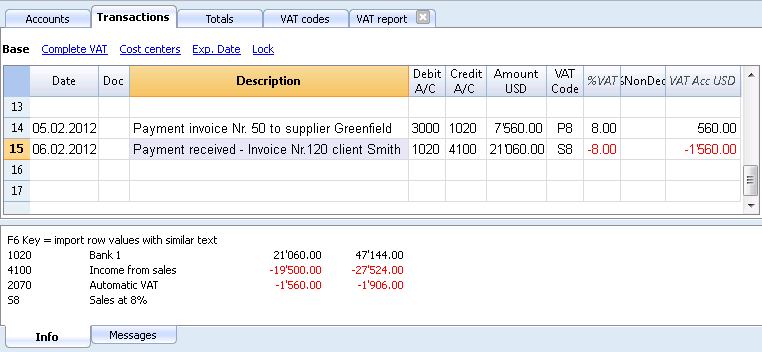
Note:
If you want to equally manage customers/suppliers, you can use the cost centers. In this case, the clients/suppliers management remains separated from the Balance Sheet.
As for the transitory assets or liabilities (invoices issued for income/expenses, but not yet received or paid), only at the end of the year, carrying forward of the outstanding invoices of suppliers and clients is allowed. These issues are defined by the VAT regulations (Wegleitung 2001 zur Mehrwertsteuer, Z 964, Seite 219).
Starting from here, we present you one of the possible solutions:
Transitory assets or liabilities es at the end of the year
At the end of the year, in order to exactly establish the profit or the loss of the accounting year, one needs to enter the transitory assets or liabilities:
- Expenses and income that refer to received and issued invoices at the end of the year, including outstanding projects, that will be paid and received in the following year.
In this case, pay attention to not insert the expenses and income with the VAT code, for in the VAT report, the recoverable VAT and the VAT due have to be shown in the VAT report of the first quarter of the next year.
In order to establish just the part of the expenses and the income (so without VAT) and entering the transaction correctly, one has to:
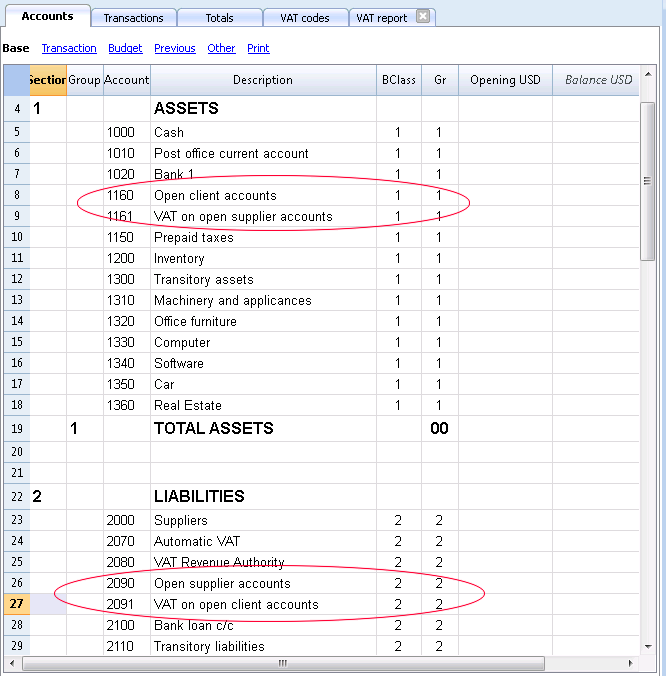
In the Assets and Liabilities
- In the Assets, open the account "Open client accounts"
- In the Liabilities, open the account "VAT on open client accounts"
- In the Liabilities, open the account "Open supplier accounts"
- In the Assets, open the account "VAT on open supplier accounts"
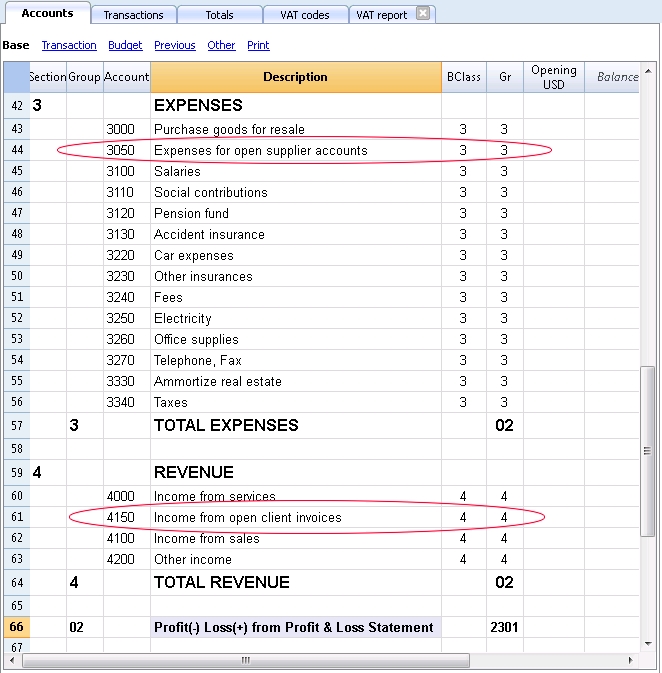
In the expenses and income
- In the expenses, open the account "Expenses for open supplier accounts"
- In the income, open the account "Income for open client invoices"
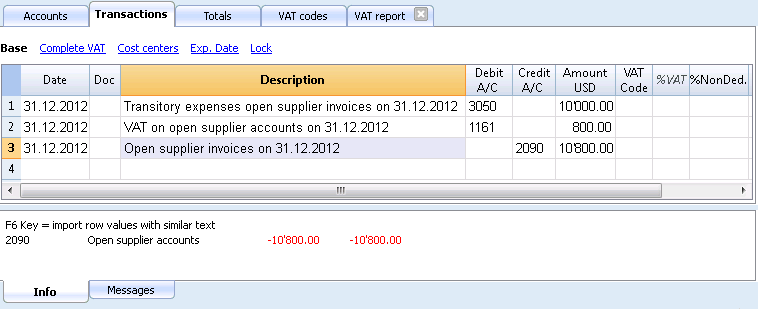
In order to enter the transaction of the suppliers on 31.12....., one has to make an entry on several rows:
- Enter in debit on the account "Expenses for open supplier accounts" the expense without VAT, without VAT code
- Enter in debit, on the account "VAT on open supplier accounts" the recoverable VAT amount
- Enter in credit, on the account "Open supplier accounts" the total amount (VAT included)
In the following year on 01.01..... the preceding operation needs to be closed, so the transaction is as follows:
- Enter in debit, on the account "Open suppliers accounts" the total amount (VAT included)
- Enter in credit, the expense without VAT, without VAT code
- Enter in credit, on the account "VAT on open supplier accounts" the recoverable VAT amount
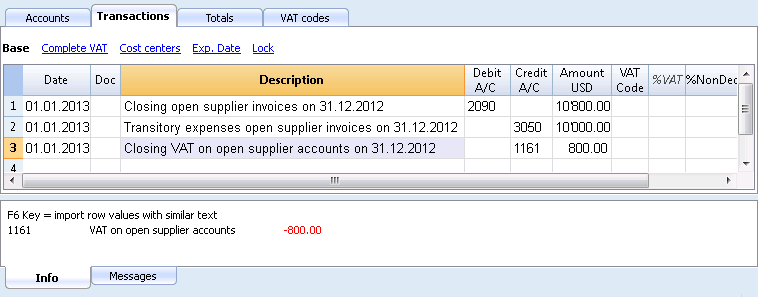
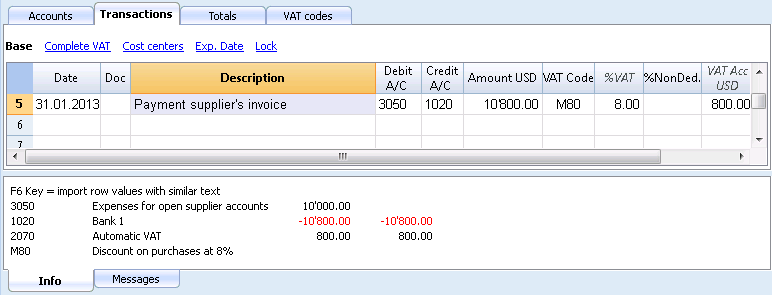
At the moment the supplier's invoice is getting paid, the user has to enter the transaction as shown in the example at the beginning of this page, by inserting the VAT code as usual.
For the transitory client invoices, the same procedure is being applied, but by entering on the preconfigured accounts related to the open client accounts.
Swiss VAT tax report - effective method
New forms for the VAT return
Banana Accounting Plus automatically prepares the VAT returns and the electronic transmission to the VAT Authority. This is not possible in Banana Accounting 8. In the new Banana Accounting Plus version, there are extensions to prepare in an easy and quick way:
- Swiss VAT tax report - effective method
- Swiss VAT tax report - Flat tax rate method
- Electronic XML VAT tax report - transmission to the VAT Authority
We advise you to immediately switch to Banana Accounting Plus and take advantage of the many new features.
Content not available in English.
This content is available in German, French and Italian.
Swiss VAT tax report - Flat tax rate method
New forms for the VAT return
Banana Accounting Plus automatically prepares the VAT returns and the electronic transmission to the VAT Authority. This is not possible in Banana Accounting 8. In the new Banana Accounting Plus version, there are extensions to prepare in an easy and quick way:
- Swiss VAT tax report - effective method
- Swiss VAT tax report - Flat tax rate method
- Electronic XML VAT tax report - transmission to the VAT Authority
We advise you to immediately switch to Banana Accounting Plus and take advantage of the many new features.
Écritures sans séparation de la TVA
Nouveaux formulaires pour les déclarations TVA
Banana Comptabilité Plus prépare automatiquement les déclarations de TVA et leur transmission électronique à l'AFC. Ceci n'est pas possible avec Banana Comptabilité 8.
Dans la nouvelle version Banana Comptabilité Plus, il y a des extensions pour une préparation rapide et facile :
Comment procéder
La méthode décrite ci-dessous est celle que nous conseillons, parce qu'elle est plus simple et complètement automatisée. Avant de procéder avec le calcul et la préparation du Formulaire TVA (méthode taux de la dette fiscale nette et taux forfaitaires, sans séparation de la TVA dans le tableau Écritures), il faut:
- Vérifier que, dans le tableau TVA, les codes TVA pour la méthode taux de la dette fiscale nette et taux forfaitaires soient présentes
- Dans le tableau Écritures, insérer le code pour la méthode taux de la dette fiscale nette et taux forfaitaires (aucun pourcentage apparaît)
- À la fin du trimestre (ou semestre), utiliser la commande "Formulaires TVA pour la Suisse", méthode taux de la dette fiscale nette et taux forfaitaires:
- Dans le dialogue, indiquer le taux forfaitaire approprié
- Le programme présente le Formulaire TVA avec la somme due à l'Administration fédérale des contributions.
Pour plus de détails, consulter les informations qui suivent.
Codes TVA pour la méthode taux de la dette fiscale nette et taux forfaitaires (chiffres 321, 331)
Les codes TVA pour la méthode taux de la dette fiscale nette et taux forfaitaires sont indiqués avec la codification F1 et F2 (ou FS1, FS2 pour les rabais) mais ils peuvent aussi être renommés.
Ils est important de savoir que:
- dans la colonne %TVA, aucun pourcentage est inséré (cellule vide)
- dans le tableau Écritures, il n'y a pas de séparation de la TVA ou indication du montant TVA
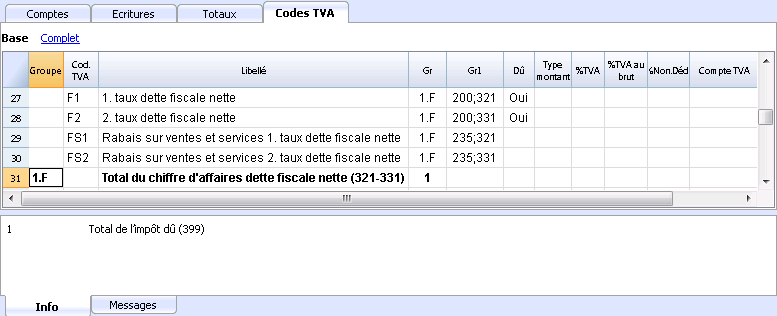
Dans la colonne GR1, les chiffres du formulaire TVA, où les montants sont totalisés, sont indiqués.
Quand les montants doivent être totalisés en plusieurs chiffres, ces derniers sont séparés d'un point-virgule.
Écritures pour Chiffres 321 - 331
Chaque fois qu'il y a des ventes le code F1 pour le 1er taux et/ou F2 pour le 2ème taux doit être inséré. S'il s'agit d'un rabais, utiliser le code FS1.
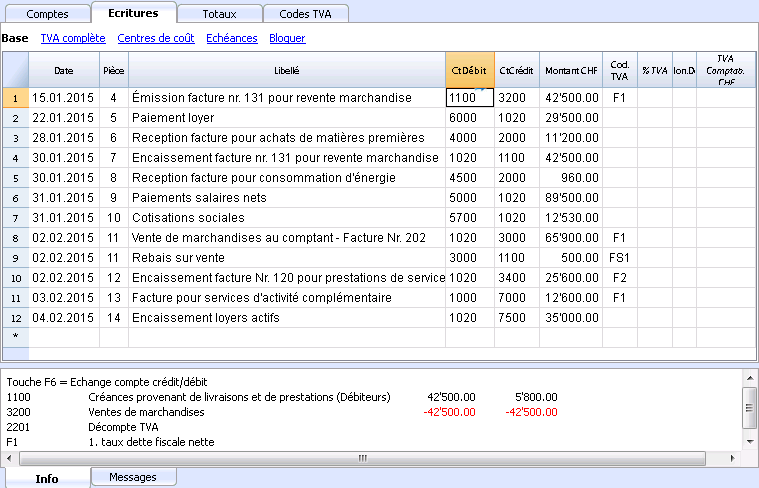
Notes de crédit et corrections
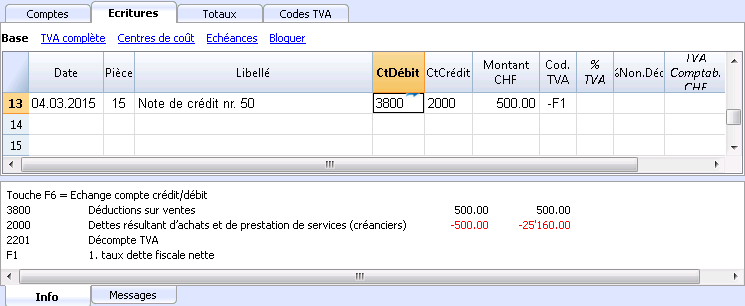
Si il y a une note de crédit ou une correction, inverser les comptes Débit et Crédit et indiquer le code, précédé par le signe moins, par exemple "-F1".
Dans le calcul du formulaire TVA à la fin d'une période, le programme déduit le montant TVA venant de la note de crédit ou d'une écriture de correction.
Calcul TVA à la fin d'une période
- du menu Compta1, cliquer sur la commande Formulaire TVA Suisse... et Méthode selon taux de la dette fiscale nette/taux forfaitaires
- insérer, dans la section Options, les taux autorisés et communiqués par l'Office de la TVA (dans l'image qui suit le taux qui se réfère aux magasins des fleurs a été inséré)
- Le premier taux se réfère au chiffre 321 du formulaire TVA et le deuxième taux se réfère au chiffre 331.
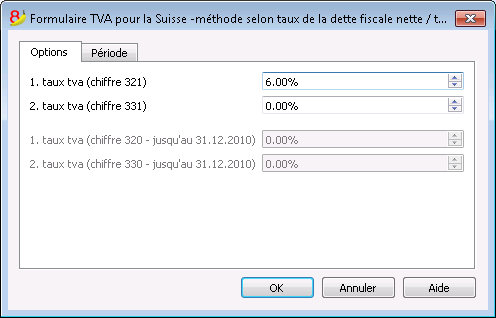
Attention: Si les taux sont bloqués, ceci est causé par le fait que le pourcentage TVA a directement été inséré dans le tableau TVA. Ceci veut dire que l'on désire utiliser la méthode de décomposition pour chaque écriture et que le programme reprend les taux TVA insérés dans le tableau.
Période
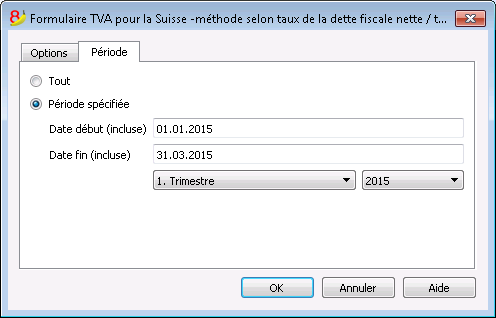
- Insérer la période pour le calcul du Rapport TVA (trimestre, semestre, année).
Formulaire
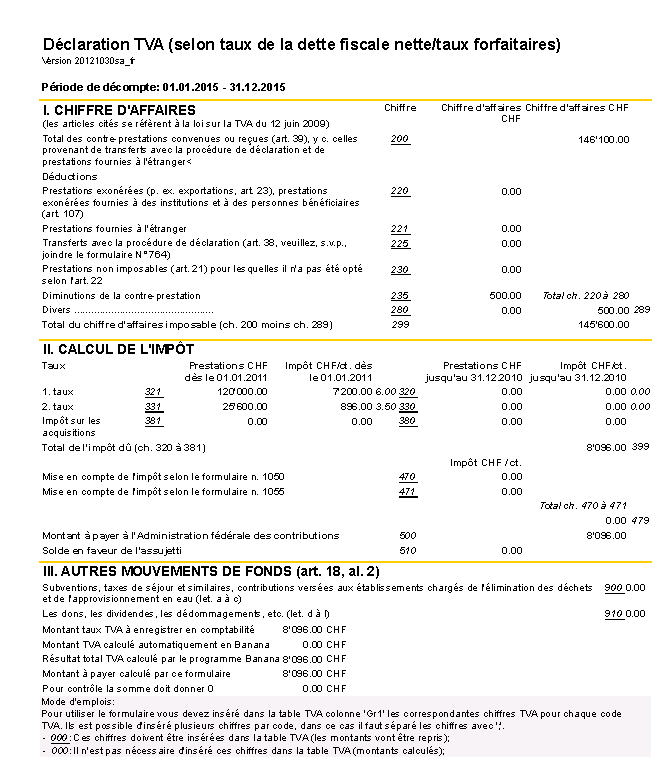
Les valeurs qui sont indiquées dans le rapport doivent être reportées manuellement sur le formulaire officiel (il n'est pas possible d'imprimer directement sur le formulaire officiel).
Les produits résultent au brut de la TVA (chiffre d'affaires TVA facturée y incluse).
Le Formulaire calcule, selon les taux indiqués, les taxes aux chiffres 321 et 331, selon les totaux des codes TVA F1 et F2.
Les autres valeurs sont, au contraire, reprises de la comptabilité.
Arrangement comptable et paiement TVA
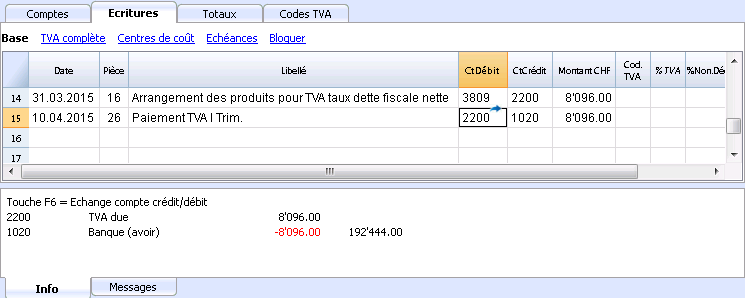
- La TVA à verser à l'Administration fédérale des contributions, qui se présente dans le formulaire (chiffre 500), doit être enregistré dans la comptabilité comme une diminution des produits, avec le compte TVA due comme contrepartie.
- Pour l'enregistrement du paiement TVA, le montant est transféré dans le compte TVA due qui aura comme solde zéro; comme contrepartie il y aura un compte de liquidité qui résulte diminué.
Codes TVA pour Chiffres 470 - 471- Exportations déclarées à travers le module n° 1050 et 1055
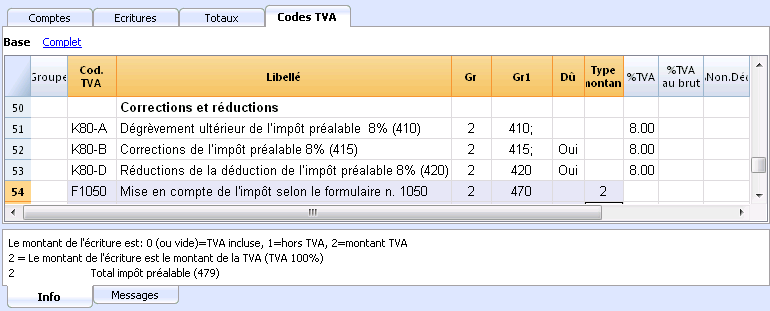
Ils'agit de deux codes TVA appliqués dans des situations particulières; nous vous prions de se référer aux explications relatives de l''Administration fédérale des contributions.
Les chiffres mentionnées ci-dessus se réfèrent aux exportations qui ont été annotées et déclarées à travers le module n° 1050 et 1055.
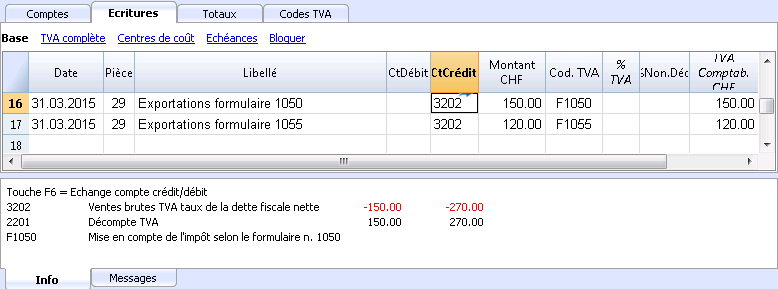
Écritures pour Codes TVA F1050 - F1055 (Chiffres 470 - 471)
Dans le tableau Écritures, il faut enregistrer le montant total de la TVA sur l'achat et appliquer le code TVA du type 2 (Montant TVA à 100% - F1050, F1055). Le programme reporte les montants TVA aux chiffres 470 - 471 du Formulaire TVA.