Invoeren van de factuurgegevens
Factuurgegevens worden ingevoerd in de Transactietabel. Gebruik een nieuwe rij voor iedere factuur.
- Voor de datum in van uw transactie.
- Het factuurnummer
- In het geval van facturering met Swiss QR met IBAN rekening raden wij u aan alleen cijfers of letters, zonder spaties, scheidingstekens of andere tekens.
- In het geval van facturatie met Swiss QR met QR-IBAN raden we aan om alleen cijfers te gebruiken, zonder spaties, scheidingstekens of andere tekens.
- Als u geen gebruik maakt van de Zwitserse QR het factuurnummer kan vrij worden gekozen
- De tekst die u invoert in de kolom Beschrijving (product, diensten, consultancy kosten, ...) verschijnt op de factuur aan uw klant.
- Voer het klantnummer in de kolom Debet in.
- Voer de tegenrekening in de kolom Credit (Verkopen rekening, consultancy kosten, etc.) in.
- Voer het Bedrag in.
- In een boekhouding met BTW voert u uw BTW code in met het bijbehorende BTW percentage.
Zie facturen afdrukken en BTW beheer.
Facturen over meerdere rijen
Als er meerdere onderdelen zijn in uw factuur (verschillende items of diensten, of beide) dan moet u deze op aparte regels invoeren (één onderdeel per rij):
- Gebruik een nieuwe rij om ieder item dat u wilt laten verschijnen bij het afdrukken van uw factuur.
- Gebruik voor iedere rij dezelfde datum en hetzelfde factuurnummer.
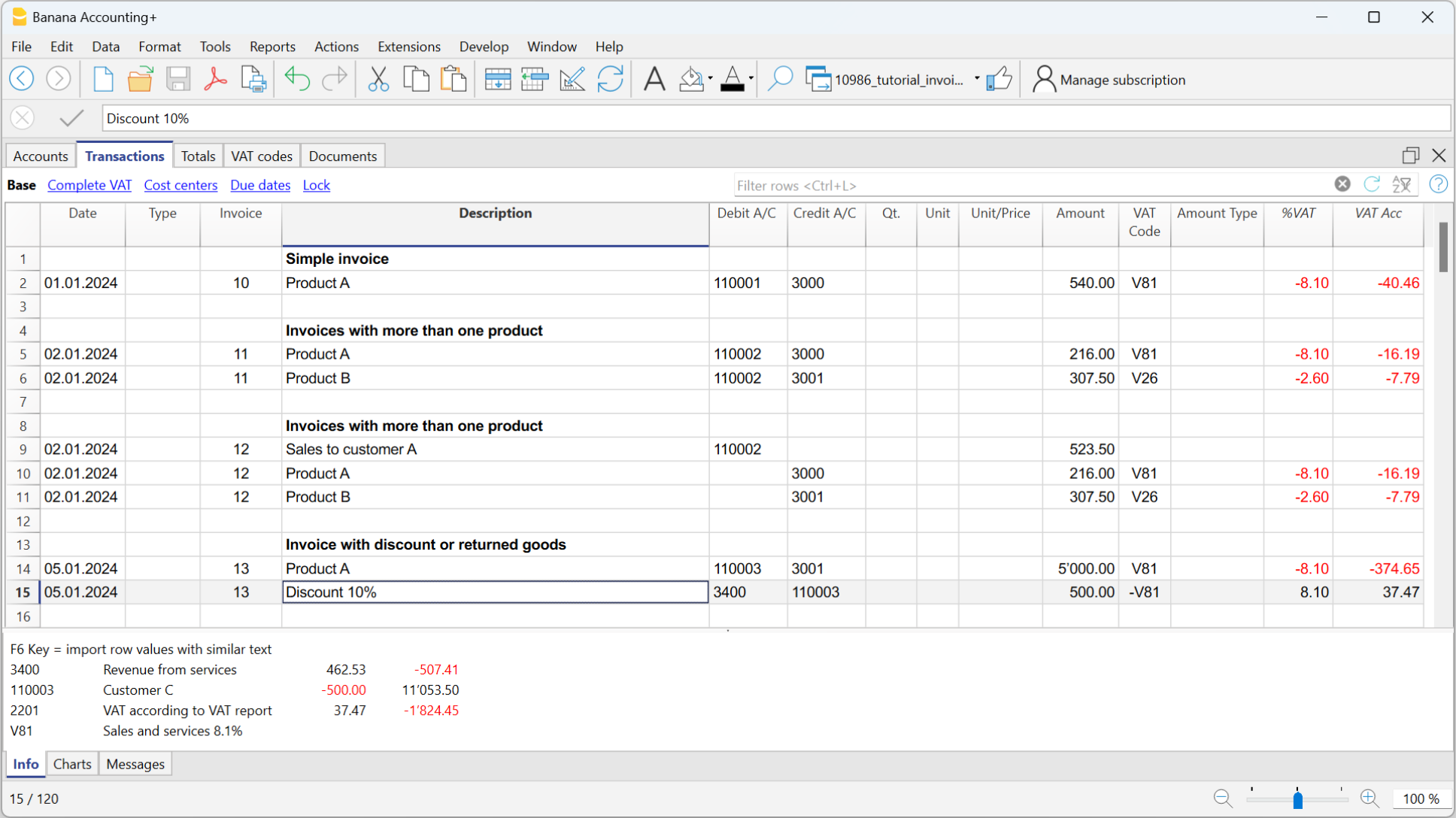
Basis kolommen voor facturen in de Transactietabel
Datum
De datum van de factuur staat in deze kolom. Alle rijen van deze factuur moeten dezelfde datum hebben.
Factuur
Om de facturen te beheren moet u een factuurnummer invoeren in de kolom Factuur en een rekeningnummer dat bij het klantenregister hoort in de kolom Debet Rek. (of KP3 als men de klanten beheert met het kasstelsel).
Extra kolommen
Type
In de kolom Type kunt u specifieke rijen definiëren zoals een totaal rij of een speciale betalingsvoorwaarde voor een factuur. Deze kolom is standaard niet zichtbaar maar moet zichtbaar gemaakt worden met het commando menu Gegevens > Kolommen instellen en dan Doctype kolom aanvinken.
Hoeveelheid
De hoeveelheid geleverde goederen en diensten wordt in deze kolom ingevoerd. Om de hoeveelheid kolom toe te voegen gebruikt u menu Extra > Nieuwe functies toevoegen... > Adreskolommen toevoegen in de Rekeningen tabel.
Eenheid
Voer hier de eenheid van het geleverde in (bijvoorbeeld 'kilo', 'uur', 'meter', 'kg').
Eenheidsprijs
Voer de prijs per eenheid in voor goederen en diensten. Het programma berekent automatisch het resulterende bedrag met uw invoer in de kolom Hoeveelheid.
Facturen en BTW-beheer
In Banana Boekhouding verschilt de invoer van factuurgegevens, afhankelijk van of de boekhouding wordt geregistreerd op kasbasis of op factuurbasis.
Meer details zijn beschikbaar op de pagina Facturen afdrukken en BTW-beheer (In het Engels alleen) .
How to define Customer Number and Invoice Number
This page explains how to correctly define the length and format of the Customer number and the Invoice number when invoicing with Banana Accounting Plus.
Important: Correctly setting the Customer number and the Invoice number is essential, especially if you issue Swiss QR invoices and want to automatically record payments. Both numbers are included in the reference number on the QR slip and are used to automatically link imported payments to the related invoices.
This setting applies to:
- Invoicing integrated in the accounting file (with or without Swiss QR)
- Invoicing with the Estimates and Invoices application (with or without Swiss QR).
Customer number
The Customer number is the identifier of the customer in accounting (subaccount or cost center). In QR invoices, it is also used to automatically record payments of the invoices.
Customer number format for QR invoices
In QR invoices, the customer number is included in the reference number. For this reason, it must follow specific rules, which vary depending on the type of account used (IBAN or QR-IBAN) and the type of reference number chosen.
- QR Invoice with IBAN account:
- Only numbers or letters are allowed (A‑Z, 0‑9).
- Spaces, separators, or other characters (-, /, #, etc.) are not allowed.
If you insert separators or other characters, they will be removed from the invoice printout and may cause problems in automatically recording payments. - Customer number + Invoice number ≤ 19 characters.
The two numbers together must not exceed 19 characters. It is recommended to keep the Customer number to a maximum of 7 characters.
- QR Invoice with QR-IBAN:
- Only digits (0–9) are allowed.
- No spaces, letters, separators or other characters (-, /, #, etc.). If you insert separators or other characters, they will be removed from the invoice printout and may cause problems in automatically recording payments.
- Maximum length 7 digits.
- Customer number + Invoice number: together must not exceed 14 digits.
Customer number format for invoices without QR
For invoices without QR, there are no constraints regarding the format of the customer number. Best practices apply.
Best practices for customer numbers
- Uniqueness: each customer must have a unique number.
- Consistency: use a fixed scheme (e.g. 1000001, 1000002, etc.).
- Compatibility: if you plan to issue QR invoices with both standard IBAN accounts and special QR-IBAN accounts, or switch from IBAN to QR-IBAN, use only numbers.
Invoice number
The Invoice number uniquely identifies the invoice (mandatory). In QR invoices, it is also used to automatically record payments.
Invoice number format for QR invoices
In QR invoices, the invoice number is included in the reference number. For this reason, it must follow specific rules, which vary depending on the type of account used (IBAN or QR-IBAN) and the type of reference number chosen.
- QR Invoice with IBAN account:
- Only numbers or letters are allowed (A‑Z, 0‑9).
- Spaces, separators, or other characters (-, /, #, etc.) are not allowed. If you insert separators or other characters, they will be removed from the invoice printout and may cause problems in automatically recording payments.
- Customer number + Invoice number: ≤ 19 characters.
The two numbers together must not exceed 19 characters. It is recommended to keep the Customer number to a maximum of 7 characters.
- QR Invoice with QR-IBAN:
- Only digits (0–9) are allowed.
- No spaces, letters, separators, or other characters (-, /, #, etc.). If you insert separators or other characters, they will be removed from the invoice printout and may cause problems in automatically recording payments.
- Maximum length 7 digits.
- Customer number + Invoice number: together must not exceed 14 digits.
Invoice number format for invoices without QR
For invoices without QR, there are no constraints regarding the invoice number. Best practices apply.
Best practices for invoice numbers
- Uniqueness: each invoice must have a unique number.
- Consistency: use a fixed scheme (e.g. year+progressive: 2500001, 2500002, etc.).
- Compatibility: if you plan to issue QR invoices with both standard IBAN accounts and special QR-IBAN accounts, or switch from IBAN to QR-IBAN, use only numbers.
Issuing invoices with VAT with the Cash method
In integrated invoicing, invoices are created and recorded in the same file. As for cash-based accounting, invoices must be recorded at the time of payment.
In managing cash-based invoicing, it is necessary to set up the customer subaccount in the Accounts table using the Profit Center CC3.
- All customer accounts must have complete information (first name, last name or company name, address), because when creating the invoice, the program uses this data for the invoice header.
It is possible to create and record invoices with or without VAT.
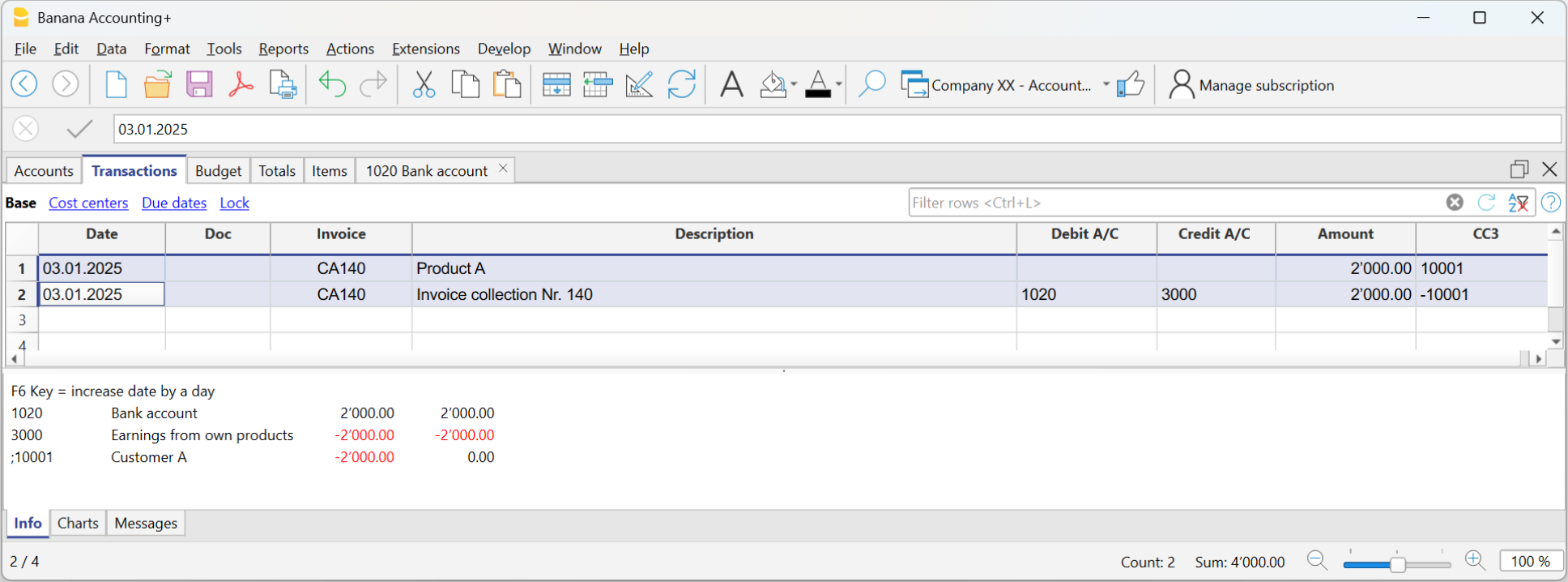
Cash-based Invoice
In the cash-based system, the invoice is created to be sent to the customer, but the accounting entry is made later when payment is received.
Therefore, to create the invoice, the items to be invoiced are recorded using the customer’s CC3 profit center:
- In the Date and Doc. columns, enter the date and any document number.
- In the Invoice column, enter the invoice number.
It is important that the invoice number complies with certain requirements: see how to correctly create the invoice number. - In the Description column, enter the items to be invoiced that should appear on the customer’s invoice.
- The Debit and Credit columns must remain empty because the accounting entry is made when the customer's payment is received.
- In the Amount column, enter the gross amount.
- In the CC3 column, enter the customer's CC3 profit center account.
It is important that the customer number complies with certain requirements: see how to correctly create the customer number.
Cash-based Invoice and Effective VAT Method
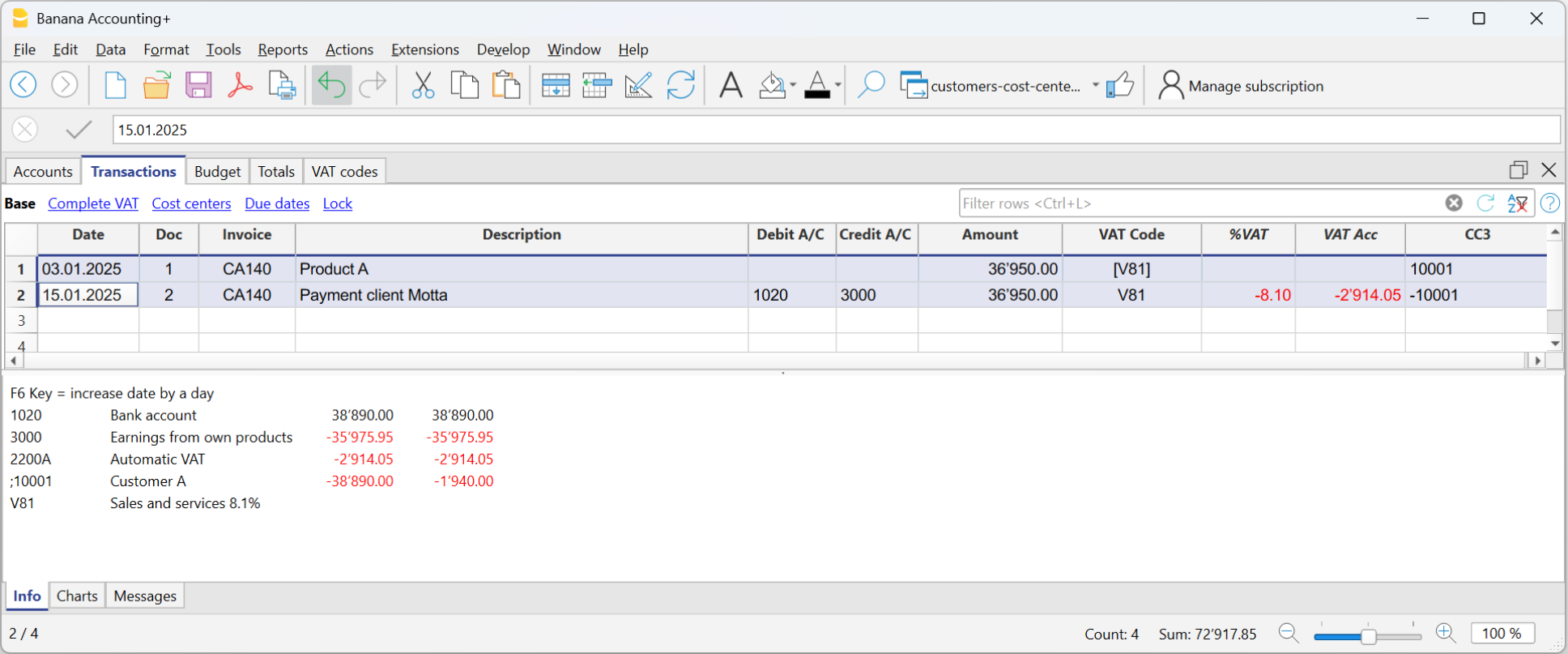
The Banana Accounting VAT management procedure requires that the VAT code is always entered on the line where the income is recorded.
Income is recorded only when the invoice is actually paid. Therefore, in cash-based VAT management, the VAT code is entered only when the invoice is paid.

Invoice data is entered in the Transactions table. Enter a new transaction row for each new invoice.
- Enter the transaction date
- The invoice number
It is important that the invoice number complies with certain requirements: see how to correctly create the invoice number. - The description text (products, services, consulting...) that will appear on the customer’s invoice
- The Debit account must remain empty
- The Credit account must remain empty
- Enter the gross amount
- In cases subject to VAT, enter the sales VAT code in square brackets (e.g. "[V81]").
The VAT code entered in square brackets allows the VAT amount to be displayed on the invoice, without its accounting entry, which will occur when the payment is recorded. - In the CC3 column, enter the customer’s profit center account (CC3). It is important that the customer number complies with certain requirements: see how to correctly create the customer number.
Invoicing on turnover
In integrated invoicing, invoices are created and recorded in the same file. Regarding accrual-based accounting, invoices must be recorded at the time of issuance.
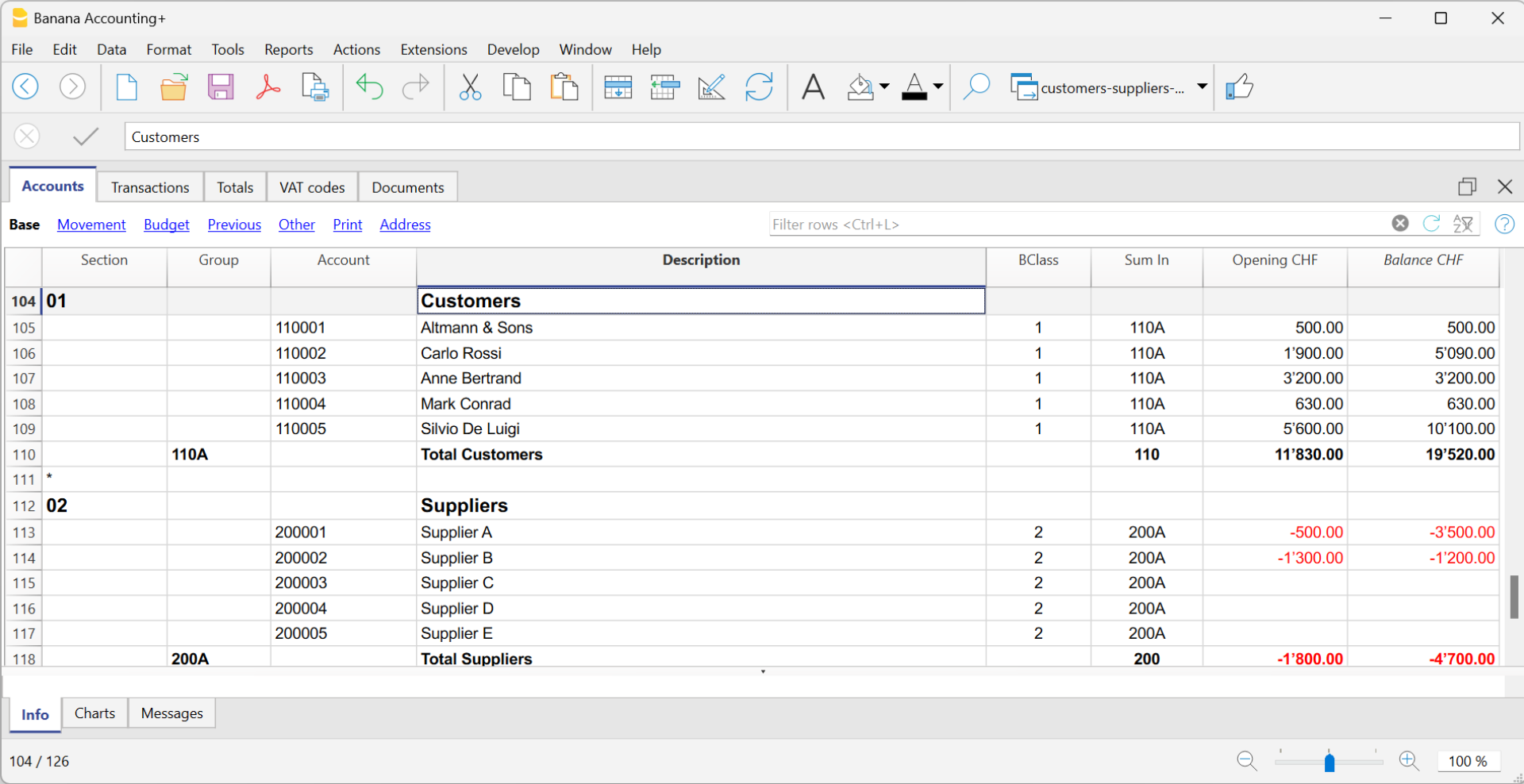
In accrual-based invoicing management, it is necessary to set up the customer subaccount in the Accounts table as shown in the balance sheet.
- All customer accounts must have complete data (first name, last name or company name, address), because when creating the invoice, the program uses this data for the invoice header.
It is possible to create and record invoices with or without VAT.
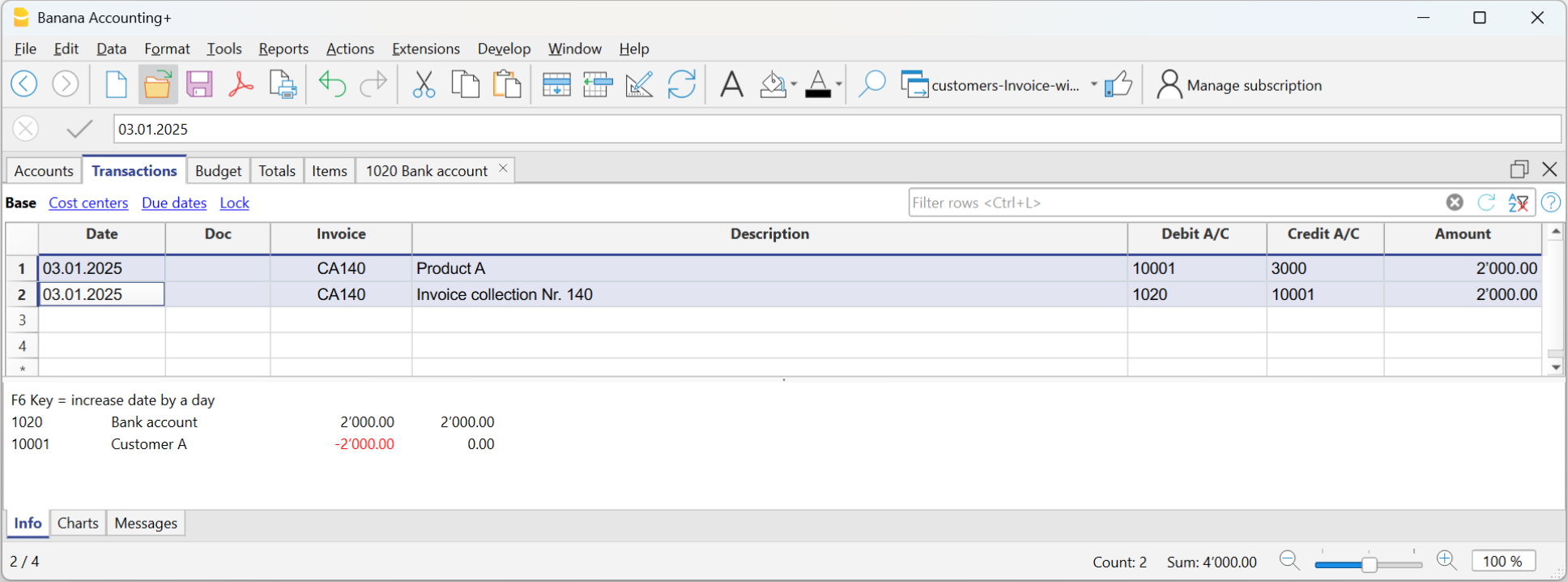
Accrual-based Invoice
In the accrual-based system, the invoice is created to be sent to the customer, and it is recorded at the same time.
Therefore, with a single transaction, both the invoice is created and recorded:
- In the Date and Doc. column, enter the date and any document number.
- In the Invoice column, enter the invoice number.
It is important that the invoice number complies with certain requirements: see how to correctly create the invoice number. - In the Description column, enter the items to be invoiced that should appear on the invoice.
- In the Debit column, enter the customer's account from the subaccount.
It is important that the customer number complies with certain requirements: see how to correctly create the customer number. - In the Credit column, enter the revenue account.
- In the Amount column, enter the gross amount.
Accrual-based Invoice and VAT – Effective Method
The standard procedure in Banana Accounting for VAT management requires entering the VAT code on the same row where the income is recorded.
Issued invoices are immediately recorded and posted. Income is recognized at the time the invoice is issued.
Therefore, in accrual-based VAT management, the VAT code is added when the invoice is created.
The invoice data is entered in the Transactions table. For each new invoice, enter a new transaction row.
- Enter the date of the transaction
- The invoice number
It is important that the invoice number complies with certain requirements: see how to correctly create the invoice number. - The description text (products, services, consulting...) that will appear on the customer invoice
- In the Debit account, enter the customer account number
It is important that the customer number complies with certain requirements: see how to correctly create the customer number. - In the Credit account, enter the counterpart (Sales account, Consulting or other)
- Enter the amount
- In cases subject to VAT, enter the VAT Code with the applicable VAT rate. See Print invoices and VAT management.

Invoicing and VAT net tax rate method
If you are subject to VAT under the balance rate or flat-rate regime with the cash-based system, you must record the invoice issuance to the customer and its accounting registration separately, for the following reasons:
- Invoice to be sent to the customer:
It must show a normal commercial VAT rate (e.g., 8.1%), as required by tax regulations. - Accounting of the invoice:
It must instead be recorded in accounting with the effective balance rate (e.g., 6.2%), using the corresponding VAT code (e.g., F1).
This approach is essential to ensure that the VAT paid corresponds to the applicable reduced regime, while still maintaining a formally correct invoice for the customer.
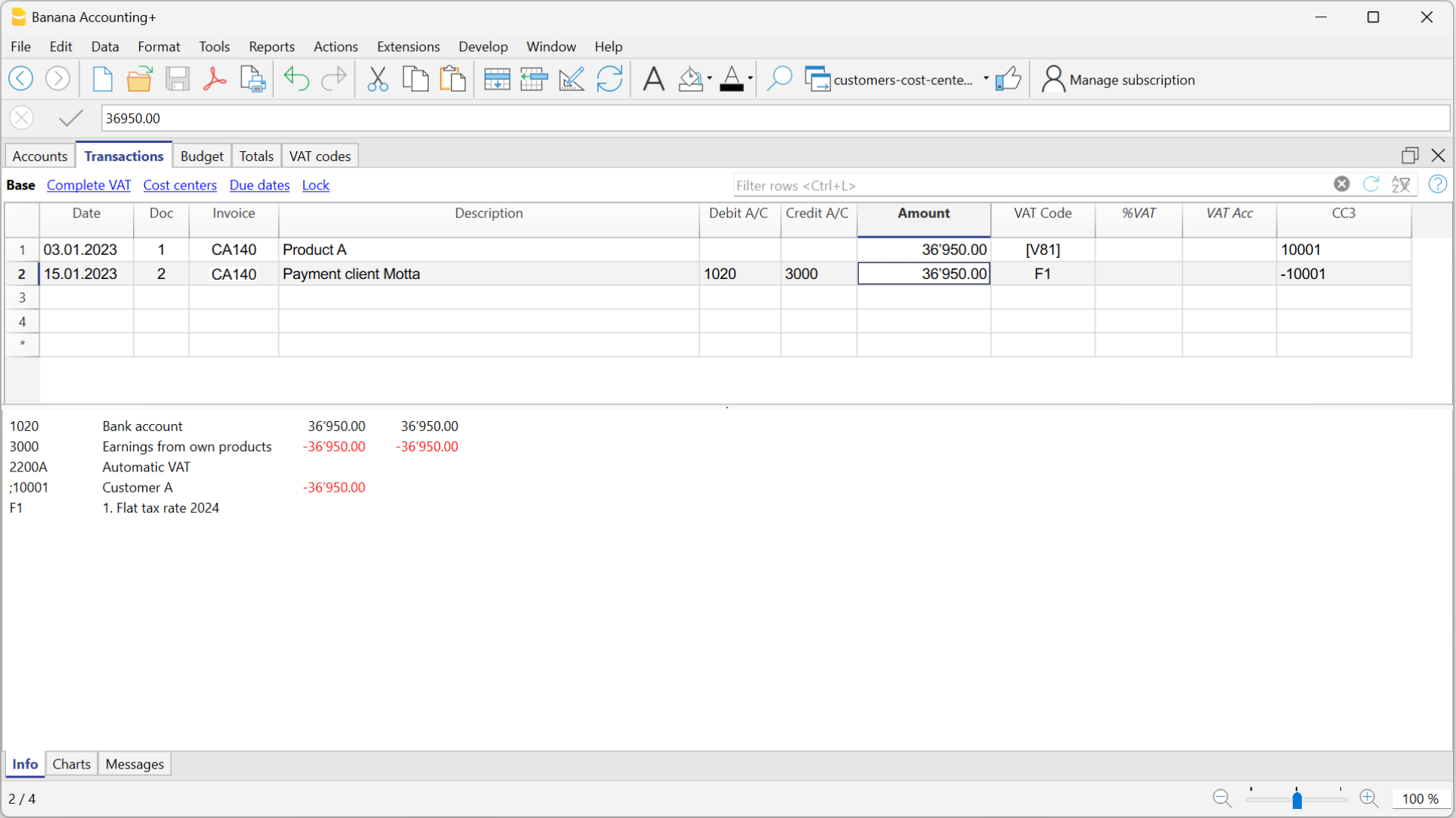
Issuing the invoice to the customer
To issue the invoice to the customer, proceed as follows:
In the Accounts Table:
- Create a customer sub-account with the profit center CC3 (example: ;10001 for customer XX)
- In the Address view, enter all customer data.
In the Transactions table:
- In the Date column, enter the invoice issue date.
- In the Invoice column, enter the invoice number.
It is important that the invoice number complies with certain requirements: see how to correctly create the invoice number. - In the Description column, enter the description that should appear in the invoice details.
- In the Amount column, enter the amount
- The Debit and Credit columns must remain empty.
- In the VAT Code column, type the code V81 in square brackets [V81].
VAT codes in square brackets do not generate any VAT entry. - In the CC3 column, indicate the profit center number without semicolon (e.g., 10001).
It is important that the customer number complies with certain requirements: see how to correctly create the customer number.
Since there are no accounts in the Debit and Credit columns, the invoice creation entry will not be recorded in accounting.
Recording the invoice with VAT balance rate
When recording an invoice subject to VAT with a balance rate in accounting, it is sufficient to proceed as with a normal entry, indicating the accounts in the Debit and Credit columns and entering the VAT code corresponding to the balance rate (e.g., F1).
Two recording systems can be used to register the invoice with the balance rate:
- Recording with split
In the VAT codes table, VAT percentages have been assigned to balance rate VAT codes. In the transactions table, by entering the balance rate VAT code (e.g., F1), the program automatically enters the corresponding VAT percentage (e.g., 6.2) and the VAT amount. - Recording without split, by entering the balance rate VAT code (e.g., F1), percentage and amount are not entered. At the end of the period, the specific extension for calculating balance VAT is used.
Based on the rate defined in the extension dialog, the program:- Identifies all entries with balance rate VAT code.
- Automatically calculates the VAT due for the reporting period.
- Totals the amounts on a periodic basis (e.g., monthly, quarterly, yearly).
Invoicing and VAT with balance rate using the invoicing method
The Banana Accounting procedure for VAT management requires entering the VAT code always on the line where the income is recorded. When accounting is managed based on turnover, the income is recorded when the invoice is issued.
When subject to VAT using the balance rates or flat-rate method, customer invoices must be issued using the normal rates (e.g., 8.1%). However, the accounting of invoices under the balance rates or flat-rate method involves reduced rates (e.g., 6.2%).
- If the amounts are gross, you can record them based on turnover or on cash received, by entering the VAT code in square brackets.
- If the amounts are net, it is not possible to create and post the invoices at the same time. In this case, it is necessary to manage:
- The creation of invoices in an accounting file, using the integrated invoicing or with the Offers and Invoices Application
- The posting of invoices in the accounting file.
In this case, the creation of the invoices must be handled in an accounting file or with the Offers and Invoices Application, and the posting in a separate accounting file.
Issuing an invoice with balance tax rate and gross amounts
To issue an invoice to customers with the standard VAT rate (e.g. 8.1%), you need to create a customer subaccount with profit centers CC3 (example: ;10001), completing all customer information in the columns of the Address view.
In the Transactions table:
- In the Date column, enter the invoice issue date.
- In the Invoice column, enter the invoice number:
It is important that the invoice number follows certain rules: see how to correctly create the invoice number. - In the Description column, enter the invoice details.
- The Debit and Credit columns must remain empty.
Since there are no accounts in the Debit and Credit columns, the invoice creation entry will not be recorded. - In the Amount column, enter the amount.
- In the VAT Code column, type the V81 code in square brackets [V81].
VAT codes in square brackets do not trigger VAT accounting. - In the CC3 column, enter the customer account, without semicolon (e.g. 10001).
It is important that the customer number follows certain rules: see how to correctly create the customer number.
Posting an Invoice with Balance Rate and Gross Amounts
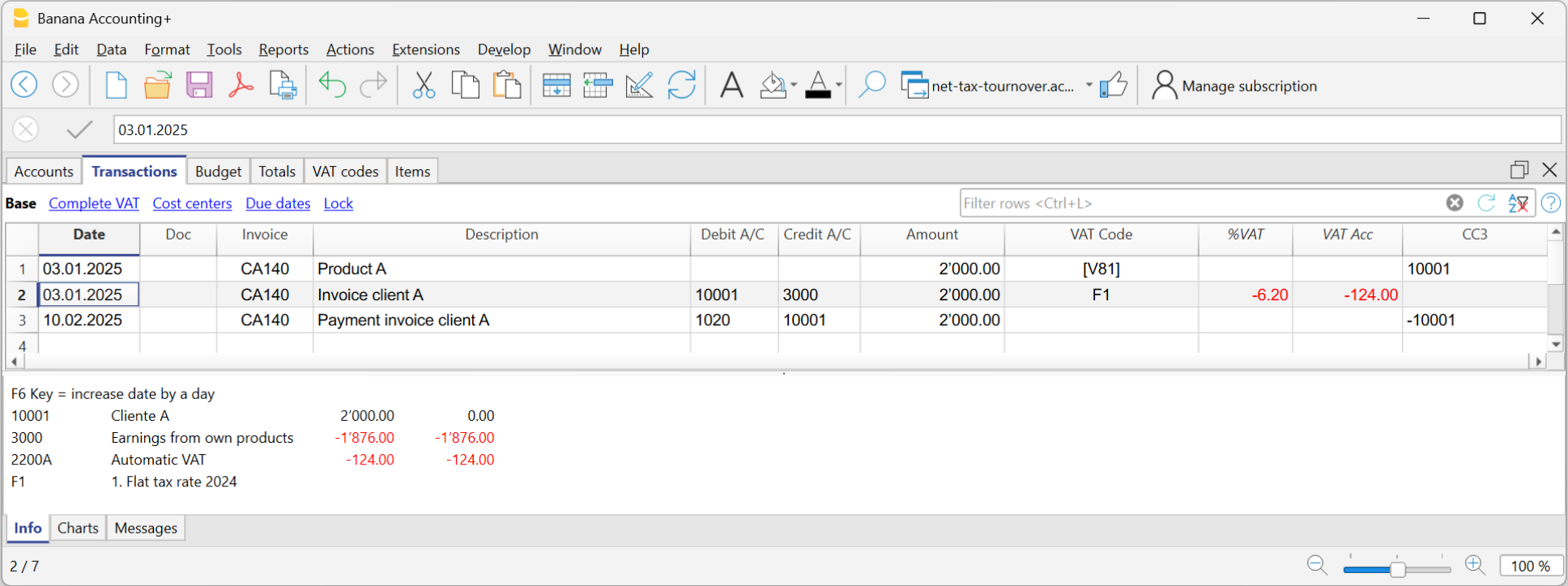
When recording the invoice in the accounting, to post it using the VAT balance rate, you must enter the transaction as usual, also entering the accounts in the Debit and Credit columns and the VAT code of the balance rate:
- If the VAT breakdown method is used, enter the VAT code for the balance rate (e.g., F1). In this case, the VAT Codes table includes the VAT rates for the balance. In example F1 corresponds to 6.2%.
- If the non-VAT breakdown method is used, enter the VAT code without rate (e.g., F1). In the VAT code table, the balance rate codes do not have rates.
To post the invoice using the balance rate, it is necessary to create in the Accounts table:
- A customer sub-account using balance sheet accounts.
- Enter the date and description in the corresponding columns.
- In the Debit column, enter the customer account (e.g., 10001).
- In the Credit column, enter the income account.
- In the Amount column, enter the amount.
- In the VAT Code column, type the VAT code for the balance rate (e.g., F1)
Kortingen en teruggaves
Om een korting of teruggave in een factuur in te voeren voegt u een nieuwe rij toe en typt daar in:
- Factuur datum.
- Factuur nummer.
- Beschrijving van de korting of teruggave.
- Rekeningen in de debet en credit kolommen. Het is belangrijk om de rekeningen om te keren in vergelijking met de verkooptransactie.
Wanneer het klanten / leveranciers register is ingesteld met kostenplaatsen en er zijn boekingen met kortingen en teruggaves, dan moet het teken van de kostenplaatsen worden omgekeerd om het bedrag omgekeerd te krijgen. - In geval van BTW geeft u de BTW code aan met het minteken zodat de BTW wordt afgetrokken, of, indien aanwezig, gebruikt u de BTW code voor korting of teruggave.

Rounding in invoice printout
In the printout of invoices integrated in accounting, the total VAT amount corresponds to the sum of the individual VAT transactions that make up the invoice. Since the individual VAT transactions are rounded to the nearest cent, there may be a difference compared to the VAT calculated on the total invoice amount.
To better understand, let's consider the following example:
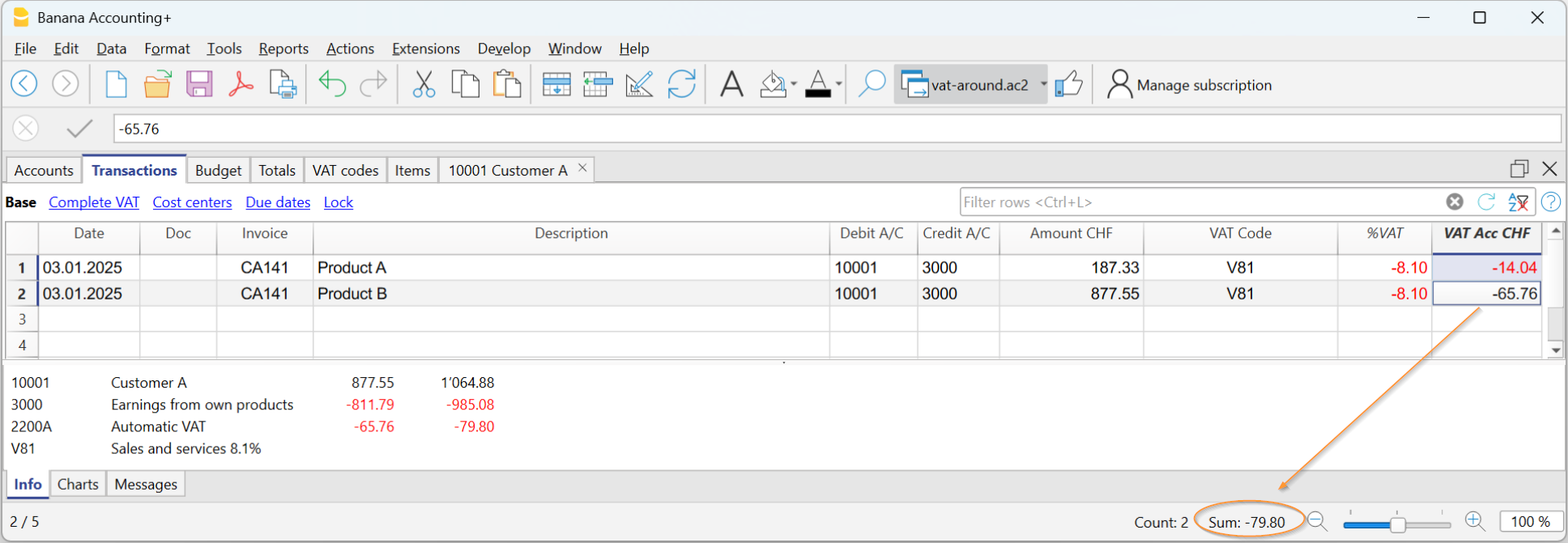
- Row 1: 8.1% of CHF 187.33 = Rounded: CHF 14.04
- Row 2: 8.1% of CHF 875.00 = Rounded: CHF 65.76
- Total: 8.1% of CHF 1064.88 = Rounded: CHF 79.80
The invoice shows a VAT amount of CHF 79.80 instead of CHF 79.79 (amount calculated directly on the total of 1064.88). In fact, the amount of CHF 79.80 corresponds to the sum of VAT individually calculated for each item (CHF 14.04 + CHF 65.76).
This logic is adopted to avoid discrepancies between the VAT amounts recorded in accounting and those shown on the invoice. In this way, the total VAT in accounting matches the one printed on the invoice.
Taal van de klant instellen
De standaard formaten ondersteunen de volgende talen: Italiaans, Duits, Engels, Frans, Nederlands.
Factuur teksten worden afgedrukt in de taal van de klant als deze is ingesteld in de kolom Taal (Rekeningentabel, Adresweergave).
De taal is een ISO code van in het algemeen 2 kleine letters (Engelstalige link) (it=Italiaans, de=Duits, en=Engels, fr=Frans, nl=Nederlands).
Wanneer geen taal is aangegeven voor de klantenrekening wordt de taal van de boekhouding gebruikt, zoals ingesteld in menu Bestand → Bestands- en boekhoudingseigenschappen... → tabblad Andere.

Vervaldata en betalingsvoorwaarden
De vervaldatum van een factuur kan op verschillende manieren ingesteld worden:
- Algemene vervaldatum - gelijke vervaldatum voor alle facturen
Kies menu Acties → Klanten → Instellingen → Algemeen → Betalingstermijn van de facturen, geef de periode (in dagen) waarna de factuur als vervallen wordt beschouwd. Bijvoorbeeld, als de datum van uw document 10 mei is en u voert een waarde van 10 dagen in dan is de vervaldatum 20 mei. - Vervaldata per klant - specifiek voor iedere klant
In de Rekeningentabel is een kolom Dagen beschikbaar (als deze niet wordt weergegeven maakt u deze zichtbaar via menu Gegevens → Kolommen instellen...)
De periode (in dagen) waarna de factuur beschouwd wordt als vervallen kunt u in deze kolom instellen. - Specifieke data per factuur
In de Transactietabel kunt u met de Vervaldata weergave de Verv. Datum kolom weergeven. -
Alternatieve tekst voor de vervaldatum
Het is mogelijk een vrije tekst te definiëren als betalingsvoorwaarde voor iedere factuur die de tekst van de vervaldatum vervangt. Zie De factuur aanpassen - Kolomopties Type voor meer informatie.
Facturen in andere valuta afdrukken
U kunt facturen afdrukken in verschillende valuta
- U moet een vreemde valuta boekhoudbestand gebruiken.
- Facturen worden afgedrukt in de valuta van de klantenrekening.
Als u facturen in verschillende valuta naar dezelfde klant wilt sturen moet u rekeningen in verschillende valuta aanmaken voor dezelfde klant. - Als een BTW code wordt gebruikt moet deze in dezelfde munteenheid zijn als de klantenrekening.
- Zie Boekhouding met BTW en vreemde valuta.
De factuur aanpassen met opties in de kolom Type
De kolom Type in de Transactietabel kan gebruikt worden om commando's te definiëren voor het afdrukken van specifieke gegevens op uw factuur.
Om de kolom weer te geven vinkt u TypeDoc aan via menu Gegevens → Kolommen instellen....
Gegevens invoeren
Zodra de kolom wordt weergegeven, kunt u doorgaan met het invoeren van uw gegevens. U moet:
- Een lege rij toevoegen na de Datum van de factuur.
- De datum van de factuur invoeren in de kolom Datum.
- De vereiste parameter invoeren in Type kolom (zie de tabel hierna).
- Het factuurnummer invoeren in de kolom Factuur.
- De gegevens die op de factuur afgedrukt moeten worden in de kolom Beschrijving.
Factuur aan de klant
Door 10: in de Type kolom in te typen worden alle mogelijke beschikbare opties om gegevens van uw factuur aan te passen weergegeven.
Deze opdrachtregels moeten, met uitzondering van de totalenregels, aan het einde van de factuur staan, na alle detaillijnen met betrekking tot artikelen of diensten.
| Factuur gegevens | Kolom Type | kolom Beschrijving |
|---|---|---|
Klant adres Als een ander adres dan het adres gedefinieerd in de Rekeningentabel nodig is kan het gespecificeerd worden door de juiste opties te gebruiken. Geef elementen van het adres aan in aparte rijen (voornaam, achternaam, adres...). | 10:adr:fna 10:adr:lna 10:adr:bna 10:adr:str1 10:adr:str2 10:adr:str3 10:adr:cod 10:adr:cit 10:adr:sta 10:adr:cou | Voer voornaam in Voer achternaam in Voer naam van het bedrijf/organisatie in Voer regel 1 van het adres in Voer regel 2 van het adres in Voer regel 3 van het adres in Voer de postcode in Voer de plaats in Voer de provincie in Voer het land in |
Groet Na de details van de factuur kunt u een regel met een groet aan het eind toevoegen (zie ook Factuur voorbeelden (Engelstalig)). | 10:gre | Voer uw groet in |
Eindopmerkingen Een of meer rijen met opmerkingen kunnen ingevoegd worden na de details van de factuur en voor de groet (zie ook Factuur voorbeelden (Engelstalig)). | 10:not | Voer uw opmerkingen in |
| Order datum | 10:ordd | Voer de datum van de order in |
| Order nummer | 10:ordn | Voer het nummer van de order in |
Instelling (geavanceerd) Als u gepersonaliseerde gegevens wilt afdrukken op de factuur kunt u de van toepassing zijnde instelling gebruiken. Deze optie is bedoeld voor gebruikers met kennis van JavaScript programmering. Hiermee kunt de layout van de factuur veranderen door de instellingen te gebruiken die via dit commando aangegeven worden. Voor meer informatie zie de pagina over Aagepaste gegevens afdrukken (Engelstalig). | 10:par | Voer uw aangepaste gegevens in |
Betalingsvoorwaarden Indien u een andere tekst voor de betalingsvoorwaarden wilt aangeven voer dan de gewenste tekst in. Deze wordt weergegeven op de factuur. | 10:ter | Voer de alternatieve tekst voor de betalingsvoorwaarde in. |
| Begintekst | 10:beg | Voer de tekst die voor de factuurtitel verschijnt in |
Titel Als u de standaard factuurtitel niet wilt gebruiken kunt u aan andere kiezen. | 10:tit | Voer uw tekst voor de factuurtitel in |
Subtotaal items In de tabel met factuurgegevens kunt u de subtotalen voor de artikelen invoeren (zie ook Factuur voorbeelden (Engelstalig)). | 10:tot 10:tot:0 |
Voer niveau 0 subtotaal in (tot en tot: 0 is altijd niveau 0) |
Teksten voor de kopregel In de factuurdetails tabel kunt u koppen toevoegen aan groepsitems (zie ook Factuur voorbeelden (Engelstalig)). | 10:hdr | Voer de tekst in die u wilt toevoegen aan de factuur details. Leeg laten om een lege regel to te voegen. |
Subtotalen
Om subtotalen in te voegen moet u extra rijen in de transactietabel toevoegen:
- Voer 10 in de Type kolom in; kies :tot uit het uitklapmenu, 10:tot wordt weergegeven. Kies vervolgens :1 of type dit in
- Voer een toepasselijke beschrijving in de kolom Beschrijving in (bijvoorbeeld Totaal goederen)
- Voer het factuurnummer in (als het nummer ontbreekt wordt het totaal niet afgedrukt).

Voorbeeld van een factuur met subtotalen.
Alternatieve tekst voor betalingsvoorwaarden
Het is mogelijk uw eigen omschrijving te definiëren voor betalingsvoorwaarden voor iedere factuur. Deze vervangt de bestaande tekst voor de vervaldatum.
- Voeg een extra regel met hetzelfde factuurnummer in de transactietabel in.
- Type 10: in de kolom Type en kies :ter van het uitklapmenu, Hierdoor verschijnt de term 10:ter.
- Voer in de kolom Beschrijving uw tekst in (bijvoorbeeld 30 dagen, 60 dagen, etc. ..).
Als de factuur wordt afgedrukt wordt de waarde weergegeven die als betalingsvoorwaarde is toegekend.
Extra mogelijkheden voor aanpassingen
Andere aanpassingsopties zoals de definitie van bankgegevens of tekst ter afsluiting zijn te vinden in de
Dialoogvenster voor het afdrukken van facturen.