In this article
Tutorial Financial Planning for Accounting Experts
Practical guide to precision financial planning for accounting experts. Step-by-step explanations on how to prepare financial planning with the same accuracy and rigor used when recording actual accounting transactions.
In Banana WebApp openen
Open Banana Accounting Plus op uw browser zonder enige installatie. Pas het sjabloon aan, voer de transacties in en sla het bestand op uw computer op.
Open template in WebApp Open tutorial in WebAppModel documentatie
The precision financial planning is a method to build the company’s financial future with the same rigor as real accounting.
In Banana Accounting, forecasting is not separate, but integrated into the same accounting file.
In this tutorial, you will see how to create a complete forecast by entering future transactions and automatically obtaining forecast balance sheet, profit and loss statement, and cash flow. You can also simulate different scenarios.
Introduction video
To see the system in action, watch our video below:
Who this tutorial is for
This tutorial is designed for:
- Accounting experts
- Fiduciary companies
- Consultants and accountants
The goal is to show you how to quickly create a complete financial plan in the same accounting file, including:
- Forecast profit and loss statement
- Forecast balance sheet
- Cash flow evolution
- Comparison between budget and actual results.
You can prepare the financial plan both for your company and for your clients, offering added value to your consulting services that goes beyond accounting management.
Planning structure
With Banana Accounting, you do not need to create anything new. This means you work with:
- the same chart of accounts
- the same Debit/Credit logic
- the same analysis tools
To enter budget transactions, use:
- the Budget table where you enter the transactions you expect during the year:
- enter the transaction only once
- define the frequency
- you can determine that a transaction appears within a period defined by a start and end date.
Chart of Accounts
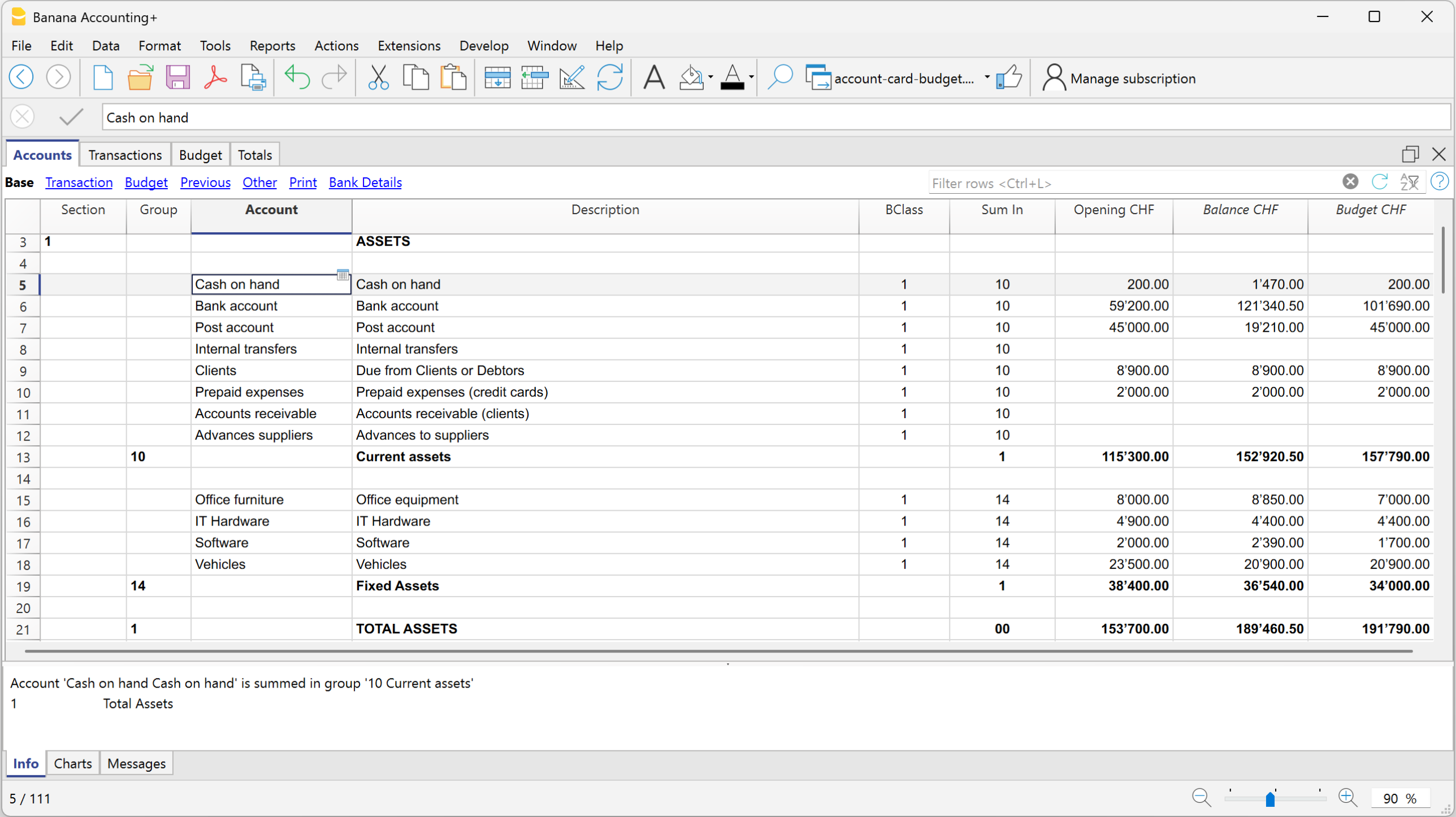
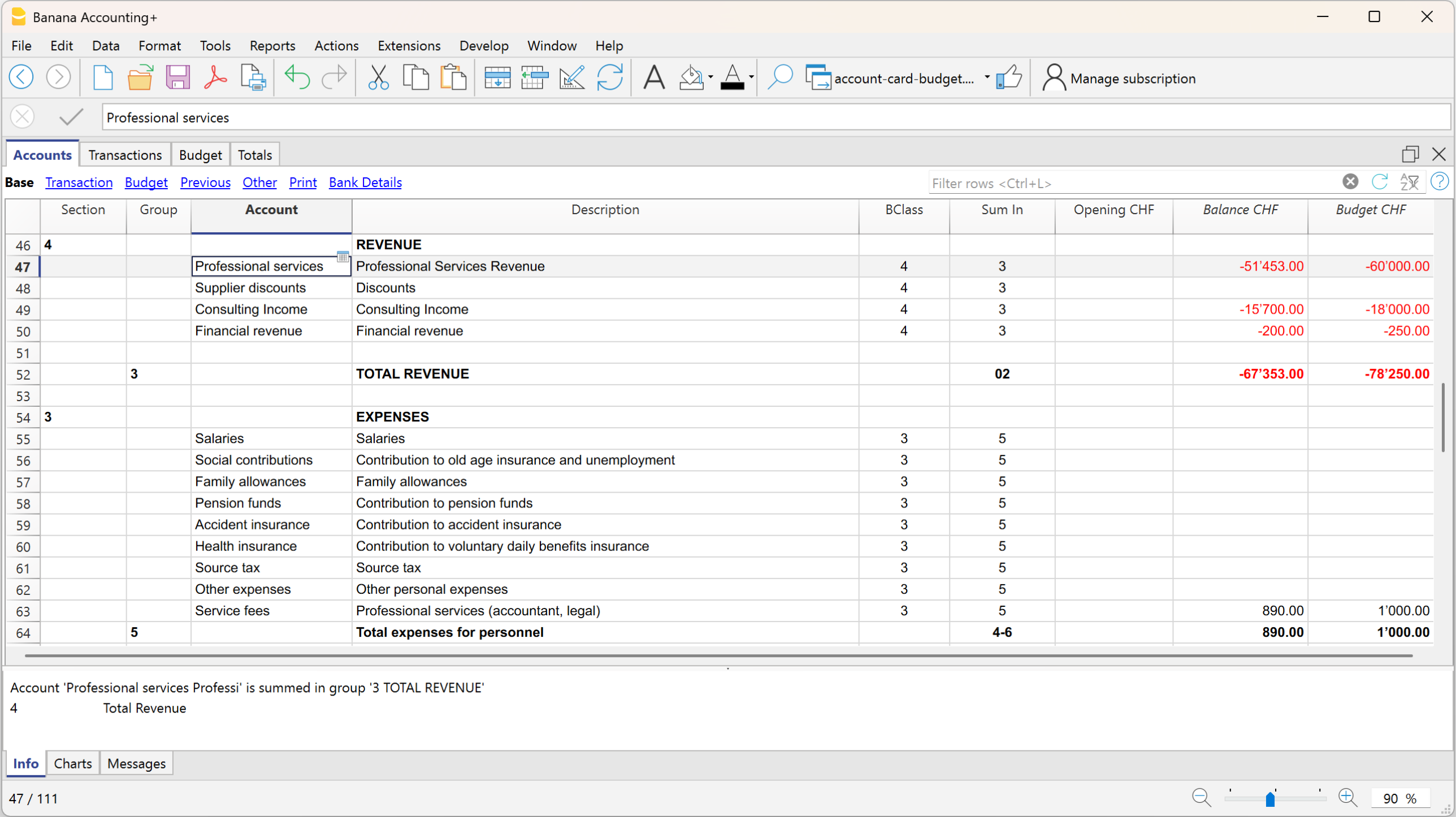
The accounts you use are those already available in the chart of accounts. In the Accounts table, you can display the Budget column to always have forecast balances available:
- menu Data > Columns setup > enable Budget column
Assets and Liabilities (Balance Sheet)
- Costs and Revenue (Profit and Loss Statement)
For a more detailed forecast, if not already present, we recommend setting up and using:
Budget Table
The Budget table is the core of the forecasting system, where you enter the transactions you expect during the year or within a defined period.
For each future event, enter the data in the following columns:
- Start date: the date when the transaction begins
- End date: the last date by which the transaction ends (a date one or more years later can also be specified).
If the transaction will always repeat every year, you do not need to enter any date. - Repeat: repetition frequency (day, month, quarter, half-year, year)
- Description: description of the transaction
- Debit / Credit account: accounts available and taken from the chart of accounts
- Amount: transaction amount
If needed, you can also enter VAT code, segments, or cost centers.
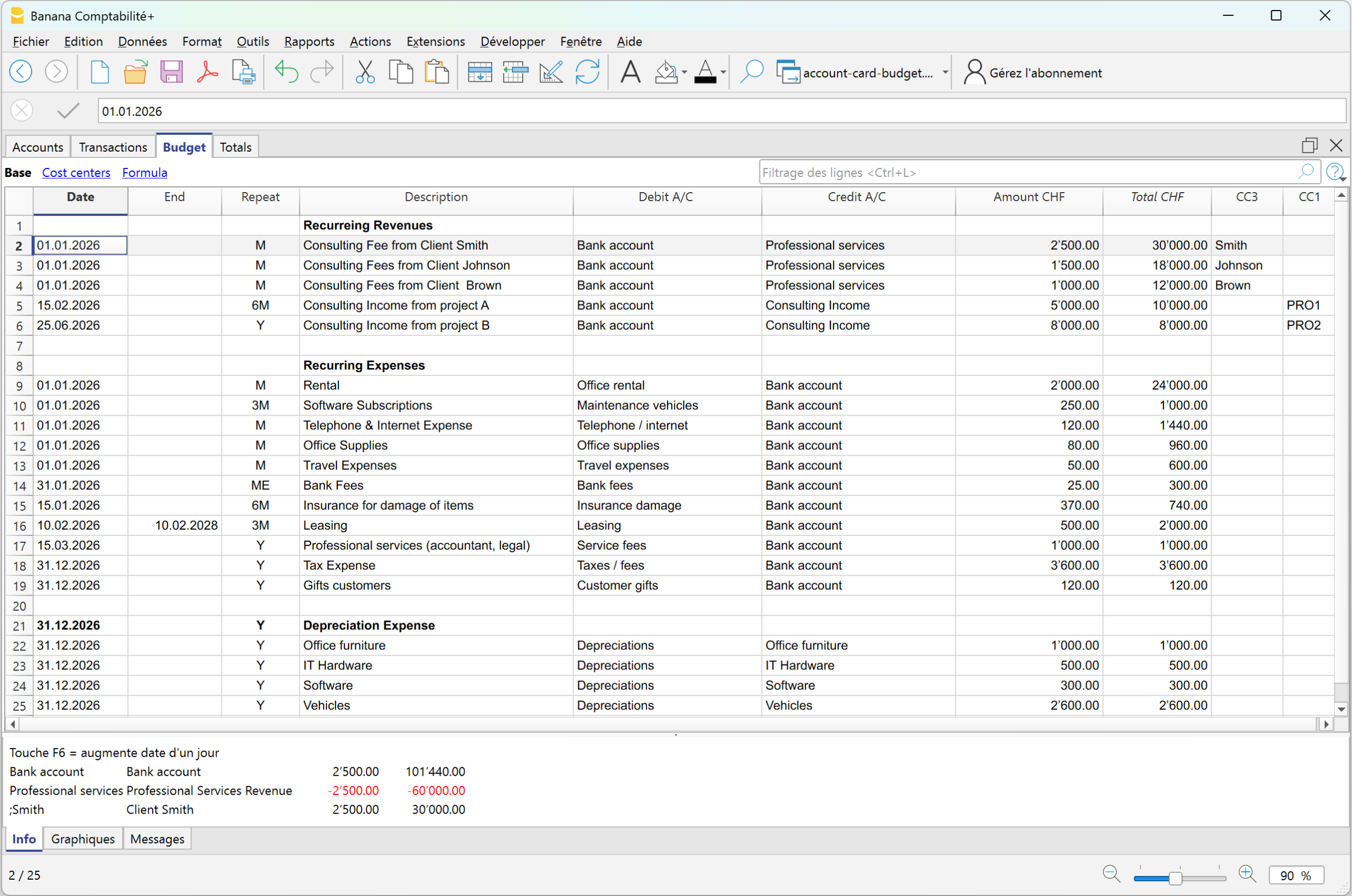
Based on the entered transactions, the program automatically creates all reports, with the same speed and options available in the Enhanced Balance sheet with groups, and reports the balances in the Accounts column, in the Budget view.
Complete forecast reports and comparison with actual data
Forecast reports do not only provide aggregated yearly projections. You can also analyze the data by specific periods: if a cost or revenue occurs only during certain months, the system represents it exactly in the correct periods.
For example: if a cost occurs only in June, July, and August, in the Budget table, by defining the accrual dates, the amount will be assigned exactly to the specific period in the forecast report, without any distribution across other months.
To obtain the forecast balance sheet and profit and loss statement:
- From the menu Reports > Enhanced Balance sheet with groups > in the section Chart of Accounts > Columns, enable Budget
In the Enhanced Balance sheet with groups, if you display the actual, budget, and Budget difference columns, you immediately get an overall view:
Balance Sheet with actual balances, budget balances, and differences
Forecasting in Banana Accounting is not a separate document, but integrates with accounting data and evolves together with real accounting.
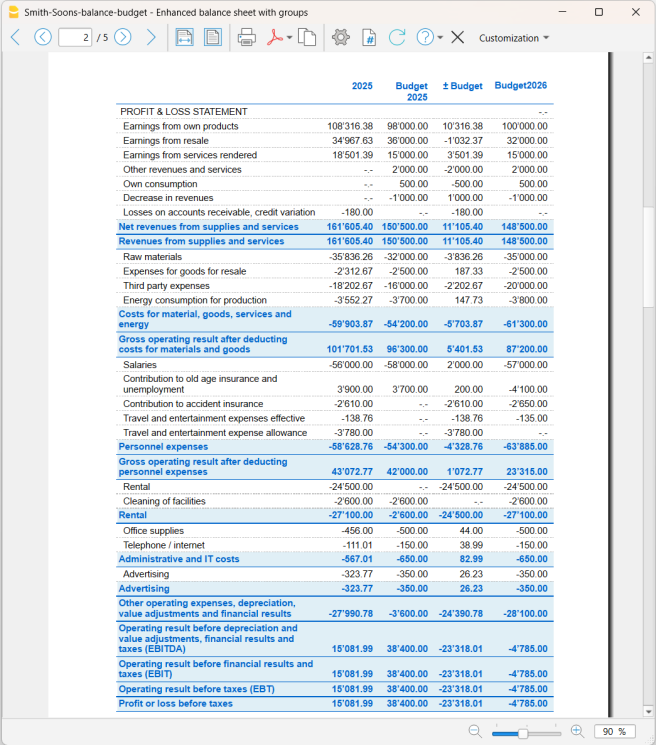
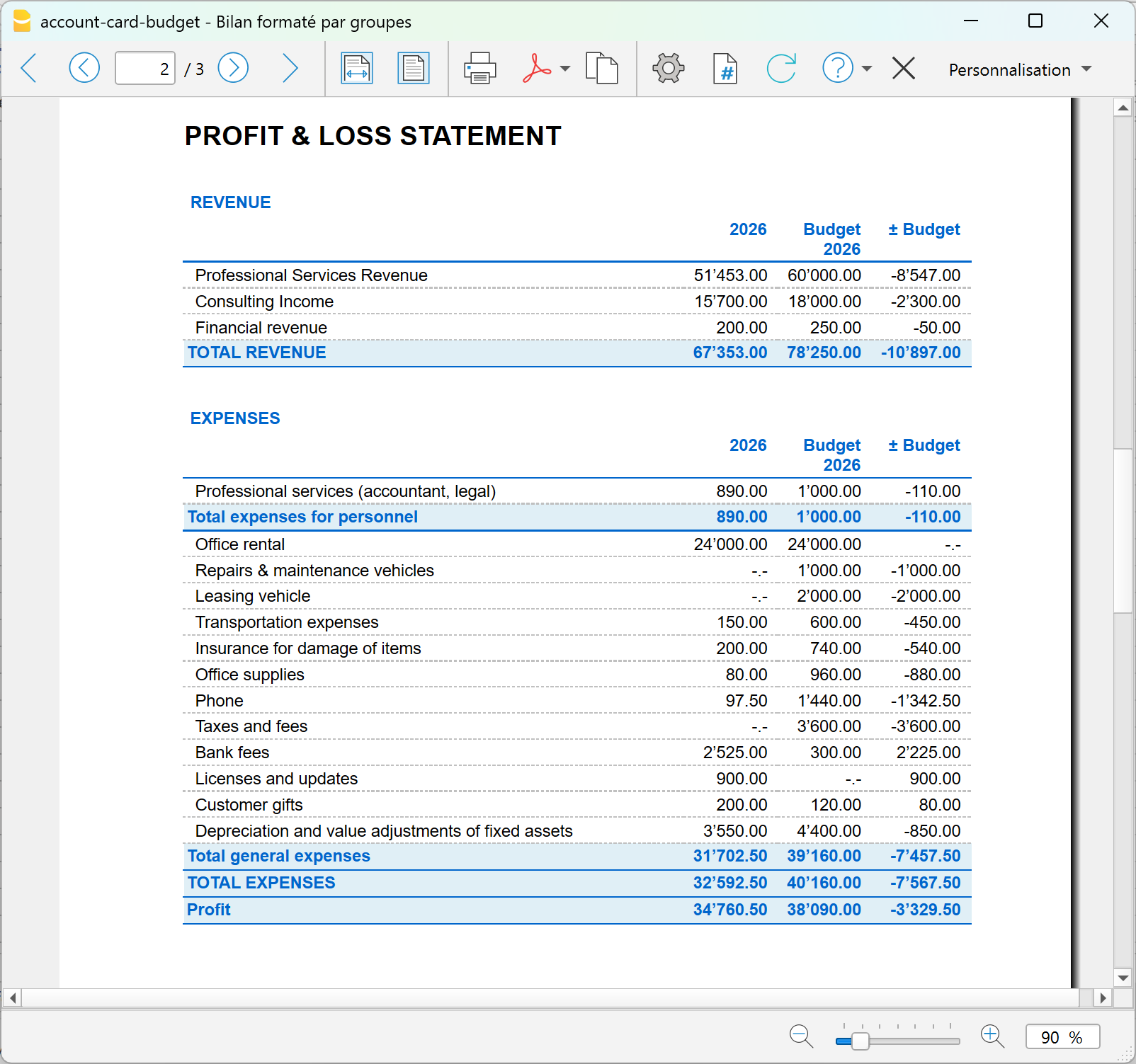
Profit and Loss Statement with actual balances, budget balances, and differences
With this report presentation, you can evaluate whether the company will be profitable and identify possible issues in advance.
Comparison of actual vs budget account card
With Banana Accounting financial forecasting, you can go beyond traditional forecasting. With the new Account card: Current vs/Budget extension (Beta version), you can compare an account card with both actual transactions and budget transactions.
This is a completely new feature that allows you to:
- analyze in detail the actual transactions compared to the budgeted ones
- easily identify variances shown in the Differences column.
- progressively improve your planning capabilities.
Advantage: customer account card with actual and budget data
With Banana Accounting, for each customer you have a complete account card that integrates:
- actual data → issued invoices and real payments received
- forecast data → future invoices and expected payments
With Banana, the customer account card does not only show what has happened, but also what will happen, with all management details already integrated. In one single view, you can see the past, present, and future.
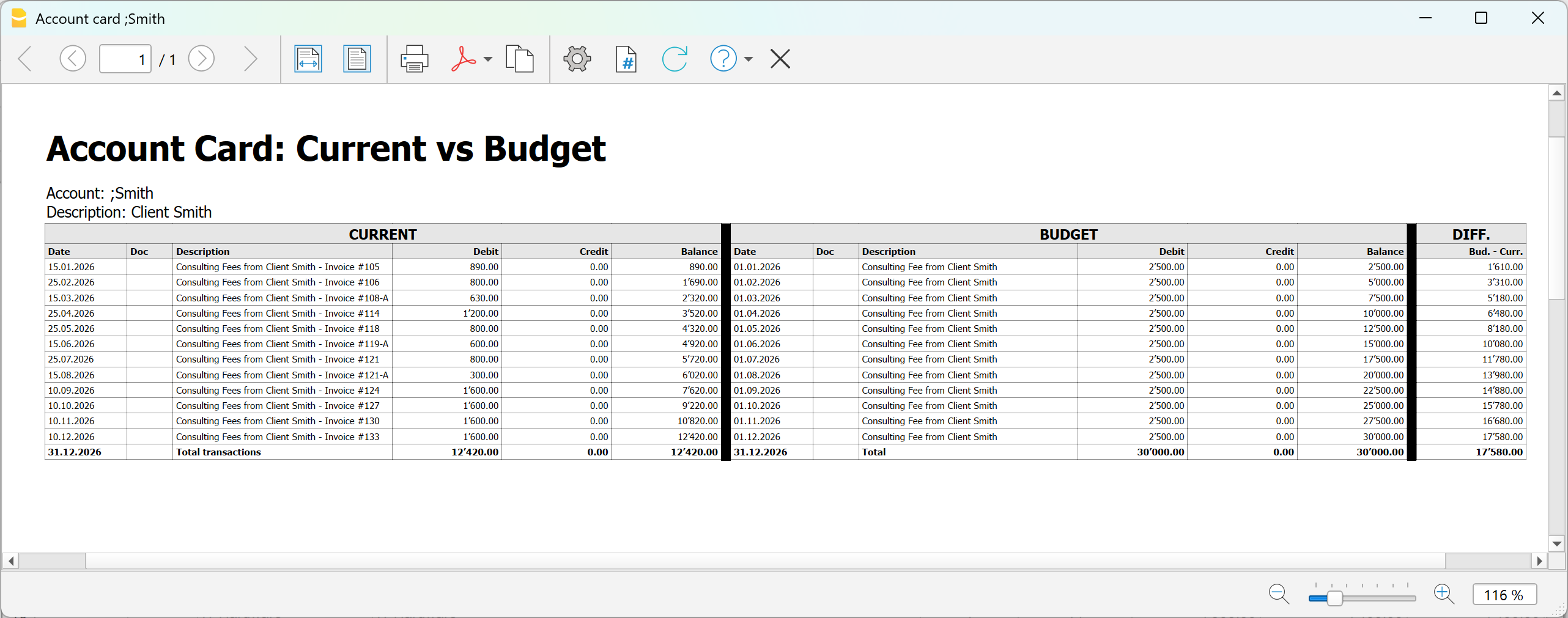
Using the new extension dedicated to the account card, which compares actual and budget transactions, you can analyze in detail:
- Customer
- Project
- Cost center
- Segment
To display the comparison between actual and budget data for an account, you need to:
- Install the Account card current vs budget extension (Beta version)
- From the menu Extensions > Manage extensions > Accout card: current vs budget (Beta version)
- In the dialog window that opens:
Double-click on Account and select from the account list the account (or category), cost center- Two account cards related to the same account are displayed side by side
- In the last column of the budget account card, the Difference column is displayed, highlighting line by line the difference in amounts between actual and budget data.
Summary
With precision financial planning, you can:
- enter detailed forecasts transaction by transaction
- automatically obtain all reports
- monitor liquidity and profitability
- compare forecasts and actual results
- progressively improve decision-making
It is not just about creating a budget, but about using an integrated system to plan and manage the financial future with professional accounting tools.