Installing Banana Accounting
When downloading the program, it is automatically saved in your Download folder.
After you execute, if you don't indicate any other destination folder, the program will be installed by default into the Programs folder (Windows: C:\Programs; MAC OSX: /Applications; Linux: /bin).
The following pages explain how to install Banana Accounting in all operating systems.
For more information about the Banana files please visit the Save, copy and backup page.
System requirements
Banana Accounting 9 is available for Windows, Mac and Linux, as a stand alone version.
This version won't be updated anymore. Last update: Dec 2019.
For an always up to date version switch to Banana Accounting Plus, subscription based.
Banana 9 for Windows
- Windows 10, 8.1, 8. NOT Compatible with Windows 11 (please update to Banana Plus)
- 180 MB of disk space
- Internet connection to access the Templates and the Help function of the program
- Windows 7 is supported up to version 9.0.3
Banana 9 for Mac OS X
- Mac OSX 10.14, 10.13, 10.12
- 180 MB of disk space
- Internet connection to access the Templates and the Help function of the program
Banana 9 for Linux
- Ubuntu 16.04 LTS or more recent versions,
other supported distributions - 180 MB of disk space
- Internet connection to access the Templates and the Help function of the program
Banana Mobile for Android and Chrome OS
- Available on Google Play Store
- Version Android 4.2 or more recent
- Banana Mobile for Android and Chrome OS have some limitations compared to the Desktop version.
Banana Mobile for Apple iOS (iPhone and iPad)
- Available on the Apple Store
- Version iOS 8.4 or more recent
- Banana Mobile for iOS has ome limitations compared to the Desktop version.
Other information
- The indicated disk space requirement depends on the amount of transactions and accounts used in the accounting file. 3 MB is an average space for an accounting file with 200 accounts and 2000 transactions.
- There is no limitation to the number of files.
- Files created with different versions (Windows, Mac, Linux, iOS, Android and Chrome OS) are interchangeable.
- The software is a single user program, just like Excel. Only one person at a time can edit a file.
- The Windows version can be installed on a server, and then be run on client computers.
- The program can be used with Terminal Server or similar remote desktop technologies.
Also see the Installing on a server or on a USB key page.
License key
Banana Accounting 9 is an old product that is no longer sold. The information about the license key refers to products sold in the past. Banana Accounting Plus is our new version.
The license key is a code that was provided when purchasing the program and made the program fully operational.
The license key was provided in the following ways:
- in the box, printed on a special card
- sent by email on the day of the online purchase via credit card
- printed on the invoice (for those who purchased directly from us).
IMPORTANT: Keep the license key carefully. In case of loss, follow the instructions in the chapter Lost license key.
A single license key for Windows, Mac and Linux
With Banana Accounting 9 the license key can be used on all operating systems.
Free Version mode at no cost
If you install the program without entering the license key, the program runs in Free Version mode.
With the Free Version mode, you can:
- Use the Cash book and the Time sheet management in a free and unlimited mode
- For all other applications you can use the program in complete mode, entering up to 70 rows into the Transactions table.
If you have more than 70 rows in the Transaction table you won't be able to save or export the file, and in the print-outs the words "Starter Edition" will appear.
When the license key is being entered, Banana Accounting switches from the Free Version mode into the complete Professional mode.
Entering the license key
- Open Banana Accounting
- Select the command Manage license keys from the Help menu
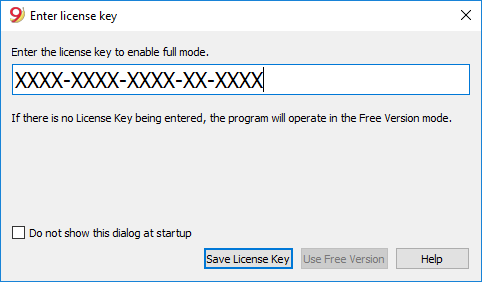
- Enter the license key number into the appropriate field
- Click on the Save license key button
- Confirm the operation if asked
Important: The license key is saved only for the current user of the computer.
Registration code
Once the license key has been entered and saved, the program displays the registration code and the following dialog appears in the Manage license keys (Help menu) window: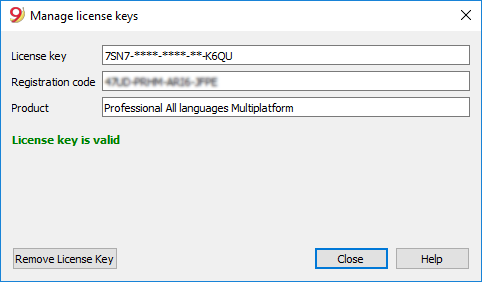
For security reasons the license key is partially hidden.
In case the user loses his license key, the registration code can be used to find the license key that he has entered.
It is important to copy this registration code and keep it in a safe place.
Modifying the license key
Before modifying an already entered license key, please save your open accounting files and close them; only the program remains open.
In order to modify a license key, you have to first remove the existing license key and then enter the new (different) license key.
Remove License Key
Click on the Remove license key button to remove the key.
By removing the license key, the program switches back to the Starter Edition mode.
Enter a new (different) license key
- Enter the new license key number into the appropriate field
- Click on the Save license key button
- Confirm the operation if asked
At the end of this operation, close the program and restart.
Lost license Key
For Banana Accounting 9, if you have registered your product, you can recover your Banana Accounting 9 license key through the License key recovery form without fees. You can also ask us - by email - to resend you your own license key. The recovery of the license key is considered technical support, which is charged at CHF 70.
When contacting our technical service, send the registration code that can be found in the Manage License Keys window from the menu, or send us a screenshot of the same window as an attachment.
As an alternative to the recovery of the lost license key we recommend the switch to Banana Accounting Plus, available as an annual subscription for CHF 89.- or CHF 179.- (plan with advanced functions that also includes email and telephone support). It is possible to upgrade to Banana Accounting Plus even without the license key of the old version.
You also receive 1 free month with the upgrade:
- Banana Accounting Plus features
- What's new in Banana Accounting Plus
- Banana Accounting Plus plans: choose the one that's best for you.
Installing under Windows
The program installation is a matter of minutes and it is all automatic.
By downloading the program, you accept the user license conditions.
Once the download is finished, just double-click on the file you downloaded.
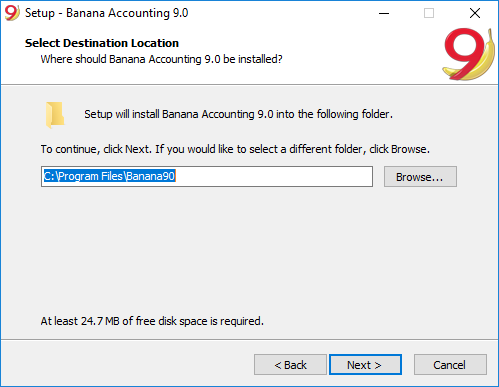
The software will be saved by default in the C:\Programmi Files\Banana90 folder. If you wish to save it in a different folder click on the Browse button and choose the desired path.
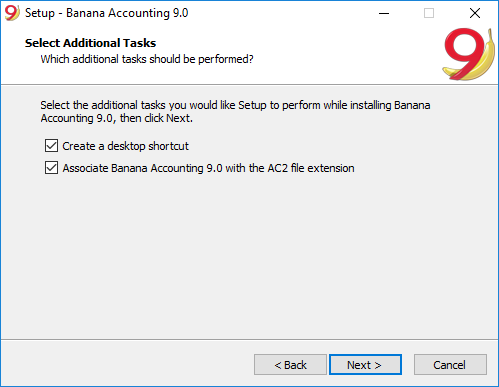
The installer has already activated the options:
- Create a desktop icon from where to launch the program.
- Associate the extension AC2 to Banana Accounting 9, so that when you click on an accounting file the program starts. See also associate Banana Accounting.
- In the Banana Experimental version this option is not activated. If you always want to use the Experimental to open files, you have to activate it.
The program activates by default the Create a desktop icon and Associate Banana Accounting 9.0 with the AC2 file extension options; if you do not wish to have these options, simply uncheck them.
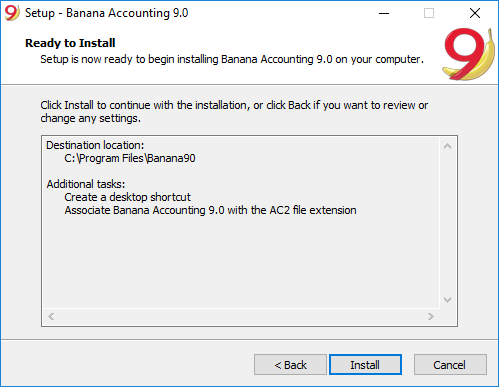
Click on the Install button to start the installation process.
The program will be automatically installed in your operating system language; you will be able to change the program language anytime by choosing the Program options command from the Tools menu.
Entering the license key
After opening the program for the first time enter the license key and confirm with OK
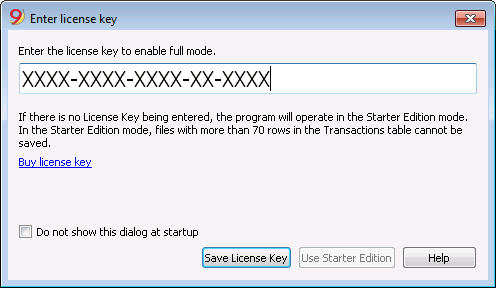
By entering the license key into Banana Accounting, you go from the Starter Edition demo mode to the complete mode. If the license key is not entered, a message appears at the opening of the accounting file, warning the user that he is working in the Starter Edition mode.
Open the software
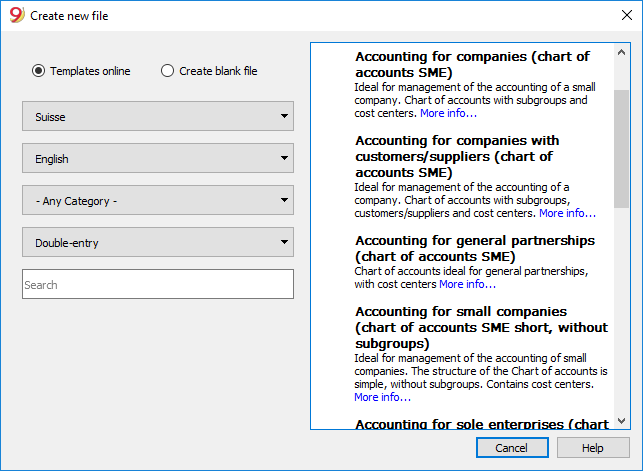
As soon as you open the software, choose the New command from the File menu. From the pop-up window you will be able to choose your accounting type, the option with or without VAT, the file language, and an example or template (or you can also open a blank file - not recommended)
Note: in order to uninstall the software, please select the Install/Uninstall applications from the Control Panel and then chose to remove Banana Accounting from the list.
Installing under Mac
Installing the software is very easy, thanks to the autoinstall function.
By downloading the program, you accept the user license conditions.
Follow these steps:
Download the .dmg file by clicking on the Save file button.
After saving the file in your Download folder, double click on it.
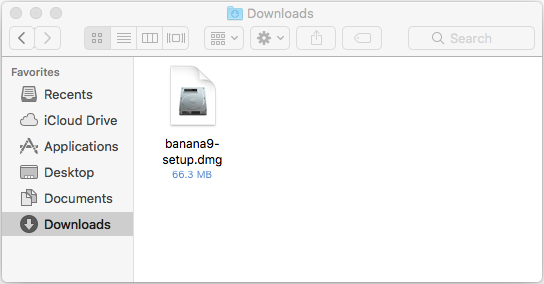
Drag the Banana9 icon in the Applications folder
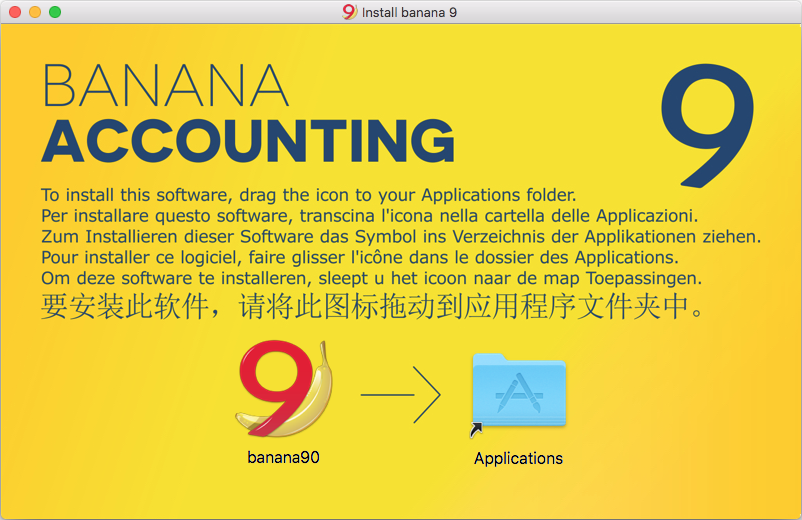
Banana Accounting 9 is now ready to be used. Double click on the Banana 9 icon from your Applications folder. The program is installed in your operating system language, but is always possible to change it from the Tools menu, using the Program options command.
Entering the license key
After opening the program for the first time, enter the license key and confirm by pressing the button Save license key.

Then launch the New command from the File menu. From the pop up window it is possible to choose the accounting type, the with or without VAT management option, the language and a template or example (or you can choose to open a blank file - not recommended).

In case of problems while installing the program: verify in Apple -> System Preferences, Security & Privacy, to have chosen the option "Anywhere" instead of "Mac App Store and identified developers". See also Apple's internet page.
NOTE: in order to uninstall the software, simply drag the Banana9 icon from the Applications folder to the Trash.
Installing under Linux
The best way to install Banana Accounting for Linux is via the App Store for Linux: Snapcraft.
On Ubuntu, just select Ubuntu Software, search for "banana", select Banana Accounting and click on the "Install" button.
The Snapcraft store can be used on various Linux distributions, including OpenSUSE and Mint.
Here you find how to use Snapcraft on your favorite distribution.
By downloading the program, you accept the user license conditions.
Install using the App Store for Linux

.AppImage Package
Download the application, make it executable, and run! No need to install. No system libraries or system preferences are altered.
- Download the package
- Make the package executable
- Right click the package and select Properties
- Under the tab Permission activate the option "Allow execution ..."
- Confirm the change with Ok
- Start the application with a double click on the package
Package .tgz
For those who need it...
- Download the .tgz package
- Extract the .tgz package
- Run the file start_Banana.sh
The .tgz package contains the script install-banana.sh. When you execute it, Banana Accounting 9 will be copied to the /opt/banana9 folder, registered in the system and associated with the .ac2 files.
Technical information for updates
Important information when updating to Banana Accounting 9
for those who have an accounting file created with a previous version (4.5.6.7.and 8) and want to update to version 9.
In order to see what's new, visit the page What's new in version 9.
File management and -exchange
Once Banana Accounting 9 has been installed (on Windows or Mac), you can launch the program and open the accounting files that have been created with Banana Accounting:
- Banana 9 opens the files of all previous versions: 2.02, 3, 4, 5, 6, 7 or 8.
- Files saved with Banana 9 can be opened and edited with the versions 5, 6, 7 and 8 of Banana Accounting.
- If you are using features only available in Banana 9, these do not work with earlier versions.
- Files saved with Banana 5, 6, 7, 8 and 9 cannot be opened anymore with Banana 2, 3 or 4.
- Files can be transfered easily from one operating system to another.
If the files are not listed in the recent files (Initial page), you can look for them following these instructions.
Free Version version / License key
If the program is installed without license key, Banana Accounting 9 operates in the Free Version mode. This allows the user to use the Cash book and the Timesheet in a full and unlimited way and to use all other application exploiting all features up to 70 transactions.
- In order to use version 9 in the complete mode, you need to purchase the update license key and enter it in the software (update) that you can download from our download page.
- An Update Version is the normal version sold at a preferential price. It can therefore as be installed on a computer that doesn't have a previous Banana version installed.
- The license keys are valid for Windows, Mac and Linux, for installing Banana Accounting 9 on a maximum of 2 computers (belonging to the same owner).
- In the Free Version mode, the Cash book (without VAT) and the Time sheet are full and unlimited.
Version for Mac
In order to avoid conflicts with the keys used by the Apple operating system, the function keys F4, F5, F6 of Windows have become CMd+4, Cmd+5, Cmd+6 under Mac.
Importing bank statements
Banana 9 provides various import filters that can be downloaded from our website.
To import the bank statements / update the filters, you need to:
- select the Import to accounting command from the Account1 menu -> Import transactions
- click on the Manage filters button to see all the available filters
- click on the Update filters button
- enable the desired filters by selecting them and clicking on the Enable filters button
Importing Postfinance Xml file
Banana 9 imports bank statements using the new XML ISO 20022 standard. Postfinance supplies this format only when requested by the customer.
It is therefore necessary to ask your Postfinance consultant to change the format and switch to the ISO 20022.
Postfinance Business clients can ask to have the Pfd as well as the ISO 20022 format.
Swiss VAT Report
In order to obtain the quarterly Swiss VAT report, ready for the official form, proceed as follows:
- Apps Menu -> Manage Apps -> select Swiss VAT Report (effective method or flat rate method) -> press Install
- Once you have installed the Swiss VAT report App, when needed you just need to go to the Apps Menu and select it.
- In Banana Accounting 9, the VAT report will also be available for those who are submitted to the flat rate method.
Enhanced Balance Sheet with Groups
In the Enhanced Balance sheet with Groups (from the Account1 menu), in the Previous Year column, the balances that have been carried forward from the previous year's file are being displayed. If, in the Options tab of the File and Accounting Properties dialog window, no previous year's file has been indicated, then the balances will be carried forward from the Prior column of the Accounts table.
Changes from Banana 6 or previous versions
From Banana 6 to Banana 9 some functions changed their names:
- Data can be edited directly in the table cell (just like in Excel)
- With a double-click you go in the cell editing mode.
In order to open an account card or to access the Extract rows command, instead of the double-click you can use:- Alt + mouse click
- Right mouse click (opens the menu)
- A mouse click on the little blue arrow next to the account number (cell top left corner)
- The Messages window has been moved in the lower corner of the screen, next to the Info window.
The Messages window can be reached by clicking on the correspondent table. - The Views list has been moved to the top of the screen, just below the tables list.
- When scrolling the vertical bar, the table content now immediately scrolls too.
- In the transactions, the indication of the date and the document are not shown any more.
- From the Banana 7 version it is possible to update the account card (see refresh button on the top right corner); in Banana Accounting 6 it was necessary to give the command again.
- When printing or when viewing the print preview, it is now possible to only print a selection of rows.
In the print dialog window, it is possible to choose if you want to print everything or just a selection (only in Banana for Windows). - In the Date column, by entering the “.” symbol, the program automatically enters the date of the day.
- Simple Accounting -> has been changed into -> Income & Expense accounting
- The Cash1, Simple1, Cash2 and Simple2 menus have been replaced by the Account1 and Account2 menus
- Accounts by period -> has been changed into -> Accounting Report
- Export file in pdf -> has been changed into -> Create Pdf dossier
- In some functions, such as the Enhanced Balance sheet, ... a new submenu called "Compositions" has been created in order to recall saved personal settings (in Banana 6 they were called Favorites).
- In the Help menu "Keyboard Shortcuts", you find the list of key-combinations and the commands that are associated with them.
- In the Info and Messages windows, next to the error message, there is now the
 symbol: if you click on it, you will be directly connected to the online page explaining the error message and suggesting possible causes and solutions.
 - DDE connections are no longer supported
Advanced installing
Installing on a computer that is not connected to the Internet
- Use a computer that has an Internet connection and download the installer that is suitable for the operating system of the computer on which Banana Accounting will be installed.
- Copy the file to a USB key or a CD.
- Enter the USB key into the computer where the program should be installed.
- Launch the installer.
- Start Banana Accounting and enter the license key.
Windows installation on a server or a USB key
Legal considerations
Remember that in order to execute Banana Accounting from multiple computers, you need to buy as many licenses as there are computers that use the program.
Banana with terminal server and package management systems
Banana accounting can, without any problem, be installed on a server, a terminal server, external disks or can be packaged for distribution, because:
-
Everything necessary to execute Banana Accounting is installed in the installation directory (exe, dll, examples).
-
Banana does not write in the system directories and the system registry.
- The user settings are stored in the registry of each user.
-
For each accounting, there is a single file that (as in Excel) can reside on a local disk, network, USB flash drive or a directory in DropBox, Google Drive, or other similar systems.
-
Banana is compatible with Remote Desktop systems or systems of software packaging for the installation.
For more information on the files, see also File - Save.
Installation on a shared folder, package management or USB key
- Follow the normal installation procedure, usually the program will be installed under C \ Program Files \ BananaXX \ (XX stands for the version number).
- Start the program BananaXX.exe "as Administrator".
- Enter and save the license key.
- Copy the entire installation directory on the USB key, shared folder or package management system.
- The USB key can then be used on compatible computers.
If there is any doubt that there might be compatibility problems with your systems, we recommend that you do an installation with the version of the program that you download from the internet, without a license key.
For more information on this subject, contact our technical support.
Apple/Mac server installation
It is not possible to install Banana Accounting on Mac servers.
The program must be installed and the license key must be entered on each computer.
Of course, you can save the accounting files on a network disk.
Associate .ac2 files with the most recent Banana version
When the Banana Accounting program is being installed, the "Associate Banana Accounting 9 with the AC2 file extension" option is activated by default; as a result all the accounting files will be opened with the new version.
If, when clicking directly on the file before opening the program, it should occur that the file gets opened with a previous version of Banana Accounting, this problem can be solved in the following way:
Windows:
- right-click on the file icon
- on the menu that appears select "Open with" and then "Choose Default Program..."
- choose the Banana program, the latest installed version.
Mac:
- right-click (or "ctrl "+ click) on the file icon
- on the menu that appears select "Get Info"
- under "Open with..." choose the latest installed version of Banana, click then on "Change All..." option.
Uninstalling Banana
Uninstalling Banana Accounting on Windows
- From the Start menu choose -> Control Panel
- Select -> Programs -> Uninstall a program
- Choose the program you wish to uninstall, for example a Banana Accounting old version
- Press the Uninstall button
By uninstalling Banana Accounting you will only deleting the program; your personal .ac2 files will not be modified.
Uninstalling Banana Accounting on Mac
- Go to the Finder
- Choose the Applications folder
- Choose the program you wish to uninstall, for example a Banana Accounting old version
- Drag the selected program into the Trash
By uninstalling Banana Accounting you will only deleting the program; your personal .ac2 files will not be modified.
Uninstalling Banana Accounting on Linux
For the details, we refer to our 'Installation under Linux' page: Packages .AppImage and Packages .tgz .