激活以及管理 Banana 财务会计+ 的订阅
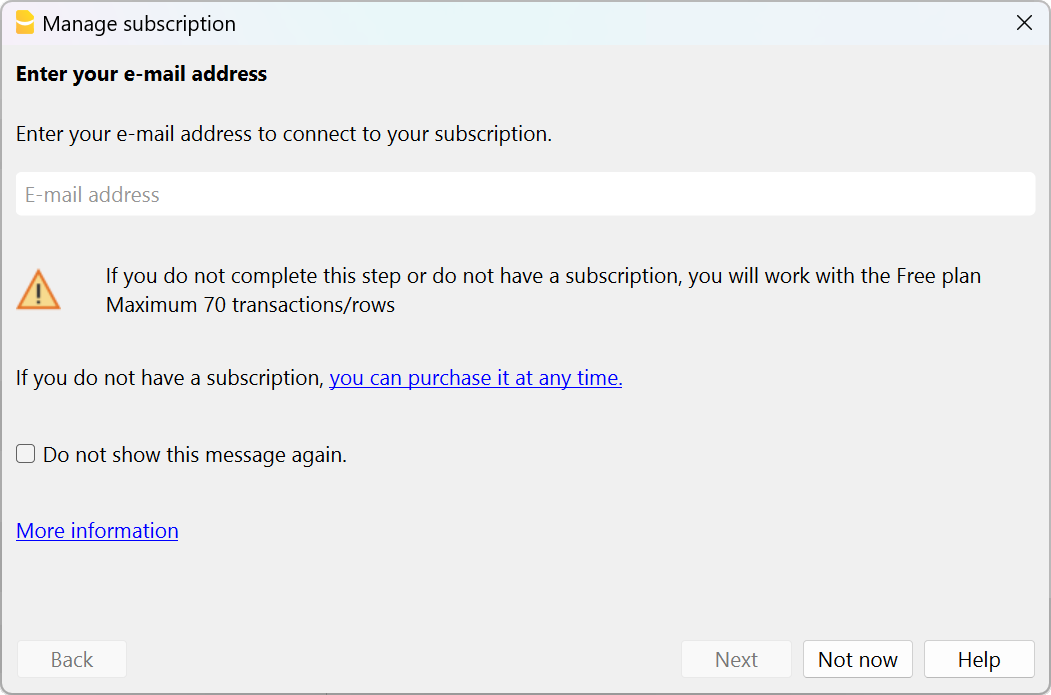
当您第一次打开 Banana财务会计+ 的时候,程序会向您显示管理订阅的对话窗口,即使您将其关闭,也可以通过点击帮助菜单→管理订阅的命令将其再次打开。
请注意: 在苹果机的操作系统中,Banana软件的菜单栏会出现在屏幕的最上方,在苹果标志的右边。
您需要输入您的电子邮件地址,用于:
- 将您的电脑连接到您已经从我们的瑞士商店购买的订阅计划。
- 如果您已经拥有Banana软件之前的旧版本,则可免费获得一个月的专业计划*。
- 输入产品密钥,如果您是在实体店或我们的国际在线商店购买的 - 请转到产品密钥的页面。
- 直接在软件中购买订阅计划。
- 使用免费计划。
如果您没有输入电子邮件并通过单击不是现在按钮关闭了窗口,程序将按照免费计划运行 (最多可输入70行的发生业务)。
输入您的电子邮件
要激活您的订阅或享受数月免费的活动,请执行以下操作:
- 下载,安装并启动程序。
- 在管理订阅的对话框中输入您的电子邮件地址,该对话框在您打开程序时出现 (但您可以随时点击帮助菜单→ 管理订阅的命令将其再次打开)。
重要信息:在点击提交之前,请确保您已经正确输入了您的电子邮件地址。
输入验证码
在输入您的电子邮件地址后,您将收到一条带有6位数验证码的验证信息。
请检查您的收件箱,并在此复制/粘贴您的验证码,然后点击提交的按钮。

如果您没有收到电子邮件
可能是我们发送的邮件没有到达您的收件箱。
- 您输入了错误的电子邮件地址
这也是我们的客服人员发现用户在无法激活时最主要的原因:- 请确认所列出的电子邮件确实是您正确的电子邮件地址。也许您忘了正确的地址或把字母弄反了。
- 如果您输入了错误的电子邮件,您可以通过更改...按钮进行更改。
- 确保您的邮箱已经更新了电子邮件
多个程序只能以几分钟的频率阅读邮件。- 在您的电子邮件程序中,单击“获取消息”,“更新”。
- 检查该邮件是否已被放入垃圾邮件文件夹中
您的电子邮件系统可能没有将电子邮件存储在收件箱中,而是将其放在了垃圾邮件中。 - 等待电子邮件的到来
电子邮件的送达可能需要一些时间。- 在等待的过程中,您可以点击不是现在的按钮。
- 当邮件到达时,您可以返回帮助菜单 → 管理订阅的命令,并输入收到的激活码。
- 要求再次发送代码
- 验证码的有效性是临时的。
- 如果您没有在1小时内使用,或3次输入失败后,您需要申请一个新的验证码。
- 点击如果您还是有问题,您可以要求我们重新发送邮件的链接。每次收到代码是不同的,您必须输入最后发送的代码,而不是第一个代码。
- 确保该邮件没有被您的反垃圾邮件删除。
如果邮件没有到达,有可能是您的邮件系统完全阻止了该邮件的发送。
您可以指示您的电子邮件程序不阻止从Banana.ch发来的邮件。
有关您订阅的信息
一旦您作为注册用户输入了您的电子邮件地址,程序将向您展示有关您的订阅的所有信息,并可以进行一些操作。您可以随时通过帮助菜单 → 管理订阅的命令访问该对话框窗。

 | 管理账户通过这个链接,可以直接进入到您的Banana用户账户。可以访问您的许可证信息,发票,查看和编辑配置文件数据,执行其它操作。另请访问用户账户的页面。 | |
 | 同步账户信息此链接连接到 Banana.ch 并检索更新的订阅数据。 | |
注销通过这个链接,您可以从Banana财务会计+ 中删除您的电子邮件地址,以及与之相关的任何订阅计划。
| ||
订阅计划的数据在这里可以看到您当前的订阅数据和它的到期日。如果您在到期前续订或购买了不同的订阅计划,您会在这里看到这两点的信息。 | ||
 | 升级到高级计划如果您已拥有专业计划,可以在任何时候升级到高级计划。升级的费用是按比例计算的。 | |
添加许可证密钥在某些情况下,在购买后会收到一个产品密钥。欲了解更多信息,请访问产品密钥的页面。 |


要求
要激活订阅,必须执行以下操作:
- 有网络连接。
- 确保 Banana财务会计+ 可以连接到网络上。
如果您的防火墙阻止了该连接,则需要暂时将其停用。
订阅一旦被激活后,该程序将不再需要任何网络连接,直到续订为止。
启用接收来自banana.ch的电子邮件
为了避免邮件发送受阻,您可以在电子邮件程序中指明 banana.ch是一个安全的域名。
Outlook: 启用接收来自banana.ch的邮件
- 打开Outlook,进入设置→邮件→垃圾邮件→安全发件人和域→添加
- 将其添加为安全发送人

检查您的代理服务器
您的计算机是否被冻结并且程序似乎处于空闲状态? 您的代理服务器可能有问题。
要检查是否是这种情况并解决问题,请执行以下操作:
- 点击文件菜单 → 新建命令
- 单击更新按钮(左下角)
- 您是否收到了代理错误信息?
- 检查操作系统上的代理设置。 关闭手动代理设置是很重要的!
现在就使用最新的Banana财务会计+。
需要帮助吗? 在如何开始页面中找到相关的建议和指导。
更改与您的订阅计划相关联的电子邮件
为了更改与您的订阅相关联的电子邮件,您需要遵循以下的步骤:
- 联系我们的客服并要求我们改变您账户的电子邮件,或登录您的账户自行进行更改。
- 打开 Banana财务会计+ → 帮助菜单 → 管理订阅的命令。
- 点击移除.... 的链接,并点击是的确认键。您将暂时只使用免费计划。
- 再次点击帮助菜单 → 管理订阅的命令。
- 输入新的邮件地址。
- 通过输入您在收件箱中收到的验证码来验证您的新电子邮件地址 (如上所述)。
- 现在可以看到您正在使用的是付费的专业计划或高级计划。
如何更新或更改您的订阅计划
当您购买 Banana财务会计+ 订阅的时候,会自动创建一个用户账户。通过访问您的用户账户,可以查看与您的订阅相关的所有信息。欲了解更多信息,请访问更新的页面。
如何取消您的订阅
订阅和付款都是按年计算的。如果您希望在12个月结束时取消订阅,可以随时操作,或在收到续订提醒邮件时进行。操作方法如下:
- 登录您的 Banana 用户账户,在订阅部分,关闭自动续订功能,以在周期结束时取消续订。
- 如果除了取消订阅,您还希望不再接收通知(我们的电子邮件和新闻简报),请在 Banana 用户账户主页中也关闭通知选项。
或者,您也可以联系我们的客户服务,发送一条简短的取消信息。
随时访问您的数据
即使取消了订阅,您也可以随时访问您的会计数据,因为可以继续使用Banana财务会计+ 的免费计划,允许您自由打开并查看文件。
*为什么我没有获得一个月的免费使用期?
如果您从 2018 年开始购买旧版本并且您的电子邮件保持不变,则免费月份将自动计入。 对于 2018 年之前购买的旧版本,您需要联系我们以获得免费月份。
如果您在实体店购买了 Banana 财务会计软件,并且从未在线注册过,请立即注册!
我们很乐意回答您的任何问题。
使用产品密钥激活订阅
产品密钥是允许您激活或扩展Banana财务会计+ 订阅计划的代码。
仅在某些在线购买零售包装盒产品的情况下才提供产品密钥。如果购买后没有收到产品密钥,则意味着您只需输入注册用户的电子邮件即可激活订阅。
产品密钥只在第一次激活或延长订阅时使用。如果您需要在其它设备上安装Banana财务会计+,只需输入与订阅相关联的电子邮件即可。
要激活您的订阅,请按以下步骤进行:
- 下载,安装并启动程序
- 输入并验证您的电子邮件
- 输入产品密钥
2. 输入您的电子邮箱地址
- 打开程序后在管理订阅的对话窗口中输入您的电子邮件 (您始终可以通过点击帮助菜单 → 管理订阅的命令将其再次打开)。验证码已发送到您的电子邮件地址。
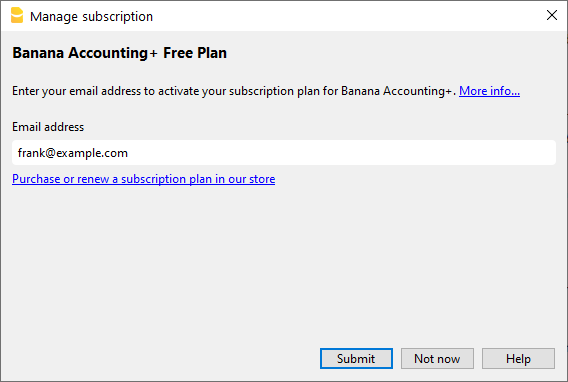
- 在程序中输入您的验证码,作为您拥有指定电子邮件地址的确认。
- 如果您没有收到确认邮件,请到管理订阅的窗口中解决。

- 您的电子邮件现在与该计划相关联。如果您还没有拥有任何有效的订阅计划,将看到您正在使用的免费计划 (Free 计划)。

3.使用产品密钥激活订阅计划
输入电子邮件后,您可以按照以下步骤操作:
- 点击输入产品密钥以激活订阅计划的链接。
- 输入您的许可证密钥,然后点击提交。

- 点击检查是否有订阅更新的链接,来了解有关订阅及其到期日期的更新数据。

您现在可以不受限制地使用Banana财务会计+。我们建议您访问如何开始使用Banana财务会计+的页面以获取一些有用的提示。
欲了解更多相关的信息,请查看管理订阅的页面。
使用产品密钥延长或更新订阅计划的时间
您也可以使用产品密钥来扩展现有的订阅计划。
- 点击帮助菜单 → 管理订阅的命令。
- 如果您已经输入了电子邮件,您将看到现有的订阅数据,如果没有,您需要输入电子邮件 (详见上文中的说明)。
- 点击输入产品密钥以扩展或续订订阅计划的链接,然后输入您的产品密钥。

- 与新产品密钥相关的月份将被添加到您当前订阅的月份中。
- 您将看到您订阅计划的更新数据和新的到期日。

Banana user account
All online purchases from our online shop automatically originate a Banana user account.
Login into your Banana user account
From your user account you can view and edit your subscription information: invoices, address, payment method, manage and add users, cancel subscription, ...
Access your Banana user account

If you haven't setup a password during your checkout process, you will be asked to do so the first time you access your user account.

Dashboard
From the Dashboard of your user account you see a summary overview of all your data. Using the Modify or View buttons, you can view the details of each entry and make changes.

Subscriptions
From the left side menu you can see your Subscriptions and manage them.
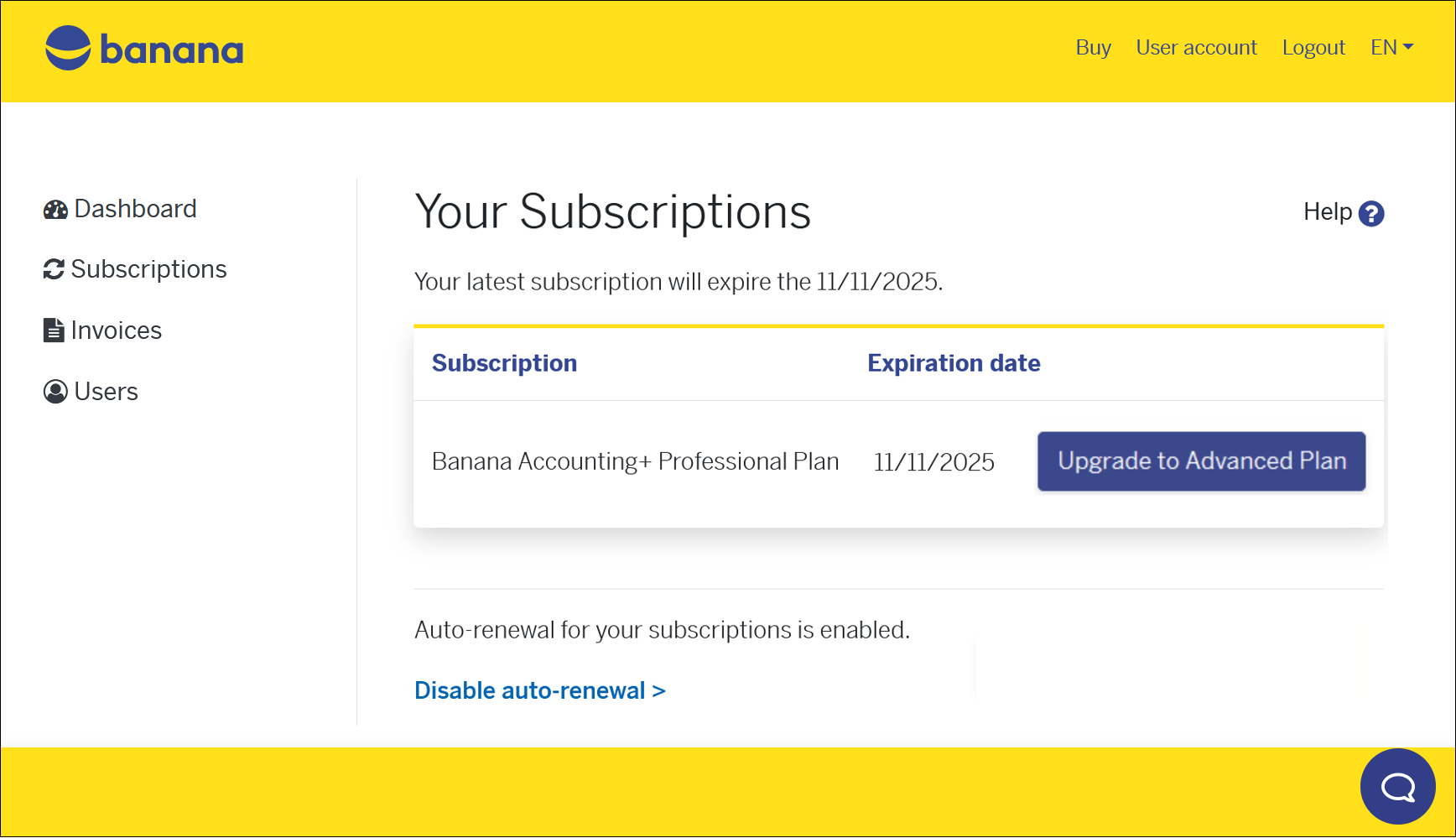
You can perform the following operations:
- Renew your subscription directly from here. You only see the Renew button if you are close to your subscription's expiration date.
- Upgrade to Advanced plan - your price will be automatically calculated on a pro-rata basis depending on your remaining period
Cancel your subscription
From the left side menu, choose Subscriptions and then click on the Disable the auto-renewal link.

Disabling the auto-renewal is equivalent to giving notice to cancel your subscription.
However the subscription remains active until the expiration date.
If, in addition to disabling automatic renewal, you no longer wish to receive our newsletters or expiry notifications either, you must also change the Notifications settings from the Dashboard.
Orders and invoices
From the left side menu choose Invoices.
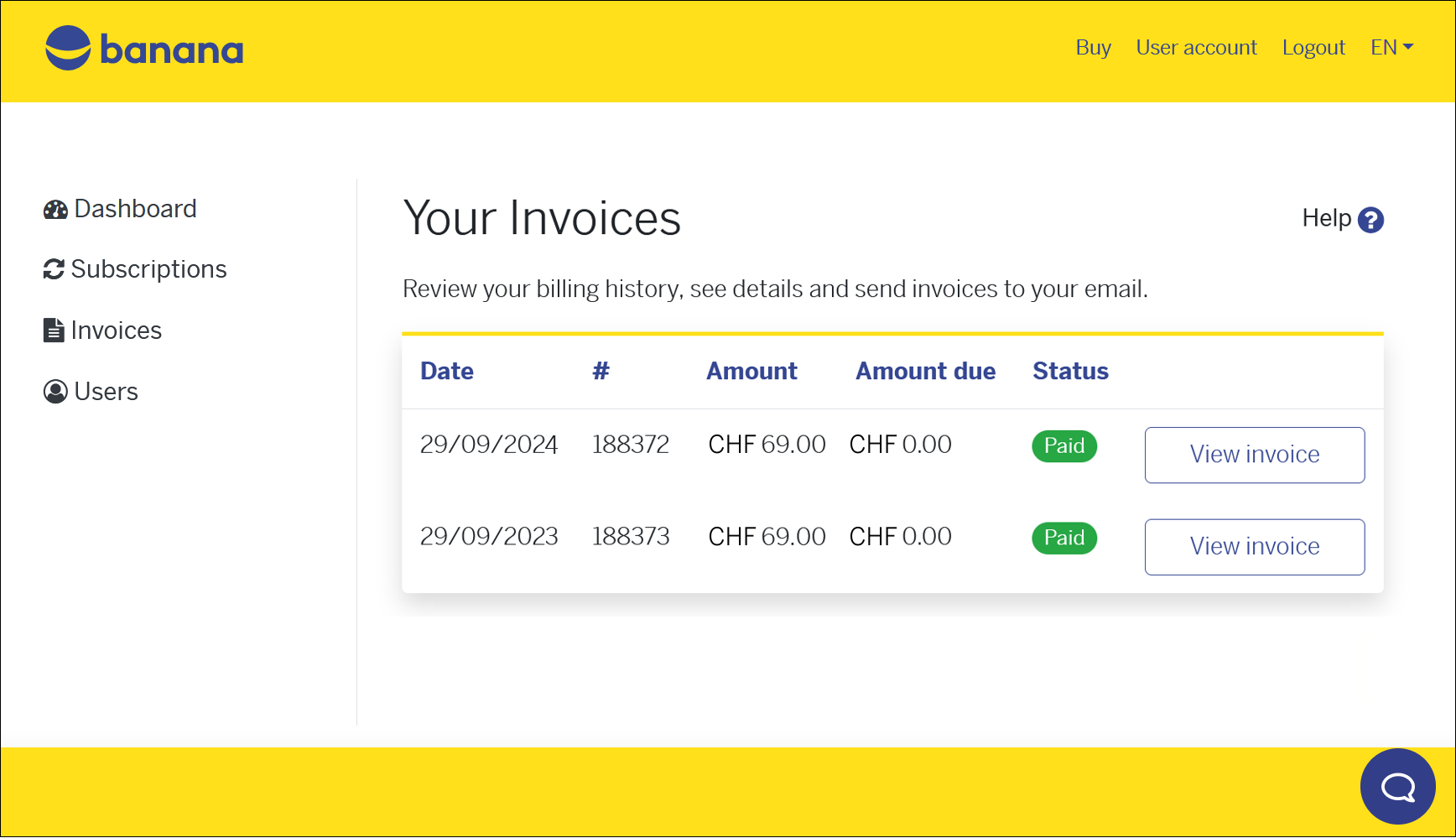
You can see all your past orders, the amounts you paid, and the status of each invoice. If you need to download or print your invoices proceed as follows:
- Click on the View invoice button (you can also download it in PDF format).
For purchases from Switzerland and Liechtenstein there is also the Resend the invoice to your email button (always PDF format).
In the case of open invoices (payment deadline within 10 days) see the Pay now button.
For purchases from countries other than Switzerland and Liechtenstein, the invoices are generated by our partner Paddle. Paddle handles all international payments.
Payment method
The payment method can be viewed and edited directly from the Dashboard by clicking on the Modify button .
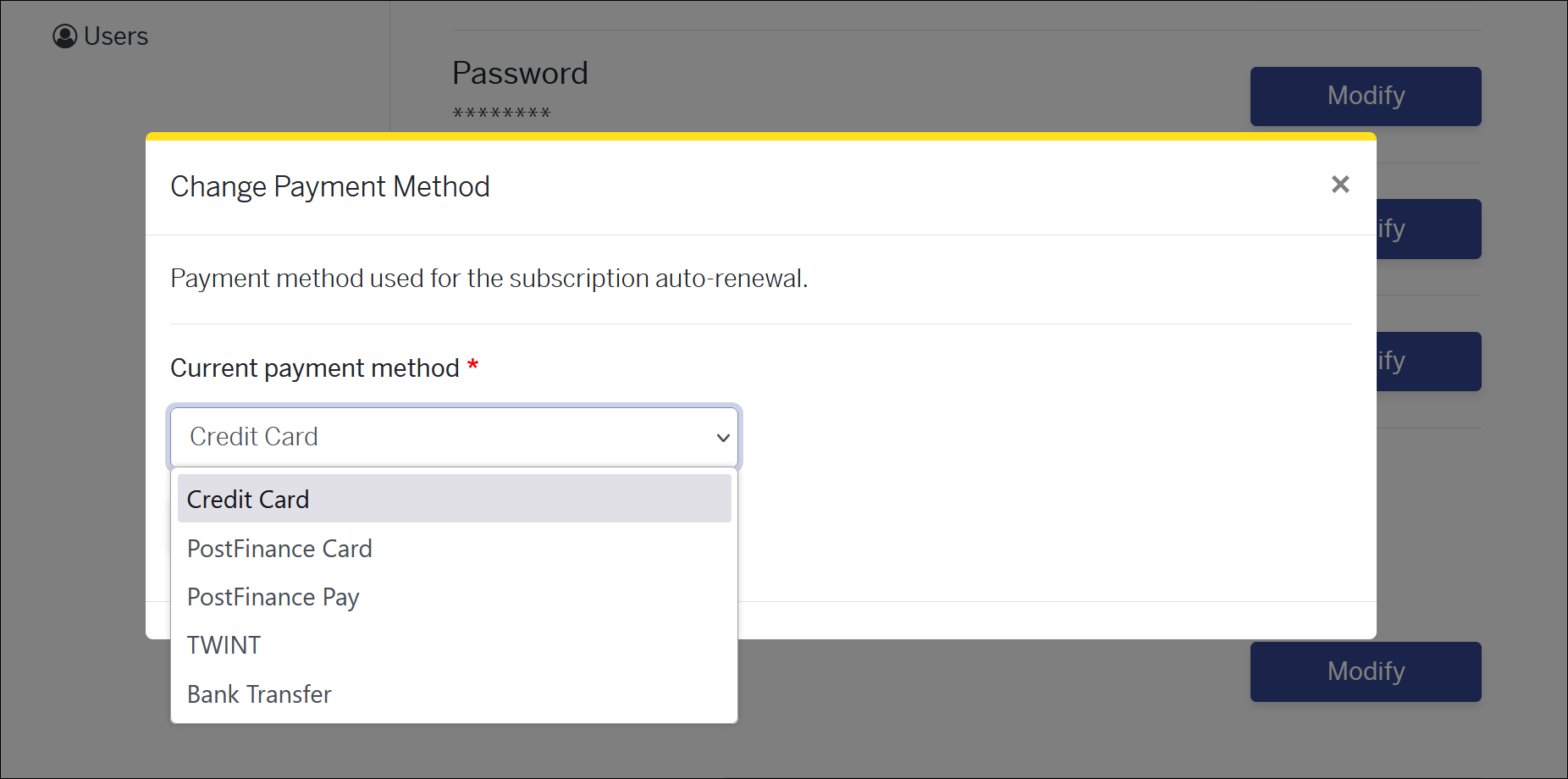
You can see what your last payment method was and change it if you want, for the next payment.
Payments from Switzerland and Liechtenstein
For processing payments from Switzerland and Liechtenstein (according to the country indicated in the Address section), we rely on the Postfinance platform. Postfinance handles all national payments, stores payments data, and offers different possible payment methods:
- Immediate payment and, on the next due date, automatic charge.
- Credit Card - Banana.ch does not save sensitive credit card data (they are kept by our payment provider, PostFinance).
You will be asked to enter your credit card data:- The first time you make the payment or you have set the credit card as the payment method.
- If the credit card has expired or is no longer valid.
- If during the year you change your payment method to credit card, Banana won't ask you for the card details immediately, but you'll be able to enter them at the time of renewal payment.
- Credit Card - Banana.ch does not save sensitive credit card data (they are kept by our payment provider, PostFinance).
- Immediate payment and, on the next due date, a new payment will be necessary
- PostFinance card
- TWINT
- Manual payment and, on the next due date, a new manual payment will be necessary
- Bank transfer - Payment within 10 days from the invoice date.
If you remove the existing payment method with the Remove button, you can select a different one. Automatic subscription renewal can always be disabled from the Subscriptions page.
Payments form other countries
For processing payments from other countries (according to the country indicated in the Address section), we rely on an external sales platform, from our partner Paddle, who handles all international payments, stores payment data and applies the local VAT to the transaction.
The following payment methods are available: Credit Cards, Paypal, Google Pay (are from Chrome browser), Apple Pay (only from Safari browser), etc.
Change password
The password can be changed directly from the Dashboard > Password, by clicking on the Modify button.

You can change your user account password anytime.
Change email address
The email connected to your Banana Accounting Plus subscription is very important, as you need to enter it in the program to activate it. If you need to connect your subscription to a different email address proceed as follows:
- from your user account, from the Dashboard > Email, click on the Modify button.
- From the Banana Accounting Plus program enter and verify the new email.
This procedure is useful, for example, to associations that change their treasurer. Likewise, they can change their mailing address.
Please note: it is possible to have an administrative email other than the email of the person using the software. The administrative email can be changed in the section Change address. The email of the user of the software can be changed in the Users section.
Change address
Your location address is where our invoices are sent and addressed to. If you need to update it you can easily do it from your user account.
From the Dashboard > Billing > Name and address, you can see your current registered address, but you can edit it and update the page with a new one. Press the Change address button to save your changes.
Change language
It is the language in which your invoices are processed, your reminder emails and newsletters are sent.
From the Dashboard > Language, you can see the language currently used for your user account, and you can easily change it from here. Click on the Change language button to save your changes. The change affects all future documents; documents that have already been processed will not be changed.
Notifications
In this section you can indicate whether you would like to receive subscription expiration notices and our newsletters.
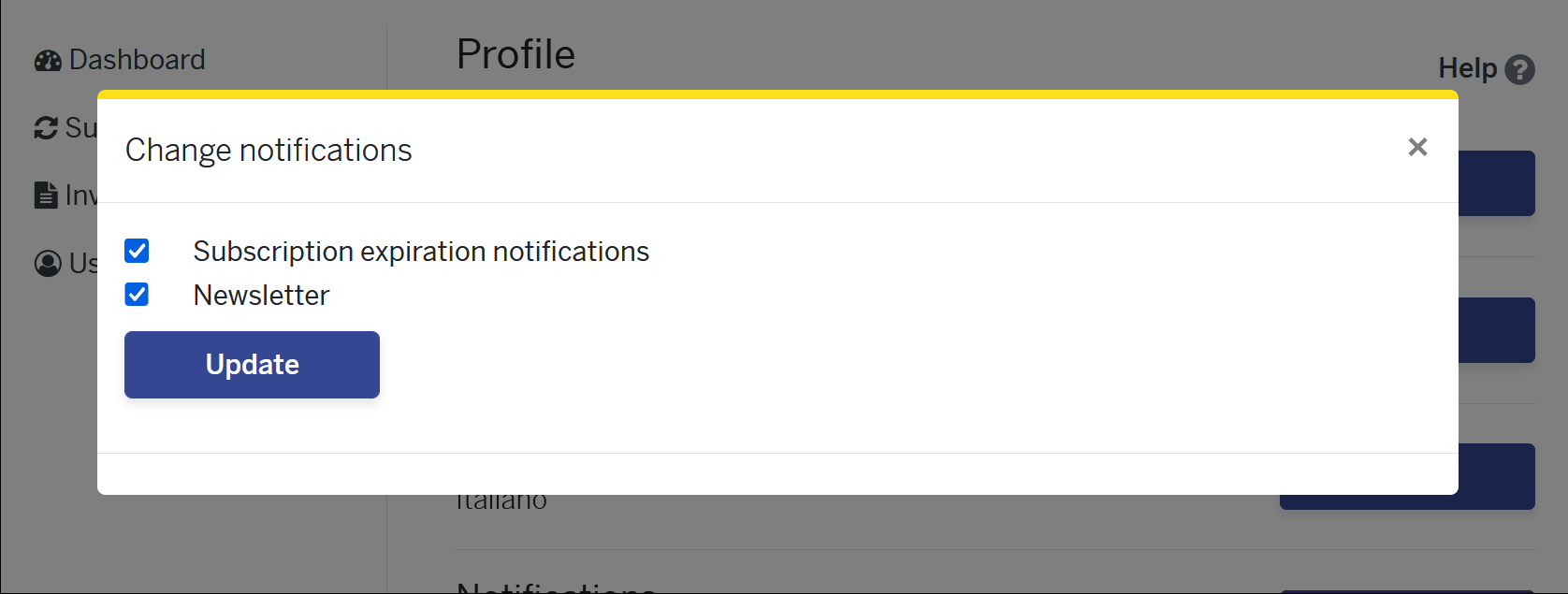
By default both options are turned on. You can turn them off by simply removing the check from their respective boxes and then pressing the Update button.
Users
From this section you can manage the users connected to your subscription.
You can add multiple users to your subscription at any time during the year, creating a multi-user subscription. A single-user subscription includes only one user, but you can always purchase additional seats.
For a company, a multi-user subscription is attractive because there is only one purchase/renewal invoice and it can manage its users independently.
Please note: it is possible to have an administrative email other than the email of the person using the software. The administrative email can be changed under Change address. The email of the user of the software can be changed in the Users section, using the Manage button.

To add users to your subscription, click on the Buy more button (the system will calculate the pro-rata for adding the user until the administrator subscription's expiration).
Forgot password?
If you forgot the password to your Banana user account, you can reset it and create a new one.
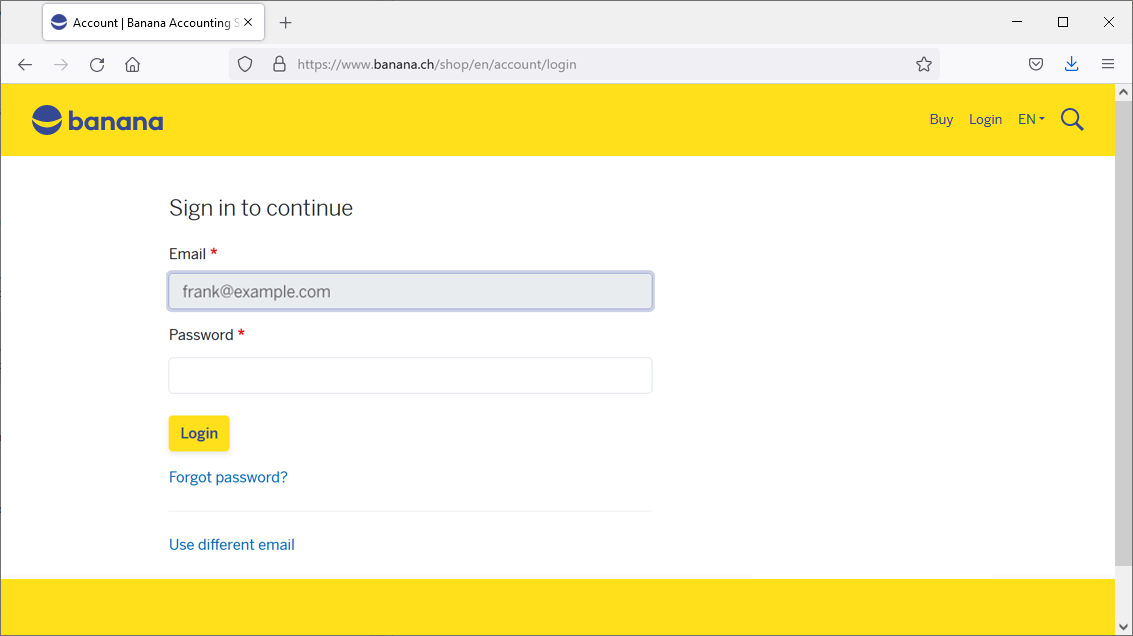
When logging into your user account click on the Forgot password? link.
You will be asked confirmation that you want to reset the password.
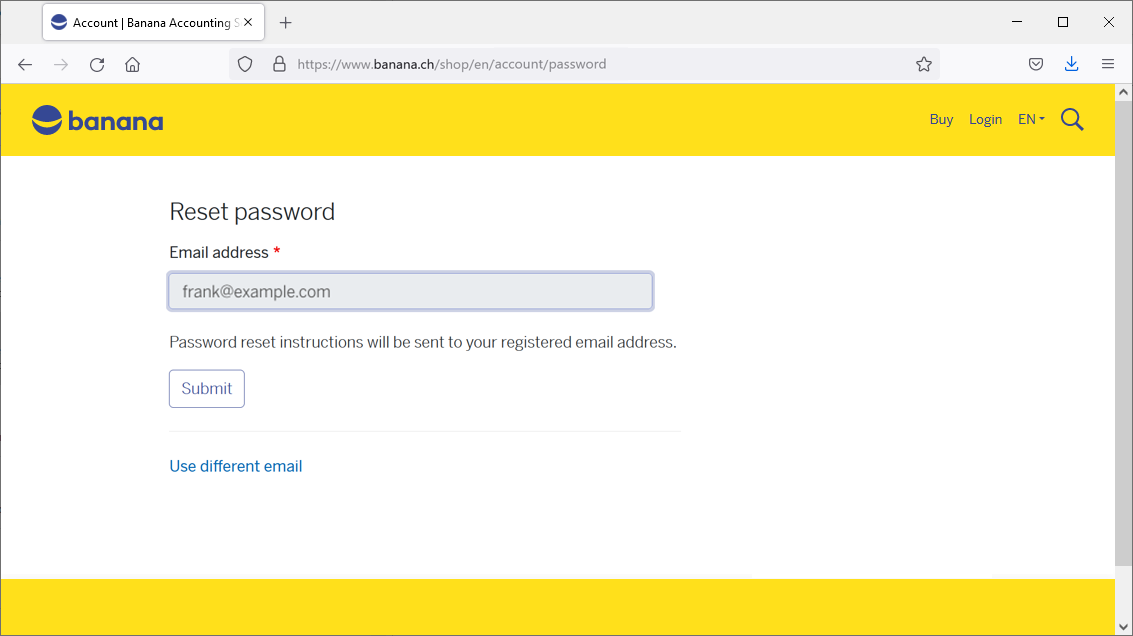
Press on the Submit button.
You will receive an email in your inbox of your mail provider, similar to the one below:
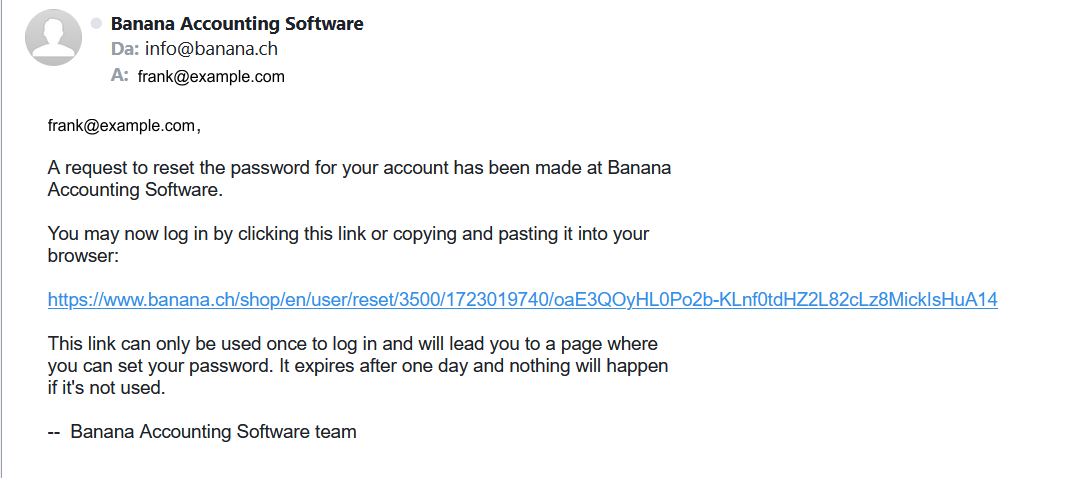
Click on the link.
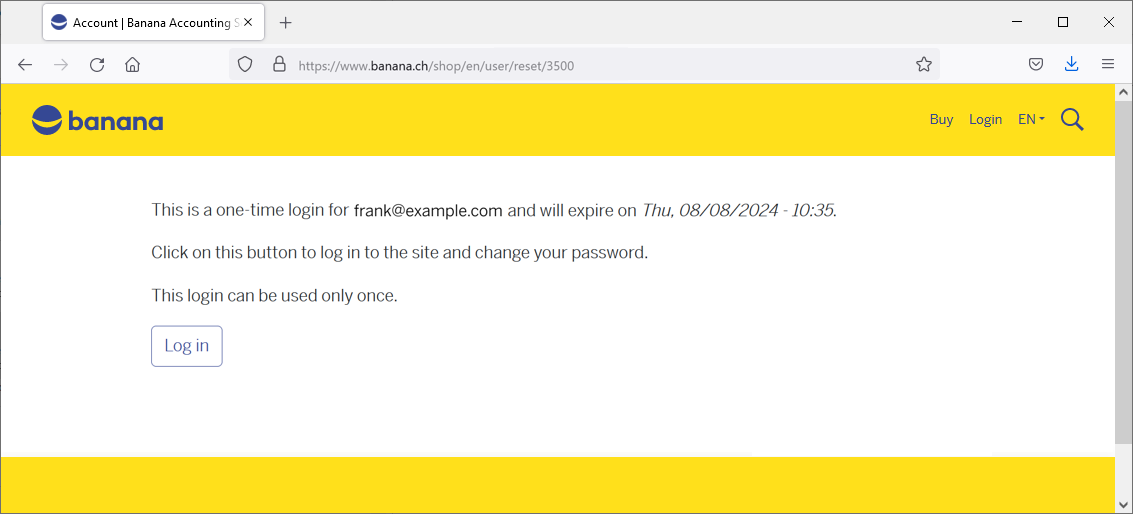
Press on the Log in button.
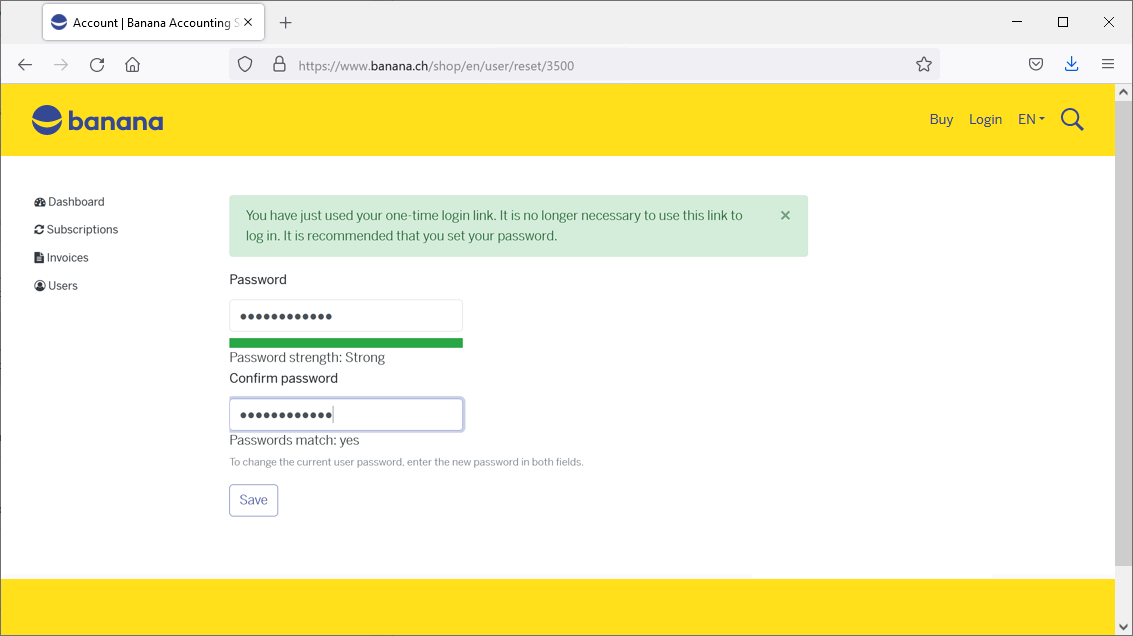
In this dialog you need to enter twice your new password and then press the Save button.

If you see the green message "The changes have been saved", it means that you are already logged into your Banana user account and that your new password has been saved.
You are back to the Dashboard of your user account.
用于国际用户购买的账户
MyCommerce Digital River 不再是我们国际购买的合作伙伴。我们新的合作伙伴是 Paddle。
您可以直接在我们的商店中购买。购买后将自动创建一个 Banana 用户账户,您可以在其中查看所有订阅信息。
重要说明:
- 请使用您已在我们这里注册的相同电子邮件地址。
- 购买后,订阅会自动激活,您可以立即开始使用 Banana Accounting。无需许可证密钥或产品密钥。
如有任何问题或需求,欢迎随时与我们联系。
多个用户订阅Banana财务会计+
Banana财务会计+ 的订阅是个人性质的。每个用户必须先使用其电子邮件注册,然后才可以在最多5台个人设备上安装并使用该程序。如果您符合此种情况,请访问订阅页面。
在多人使用Banana财务会计+ 的公司,必须购买一个多用户的订阅计划。
多用户订阅的好处
- 使用 Banana财务会计+,从单个用户账户管理所有的员工。
- 通过输入主要的 (管理) 电子邮件访问用户账户。
- 通过管理电子邮件接收所有用户的单一发票。
- 独立管理辅助电子邮件 (使用该软件的人)。
- 随时添加新用户。
从您的Banana财务会计+ 用户账户中,总能看到您的订阅状态、到期日、发出的发票,以及更多的信息。
全球用户如何购买多用户的订阅计划
进入全球用户的购买页面,选择所需订阅计划的类型和数量。
在购买后,您会收到一封确认邮件,其中附有发票,发票上会显示每个已购买订阅计划的产品密钥。例如,如果一家公司为其员工购买了5个订阅计划,发票上将显示5个产品密钥。
然后,每位用户必须:
- 下载 Banana财务会计+。
- 安装 Banana财务会计+。
- 用产品密钥激活订阅计划。
警告! 对于每一个产品密钥,您必须使用不同的电子邮件。例如,如果将相同的电子邮件用于两个产品密钥,程序则会添加为两个订阅(也就是说,将变成由单一用户使用的一个订阅,有效期为两年。)
如果您需要帮助,请随时向我们的客户服务部门发送电子邮件。
常见问题
如果我已经对两个产品密钥使用了相同的电子邮件,怎么办?
直接联系我们的支持团队,对您的问题进行描述,并尽可能的指示出您购买产品密钥所用的订单号。
在哪些情况下我需要进行多次购买?
如果您的公司需要多名员工使用Banana财务会计+ ,则每个用户都需要订阅。每个用户都必须有一个使用Banana财务会计+ 的个人登陆电子邮件。每个用户都可以在该用户使用的最多5台设备(台式电脑,笔记本电脑,手机等)上使用Banana财务会计+ 。
我可以在5台设备上安装Banana财务会计+ 是什么意思?
每个用户都可以在自己使用的最多5台设备上安装Banana财务会计+ ,并始终使用该注册用户的电子邮件来激活程序。例如,您可以将Banana财务会计+ 安装在台式电脑(在家或在办公室),笔记本电脑,手机等设备上。这也意味着,如果会计文件被保存在某些云端(例如ICloud 或 Dropbox上),用户则可以从他的所有设备上对该文件进行访问并操作。
使用条款始终保持有效。
是否可以在运行终端服务的服务器上或Windows域中安装Banana财务会计+?
Banana财务会计+ 可以安装在Windows域中注册的电脑上,并有活动目录和漫游用户配置文件,以及提供终端服务的电脑上。每个用户都必须按上述步骤进行激活,有关激活的数据会保存在用户的配置文件中。
Offline Multi-User subscription
For large companies, public bodies, institutions or schools, it is also possible to obtain an Offline Multi-User subscription.
How the Offline Multi-user Subscription Works
This type of multi-user subscription involves the preparation, by our development team, of a programming string (which includes all the subscription data) that your IT administrator can use to install Banana on the server, giving access to the various computers.
This type of subscription refers solely to the installation method of the software and should not be confused with the saving of Banana accounting files (in .ac2 format). These files can be saved wherever you prefer: in a local folder, on a company network drive, or in the cloud. More information can be found on the following pages:
- Save your Banana Accounting Plus files also on the Cloud
- Organize your accounting files efficiently locally, online, or in the Cloud
Features of the Multi-User Offline subscription:
- Individual users do not have to do anything; they already have access to Banana from their computers
- Renewals are managed at the administrative level
- The administration does not have to manage the emails of individual users
- Banana.ch SA provides a dedicated contact person
How to apply for an offline Multi-user subscription
- For schools or training institutions that use Banana for educational purposes - fill out the online form
- If you are a company or institution, send us a request
We will evaluate your request and contact you.
Technical installation info for the Offline Multi-user subscription
In order to be able to use an Offline Multi-user subscription, you need to run the Banana-setup with the parameters specified below.
Subscription dialog
When you use the offline activation method the Manage Subscription (from the Help menu) will show the subscription information. Users will not be able to modify their subscription information.
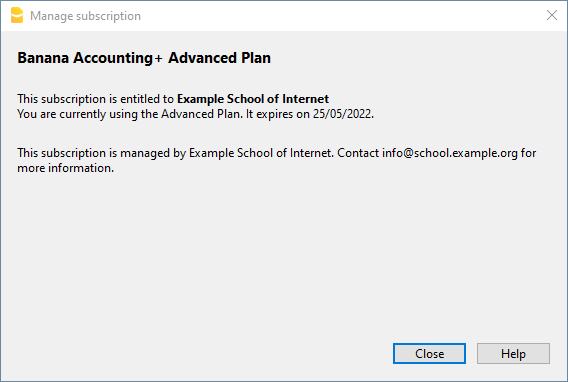
Activation during installation
For Windows only, open a Command Prompt in Administrator mode and launch the installer using the following parameters.
Bananaplus-setup.exe /VERYSILENT /<user option> /MAIL=<your@mail.address> /KEY=<the activation code without line break>
- user option:
- /ALLUSERS: tells Setup to install in administrative mode. (Installation under C:\Program files).
- /CURRENTUSER: tells Setup to install in normal user mode. (Installation under %localappdata%\Programs)
Here you will find more information about the command line parameters.
Example:
Bananaplus-setup.exe /VERYSILENT /ALLUSERS /MAIL=info@school.example.org /KEY=U0QxM8o77zlMg16K7HohVa8Ex1njLn+o8SMv5nahijMheIwJg8zW1dq9JWrkAc2y0wispI+yvOhdgIq3ucqV2HGxiI6YK75xD57gROP9d5n6MBZ8I5e
Activation after installation
The process is very similar but instead of running the Bananaplus-setup.exe you need to run the BananaPlus.exe.
The parameters are different.
- -cmd=activate_sub: tells BananaPlus that this is a subscription activation
- -cmd_p1=<your@mail.address>
- -cmd_p2=<the activation code without line break>
You can use this proceeding to update the license information.
In this case, it's better to put the parameters in quotes
Example:
BananaPlus.exe "-cmd=activate_sub" "-cmd_p1=info@school.example.org" "-cmd_p2=U0QxM8o77zlMg16K7HohVa8Ex1njLn+o8SMv5nahijMheIwJg8zW1dq9JWrkAc2y0wispI+yvOhdgIq3ucqV2HGxiI6YK75xD57gROP9d5n6MBZ8I5e"
Update to a new version of the software
If you run again the installer the license information will be retained. But it may be advisable to redo the installation from beginning and have a clean installation.