基本会计功能
The grouping system in Banana Accounting+
Banana Accounting's grouping system is used to totalise the amounts of accounts and groups quickly and easily. The programme gives you maximum flexibility to create as many levels of totalling as you want.
▶ Video: Grouping and totalling system
Where it is used
- In the Accounts and Categories tables to define the structure of the Balance sheet and the Profit & Loss Statement.
- In the VAT Codes table to group VAT codes
- In the Items table in the Stock Application.
- In the Items table in the Fixed asset register Application.
How it works
Grouping is always based on two columns:
- The Group column, where group identifiers are indicated, which may be textual or numeric.
- The column Sum In, where for each account or group row the Totalisation Group is indicated.
Each group row is a total row, where:
- Group balances are the sum of the rows that contain the group name in the Sum In column.
- The programme calculates the totals of all columns containing amounts (type Amount), both the predefined ones (Opening, Balance, etc.) and those added manually.
Grouping allows the creation of many levels of totalisation.
The logic of the programme
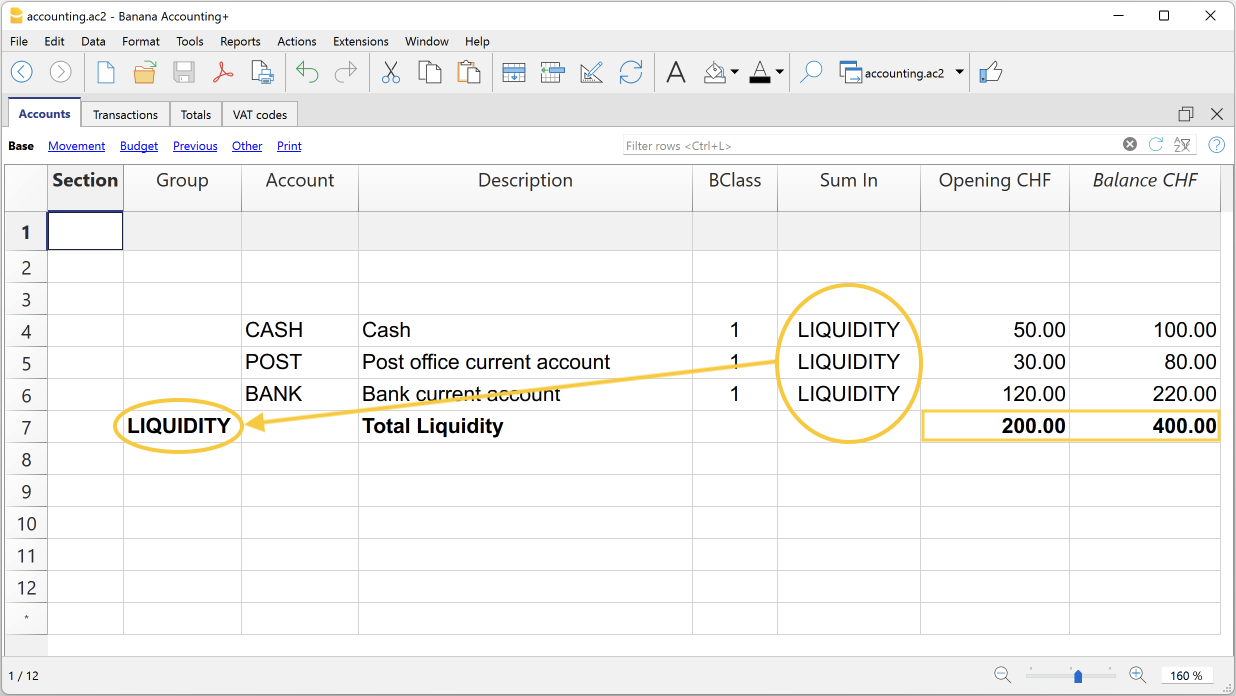
To understand the logic, let us present an example of a small part of the chart of accounts. For the accounts Cash, Post and Bank we create the Liquidity group:
- In the line below the liquidity accounts, in the Group column, enter the name of the Liquidity group.
- In the Description column, you enter the description of the group.
- In order for the programme to be able to update the balances in the liquidity group, it must be indicated which accounts are to be totalled.
In the Sum In column of the Cash, Post and Bank account, the name of the cash group is entered. The balances of the group are updated immediately.
Using the same logic, we can also group groups. In fact, groups can also be totalled into other groups at a higher level.
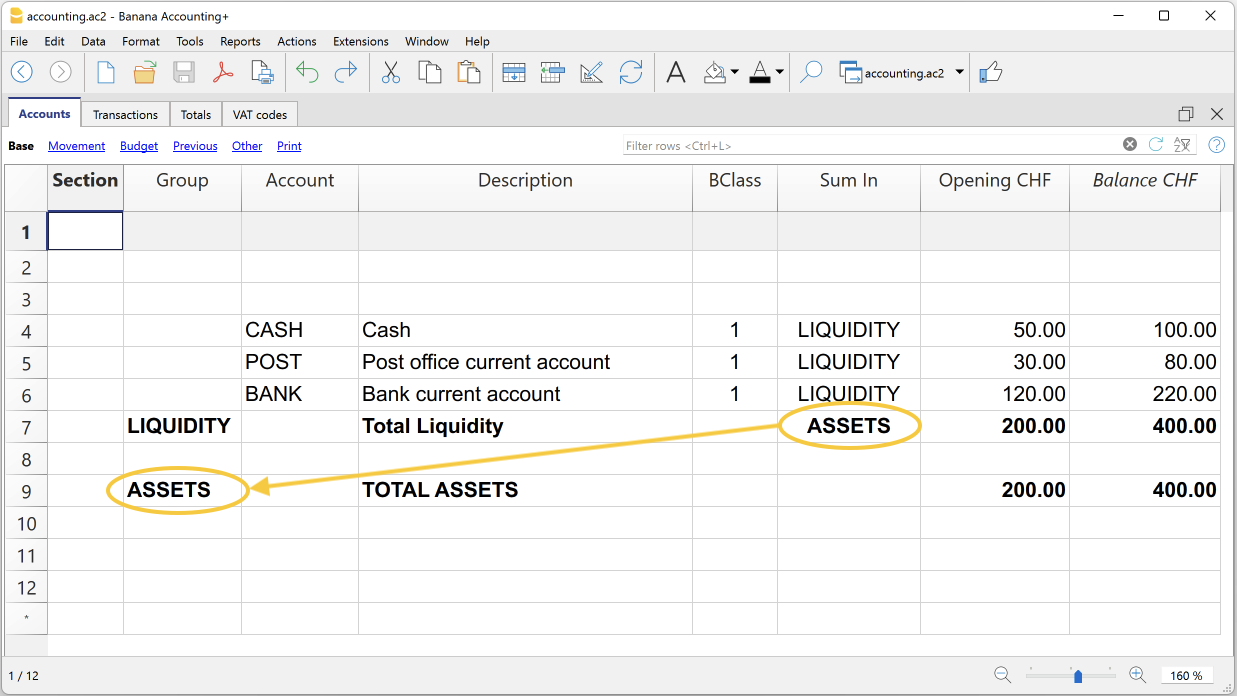
Suppose we add a group into which to group and then total the Liquidity group.
- In the line below the Liquidity group, in the Group column, the name of the Assets group is entered.
- In the Description column, you enter the description of the group.
- In order for the programme to be able to update the balances in the Assets group, it must be indicated which groups are to be totalled.
In the Sum In column of the Liquidity group, the name of the Assets group is entered. The group's balances are updated immediately.
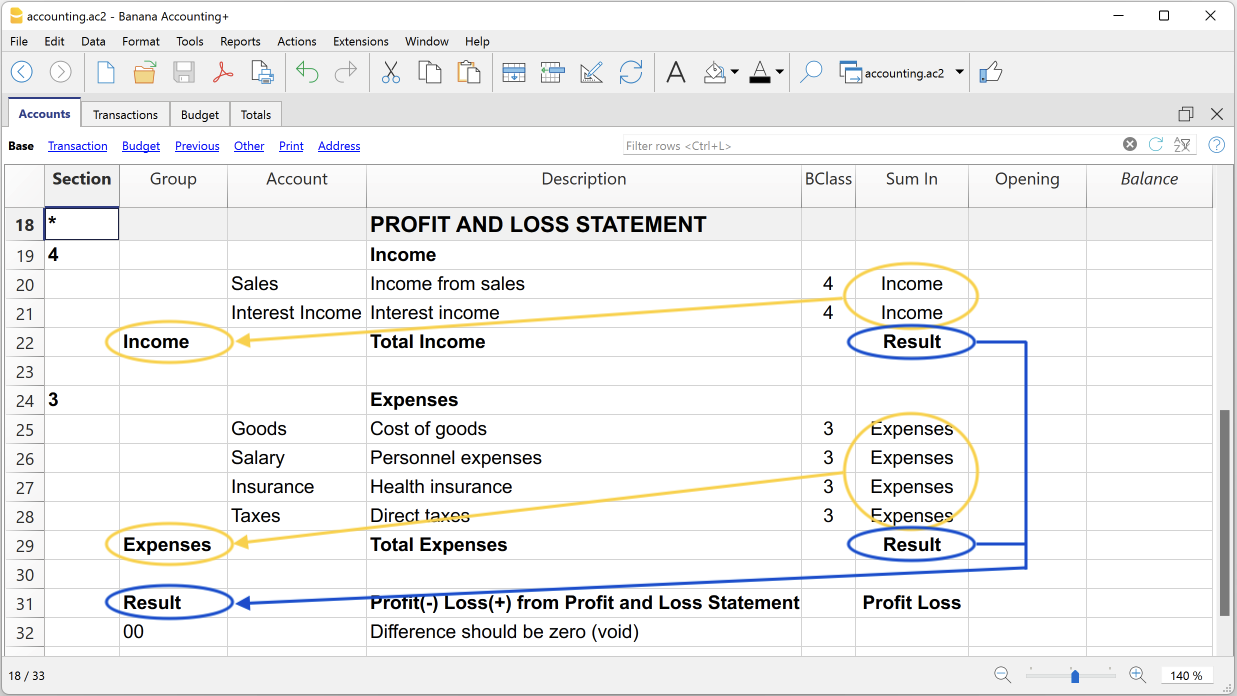
Following this logic, it is possible to create a structure with groups and subgroups for the entire chart of accounts, in order to create charts of accounts suitable for any specific country and requirement.
The exact same logic can also be applied for grouping VAT codes in the VAT Codes table, and also for grouping items in the Items table of the Warehouse and Fixed asset register.
Extensive use of the totalisation system
The totalisation system is very flexible:
- Accounts and groups can be added together in a group.
- Title texts can be assigned the group to which they belong.
- Any kind of numbering (numerical and/or letter) can be used.
- Up to 100 totalisation levels can be created.
- Group totalisation is independent of the sequence of rows:
- The total row can be defined before and after the account or group rows.
- The total row can also be defined in a completely detached position from the account and group rows, as in the case of the Accounts Payable / Suppliers ledger.
- The same account cannot be totalled in two Groups at the same time.
- The system is also used to total the Cost Centres and Segments.
The totalisation of amount columns
The calculation procedure totals the columns of type amount.
- The amount columns defined by the system are totalled.
- The amount columns added by the user are totalled.
The calculation sequence
The programme calculates totals as follows:
- Clears the column amounts of the Group rows.
- Adds up the amounts of the Accounts rows in the Group rows (first level of calculation).
- Adds up the balance of the Group rows in the higher level Groups.
Repeats the operation until all levels are calculated.
When a Group is totalled in a lower level Group, an infinite error loop is created.
Error checking and reporting
When creating groupings, the programme checks and reports any errors so that they can be corrected immediately.
When a non-existent group has been indicated in the Sum In column, the programme reports the error 'Group not found'. In this case it is sufficient to:
- Create the group in the Group column.
- Recalculate accounting with the command Check and recalculate accounting
- Recalculate all totals with the command Recalculate totals.
Rename groups
With the Rename command, existing group names can be renamed automatically, without having to manually change the matches in the Group and Sum In columns.
Printouts
When printing the Balance Sheet, Profit and Loss Statement or other reports that contain groupings, the printout shows the order of the groupings as they have been set in the various tables.
转换至最新的会计账套
下面我们将介绍如何处理以下情况:
- 传递一个不同的编号到会计科目表
- 检索现有会计数据,发生业务,并将其转换为新的会计科目表。
转换为新的一年
如果您想以新的会计科目表开始新的一年,有两种可能性:
- 转换前一年(2022年),然后创建新的一年(2023年)。
您将会有两个2022年的文件(包含有旧账号的账户列和有新账号的账户_1列的文件)和只有新的会计科目表的2023年的文件。
这种方法可使两个年度的会计科目表保持一致。
这样,您也可以在2022年继续做出改变,然后在2023年恢复期初余额。 - 创建新的一年(2023年),然后转换2023年的文件,结转余额。
2022年的文件将保持不变。对于2023年,您将有一个中间文件,使用旧的会计科目表,但结转期初余额。
2023年文件的转换可以立即进行,也可以在输入发生业务后进行。
如果您在2022年的文件中拥有旧的账号,您将无法在 2023 年恢复在 2022 年所做的任何进一步更改。
步骤1:创建一个新的会计文件
- 创建一个新的文件:
- 根据您的需求来修改账户科目表。
步骤2:添加匹配的账户
- 在账户表格中:
- 数据菜单 → 列设置
- 点击窗口内的添加按钮
- 然后输入账户_1的摘要
- 在账户_1列中,在旧账户分类表中为每一个账户输入相应的账户;
如果账户保持不变,可以省略。 - 如果有些账户需要被分在同一个组内,输入分离账户时请输入一个分号,例如“1000;1001”。
在这种情况下,重复 1000 账户,否则只需要 1001。 - 如果同一个账户需要被细分为几个账户,您需要进行手工处理,请参见下文。

步骤3:开始导入操作
- 点击操作菜单 → 导入到账套 → 导入文件。
- 通过浏览按钮,选择带有旧会计科目表的会计文件。

- 点击OK按钮确认,并进入下一个窗口;
- 定义导入选项;
- 激活账户号码选项,表明该账户匹配在目标文件中。

重复导入
如果报告了错误,需要重复导入,必须取消导入操作,使源文件为空,否则余额的数额会重复,无论是在期初余额还是在发生业务表中。
一个账户细分成几个账户
当一个账户需要被转换成更明细的账户科目表时,把一个账户细分成几个账户是必要的。
在导入操作完成后,您可以从以下几个方式进行手工操作:
- 在账户科目表中,把一个账户的期初账户、预算金额和先前金额细分到几个账户中;
- 一个账户中的过去的交易,需要一个接一个地被细分,并将其分配到具体的账户中,或者当一个数额需要被细分为更详细的金额时,则需要创建额外的发生业务;
- 用相同的方式对预算表格中的发生业务进行处理。
结果和可能出现的错误
假如程序报告错误(账户缺失或其他),导入操作可能需要被取消,匹配需要被完成;然后重复导入操作。
当本程序面临不同的账户科目表时,不能自动完成广泛的核查,因此不能保证所有的数据都可以被导入或是被正确的分组。
因此,我们强烈建议您人工核查结果,确保资产负债表和损益表的总额是正确的。
会计报表文件
会计报告是一种文件类型,在其中设置了特定的表示方式,以指示与会计计划不同的将账户分组的方法。
创建的分组方案与账目相匹配,以提取和总计为新报表选择的账目。
外部会计报告除了用于定制资产负债表和损益表或其它报告外,还可用于切换到不同的会计科目表并转移相关余额。更多细节可参见更改会计科目表的页面。
- 按照指定的组进行分组
当需要根据不同的标准对账户进行分组时,这种方式非常有用,例如,按照分组系统显示的资产负债表/损益表和账户表中的设置是不同的。- 在报告中,分组系统被生成。
- 对于会计账户表中的每一个账户,在所属组1列(或另一列),表明账户必须在这里被分组。
- 当生成报告时,在报表文件中标记分组的所有账户都会被结转。
- 按照指定的账户进行分组
如果用户不想选择所有的会计科目,只选定部分会计科目,此方式是非常有用的。- 在报告中,表明应包含在会计文件中的账户表的账户。
- 执行报告时,只有指定的账户被结转。
创建会计报告
为了生成一份会计报告:
- 点击文件菜单→ 新建命令 → 会计报表的选项
- 可以选择一个现存的模板或使用新的模板开始
- 以一个新的名称保存生成的文件

会计报告的列
会计报告文件中包括了与被用于创建账户表格中的分组和总计相同的列。

类
该列显示出所使用的值。
有关各种可能性,请参阅类的页面。
总组
必须对会计科目进行汇总的组或报告组。
账户 (仅在完整视图中可见)
账户必须被包含在报告中。
- 如果指明账户,当执行报告时,它们会发生结转。
- 如果未指明账户,账户可以通过组被结转。
摘要
分组的摘要或是该行本身的摘要。
汇总
在汇总列中,表示必须对行进行总计的总数。
总和
如果是单词“Yes”被输入,只有总行被显示,而不是该总行里的一部分账户被显示。
详情请参阅会计报表中的“只显示组汇总”。
表保留行
通常情况下,包含账户余额的总行数会被包括在报表中。
如果您在该列中输入“Yes”,该行将会一直显示。该功能可以被应用于总计和账户中。
含本期发生额报表
该行不仅是有余额的时候才显示,当此处有本期发生额时,也会被显示。该功能只可应用于总计中。
创建通过组链接的报告
- 在报告中,根据需要创建一个组或分组系统。
- 在账户表中,所属组1或所属组2的列显示出必须要被汇总的组。
如果所属组1列(或其他首选列)不可见,请使用列设置命名使其可见。 - 未链接的账户不会包含在报告中。
- 通过命令执行报告:
- 按组生成资产负债表
- 会计报告
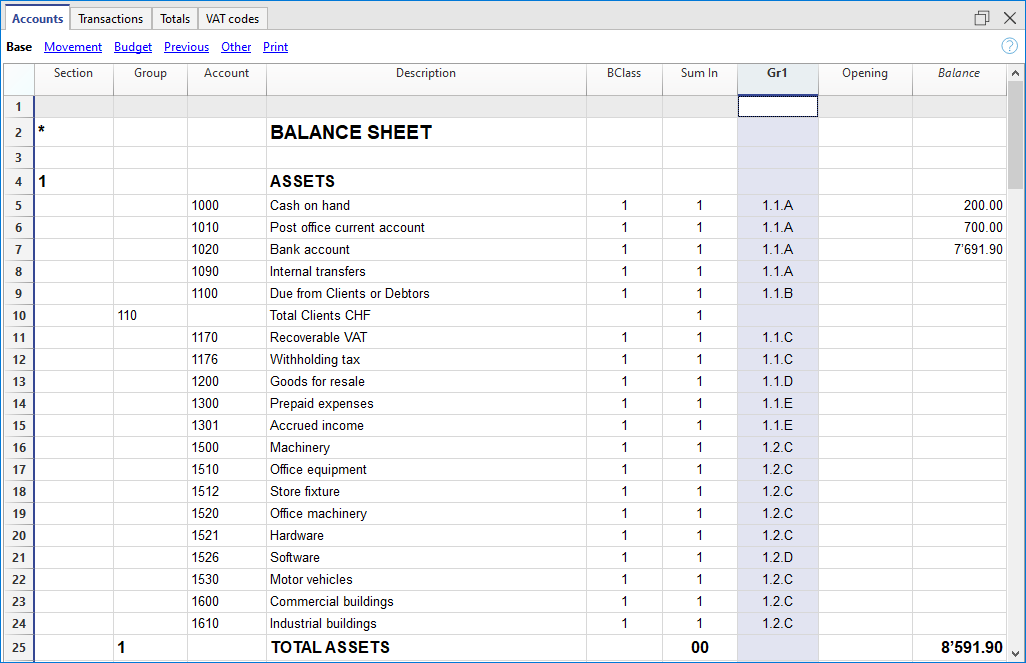
创建选定账户的分组报告
即使报告中只显示一个账户,此程序也是有效的。
如果希望报告在组的程序下执行,请勿指明任何账户。
报告中显示:
- 会计账户必须被组合在一起。
报告中只显示选定的账户。 - 账户中的组必须分在一个组里。
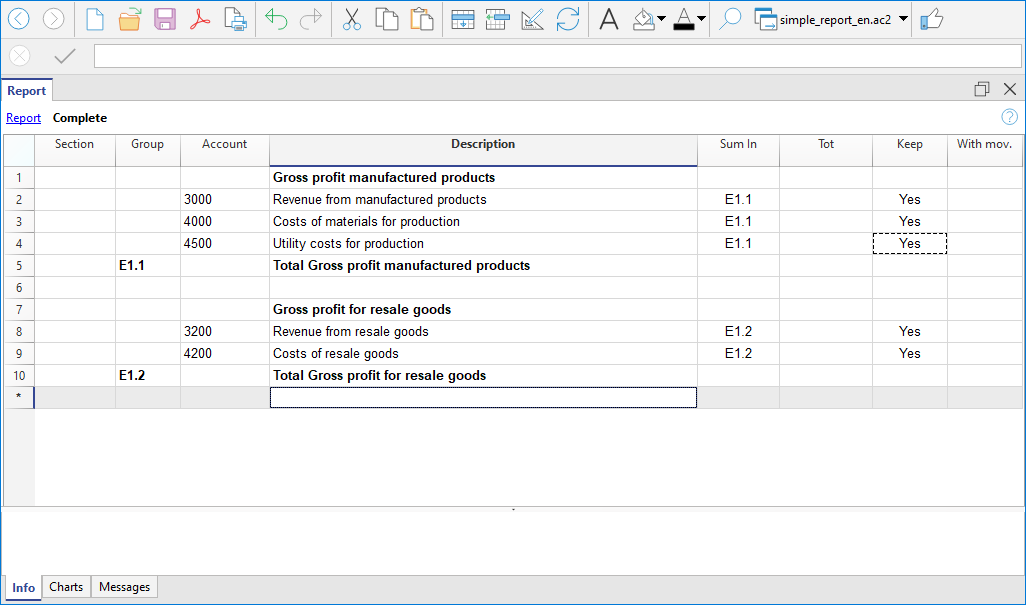
- 从报表菜单中选择按组生成资产负债表的命令
- 然后选择会计科目表 → 类 → 外部会计报告。
- 从报表菜单中选择会计报表的命令 (然后选择基本选项中的外部会计报告选项)。