数据控制与安全
The temporary Filter rows feature
With the Temporary Row Filter of Banana Accounting Plus, you can display only the rows that match a keyword (or other search criteria), quickly finding the desired transactions.
The big advantage is the direct editing of data and significant time saving , without altering the permanent order of the table. Once the Filter is removed, the rows return to their original order.
The Temporary Row Filter function is only available in the Advanced plan of Banana Accounting Plus. It’s also possible to test it with the Free or Professional plans, up to 70 transaction rows.
The most common uses of the Temporary Row Filter are the following:
Note: the Temporary Row Filter is different from the Sort Rows command (from the Data menu), which permanently changes the order of the rows.
Find rows with a keyword
Enter any text (or amount). The Temporary Row Filter immediately displays all rows that contain it.

The text highlighted in green is for explanatory purposes only; it does not appear in the software.
After making the necessary checks and edits, you can simply remove the Filter (delete the text or click the X icon next to the Filter field) and the transactions return to their previous order.
The editable account card
One of the most common uses of the Filter in Banana Accounting Plus is the ability to obtain an editable account (or category) card. In practice, you can view transactions related to a specific account and make the necessary changes directly.
How to obtain an editable account card
In the Temporary Filter field, enter the following combination:
!=account code
For example, if you enter !=1020 you will obtain an editable account card for account 1020. The != sequence tells the Filter to display all rows where a cell contains the code 1020.

How to obtain a modifiable account card when the account is descriptive and made up of two or more words
In the Temporary Filter field, enter the following combination:
!="account text"
For example, if you enter !="Bank XX", you will get a modifiable account card for the account Bank XX.
The sequence != tells the filter to display all rows where a cell contains exactly that value.
When the text you are searching for consists of two or more words separated by spaces, you must place the text in quotation marks.
Edit and return to full view
Within the editable account card you can perform checks and correct the transactions.
Once the verifications are complete, you can remove the Filter:
- by deleting the entered text, or
- by clicking the X icon next to the Filter field.
This way, all transactions will be shown again in their original order.
Highlight colored rows
Rows are often colored when you want to return to them later, for double-checking, for review by someone else, or because they are transactions to be completed. The ability to highlight them all at once avoids scrolling through the Transactions table and gives a clear overview. The time savings and work convenience are evident.
How to highlight colored rows
In the Temporary Filter field, enter the following combination:
!_co! or !_color!
The program displays all colored rows.

It is also possible to display only rows of a certain color. The program assigns each color a style number (from number 2 onward) based on when the color was first applied. You can therefore use, for example:
- !_co!2 to see rows with style color 2 (in the example, light blue)
- !_co!2|3 to see rows with style color 2 and 3 (in the example, light blue and green rows).
After making the necessary checks and edits, you can simply remove the Filter (delete the text or click the X icon next to the Filter field) and the transactions return to their previous order.
Simple Filters
The Filter allows you to find rows simply by entering a text as a search criterion. When you enter the text to search, the program filters all rows that contain the specified text, separated by spaces.
Here are some examples of Filters:
- invoice mario
Shows rows that contain the words "mario" and "invoice" in any position. - mar inv
Depending on the number of rows, the same result can be achieved by entering abbreviated text. - "invoice mario"
Search for text including spaces: if the text is enclosed in quotes, the program considers it as a single word. - "!~Mario"
Normally, the search is case-insensitive.
You can make the search case-sensitive by inserting a special character.
Spaces are always considered as an AND command separator.
- A space means the conditions are additive.
- Never include spaces in the search unless they are within quotes, for example: "invoice mario".
- Examples:
- invoice mario
The program includes rows that contain both "mario" and "invoice".- "invoice mario"
The program considers the quoted text as a single word, including the space. Therefore, it searches all rows that contain exactly "invoice mario" (in that order).
Special characters
You can use almost any character in the search.
Only the exclamation mark "!" and the vertical bar "|" at the beginning of a text sequence have special meaning.
- " " space is considered as command separator and means AND.
- "|" means OR
- At least one of the elements preceded by "|" must be present in the row.
- Example:
- |mario |invoice |fee
the search will display rows that include "mario" OR "invoice" OR "fee". - mario |invoice |fee
the search will display rows that include "mario" AND "invoice" OR "fee". - If you can't find the vertical bar "|" on your keyboard
- On Windows is the Alt-124 character.
- For other OS search on Google
"Windows/mac keyboard layout Italy/Switzerland/US" and look in the image section.
- Command specifier "!".
Any text preceded by the exclamation mark is considered a command and has a specific meaning.
For example, to exclude a text, use the command sequence "!-".
mario !-invoice
Filter Expressions
The Filter Expressions are experimental and may be subject to changes and improvements.
Create powerful filtering conditions using expressions.
The character "!" at the beginning of a text indicates a special search command.
- !
When placed before or after a space, it starts a command sequence. - !!
Is treated as a simple "!" and not as a command sequence. - !-
The minus sign "-" is used to exclude content and can be combined with any other operator.
!-mario !-1000 !-=1000 !-^payment !-~10 - !~
The tilde "~" must be placed immediately after "!" or "!-".
With "~", the search becomes case-sensitive.
!~mario
!-~mario
Command characters
These are the characters that immediately follow the start of the command "!", "!-", "!~", or "!-~".
They can also be used with "-" to exclude and "~" to make the search case-sensitive.
- !=
Finds exactly the specified text in the cell.
!=1000
Can be used with multiple values separated by the "|" character.
!=1000|2000|30000
Empty cell.
Starting from version 10.1.16 selects cells with empty values.
!= - !+
Contains the specified text. Equivalent to a normal search but allows combinations with other characters.
!-+mario excludes rows that contain "mario".
!~+mario excludes rows with "mario" respecting case sensitivity. - !<>
Different from the provided text.
!<>1000 - !.
Wildcard characters (*, ?) for search with special characters.
!.100*
!.100*|2?0* - !^
Starts with the specified text.
^mar
^mar|hom - !$
Ends with the specified text.
!$rio - !_
Search by whole word.
!_100
!_100|200 - !:
Regular expression.
!:\bmario\b
Greater than, Less than, and Ranges
Characters used to compare numeric values or dates.
- Date format: yyyy-mm-dd
2024-12-31 - Amount with "." as decimal separator and no thousands separator.
1999.99
Comparison commands:
- !> Greater than.
!>100 - !>= Greater than or equal.
!>=100 - !< Less than.
!<100 - !<= Less than or equal.
!<=100 - !<> Not equal to.
- !>< Exclusive range.
!><99.99|200 - !>=< Inclusive range.
!>=<100|199.99
Column specification
Allows you to specify the column in which to perform the search.
- !description!
Search in the "description" column.
!description!mario
!description!=
!des*!mario
!des*;doc!mario
!description:xml!mario
!debit*!=1000
Show rows with formatting
With these expressions, the Filter displays the rows that have a formatting bold or italic.
- !_format! or the short form !_fo!
- After the command
- b for bold
- i for italic
Examples of using filter text
- !_fo!
Show rows with specific formatting. - !_fo!b
Show rows in bold. - !_fo!i
Show rows in italic.
Show rows with errors or warnings
The Filter displays the rows that the program has marked as errors (red)or warning (yellows).
- !_error! or the short form !_er!
- After the command
- e for errors
- w for warnings
This command will help you get the lines marked as errors (red) or warning (yellow).
- !_er!
Show rows with errors or warnings. - !_er!e
Show rows with errors. - !_er!w
Show rows with warnings.
Filter Commands Combinations
You can combine multiple commands by separating them with a space.
- Commands separated by the space are considered AND expressions.
- The use of the vertical bar "|" preceding the command is considered an OR expression.

The text highlighted in green is for explanatory purposes only; it does not appear in the software.
Other examples of filter combinations:
- invoice mario fee
Search for "Invoice" AND "Mario" AND "fee" - invoice |mario |fee
Search for "Invoice" AND "Mario" OR "fee" - |invoice |mario |fee
Search for "Invoice" OR "Mario" OR "fee" - 2022 !des*!mario !debit*!=1000
Shows rows with "2022", "mario" in columns "des" and exact "1000" in the "debit" columns. - |!PeriodTotal_?_C:xml!<> |!PeriodEnd_?_C:xml!<>
Shows rows with an amount in columns whose XML name starts with PeriodTotal_ and ends with _C
or whose XML name starts with PeriodEnd_ and ends with _C
Reasoning Behind the Filter Expressions
The Filter Expressions filter may seem unusual, but the goal is to have a syntax that:
Does not interfere with natural searching, allowing users to search intuitively by combining words as they normally do in smartphone apps.
Is not tied to a specific language and uses only symbols.
Supports all possible searches, so it can be used to express user filters similar to those in Excel.
Leaves room to include specific Banana commands, such as color, errors, and others.
We evaluated several other search syntax types, but most of them use common characters such as the minus sign “-”, the plus sign “+”, or others like “\”, “(”, “*”, “?”, which are frequently used in accounting.
For this reason, we decided to create a special syntax where the exclamation mark “!” is used as a command indicator.
Since “!” is normally used at the end of a sentence, it is unlikely to interfere with search terms.
All feedback and suggestions are welcome!
Cursor position
When using the filter, the cursor remains on the cell where it was before the filter was applied, even if that cell is not currently visible.
- To move around the table, you need to click on a cell.
- Once the filter is removed, the cursor does not necessarily return to the original cell.
- To return to the cells you were on before applying the filter, you can use the navigation buttons “<” and “>” located in the toolbar.
Banana Accounting Plus GPT for using the Filter
This Banana Accounting GPT Assistant was created using ChatGPT and is designed to generate advanced search syntax for filtering rows in the Transactions table.
The GPT command generator for advanced search syntax (Filter) is experimental and may be subject to changes and improvements.
Requirements
To use this GPT, you need:
- Download and install the latest version of Banana Accounting Plus
- Have a ChatGPT account.
- To use this GPT, you need a ChatGPT Plus subscription. Without it, you can try the service for free for up to ten requests. After that, you must upgrade to ChatGPT Plus or wait a few hours before making more requests.
How it works
- Open the Banana Accounting Plus GPT from this link:
- In the Message field below, enter a sentence that describes what you want to search for within the Transactions table using the Filter. In general, the more specific your request, the better the results.
- The GPT will process your request and return the corresponding result.
Based on the input given to the GPT, a text string will be generated containing the necessary command to filter the rows in the Transactions table. - Copy the generated text string.
- Paste the copied string into the Filter of the Transactions table in Banana Accounting Plus.

Examples of messages to enter in the GPT
Below are examples of messages to enter in the GPT chat, along with the corresponding generated results:
- "Find all transactions from the third quarter of 2024"
- Result: "!date:xml!>=2024-07-01 !date:xml!<=2024-09-30"
- "Search for rows with an amount of 450.00"
- Result: "!amount:xml!=450.00"
- "Search for rows with an amount greater than 200"
- Result: "!amount:xml!>200"
- "Search for rows with the value 3001 in the Credit Account column"
- Result: "!accountcredit:xml!=3001"
- "Give me the rows with value 1020 in the Credit Account column and an amount between 1500 and 4000"
- Result: "!accountcredit:xml!=1020 !amount:xml!>=<1500|4000"
The temporary Sort rows function
The temporary Sort Rows function in Banana Accounting Plus allows you to temporarily sort the rows of a table without permanently changing their arrangement. It’s a very useful feature for quickly finding data, whether text or amounts.
Once the function is removed, the table rows return to their original order.
To permanently change the order of rows in a table, use the Data > Sort Rows menu.
The temporary Sort Rows feature is one of the new functions available only in the Advanced plan of Banana Accounting Plus. It can also be tested with the Free or Professional plans, up to 70 transaction rows.
This tool allows you to quickly sort the content based on the column from which the Sort function is applied:
- Right-click on the column header where you want to apply the sorting.
- Hover over the small arrow and select ascending or descending sort.
Advantages
- You can sort the displayed rows in ascending or descending order based on the desired column.
- when you remove the sort view, the rows return to their original order without needing to use the Undo command.


An arrow will appear in the header of the column selected for sorting.
Important Note
The Temporary Sort Rows function is different from the Sort Rows command (from the Data menu):
- Temporary Sort Rows is a temporary on-screen sort, designed to speed up the review and editing of previously entered data. It is easy to remove sorting criteria and return to the original row order. This feature is only available with the Advanced plan.
- The Sort Rows command (from the Data menu) permanently changes the order of rows in the table and can only be undone with the Undo command. This command is available in all plans.
检查账务以及重新计算
您可以使用不同的方法重新核算账套以及检查您的会计文件:
- 使用 Shift + F9 键 (Windows 和 Mac) 或者使用 Cmd + 9 (Mac)
初级会计复核 - 点击操作菜单 → 检查账务的命令
该解决方案包括几个广泛的控制选项-大量的会计复核。 - 通过数据菜单 → 列设置的命令来显示余额列。
如果存在错误信息提示或者差额,您需要纠正它们。
会计的重新计算和控制 (初级)
检查账务命令主要是检查正在使用中的软件版本,如果有更新的版本,程序会提示您可以更新到最新的版本。我们强烈建议更新,因为在新版本中许多功能得到了改进,各种问题也得到了解决。
此命令将执行以下操作:
- 其将会重新设置账户余额,以及成本中心和分部的余额
- 其会验证及报告是否在各个表格中存在错误 (账户,发生业务,增值税代码以及汇率表)
- 其将重新输入所有的操作,就好像它们是第一次被输入的一样
- 对于多货币会计核算,其将使用最新的汇率来重新核算基础货币的初期余额
- 如果发生业务行没有被加锁,那么其将重新核算所有的发生业务行:
- 增值税的百分比取自增值税码表,并且增值税额会被重新核算
- 其将更新账户余额,以及成本中心和分部的余额
- 在现金账簿中发生业务表内的渐进账户余额会被重新核算
- 其将重新核算账户表和科目表的合计 (收益和费用核算)
- 其将更新预算差额以及前一年的列
- 在多种货币核算中,其将使用最新的汇率和汇率差来更新已核算的余额列
检查账务的窗口 (扩展控制)
除了主要的重新计算和会计检查外,还进行了额外的检查。

刷新账套加额外检查
这是最有用的功能之一:整个会计文件都会被重新检查,所有的余额都会被重新计算,如果错误用户也会被通知。如果账户摘要和科目列 (发生业务表) 中的文字被改变,该命令也会更新这些文字。
账户属性
此选项处于被默认激活的状态。程序会验证输入文件和账户属性的数据是否与实际的会计文件相符 (例如: 开账日期和结账日期,增值税账户,汇率差额账户,等等)。
发生业务
交易中的差额
在此选项被激活后,程序就会验证收益 & 费用核算记账中的借与贷之间,或账户和科目之间是否有差额。
- 在软件程序最下面的信息窗口中会指示出有差额的行。
- 余额列显示借方和贷方交易的差额。如果出现错误,余额不会归零。
- 底部的信息窗口显示总差额的金额 (仅当您在发生业务表中的时候)。
包括中间的差额
如果该选项被激活,在多个分录中,程序会检查借方和贷方分录之间是否存在差额。
很多时候,差额是由于条目不完整或金额不正确造成的 (如下图的例子)。
检查余额 (#CheckBalance)
通过激活这个检查,程序会显示出摘要中显示的余额是否与指定日期的账户余额不同。
#CheckBalance 的发生业务用于表明某日的账户余额是正确的。
在月末、季末或年末,为现金和银行账户创建#CheckBalance 的发生业务是很有用的。#CheckBalance 的发生业务也可与发生业务加锁的命令一起使用。
通过使用#CheckBalance发生业务,您会注意到在结账后,是否做了不正确的分录。
#CheckBalance 发生业务的特点:
- 日期。这必须是与余额有关的日期。
- 摘要必须包含:
- #CheckBalance 后面是账户的余额,包括小数。
#CheckBalance -1200.00
#CheckBalance 0.00 - 对于多币种账户来说,#CheckBalance的字样后面是货币代码和账户余额,包括小数。
#CheckBalance CHF -1200.00
#CheckBalance EUR 0.00
#CheckBalance -1200.00 没有首字母的货币,则根据基础货币的余额进行核对。
- #CheckBalance 后面是账户的余额,包括小数。
- 借方账户表示进行验证的帐户。
- 金额必须留空。
该程序检测到核查余额与文件中账户余额之间存在差额。

相同的文件不同的日期
在此项功能被激活后,程序会检查拥有同样文件编号的发生业务是否拥有同样的日期。在多行的发生业务中,文件编号和日期没有相对应的关系,程序不能正确的确定对方的关系。
账户
账户表结构
在此项功能被激活后,程序会检查账户表的结构是否正确。
汇率差额的存在
在此项功能被激活后,程序会检查是否有没有记录的汇率差存在。
初期余额和往年余额不同
如果这个选项被激活,程序会检查新年度的期初余额是否与上一年度的期末余额一致。如果上一年的期末余额和新一年的期末余额之间存在差额,这些差额将在信息窗口中作为总额报告。
个性化检查 (扩展程序)
在此项功能被激活后,程序会运行检查被用户附加上的其它功能,为自定义做验证。
项目
Asset账户的期初余额
启用此选项后,程序会检查项目表格表中列出的项目的期初金额是否与相应Asset账户的期初余额一致。此检查仅对已分配Asset账户的项目执行。
包括额外的检查和快捷方式 Shift + F9
在此项功能被激活后,通过按下 Shift+F9 键,程序将在对话框窗口中启动所有被激活的检查。否则只会做会计的重新核算 (Mac 版本: 大写键 + Cmd + 9)。
使用区块链技术对发生业务加锁
用区块链进行数据认证
针对会计数据,Banana 财务会计软件使用非常安全可靠的区块链加密系统。 发生业务可以被锁定并用数字代码标记,即使在多年之后,也可以保证会计数据是可靠的。区块链加密技术还可使用户确保受保护的会计数据未被修改。
Banana.ch是世界上第一家在会计中使用区块链技术的公司。在2002年开发并取得专利权 (美国专利号7020640)。该方法保证了最高级别之一的数据完整性,并且符合国际法的规定。
欲了解更多信息,请参见区块链的页面。
发生业务加锁的命令
通过对发生业务加锁命令的使用,可以通过控制代码对会计业务进行封锁及标记,通过验证,多年来,没有被修改的业务。
- 正在验证一个可能存在的锁的有效性。
- 在锁定日期之前的业务正在逐渐编号并被锁定。对于每笔业务,正在计算该行的数字代码和渐进的数字代码。
数字代码的计算是根据列的顺序进行的。 - 在会计中指示出,与锁定日期相等或更早日期的业务将不再被接受。

新锁日期 (包括)
指定日期,直到会计业务将被锁定。
密码 (可选)
可以输入最终用来解锁或进行新锁的密码。
如果程序在会计业务,包括加锁日期中没有找到任何错误的话,其将对会计业务进行加锁,计算以及将单个数据和代码分配给每一行的会计业务,如下图所示,这些可以在发生业务表格中的加锁表中被查看。
最近加锁
以下区域的数据是由程序根据最后执行的锁自动填写的。
加锁生效
如上图所示,如果加锁已生效,那么在此信息栏中会出现 “确定” 二字。
加锁日期
会显示上一次被执行的加锁日期。
加锁号码
此数字是根据在锁号列的最后一行中所显示的号码而自动输入的。
当加锁被重复,如果最后一行的锁数值不变,则意味着该锁是有效的,且该数据未被更改;然而,在值被改变的情况下,系统会显示以下代码:
- (-1) 如果该锁从第一行起无效;
- (-2) 如果存在拥有相同锁号的行。
累进散列
这是最后一笔业务中的控制代码。
发生业务:加锁视图
所有的数字控制码与该程序用于创建数字签名的所有信息一起显示。

- 锁号: 标识不同行的渐进数字。
- 加锁金额: 按照一些国家法规,累计交易总量类似于页末的总计。
- 加锁行:(隐藏列) 根据行的数值计算的数字标记。
- 累计锁: 整体数字标记。
数字密码加锁
这是认证的主要因素,使用的是区块链的方法。
数字代码根据以下值计算:
- 当前条目的内容,包括金额、摘要和锁定时刻的账户摘要
- 渐进号码 (锁号)
- 累计余额 (加锁金额)
- 前一个条目的渐进代码 (渐进代码)
如果对会计数据进行了修改,即使是最轻微的,也会造成控制号码的不同 (日期和金额进行了更改)。
如果控制号码维持不变,那么这意味着数据是原始的,没有改变。
检查锁
使用操作菜单 → 锁定发生业务 → 检查锁的命令,程序检查该区块是否有效,并显示该区块的数据。
- 该程序重新计算数字标记,并检查重新计算的数字标记是否等于与记录匹配的数字标记。
- 如果它们相等,该区块被认为是有效的,因此数据是原始的。
- 如果标记不相等,就意味着数据被修改了,而不是在该区块时计算的原始数据。

发生业务解锁
使用操作菜单 → 发生业务解锁的命令可以移除锁和取消控制的代码。如果您在加锁的时候输入了密码,那么在解锁前,在相应的信息栏输入密码是必要的步骤。
如果之后您想要再次对业务进行加锁,如果它们没有被更改,那么加锁的散列数将是相同的; 相反,如果一些数据被进行了更改,那么散列数也将是不同的。
部分解锁
如果会计业务被加了锁,从一个指定的日期进行部分解锁是可能的。如果您在加锁的时候输入了密码,那么在解锁前,在相应的信息栏输入密码是必要的步骤。

为什么要为会计核算加锁?
原则上来说,被加锁的会计业务不应该再被解锁。但是也有可能发生在加锁之后,您在会计核算中发现了错误,需要纠正的情况。
用户需要在加锁之前保留该文件的副本,以便在有需要的时候进行更改。在发现错误之后,可以恢复之前的情况。与此同时,可能已经发生了其它的业务,因此通常会发生在恢复了以前会计核算的版本后被证明是错误的情况。因此,为了避免这种不必要的,浪费时间的情况,我们才决定添加了发生业务解锁的功能。
认证不得与数据安全相混淆。数据认证是一种确保会计数据是原始数据的方法。为了防止数据被修改,该方法是与数据安全性相关的方法。但是,数据安全程序只能在限制数据访问的环境中实现。
如果文件完全可供用户使用,例如在台式电脑上,用户可以完全控制数据。用户可以轻松地替换文件。通过认证,无法防止数据被更改,但是它将允许用户知道数据是否为原始数据。
组织认证和数据验证
一旦您锁定了一定期间的发生业务,您需要:
- 打印加锁信息或打印具有特定认证编号的最后一行认证的业务 (LockProgr)。
- 将此信息与会计凭证一起签署并存放在安全的地方。
为了检查会计数据是否为原始会计数据,您需要按照以下步骤进行:
- 打开加锁信息的表格。
- 返回显示数字控制编号的文档。
- 检查使用加锁号码识别的行是否仍然具有相同的数字控制编号
- 如果数字匹配,会计数据与认证数据相同。
- 如果号码不匹配,则表示会计数据已被修改。
Banana软件公司正在开发应用程序,可以比较两个文件并获取有关已更改数据的指示。
数据安全
会计人员有责任确保数据不被修改。每个行政部门必须根据其规模和需要进行组织。
如果想确保数据未被未经授权人员更改,必须采用其它的方法和工具,例如:
- 将数据保存到安全系统(受保护的网络驱动器),并设置密码保护。
- 保留数据副本。
- 加密档案。
长期存档
记帐文件包含输入的数据。 为了打开文件并获取报告或账户明细,您需要掌管您的程序。
Banana财务会计软件提供将所有会计数据及其打印输出导出到Pdf,Html和Xml的可能性。
已生成的文件可以被保存在CD上,即使在很多年后,即便是不使用Banana财务会计软件的人也可以通过任何电脑读取CD上的信息。
可检测会计差额的新余额列
余额列出现在会计分录表格中,适用于复式记账、多币种、收支会计和现金管理的账套。这一列非常有用,因为它可以检测到会计分录表中的差异。
仅当存在会计差异时,余额列才会显示数值。
如果分录正确且余额为零,该单元格将保持空白,余额列不会显示任何异常。
因此,余额列中出现金额表示该笔分录不完整或存在需要检查和更正的错误。
如何显示余额列
默认情况下,余额列不显示。您可以通过菜单显示该列:
- 数据 > 设置列 > 余额列
在“设置列”对话框中,可以使用上移(将列向左移动)和下移(将列向右移动)按钮将余额列移动到所需位置。
余额列中出现差异的原因
出现会计差异时,必须找出原因并进行更正。
差异可能主要由以下原因造成:
- 借方账户、贷方账户或类别单元格为空或包含错误的值
- 在涉及多个账户或类别的分录中,金额总和不一致
- 带有增值税代码的分录中,增值税分解或增值税账户设置不正确。
注意:在复合分录中,程序在分录未完成前可能会临时显示借贷不平衡的差异。
复式记账中的余额列
在复式记账中,余额列显示借方和贷方列之间的差异。
当账目正确时,余额列应为空(单元格无内容):
- 当借方与贷方金额总和相等时,余额为零;
- 在涉及多个账户或类别的分录中,在所有相关分录完成之前可能会显示余额。最后一笔分录后,余额应为零。

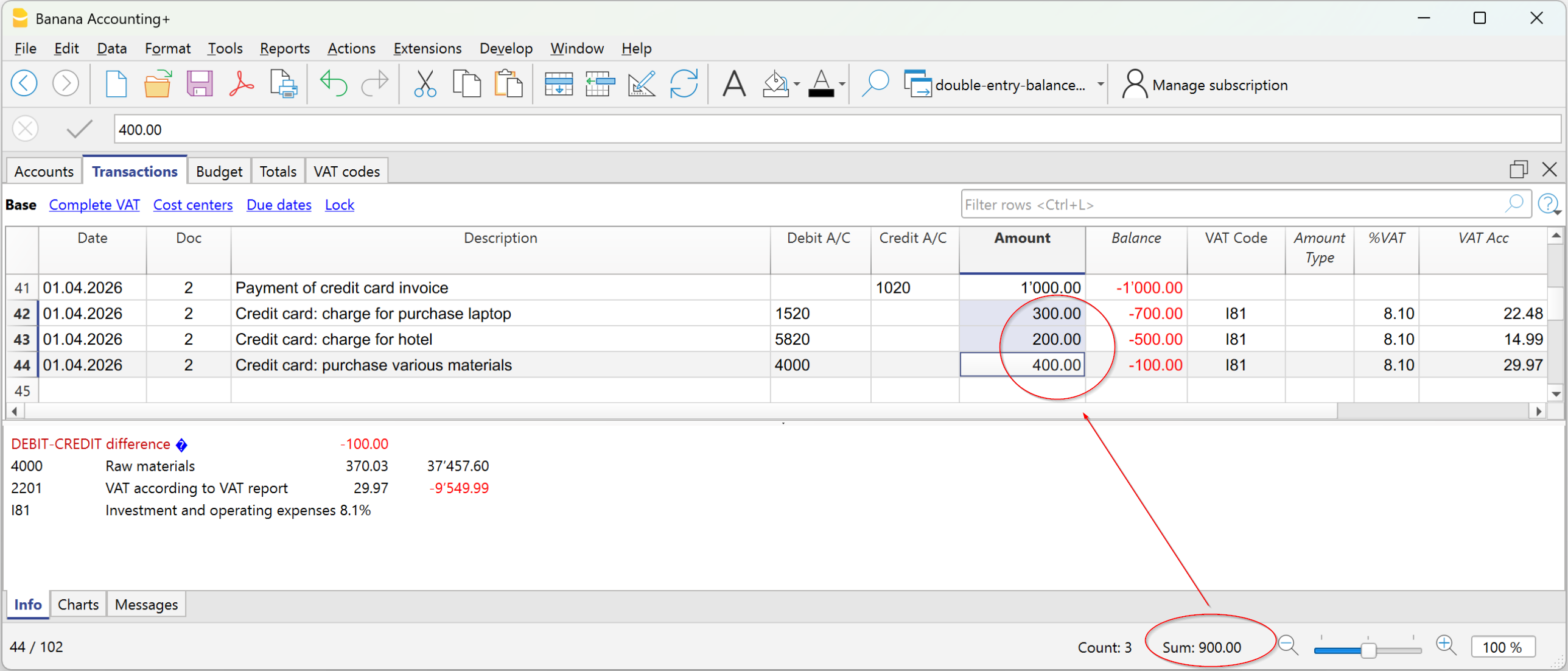
图中所示的示例涉及一笔用于支付多张发票的会计分录。各个账户及其相应金额分别录入在多行中:
- 在第一行的贷方列中,记录银行账户 1020,支付总金额为 1'000。
- 在后续各行的借方列中,记录以下账户:
- 账户 1520 – 投资,金额为 300
- 账户 5820 – 旅行,金额为 200
- 账户 4000 – 材料采购,金额为 400。
因此,借方记录的金额合计为 900,而贷方记录的金额为 1'000。
因此,该会计分录存在 100 的差额。该差额会显示在分录最后一行的余额列中,从而可以立即发现该分录未达到借贷平衡。
收支会计中的余额列
在收支会计和现金管理中,余额列用于显示账户列与类别列之间的差异。
当账目正确时,余额列应为空(单元格无内容):
- 如果账户列与类别列中的金额总和相等(无差异),则余额为零。
- 对于涉及多个账户的分录,在所有相关账户和类别分录完成前,会显示一个余额。完成最后一行分录后,余额应归零。
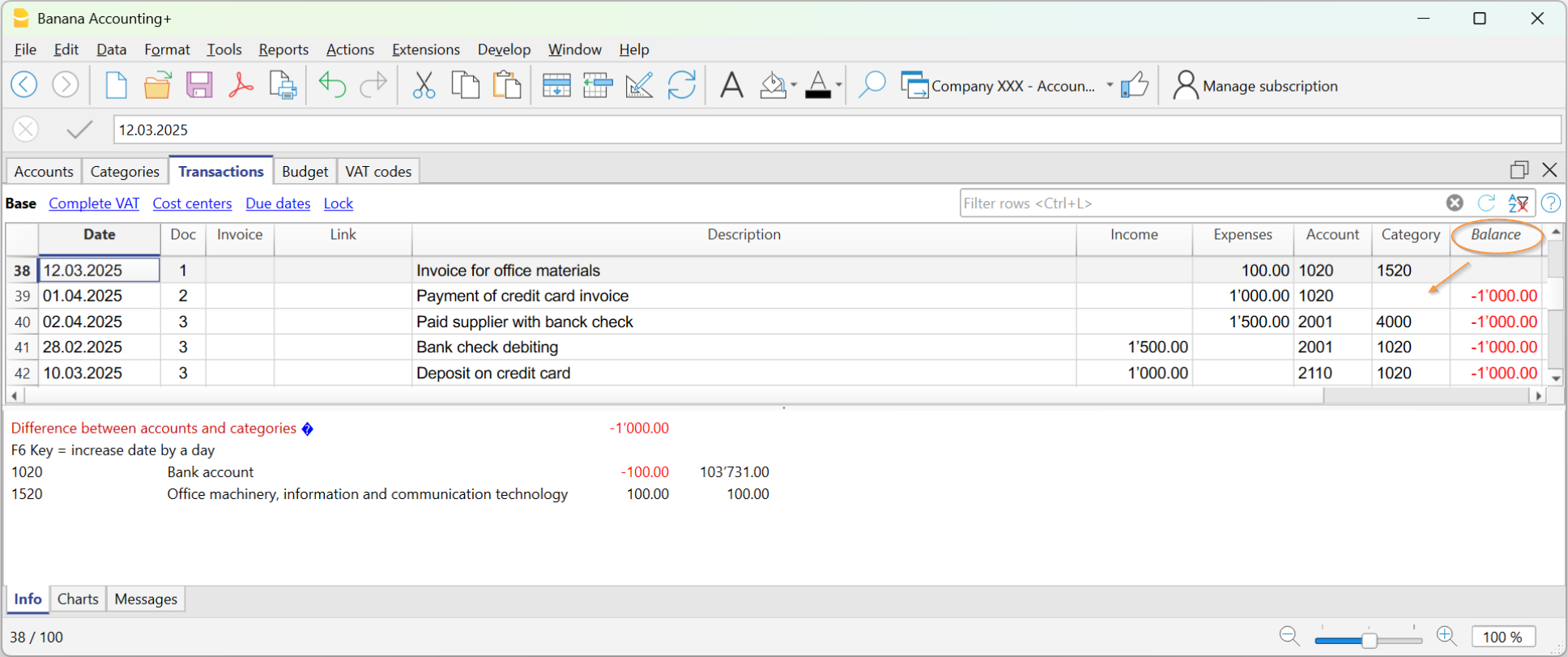
在示例图像中,产生了1000 的差异:
- 在Doc 2行的分录中,类别列未填写。因此,该金额只记录在账户上,导致1000 的差异。
检查账目
检查账目命令也包含对余额列的检查。
如果余额列不为零,则表示存在错误。要找到引起差异的第一行:
- 浏览余额列,查找差异开始的第一行。
- 使用重新检查账目命令,该命令会指出差异开始的行。