在发生业务行中输入发票数据
在发生业务表中输入发票数据。对于每个新发票,输入一个新的发生业务行。
- 输入发生业务的日期
- 发票号码
- 在摘要列输入的文字 (商品,服务,咨询……) 将显示在您客户的发票上
- 在借方列中插入客户编号
- 在贷方列插入对应的事务 (销售账户,咨询费等)
- 输入金额
- 如果您要缴纳增值税,请输入相应的适用增值税税率的增值税代码。
多行发票
如果发票中有多个元素 (不同的项目或服务,或两者都有),则必须在单独的行中输入它们 (每行一个元素):
- 使用新行输入您希望在打印发票时显示的每个项目。
- 每行使用相等的日期和发票编号。

发生业务表中发票的基本列
日期
发票数据会在此列中报告。与文档相关的所有行必须报告同一日期。
发票
为了管理发票,必须在发票列中输入发票号码。在借方列中注明属于明细账的客户账户(如果是按收款金额管理客户,则为成本中心3的列)。
额外的列
类型
在类型列中,您可以定义详细的行,例如总计行或发票的特定付款条件。此列在默认情况下不可见,需要通过数据菜单 → 列设置命令并勾选文件类型列来显示。
数量
在此列中输入提供的商品和服务的数量。添加数量列需要使用工具栏菜单 → 增添新功能→ 在发生业务表中增添项目列命令
单位
输入统一类型(例如 ”一个“,”小时“,”米“,”千克“等)。
价格/单位
输入商品或服务的单价,程序将根据您在数量列的输入自动计算金额结果。
How to define Customer Number and Invoice Number
This page explains how to correctly define the length and format of the Customer number and the Invoice number when invoicing with Banana Accounting Plus.
Important: Correctly setting the Customer number and the Invoice number is essential, especially if you issue Swiss QR invoices and want to automatically record payments. Both numbers are included in the reference number on the QR slip and are used to automatically link imported payments to the related invoices.
This setting applies to:
- Invoicing integrated in the accounting file (with or without Swiss QR)
- Invoicing with the Estimates and Invoices application (with or without Swiss QR).
Customer number
The Customer number is the identifier of the customer in accounting (subaccount or cost center). In QR invoices, it is also used to automatically record payments of the invoices.
Customer number format for QR invoices
In QR invoices, the customer number is included in the reference number. For this reason, it must follow specific rules, which vary depending on the type of account used (IBAN or QR-IBAN) and the type of reference number chosen.
- QR Invoice with IBAN account:
- Only numbers or letters are allowed (A‑Z, 0‑9).
- Spaces, separators, or other characters (-, /, #, etc.) are not allowed.
If you insert separators or other characters, they will be removed from the invoice printout and may cause problems in automatically recording payments. - Customer number + Invoice number ≤ 19 characters.
The two numbers together must not exceed 19 characters. It is recommended to keep the Customer number to a maximum of 7 characters.
- QR Invoice with QR-IBAN:
- Only digits (0–9) are allowed.
- No spaces, letters, separators or other characters (-, /, #, etc.). If you insert separators or other characters, they will be removed from the invoice printout and may cause problems in automatically recording payments.
- Maximum length 7 digits.
- Customer number + Invoice number: together must not exceed 14 digits.
Customer number format for invoices without QR
For invoices without QR, there are no constraints regarding the format of the customer number. Best practices apply.
Best practices for customer numbers
- Uniqueness: each customer must have a unique number.
- Consistency: use a fixed scheme (e.g. 1000001, 1000002, etc.).
- Compatibility: if you plan to issue QR invoices with both standard IBAN accounts and special QR-IBAN accounts, or switch from IBAN to QR-IBAN, use only numbers.
Invoice number
The Invoice number uniquely identifies the invoice (mandatory). In QR invoices, it is also used to automatically record payments.
Invoice number format for QR invoices
In QR invoices, the invoice number is included in the reference number. For this reason, it must follow specific rules, which vary depending on the type of account used (IBAN or QR-IBAN) and the type of reference number chosen.
- QR Invoice with IBAN account:
- Only numbers or letters are allowed (A‑Z, 0‑9).
- Spaces, separators, or other characters (-, /, #, etc.) are not allowed. If you insert separators or other characters, they will be removed from the invoice printout and may cause problems in automatically recording payments.
- Customer number + Invoice number: ≤ 19 characters.
The two numbers together must not exceed 19 characters. It is recommended to keep the Customer number to a maximum of 7 characters.
- QR Invoice with QR-IBAN:
- Only digits (0–9) are allowed.
- No spaces, letters, separators, or other characters (-, /, #, etc.). If you insert separators or other characters, they will be removed from the invoice printout and may cause problems in automatically recording payments.
- Maximum length 7 digits.
- Customer number + Invoice number: together must not exceed 14 digits.
Invoice number format for invoices without QR
For invoices without QR, there are no constraints regarding the invoice number. Best practices apply.
Best practices for invoice numbers
- Uniqueness: each invoice must have a unique number.
- Consistency: use a fixed scheme (e.g. year+progressive: 2500001, 2500002, etc.).
- Compatibility: if you plan to issue QR invoices with both standard IBAN accounts and special QR-IBAN accounts, or switch from IBAN to QR-IBAN, use only numbers.
使用现金方法发行增值税票据
Banana财务会计程序总是要在收入入账的那一行输入增值税代码。收款时需要缴纳增值税,收入账户也会被相应地记录。客户管理是通过成本中心3的利润中心来完成的。
在这种情况下,为了登记客户并开具发票,就必须:
- 在会计科目表中设置利润中心成本中心3的客户分类账。
- 在客户菜单设置中,选择成本中心3利润中心组。
- 当开具发票记录时:
- 发票。
- 在成本中心3列中输入成本中心3的利润百分比 (无借记或贷记账户) 。
- 在同一行中,在方括号 [V81] 之间输入销售税代码。
插入方括号内的增值税代码允许您查看发票中的增值税金额,而不需要在记录发票时进行会计处理。

Invoicing on turnover
In integrated invoicing, invoices are created and recorded in the same file. Regarding accrual-based accounting, invoices must be recorded at the time of issuance.
In accrual-based invoicing management, it is necessary to set up the customer subaccount in the Accounts table as shown in the balance sheet.
- All customer accounts must have complete data (first name, last name or company name, address), because when creating the invoice, the program uses this data for the invoice header.
It is possible to create and record invoices with or without VAT.
Accrual-based Invoice
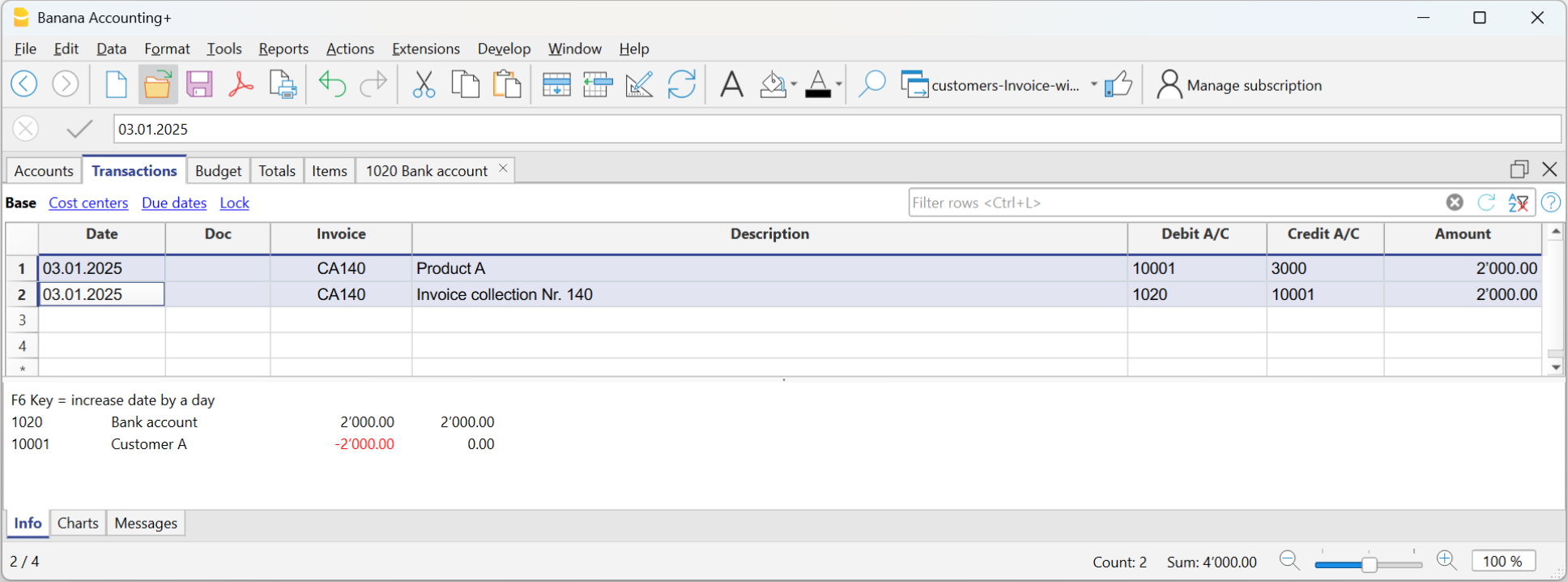
In the accrual-based system, the invoice is created to be sent to the customer, and it is recorded at the same time.
Therefore, with a single transaction, both the invoice is created and recorded:
- In the Date and Doc. column, enter the date and any document number.
- In the Invoice column, enter the invoice number.
It is important that the invoice number complies with certain requirements: see how to correctly create the invoice number. - In the Description column, enter the items to be invoiced that should appear on the invoice.
- In the Debit column, enter the customer's account from the subaccount.
It is important that the customer number complies with certain requirements: see how to correctly create the customer number. - In the Credit column, enter the revenue account.
- In the Amount column, enter the gross amount.
Accrual-based Invoice and VAT – Effective Method
The standard procedure in Banana Accounting for VAT management requires entering the VAT code on the same row where the income is recorded.
Issued invoices are immediately recorded and posted. Income is recognized at the time the invoice is issued.
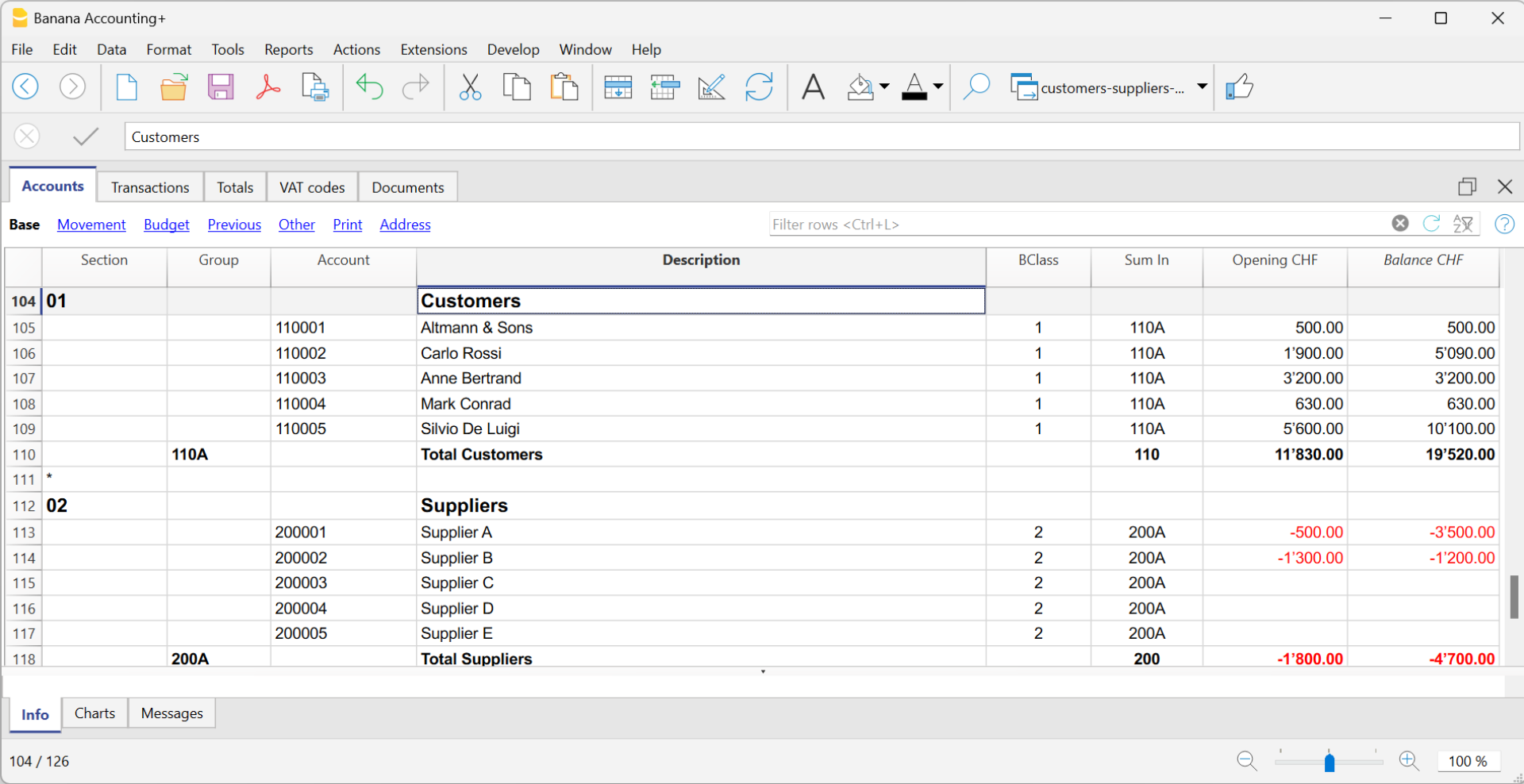
Therefore, in accrual-based VAT management, the VAT code is added when the invoice is created.
The invoice data is entered in the Transactions table. For each new invoice, enter a new transaction row.
- Enter the date of the transaction
- The invoice number
It is important that the invoice number complies with certain requirements: see how to correctly create the invoice number. - The description text (products, services, consulting...) that will appear on the customer invoice
- In the Debit account, enter the customer account number
It is important that the customer number complies with certain requirements: see how to correctly create the customer number. - In the Credit account, enter the counterpart (Sales account, Consulting or other)
- Enter the amount
- In cases subject to VAT, enter the VAT Code with the applicable VAT rate. See Print invoices and VAT management.
Invoicing and VAT net tax rate method
If you are subject to VAT under the balance rate or flat-rate regime with the cash-based system, you must record the invoice issuance to the customer and its accounting registration separately, for the following reasons:
- Invoice to be sent to the customer:
It must show a normal commercial VAT rate (e.g., 8.1%), as required by tax regulations. - Accounting of the invoice:
It must instead be recorded in accounting with the effective balance rate (e.g., 6.2%), using the corresponding VAT code (e.g., F1).
This approach is essential to ensure that the VAT paid corresponds to the applicable reduced regime, while still maintaining a formally correct invoice for the customer.
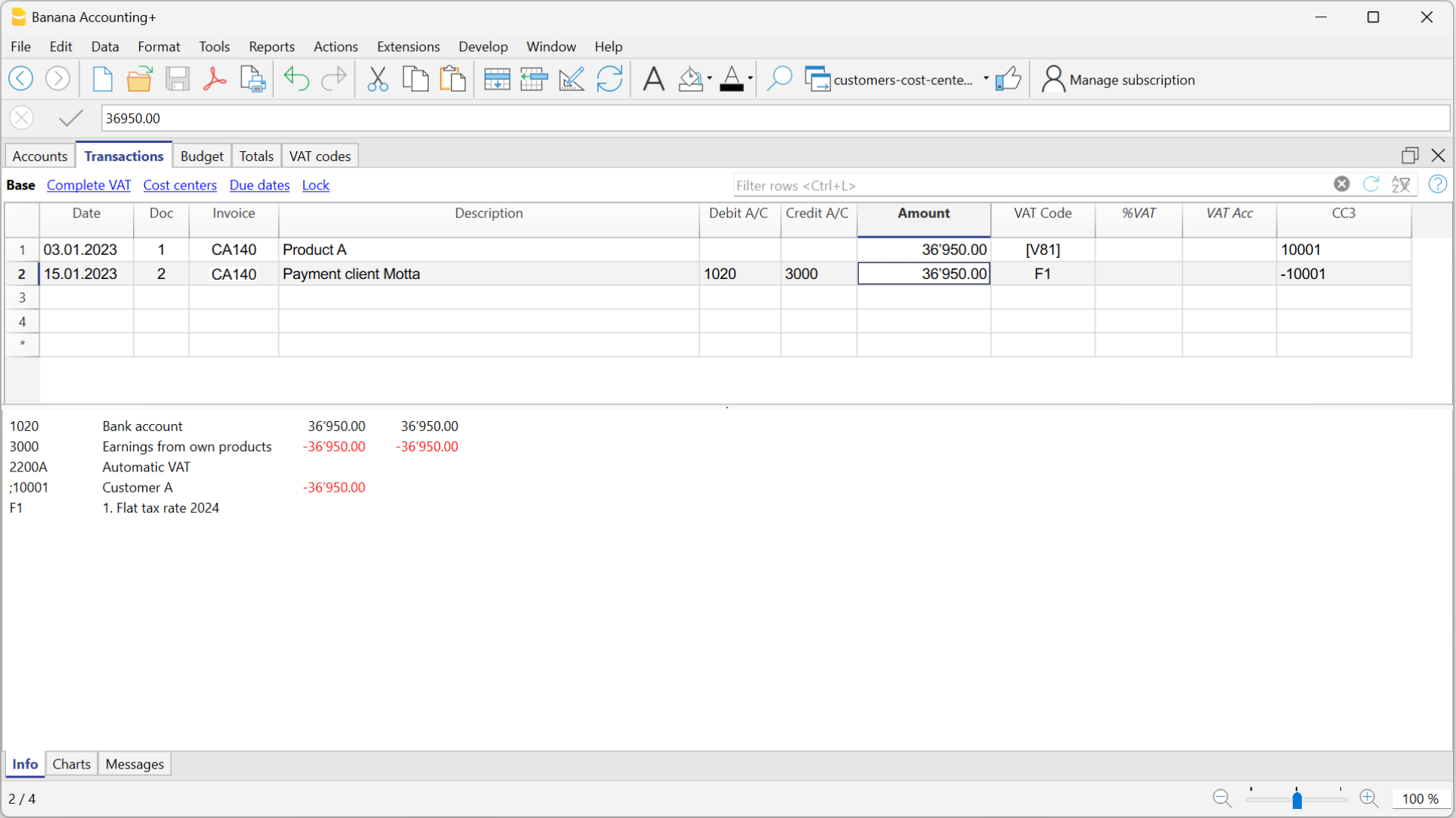
Issuing the invoice to the customer
To issue the invoice to the customer, proceed as follows:
In the Accounts Table:
- Create a customer sub-account with the profit center CC3 (example: ;10001 for customer XX)
- In the Address view, enter all customer data.
In the Transactions table:
- In the Date column, enter the invoice issue date.
- In the Invoice column, enter the invoice number.
It is important that the invoice number complies with certain requirements: see how to correctly create the invoice number. - In the Description column, enter the description that should appear in the invoice details.
- In the Amount column, enter the amount
- The Debit and Credit columns must remain empty.
- In the VAT Code column, type the code V81 in square brackets [V81].
VAT codes in square brackets do not generate any VAT entry. - In the CC3 column, indicate the profit center number without semicolon (e.g., 10001).
It is important that the customer number complies with certain requirements: see how to correctly create the customer number.
Since there are no accounts in the Debit and Credit columns, the invoice creation entry will not be recorded in accounting.
Recording the invoice with VAT balance rate
When recording an invoice subject to VAT with a balance rate in accounting, it is sufficient to proceed as with a normal entry, indicating the accounts in the Debit and Credit columns and entering the VAT code corresponding to the balance rate (e.g., F1).
Two recording systems can be used to register the invoice with the balance rate:
- Recording with split
In the VAT codes table, VAT percentages have been assigned to balance rate VAT codes. In the transactions table, by entering the balance rate VAT code (e.g., F1), the program automatically enters the corresponding VAT percentage (e.g., 6.2) and the VAT amount. - Recording without split, by entering the balance rate VAT code (e.g., F1), percentage and amount are not entered. At the end of the period, the specific extension for calculating balance VAT is used.
Based on the rate defined in the extension dialog, the program:- Identifies all entries with balance rate VAT code.
- Automatically calculates the VAT due for the reporting period.
- Totals the amounts on a periodic basis (e.g., monthly, quarterly, yearly).
Invoicing and VAT with balance rate using the invoicing method
The Banana Accounting procedure for VAT management requires entering the VAT code always on the line where the income is recorded. When accounting is managed based on turnover, the income is recorded when the invoice is issued.
When subject to VAT using the balance rates or flat-rate method, customer invoices must be issued using the normal rates (e.g., 8.1%). However, the accounting of invoices under the balance rates or flat-rate method involves reduced rates (e.g., 6.2%).
- If the amounts are gross, you can record them based on turnover or on cash received, by entering the VAT code in square brackets.
- If the amounts are net, it is not possible to create and post the invoices at the same time. In this case, it is necessary to manage:
- The creation of invoices in an accounting file, using the integrated invoicing or with the Offers and Invoices Application
- The posting of invoices in the accounting file.
In this case, the creation of the invoices must be handled in an accounting file or with the Offers and Invoices Application, and the posting in a separate accounting file.
Issuing an invoice with balance tax rate and gross amounts
To issue an invoice to customers with the standard VAT rate (e.g. 8.1%), you need to create a customer subaccount with profit centers CC3 (example: ;10001), completing all customer information in the columns of the Address view.
In the Transactions table:
- In the Date column, enter the invoice issue date.
- In the Invoice column, enter the invoice number:
It is important that the invoice number follows certain rules: see how to correctly create the invoice number. - In the Description column, enter the invoice details.
- The Debit and Credit columns must remain empty.
Since there are no accounts in the Debit and Credit columns, the invoice creation entry will not be recorded. - In the Amount column, enter the amount.
- In the VAT Code column, type the V81 code in square brackets [V81].
VAT codes in square brackets do not trigger VAT accounting. - In the CC3 column, enter the customer account, without semicolon (e.g. 10001).
It is important that the customer number follows certain rules: see how to correctly create the customer number.
Posting an Invoice with Balance Rate and Gross Amounts
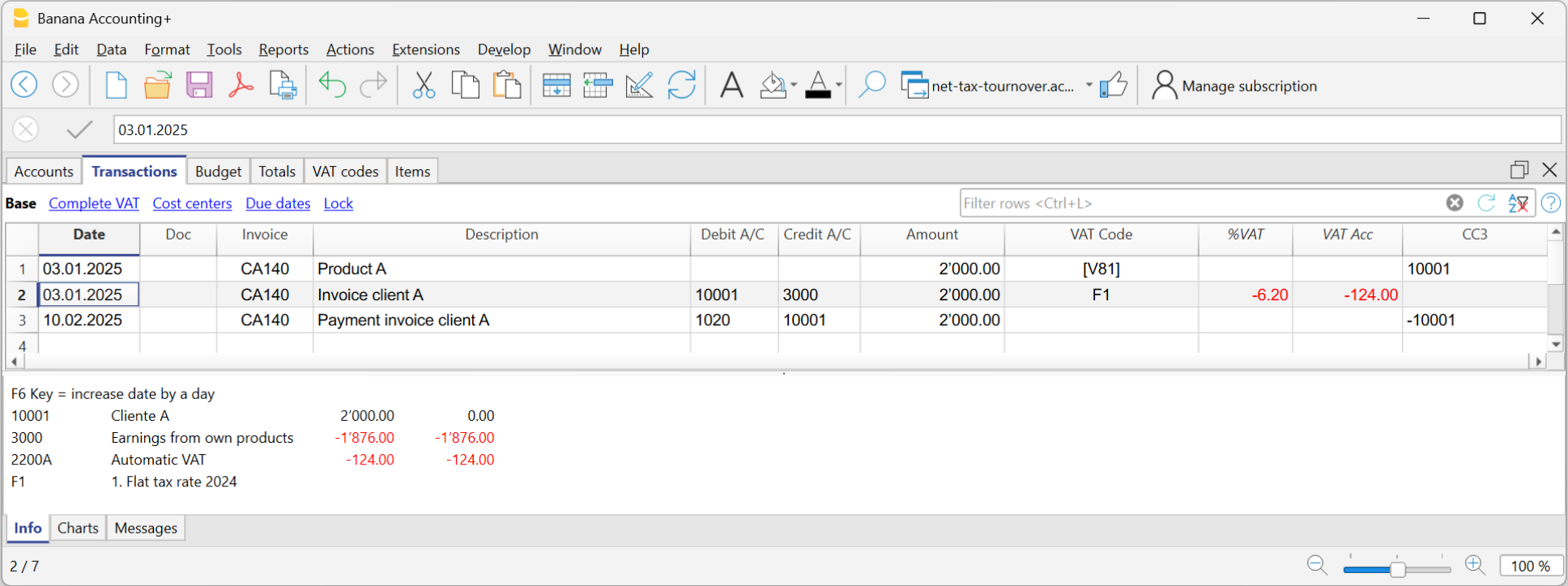
When recording the invoice in the accounting, to post it using the VAT balance rate, you must enter the transaction as usual, also entering the accounts in the Debit and Credit columns and the VAT code of the balance rate:
- If the VAT breakdown method is used, enter the VAT code for the balance rate (e.g., F1). In this case, the VAT Codes table includes the VAT rates for the balance. In example F1 corresponds to 6.2%.
- If the non-VAT breakdown method is used, enter the VAT code without rate (e.g., F1). In the VAT code table, the balance rate codes do not have rates.
To post the invoice using the balance rate, it is necessary to create in the Accounts table:
- A customer sub-account using balance sheet accounts.
- Enter the date and description in the corresponding columns.
- In the Debit column, enter the customer account (e.g., 10001).
- In the Credit column, enter the income account.
- In the Amount column, enter the amount.
- In the VAT Code column, type the VAT code for the balance rate (e.g., F1)
折扣和返利
要在发票中输入折扣或返利,请添加新行并输入:
- 发票日期。
- 发票编号。
- 折扣或返利的摘要。
- 借方和贷方列中的账户。与销售业务相比,倒转账户很重要。
当客户/供应商明细账设置了成本中心,并且有折扣和返利的发生业务时,为了使金额反转,必须将成本中心的符号也反转。 - 如果有增值税,请在增值税代码中加上负号,以便扣除增值税,或者如果使用当前增值税代码进行折扣和返利,则应扣除增值税。

Rounding in invoice printout
In the printout of invoices integrated in accounting, the total VAT amount corresponds to the sum of the individual VAT transactions that make up the invoice. Since the individual VAT transactions are rounded to the nearest cent, there may be a difference compared to the VAT calculated on the total invoice amount.
To better understand, let's consider the following example:
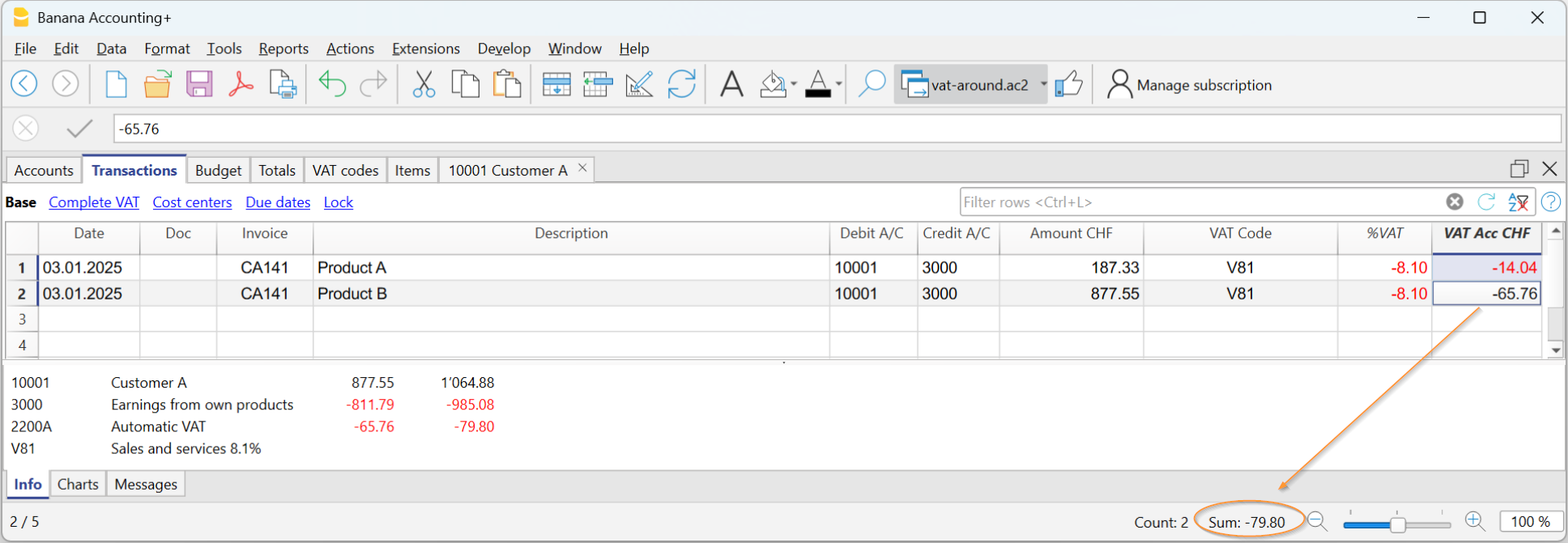
- Row 1: 8.1% of CHF 187.33 = Rounded: CHF 14.04
- Row 2: 8.1% of CHF 875.00 = Rounded: CHF 65.76
- Total: 8.1% of CHF 1064.88 = Rounded: CHF 79.80
The invoice shows a VAT amount of CHF 79.80 instead of CHF 79.79 (amount calculated directly on the total of 1064.88). In fact, the amount of CHF 79.80 corresponds to the sum of VAT individually calculated for each item (CHF 14.04 + CHF 65.76).
This logic is adopted to avoid discrepancies between the VAT amounts recorded in accounting and those shown on the invoice. In this way, the total VAT in accounting matches the one printed on the invoice.
设置客户语言
默认布局包括以下语言:意大利语,德语,英语,法语,荷兰语。
发票文本以客户的语言打印,但前提是在语言列 (账户表,地址视图) 中进行了设置。
语言是通常由2个小写字母组成的ISO代码 (it=意大利语, de=德语, en=英语, fr=法语, nl=荷兰语).
如果没有为客户账户指定语言,则使用文件 → 文件和账户属性 (基础数据) → 其它菜单中定义的会计语言。

到期日期和付款条款
发票的到期日可以用不同的方式设置:
- 广义到期日 - 所有发票的到期日相同
选择报表菜单 → 客户 → 设置 → 总的 → 发票到期的选项,定义发票应该到期的期限 (按天)。例如,如果文档的日期为5月10日,而您输入的值为10天,那么发票到期日期将为月20日。 - 每个客户的截止日期 - 针对每个客户定义
在账户表中, 可以使用到期日列 (如果未显示,通过数据 → 列设置 ...进行设置)。可以在此列设置发票应该到期的期限 (按天)。 - 每张发票的特定日期
在发生业务表中,到期日期选项可以让您显示到期日列。 -
到期日期的替代文本
可以将您选择的文本定义为每个发票的付款条件,这将替换到期日期的文本。请返回高级输入-类型列获取详细信息。
打印其它币种的发票
您也可以用不同的货币来打印发票:
- 您必须使用多币种会计文件。
- 发票以客户账户的币种打印。
如果要将不同币种的发票发送给同一客户,则必须为同一客户创建不同币种的账户。
高级输入文件类型列
发生业务表中的类型列可用于定义和显示打印发票特定数据有关的命令。
通过数据菜单 → 列设置的命令来查看并显示文件类型列。
输入数据
一旦显示出了该列,您就可以输入数据了。您将需要:
- 在发票日期之后添加一个空行。
- 在日期列中输入发票的日期。
- 在文件类型列中输入所需的参数 (请参阅下表)。
- 在发票列中输入发票编号。
- 在摘要列中输入要显示在发票上的相关数据。
给客户开具发票
输入10:文件类型列将列出可用于自定义发票数据的所有可能选项。
| 发票数据 | 文件类型列 | 摘要列 |
|---|---|---|
|
客户地址 如果需要一个与账户表 (地址视图) 中定义的地址不同的地址,则可以使用适当的选项指定该地址。 在每一行中指明地址的元素 (名称,姓氏,地址...)。 |
10:adr:fna |
输入名 |
|
问候 在发票详细信息之后,您可以在最后的问候语中添加一行文字 (另请参见示例发票的页面)。 |
10:gre | 输入您的问候语 |
|
备注 可以在发票明细之后,问候语之前插入一行或几行备注 (也可参见发票示例的页面)。 |
10:not | 输入备注信息 |
|
参数 (高级) 当想要在发票上打印个性化数据时,可以使用相应的命令。 这个选项是针对具有JavaScript编程知识的用户,允许您改变发票的式样,从而通过这个命令来使用指定的参数。 欲了解更多的信息请查看自定义数据打印的页面 (内容为英文的)。 |
10:par | 输入您的自定义参数 |
|
付款条件 如果您想指定一个替代文本作为付款期限,请输入所需的文本。其将显示在发票上。 |
10:ter | 输入付款期限的替代文本 |
|
标题 如果您不想使用默认的发票标题,可以选择不同的标题。 |
10:tit | 输入您的文字作为发票标题显示 |
|
项目小计 |
10:tot |
输入0级小计 |
|
标题行的文字 在发票明细表中,您可以将标题添加到组的项目中 (另请参见示例发票的页面)。 |
10:hdr | 输入您要添加到发票详细信息的文本。 留空用来添加空行。 |
中间总计
为了插入中间总计,您将需要在发生业务表中添加其它行:
- 在文件类型列中输入 10:从下拉菜单中选择 :tot,会显示 10:tot。选择并输入 :1
- 在摘要列中输入相对应的描述 (例如,总商品)
- 输入发票编号 (如果没有编号,则不会打印总计)。

含中间总计的发票示例。

付款条件的备选文字
可以将您自己的描述定义为每张发票的付款期限,这将替换现有文本作为到期日期。
- 在发生业务表中输入相同发票号的附加行。
- 您需要输入 10: 在文件类型列中并从下拉菜单中选择 :ter,选择 10:ter。
- 在摘要列中输入您的文字 (如30天净值,60天等)。
在打印发票时,将显示作为付款期限的指定值。
额外的自定义功能
在打印发票对话框中还提供了其它自定义的选项,例如定义银行详情或最后的问候语。